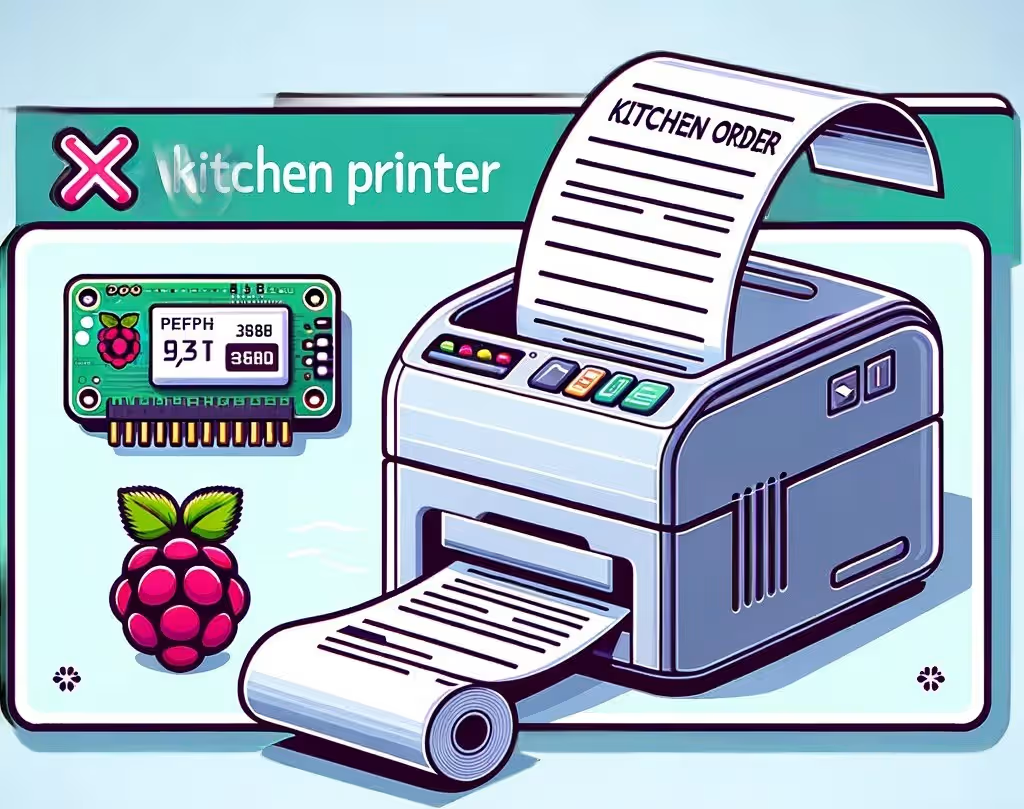
This module optimizes restaurant operations by enabling direct printing of kitchen order tickets from the point-of-sale system. Orders are printed instantly to the kitchen printer without manual steps, enhancing service speed and reducing wait times. Designed for reliable and efficient ticket delivery, this module streamlines printing workflows and empowers kitchen staff to focus on preparation immediately.
Key Features
Automatically print kitchen order tickets directly from POS upon order confirmation.
Support both ESC/POS and image-based printing formats for flexibility.
Bypass manual printing workflows for faster kitchen notification.
Integrate smoothly with network-connected kitchen printers.
Designed to improve order delivery speed and reduce operational delays.
Benefits
Accelerates kitchen processing by eliminating printing lag.
Enhances service efficiency with immediate order ticket delivery.
Minimizes manual effort and reduces risk of human error in printing.
Streamlines the workflow between front-of-house and kitchen staff.
Improves customer satisfaction with faster and consistent food preparation.
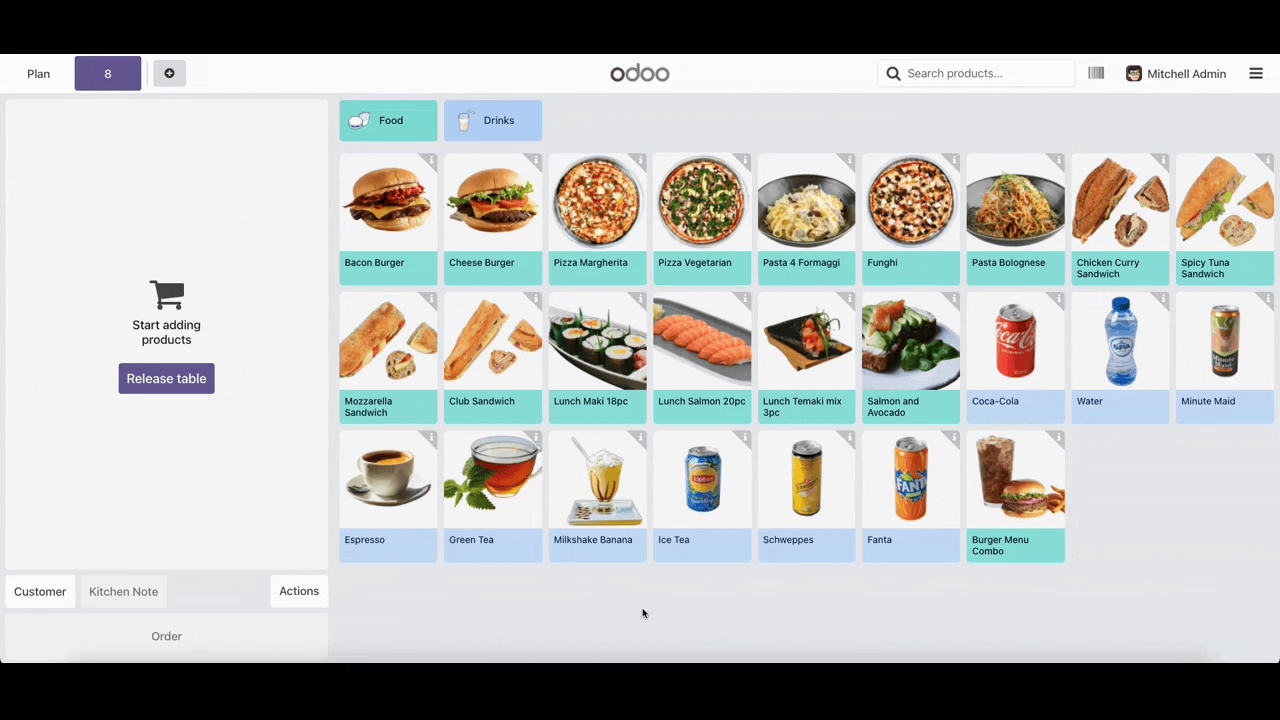
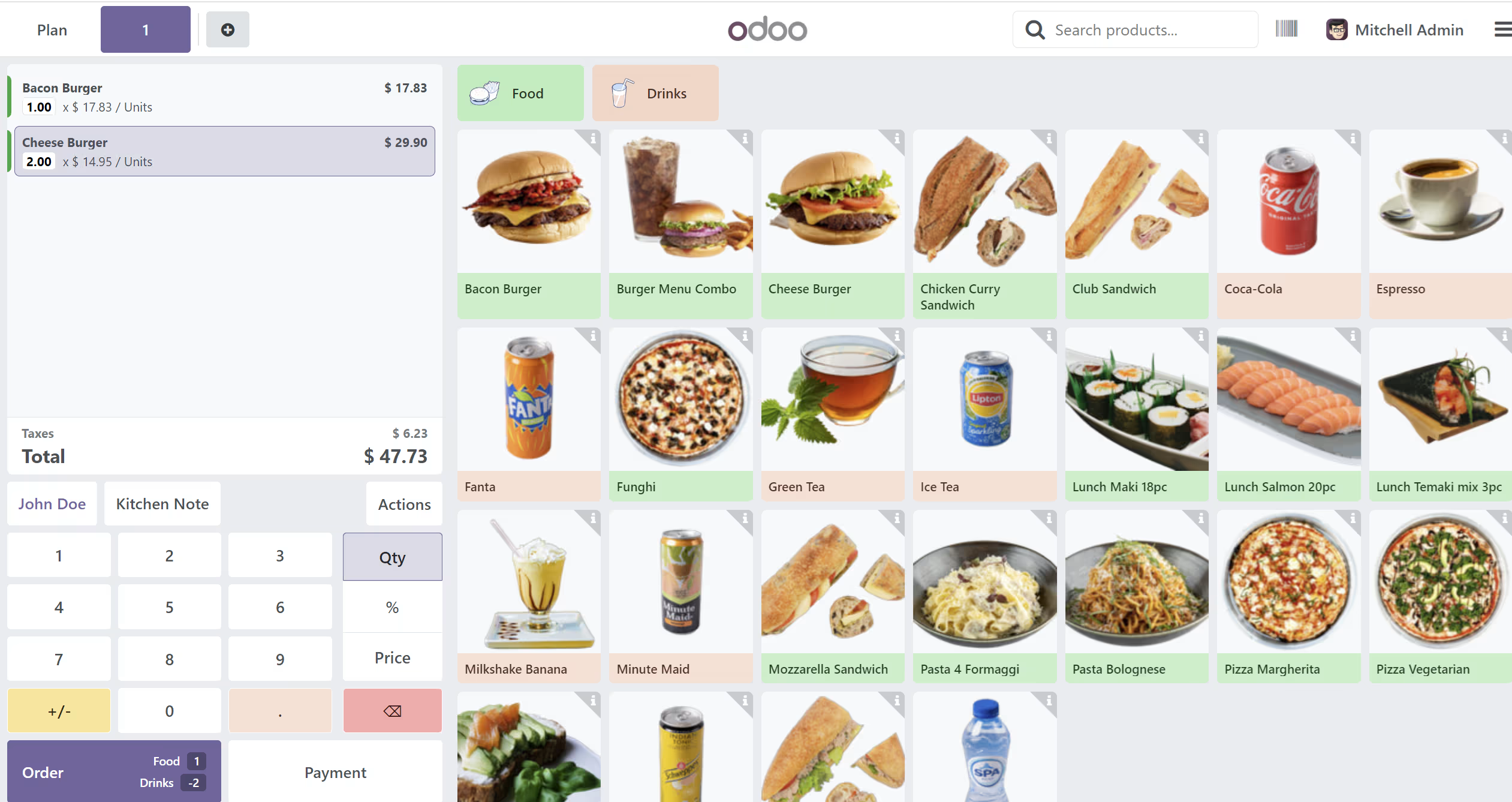
This module extends the Onvodo® Point of Sale (POS) application. It offers a solution for restaurants, cafes, and other food service establishments looking to enhance their kitchen order management and printing processes.
Compatible with non ESCPOS printers, including locally connected printers (USB, serial, etc.), not limited to network printers.
- Direct Printing with jIotBox: Integrates with jIotBox, bypassing the need for the IoT Box and enabling direct printing from Onvodo® POS to your kitchen printers. This ensures faster, more reliable receipt printing and supports a wide range of printer models.
- Enhanced Kitchen Workflow: By customizing the layout and details of kitchen receipts, kitchens can improve order accuracy, speed up preparation times, and enhance overall service quality.
POS Session View And Configuration
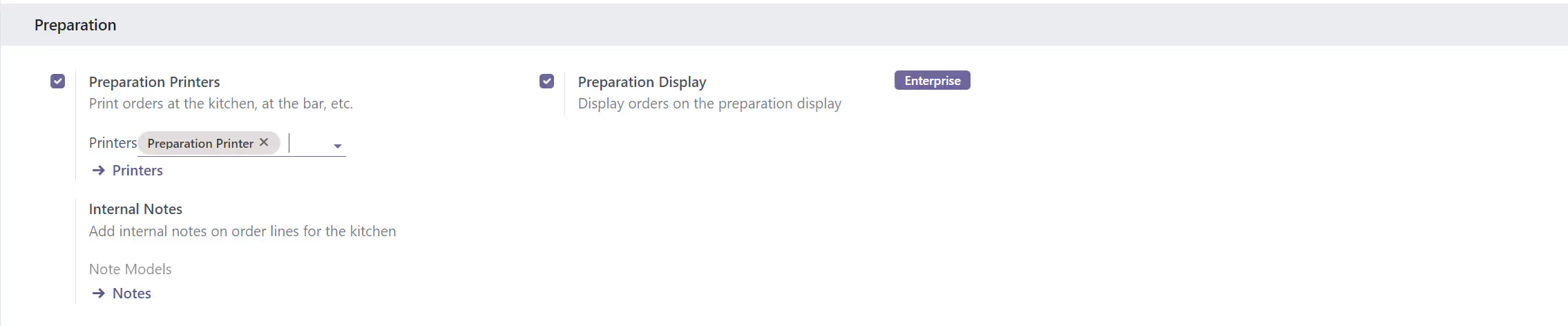
Go to Point of Sale → Configuration → Point of sale. Go to Connected Devices section; check Kitchen Printers
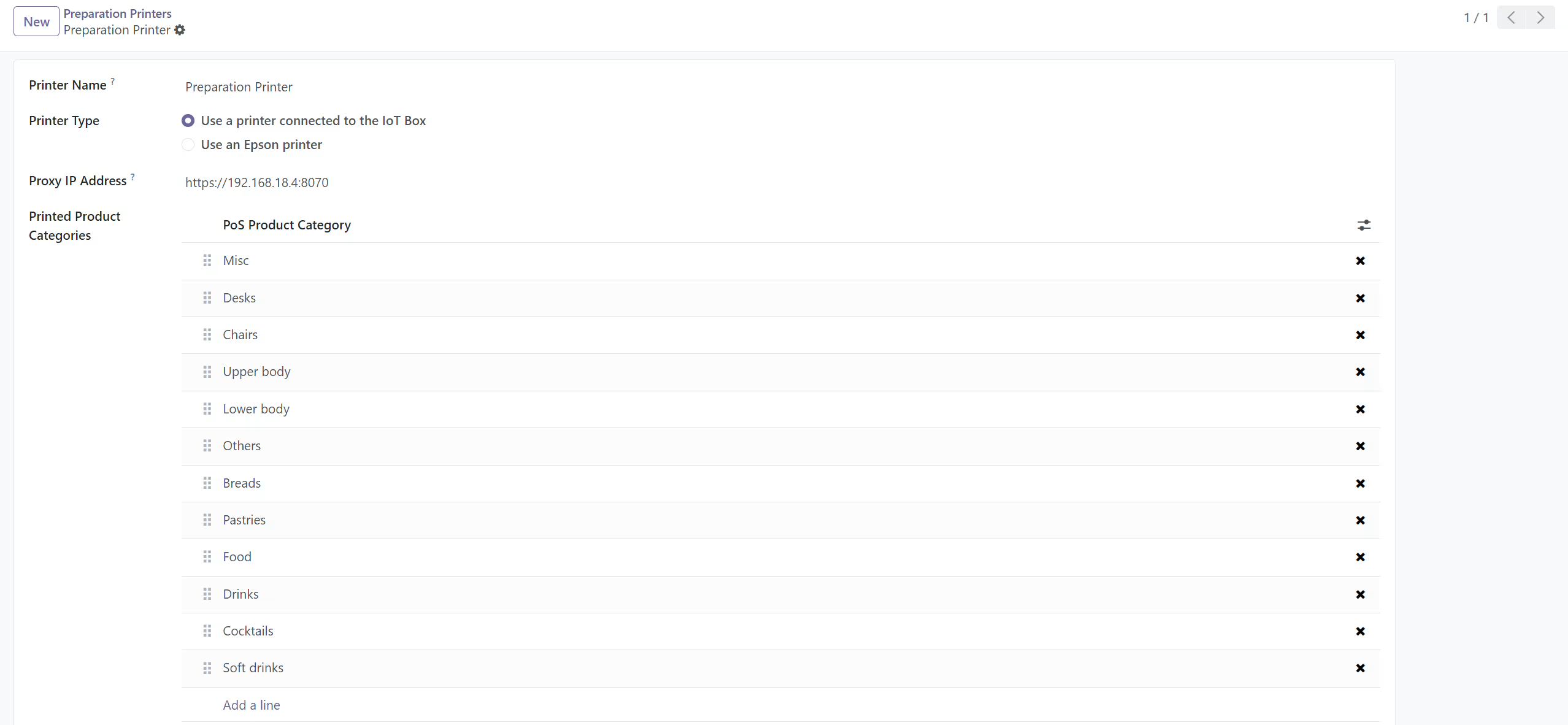
Proxy IP Address: https://ip:port
jIotBox Configuration
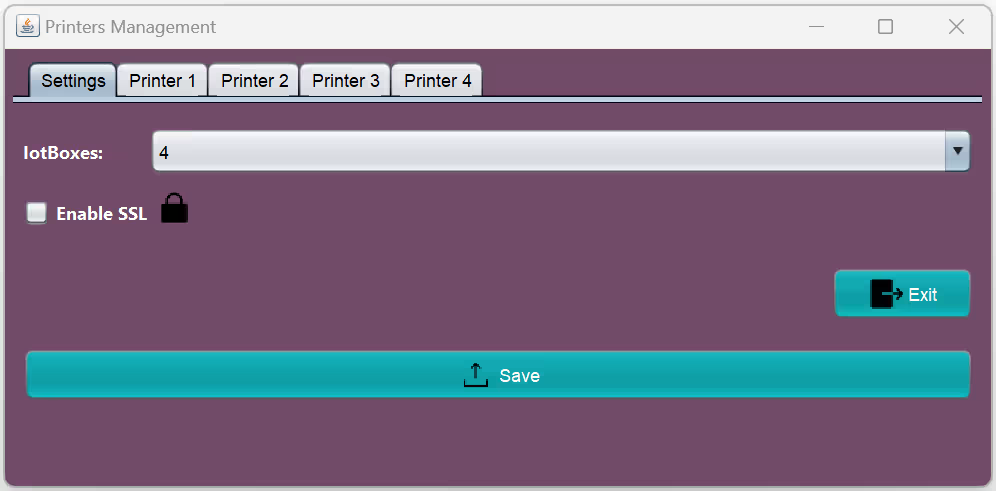
Before using jIotBox, ensure that Java is installed on your system.
After installing Java, navigate to the "jIotBox" directory within this module and execute the "jIotBox.jar" file.
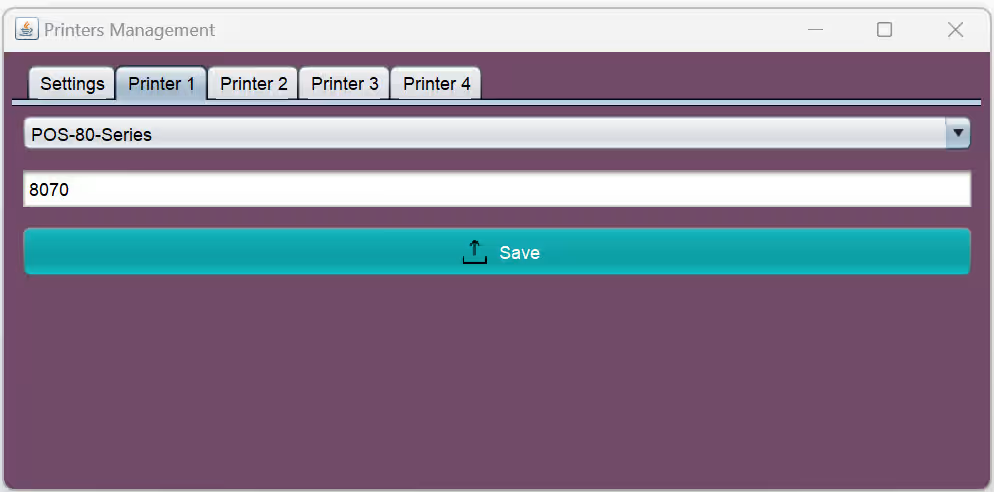
Upon launching jIotBox for the first time, ensure to select your printer and click on "Save" before starting.
Point Of Sale
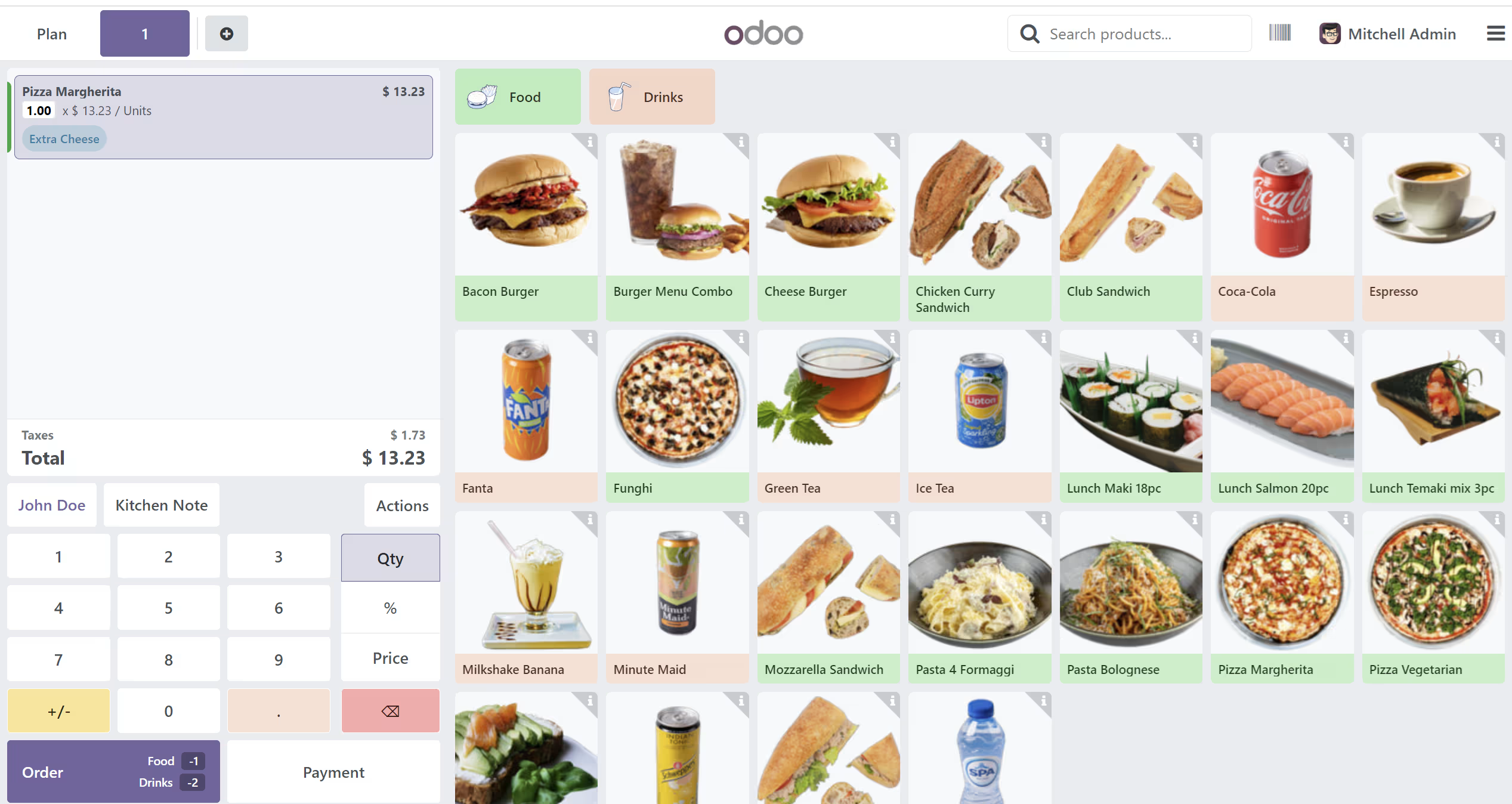
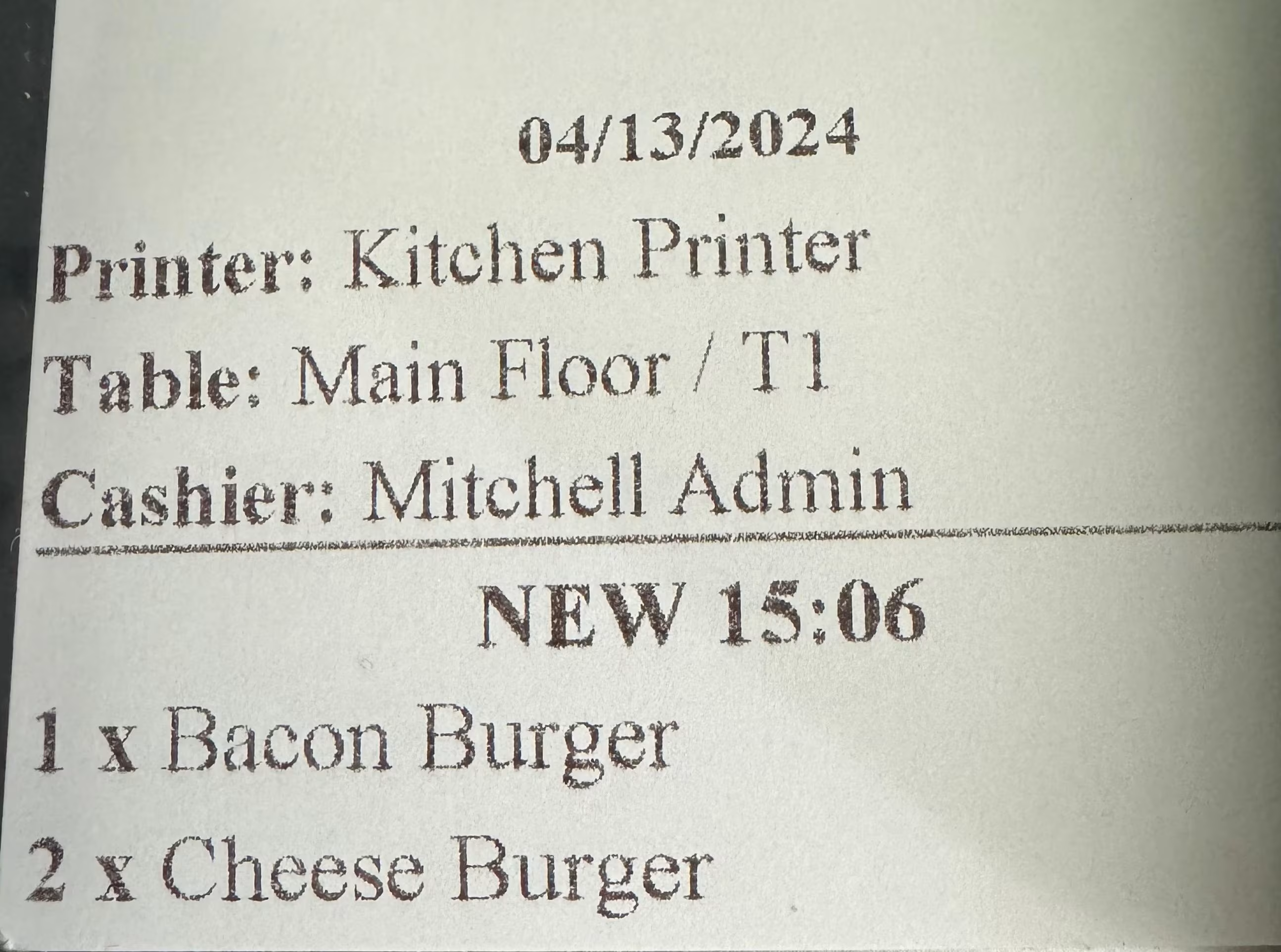
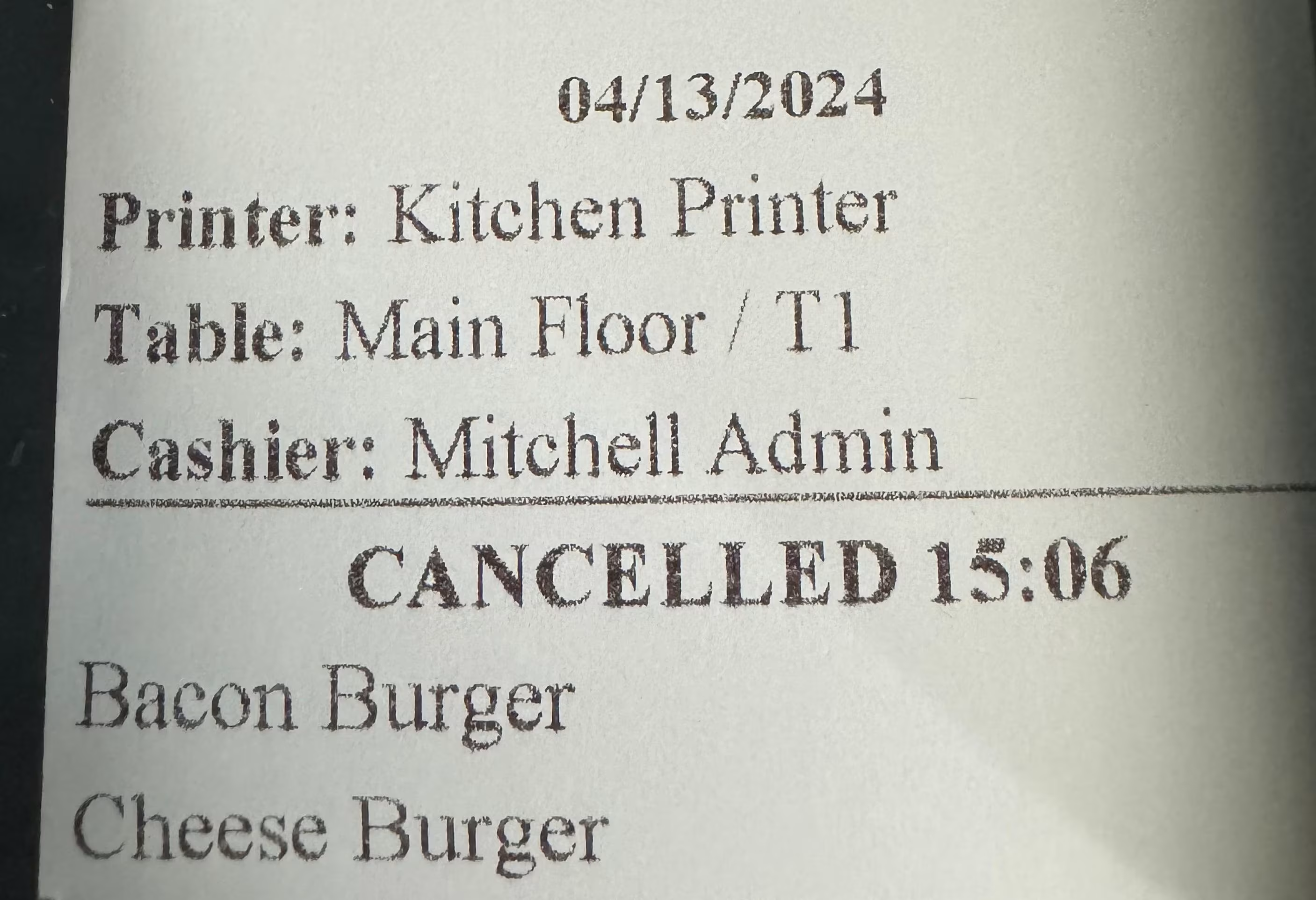
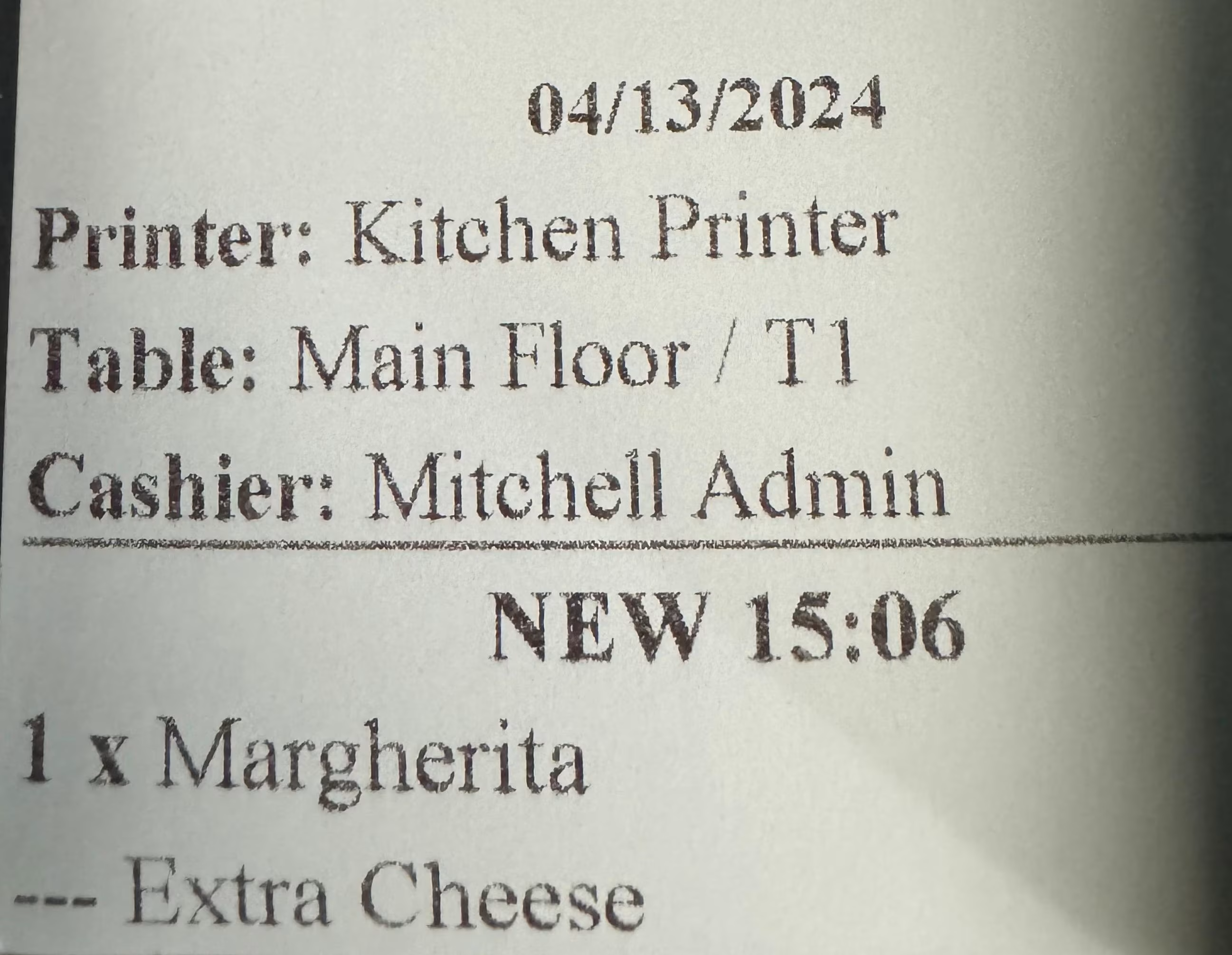
It's crucial to ensure that the required drivers are correctly installed for optimal performance. Without the proper drivers, your printers may not function as expected, leading to errors and disruptions in your kitchen order management process.
Before using this module, double-check that all printer drivers are installed and up to date. Proper driver installation helps prevent compatibility issues and ensures seamless printing from Onvodo® POS to your kitchen printers.
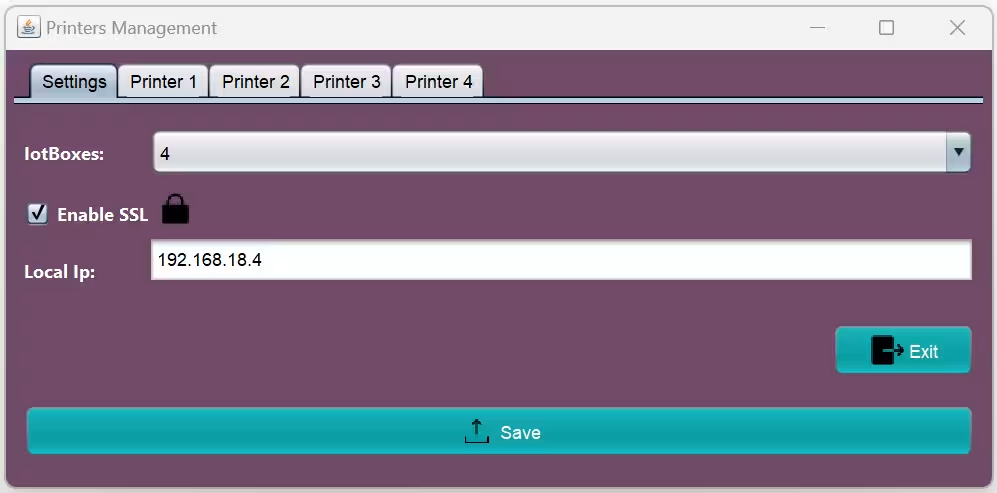
Ensuring secure communication for jIotBox on Windows involves several critical steps, from installing package managers to setting up SSL certificates. Here's a detailed walkthrough:
- Go to the jIotBox settings.
- Look for the "Enable SSL" option within the settings.
- Check the box to activate SSL.
- Find the section to configure the IP address ("Local Ip").
- Enter the local server IP address.
- Save the changes.
If you encounter any CORS errors, we recommend using Mozilla Firefox and disabling CORS. CORS errors might occur when accessing certain resources due to security restrictions enforced by the browser.
To disable strict origin policy
in Firefox, type
about:config in the
address bar. Search for
security.fileuri.strict_origin_policy
and set it to
false. This
adjustment can help when working
with local files and testing
across different origins.
To disable mixed content
warnings in Firefox, enter
about:config into
the address bar and search for
security.mixed_content.block_active_content.
Set it to false.
This change allows loading of
mixed active content, which can
help during development and
testing.
Unfortunately, we can't disable these security features in Chrome or Safari using similar methods. In these cases, it's necessary to use other approaches to resolve the issue, such as ensuring all resources are served over HTTPS or using a development proxy that handles HTTPS.