The module integrates the Authorize.Net payment gateway, enabling businesses to process secure credit card and eCheck payments without leaving the platform. It supports customer profile creation, tokenization, payment capture, refunds, and voiding transactions all while ensuring PCI compliance. Perfect for organizations seeking a robust and flexible payment integration, this module enhances transaction security, simplifies payment workflows, and supports multi-currency and multi-company environments.
Support for credit card and eCheck payments through the integrated Authorize.Net gateway
Tokenization support: customers can add, update, or delete saved payment profiles securely without storing sensitive card data
Handle full and partial captures of authorized payments directly from invoices or sales orders
Enable refund and void operations for unsettled payments, with transaction details visible in both Authorize.Net
Multi-company and multi-currency support for flexible global operations
Enhance transaction security through tokenization and PCI-compliant payment flow
Streamline backend operations by handling authorization, capture, refunds, and voids.
Improve customer experience with reusable payment profiles and convenient checkouts
Support business scalability with multi-company and multi-currency capabilities
Maintain financial transparency by logging all payment transactions within records
Synconics has made the payment processing simple in by integrating Authorize.net. The payment transactions are done by card token or eCheck token. The module supports multi company and multi currency and it also adds in more features like partial payment only supported in Authorize & Capture Flow, refund transaction (partial or full) and void payment. The module is secured as per PCI compliances, the saved card information or the bank A/C number is encrypted in backend and only last 4 digits of the card or bank A/C number are visible.
 Community
-
Enterprise
(On-premises) - .sh
 Online
| Payment Operations | Do payment operations within to Authorize.Net |
|---|---|
| Tokenization or Direct Card Payment | Payment can be done with or without the use of card token details from customers end |
| Payment Type | Payment can be done using card and eCheck |
| Sales Payment and Refund | Partial or full Sales payment can be made or refunded through card |
| Multi-Company & Multi-Currency Support | Supports Multi-Company & Multi-Currency through configuration |
| Customer Payment Details | Customers can configure their card/bank details, add, update or Delete their card token or eCheck details |
| Invoice Payment | Partial or full invoice payment can be made or refunded through card |
| Void Payment | Void unsettled payment transaction in Sales Order from Authorize.Net |
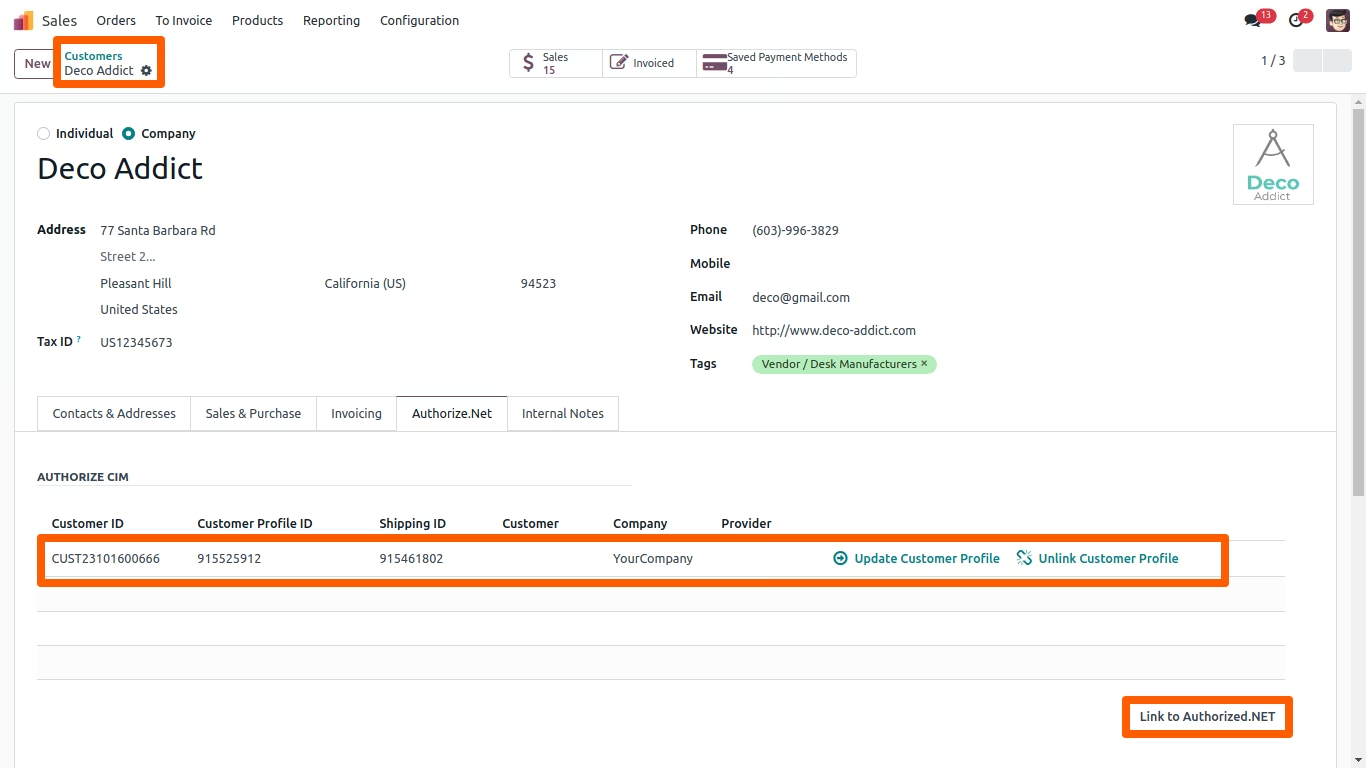
By clicking on the "Link to Authorize.net" button, the customer details are sent to Authorize.net for creating "Customer Profile ID" and "Shipping ID". Users can also update and delete customer profiles on Authorize.Net.
Please Note: For multi company scenario the customer profile is to be linked individually in Authorize.net.
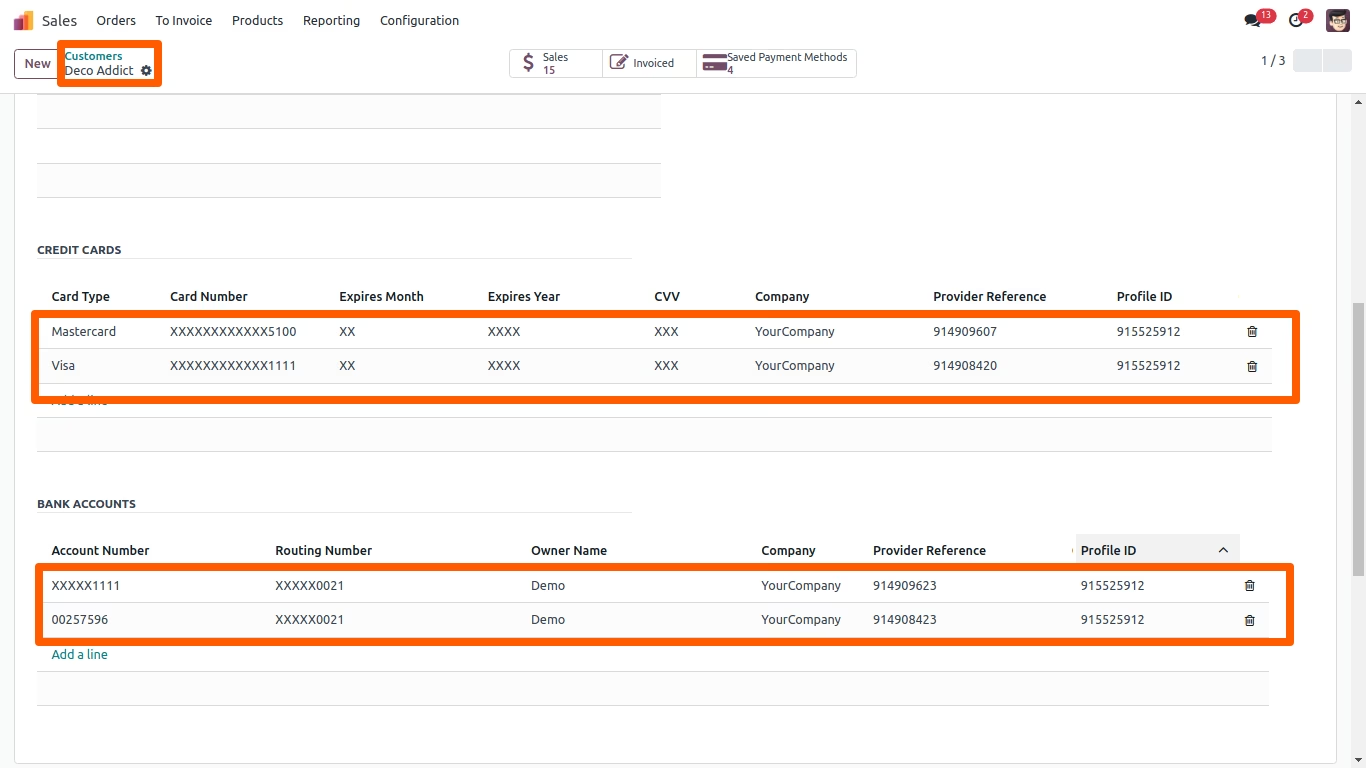
Card & Bank eCheck Account Registration
Add card or bank account information and send it to Authorize.Net to create "Customer Payment ID".
Please Note: As per PCI compliance the module does not store any debit/credit card or bank account number information.
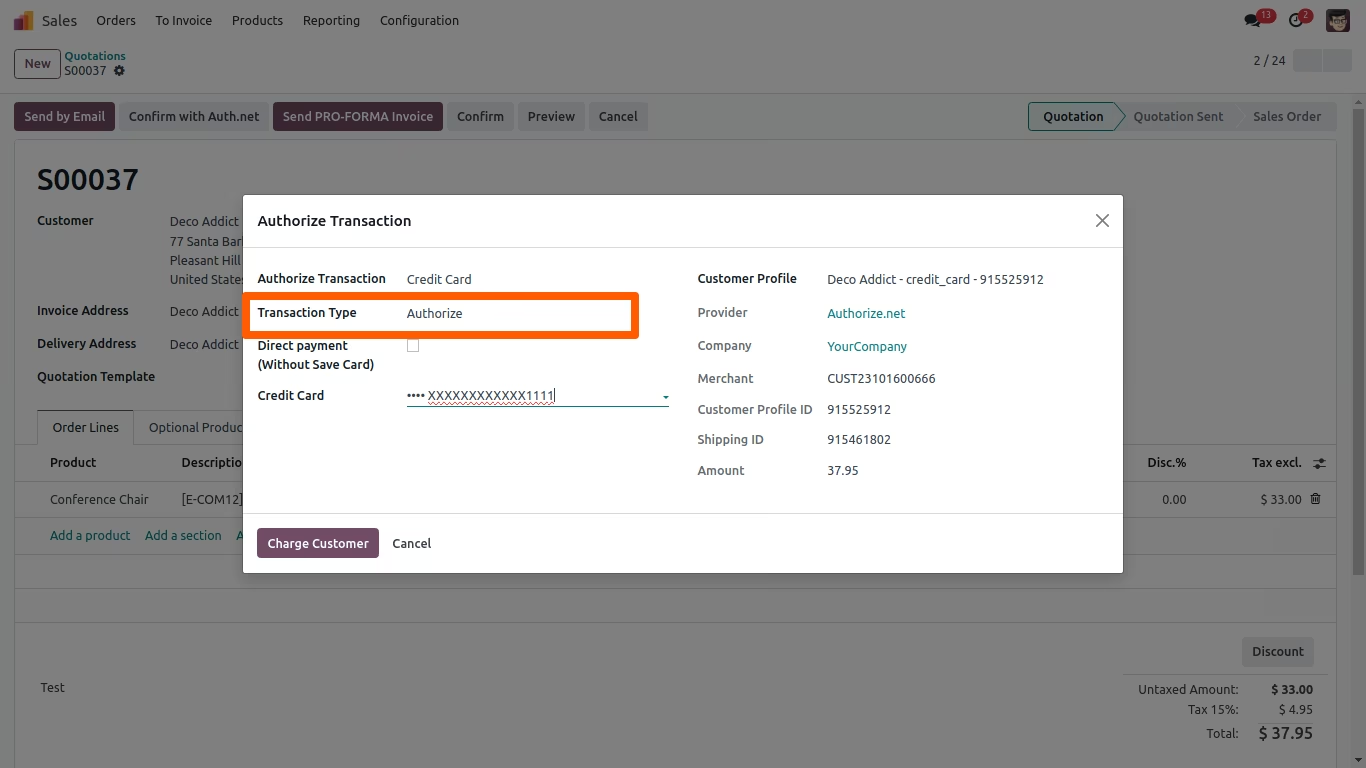
At the time of Authorize Transaction, a Tokenized registered credit/debit card can be used for making payment.
On authorization request the transactions is approved or declined.
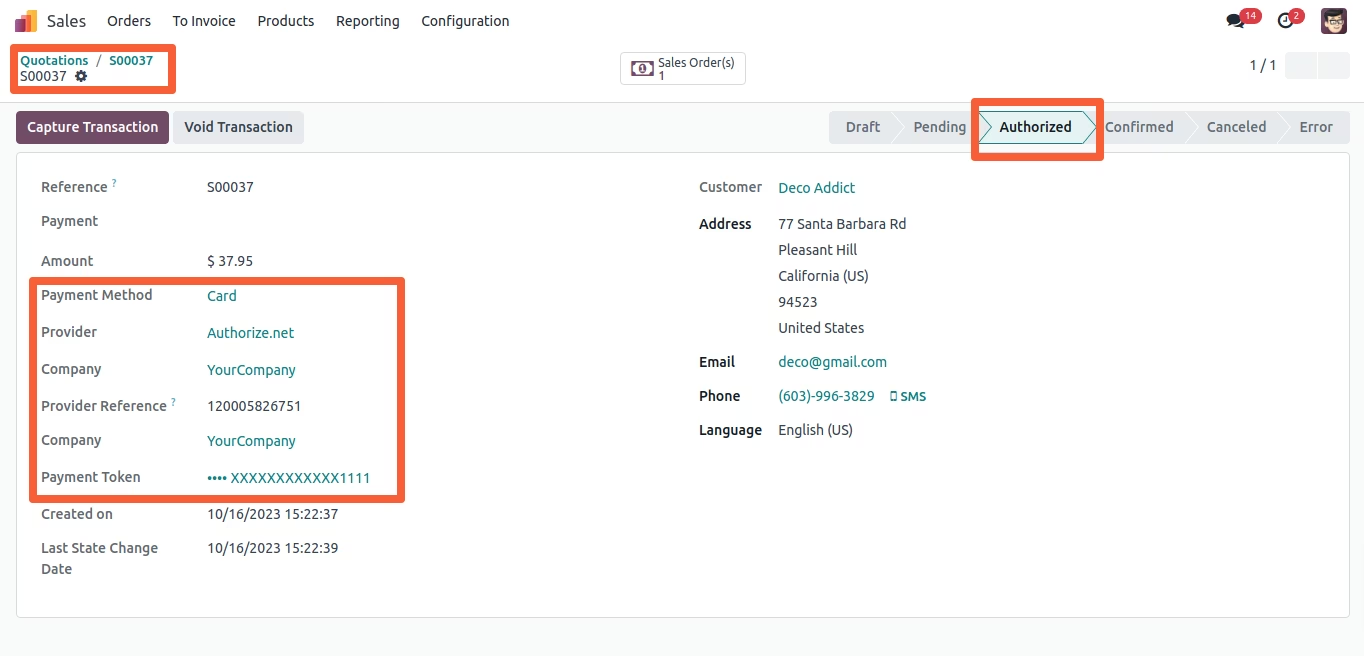
Once the transaction is authorized, the payment can be captured directly from the invoice through "Capture Transaction".
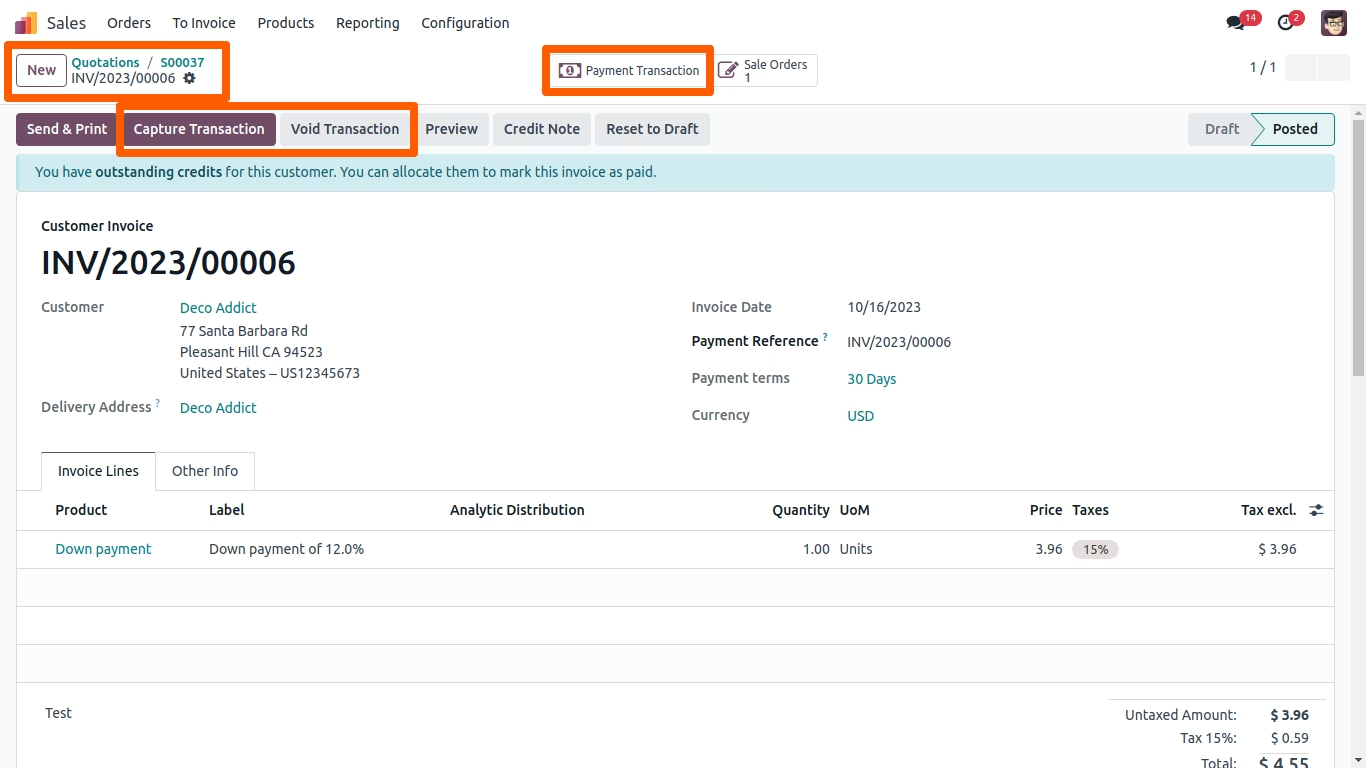
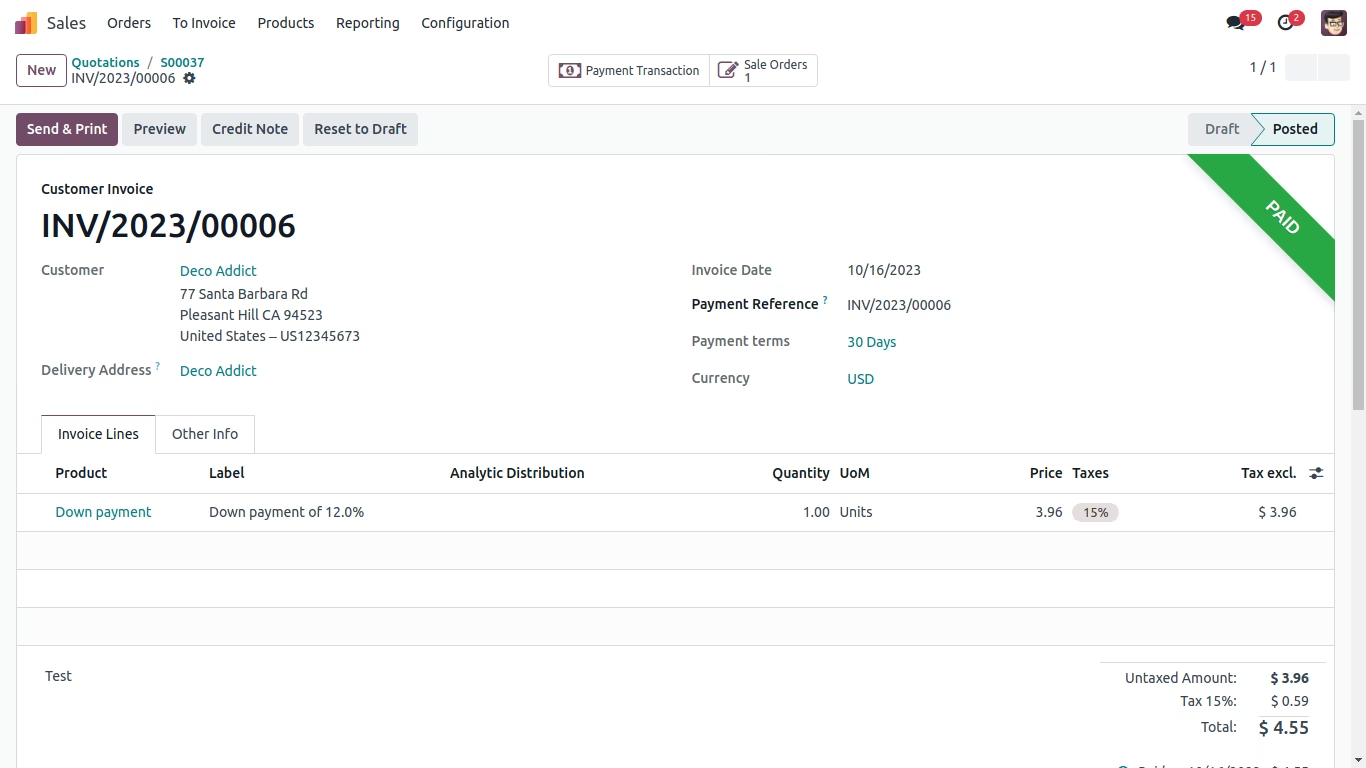
A reference number will appear in the invoice after payment confirmation.
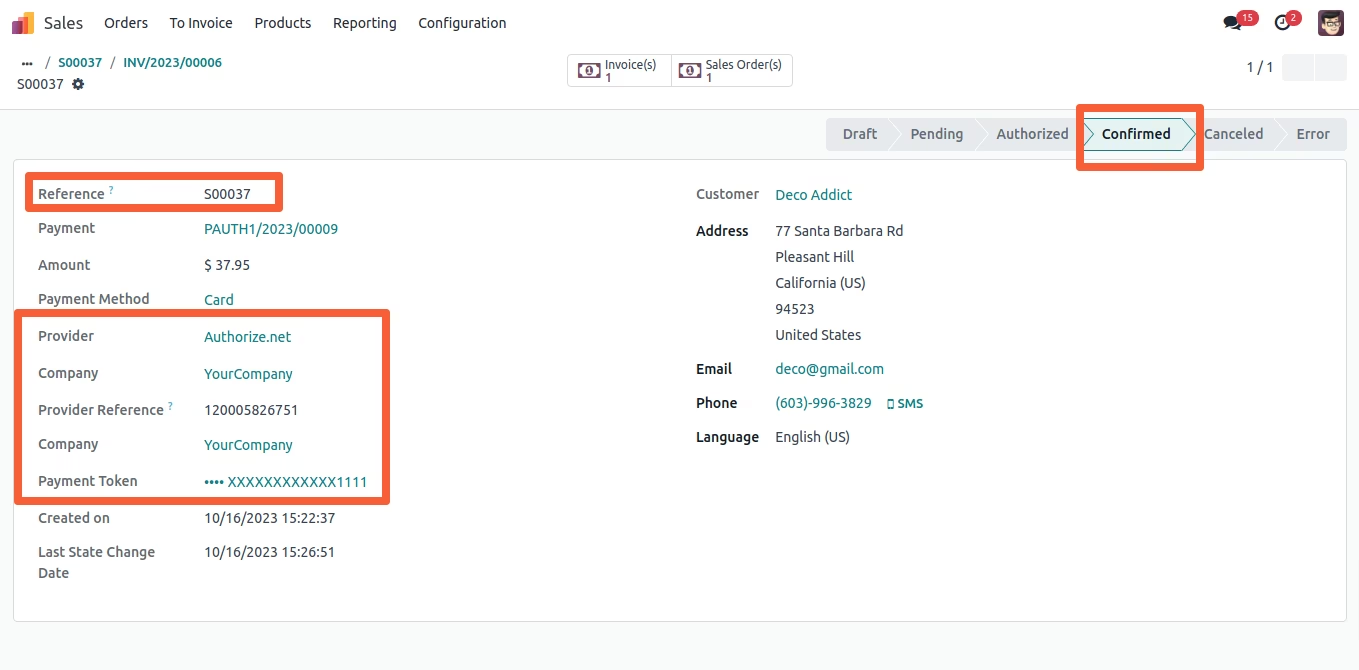
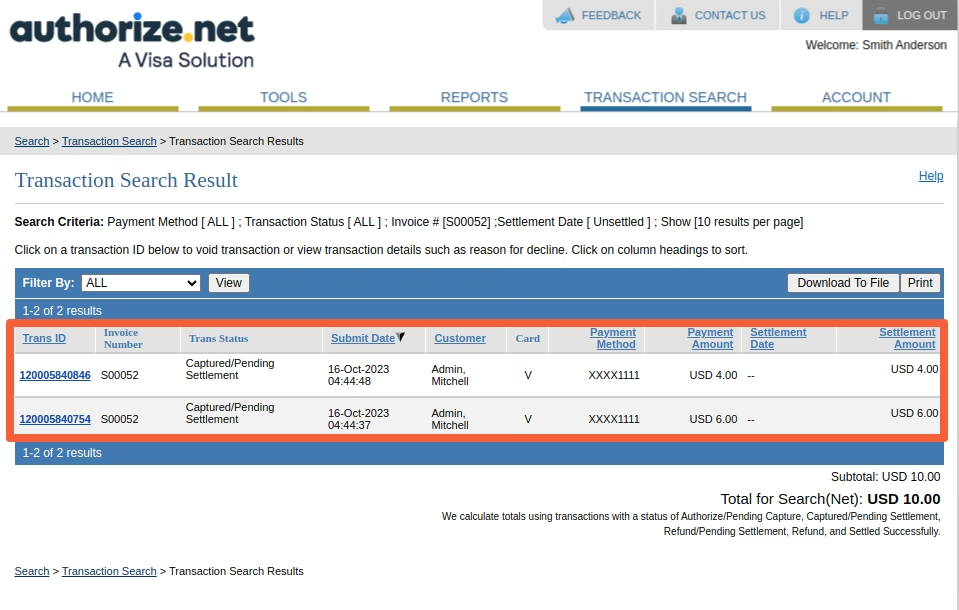
Successful transaction details can be viewed on Authorize.net side.
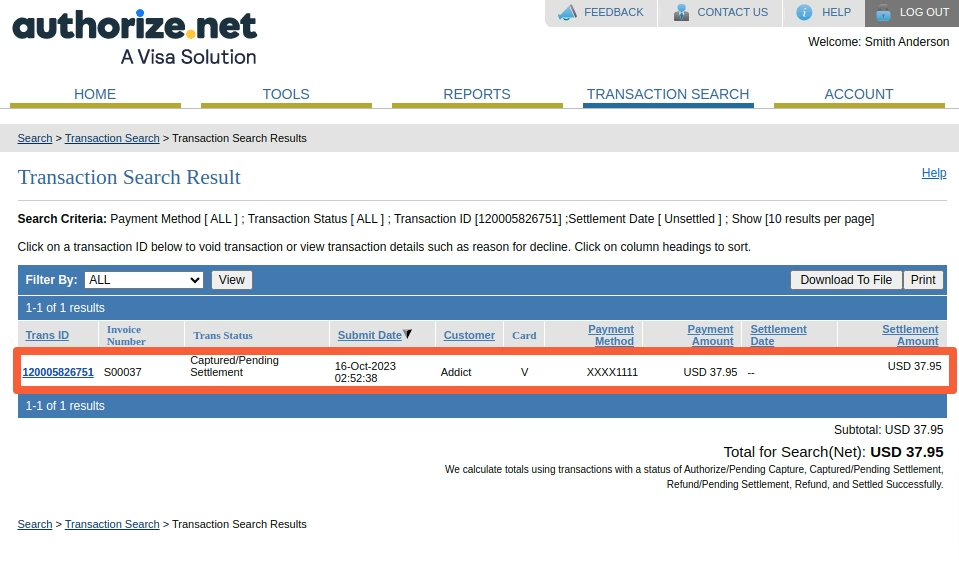
Select transaction type "Authorize & Capture", select credit card and fill amount (partial/full) and click "Charge Customer". The amount will be transferred from customer account to merchant account.
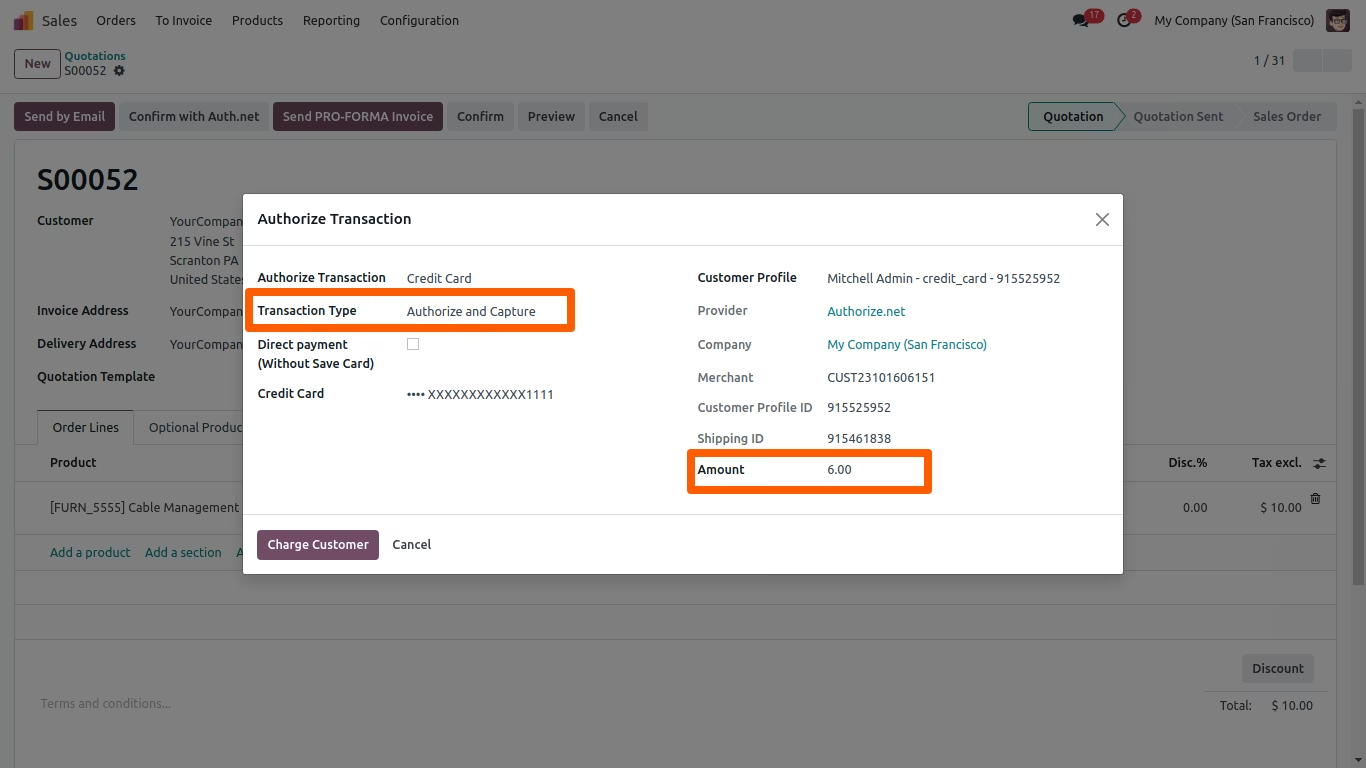
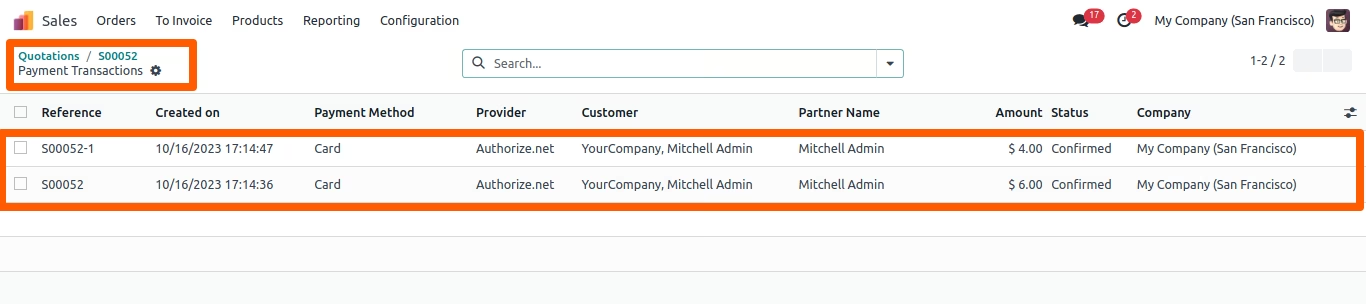
All payment details are mentioned in payment transaction (including Authorize, Authorize & Capture and Authorize Reference)
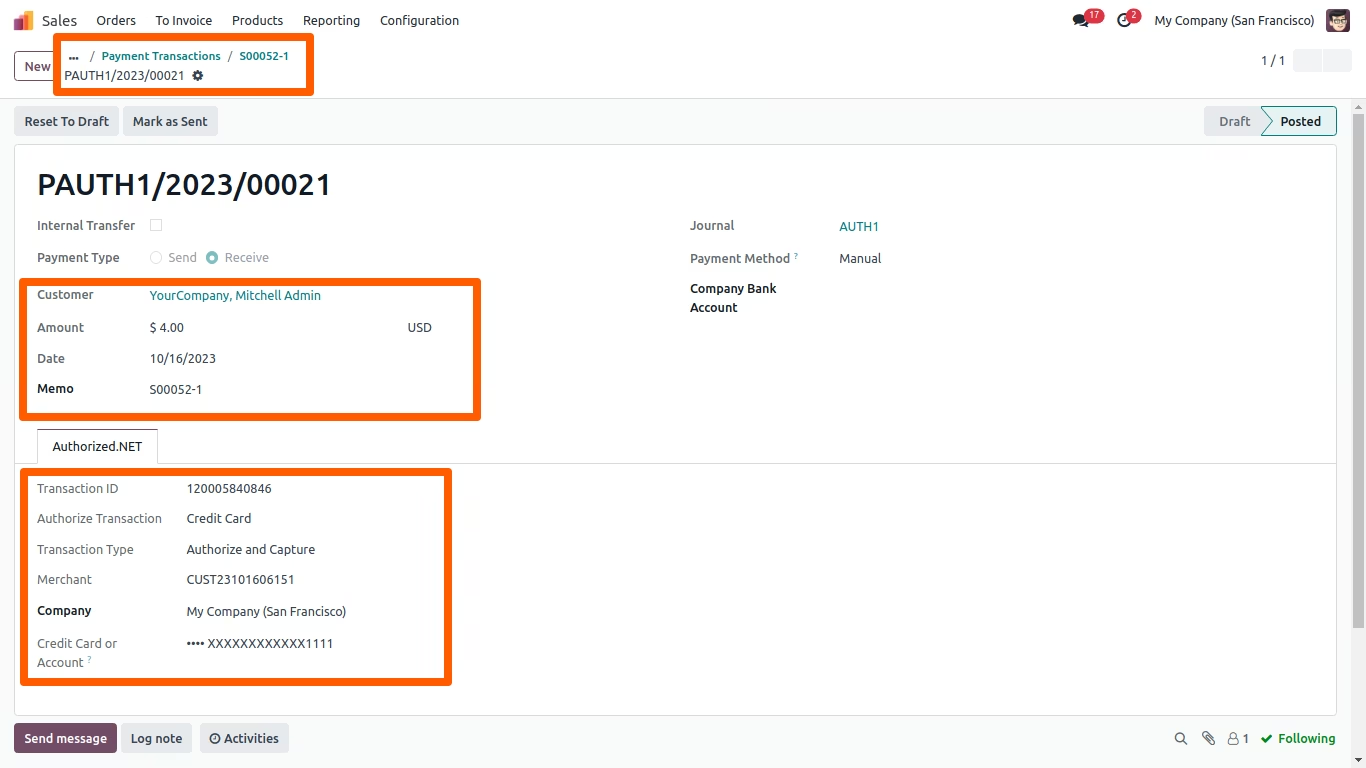
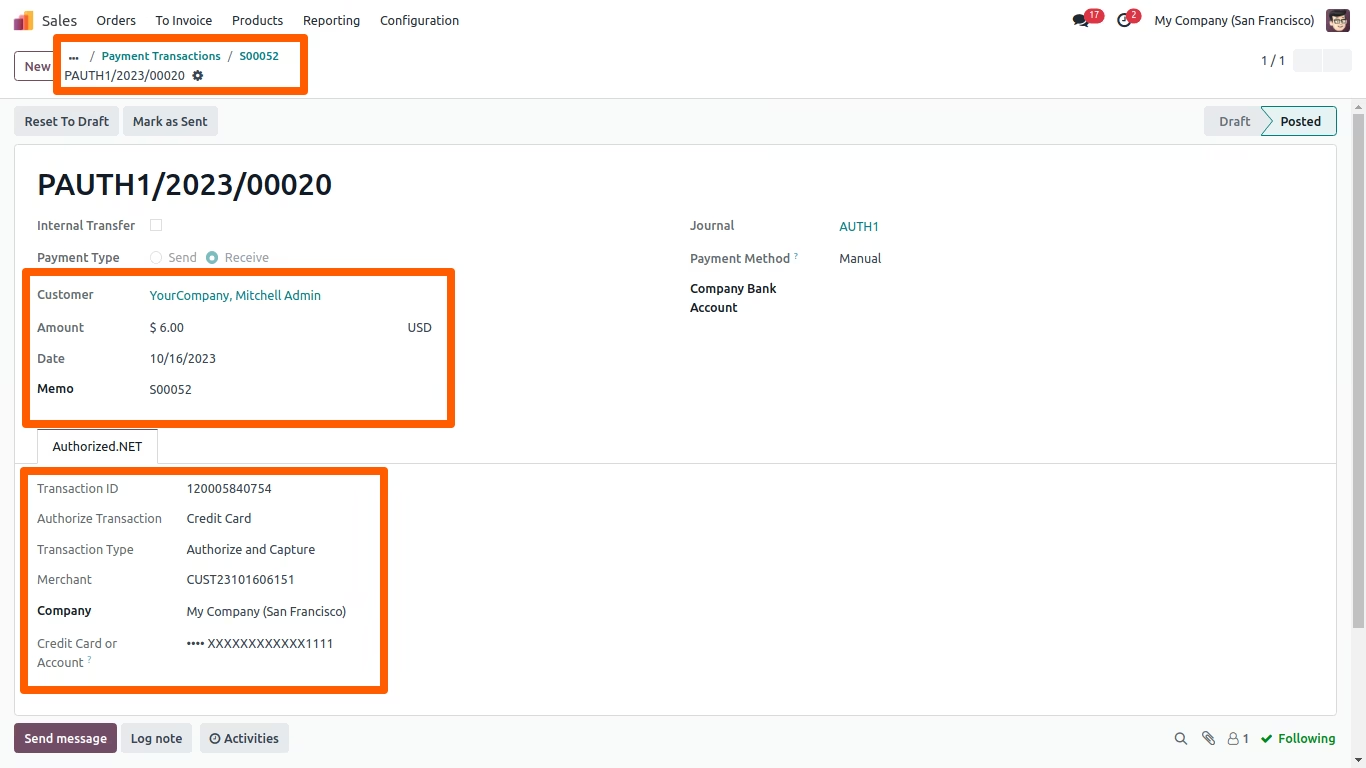
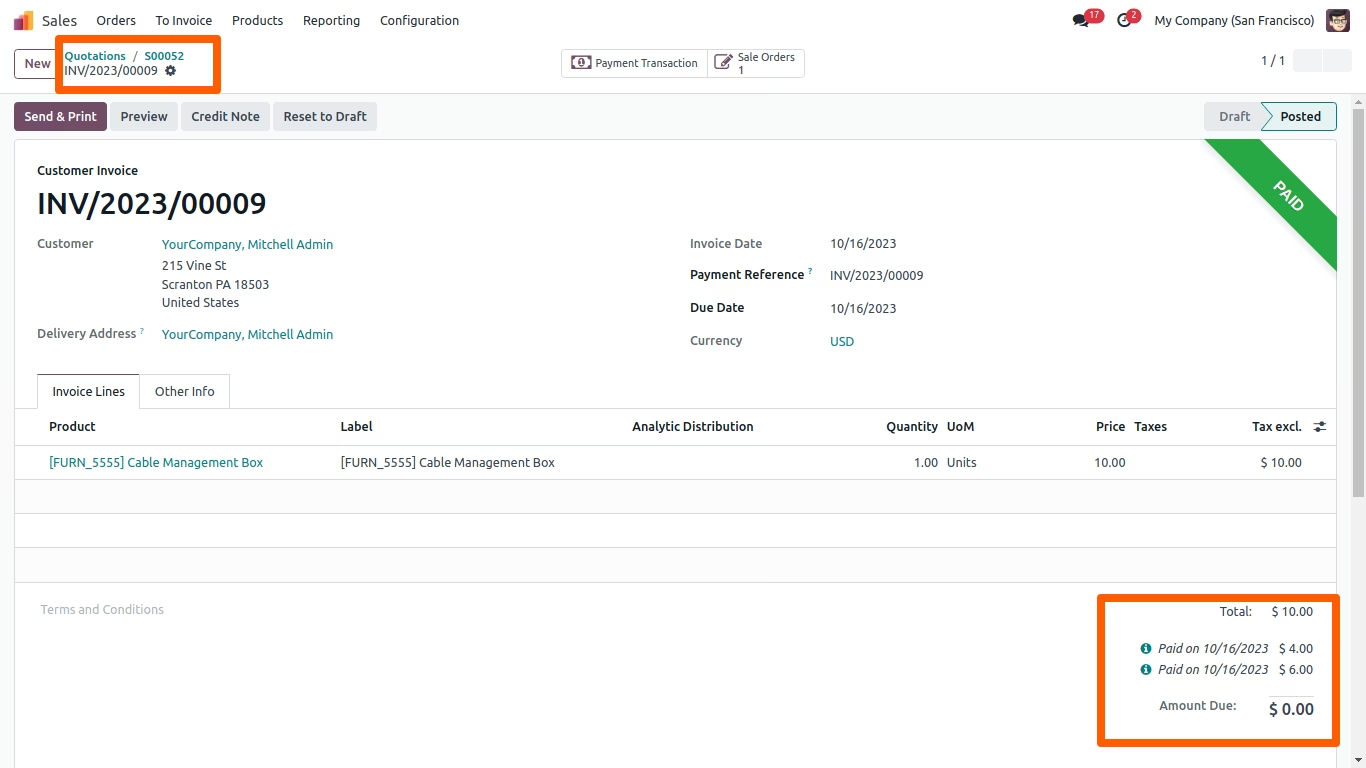
All payment transaction details can be viewed on Authorize.Net side
Payment transactions can be done by eCheck instead of credit card.
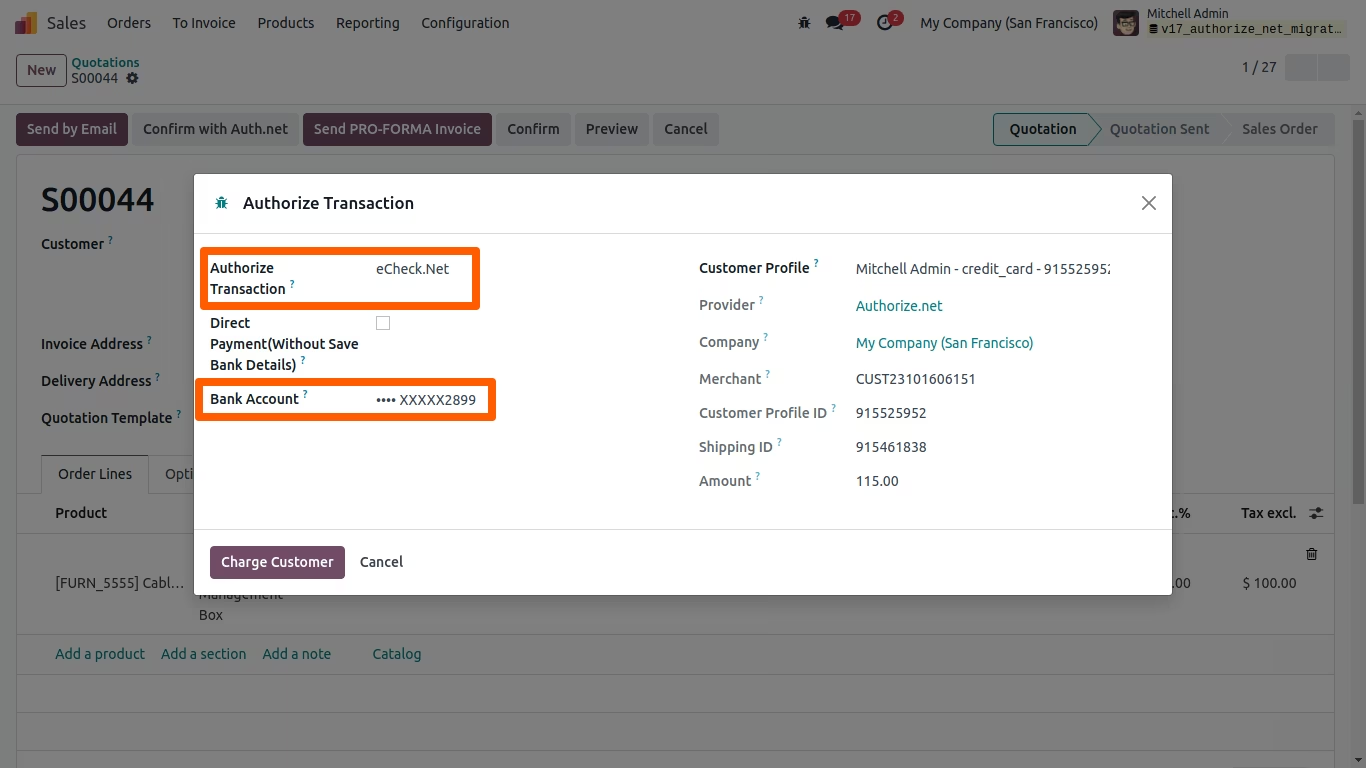
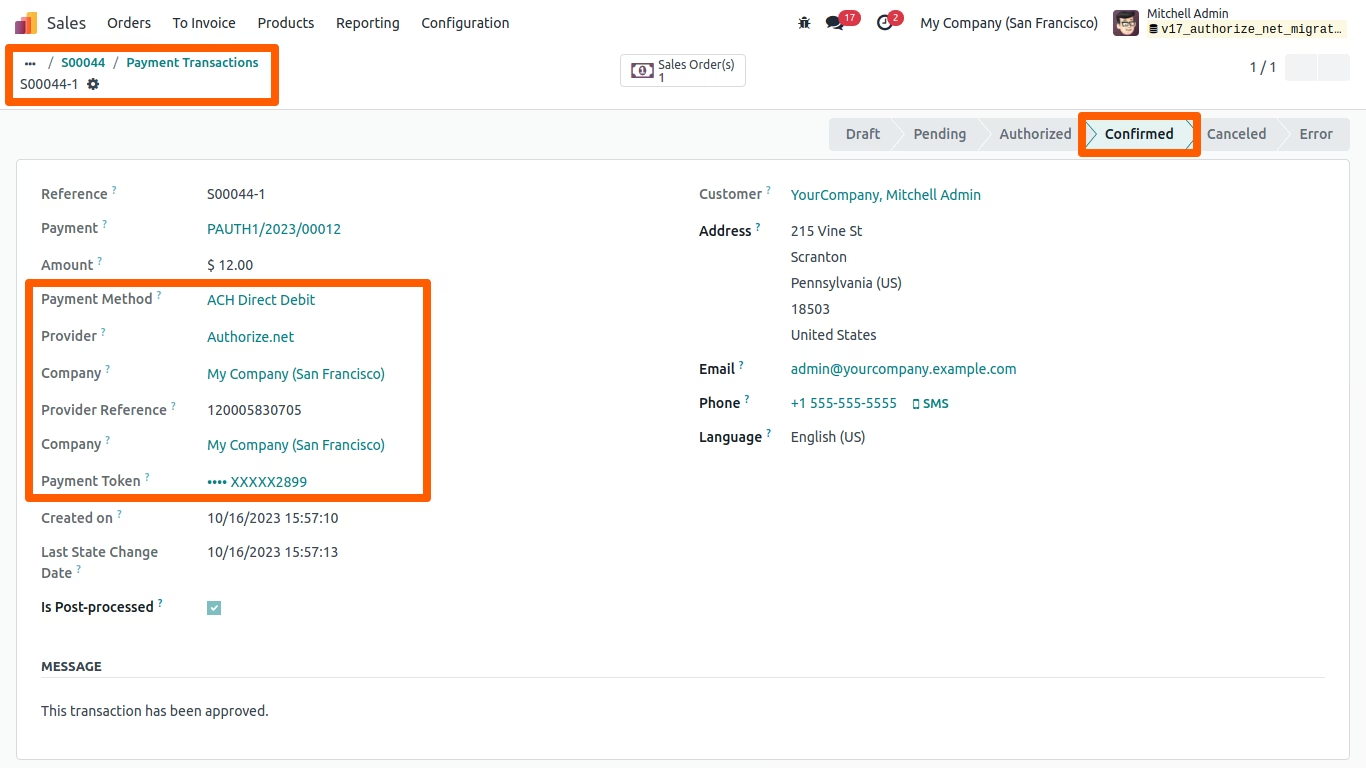
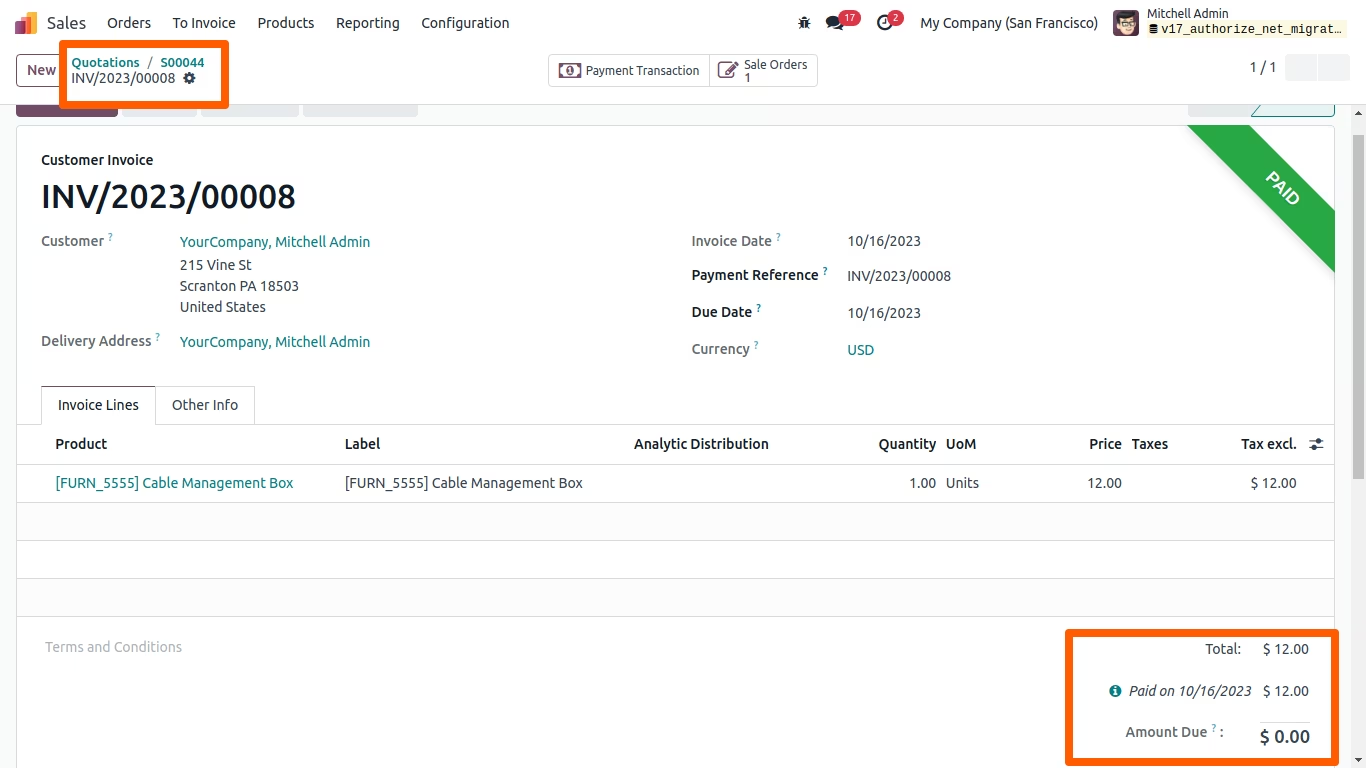
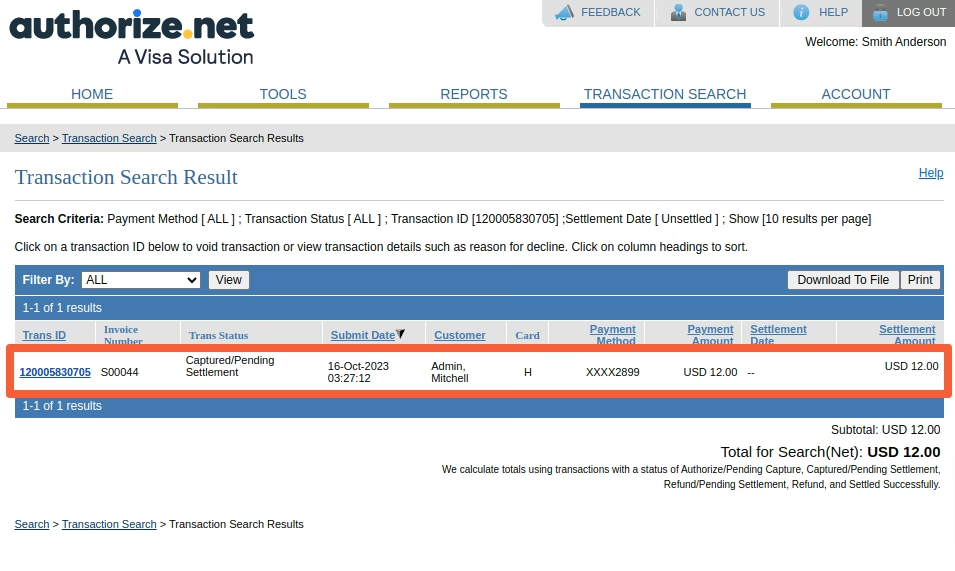
All eCheck payment details will be displayed in and Authorize.Net
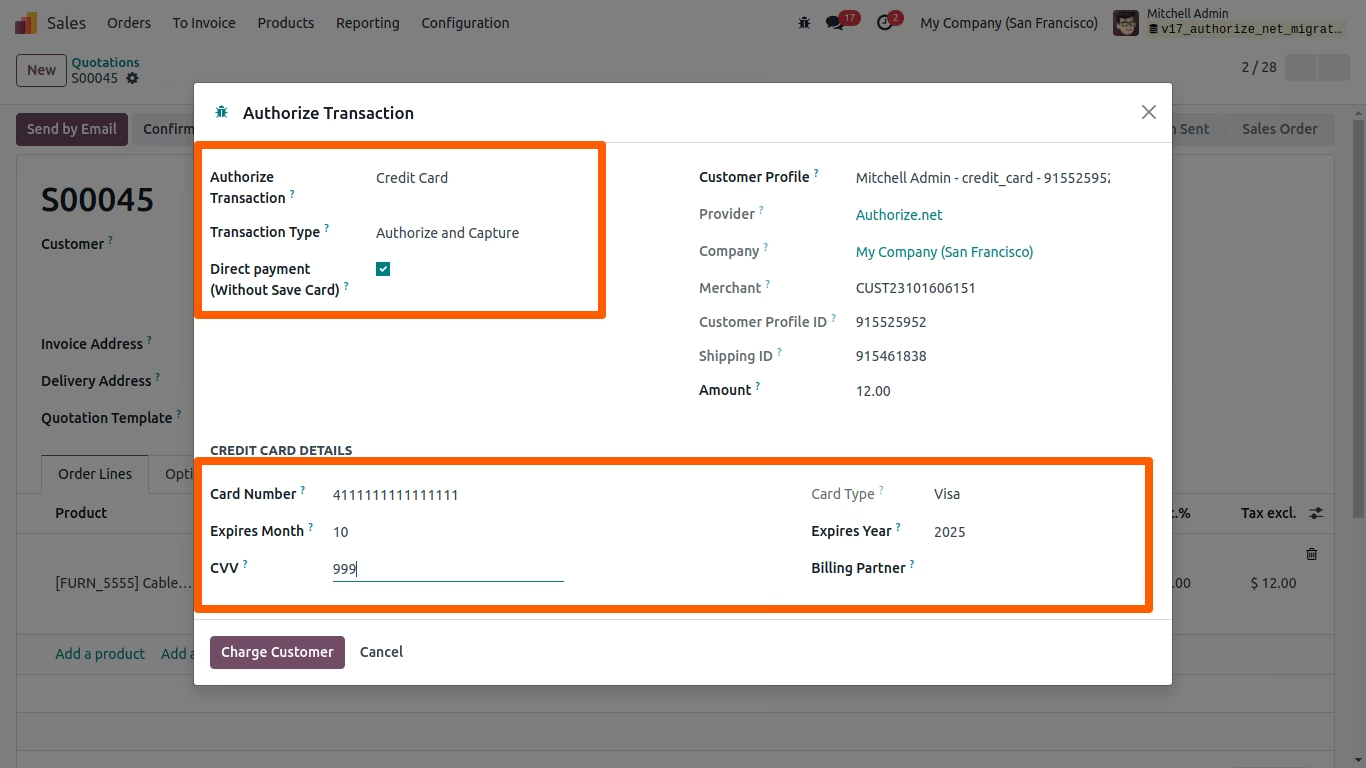
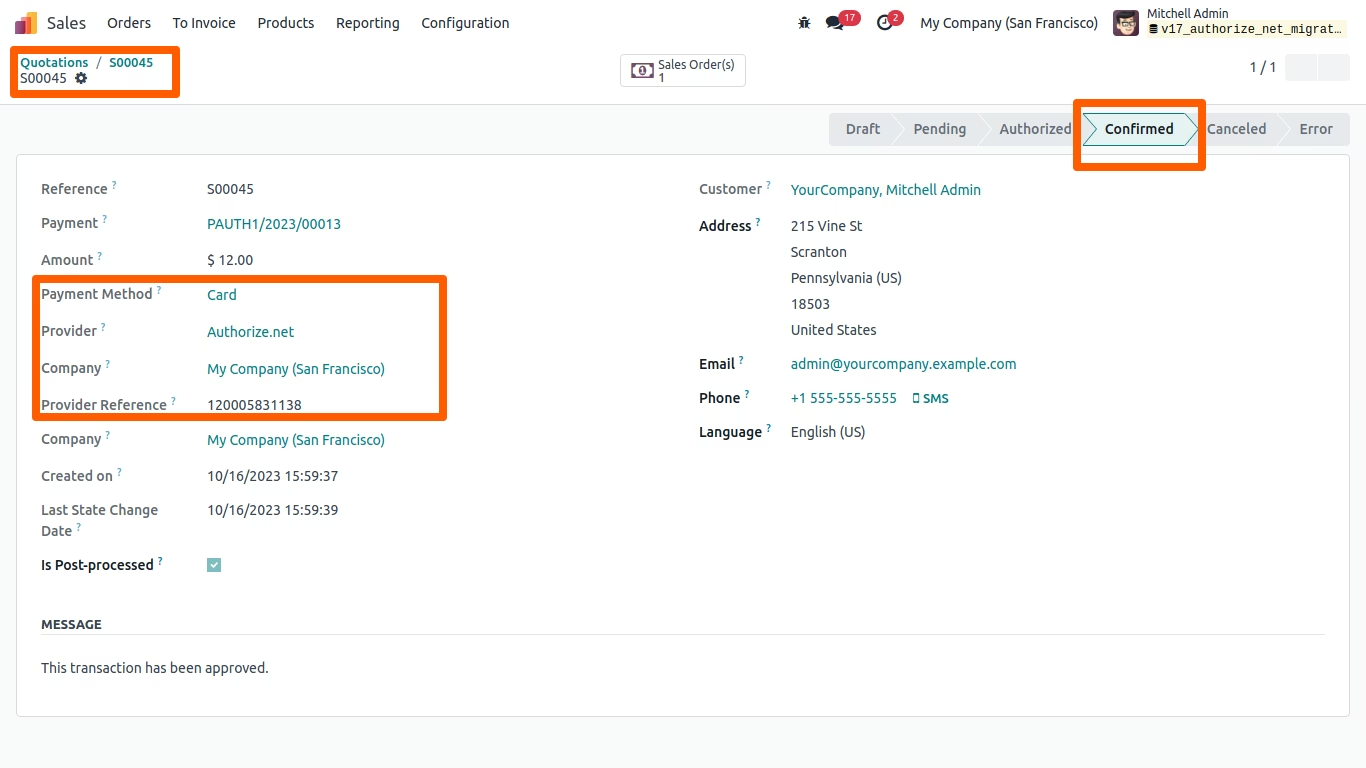
Direct Payment transactions can be made "Without Save Card"
All payment transactions details (Without Save Card) can be viewed
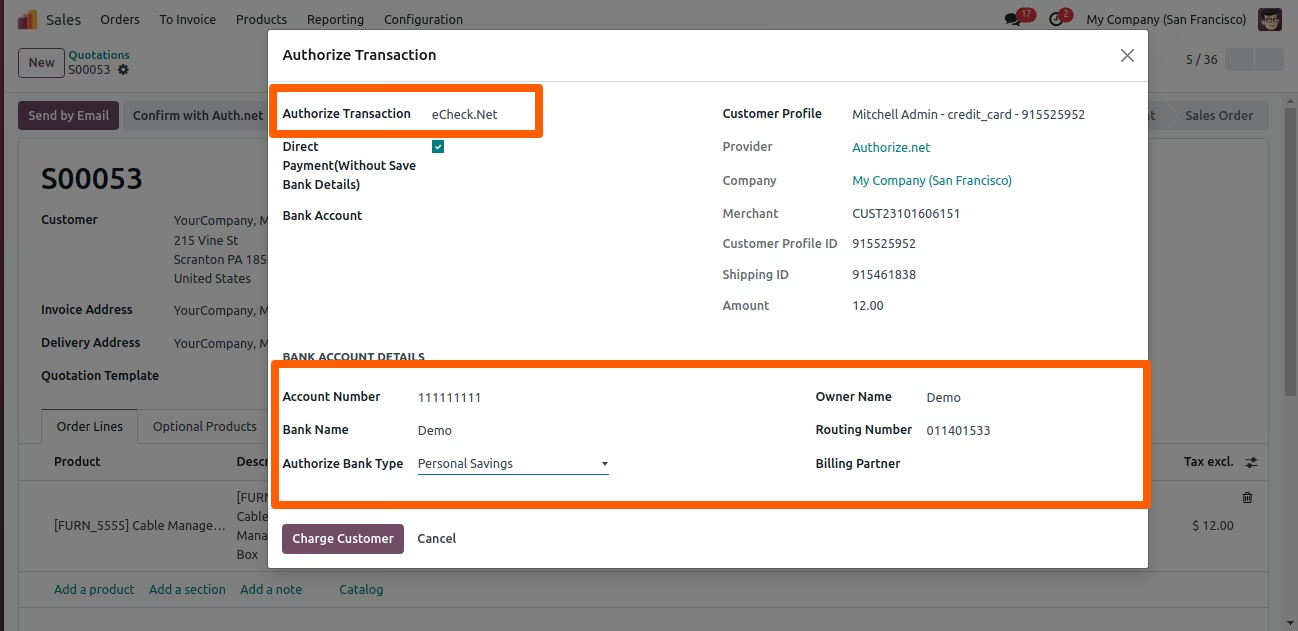
Direct Payment "Without Save Bank Details"
Direct Payment transactions can be made "Without Save Bank Details"
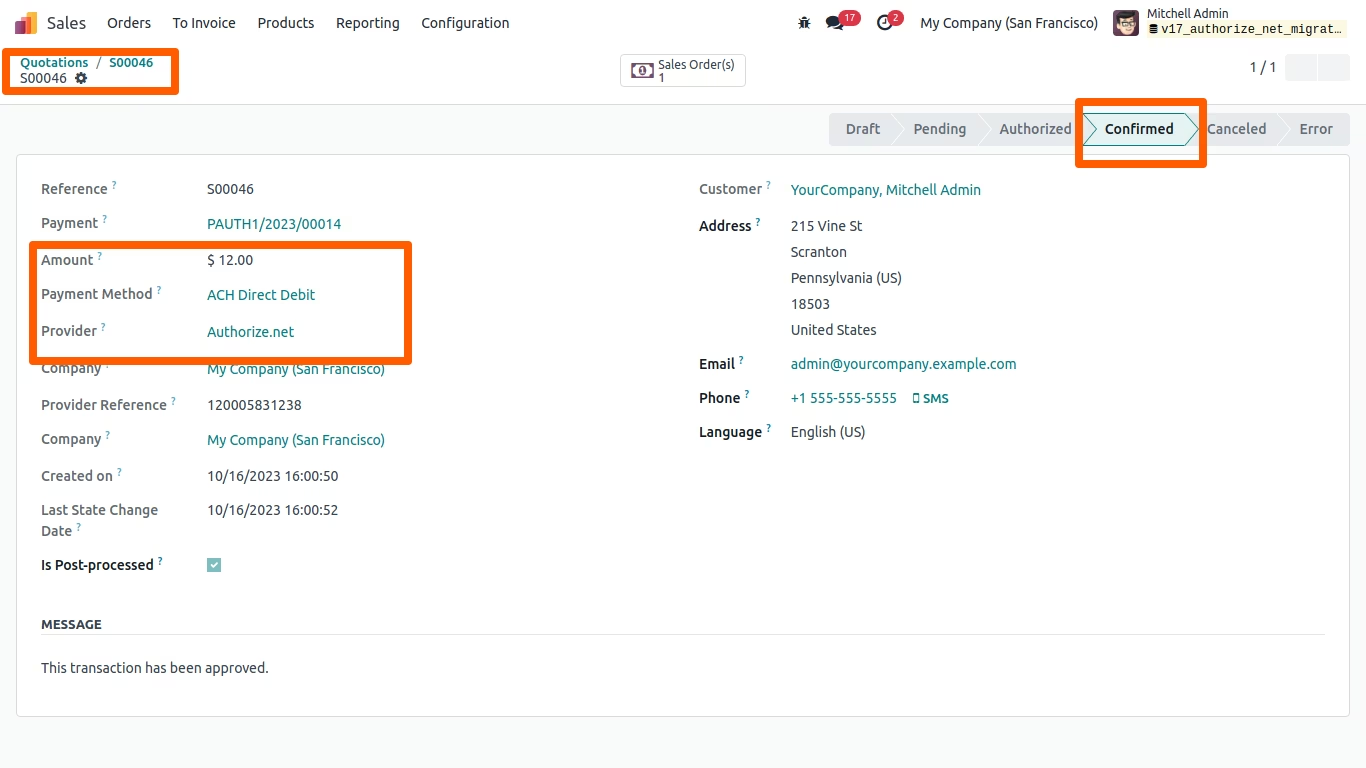
All payment transactions details (Without Save Bank Details) can be viewed
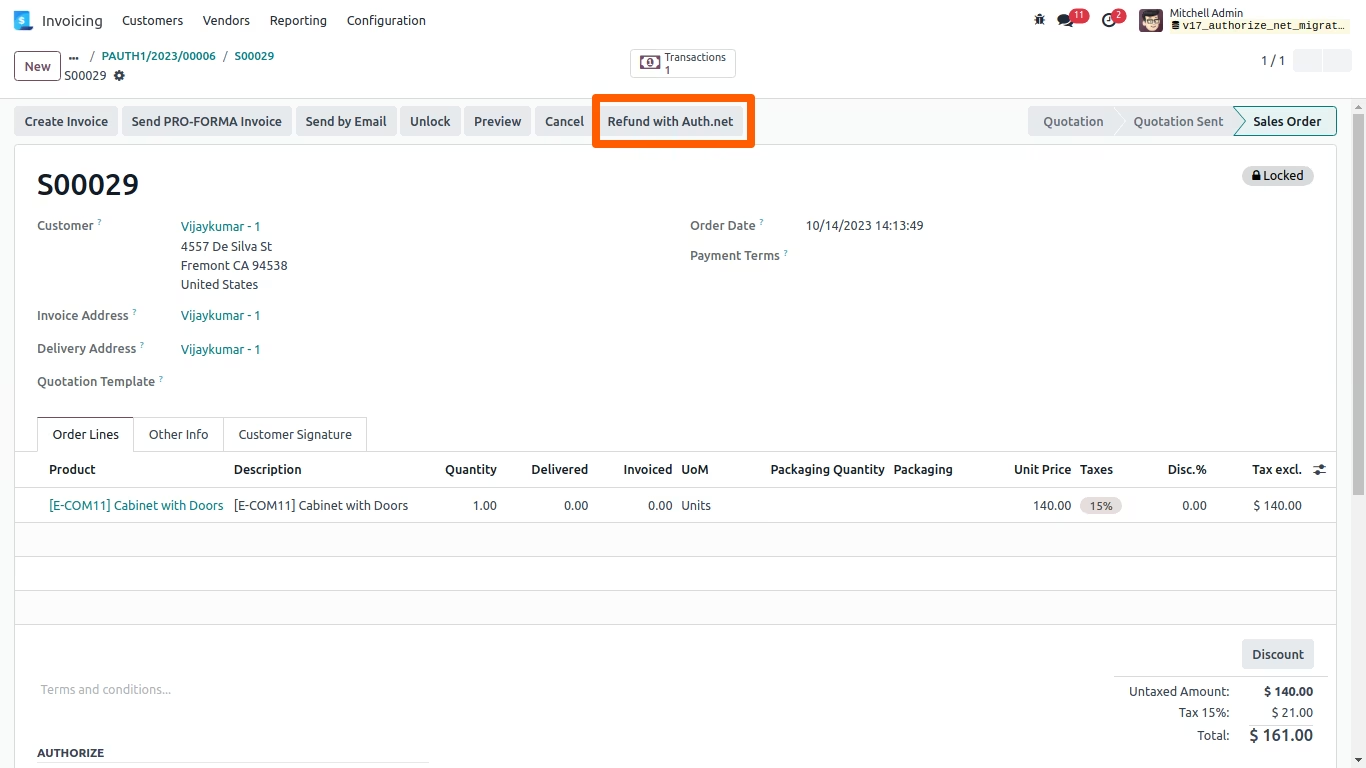
"Refund with Authorize.Net", transaction can be refunded, either Partial / Full amount. On clicking on "Refund" button, the payment refund transaction is created in Authorize.Net. The authorize reference will appear in payment.
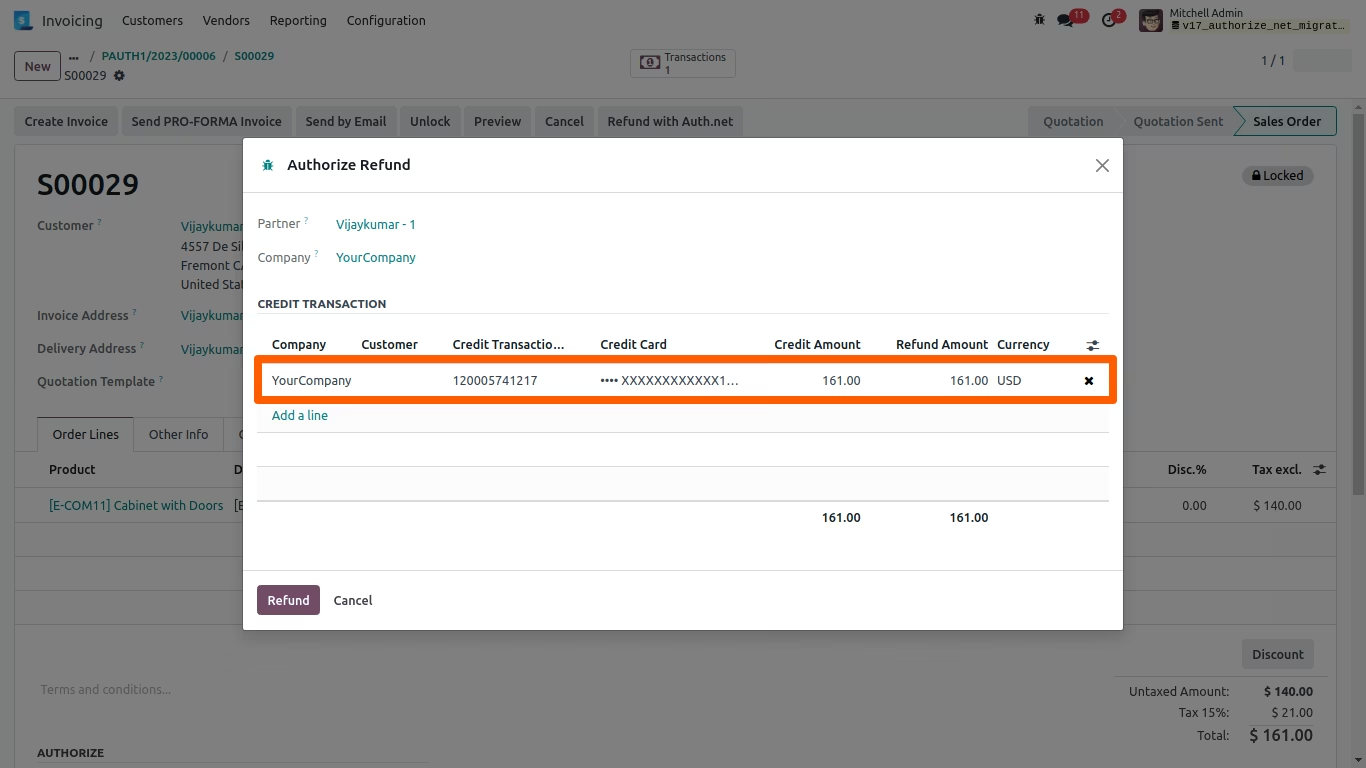
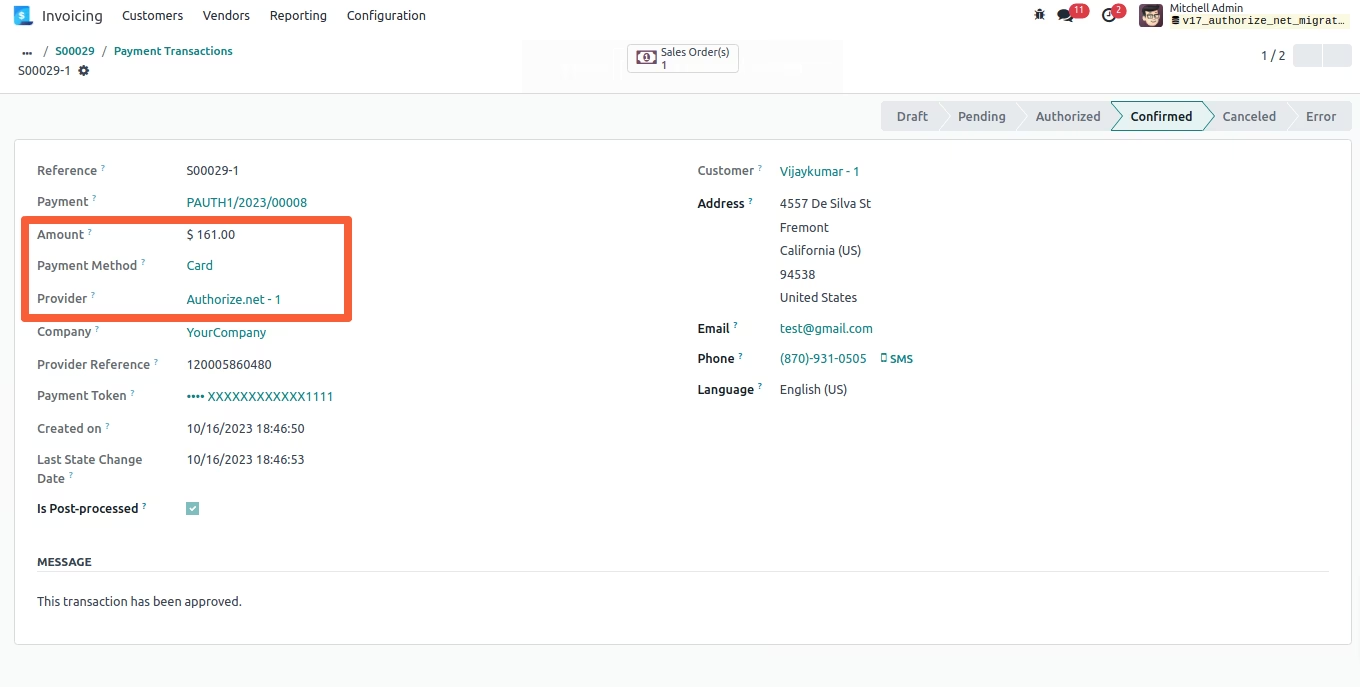
All payment refund transaction details will appear on and Authorize.Net side.
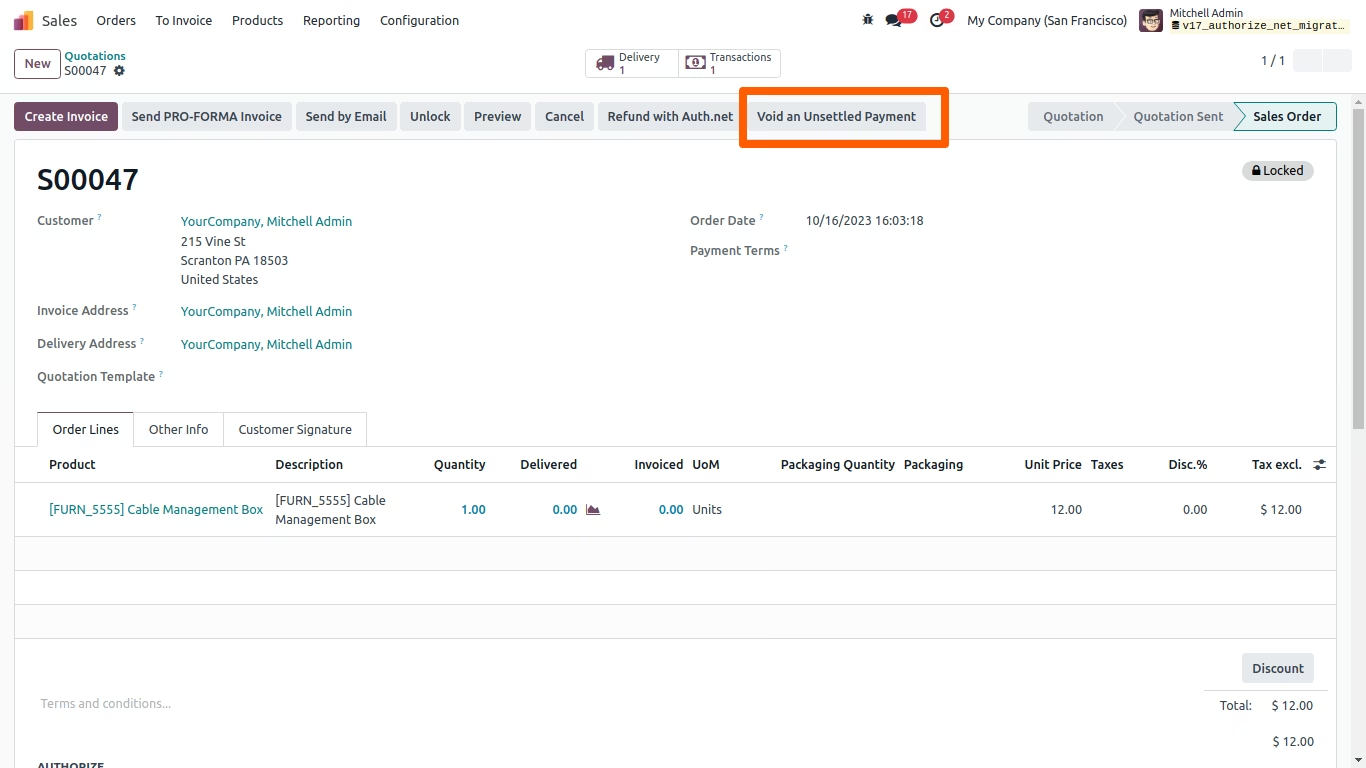
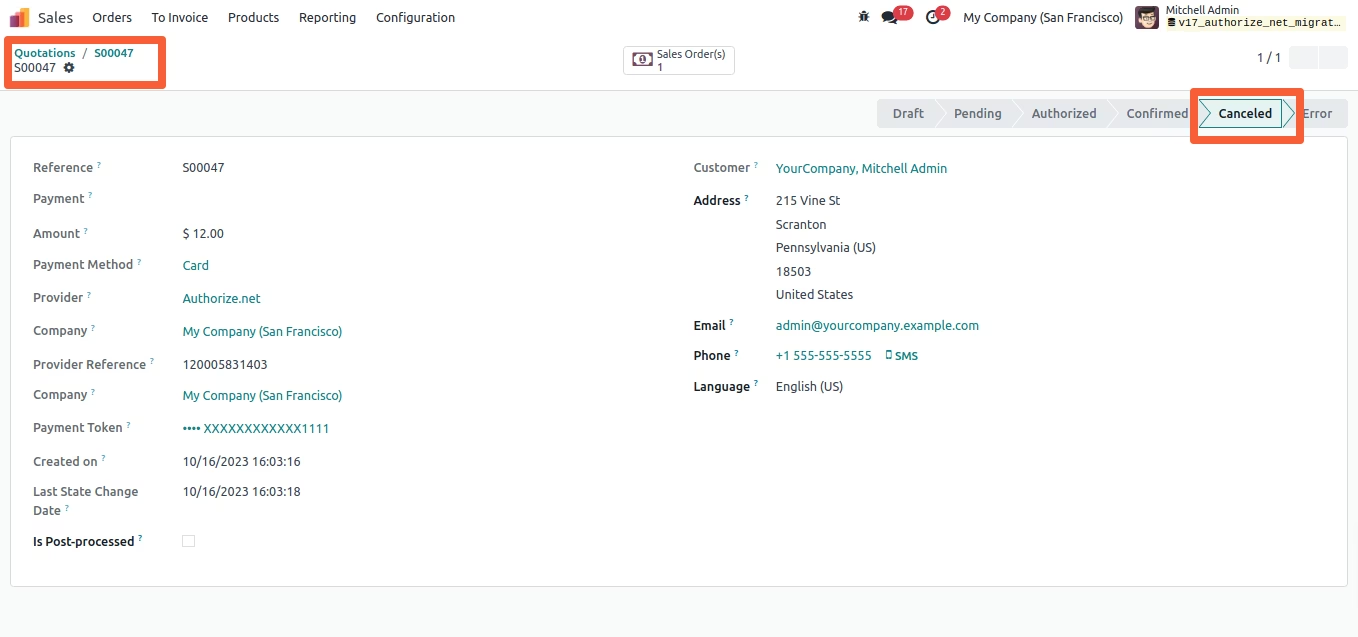
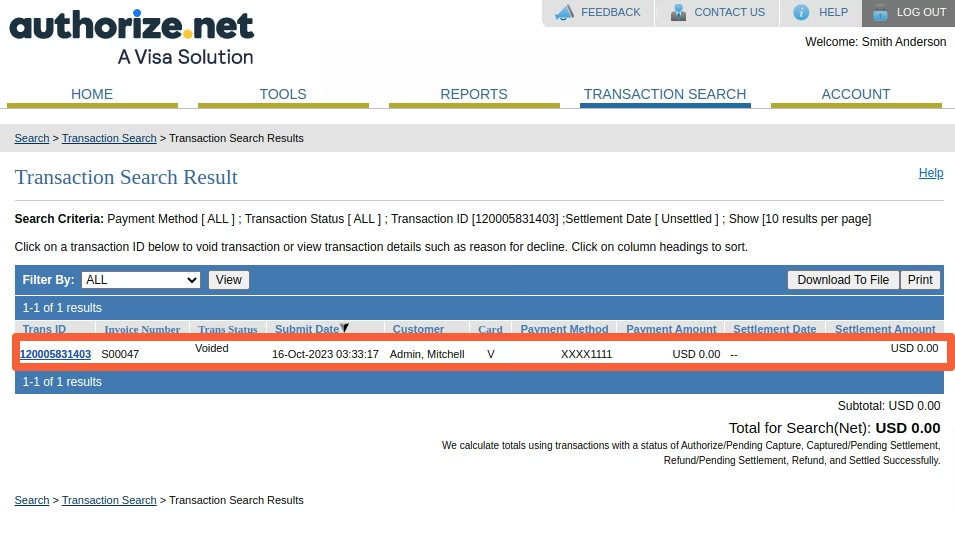
Unsettled Transactions can be void with Authorize.Net. Click on "Void an Unsettled Payment" button in Sales order. The details will be shown on Authorize Void pop-up, click on "Void Transaction" button, the unsettled transaction will be void in Authorize.net.
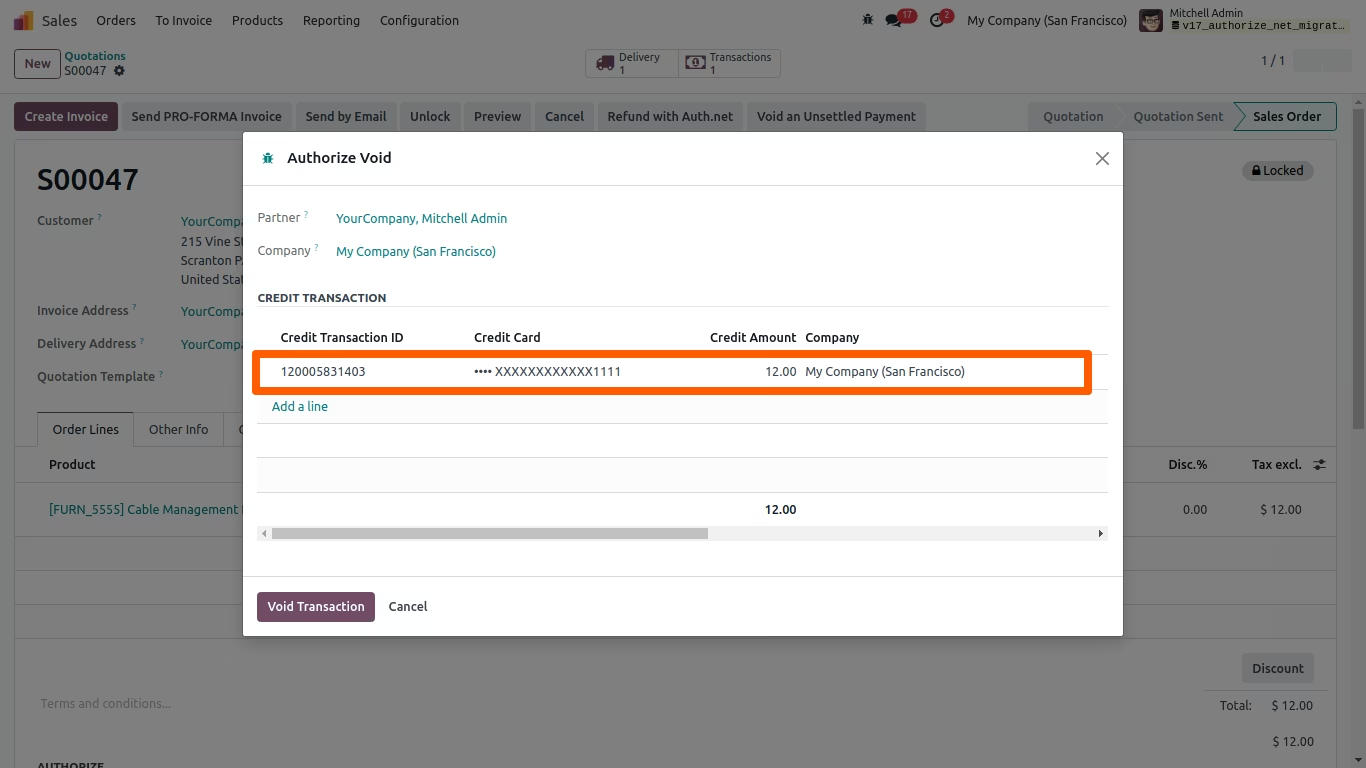
All Void Transaction details will appear in and Authorize.Net
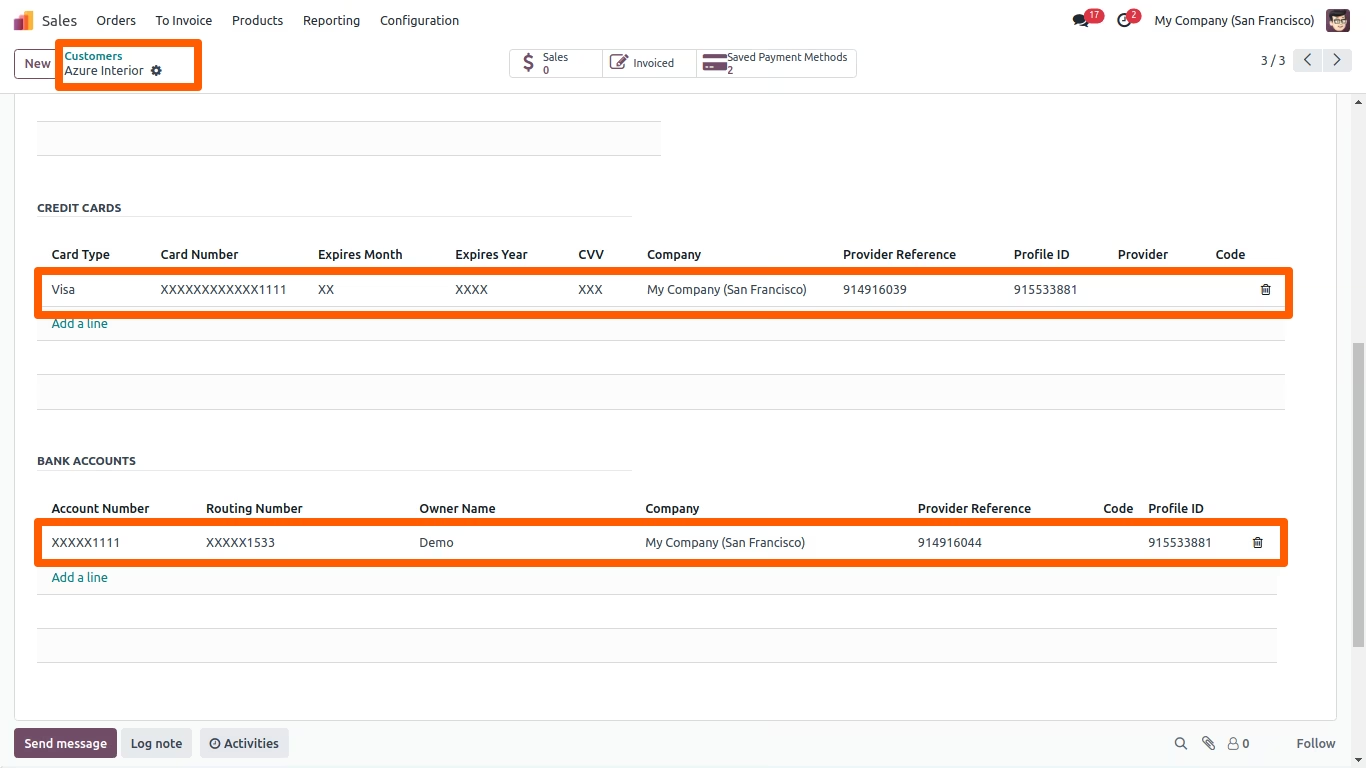
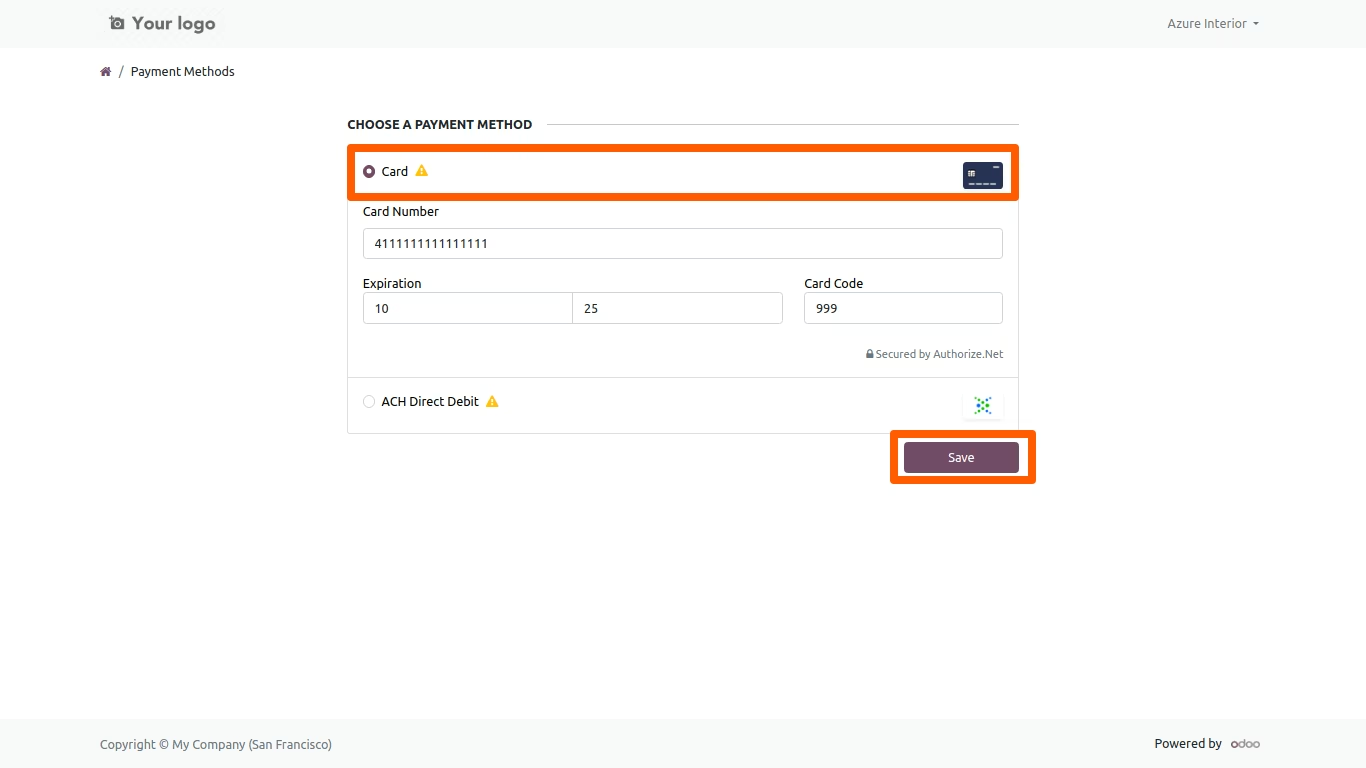
Option to save payment details for Card or Bank account are available in Backend partner details form. On clicking the "Save" button the details will be saved in encripted form as per PCI compliance in backend. Only the last 4 digits of the card or bank A/C number will be shown.
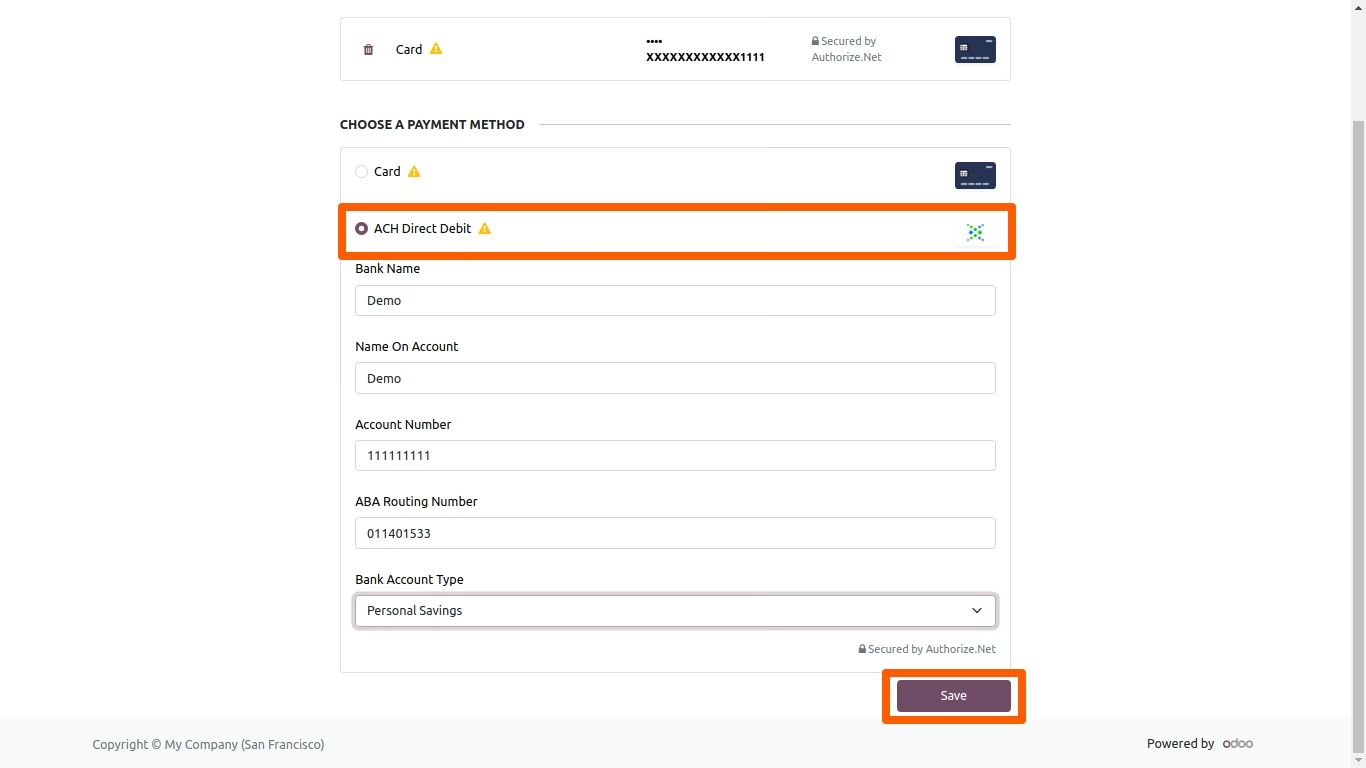
Saved payment details can be viewed