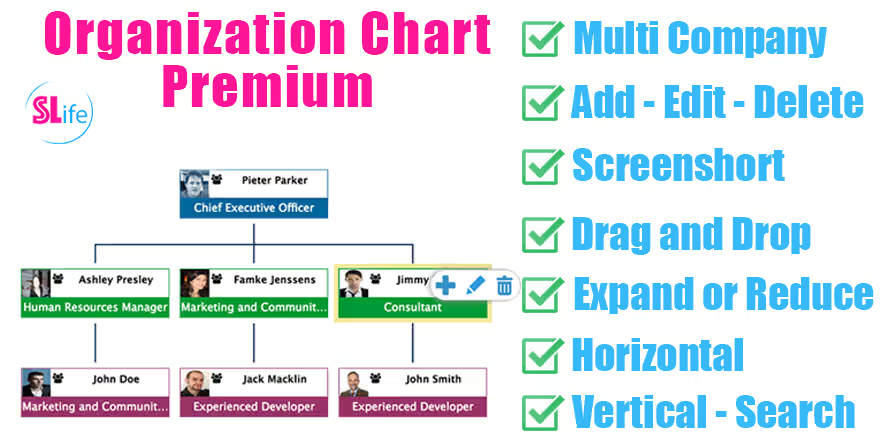
The Organization Chart Premium module adds a powerful and interactive organizational chart feature. It enables businesses to visualize employee hierarchies clearly, providing intuitive navigation through team structures. Users can expand or collapse nodes and access employee profiles directly from the chart. This module elevates HR visibility, simplifies team structure understanding, and enhances employee management efficiency.
Key Features
Render an interactive organizational chart to display employee hierarchy
Expand or collapse nodes to view team structure dynamically
Click on employees within the chart to open their profile directly
Navigate through multi-level reporting lines effortlessly
Improve clarity in organizational visualization through an engaging interface
Benefits
Enhances transparency of reporting relationships and team structures
Simplifies navigation through organizational hierarchy for HR and managers
Speeds up employee lookup and form access via chart interaction
Fosters better understanding of company structure among staff
Streamlines organizational analysis with real-time visual navigation
Organization Chart Premium
Dynamic Display of your Employee Hierarchy
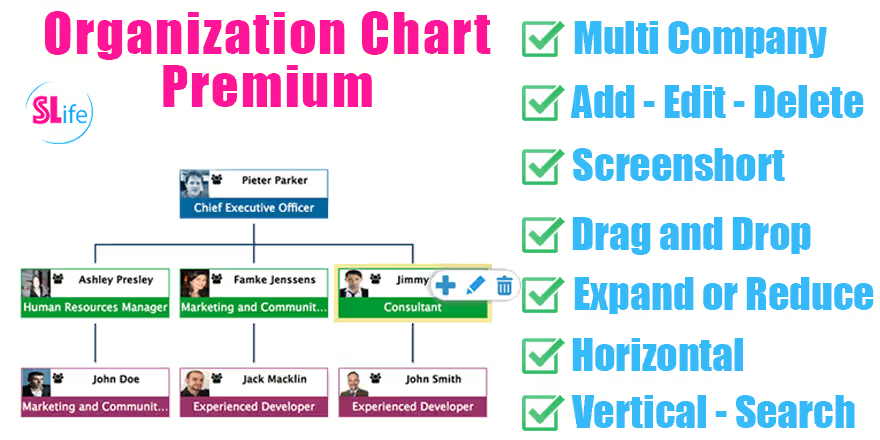
Add - Edit - Delete
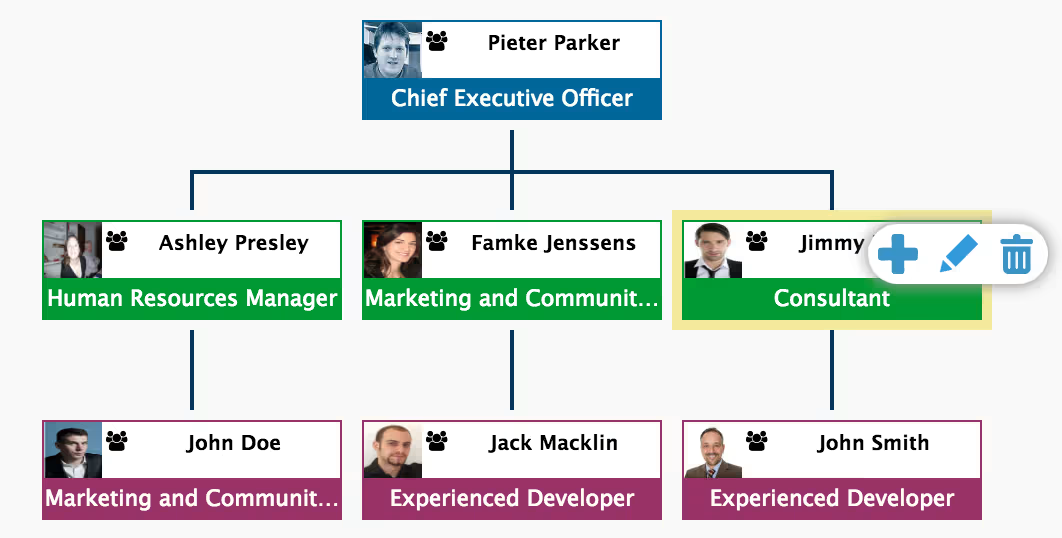
Quick Addition, Modification and Deletion of Employee.
Quick Search
Autocomplete Search of Employee Name or Job Position.
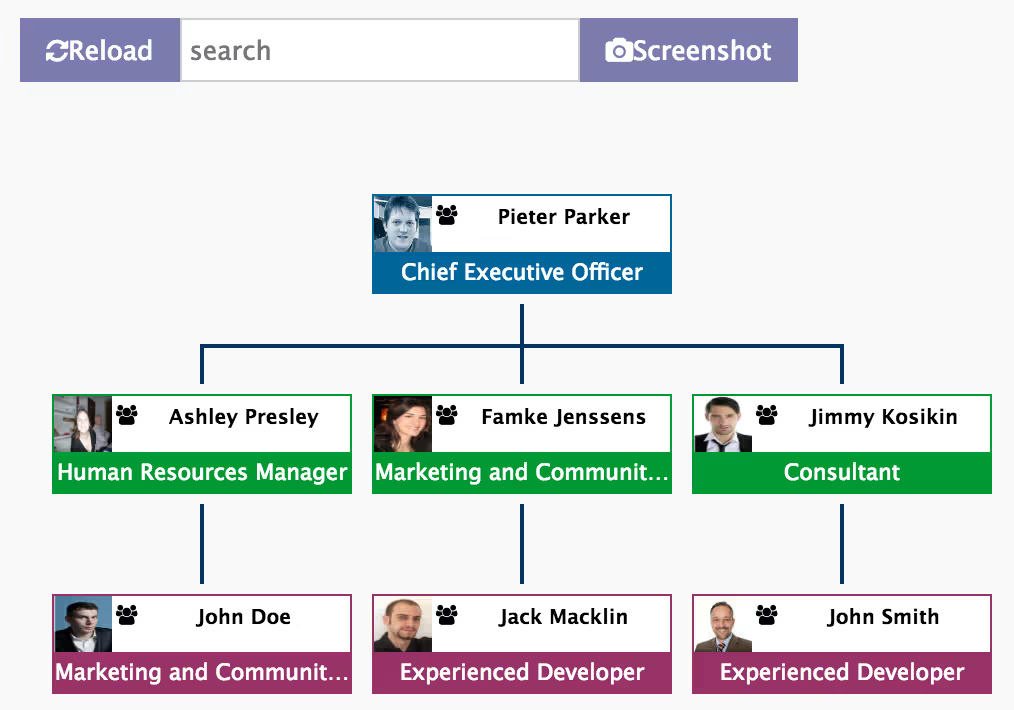
Drag and Drop
Easy Drap and Drop To change the Employee Parent and Department
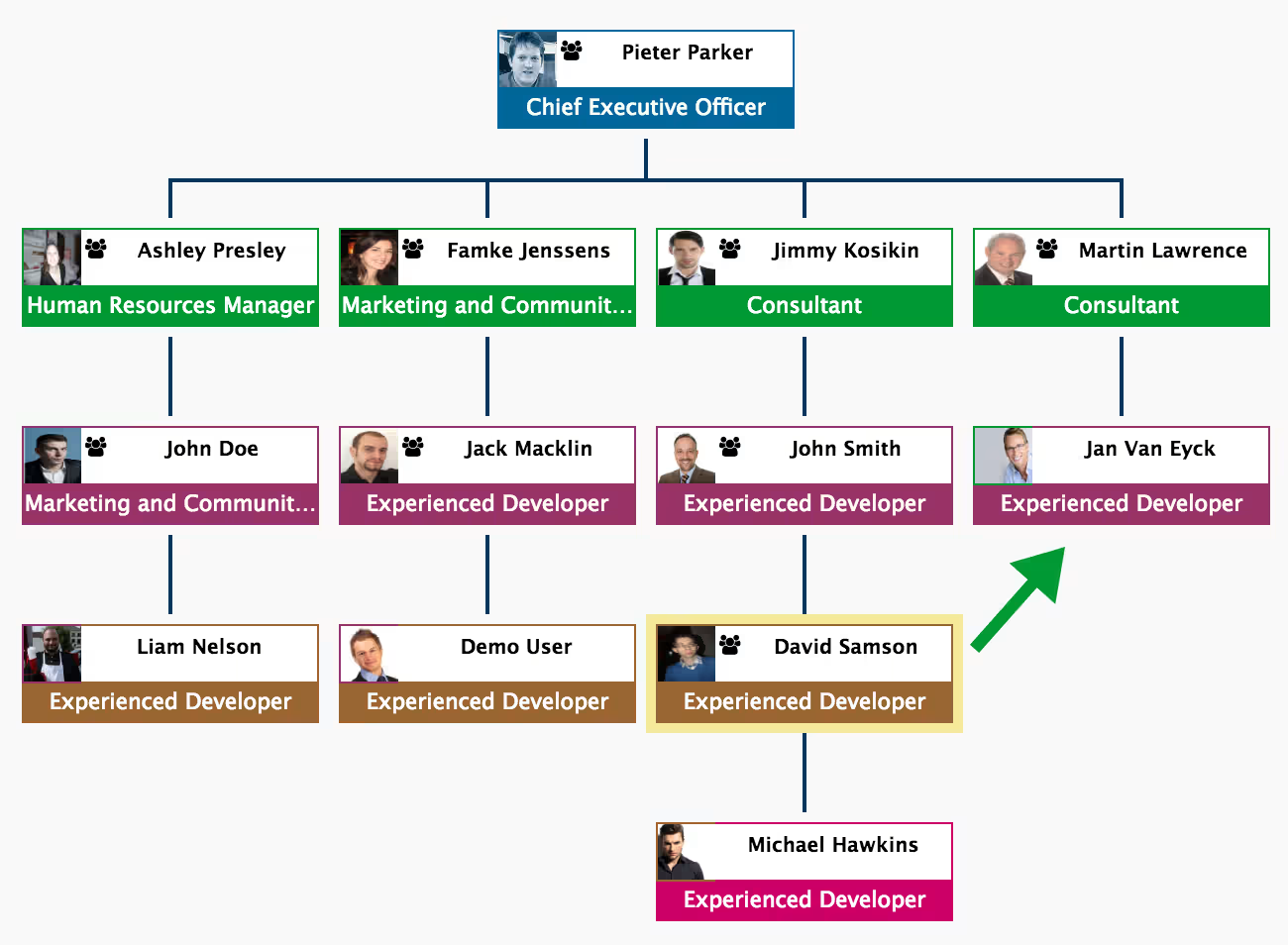
When you Drag and Drop Employee, you change Automatically his Parent and his Department by the Department of his new Parent. If you choose to Drag and Drog an Employee who have a subordinate, you must choose to Keep or Change the Hierarchy.
Screenshot
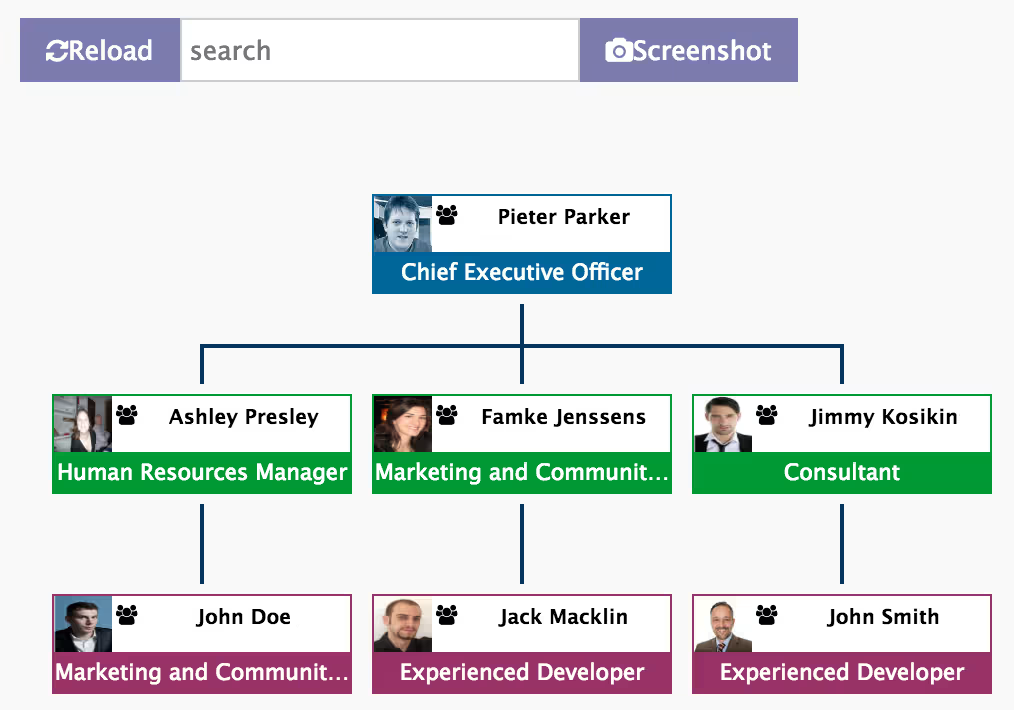
Screenshot of the visible part of Chart. If your Chart scroll, To capture the entire Chart, you can minimize your browser window to display the entire Chart, then take the screenshot.
(^) Or (>) Button To Reduce Or Expand
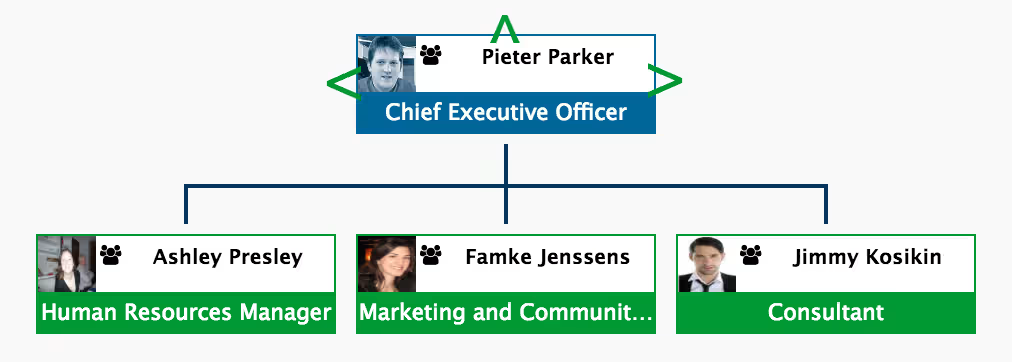
Choose to reduce or expand your Chart with the direction buttons.
Horizontal and Vertical
Switch between Horizontal and Vertical Display with the Button SWITCH.
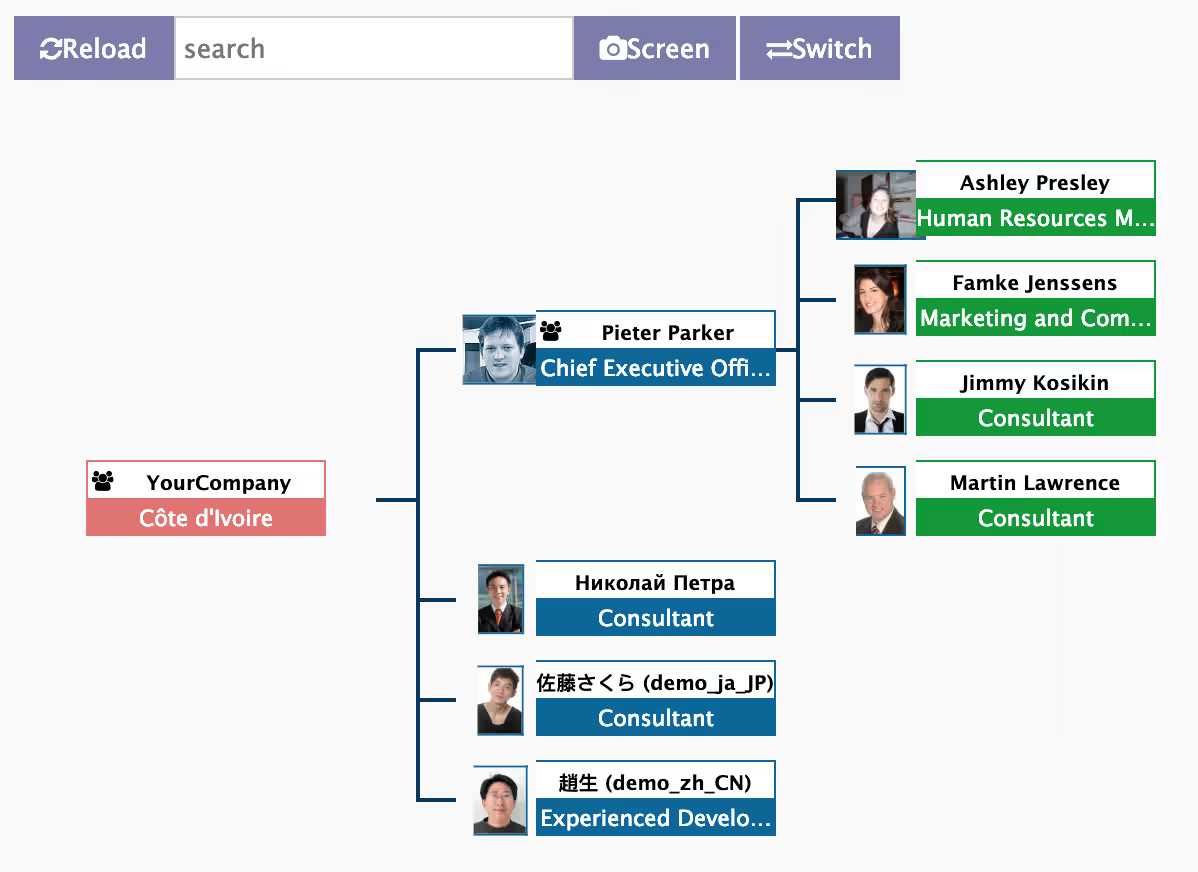
Vertical Level & Default Direction
Menu: Settings ==> Org Chart Configuration
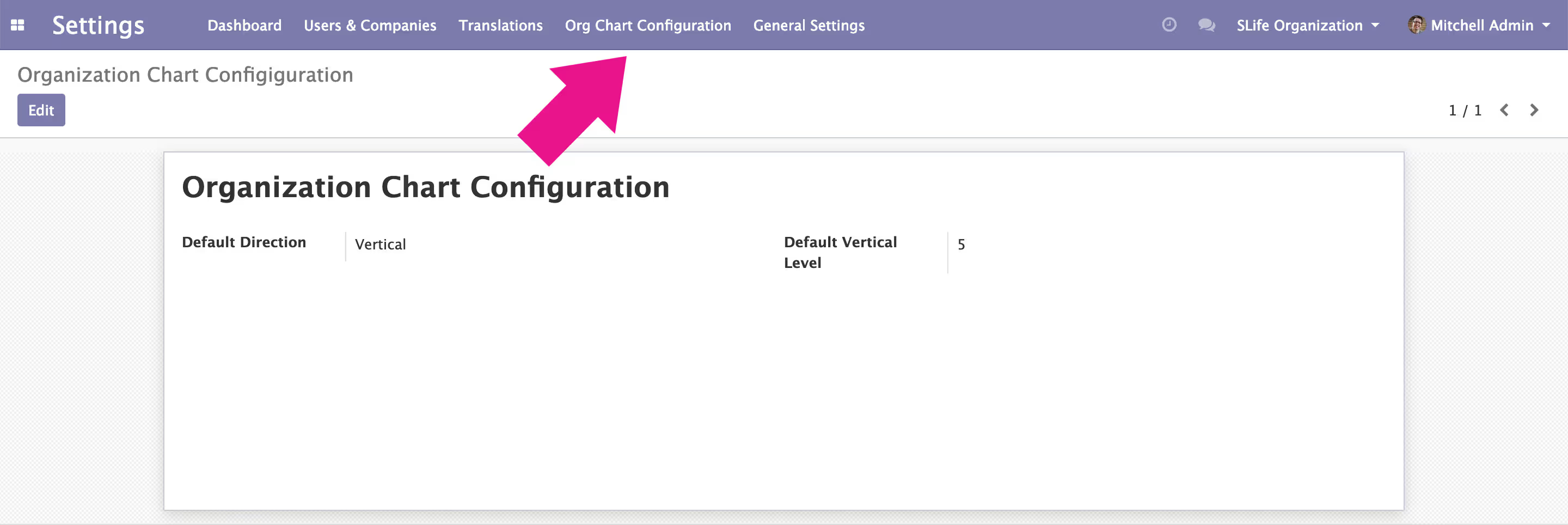
When you set Vertical Level, From this level of orgchart, nodes will be aligned vertically. It is also possible To choose the default Direction (Vertical or Horizontal) of the Organization Chart.