The Multiple Invoice Payment module is a powerful accounting tool designed to significantly enhance the efficiency of your payment processing workflows. It reintroduces a classic, user-friendly interface that allows your accounting team to handle multiple invoices in a single transaction. Whether you need to process full payments, partial payments, or even handle credit notes, this module streamlines the entire process. By allowing you to select and pay multiple invoices for a specific partner at once, it eliminates repetitive tasks, reduces the chance of manual errors, and provides a clear, consolidated view of your payment allocations.
Key Features
Batch Invoice Payments: Pay multiple customer invoices or vendor bills in a single, consolidated payment transaction.
Flexible Payment Methods: Process payments from the invoice list view or a dedicated payment screen that loads all open invoices for a selected partner.
Full and Partial Payments: Easily manage both full and partial payments for multiple invoices, with the system automatically calculating the remaining balances.
Credit Note Reconciliation: The module also supports the processing of multiple credit notes in a single payment transaction.
Automatic Reconciliation: Once a payment is processed, the corresponding invoices are automatically reconciled and their statuses updated.
Customer Credit Handling: If a payment exceeds the total amount due, the remaining balance is automatically credited to the customer's account for future use.
Benefits
Saves Significant Time: Drastically reduces the time and effort required to process payments by handling multiple invoices at once.
Increases Accounting Efficiency: Streamlines the accounts receivable and payable processes, freeing up your finance team for more strategic tasks.
Reduces Manual Errors: Minimizes the risk of data entry errors by automating the allocation of payments across multiple invoices.
Improves Cash Flow Management: Provides a clearer and more efficient way to manage incoming and outgoing payments.
Enhanced User Experience: Offers a simple and intuitive interface that makes the payment process faster and more straightforward.
Greater Financial Control: Gives you a better overview and more control over your invoice reconciliation process.
Multiple Invoice & Credit Notes Payment
Multiple Invoice Payment application streamlines the process of handling payments for multiple invoices and credit notes. This application offers two convenient methods for making payments: selecting multiple invoices directly from the list or processing payments through the payment screen. It supports full payments, partial payments, and payment adjustments, providing flexibility in managing financial transactions. By simplifying bulk payments, this app helps reduce manual effort and ensures efficient financial management.
- Multiple invoice Payment
- Multiple Credit Notes Payment
-
Two way payment:
- 1.Select Multiple invoice then after payment
- 2.payment from payment screen
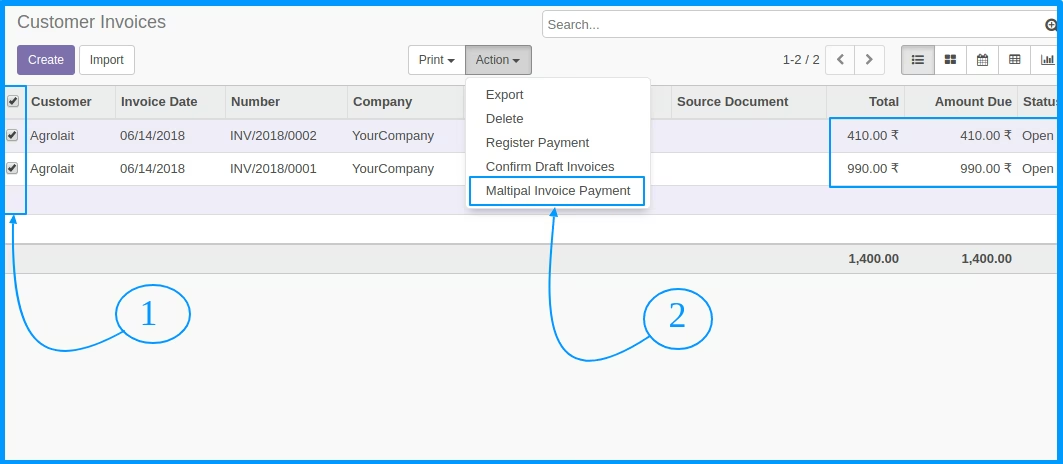
Select Multiple Invoice
Select Multiple Open Invoice
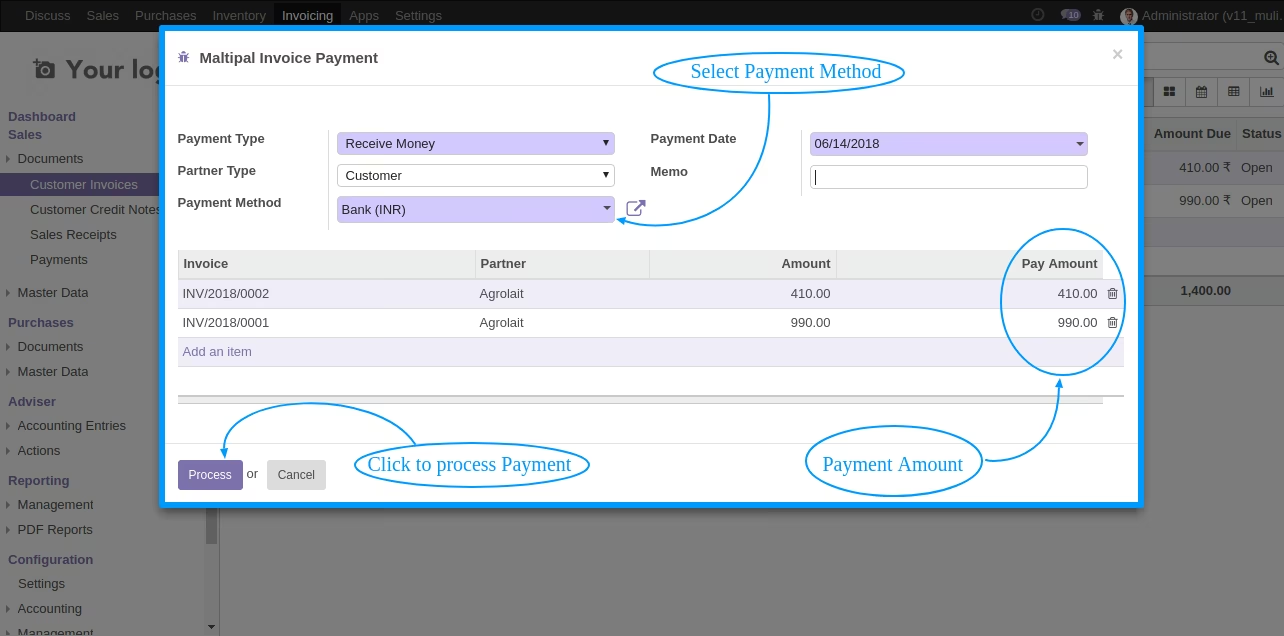
Process Payment
Select Payment method, allocate the payment amount and click to process button for make payment
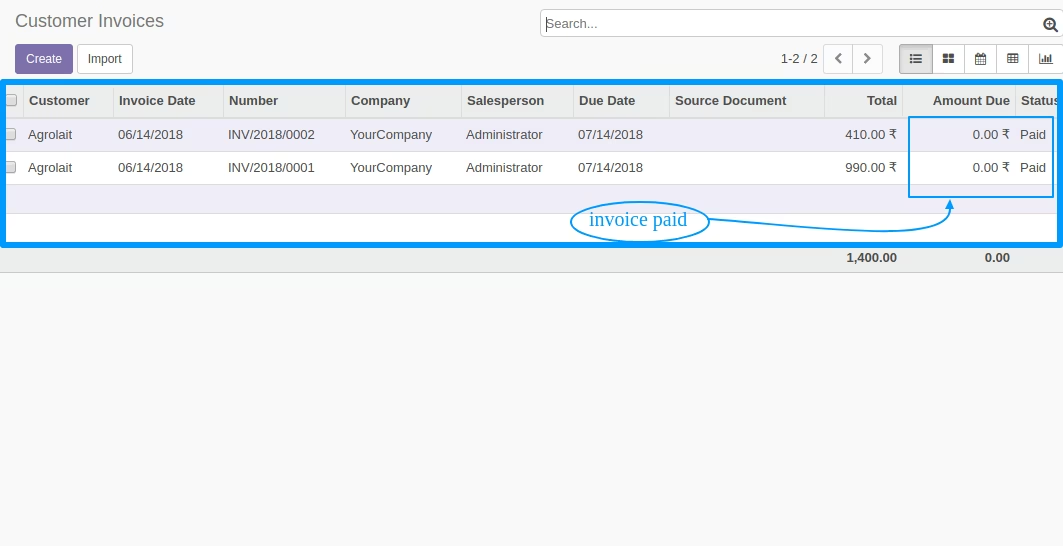
Paid Invoice
After Clicking the process button invoice has been paid
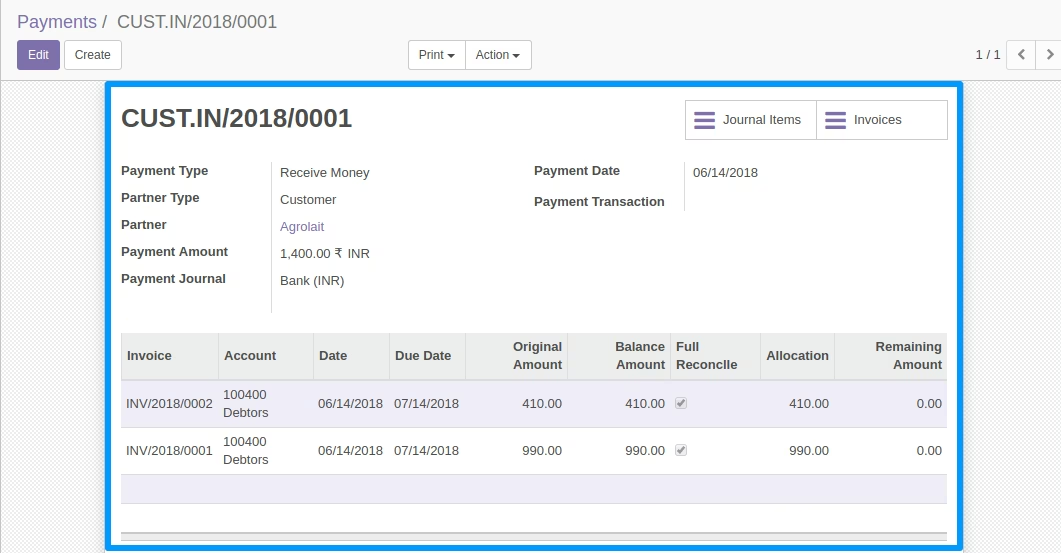
Invoice Payment
After Clicking the process button Invoice Payment Automatic Create
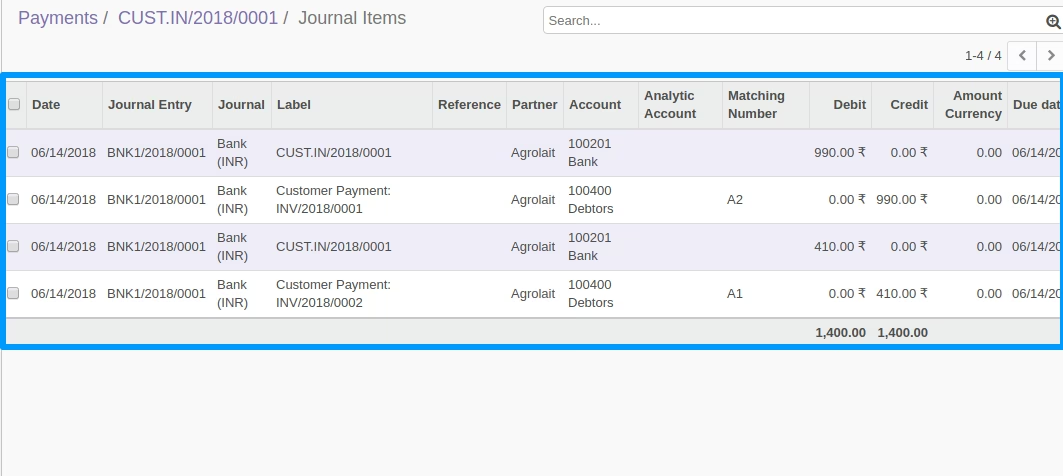
Invoice Payment Jounal Entry
Invoice Payment Journal Entry
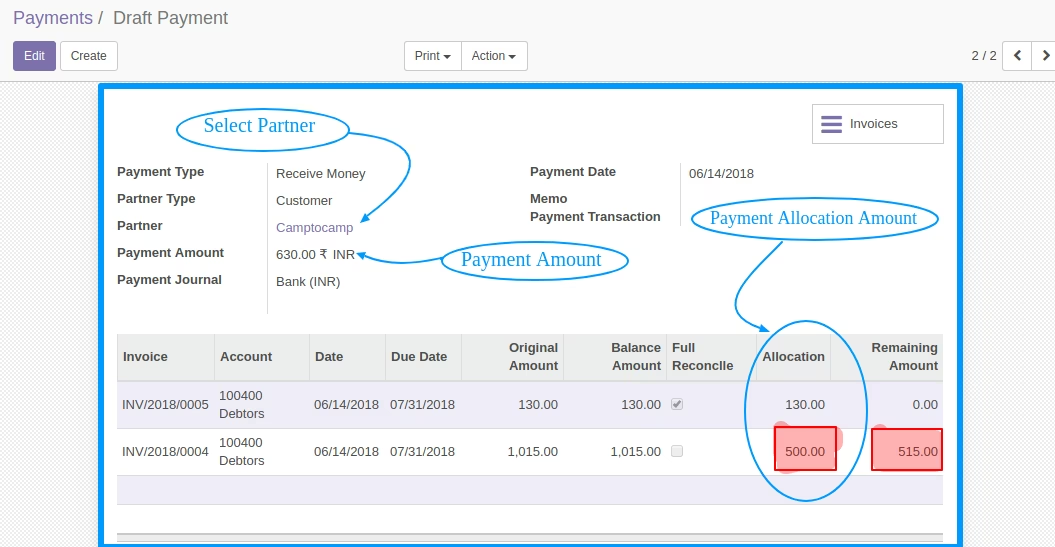
Invoice Payment From Payment Menu
Create a new payment, then select partner so the partner related invoice has been automatic loaded and all invoice amount fully allocated then after change the Payment Allocation amount and click to confirm button
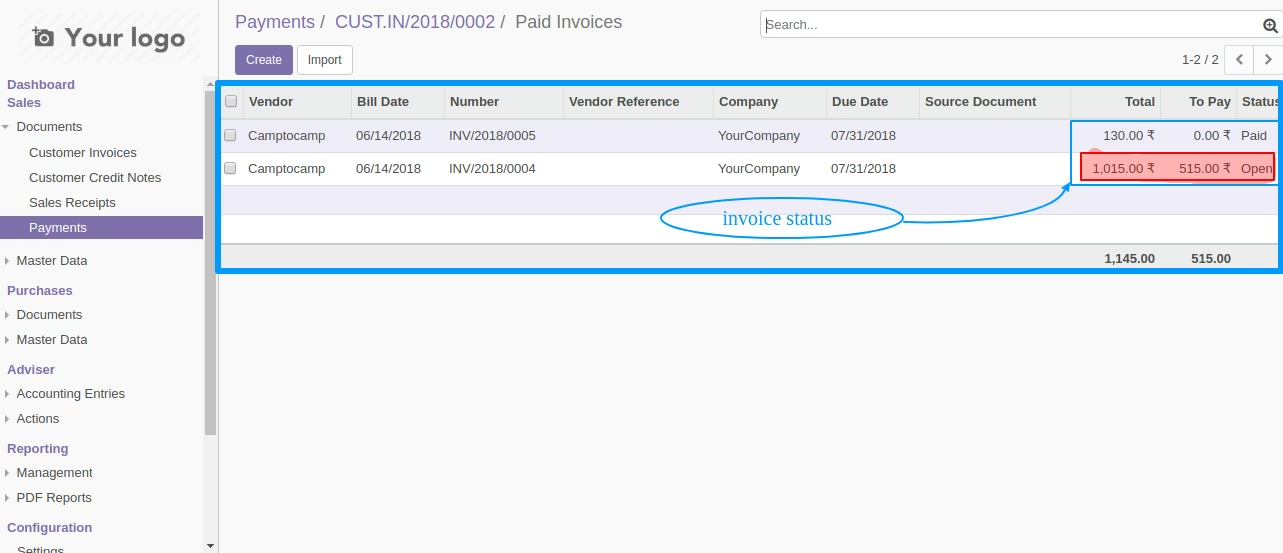
Paid invoice
After clicking confirm button one invoice has been paid and other invoice has been partially paid
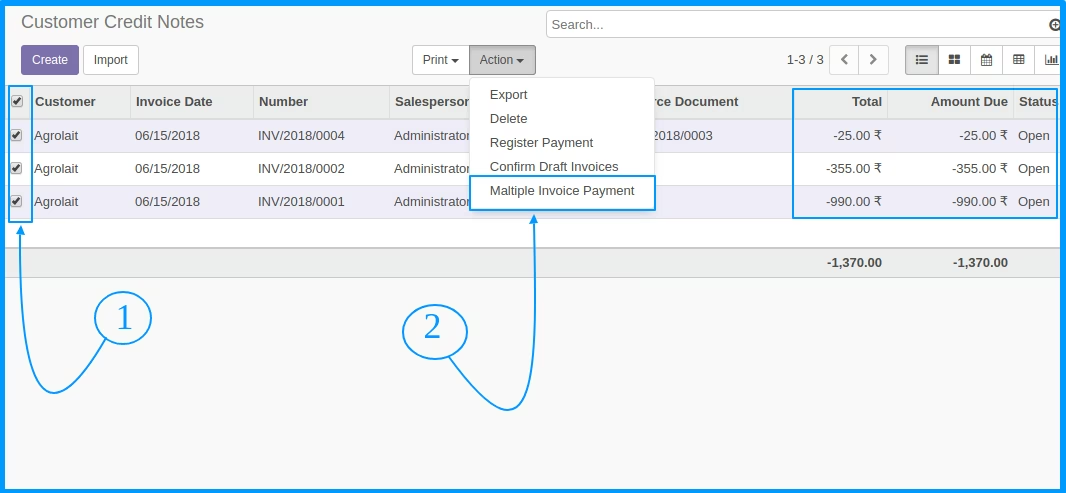
Select Multiple Credit Notes
Select Multiple Open Credit Notes
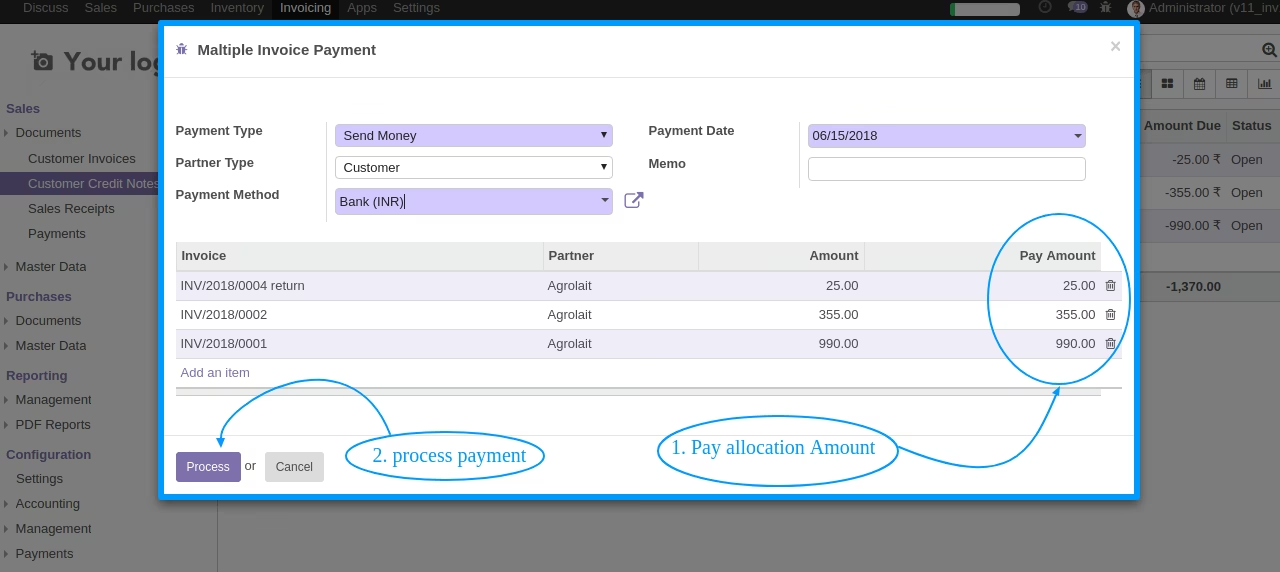
Process Credit Notes Payment
Select Payment method, allocate the payment amount and click to process button for make payment
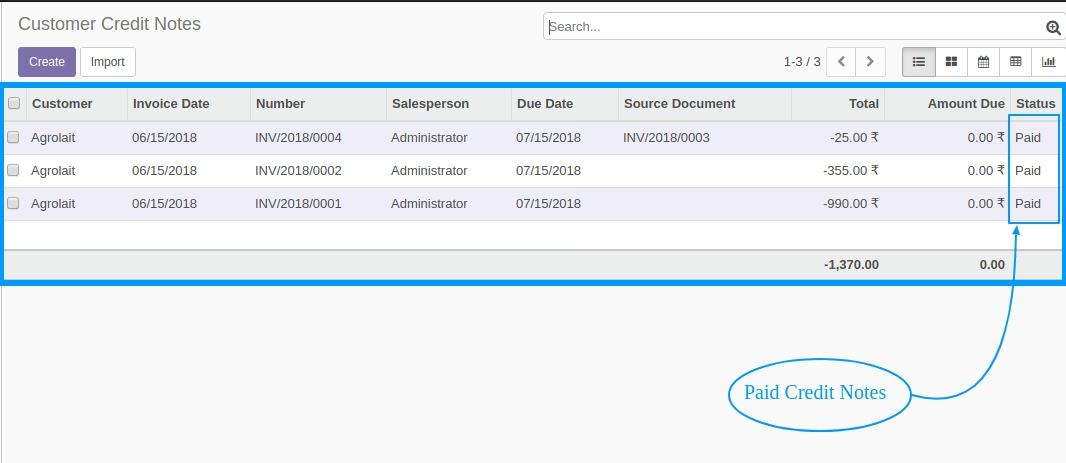
Paid Credit Notes
After Clicking the process button Credit notes has been paid
Credit Notes Payment
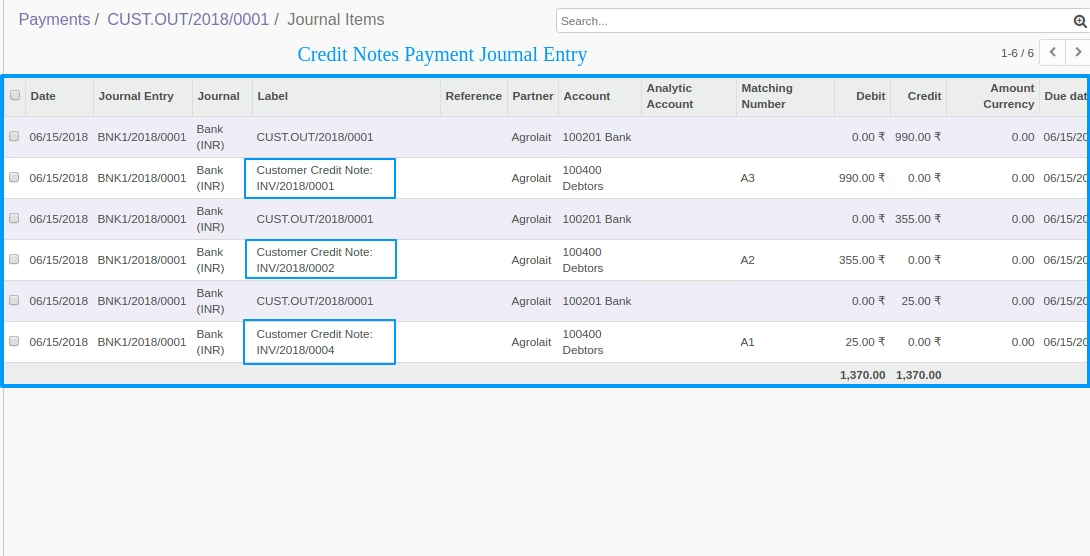
After Clicking the process button Invoice Payment Automatic Create
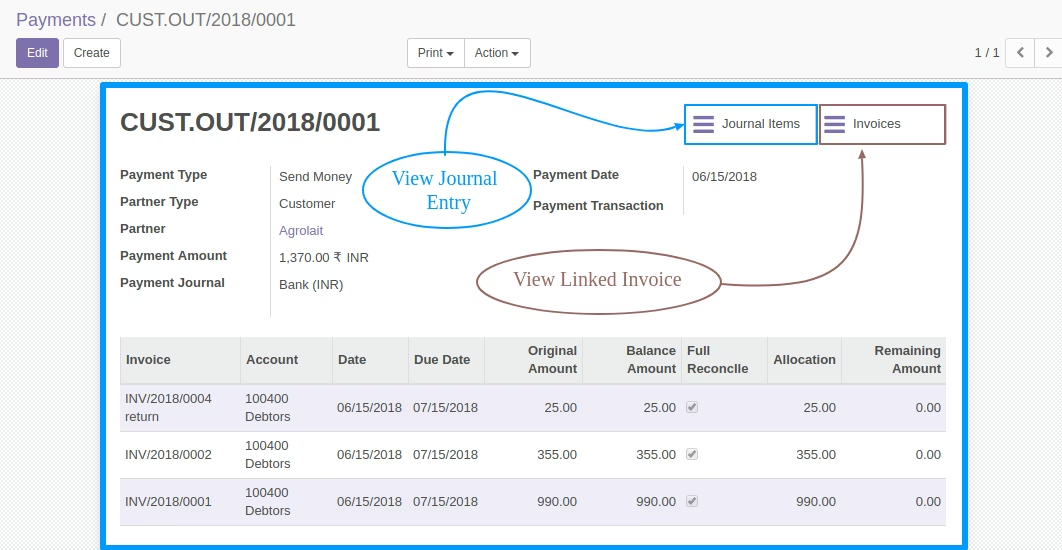
Credit Notes Payment Jounal Entry
Credit Notes Payment Journal Entry