The Advanced Multiple Write-Off module is a powerful accounting tool that provides enhanced flexibility when registering customer and vendor payments. While standard allows for a single write-off account, this module enables you to distribute a payment difference across multiple accounts. This is essential for accurately recording various types of deductions, such as bank fees, small adjustments, or other charges, without creating complex journal entries. It simplifies the reconciliation process, improves the accuracy of your financial records, and provides a more granular view of your write-offs.
Multiple Write-Off Accounts: Allocate a single payment difference to multiple write-off accounts during payment registration.
Flexible Allocation Methods: Distribute the write-off amount by either a fixed amount or a percentage of the invoice total for each account.
Works for Customers and Vendors: The functionality is available for both customer invoices and vendor bills.
Handles Multiple Invoices: Apply a single payment with multiple write-offs to several invoices from the same partner at once.
Automatic Amount Adjustment: The payment amount is automatically adjusted as you add and define the write-off lines.
Built-in Validation: The system ensures that the total write-off amount matches the payment difference before allowing validation.
Seamless Integration: Integrates directly into the standard "Register Payment" screen for an intuitive user experience.
Increased Accounting Accuracy: Provides a more precise way to record various types of payment deductions and write-offs.
Streamlined Reconciliation: Simplifies the process of reconciling invoices with partial payments or deductions.
Improved Financial Visibility: Offers a clearer and more detailed breakdown of write-offs in your journal entries.
Enhanced Efficiency: Saves time by allowing you to handle complex write-off scenarios directly from the payment screen.
Greater Flexibility: Accommodates a wider range of accounting situations and business needs.
Reduces Manual Journal Entries: Eliminates the need to create separate journal entries to account for multiple types of deductions on a single payment.
Partial Payment and Multi Payments
Payment Invoice of sale and purchase with Reconciliation Automatic
Multi Currency , , other
Optimize payments and billing
Make multiple credits to your invoices or partial deductions to your payments in a practical way, which will be credited to your invoices and reconciled automatically.
Multiple payments can be made directly from the payment that you have registered manually. Automatic reconciliation
You can make partial payments from the existing payment on the invoice screen and record the payment for whatever amount you have to record for the invoice against the payment.
Users can also check the remaining outstanding credit / debit amount for future partial payments..
Use case 1:
Multiple invoice payments partial or complete
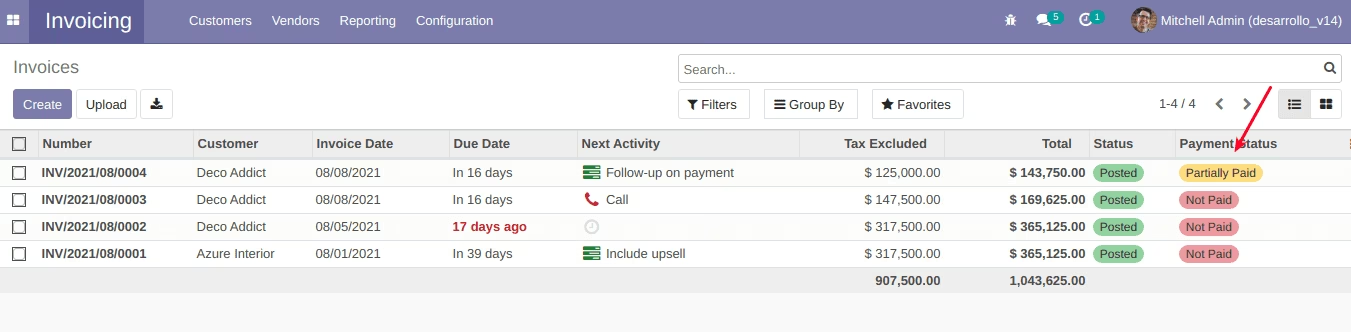
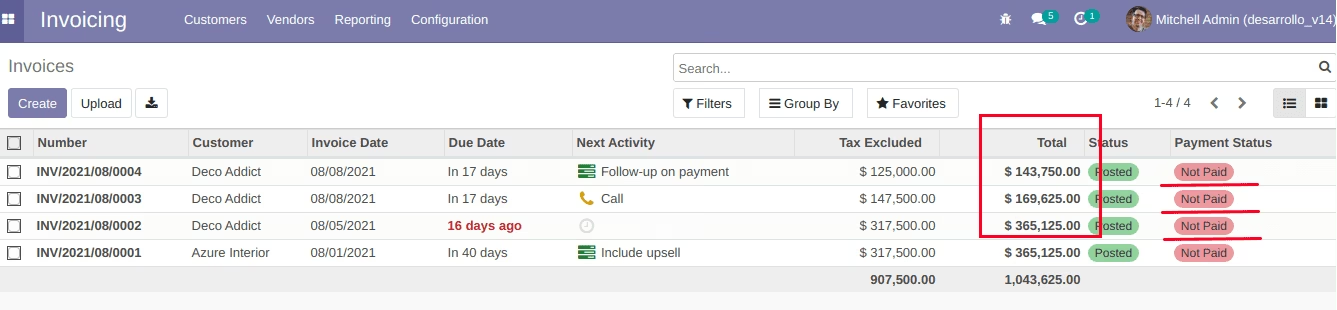
We have an example of the company Deco Addict which has a total of 3 invoices with our company with a total debt of $ 678,500.00
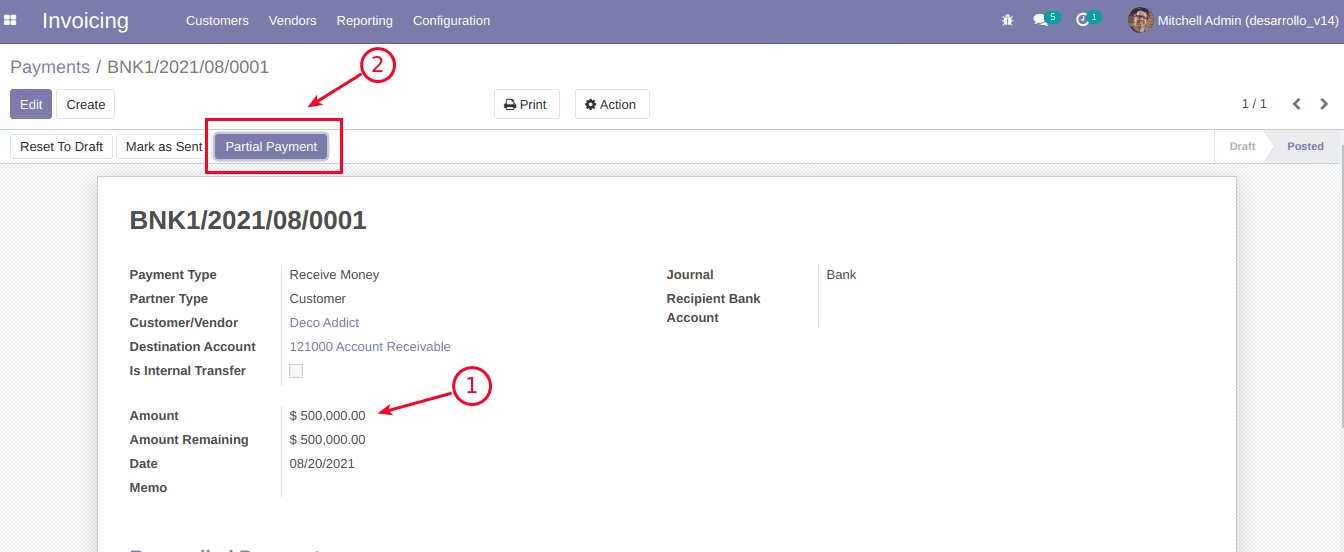
We receive a payment from Deco Addict, total amount 500,000.00, and we want to distribute this payment in the different invoices. Click on the Partial Payment button to distribute payments.
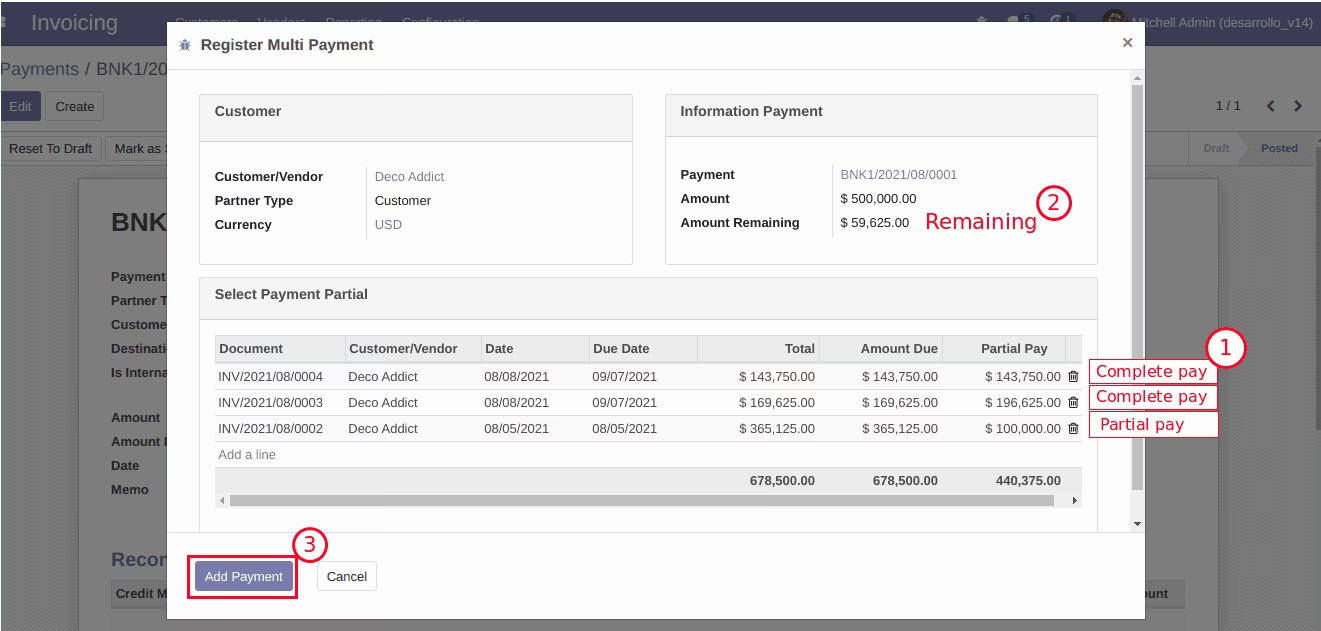
In the next pop-up window, we have customer information, current payment information and all documents pending payment from the customer will automatically be uploaded. These lines can be eliminated or updated directly in the Select Payment Partial field.
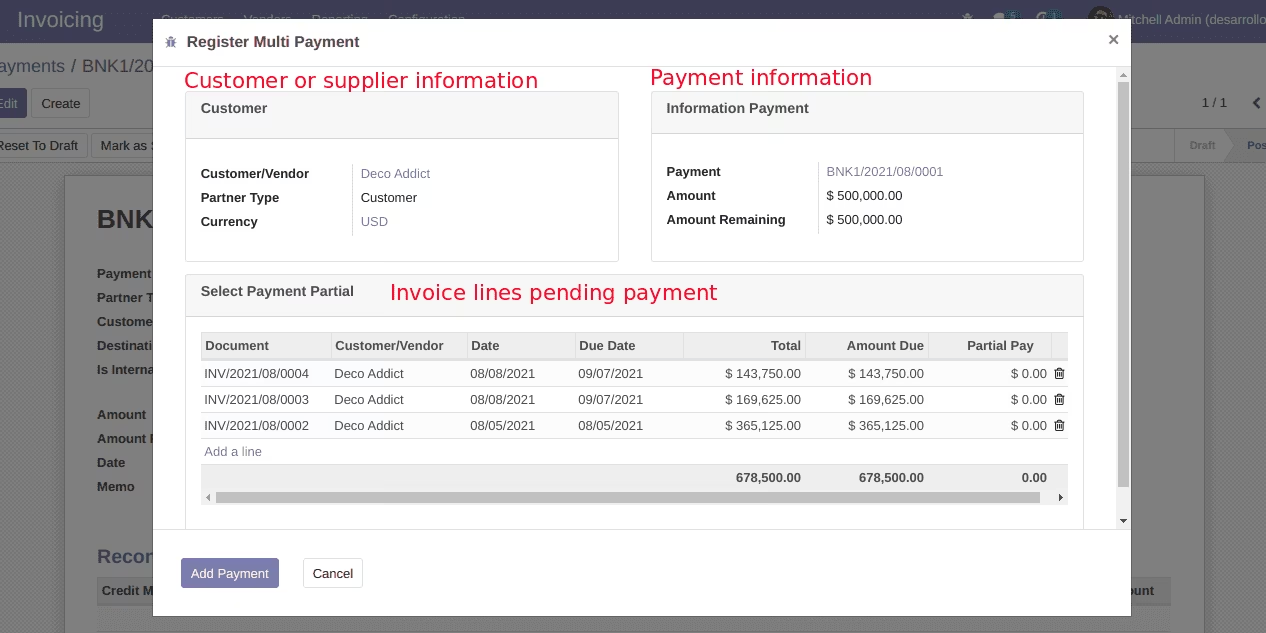
The distribution of payments for each invoice is entered. You can make full payments or partial payments according to your administrative needs. Automatically you will be indicated the amount that is available for subsequent payments Click on Add Payment.
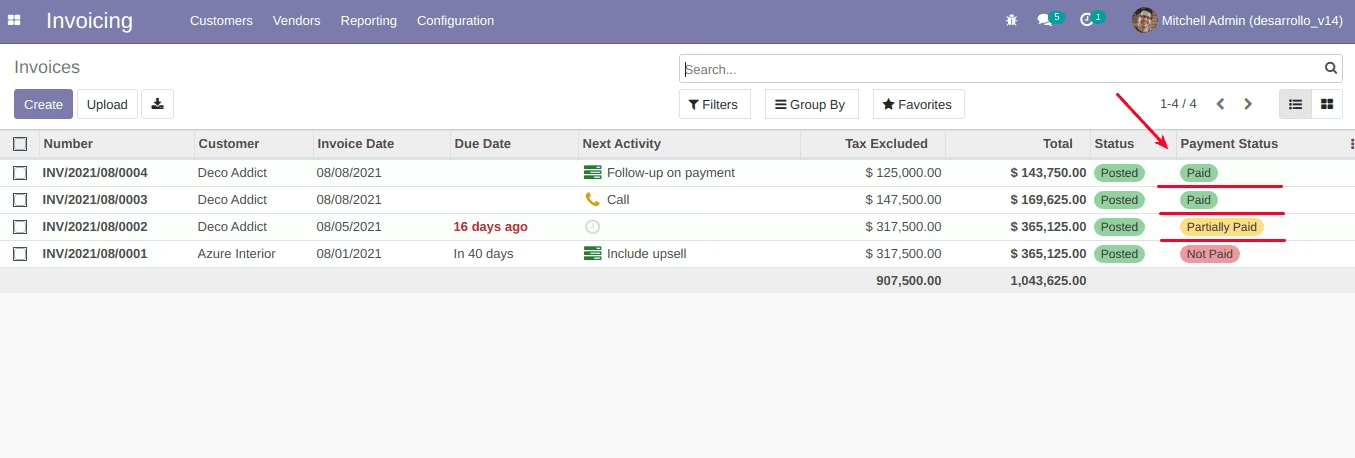
Payments are automatically reconciled in each of the processed invoices.
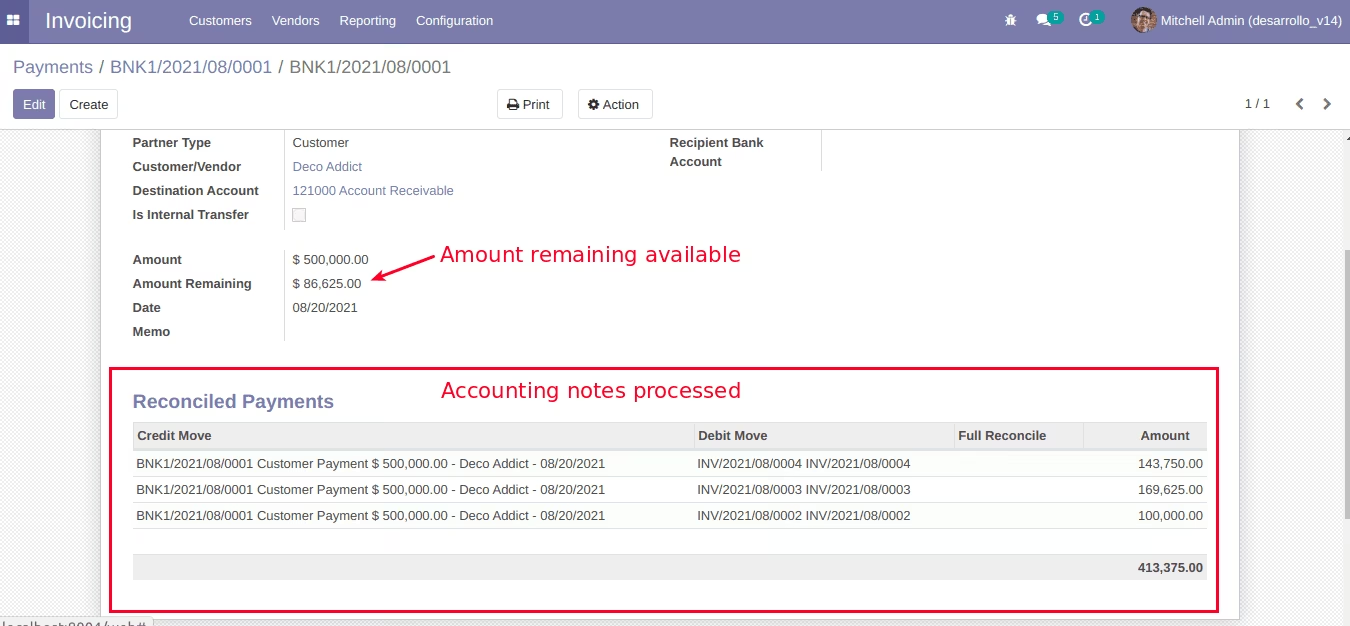
Returning to the payment document, the information is updated with the accounting notes, it will have amount information remaining available for future payments.
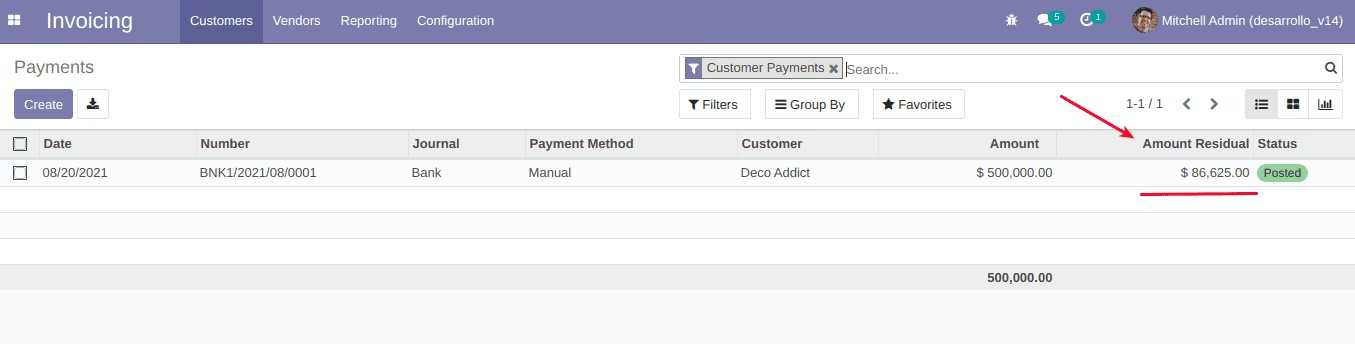
In the payment list view you will have a quick view to analyze the amount available in each of your payments.
Use case 2:
Partial payments in invoice
We return to the example of the company Deco Addict which has a total of 3 unpaid invoices, debt with our company total of $ 678,500.00
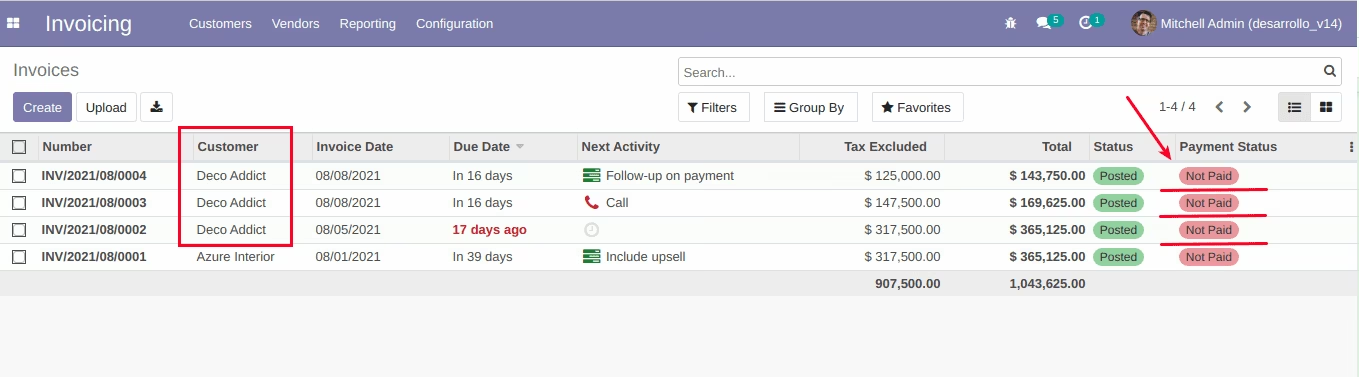
A payment is created through conventional procedures

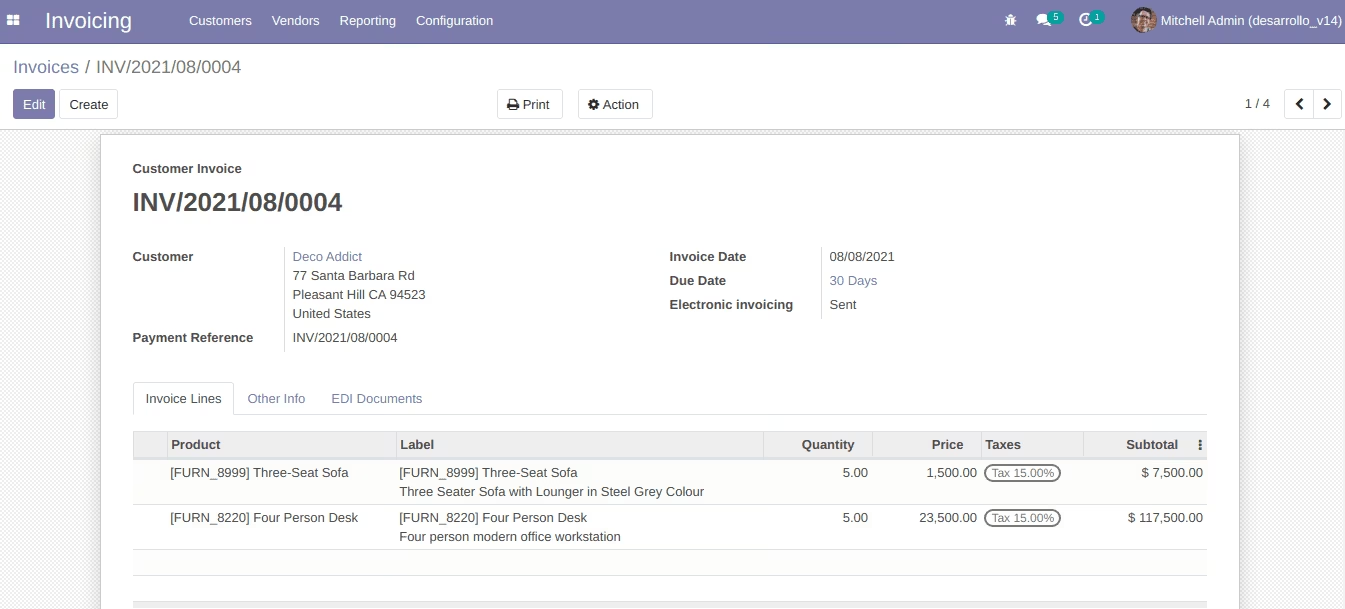
The invoice is required to make partial payment.
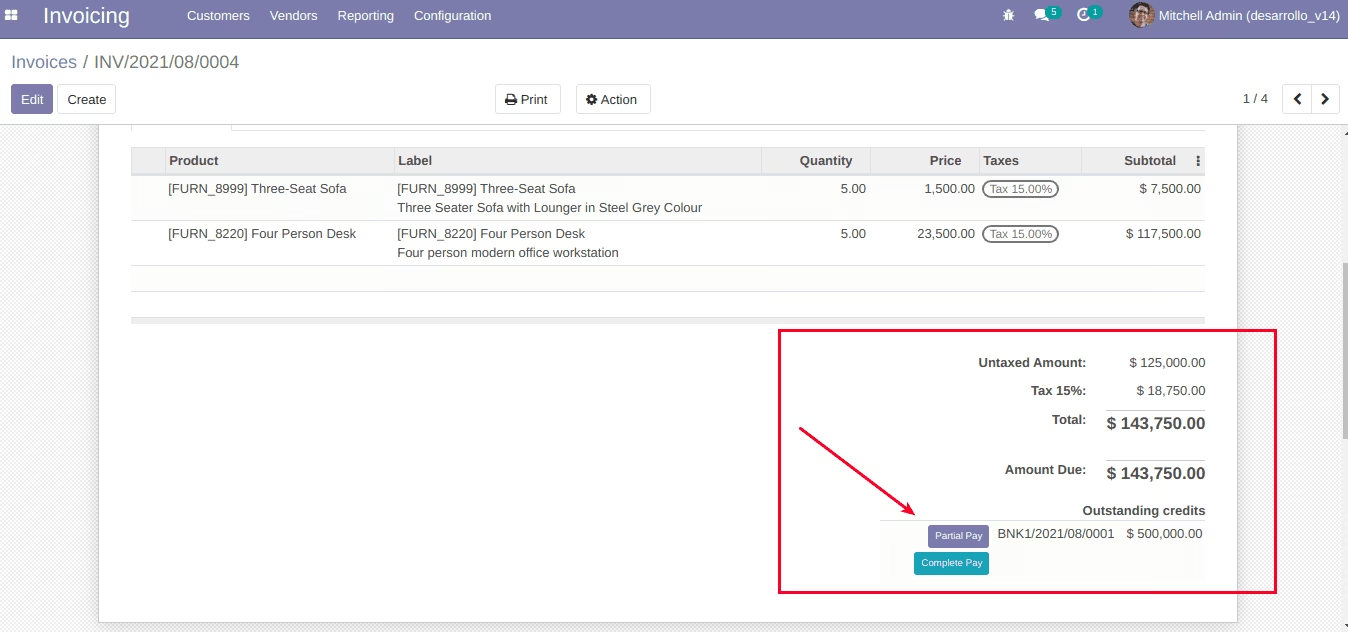
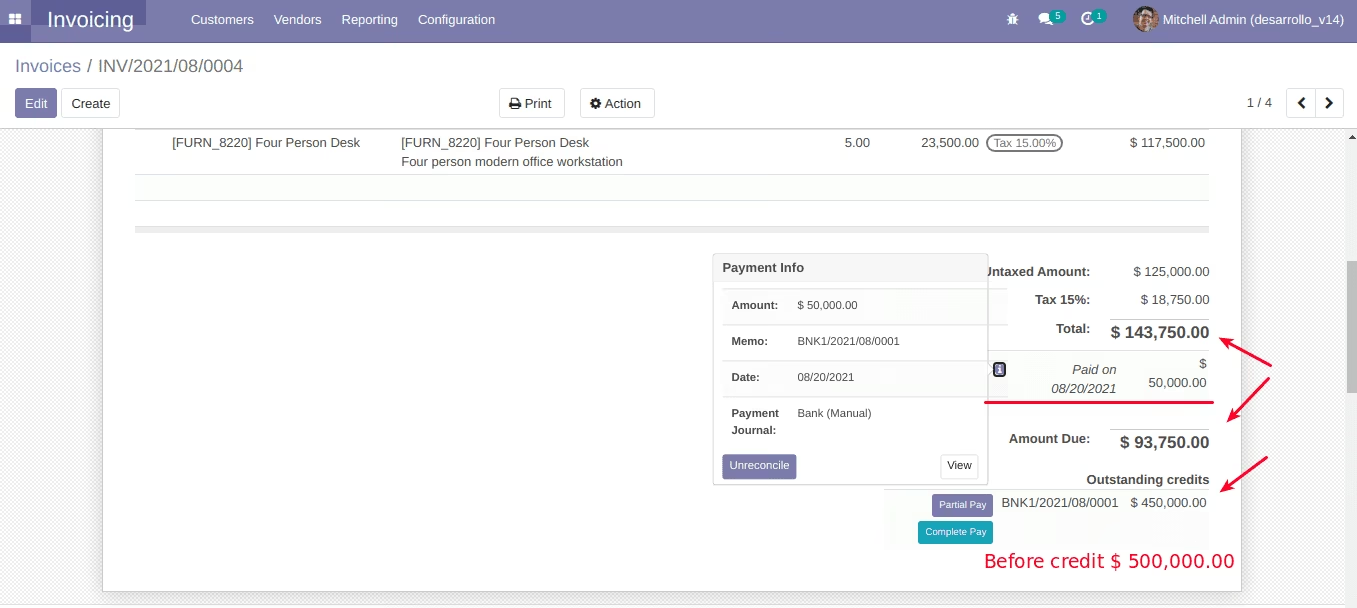
You go to the Outstanding Credits section, you will find the payment pending reconciliation and two buttons: Complete Pay (action to pay full payment), Partial pay (action for partial payment)
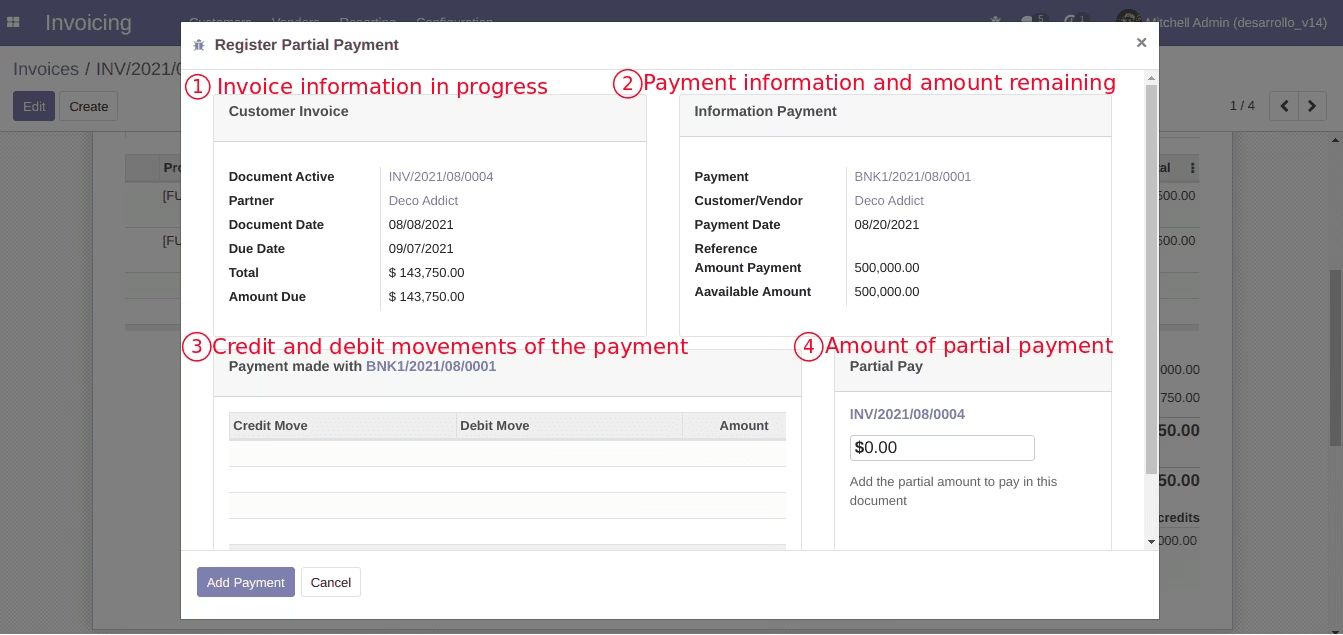
To generate a partial payment you must click on Partial Pay, a pop-up window opens, in section 4 enter the amount to pay. For this example, a partial payment of $ 50,000 will be made.
The partial payment made is automatically reconciled with your invoice, which changes status.
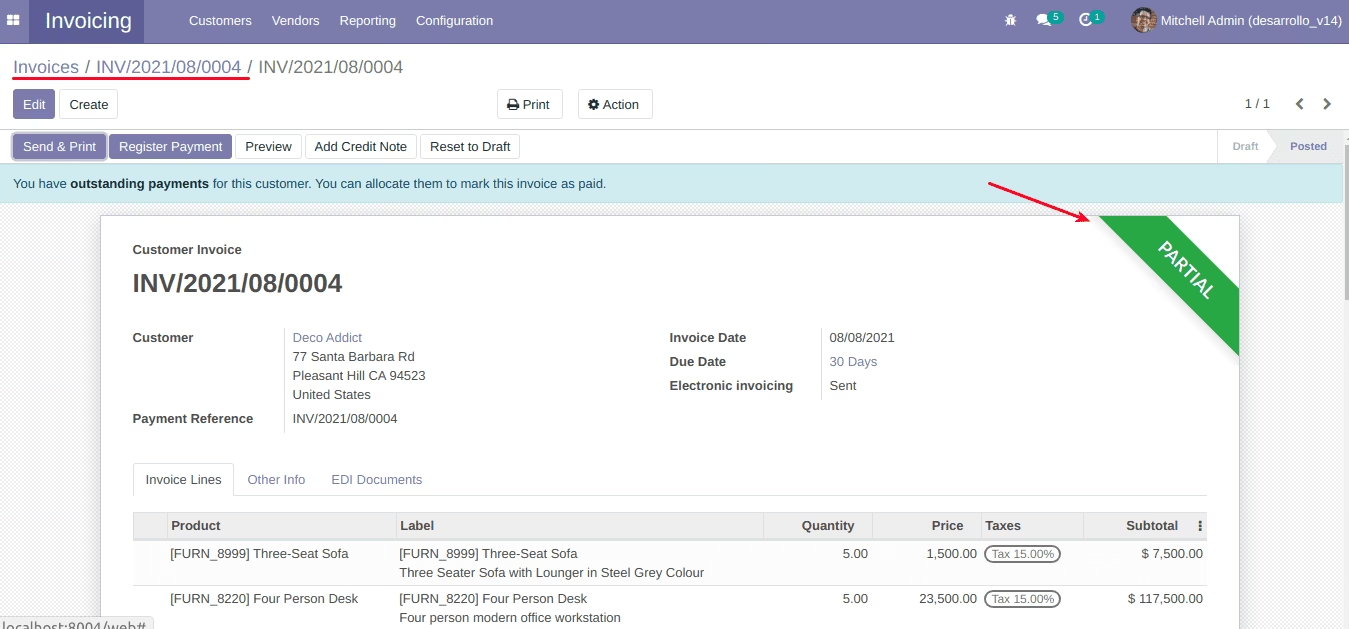
Check status in your list view.