
This module simplifies meeting management by enabling professional log keeping of meeting minutes directly. Users can generate polished PDF versions of minutes, send them to attendees via email, and assign tasks seamlessly all from the meeting interface. It enhances meeting documentation, streamlines follow-up actions, and embeds efficient task planning for streamlined team coordination.
Generate polished PDF minutes of meeting (MOM) with one click.
Email meeting minutes in PDF format directly to attendees.
Allocate multiple tasks to multiple participants seamlessly from the meeting screen.
Monitor task progress in real time without navigating away.
Integrate minutes capture and task assignment within meeting workflows.
Saves time with instant PDF MOM generation and distribution.
Improves accountability by linking tasks directly to meetings.
Enhances team collaboration through shared meeting documentation.
Boosts productivity with action items assigned and tracked immediately.
Promotes transparent follow-ups by embedding task visibility in meetings.
Minutes Of Meeting & Task Allocation
Using this application, You can add your Minutes Of meeting , You can take a PDF copy and can also send it through mail. It has a provision to allocate tasks for a respective project to multiple users.
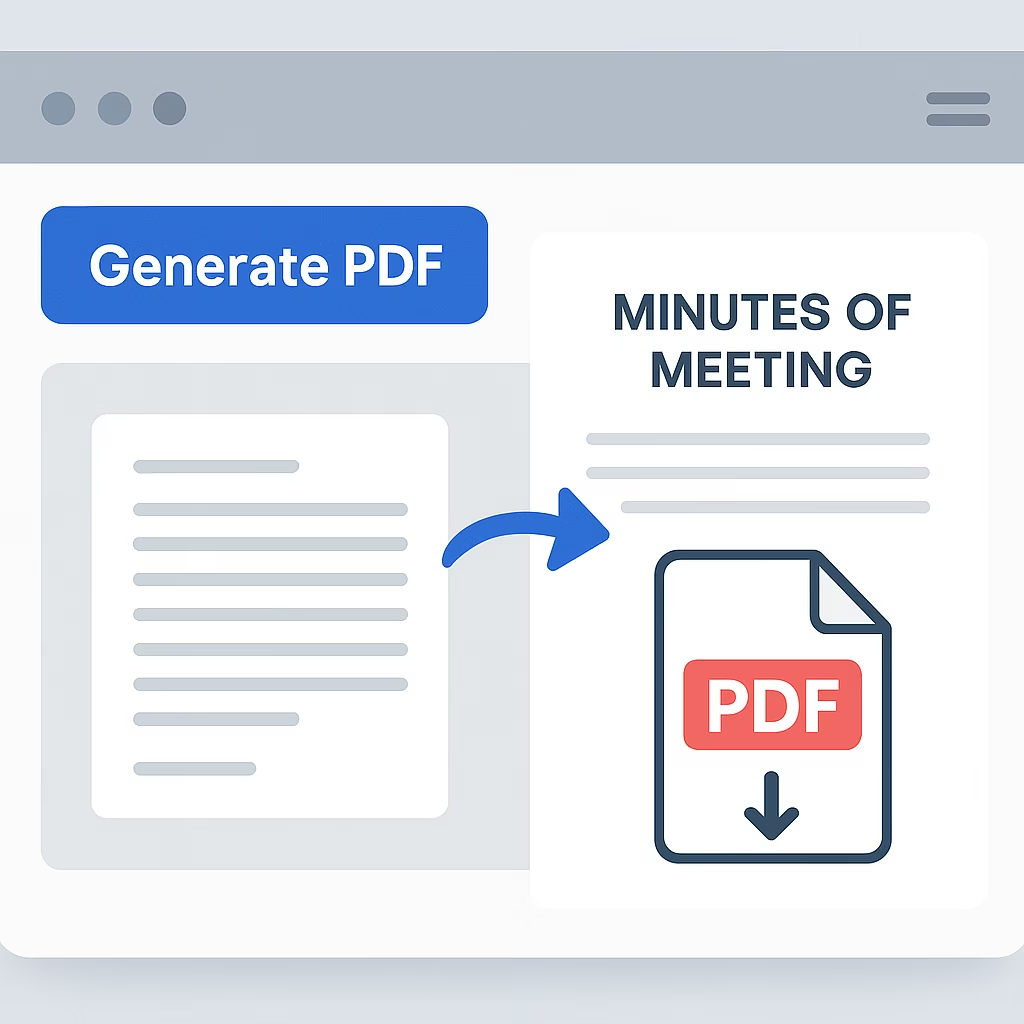
📄 Easy PDF Generation
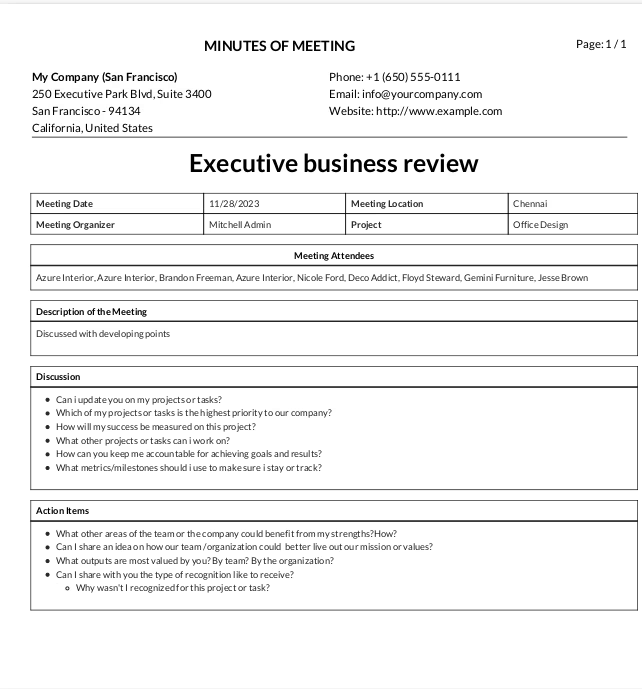
Instantly print a professional PDF copy of the Minutes of Meeting (MOM) for documentation and sharing.
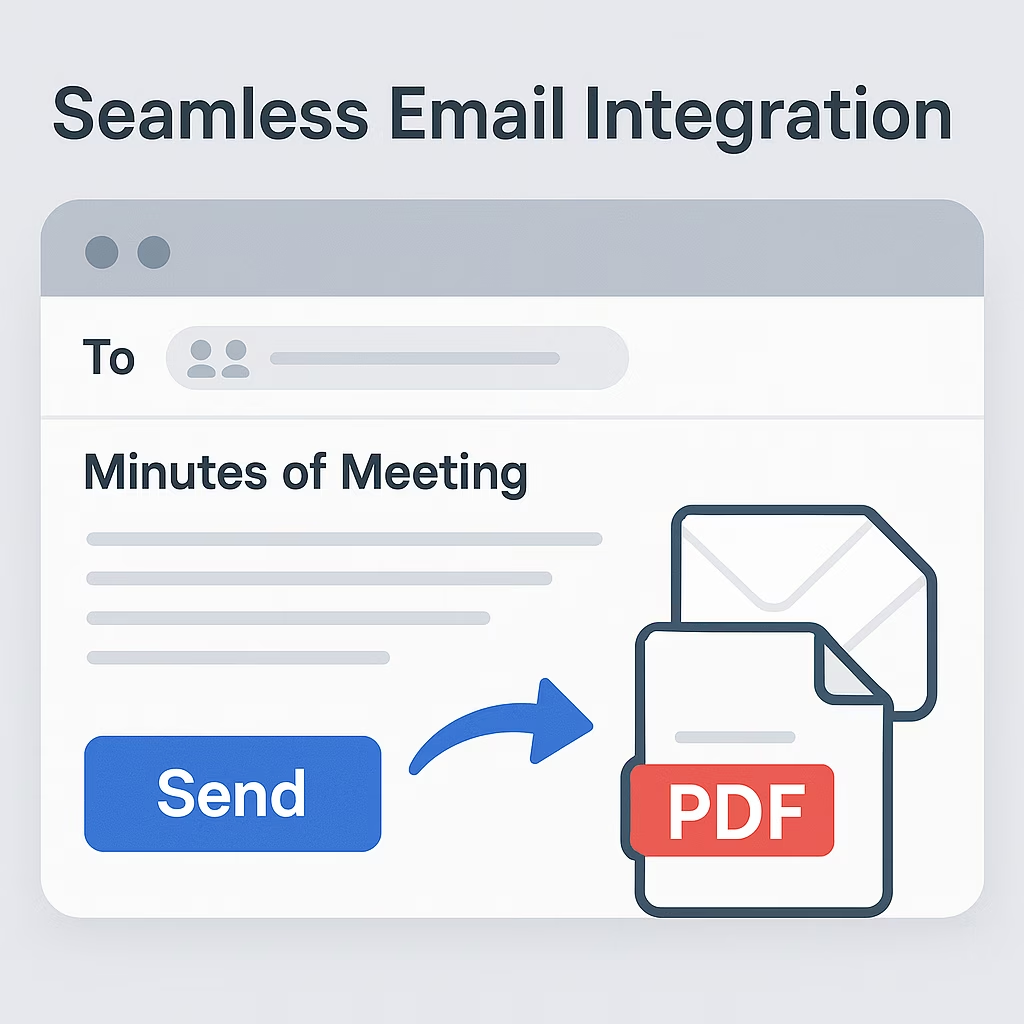
📧 Seamless Email Integration
Email the MOM in PDF format directly to all meeting attendees with just a click—no need for manual attachments.
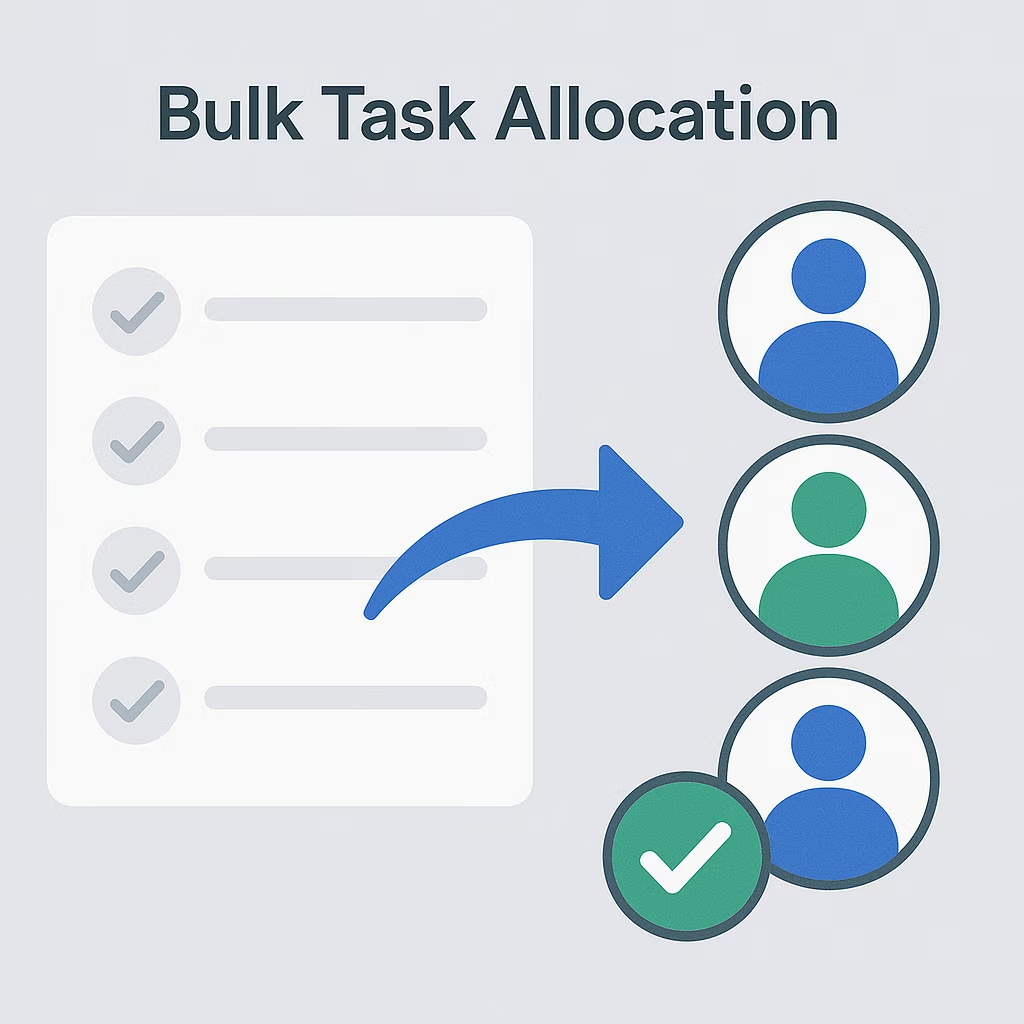
✅ Bulk Task Allocation
Assign multiple tasks to multiple users in a single action, saving time and improving efficiency.
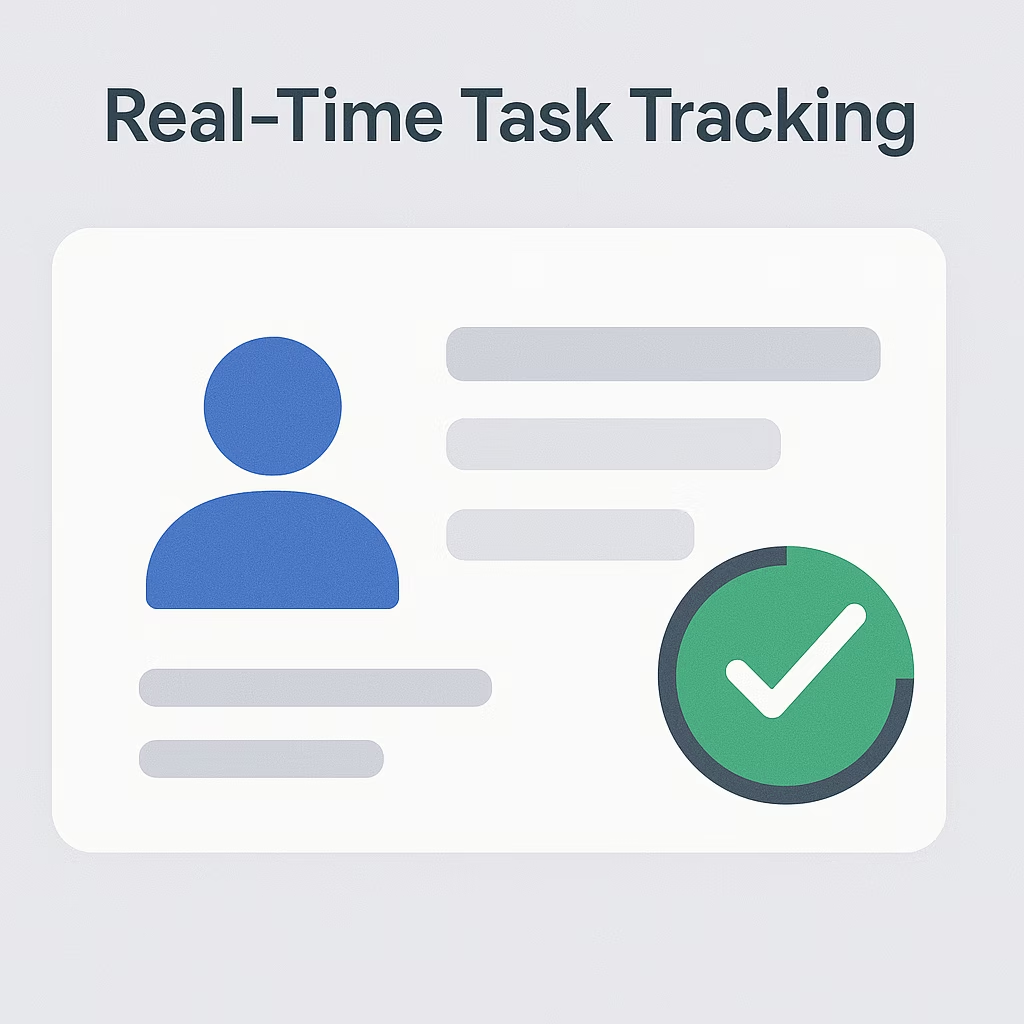
📊 Real-Time Task Tracking
Monitor task progress directly within the meeting screen—no need to switch to the 'All Tasks' menu.
- Go to 'Calendar' Menu → Click on 'Meetings' Menu and create a meeting.
- Tag the attendees, give the start and end date of the Meeting, enter the description of the meeting, and select the 'Project'.
- On creation of an event, by default sends an invitation email to the attendees through which they can accept or decline the invitation.
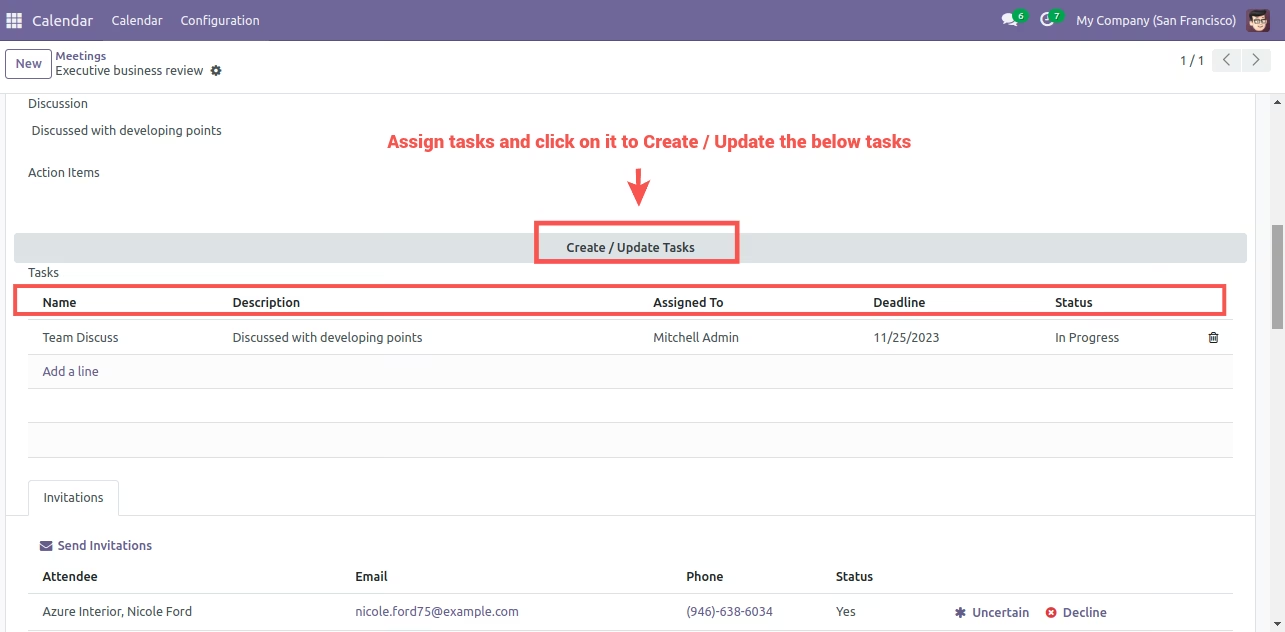
Scroll down to find the newly available fields, 'Description' & 'Action Items'.
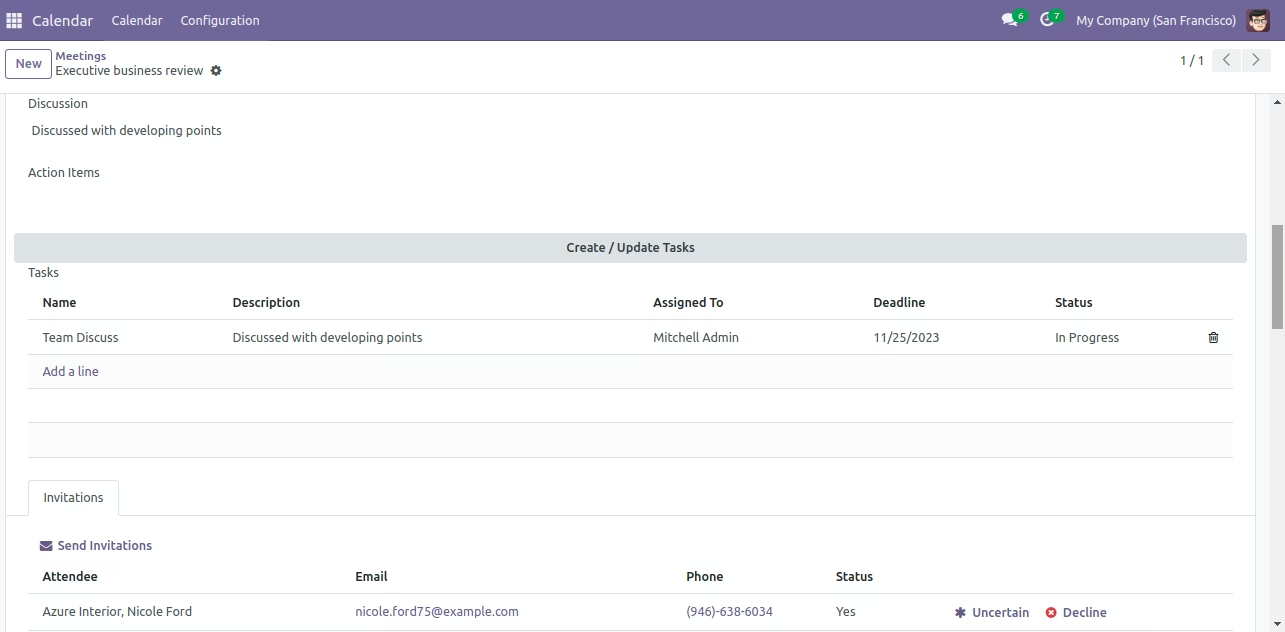
- Scroll Down to find the 'task allocation' line item.
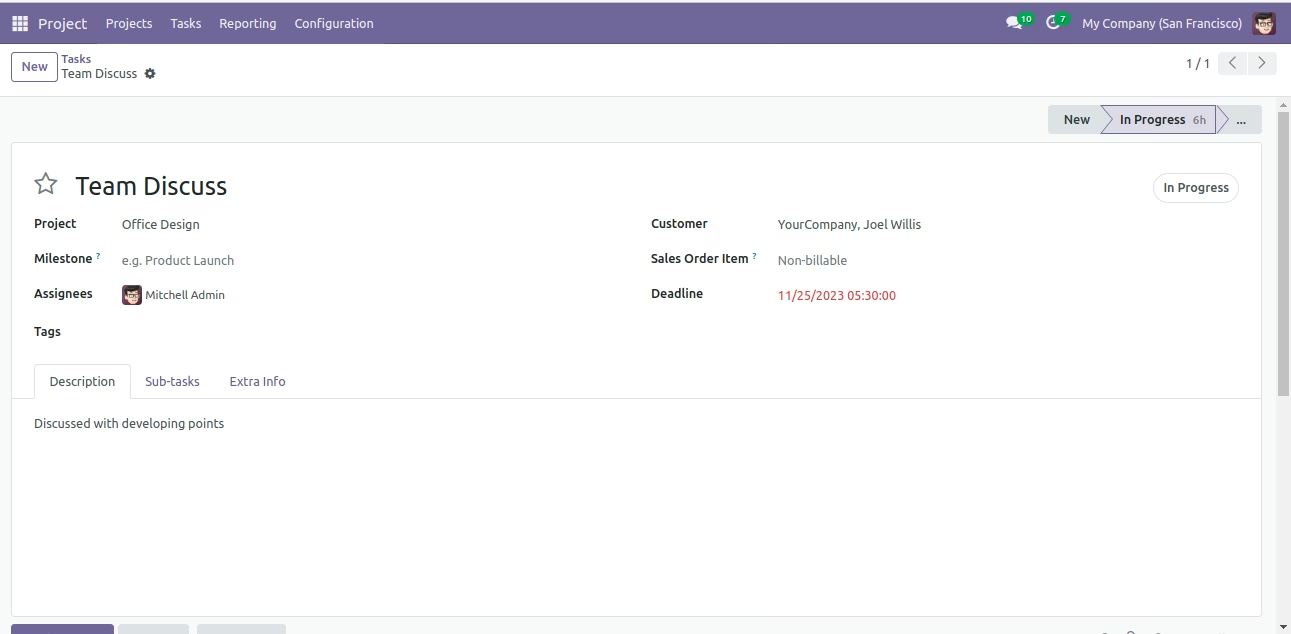
- You can view the status of the task in the same tab rather than switching to tasks Menu.
- Once you are done assigning the tasks, Click on Create/Update tasks.
You can print the MOM in PFD Format, by clicking on the button 'Print MOM'
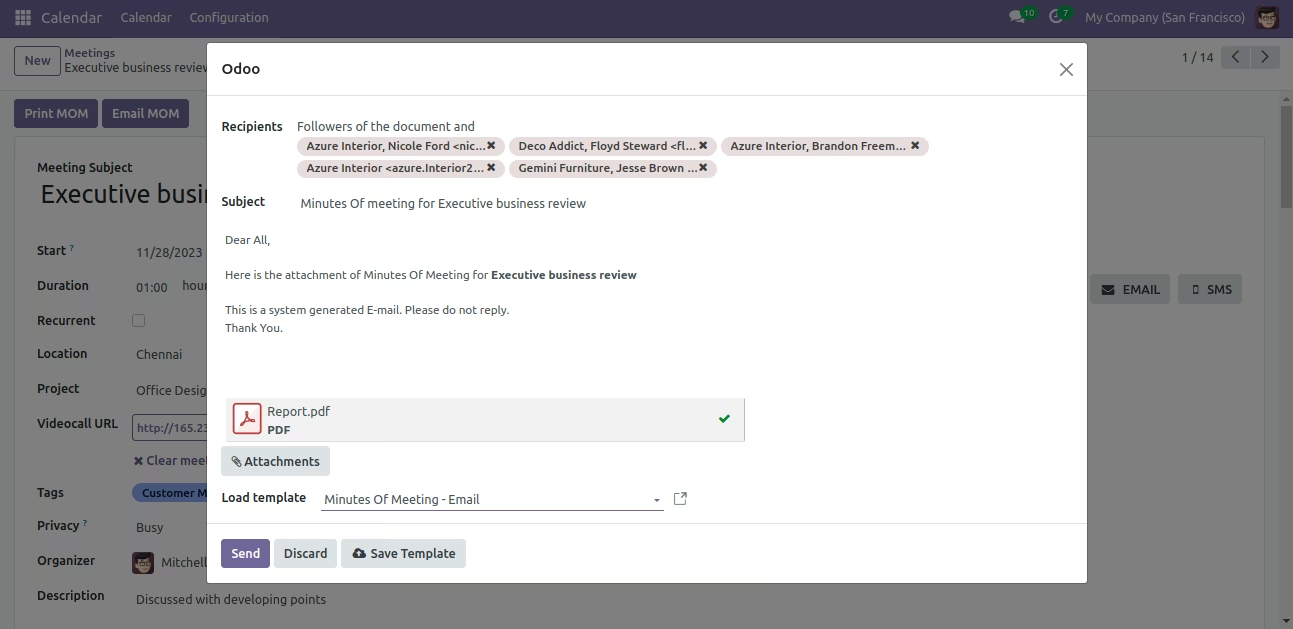
- You can also Email the MOM (In PFD Format) to the respective attendees.
- To do that, Click on 'Email MOM' button, A wizard pops-up On which it displays the name of the attendees where you can tag additional contacts if required.
- Click on 'Send' to send the MOM.
- Generate and print professional Minutes of Meeting (MOM) in PDF format with just a click—no manual formatting needed.
- Instantly email the MOM to all attendees in PDF format, ensuring everyone is informed and aligned.
- Assign multiple tasks to multiple users in one go, boosting efficiency and reducing administrative workload.
- View and monitor task status directly from the meeting screen—eliminating the need to switch to other menus.
- Keep your team connected with clearly defined action items and responsibilities visible to all stakeholders.
- With real-time updates and clear task ownership, teams stay focused, responsible, and on track to deliver results.
Advantages
- Automated Documentation:Automatically generate a professional PDF of the MOM, reducing manual effort.
- Quick Communication:Built-in email functionality ensures MOMs are instantly shared with attendees.
- Efficient Task Assignment:Assign multiple tasks to multiple users with a single action, minimizing delays.
- Centralized Monitoring:Track task updates from within the meeting screen without navigating away.
- User-Friendly Workflow:Intuitive design makes it easy for users to manage meetings and follow-ups without technical hassle.
- Instant MOM PDF Generation:Print a professional copy of the Minutes of Meeting in PDF format for easy documentation.
- One-Click Email Sharing:Send the MOM in PDF format directly to all attendees with a single click.
Benefits
- Saves Time and Resources:Reduces time spent on manual task allocation and MOM distribution.
- Improves Accountability:Assigned tasks are visible and trackable, helping team members stay responsible.
- Enhances Team Collaboration:Everyone is aligned with the same meeting notes and assigned action items.
- Increases Productivity:Streamlined task assignment and tracking lead to faster execution of meeting outcomes.
- Promotes Transparency:Easy access to MOMs and task status fosters open communication across teams.
- Bulk Task Assignment Made Easy:Allocate multiple tasks to multiple users efficiently in just one action.
- Integrated Task Status Tracking:Monitor the progress of tasks directly within the meeting screen without switching menus
Configuration
- Make sure your outgoing mail server is configured.