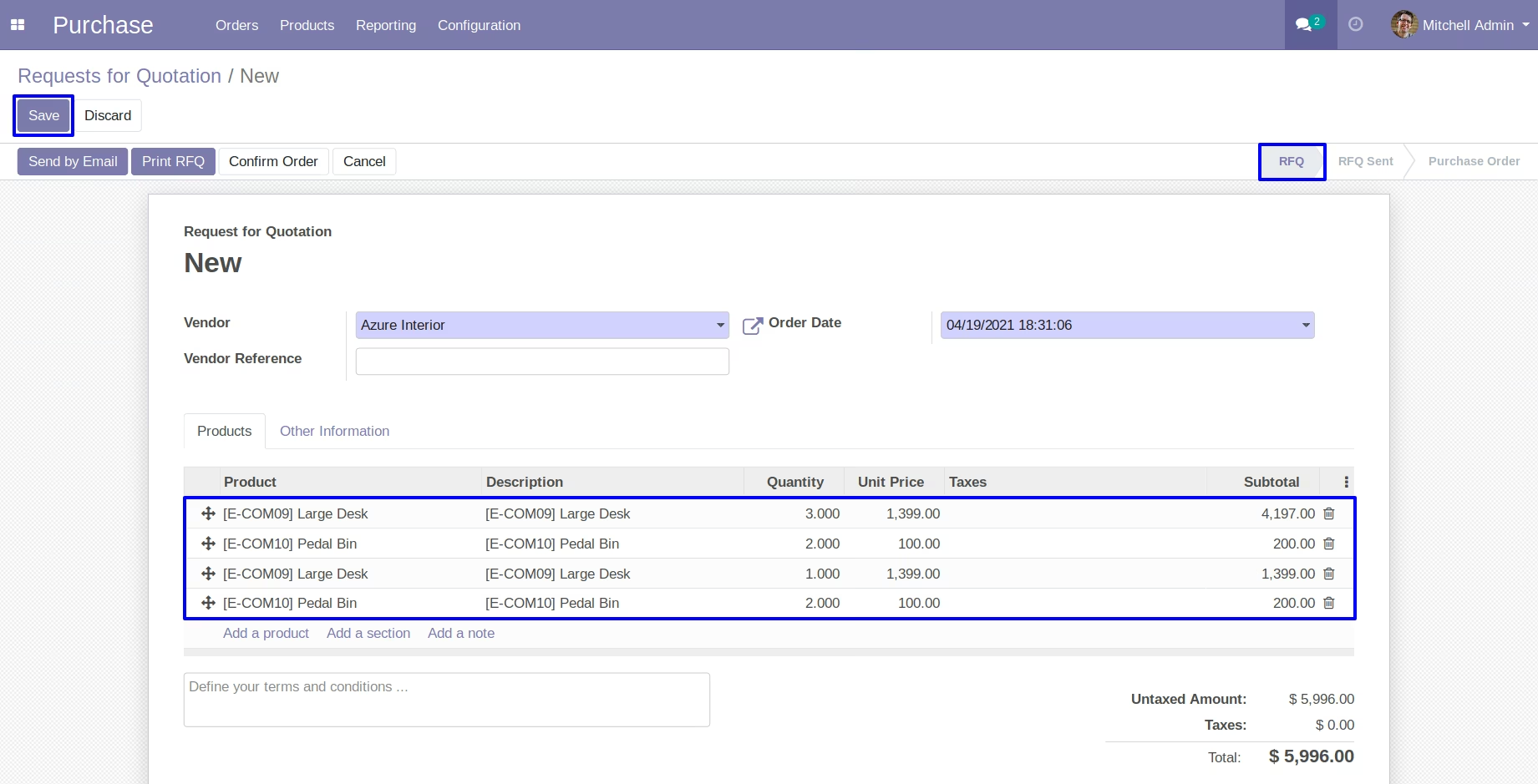
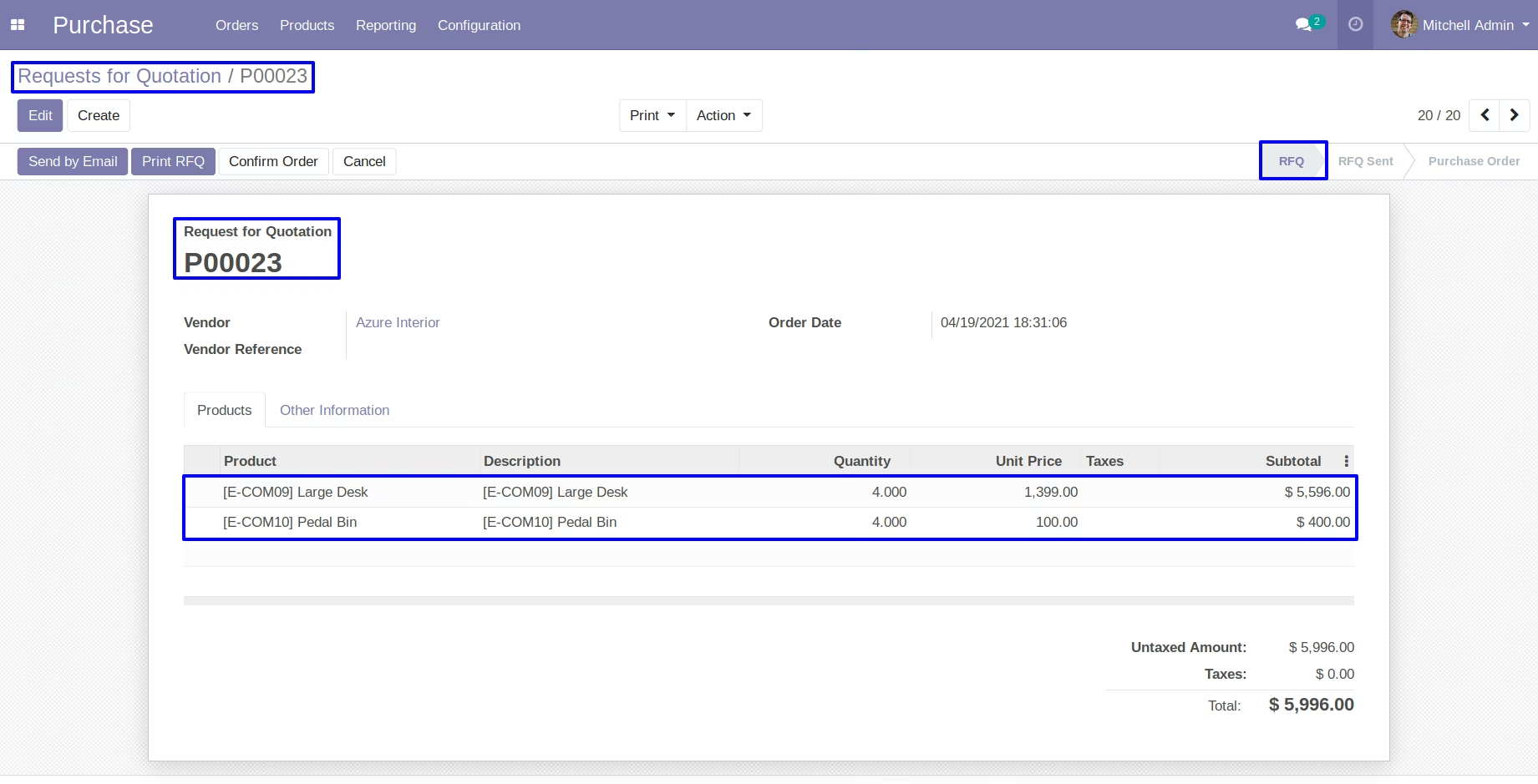
This module allows businesses to consolidate multiple sales and purchase orders into a single order. It simplifies order management, reduces repetitive work, and ensures clear traceability of merged transactions. Designed for companies managing high volumes of orders, the module streamlines workflows, improves efficiency, and ensures accurate record-keeping.
Merge multiple sales or purchase orders into a single consolidated order.
Create a new merged order while canceling the original orders.
Merge into an existing order and cancel or delete the others.
Preserve detailed line items and include source order references for full traceability.
Support merging of orders from different customers or vendors.
Display draft orders of the same partner for quick selection through a merge wizard.
Streamlines order management by consolidating related orders.
Saves time and reduces manual tasks in sales and purchasing workflows.
Improves accuracy with preserved order details and references.
Enhances transparency with clear traceability of merged transactions.
Provides flexibility in handling orders from various customers or vendors.
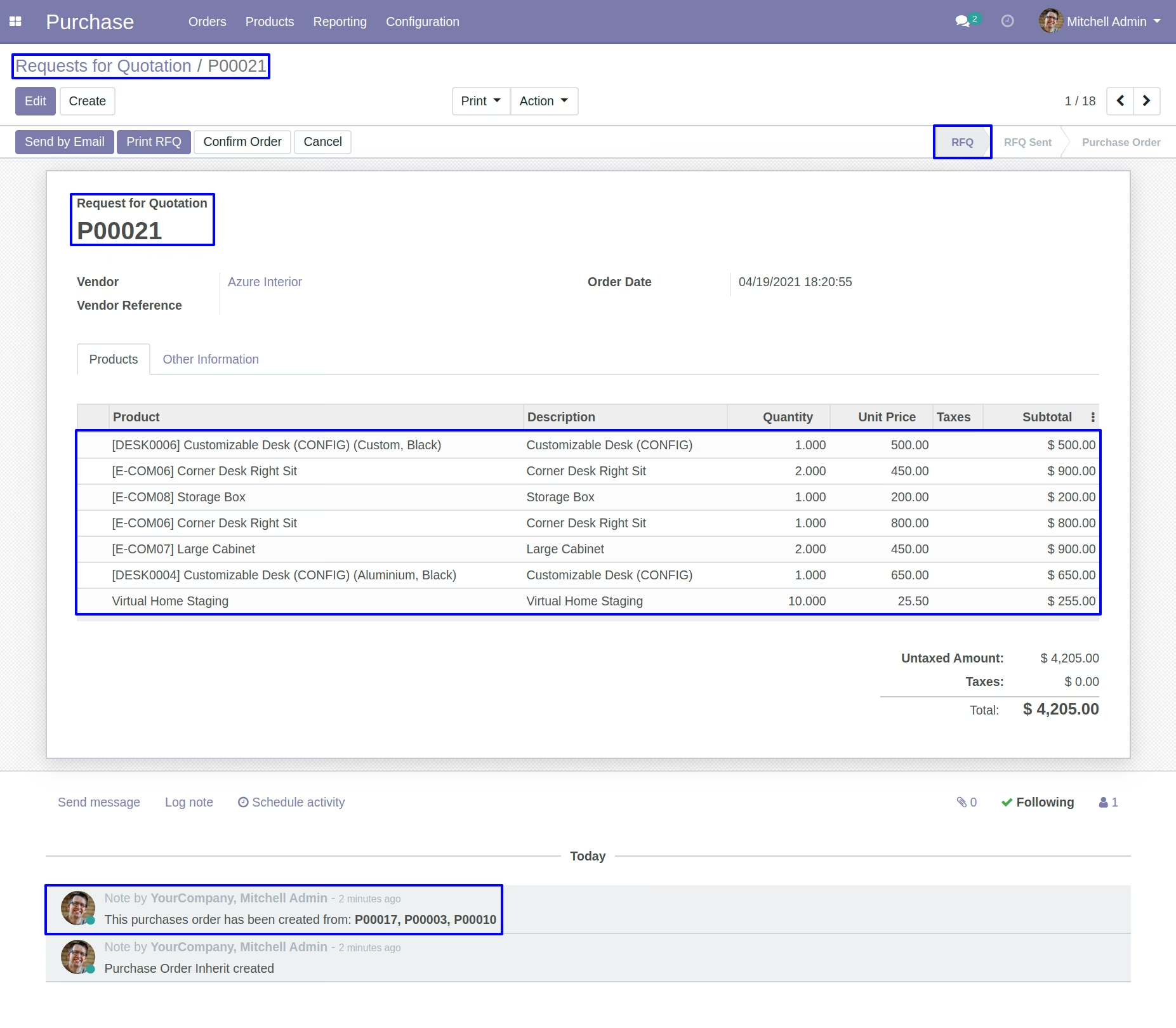
When there are large number of orders whether its Sale Order and purchase order for same customer and vendor its hard to manage them. Sales and purchase users need process them one by one. Here we provide option to reduce your work, after installing Merge multiple Sales Order and purchase Orders Apps you can easily merge sales orders and purchase orders in one click for same customers and suppliers. Just need to select them from tree view (you can use group by partner for easily filter) and merge them. Most important things you can still see different lines for different order on merged orders .sale and purchase order merge wizard provide different option to merge order in new order and cancel rest other orders and merge with selected order and cancel others orders. Also sales and purchase user can see the order number on source document fields in merged order so user can easily get idea from where this new order get created and merge from which orders.

Merge Orders
You can select orders which you want to merge.
User can manipulate order.
Create new order and cancel selected orders.
Merge existing order.
You can merge order on existing selected order and cancel others.
Cancel order.
You can merge order on existing selected order, delete others and cancel others.
Merge Orders with Different Customer/Vendor
You can merge order on different customer or vendor.
Merge Draft Orders for Same Customer/Vendor
Select customer or vendor and all the draft orders will be comes automatically on wizard then merge it for same customer or vendor.
Merge Sale and Purchase Order Lines
User can merge sale and purchase order lines of same product and also merged product quantity.
Auto Merge Sale and Purchase Order Lines
User can automatically merge sale and purchase order lines while creating or editing order.Merge Sale Orders Menu
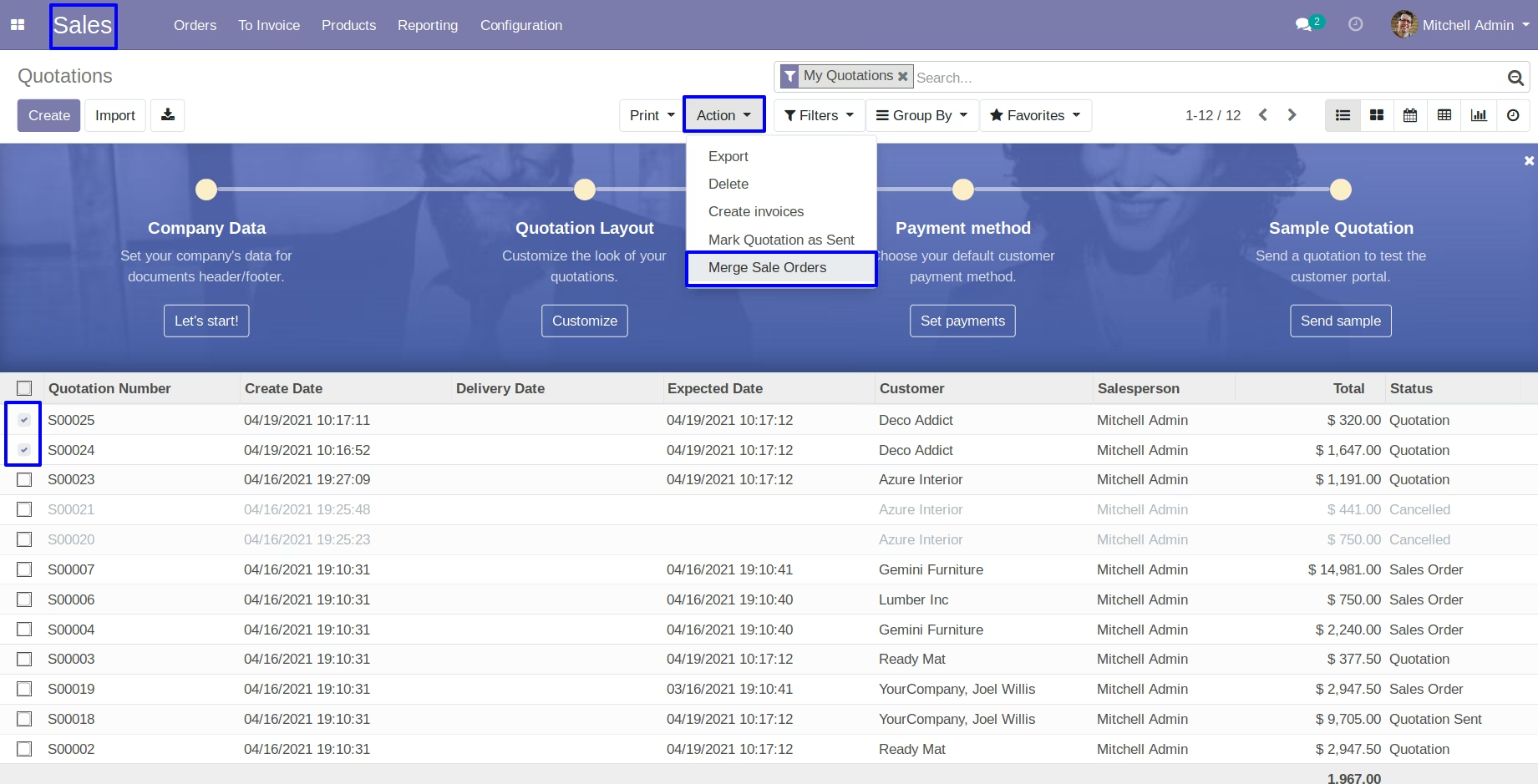
You can select sale orders and in 'Action' click on merge sale orders menu.
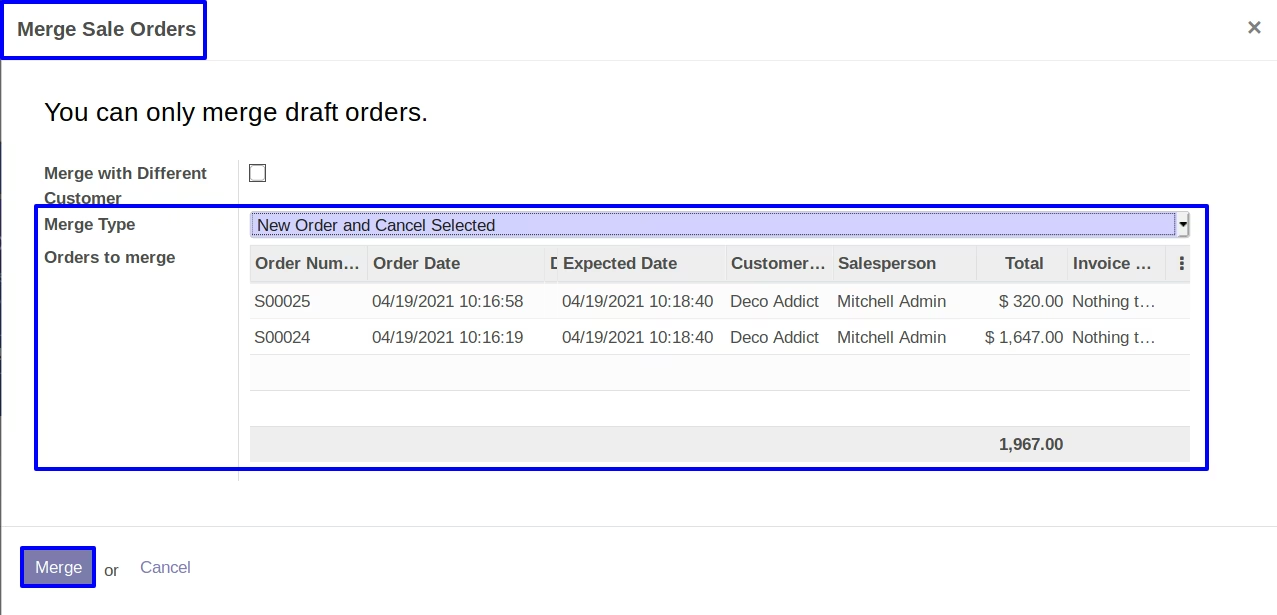
New Order and Cancel Selected
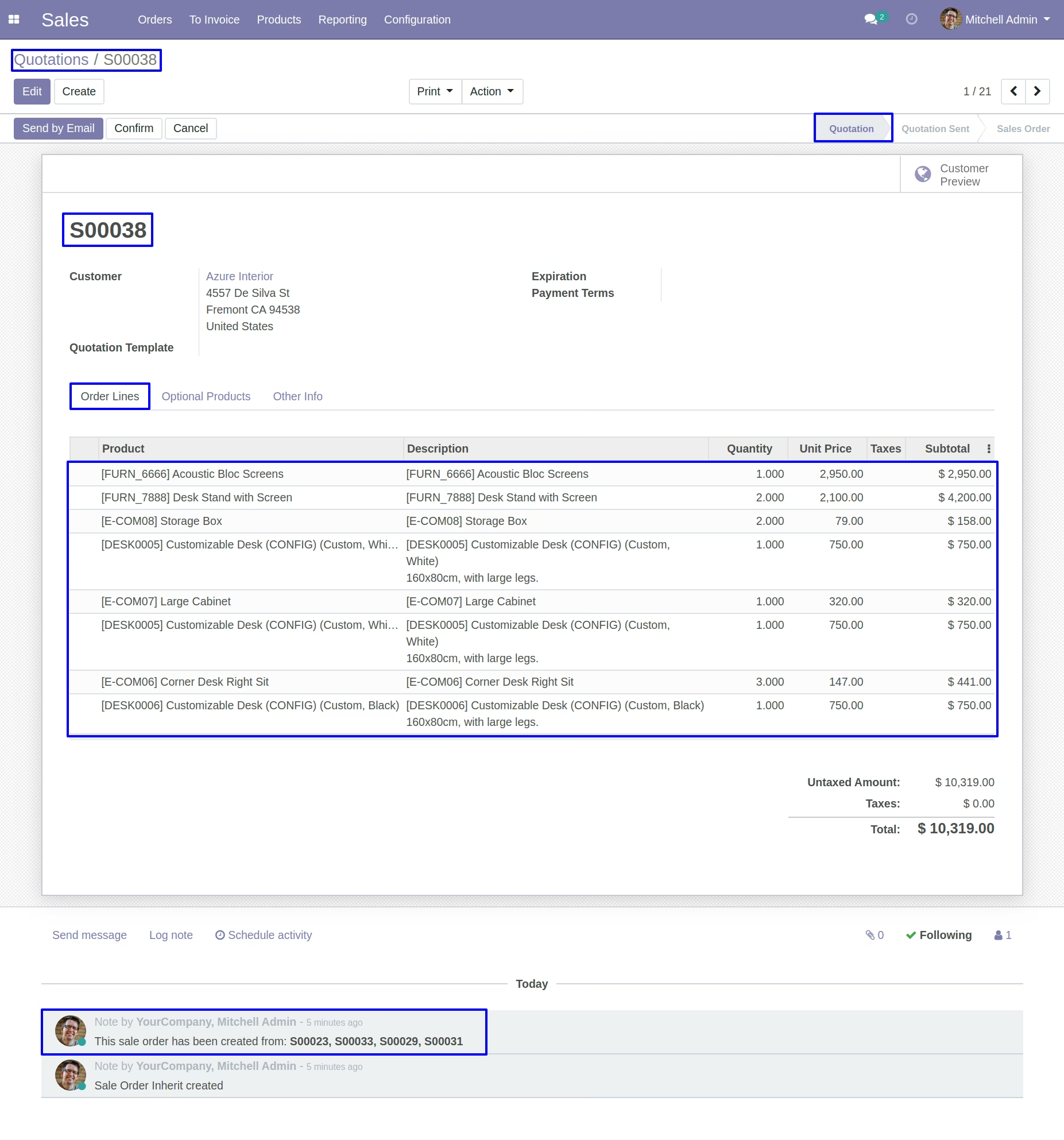
If you selected first option 'New order and cancel selected'.After click on Merge button, You can see a new order will be created and other selected order will be cancelled.
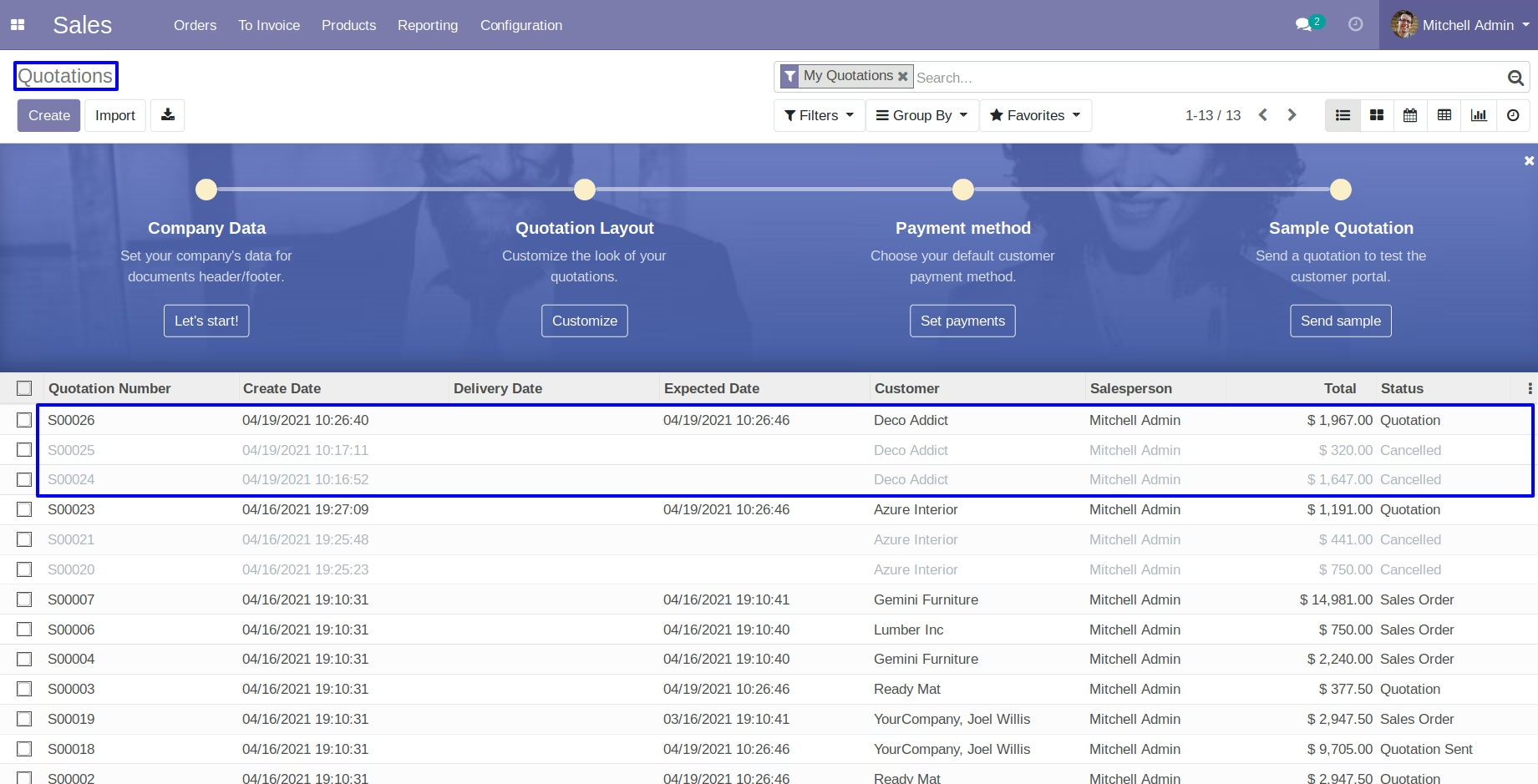
New order and Delete all selected order
If we goes with second type option.After click on Merge button,with second option You can see a new order will be created and other selected order will be deleted.
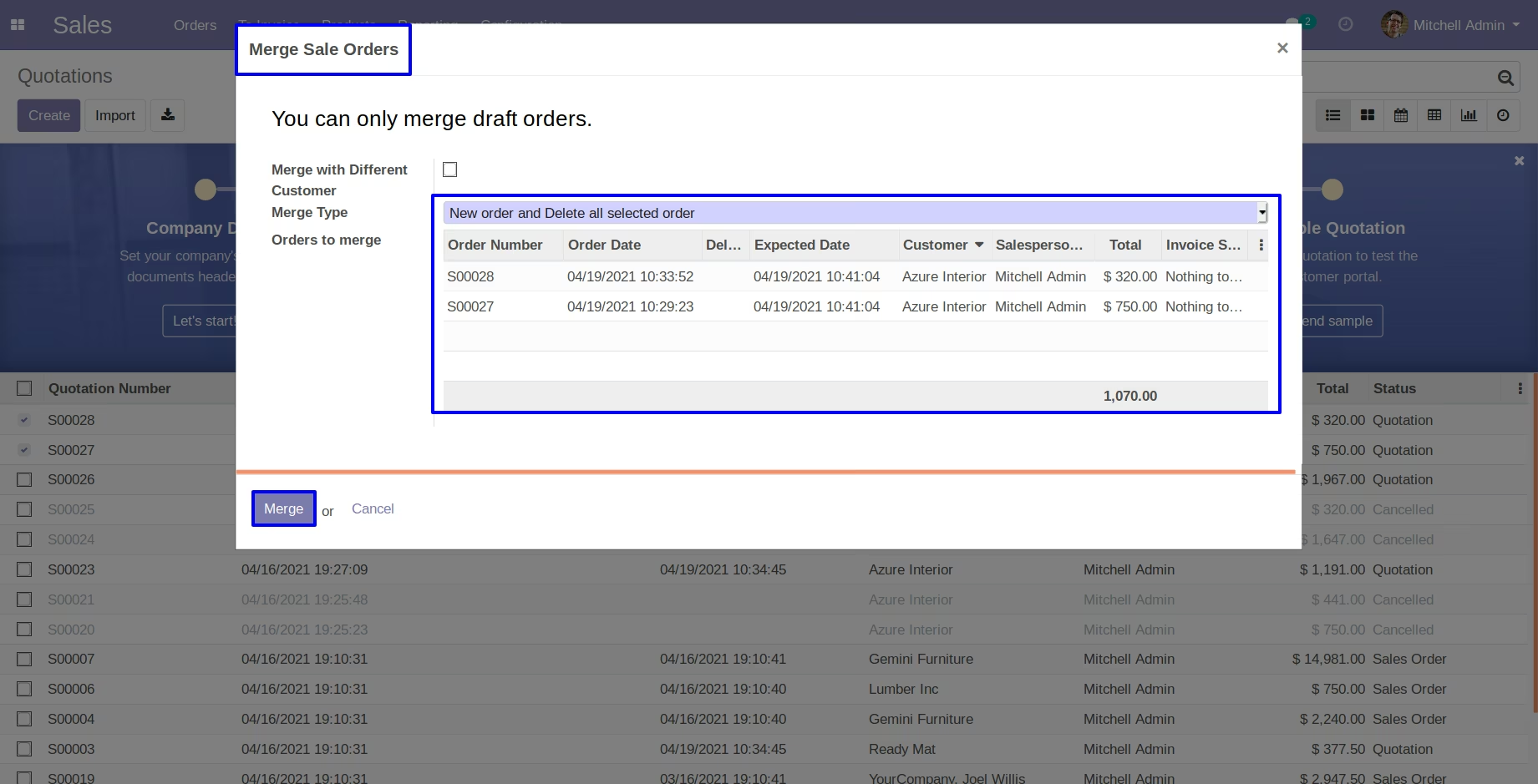
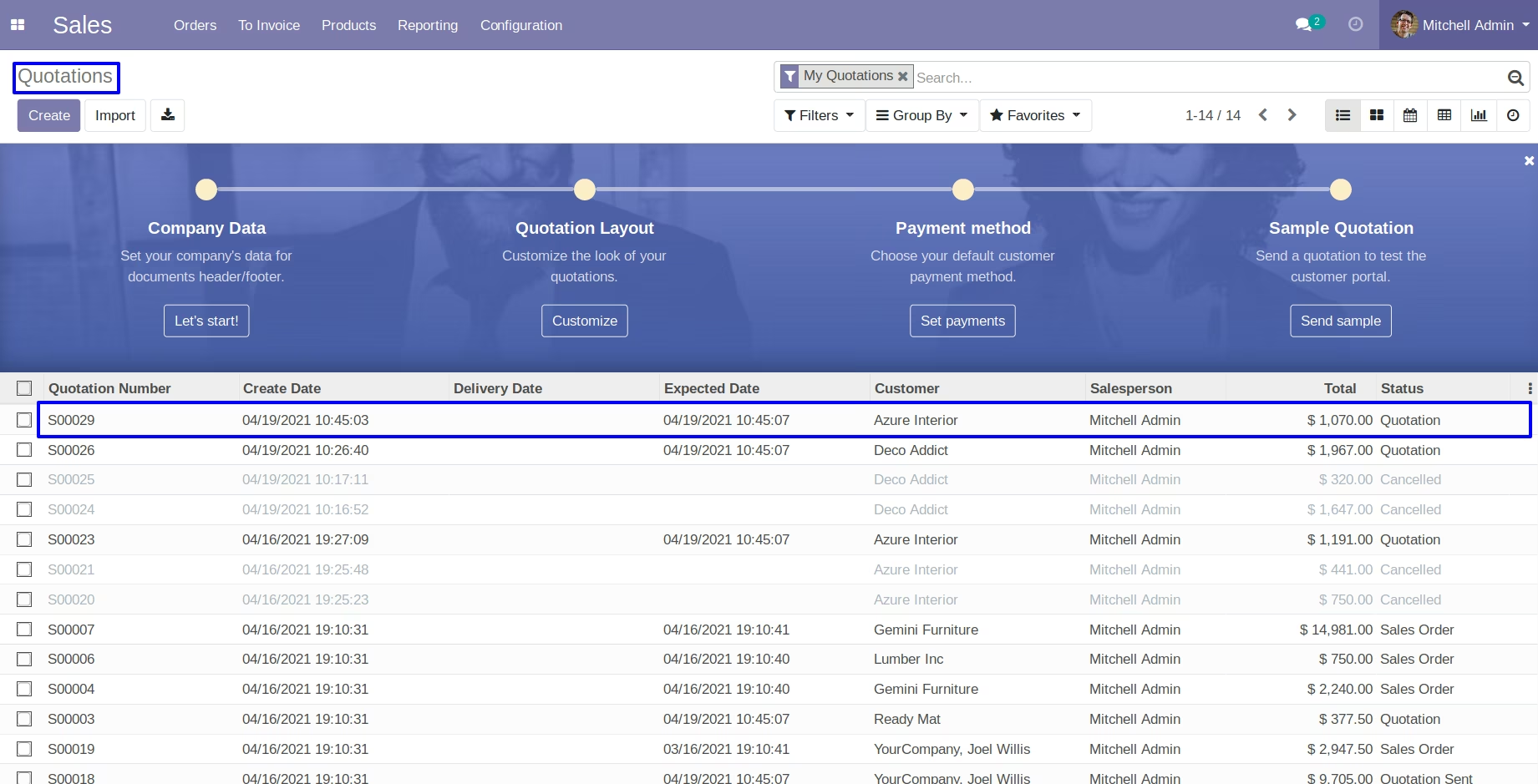
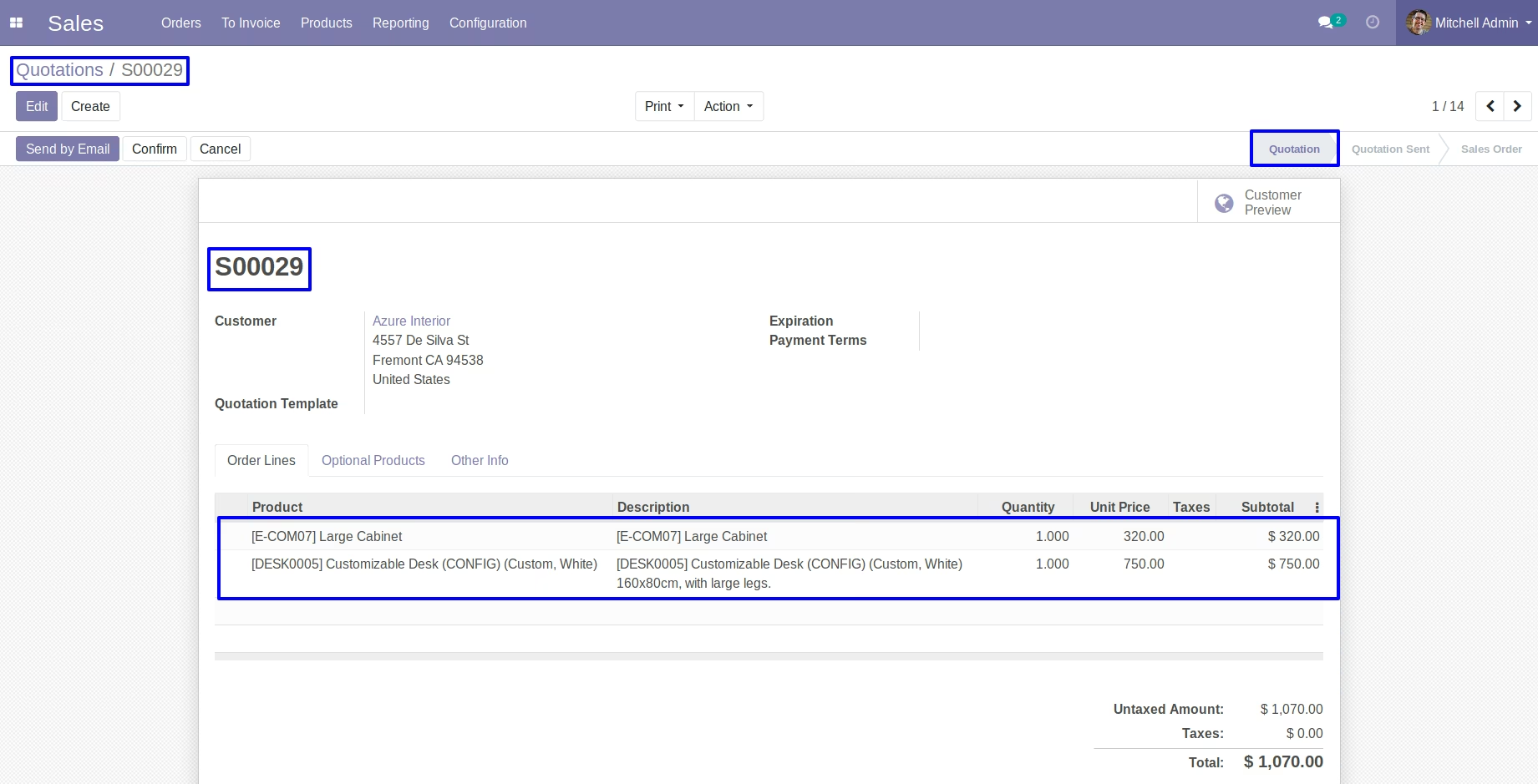
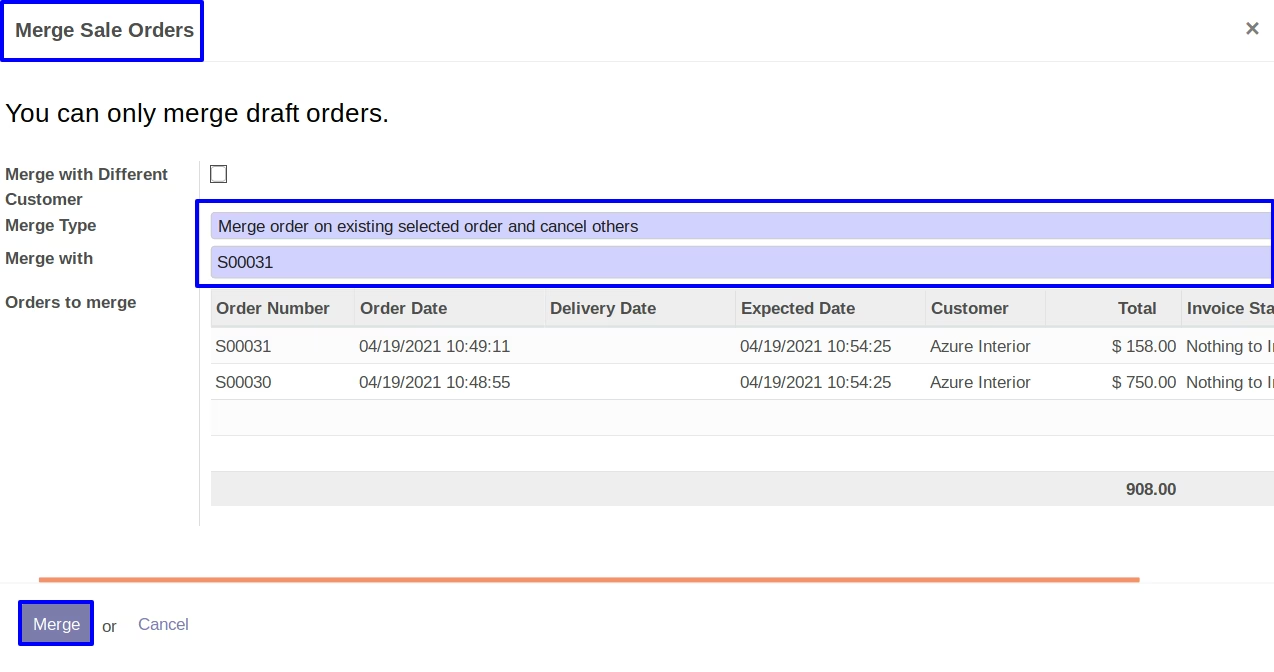
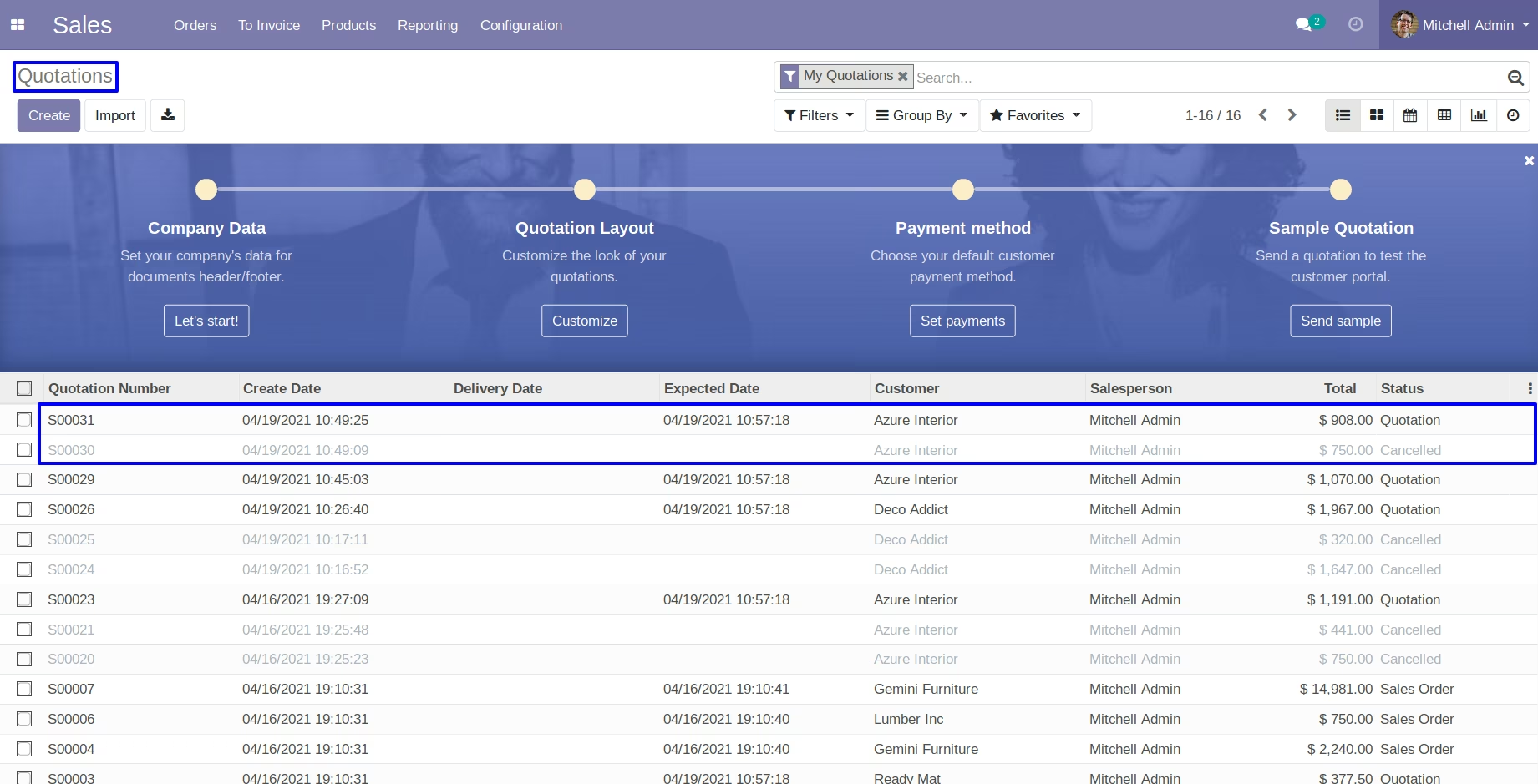
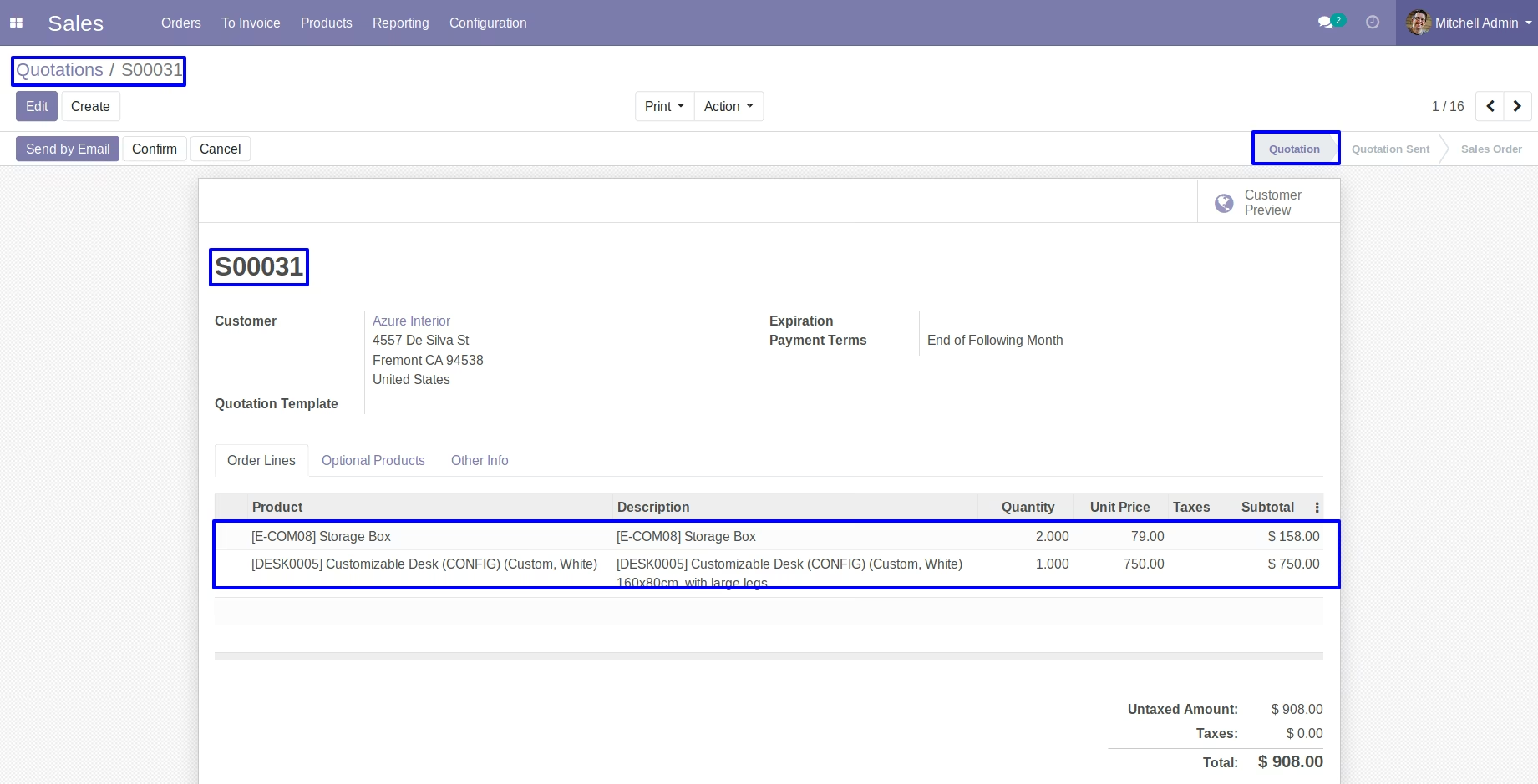
Merge order on existing selected order and cancel others
If we goes with third type option.You can see a 'Merge With' field, In this you can select an existing order in which you want to added another selected orders.After click on Merge button, You can see a another orders merge with selected existing order.And rest of all selected orders will be cancelled.
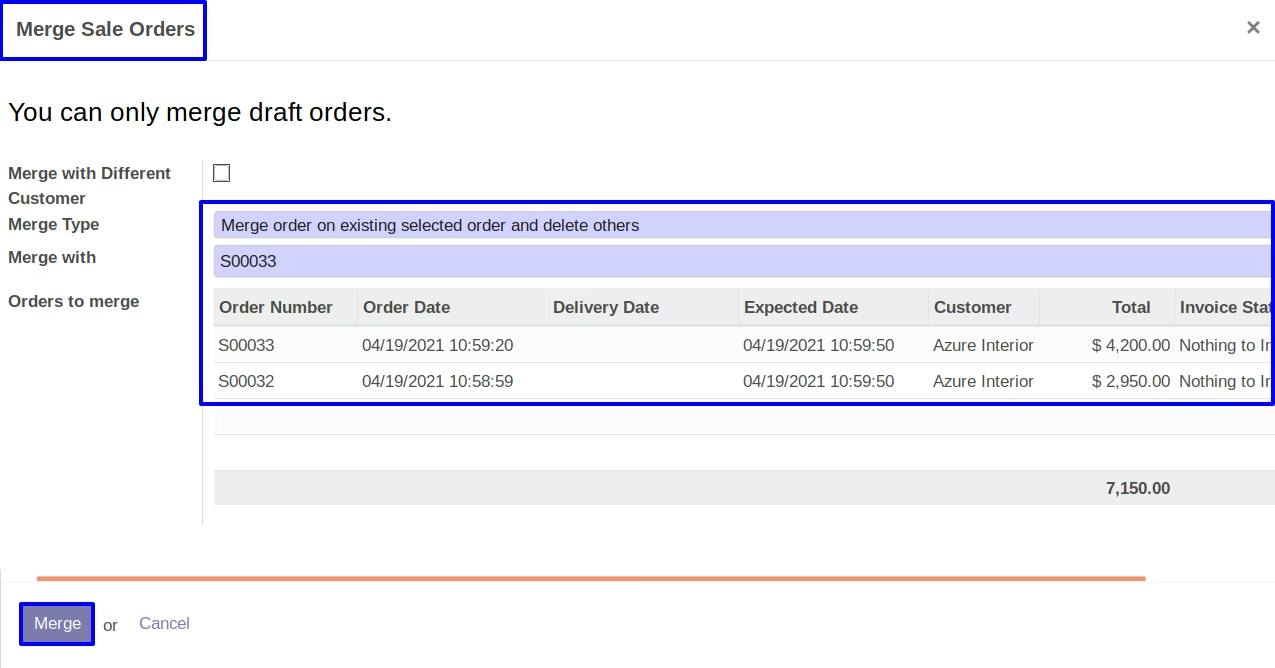
Merge order on existing selected order and delete others
If we goes with the fourth type option. You can see a 'Merge With' field, In this, you can select an existing order in which you want to add another selected order. After clicking on the Merge button, You can see another orders merge with the selected existing order. And rest of all selected orders will be deleted.
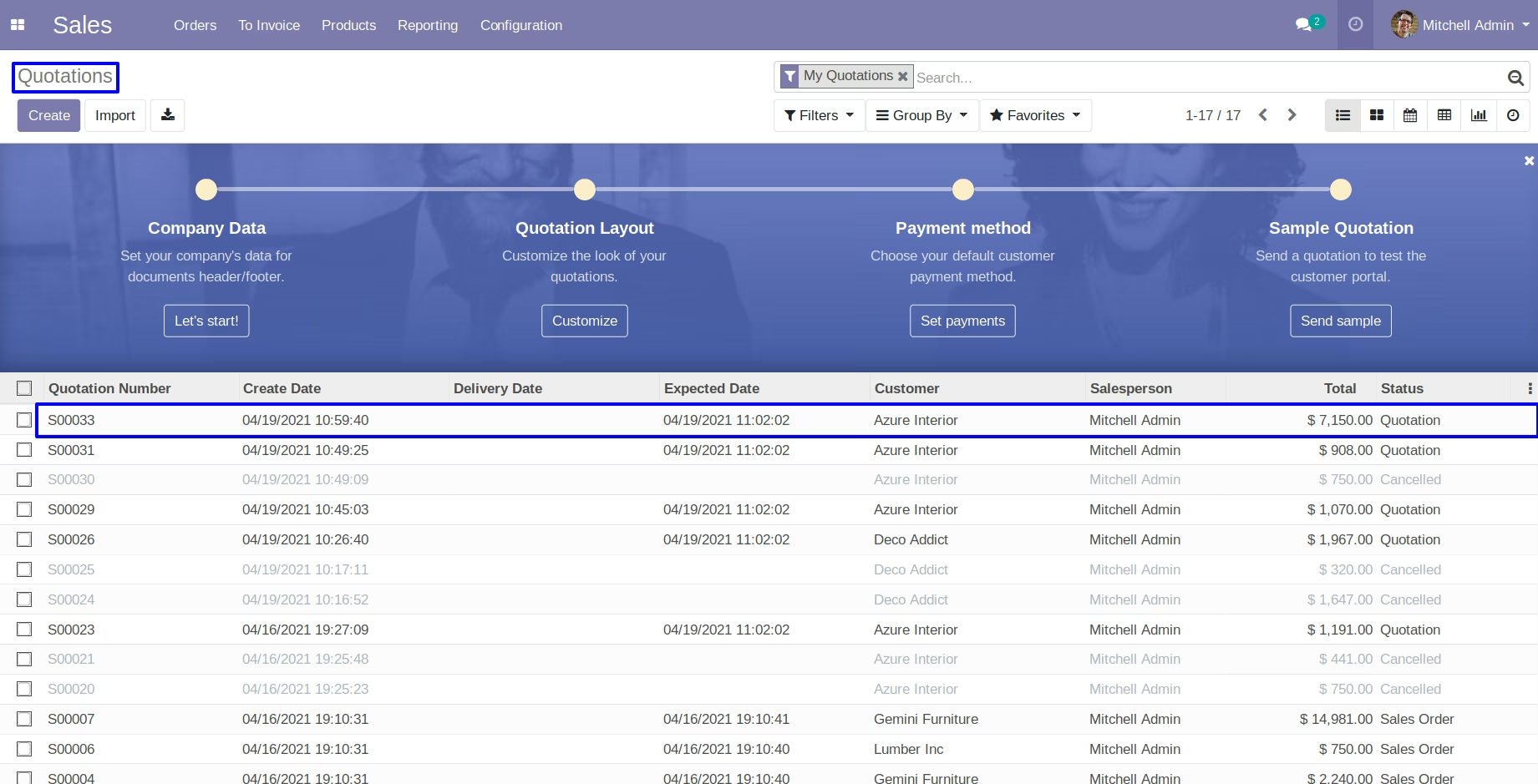
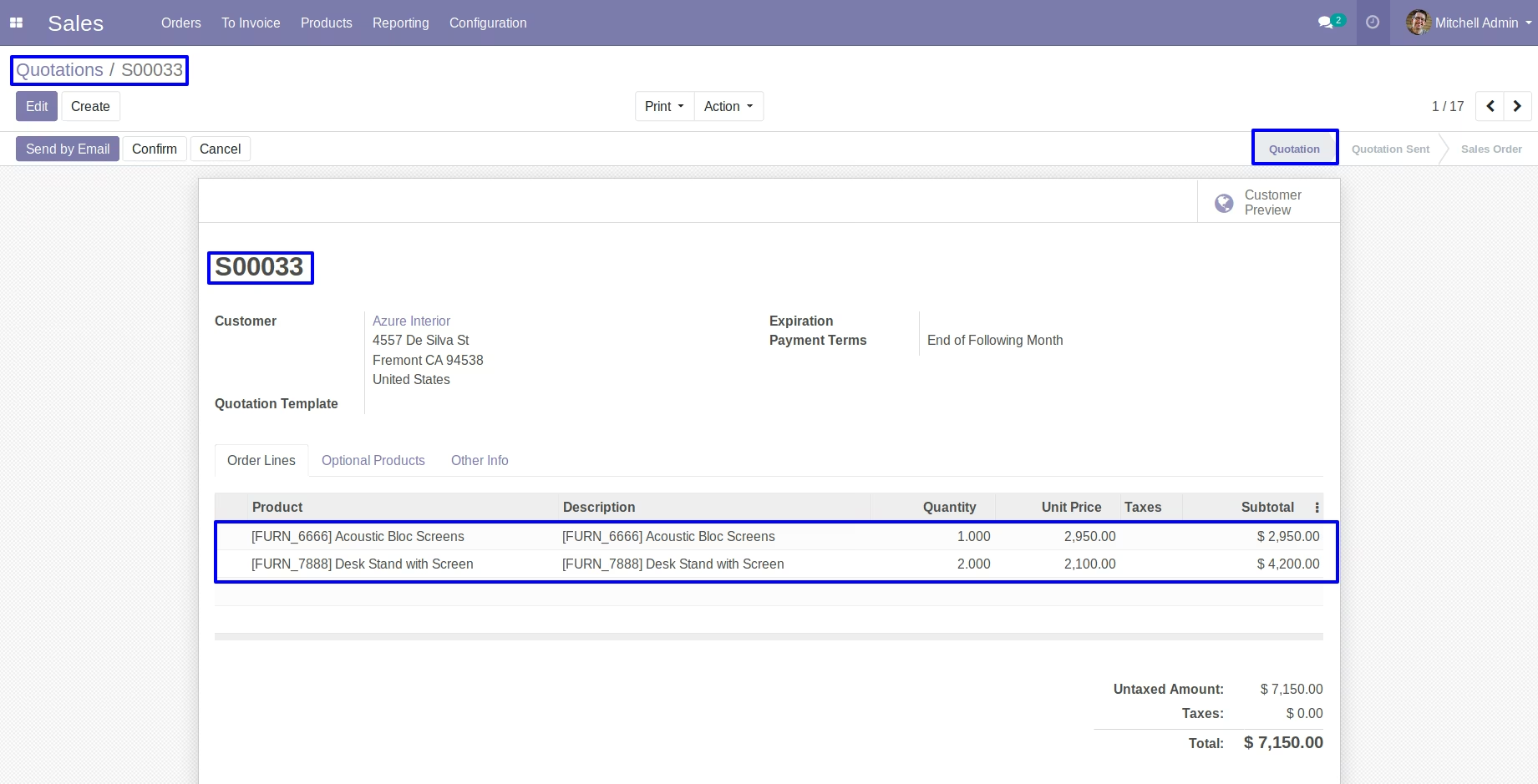
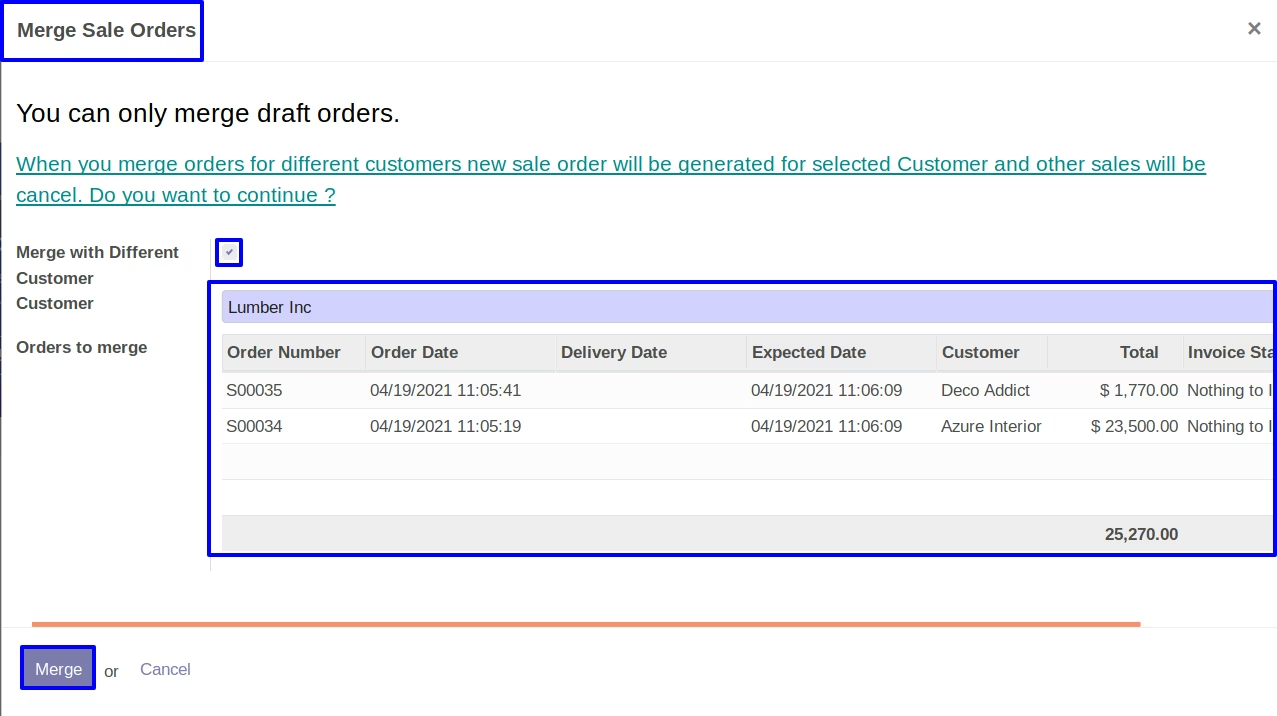
Merge with Different Customer
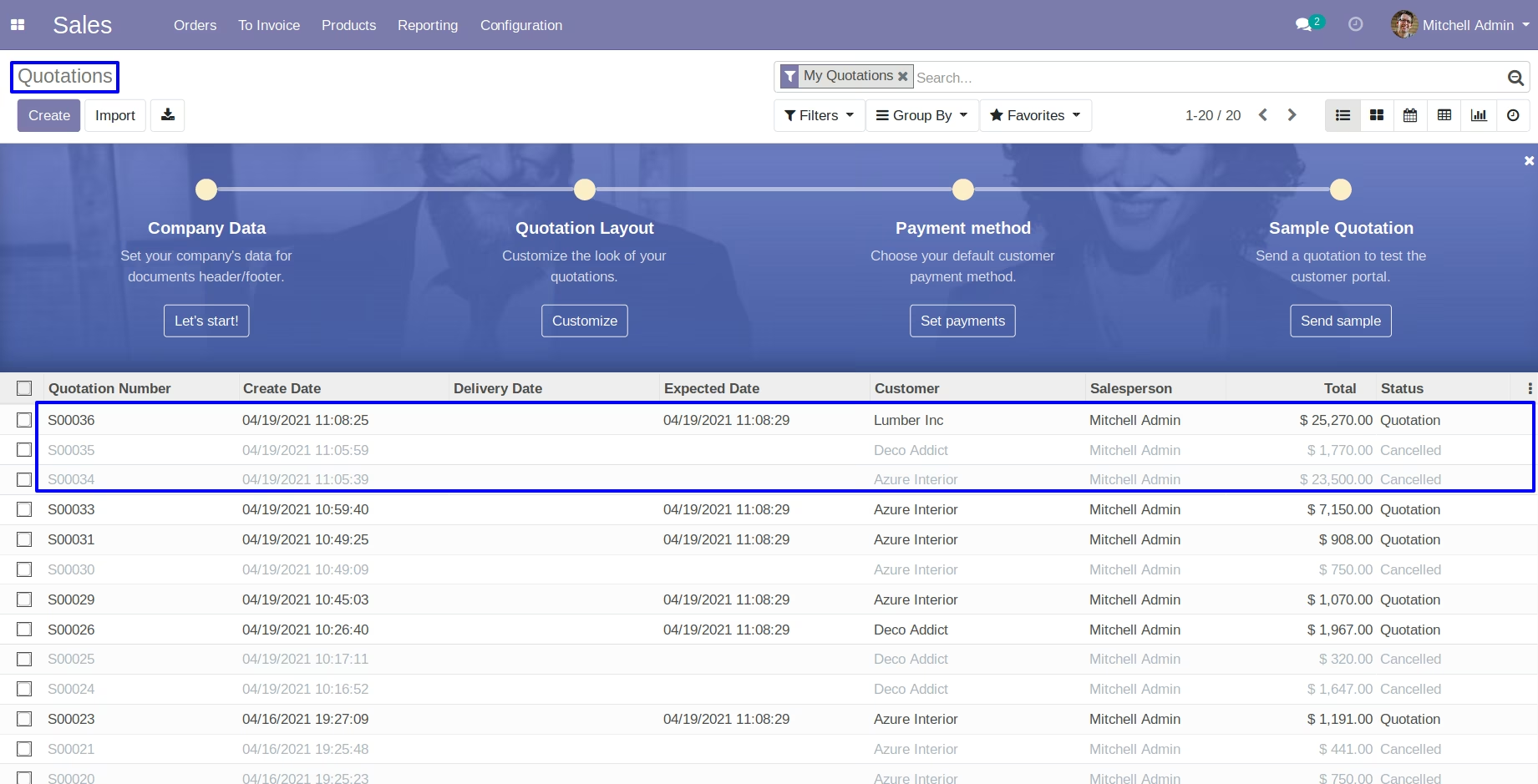
If we ticked 'Merge with Different Customer' checkbox. You can see a 'Customer' field, In this you can select an another customer in which you want to added another selected orders.After click on Merge button, You can see a another orders merge with new order.And rest of all selected orders will be cancelled.
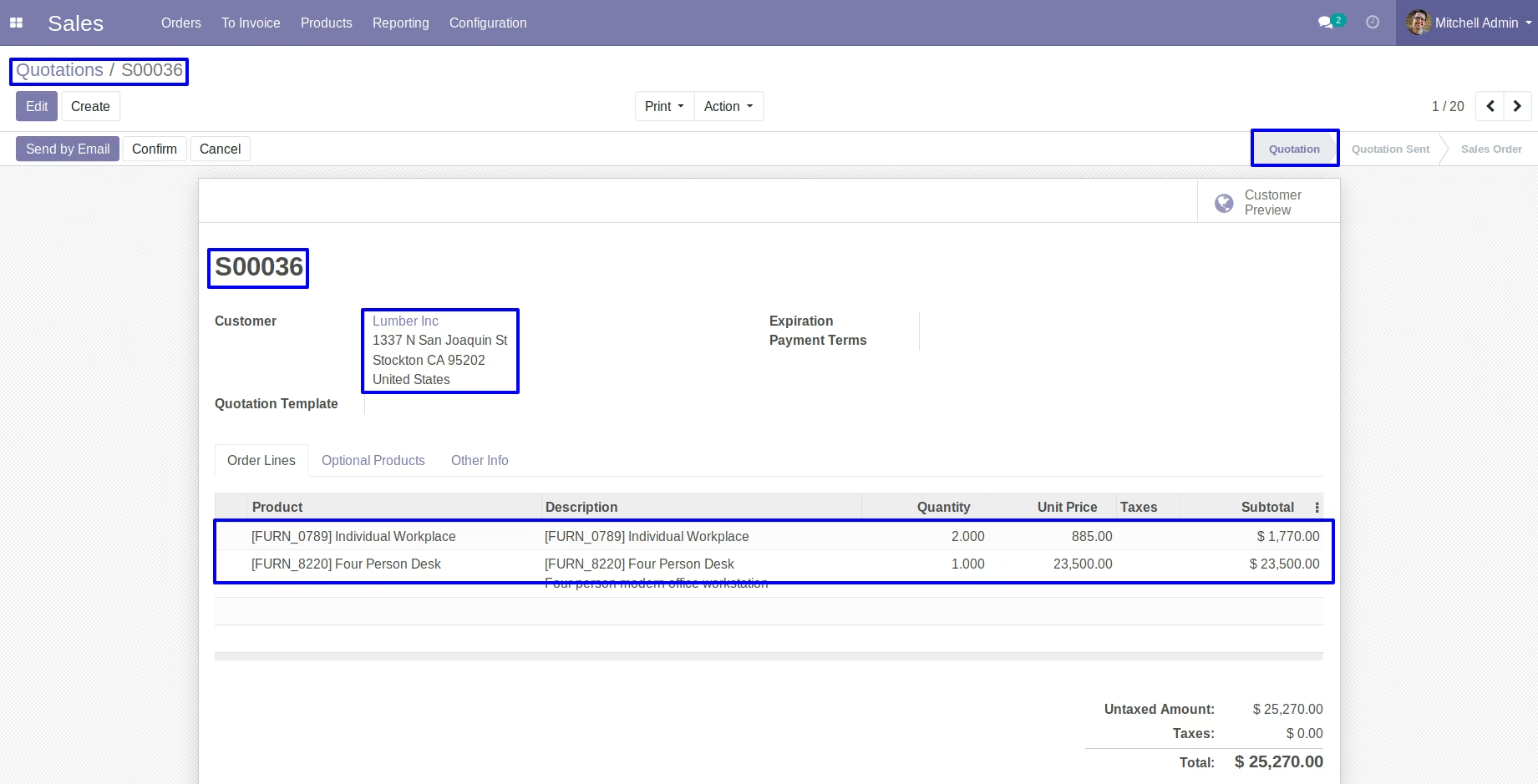
Same Partner Error
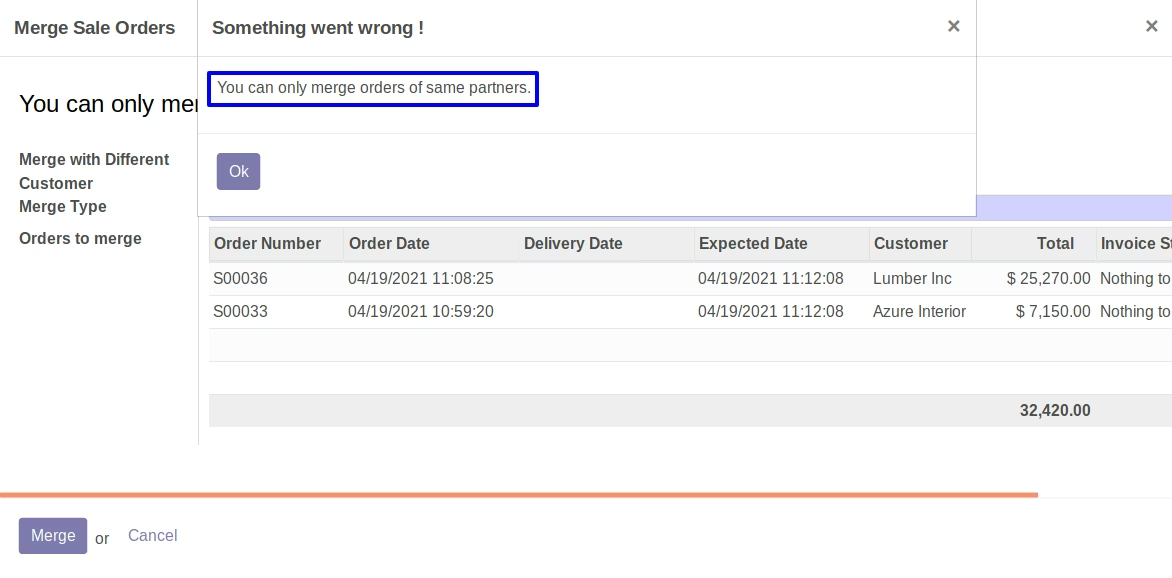
We can not merge different partners orders, You should same partner's orders.Otherwise it will be raise Error.
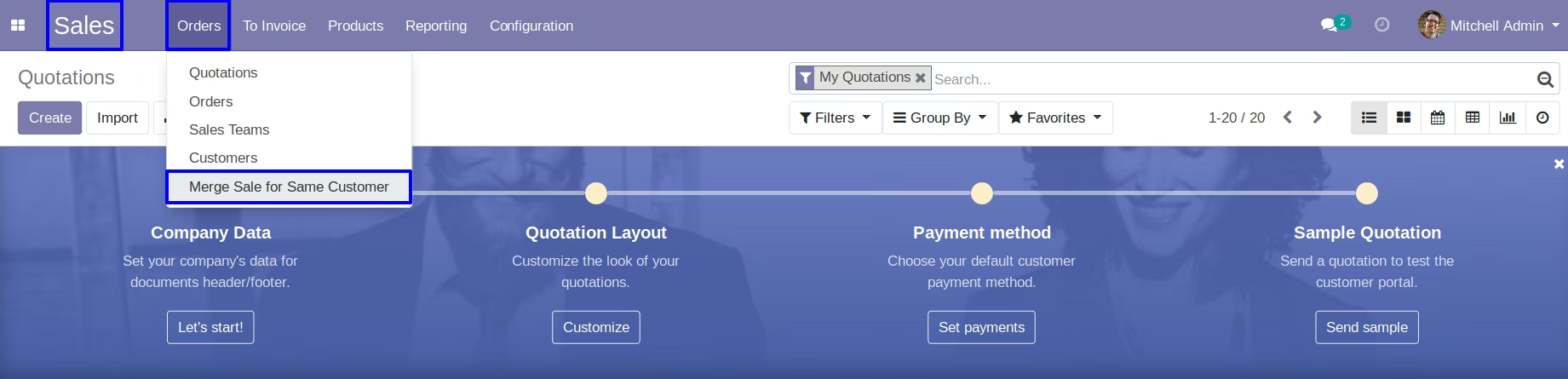
Merge Sale for Same Customer
Merge Sale for Same Customer Menu
Sales -> Orders -> Merge Sale for Same Customer menu.
Merge Sale Orders Wizard
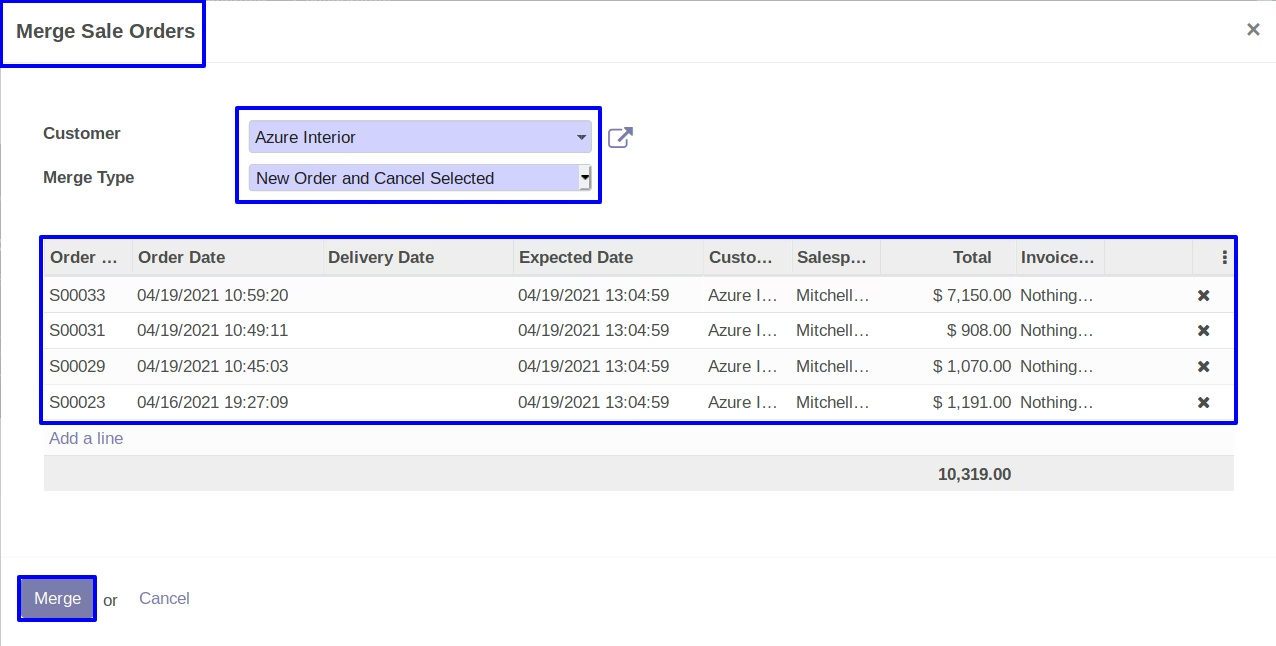
Here you can select orders which you want to merge, In merge sale orders wizard you can see type for merging order.
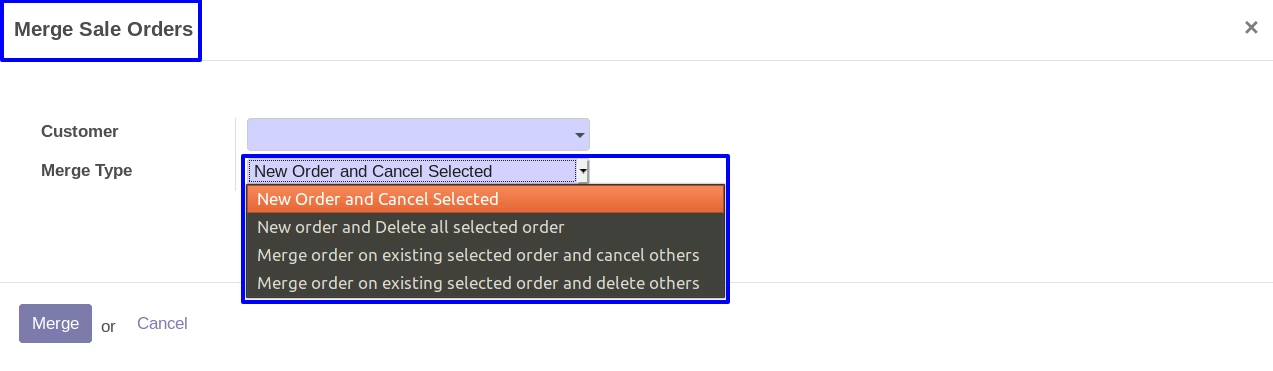
New Order and Cancel Selected
If you selected first option 'New order and cancel selected'.You can see a 'Customer' field, based on selected customer all the draft sale orders will be comes automatically. After click on Merge button, You can see a new order will be created and other selected order will be cancelled.
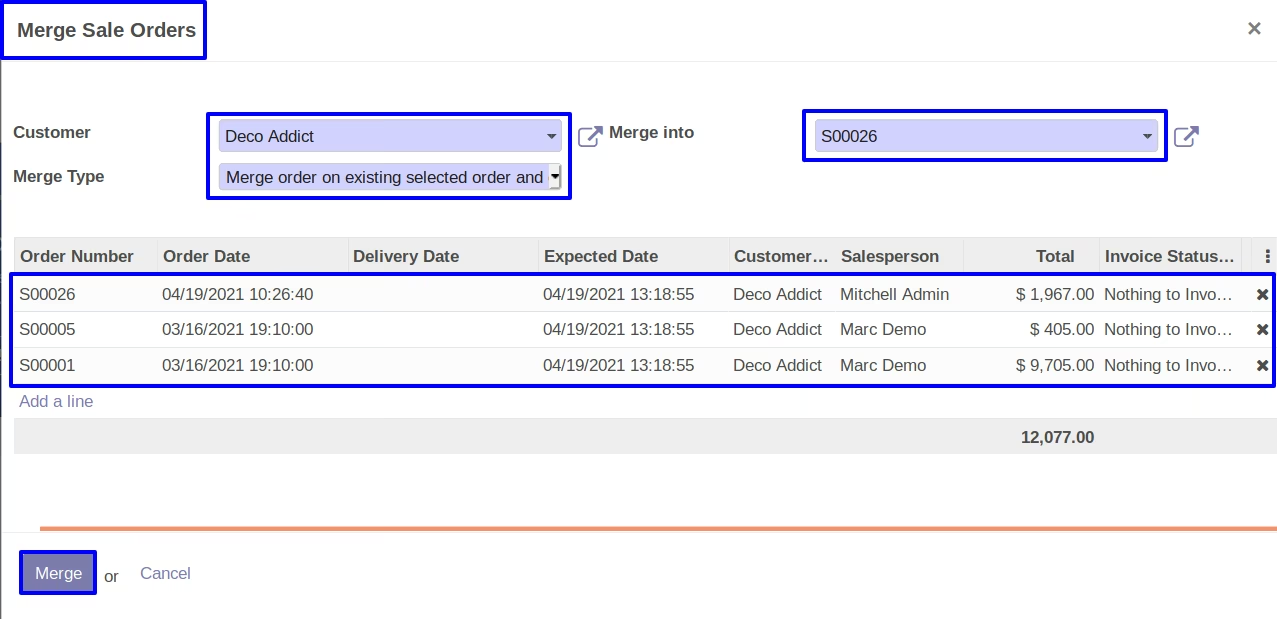
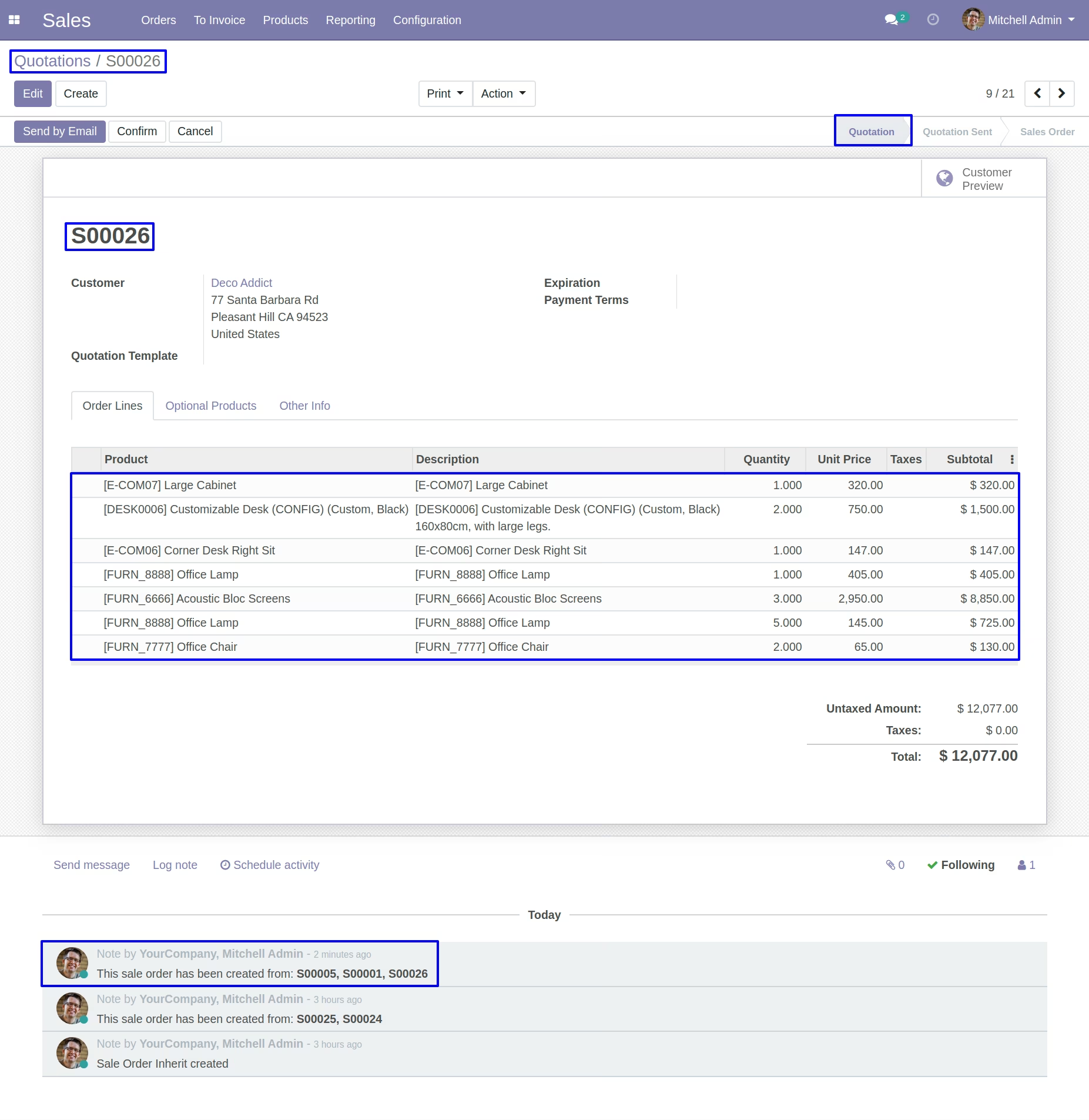
Merge order on existing selected order and cancel others
If we goes with third type option.You can see a 'Merge into' field, based on selected customer all the draft sale orders will be comes automatically.In this you can select an existing order in which you want to added another selected orders.After click on Merge button, You can see a another orders merge with selected existing order.And rest of all selected orders will be cancelled.
Merge Order Lines
Merge Order Lines Menu
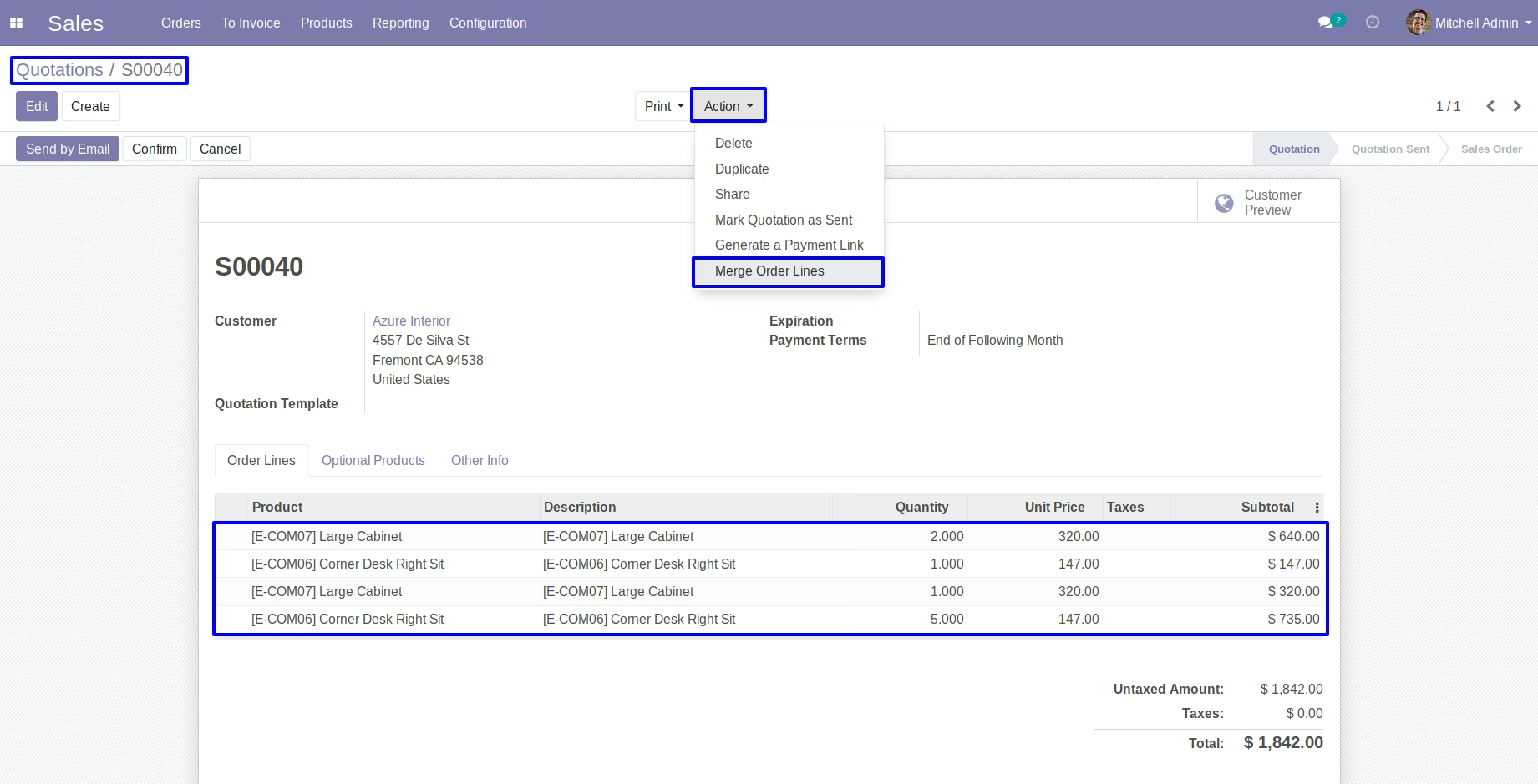
Under sale order in Action menu user can see "Merge Order Lines" menu.
Merge Order Lines Wizard
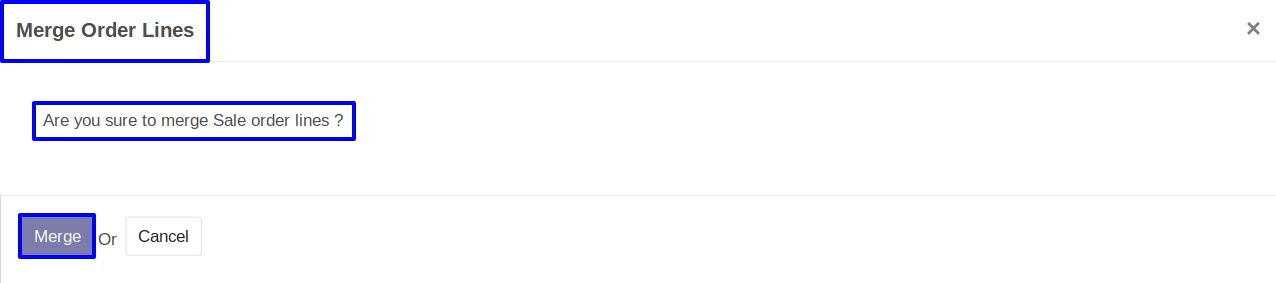
When you click on 'Merge Order Lines' menu new wizard will be open for confirm merge operation.
Merged Sale Order Lines
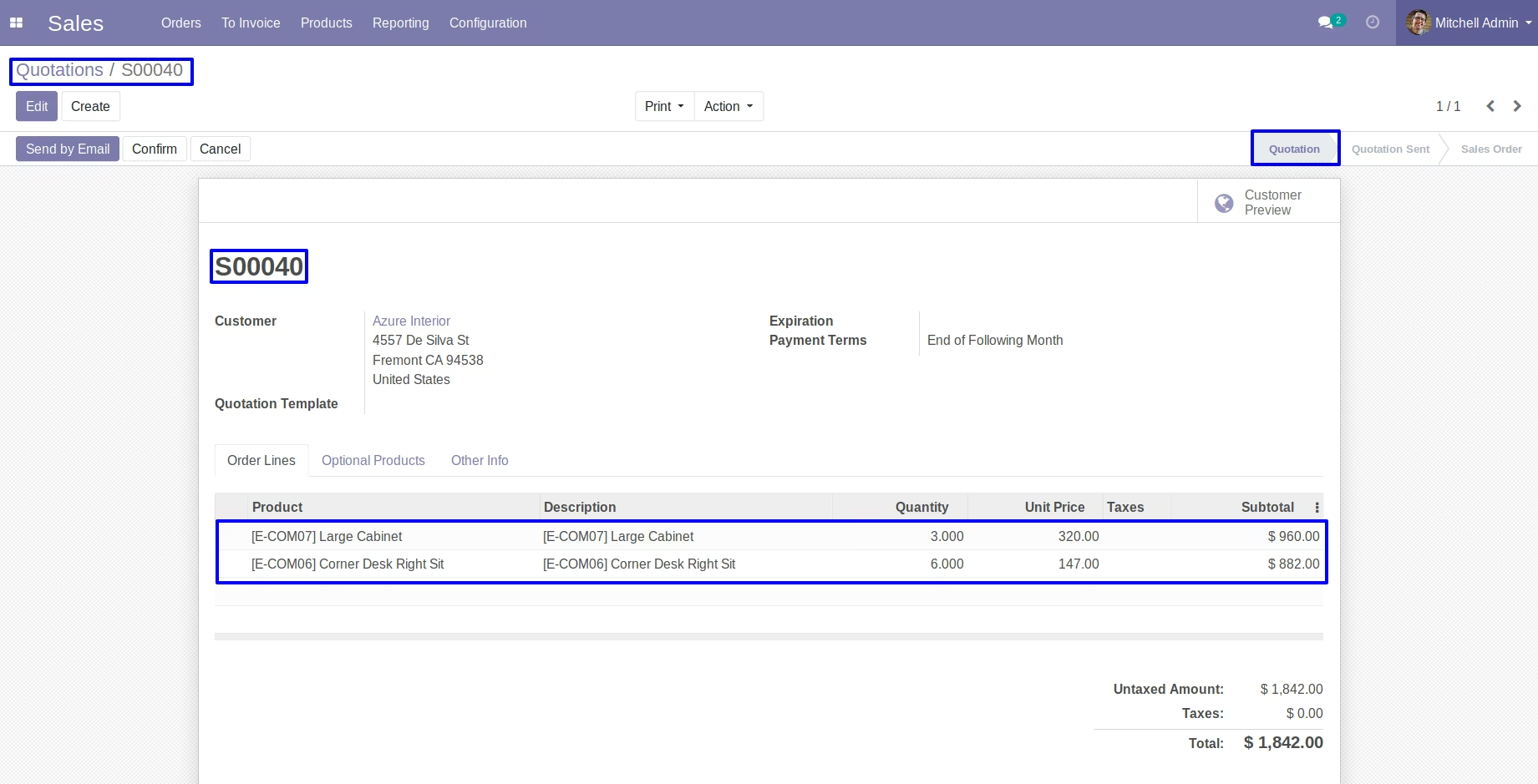
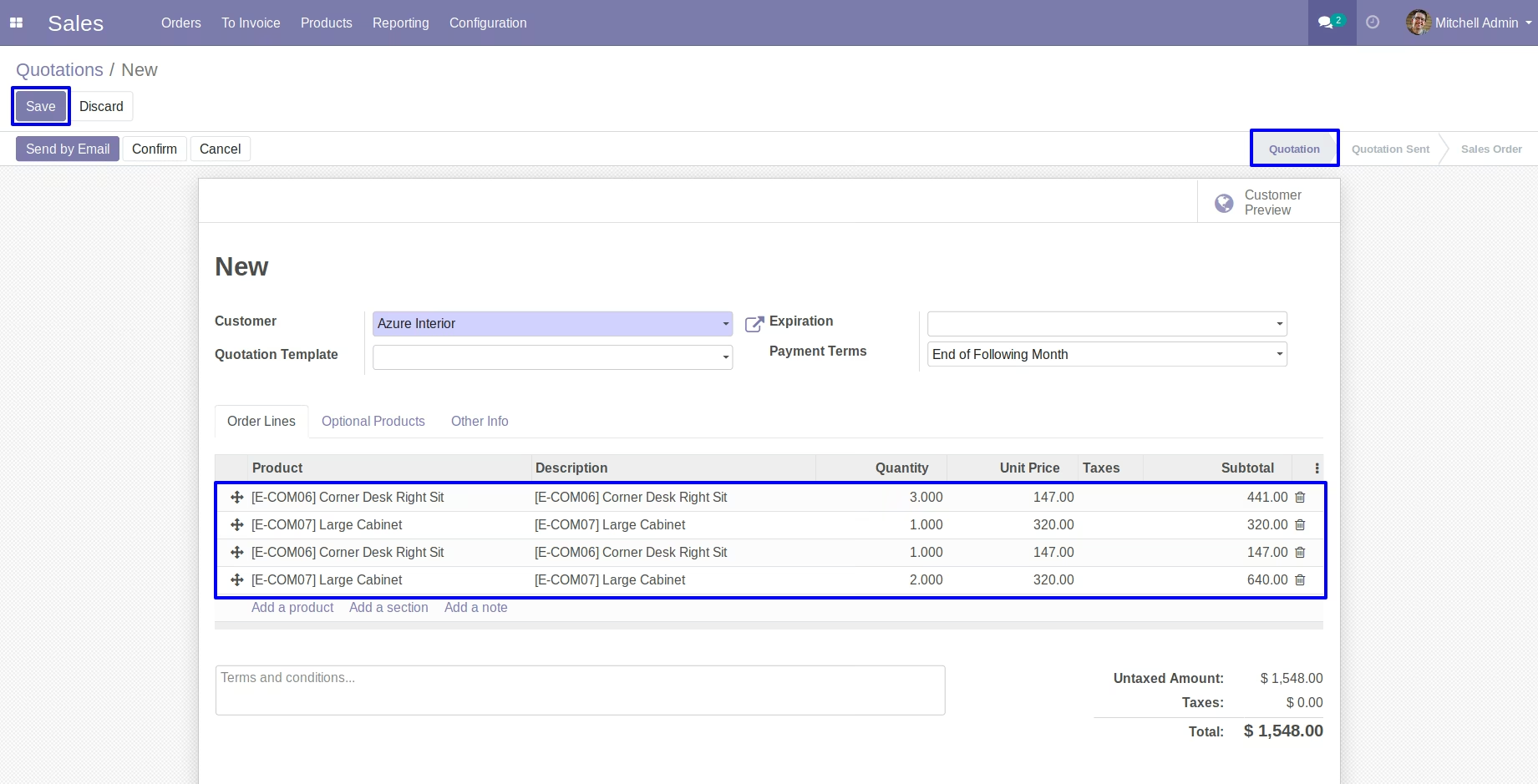
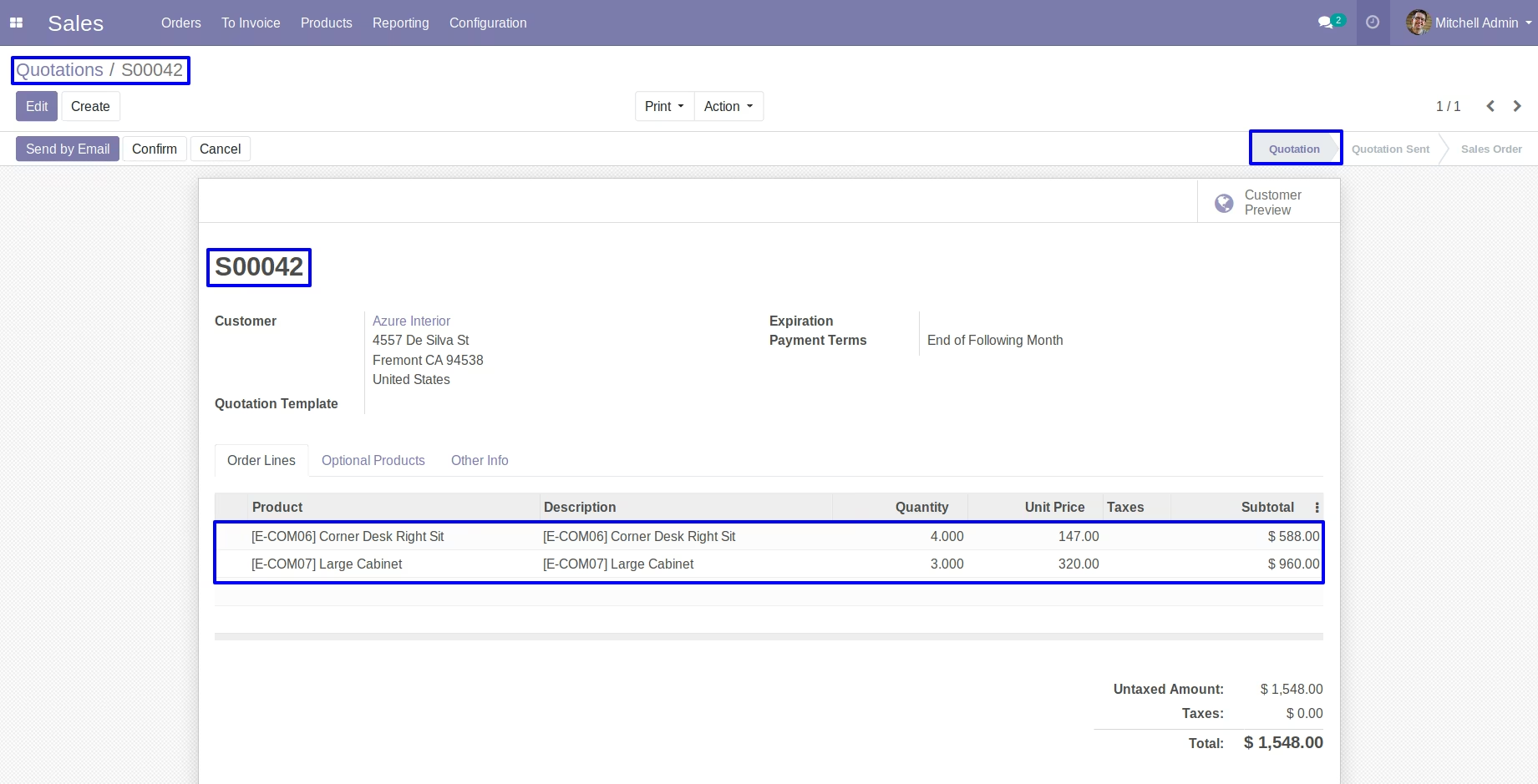
You can see all same product line on sales order will merged with ordered quantity.
Configuration for Auto Merge Sale Orderlines
Under Sales > Configuration > Settings menu enable "Auto Merge Sale Orderlines".
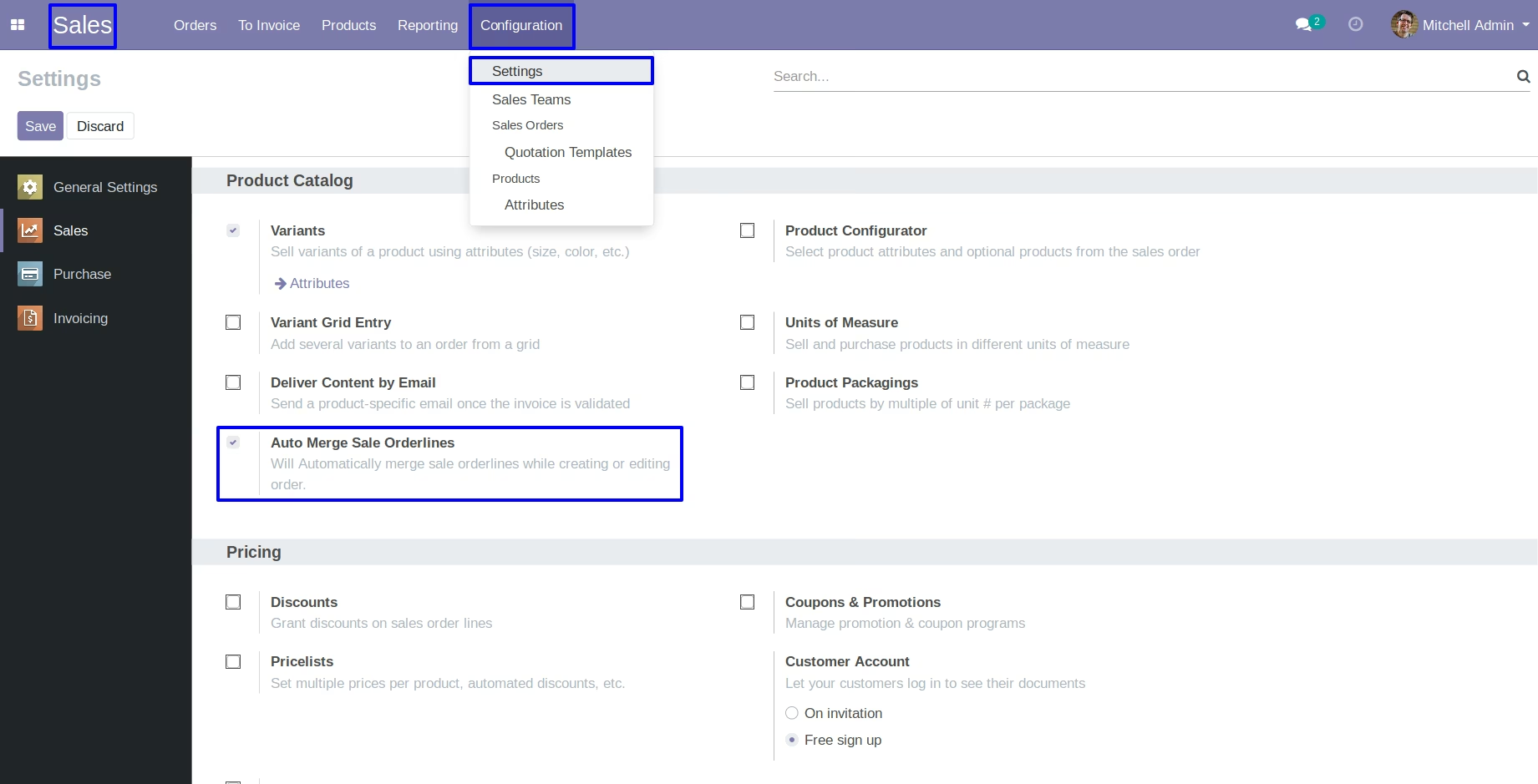
When you create a new order or edit an existing order all same product and quantity will be merged automatically.
Merge Purchase Orders
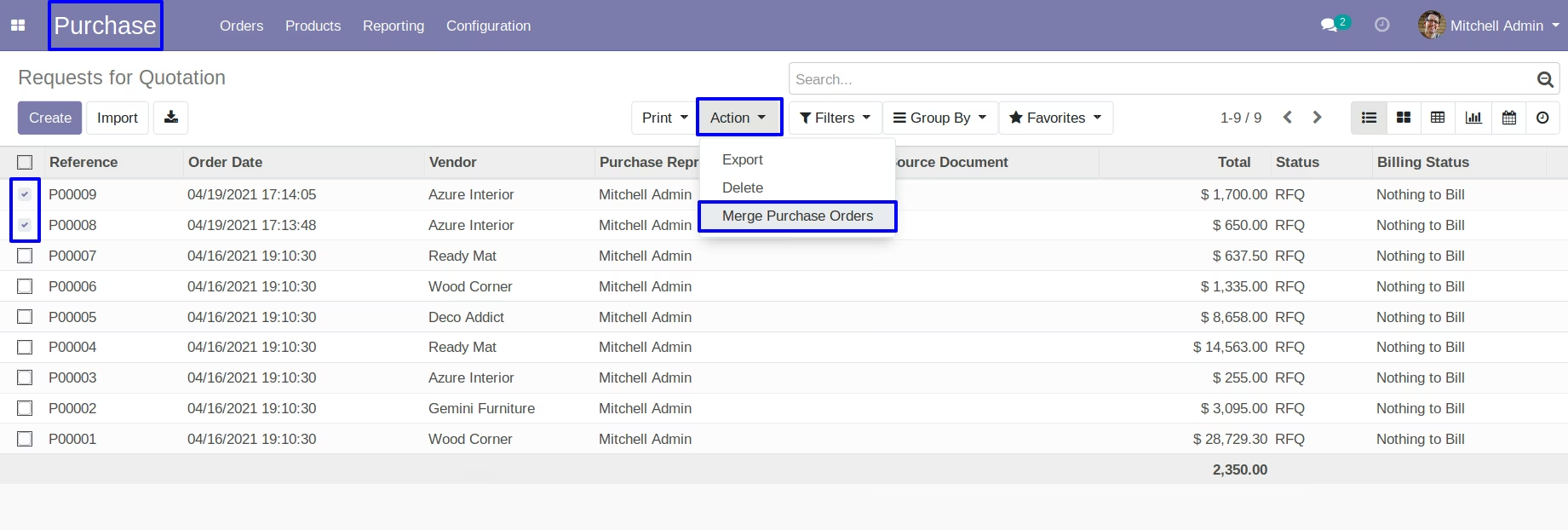
Merge Purchase Orders Menu
You can select purchase orders and in 'Action' click on merge purchase orders menu.
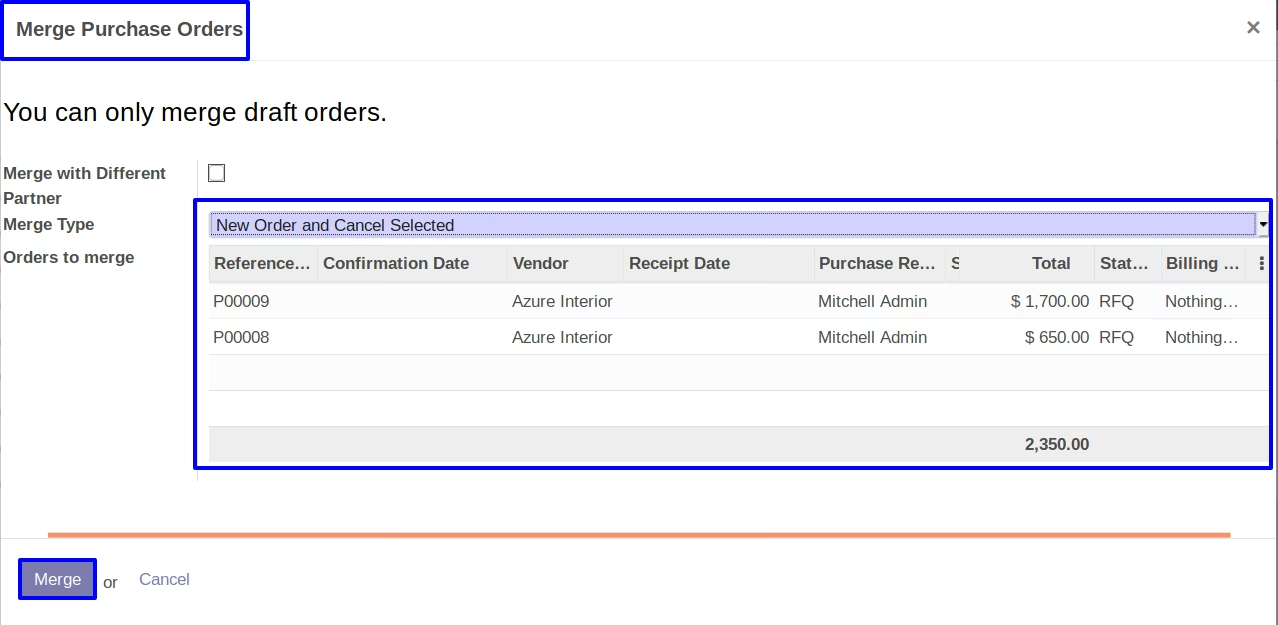
New Order and Cancel Selected
If you selected first option 'New order and cancel selected'.After click on Merge button, You can see a new order will be created and other selected order will be cancelled.
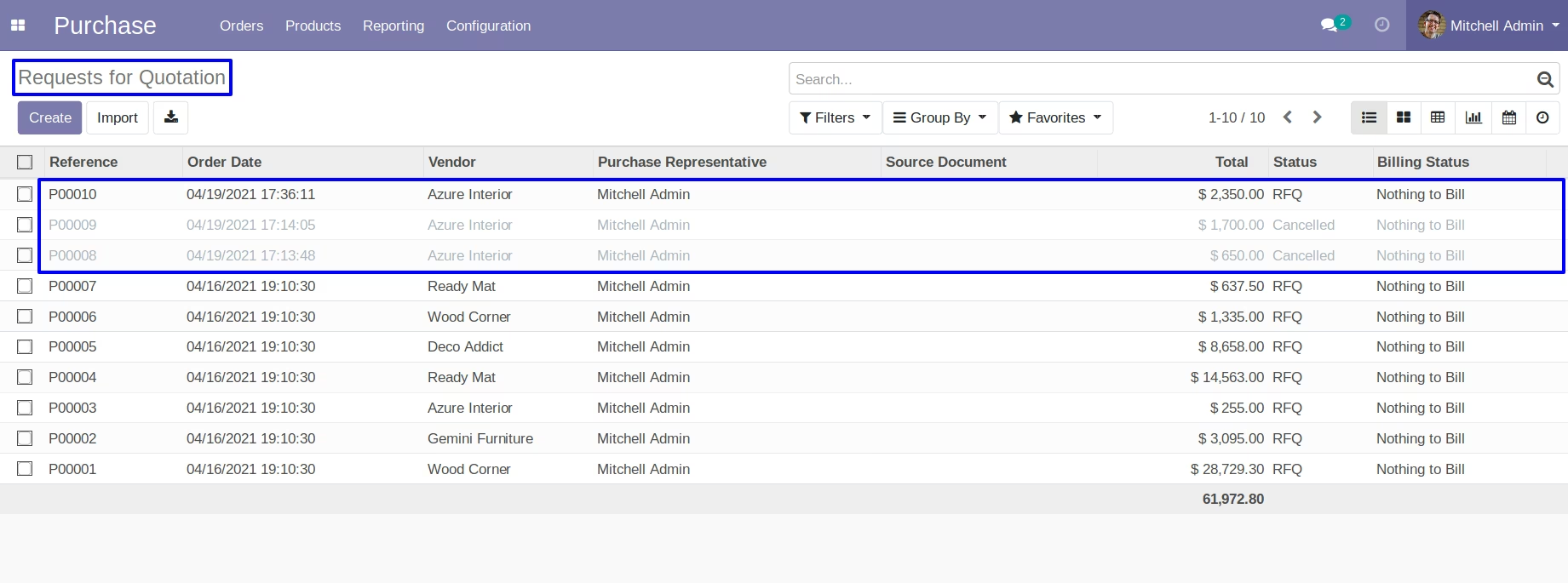
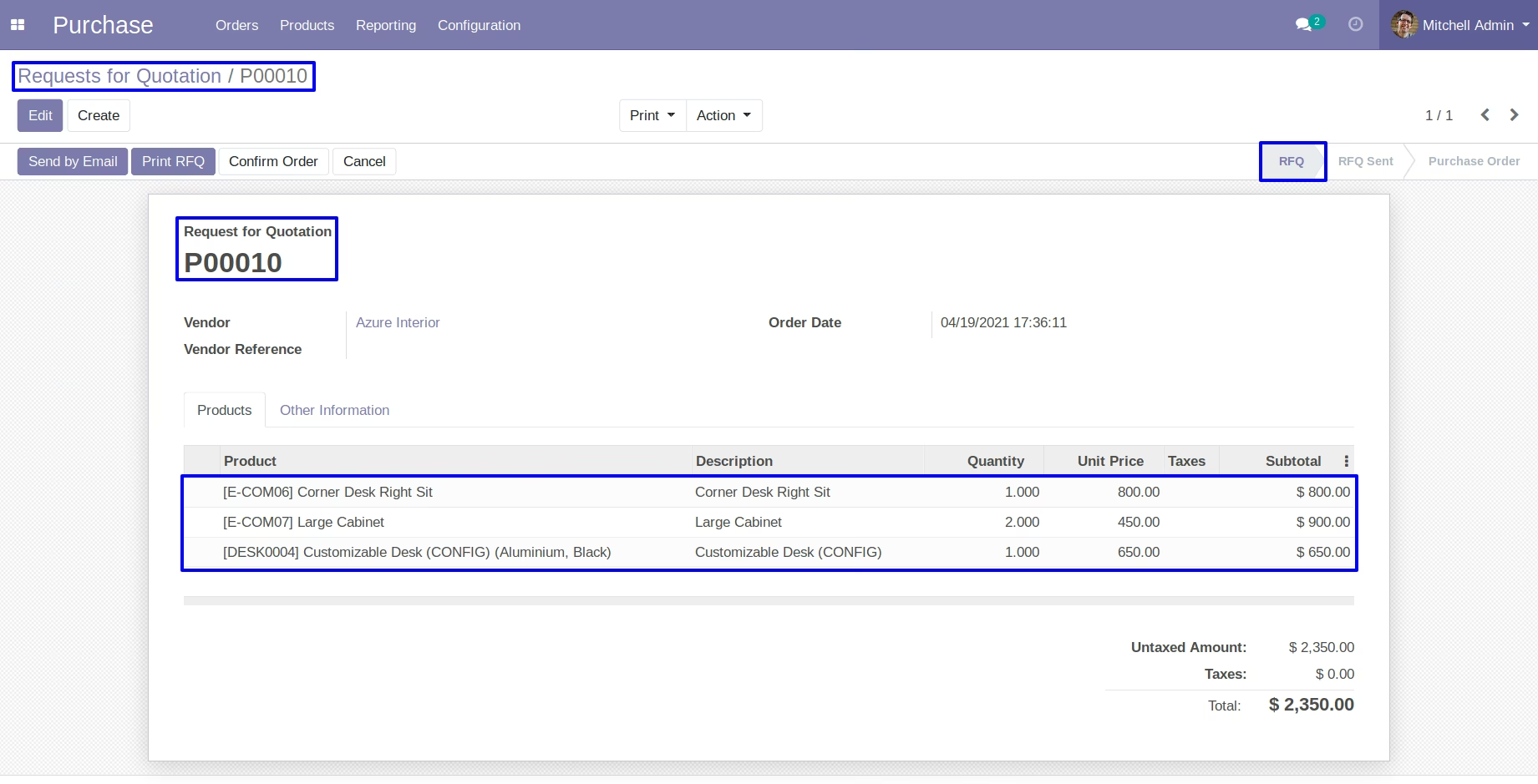
New order and Delete all selected order
If we goes with second type option.After click on Merge button,with second option You can see a new order will be created and other selected order will be deleted.
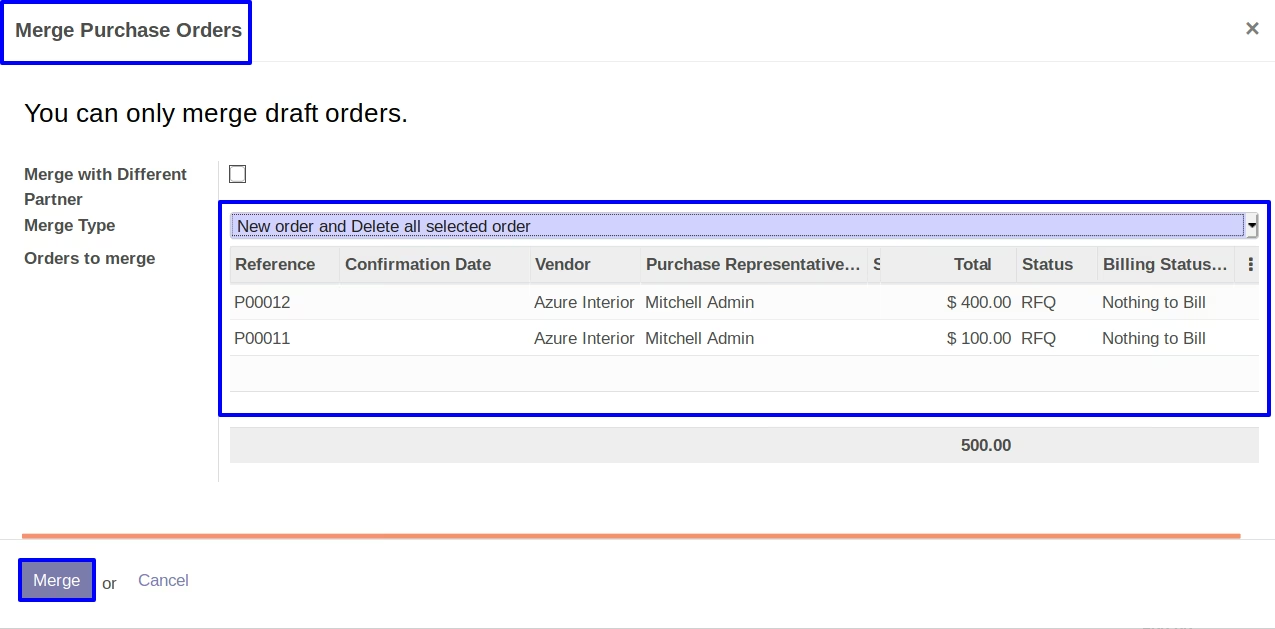
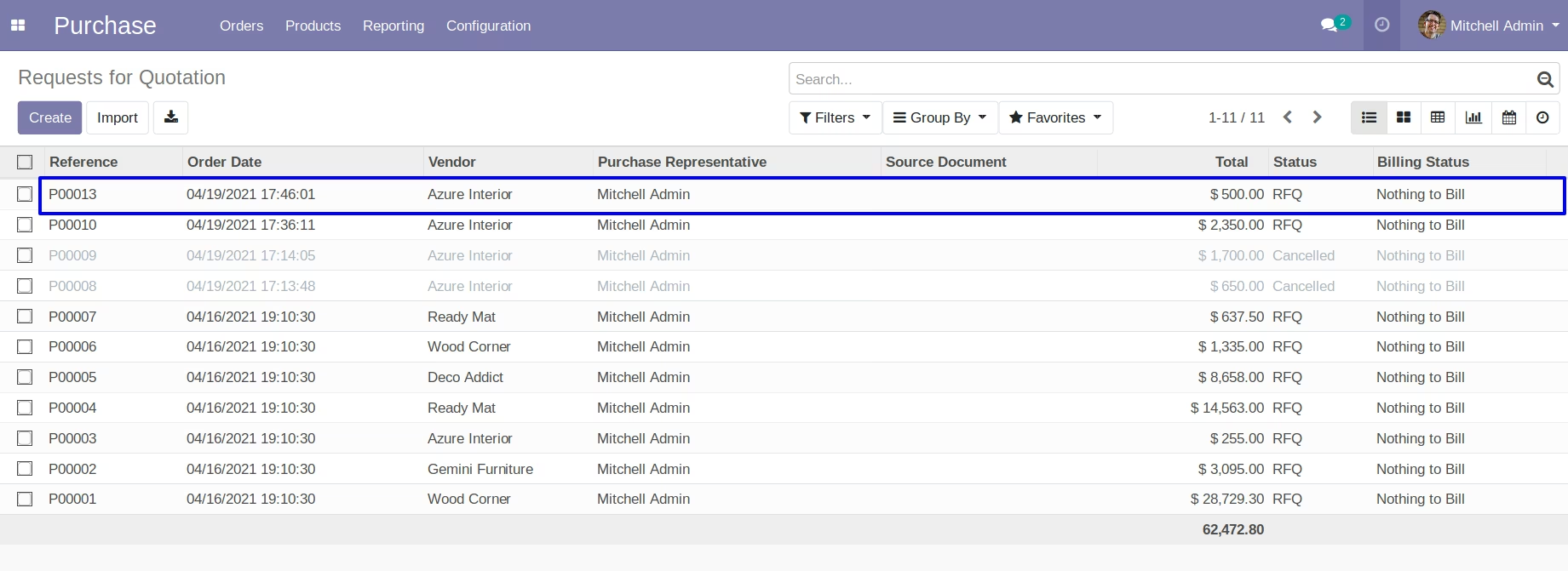
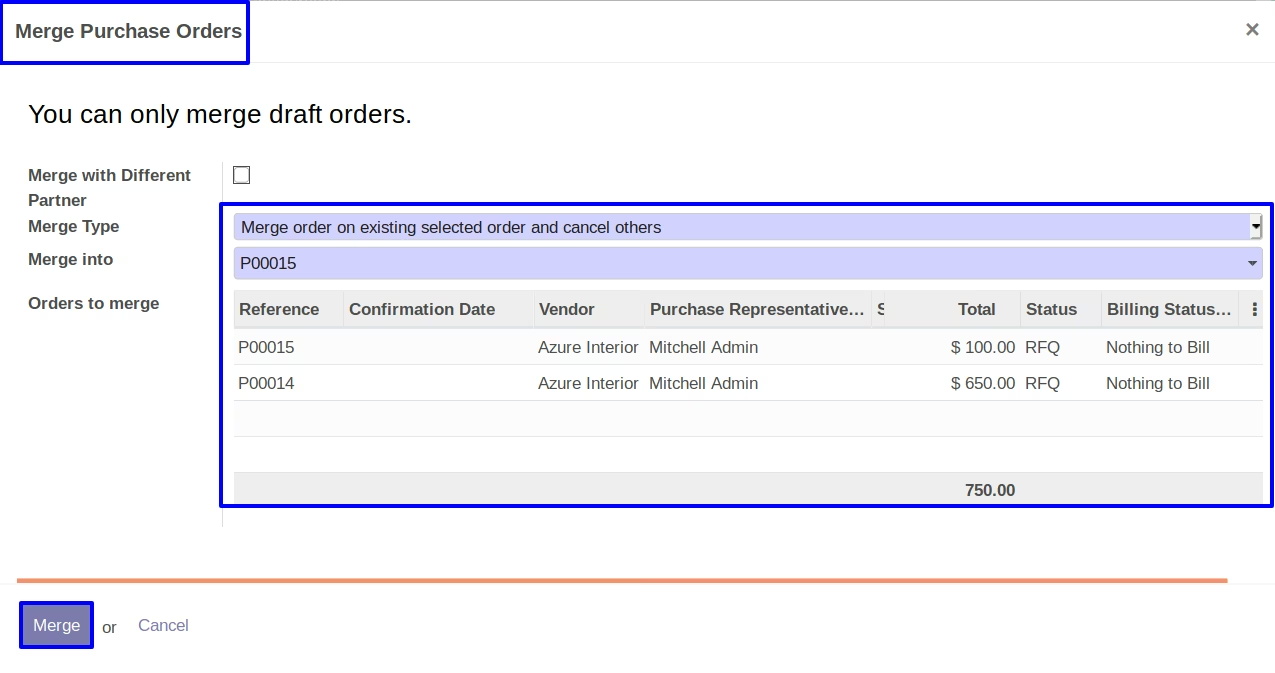
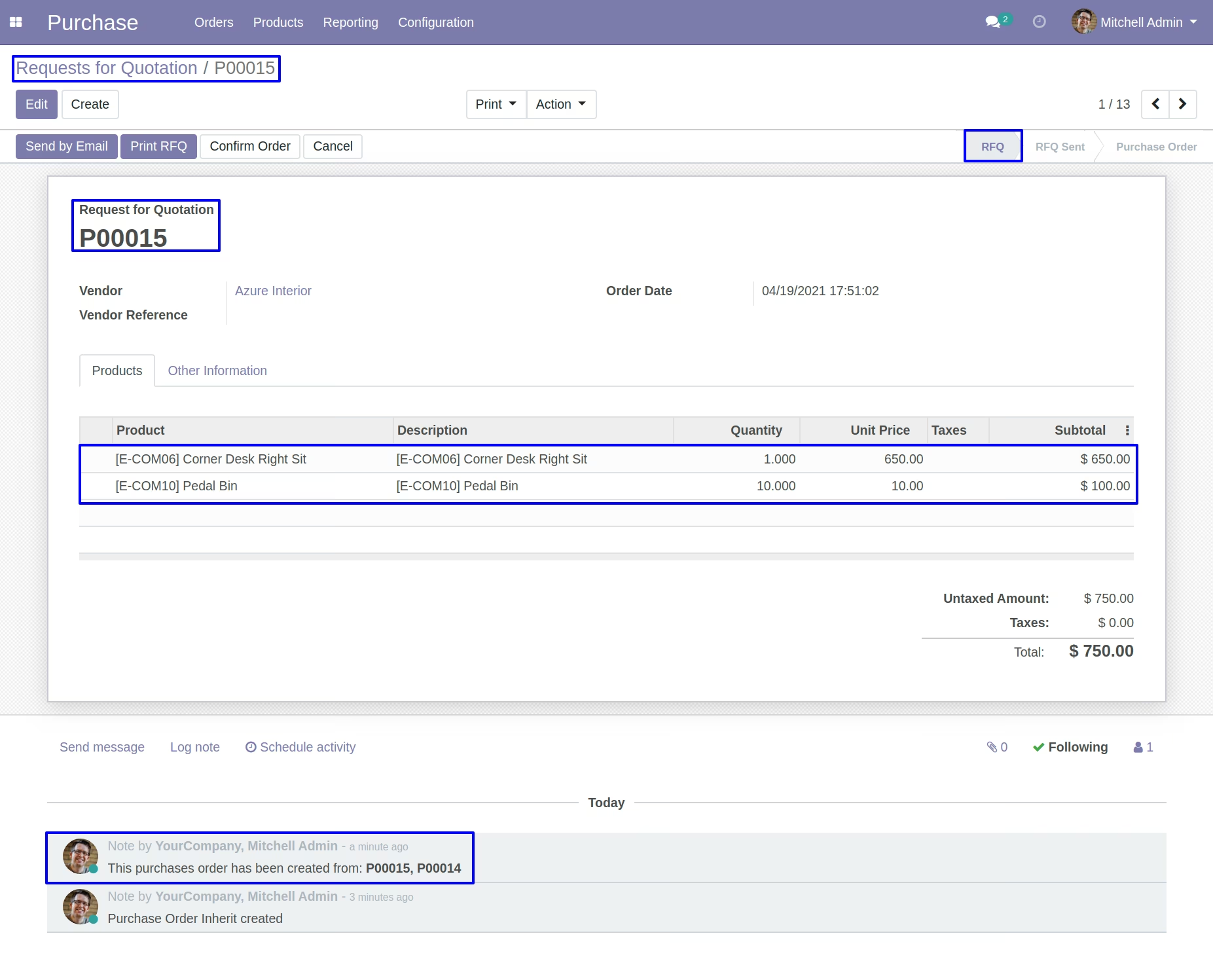
Merge order on existing selected order and cancel others
If we goes with third type option.You can see a 'Merge into' field, In this you can select an existing order in which you want to added another selected orders.After click on Merge button, You can see an another orders merge with selected existing order.And rest of all selected orders will be cancelled.
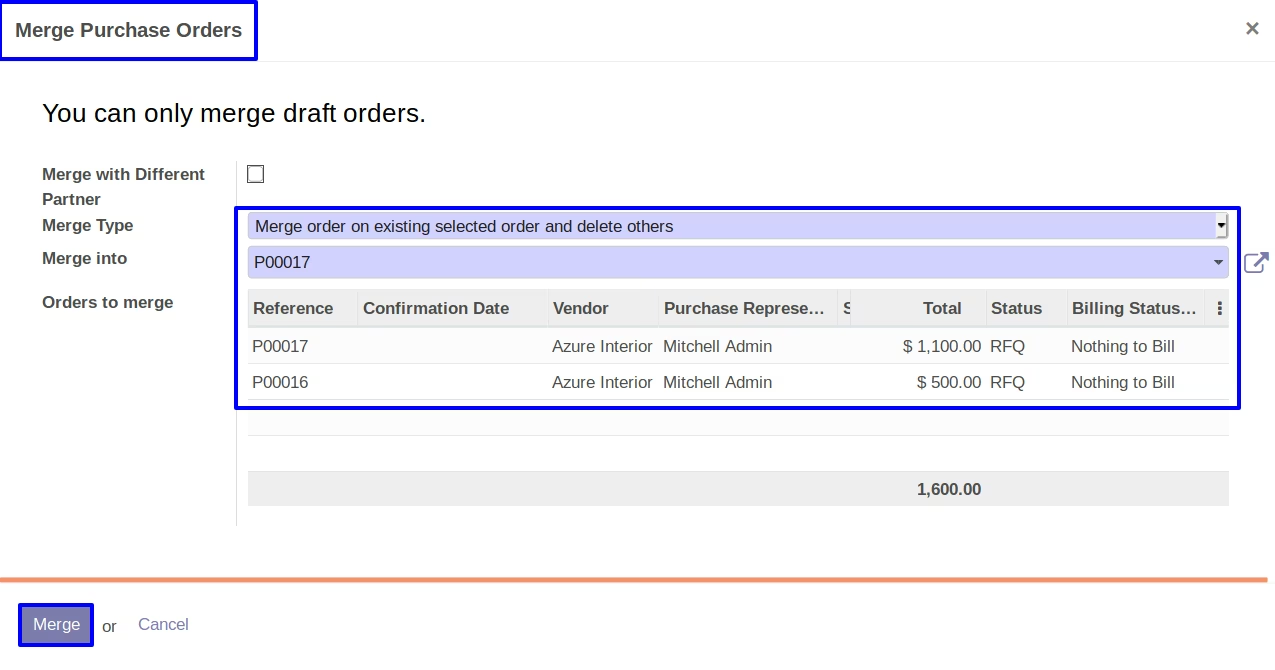
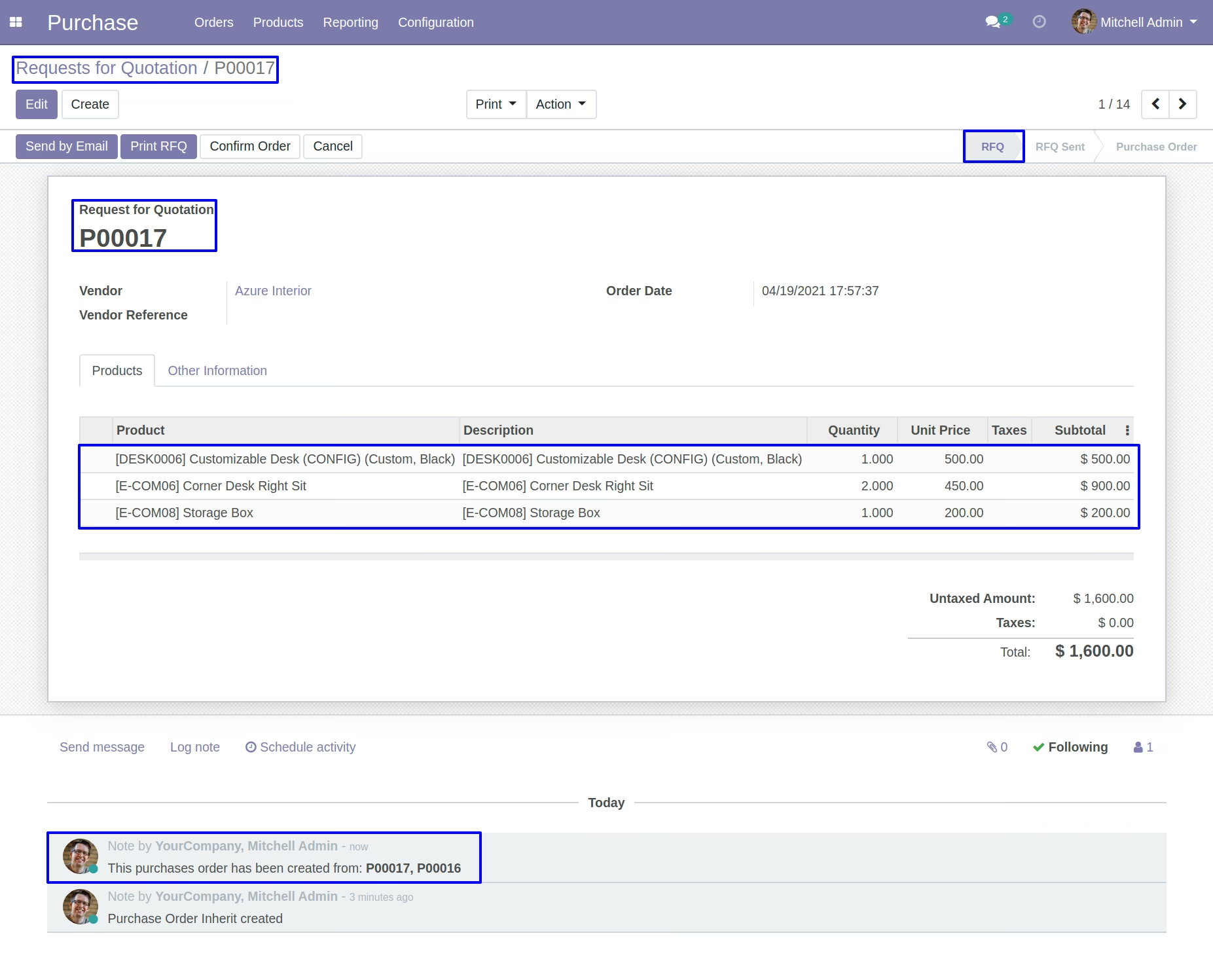
Merge order on existing selected order and delete others
If we goes with the fourth type option. You can see a 'Merge into' field, In this, you can select an existing order in which you want to add another selected order. After clicking on the Merge button, You can see another orders merge with a selected existing order. And rest of all selected orders will be deleted.
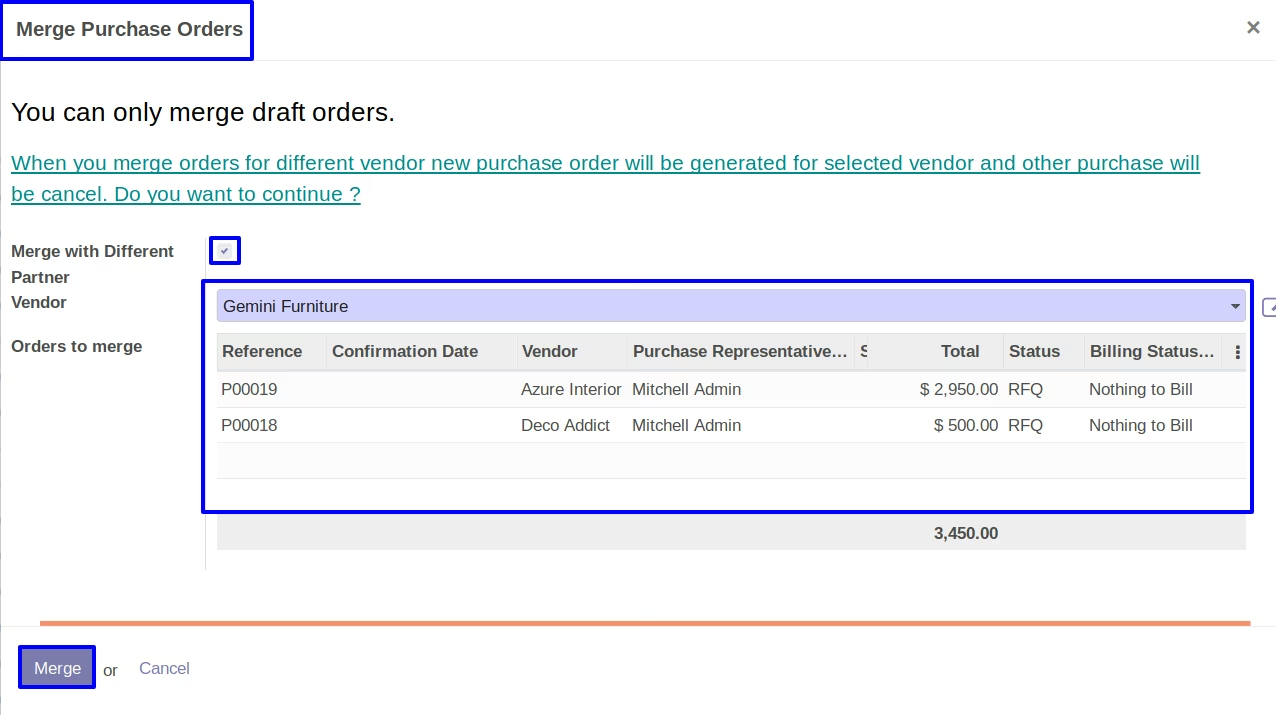
Merge with Different Partner
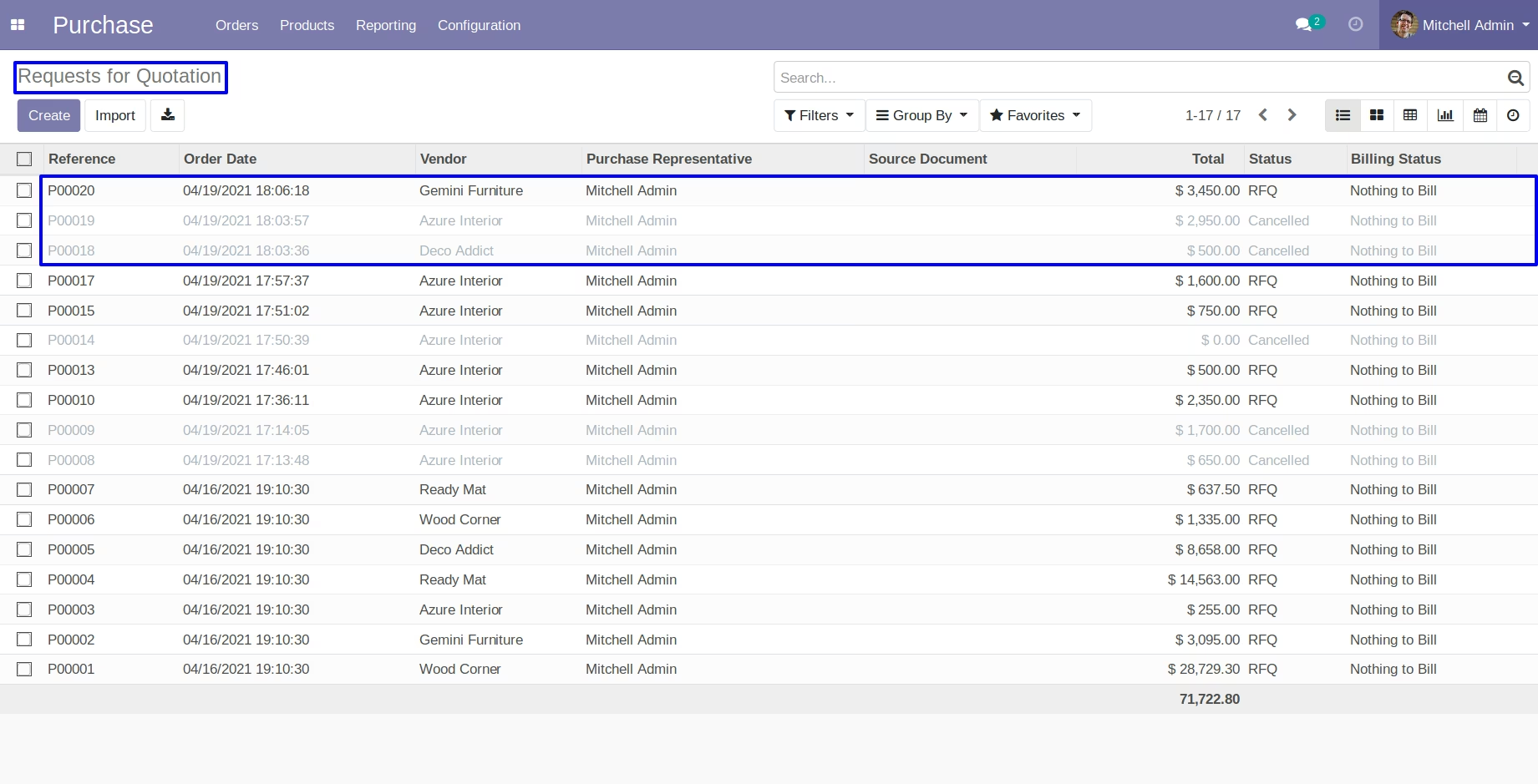
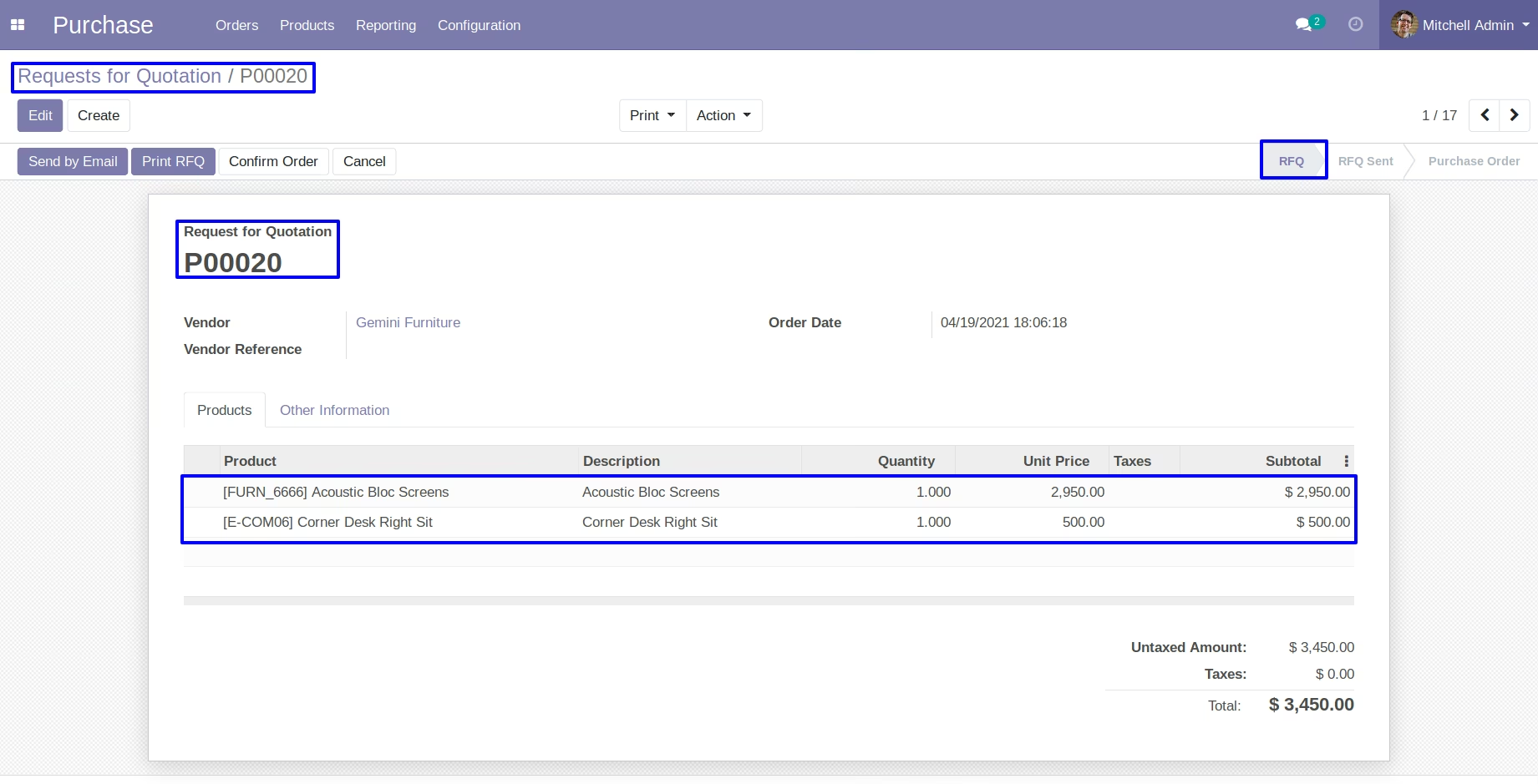
If we ticked 'Merge with Different Partner' checkbox. You can see a 'Vendor' field, In this you can select an another vendor in which you want to added another selected orders.After click on Merge button, You can see a another orders merge with new order.And rest of all selected orders will be cancelled.
Merge Purchase for Same Vendor
Merge Purchase for Same Vendor Menu
Purchase -> Orders -> Merge Purchase for Same Vendor menu.

Merge Purchase Orders Wizard
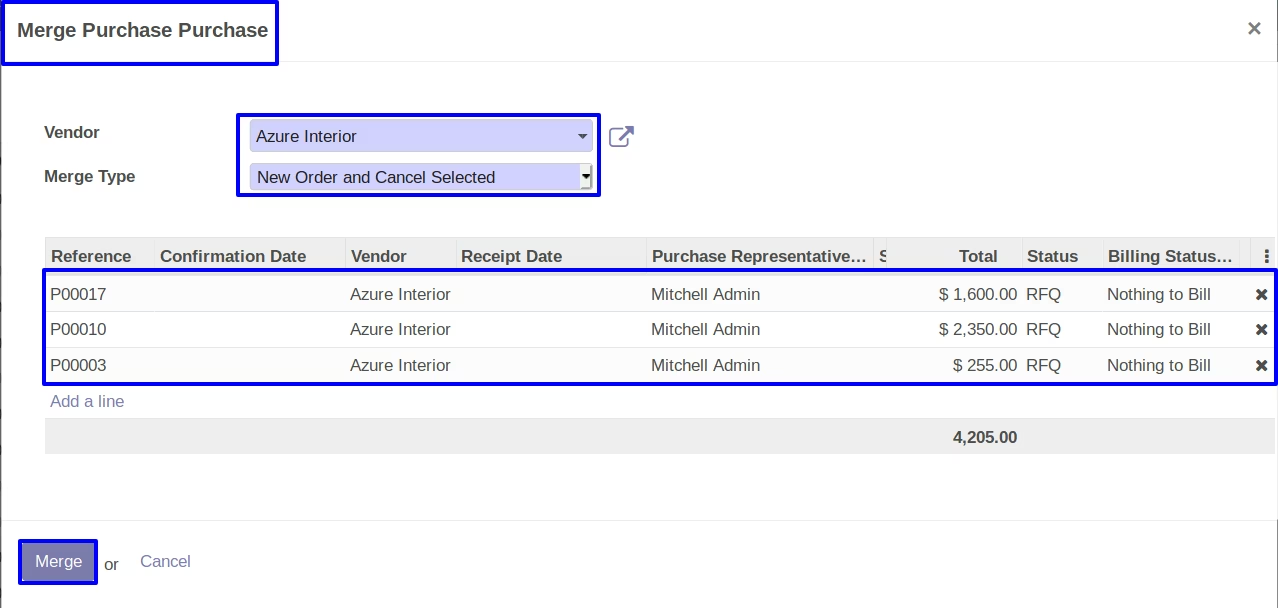
Here you can select orders which you want to merge, In merge purchase orders wizard you can see type for merging order.
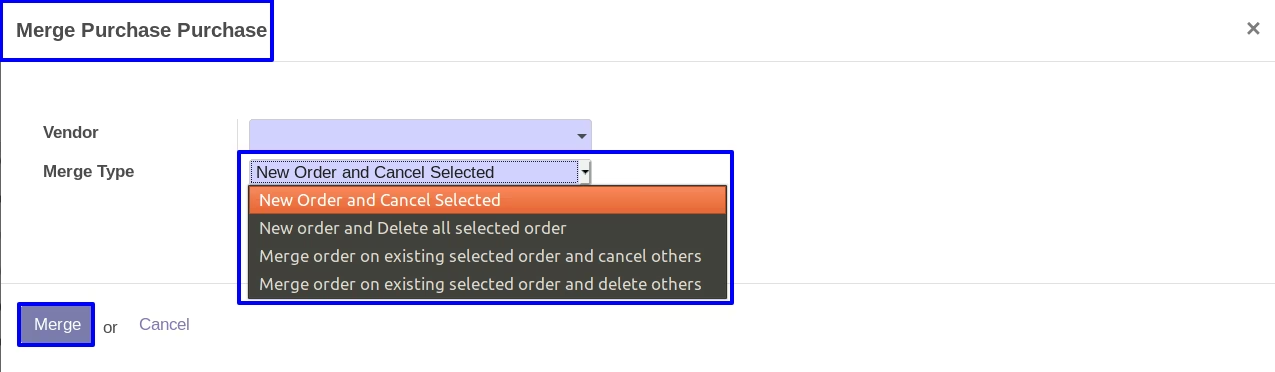
New Order and Cancel Selected
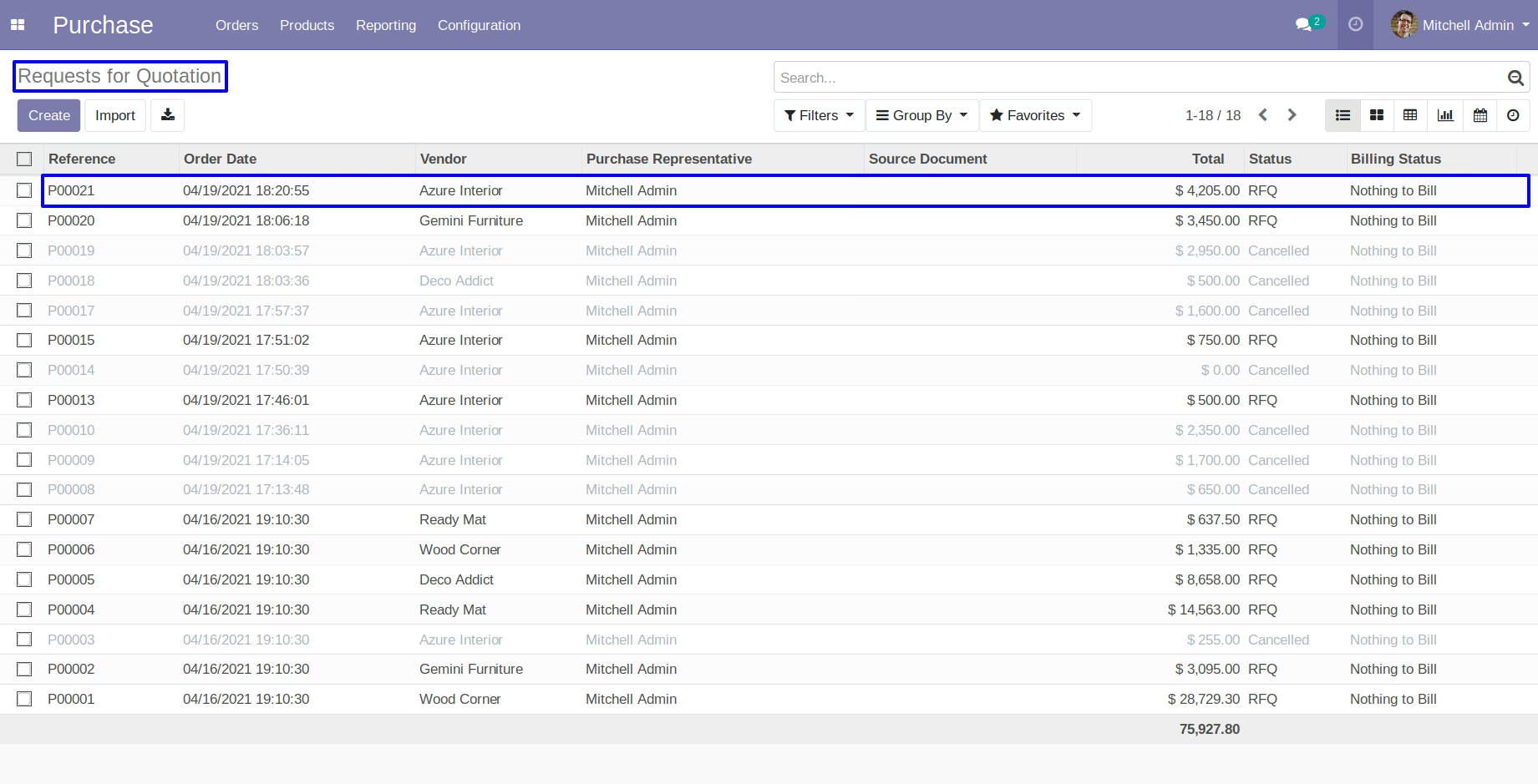
If you selected first option 'New order and cancel selected'.You can see a 'Vendor' field, based on selected vendor all the draft purchase orders will be comes automatically. After click on Merge button, You can see a new order will be created and other selected order will be cancelled.
Merge Order Lines
Merge Order Lines Menu
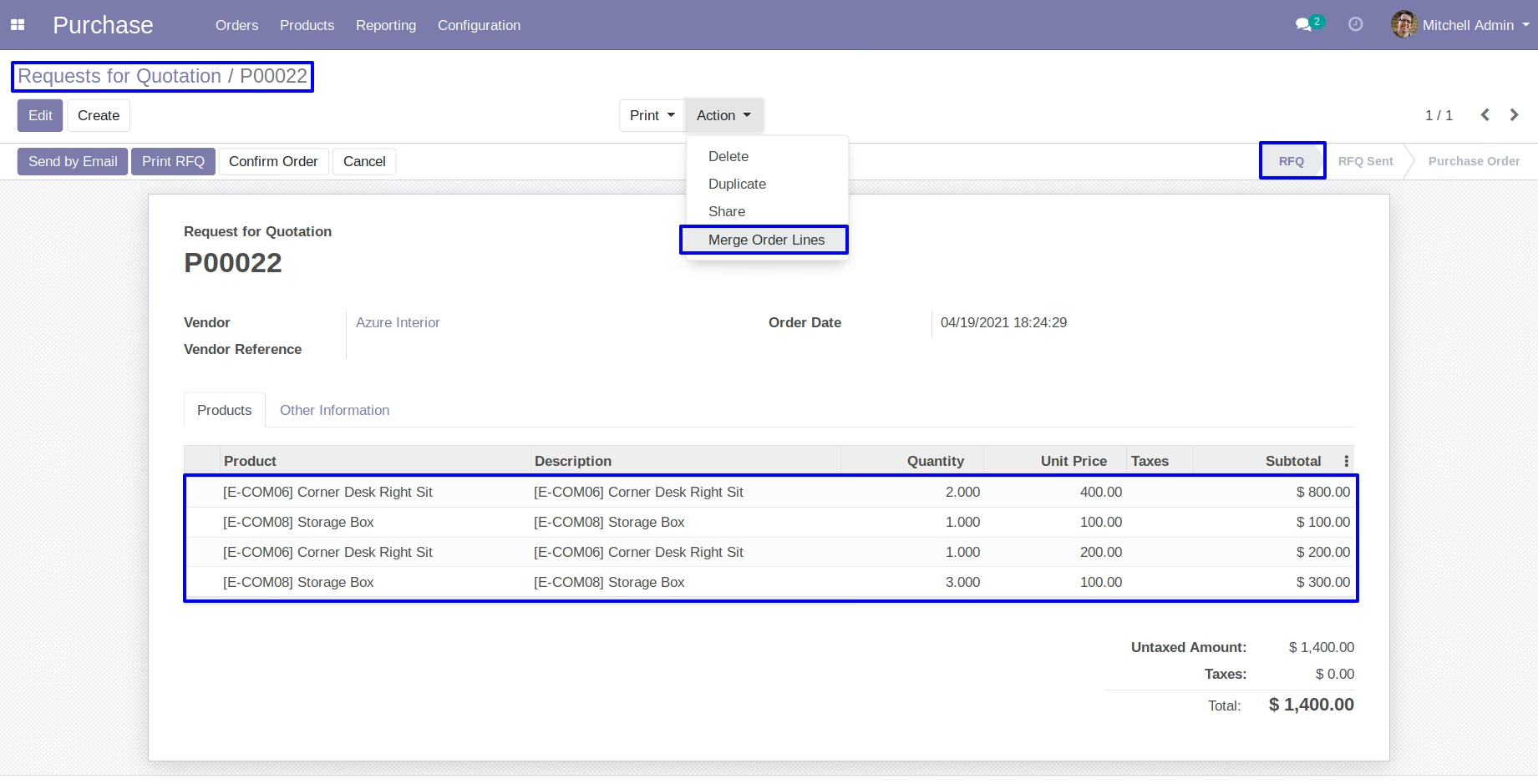
Under purchase order in Action menu user can see "Merge Order Lines" menu.
Merge Order Lines Wizard
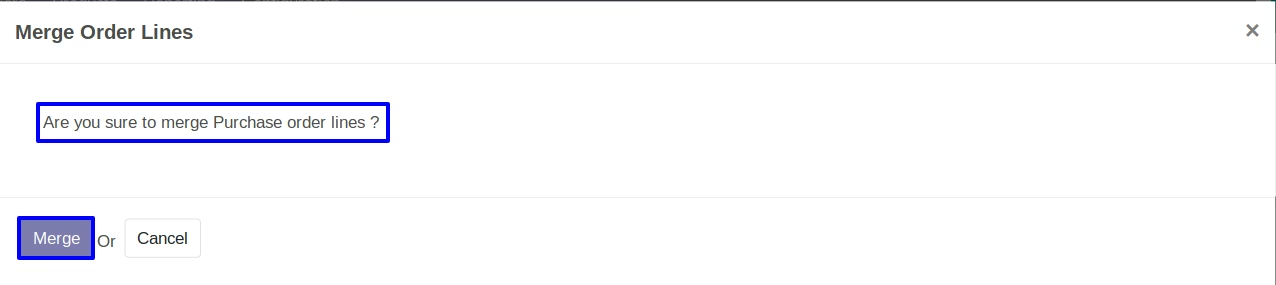
When you click on 'Merge Order Lines' menu new wizard will be open for confirm merge operation.
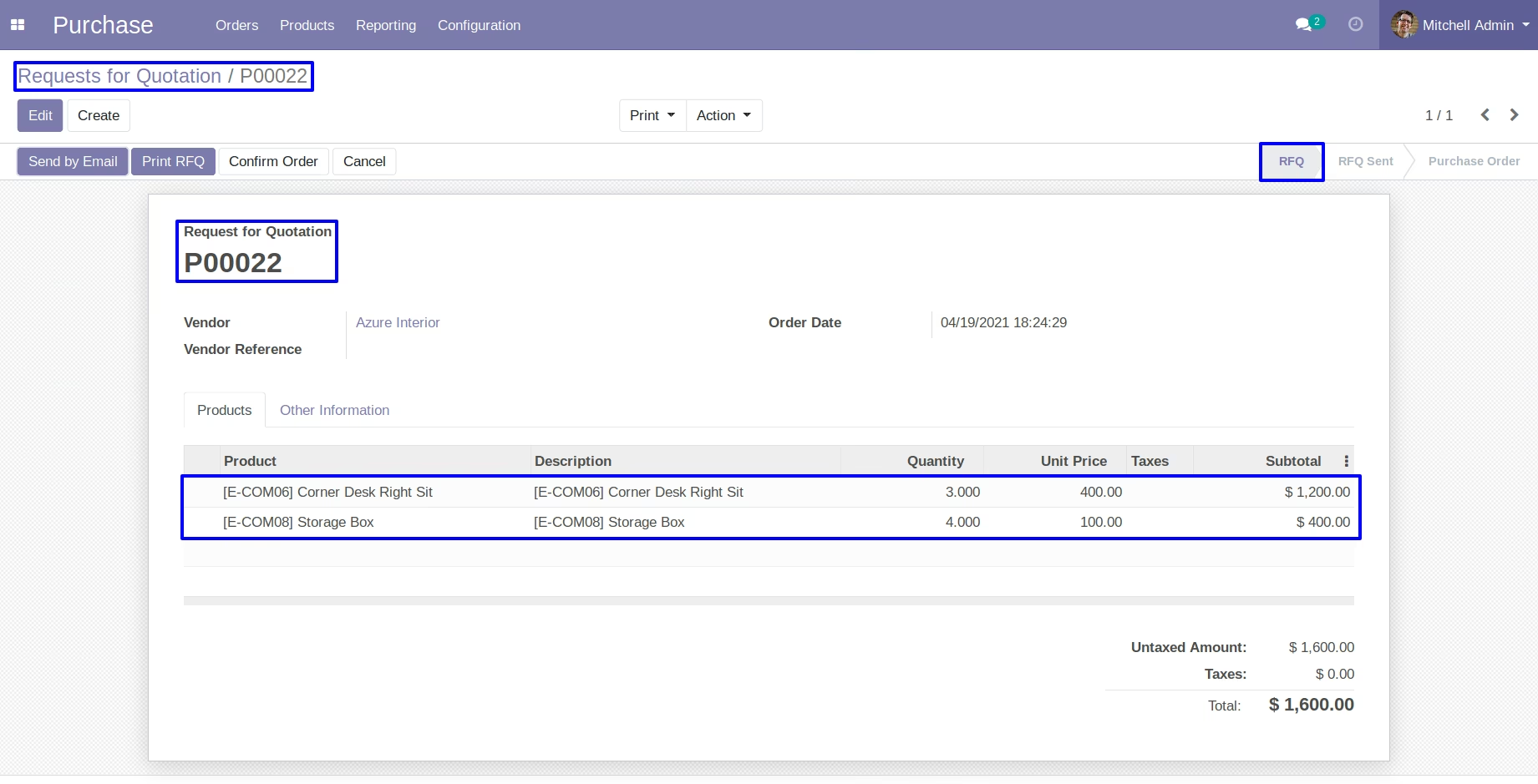
Merged Purchase Order Lines
You can see all same product line on purchase order will merged with ordered quantity.
Configuration for Auto Merge Purchase Orderlines
Under Purchase > Configuration > Settings menu enable "Auto Merge Purchase Orderlines".
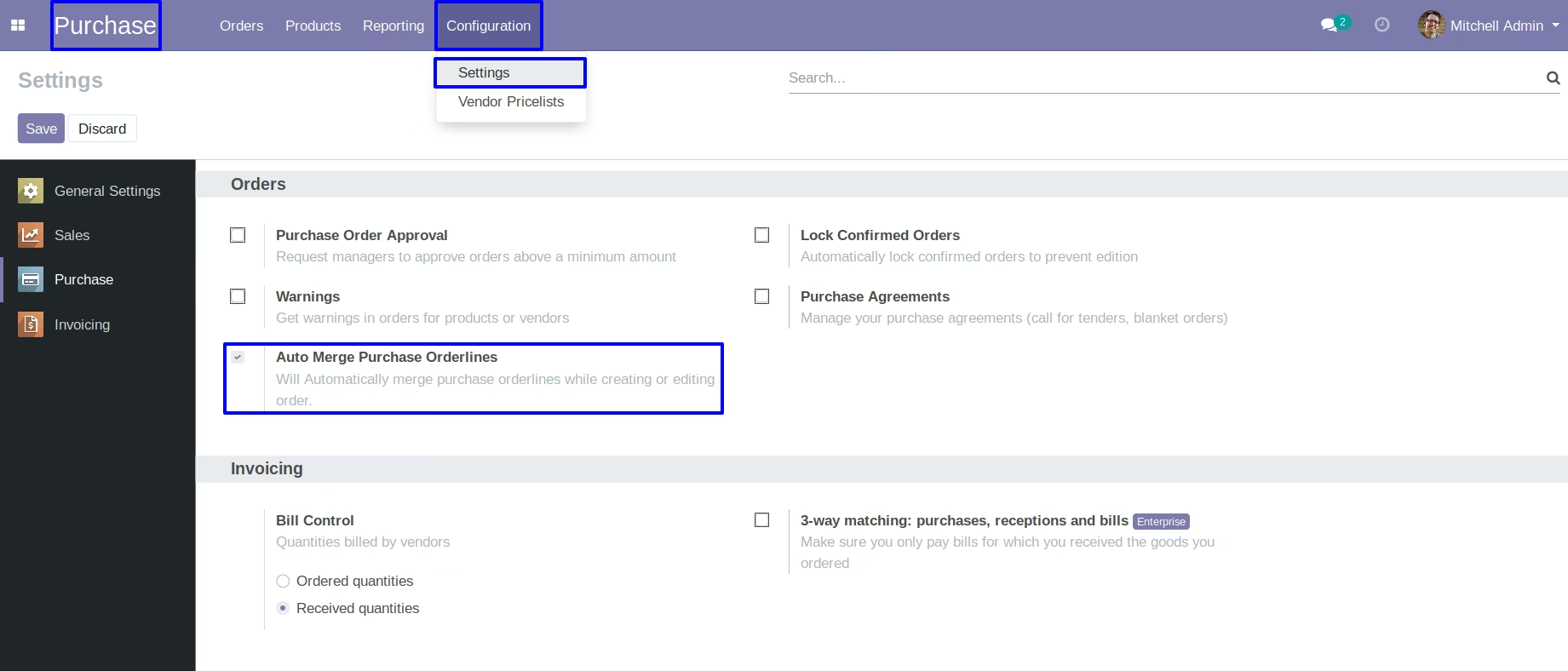
When you create a new order or edit an existing order all same product and quantity will be merged automatically.