
The module for provides a structured approval workflow for journal entries to ensure accountability, control, and accuracy. It enforces an approval process before entries are posted, improving financial governance and reducing errors. With seamless integration into your accounting system, this module delivers enhanced oversight while preserving operational efficiency.
Implement a customizable approval workflow for journal entries within.
Require designated users to verify journal entries before posting.
Improve financial governance through enforced validation steps.
Reduce errors and unauthorized entries with controlled approval mechanisms.
Simple configuration and intuitive setup that aligns with standard accounting processes.
Strengthen control over journal entries with structured verification.
Boost accountability by ensuring only validated entries are posted.
Enhance accuracy and reduce financial errors with enforced approval.
Improve audit readiness through transparent approval tracking.
Increase confidence in financial data quality with streamlined validation.
This module allows you to apply two step verification on journal entries. On Journal level, you will get one configuration, named Verification Requied. For such journals, first the entry needs to submit for approval. Some authorized user needs to approve it and after approve, entry will be posted. The user who have access for approve entries, only can approve the journal entry. You can also apply the same verification on Payment level also.
Journal Verification
Account Entry Verification
Entries Approval
JV Approval
Verify Accounting Entries
Journal Voucher Double Verification
JV Double Verification
Accounting Maker Checker
JV Maker Checker
Journal Voucher Approval
Two step verification for Journal Entries
Only authorized user can approve the entries
Two step verification for Payments
Only authorized user can approve the payments
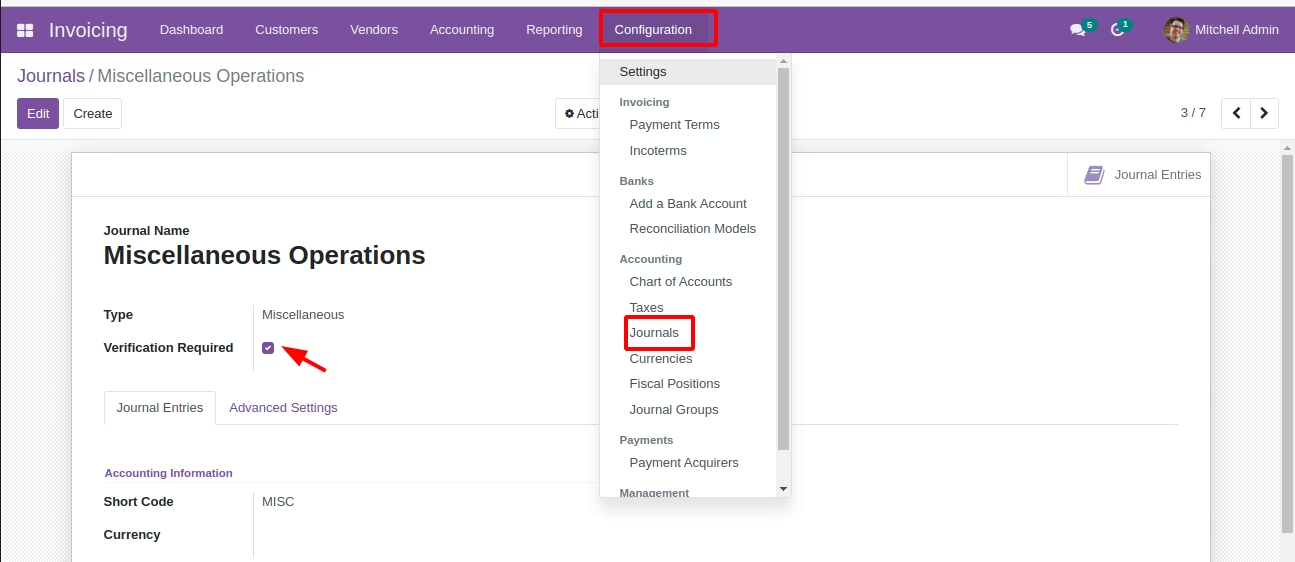
Verification Required Configuration
For enable two step verification on entries, you need to set Verification Required on Journal level. Go to Invoicing --> Configuration --> Accounting --> Journals.
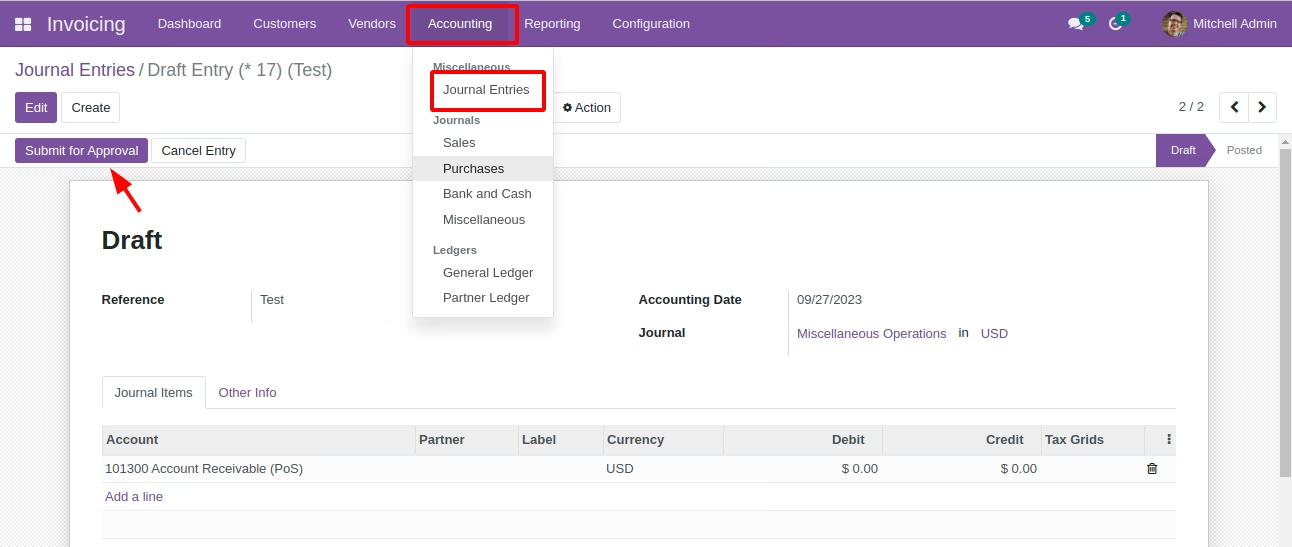
Submit entries for Approval
Now, create journal entries from Invoicing --> Accounting --> Miscellaneous --> Journal Entries. If you will select the journal which has Verification Required, you will get Submit for Approval button on entries.
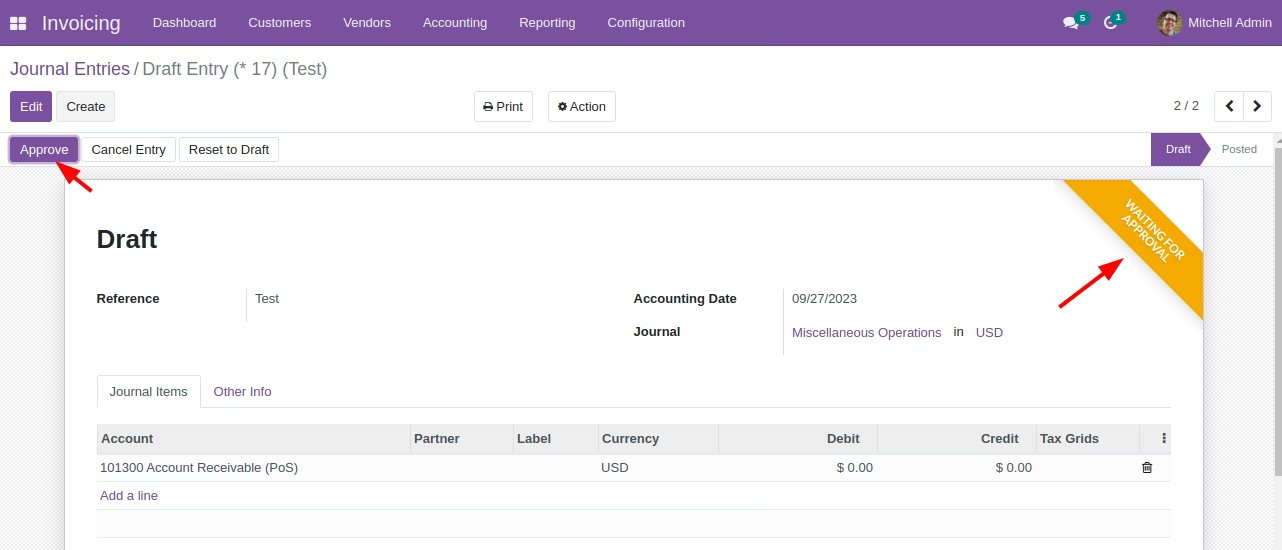
Waiting for Approval
Once after submit for approval, entry will be shown as Waiting for Approval.
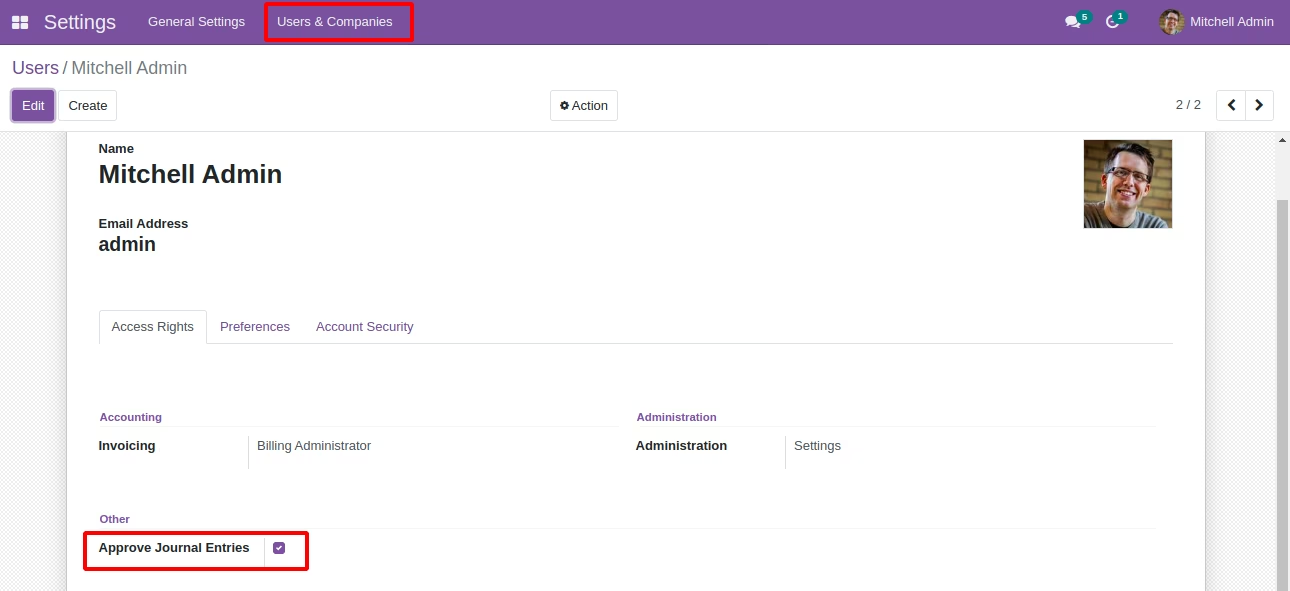
Set user access for approve entry
User, who have the access Approve Journal Entries is authorized for approve entries. To set the access, Go to Settings --> Users & Companies --> Users
Approve journal entries
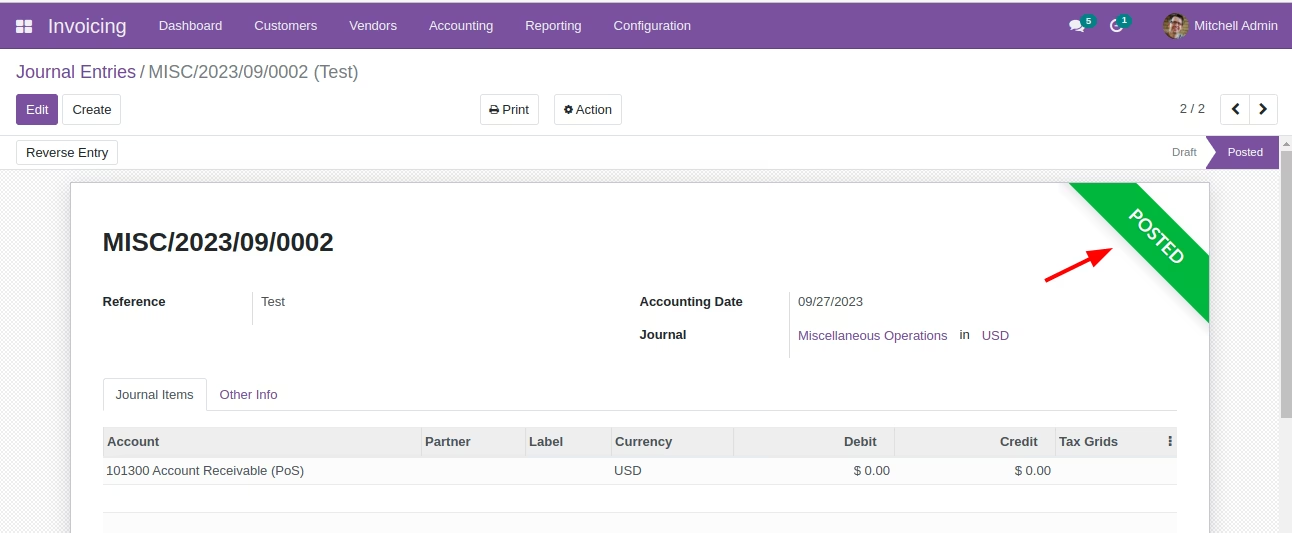
Authorized user will get Approve button on journal entries. Once after approved, entry will set as Posted.
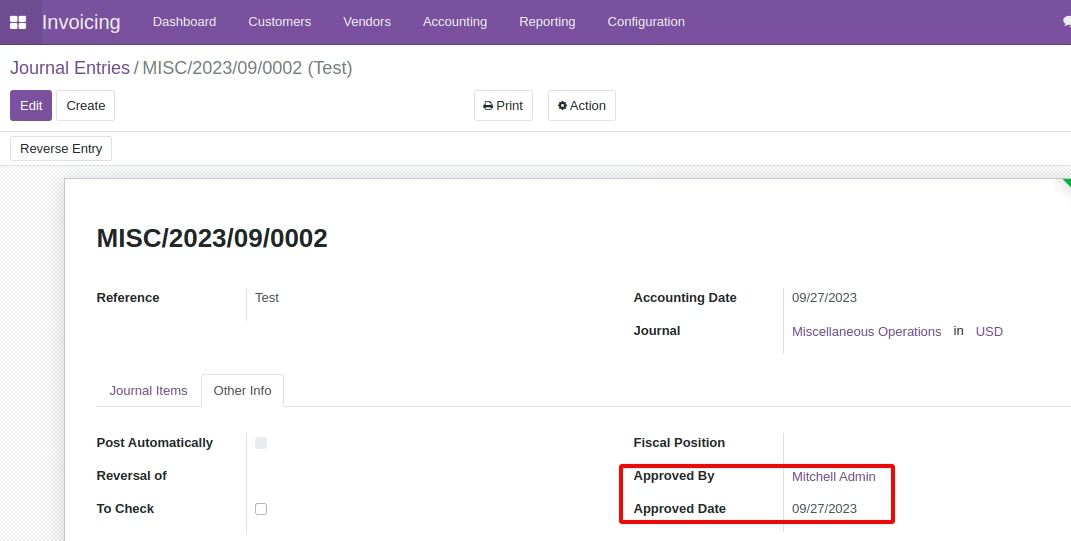
Information of Approved By and Approved Date
You can see who have approved the entry and when.
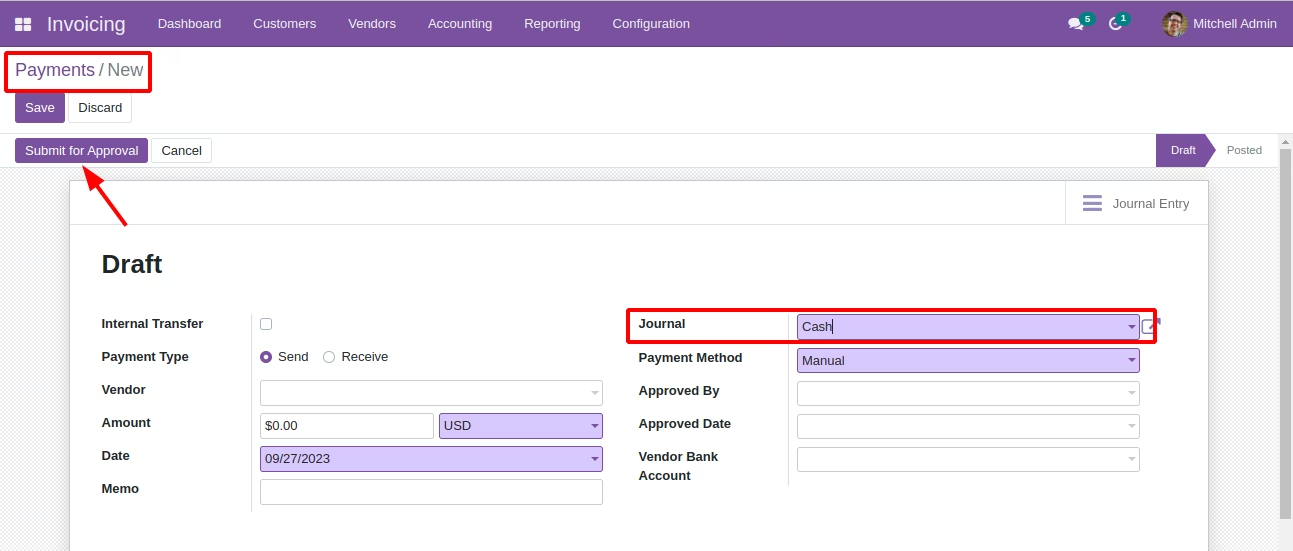
Submit for Approval in Payments
In payment, if selected journal has Verification Required, you will get Submit for Approve button.
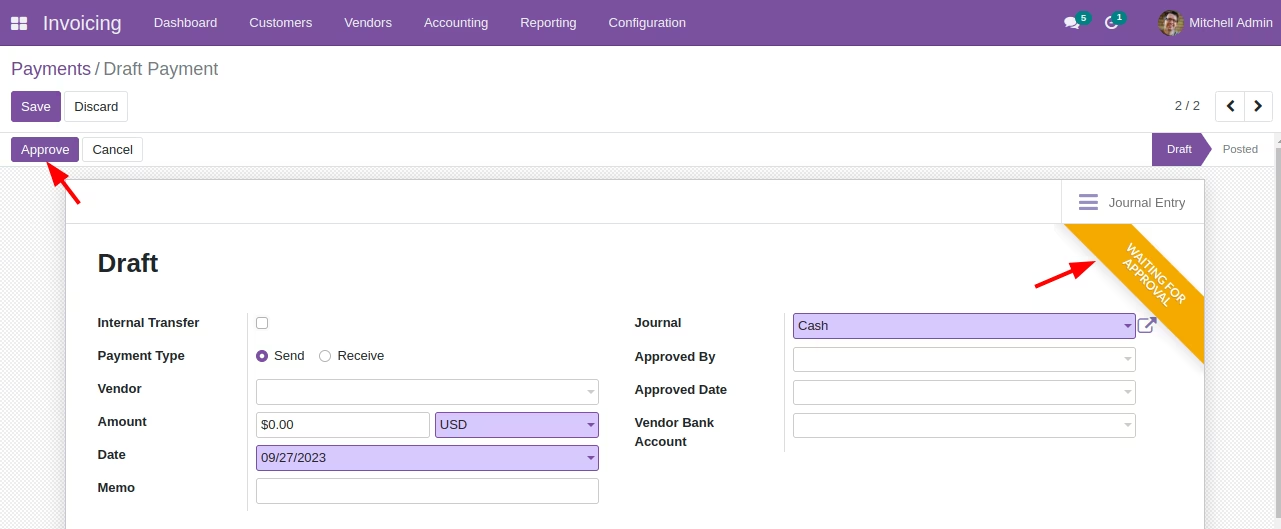
Payment waiting for approval and approve payment
After Submit for Approval, payment will set as waiting for approve. Once after approve, payment will set as Posted.
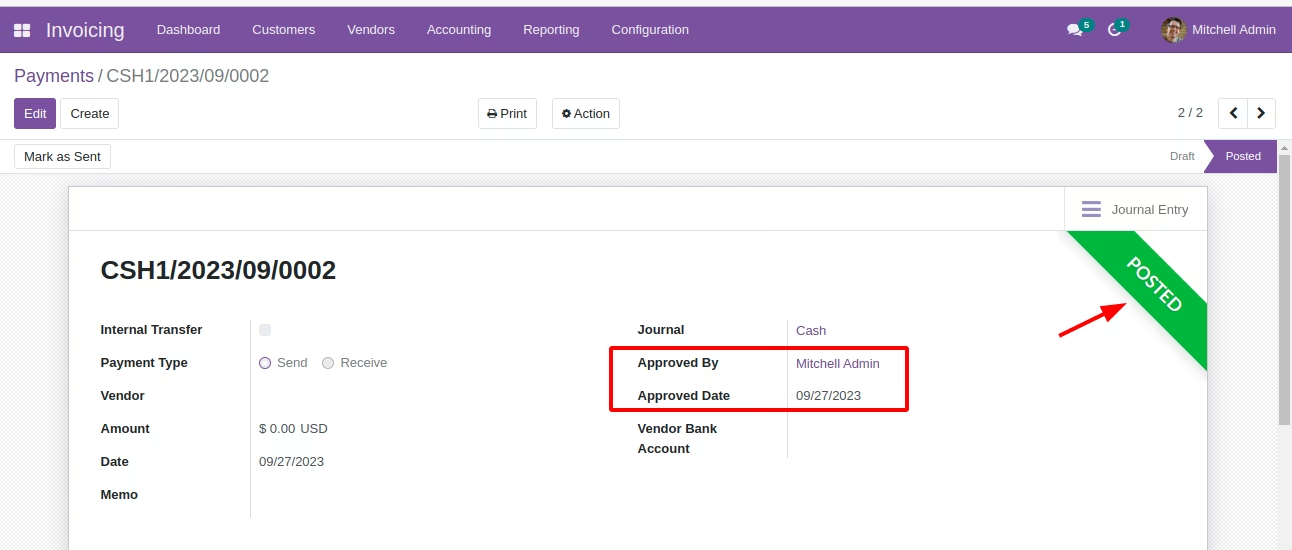
Approved By and Approved Date display
After clicking Approval button here sets Approved By login user and Approved Date today.
Verification Required Configuration
Submit entries for Approval
Waiting for Approval
Set user access for approve entry
Approve journal entries
Information of Approved By and Approved Date
Submit for Approval in Payments
Payment waiting for approval and approve payment
Approved By and Approved Date display