
The module for enables organizations to consolidate events and activities from various document types into a single, shared calendar interface. With flexible configuration rules, users can merge tasks, meetings, sales, opportunities, leave requests, and more into unified views tailored to different departments or functional groups. This module enhances scheduling clarity, improves team coordination, and streamlines calendar management across.
Define rules to merge various document types into one or multiple super calendars.
Flexible configuration of event titles, start and stop dates, attendees, descriptions, and filters.
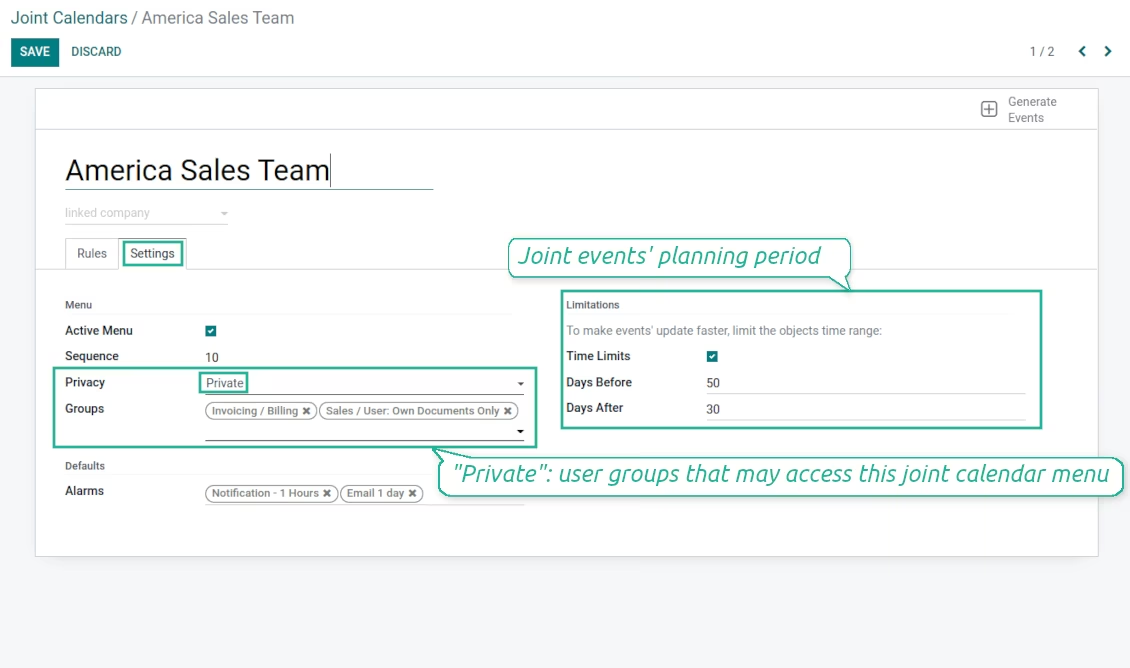
Support for calendar privacy: public or limited to specific user groups.
Automatic calendar updates through scheduled jobs (cron), with optional manual refresh.
Compatible with multi-company environments, allowing visibility control by company.
Provide a centralized overview of all relevant events, improving team organization and clarity.
Reduce context switching by enabling users to view diverse document activities in one place.
Improve efficiency with automatic updates and real-time synchronization across events.
Enhance cooperation and scheduling transparency by consolidating information across departments.
users often need to keep in mind a lot of details spread out among numerous interfaces. Switching between those is not comfortable and error-prone for planning. This tool solves the problem. The app lets configure rules to join and share various document types on a single super calendar view but with easy-reachable source objects.
- the core app to merge documents in super calendars. Its price is 98 .
- the optional free extension that introduces the Enterprise Gantt view joint events. The features assumed by this add-on are marked by the icon
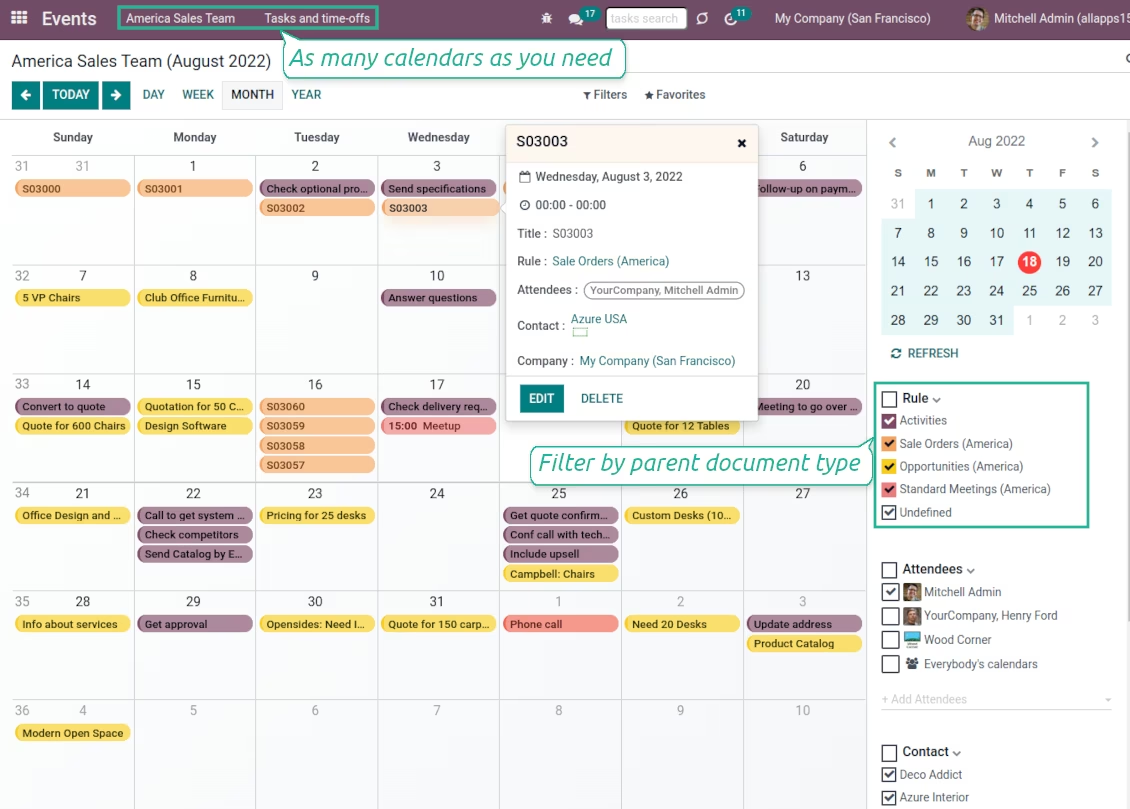
Any documents on the same calendar
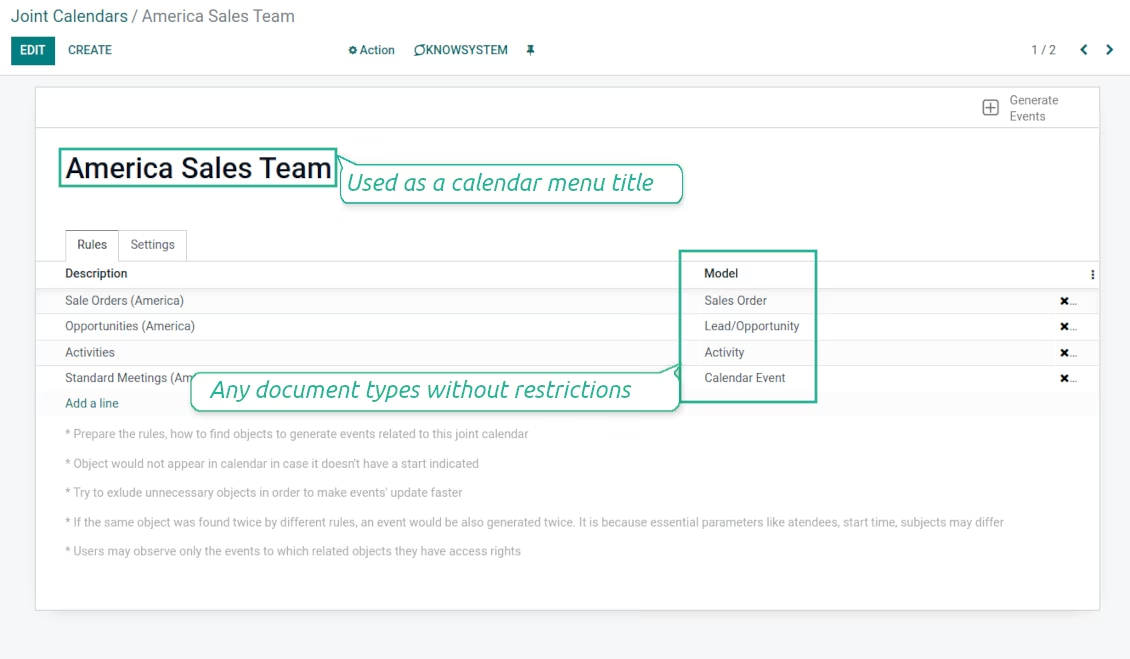
The tool might merge any document types on the same view: opportunities, meetings, phone calls, activities, sale or purchase orders, shipments and deliveries, tasks and tickets, time offs, ...
Flexible merging rules
Define on your own what to consider a joint event title, start or stop date, who are target attendees, etc. Have even the same document twice on the same calendar just with a different start
Instant access to source details
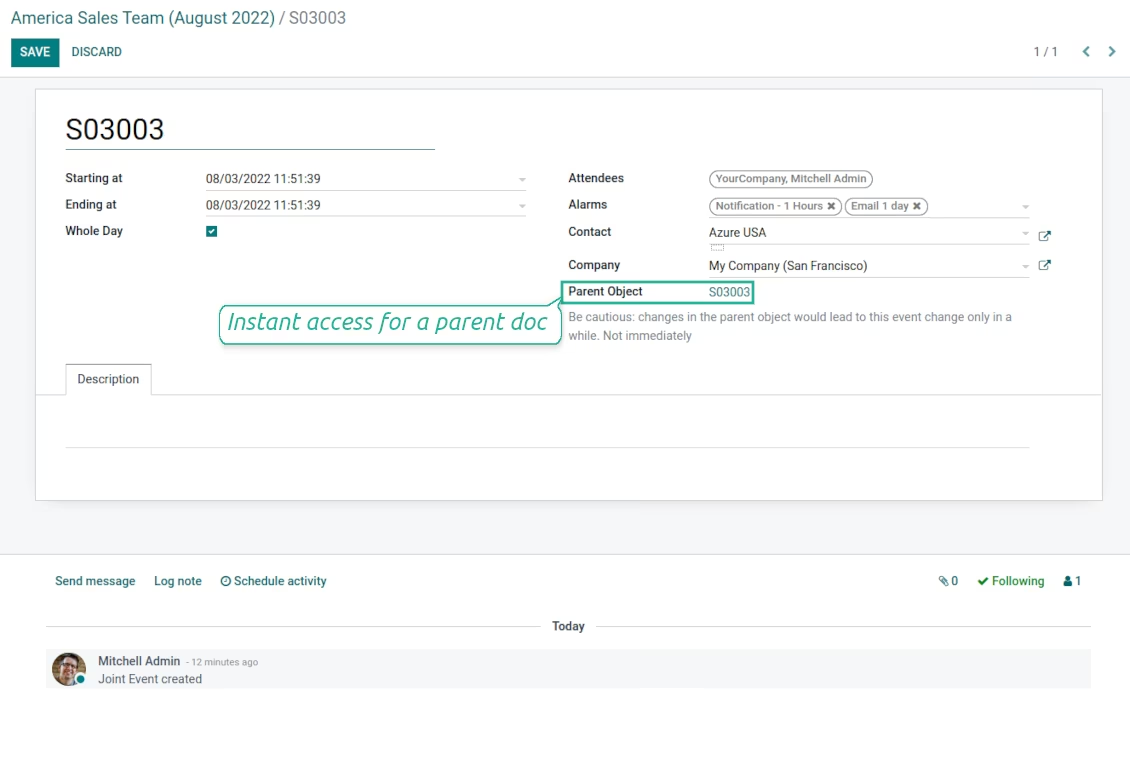
Joint events and their source documents are interrelated. Update the former, and the latter would be changed immediately. A reverse operation would be applied with the next cron job (the frequency is configurable)
Comfortable navigation
Shared calendars are especially suitable for team interactions. Users might switch between document types, participants, linked contacts, and companies in a single click. Optionally turn on the Enterprise Gantt view
Unlimited number of super calendars
Configure as many calendars as you need: for various functional areas or for different user groups. Each joint calendar has its own menu item
Reminders for any documents
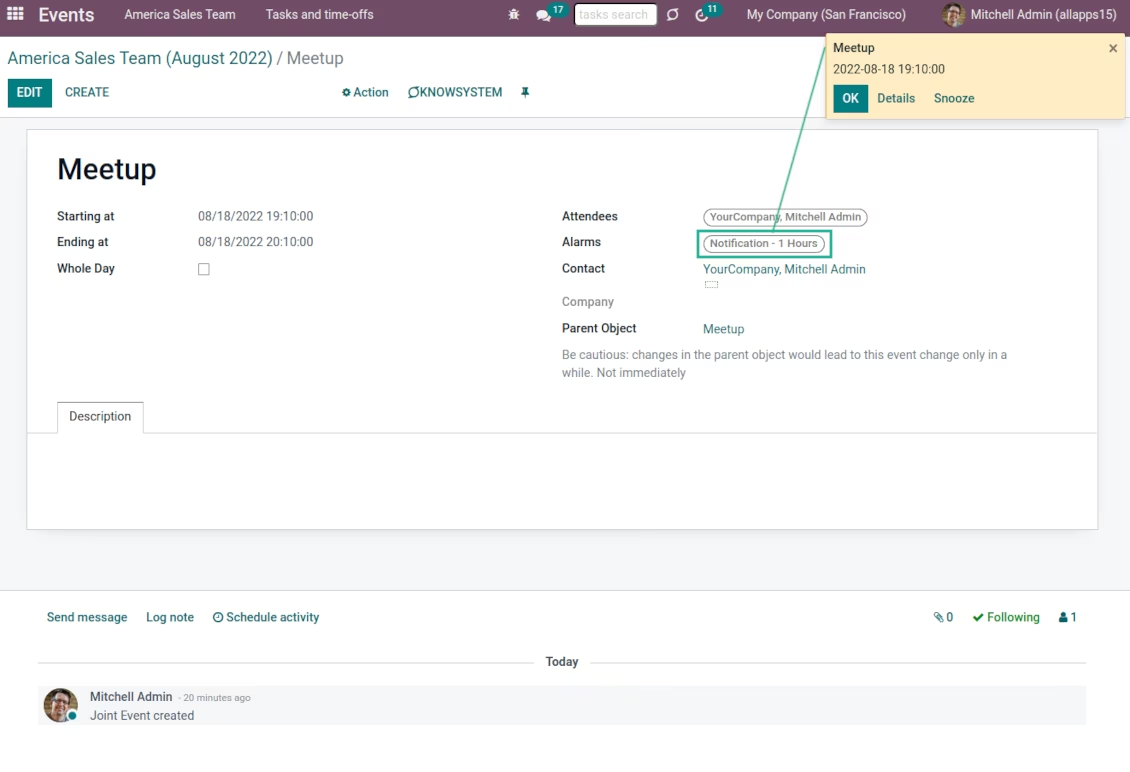
Calendar configuration lets assign default popup and email alarms. Thus, it is possible to have notification of any event or activity
Simple user rights administration
Regulate joint calendar accesses right on its form. Make it public or share it only for chosen user groups. The app fully supports multi-companies environment
Automatic shared calendar updates
Joint events are updated regularly by the cron job. It is fast, especially if you apply time frames. Refreshing is also available from the calendar interface
Super calendars for any business area
Use joint calendars for any functional area: CRM, project management, sales, HRM, MRP, inventory management, so and so on. Find just a few examples of rules below
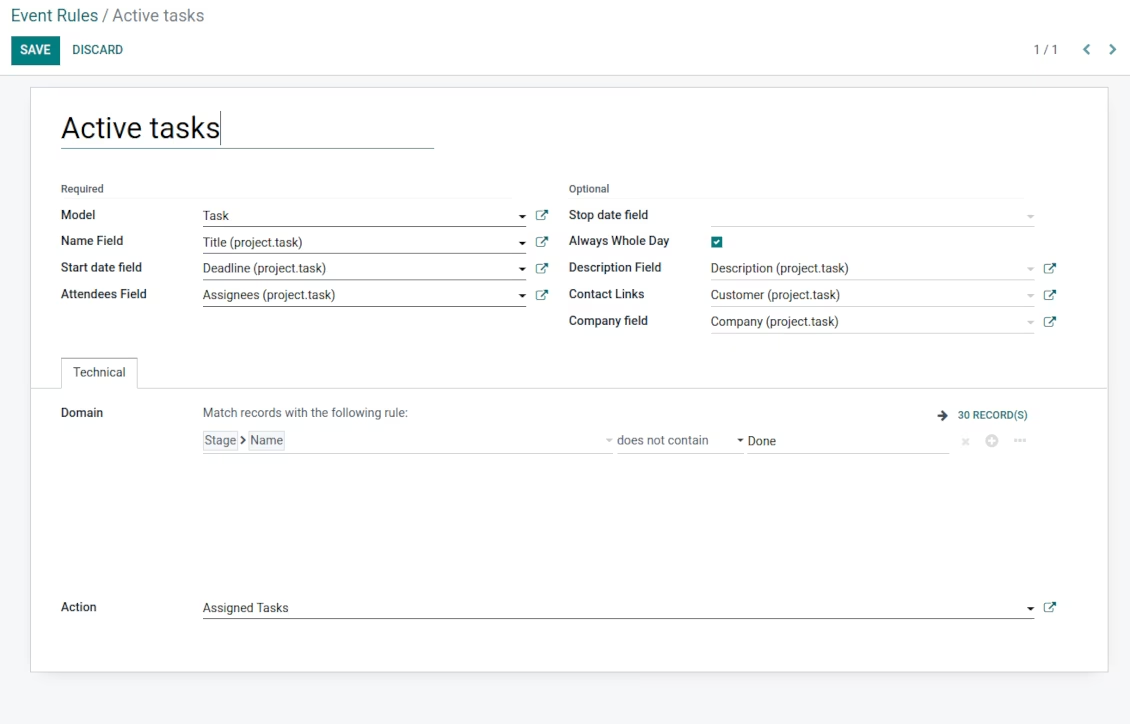
Tasks on a joint calendar
-
As a model use 'Task'
-
As a name use 'Title'
-
As a start date field use 'Deadline'
-
As attendees' field use 'Assignees'
-
As a domain optionally you can set definite projects
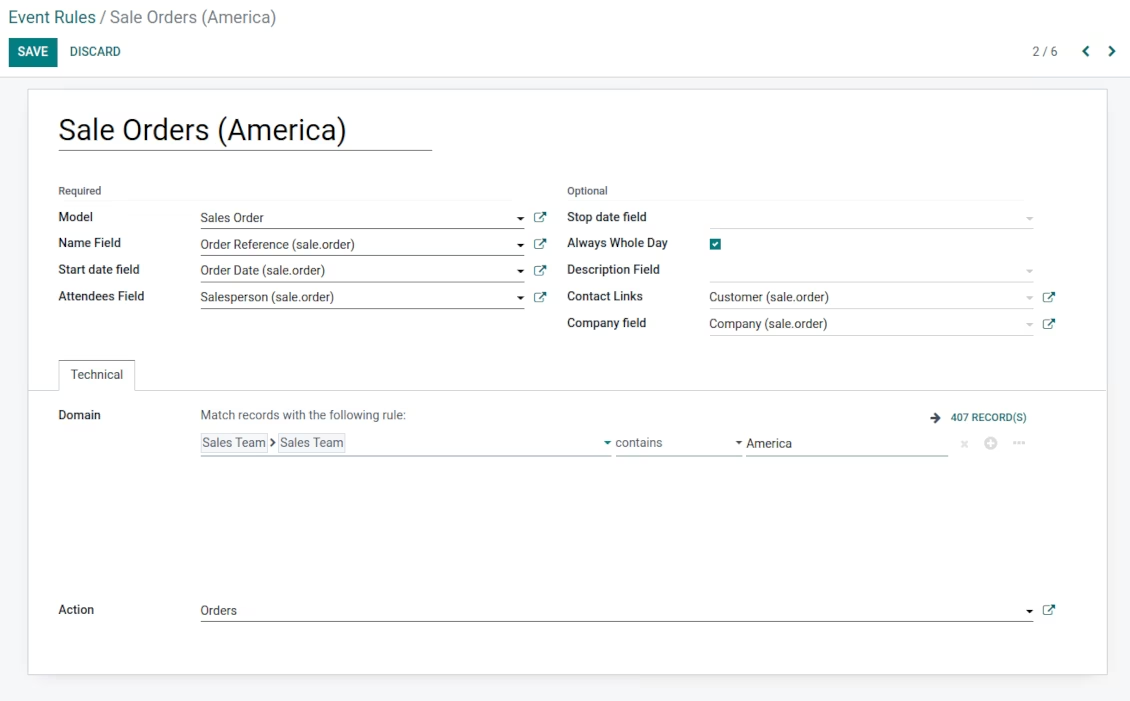
Sale orders on a shared calendar
-
As a model use 'Sales order'
-
As a name use 'Order Reference'
-
As a start date field use 'Order Date'
-
As attendees' field use 'Salesperson'
-
As a contact link use 'Customer'
-
As a domain optionally restrict quotations by sales teams.
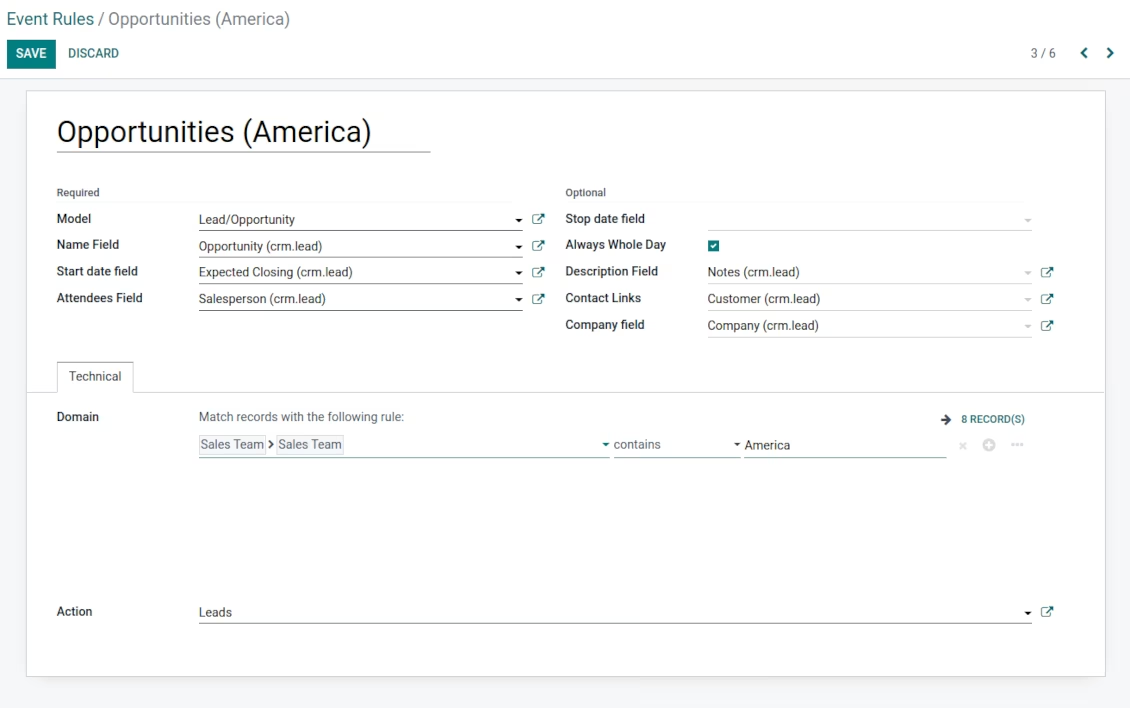
Opportunities on a super calendar
-
As a model use 'Lead/Opportunity'
-
As a name use 'Opportunity'
-
As a start date field use 'Expecting Closing'
-
As attendees' field use 'Salesperson'
-
As a contact link use 'Customer'
-
As a domain optionally restrict opportunities by sales teams.
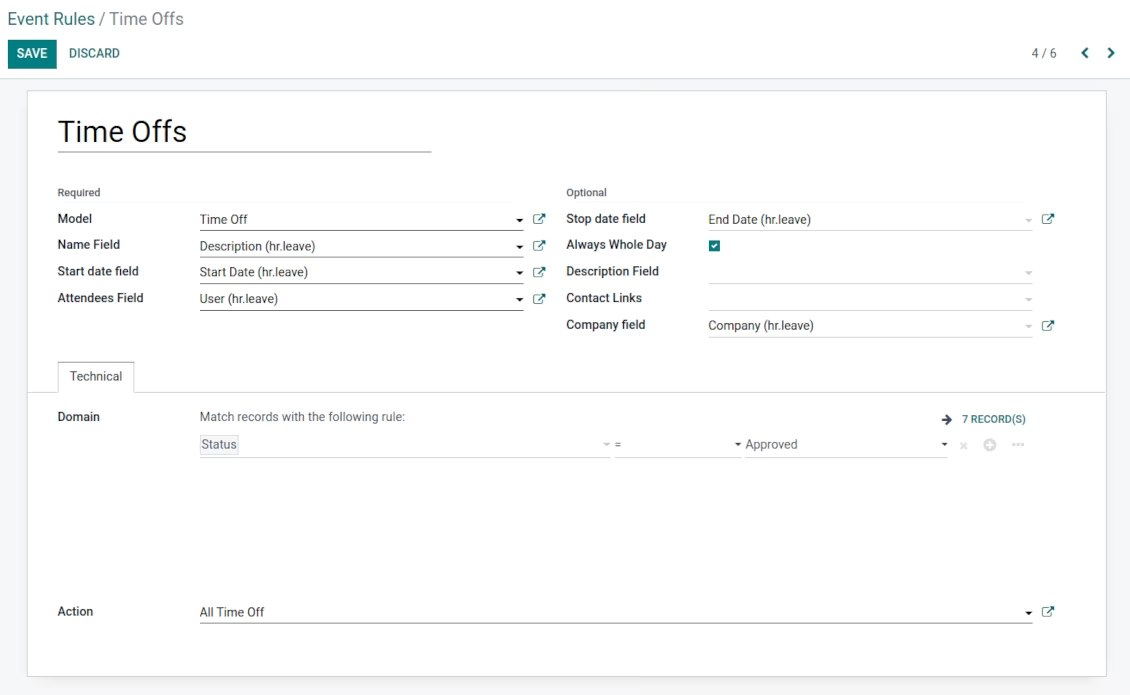
Share employees' time offs and leaves
-
As a model use 'Time Off'
-
As a name use 'Description'
-
As a start date field use 'Start Date'
-
As attendees' field use 'User'
-
As a stop date field use 'End Date'
-
As a domain filter by status: show only approved leaves.
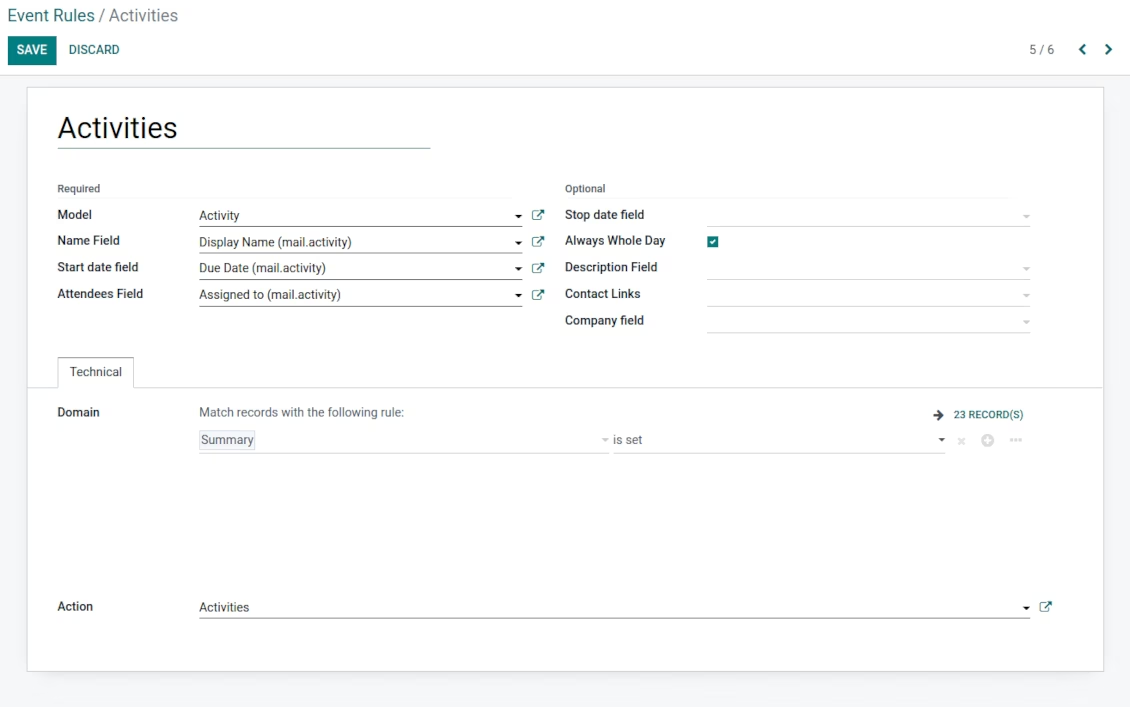
Activities by all objects
-
As a model use 'Activity'
-
As a name use 'Display Name'
-
As a start date field use 'Due Date'
-
As attendees' field use 'Assigned to'
-
As a domain apply 'Summary is set'
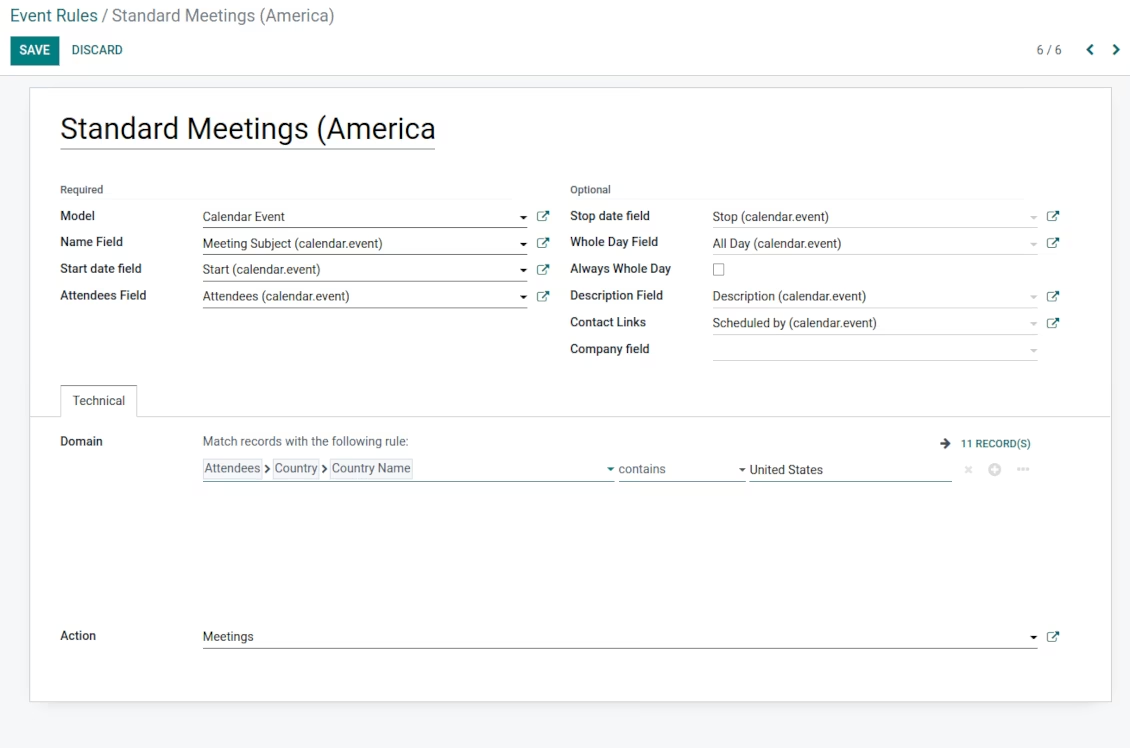
meetings to the joint calendar
-
As a model use 'Calendar Event'
-
As a name use 'Meeting Subject'
-
As a start date field use 'Start'
-
As a stop date field use 'Stop'
-
As attendees' field use 'Attendees'
-
As a whole day field 'All Day'
Flexible rules to merge documents
To add a new document type for a shared interface you should set up a joint calendar rule. This rule defines which objects should create events, which fields of that object should be shown, and whether any filtering should take place
-
Model - which objects to scan: opportunities, tasks, orders, meetings, activities, and so on. You can choose your custom document type (including created in Studio) as well
-
Name - what to use as a joint event name (also used as calendar event title). Usually, it is 'name', 'subject' or 'reference'
-
Start date - when an event starts. For example, 'expecting closing' for opportunities or 'order date' for quotations. It may be any date or date with time field of a source object
-
Stop date - when an event is shown as finished on a calendar
-
Attendees - who are participants (responsible persons, event owners). Usually, it is a field 'assigned to', 'a sales person' or 'attendees'. You may use even document 'followers' since it's possible to apply both users and partners
-
Description - are there any notes important for joint events? Usually, the fields like 'internal notes' or 'comments' are used
-
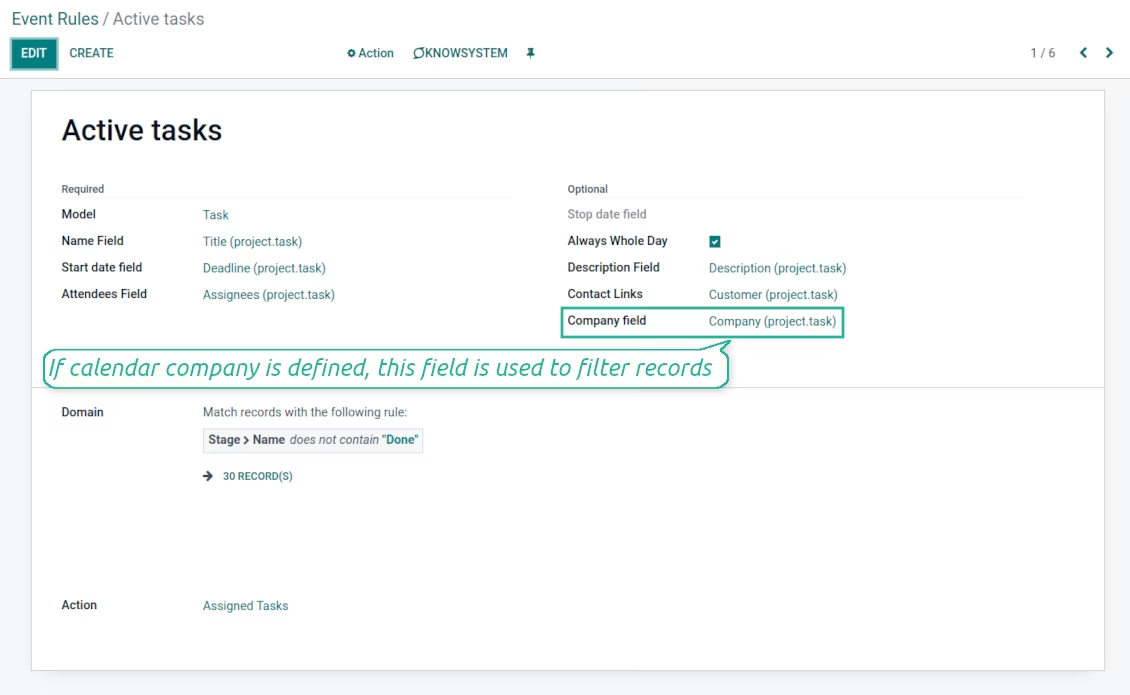
Company field - optionally define the parent document field where its company is kept. In this way, joint events would get the source company that might be used for filtering or just for information
-
Always Whole Day - means that all generated events would last the whole day disregarding whether start or stop are defined with hours and minutes. Such an event would be shown at a special place on a calendar (above the timeline)
-
Whole Day - a special boolean field of source object which indicates that a related joint event may last the whole day. This setting is usually applied to standard calendar events which both might have a definite time indicated or might be planned for a whole day
-
Contact Link - is this event linked to a specific partner? Usually, the fields like 'customer' or 'vendor' are used
-
Domain - the filters' constructor to include only topical documents into a joint calendar. You might apply any storable attribute. For example, show only quotations without sales orders, or show opportunities only for this sales team
-
Action - defines which form view should be shown when you open a source document from a joint event. It is a technical field that in most cases should not be changed in comparison to a default value.
Multi companies compatibility
-
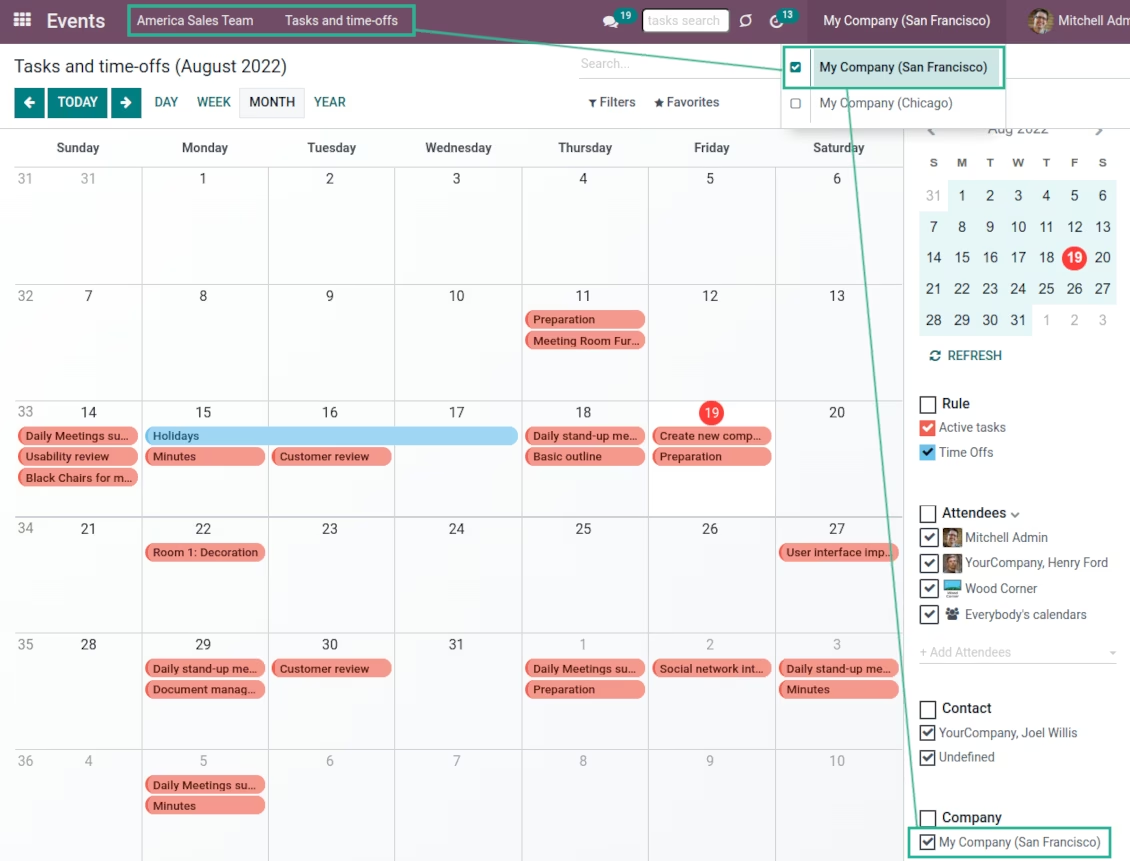
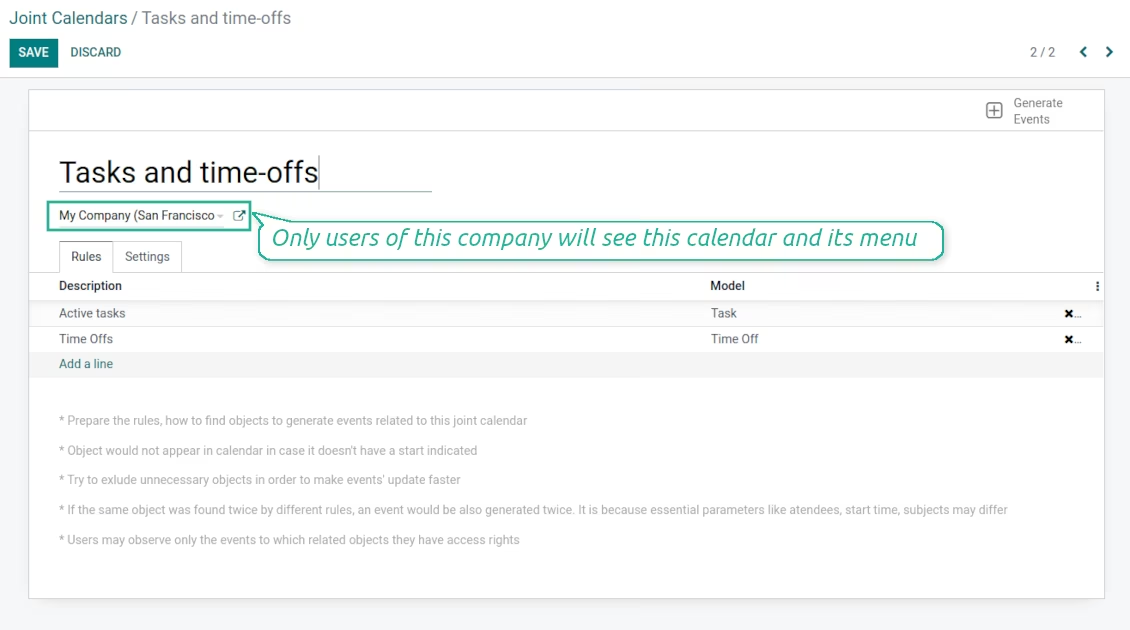
The app fully supports the multi-companies environment: each joint calendar might be linked to a specific company. If company is not defined, it is considered as 'global', so available for all companies
-
Users access only those joint menus which super calendars do not have a company or have one of those users available companies
-
Each joint rule might have the "Company field" defined. If that setting is configured, records would be filtered in a joint calendar company. For example, if you stated 'Company' as the 'Company field' for the tasks rule, and joint calendar is linked to 'San Fransisco' company, then users would see only San Fransisco or global tasks only
-
Joint events would also get the company based on the 'Company field' of the parent document. You can comfortably switch between objects of different companies using the right navigation filters
-
In addition to the 'Company field', you may also restrict records in a rule domain. For instance, to include records of a few companies but not to include of others.
Combine events on Enterprise Gantt view
-
For any joint calendar, optionally add the Enterprise edition Gantt view
-
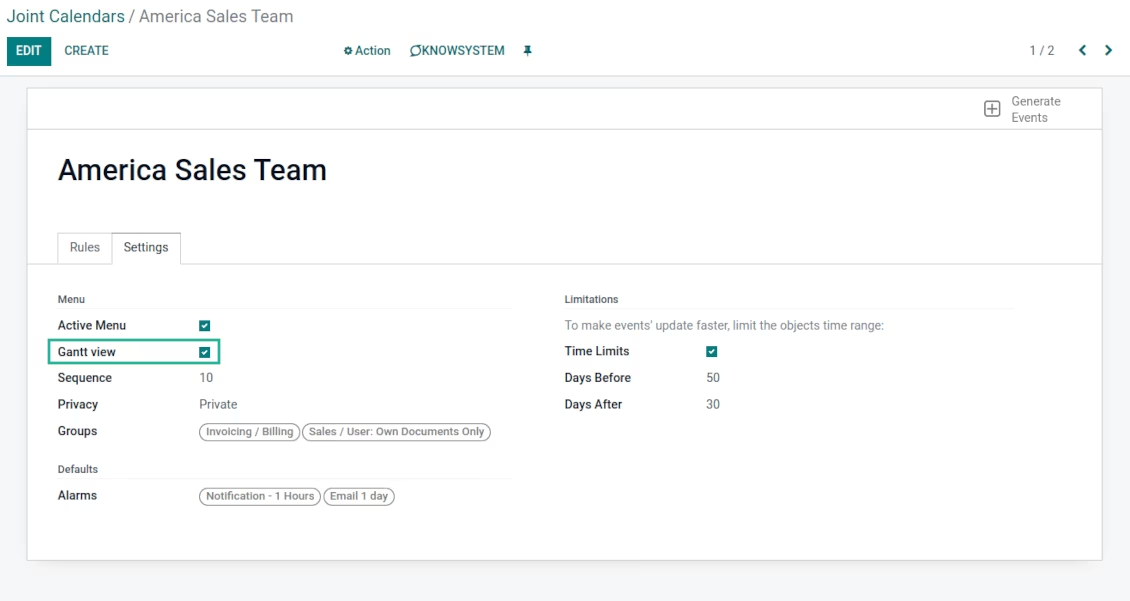
To that goal, just tick the box 'Gantt view' on the supper calendar settings
-
The app would automatically extend a target joint calendar action after you saved the changes
-
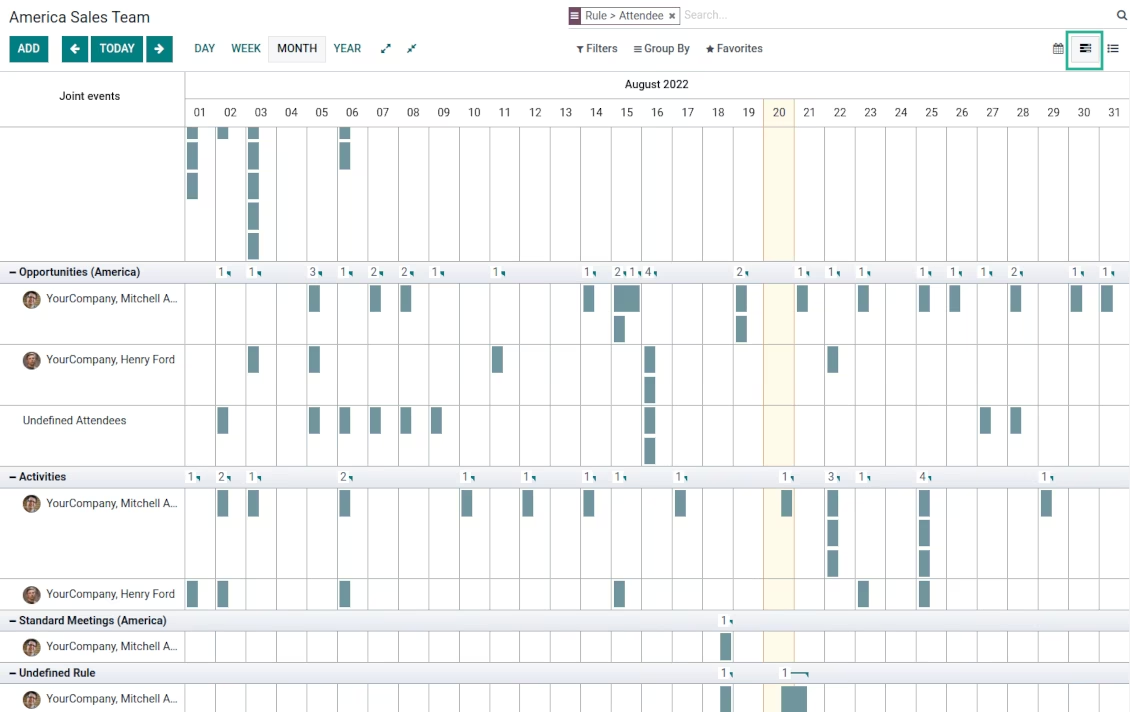
In this way, you can have a single super Gantt view for various documents
-
Manage those events in a comfortable manner: reassign responsible users, drag and drop those to change periods, etc.
The tool lets you change the frequency of joint calendar refreshing and emails reminders' checks:
- Turn on the debug mode
- Go to technical settings > Automation > Scheduled jobs
- Find the job 'Refresh Joint Events' to change the frequency of super calendars' update
- Find the job 'Notify About Joint Event' to change the frequency of email alarms.
various documents on the single calendar
Multiple rules to search documents by types
Joint calendar settings
Configure reminders for any event
Joint event form: instant access to parent document
Joint event rule (example of tasks)
Joint event rule (example of sale orders)
Joint event rule (example of opportunities)
Joint event rule (example of time offs)
Joint event rule (example of meetings)
Joint event rule (example of activities)
Menus and records are filtered by available companies
Super calendar: choose a company
Filter records by a joint calendar company
Combine different documents on the Enterprise Gantt view
Optionally add Gantt view for joint calendar