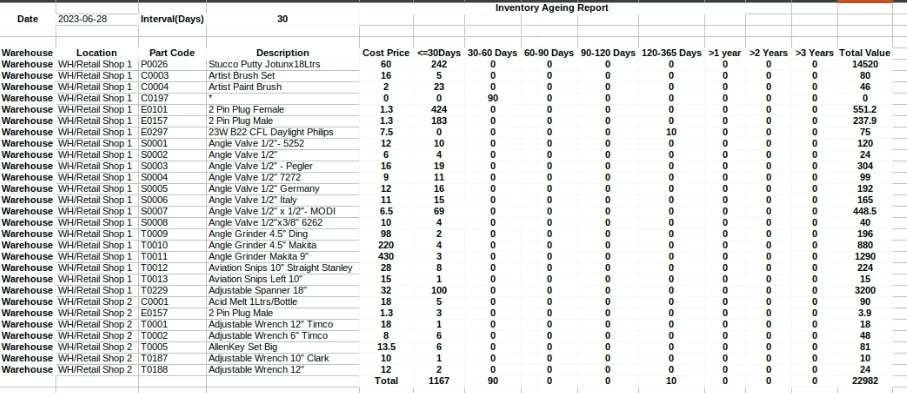
The module helps businesses uncover how long items have been sitting in stock, enabling better inventory control and reducing holding costs. By categorizing stock based on age periods such as days, weeks, or months, it highlights slow-moving or potentially obsolete items, optimizing turnover and warehouse space.
Present stock ageing reports segmented by defined time intervals (e.g., 0–30 days, 31–60 days, etc.).
Show ageing data both in terms of quantity and monetary value for comprehensive insight.
Support grouping and filtering by product, category, warehouse location, or company.
Allow customization of ageing buckets to align with business needs.
Enable export of ageing reports in PDF or Excel for documentation or further analysis.
Enhance financial accuracy by identifying aging stock that ties up capital.
Improve decision-making for promotions, discounts, or clearance of stagnant items.
Optimize inventory space by managing slow-moving items proactively.
Increase warehouse efficiency and reduce obsolescence risk.
Support audit and strategic planning via structured ageing trends.
Inventory Ageing Report in Excel
This module helps the user identify the time taken for each inventory before stocking out.
Indicates the time it takes for each inventory before stocking out.
The ideal inventory age can be a week, a month, or even up to 90 days from the supplier’s delivery date.
Conversely, most companies consider the items that is in stock for more than six months or 180 days to be considered as dead stocks.
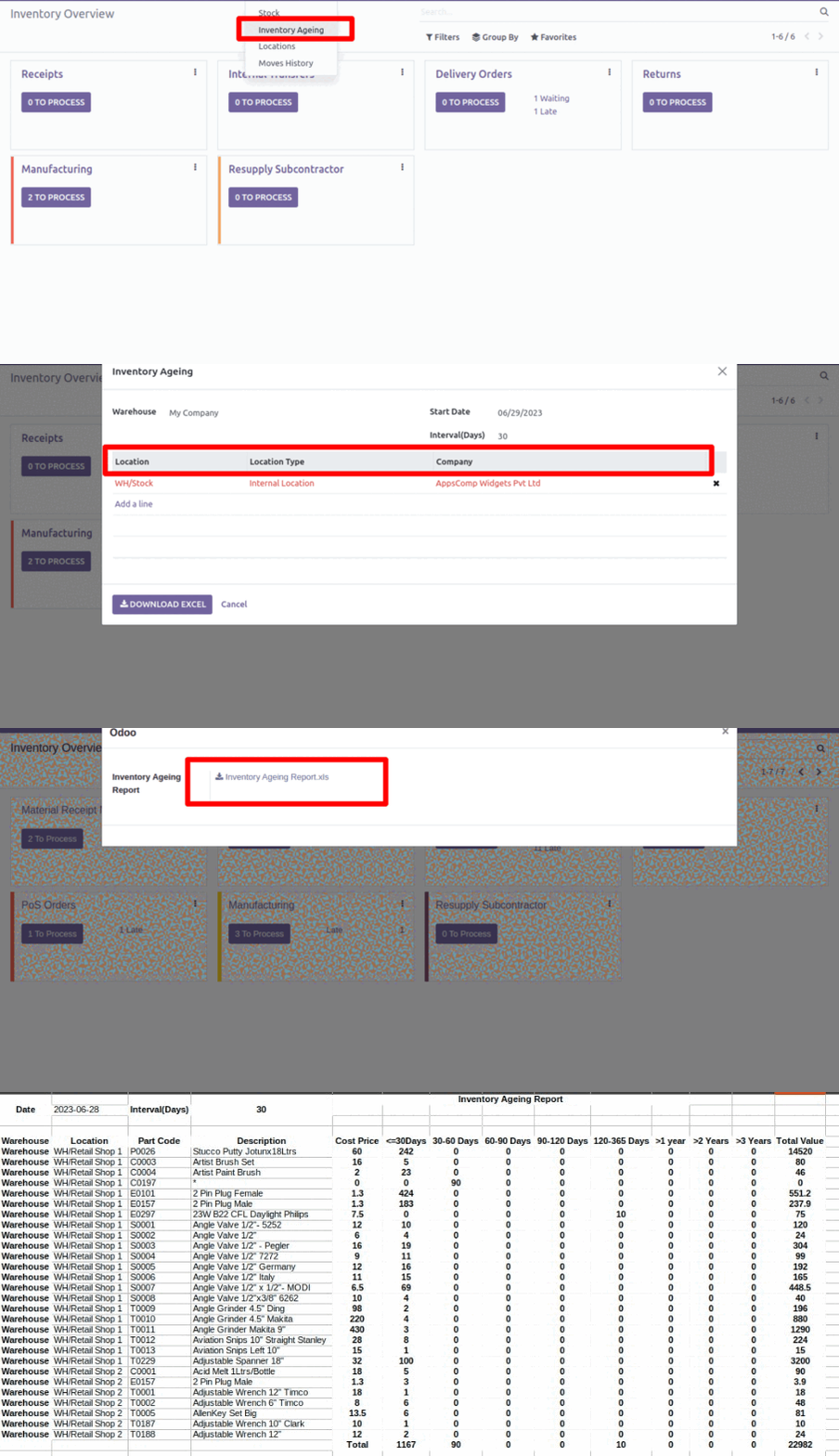
Click on Reporting and choose Inventory Ageing option.
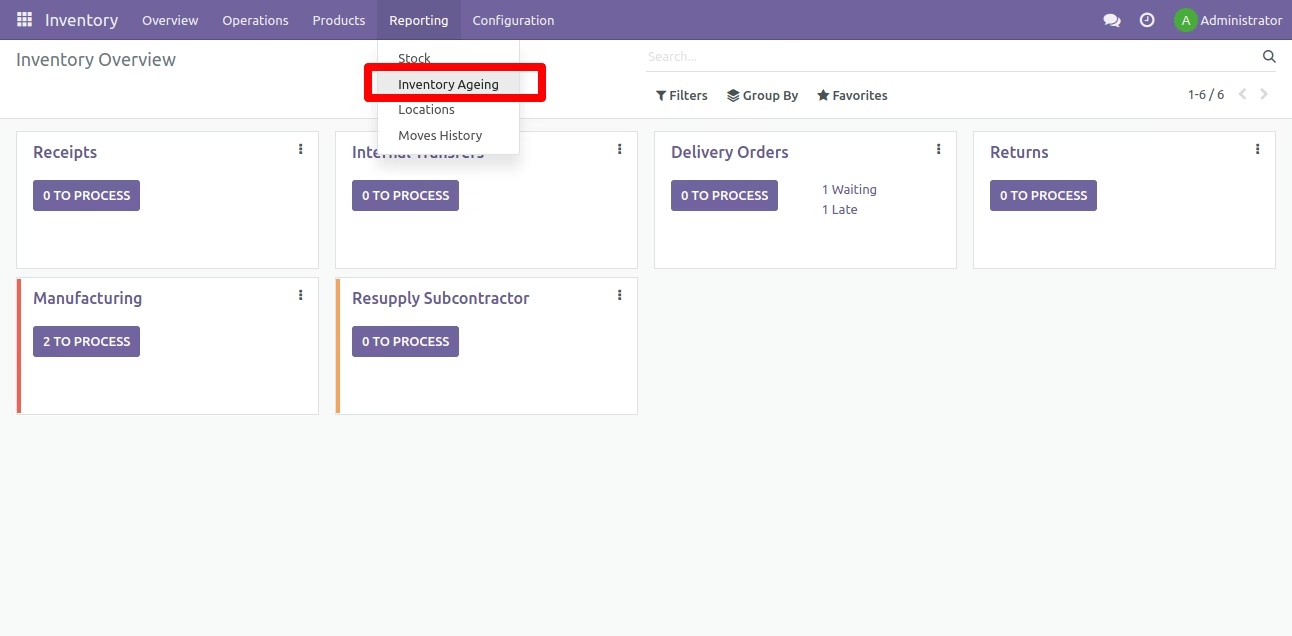
An Inventory pop-up will appear, and provide Location, Location Type, and Company. Furthermore, click on the Download Excel option.
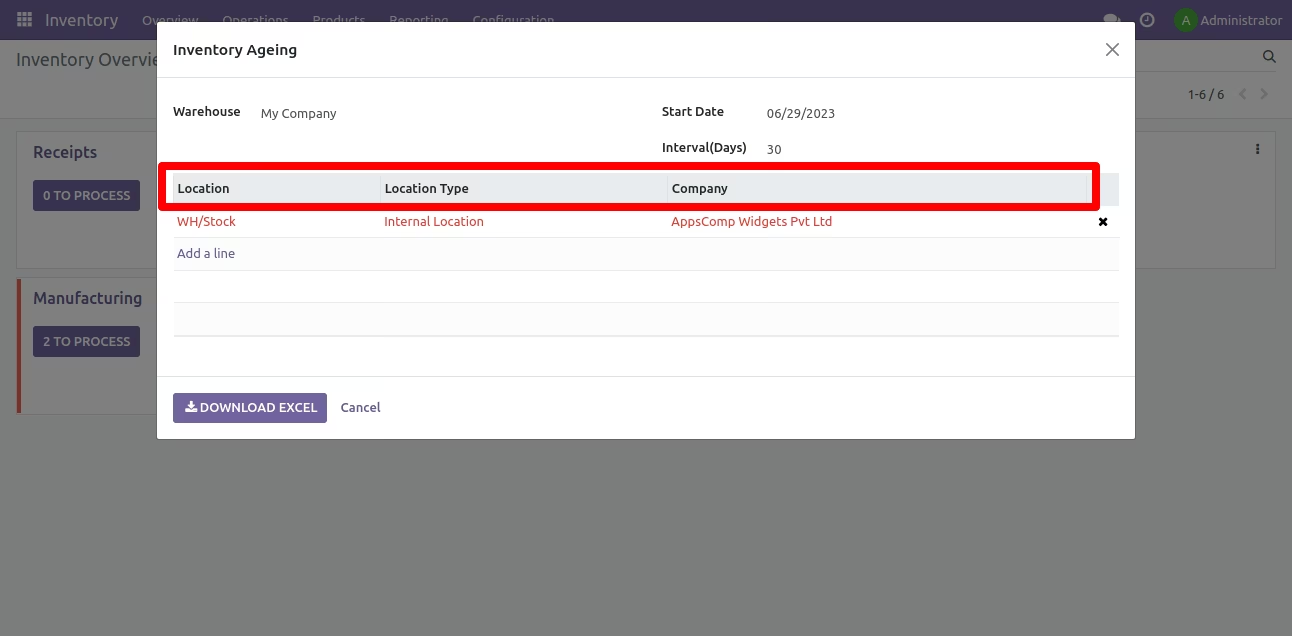
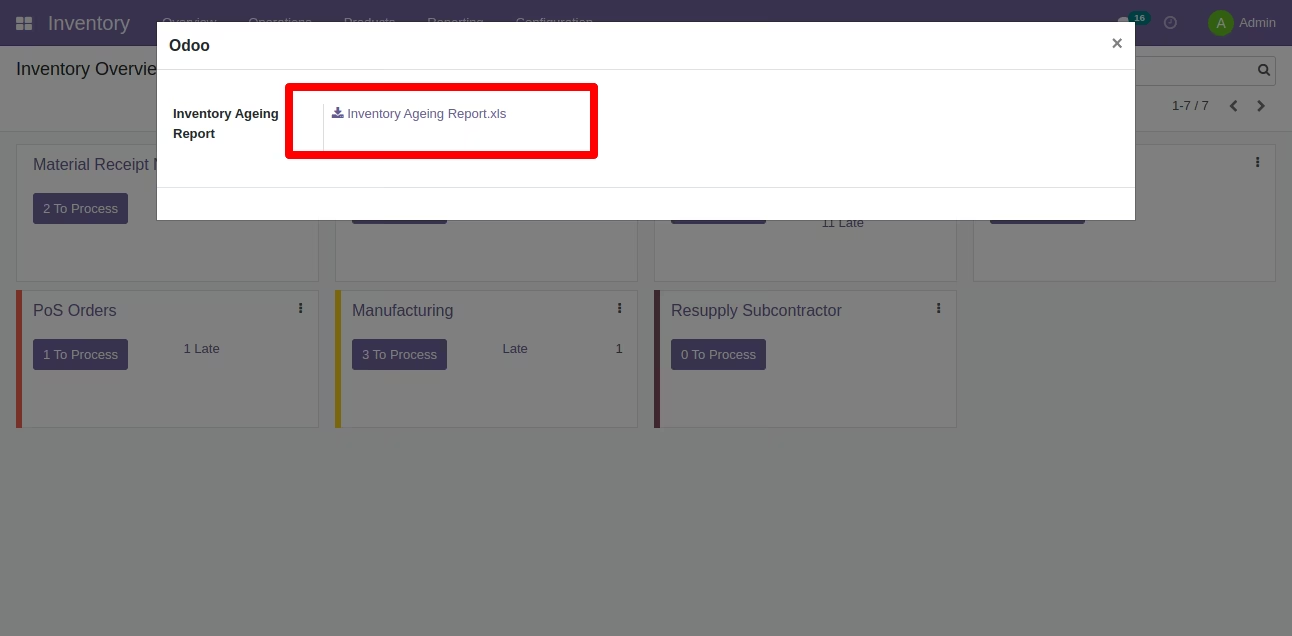
Now, click on the Inventory Ageing Report.xls to generate the inventory report.
 clip;-->
Detailed Inventory report is displayed below.