The module equips organizations with a seamless system for managing material requisitions. Employees can raise requests for needed materials, and those are routed through defined approval hierarchies such as department managers or procurement leads. Upon approval, requests can trigger either purchase orders or internal transfers, ensuring timely fulfillment while maintaining oversight and auditability.
Create material requisition requests with multiple items per request.
Route requests through configurable approval workflows (e.g., manager, procurement officer).
Allow choice between sourcing via purchase order or internal transfer from warehouse stock.
Send notifications at each step to keep stakeholders informed.
Generate internal picking or purchase orders automatically after approval.
Provide clear reporting and filtering tools to monitor request status and history.
Simplify and standardize the process for material requisition across departments.
Increase control and visibility over procurement and internal stock usage.
Enhance efficiency by automating purchase and internal transfer generation.
Support better inventory planning and enforce compliance through approval trails.
Improve accountability and traceability in material movement and usage.
This custom module allows user to generate Internal Material/ Inter-Warehouse Transfer requests. The process could be completed in two ways:
1-Step Transfer: Send the stock from source to destination location with manager's approval.
2-Step Transfer: Complete the material request transfer from Source to Transit and Transit to Destination location

Make Internal or Inter-warehouse material/transfer requests.
It can be performed in two different ways: 1-step transfer or 2-step transfer as per the suitability.
Manager requires to approve or disapprove the transfer request.
This app supports Single company Setup with Multi Warehouse and Multi Locations.

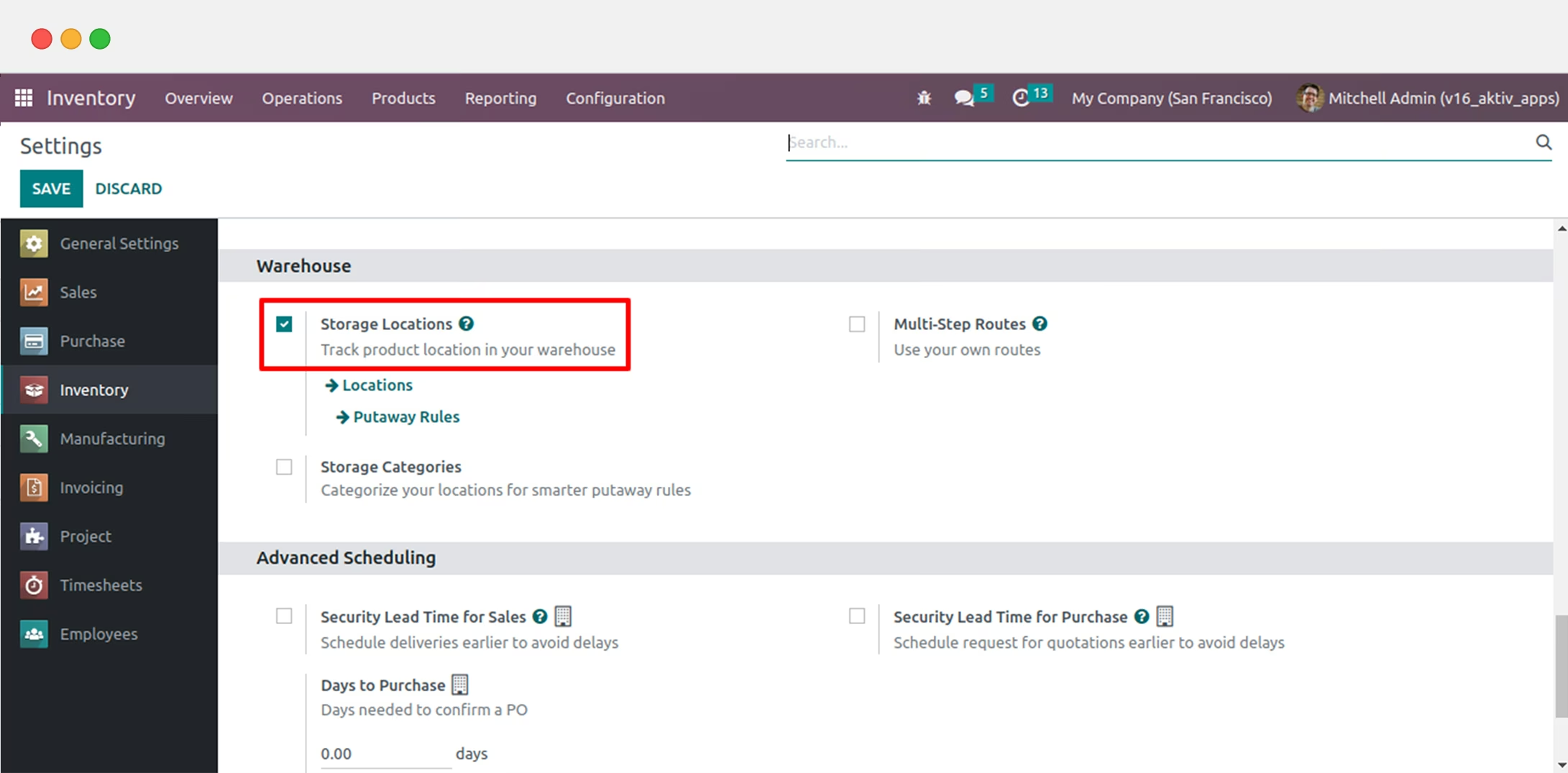
Go To Inventory > Click On "Configuration" menu > settings > Select Storage Locations
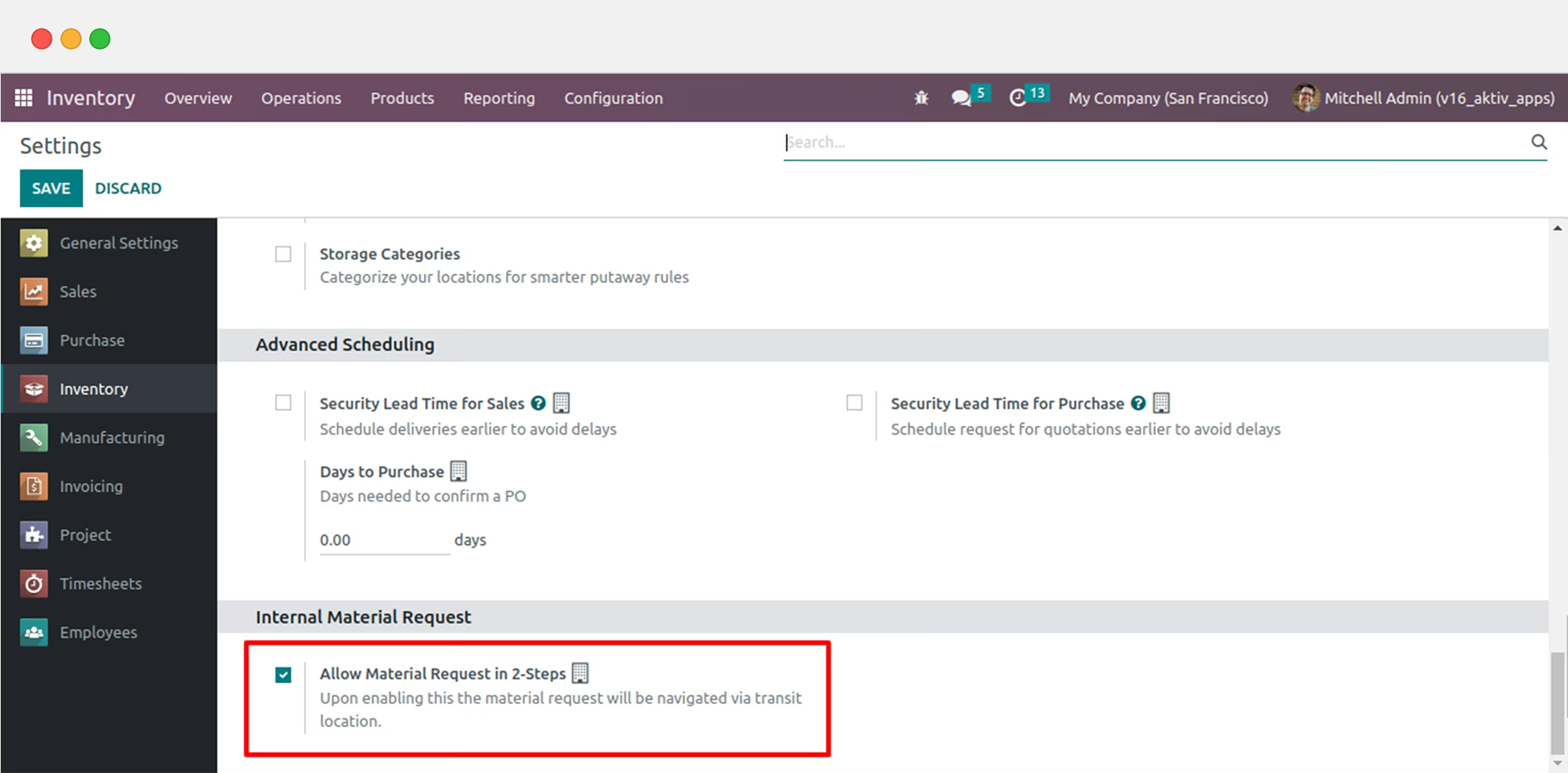
Go To Inventory > Click On "Configuration" menu > settings > Select Allow Material Request in 2-Steps.
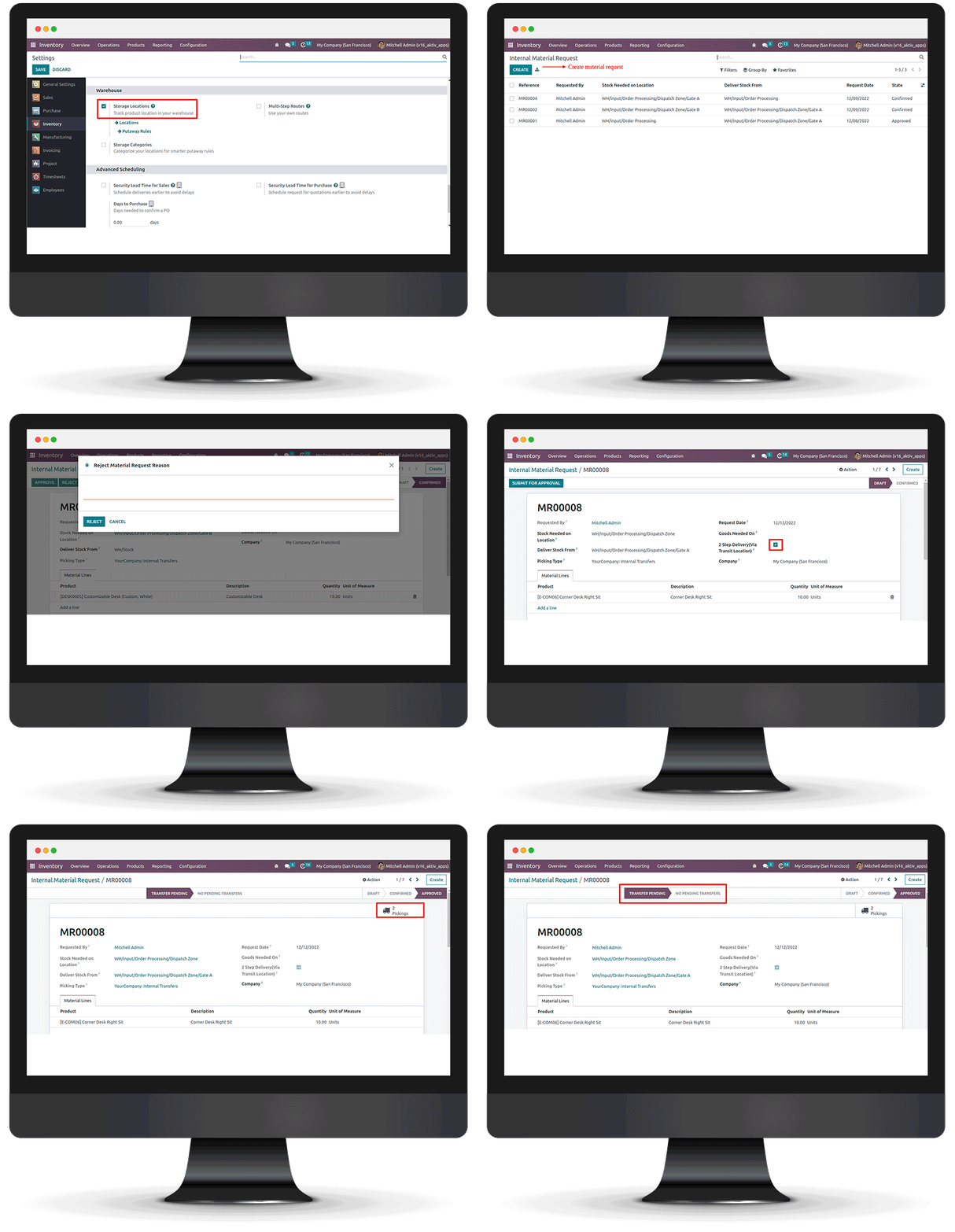
Screenshots
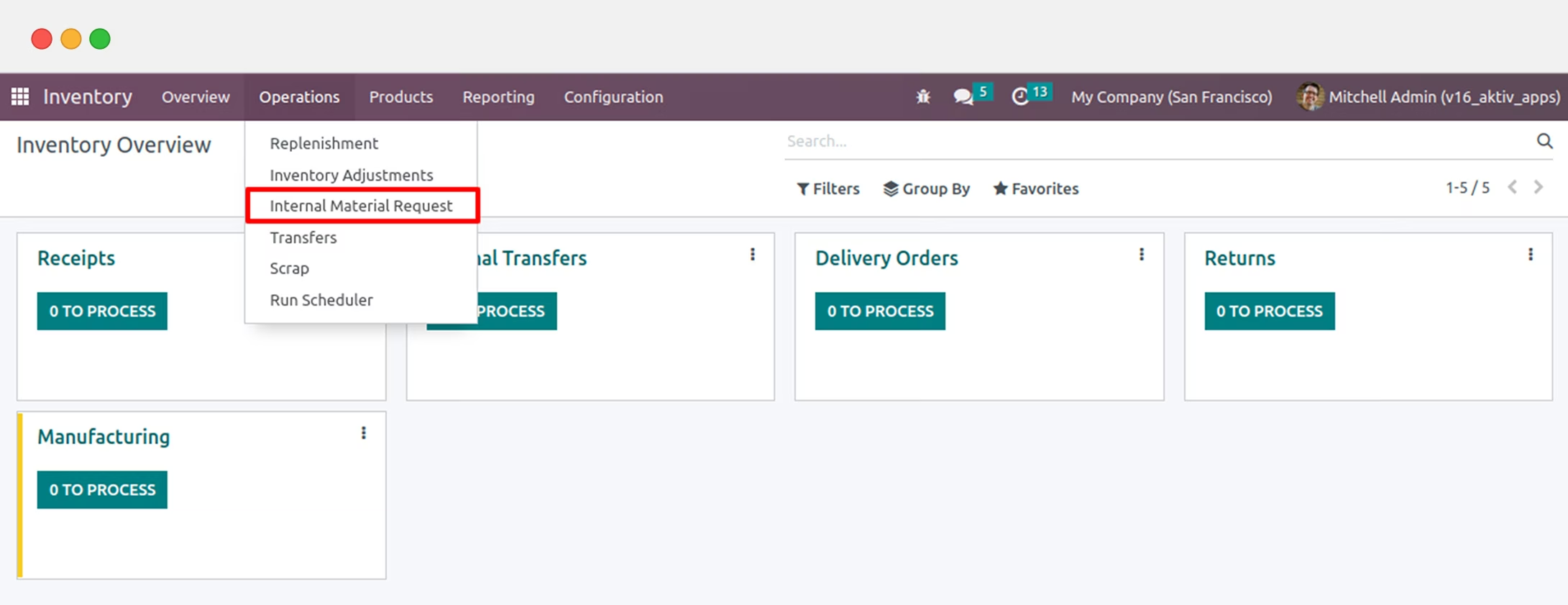
Click On "Operations" menu > Open Internal Material Request.
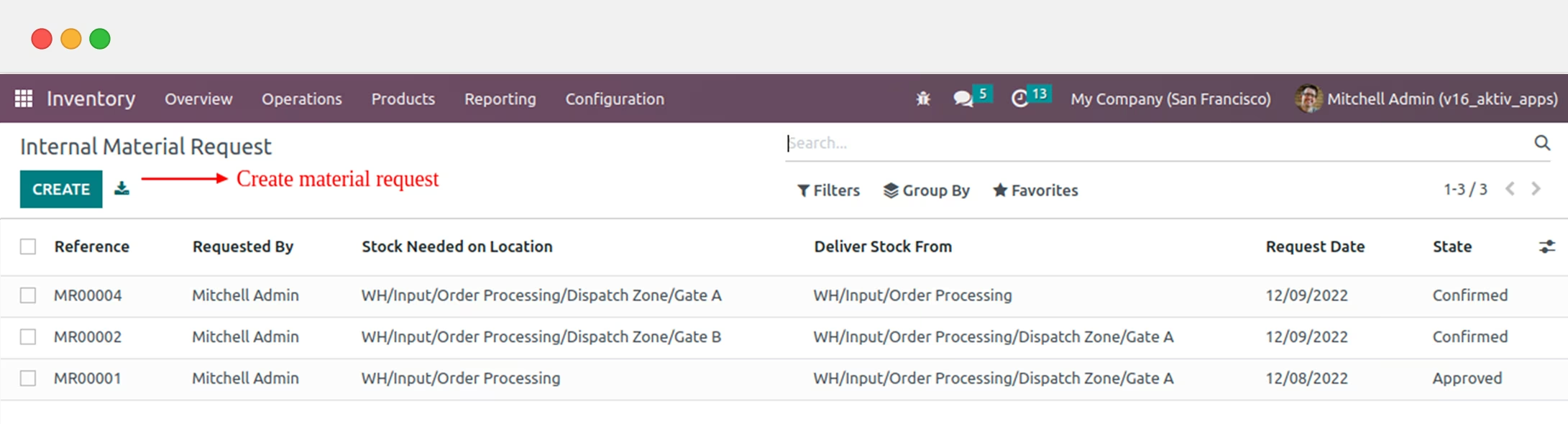
Create Material Request.
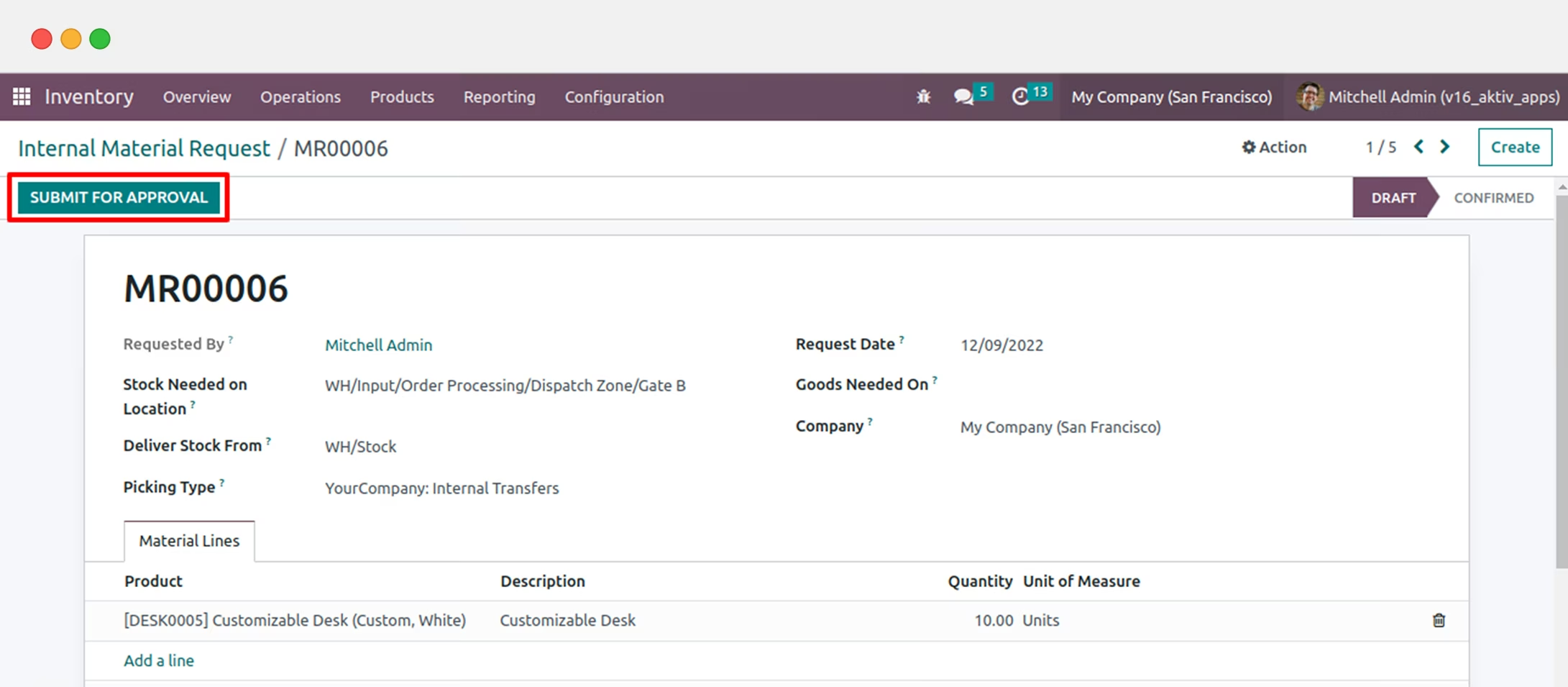
Material Request Process:
- Upon adding details about the source and destination location along with the list of goods user needs to click send the request for approval to manager which when approved will be marked as "Confirmed".
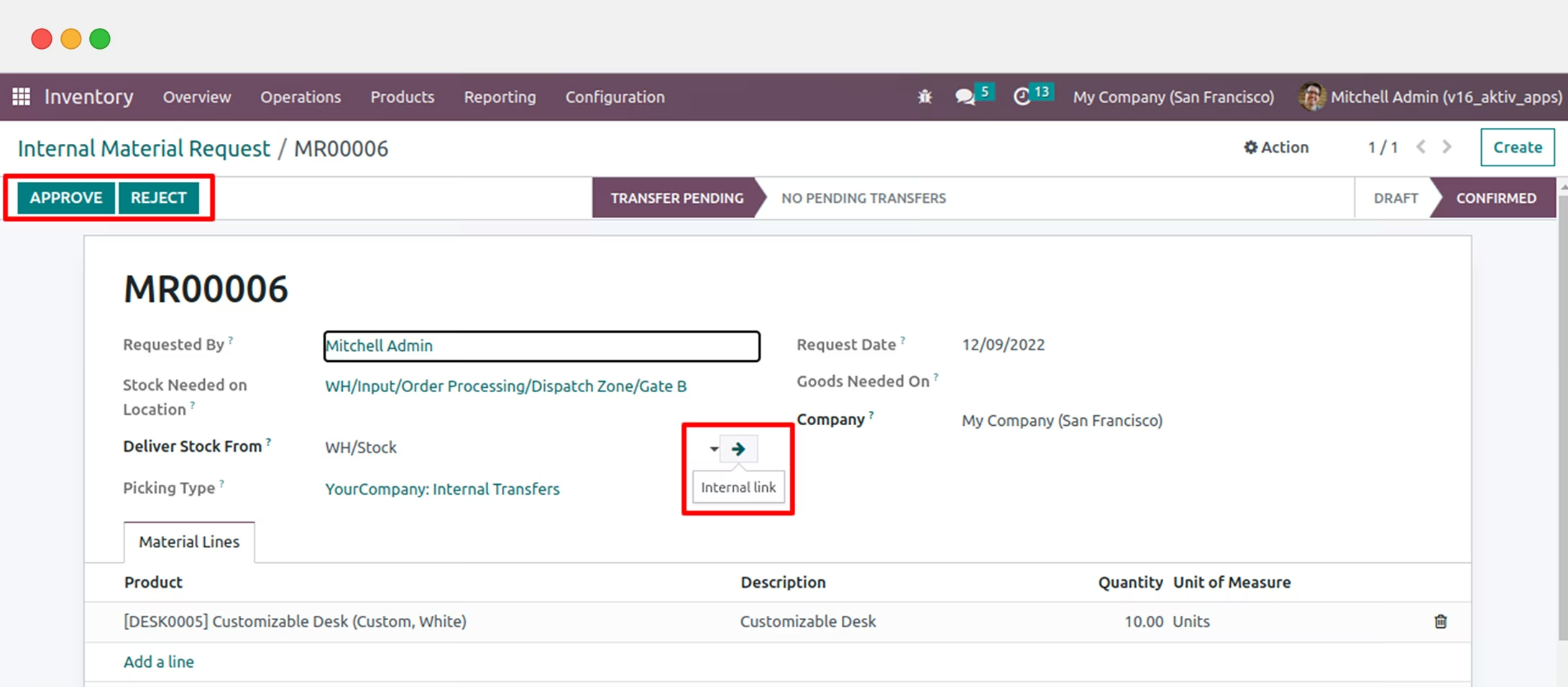
Material Request Approve/Reject:
- Warehouse Manager can approve or reject the material or transfer request made by the user. Whereas they also has the rights to update the source location and product lists.
If manager rejects the request, mentioning rejection reason is mandatory.
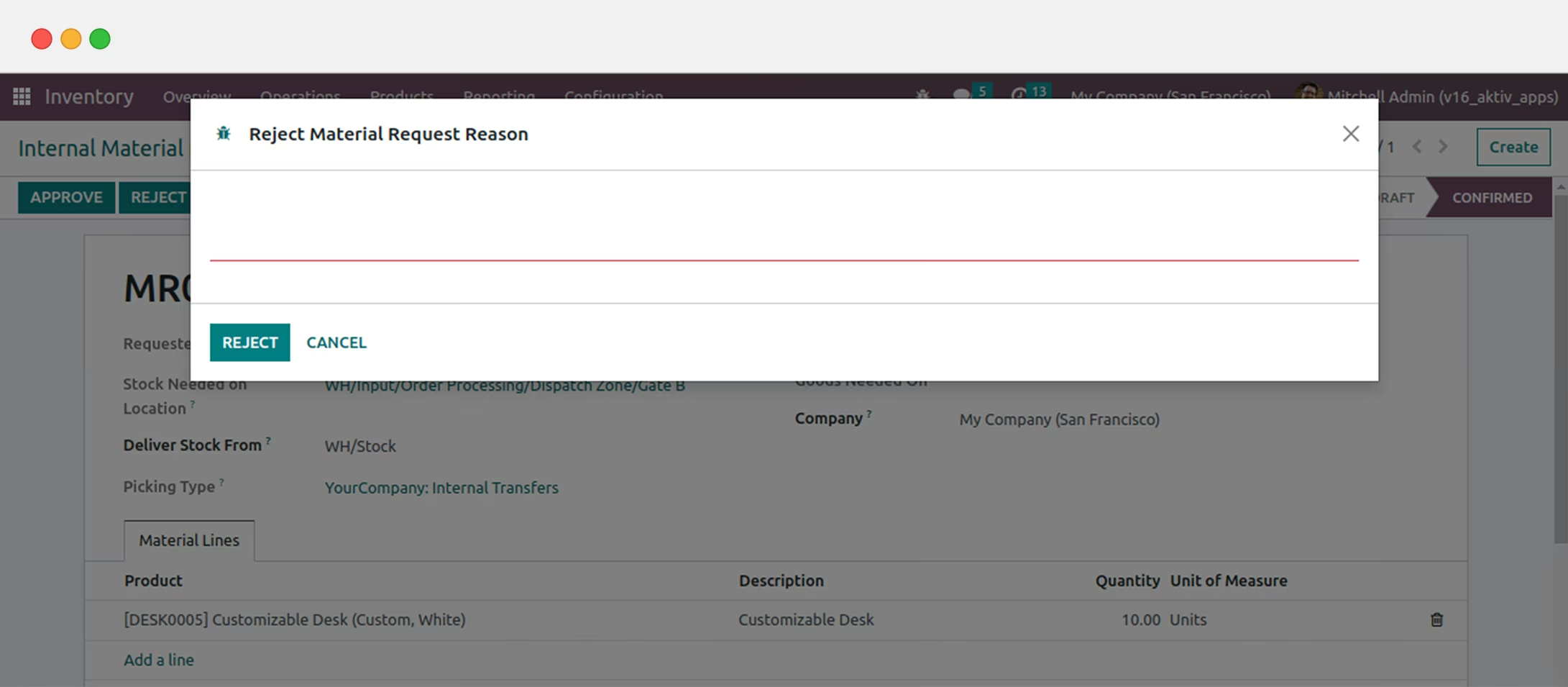
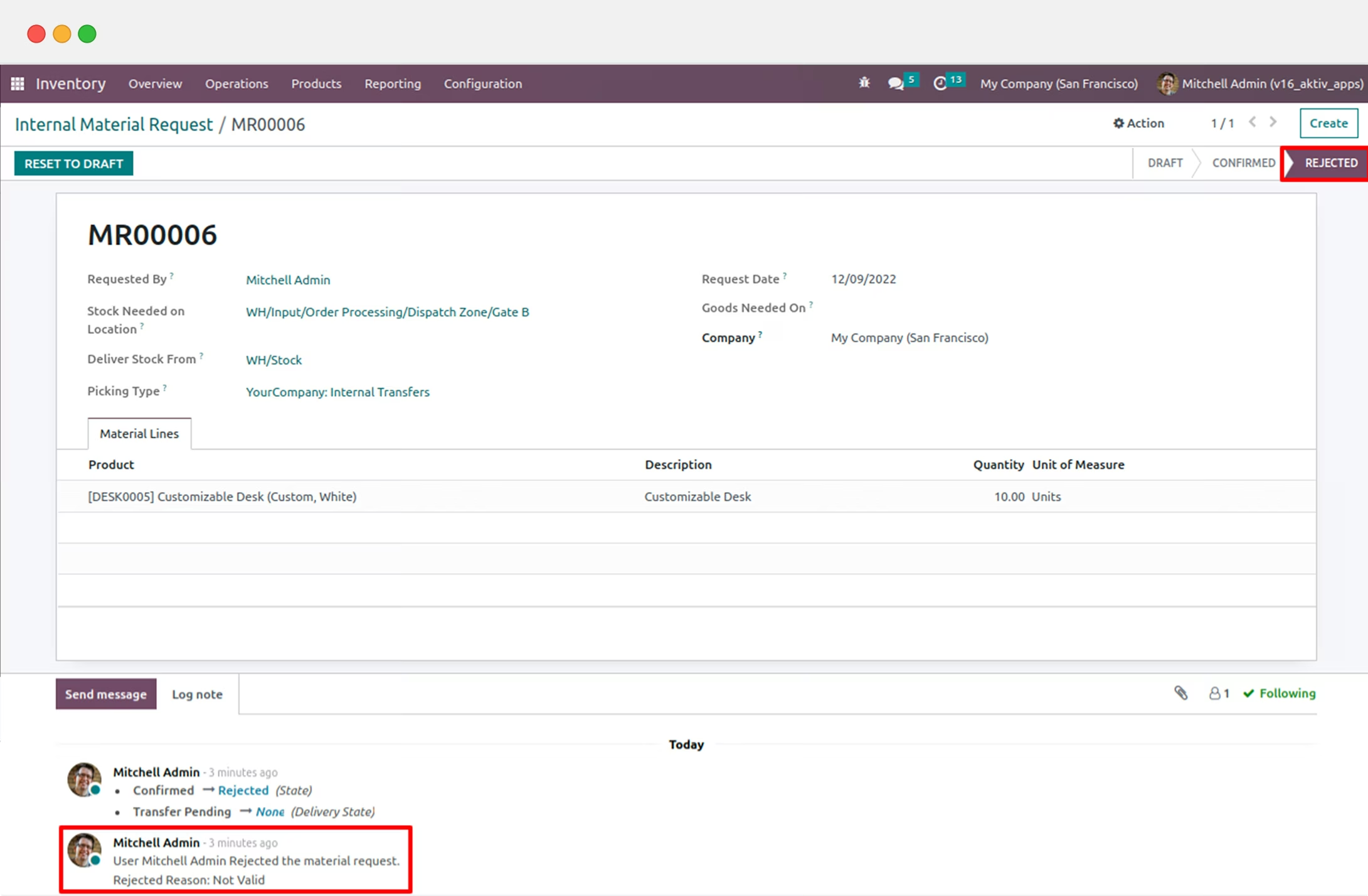
After rejection from manager users material or transfer request will shift to "Rejected" stage with a log note mentioning the rejection reason.
Material Request Picking Process 1-Step Transfer:
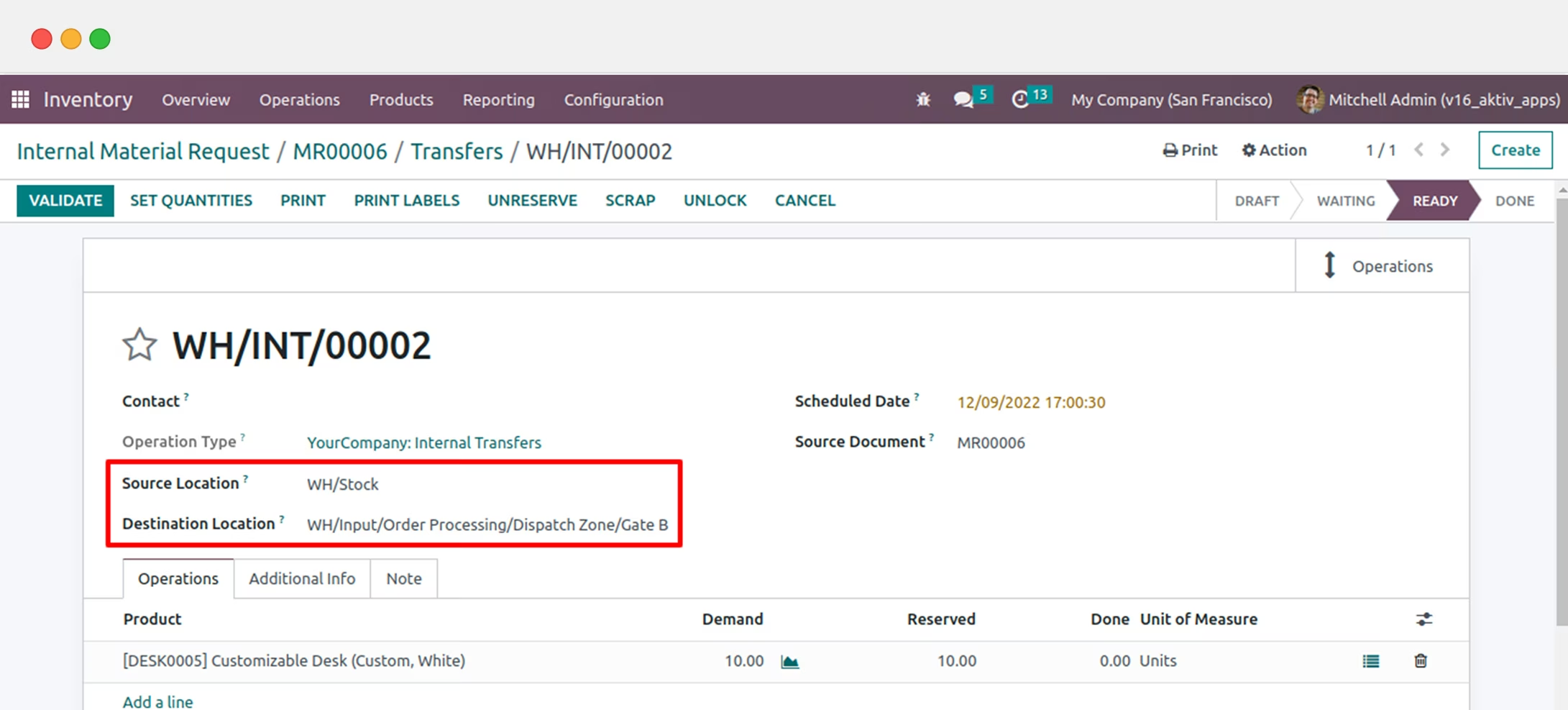
- Once the transfer request is approved by manager, an Internal Transfer is created with correct source and destination locations.
- The Transfer once created is visible in the Form view wherein one can see its current stage through a smart button as shown in the below screenshot.
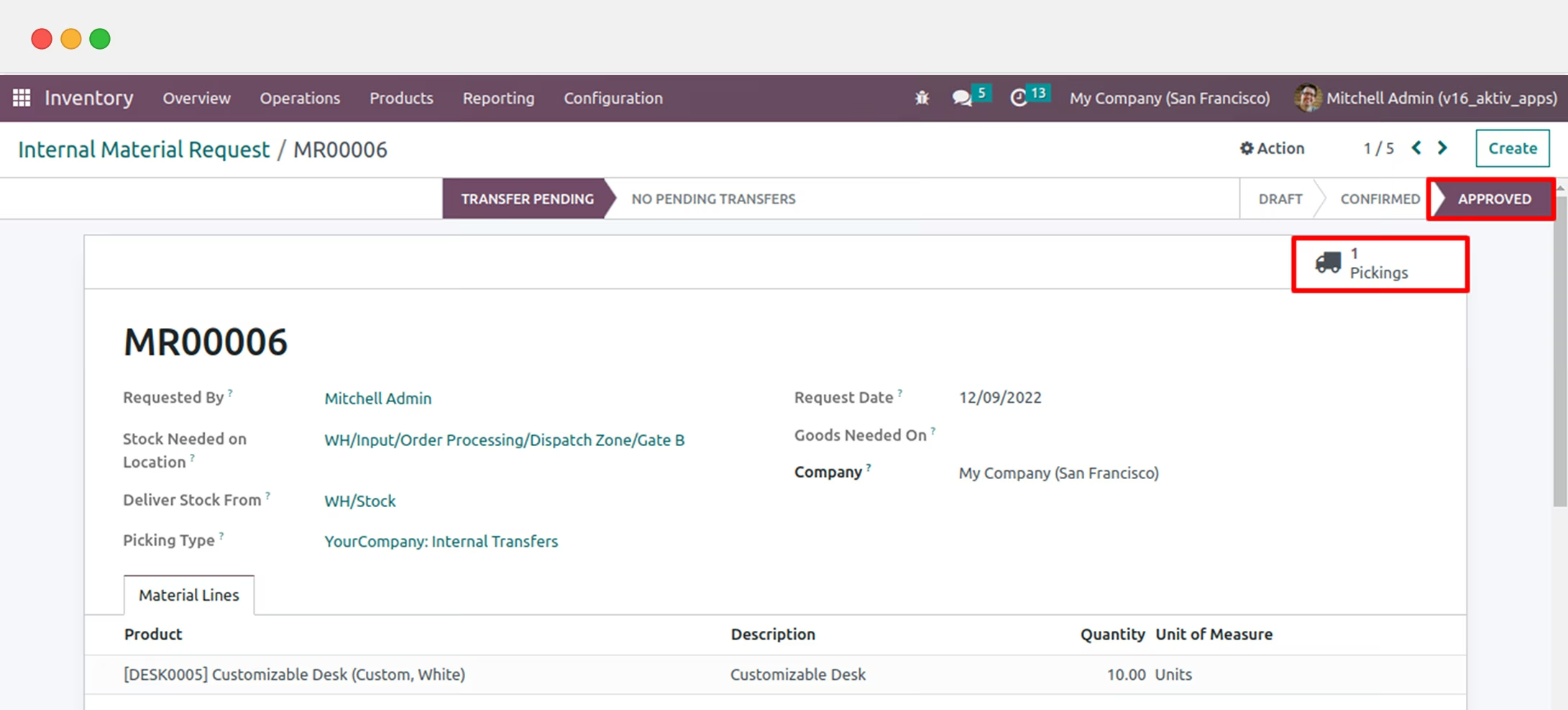
If user follows the 1-Step Transfer, single transfer is created with source and destination locations.
Material Request Picking- 2-Step Transfer:
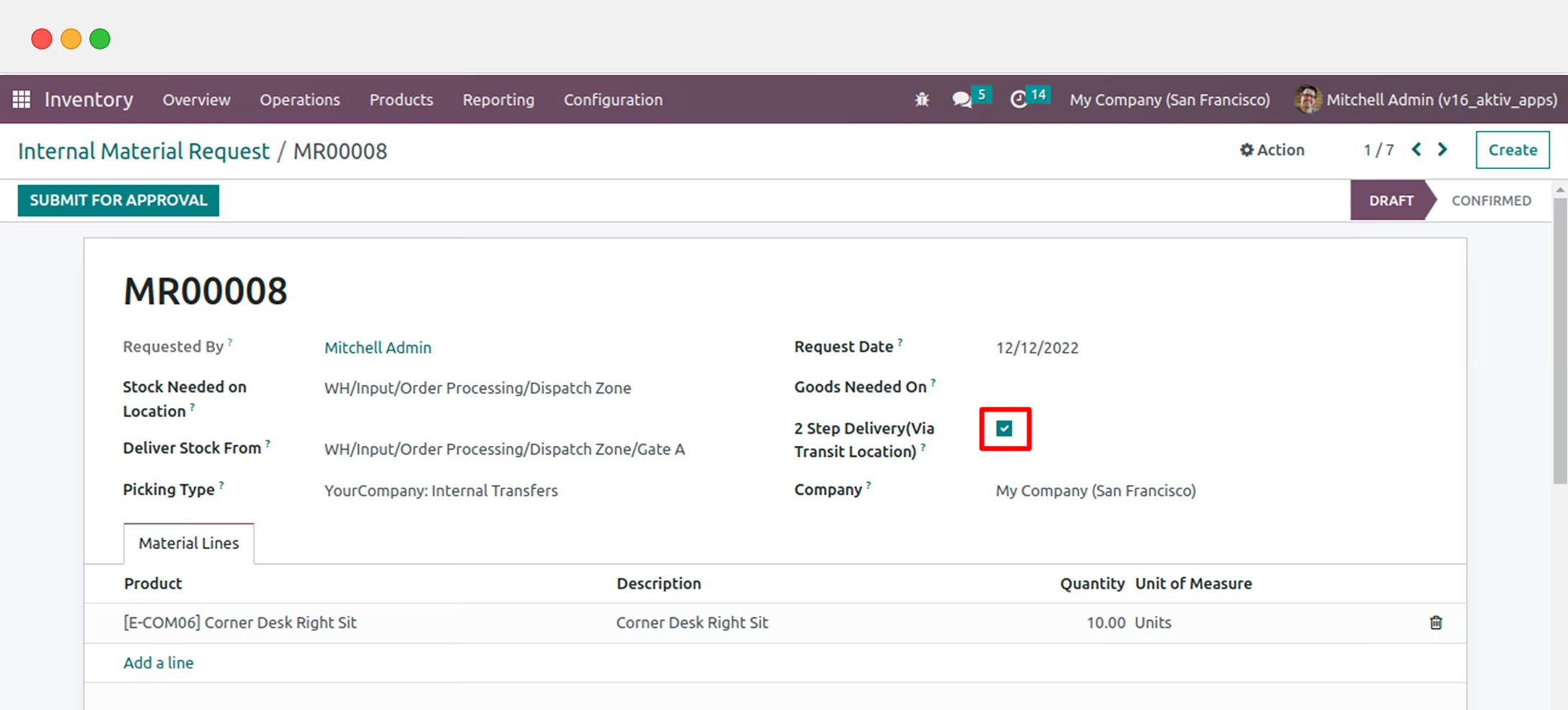
- In the 2-step transfer user needs to enable 2-step delivery for create 2-Step Internal Transfer via Transit Location
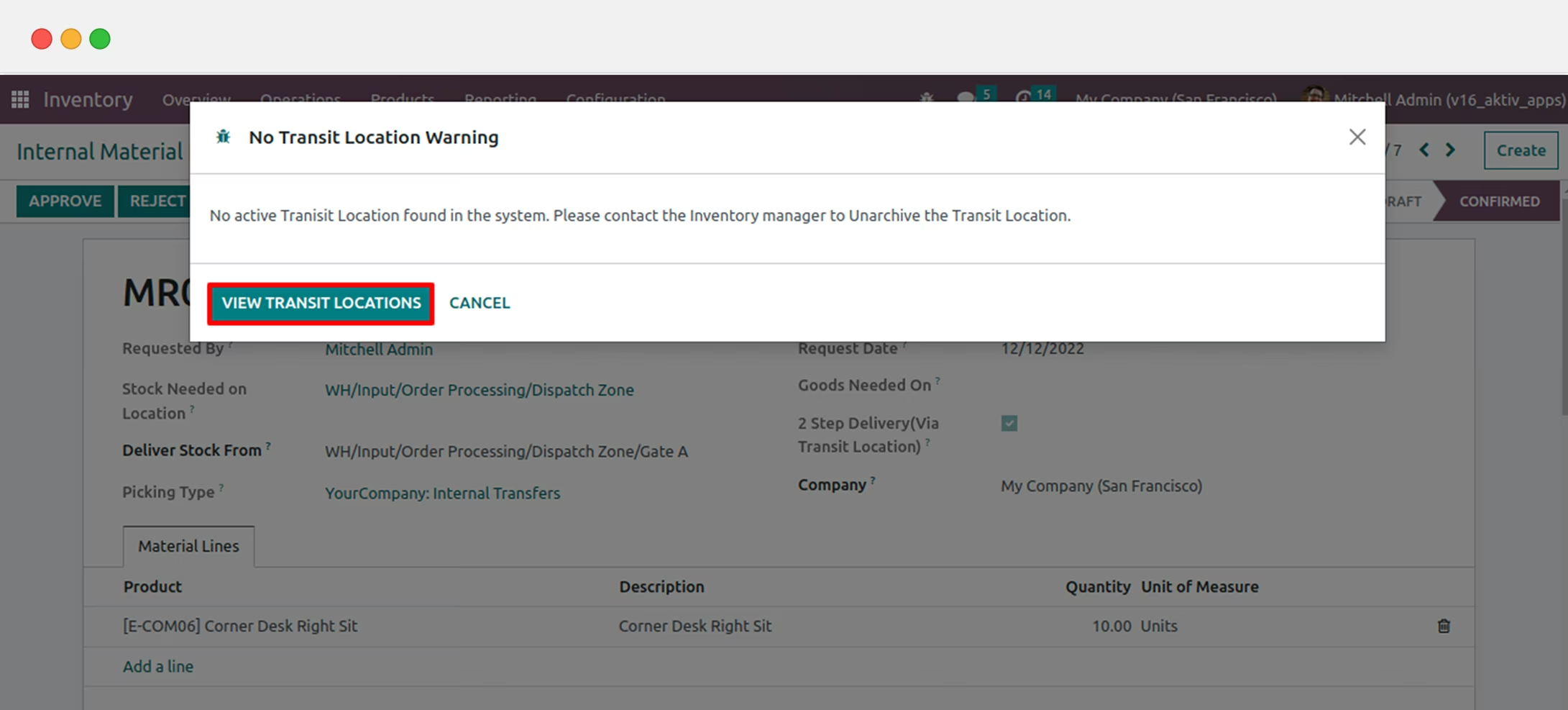
No Transit Location Warning :
- In the 2-step transfer when user submit the transfer he gets one location warning for that click on View Transit Location
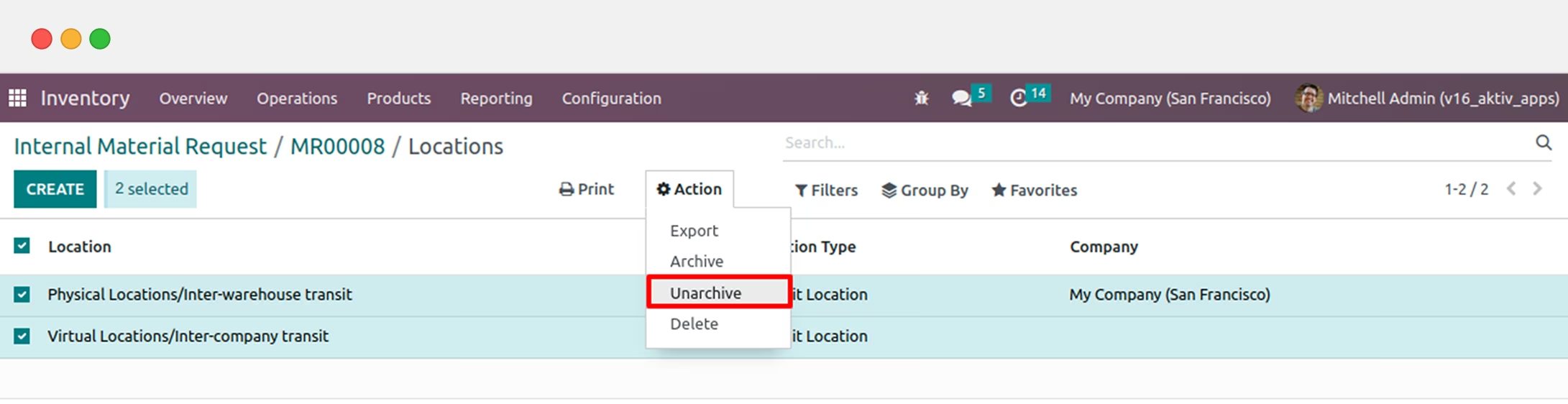
Un archive Transit Location :
- Select location and click on Action and select Unarchive for create one transfer in Transit Location
As seen in the 1-step transfer, everything till the manager approval and creation of single transfer will remain the same for the 2-Step transfer.In the 2-step transfer, the first transfer will occur from source location to transit location and second transfer will occur from transit location to destination location.
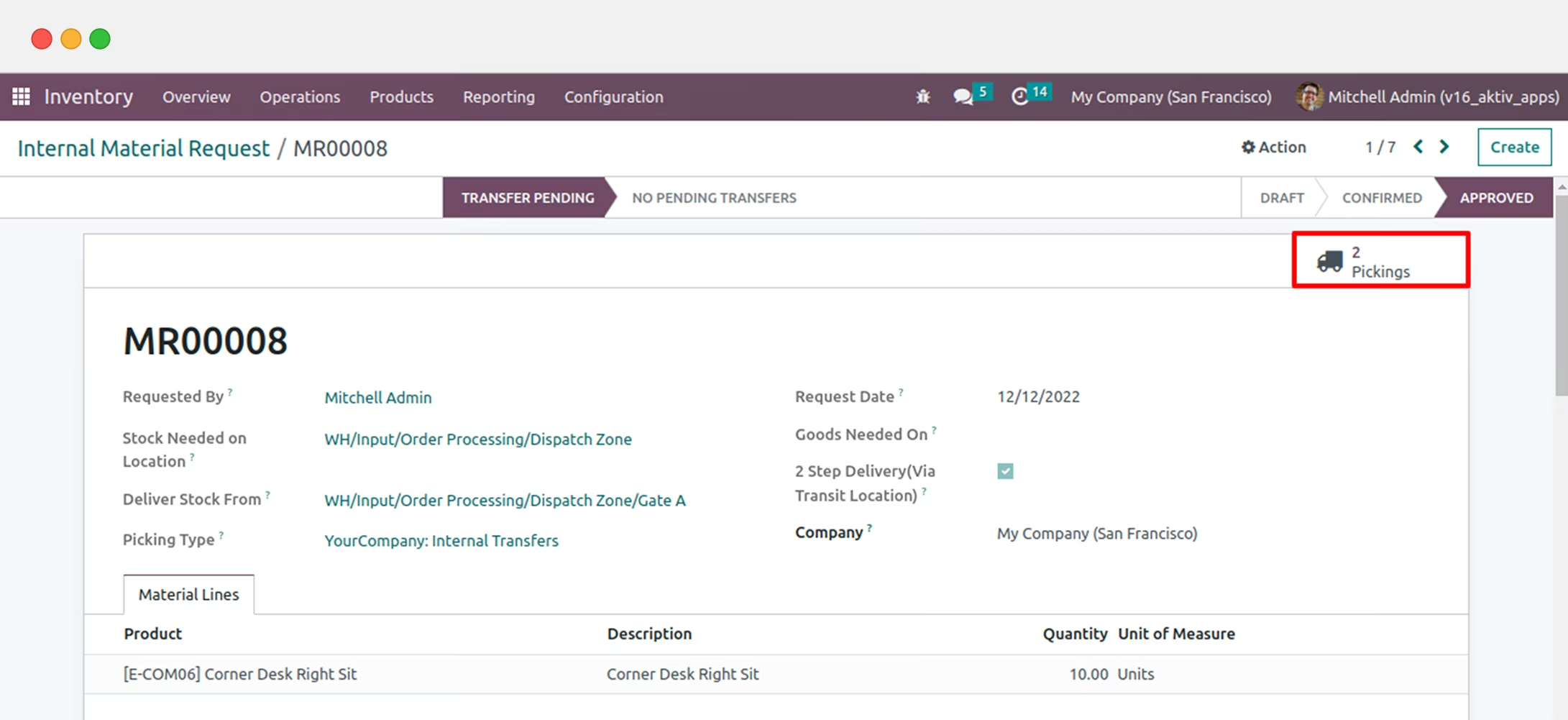
Please note, the 2nd Transfer will be in "Waiting for Another Operation" state until the 1st transfer is completed.
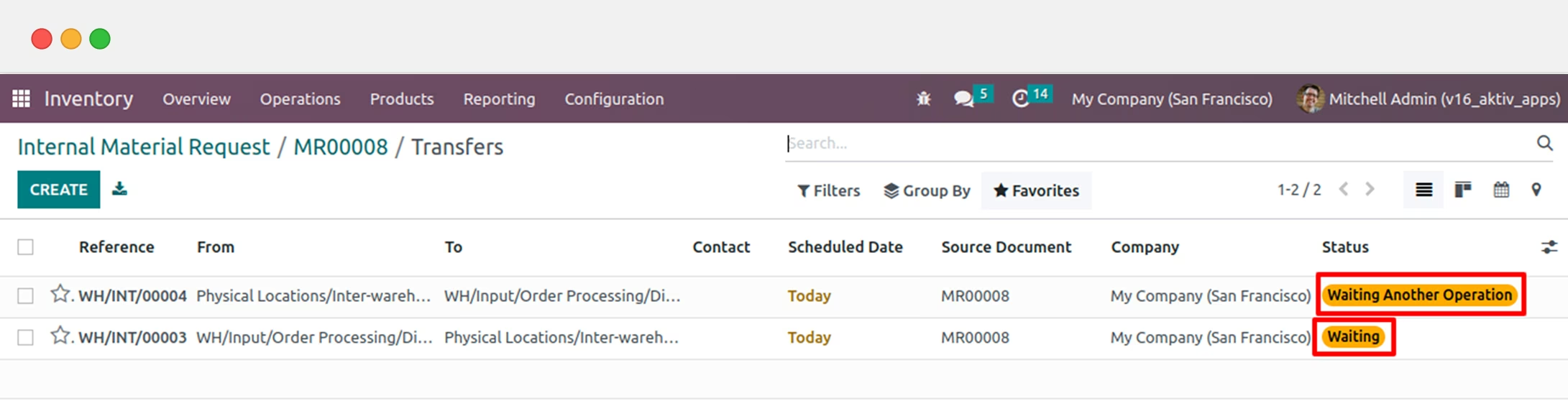
When waiting transfer update in done state then the another transfer automatically update in waiting state
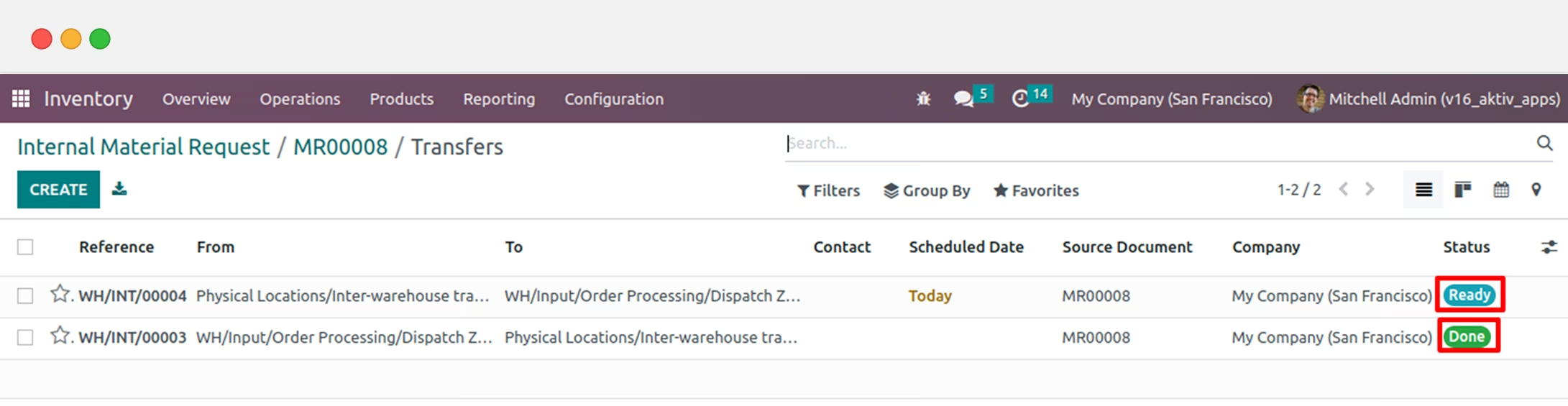
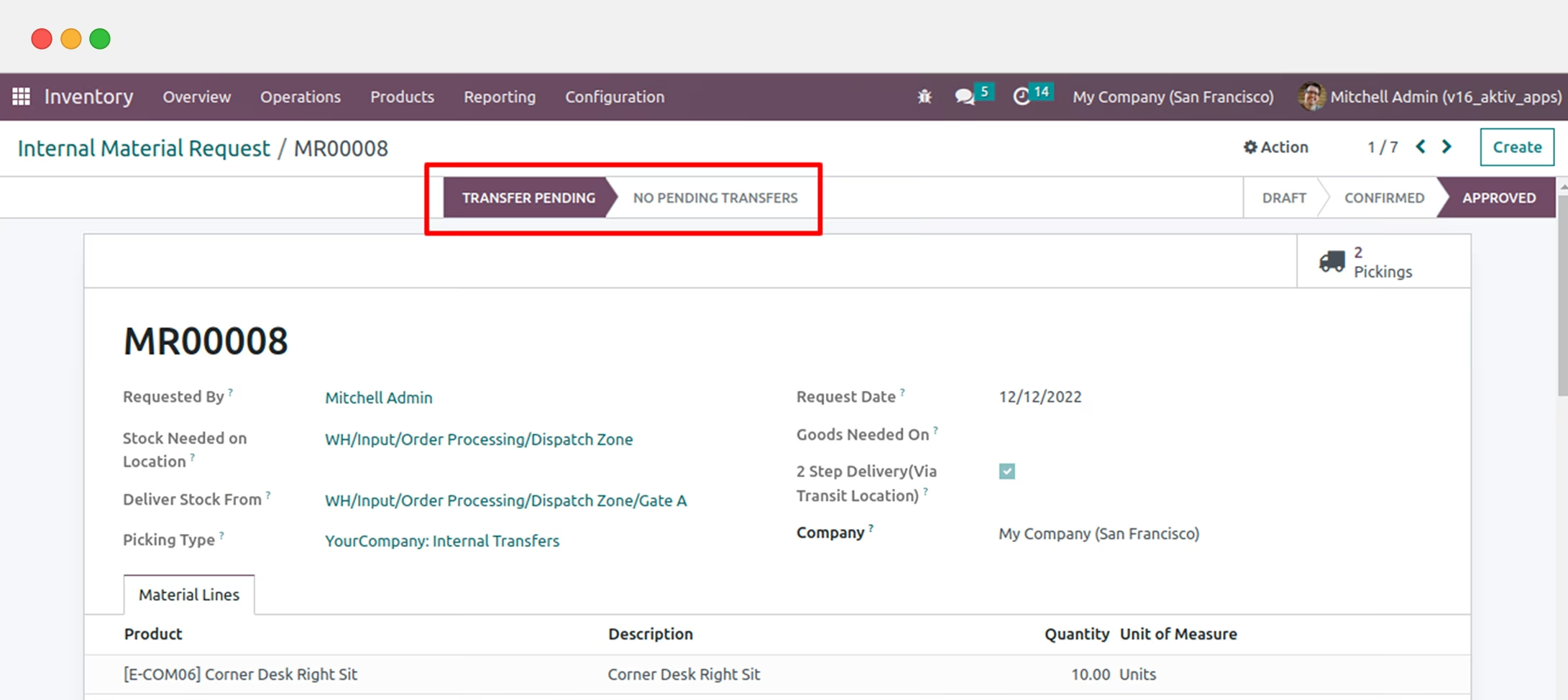
Pending Transfers Status on the Request Form: