
Create a rich and engaging shopping experience with the Import Product Images from Excel/CSV module. This powerful tool is designed to solve one of the most time-consuming aspects of catalog management: uploading product images one by one. By allowing you to bulk import all your product visuals directly from a local folder path or a list of web URLs in a simple spreadsheet, this module streamlines your workflow immensely. It's the perfect solution for launching a new e-commerce site, migrating a large product database, or regularly updating your product imagery, ensuring your online storefront is always professional, up-to-date, and visually compelling.
Bulk import product images using either local file paths or direct web URLs.
Supports both Excel (.xlsx) and CSV (.csv) file formats for your convenience.
Easily associate images with the correct products using their name, internal reference, or barcode.
Flexibility to import images for both main product templates and specific product variants.
Option to either create new products along with their images or update existing product records.
Provides clear and easy-to-use sample files to ensure your data is structured correctly.
User-friendly wizard guides you through the import process.
Detailed validation to prevent errors and ensure a smooth, successful import.
Drastically reduces the manual labor and time required to manage product images.
Significantly enhances the visual quality and appeal of your eCommerce store.
Accelerates the time-to-market for new products by simplifying image handling.
Ensures consistency and completeness in your product catalog's visual presentation.
Makes it easy to perform bulk updates or seasonal changes to product images.
Improves the efficiency of your product management and e-commerce teams.
Ideal for businesses with large, dynamic, or complex product inventories.
Images Import for Product Template and Product Variants
- This module allows you to import images from excel using URL and Path.
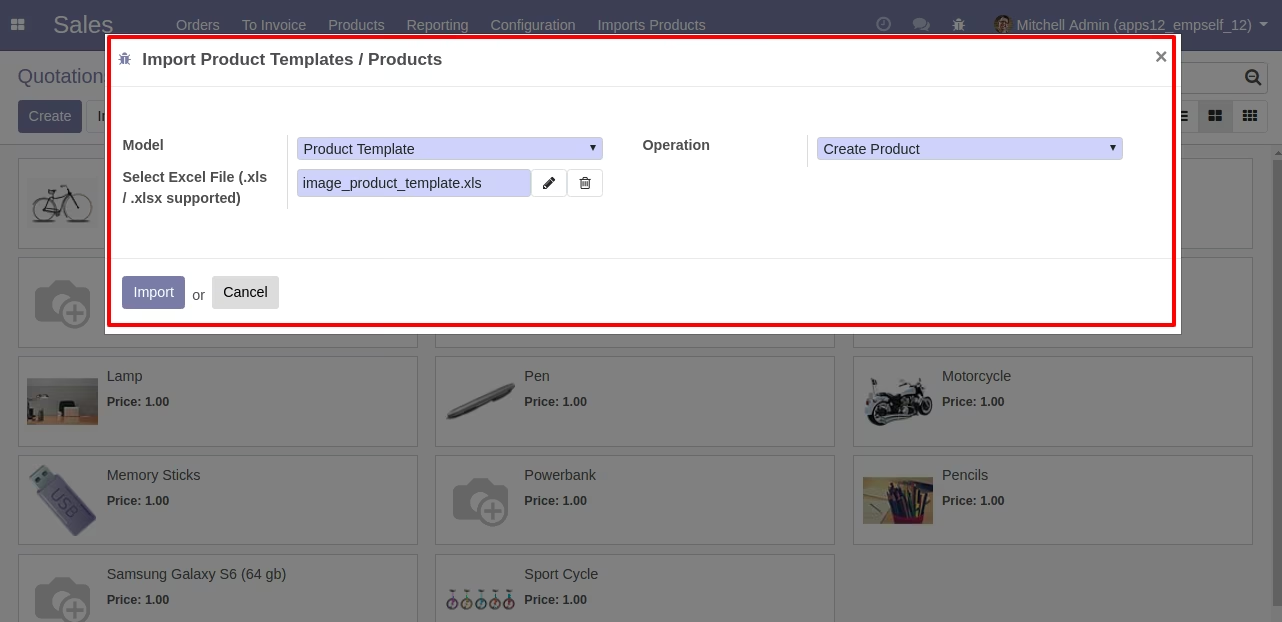
- This module gives wizard which allows you to choose whether you want to create a product template or product in and also it allows you to choose whether you want to create a new product or you want to modify existing product on wizard.
- Sample for all types of options are available inside the module sample directory.
Main Features:
- Allow to import *.jpg or .png or .jpeg ... files types.
- Allow you to create a new product or product template based on your choice and selected on wizard.
- Allow you to modify an existing product or product template based on your choice and selected on wizard.
- Allow you to have an image file path of your directory and Website URL where you keep your image. (Both options can work together with a single import.)
- Allow you to give http or https as a website URL to import images using Excel. Google drive image link might not work but other URLs apart from google drive will work.
Create Product Template Image
- For Create Product Template you should select on wizard model as Product Template and operation as Create Product on wizard.
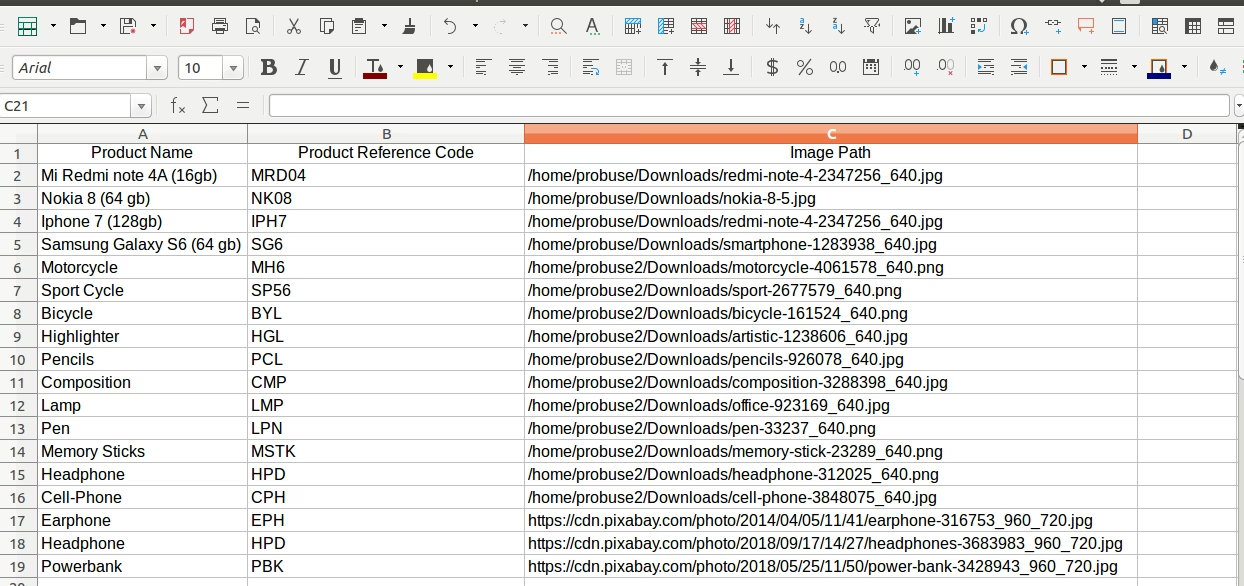
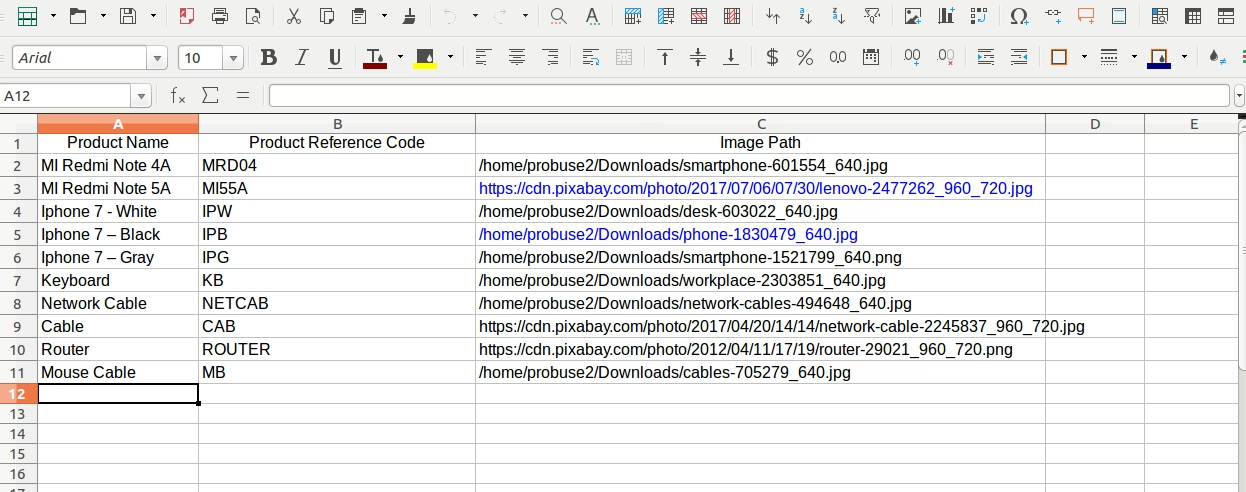
- You can add columns like Product Name, Product Reference Code, Image Path on your .xls file.
Create Product Variant Image
- For Create Product you should select on wizard model as Product and operation as Create Product on wizard.
- You can add columns like Product Name, Product Reference Code, Image Path on your .xls file.
Update Product Template Image
- For Update Product Template you should select on wizard model as Product Template and operation as Update Product on wizard.
- You have add values as Product Name or Product Reference Code and Image Path on .xls file.
Update Product Variant Image
- For Update Product you should select on wizard model as Product and operation as Update Product on wizard.
- You have add values as Product Name or Product Reference Code and Image Path on .xls file
Menus Available:
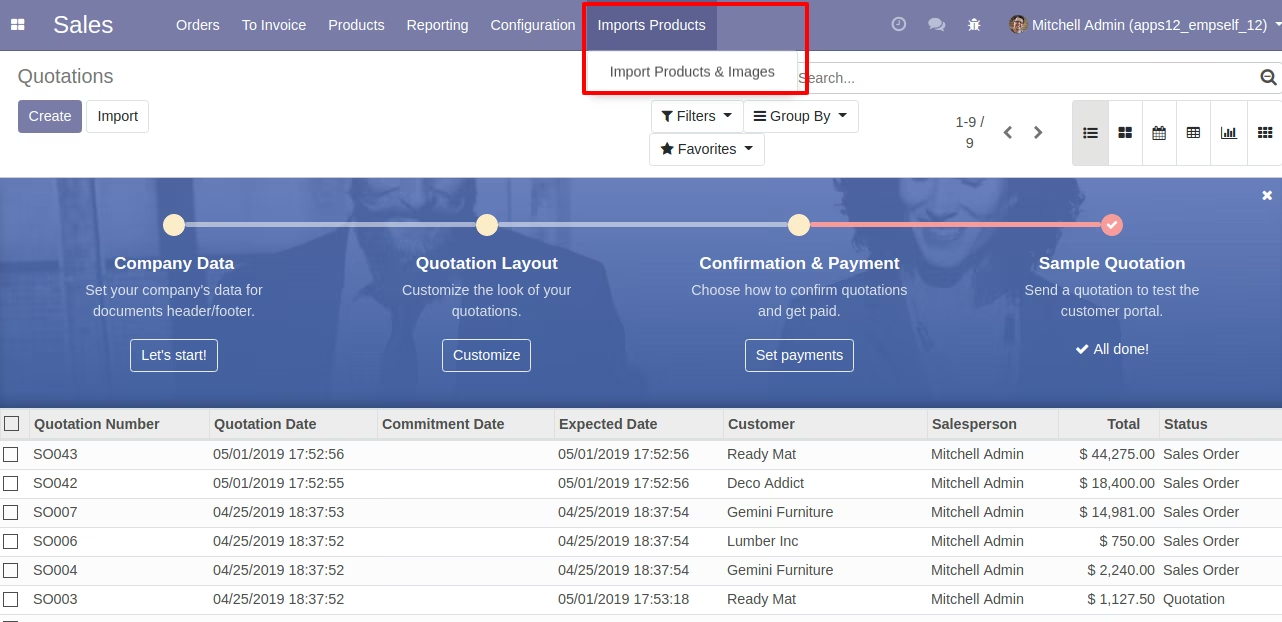
- Import Products
- import Products & Images
File must be in .xls or .xlsx file.
Make sure you have xlrd Python library installed.
1. Import Product Template from Wizard
Select Model as Product Template and operation as Create for creating product template.
Sample of Import Product Template
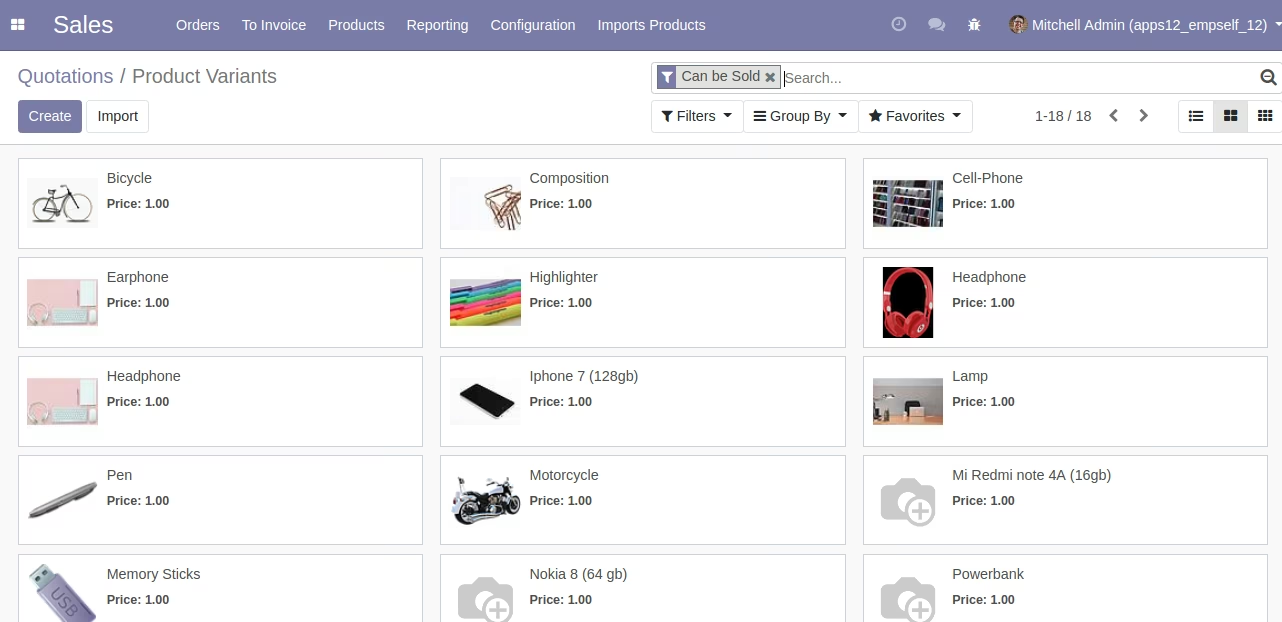
Created Product Template in Odoo
2. Update Existing Product Template from Wizard
Select Model as Product Template and operation as Update Product for update product template.
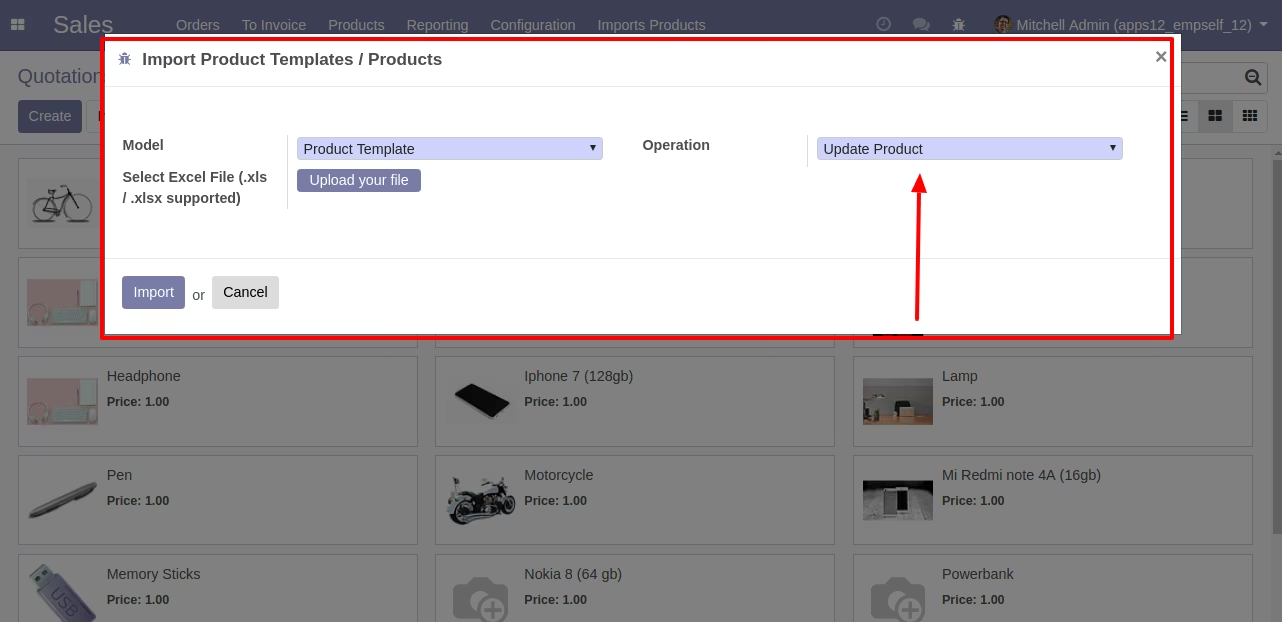
Sample of Update Product Template - Existing Product in Odoo
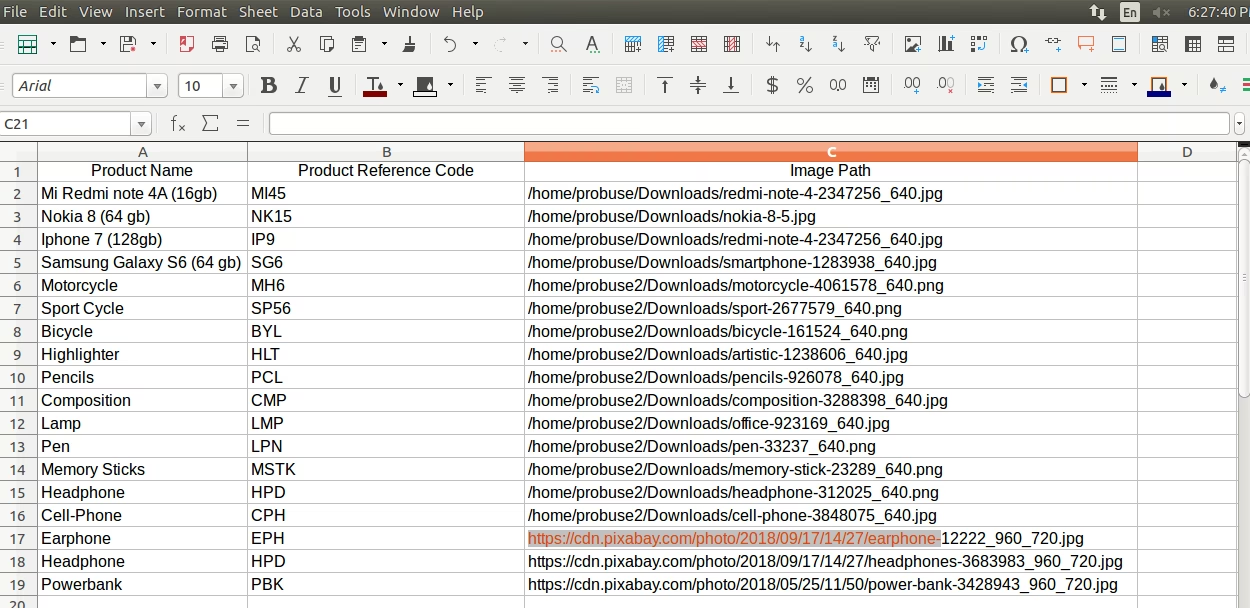
Updated Product Template
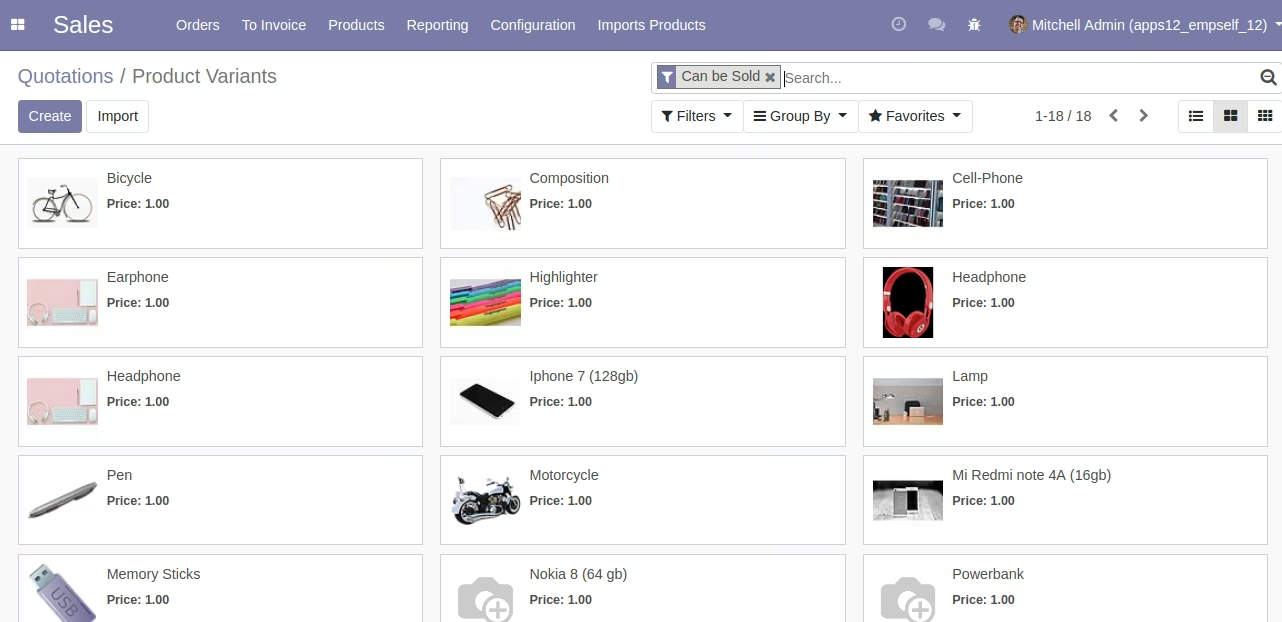
3. Import Product from Wizard
Select Model as Product and operation as Create for creating product variant.
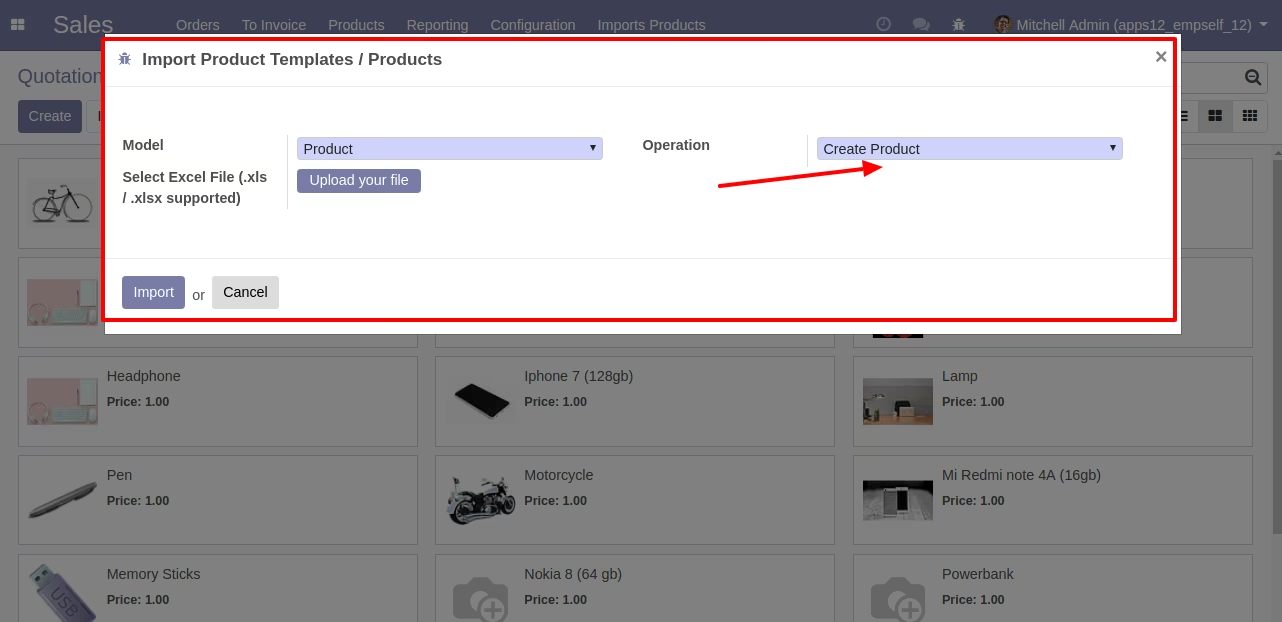
Sample of Import Product Variant
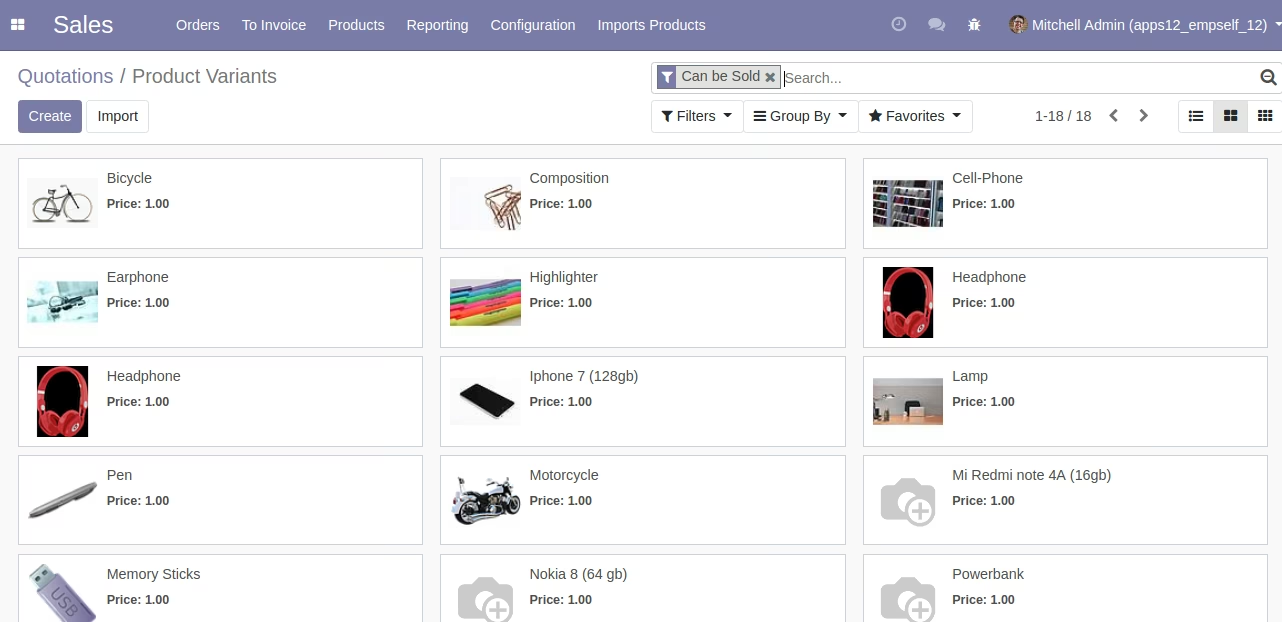
Created Product Variants
3. Update Existing Product from Wizard
Select Model as Product and operation as Create for update product.
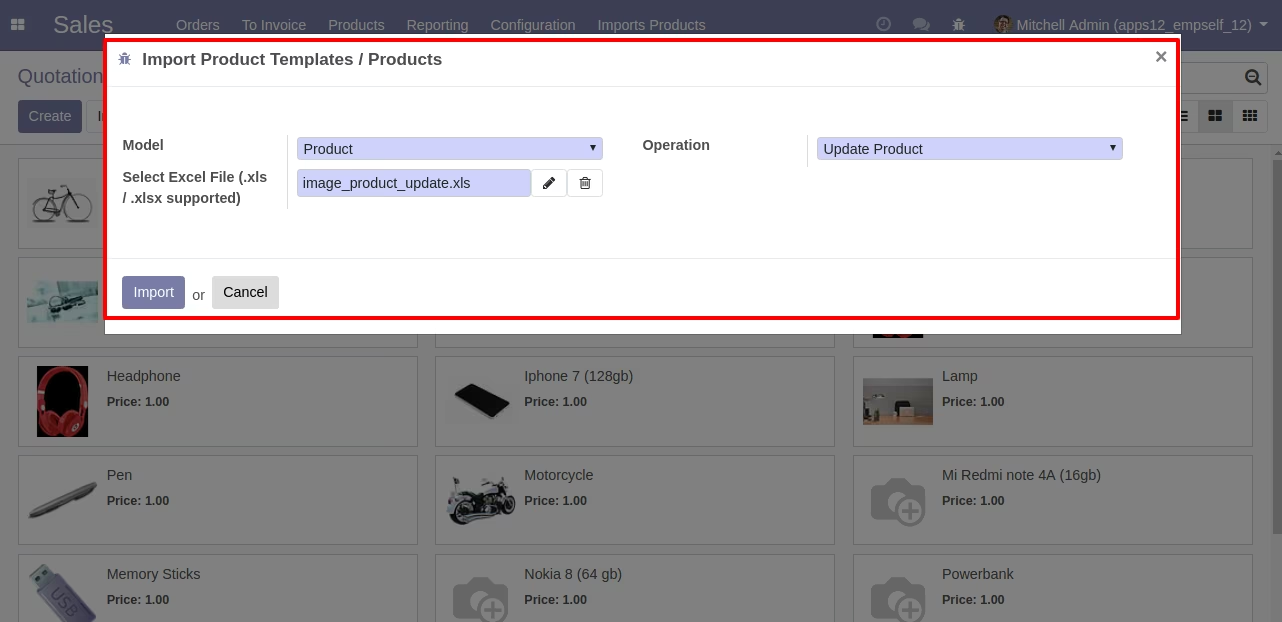
Sample of Import Product
Created Product Variant