
Import Invoice with Payment From Excel or CSV Apps
Import Paid Invoices Apps
Import Customer/Vendor Payment Apps
Bulk Invoice & Payment Import from Excel/CSV Files
Import Accounting Invoices and Payment Apps
Do you want to import bulk invoices together ? Which has multiple product lines?
This app helps user to import bulk invoices like customer invoice, customer credit note, vendor bill and refund with multiple lines. User also can import invoices with default or custom sequence, take account from product or file, import in draft state, auto validate with import and with payment, user also can import product by name, code and barcode. User can also import customer and supplier payments with draft state, auto validate with import and reconcile with invoice option. User have option to download sample file to import customer invoice and payments.
Using this Apps, you can easily import bulk invoices with payment info with single click from xls or csv file, user have different options to import invoice with or without payments, import product with name, code, or barcode and accounts. When you get excel file from your supplier no need to enter them manually, you can easily import them as vendor bills on ERP using this module.
Our apps helps you to import customer invoice and vendor bills both with payment details very easily from excel/csv format . Additionally we provide option to choose existing invoice number or import invoice number from excel file which you can select.
If you want to import extra fields from default apart from our sample files, we will add those on our import module without any extra cost. You can purchase our module and contact us on sales@browseinfo.in
e.,g If you want to add Analytic accounts and analytic tags details or discount on invoice, we will add without any cost
Import Invoice
Data File Sample.
You have 3 different options to import invoice order.
If you are using only numeric value for Internal ref or Barcode field then please make sure the cell type/format is Text/Character
Import with Code.

Import with Barcode.

Import with Name.

- INVOICE ID
- - Invoice number for the invoice.
- PARTNER
- - Vendor/Customer name for the invoice order.
- CURRENCY
- - Currency for the invoice.
- PRODUCT
- - Product name for the invoice order.
- Account
- -Name of Chart Of Account
- QUANTITY
- - Quantity for the above product.
- UOM
- - UOM for the above product.
- DESCRIPTION
- - Description for the product
- PRICE
- - Price for the above product.
- DISCOUNT
- -Discount for product.
- SALESPERSON
- -Name of salesperson.
- TAX
- -Tax for the product.
- DATE
- -Date of invoice.
- JOURNAL
- -Payment Journal for invoice payment.
- AMOUNT
- -Payment Amount for created payment for invoice.
- PAYMENT DATE
- -Payment Date for register payment created for invoice.
The "INVOICE ID" should be same, as you can see in the image,"INVOICE ID" is same for different product list.This defines single invoice with different product lines.
Tax column is important you have to add "Tax column" though there is no need of adding tax.
1. When code is selected in Import option, please select file that contains code of products.
2. When barcode is selected in Import option, please select file that contains barcode of products.
3. When Name is selected in Import option, please select file that contains name of products.
Import Access Rights
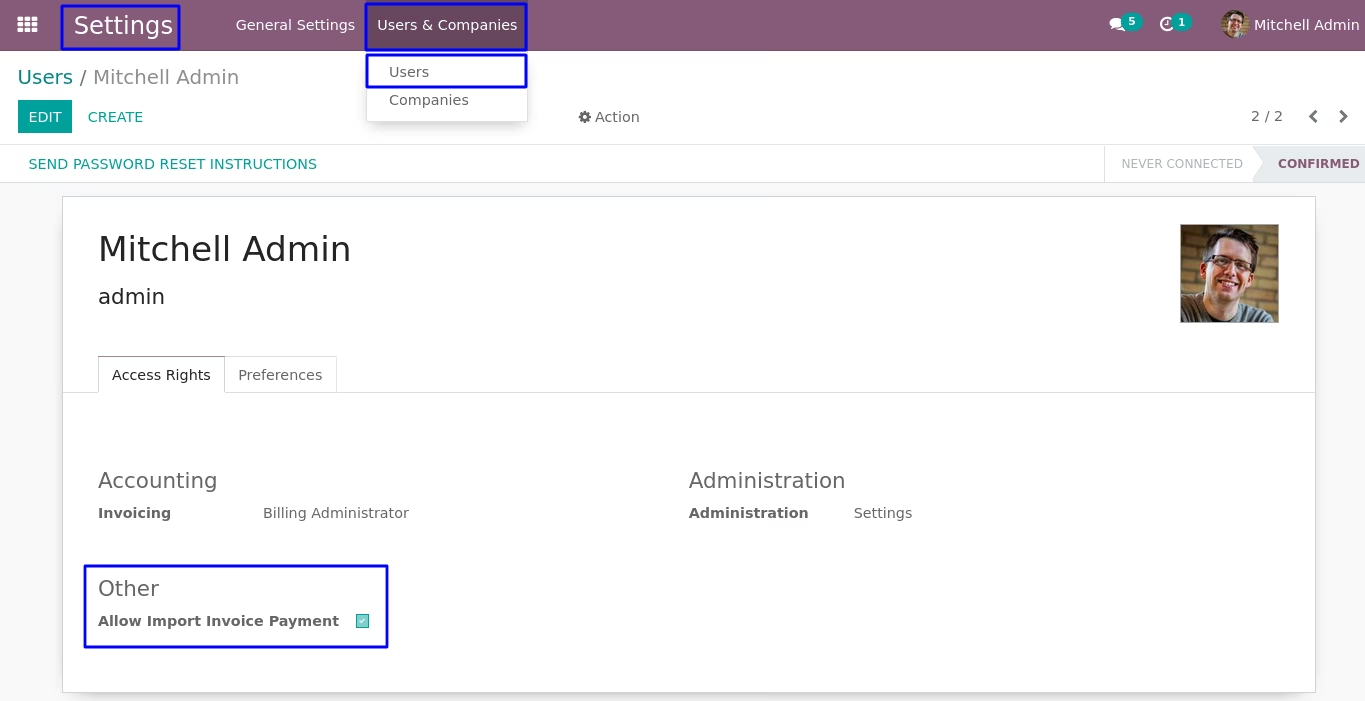
Users with "Allow Import Invoice Payment" only can import invoices and payments.
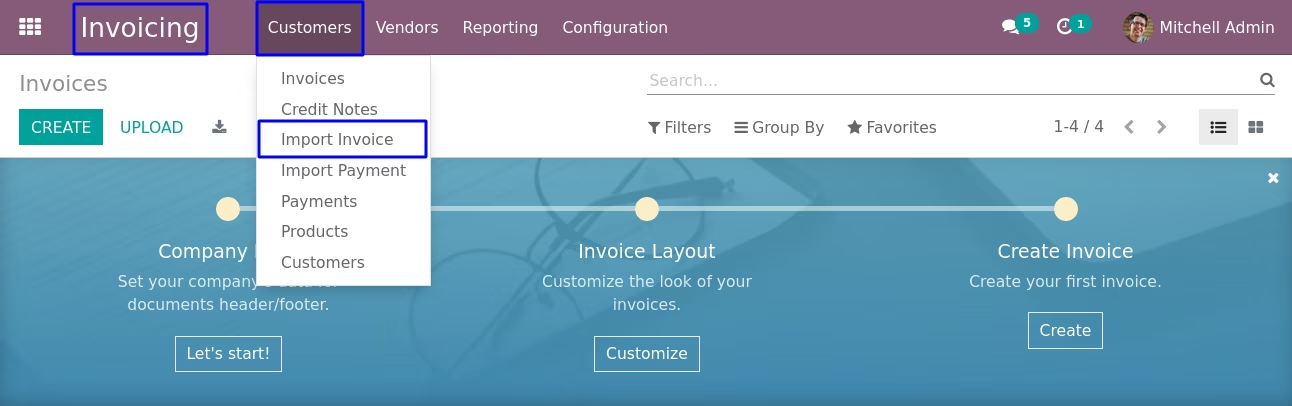
Import Invoice Menu
Under Invoicing > Customers > Import Invoice menu user can import invoice from xls or csv file.
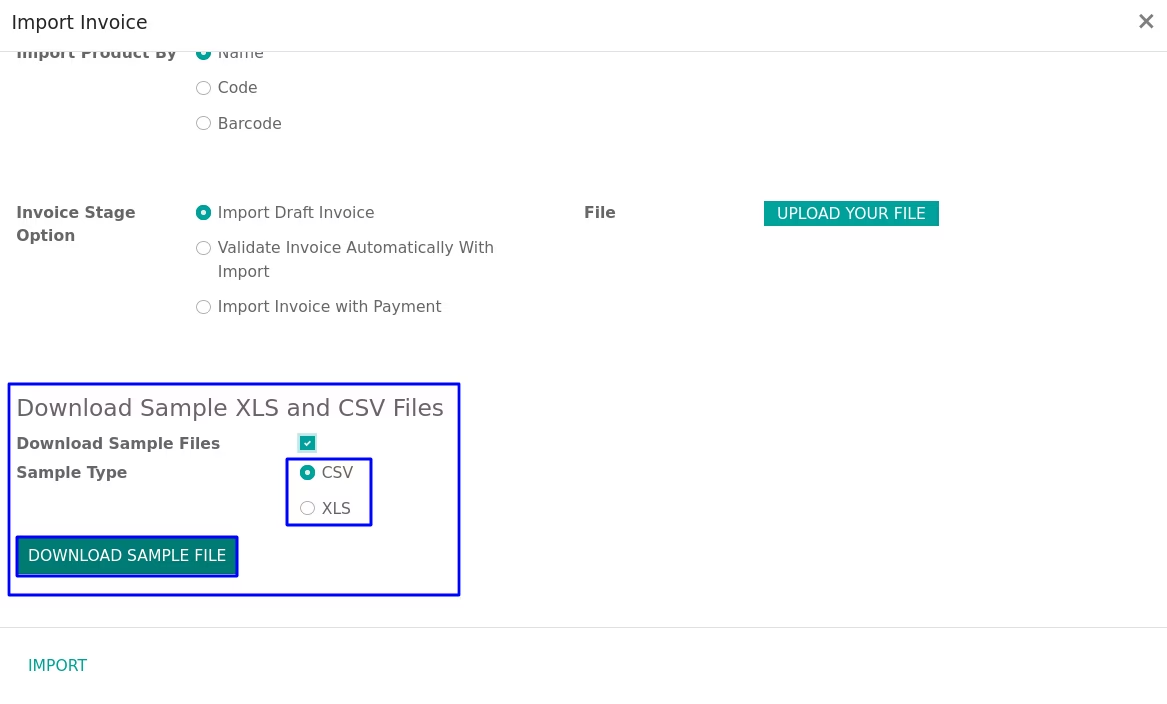
Download Sample Data File
User can download sample data file to import invoices by enable "Download Sample Files" option, select "Sample Type" and click "DOWNLOAD SAMPLE FILE" button.
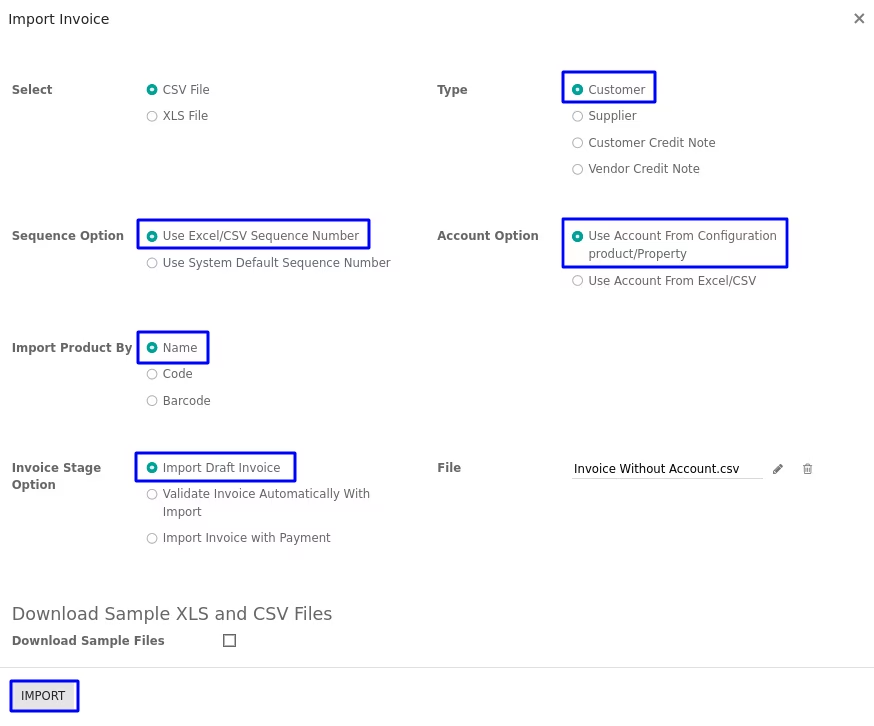
Import Customer Invoice
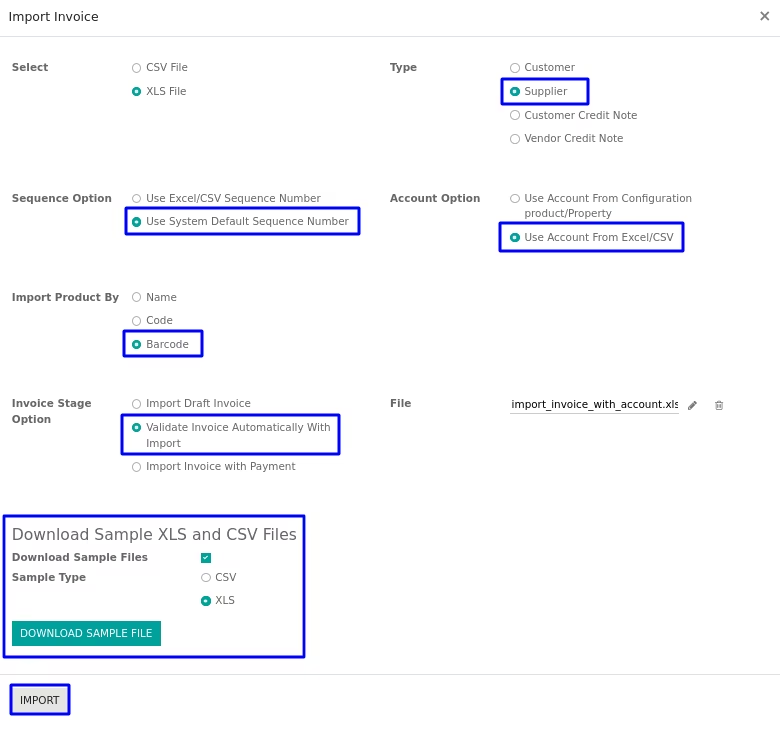
1. Sequence Option :
If you want to import details of invoice number from CSV/XLS you can also have option regarding this in import invoice wizard.
If you select "Use Excel/CSV Sequence Number" option then name field will came from CSV/XLS file.
2. Invoice Stage Option :
If you select "Import Draft Invoice" option then invoice will be import in draft stage.
If you select "Validate Invoice Automatically With Import" option then invoice will be import in validate/Open stage.
3. Account Option :
If you want to import Account from XLS/CSV so you have option for "Account Option" regarding this in import invoice wizard.
4. Type :
You have also option for import invoice for Customer, Vendors, Customer Refund(Customers Credit Note) or Vendors Refund(Supplier Credit Note).
5. Import Product By :
You have also option to import products by it's Name/ Barcode or Code(Internal Reference).
If you want to create product while importing invoice order then you have to select import with "Name".
Imported Customer Invoice
User can see imported customer invoices from xls/csv file in tree view .
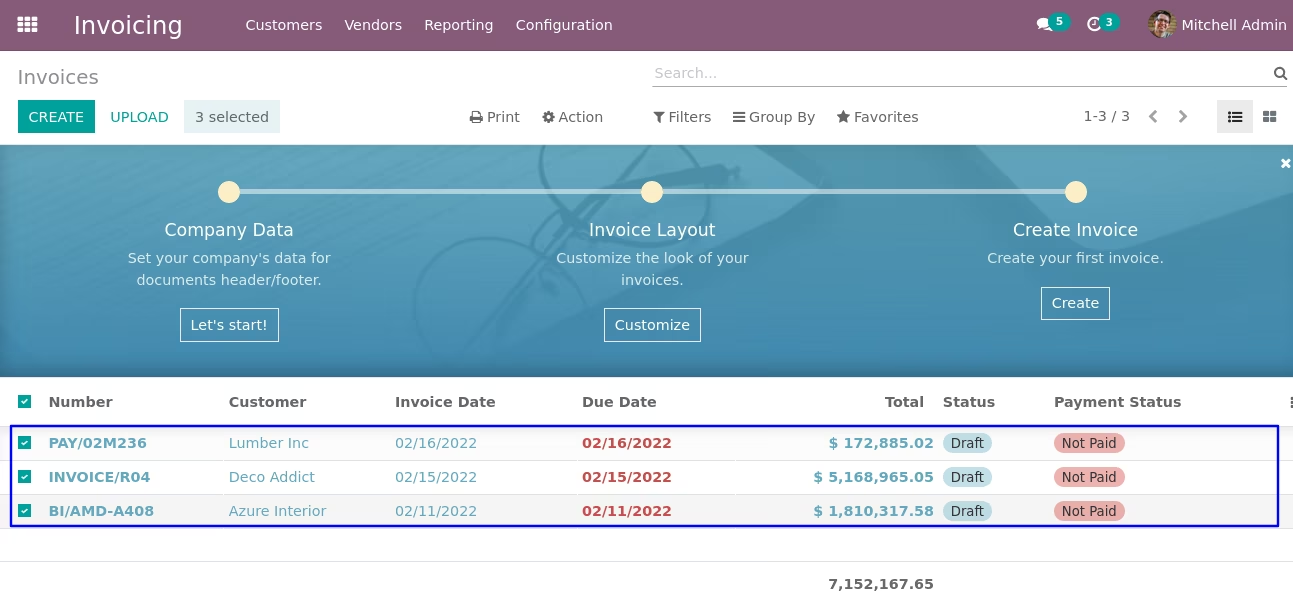
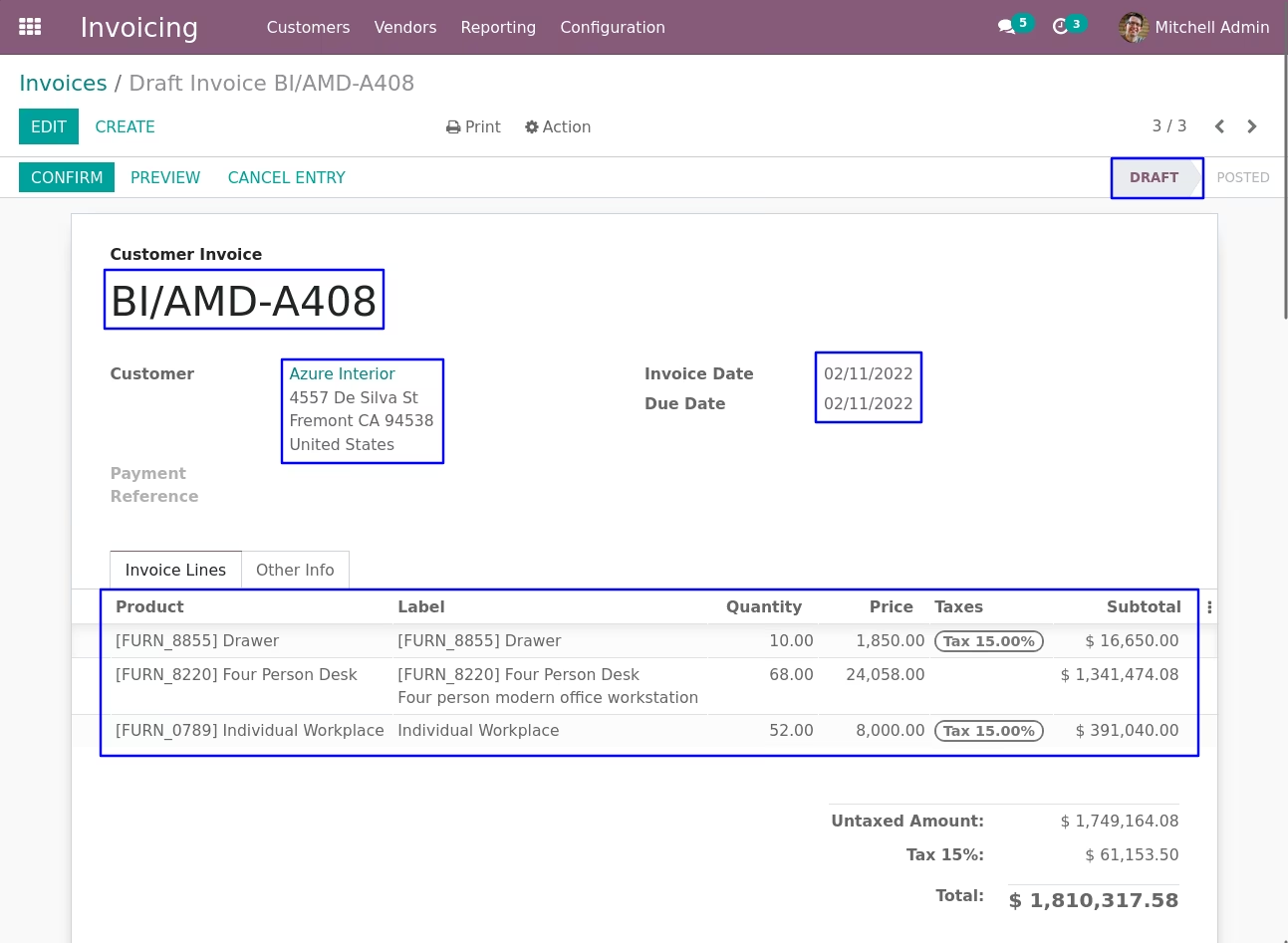
User can see imported invoices from CSV/XLS with "Import Draft Invoice" option in draft stage and invoice number is same as given in CSV/XLS file.
Import Vendor Bill
If user select "Validate Invoice Automatically With Import" option then imported invoices is in Open stage.
User can see imported vendor bill from csv/xls file in tree view.
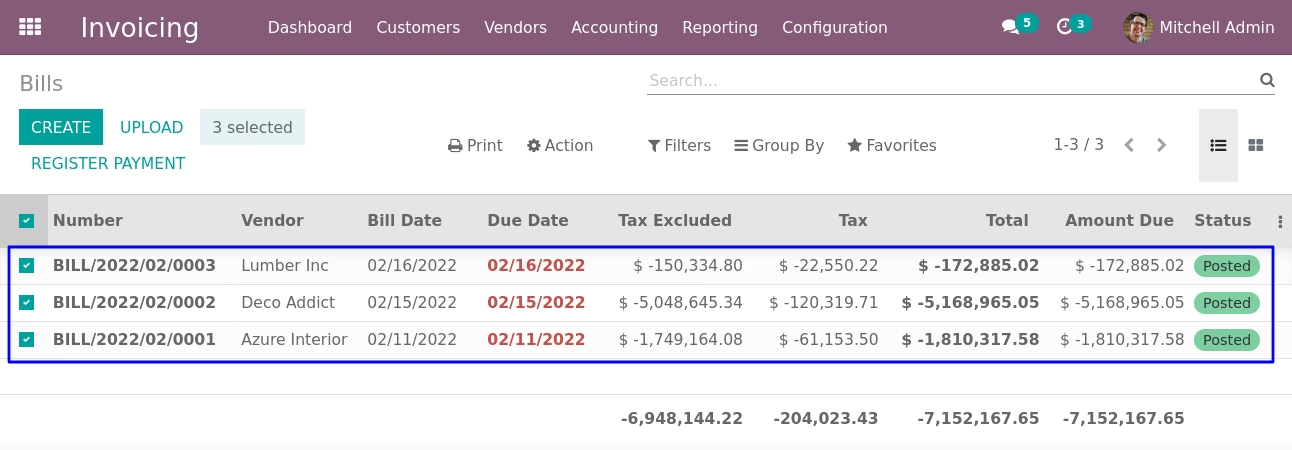
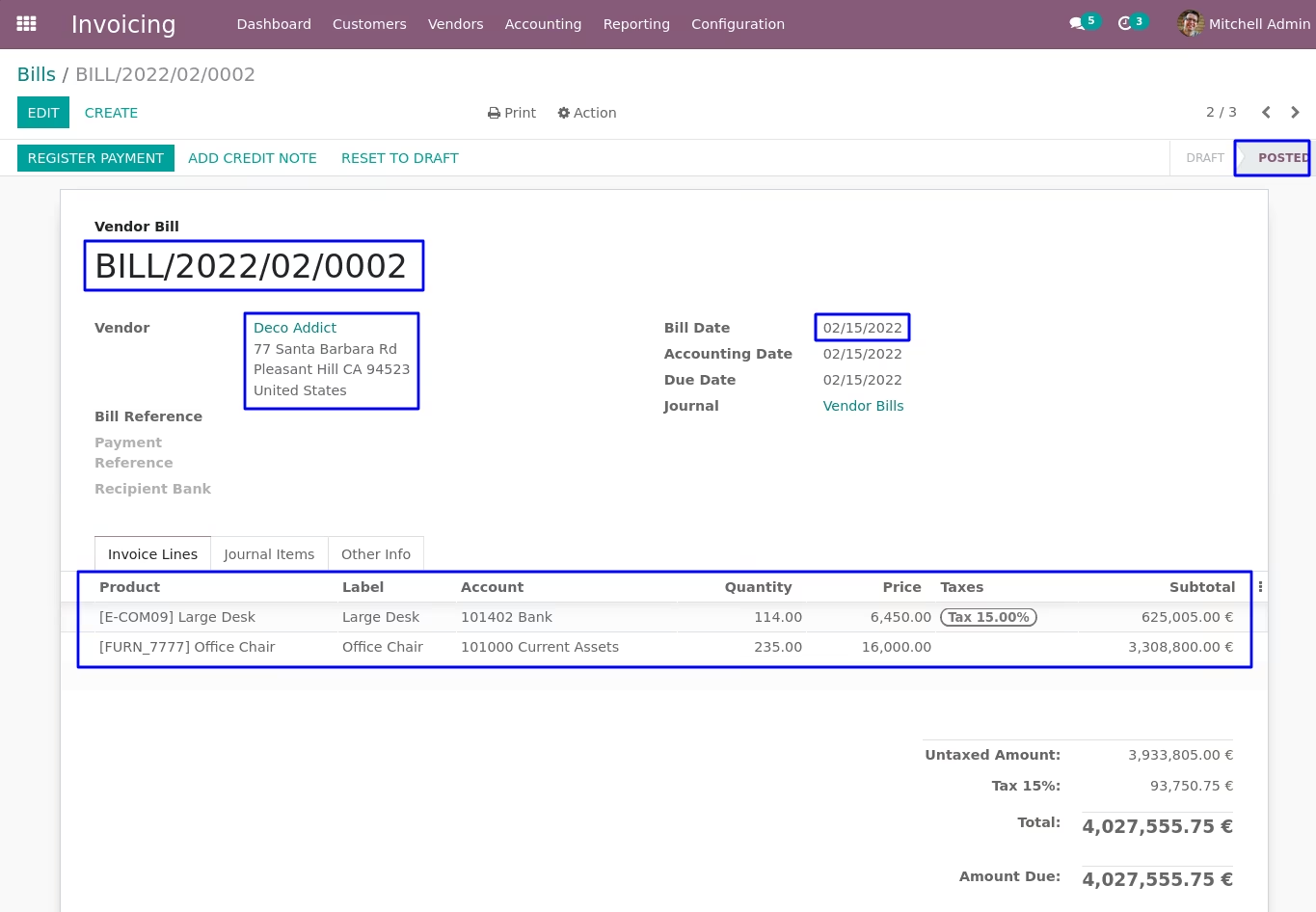
User can see imported supplier invoice in "Posted" state.
Import Customer Credit Note
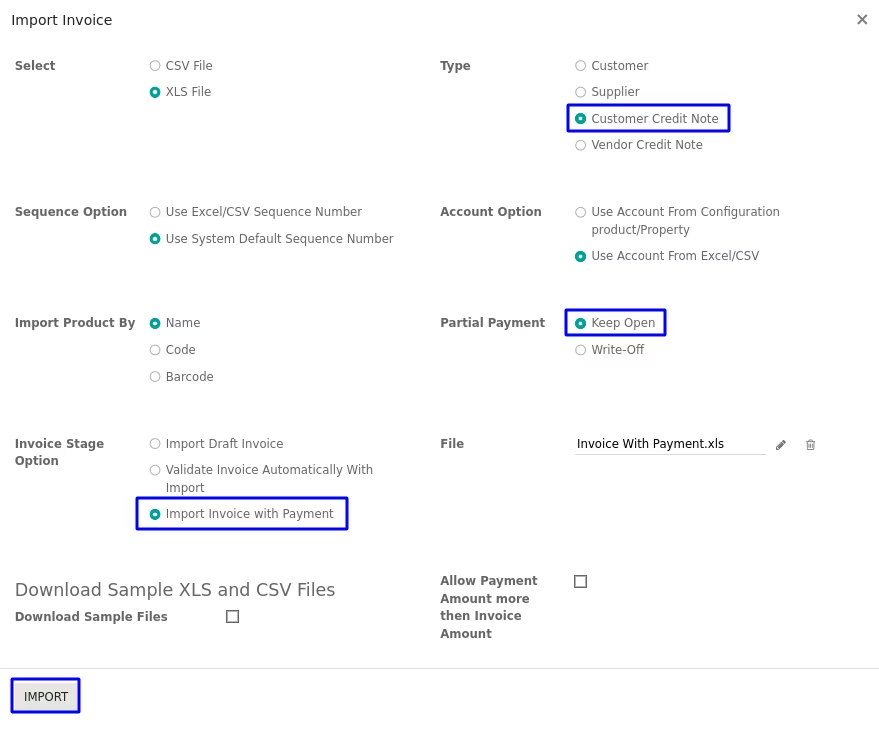
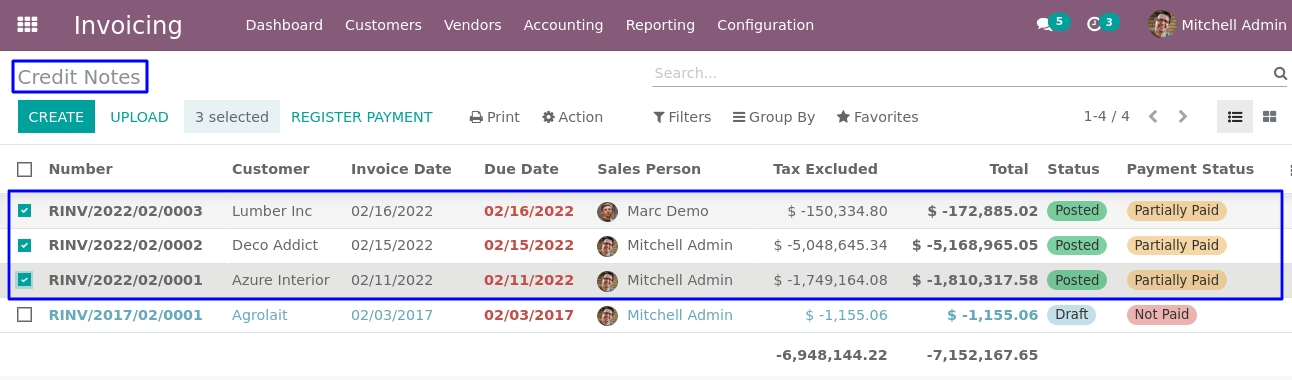
If user select "Customer Credit Note" option then user can see the invoices created as a Customer Credit Note (Customer Refund) from xls/csv file in tree view.
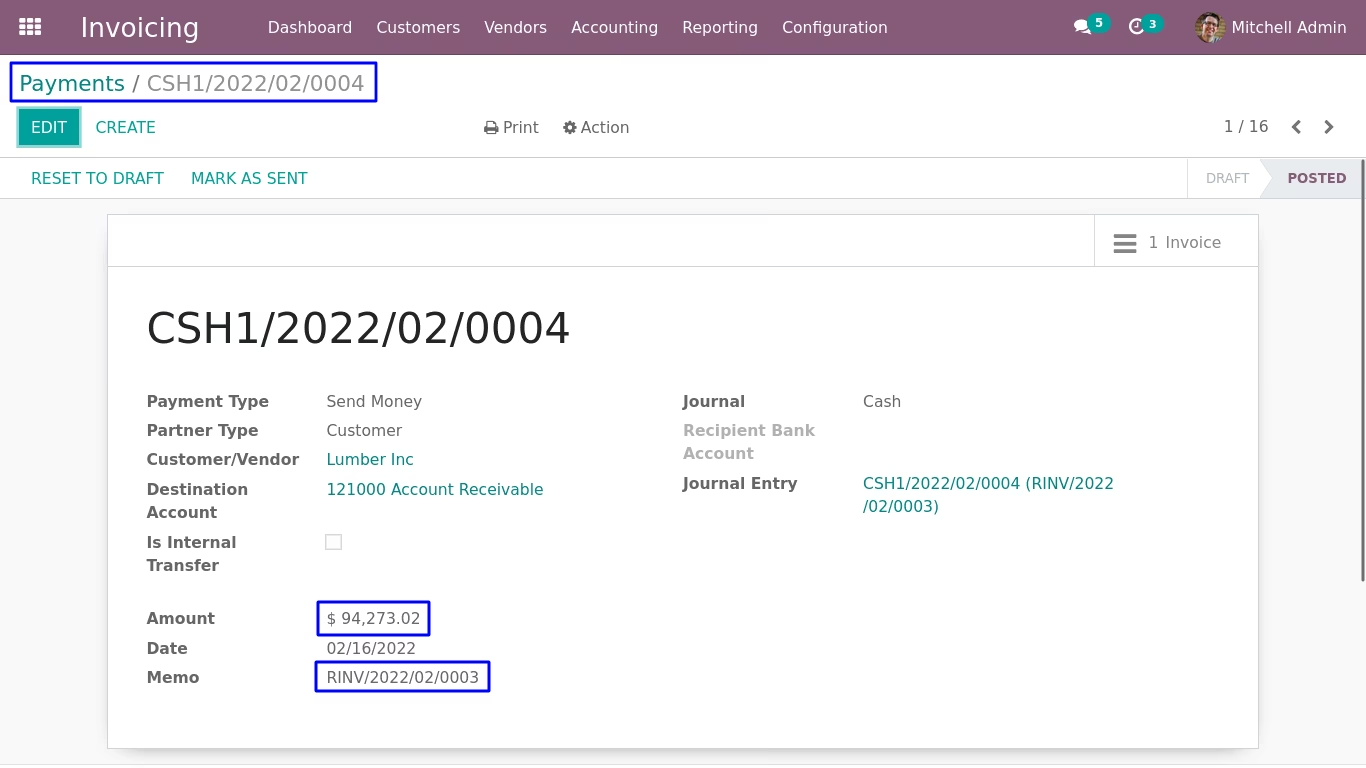
If user selected "Import Invoice with Payment" option then user can see created invoice with payment.
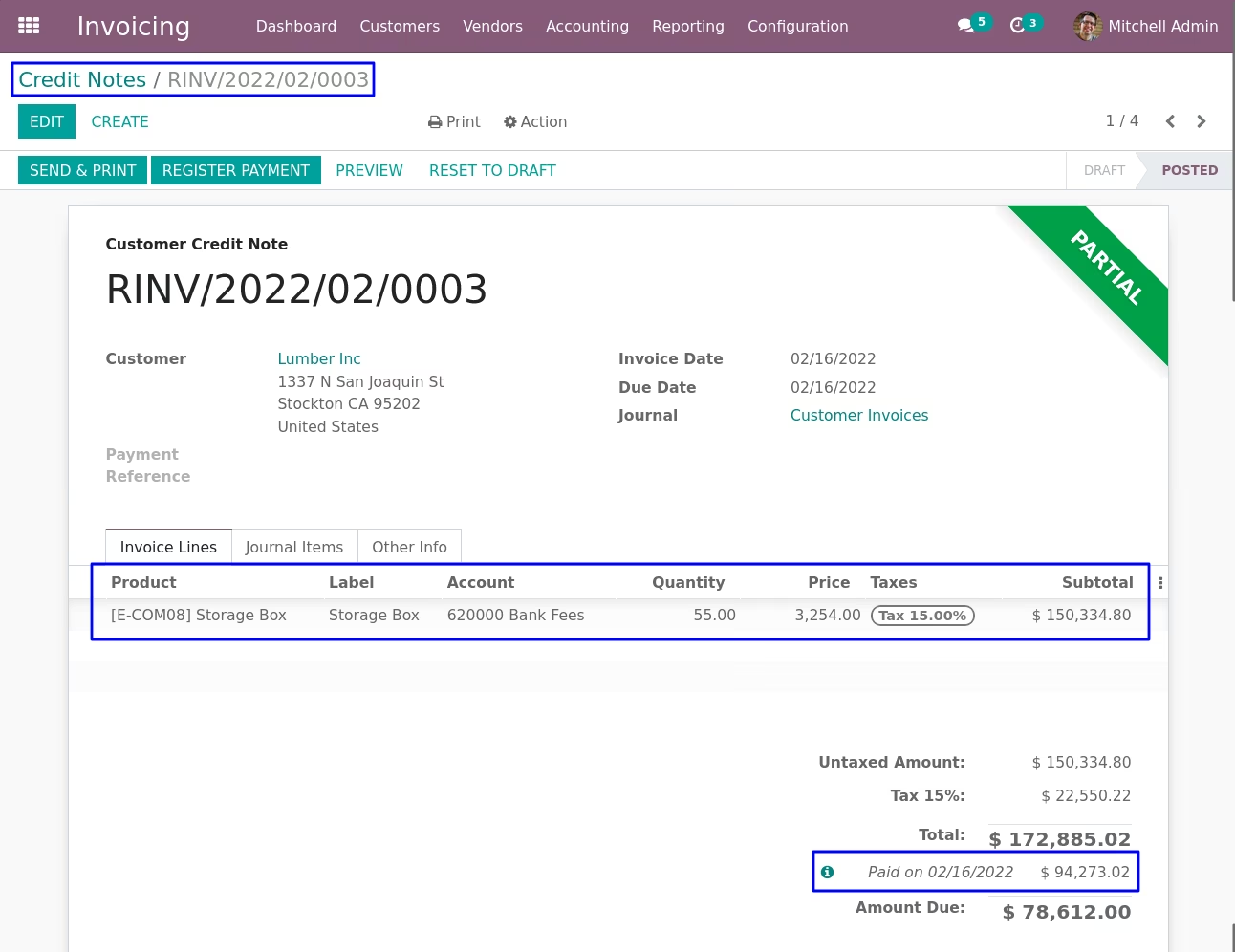
User can see created payment in open state for invoice if user selected "Keep Open" option.
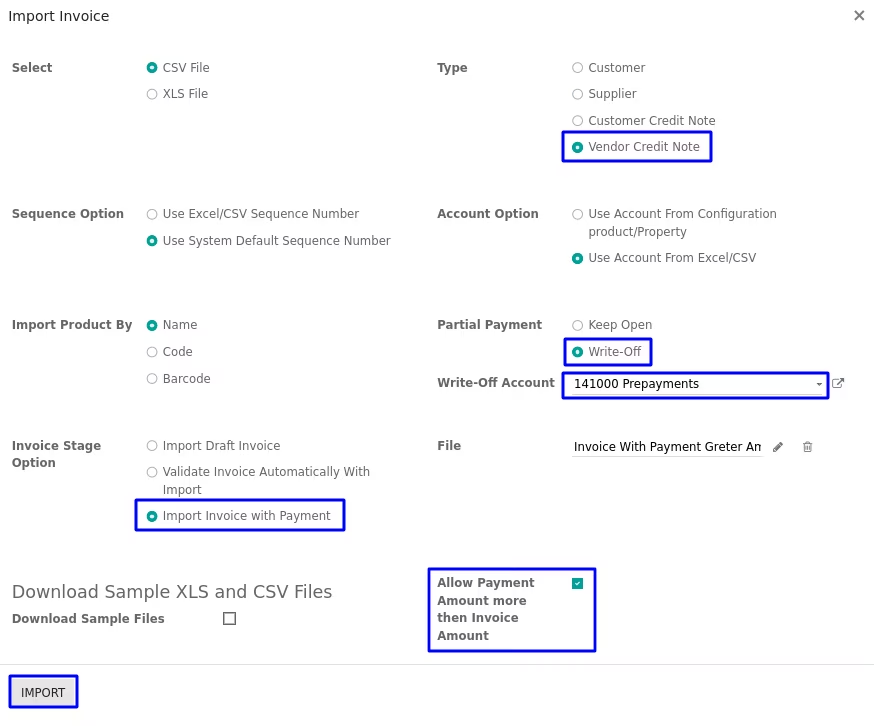
Import Refund (Vendor Credit Note)
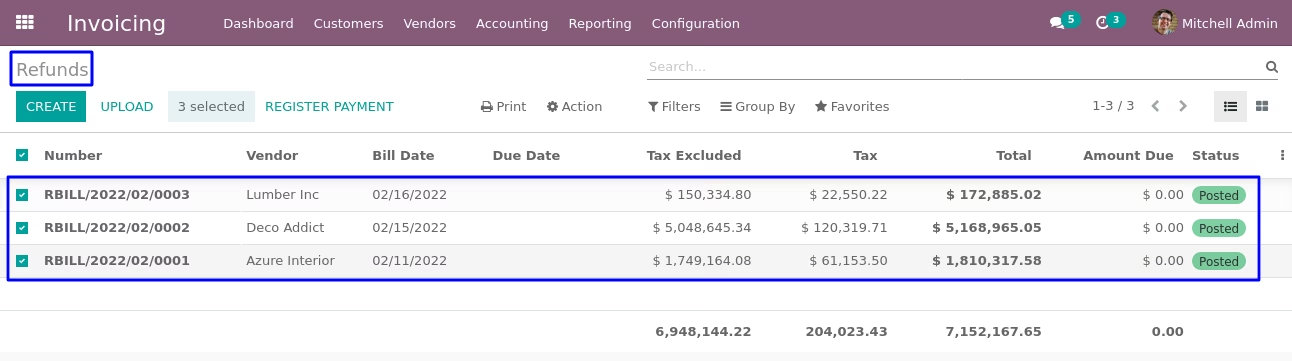
User can see imported refund from xls/csv file in tree view.
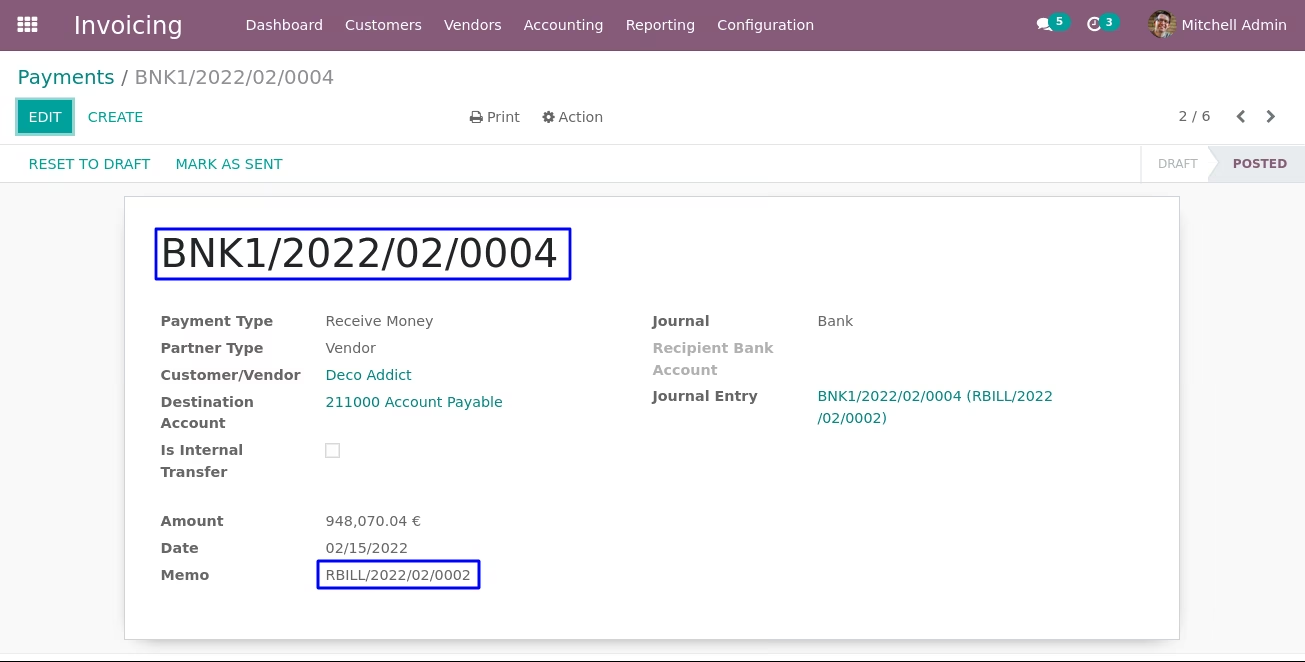
User can see created payment in posted state for refund if user selected "Write-Off" option.
Import Customer/Supplier Payment
Data File Sample.

- Partner
- - Customer/Supplier name for payment.
- Payment Amount
- -Amount of payment for customer/supplier payment.
- Payment Journal
- -Payment journal type for customer/supplier payment.
- Payment Date
- - Payment date for customer/supplier payment.
- Memo
- - Invoice payment receipt number for customer/supplier payment.
Import Payment Menu
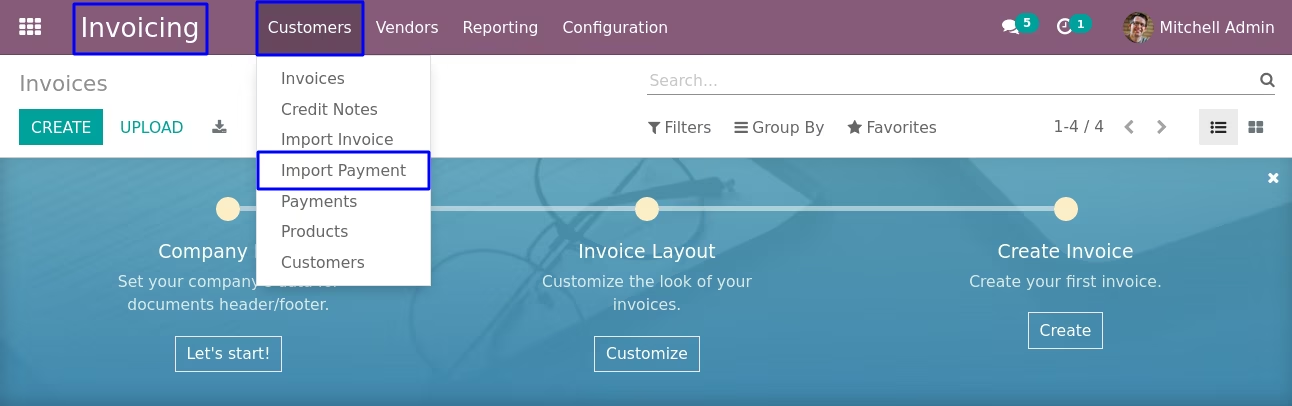
Under Invoicing > Customers > Import Payment menu user can import payment from xls or csv file.
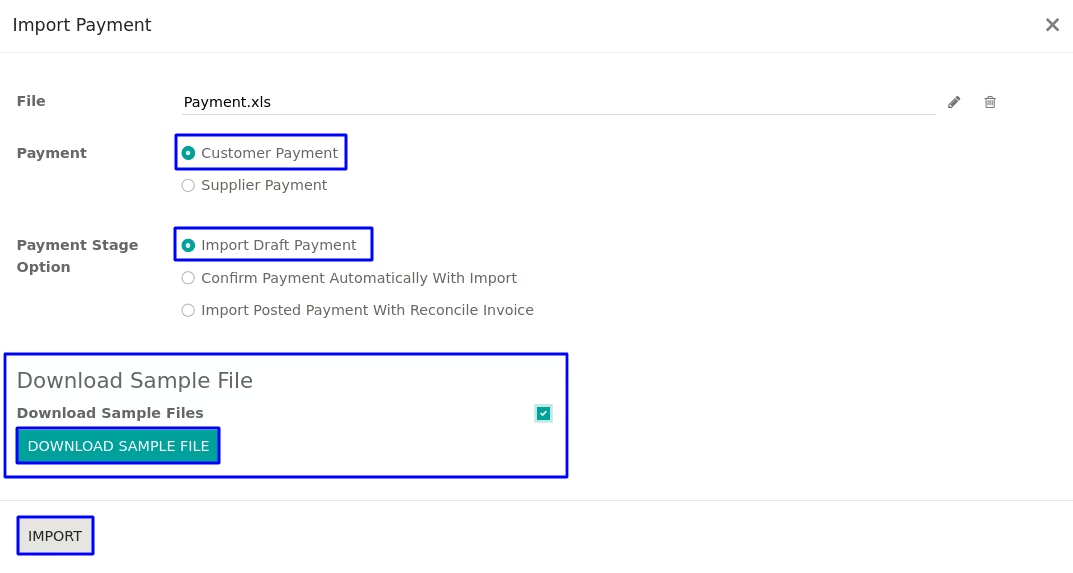
Option 1 : Import Draft Payment
User can import payment for both customer or supplier, for that user just have to select "Customer Payment" or "Supplier Payment" option, If user wants to import payment in draft state than user have to select "Import Draft Payment" option on import wizard.
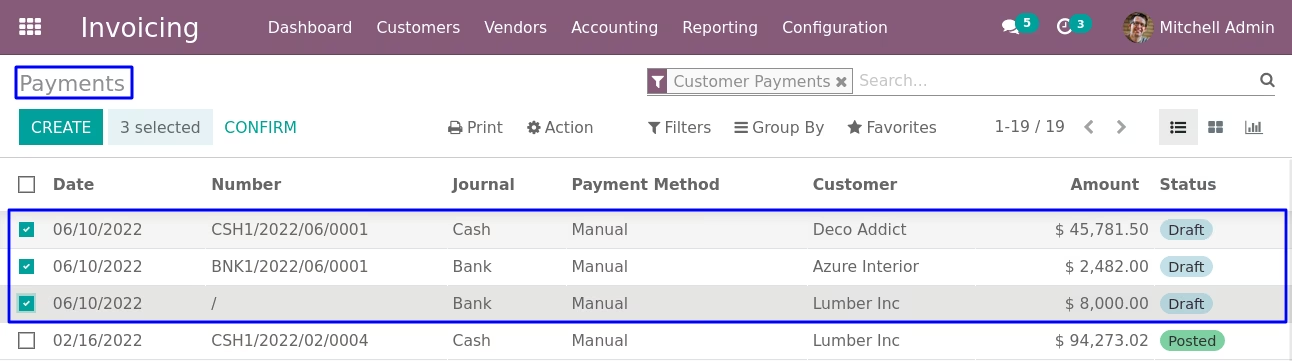
User can see that imported draft payment in tree view.
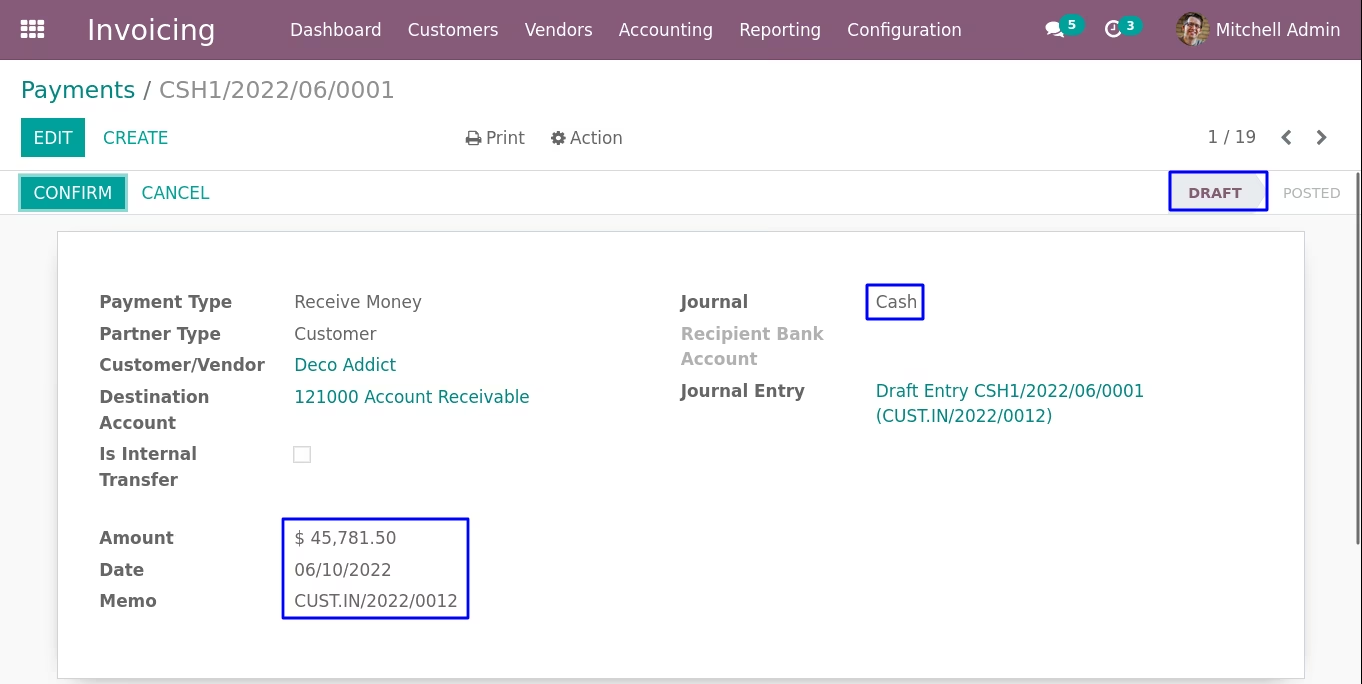
User can also see all imported payment record in draft state from data file with custom fields.
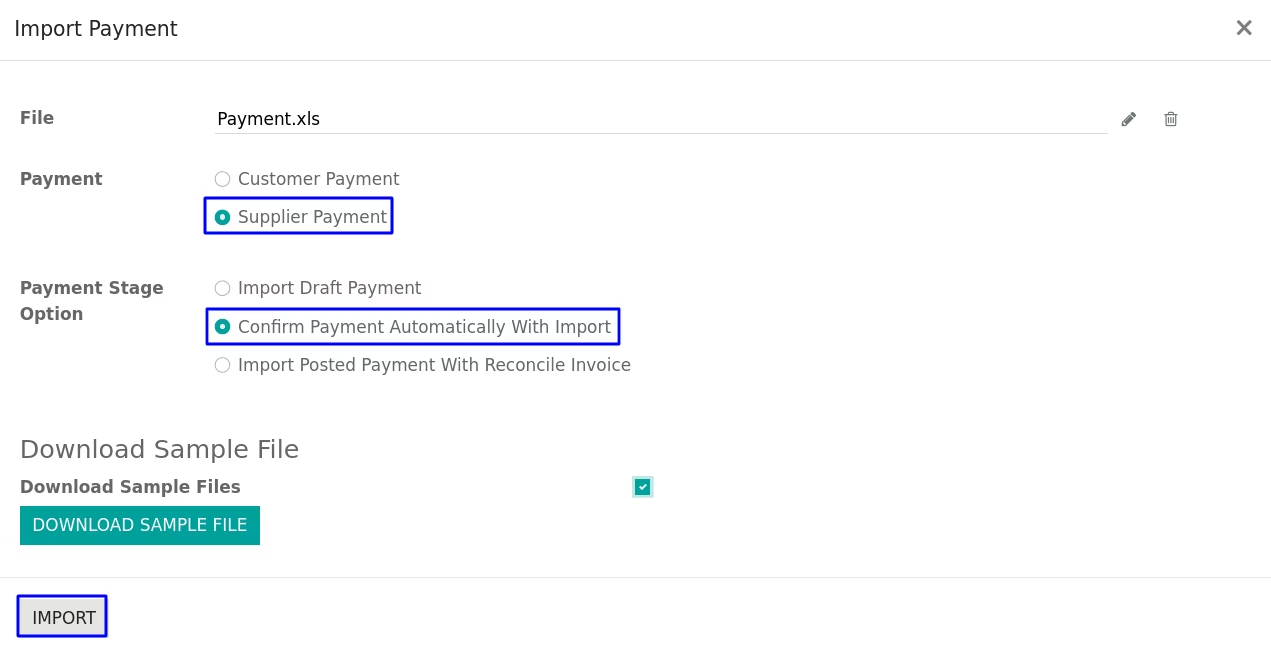
Option 2 : Confirm Payment Automatically With Import
If user selects "Confirm Payment Automatically With Import" option to import payment then payment will automatically validated after import.
User can see that imported payment in posted state on tree view.
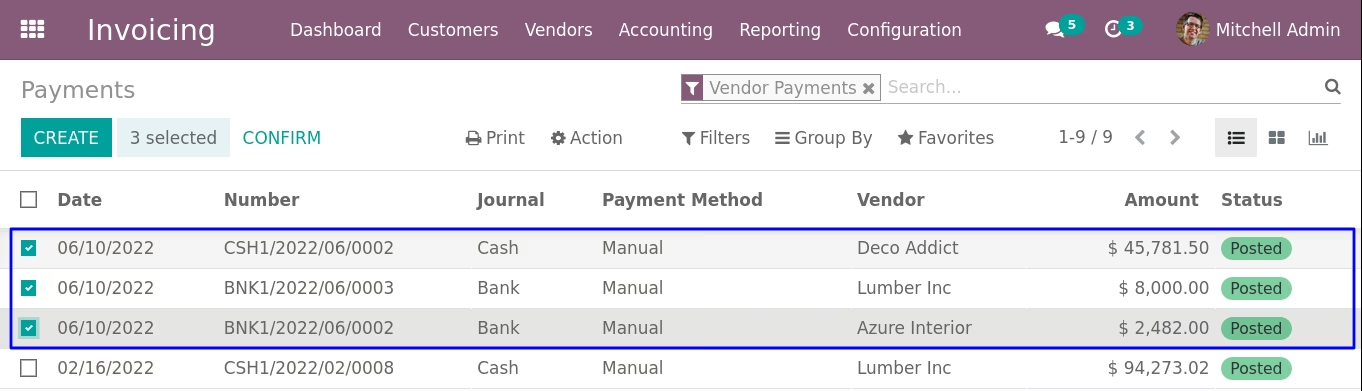
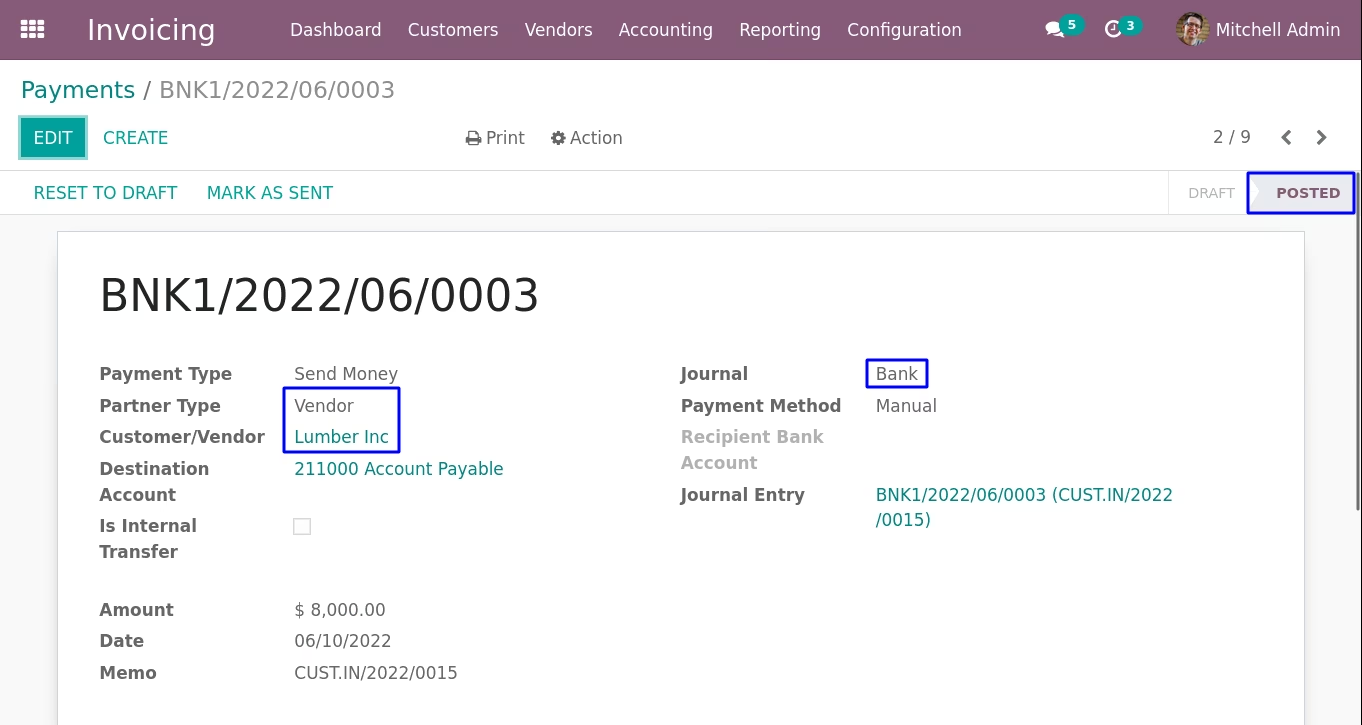
User can also see all imported payment record in posted state from data file with custom fields.
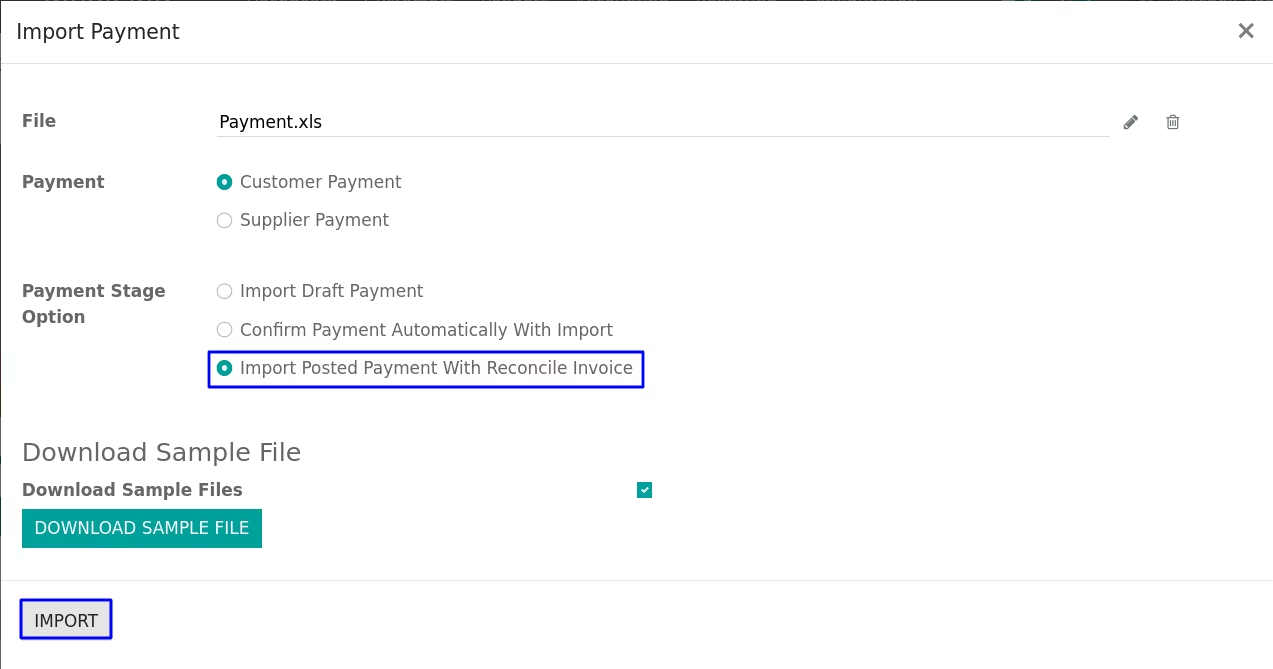
Option 3 : Import Posted Payment With Reconcile Invoice
Data File Sample.
If user wants to import posted payment with reconcile invoice option then user need to add invoice fields in data file as shown bellow image, if user importing payments with above two option then invoice field not required.

- Invoice Number
- - Invoice number for customer/supplier payment.
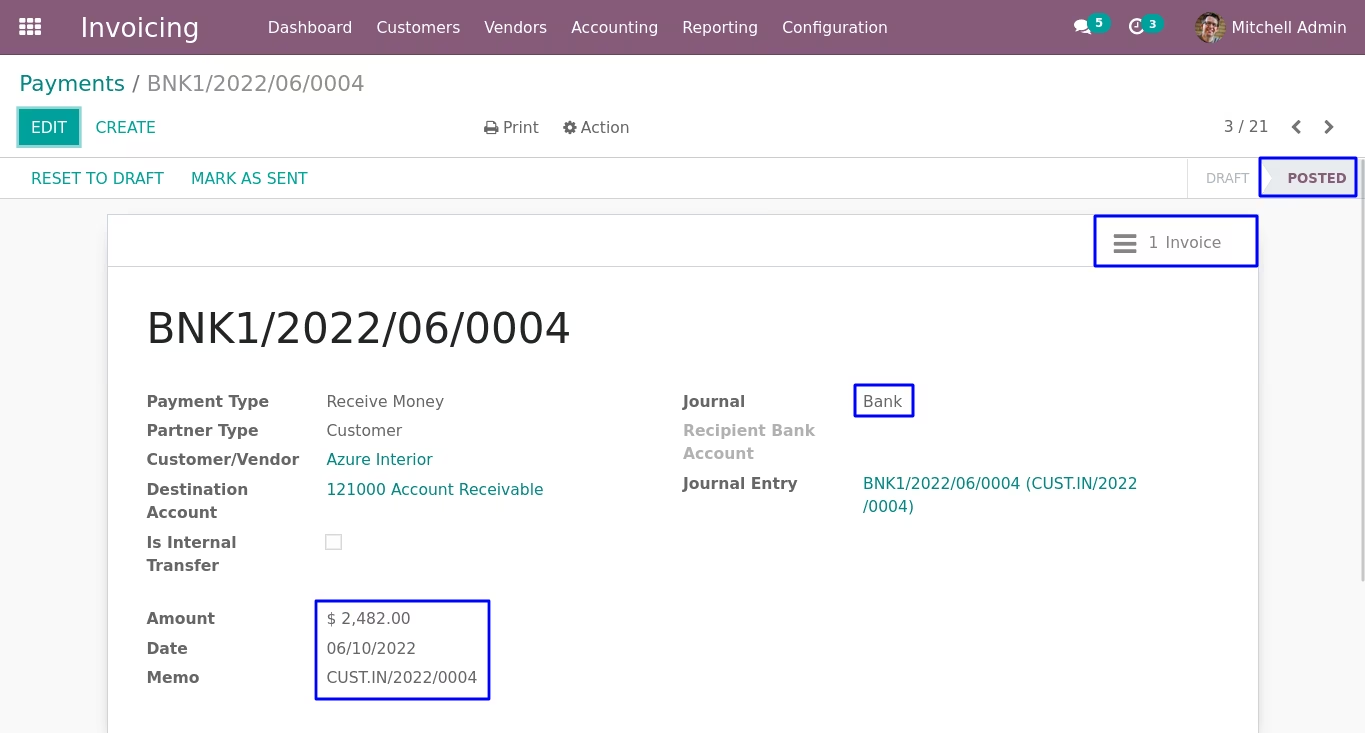
If user selects "Import Posted Payment With Reconcile Invoice" option to import payment then user have to provide invoice number on data file and payment will imported to validated state and payment will paid for selected invoice.
User can see that imported payment in posted state on tree view.
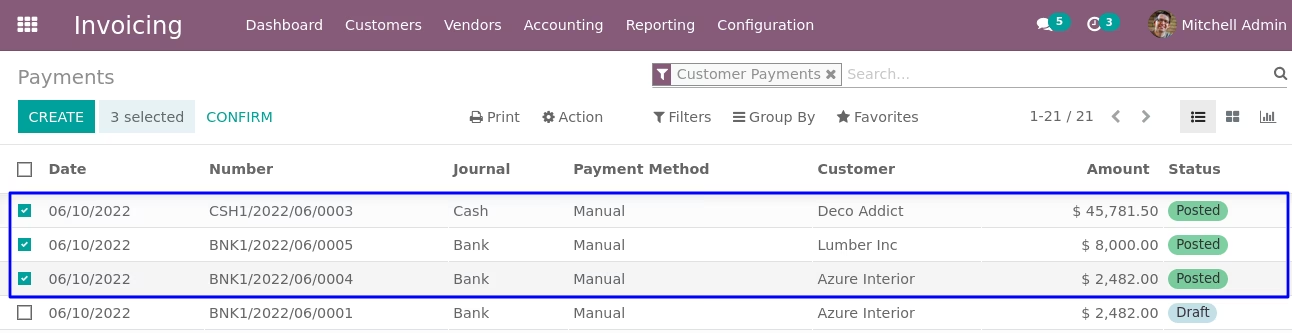
User can also see all imported payment record in posted state from data file with custom fields.
Warning/Validation.
1. If you enter wrong customer/supplier then it will raise warning.
2. If you enter wrong journal then it will raise warning.
3. It will raise warning is invoice not found in system.
4. It will raise warning if invoice is paid.
5. It will raise warning if invoice is not in "Open" state.
Installation Guide
Before installing this module you have to install following packages in your system.
1.sudo pip install xlrd
2.sudo pip install xlwt
OR
1.sudo apt-get install python-xlrd
2.sudo apt-get install python-xlwt