
Optimize your financial operations and achieve unparalleled efficiency with the Import Invoices with Payments module. This indispensable tool is expertly crafted to solve the tedious and error-prone challenges of manual invoice and payment entry. By empowering you to bulk import customer invoices and vendor bills along with their full or partial payment details from a single Excel or CSV file, you can streamline your entire accounting cycle. This module is the ultimate solution for businesses migrating financial data, managing high volumes of transactions, or seeking to automate and simplify their invoicing and reconciliation processes.
Import a wide range of documents: Customer Invoices, Vendor Bills, Credit Notes, and Refunds.
Simultaneously import invoices and their corresponding payment information in one go.
Supports both Excel (.xlsx) and CSV (.csv) file formats for maximum flexibility.
Multiple options to map products on invoice lines: by name, internal reference, or barcode.
Automatically validate or post invoices upon import to accelerate your workflow.
Intelligently handles partial payments with options to keep invoices open or write off the remainder.
Import crucial payment details like the payment journal, amount, and date.
Includes clear, easy-to-use sample files to ensure your data is perfectly formatted for a seamless import.
Drastically reduces the time and manual effort required for data entry in Accounting.
Significantly improves the accuracy of your financial records by eliminating manual errors.
Accelerates the entire accounts receivable and accounts payable lifecycle.
Simplifies the process of migrating historical financial data from legacy systems.
Provides a complete and accurate view of your cash flow by keeping invoice statuses current.
Empowers accounting teams to manage large volumes of transactions with greater speed and precision.
Enhances overall financial control and reporting accuracy within your environment.
Streamline Bulk Invoice and Payment Imports into Odoo
Import Invoices and Payment Details from Excel/CSV in One Click
Easily Import Vendor Bills and Customer Invoices with Product Lines
Flexible Invoice Import with Support for Product Codes and Custom Numbers
Do you want to import bulk invoices together ? Which has multiple product lines?
Using this Apps, you can easily import bulk invoices with payment info with single click from xls or csv file, user have different options to import invoice with or without payments, import product with name, code, or barcode and accounts. When you get excel file from your supplier no need to enter them manually, you can easily import them as vendor bills on ERP using this module.
Our apps helps you to import customer invoice and vendor bills both with payment details very easily from excel/csv format . Additionally we provide option to choose existing invoice number or import invoice number from excel file which you can select.
If you want to import extra fields from default apart from our sample files, we will add those on our import module without any extra cost. You can purchase our module and contact us on sales@browseinfo.in e.,g If you want to add Analytic accounts and analytic tags details or discount on invoice, we will add without any cost
Data File Sample.
You have 3 different options to import invoice order.
If you are using only numeric value for Internal ref or Barcode field then please make sure the cell type/format is Text/Character
Import with Code.

Import with Barcode.

Import with Name.

- INVOICE ID
- - Invoice number for the invoice.
- PARTNER
- - Vendor/Customer name for the invoice order.
- CURRENCY
- - Currency for the invoice.
- PRODUCT
- - Product name for the invoice order.
- Account
- -Name of Chart Of Account
- QUANTITY
- - Quantity for the above product.
- UOM
- - UOM for the above product.
- DESCRIPTION
- - Description for the product
- PRICE
- - Price for the above product.
- DISCOUNT
- -Discount for product.
- SALESPERSON
- -Name of salesperson.
- TAX
- -Tax for the product.
- DATE
- -Date of invoice.
- JOURNAL
- -Payment Journal for invoice payment.
- AMOUNT
- -Payment Amount for created payment for invoice.
- PAYMENT DATE
- -Payment Date for register payment created for invoice.
The "INVOICE ID" should be same, as you can see in the image,"INVOICE ID" is same for different product list.This defines single invoice with different product
Tax column is important you have to add "Tax column" though there is no need of adding tax
1. When code is selected in Import option, please select file that contains code of products.
2. When barcode is selected in Import option, please select file that contains barcode of products.
3. When Name is selected in Import option, please select file that contains name of products.
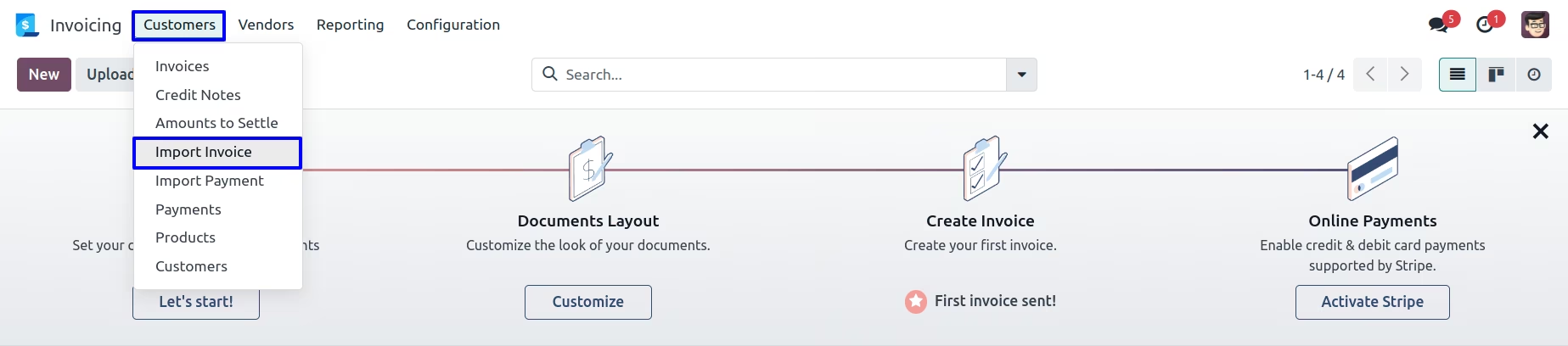
Import Invoice Menu
Under Invoicing > Customers > Import Invoice menu user can import invoice from xls or csv file.
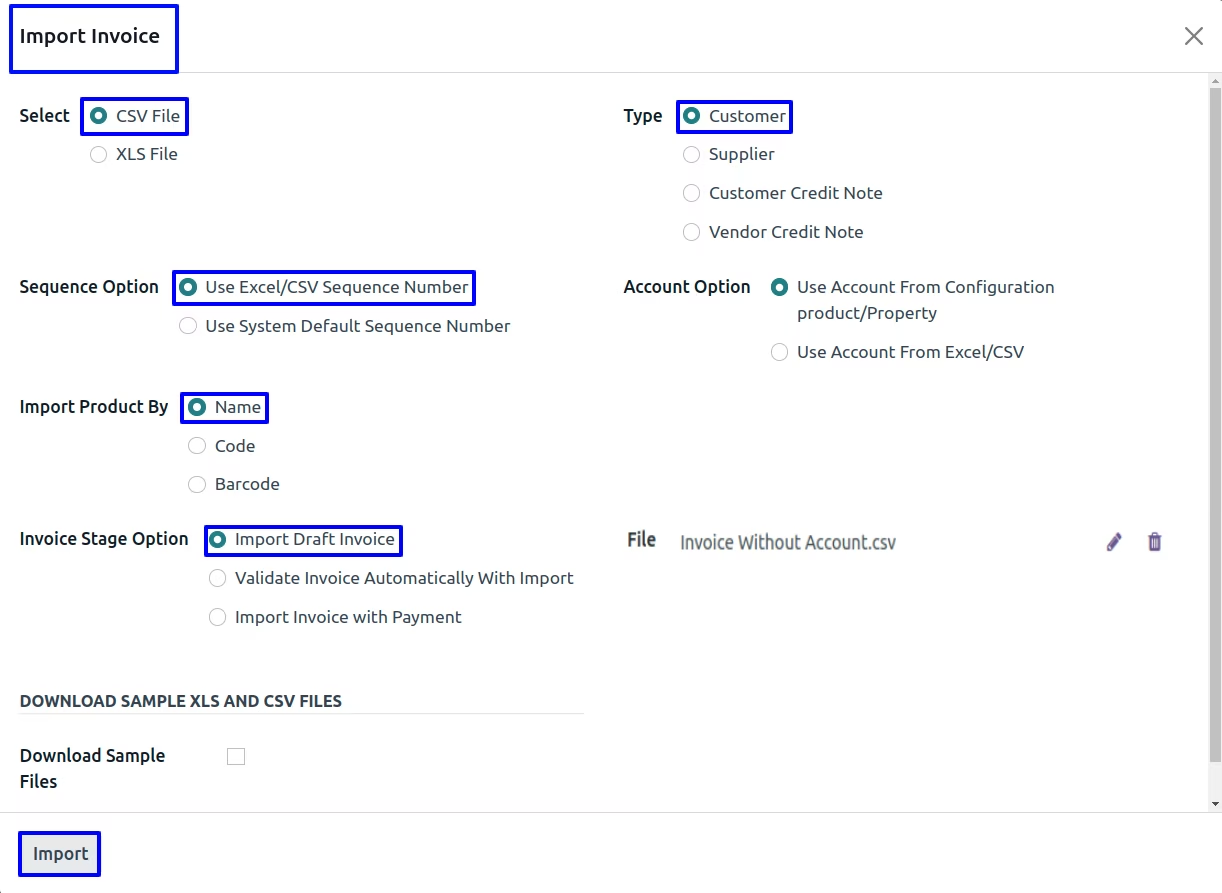
Import Customer Invoice
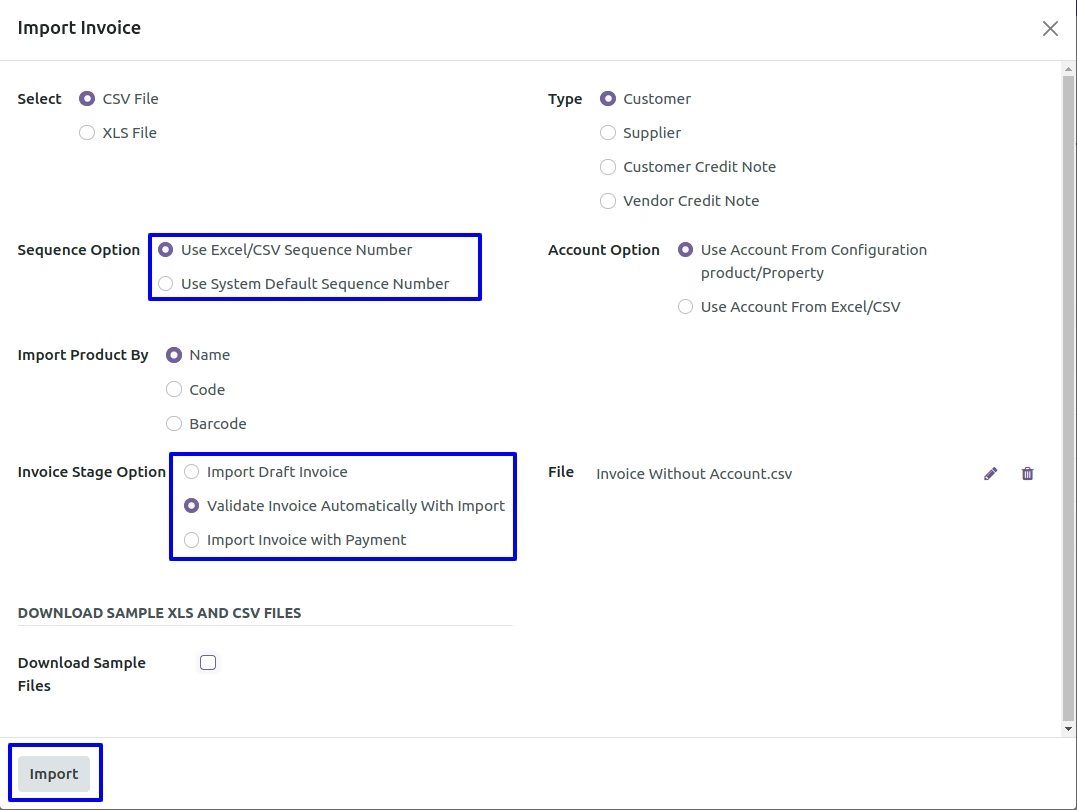
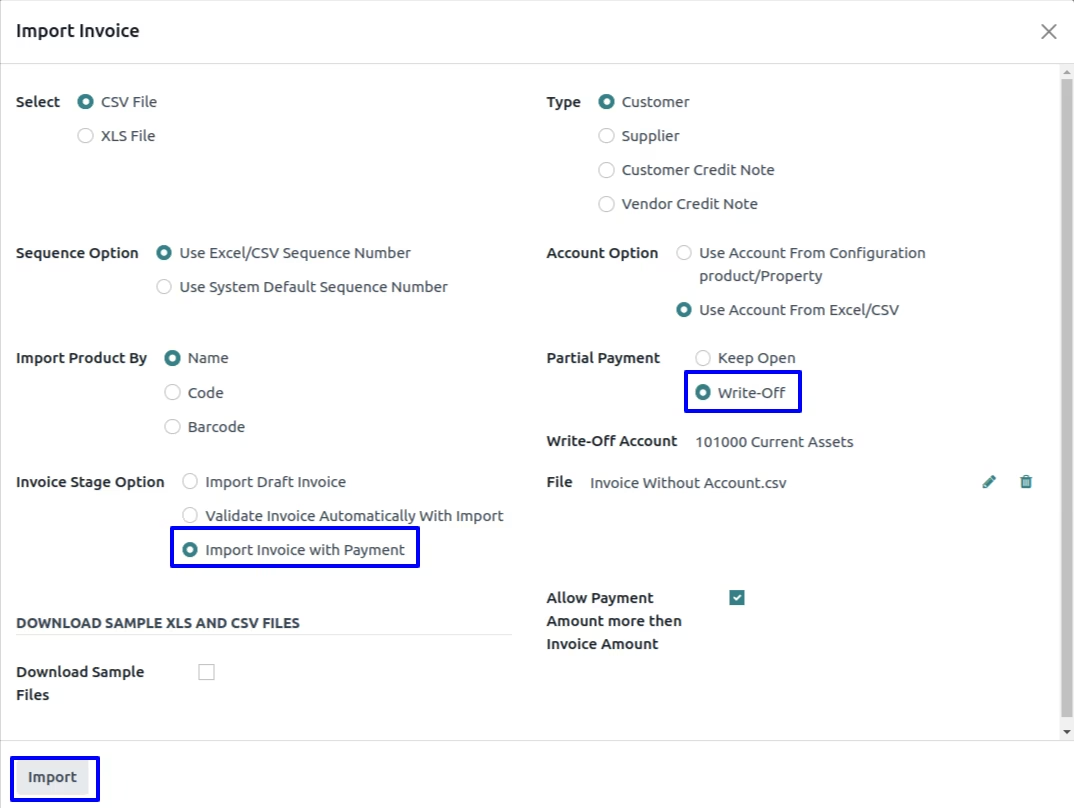
1. Sequence Option :
If you want to import details of invoice number from CSV/XLS you can also have option regarding this in import invoice wizard.
If you select "Use Excel/CSV Sequence Number" option then name field will came from CSV/XLS file.
2. Invoice Stage Option :
If you select "Import Draft Invoice" option then invoice will be import in draft stage.
If you select "Validate Invoice Automatically With Import" option then invoice will be import in validate/Open stage.
3. Account Option :
If you want to import Account from XLS/CSV so you have option for "Account Option" regarding this in import invoice wizard.
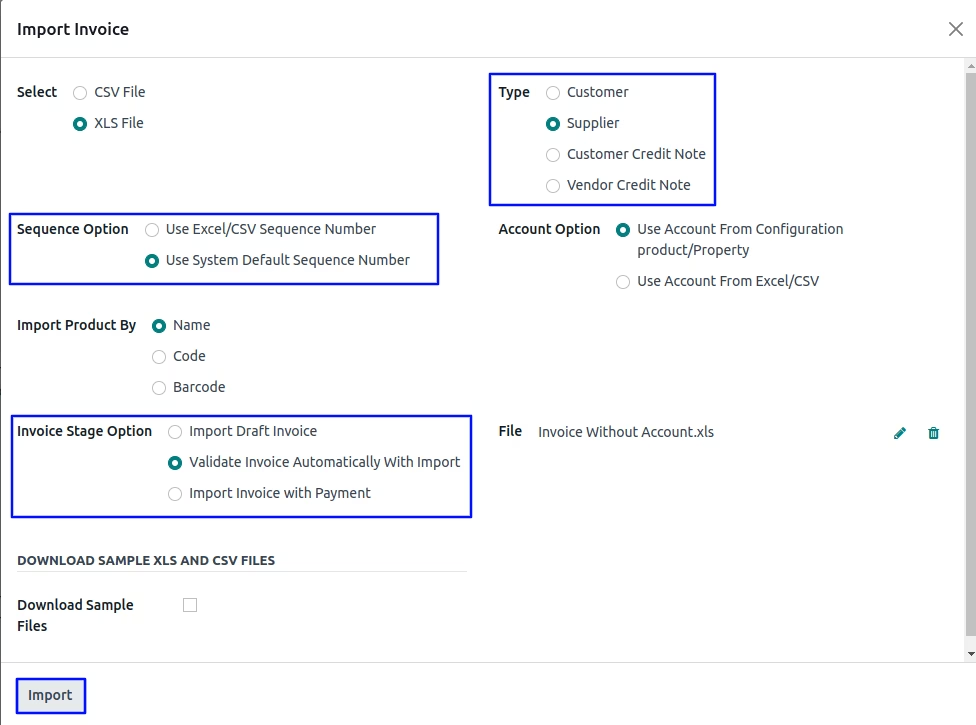
4. Type :
You have also option for import invoice for Customer, Vendors, Customer Refund(Customers Credit Note) or Vendors Refund(Supplier Credit Note).
5. Import Product By :
You have also option to import products by it's Name/ Barcode or Code(Internal Reference).
If you want to create product while importing invoice order then you have to select import with "Name".
Import Invoice Tree View
User can see imported customer invoices from xls/csv file in tree view .
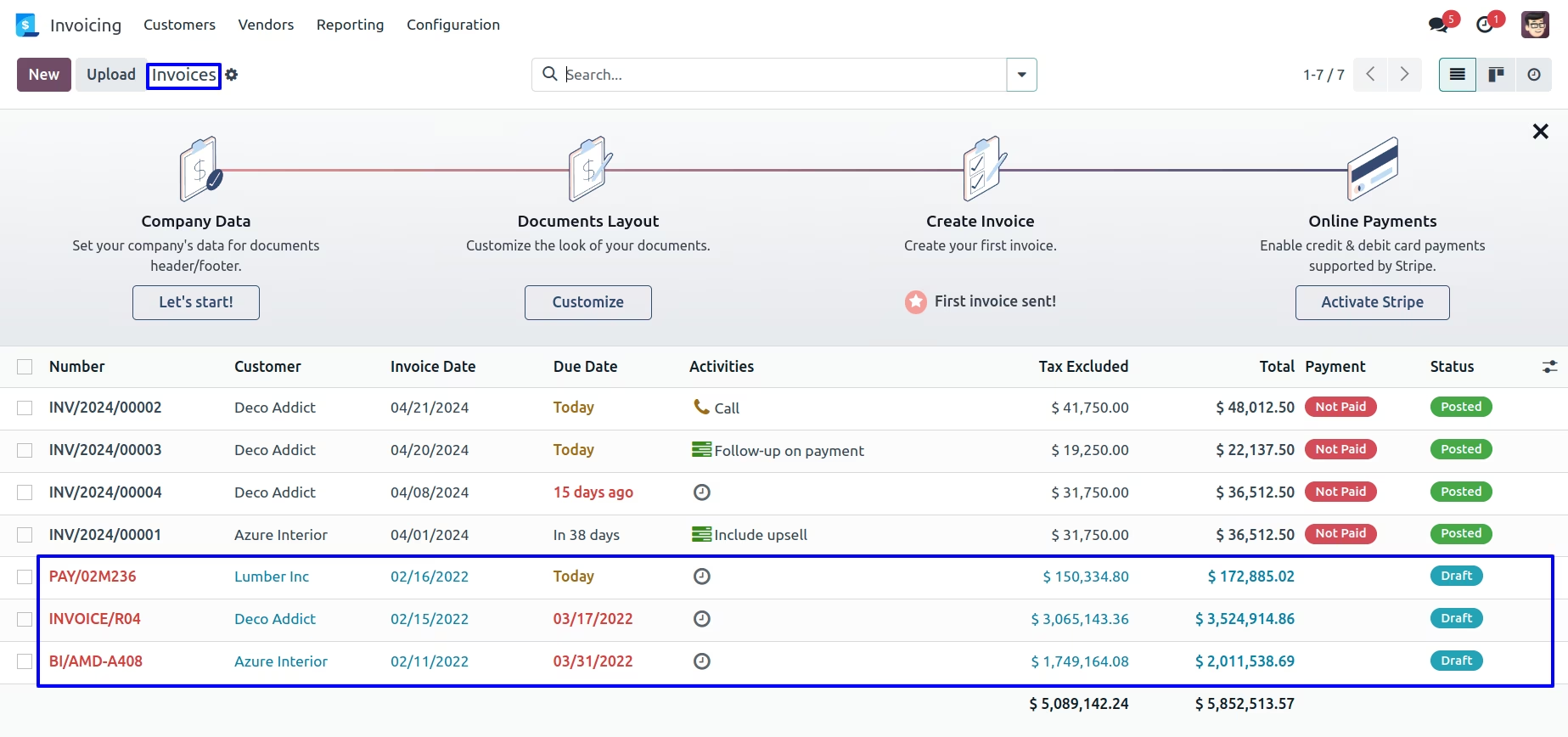
User can see imported invoices from CSV/XLS with "Import Draft Invoice" option in draft stage and invoice number is same as given in CSV/XLS file.
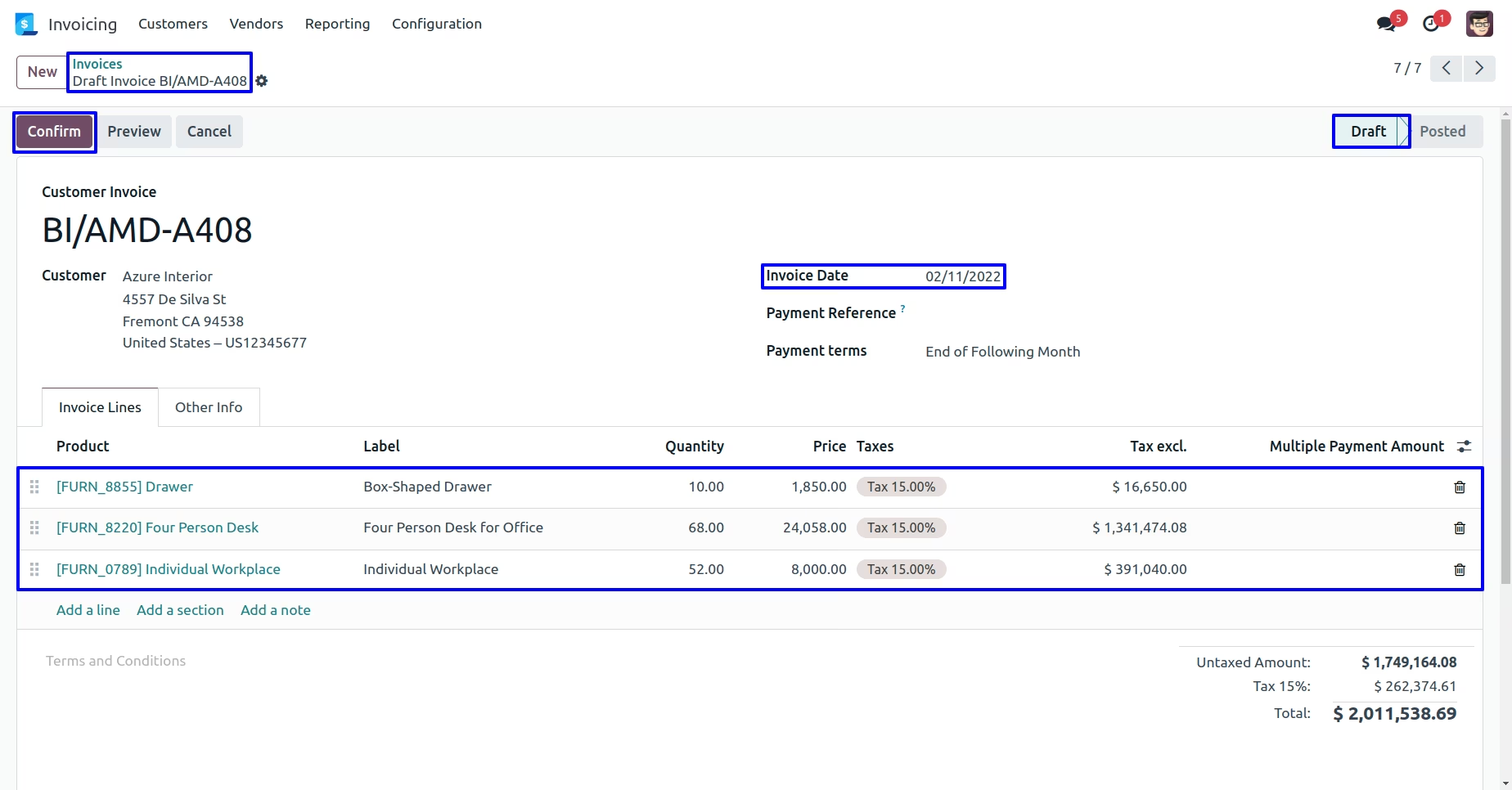
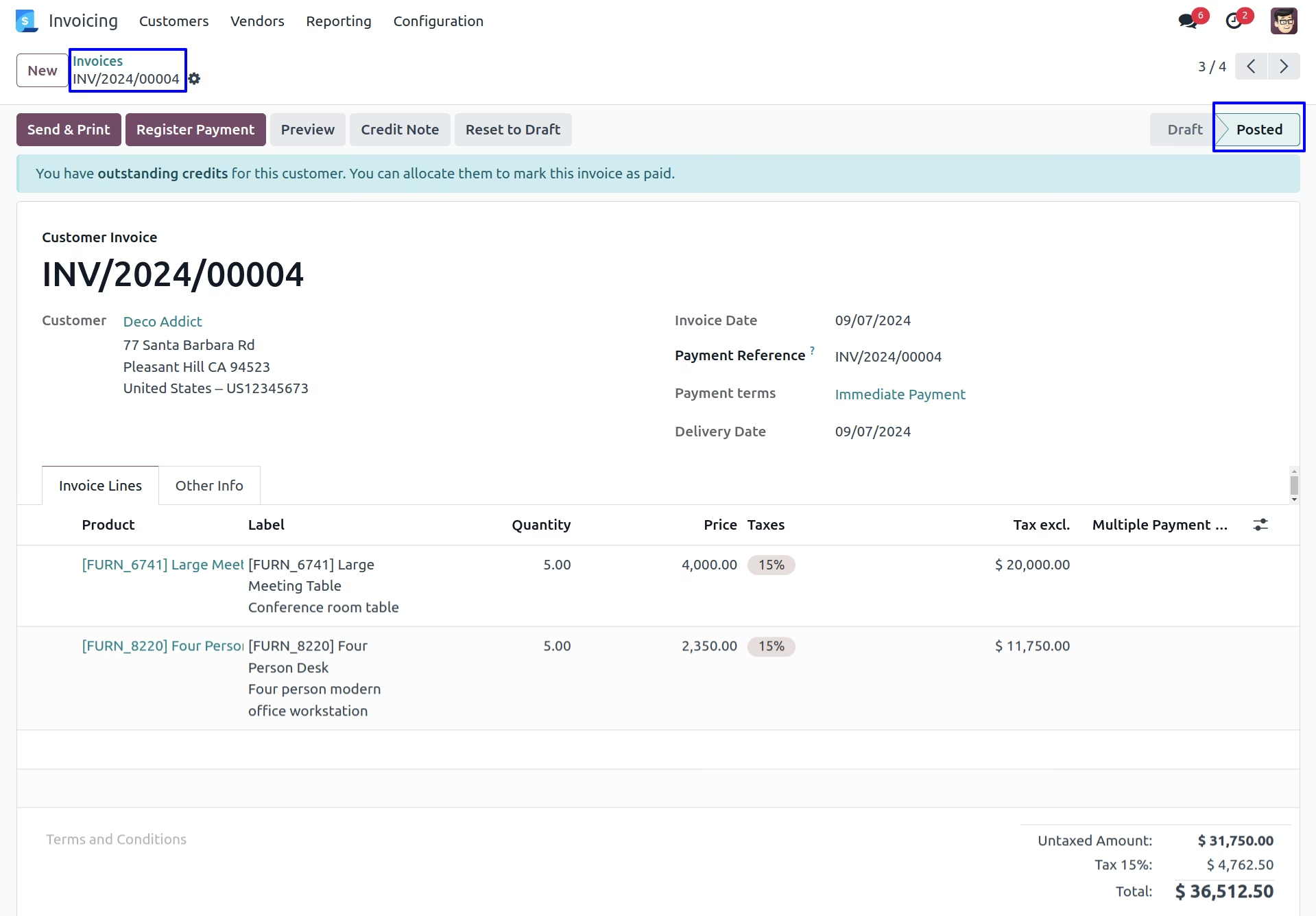
If user select "Validate Invoice Automatically With Import" option then imported invoices is in Open stage.
User can see updated stage of invoice.
Import Vendor Bill
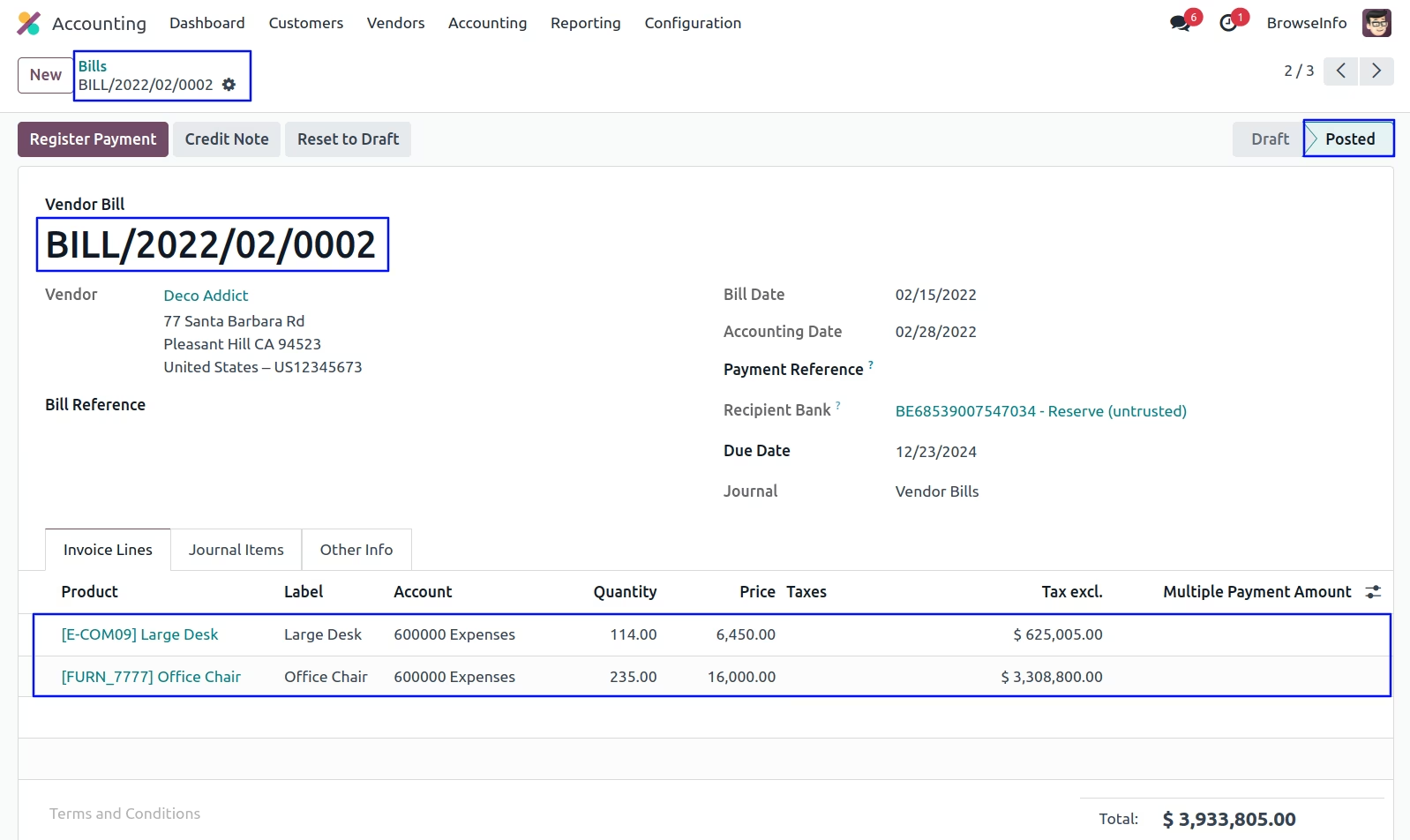
If user select "Use System Default Sequence Number" option then name field will follow the system sequence.
User can see imported supplier invoice in "Posted" state.
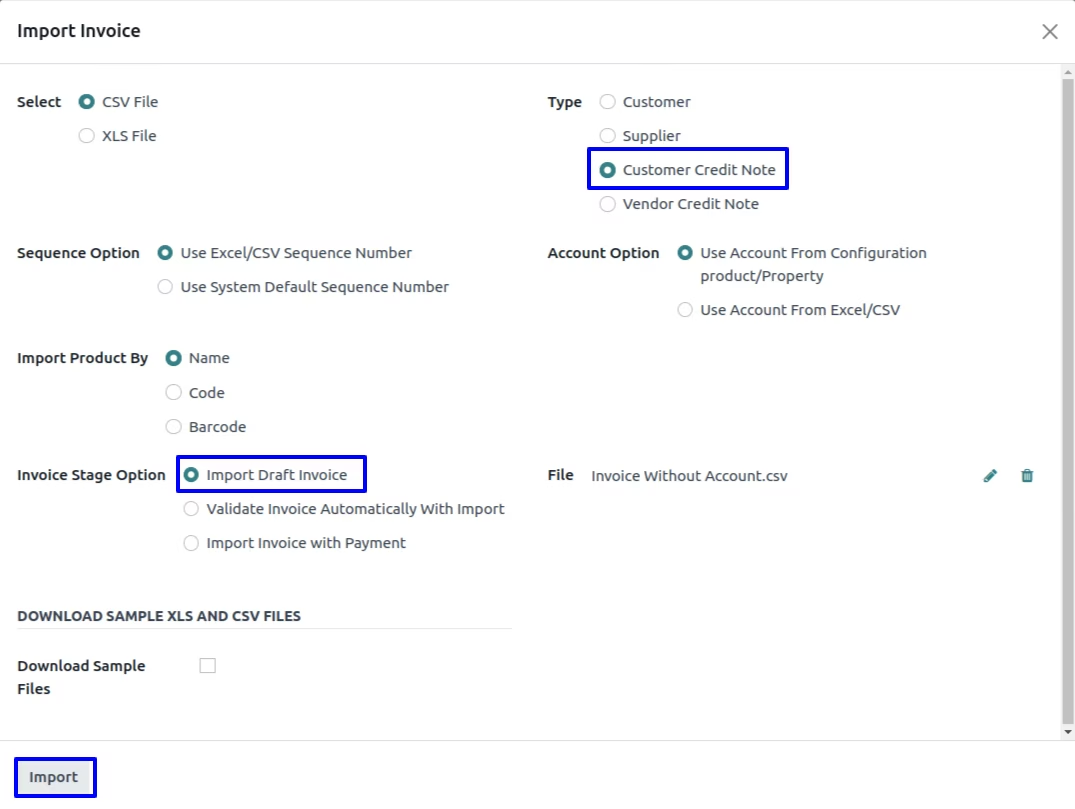
Import Customer Credit Note
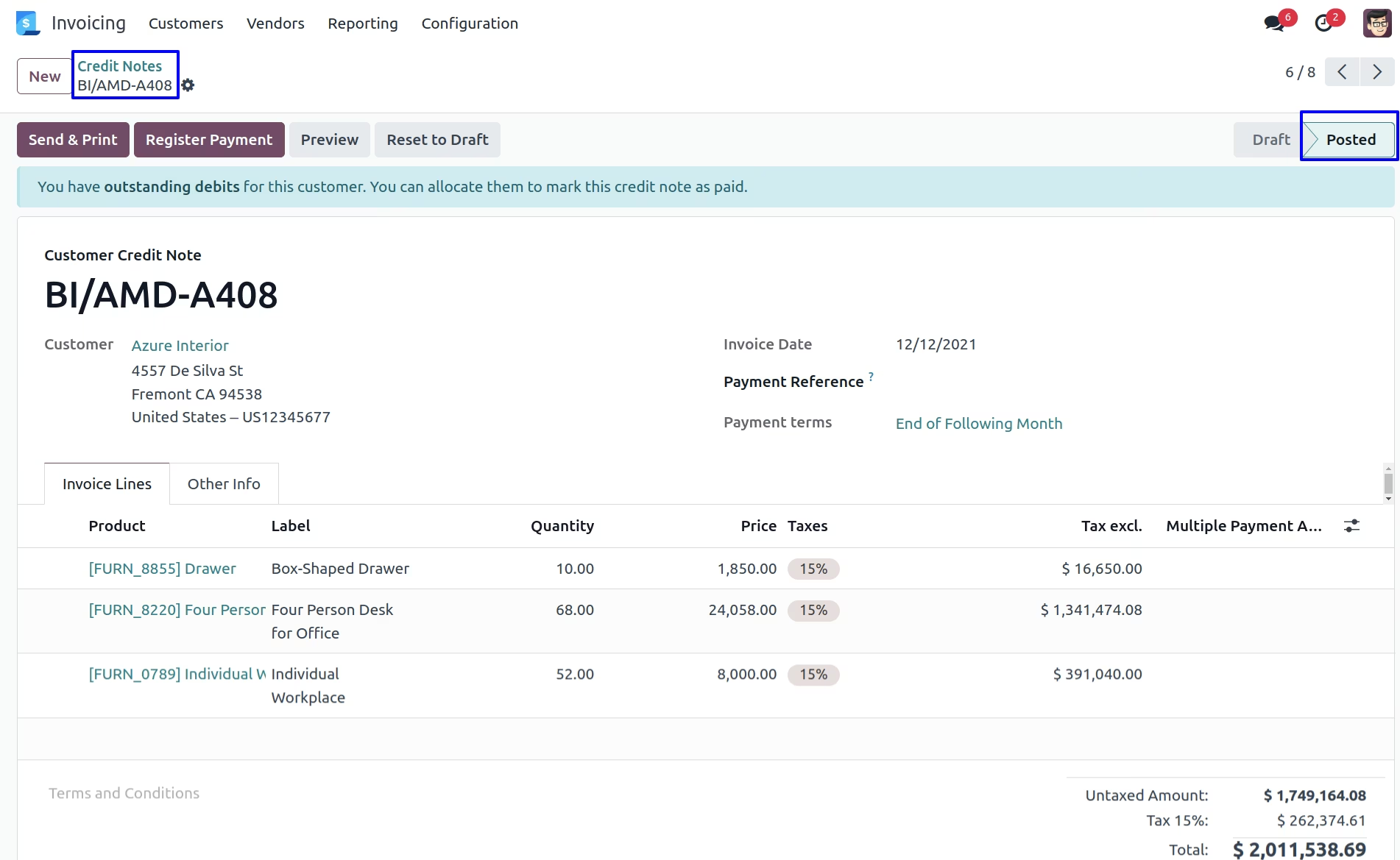
If user select "Customer Credit Note" option then you can see the invoices created as a Customer Credit Note (Customer Refund).
User can see imported Customer Credit Note in "Posted" state.
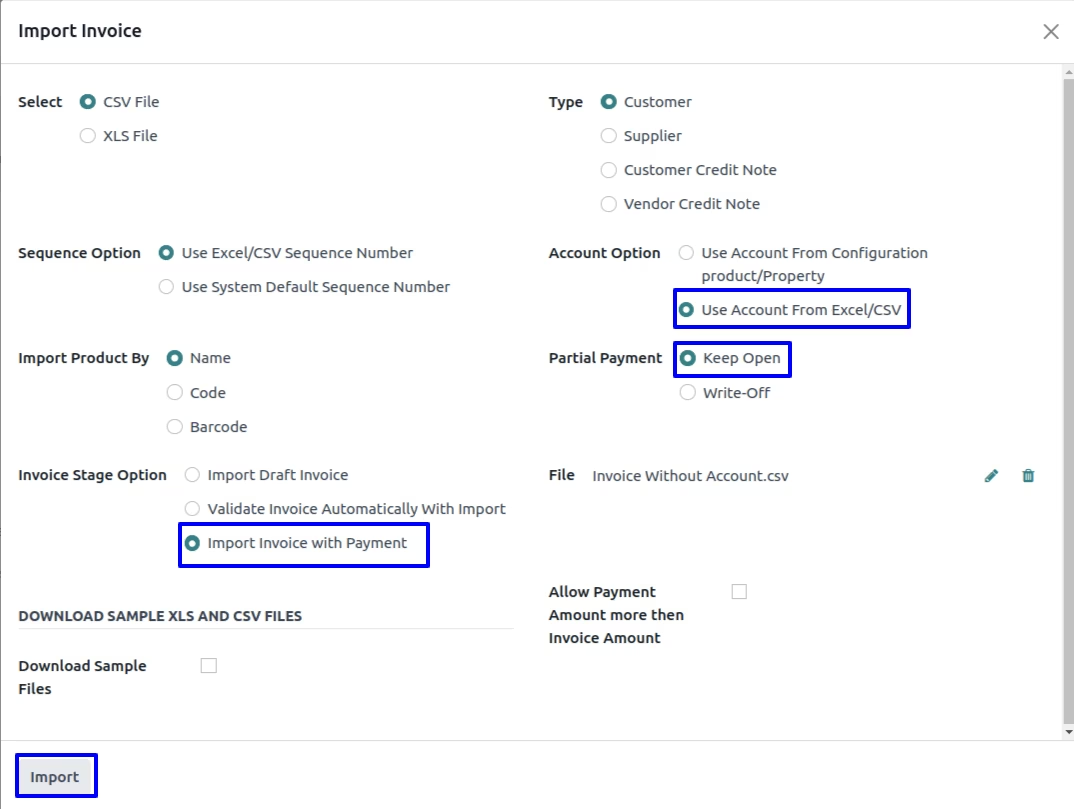
Import Invoice with Partial Payment
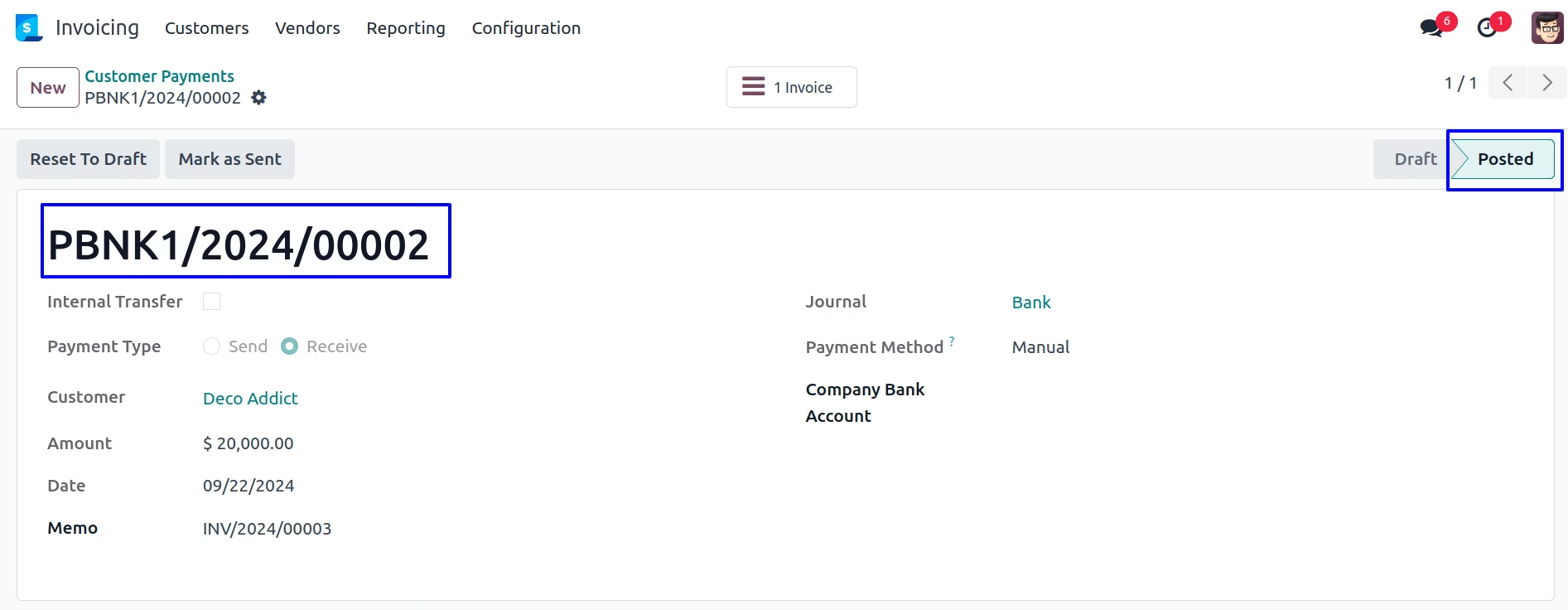
If user select "Import Invoice with Payment" on Invoice Stage Option and "Keep Open" on Partial Payment then user can see imported invoice with payment entry in "Open" state.
User can see imported Invoice in "Posted" state.
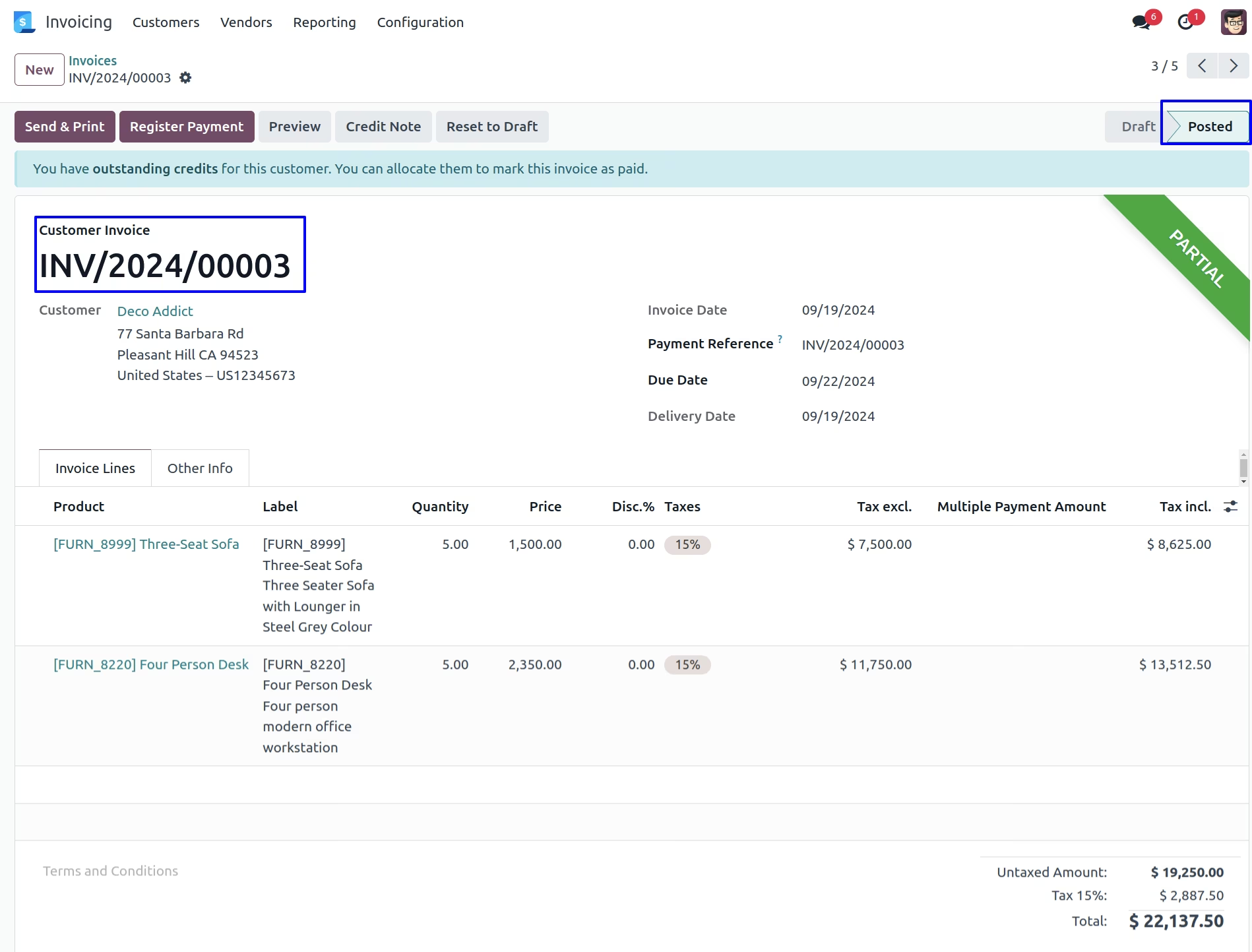
Here user can see imported invoice with payment entry
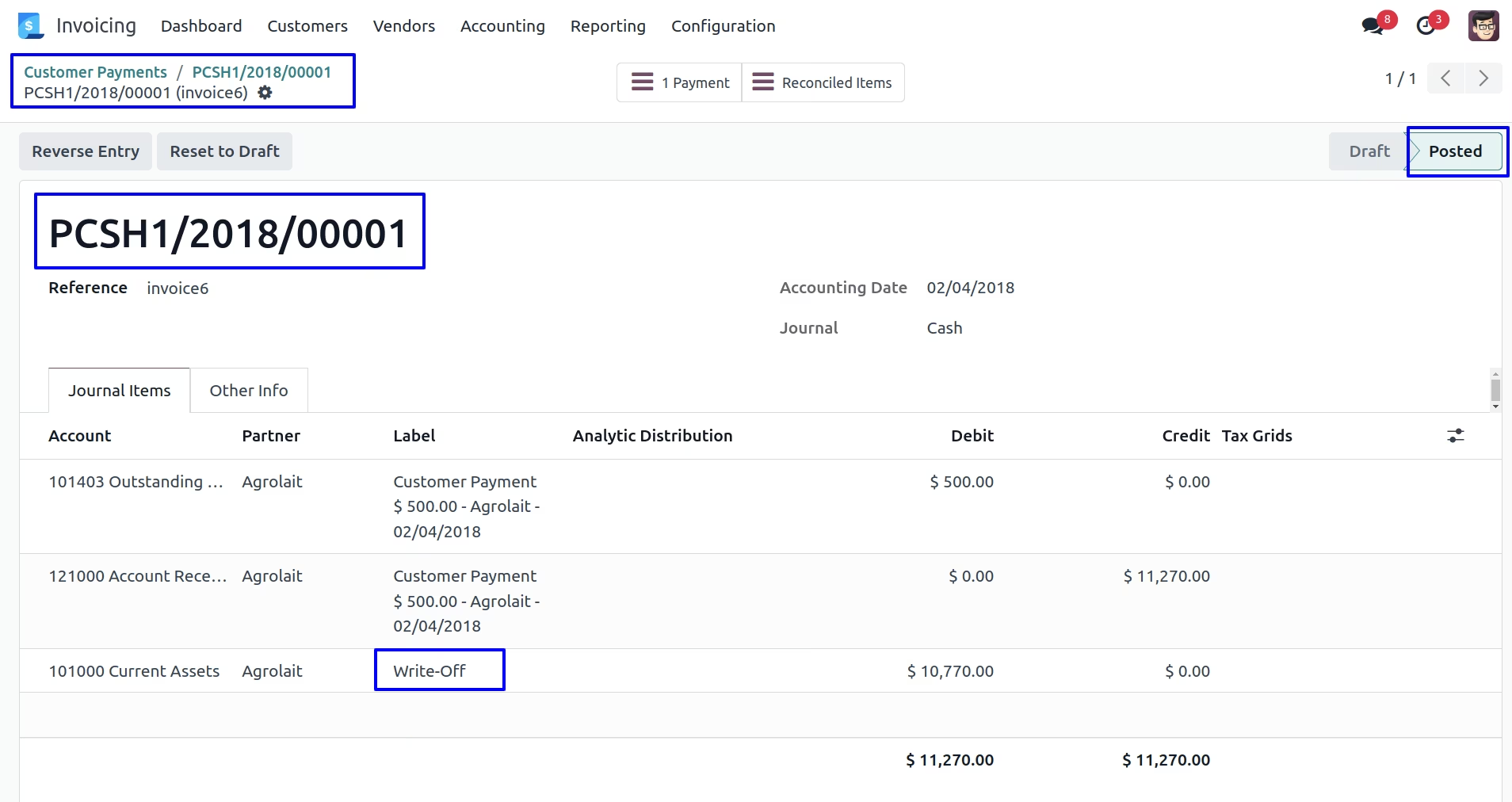
If user select "Import Invoice with Payment" on Invoice Stage Option and "Write-Off" on Partial Payment then user can see invoice is fully paid and payment entry is created.
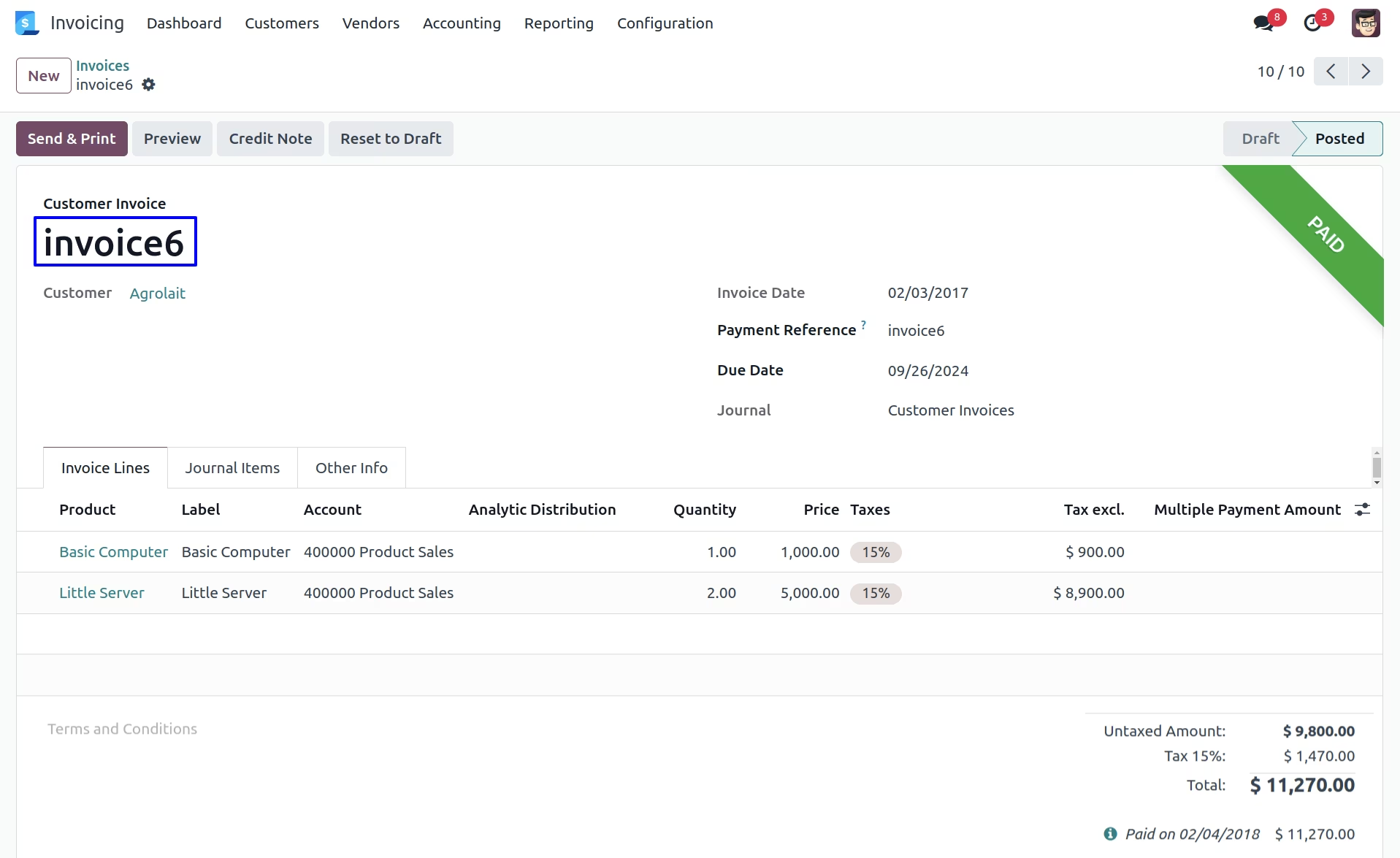
Here user can see invoice is fully paid .
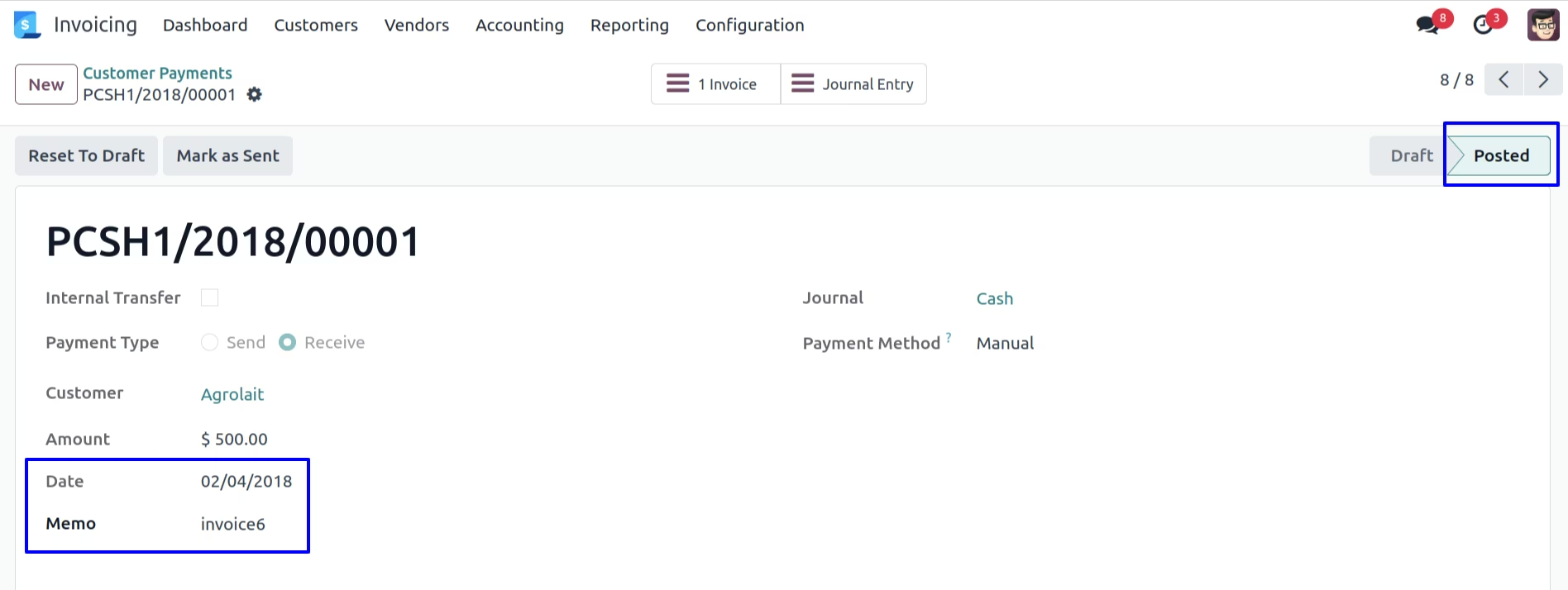
User can see payment entry is created.
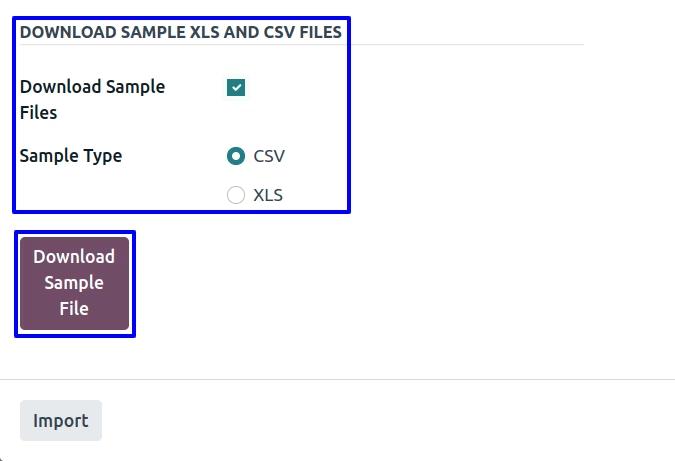
User can select the file format and download the sample file.
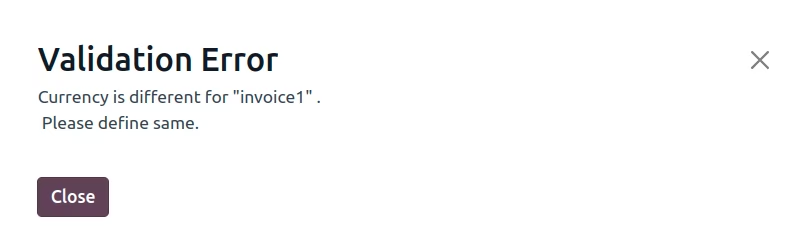
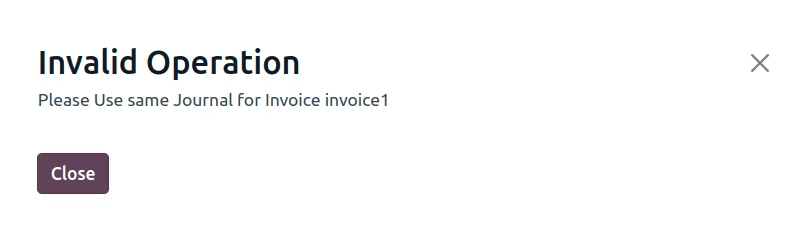
Warning.
It will generate error if you import wrong partner.
It will also generates errors when you import wrong value of Currency,Pricelist,UOM,Salesperson and Tax.
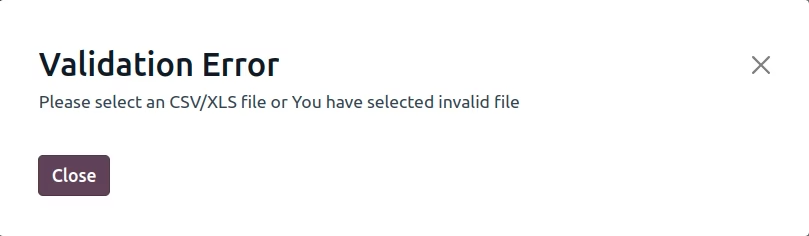
It will generate error if you import wrong file type.
It will generate error if date is not given in CSV/XLS file.
Installation Guide
Before installing this module you have to install following packages in your system.
1.sudo pip install xlrd
2.sudo pip install xlwt
OR
1.sudo apt-get install python-xlrd
2.sudo apt-get install python-xlwt