Streamline your bank reconciliation and gain ultimate control over your financial data with the Import Bank Statement Lines module. This essential accounting tool is designed to eliminate the tedious and time-consuming process of manually entering individual bank transactions. By enabling you to import your bank statement lines in bulk from a simple Excel or CSV file, you can ensure speed, accuracy, and efficiency in your accounting workflow. This module is the perfect solution for businesses looking to accelerate their reconciliation process, migrate historical bank data, or simply manage a high volume of transactions with ease.
Import multiple bank statement lines into any bank or cash journal in a single operation.
Supports both Excel (.xlsx) and CSV (.csv) file formats for maximum flexibility.
Import all essential transaction details, including Date, Label/Description, Partner, Reference, and Amount.
Automatically populates the bank statement with your data, ready for the reconciliation process.
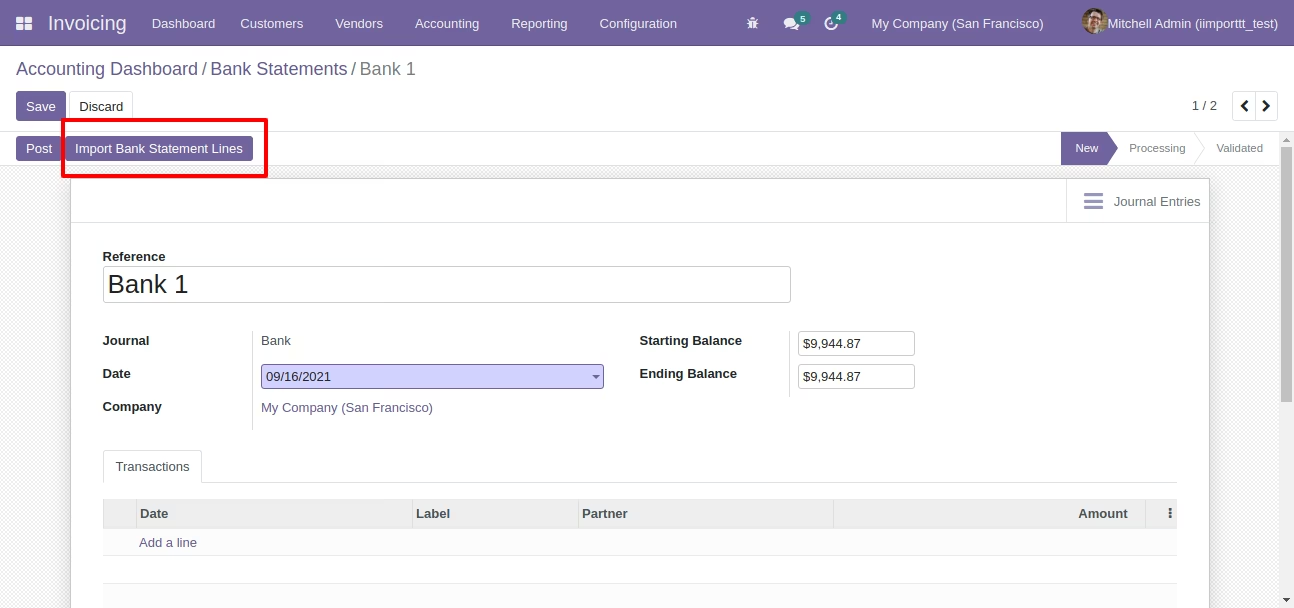
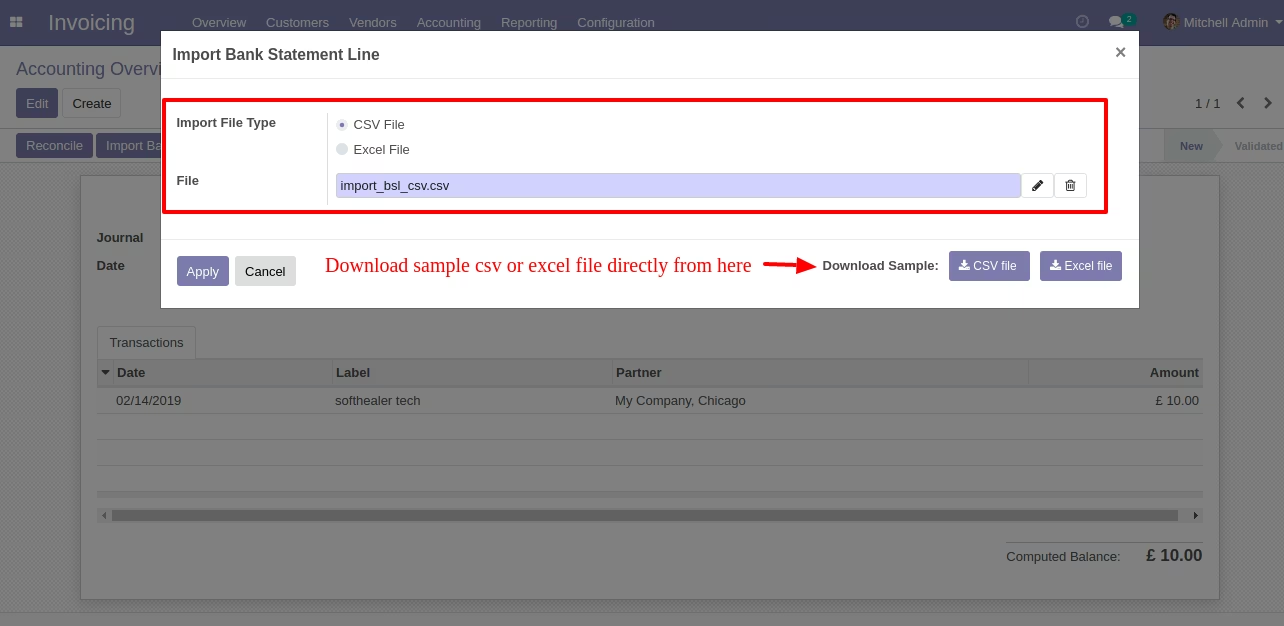
User-friendly import wizard located directly on the bank statement form for easy access.
Includes clear, easy-to-use sample files to ensure your data is structured correctly for a seamless import.
Features robust data validation to prevent errors and provides informative logs to quickly resolve any issues.
Drastically reduces the manual effort and time required to record bank transactions.
Significantly improves the accuracy of your financial data, leading to a smoother reconciliation process.
Accelerates the closing of your accounting periods by keeping bank records up-to-date.
Simplifies the process of migrating historical bank transaction data from other systems.
Empowers your accounting team to handle a large volume of transactions with greater speed and precision.
Enhances cash flow visibility by providing a timely and accurate view of your bank balances.
Creates a more efficient and less error-prone accounting workflow for your entire finance team.
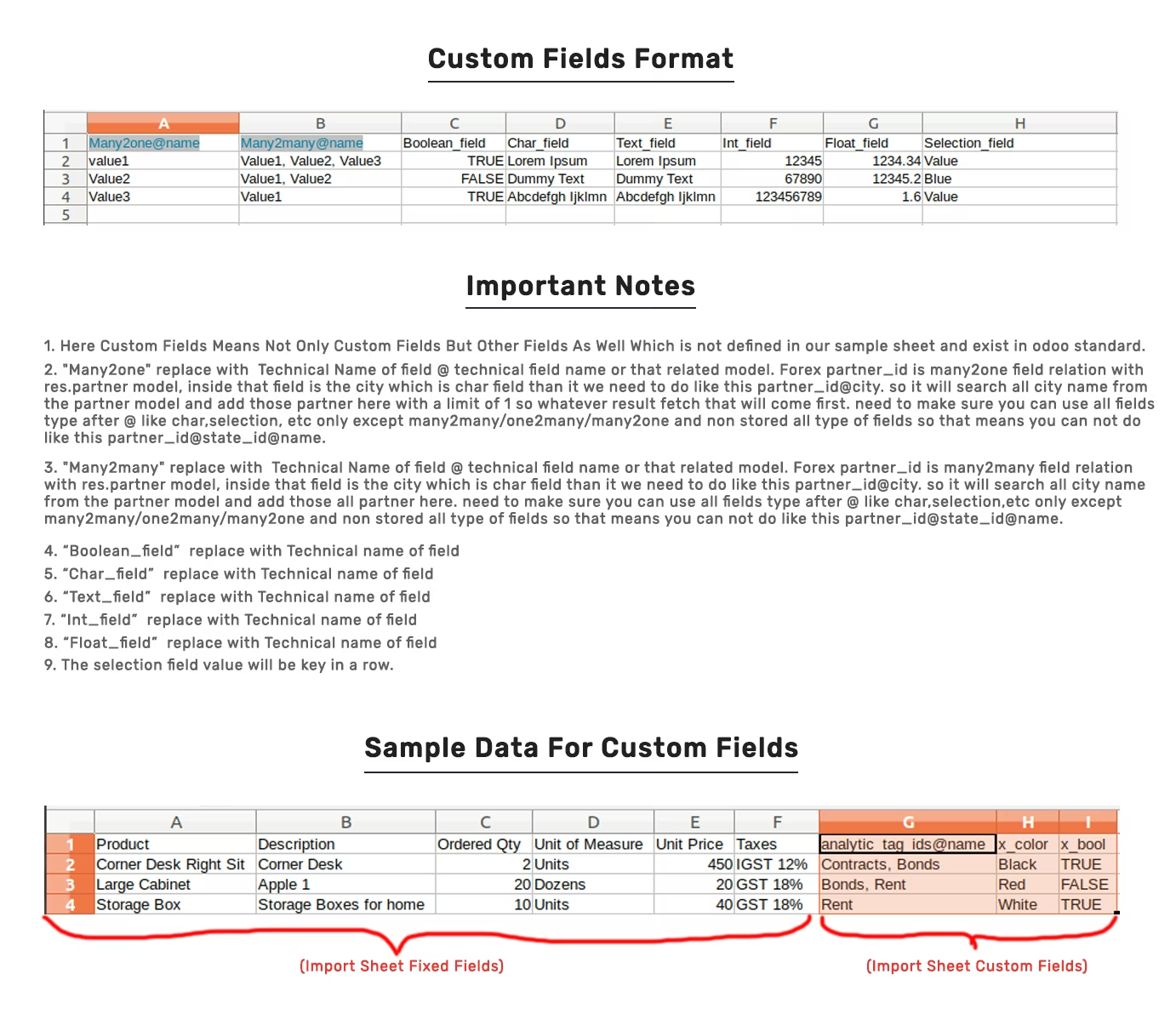
This module is useful to import bank statement lines from CSV/Excel. You can import custom fields from CSV or Excel.
- Easy to import.
- Import CSV or Excel.
- Easy to import custom fields.
- Easy to import custom fields from CSV or Excel.
- Y Easy to import Text, Integer, Float, Character, Boolean, Selection, Many2one, Many2many custom fields.
- No special configuration required, install it, use it.
- This module saves your important time.
- It reduces human efforts.
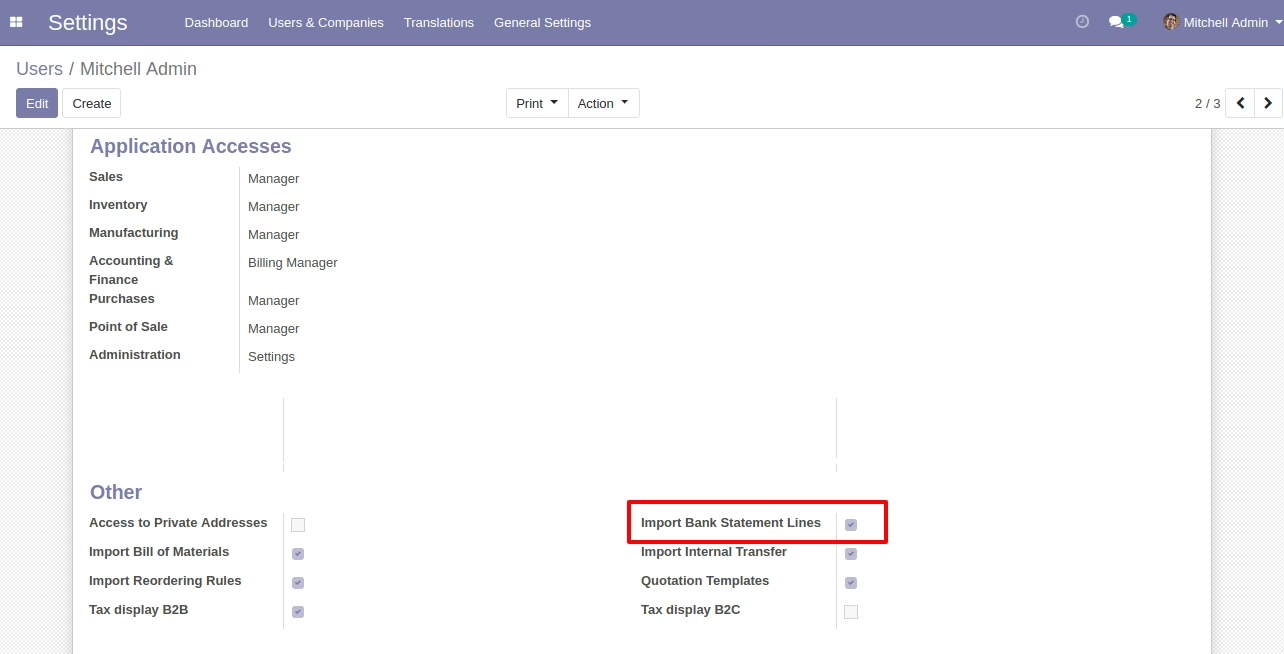
First, you need to tick "Import Bank Statement Lines" groups to import bank statement lines.
"Import Bank Statement Lines" Button in bank statement form view.
When you click on the "Import Bank Statement Lines button", the import wizard will be opened where you can upload the CSV/Excel file and hit the apply button.
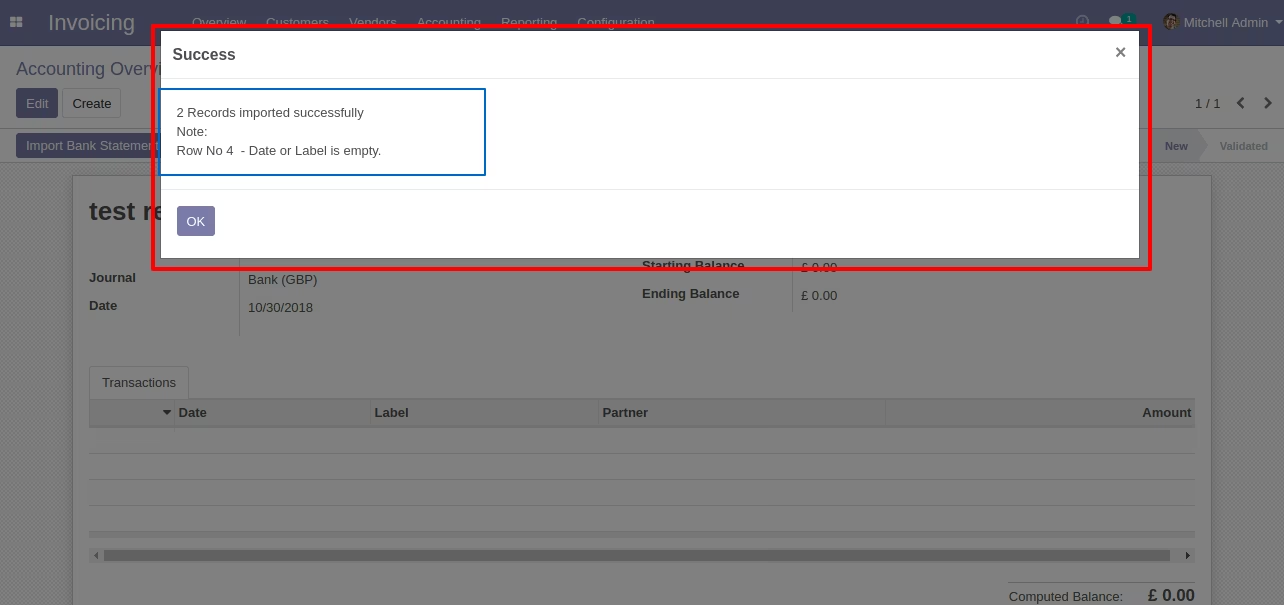
Success message looks like below it shows successfully imported records and also provides a list of unimported records with row number in sheet and relative details of data invalidation.
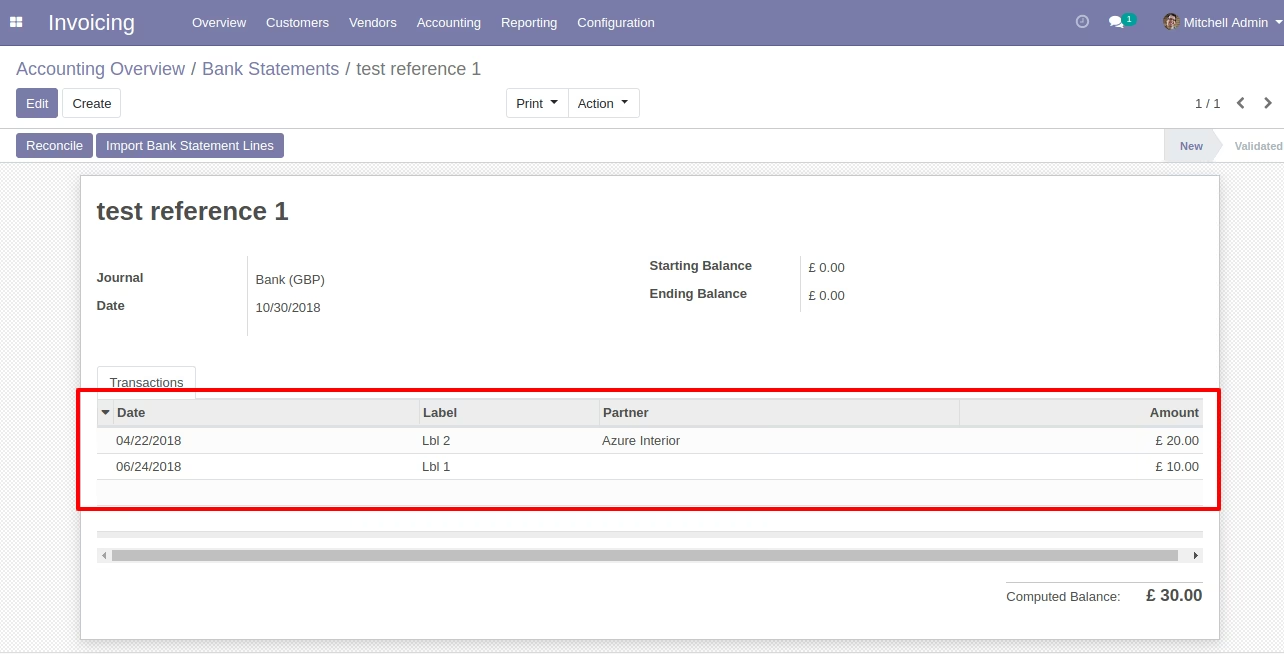
Imported bank statement lines look like below.
About Fields

| Column | invoice Model | Field Name | Description | Required |
|---|---|---|---|---|
| A | Accounting Dashboard (account.bank.statement) | Date | Define the Date. | Yes |
| B | Accounting Dashboard (account.bank.statement) | Label | You have to write a Label here. | Yes |
| C | Accounting Dashboard (account.bank.statement) | Partner | Define the Partner. | No |
| D | Accounting Dashboard (account.bank.statement) | Reference | You have to write a Reference here. | No |
| E | Accounting Dashboard (account.bank.statement) | Amount | You have to write a Amount here. | No |
| F | Accounting Dashboard (account.bank.statement) | Custom Fields | You can import custom fields from here. Please go to the "Custom Fields" tab for more details. | No |
General Notes:
1) Don't remove the column from the sample sheet given, you can leave an empty column if the column is not the required type. You can see the table above for that.
2) Don't change the sample sheet column sequence.
3) Please don't use excel if you don't know the very well sheet formatting which is given in the sample sheet. Use CSV for hassle-free import without format issue. If you want to use excel and want to clear the format then please check this video.
4) Add Custom Fields or Non-Exist Standard fields at the end, For adding those fields pls check the custom fields section.
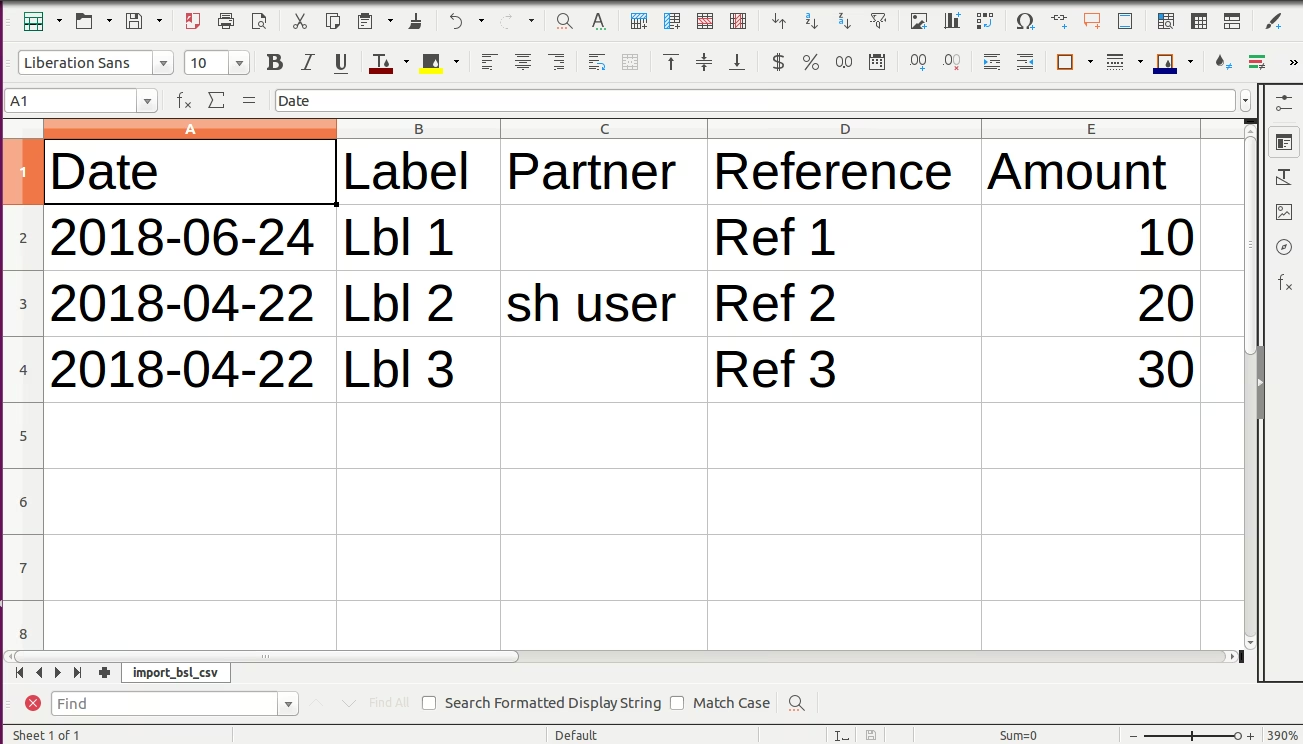
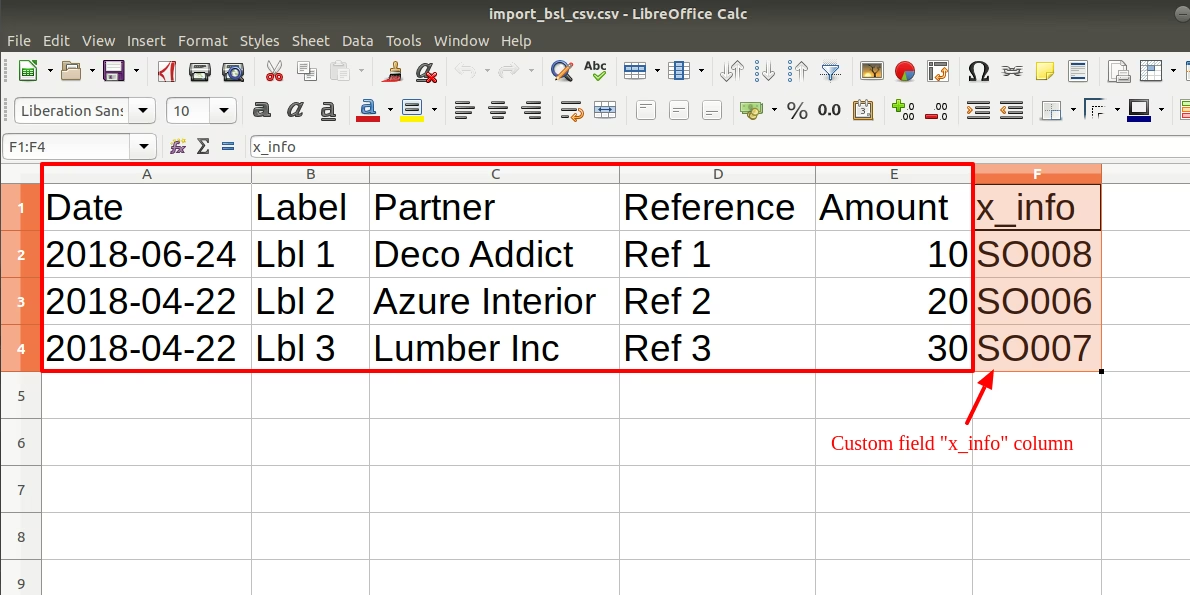
Your CSV file format must match like below.
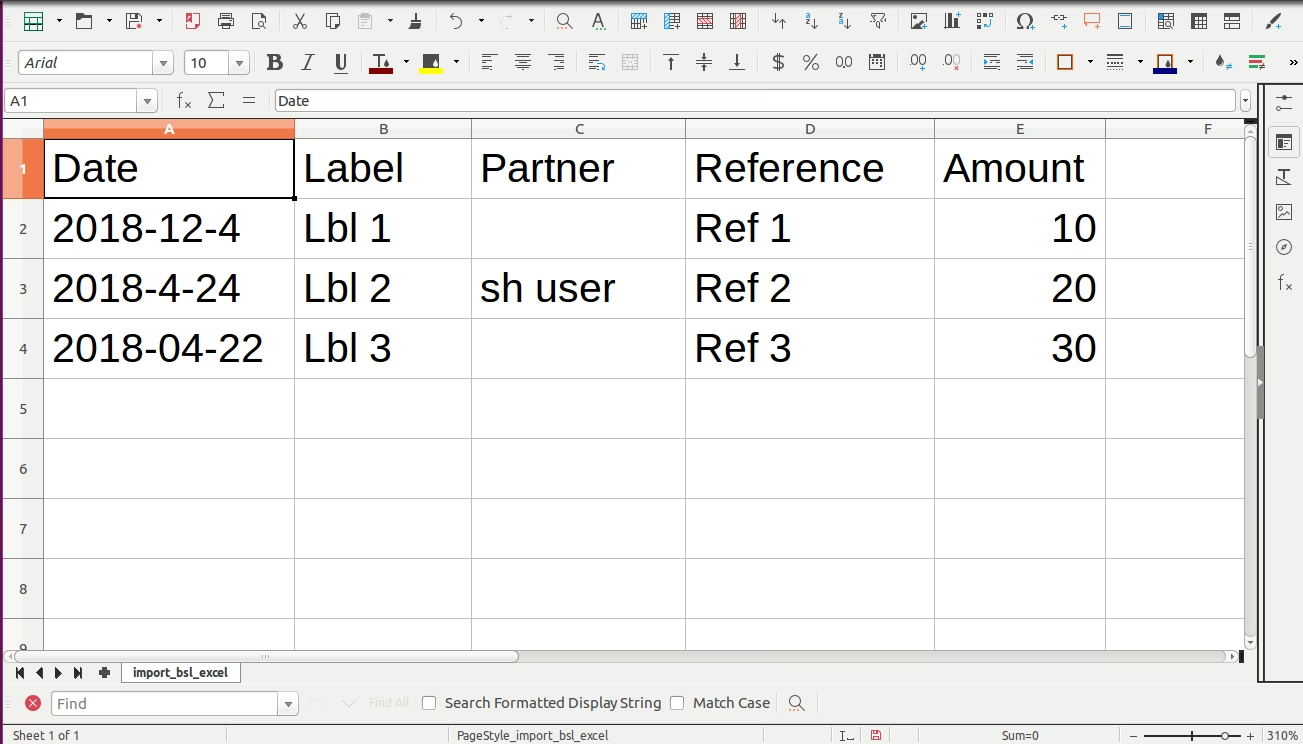
Your Excel file format must match like below.
Import custom character field "Information".
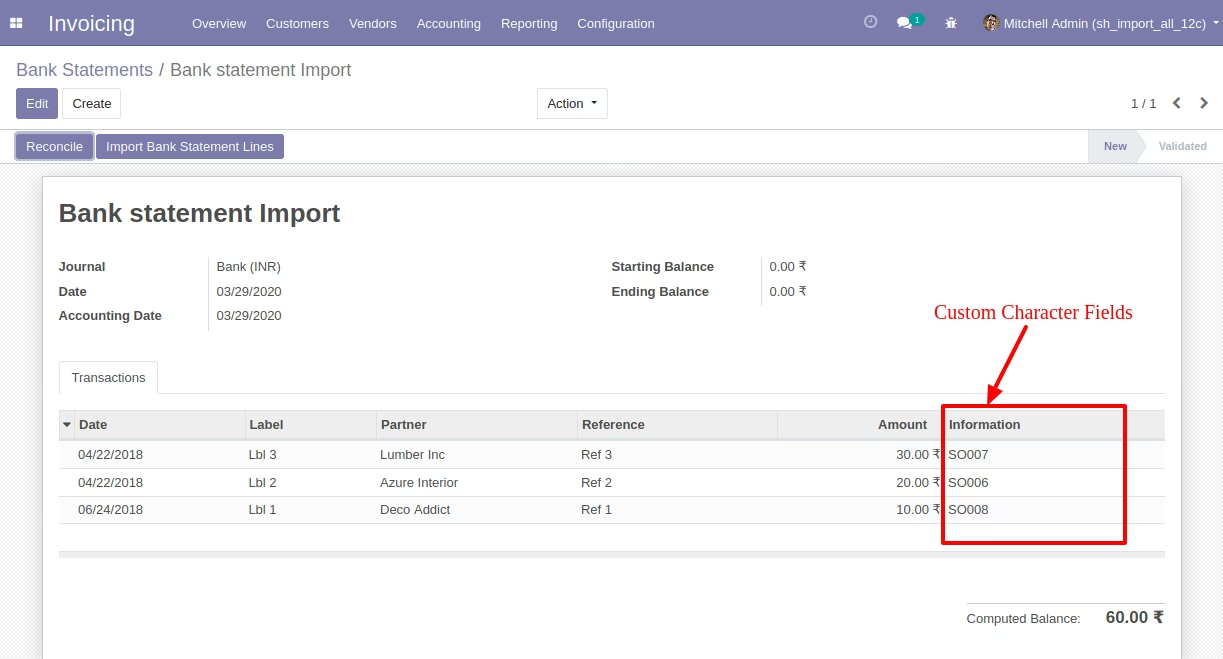
Your CSV/Excel file must match like below and You can add custom fields column after the 'Check Out Date & Time' column as shown in the below image.
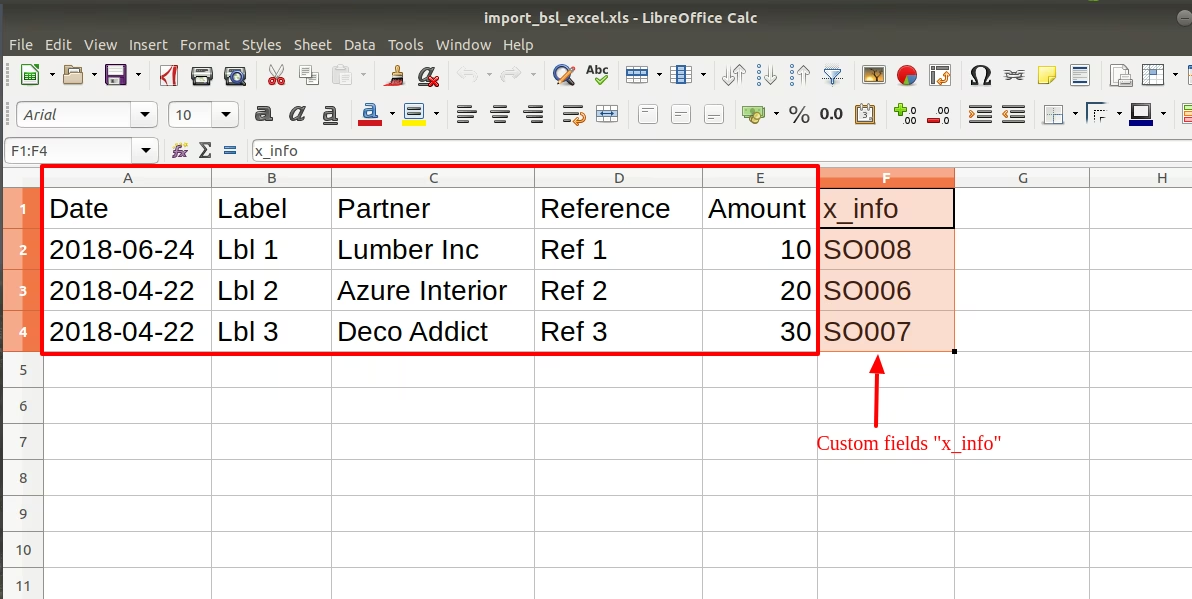
Your CSV/Excel file format looks like below, You can add custom fields column after the last column.
Custom Fields / Non Existing Standard Fields
Do you want to import fields which is created by any custom modules, studio, or standard fields which are not present inside the sample sheet provided in the module? You can add all those kinds of fields in the sheet at the end after the sample sheet fields it means from column "F".