The module by provides enhanced control over employee expenses. It enables HR administrators to perform bulk actions such as canceling, resetting to draft, or deleting employee expenses, facilitating efficient expense management and approval workflows.
Bulk Expense Actions: Cancel, reset to draft, or delete multiple employee expenses simultaneously.
User Access Control: Configure user permissions to allow or restrict expense cancellation actions.
Flexible Expense Management: Choose between canceling only, canceling and resetting to draft, or canceling and deleting expenses.
Intuitive Interface: Easily manage employee expenses from the form view with clear action buttons.
Reset to Draft Functionality: After cancellation, reset expenses to draft status for further review or modification.
Improved Expense Control: Gain better oversight and control over employee expenses with flexible cancellation options.
Enhanced Workflow Efficiency: Streamline expense management processes, reducing administrative workload.
Accurate Financial Records: Maintain accurate financial records by effectively managing canceled or modified expenses.
User-Friendly Experience: Provide HR administrators with an intuitive interface for managing employee expenses.
Cancel HR Expense Odoo Apps
Mass Cancel HR Expense Odoo Apps
Employee Expense Cancel and Delete Odoo Apps
Employee Expense Cancel and Reset to Draft Odoo Apps
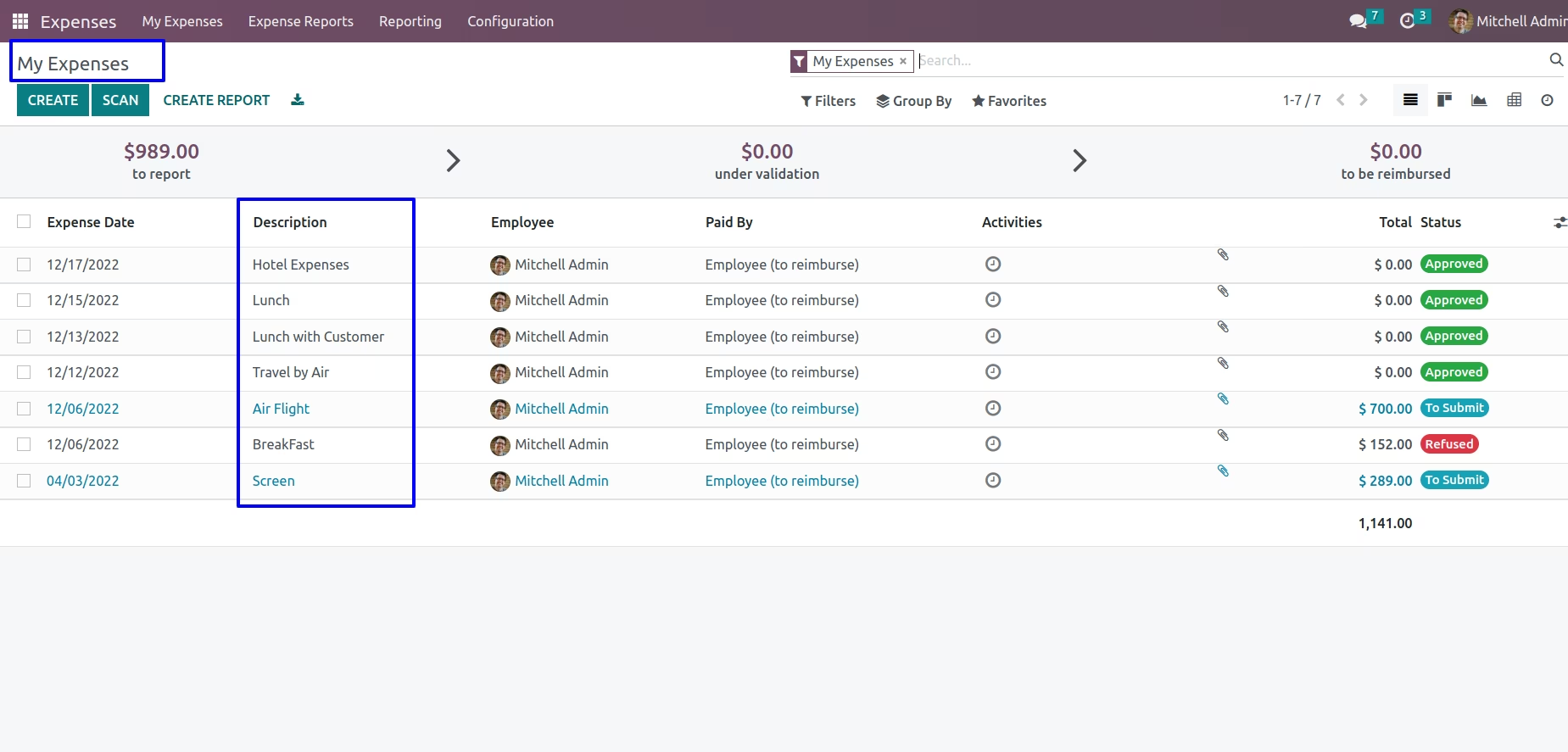
HR Expense Cancel and Reset to Draft Odoo App helps users to configure or give access right to cancel expenses. Users can select the cancel expense option like (1) Cancel Only, (2) Cancel and Reset to Draft and (3) Cancel and Delete. Also this app allows you to cancel mass expenses for that select multiple expenses and choose any of the cancel option from action view.
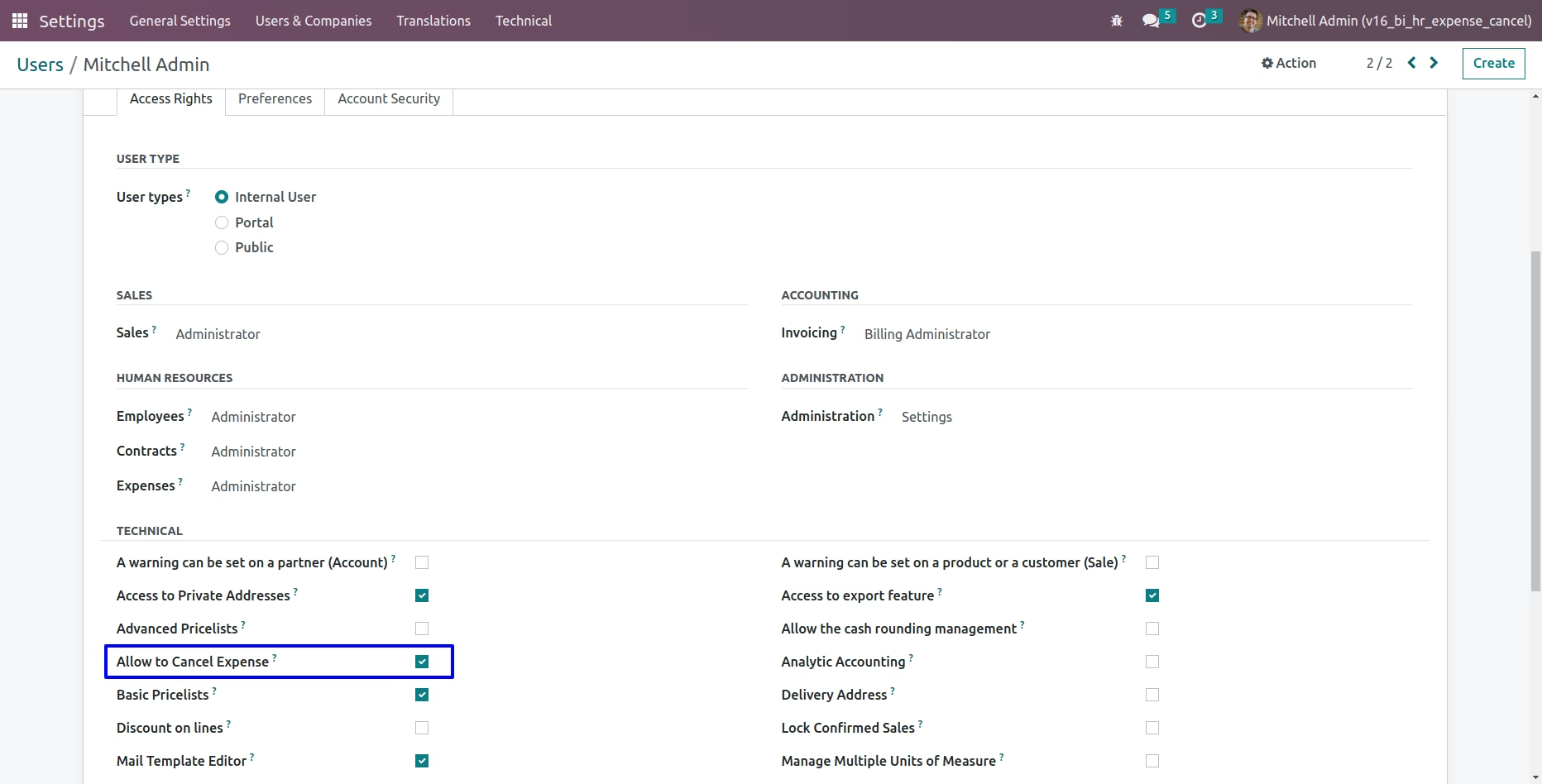
Configuration for Allow to Cancel Expense
You can tick on "Allow to Cancel Expense" checkbox under user configuration.
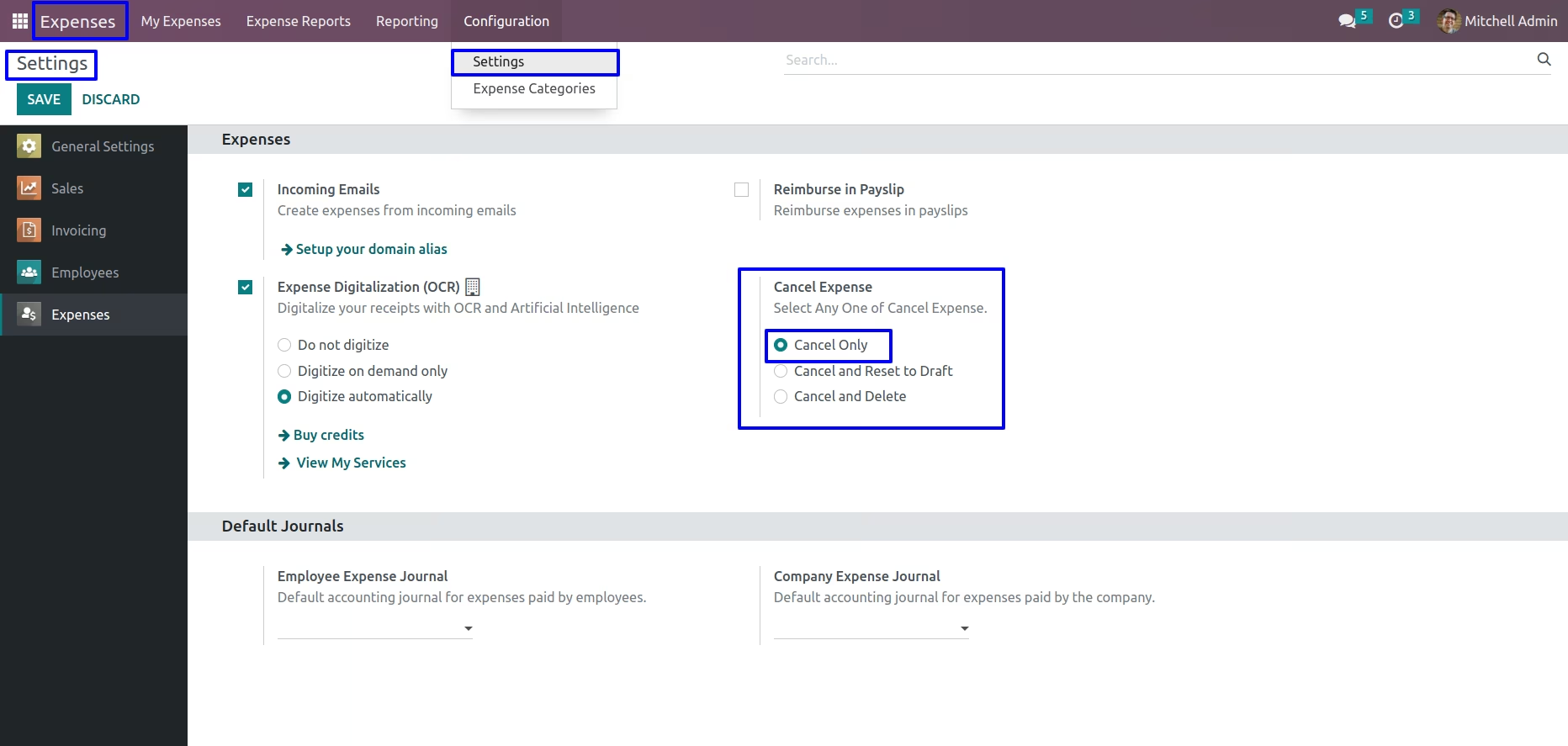
Select Cancel Only Option
Goto Expenses -> Configuration > Settings in that select cancel only option if you want to cancel the expenses only.
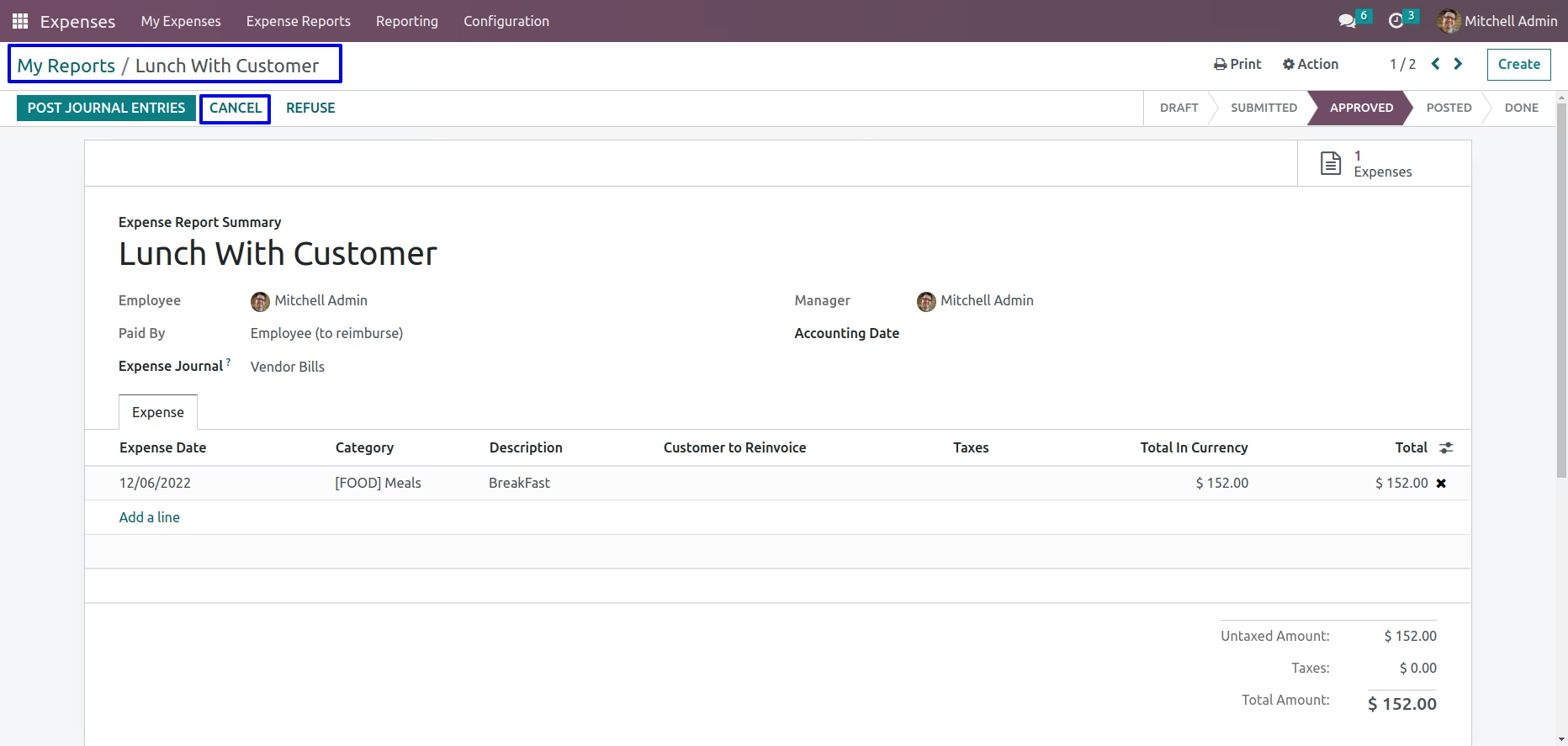
Cancel Only Button
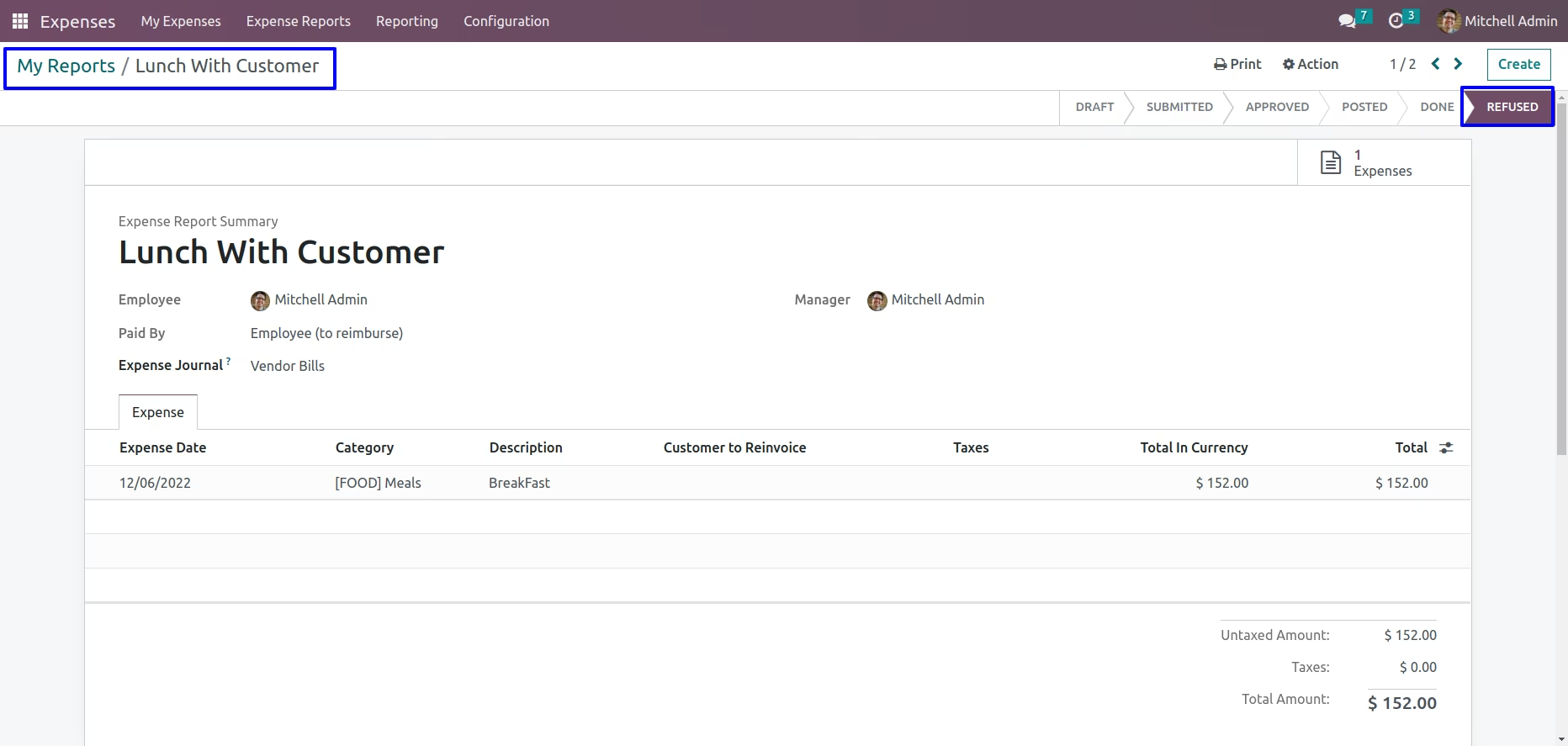
You can cancel the paid expense by click on cancel button so the expense is cancelled and the state is changed to "REFUSED".
You can see the expense is in "REFUSED" state.
Select Cancel and Reset to Draft Option
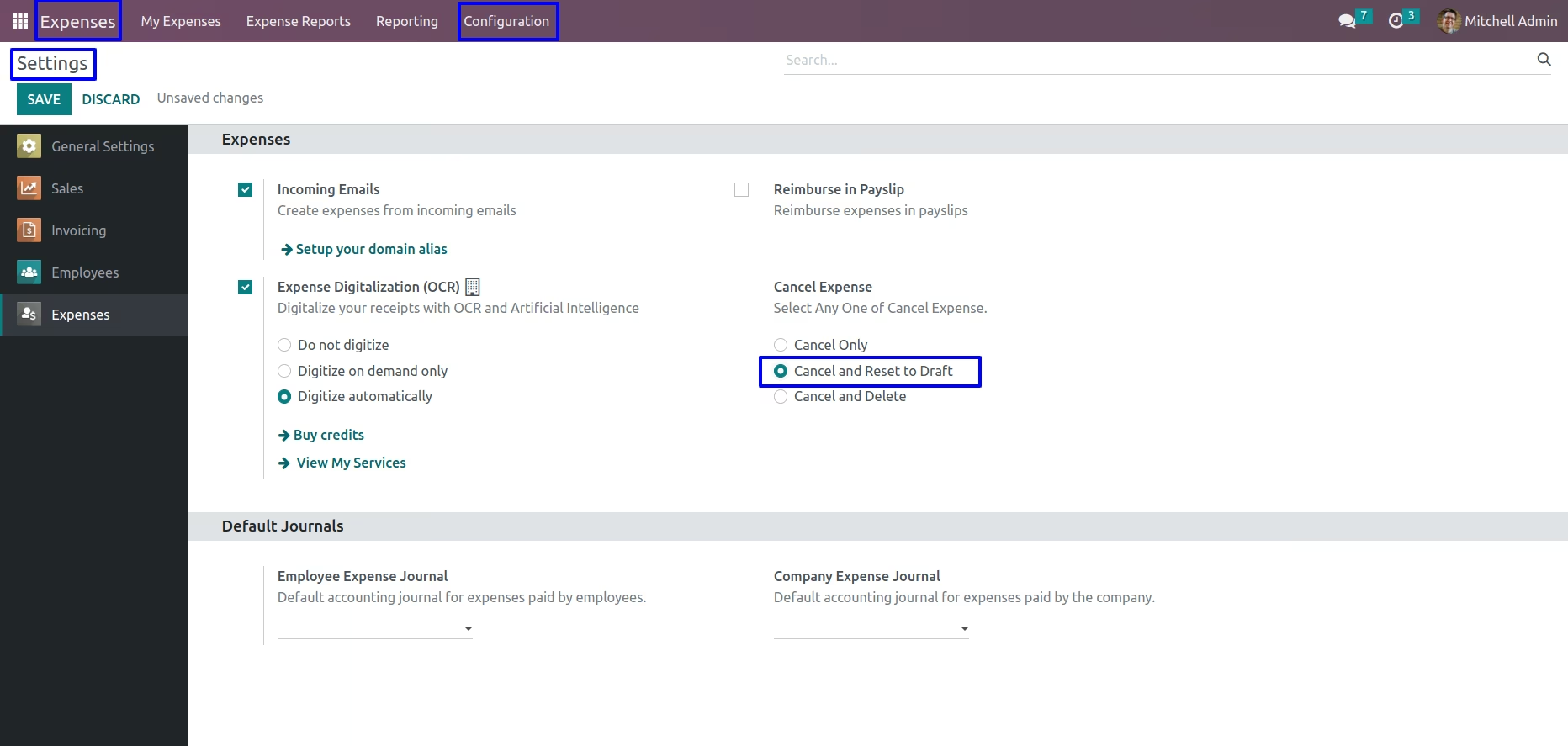
Goto Expenses -> Configuration > Settings in that select cancel and reset to draft option if you want to cancel the expenses and set it into draft state.
Cancel and Reset to Draft Button
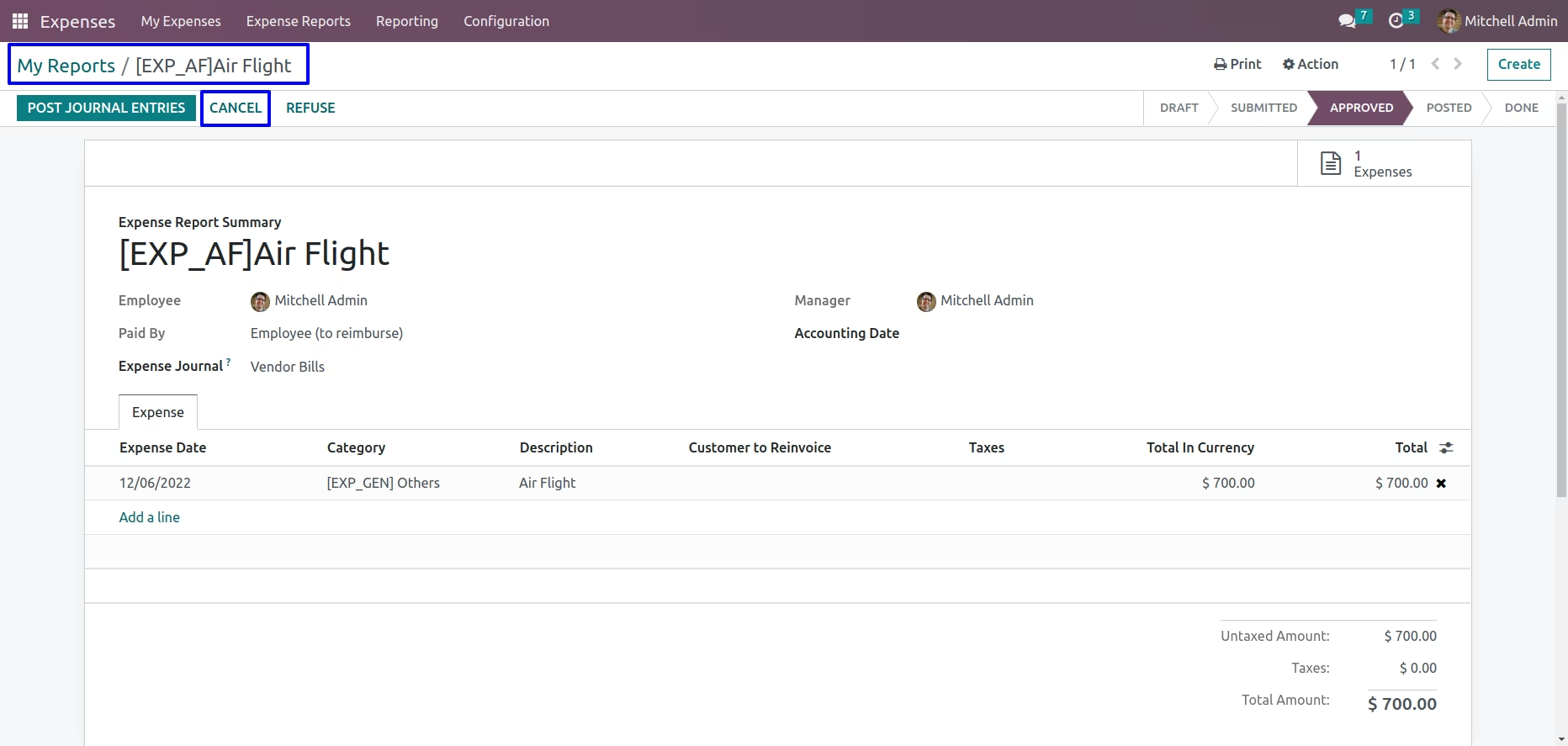
You can cancel and reset to draft the paid expense by click on cancel button so the expense is cancelled and the state is changed to "REFUSED".
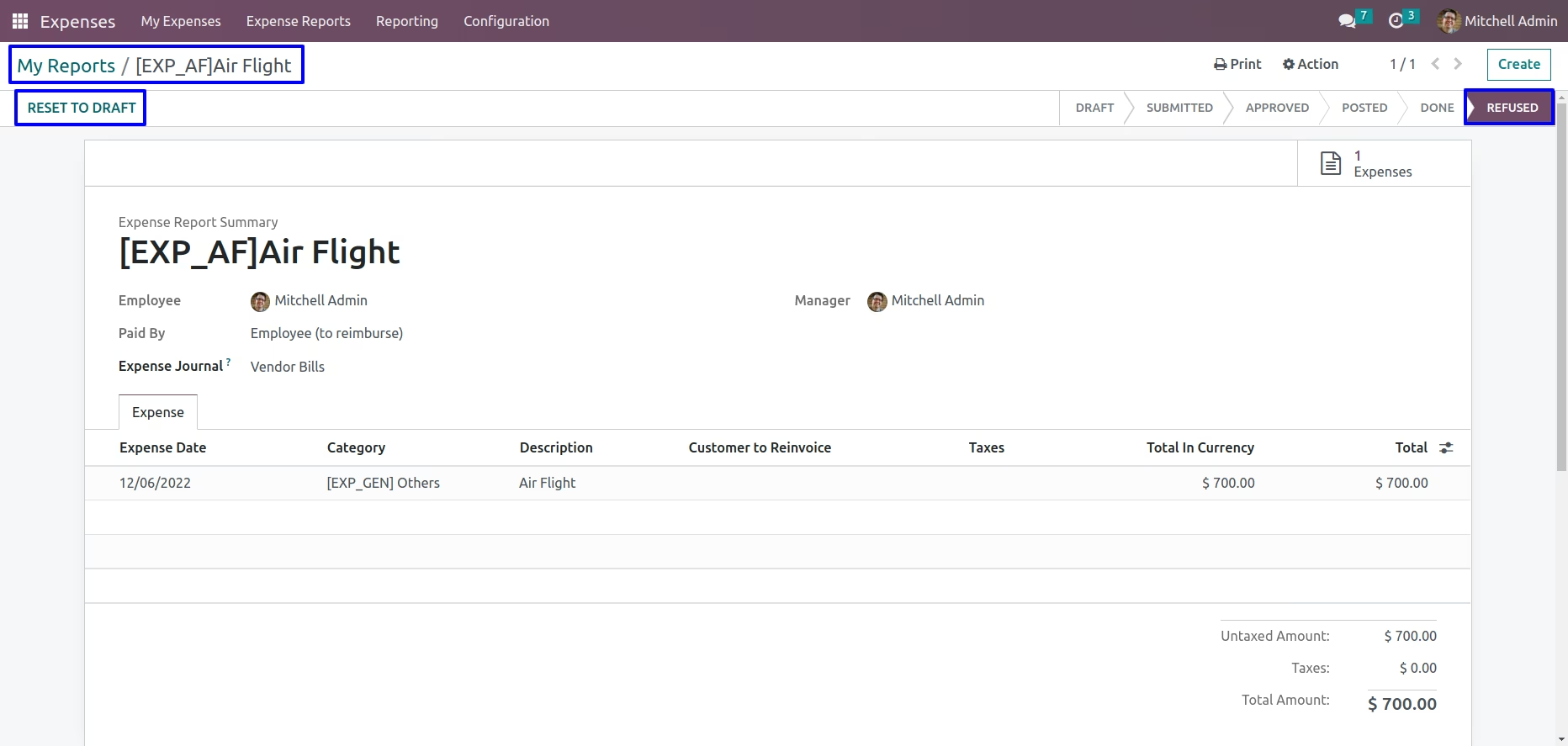
After cancelled expense you can see "RESET TO DRAFT" button is visible and by clicking on that button, the expense state is changed to "DRAFT".
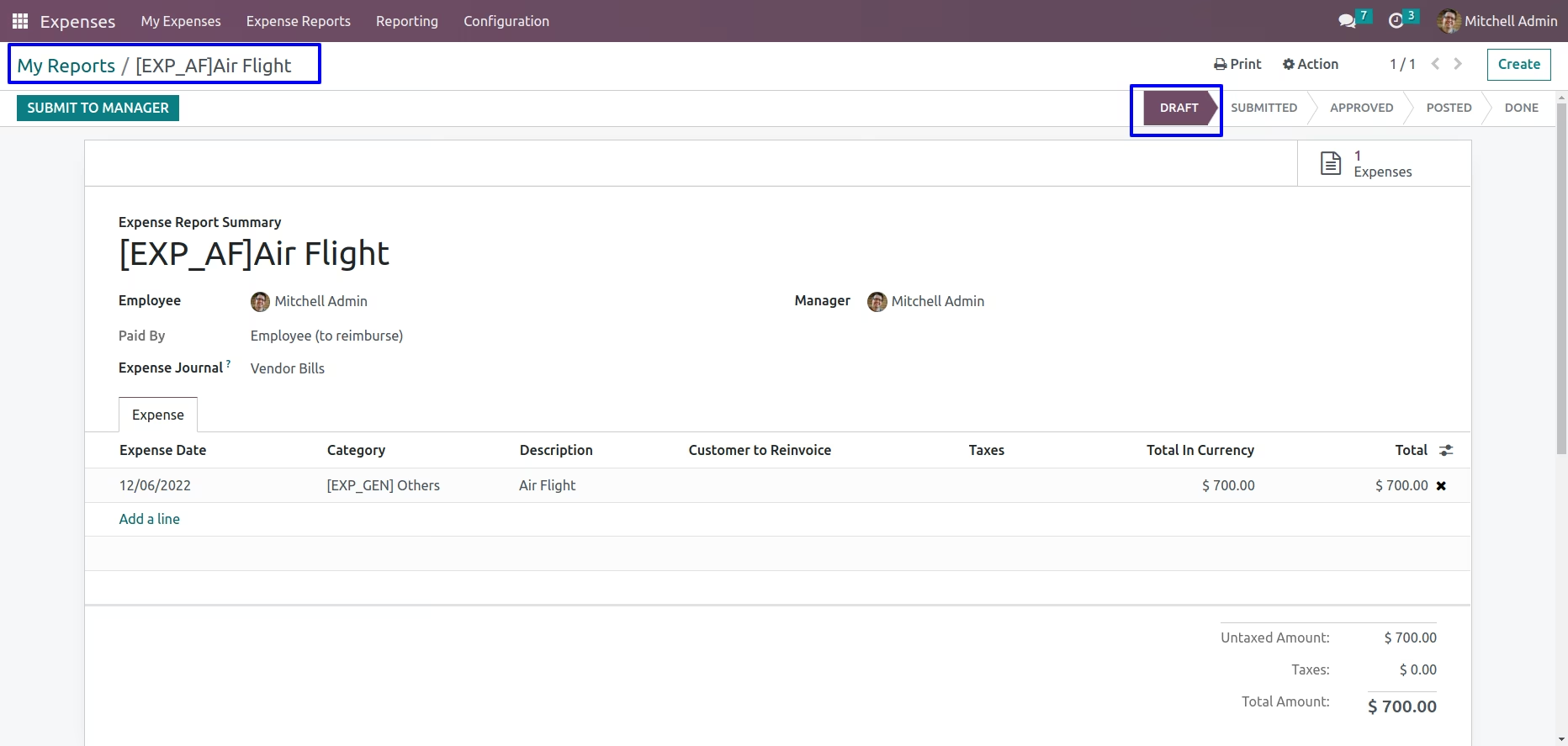
You can see the expense is in "DRAFT" state.
Select Cancel and Delete Option
Goto Expenses -> Configuration > Settings in that select cancel and delete option if you want to cancel the expenses and delete it.
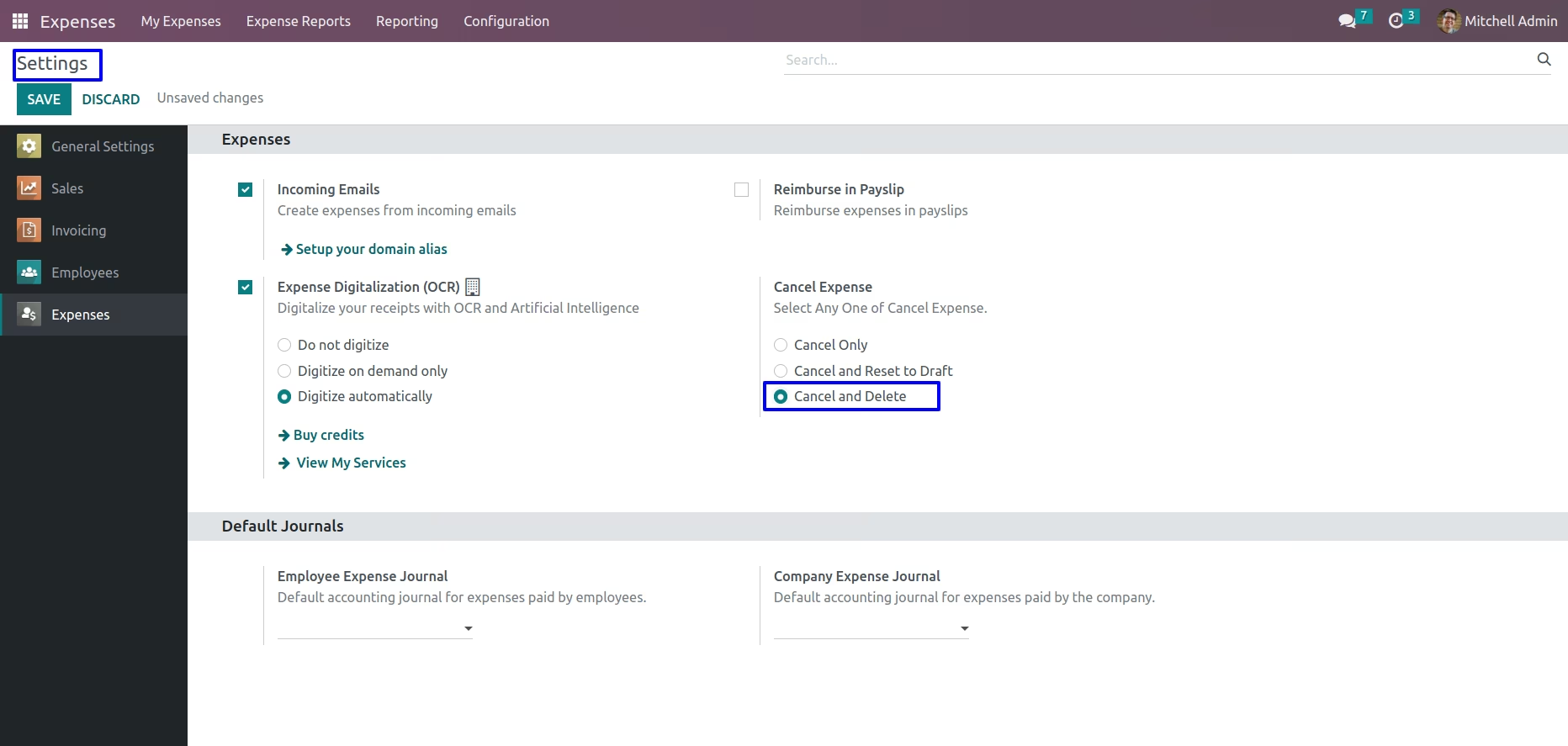
Cancel and Delete Button
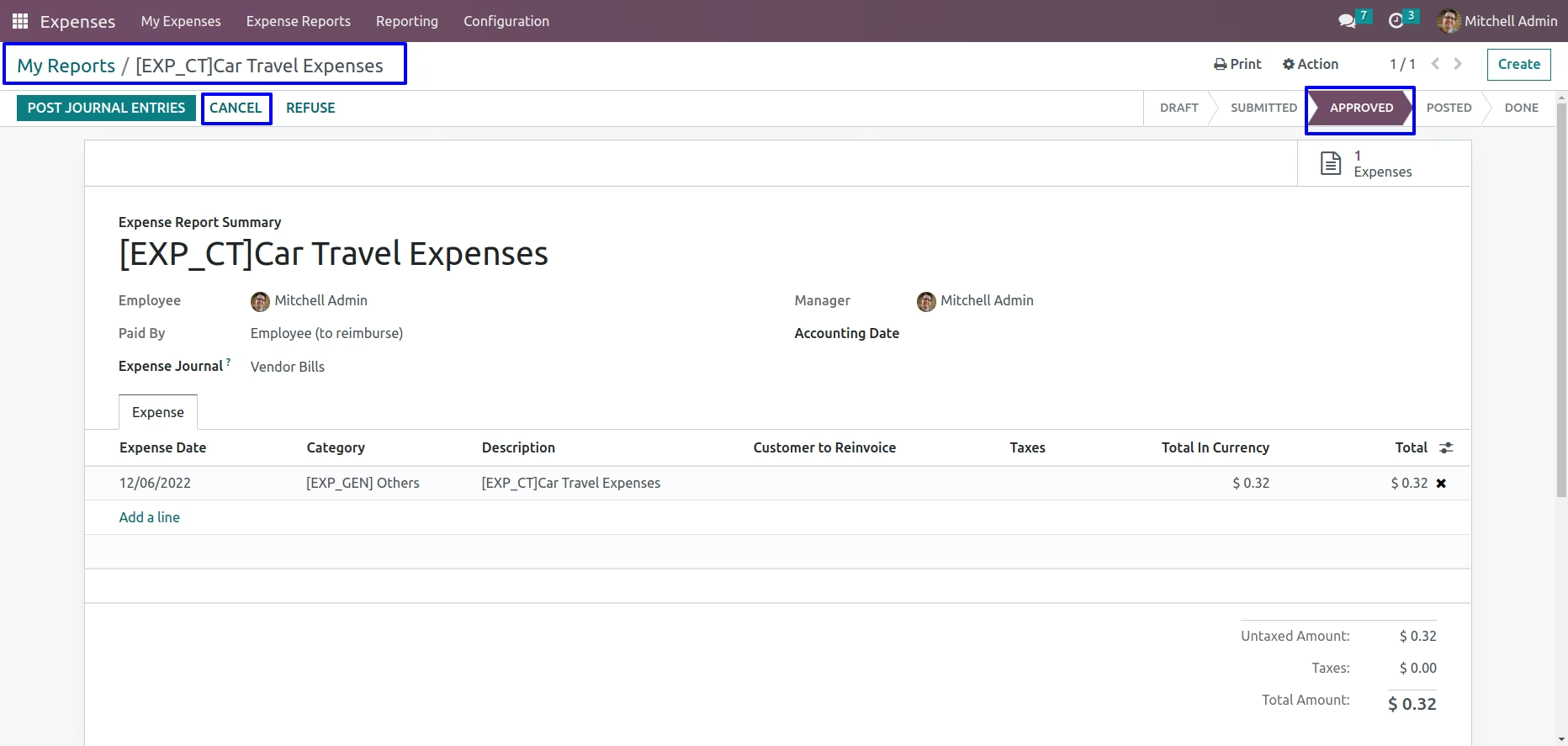
You can cancel and delete the paid expense by click on cancel button so the expense is cancelled and the state is changed to "REFUSED".
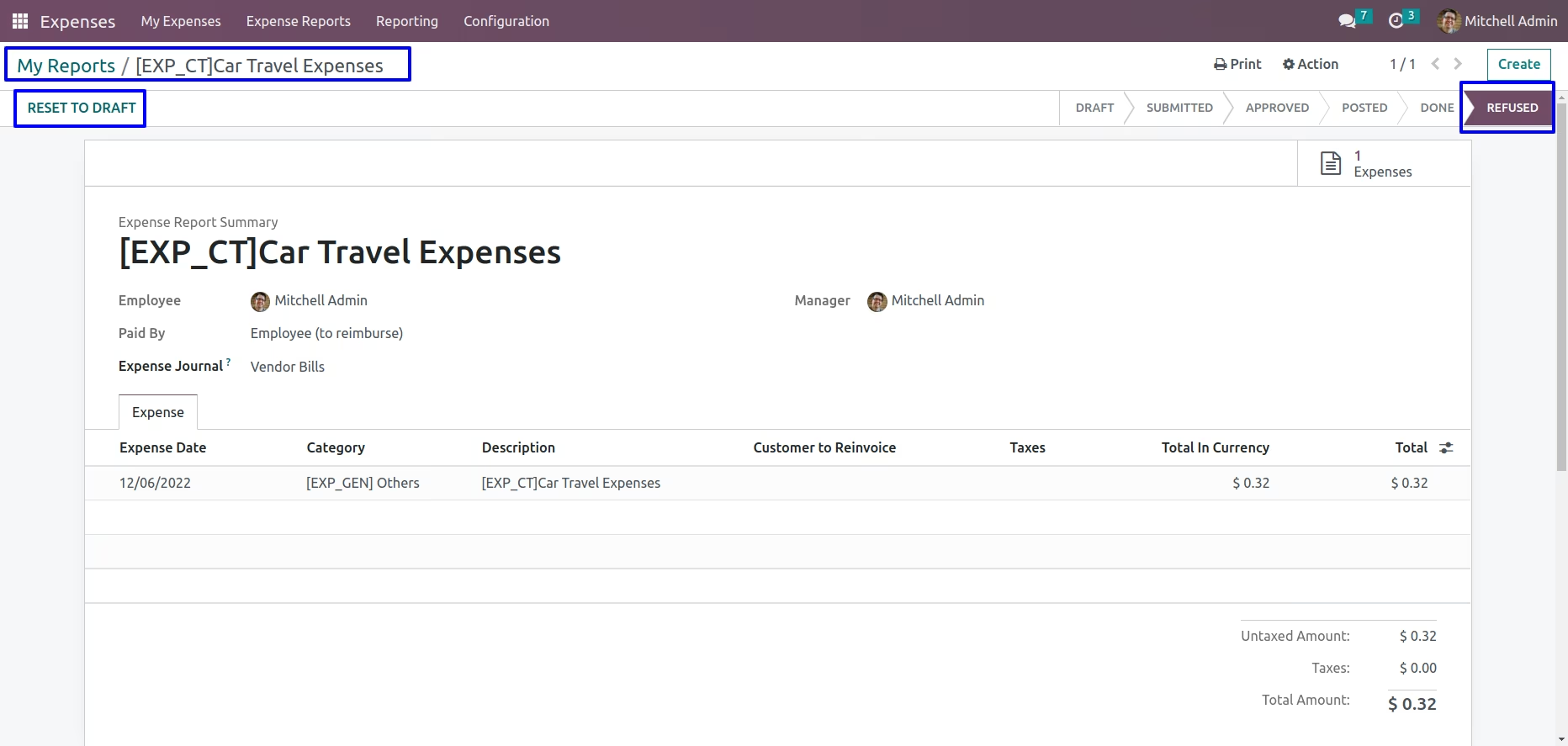
After cancelled expense you can see "RESET TO DRAFT" button is visible and by clicking on that button, the expense state is changed to "DRAFT".
You can see the expense is in "DRAFT" state.
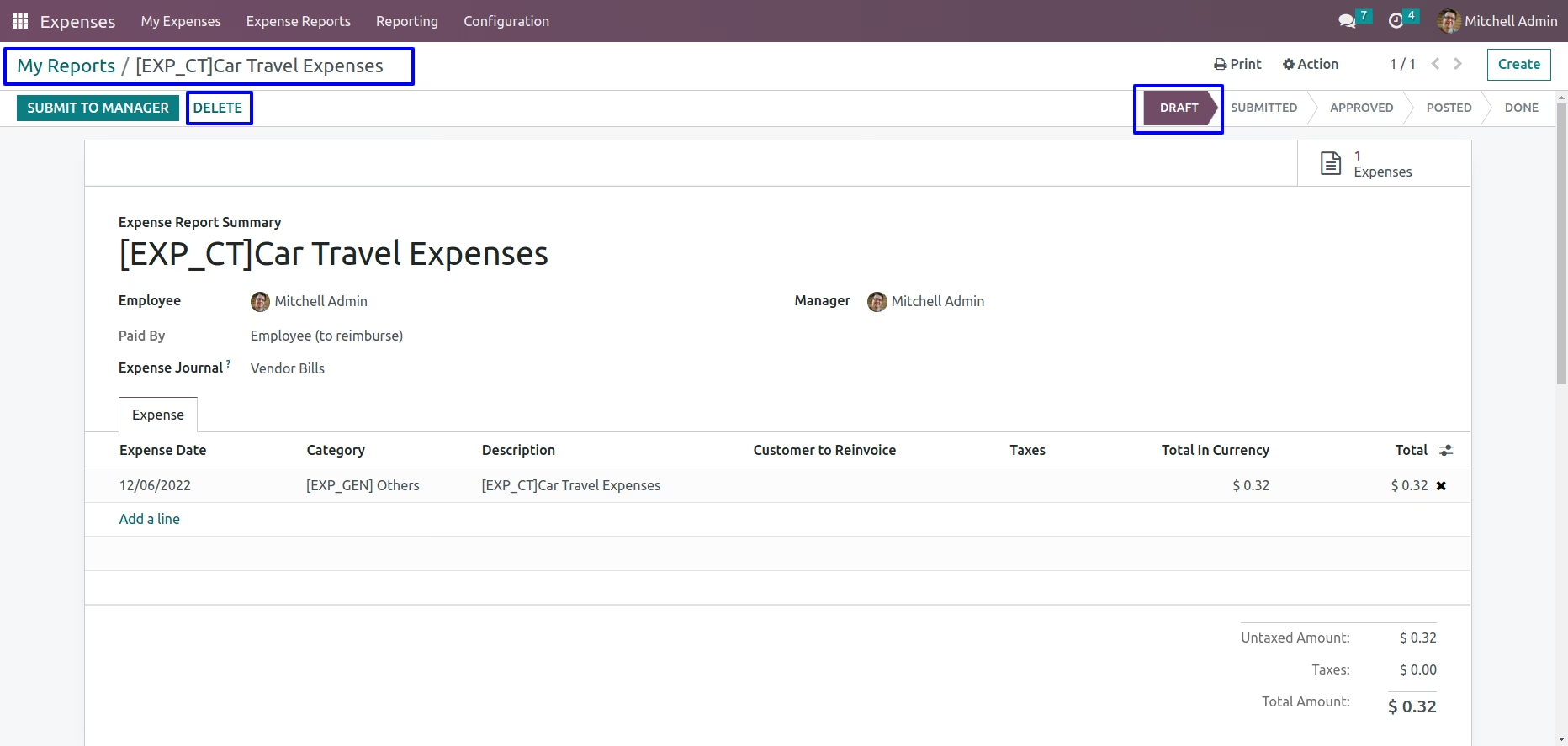
You can see the expense is deleted.
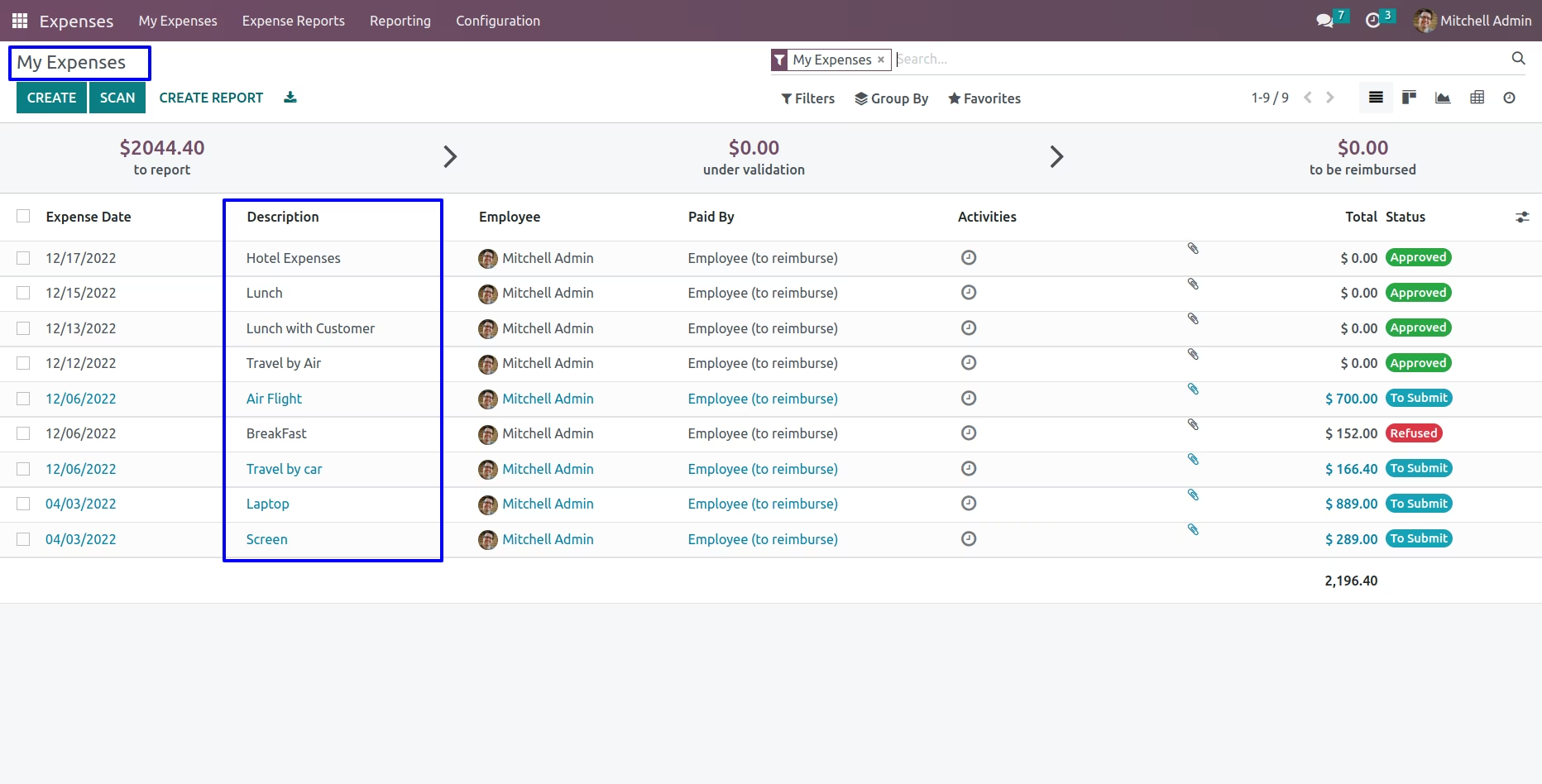
Mass Cancel Expenses Option
You can select multiple expenses and use any of the cancel option in like 1)Cancel, 2)Cancel & Reset to Draft and 3)Cancel & Delete.
Here select multiple expenses and choose the "Cancel & Delete" option.
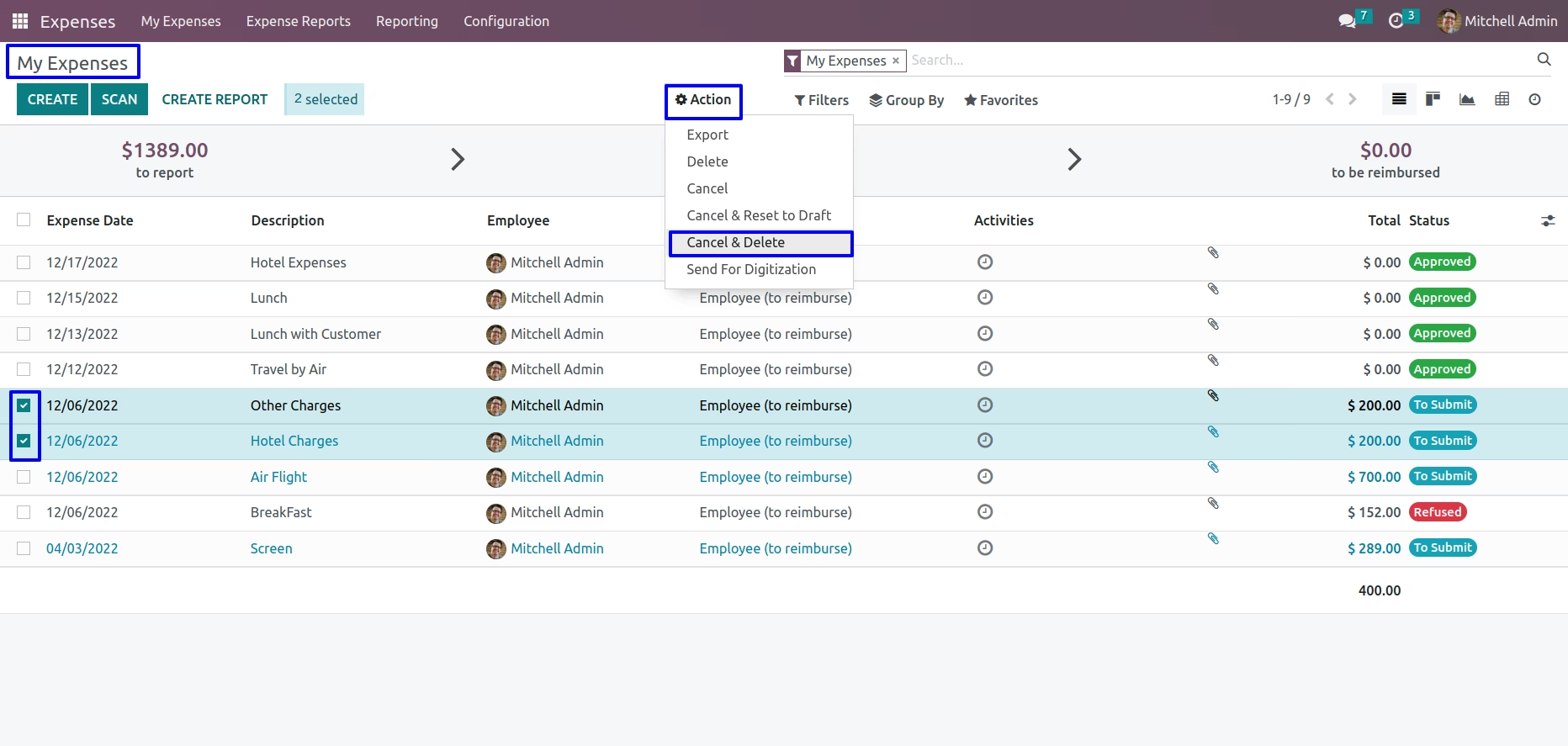
You can see selected expenses is deleted after cancelled.