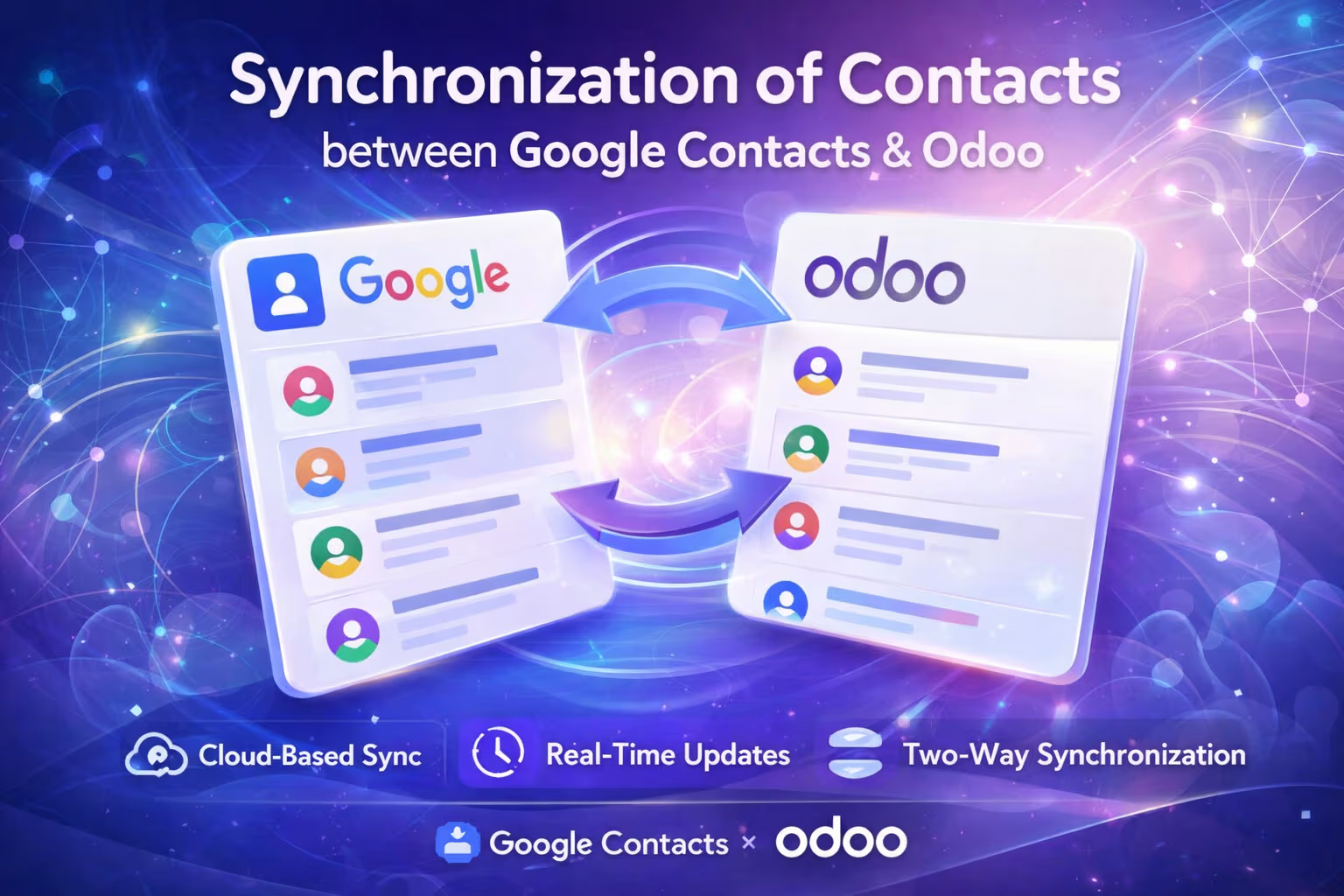
This module enables seamless two-way synchronization of contacts between your system and Google Contacts. Users can import, export, and update contact details with ease, ensuring consistency across platforms and enhanced contact management. The module streamlines CRM workflows, reducing manual data transfer and improving contact accuracy for better customer relations.
Import contacts from Google Contacts into your system with one action
Export system contacts to Google Contacts for cross-platform consistency
Automated updates during import to keep contact data current
Automated updates during export to maintain sync with Google Contacts
Simple setup using Google API credentials for quick configuration
Streamlined contact management with two-way synchronization
Time savings from automated imports and exports
Consistent and accurate contact data across platforms
Reduced manual input, lowering errors and improving efficiency
Enhanced CRM reliability with up-to-date contact information
This application facilitates users and managers to synchronize their Google account related contacts. Users can import and export contacts between Google contacts. Synchronization facilitates users to keep their Google contacts updated in their account.
Import Google contacts in
Export contacts to Google
Update contacts while import from Google to
Update contacts while export from to Google
Setup in Google
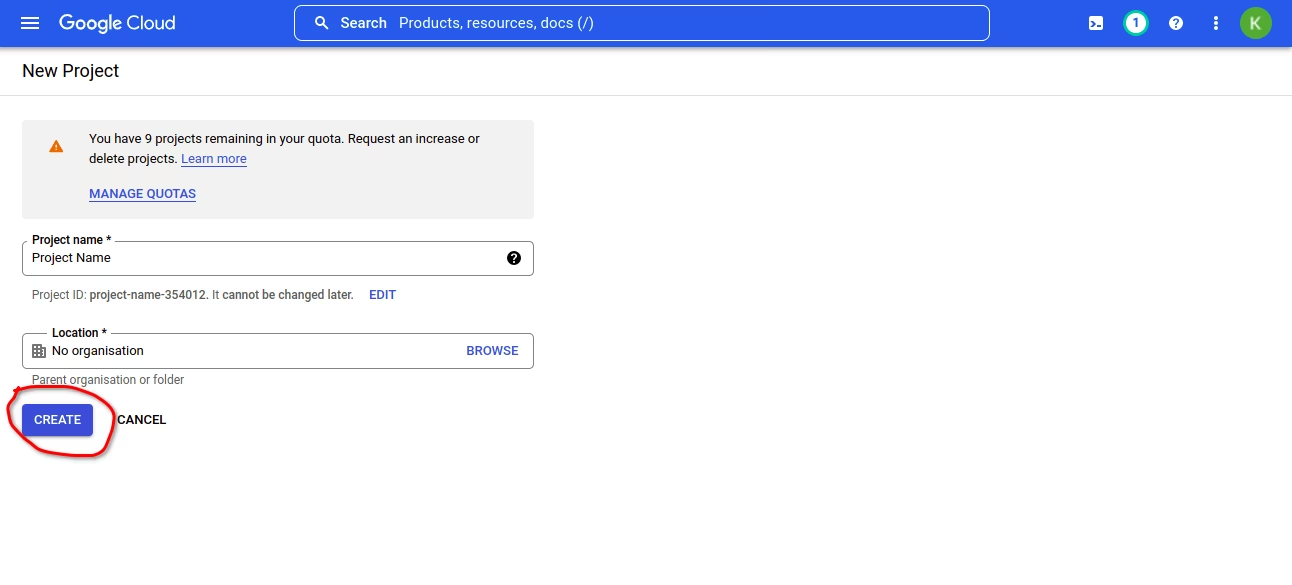
To use Google contacts API users need to generate Google Client ID and Google Client Secret. Steps are as following Go to https://console.developers.google.com Sign In with your Google account. Create New Project
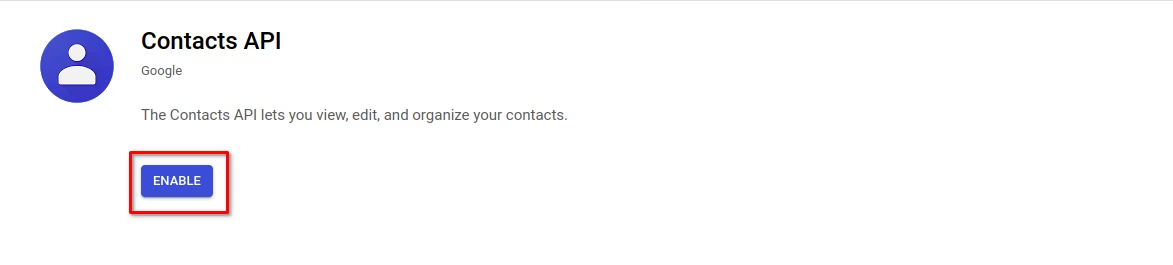
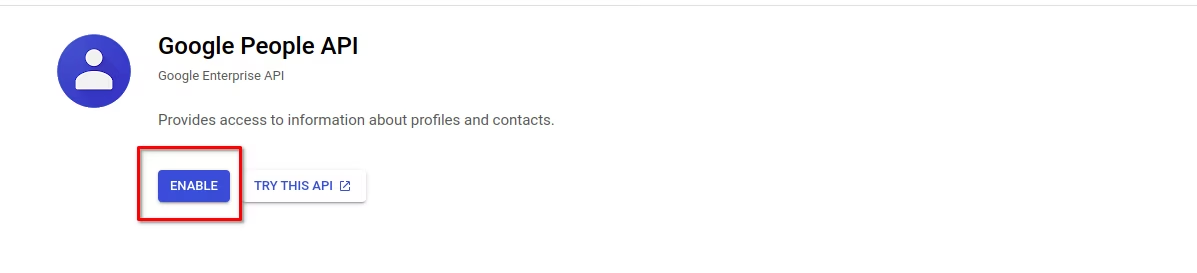
Enable Contacts & People API
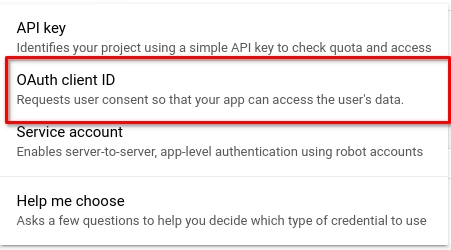
Create Credentials and select 'Oauth client ID'.

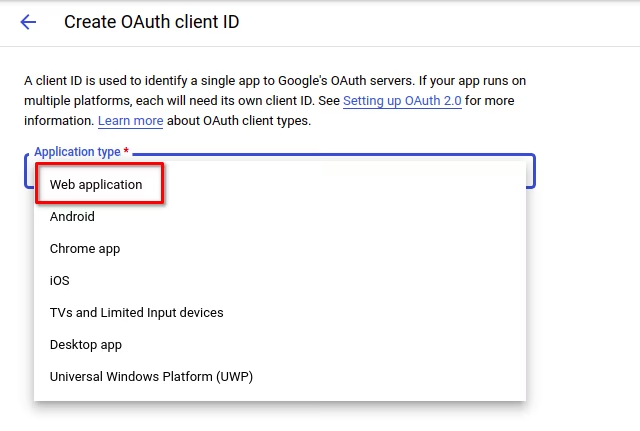
Create a Client ID(Select Web Application). Enter the name of the application and the allowed pages on which you will be redirected.
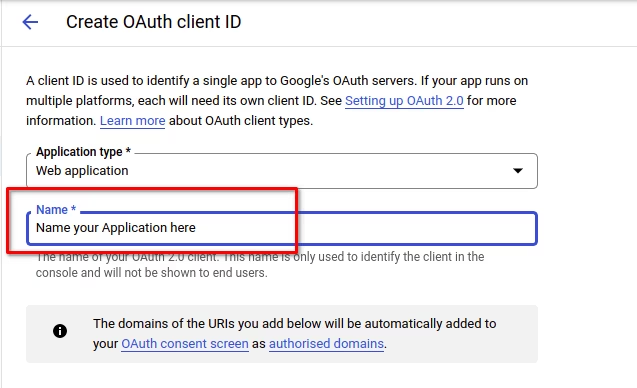
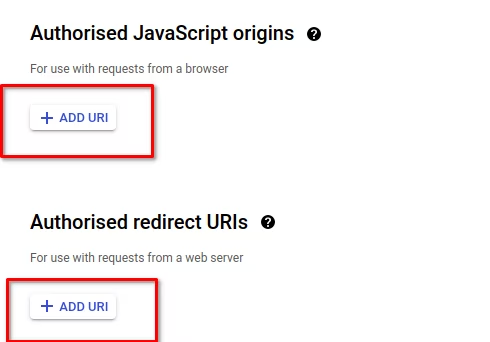
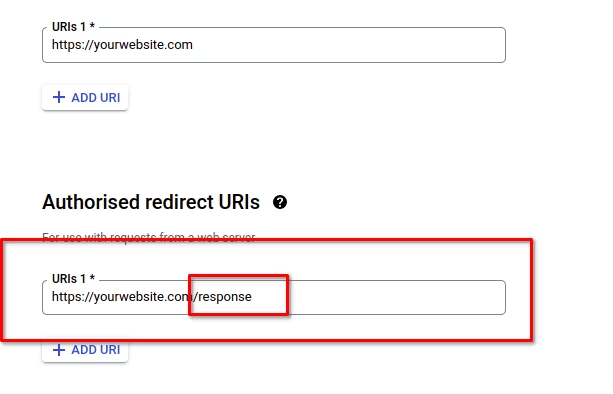
Enter /response after your website domain, for example "abc.com/response" in authorised redirect URIs
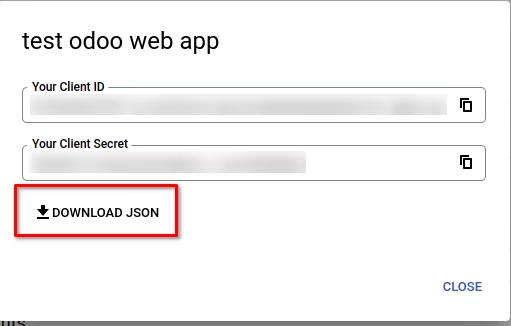
Download your client id from the download icon.

Download JSON
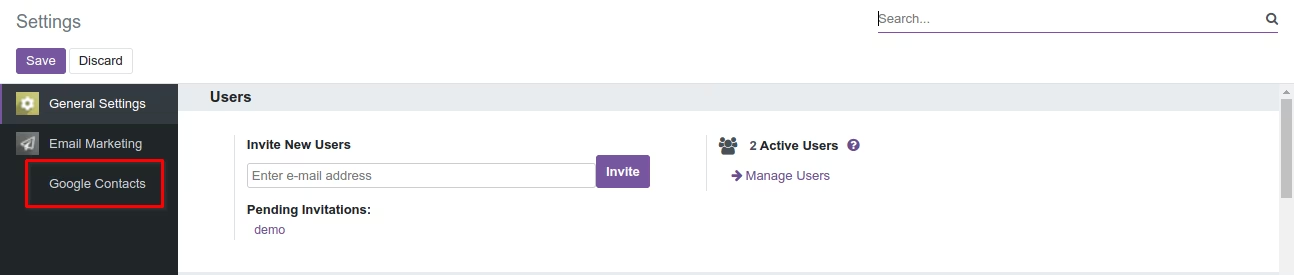
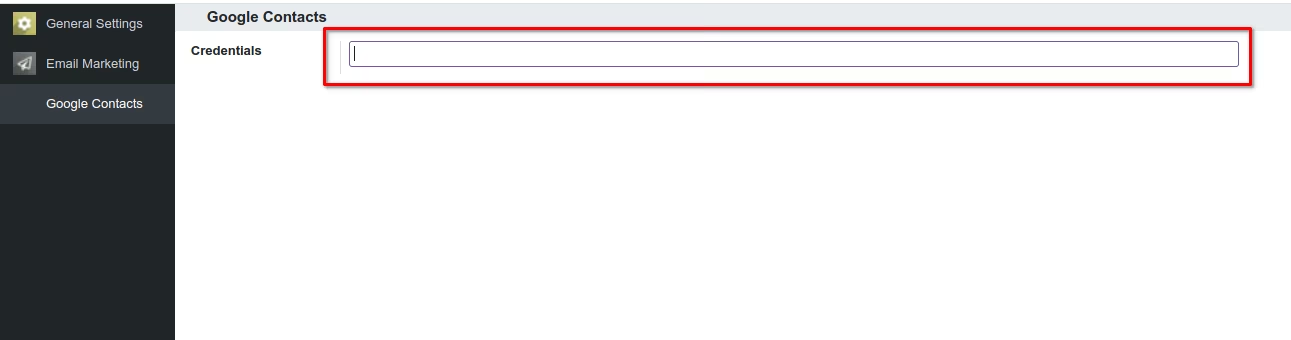
Go to settings in your app, you will find menu item in left corner named as Google Contacts
Open the JSON file in any text editor, copy the text and paste it in below "Credentials" field.
Go to contacts menu item in your app, you will find a sub menu over there name "Google Contacts Sync"

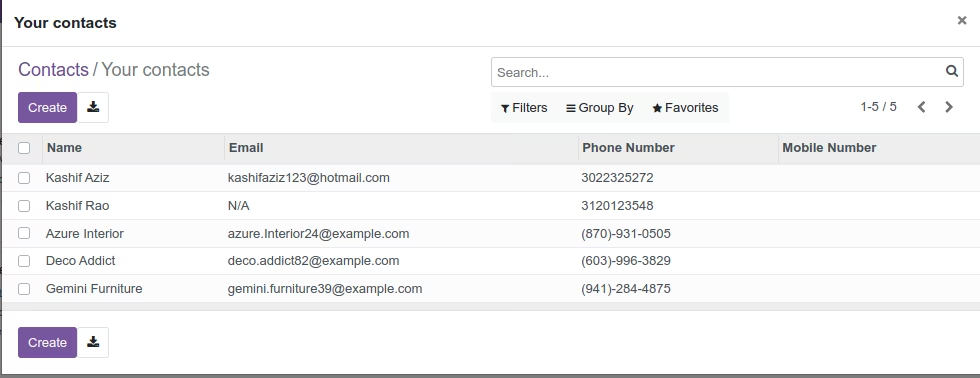
Import google contacts

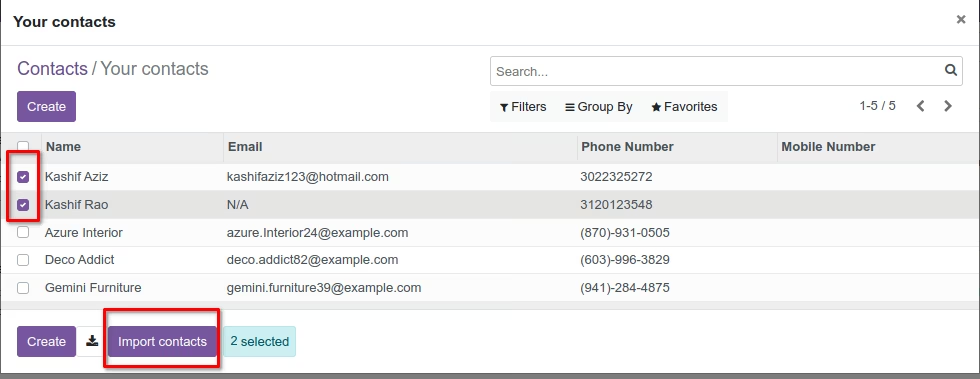
Here you will get list of your google contacts, select and click Import Contacts.
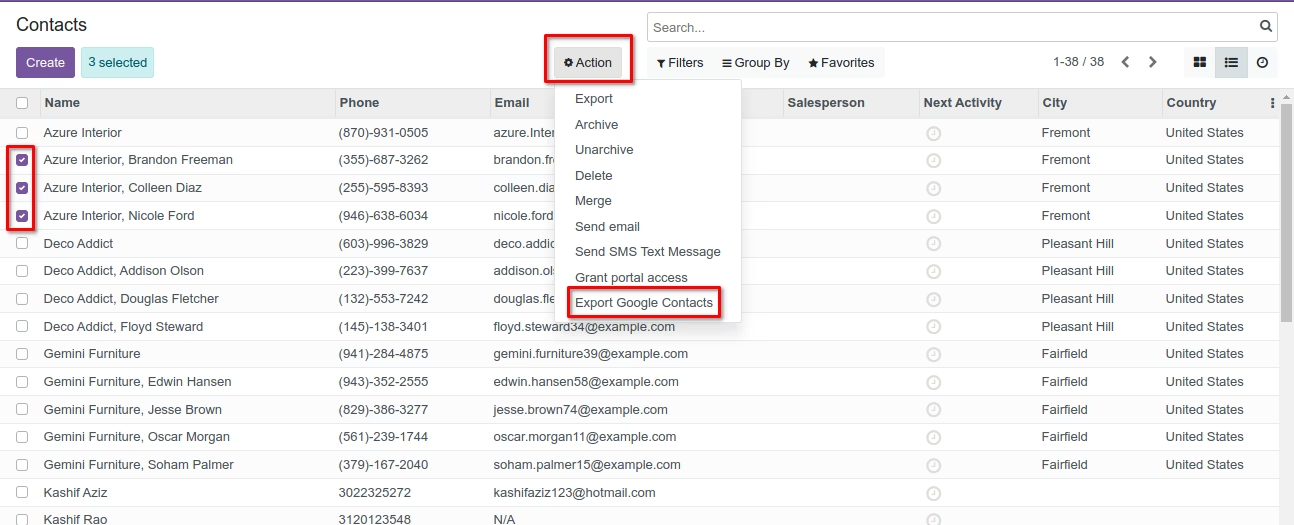
To export contacts from to google, go to list view, select contacts and under action you will see "Export google contacts".