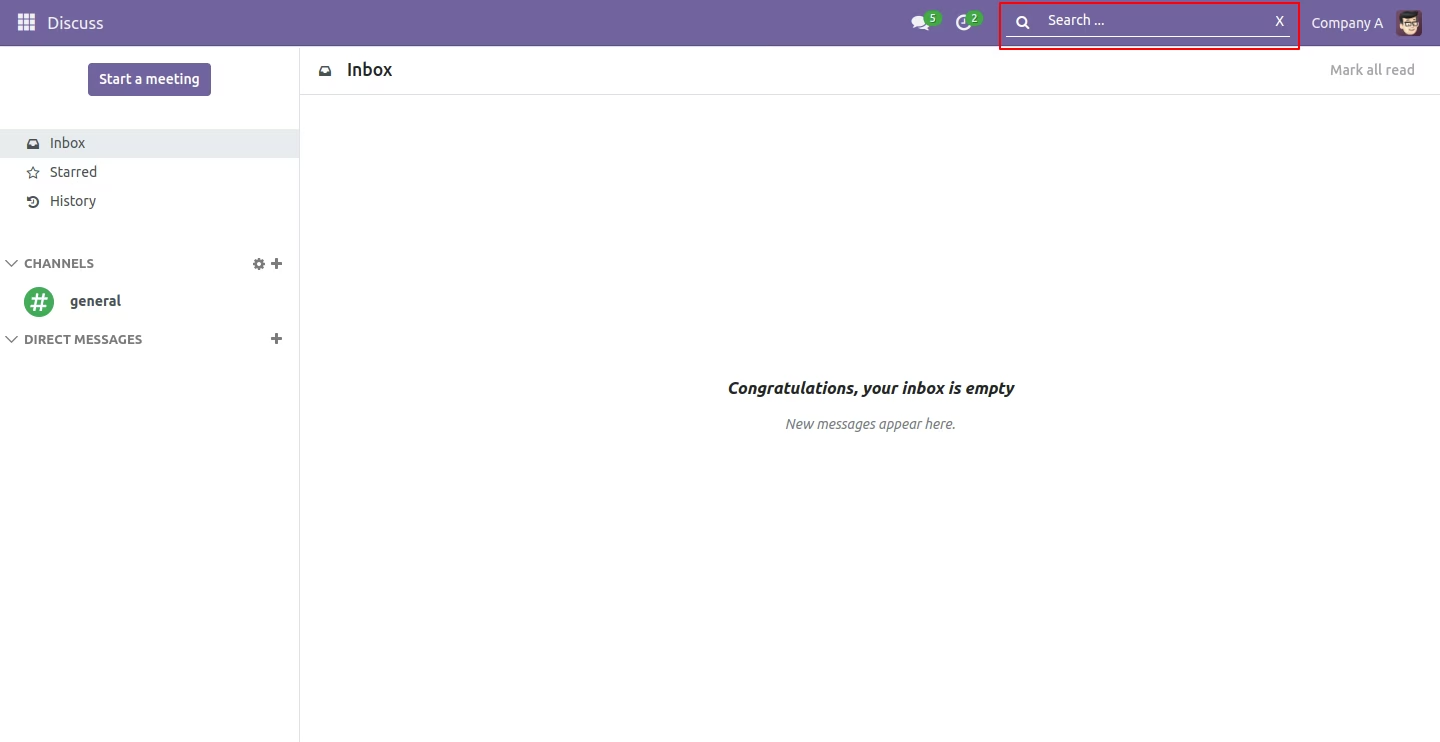
The module for delivers a unified and configurable search experience across all records and models, improving efficiency and accessibility. It places a customizable search bar at the top of the menu, enabling users to search different objects including multi-company data without needing to navigate through individual apps. This modern global search solution seamlessly aligns with workflows, enhancing usability and productivity.
Global search bar integrated into main menu for quick access
Configurable models and fields, including one-to-many relationships, for precise search control
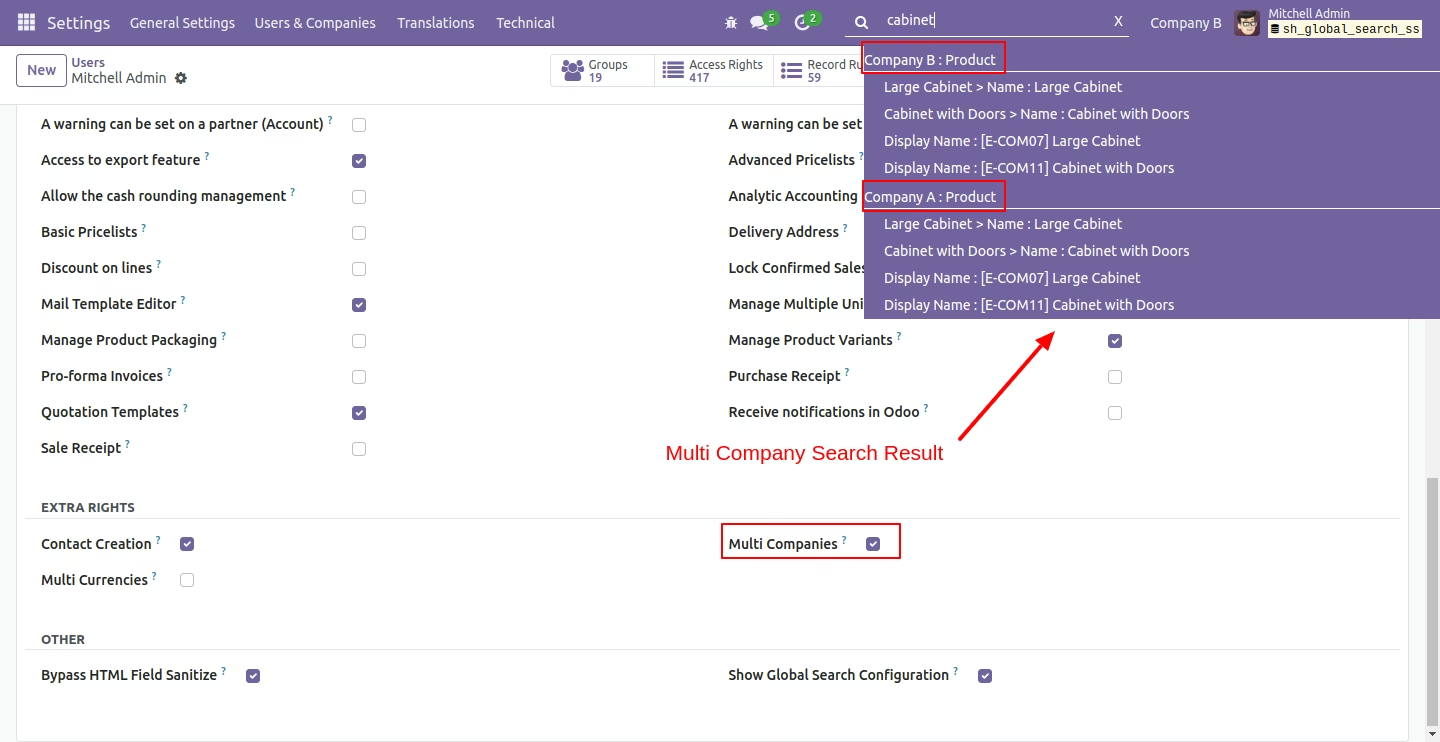
Supports multi-company environments, displaying company context in results
Respects user access rights, showing only permitted records
Search results open in a new tab to preserve current context
Visually differentiates result types (models) and companies for fast recognition
Enhances user efficiency by allowing seamless searching of any record from one location
Focuses search results through customizable fields and models
Improves clarity with multi-company support and clear result context
Ensures security by honoring user access restrictions
Streamlines navigation by opening records in separate tabs for uninterrupted workflow
A global search is used to search any object based on the configuration. You can search all object's data easily. You can also configure one to many fields. The "Global Search" is visible to all users. The search box is available at the top of the menu. Search results on click redirect to that record on the new tab. You can easily perform a search on multi-company objects also we have beautifully shown company names before so you can see search results related to that company, we have shown object (model) nicely whenever you have a search query found in multiple objects, you can very easily see the difference of different objects. It also takes care of access rights of users, if a user doesn't have any object access then it will not show that record in search results. if the user has multi-company enabled then it shows multi-company results. We have made this look fully configurable you can easily configure what is an important object(model) and the related fields of that object(model), We have made security groups for these configurations so only those who have the right that user only can configure this global search objects and fields, All internal users can use this global search feature. Cheers!
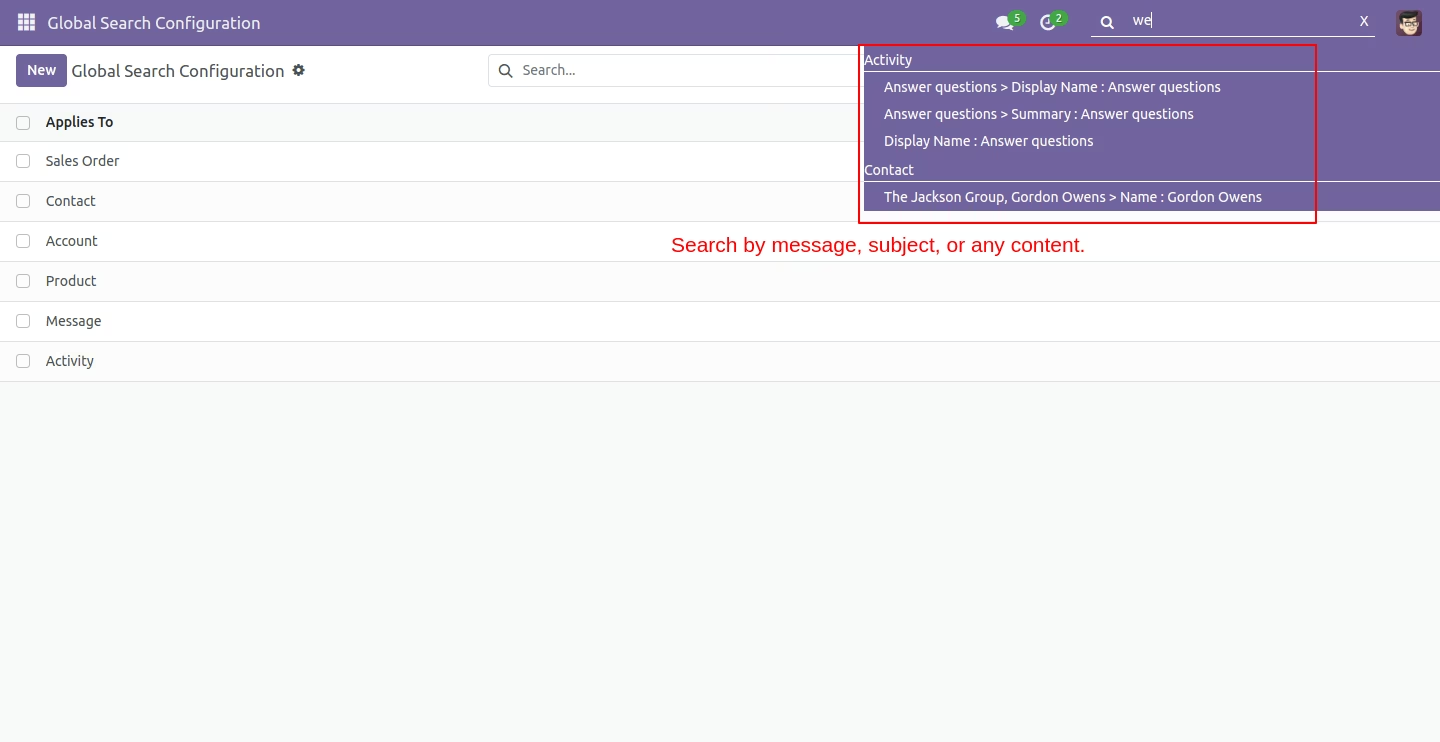
- You can search by any message, subject, or content.
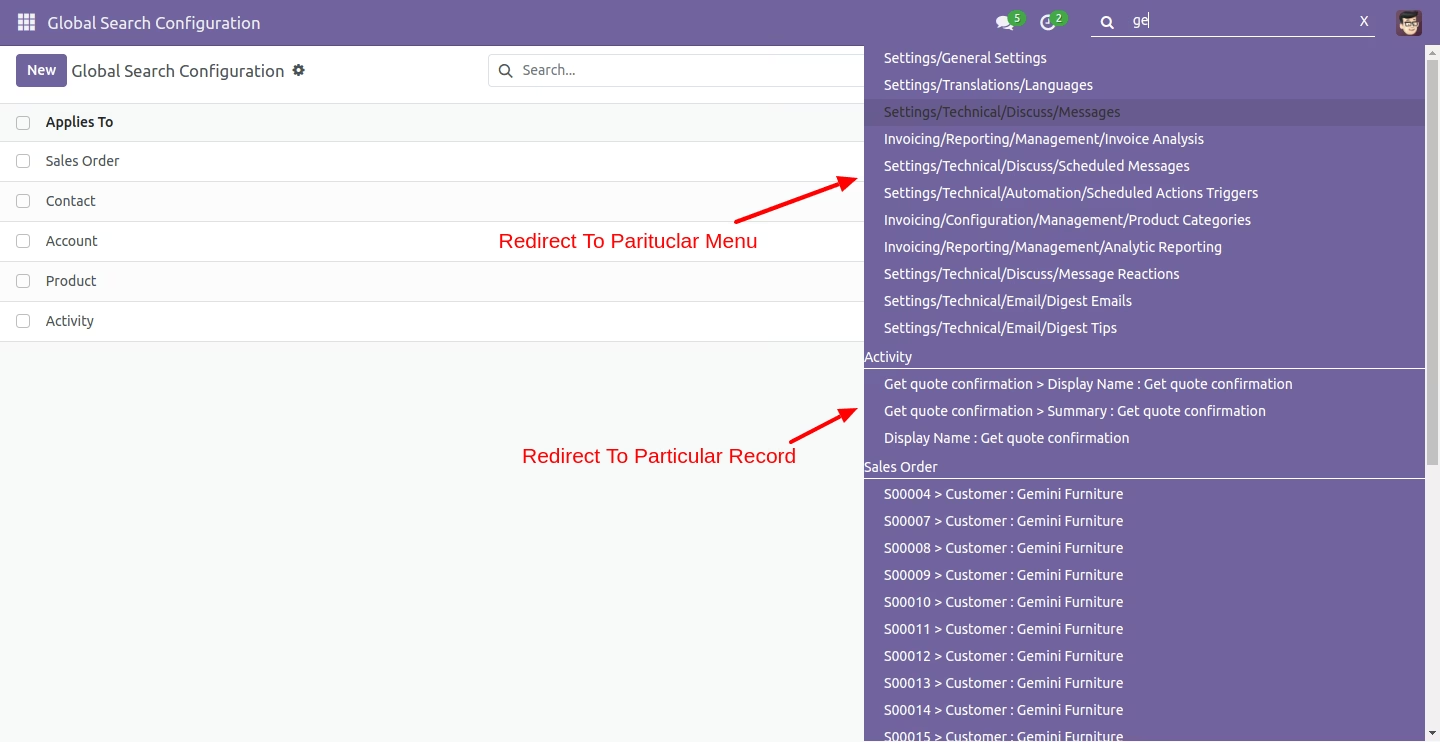
- It will redirect to search menus.
- Beautifully present search results.
- Responsible persons can approve, refuse, or cancel ideas.
- Easy to differentiate the results of different objects and different companies.
- Easy to search for any object.
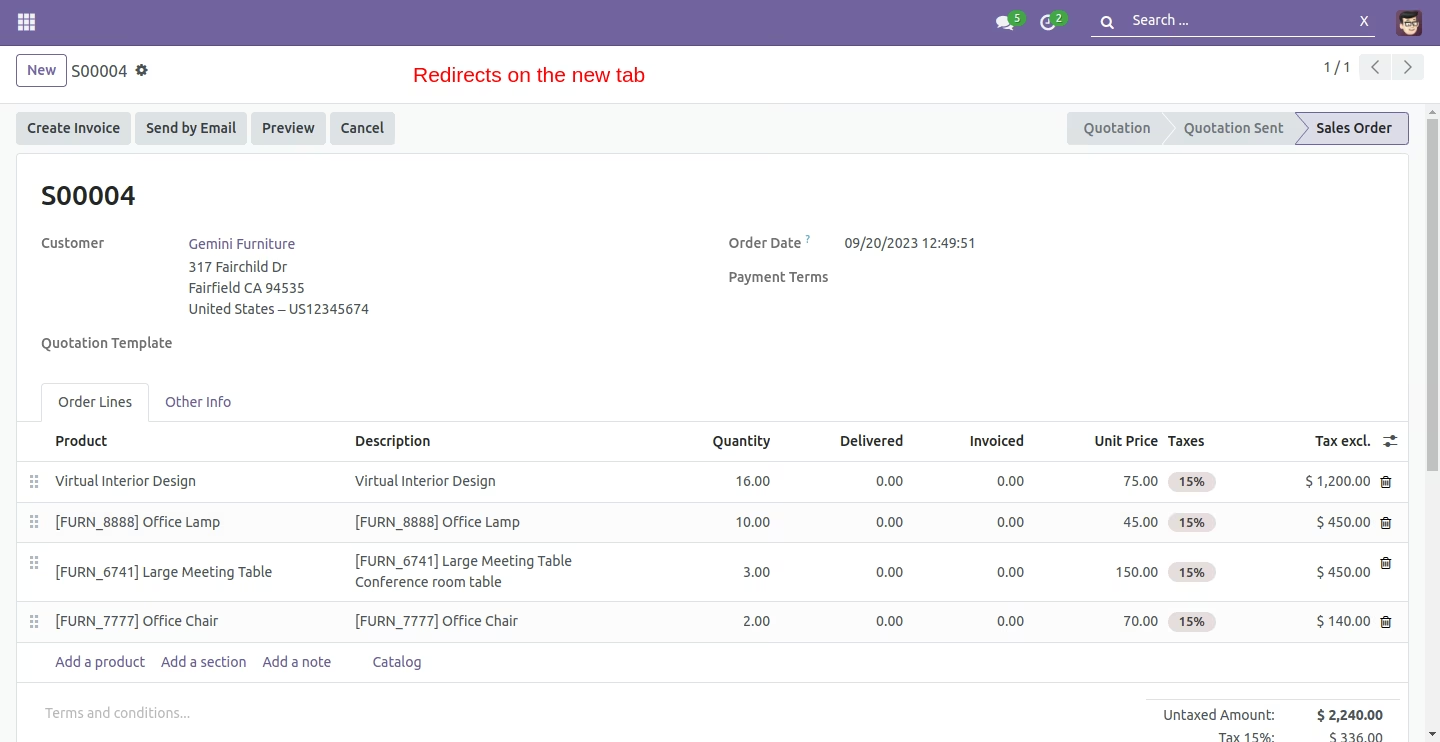
- Search results on click redirect to that record on the new tab.
- You can also search for multi-company if the user has multi-company enabled.
- The 'Global Search' is visible to all internal users.
- You can configure one to many fields in the object.
- You don't need to go to individual objects.
- You can search using different attributes like name, reference no, etc.
Enable the "Show Global Search Configuration" menu.
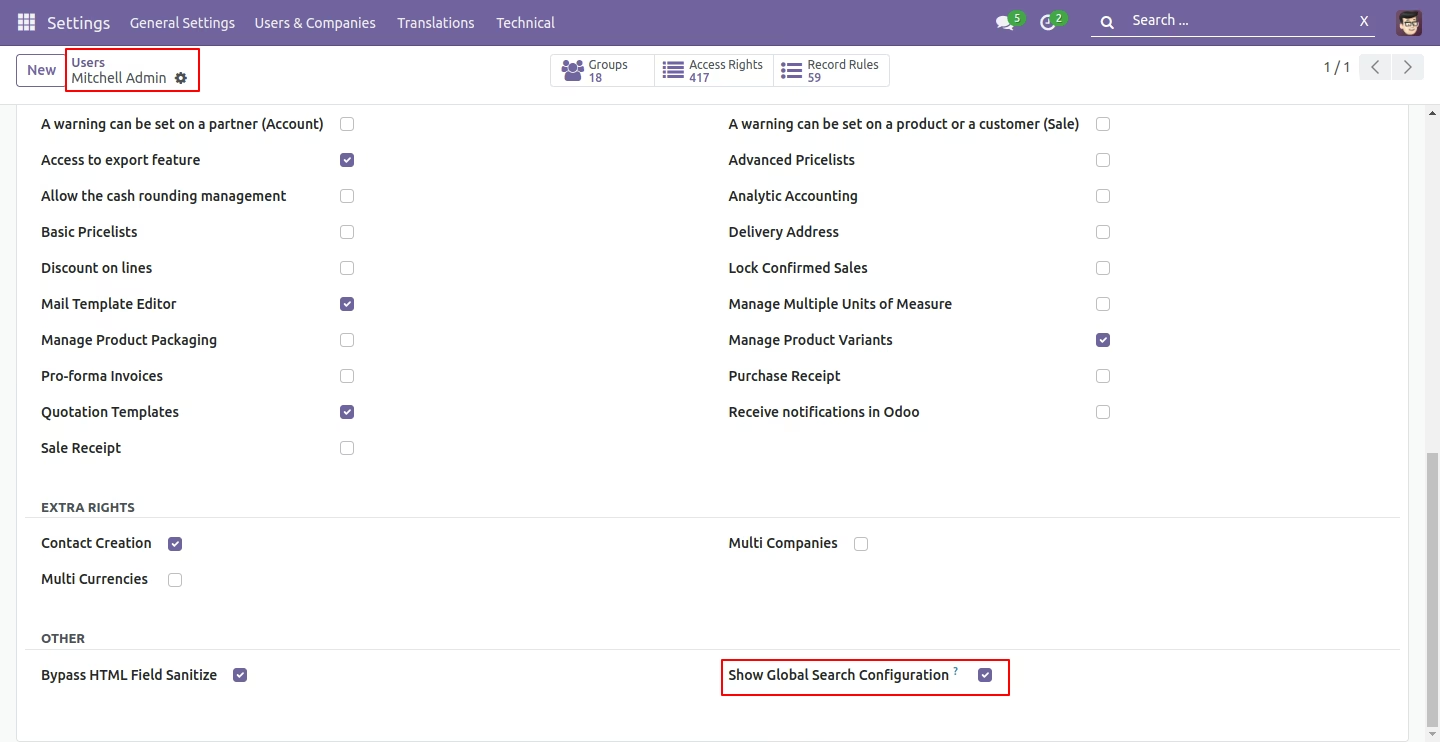
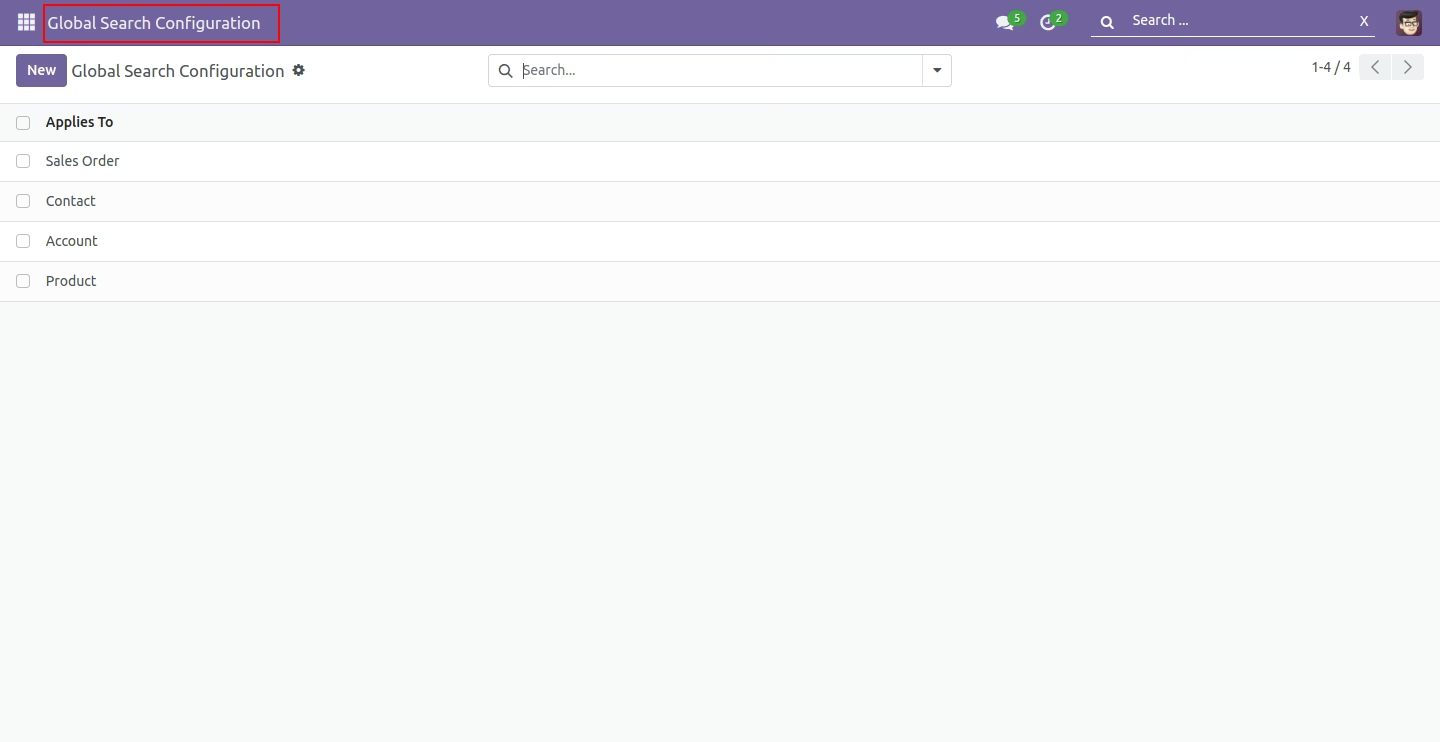
We can configure objects for global search from here.
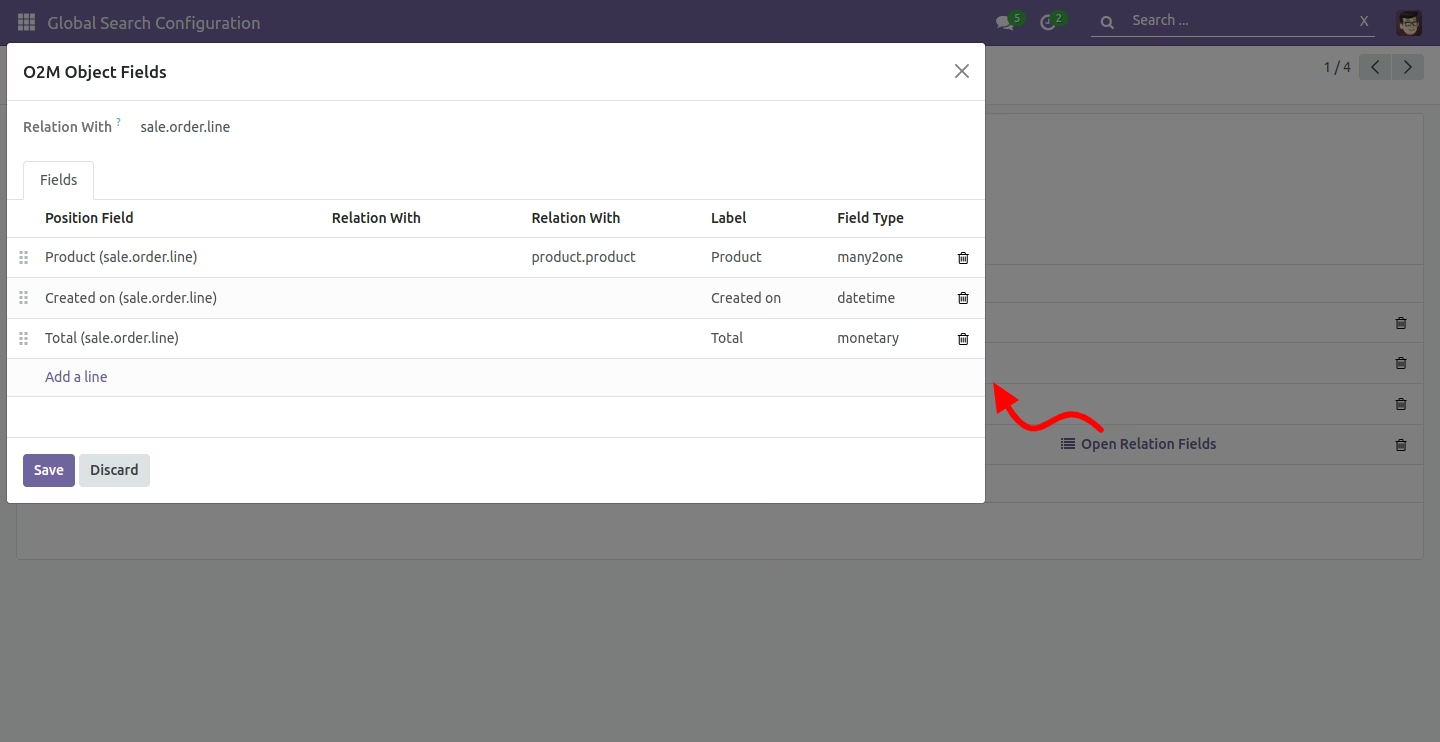
Select object/model, name field, and model fields. For one to many fields, you can configure from the smart button.
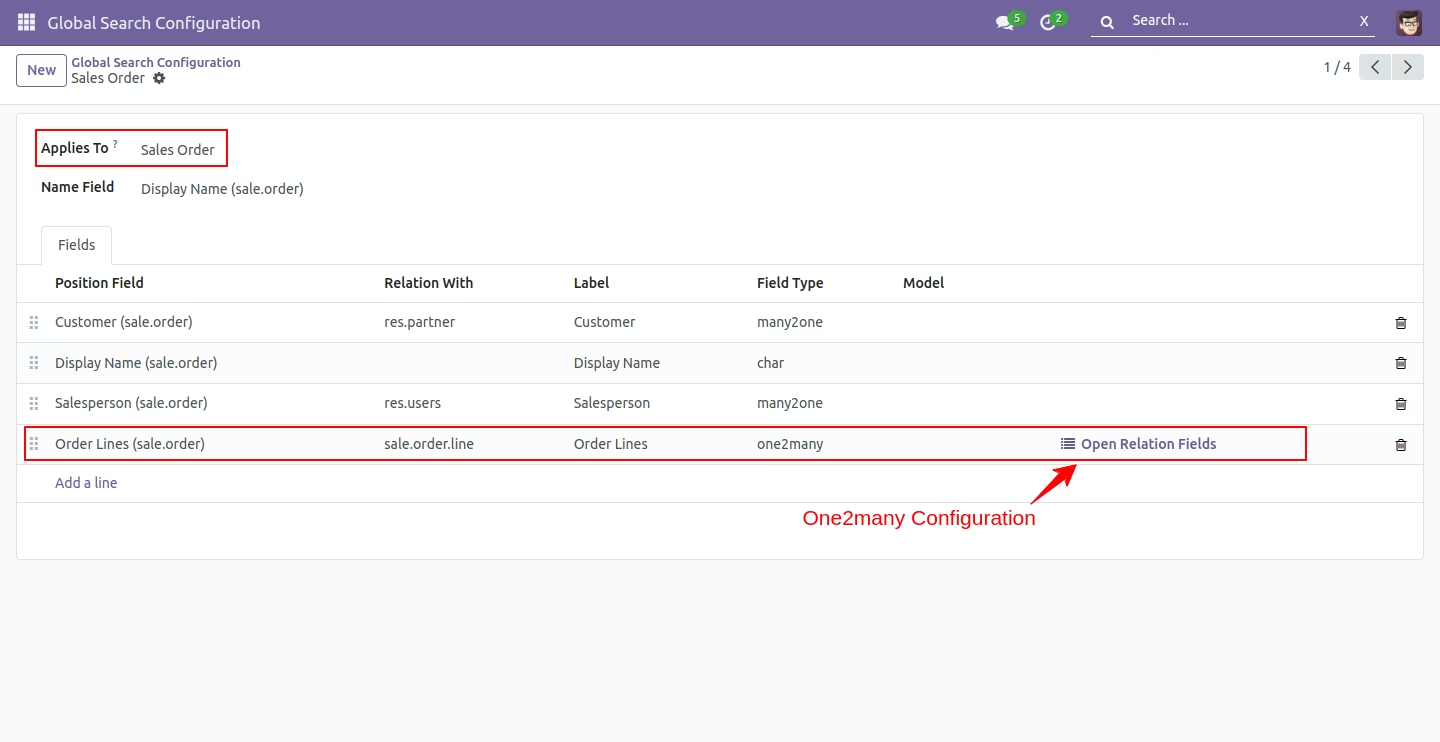
After that one wizard opens, and adds one to many fields.
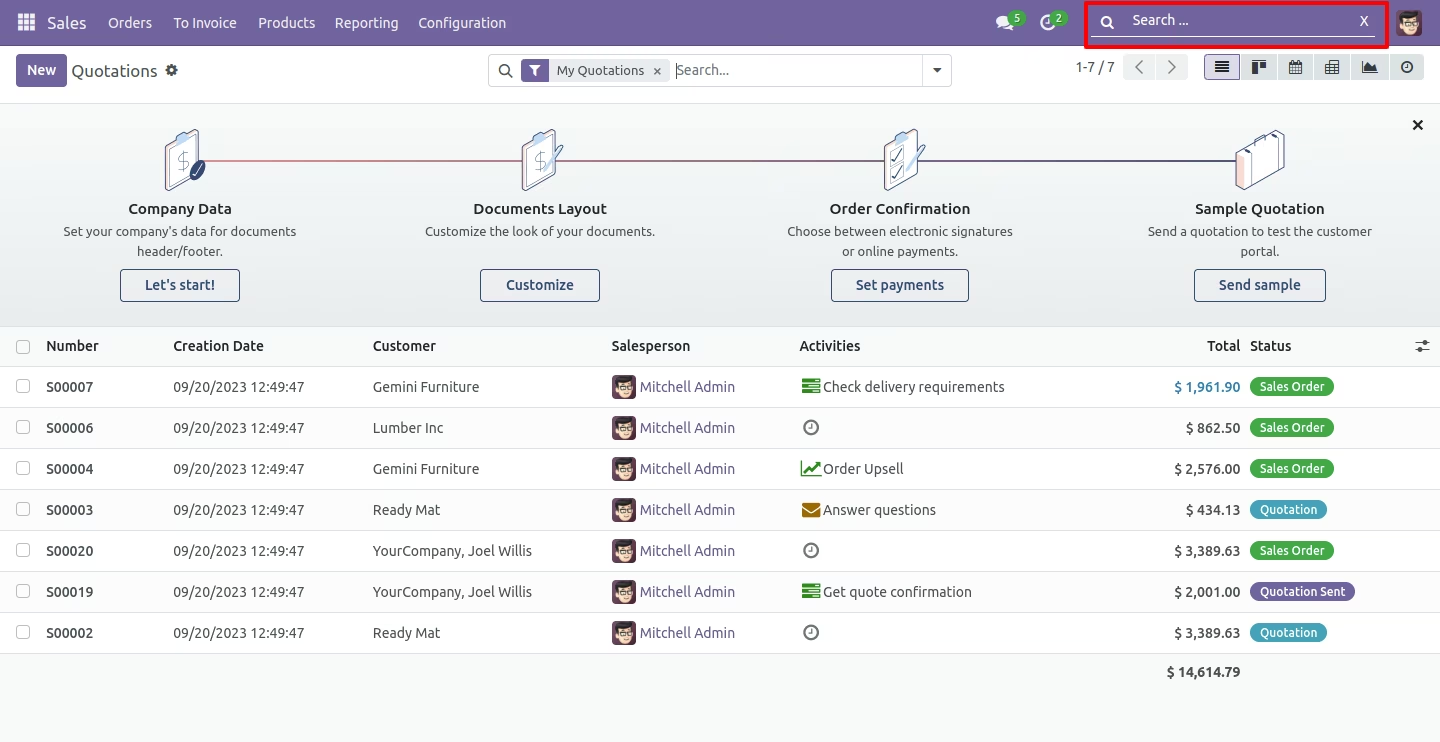
You can search the object based on configuration. "Global Search" is visible to the whole user.
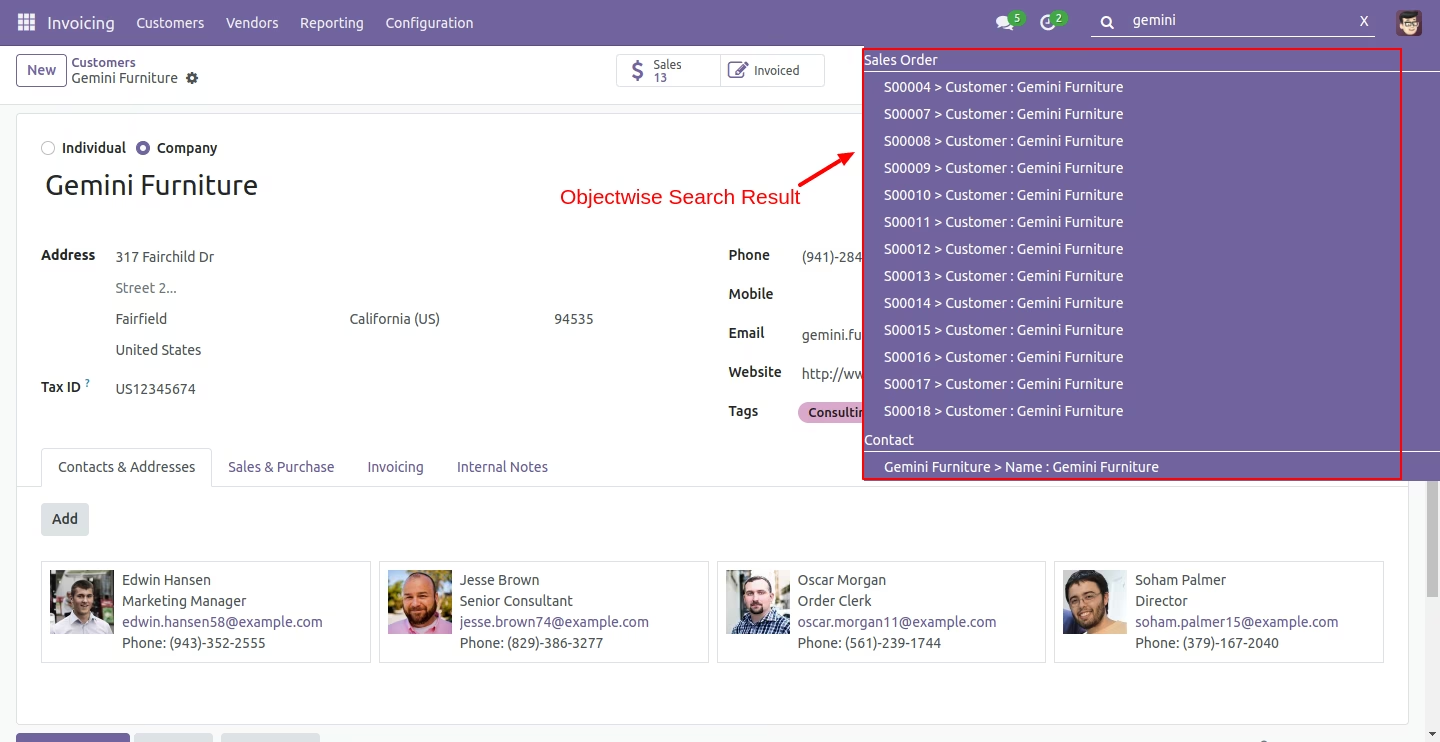
Object-wise search result looks like below.
On the click search result, it will redirect to that record.
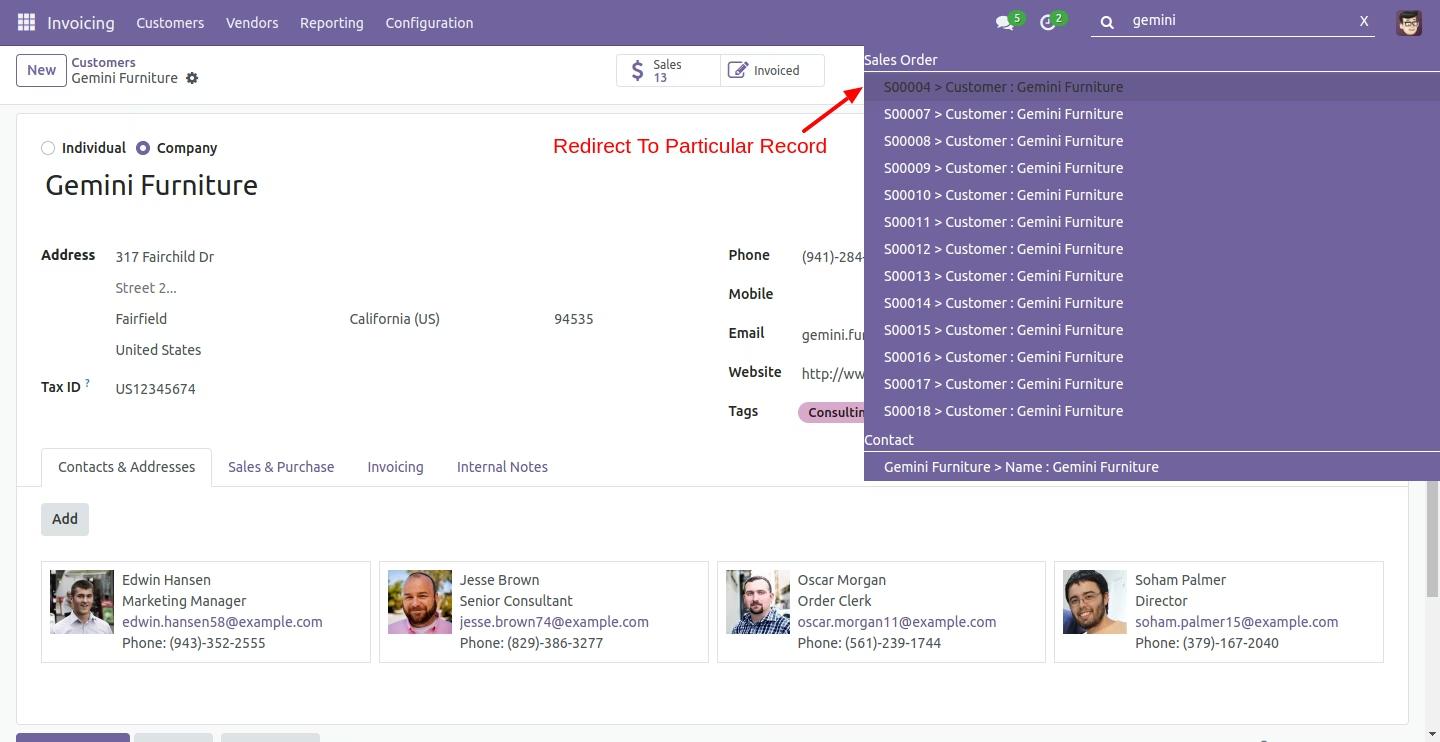
Related record on click search result redirects to the new tab.
If multi-company activates in users looks like this.
We can search by message, subject, or any content.
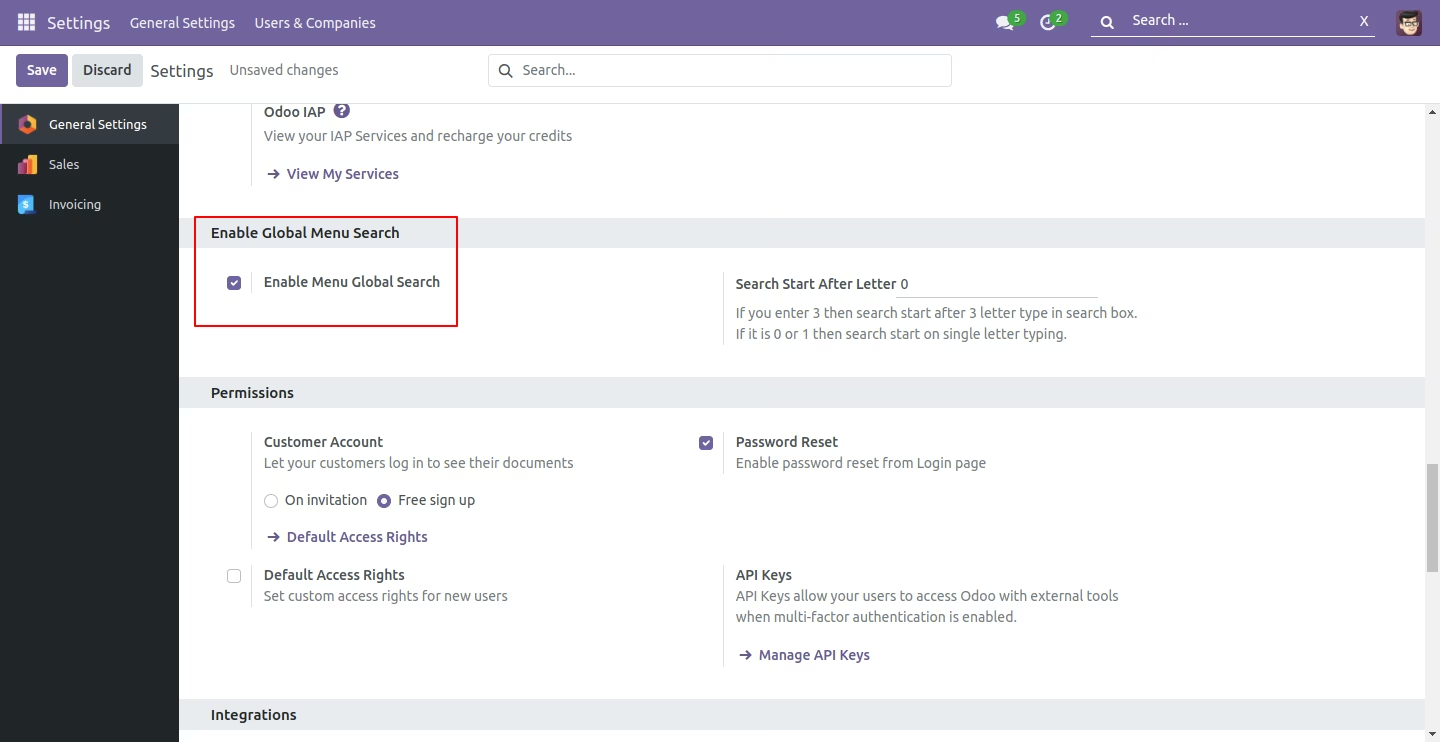
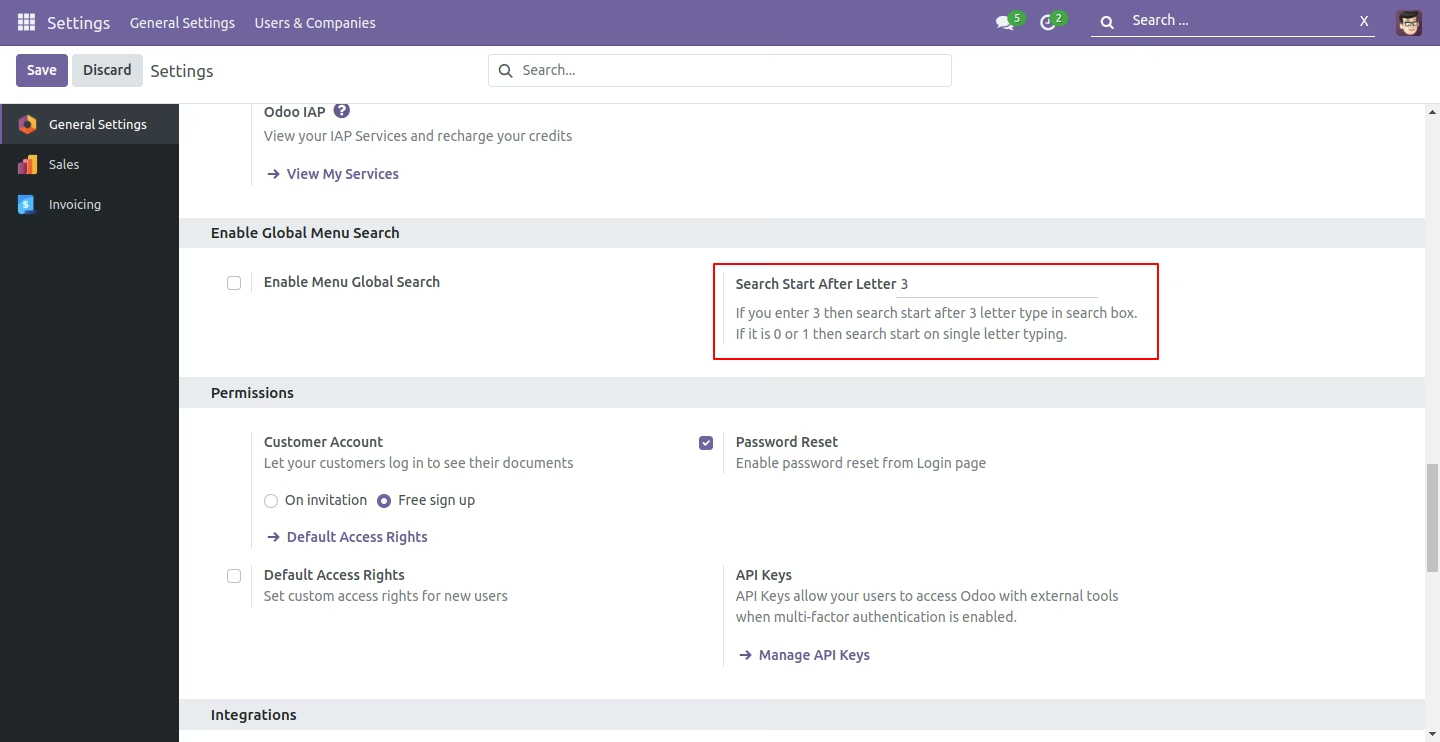
Tick the "Enable Menu Global Search" for search menus and redirect there.
The search result.
Enter the letter number to search after that letter in the search box.
You can clear the search value using the cancel button and when clicked in the body it clears the search value.
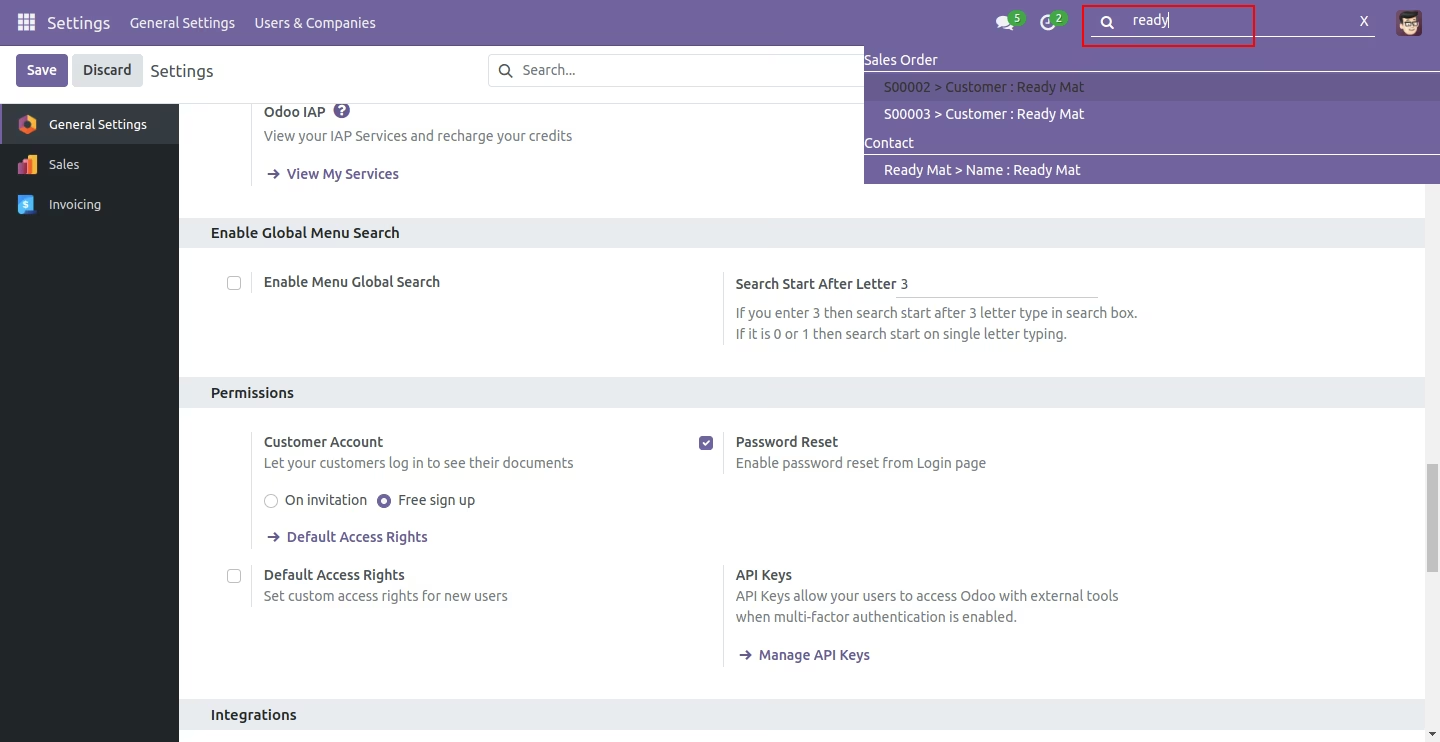
You can clear the search value using the cancel button and when clicked in the body it clears the search value.