This module allows establishment of dynamic, multi-level approval workflows for employee expenses, enhancing the validation process with intelligence and flexibility. Expenses can be routed to designated approvers individual users or user groups based on configurable conditions, ensuring that submissions meet business policies before approval. Real-time email notifications keep both approvers and employees informed throughout the process, boosting efficiency and transparency in expense management.
Configurable approval workflows with multi-level routing based on expense conditions
Assign approval to specific users or groups for targeted decision-making
Dynamic approval levels determined by expense rules and criteria
Automatic email notifications sent to approvers when approval is needed
Employees receive email notification upon approval or rejection of their expense
Ready to use after installation, with minimal configuration required
Streamlines expense validation by automating multi-stage approval routing
Improves governance through conditional, rule-based approval processes
Enhances communication with timely notifications to both approvers and employees
Increases flexibility by allowing tailored approval based on expense attributes
Reduces administrative burden with an intuitive setup and maintenance process
This module allows you to set dynamic and multi-level approvals in the employee expense so each expense can be approved by many levels. Expense is approved by particular users or groups they get emails notification about the expense that waiting for approval. When the expense approves or rejects employee gets a notification about it.
- You can set dynamic approvals on the employee expense.
- You can set different approvals on different expenses.
- Expenses can be approved by a particular user or group.
- Employee gets a notification when the expense approves or rejects.
- You can create a flexible approval process.
- No special configuration required, install it, use it.
Approval Configuration: Setup approval levels based on minimum amount and users level. Also select companies.
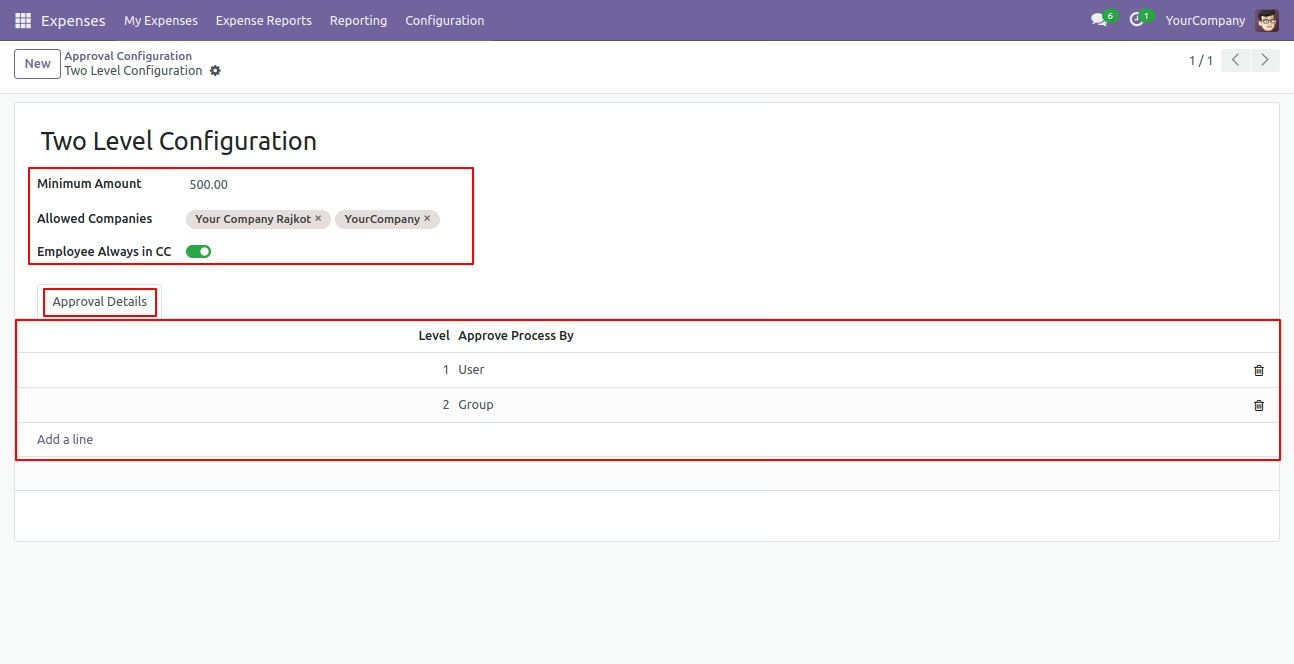
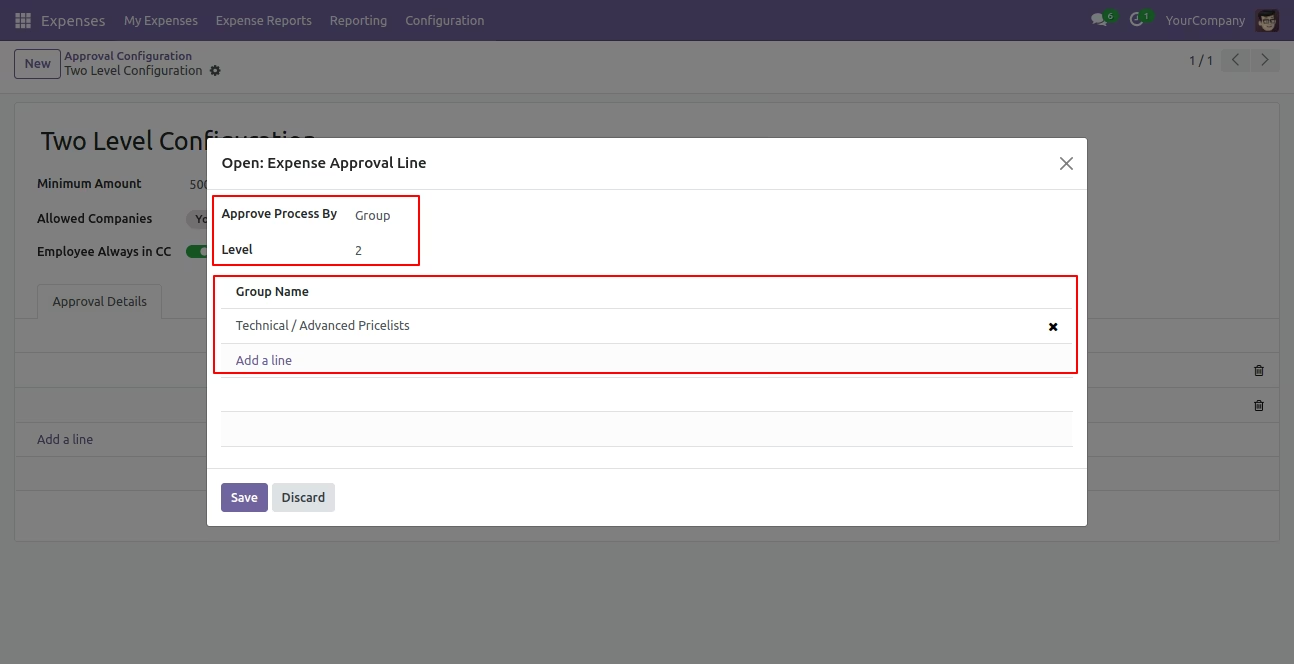
Approved Process By, there are two types 1. User , 2. Group. Userwise means to define that person who approved the expenses, in this wizard select the user.
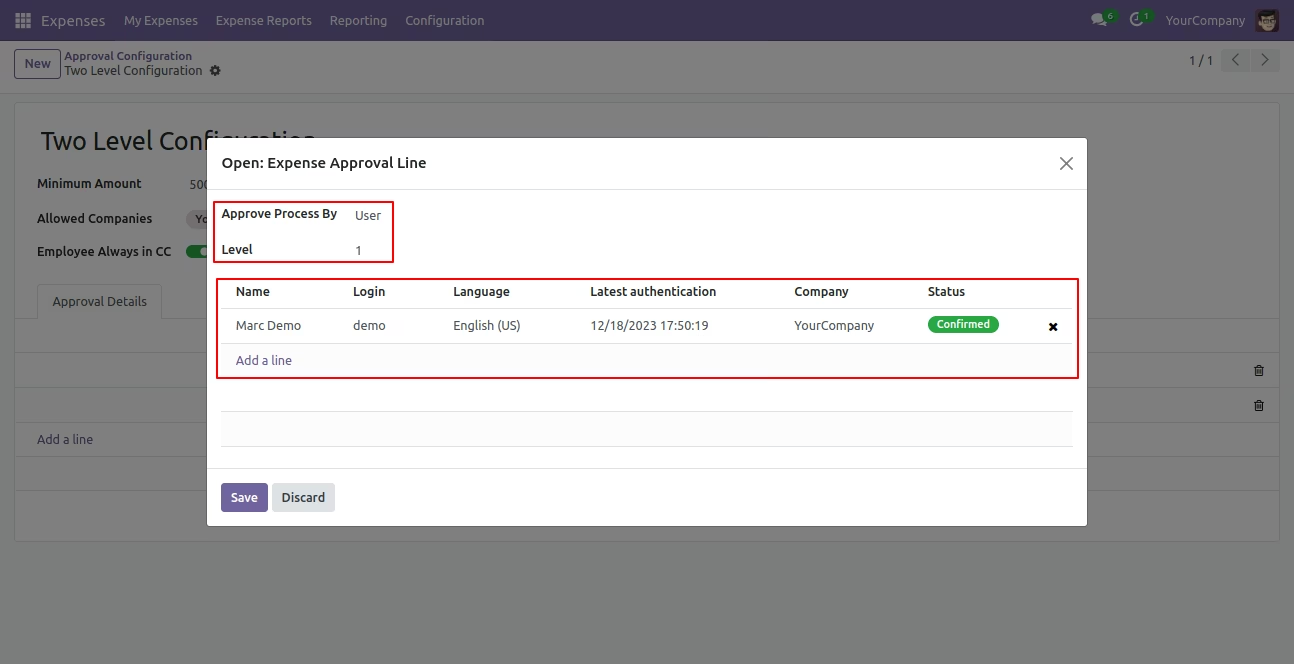
Approve type 2. Group that means only specific groups users will give approval.
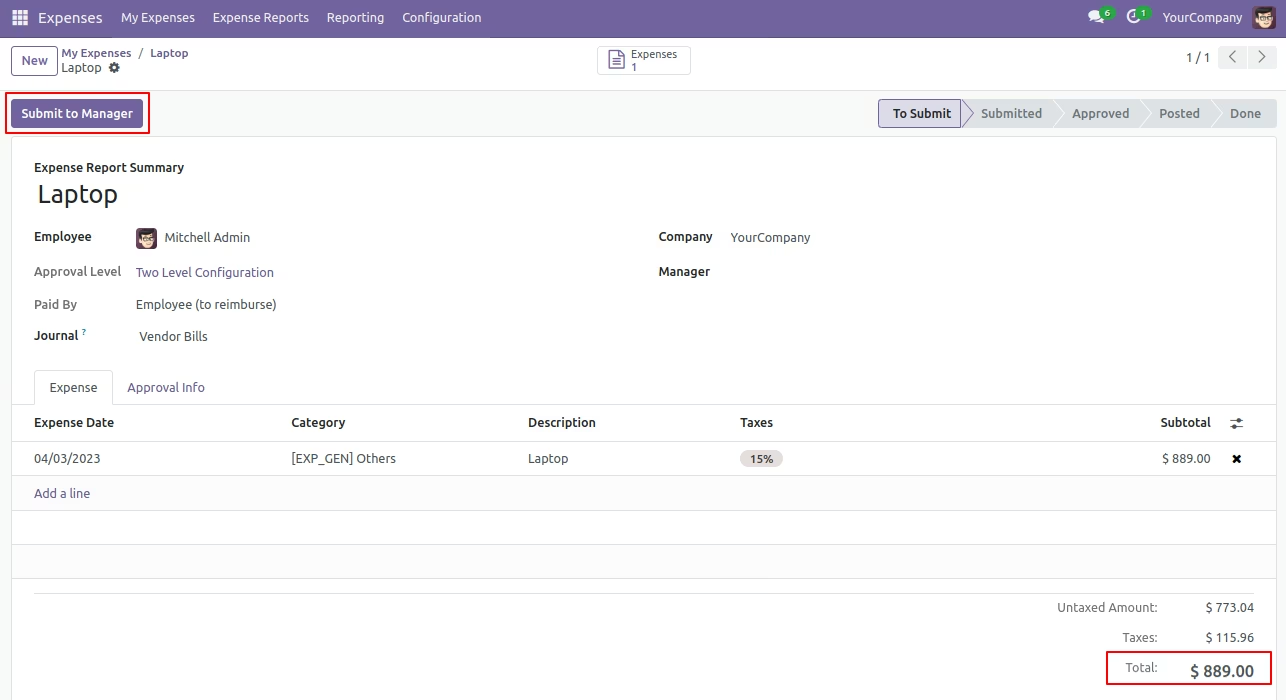
Employee submits expense for approval by pressing the Confirm button. so that the expense will automatically set the âWaiting for Approvalâ stage. Auto fetch Approval Level based on configured approvals setup and minimum limit.
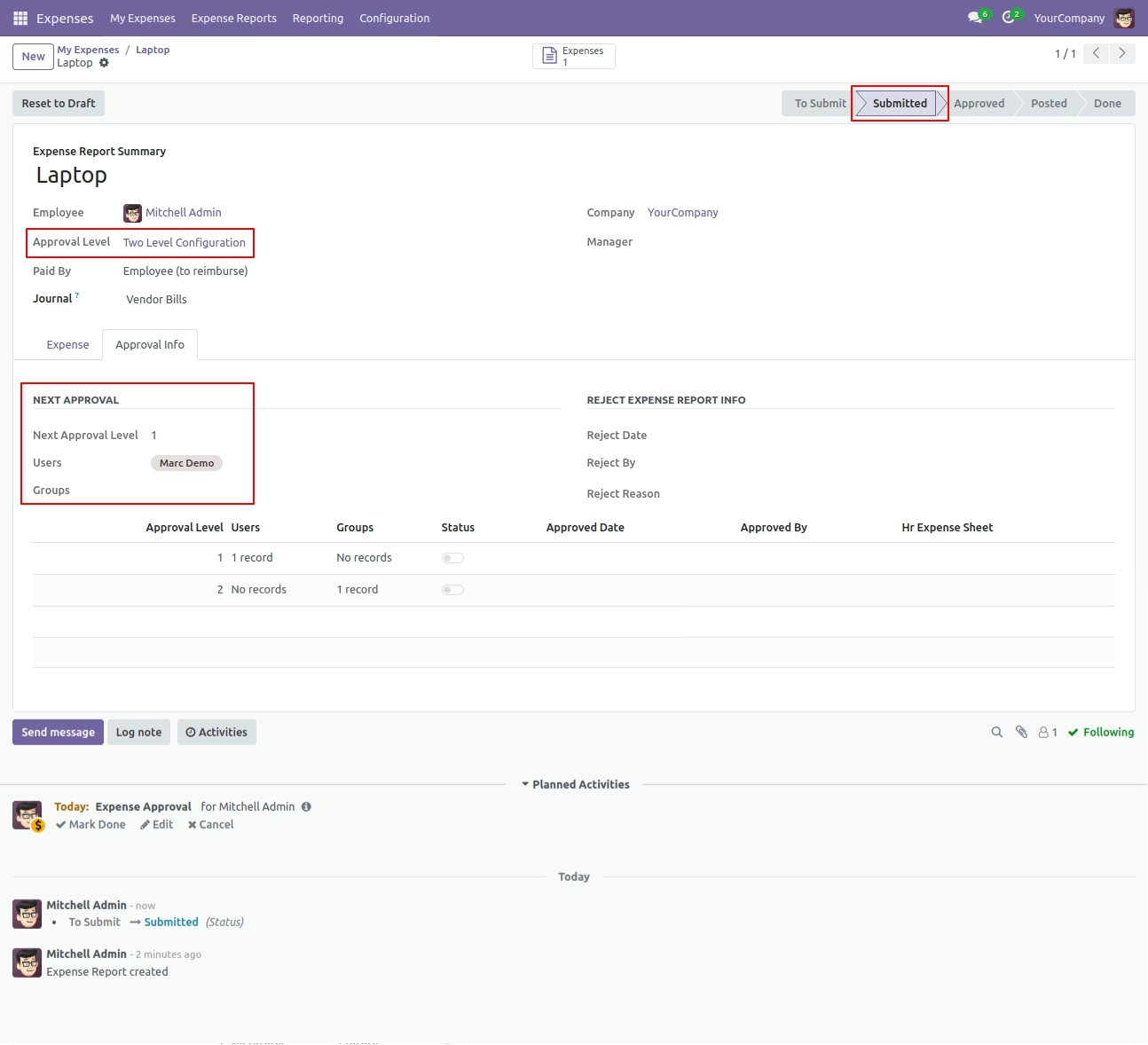
After confirmed by the user, Auto set next level approvers in the Approval Info tab. If next approval is required.
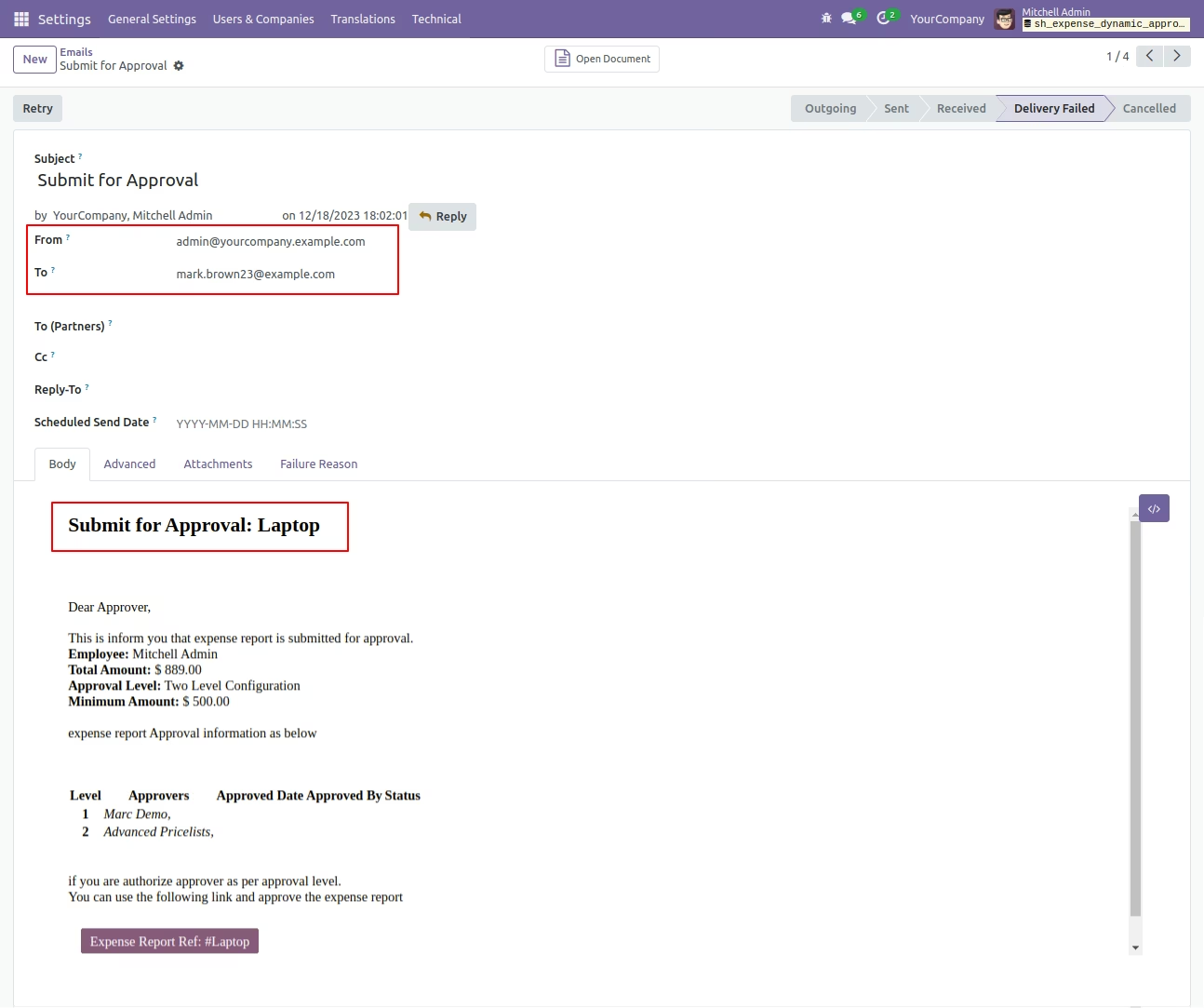
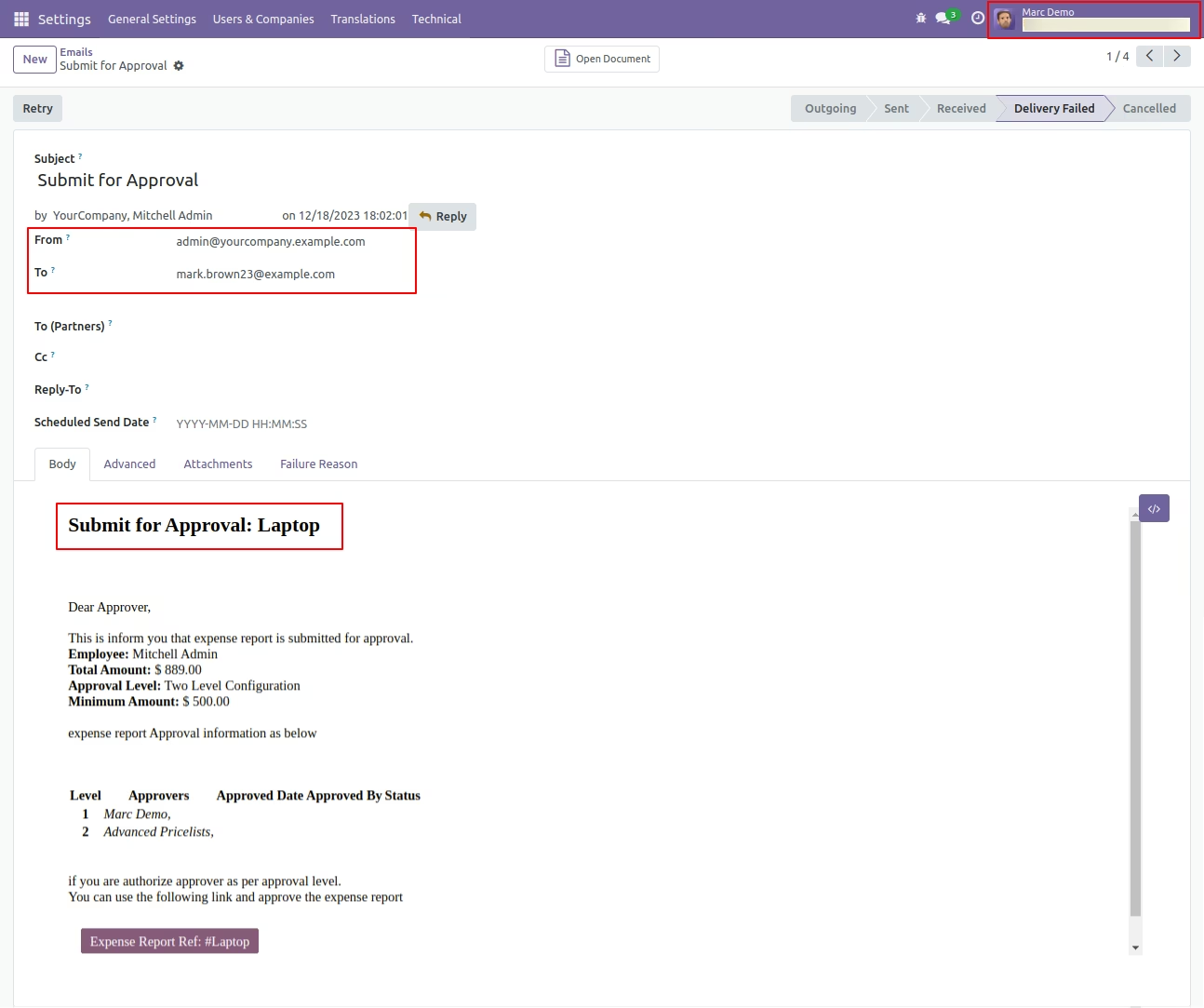
Email notification sent to approvers for approval expense.
The "My Approval" menu shows expense only those expenses are assigned to him.
The approval person get the approval notification.
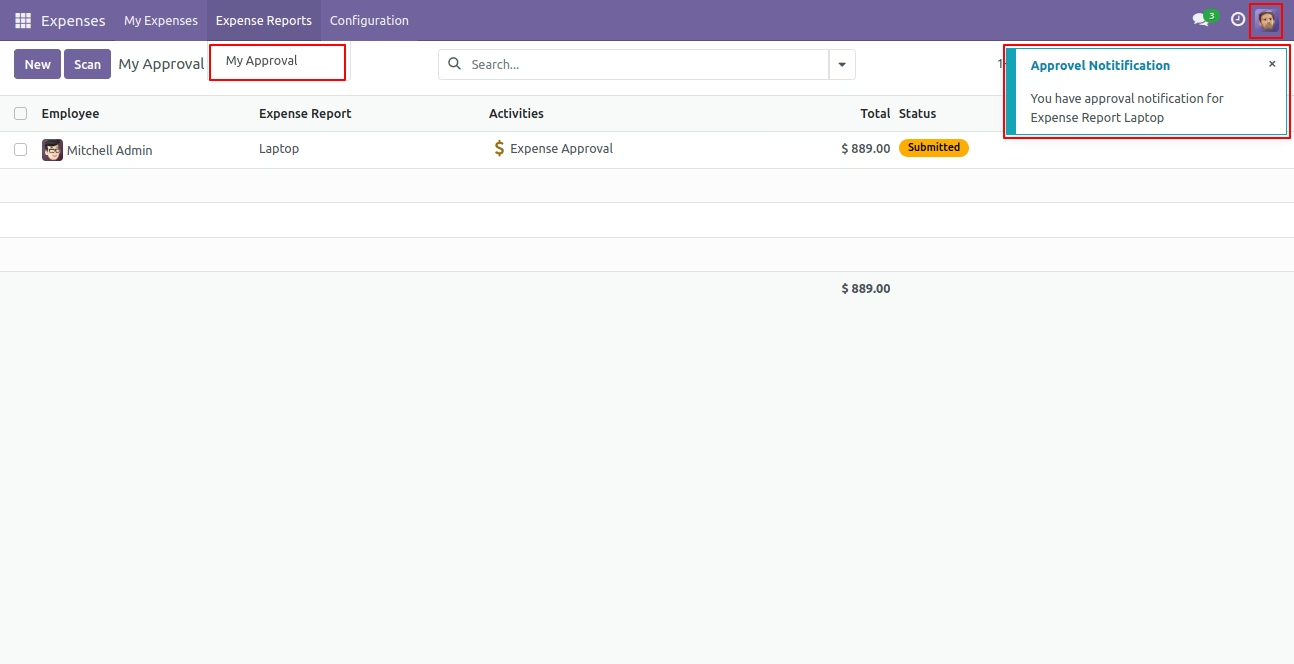
Approval Flow

There are 2 approvers the first approver approves the expense.
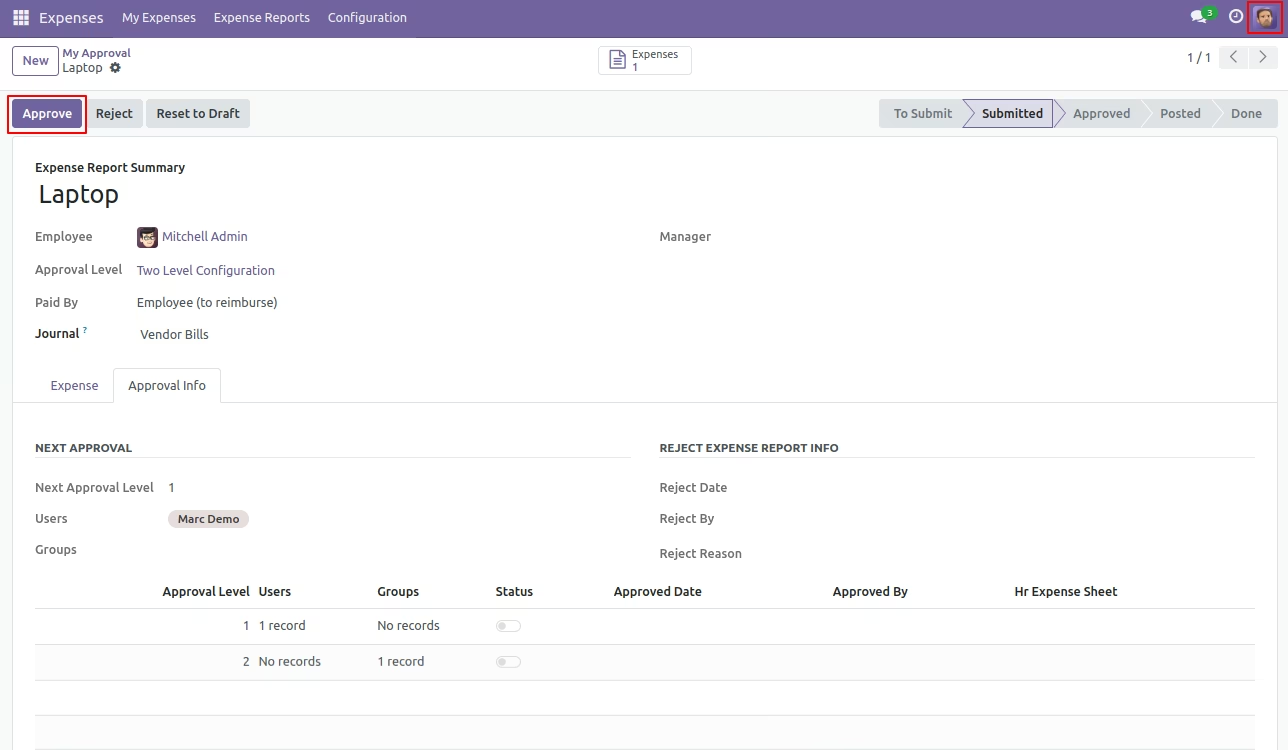
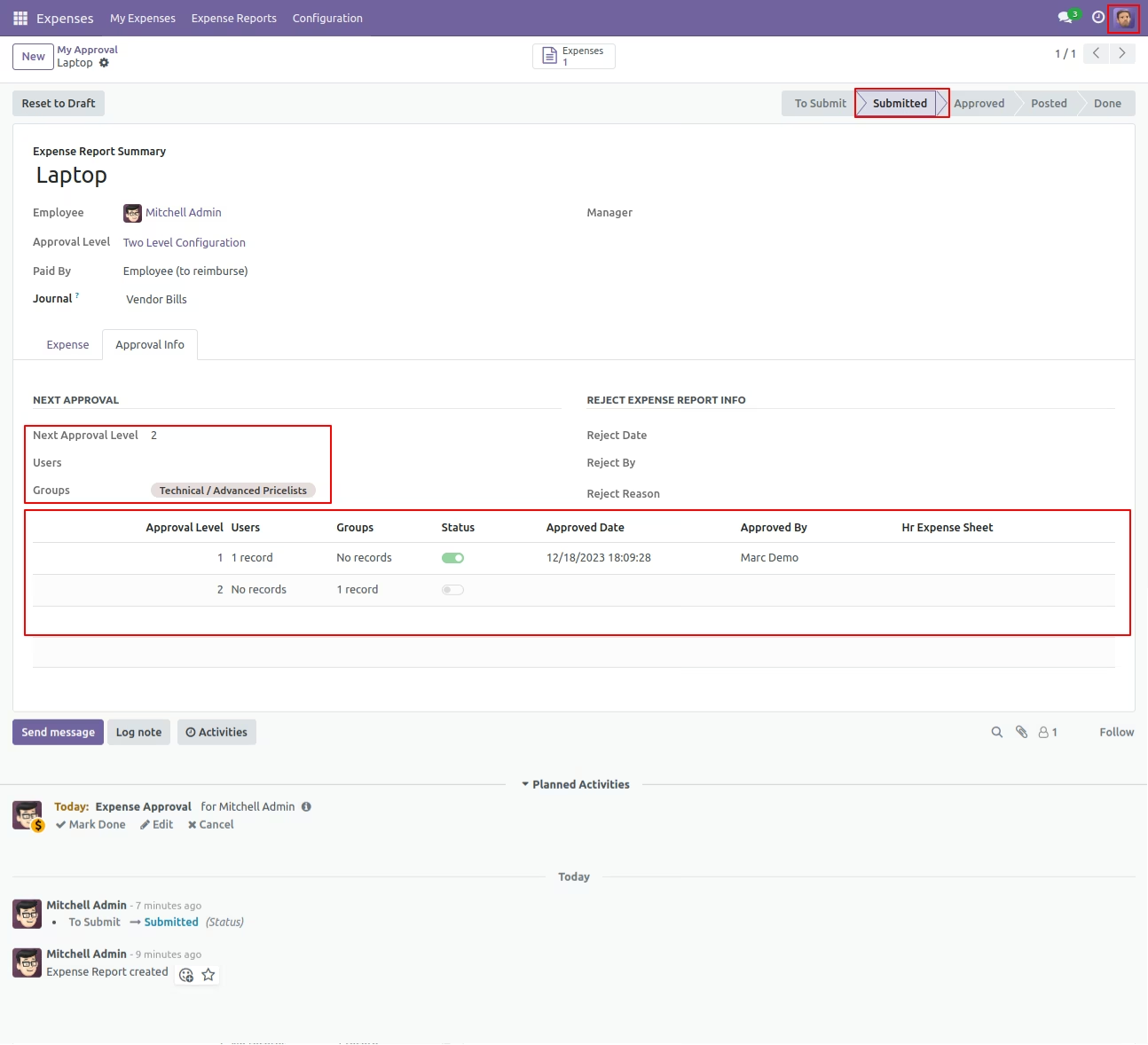
After approved by the approved person, Auto set the next level approvers in the Approval Info tab. If next approval is required.
Email notification sent to approvers for approval expense.
Now the second approver approves the expense.
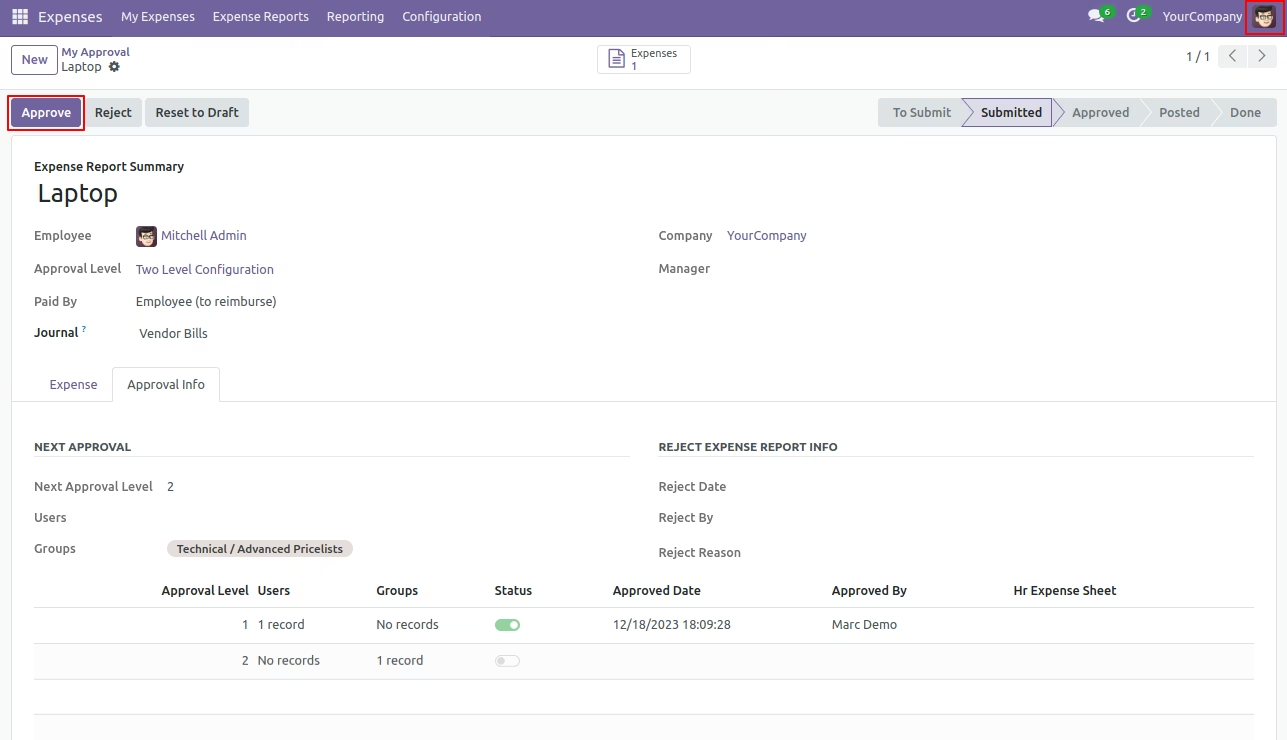
So Expense is approved.
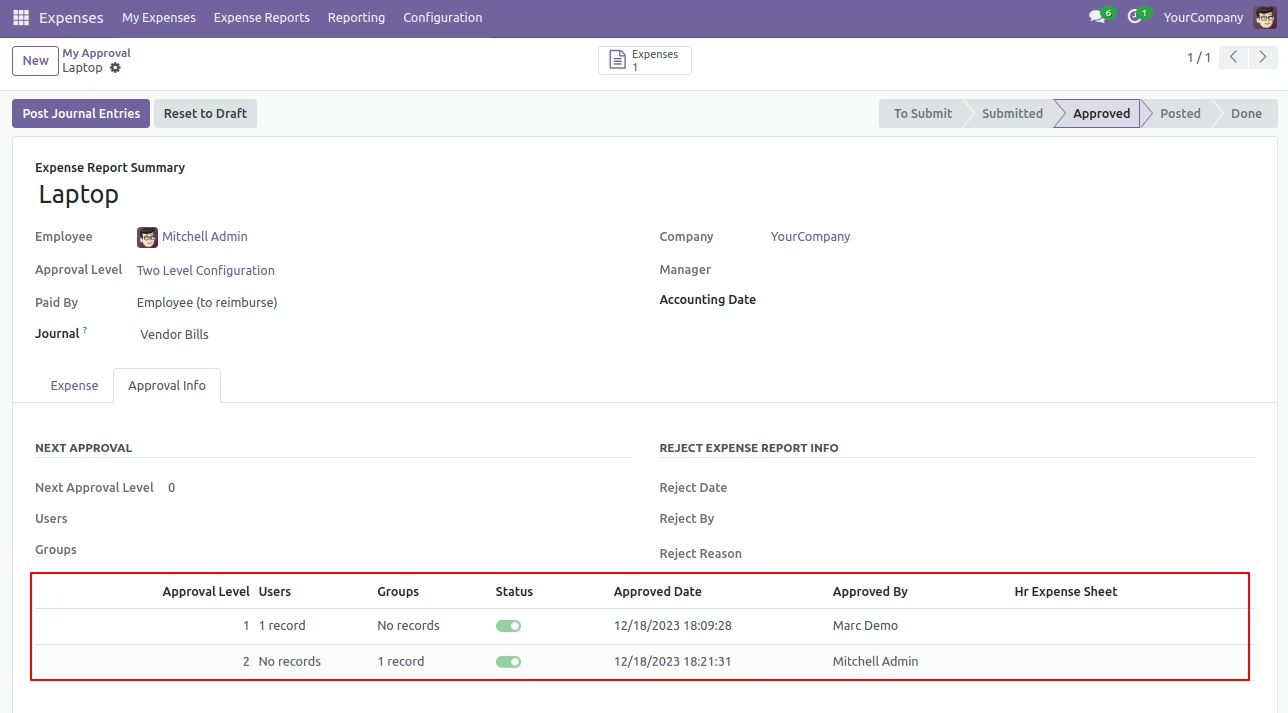
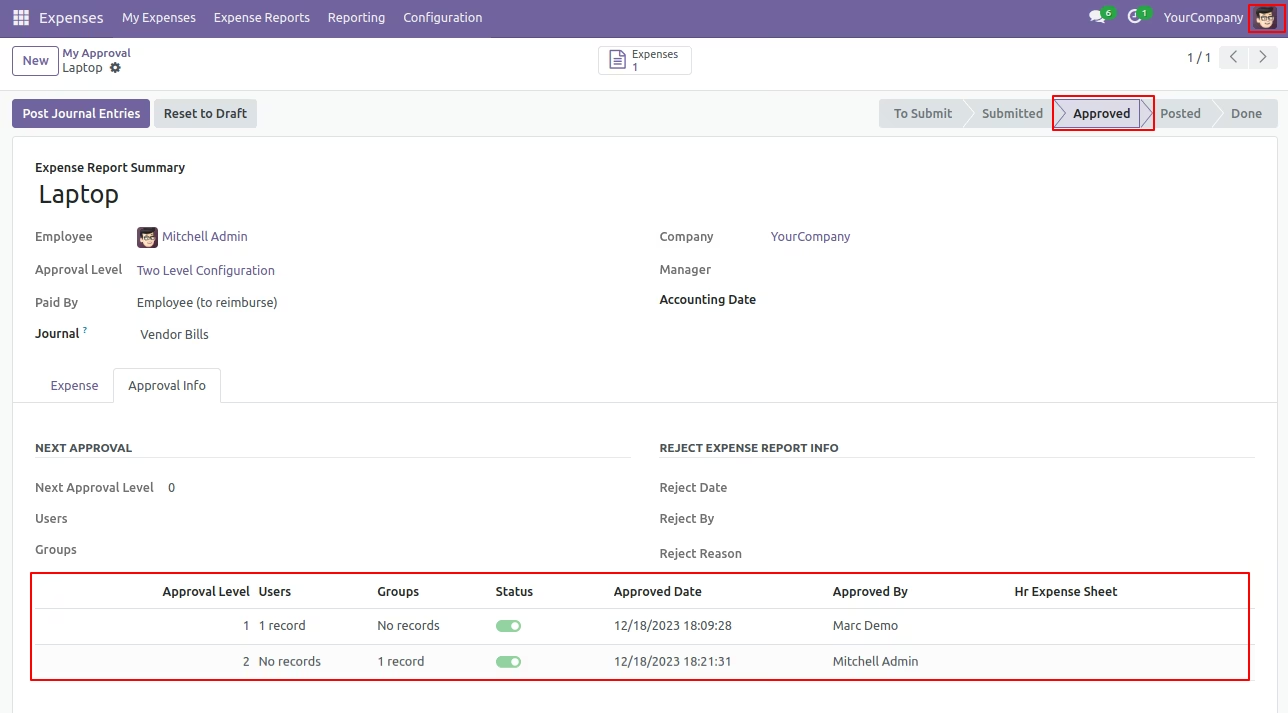
Email notification sent to approvers for approval expense.
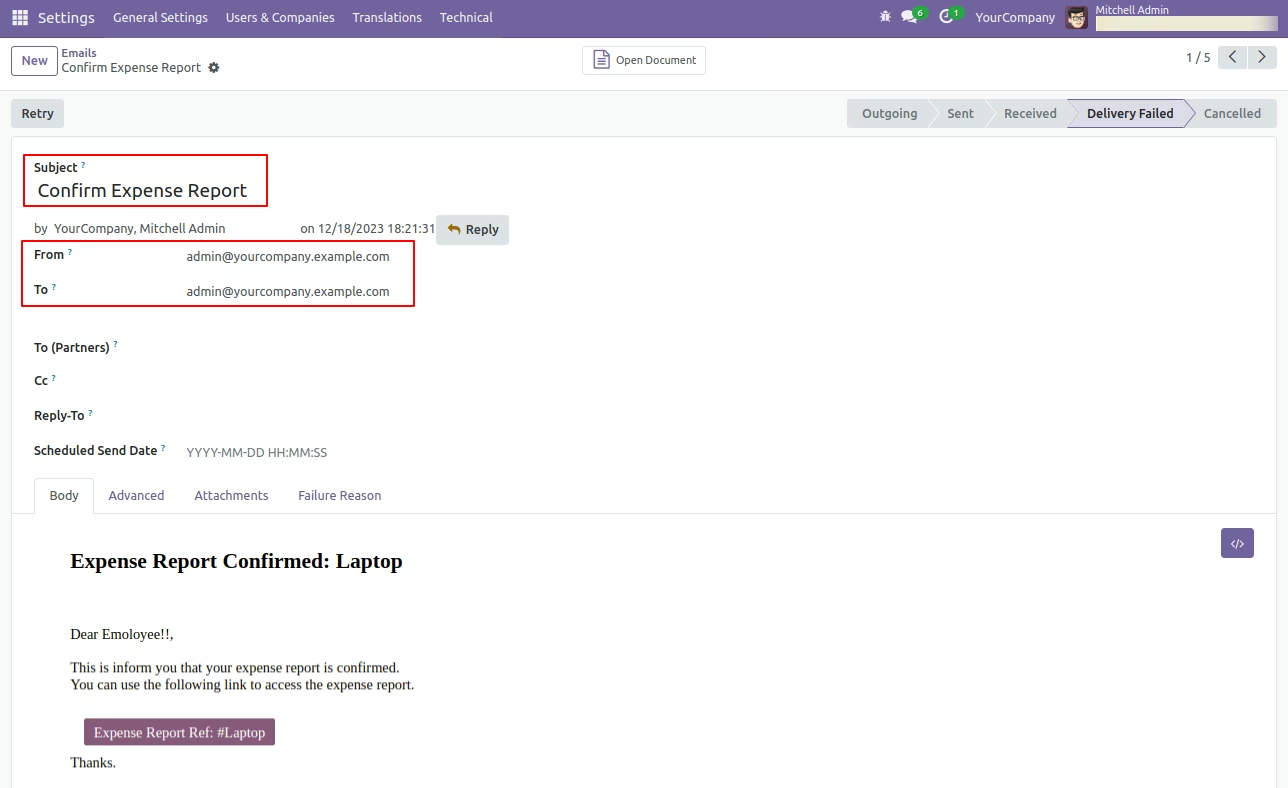
Rejection Flow
There are 2 approvers If the first approver rejects the expense that means that expense will be canceled no more second approver is needed.
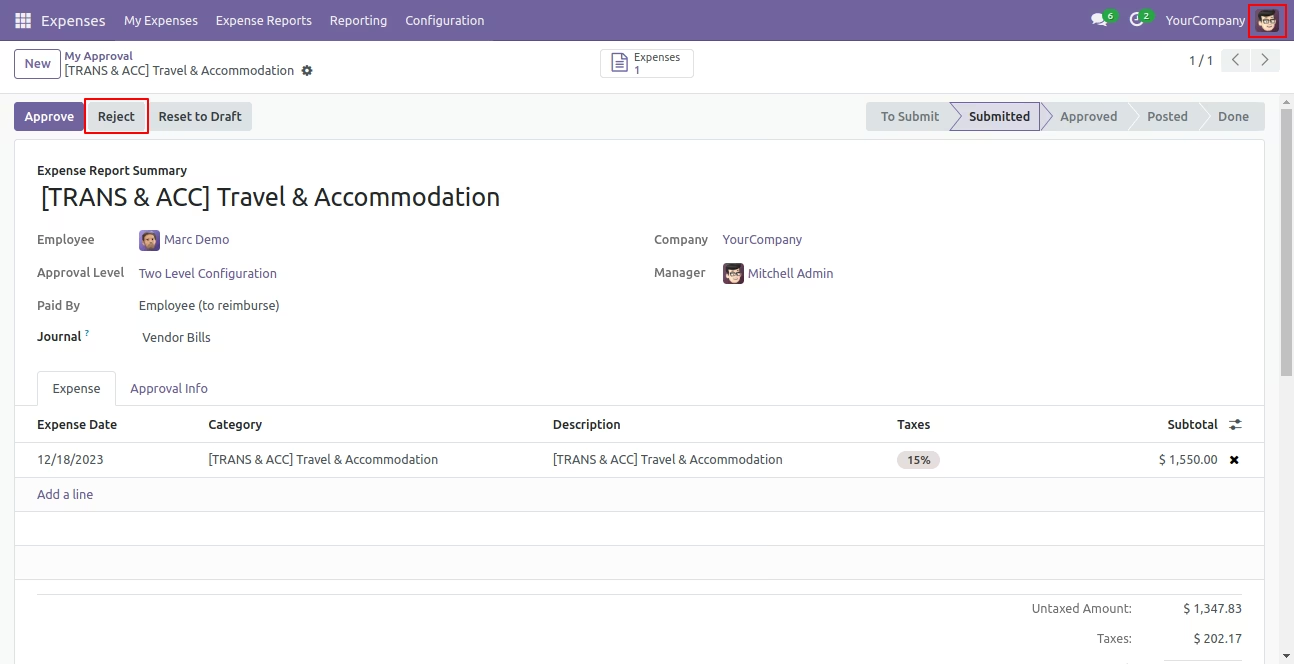
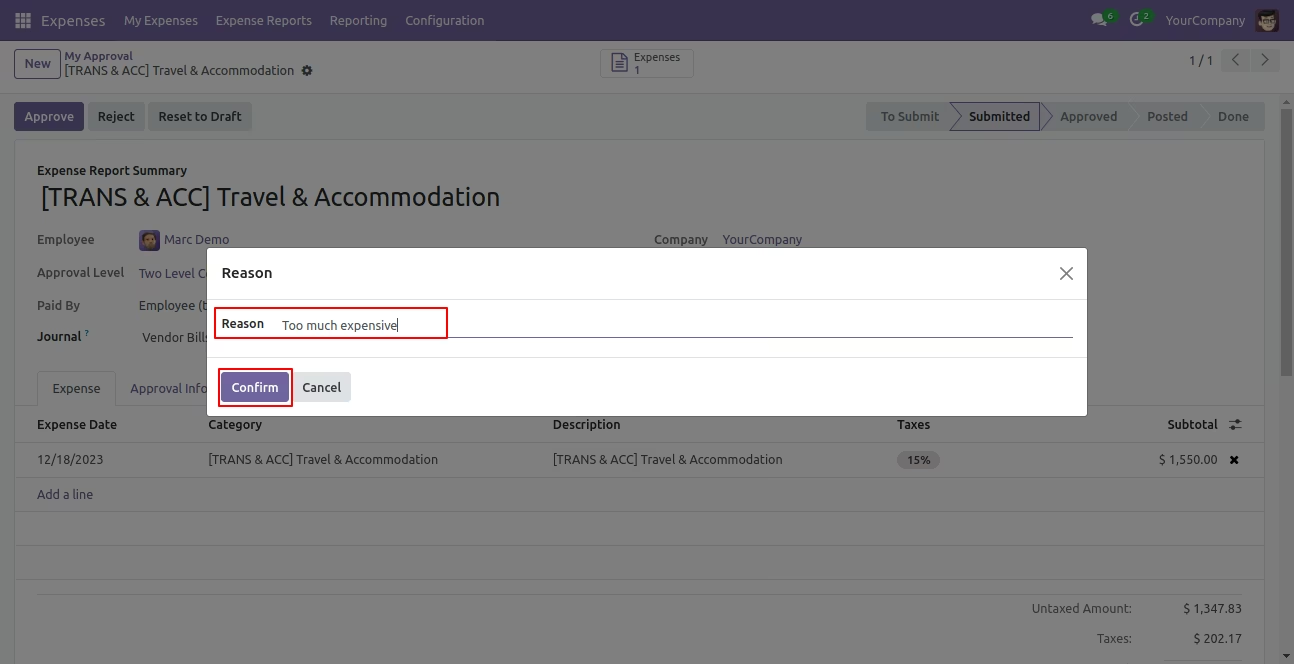
After click on the Reject button, this wizard will pop up, here the approver has to add a reason for rejecting the expense.
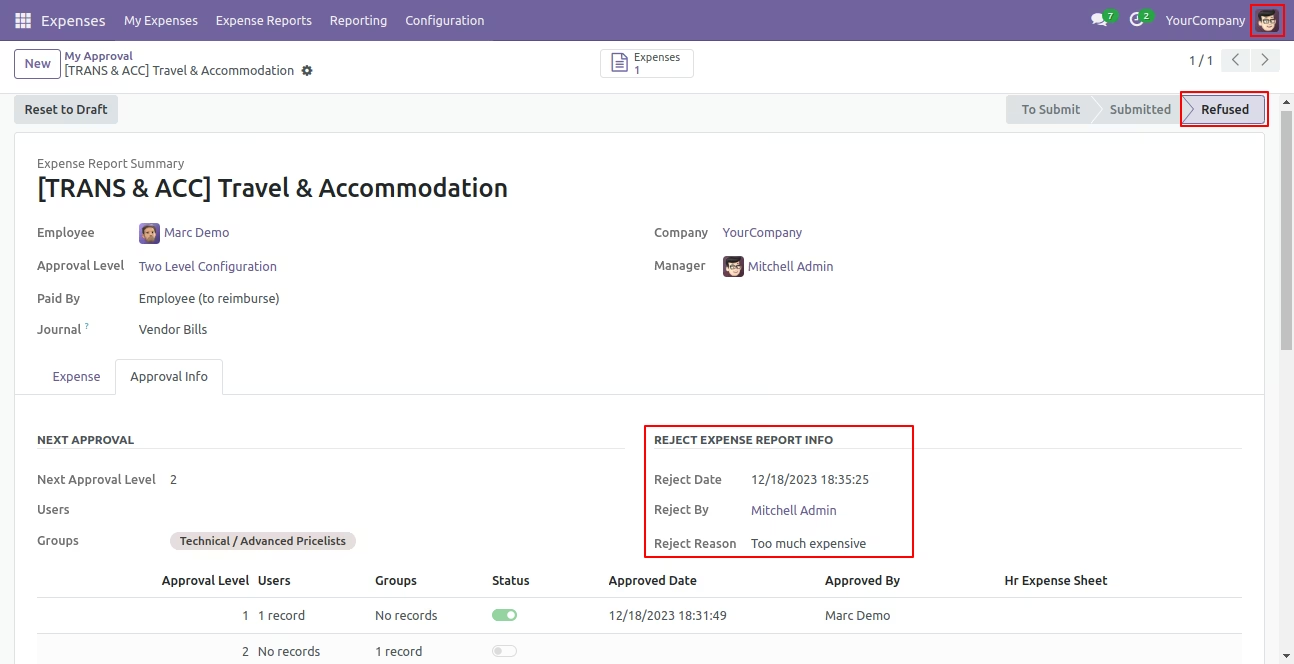
After rejection, it auto set the rejection information in the "Reject Order Info".
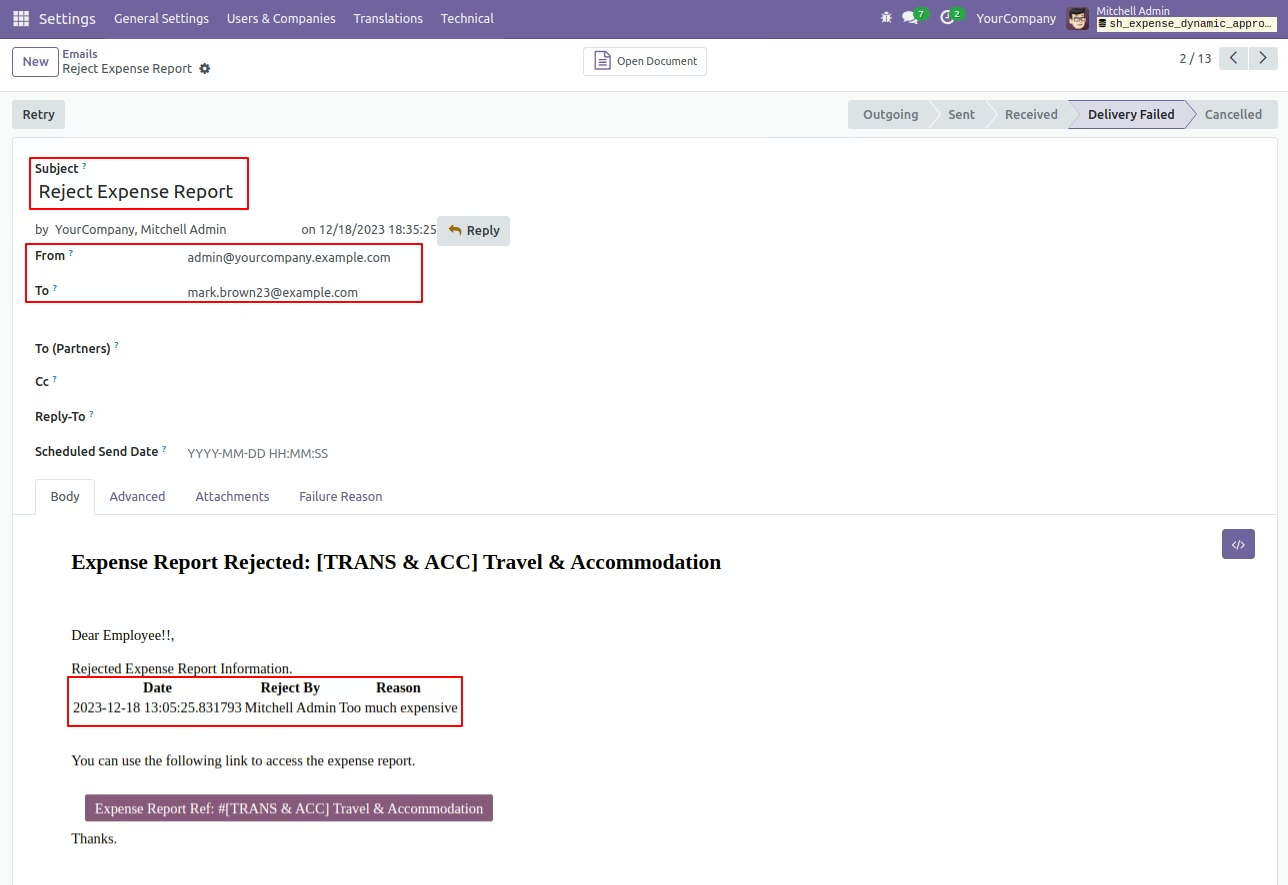
Email notification of rejection looks like this.