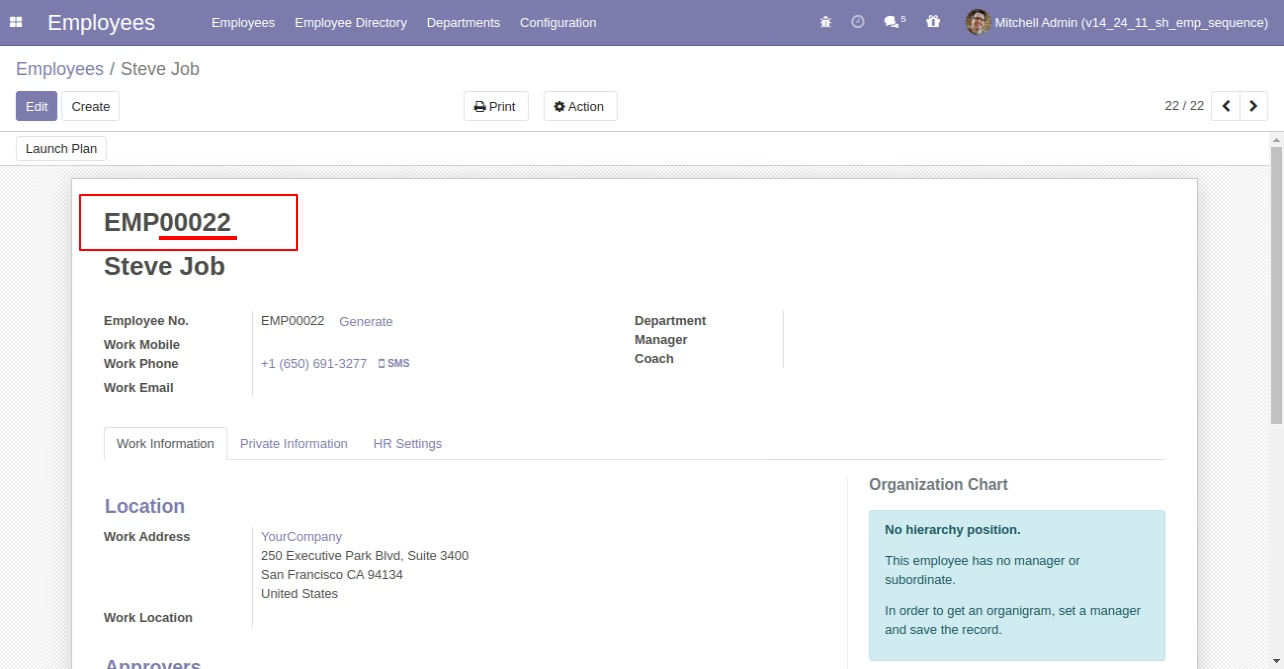
The module brings clarity and consistency to HR record management by automatically assigning unique identification numbers to employees upon creation. With customizable sequence patterns, this module ensures each staff member has a distinct and traceable ID. Its batch assignment feature further enhances efficiency, allowing administrators to generate or update multiple IDs at once and maintain structured employee numbering.
Auto-generate unique employee identification numbers during creation
Customize sequence patterns including prefix, padding, and numbering rules
Batch assign sequence numbers to multiple employees with a single action
Apply sequences to employee lists, forms, and views for clear visibility
Option to enable or disable automatic ID generation as needed
Enhances HR accuracy by standardizing employee identifiers
Saves time with automated and bulk sequence generation
Improves data management and staff tracking with clear IDs
Reduces manual entry errors in employee numbering
Supports scalable HR workflows across medium to large organizations
It's difficult to manage lots of employees without a unique sequence number. This module auto-generates the employee number sequence. You can change patterns in employee sequence numbers. When you create a new employee, the sequence number is assigned automatically. You can allocate multiple employee sequence numbers in a single click.
- Easy to manage employees using sequence numbers.
- It's auto-generates the employee number sequence when you create a new employee's auto-generates the employee number sequence when you create a new employee
- You can change employee sequence number patterns.
- You can assign multiple employee sequence numbers with just one click.
- It reduces human efforts.
- Time-saving module.
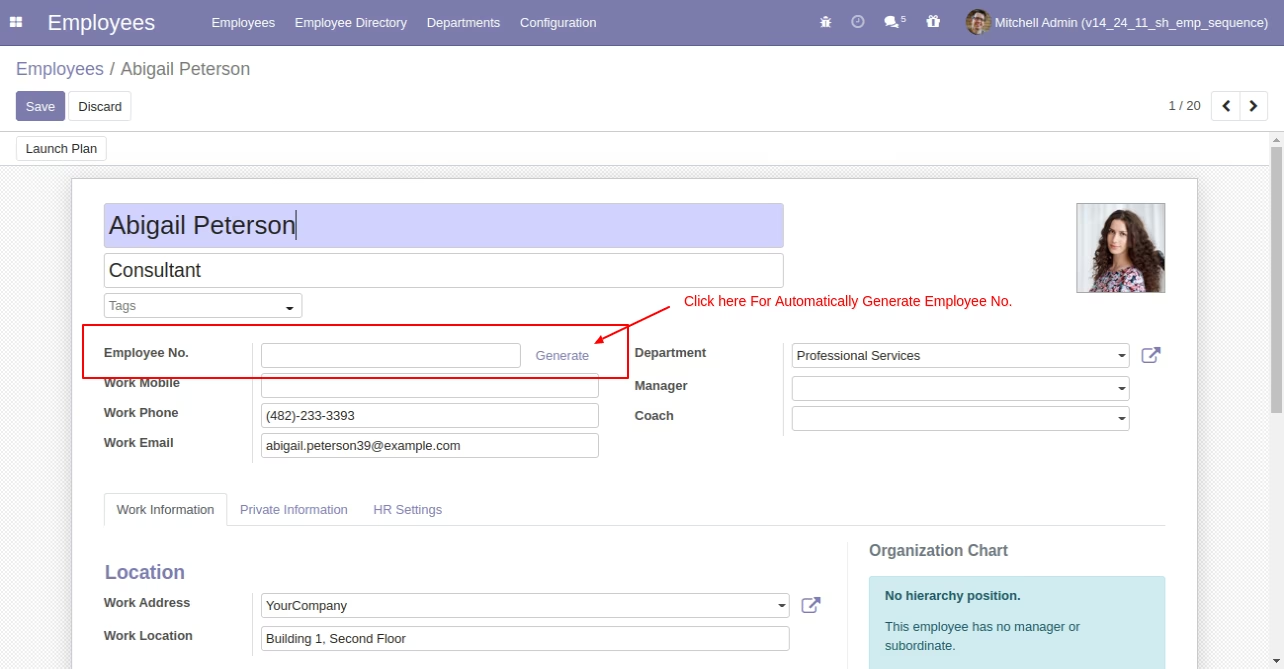
Press "Generate" to automatically generate the employee number.
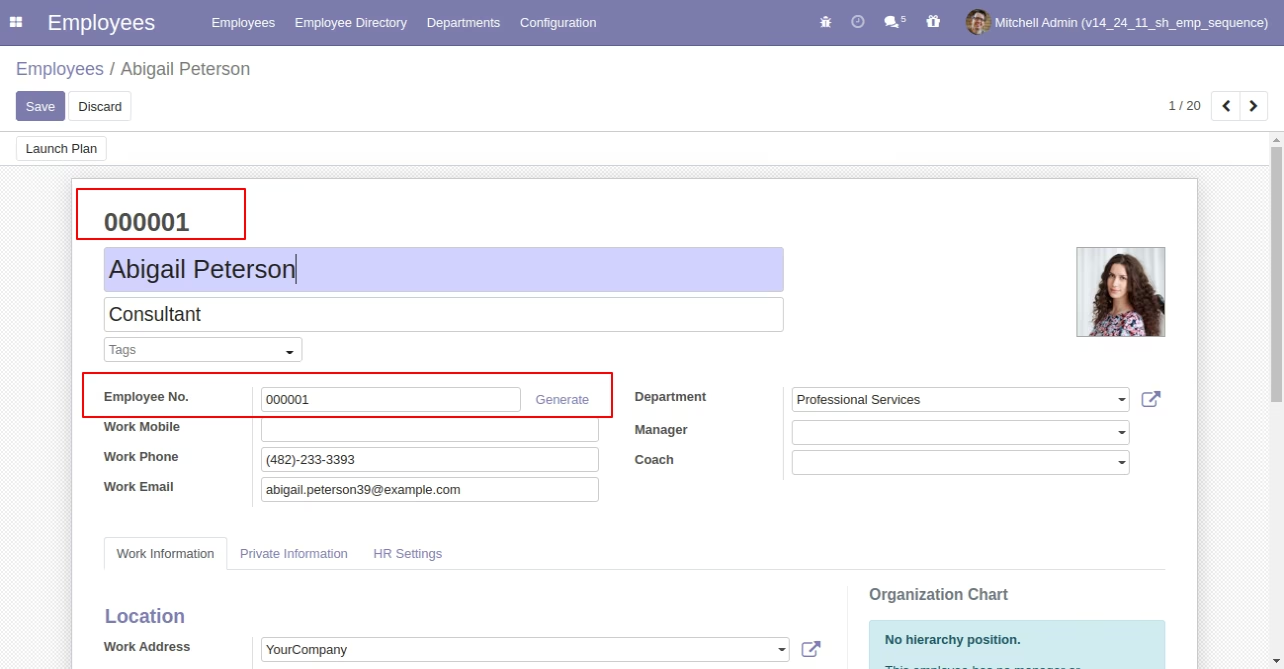
Employee form view with the employee sequence number.
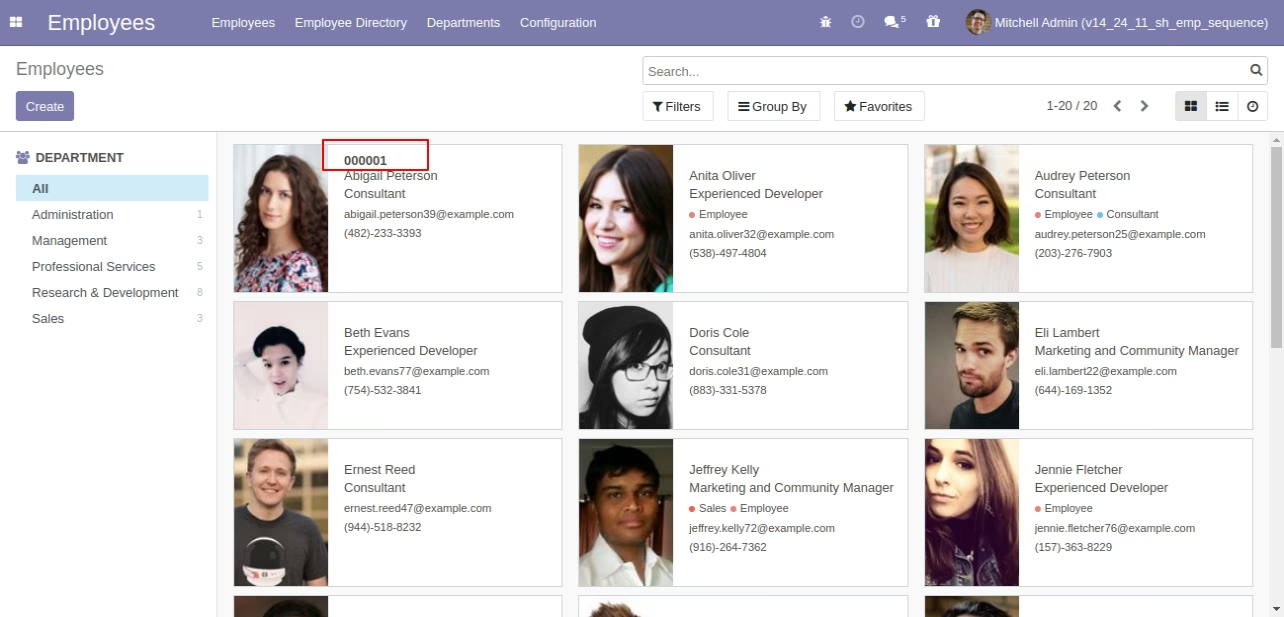
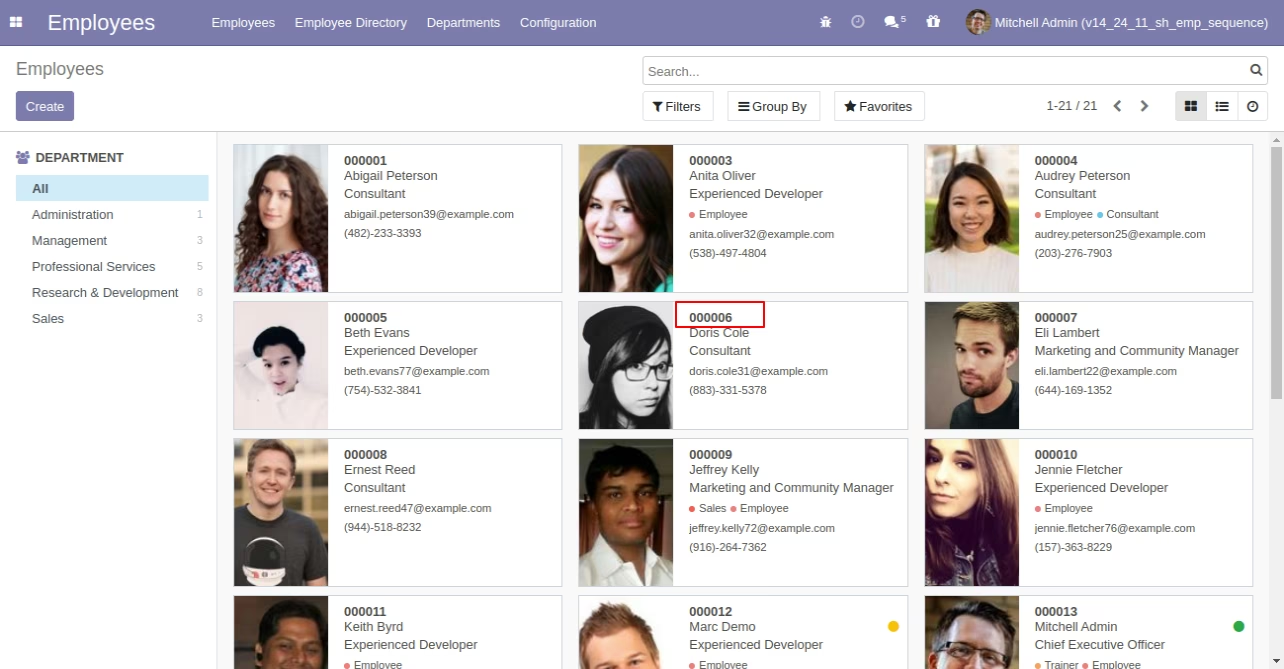
Employees kanban view with the employee sequence number.
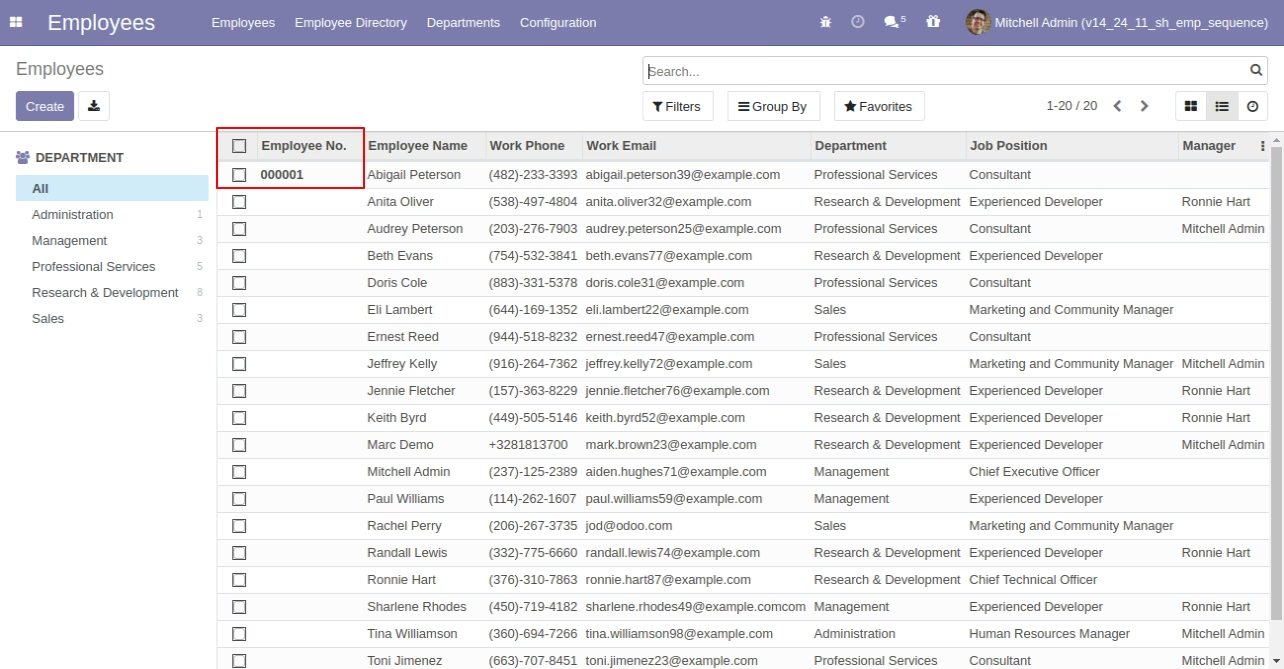
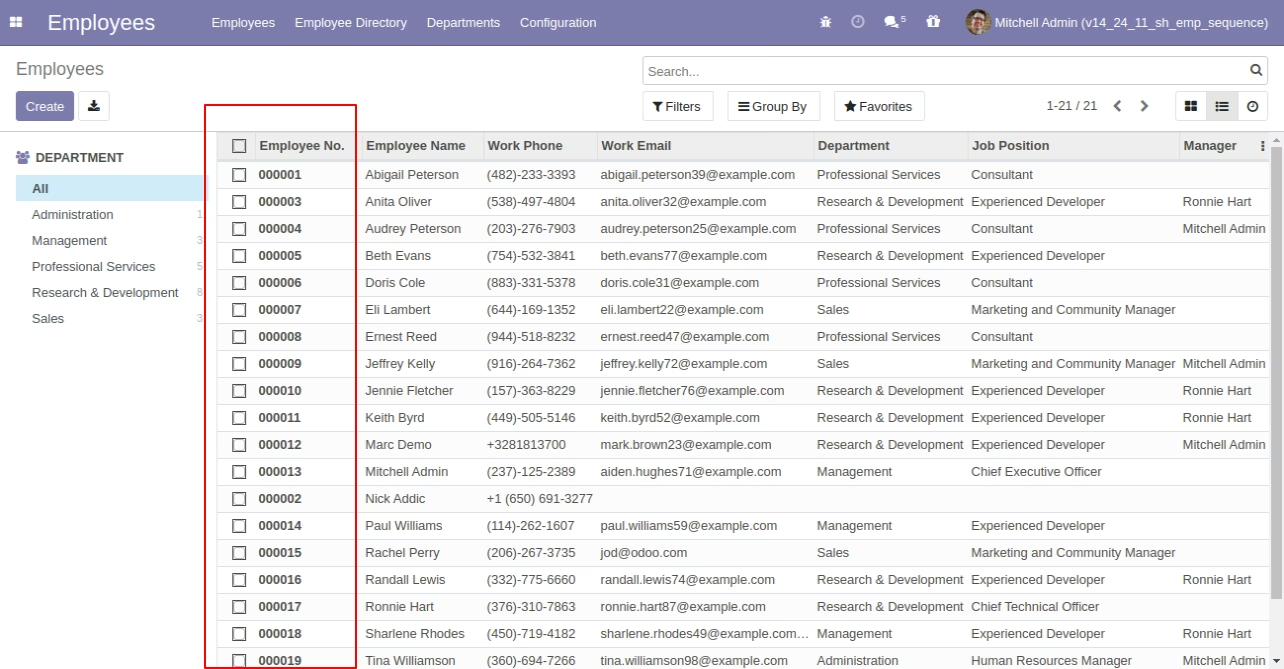
Employees list view with the employee sequence number.
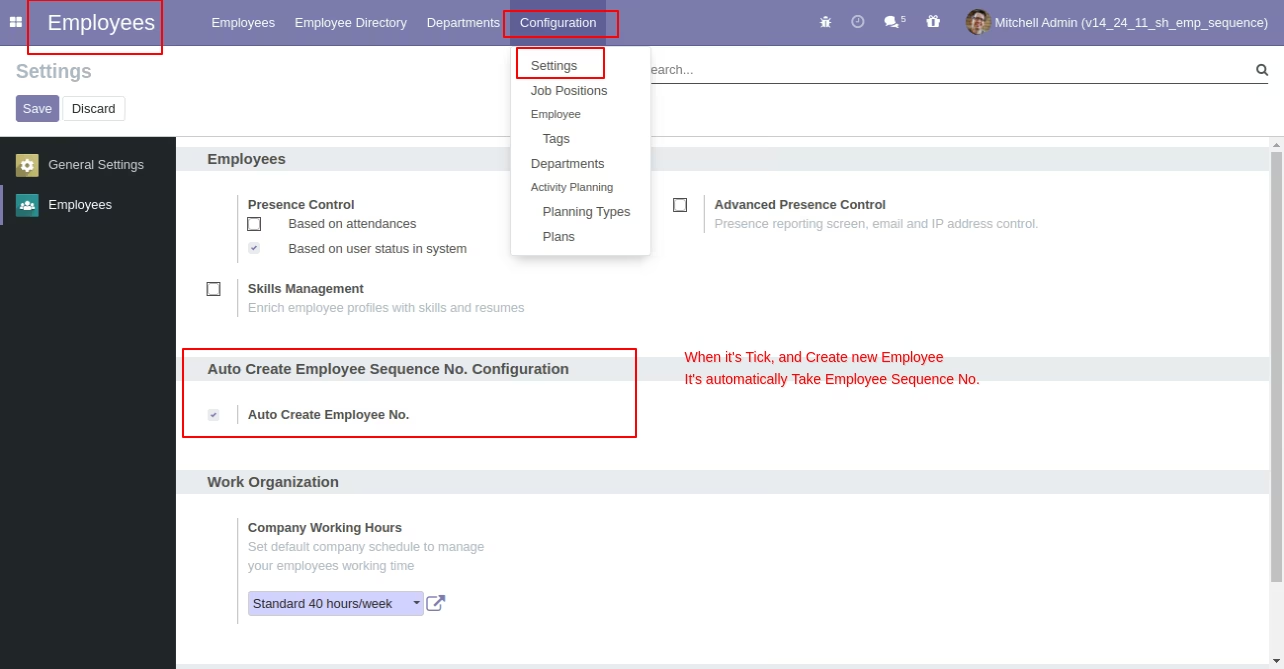
Tick "Auto Create Employee No." to assign sequence numbers automatically to new employees.
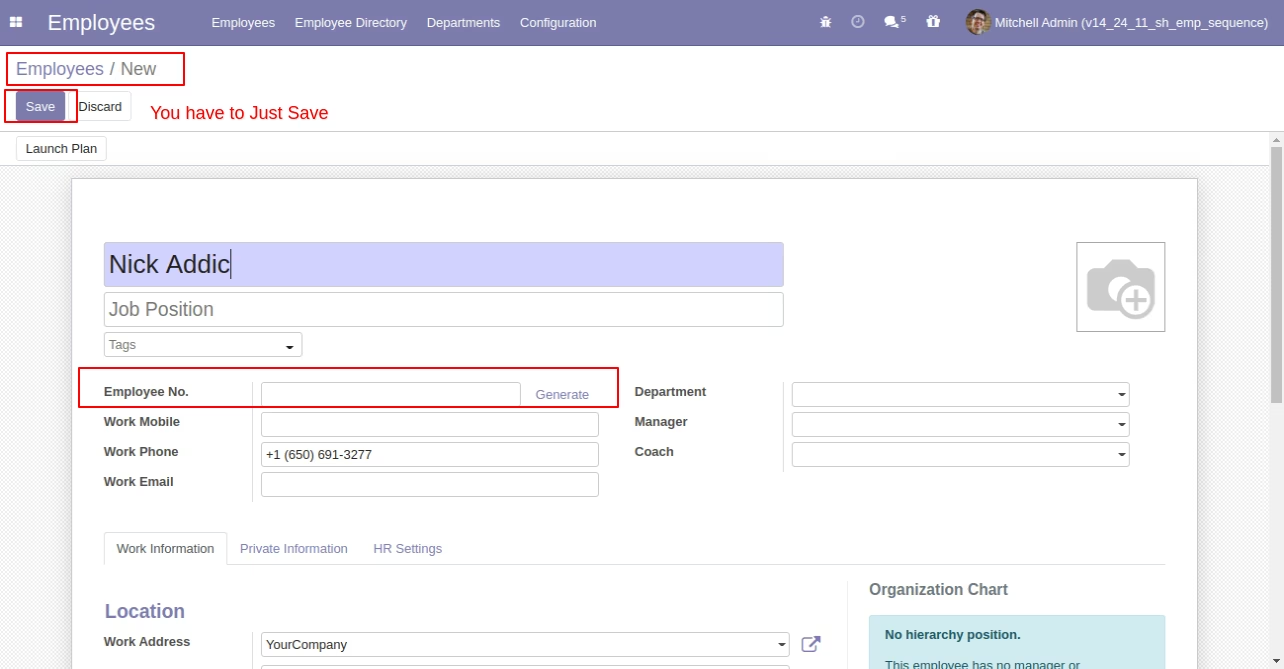
Now we create a new employee.
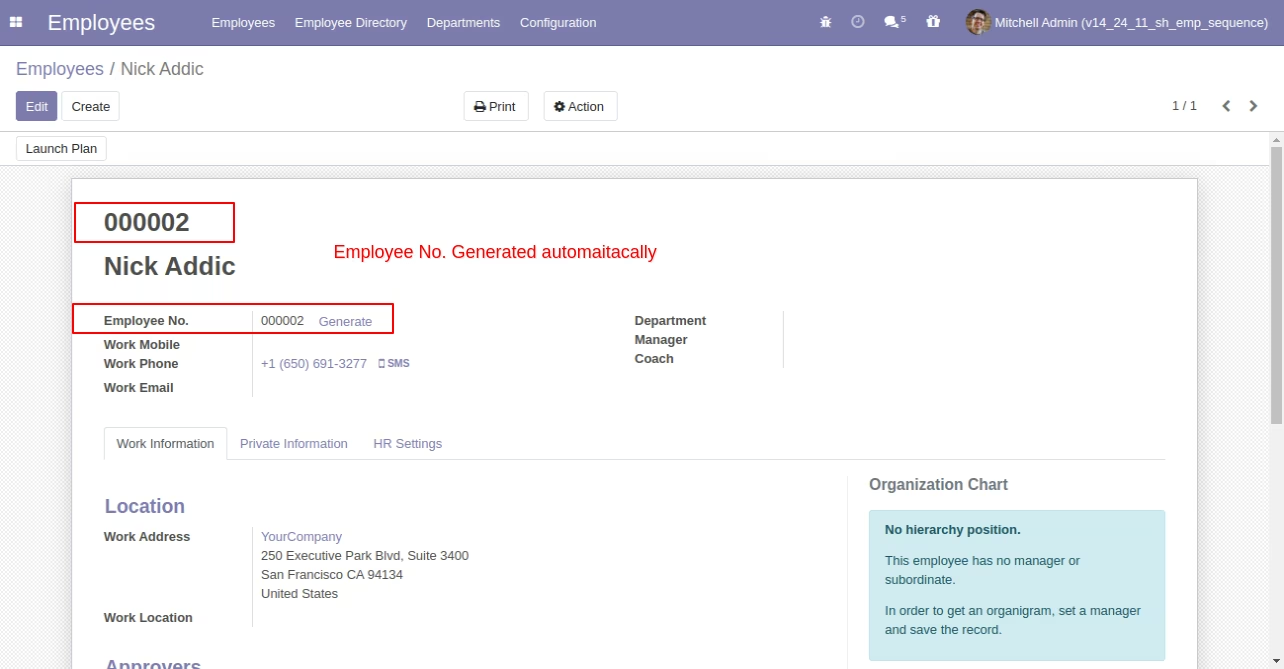
It generates employee numbers automatically.
You can allocate multiple employees to sequence numbers in a single click in the list view.
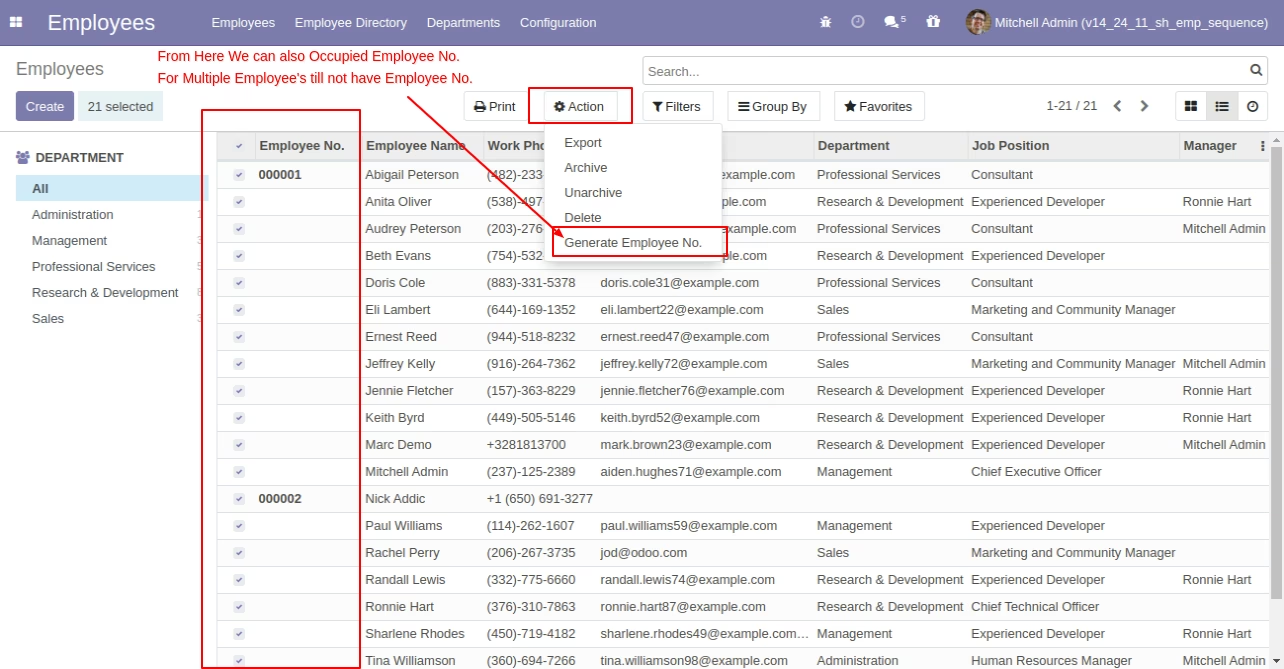
Select employees from the list view to allocate sequence numbers.
Employees kanban view with the employee sequence number.
You can change employee sequence number patterns.
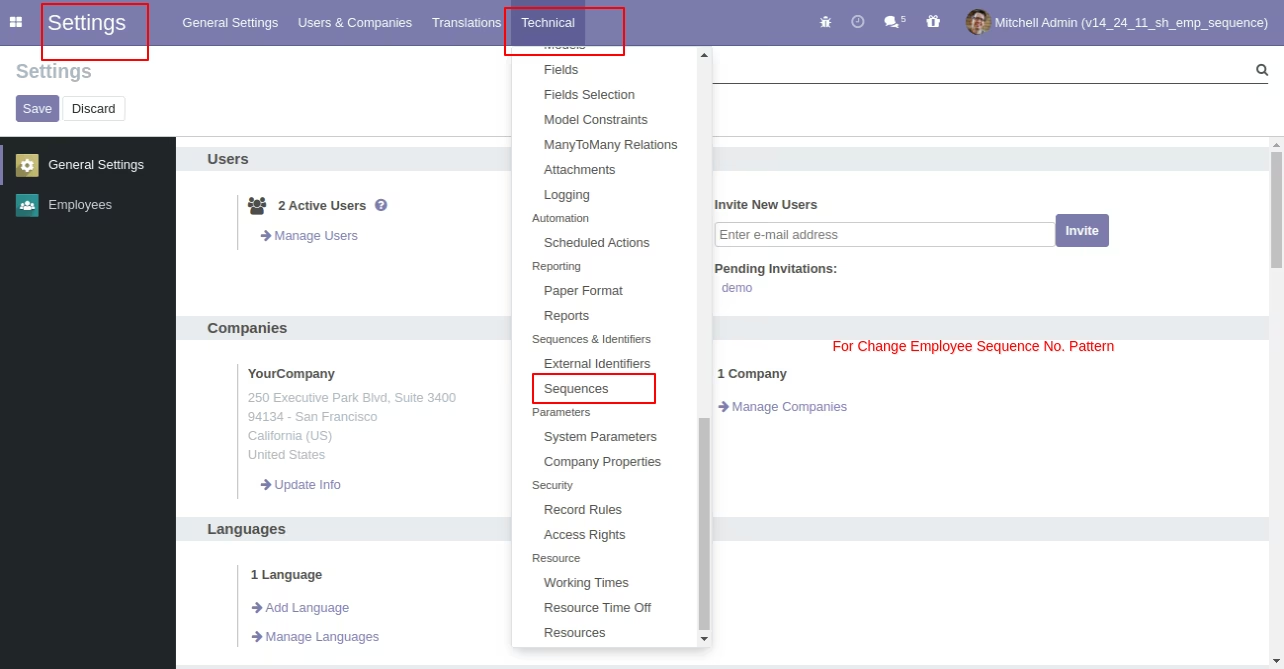
You can set the employee sequence number pattern from here.
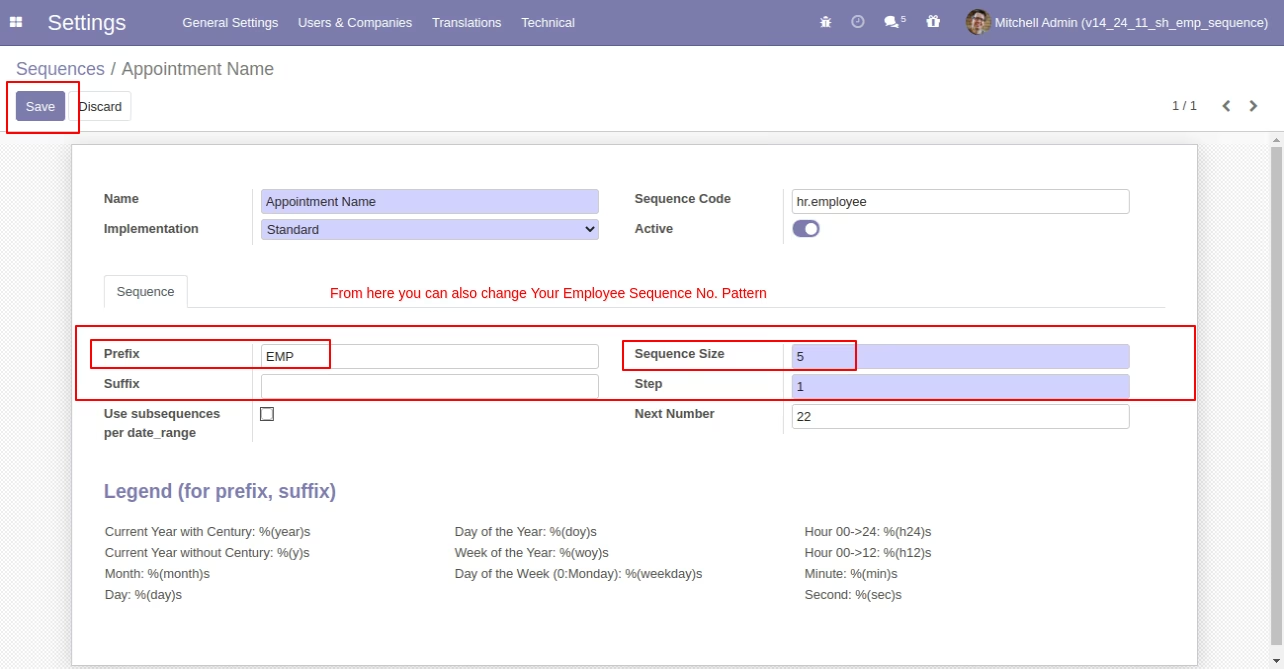
Employee sequence number pattern changed.