The module enhances the email communication capabilities within the system. It introduces features such as email threading, improved formatting options, and advanced email templates. These enhancements aim to streamline communication processes, improve user experience, and ensure that emails are more effective and professional.
Email Threading: Organize emails into threads for better conversation tracking.
Improved Formatting Options: Utilize advanced formatting tools to create visually appealing emails.
Advanced Email Templates: Create and manage sophisticated email templates for various purposes.
Seamless Integration: Works seamlessly with the Discuss (mail) module.
User-Friendly Interface: Easy-to-use interface for composing and managing emails.
Enhanced Communication: Improve clarity and organization in email conversations.
Professional Appearance: Create visually appealing emails that reflect the brand's professionalism.
Efficiency: Save time by using advanced templates and formatting options.
Improved User Experience: Provide users with intuitive tools for email communication.
Consistency: Ensure consistent email formatting and structure across the organization.
This module enhances the email sending options by adding CC & BCC by default. You can select the person in CC & BCC whom you want to send the emails as by default. You can also change CC & BCC when you compose your email.
- Easy to set default CC & BCC in email.
- You can change CC & BCC when you compose your email.
- Using BCC you can send multiple people email and any of them can't know about the other people.
- Using CC you have the privacy of your sent emails.
- Manage and operate seamlessly across multiple companies within a single system environment.

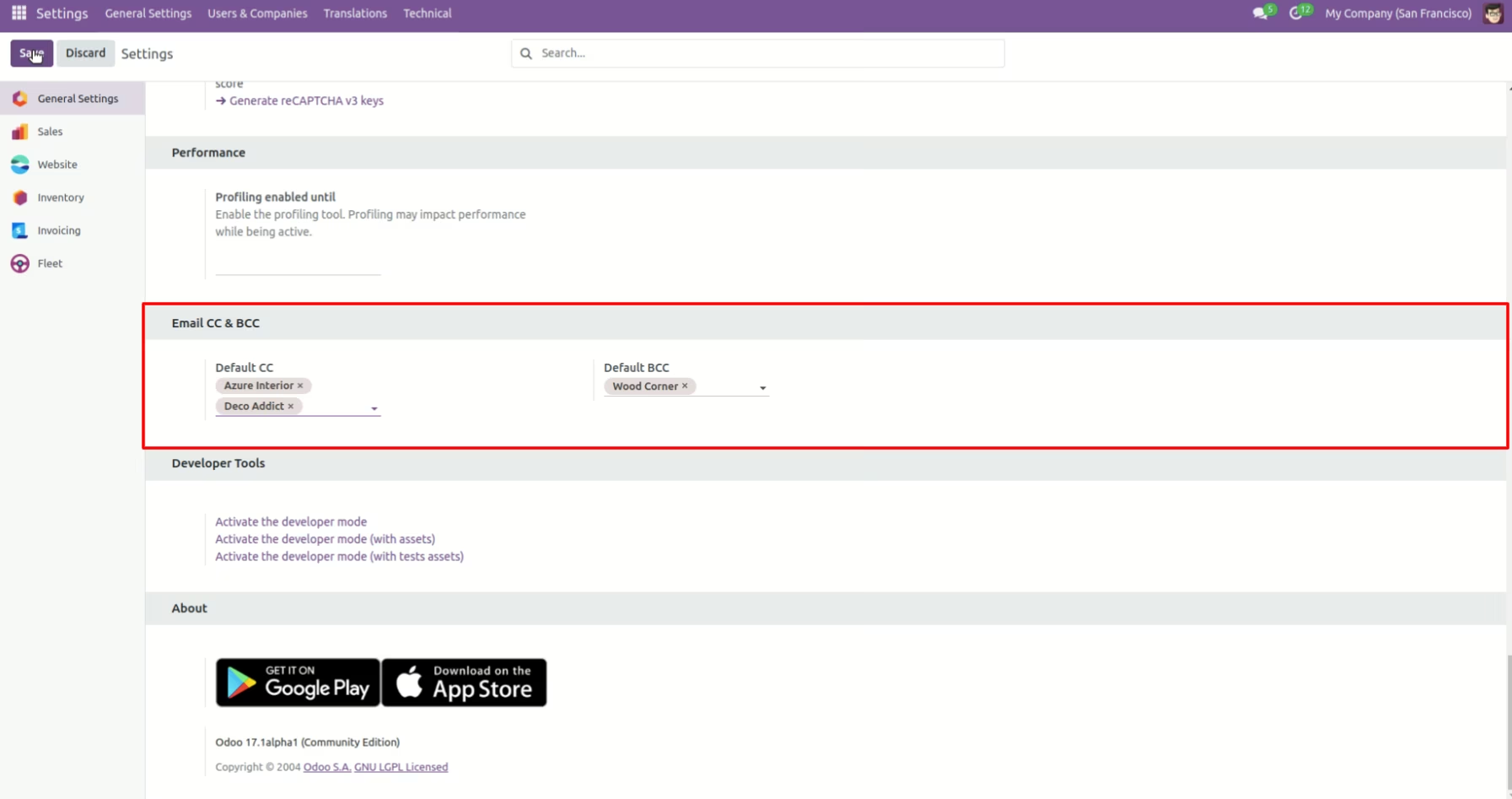
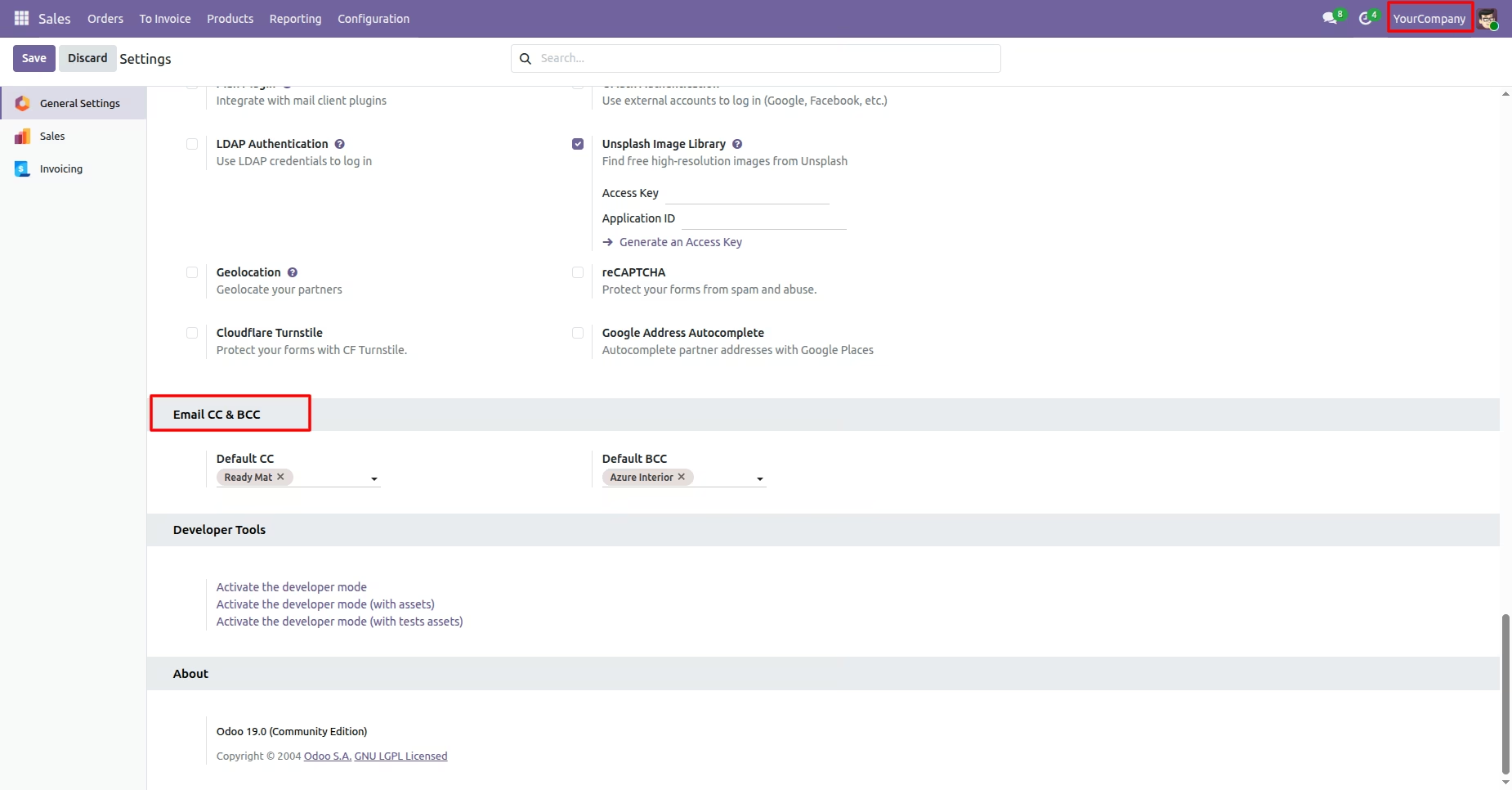
Select default email CC & BCC from settings.
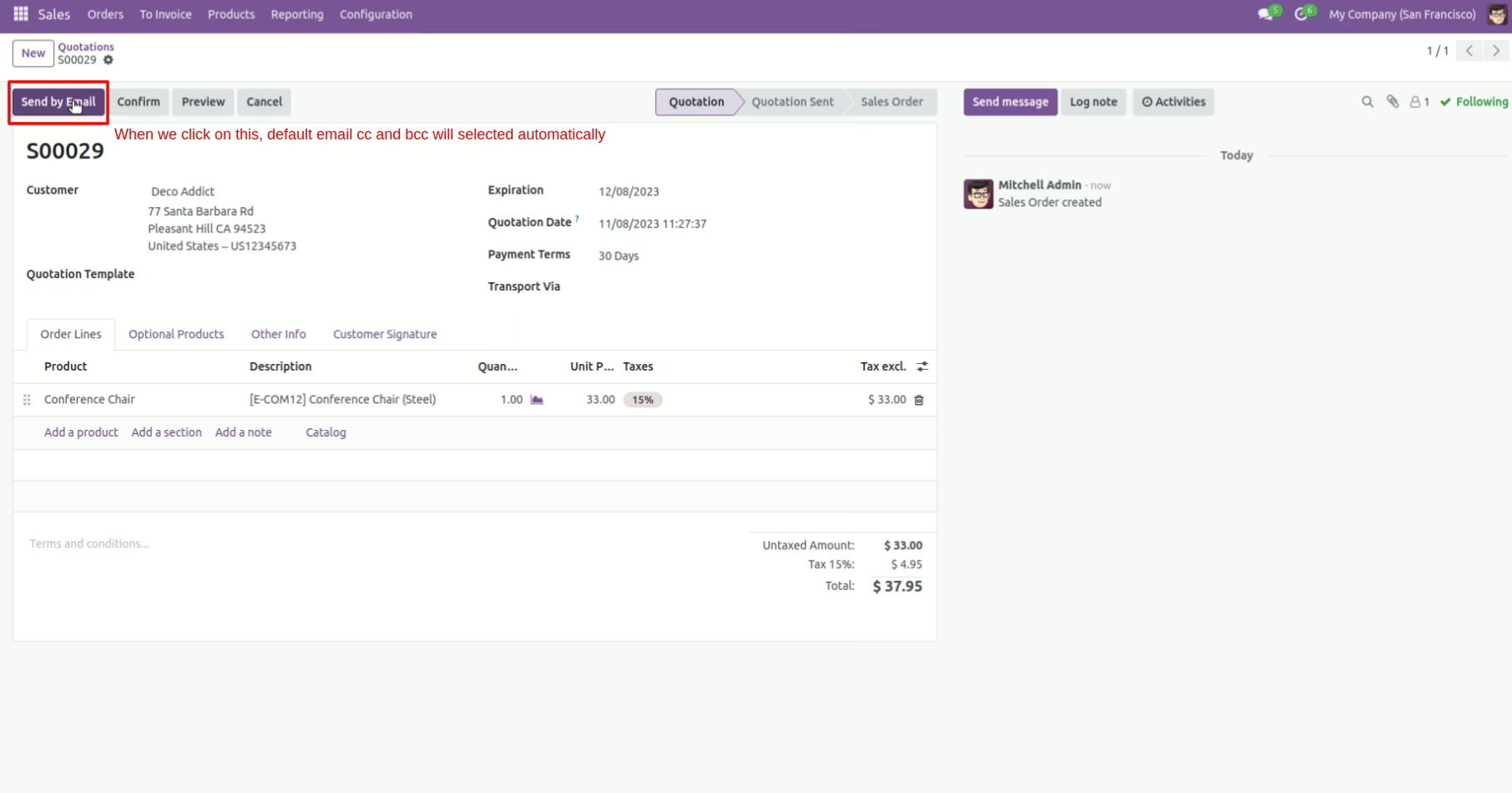
Press 'Send by Email' to send email and you got default CC & BCC.
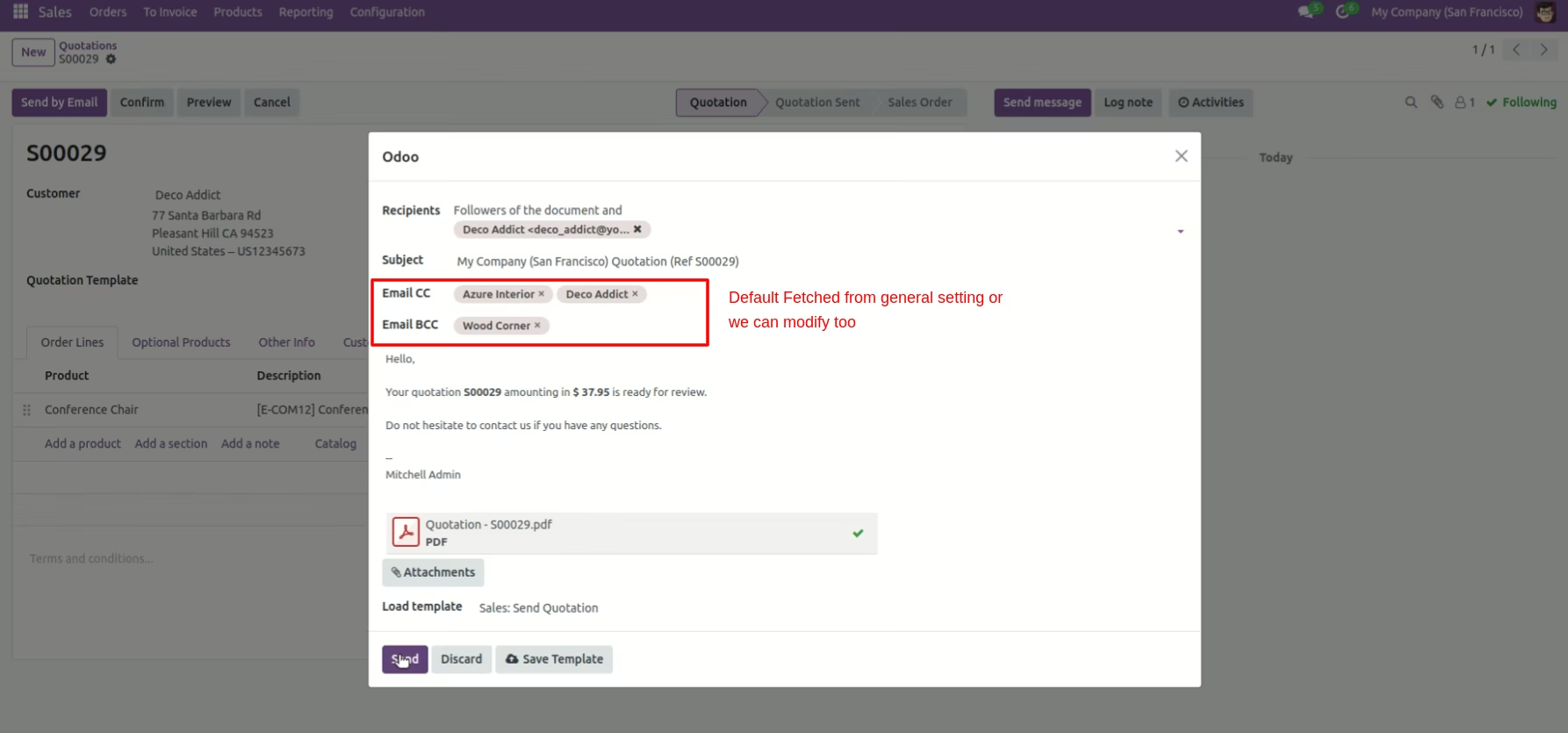
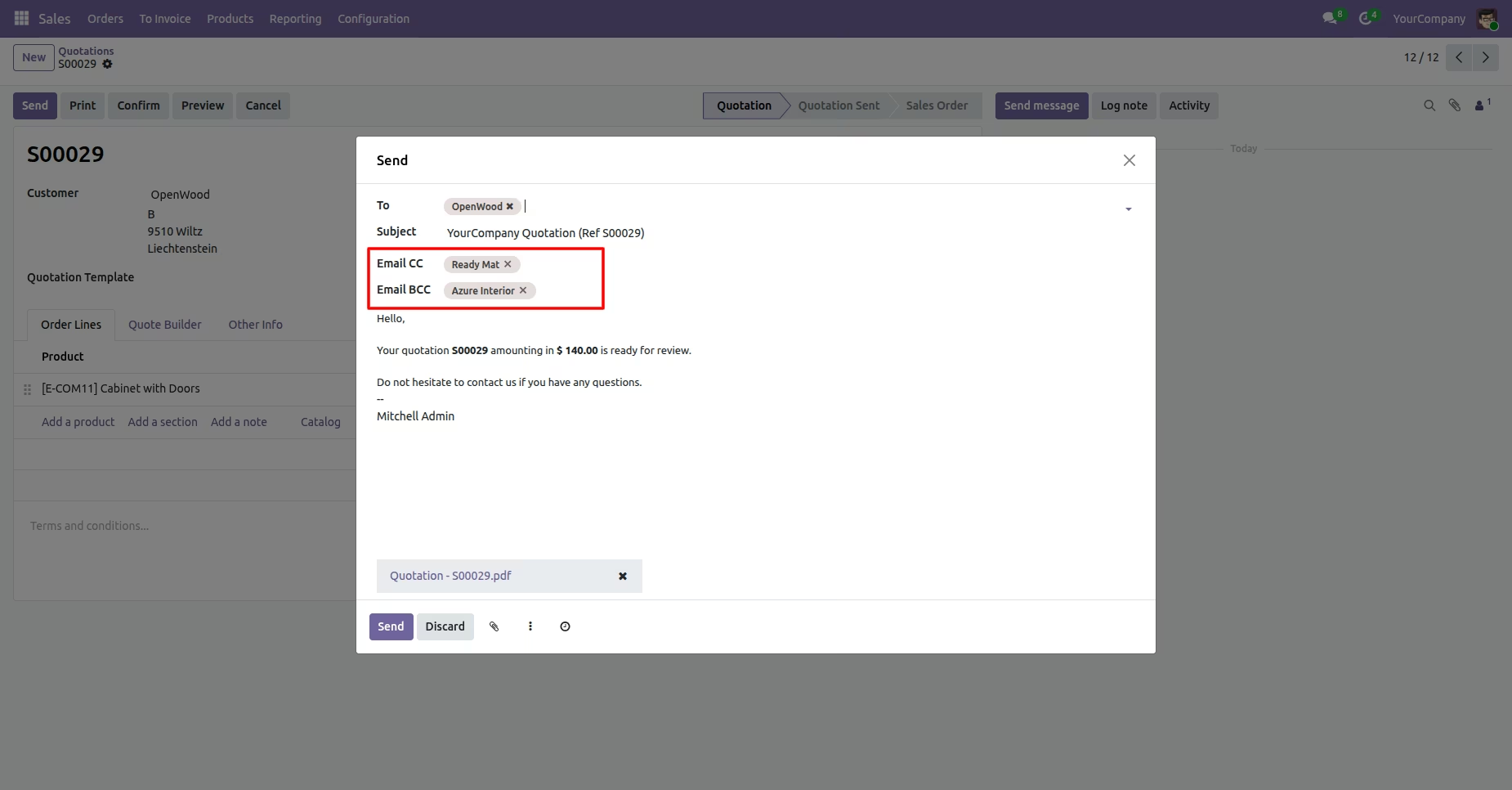
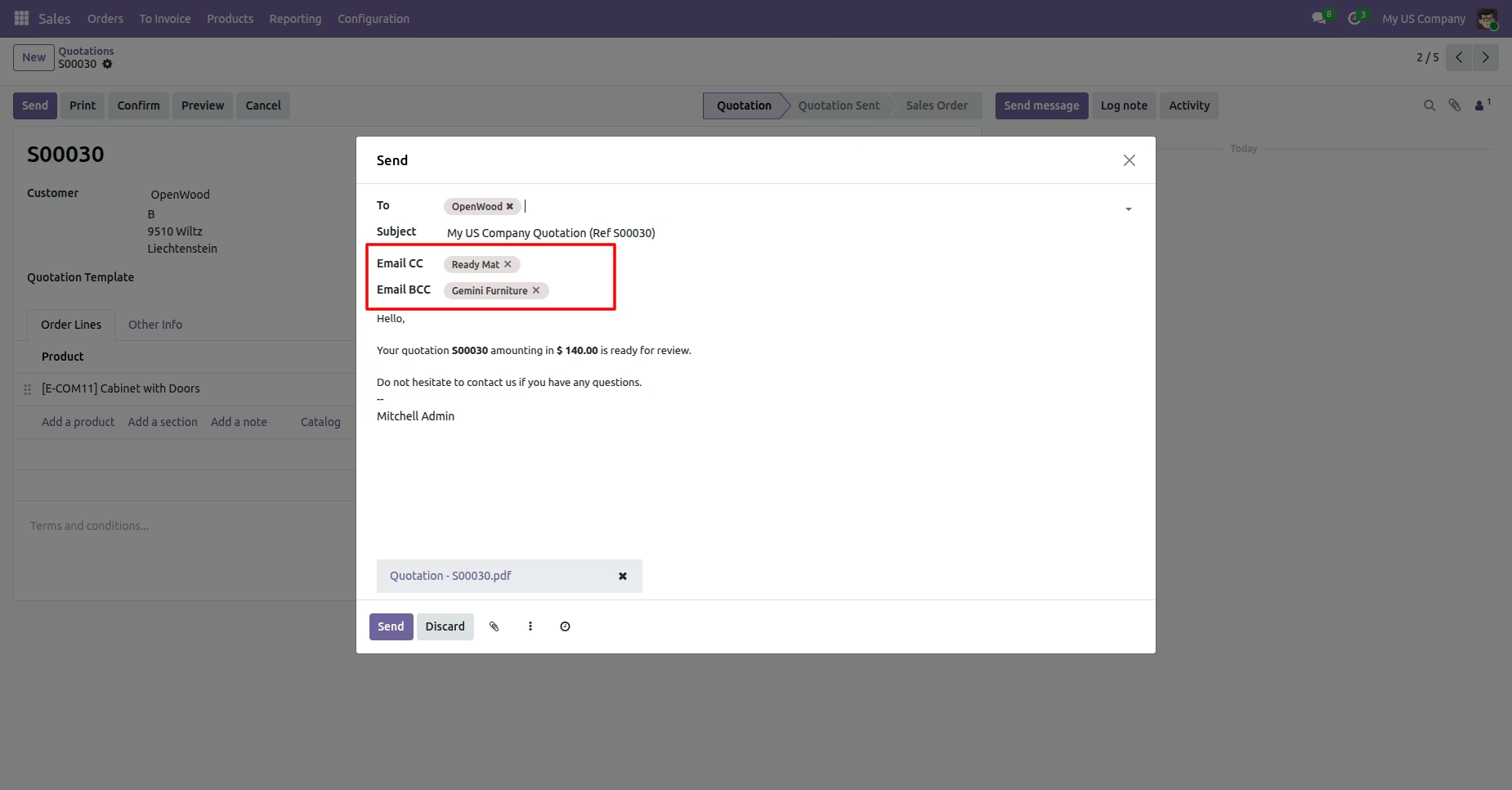
Default CC & BCC automatically comes when you compose the email, you also can change that from the email.
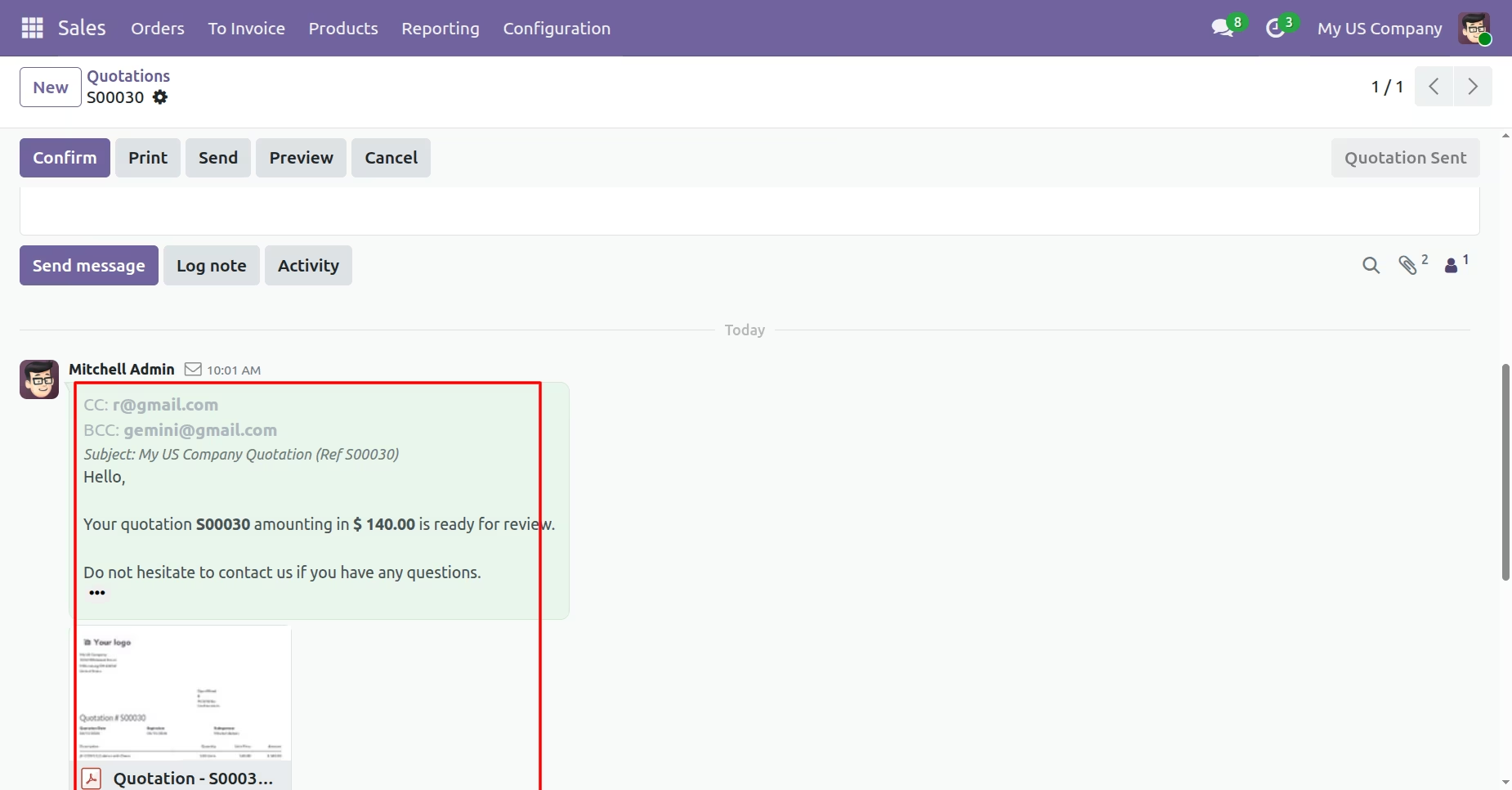
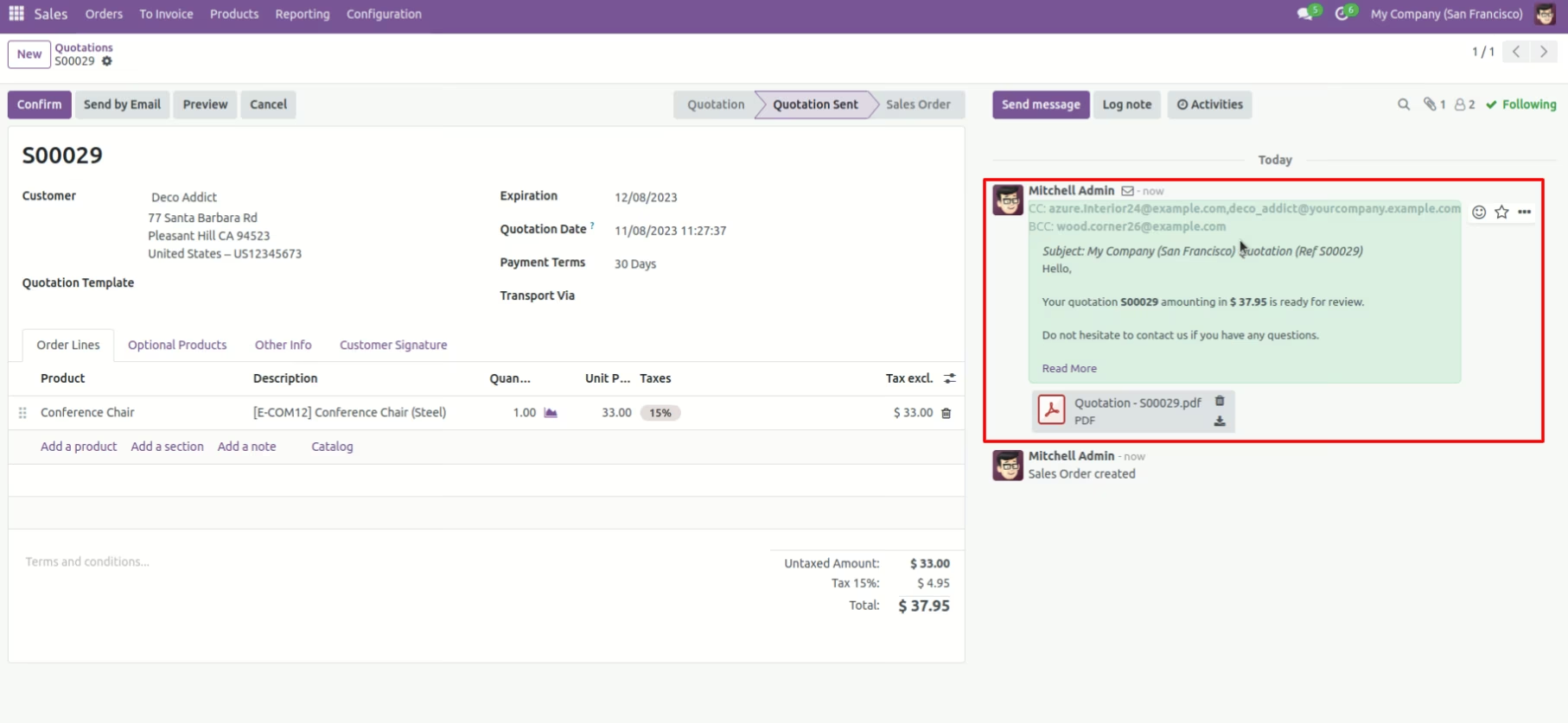
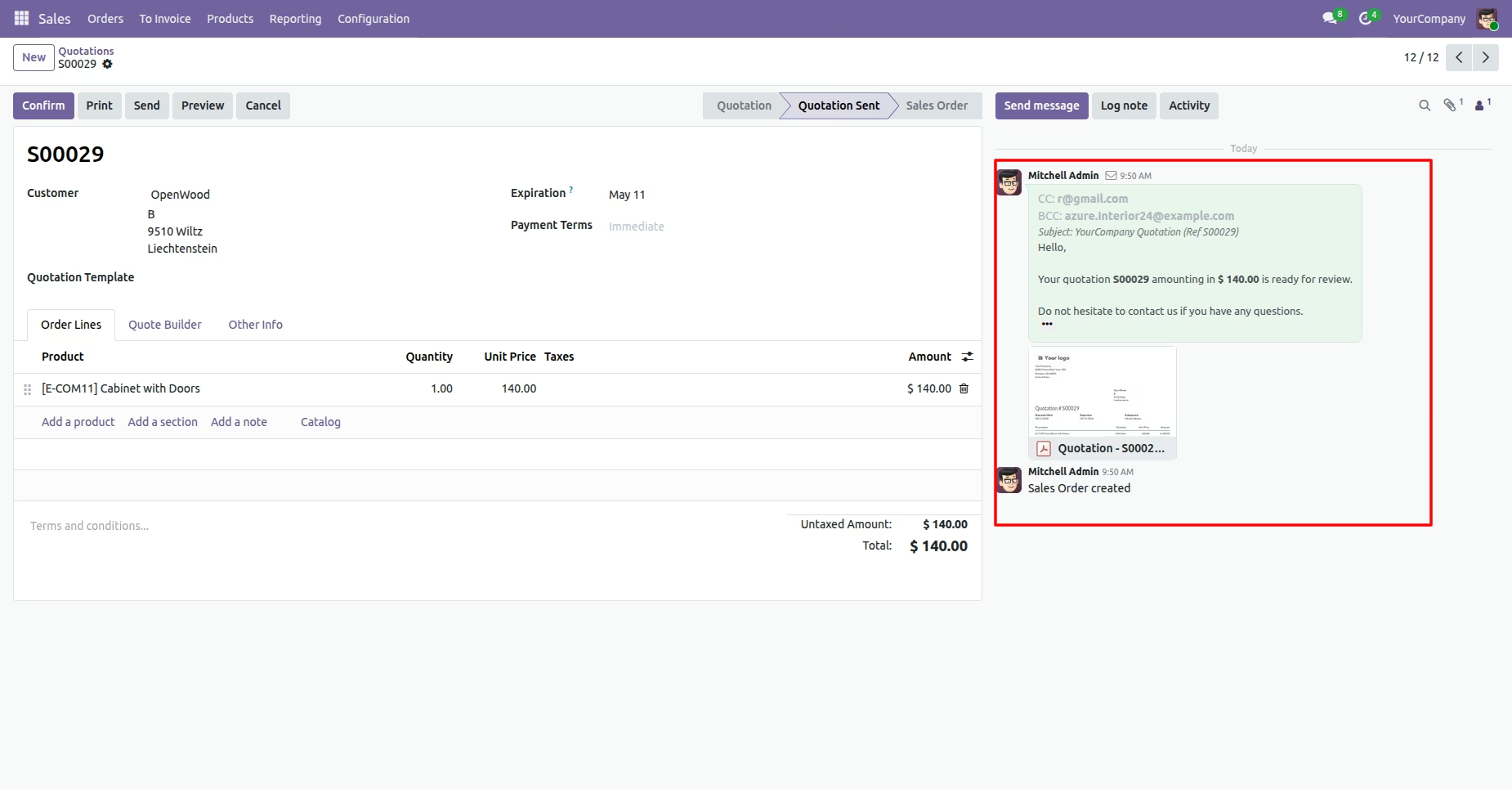
You can see sent email in chatter with default CC & BCC.
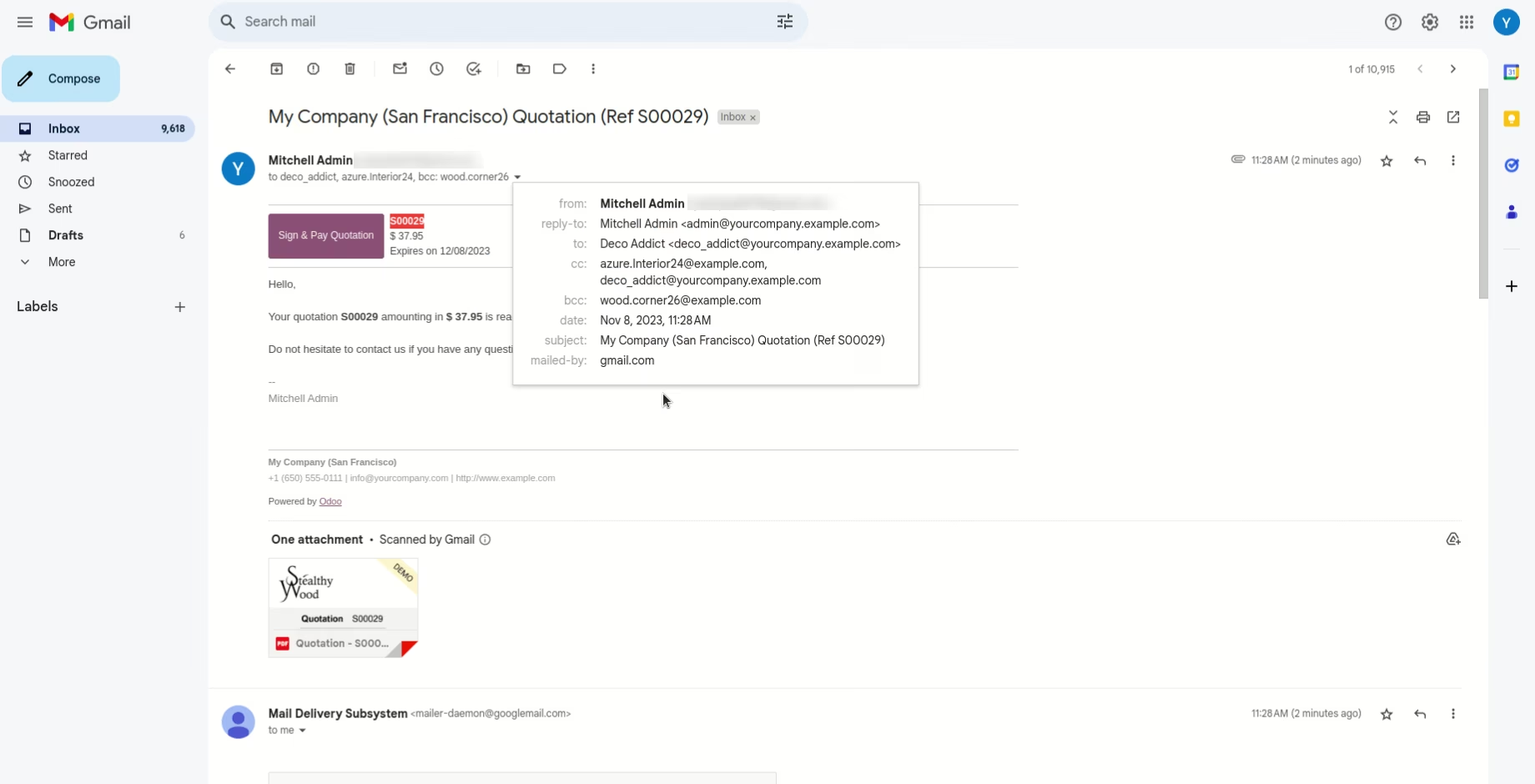
You can see sent email with default CC & BCC.
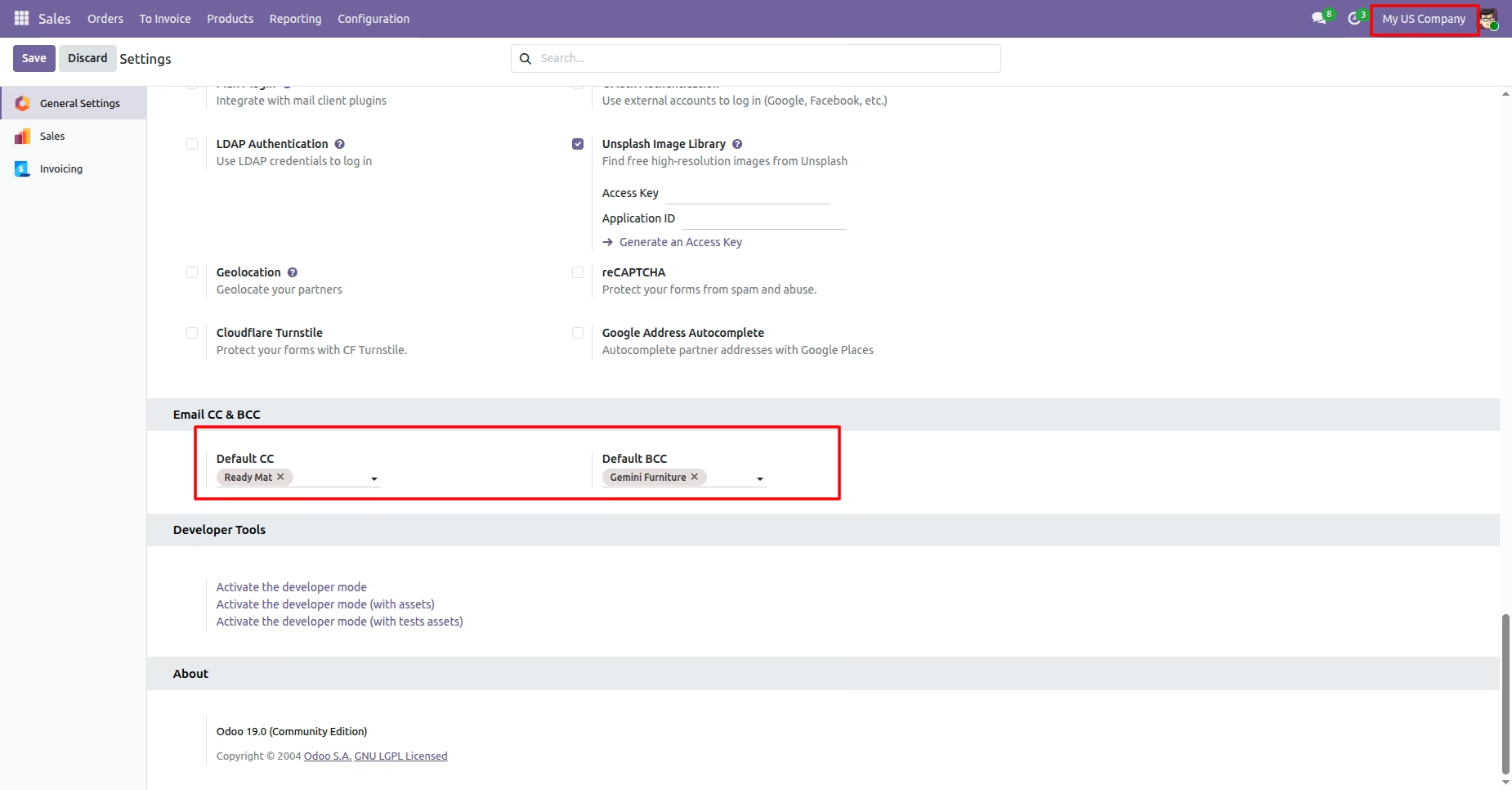
Select default email CC & BCC from settings.
Here you can see that the activate company is 'Your Company'.
Press 'Send by Email' to send email and you got default CC & BCC.
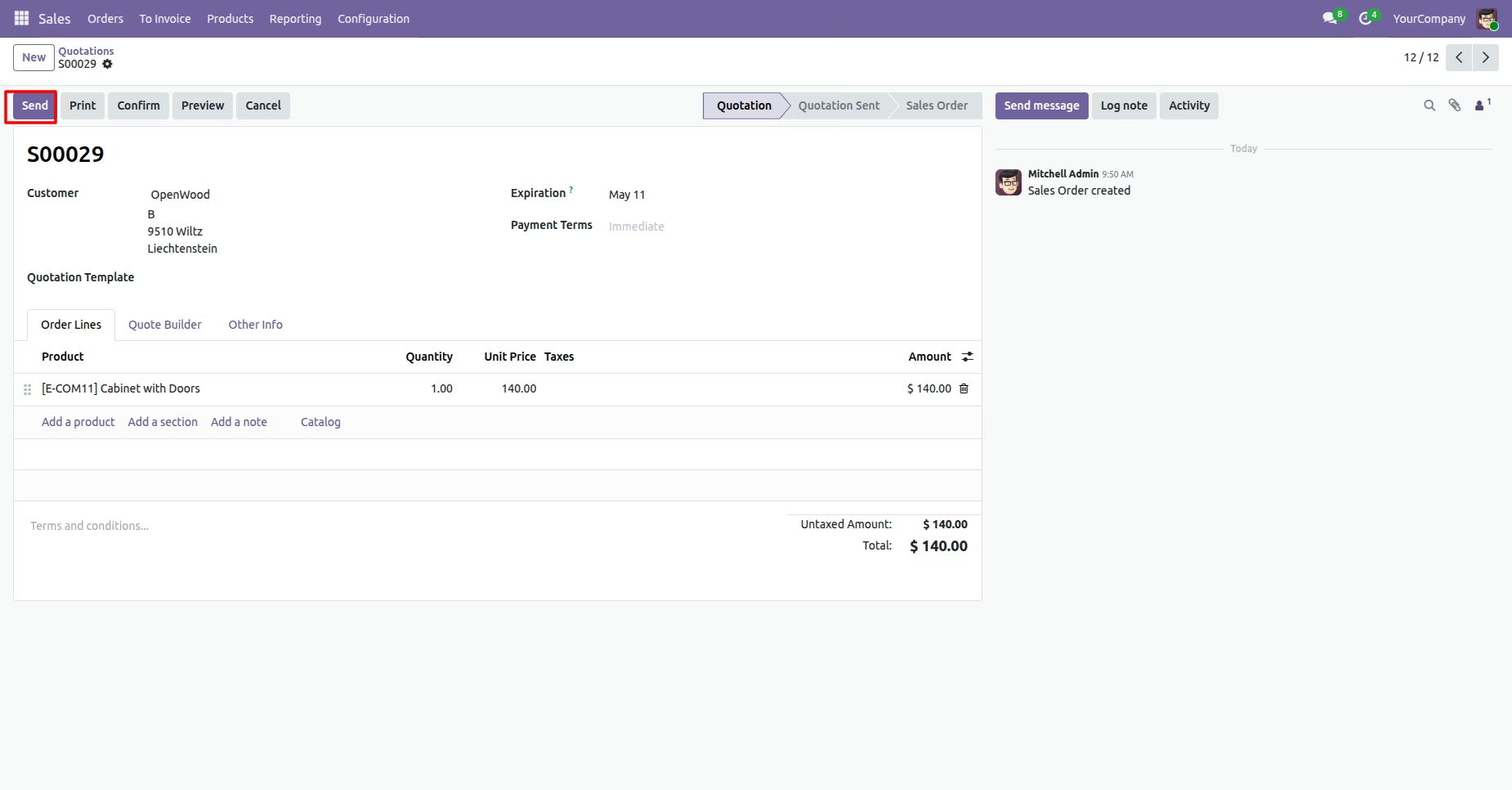
Default CC & BCC automatically comes when you compose the email, you also can change that from the email.
You can see sent email in chatter with default CC & BCC.
Select default email CC & BCC from settings.
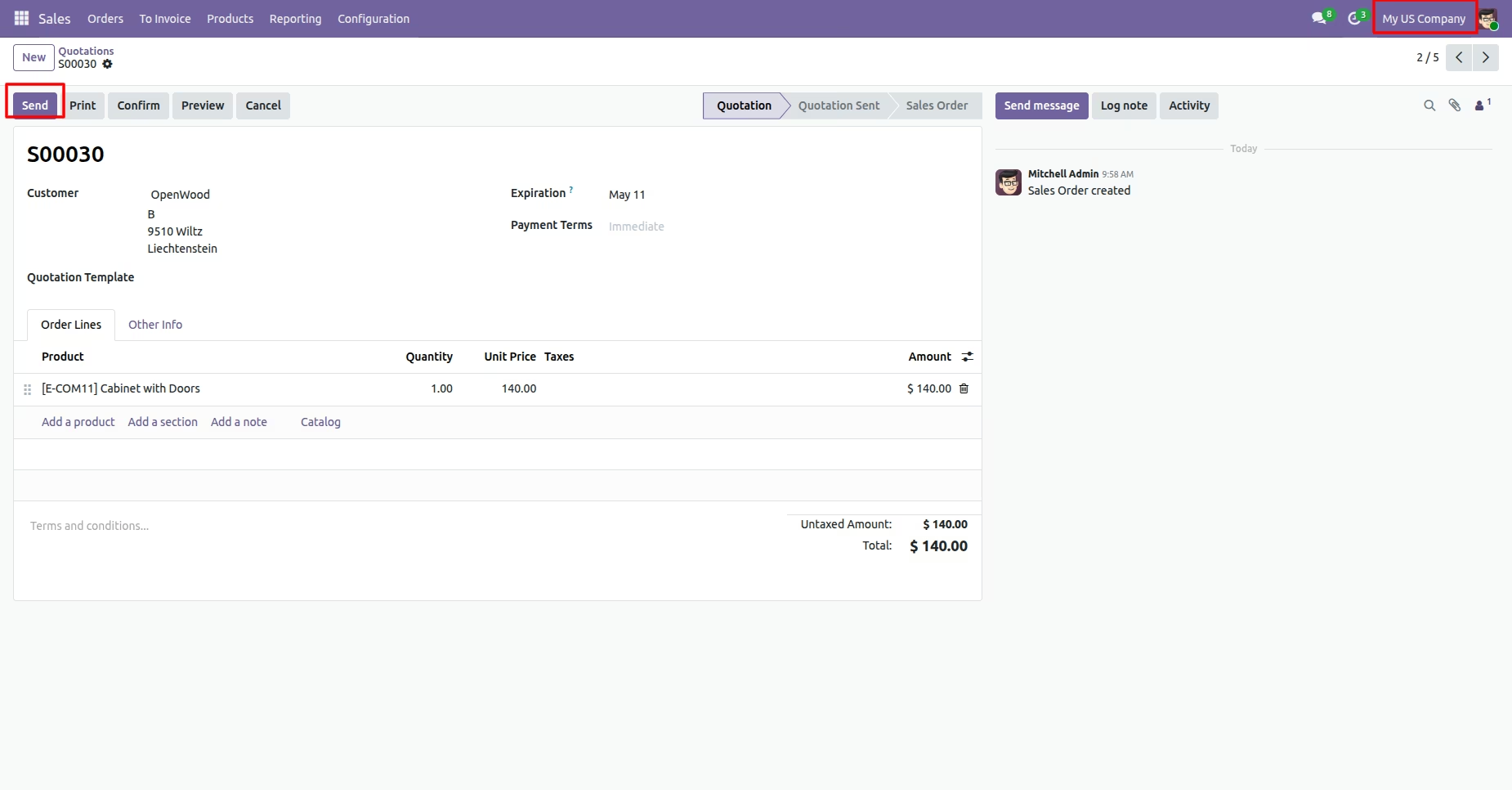
Here you can see that the activate company is 'My US Company'.
Press 'Send by Email' to send email and you got default CC & BCC.
Default CC & BCC automatically comes when you compose the email, you also can change that from the email.
You can see sent email in chatter with default CC & BCC.