The module for offers a comprehensive solution for businesses seeking to streamline their financial reporting processes. This module enables users to generate detailed financial statements, including balance sheets, cash flow statements, and tax reports, with enhanced filtering and grouping capabilities. By providing a dynamic and user-friendly interface, it empowers businesses to gain deeper insights into their financial performance, facilitating informed decision-making and strategic planning.
Balance Sheet Generation: Automatically generate balance sheets to assess financial position.
Cash Flow Statement: Create detailed cash flow statements to monitor liquidity.
Tax Reports: Generate accurate tax reports for compliance and analysis.
Dynamic Filtering: Apply filters to customize report data based on specific criteria.
Grouping Options: Group financial data by various parameters for detailed analysis.
User-Friendly Interface: Navigate through reports with an intuitive and responsive design.
Real-Time Data: Access up-to-date financial information for timely decision-making.
Enhanced Financial Visibility: Gain a clear understanding of financial health through detailed reports.
Improved Compliance: Ensure adherence to tax regulations with accurate reporting.
Informed Decision-Making: Utilize comprehensive data to make strategic business decisions.
Time Savings: Automate report generation to save time and reduce manual errors.
Customizable Reporting: Tailor reports to meet specific business needs and requirements.
-
Robust Overview Of Various Reports
One can easily view every aspect of a report to detect small shortcomings, understand the financial standing of the business and present them to relevant people.
-
Differentiate Feature
The differentiate filter helps in comparing or tallying a report with the previous reports of varying periods(month, quarter, etc). It will let you compare the results to visualize where the business is headed for..
-
Dynamic Financial Report-
It is a feature that helps you to create and customize your own reports with ease. You can create a report in a new format and incorporate it with an existing parent report.
-
Send Email(to user)
Using this feature, the user can send any report that is required to him/her email address. The pdf of that report is automatically generated and sent.
User Guide
Installation
1. Copy and paste it to your Add-ons folder.
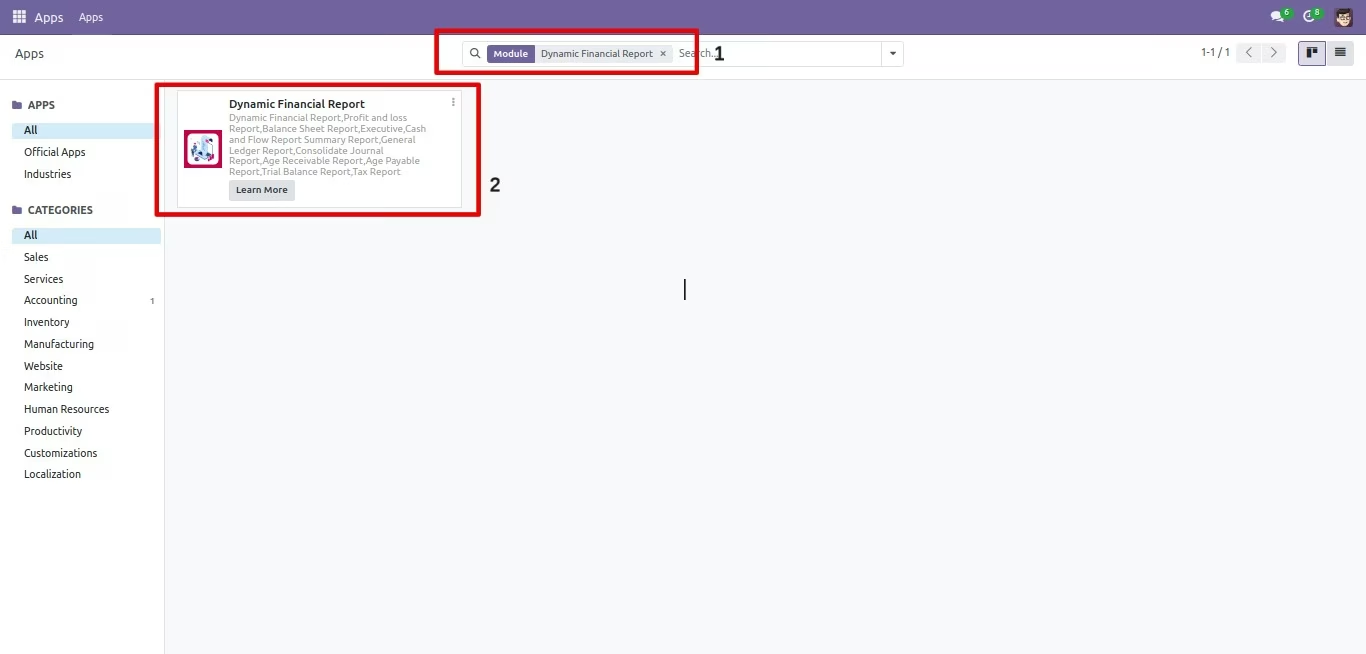
2. Click on Update Apps list from the menu and now Dynamic Financial Report App will appear in App list.
3. Go to Apps menu, search for 'Dynamic Financial Report' and click Install button.
4. You are ready for use Dynamic Financial Report
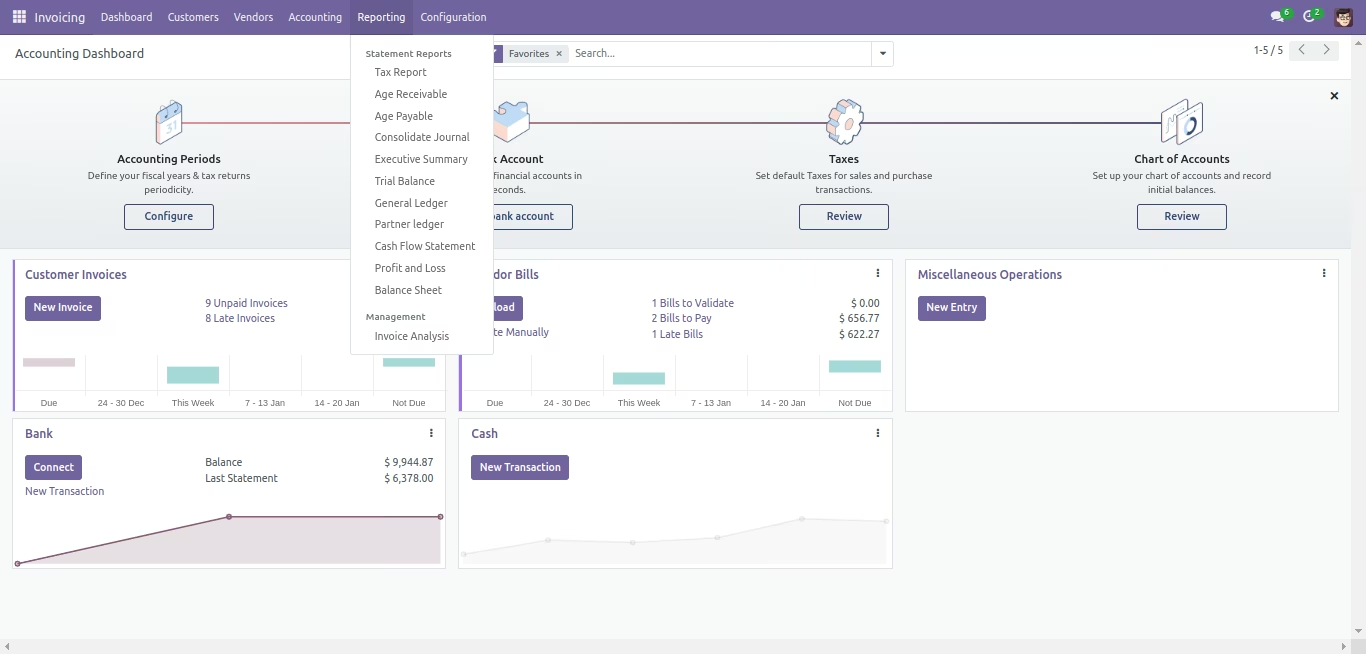
Various Types Of Reports / Available Filters
- Profit and loss Report
- Balance Sheet Report
- Executive Summary Report
- Cash and Flow Report
- General Ledger Report
- Consolidate Journal Report
- Age Receivable Report
- Age Payable Report
- Trial Balance Report
- Tax Report Report
Available Filters
- Date Filter : It is possible to filter the report based on various date filter options- Today, End Of Last Month, End Of Last Quarter, End Of Last Financial Year, and Custom date range.
- Differentiate Filter : The report can also be compared with the previous period or a custom period(defined by the user)
- Journal Filter : The Journals All button provides the option to filter the report based on Bank, Cash, Cash Basis Taxes, Customer Invoices, Exchange Difference, Miscellaneous Operations, Vendor Bills.
- Analytic Filter : Analytic accounting helps you to analyse costs and revenues whatever the use case. You can sell or purchase services, track time or analyse the production performance through analytical filters
- Partner Filter : One can enter the name of the partner in the Partner Search button and the corresponding report will be displayed..
- Account Type Filter : The Account button allows the user to select from Payable and Receivable
- Option Filter : The Options button provides options to view Posted Entries, Unposted Entries(Draft), Show Reconciled Entries, Show Unreconciled Entries, To Change Date Range and To Print Report With Details.
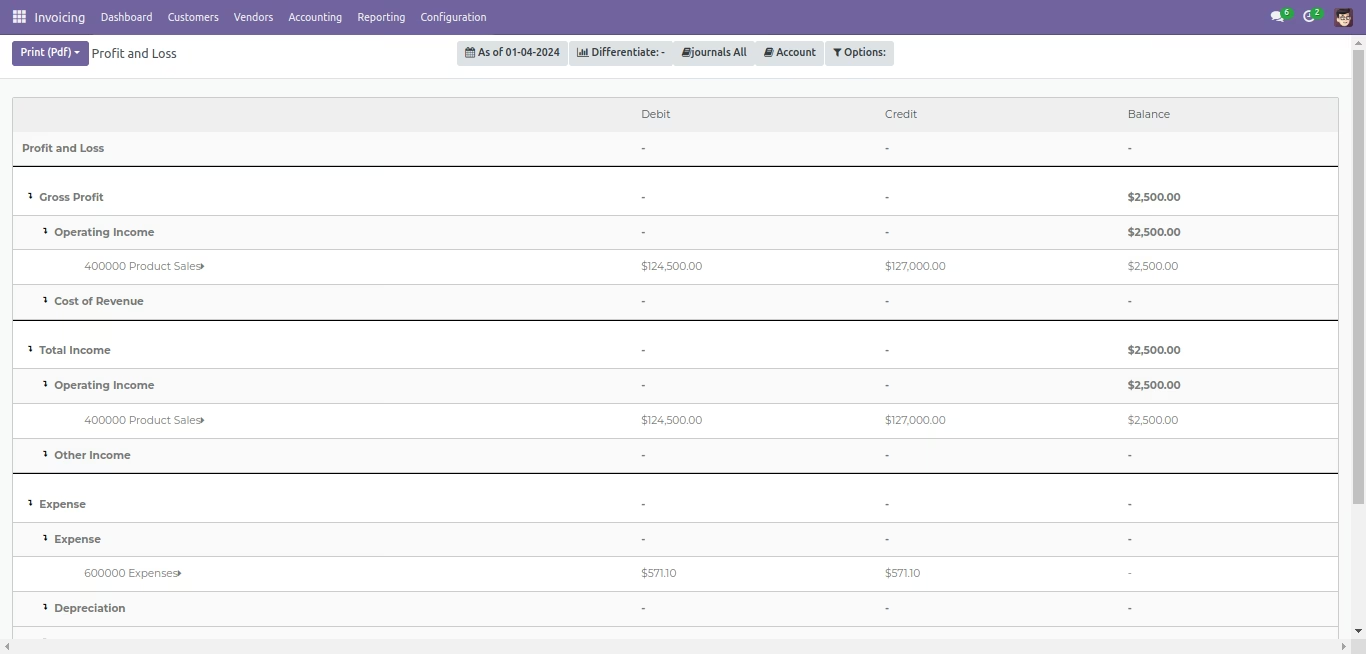
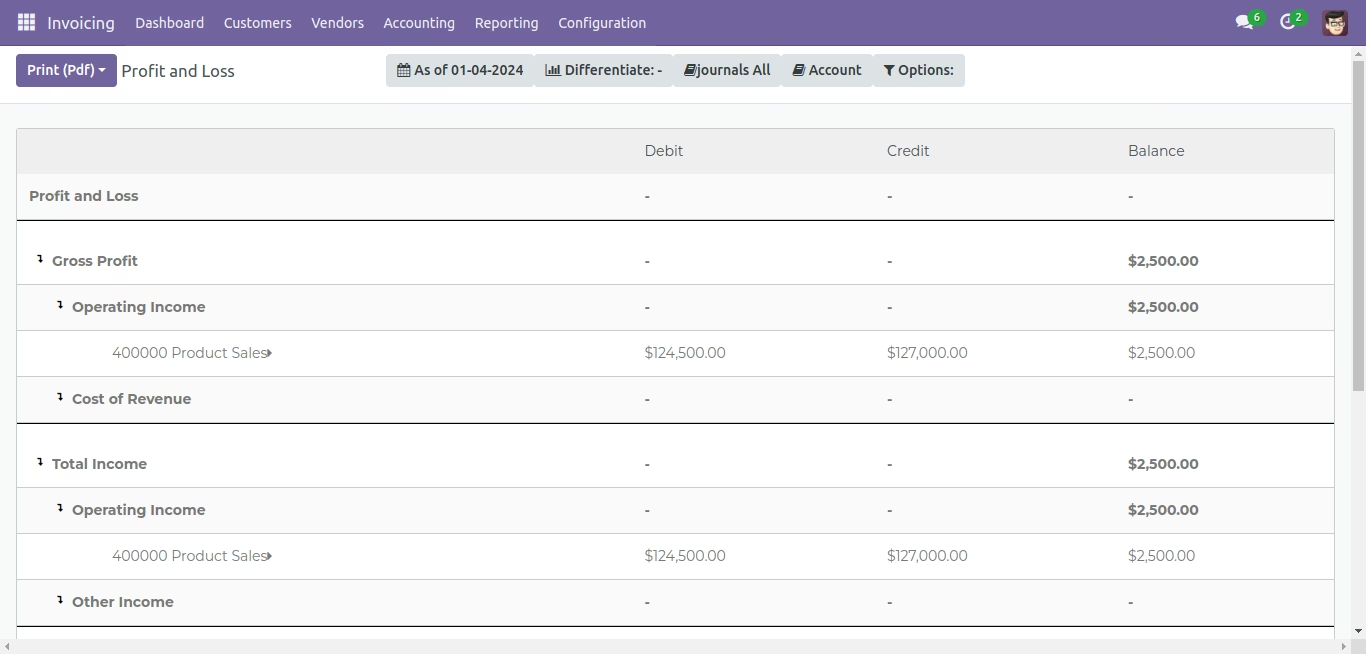
Profit and Loss Report
- It is possible to filter the report from the As Of Date button based on various date filter options- Today, End Of Last Month, End Of Last Quarter, End Of Last Financial Year, and Custom date range.
- The report can also be compared with the previous period or a custom period(defined by the user)
- The Journals All button provides the option to filter the report based on Bank, Cash, Cash Basis Taxes, Customer Invoices, Exchange Difference, Miscellaneous Operations, Vendor Bills.
- The Options button provides options to view Posted Entries, Unposted Entries(Draft), and To Change Date Range.
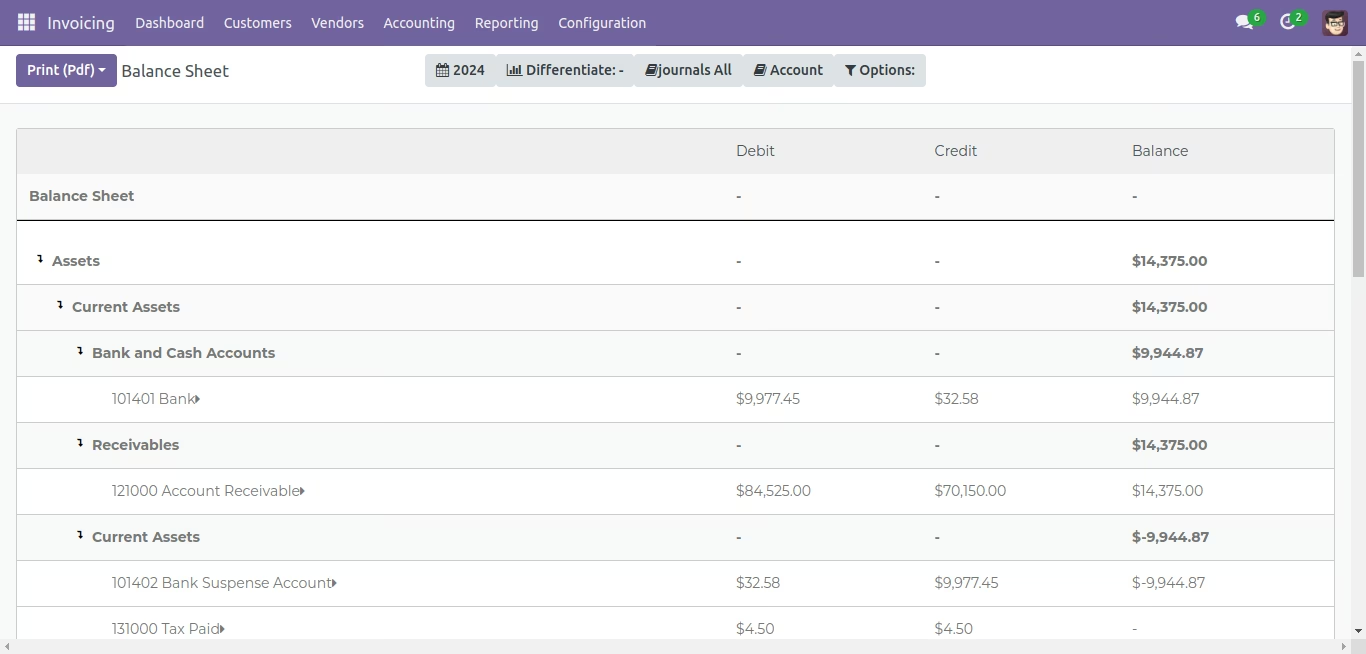
Balance Sheet Report
- It is possible to filter the report from the As Of Date button based on various date filter options- Today, End Of Last Month, End Of Last Quarter, End Of Last Financial Year, and Custom date range.
- The report can also be compared with the previous period or a custom period(defined by the user)
- The Journals All button provides the option to filter the report based on Bank, Cash, Cash Basis Taxes, Customer Invoices, Exchange Difference, Miscellaneous Operations, Vendor Bills.
- The Options button provides options to view Posted Entries, Unposted Entries(Draft), and To Change Date Range.
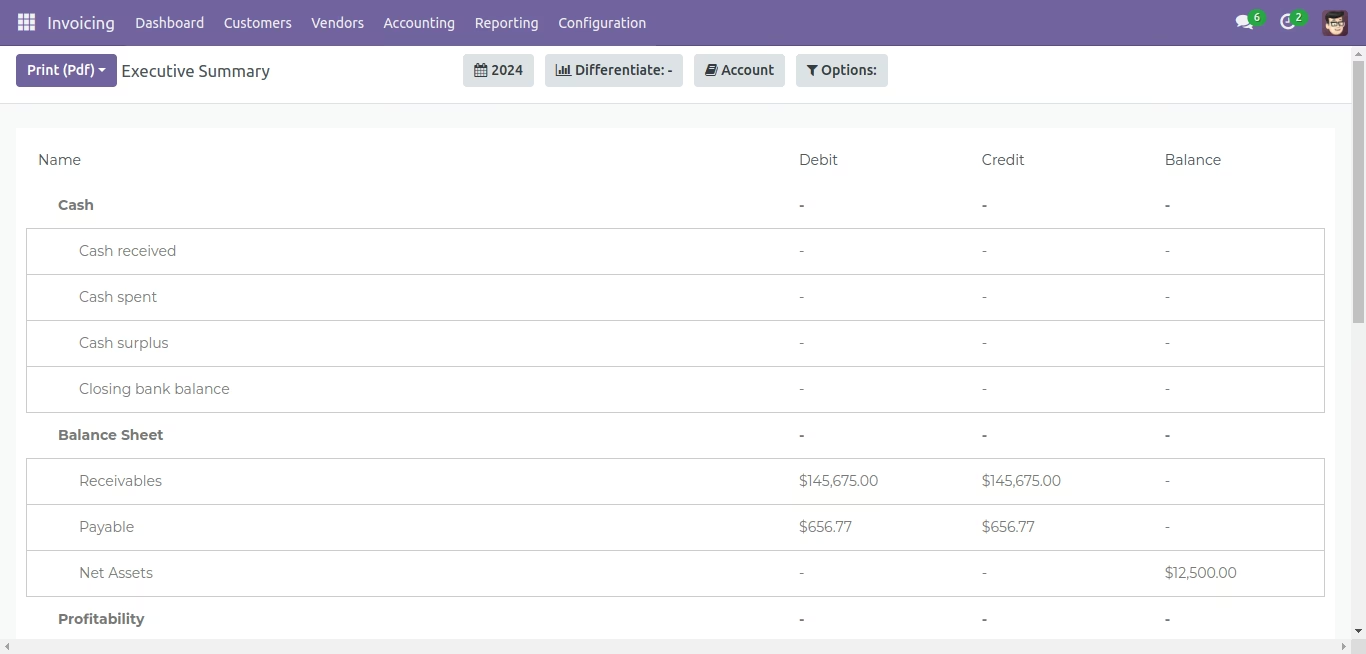
Executive Summary Report
- It is possible to filter the report from the As Of Date button based on various date filter options- Today, End Of Last Month, End Of Last Quarter, End Of Last Financial Year, and Custom date range.
- The report can also be compared with the previous period or a custom period(defined by the user)
- The Options button provides options to view Posted Entries, Unposted Entries(Draft), and To Change Date Range.
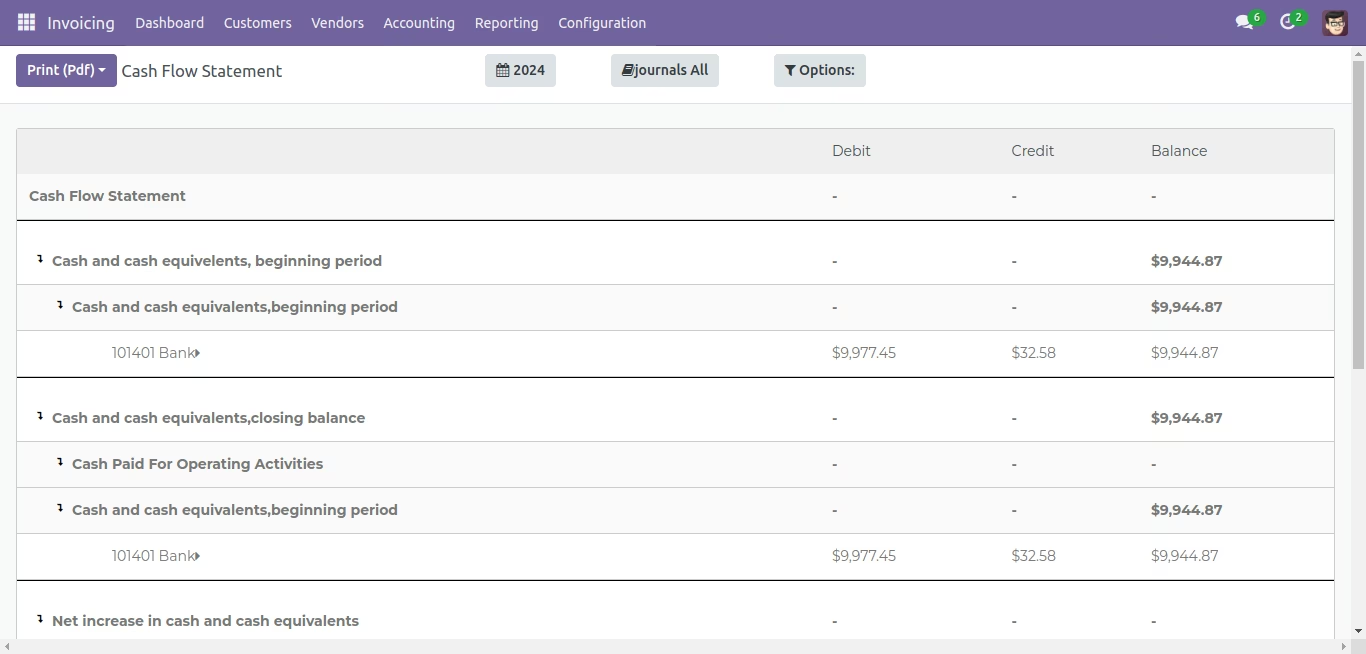
Cash Flow Statement Report
- It is possible to filter the report from the As Of Date button based on various date filter options- Today, End Of Last Month, End Of Last Quarter, End Of Last Financial Year, and Custom date range.
- The Journals All button provides the option to filter the report based on Bank, Cash, Cash Basis Taxes, Customer Invoices, Exchange Difference, Miscellaneous Operations, Vendor Bills.
- The Options button provides options to view Posted Entries, Unposted Entries(Draft), and To Change Date Range.
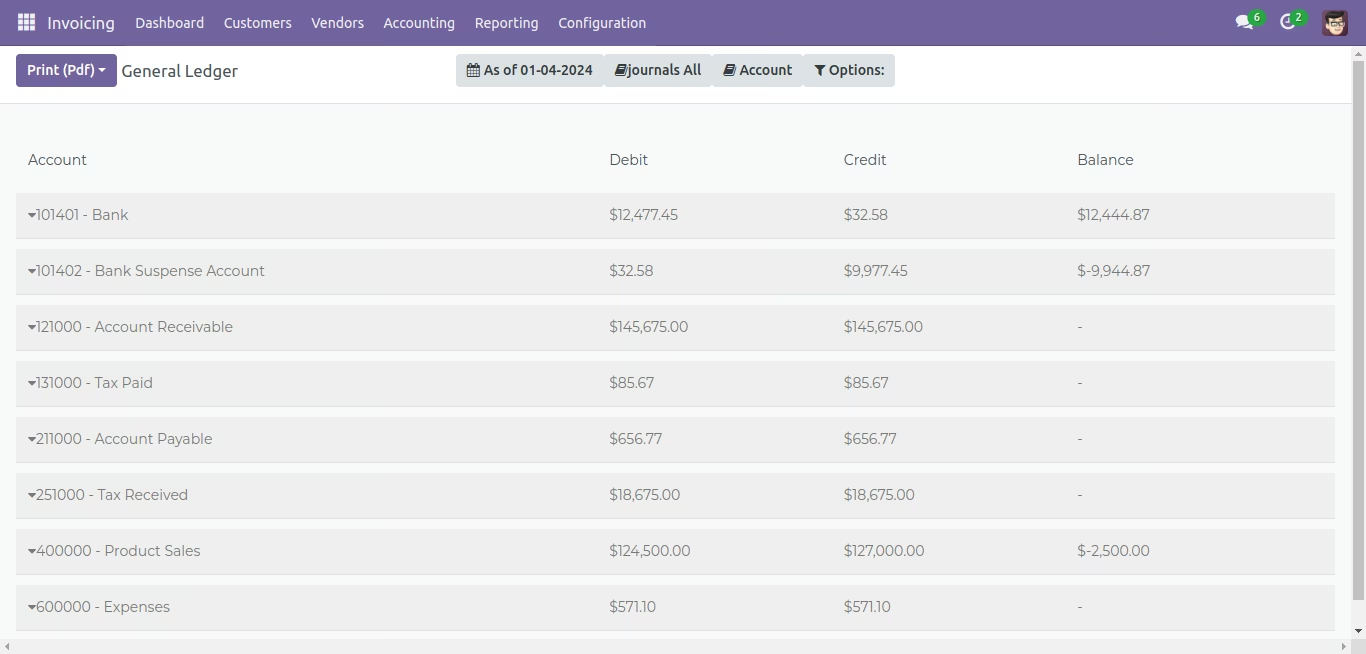
General Ledger Report
- It is possible to filter the report from the As Of Date button based on various date filter options- Today, End Of Last Month, End Of Last Quarter, End Of Last Financial Year, and Custom date range.
- The Journals All button provides the option to filter the report based on Bank, Cash, Cash Basis Taxes, Customer Invoices, Exchange Difference, Miscellaneous Operations, Vendor Bills.
- The Options button provides options to view Posted Entries, Unposted Entries(Draft), To Change Date Range, and To Print Report With Details.
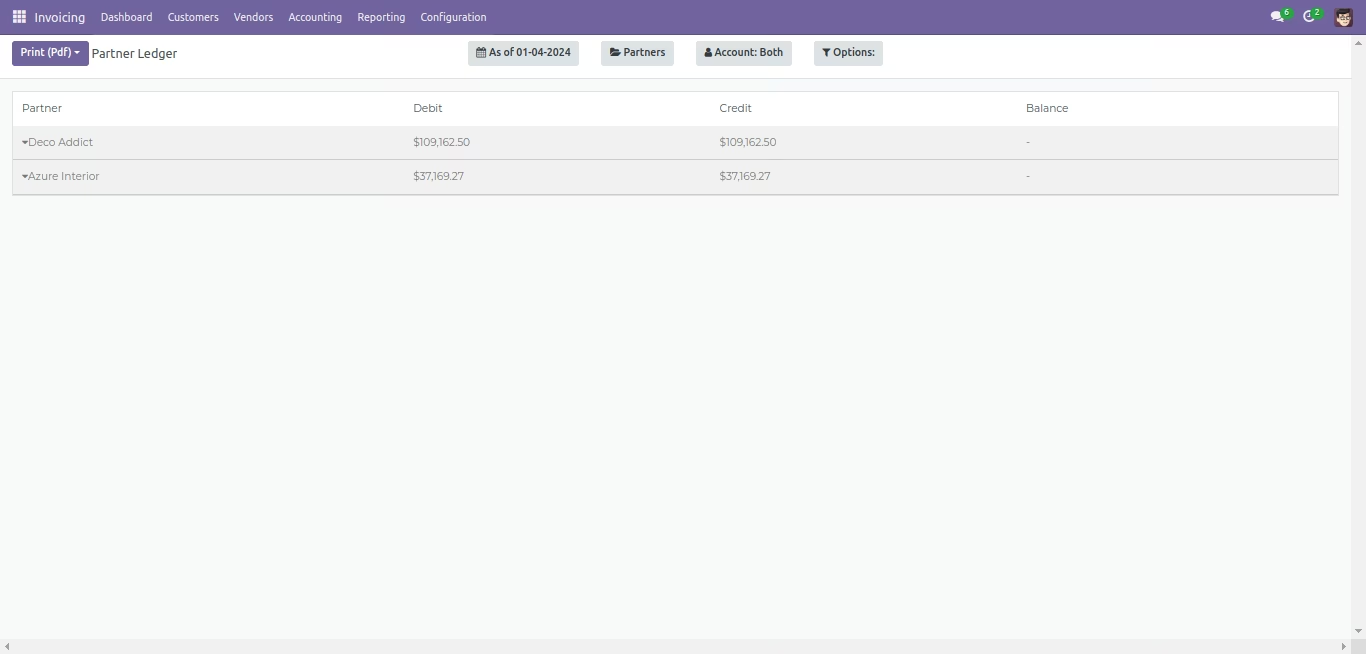
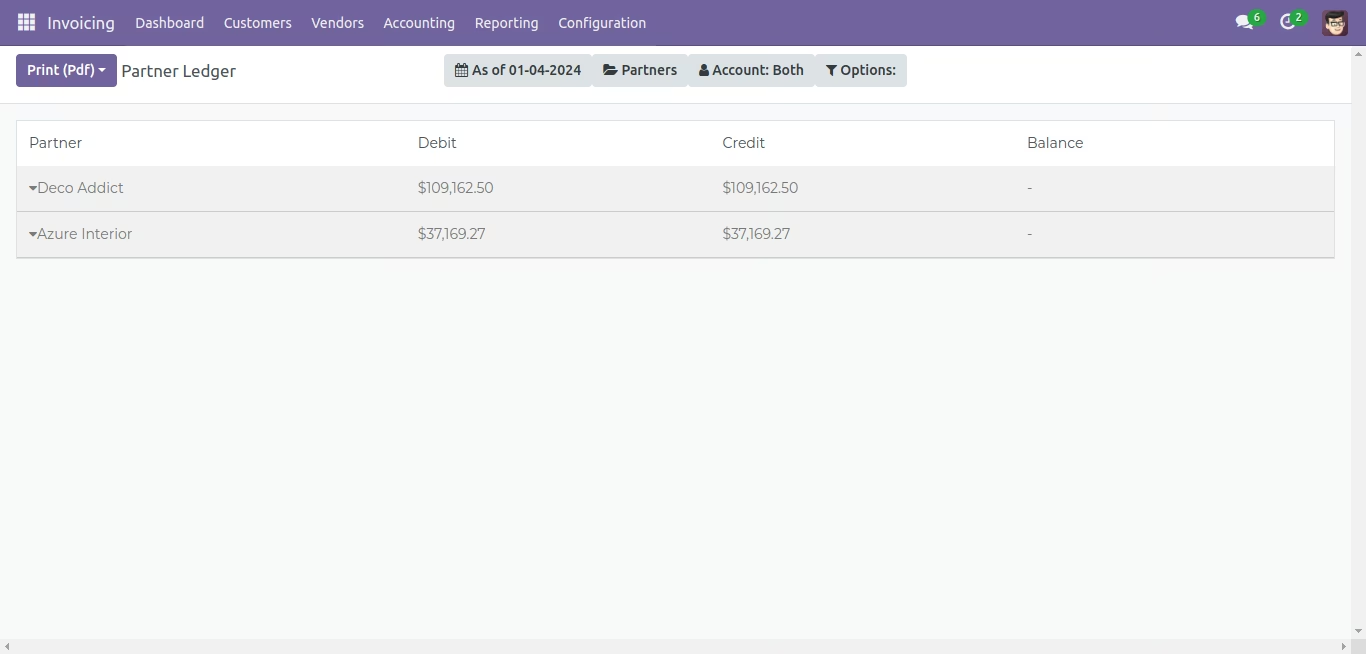
Partner Ledger Report
- It is possible to filter the report from the As Of Date button based on various date filter options- Today, End Of Last Month, End Of Last Quarter, End Of Last Financial Year, and Custom date range
- One can enter the name of the partner in the Partner Search button and the corresponding report will be displayed.
- The Account button allows the user to select from Payable and Receivable
- The Options button provides options to view Posted Entries, Unposted Entries(Draft), Show Reconciled Entries, Show Unreconciled Entries, To Change Date Range, and To Print Report With Details.
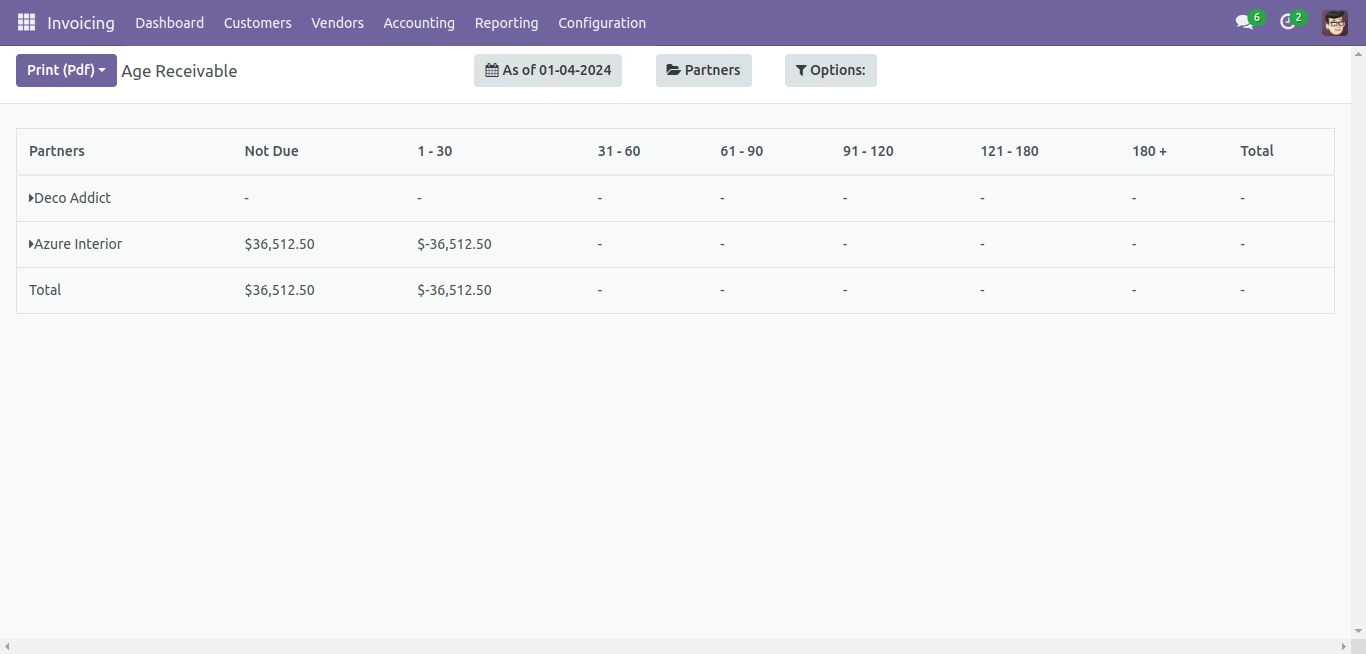
Age Receivable Report
- It is possible to filter the report from the As Of Date button based on various date filter options- Today, End Of Last Month, End Of Last Quarter, End Of Last Financial Year, and Custom date range.
- One can enter the name of the partner in the Partner Search button and the corresponding report will be displayed.
- The Options button provides options to view Posted Entries, Unposted Entries(Draft), To Change Date Range, and To Print Report With Details.
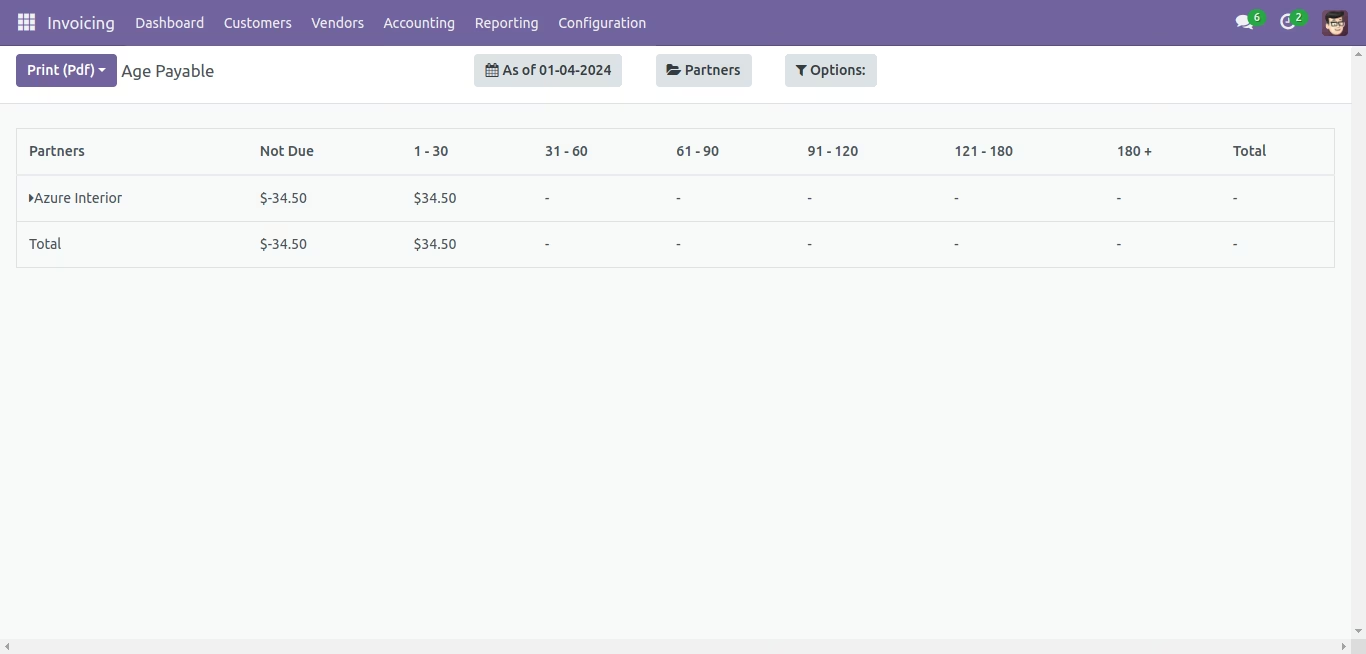
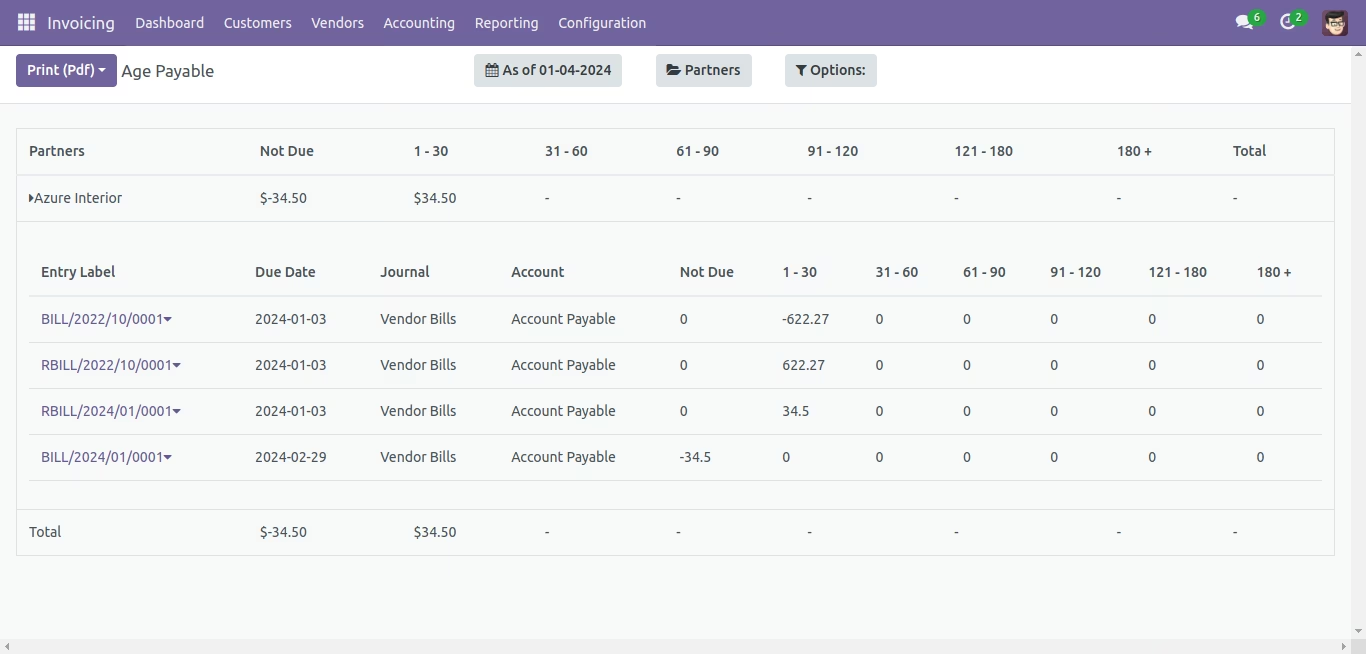
Age Payable Report
- It is possible to filter the report from the As Of Date button based on various date filter options- Today, End Of Last Month, End Of Last Quarter, End Of Last Financial Year, and Custom date range.
- One can enter the name of the partner in the Partner Search button and the corresponding report will be displayed.
- The Options button provides options to view Posted Entries, Unposted Entries(Draft), To Change Date Range, and To Print Report With Details.
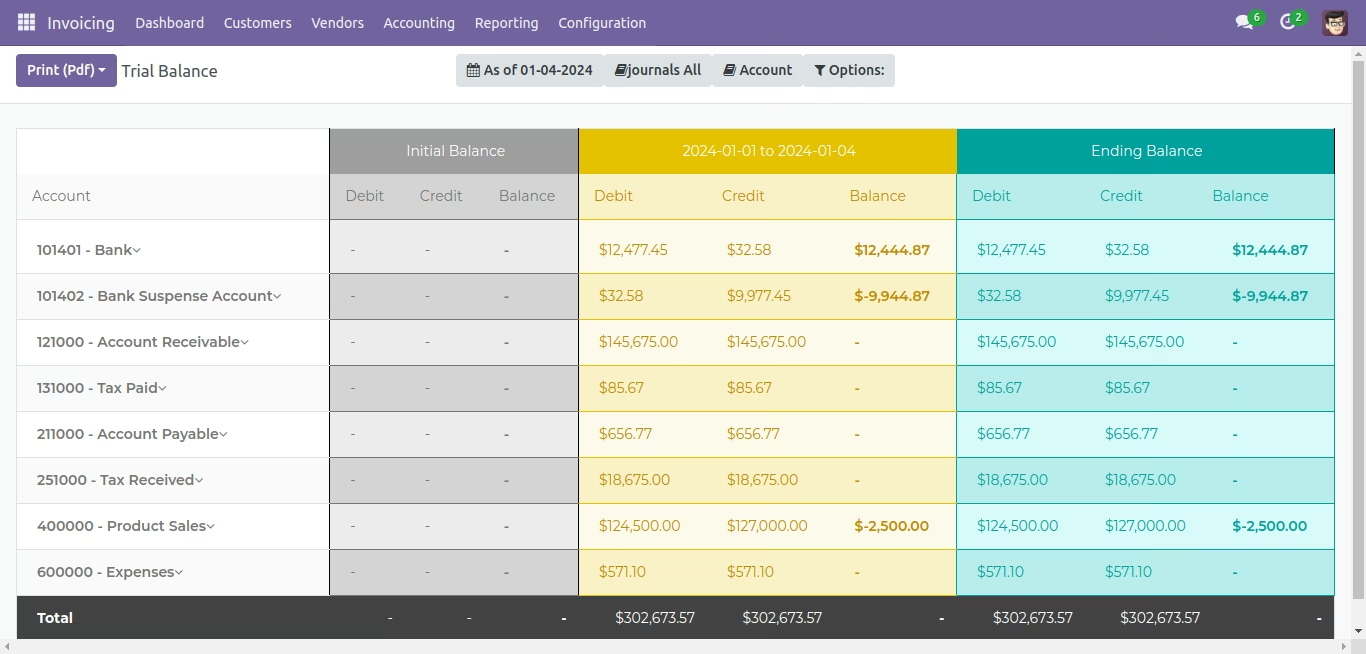
Trial Balance Report
- It is possible to filter the report from the As Of Date button based on various date filter options- Today, End Of Last Month, End Of Last Quarter, End Of Last Financial Year, and Custom date range.
- The Journals All button provides the option to filter the report based on Bank, Cash, Cash Basis Taxes, Customer Invoices, Exchange Difference, Miscellaneous Operations, Vendor Bills.
- The Options button provides options to view Posted Entries, Unposted Entries(Draft), To Change Date Range, and To Print Report With Details.
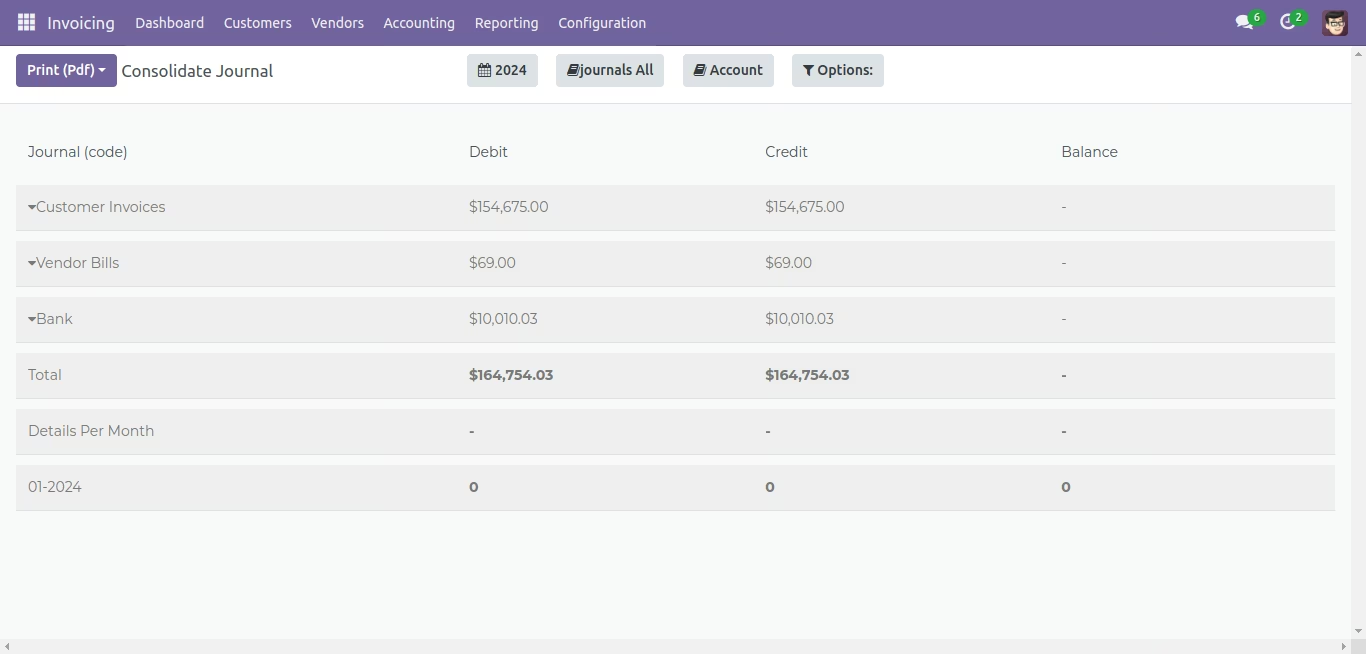
Consolidate Report
- It is possible to filter the report from the As Of Date button based on various date filter options- Today, End Of Last Month, End Of Last Quarter, End Of Last Financial Year, and Custom date range.
- The Journals All button provides the option to filter the report based on Bank, Cash, Cash Basis Taxes, Customer Invoices, Exchange Difference, Miscellaneous Operations, Vendor Bills.
- The Options button provides options to view Posted Entries, Unposted Entries(Draft), To Change Date Range, and To Print Report With Details.
Tax Report
- It is possible to filter the report based on various date filter options- Today, End Of Last Month, End Of Last Quarter, End Of Last Financial Year, and Custom date range.
- The report can also be compared with the previous period or a custom period(defined by the user)
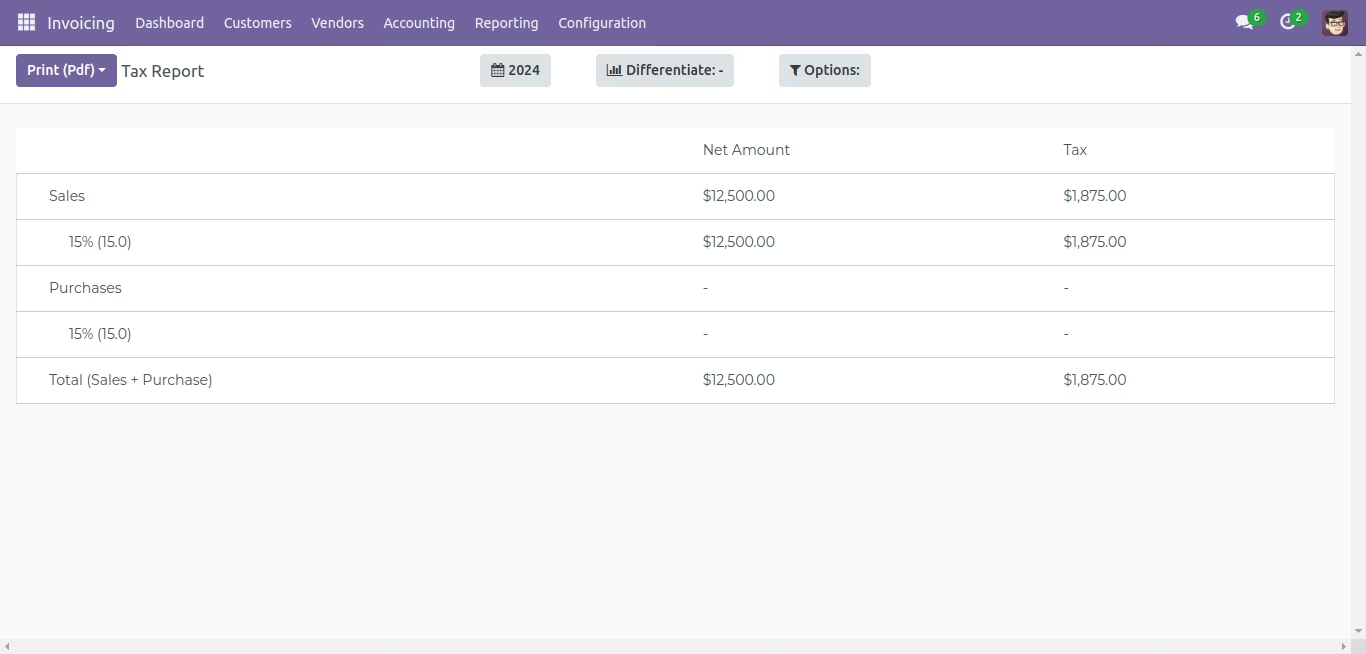
Functionalities
- Print(Pdf) :- To print pdf of existing report.
- Export(XLSX) :- To Print Excel report of existing report
- Send Email :- To send the pdf attached mail to the user for current report
Dynamically Creating Financial Reports
- Go to the configuration menu present in the navigation bar. Click on the Dynamic Financial Reports. On clicking, a form is opened.
- Fill in the fields that are required:
- Report Name - Provide a name to the report
- Report Menu - Choose the menu of the report where you wish to see the Report Menu For example If you choose Accounting->Reporting->Generic Statements then the name of the report will be shown in the Reporting Section of the Navigation Bar. Parent - If you want to keep the report in the existing reports menu, then you can accordingly choose the Type. There are 5 types to create the reports
- Total - if we choose Total as a type then our report will be shown or created as a sum of the records
- Subtraction - If you choose subtraction as a type, then the report will be created which displays the difference of the records.
- Accounts - If you choose Accounts as a type, then the report will be created according to the selected accounts
- Account Type - If you choose Account type as a type then, the report will created according to the selected accounts type.
- Report Value - If you choose Report Value as a type then the report will be made on the basis of values like operating income , assets etc.