Integrate your environment with Dropbox to create a powerful, centralized, and secure document management system. The Dropbox Integration module provides a seamless connection between your ERP and one of the world's leading cloud storage platforms. This tool is designed to automate and simplify how you handle your business documents, from invoices and reports to product images and other critical files. With features like bidirectional synchronization, you can ensure that your files are always up-to-date across both platforms, eliminating the need for manual uploads and downloads and significantly improving your workflow efficiency.
Enables bidirectional file synchronization between Dropbox.
Supports both automatic, scheduled syncing and manual file transfers.
Allows for model-wise file syncing to organize documents in specific folders.
Generate secure, shareable links for your Dropbox files directly.
Keeps a detailed log of all synchronization activities for a complete audit trail.
Replaces attachments with direct links to Dropbox files to save server space.
Features a dynamic dashboard to monitor and manage your Dropbox storage.
Import and export files and folders in bulk between Dropbox.
Creates a secure and centralized repository for all your important business documents.
Saves valuable server space by storing attachments in the cloud.
Improves data accessibility, allowing you to access your files from anywhere.
Enhances collaboration with easy and secure file sharing capabilities.
Reduces the risk of data loss by automating backups and synchronization.
Boosts productivity by streamlining document management workflows.
Maintains a clean and organized file structure with model-wise syncing.
This is the tool to integrate Dropbox features with folders and files. The app automatically stores attachments and directories in Dropbox and provides instant access to them via web links.
Automatic folders' structure
Decide which document types should have their own folders trees and synchronize those to Dropbox
Automatic regular sync
Rely on auto-synchronization between and Dropbox based on scheduled jobs. No manual interaction is required
Bilateral sync
sends attachments to Dropbox and retrieves files from there. Binary content is kept in clouds, while provides direct access to synced items
Cloud synchronization history
Control Dropbox sync logs right. Export and share those in case of any issues. Be notified of any client disconnections
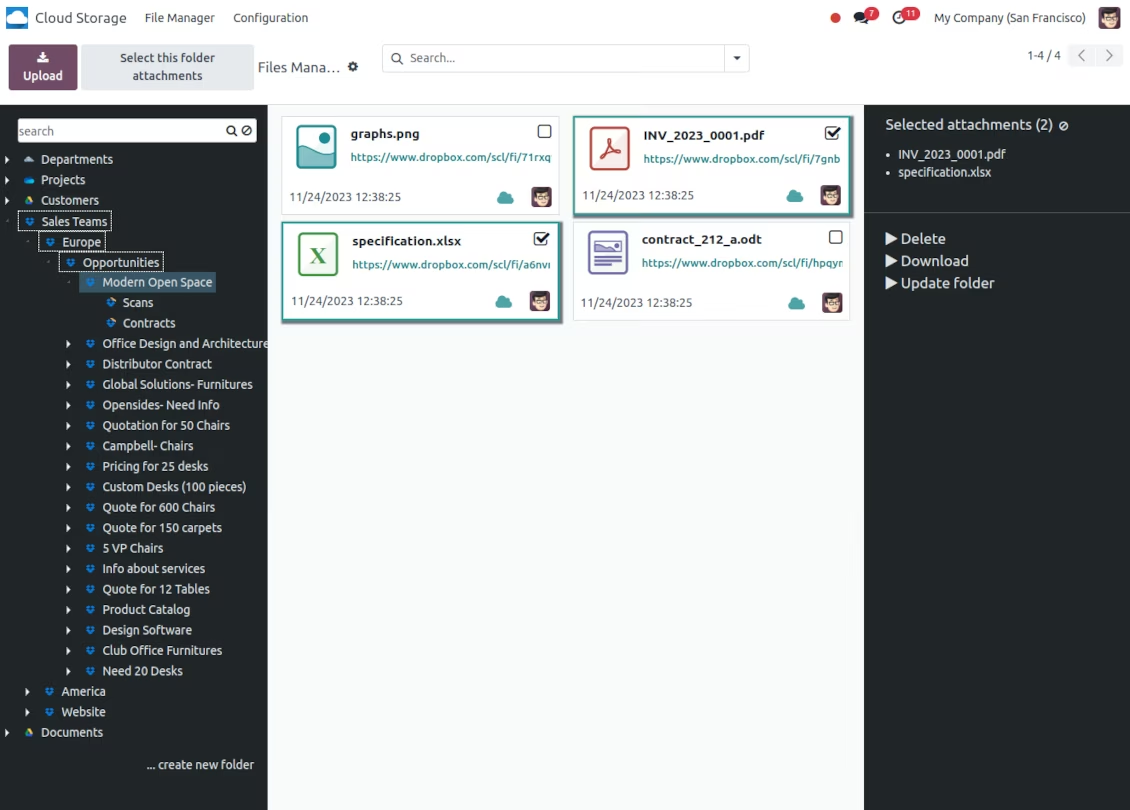
File manager interface
Manage synced folders and attachments from a single view. Comfortably navigate by directories. Search and download files one by one or in batch. Upload and move attachments to folders
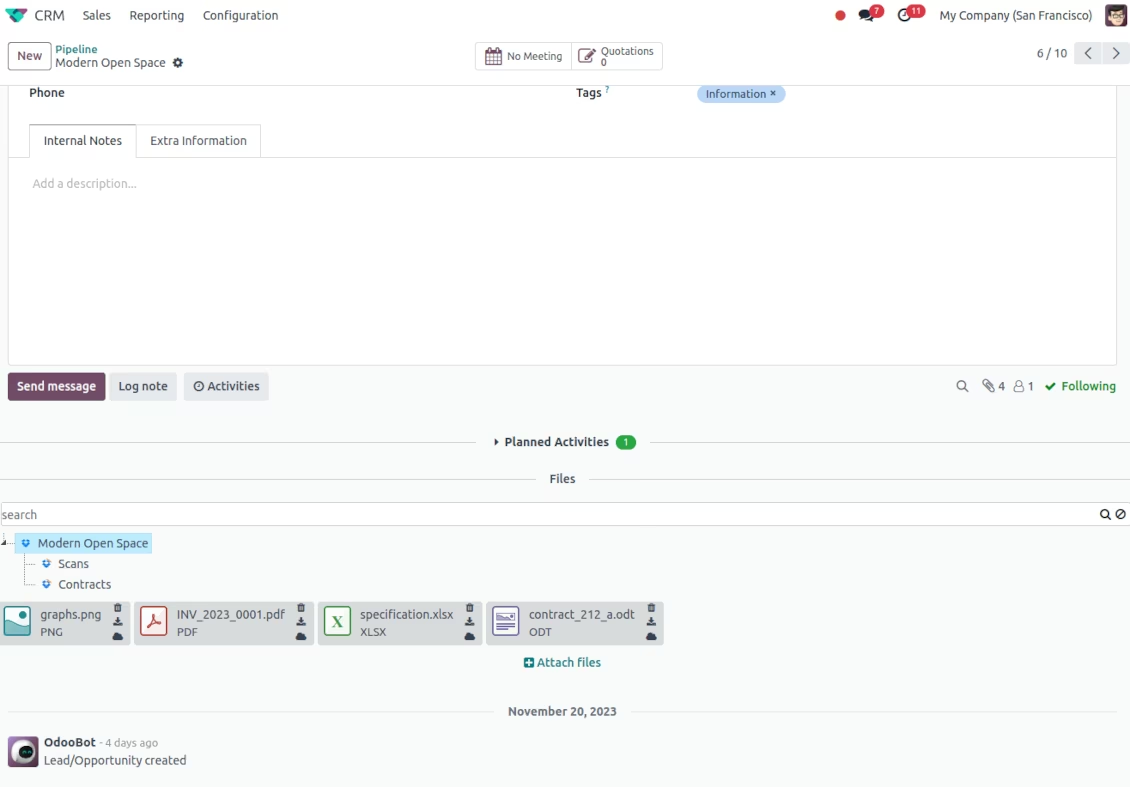
Attachment box
Organize files of any object in a set of subfolders. Instantly access folders and files in the attachment box and in Dropbox.
Automatic backups
The app allows you to automatically sync and manage your current database backups to Dropbox.
How synchronization works
Automatic two-sided sync
-
Configure sync for one or multiple Dropbox instances
-
Integration is based on scheduled jobs and is fully automatized. The app regularly checks changes in systems and runs sync operations
-
Synchronization is bilateral. Updates in are reflected in Dropbox (direct sync); changes in Dropbox modify folders and attachments (backward sync)
-
Cloud connection with Dropbox might be reset. In this way, the app assumes getting back all items back to (reverse sync)
-
folders and attachments might be re-attached to a new cloud client from Dropbox. Hence, items will be first taken back to (reverse sync) and then put will be put into the new cloud storage (direct sync)
Queue-based synchronization
-
Once in 15 minutes, the app examines updates in and Dropbox to prepare a synchronization queue
-
Folders' checks follow the First-In-First-Out (FIFO) principle. So, directories that have not been examined for the longest will be processed first
-
Once in 15 minutes, the sync queue is run by the special scheduled job. Firstly, the most important (blocking) tasks would be done
-
Control planned jobs and their fulfillment in the special logs interface (Cloud Storage > Configuration > Sync Logs). Subscribe for particular cloud clients notifications
-
If the app faces sync failures, it will re-try operations afterward. Sync queue processing would not be stopped if there are items not blocked by such failures
attachments for Dropbox: direct sync
-
Direct sync prepares the folders' hierarchy and uploads attachments for Dropbox
-
Direct sync checks whether attachments are added or deleted for synced directories. If so, they would be created or removed in Dropbox. In particular, it means that any file added to a folder-related object (e.g. Quotation), would be automatically moved to a linked cloud client
-
Direct sync makes all synced attachments change their type to a link (URL), while binary content is removed with one of the next cleaners. So, no actual files would be stored on your server
-
Direct sync checks whether a new folder is added. Disregarding whether it is done manually or automatically, the app would generate a peer directory in Dropbox
-
Direct sync checks whether there are any updates in folders. If so, such changes are reflected in Dropbox
Dropbox files and folders for: backward sync
-
Backward sync checks whether any files or subfolders are added to Dropbox folders. If so, the app would create URL attachments/subdirectories inside linked directories (and hence objects if any)
-
Backward sync checks whether there are any updates in folders or attachments. Such updates would be then reflected
-
Backward sync checks whether any files are deleted/moved in a Dropbox document folder. If so, a linked attachment would be also unlinked or moved
-
If you deleted a Dropbox folder related to a folder rule / object, their child files would be deleted as well. Thus, would remove related attachments. The folders, however, will be recovered with a direct sync
-
In case of conflicts, direct sync changes are in general considered more important than backward updates.
Resetting or changing Dropbox: reverse sync
-
In case you decided to reset the connection with Dropbox, files would be moved back
-
In case you decided to change the cloud client of a folder rule or a folder, files would be first taken back, and then direct sync for a new client would be done
-
Reverse sync operations are prioritized to direct and backward sync operations
-
Not all items can be correctly reversed to due to cloud client peculiarities. For example, there are documents that may exist only in cloud storage environments. The app would try to convert such documents, but in some cases, it would require manual interactions.
Dropbox URLs
Dropbox has a specific way to generate links for existing files and folders. In particular, there are no concepts of internal or private URLs. Instead, each Dropbox item might get so-called shared URLs. Such shared links are either public or team-only. Moreover, the latter feature is available only for the Dropbox business account.
This tool relies upon shared links' mechanics. It means, that each attachment link is either public (all personal Dropbox accounts) or team-only (all business Dropbox accounts).
Sometimes it is considered to be not fully safe. Although website URLs will be hardly known by external users, there is a slight chance that they become available as a result of some user actions. Besides, sharing link generation is not super fast and might make the sync process slower. That is why the feature to switch off sharing URLs is introduced.
If checked, all Dropbox URLs in will be of the type https://www.dropbox.com/home/[PATH]. Such links will not work in many cases. Thus, if you need to open Dropbox files/folders, be careful with the setting 'No links to Dropbox'.
The tool depends on the external library 'dropbox'. Install this library for your server through the command:
pip3 install dropbox
- Turn on the option 'Dropbox Sync' (cloud Storage > Configuration > Configuration). The optional add-on Dropbox Integration is required
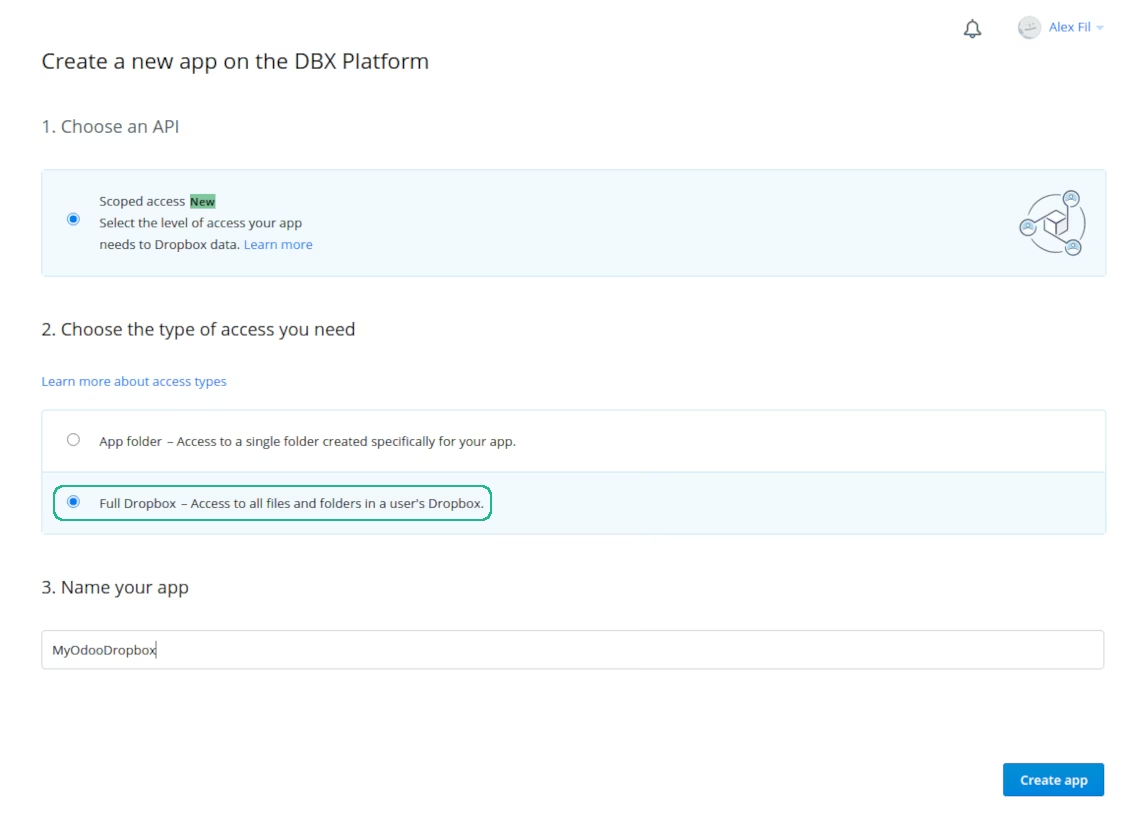
- Follow the URL https://www.dropbox.com/developers/apps/create
- Choose an API as 'Scoped access'
- Choose the type of access as 'Full Dropbox'
- Select any suitable name for the app and push the button 'Create app'
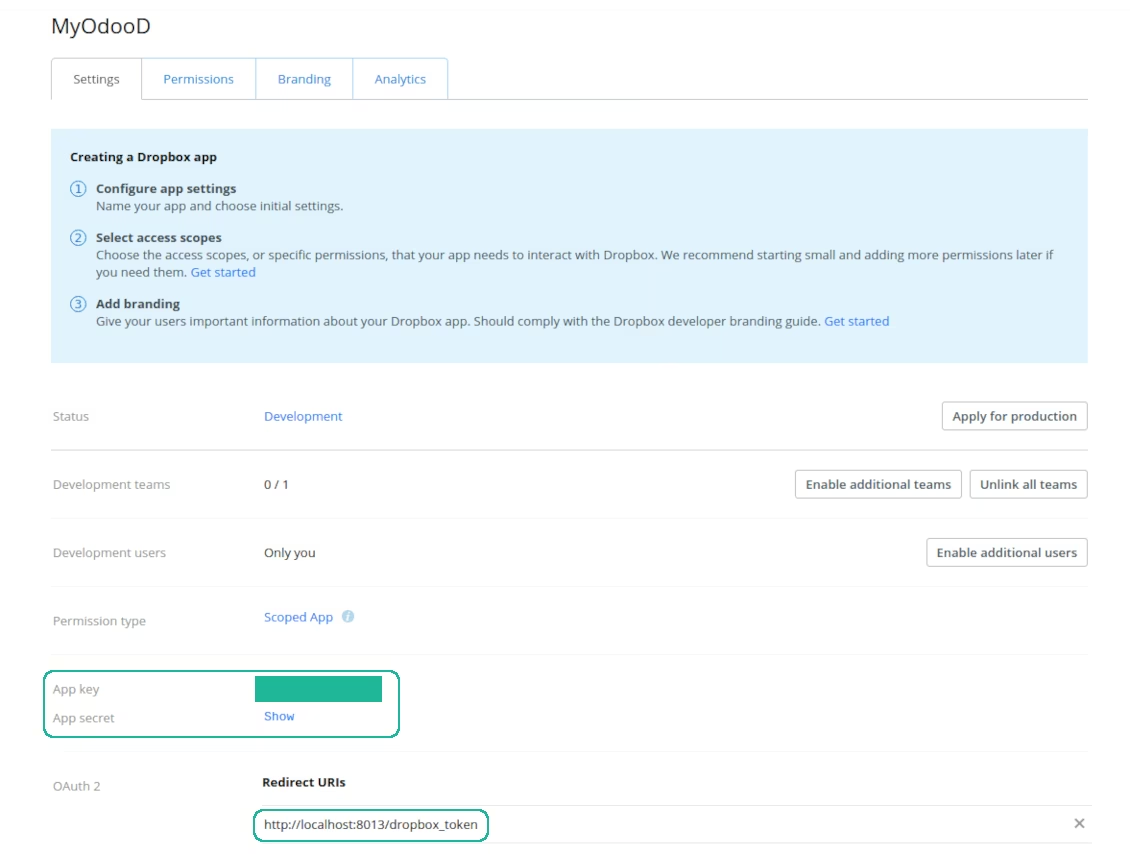
- Add the redirect URI as [YOURSITENAME]/dropbox_token (e.g.). A valid SSL certificate (https) is required
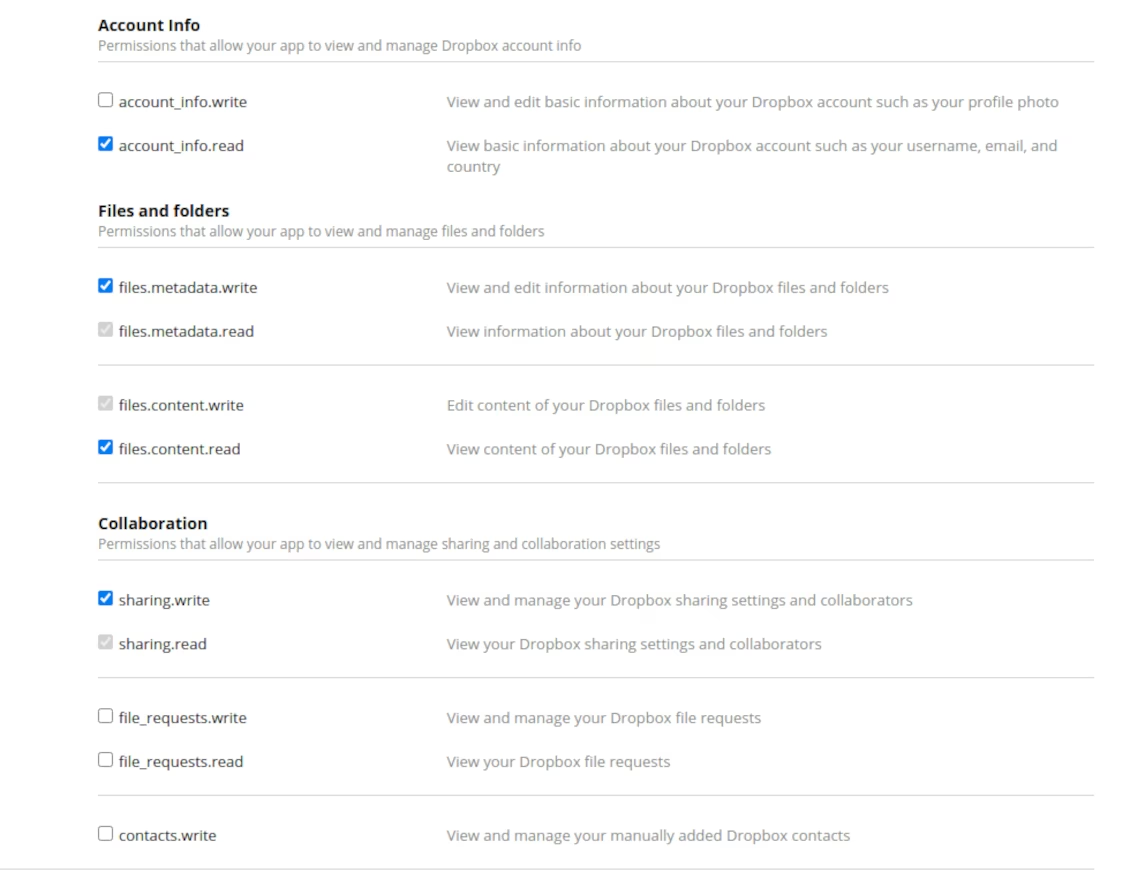
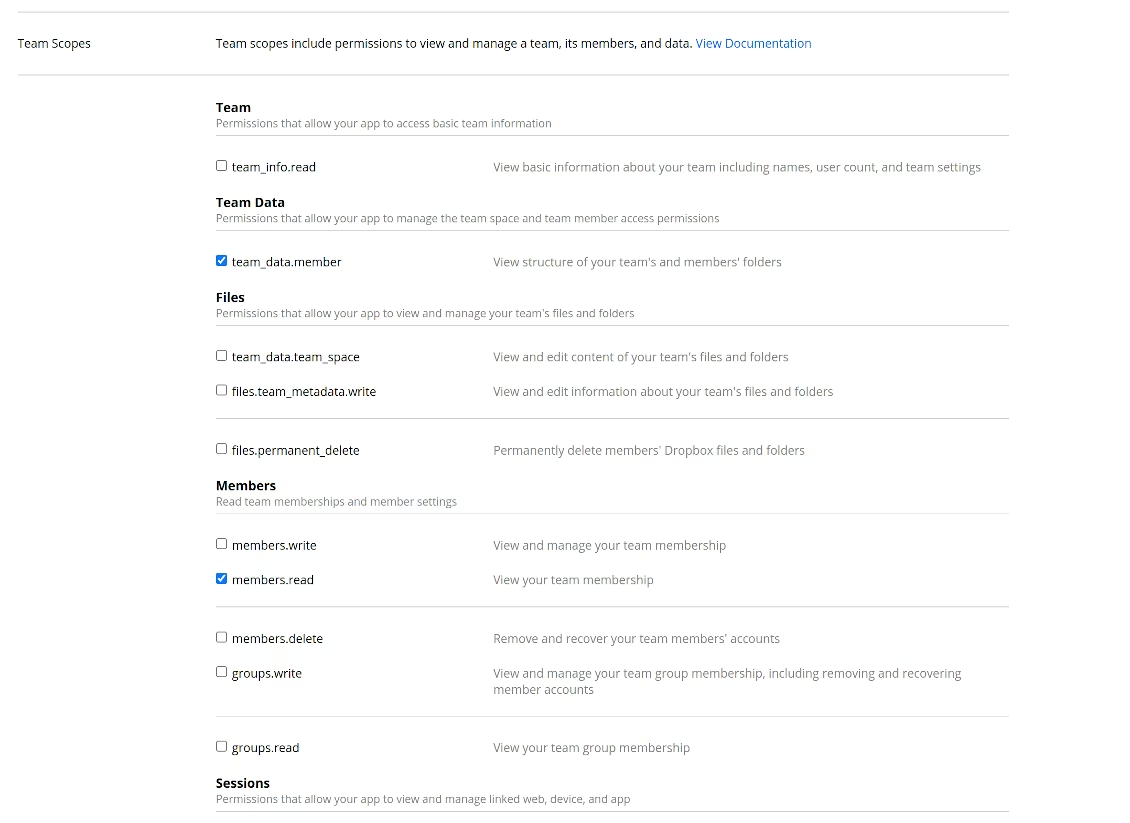
- Grant permissions to the app: 'Account Info (Read)', 'Files and folders Metadata (Write)', 'Files Content (Write)', 'Collaboration (Write)'. For team DropBox assign also 'Team Data Members', 'Members (Read)'. Make sure no other permissions are assigned.
- Submit App
- Go to Cloud Storage > Configuration > Cloud Clients press 'Create'
- As a reference, introduce any name which would be clear to all users
- As a Cloud client, choose 'Dropbox'
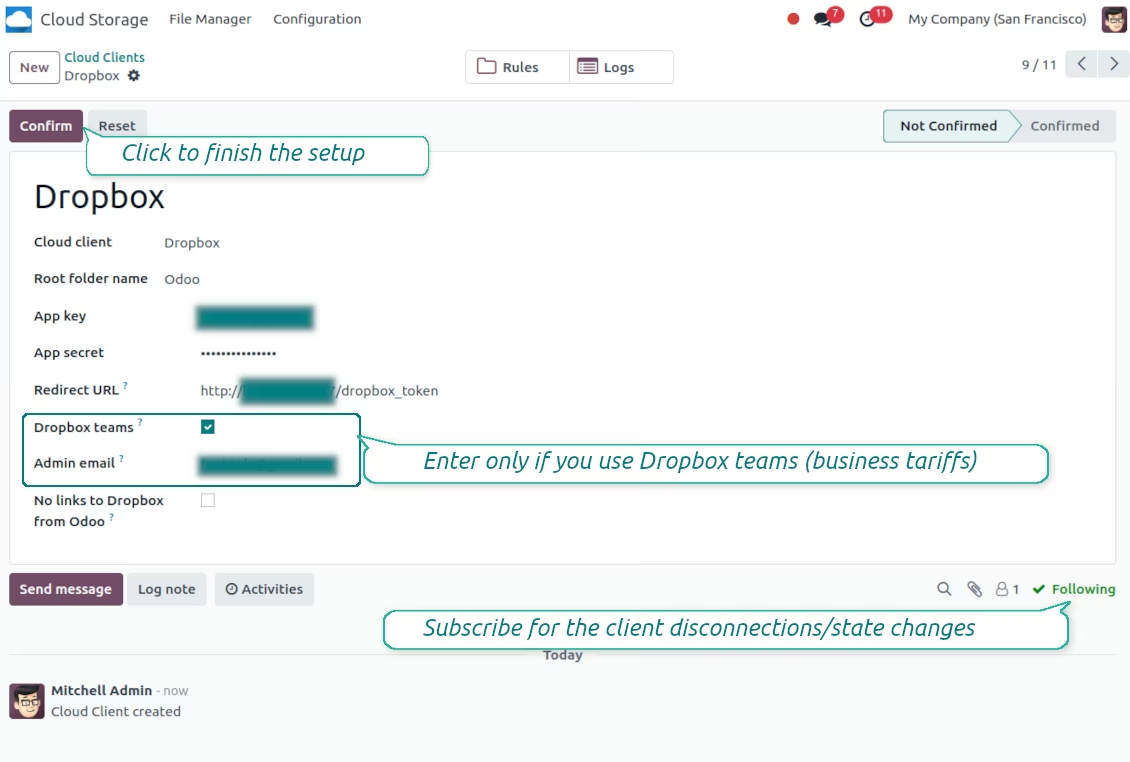
- As a Root folder name, enter a title that will be used as the parent Dropbox directory for all synced folders.
- Copy 'App key' to the 'App key'
- Copy 'App Secret' into the field 'App secret'
- Insert previously generated redirect URL
- If you use Dropbox team drives
- Check the related box
- Set an Dropbox user email. Inside this user folder, all related items will be created, and only after that, they will be shared with all other users. Under this user, all files and folders are created, changed, moved, and deleted
- Press 'Confirm'. redirects you to the Dropbox login page. Check in the system, agree with all conditions, and grant all permissions asked
- After login, Dropbox redirects you back. Dropbox - synchronization is ready to be done
- Apply the newly created cloud client to folder rules and/or manual folders which should be synced to that Dropbox instance
- Await the sync scheduled job to be started. For testing purposes only: trigger integration manually from Cloud Storage > Configuration > Configuration > the button 'Launch sync'.
Watch also the configuration video
Register a new Dropbox app
Set up Dropbox App: the redirection URLs
Dropbox permissions for personal accounts
Dropbox permissions for business accounts
Set up for the Dropbox integration
file manager: Dropbox synced
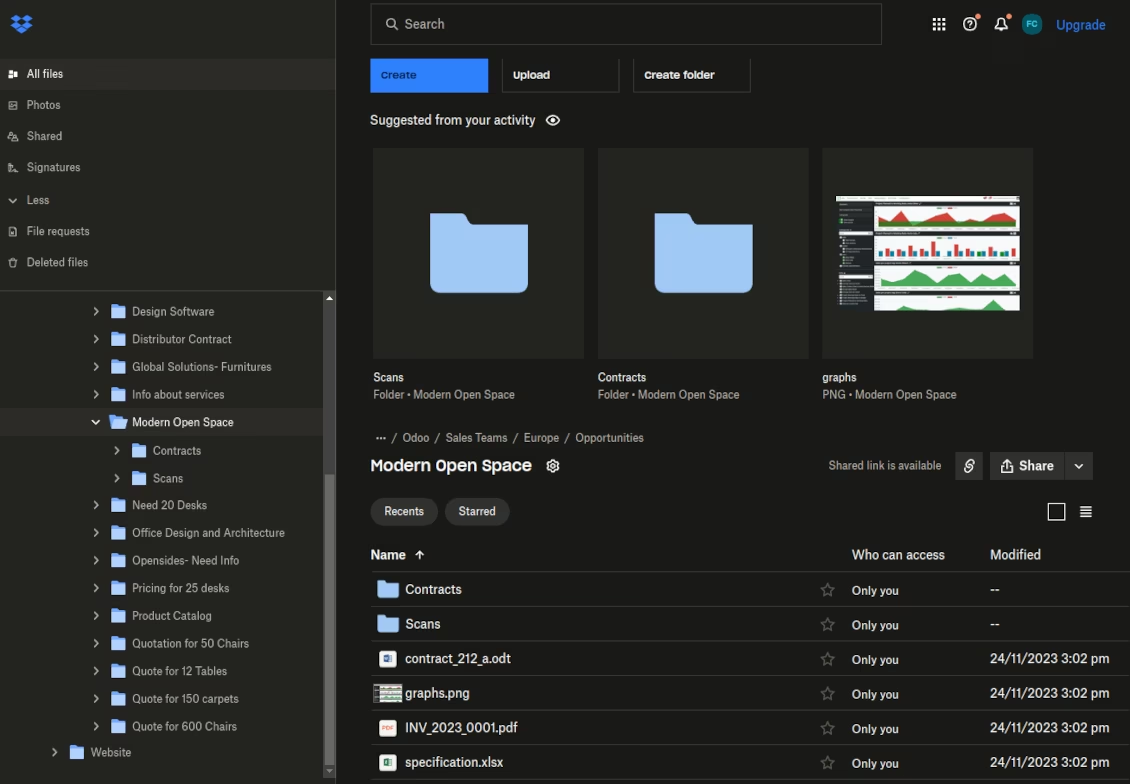
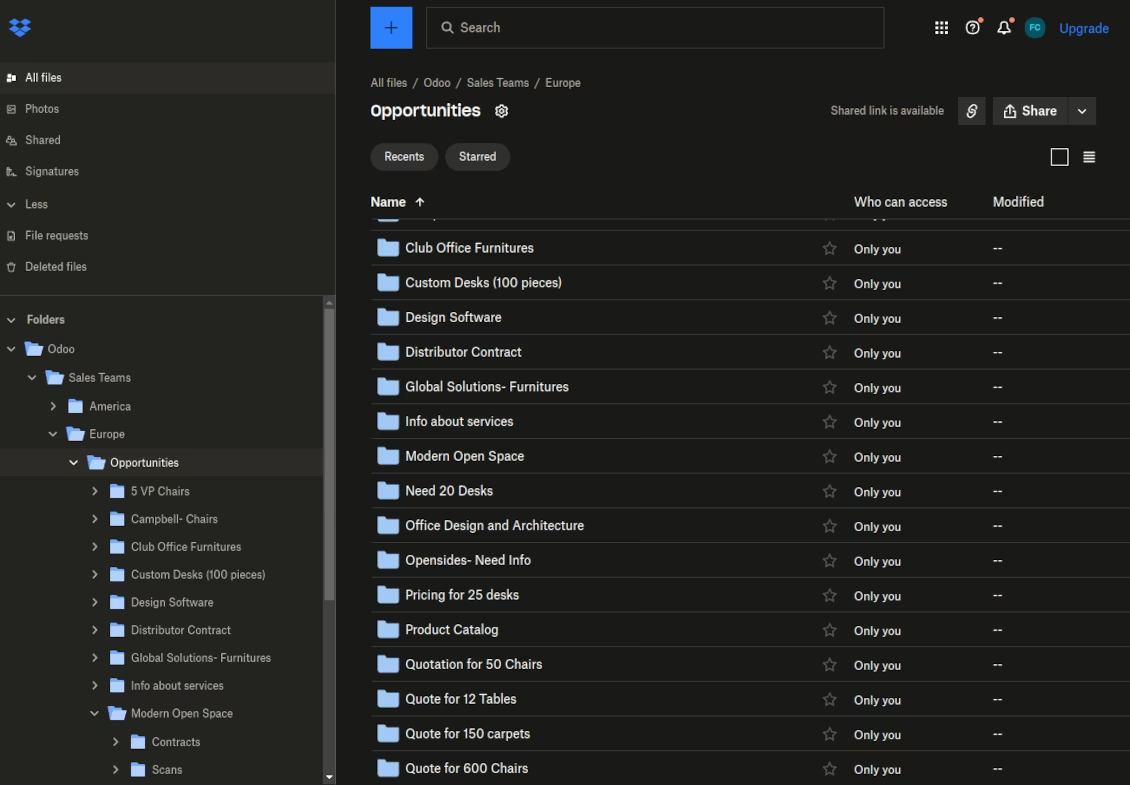
objects' folders in Dropbox
attachment box synced to Dropbox
folder structure in Dropbox
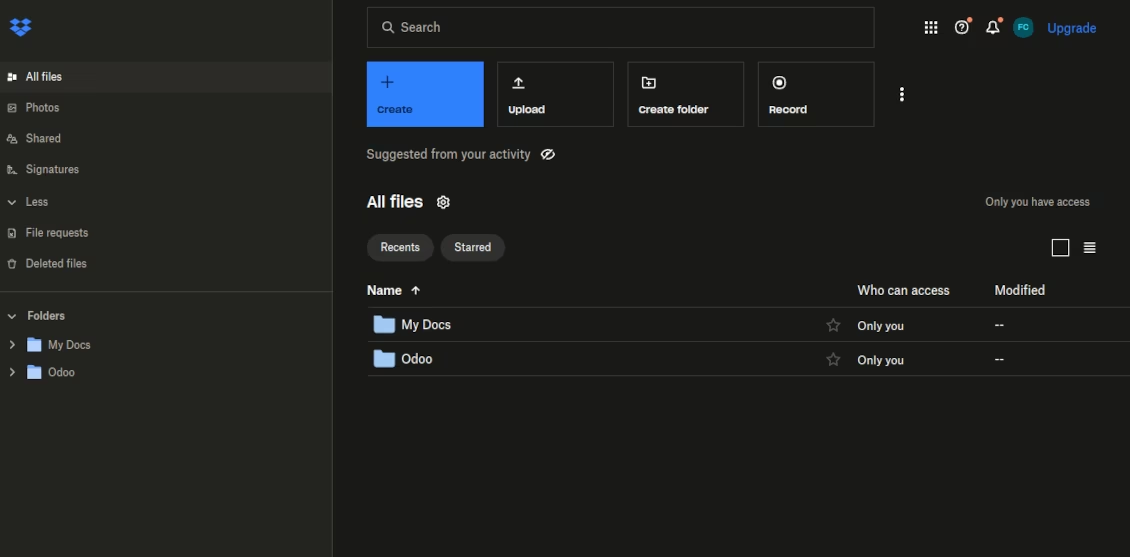
The root folder is in Dropbox