The module for provides a comprehensive solution for generating detailed customer overdue statements. This module enhances financial transparency by displaying overdue invoices, balances due, and ageing periods, enabling businesses to manage accounts receivable efficiently.
Generate customer overdue statements with ease.
Select a customizable date range for transactions.
Display overdue balances and ageing periods.
Provide a detailed transaction summary with amounts and balances.
Support multi-currency and regional formatting for currency symbols.
Enhance customer satisfaction with clear and transparent overdue statements.
Reduce manual work with automated data fetching and computation.
Ensure accuracy in financial reporting and reconciliation.
Improve cash flow management by identifying overdue invoices.
Strengthen customer relationships through professional and timely communications.
Statements & Overdue Reports
Payment and Statement Reports
Customer and Vendor Financial Reports
Reports: Customer/Vendor Payments
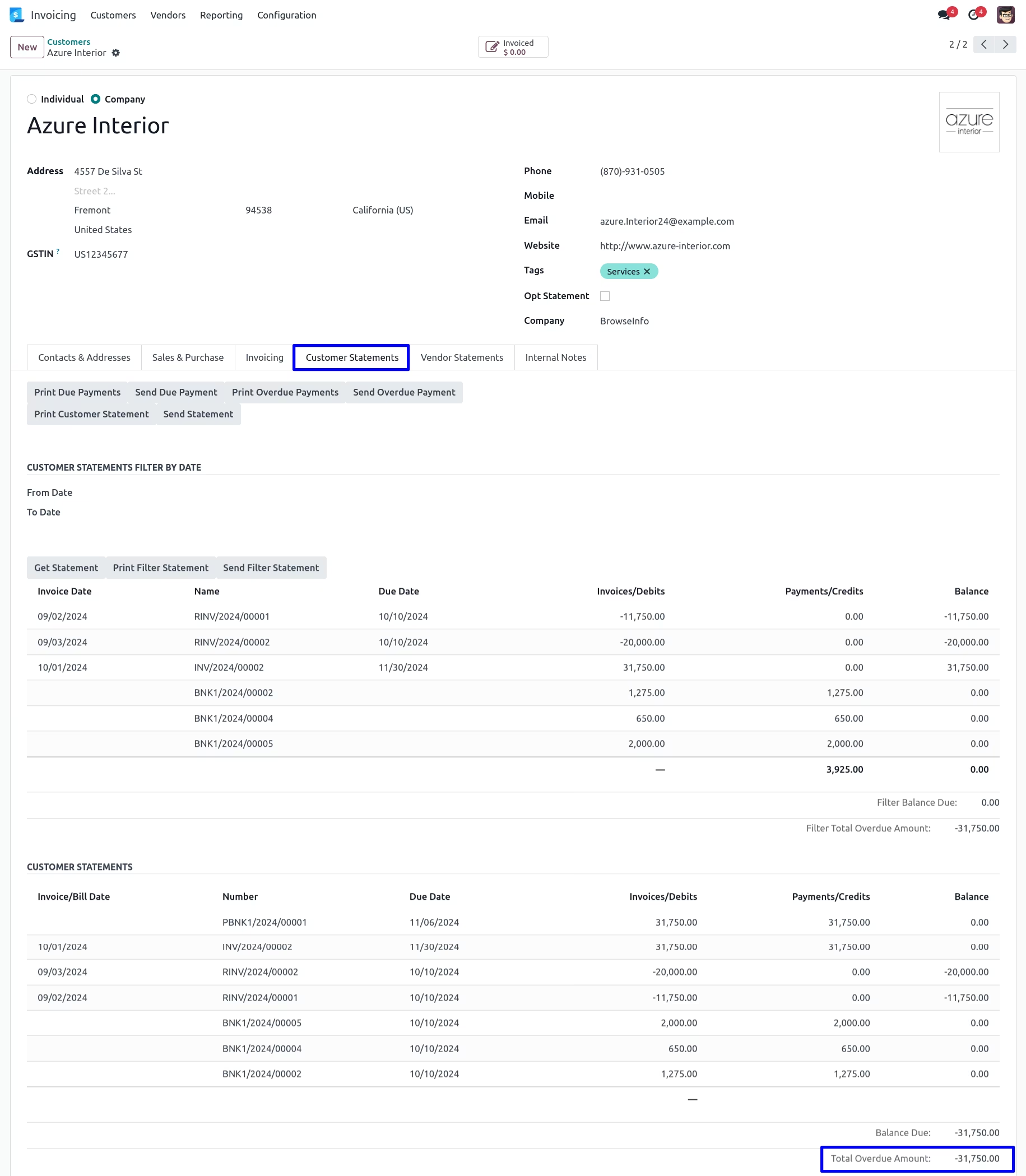
Customer/Supplier accounting statements and Customer Overdue Payments Apps offers you to view customers or vendor statements reports with overdue invoices and payment details and helps you to send statements of account reports by email to your customers and suppliers. Account Statement reports comes with the due range tables with 0-30 days, 30-60 days ,60-90 and 90+ days kind of range. This apps also helps to print overdue statement reports of customer. Accountant will have option to filter customer and supplier statements with start date and end date this filter statement comes with opening balance before the start date selected on filter for filter accounting statements. You can also print and send this filter statements too. Statements tab of customer and supplier both shows total due amount and total overdue amount balance , total due is show total remaining due amount of customer or supplier and total overdue amount shows the total which become overdue based on the payment term selected on invoices. After installing this modules/app you can print and send customer/supplier statement as well as print and send overdue payment reports by email.You can also send this overdue payment and statement automatically to your customer and vendors every month using the automatic send email feature. You can give the portal access to the specific customer/supplier to see the statement in portal.
Looking for Portal Features of Customer Statement and Overdue Payment Reports Apps,please check below module link
Website Customer Statement and Overdue Payment Reports.
looking for customer account payment follow up App, please check below module link
Customer Account Payment follow up Apps.
Looking for only customer account statements Apps,please check below module link
Customer Account Statements Apps.
User can find "Customer Statement" and "Vendor Statement" tabs on customer/vendor form view.
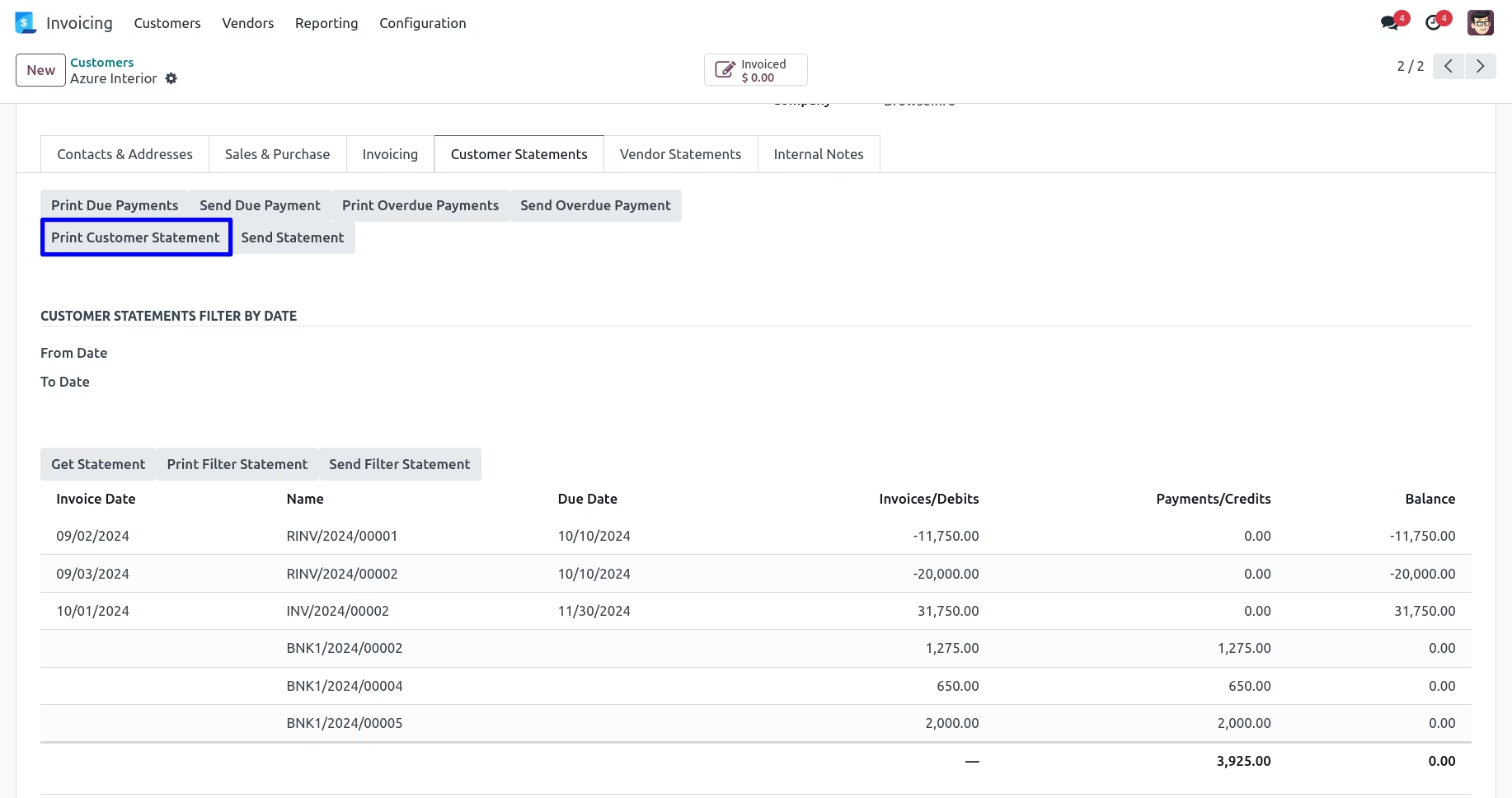
Print Customer Statement Report
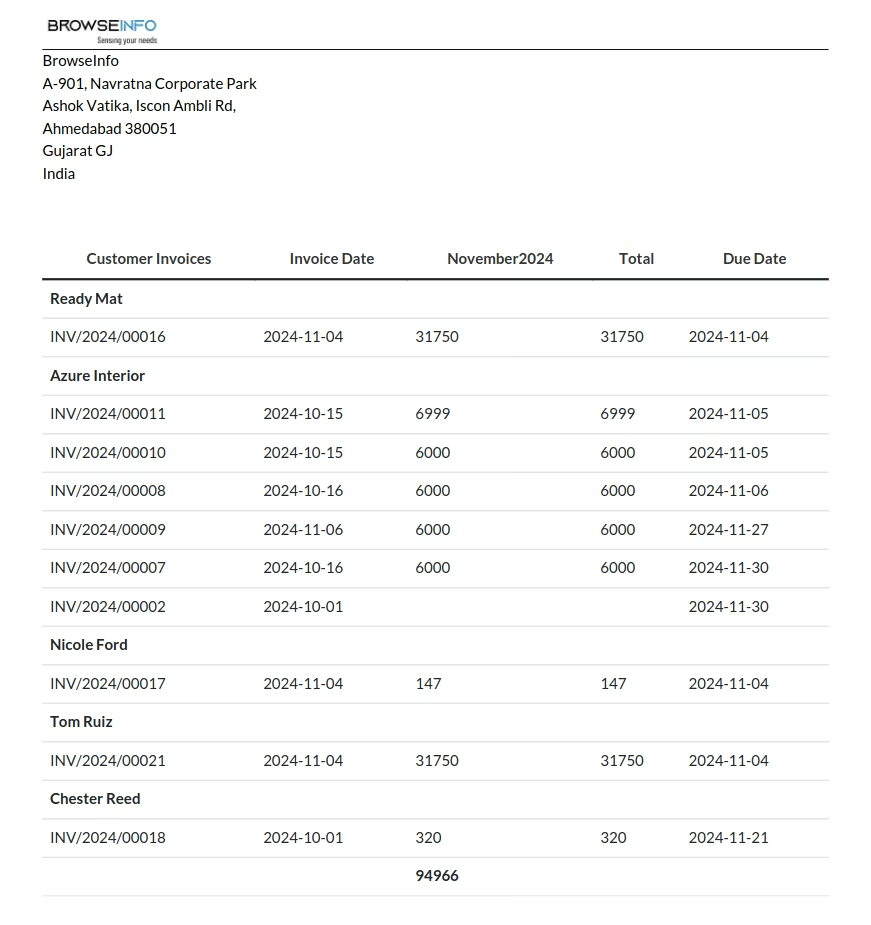
Accounting User/Accountant can also able print statements of customers and suppliers by "Print Statement Button".
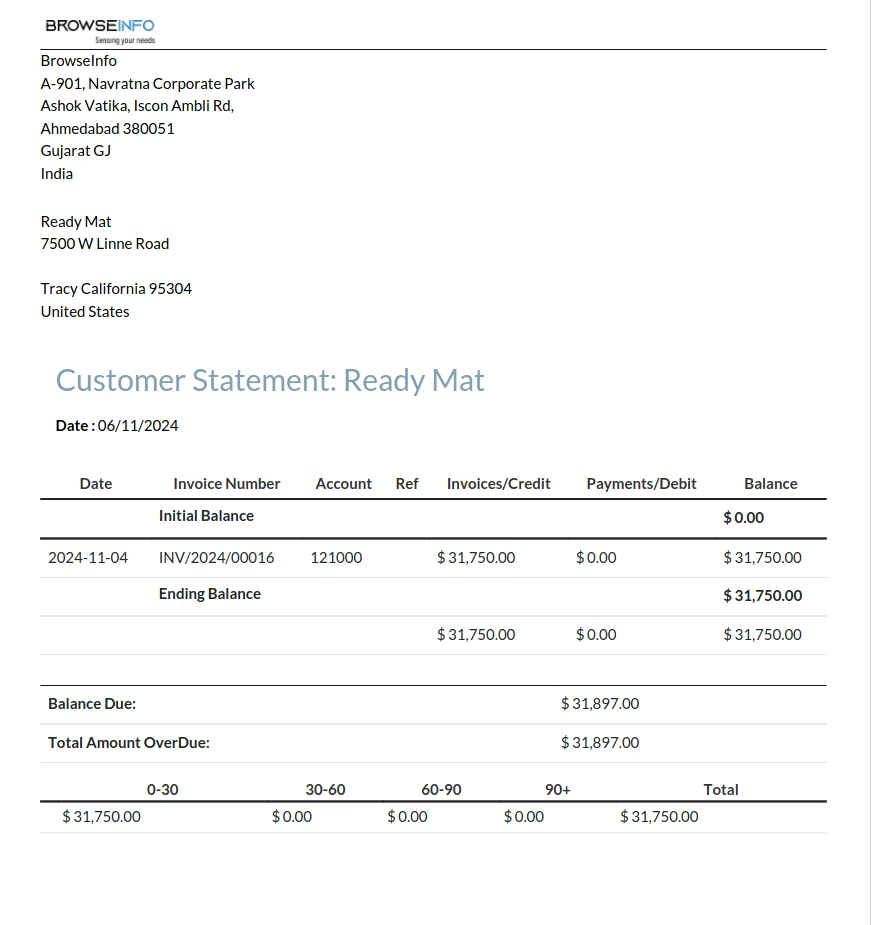
User can see printed customer statement report.
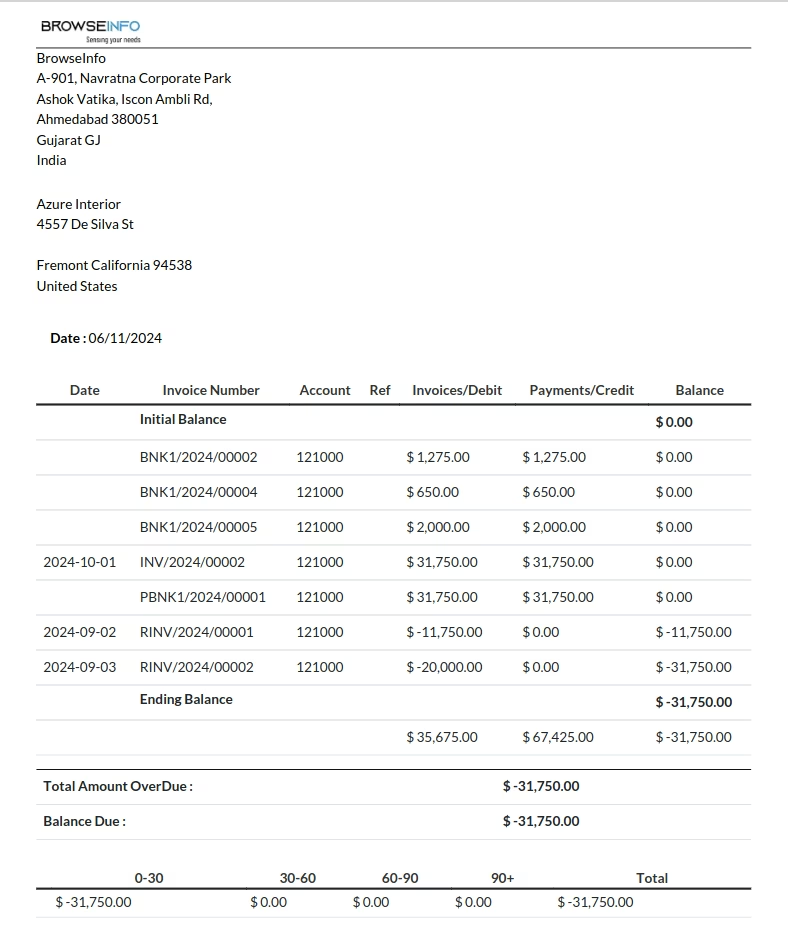
Send Customer Statement Report
User can send customer statement report by mail.
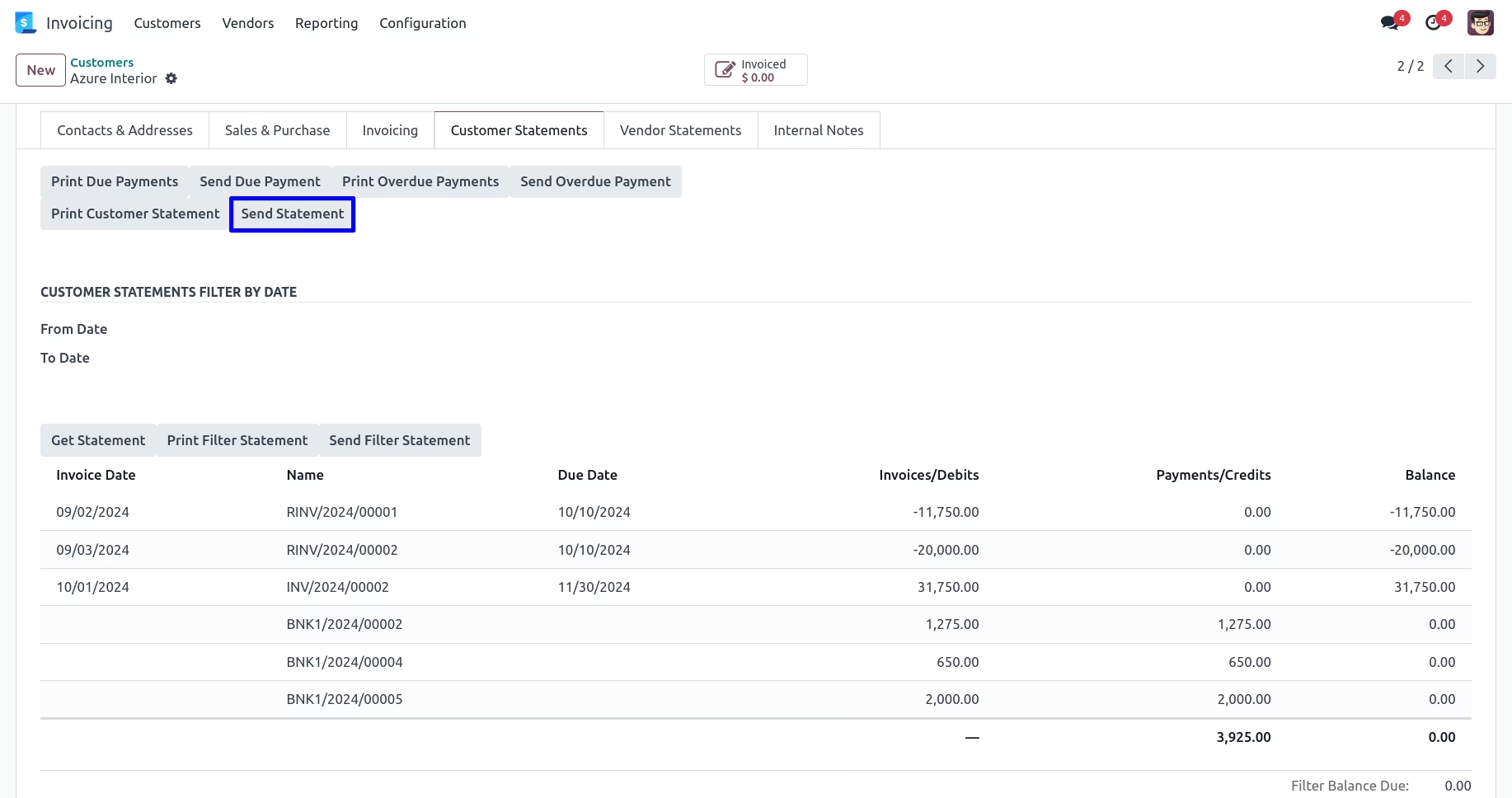
User can see sent mail with attached statement report.
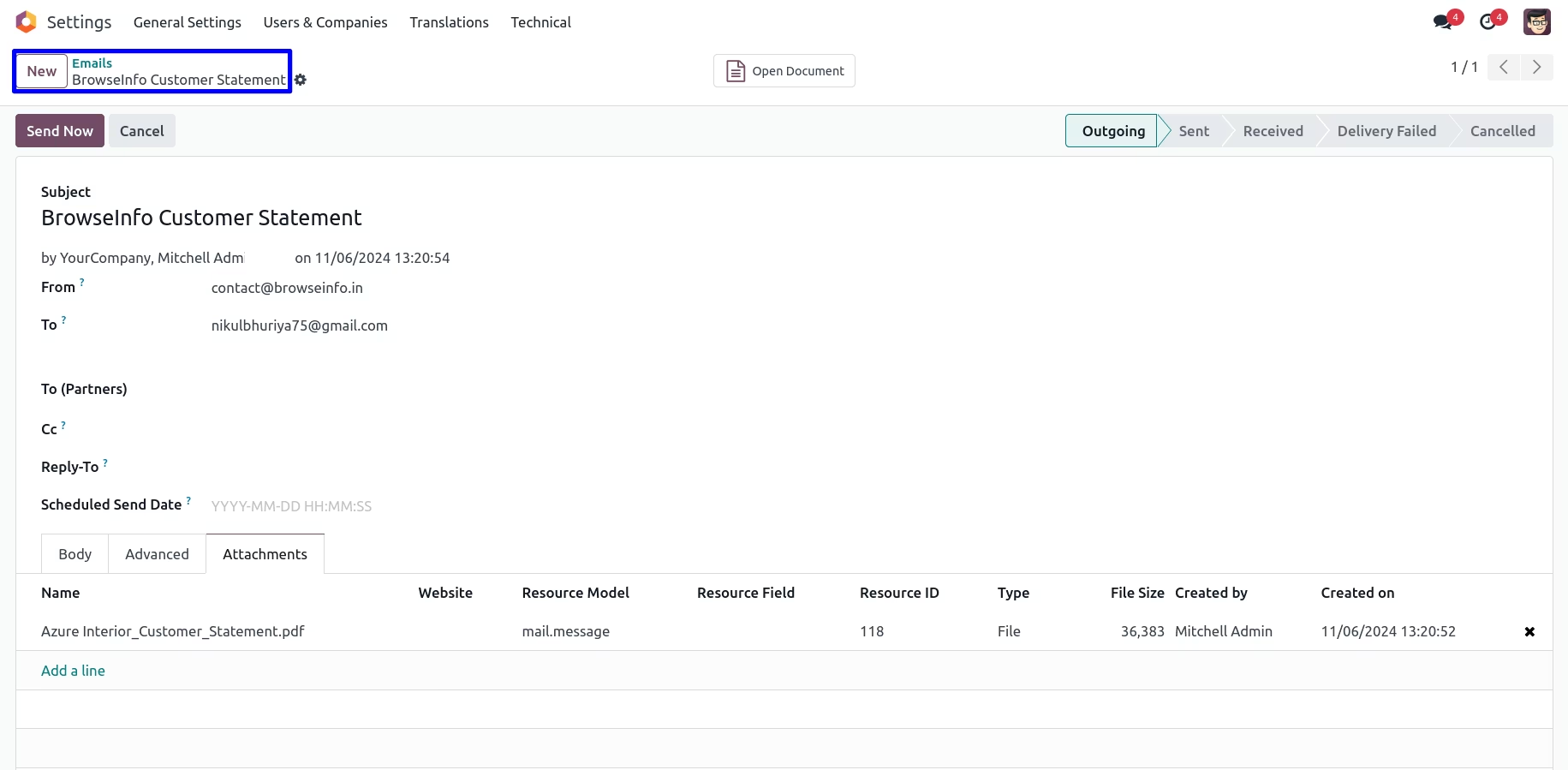
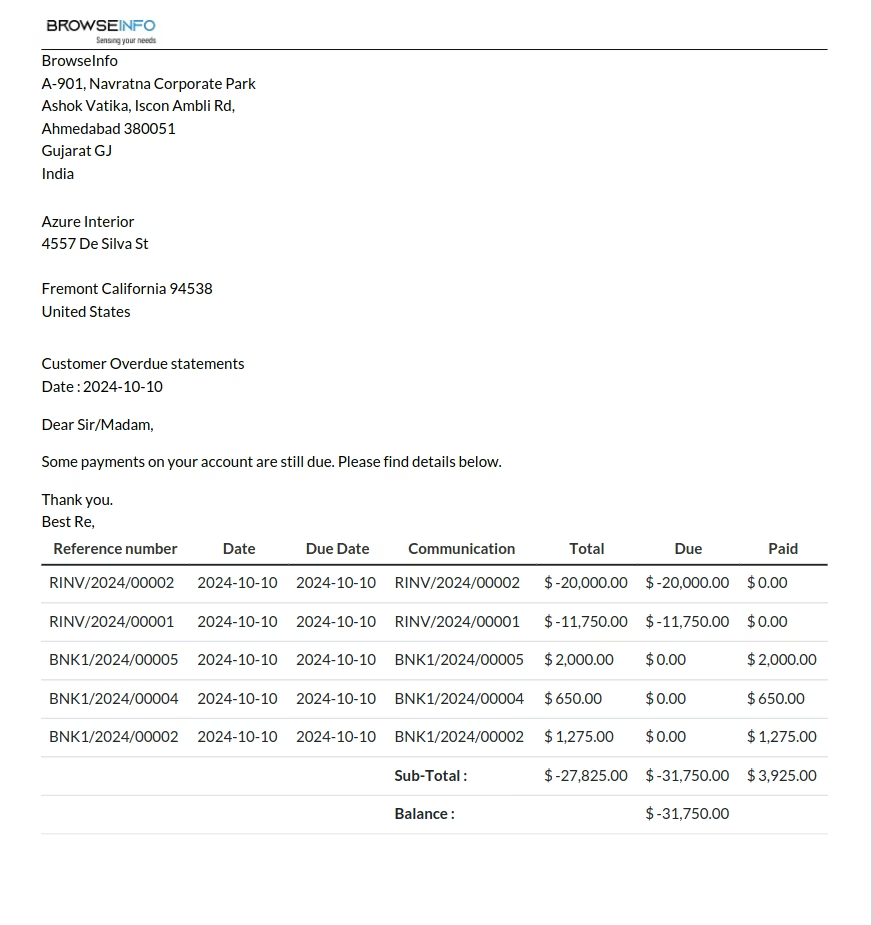
Print Customer Overdue Payment
User can print customer overdue payment report from button as shown figure.
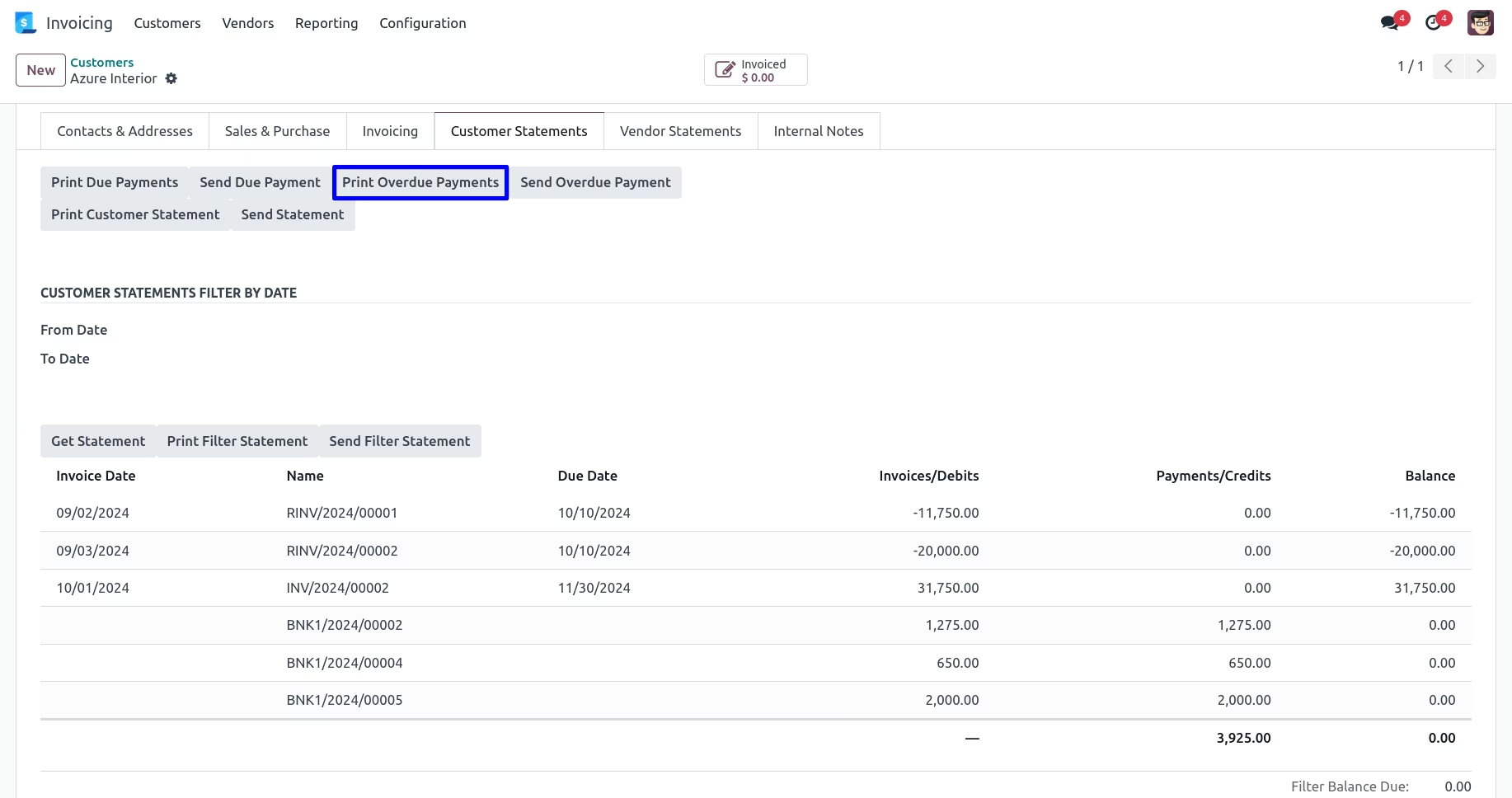
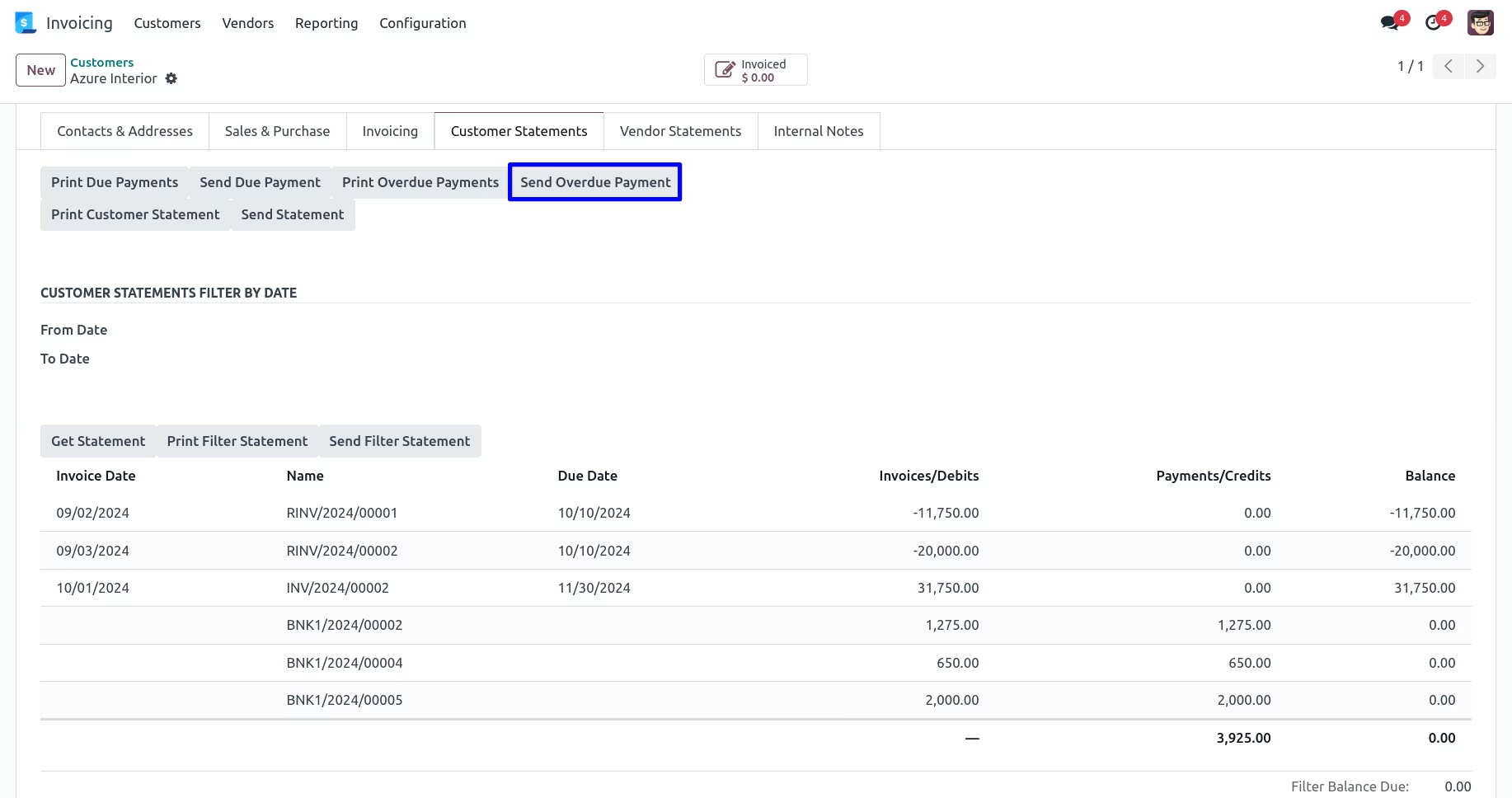
Send Customer Overdue Payment
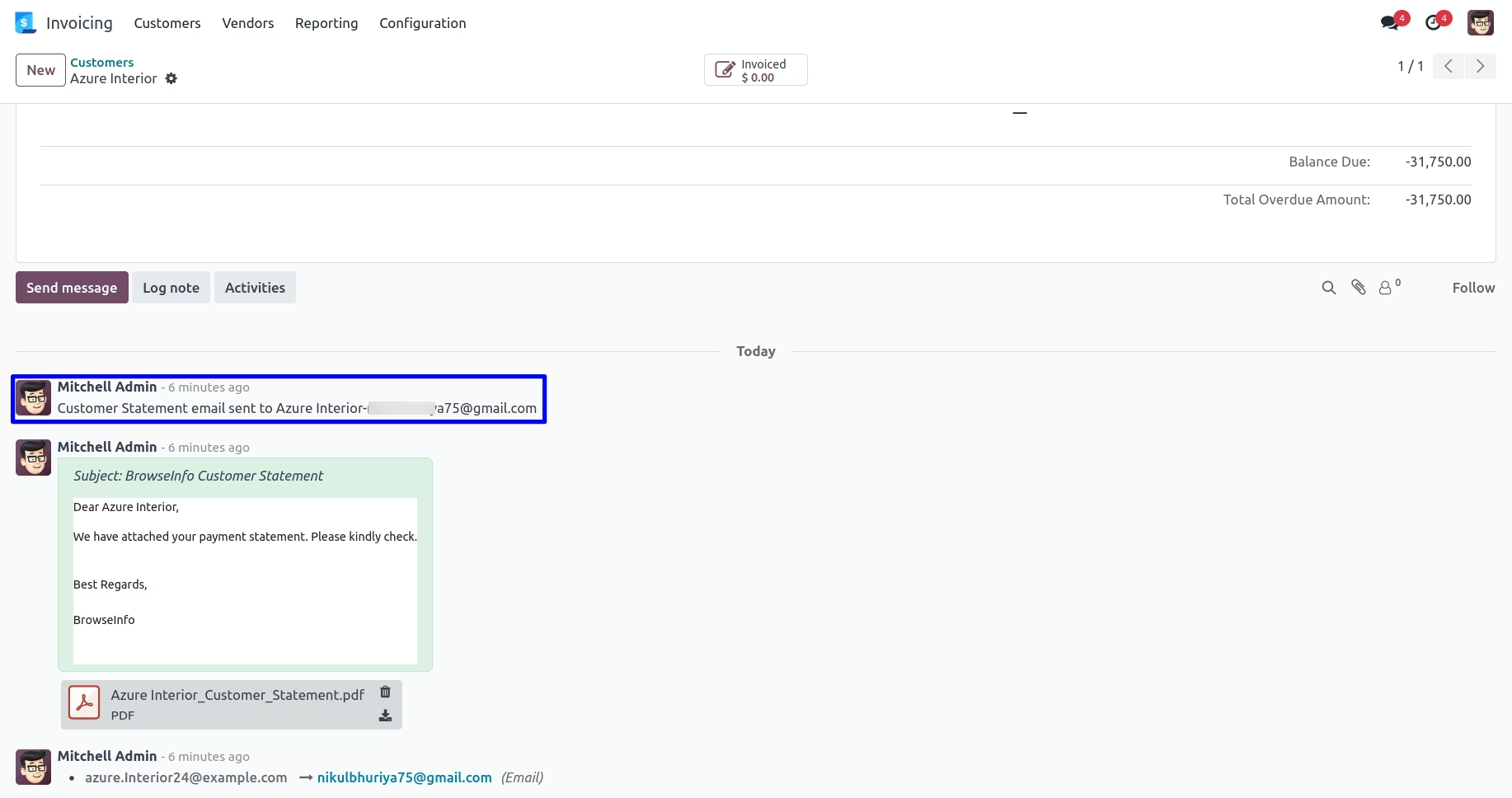
User can send customer overdue payment report from button as shown figure.
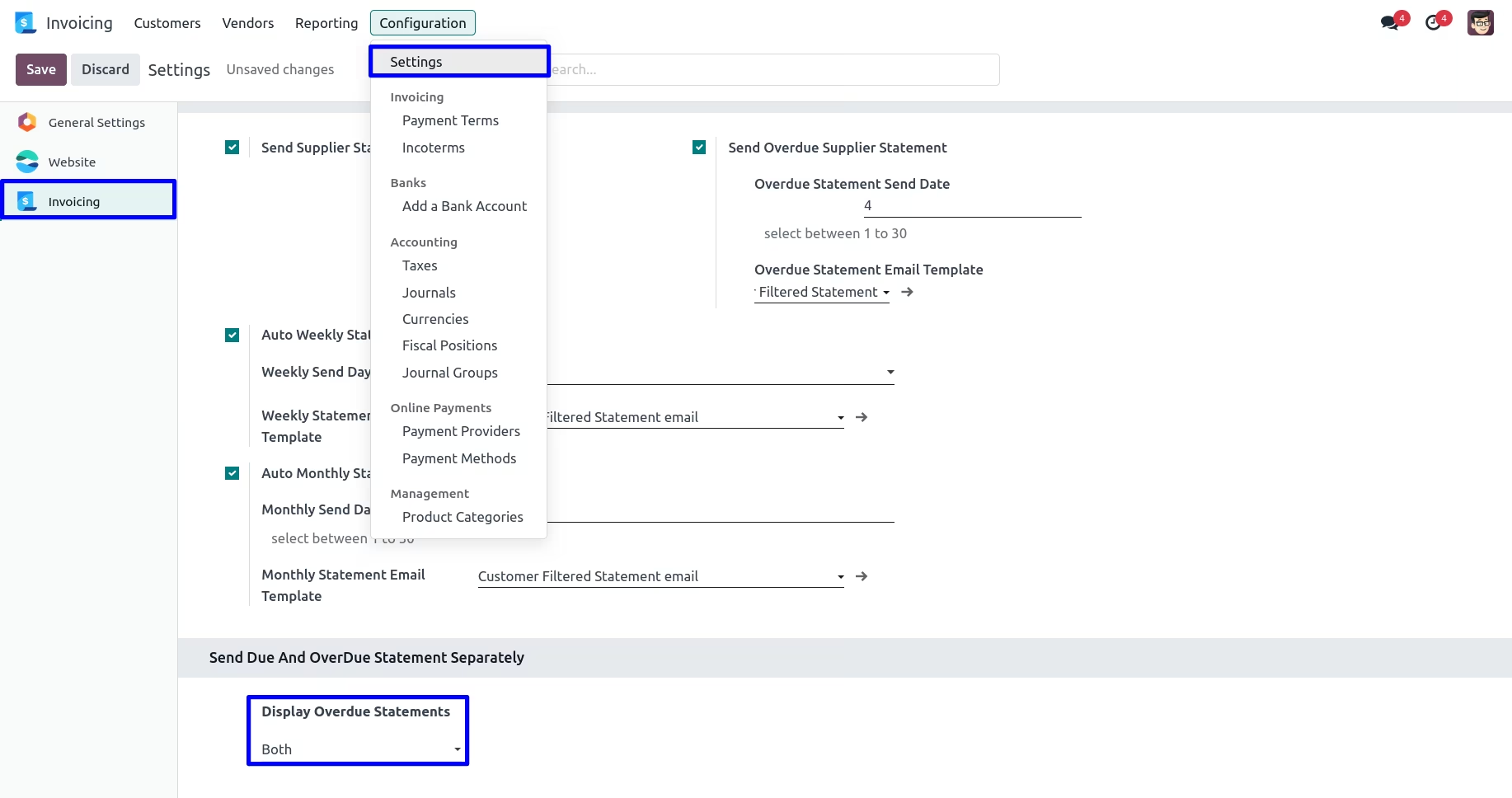
Send Due and OverDue Statement Separately Configuration
Goto Invoicing -> Configuration -> Settings in that user have options to display overdue statements 'Due Only','OverDue Only', and 'Both' statement.
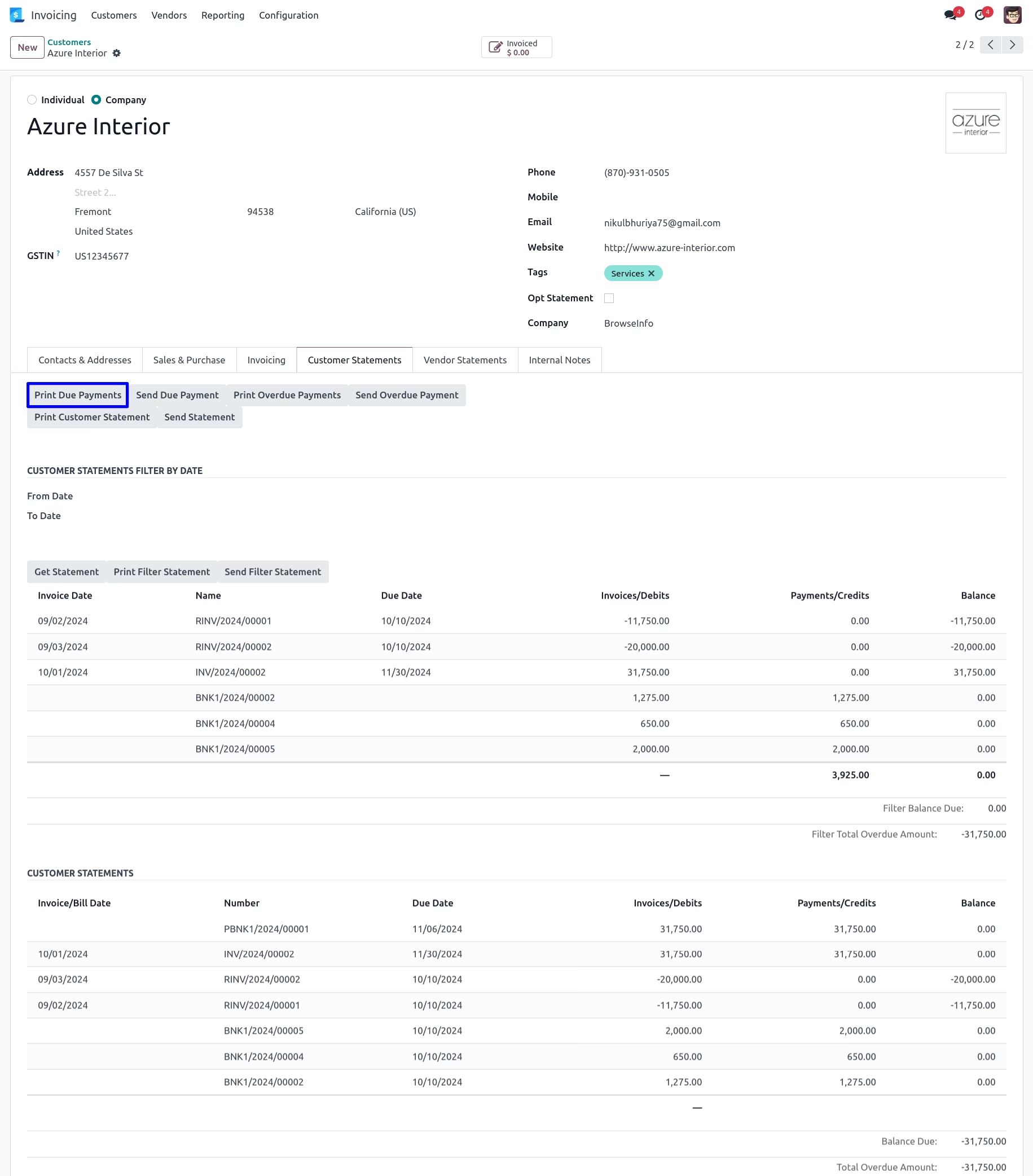
Print Customer Due Payments
User can print customer due payments report by clicking "PRINT DUE PAYMENTS" button.
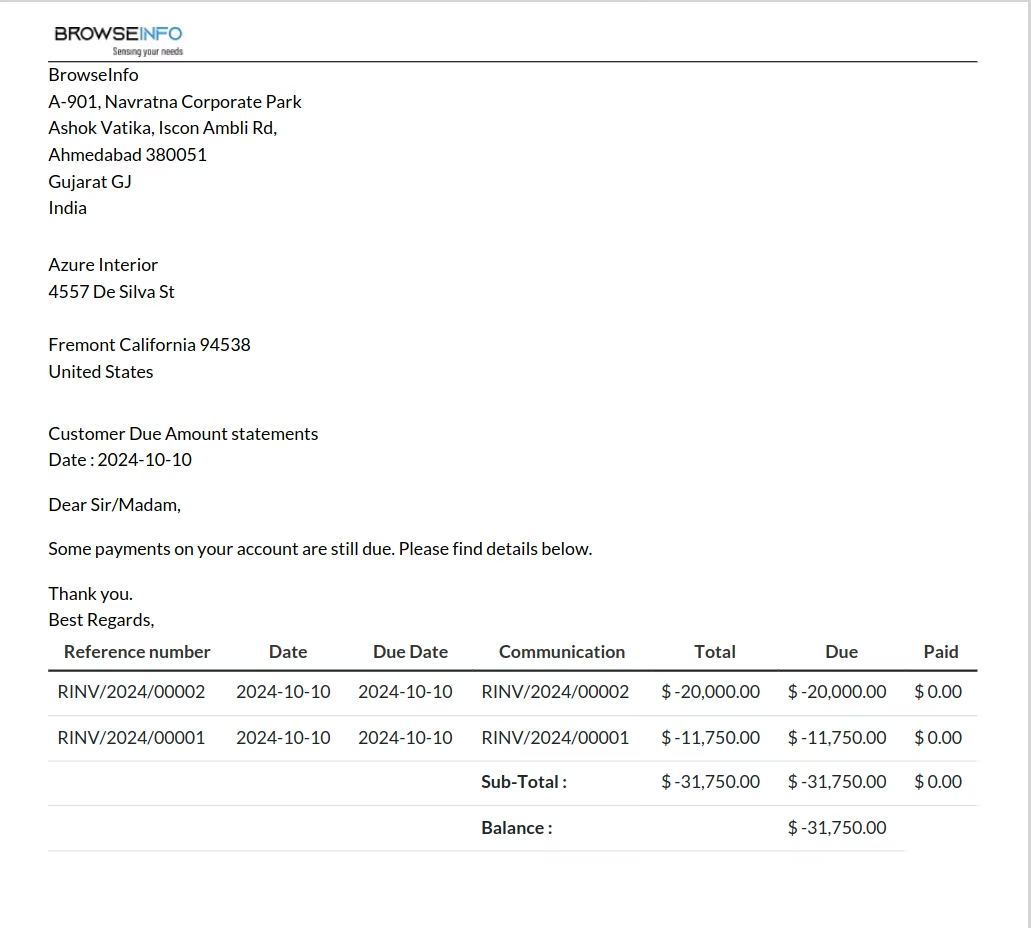
Customer Due Payments Report
User can see printed customer due payments report.
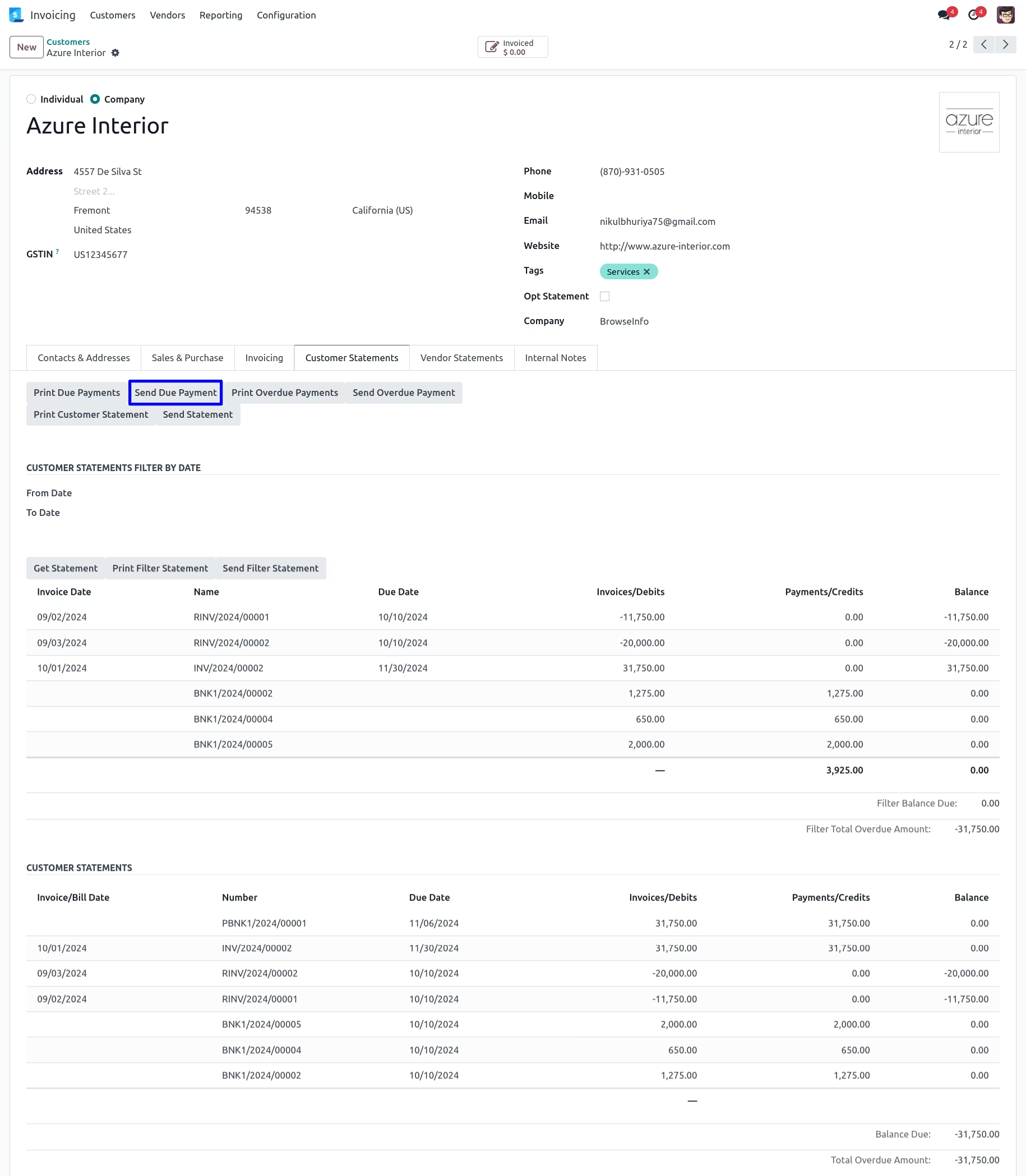
Send Customer Due Payments Report
User can send customer due payments report by mail by clicking "SEND DUE PAYMENT" button.
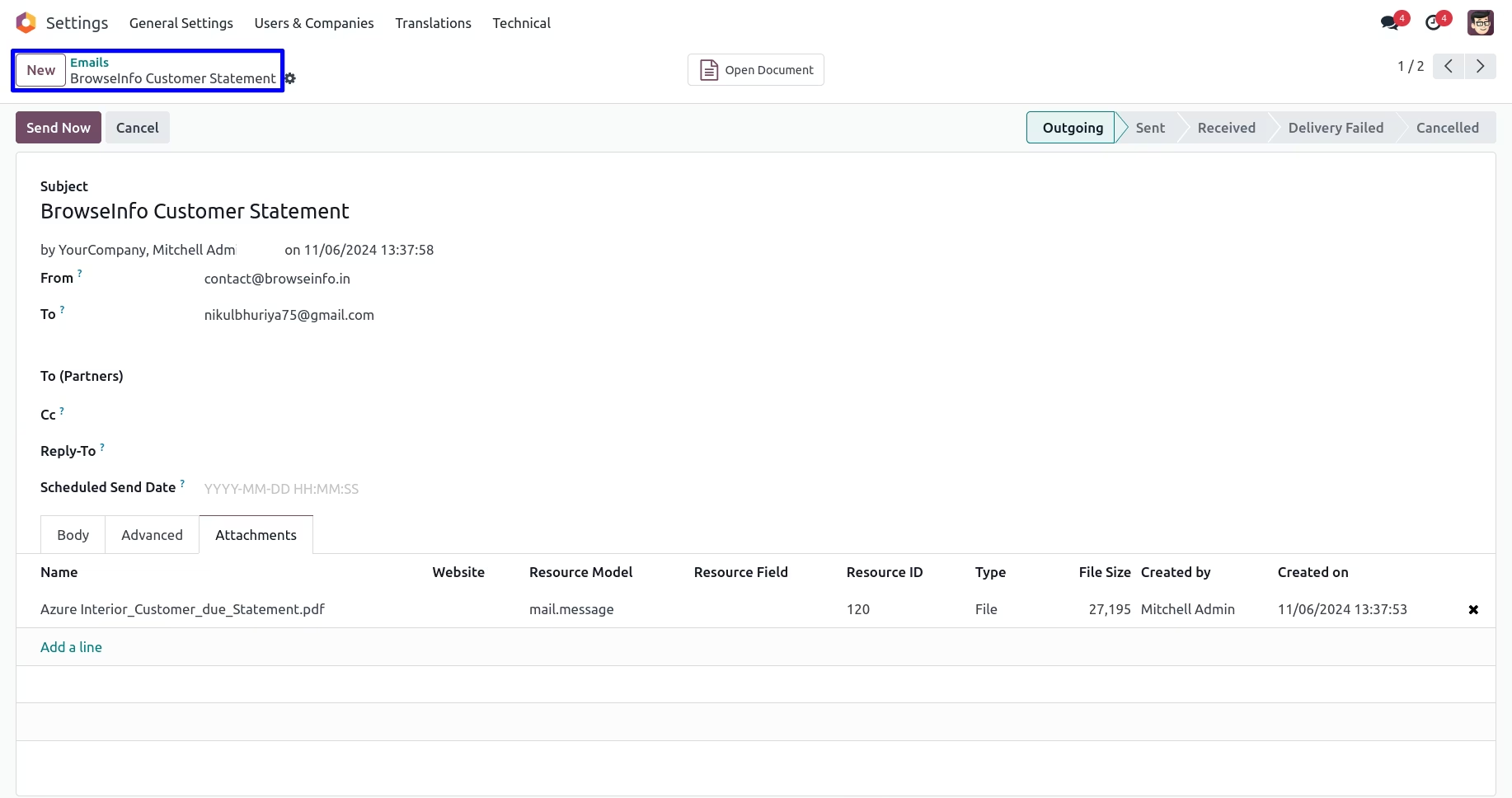
User can see sent mail with attached customer due payments report.
Statement Filter By dates
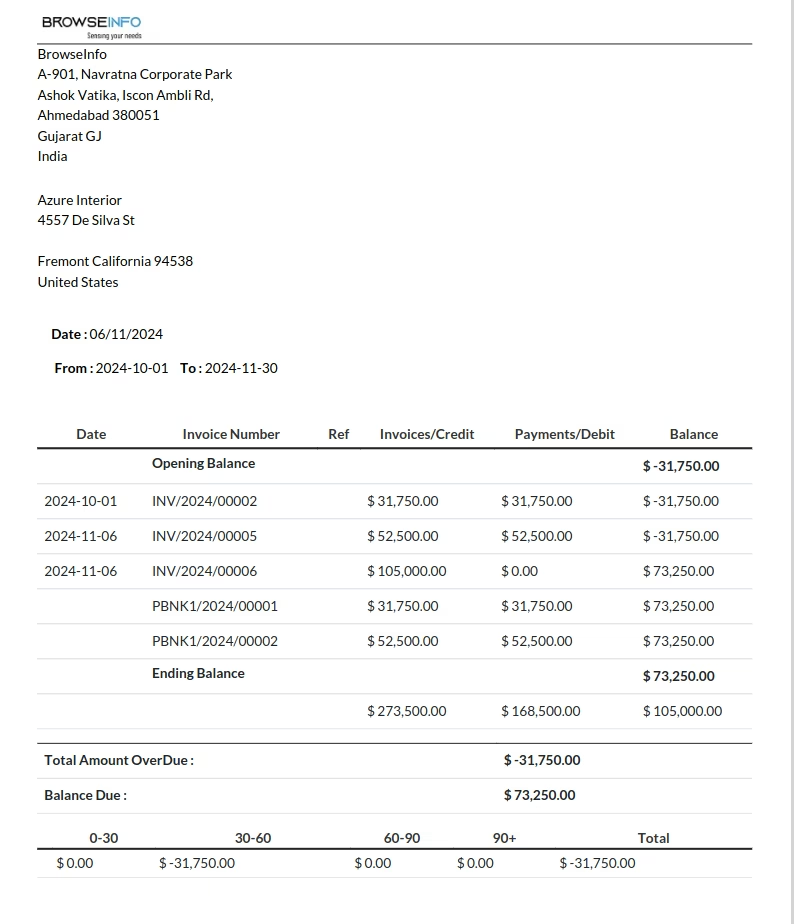
When there are many lines on statements then we provide extra feature to filter statement by date to see statement for certain selected period and easily print it for selected date range,This also print balance overdue and total amount overdue for selected date range.
Customer Statement Report With Date Filter
When you click on "Get statement" after applied the filter it will provide statement details for selected date range as shown in image.
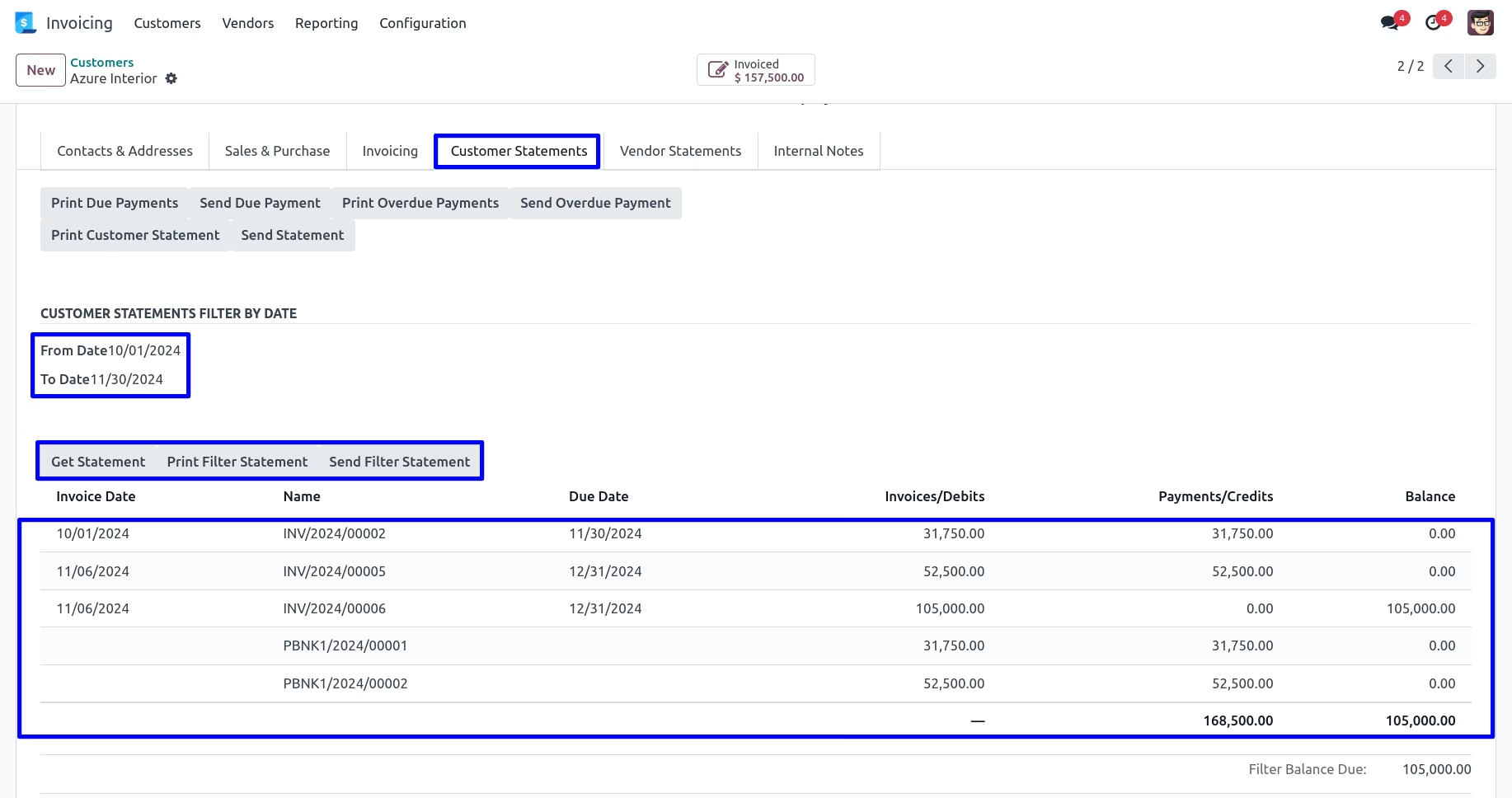
Customer Statement Report with date filter.
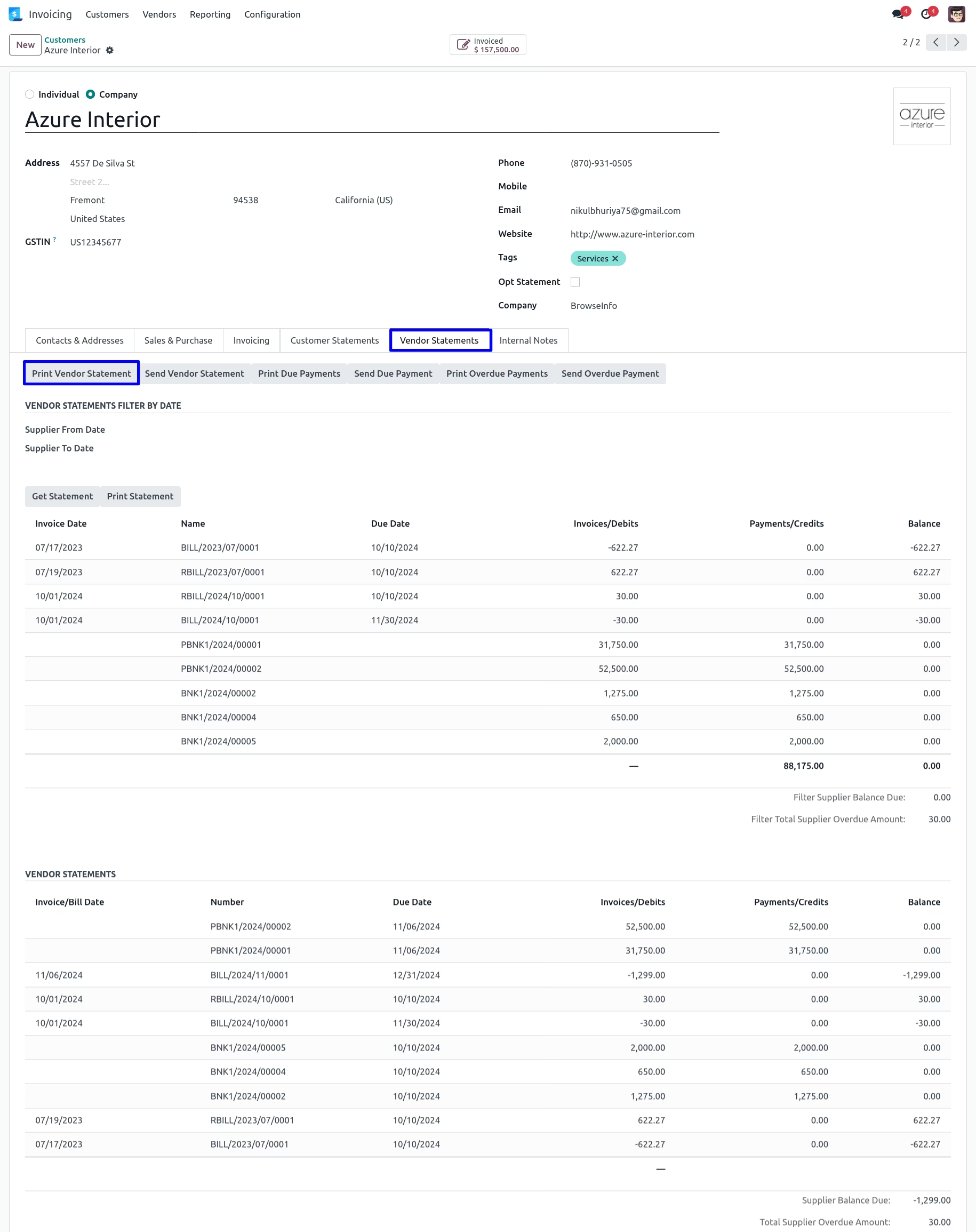
Vendor Statement
User can find "Vendor Statement" tabs on vendor form view, User also can print vendor statements by clicking "PRINT VENDOR STATEMENT" button.
User can see printed vendor statement report.
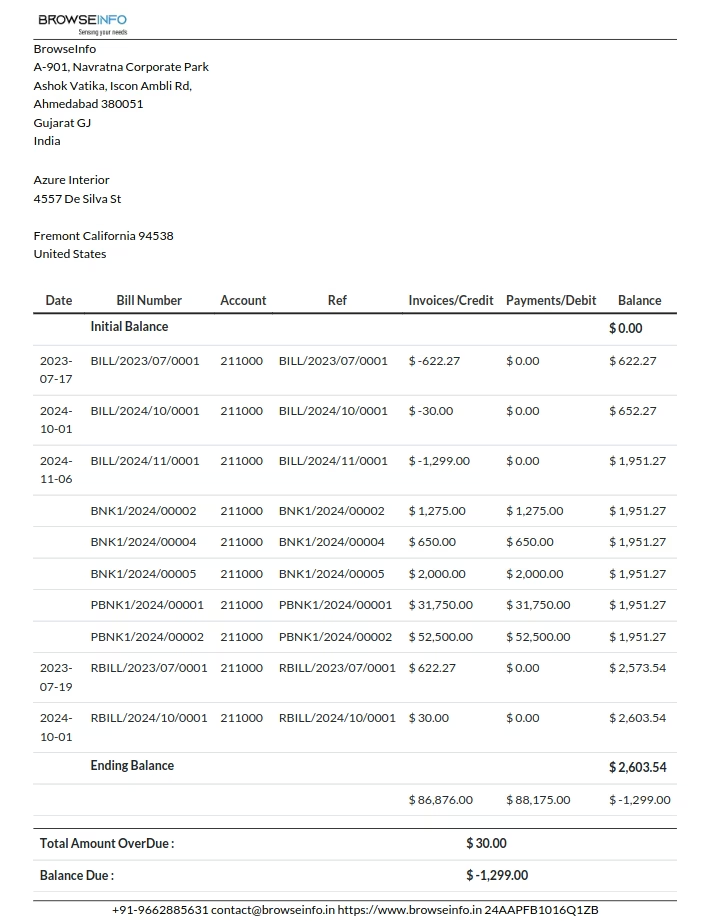
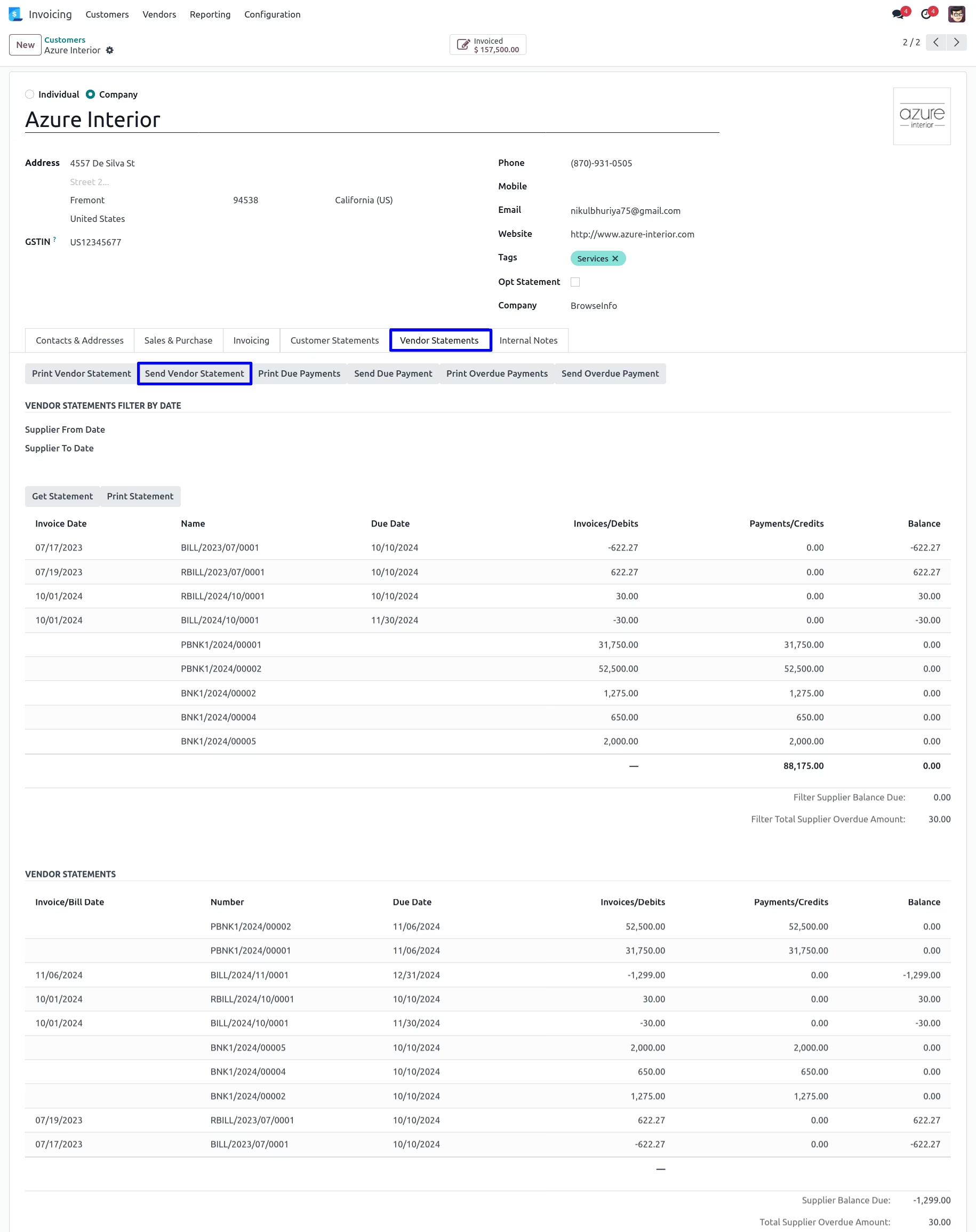
Send Vendor Statement
User can send vendor statement report by mail by clicking "SEND VENDOR STATEMENT" button.
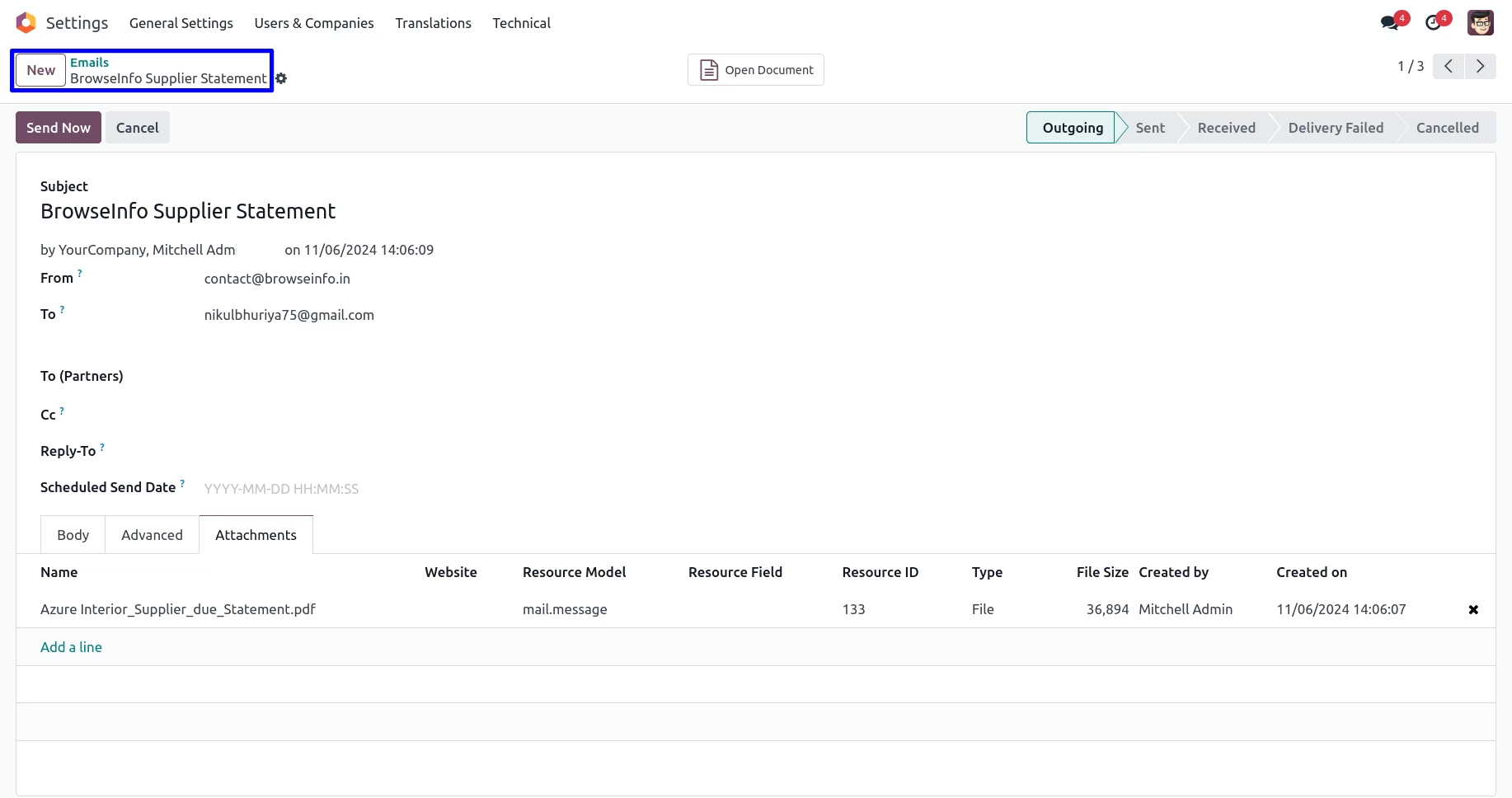
User can see sent mail with attached vendor statement report.
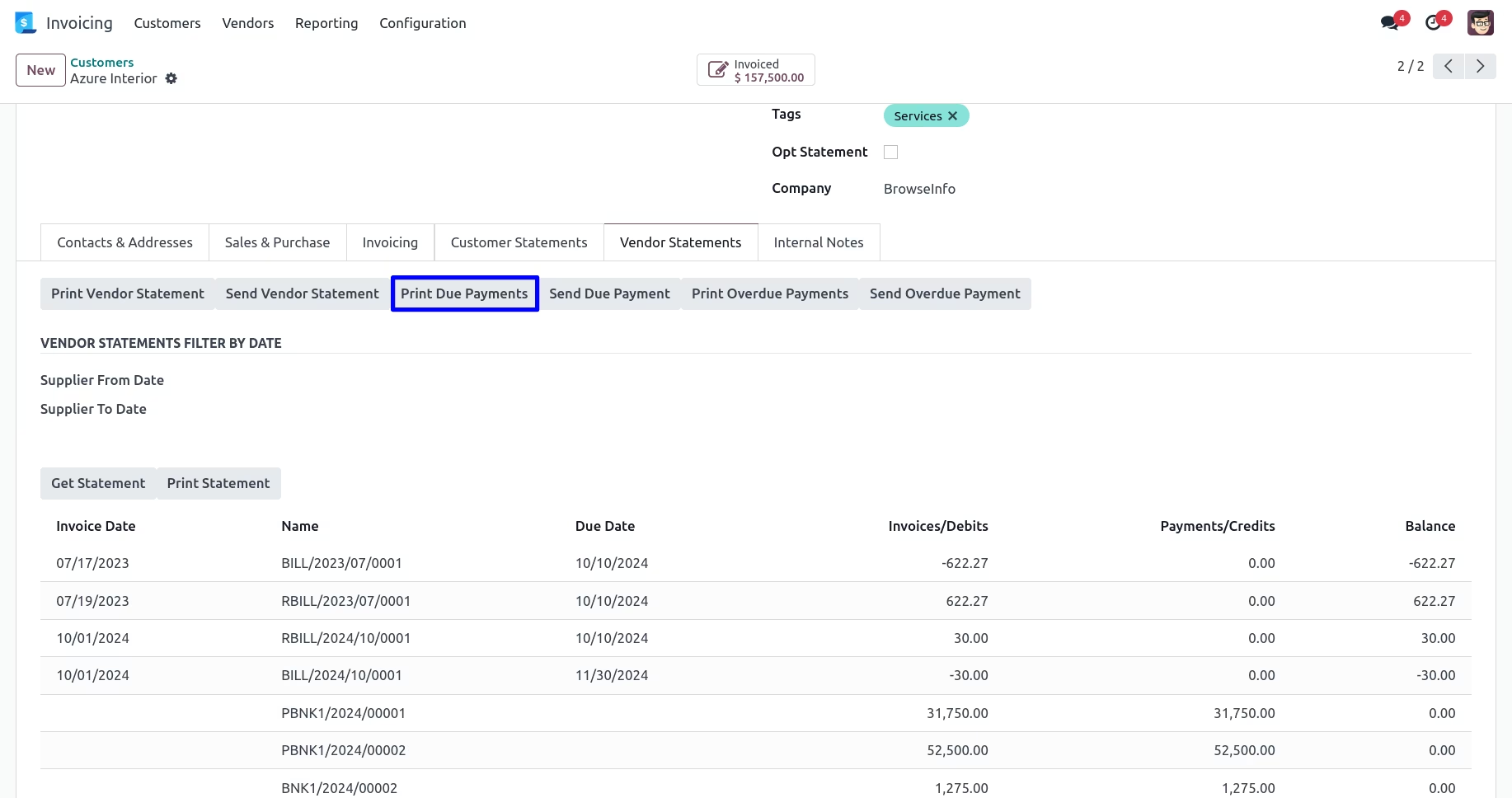
Print Vendor Due Payments
User can print vendor due payments report by clicking "PRINT DUE PAYMENTS" button.
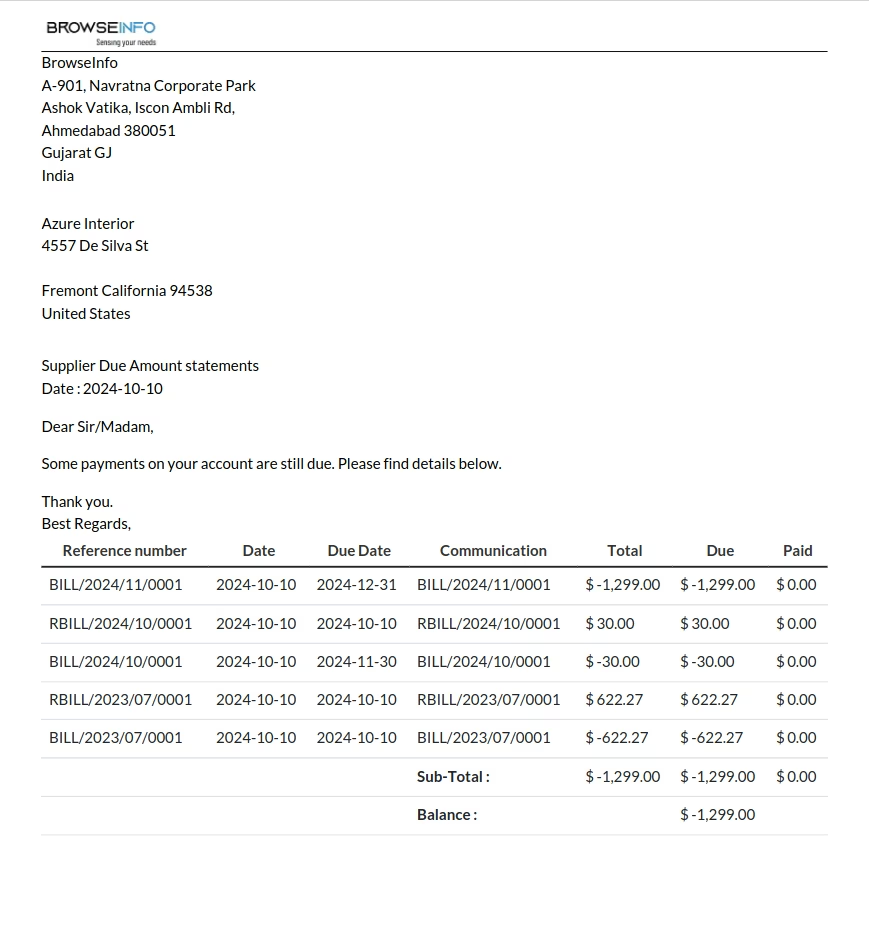
Vendor Due Payments Report
User can see printed vendor due payments report.
Send Vendor Due Payments Report
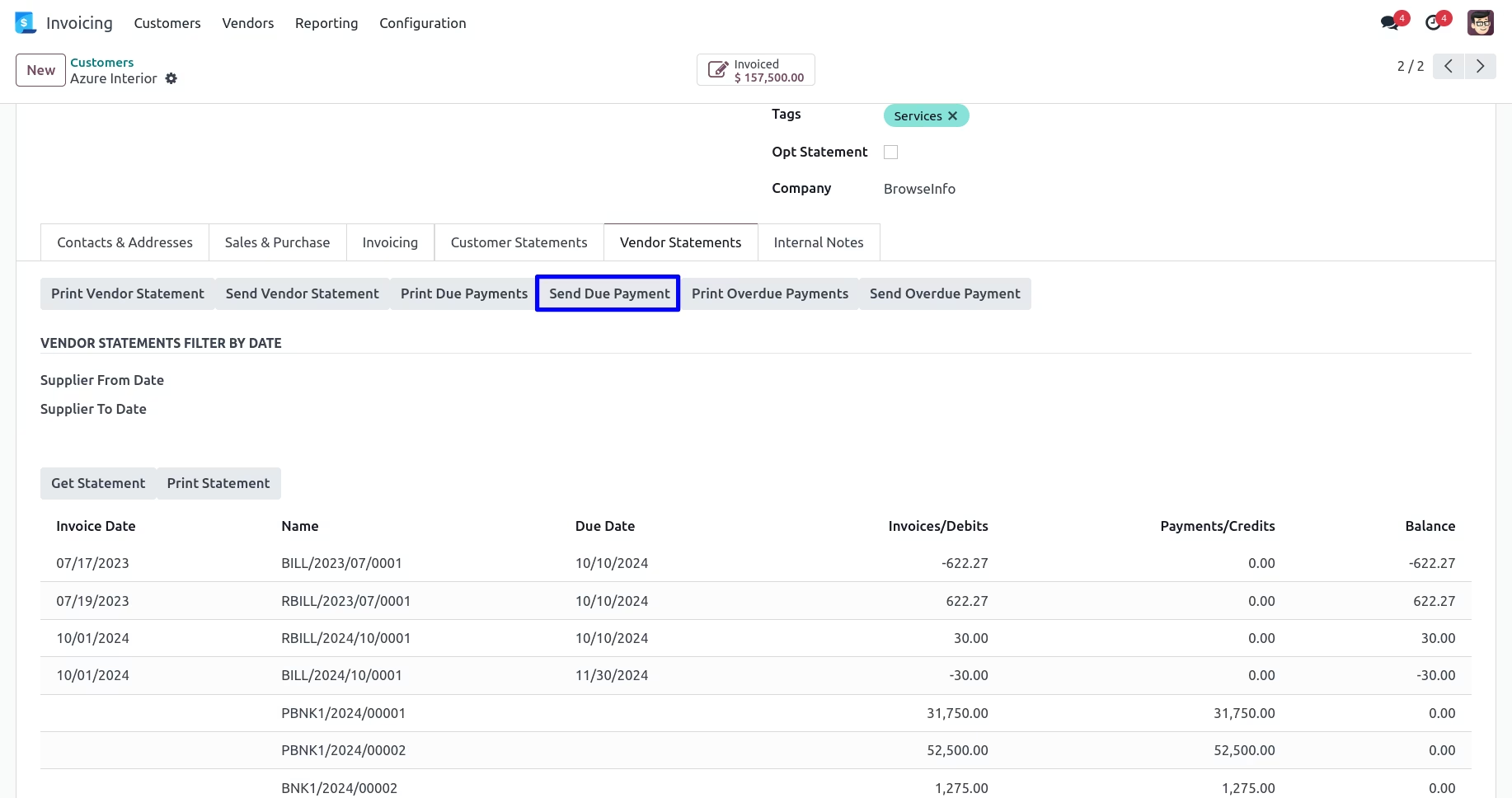
User can send vendor due payments report by mail by clicking "SEND DUE PAYMENT" button.
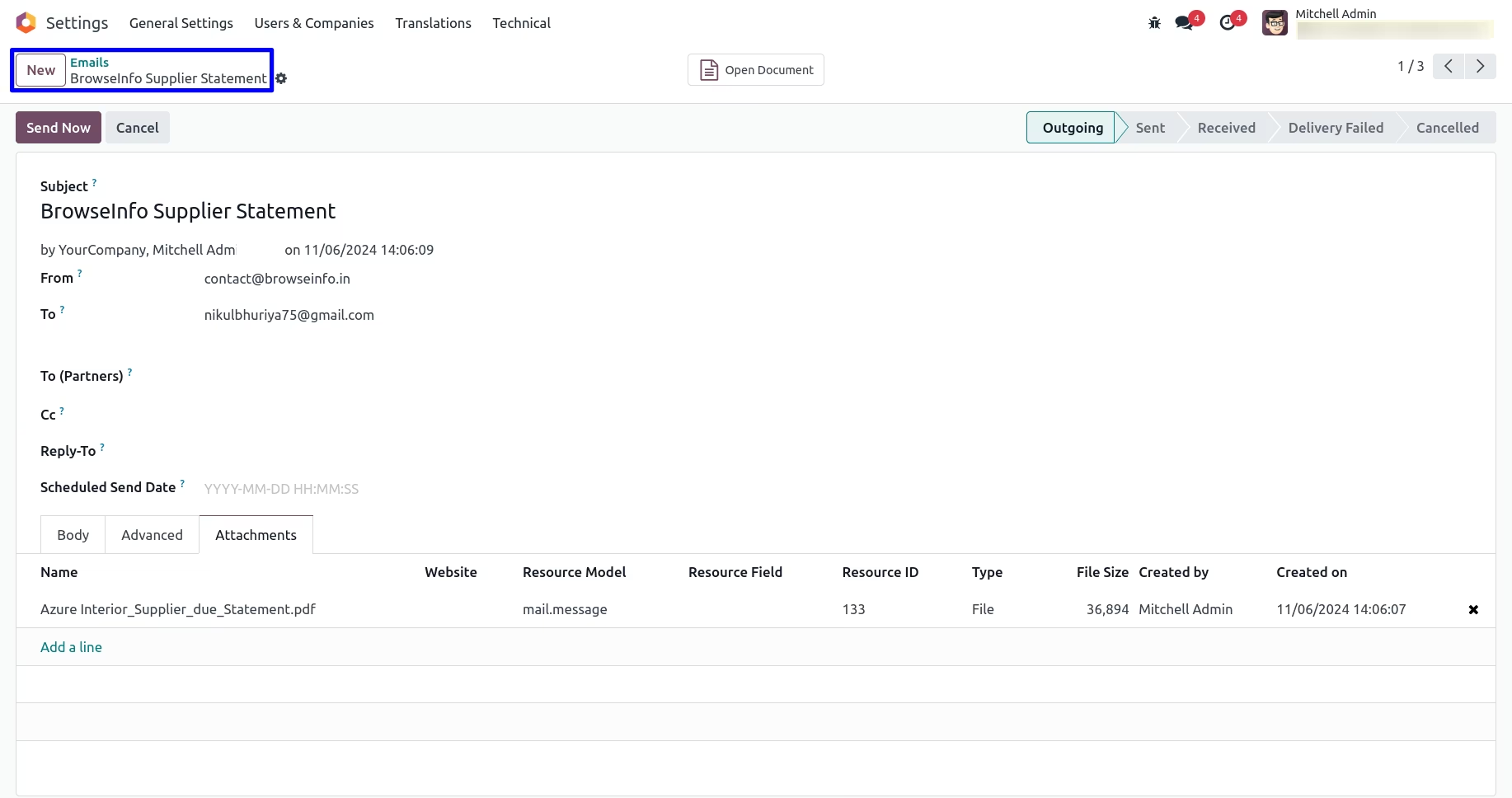
User can see sent mail with attached vendor due payments report.
Print Vendor Overdue Payments
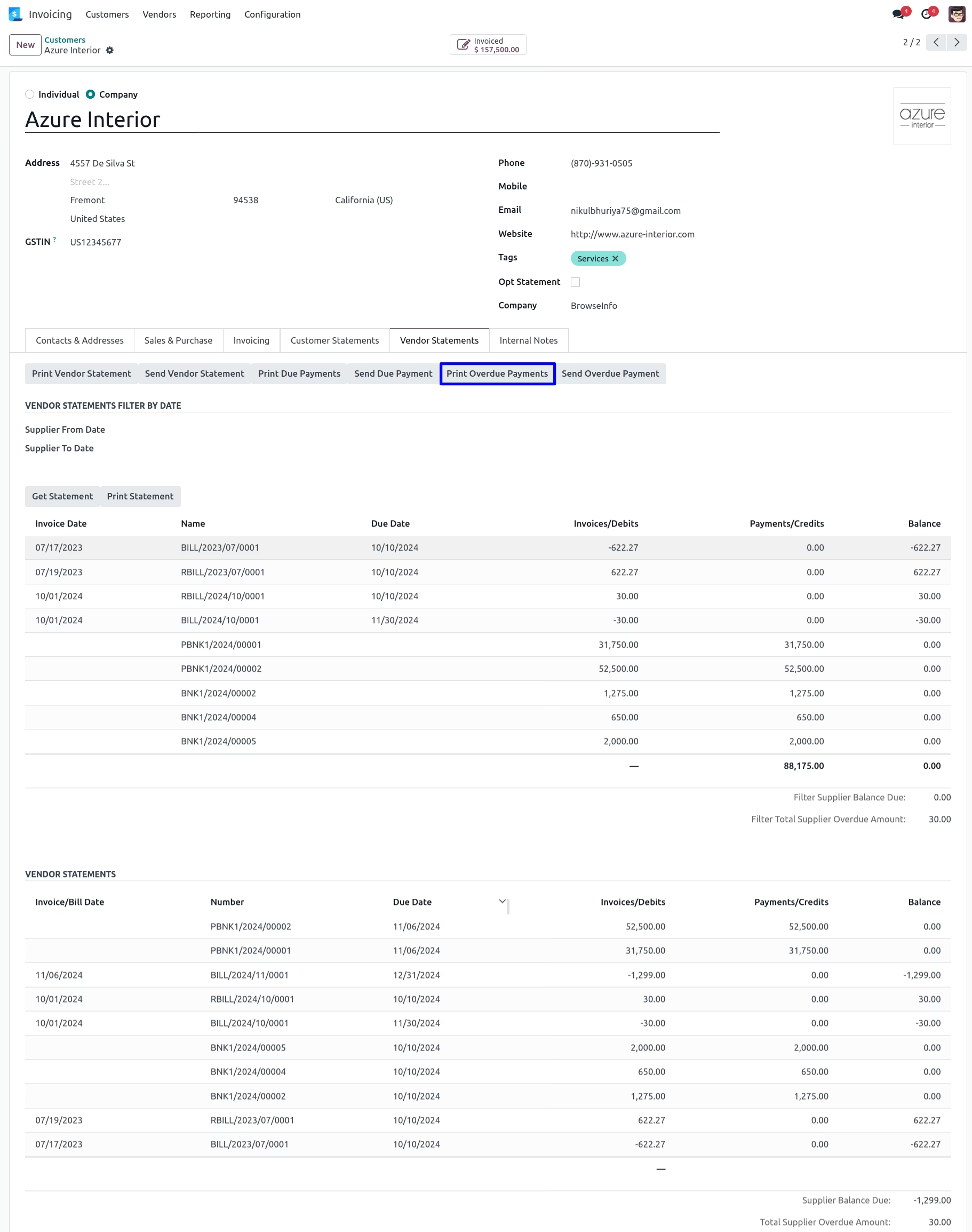
User can print vendor overdue payments report by clicking "PRINT OVERDUE PAYMENTS" button.
Vendor Overdue Payments Report
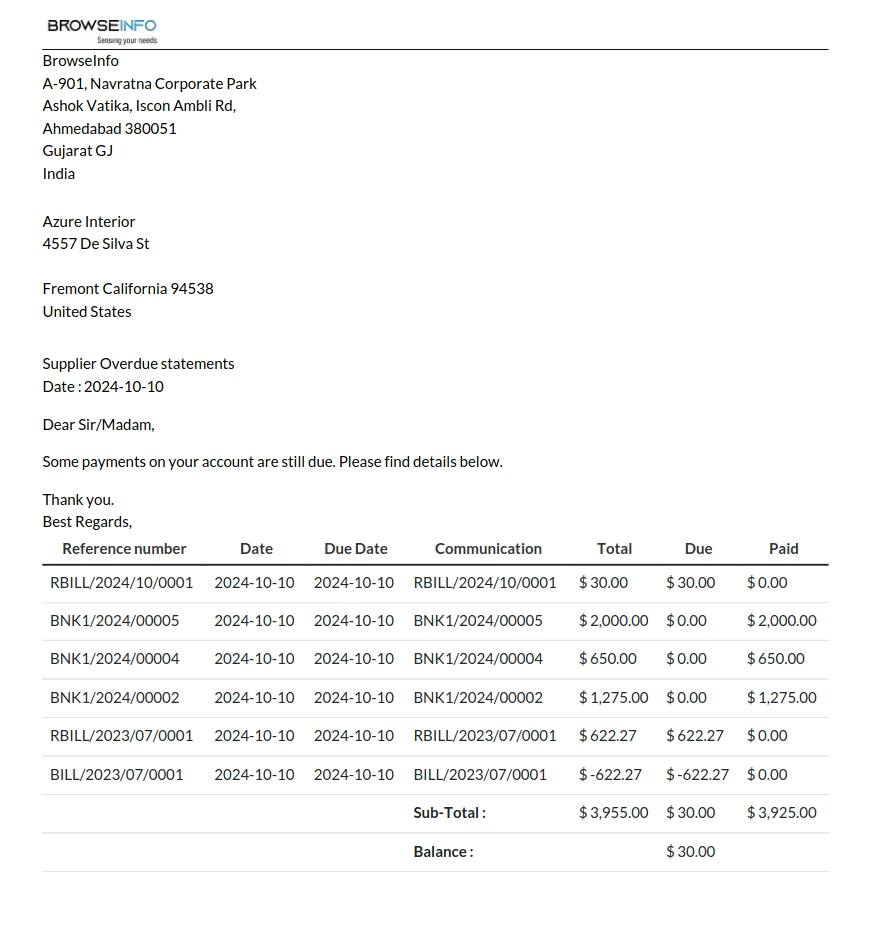
User can see printed vendor overdue payments report.
Send Vendor Overdue Payments Report
User can send vendor overdue payments report by mail by clicking "SEND OVERDUE PAYMENT" button.
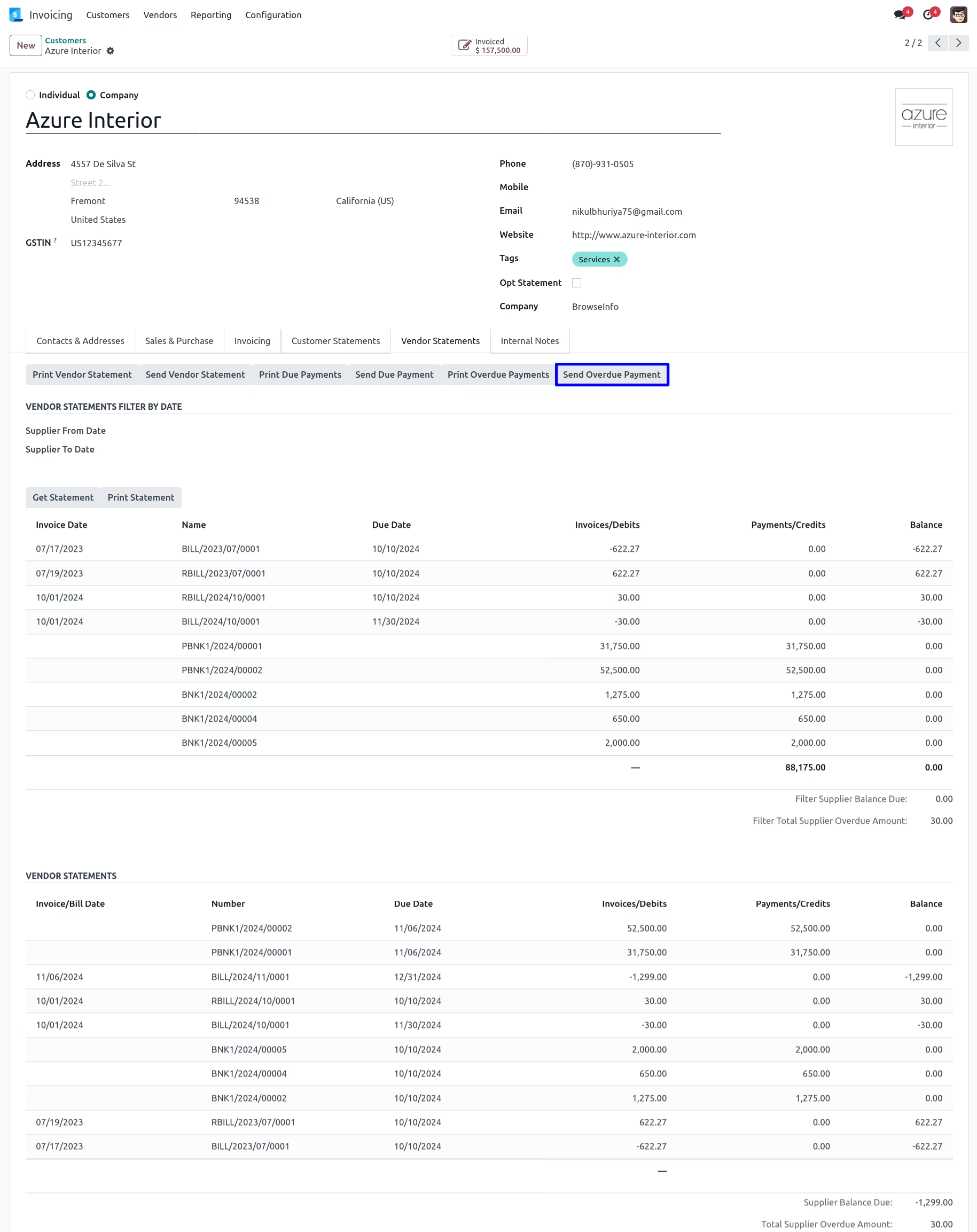
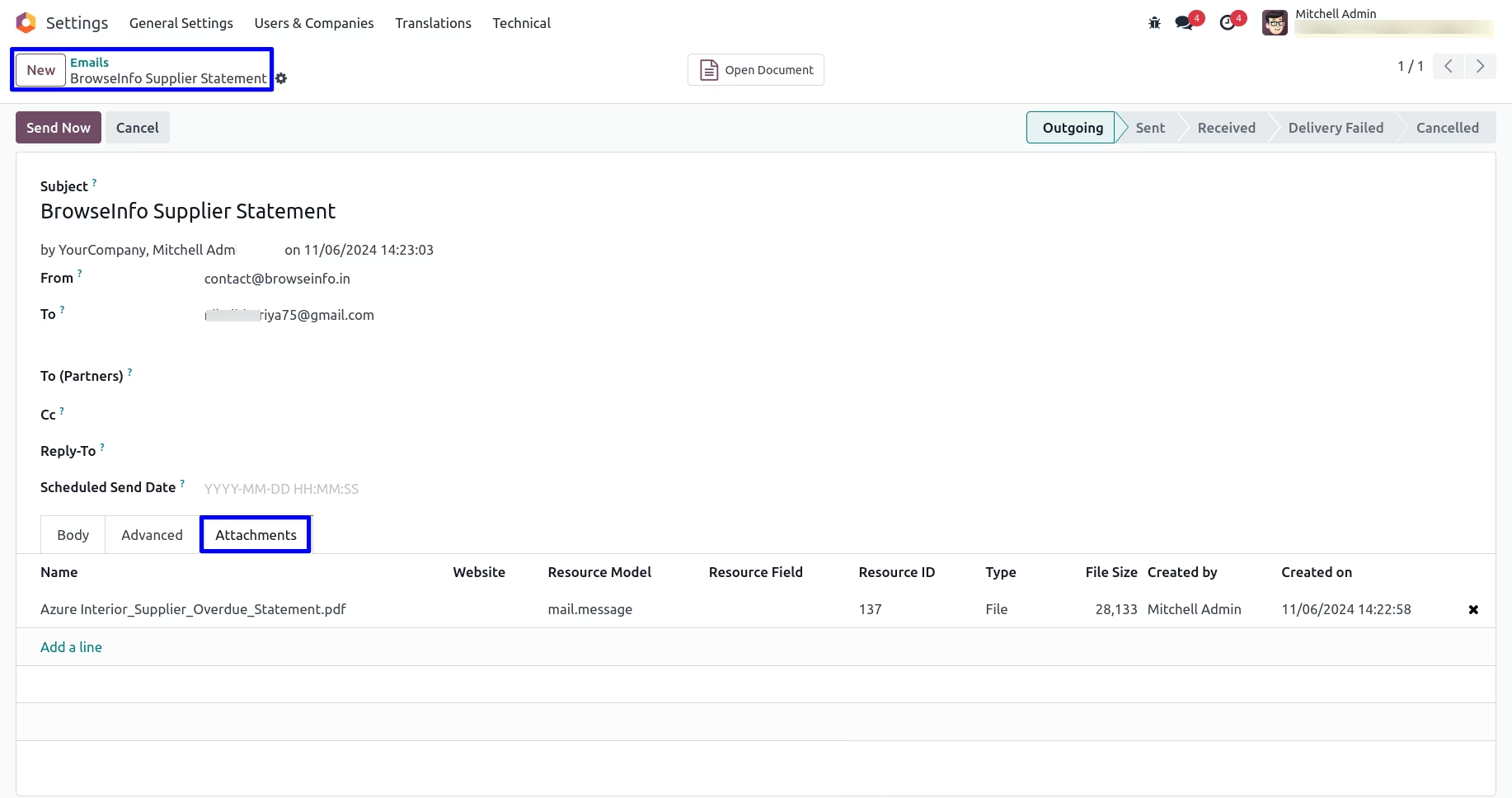
User can see sent mail with attached vendor overdue payments report.
Vendor Statement Report With date filter
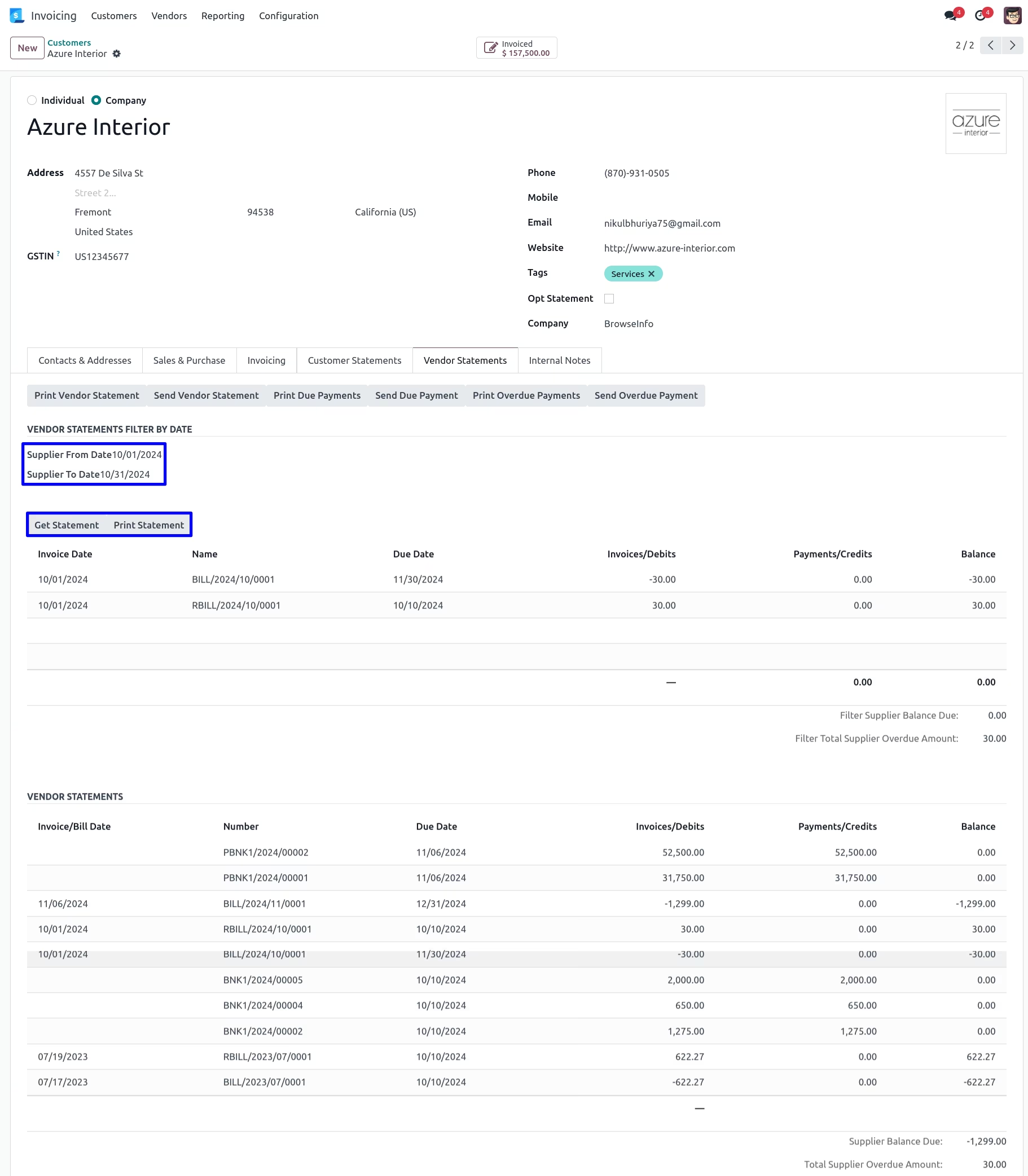
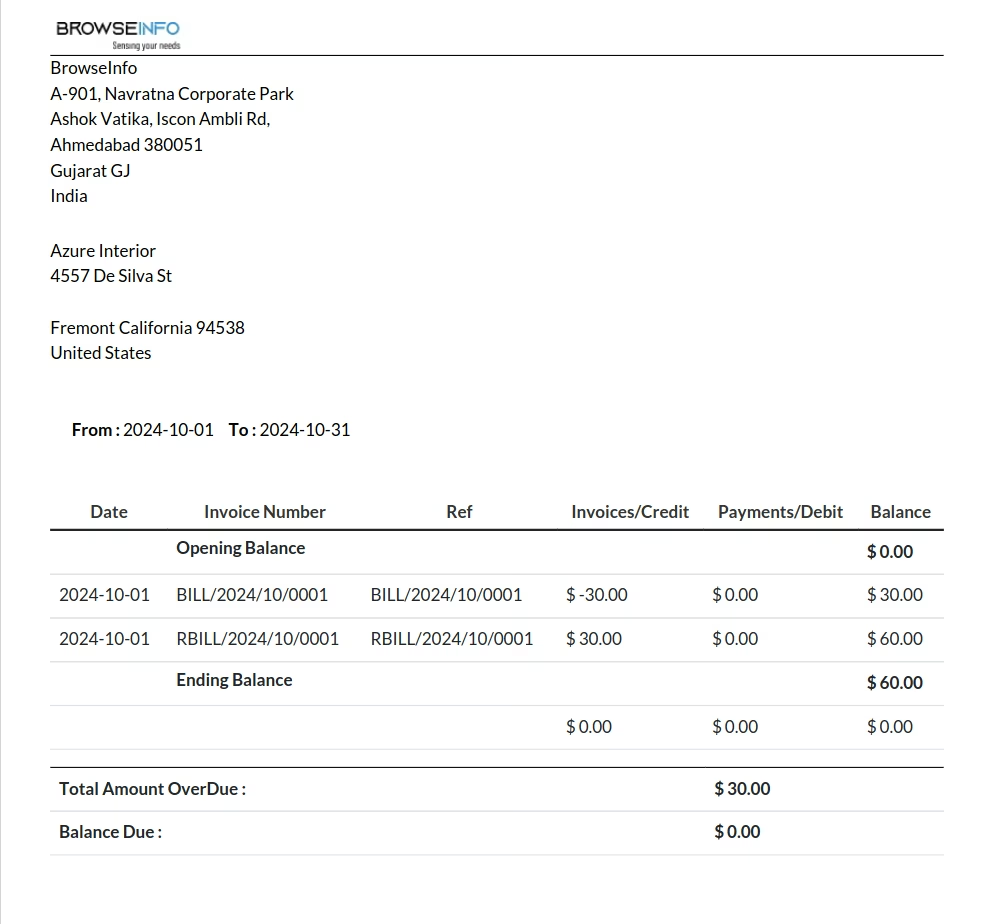
Vendor Statement Report can be seen with date filter.
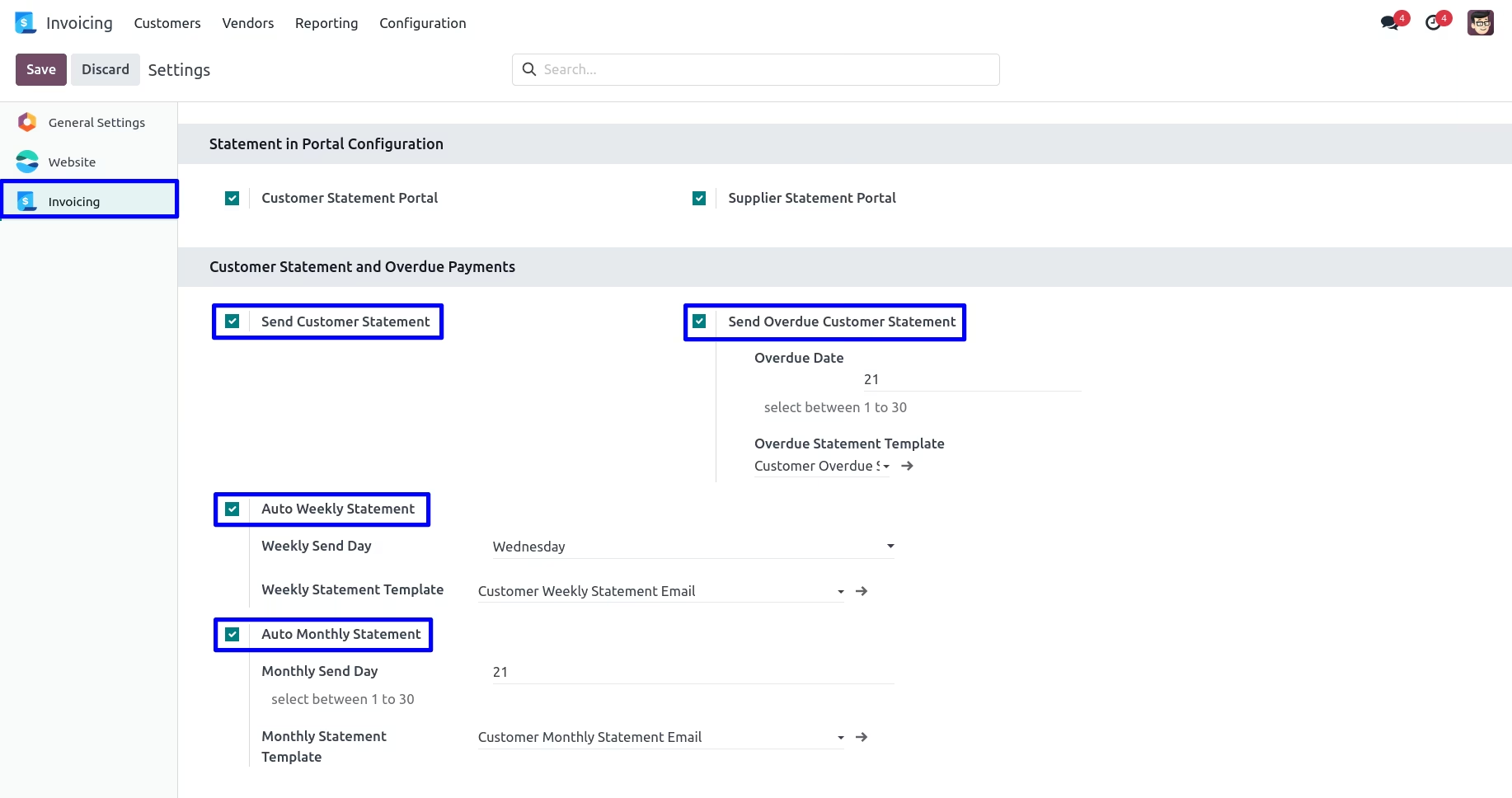
Auto Send Customer Statement Mail
Enabling "Send Customer Statement" in Invoice settings lets you schedule statements to customers. Set a date and choose a period: "Monthly" sends last month’s statement, and "All" sends up-to-date statements. "Send Overdue Customer Statement" schedules overdue statements on a selected date.
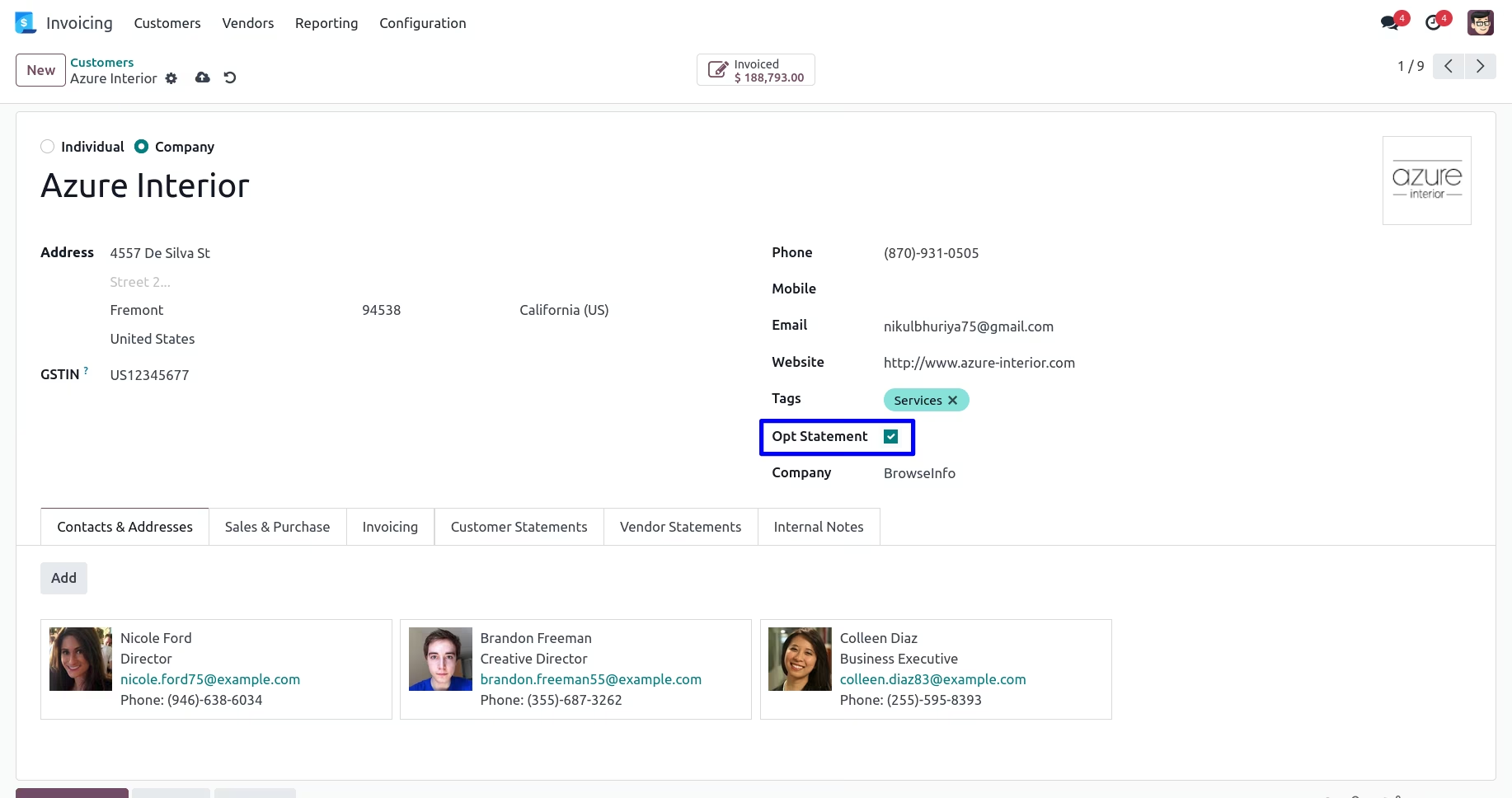
Auto and overdue statements are sent to customers with a statement amount or overdue balance above zero. Use "Opt Automatic Statement Overdue Payment" for selected customers. Customers with "Opt Statement" checked are excluded.
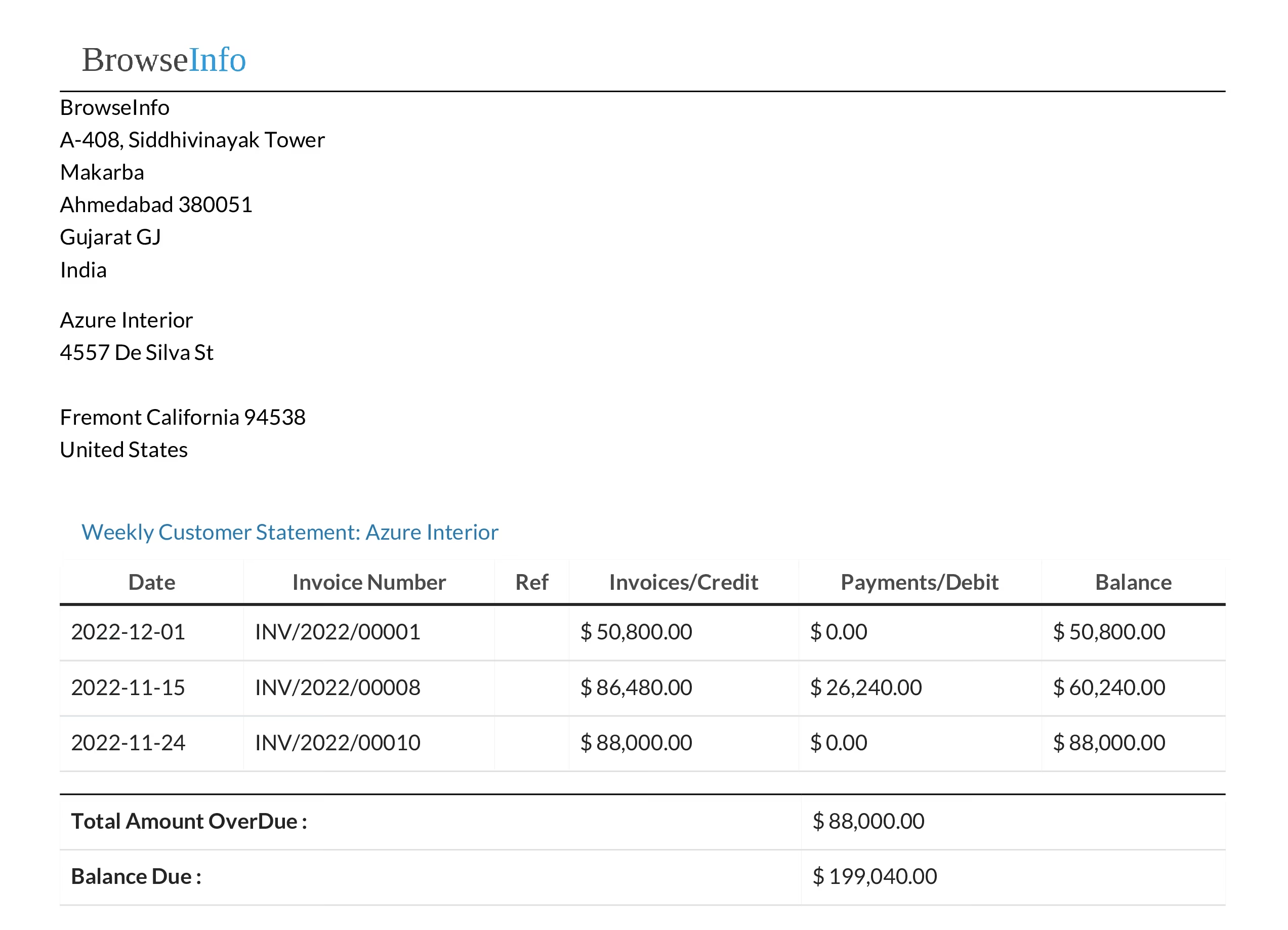
Weekly Statement Report
User can also print statement report from here.
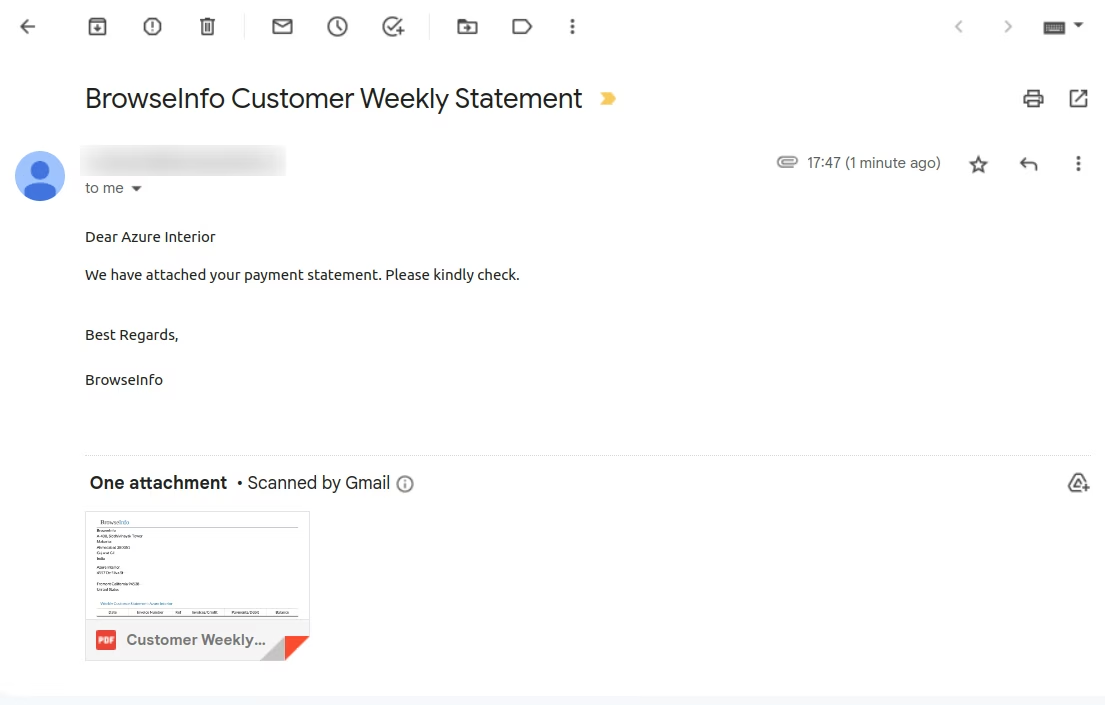
User can also print statement report from here.
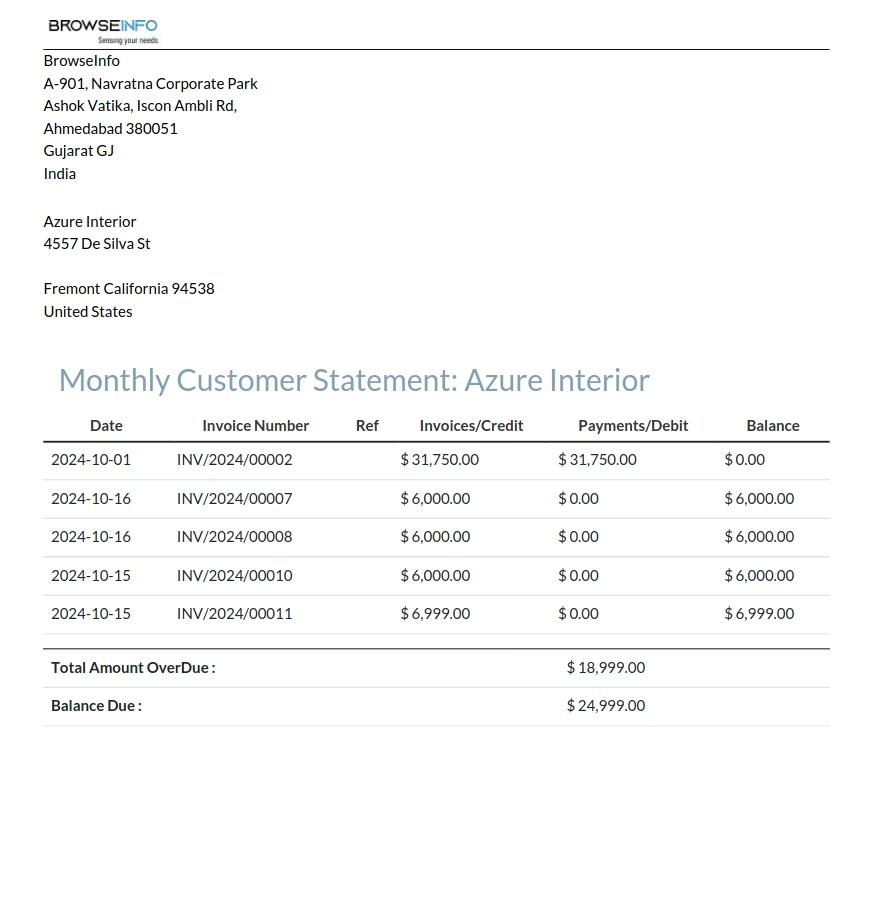
Monthly Statement Report
User can also print statement report from here.
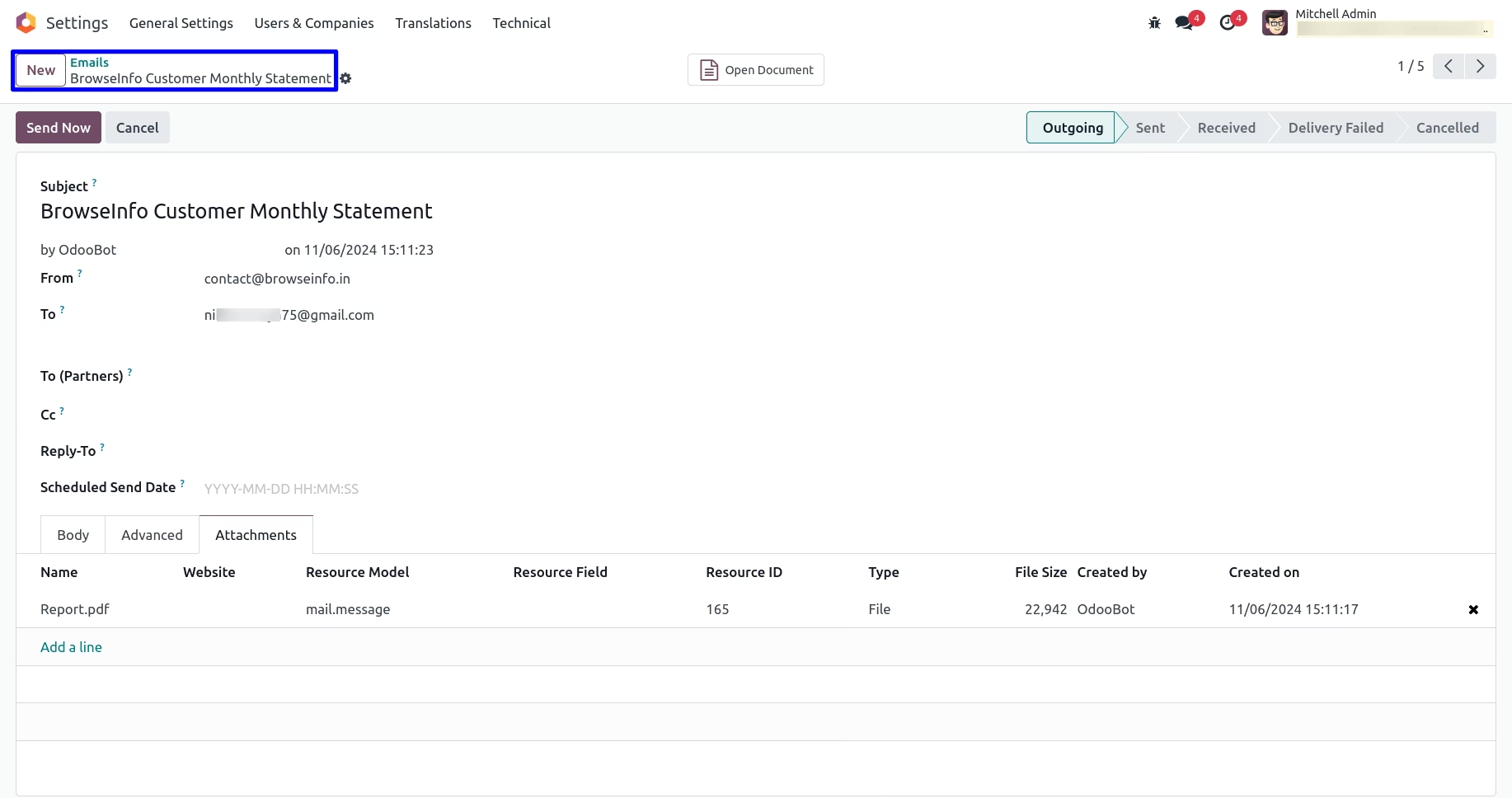
User can also print statement report from here.
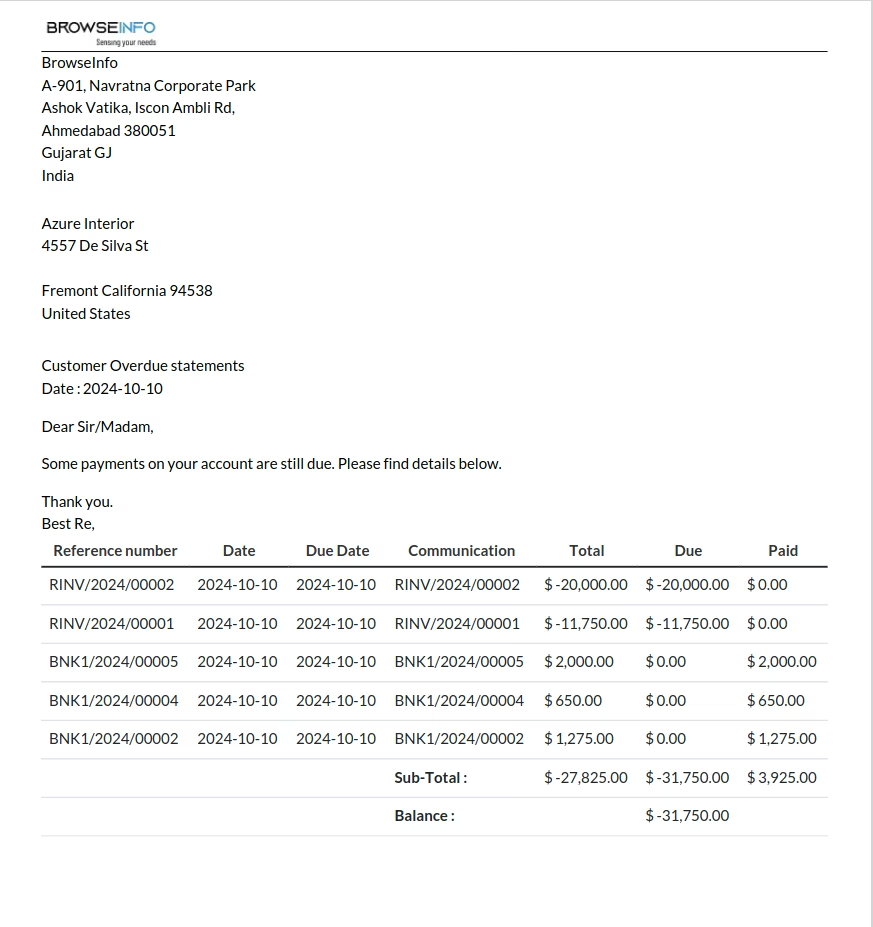
Customer Overdue Statement
User can also print statement report from here.
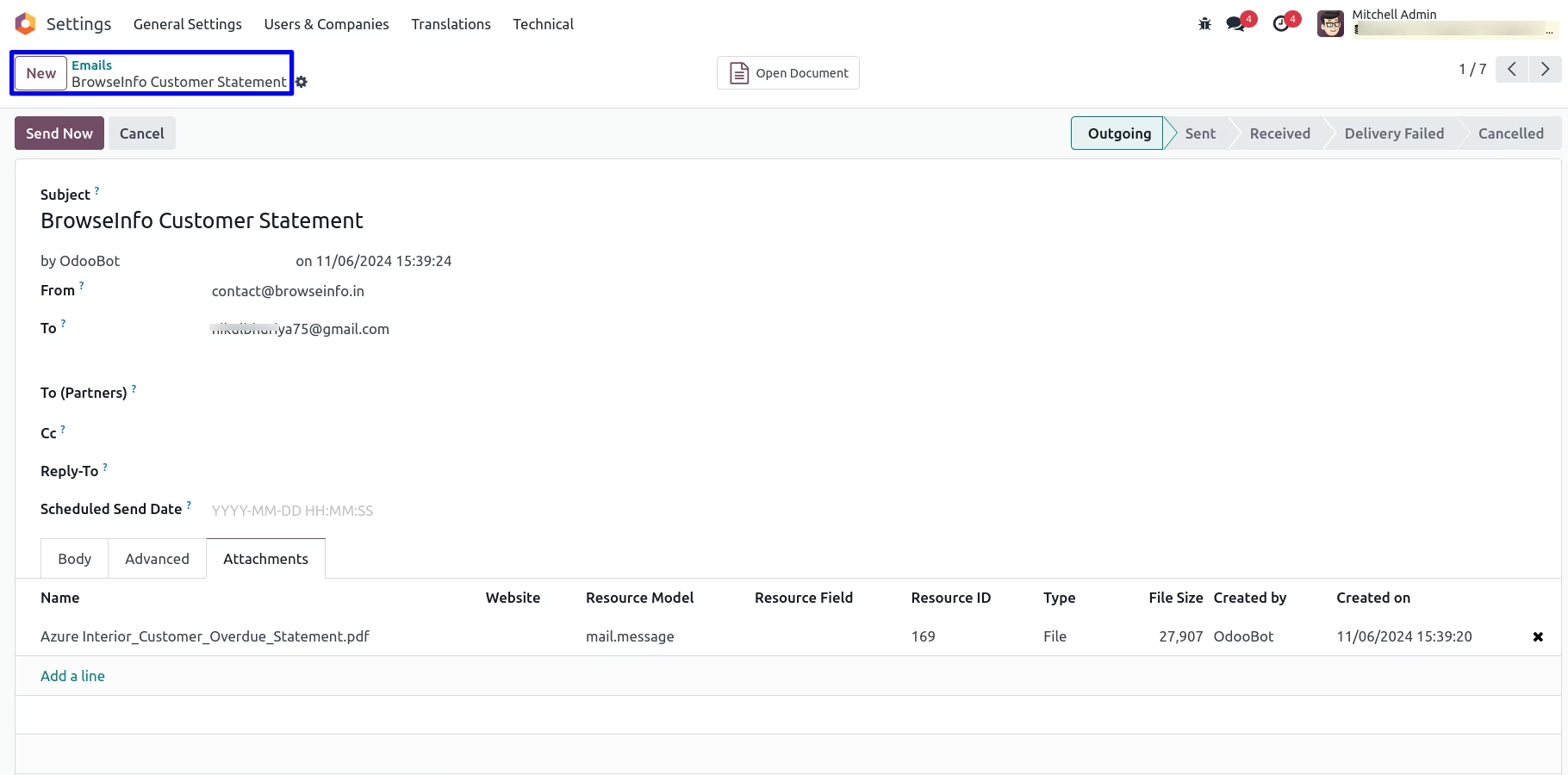
User can also print statement report from here.
Auto Send Supplier Statement Mail
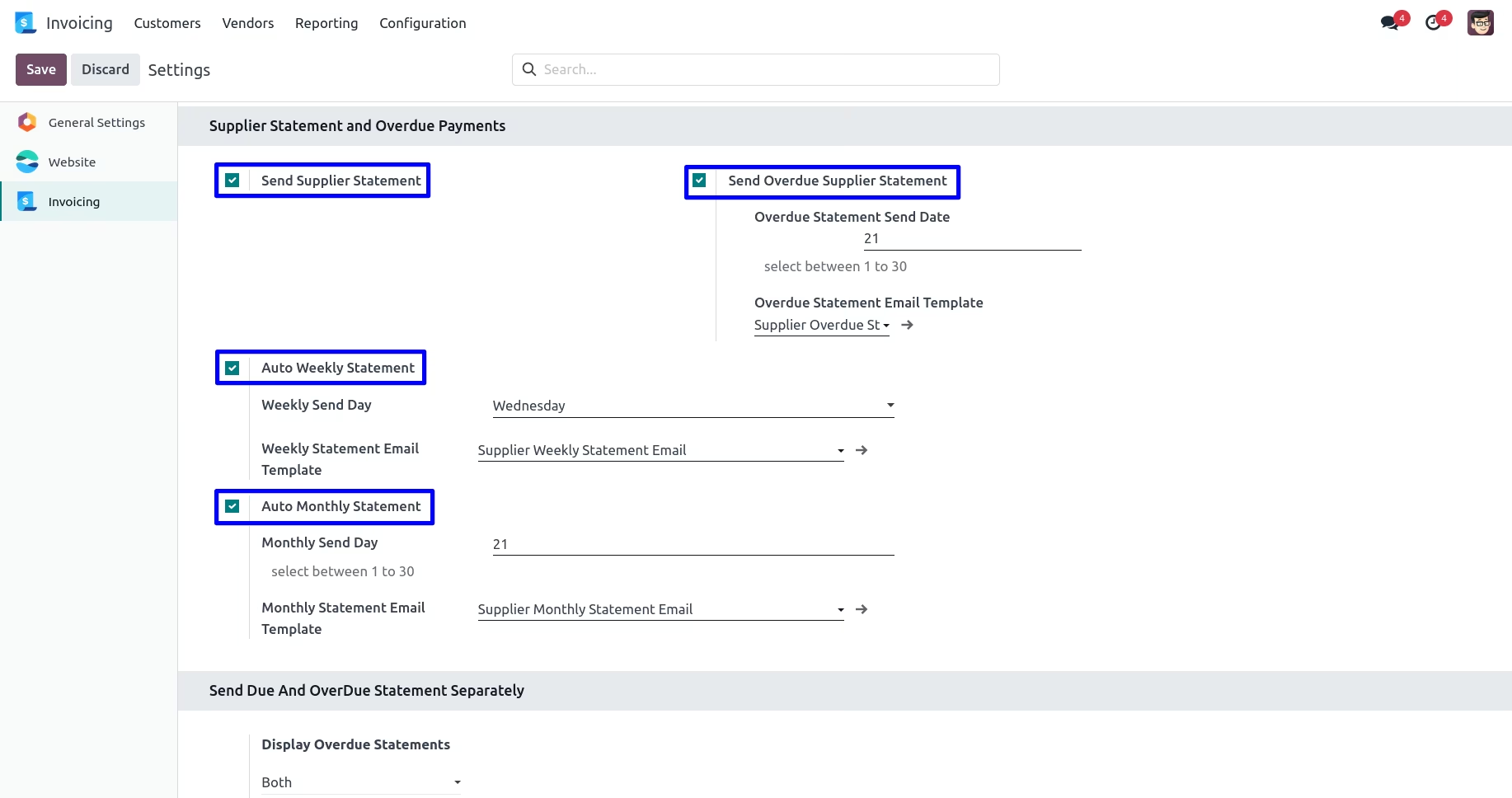
In Invoice settings, enabling "Send Supplier Statement" lets you schedule statements to suppliers. Set a date and choose a period: "Monthly" sends last month’s statement, while "All" sends up-to-date statements. Enabling "Send Overdue Supplier Statement" schedules overdue statements to suppliers on the selected date.
Auto and overdue statements are sent automatically to suppliers with a statement amount or overdue balance greater than zero. You can enable "Opt Automatic Statement Overdue Payment" to send to selected suppliers. Suppliers with "Opt Statement" checked won't receive these reports.
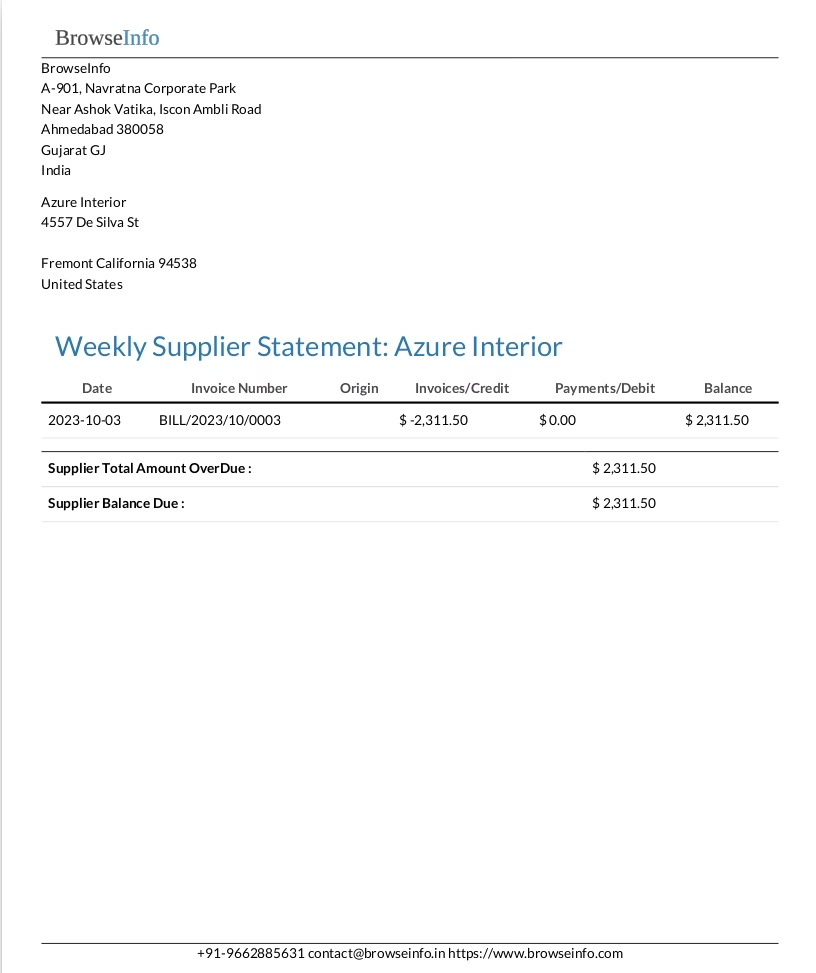
Weekly Statement Report
User can also print statement report from here.
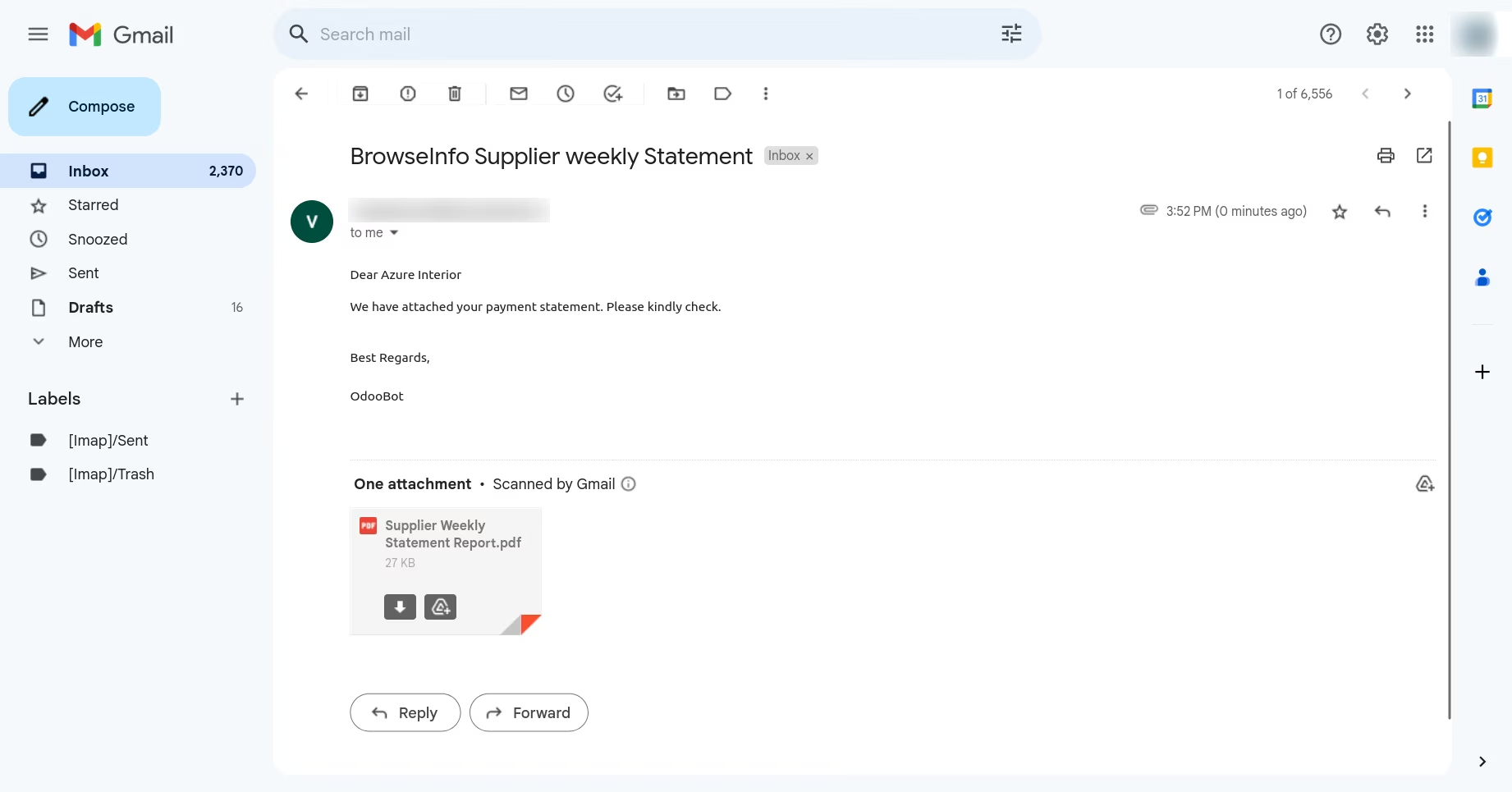
User can also print statement report from here.
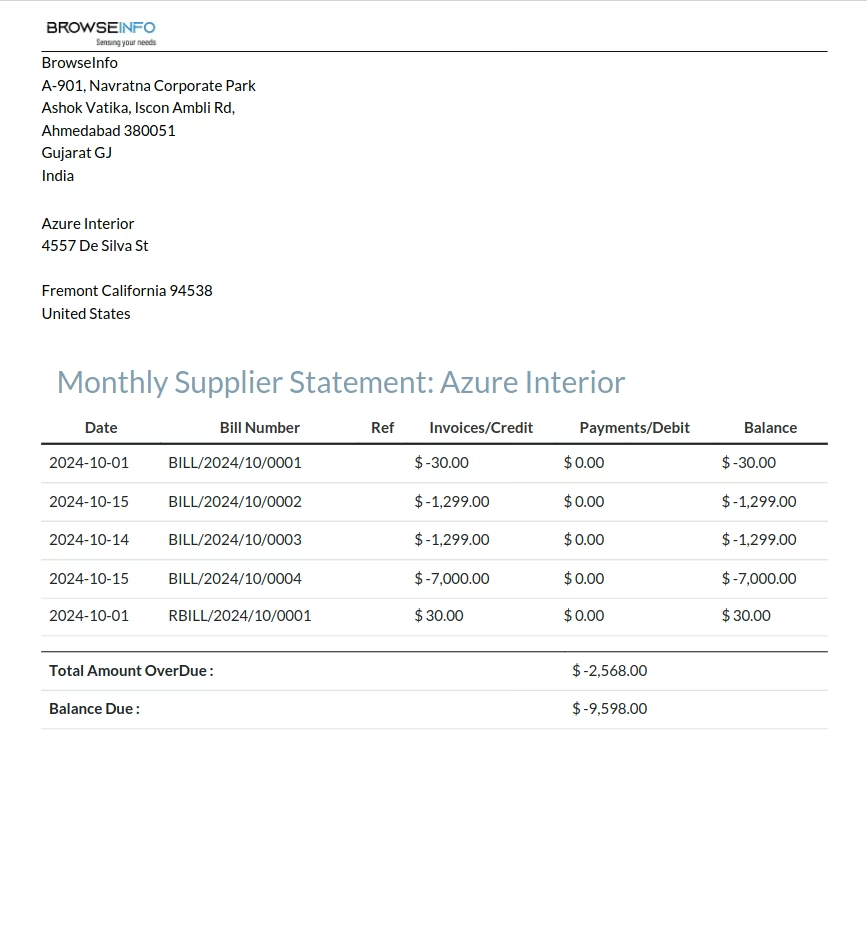
Monthly Statement Report
User can also print statement report from here.
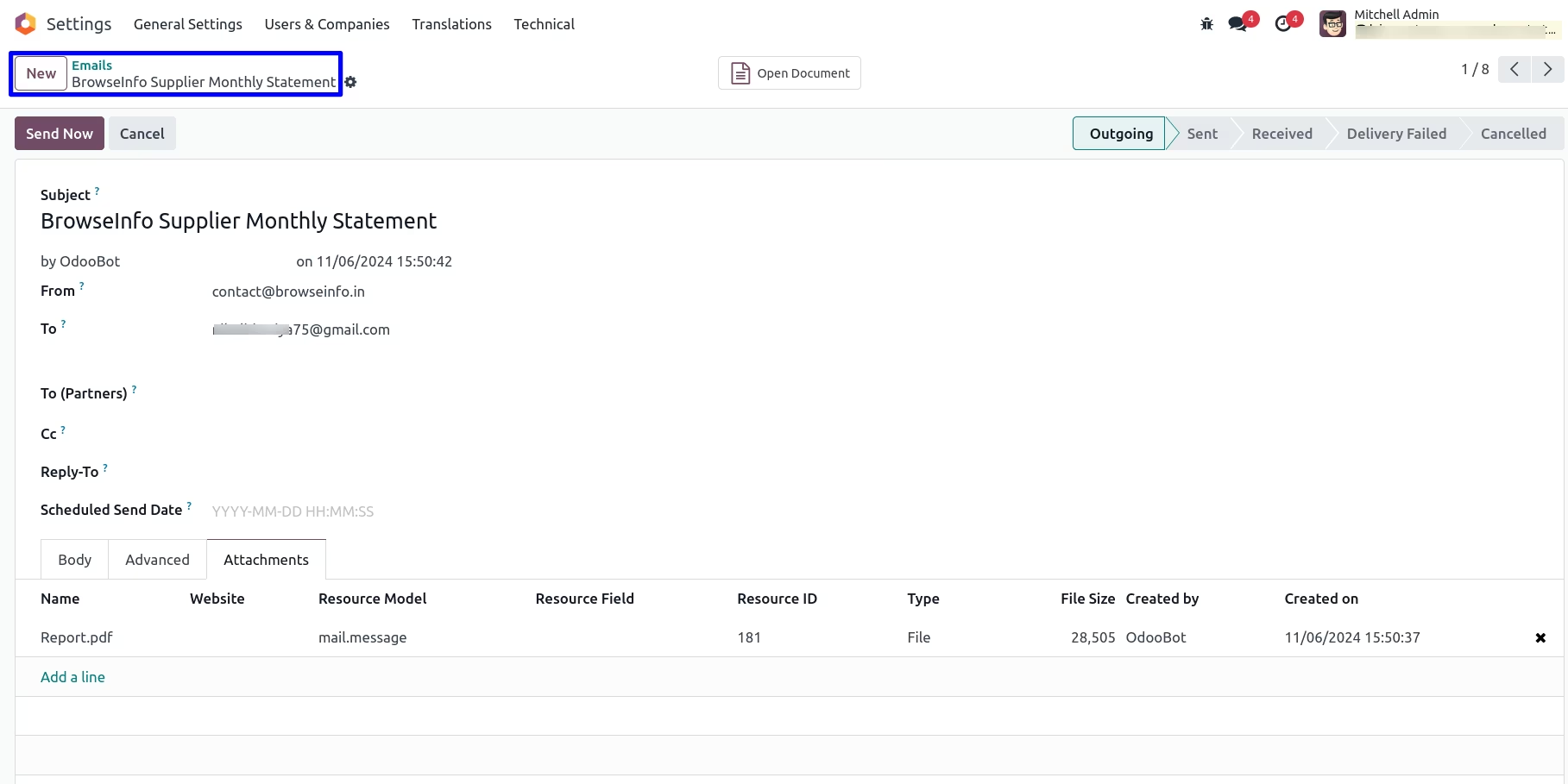
User can also print statement report from here.
Supplier Overdue Statement
User can also print statement report from here.
User can also print statement report from here.
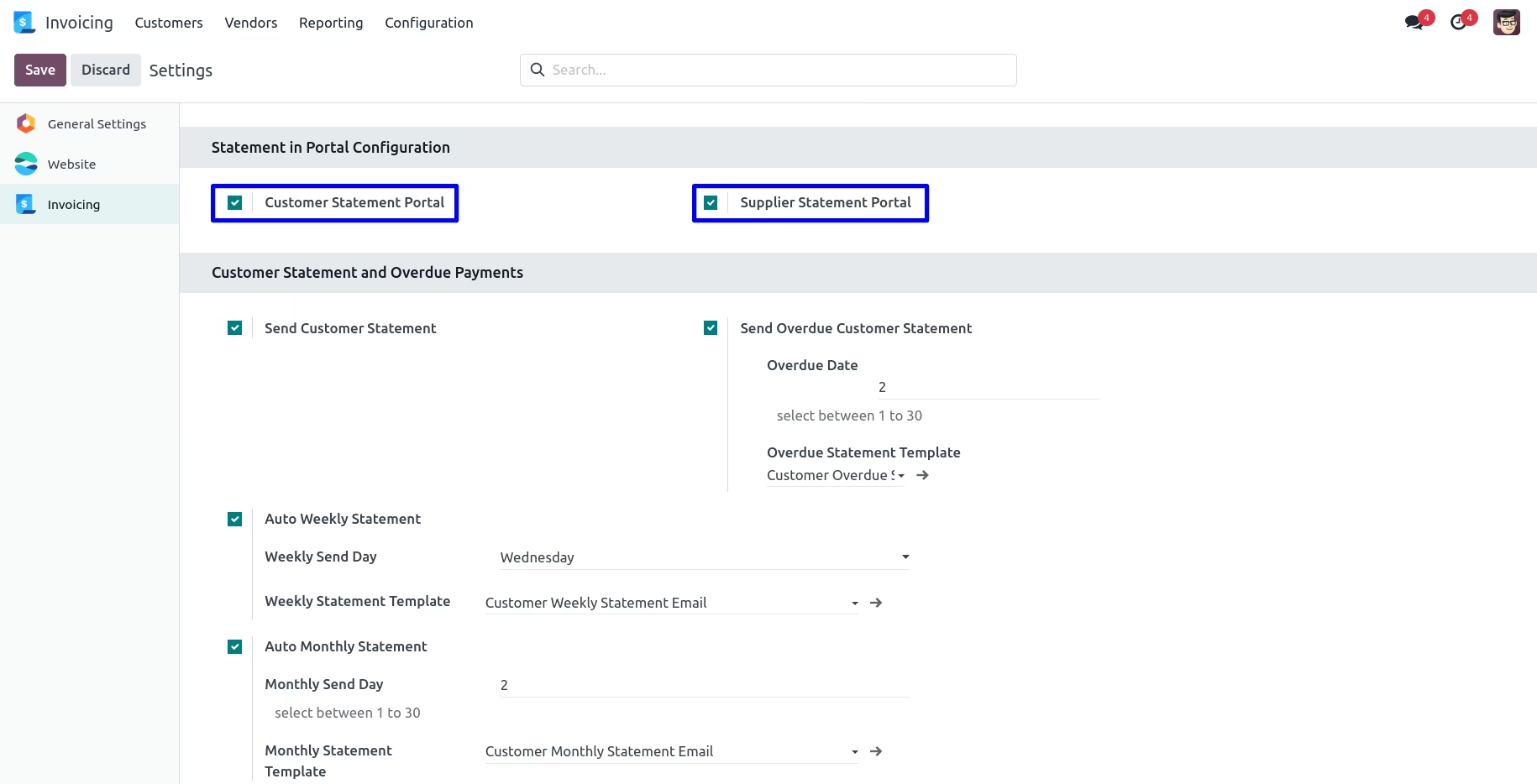
Statement in Portal Configuration
Under Invoicing > Configurations > Settings menu user have to enable "Customer Statement Portal" and "Supplier Statement Portal" option to show customer and supplier statements in portal.
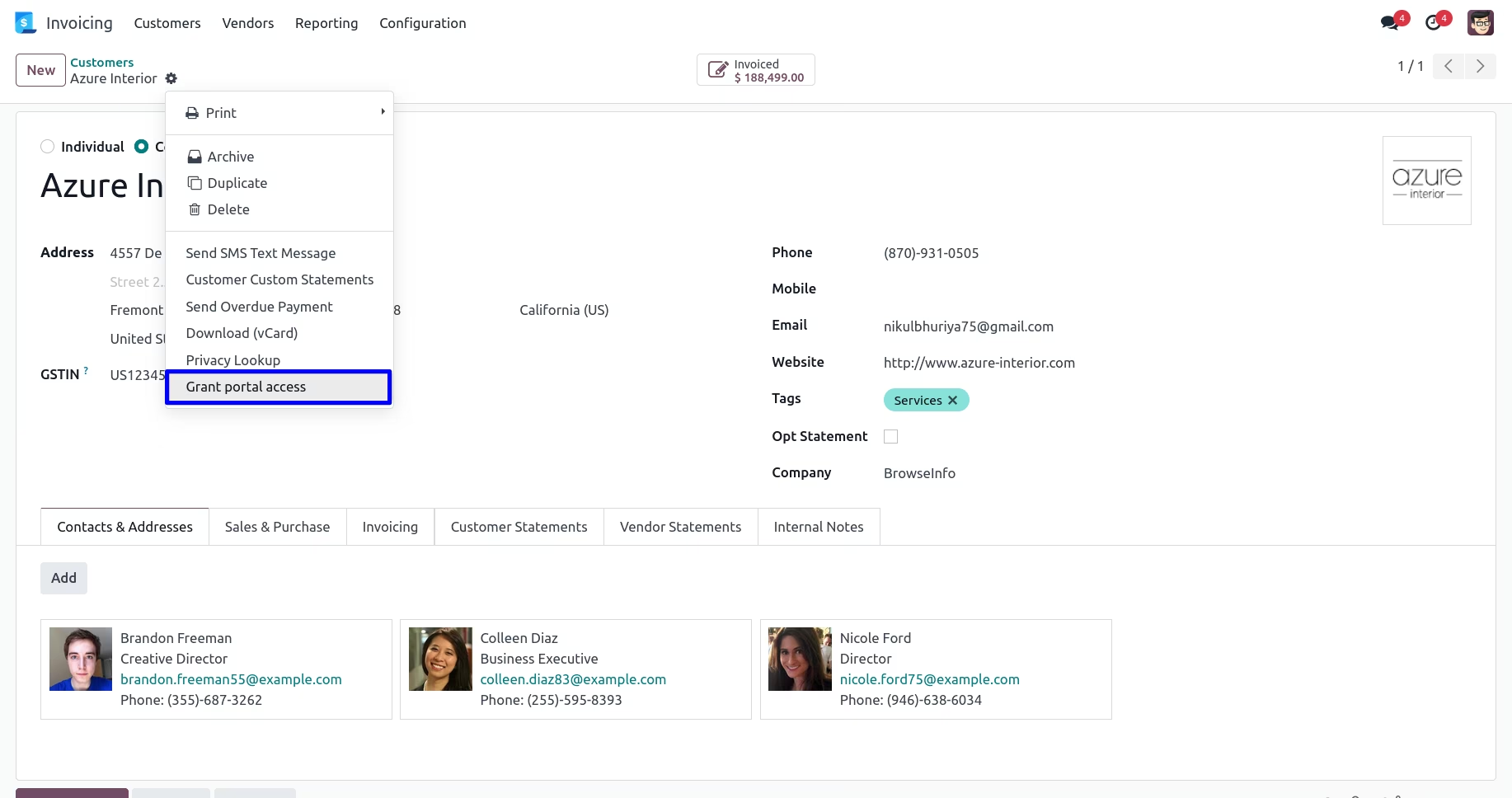
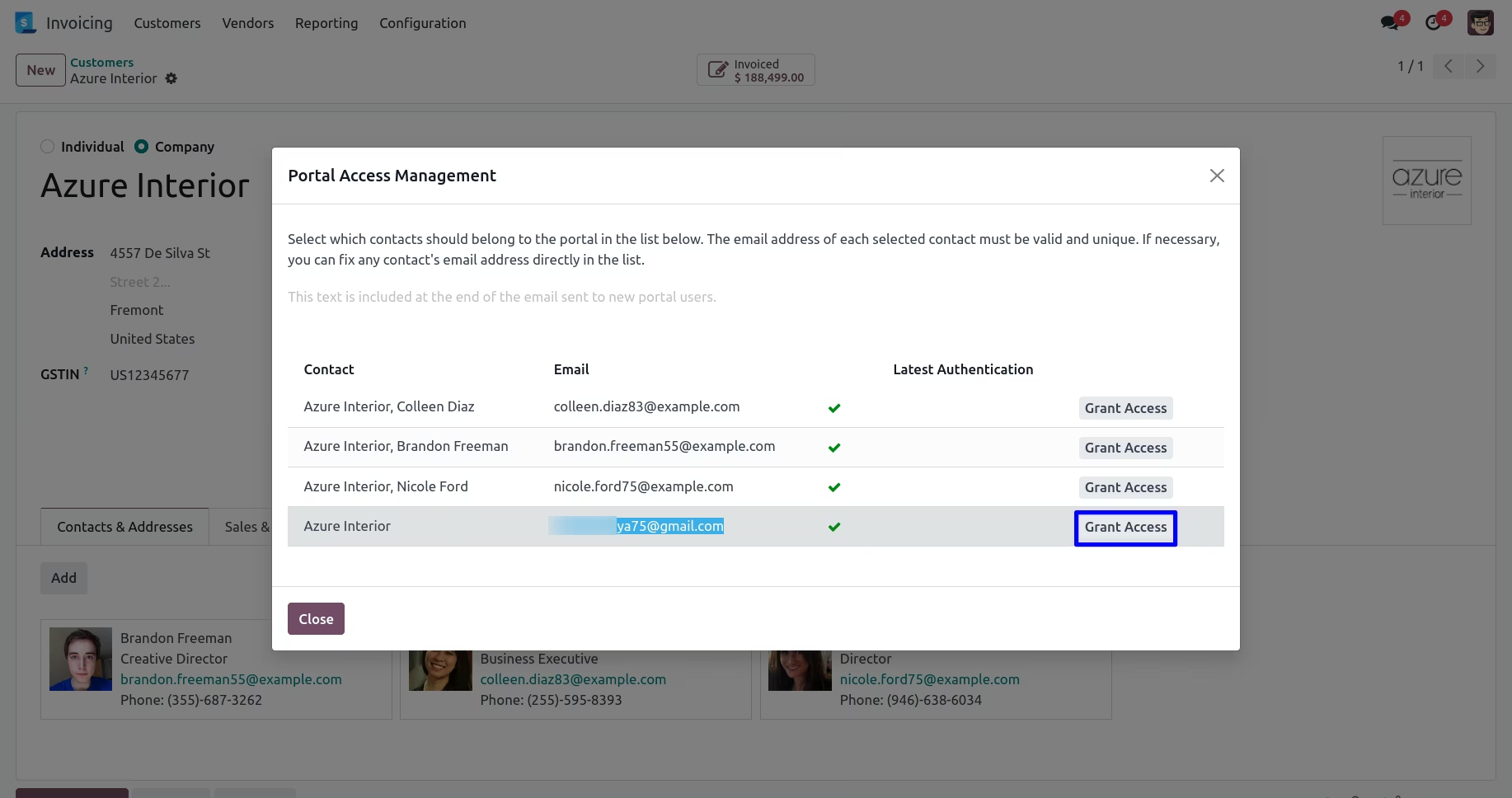
Grant Portal Access to Customer/Supplier
Customer/Supplier Statements in the Port
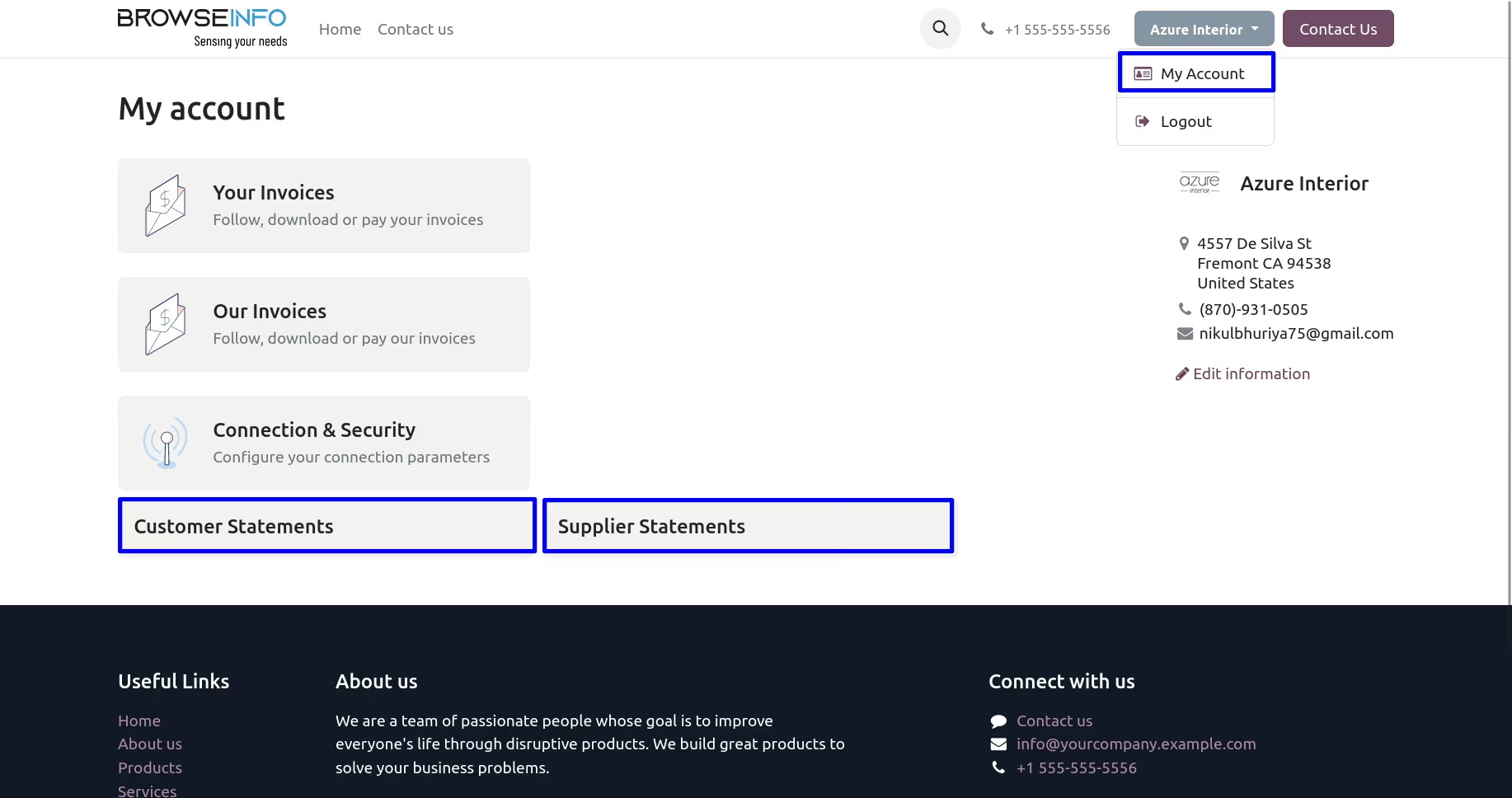
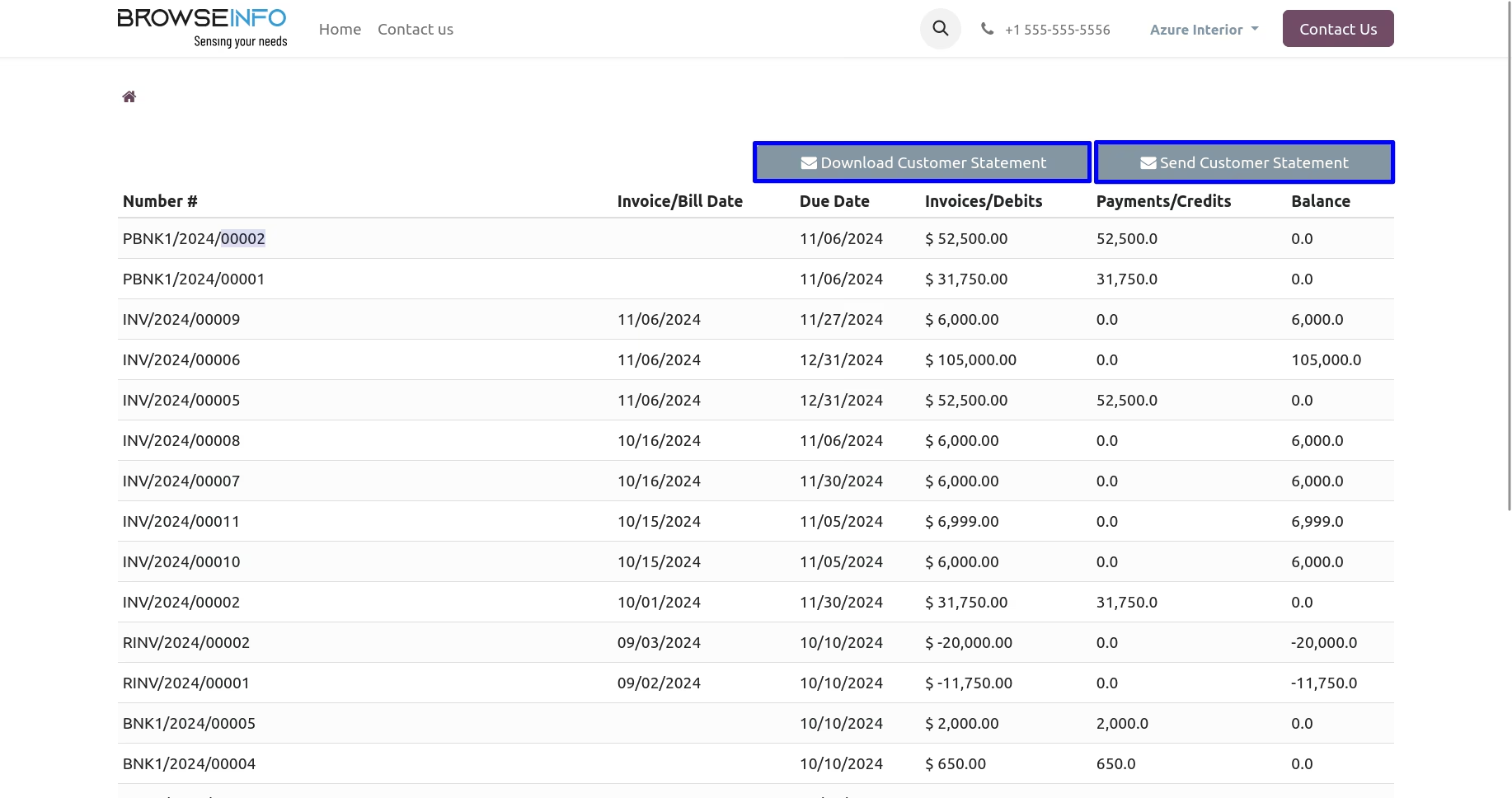
Customer Statement in the Portal
User can view customer statements in the portal and also download and print customer statement directly through the portal.
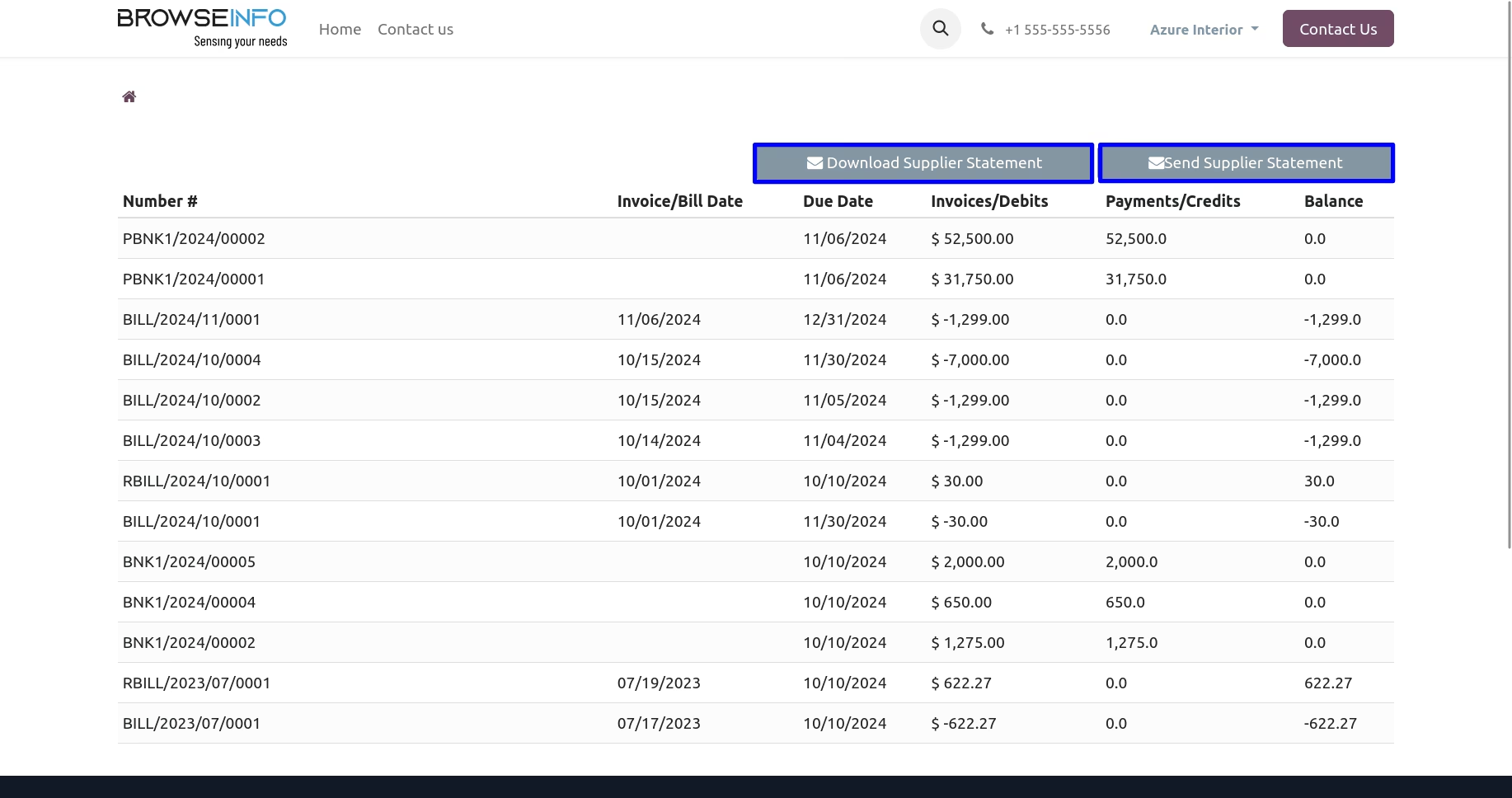
Supplier Statement in the Portal
User can view supplier statements in the portal and also download and print supplier statement directly through the portal.
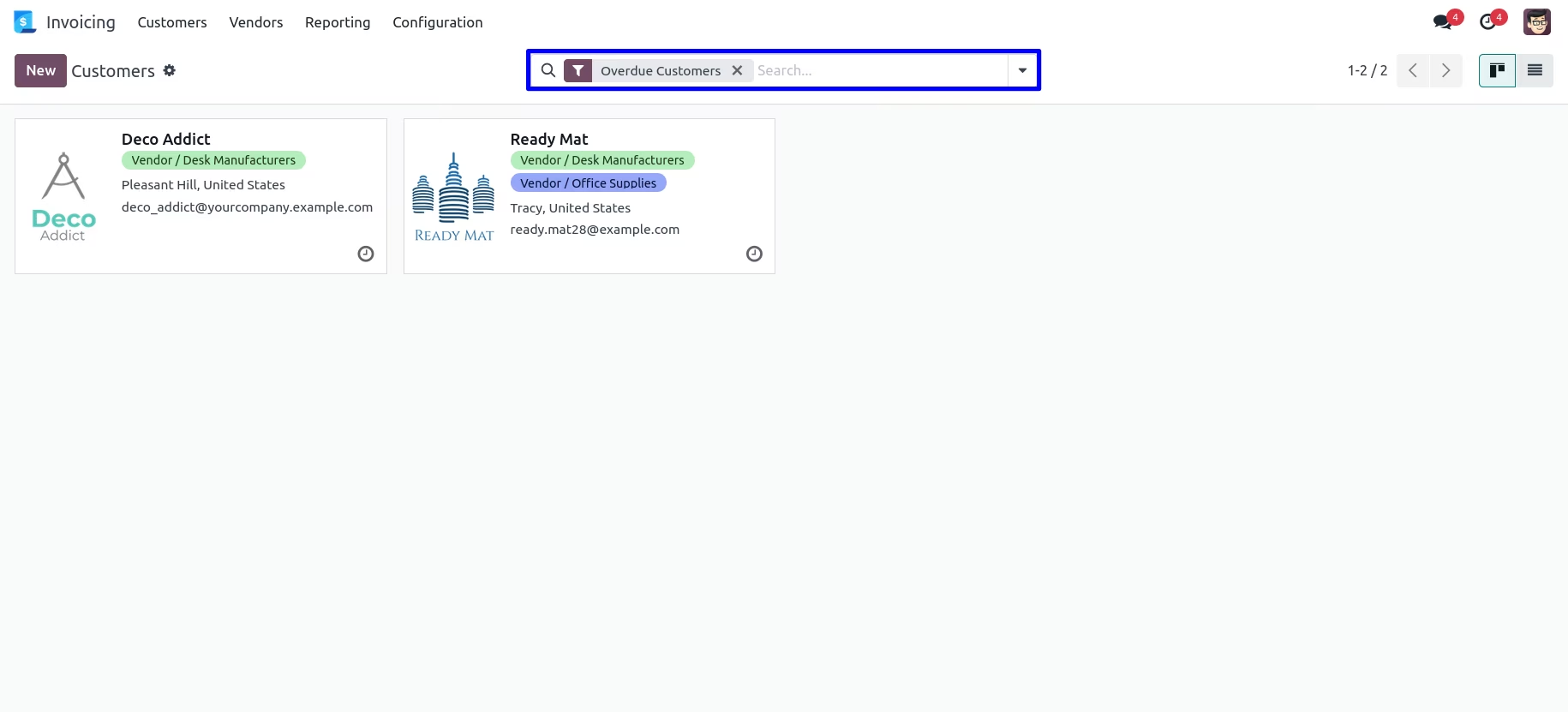
Overdue Customer Filter
There is a filter to find customer who have the "Total Overdue Amount" more than zero.
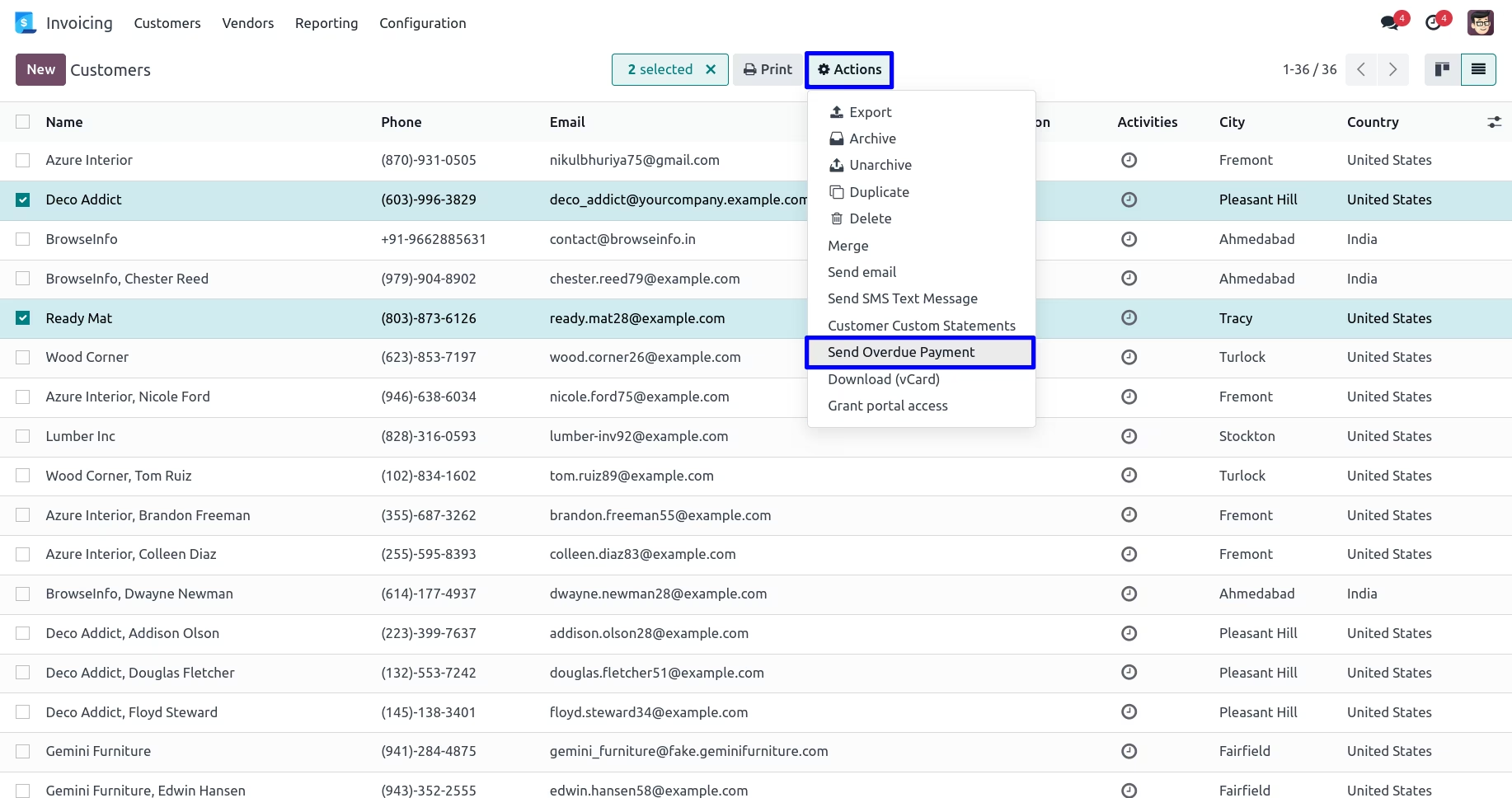
Send Overdue Payment Report
There is a filter to find customer who have the "Total Overdue Amount" more than zero.
Opt out Statement option to stop automatic statement and overdue payment send
When you select 'Opt Statement' checkbox for particular customer that time customer statements and overdue report won't send automatically to the customer.
When automatic statements and overdue statements don't have balance then statement won't send.
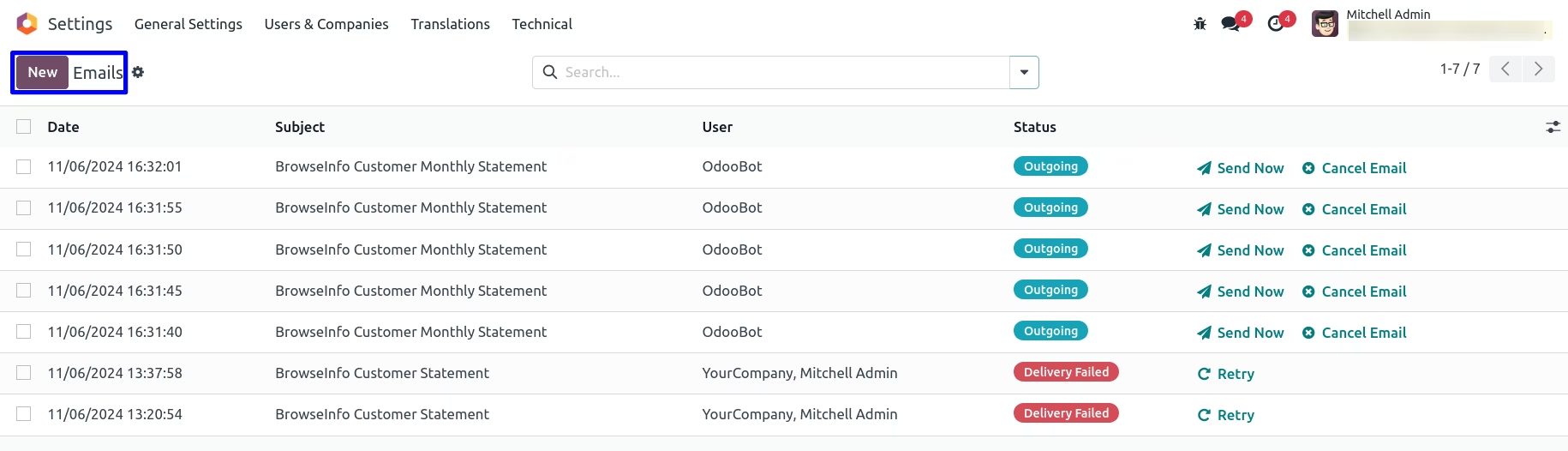
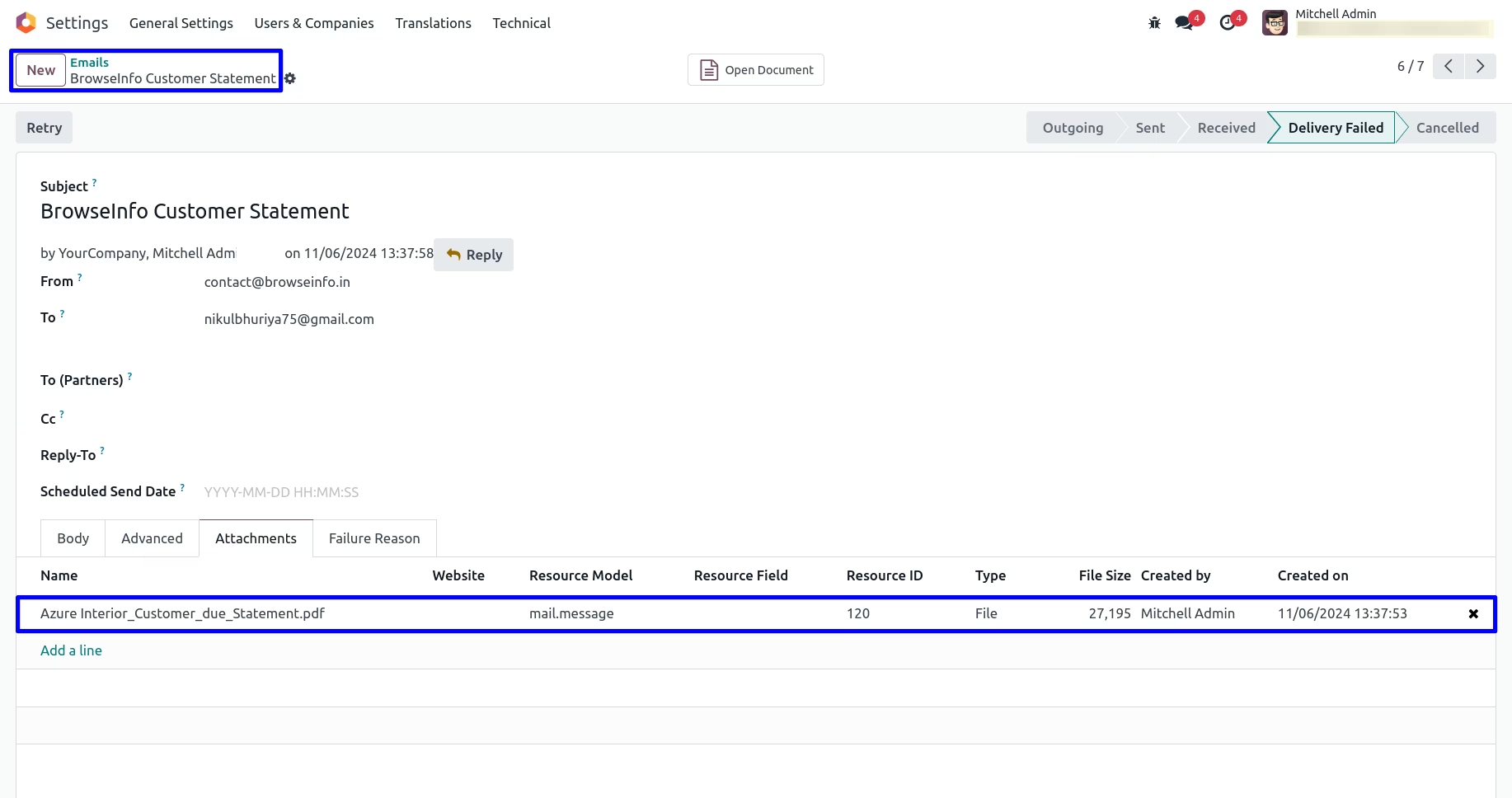
Email Sent to the Customers
You can see email has been sent with attachment to the customers.
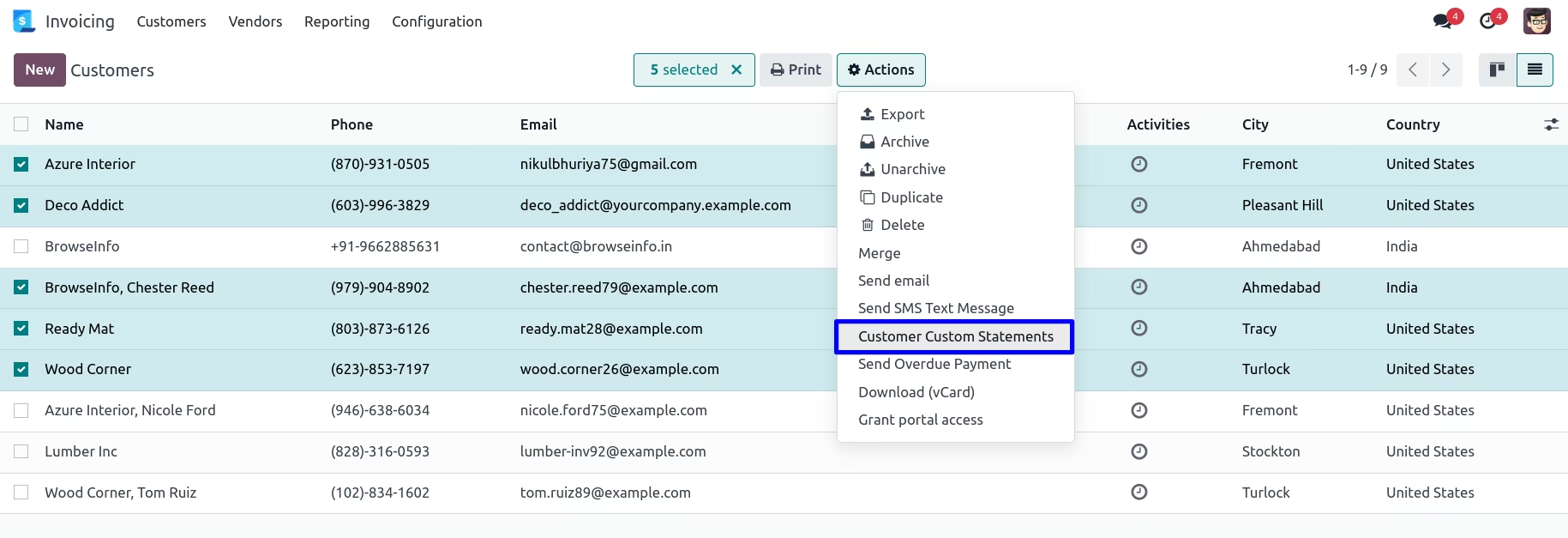
Customer Custom Statements Menu
You can send customer statements manually to the customers with using customer custom statements menu.
Customer Custom Statements Wizard
Customers get notification while send customer statement manually with selection of duration.
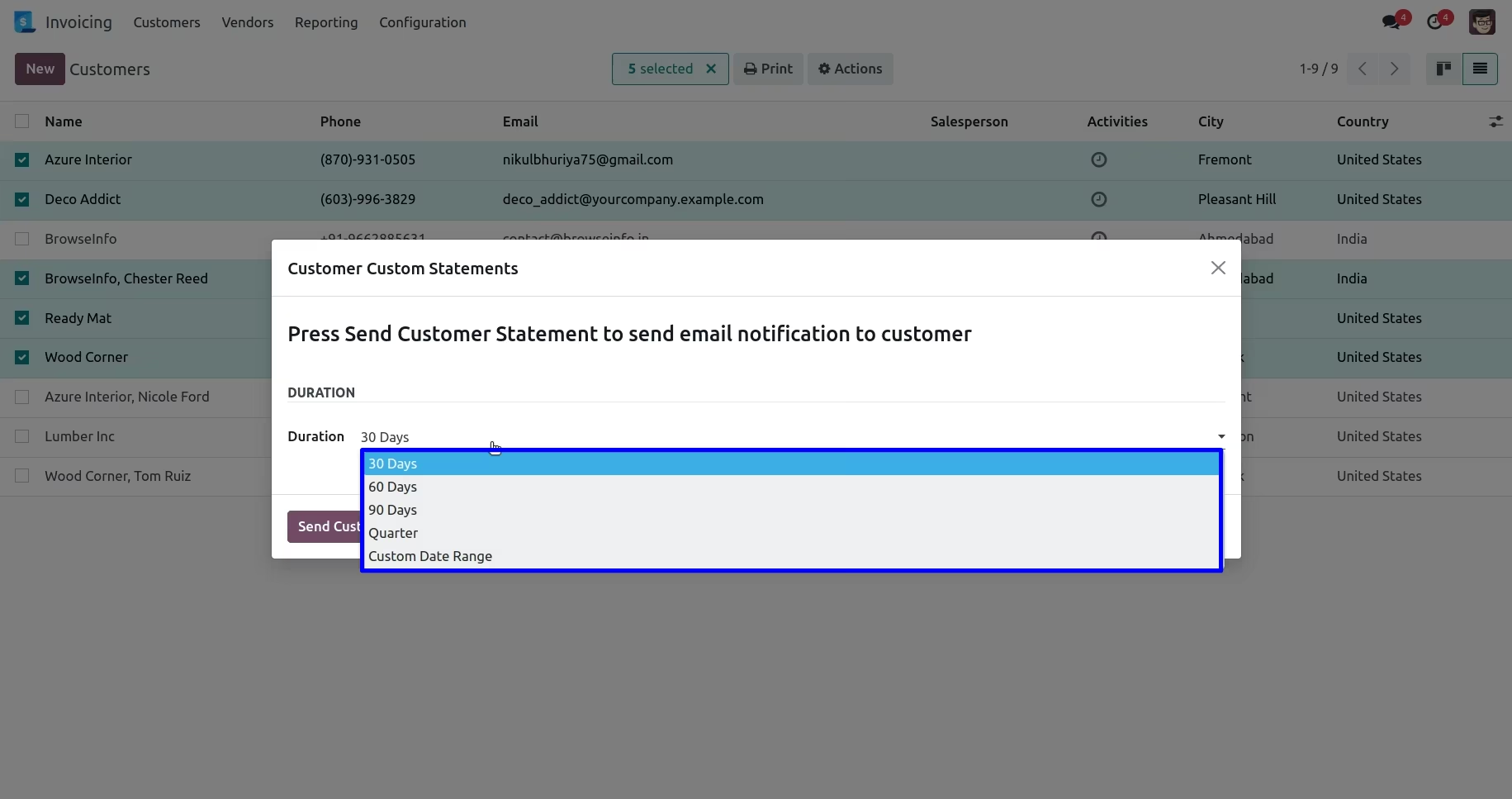
Customer Custom Statements Wizard
You can select multiple customer and send mass statements to customers in single click with custom date range option
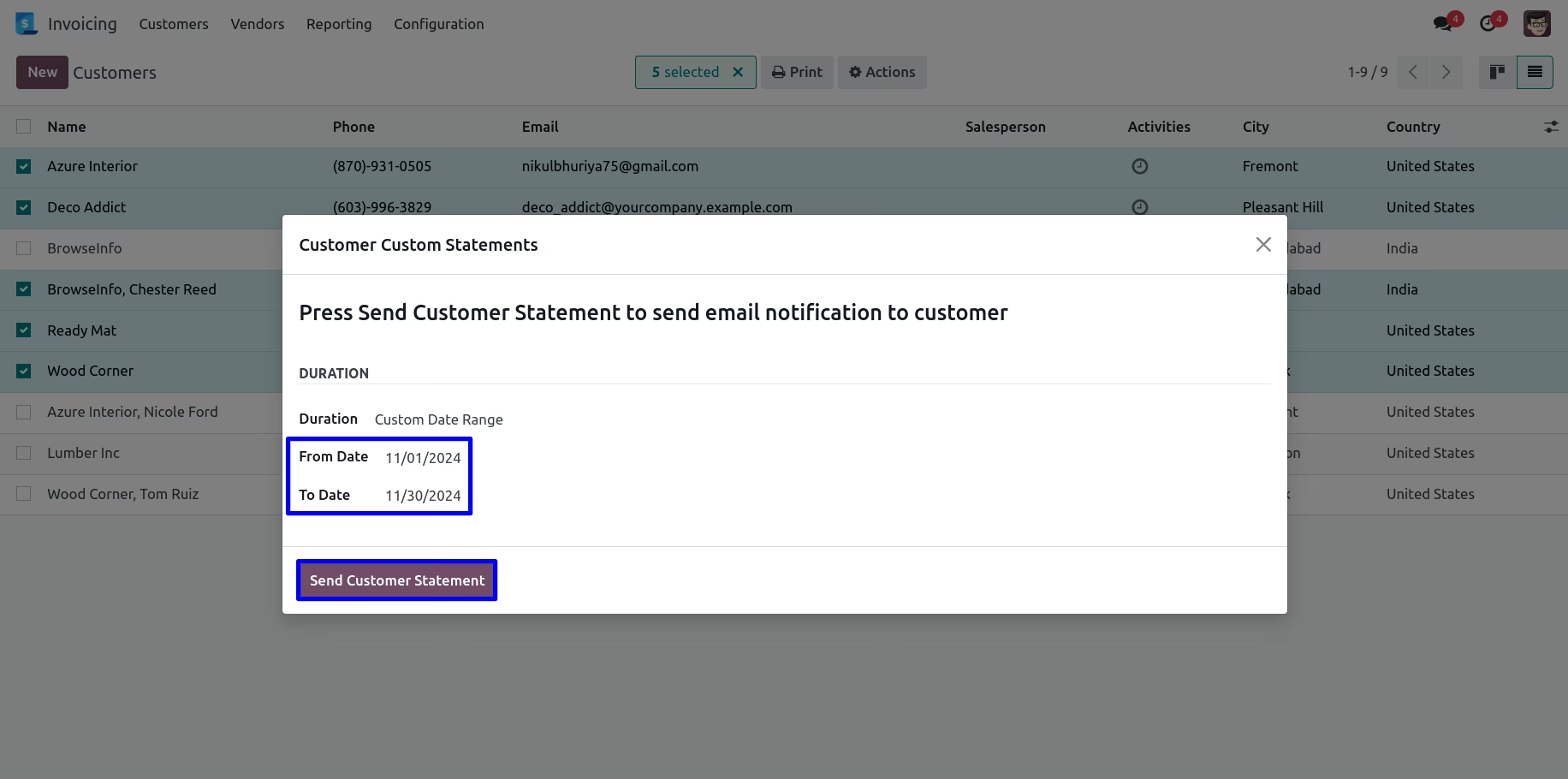
Send Customer Statement Email with Attachment
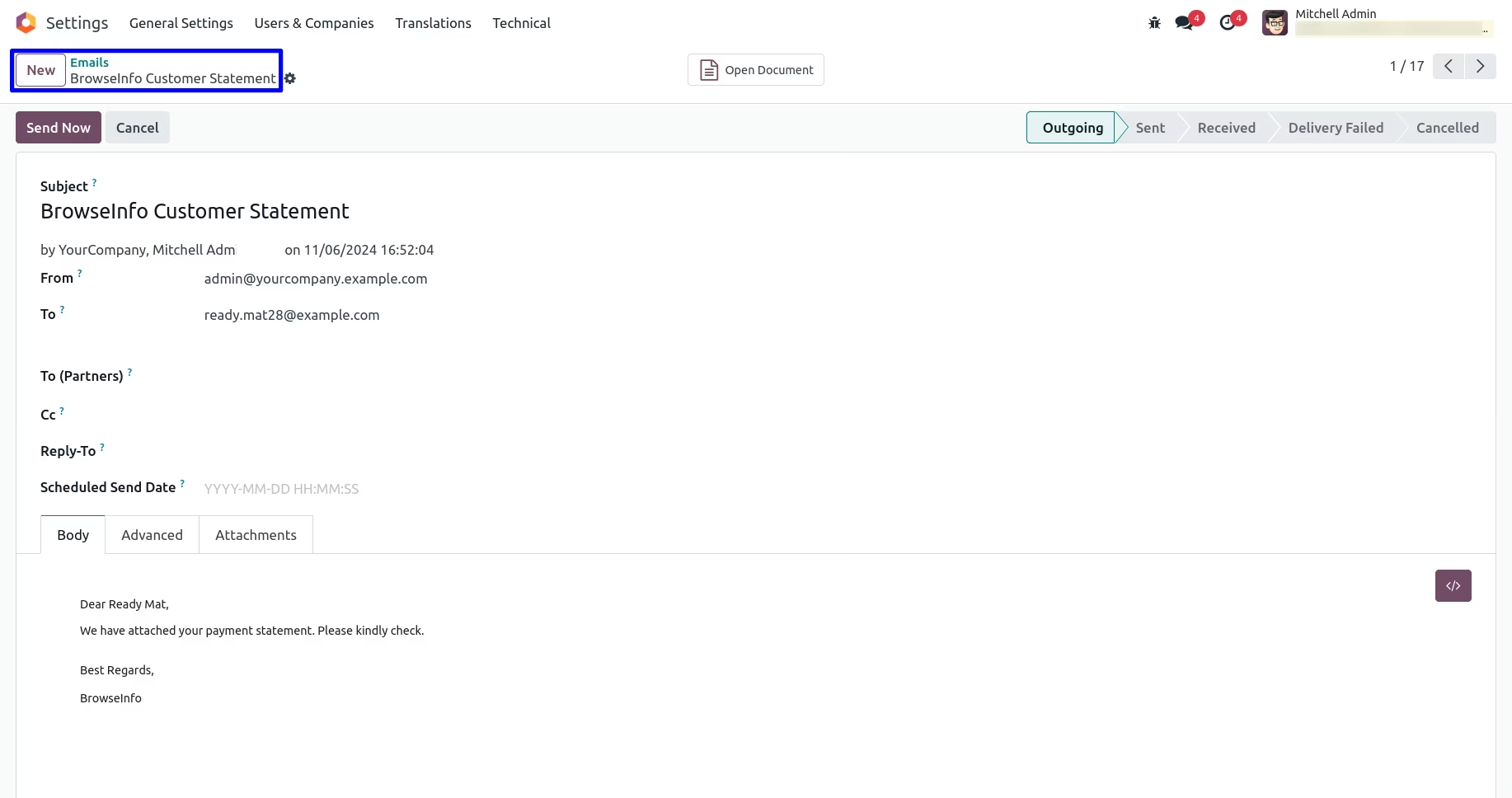
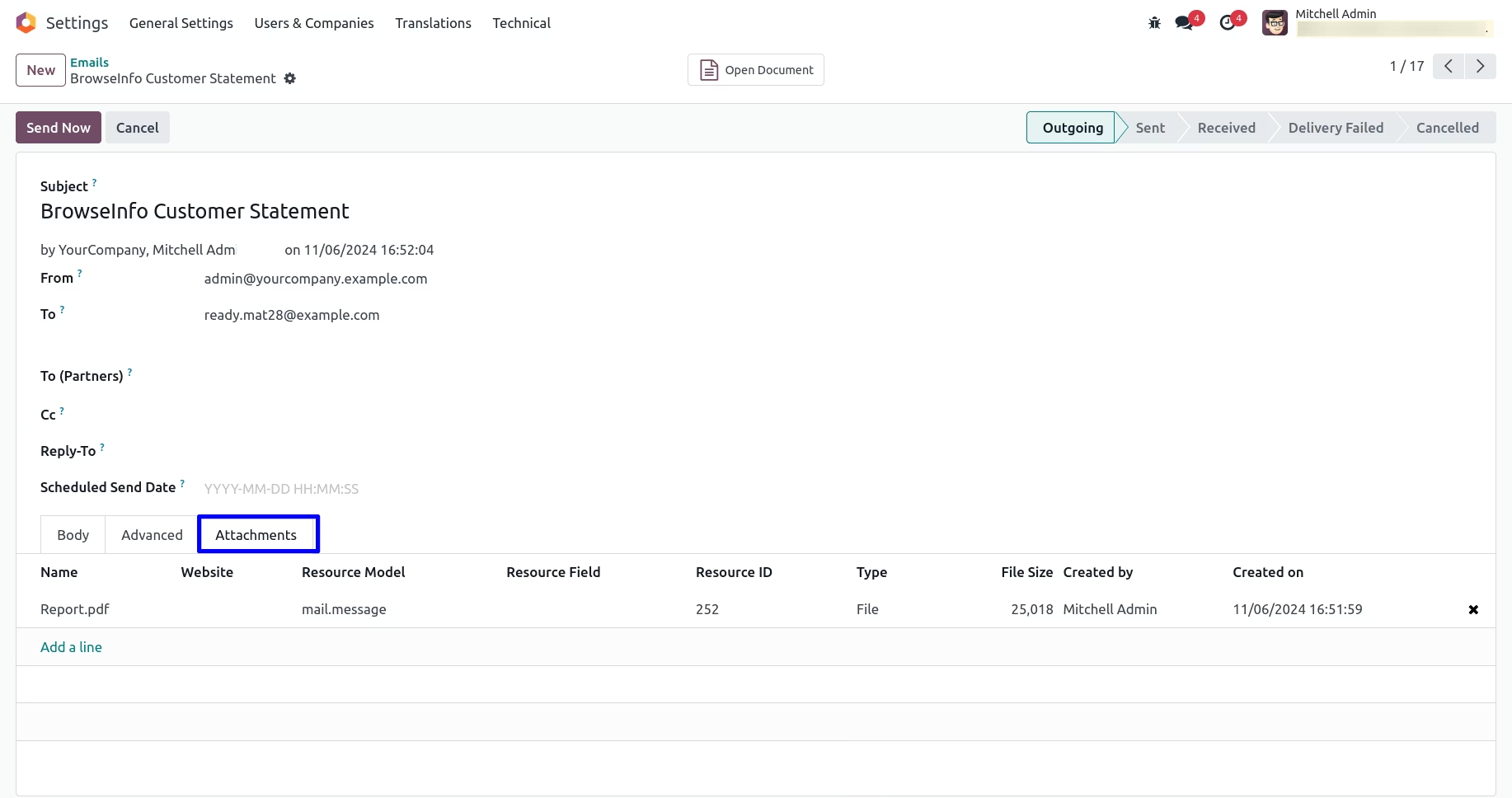
Sent Mail with Attached Statement Report
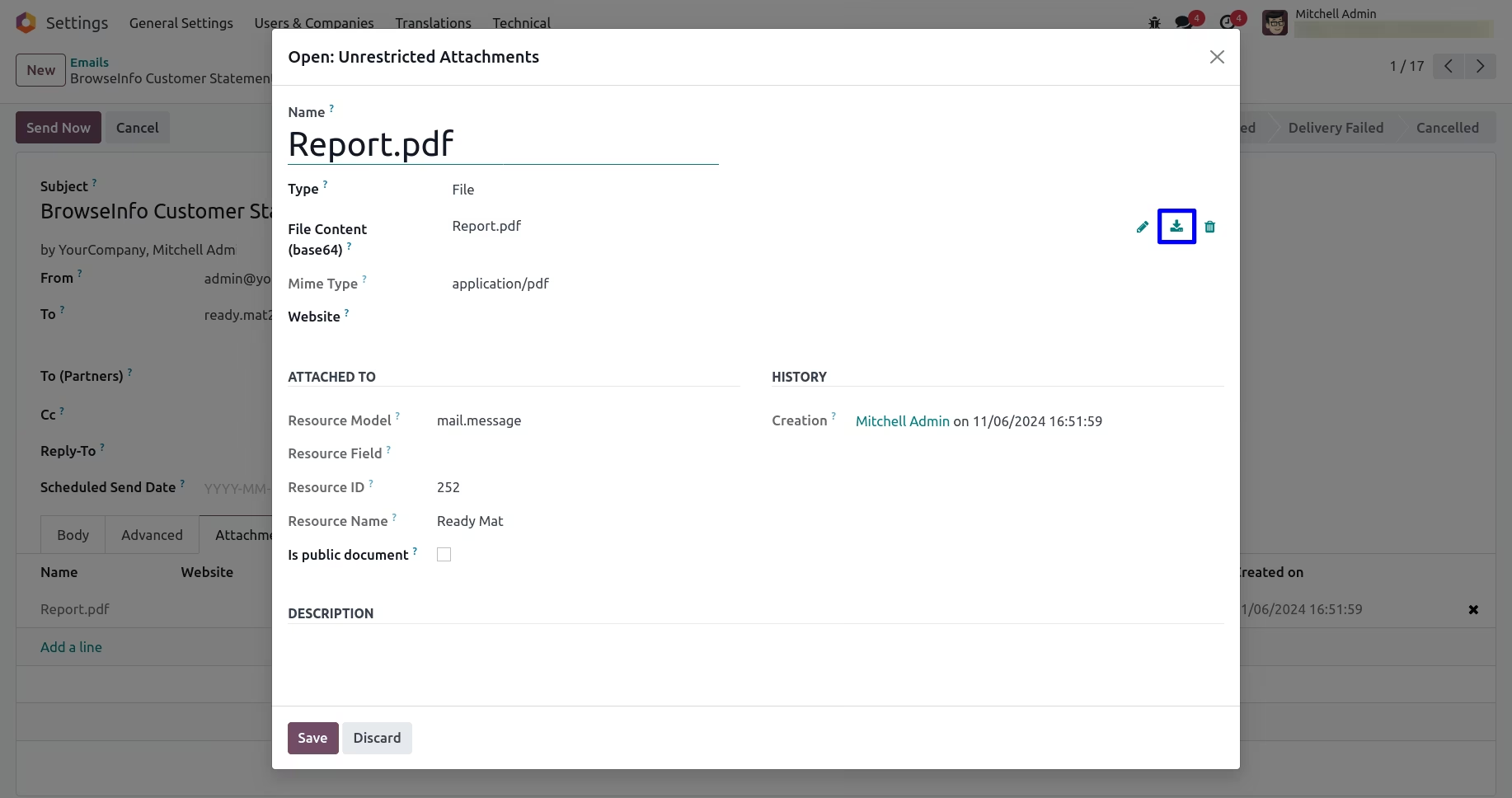
Customer Statement Report
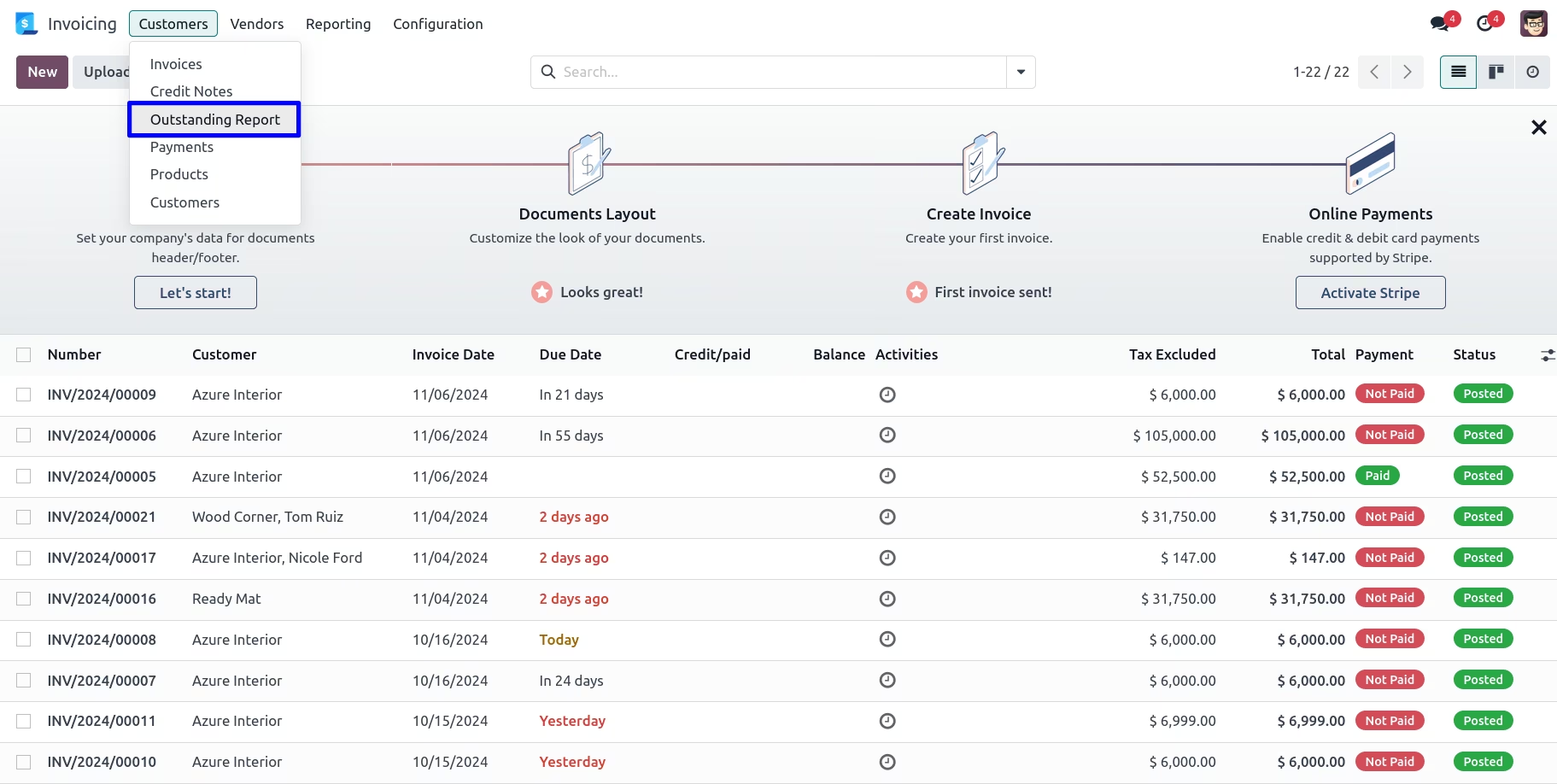
Invoice Outstanding Report
Figure shows the menu for invoice outstanding report.
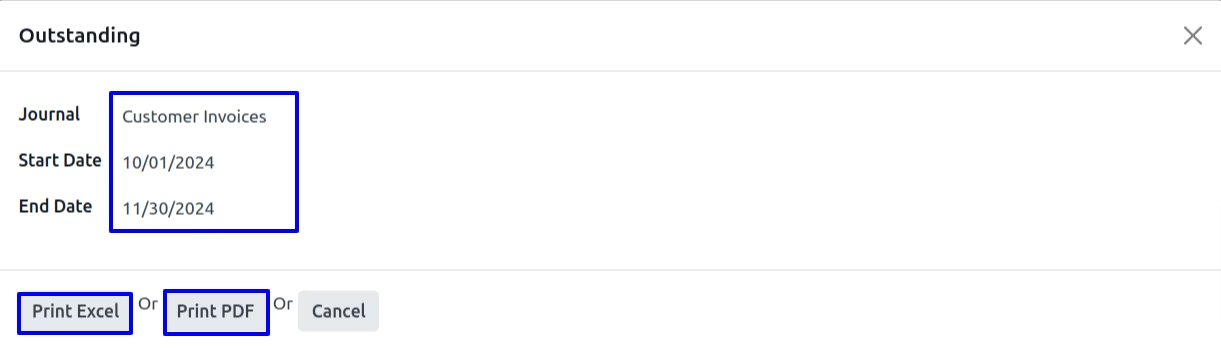
In this wizard you have to select journal for invoices, select start date and end date for Outstanding Report.You can print XLS report as well as PDF Outstanding report.
Invoice Outstanding XLS Report
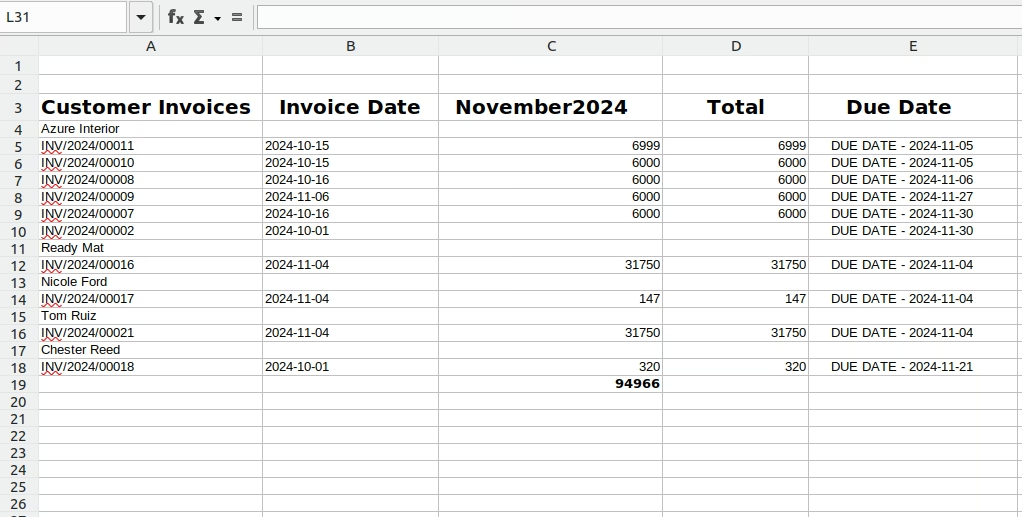
Invoice Outstanding PDF Report