Elevate your financial management and communication with the comprehensive Account Statement module. This all-in-one tool is designed to simplify the process of generating, sending, and tracking account statements for both your customers and vendors. By providing a clear and detailed summary of all financial activities, including invoices, payments, and outstanding balances, this module helps to improve transparency, reduce disputes, and ensure timely payments. With features like automated sending, portal access, and multi-format exporting, it is the perfect solution for businesses looking to streamline their accounting workflows and maintain strong relationships with their partners.
Key Features
Customer and Vendor Statements: Generate detailed account statements for both customers and vendors, providing a complete overview of their financial history.
Overdue Statements: Easily create and send overdue statements to remind customers and vendors of their outstanding payments.
Email and WhatsApp Integration: Send account statements directly to your partners via email or WhatsApp for quick and convenient communication.
Automated Sending: Configure the system to automatically send statements on a daily, weekly, or monthly basis, saving you time and effort.
Customer Portal Access: Allow your customers to view and download their account statements directly from the portal.
Multi-Format Export: Print and download account statements in both PDF and Excel (XLS) formats for easy analysis and record-keeping.
Flexible Filtering: Filter statements by date range, payment status (e.g., Not Paid, In Payment, Paid), and other criteria.
Mail Log History: Keep a complete record of all sent statements and communications in the mail log history.
Benefits
Improved Cash Flow: Encourage timely payments and reduce outstanding receivables with automated reminders and clear, detailed statements.
Enhanced Customer and Vendor Relationships: Provide a transparent and professional communication experience, reducing misunderstandings and disputes.
Increased Efficiency: Automate the entire statement generation and sending process, freeing up valuable time for your accounting team.
Better Financial Visibility: Gain a clear and up-to-date overview of your accounts receivable and payable.
Streamlined Communication: A centralized and automated system for all your account statement communications.
Empower Your Customers: Provide your customers with self-service access to their account information through the portal.
Account Statement
The account statement is the summary report of the financial activities. Statements show how much money is spent within a specific time period. An account statement is basically an overview of your financial performance. The statement is one type of tool for customers as well as vendors. Customers can track their paid amount and vendor get a reminder for the due amount.
This module allows customers or vendors to see statements as well as overdue statement details.
You can send statements by email to the customers and vendors.
You can also see customers/vendors mail log history with statements and overdue statements.
You can also send statements automatically weekly, monthly & daily, or you can send statements using cron job also.
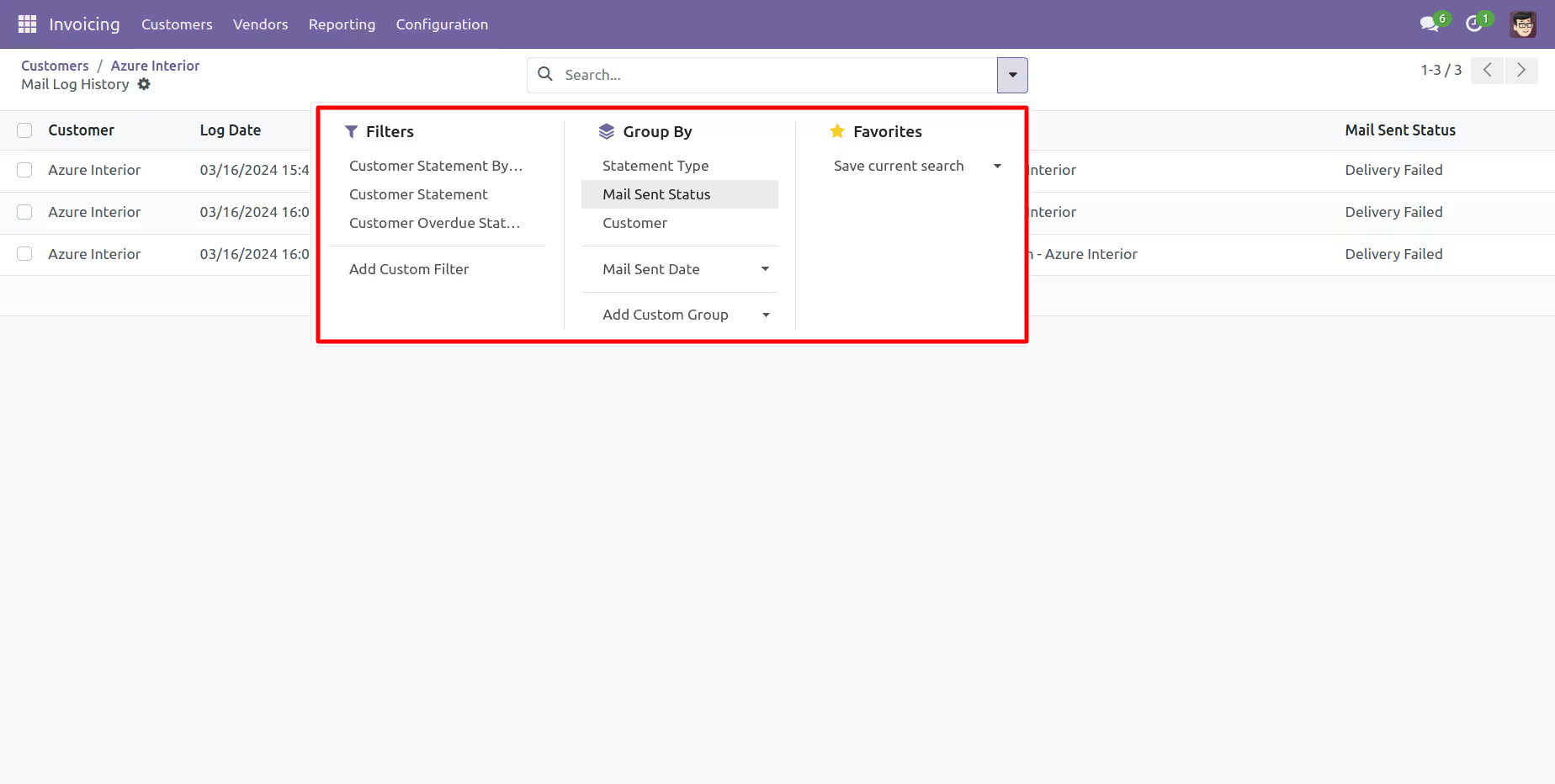
You can filter statements by dates, statements & overdue statements.
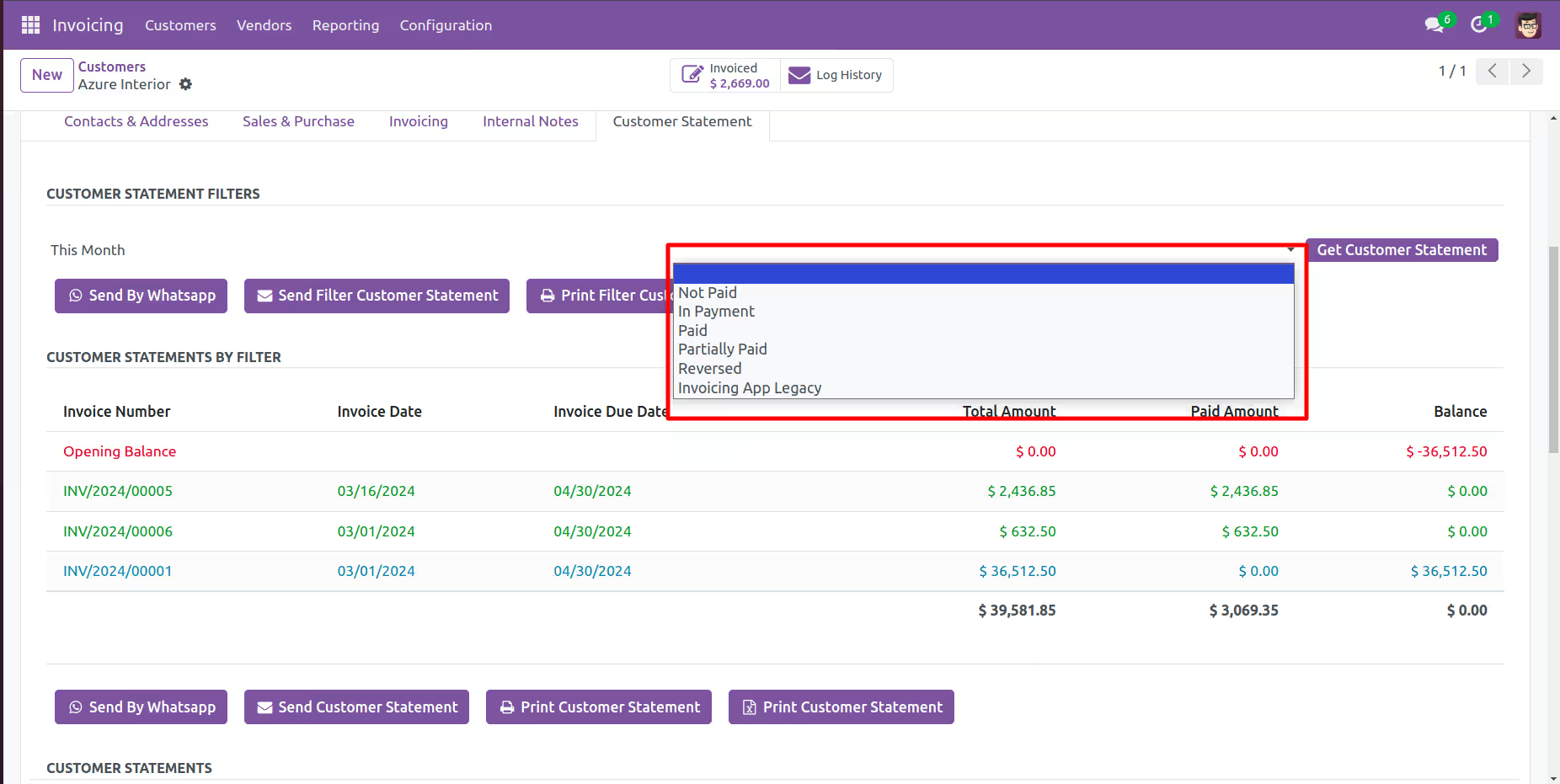
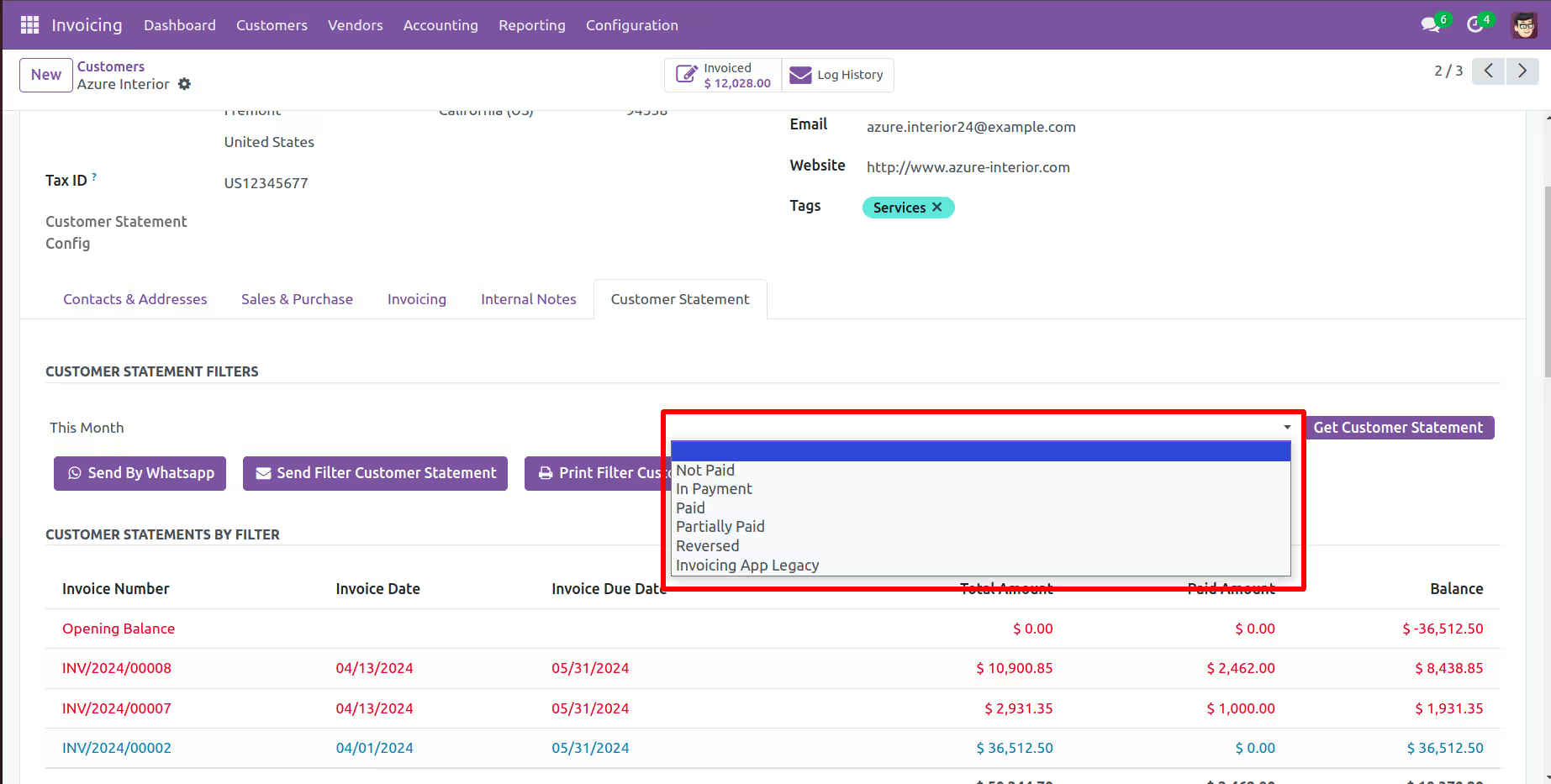
You can Also filter statements based on their configuration, such as Not Paid, In Payment, Paid, ETC...
You can group by statements by the statement type, mail sent status & customers/vendors.
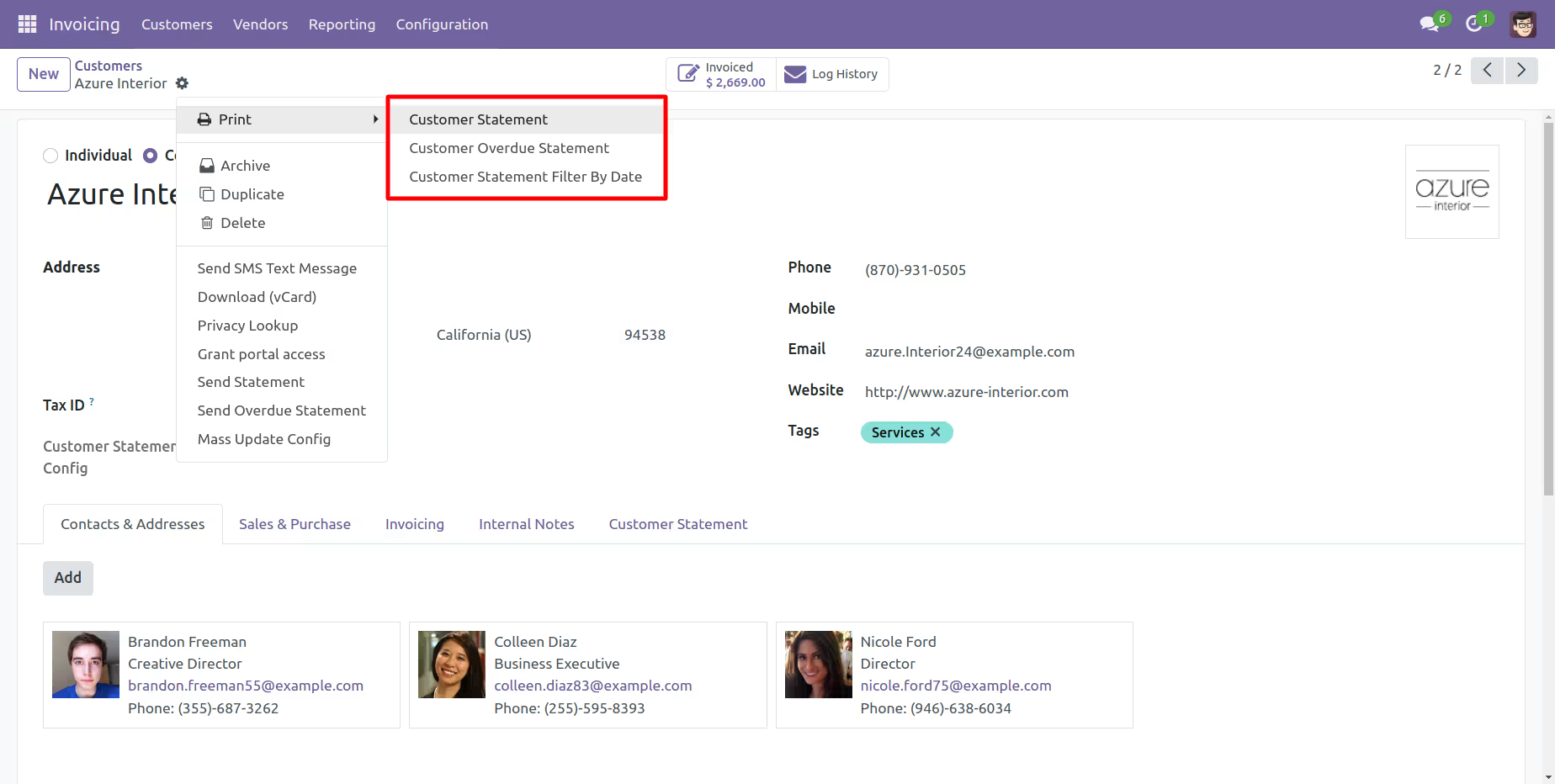
You can print statements and overdue statements.
Why account statement is important?
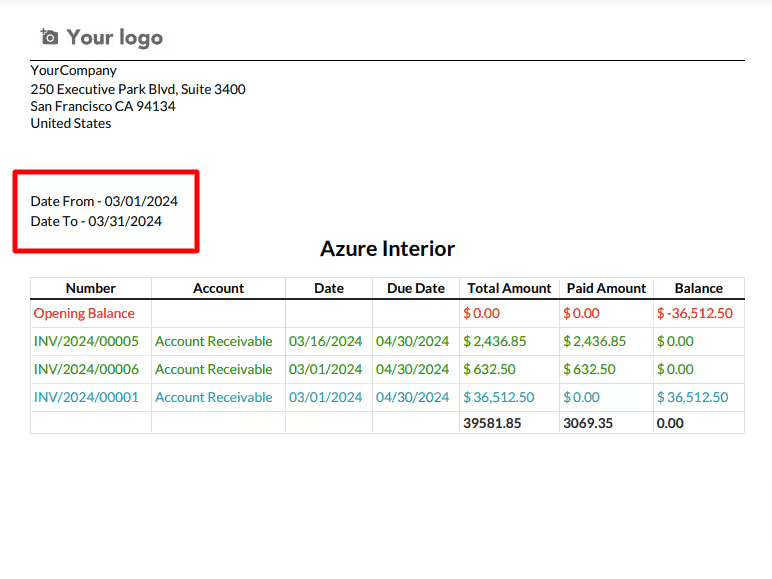
The importance of account statements is that show everything about transactions, like date, due date, total amount, paid amount & balance. The statements can be used when we have a misunderstanding or miss management about our transactions. The account statement's purpose is to review your account transactions that where you spent your money and how much money you spent.
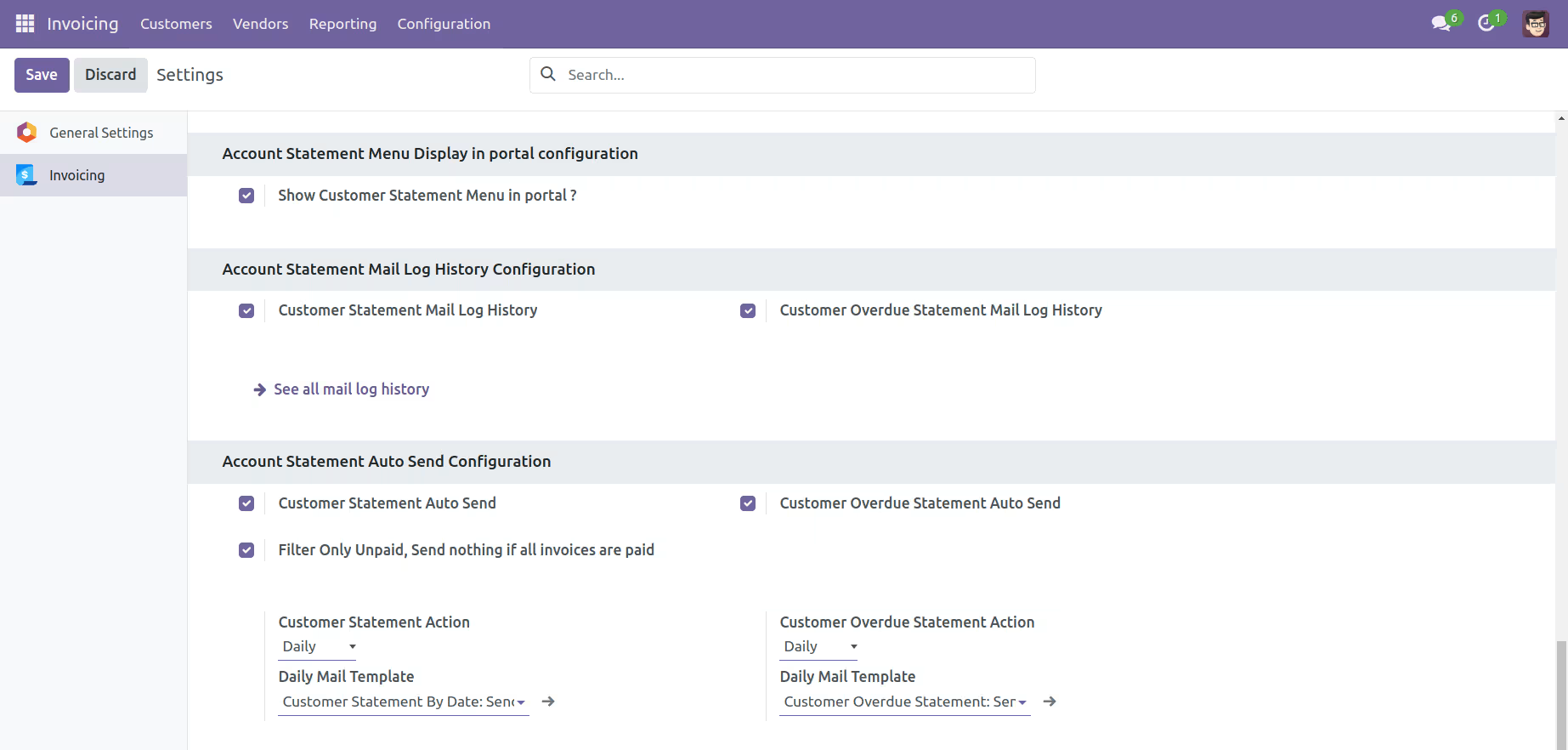
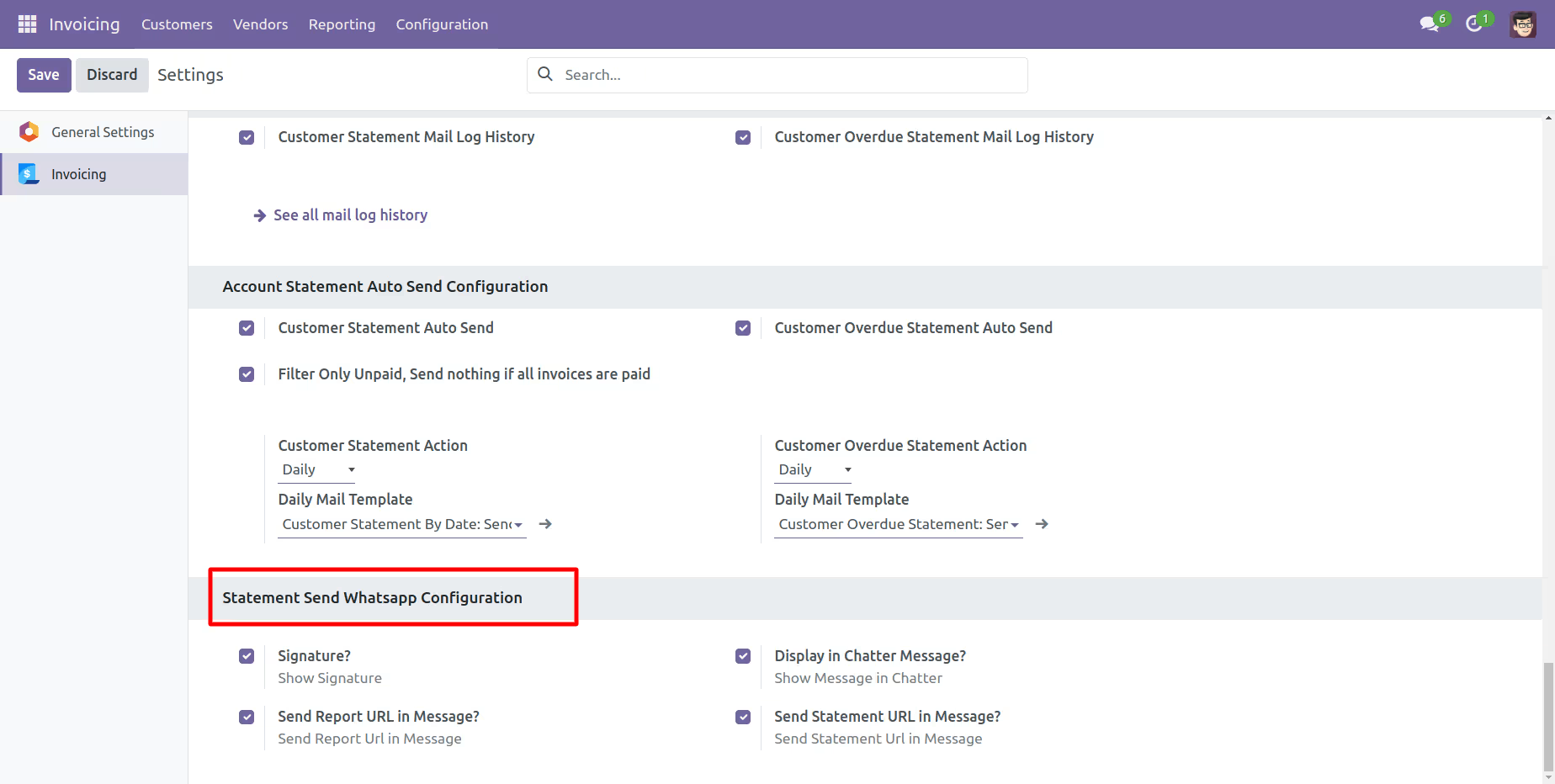
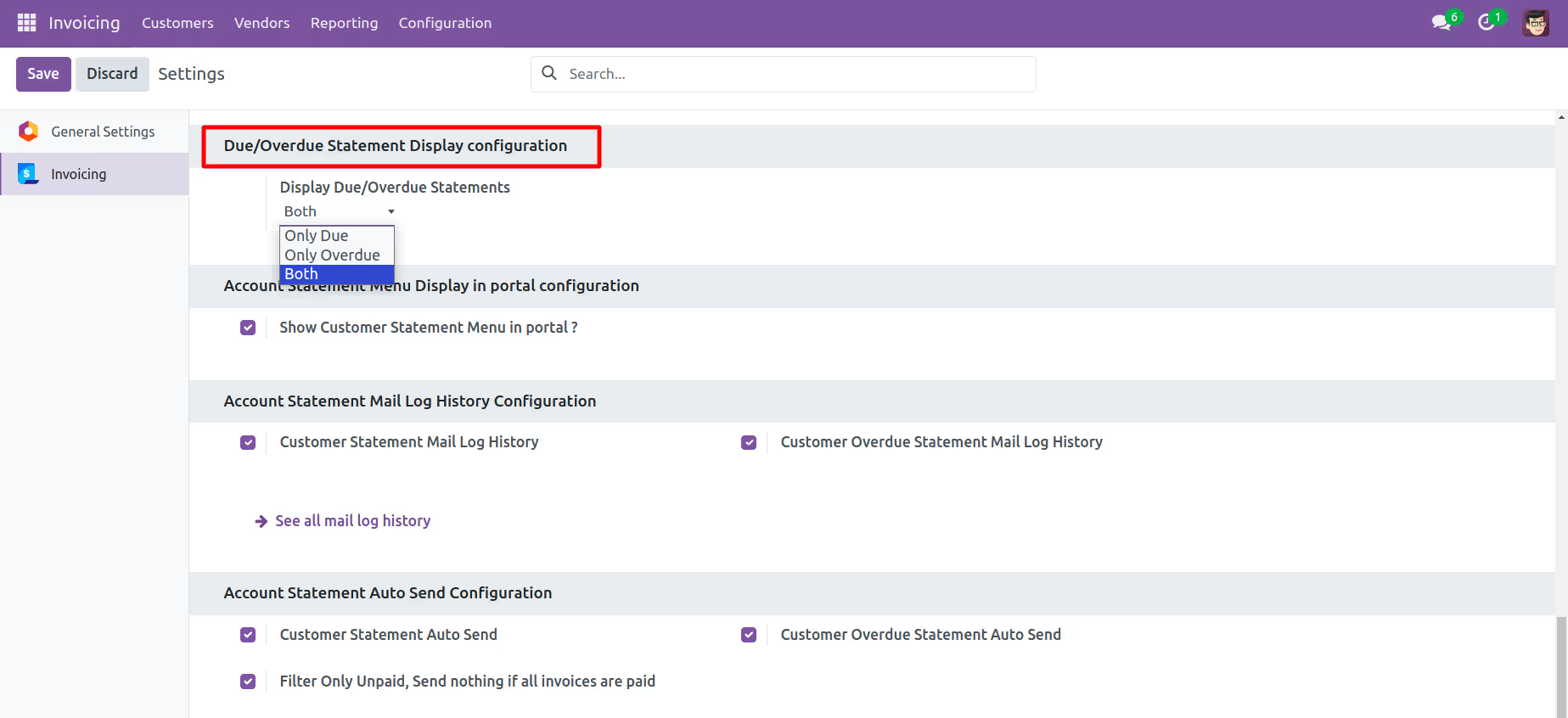
Account Statamenet Configurations.
Customer Filter Statement Flow
Go to the customer => customer statement.
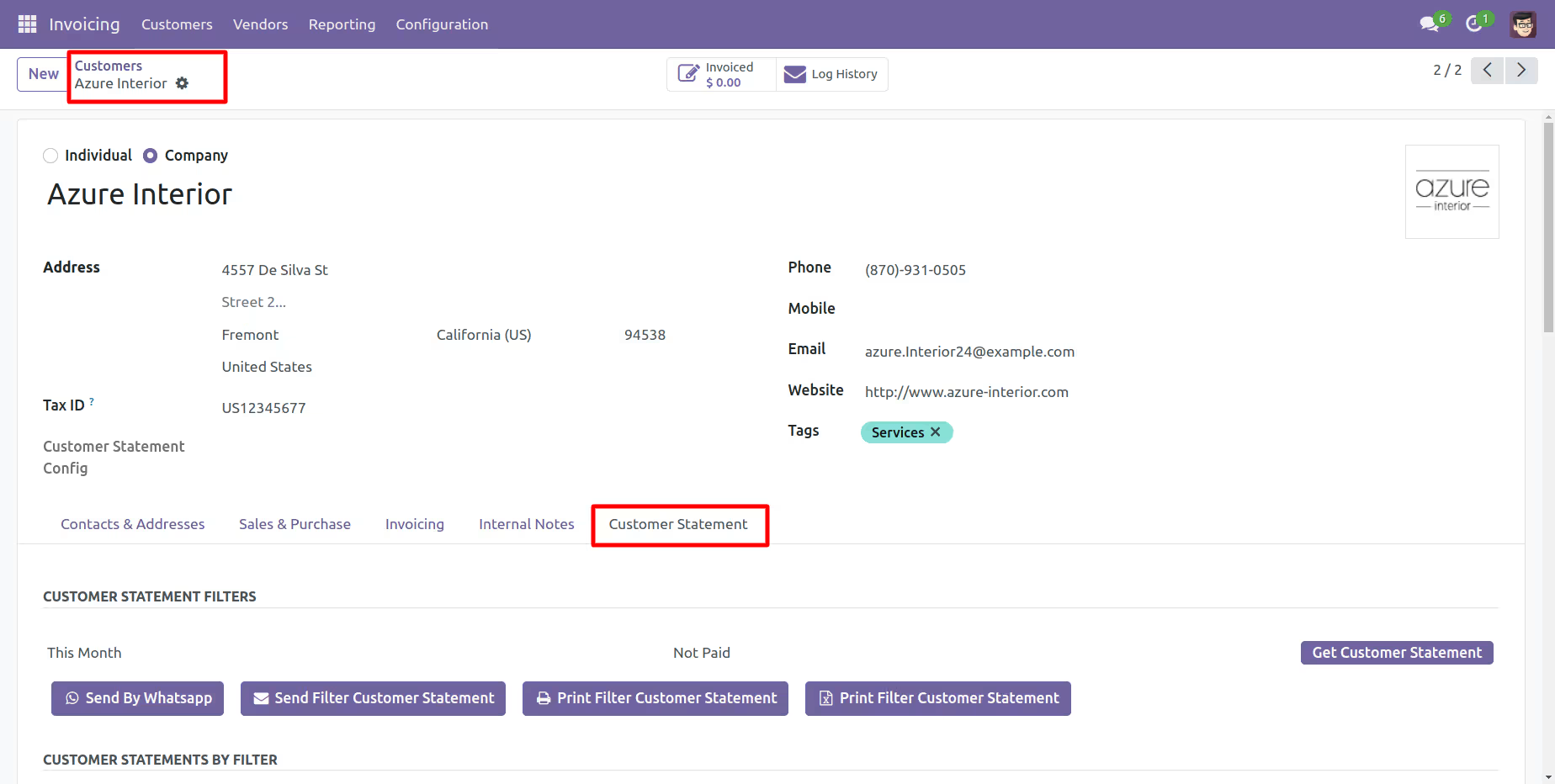
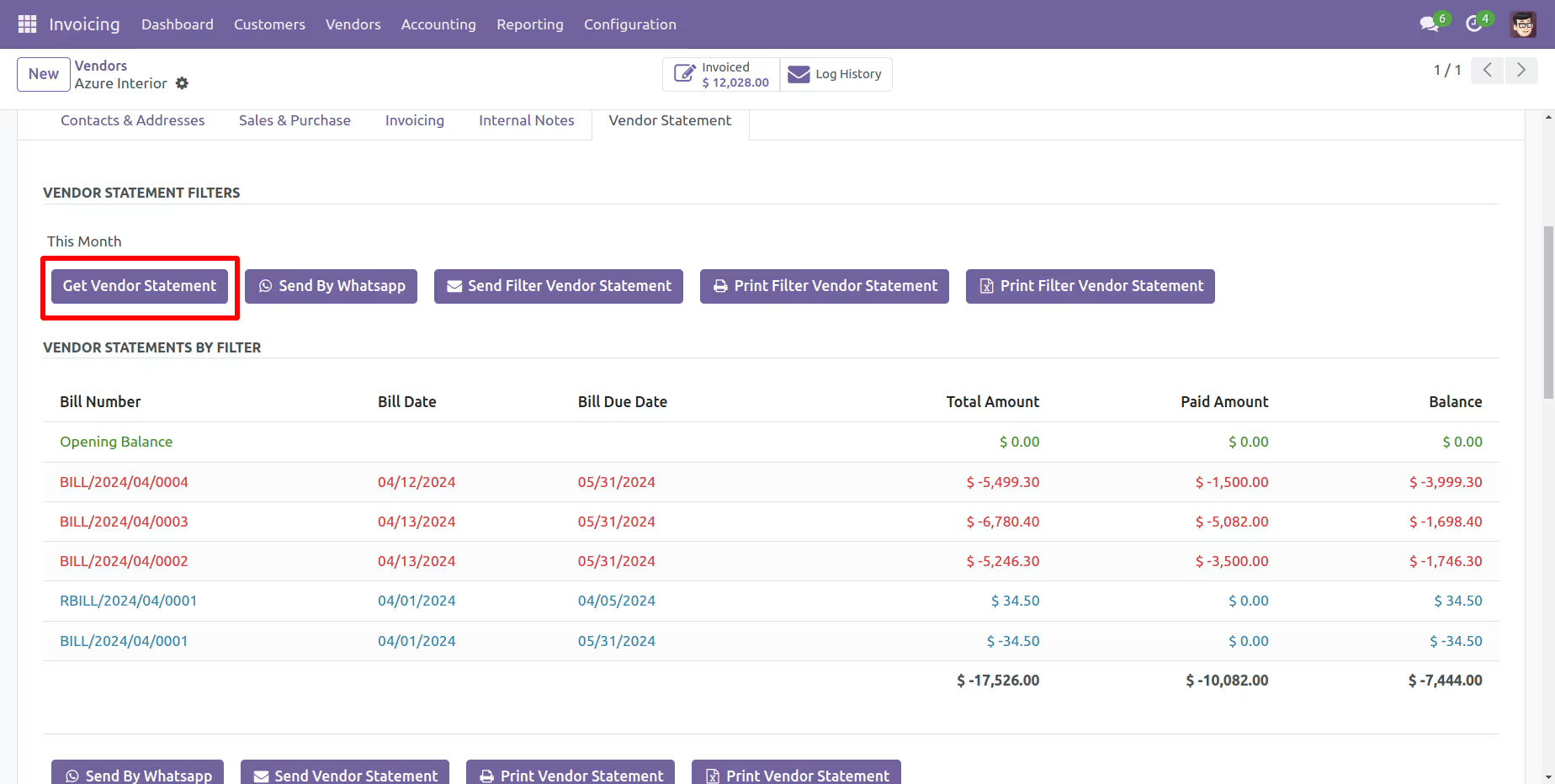
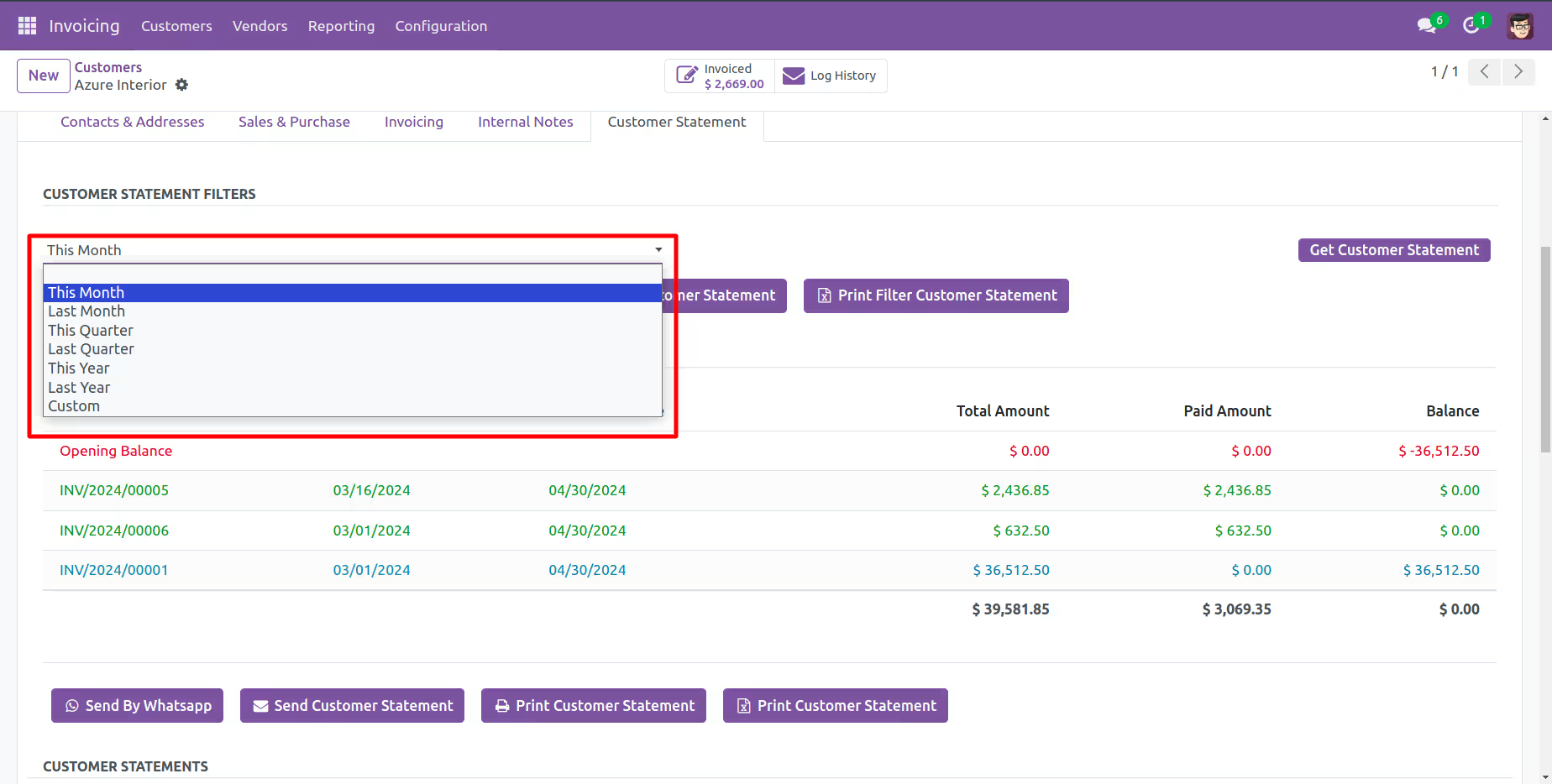
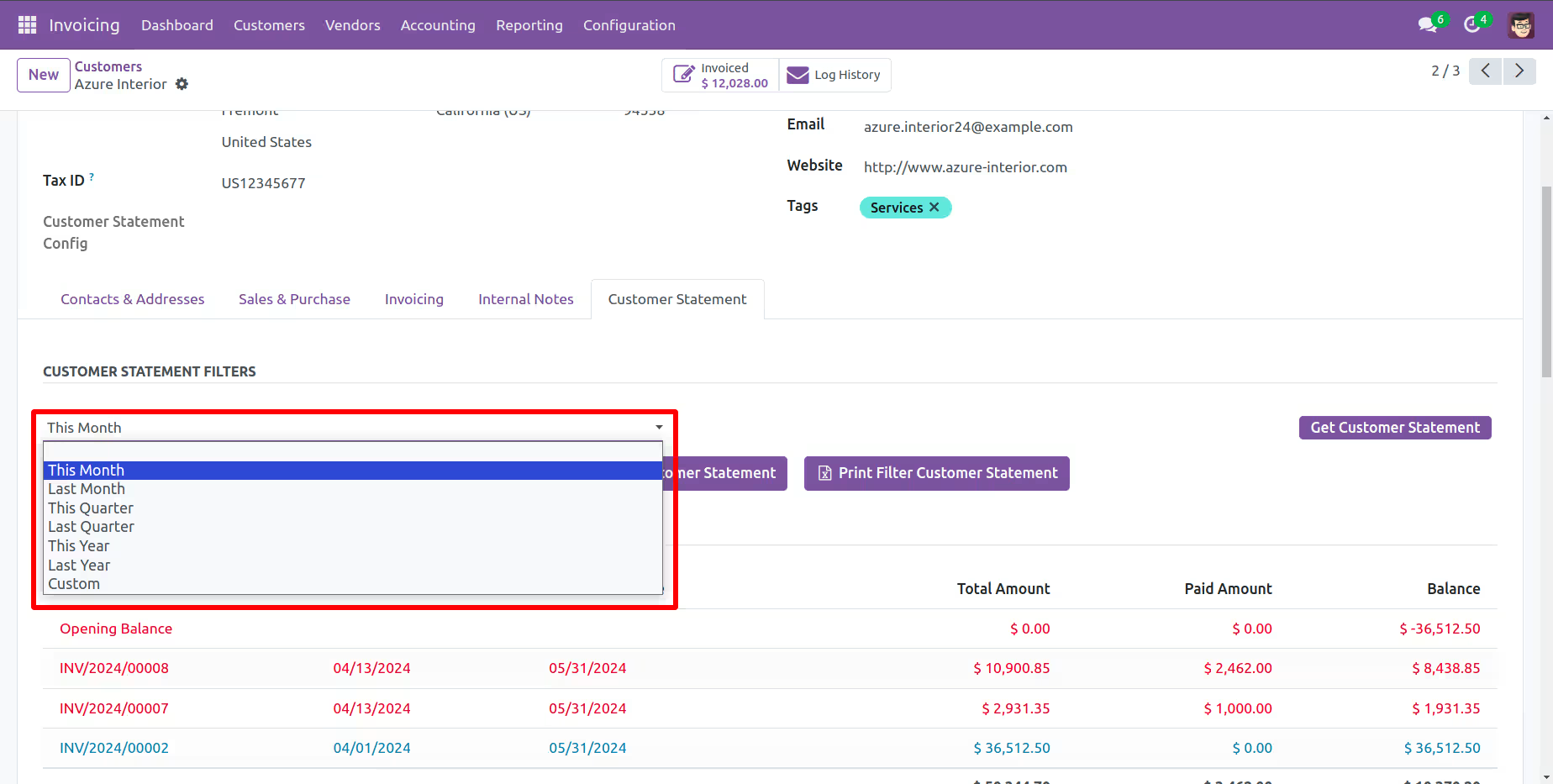
You can filter statements, So select the filter option 'This Month'.
Select the type of the customer statements like 'Not paid, paid, In payment, Partially paid, Reversed, or Invoicing app legacy'.
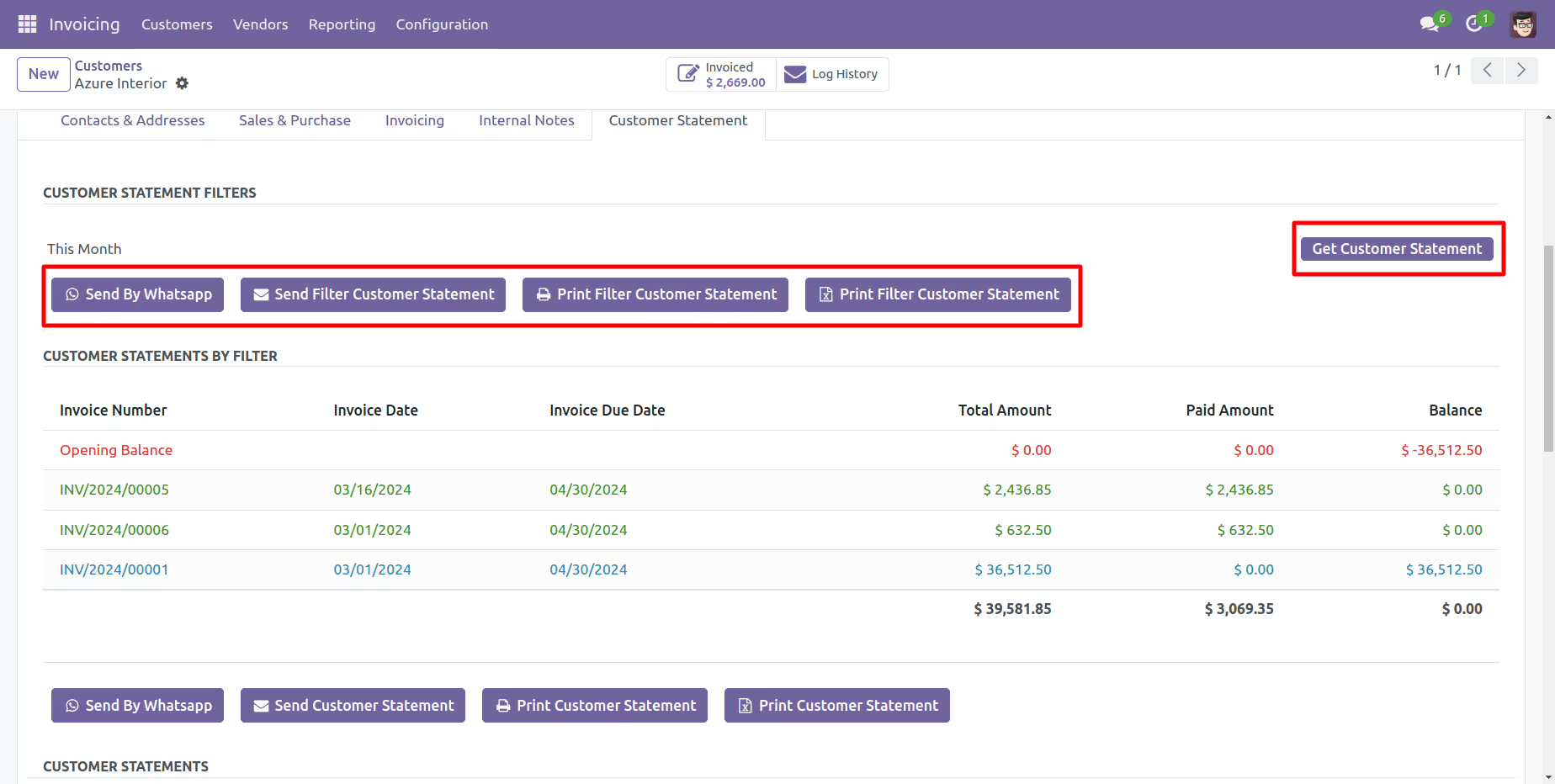
Press 'Get Customer Statement'.
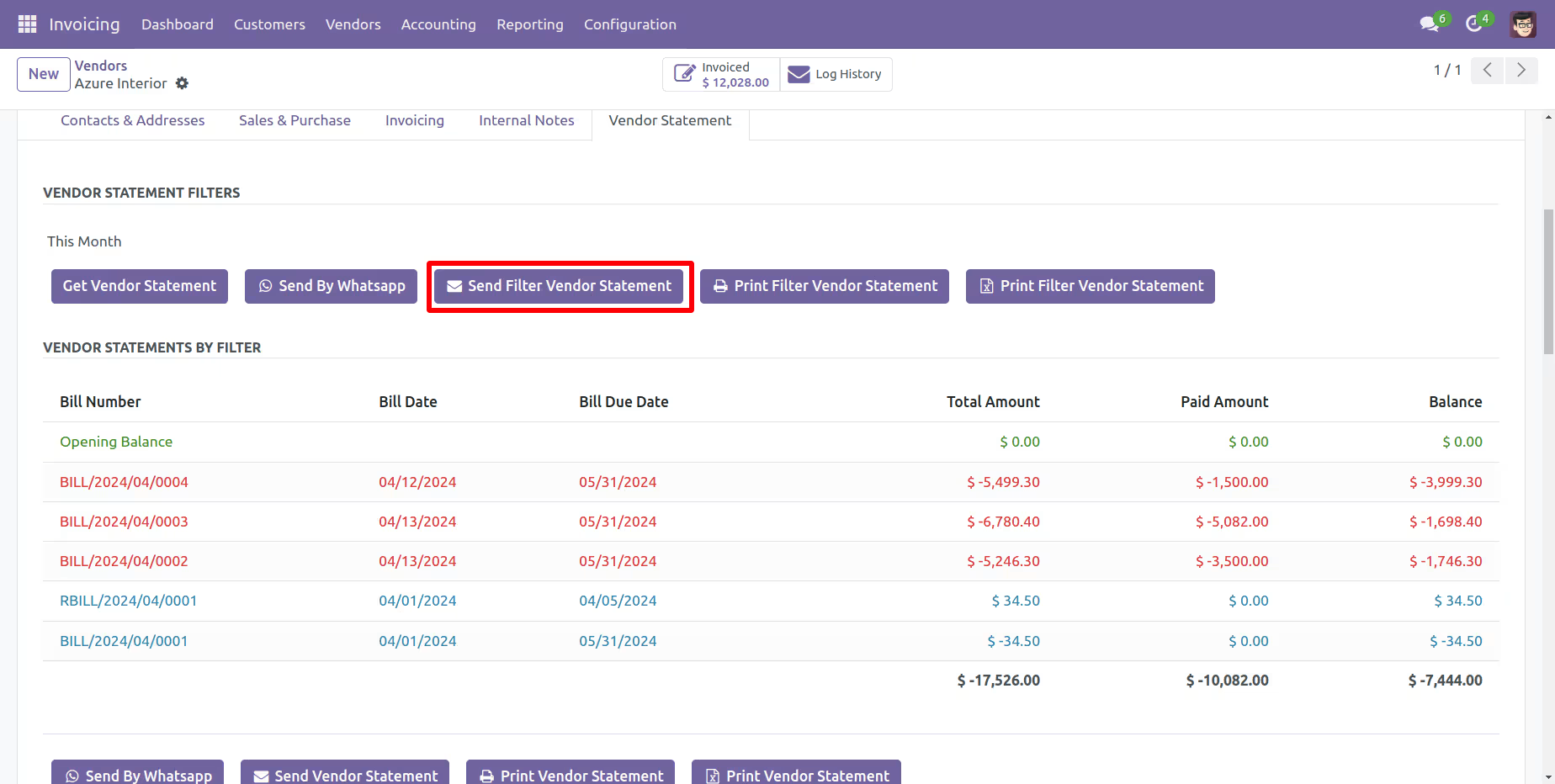
You can send filter statements by mail, so press 'Send Filter Customer Statement'
and press 'Print Filter Customer Statement' to print filter customer statement.
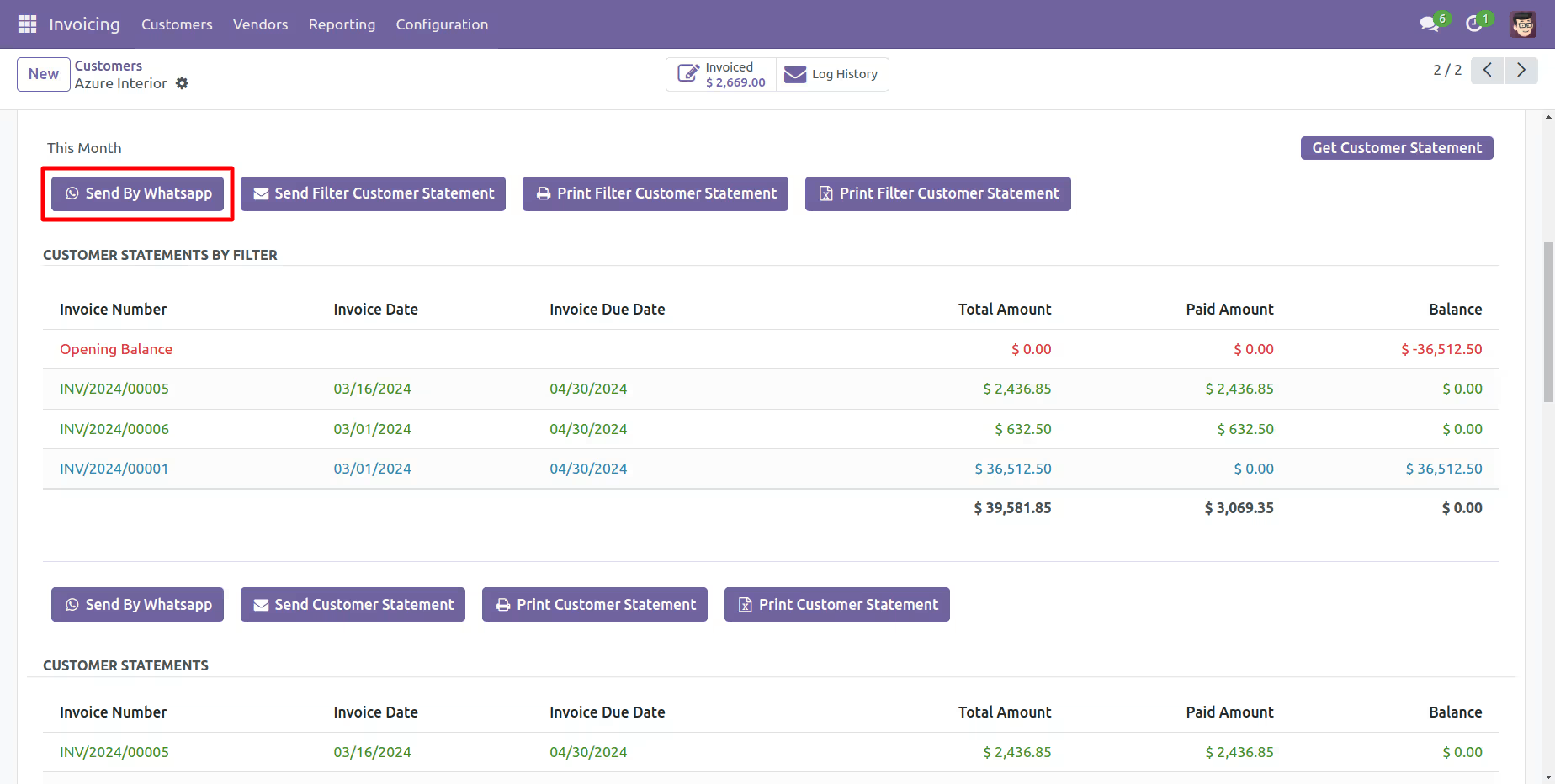
You can also send filter statements by whatsapp.
Customer filter statement sent by mail.
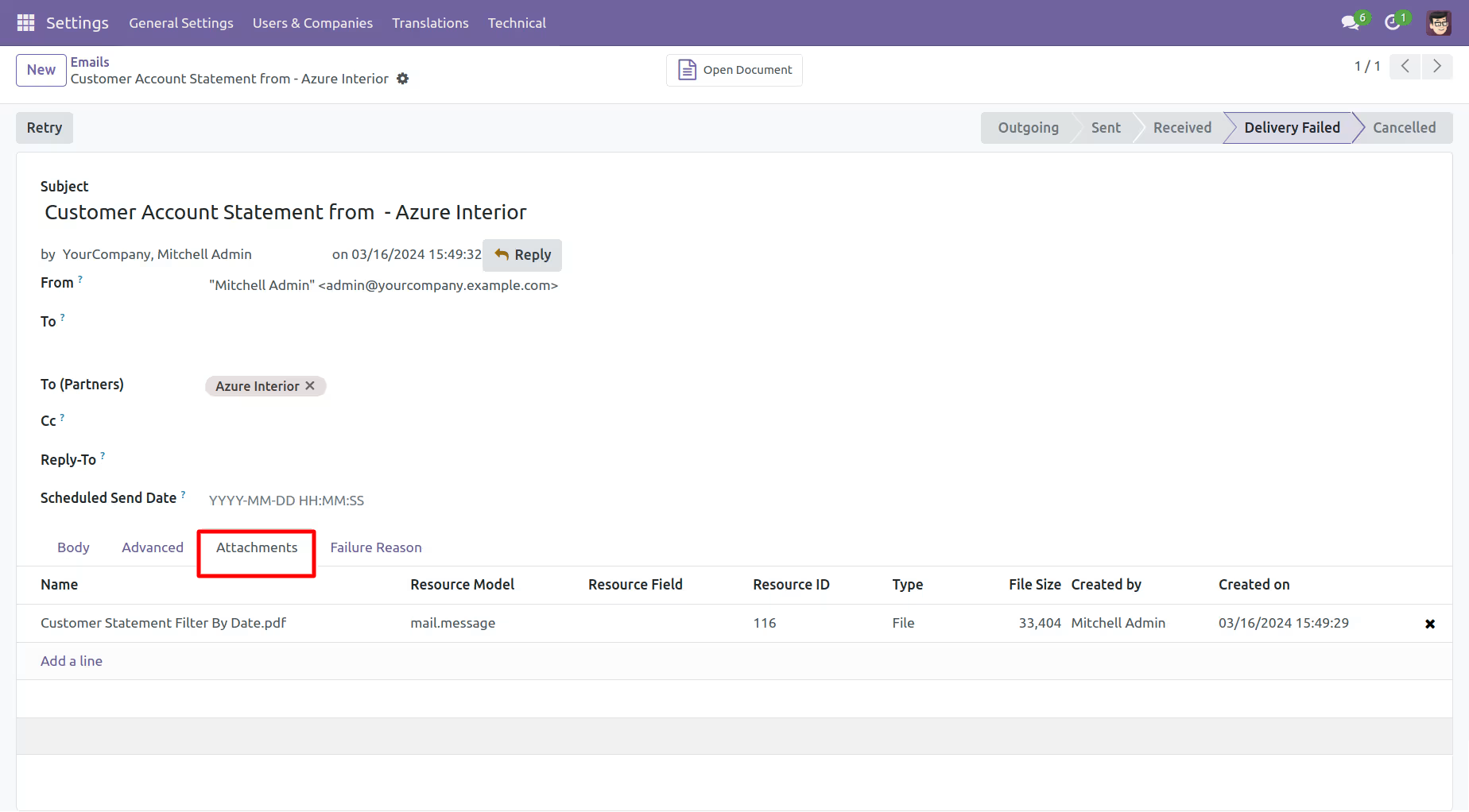
Email statement form view.
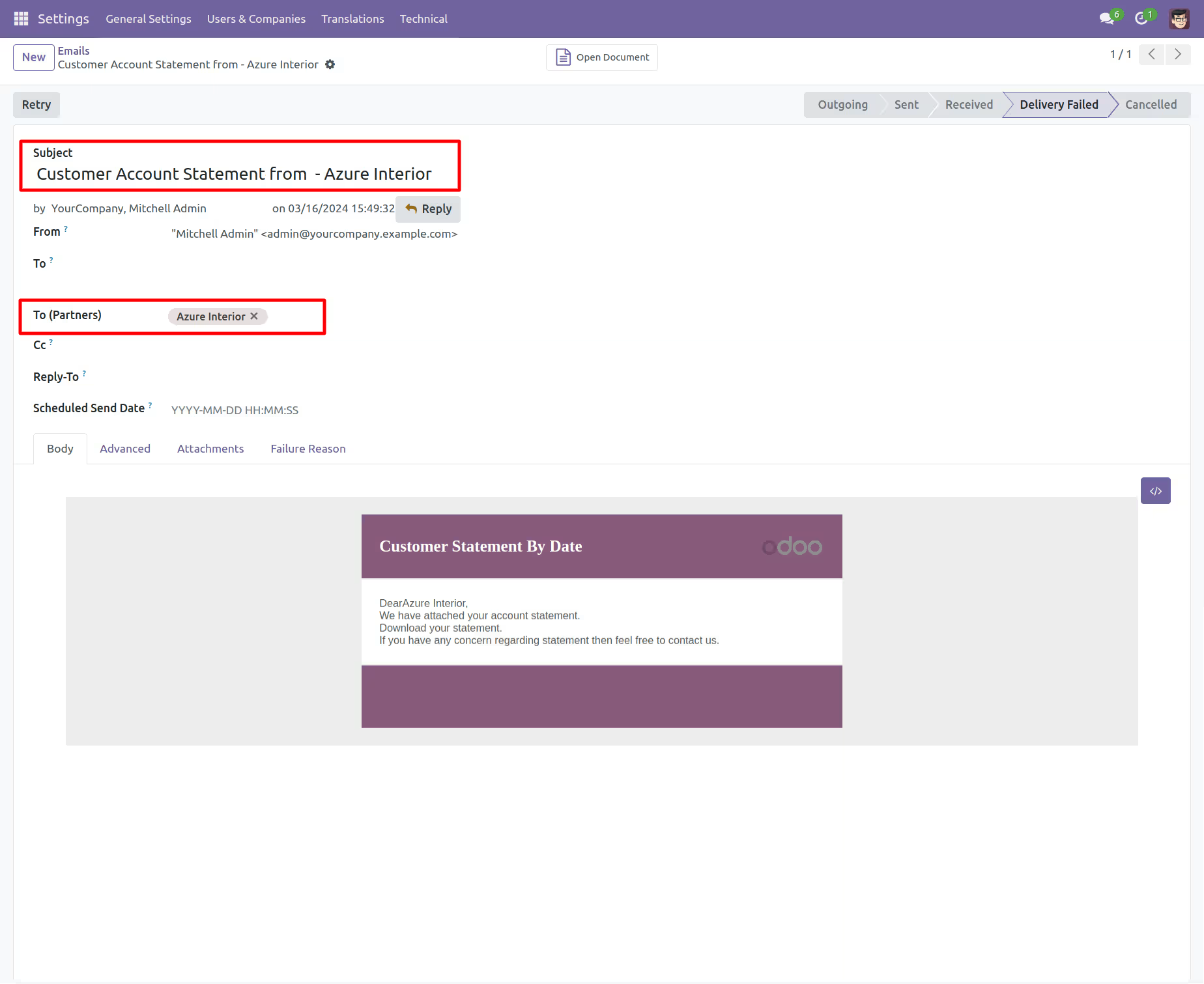
You can see the statement attachment from an email.
The statement looks like this.
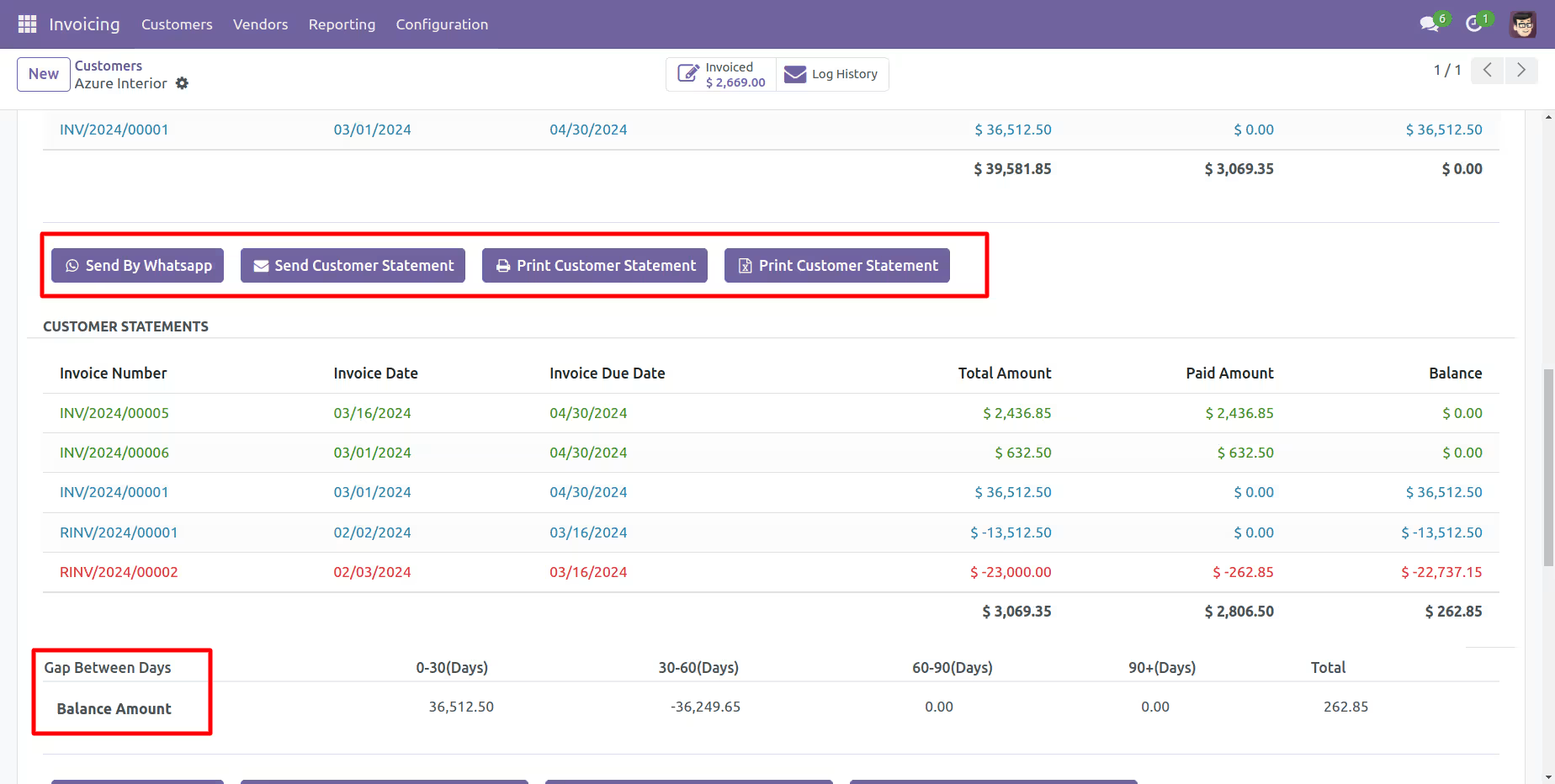
Customer Statement Flow
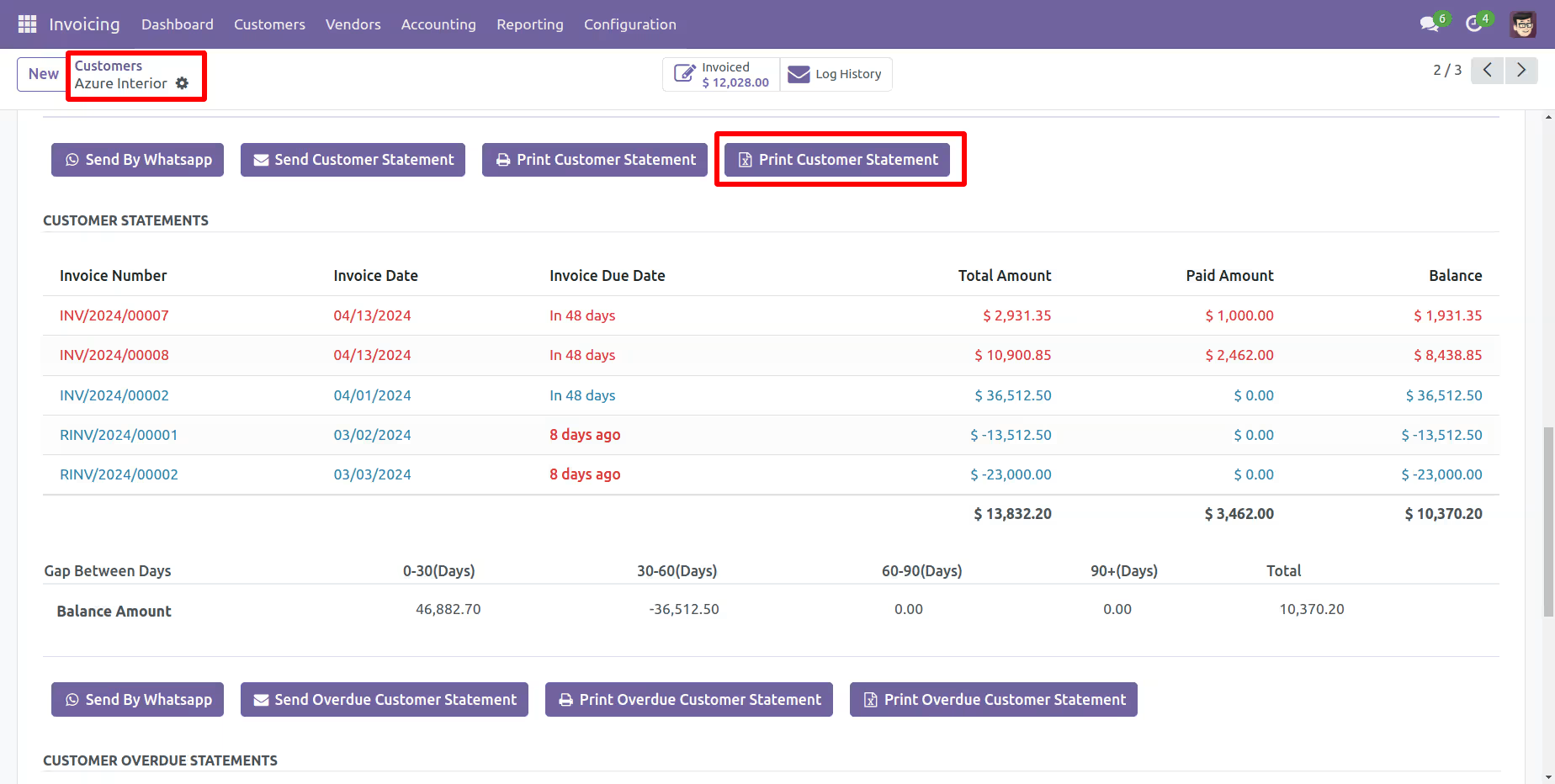
Go to the customer => customer statement, press 'Send Customer Statement' to send the statement by mail and press 'Print Customer Statement' to print the statement. You can also send filter statements by whatsapp.
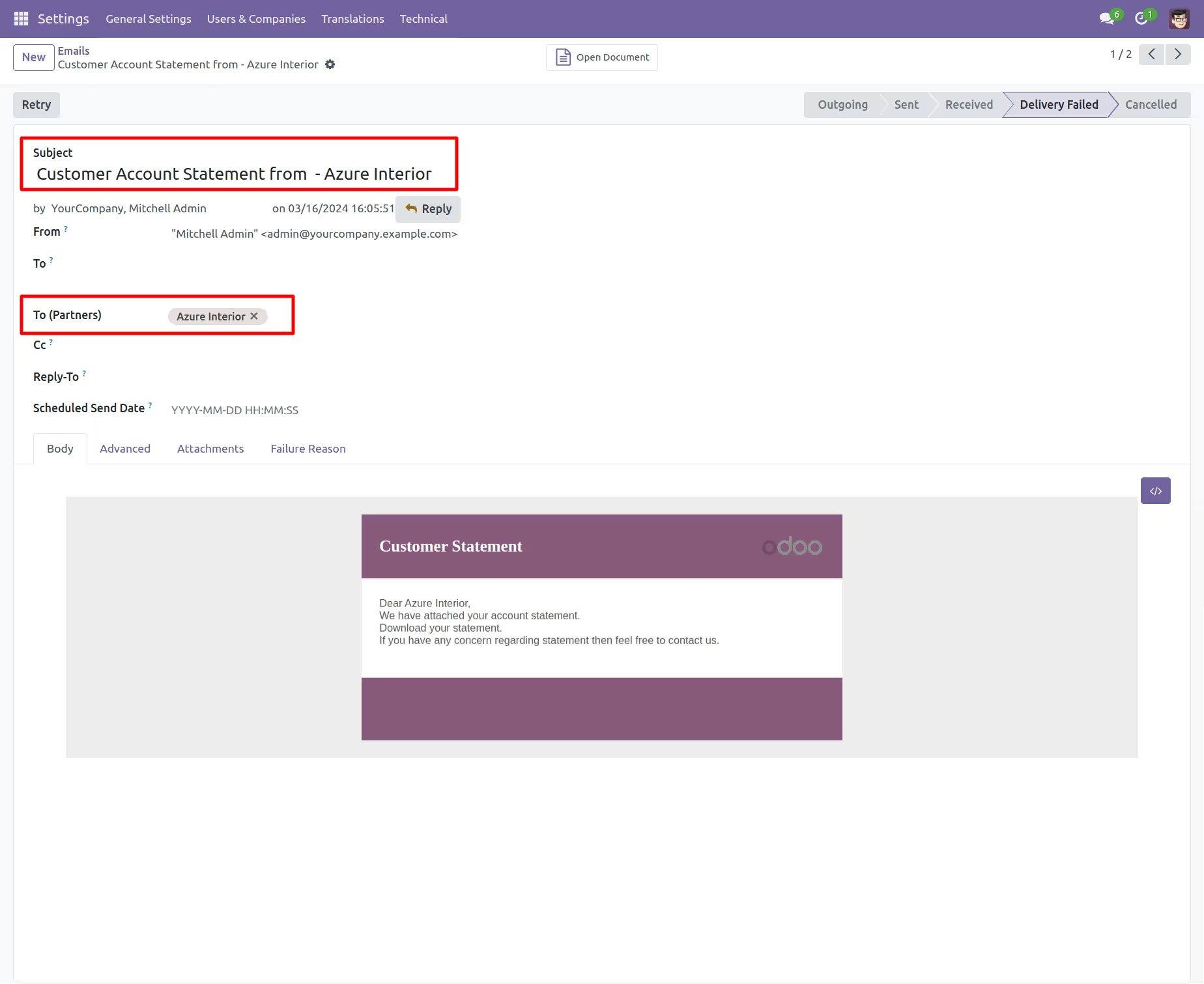
Customer filter statement sent by mail.
Email statement form view.
You can see the statement attachment from an email.
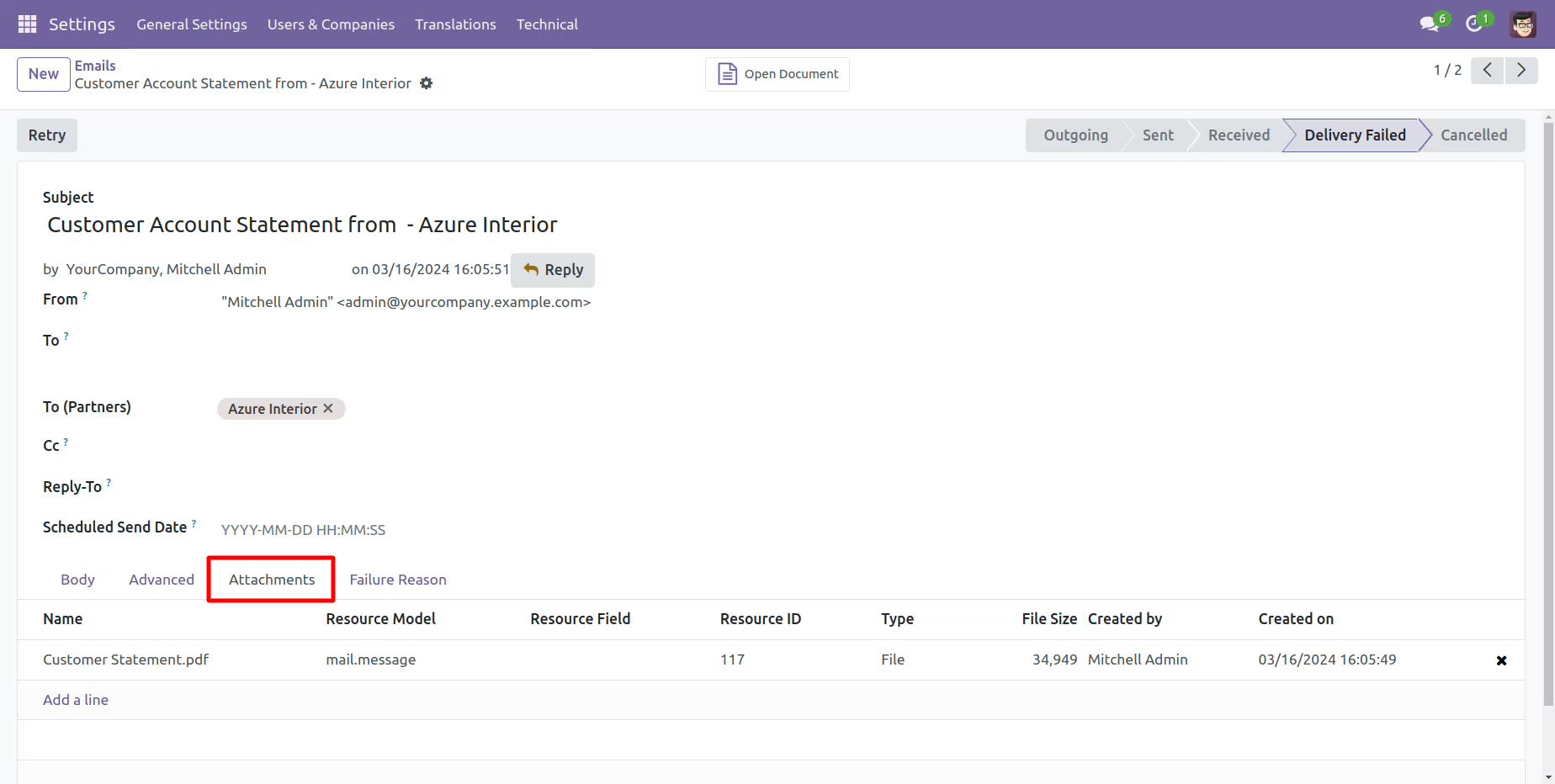
The statement looks like this.
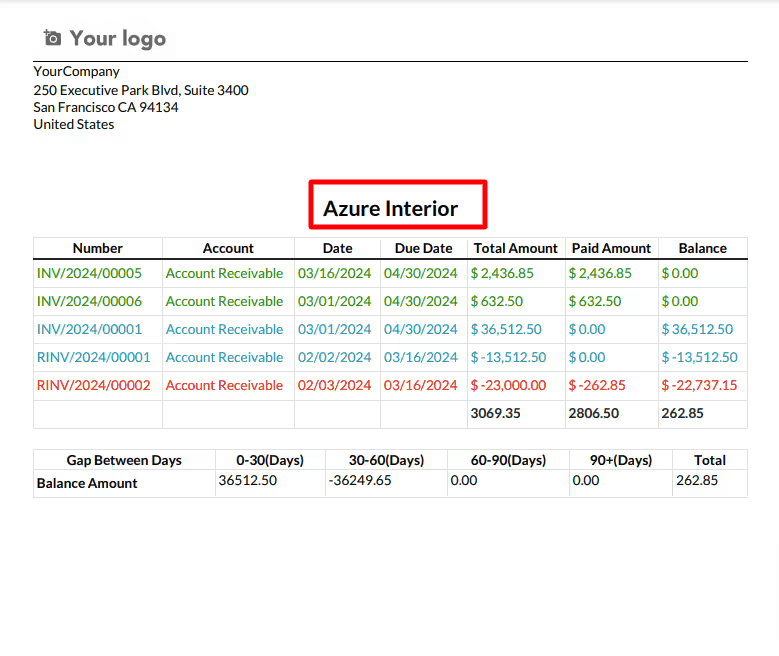
Customer Overdue Statement Flow
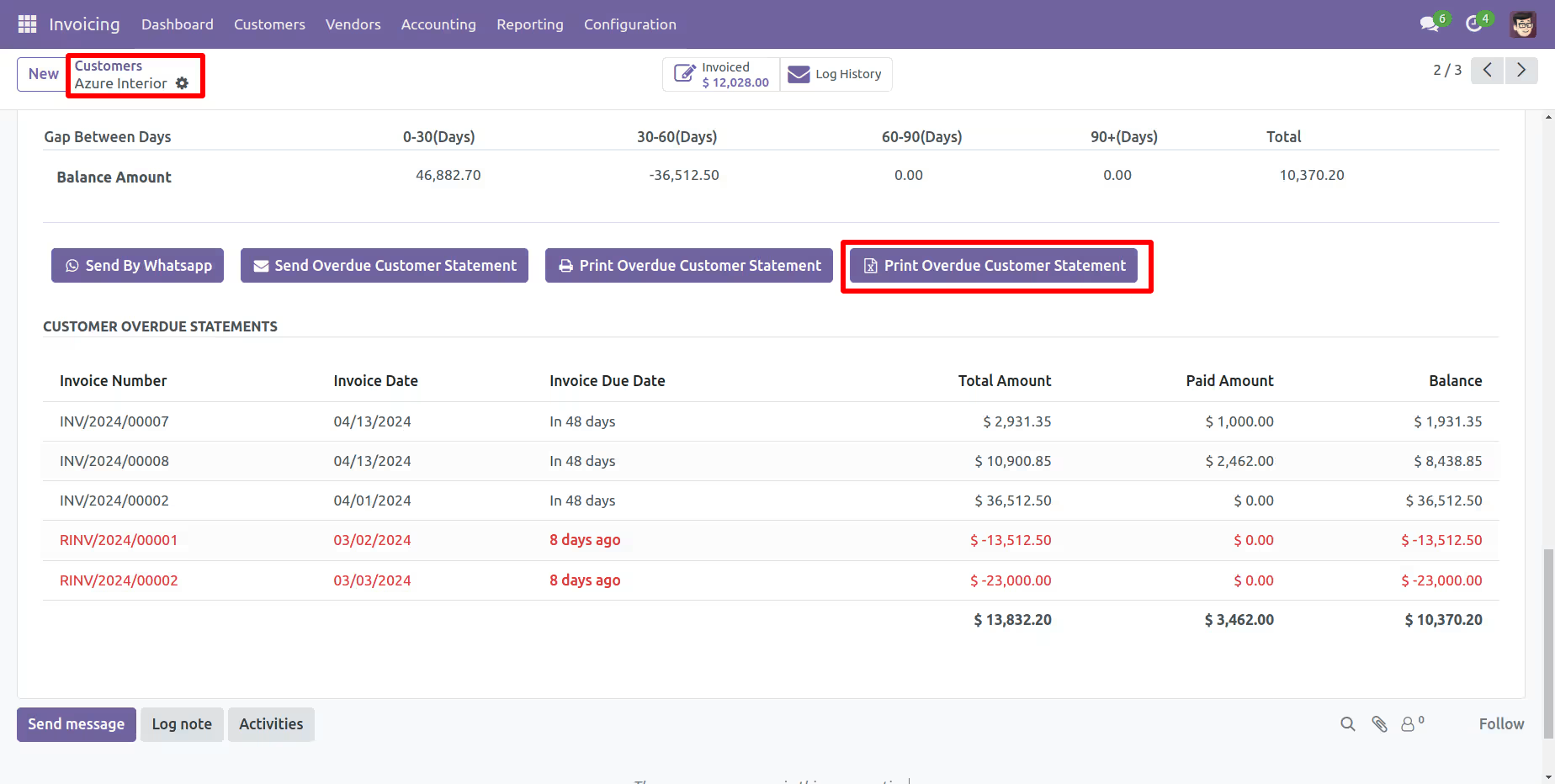
Go to the customer => customer statement, press 'Send Overdue Customer Statement' to send the statement by mail and press 'Print Overdue Customer Statement' to print the statement.
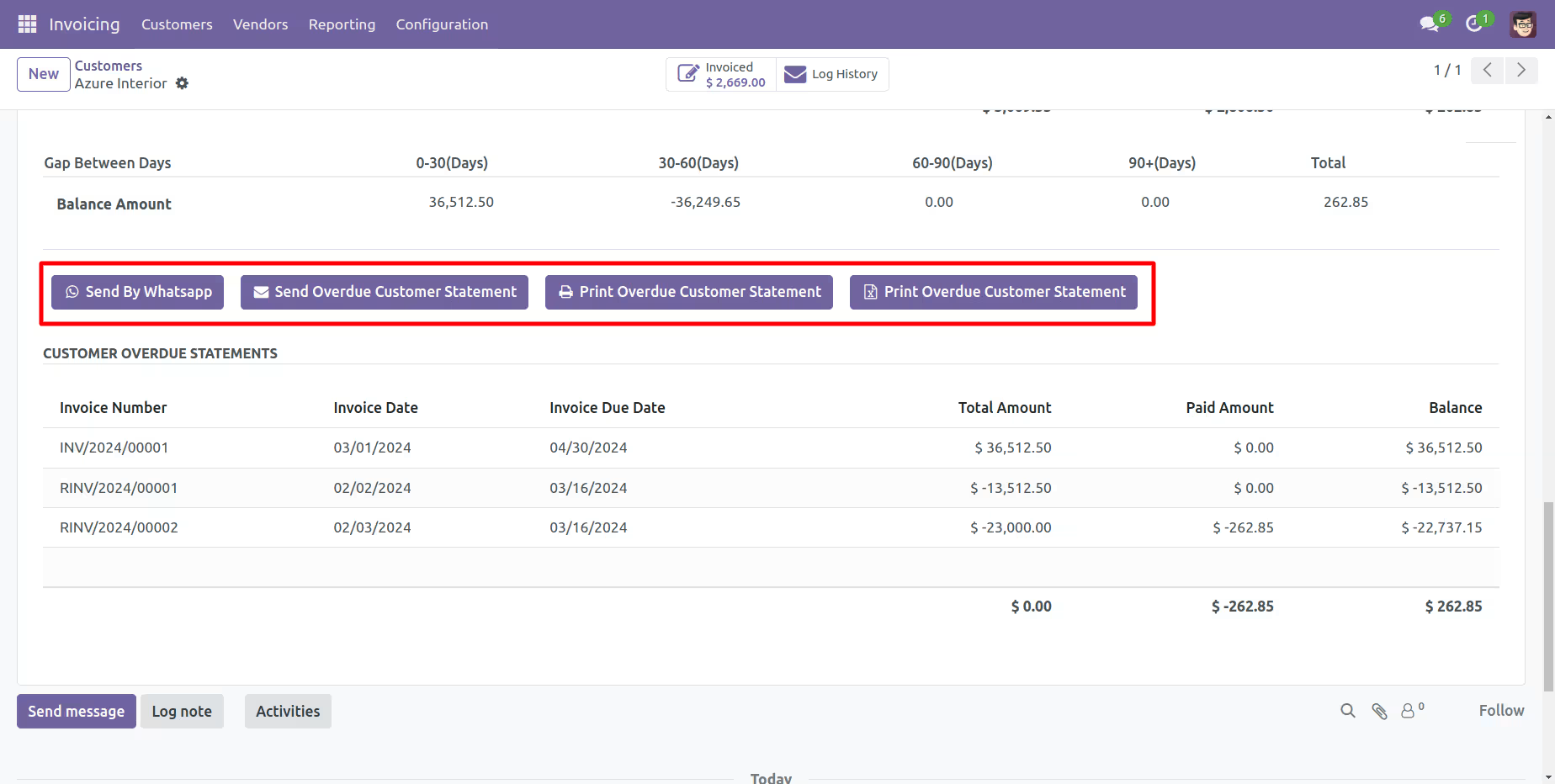
Customer filter statement sent by mail.
Email statement form view.
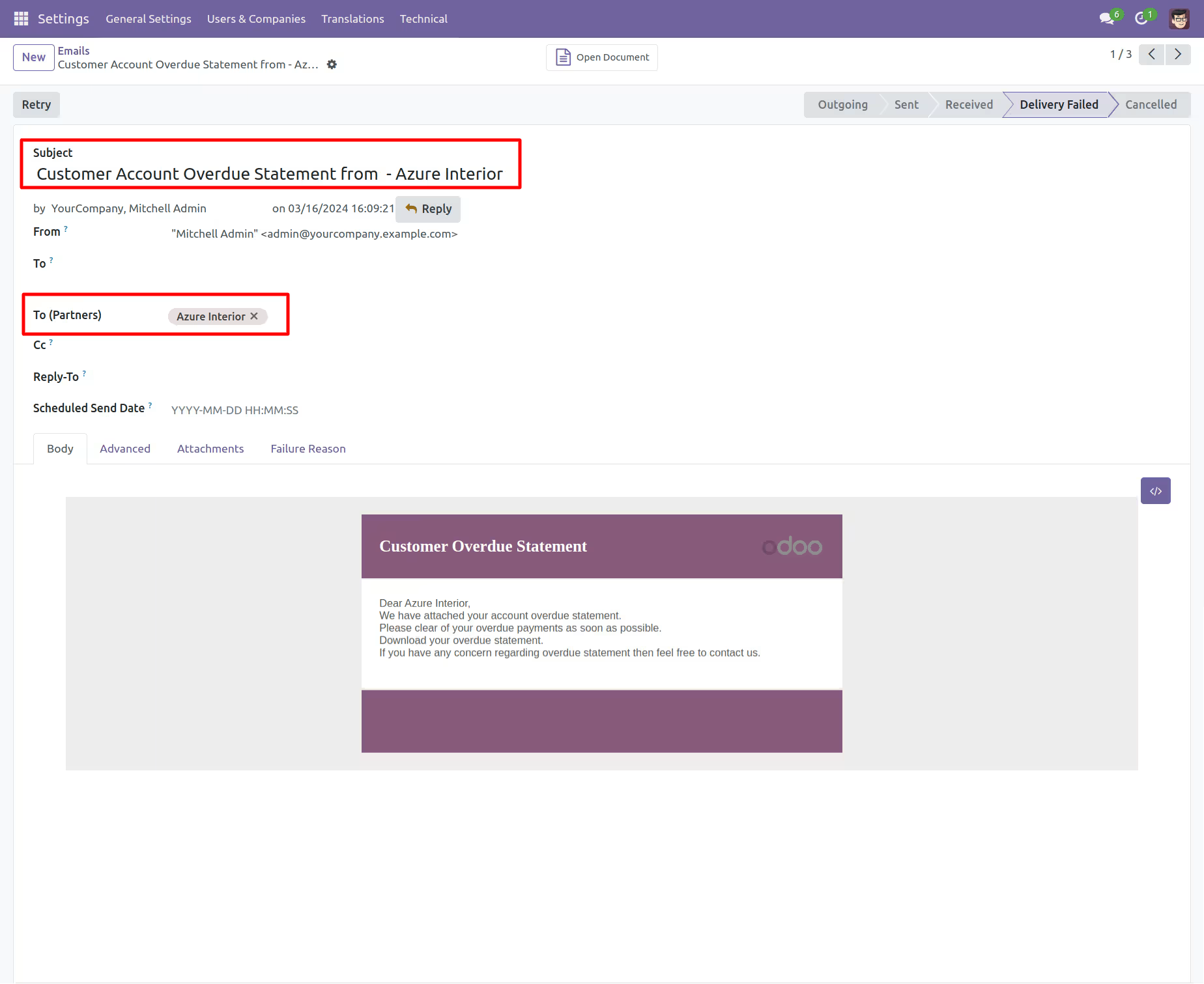
You can see the statement attachment from an email.
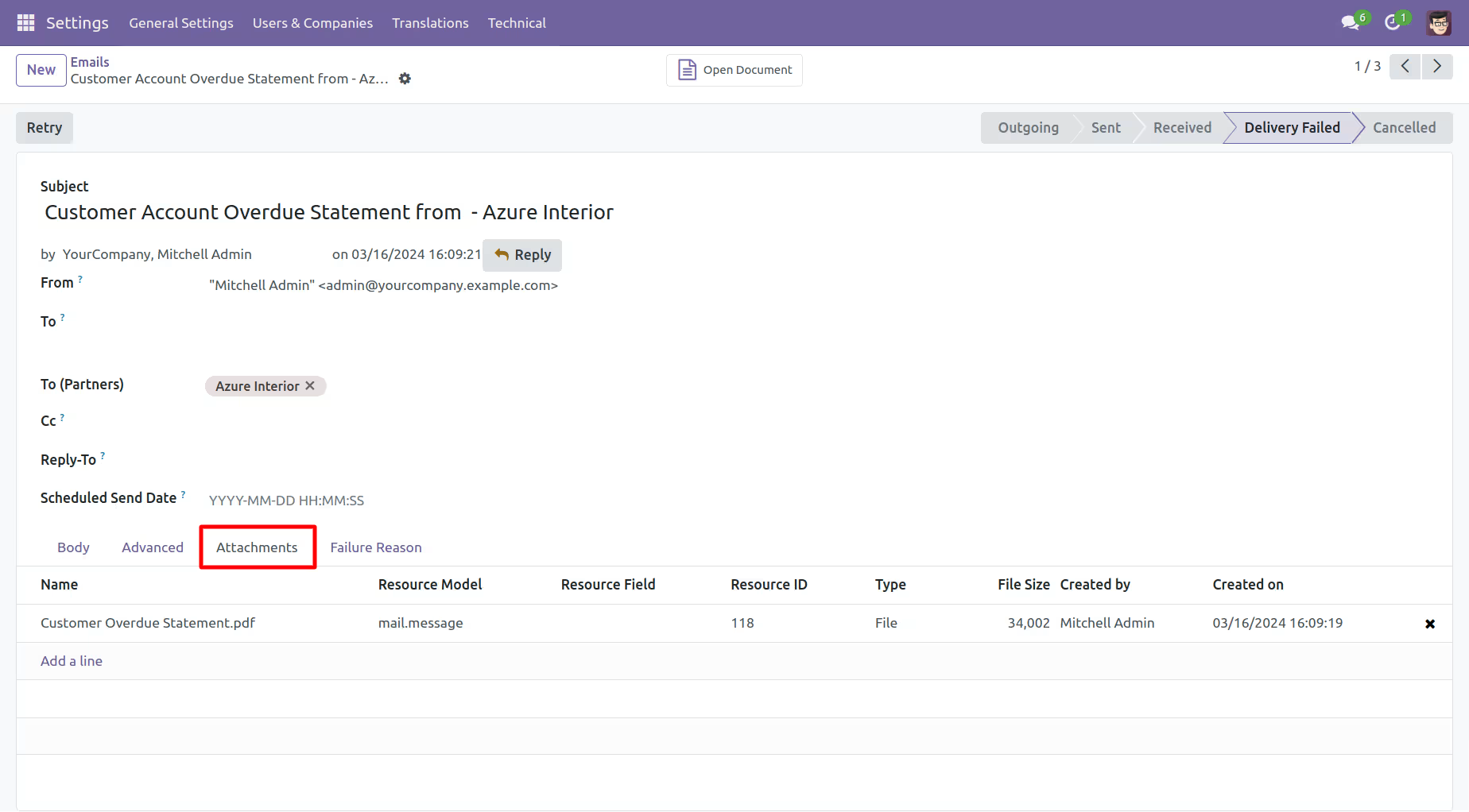
The statement looks like this.
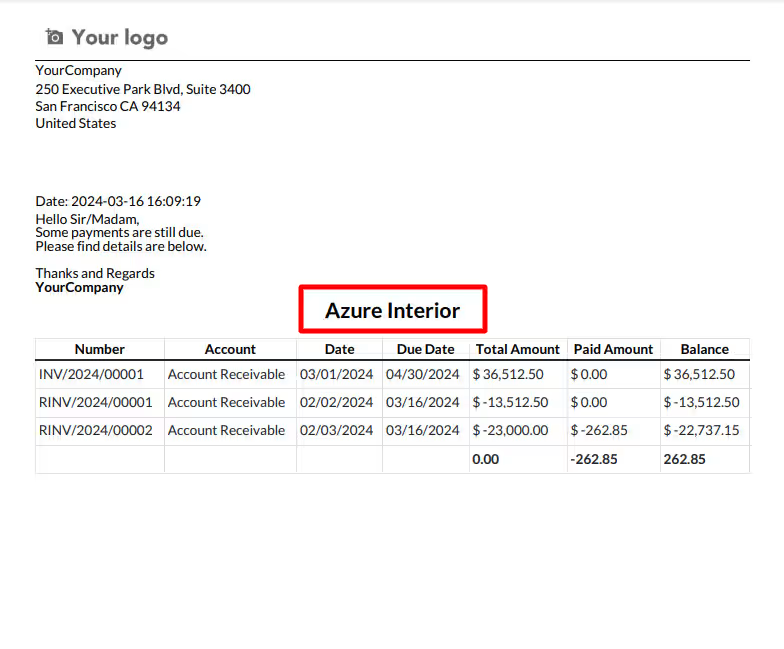
Customer Account Statement/Overdue Statement Mail Log History Flow
The statement log history configuration, you can see mail log history from the 'See all mail log history'.
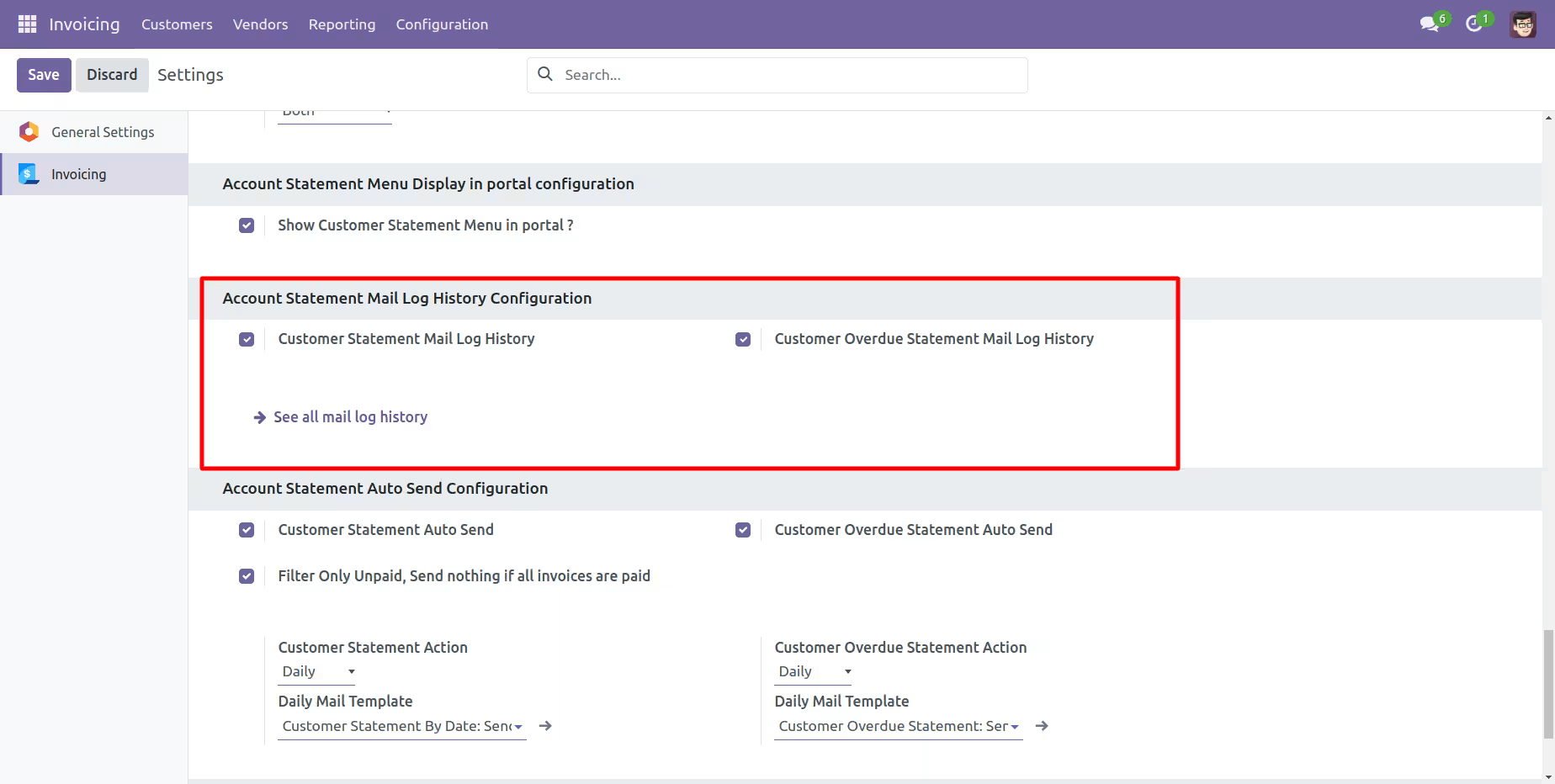
Customer Statement Quick Send & Print Flow
The statement log history tree view.
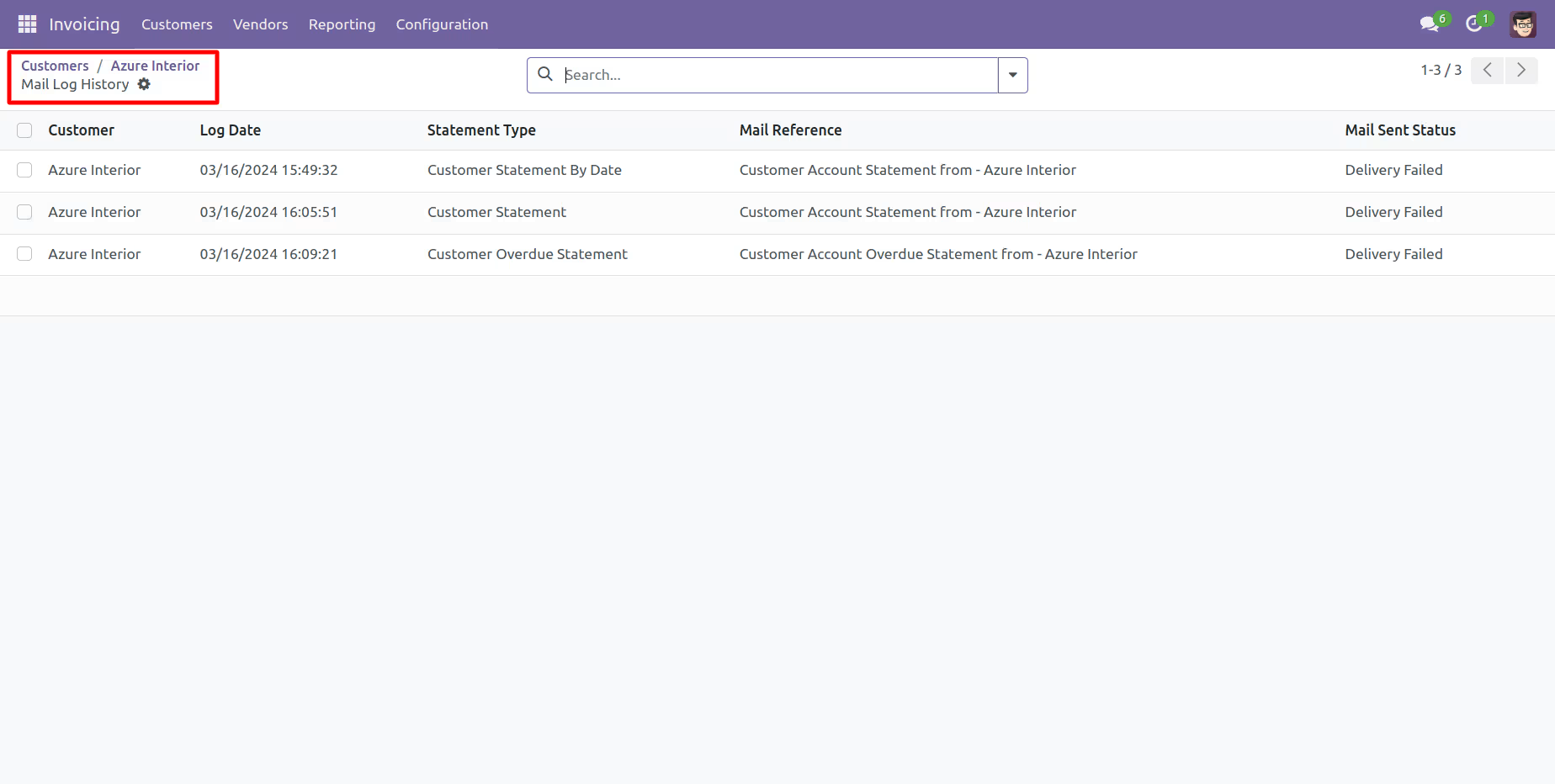
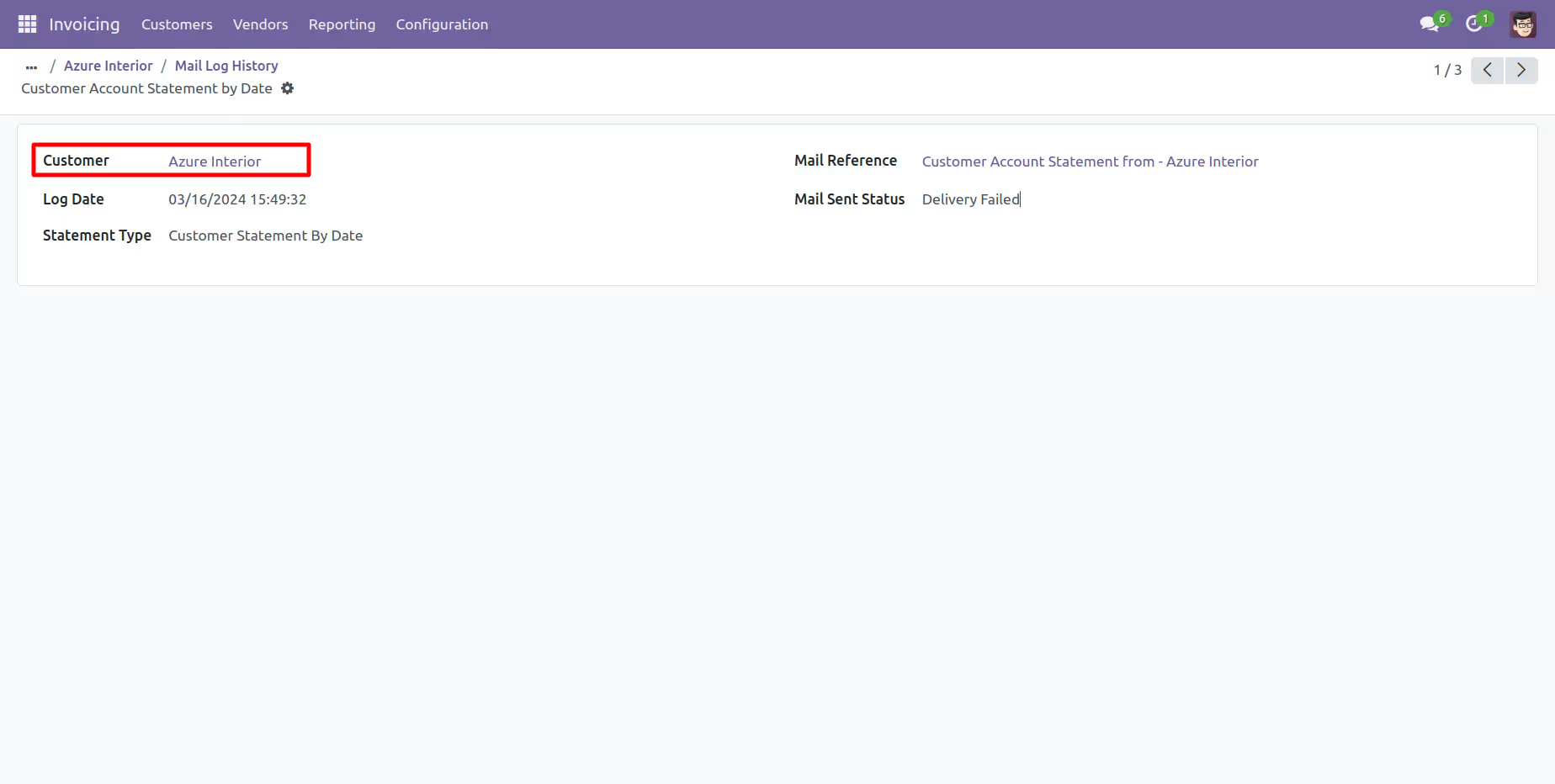
Statement log history form view.
You can filter and group by statements by the provided list.
You can print statements from the 'Action'.
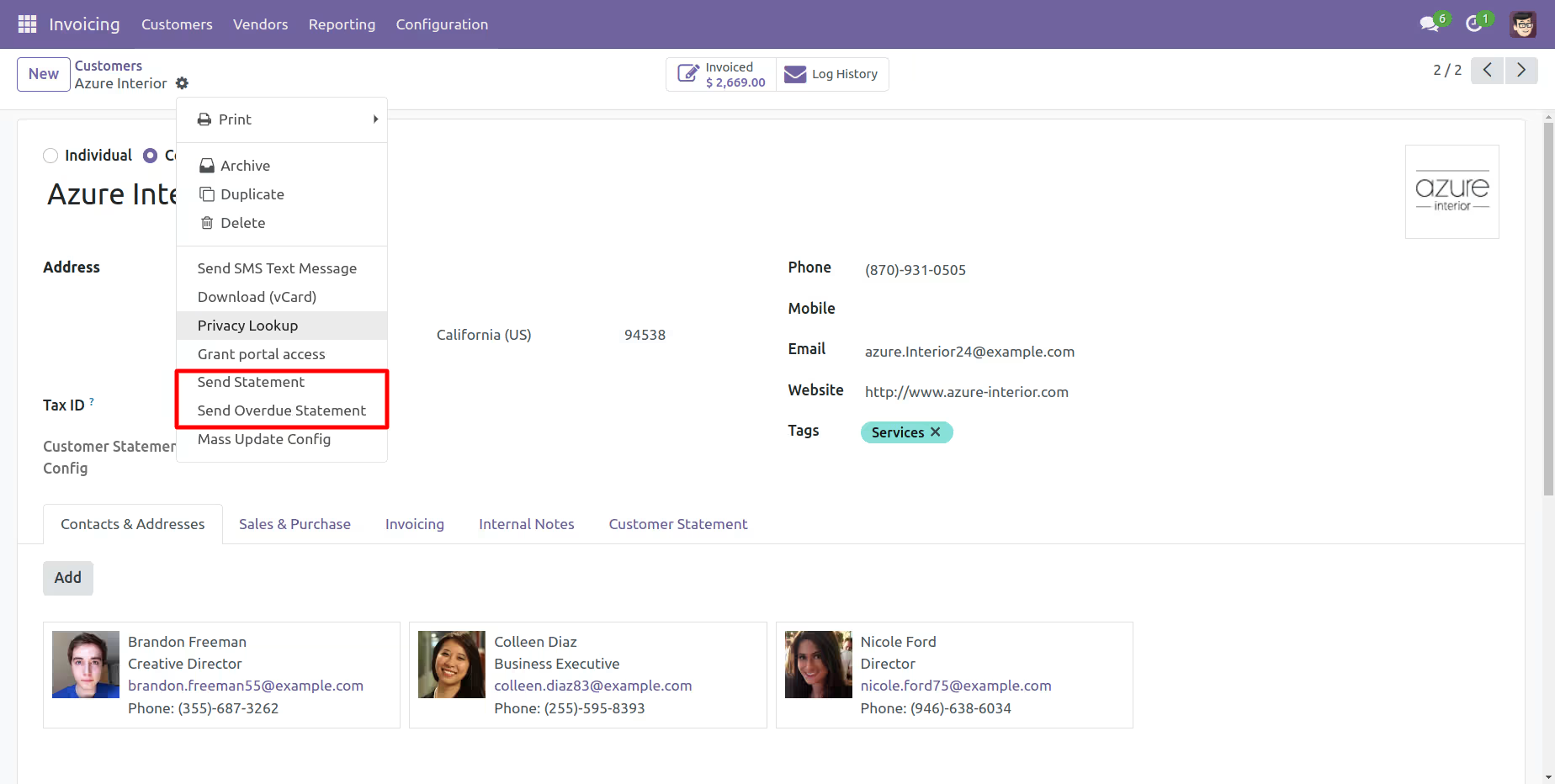
You can send a statement/overdue statement from the 'Action' button.
Customer Auto Send Statement/Overdue Statement Flow
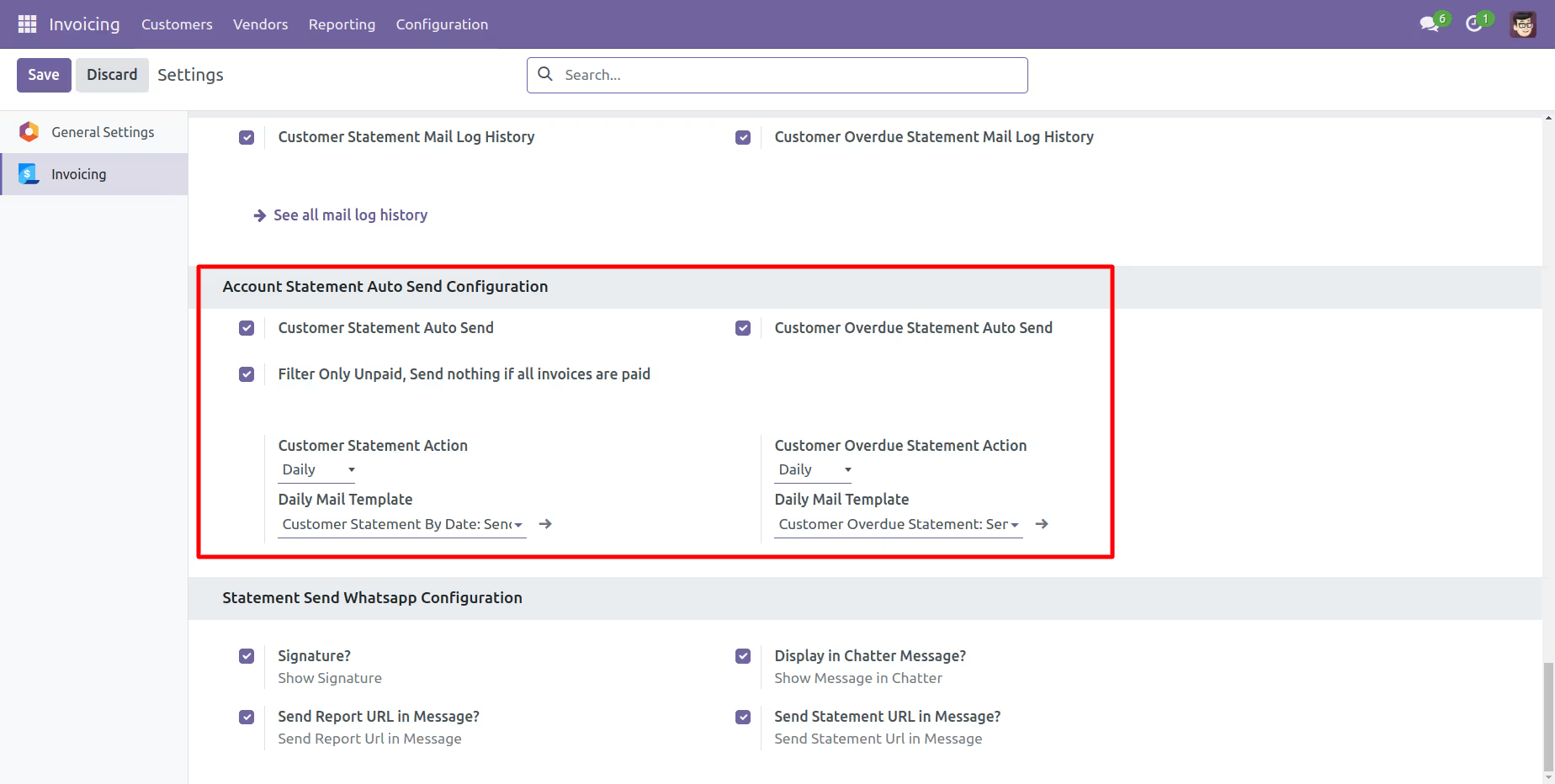
Customer auto-send statements/overdue statements configuration.
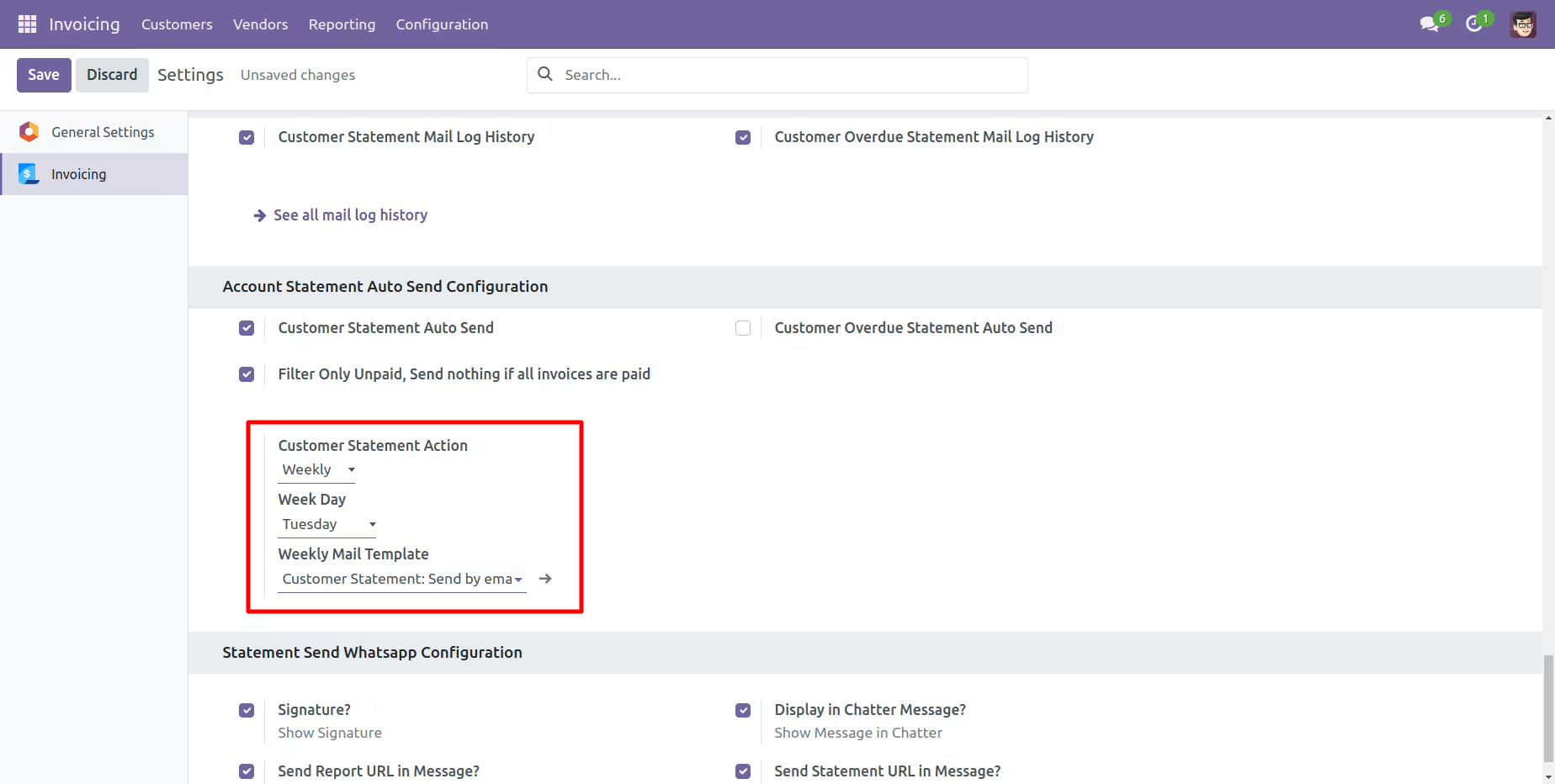
You can weekly auto-send customer statements.
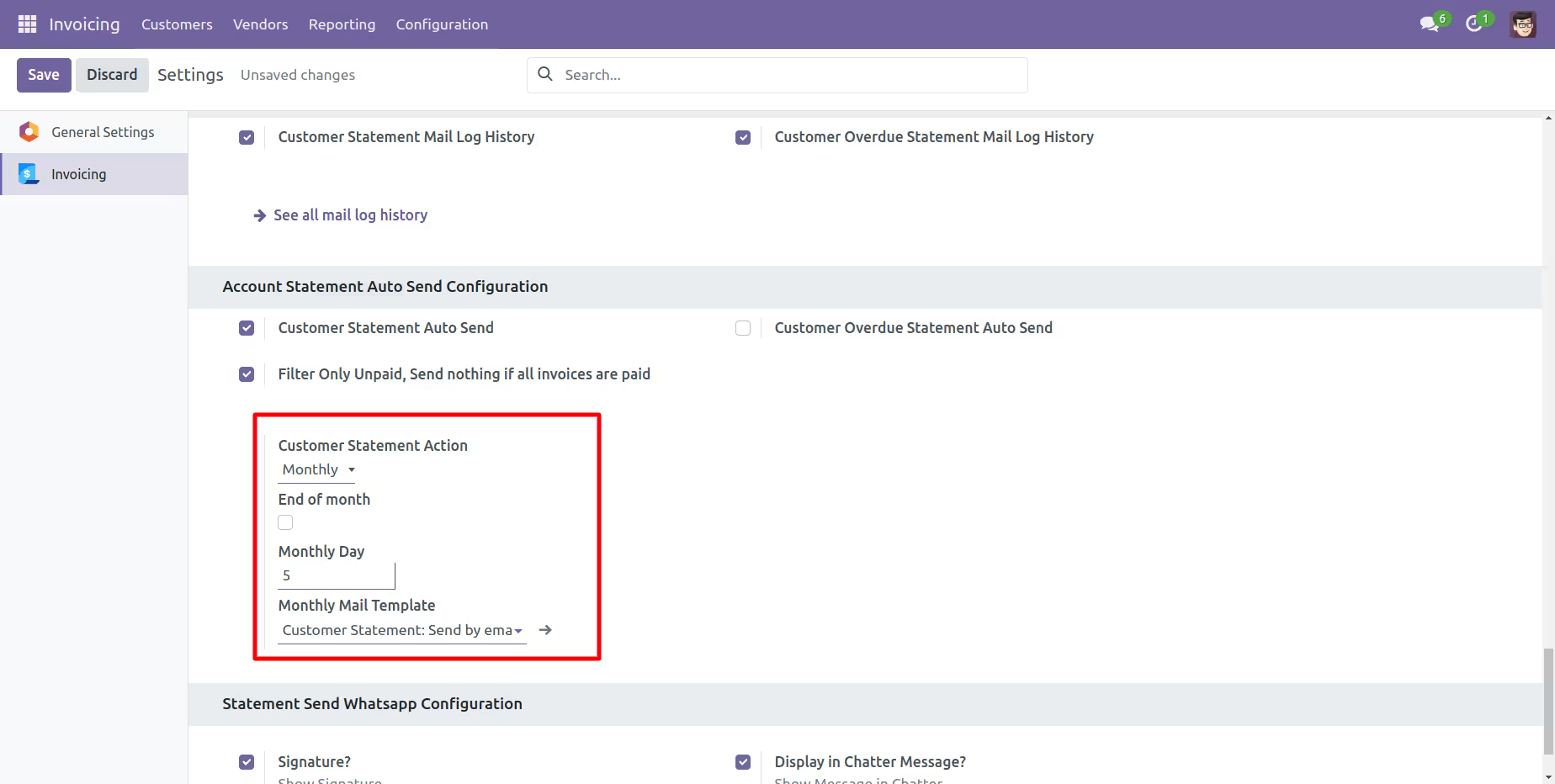
You can monthly auto-send customer statements, you can select monthly days.
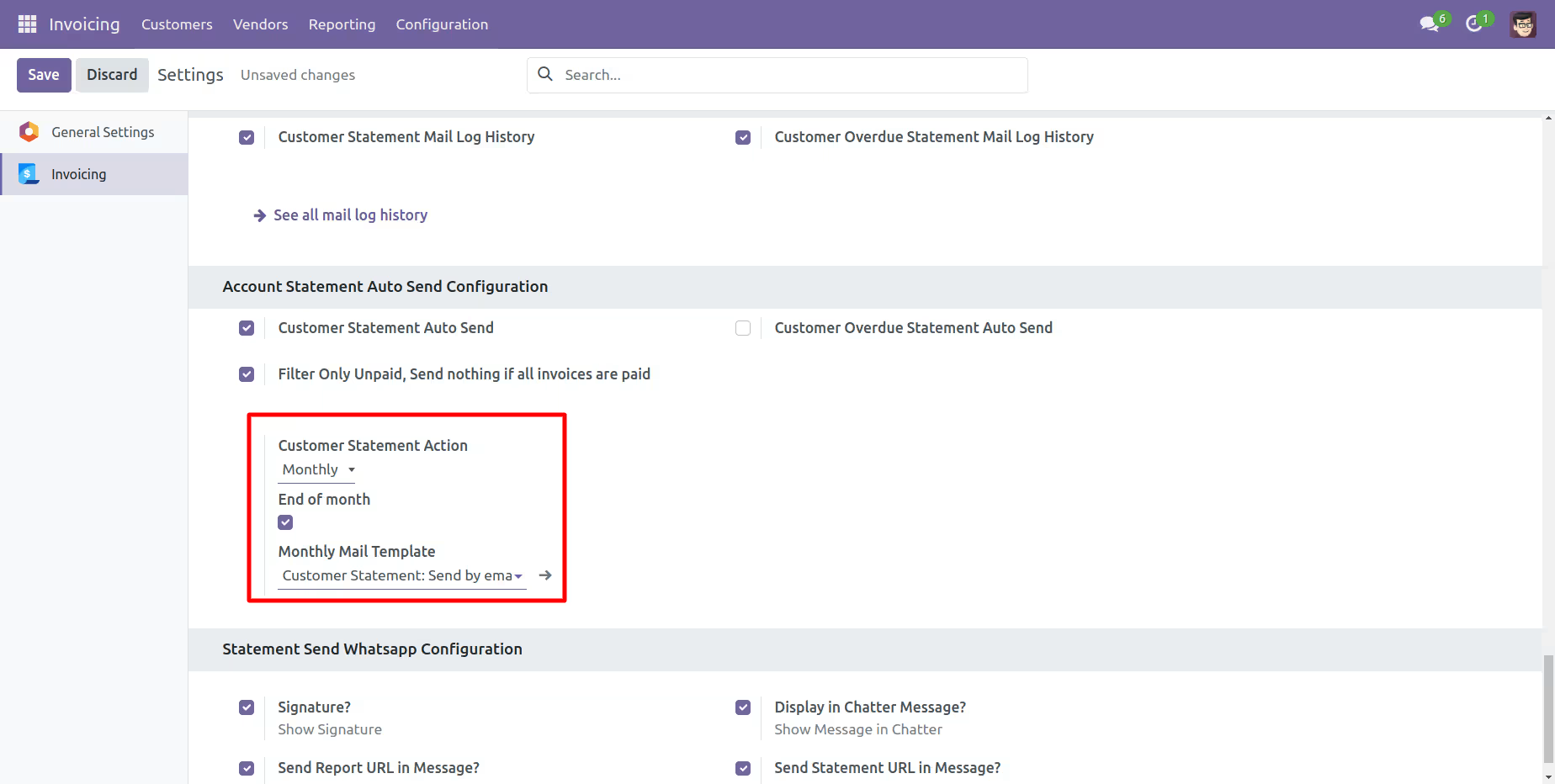
You can auto-send customer statements by end of the month.
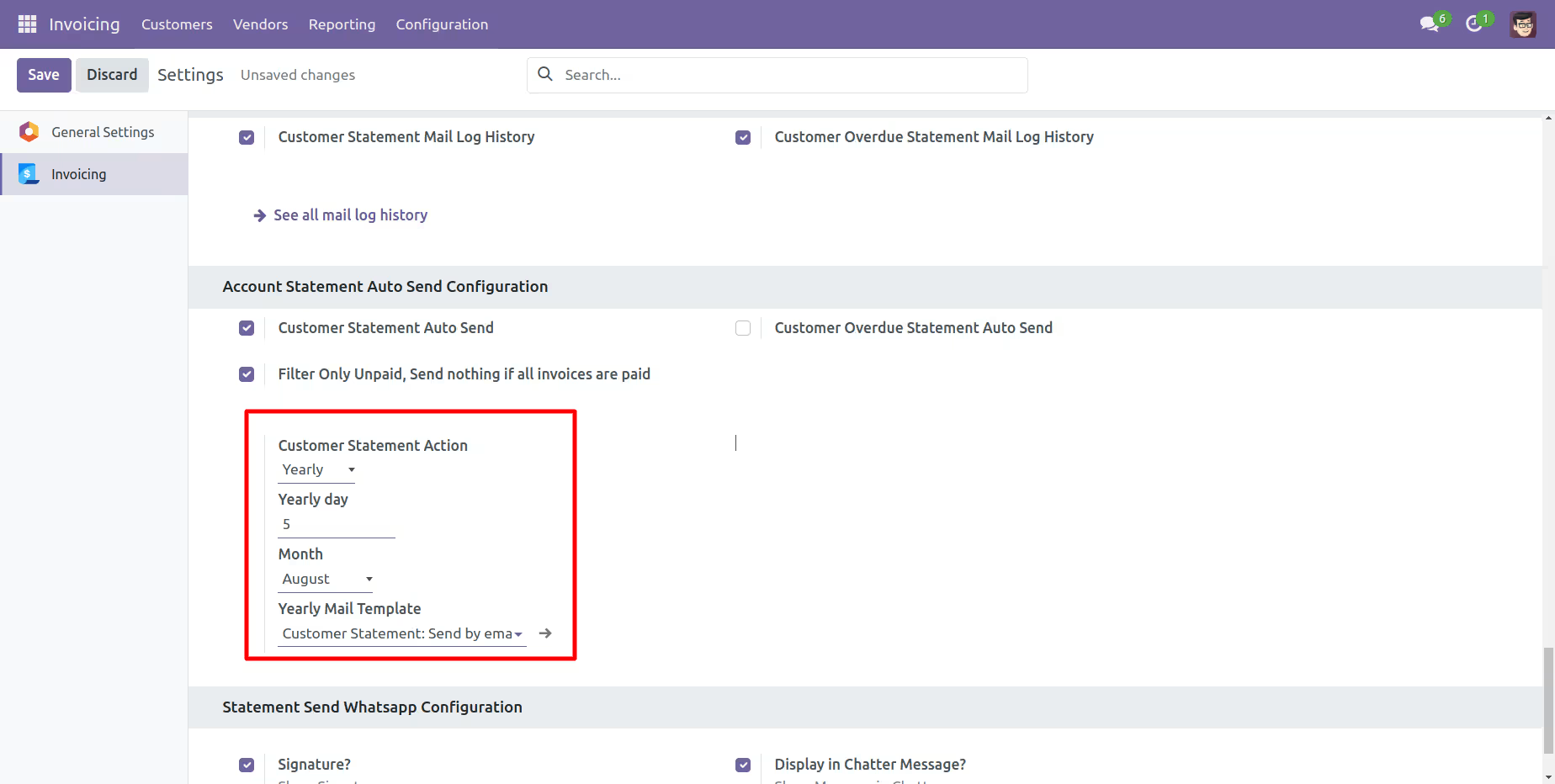
You can yearly auto-send customer statements.
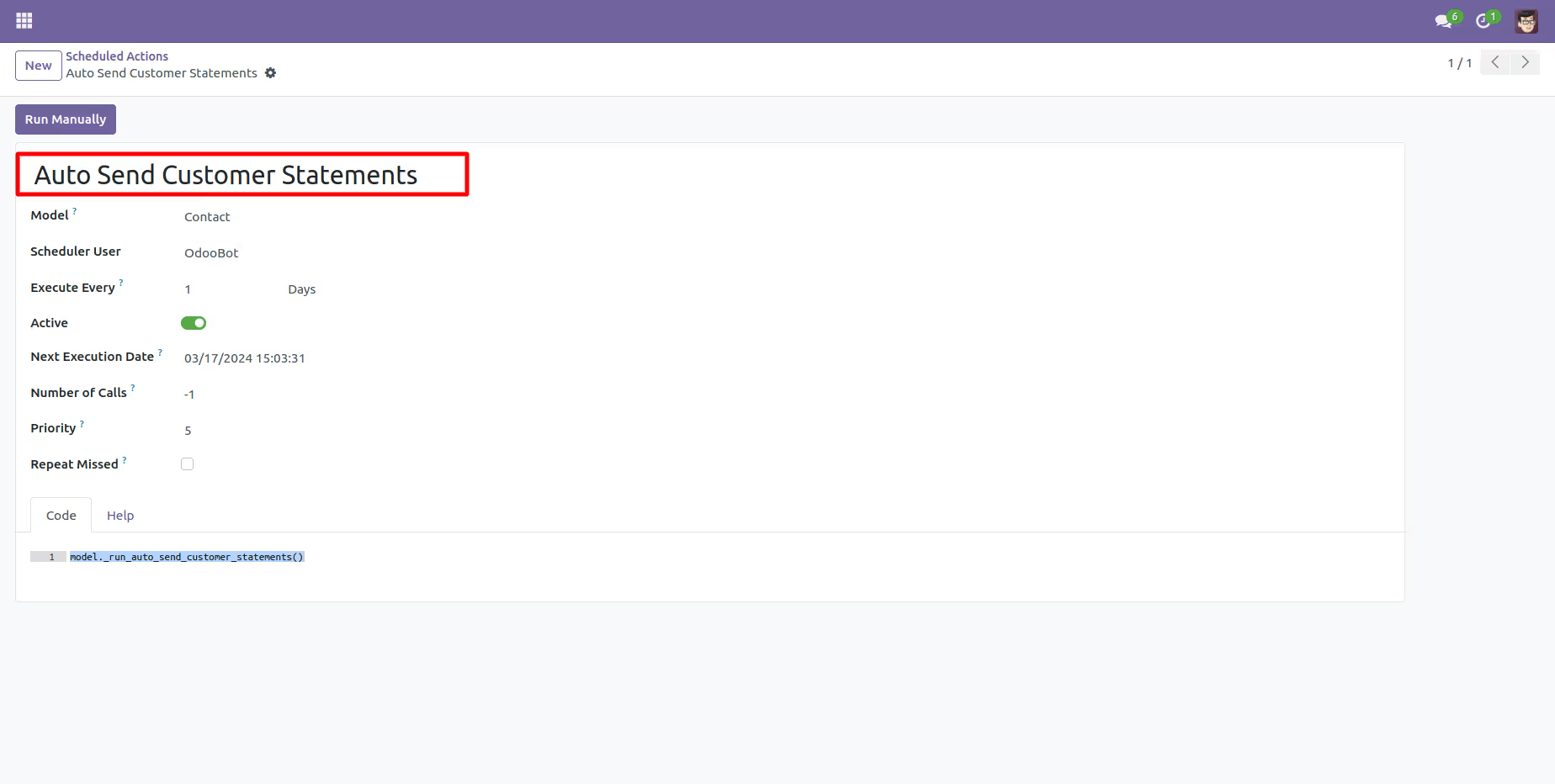
You can send statements by scheduled action(cron job).
Customer Portal Statement Flow
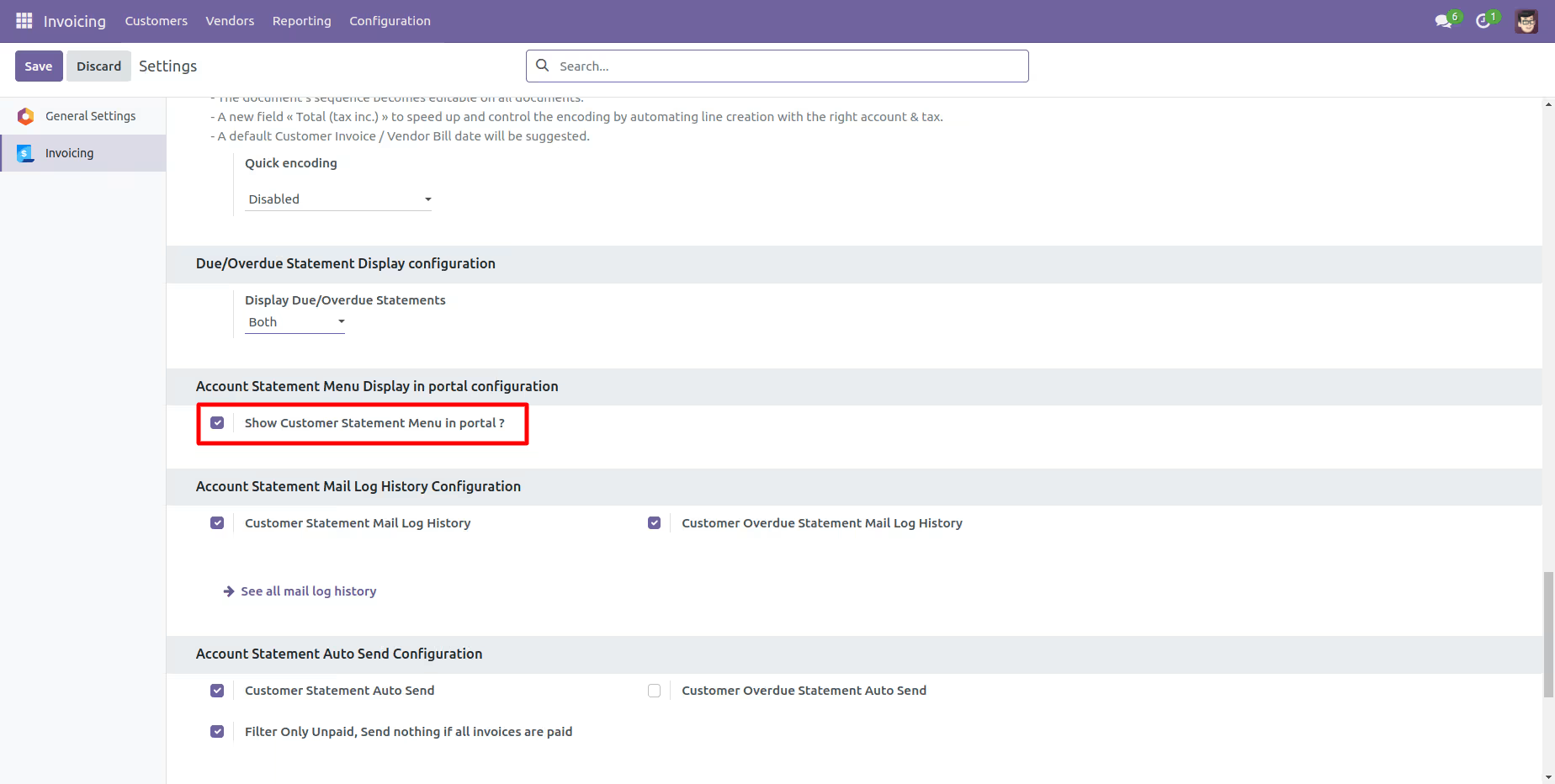
Now tick 'Show Customer Statement Menu In Portal'.
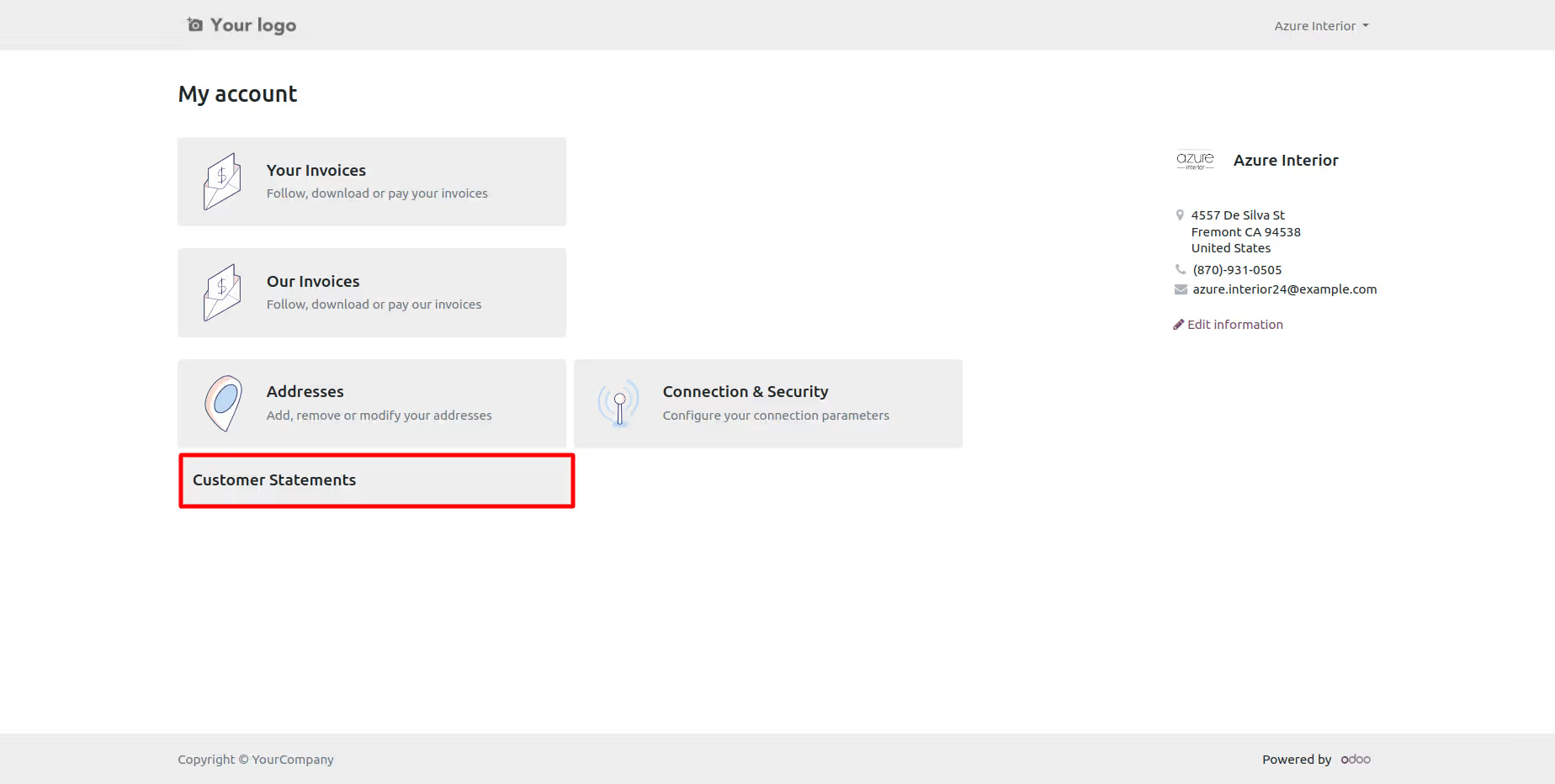
After go to the portal => customer statement.
You can get customer statement from the port.
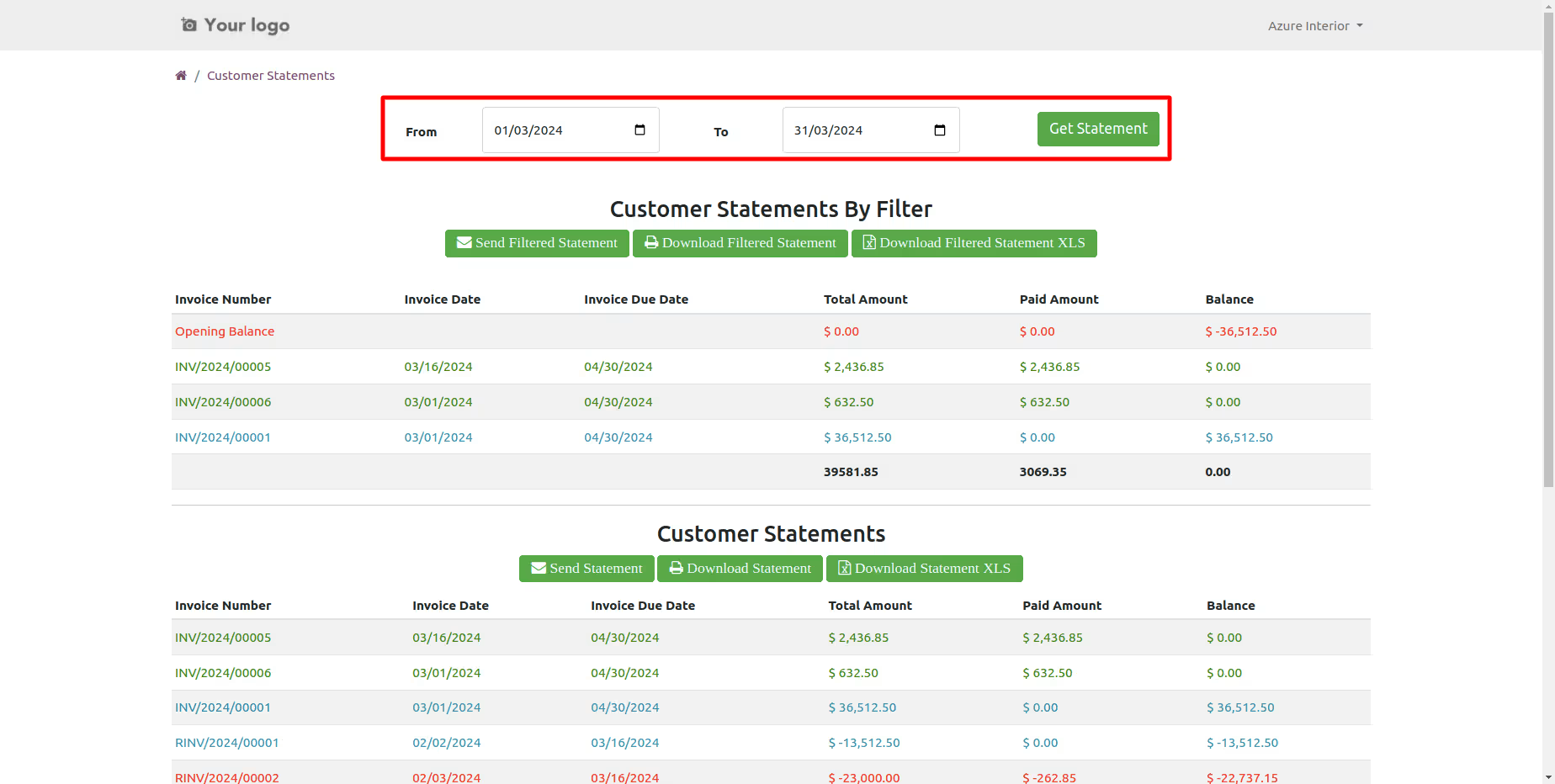
You can download customer statements from the portal.
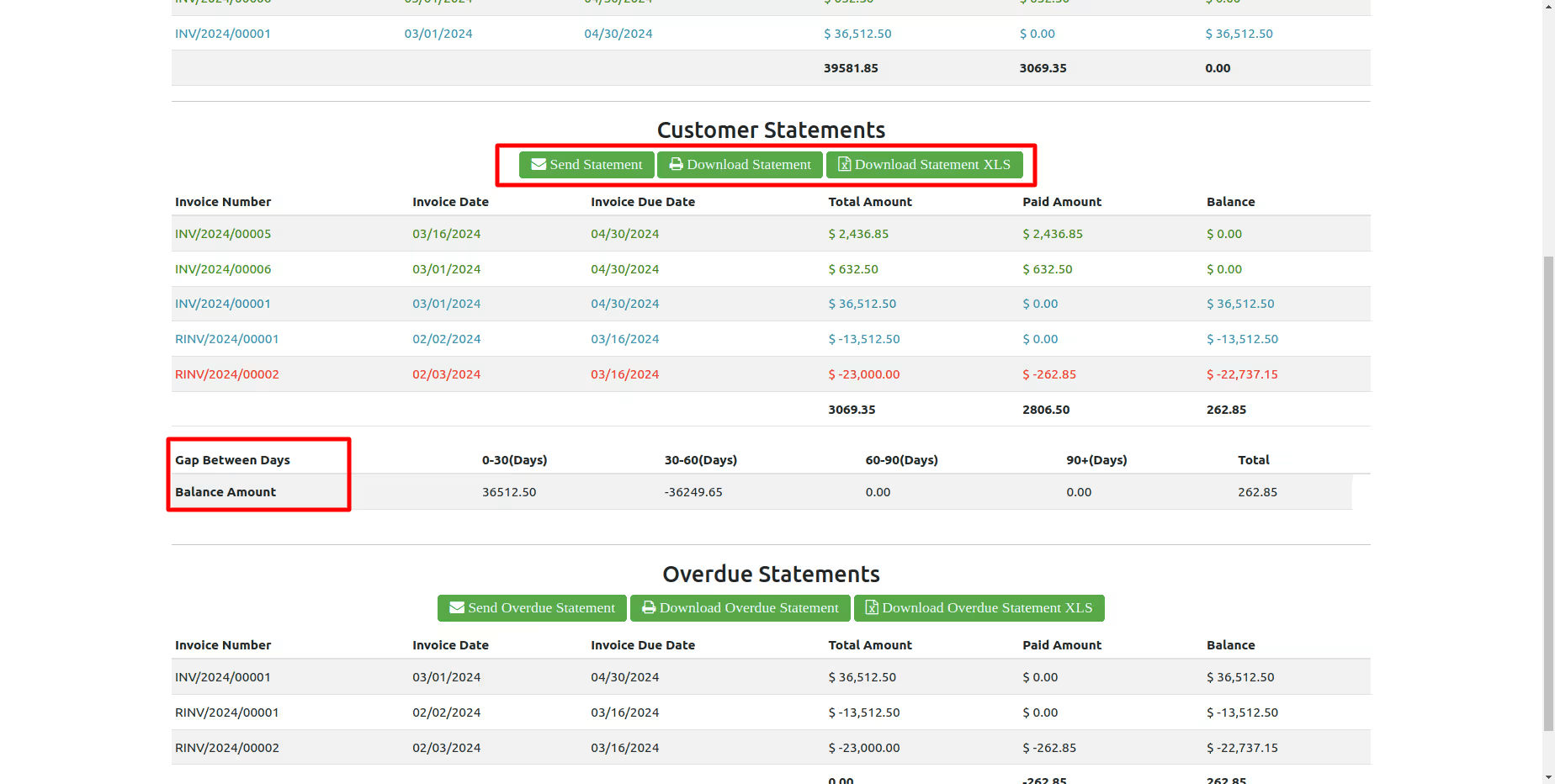
You can download customer overdue statements from the portal.
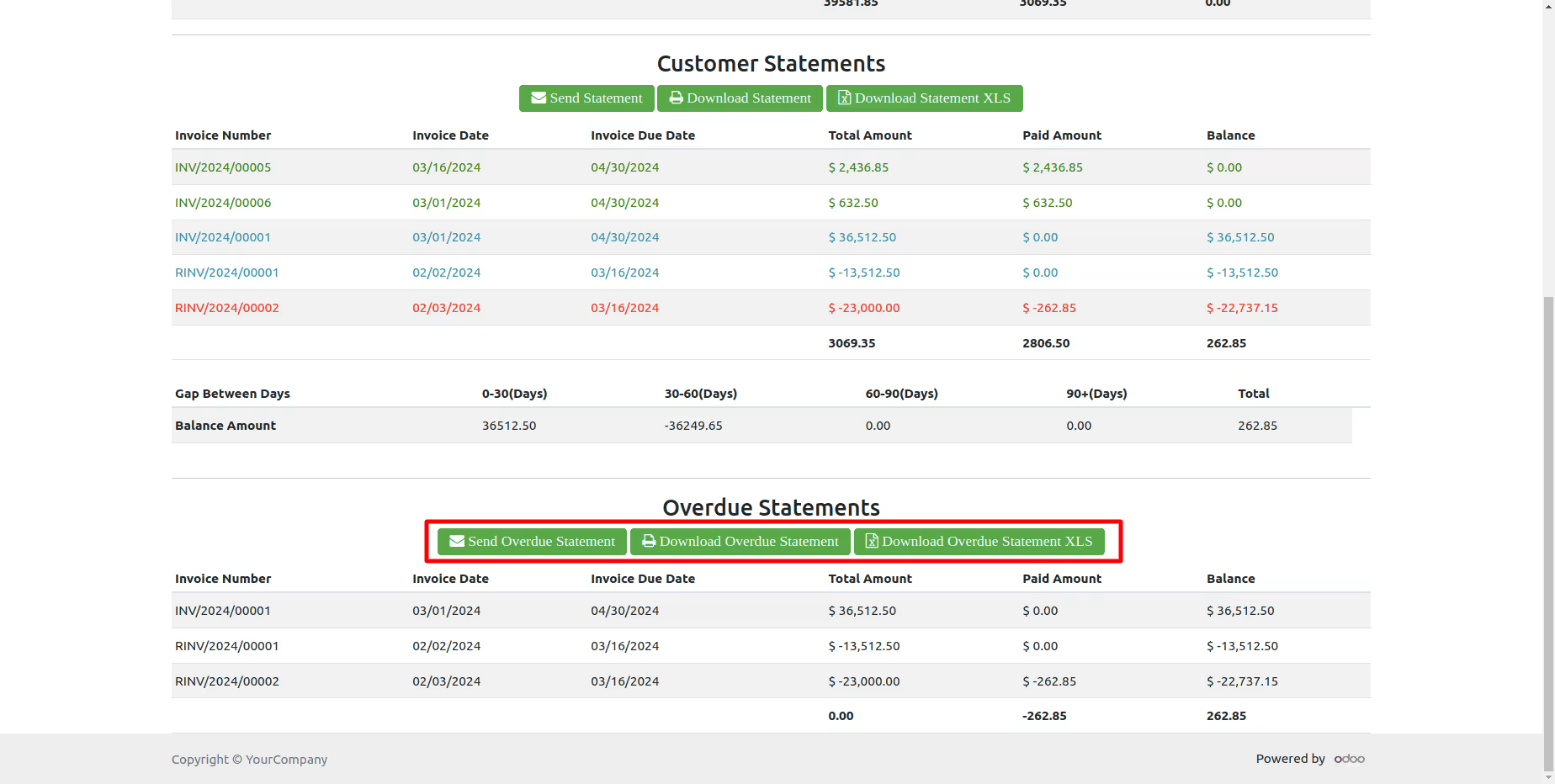
You can send customer statements from the portal.
It shows a popup after successfully send customer statements.
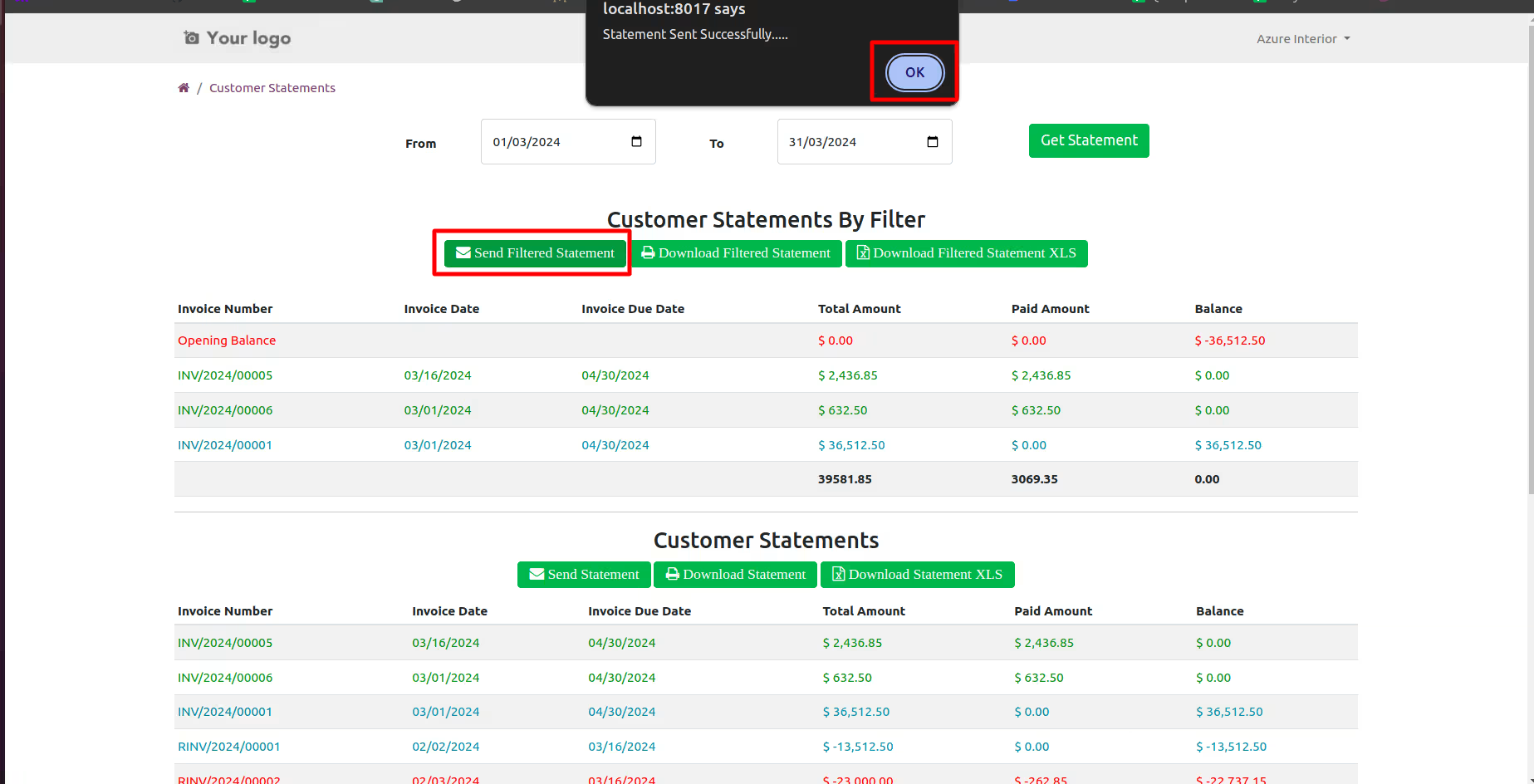
The statement sent by mail.
Email statement form view.
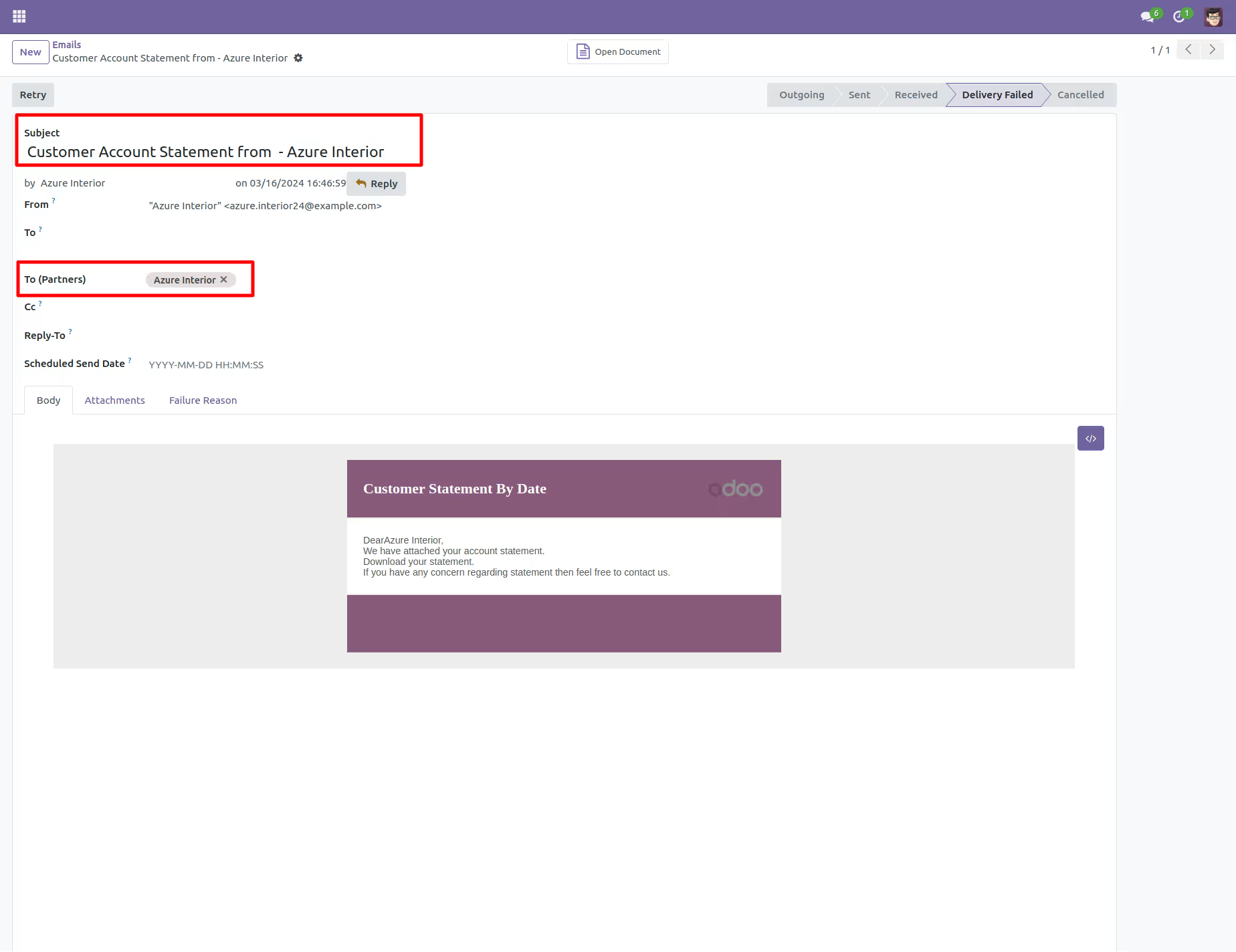
You can see the statement attachment from an email.
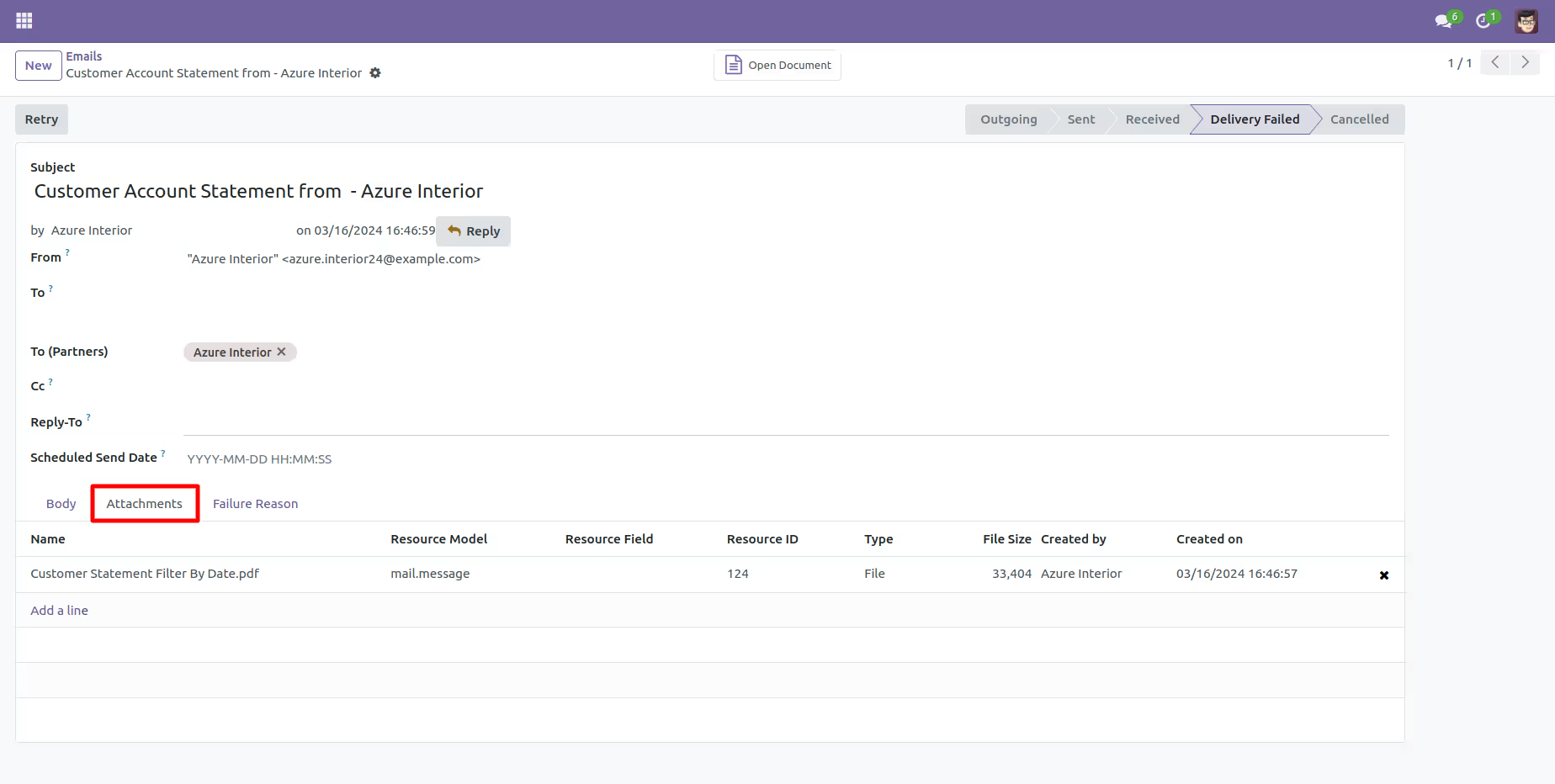
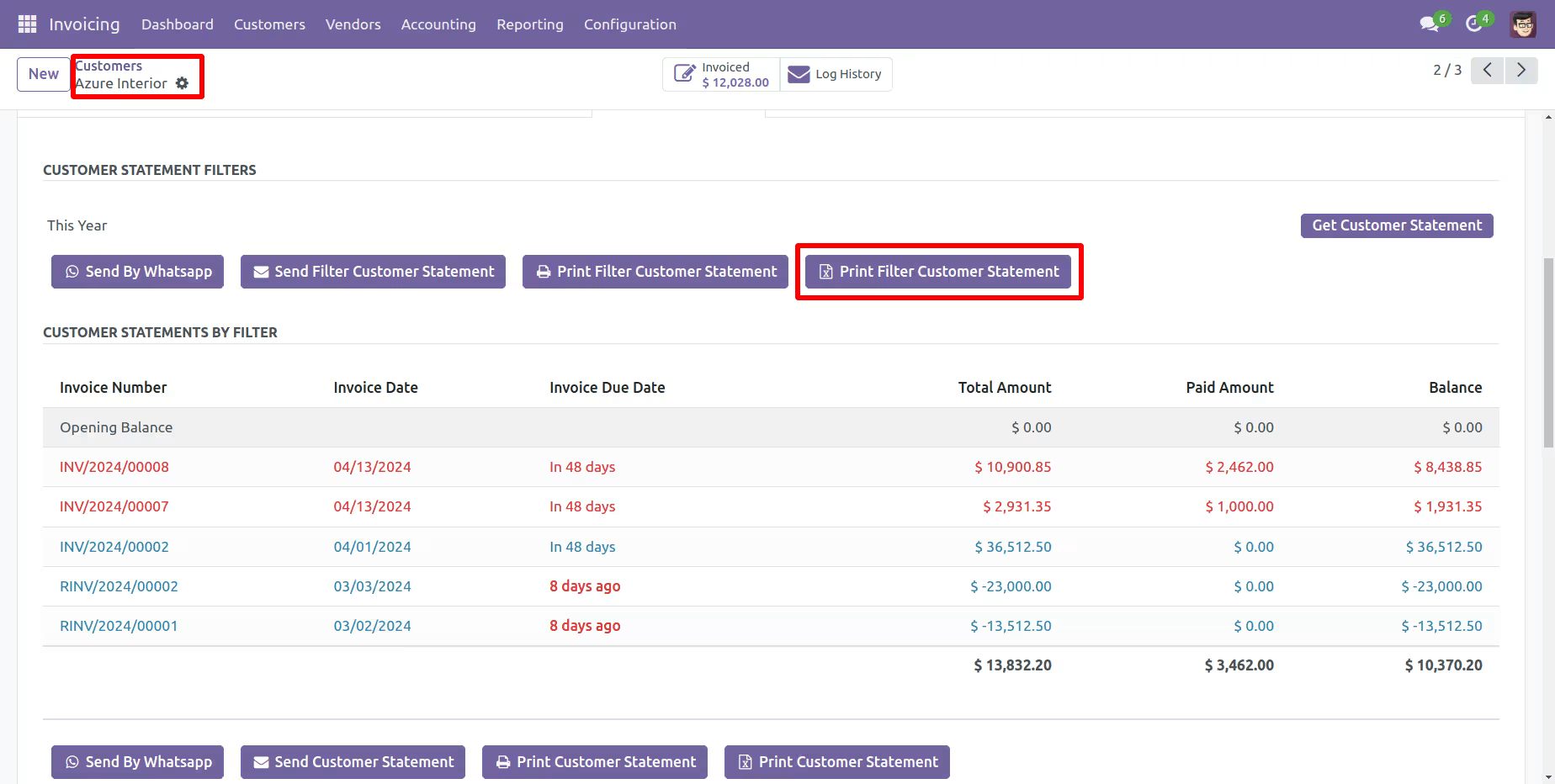
Customer Statement XLS Report
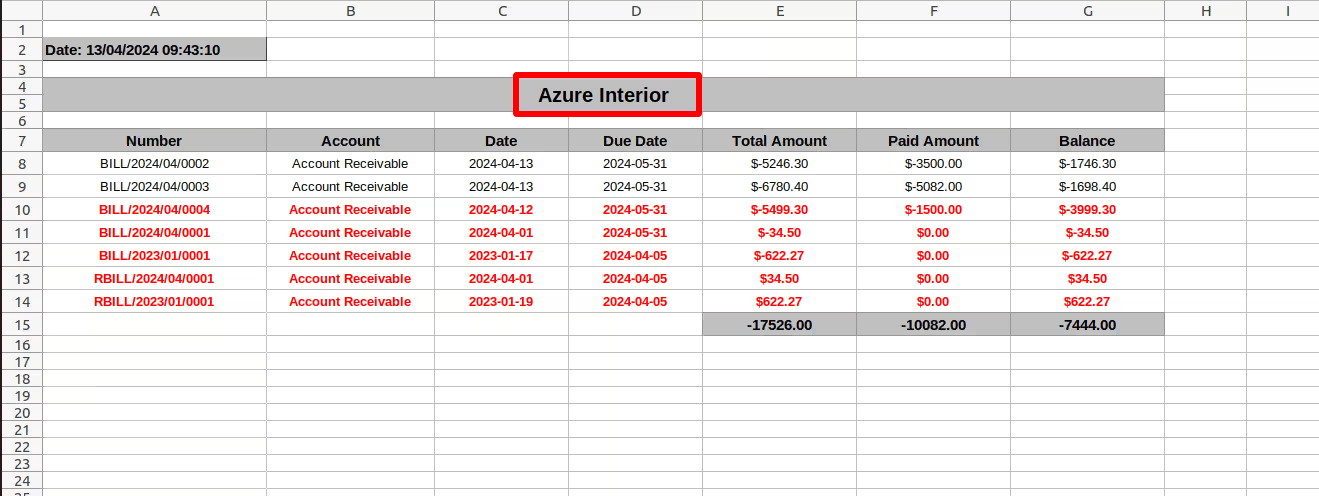
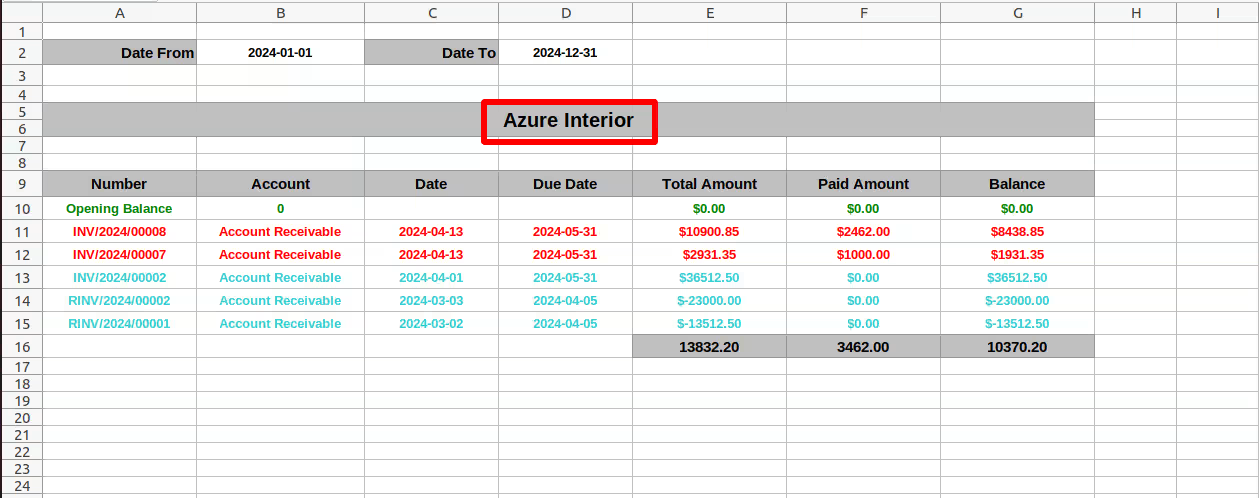
You can print an XLS report of the customer filter statement.
Customer filter statement XLS report looks like this.
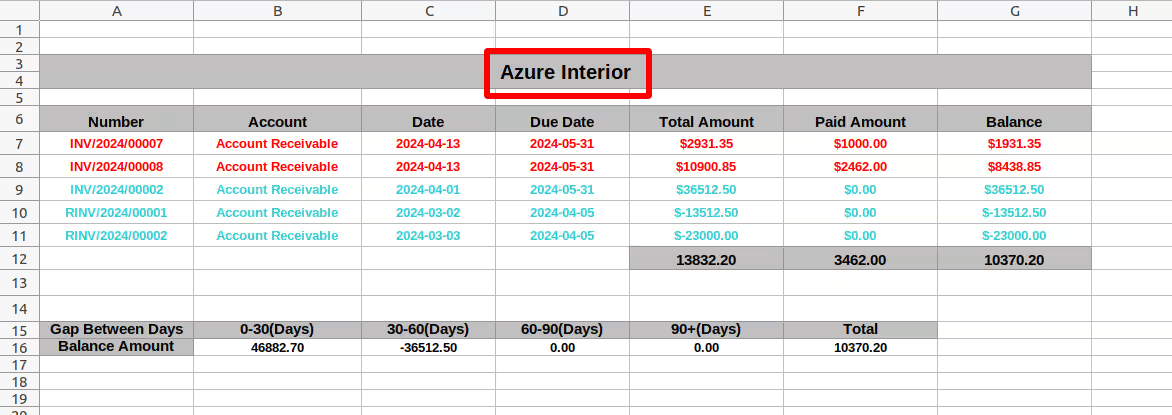
You can print an XLS report of the customer statement.
Customer statement XLS report looks like this.
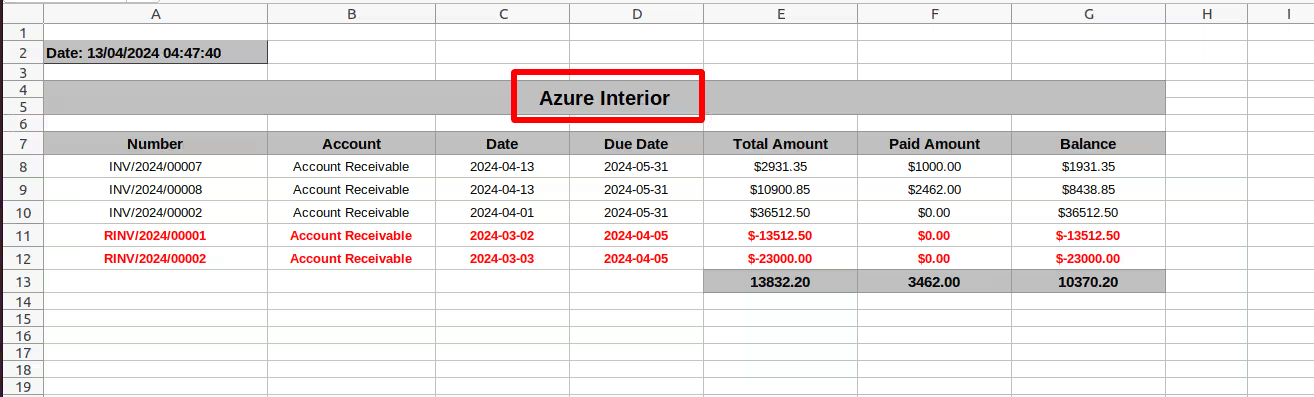
You can print an XLS report of the customer overdue statement.
Customer Overdue statement XLS report looks like this.
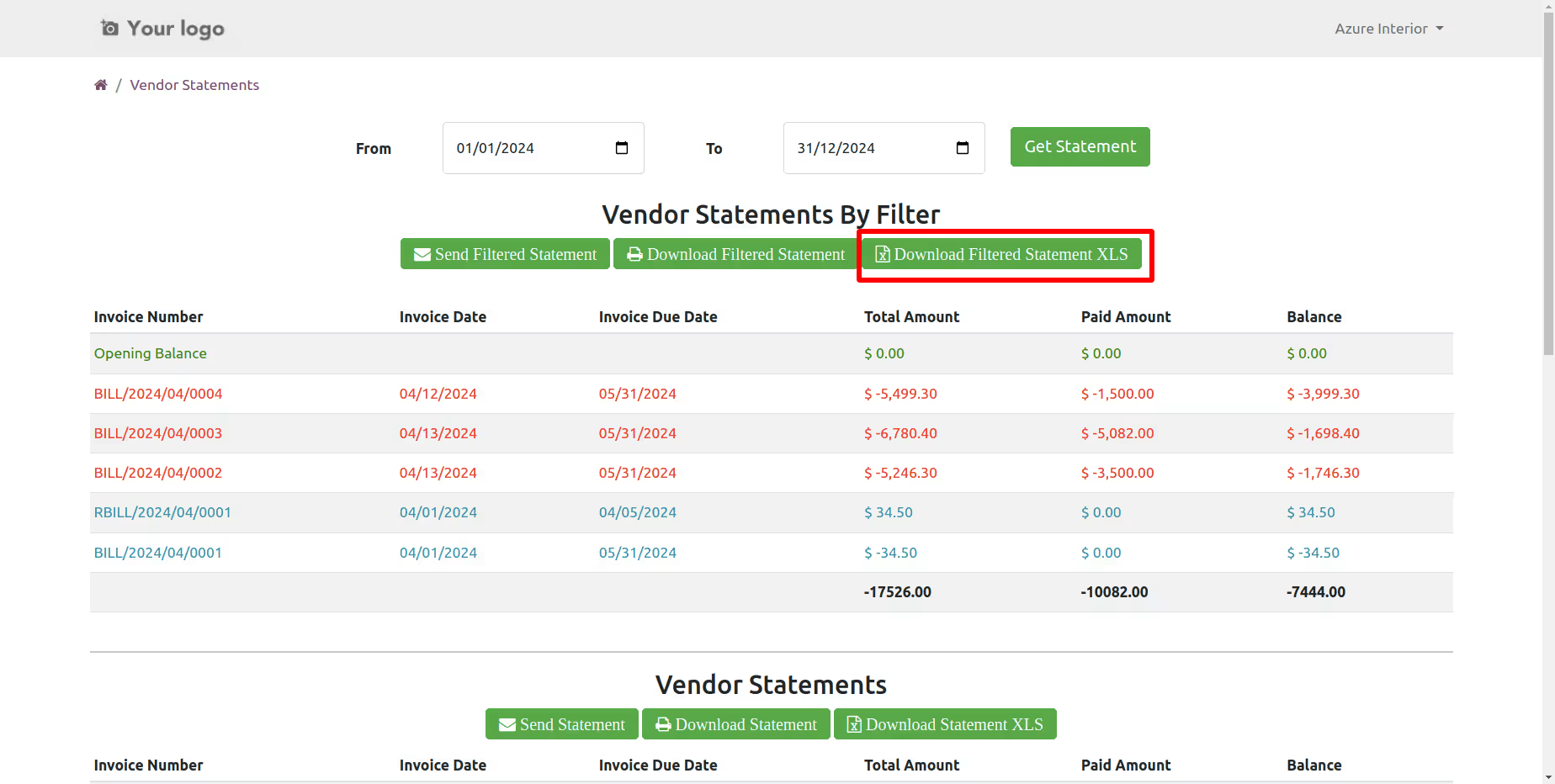
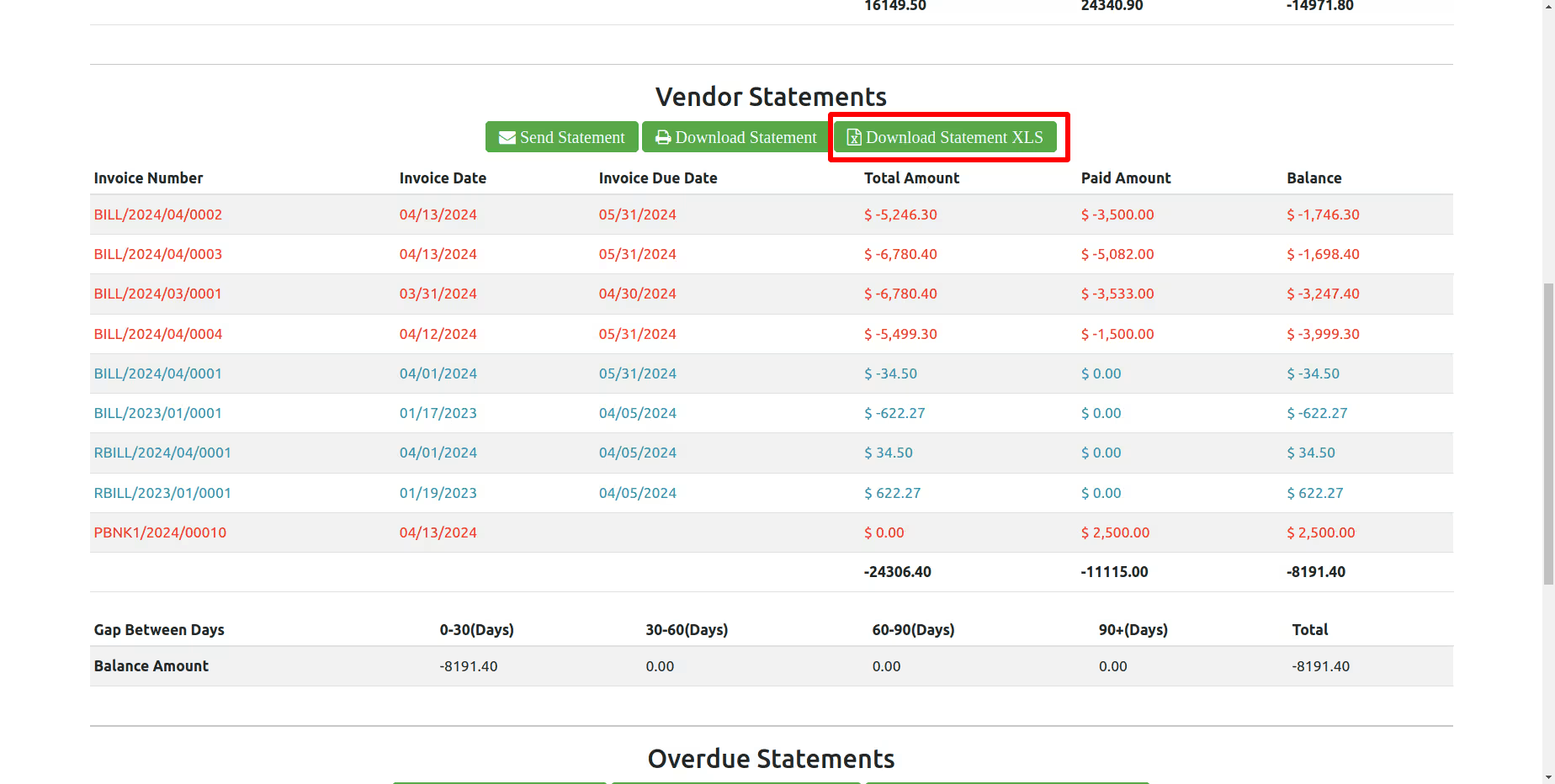
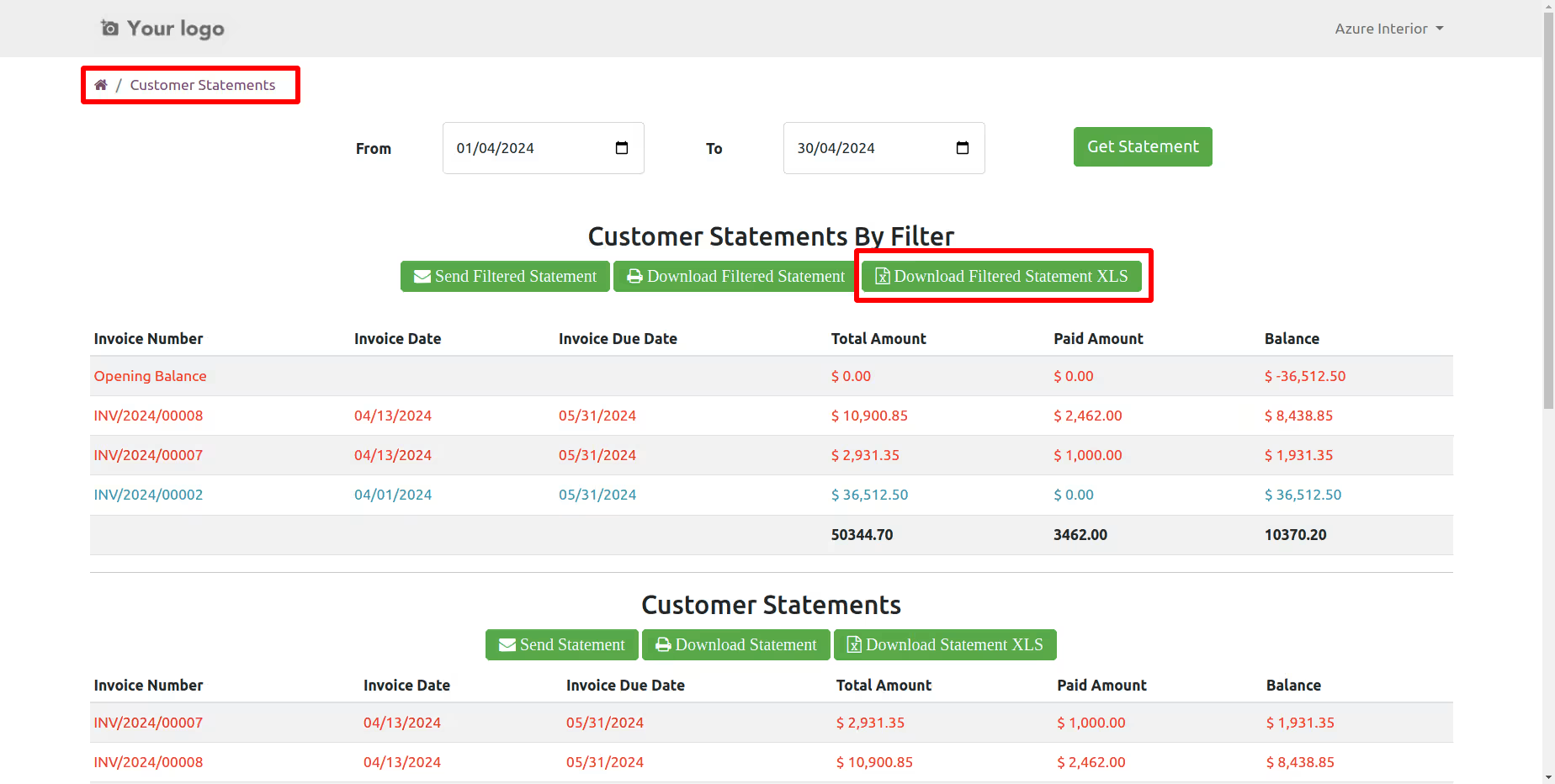
You can 'Download Filtered Statement XLS' from the portal.
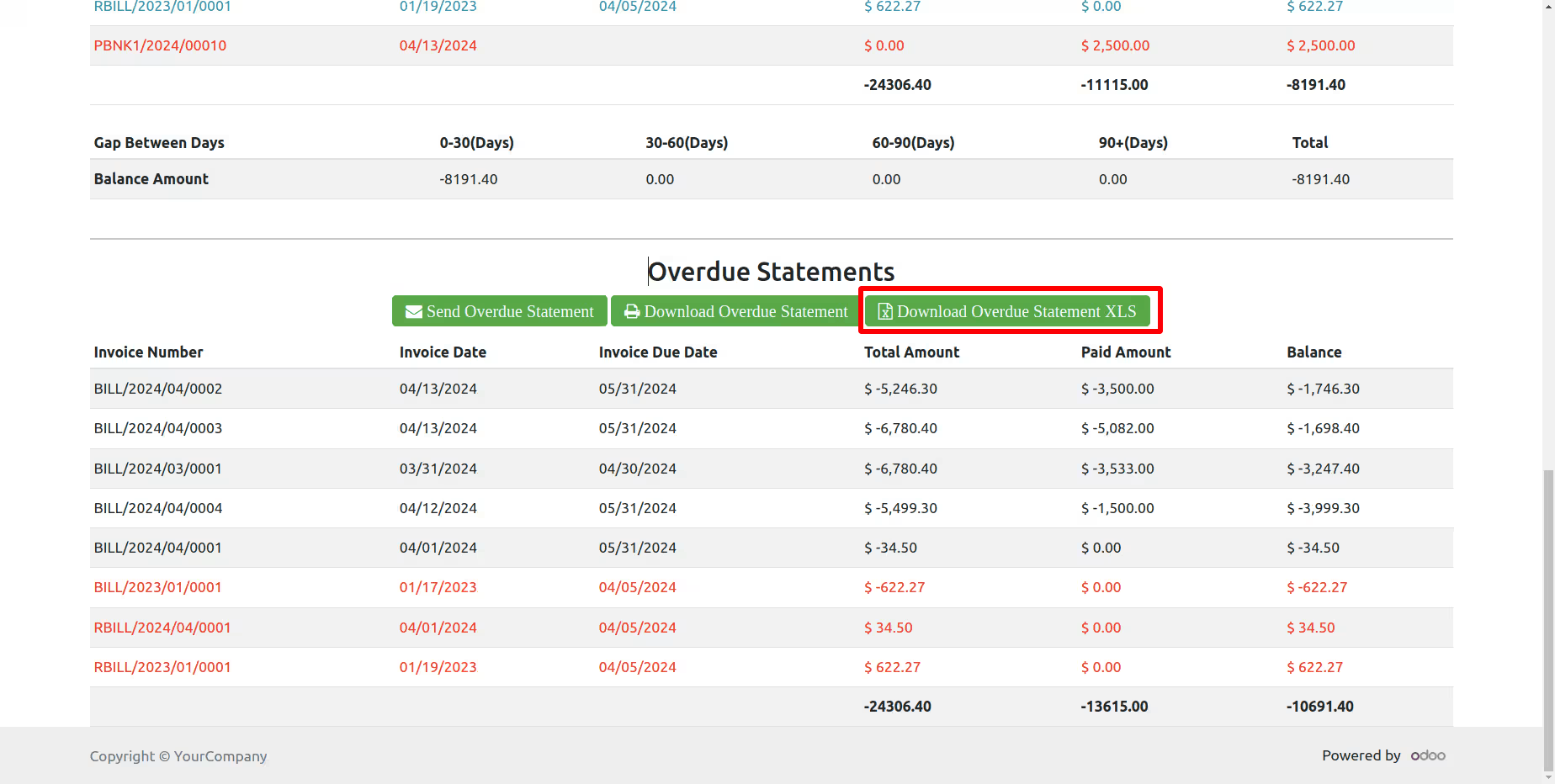
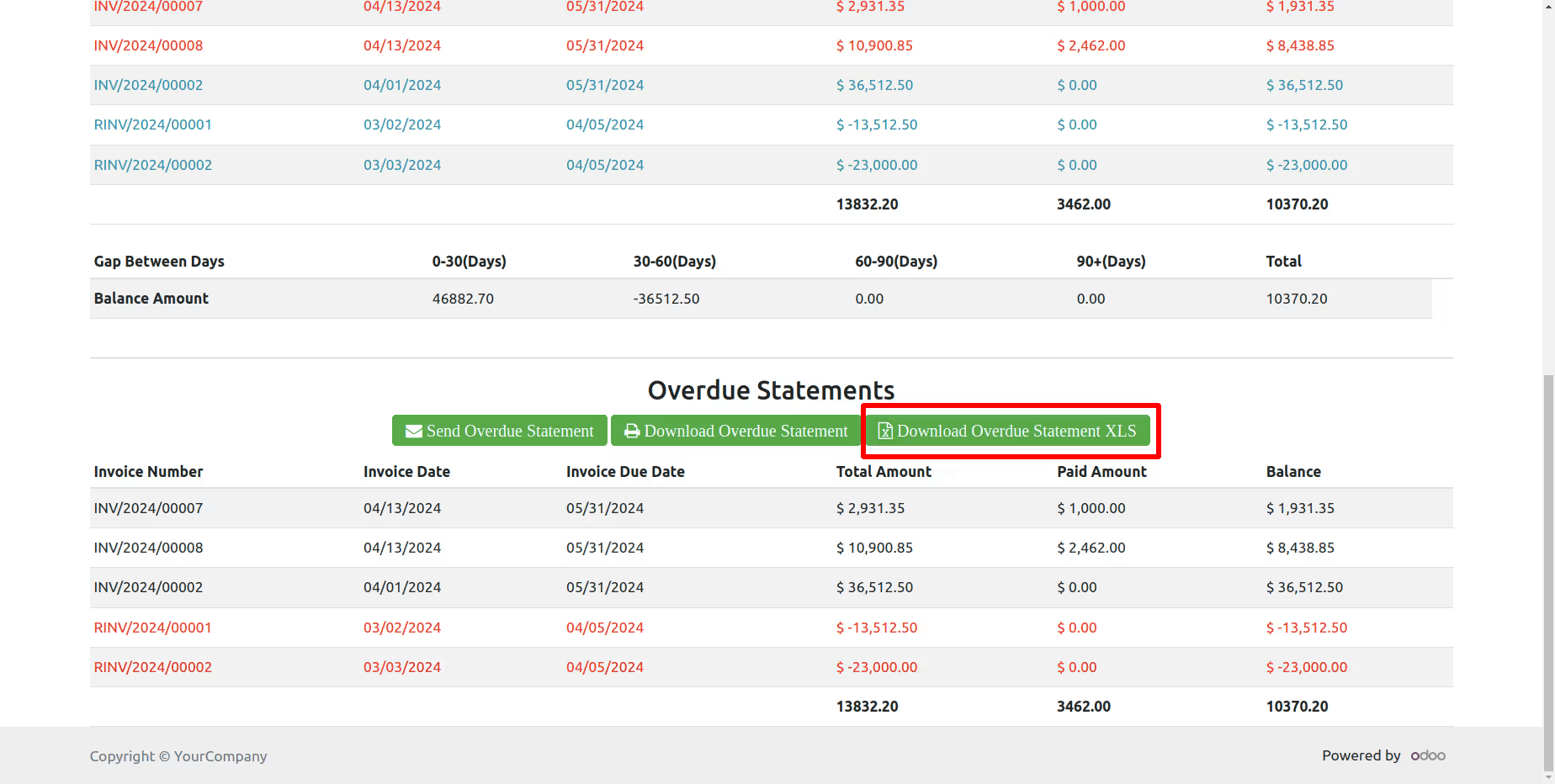
You can download the customer overdue statement XLS report from the portal.
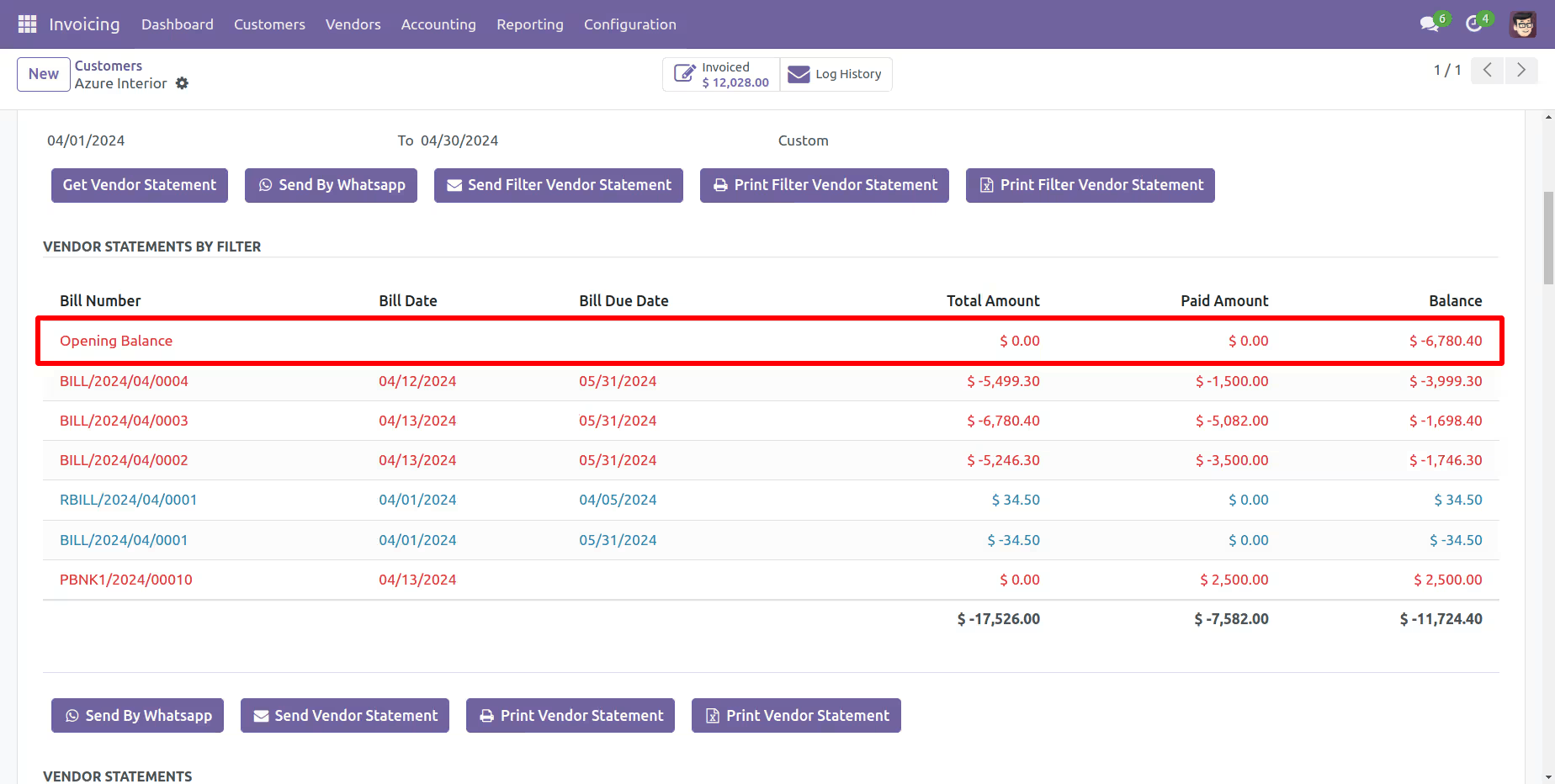
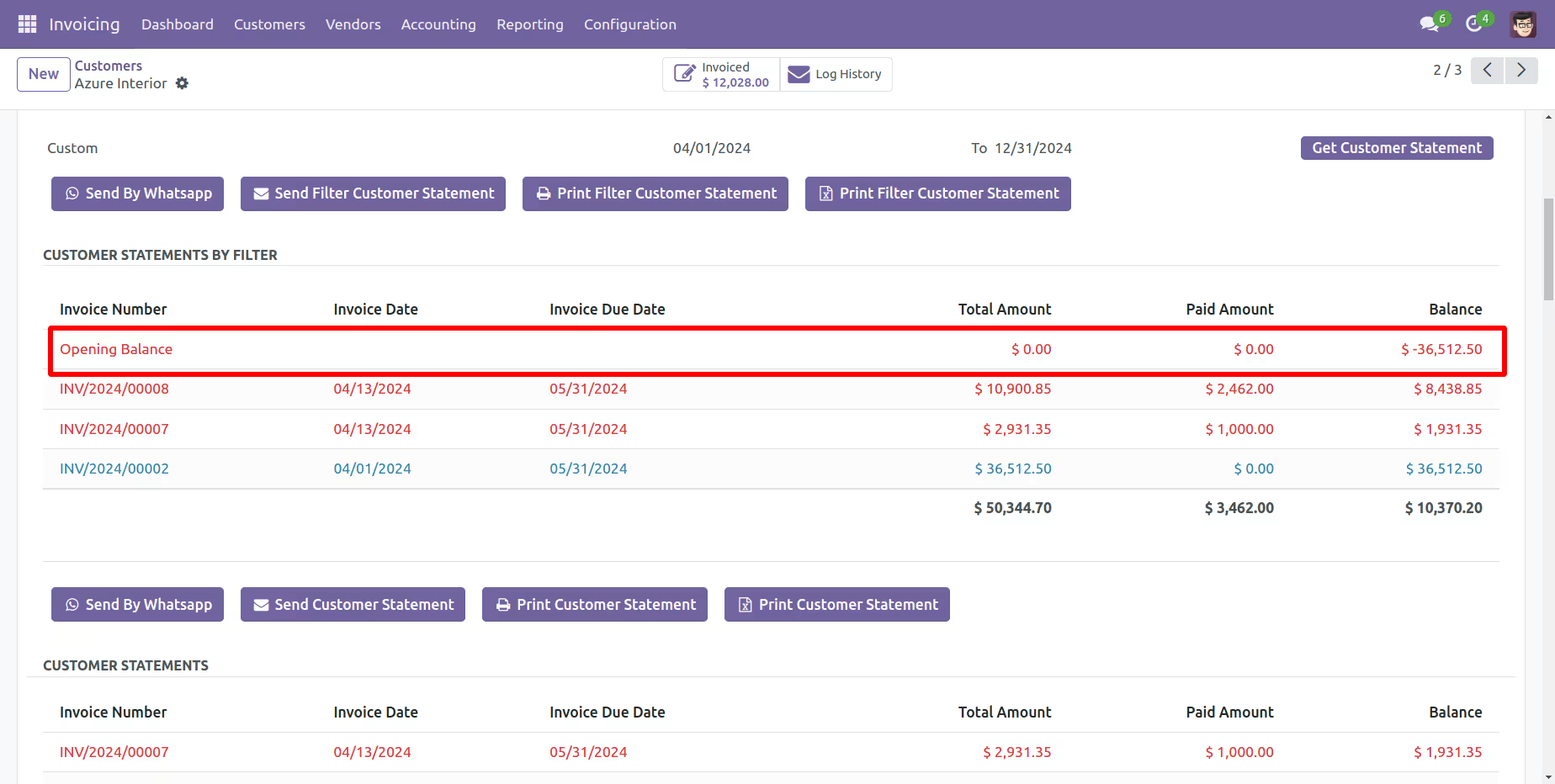
Today's opening balance is yesterday's closing balance. Manual journal entries for opening balances appear as the next day's opening balance in the balance column but are not included in the total or paid amount column on the same date.
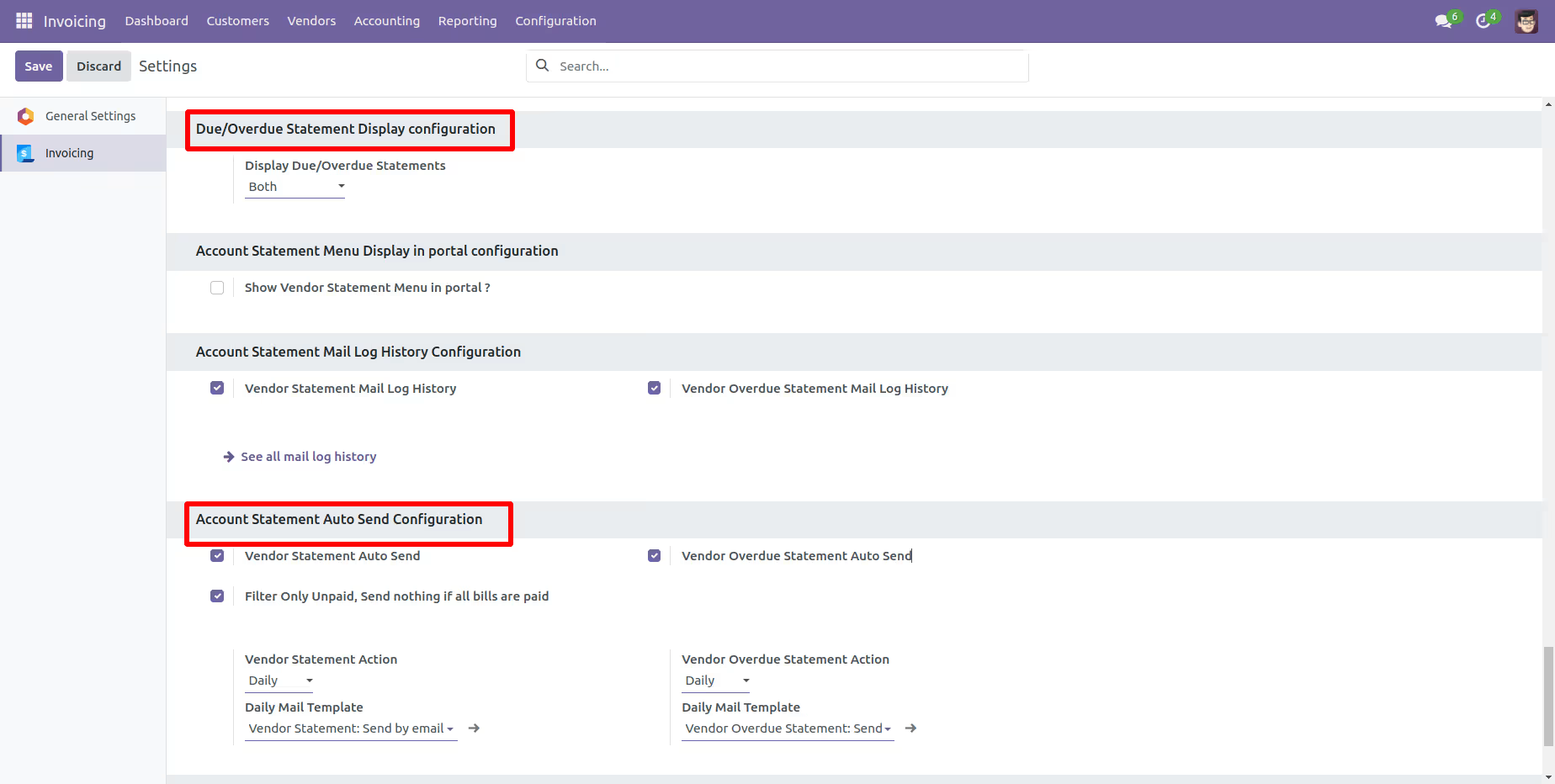
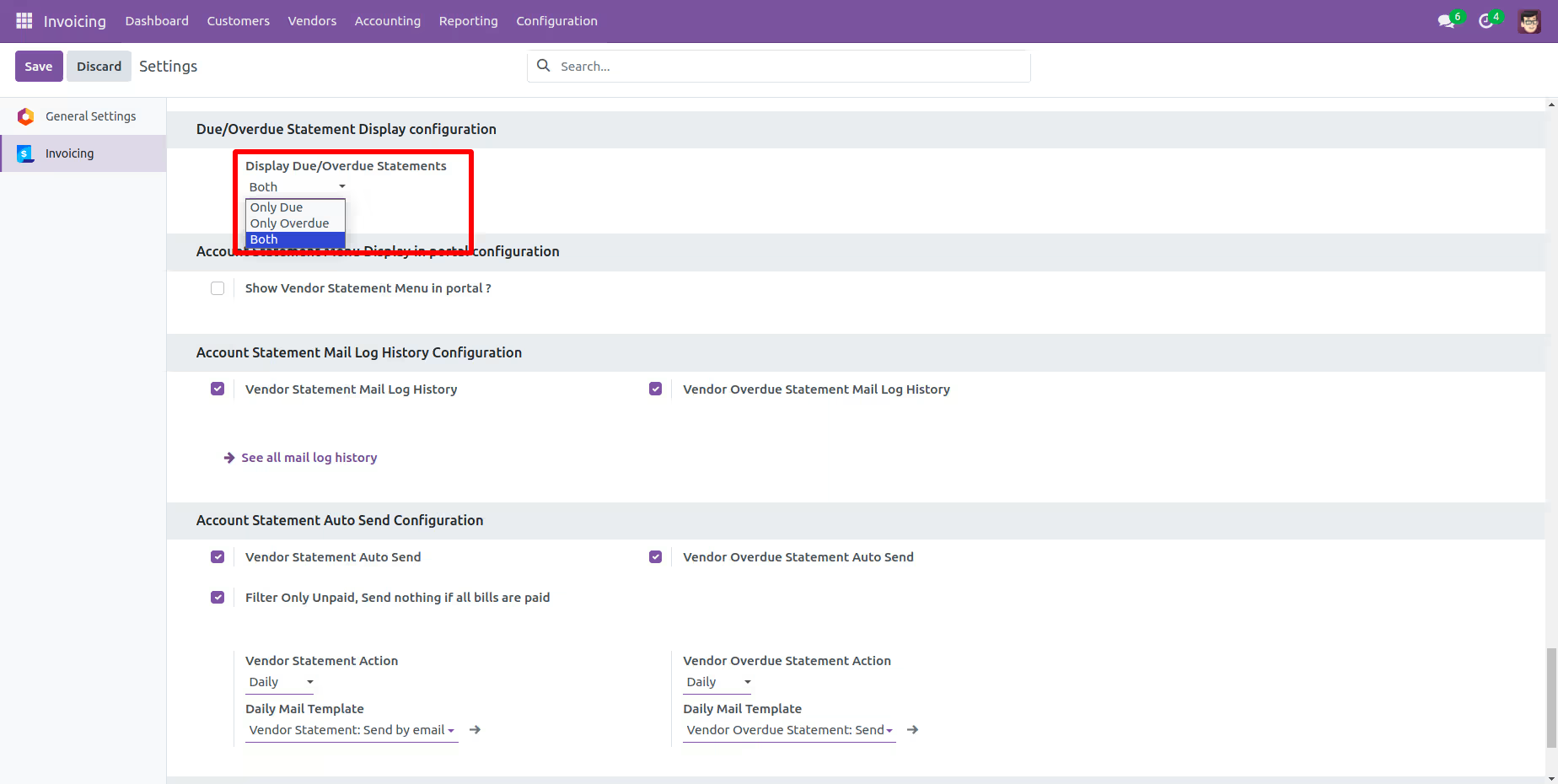
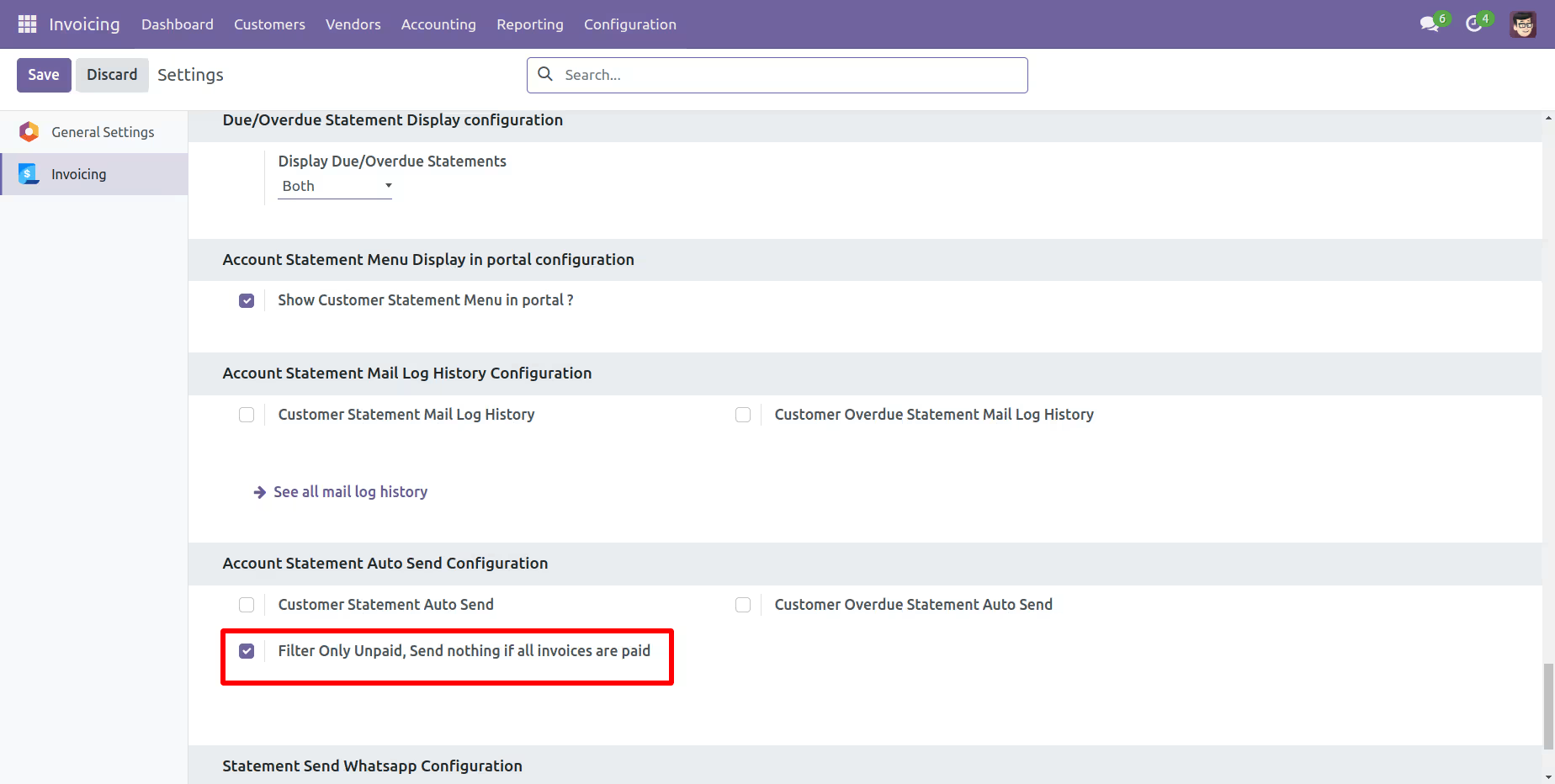
Go to invoice setting >> Enable the 'Account Statement Auto Send Configuration' according to your preferences.
Select the "Filter Only Unpaid, Send nothing if all invoices are paid."
Here, you can see the customer form view.
In the customer statement tab, you have the option to filter customer statements based on specific time periods, such as monthly, quarterly, yearly, or custom.
In the customer statement tab, you can filter customer statements based on their configuration, such as Not Paid, In Payment, Paid, ETC...
Customer Statement By Whatsapp
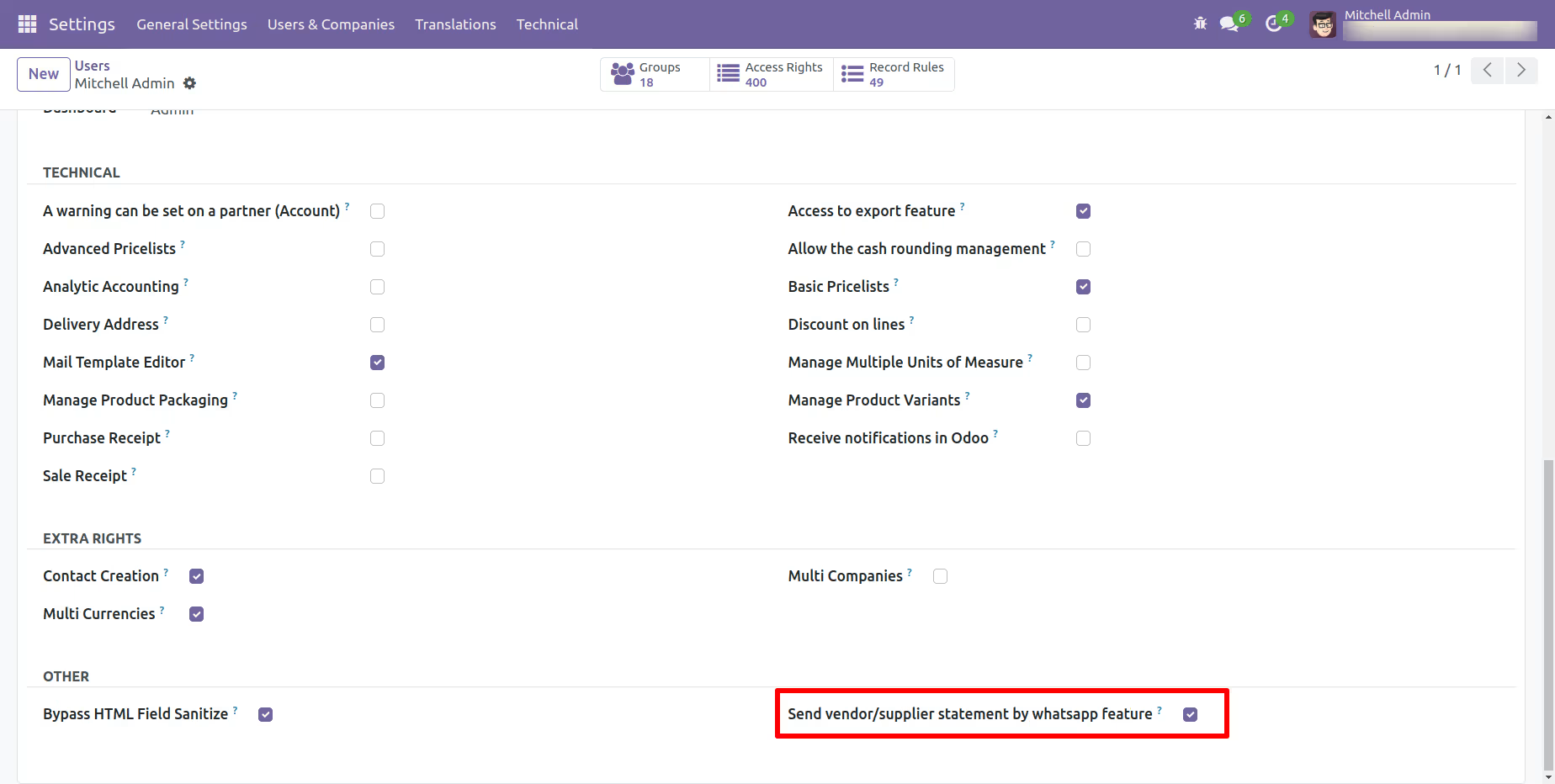
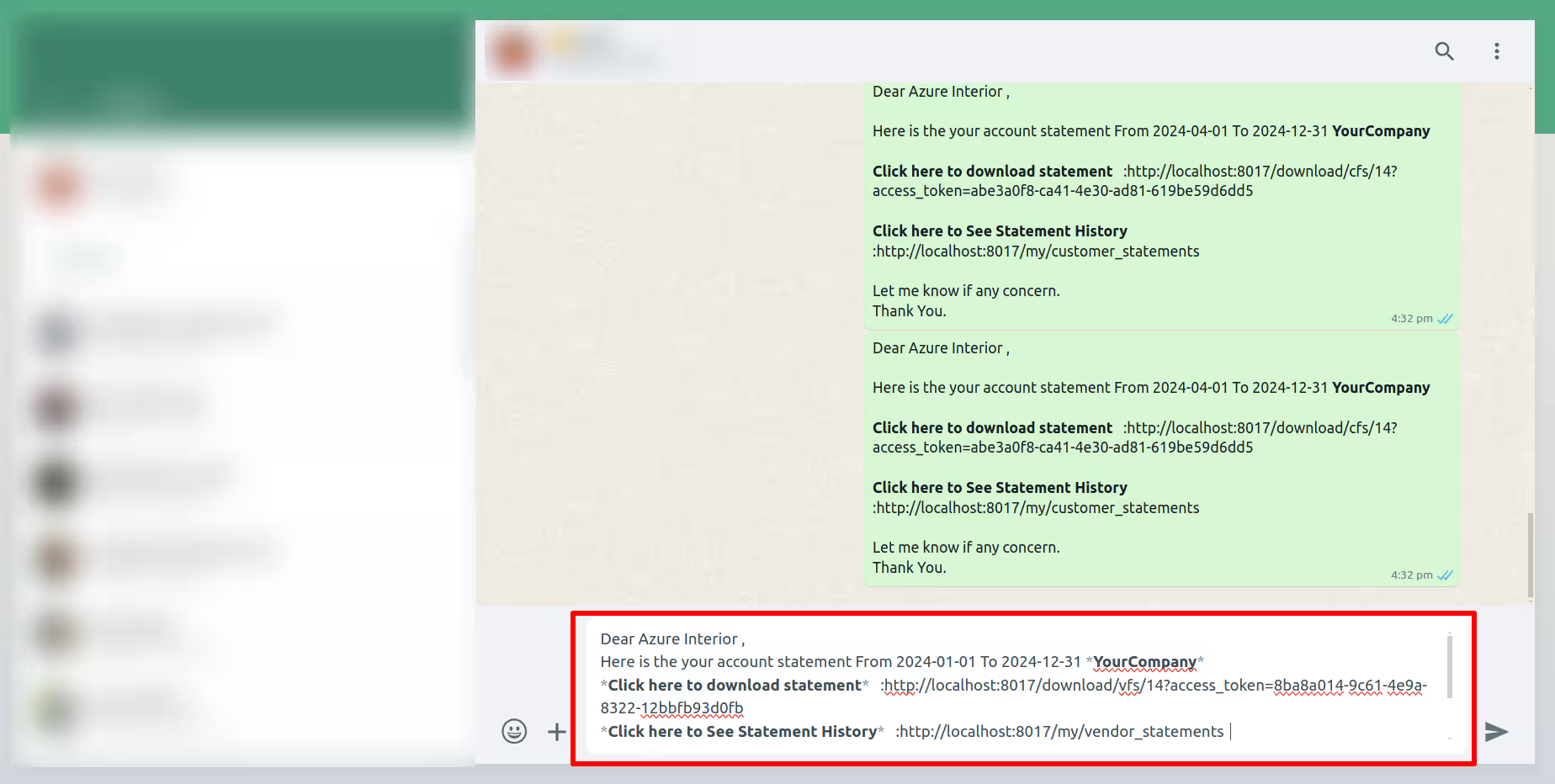
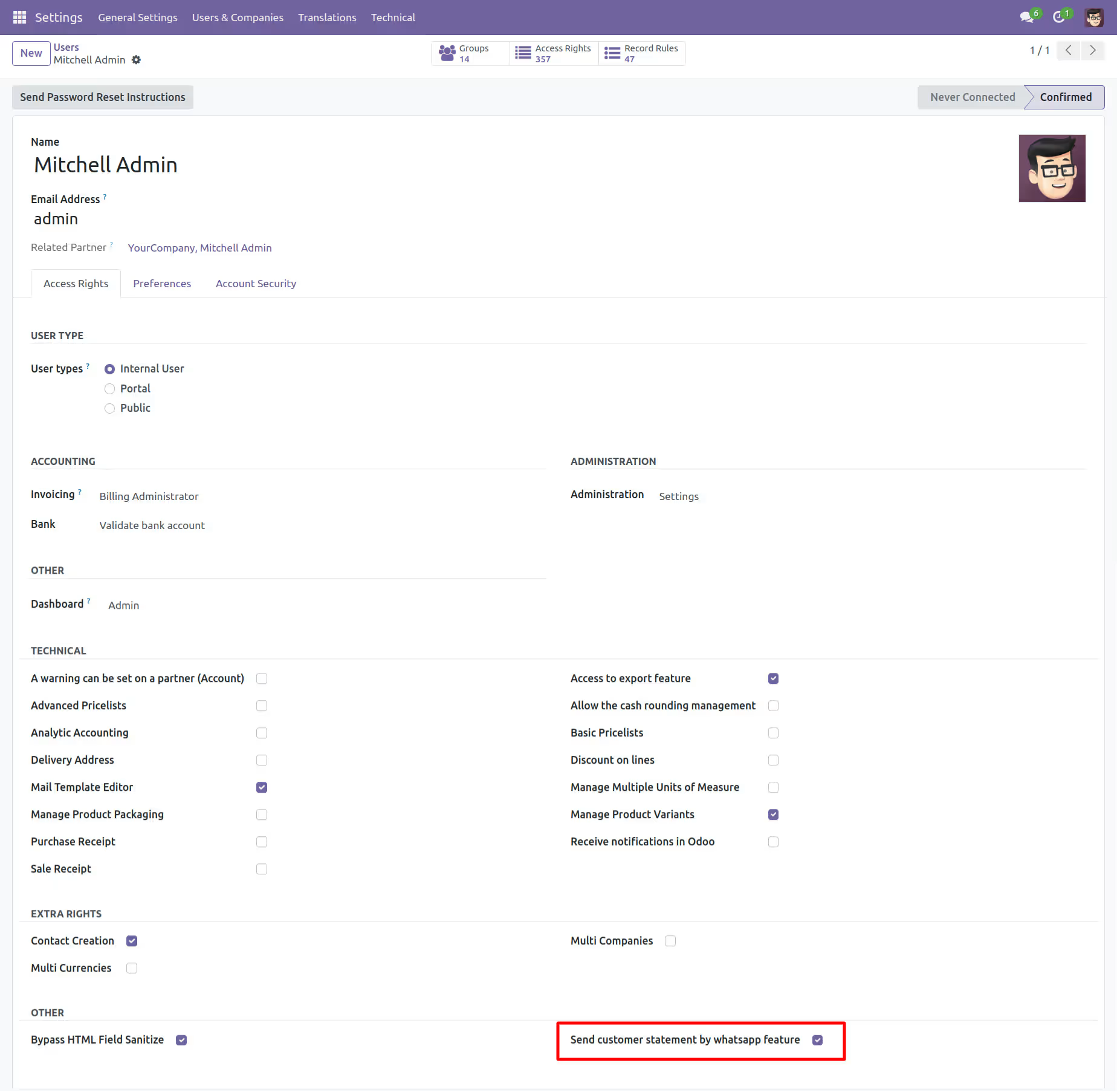
In "User", enable the 'Send Customer Statement By Whatsapp Feature' option.
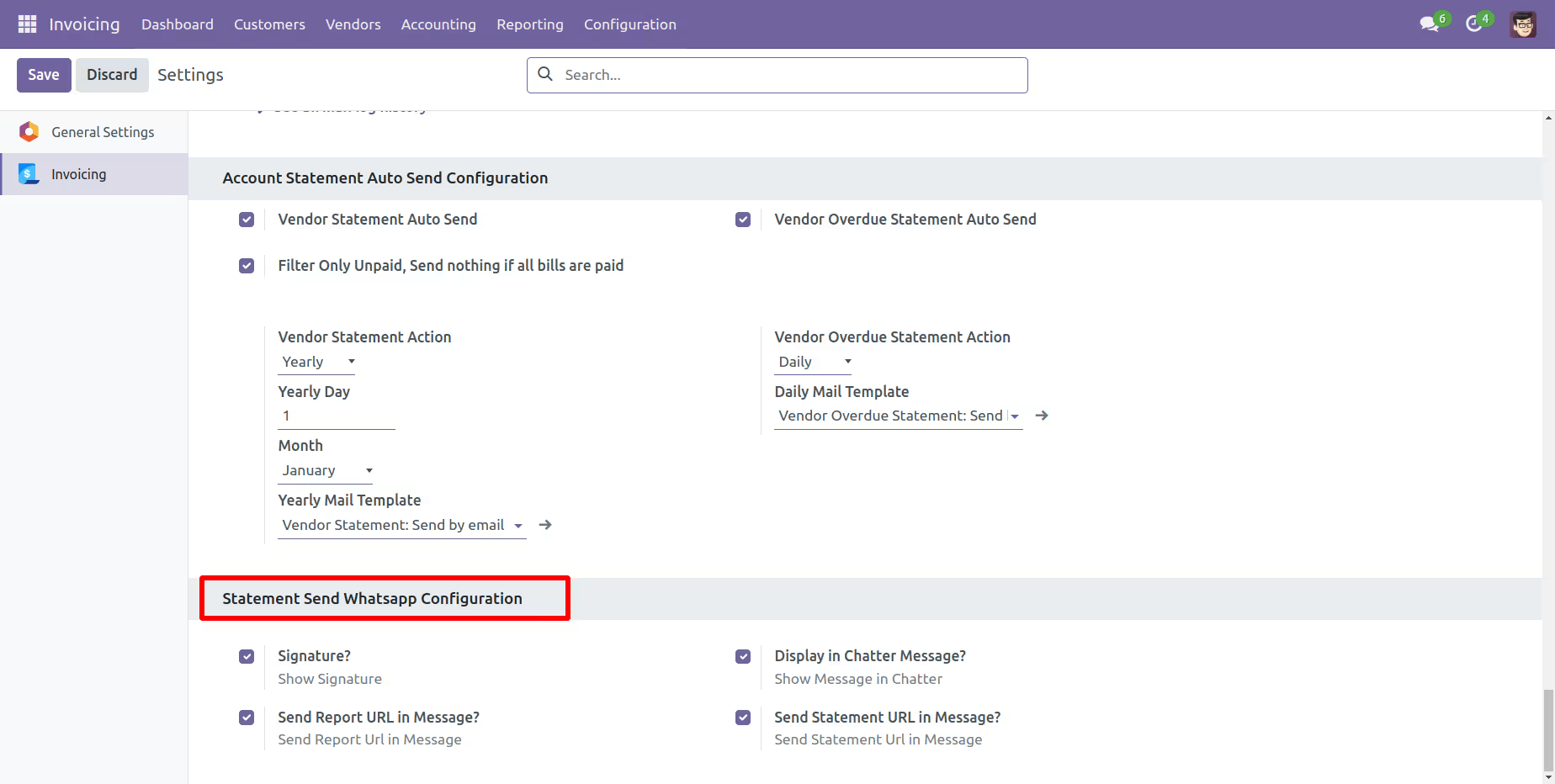
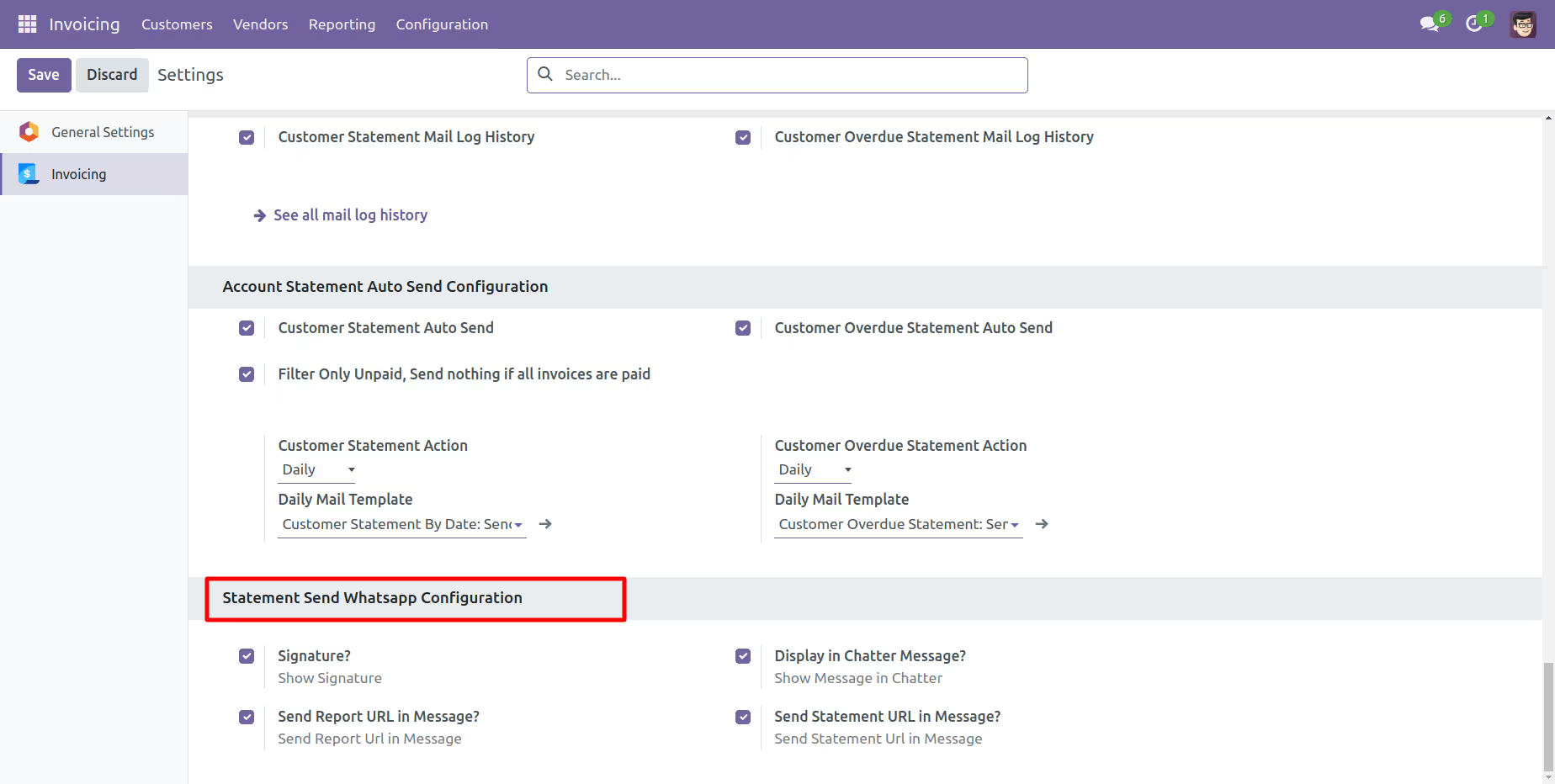
Whatsapp message description with the configuration setting.
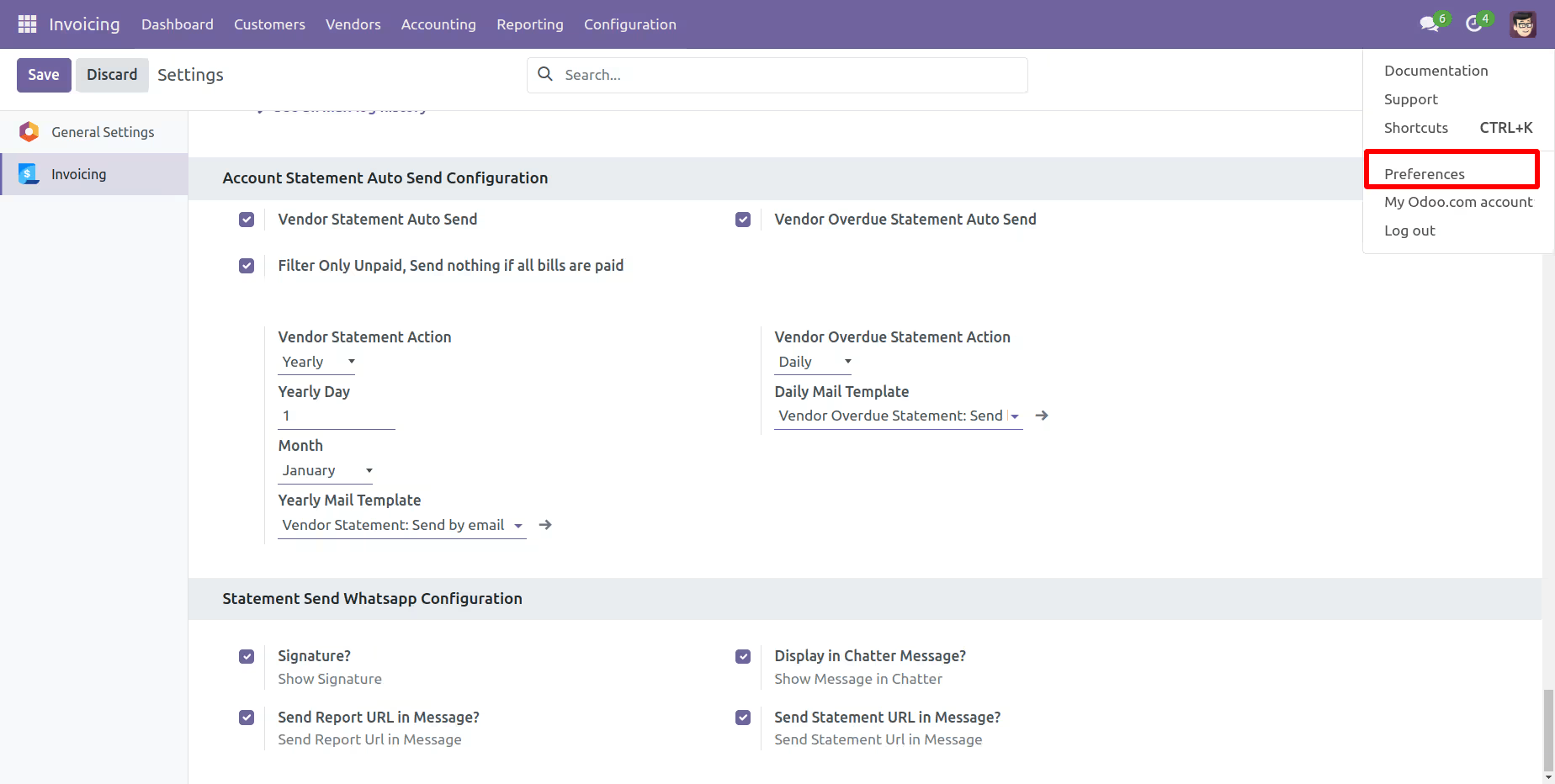
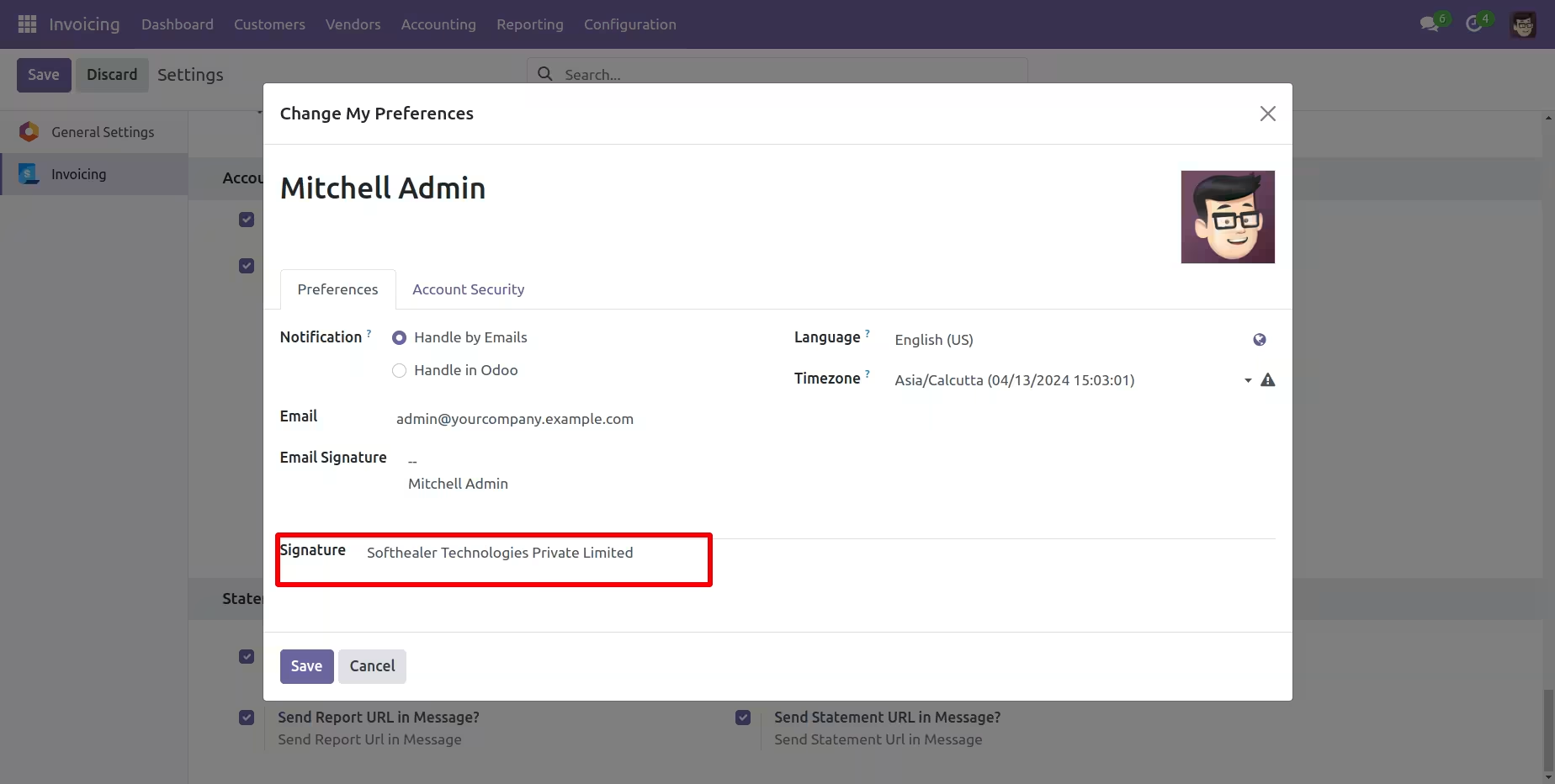
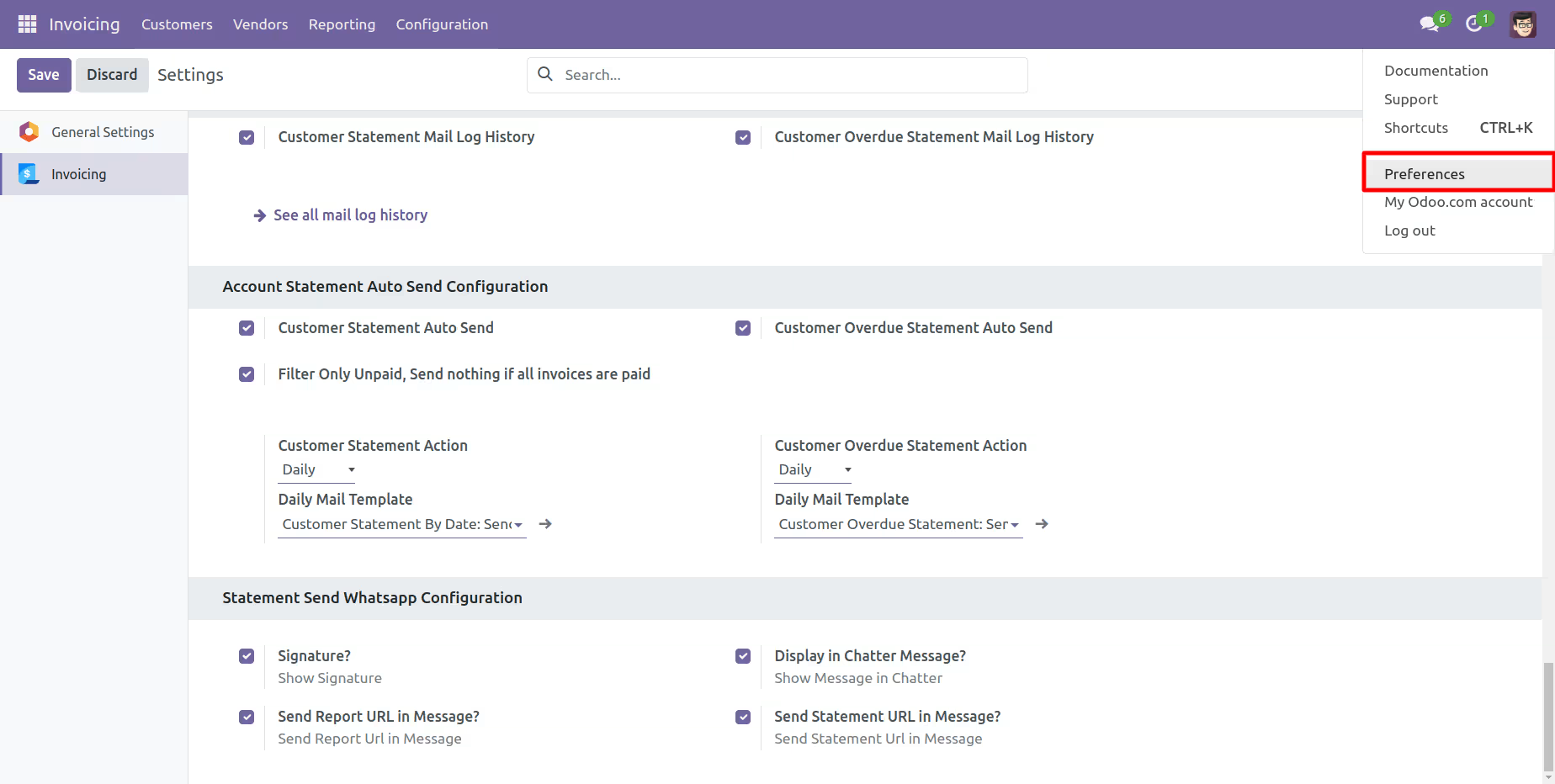
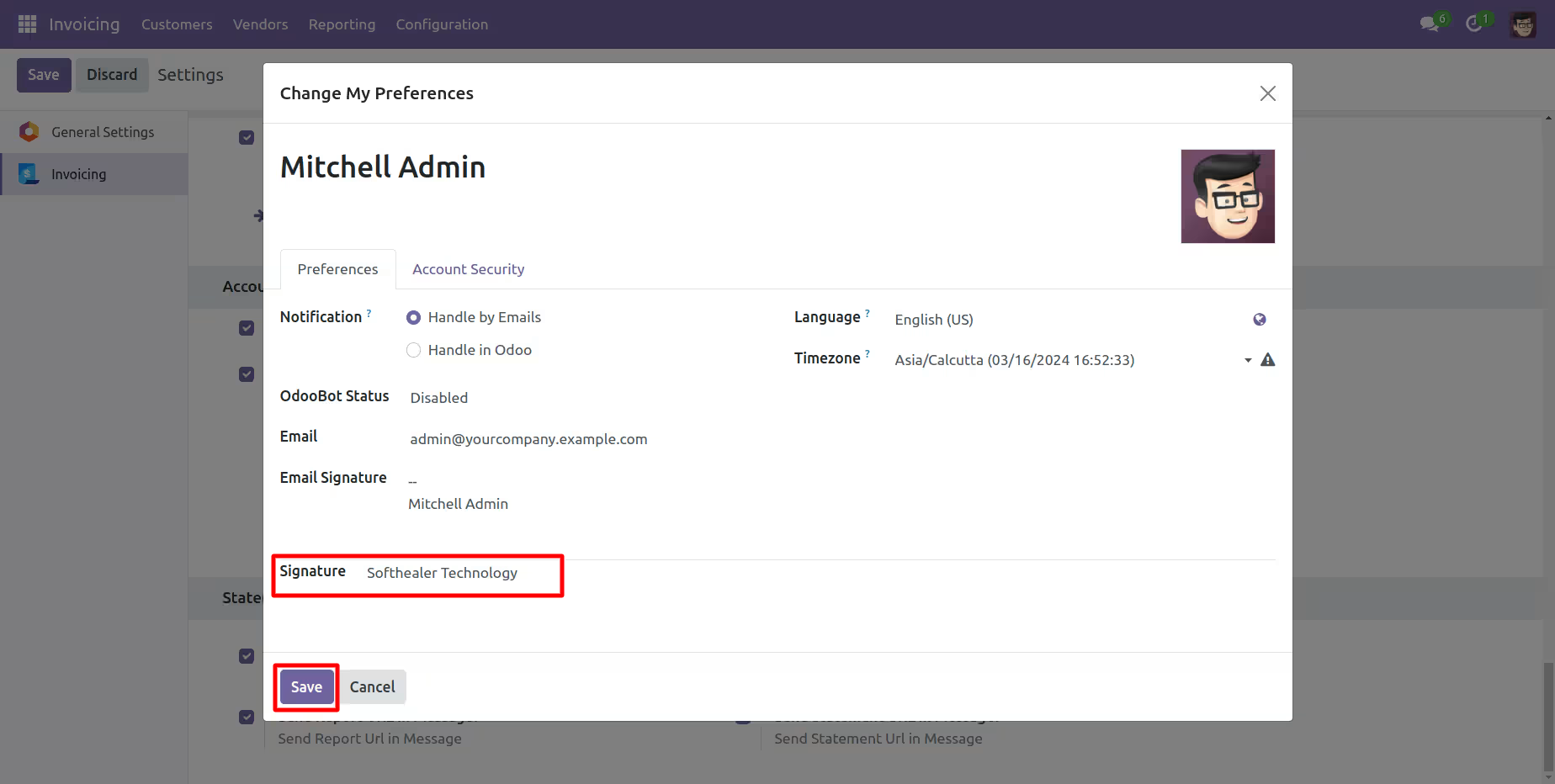
Set the signature in the message,
1) Go to Preferences.
2) Add Signature.
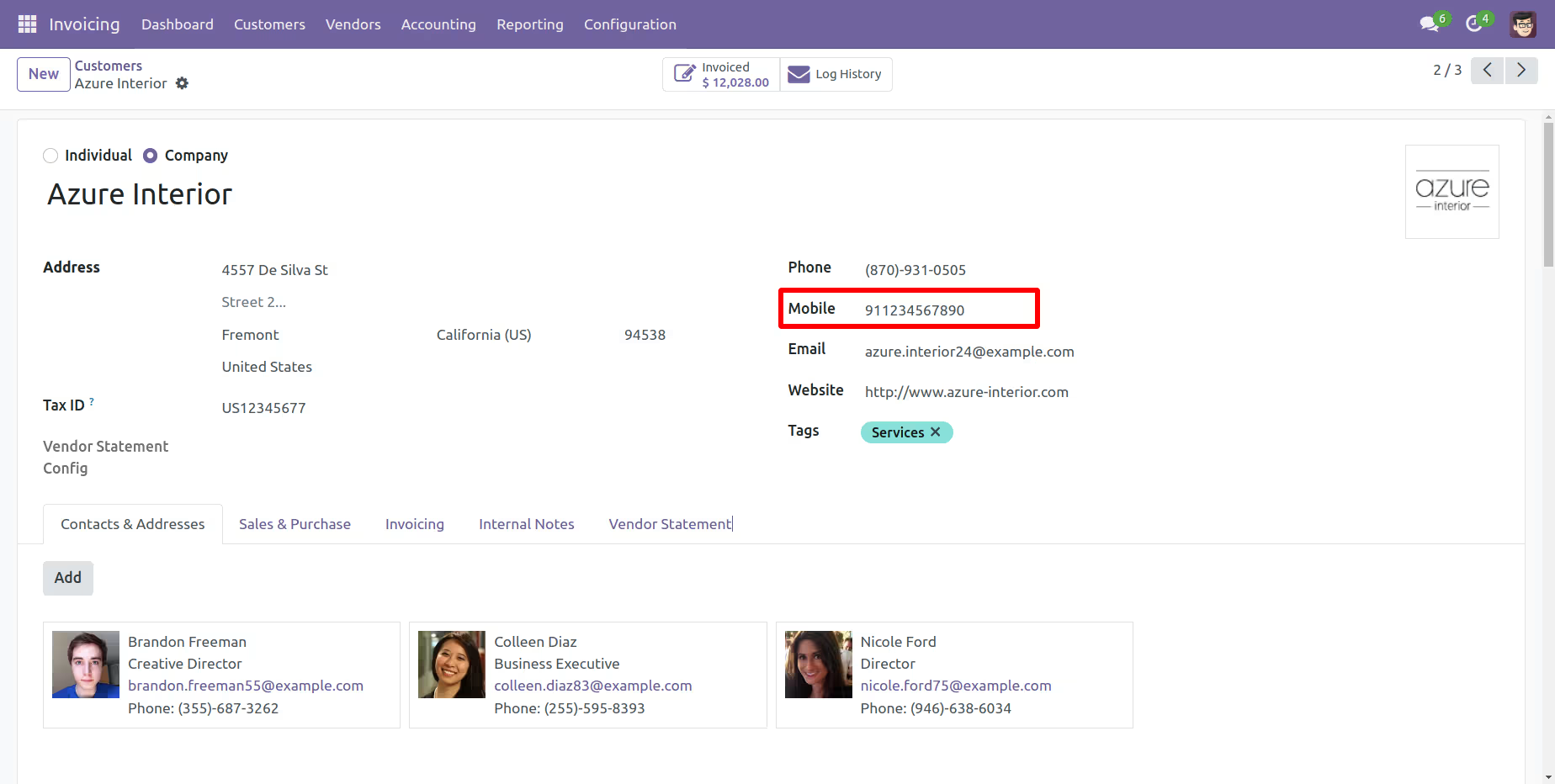
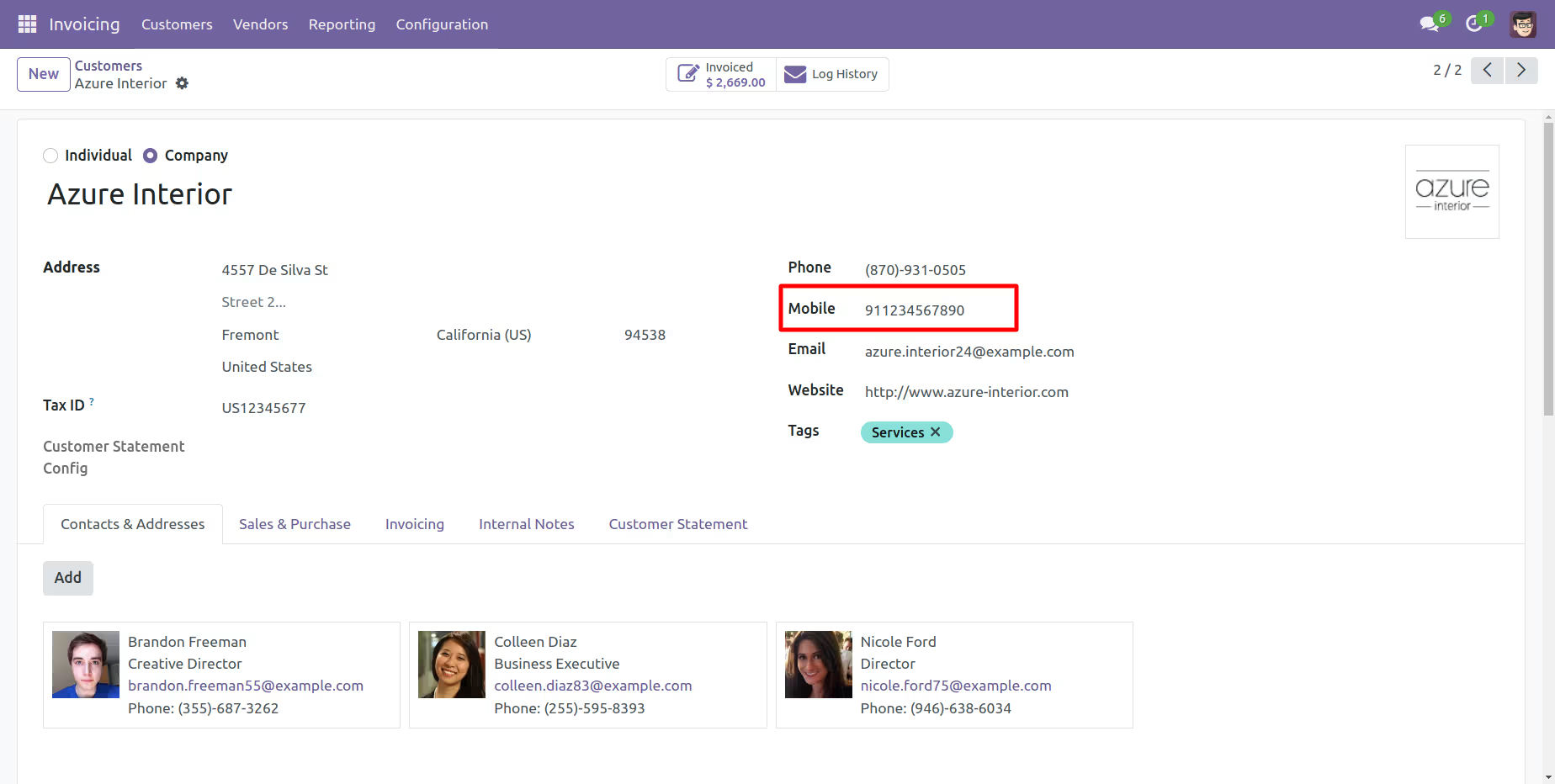
Add number in the 'Mobile' field.
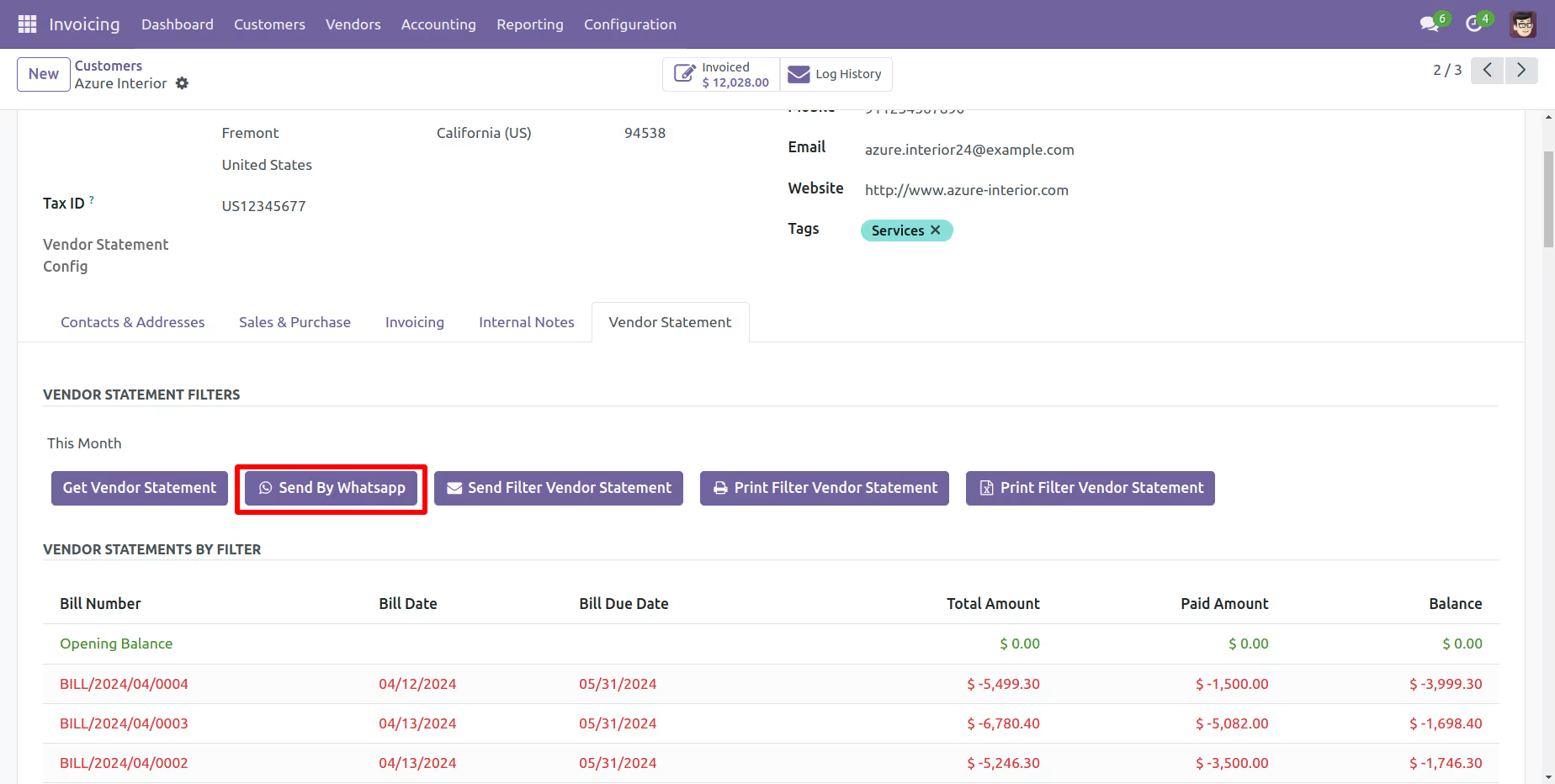
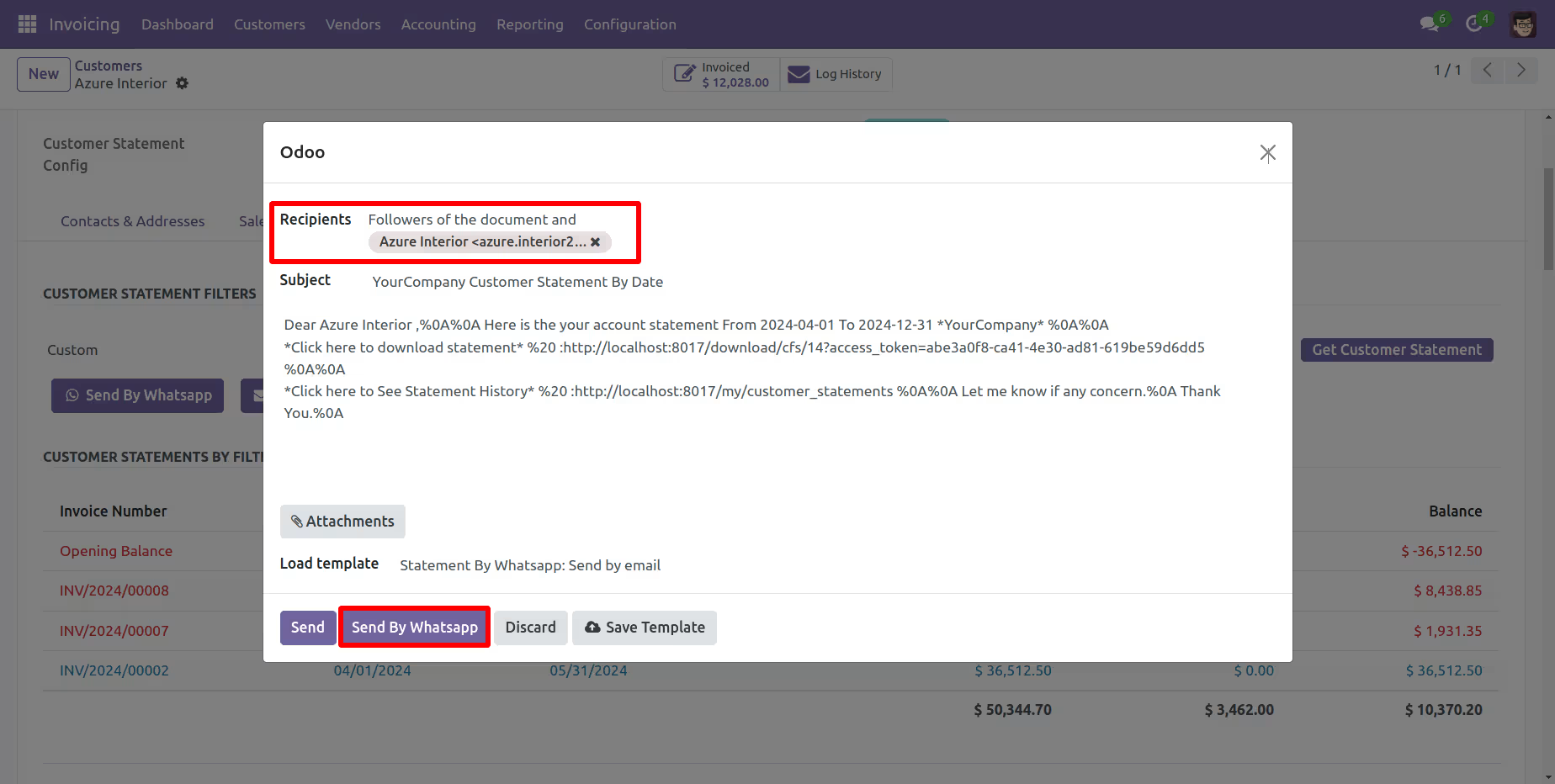
Click the 'Send By WhatsApp' Button.
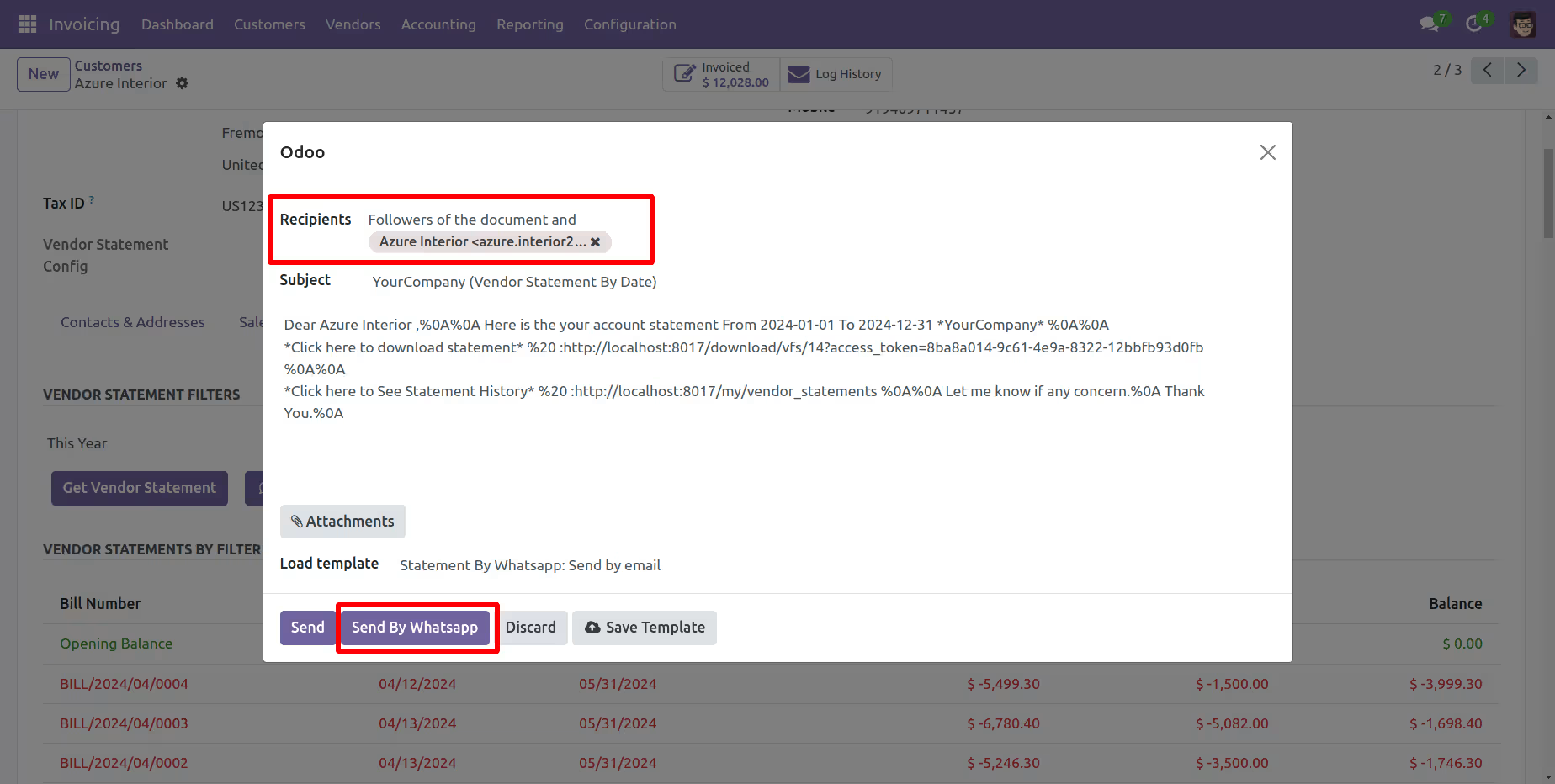
Choose recipient and edit message as required and click send by WhatsApp.
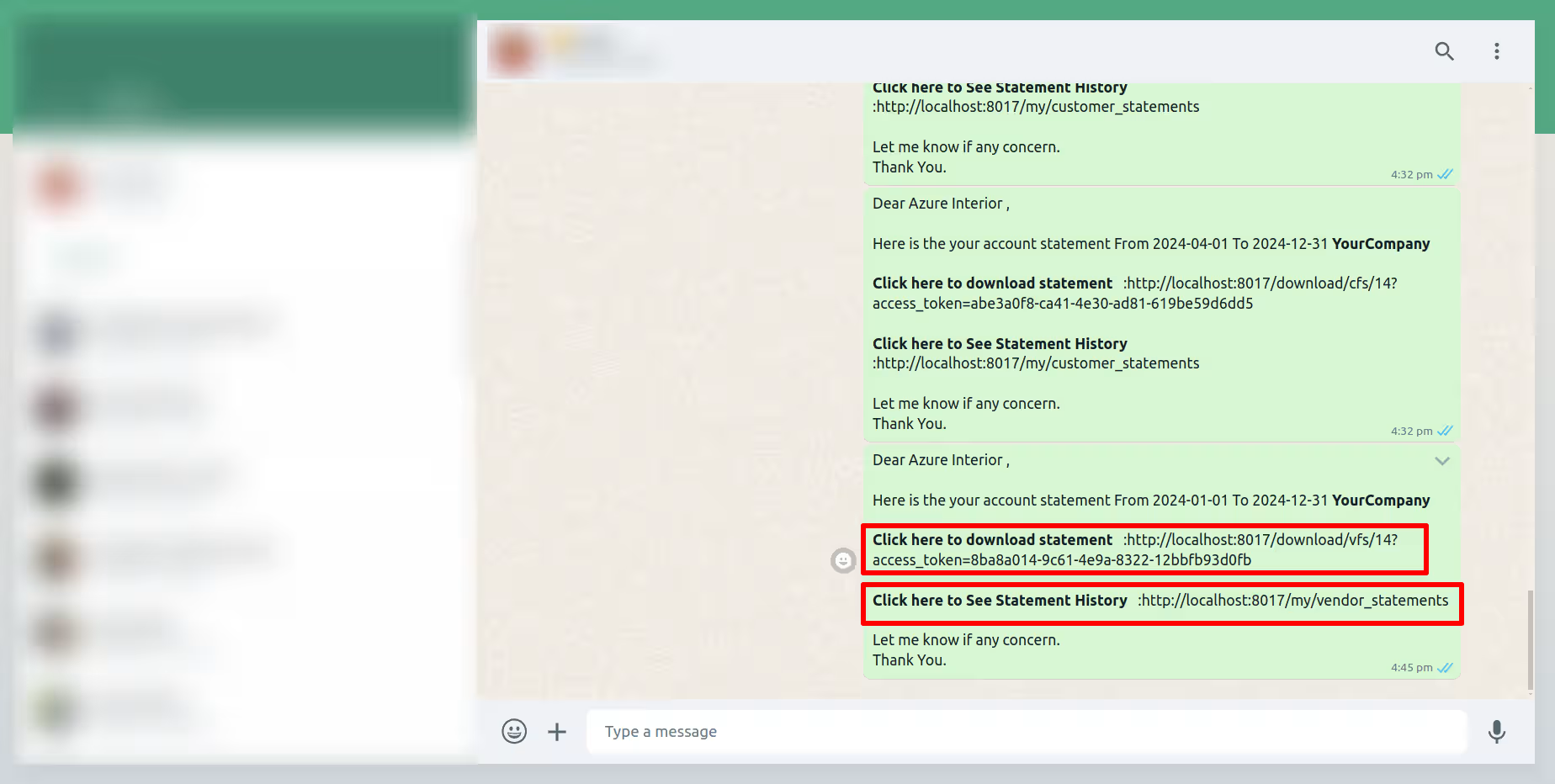
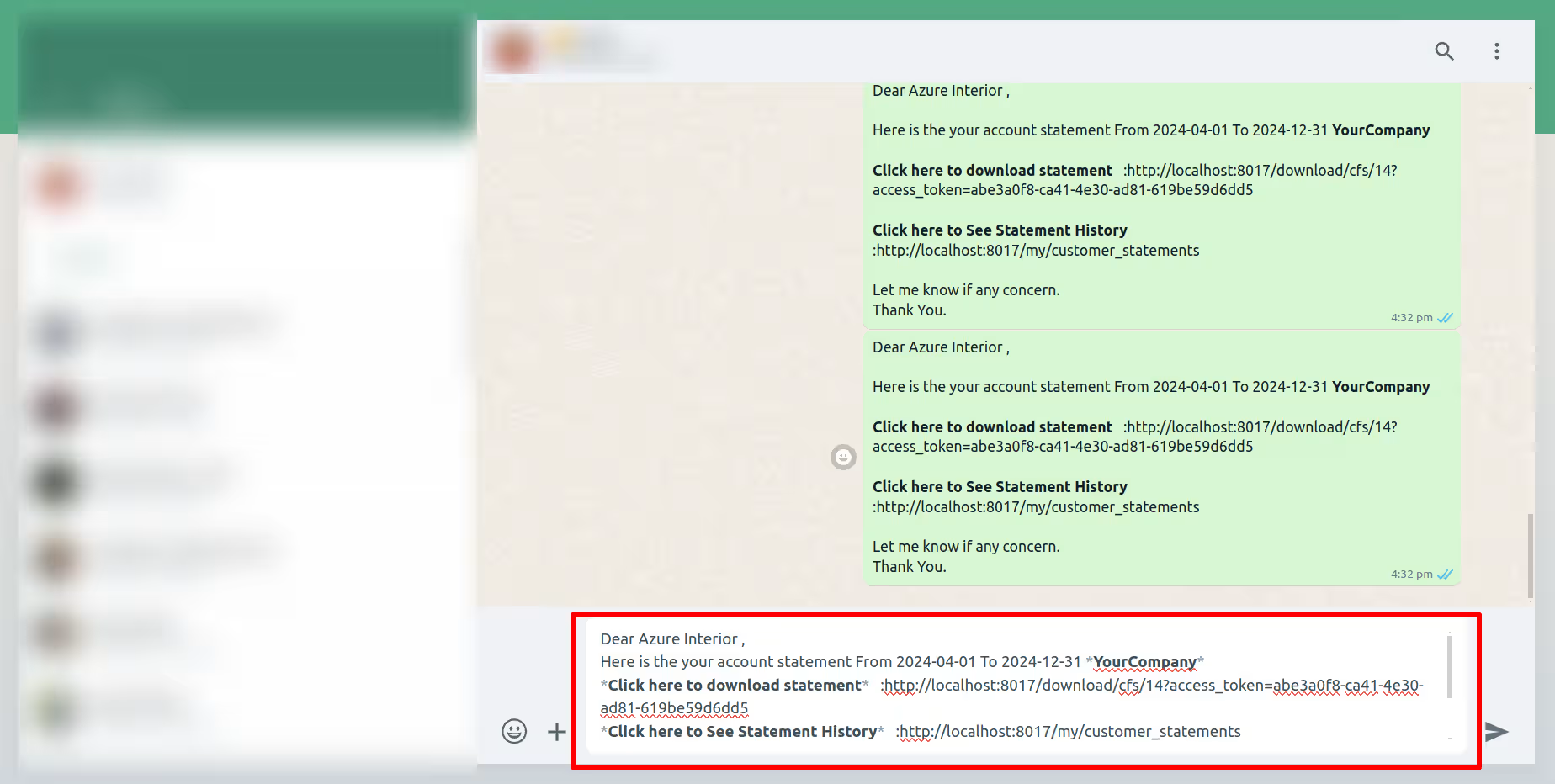
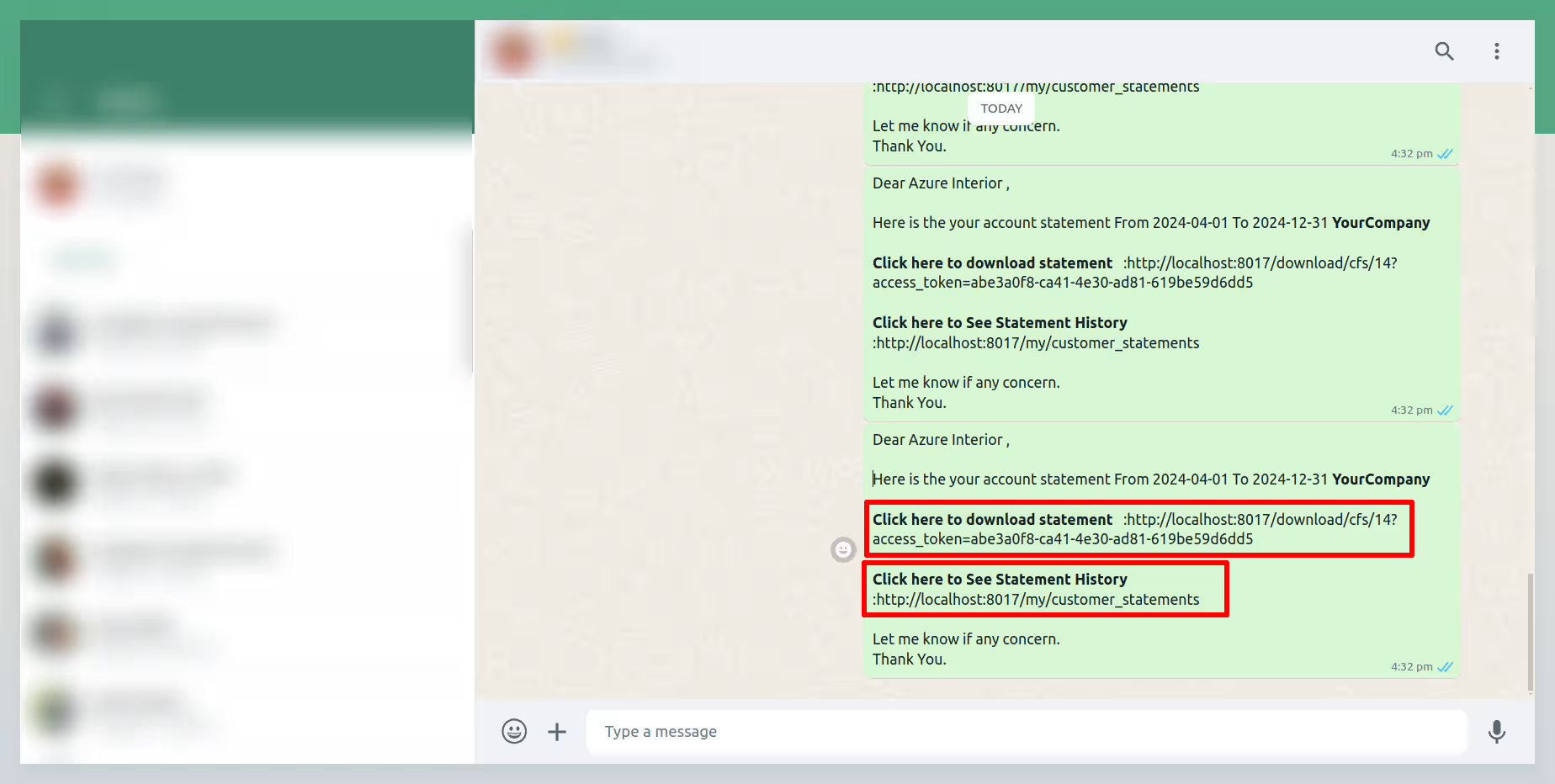
This is the output shown in the WhatsApp messenger.
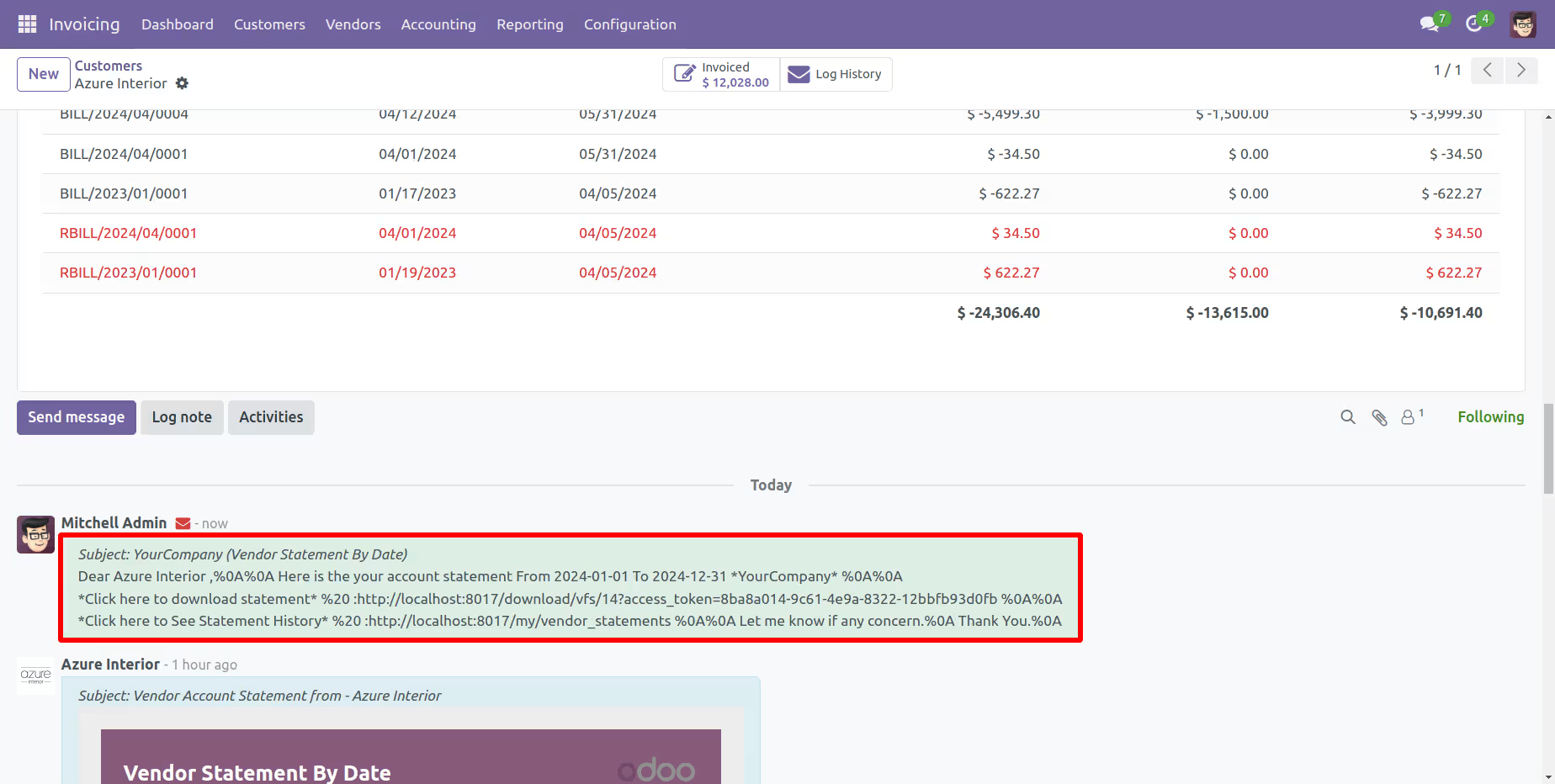
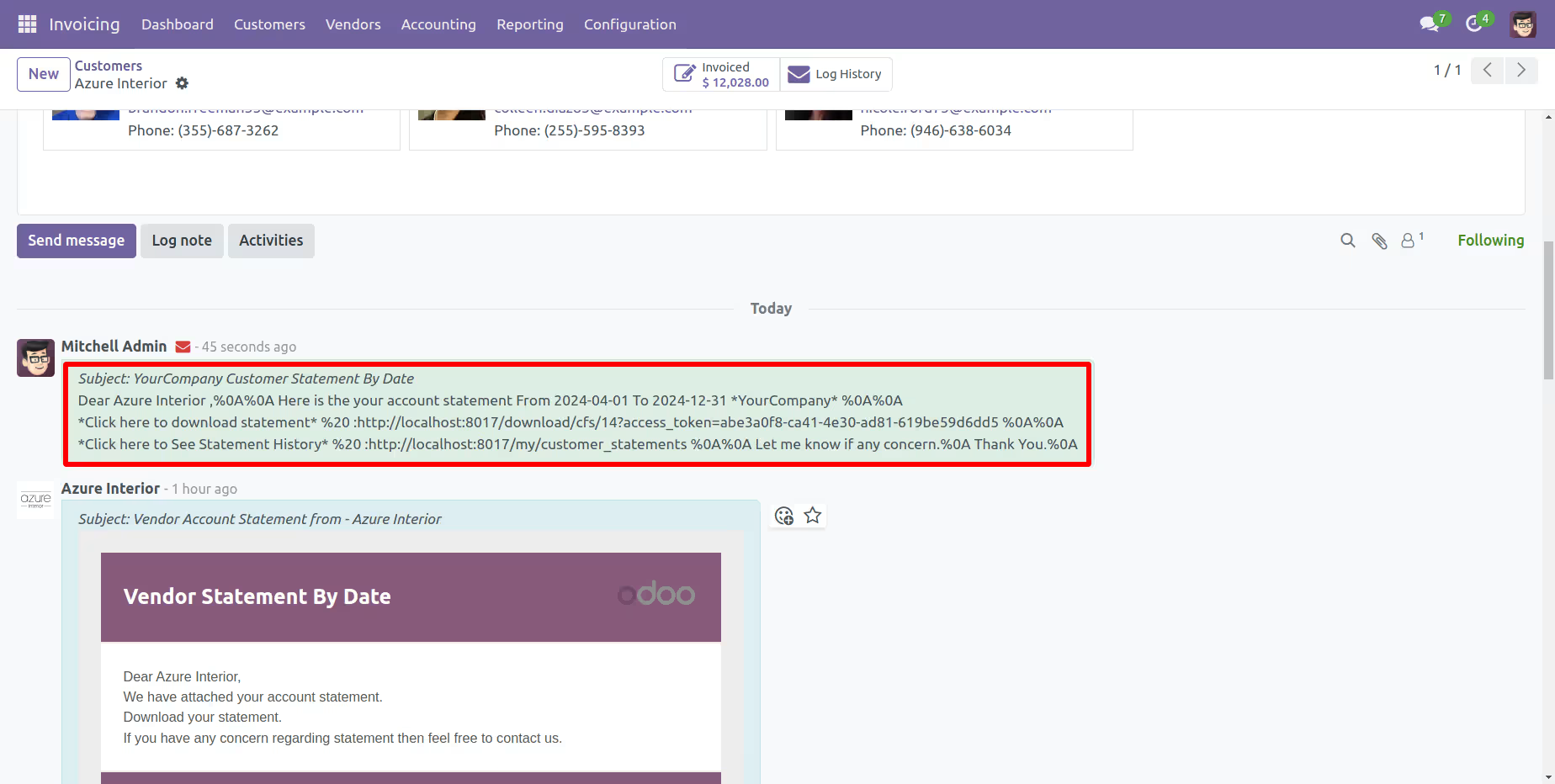
In the chatter, you can see the message which is sent.
Account Statamenet Configurations.