The module is designed to optimize and streamline various aspects of construction project management. This comprehensive solution integrates seamlessly existing functionalities, providing a unified platform to manage budgets, work orders, subcontracting, and more.
Job Costing: Accurately track and manage costs associated with each job, ensuring projects stay within budget.
Bill of Quantities (BOQ): Create and manage detailed BOQs to estimate material and labor requirements.
Work Orders: Generate and manage work orders to streamline task assignments and progress tracking.
RA Billing: Facilitate running account billing to manage progress payments efficiently.
Material Purchase Requisition: Automate material requisition processes to ensure timely procurement.
Subcontracting: Manage subcontractor relationships, contracts, and performance.
Job Orders & Job Sheets: Organize and track job orders and job sheets for efficient task management.
Construction Budgeting: Develop and monitor construction budgets to ensure financial control.
Enhanced Project Control: Gain better visibility and control over project costs, timelines, and resources.
Improved Efficiency: Streamline processes such as procurement, subcontracting, and billing to reduce delays and errors.
Centralized Data: Consolidate all project-related information in one platform for easy access and decision-making.
Scalability: Adapt the module to suit projects of varying sizes and complexities.
Construction Project Management Apps
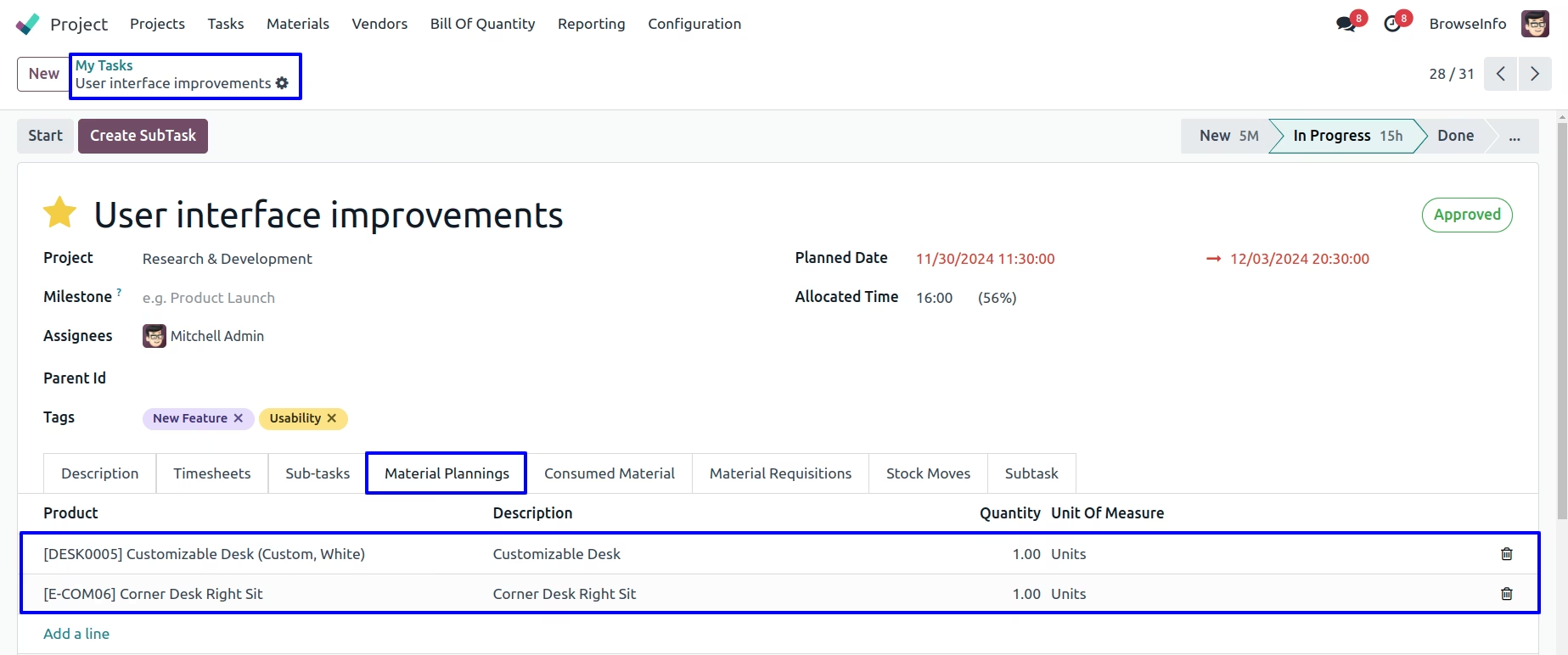
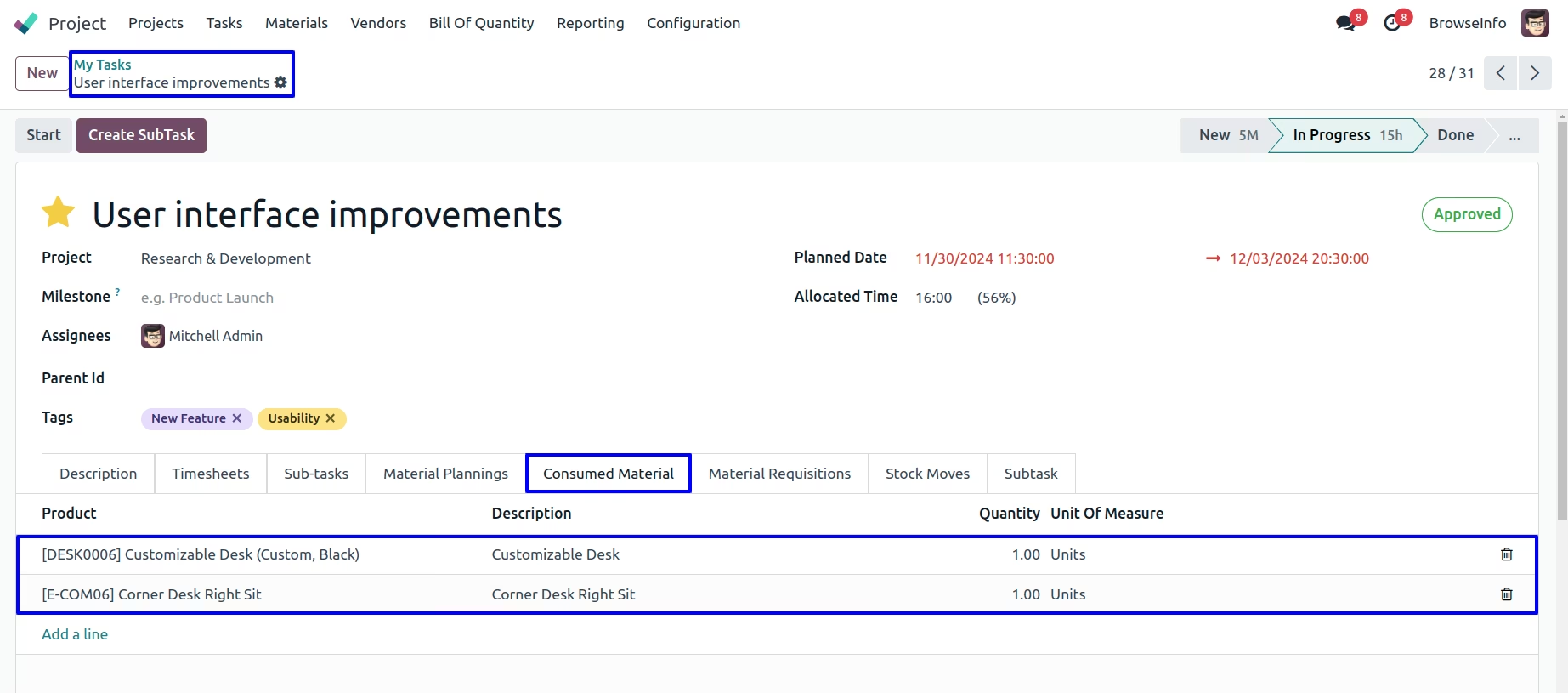
Track Material Planning, Requests & Consumption
Generate Purchase Orders from Material Requirements
BOQ Based Costing with Cost Center & Header Management
Work Package Creation for Labor, Material & Subcontract Work
Construction Management apps, allows you manage construction process with system which can used for any construction agency contractor or company. With this apps you can manage cost center and Cost Header for construction project which will use for Work Package creation. You can manage material cost , subcontract cost, labor work cost, work package costing using BOQ(Bill Of Quantity). This module helps to manage Material planning and Consumed Materials of each job order(task) for construction projects, based on material request and planning you can easily create purchase order for the products/material required for the construction site, also you can able to print different construction reports.
We can enter details and create a cost code here.

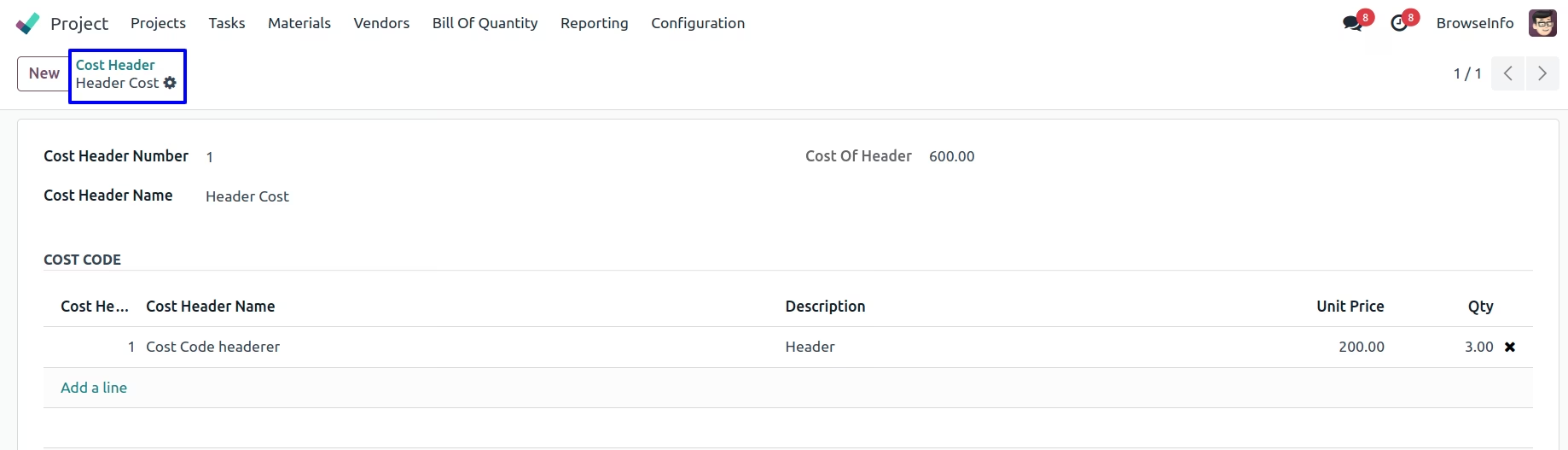
Cost Header:
Cost header can be created with details. User will be able to link cost codes too.
Work Package:
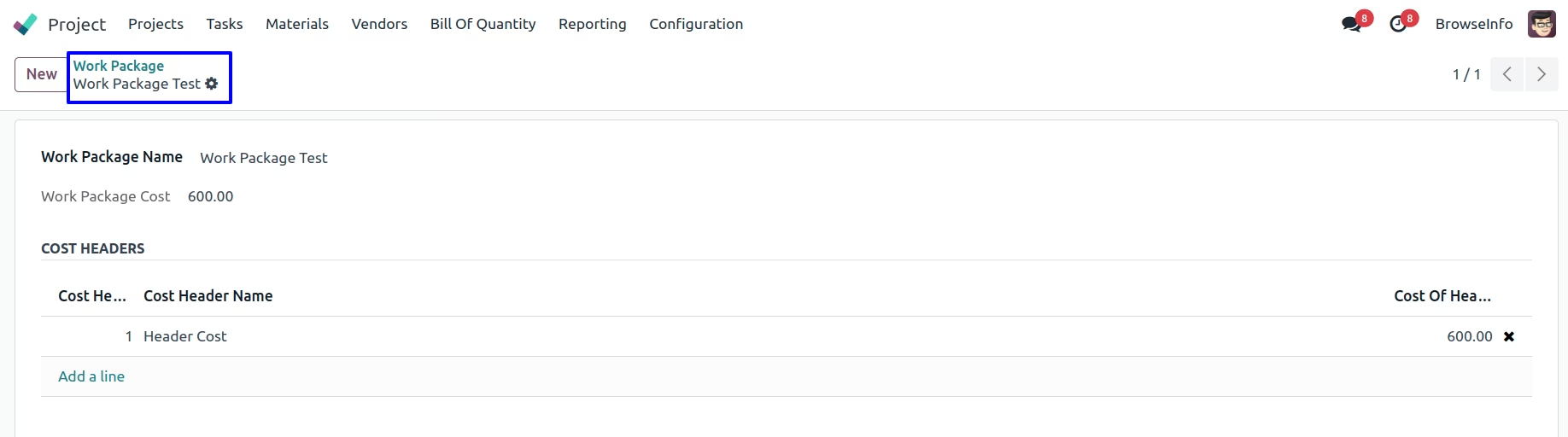
We can create work packages which will consist cost code and cost header too.
Bill Of Quantity
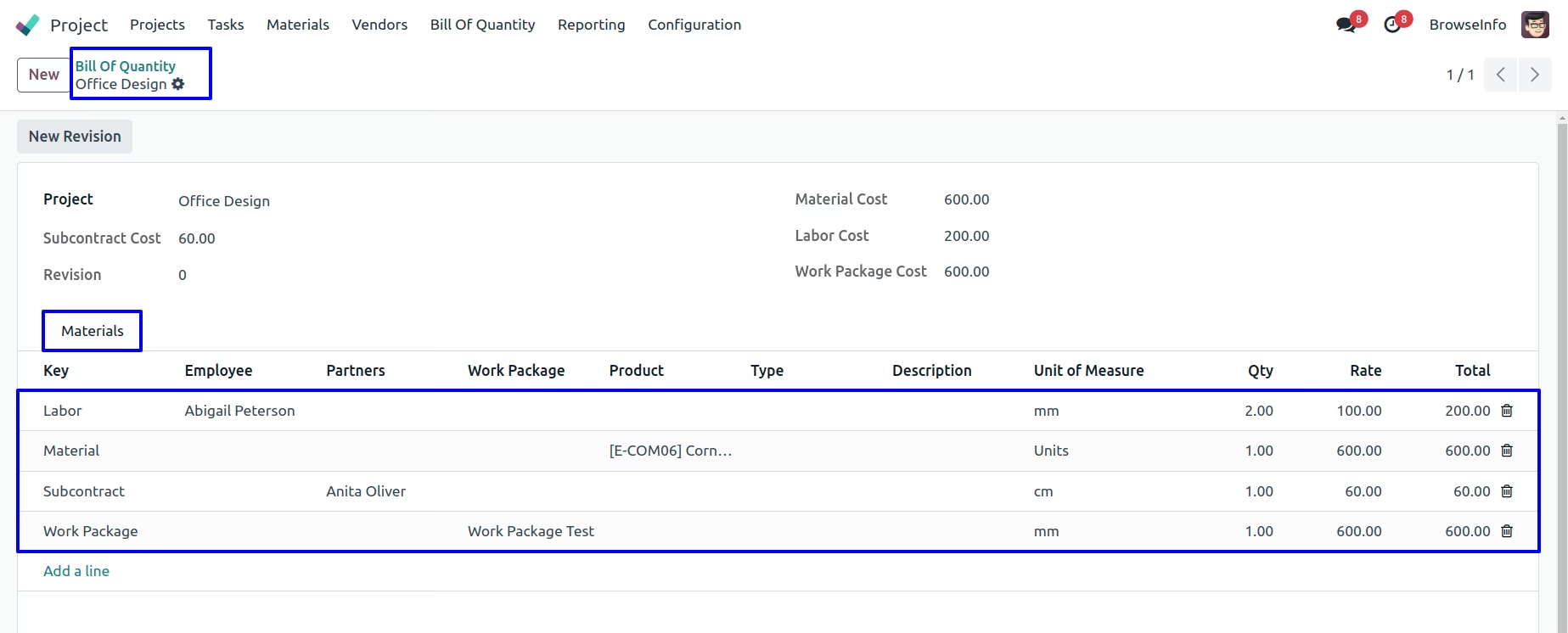
When you click on 'New Revision', new Bill of Quantity will be created with the same project as it was.Now here you can enter details in 'Materials' Tab.According to 'Keys' given in the lines , total of those line will be reflect in above fields respectively.For Ex: 'Total' of lines with key 'Labor' will be added and shown in the field 'Labor Cost', Same goes for all the keys.
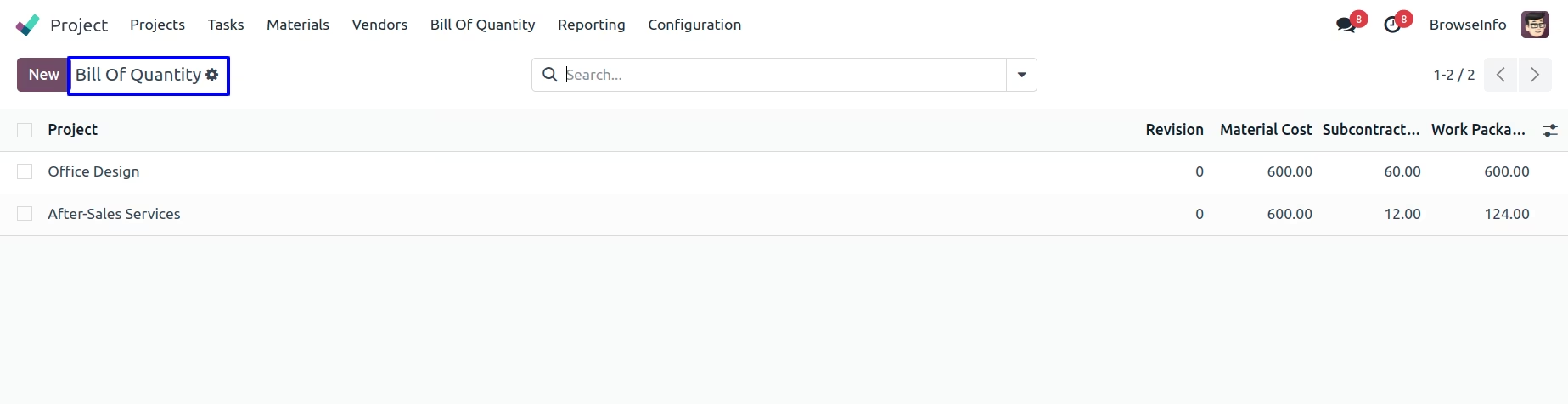
Bill Of Quantity Tree View
In the tree view of Bill of Quantity, first record shows number of 'Revision' we have created in previous step.Same number of Bill of Quantity records will be generated, as it is shown in below figure.
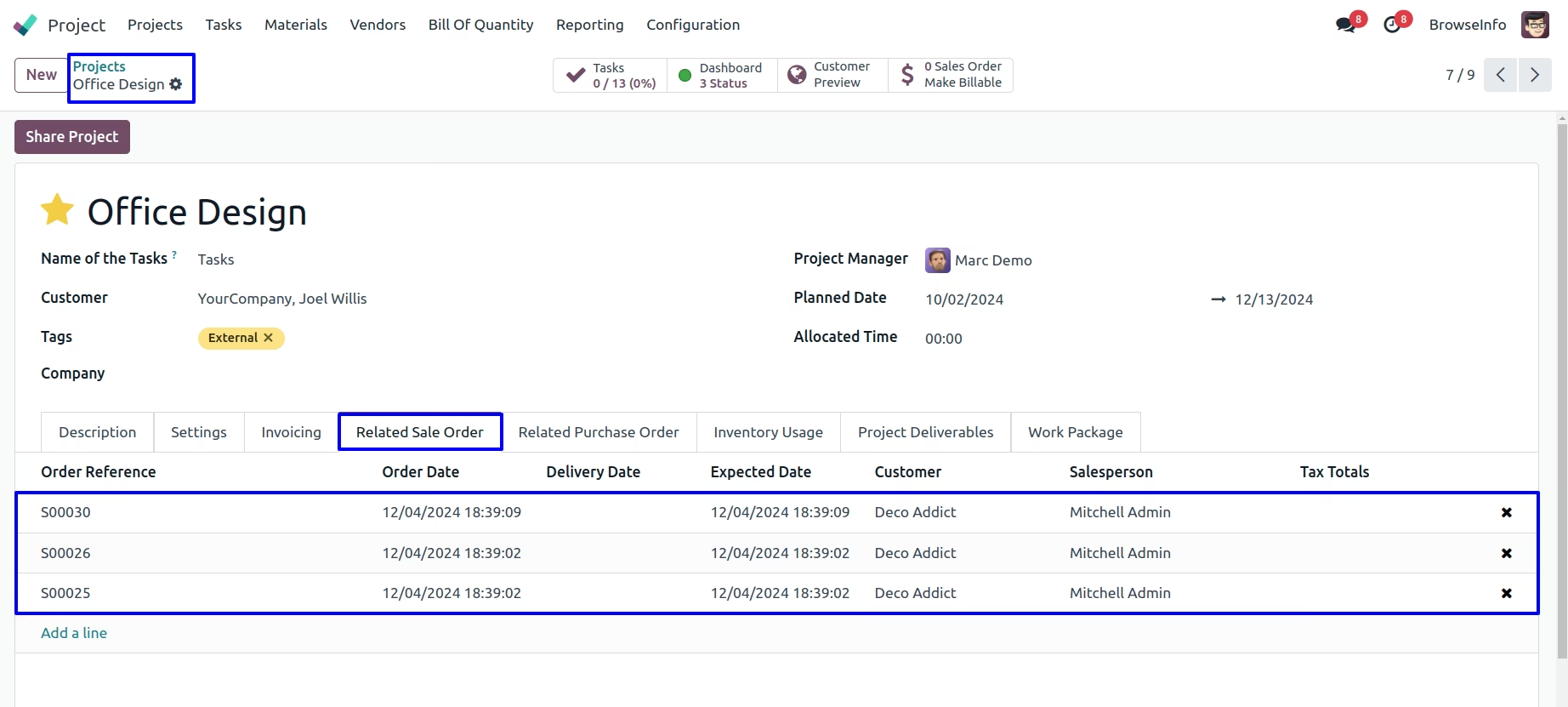
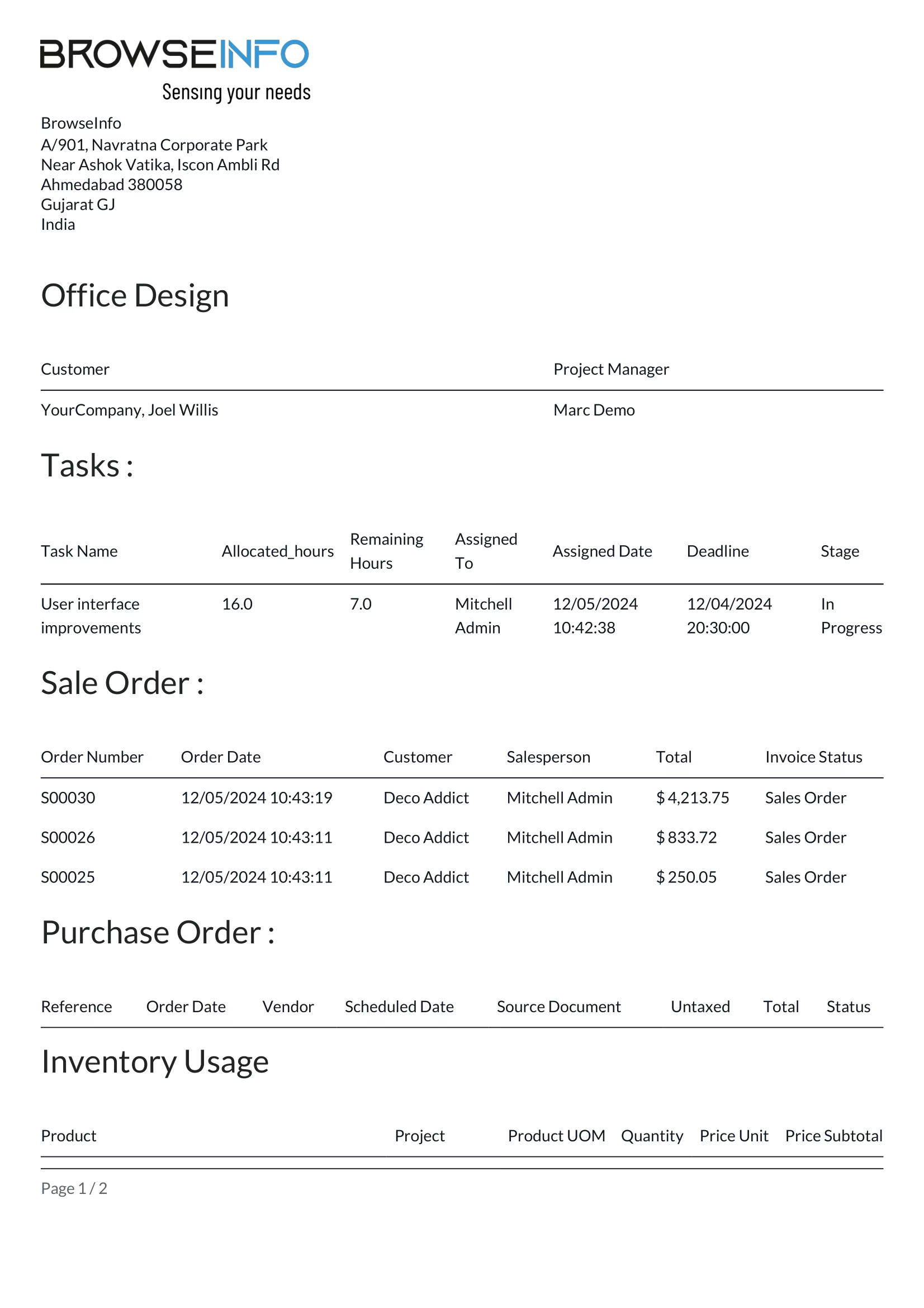
User can create and manage Sale Order,Purchase Order and Project Deliverables directly from projects
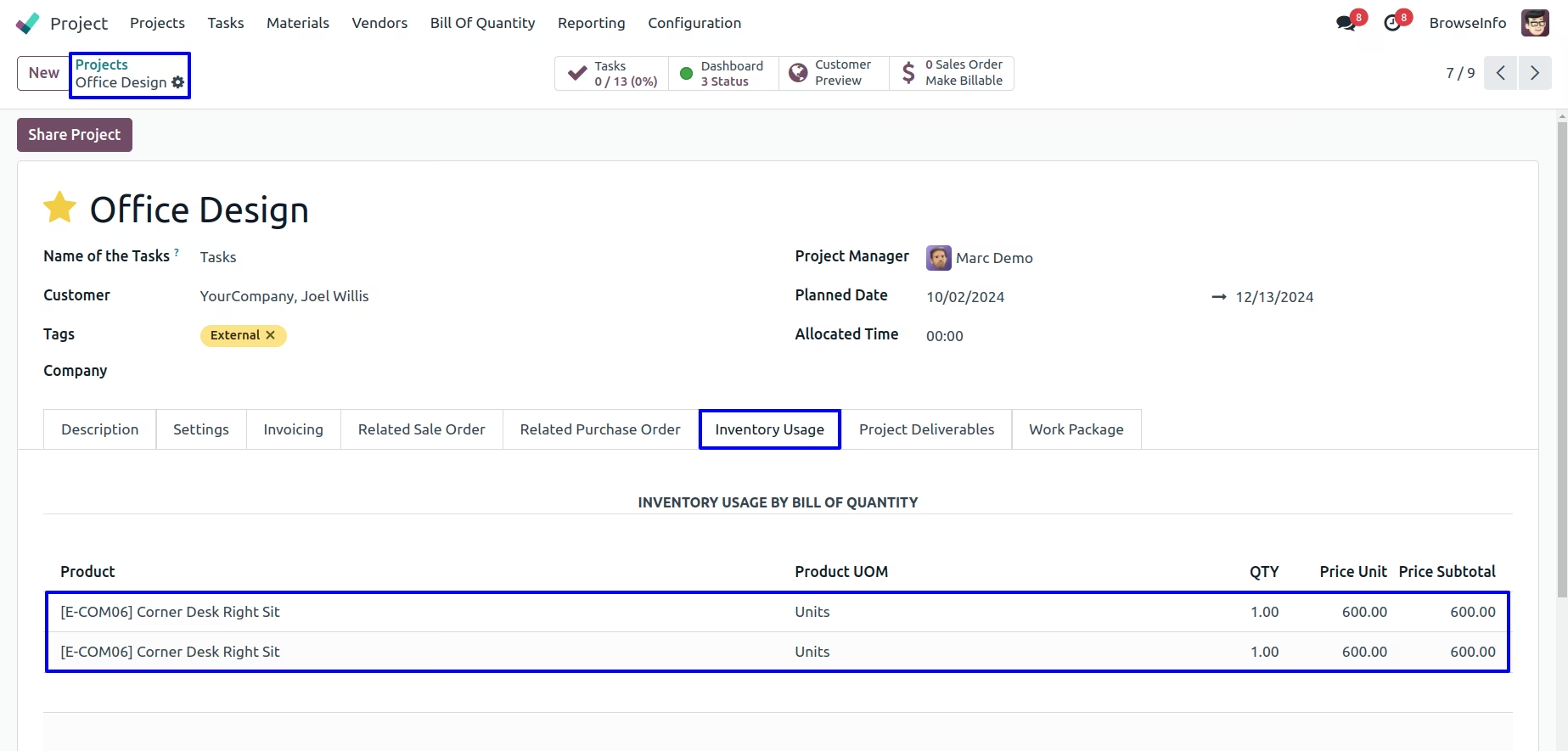
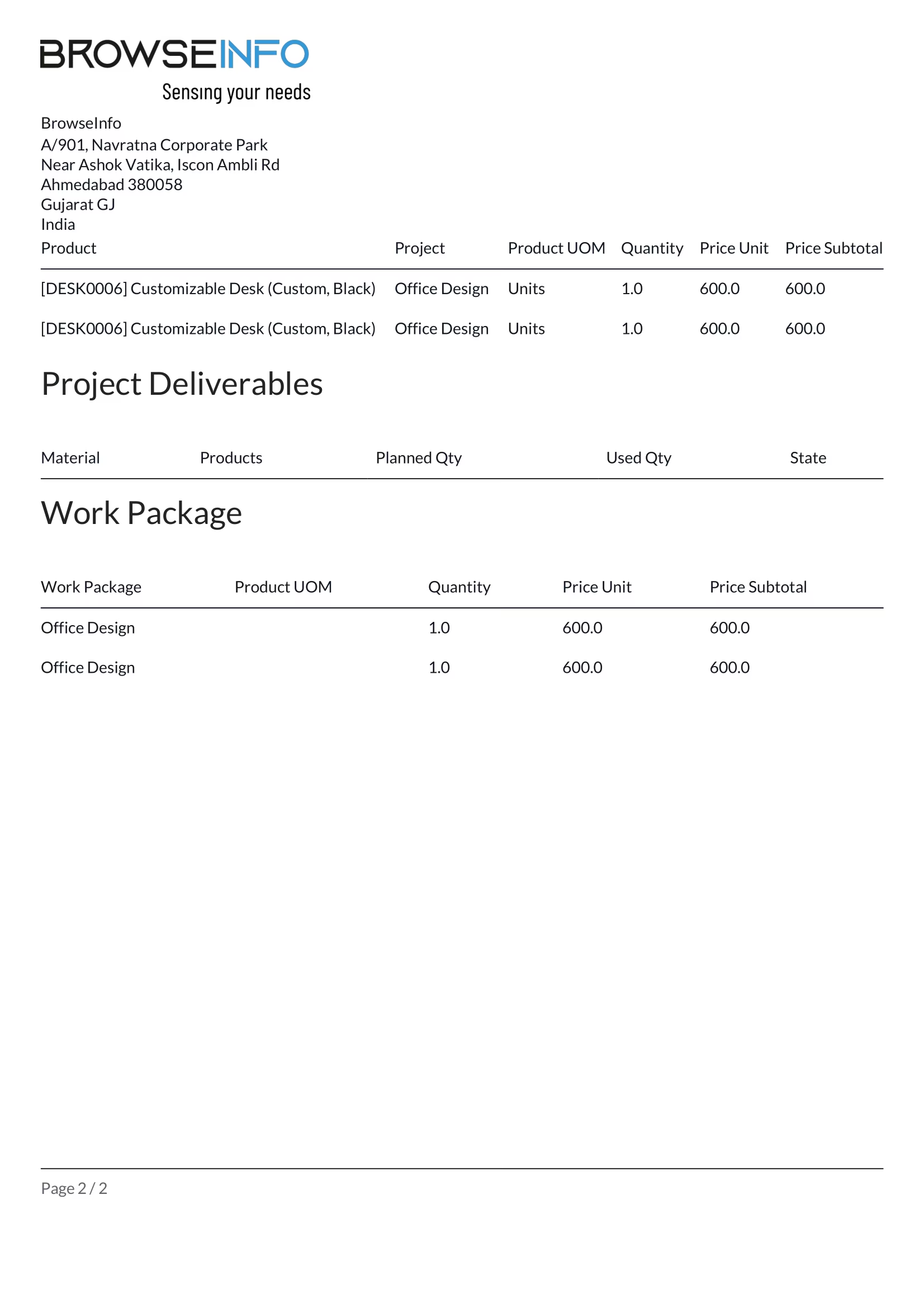
User can see list of inventory usage which are created from Bill Of Quantity
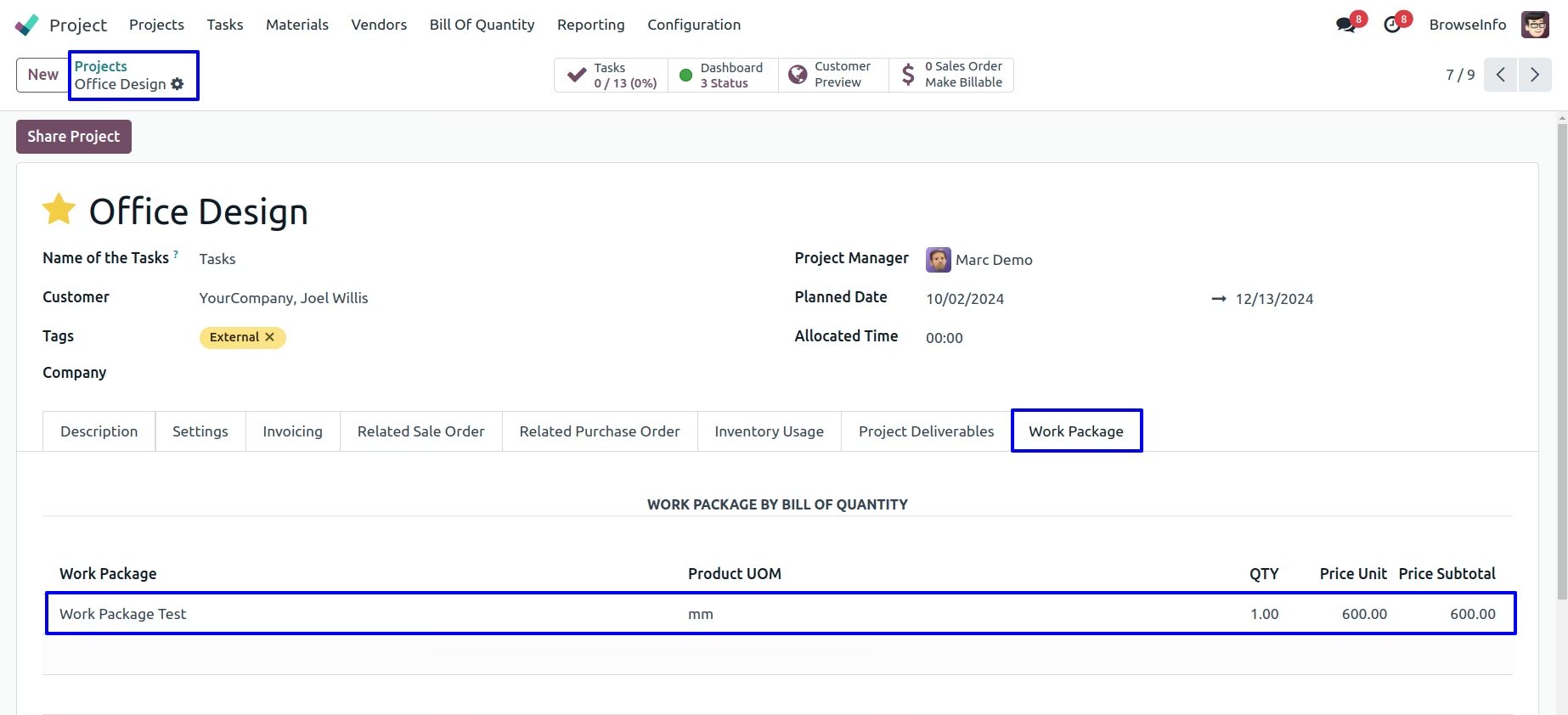
User can see created list of work package by Bill Of Quantity
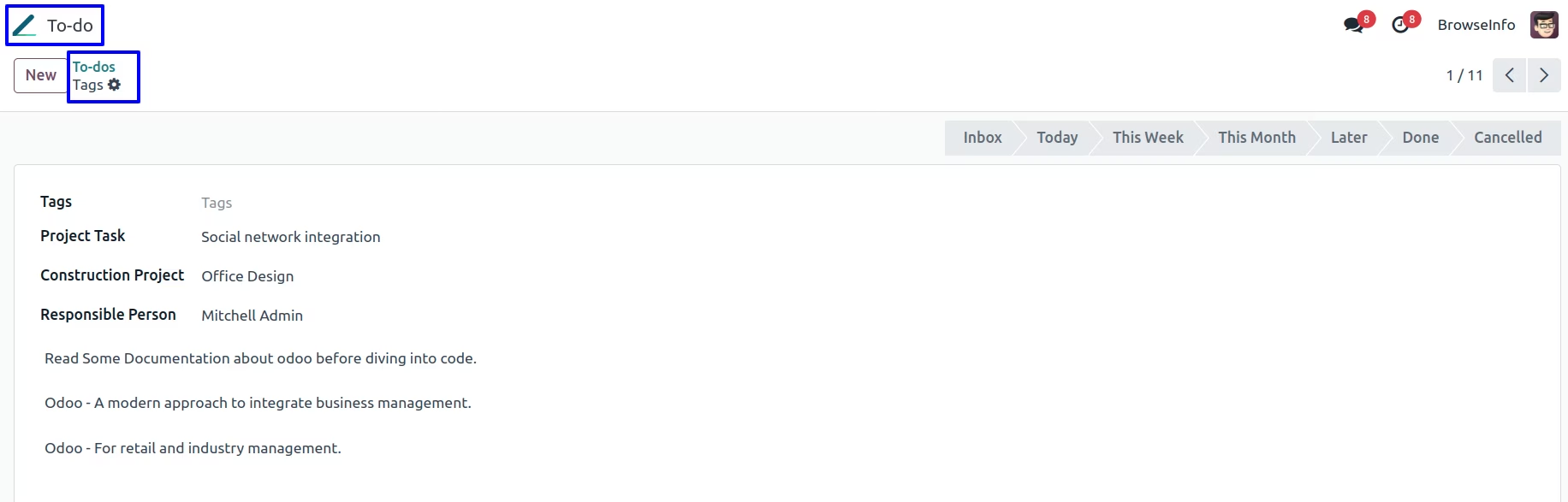
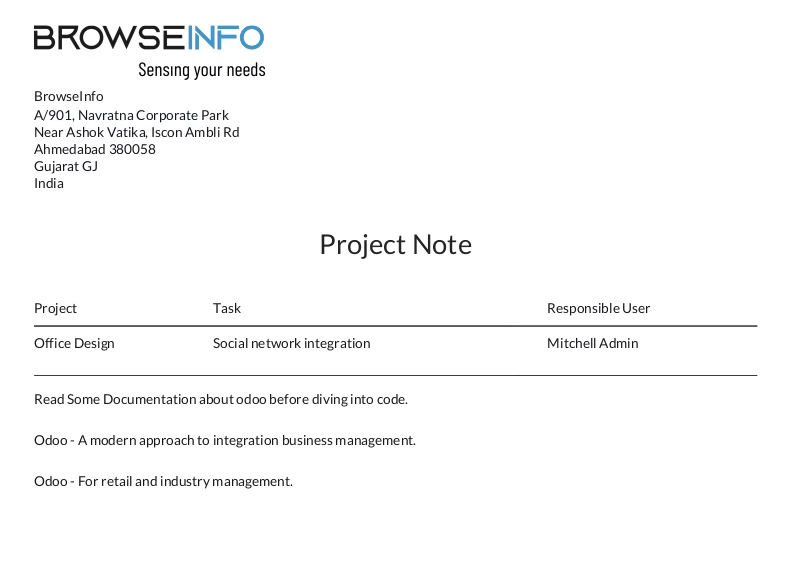
User can configure project notes goto Notes Menu
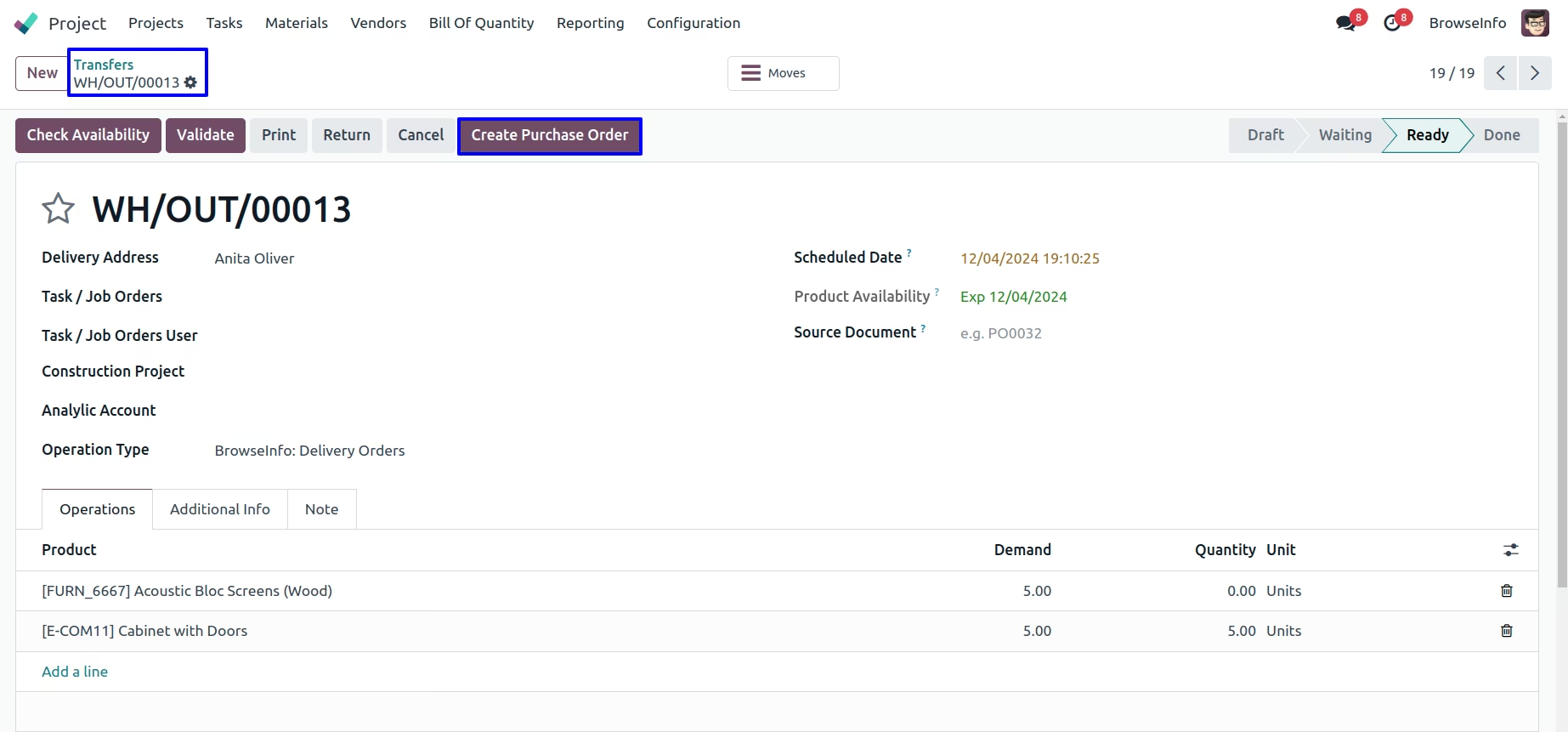
User can manage material requisitions and create purchase order from material
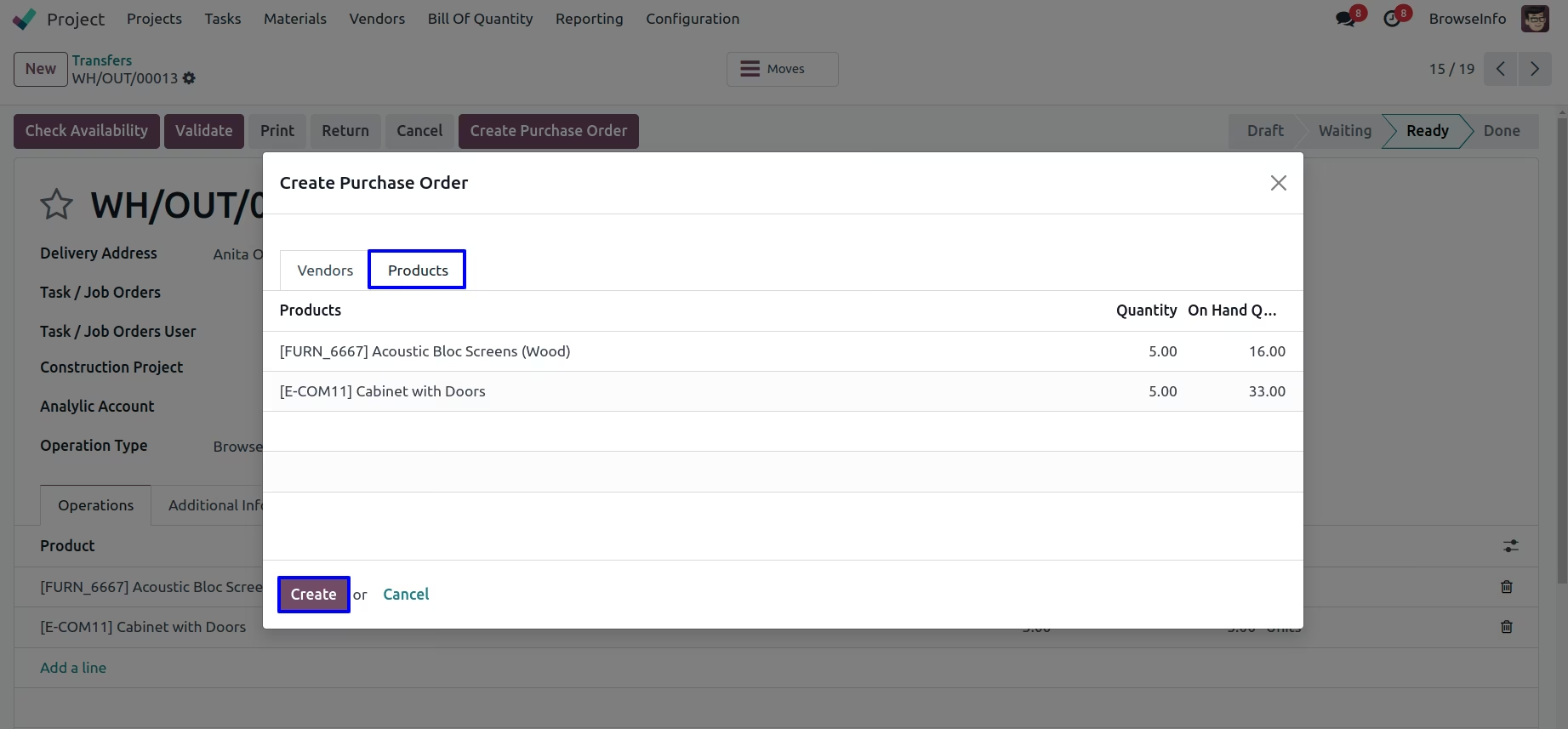
Purchase Order Wizard
In purchase order wizard you have to select vendors.
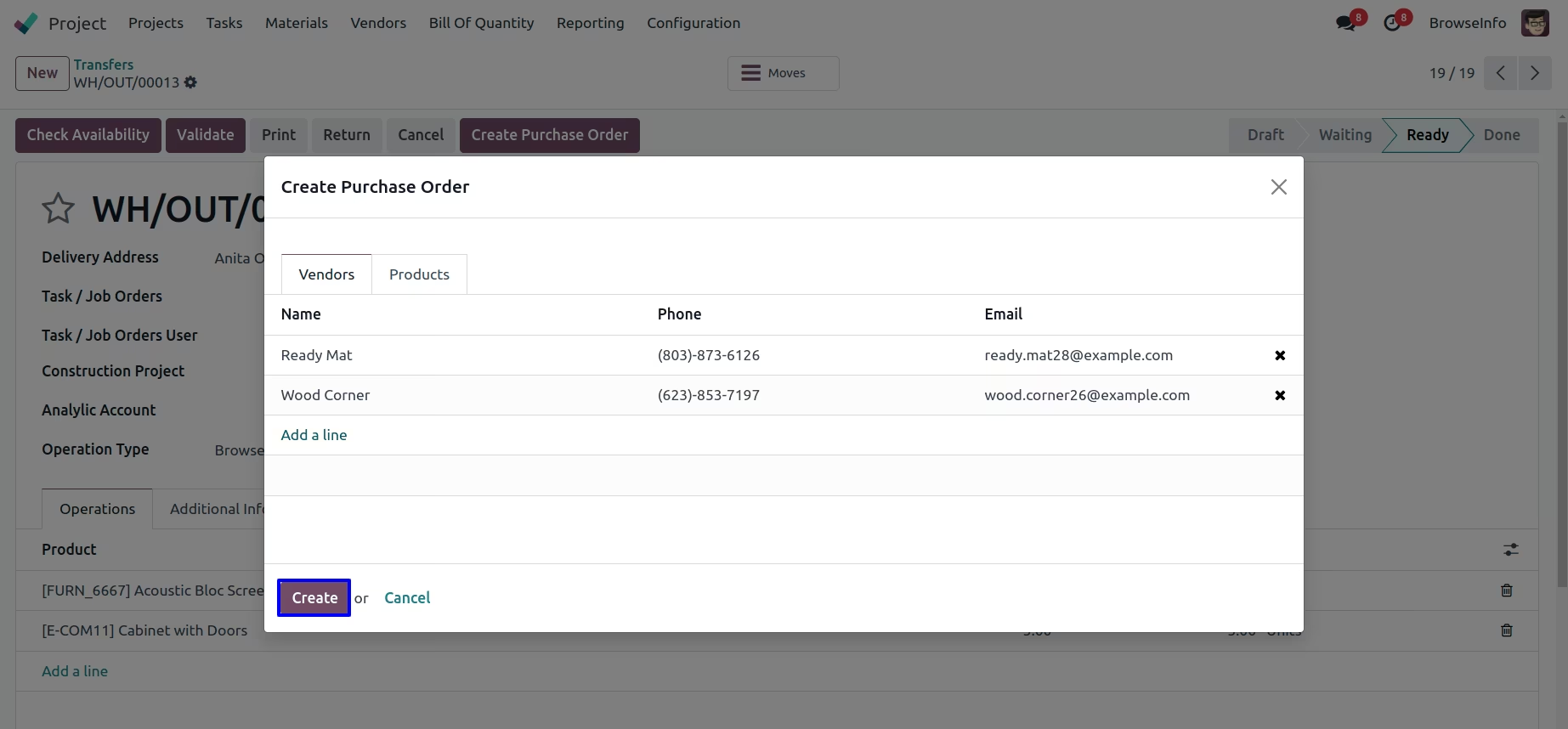
User can see products of delivery order in wizard while making purchase order from the delivery
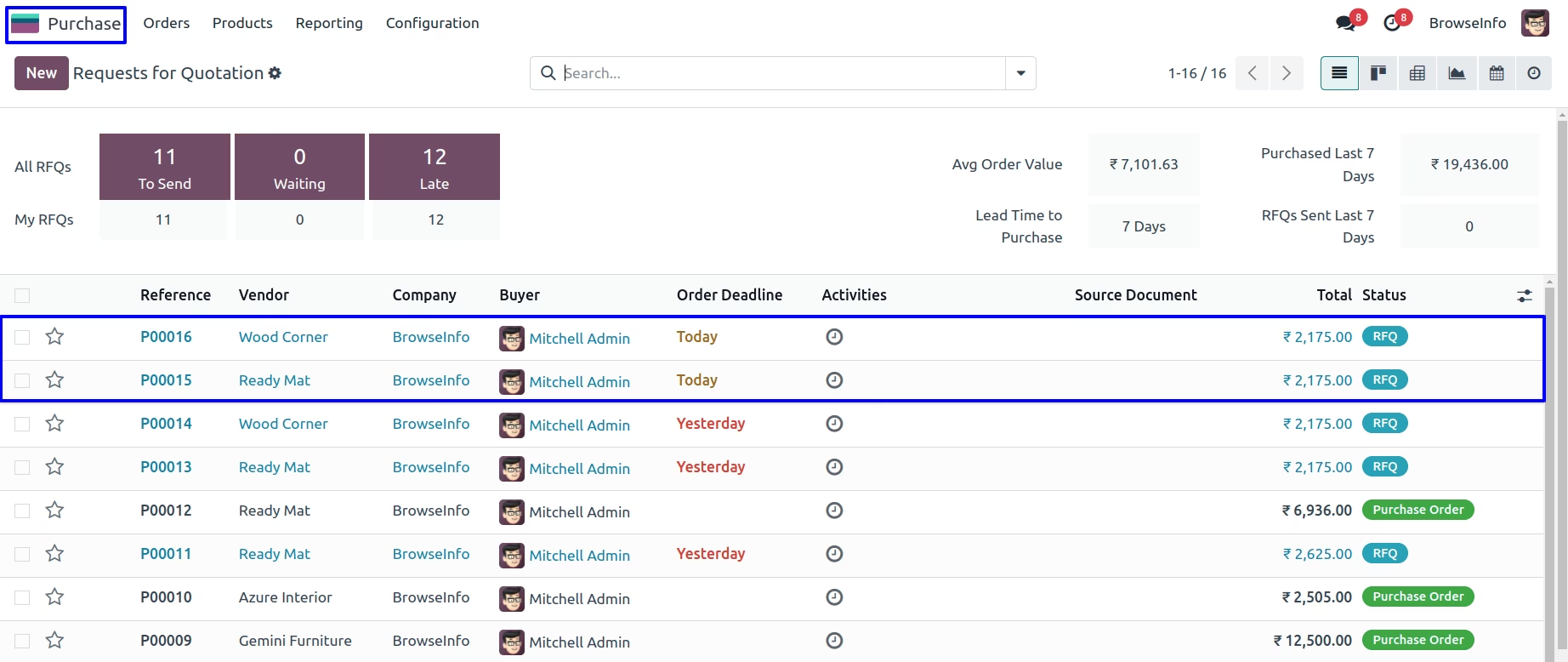
Created purchase order will be displayed here
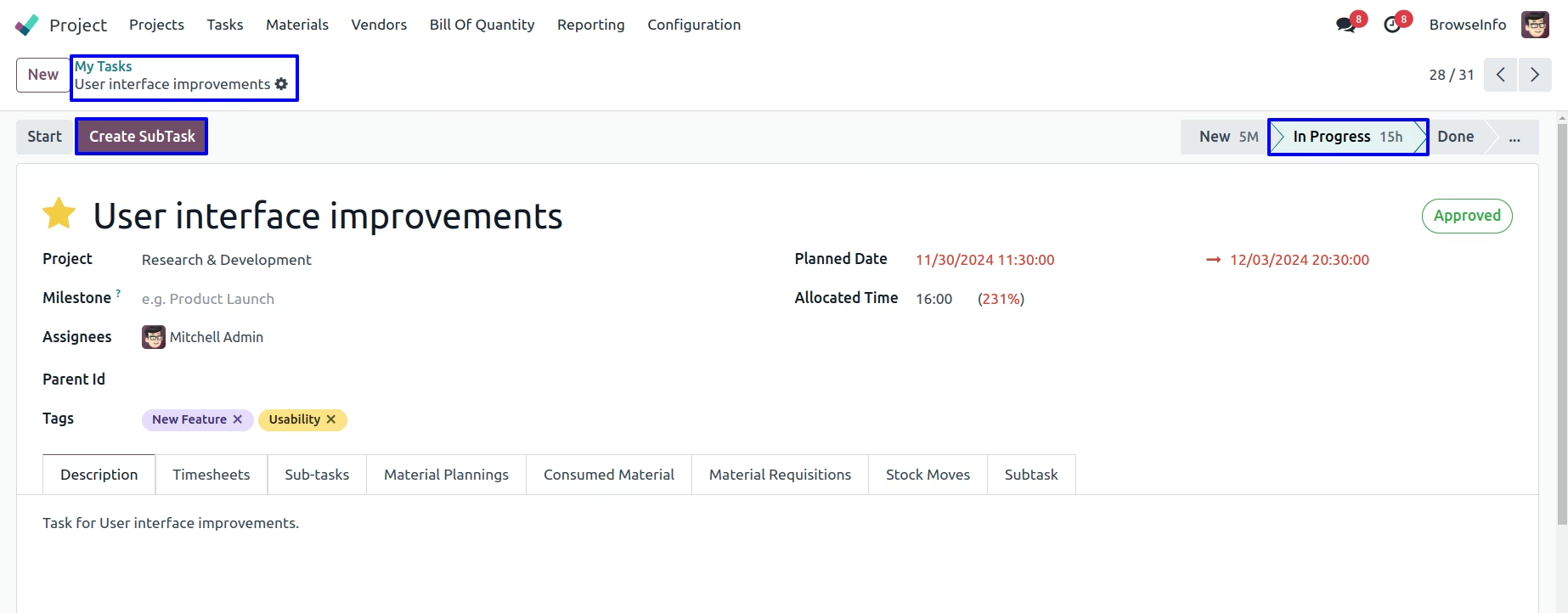
Tasks View
User can create sub task from here,Click on Create Sub Task Button to create subtask.When clicking on create subtask, wizard will open and assign subtask for current project tasks.
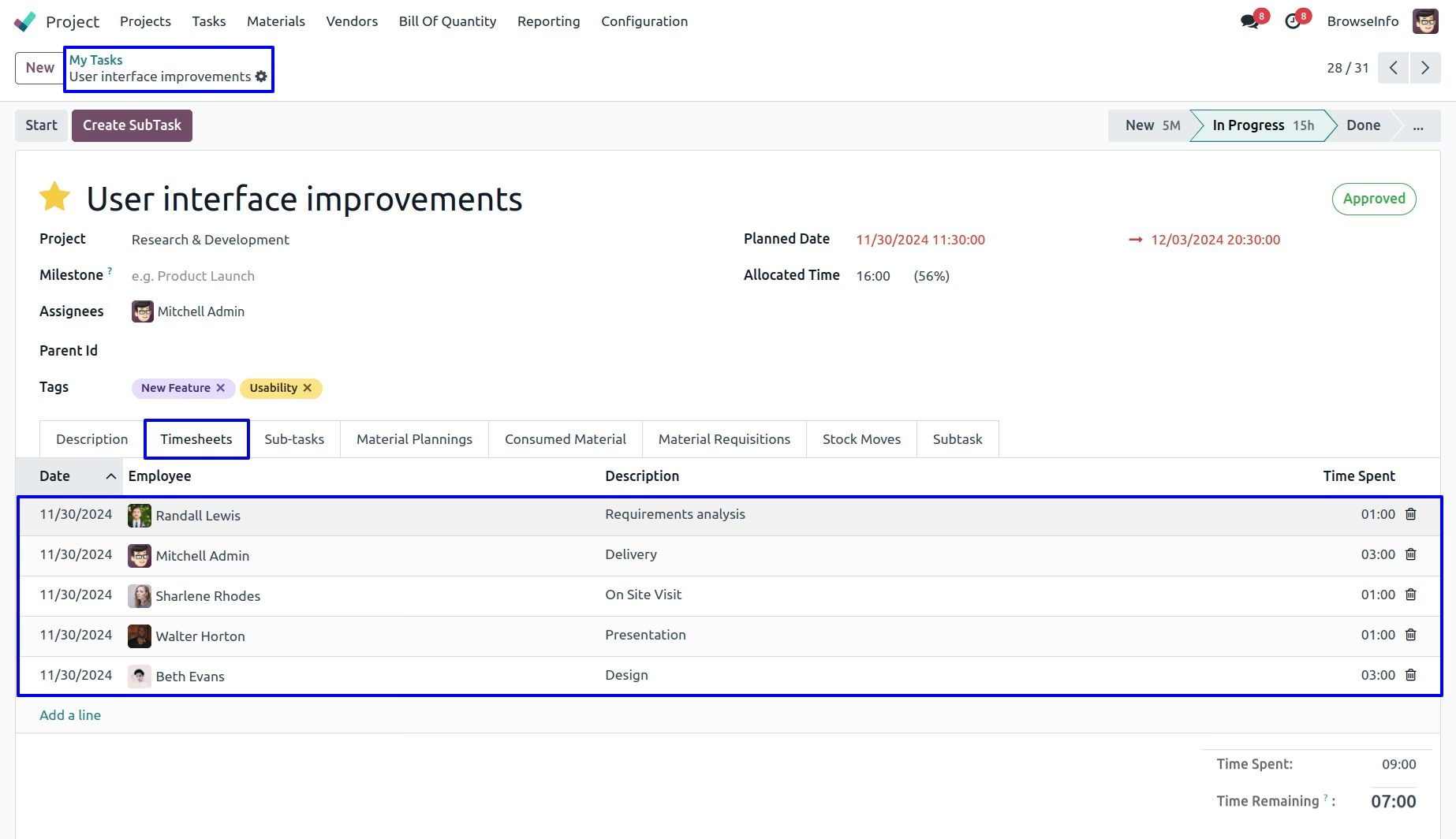
User can manage user's task timesheet
This module allow you to manage and configure construction materials
Consumed Materials
Project Task Report
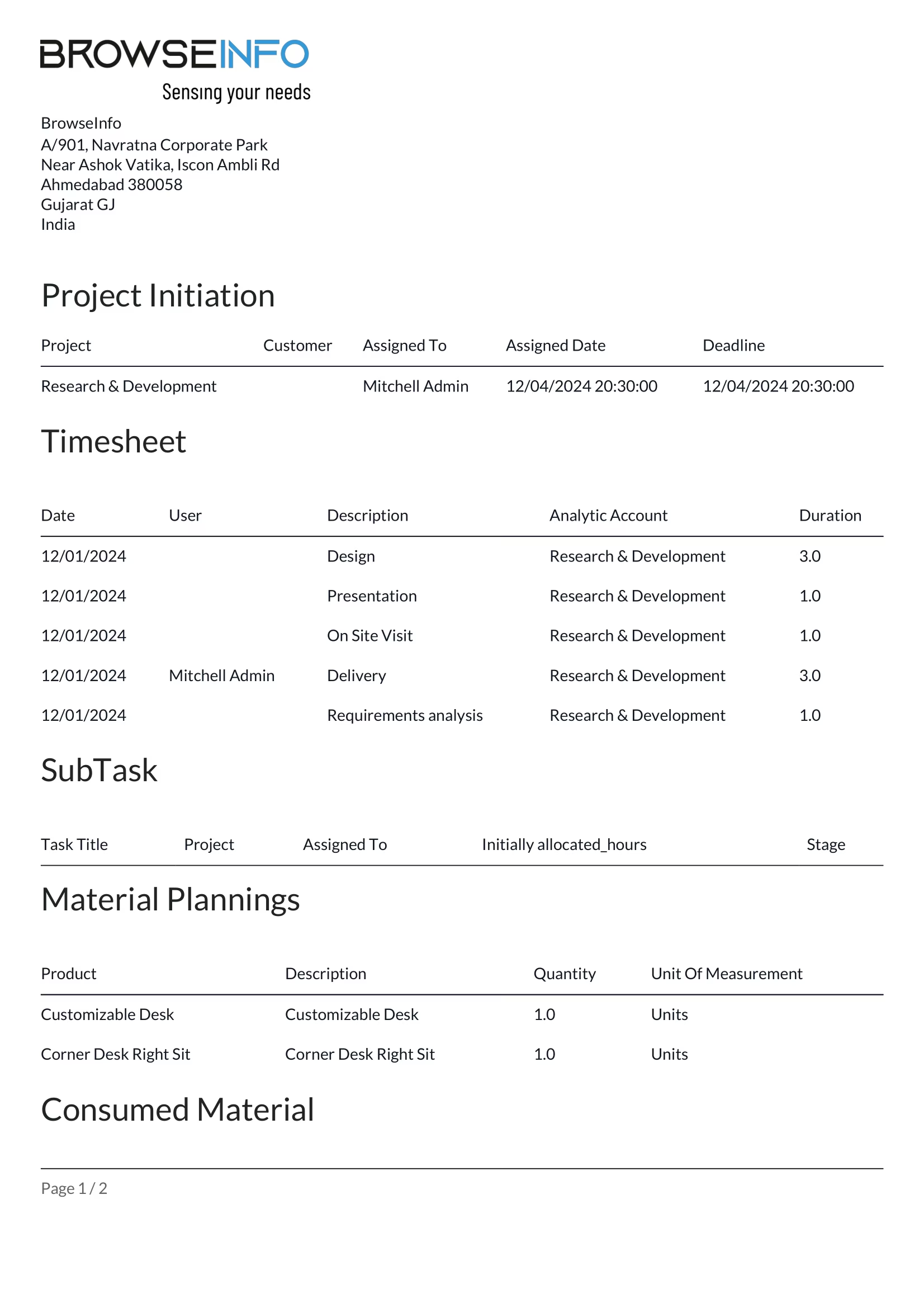
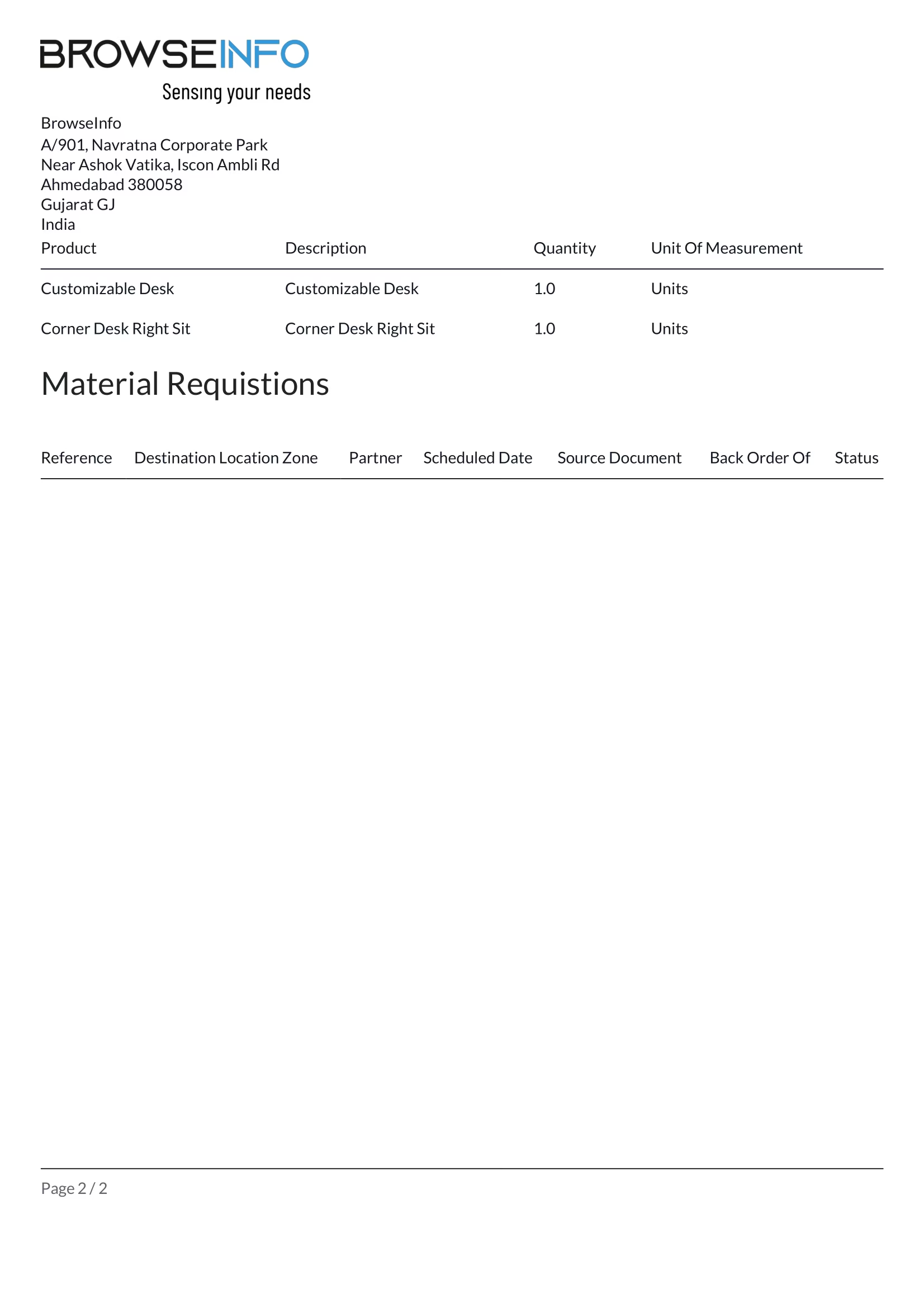
Project Note Report
Report of Project
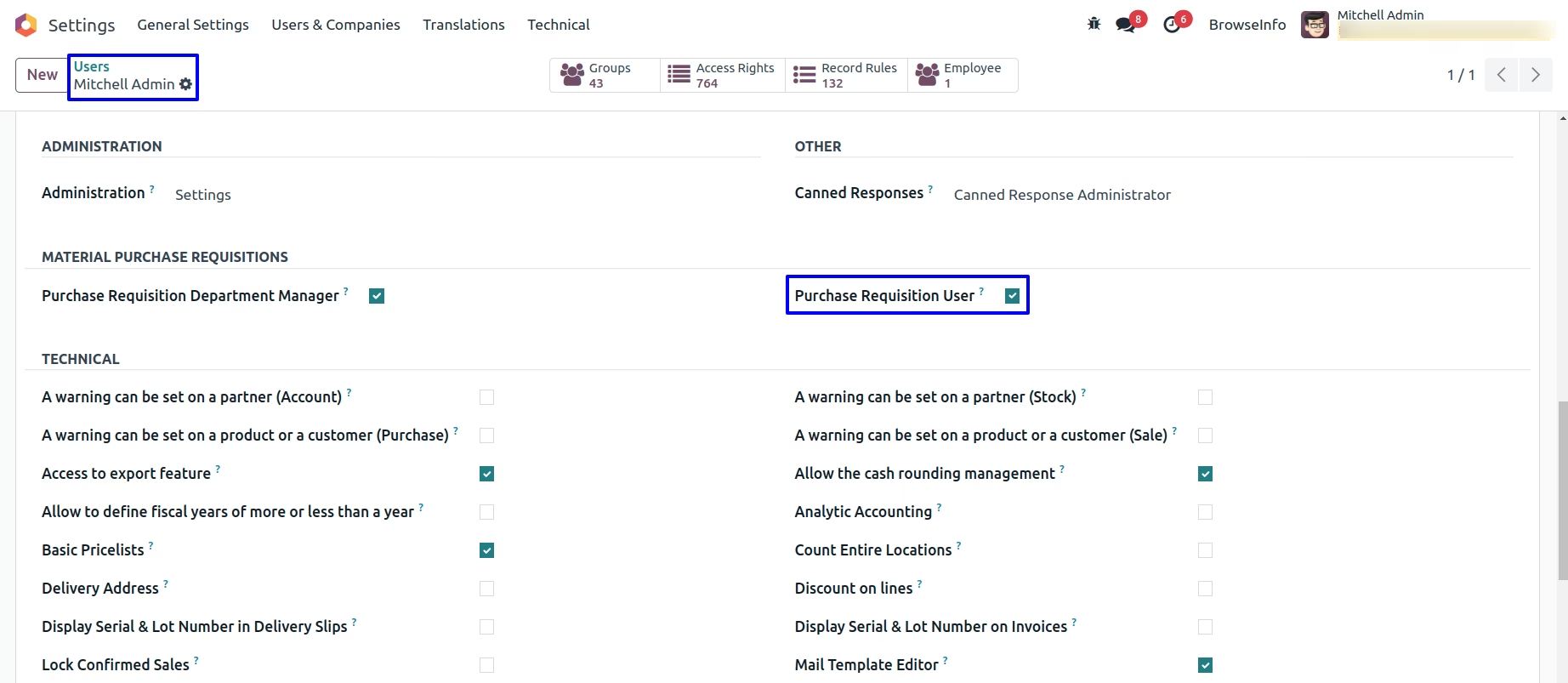
Purchase Requisitions User Access
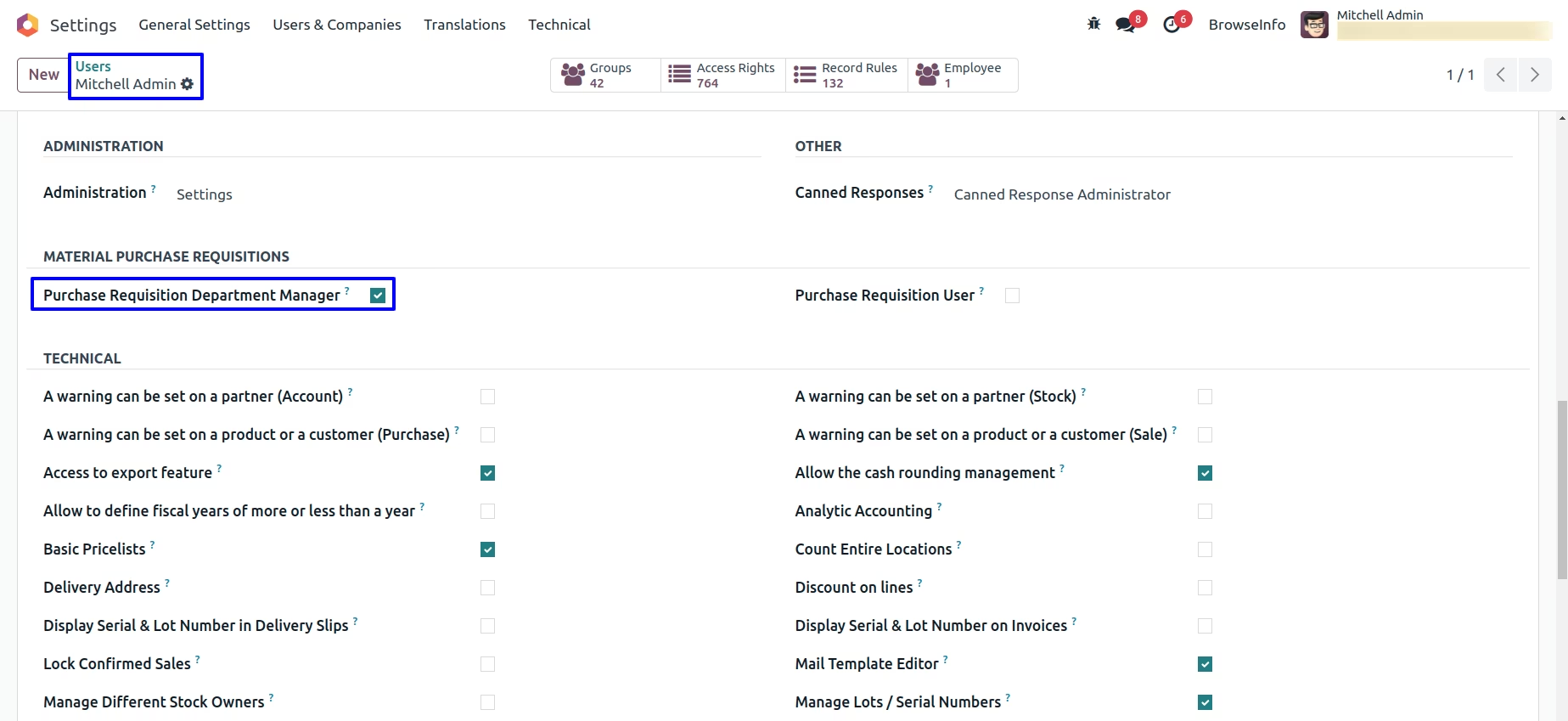
Under Settings > User & Companies > User menu user have to enable "Purchase Requisition Department Manager" for the manager and "Purchase Requisition User" for the requisition user.
Purchase Requisitions Configuration
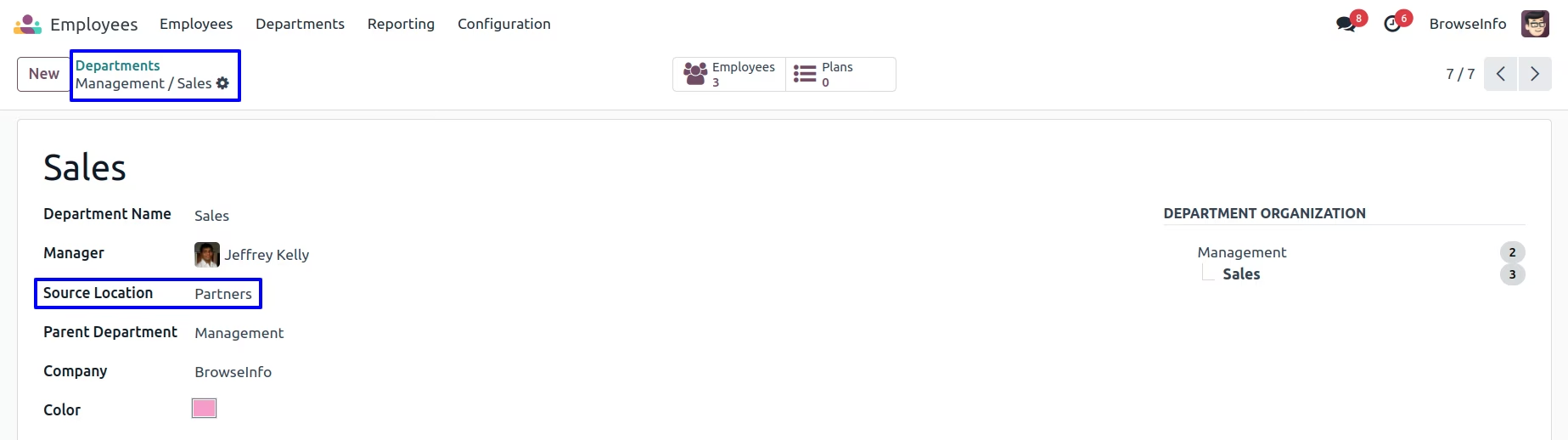
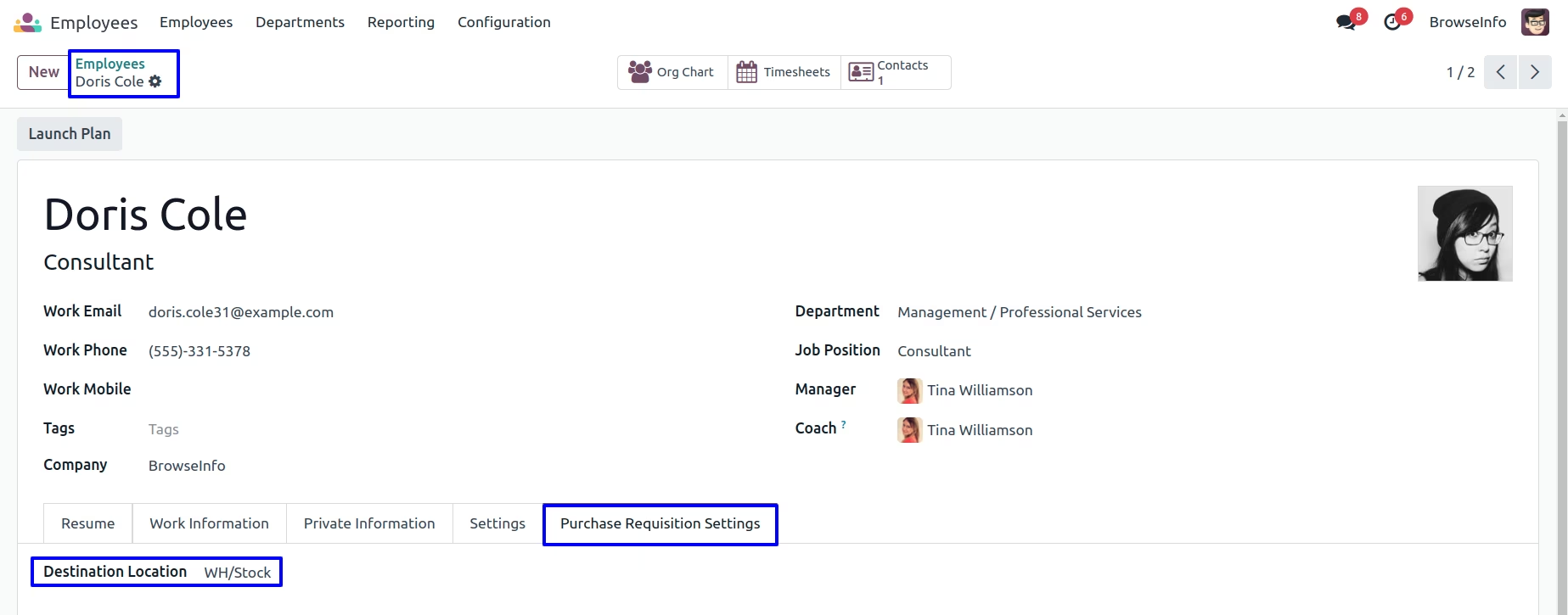
Under the "Purchase Requisitions Settings" tab on employee form view, user have to select "Destination Location" and "Source Location" on the department form view.
Create Purchase Requisitions
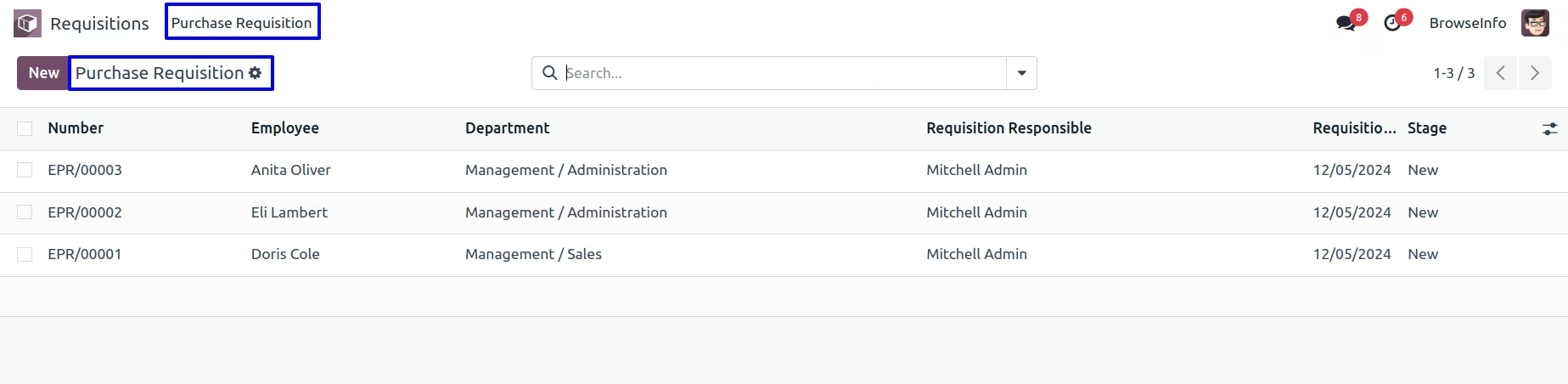
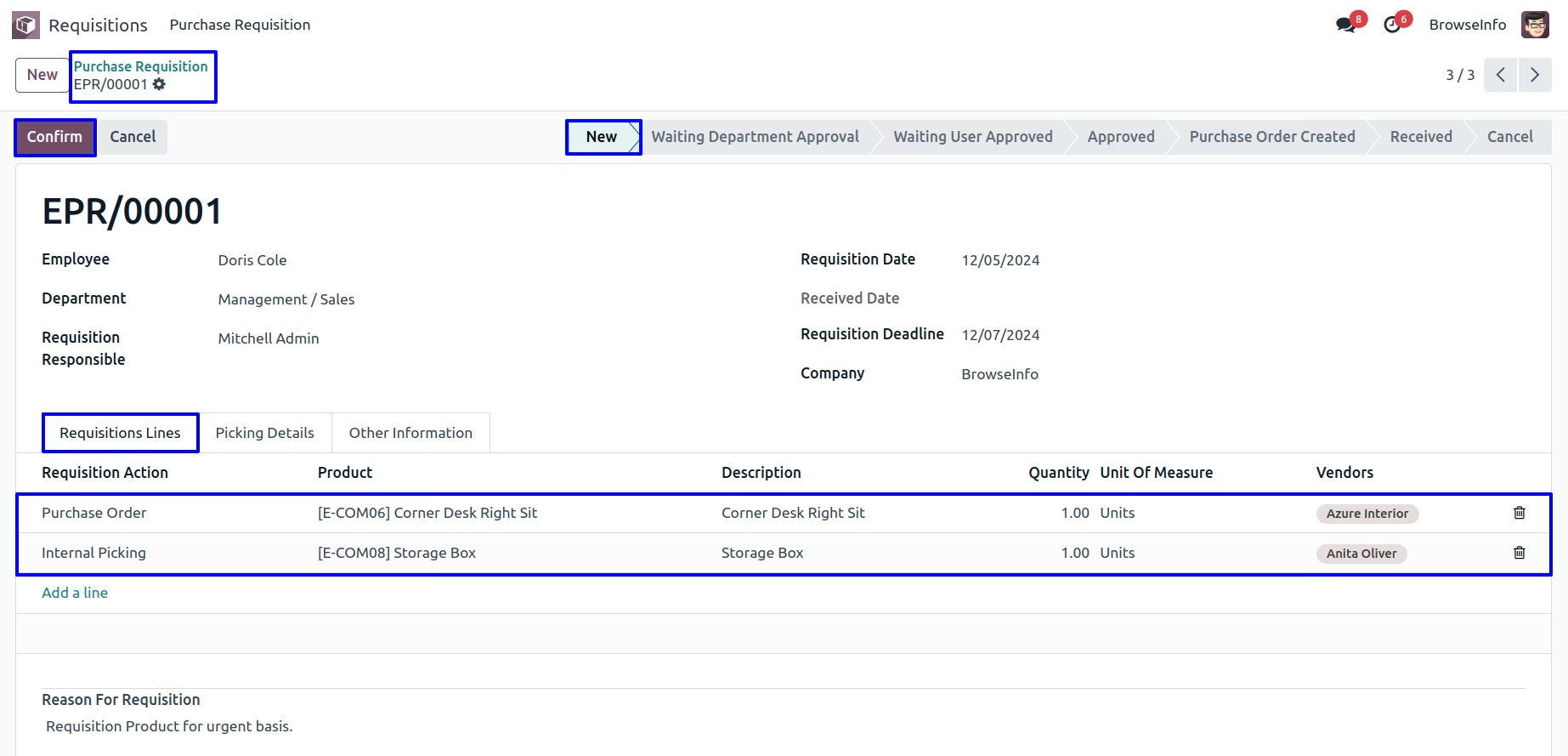
Employee can create purchase requisition under Requisitions > Purchase Requisitions menu and see all created purchase requisition in tree view.
Employee can confirm request for purchase requisition by clicking confirm button. After confirm purchase requisition stage will be changed from new to "Waiting Department Approval".
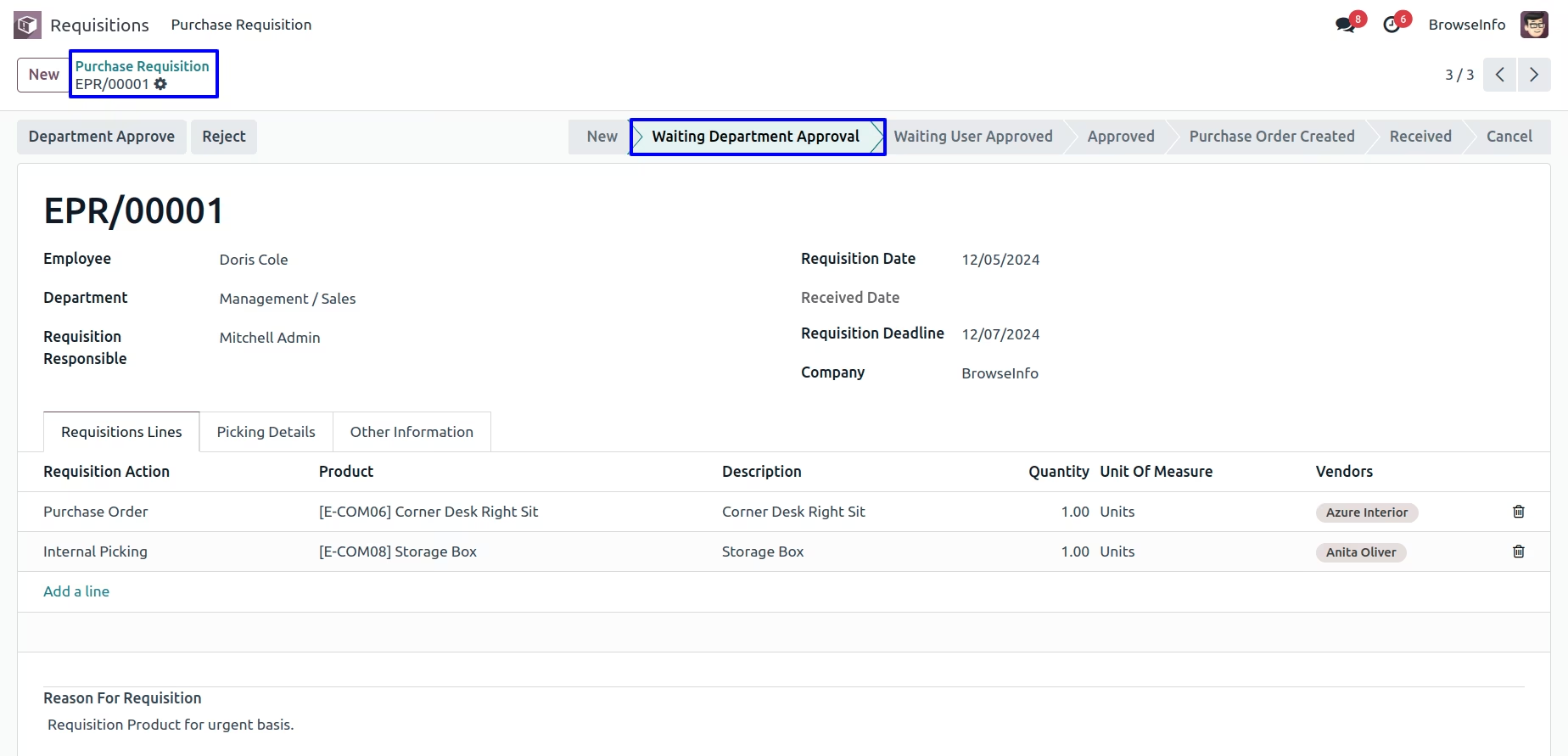
Purchase requisition department manager can approve the purchase requisition which was confirmed by the employee.
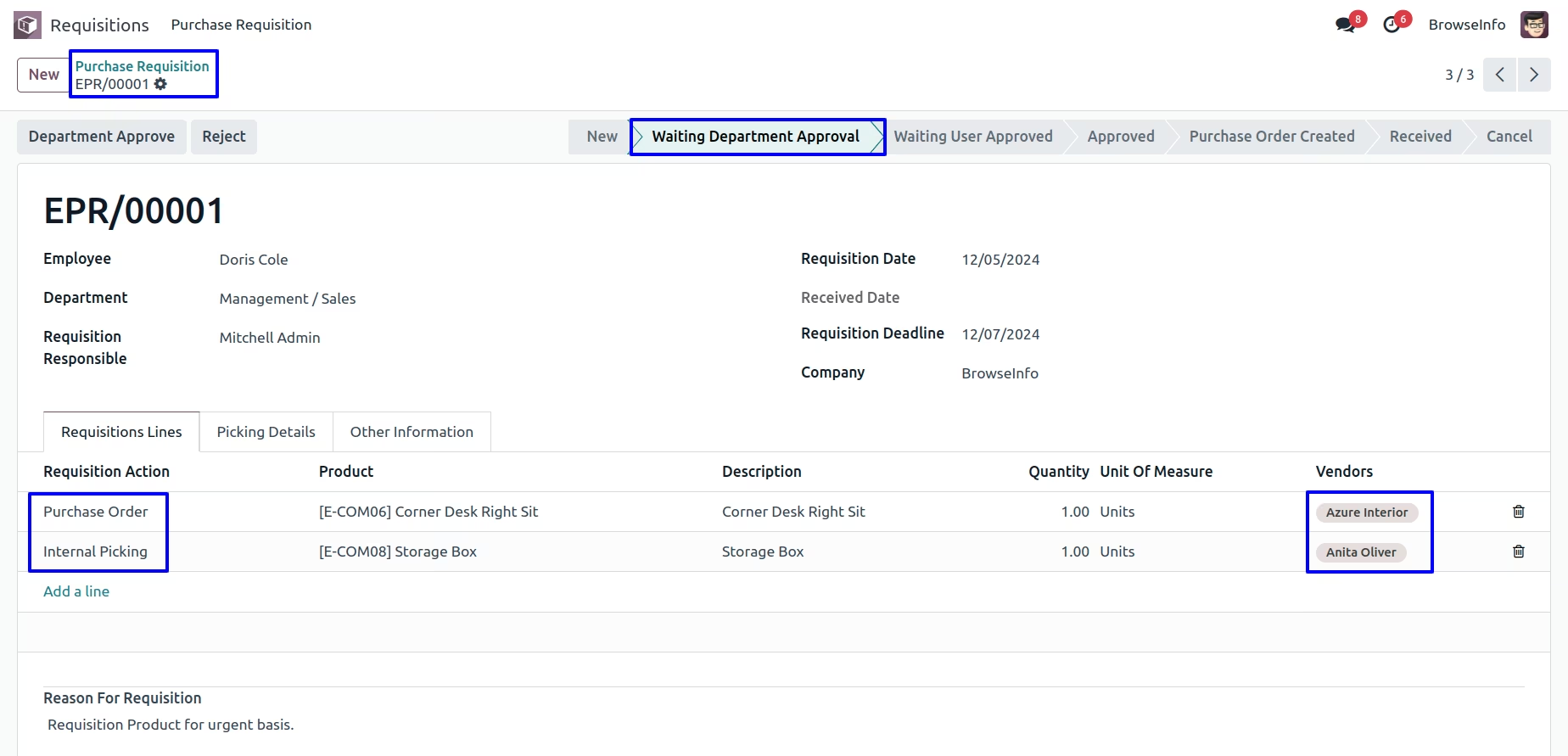
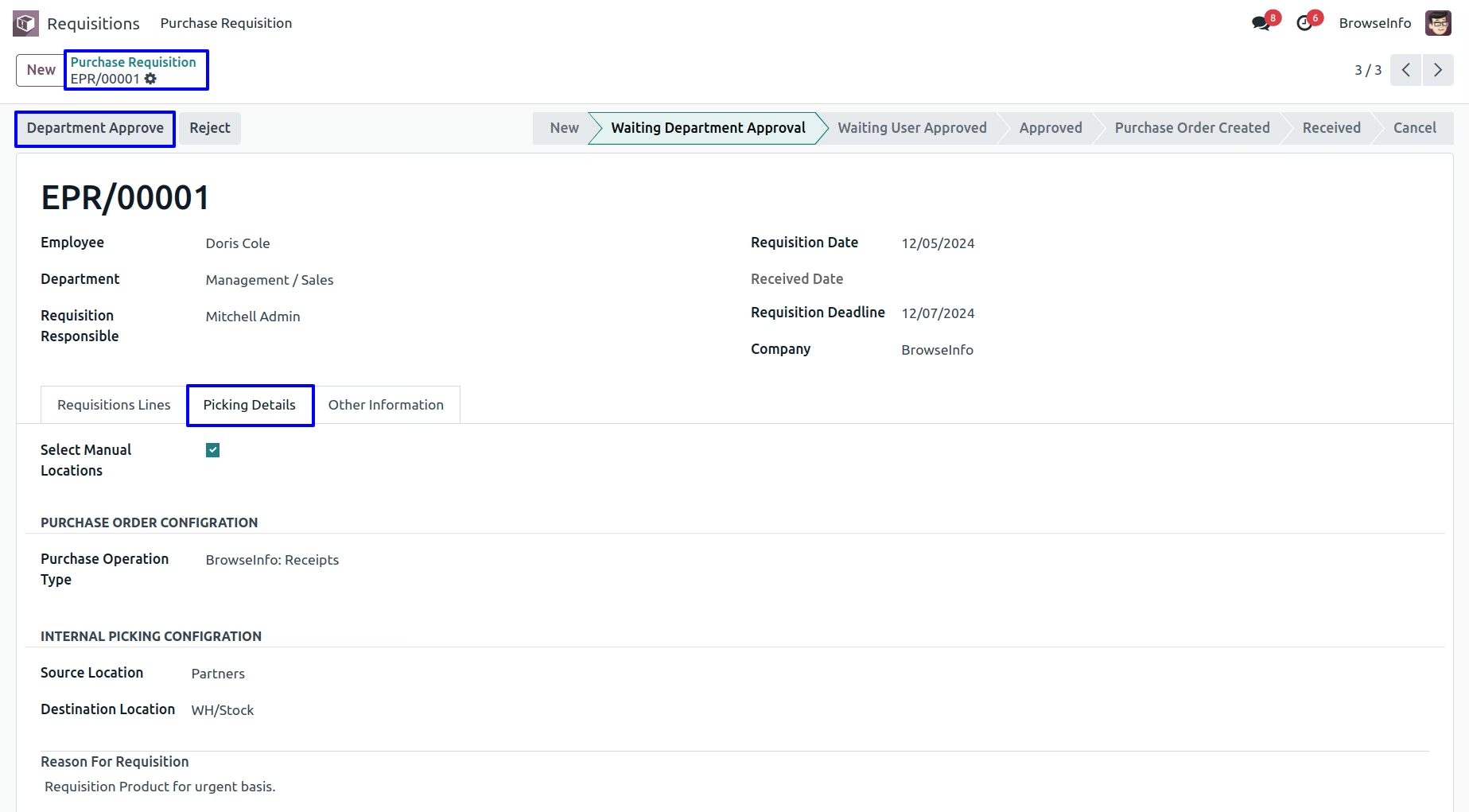
When the purchase requisition is approved by department manager then the stage will be changed from Waiting Department Approval to Waiting User Approved.
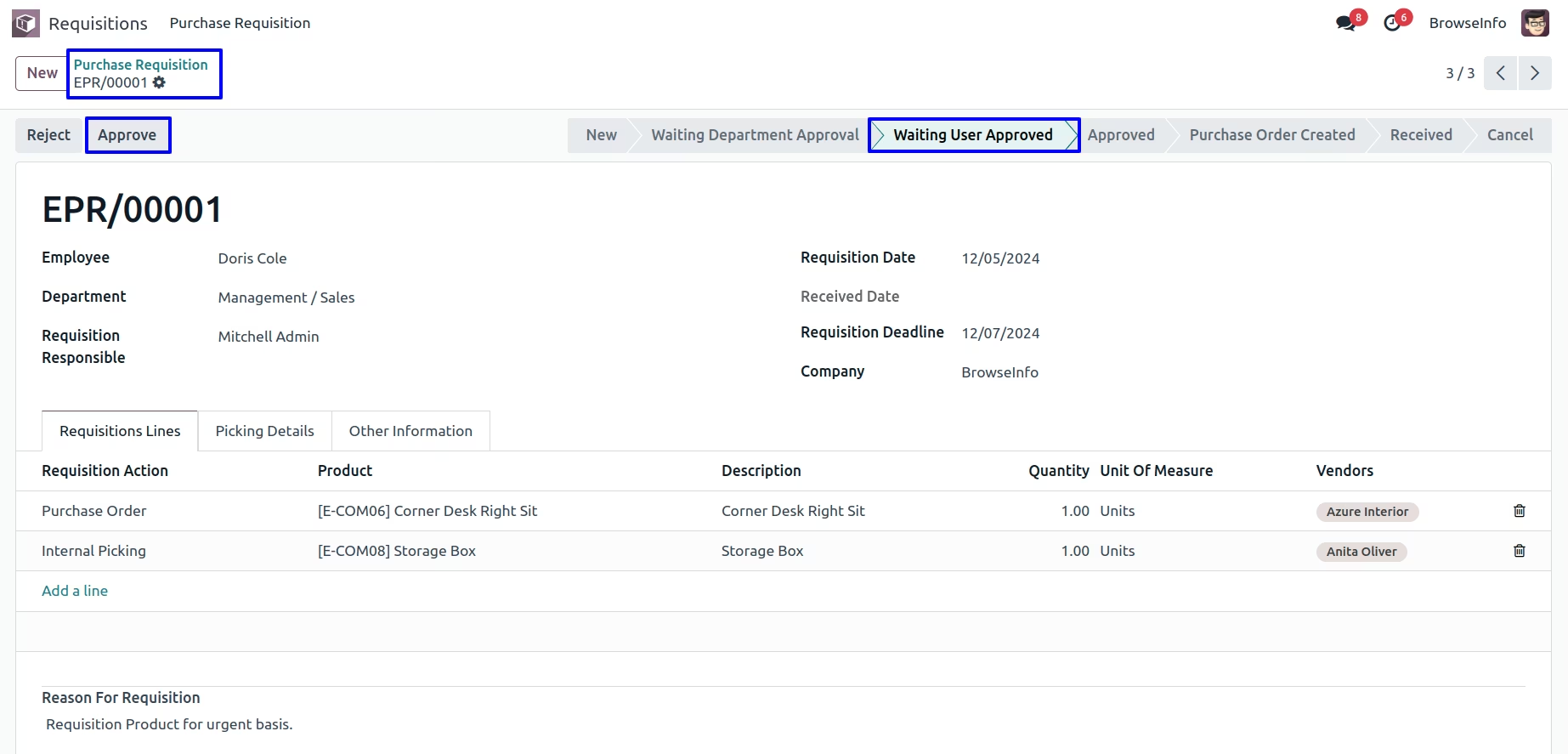
Purchase Requisition User/Head Approve Purchase Requisition Request. After approve purchase requisition by requisition head then stage will be changed from Waiting User Approved to Approved.
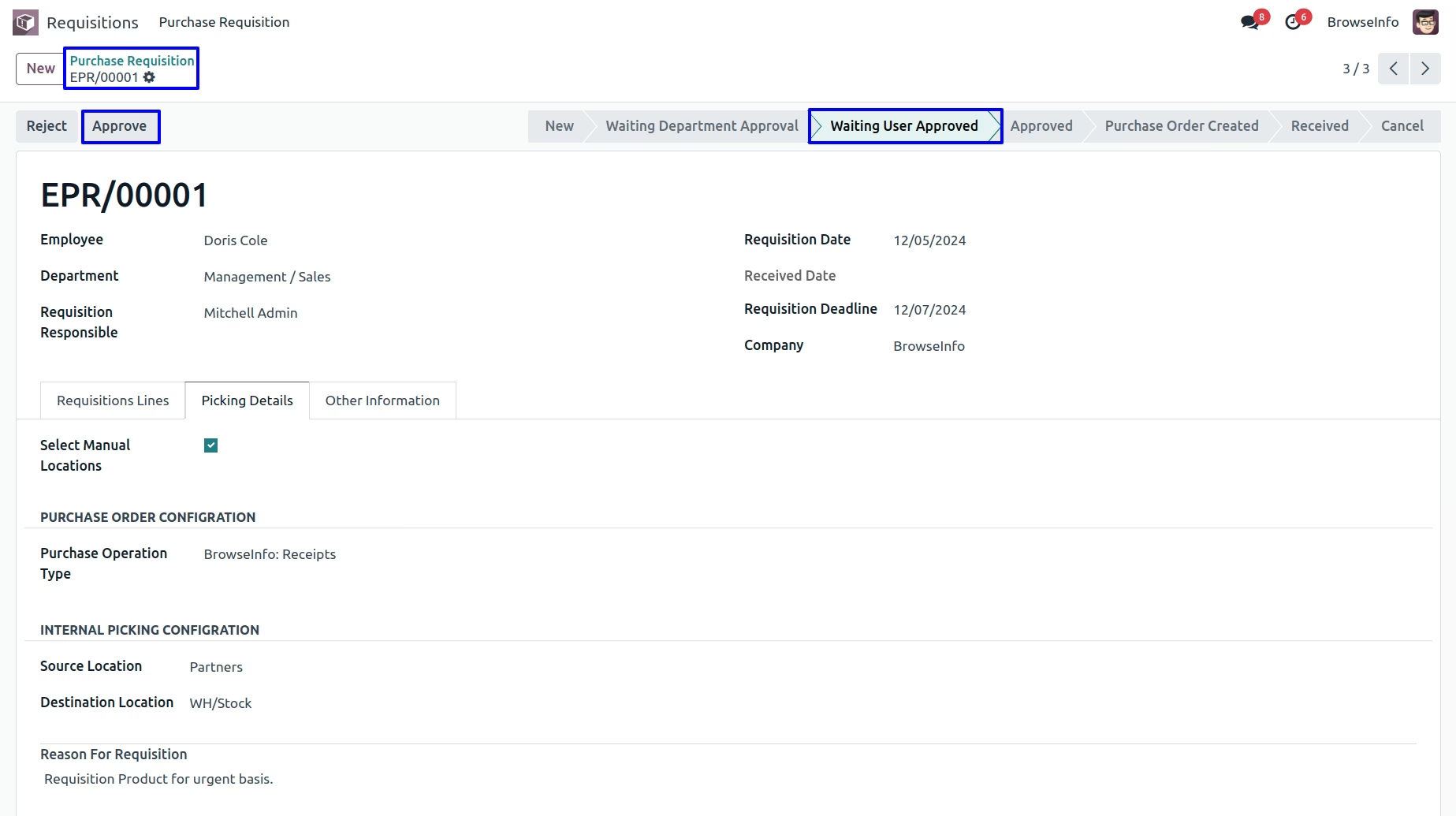
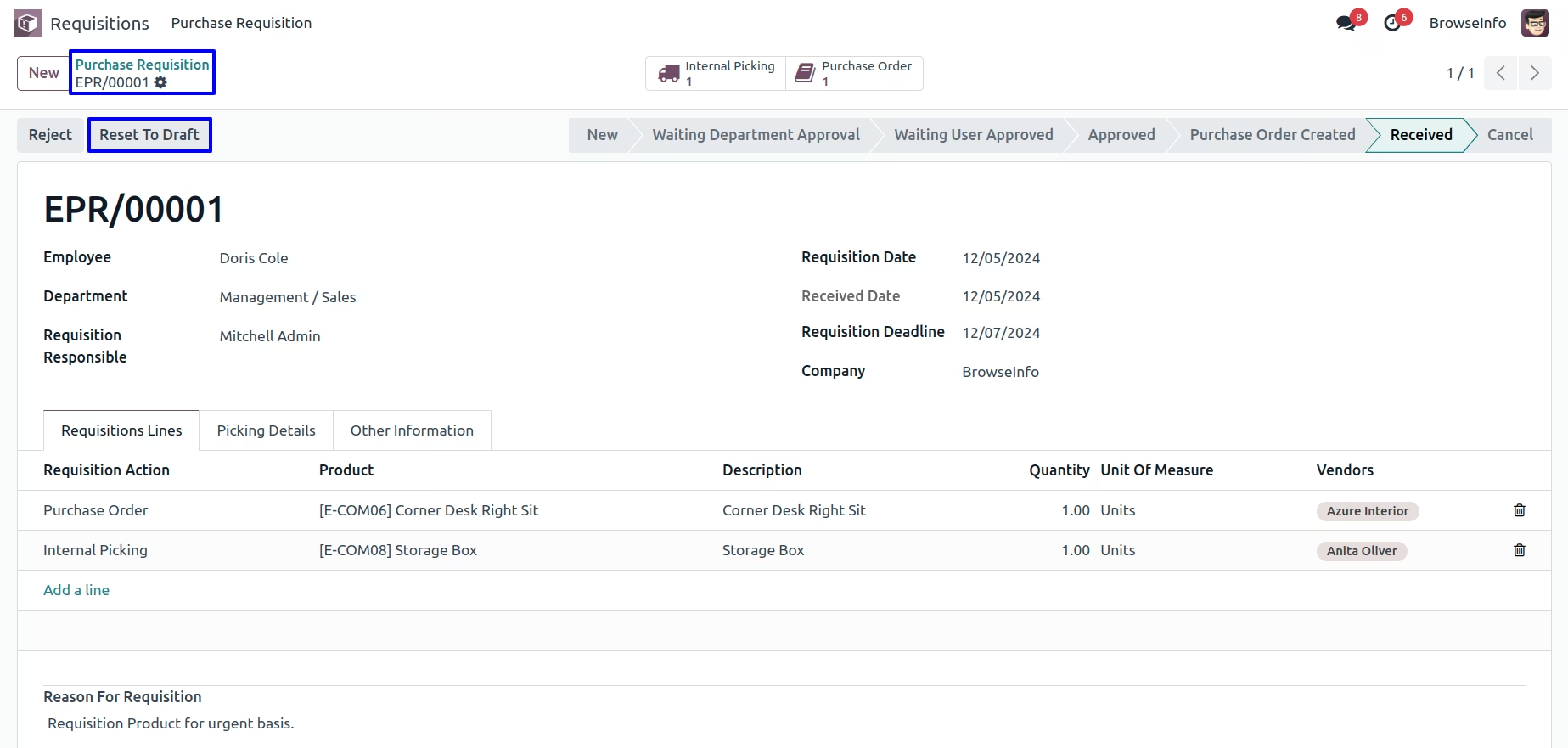
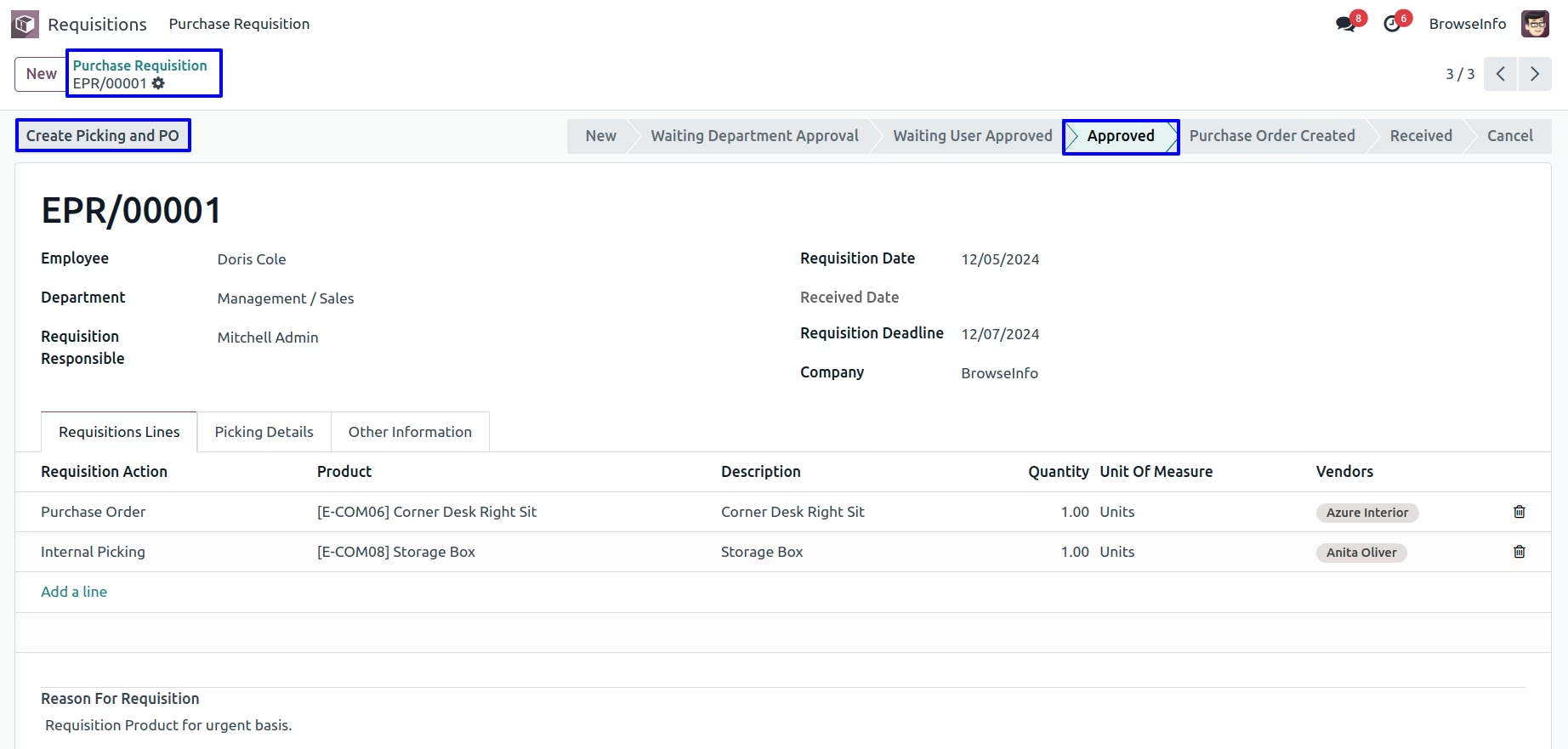
Here purchase requisition head can create purchase order or internal picking based on requisition action. Purchase requisition head can also set vendors for creating purchase order or internal picking. After purchase order or internal picking created, stage will be changed from Approved to Purchase Order Created.
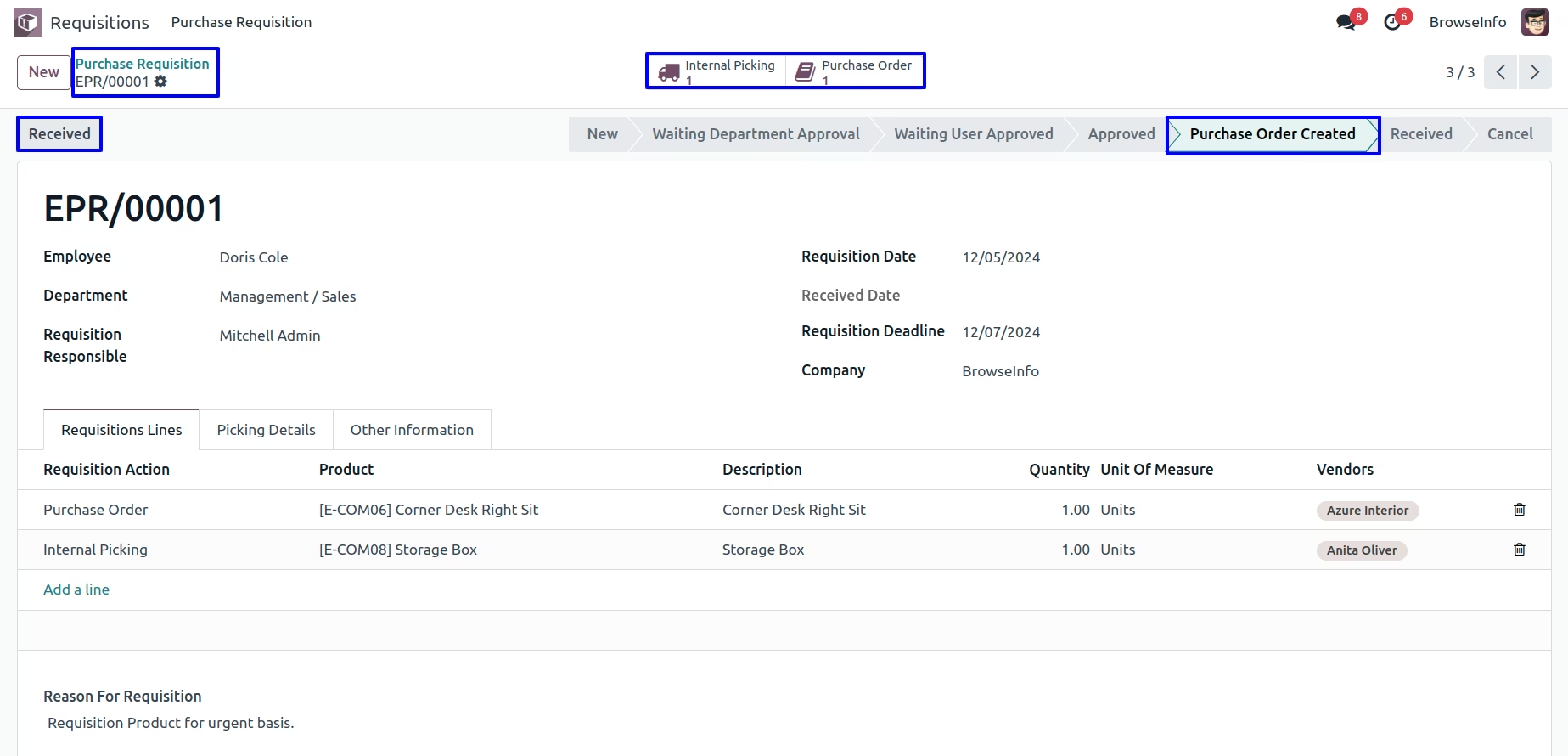
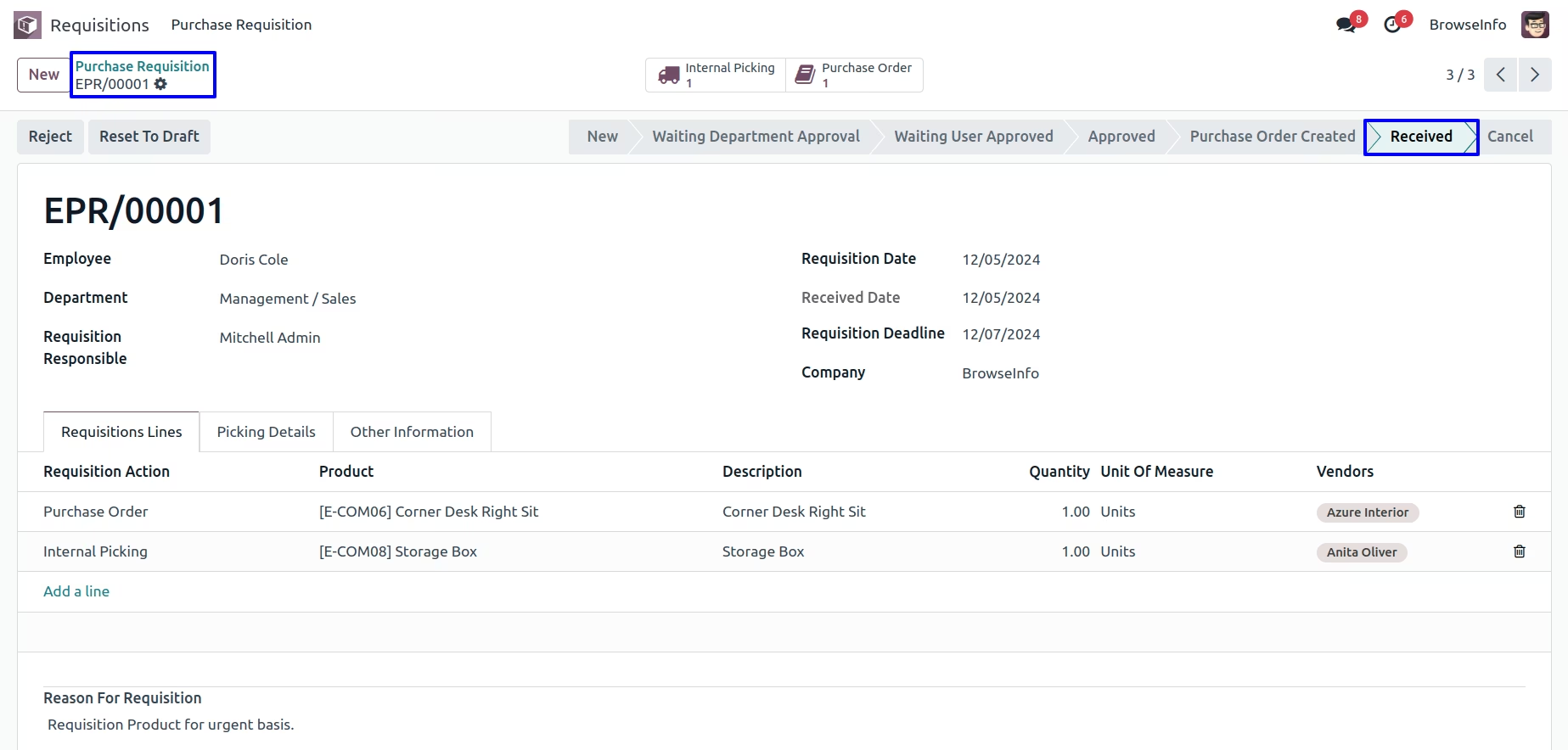
User can see and access created internal picking or purchase order.
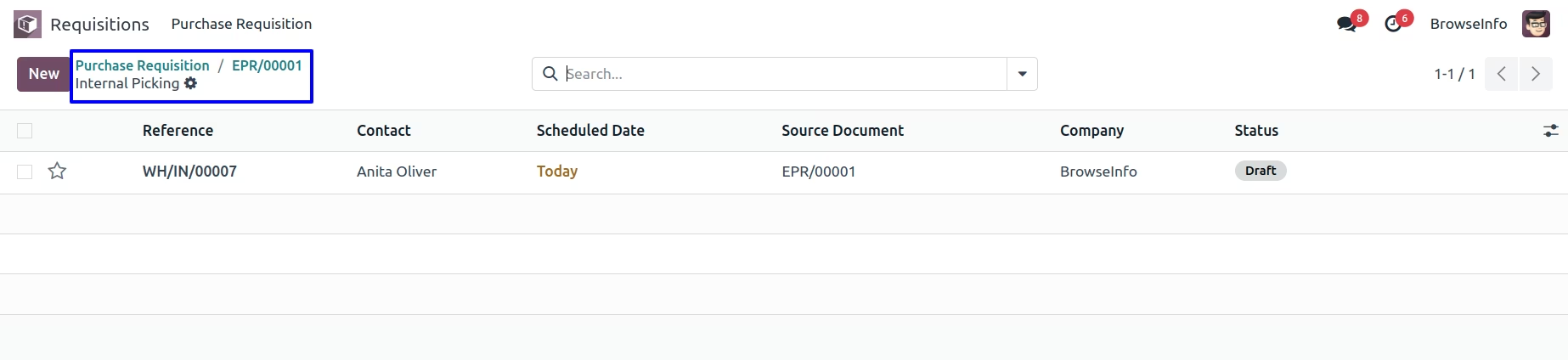
Internal Picking
User can see created internal picking for requisition.
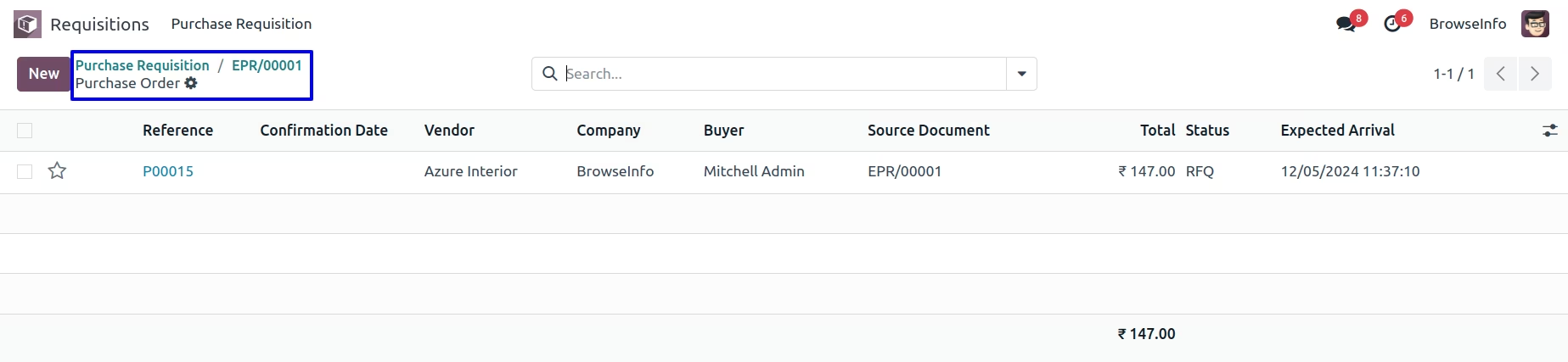
Purchase Order
User can see created purchase order for requisition.
Employee can receive purchase requisition by clicking on "Received" button, After receive requisition stage will be changed from "Purchase Order Created" to "Received".
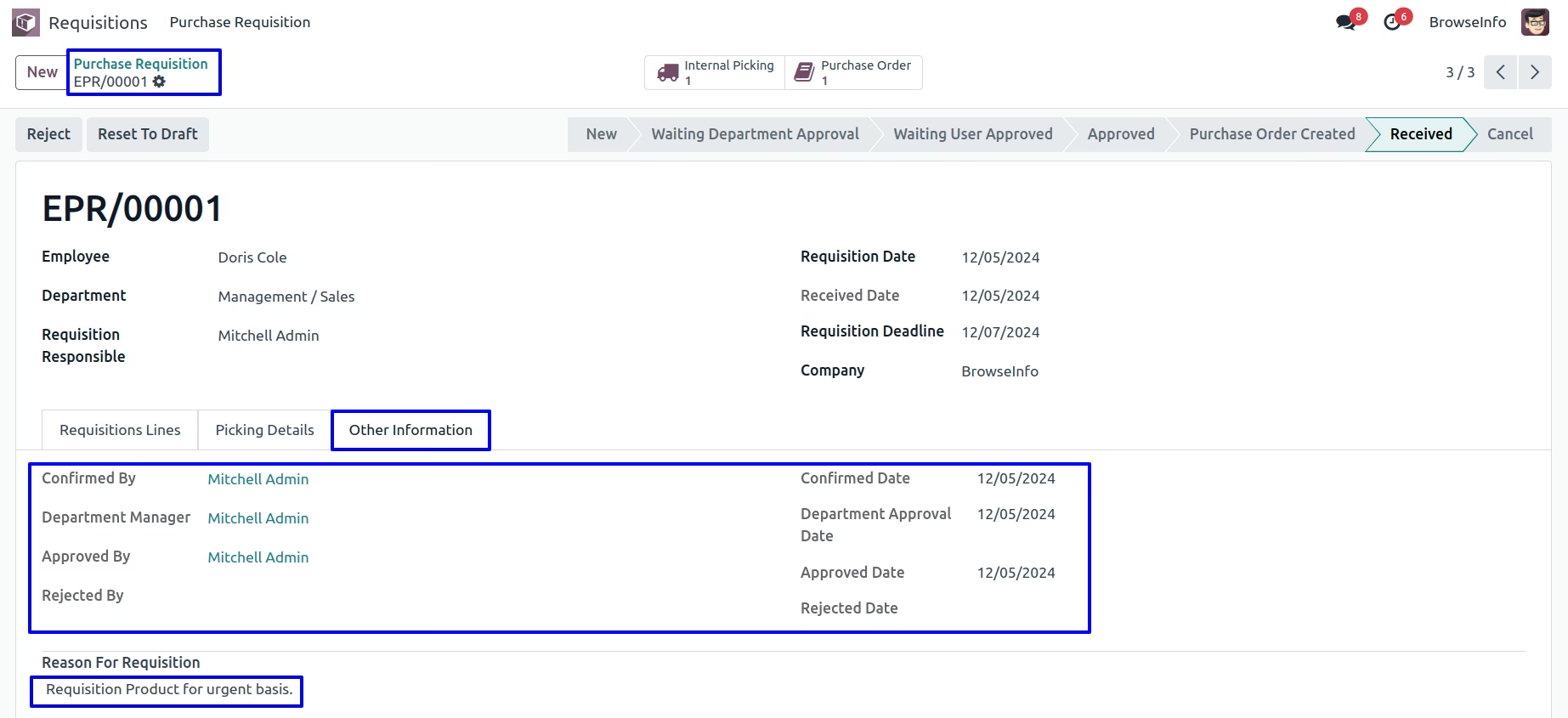
Purchase Requisitions Information
User can see all requisition information like confirm and approve by, confirm & approve date, reject by and reject date etc.
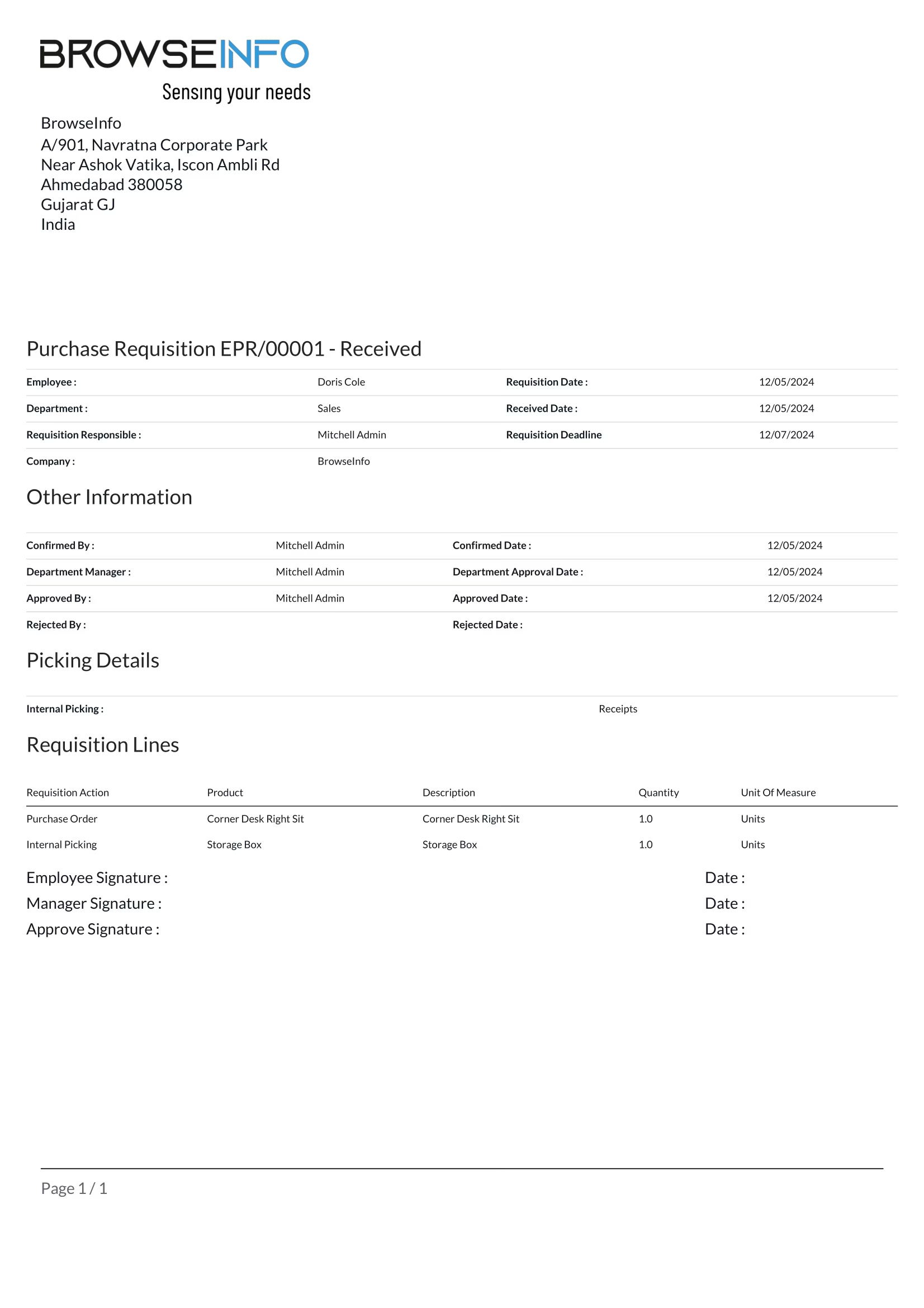
Purchase Requisition Report
Employee can generate purchase requisition report.
Set to Draft Purchase Requisition