The module allows businesses to synchronize data with Google Sheets in real-time. Users can select specific objects and columns, or use custom SQL queries, to manage data efficiently. This module ensures seamless updates, improves workflow, and provides quick access to data directly within Google Sheets.
Real-Time Synchronization: Automatically sync data with Google Sheets for up-to-date information.
Customizable Data Selection: Choose which objects and fields to synchronize.
SQL Query Support: Use custom queries to select and synchronize specific data.
User-Friendly Interface: Configure synchronization easily within the Odoo interface.
Secure API Integration: Connect securely to Google Sheets using API credentials.
Enhanced Accessibility: Work with data directly in Google Sheets for analysis and reporting.
Improved Collaboration: Share synchronized spreadsheets with team members effortlessly.
Time-Saving: Reduce manual updates and eliminate repetitive tasks.
Customizable Views: Tailor data in Google Sheets to fit business needs.
Scalable Solution: Easily expand synchronization to include additional objects as your business grows.
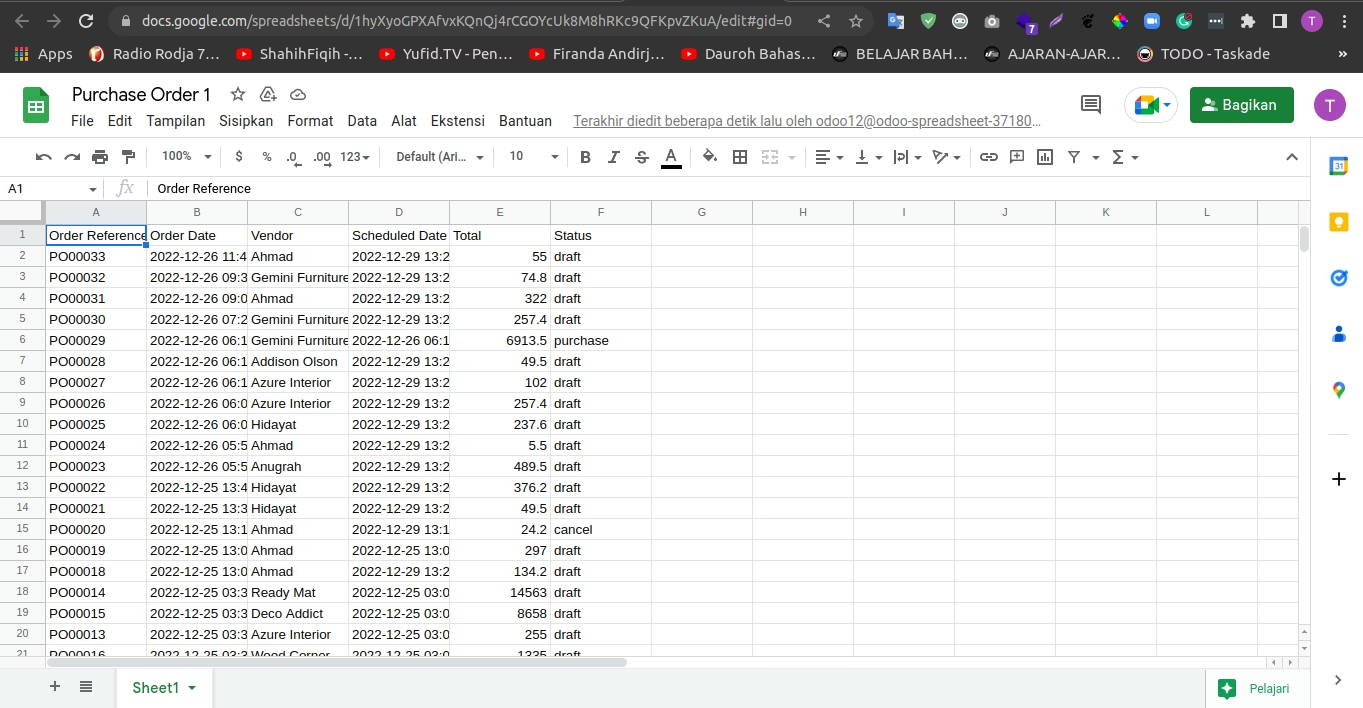
- Google Drive API
- Google Sheet API
All use of the Google Drive and Sheets API is available at no additional cost. And the more interest is Google Drive and Sheets API has per-minute quotas, and they're refilled every minute, even if you exceed the quota request limits it doesn't incur extra charges and your account is not billed.
| Google Sheets API Quotas | ||
|---|---|---|
| Read requests | Per day per project | Unlimited |
| Per minute per project | 300 | |
| Per minute per user per project | 60 | |
| Write requests | Per day per project | Unlimited |
| Per minute per project | 300 | |
| Per minute per user per project | 60 | |
| Google Drive API Quotas | ||
|---|---|---|
| Queries | Per 100 seconds | 20,000 |
| Per day | 1,000,000,000 (1 billion) | |
| Per 100 seconds per user | 20,000 | |
You can select any models on your to connect to Google spreadsheet
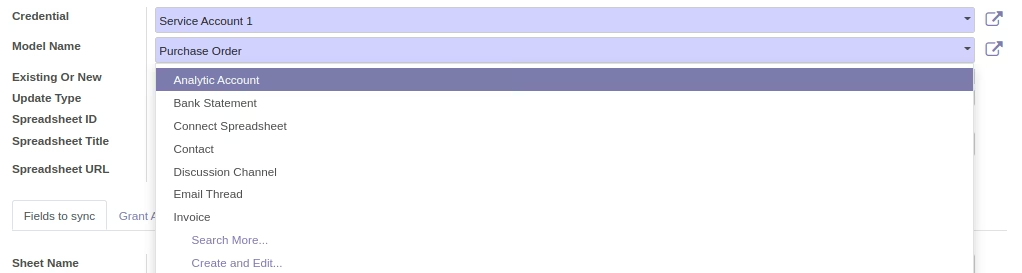
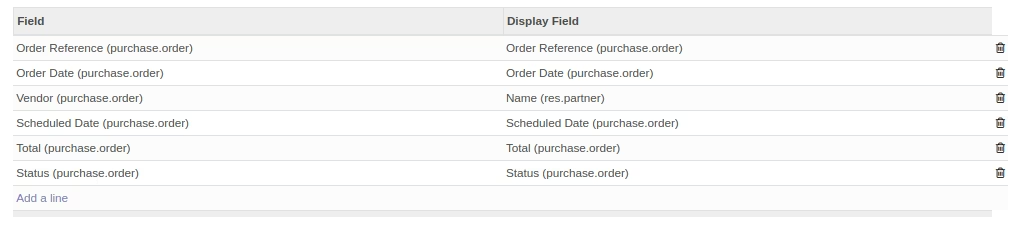
And you can select any field in the model to display in the spreadsheet
Choose whether you want to connect an existing spreadsheet or create a new one

If do you want to connect to an existing, fill the Google spreadsheet ID

The spreadsheet ID is the ID that showing in the spreadsheet URL like bellow

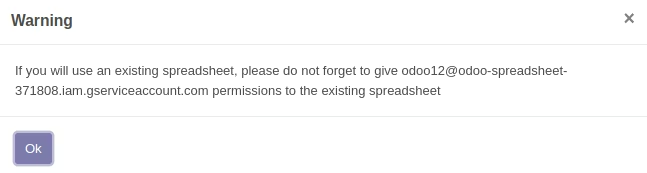
When you choose the "Existing" option, you will get warning such like this, that indicate you must grant the Google service account email permission first to the existing spreadsheet do you want to connect
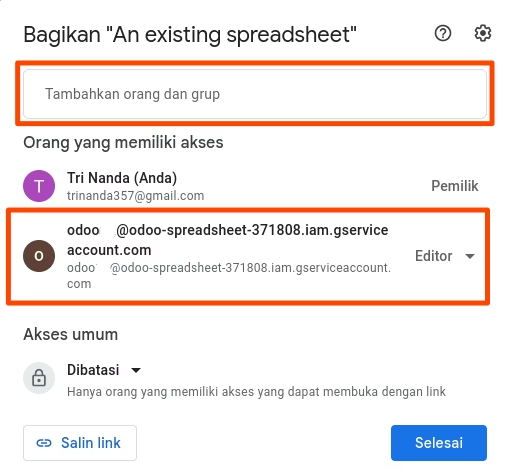
To grant permission to the service account email, click on the Share button on the existing spreadsheet
But if you want to create a new spreadsheet instead, then select the "Create New" in the option above, then fill the Spreadsheet Title for the new spreadsheet


- Realtime
Every action such create, write and unlink on the selected model will update the spreadsheet automatically. Be careful with busy operations on the selected model and huge of rows, considering the quota limit from Google API. On the other hand this will also make your server be busy because it detects any create, write and unlink/delete on the selected model. But if your server is good enough, there is no problem with this method, because Google API provides quite a lot of request quota. Read more about quotas on the source link listed on the previous slide.
- Schedule Action/Cron Job
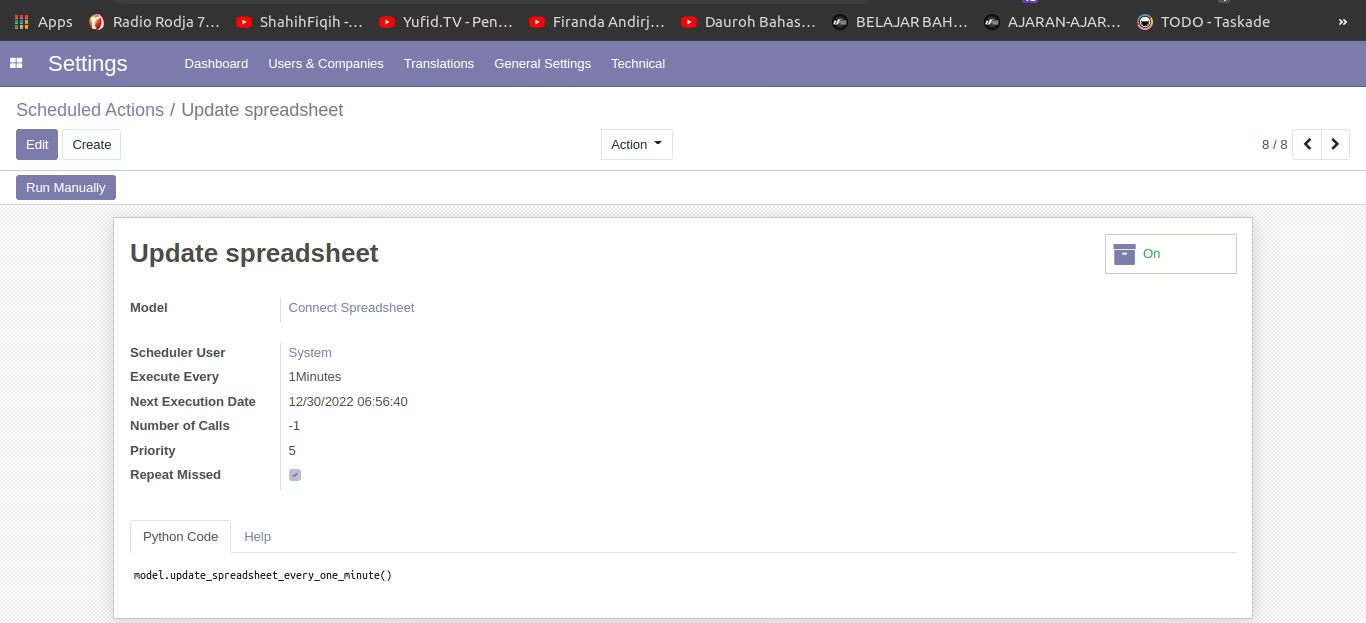
The spreadsheet will be updated automatically every (x) time (minutes, hours, days, weeks, and months). You can define the (x) time freely depending on your wants or needs. Go to Settings -> Technical -> Scheduled Actions -> Update spreadsheet, in the example bellow we update the spreadsheet every 1 minutes.
- Manual
The spreadsheet will be updated when the user triggers Update Spreadsheet button
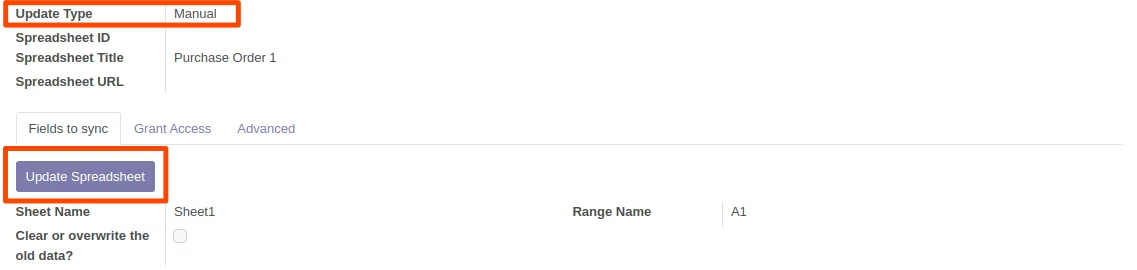

If you specify the Sheet Name and the name already exists in the existing spreadsheet, it will write your data in the existing sheet, but if there is no same name in the spreadsheet with the name you defined, it will create a new sheet and write your data on the new one. 

You can choose whether you want to clear all data in the selected sheet name and replace it with new data, if so check Clear Data to True. Or set it to False if you want to write data to the sheet name without clearing the existing data, but be careful when choosing a range name, because it can overwrite old data (if any) with new data in the selected range.

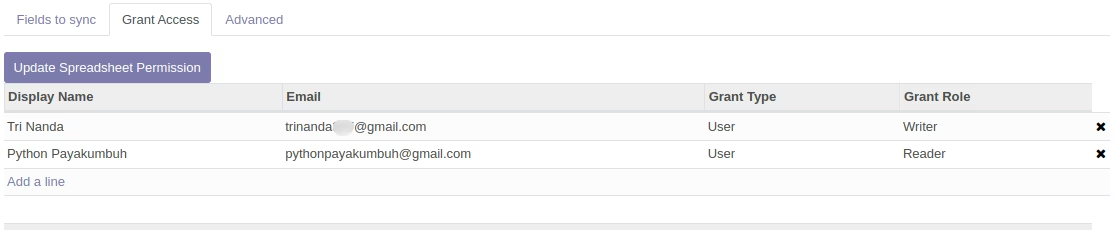
You can grant Write or Reader access to the spreadsheet, just select the contact and make sure their email is set up.
By default displays Datetime according to the user's time zone, for example, the Date Order of Purchase Order in the database is stored at 26-12-2022 03:00:00 (UTC), but if a user's time zone is GMT+7 Date Order will be displayed on 2022-12-26 10:00:00. Interestingly with this option, you can select the timezone you want to display when connecting with a spreadsheet.
