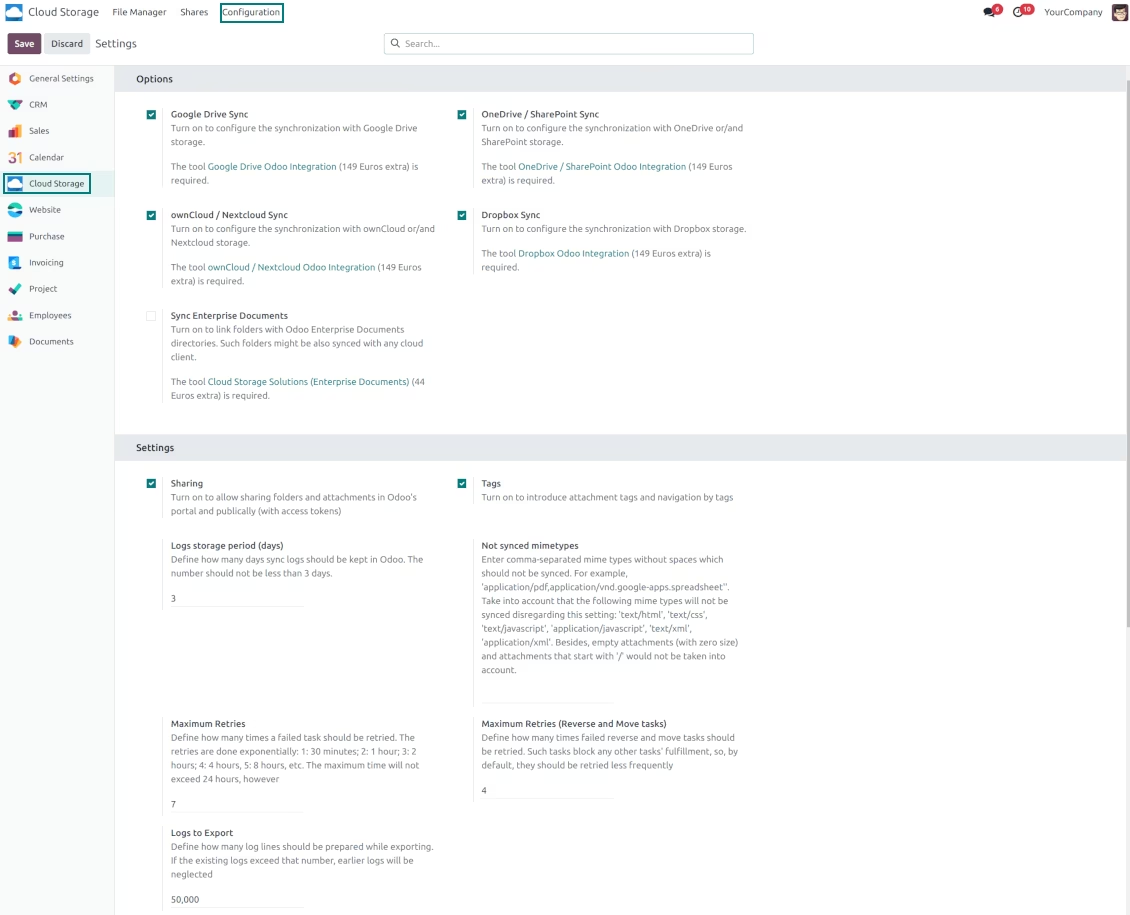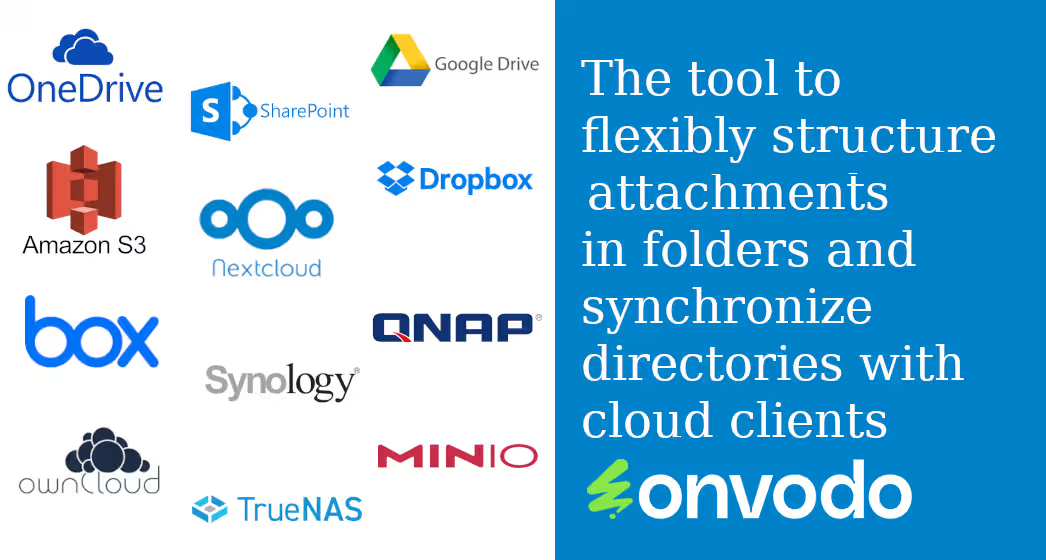
The module for facilitates the integration of with popular cloud storage services such as Google Drive, Microsoft OneDrive, Dropbox, Nextcloud, and ownCloud. This integration allows businesses to manage their documents more efficiently by leveraging the scalability and accessibility of cloud storage solutions. The module enables the organization of attachments into comfortable folder hierarchies and synchronization with cloud clients, providing a seamless experience for users.
Cloud Storage Integration: Integrates with various cloud storage services for document storage and management.
Folder Hierarchies: Organize attachments into structured folder hierarchies for better management.
File Synchronization: Synchronize files between and cloud storage services, ensuring up-to-date access across platforms.
Enhanced Document Management: Improves document organization and retrieval through cloud-based storage solutions.
Scalable Storage Solutions: Provides scalable storage options to accommodate growing document management needs.
Secure Document Access: Ensures secure access to documents with cloud storage security protocols.
User-Friendly Interface: Offers an intuitive interface for managing cloud-synced documents.
Version Control: Maintains version history of documents, allowing for easy rollback and tracking of changes.
Access Control: Implements access controls to manage who can view or edit documents in the cloud.
Audit Trails: Provides audit trails for document activities, enhancing accountability.
Improved Efficiency: Streamlines document management processes by integrating with cloud storage.
Cost Savings: Reduces the need for on-premise storage infrastructure.
Enhanced Collaboration: Facilitates better collaboration by providing centralized access to documents.
Data Security: Enhances data security through cloud storage providers' security measures.
Business Continuity: Ensures business continuity with reliable cloud storage solutions.
Scalability: Easily scales to meet increasing document storage needs.
Accessibility: Provides access to documents from anywhere, at any time.
Compliance: Assists in meeting compliance requirements with secure document storage.
Disaster Recovery: Offers disaster recovery options through cloud backups.
Integration Flexibility: Provides flexibility to integrate with various cloud storage services.
This tool organizes attachments in folders' trees and synchronizes those with your choice's cloud storage solution(s). The app introduces automatic algorithms to prepare directories for documents and integrate those with workflows of Google Drive, OneDrive/SharePoint, Nextcloud/ownCloud, Dropbox, Amazon/MinIO S3, Box, and NAS/WebDAV (Synology, QNAP, TrueNAS, etc.).
- the core module which introduces the file manager interface and basic mechanics for synchronizations with various cloud clients. Its price is 398 .
- the connector to synchronize folders and attachments with OneDrive or/and SharePoint. The features assumed by this add-on are marked by the icon . Its price is 89 .
- the connector to synchronize folders and attachments with Google Drive. The features assumed by this add-on are marked by the icon . Its price is 89 .
- the connector to synchronize folders and attachments with Amazon S3. The features assumed by this add-on are marked by the icon . Its price is 89 .
- the connector to synchronize folders and attachments with Nextcloud or/and ownCloud. The features assumed by this add-on are marked by the icon . Its price is 89 .
- the connector to synchronize folders and attachments with NAS solutions (Synology, QNAP, TrueNAS) and generic WebDAV storage. The features assumed by this add-on are marked by the icon . Its price is 89 .
- the connector to synchronize folders and attachments with Dropbox. The features assumed by this add-on are marked by the icon . Its price is 89 .
- the connector to synchronize folders and attachments with Box. The features assumed by this add-on are marked by the icon . Its price is 89 .
- an optional add-on to prepare workspace-related folders and to sync documents (introduced by the enterprise app 'Documents') with clouds. The features assumed by this add-on are marked by the icon . Its price is 44 .
Automatic Folders
Decide which document types should have their folder trees. Directories are regularly updated based on flexible rules and existing objects
Sync with Cloud Storage Solutions
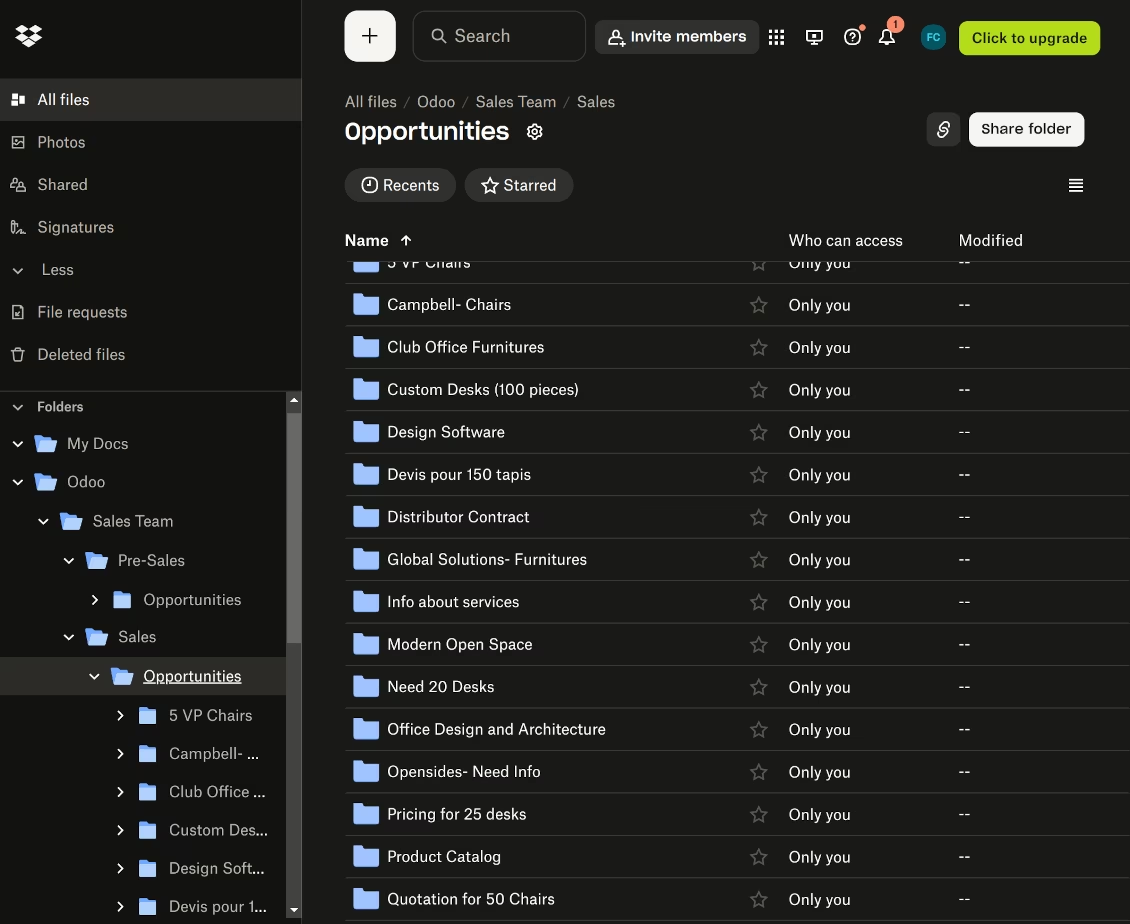
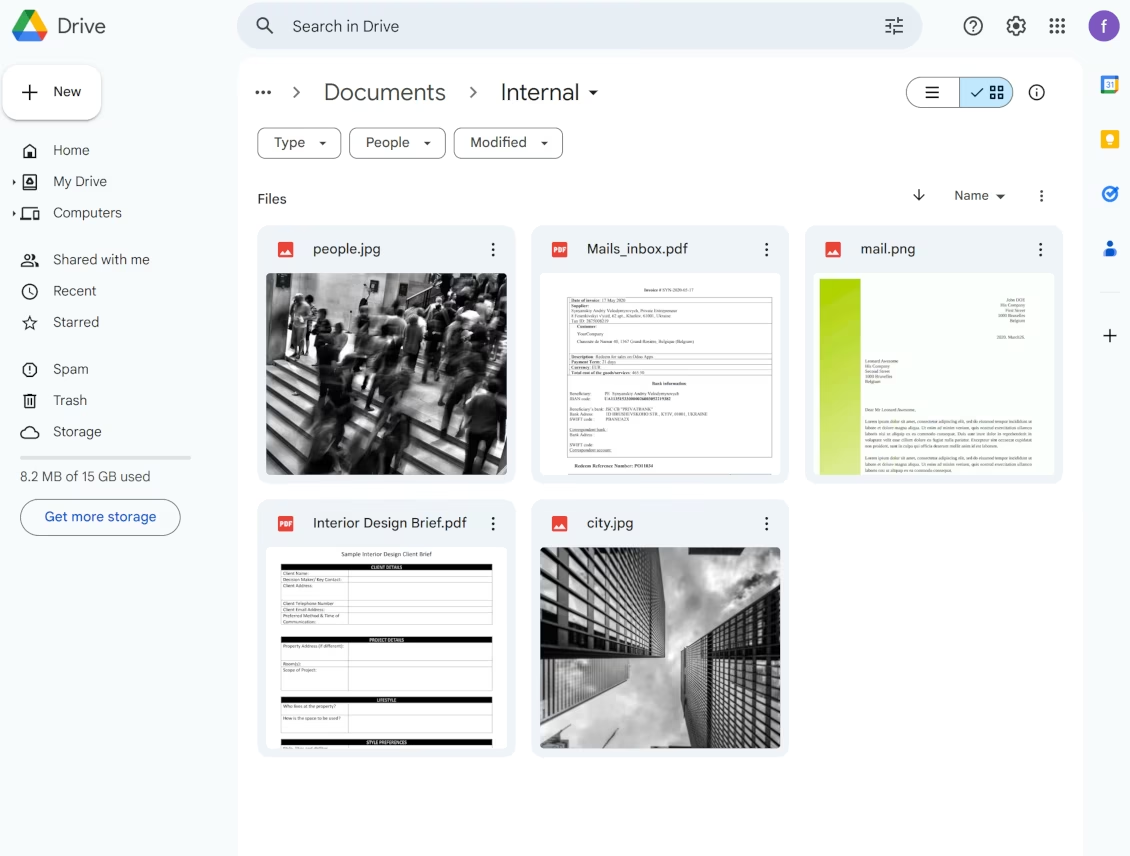
Synchronize chosen folders and files with specific cloud storage: Google Drive, OneDrive, SharePoint, Nextcloud, Dropbox, Amazon, Box, MinIO S3, NAS/WebDAV (Synology, QNAP, TrueNAS, etc.), and ownCloud. Have as many connections as you need
File Manager Interface
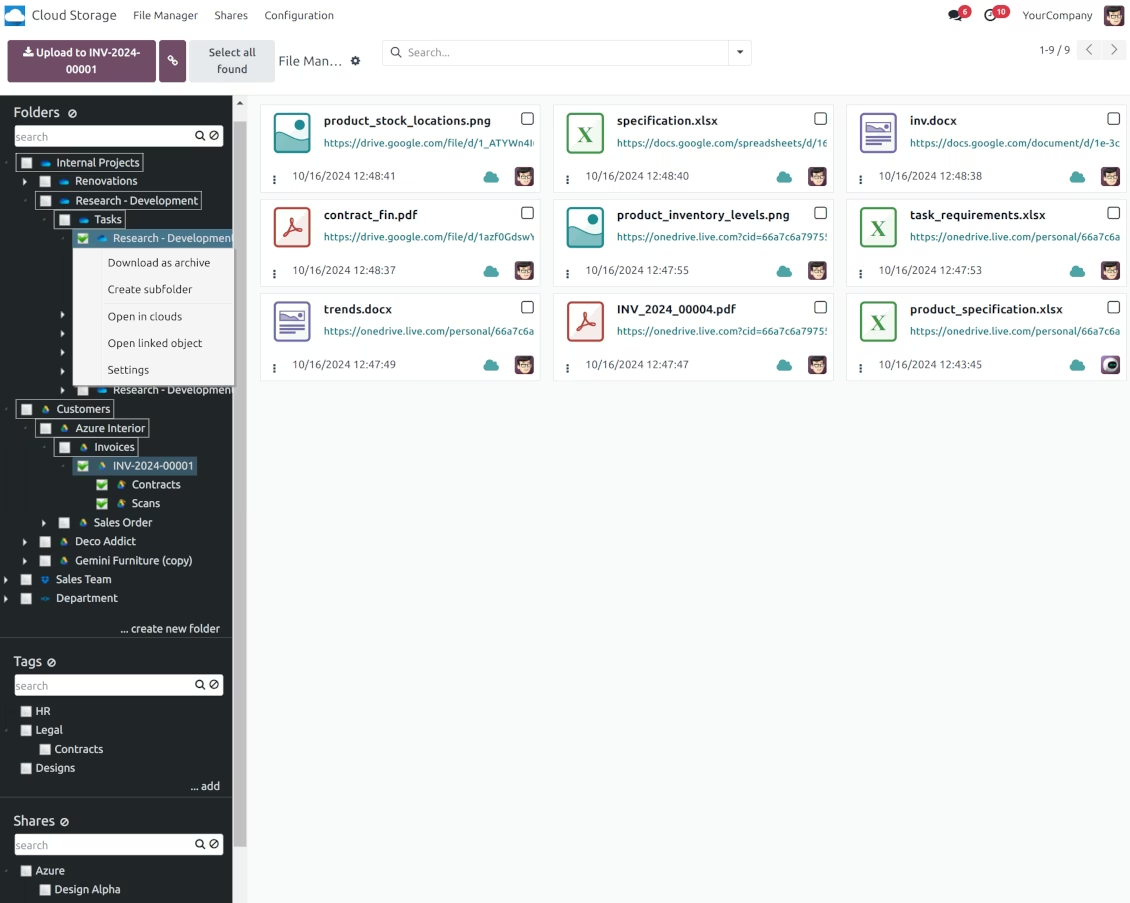
Manage folders and attachments from a single view. Comfortably navigate by directories and tags. Search and download files one by one or in a batch. Upload and move attachments
Enhanced Attachment Box
Organize files of any object in a set of subfolders. Instantly access folders and files in the attachment box and in synced cloud interfaces
Portal Sharing
Share files, directories, and tags with particular partners or with an access URL. Let users download whole shares and separate items, upload attachments, and add folders or tags
Enterprise documents compatible
Set up rules to prepare folders based on Enterprise workspaces. All features, including sharing, downloading, and signing, will work even after the sync
Automatic Regular Sync
Rely on auto-synchronization between and cloud solutions based on scheduled jobs. No manual interaction is required
Bilateral Sync
sends attachments to cloud storage solutions and retrieves files from there. Binary content is kept in clouds, while provides direct access to synced items
File Manager Interface
-
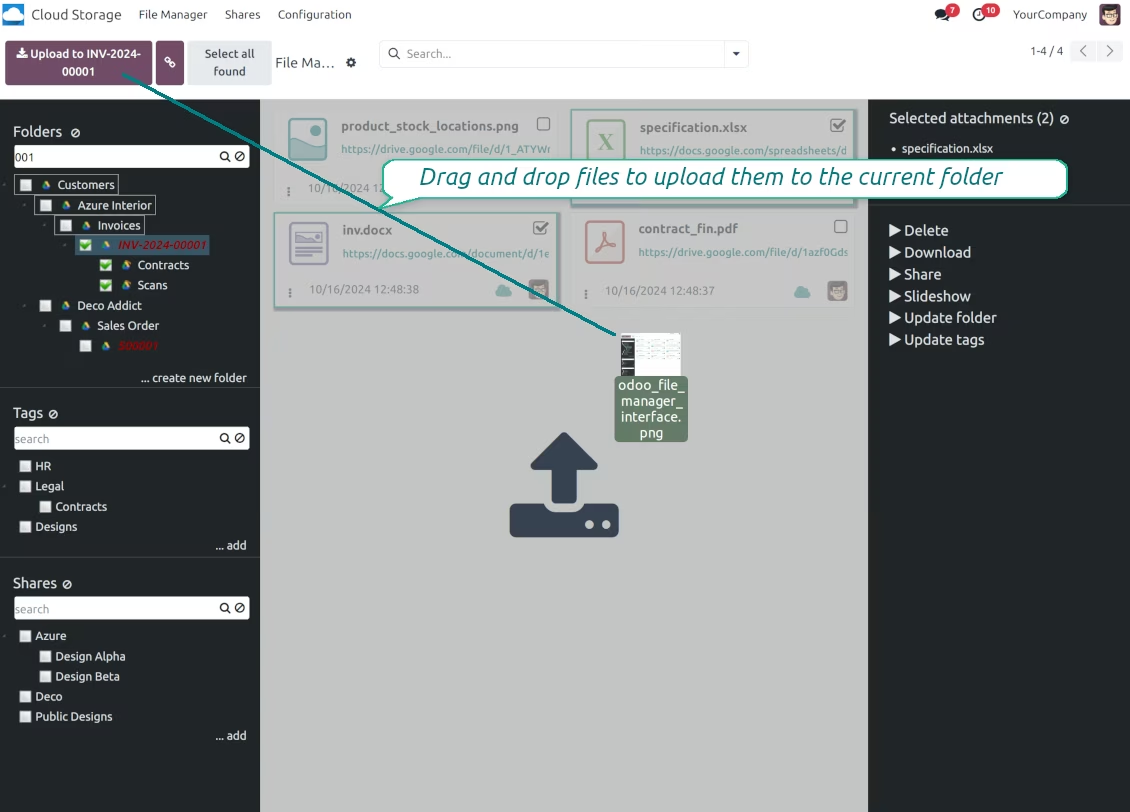
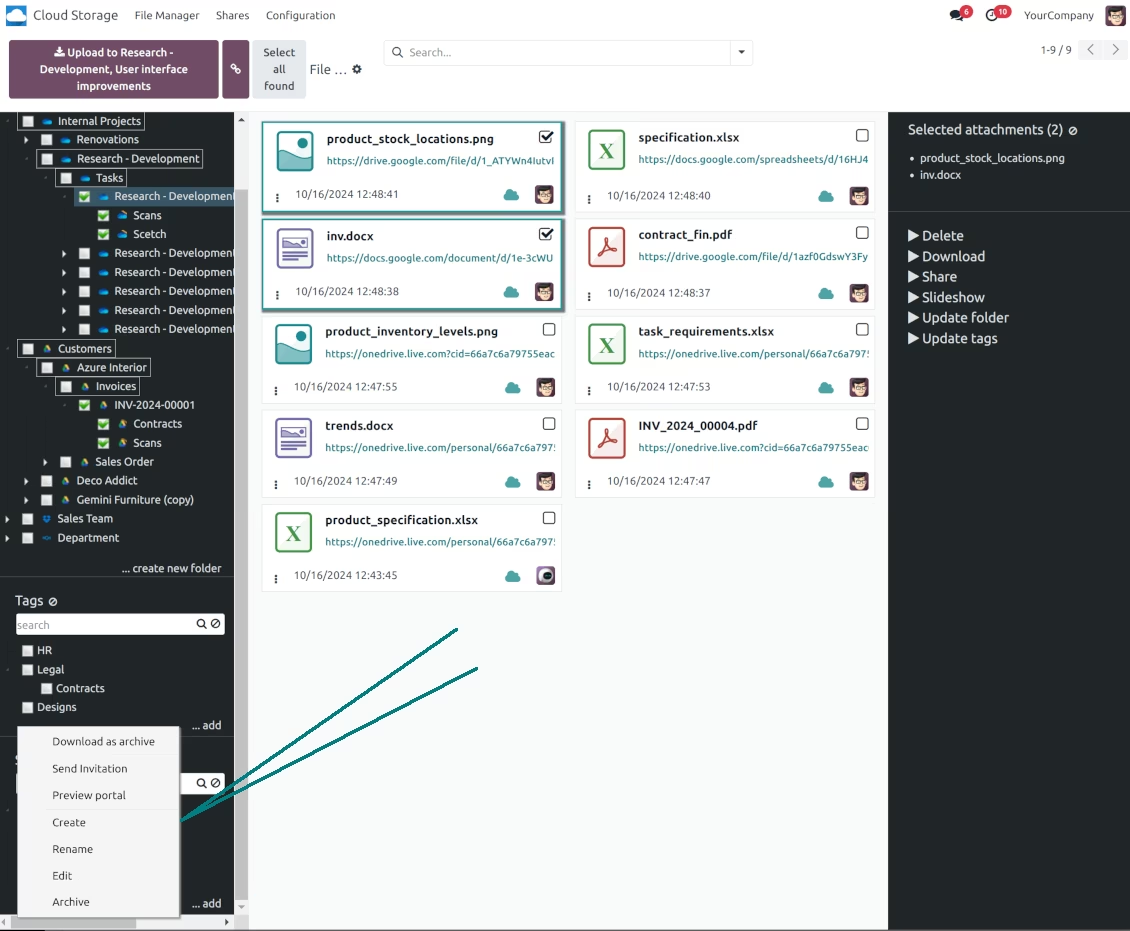
Navigate by folders: select a directory to show its attachments. Expand and hide folders' layers in a click. Add subfolders to any directory (right mouse click > Create subfolder)
-
Open any synced folder in its cloud client (right mouse click > Open in clouds). Show a folder peer object if there is such a connection (right mouse click > Open linked object). Change settings of manually created folders, including granting access rights (right mouse click > Edit Settings)
-
Navigate by attachment tags. Create and edit tags right from the navigation panel
-
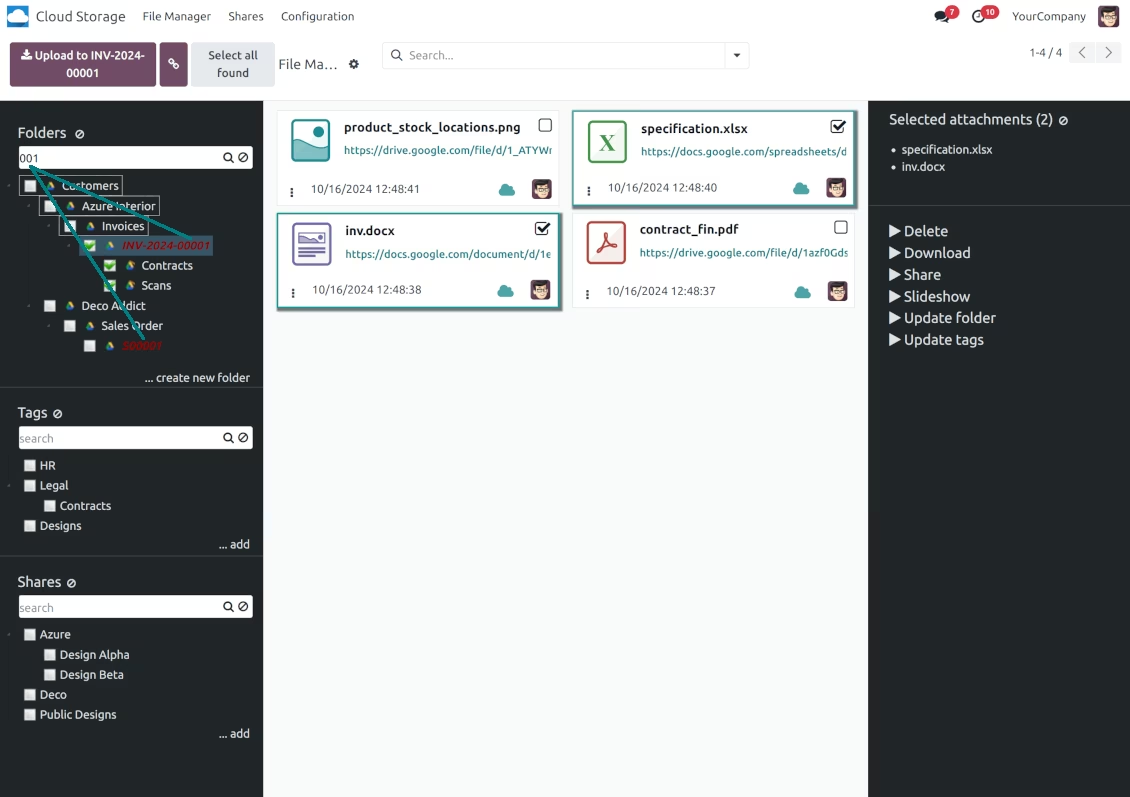
Search and highlight tags and folders in seconds even if there are thousands of items
-
Drag and drop to re-structure folders (relates only to manually created directories; for automatic folders change rules instead) and tags
-
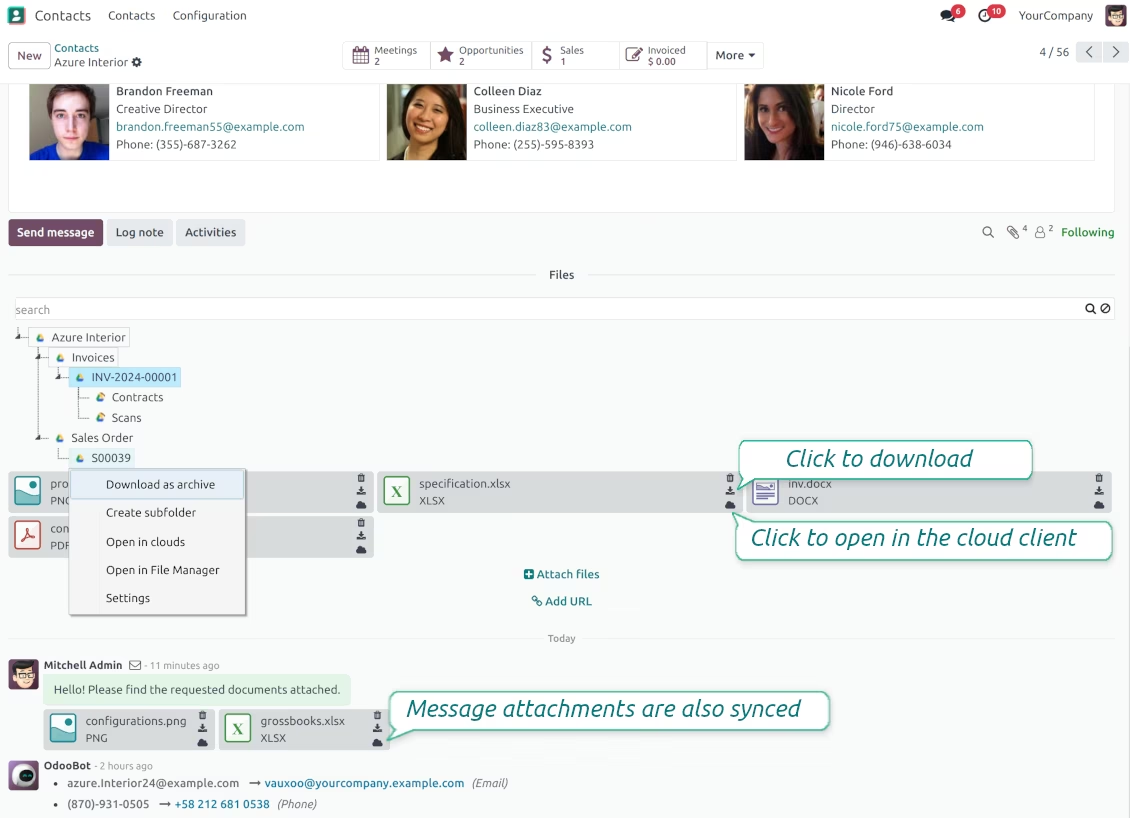
Download any folder or any tag with all its attachments as a single zip archive (right mouse click > Download as archive)
-
Upload attachments to the current folder. Use the top header button 'Upload file' or drag and drop files
-
Instantly open any synced attachment in a linked cloud client (push the link in the middle of attachment cards)
-
Download any attachment to your local computer disregarding whether it is synced or not (push the icon 'cloud' or 'download' in the footer right corner)
-
Consequentially select attachments and download them as a single zip archive
-
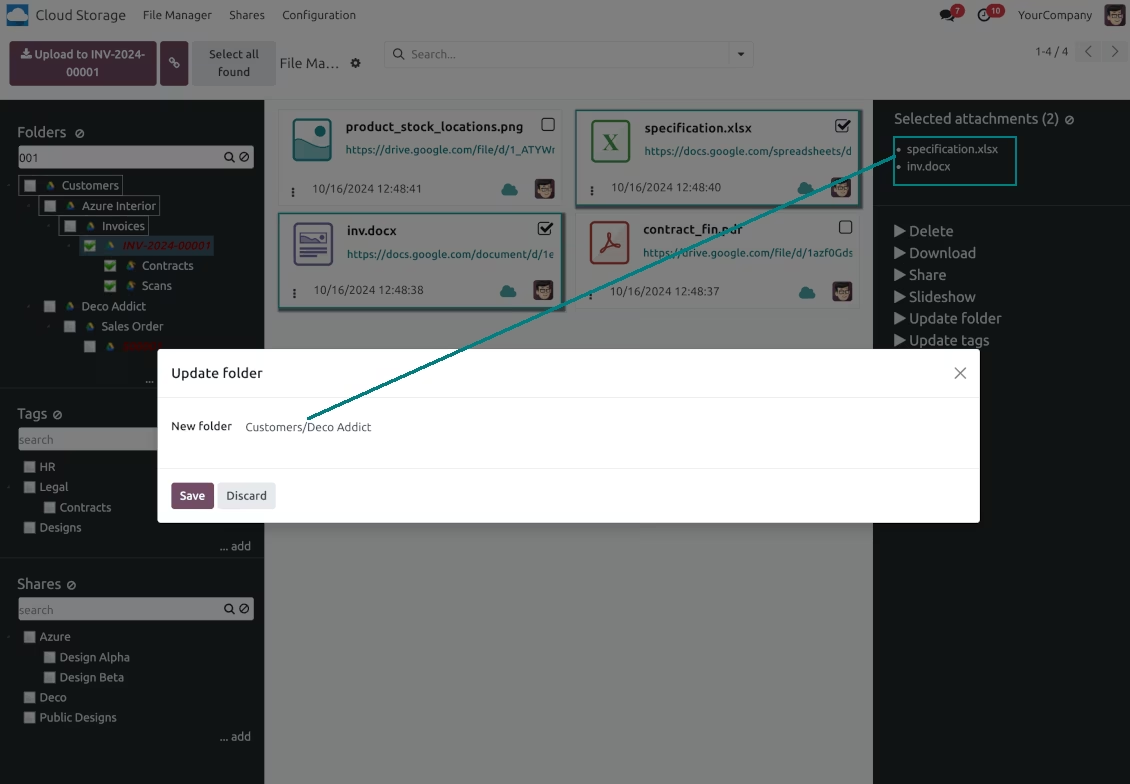
Move any files to any folder, including re-attaching items between objects (e.g. from a sale order SO-001 to another quotation or its customer folder). Use the mass action for that end or just drop an attachment to a required directory. Update attachments' tags by dragging those to the left navigation panel or by executing the mass action. Delete attachments in a batch
-
Apply standard attachments search to find required files.

Enhanced Attachment Box
-
Any object might be linked to its folder. See Automatic folders' structure
-
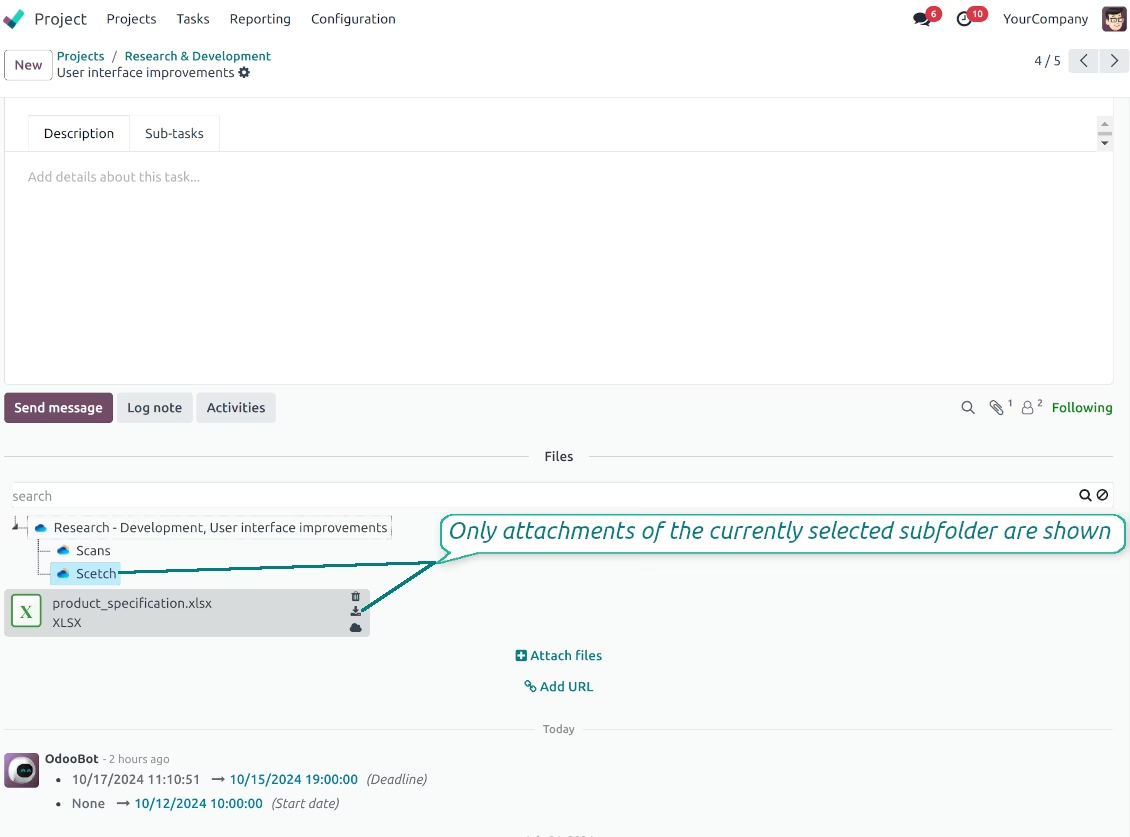
Flexibly define subfolders to organize the structure you need (right mouse click > Create subfolder)
-
Drag and drop to re-structure subfolders
-
Select a folder to see its attachments. By default, files of the object root directory are shown
-
Download any folder with all attachments as a single zip archive (right mouse click > Download as archive)
-
Open the already synced folder in its cloud client (right mouse click > Open in clouds)
-
Upload attachment to a chosen folder (use the button 'Add attachments' or drag files to the attachment box area)
-
Instantly open any synced attachment in a linked cloud client (push the icon 'clouds')
-
Download any attachment to your local computer disregarding whether it is synced or not (push the icon 'download')
-
Use standard preview for both synced and local files (click on a file thumbnail)
-
Delete attachments as usual
-
All actions are equally applicable to object attachments and attachments related to messages.
Cloud Storage Synchronization
Multi synchronization
-
Use optional add-ons to synchronize the document management system with the cloud client(s) of your choice: Google Drive, OneDrive, SharePoint, Nextcloud, Dropbox, Amazon, Box, MinIO S3, NAS/WebDAV (Synology, QNAP, TrueNAS, etc.), and ownCloud. Have as many connections as you need
-
Establish multiple connections to different cloud clients simultaneously. For example, sync sales-related folders to Google Drive; tasks and projects - to SharePoint or OneDrive; HR documents - to Nextcloud/ownCloud; manufacturing specifications - to Dropbox. Take into account that a specific folder might be synced to only a single cloud storage solution. Its children would be synced to the same client
-
For each cloud client, the app lets set up a few instances. For example, for Google Drive, you may share some folders to your personal drive, others - to one of your team drives, and the rest - to your teammate's drive
-
To establish a connection with particular cloud storage, follow the instructions that are specific for client types. See the tab Configuration for details
-
Any connection might be paused manually if it is needed. It might be also auto-stopped if there are critical issues during the sync. Then, you should re-connect to a target cloud client
Cloud clients
-
Synchronization for all cloud clients is based on the same principles and on the same queue. Simultaneously, there might be differences in sync results due to different features of various cloud storage solutions
-
Establishing connections for different types of cloud clients assumes installing optional add-ons, different approaches for Odoo, and external API configuration. Follow the instructions on the tab 'Guidelines'
-
Google Drive Integration allows establishing a connection with any personal or team drive
-
OneDrive / SharePoint Integration assumes synchronization with any drive of personal/business/SharePoint tariffs
-
ownCloud/Nextcloud Integration et integrate with any instances of ownCloud and Nextcloud. In comparison to other clients, the app allows setting the type of attachment links. By default, links are internal: only authorized users may access them. Optionally make links public (the setting 'Use Public URLs'). See details on the guidelines tab
-
Dropbox Integration works for all DropBox tariffs, including Personal DropBox (Basic, Plus, Family) and business DropBox (Professional, Standard, Advanced). In comparison to other clients, the app allows choosing whether cloud items would be shared or internal. See details on the guidelines tab
-
Amazon S3 Integration (amazon_s3) synchronizes folders and attachments with Amazon S3 buckets
-
NAS/WebDAV Integration (nas) connects documents with NAS and WebDAV-compatible storage, including Synology, QNAP, and TrueNAS
-
Box Integration (box) synchronizes folders and attachments with Box cloud storage
Automatic two-sided sync
-
Integration is based on scheduled jobs and is fully automatized. The app regularly checks changes in systems and runs sync operations
-
Synchronization is bilateral. Updates in are reflected in cloud clients (direct sync); changes in cloud clients modify folders and attachments (backward sync)
-
Any cloud connection might be reset. In this way, the app assumes getting back all items back to (reverse sync)
-
folders and attachments might be re-attached to a new cloud client. Hence, items will be first taken back to (reverse sync) and then put will be put to the new cloud storage (direct sync)
Queue-based synchronization
-
Once in 15 minutes, the app examines updates in and cloud storage(s) to prepare a synchronization queue
-
Folders' checks follow the First-In-First-Out (FIFO) principle. So, directories that have not been examined for the longest will be processed first
-
Once in 15 minutes, the sync queue is run by the special scheduled job. Firstly, the most important (blocking) tasks would be done
-
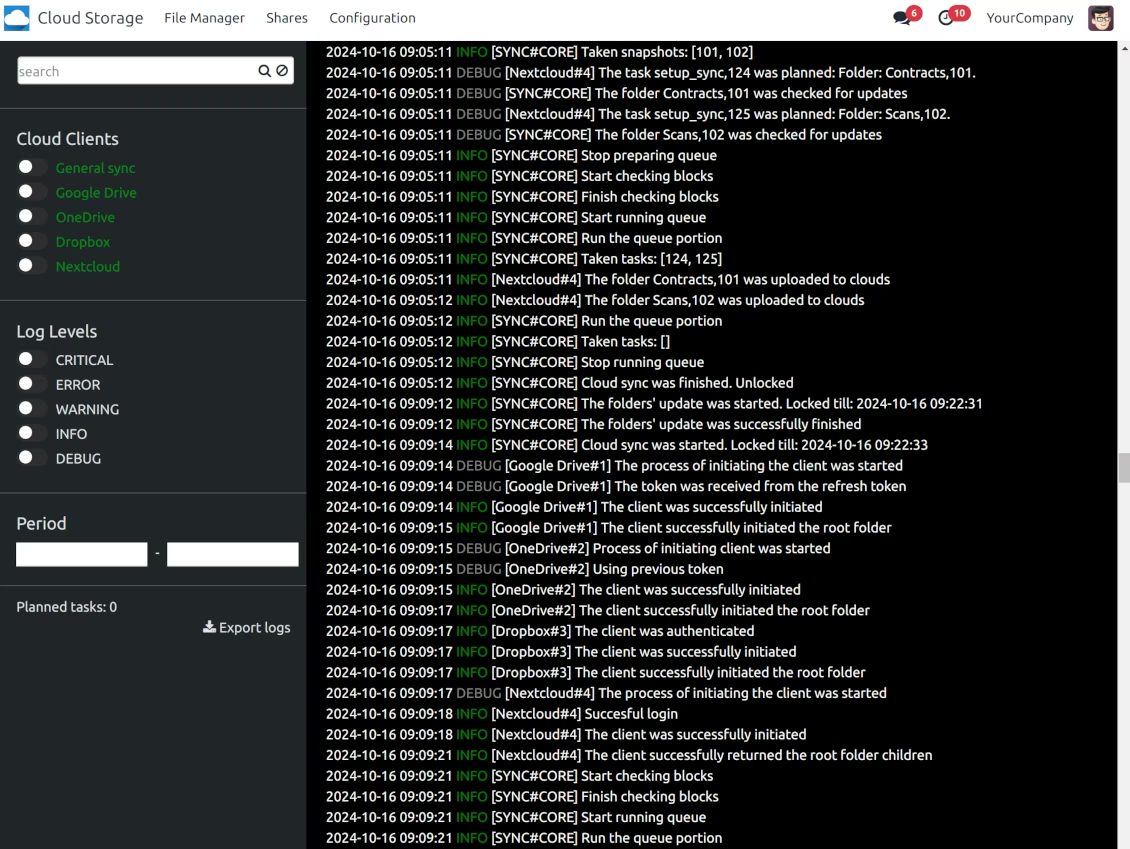
Control planned jobs and their fulfillment in the special logs interface (Cloud Storage > Configuration > Sync Logs). Subscribe for particular cloud clients notifications
-
If the app faces sync failures, it will re-try operations afterward. Sync queue processing would not be stopped if there are items not blocked by such failures
attachments for cloud storage: direct sync
-
Direct sync prepares the folders' hierarchy and uploads attachments for cloud storage
-
Direct sync checks whether attachments are added or deleted for synced directories. If so, they would be created or removed in cloud storage. In particular, it means that any file added to a folder-related object (e.g. Quotation), would be automatically moved to a linked cloud client
-
Direct sync makes all synced attachments change their type to a link (URL), while binary content is removed with one of the next cleaners. So, no actual files would be stored on your server
-
Direct sync checks whether a new folder is added. Disregarding whether it is done manually or automatically, the app would generate a peer directory in a cloud storage
-
Direct sync checks whether there are any updates in folders. If so, such changes are reflected in a cloud client
Cloud storage files and folders for backward sync
-
Backward sync checks whether any files or subfolders are added to cloud storage folders. If so, the app would create URL attachments/subdirectories inside linked directories (and hence objects if any)
-
Backward sync checks whether there are any updates in folders or attachments. Such updates would be then reflected
-
Backward sync checks whether any files are deleted/moved in a cloud document folder. If so, a linked attachment would be also unlinked or moved
-
If you deleted a cloud storage folder related to a folder rule / object, their child files would be deleted as well. Thus, would remove related attachments. The folders, however, will be recovered with a direct sync
-
In case of conflicts, direct sync changes are in general considered more important than backward updates.
Resetting or changing cloud client: reverse sync
-
In case you decided to reset the connection with a specific cloud client, files would be moved back
-
In case you decided to change the cloud client of a folder rule or a folder, files would be first taken back, and then direct sync for a new client would be done
-
Reverse sync operations are prioritized to direct and backward sync operations
-
Not all items can be correctly reversed to due to cloud client peculiarities. For example, there are documents that may exist only in cloud storage environments (e.g. Google Sheets). The app would try to convert such documents, but in some cases, it would require manual interactions.
Automatic Folder Structure
Rules for automatic folders
-
The app allows preparing its own folder for any object
-
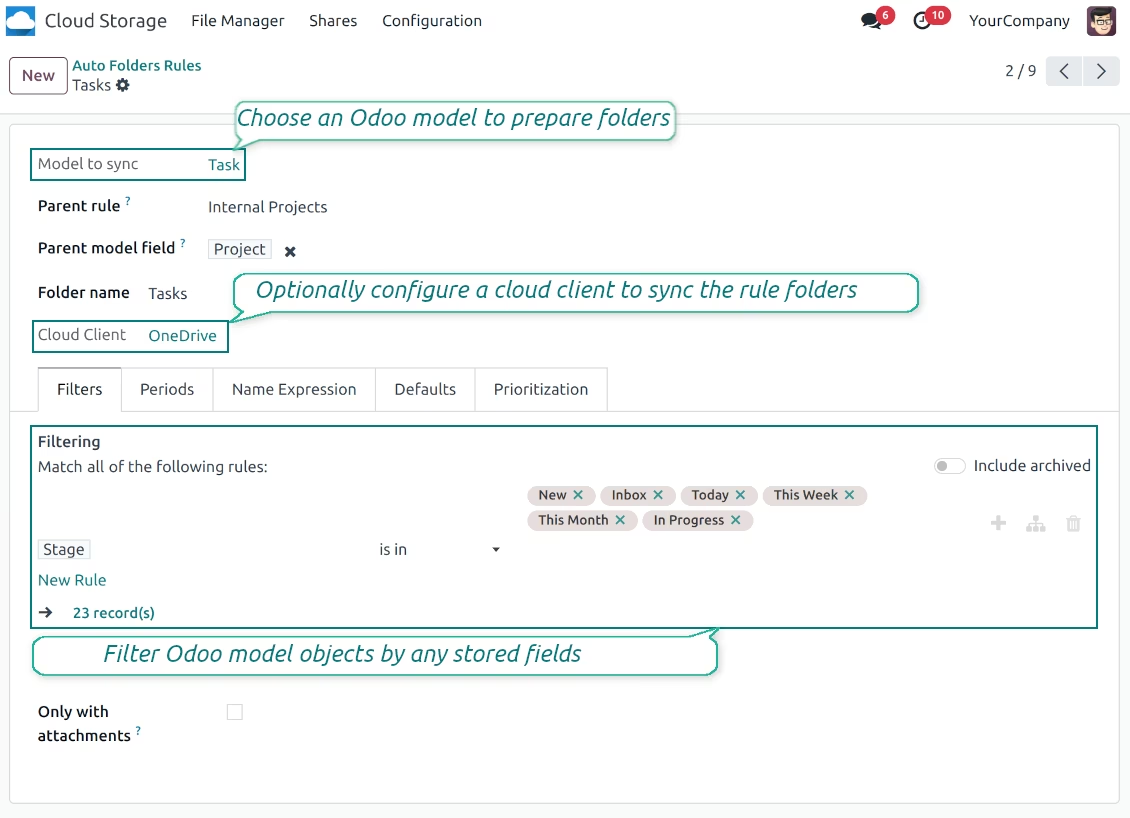
To configure a particular document type to generate a folder, you should just prepare a new folder rule (Cloud Storage > Configuration > Folder rules). For example, select the model 'Task' to make add a folder for each project task, so Tasks > Task 1, Task 2, ...
-
Automatically created directories would contain all attachments their linked objects have
-
Folders are updated regularly based on the scheduled job
Multi directories for each model
-
Each model might have a few linked folders
-
Apply any model storable field to filter objects and, in this way, split objects into a few super directories. For example, have own folders for individuals and companies, for European and American opportunities, for quotations and confirmed orders, for each project
-
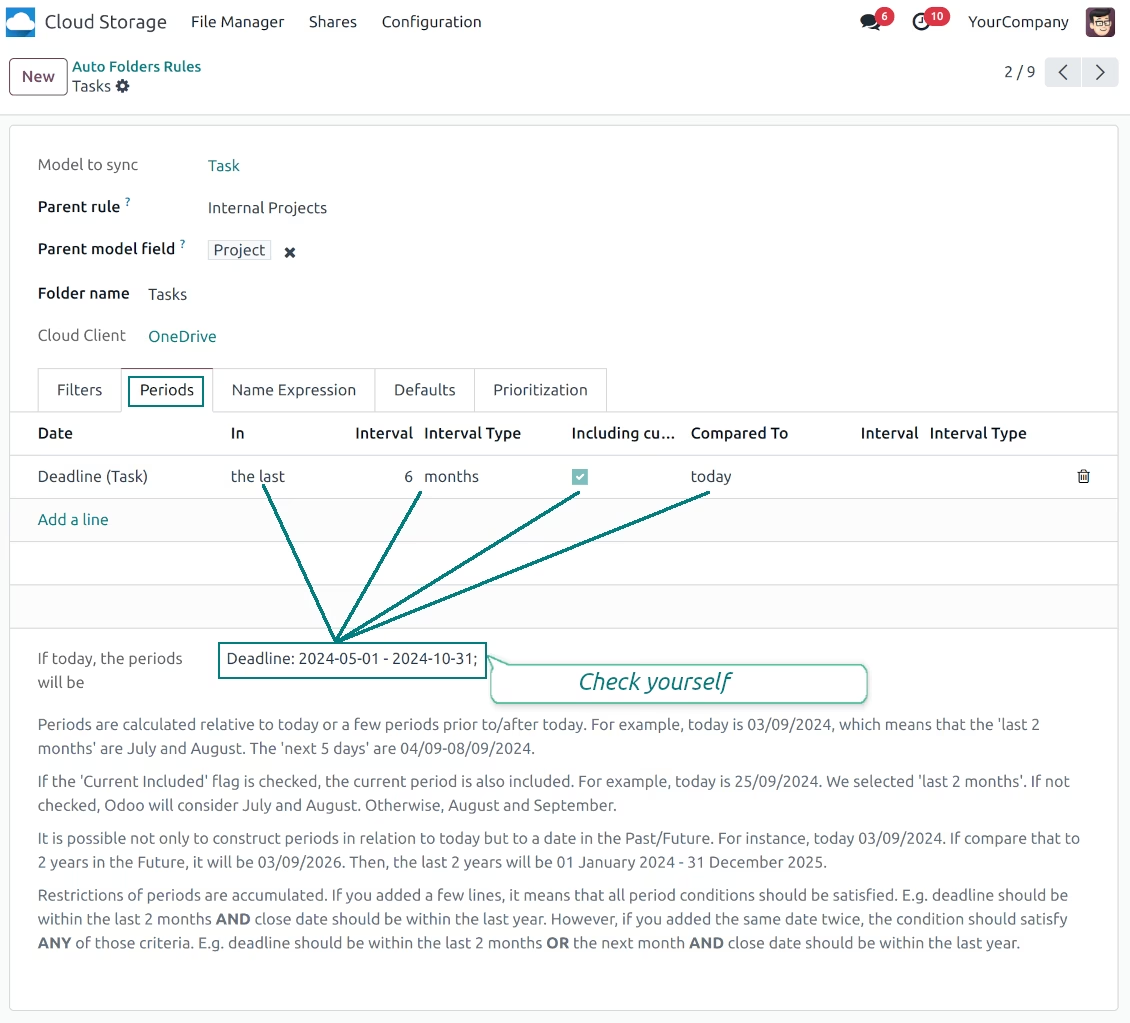
Filter objects by relative periods by applying date fields of linked documents. For example, leads registered in the last 3 months or invoices updated in the last week
-
As a result, the app lets have paths like '> Quotations Europe > SO-001' or ' > the last year posted invoices (America) > SO-001'
Flexible folders' tree
-
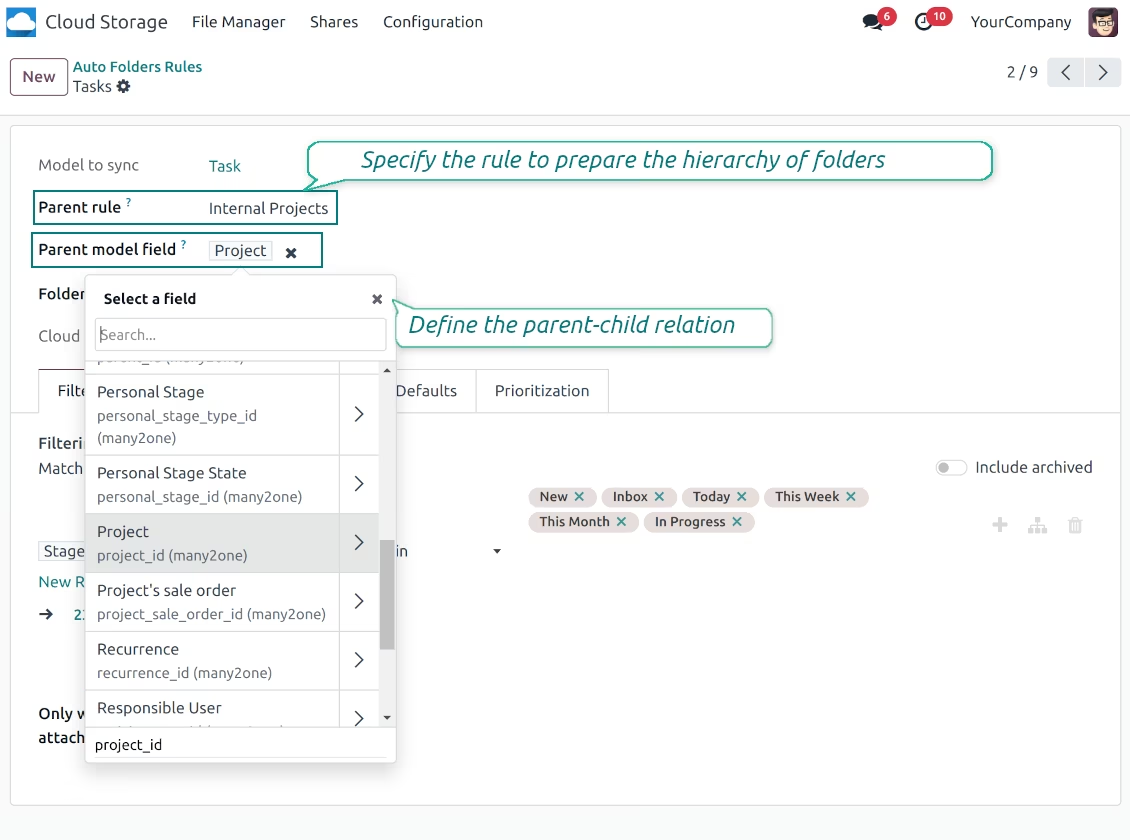
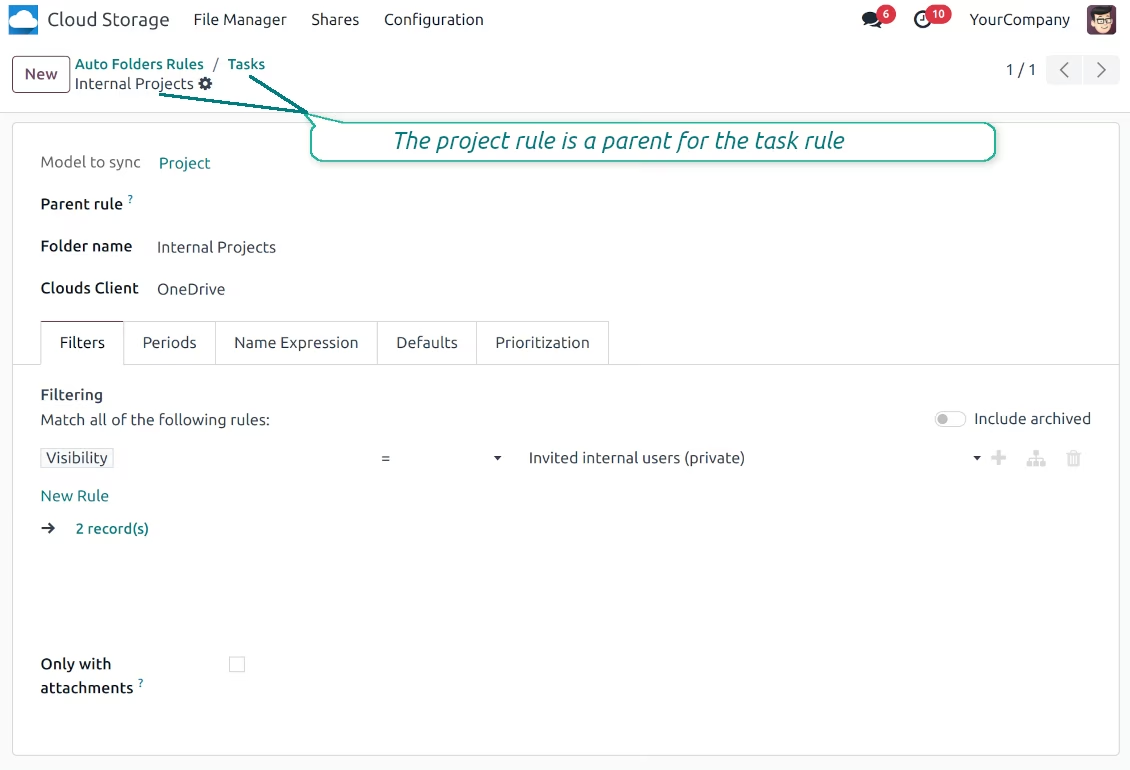
It is possible to set up a hierarchy of folder rules to prepare a more flexible directories structure
-
To that goal define a parent rule for a required folder configuration. For example, use a project-related rule as a parent for a task-related rule, a customer-related rule - for invoices-related rules
-
In order for folder relations to work correctly, it is also needed to enter a parent model field. So, it is the field that links models between each other (many2one relation). For example, 'Project' of a task, 'Customer' of a sales order, or 'Sales Team' of an opportunity
-
As a result, the tool allows reflecting your workflow logic and have paths like '> Customers > Azure Interior > Projects > Software Design > Prepare Specification' and '> Customers > Azure Interior > Quotations > SO-001'
Subfolders, default folders, and default files
-
The app lets add an unlimited number of manual subfolders for each folder. In particular, you may have a directories tree right in each object attachment box
-
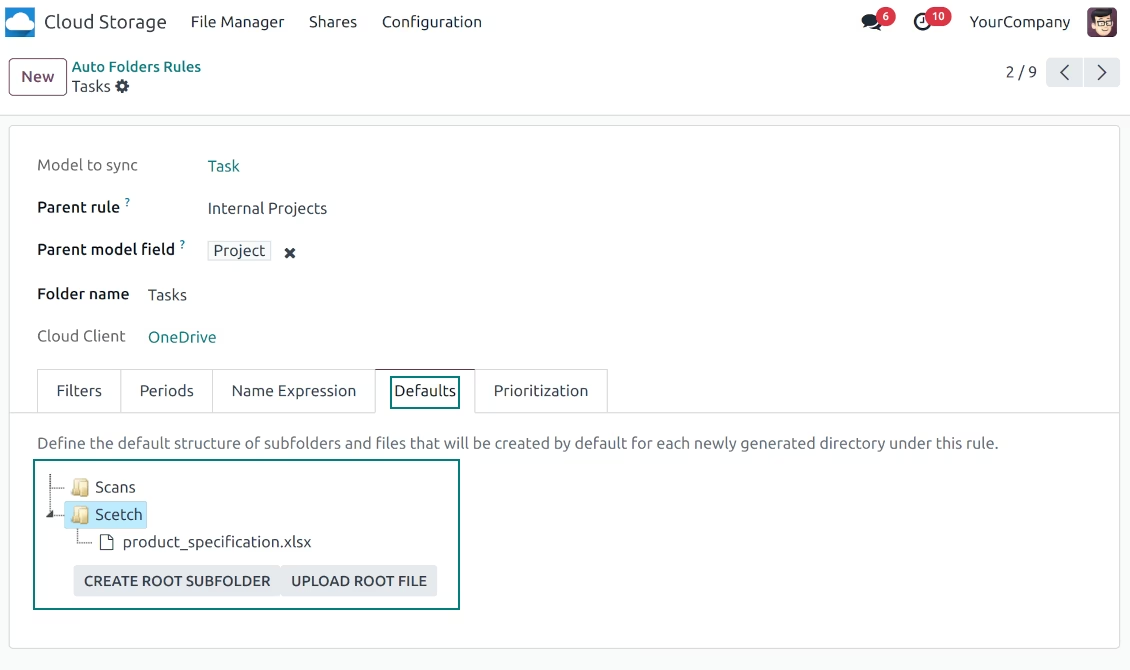
For the first generation, it is possible to define default folders, so subdirectories would be auto-generated for a specific object folder. Afterward, you may add delete/edit those or add new ones
-
The same mechanics are applied to prepare default files. For example, to have contract/personal card templates which then are assumed to be filled with real data
Configurable folder titles
-
Each folder rule assumes to generate a directory. Names for such directories are assigned right on a rule form. For example, introduce 'Jobs' for a task-related rule or 'HR' for employees' folders. By default, the model name would be used
-
For object-related folders, the names are generated based on the standard display names. So, if not defined the opposite, it would be the same title as you see in the form view header
-
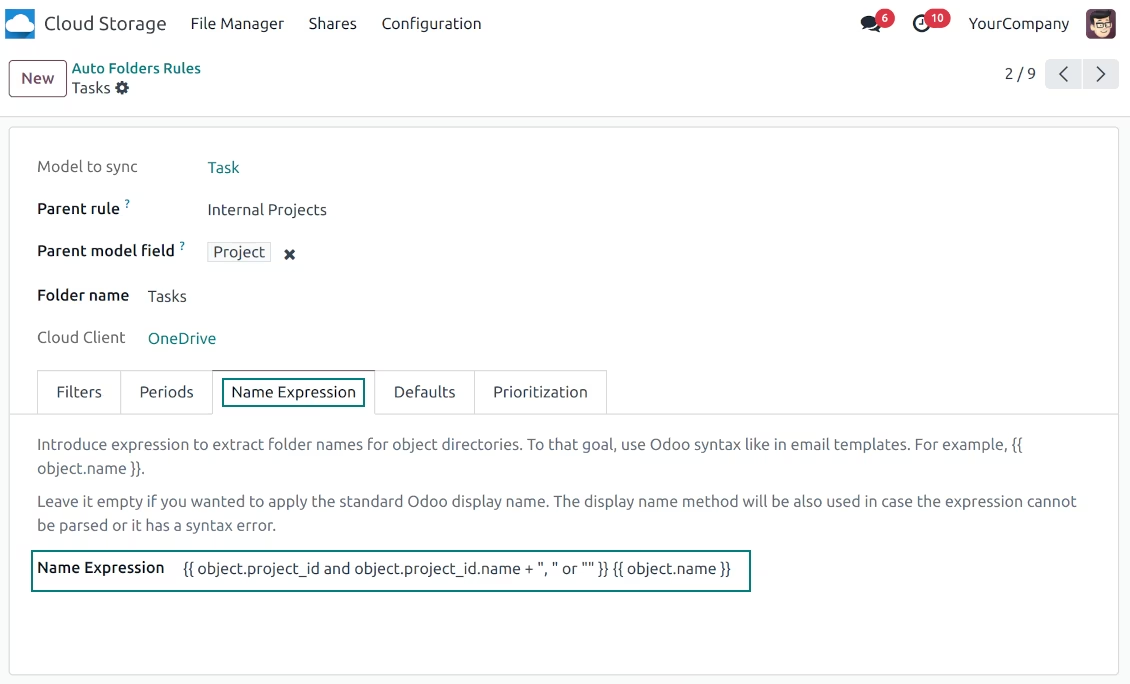
The app lets define complex name expressions for object-related folders (the tab 'Name Expression' on a folder rule form). To that goal, apply the syntax used in email templates. For example, {{ object.project_id.name }}, {{ object.name }} to reflect a project name in tasks folders
-
Avoid the following symbols in folders' and files' names: *, ?, ", ', :, <, >, /, +, %, !, @, \, /,. Direct sync will replace such symbols with '-'. It is done to avoid conflicts with file systems. Avoid also too long names: e.g. more than 100 symbols
Enterprise Documents
-
The app allows generating folders for workspaces introduced by the Enterprise apps 'Documents'
-
To force to prepare workspace-related directories, define folder rule(s) of the type 'Workspace-Related rule'. The tool would automatically create linked folders and sync those for chosen cloud storage with one of the next jobs
-
It is not obligatory to reflect the whole DMS structure. Thus, it is possible to filter workspaces by any storable field. For example, to add a folder only for workspaces that contain the keyword 'Internal'. Take into account: if a workspace was synced, all its child workspaces would be also synced
-
If you generated a subfolder for any workspace-related folder, the app would also create such a Documents workspace
Typical use cases
-
Customers: add all partner files in a single super directory. Optionally distinguish companies and individuals. For example, > Customers > Azure Interior > Contacts > John Brown
-
Sales orders and invoices: keep all sale-related printings and contracts in your own quotation directories for each customer. For example, > Customers > Azure Interior > Orders > SO-001 and > Customers > Azure Interior > Invoices > INV-00001
-
Opportunities: store all specifications, requirements, and any files which would let you make a good offer carefully structured by each sales team and case. For example, > Sale teams > Europe > Leads > Interest in 50 chairs
-
Project and tasks: prepare a folder for each customer project and task. For example, > Customers > Azure Interior > Projects > Software design > Tasks > Specification
-
Human resources: gather all files by each employee in a single folder: photos, document scans, contracts. Structure employees by department. For example, > Departments > Accounting department > Employees > Anita Olivier.
Files and Folders Sharing
-
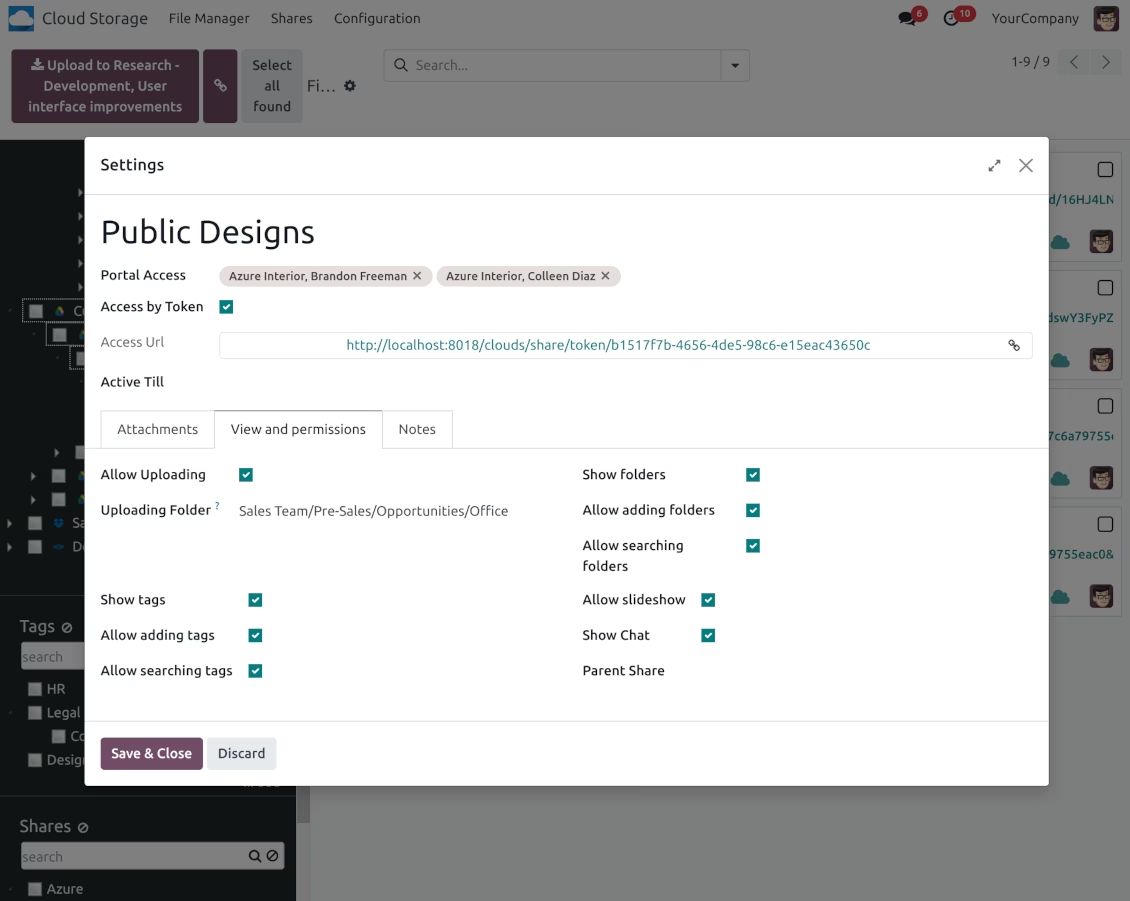
Share particular attachments, whole directories, or even all files of specific tags
-
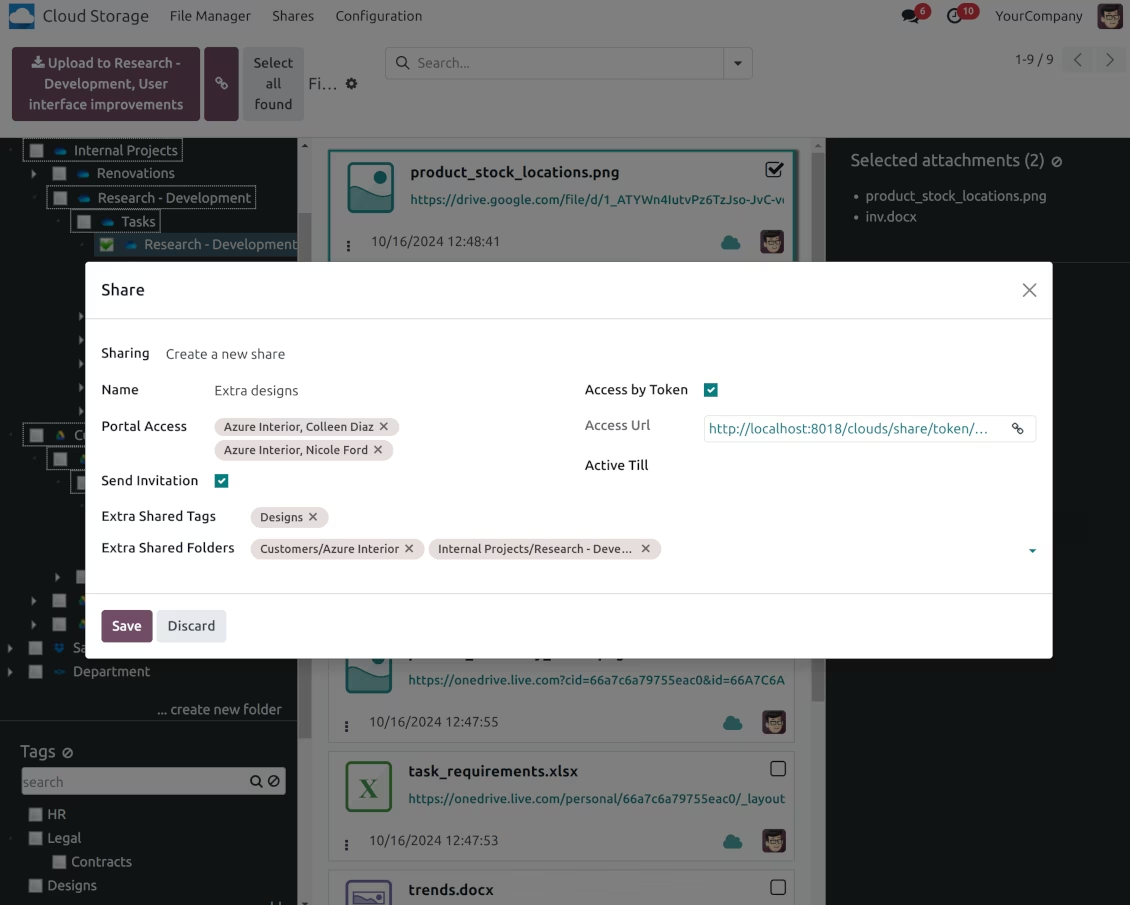
Grant access to chosen contacts. Send an invitation to any portal users at any moment
-
Generate a special access link for public use (even without a user). Change it to make the previous one outdated
-
Make shares for temporary use or available constantly until archived
-
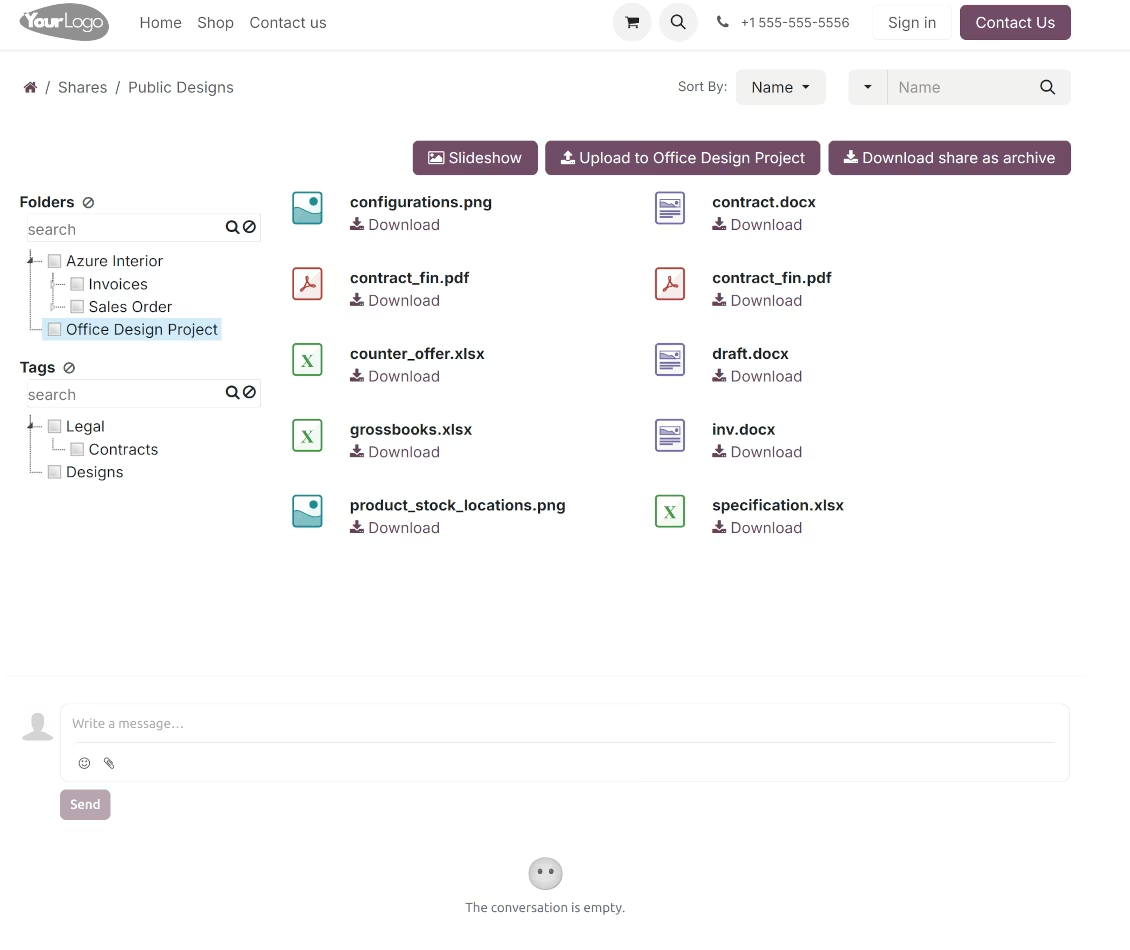
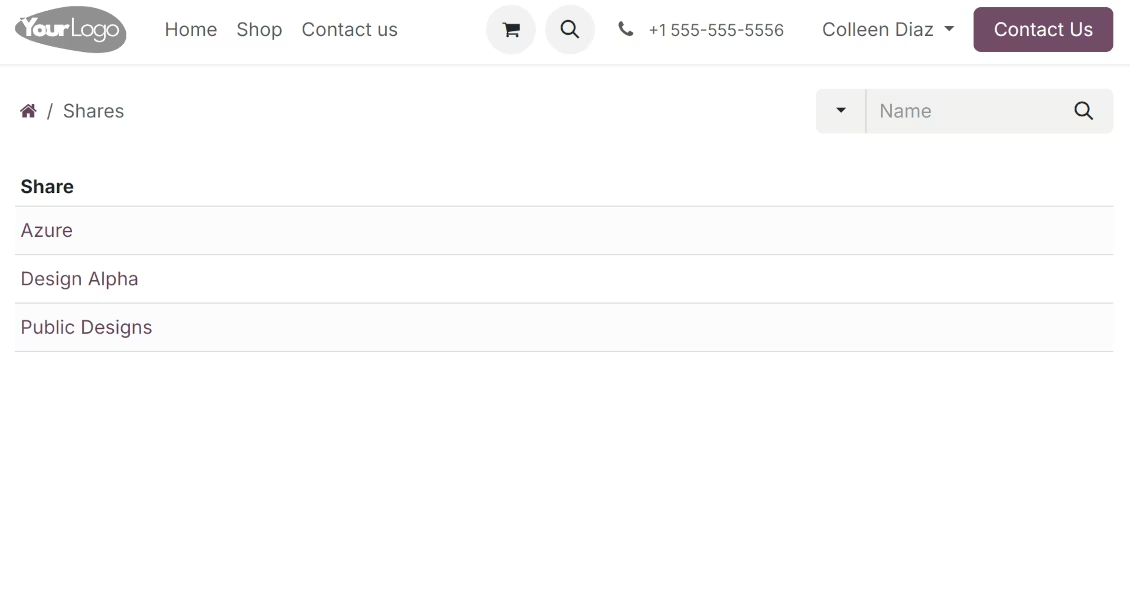
Create an unlimited number of shares with any setups and attachments involved. Portal users might access those through the special entry "Shares" in the portal
-
For single-view purposes, shares support hierarchy so as to make comfortable navigation by those
-
Share users can download any shared file, a whole share, a particular directory, or a tag as a ZIP archive
-
Optionally let upload files to the selected or default folder. Files drag and drop is supported
-
Users are always allowed to search attachments by title, linked folder, and tags
-
Optionally allow navigation by folders and/or tags. Shared tags/folders, their children, and ones linked to shared attachments will be available
-
Let users add tags and folders by themselves. Show/hide searching items in tags/folders navigation trees
-
Turn on/off a chat per each share.
Document Management and Sync Access Rights
-
Access for each automatic folder is regulated based on a linked object. If such an object is available for a specific user, its directory would be also available for her/him. For example, if Anita Olivier is the task manager of 'Prepare specification', then she may access the folder 'Tasks' and 'Tasks > Prepare Specification'
-
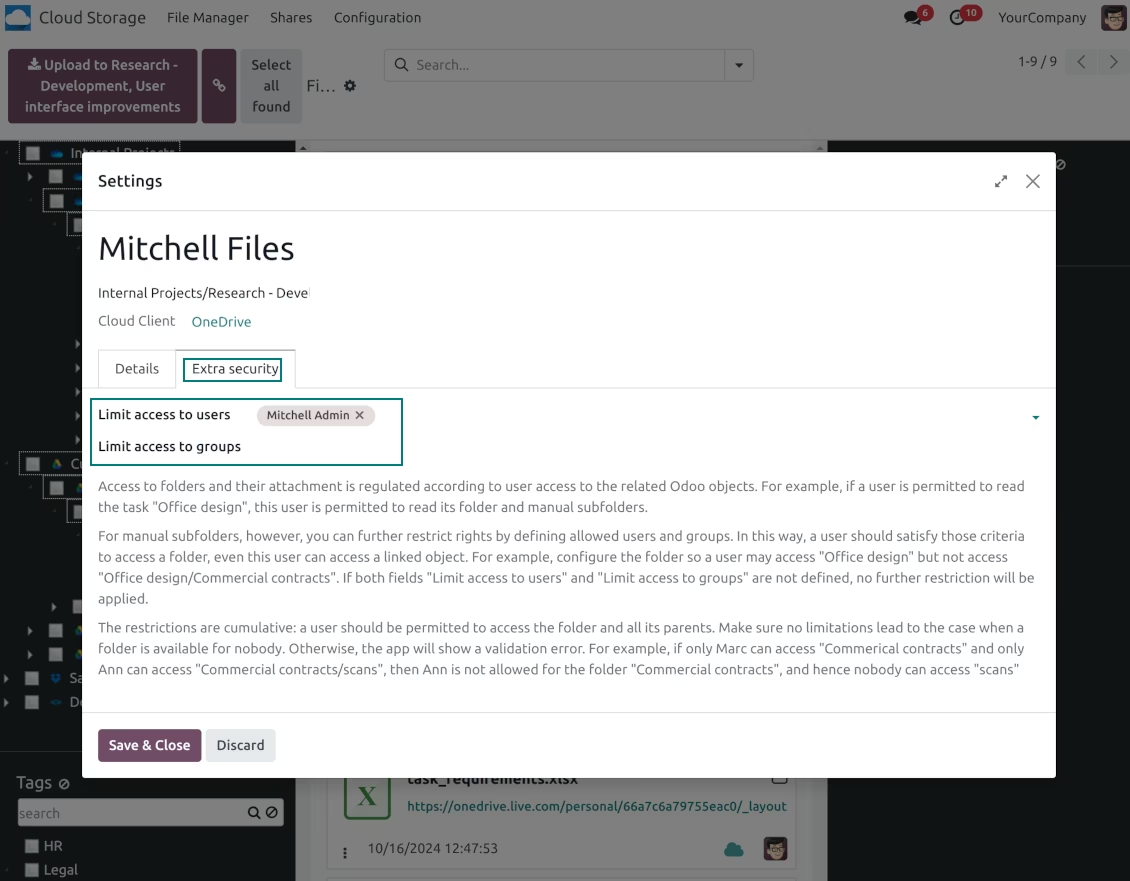
Access to manual folders is regulated based on its user groups and users stated in those folders' settings. If nobody is specified, a manually created folder is available for everyone. For example, if Anita Oliver is a sales manager, she may access the quotation-related folder '> Orders > SO-001'
-
To access any folder, a user should be able to access all its parents. For example, if Anita Oliver has rights for employees but does not have for departments, then she might not read '> Departments > Administration > Employees > Mitchel Admin'. However, if the folder 'Employees' becomes a stand-alone folder without a parent, then Anita would be able to access '> Employees > Mitchel Admin'
-
The app does not regulate access levels for cloud clients and their items. The tool regulates rights only for objects and synchronizes those to required storage. After the sync, if necessary, you should apply the settings for a target cloud client, folders, and files
-
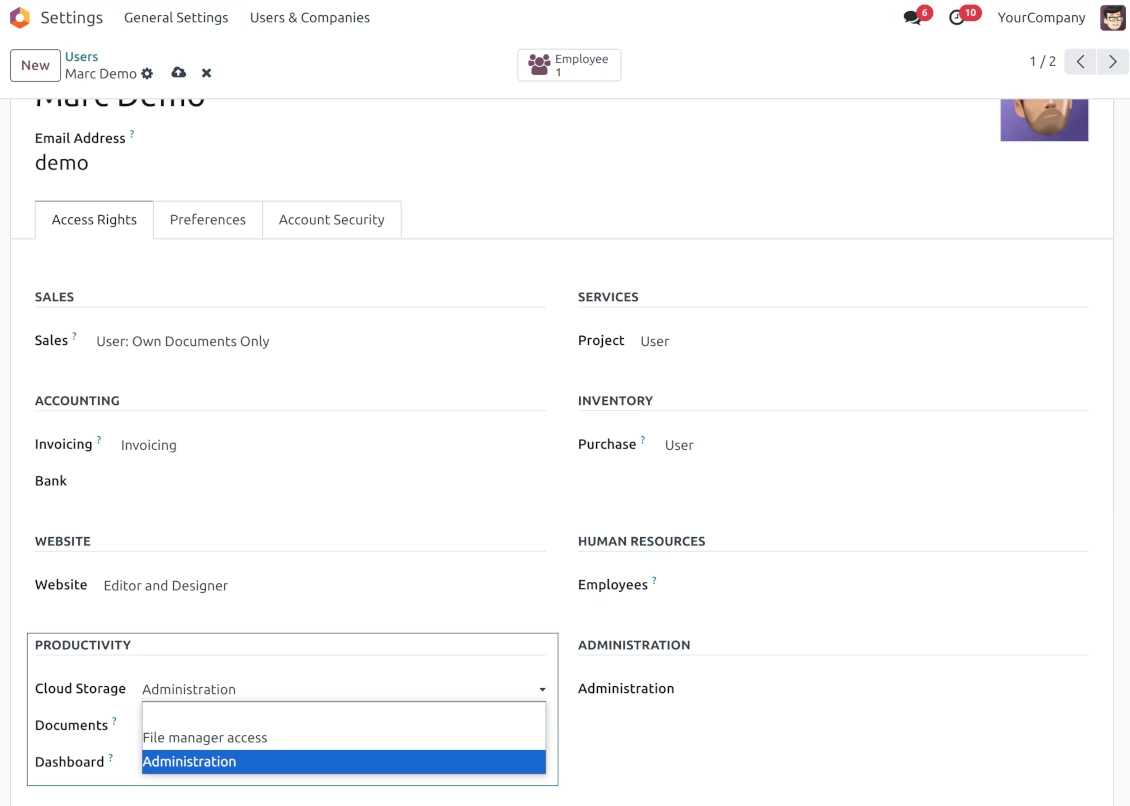
To observe the menu 'Cloud Storage' and the app file manager, a user should belong to the security group 'Cloud Storage > File Manager Access'
-
To configure automatic folder rules, establish connections with various cloud clients, control sync logs, and apply the app settings, a user should belong to the security group 'Cloud Storage > Administration'.
Use Notes
-
The app assumes automatic regular synchronization with various cloud clients. Please take into account that synchronization is not real-time but is based on tasks queue and scheduled jobs. Depending on the number of folders and attachments, it might take time for the app to check all directories and do the jobs. That's why, until the sync is done, attachment interfaces work as in standard.
-
Cloud connections rely upon the API of the related cloud clients. Such communication between systems is risky by concept due to possible disconnections, API updates, and unsolvable conflicts. The app is designed to cope with such risks by carefully processing failures and checking cloud client states. Simultaneously, make sure that you have configured a proper backup strategy for both and cloud clients.
-
The special factors of risks are sync scope and reverse operations. The higher the sync scope is, the more it would take to finish integrations. Hence, more space for errors exists. Try to decrease sync scope logically by choosing only required folders. Reverse operations might be risky since assume reflecting cloud clients' features which might be absent. For example, Google Sheets cannot be opened outside Google Docs. The app would try to solve the scenarios by applying similar features (e.g. by converting a file to simple electronic tables). However, that is not always possible, and in this way, manual interactions would be required.
file manager interface: sync attachments with cloud clients
attachments' management: mass actions
Navigation over folders and attachments search
Drag and drop items to the file manager UI
Mass actions on attachments: move to folder example
Instant access for cloud folders from objects
Structure attachments in subfolders
Rules for automatic generation of folders
Configure the tree of folders
Set up parent-child relations for folder rules
Filter objects by periods
Configurable folder titles
Automatic default subfolders and files
Control sync jobs and client states
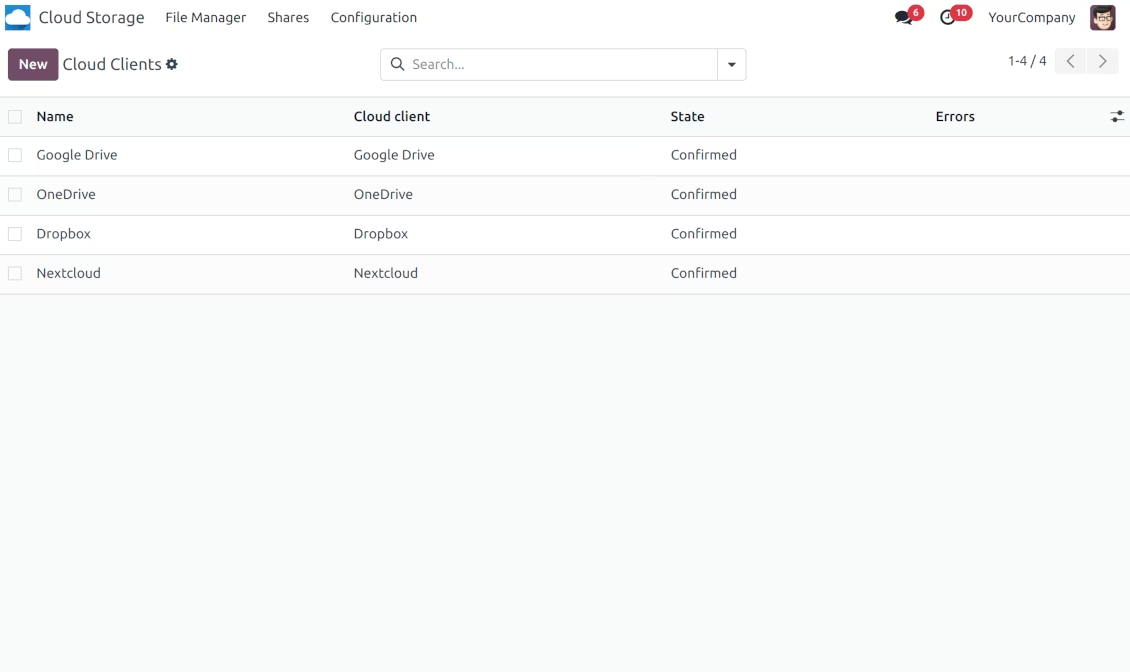
Multiple cloud clients connected
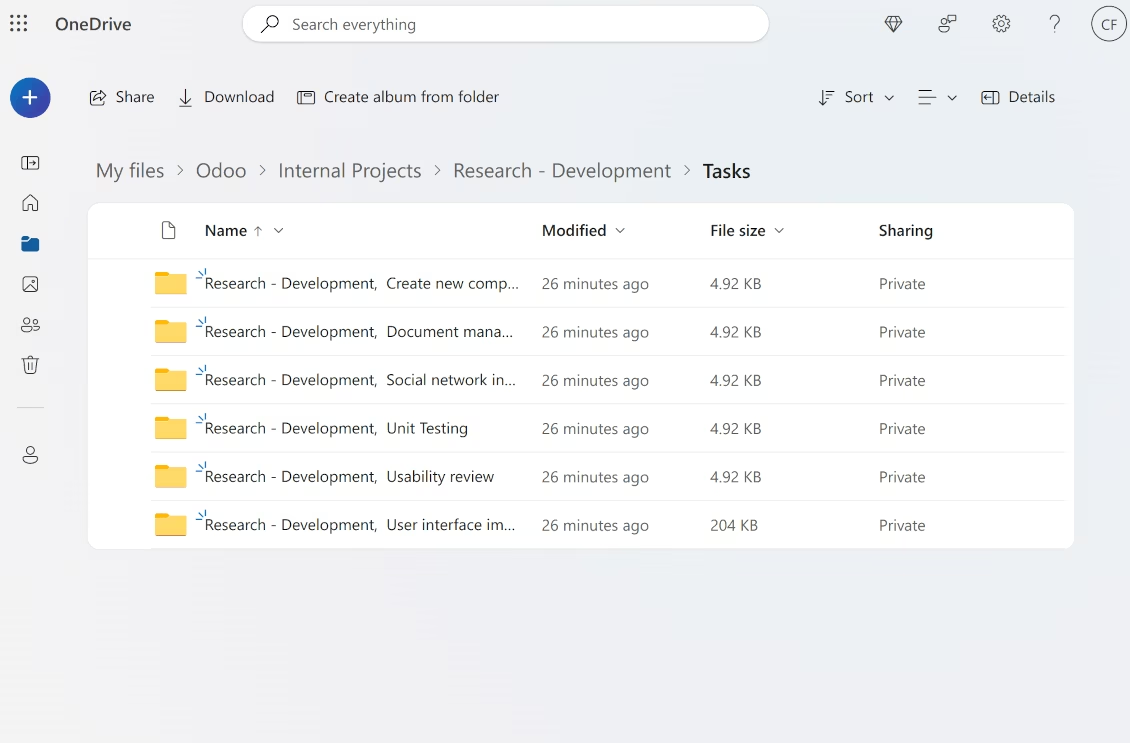
attachments are in OneDrive or SharePoint
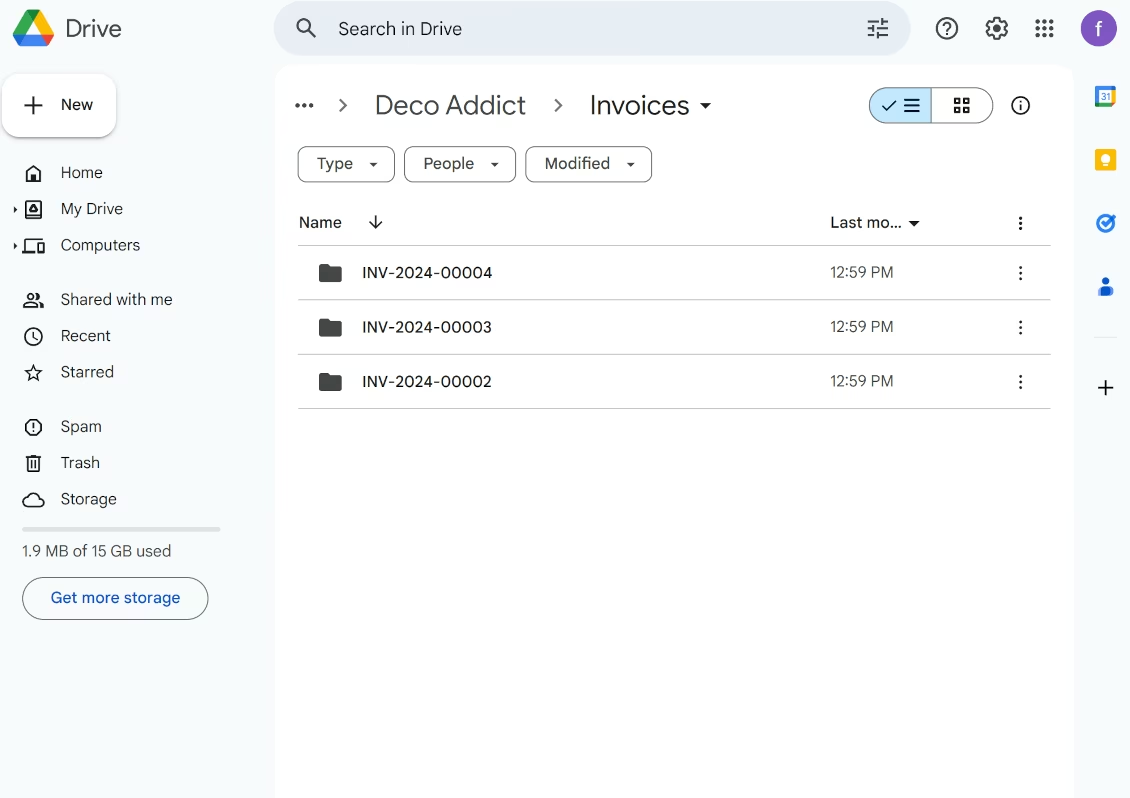
attachments are in Google Drive
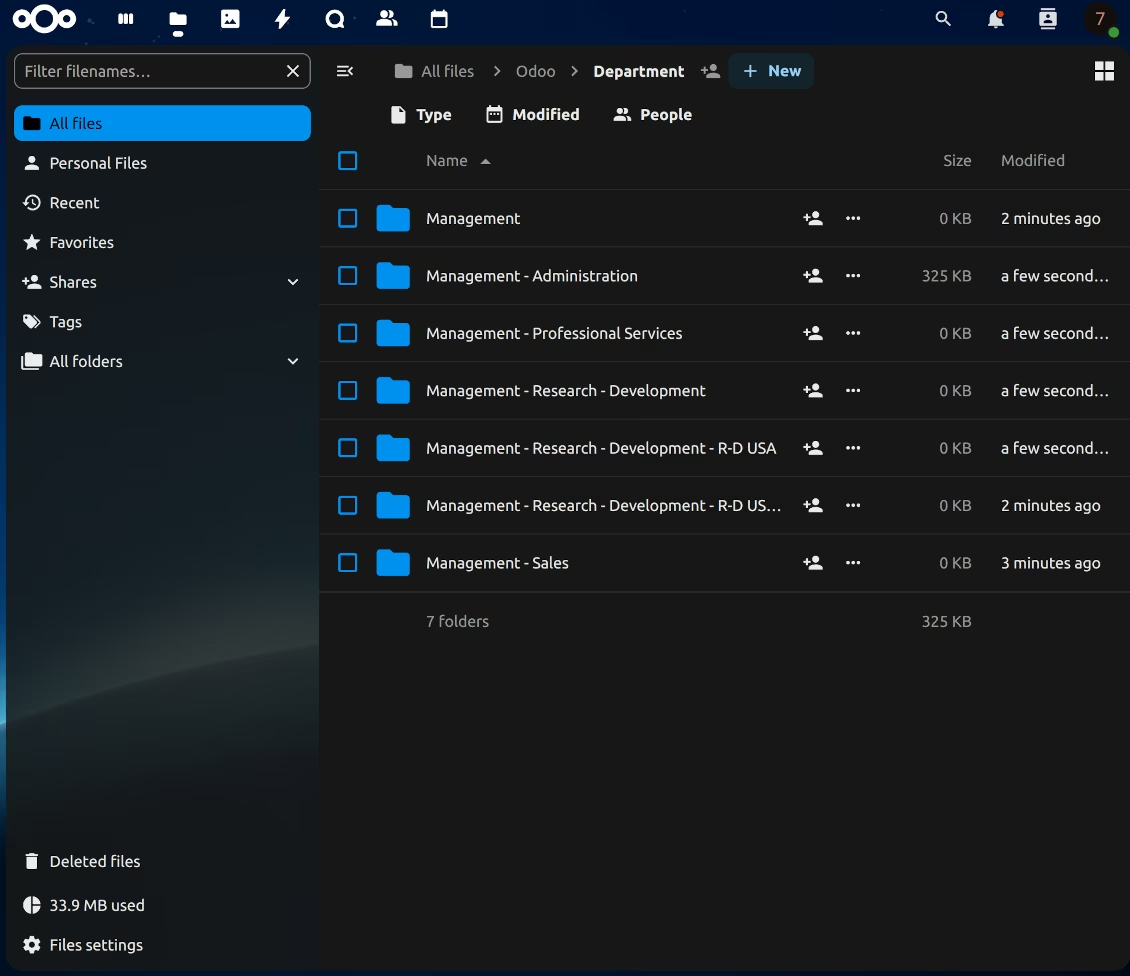
attachments are in Nextcloud/ownCloud
attachments are in Dropbox
Synced Enterprise Documents
Share files and folders in the portal and publically
Share any attachments, directories, or tags
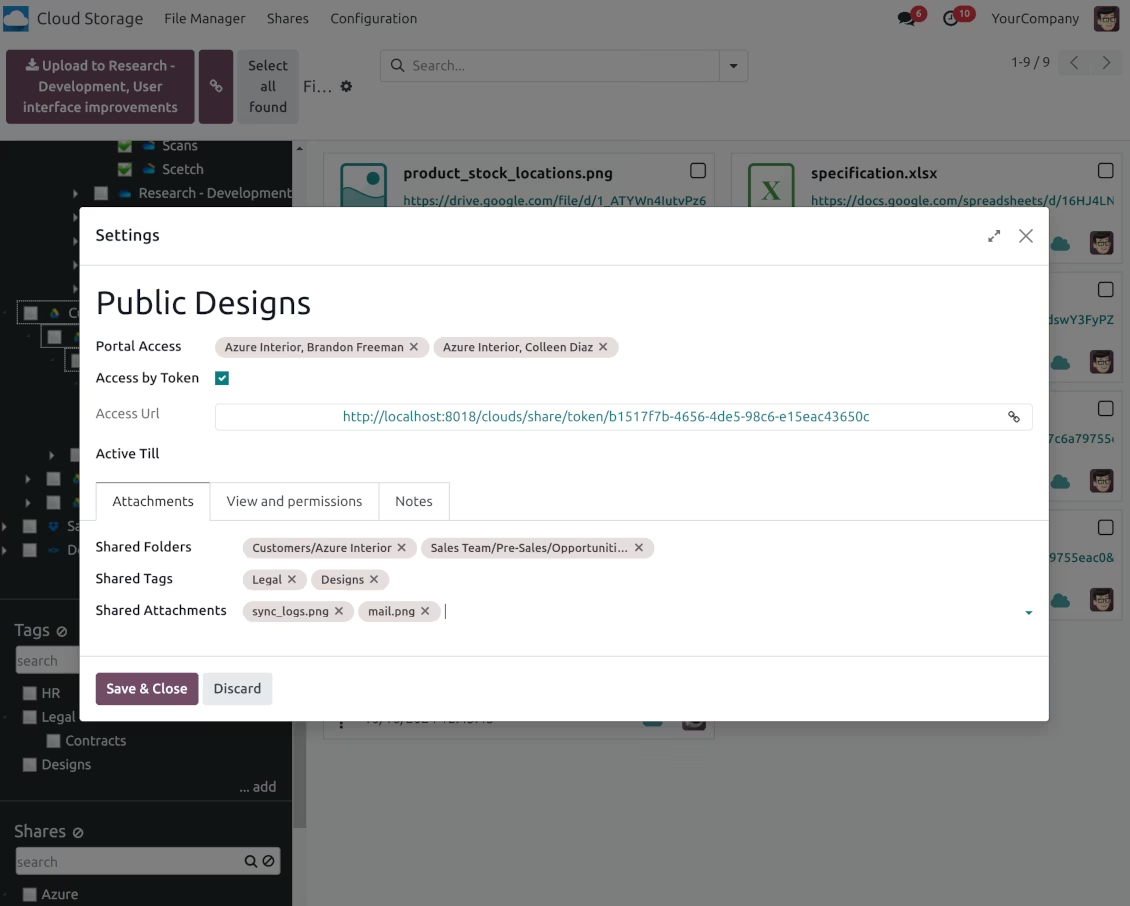
Flexibly configure attachments shares
Mass action: share attachments
Shares Navigation
Portal shares
Restrict access for manual folders
Security rights for the file manager
Cloud storage: the configuration page