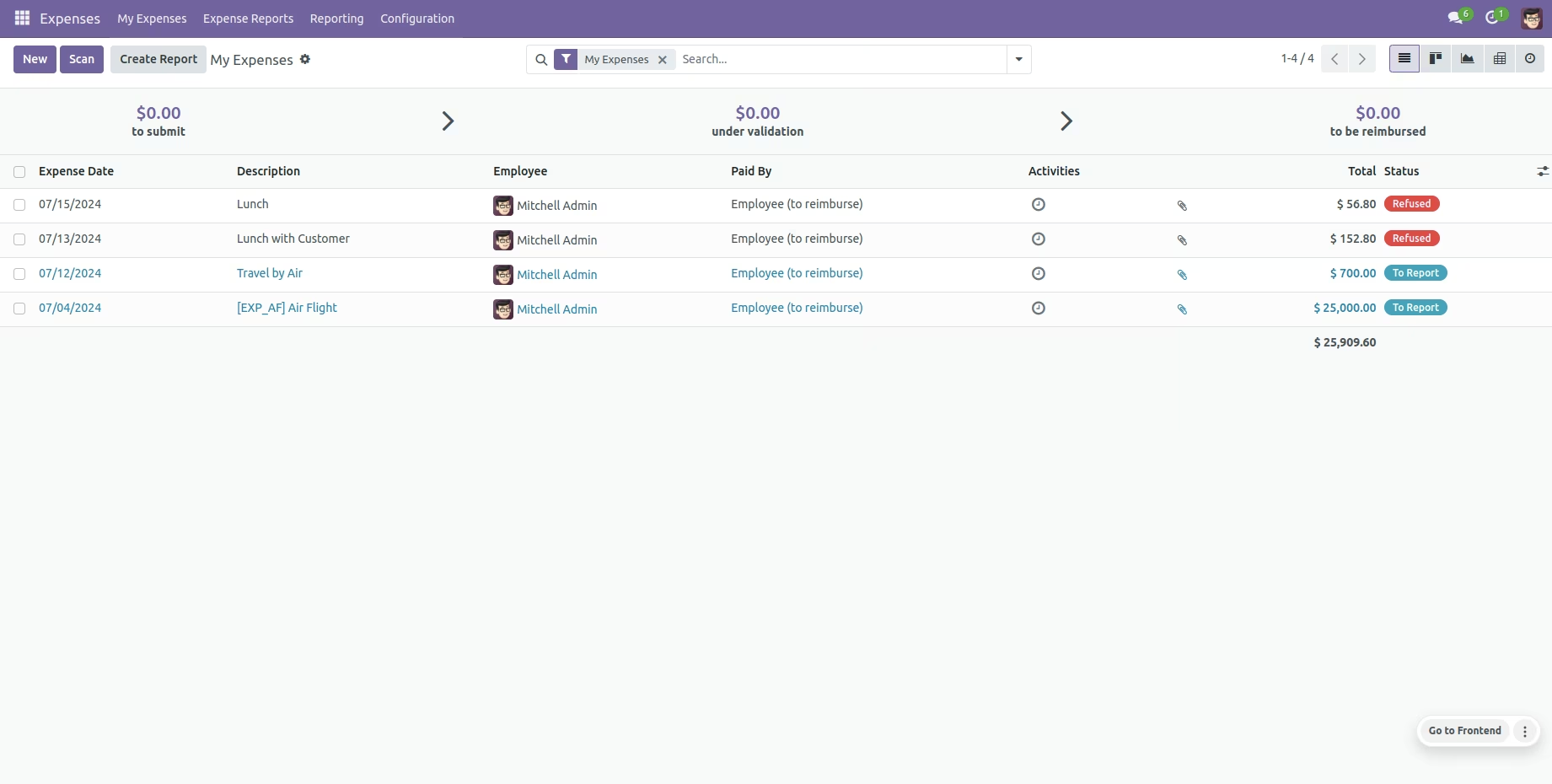
The module extends expense management capabilities by enabling reliable reversal of completed expense sheets. It introduces a Cancel action on expense forms that efficiently removes reconciled journal entries and payment records, setting the sheet back to a pre-validated state for accurate corrections.
Adds a Cancel button to expense sheets for quick reversal.
Automatically deletes reconciled journal entries and payments linked to the expense.
Reverts the expense sheet to the Submitted state for editing or resubmission.
Supports lossless correction without manual adjustments across financial and accounting workflows.
Enables reversal workflows without compromising accounting integrity.
Simplifies fixing errors in expense records without recreating entries.
Maintains financial accuracy by automatically managing accounting reversals.
Boosts efficiency for finance teams by minimizing manual reconciliation tasks.
Enhances audit trails with transparent reversal actions.
Empowers non-technical users with safe cancellation workflows.
Reduces operational overhead in expense management cycles.
Ensures compliance with standardized expense correction flows.
Accelerates resolution of expense discrepancies.
Integrates seamlessly into existing expense workflows.
Supports consistent and traceable expense handling.
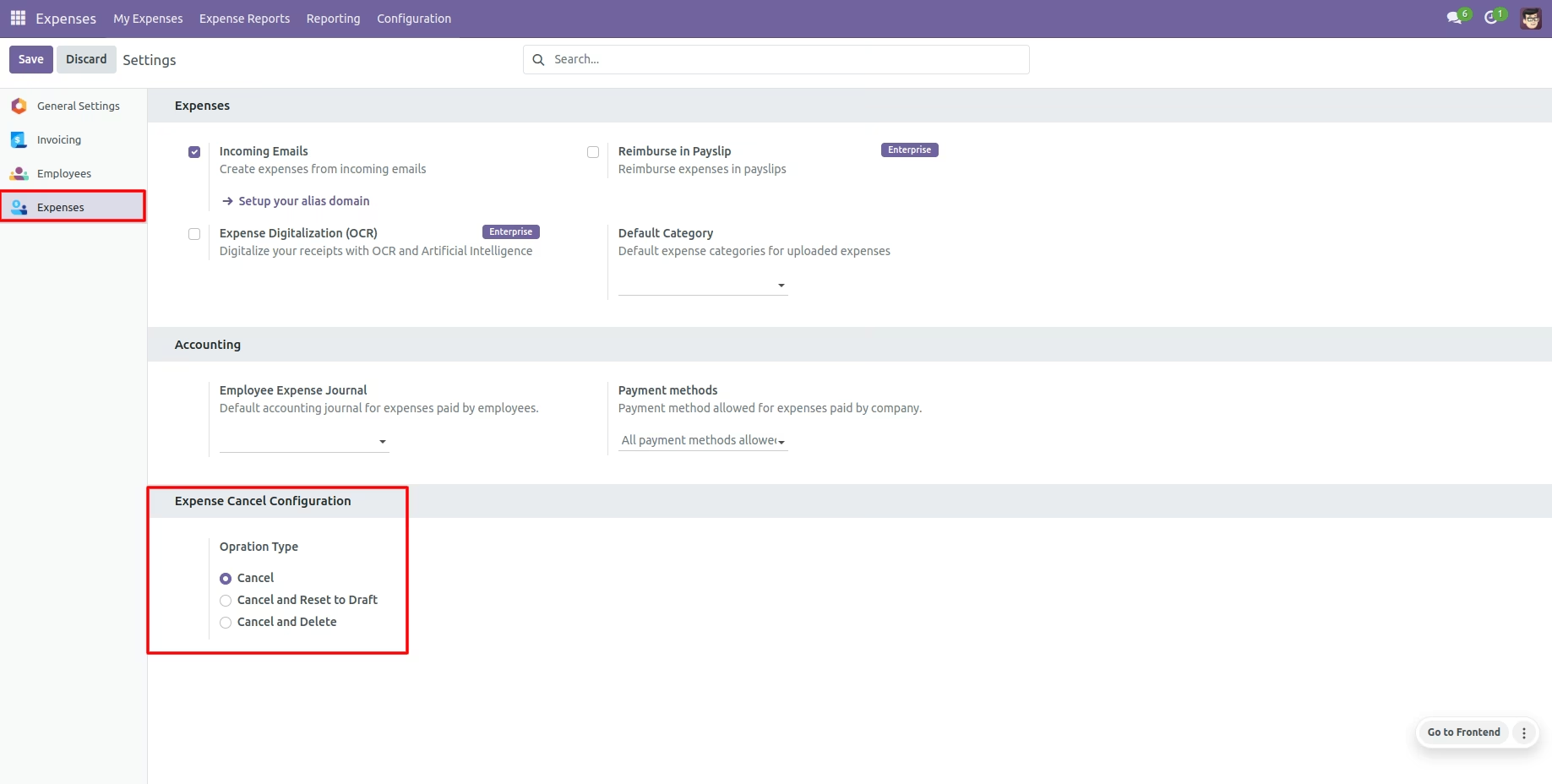
This module helps to cancel/refuse expenses. You can also cancel multiple expenses from the tree view. You can cancel the expenses in 3 ways,
1) Cancel
Only: When you cancel the expense then the expenses are canceled and the state is changed to "Refused".
2) Cancel and
Reset to
Draft: When you cancel the expenses, first expenses are canceled and then reset to the draft state.
3) Cancel and
Delete: When you cancel the expenses then first the expenses are canceled and then the expenses will be deleted.
- Easy to cancel/refuse expenses.
- You can cancel mass expenses.
- You can cancel expenses in 3 ways, 1) Cancel expense only, 2) Cancel expense and reset to draft & 3) Cancel expense and delete expense.
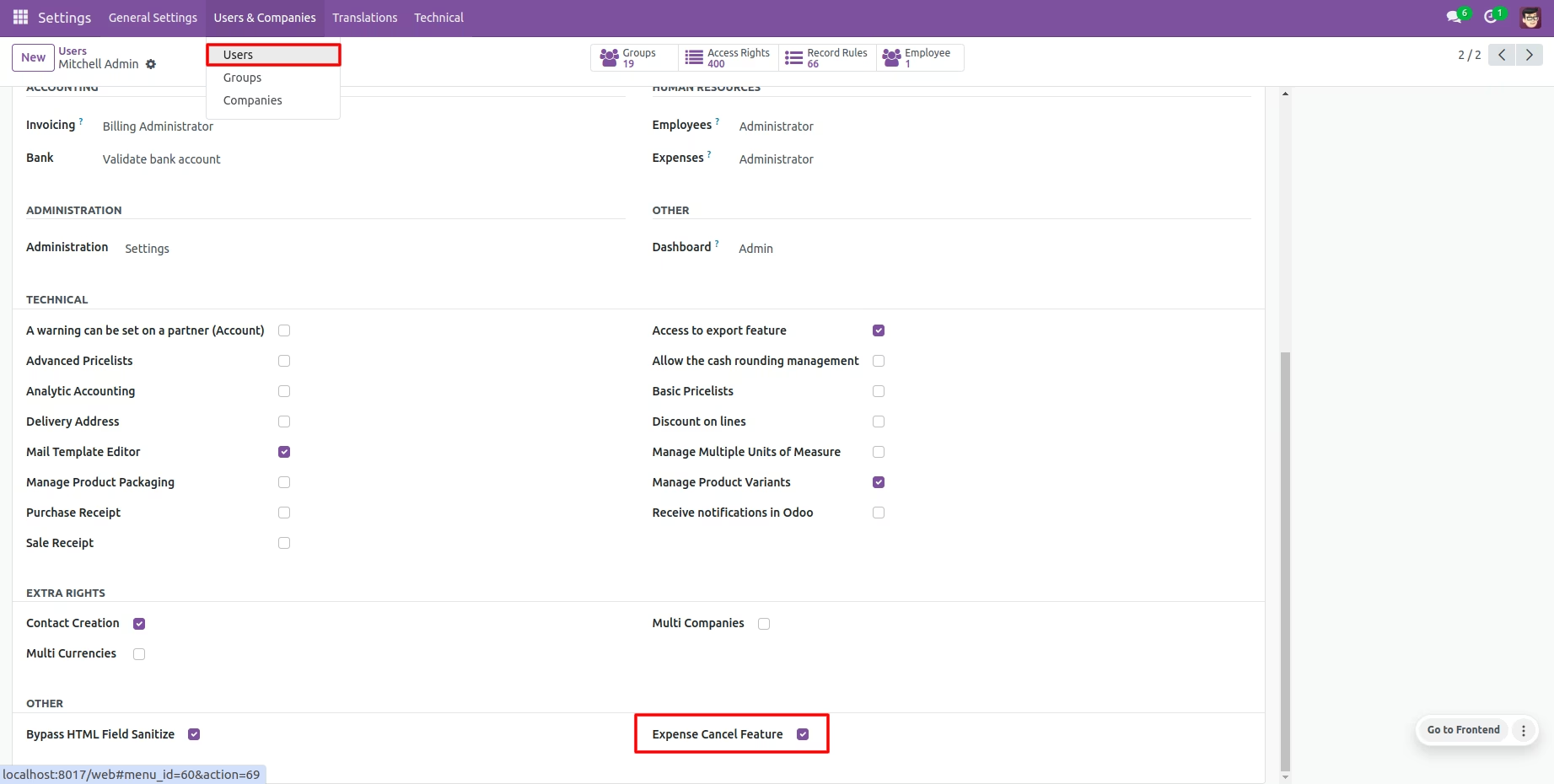
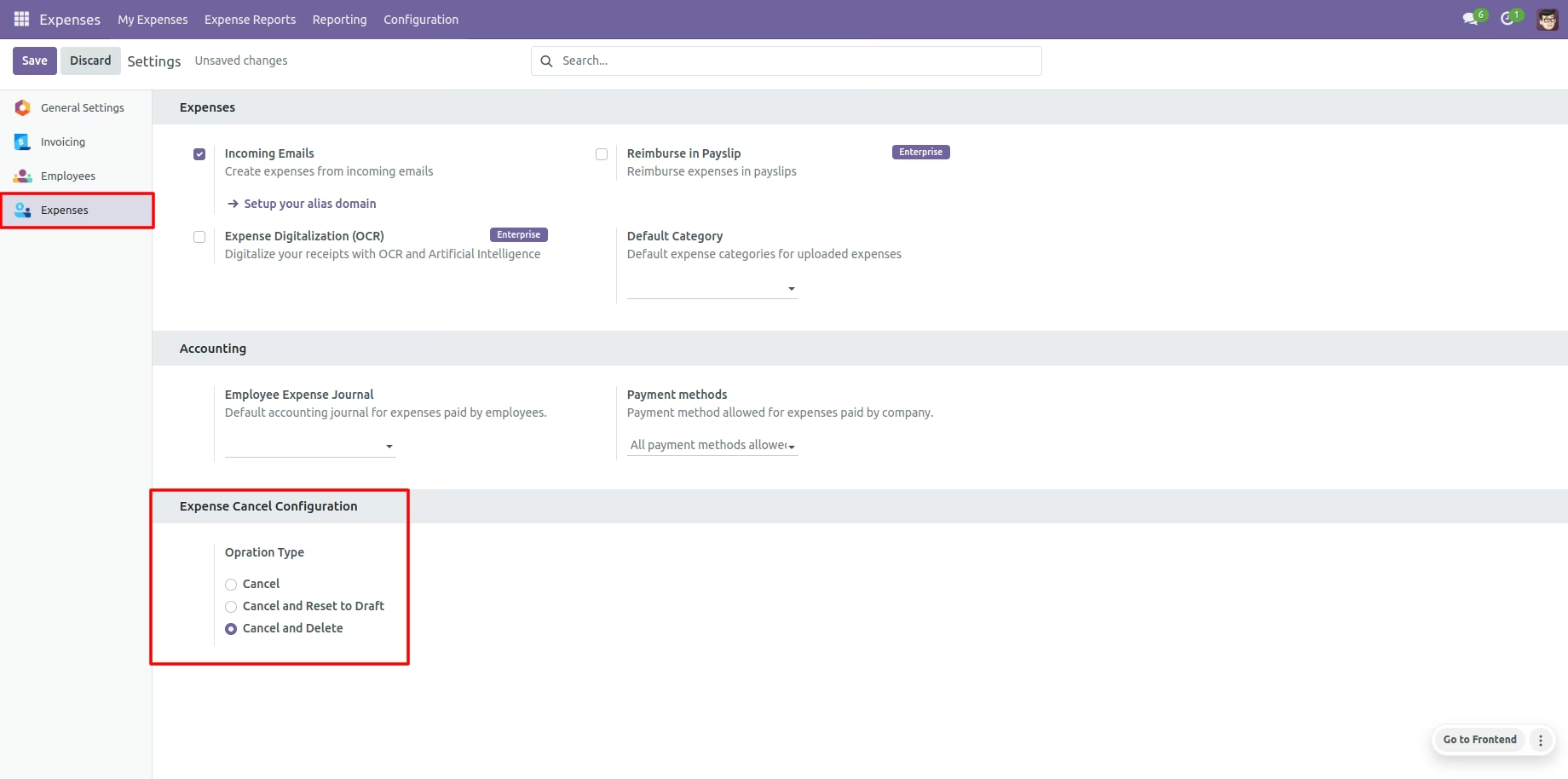
Tick the "Expense Cancel Feature" to cancel expenses.
Option-1
When you want to cancel the expenses only then choose the "Cancel Only" option.
We cancel paid expense.
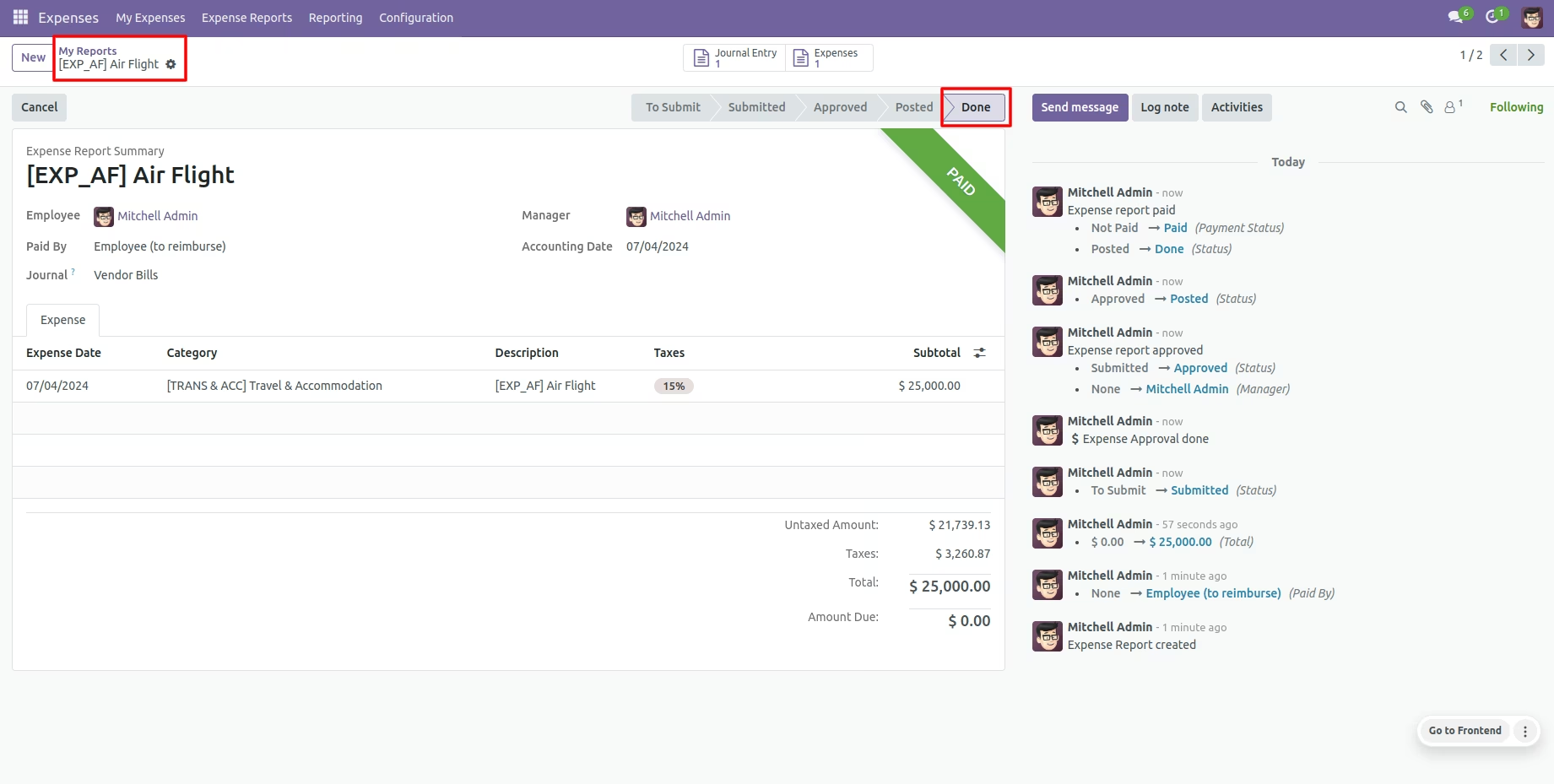
Now press the "Cancel" button.
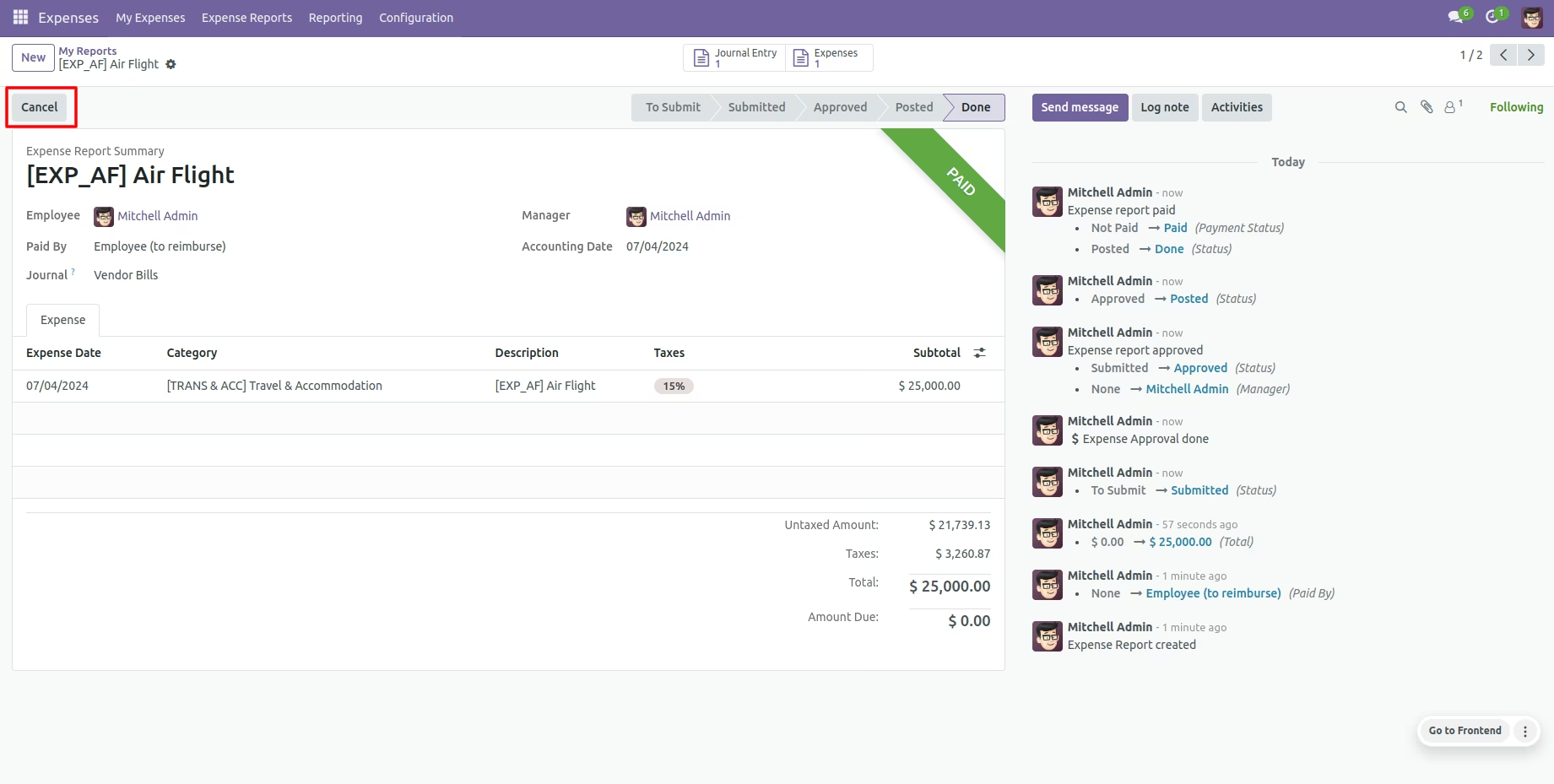
When you cancel the expense then the expense is cancelled and the state is changed to "refused".
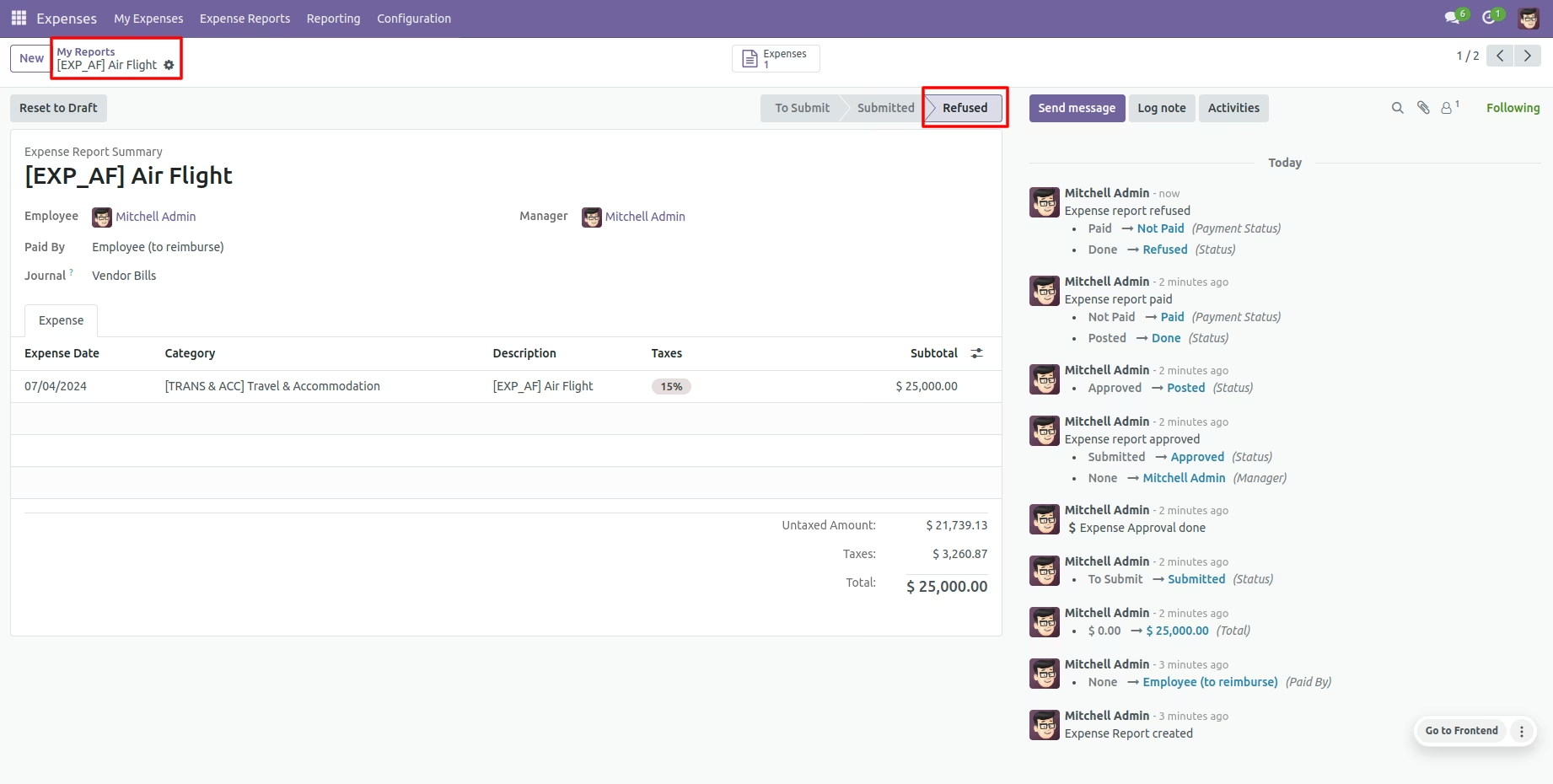
Option-2
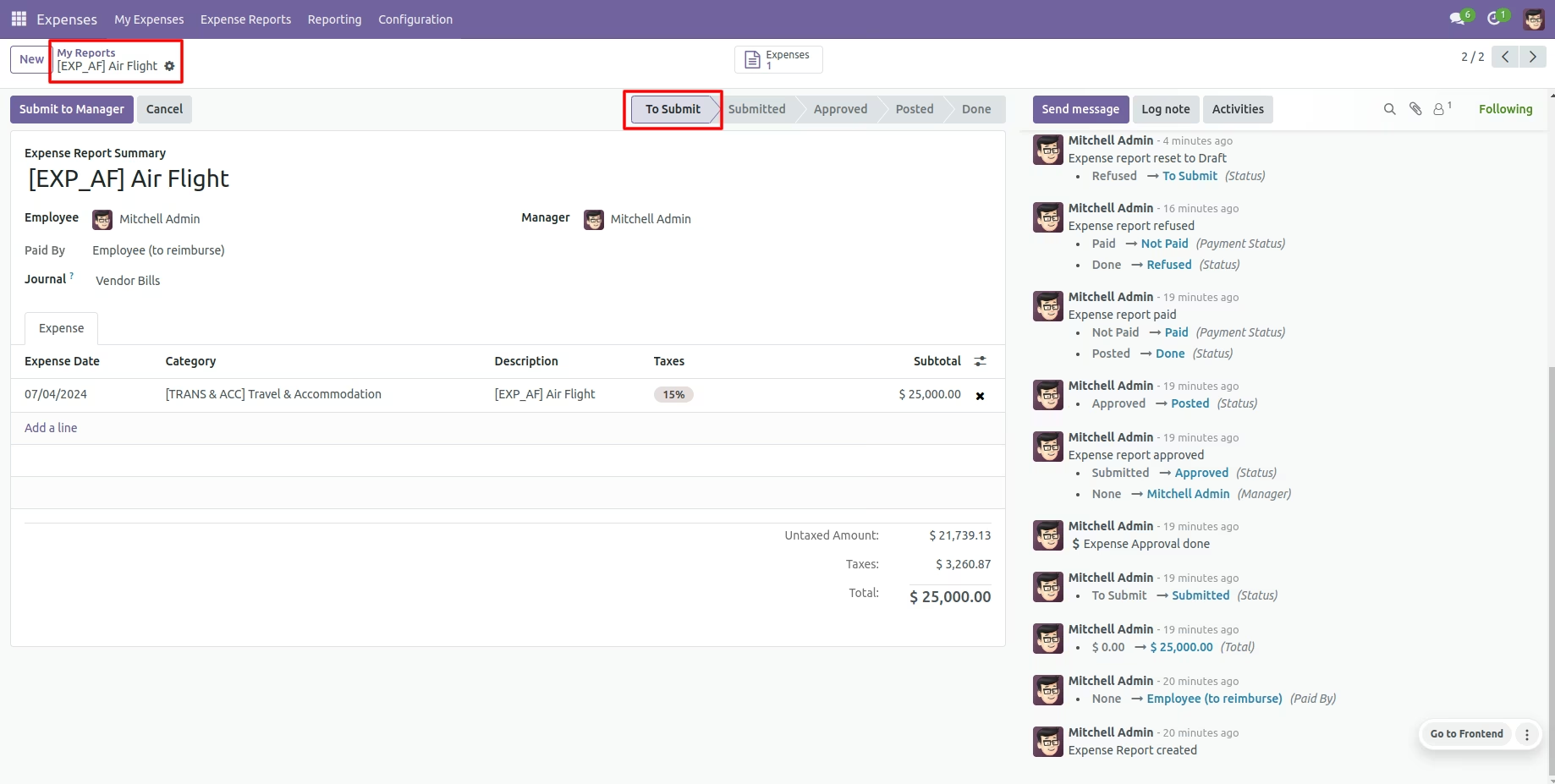
When you want to cancel the expenses and reset to the draft state tick "Cancel and Reset to Draft".
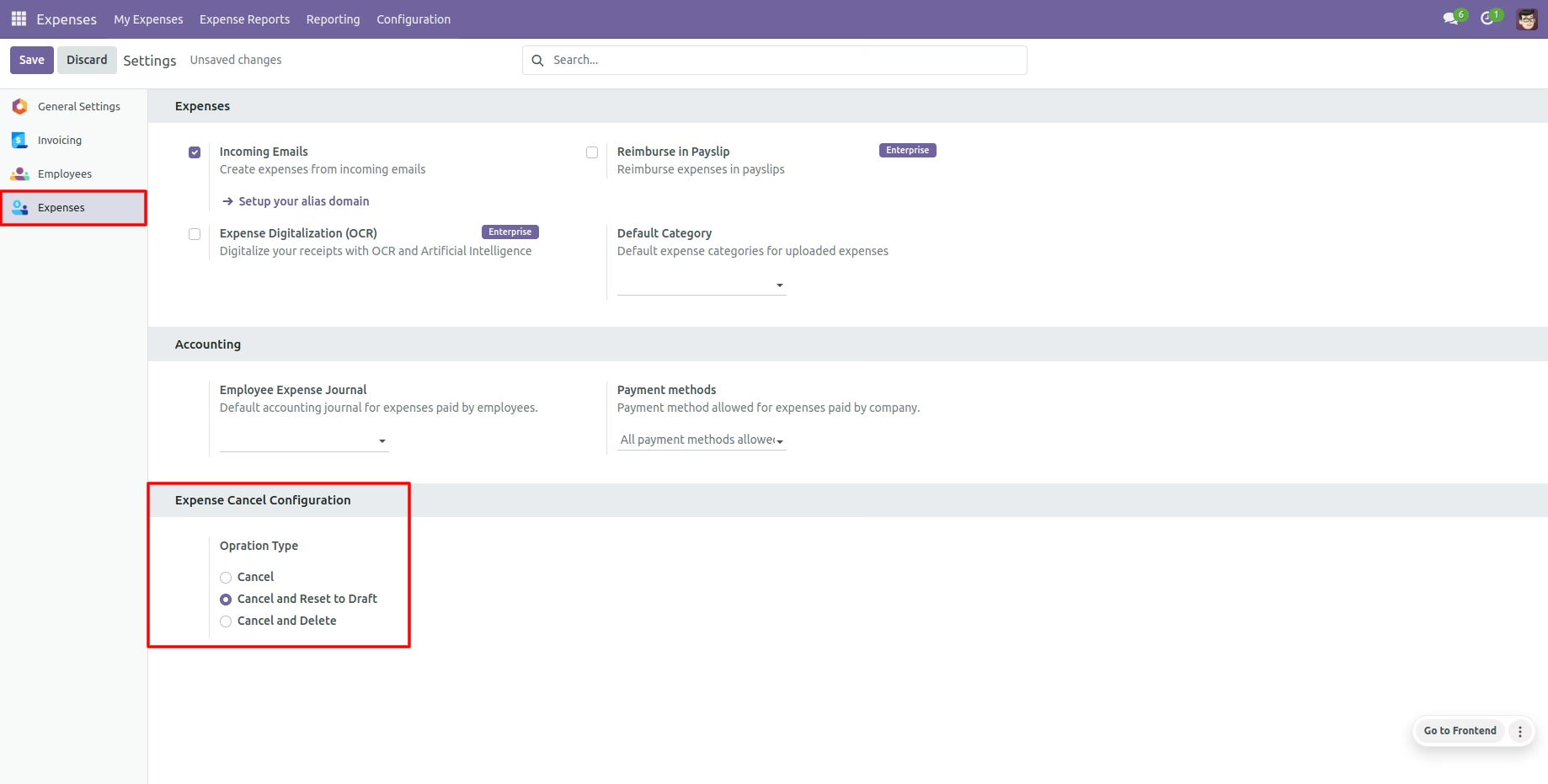
We cancel paid expense.
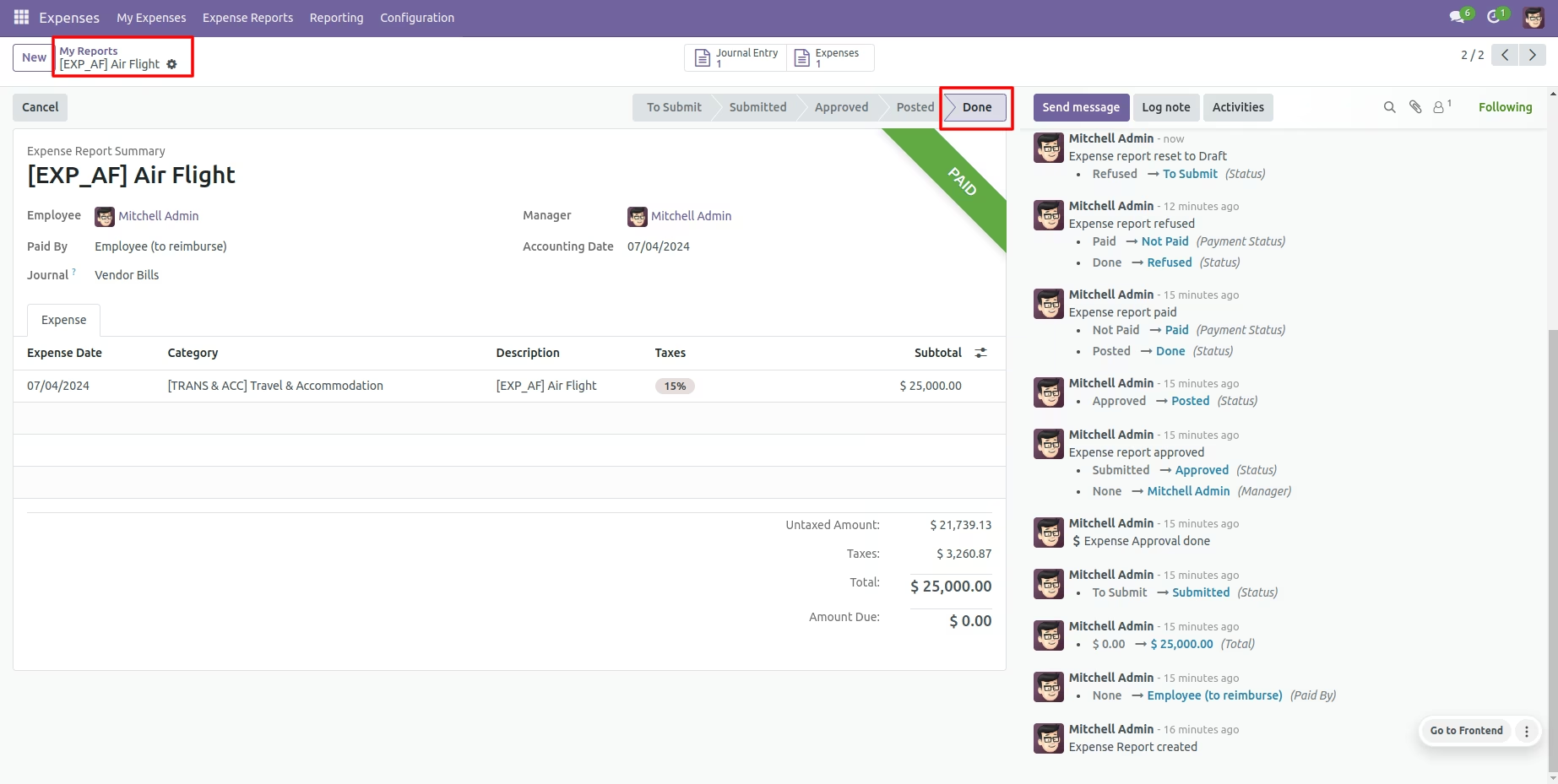
Now press the "Cancel" button.
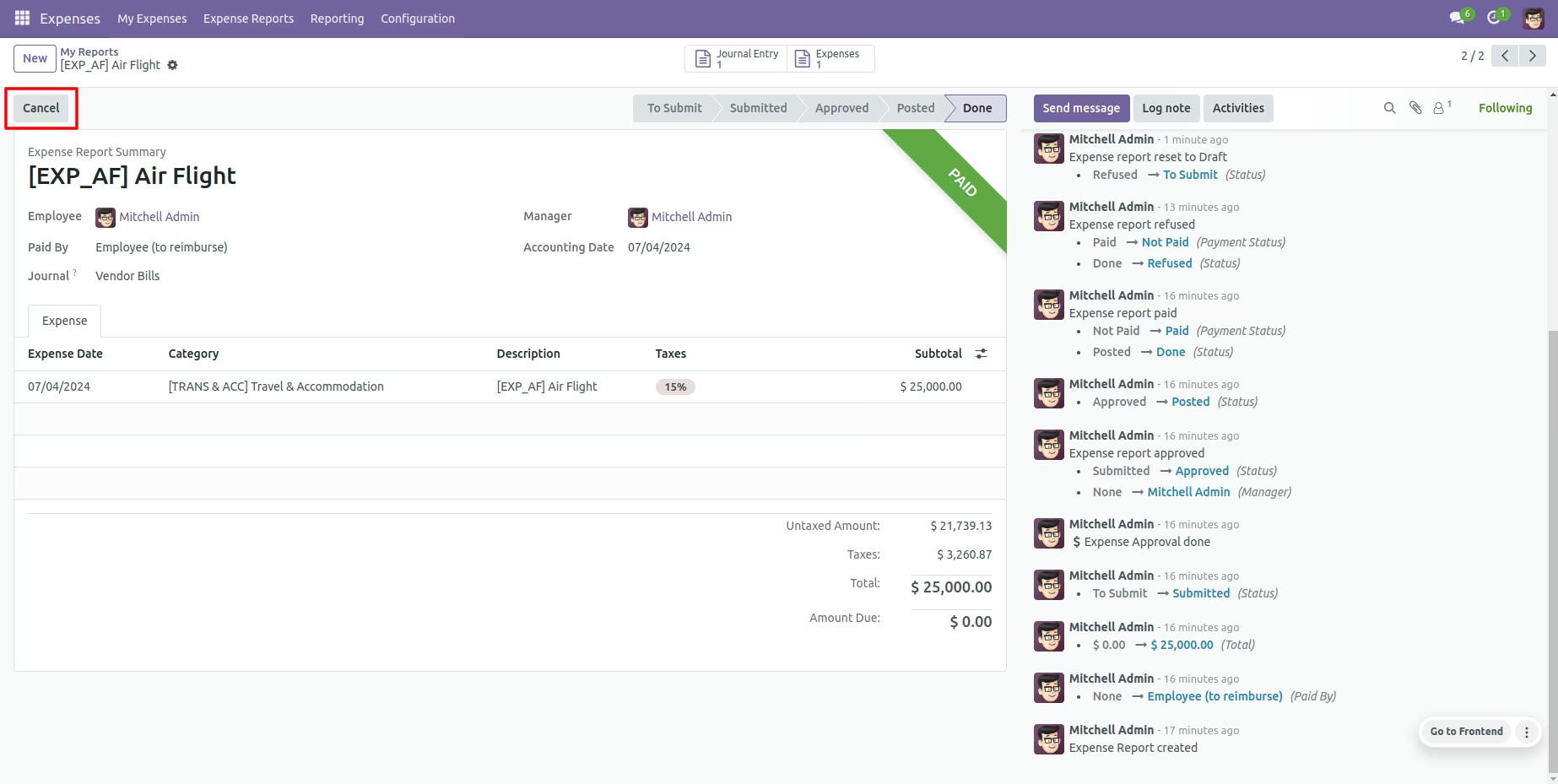
When you cancel the expense then the expense is cancelled and the expense is reset to the 'To Submited'.
Option-3
When you want to cancel & delete the expenses then choose the "Cancel and Delete" option.
We cancel paid expense.
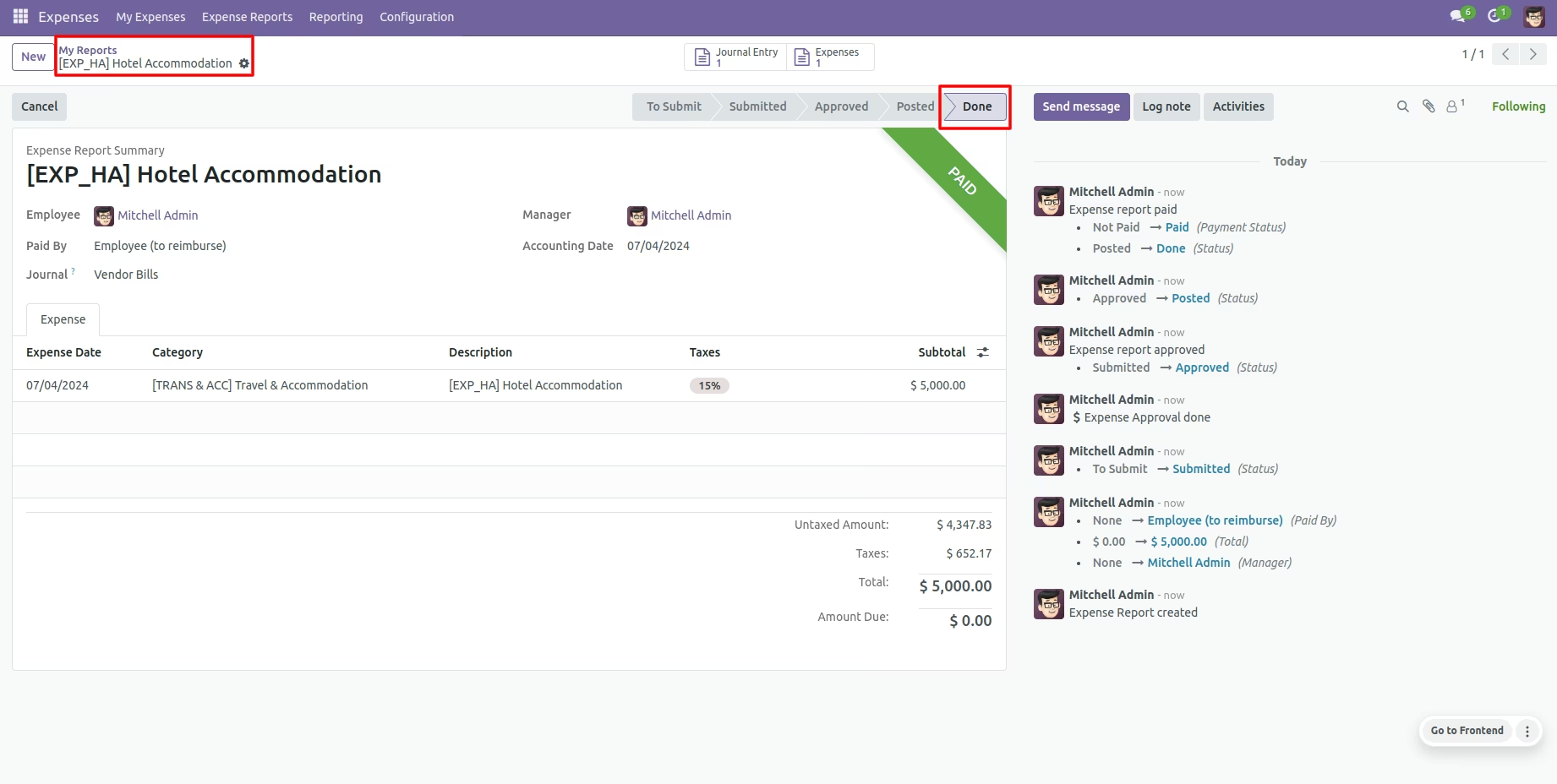
Now press the "Cancel" button.
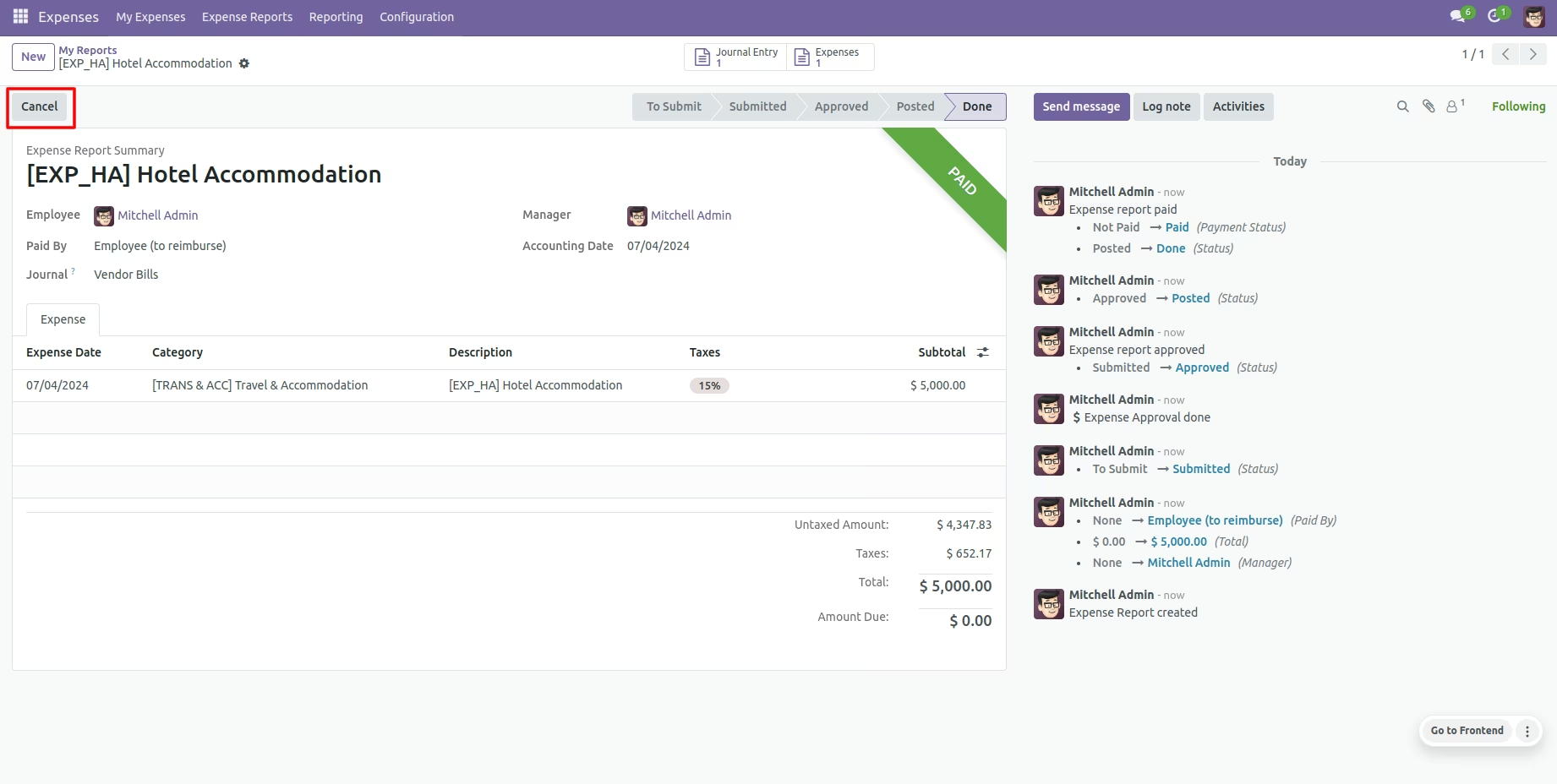
After the "Cancel" the expense will be deleted.
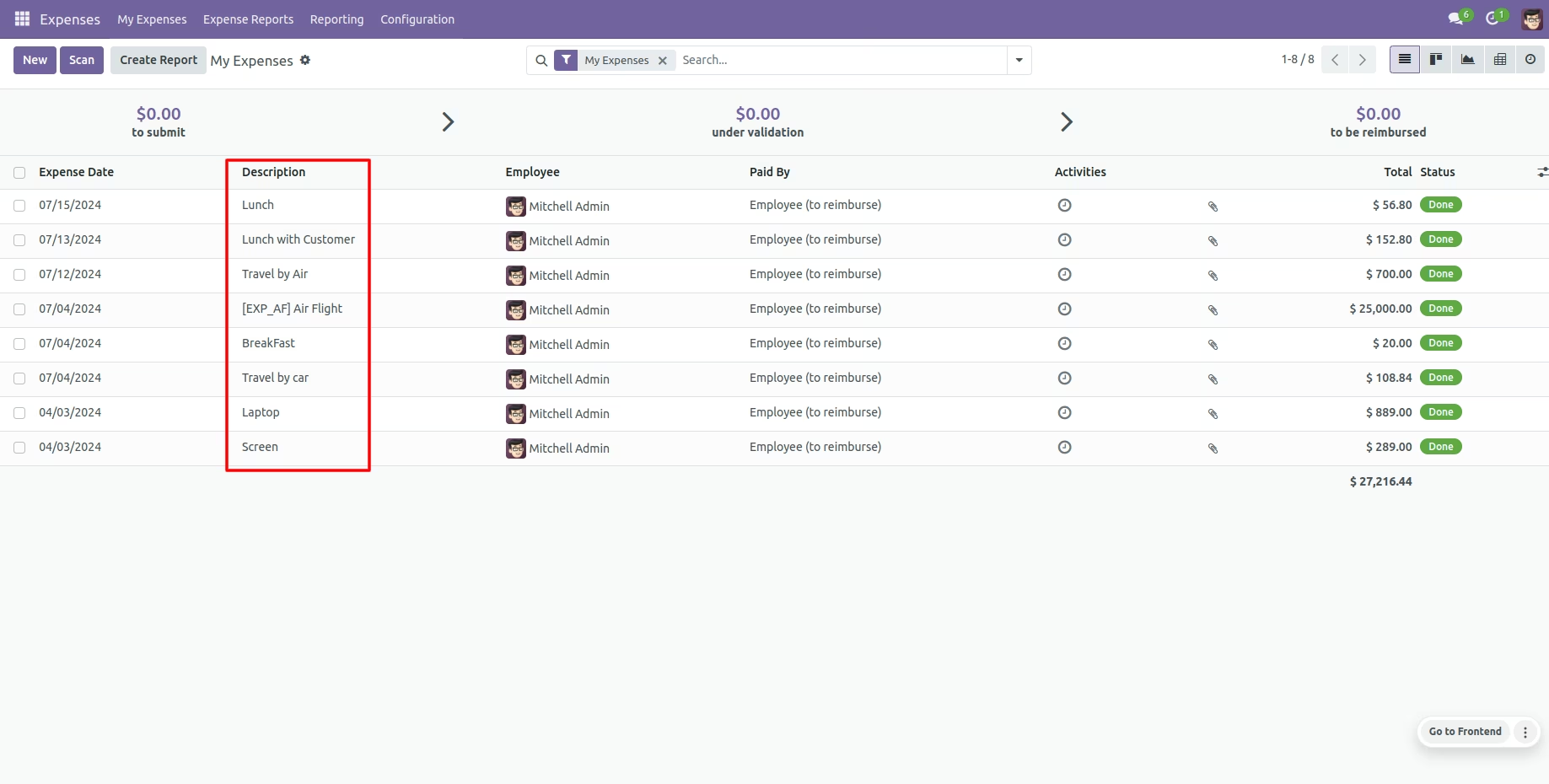
Option-4
Now we cancel multiple expenses from the tree view.
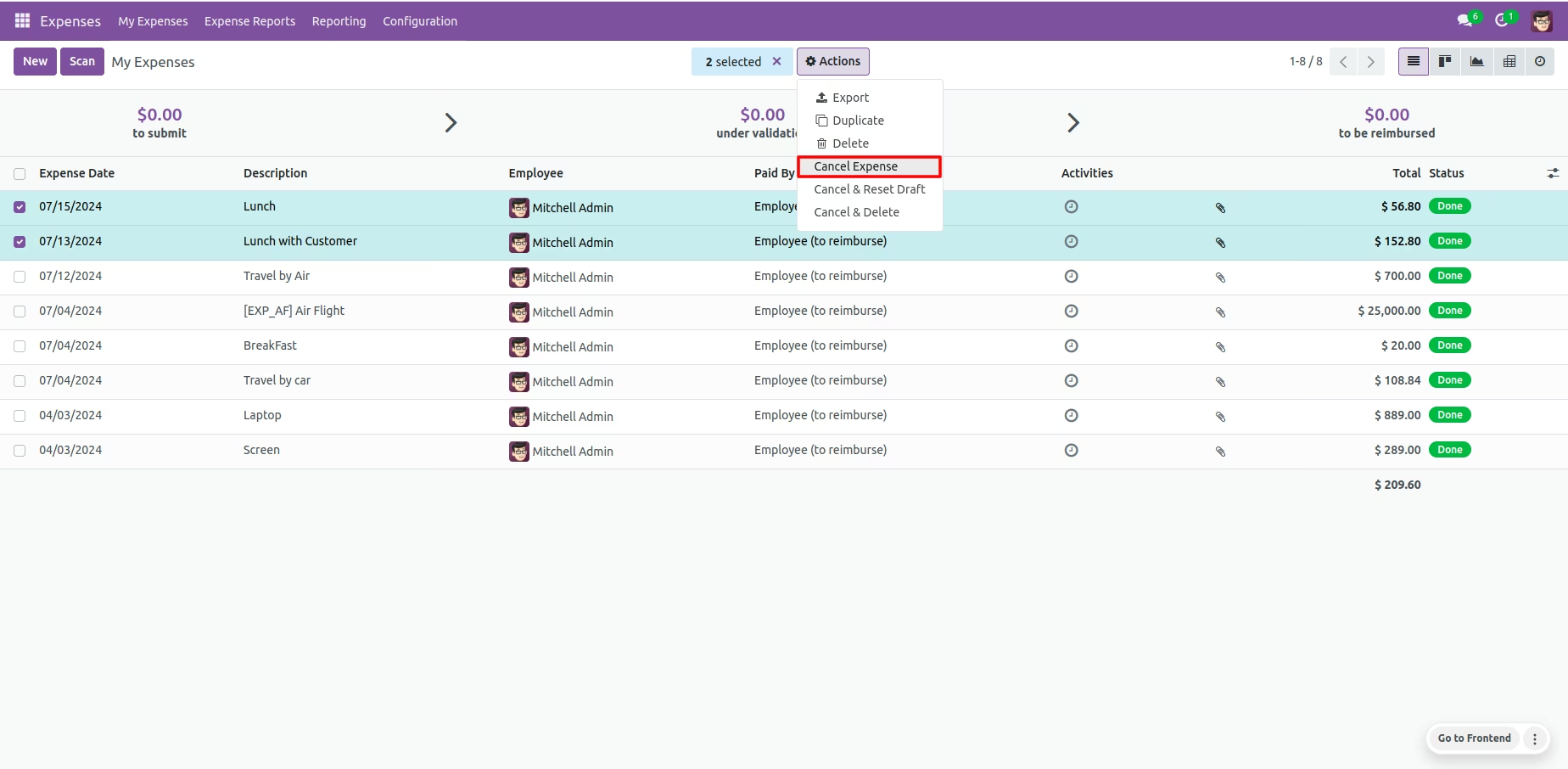
All selected expenses are cancelled.
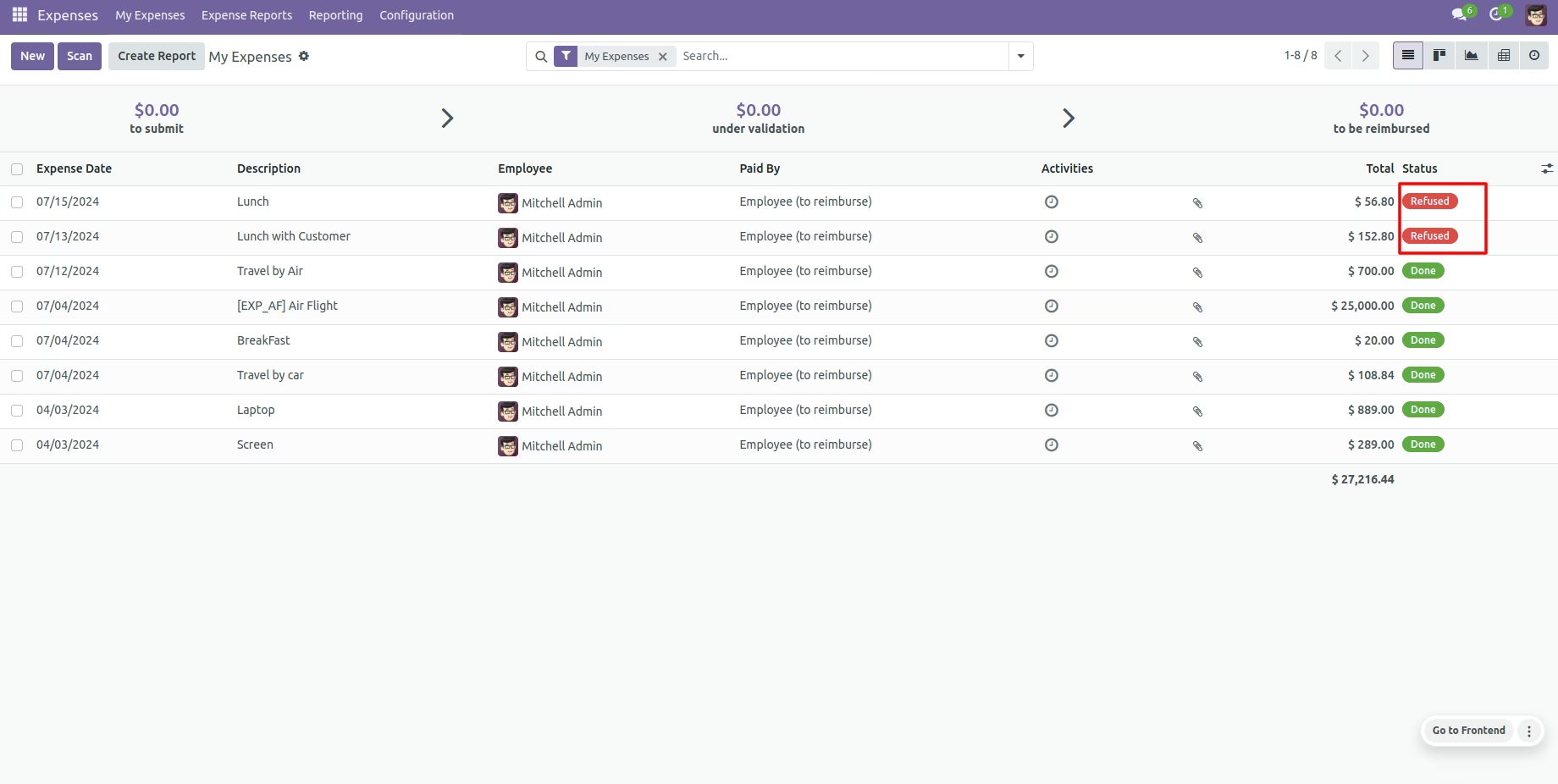
Now we "cancel & reset draft" multiple expenses from the tree view.
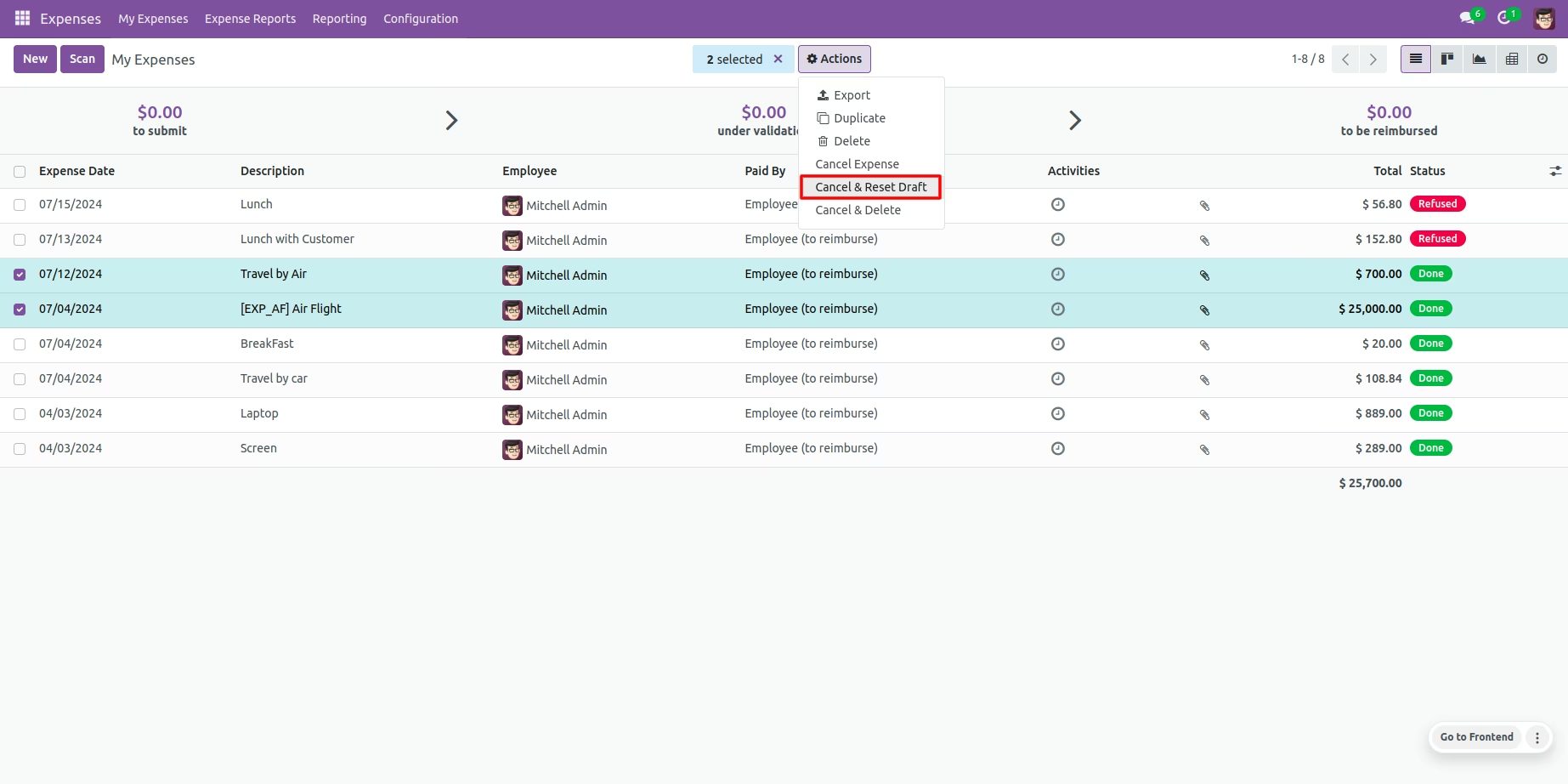
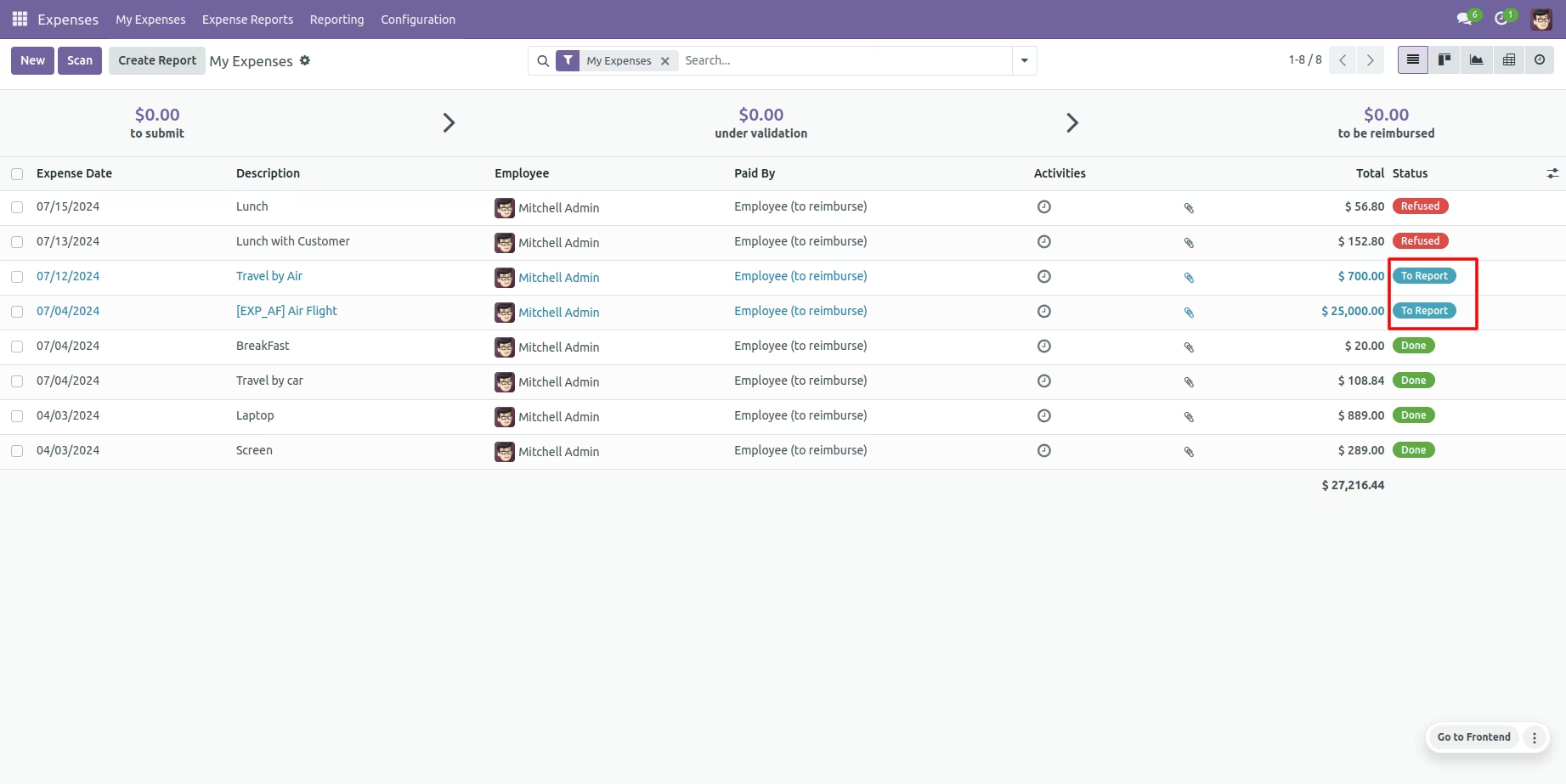
All selected expenses are cancelled and reset to the draft.
Now we "cancel & delete" multiple expenses from the tree view.
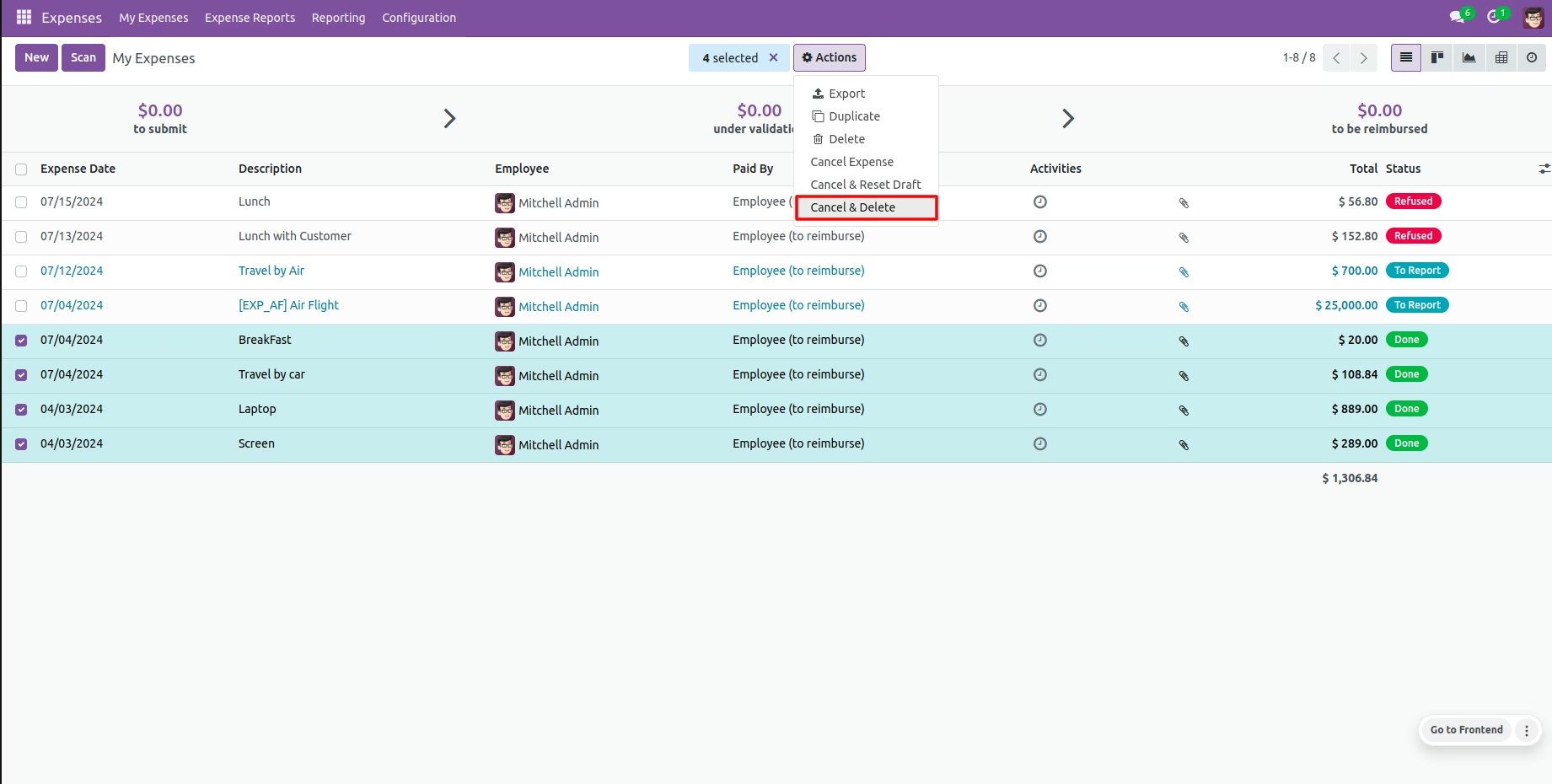
All expenses will be deleted after cancelled.