The module enhances financial workflow by allowing the cancellation of supplier/vendor invoices and their associated payments options include a simple cancellation or resetting the entries to draft status for further editing. This flexibility helps teams manage corrections efficiently and maintain financial data accuracy.
Provides Cancel Only action: marks both invoice and payment as “Cancelled.”
Offers Cancel and Reset to Draft action: cancels the invoice/payment and resets them to draft for editing or revalidation.
Embeds cancellation actions seamlessly within the invoice and payment forms for easy access.
Supports streamlined workflows for resolving mistakes like incorrect amounts or entries.
Simplifies corrections in invoicing and payment entries without recreating documents.
Enhances financial data integrity by providing controlled reversal workflows.
Saves time by combining cancellation and reset in one step.
Supports audit processes by clearly marking reversed records.
Increases flexibility in handling supplier-related financial errors.
Minimizes manual reconciliation efforts post-cancellation.
Empowers users with non-technical abilities to manage accounting corrections safely.
Aligns with UI, maintaining workflow consistency.
Reduces administrative overhead in processing supplier corrections.
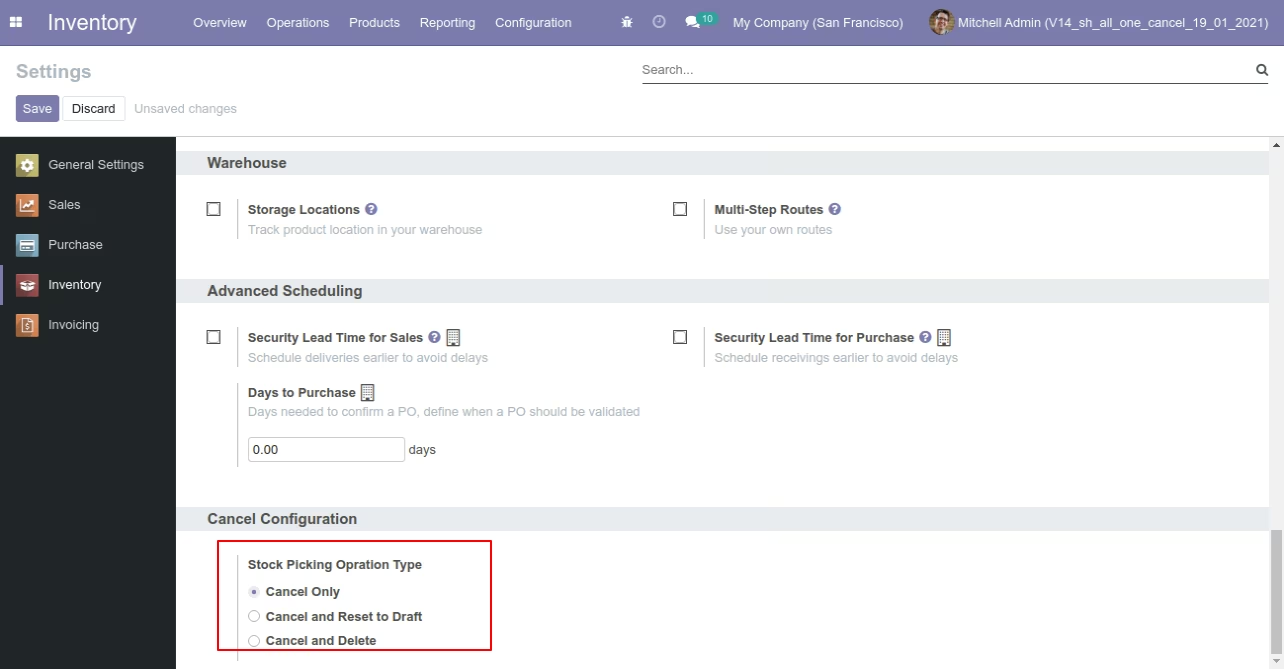
This module helps to cancel stock-picking, scrap orders & stock moves. You can also cancel multiple stock-picking, scrap orders & stock moves from the tree view. You can cancel the stock-picking & scrap orders in 3 ways,
1) Cancel Only: When you cancel the stock-picking & scrap orders then the stock-picking & scrap orders are cancelled and the state is changed to "cancelled".
2) Cancel and Reset to
Draft: When you cancel the stock-picking & scrap orders, first stock-picking & scrap orders are cancelled and then reset to the draft state.
3) Cancel and
Delete: When you cancel the stock-picking & scrap orders then first the stock-picking & scrap orders are cancelled and then the stock-picking & scrap orders will be deleted.
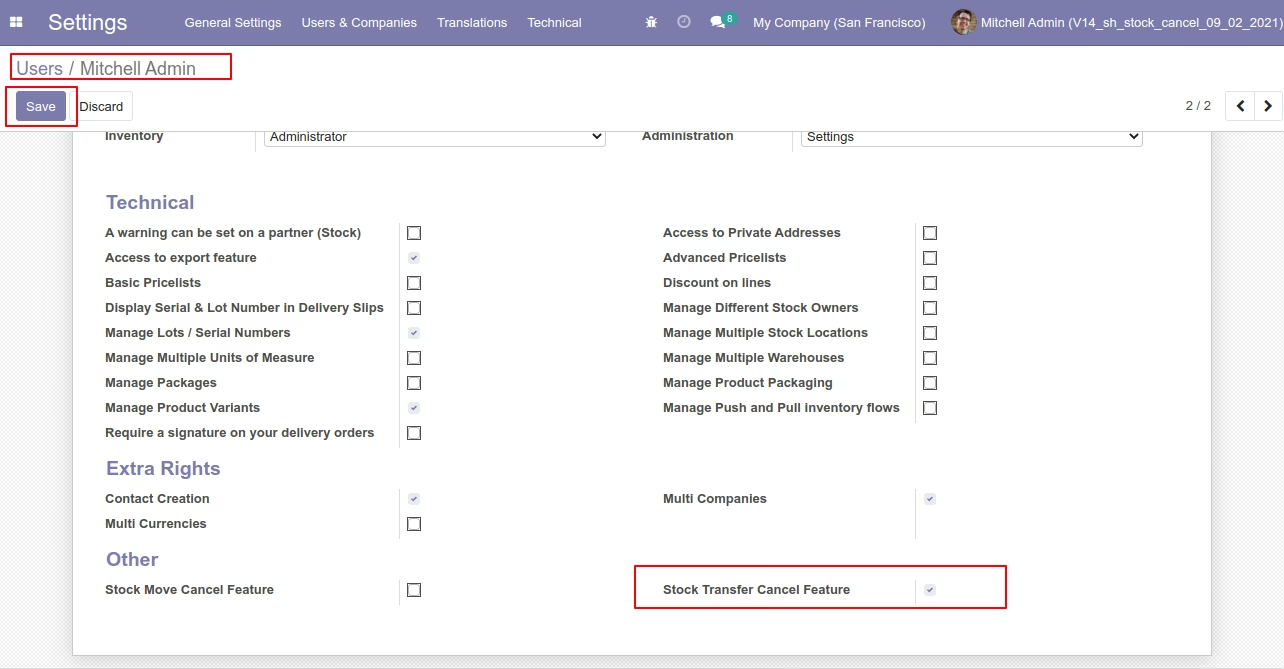
Tick the "Stock Transfer Cancel Feature" to cancel stock-picking.
Flow-1

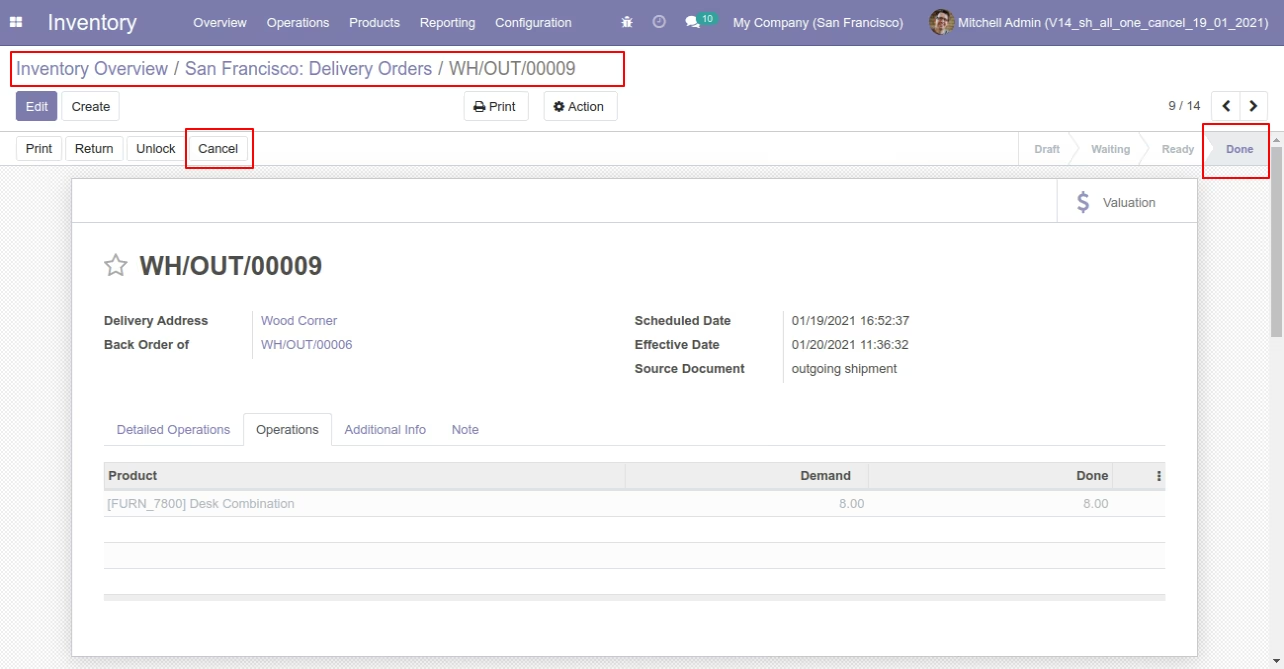
When you want to cancel the stock-picking only then choose the "Cancel Only" option.
Now we cancel picking.
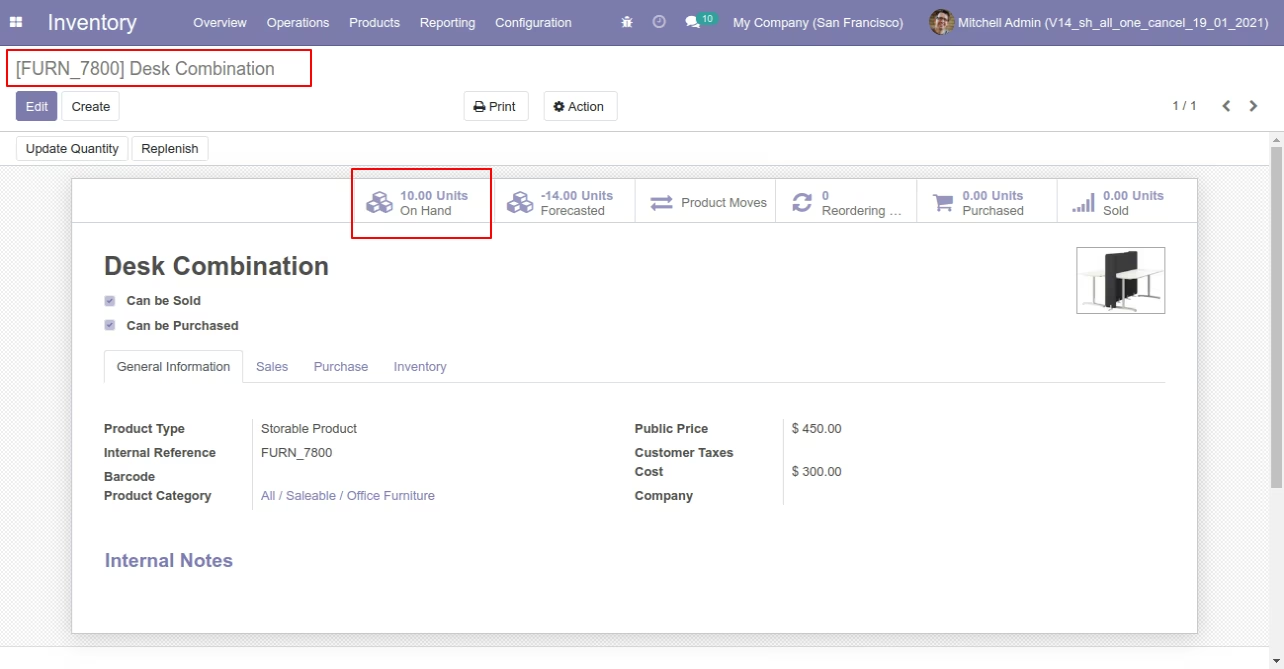
Our onhand qty is now 10.00 units.
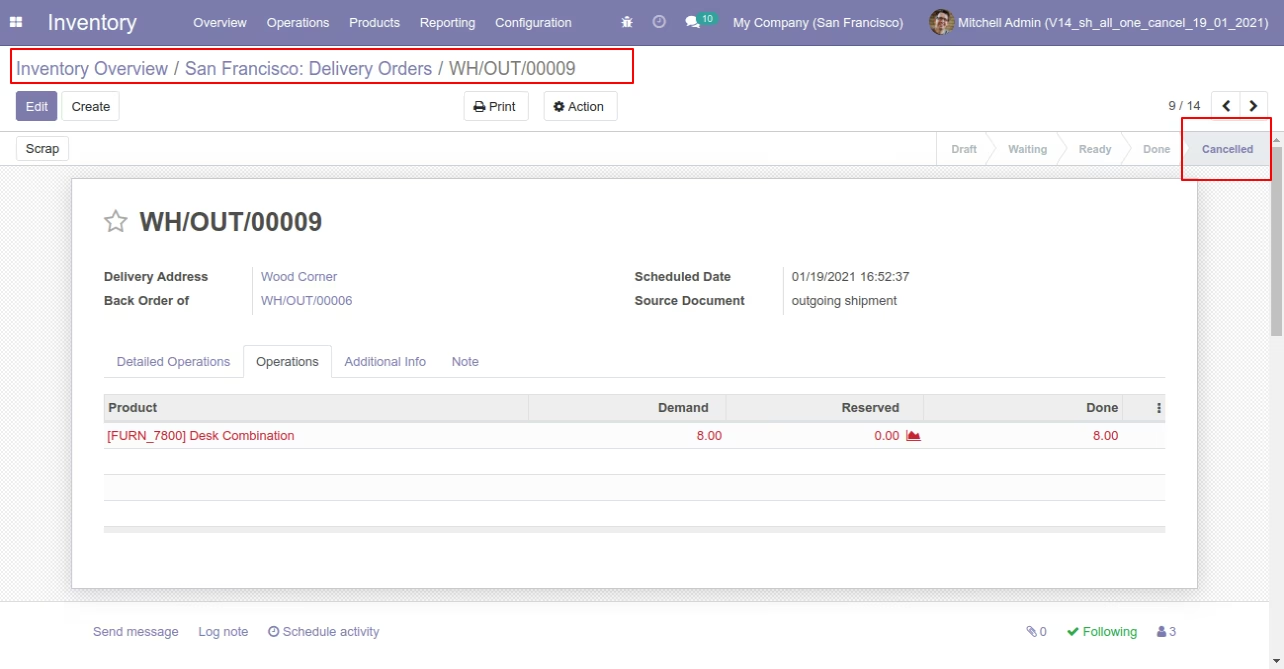
When you cancel the picking then the picking is cancelled and the state is changed to "cancelled".
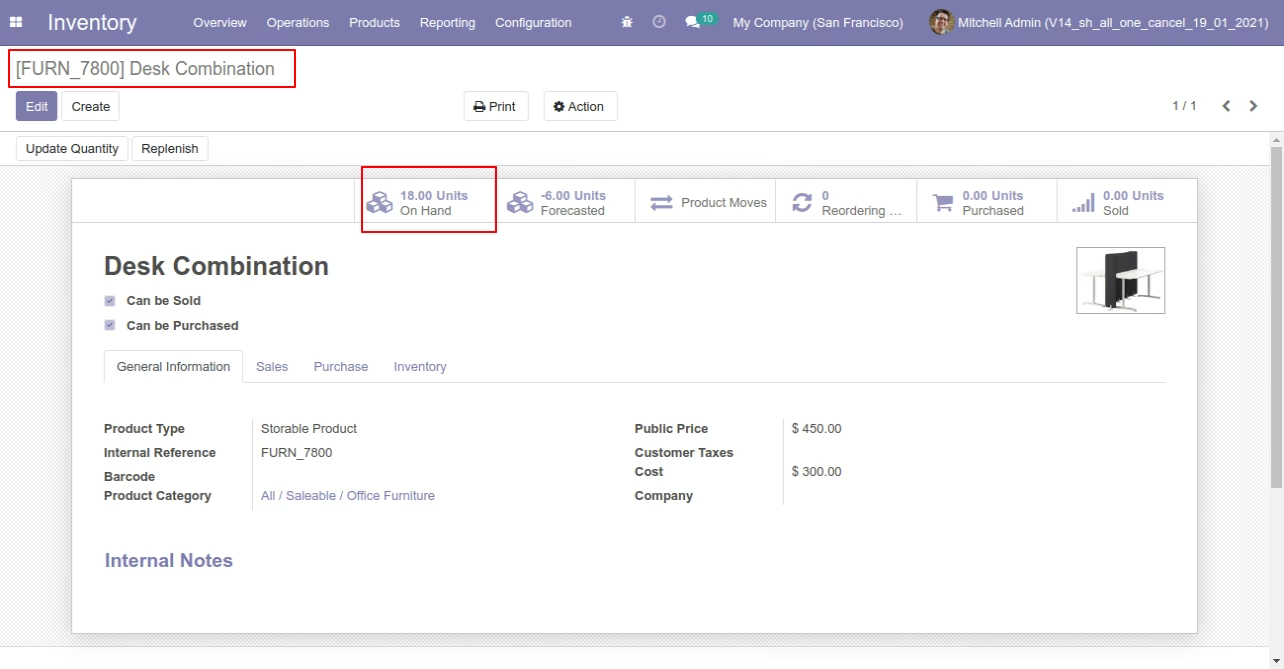
After cancelled picking our onhand qty is updated.
Flow-2
When you want to cancel the stock-picking and reset to the draft state tick "Cancel and Reset to Draft".
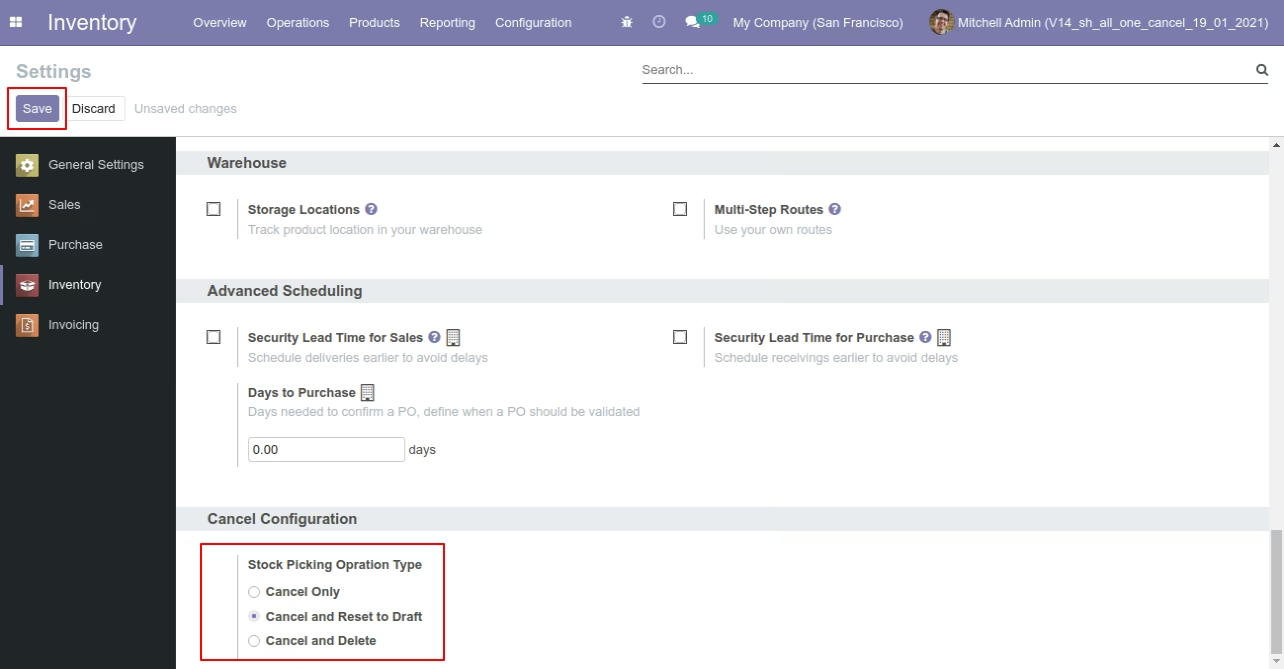
Our stock-picking in the done state.
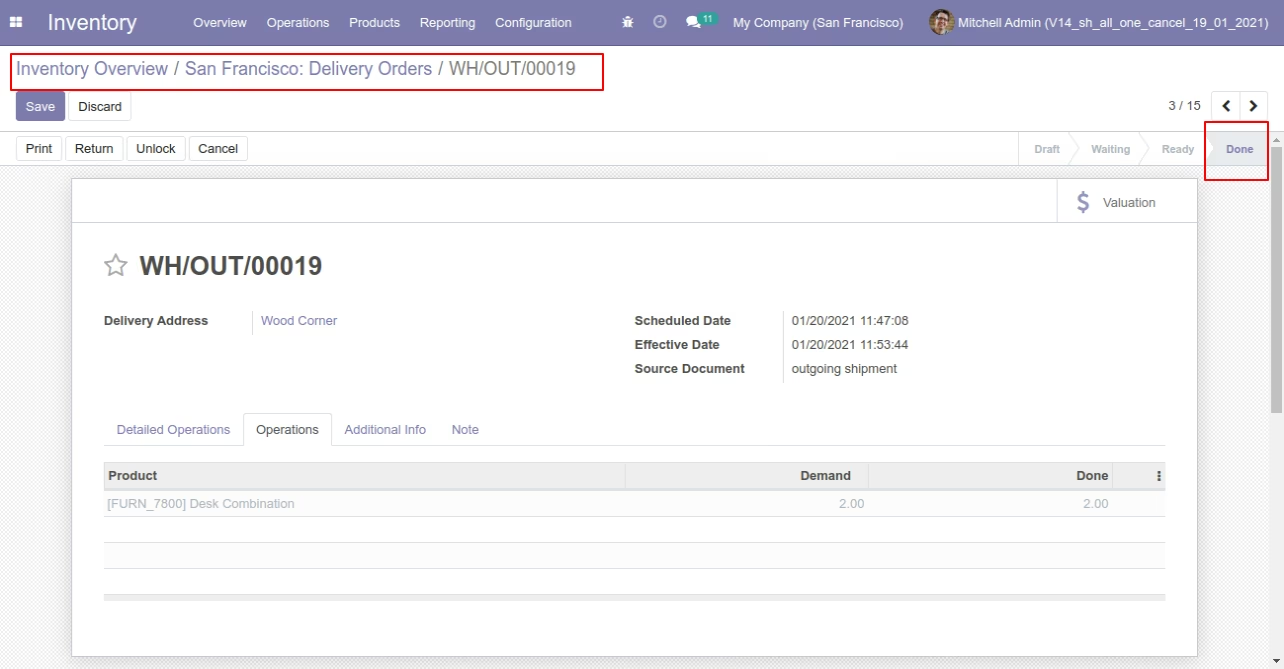
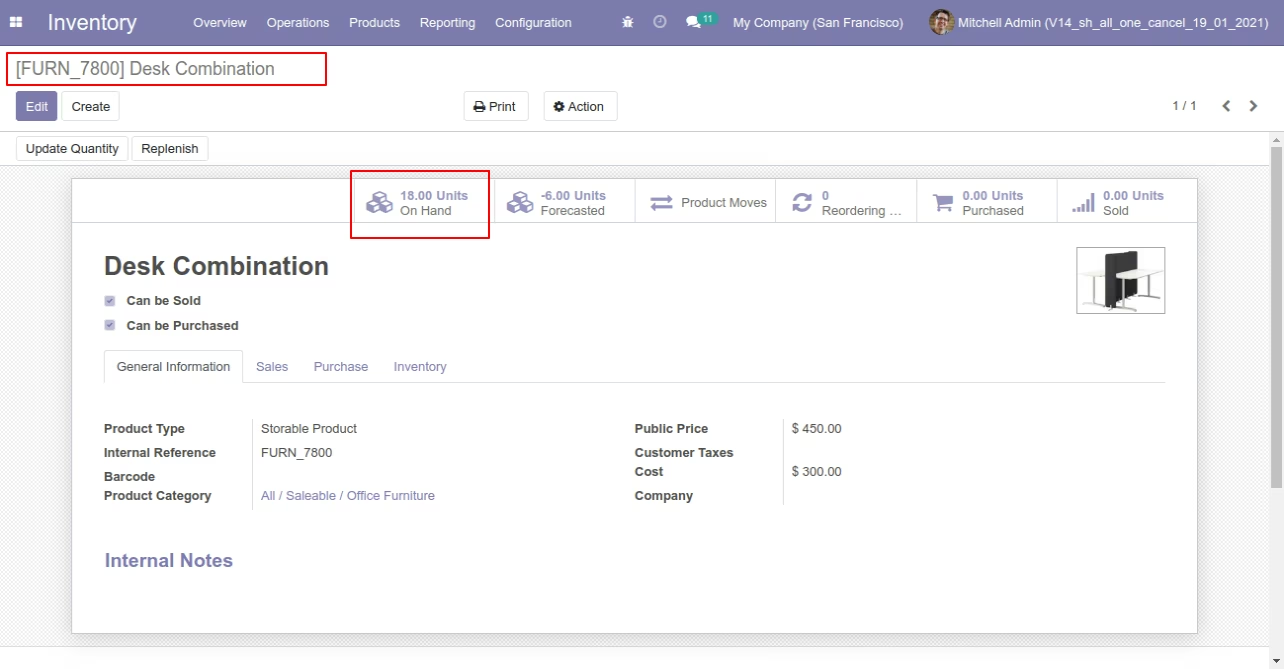
Our onhand qty is now 16.00 units.
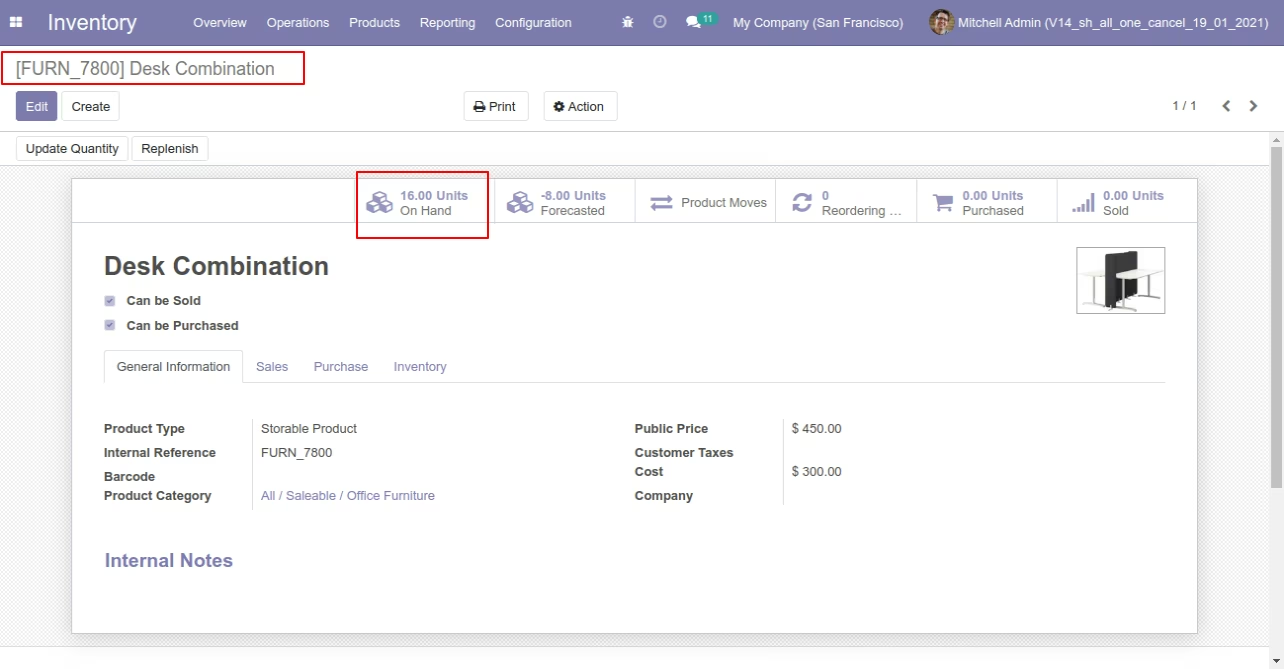
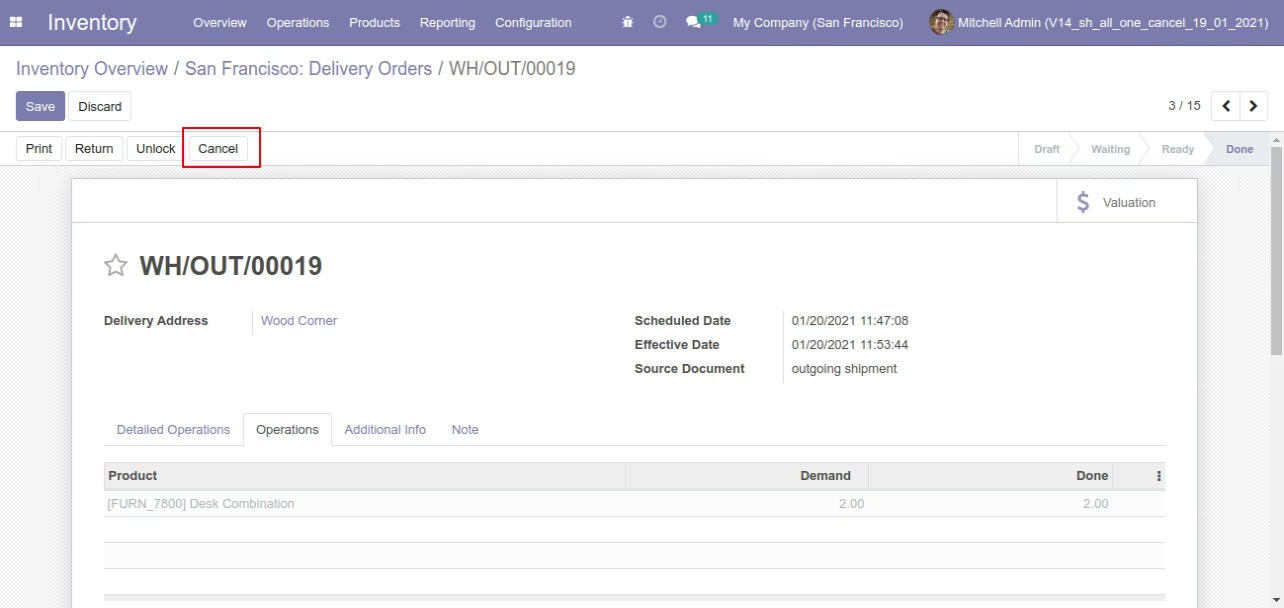
When you cancel the picking then the picking is cancelled and reset to the draft.
So our state is changed to the draft state.
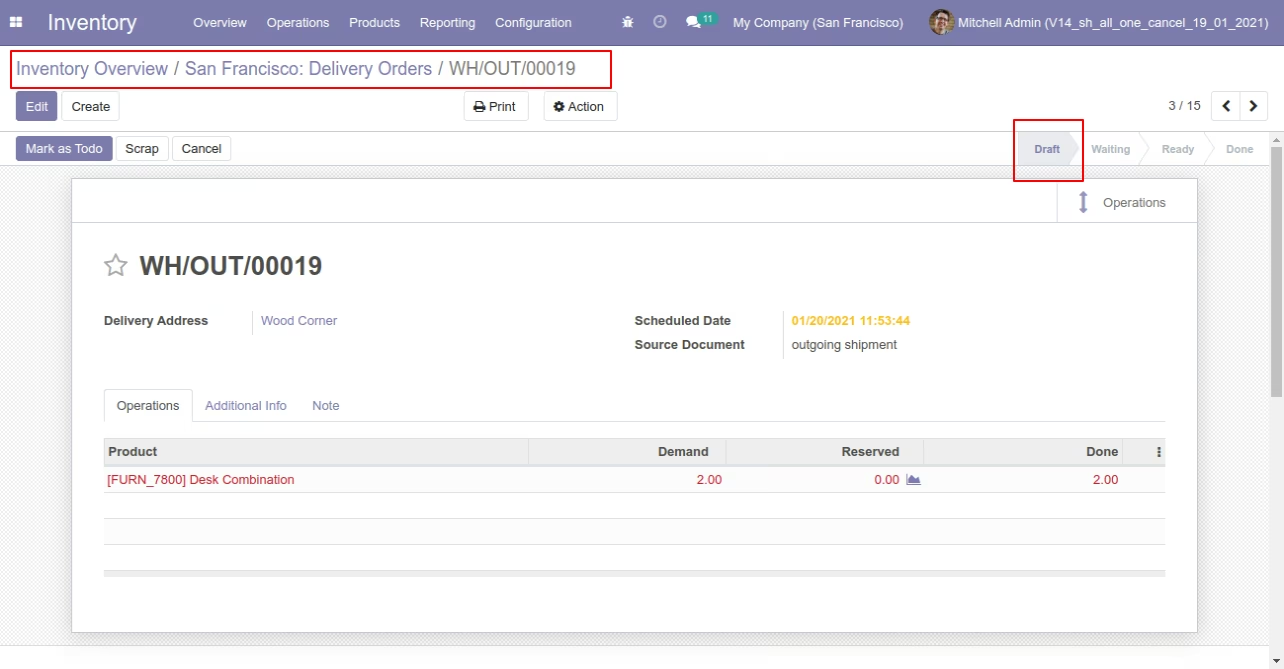
After cancelled picking our onhand qty is updated.
Flow-3
When you want to cancel & delete the stock-picking then choose the "Cancel and Delete" option.
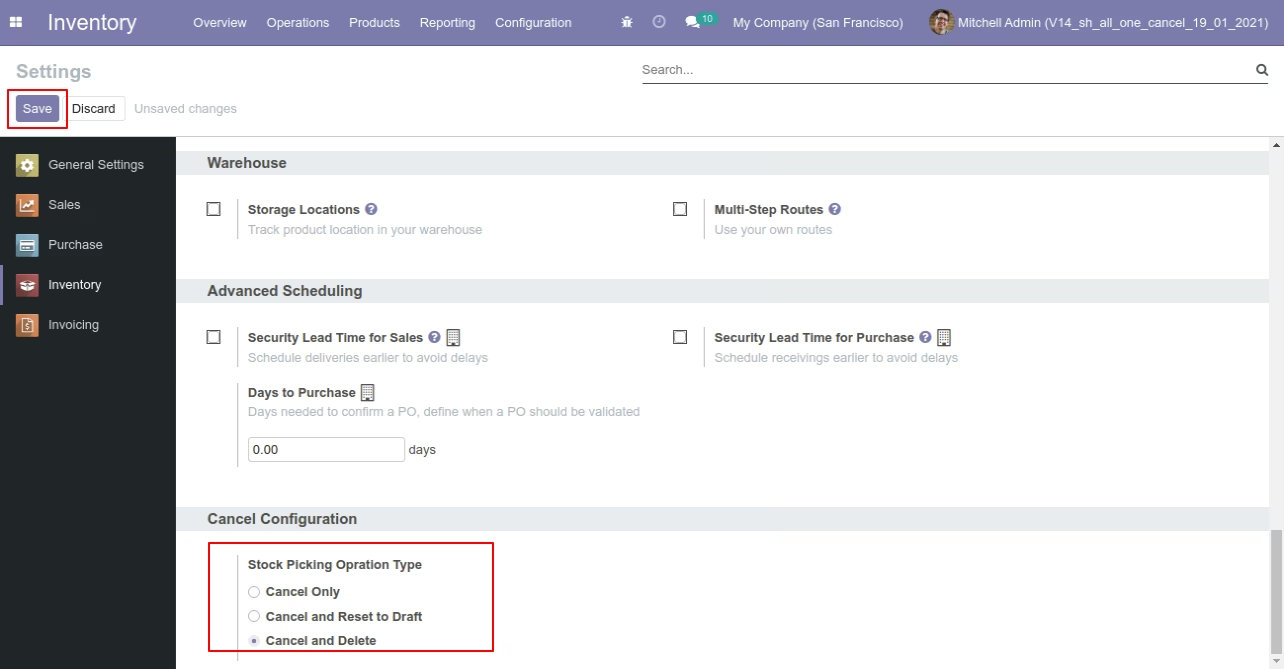
We cancel stock-picking.
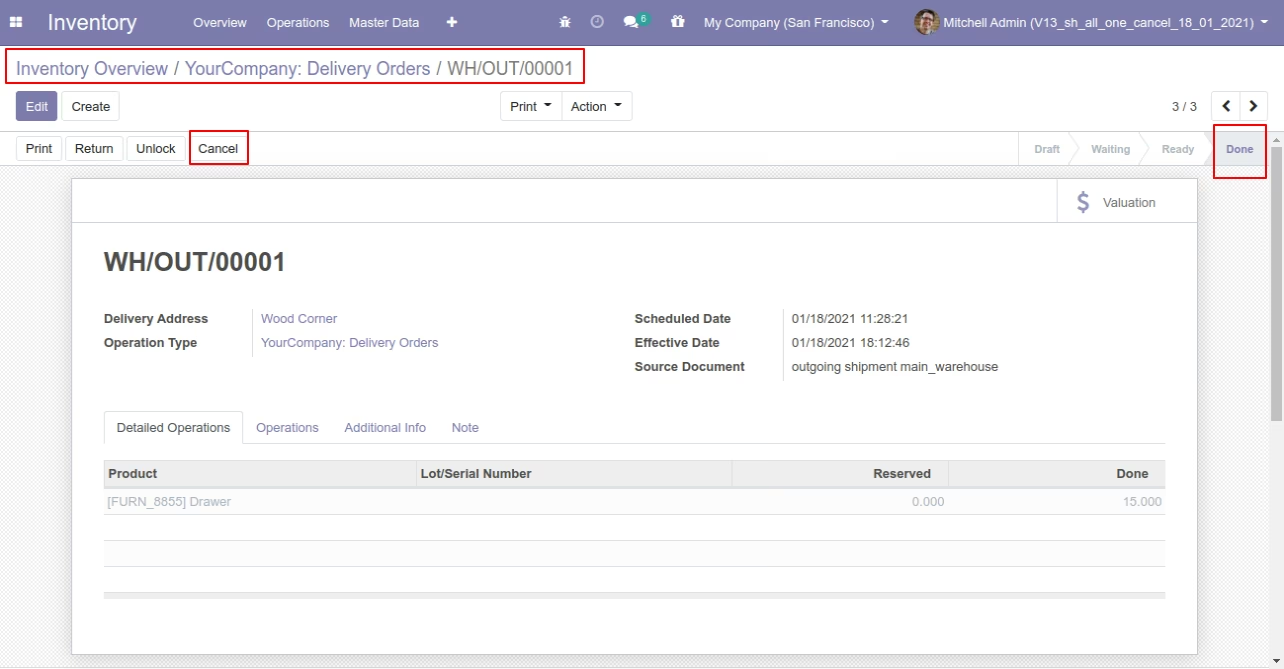
After the "Cancel" the stock-picking will be deleted.
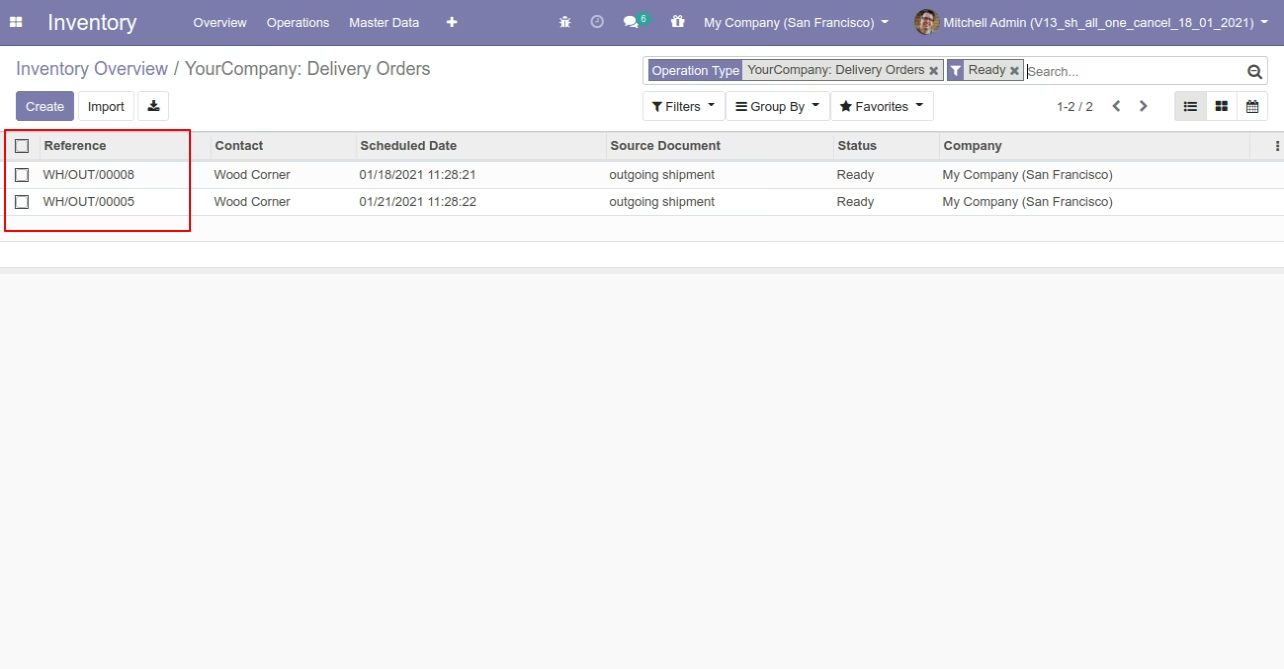
Flow-4
Now we cancel multiple pickings from the tree view.
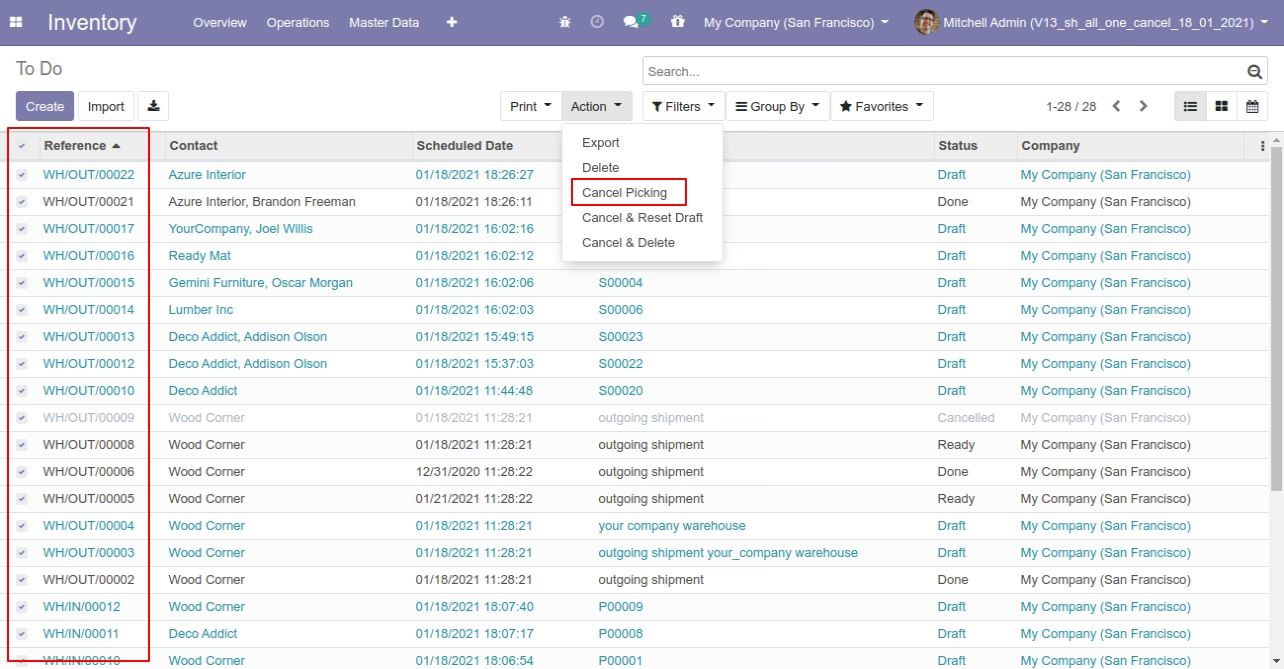
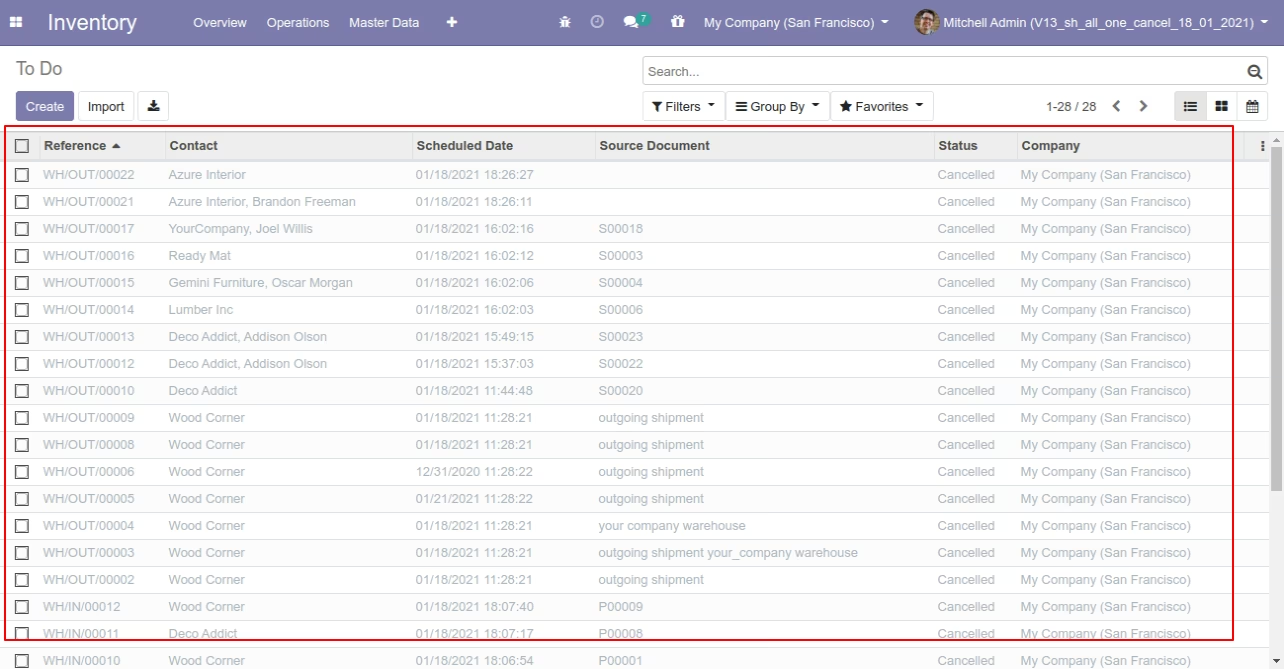
All selected pickings are cancelled.
Now we "cancel & reset draft" multiple pickings from the tree view.
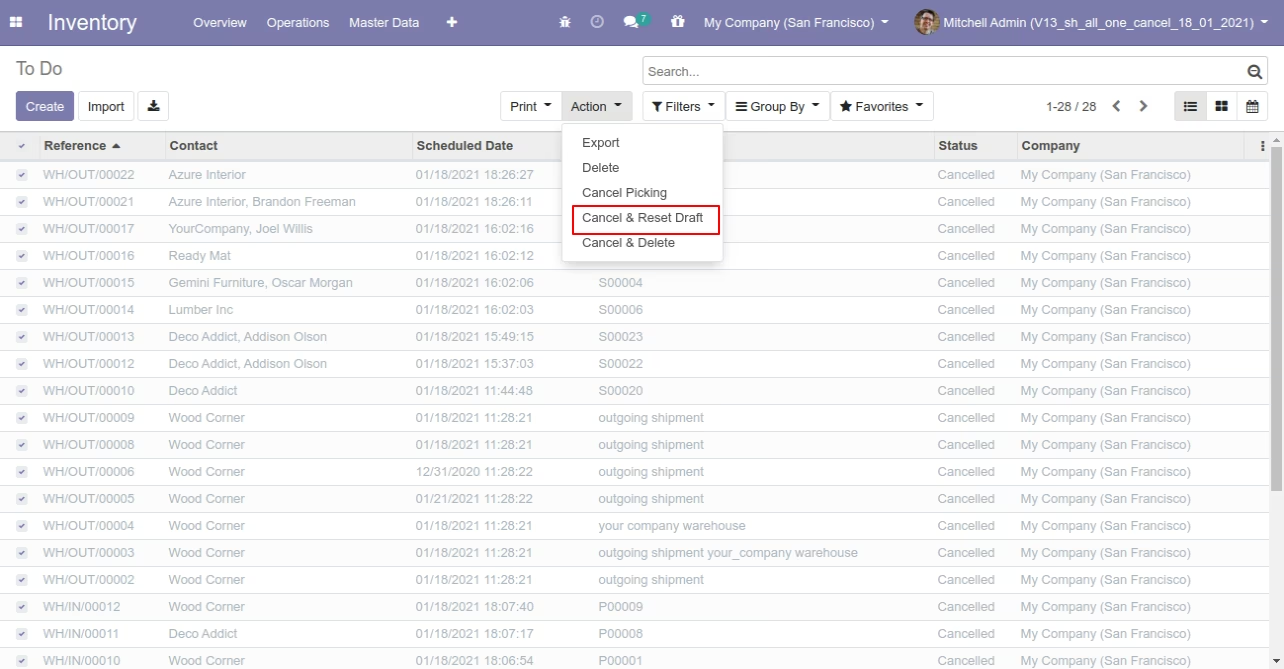
All selected pickings are cancelled and reset to the draft.
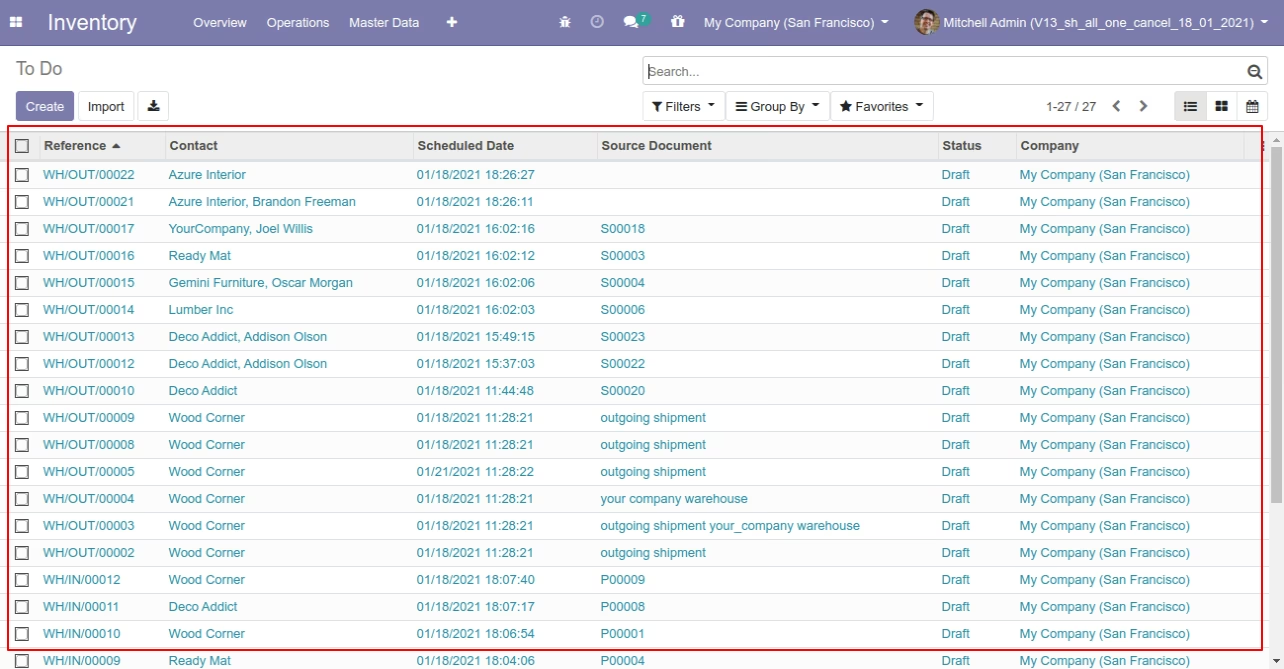
Now we "cancel & delete" multiple pickings from the tree view.
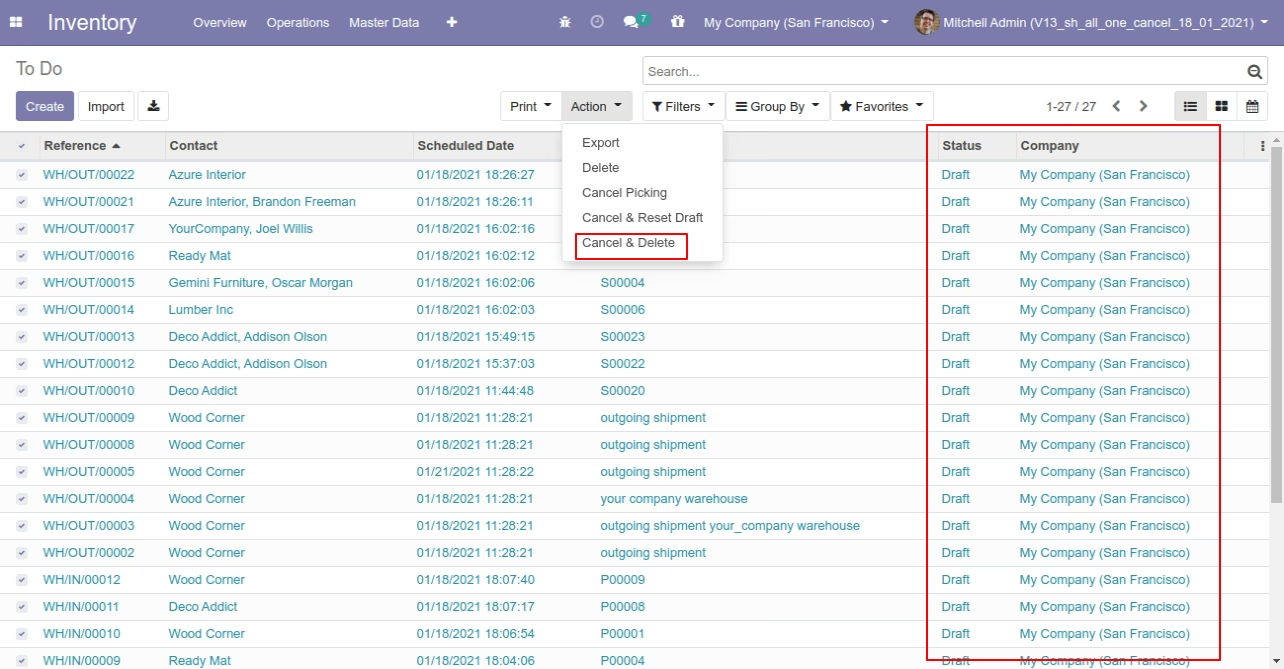
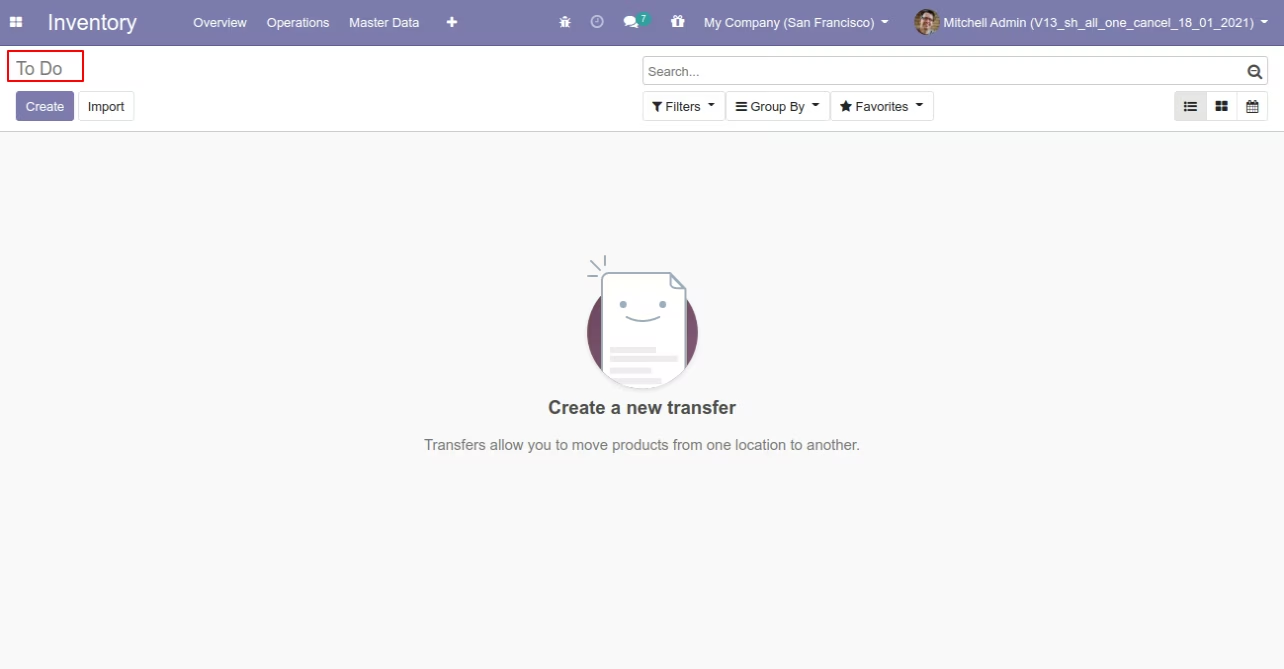
All pickings will be deleted after cancelled.
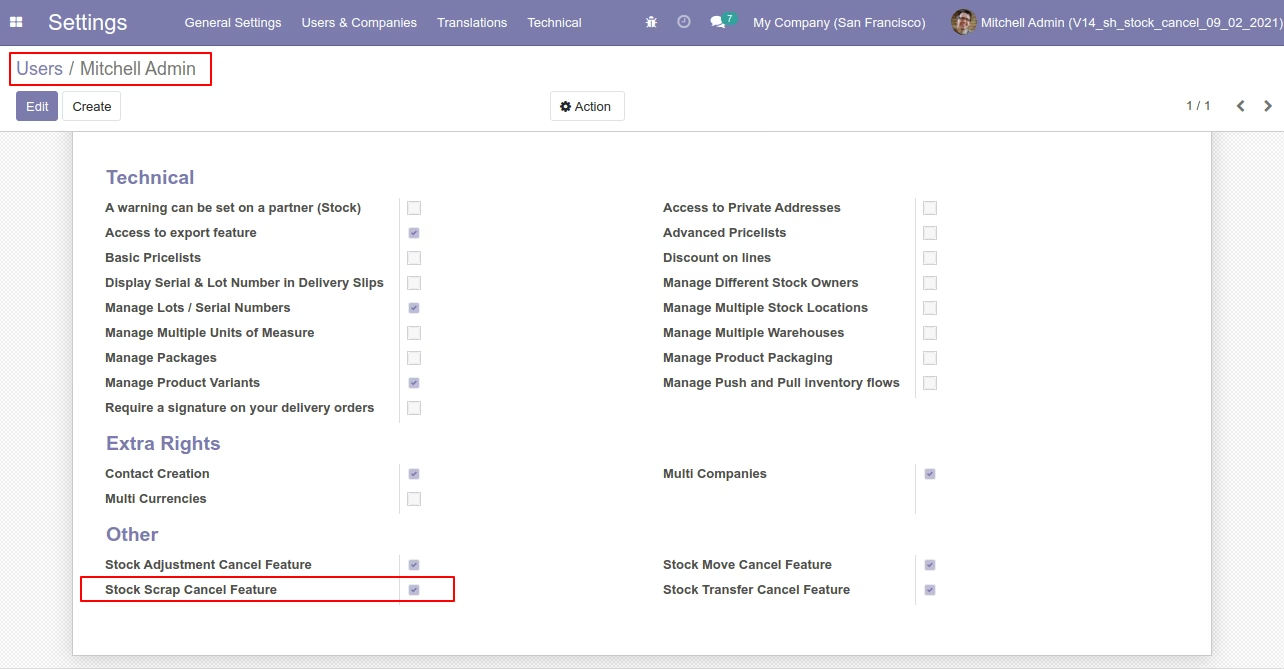
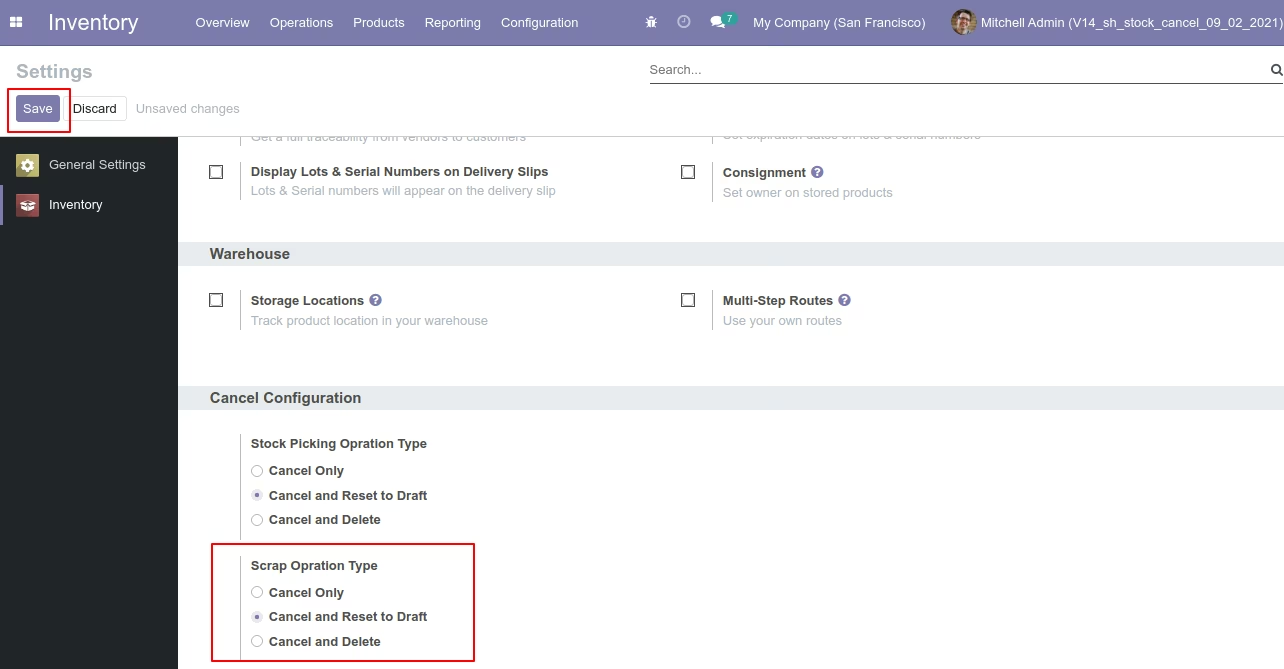
Tick the "Stock Scrap Cancel Feature" to cancel scrap orders.
Flow-1
When you want to cancel the scrap ordrs only then choose the "Cancel Only" option.
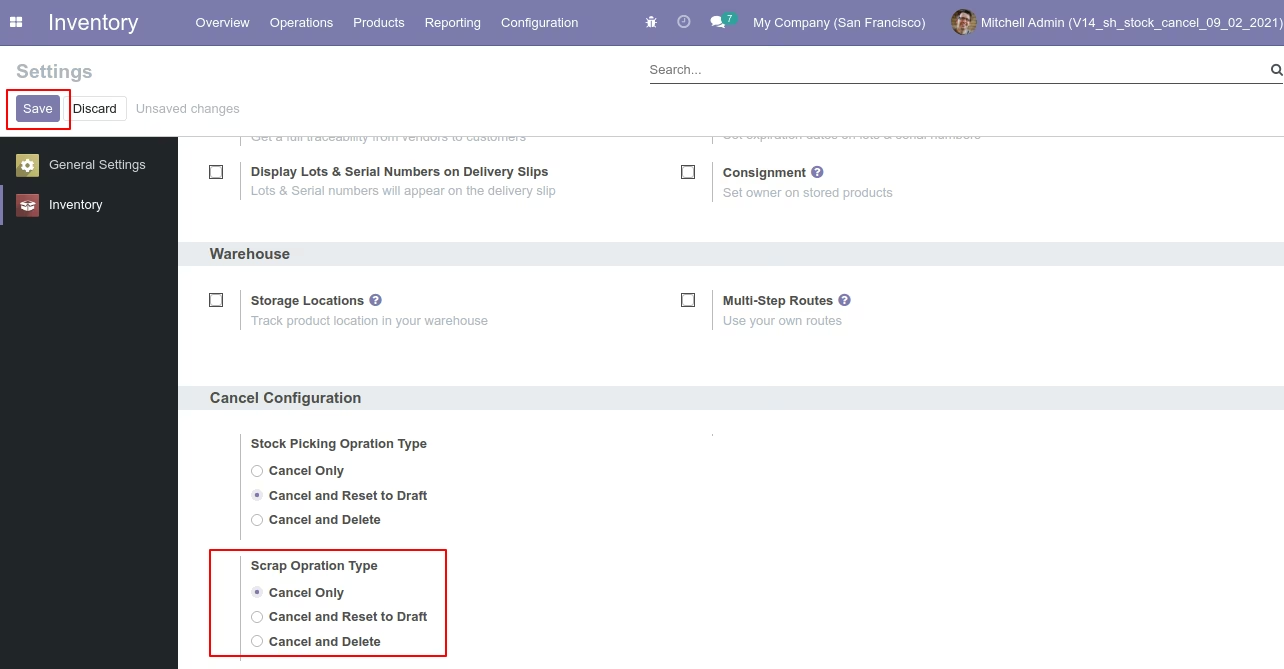
Our scrap order is in the "Done" state.
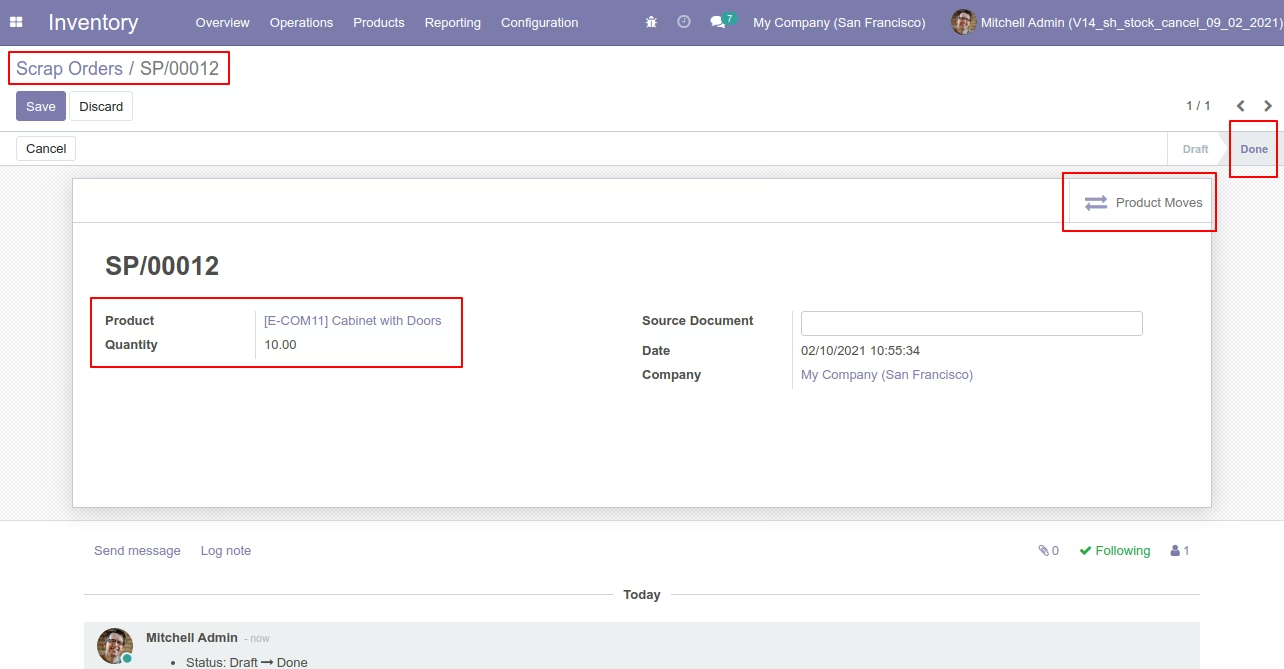
Our scrap order product move status is "Done".
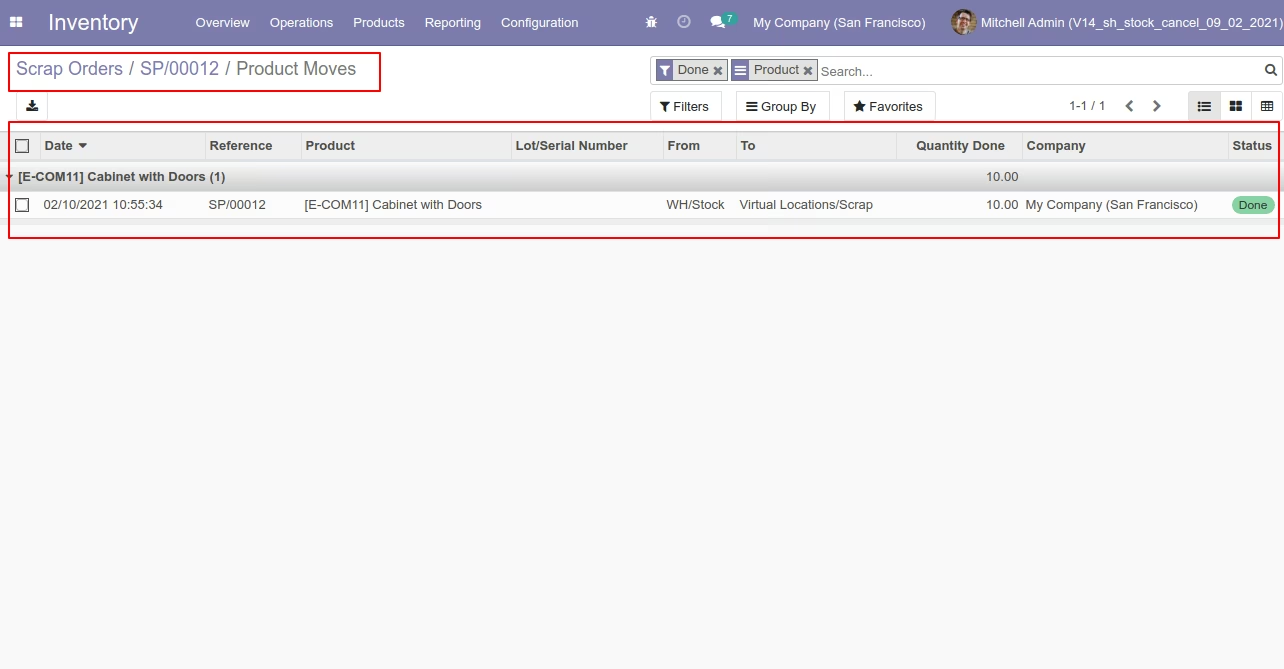
Our onhand qty is now 40.00 units.
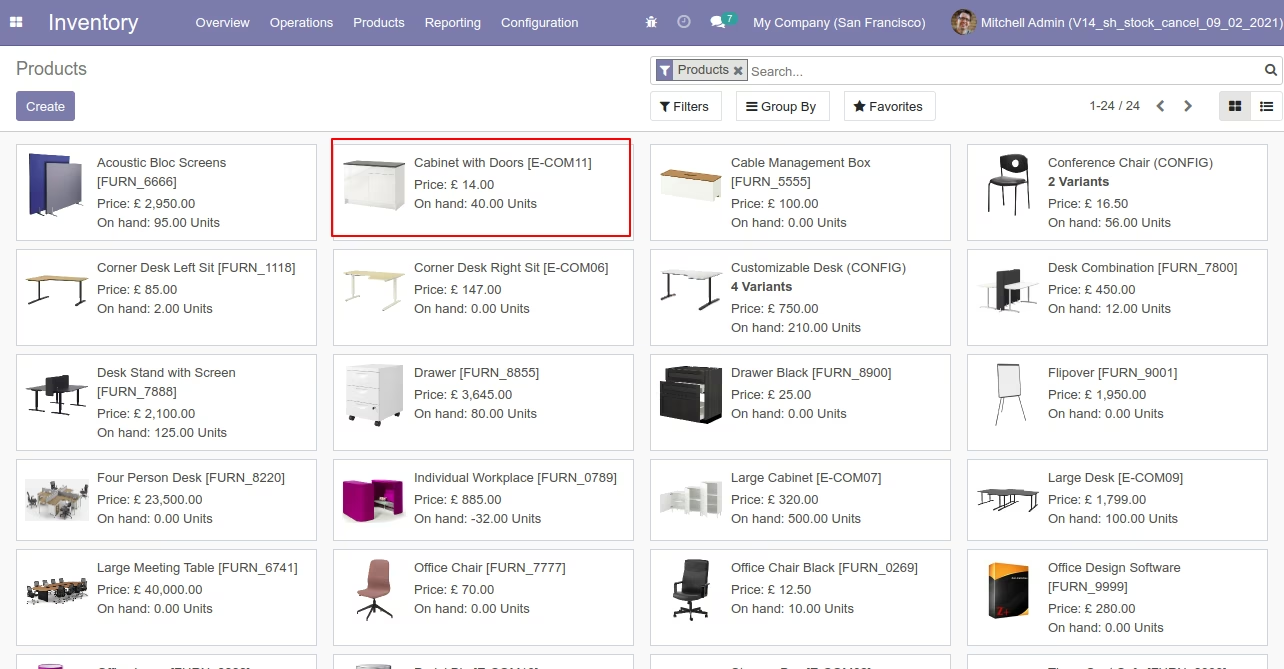
Now we cancel the scrap order.
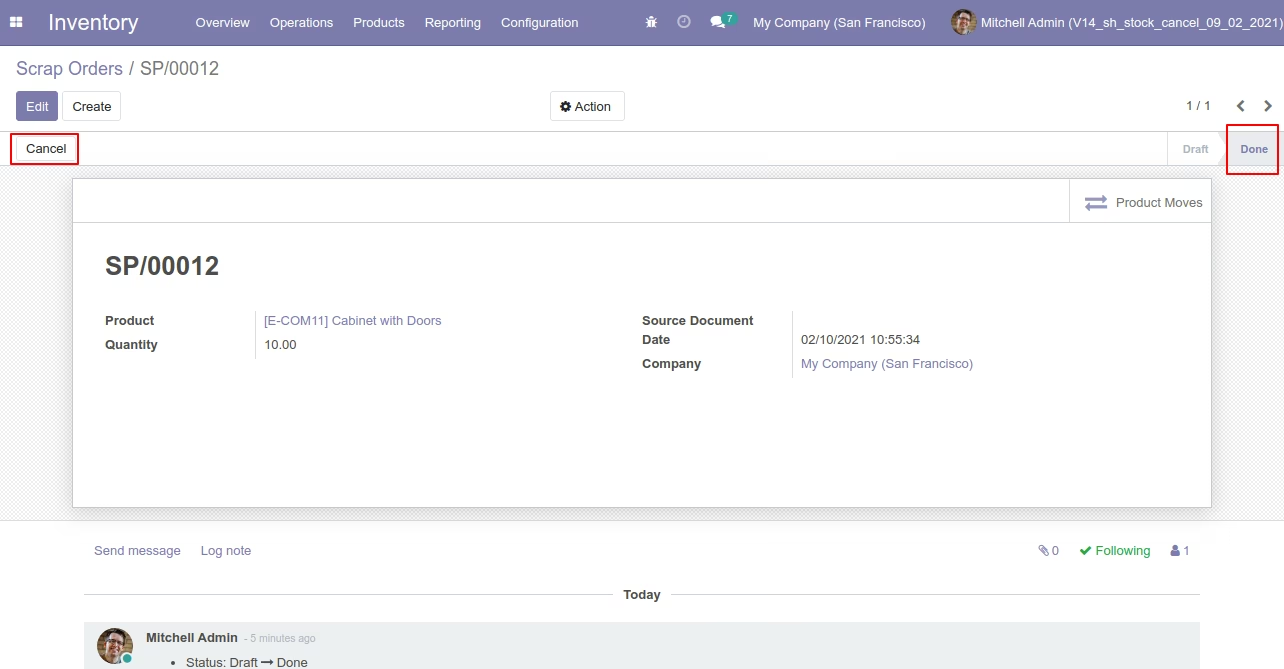
So scrap order is canceled and the state is changed to "cancel".
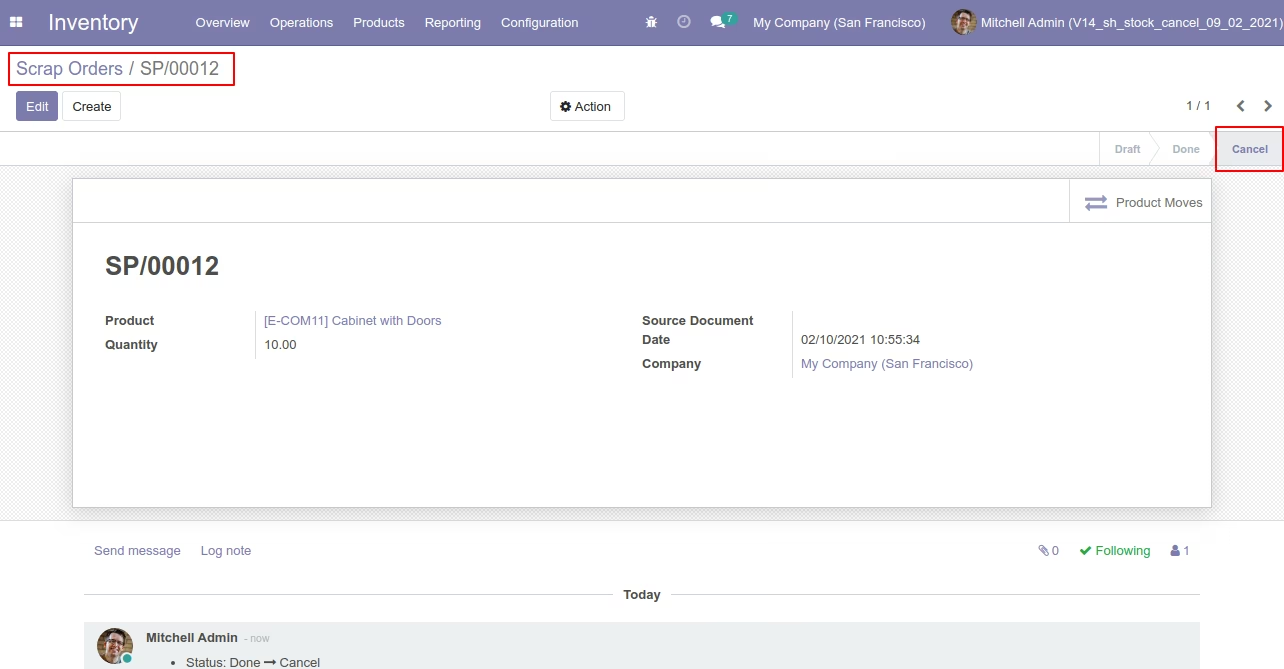
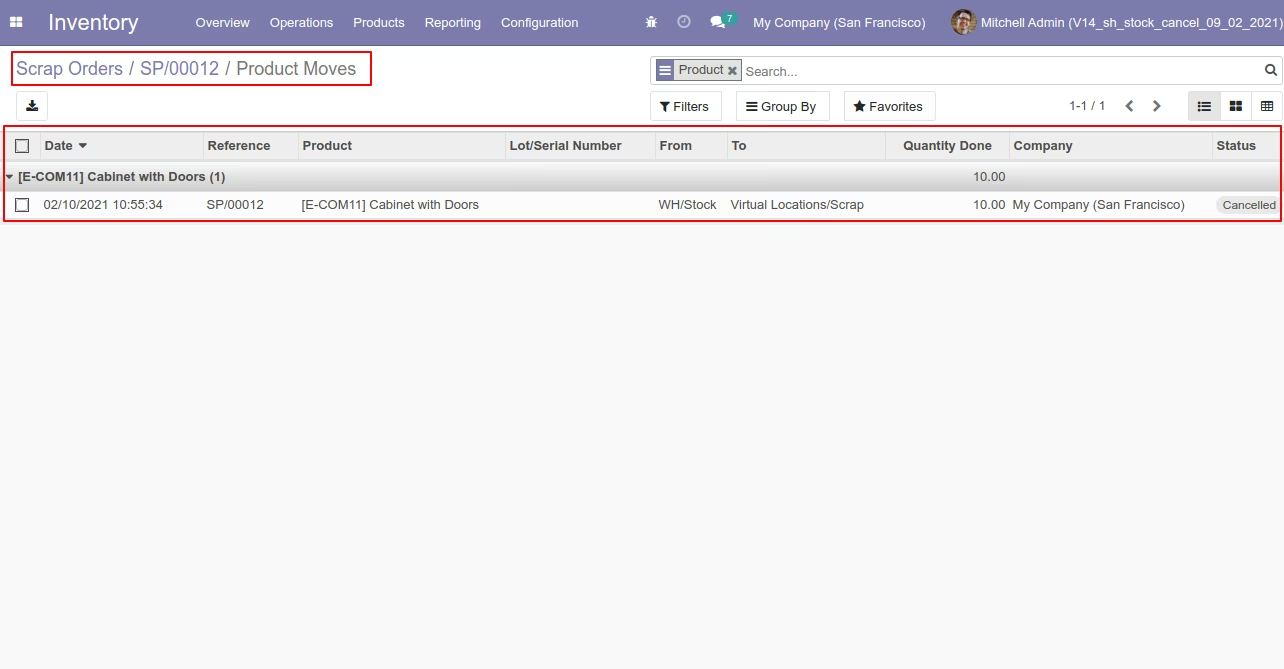
Now our scrap order product move status is "Cancelled".
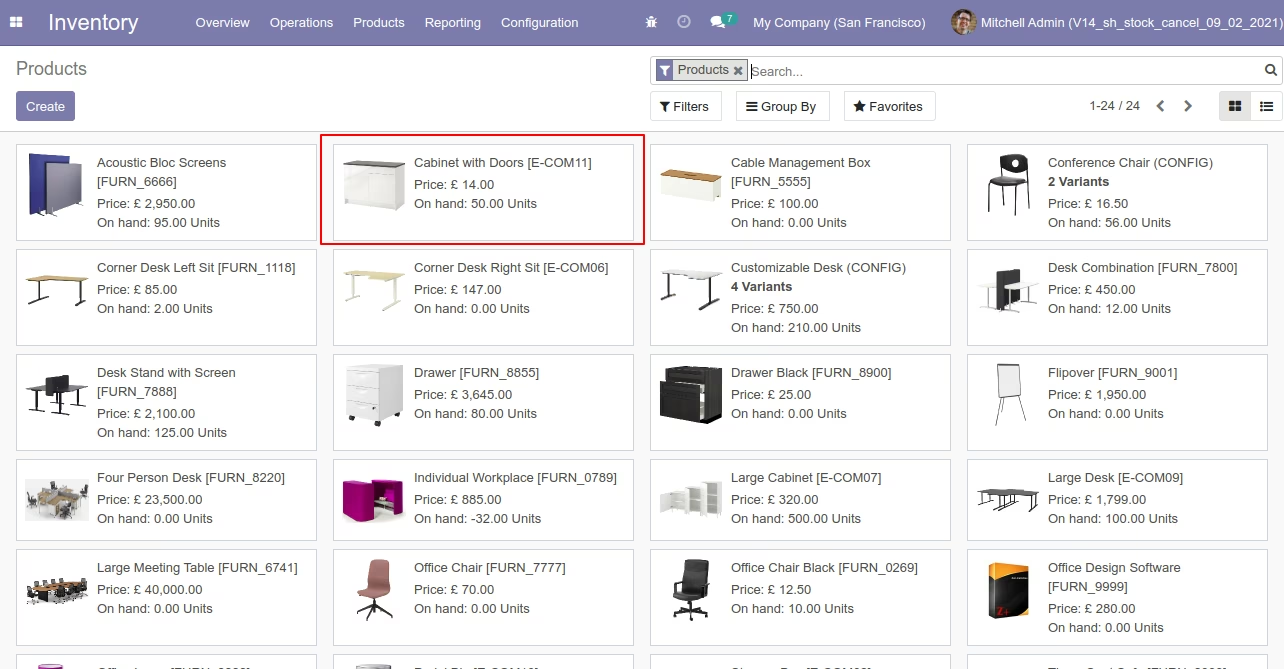
After cancelled scrap order our onhand qty is updated.
Flow-2
When you want to cancel the scrap ordrs and reset to the draft state tick "Cancel and Reset to Draft".
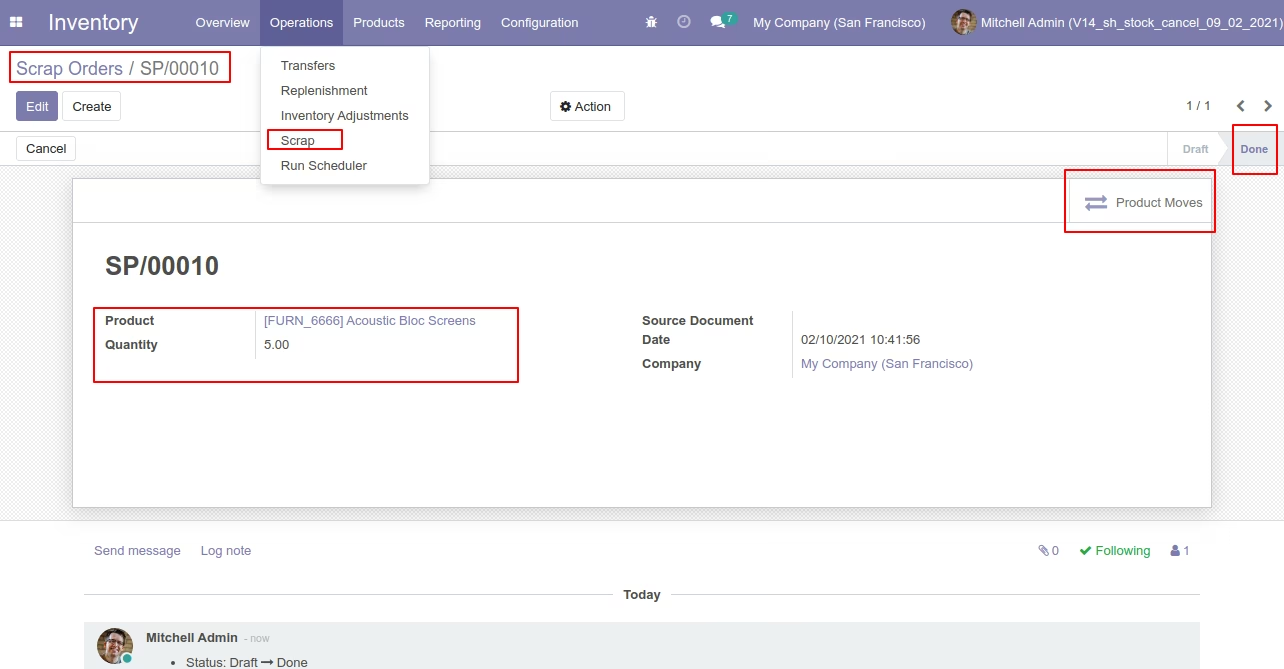
Our scrap order is in the "Done" state.
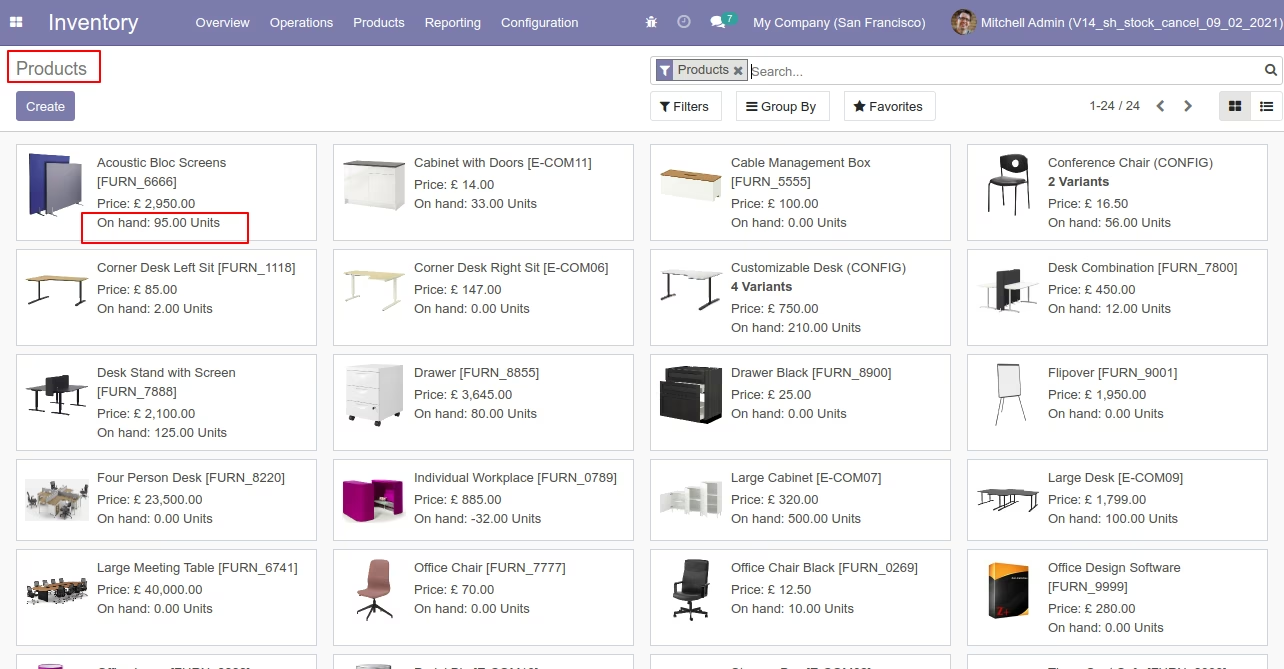
Our onhand qty is now 95.00 units.
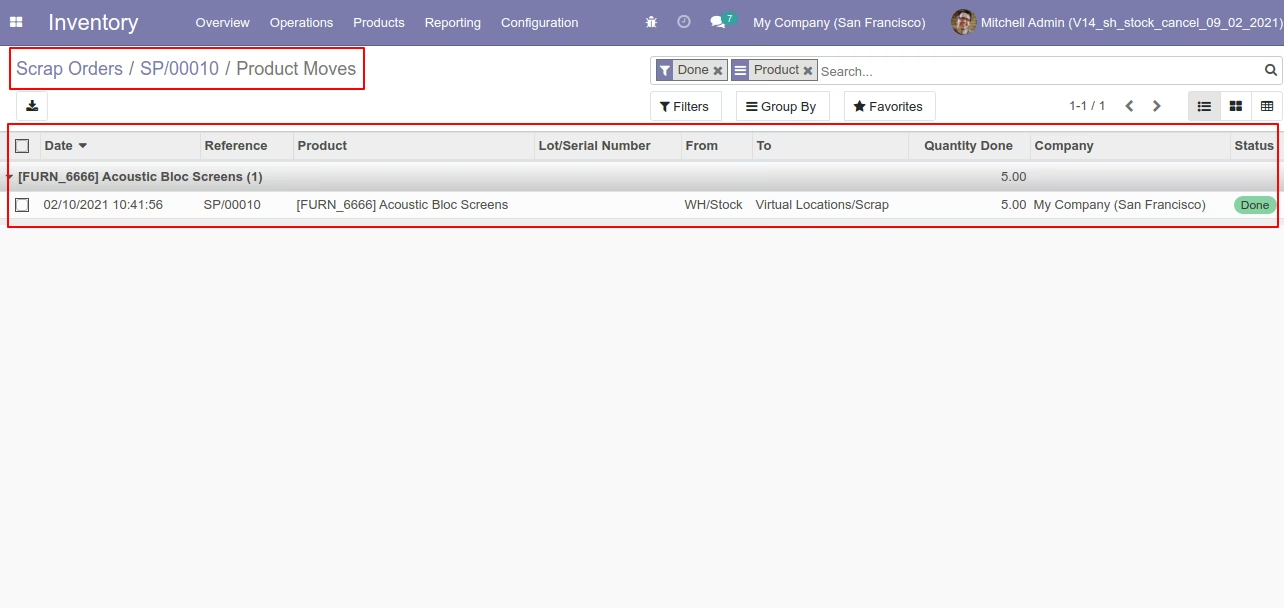
Our scrap order product move status is "Done".
Now we cancel the scrap order.
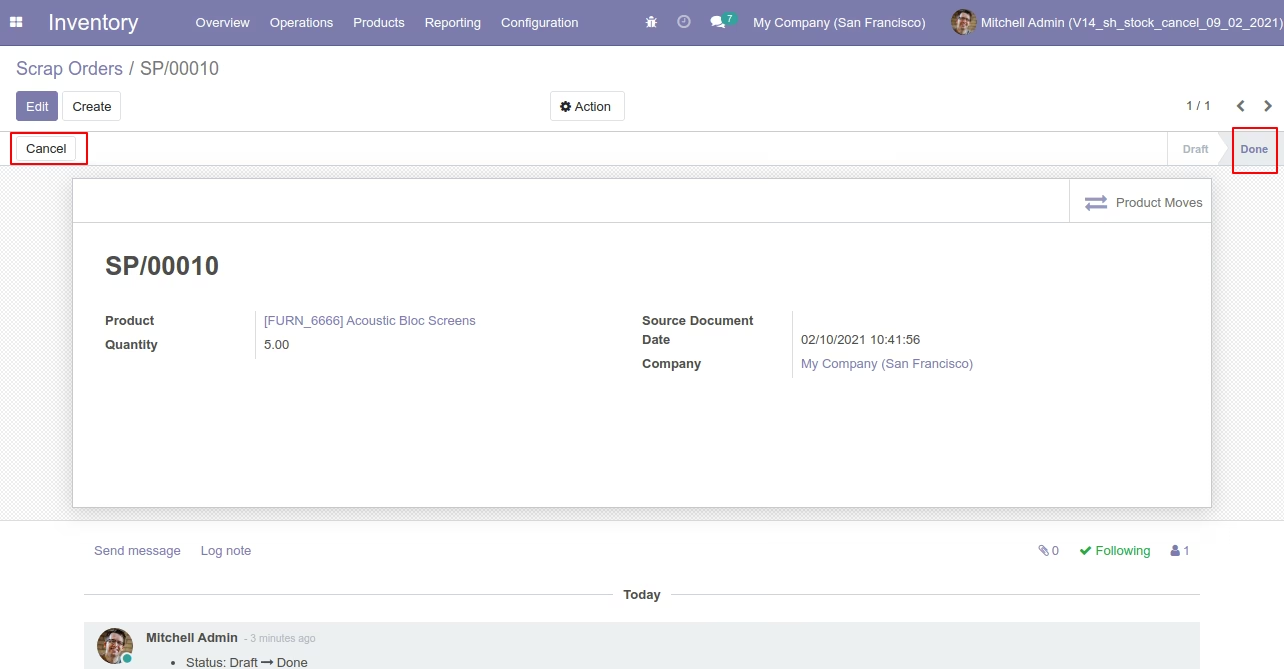
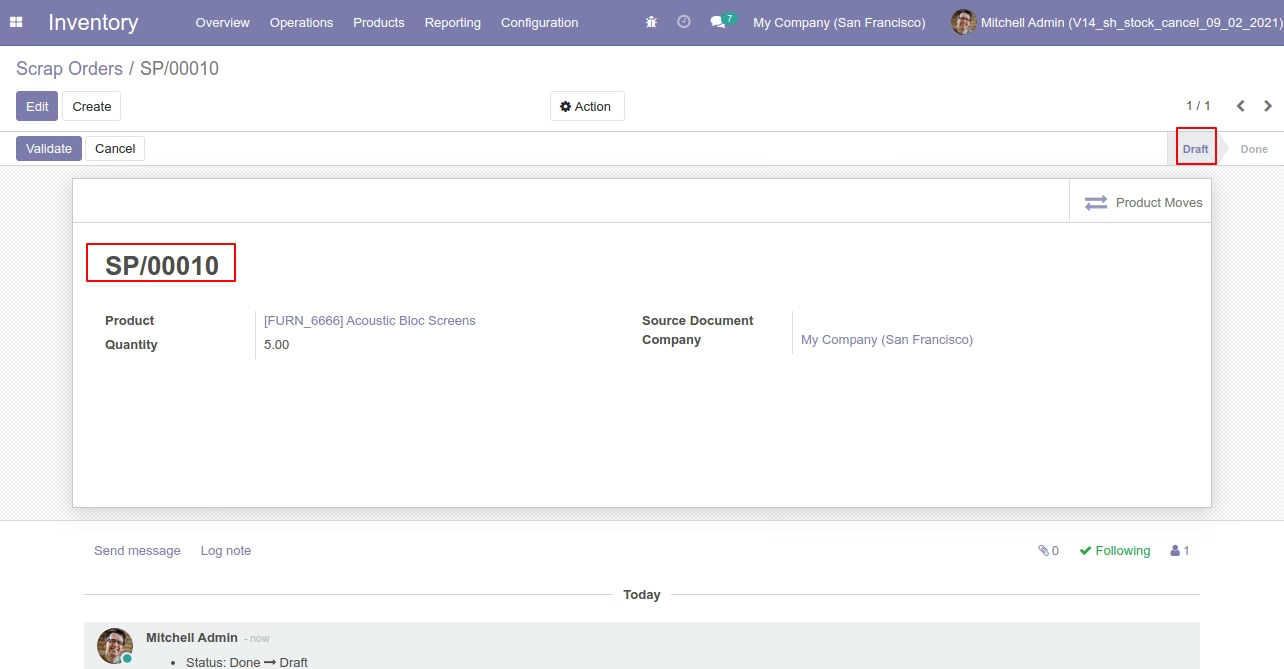
So scrap order is cancelled and reset to the draft.
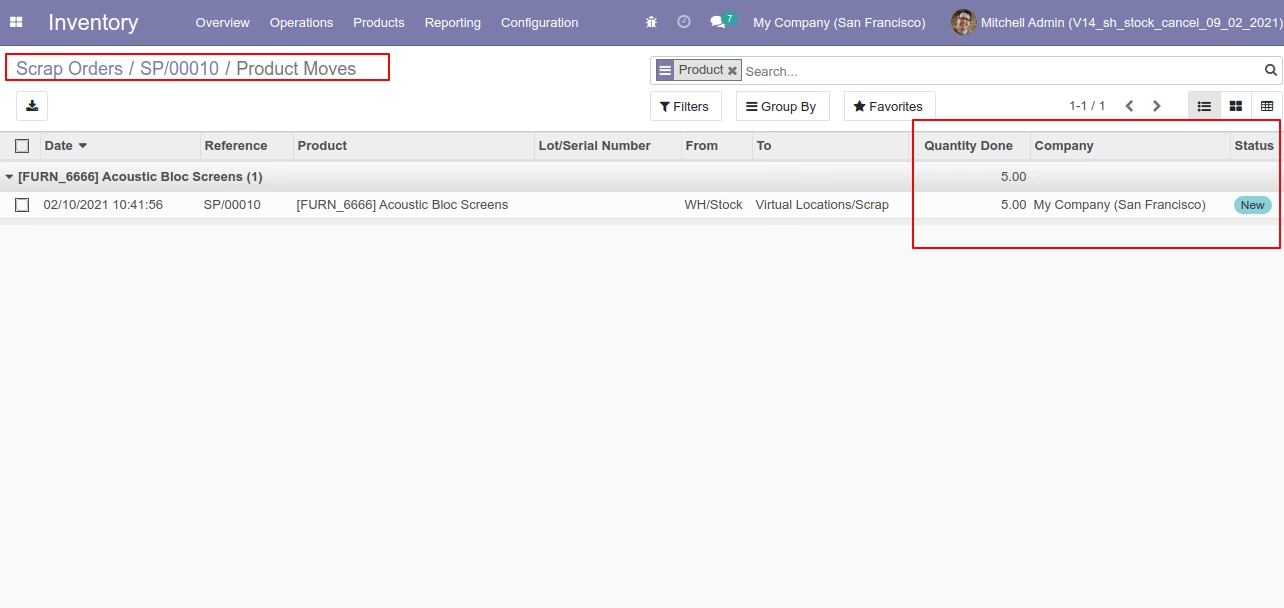
Now our scrap order product move status is "New".
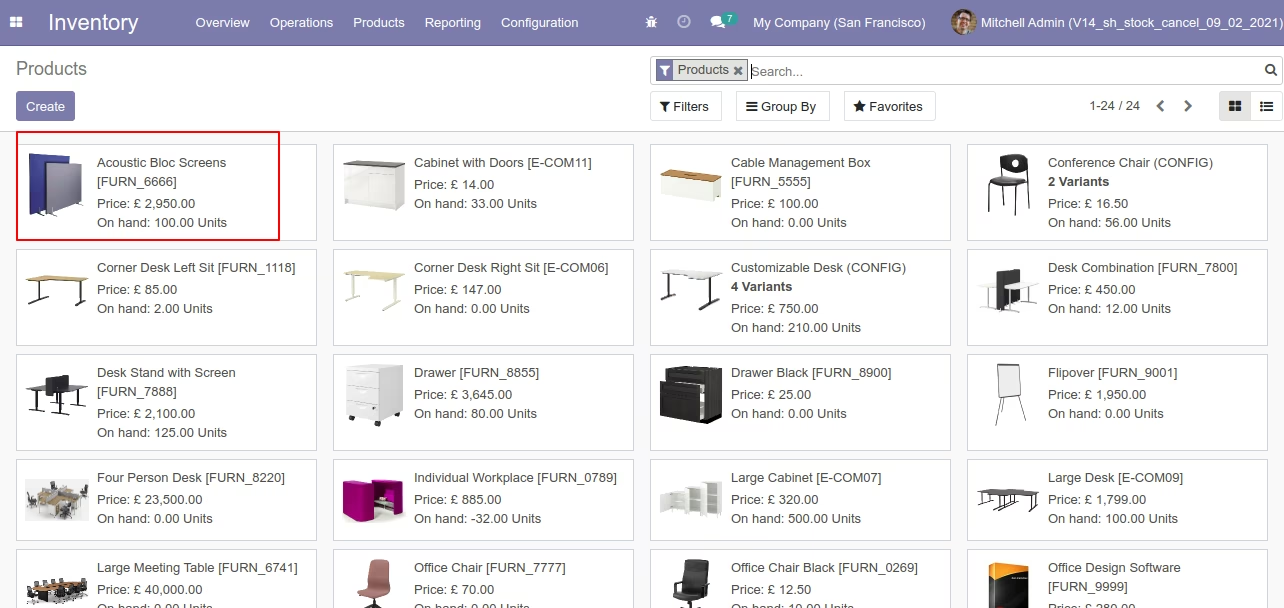
After cancelled scrap order our onhand qty is updated.
Flow-3
When you want to cancel & delete the scrap ordrs then choose the "Cancel and Delete" option.
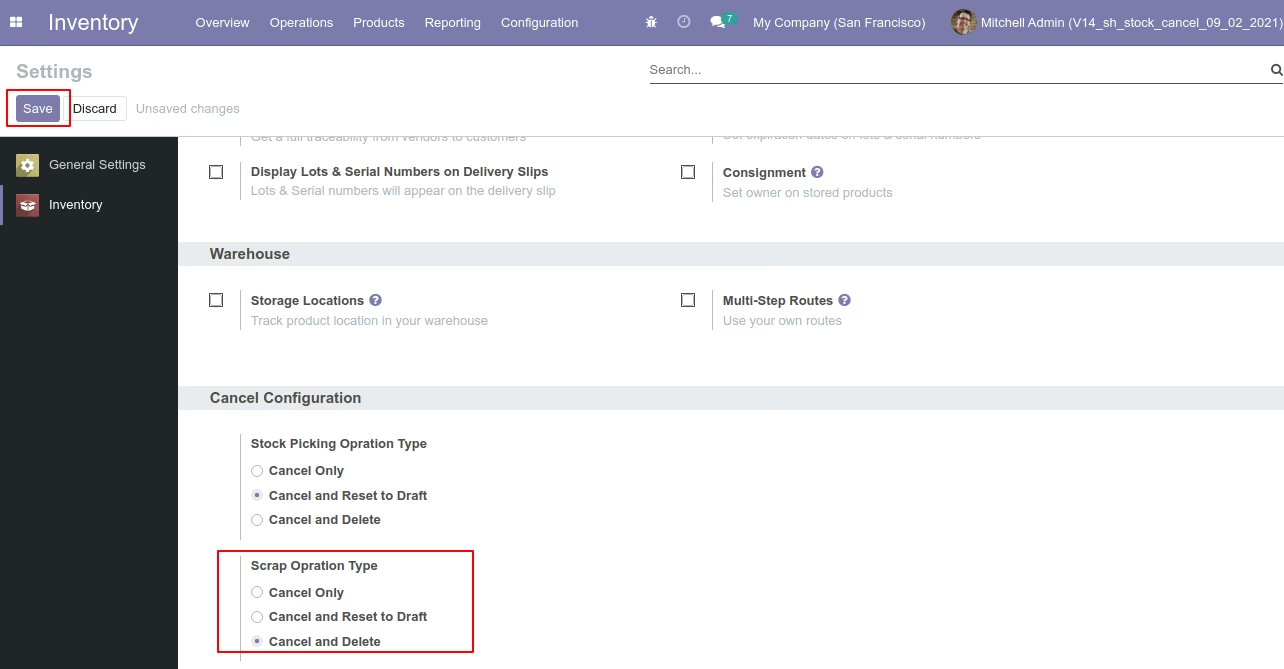
Our scrap order is in the "Done" state.
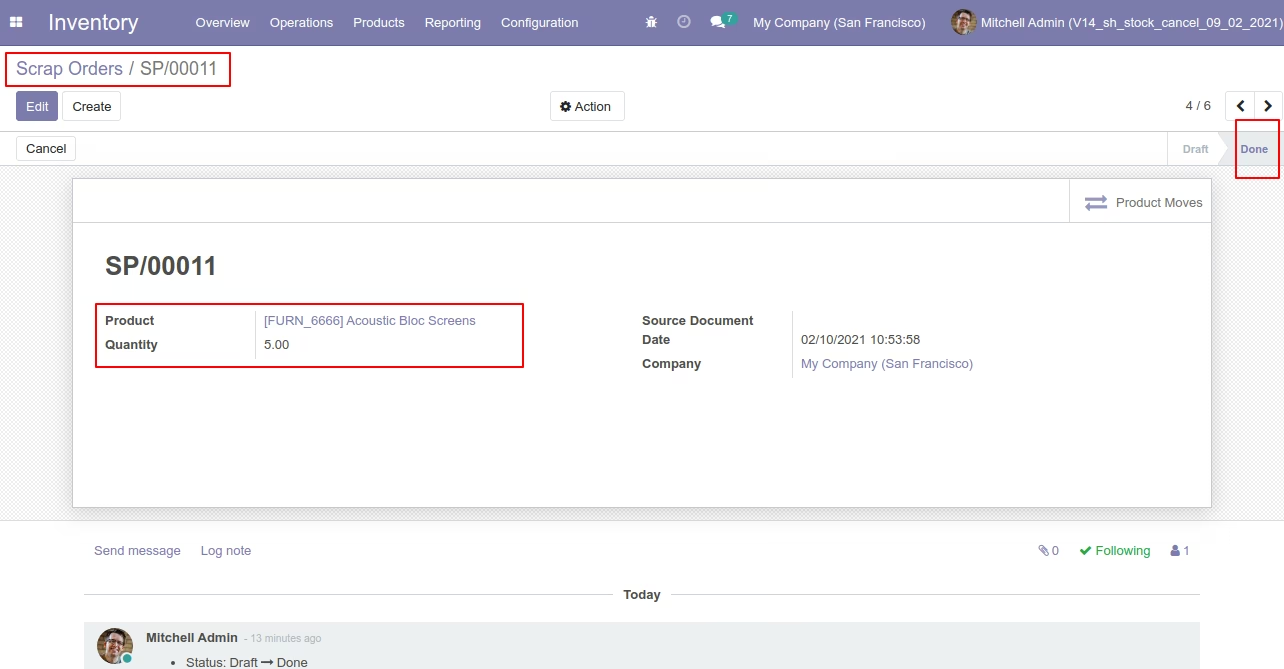
Our scrap order product move status is "Done".
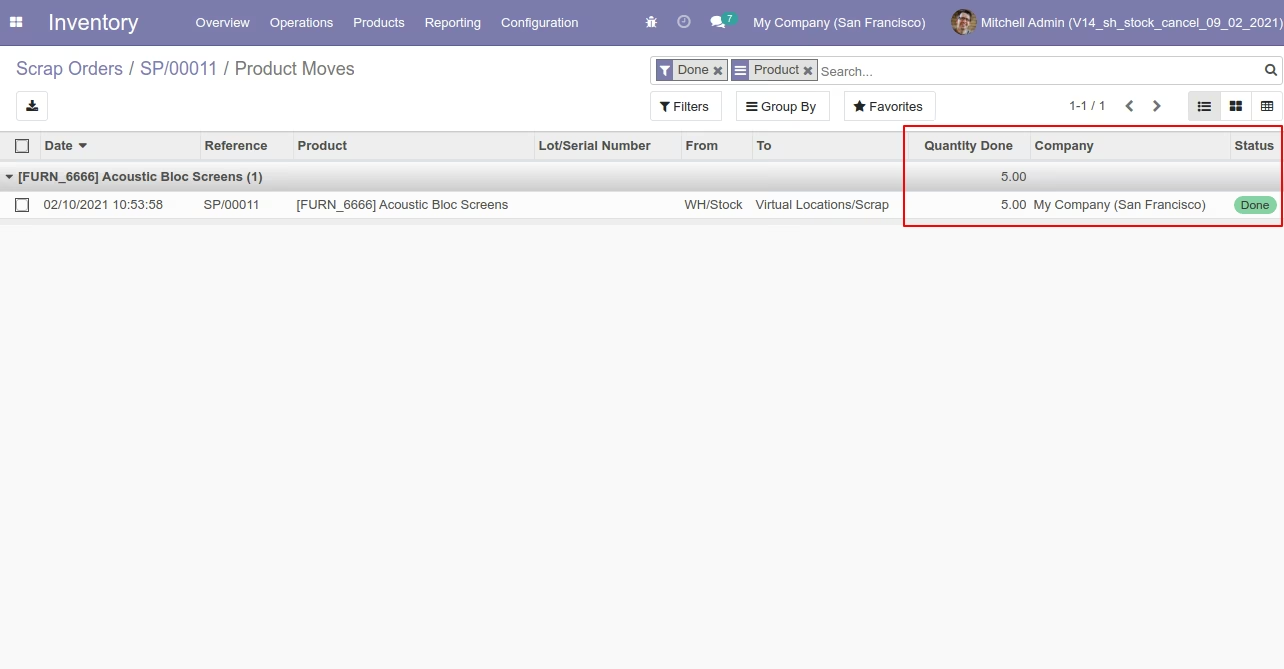
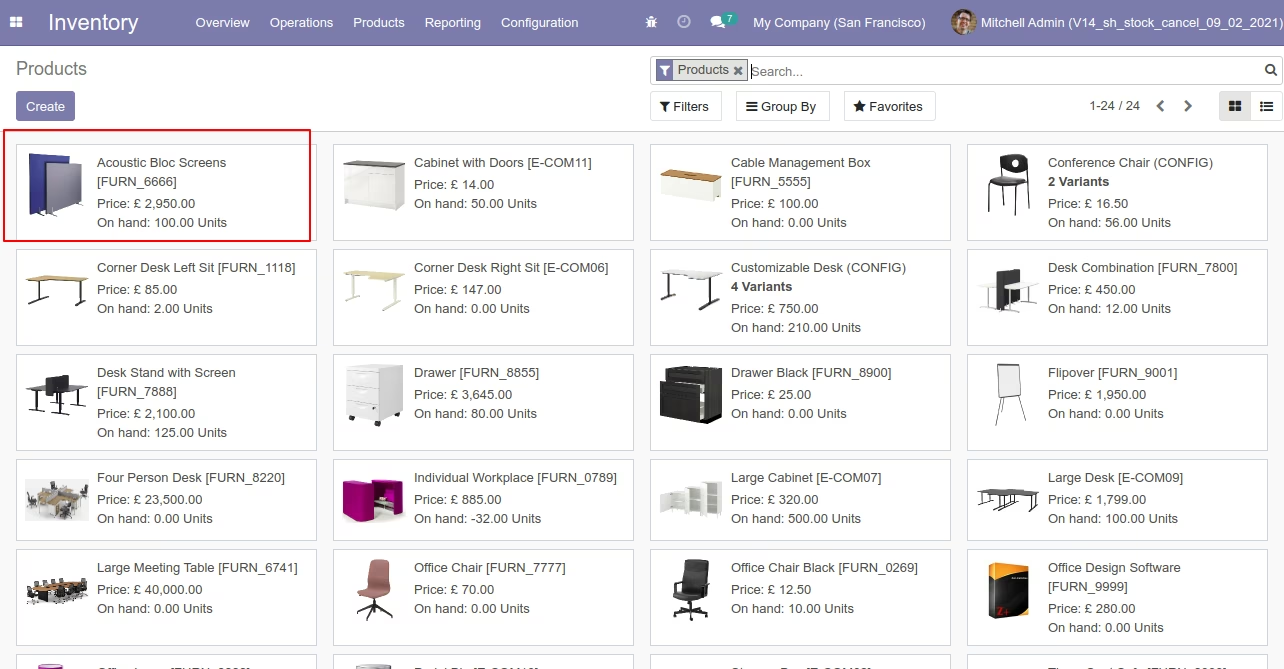
Our onhand qty is now 95.00 units.
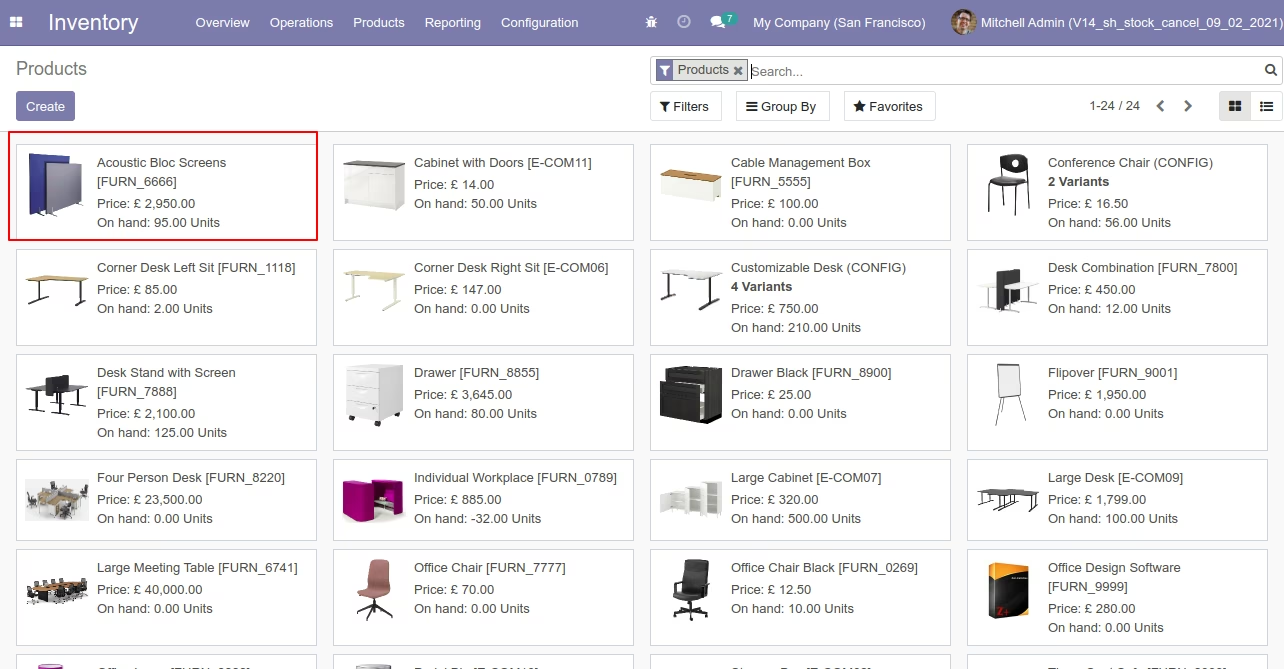
Now we cancel the scrap order.
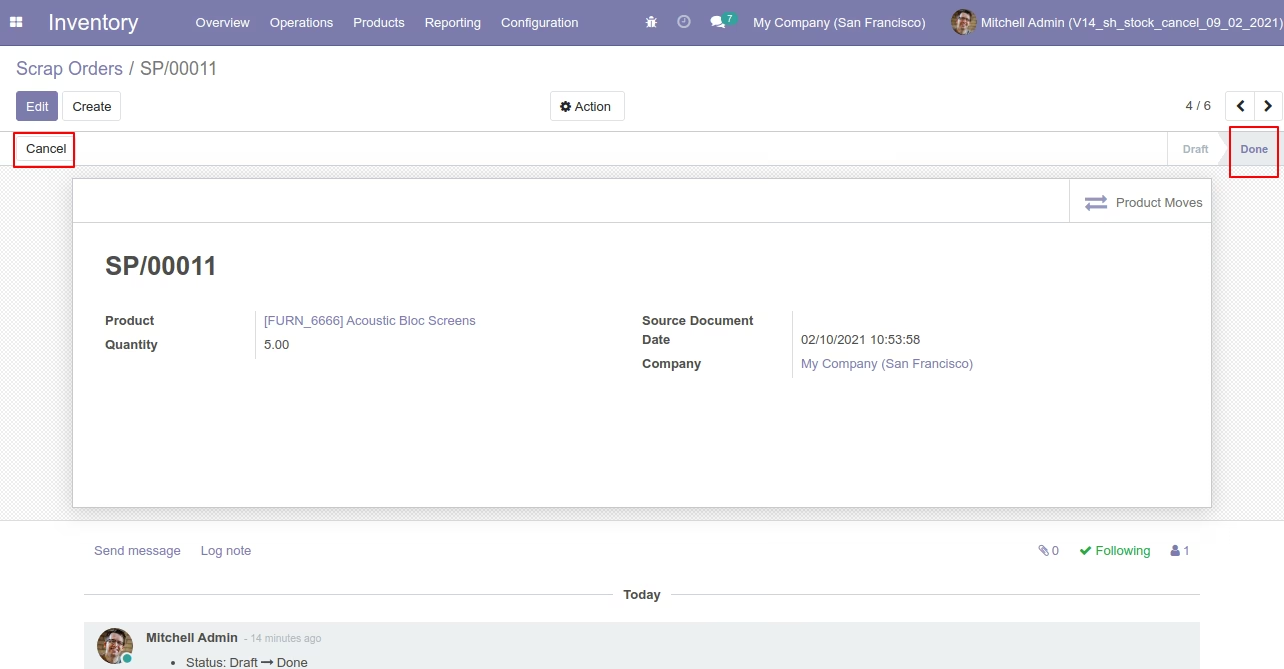
After the "Cancel" the scrap order will be deleted.
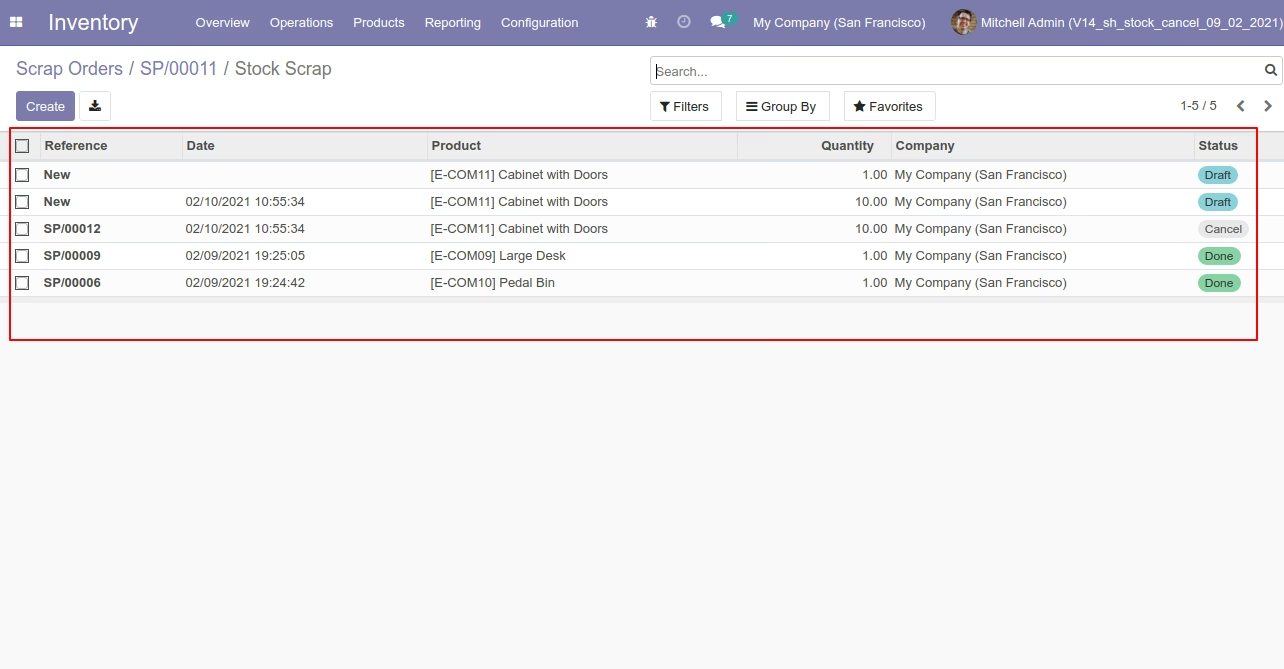
After cancelled scrap order our onhand qty is updated.
Flow-4
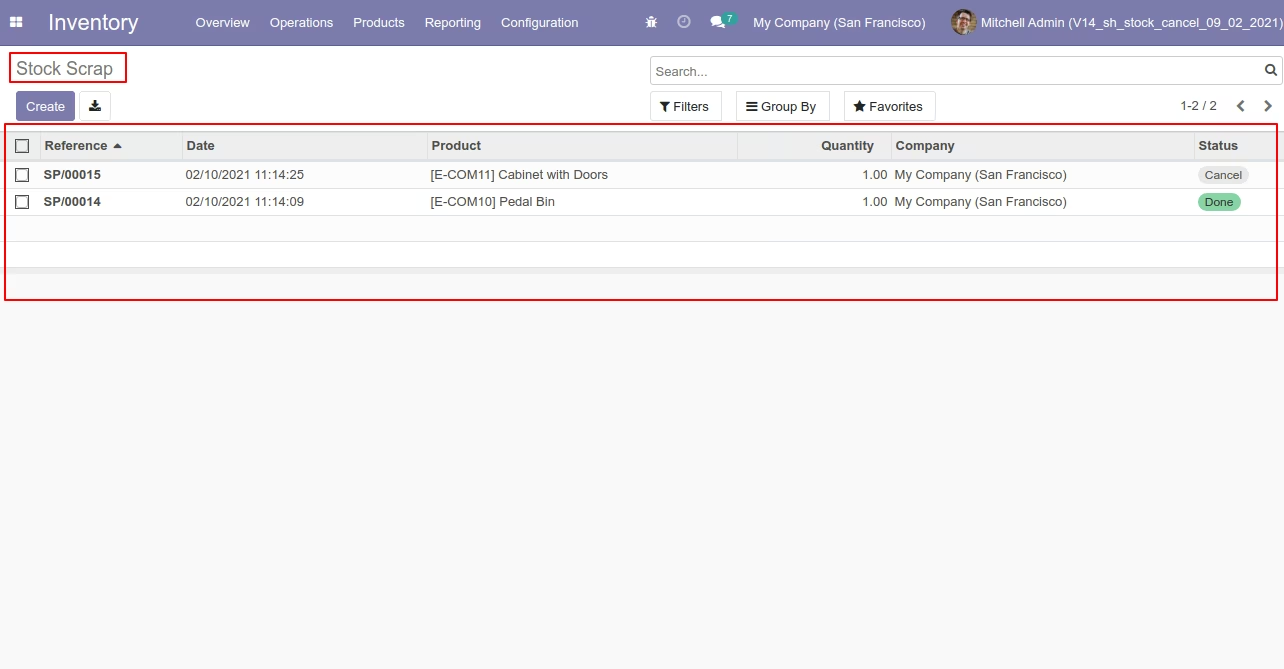
Now we cancel multiple scrap orders from the tree view.
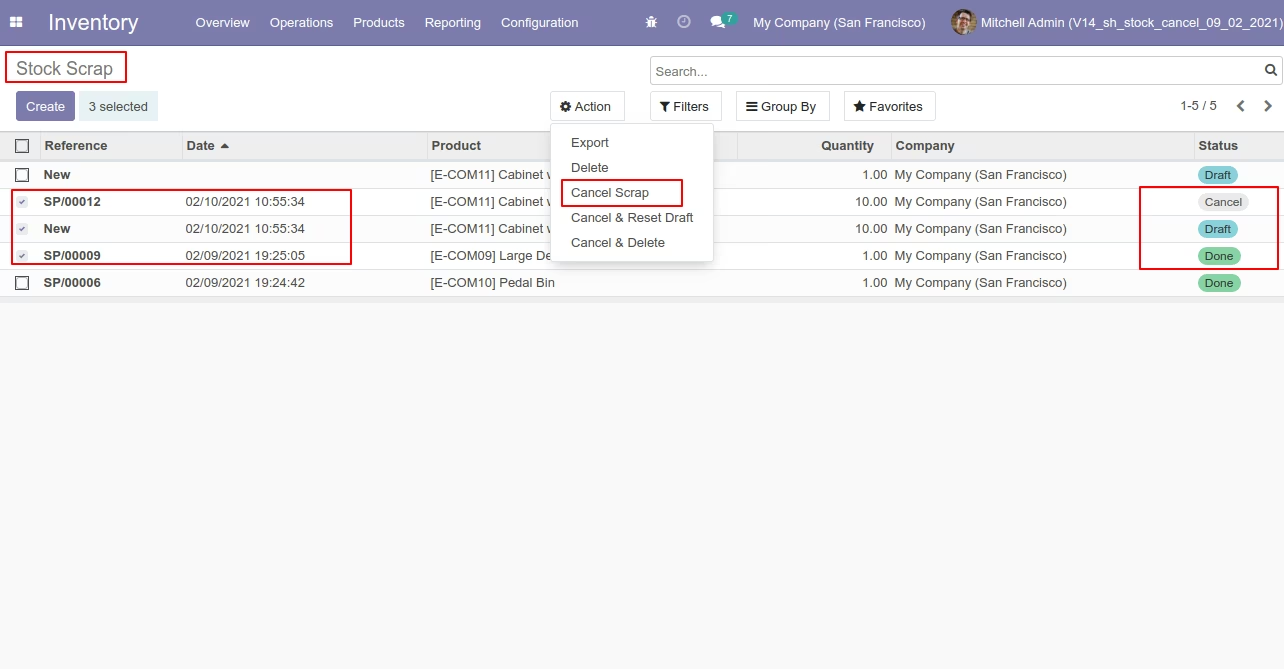
All selected scrap orders are cancelled.
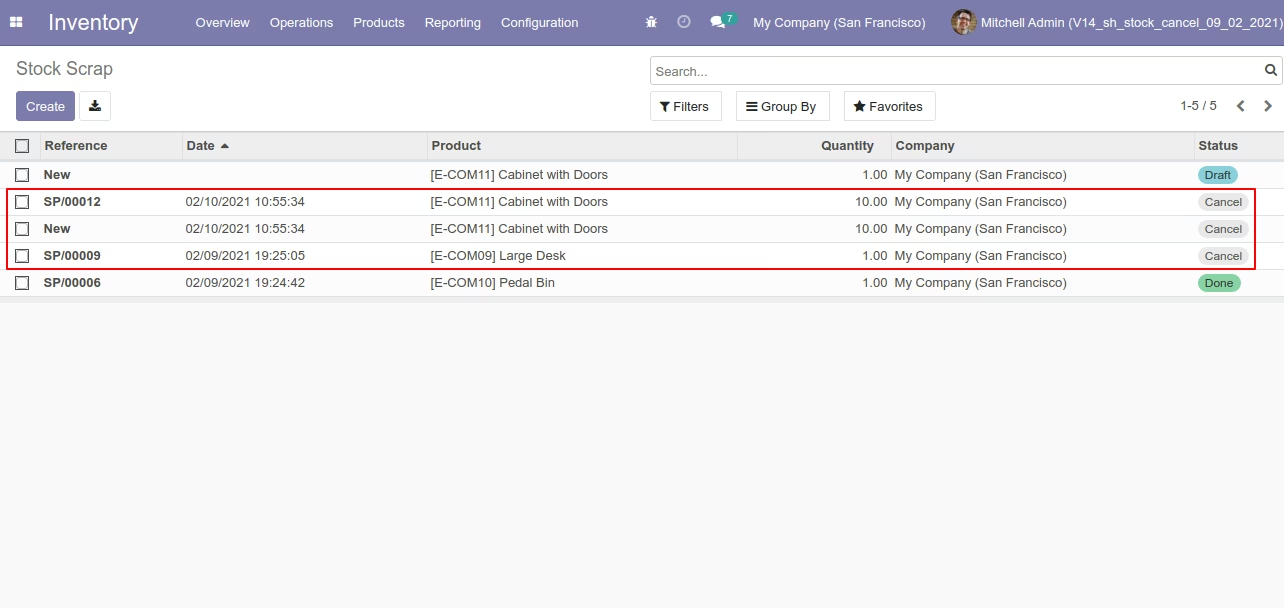
Now we "cancel & reset draft" multiple scrap orders from the tree view.
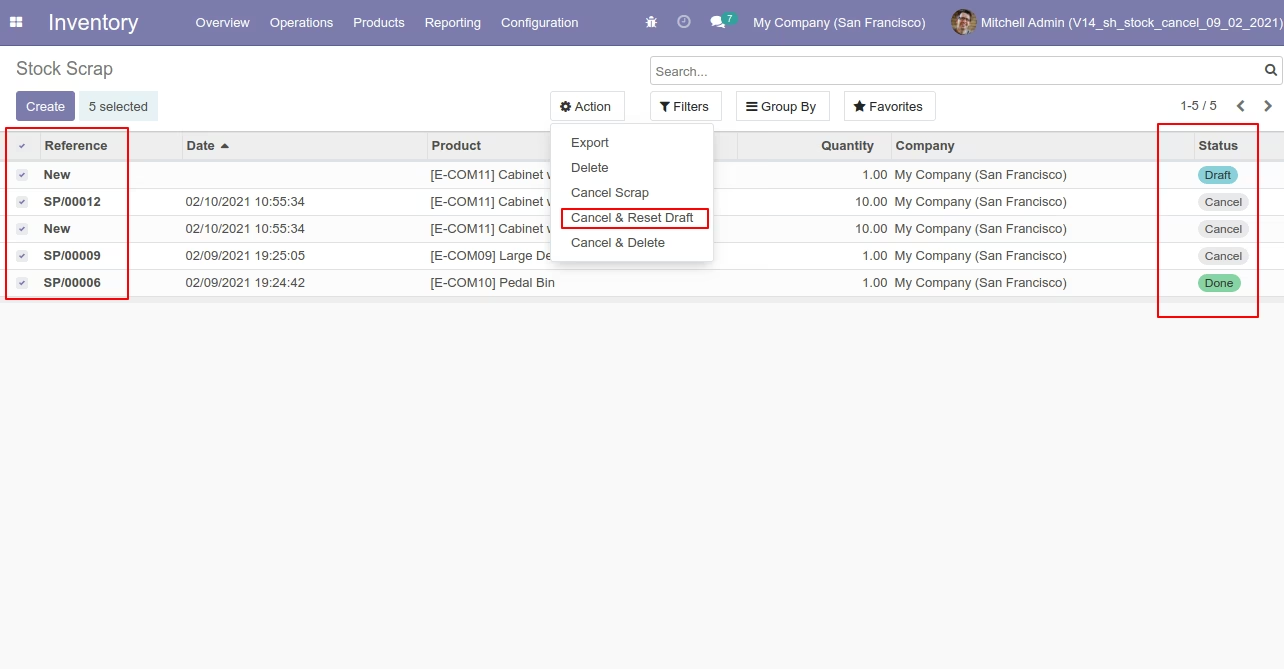
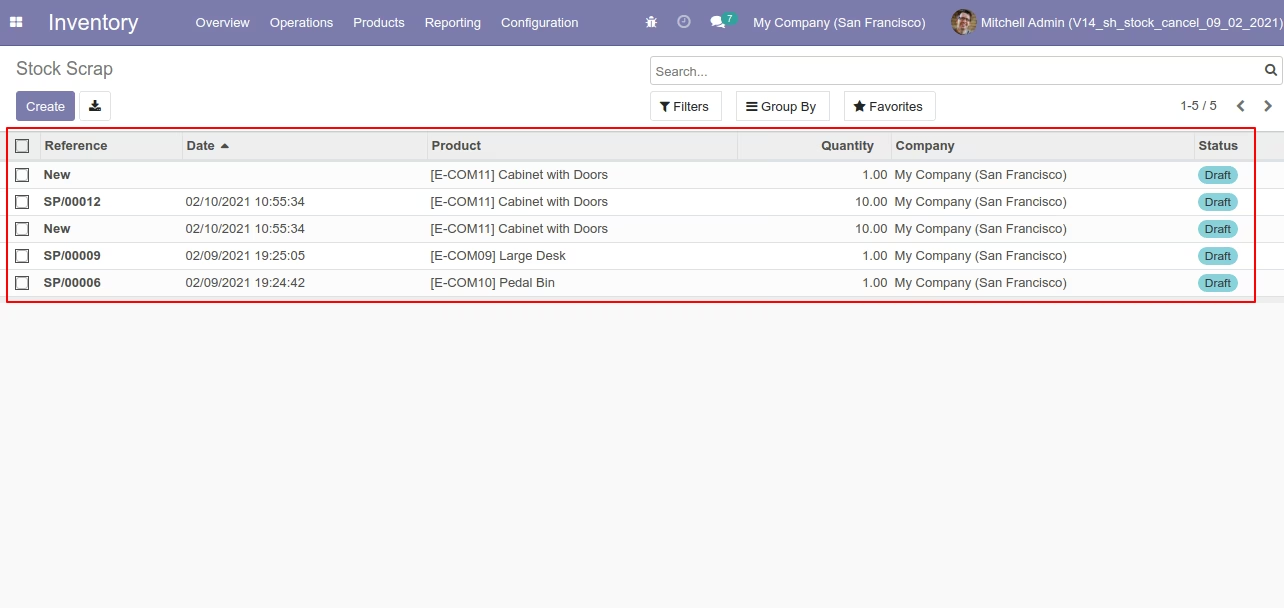
All selected scrap orders are cancelled and reset to the draft.
Now we "cancel & delete" multiple scrap orders from the tree view.
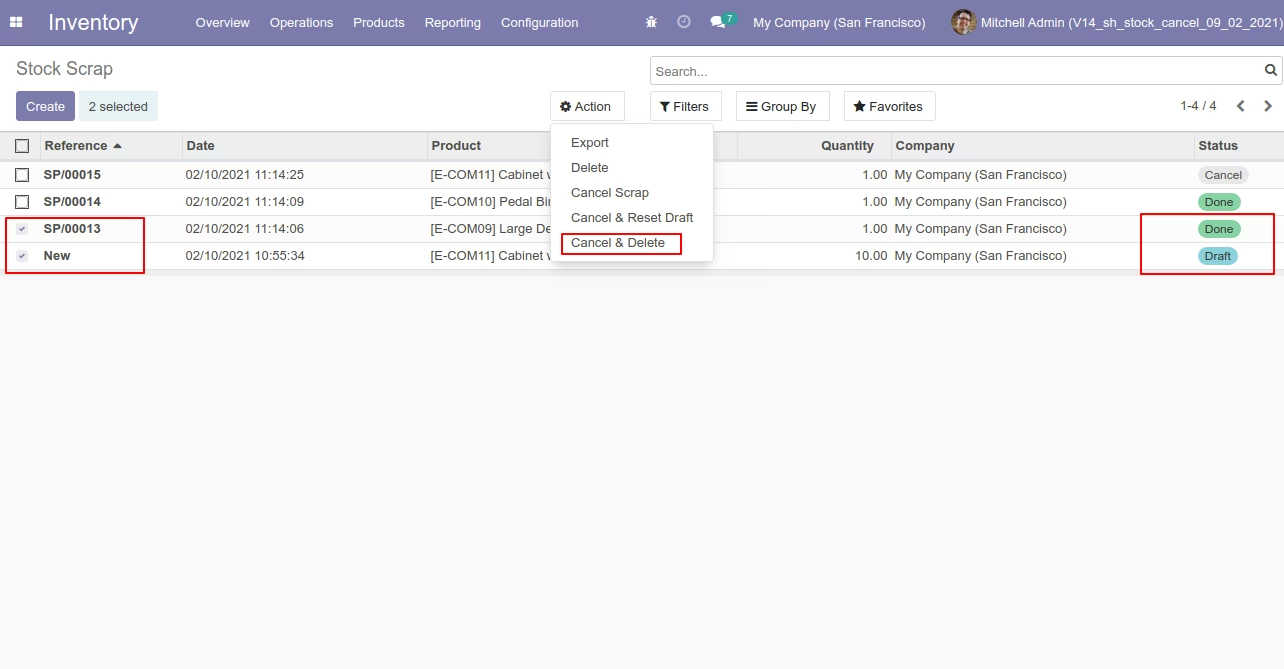
All scrap orders will be deleted after cancelled.
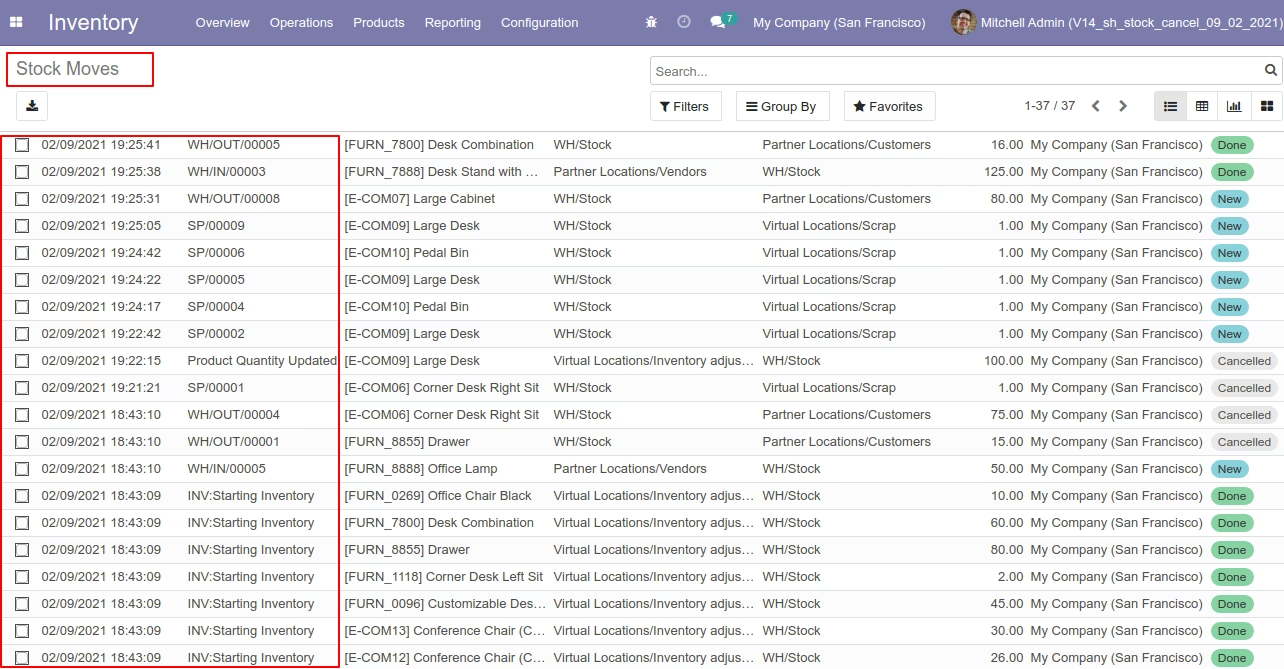
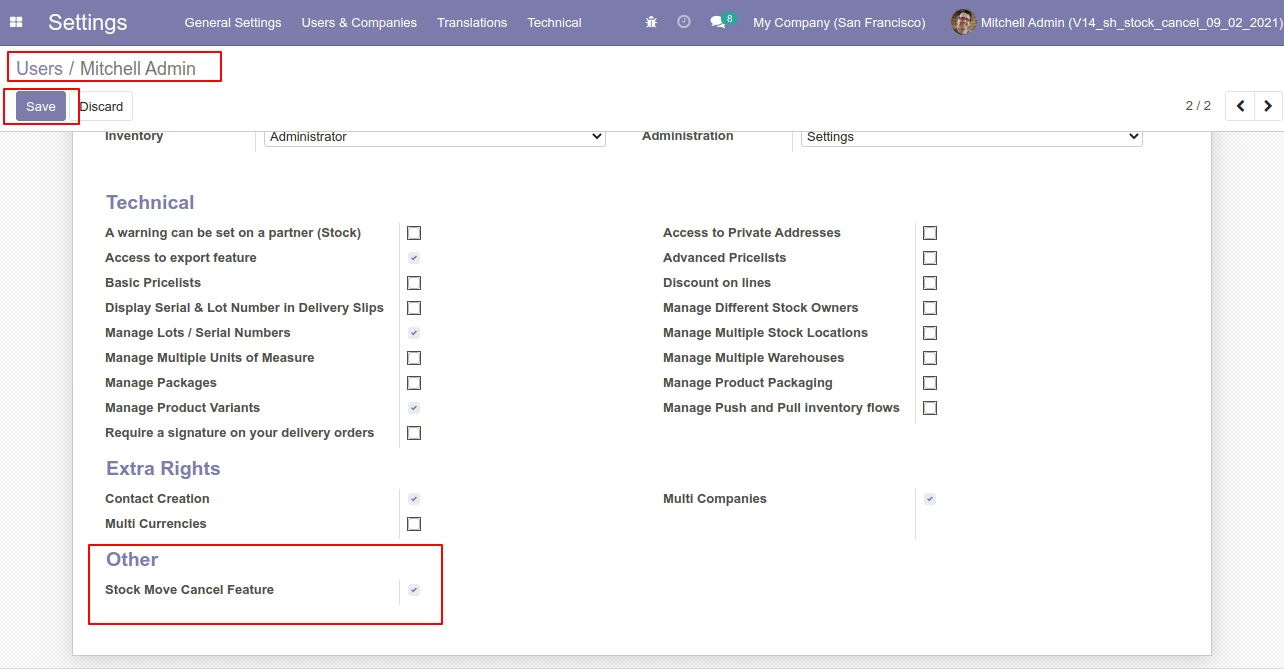
Tick the "Stock Move Cancel Feature" to cancel stock moves.
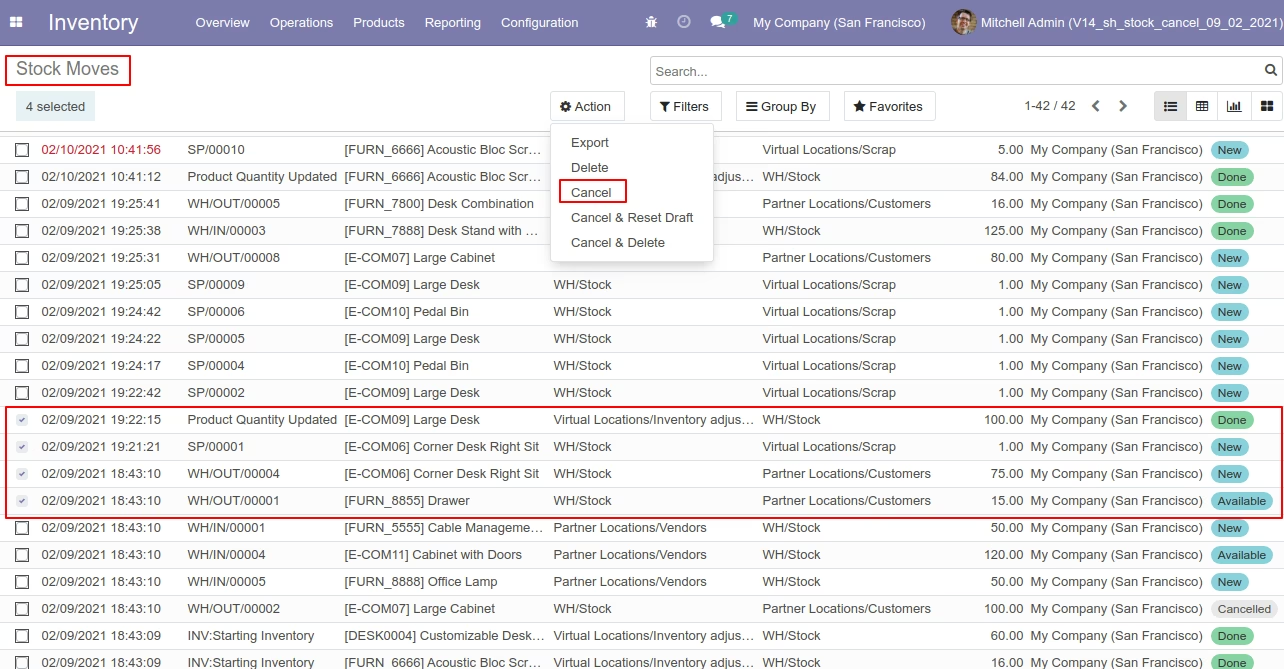
Now we cancel multiple stock moves from the tree view.
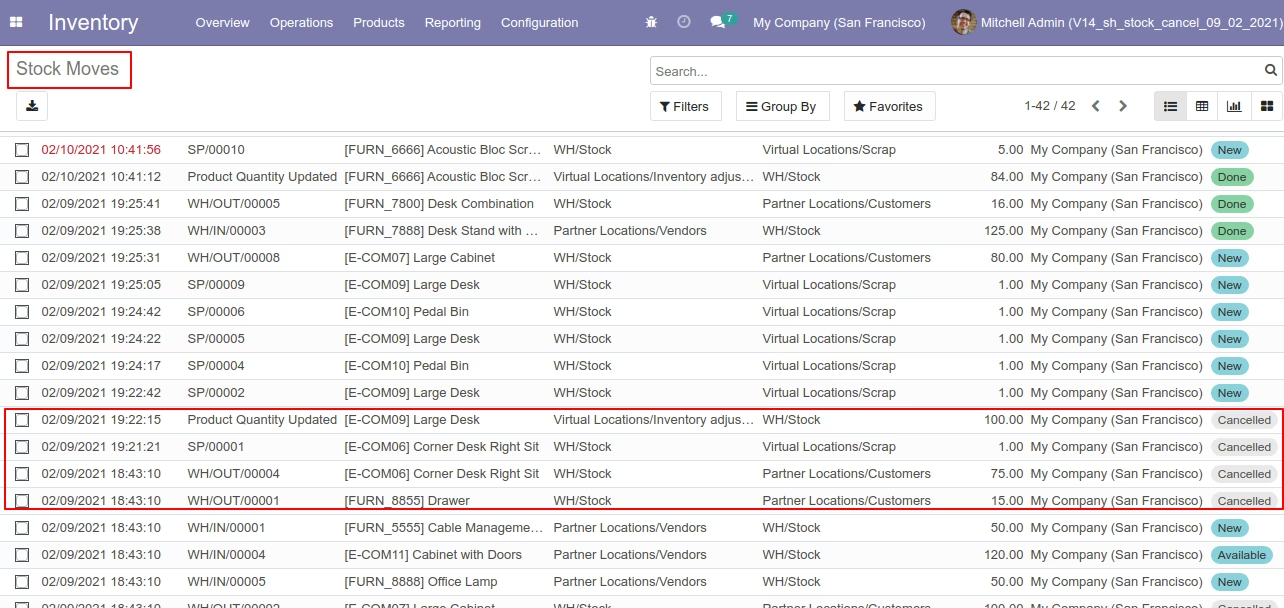
All selected stock moves are cancelled.
Now we "cancel & reset draft" multiple stock moves from the tree view.
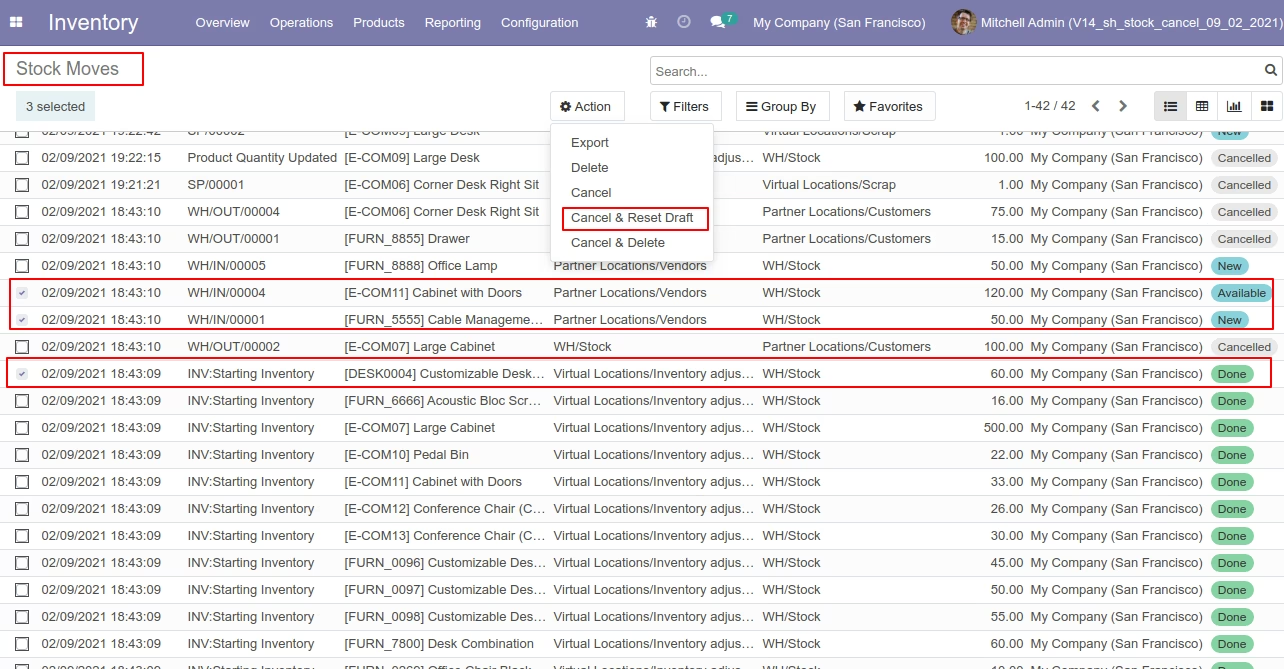
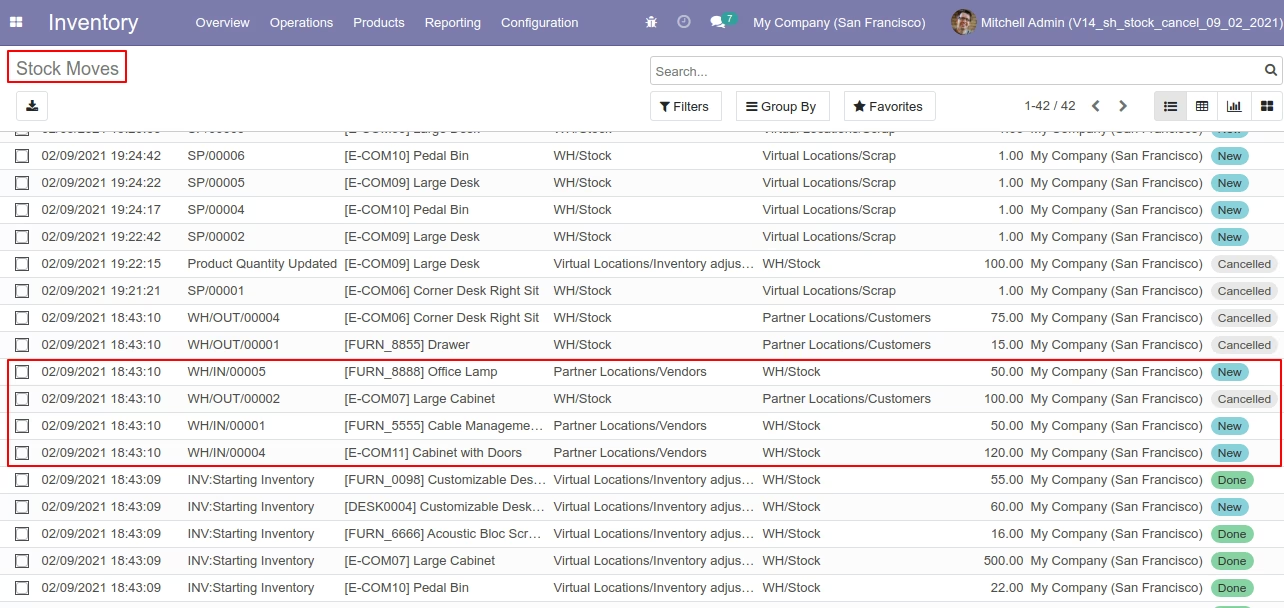
All selected stock moves are cancelled and reset to the draft.
Now we "cancel & delete" multiple stock moves from the tree view.
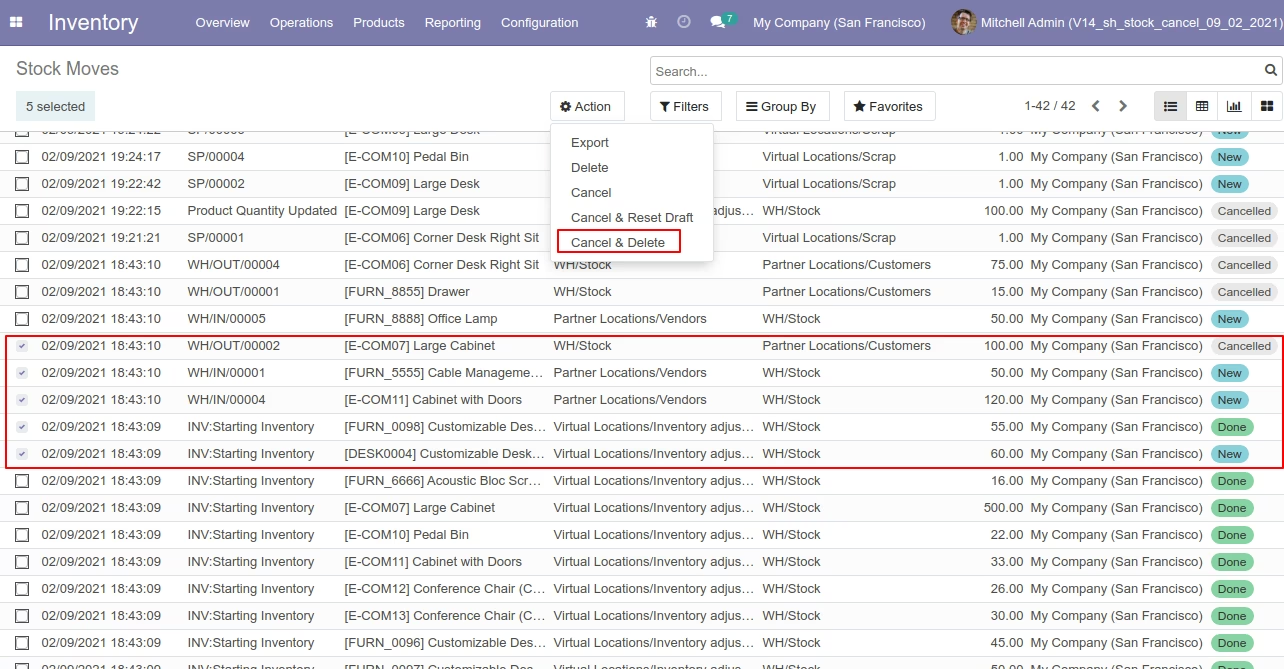
All stock moves will be deleted after cancelled.