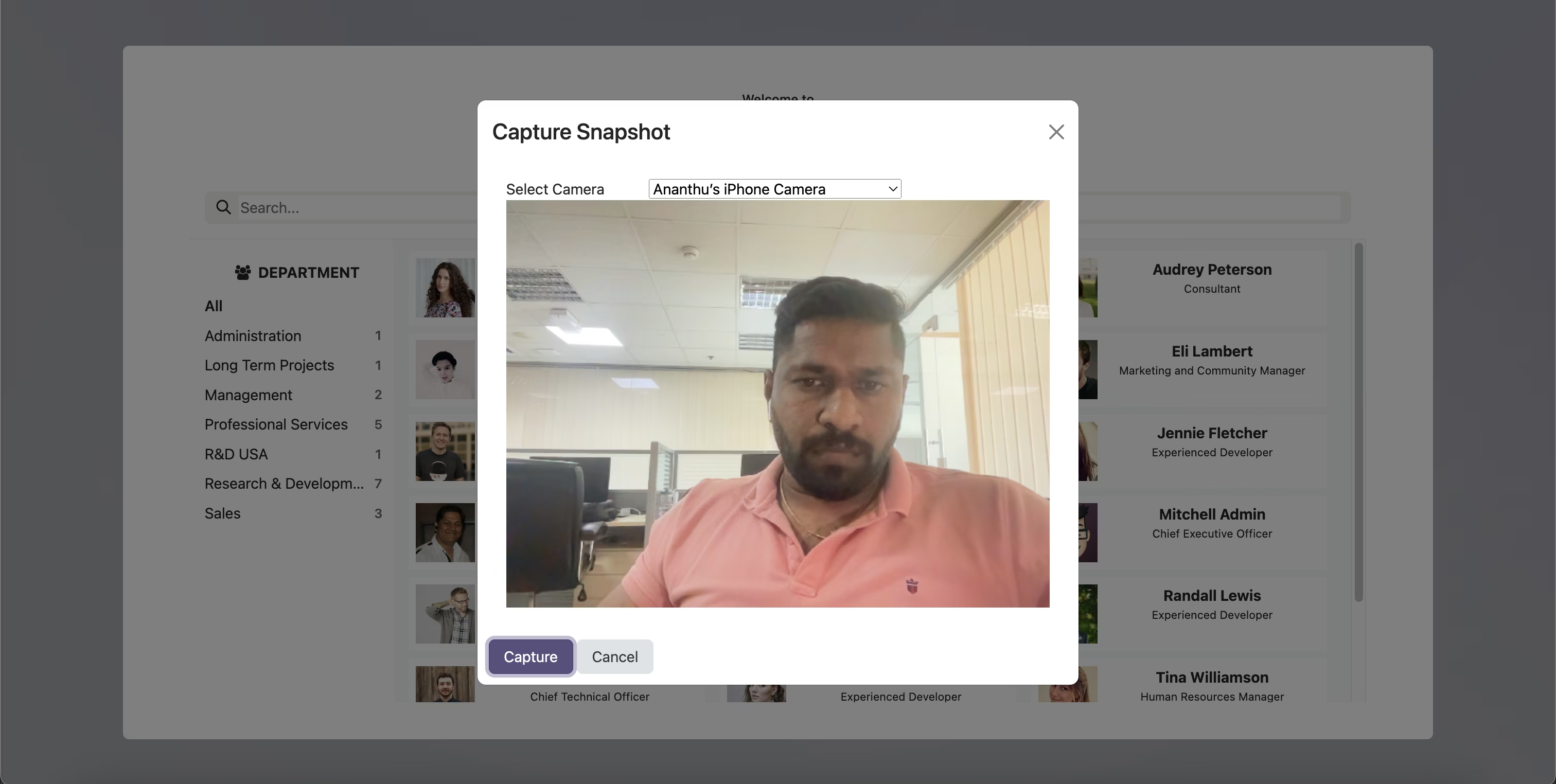
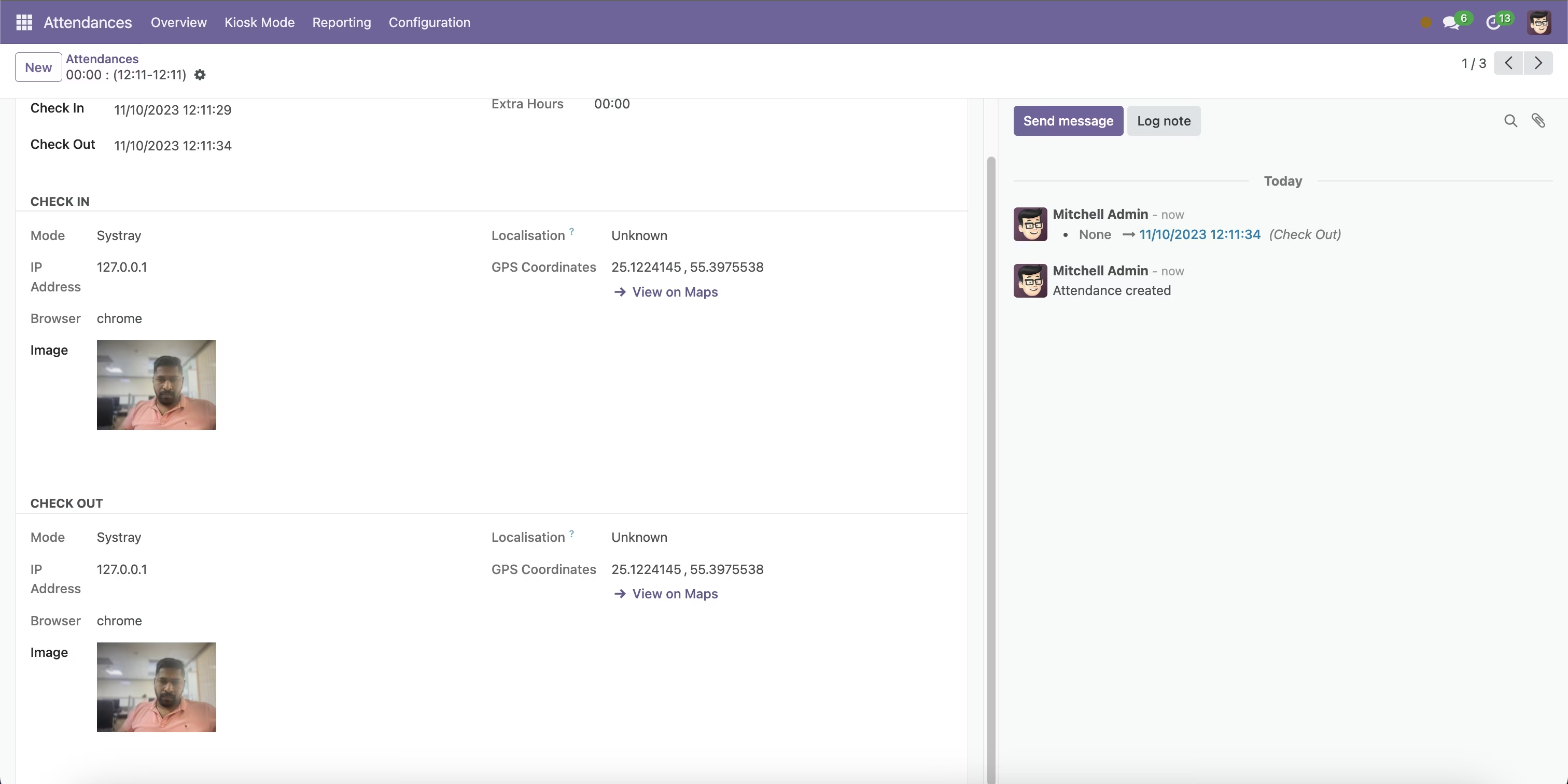
The module enhances attendance management system by automatically capturing employee photos during check-in and check-out. This feature ensures that each attendance record is visually verified, reducing the possibility of proxy attendance and improving overall attendance accuracy.
Automatic Photo Capture: Captures employee photos during attendance check-in and check-out processes.
Kiosk Mode Support: Enables photo capture in kiosk mode, allowing employees to check in and out using a dedicated terminal.
User Configuration: Provides a user-friendly interface for configuring photo capture settings.
Integration with Attendance Records: Associates captured photos with corresponding attendance records for easy verification.
Enhanced Security: Prevents proxy attendance by ensuring that employees are physically present during check-in and check-out.
Improved Accuracy: Provides visual verification of attendance records, reducing errors and discrepancies.
Streamlined Attendance Management: Simplifies attendance tracking by integrating photo capture directly into the attendance process.
Easy Configuration: Allows administrators to easily configure and manage photo capture settings through the user interface.
-- HTTPS is recommended --.
Attendance Webcam Image - Attendance Photo
This module helps you to capture the employees photo while check in / check and kiosk mode from Employee Attendance.
Installation
- Copy attendance_webcam_image module to addons folder
- Install the module normally like other modules
Features
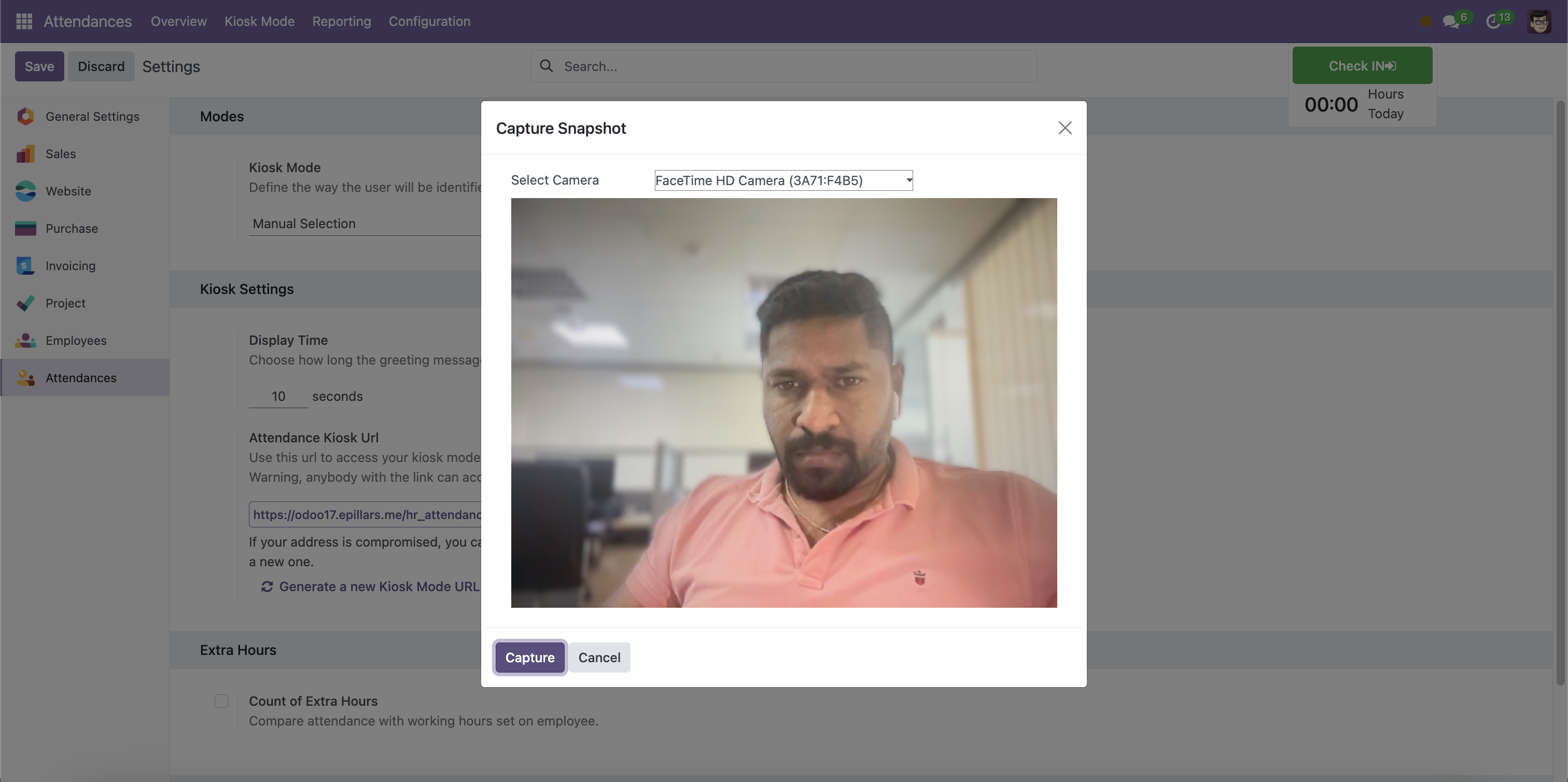
- Capture the Employees Attendance Photoe while Check in / Check out
- Capture the Employees Attendance Photo on Kiosk Mode.
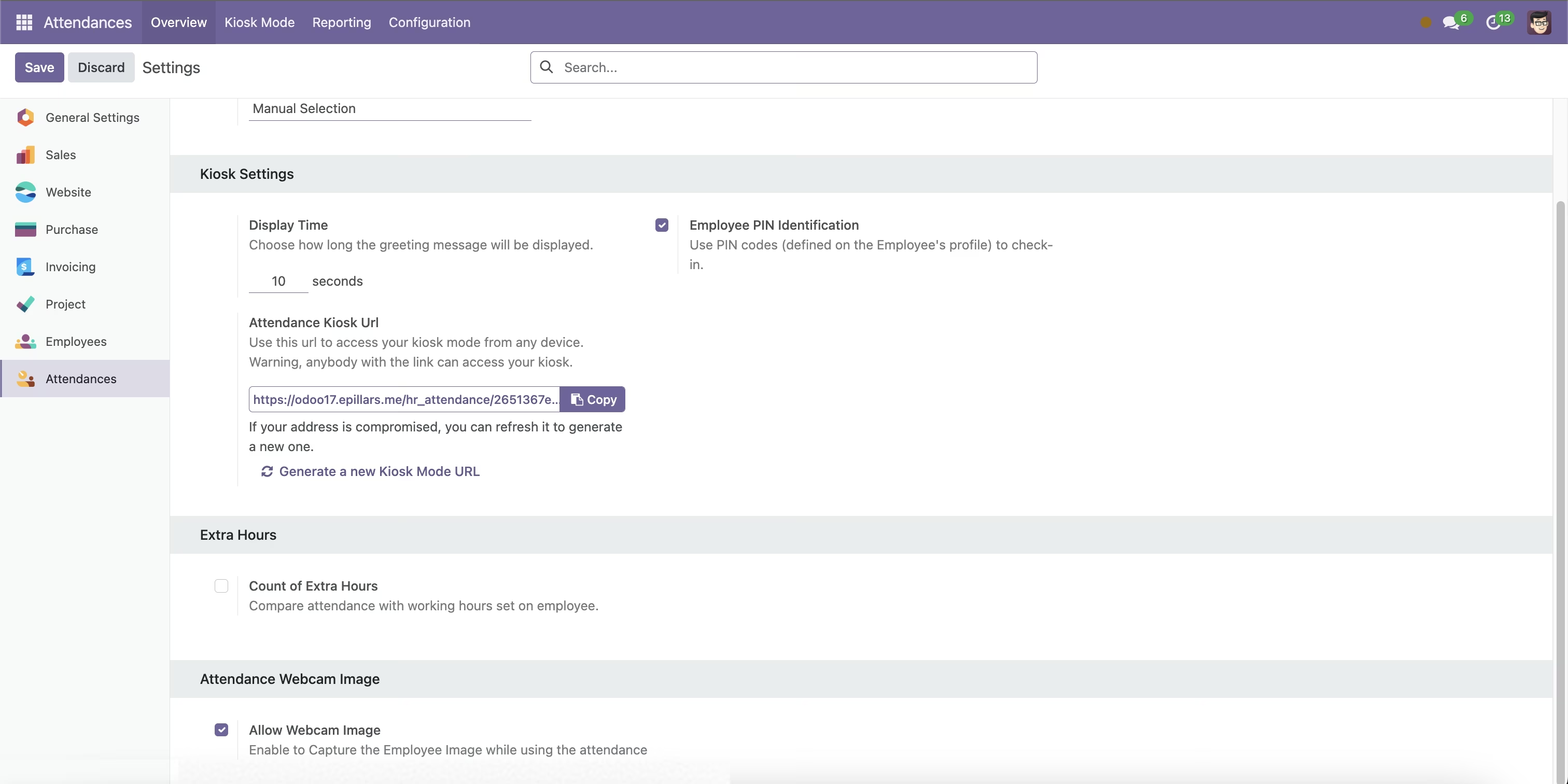
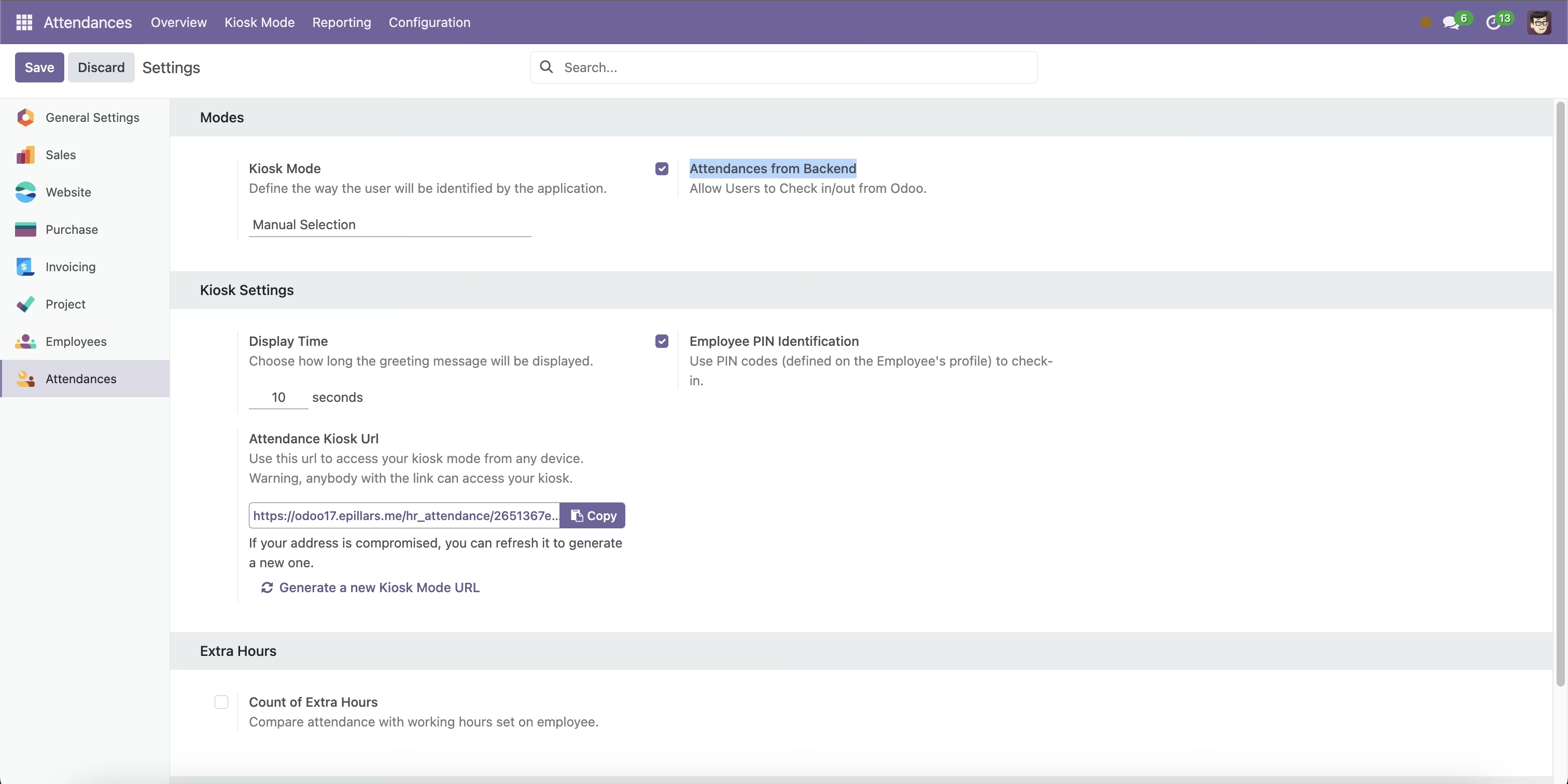
1. User Configuration
User Menu -> Attendance Webcam Image
2. Attendance
Attendances -> Check in / Check Out
Attendances -> Form View
Attendances -> Kiosk Mode.