
The Amazon Connector Base Extension is designed to enhance the functionality of the core Amazon Connector module by providing additional features tailored for Fulfilled By Merchant (FBM) operations. This extension enables seamless synchronization of orders, shipment tracking, and inventory management between Amazon, ensuring efficient e-commerce operations. By integrating this module, businesses can automate key processes, reduce manual data entry, and maintain accurate records across platforms.
FBM Order Processing: Import and manage FBM orders from Amazon directly in Odoo.
Shipment Tracking: Automatically update shipment statuses and tracking numbers in Odoo.
Inventory Synchronization: Sync product stock levels between Amazon to prevent overselling.
Order Status Updates: Notify Amazon of confirmed shipments from to ensure timely payments.
Multi-Marketplace Support: Manage multiple Amazon marketplaces and seller accounts within a single instance.
Automated Data Import: Schedule regular imports of orders and inventory data from Amazon.
Comprehensive Reporting: Generate detailed reports on sales, shipments, and inventory for informed decision-making.
Streamlined Operations: Automate order processing and inventory management to save time and reduce errors.
Improved Accuracy: Ensure consistent data across Amazon platforms with real-time synchronization.
Enhanced Visibility: Access comprehensive reports to monitor performance and make data-driven decisions.
Scalability: Easily manage multiple marketplaces and seller accounts as your business grows.
Cost Efficiency: Reduce operational costs by minimizing manual tasks and optimizing workflows.






Runs your AMAZON FBM Business smoothly
As the core features from the native Amazon connector provided by S.A. are not sufficient enough to run a smooth Amazon business - this 4EG Amazon FBM Extension gives you back the required features.
The Amazon native connector is not...?
importing order properly, mapping the products, let you set any stock field, let you set the amazon order ID as SO order Nr, letting you reimport orders, sending the tracking data, giving you any kind of log data, let you configure the debitor, let you configure pricelist, let you configure the carrier etc. .....
As the native Amazon connector is only able to import sales orders (Amazon Connector Documentation) and has some major "challenges", this might not be enough for E-commerce businesses to succeed. We run our own Amazon business in Germany since 2010 and are aware of all important features when it comes to connecting with Amazon. We built our features on native "solution" and made it usable for every Amazon Seller.
We got you covered. Check out our feature list!
After many hours of intensive planning and development and testing, we're thrilled to unveil our state-of-the-art Amazon connector extension - a testament to our unwavering commitment to excellence. This cutting-edge extension is solving all the issues and seamlessly bridge your business with the vast opportunities on Amazon!
Features
Sync improvements
Manually or with cron jobs
You can run the im- and export manually with the operations menu or by cron.
- Import orders batch
- Import single orders
- Export Stock batch
- Export stock for single or multiple products
- Export order status including tracking ID NEW: set the carrier
Configuration options
Account & marketplace
Set up your account and marketplaces (per country). Maximal flexibility.
- Set the Amazon oder ID as SO
- Set the debitor per country
- Set stock location per country
- Set one account or customer per country
Log import and export data
See what is going on
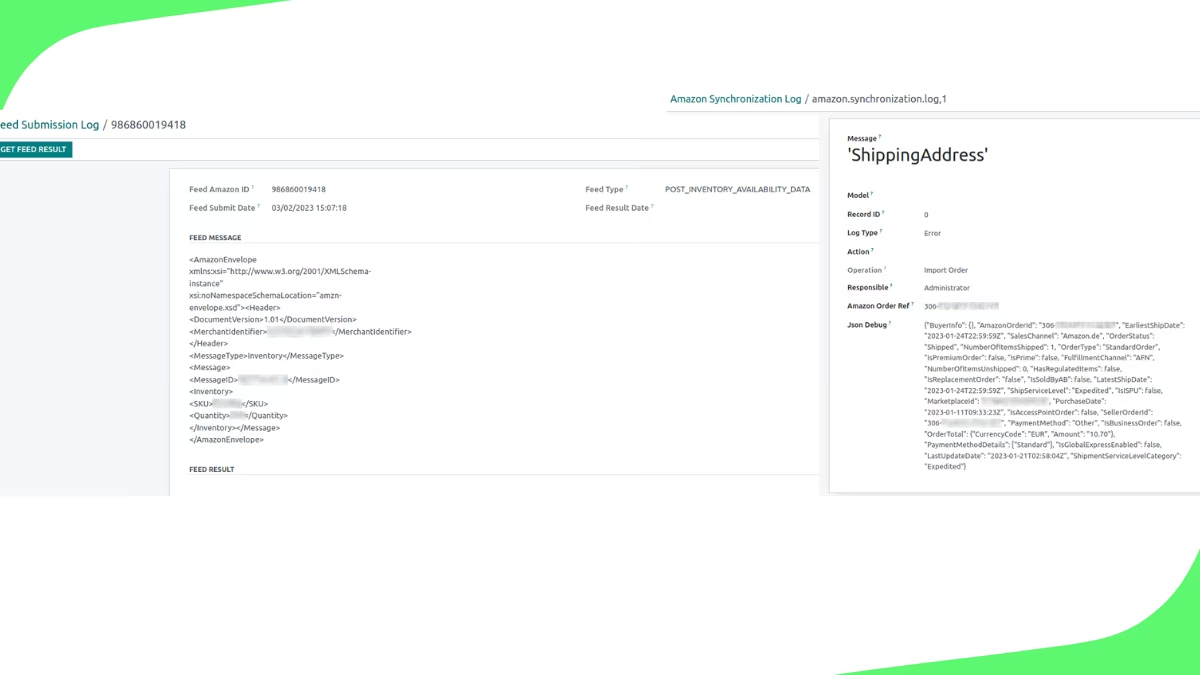
Get the synchronization log for imported orders and feed submission log.
- Turn on developer mode to see exactly the Amazon order data
- Never miss a order because of an error. Everything is listed in a new view.
- See every submitted feed and get the feed result from Amazon
Improved user workflow
Your own App in #
We created a new App with menus and workflows.
- New middleware product data view. See which products are permit to sync
- New config on Account an Marketplace level
- Operations menu
- Amazon Orders view
Connect to your Amazon Account within minutes!
Runs your AMAZON FBM Business smoothly
As the core features from the native Amazon connector provided by S.A. are not sufficient enough to run a smooth Amazon business - this 4EG Amazon FBM Extension gives you back the required features.
The Amazon native connector is not...?
importing order properly, mapping the products, let you set any stock field, let you set the amazon order ID as SO order Nr, letting you reimport orders, sending the tracking data, giving you any kind of log data, let you configure the debitor, let you configure pricelist, let you configure the carrier etc. .....
As the native Amazon connector is only able to import sales orders (Amazon Connector Documentation) and has some major "challenges", this might not be enough for E-commerce businesses to succeed. We run our own Amazon business in Germany since 2010 and are aware of all important features when it comes to connecting with Amazon. We built our features on native "solution" and made it usable for every Amazon Seller.
We got you covered. Check out our feature list!
After many hours of intensive planning and development and testing, we're thrilled to unveil our state-of-the-art Amazon connector extension - a testament to our unwavering commitment to excellence. This cutting-edge extension is solving all the issues and seamlessly bridge your business with the vast opportunities on Amazon!
Features
Sync Improvements
Manually or with cron jobs
You can run the im- and export manually with the operations menu or by cron.
- Import orders batch
- Import single orders
- Export Stock batch
- Export stock for single or multiple products
- Export order status including tracking ID NEW: set the carrier
Configuration Options
Account & marketplace
Set up your account and marketplaces (per country). Maximal flexibility.
- Set the Amazon oder ID as SO
- Set the debitor per country
- Set stock location per country
- Set one account or customer per country
Log import and export data
See what is going on
Get the synchronization log for imported orders and feed submission log.
- Turn on developer mode to see exactly the Amazon order data
- Never miss a order because of an error. Everything is listed in a new view.
- See every submitted feed and get the feed result from Amazon
Improved user Worklfow
Your own App
We created a new App with menus and workflows.
- New middleware product data view. See which products are permit to sync
- New config on Account an Marketplace level
- Operations menu
- Amazon Orders view
Connect to your Amazon Account within minutes!
Runs your AMAZON FBM Business smoothly
As the core features from the native Amazon connector provided by S.A. are not sufficient enough to run a smooth Amazon business - this 4EG Amazon FBM Extension gives you back the required features.
The Amazon native connector is not...?
importing order properly, mapping the products, let you set any stock field, let you set the amazon order ID as SO order Nr, letting you reimport orders, sending the tracking data, giving you any kind of log data, let you configure the debitor, let you configure pricelist, let you configure the carrier etc. .....
As the native Amazon connector is only able to import sales orders (Amazon Connector Documentation) and has some major "challenges", this might not be enough for E-commerce businesses to succeed. We run our own Amazon business in Germany since 2010 and are aware of all important features when it comes to connecting with Amazon. We built our features on native "solution" and made it usable for every Amazon Seller.
We got you covered. Check out our feature list!
After many hours of intensive planning and development and testing, we're thrilled to unveil our state-of-the-art Amazon connector extension - a testament to our unwavering commitment to excellence. This cutting-edge extension is solving all the issues and seamlessly bridge your business with the vast opportunities on Amazon!
Features
Sync Improvements
Manually or with cron jobs
You can run the im- and export manually with the operations menu or by cron.
- Import orders batch
- Import single orders
- Export Stock batch
- Export stock for single or multiple products
- Export order status including tracking ID NEW: set the carrier
Configuration Options
Account & marketplace
Set up your account and marketplaces (per country). Maximal flexibility.
- Set the Amazon oder ID as SO
- Set the debitor per country
- Set stock location per country
- Set one account or customer per country
Log import and export data
See what is going on
Get the synchronization log for imported orders and feed submission log.
- Turn on developer mode to see exactly the Amazon order data
- Never miss a order because of an error. Everything is listed in a new view.
- See every submitted feed and get the feed result from Amazon
Improved user Worklfow
Your own App in #
We created a new App with menus and workflows.
- New middleware product data view. See which products are permit to sync
- New config on Account an Marketplace level
- Operations menu
- Amazon Orders view
Connect to your Amazon Account within minutes!
Configure your Amazon Connector
Please make sure that your cron-jobs are turned off during the testing phase. You will find them in the developer mode under sheduled actions and search for "Amazon"
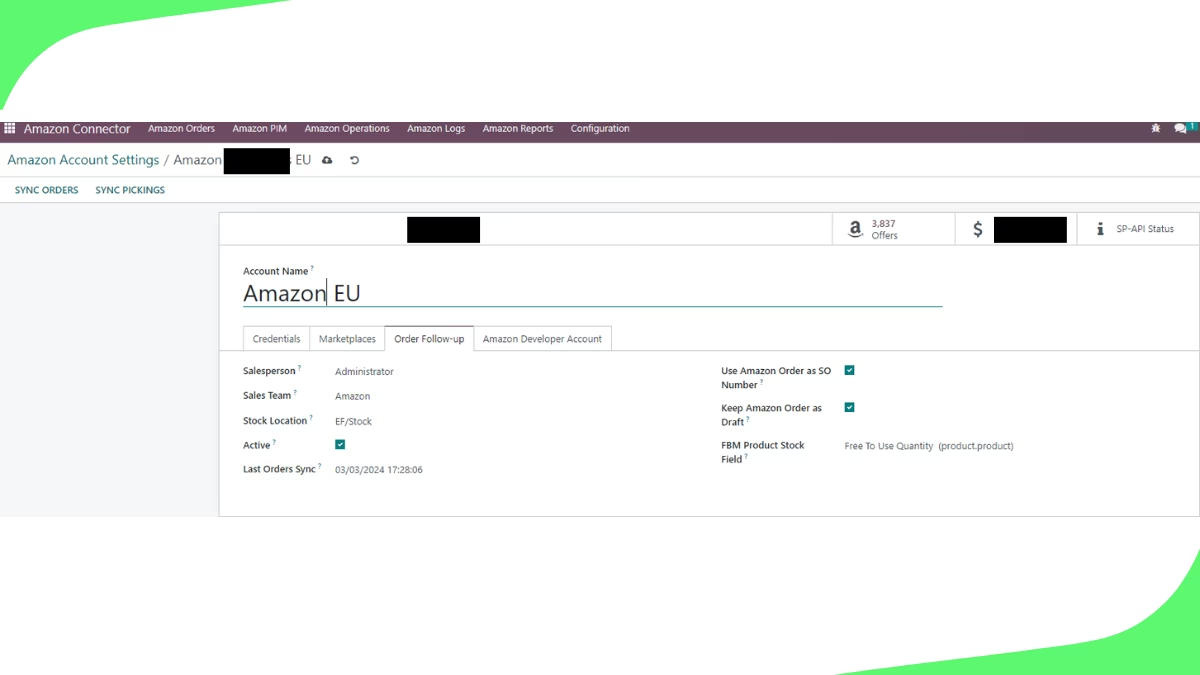
1. Configuration of your Amazon account.
Go into configuration and Amazon account settings. After setting the credentials and running the authentication open every tab one after each other and choose the right settings for you. Note: Amazon developer tab might not be available in your version.
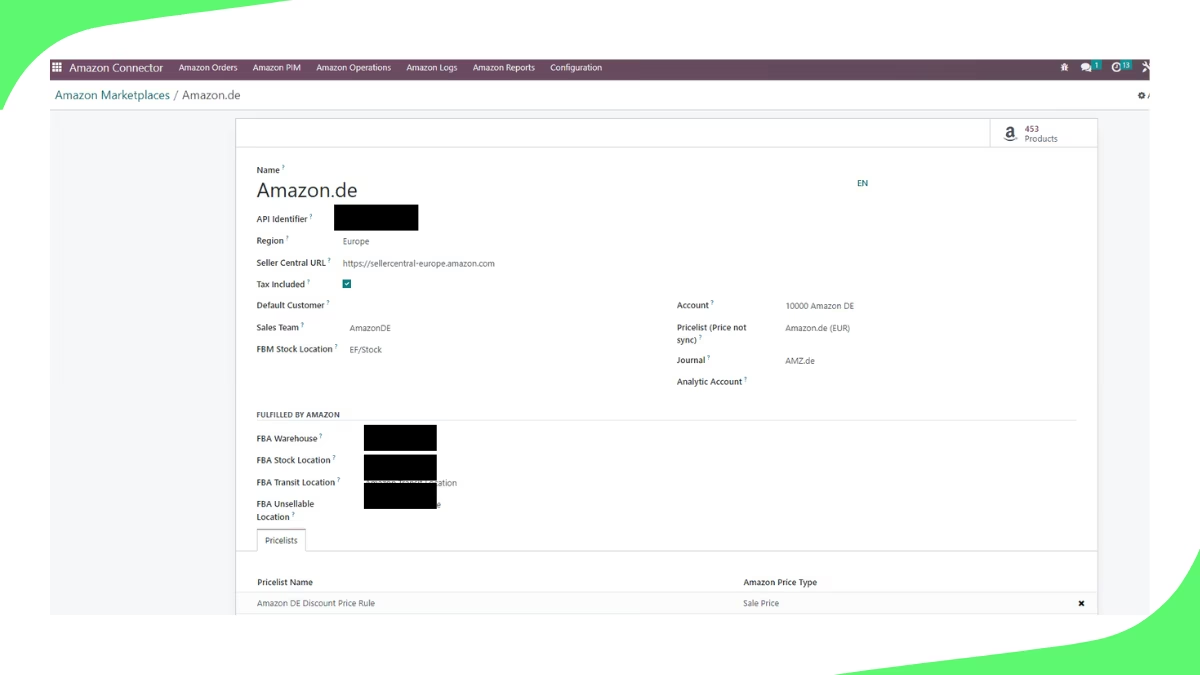
2. Set up your Marketplaces
Go into configuration and marketplaces. Marketplace settings will override the account settings if a value is set. The debitor will be used on every Partner that is imported with the sale order. The sales team is set on every order. Journal is for payments. Note: There might be fields or options not be available in your version.
3. Operations menu- Export stock and shipments
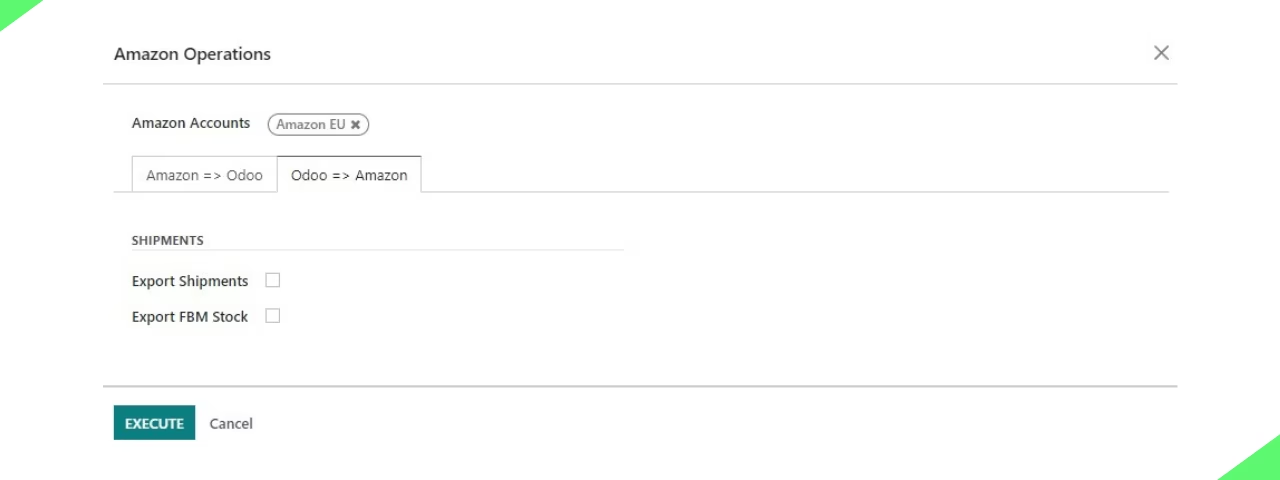
Important! Please first export the product variants from your inventory App menu. Mark the choosen variants with the tickbox and click "Generate Amazon Products" from the actions menu. Choose "Manufacturer Fulfillment Network". This will push the variants into the PIM of Amazon connector. After that switch to the Amazon connector and the product variant view. You can now export stock by activating the tick box on products and click "Export Amazon FBM Stock" at the actions menu. Note that you have to submit the feed from the "Amazon logs" manually if the cron is disabled. If you want to export all products than run the operations menu shown below. Shipments will be only exported when the status is done and a tracking ID and carrier is set. Please add the carrier name for your amazon export in the carrier configurations of the sales app.
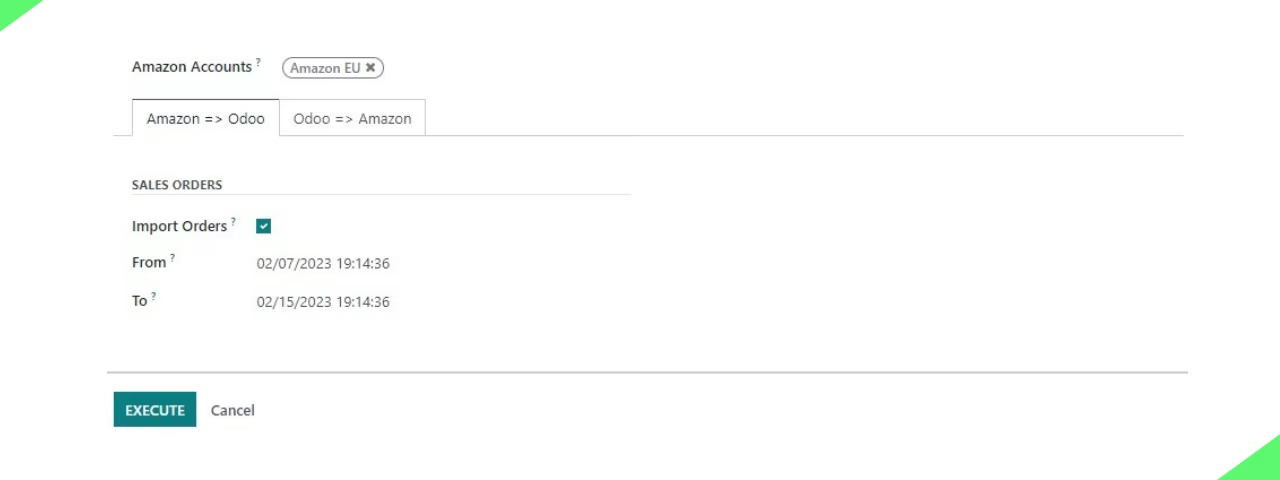
4. Operations menu- Import orders
We recommend that you start importing your first order by a single import request. Just insert the order id from amazon. The import data is for setting the order date of the order in amazon. If this is running well, than you can import all orders from amazon by setting the date. You can run also this operation by cron after some testing.
5. Control - log your data
It is super important to identify problems with import/export data in your Amazon Logs. When requesting the feed results you detailed information directly from amazon about errors or warnings. Furthermore, you will see all imported sales order data of every sales order in sales order view (right screenshot). For example if some address data or tax is not set appropriate. (Only visible in debug mode)
Step by Step to your success
Please work on the configurations step by step. We installed the App on many instances and it is working pretty well. If you are facing any issues please go through your config one more time before contacting us.
1. Tax. Please be sure that the right tax config is made on your fiscal positions. Maybe import the first orders only by draft. (config account)
2. Crons. Please turn off in the setup and than turn it on one by one but still observing the results. There are thresholds for requests and feed submitting. Please don´t set the crons too tight
3. Order imports need time. As amazon is only allowing 40 orders per second it might take a while to import big order data. We have a cron running taking care (if it is enabled). However be patient with the import.
4. Export stock. We see also thresholds on the export. We are splitting up the feeds, so you can see them beeing exported and having the correct or incorrect data. You can run the feeds also manually when the cron is off.
5. If there is a bug. Please go through our configuration first. This solves most of the time the problem. If there is a real bug we will fix it immediately.
Configure your Amazon Connector
Please make sure that your cron-jobs are turned off during the testing phase. You will find them in the developer mode under sheduled actions and search for "Amazon"
1. Configuration of your Amazon account.
Go into configuration and Amazon account settings. After setting the credentials and running the authentication open every tab one after each other and choose the right settings for you. Note: Amazon developer tab might not be available in your version.
2. Set up your Marketplaces
Go into configuration and marketplaces. Marketplace settings will override the account settings if a value is set. The debitor will be used on every Partner that is imported with the sale order. The sales team is set on every order. Journal is for payments. Note: There might be fields or options not be available in your version.
3. Operations menu- Export stock and shipments
Important! Please first export the product variants from your inventory App menu. Mark the choosen variants with the tickbox and click "Generate Amazon Products" from the actions menu. Choose "Manufacturer Fulfillment Network". This will push the variants into the PIM of Amazon connector. After that switch to the Amazon connector and the product variant view. You can now export stock by activating the tick box on products and click "Export Amazon FBM Stock" at the actions menu. Note that you have to submit the feed from the "Amazon logs" manually if the cron is disabled. If you want to export all products than run the operations menu shown below. Shipments will be only exported when the status is done and a tracking ID and carrier is set. Please add the carrier name for your amazon export in the carrier configurations of the sales app.
4. Operations menu- Import orders
We recommend that you start importing your first order by a single import request. Just insert the order id from amazon. The import data is for setting the order date of the order in amazon. If this is running well, than you can import all orders from amazon by setting the date. You can run also this operation by cron after some testing.
5. Control - log your data
It is super important to identify problems with import/export data in your Amazon Logs. When requesting the feed results you detailed information directly from amazon about errors or warnings. Furthermore, you will see all imported sales order data of every sales order in sales order view (right screenshot). For example if some address data or tax is not set appropriate. (Only visible in debug mode)
Step by Step to your success
Please work on the configurations step by step. We installed the App on many instances and it is working pretty well. If you are facing any issues please go through your config one more time before contacting us.
1. Tax. Please be sure that the right tax config is made on your fiscal positions. Maybe import the first orders only by draft. (config account)
2. Crons. Please turn off in the setup and than turn it on one by one but still observing the results. There are thresholds for requests and feed submitting. Please don´t set the crons too tight
3. Order imports need time. As amazon is only allowing 40 orders per second it might take a while to import big order data. We have a cron running taking care (if it is enabled). However be patient with the import.
4. Export stock. We see also thresholds on the export. We are splitting up the feeds, so you can see them beeing exported and having the correct or incorrect data. You can run the feeds also manually when the cron is off.
5. If there is a bug. Please go through our configuration first. This solves most of the time the problem. If there is a real bug we will fix it immediately.
Step by Step to your success
Please work on the configurations step by step. We installed the App on many instances and it is working pretty well. If you are facing any issues please go through your config one more time before contacting us.
1. Tax. Please be sure that the right tax config is made on your fiscal positions. Maybe import the first orders only by draft. (config account)
2. Crons. Please turn off in the setup and than turn it on one by one but still observing the results. There are thresholds for requests and feed submitting. Please don´t set the crons too tight
3. Order imports need time. As amazon is only allowing 40 orders per second it might take a while to import big order data. We have a cron running taking care (if it is enabled). However be patient with the import.
4. Export stock. We see also thresholds on the export. We are splitting up the feeds, so you can see them beeing exported and having the correct or incorrect data. You can run the feeds also manually when the cron is off.
5. If there is a bug. Please go through our configuration first. This solves most of the time the problem. If there is a real bug we will fix it immediately.
Configure your Amazon Connector
Please make sure that your cron-jobs are turned off during the testing phase. You will find them in the developer mode under sheduled actions and search for "Amazon"
1. Configuration of your Amazon account.
Go into configuration and Amazon account settings. After setting the credentials and running the authentication open every tab one after each other and choose the right settings for you. Note: Amazon developer tab might not be available in your version.
2. Set up your Marketplaces
Go into configuration and marketplaces. Marketplace settings will override the account settings if a value is set. The debitor will be used on every Partner that is imported with the sale order. The sales team is set on every order. Journal is for payments. Note: There might be fields or options not be available in your version.
3. Operations menu- Export stock and shipments
Important! Please first export the product variants from your inventory App menu. Mark the choosen variants with the tickbox and click "Generate Amazon Products" from the actions menu. Choose "Manufacturer Fulfillment Network". This will push the variants into the PIM of Amazon connector. After that switch to the Amazon connector and the product variant view. You can now export stock by activating the tick box on products and click "Export Amazon FBM Stock" at the actions menu. Note that you have to submit the feed from the "Amazon logs" manually if the cron is disabled. If you want to export all products than run the operations menu shown below. Shipments will be only exported when the status is done and a tracking ID and carrier is set. Please add the carrier name for your amazon export in the carrier configurations of the sales app.
4. Operations menu- Import orders
We recommend that you start importing your first order by a single import request. Just insert the order id from amazon. The import data is for setting the order date of the order in amazon. If this is running well, than you can import all orders from amazon by setting the date. You can run also this operation by cron after some testing.
5. Control - log your data
It is super important to identify problems with import/export data in your Amazon Logs. When requesting the feed results you detailed information directly from amazon about errors or warnings. Furthermore, you will see all imported sales order data of every sales order in sales order view (right screenshot). For example if some address data or tax is not set appropriate. (Only visible in debug mode)
Step by Step to your success
Please work on the configurations step by step. We installed the App on many instances and it is working pretty well. If you are facing any issues please go through your config one more time before contacting us.
1. Tax. Please be sure that the right tax config is made on your fiscal positions. Maybe import the first orders only by draft. (config account)
2. Crons. Please turn off in the setup and than turn it on one by one but still observing the results. There are thresholds for requests and feed submitting. Please don´t set the crons too tight
3. Order imports need time. As amazon is only allowing 40 orders per second it might take a while to import big order data. We have a cron running taking care (if it is enabled). However be patient with the import.
4. Export stock. We see also thresholds on the export. We are splitting up the feeds, so you can see them beeing exported and having the correct or incorrect data. You can run the feeds also manually when the cron is off.
5. If there is a bug. Please go through our configuration first. This solves most of the time the problem. If there is a real bug we will fix it immediately.

Plentymarkets Connector
Connect to more than 50 plattforms with only one API from #


Getmyinvoice Connector
Never forget invoices, automate the OCR, import invoices with all information set

Deutsche Post Connector
Connect to deutsche Post services and send any letters to Germany and Internationaly
Plentymarkets Connector
Connect to more than 50 plattforms with only one API from #
Getmyinvoice Connector
Never forget invoices, automate the OCR, import invoices with all information set
Deutsche Post Connector
Connect to deutsche Post services and send any letters to Germany and Internationaly