The POS Orders List module for allows users to view and manage all POS orders directly from the POS interface. This module streamlines operations by enabling staff to search, reorder, or print invoices without leaving the current session, improving efficiency and enhancing the customer experience.
Order List Display: View all orders from the current or previous sessions.
Advanced Search: Search orders by customer name, order number, or date.
Reorder: Repeat previous orders with the same products and quantities.
Print Invoices: Print invoices for completed orders directly from the POS interface.
Status Filtering: Filter orders by status such as paid, invoiced, or posted.
Multi-Session Support: Access orders from current or past POS sessions.
User-Friendly Interface: Integrated directly into the POS interface for easy access and smooth workflow.
Time-Saving: Quickly access order information without switching screens.
Operational Efficiency: Reduce steps and accelerate order processing.
Enhanced Customer Service: Easily handle customer requests for previous orders.
Effective Order Management: Monitor and manage POS order history efficiently.
All POS Orders List Apps
View All POS Orders in One Place
Filter POS Orders by Date & Status
Quick Order Details from POS Screen
Access Customer-Specific POS Order History
This apps help to see the list of all the orders in Point of sales, user can also see individual customers list of orders.After installing this module POS user can also able to see all orders on screen in POS. User can filter order by date and status of the order and also view the order details by clicking on any of the order.

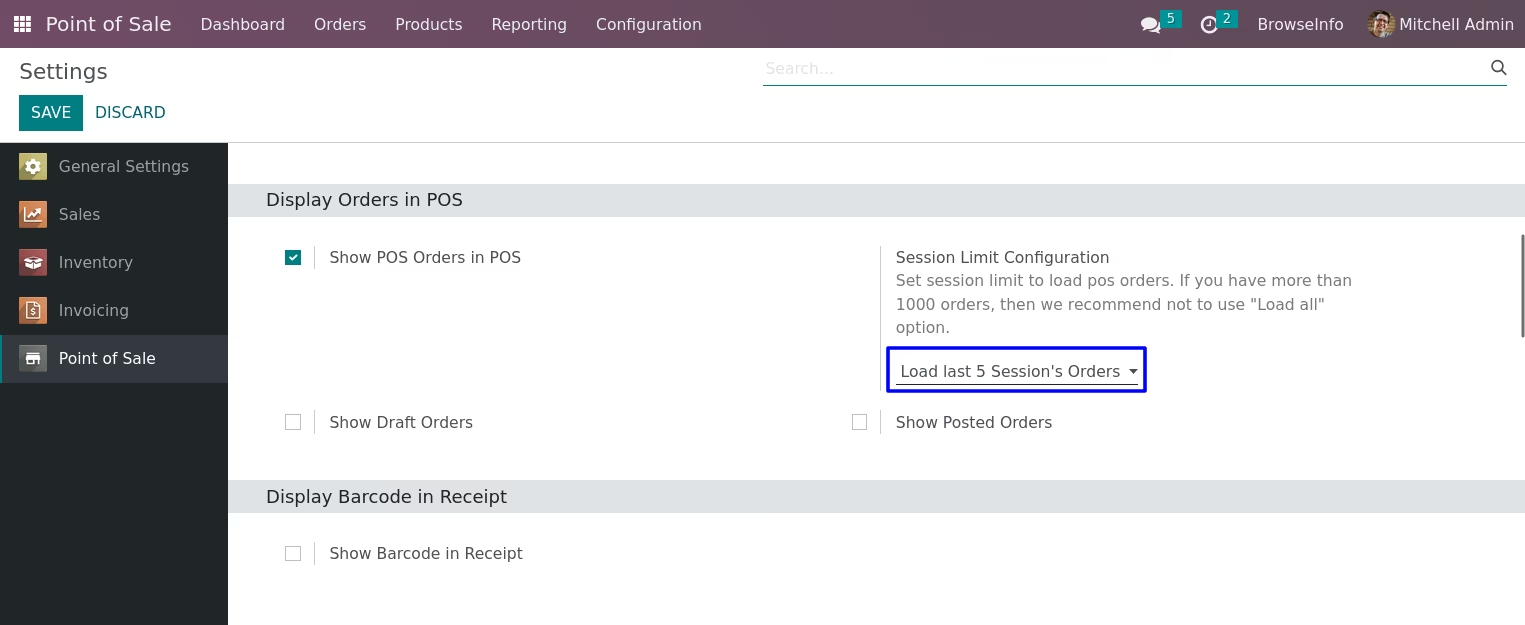
Allow User to Configure the Limit of POS Order.
Customer can manage the pos orders as per the configuration.
Allow user to see Different Orders from Different Session.
Customer can see the pos orders which are paid, on draft or posted.

User can See POS Orders.
User can see pos orders as per the configuration of the customer in pos screen.

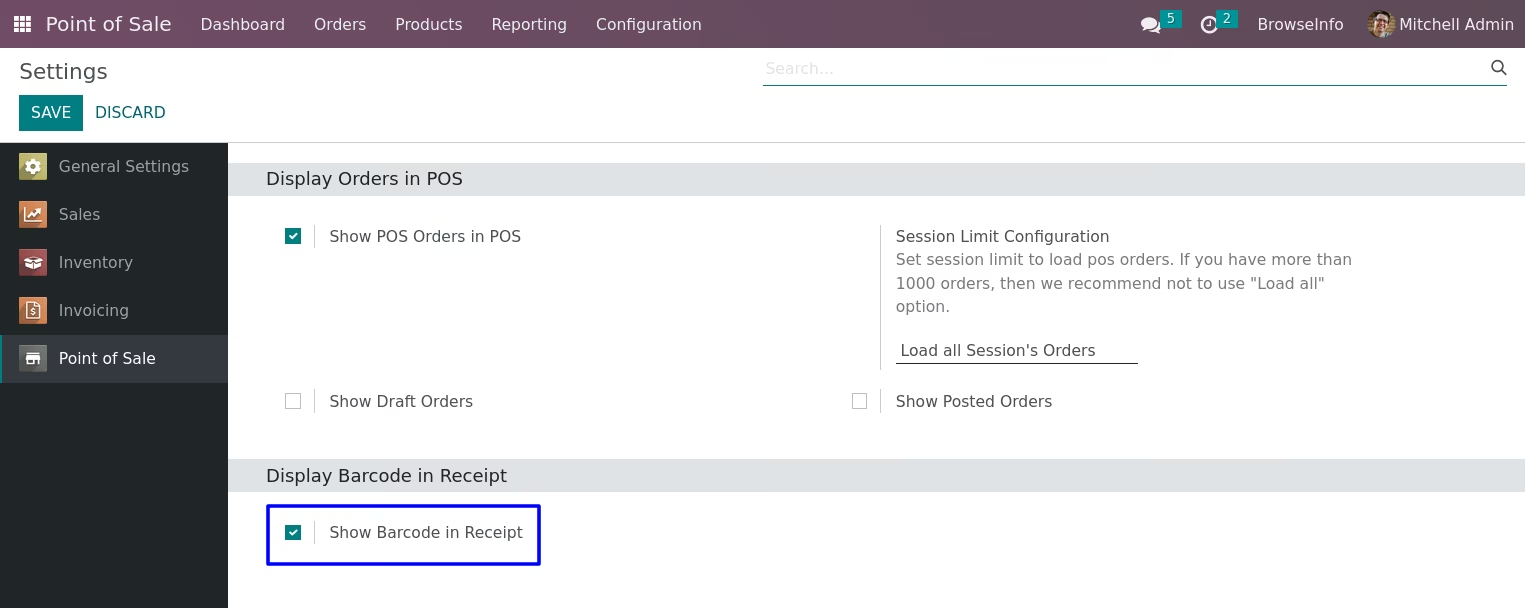
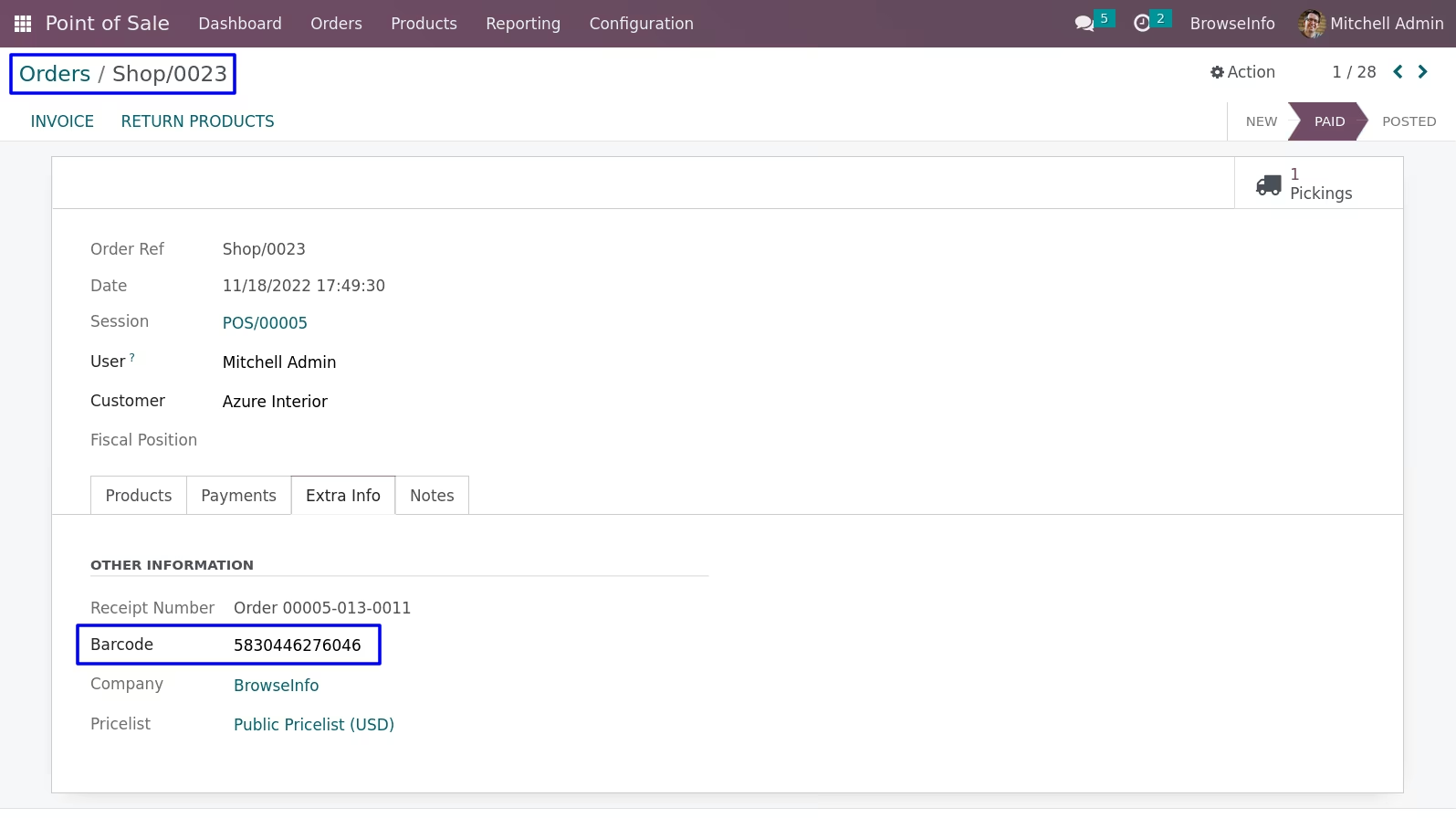
Configuration for Barcode.
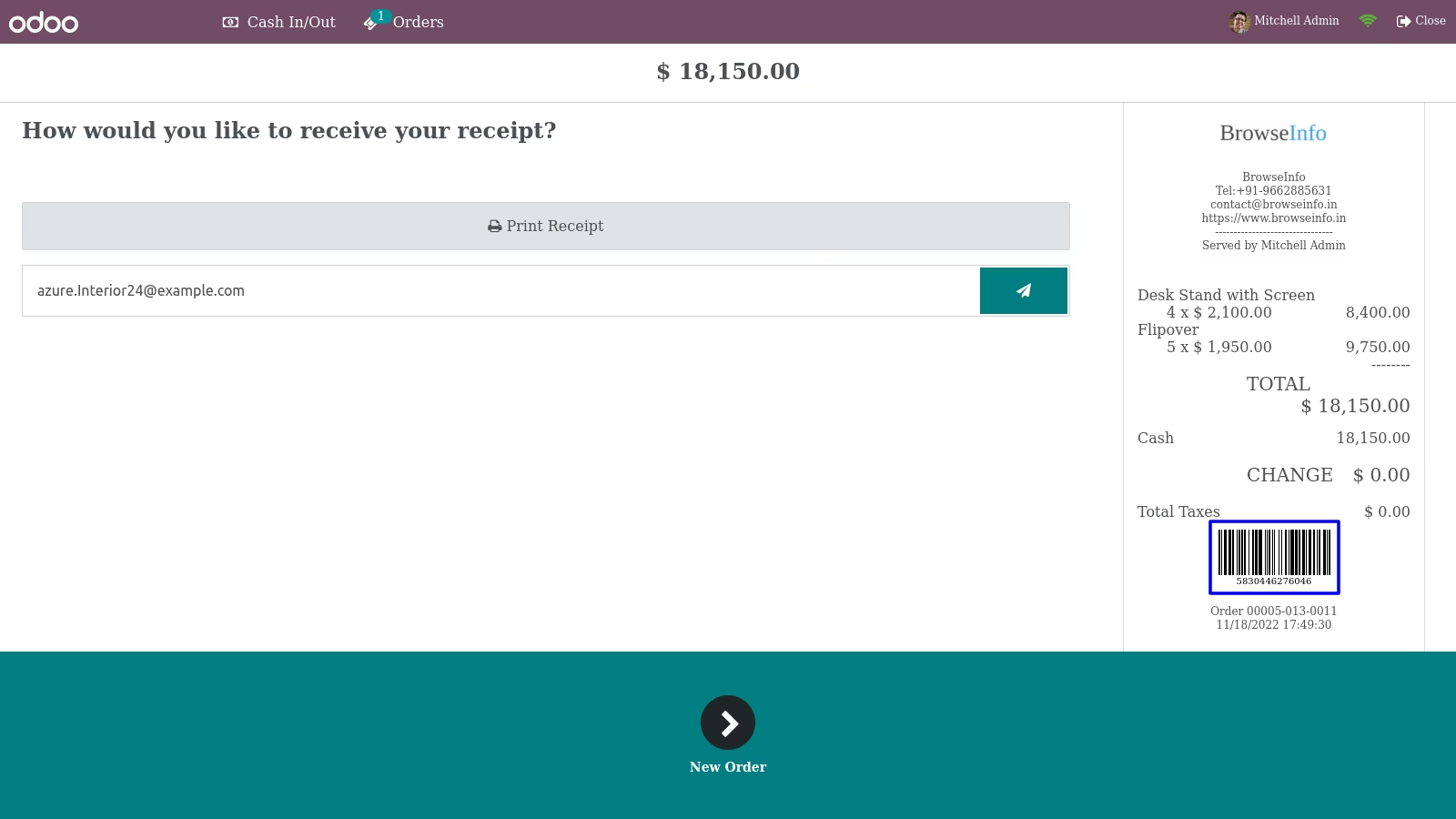
User can see barcode in pos receipt as well as in order.

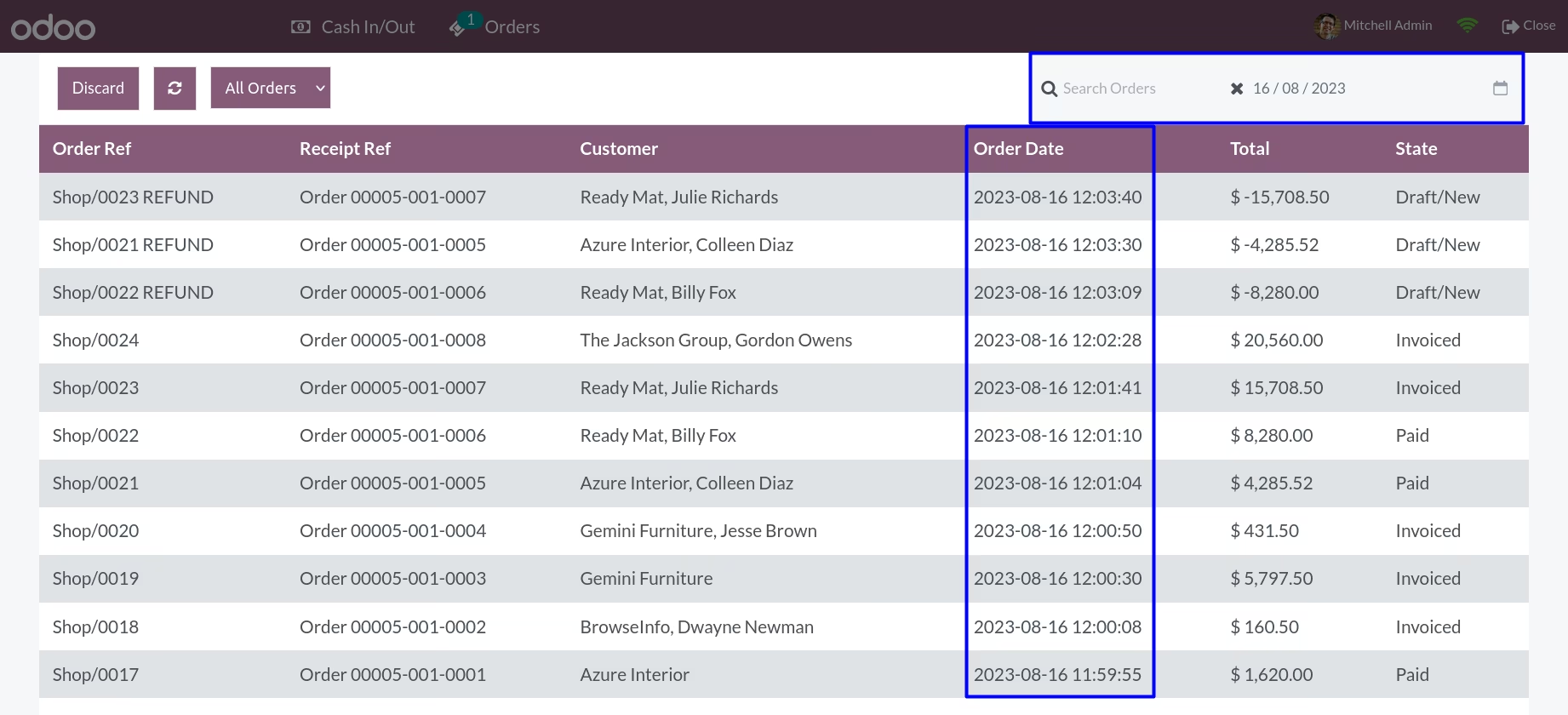
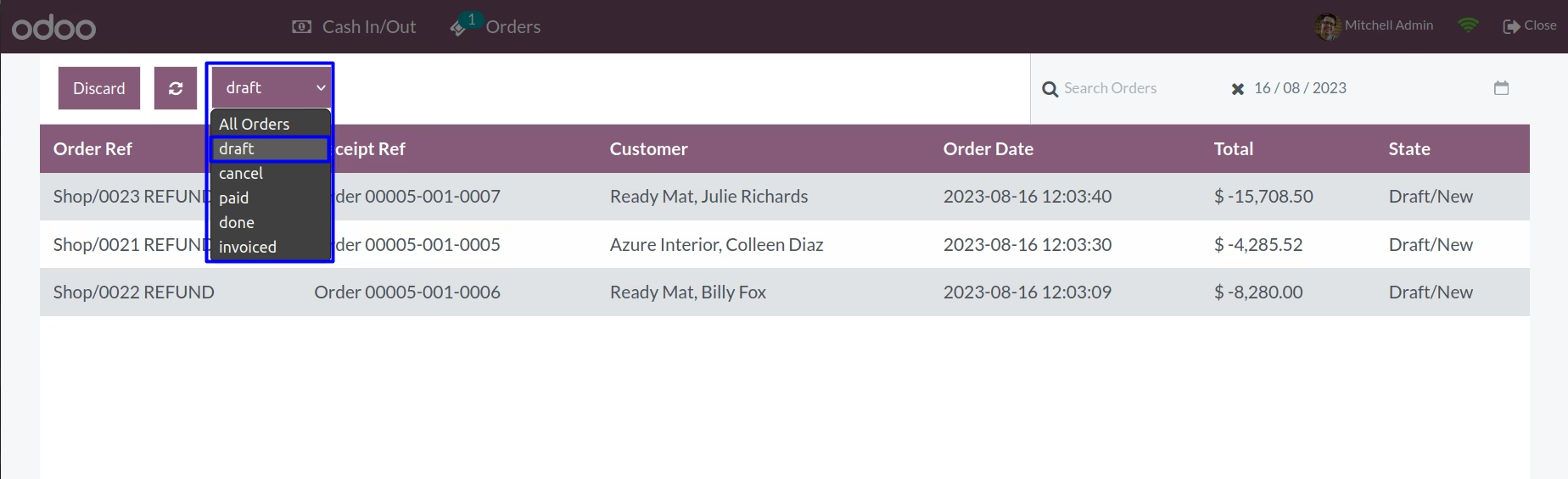
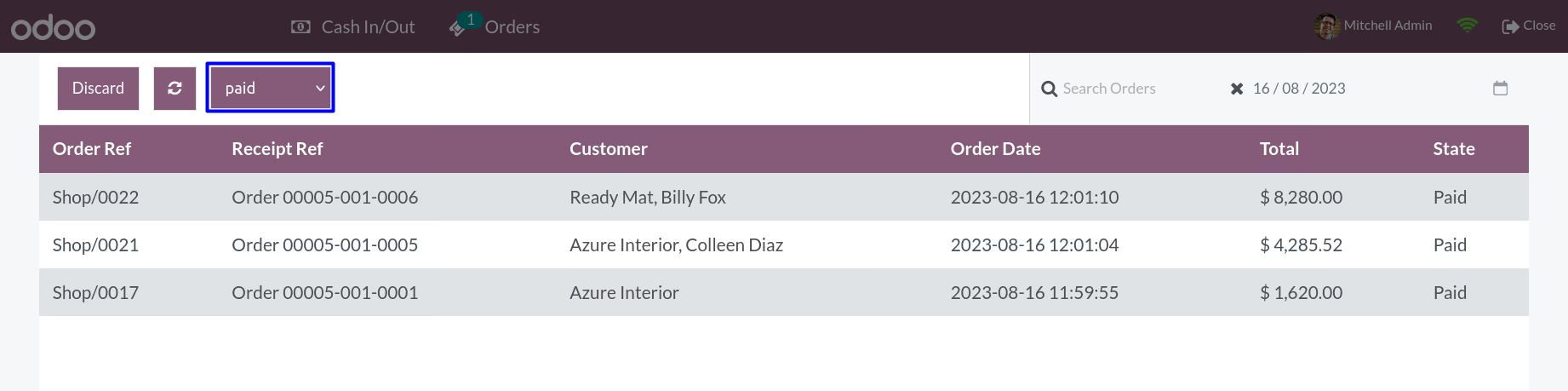
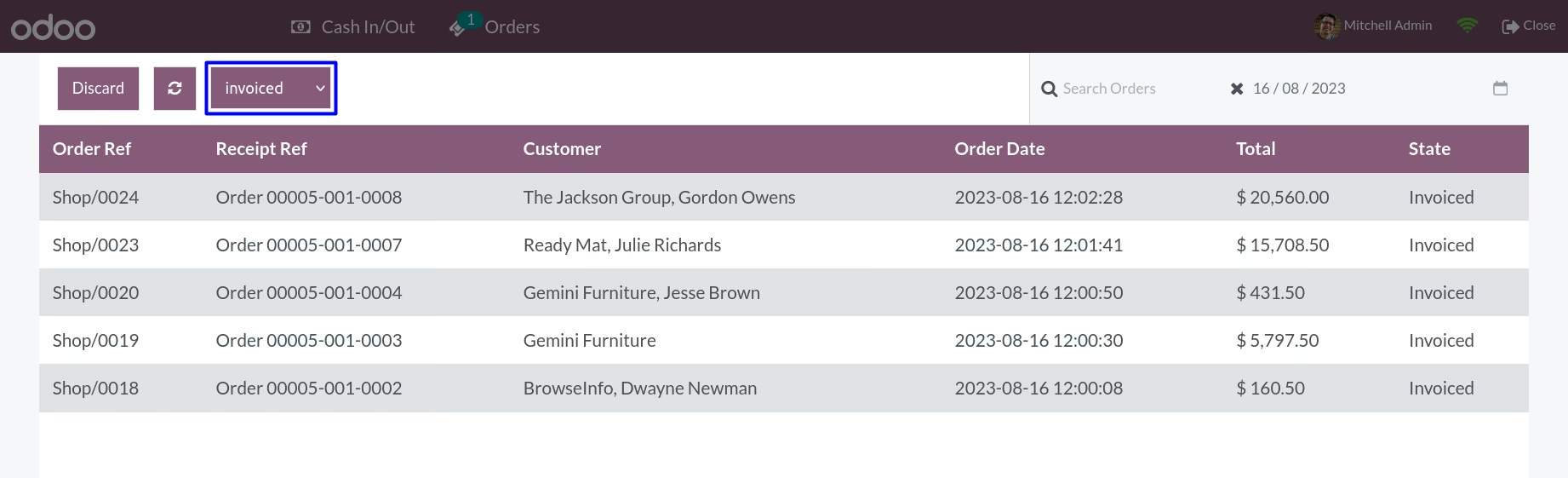
Filter By Order List
User can filter order list by date and status in pos screen.

Show Order Details
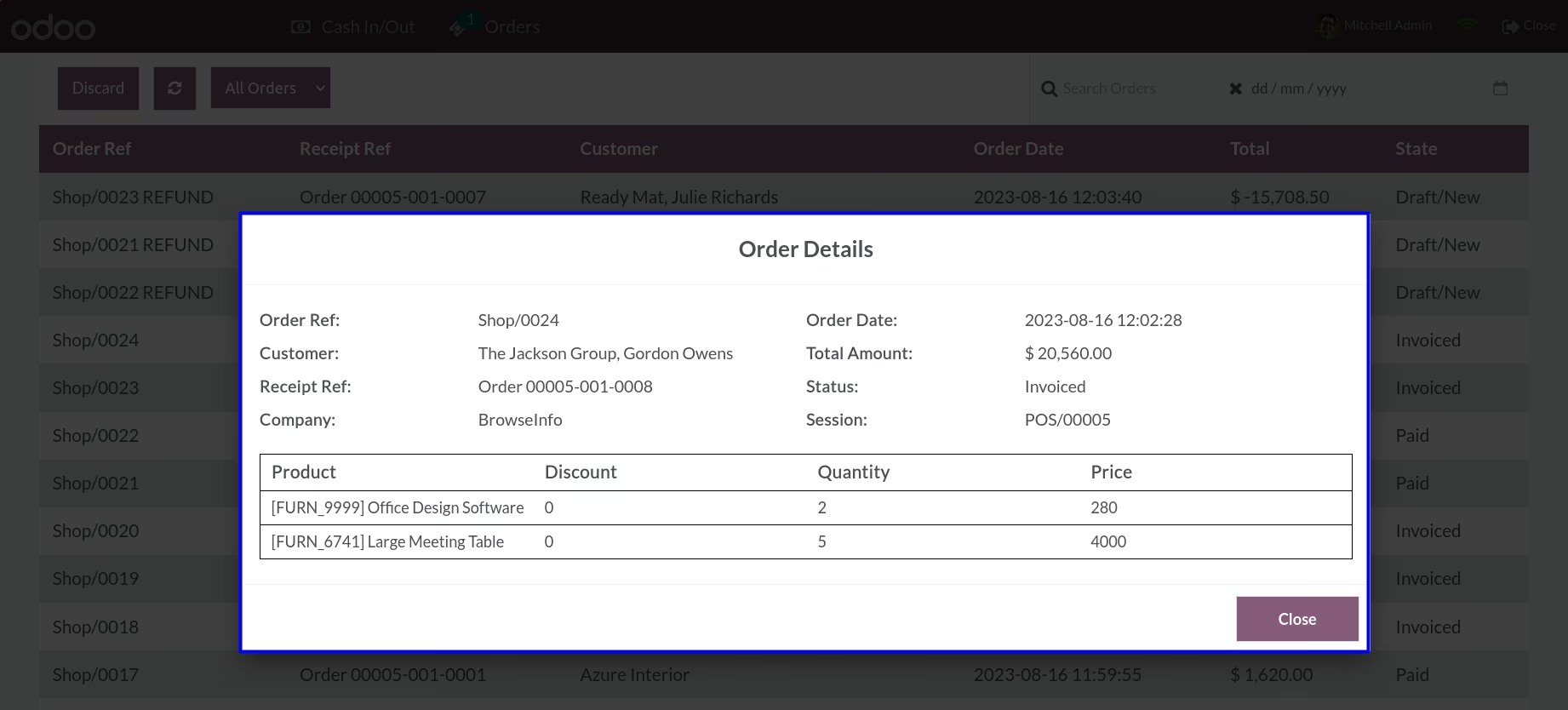
User can click on any order to view the details of that order.
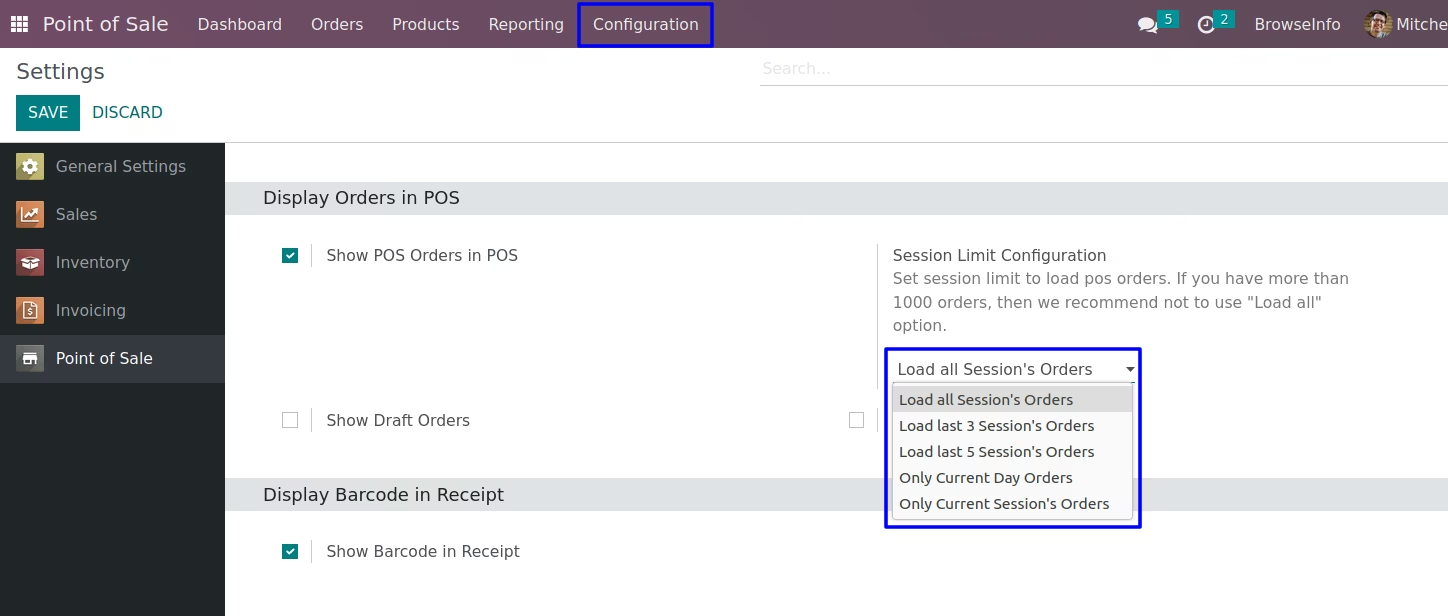
Load POS Order Configuration
User have to select from options from the settings to set limit to load pos orders.
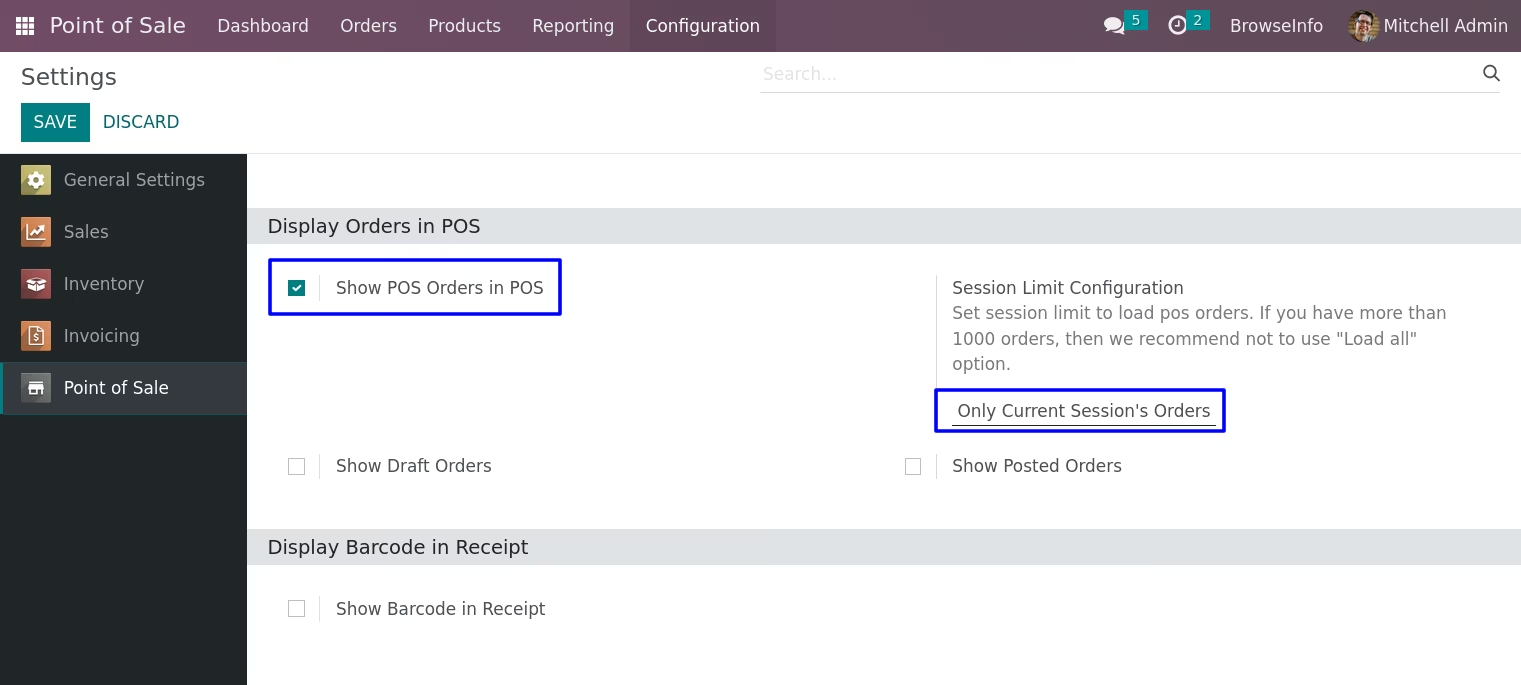
Only Current Session
Pos order for that current session can be seen by user by selecting this option.
In POS Screen "Orders" button appear,user can see all POS orders directly from POS.
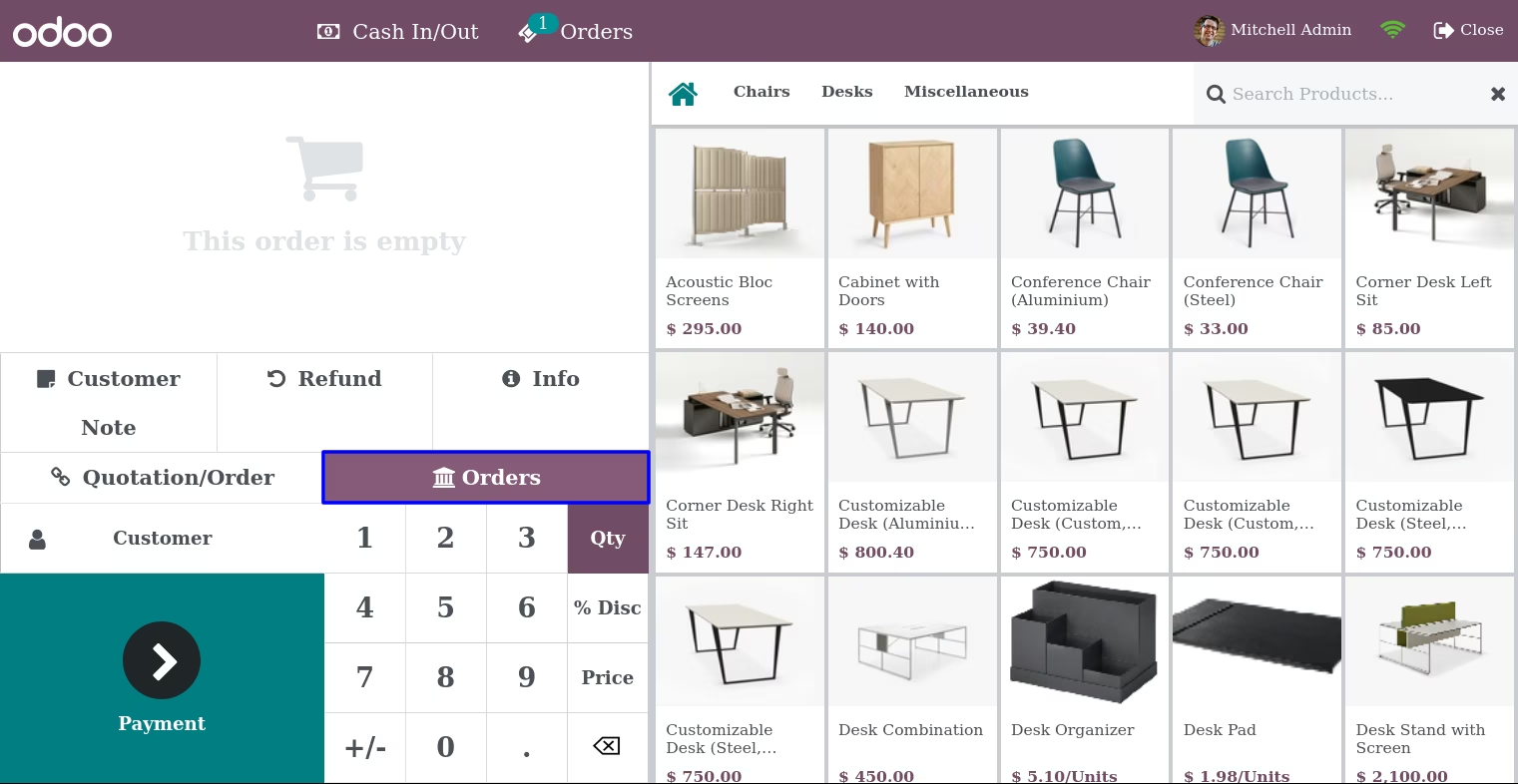
When user clicks on "Orders" button he/she can see pos order for that current session.
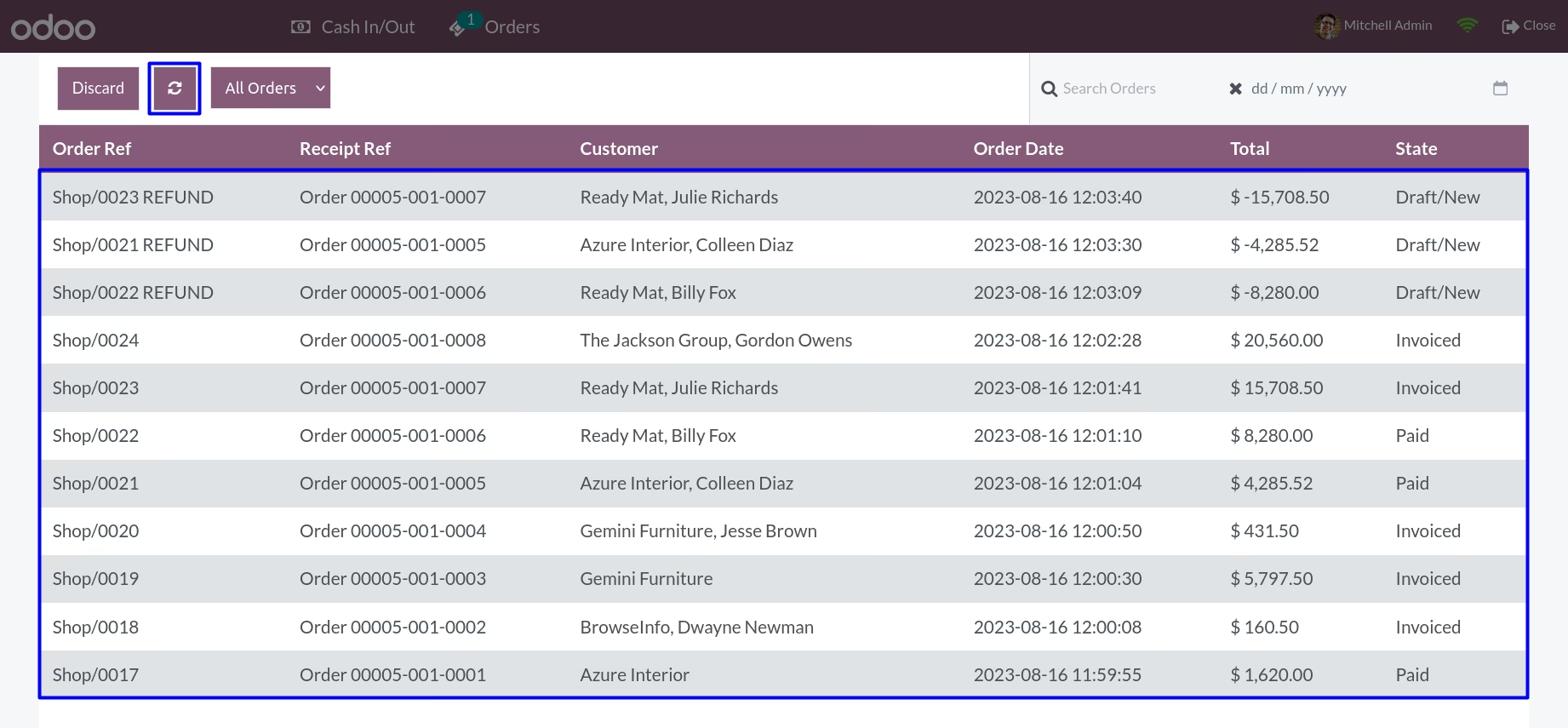
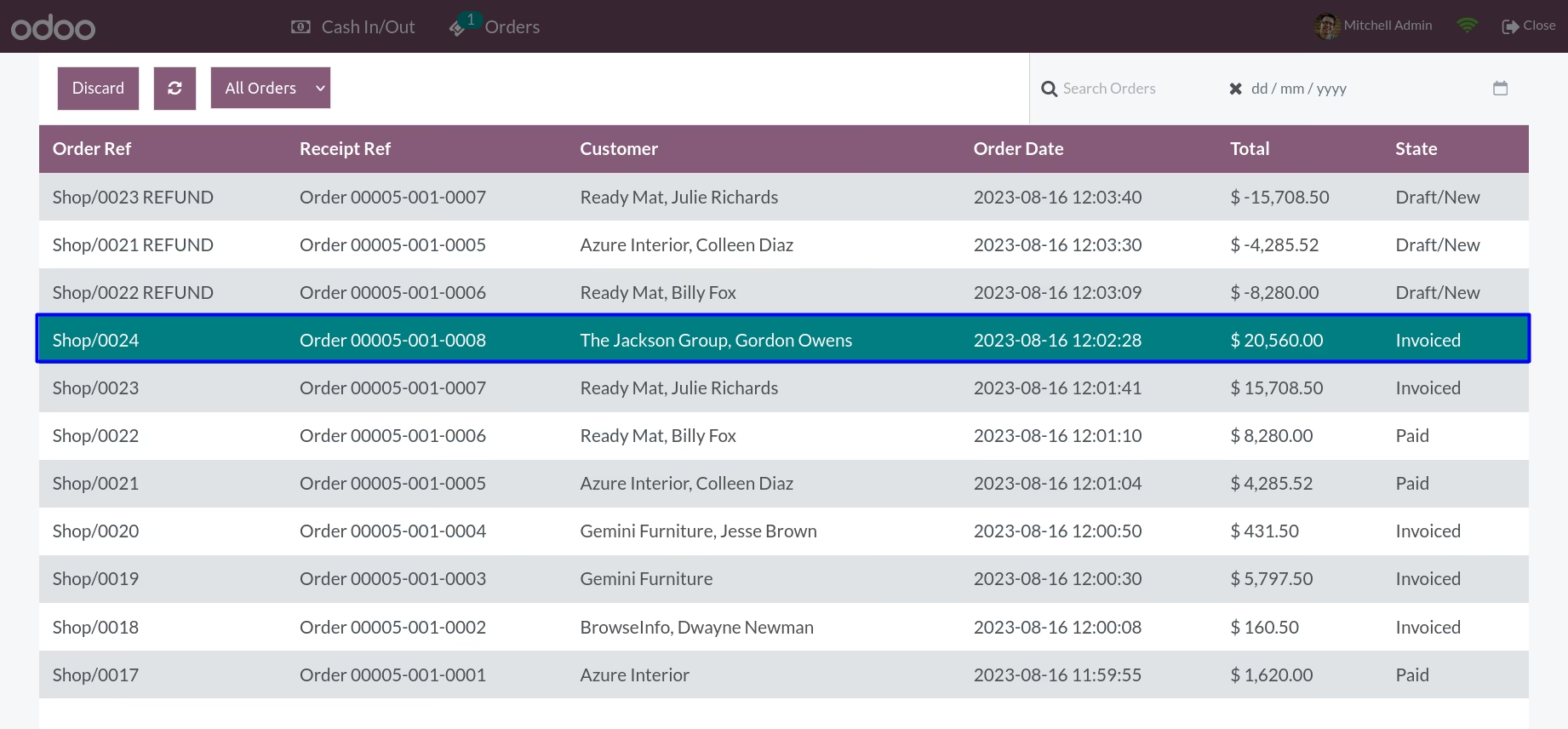
User can select any of the order to get details of specific order.
Filter Order By Date
Filter Order By Draft
Filter Order By Paid
Filter Order By Invoiced
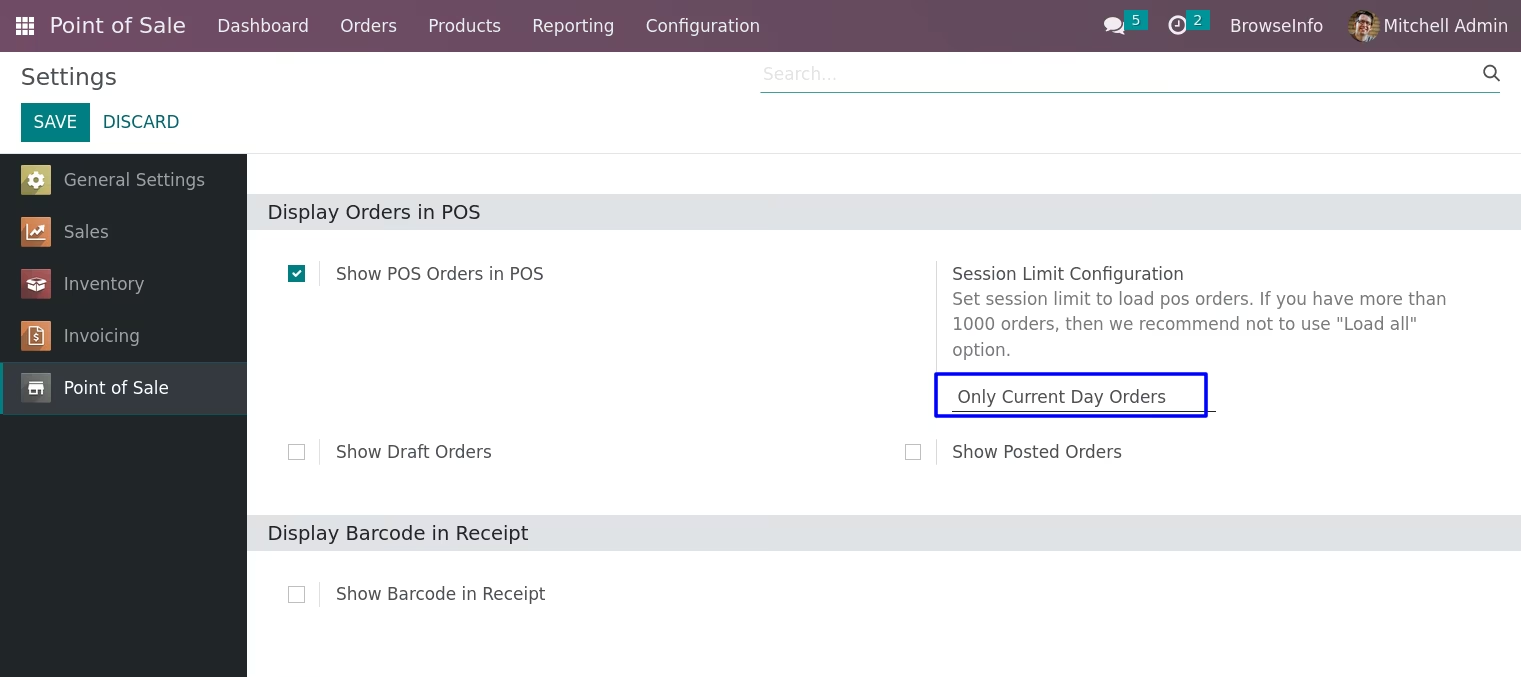
Only Current Day Orders
POS order for the current day can be seen by user by selecting this option.
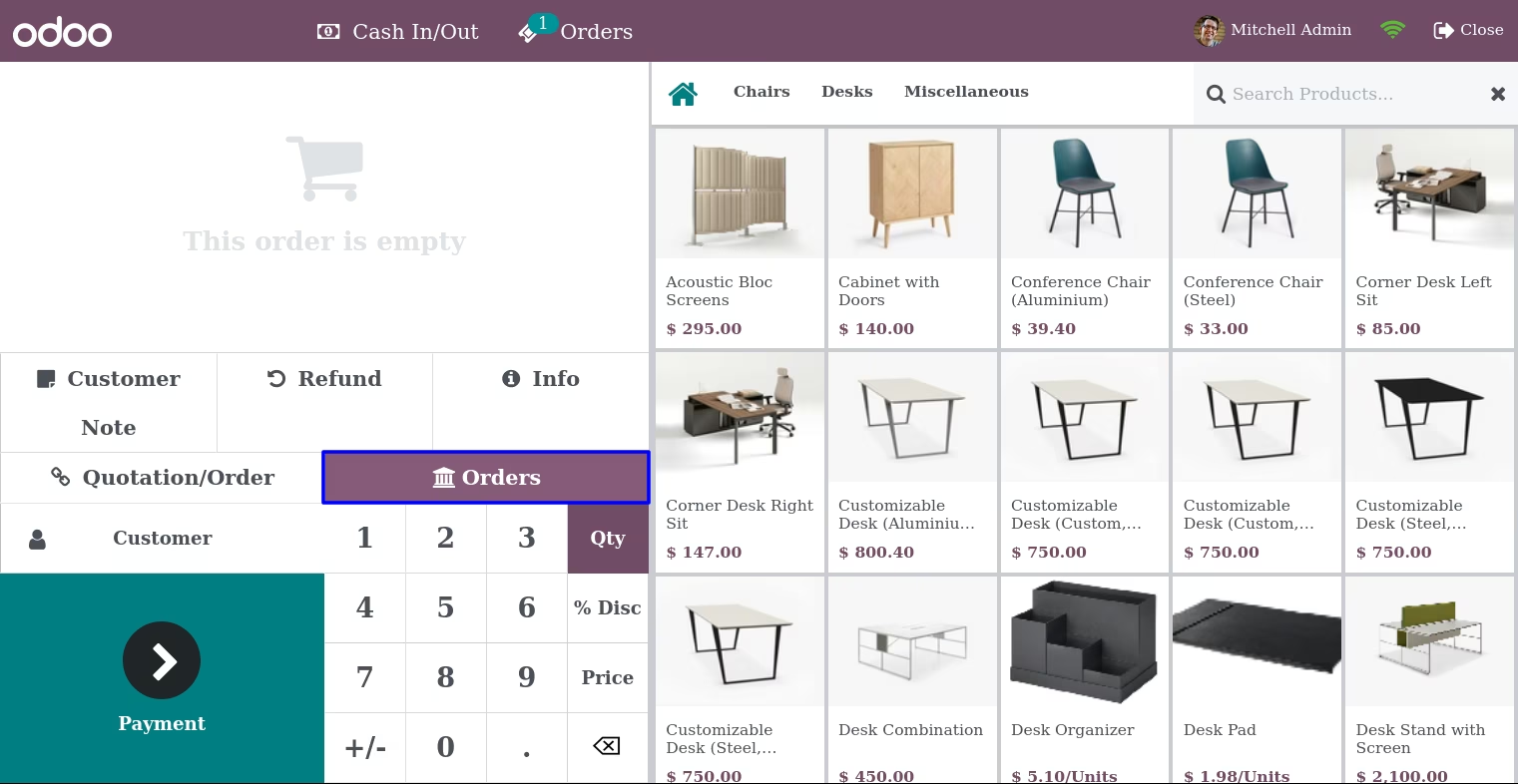
In POS Screen "Orders" button appear,user can see all POS orders directly from POS.
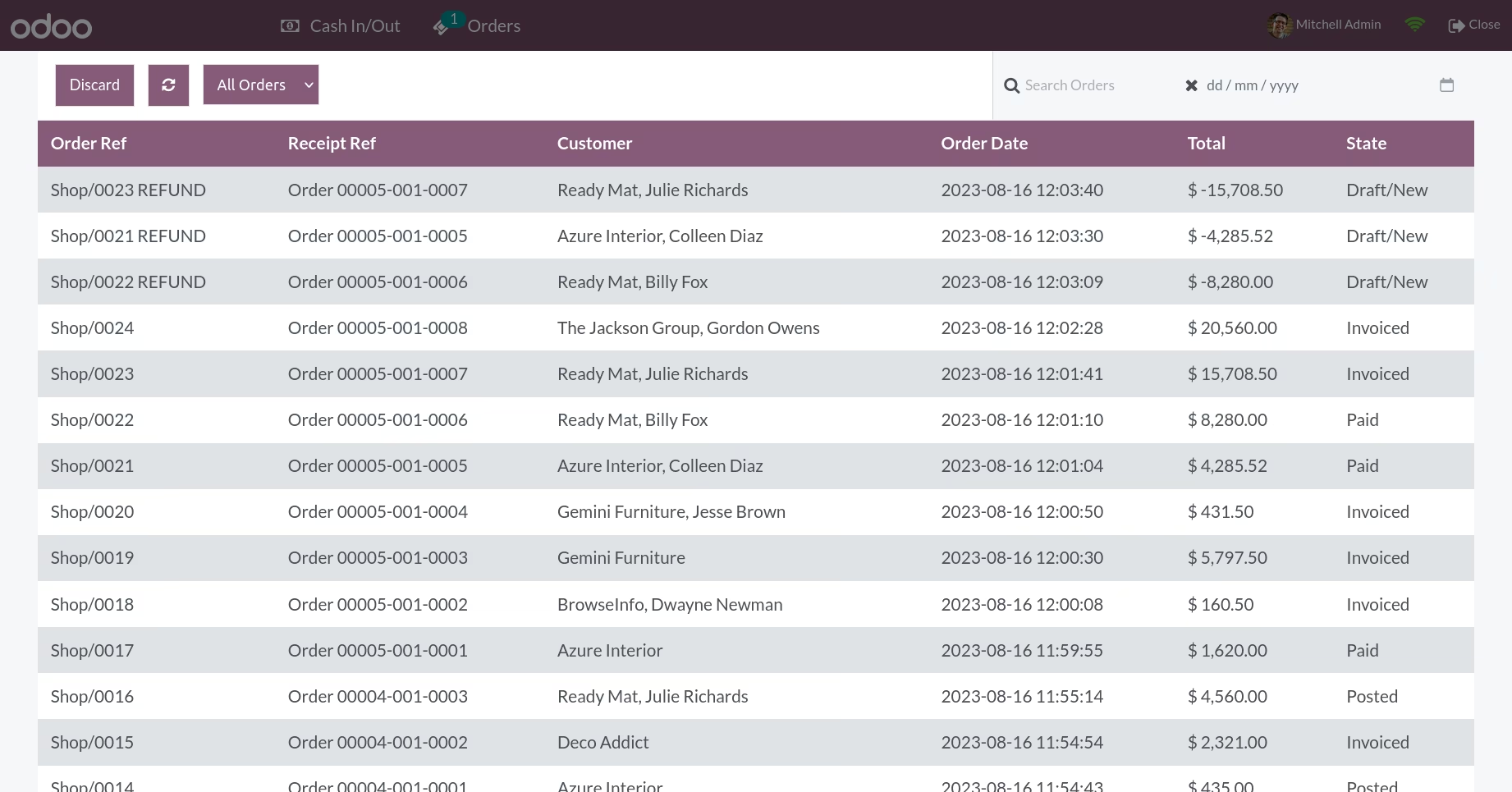
When user clicks on "Orders" button he/she can see pos order for that current session.
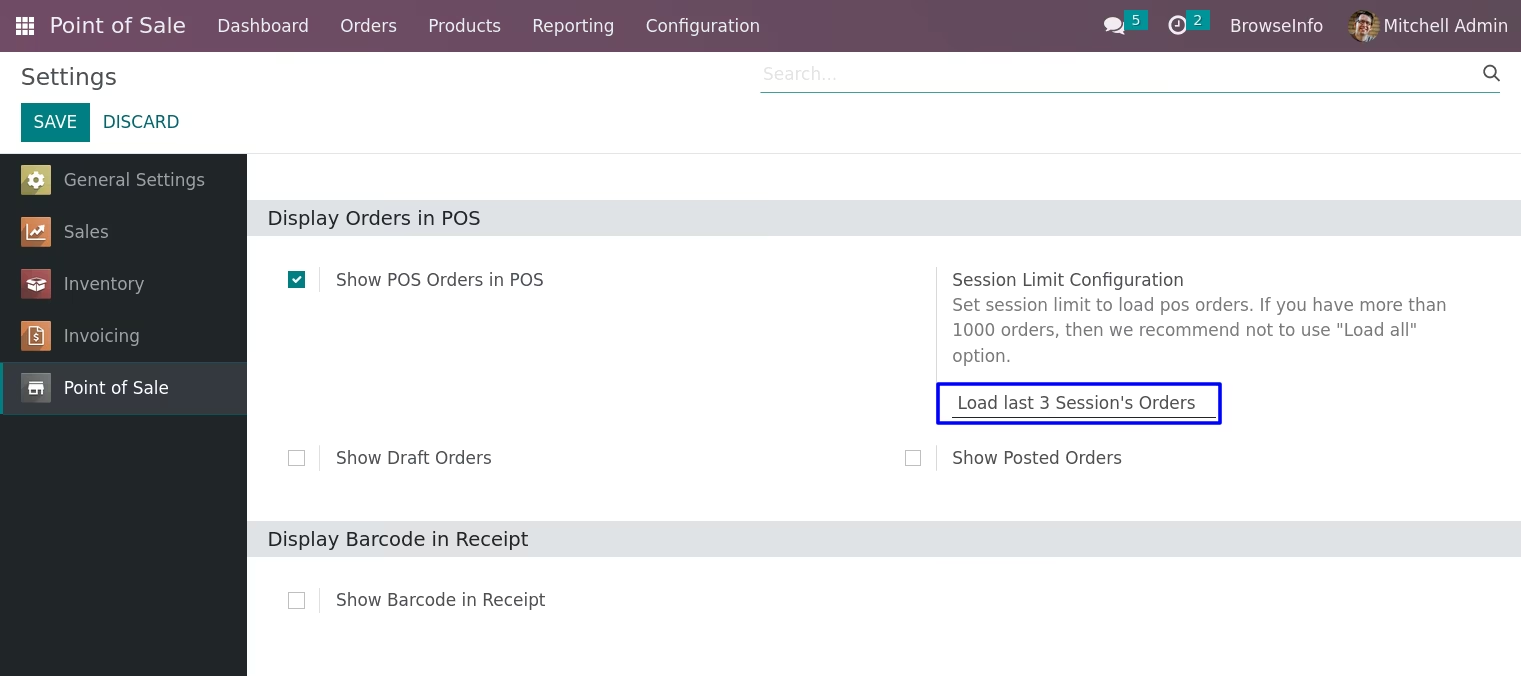
Load Last 3 Session's Order
POS order for the last 3 sessions can be seen by user by selecting this option.
In POS Screen "Orders" button appear,user can see all POS orders directly from POS.
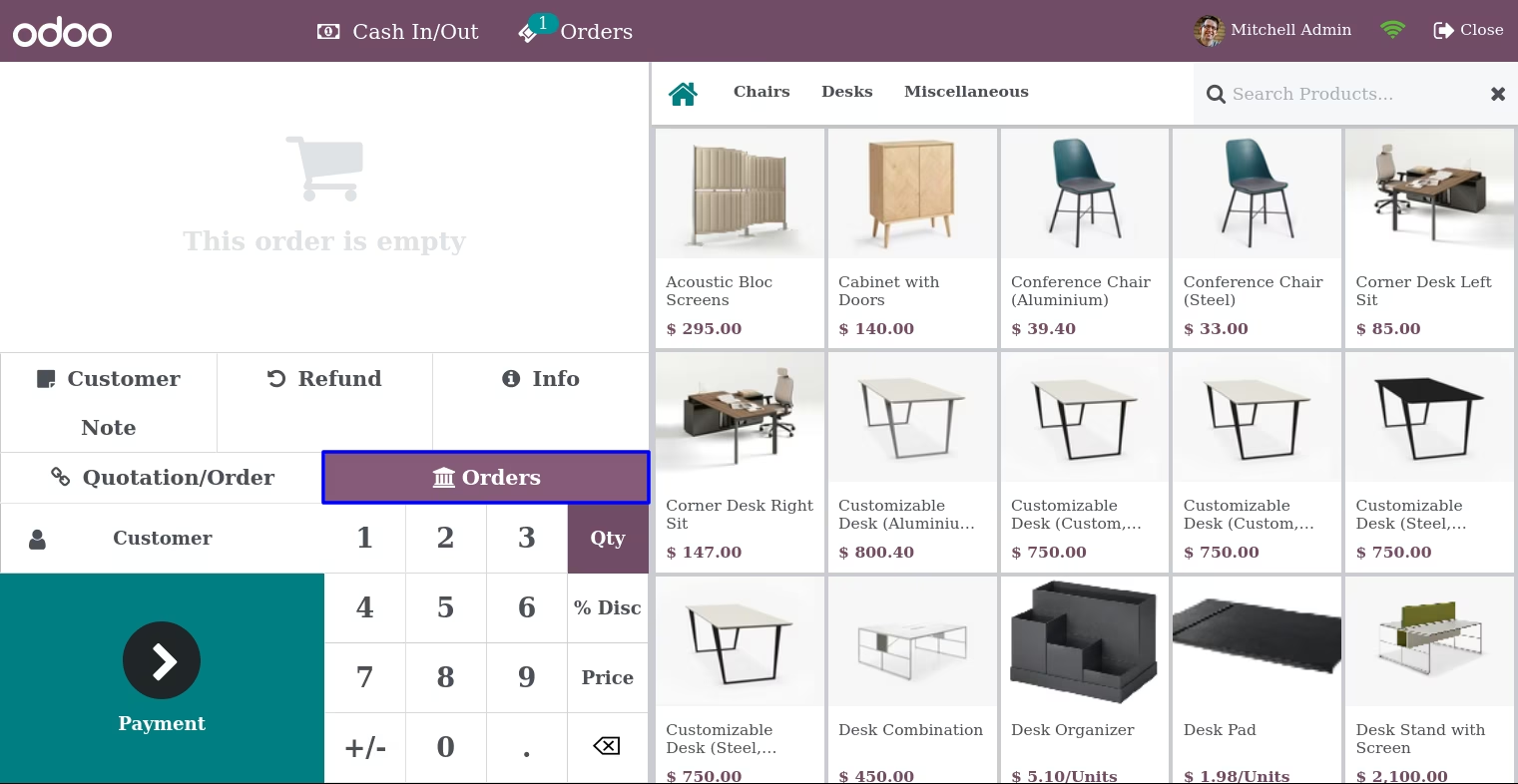
When user clicks on "Orders" button he/she can see pos order for the last 3 sessions.
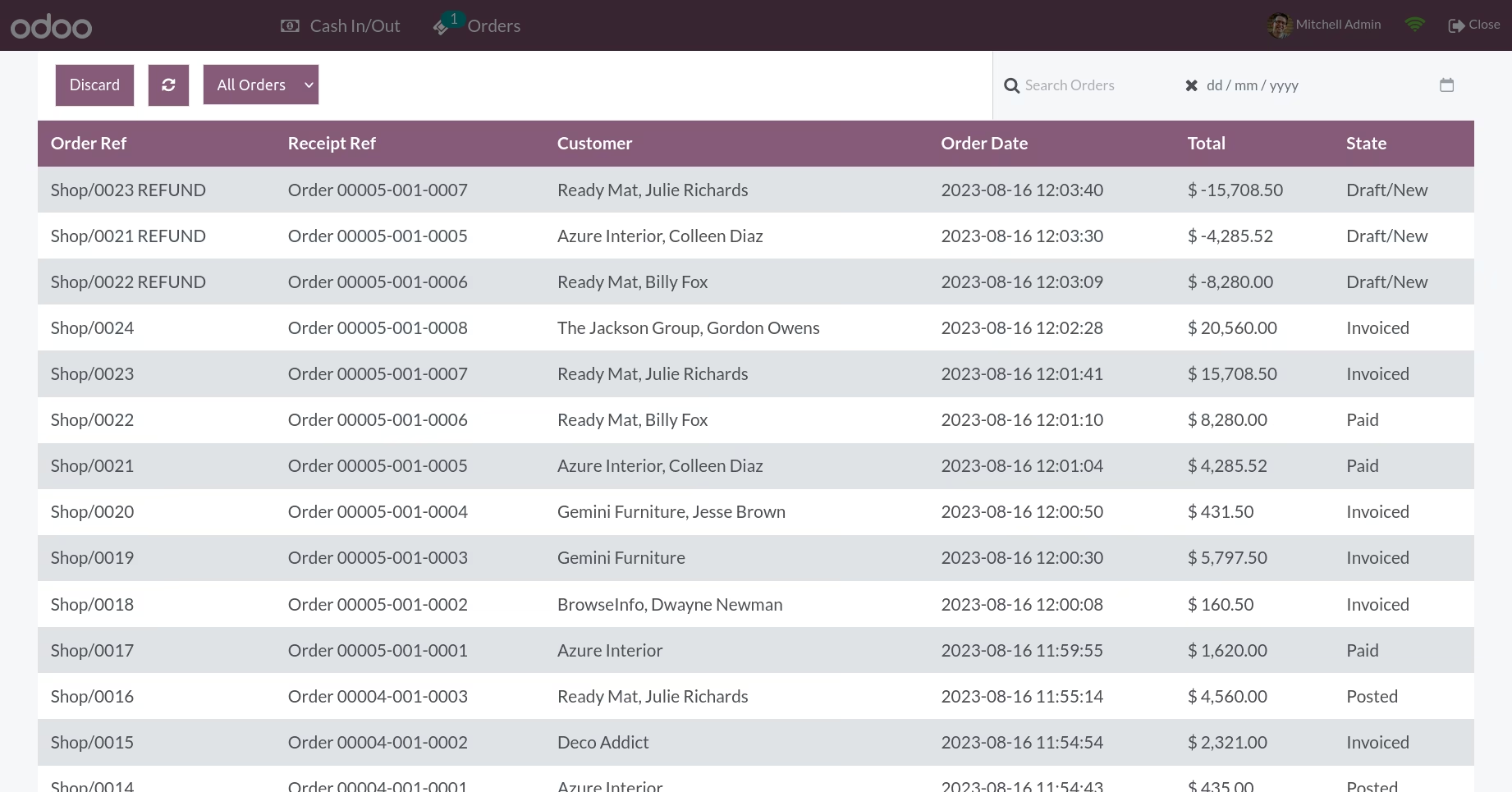
Load Last 5 Session's Order
POS order for the last 5 sessions can be seen by user by selecting this option.
In POS Screen "Orders" button appear,user can see all POS orders directly from POS.
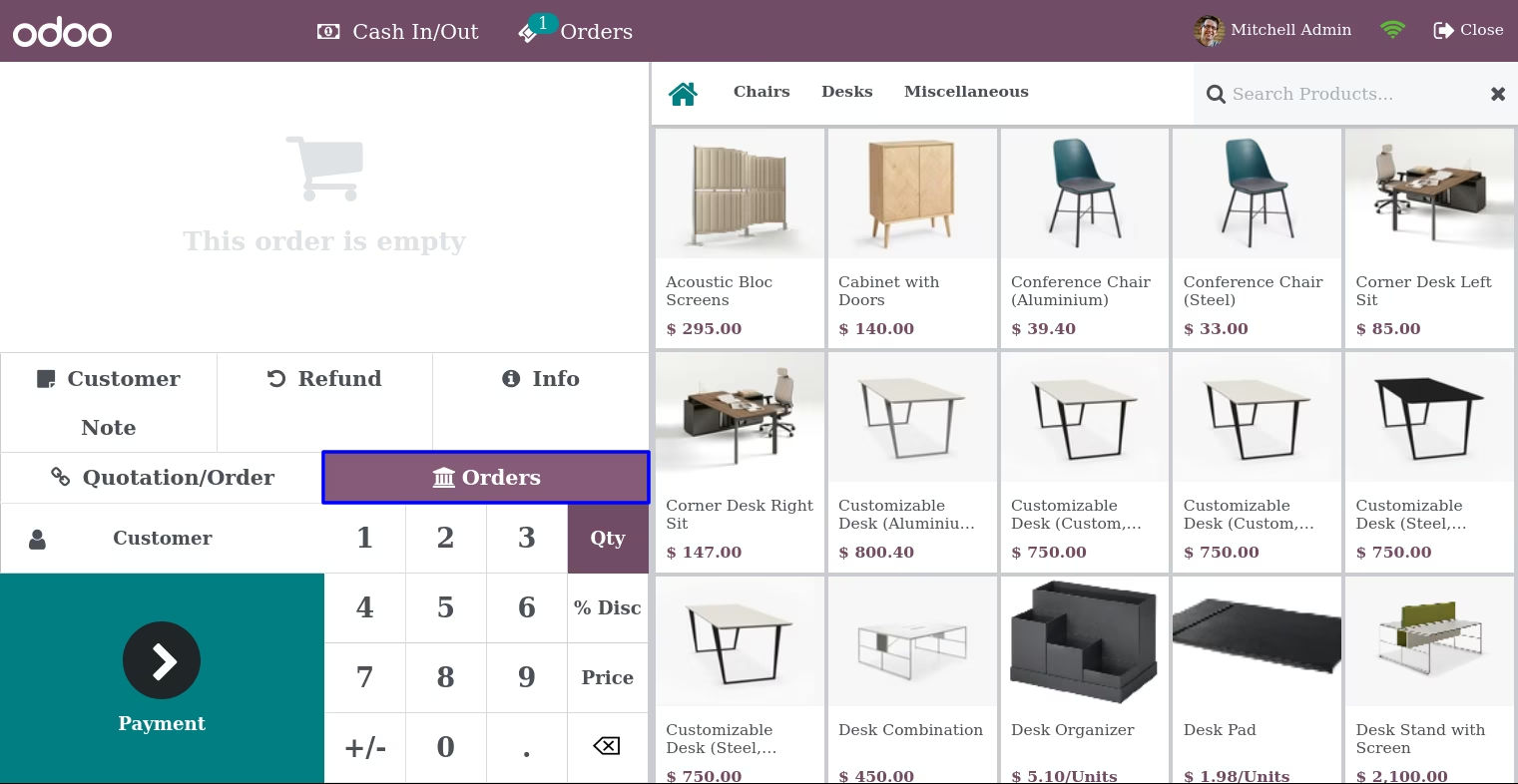
When user clicks on "Orders" button he/she can see pos order for the last 5 sessions.
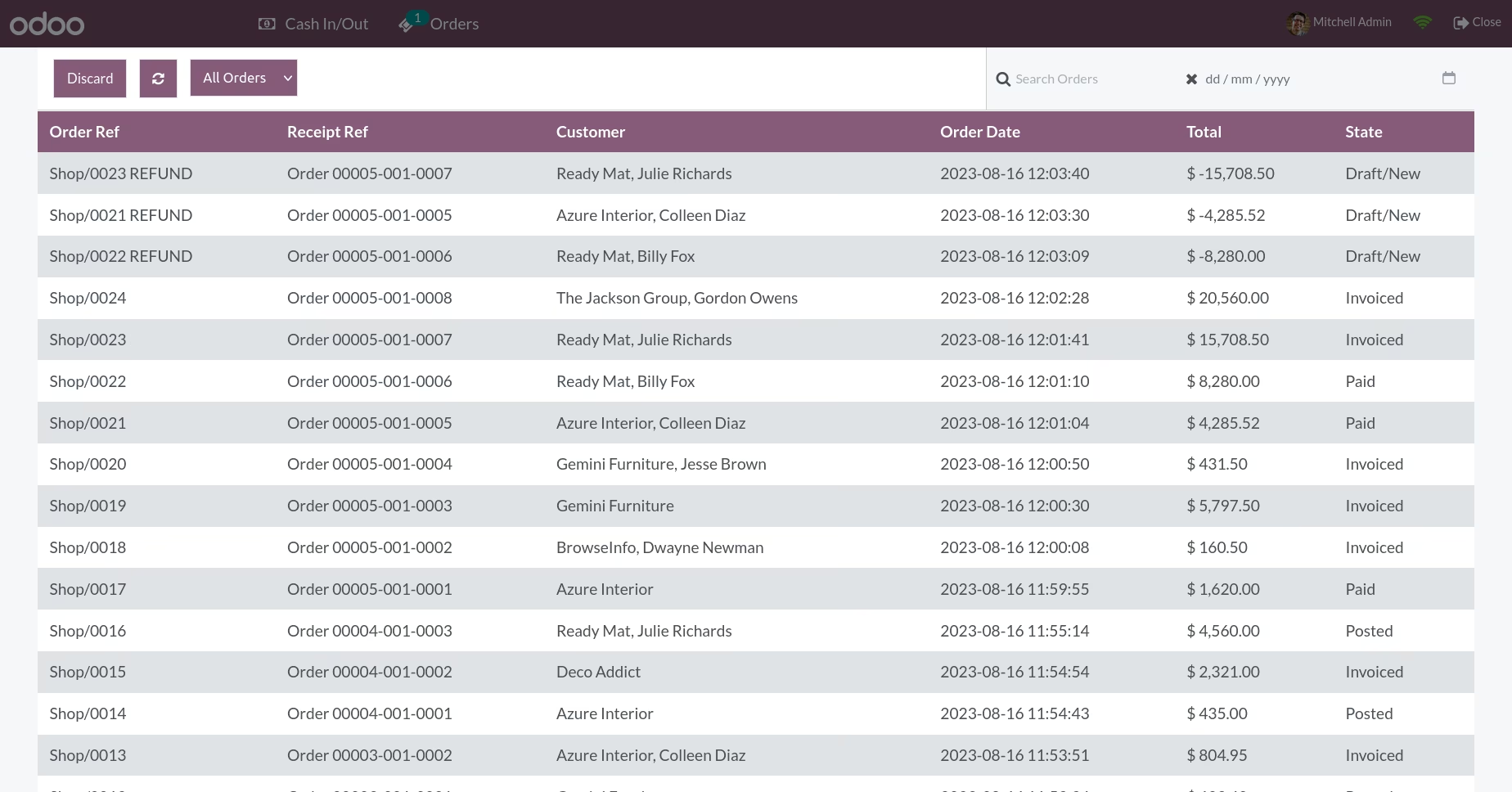
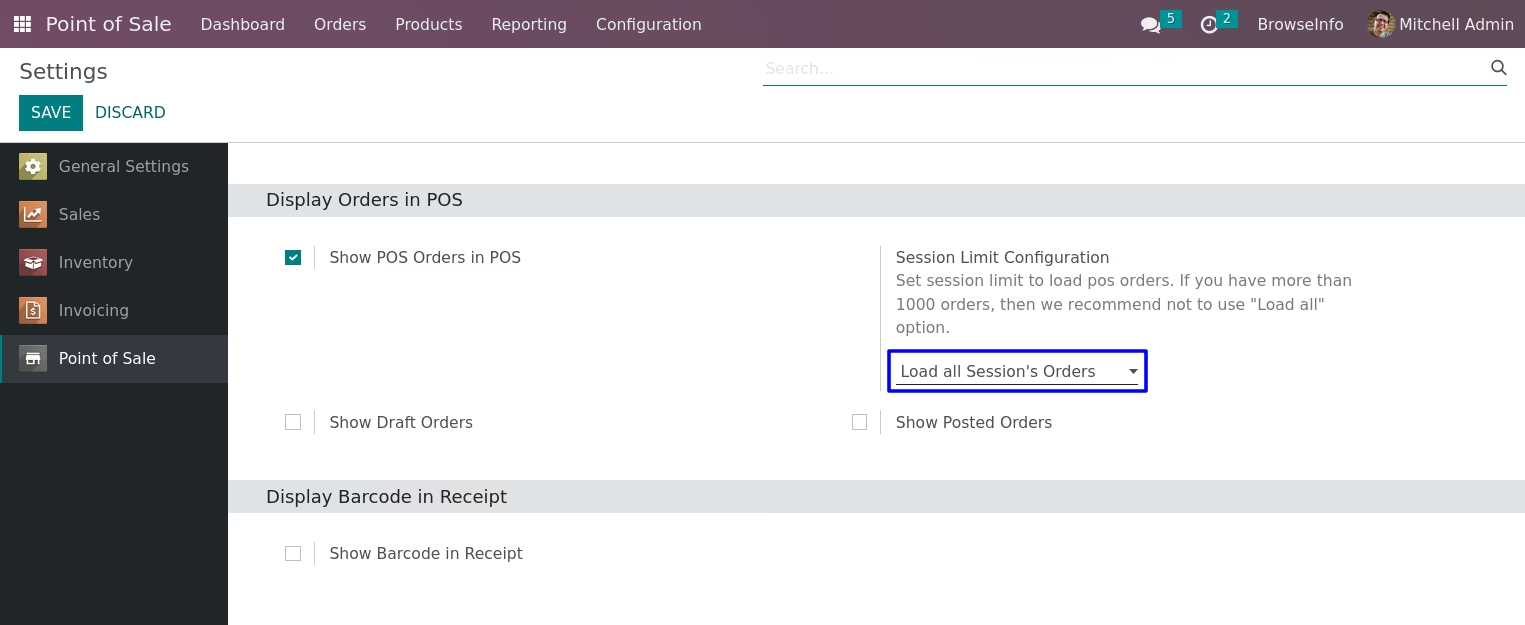
Load All Session's Order
Pos order for all sessions can be seen by user by selecting this option.
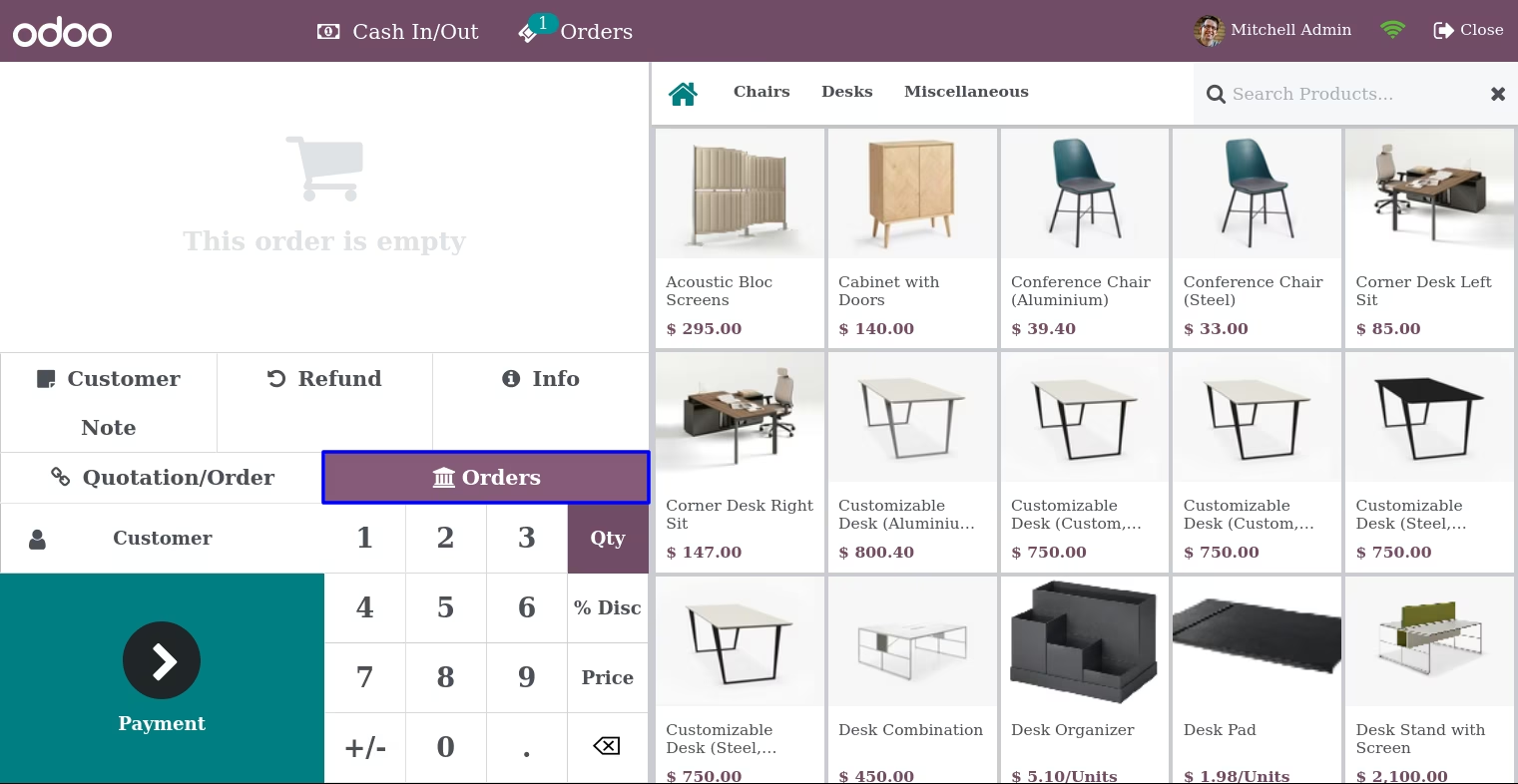
In POS Screen "Orders" button appear,user can see all POS orders directly from POS.
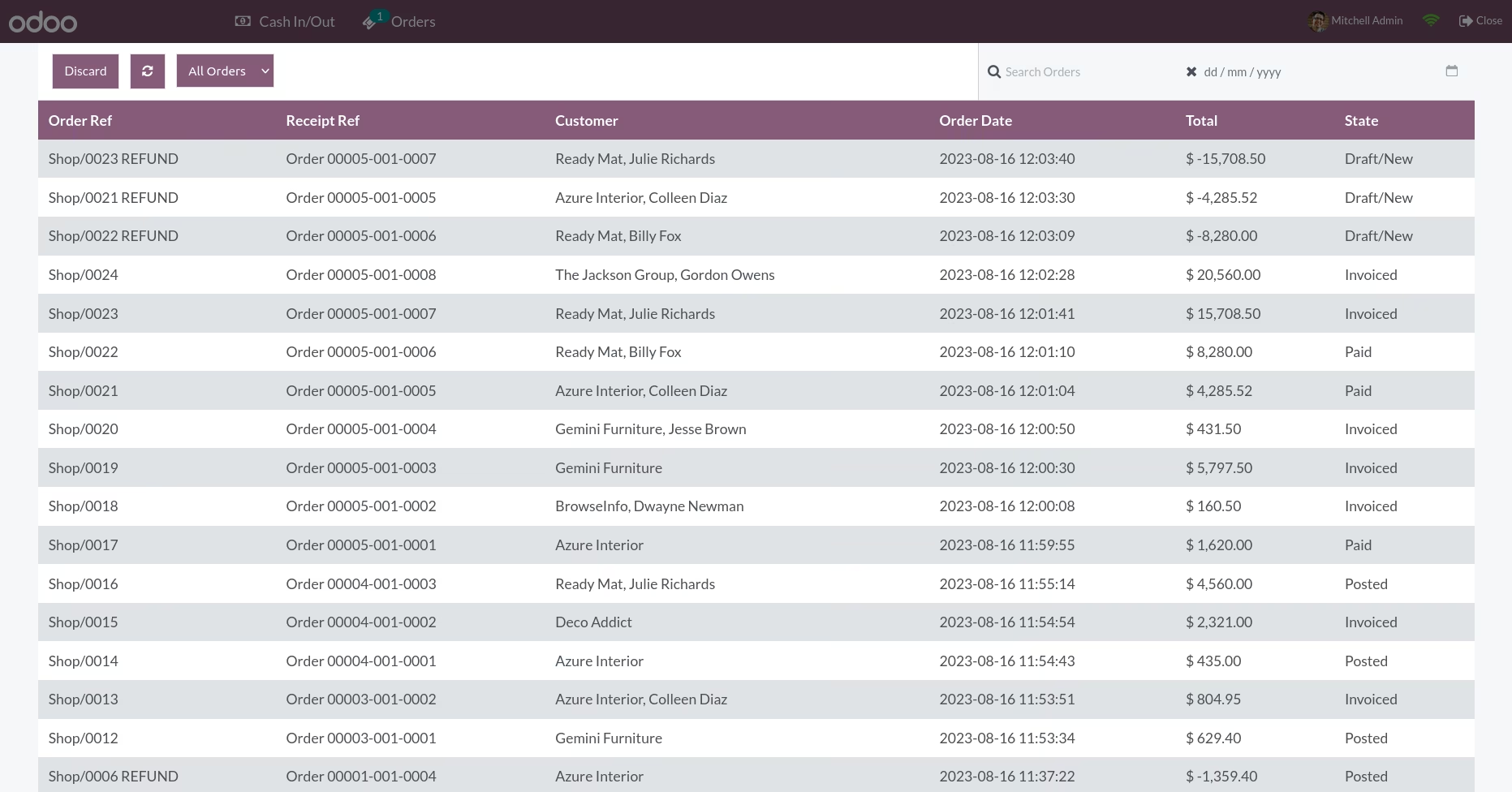
When user clicks on "Orders" button he/she can see pos order for all session.
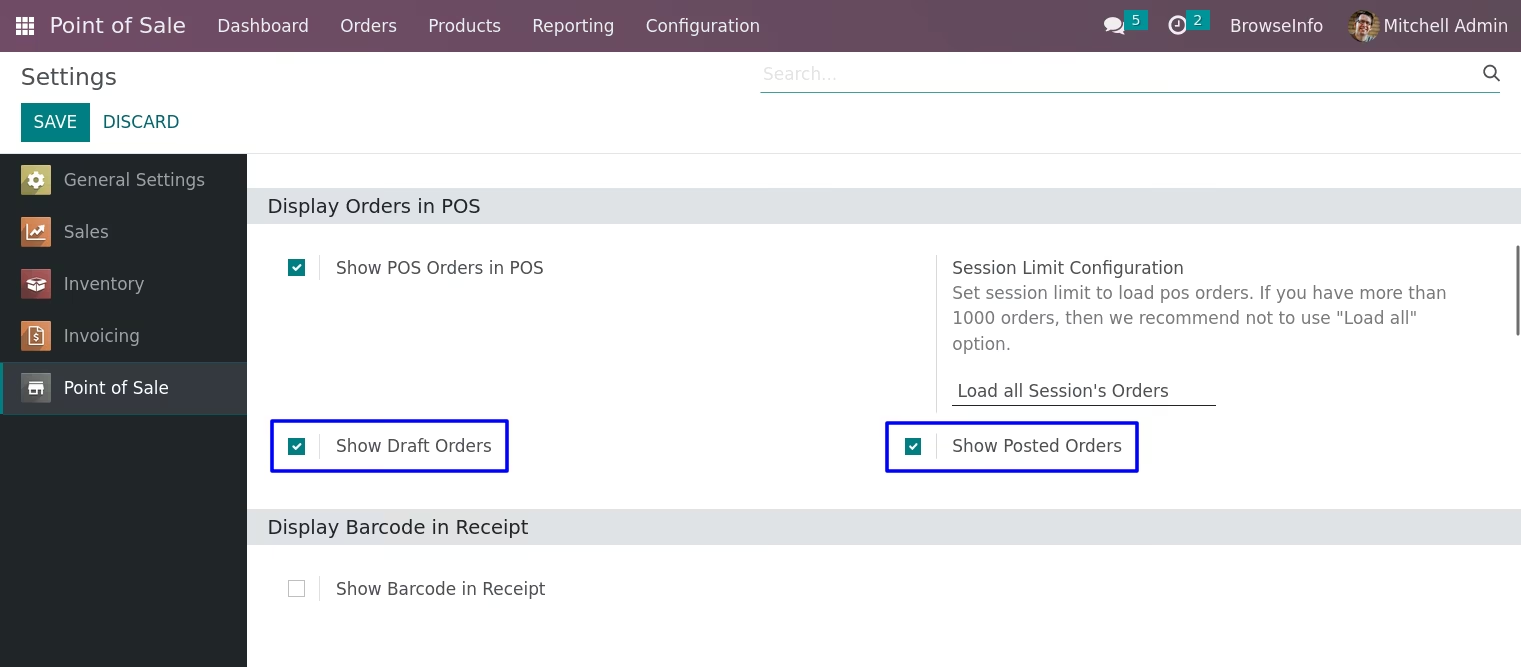
Load Draft & Posted Orders
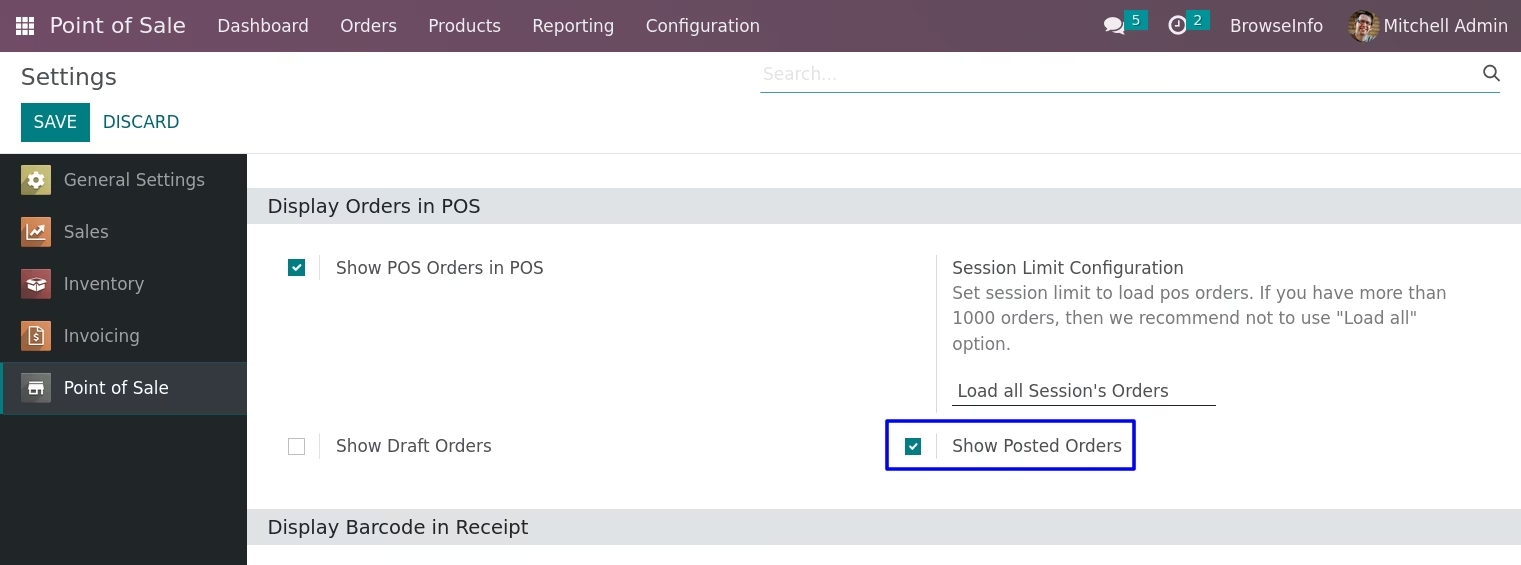
User have to enable "Show draft Orders" and "Show Posted Orders".
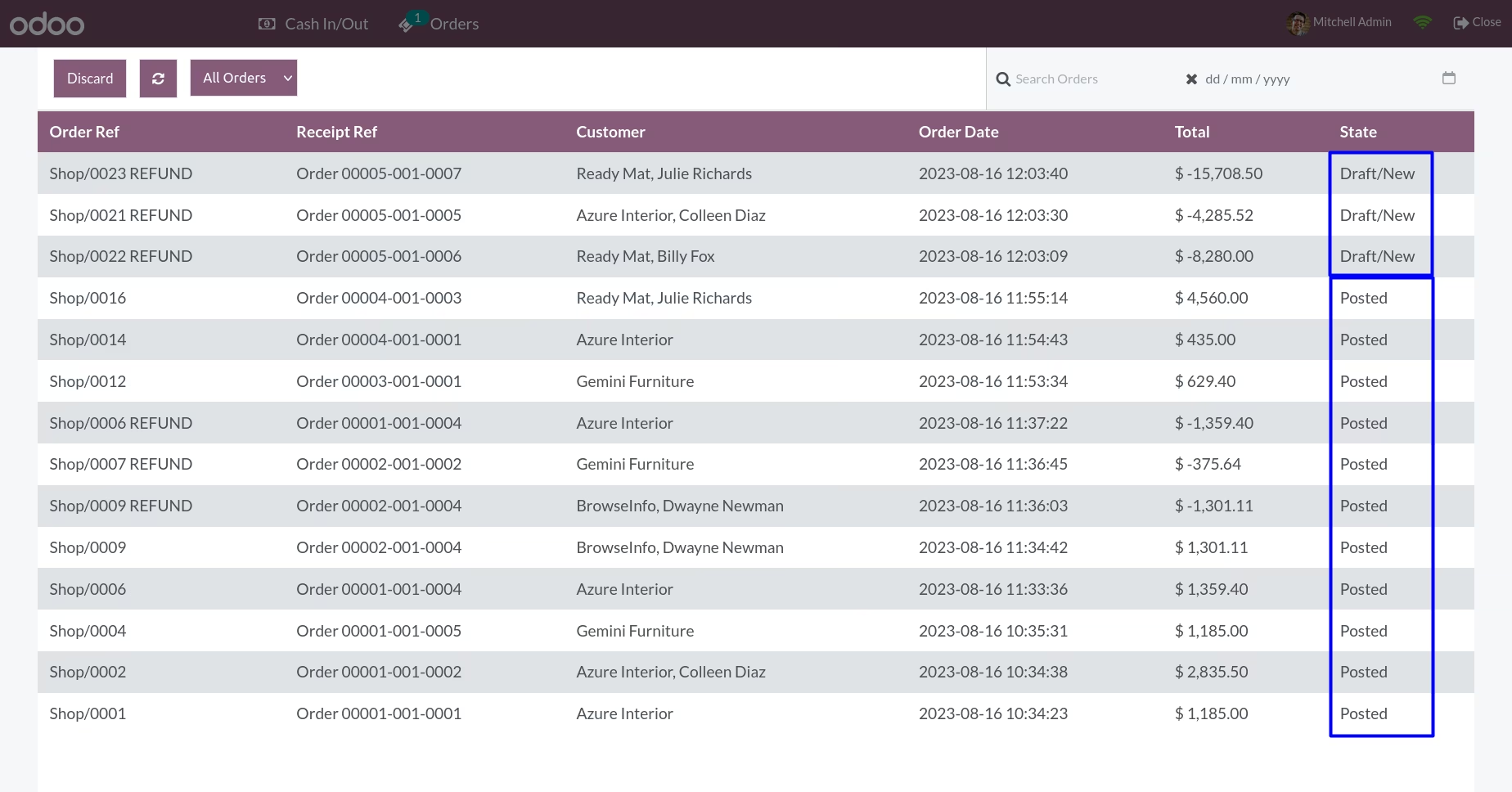
In POS Screen "Orders" button appear,user can see all Pos order which are in draft state and posted orders can be seen
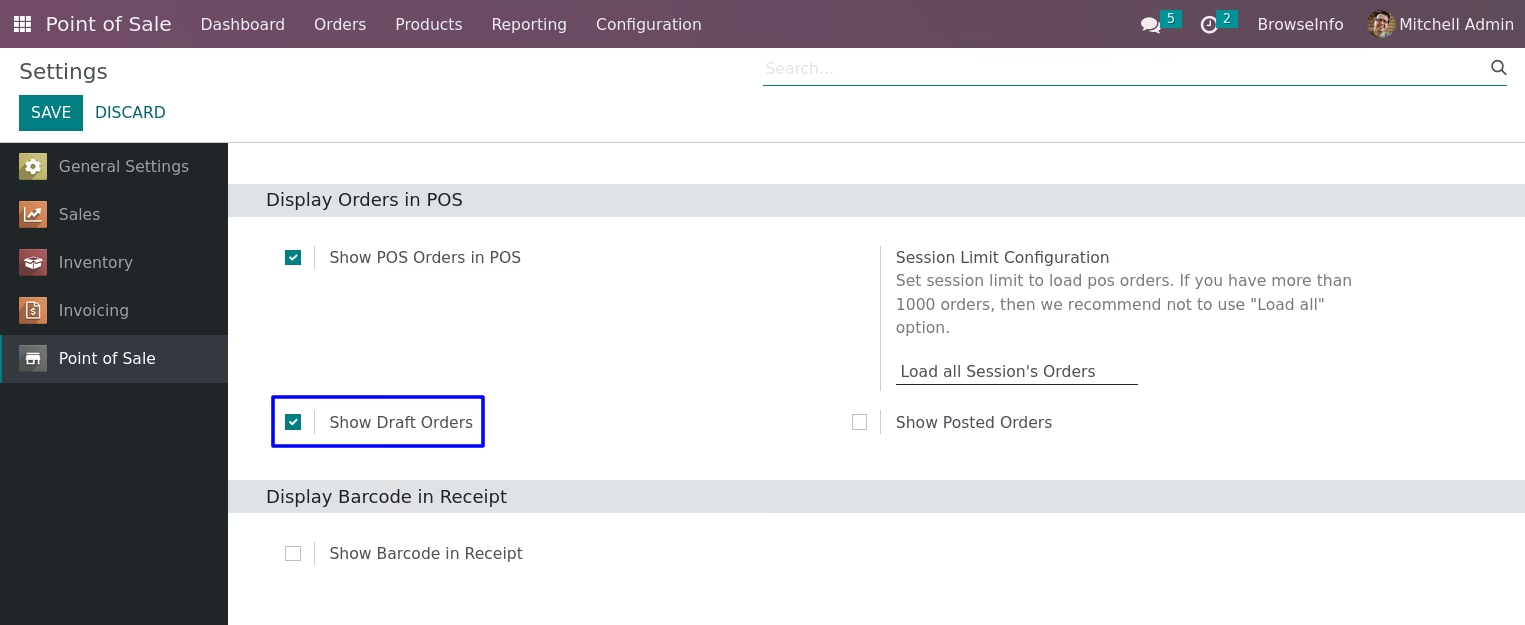
Draft Orders
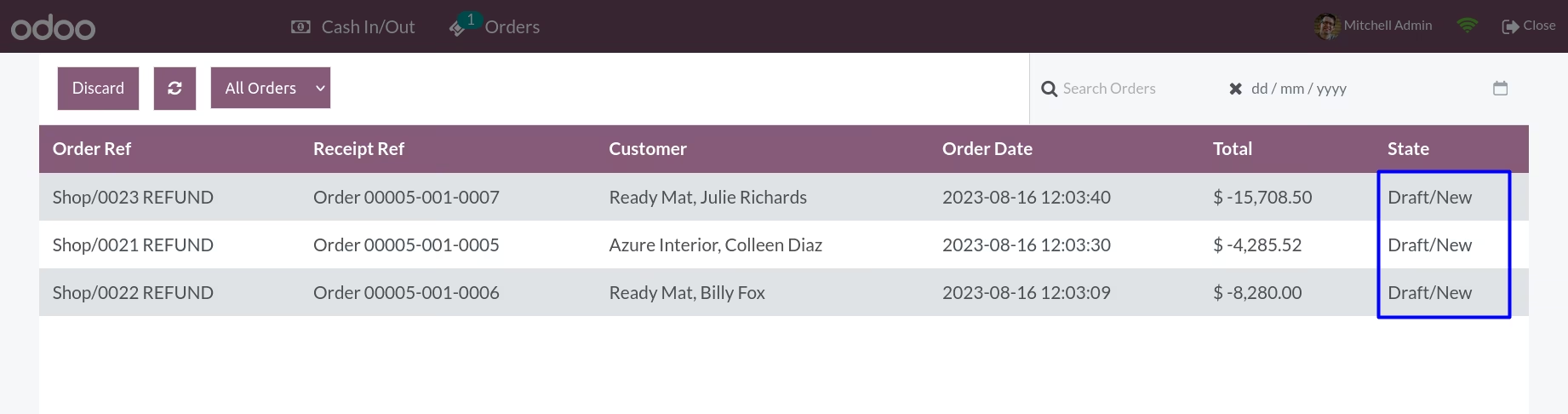
In POS Screen "Orders" button, user can see all POS order which are in "Draft" state.
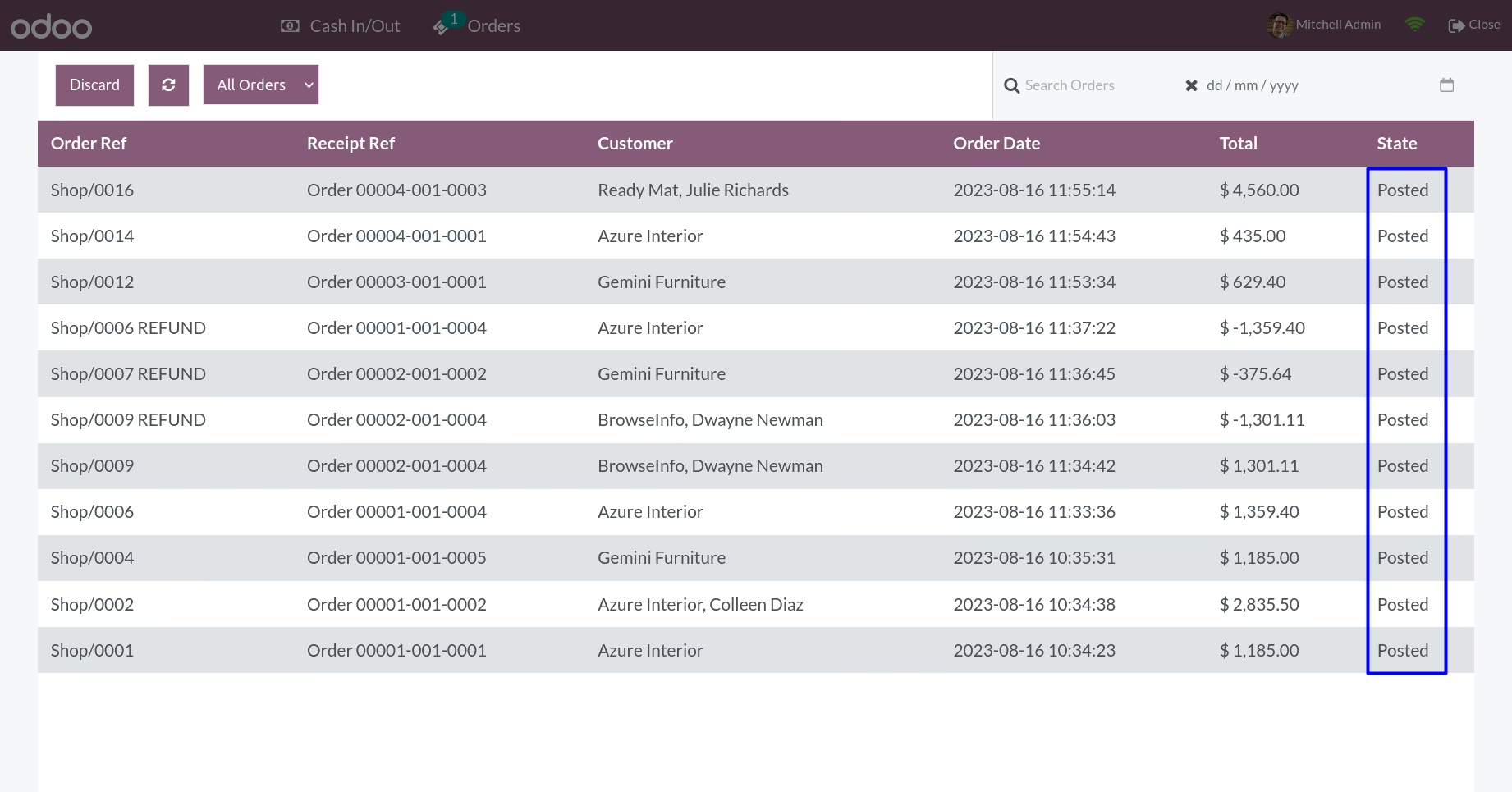
Posted Orders
In POS Screen "Orders" button, user can see all POS order which are in "Posted" state.
Configuration for Barcode
Barcode in POS Receipt
Barcode and order reference in pos order in the back-end.
Installation Guide
Before installing this module you have to install following packages in your system.(If you have then Ignore this)
sudo pip3 install python-barcode
OR
sudo pip install python-barcode
Version :
16.0.0.0
15 November 2022
Initial release of the app.
Version :
16.0.0.4
27 March 2024
Minor Bug Fixes.