The All-in-One WhatsApp Integration for Sales, Purchase, Accounting, and CRM module by Softhealer Technologies offers a comprehensive solution to enhance customer communication. This module allows businesses to send various documents such as quotations, sales orders, invoices, purchase orders, and delivery orders directly to customers via WhatsApp. By integrating WhatsApp messaging into core modules, businesses can streamline their communication processes, improve customer engagement, and ensure timely delivery of important documents.
Multi-Module Integration: Integrates with Sales, Purchase, Accounting, and CRM modules.
One-Click Messaging: Send documents and messages to customers with a single click.
Customizable Messages: Personalize messages to align with your business tone and language.
Attachment Support: Include attachments such as PDFs, images, and other files in your messages.
User-Specific Configuration: Assign different WhatsApp accounts to different users for personalized communication.
Easy Setup: Simple configuration process without the need for extensive technical knowledge.
Enhanced Customer Communication: Reach customers instantly through a widely-used messaging platform.
Improved Efficiency: Reduce the time spent on manual communication and document delivery.
Increased Customer Satisfaction: Provide timely updates and responses to customer inquiries.
Streamlined Operations: Integrate WhatsApp messaging seamlessly into your existing Odoo workflows.
- You can get token and instance from 'ApiChat' and configure.
- You can use both service providers 'ApiChat' & 'Chat Api' using this app.
- One click to send message.
- One time setup and use forever.
- Easy to setup a multiple whatsapp messanger for different users.
- Easy to set a default whatsapp messanger.
- Easy to customize the message as per your choices and in your language as well.
- You can enable or disable whatsapp feature for each app (Sale, Purchase, Stock, Invoice, CRM).
- No more configuration require, easy setup and user friendly interface.
ApiChat
You can get token and instance from 'ApiChat' and configure.
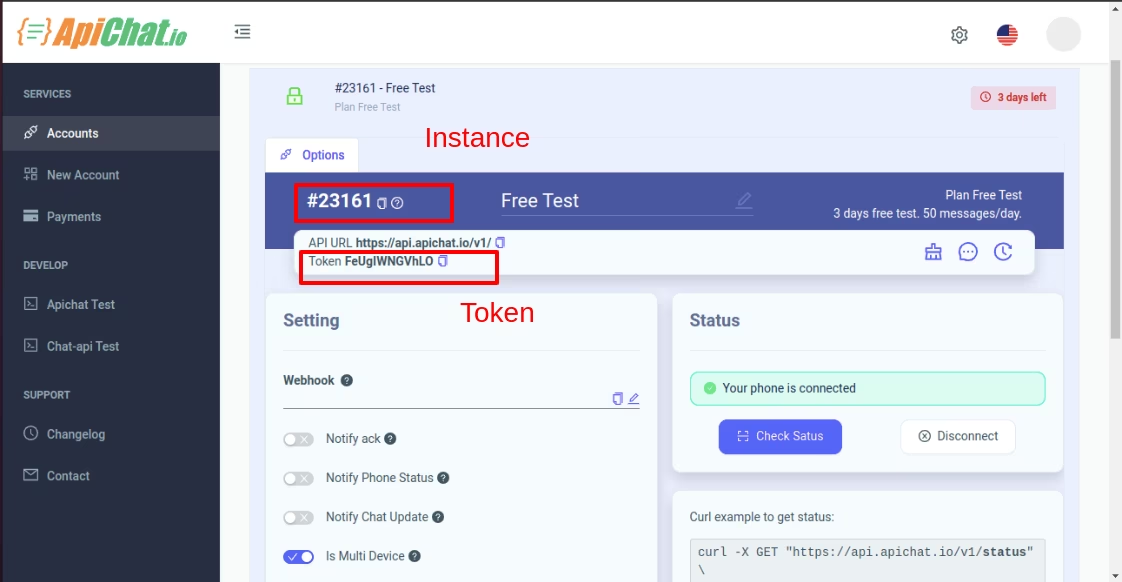
ApiChat configuration.
Chat API

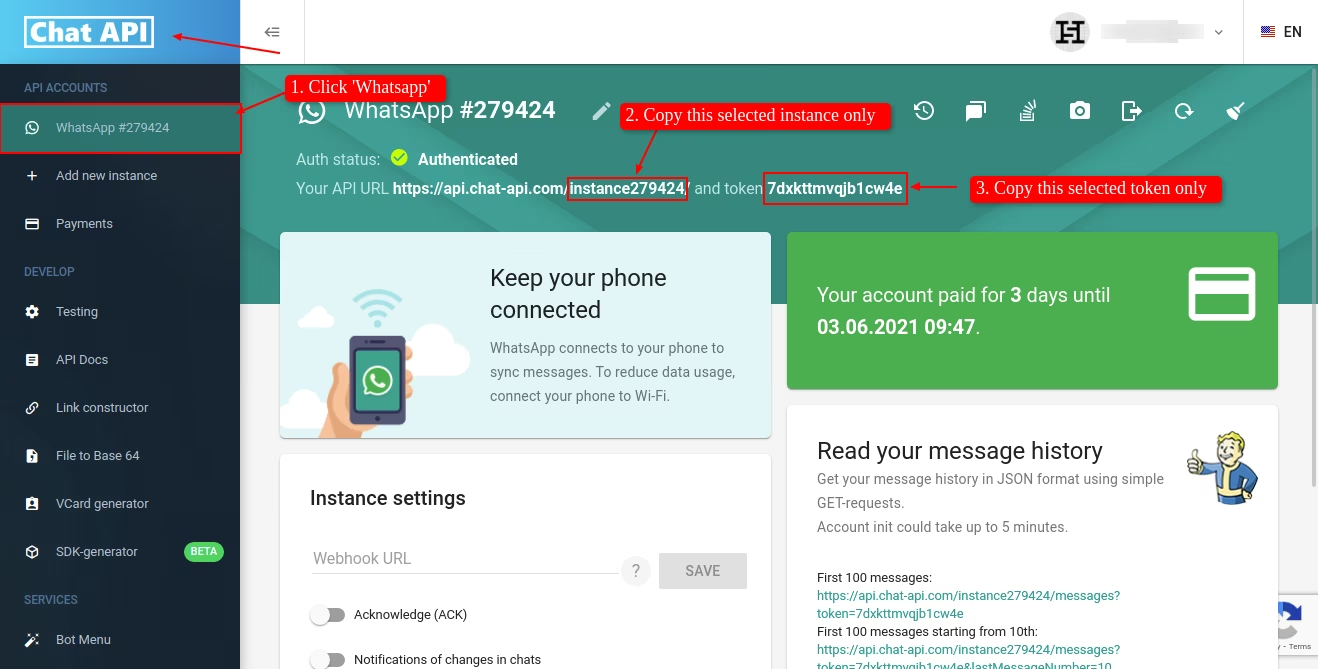
Goto Chat Api Dashboard and click on 'Whatsapp' menu on top left side. After that you can see the Your Api Url. In Api Url just copy only selected part and paste in whatsapp creds.
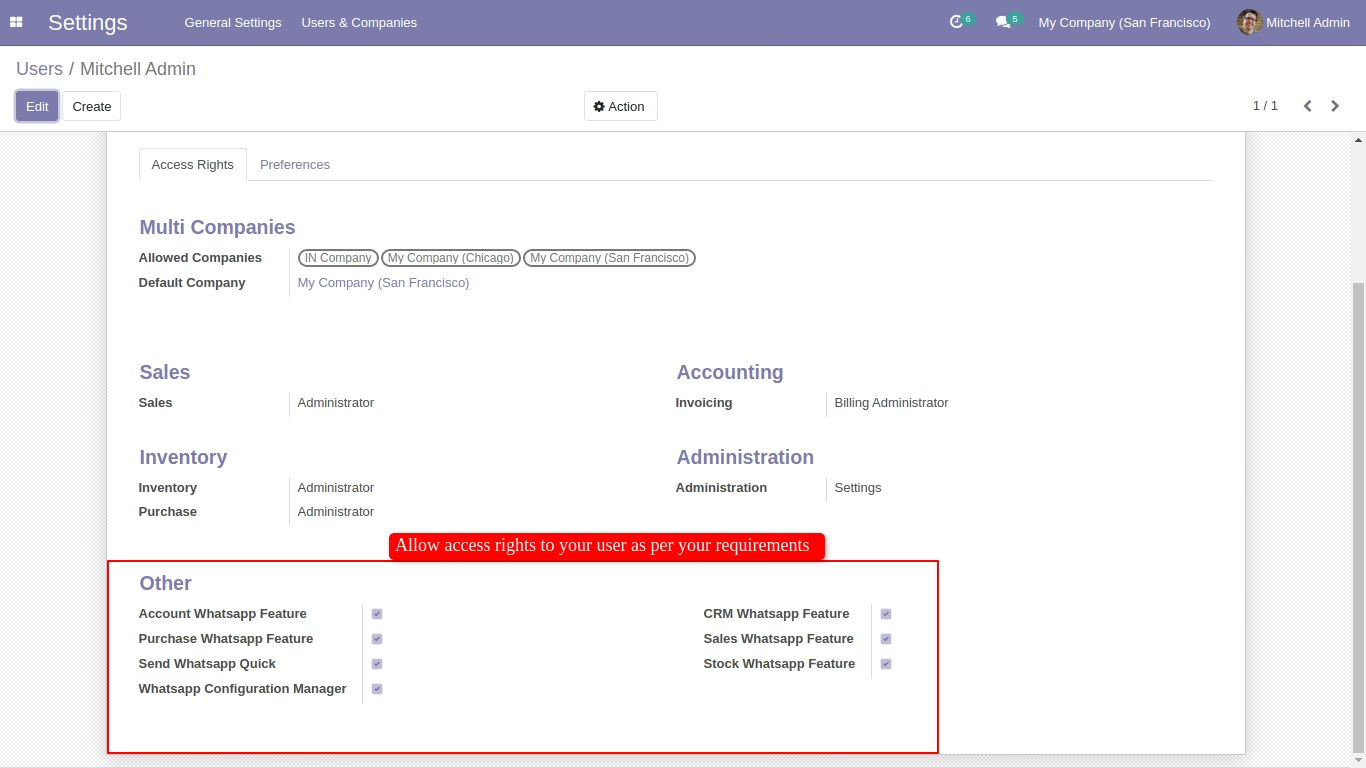
Enable 'Whatsapp Configuration Manager' to configure your whatsapp. and then Just enable the rights to used whatsapp feature for particular apps.
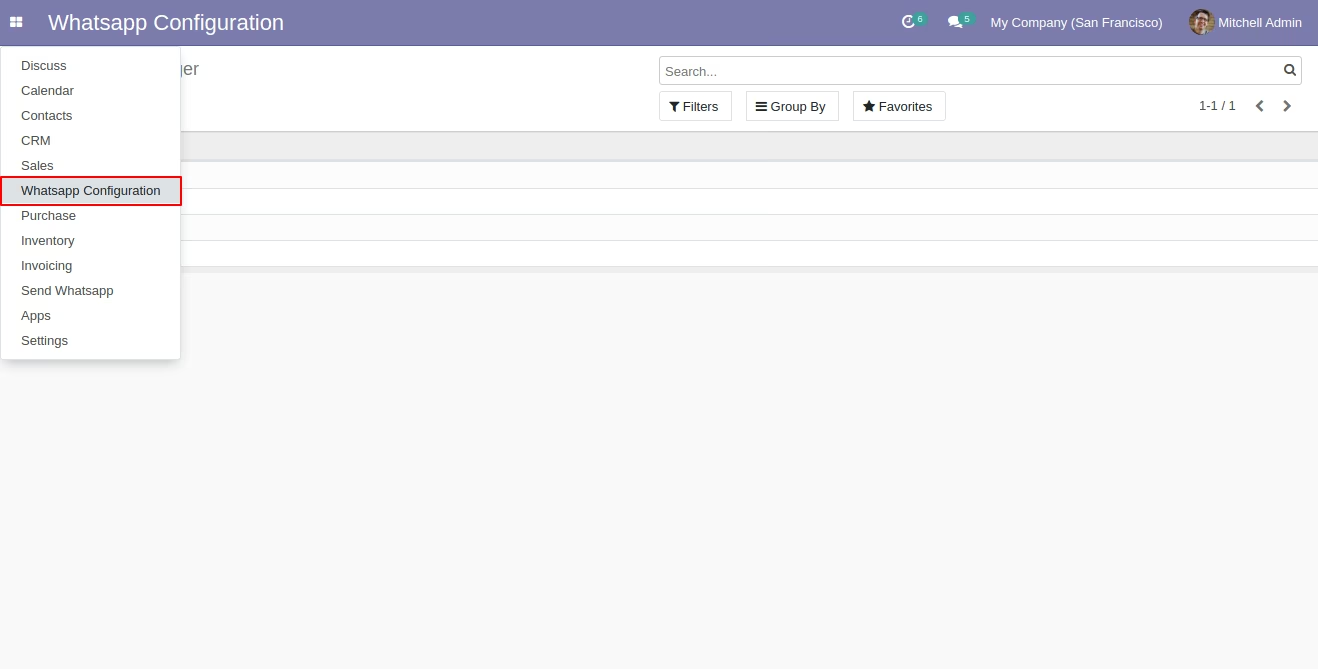
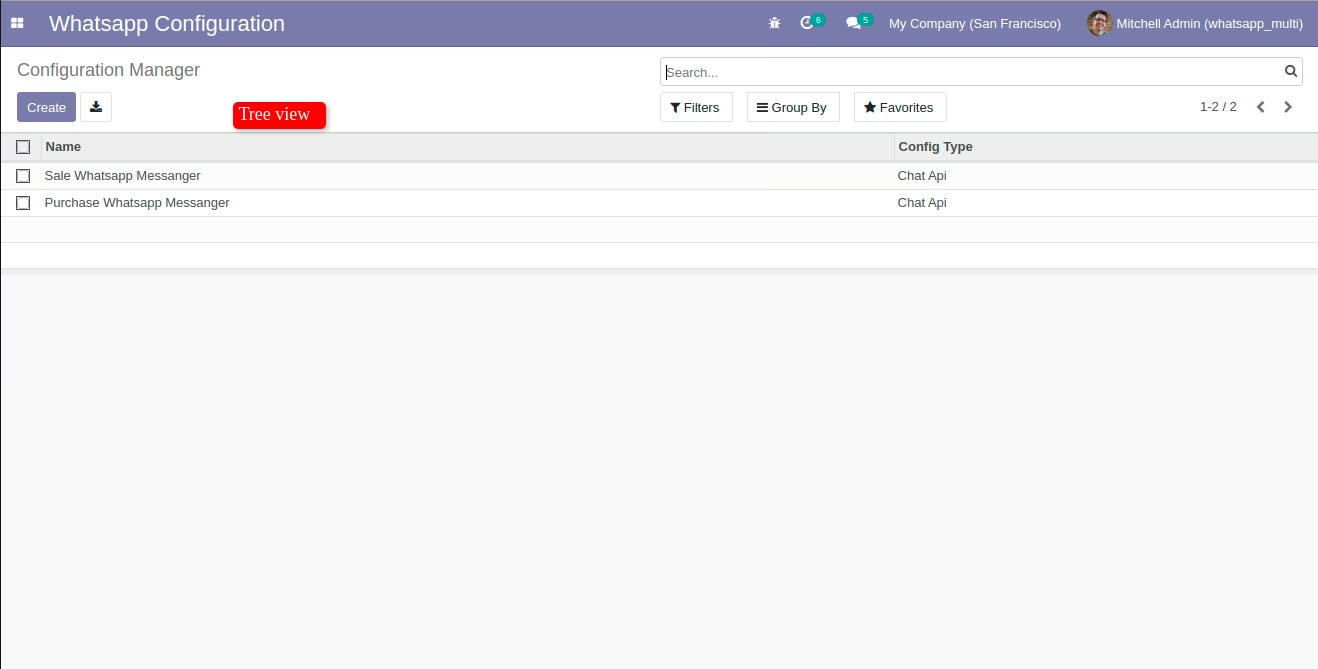
'Whatsapp Configuration' Menu and tree view.
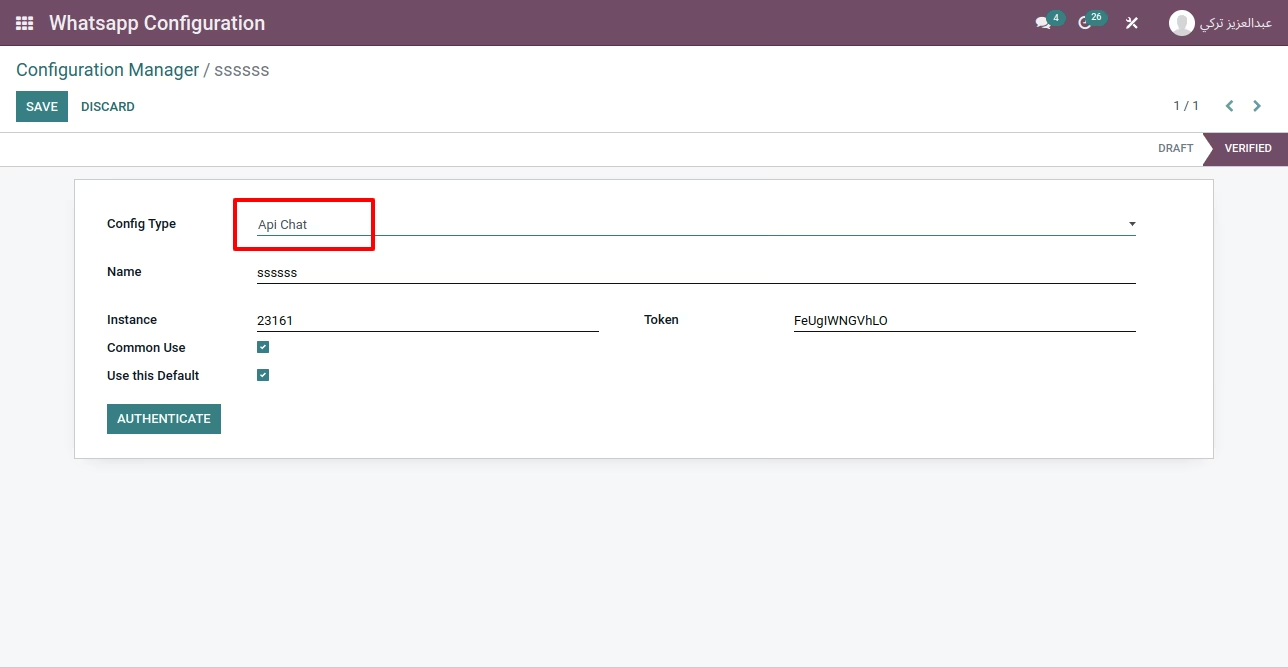
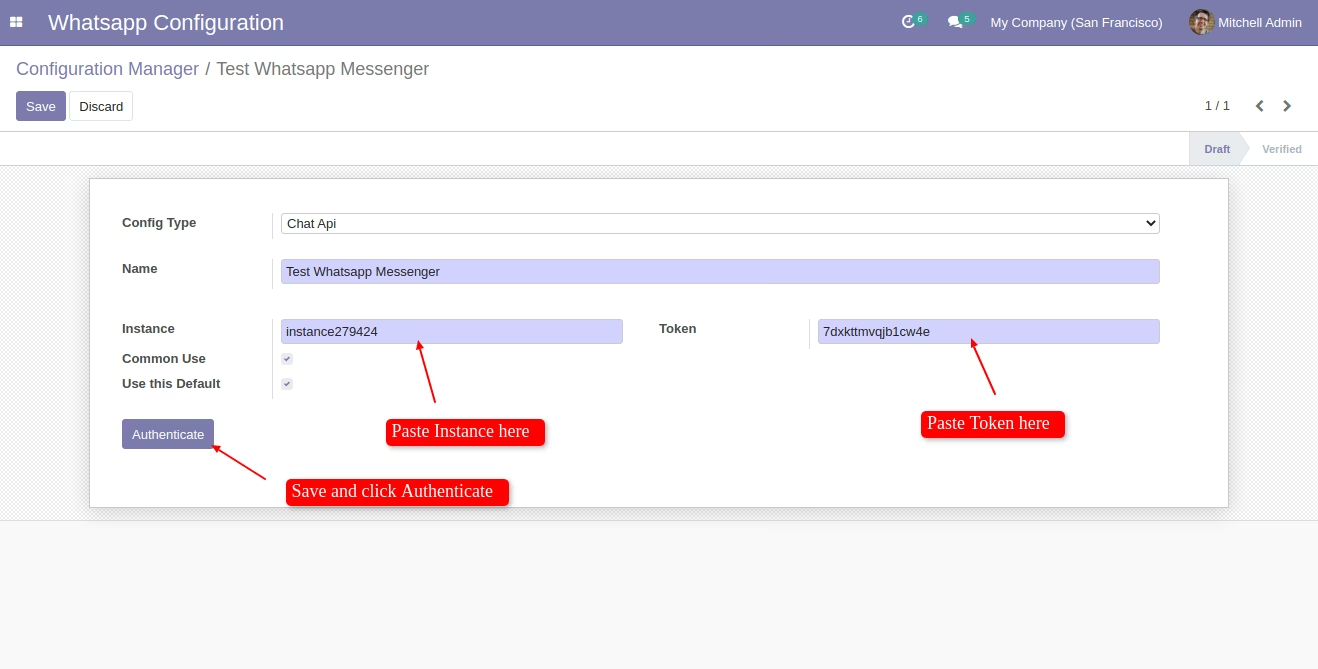
Create whatsapp creds and paste instance and token. and click 'Authenticate'.
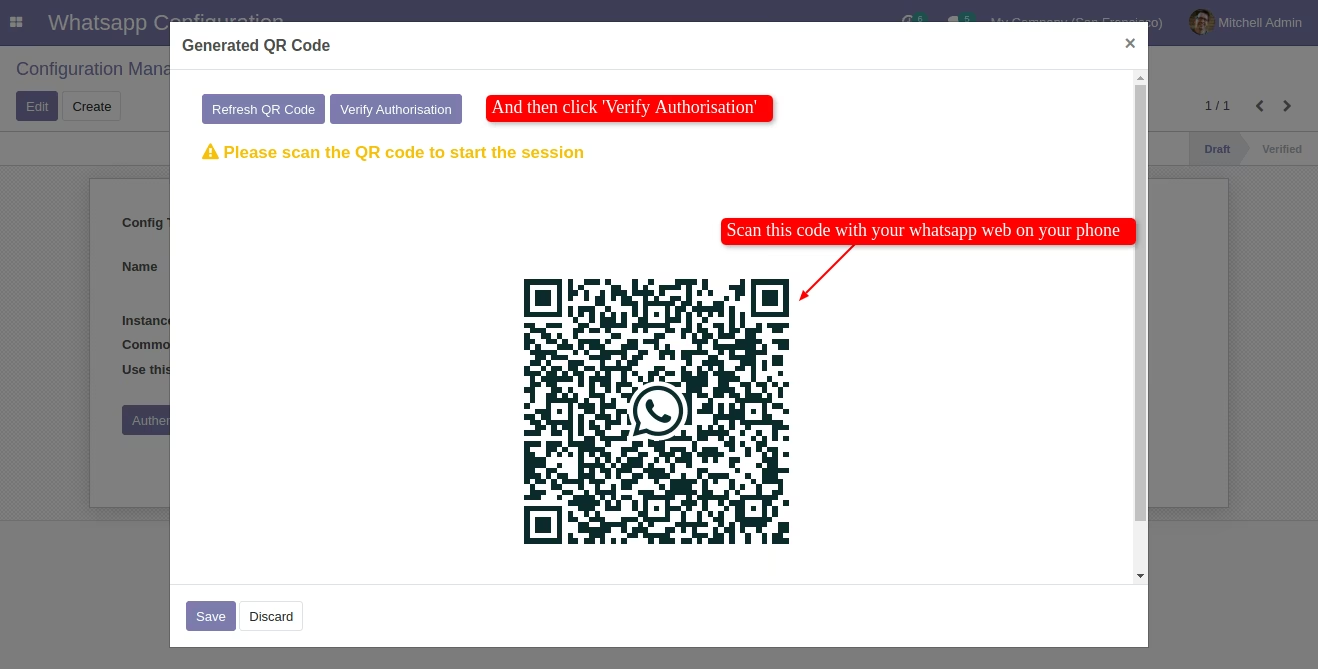
After that in this wizard just scan your whatsapp web and click 'Verify Authorisation'.
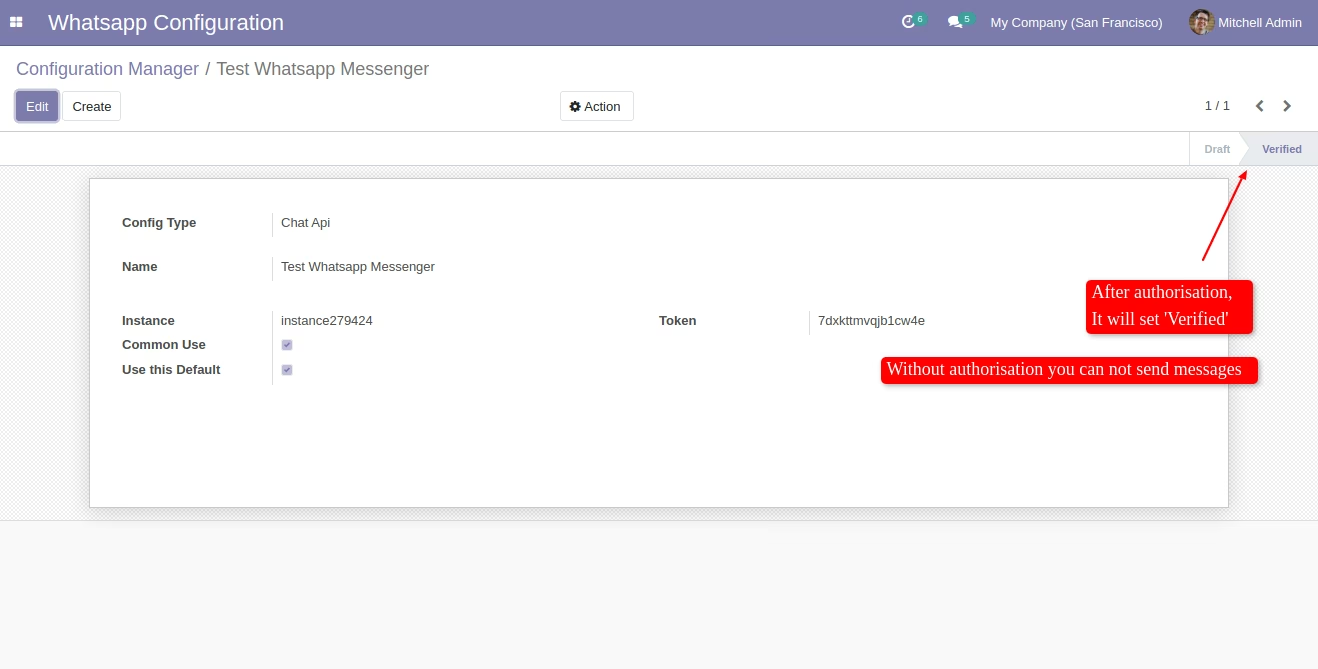
After Authorisation Config Stage change to 'Varified'.
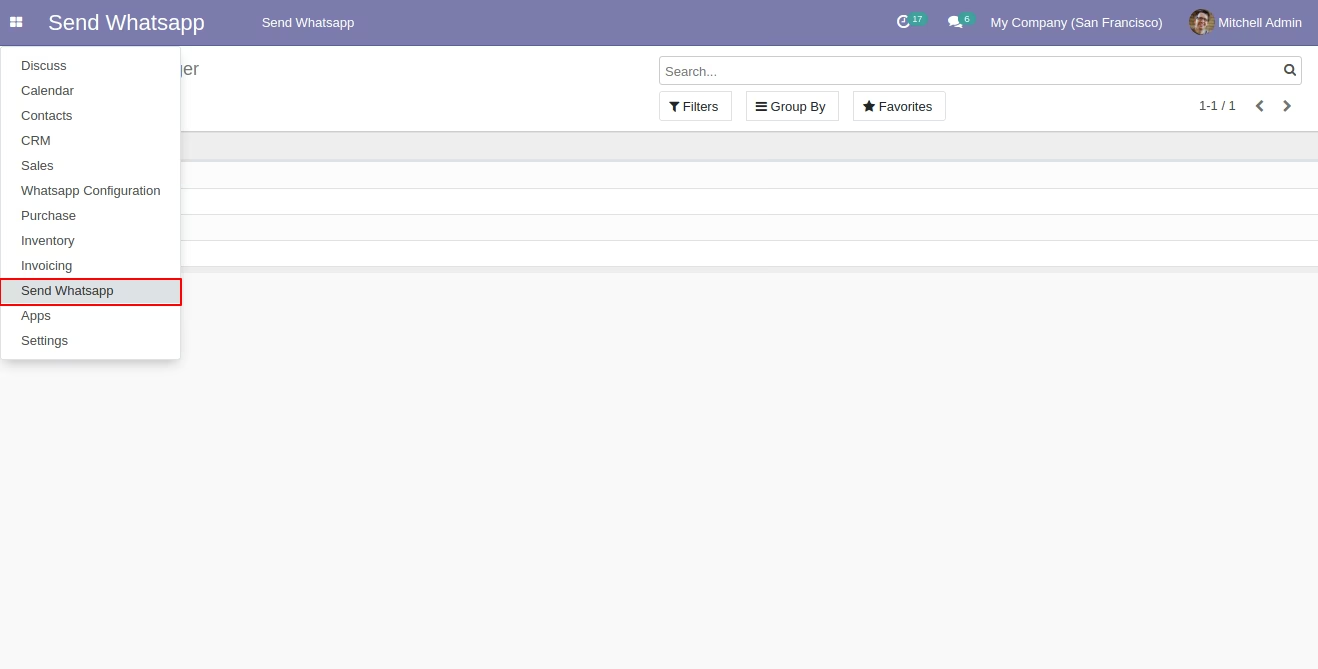
Click on 'Send Whatsapp' menu it will allows you to send message direct from any view.
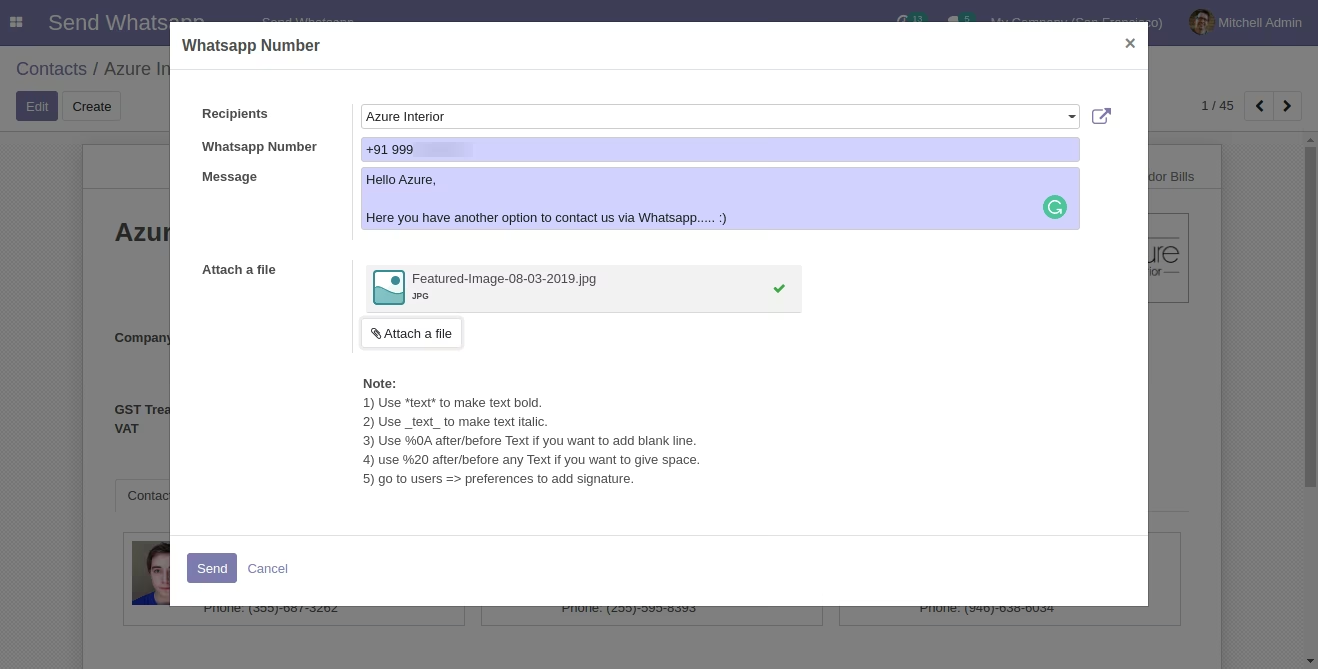
After that this wizard open, Just select an appropriate customer and add message, attachments as well and click 'Send'.
This is output of sended message on whatsapp.
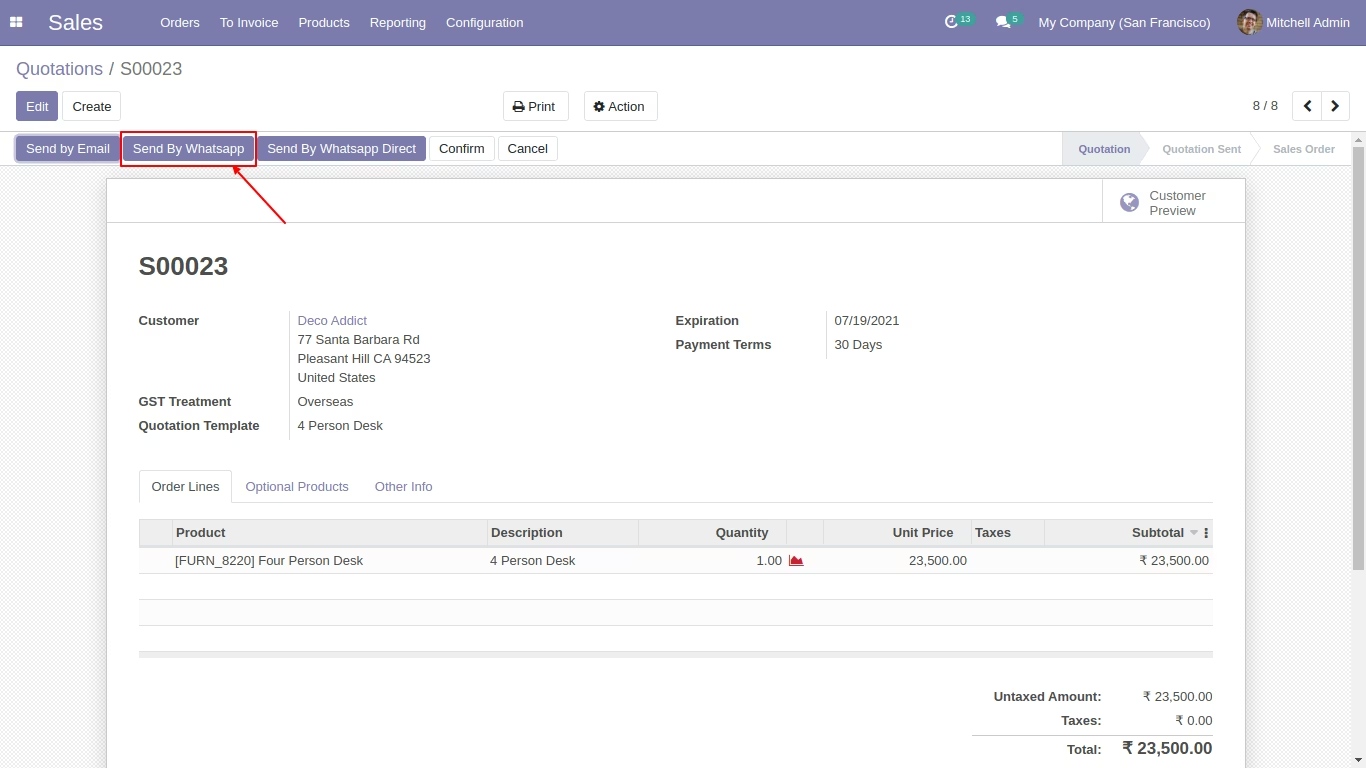
In sale order view click 'Send By Whatsapp' this button for customize message and then send
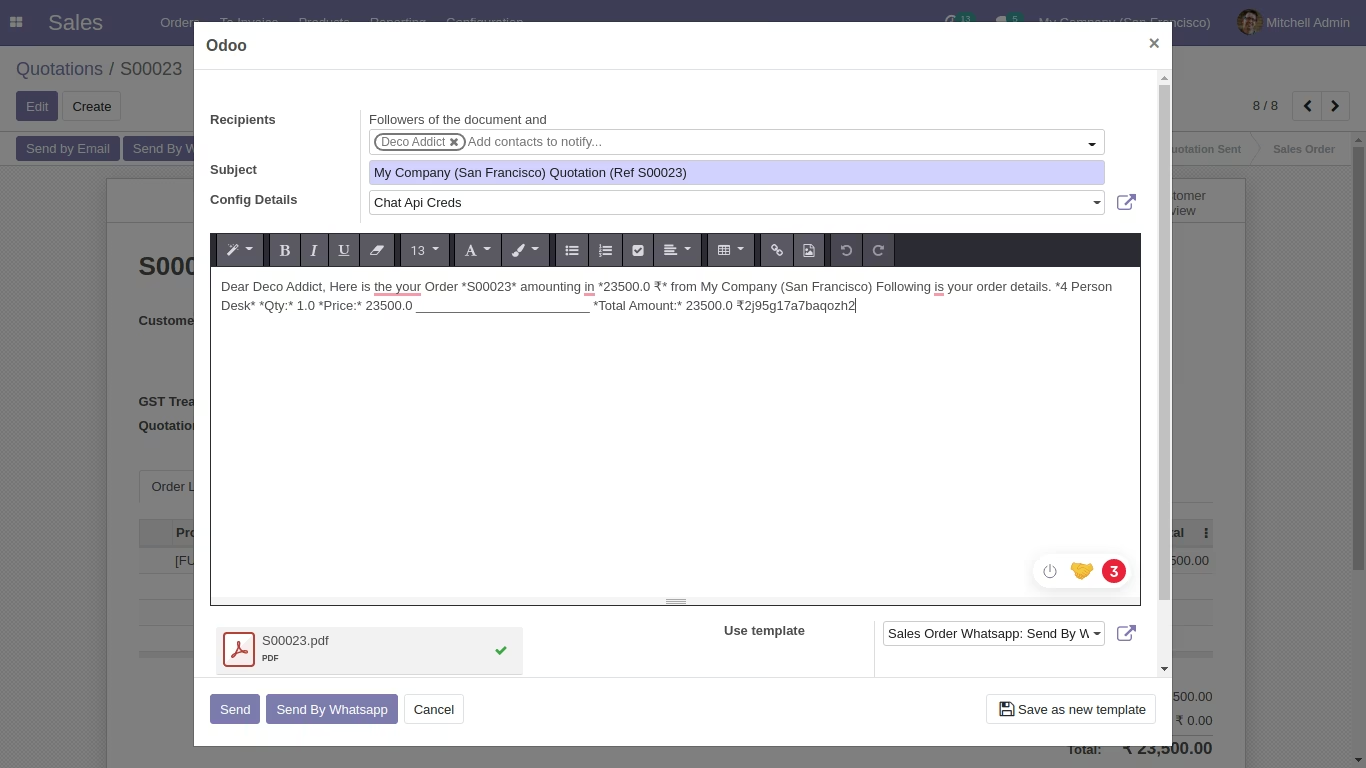
After that this wizard will display. Here you can customize your message and attach more attachments. and click 'Send By Whatsapp'.
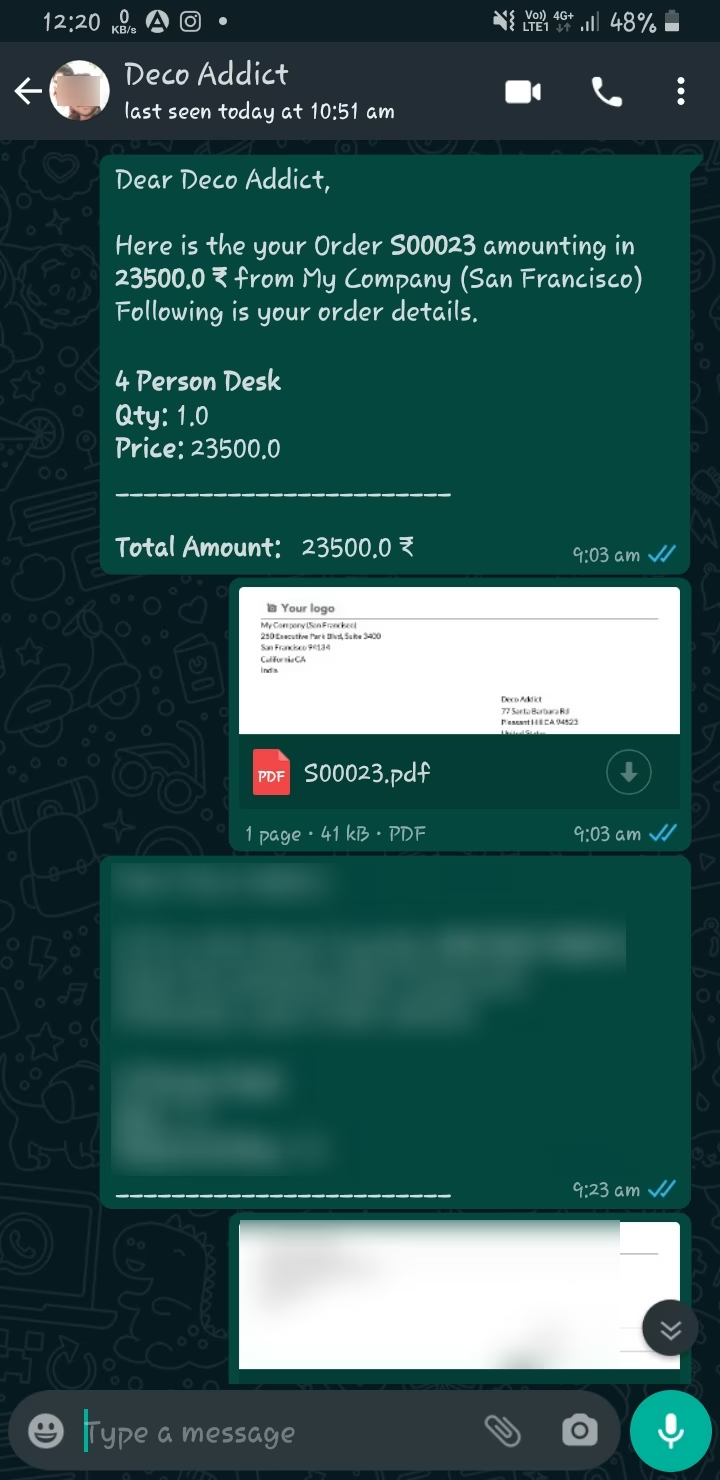
This is output of sended message on whatsapp.
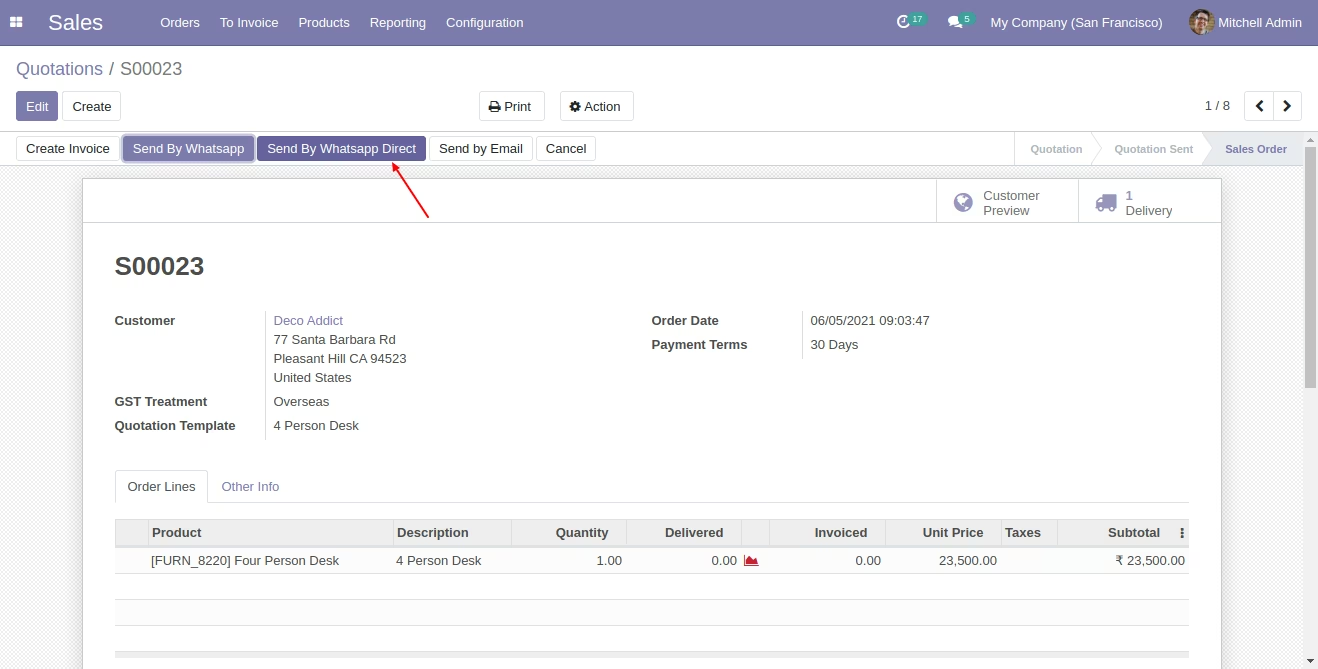
Click 'Send By Whatsapp' and it will sending directly with predefine message and attachments.
This is output of sended message on whatsapp.
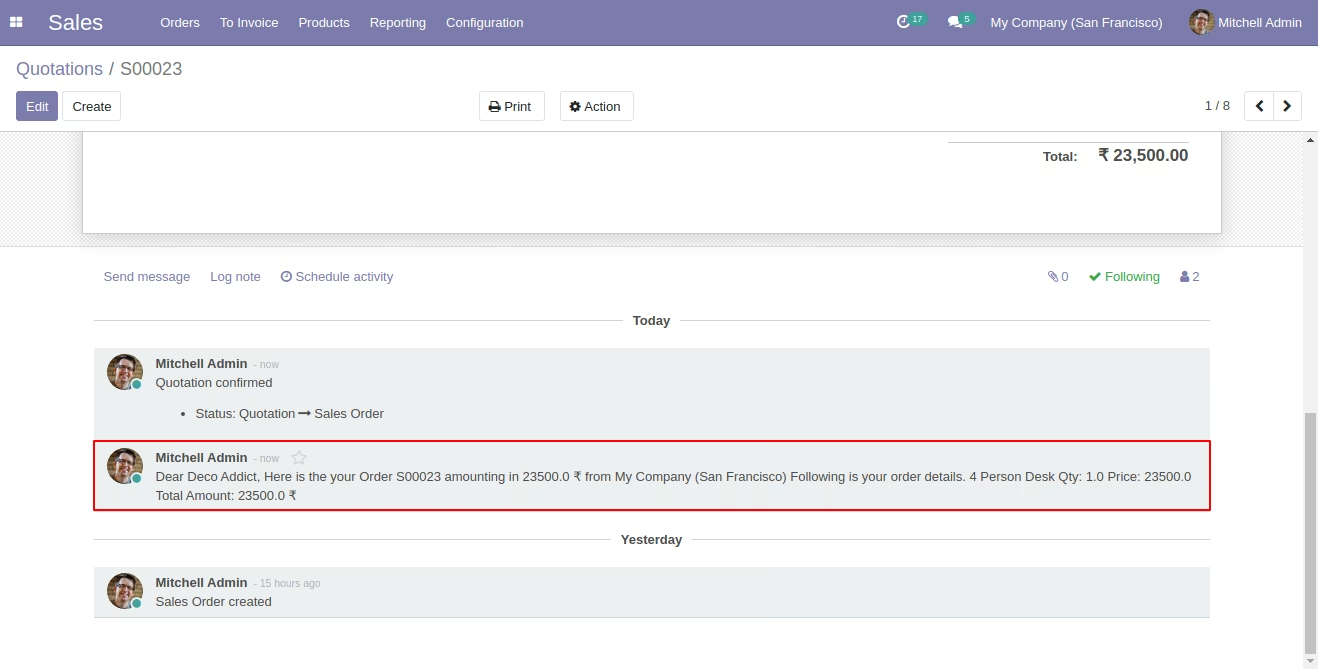
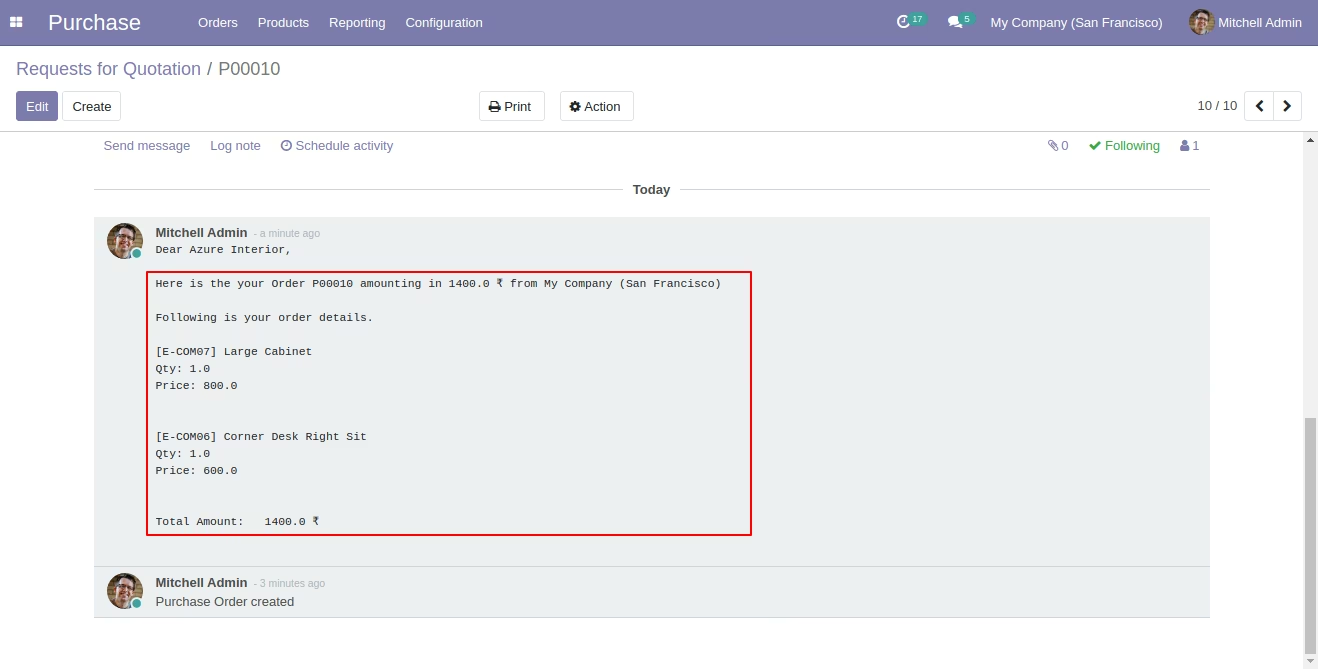
You can see the sended message in chatter also.
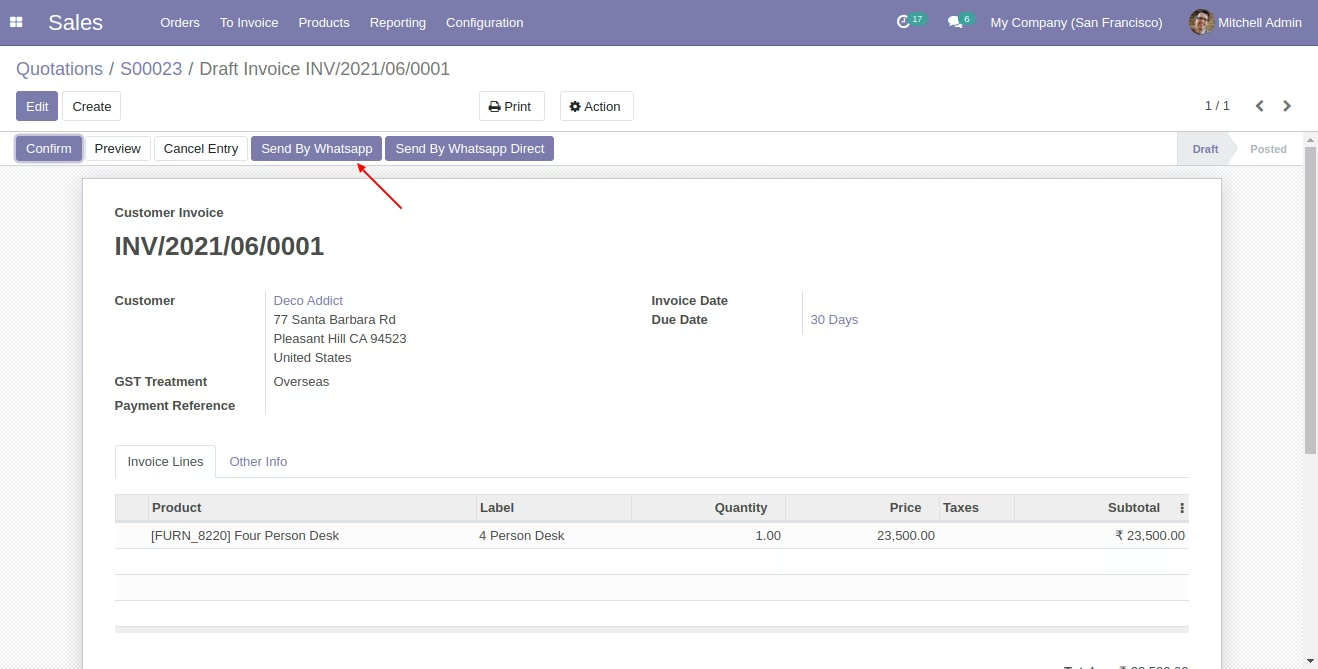
In invoice view click 'Send By Whatsapp' this button for customize message and then send.
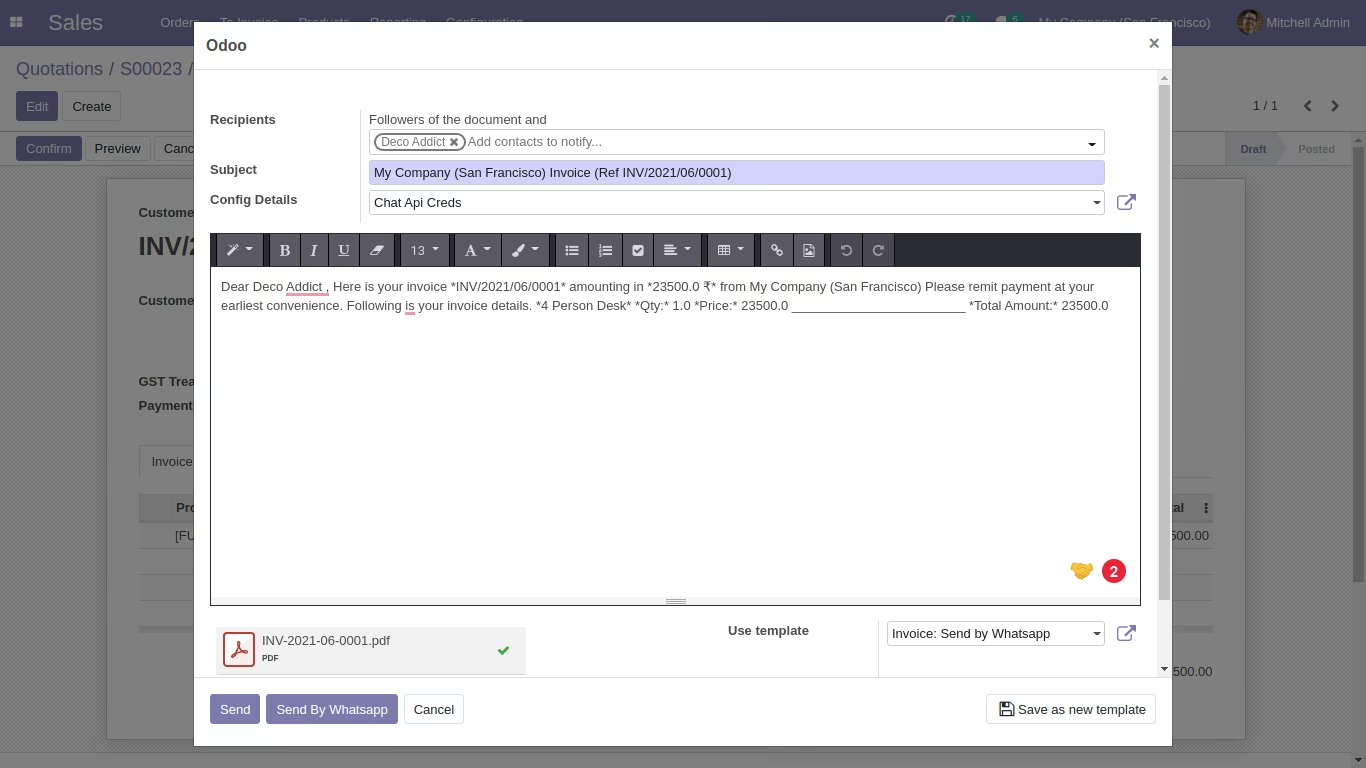
After that this wizard will display. Here you can customize your message and attach more attachments. and click 'Send By Whatsapp'.
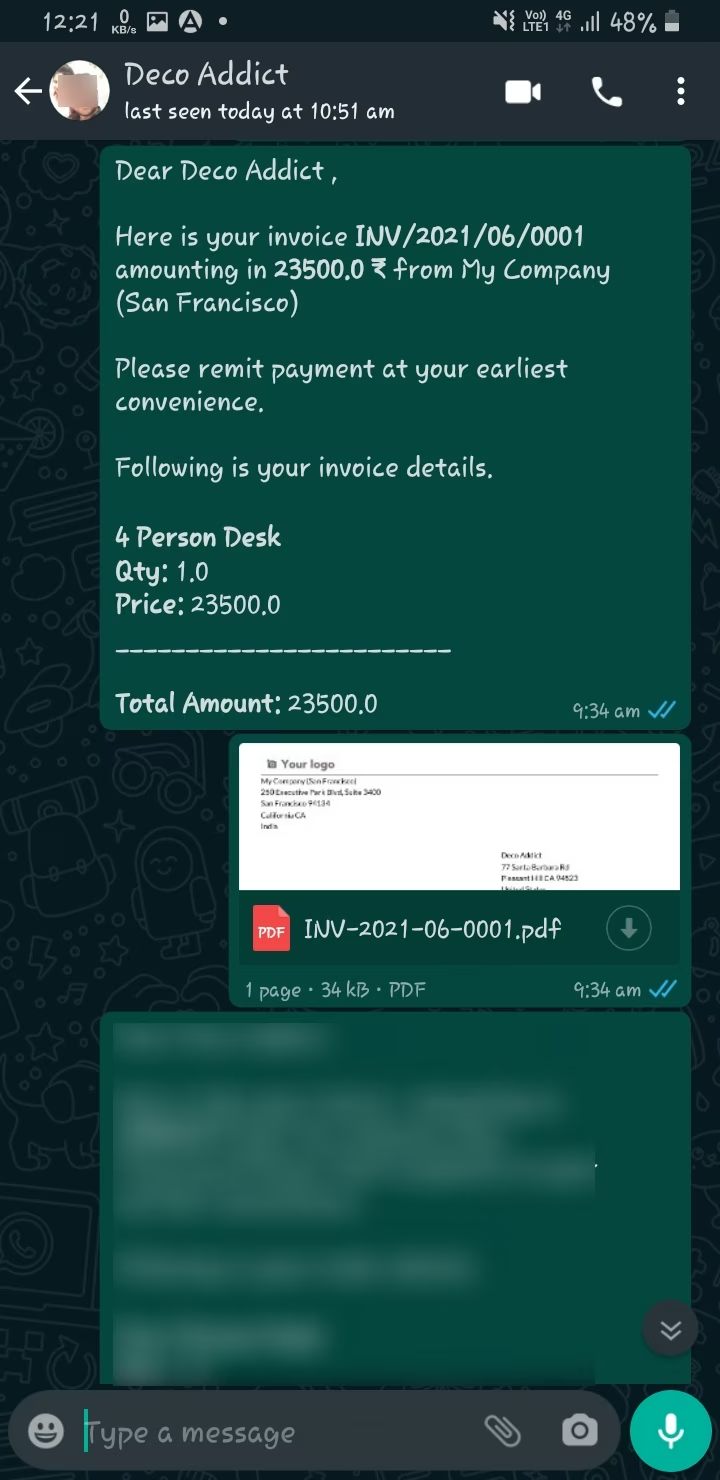
This is output of sended message on whatsapp.
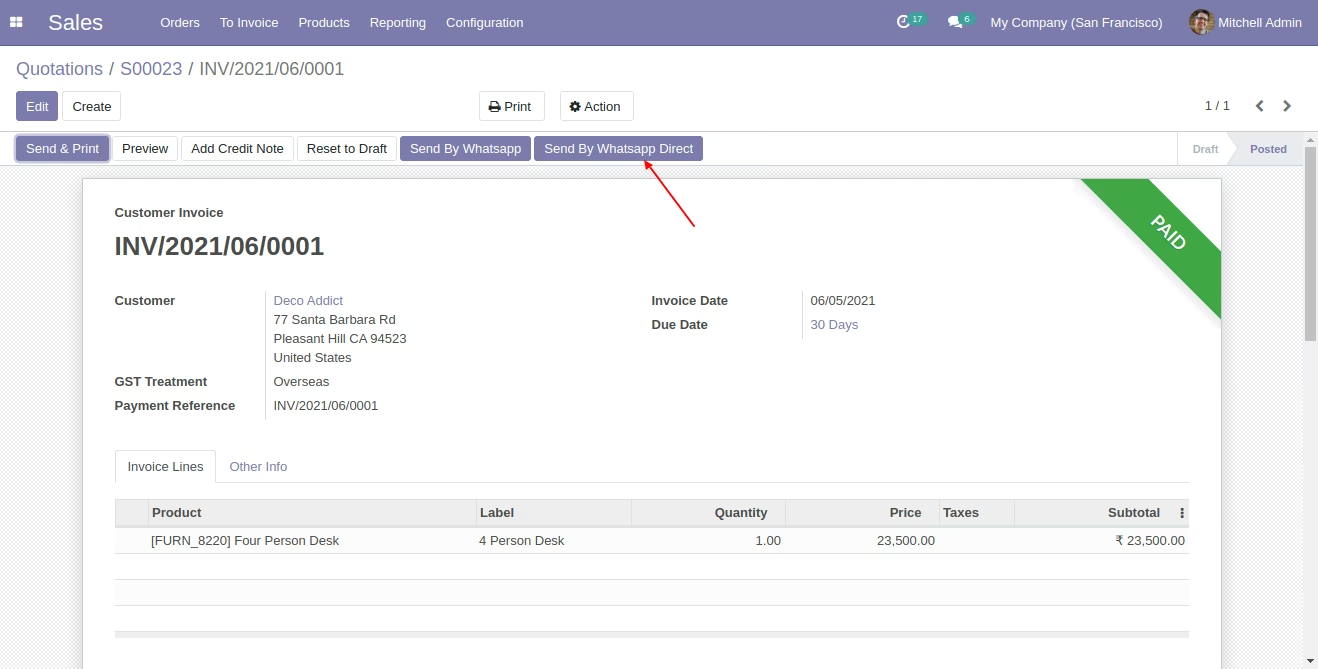
Click 'Send By Whatsapp' and it will sending directly with predefine message and attachments.
This is output of sended message on whatsapp.
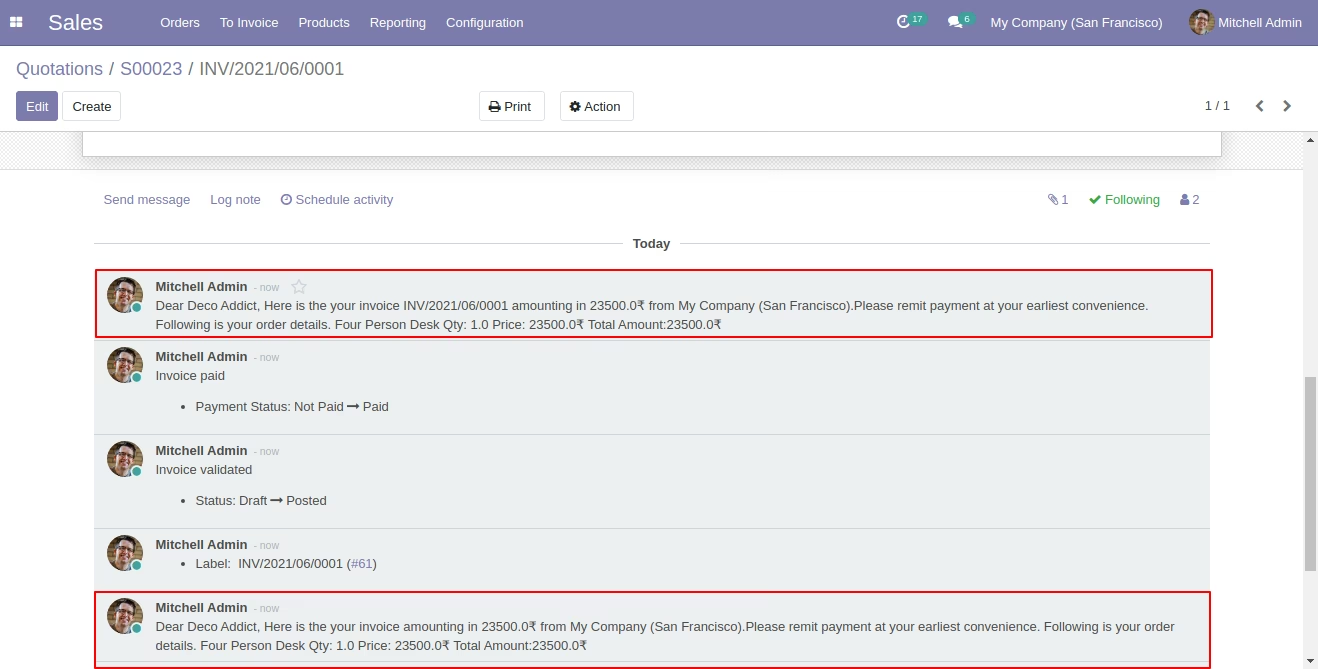
You can see the sended message in chatter also.
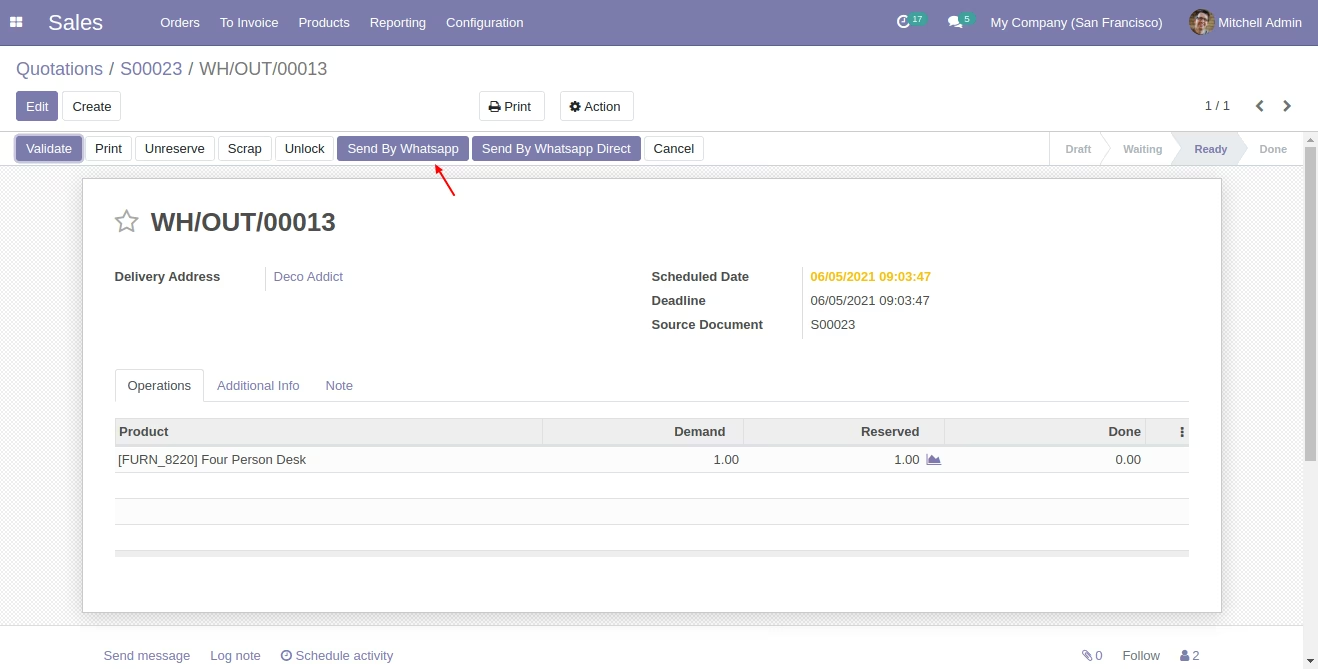
In delivery order view click 'Send By Whatsapp' this button for customize message and then send
After that this wizard will display. Here you can customize your message and attach more attachments. and click 'Send By Whatsapp'.
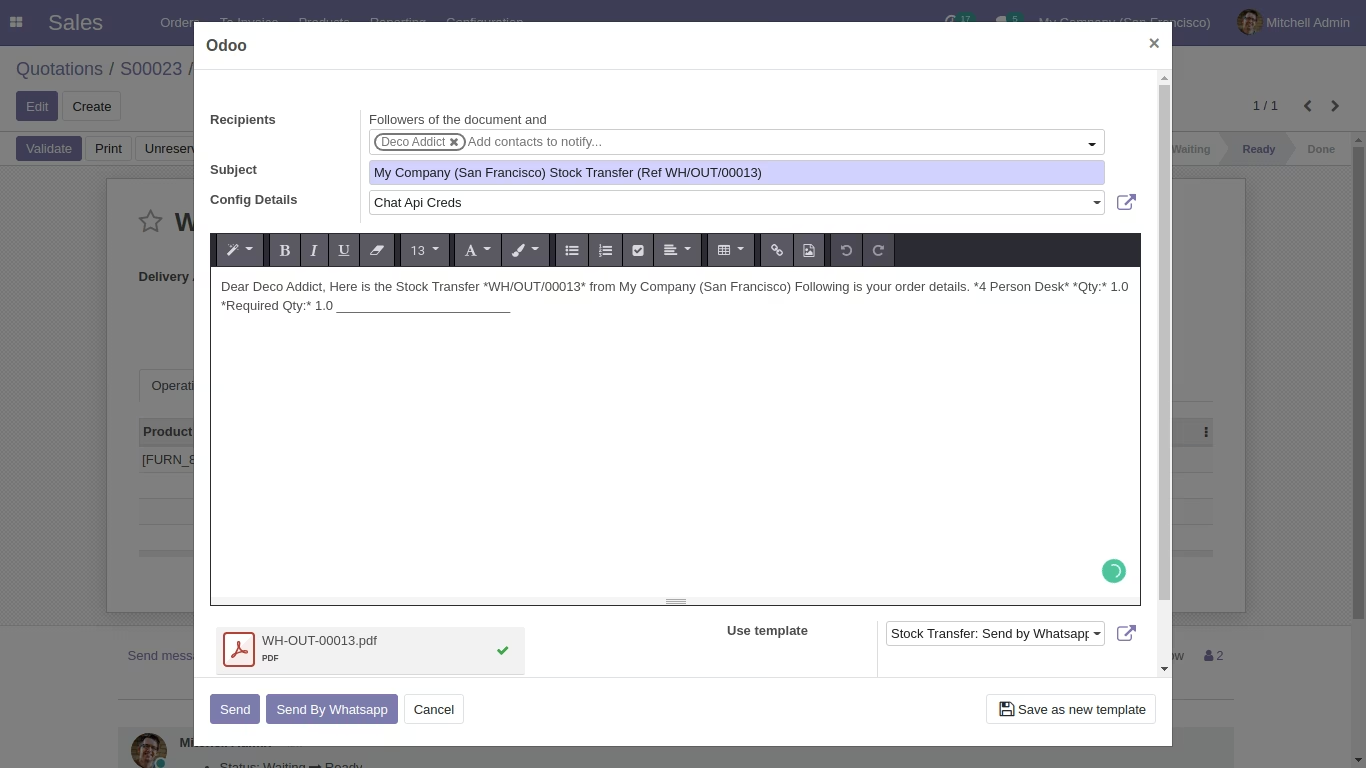
This is output of sended message on whatsapp.
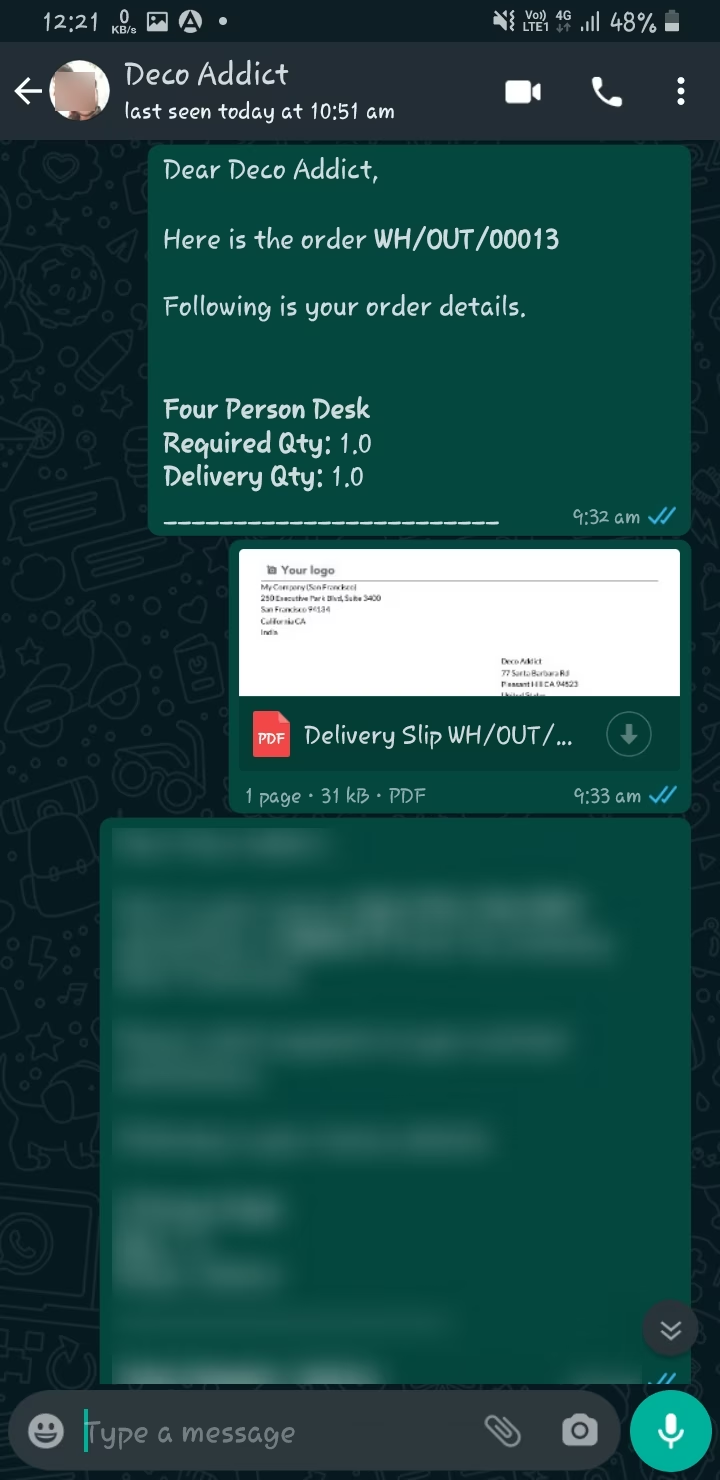
Click 'Send By Whatsapp' and it will sending directly with predefine message and attachments.
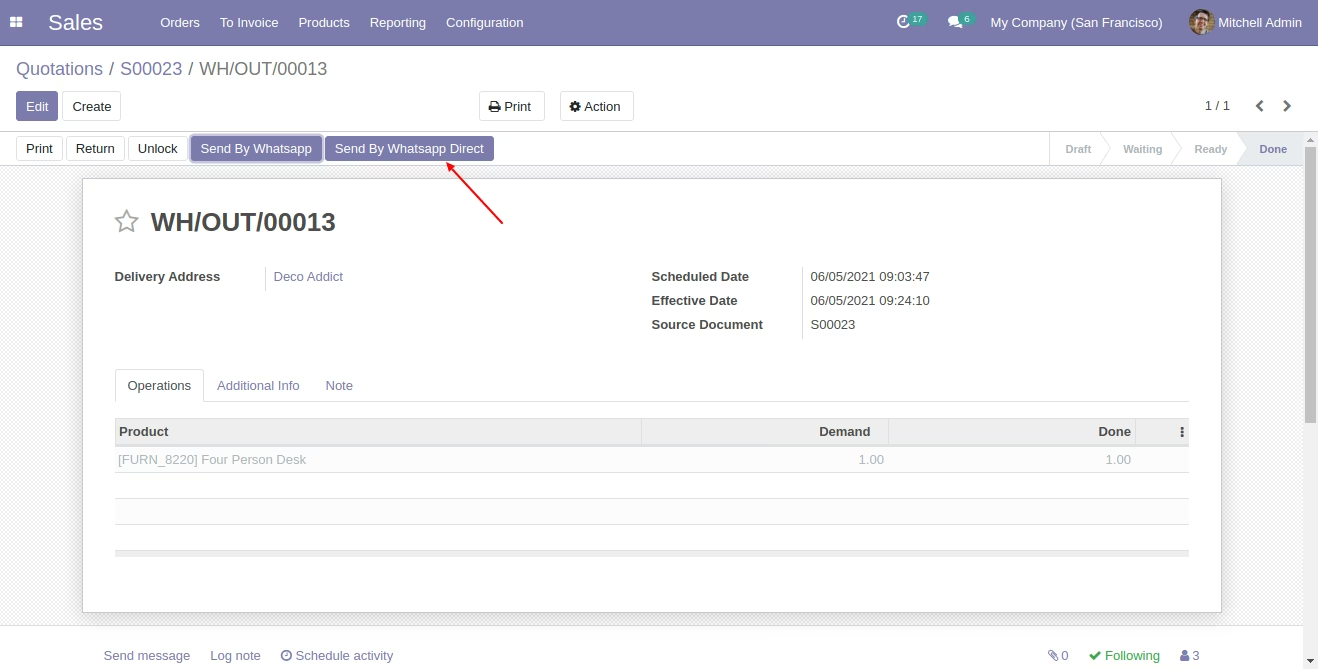
This is output of sended message on whatsapp.
You can see the sended message in chatter also.
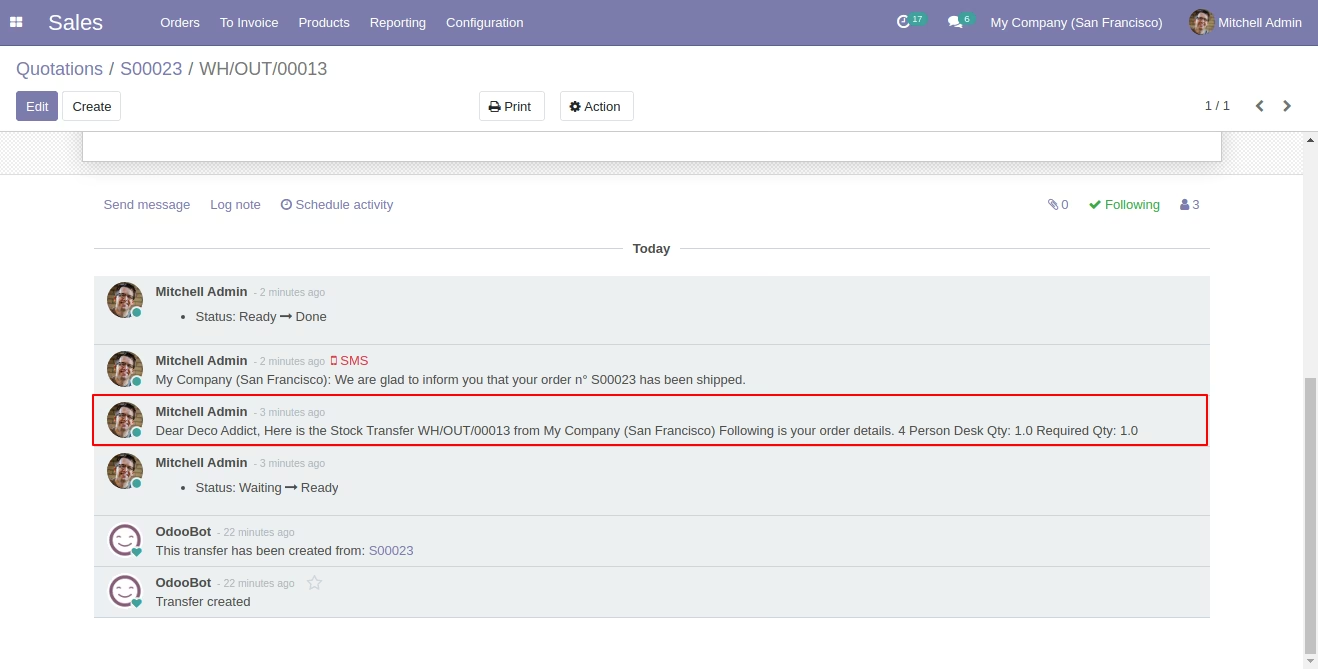
In Purchase Order view click 'Send By Whatsapp' this button for customize message and then send
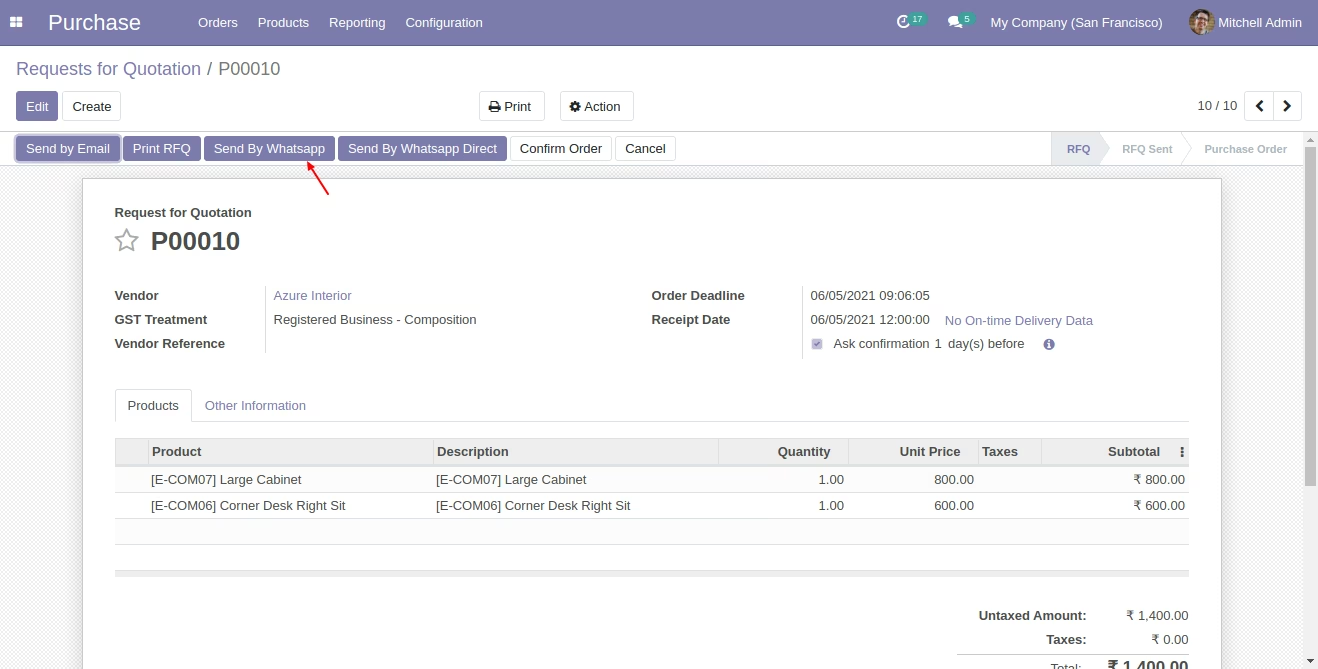
After that this wizard will display. Here you can customize your message and attach more attachments. and click 'Send By Whatsapp'.
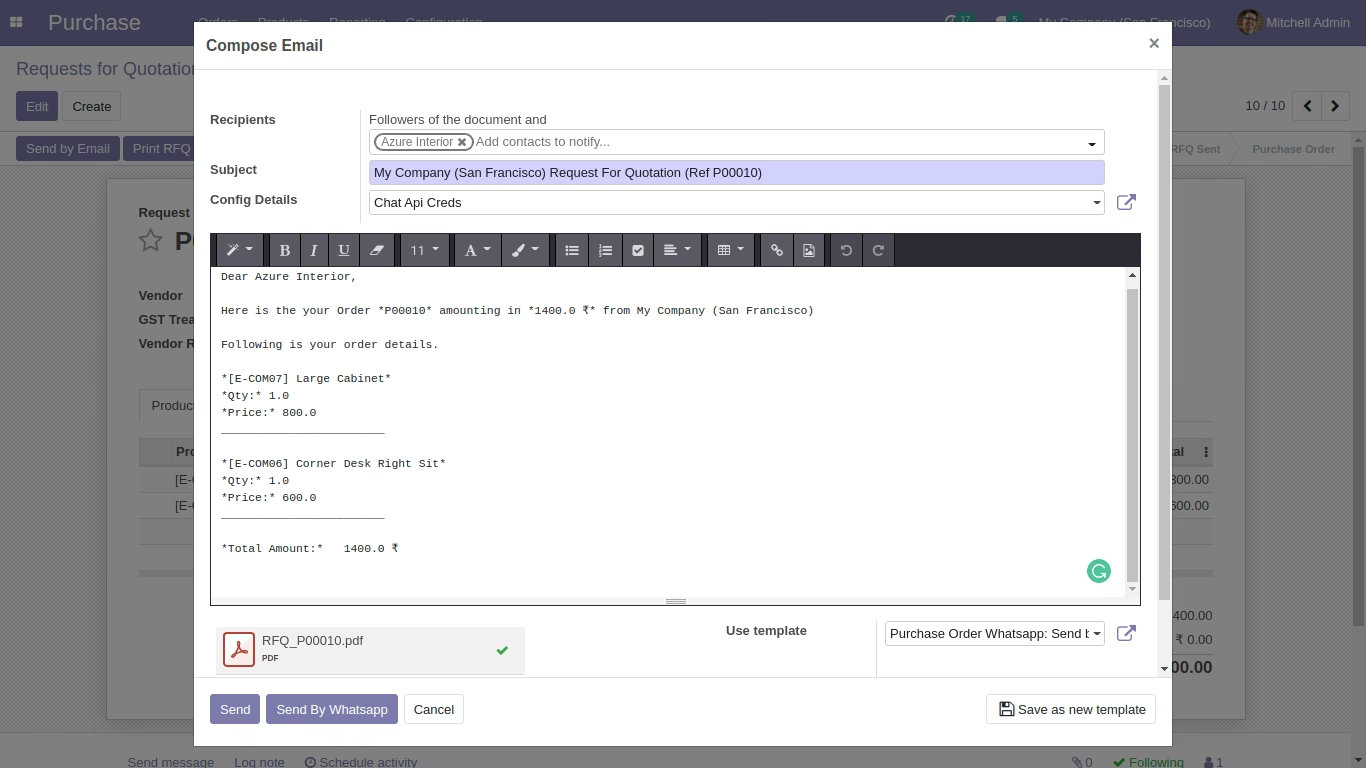
This is output of sended message on whatsapp.
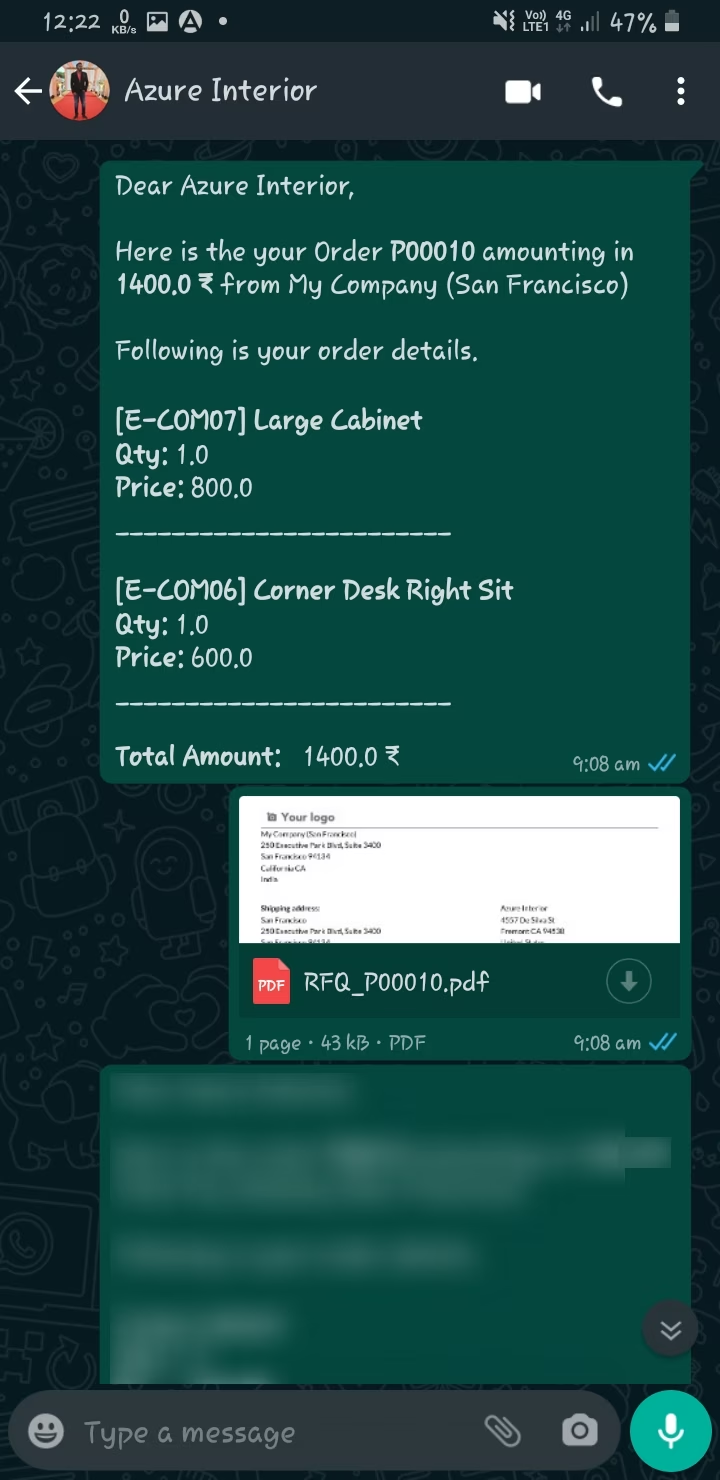
Click 'Send By Whatsapp' and it will sending directly with predefine message and attachments.
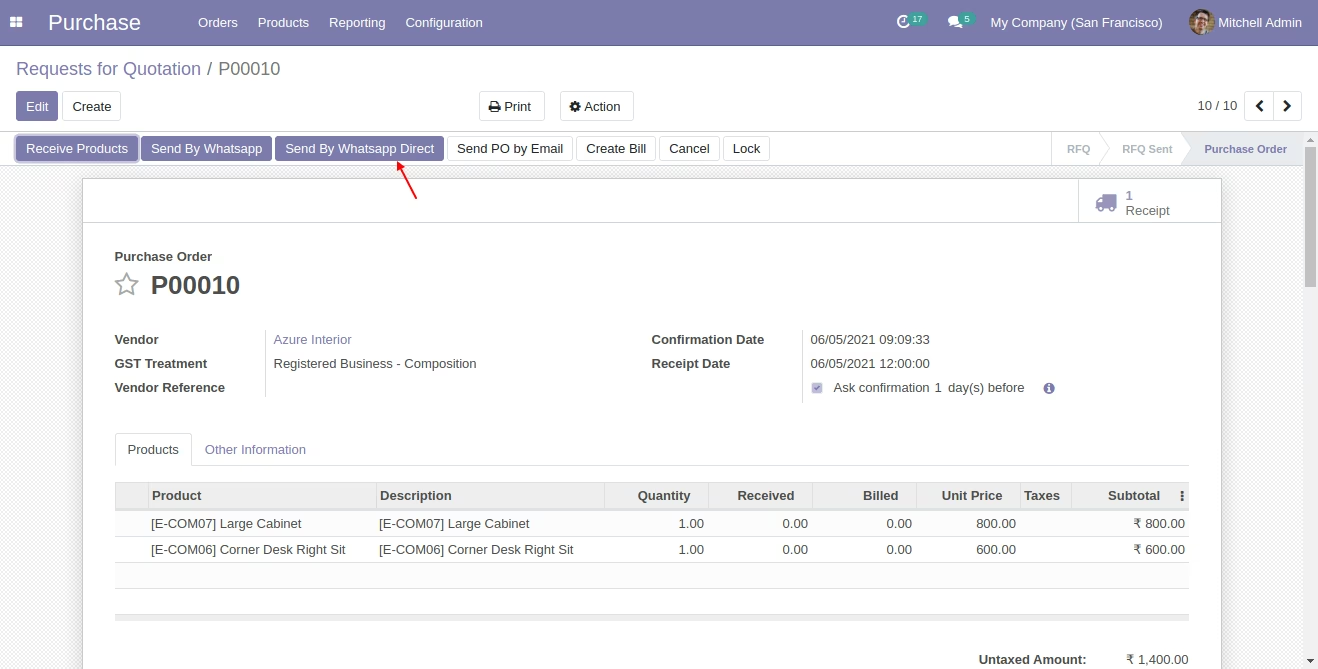
This is output of sended message on whatsapp.
You can see the sended message in chatter also.
Go to Whatsapp Configuration Manager.
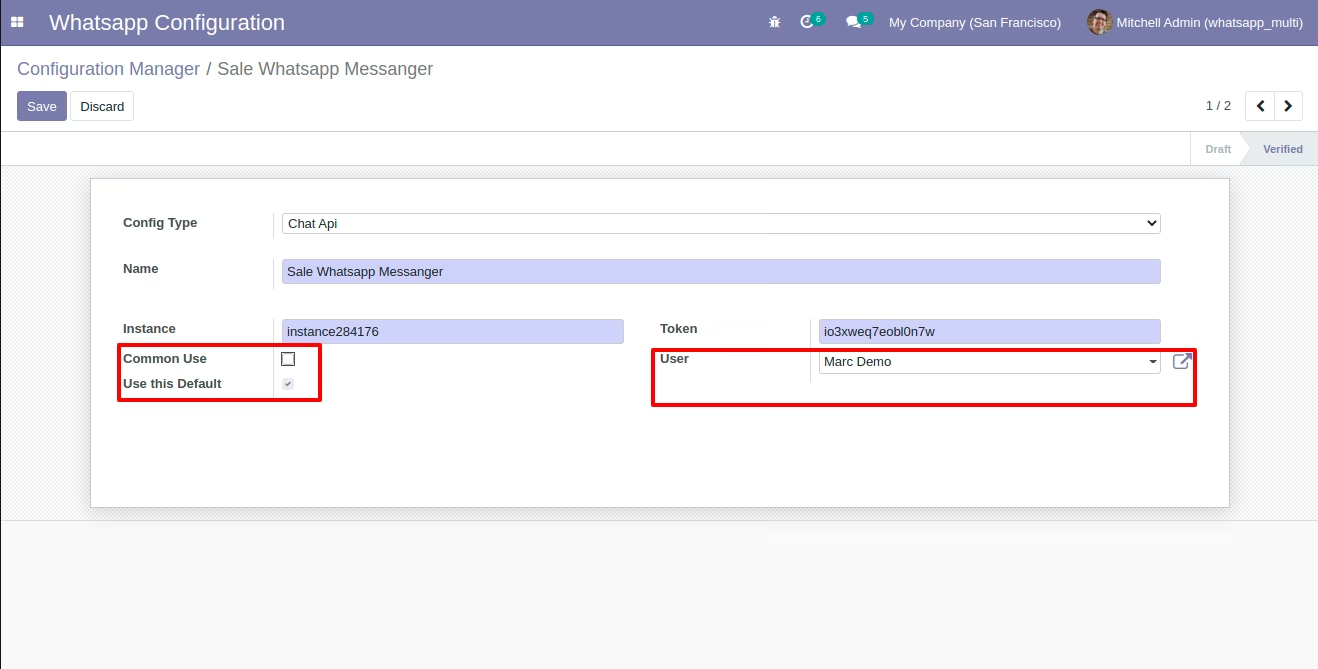
Create a whatsapp messanger for 'Sale Whatsapp Messanger' and assign to particular user.
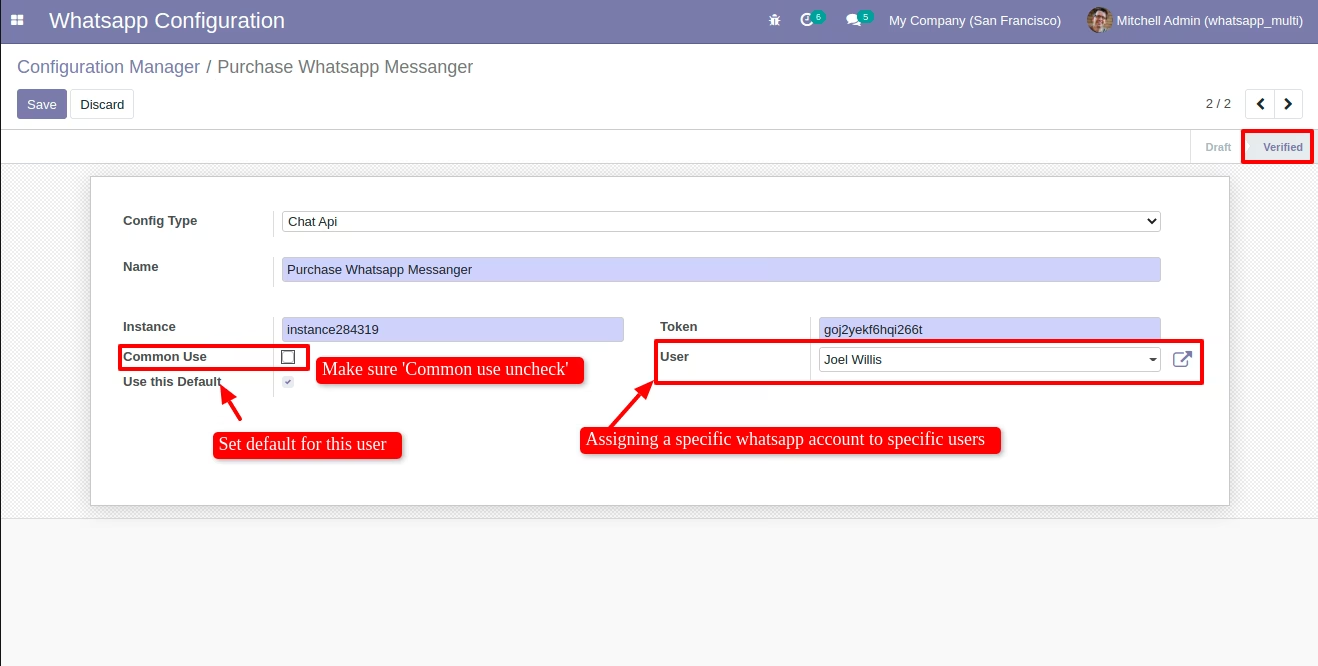
Create another whatsapp messanger for 'Purchase Whatsapp Messanger' and assign to particular user.
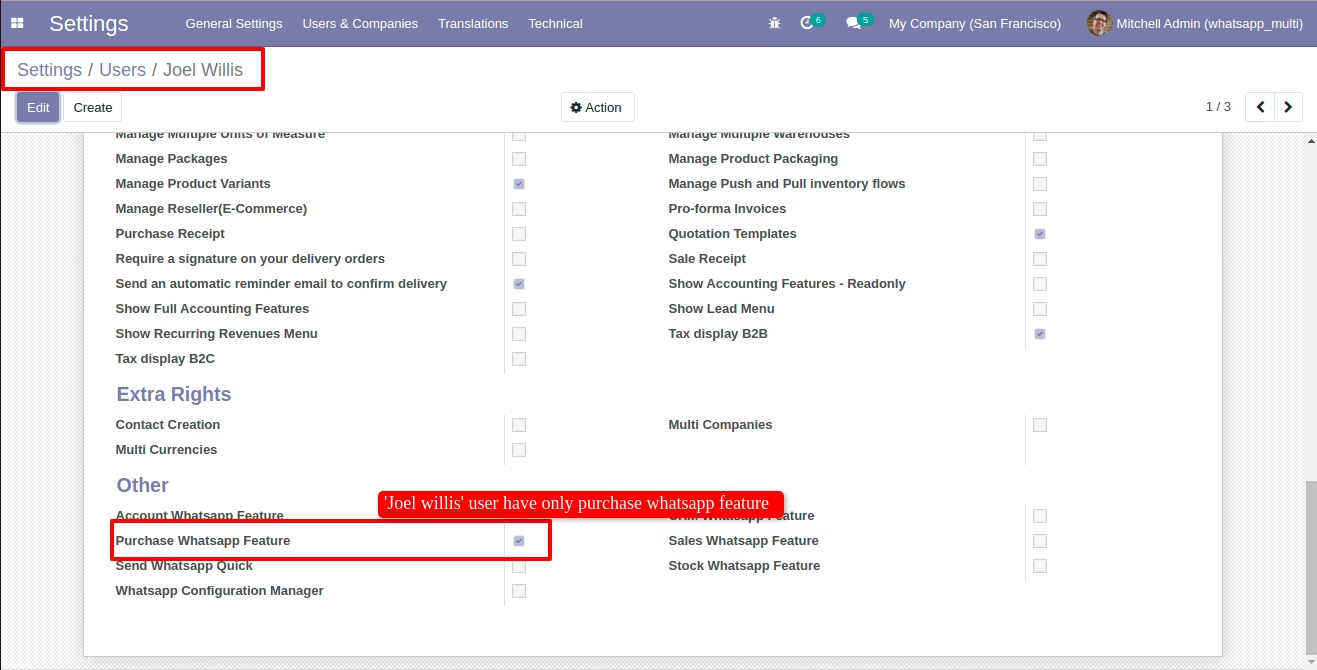
Now assign a perticular whatsapp feature to particular user
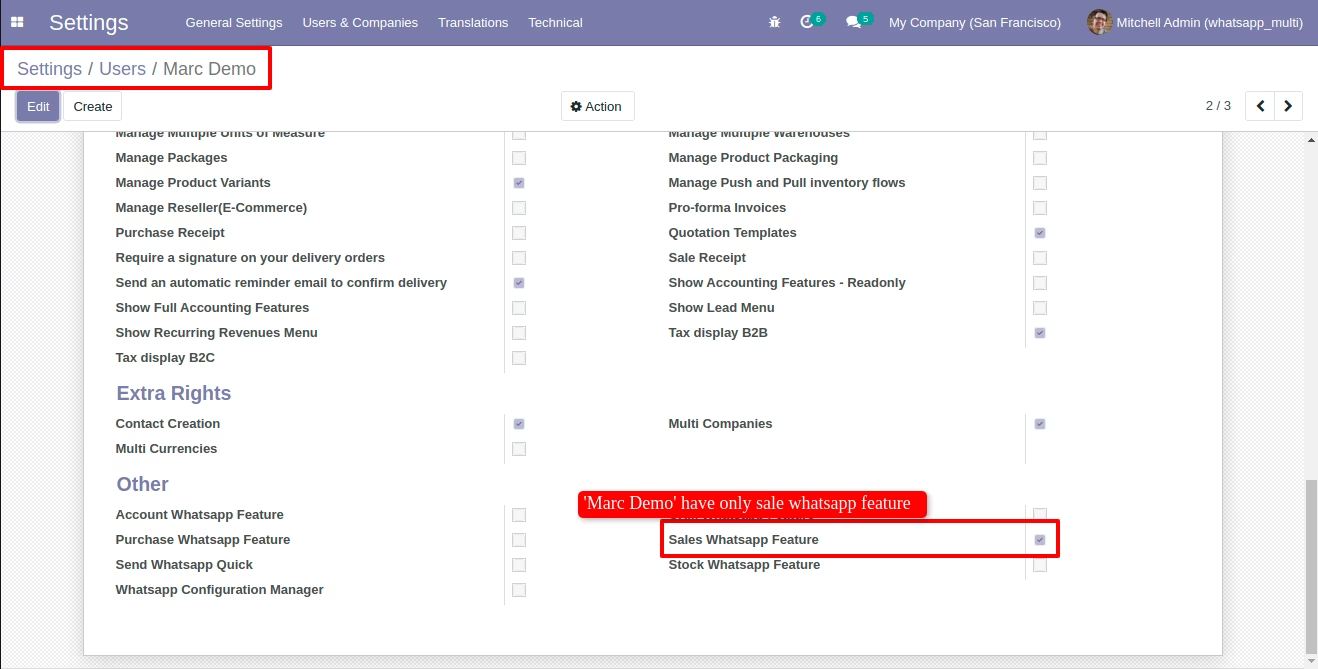
Now assign a perticular whatsapp feature to particular user.
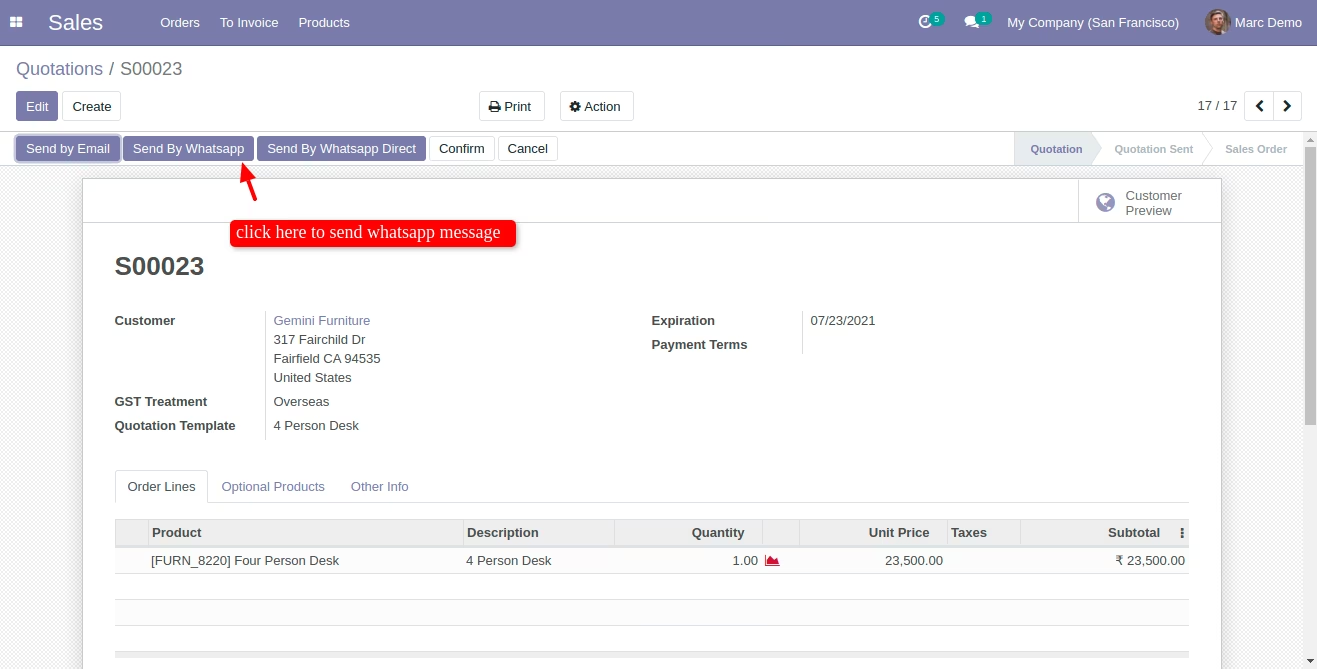
Login with 'Marc Demo' which have only sales whatsapp feature access. So he will send message for only sale.
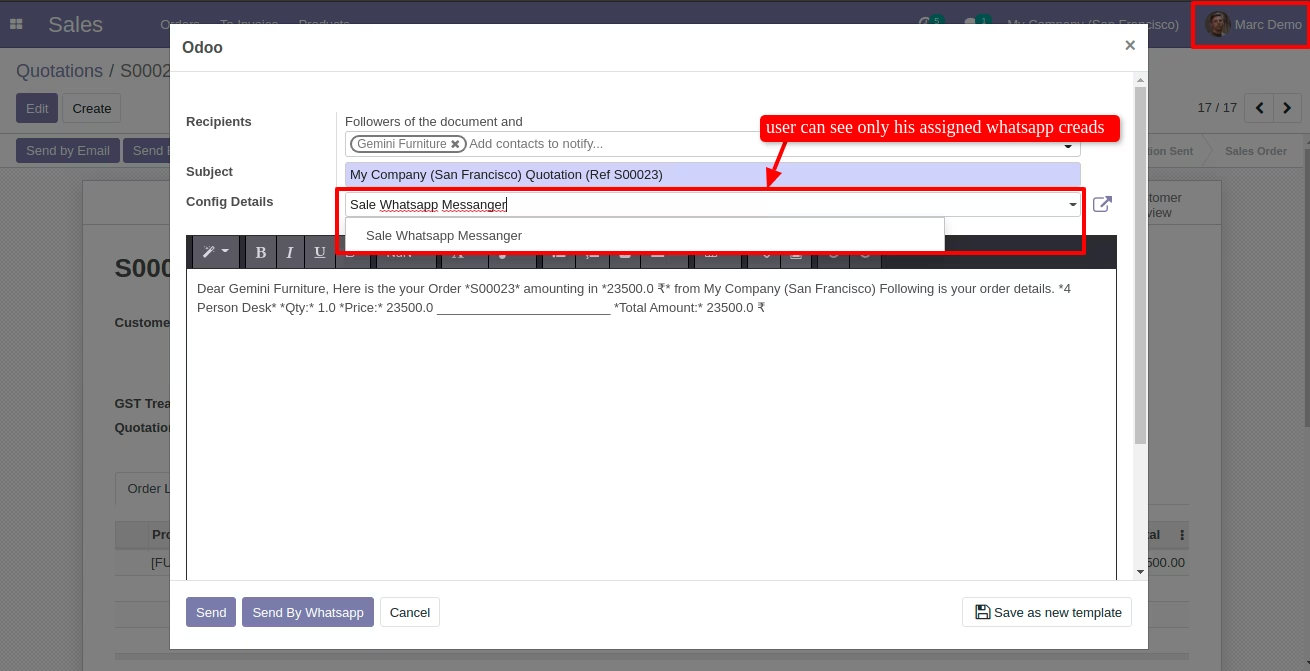
Here in config detail shown only 'Sale Whatsapp Messenger' because this user assigned in 'Sale Whatsapp Messenger'
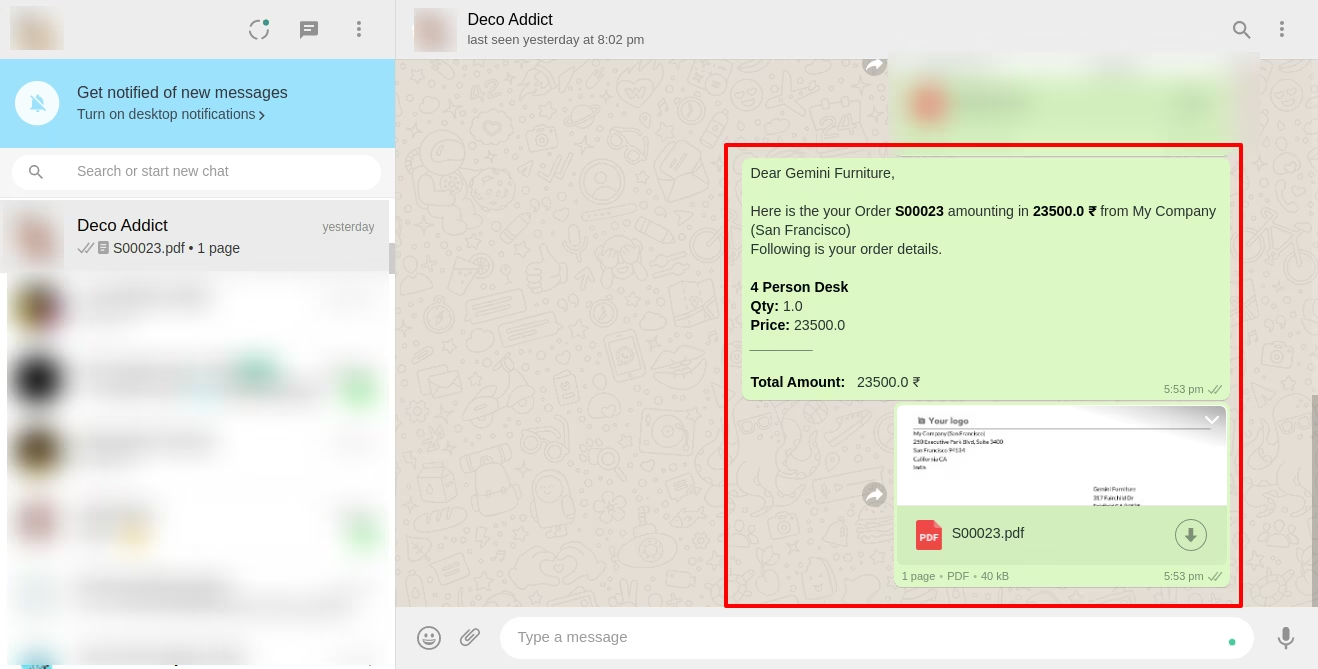
Message send in whatsapp.
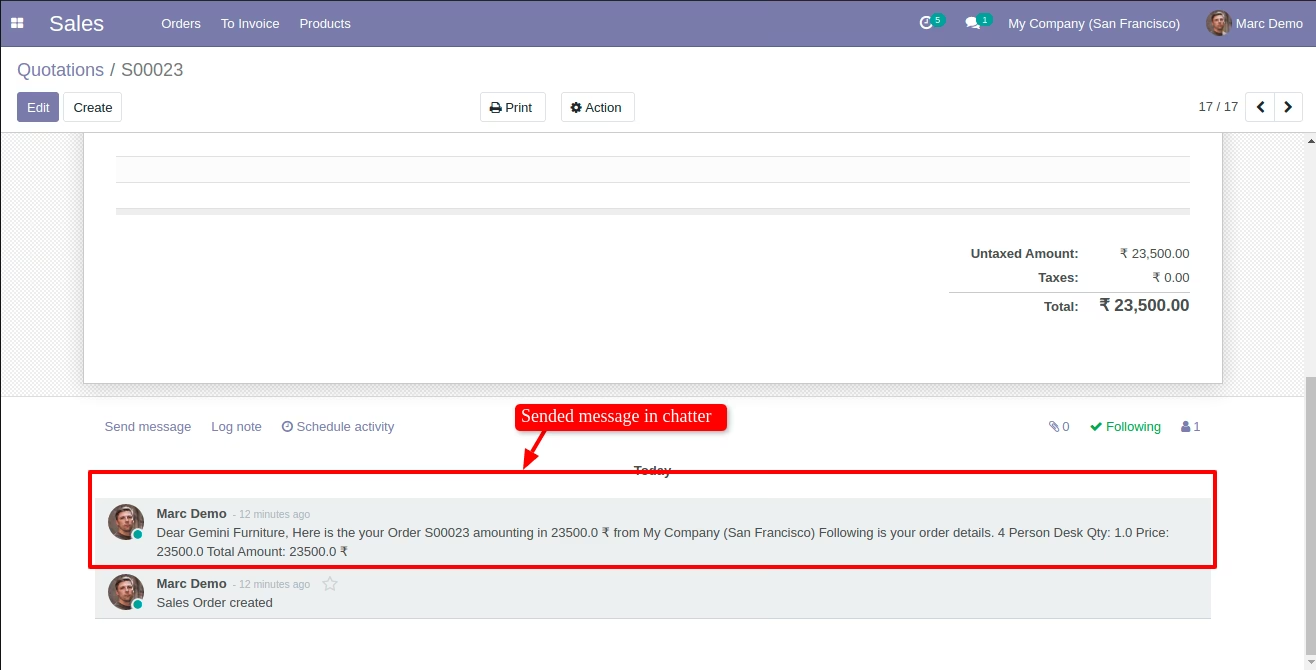
Sended message entry in chatter also.
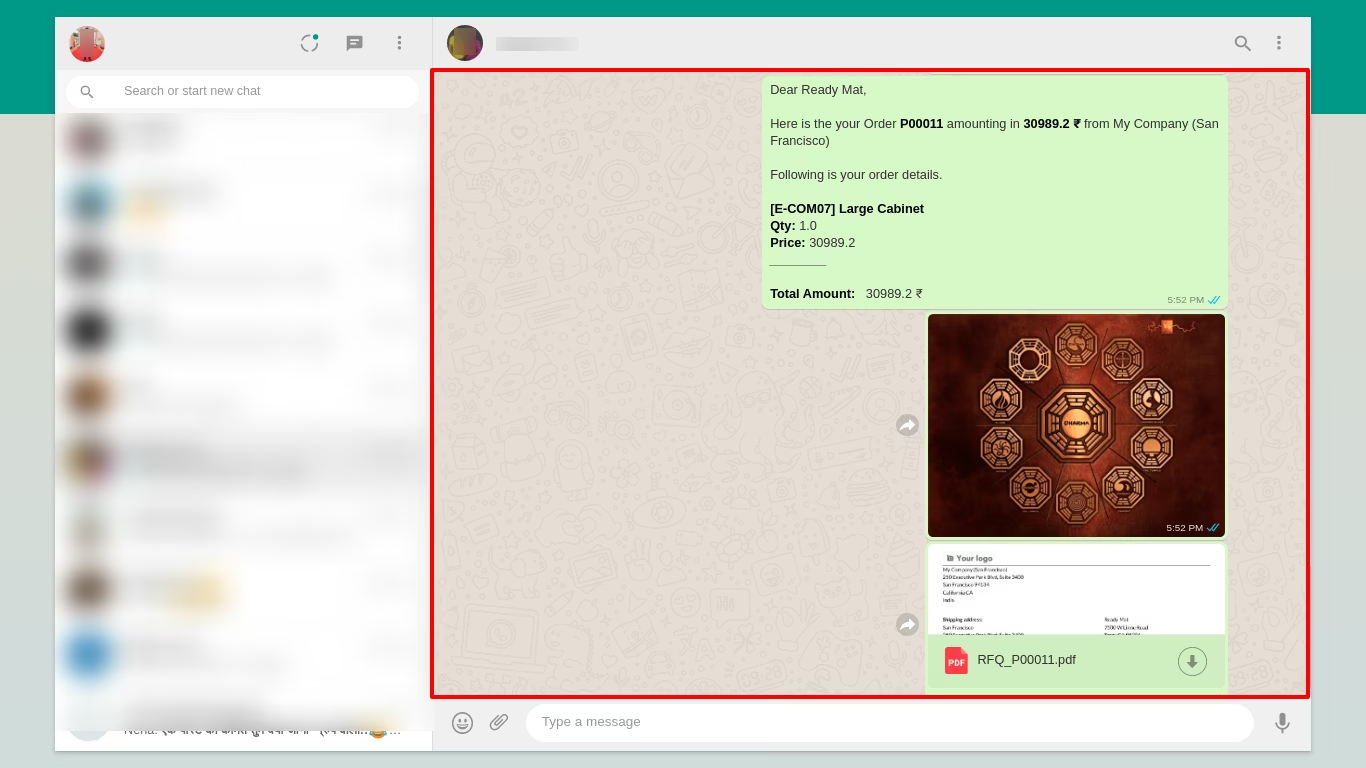
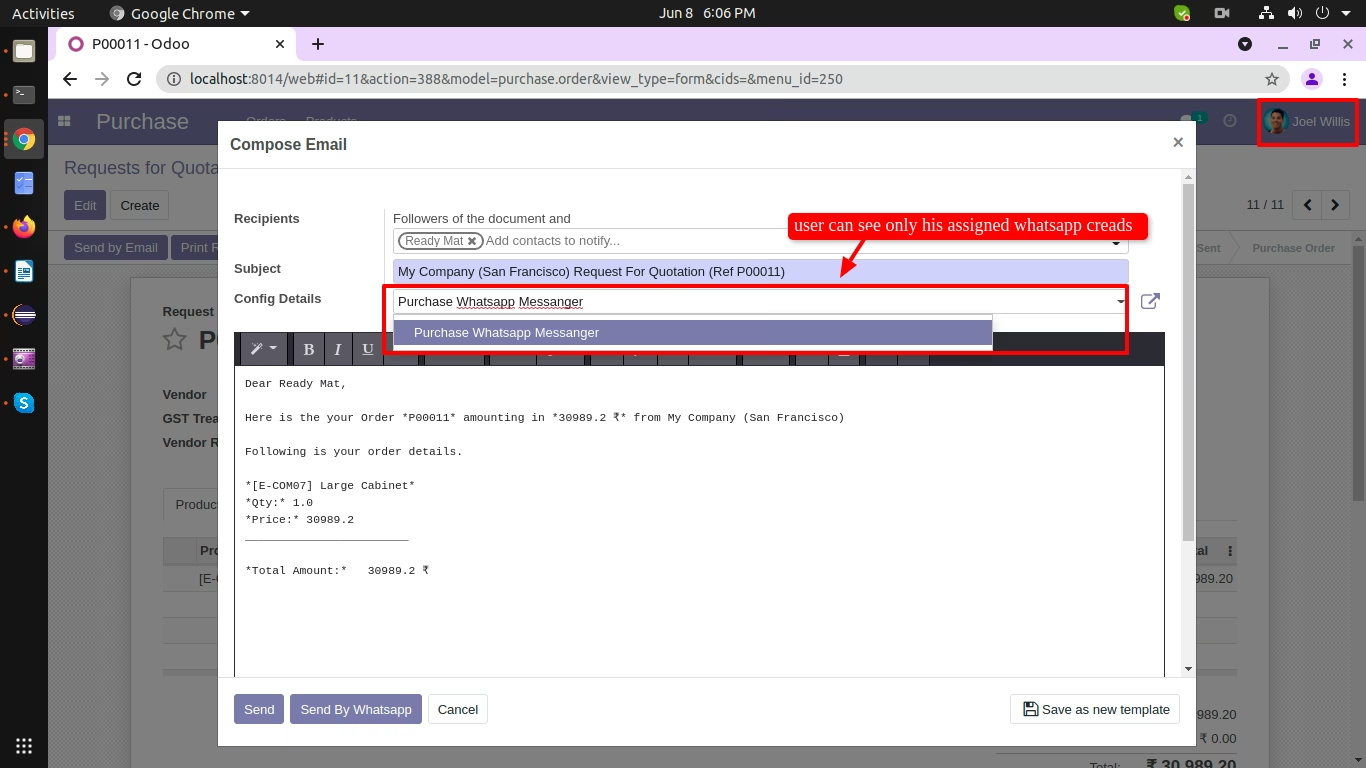
Now login with 'Joel Willis' which have only purchase whatsapp feature access. So he will send message for only purchase.
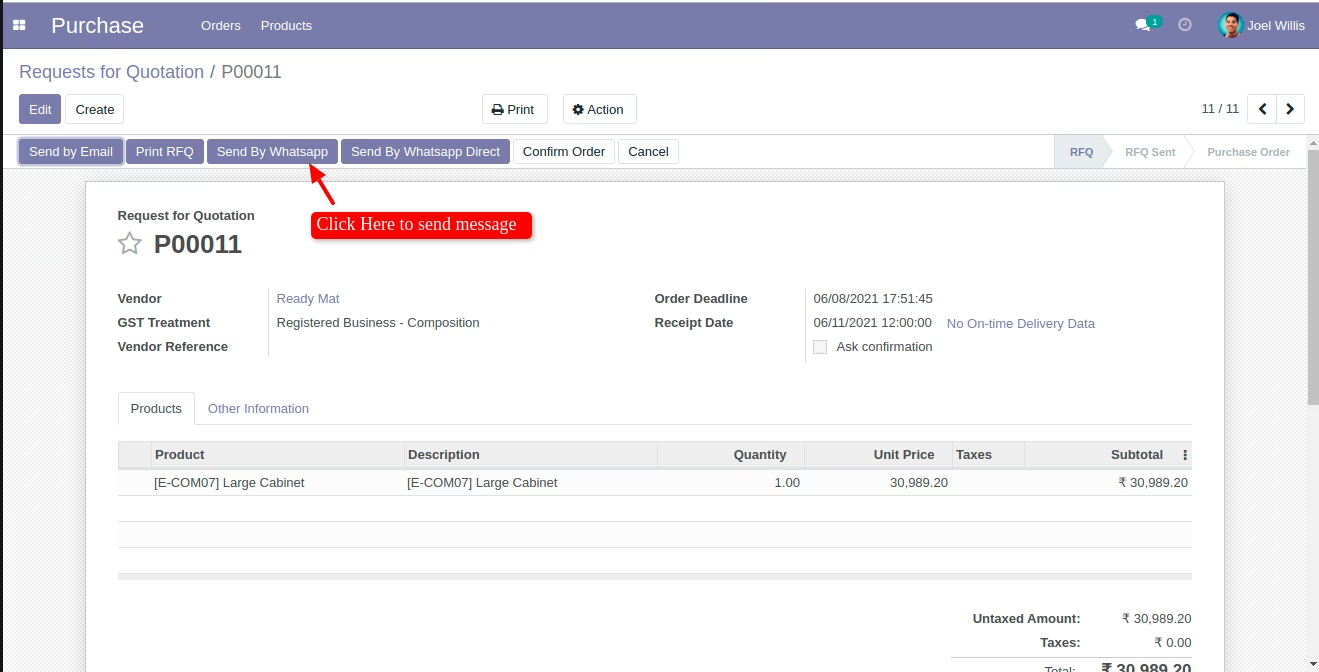
Here in config detail shown only 'Purchase Whatsapp Messenger' because this user assigned in 'Purchase Whatsapp Messenger'
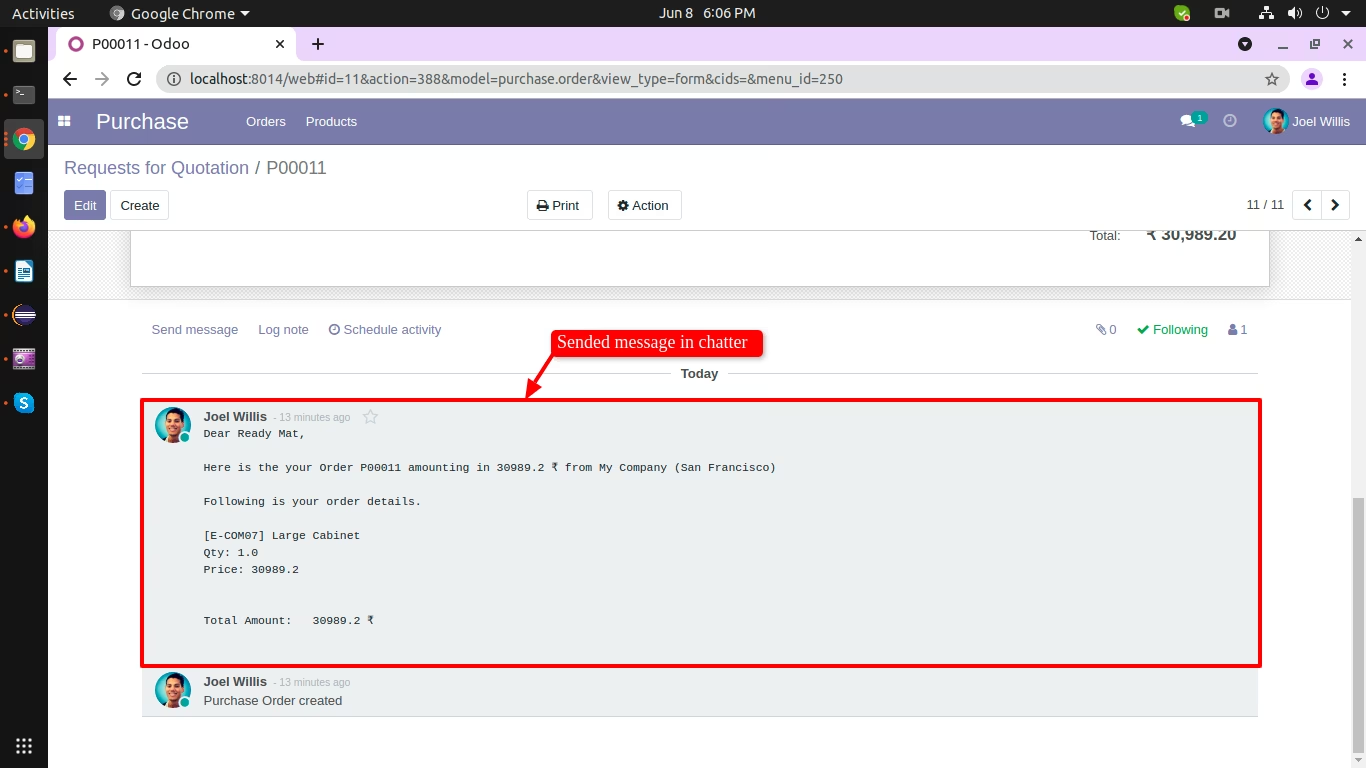
Message send in whatsapp.
Sended message entry in chatter also.
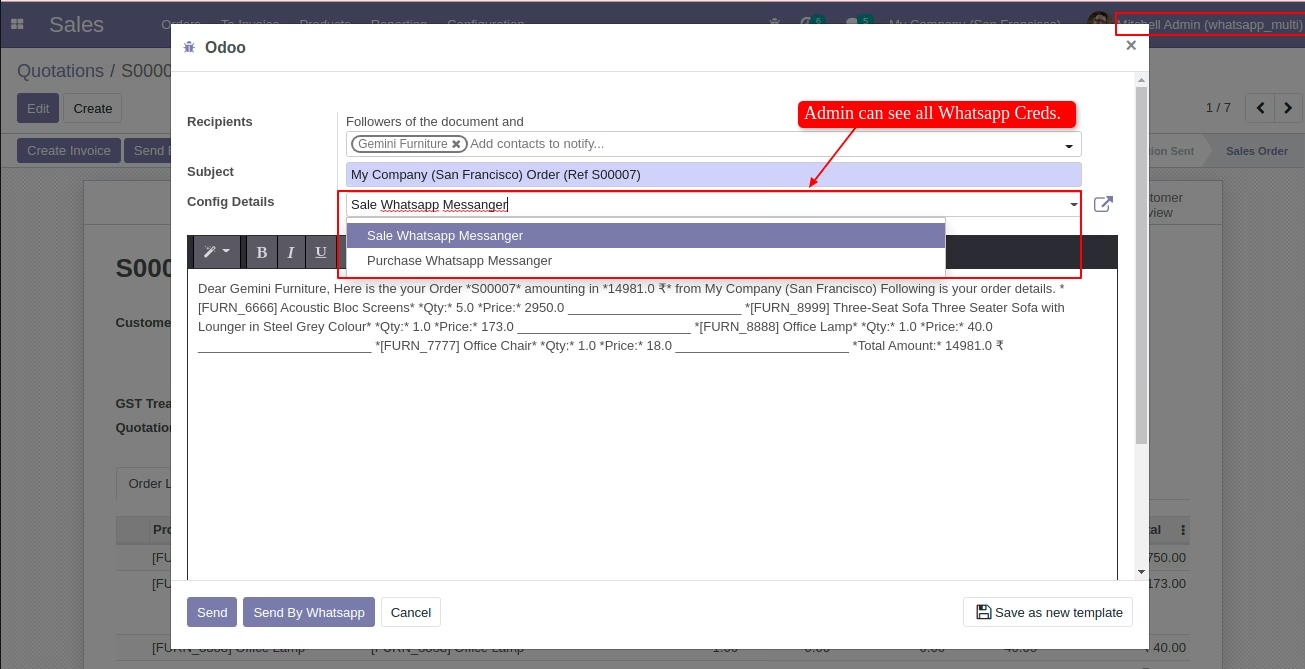
Admin can see all config details because admin have 'Whatsapp Configuration Manager' access.