The All In One Mobile Barcode/QRCode Scanner, improves operational efficiency across sales, purchases, inventory, manufacturing, and invoicing processes. This module allows users to quickly scan product barcodes or QR codes using mobile devices or tablets, automatically filling relevant fields such as product codes, serial numbers, and lot numbers, reducing manual input and errors.
Global Barcode/QR Code Scanning: Quickly search and access records using barcodes or QR codes.
Automatic Field Entry: Auto-populates fields like product code, serial number, and lot number upon scanning.
Serial/Lot Management: Manage serial and lot numbers efficiently in sales, purchases, and stock transfers.
Scan Success/Failure Notification: Receive immediate feedback on scan results.
Webcam Scanning Support: Scan barcodes/QR codes directly via device webcams.
Inventory Forecast Display: View product stock levels, including forecasted and actual quantities, when scanning.
Multi-Module Integration: Works with Sales, Purchase, Accounting, Inventory, Manufacturing, and Internal Transfers modules.
Time Saving: Minimize manual data entry and speed up workflows.
Error Reduction: Reduce input errors with automatic data population.
Increased Productivity: Streamline operations with fast and accurate scanning.
High Flexibility: Compatible with mobile devices and tablets across various work environments.
All in One Mobile Barcode Scanner
Do you want to scan Barcode/QRCode in your mobile/tablet? Do your time wasting in operations by manual product selection ? So here is the solutions this modules useful do quick operations of mobile/tablet Barcode/QRCode scanner. You no need to select product and do one by one. scan it and you done!It helps to manage the product Serial numbers/Lot numbers in the purchase(Incoming Order) process and sale(Delivery Order) process & internal transfer easily, so you can easily scan the Barcode/QRCode of Serial numbers/Lot numbers in Picking (Shipment/Delivery) & Internal transfer. So be very quick in all operations of in mobile/tablet and cheers!
Benefits of mobile Barcode/QR Scanner
- Handy Tool: It's handy tools. mobile is very common now a days. everyone have mobile. user can easily use that device to scan Barcode or QRCode in mobile. user can easily use mobile camera and scan Barcode or QRCode so it will do all operations.
- Time Savers: User don't need to select products and all manually. manually its take more time in mobile devices as screen very small. our module will make this very easy as user just simply need to scan using mobile camera.
- Less Mistakes: Again, human error can be blamed on so many clerical errors, which in turn can cause problems in every facet of business. So using this it will make less mistakes in operations.
- Smoother Internal/External Operations: Our module available in different operations of like sales/purchase/inventory/accounting/manufactuing. so this makes all flows of operations smoother.
Notes
- For Android Tested in chrome & For iOS Tested in Safari Browser.
- SSL required if you are on the cloud or using IP. As without SSL permission of camera not work. If you are running on the localhost (http://localhost) then it's not required SSL.
- Tested in Android and iOS Operating System.
- Barcode Format Supported UPC-E, EAN-8, EAN-13,Code 39,Code 93,Code 128.
- QR Code Supported.
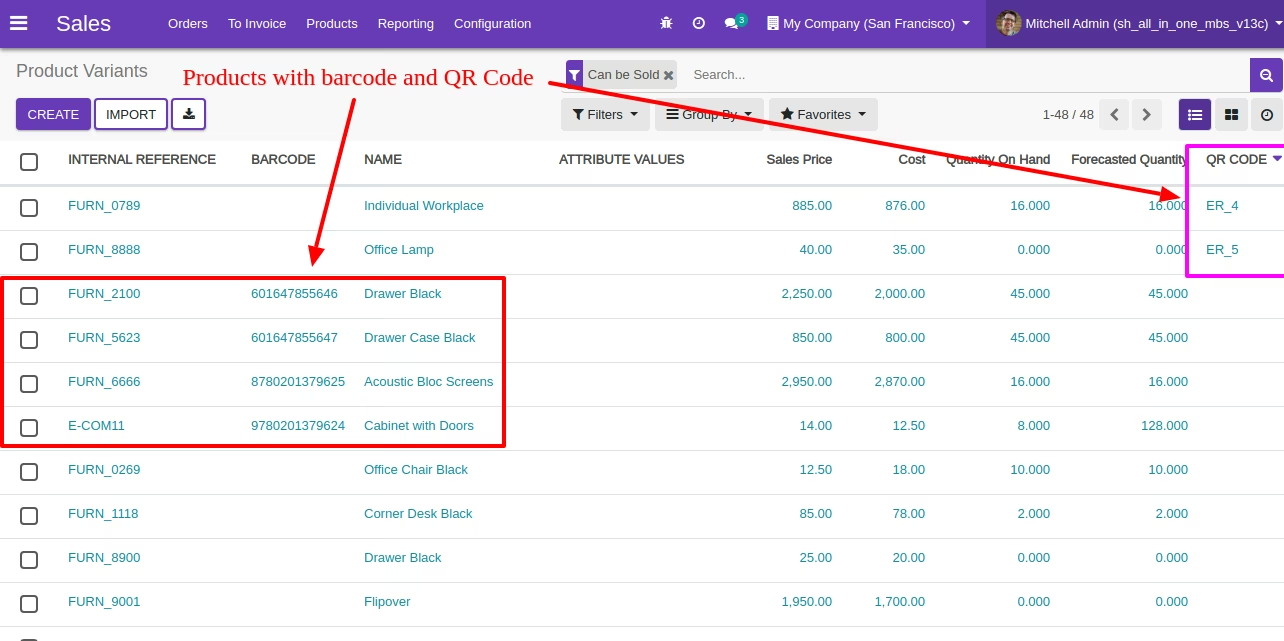
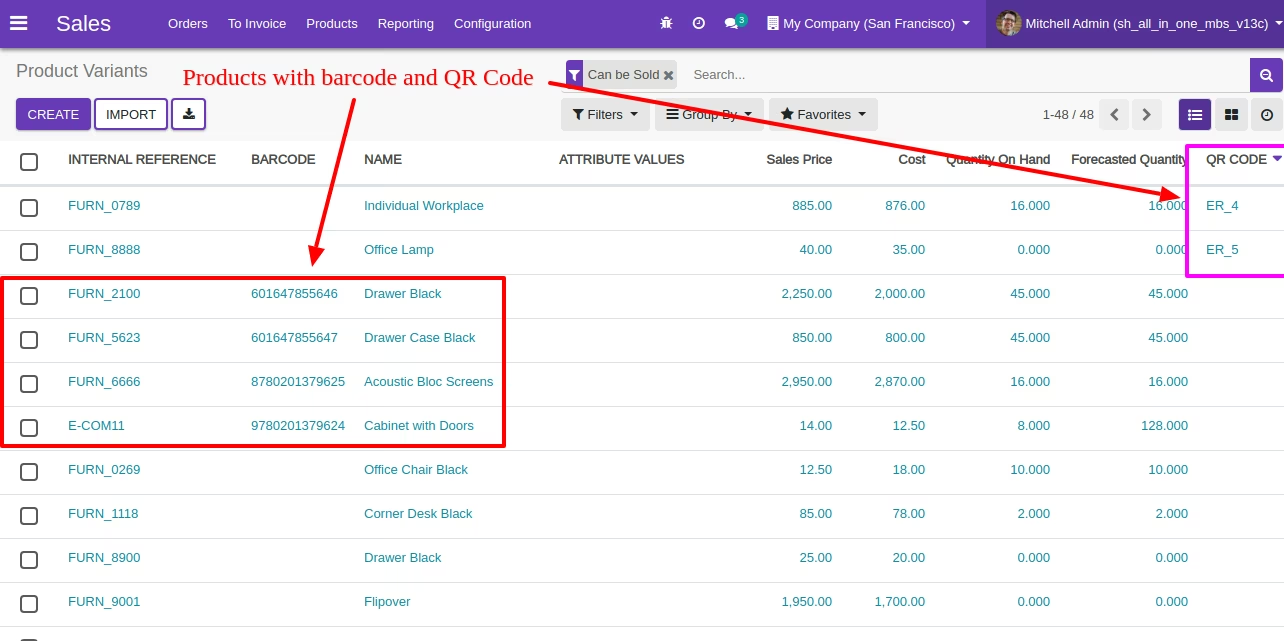
Products with the Barcode & QRCode.
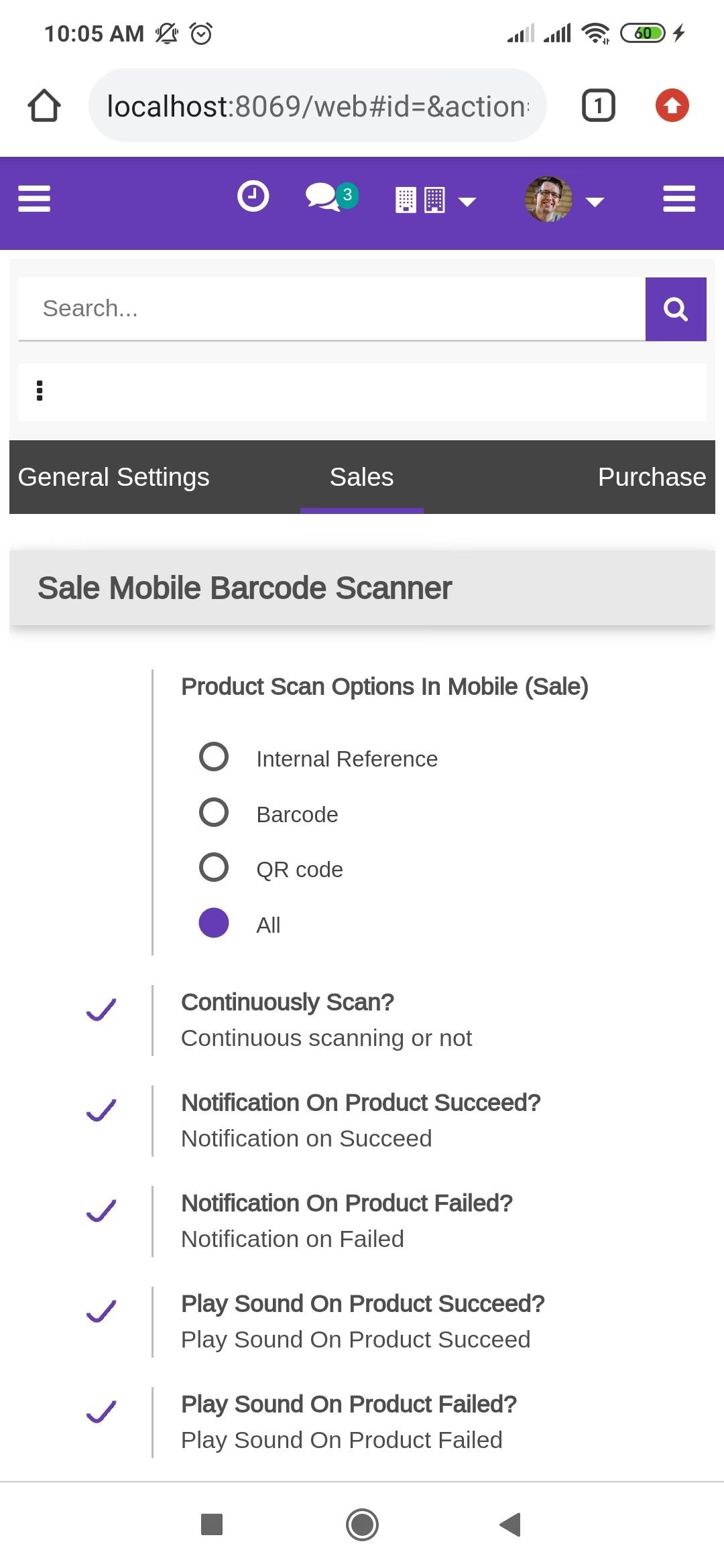
Product scan option in sale settings whether you want to scan product by Barcode, Internal Reference, QR or All.
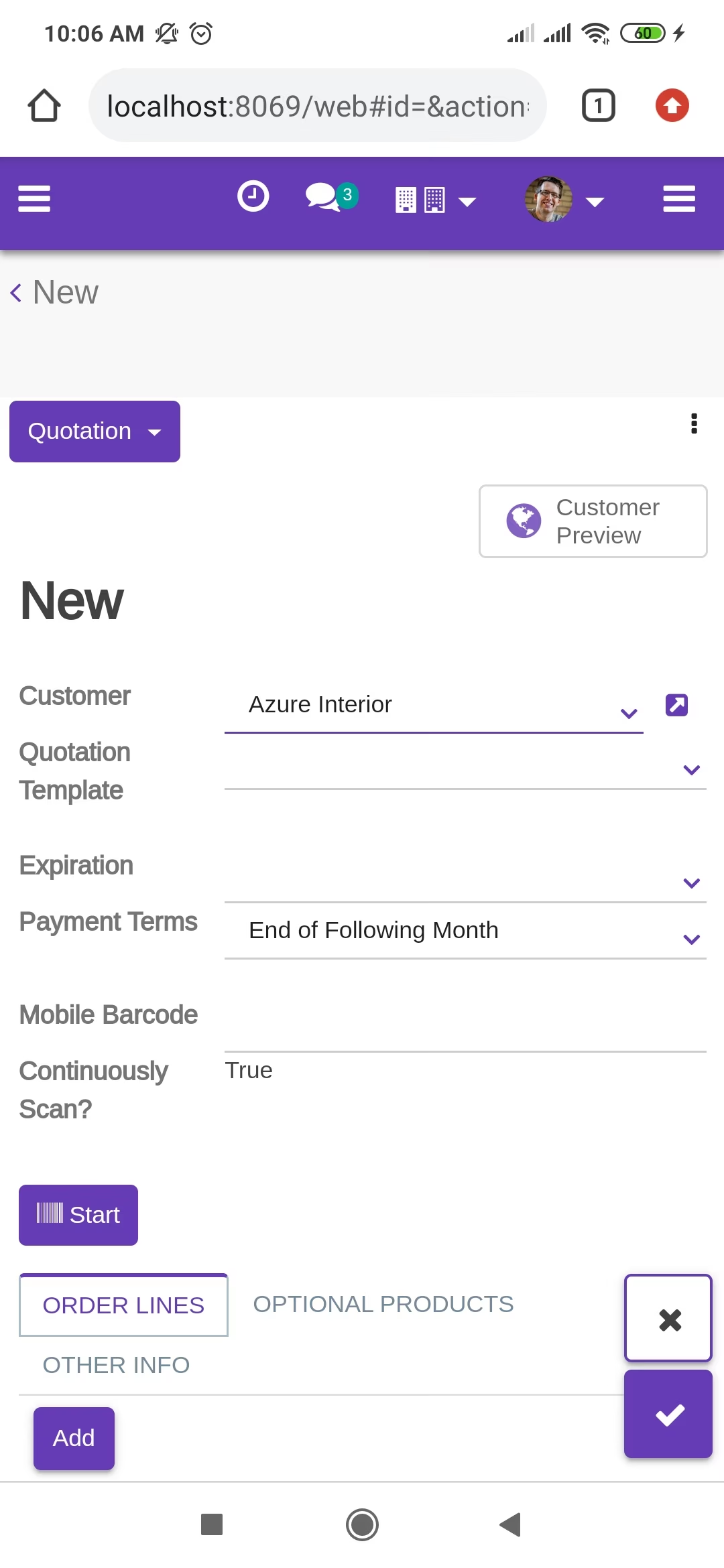
Tap the "Start" button to scan on mobile.
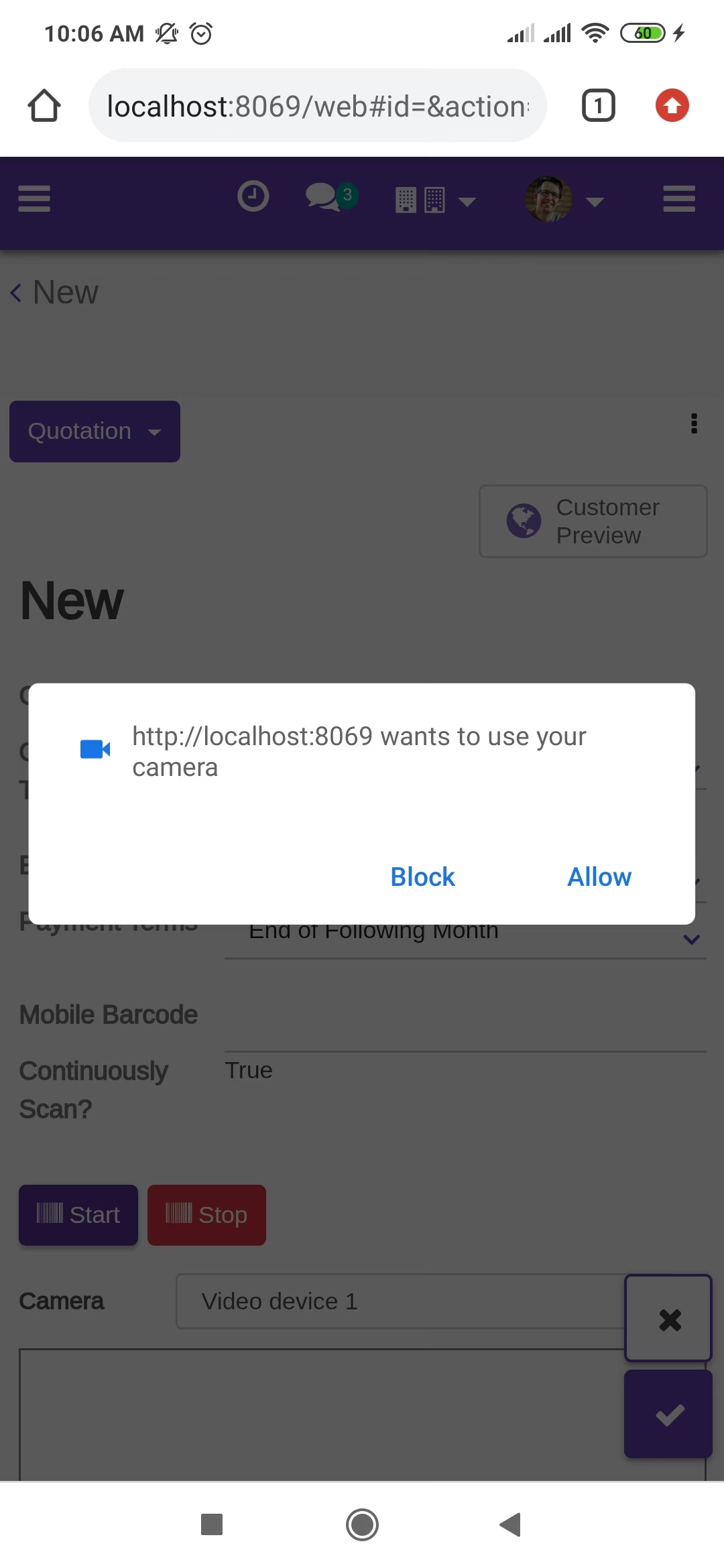
Allow permission to scan from the mobile camera.
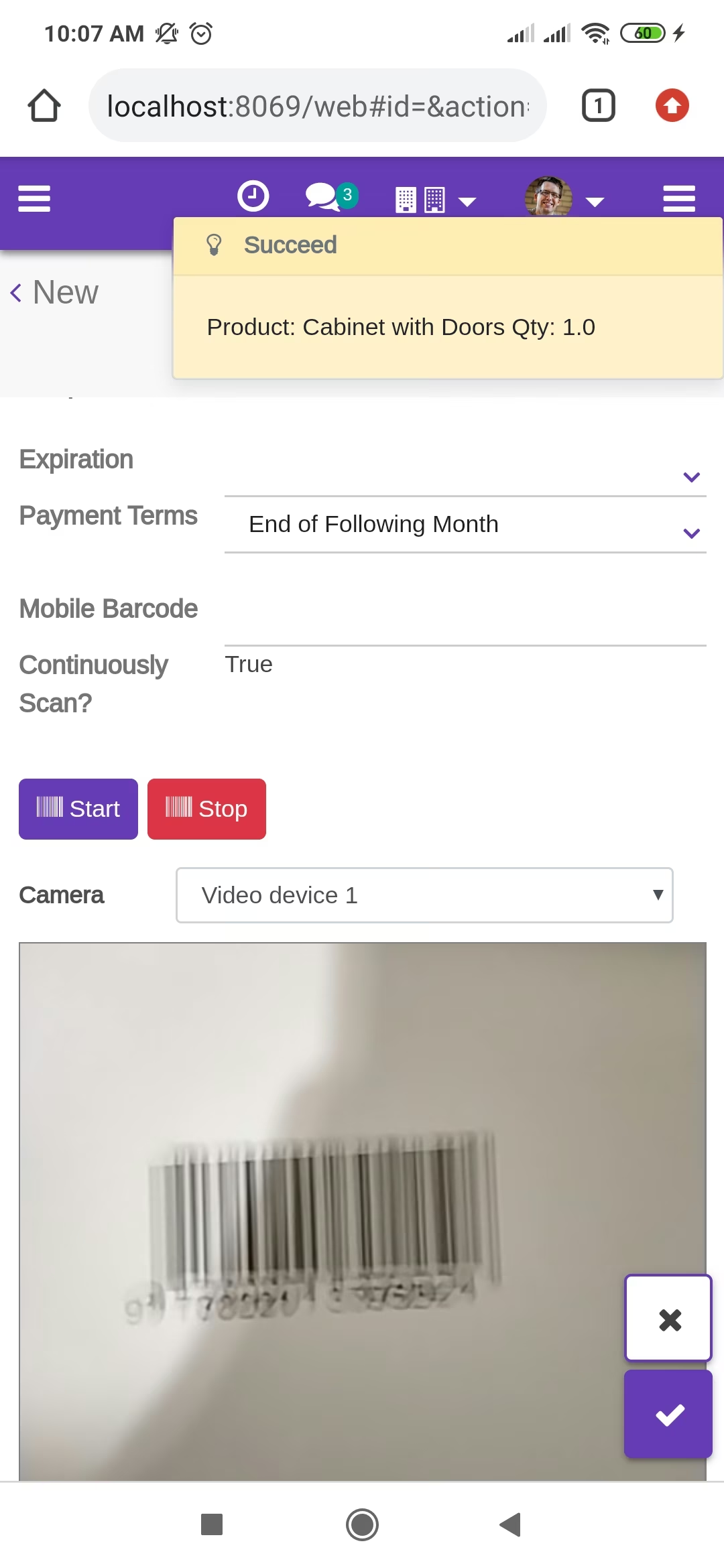
scanned product with Barcode automatically added in order lines if the product already existed then ordered qty increased by 1.
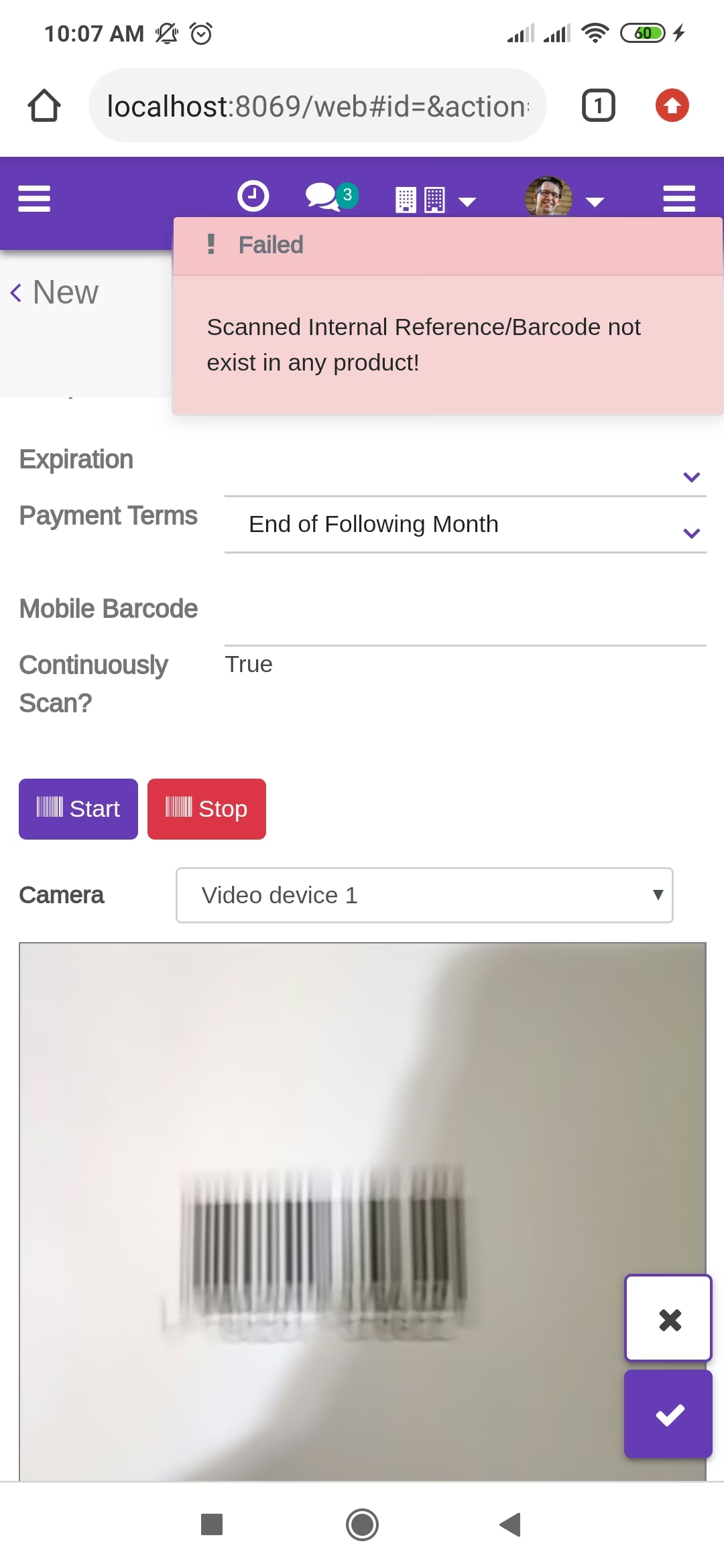
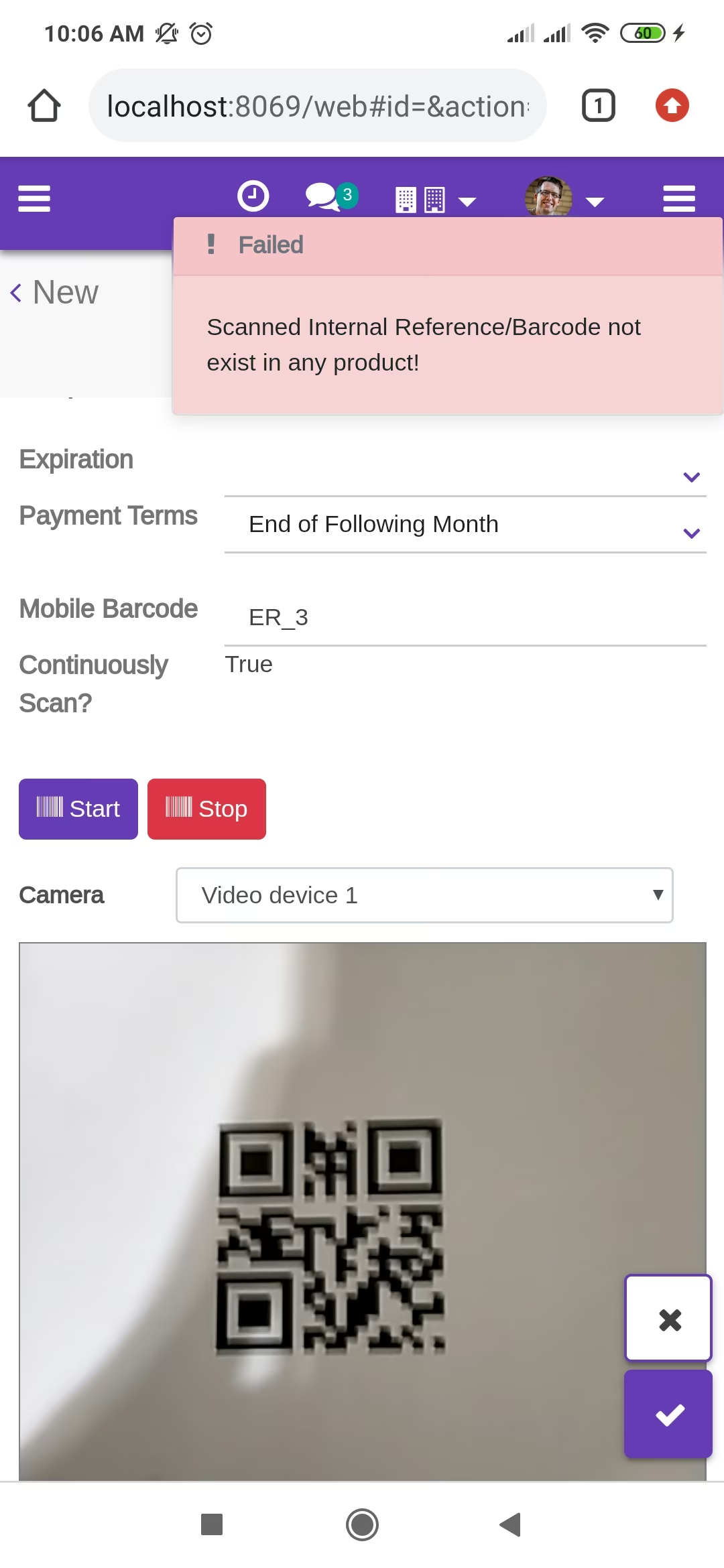
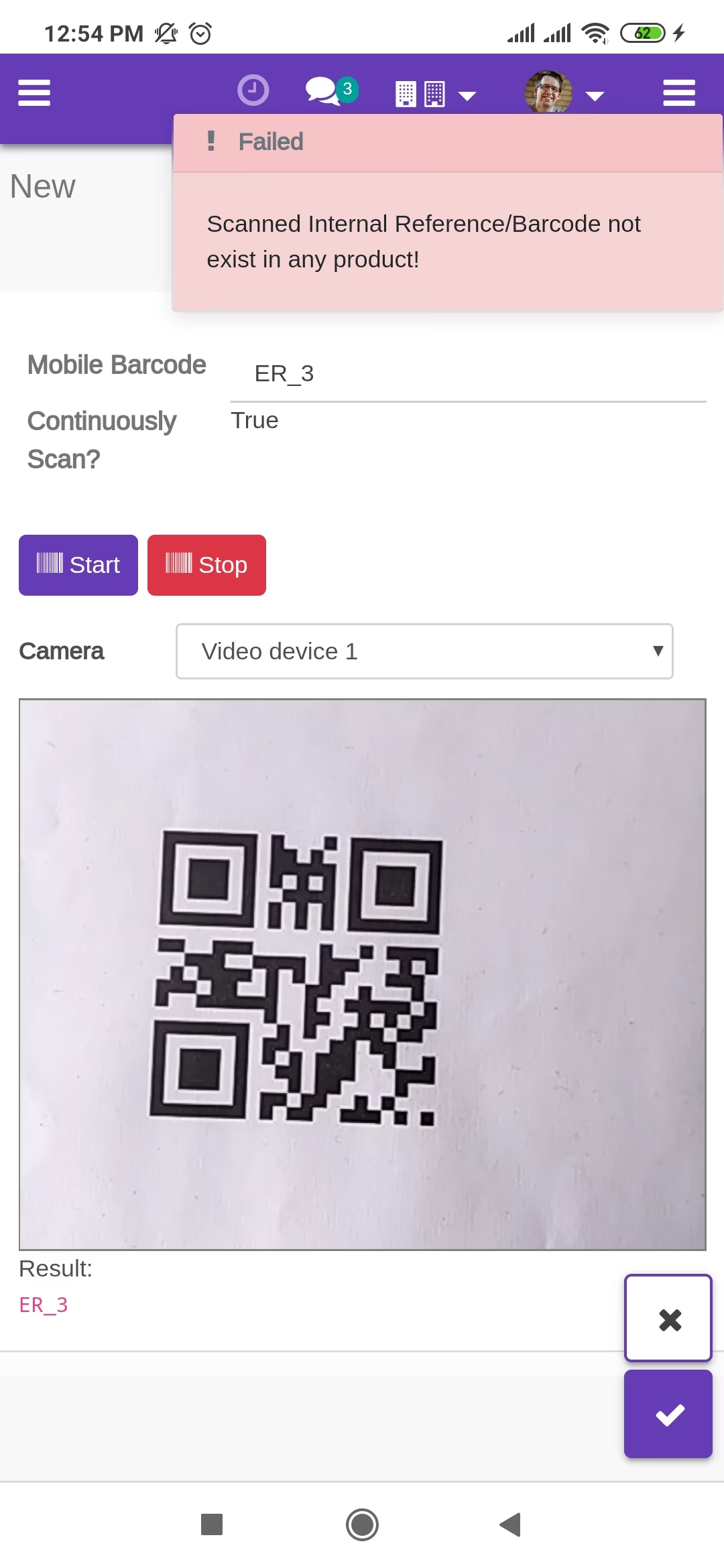
The error message is given if no matching product found.
scanned product with QRCode automatically added in order lines if the product already existed then ordered qty increased by 1.
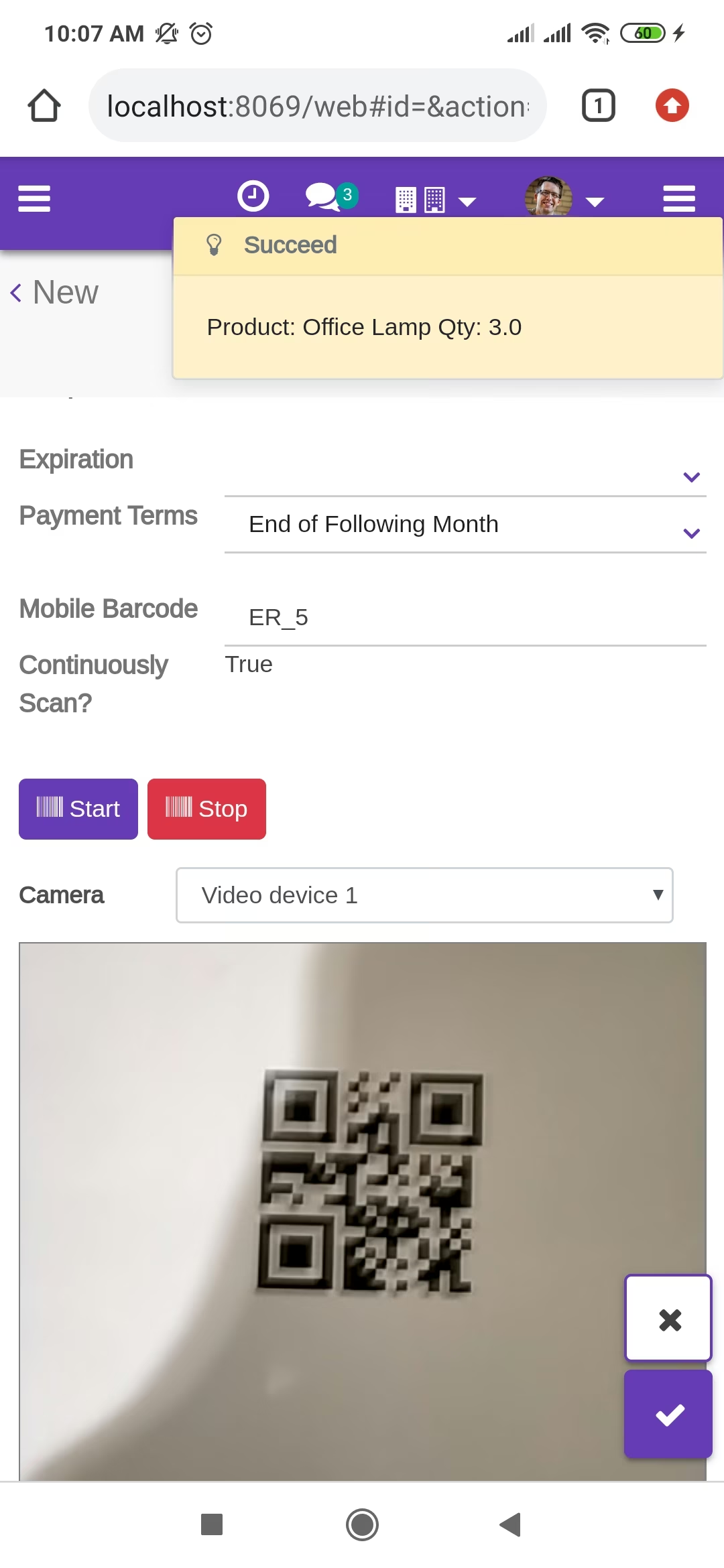
The error message is given if no matching product found.
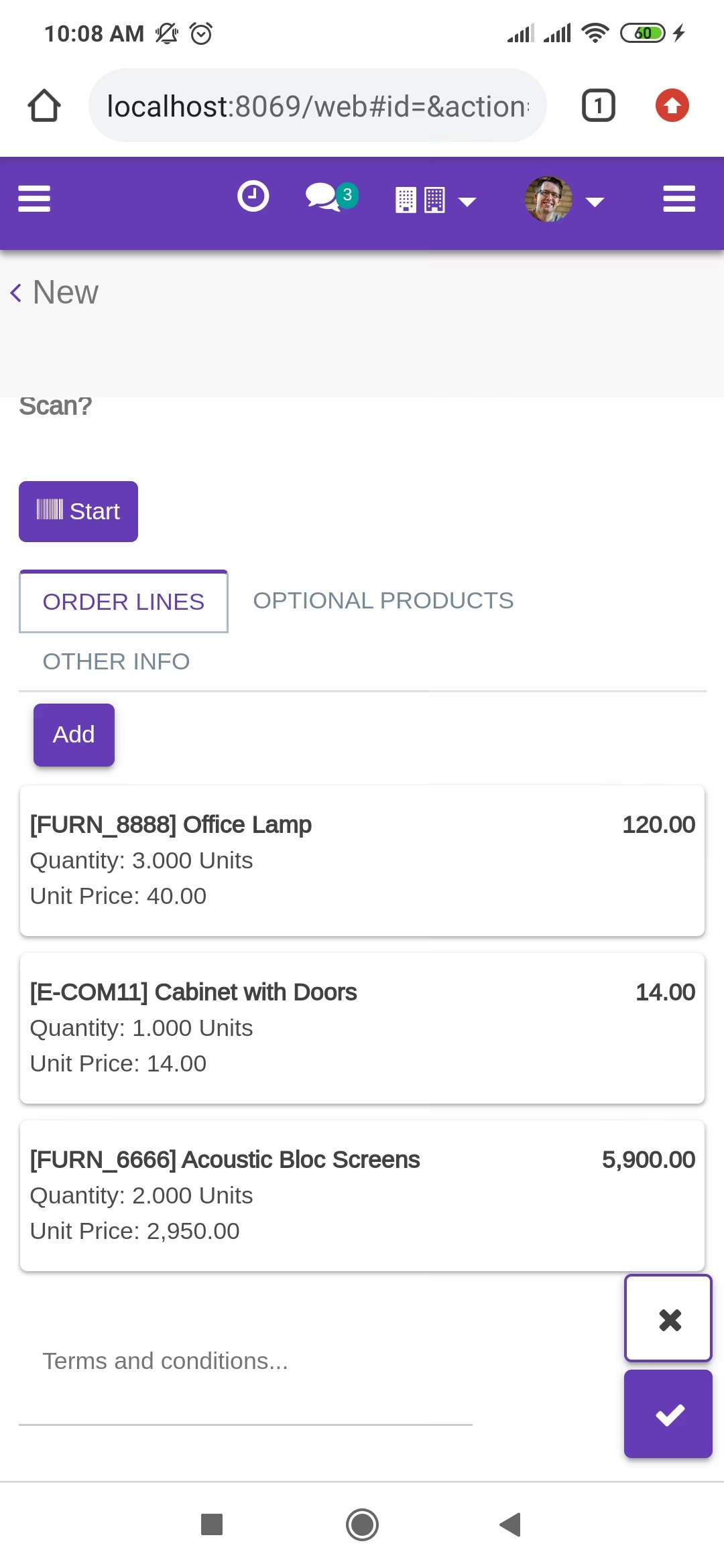
The added product looks like below.
Products with the Barcode & QRCode.
Product scan option in purchase settings whether you want to scan product by Barcode, Internal Reference, QR or All.
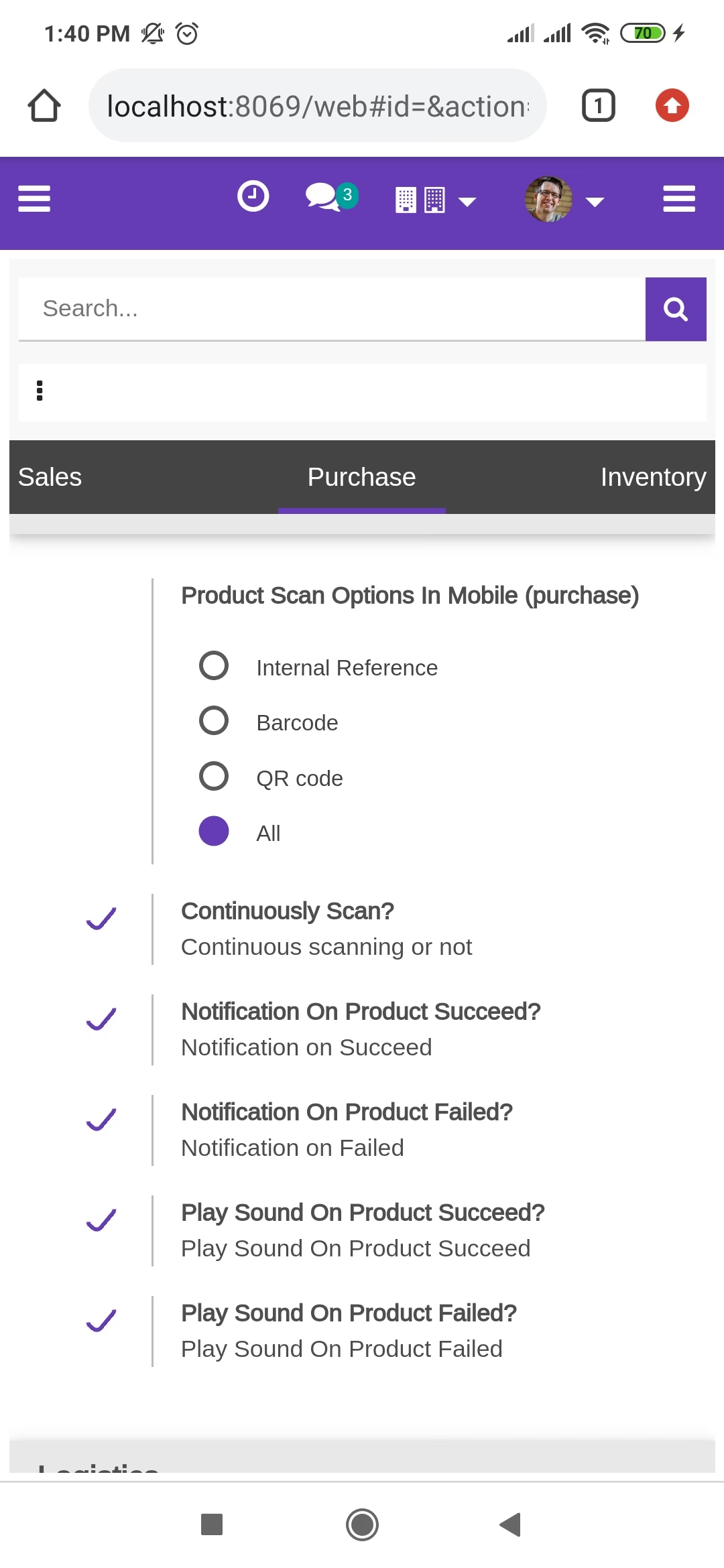
Tap the "Start" button to scan on mobile.
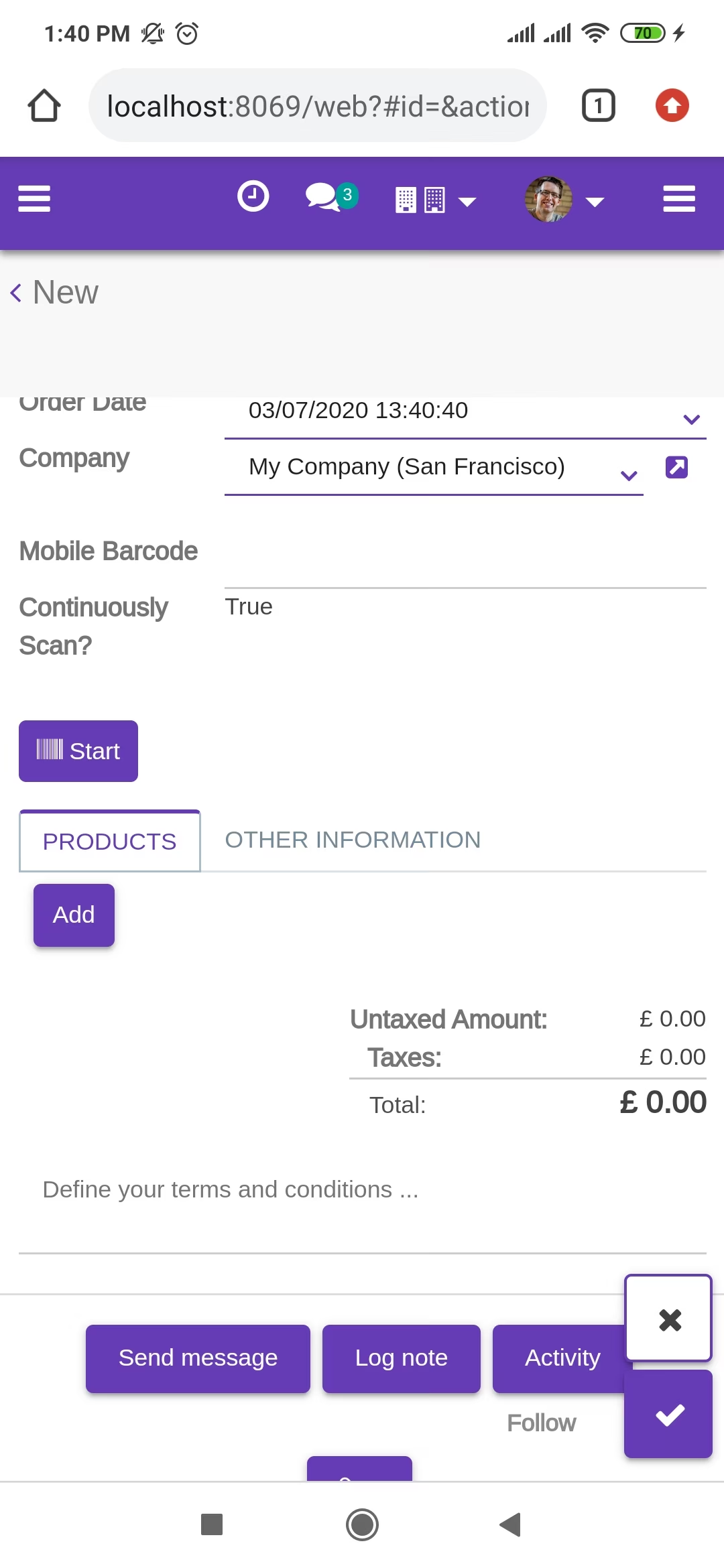
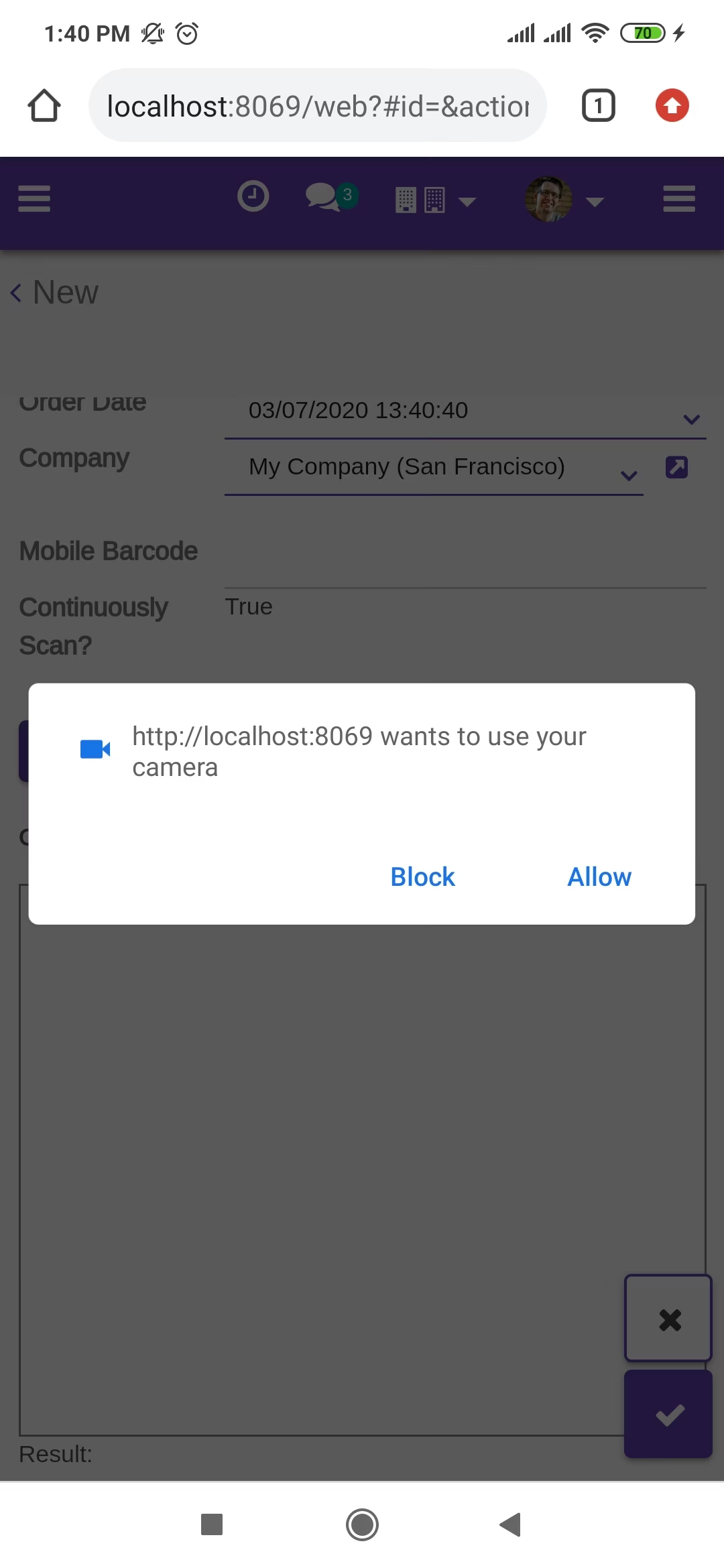
Allow permission to scan from the mobile camera.
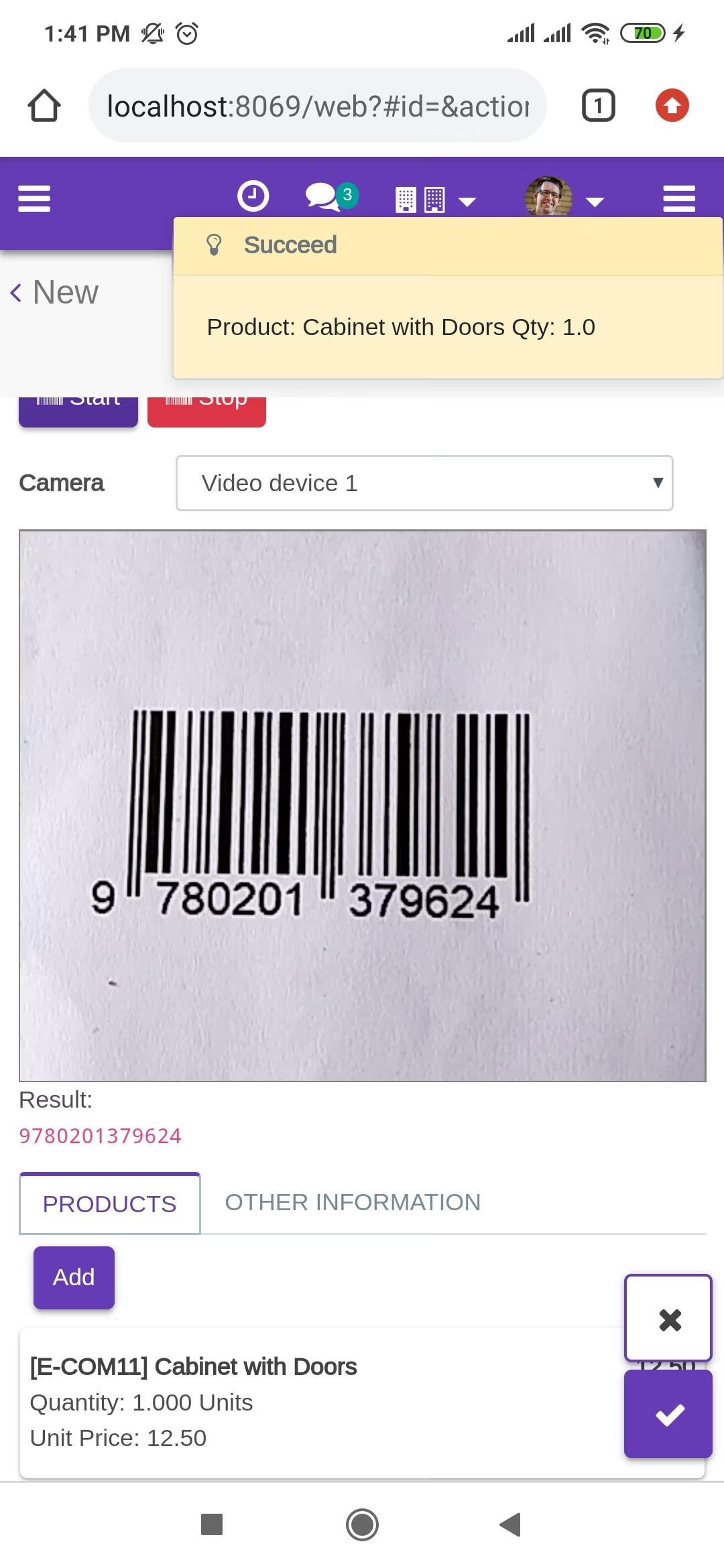
scanned product with Barcode automatically added in products if the product already existed then ordered qty increased by 1.
The error message is given if no matching product found.
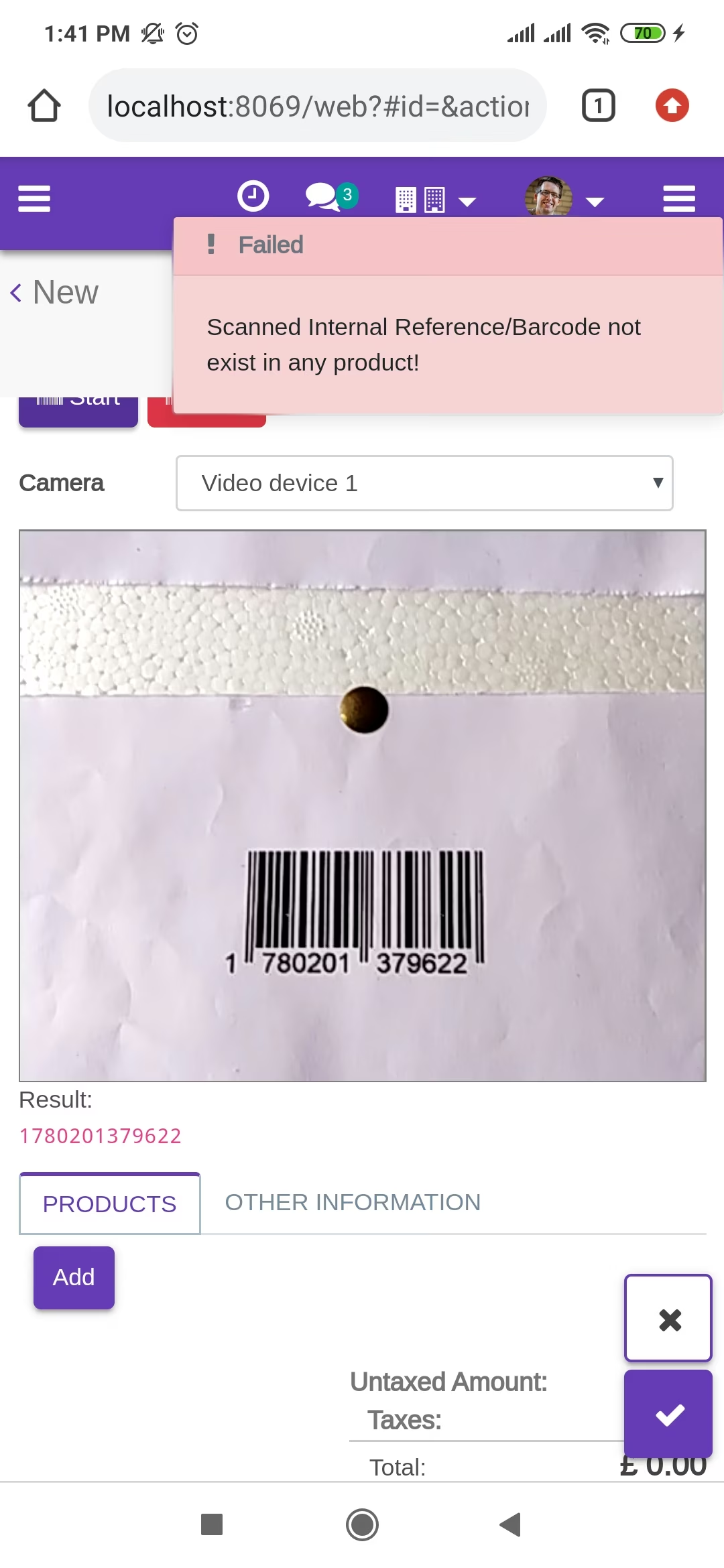
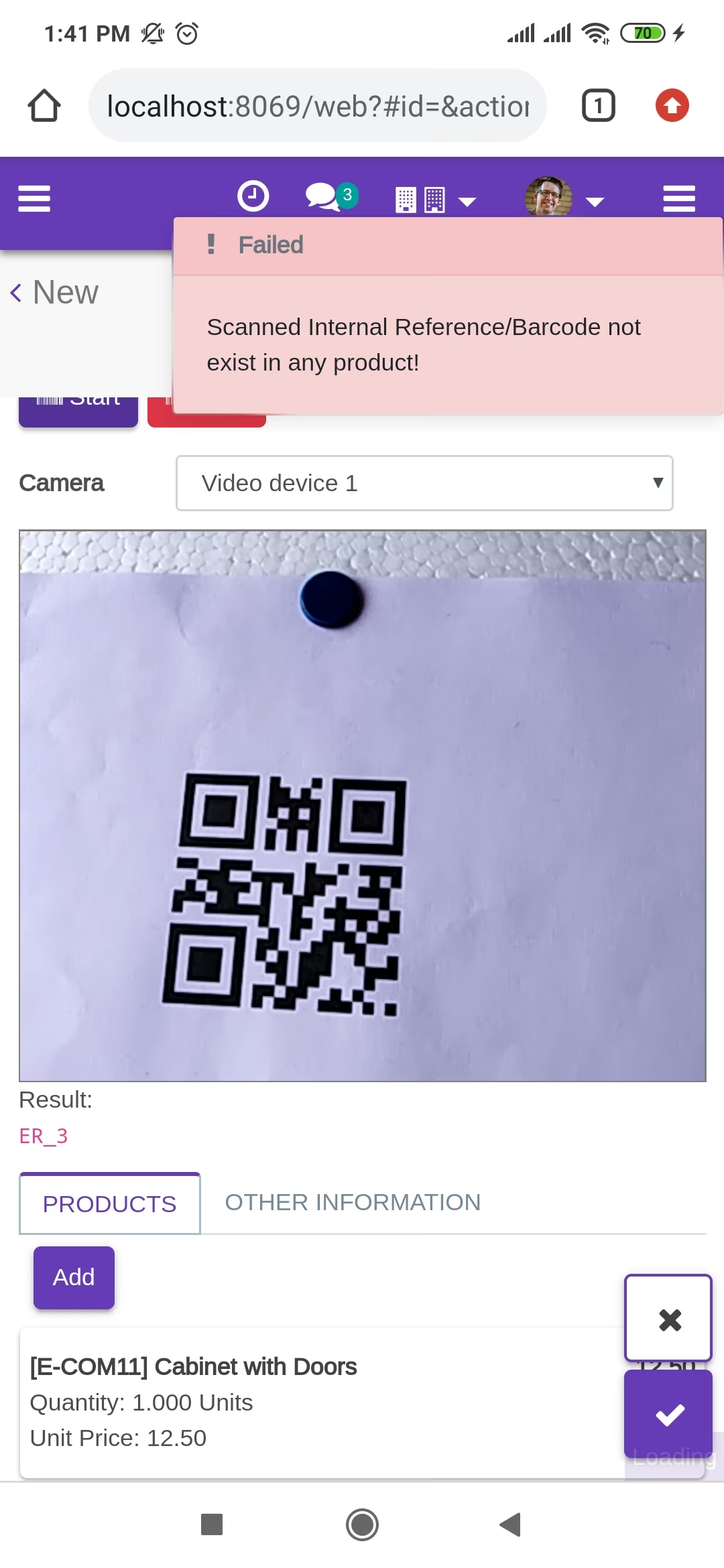
scanned product with QRCode automatically added in products if the product already existed then ordered qty increased by 1.
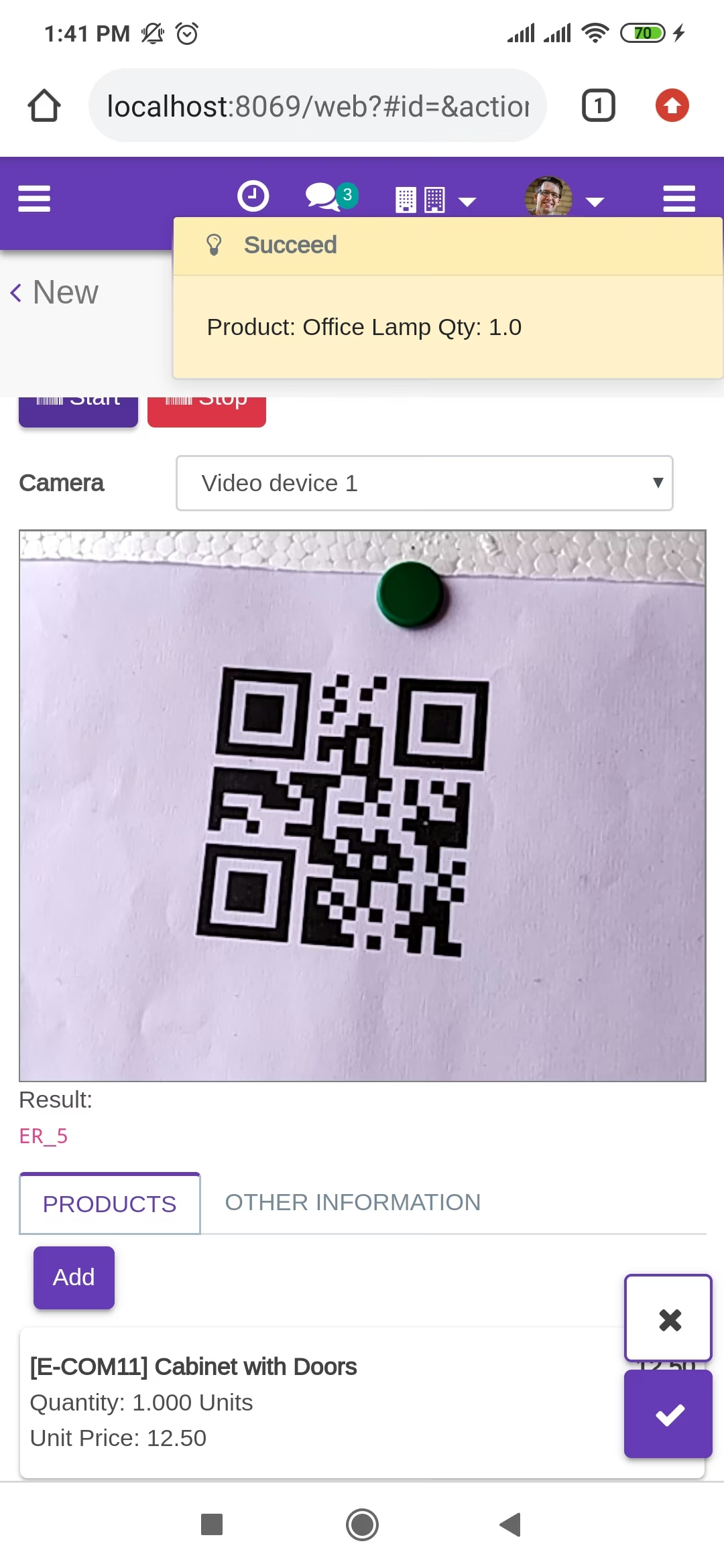
The error message is given if no matching product found.
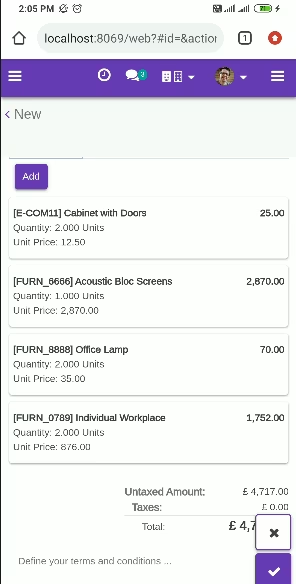
The added product looks like below.
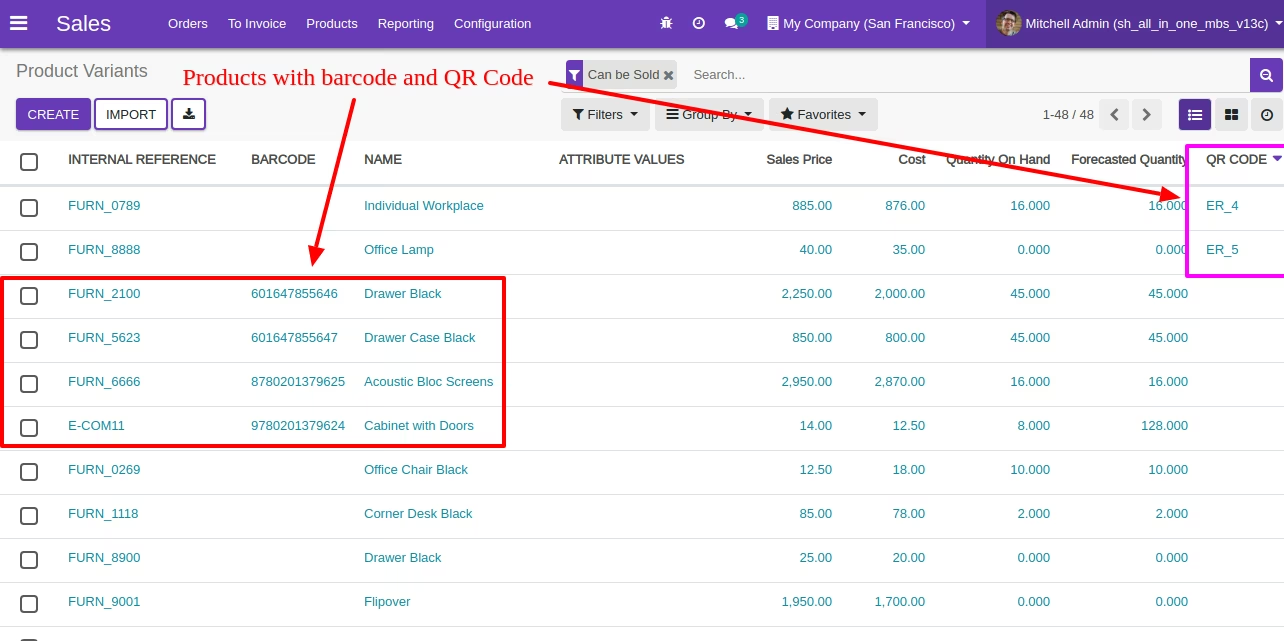
Products with the Barcode & QRCode.
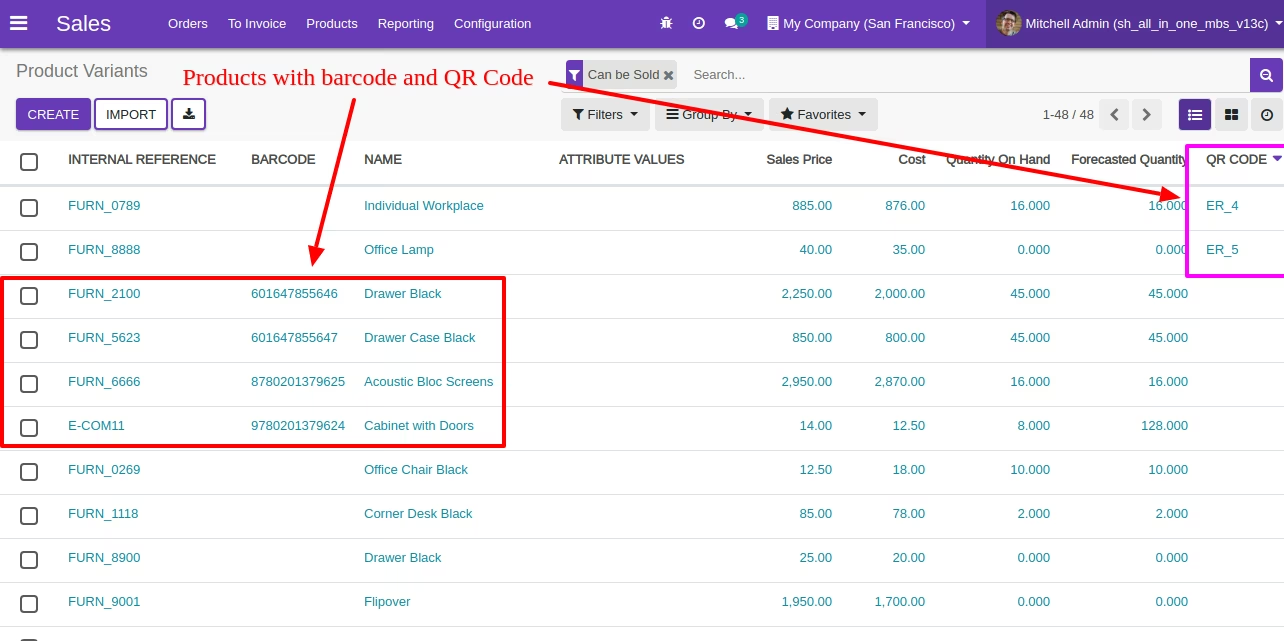
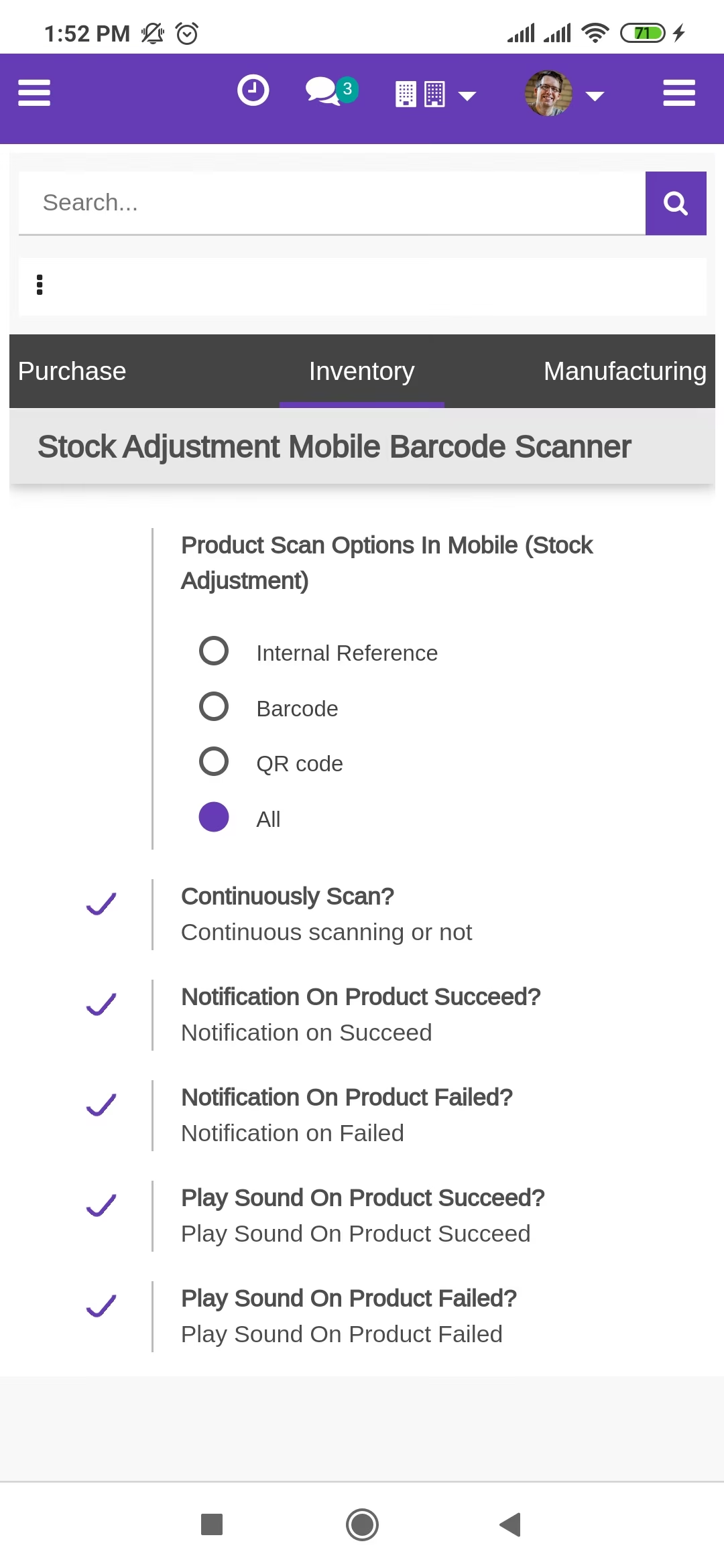
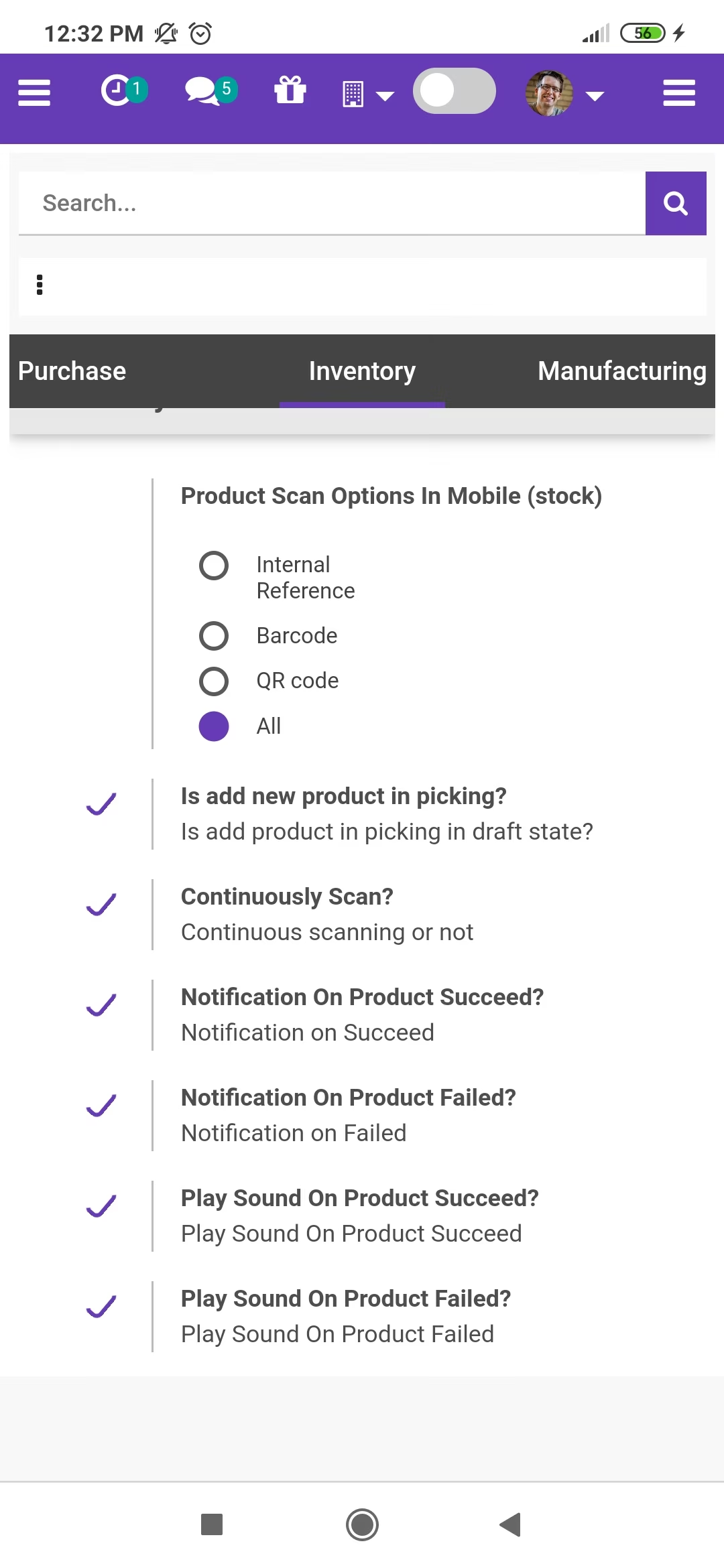
Product scan option in inventory settings whether you want to scan product by Barcode, Internal Reference, QR or All.
Note: Is add a new product in picking? (Stock Picking)
==> You can uncheck it in order to show a warning if the product is not found in the picking order line.
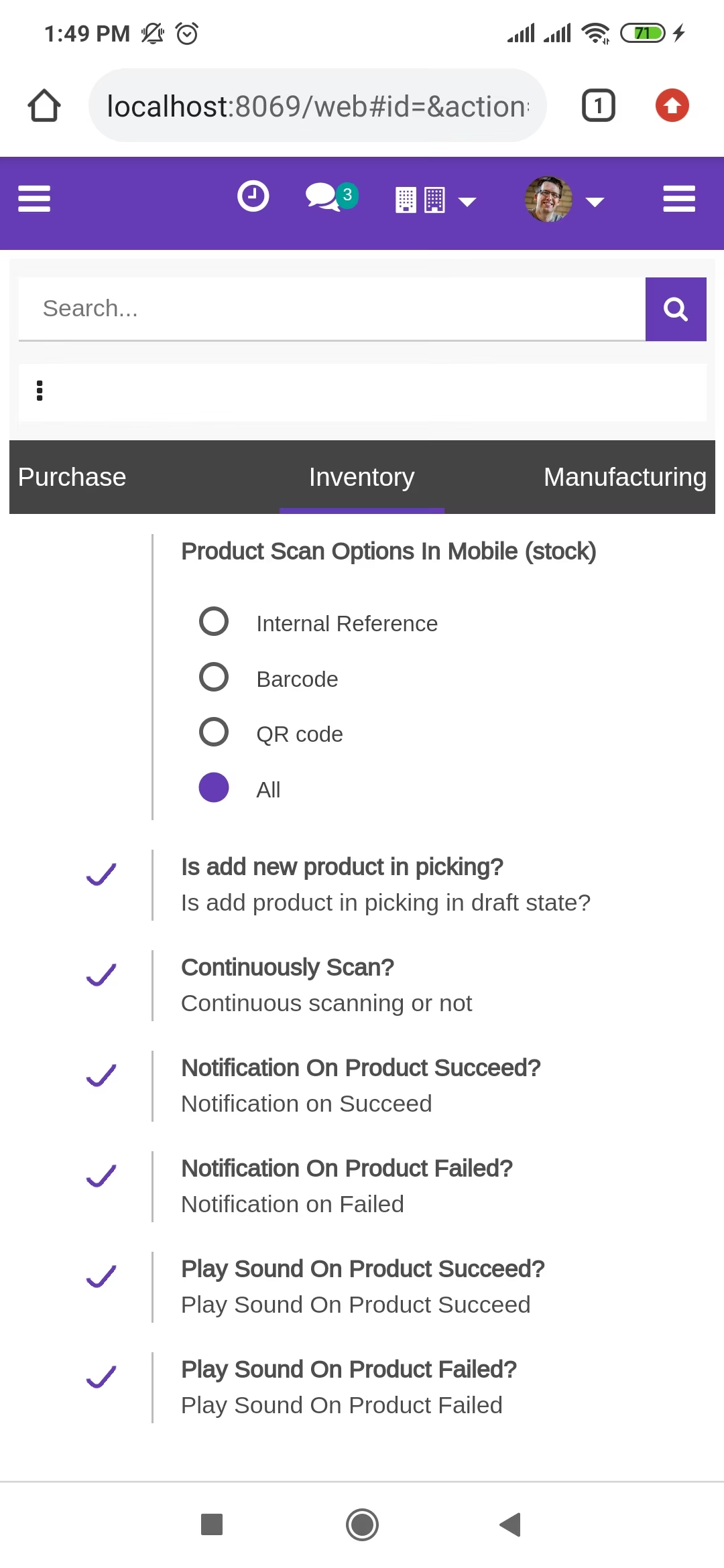
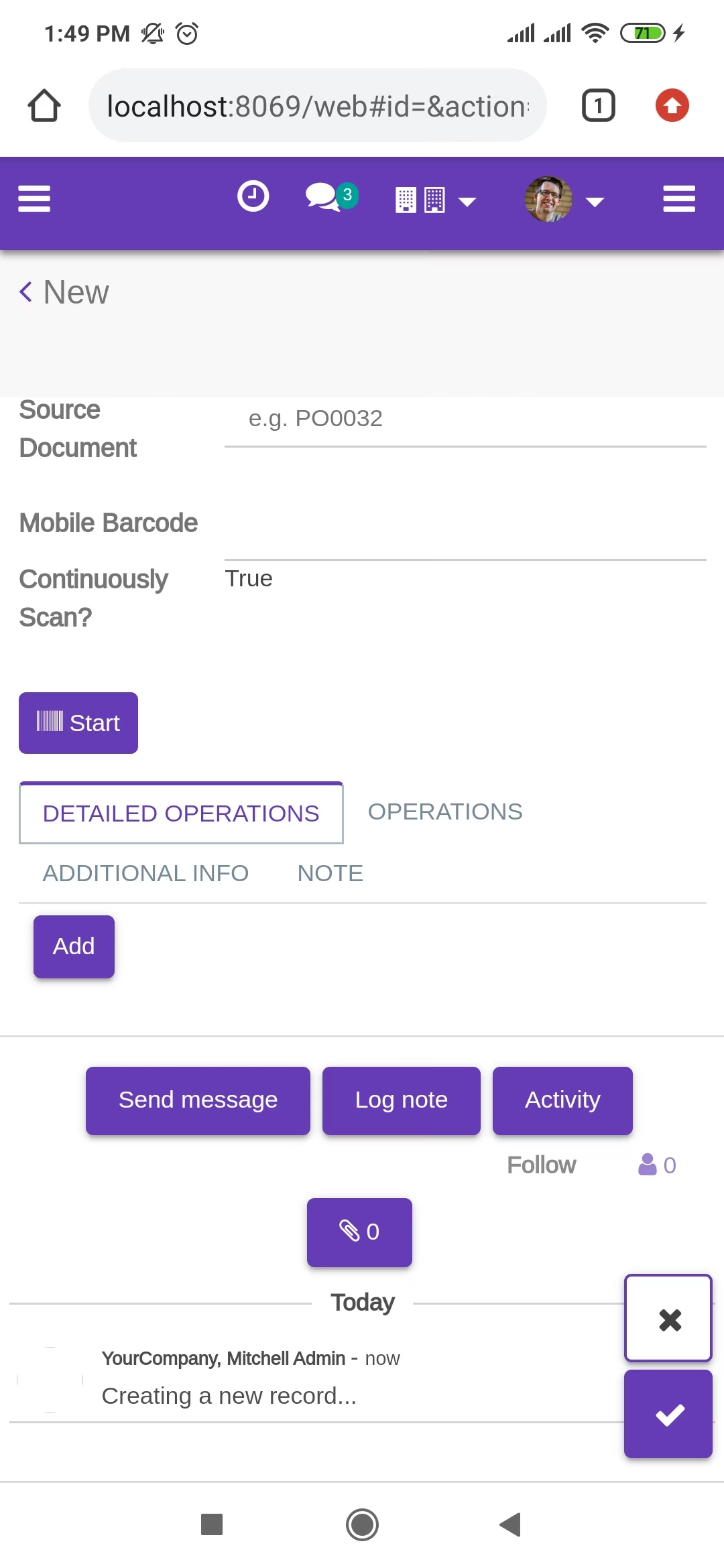
Tap the "Start" button to scan on mobile.
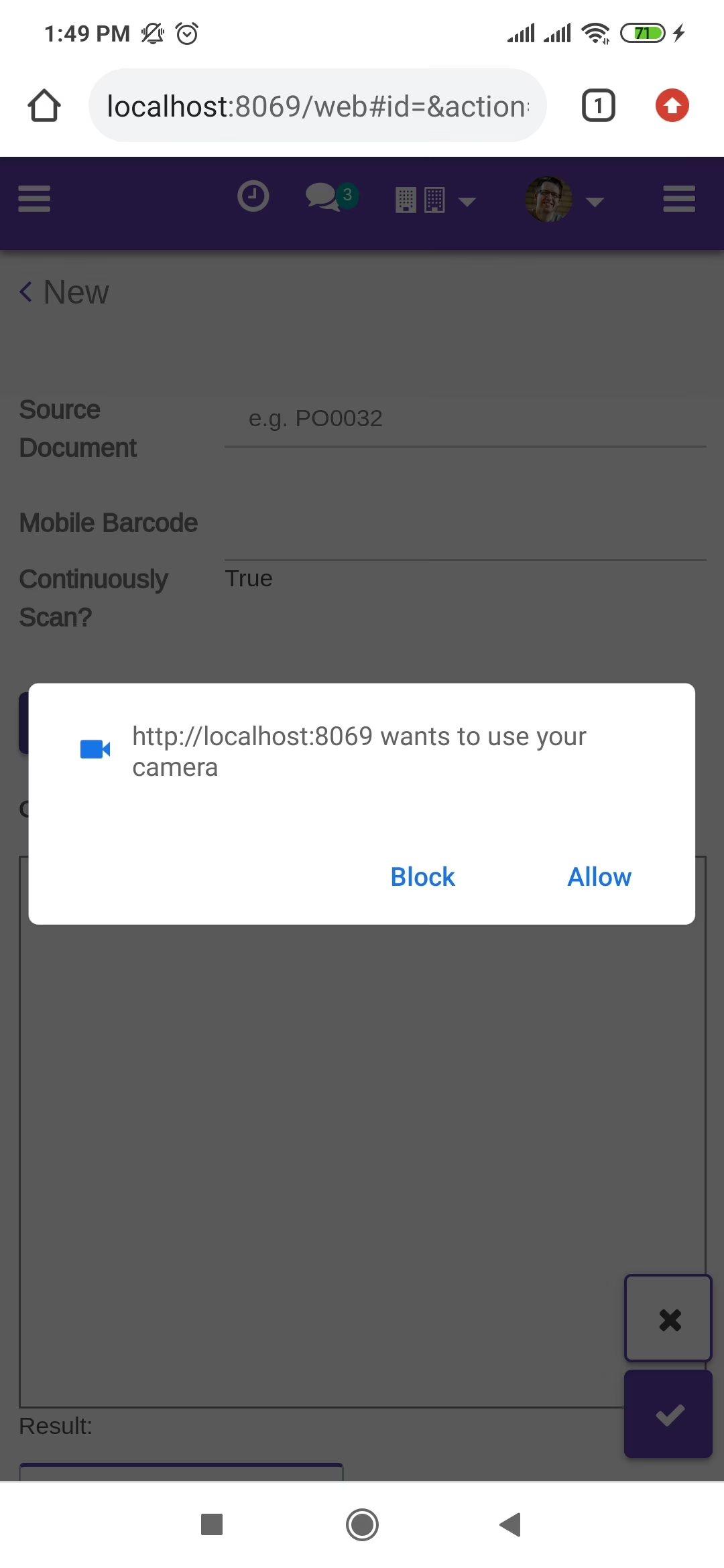
Allow permission to scan from the mobile camera.
scanned product with Barcode automatically added in detailed operations if the product already existed then ordered qty increased by 1.
==> The user can deliver a higher quantity than the demand quantity.
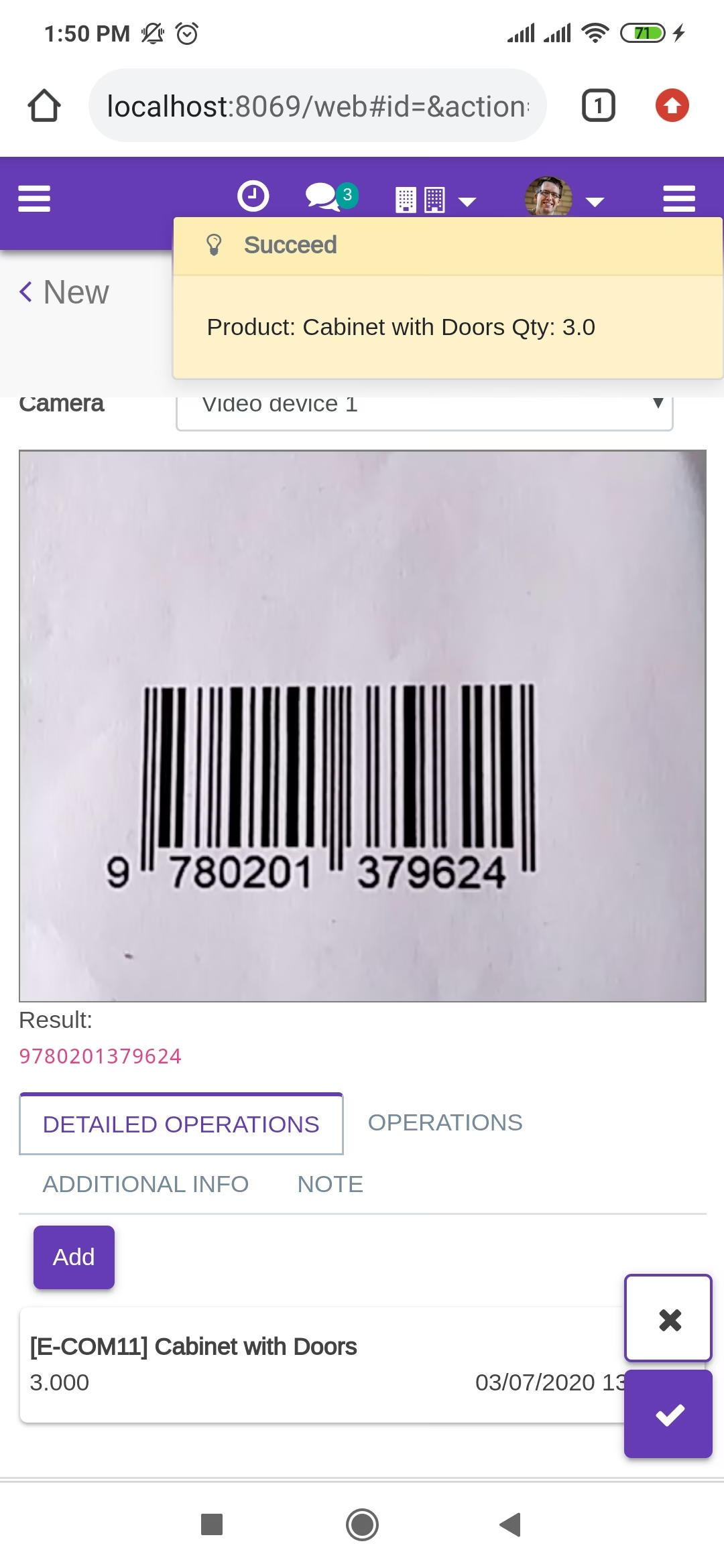
The error message is given if no matching product found.
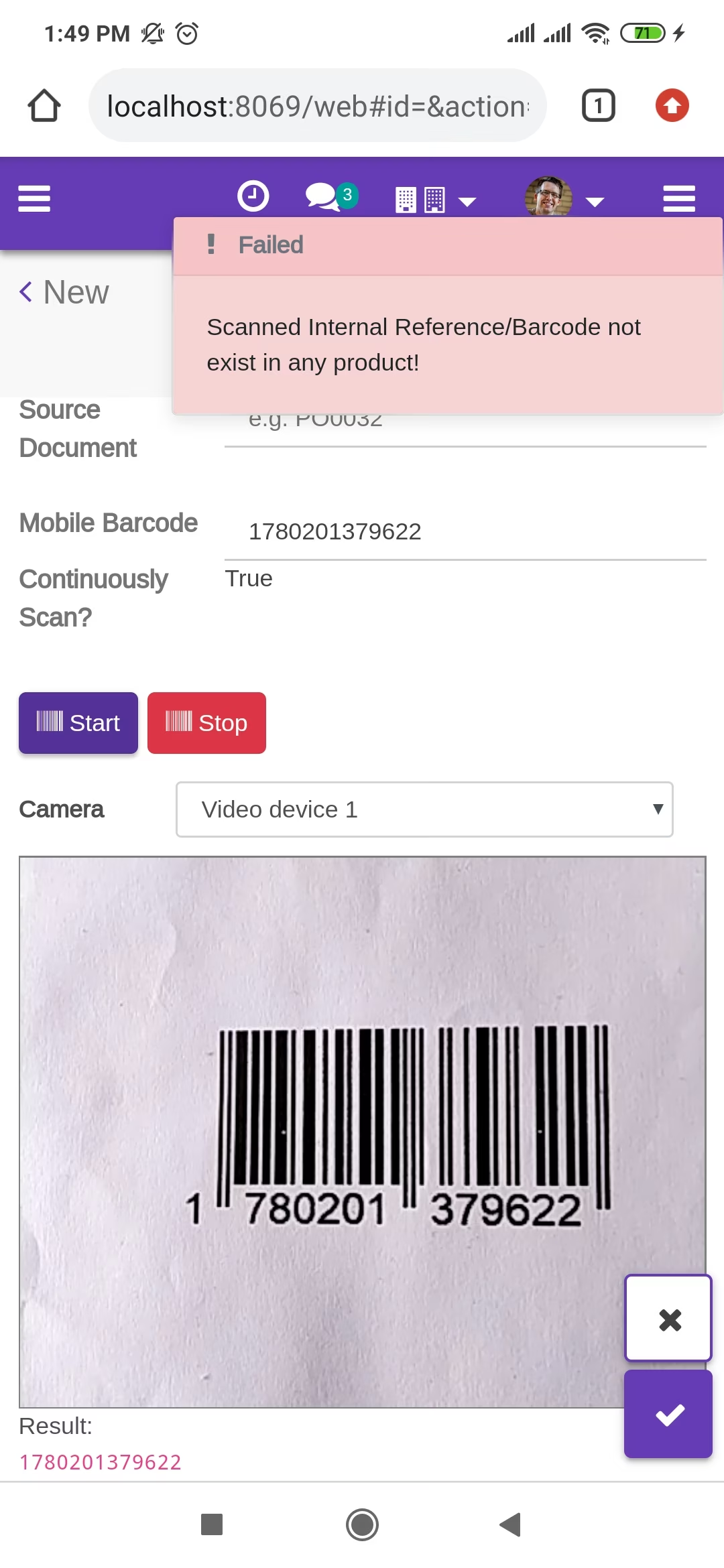
scanned product with QRCode automatically added in detailed operations if the product already existed then ordered qty increased by 1.
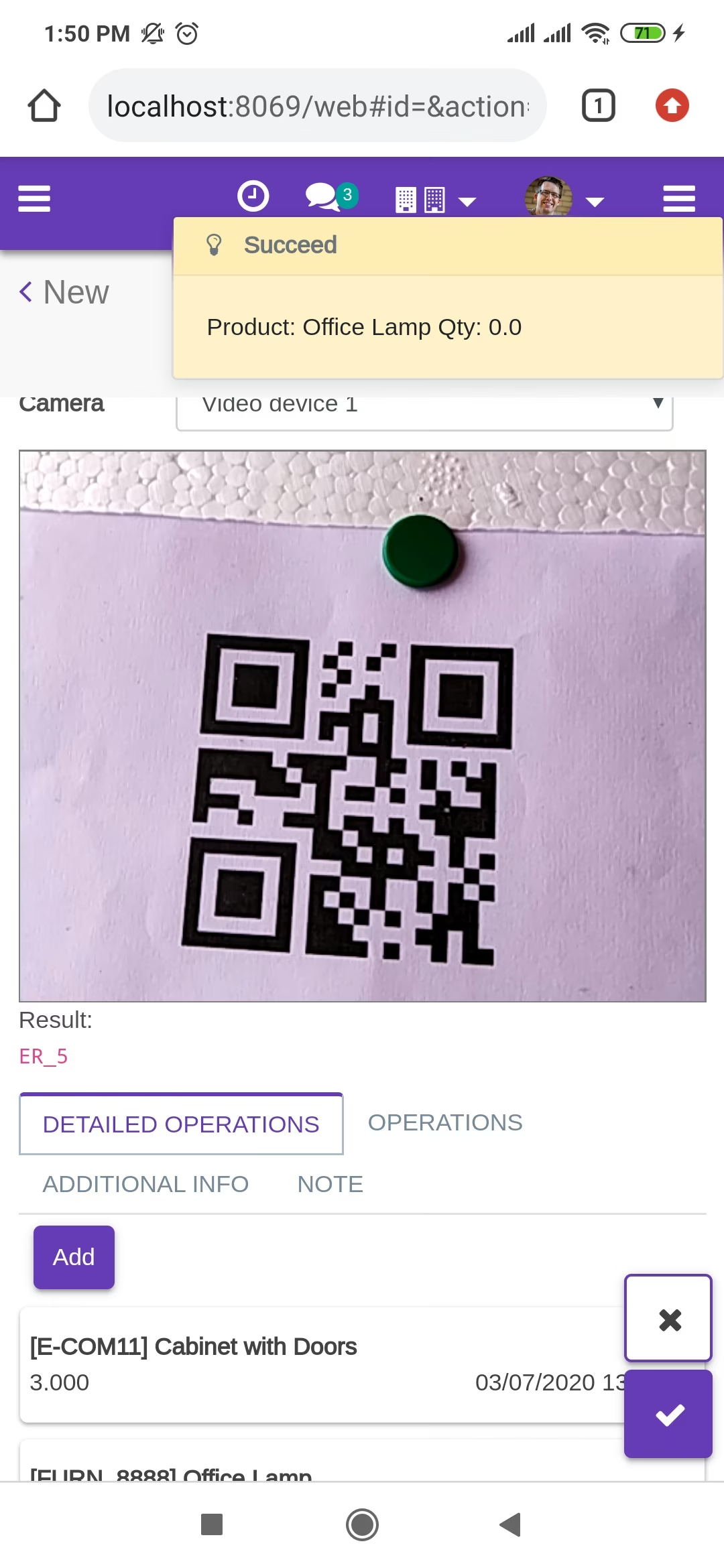
The error message is given if no matching product found.
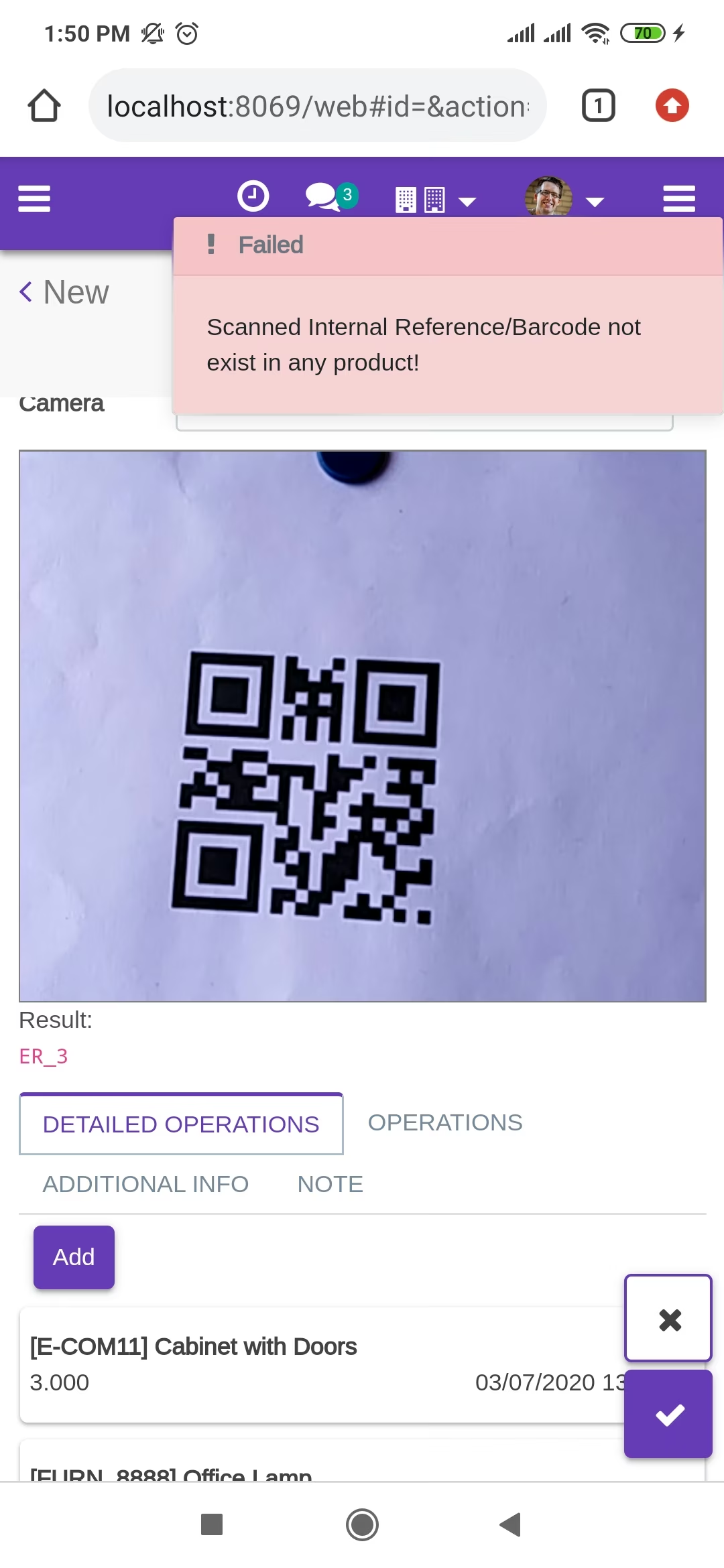
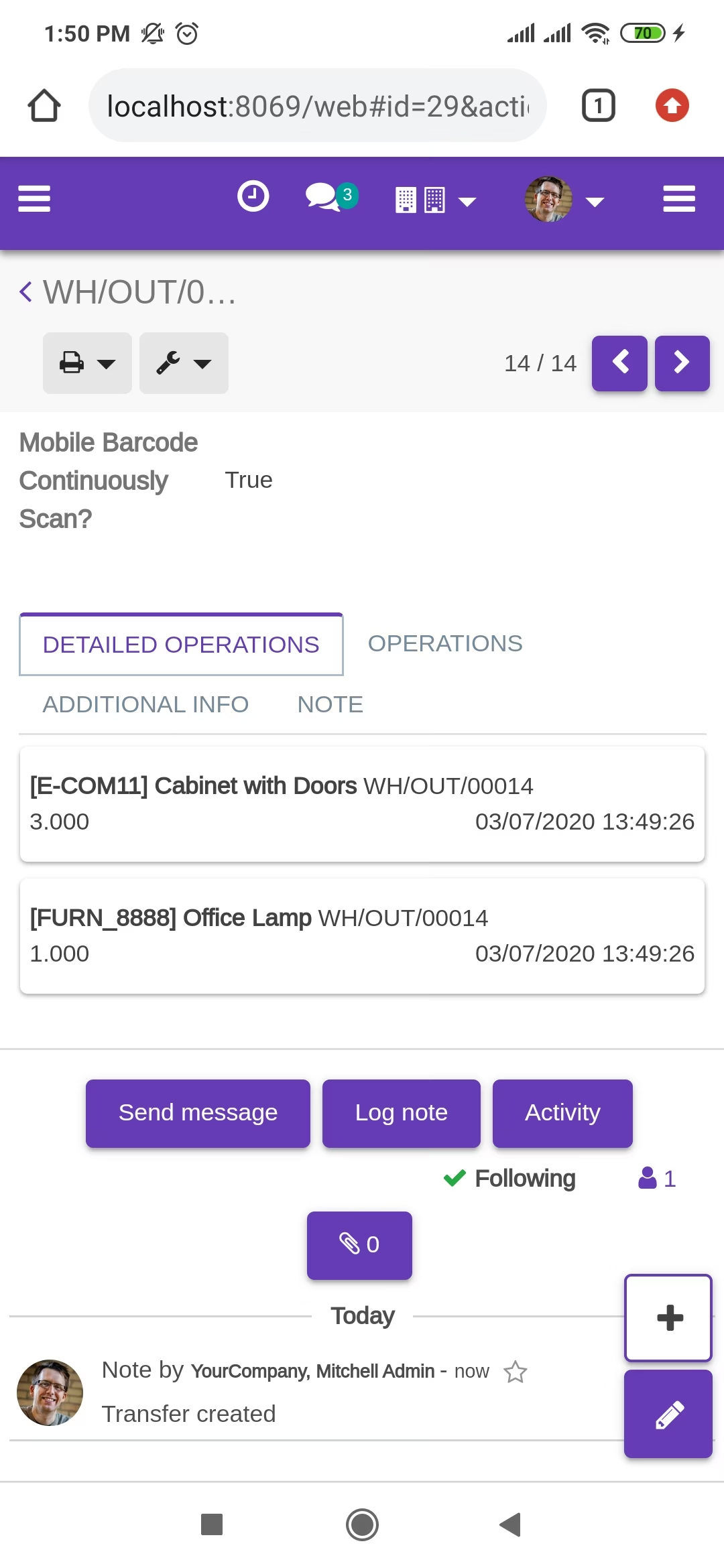
The added product in detailed operations looks like below.
Product with the Barcode & QRCode.
Product scan option in inventory settings whether you want to scan product by Barcode, Internal Reference, QRCode or All.
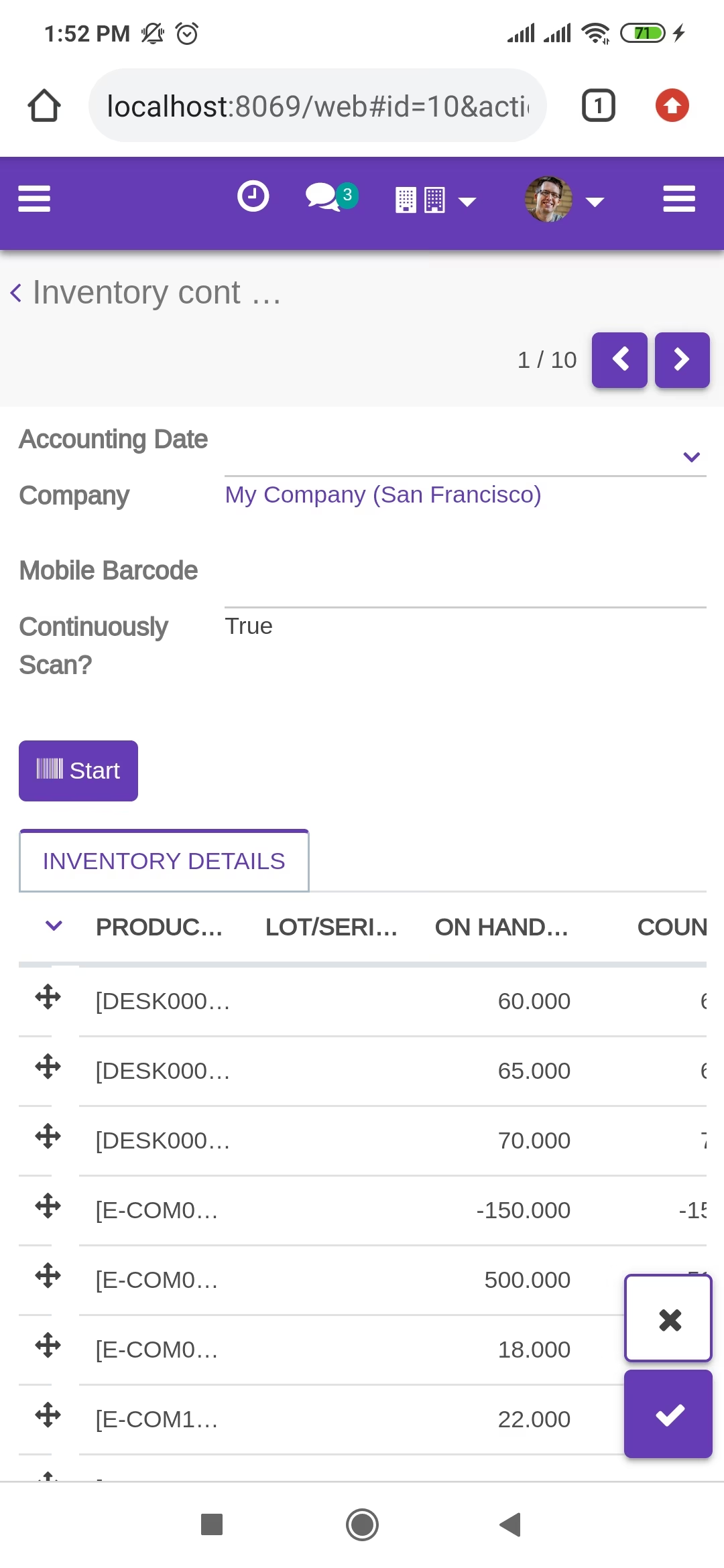
Tap the "Start" button to scan on mobile.
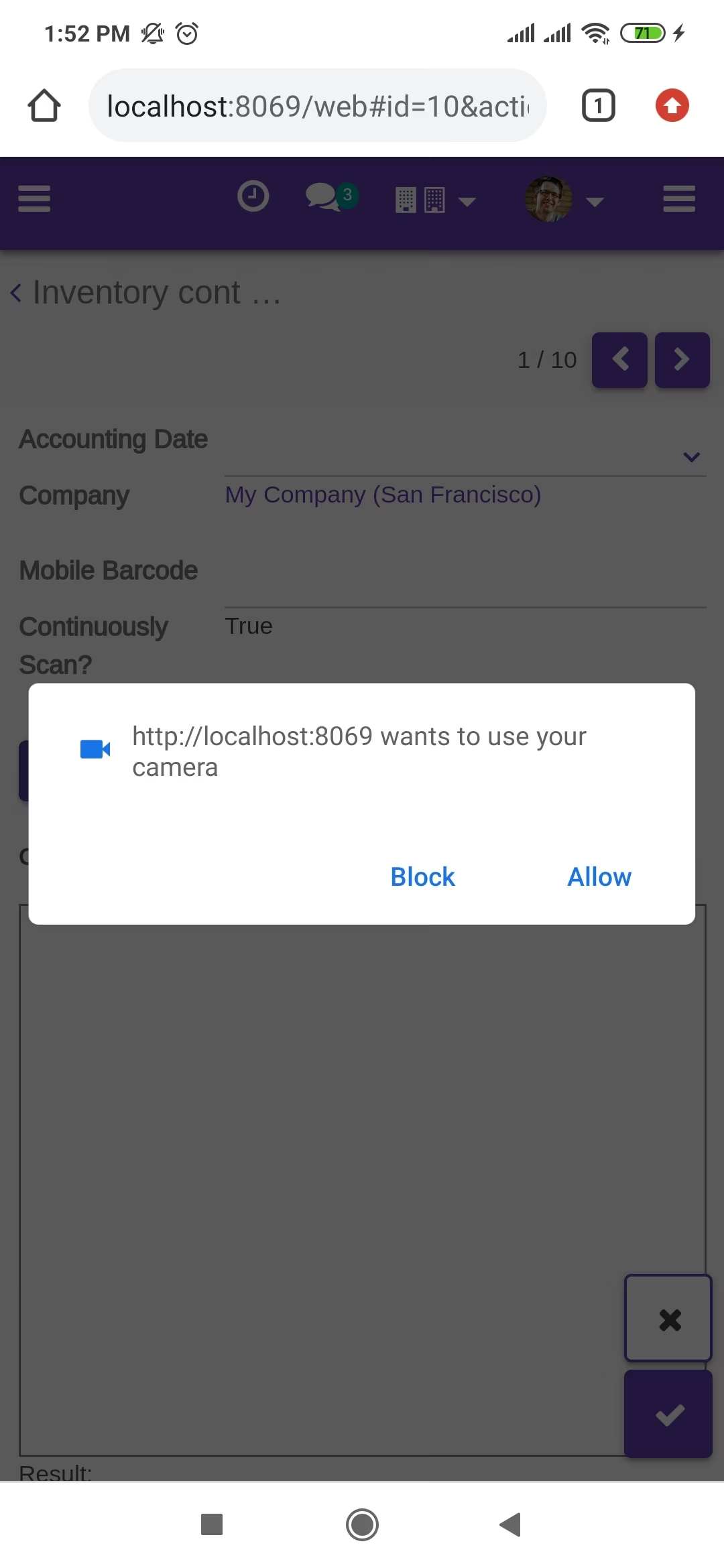
Allow permission to scan from the mobile camera.
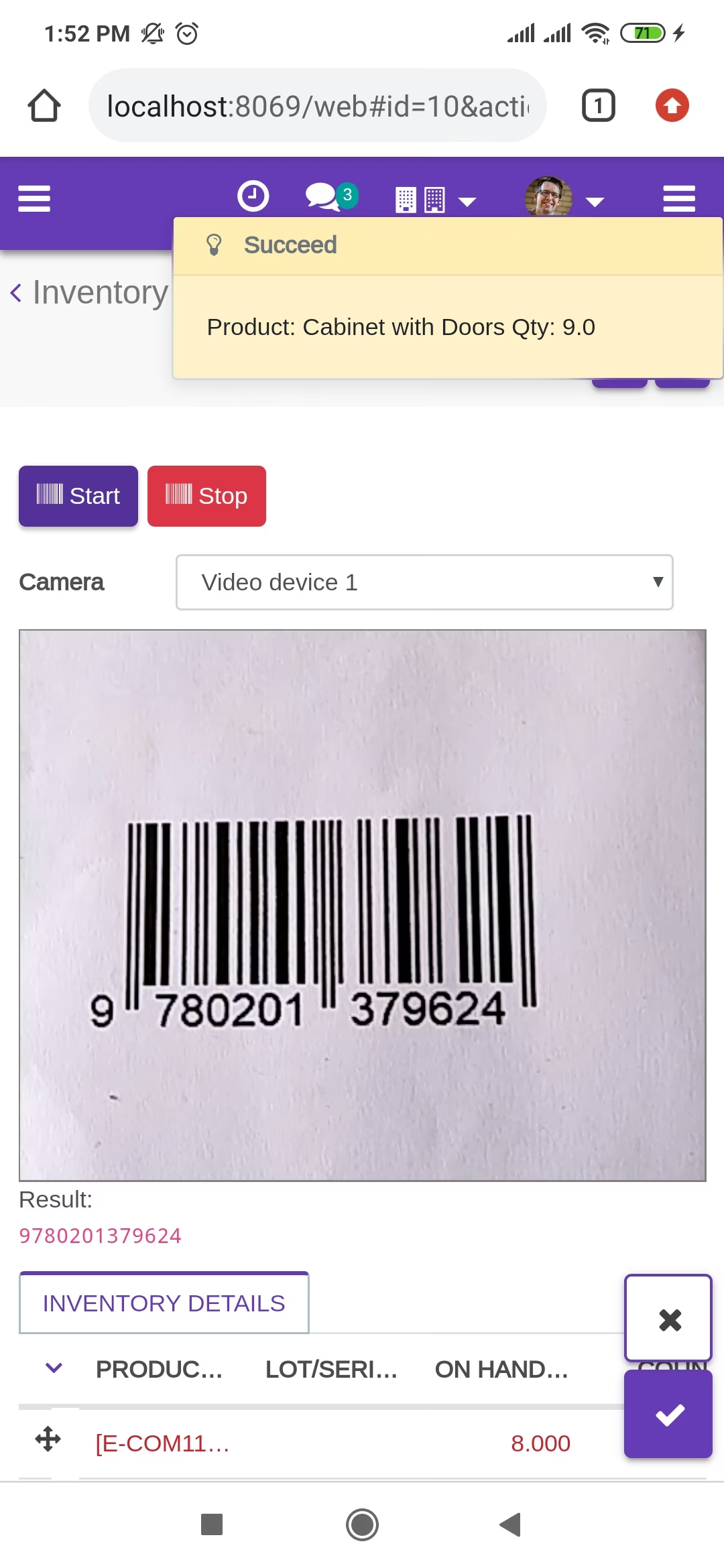
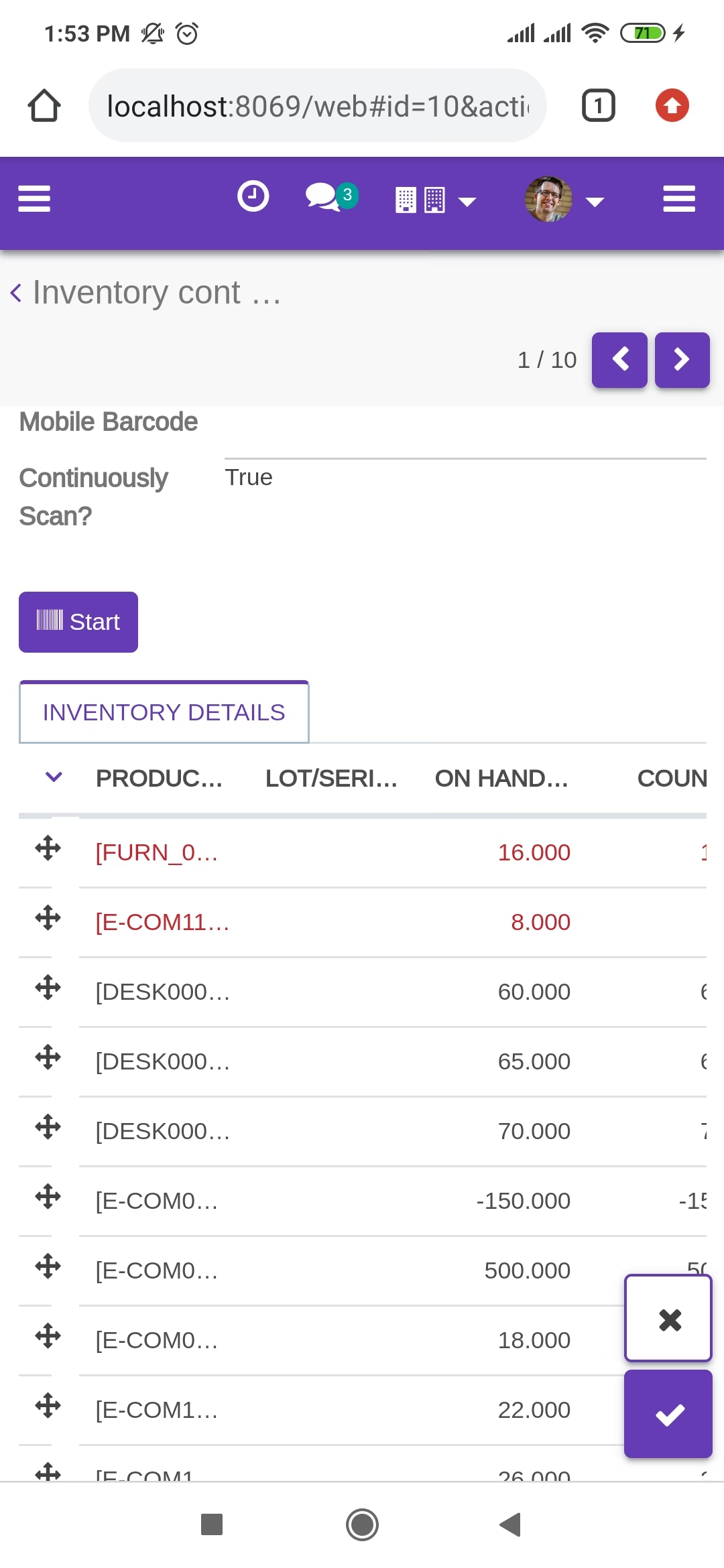
scanned product with Barcode automatically added in inventory details if the product already existed in inventory details then ordered qty increased by 1.
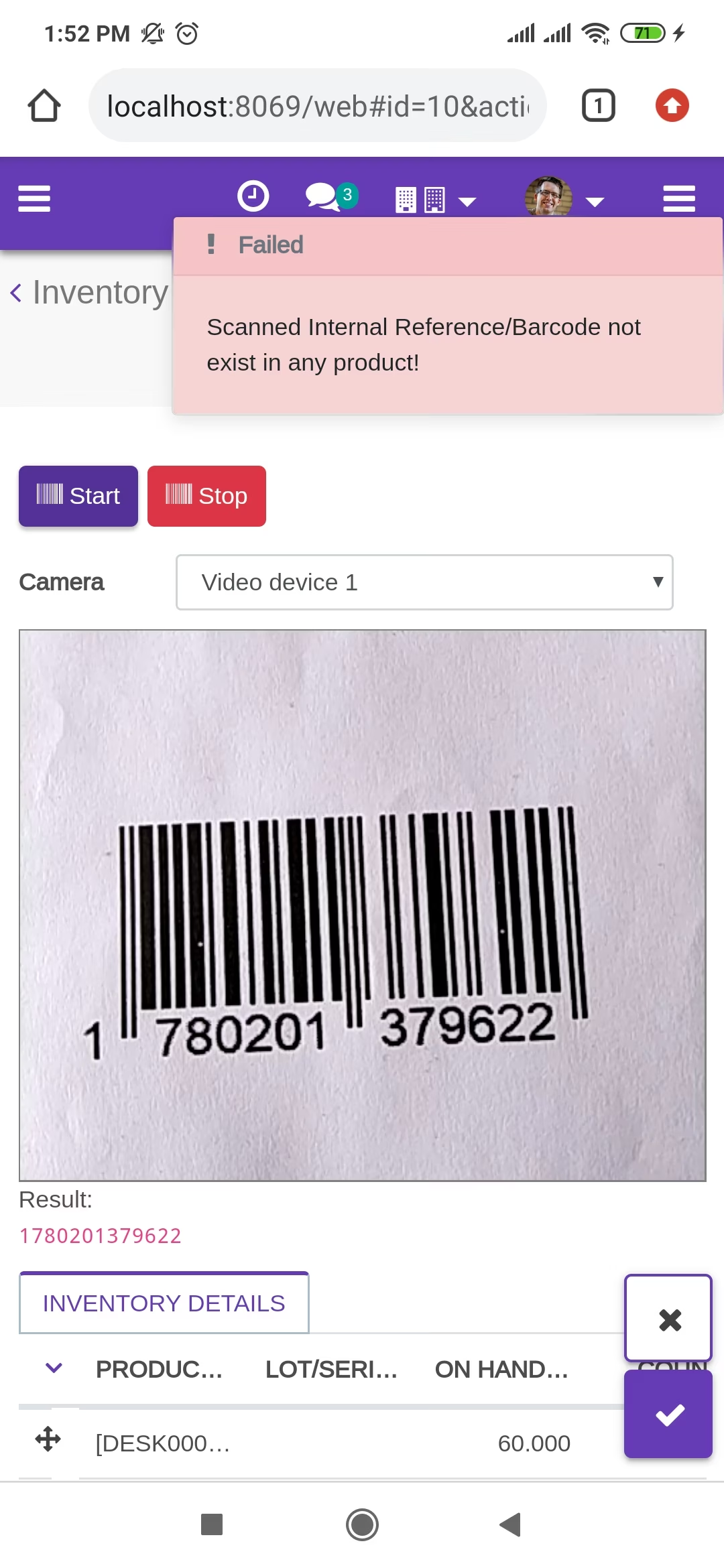
The error message is given if no matching product found.
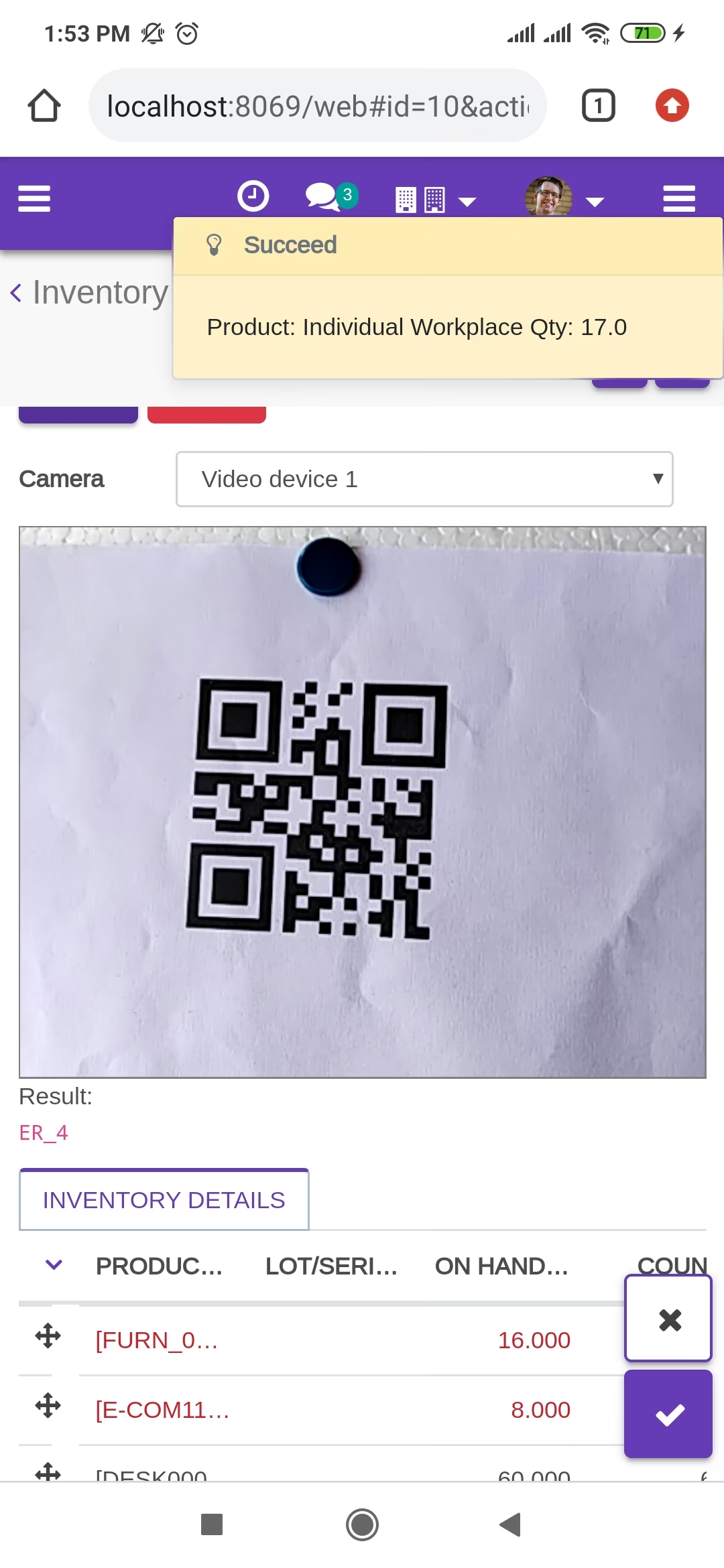
scanned product with QRCode automatically added in detailed operations if the product already existed in inventory details then ordered qty increased by 1.
The error message is given if no matching product found.
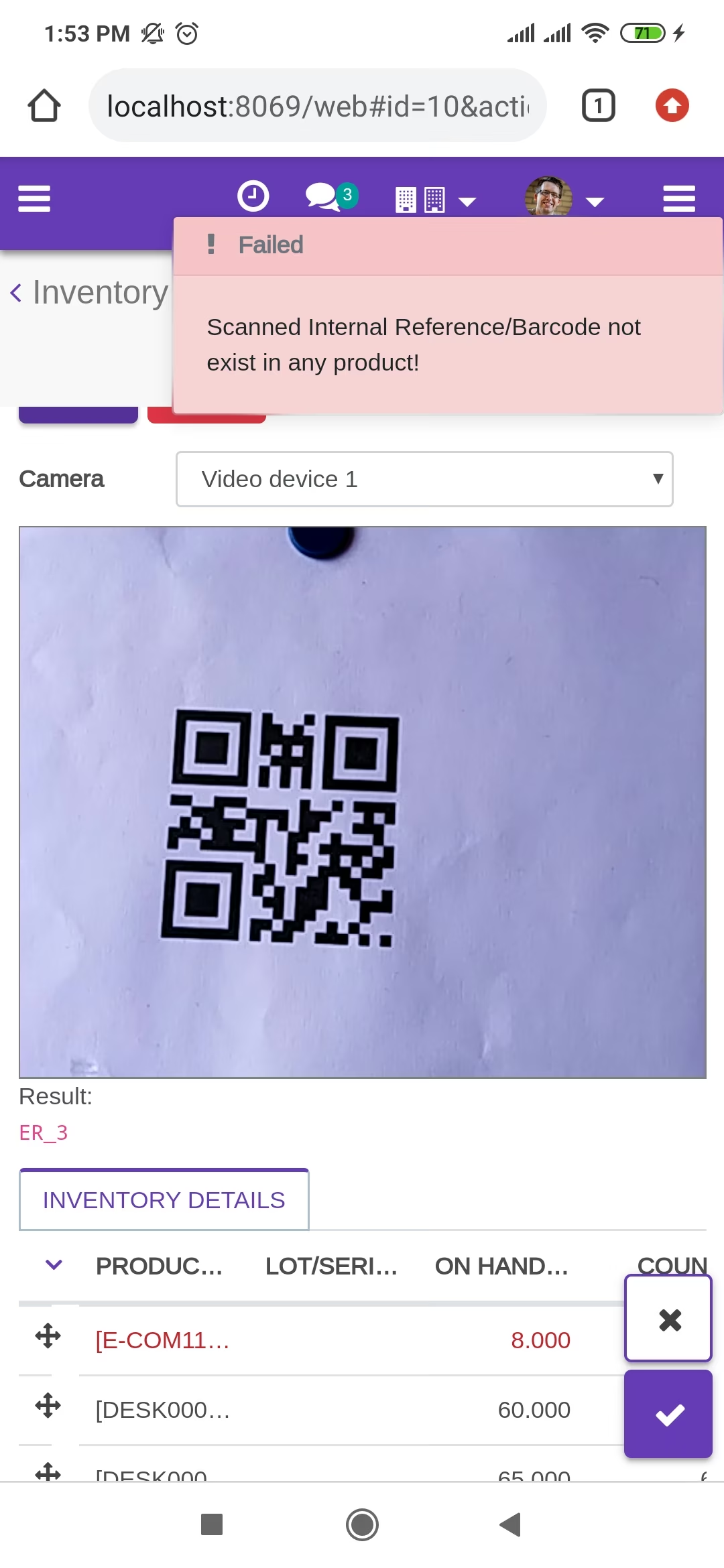
The added product in detailed operations looks like below.
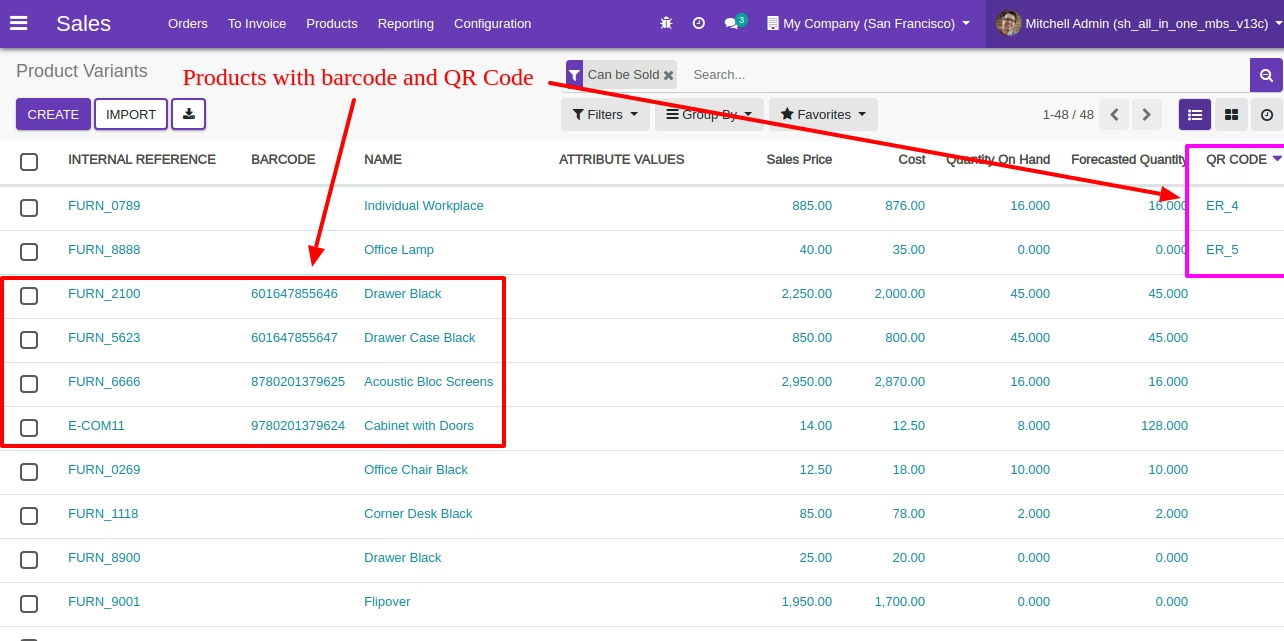
Product with the Barcode & QRCode.
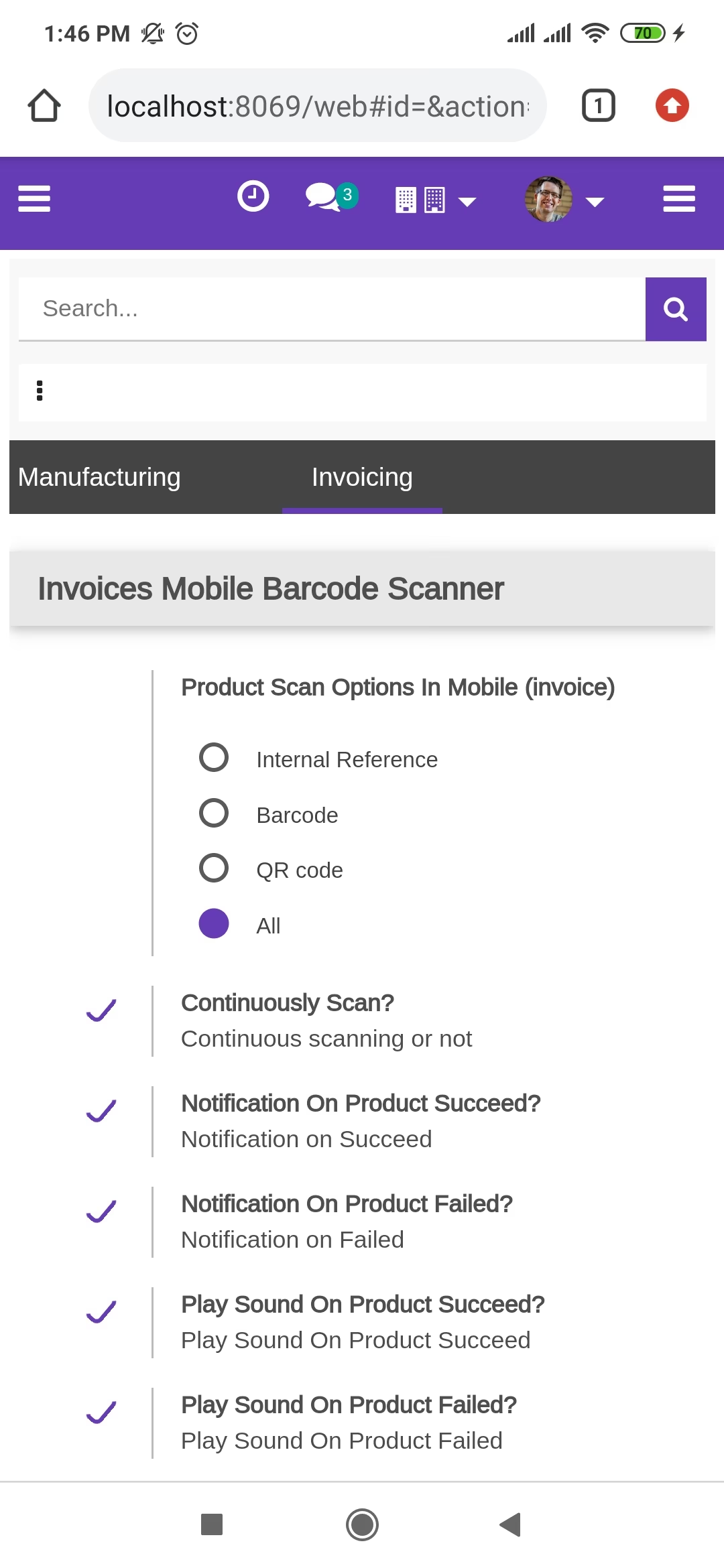
Product scan option in invoice settings whether you want to scan product by Barcode, Internal Reference, QR or All.
Tap the "Start" button to scan on mobile.
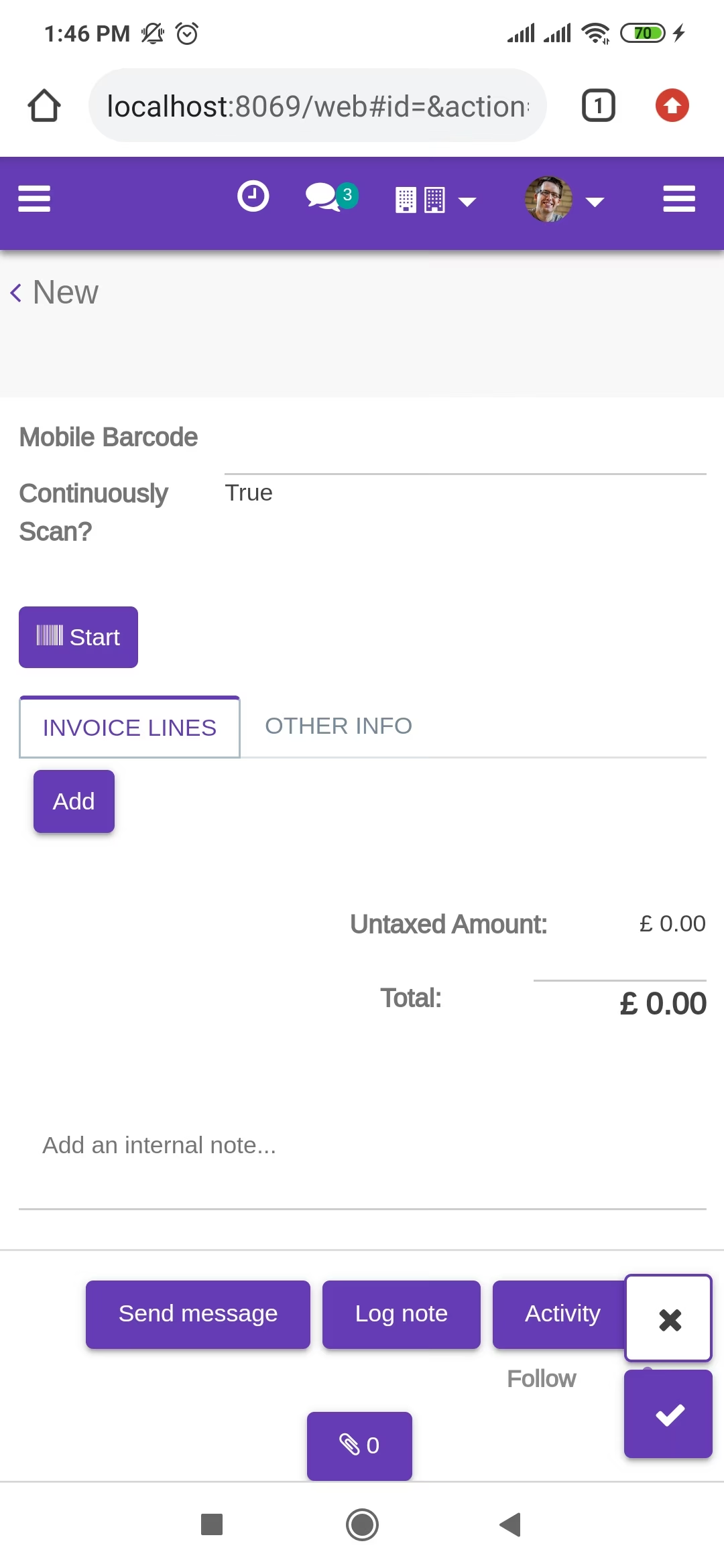
Allow permission to scan from the mobile camera.
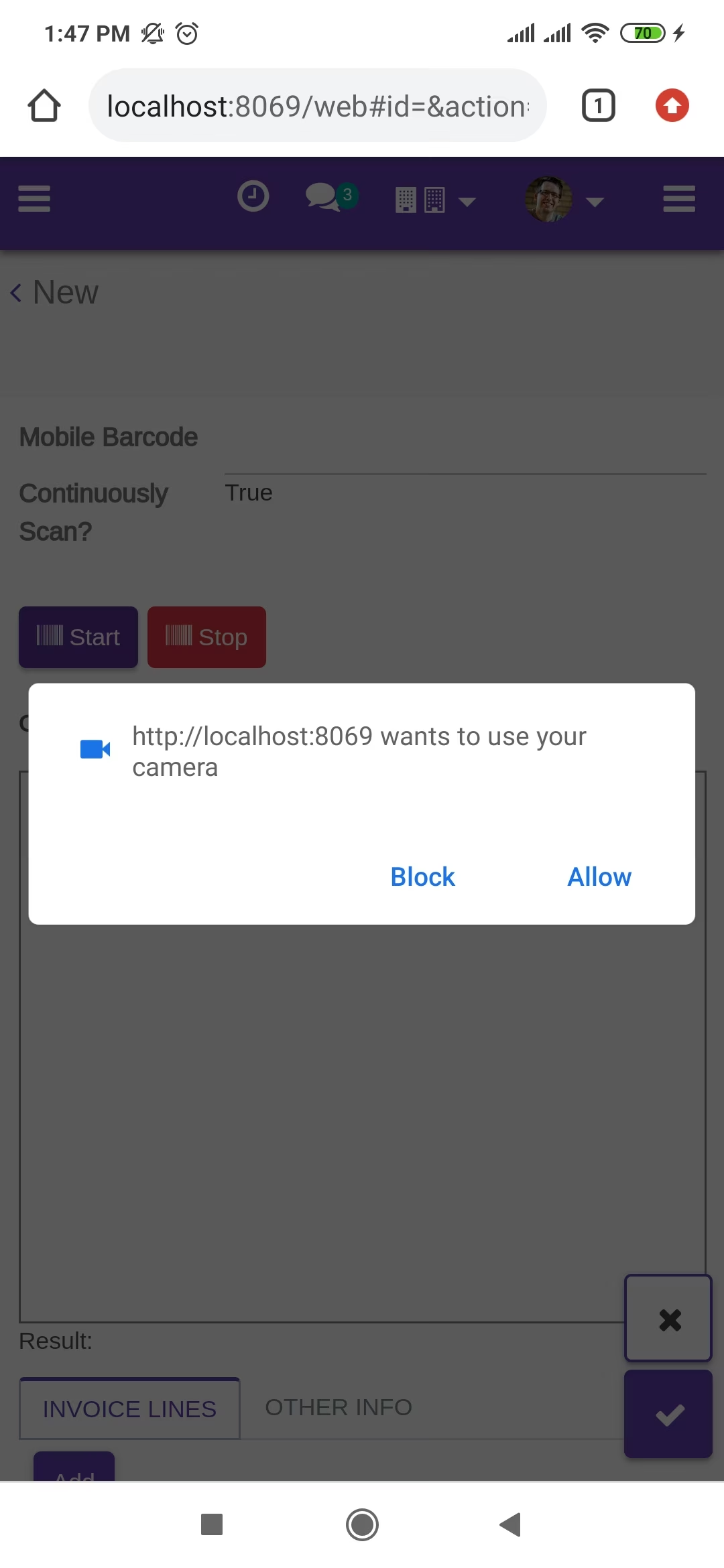
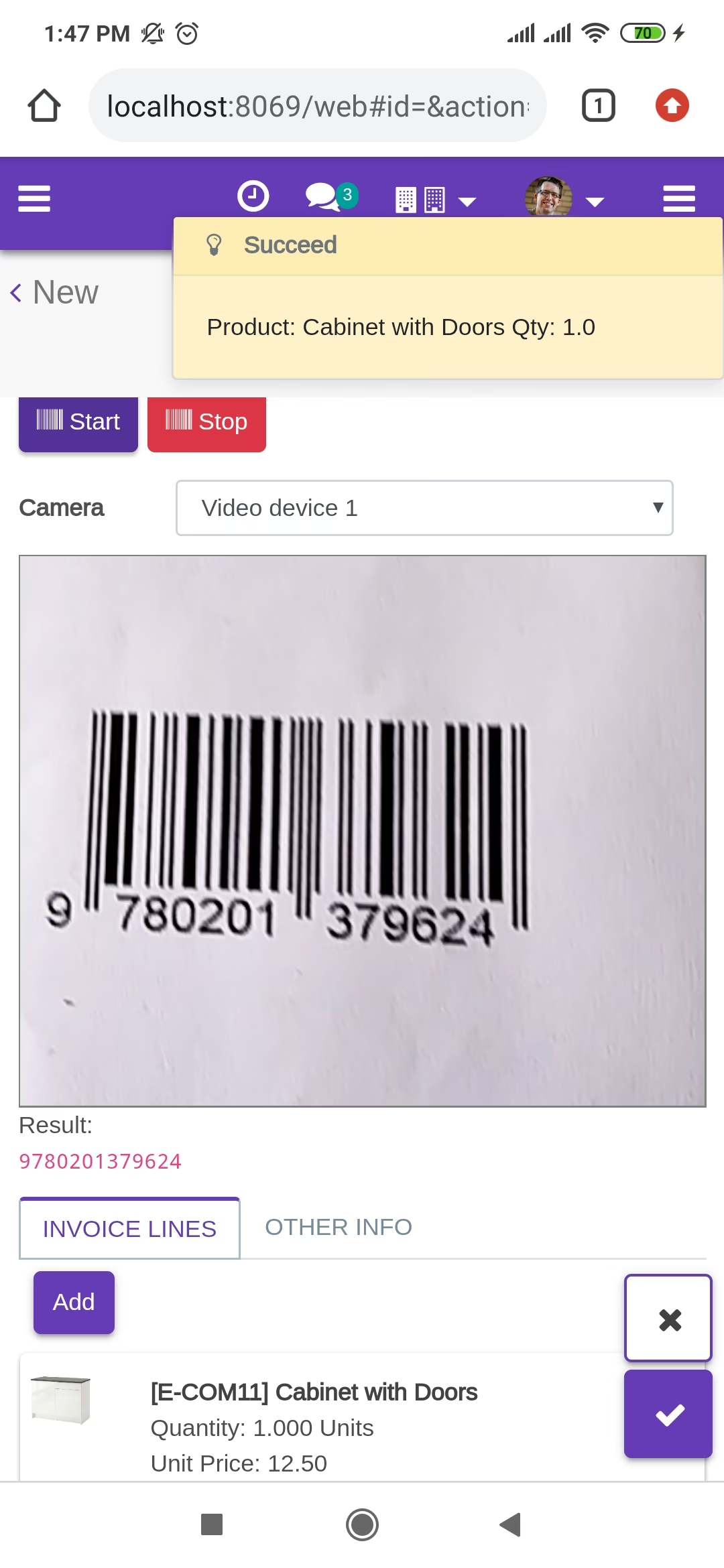
scanned product with QRCode automatically added in invoice line if the product already existed then ordered qty increased by 1.
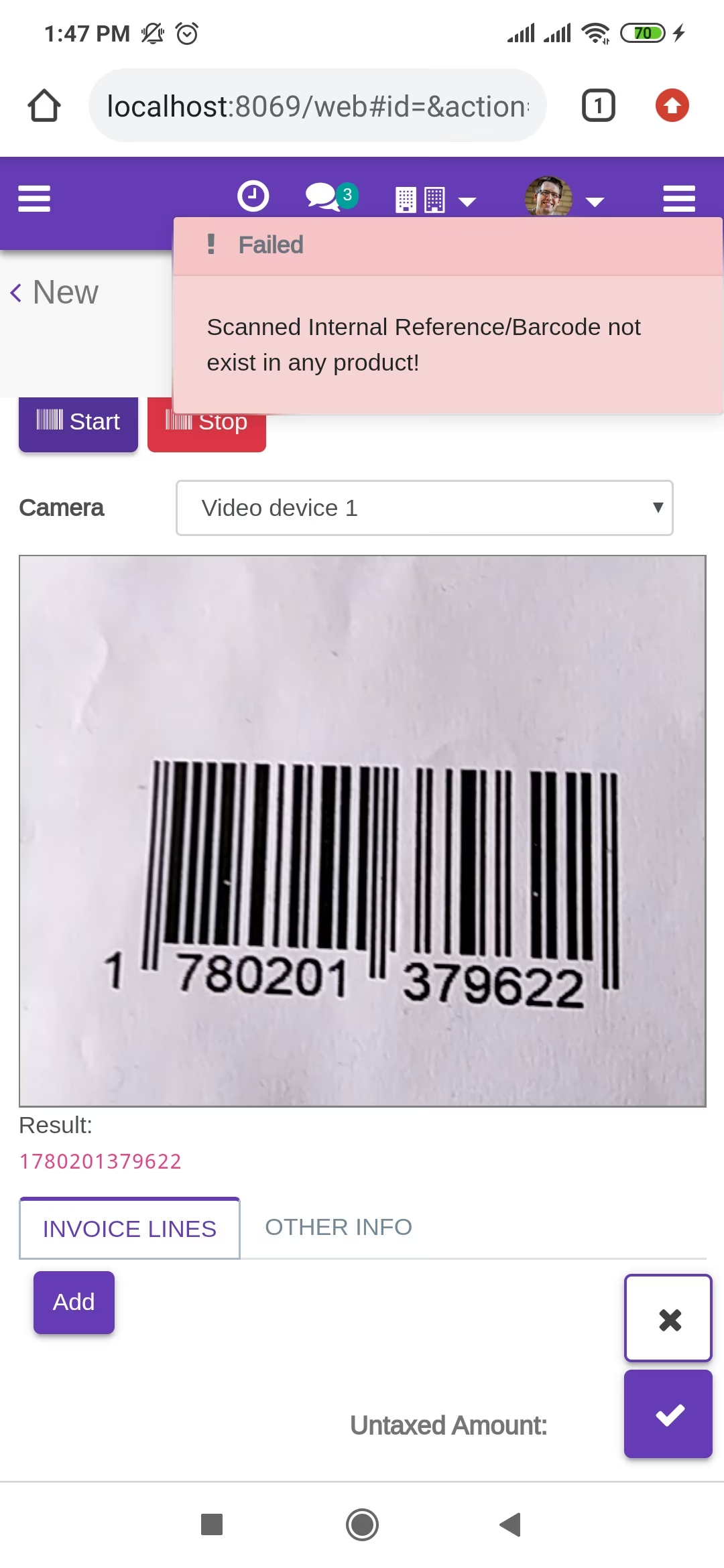
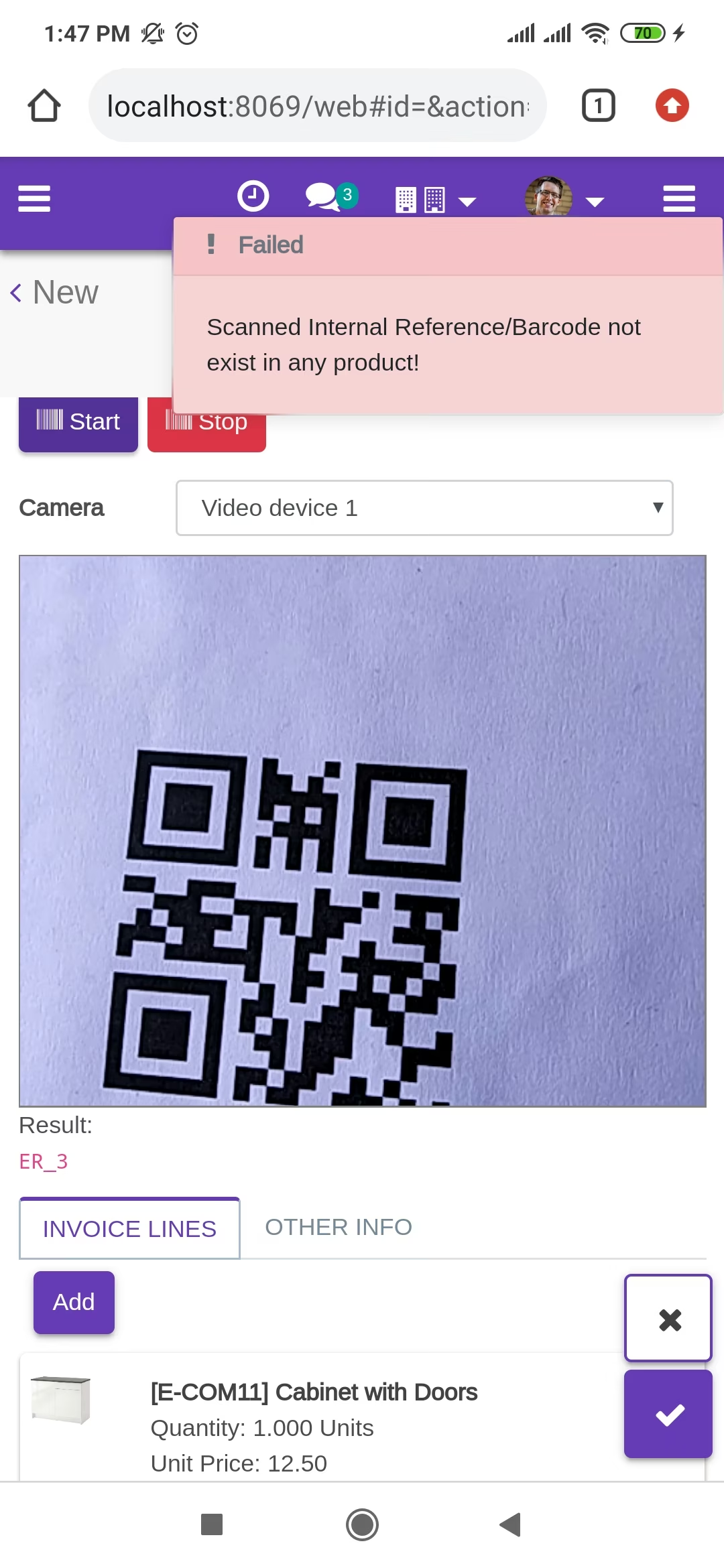
The error message is given if no matching product found.
scanned product with QRCode automatically added in detailed operations if the product already existed in inventory details then ordered qty increased by 1.
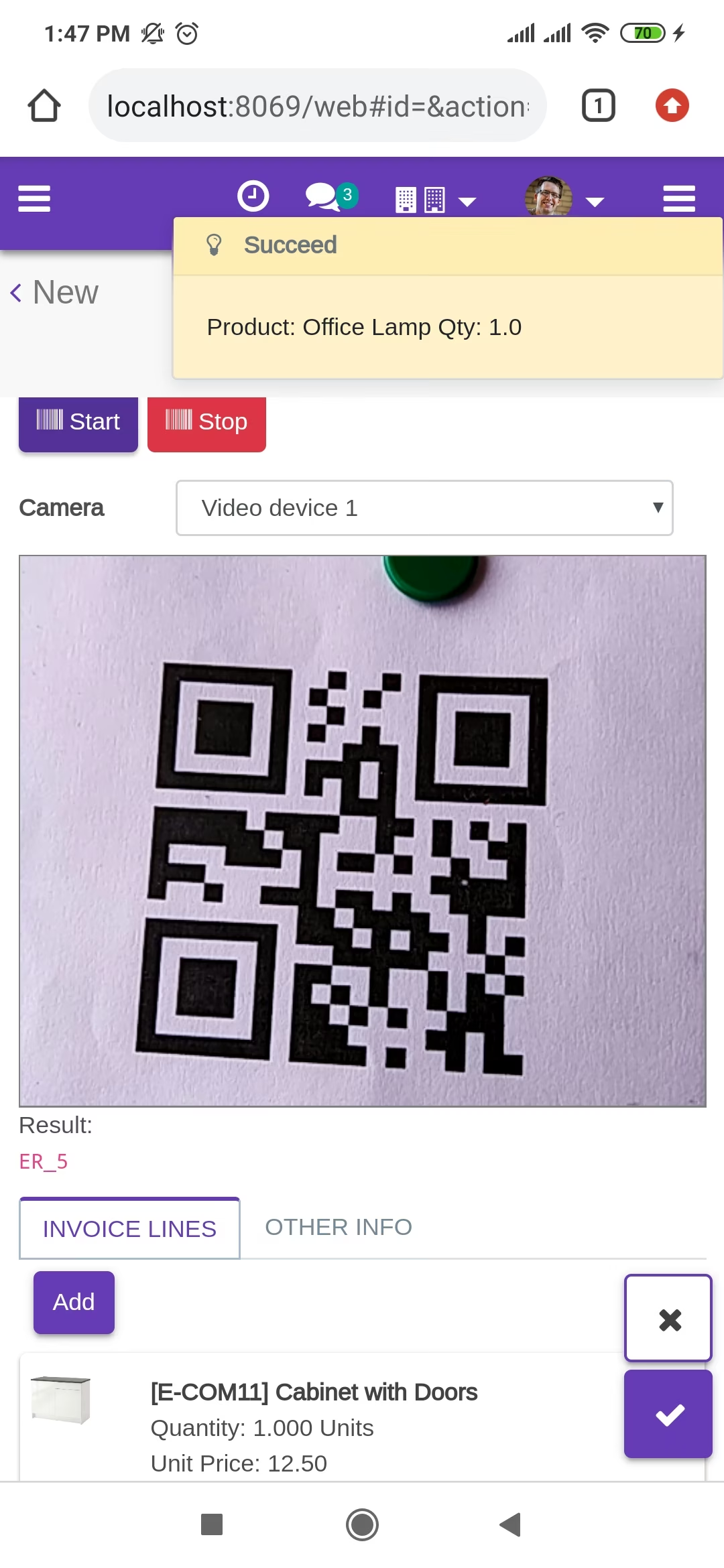
The error message is given if no matching product found.
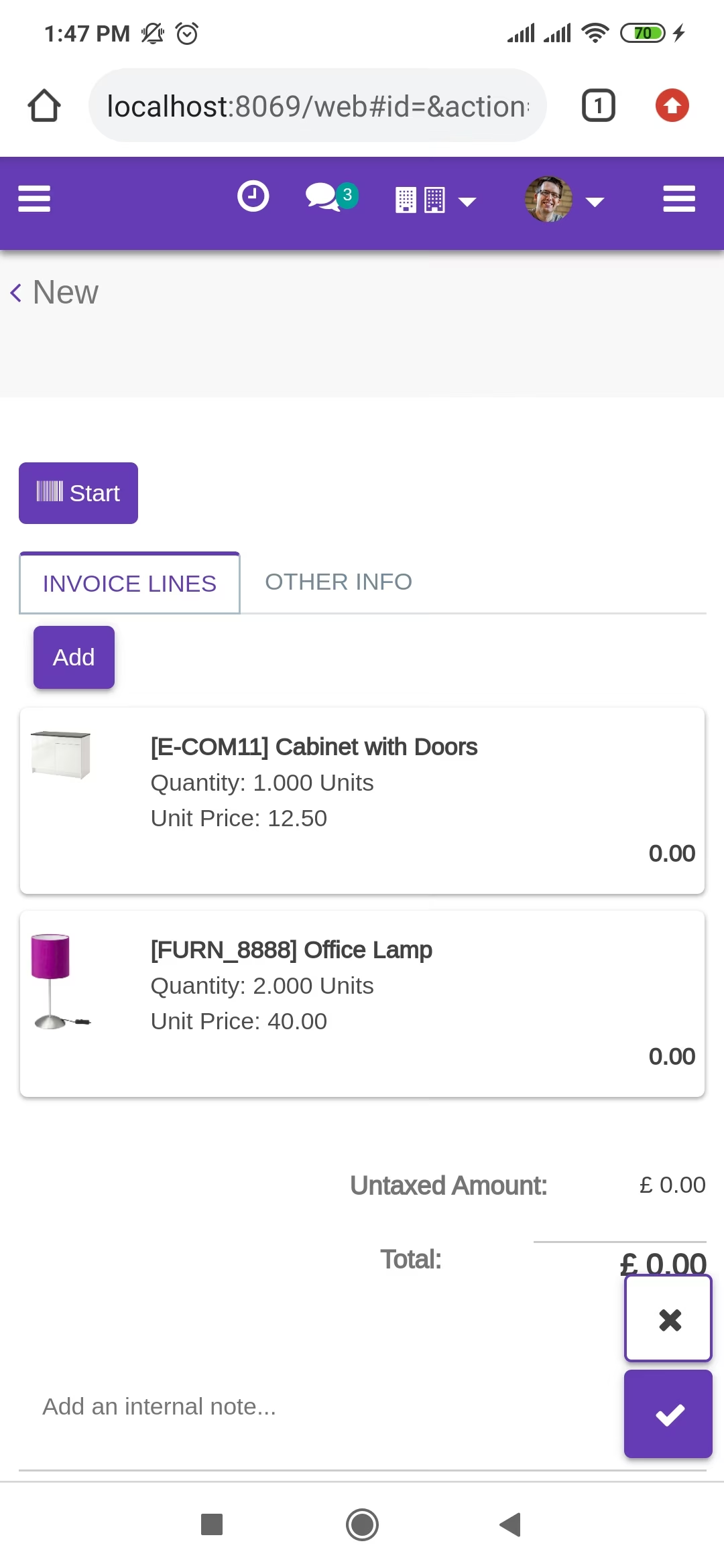
The added product in invoice line looks like below.
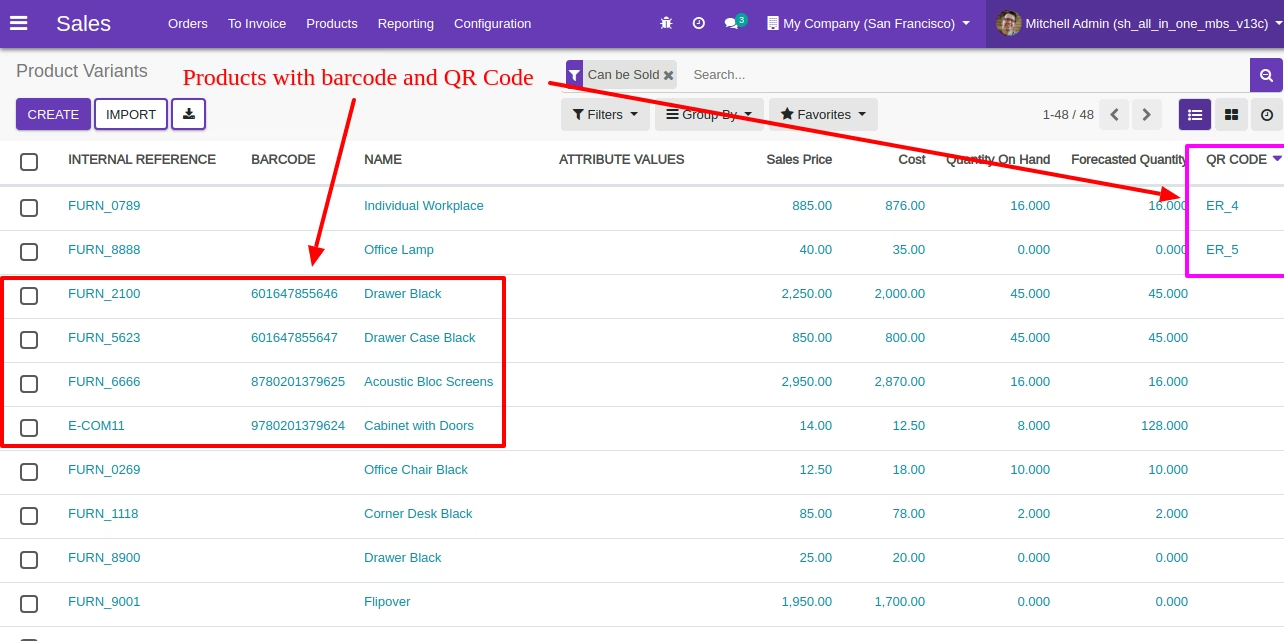
Product with the Barcode & QRCode.
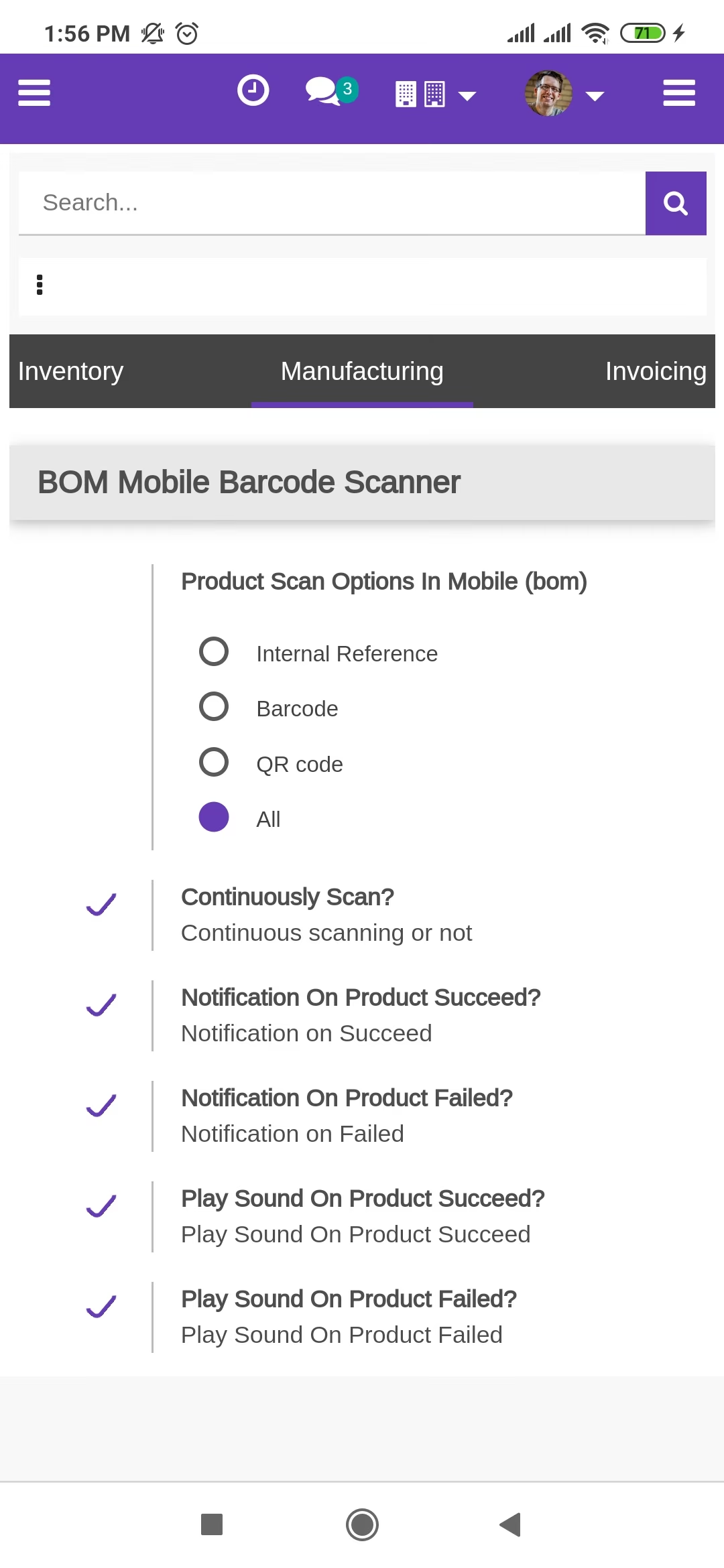
Product scan option in manufacturing settings whether you want to scan product by Barcode, Internal Reference, QRCode or All.
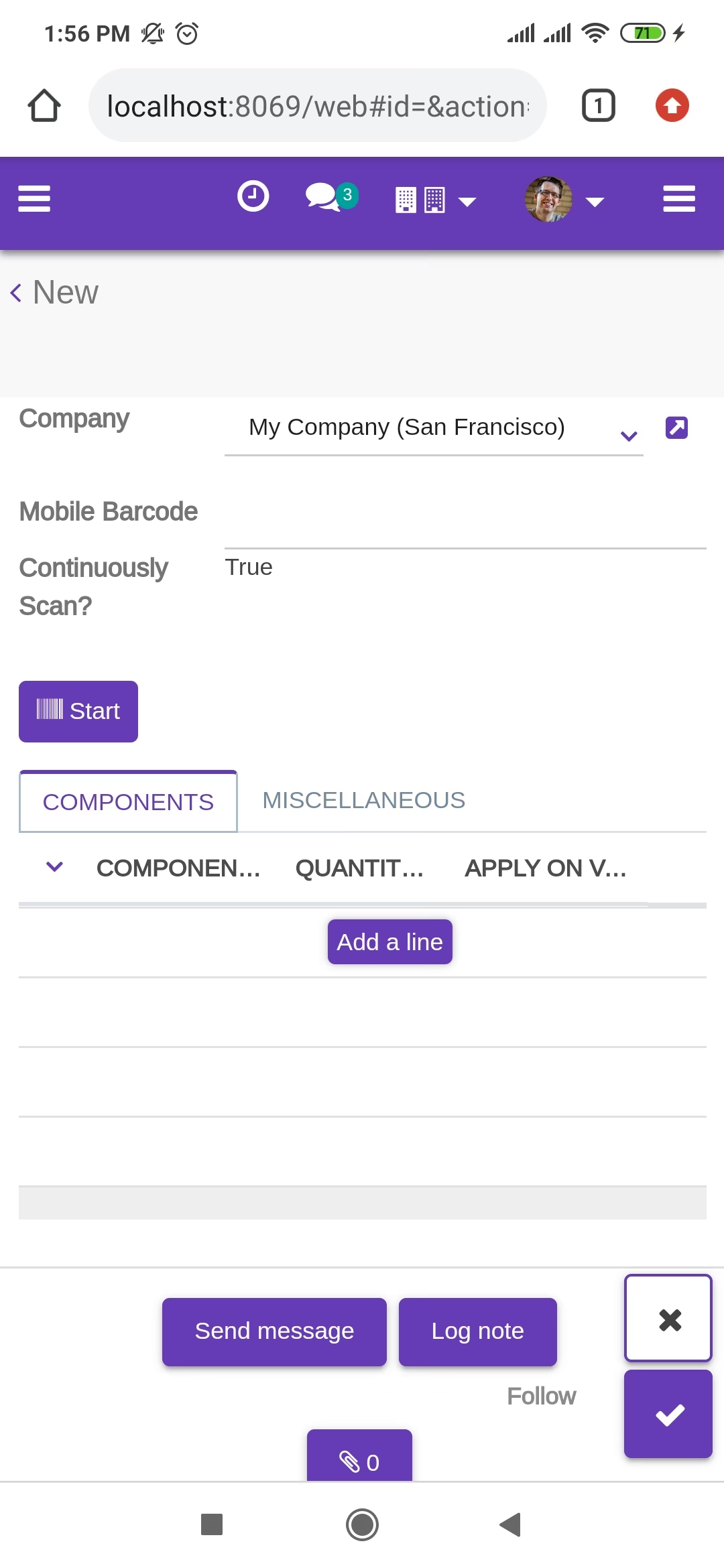
Tap the "Start" button to scan on mobile.
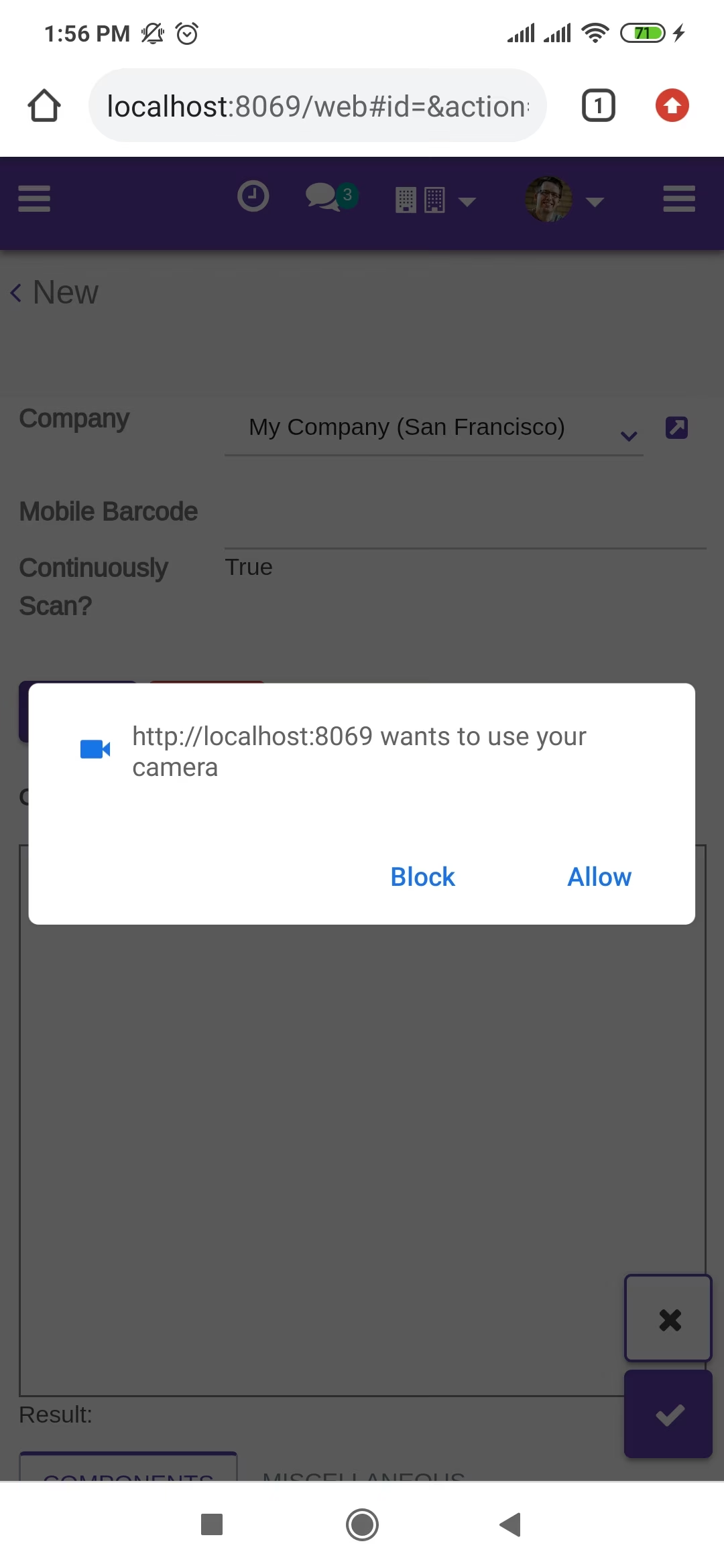
Allow permission to scan from the mobile camera.
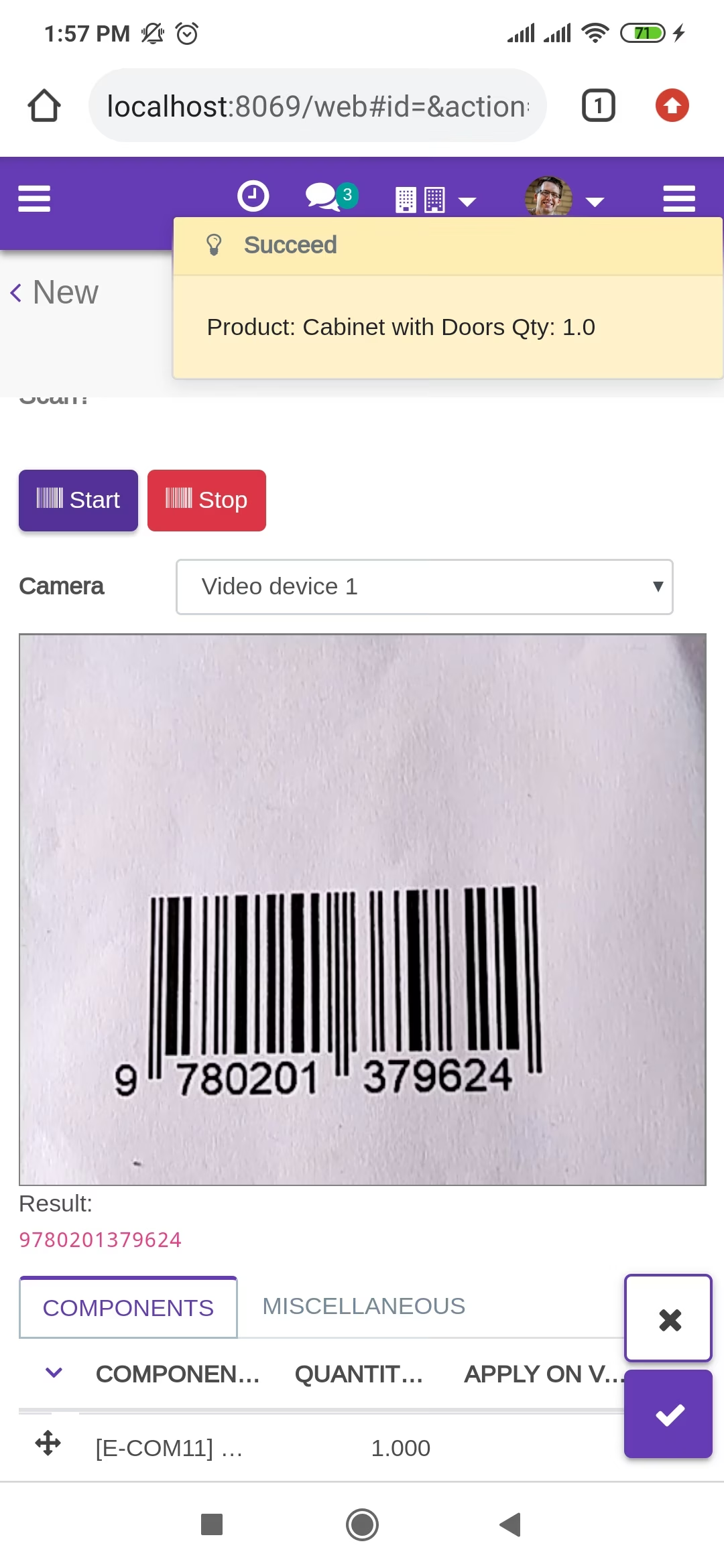
scanned product with Barcode automatically added in bom line if the product already existed in bom line then ordered qty increased by 1.
The error message is given if no matching product found.
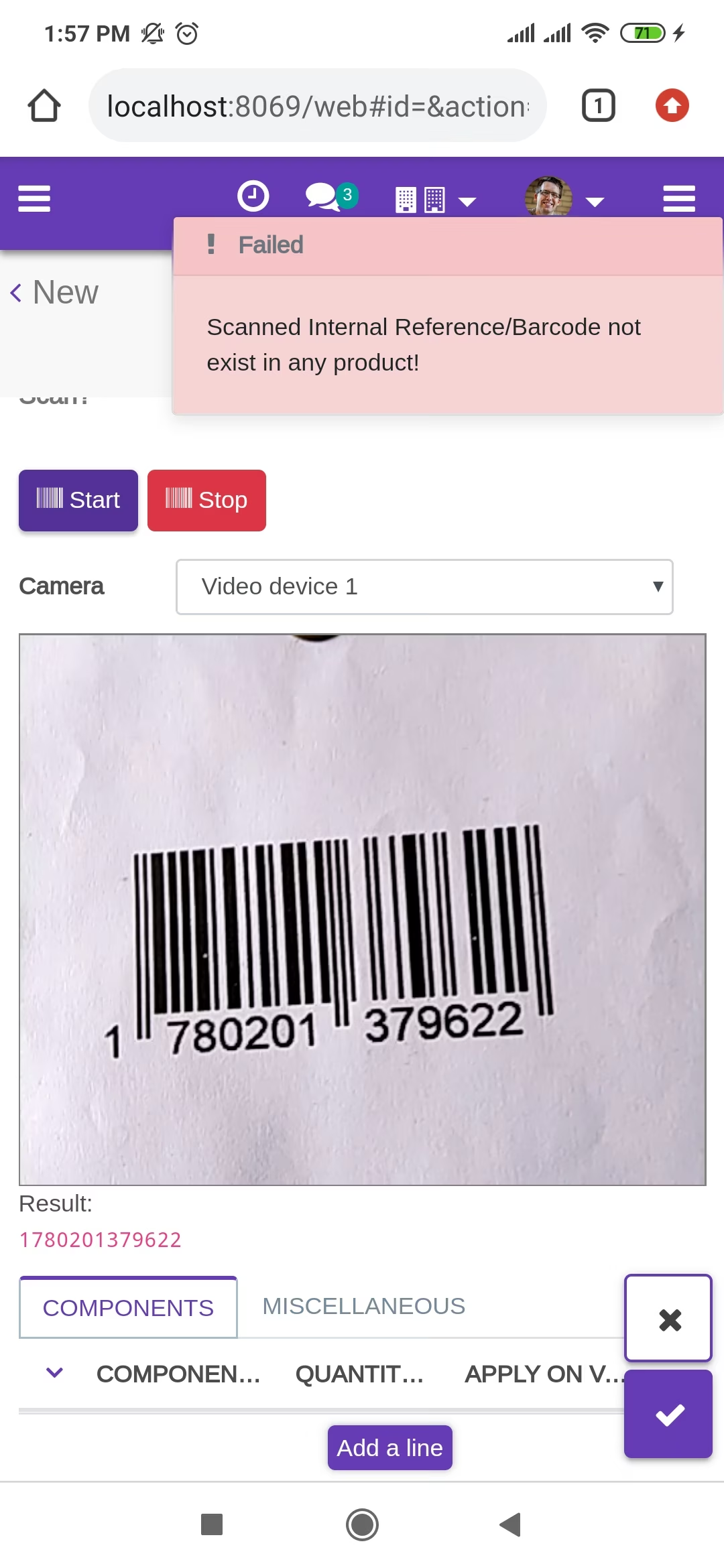
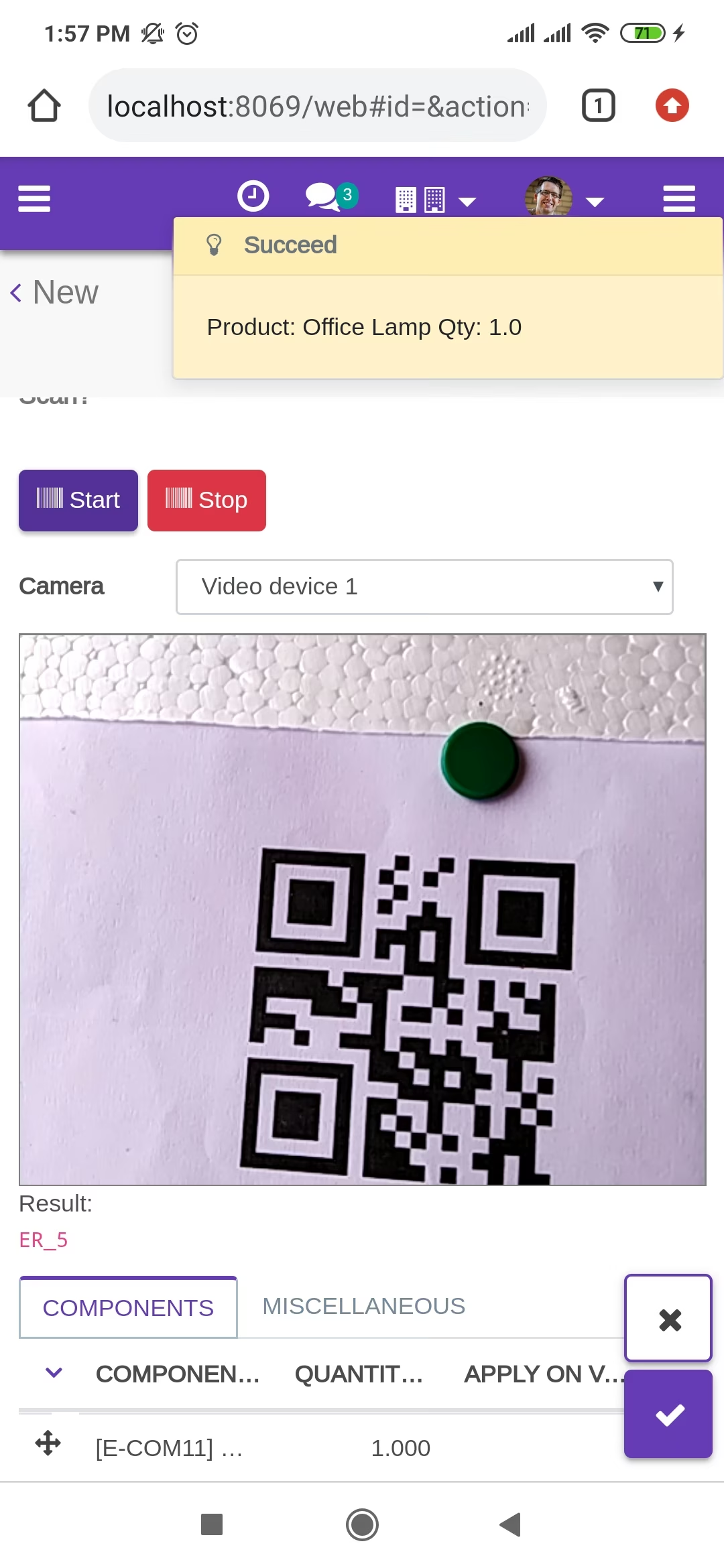
scanned product with QRCode automatically added in bom line if the product already existed in bom line then ordered qty increased by 1.
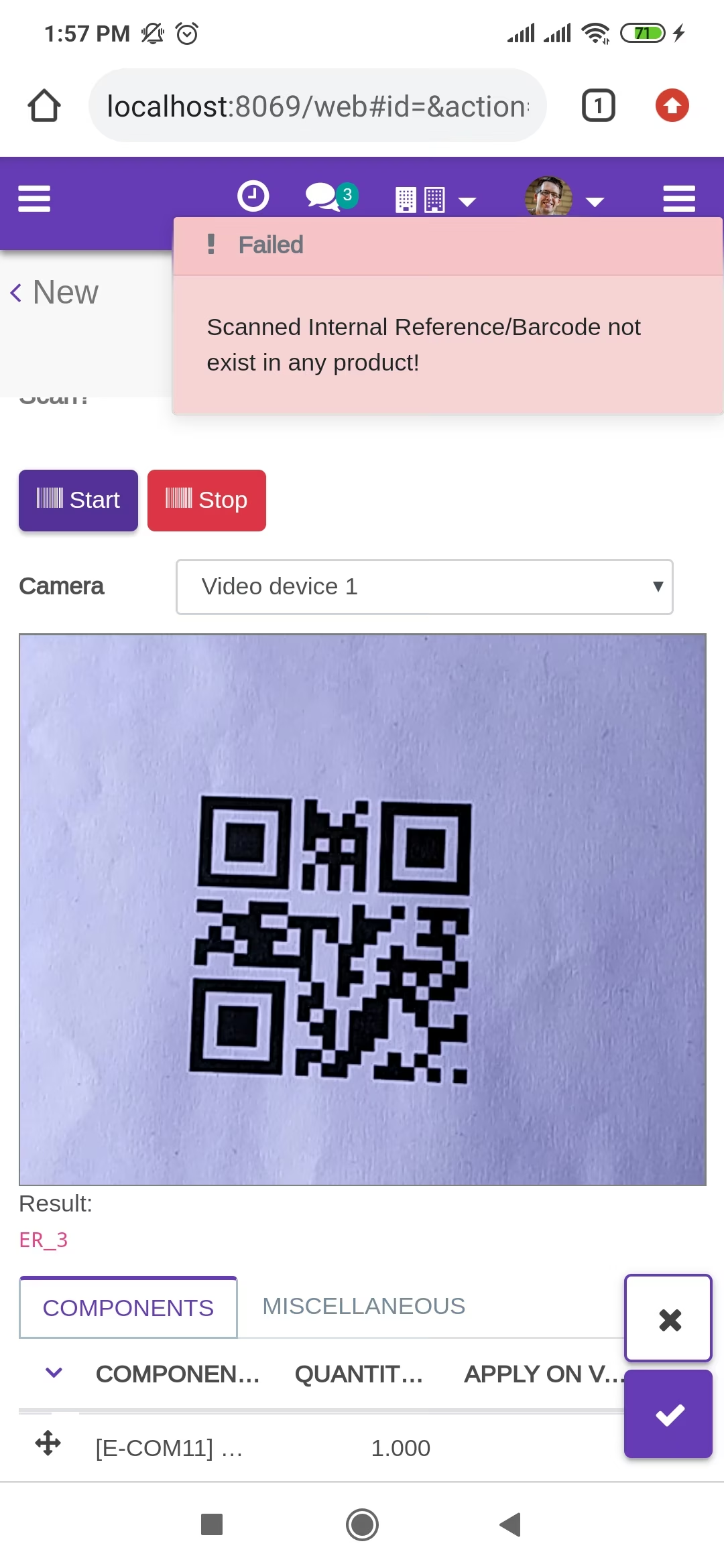
The error message is given if no matching product found.
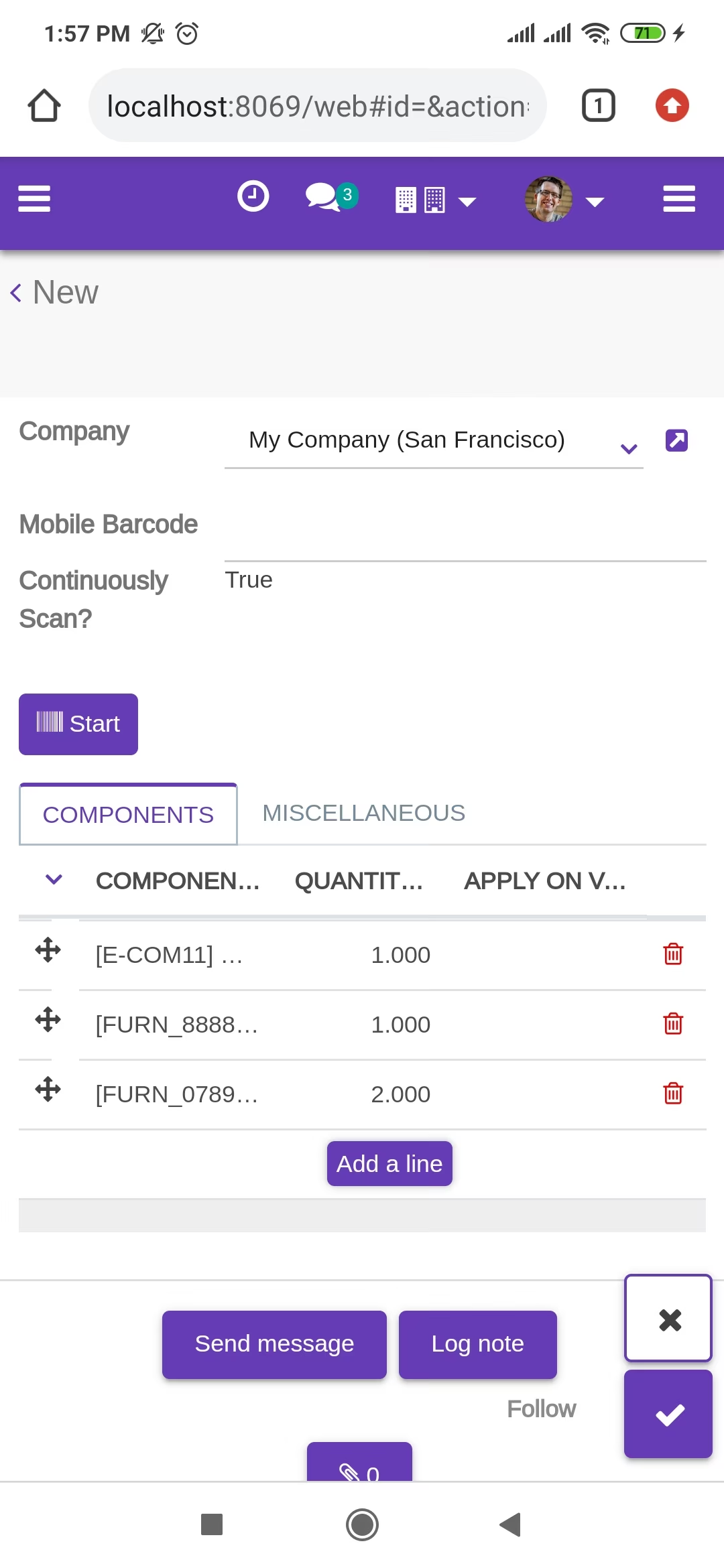
The added product in BOM looks like below.
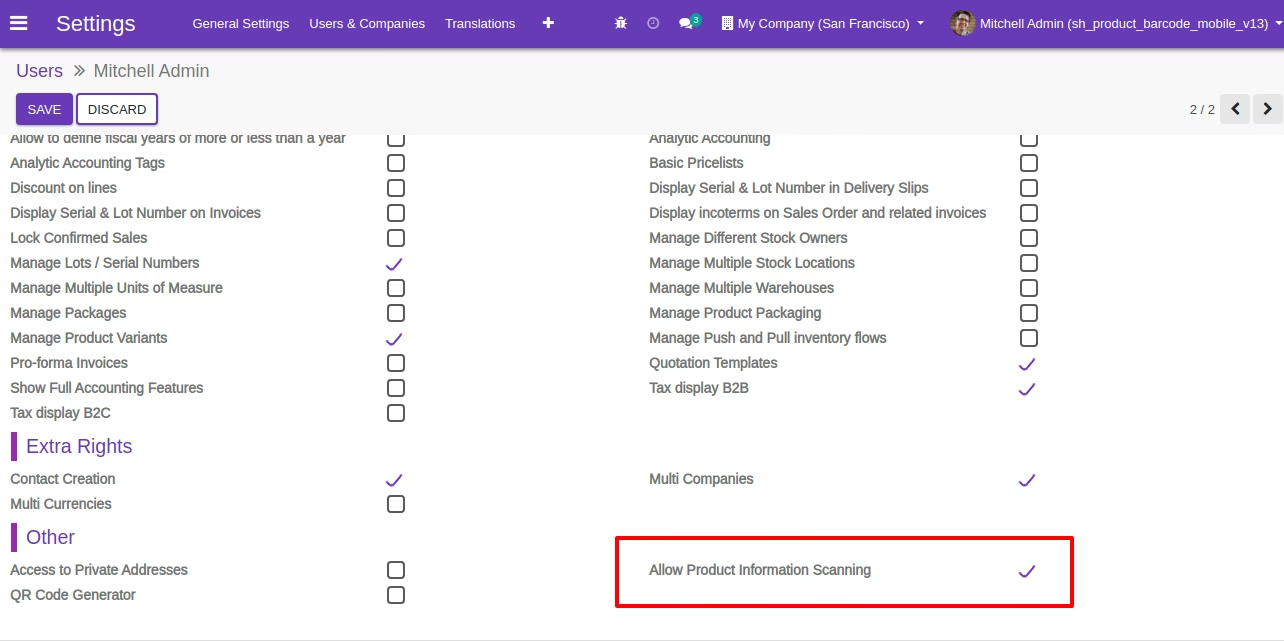
User Setting: Just enable the 'Allow Product Information Scanning' option.
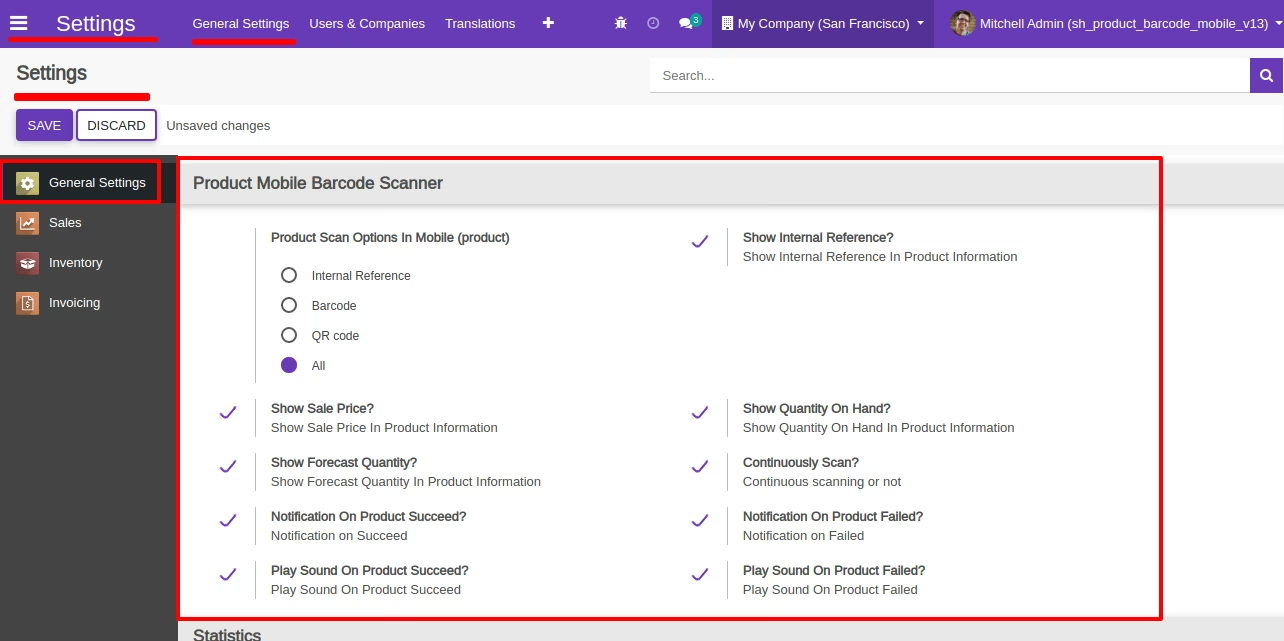
Product scan option in general settings whether you want to scan product by Barcode, Internal Reference, QRCode or All.
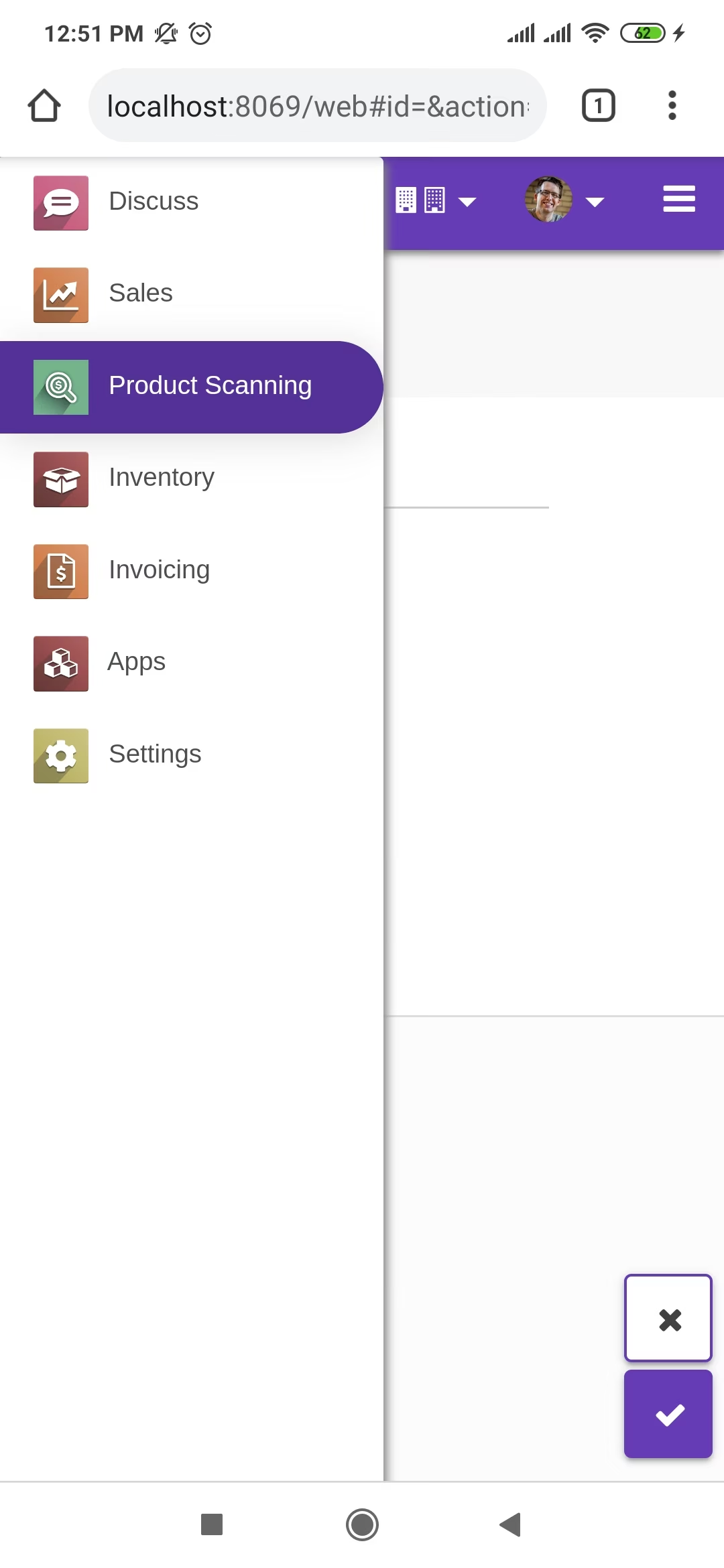
"Product Scanning" option in the menu.
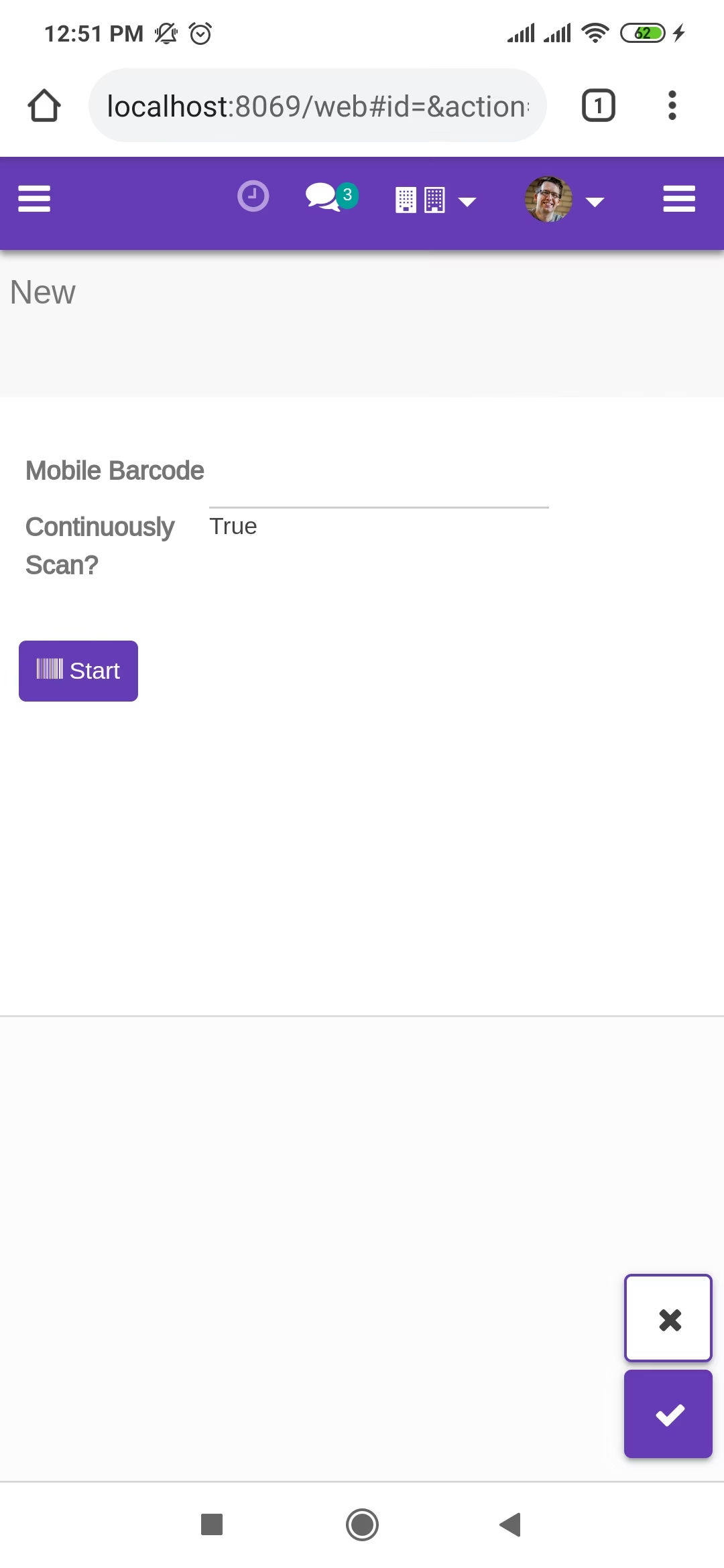
Tap the "Start" button to scan on mobile.
Allow permission to scan from the mobile camera.
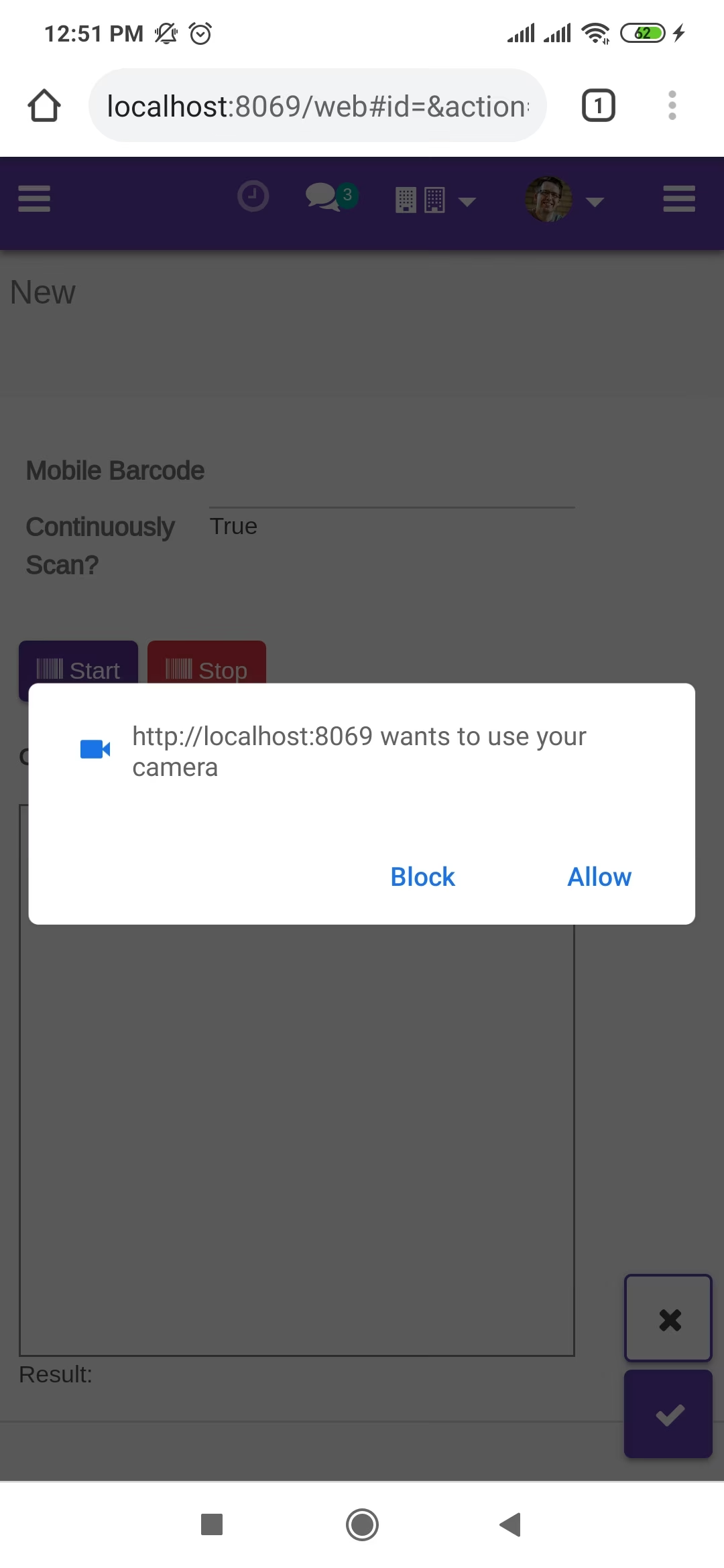
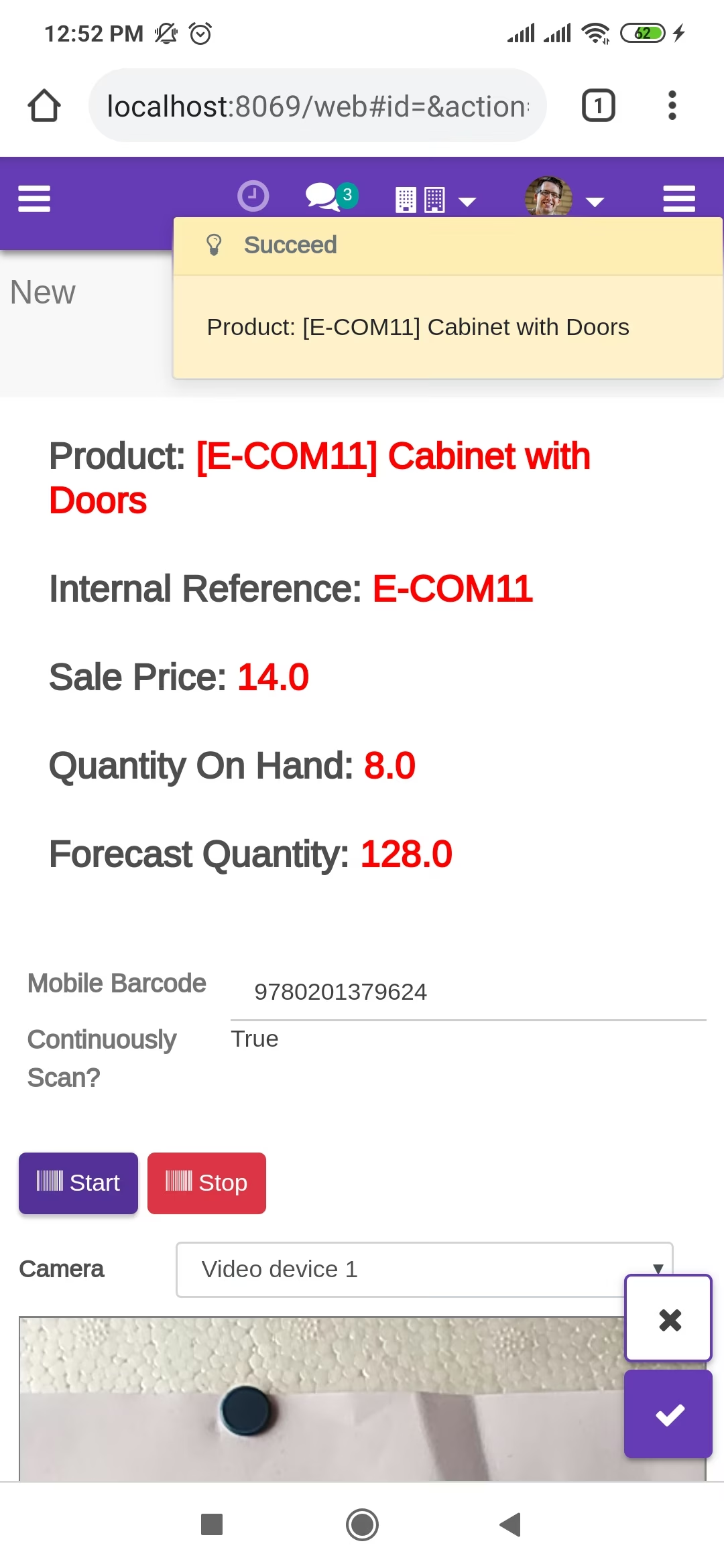
scanned product price with Barcode/Internal Reference No and if success than show popup and show sales price, product on-hand & forecast qty.
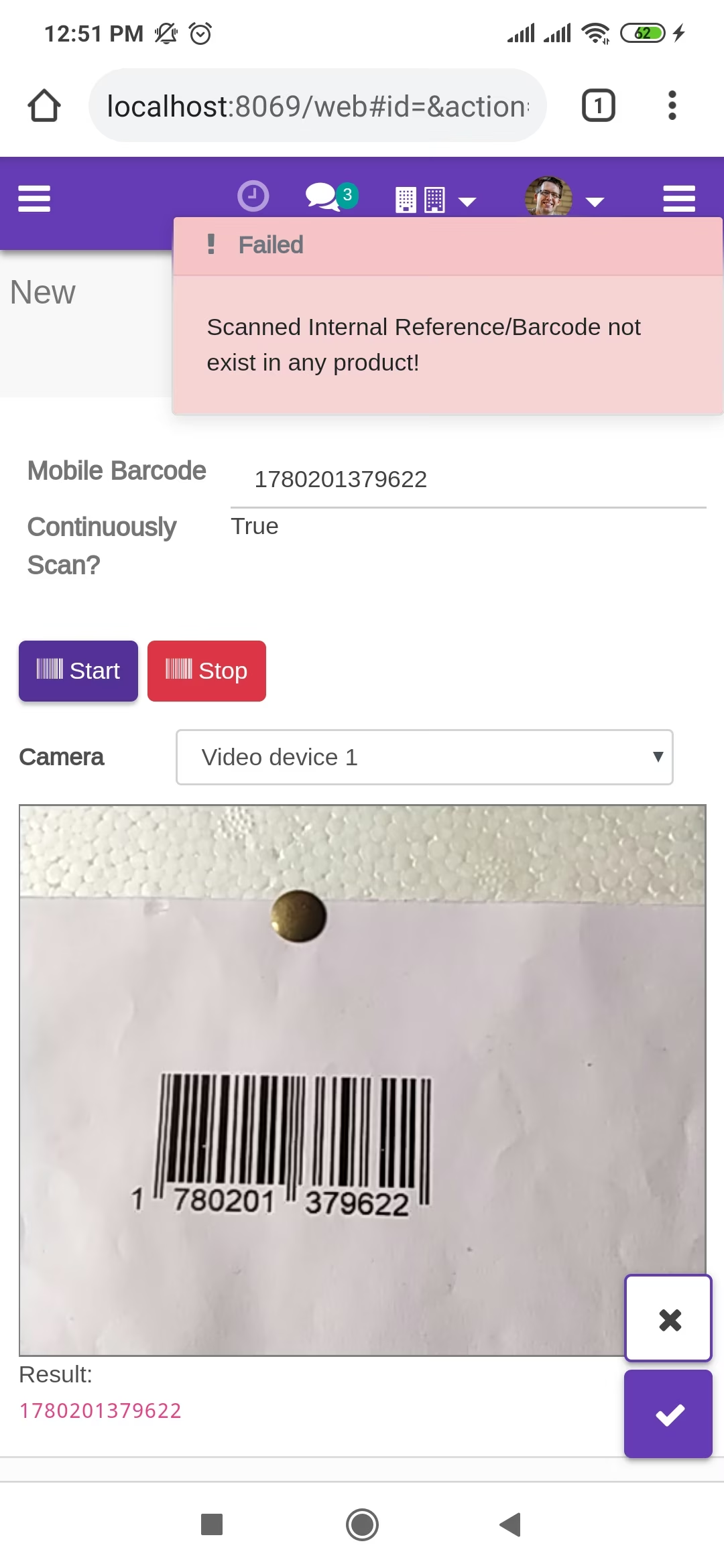
The error message is given if no matching product found.
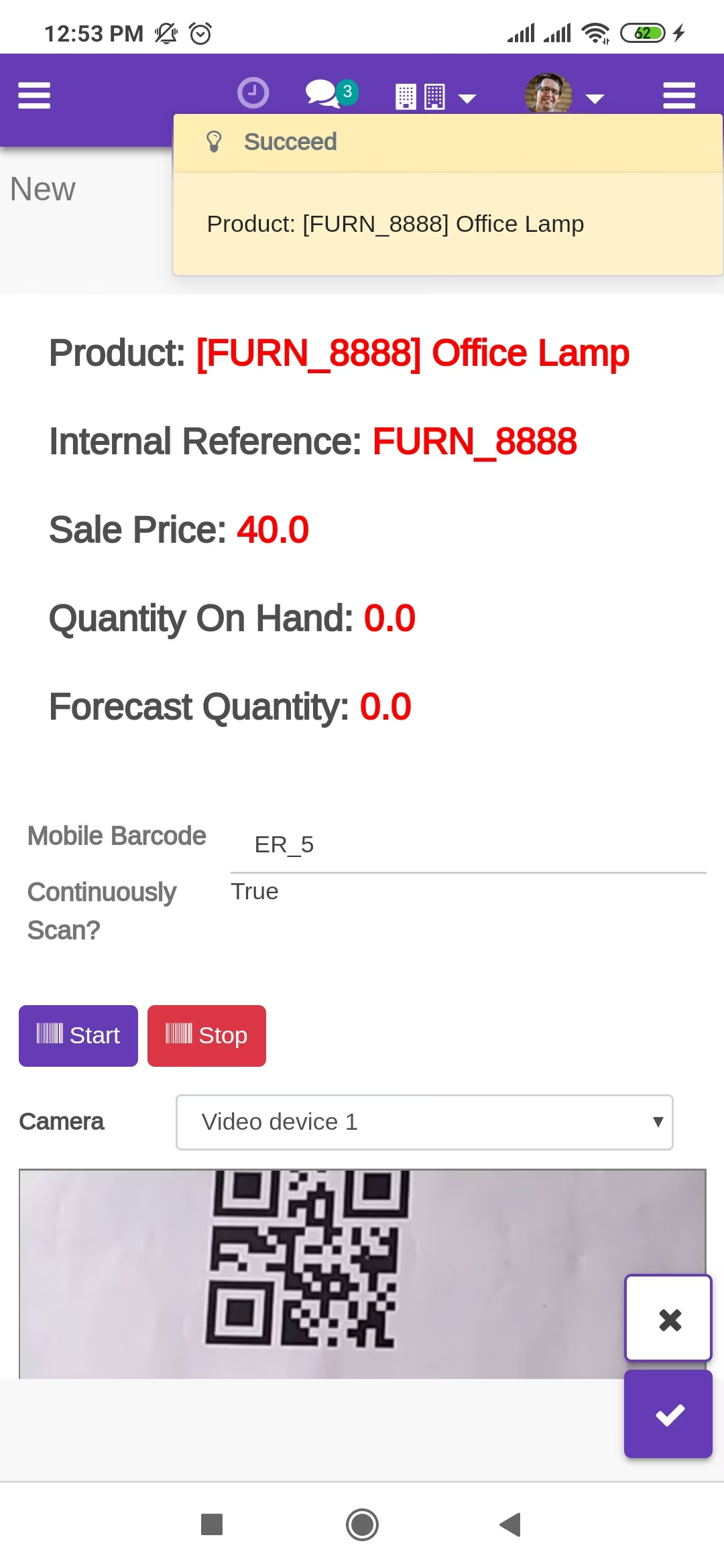
scanned product price with QRCode.
The error message is given if no matching product found.
General Settings
Product scan option in inventory settings whether you want to scan product by Barcode, Internal Reference, QRCode or All.
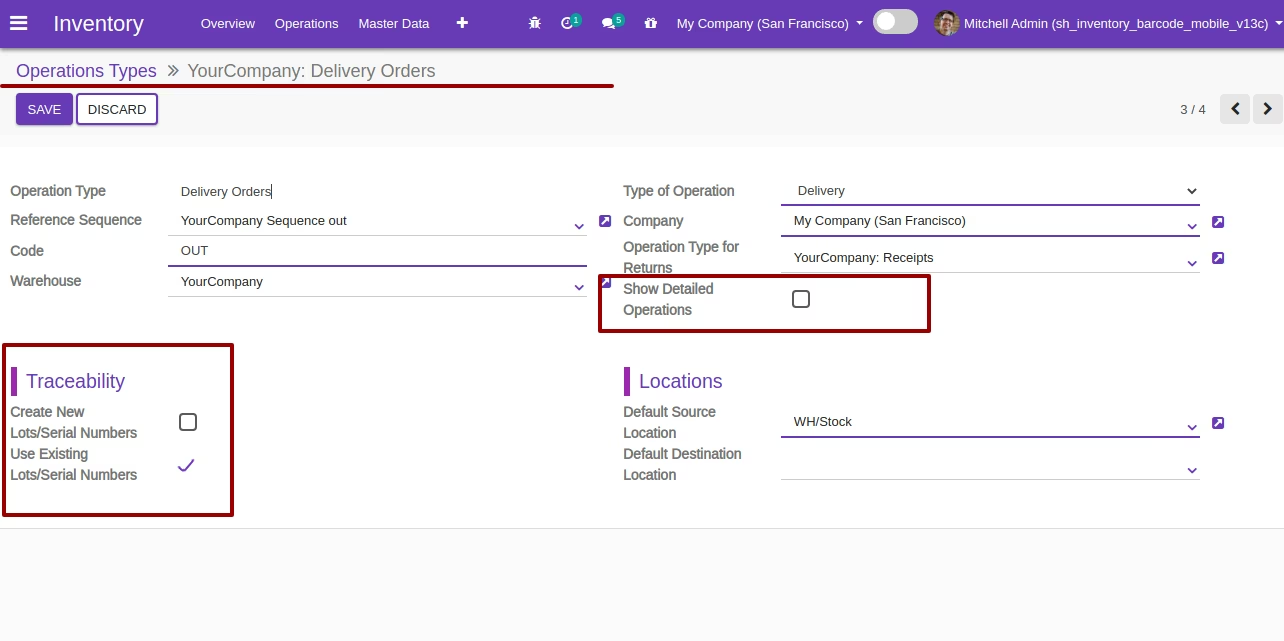
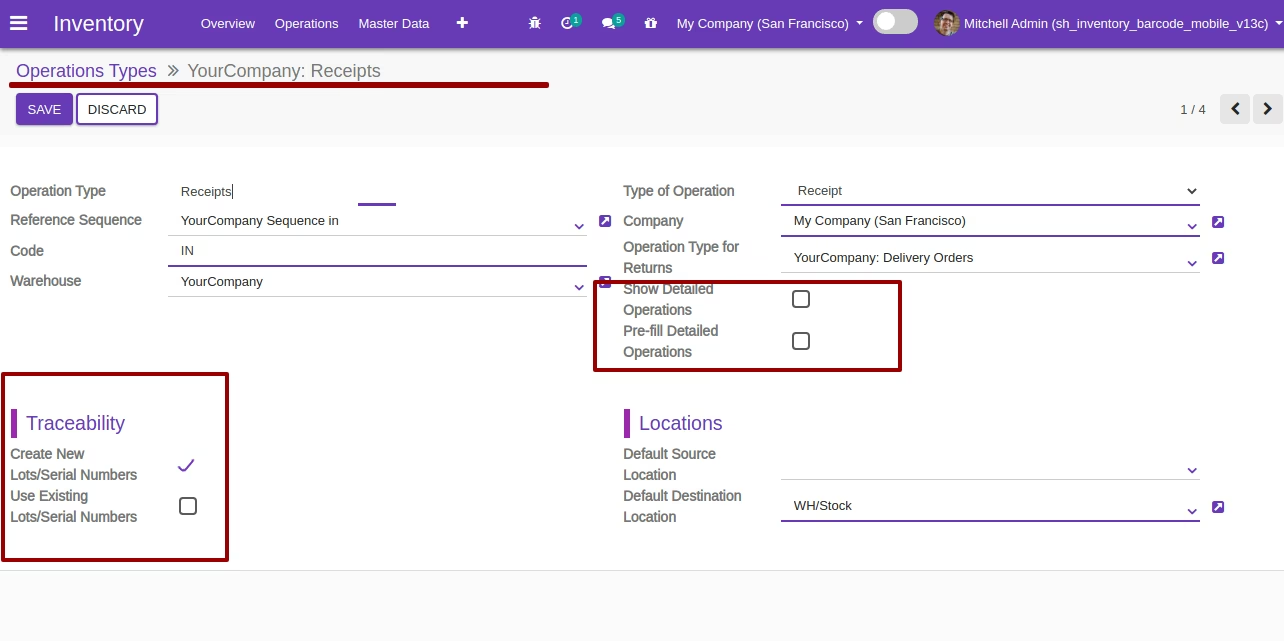
Select product traceability and tick the tickbox "Show Detailed Operations" to show detailed operation in the delivery orders.
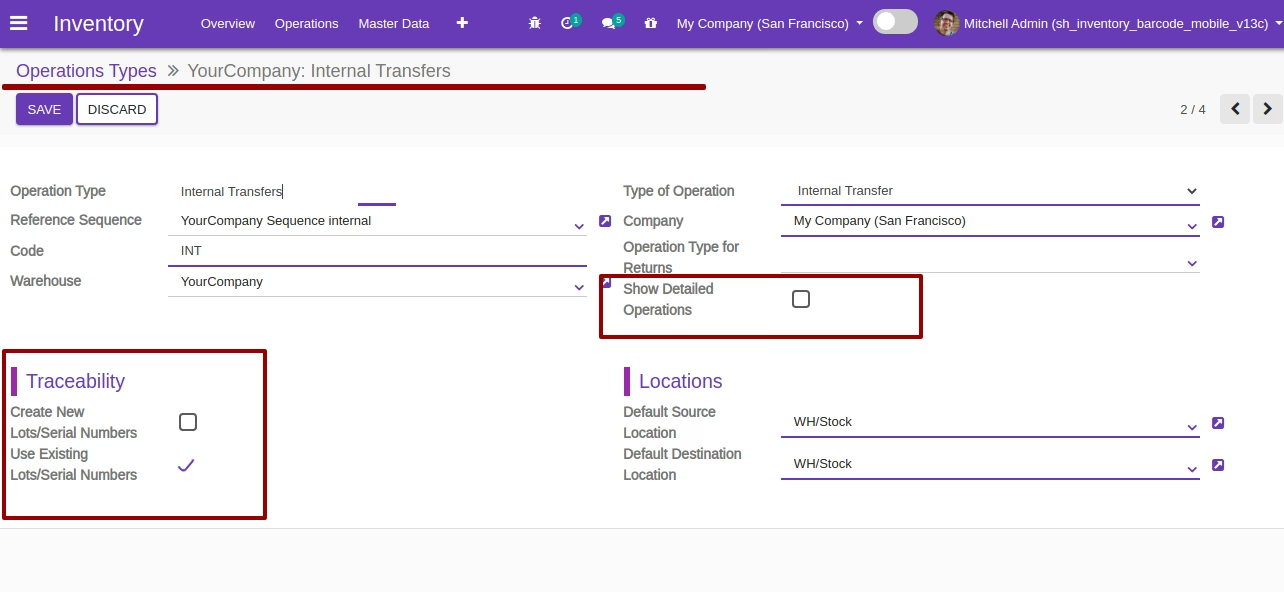
Select product traceability and tick the tickbox "Show Detailed Operations" to show detailed operation in the internal transfers.
Select product traceability and tick the tickbox "Show Detailed Operations" to show detailed operation in the receipt.
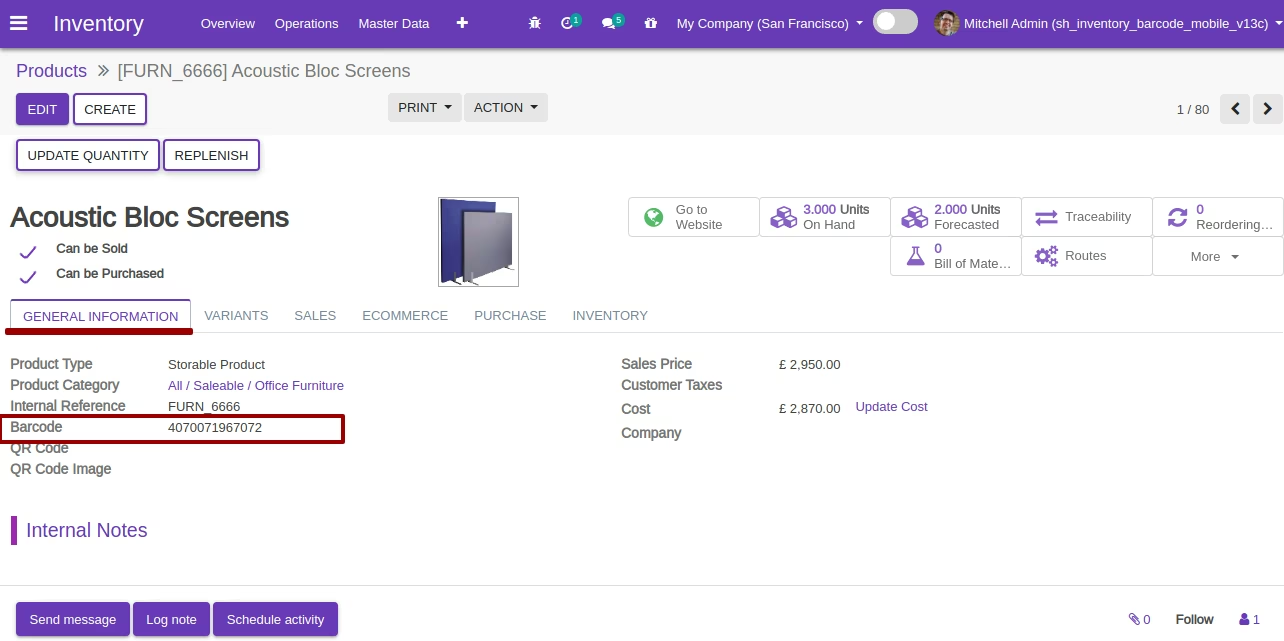
You can see the product with a barcode number.
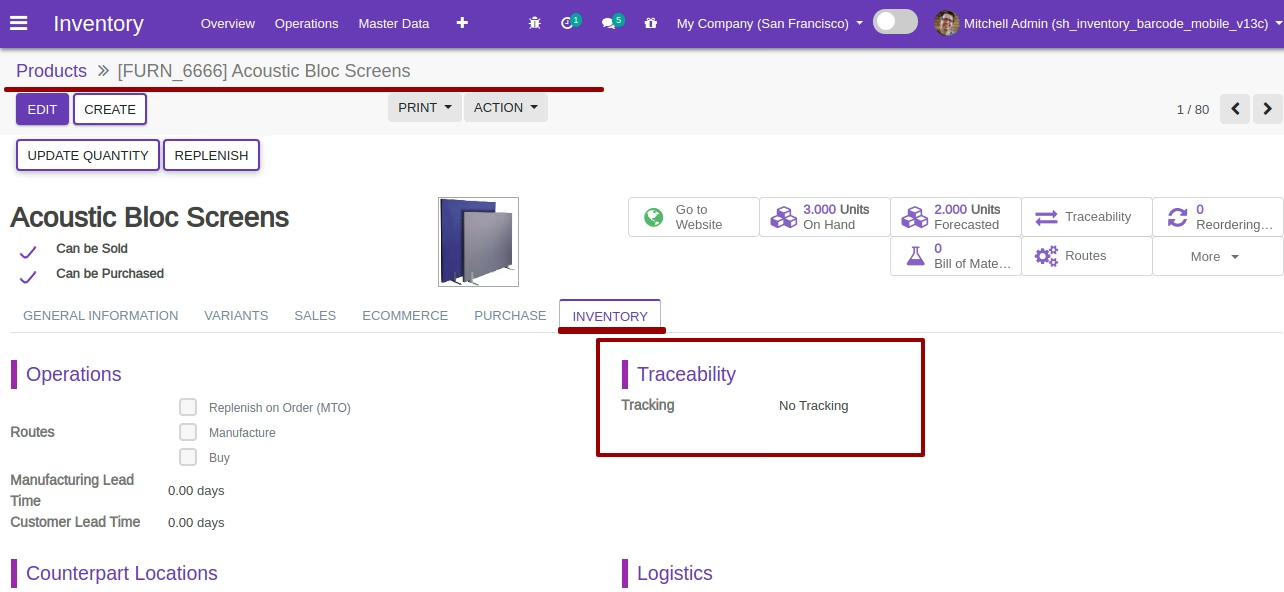
Select product with traceability "No Tracking" and you can see a product with none traceability.
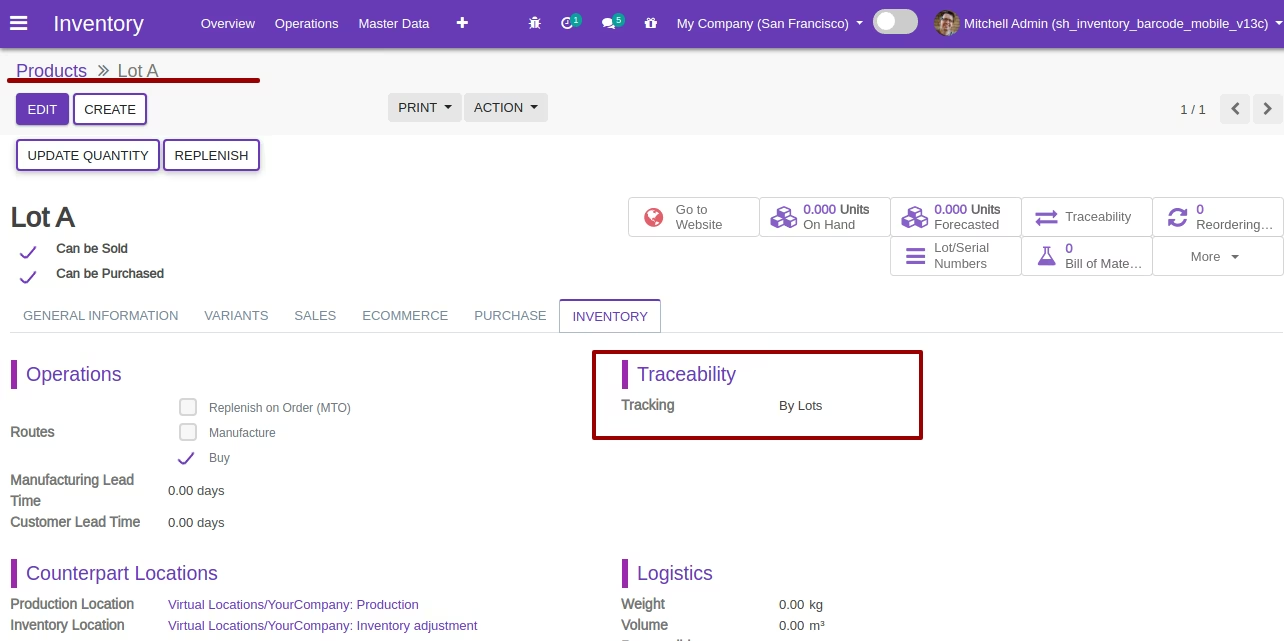
Select product traceability "By Lot Numbers" if you want to track product in Lot.
Select product traceability "By Unique Serial Number" if you want to track the product by its unique serial number.
Purchase Order To Shipment Process
Purchase order products with the Lot/Serial Number.
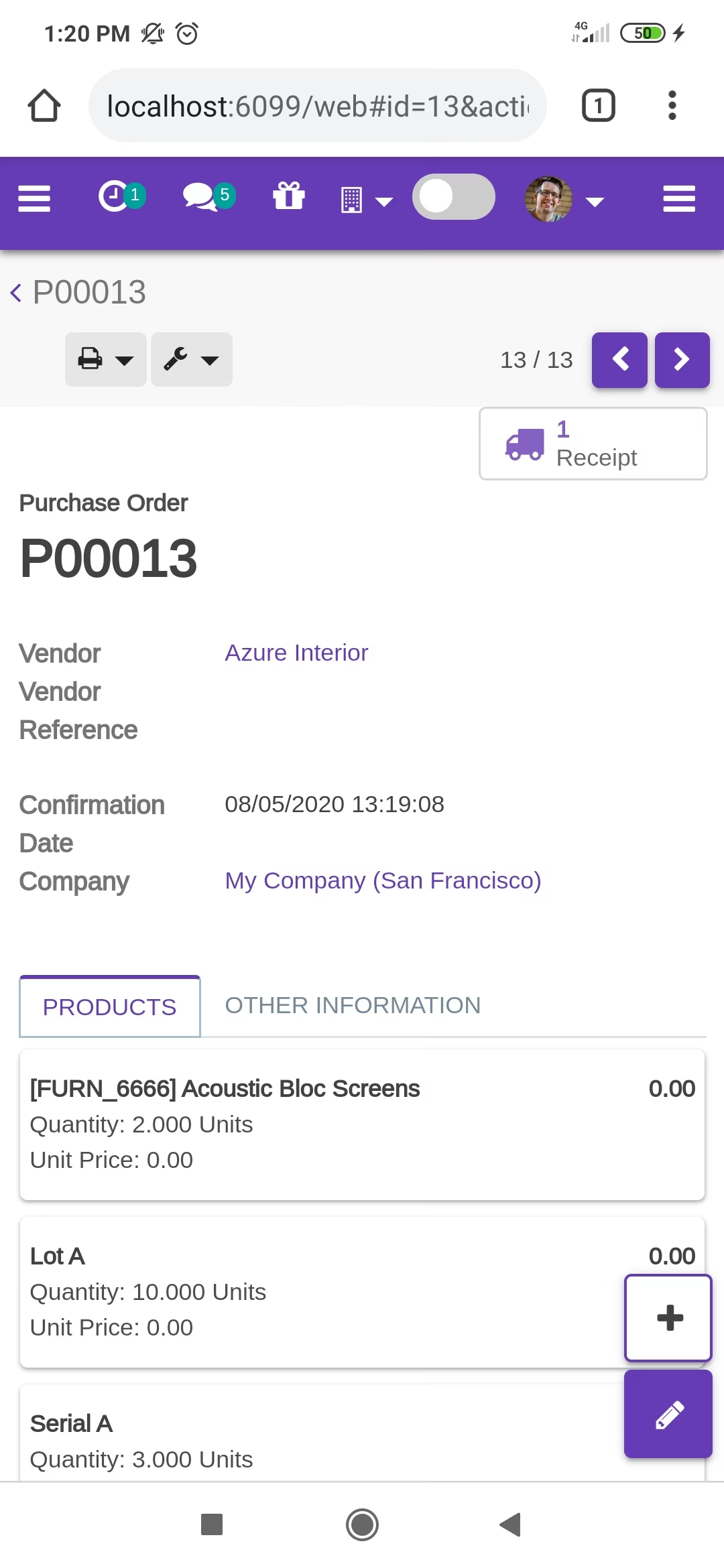
In the "Detailed Operations," you can scan your Barcode/QRCode. If the same Barcode/QRCode scanned again than done quantity will be increased by one. If another Barcode/QRCode is scanned than will be another entry for new Lot/Serial Number in the next line.
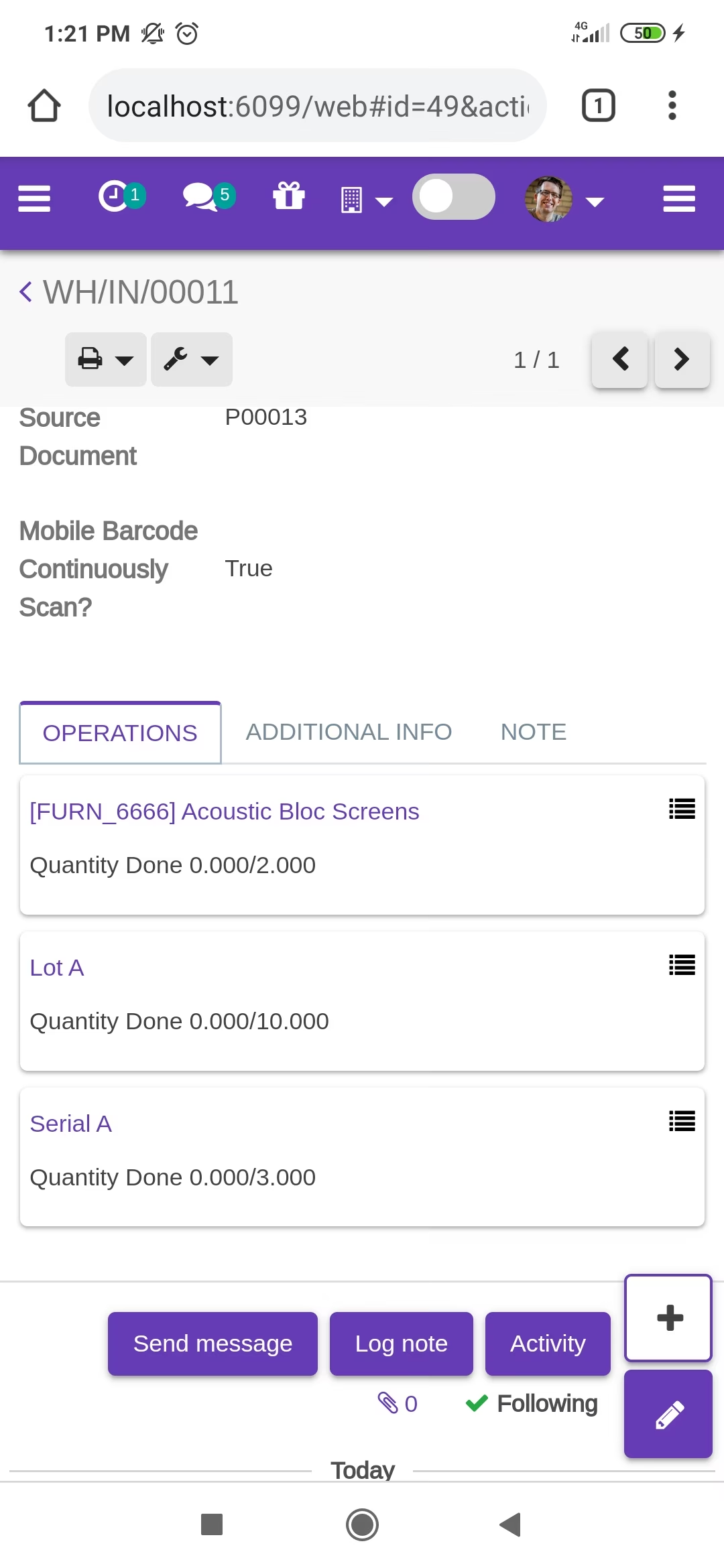
Tap the "Start" button to scan on mobile.
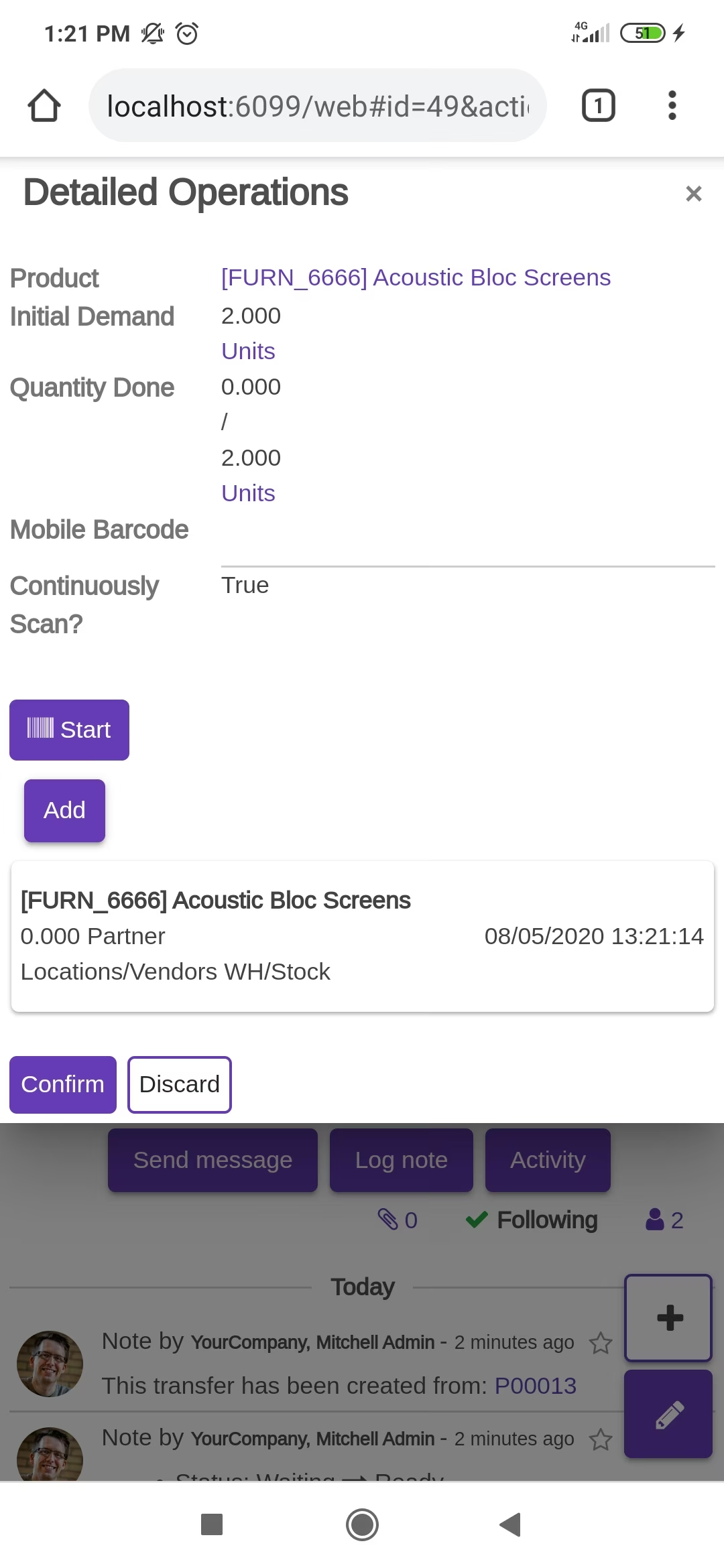
The "Detailed Operations" wizard opens, which shows product details.
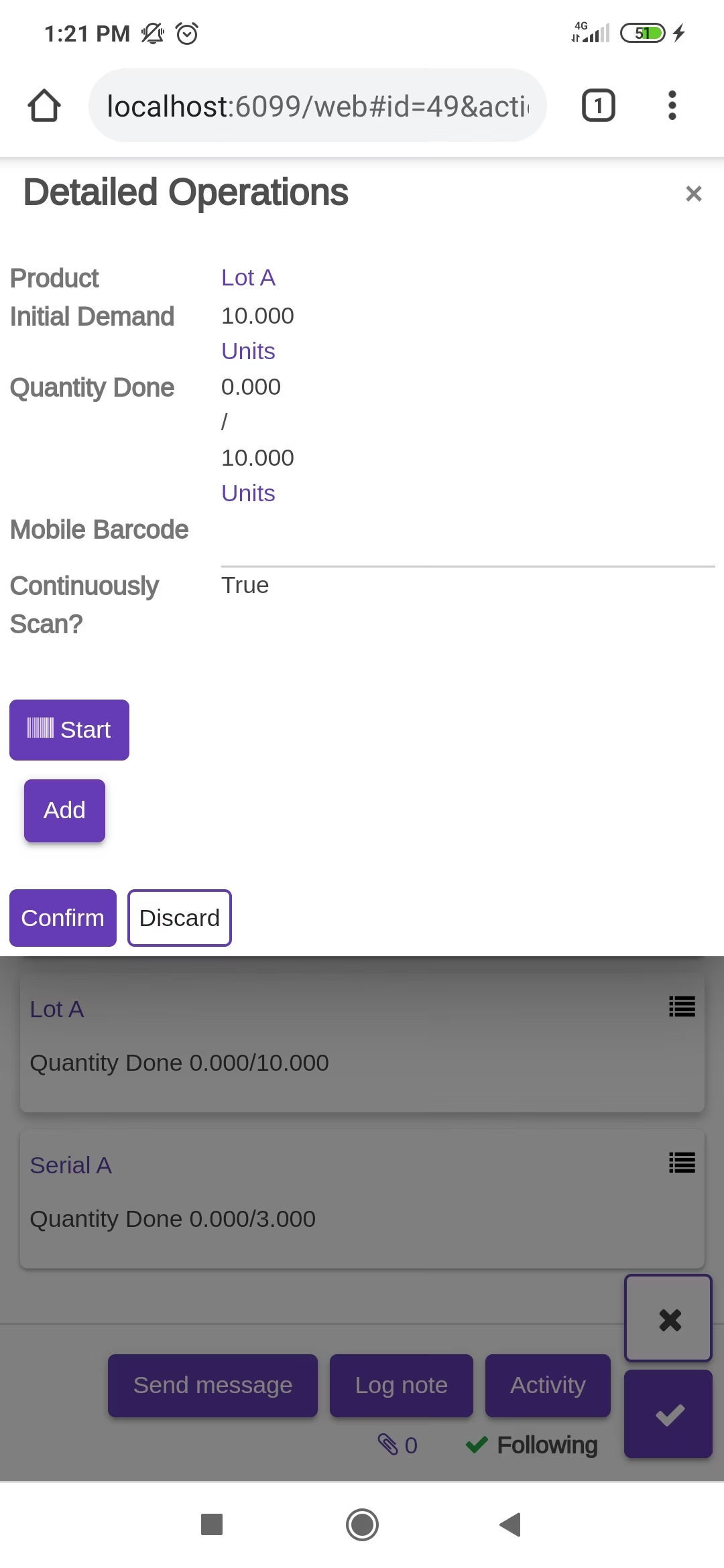
The scanned product automatically added in products if the product already existed then ordered qty increased by 1.
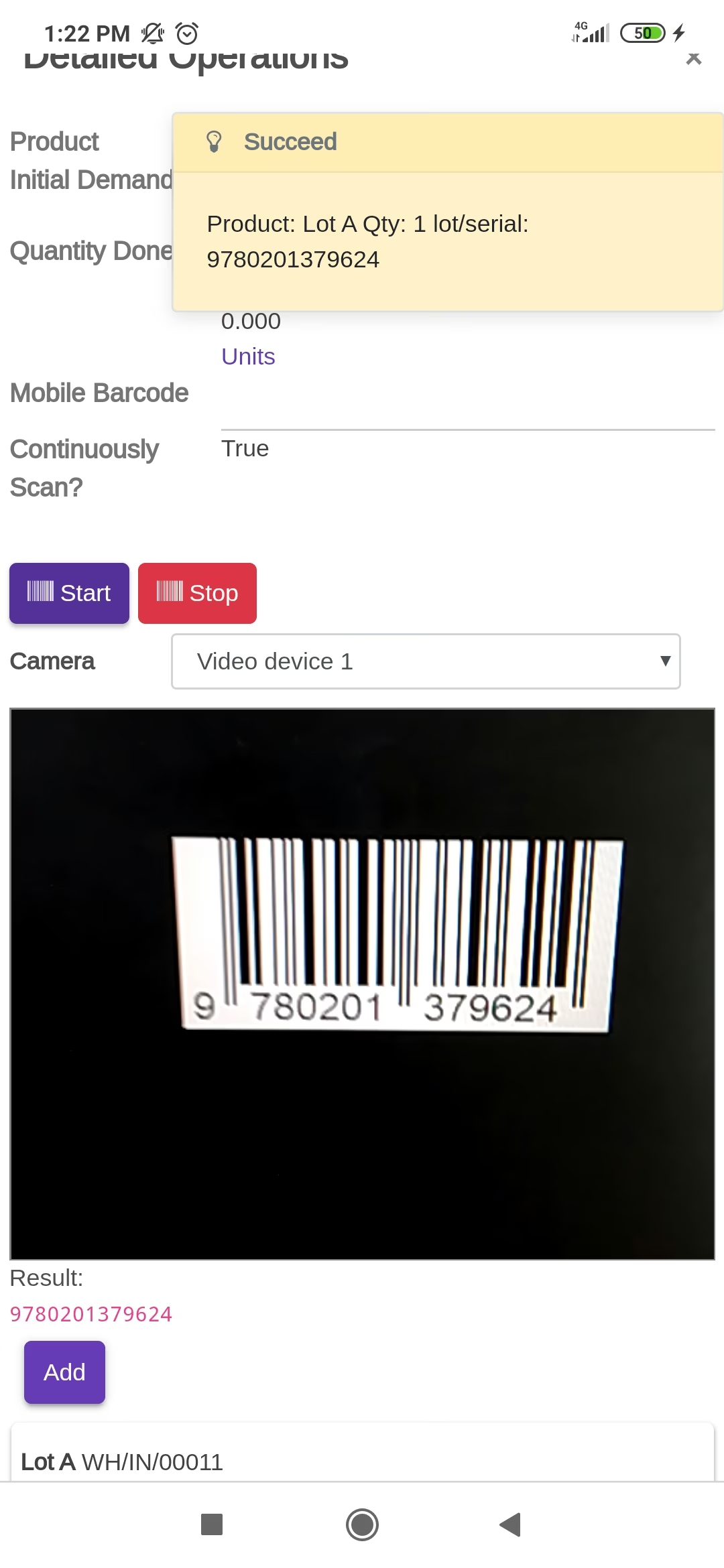
The scanned product automatically added in products if the product already existed then ordered qty increased by 1.
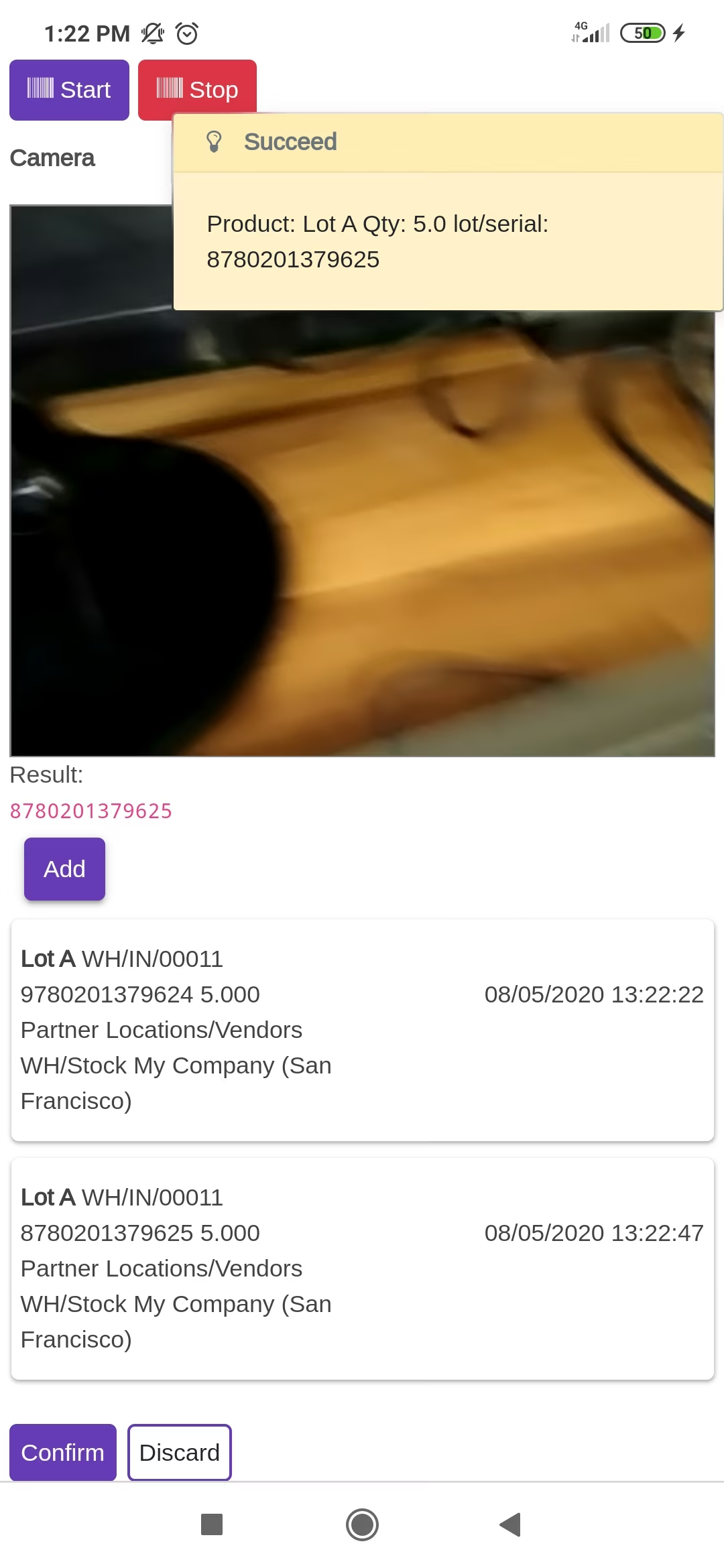
The scanned product automatically added in products if the product already existed then ordered qty increased by 1.
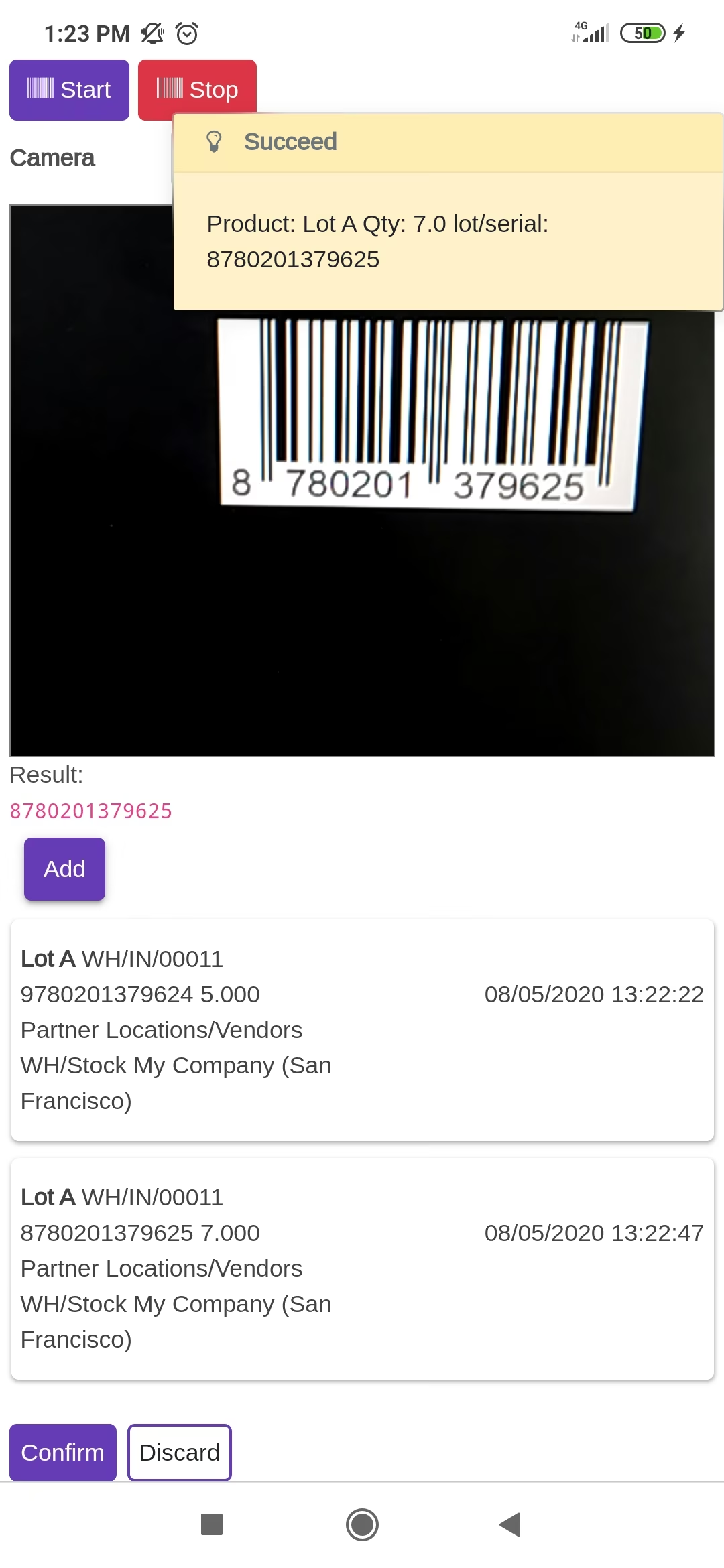
The scanned product automatically added in products, If another Barcode/QRCode is scanned than will be another entry for Serial Number in the next line.
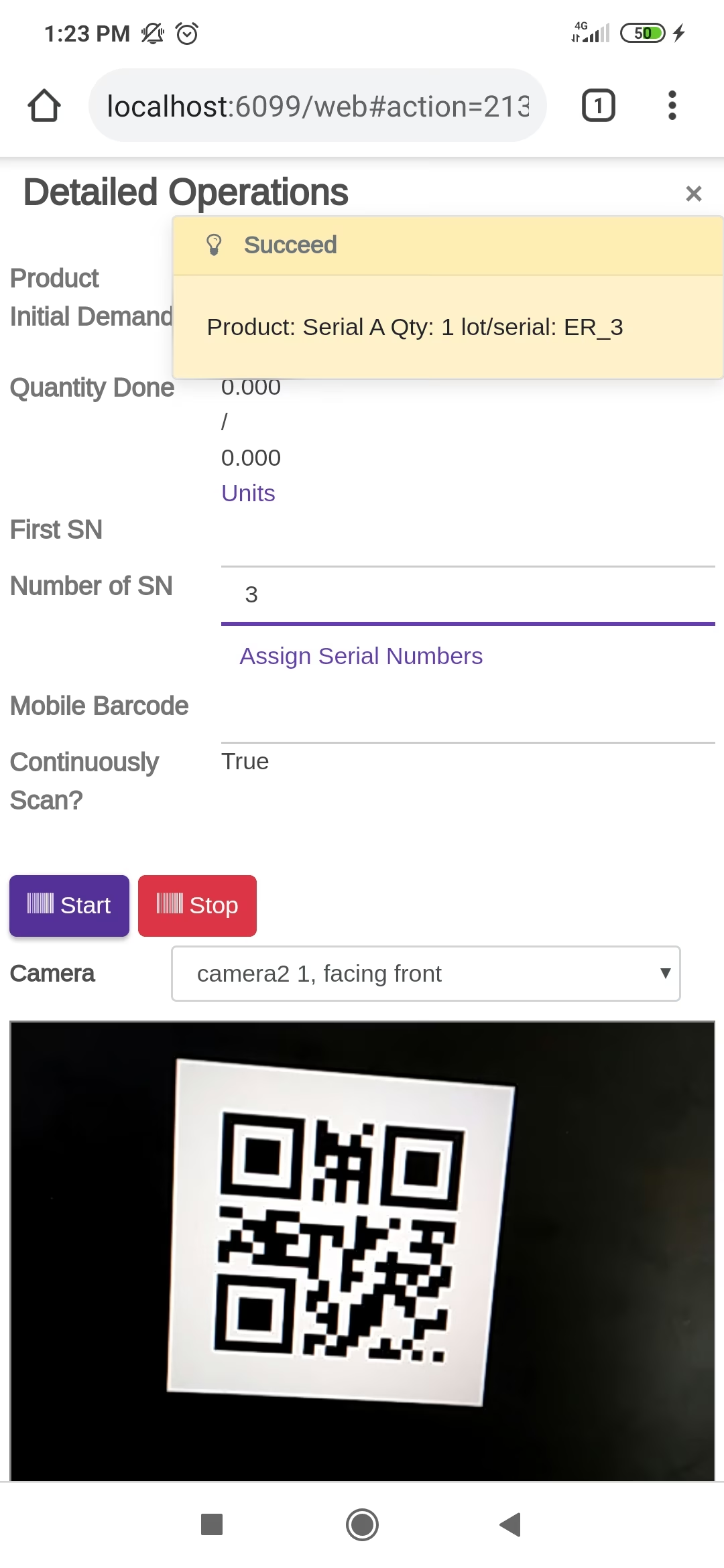
The error message is given if no matching product found..
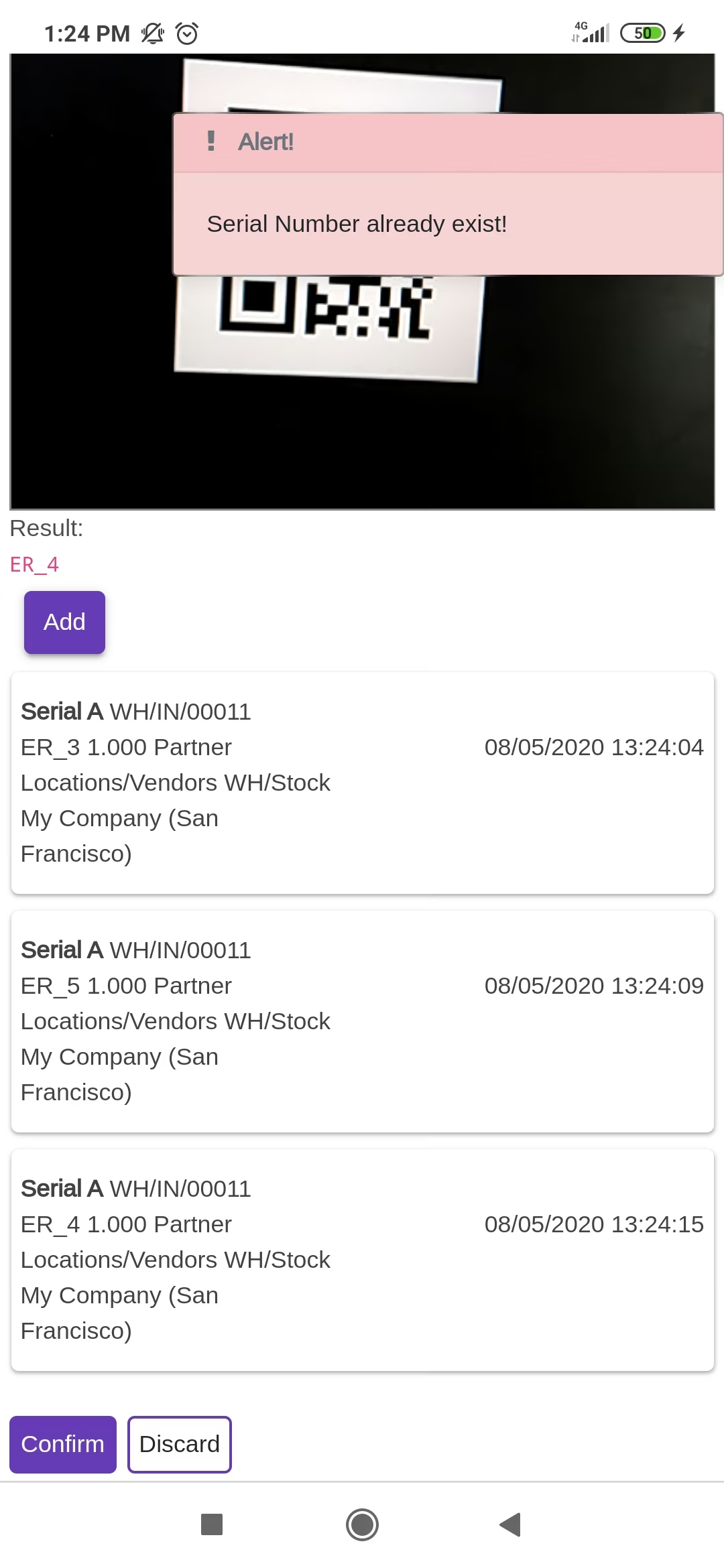
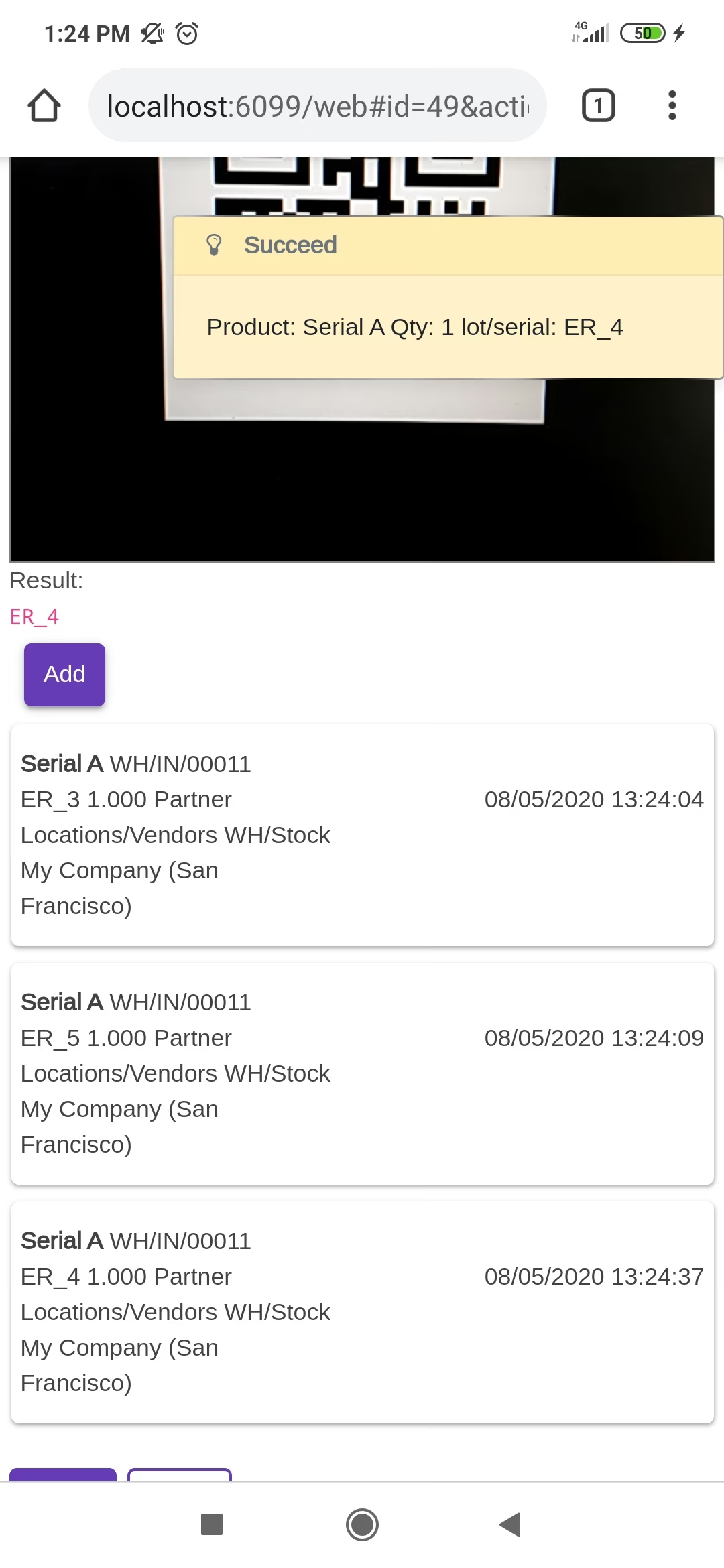
The scanned product automatically added in products, If another Barcode/QRCode is scanned than will be another entry for Serial Number in the next line.
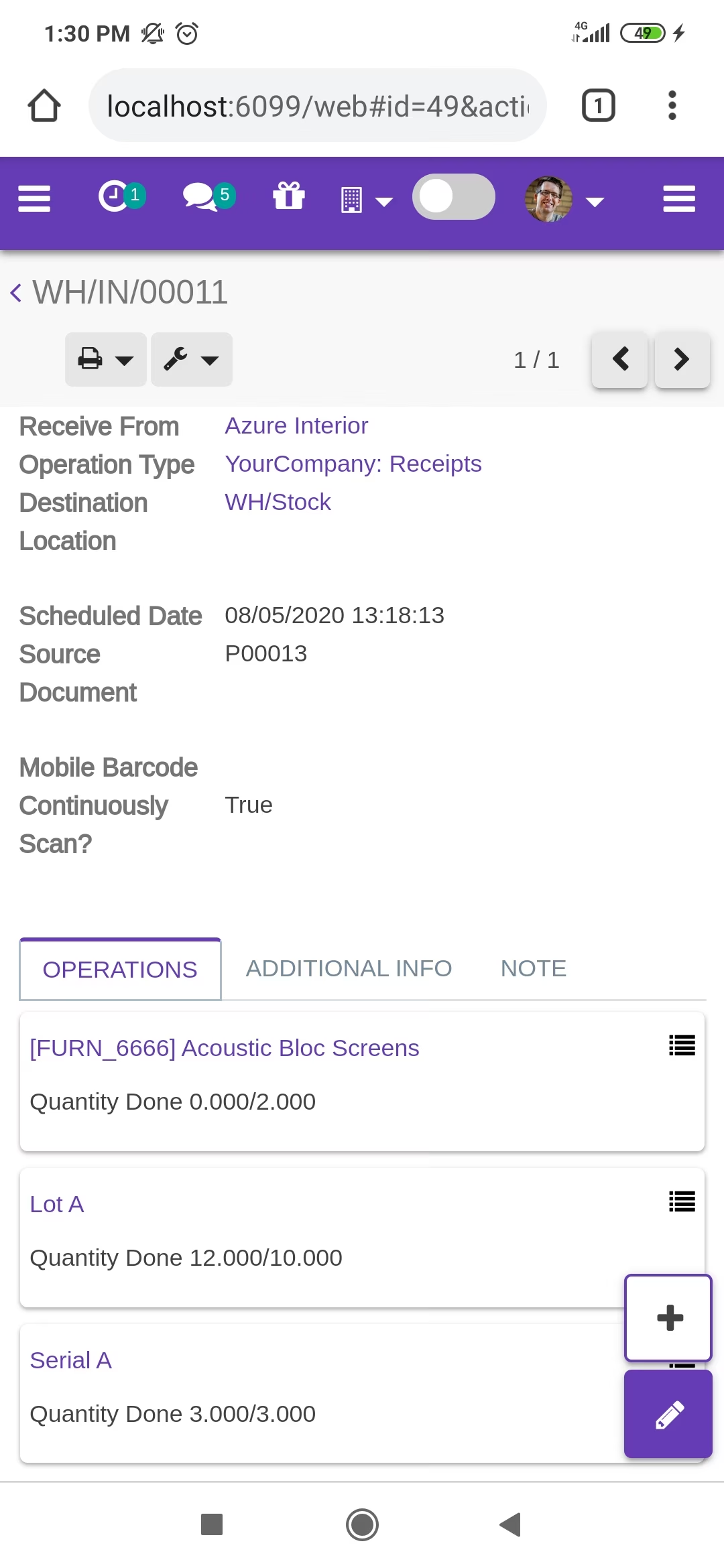
Before added products look like below.
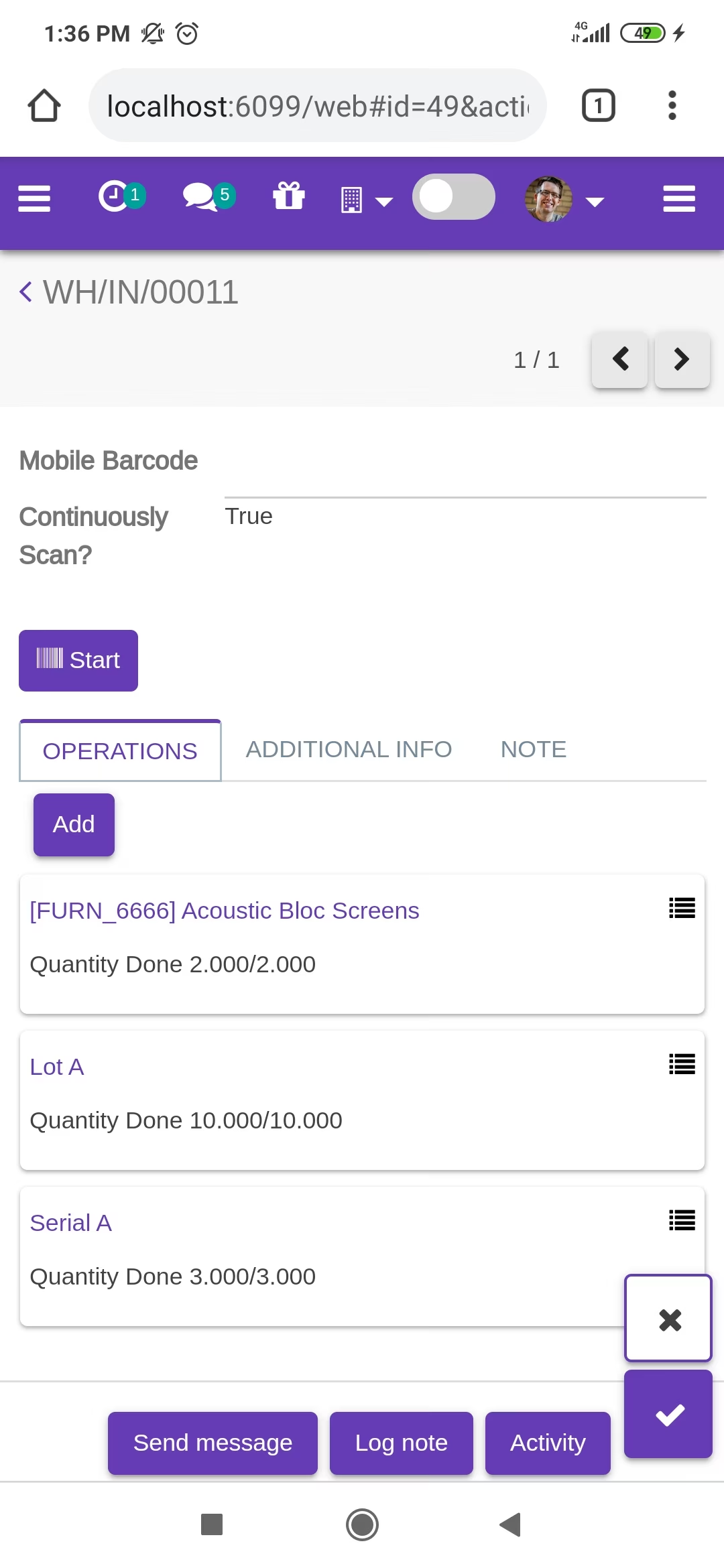
The added product looks like below.
Press the "Traceability" button to print that report.
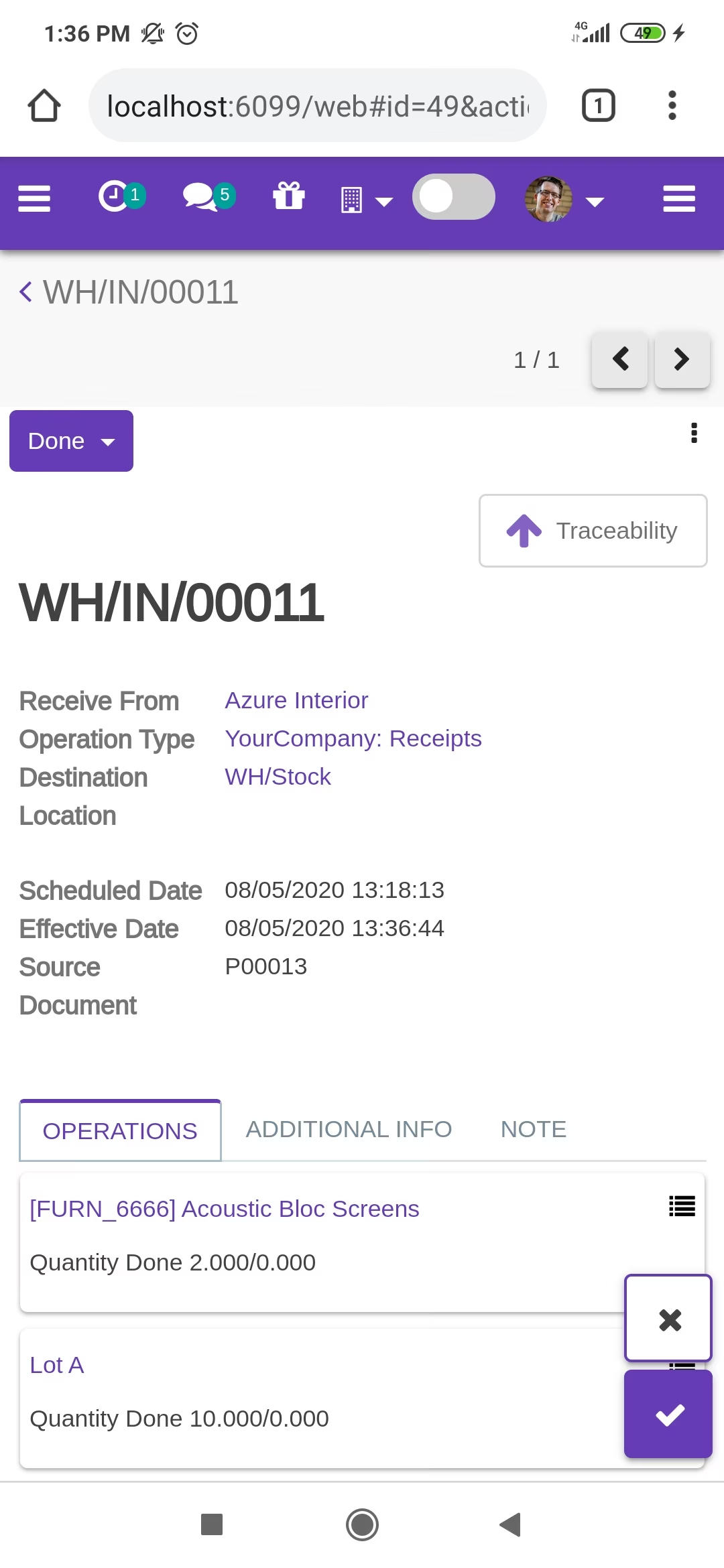
The "Traceability" report in the mobile view.
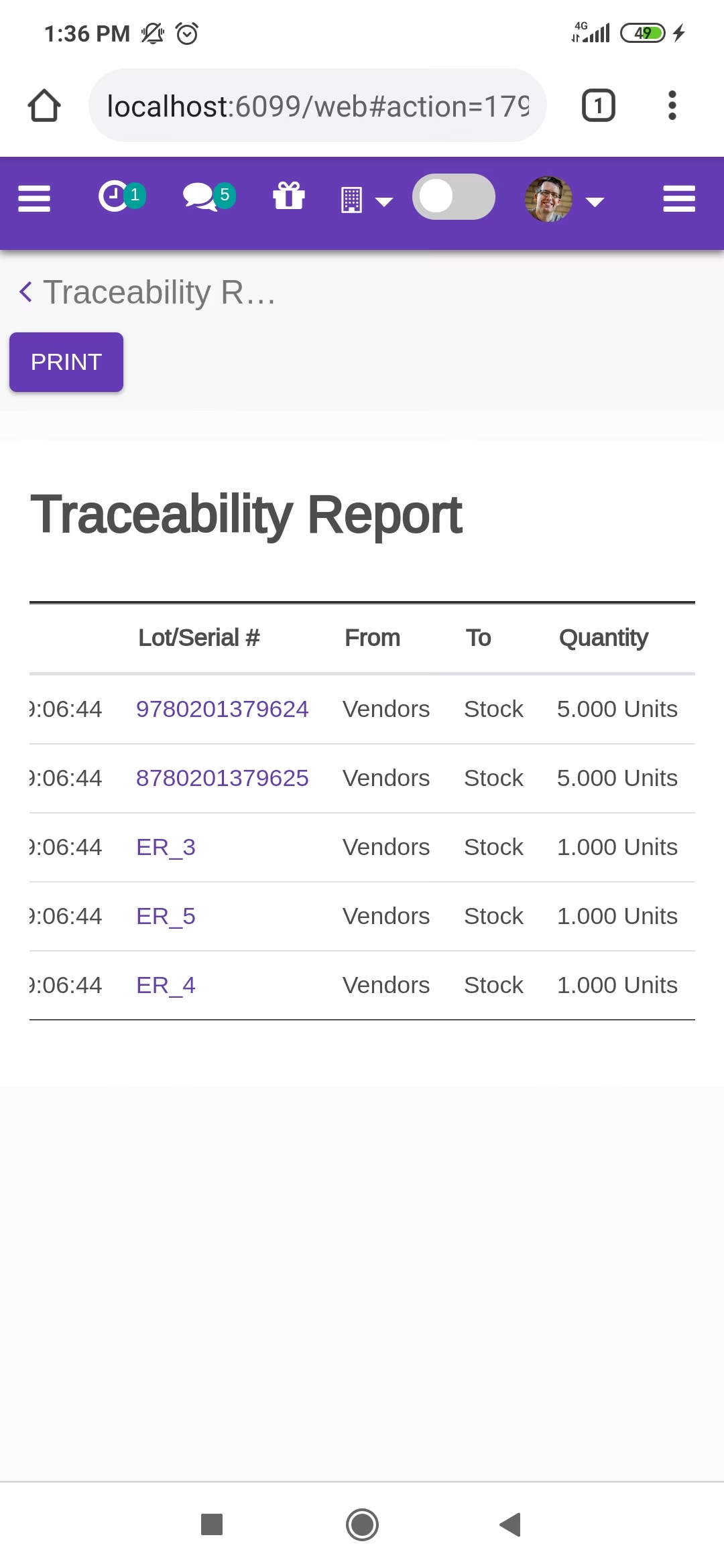
The "Traceability" report in the desktop view.
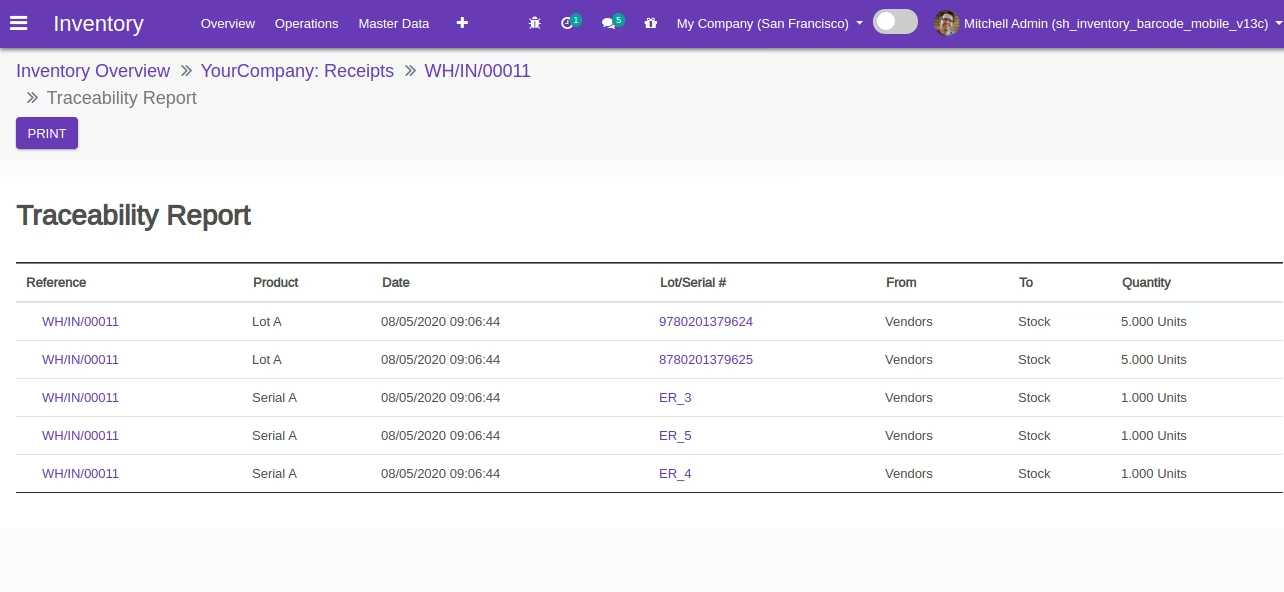
Sale Order To Delivery Order Process
Sale order products with the Lot/Serial Number.
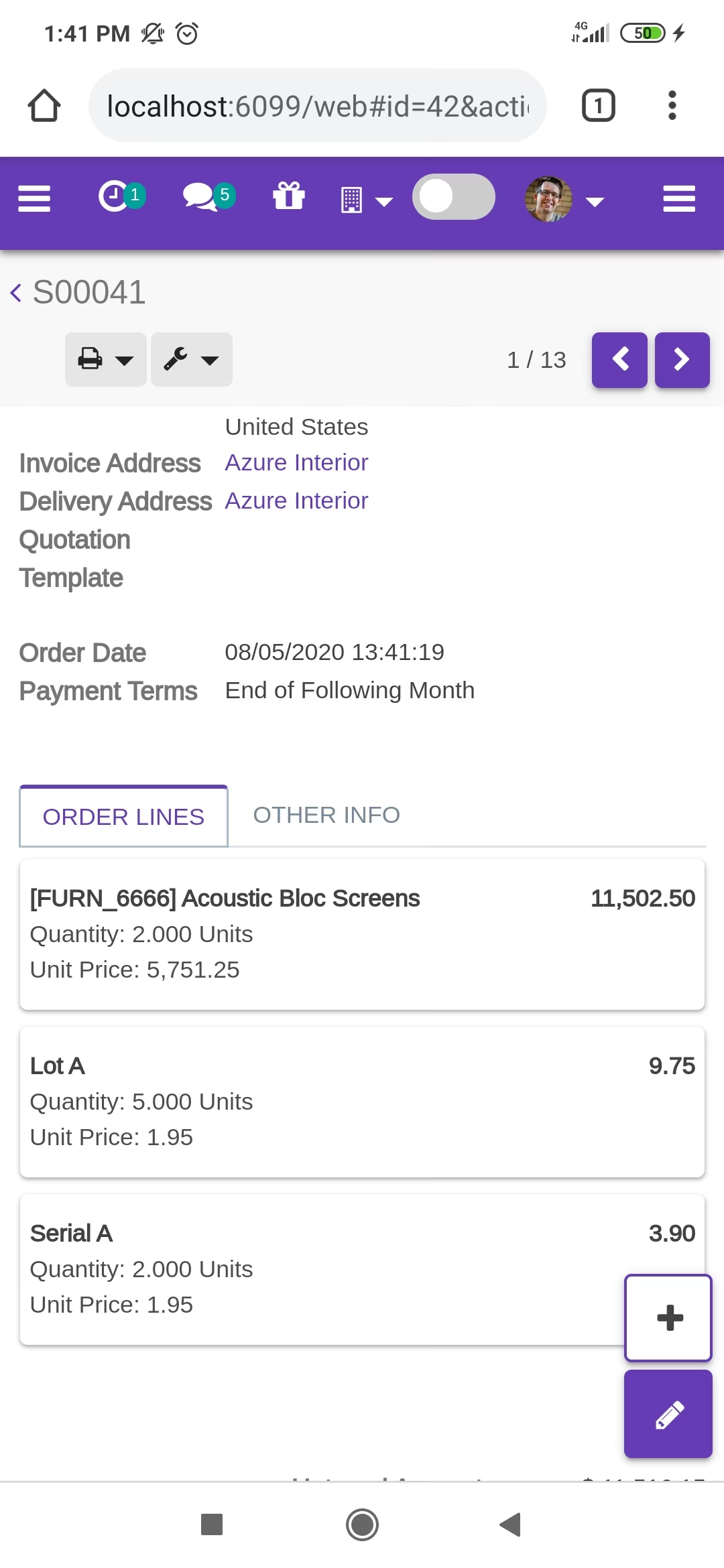
Confirmed sale order with products.
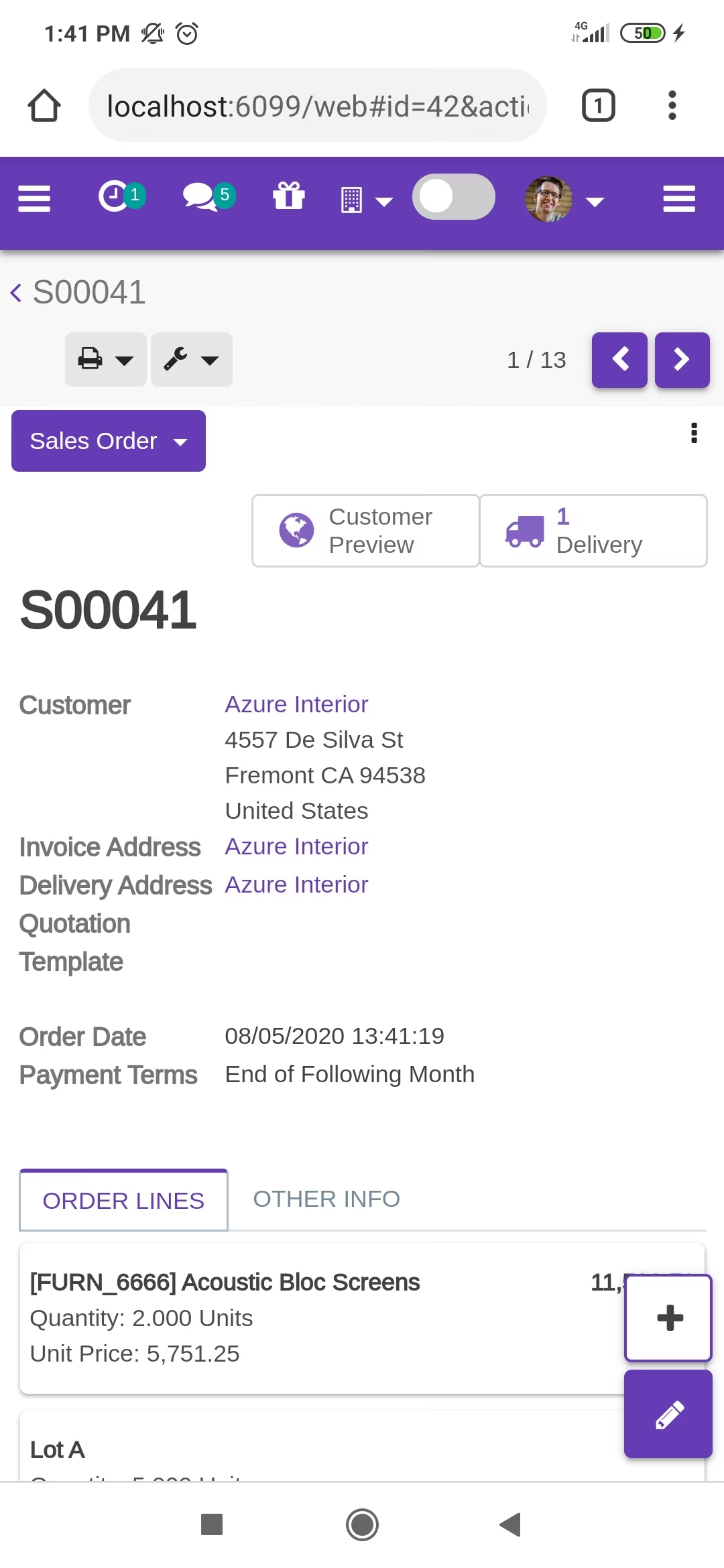
Delivery order with products.
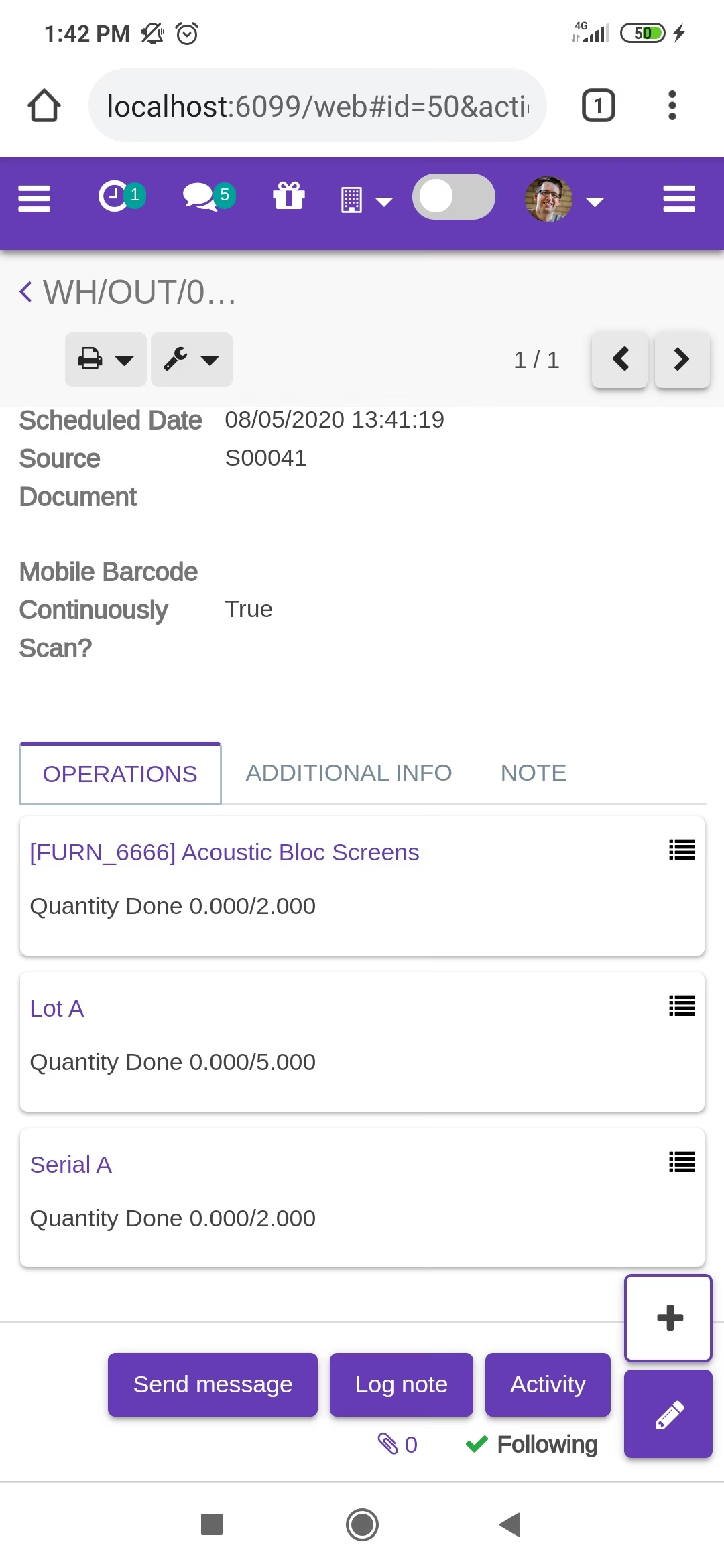
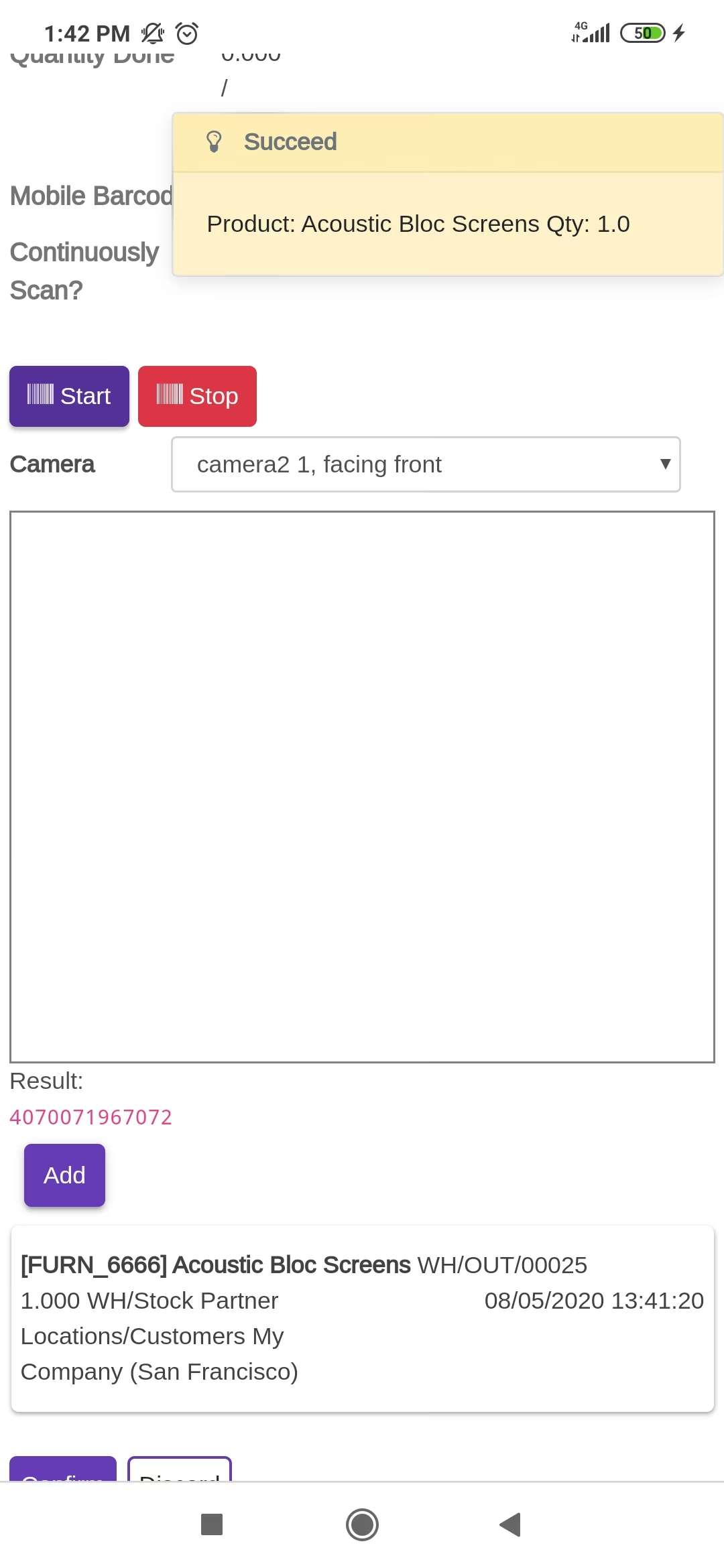
The scanned product automatically added in products if the product already existed then ordered qty increased by 1.
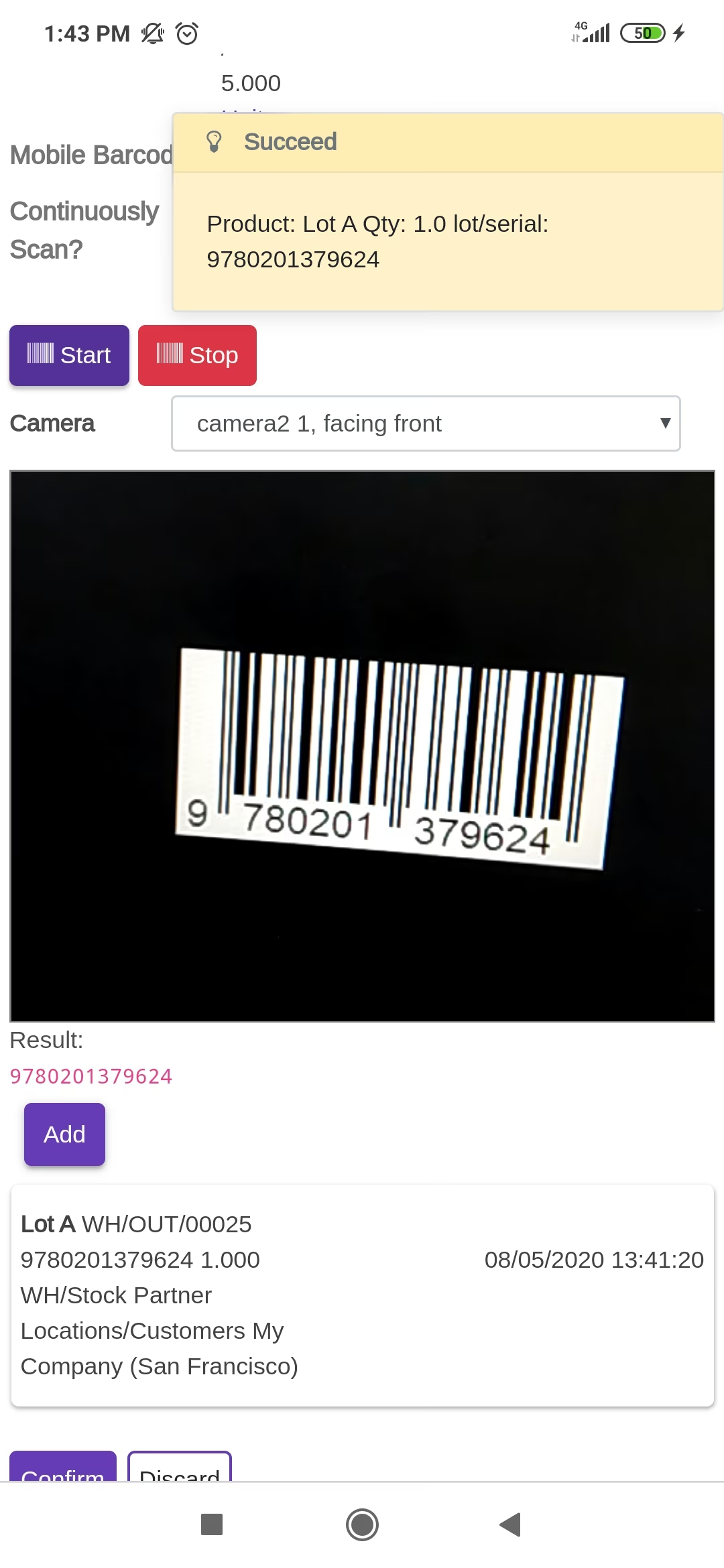
The scanned product automatically added in products if the product already existed then ordered qty increased by 1 & If another Barcode/QRCode is scanned than will be another entry for new Lot Numbers in the next line.
The error message is given if no matching product found.
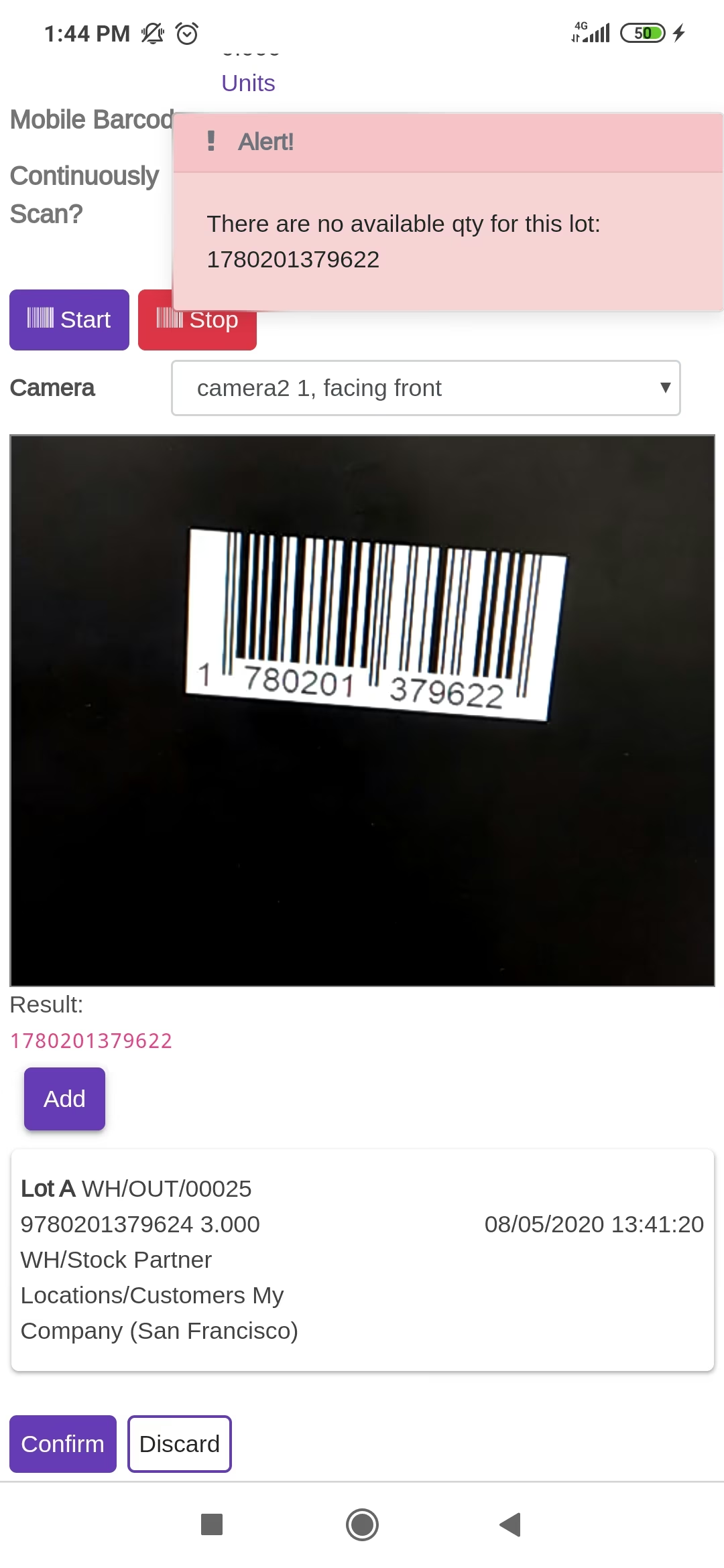
The scanned product automatically added in products if the product already existed then ordered qty increased by 1 & If another Barcode/QRCode is scanned than will be another entry for new Lot Numbers in the next line.
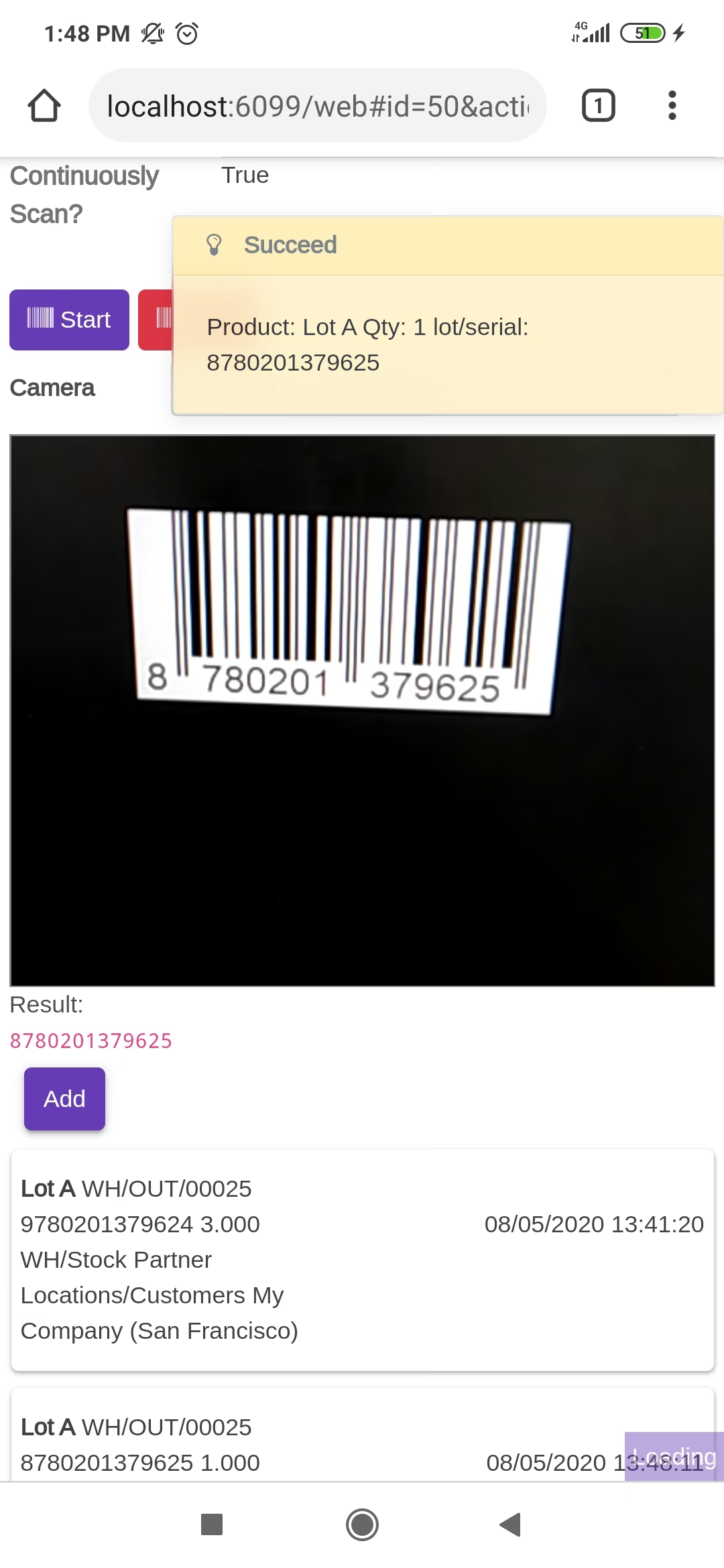
Now we scan other product.
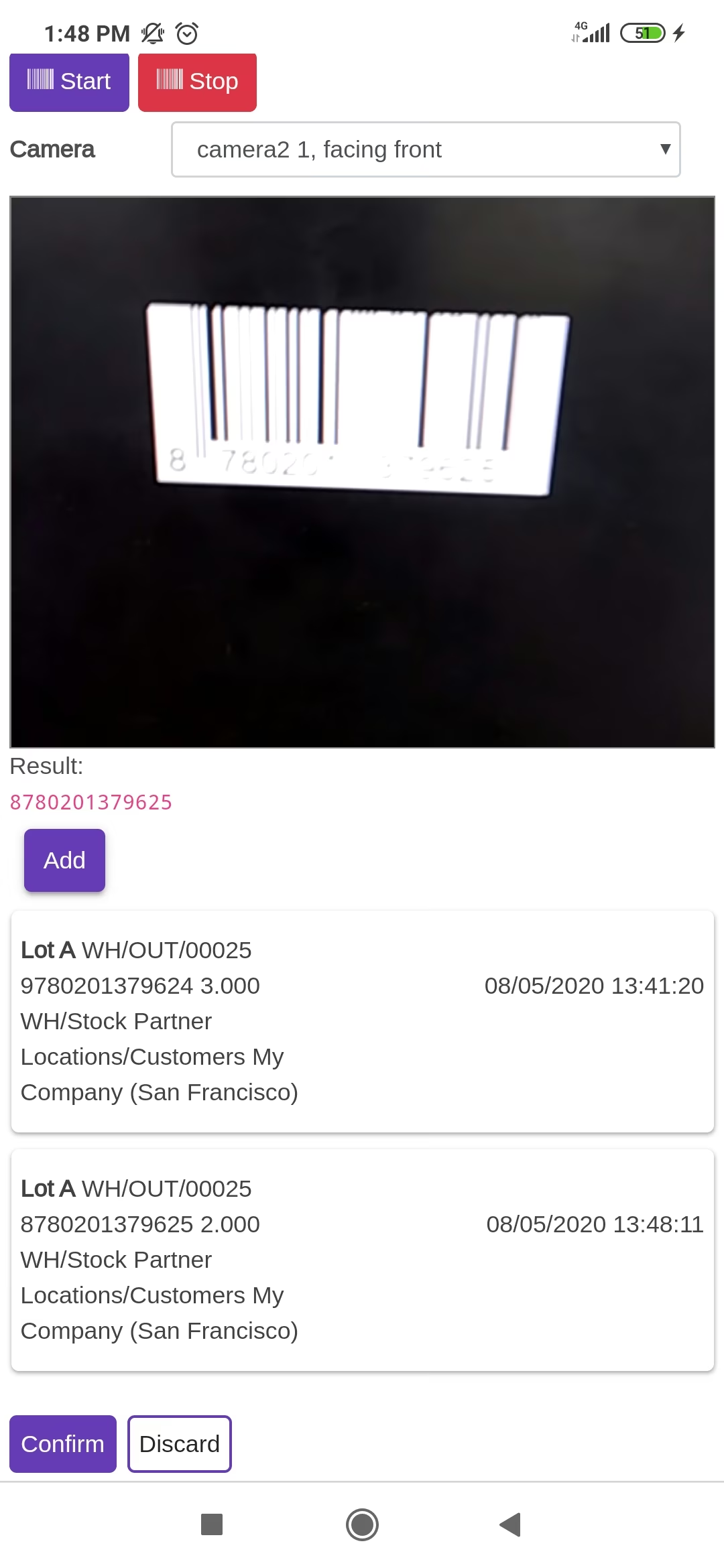
Tap the "Start" button to scan on mobile.
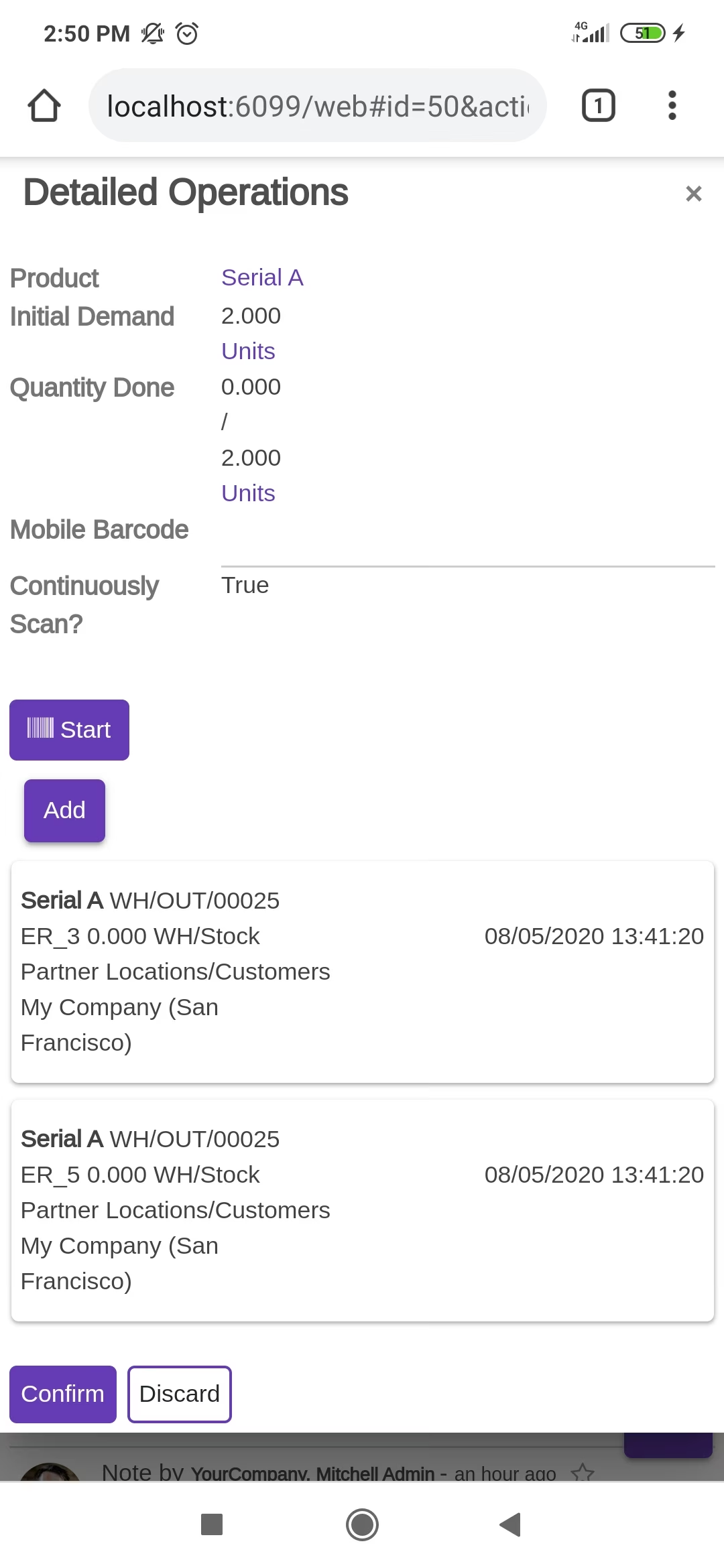
The scanned product automatically added in products, If another Barcode/QRCode is scanned than will be another entry for Serial Number in the next line.
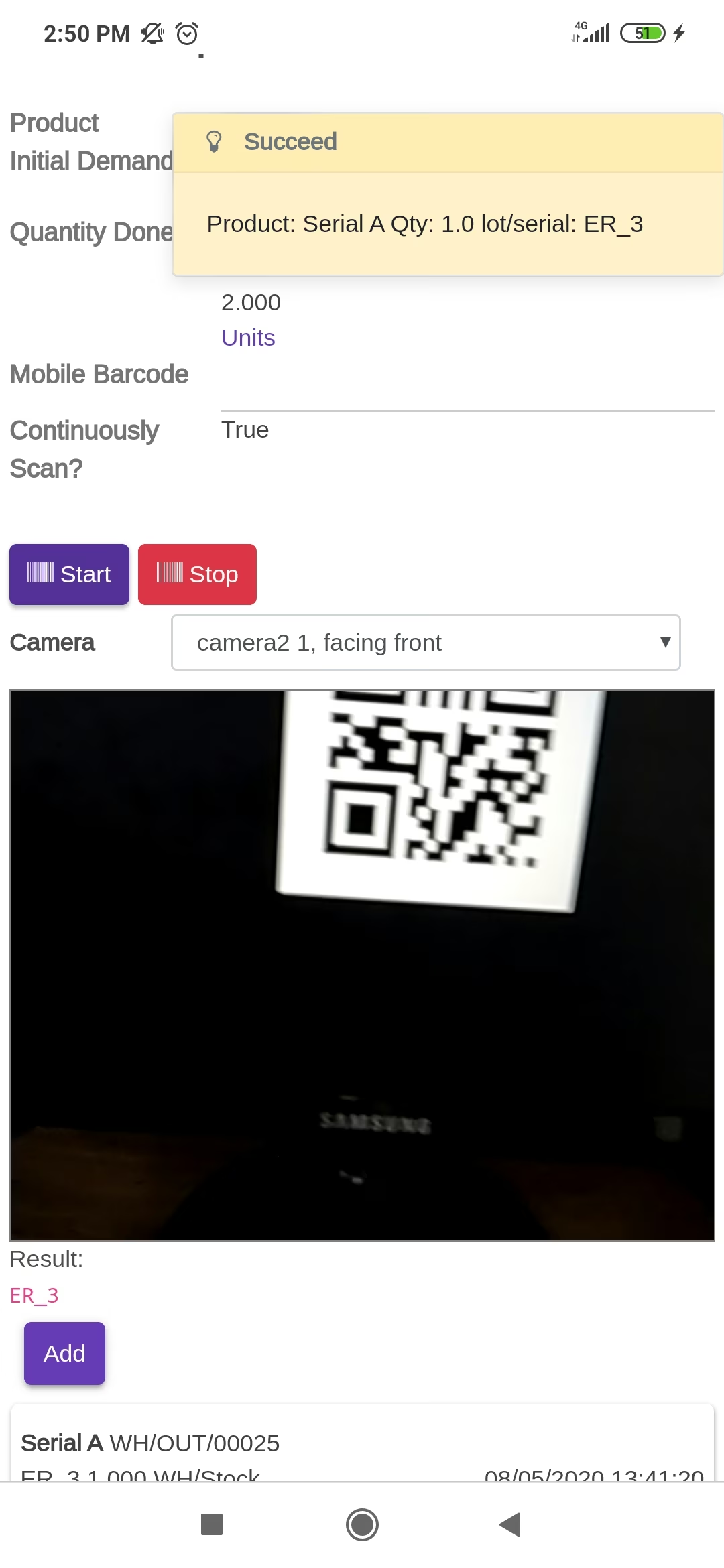
The error message is given if no matching product found.
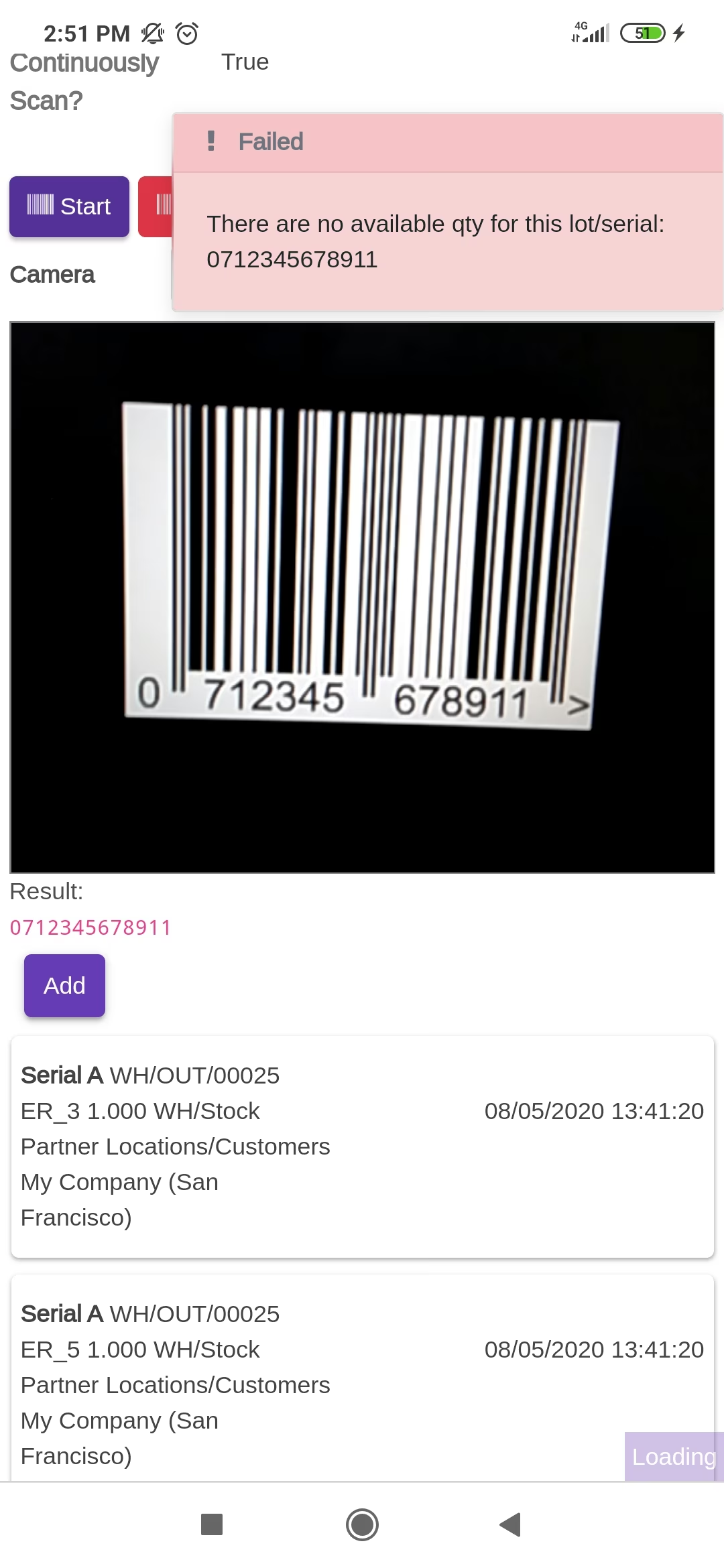
It generates popup on success and if you scan products after done all qty then it shows alert.
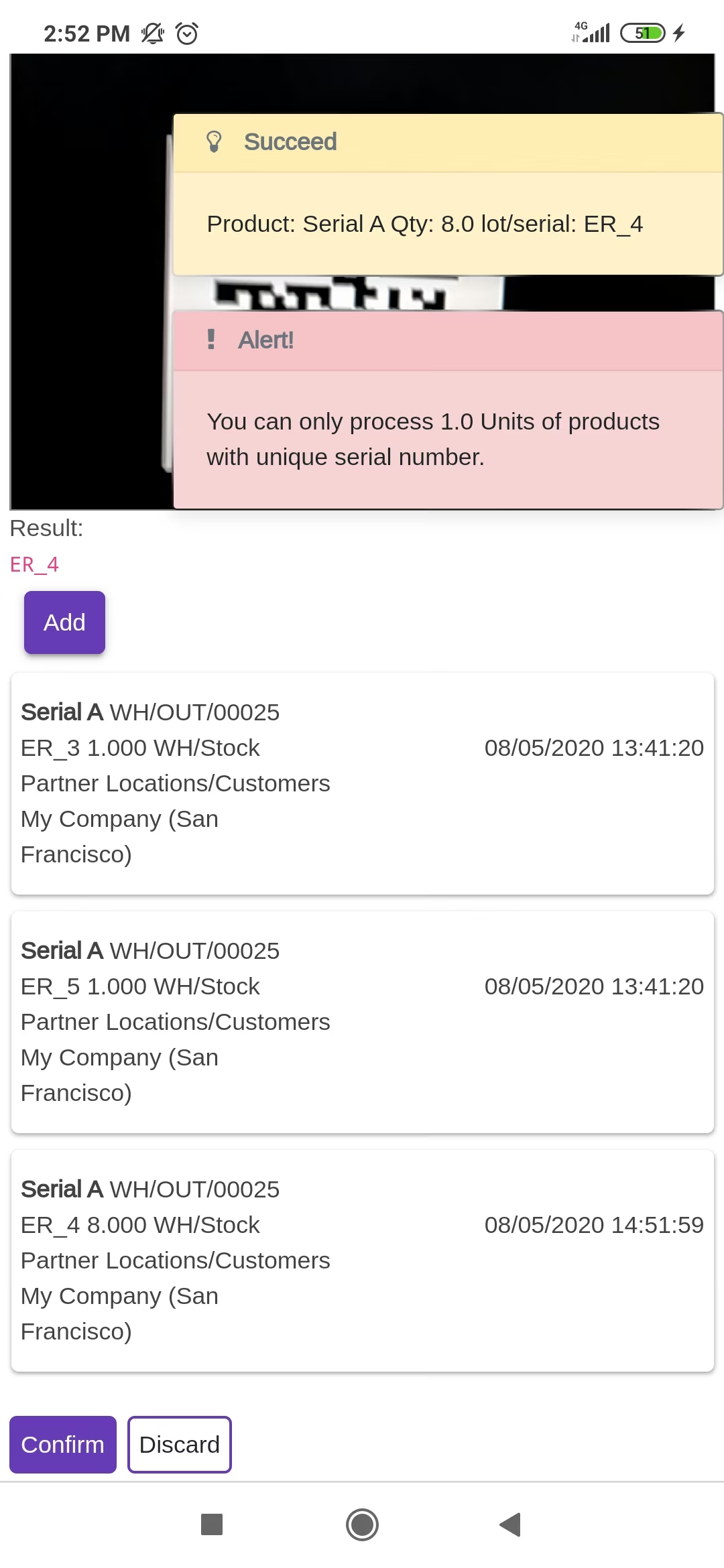
The added product looks like below.
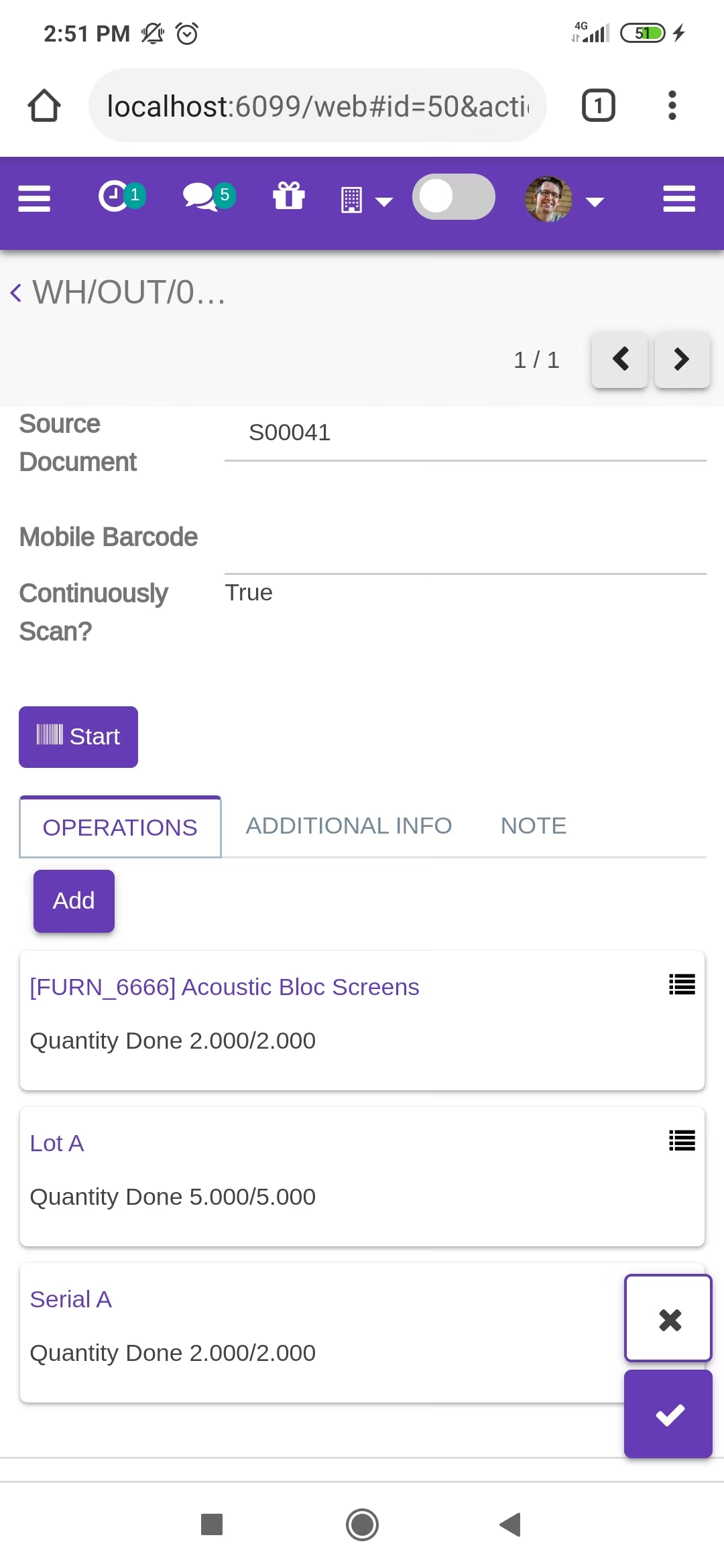
Press the "Traceability" button to print that report.
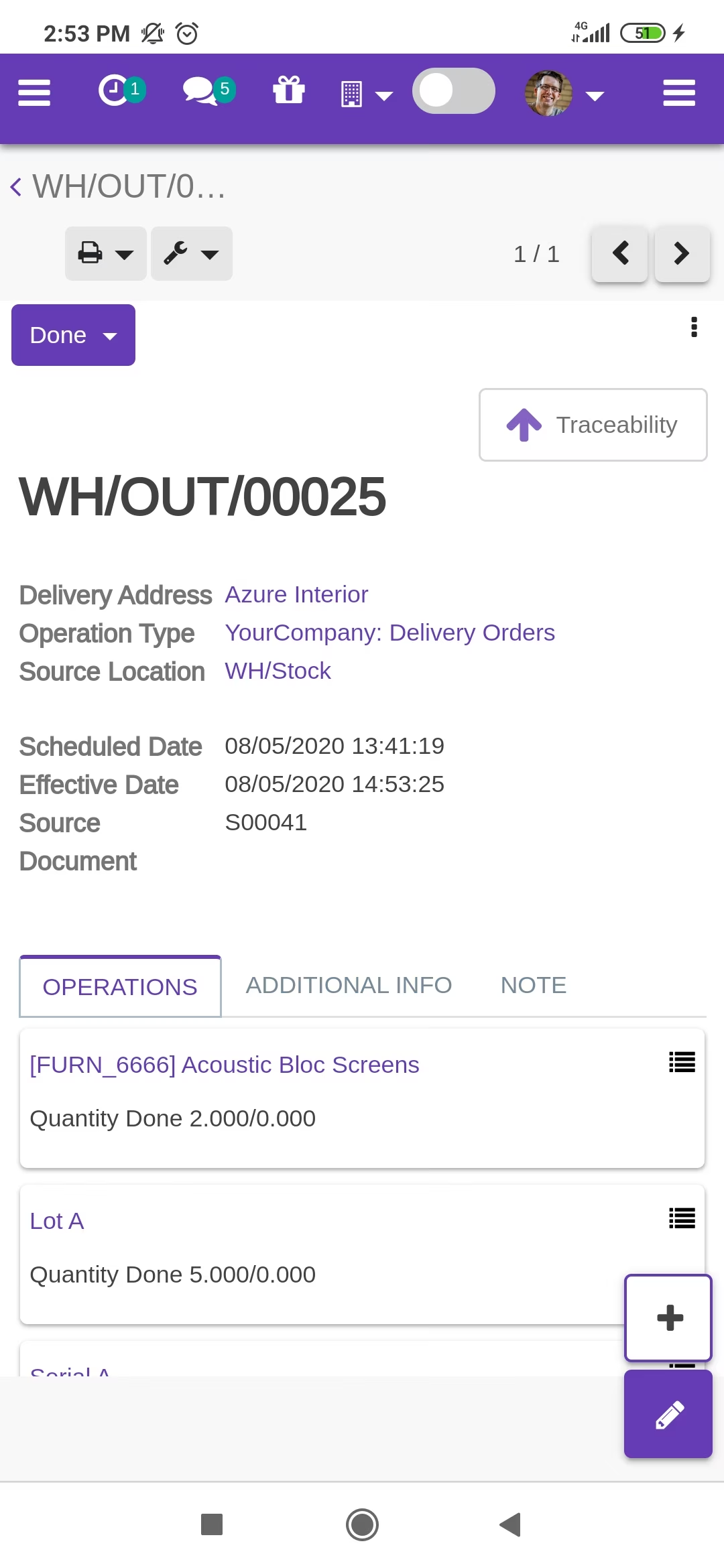
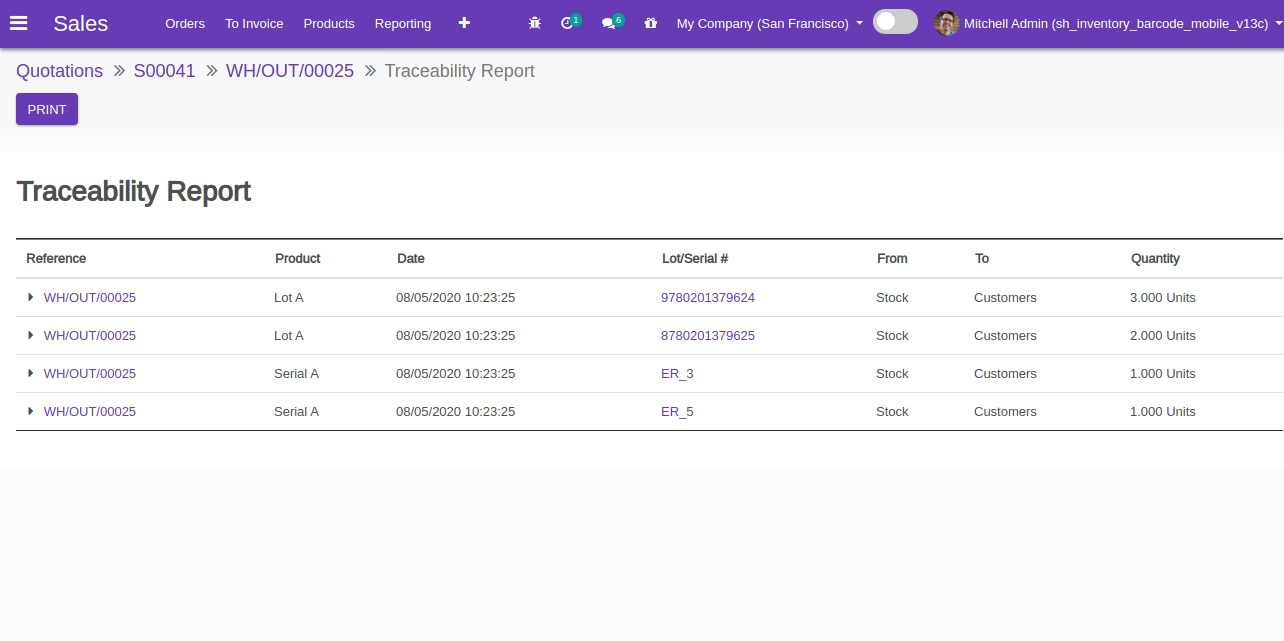
The "Traceability" report in the desktop view.
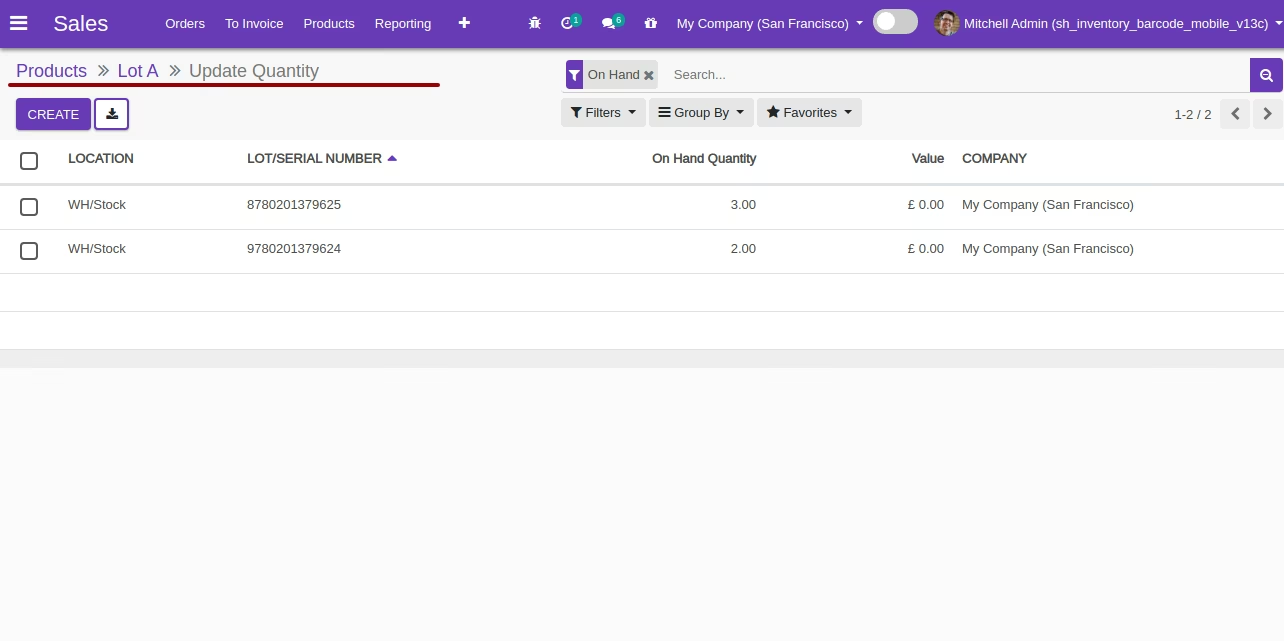
You can see the product on-hand quantity with traceability "By Lot Numbers".
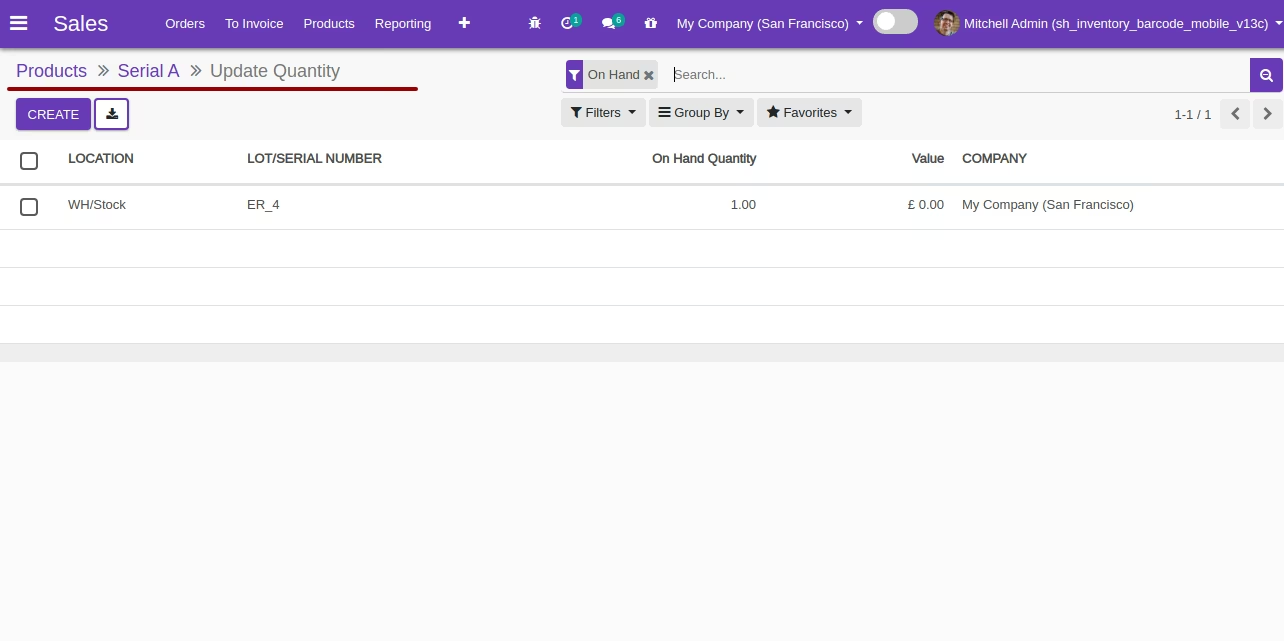
You can see the product on-hand quantity with traceability "By Unique Serial Number".
Internal Transfer Process
Products with the Lot/Serial Number.
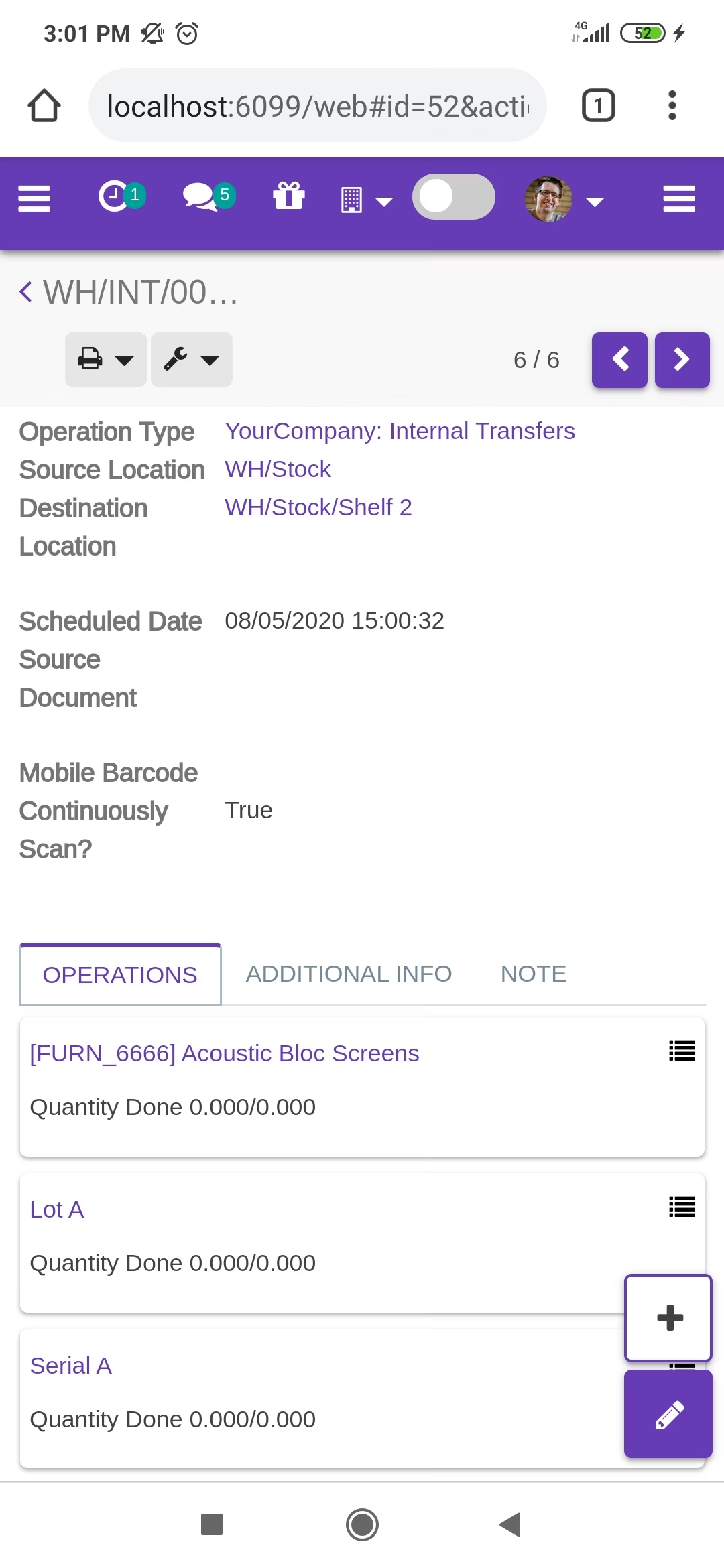
Tap the "Start" button to scan on mobile.
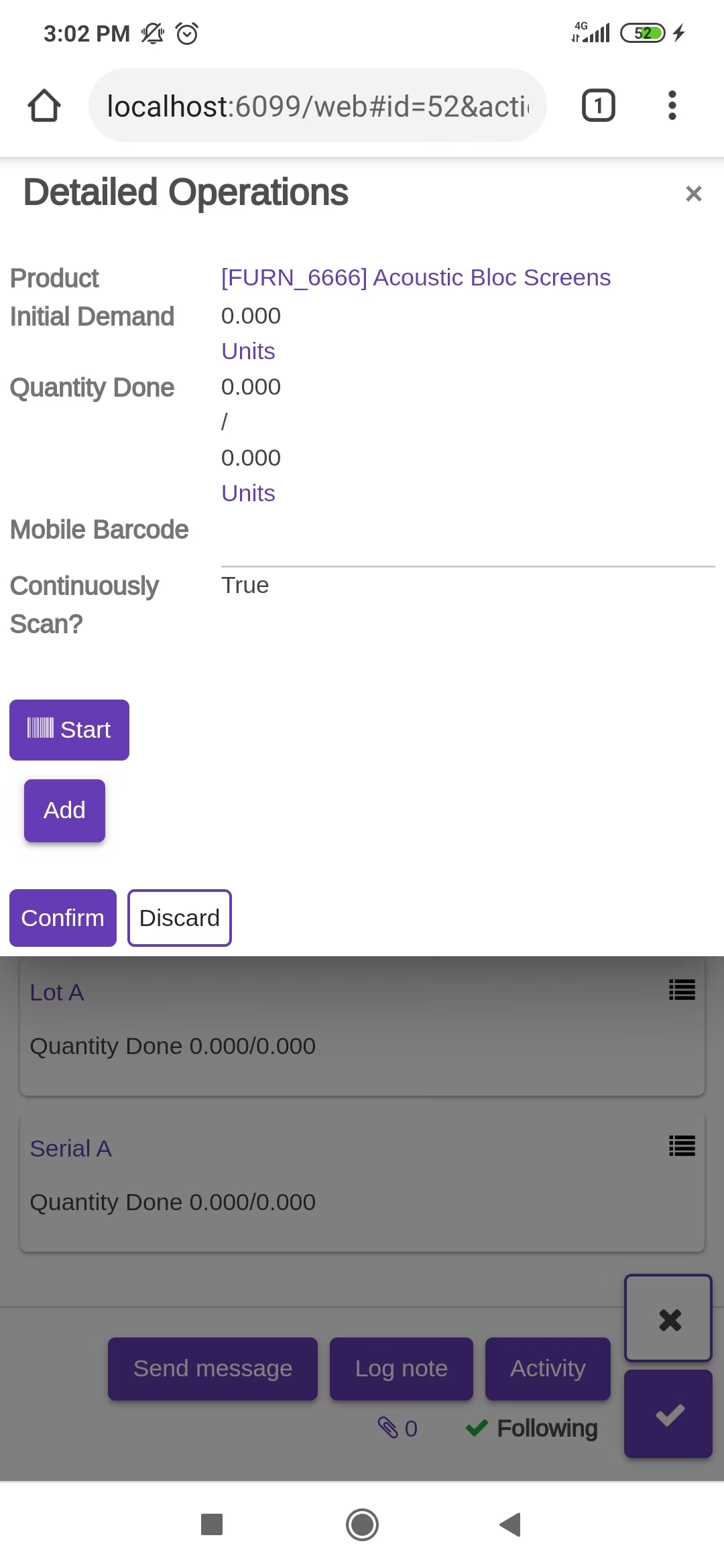
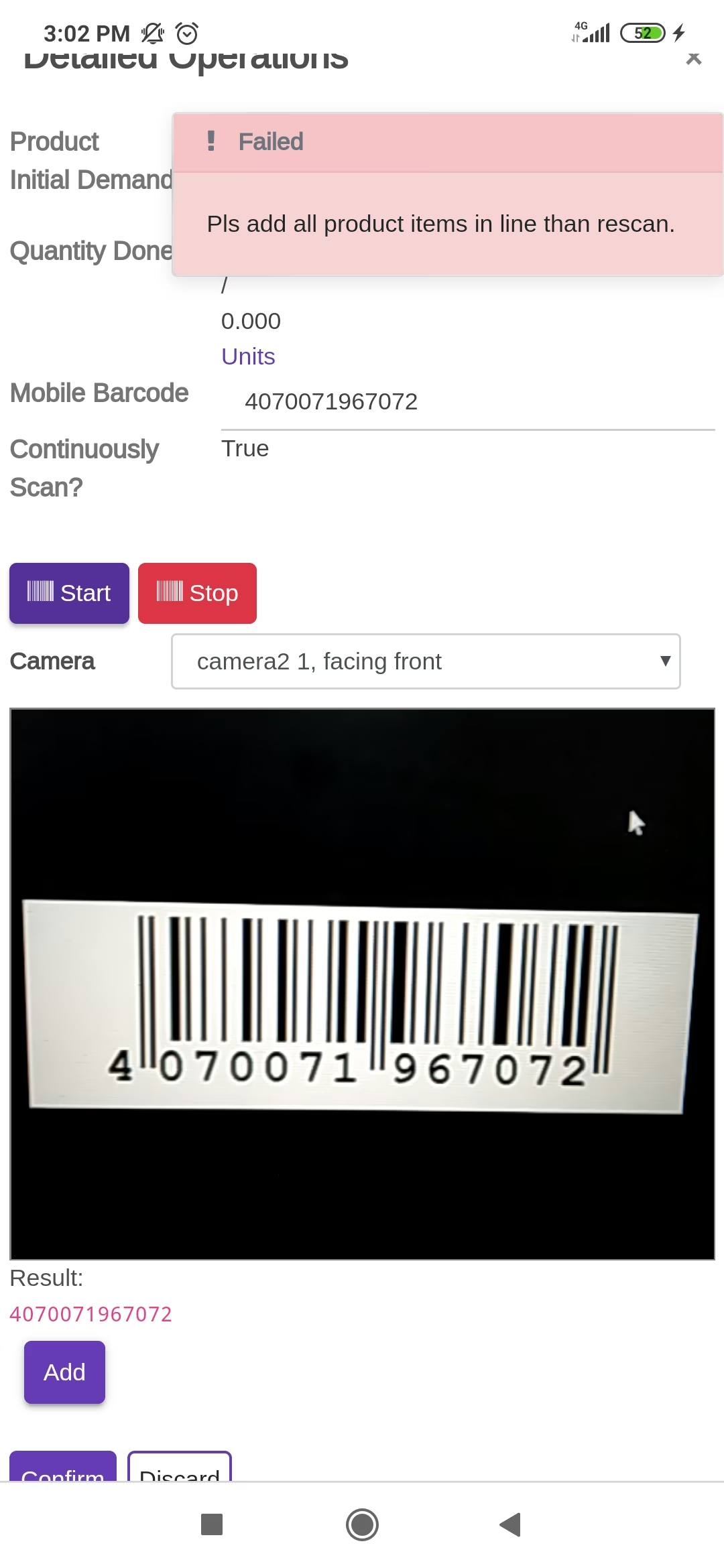
The error message is given if no matching product found.
The scanned product automatically added in products if the product already existed then ordered qty increased by 1.
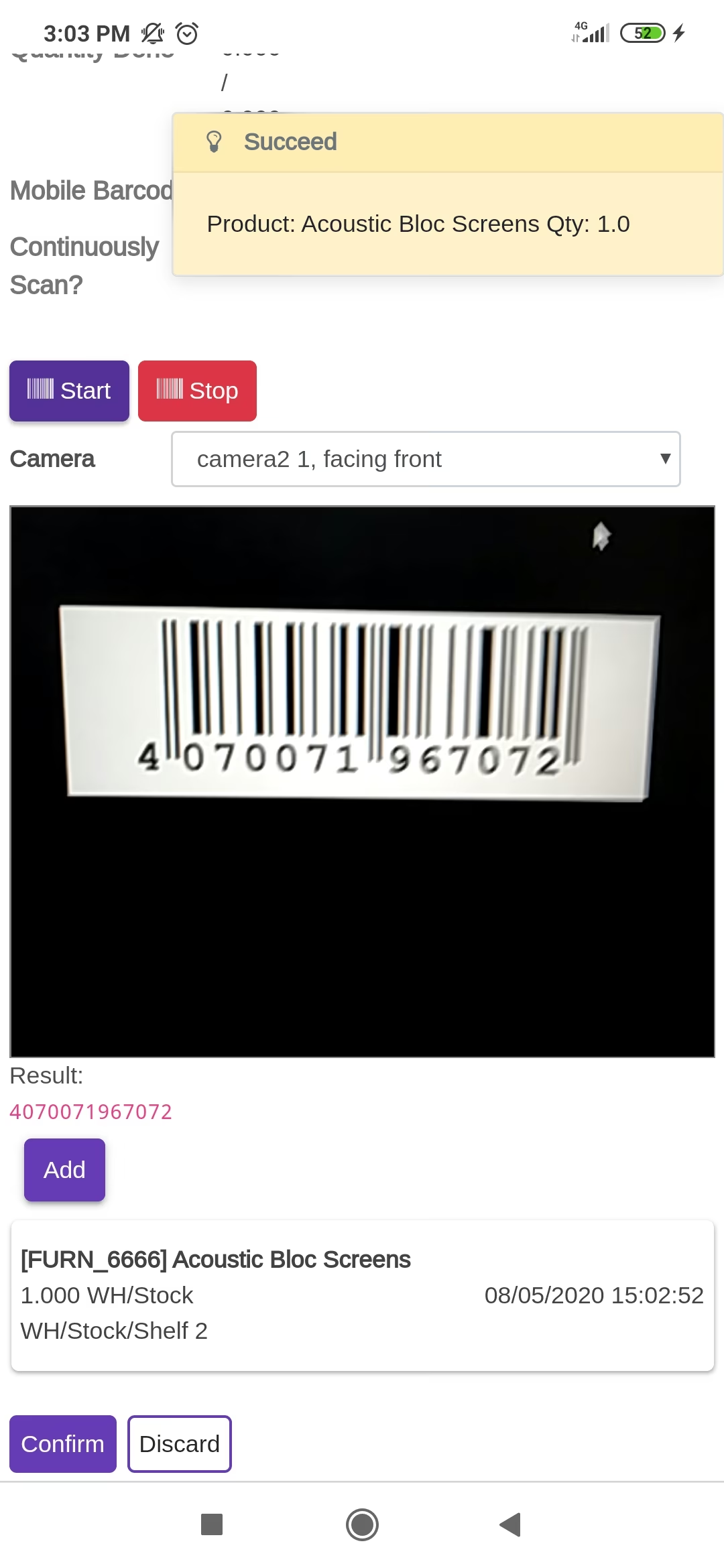
The scanned product automatically added in products if the product already existed then ordered qty increased by 1 & If another Barcode/QRCode is scanned than will be another entry for new Lot Numbers in the next line.
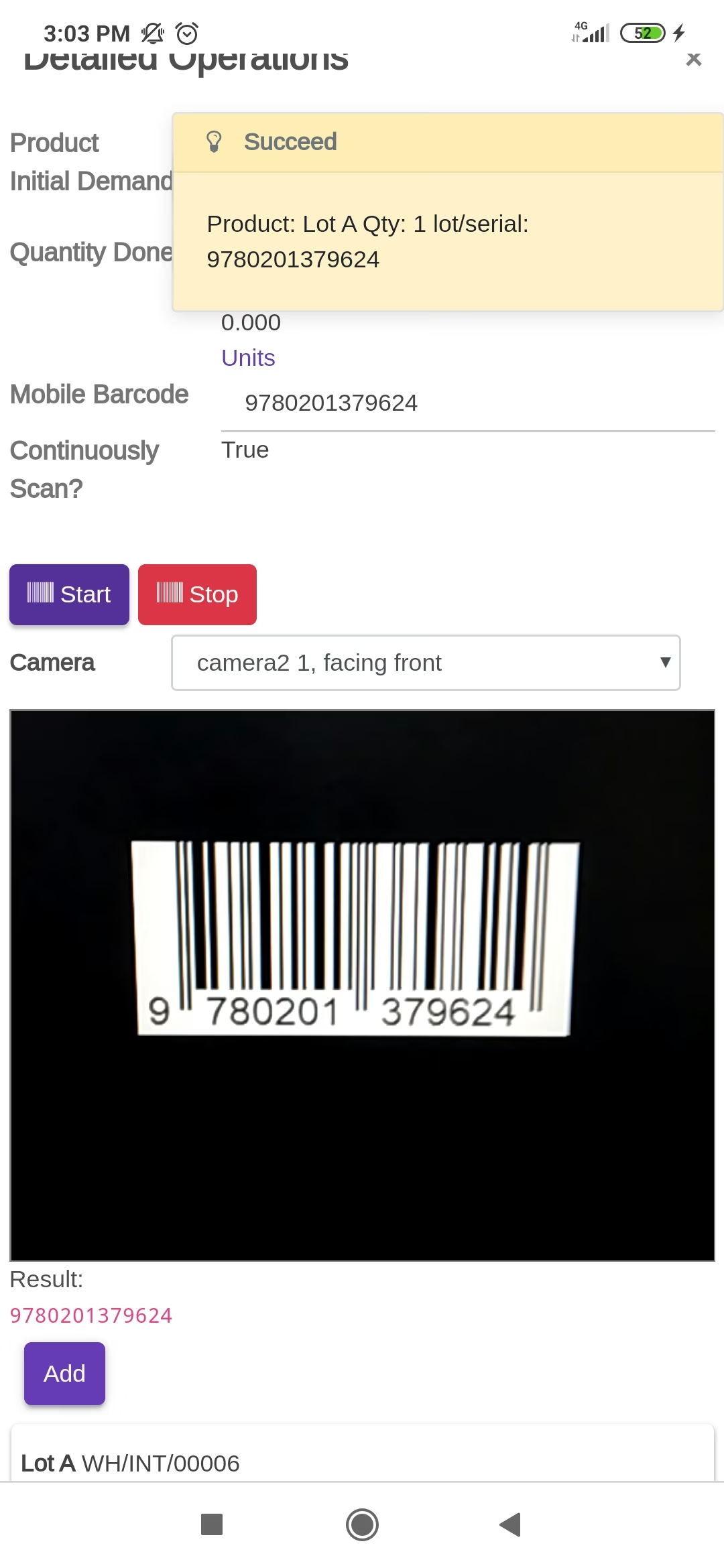
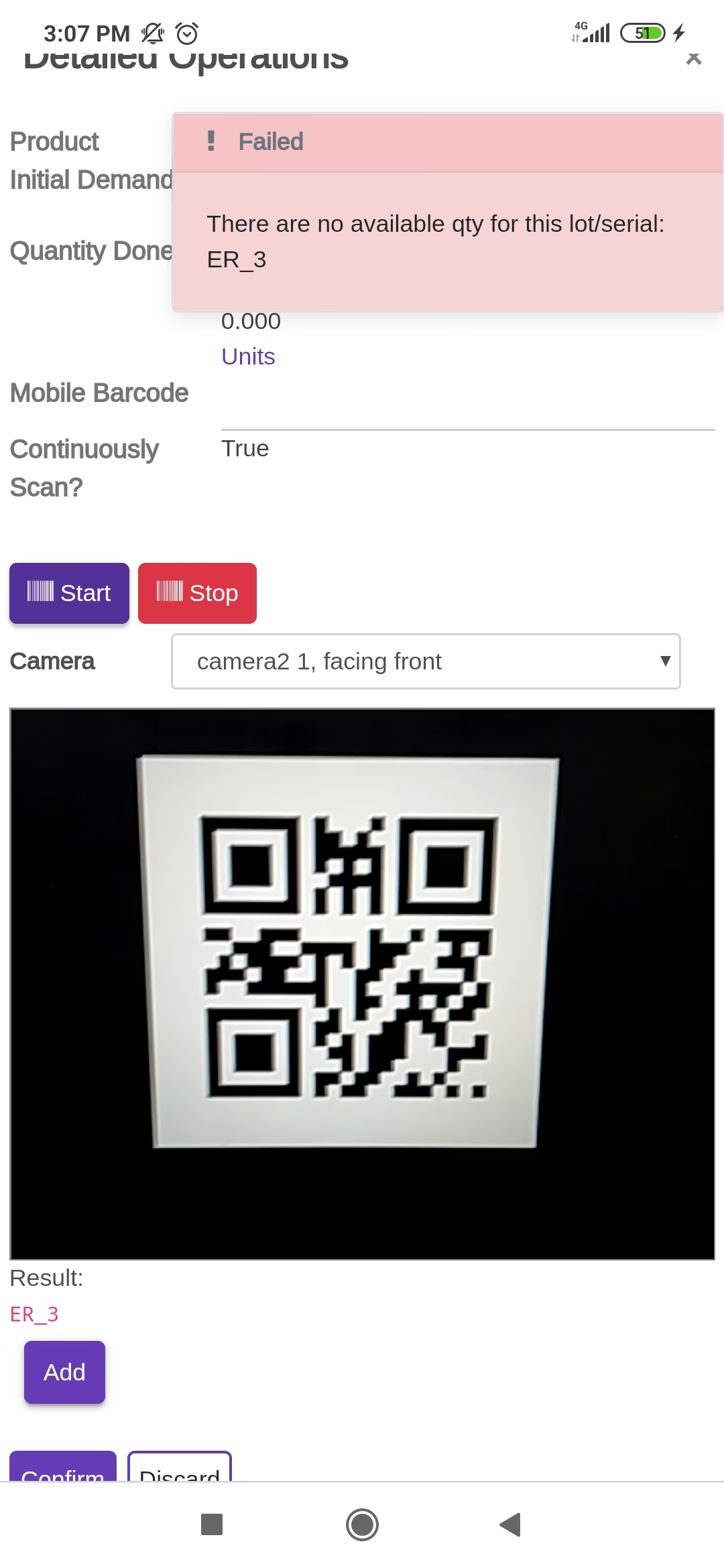
The error message is given if no matching product found.
The scanned product automatically added in products, If another Barcode/QRCode is scanned than will be another entry for Serial Number in the next line.
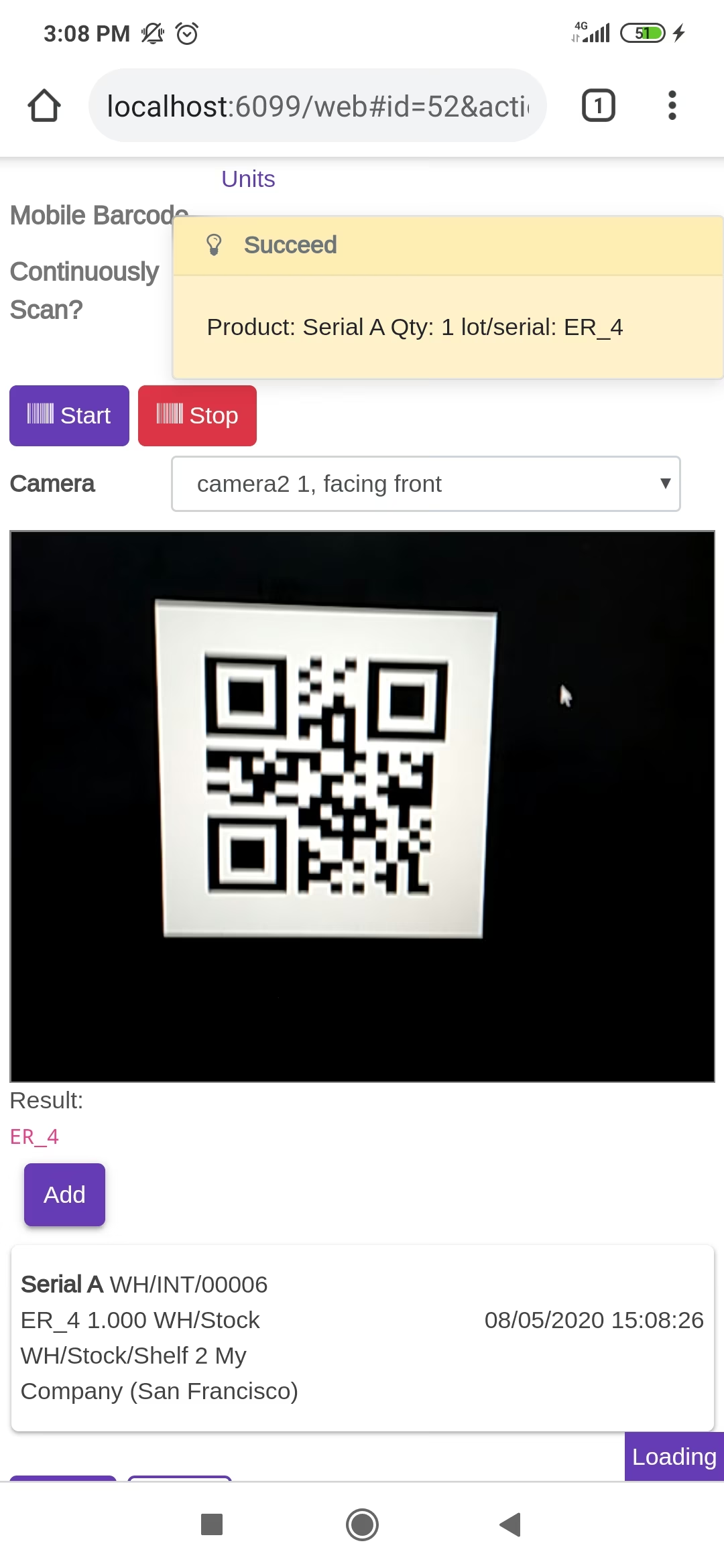
The added product looks like below.
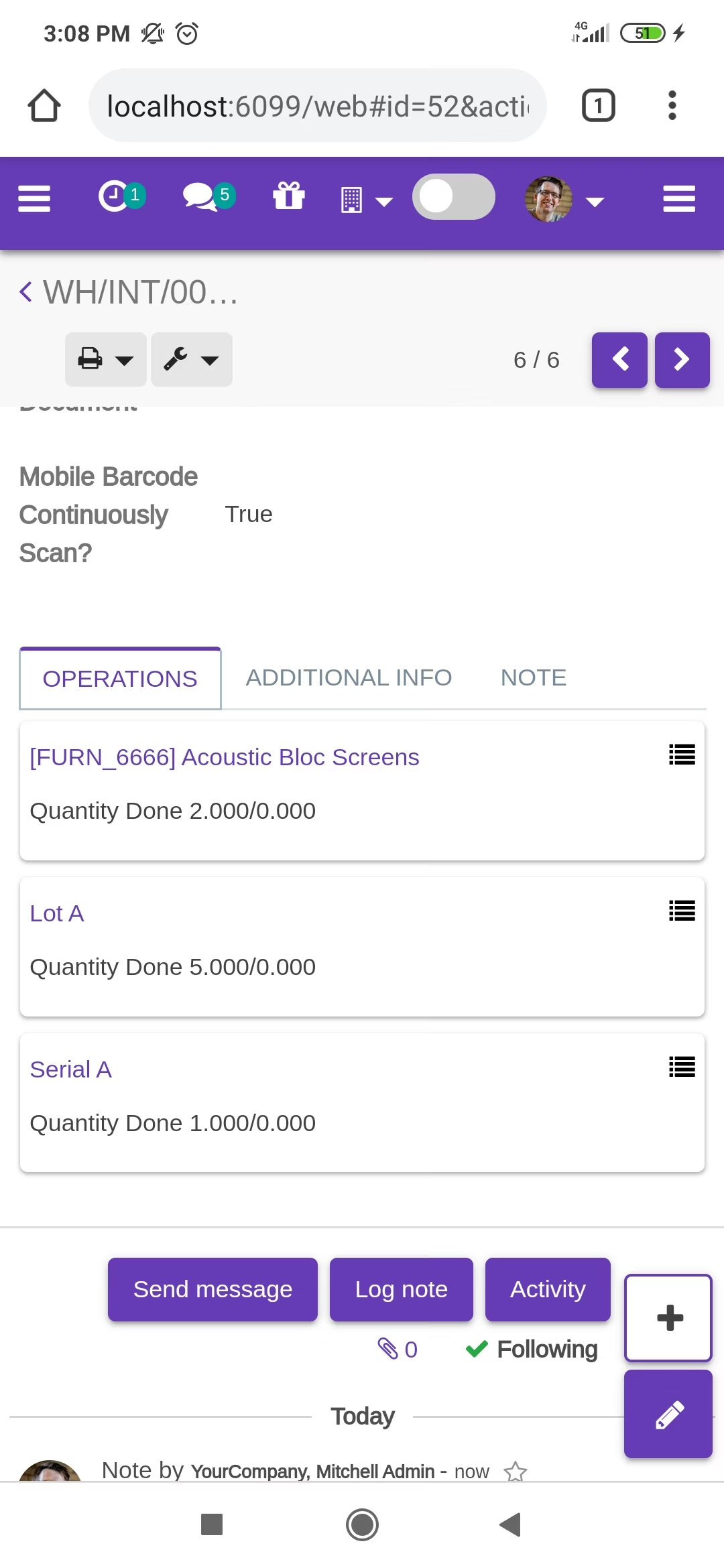
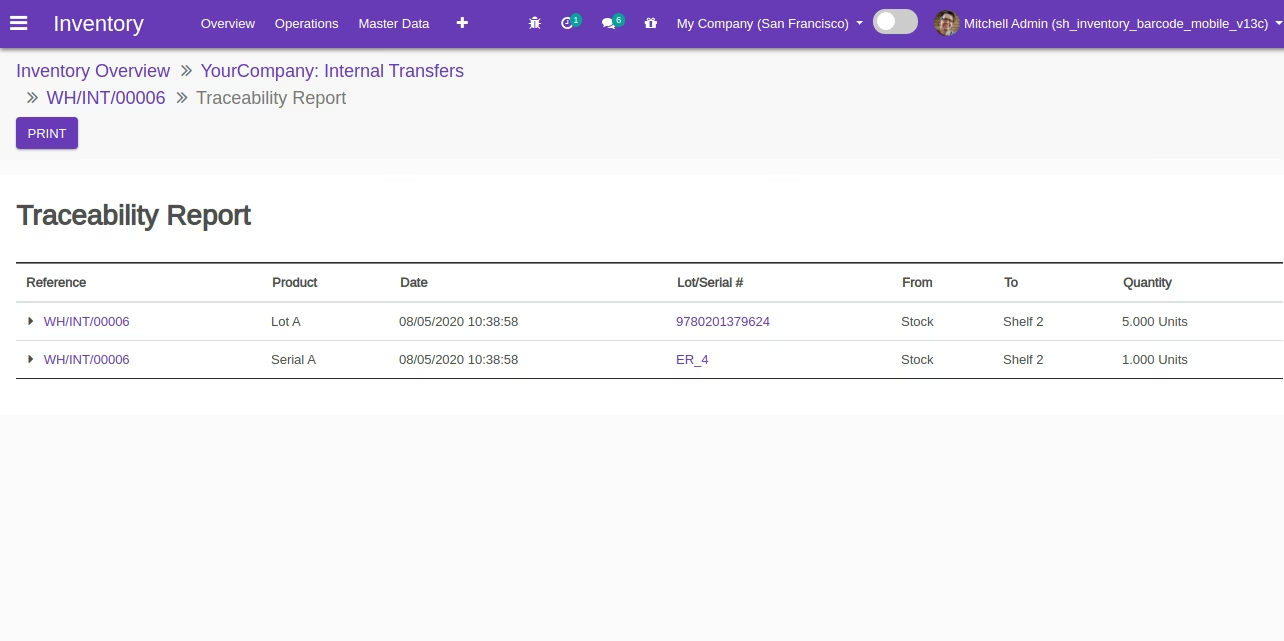
The "Traceability" report in the desktop view.
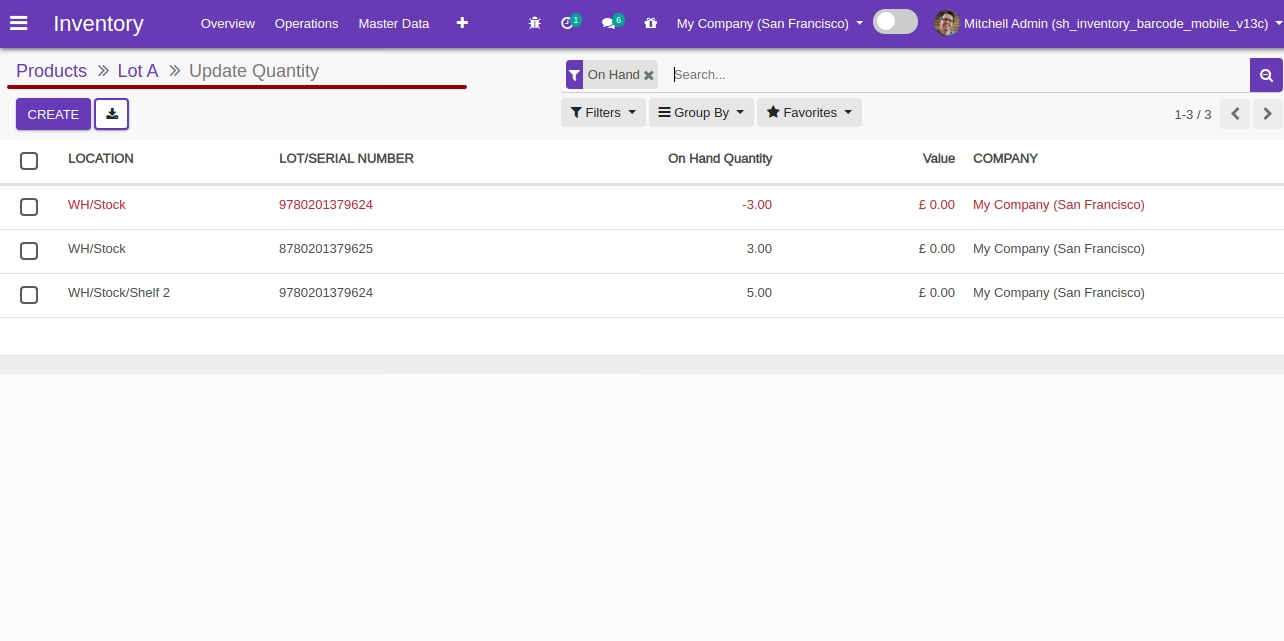
You can see the product on-hand quantity with traceability "By Lot Numbers".
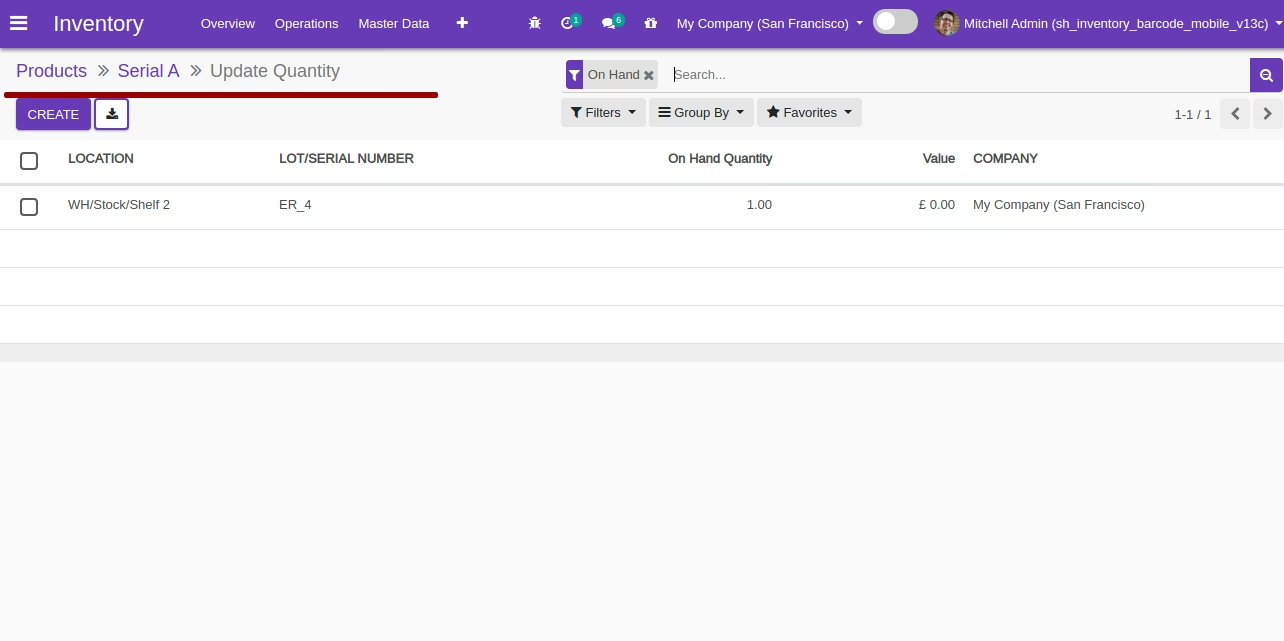
You can see the product on-hand quantity with traceability "By Unique Serial Number".
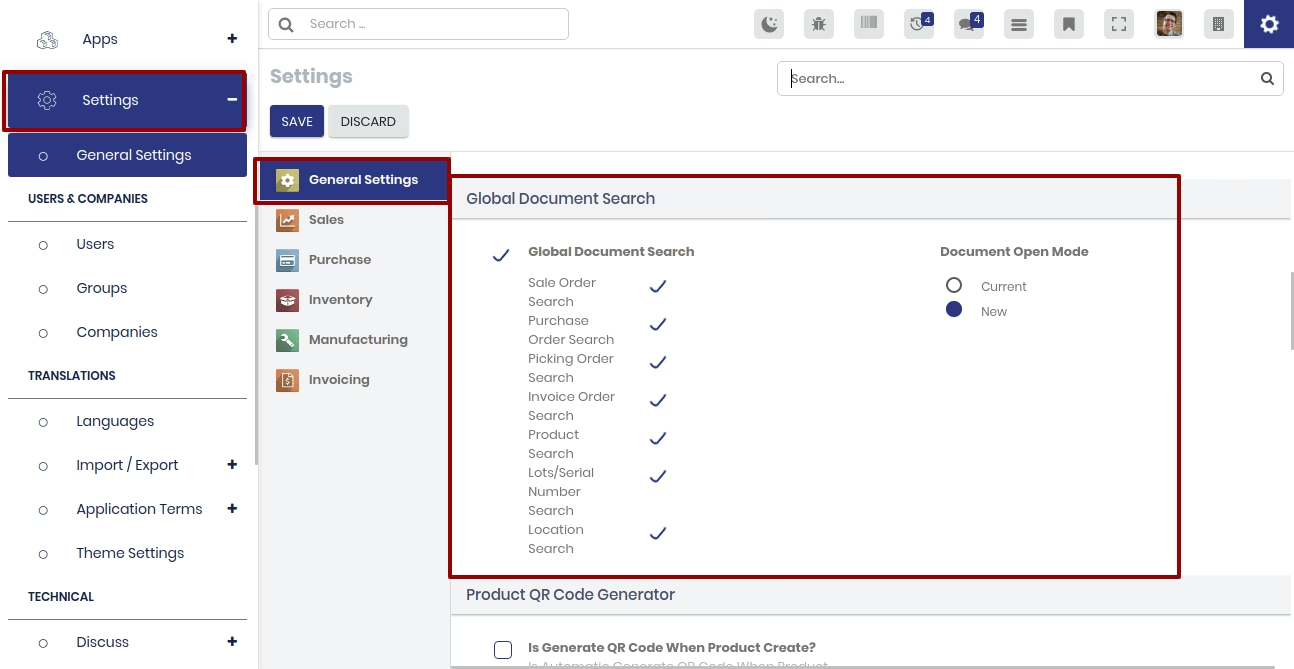
Global document search configuration.
Click on the barcode icon to open the barcode popup and scan the barcode.
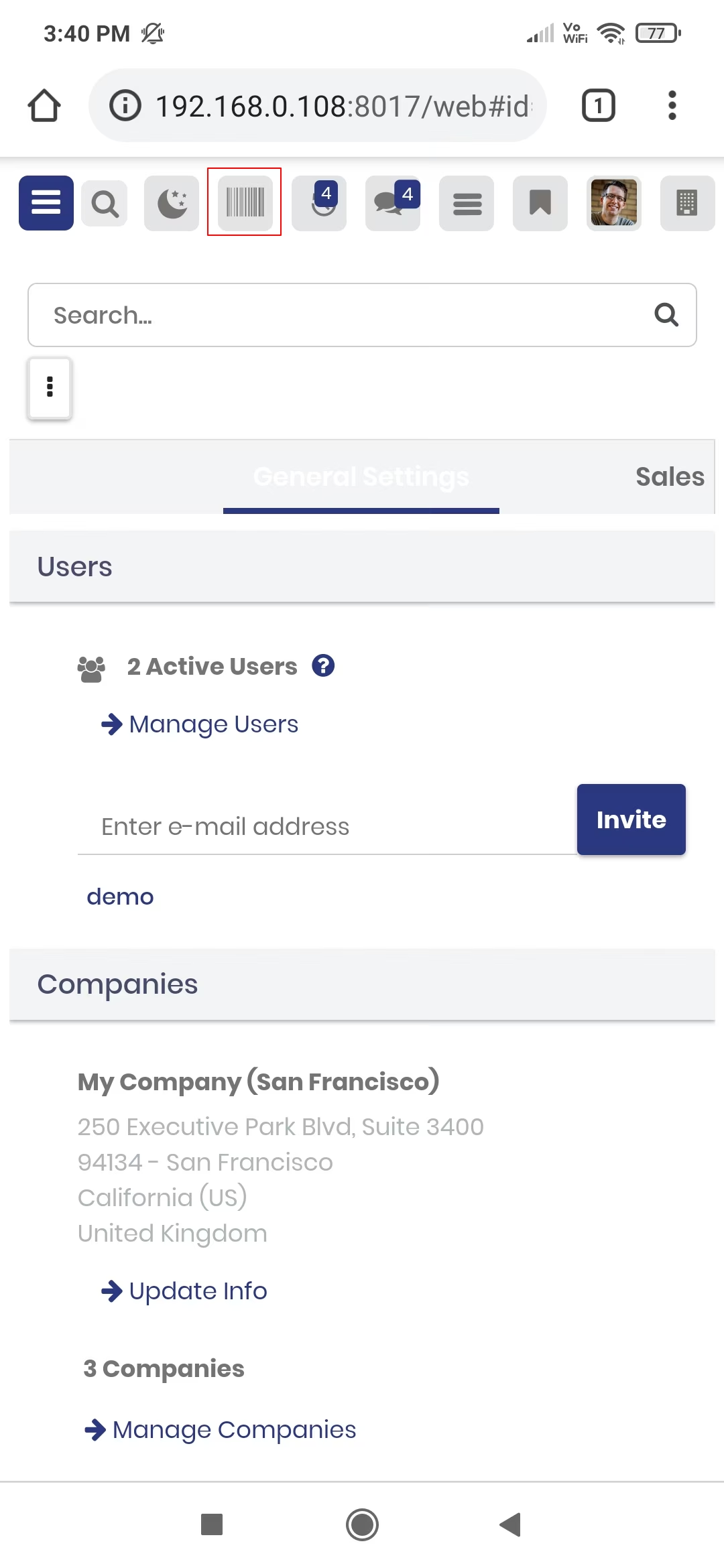
You can filter documents based on the configuration settings.
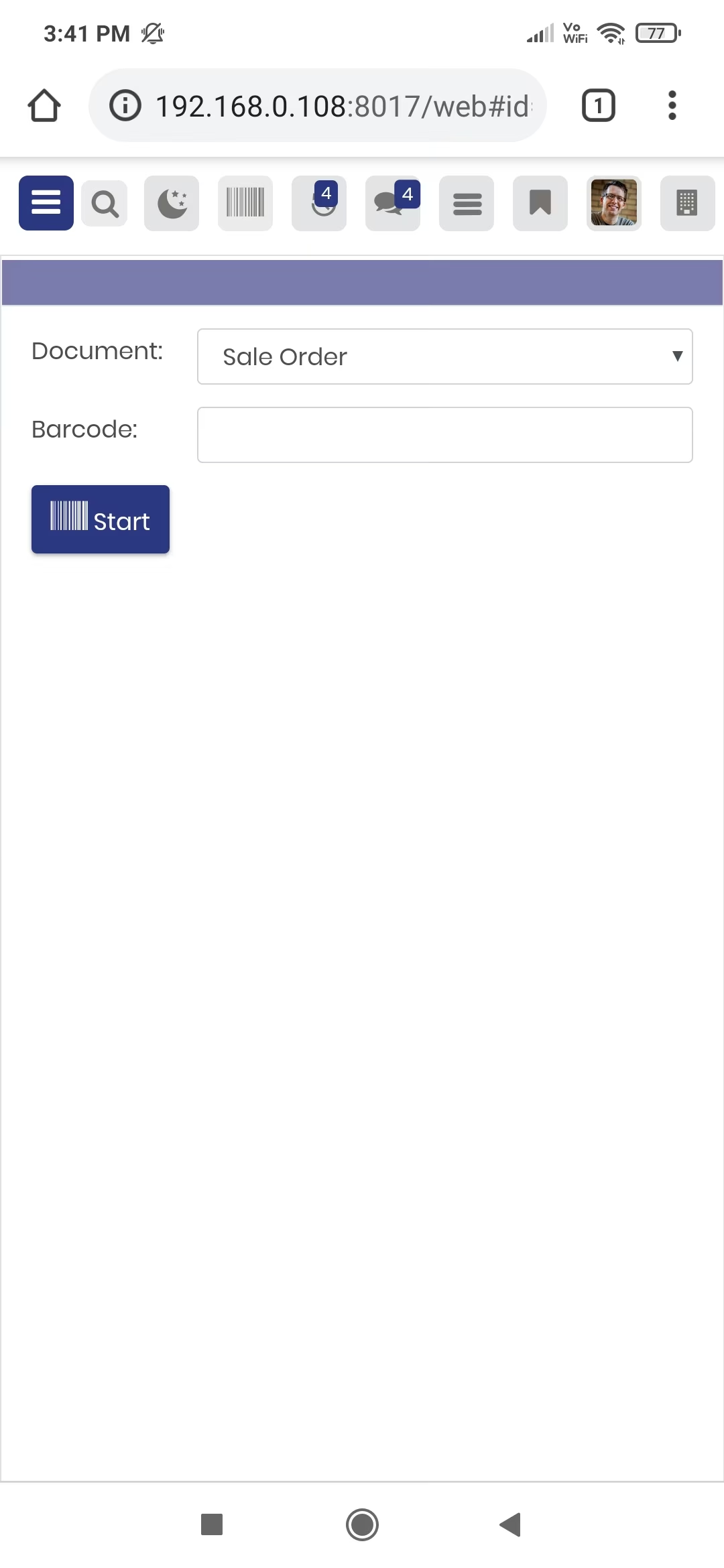
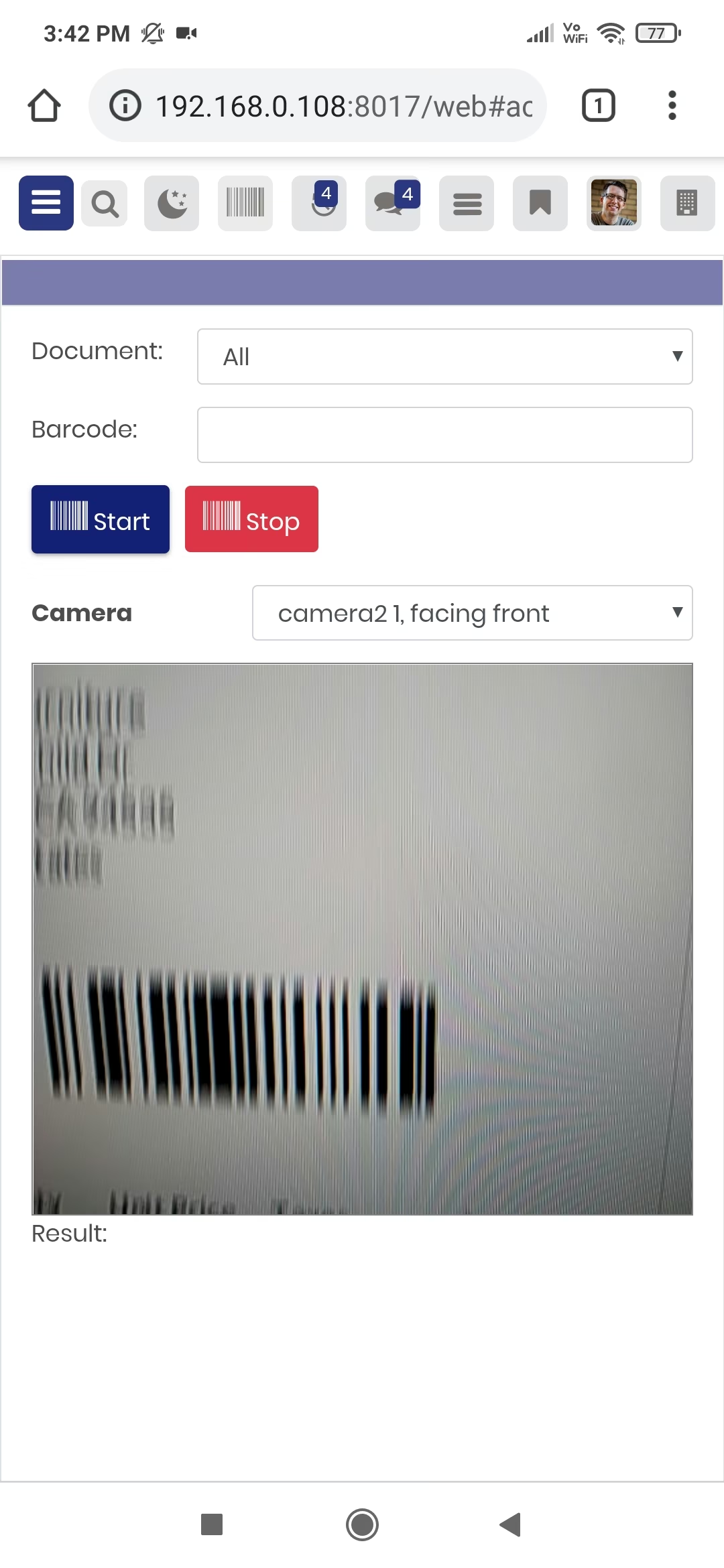
Now scan the barcode to open the document.
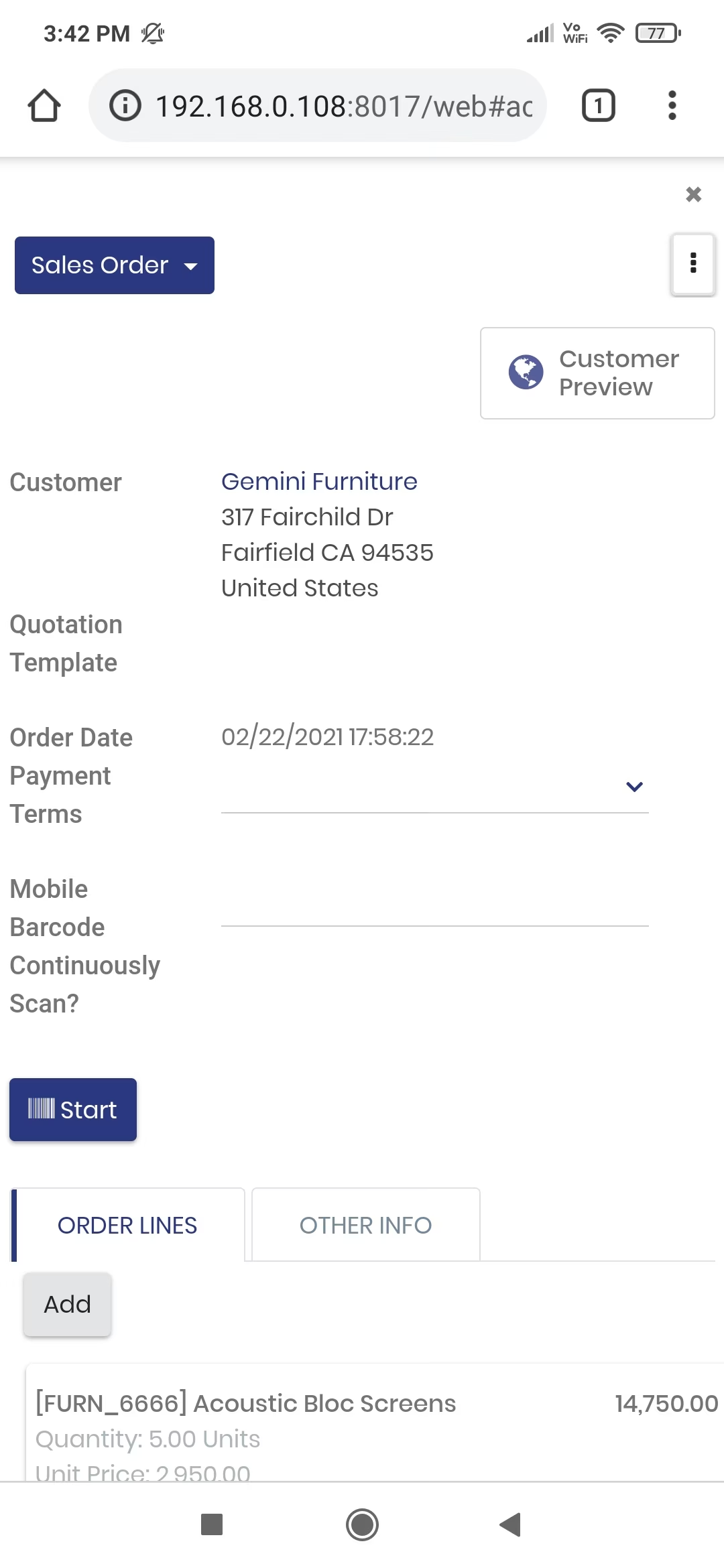
After scanning the barcode the document will be open.
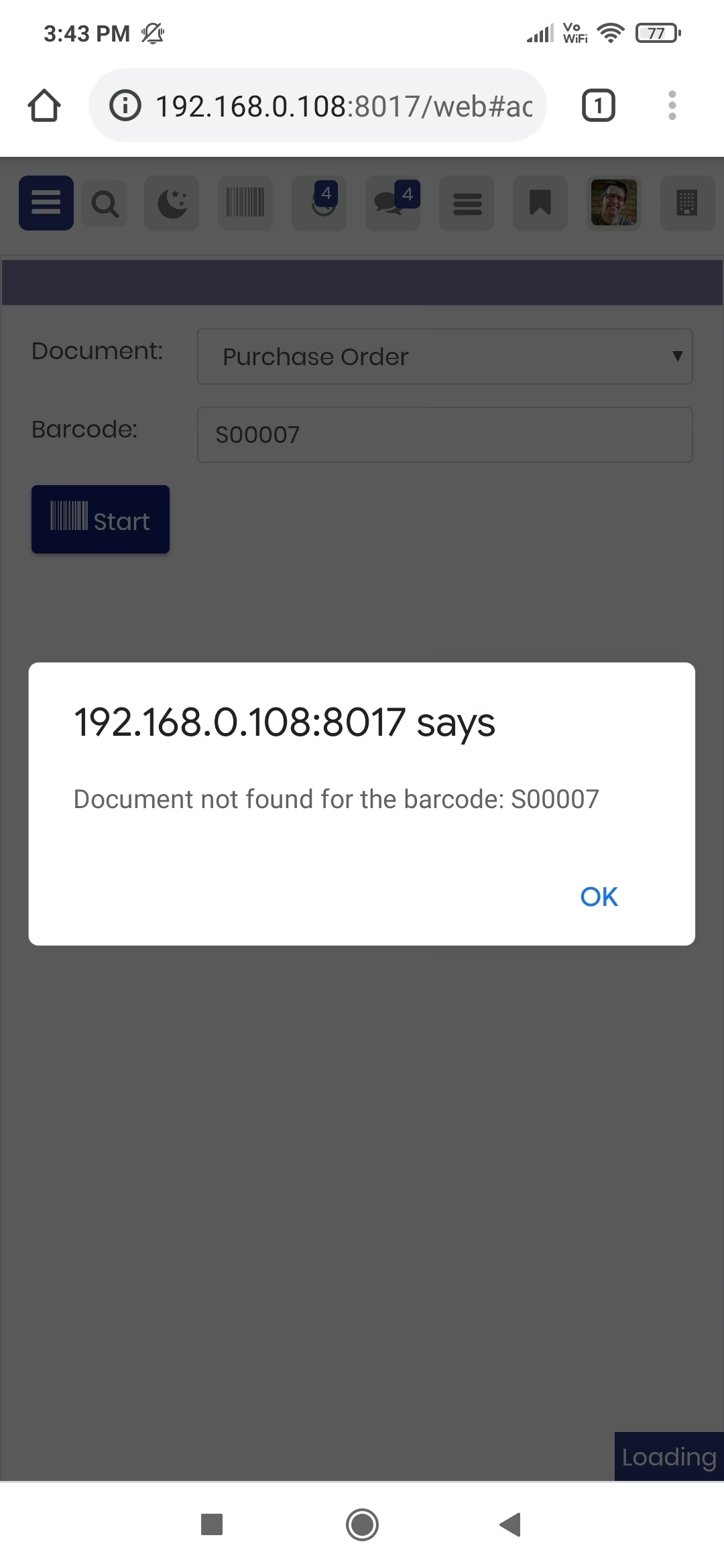
It shows the alert if the document is not found.
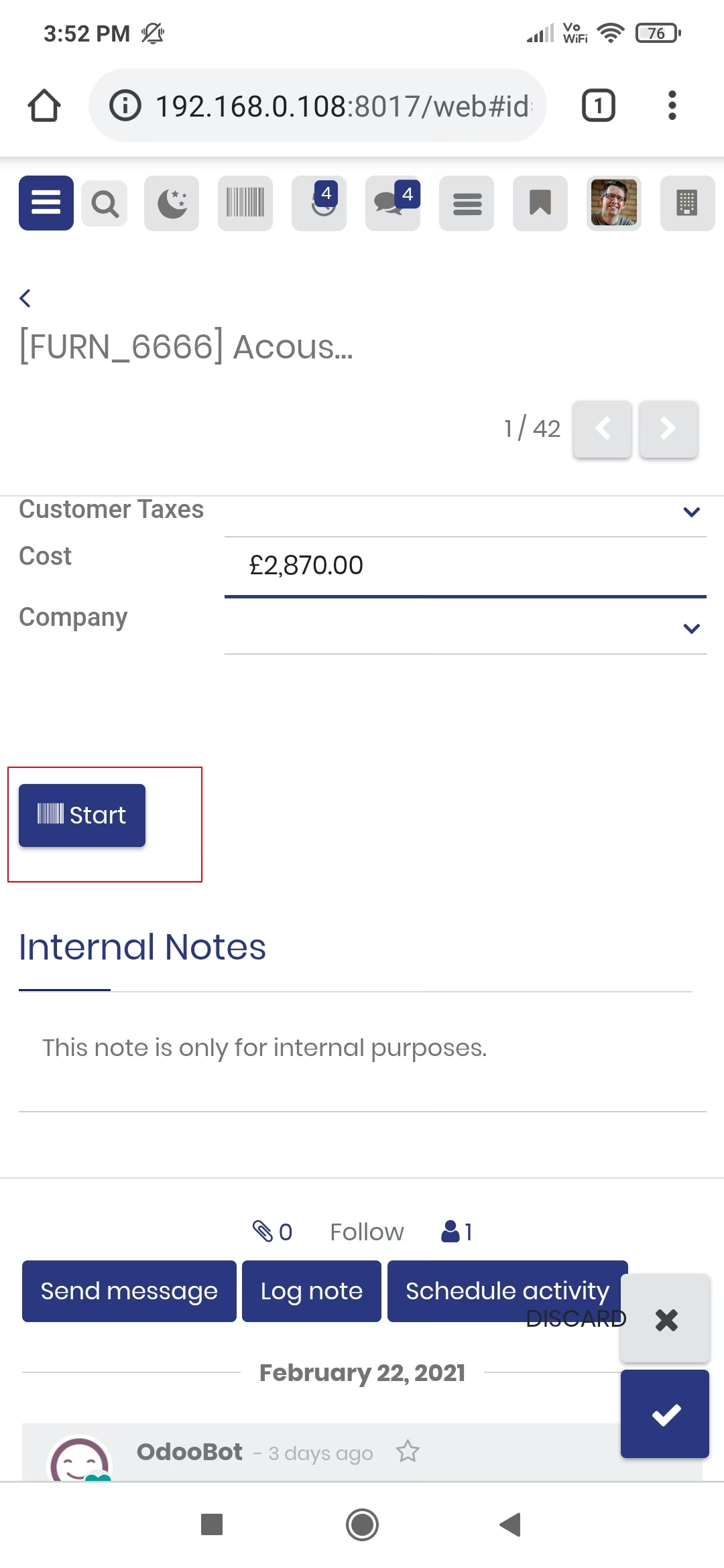
Press the start button to scan the Barcode/QRCode.
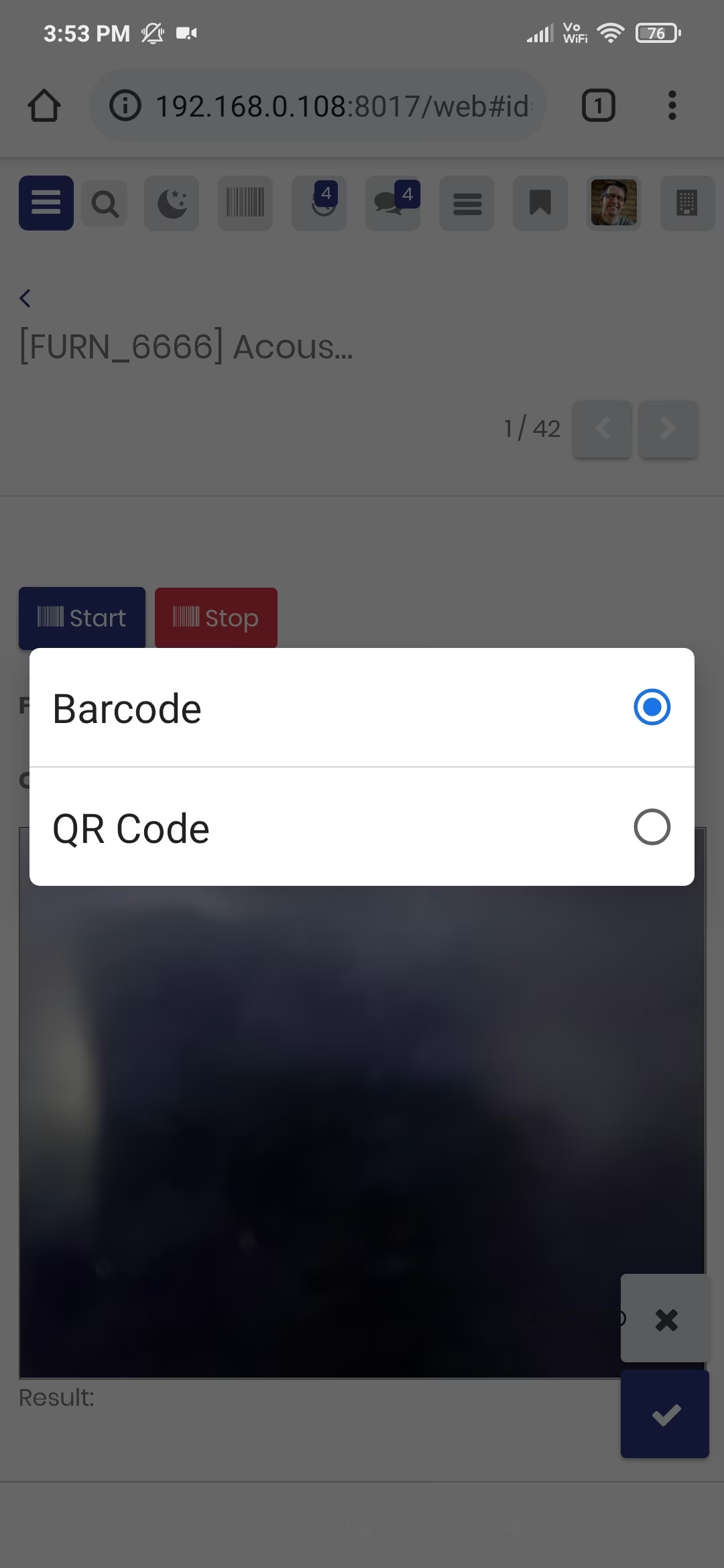
After that popup opens, select Barcode or QRCode.
Now scan the barcode.
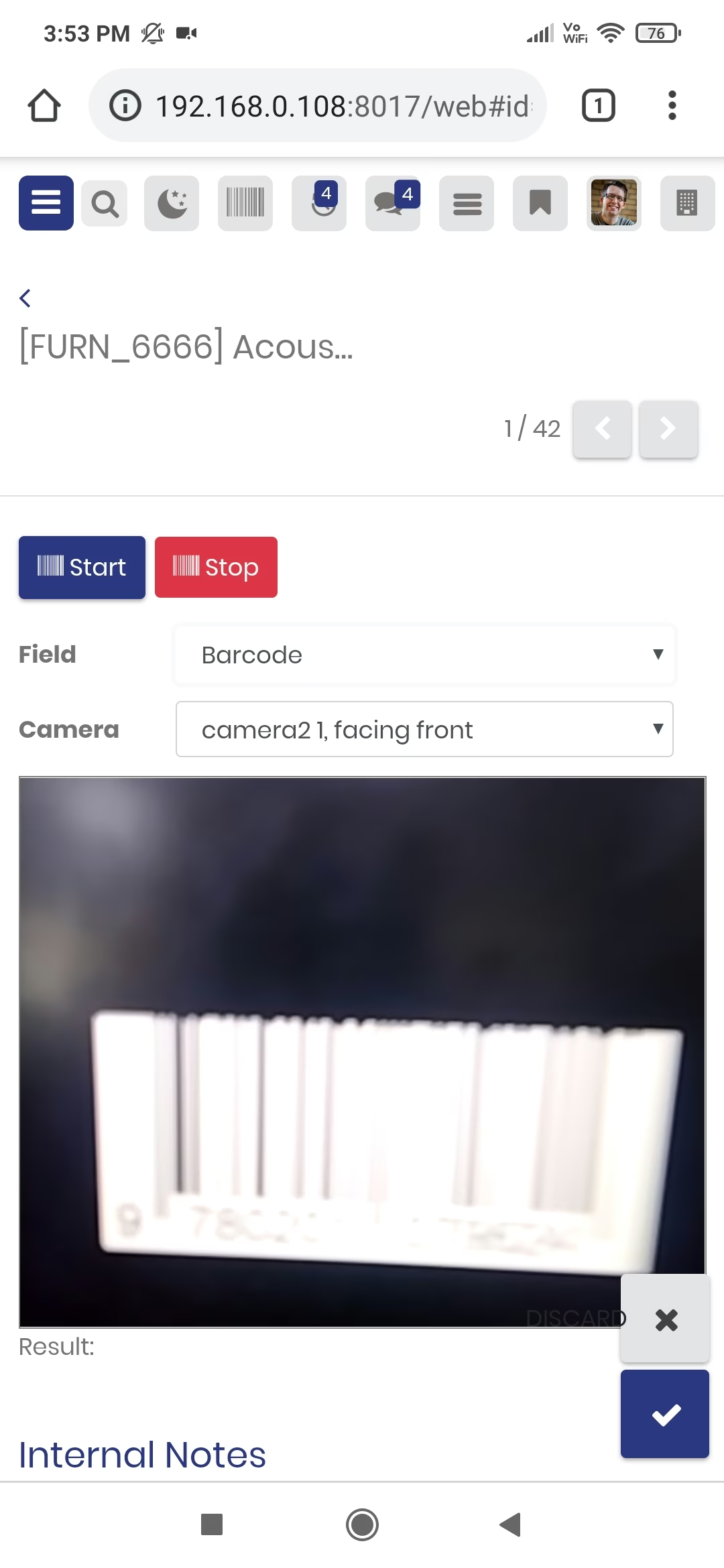
After that, it will auto-add the barcode into the barcode field.
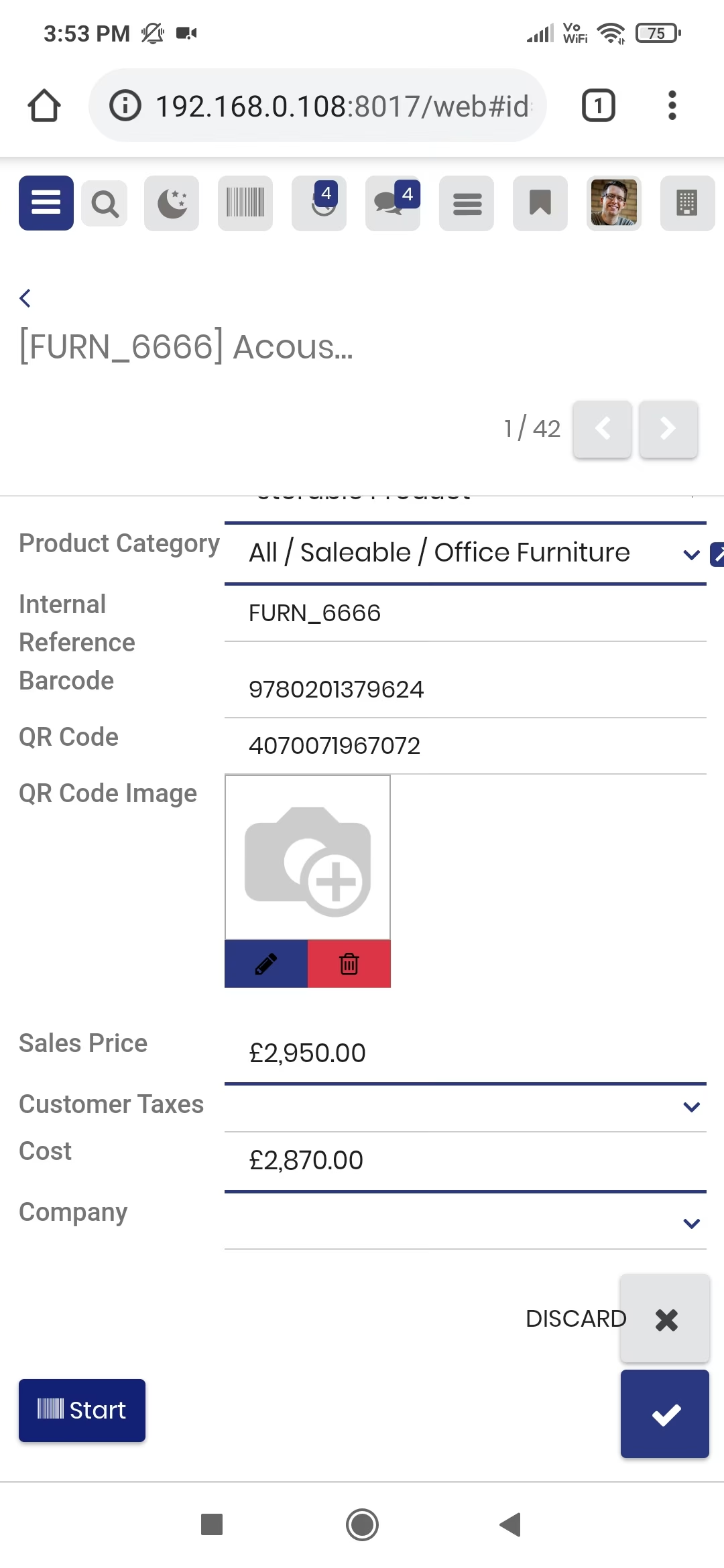
Now scan the QRcode.
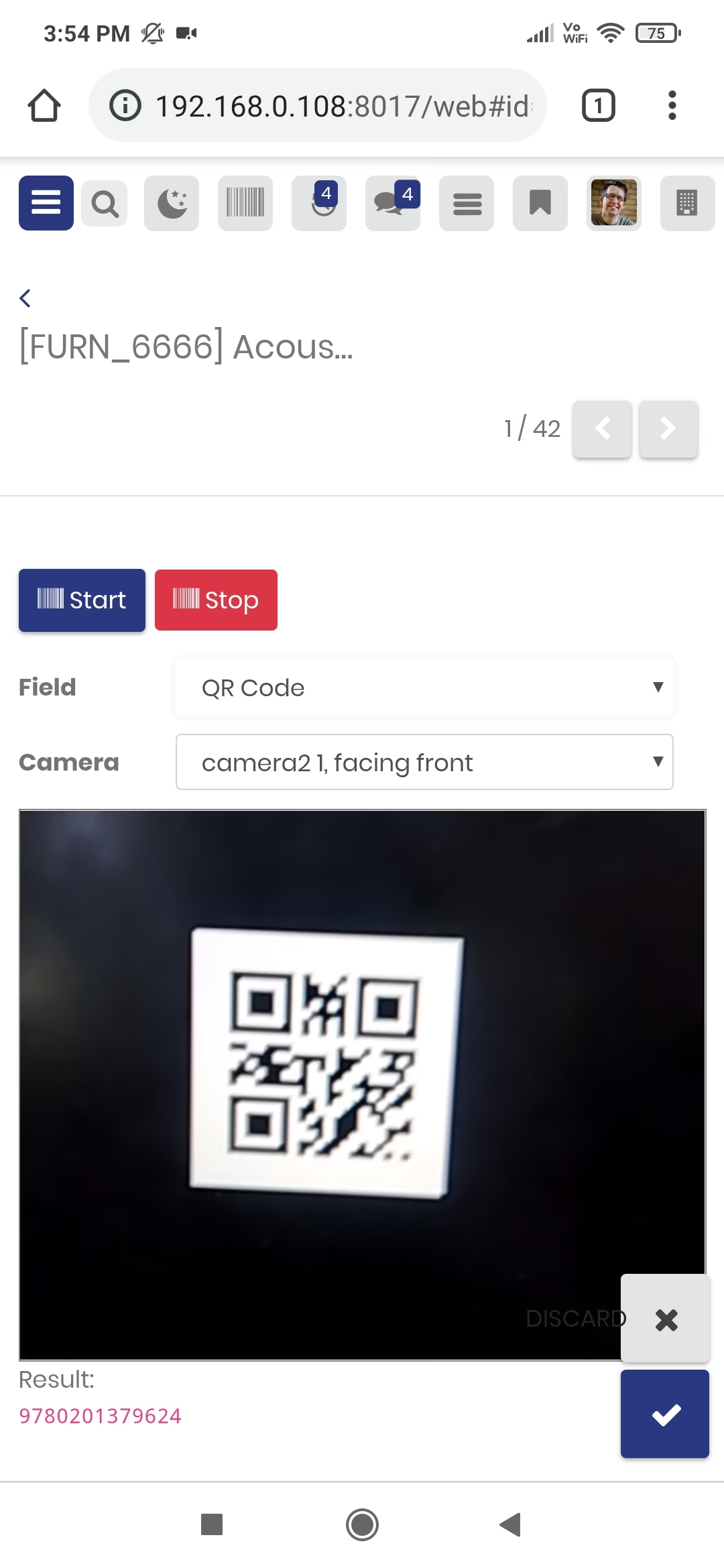
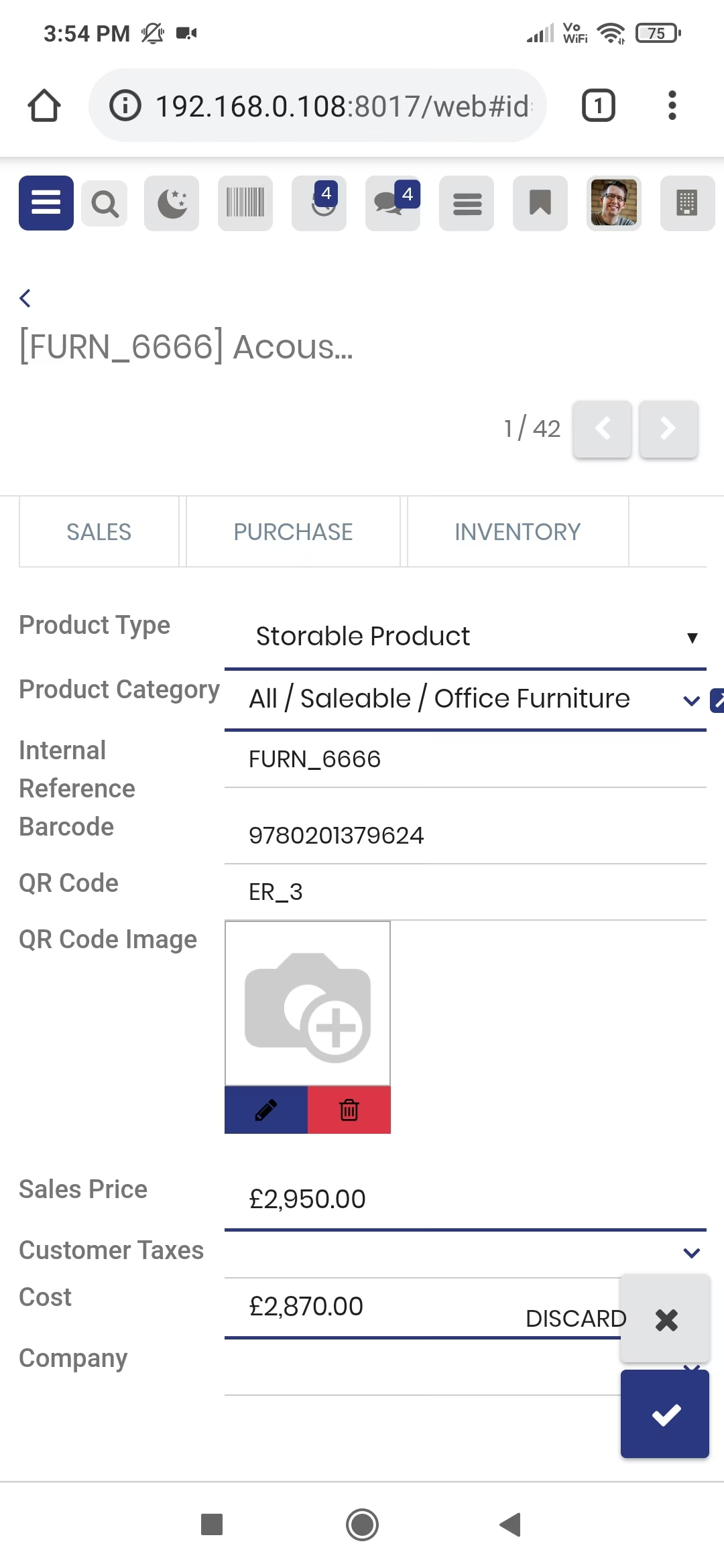
After that, it will auto-add the QRcode into the QRcode field.
Sale

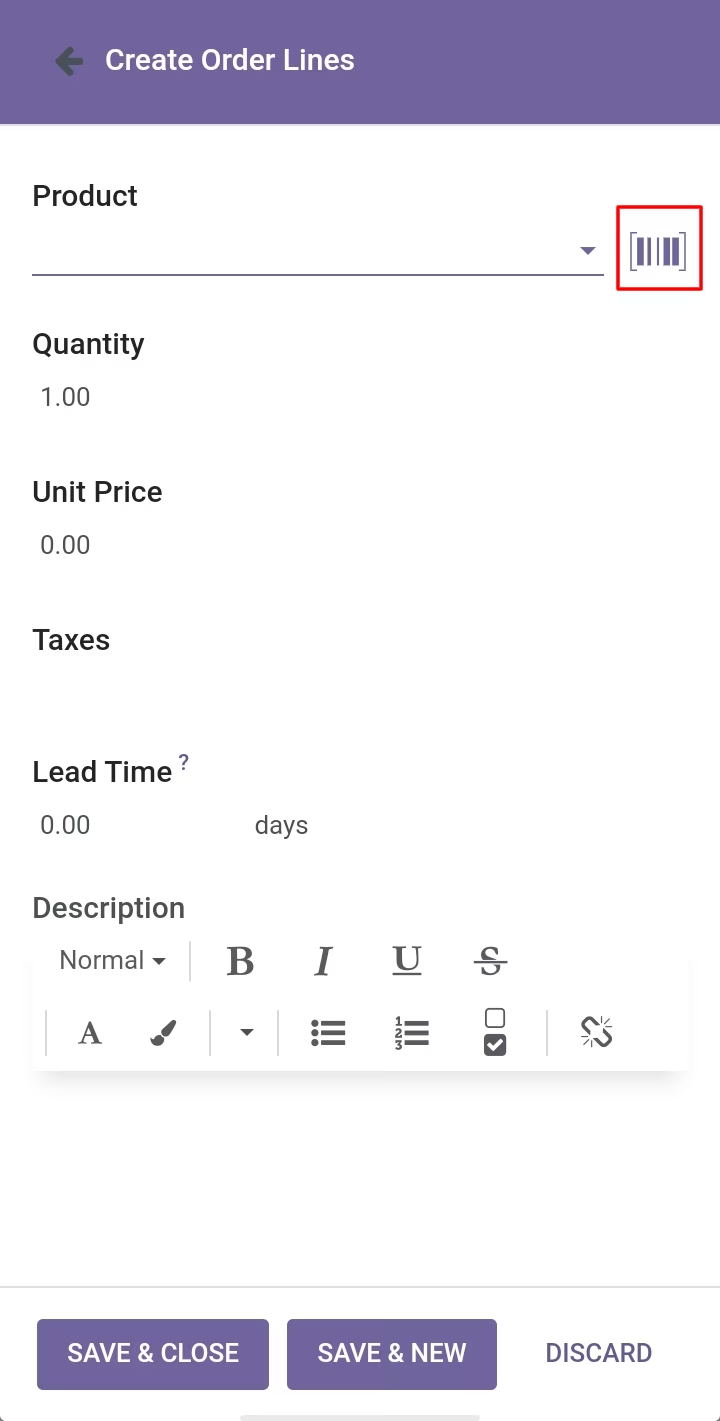
Here, You can see the scanning button in order line.
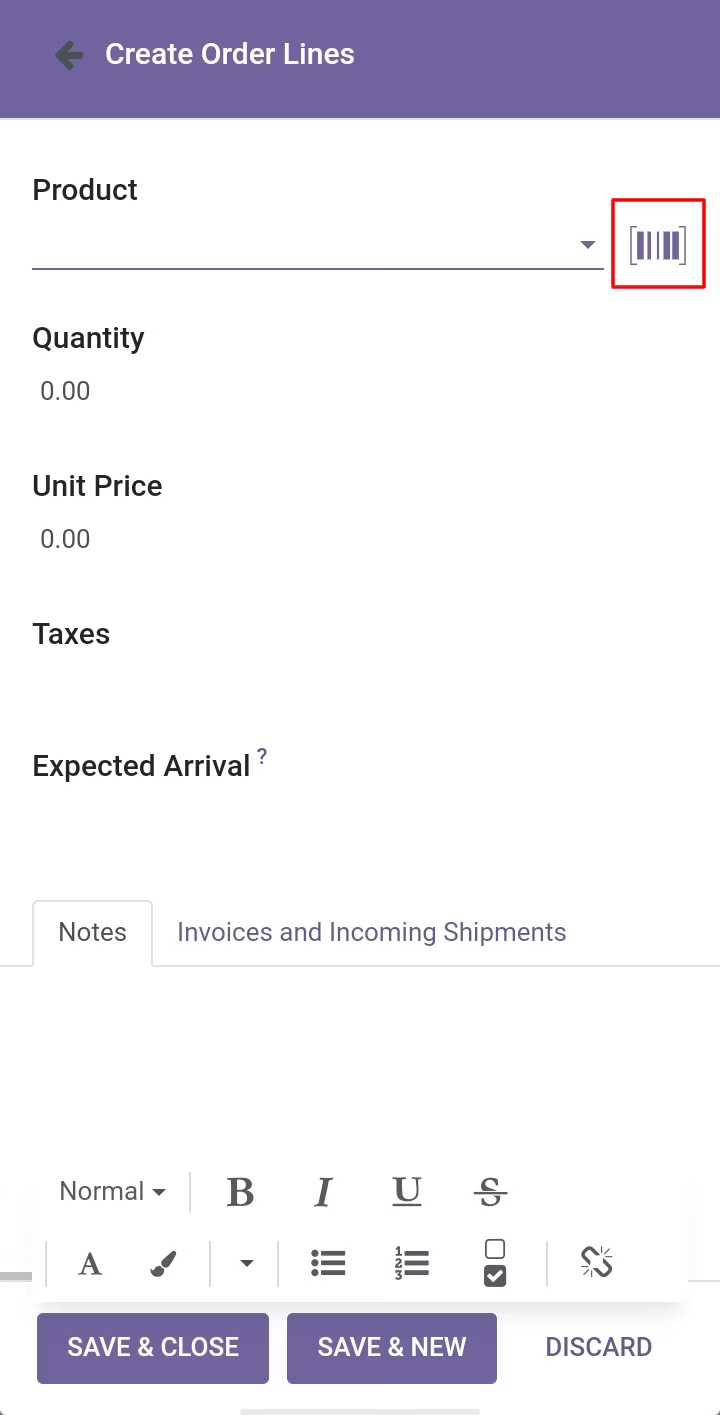
Purchase
Here, You can see the scanning button in order line.
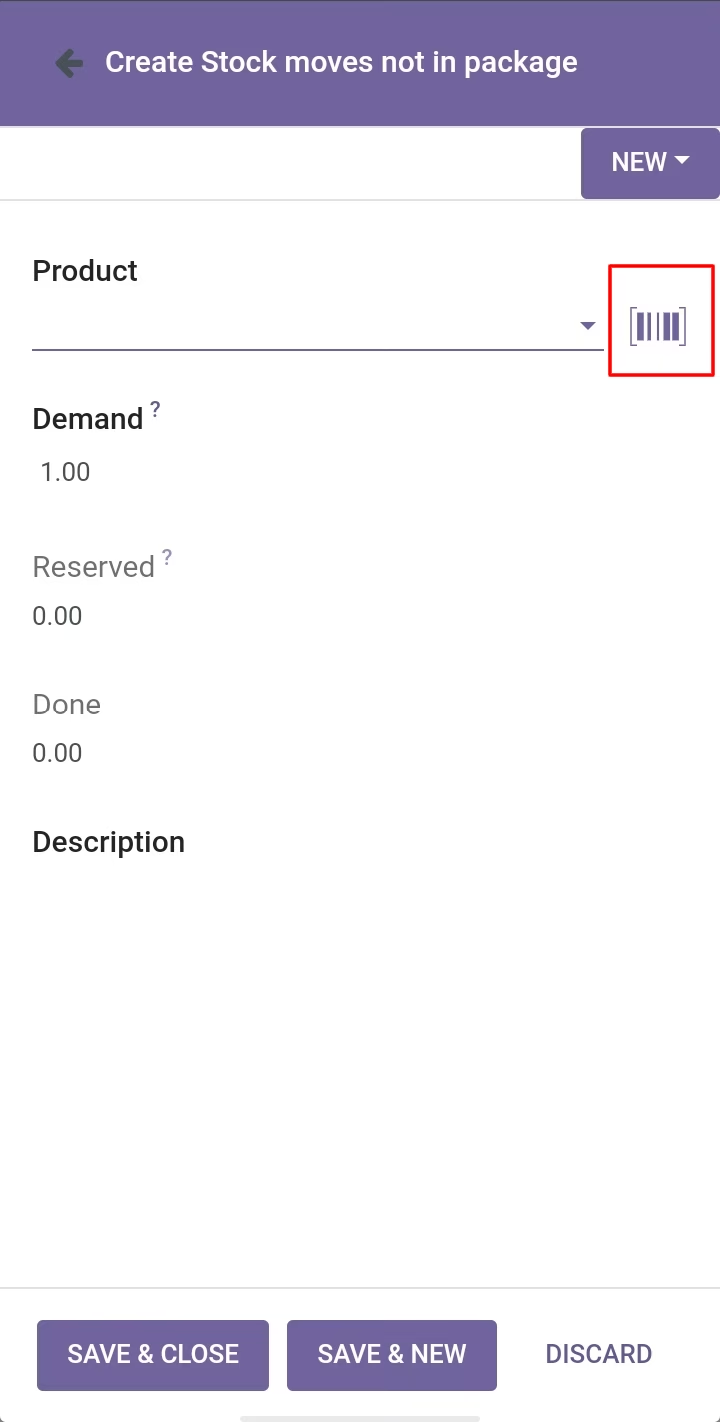
Inventory
Here, You can see the scanning button in order line.
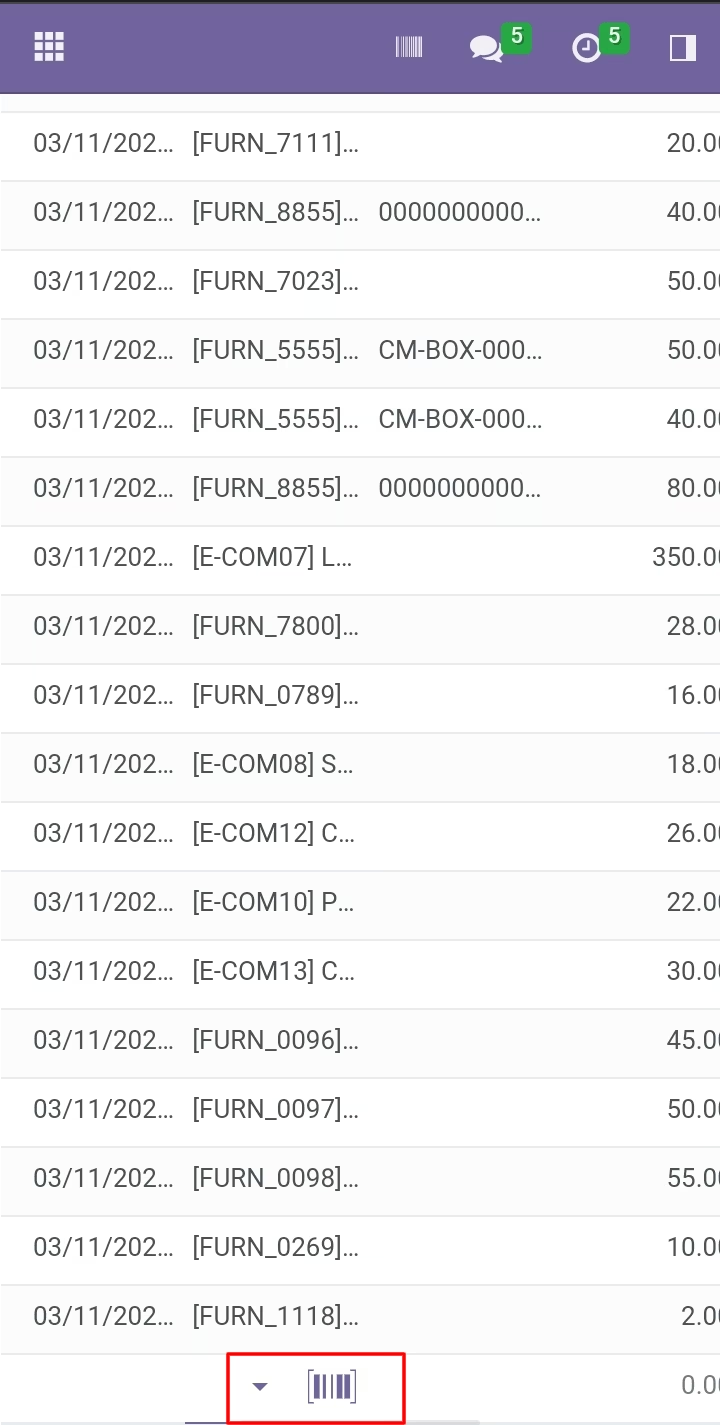
Stock Adjustment
Here, You can see the scanning button in order line.
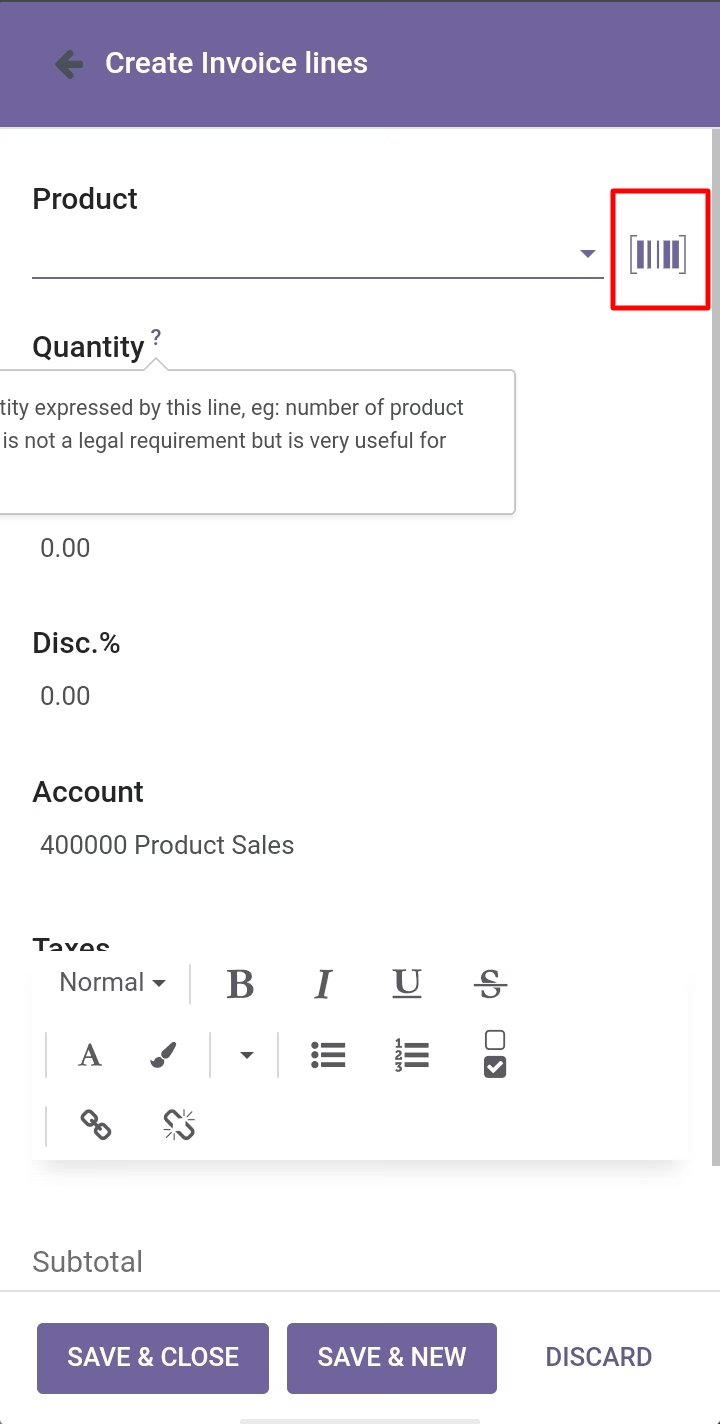
Invoice
Here, You can see the scanning button in order line.
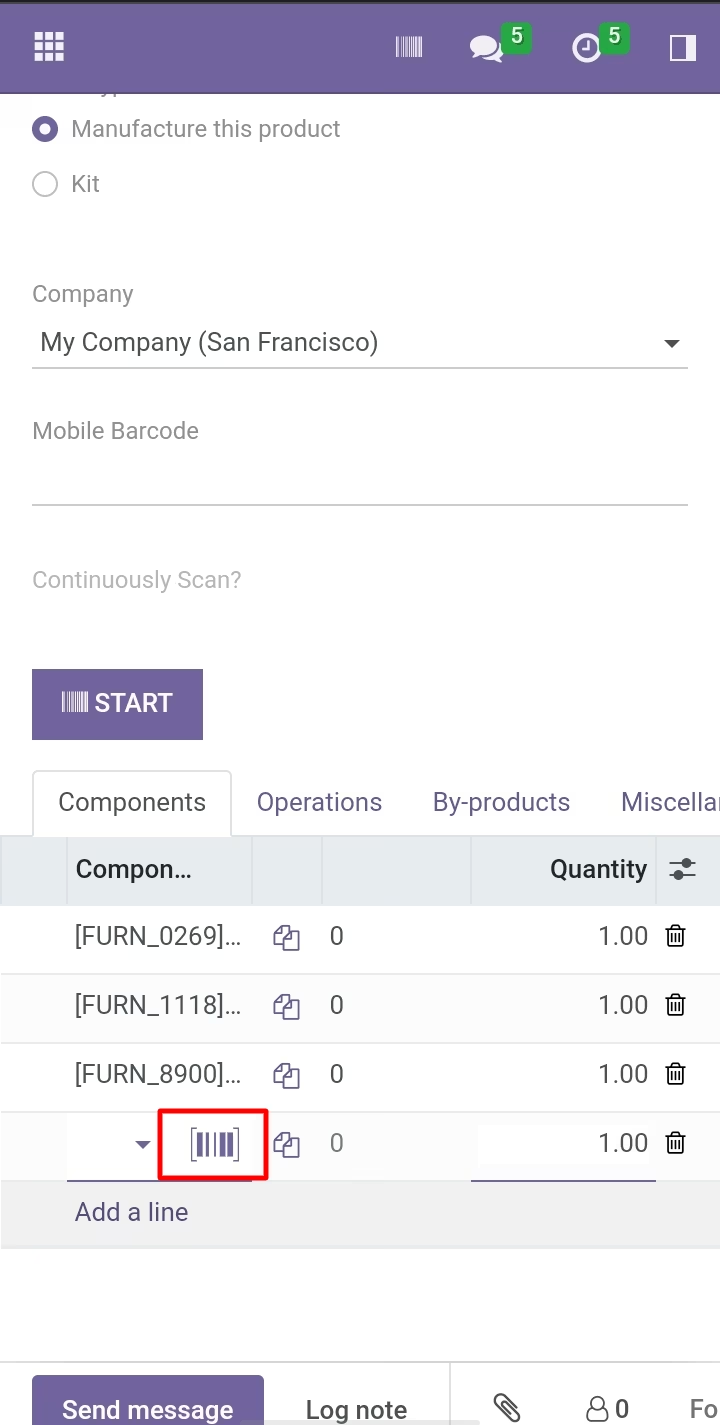
BOM
Here, You can see the scanning button in order line.
We search records by scan Barcode/QRCode from the search bar. So press the button that is given in the search bar.
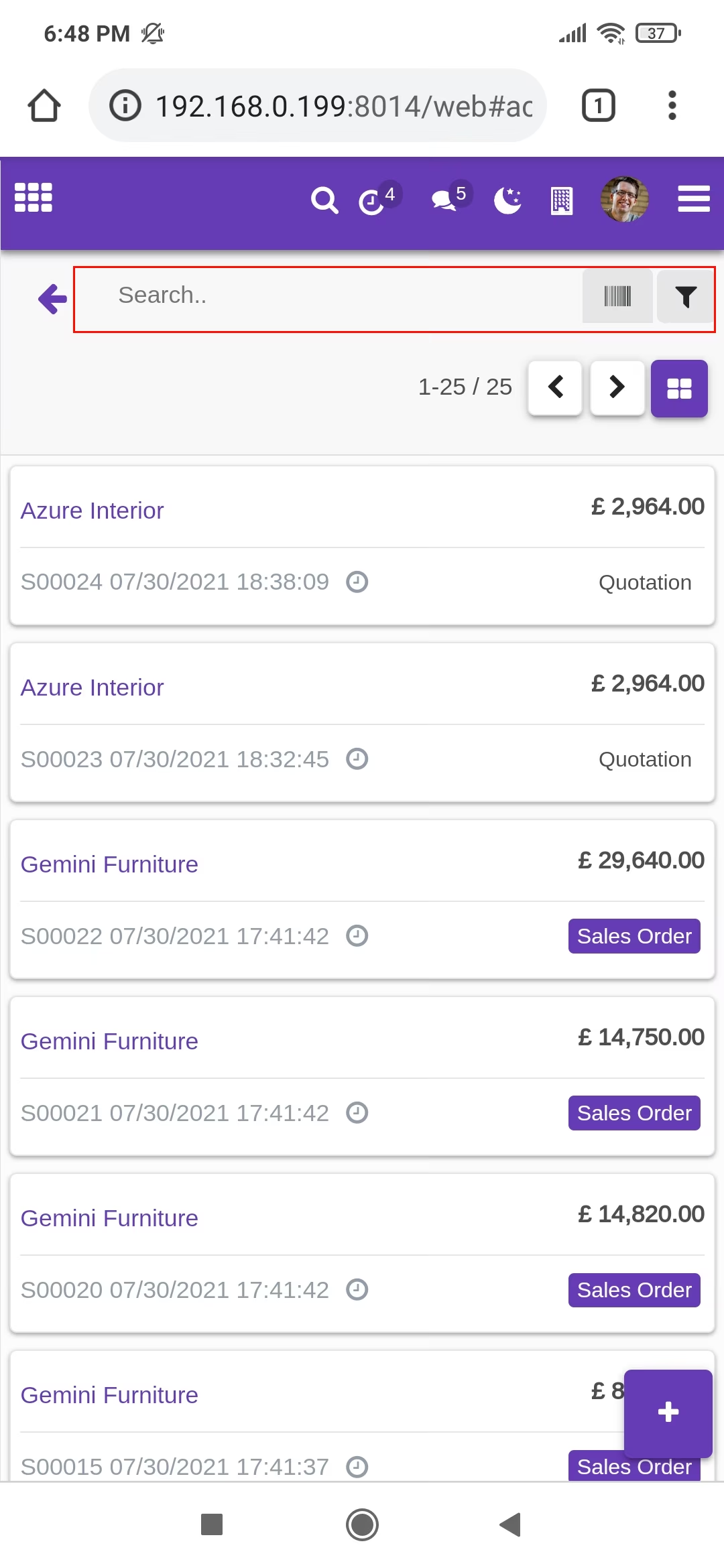
Now scan the Barcode/QRCode.
Scanned Barcode/QRCode search result comes in the search bar.
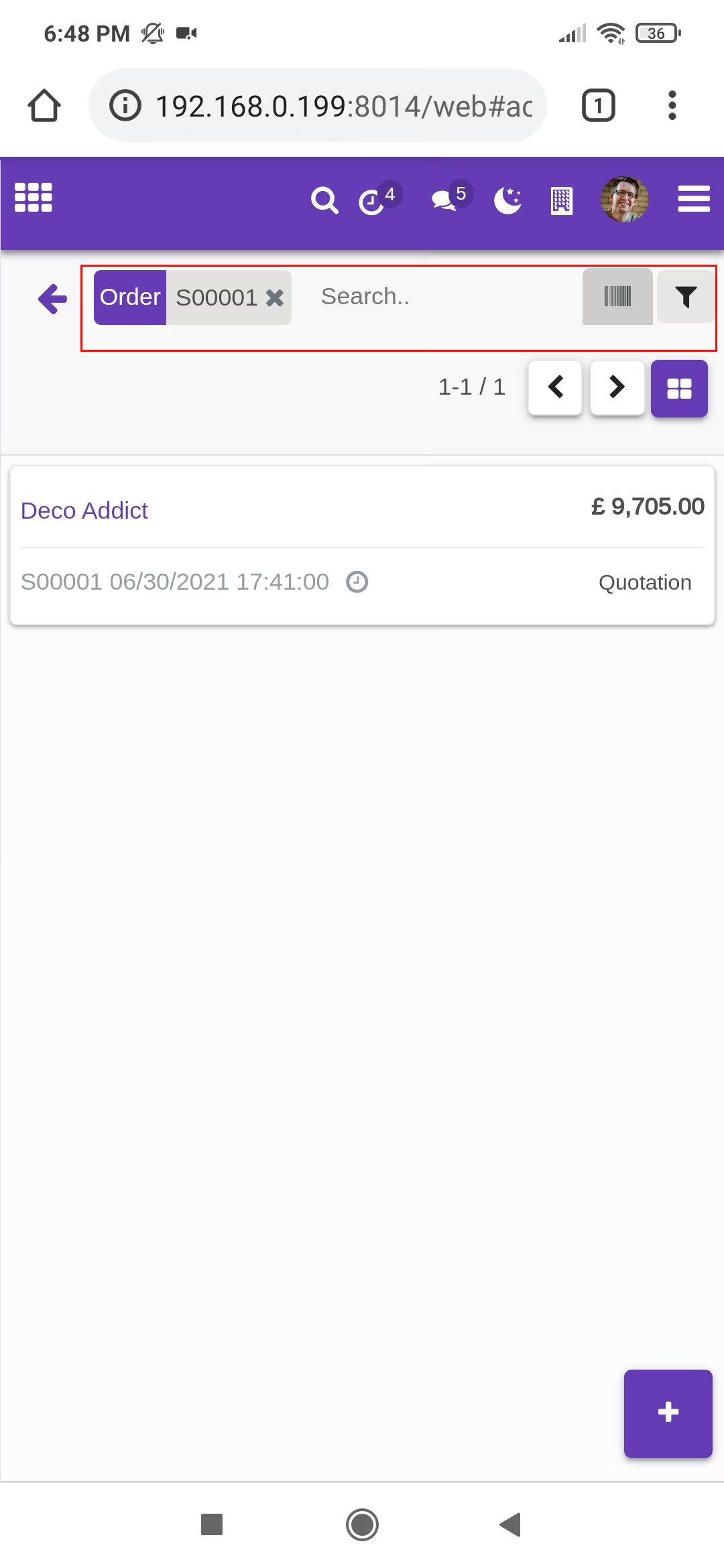
Open record from the search view.