The All in One Invoice Reports module enhances invoicing system by providing advanced reporting capabilities. It allows businesses to analyze invoices in multiple ways, offering day-wise reports, payment details, product-level insights, and performance tracking all in one centralized solution.
Key Features
Generate day-wise invoice reports for better time-based analysis
Create invoice payment reports to monitor payment status
Product-wise invoice summary for detailed sales analysis
Salesperson-wise invoice report to measure team performance
Reports for top-selling products and customer product trends
Invoice day book with flexible date range filters
Export reports in both PDF and Excel formats
Support for single and multiple invoice exports
Benefits
Centralized reporting solution: Access all invoice insights in one place
Enhanced decision-making: Track top products, customers, and sales performance
Time-saving reports: Quickly generate detailed analytics without manual work
Flexible exports: Use PDF for official records or Excel for further data processing
All in One Invoice Reports Apps
All Invoice Reports Apps
Day Wise Invoice Report Apps
Invoice Day Book Report Apps
Product Invoice Summary Report Apps
Invoice Report by Salesperson Apps
Invoice Payment Report Apps
Top Customer Product Report Apps
Invoice Summary Report Apps
Invoice Excel Report Apps
All in One Invoice reports app helps users to print invoice day wise reports, payment report for invoice, product sales summary reports, invoice report by salesperson report, highest selling products report, top customer product report, invoice day book report with particular date range for particular company in XLS and PDF format. Users can also print excel reports for single or multiple invoices.
Features

Day Wise Invoice Report
User can print day wise invoice report.
Invoice Payment Report
User can print payment report for customer invoice.
Product Invoice Summary Report
User can print product invoice summary report.
Invoice Report by Salesperson
User can print invoice report for selected salesperson.
Highest Selling Products Report
By printing this report user can find highest selling products.
Top Customer Product Report
User can print and find top customer product.
Invoice Day Book Report
User can print invoice day book report.
Highest Selling Products Analysis Report
By printing this report user can view highest selling products.
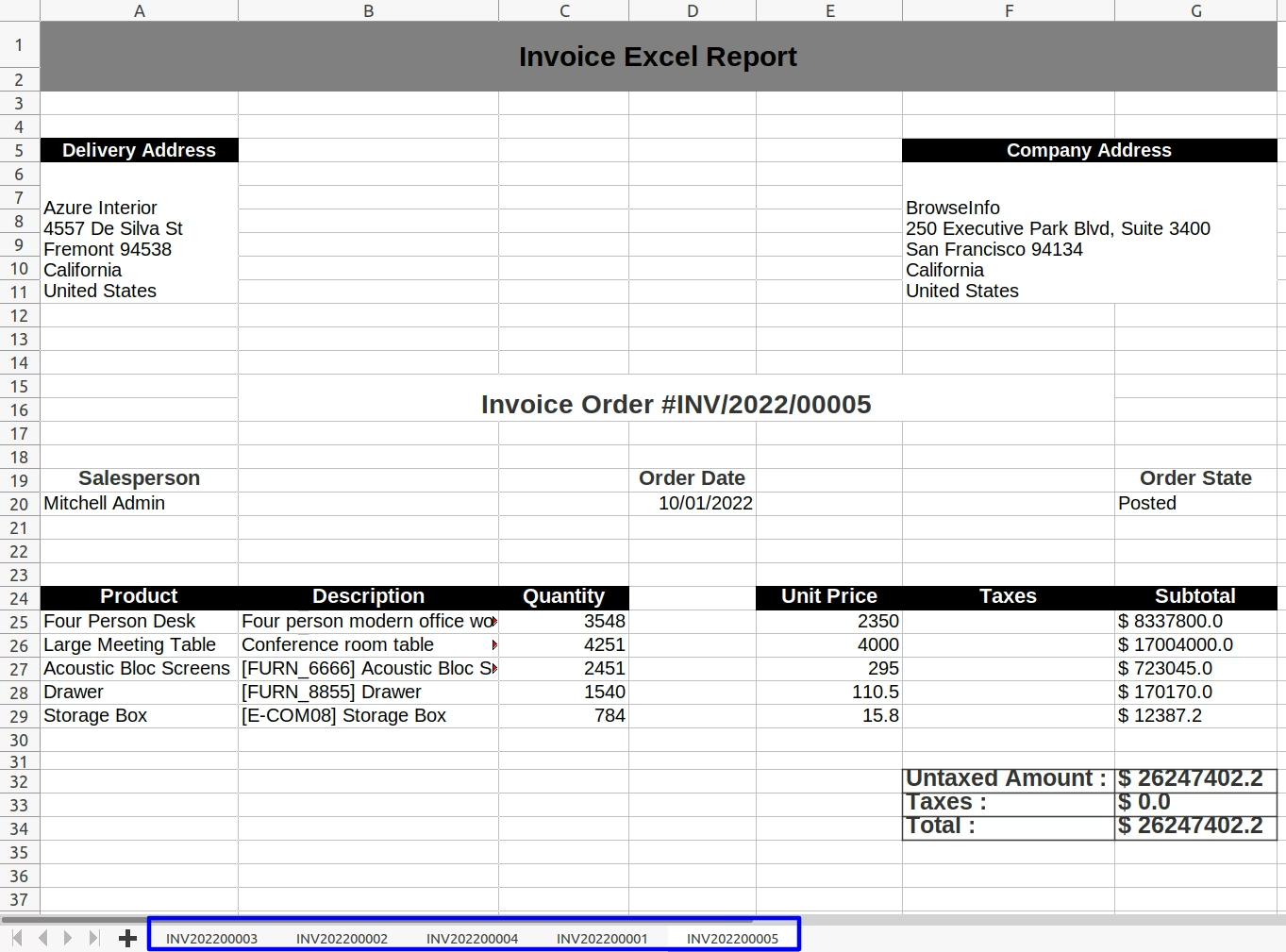
Invoice Excel Report
Now user can generate invoice order in excel format.
Different Filters for Reports
User can use different filters for reports like start date, end date, company, sales channel.
Print Reports in PDF & XLS Format
User can print reports in both PDF and XLS format.
Company Specific Report
User can print reports for specific company.Access Rights Configurations
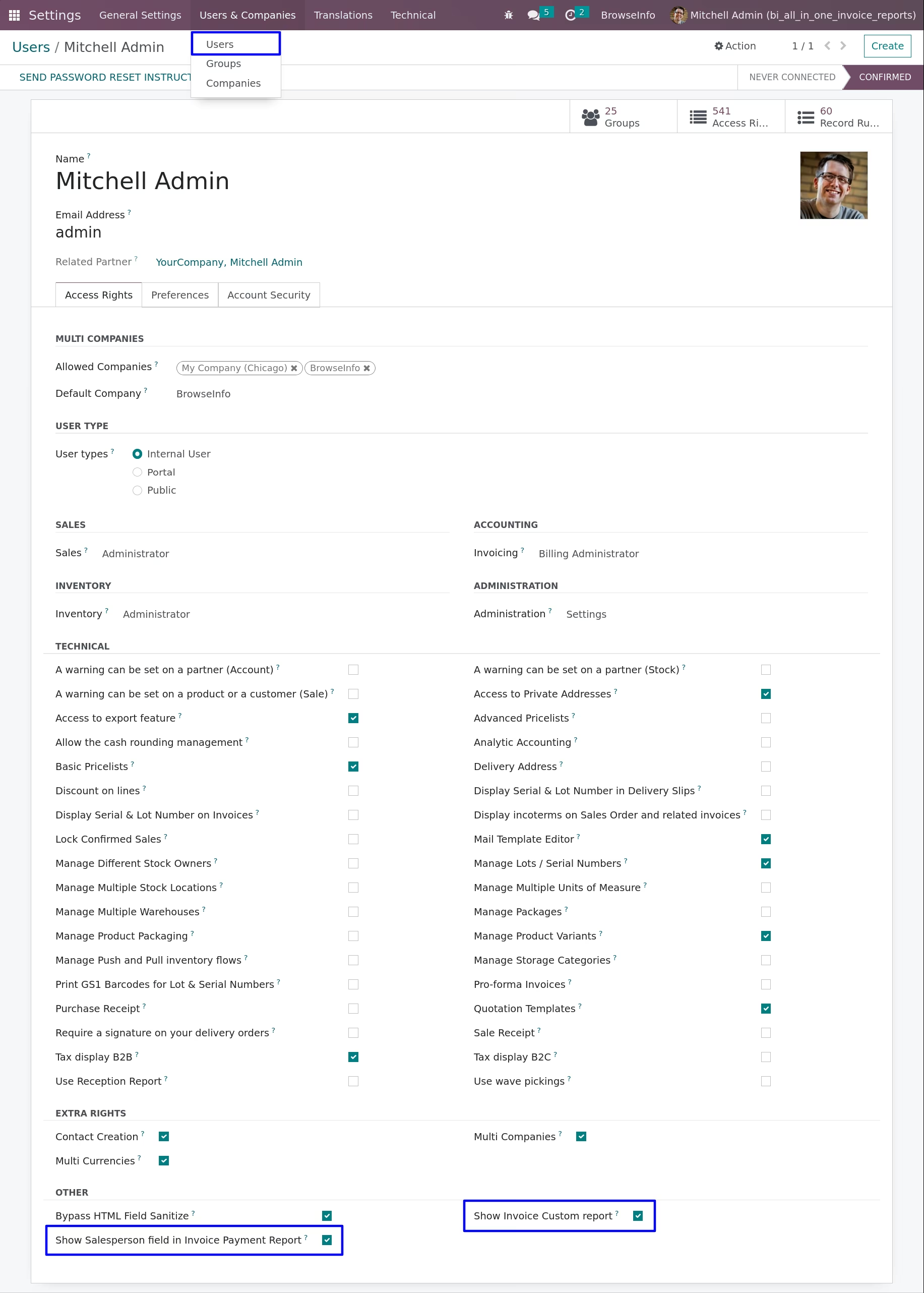
Users with "Show Invoice Custom report" access rights can only print all invoice report, If user wants to see salesperson on invoice payment report user must have "Show Salesperson field in Invoice Payment Report" access.
Day Wise Invoice Report
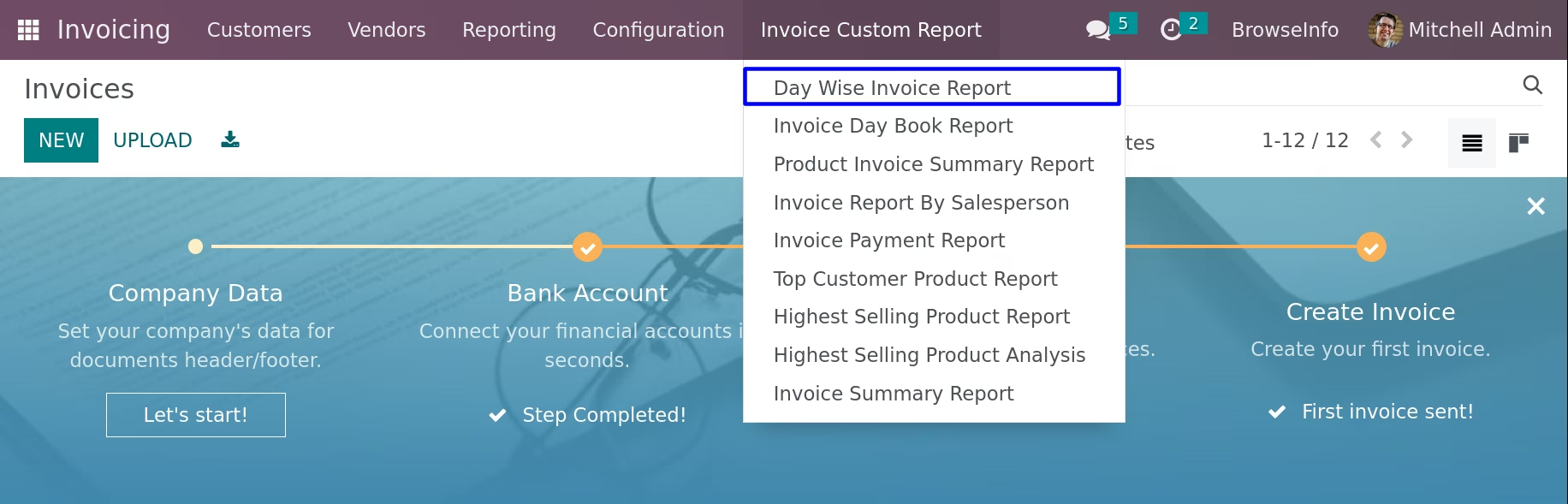
Day Wise Invoice Report Menu
Under Invoicing > Invoice Custom Report user can see "Day Wise Invoice Report" menu.
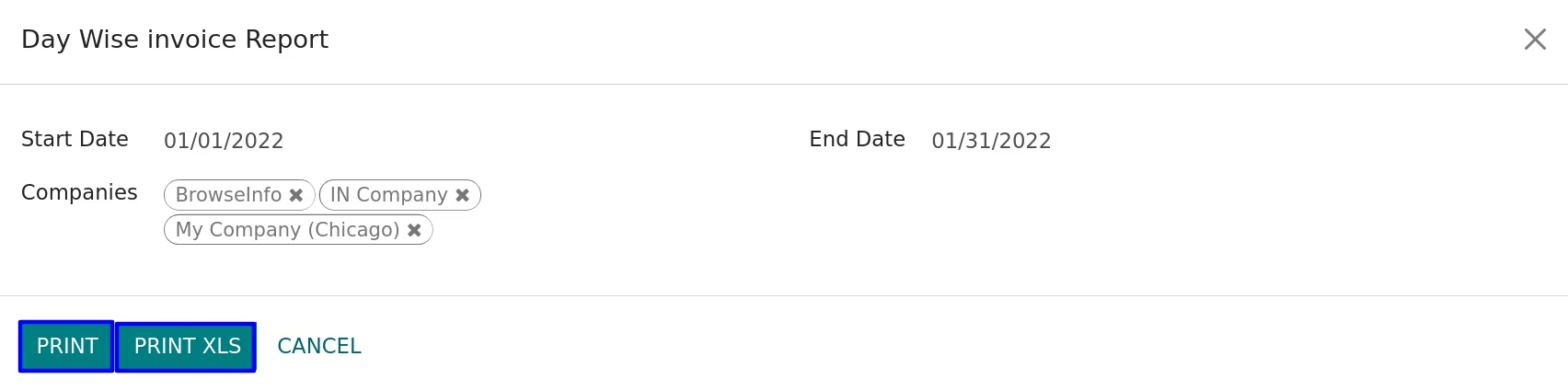
On clicking "Day Wise Invoice Report" menu wizard will open here user can select "Start Date" and "End Date", user can also select "Companies" and print report.
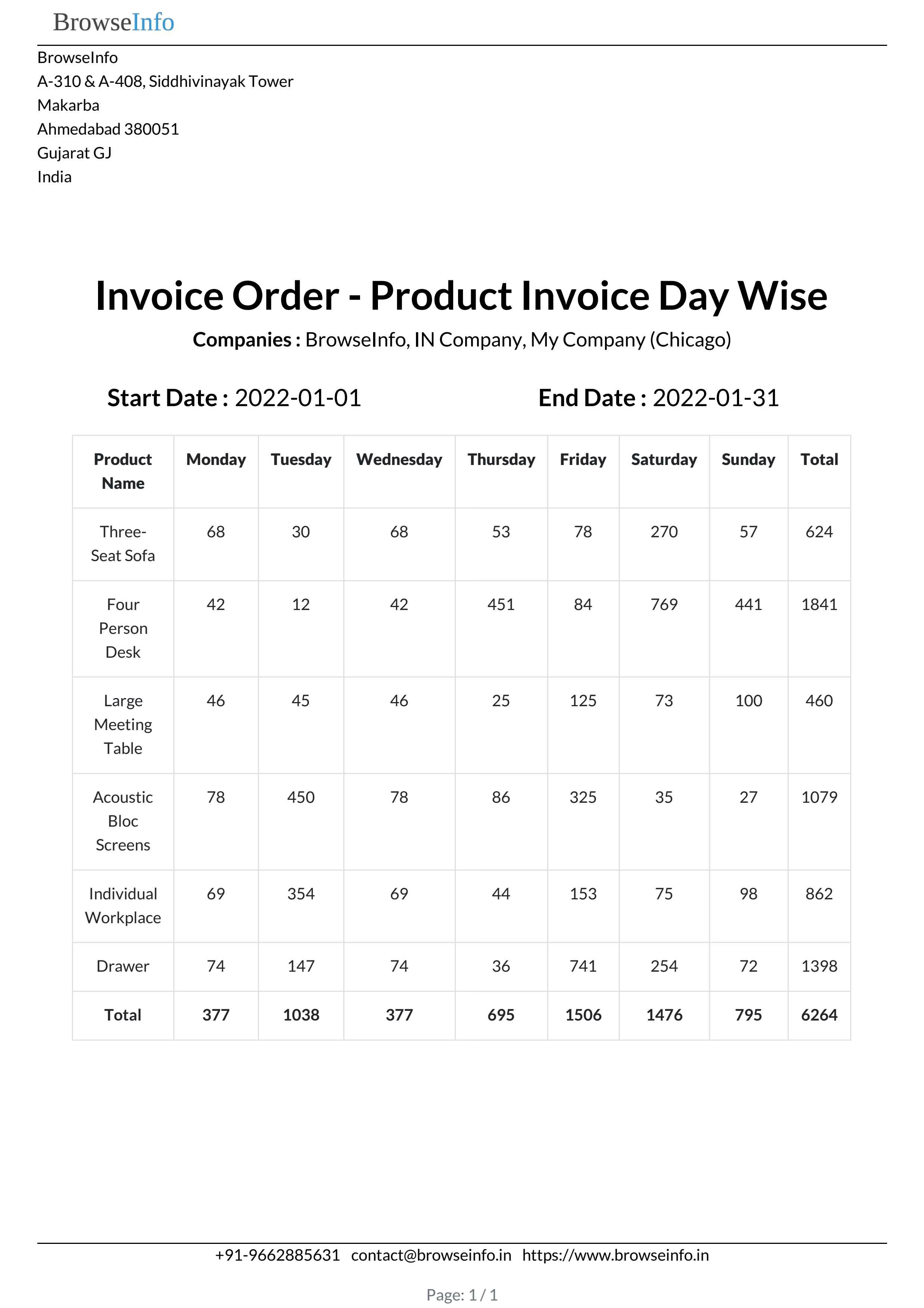
Day Wise Invoice PDF Report
On clicking "PRINT PDF" button user can see printed report in PDF format.
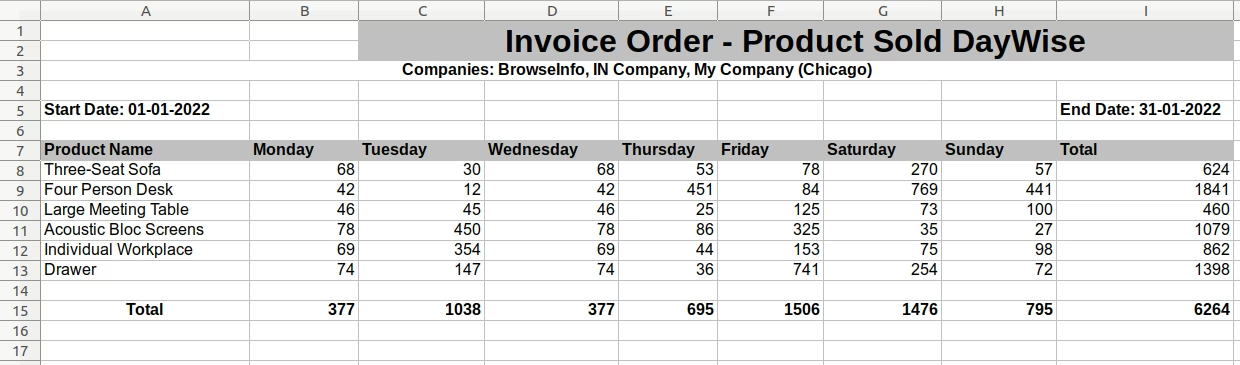
Day Wise Invoice XLS Report
On clicking "PRINT XLS" button user can see generated report in XLS format.
Invoice Day Book Report
Invoice Day Book Report Menu
Under Invoicing > Invoice Custom Report user can see "Invoice Day Book Report" menu.
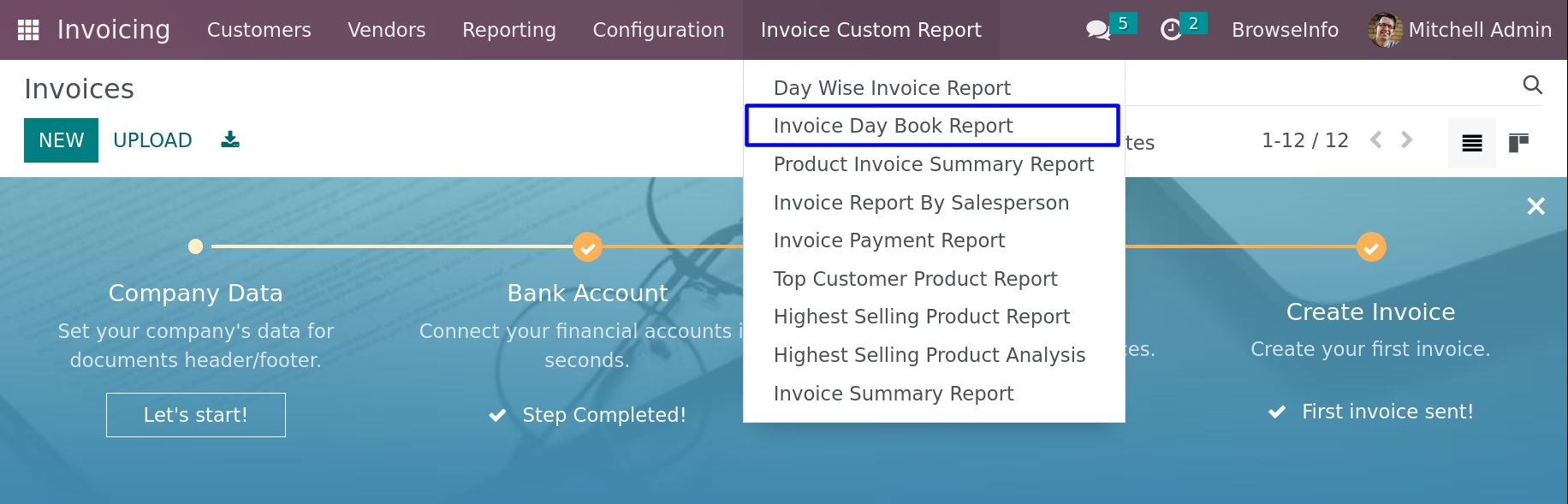
On clicking "Invoice Day Book Report" menu wizard will open here user can select "Start Date" and "End Date" and print report.

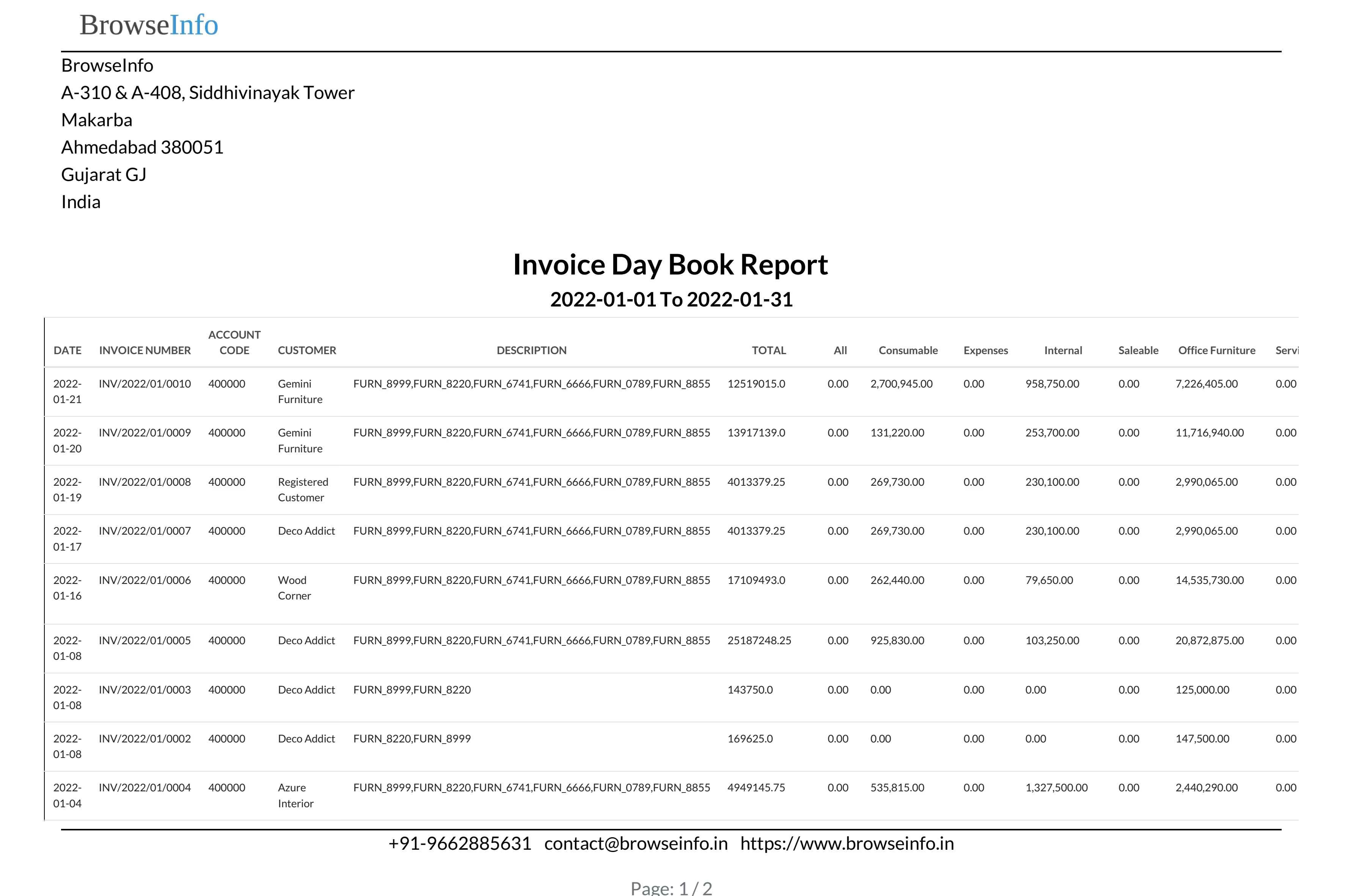
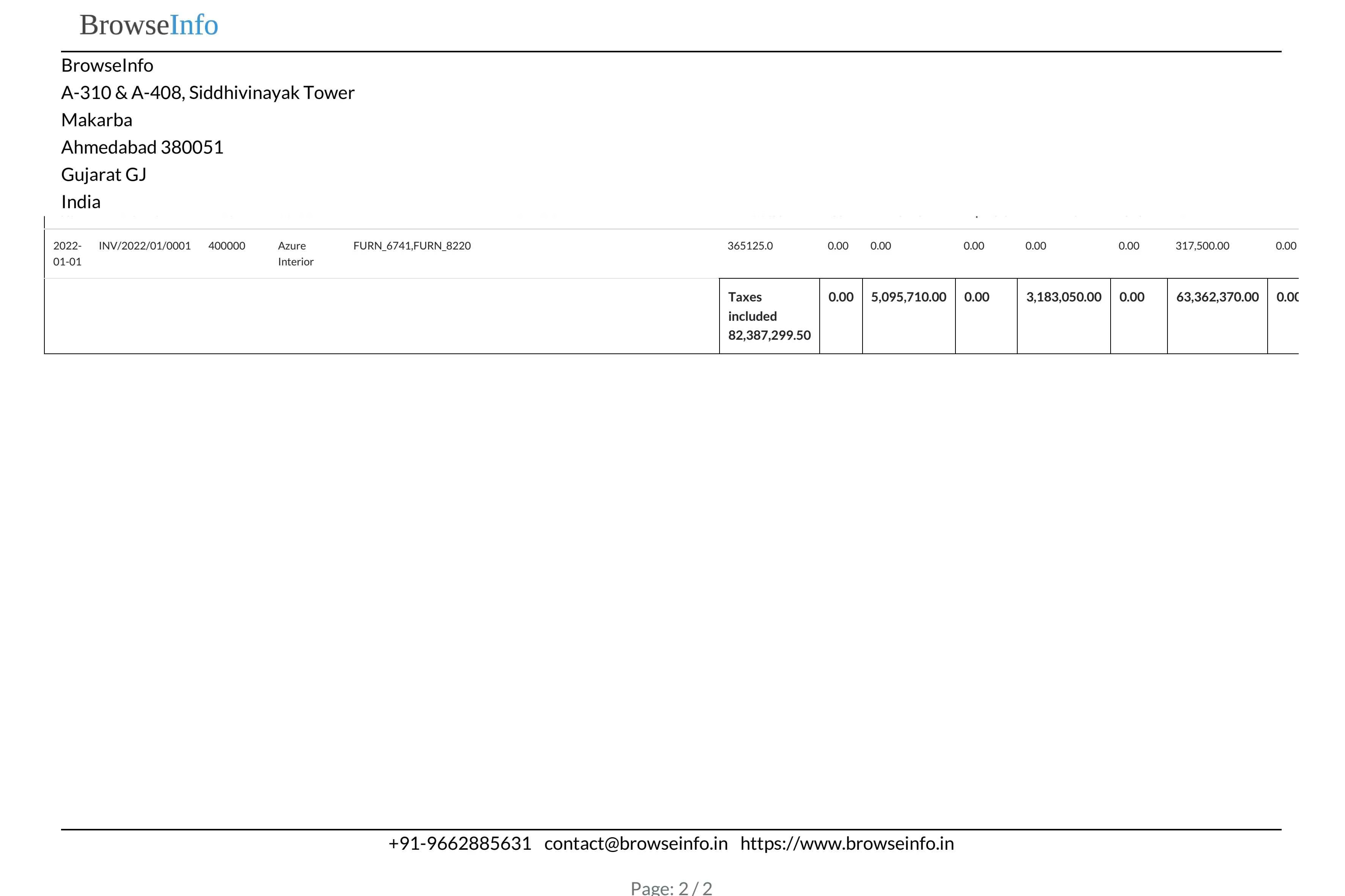
Invoice Day Book PDF Report
On clicking "PRINT PDF" button user can see printed report in PDF format.
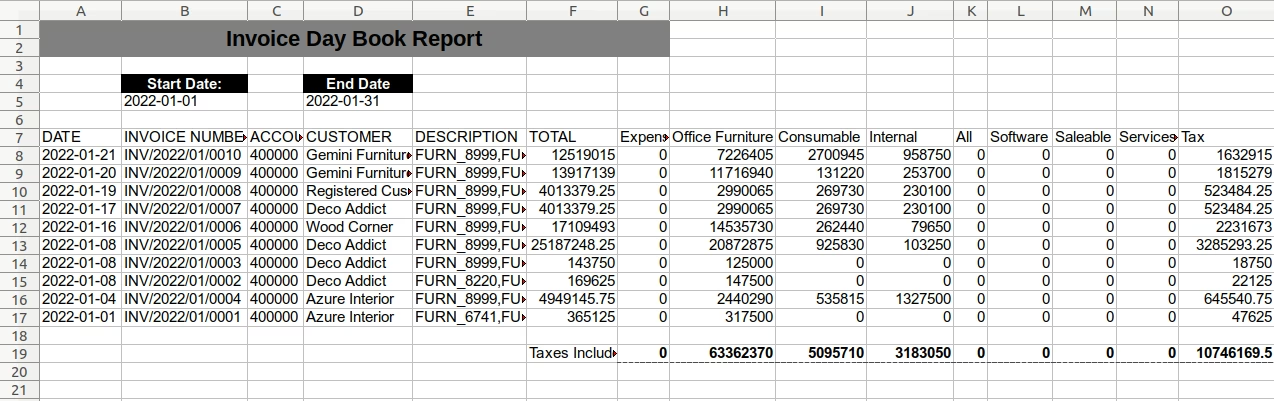
Invoice Day Book Report XLS Report
On clicking "PRINT XLS" button user can see generated report in XLS format.
Product Invoice Summary Report
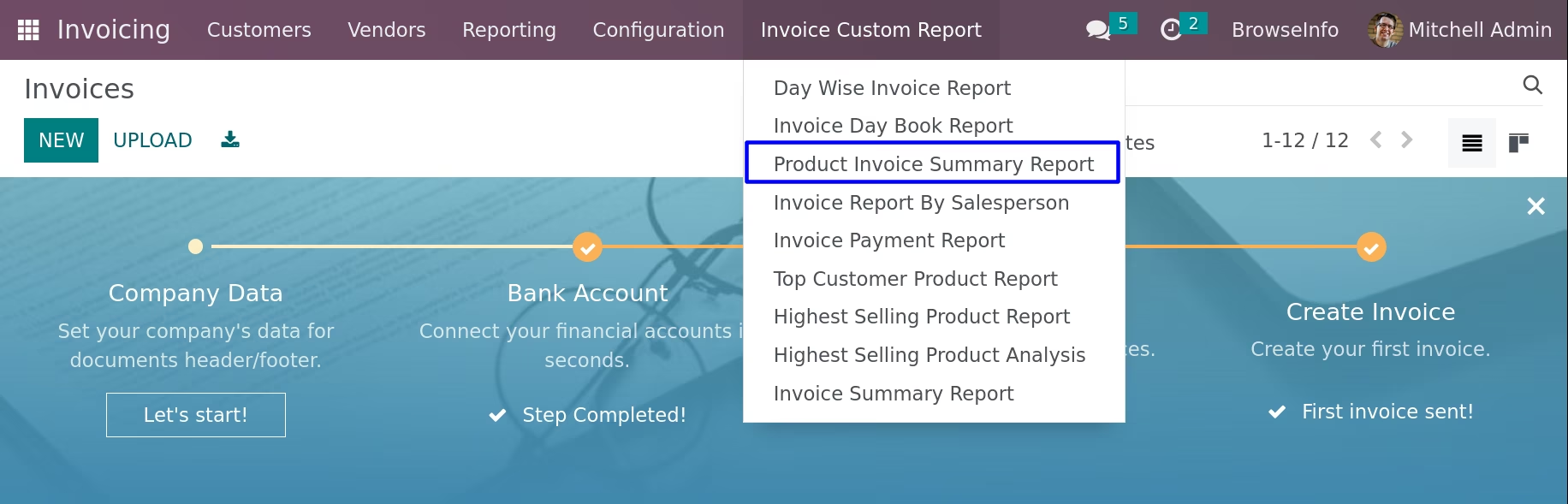
Product Invoice Summary Report Menu
Under Invoicing > Invoice Custom Report user can see "Product Invoice Summary Report" menu.
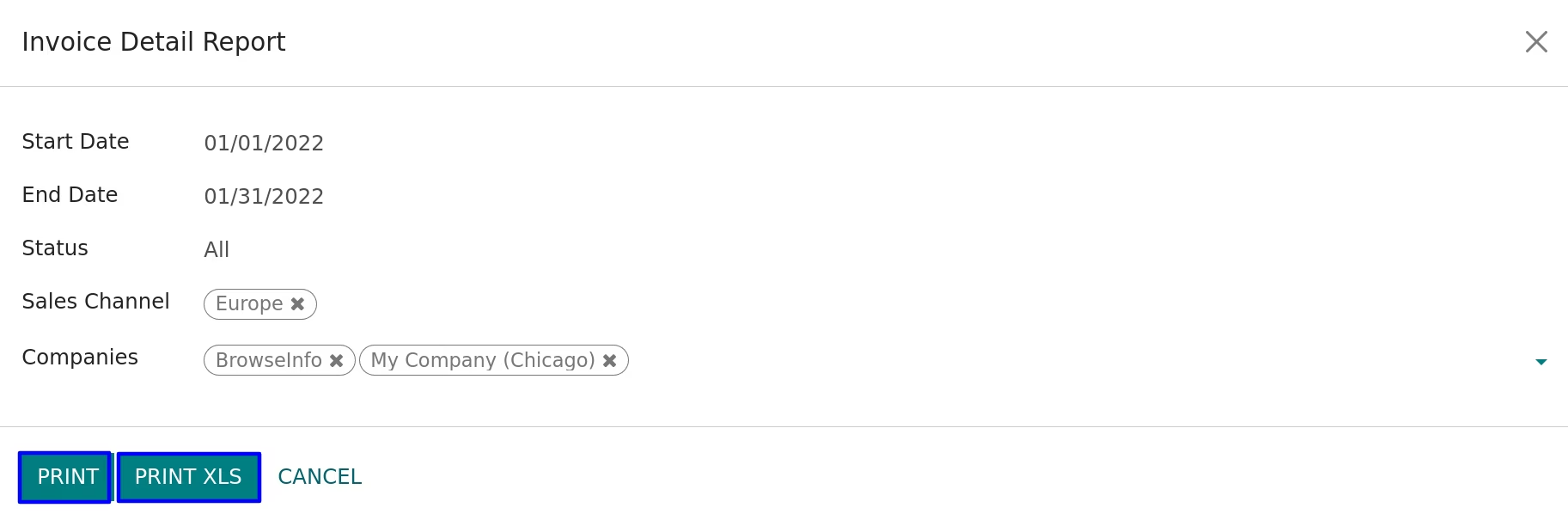
On clicking "Product Invoice Summary Report" menu wizard will open here user can select "Start Date" and "End Date", "Status" like All and Open, and sales channel, user can also select "Companies" and print report.
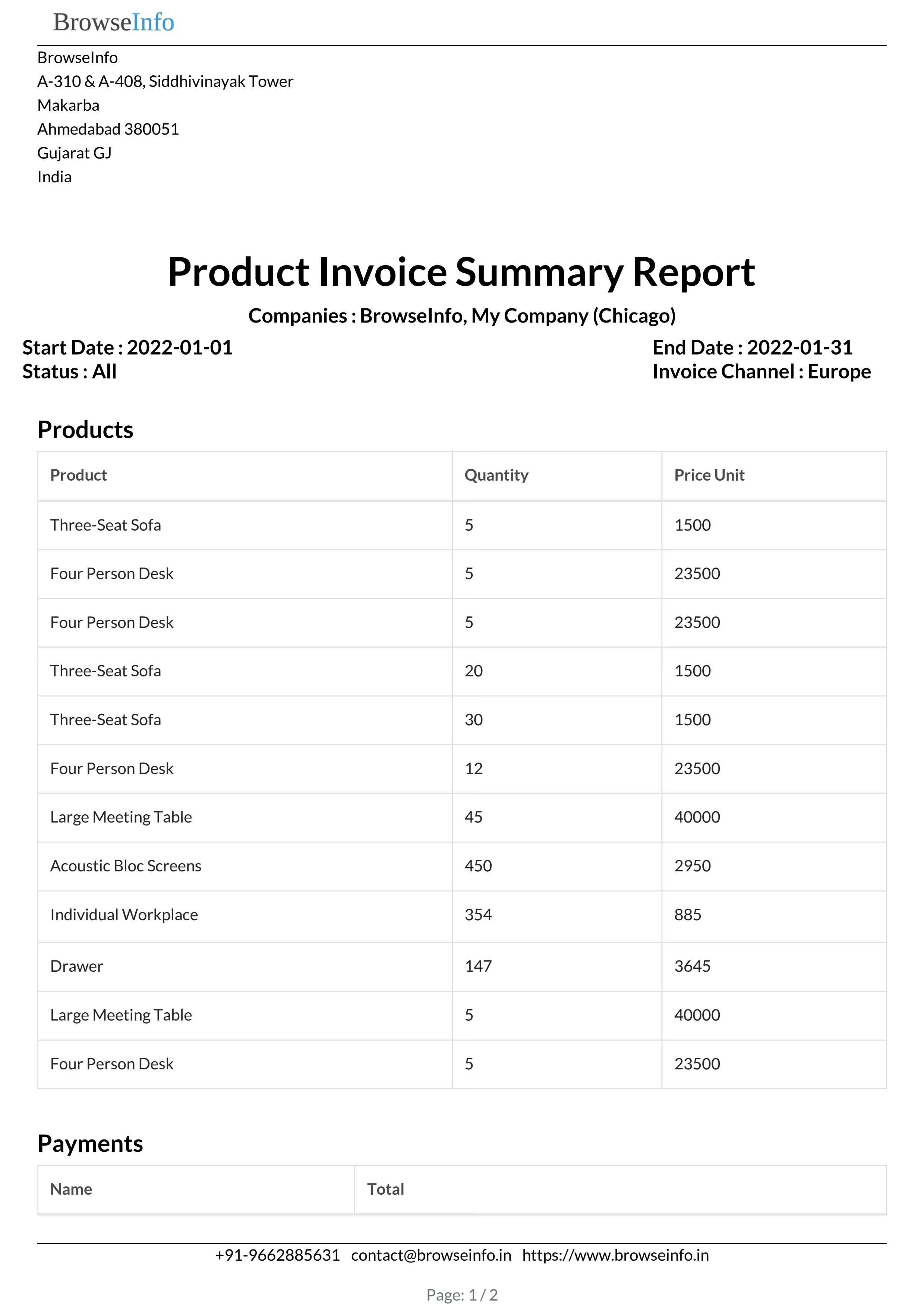
Product Invoice Summary PDF Report
On clicking "PRINT PDF" button user can see printed report in PDF format.
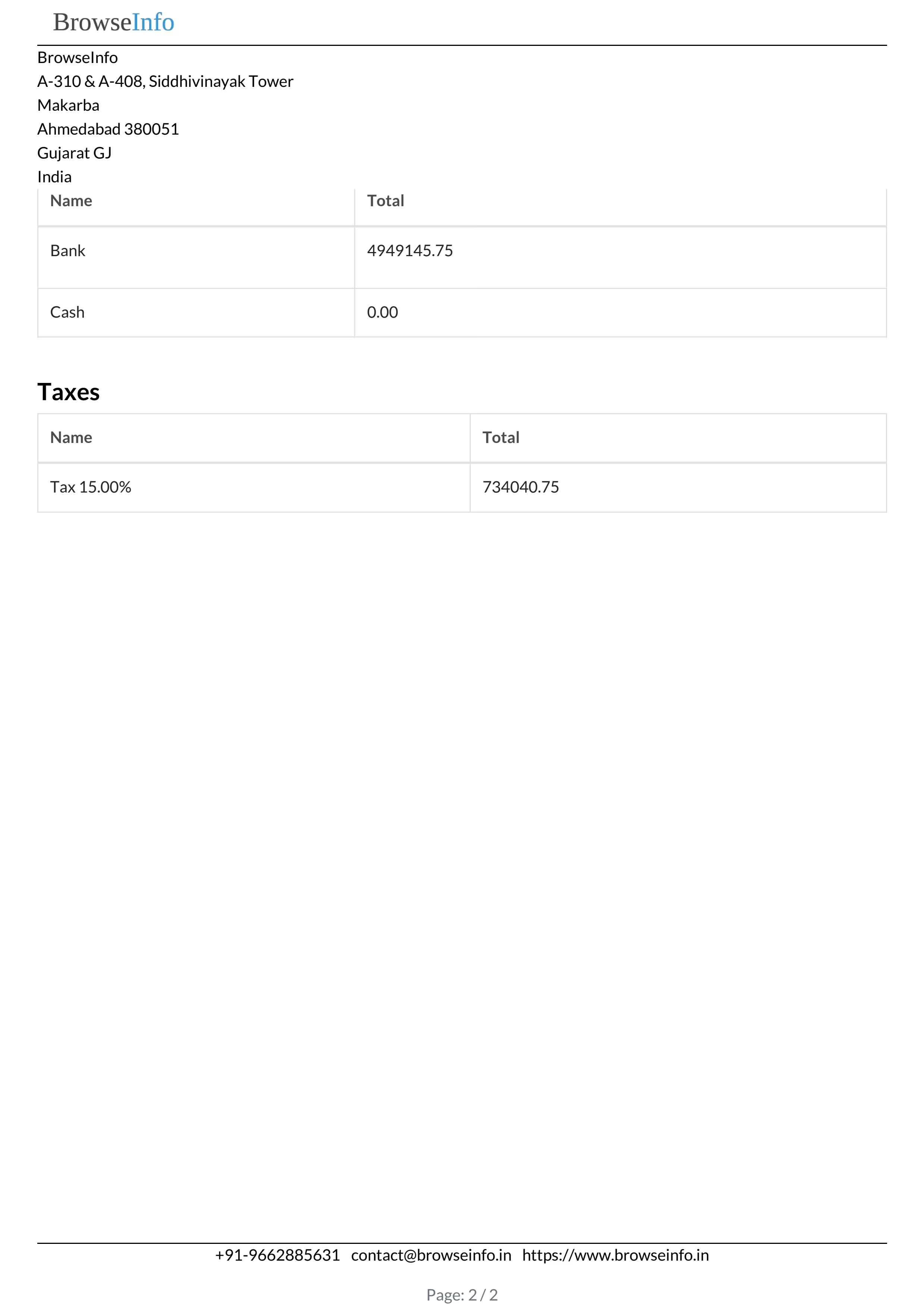
Product Invoice Summary XLS Report
On clicking "PRINT XLS" button user can see generated report in XLS format.
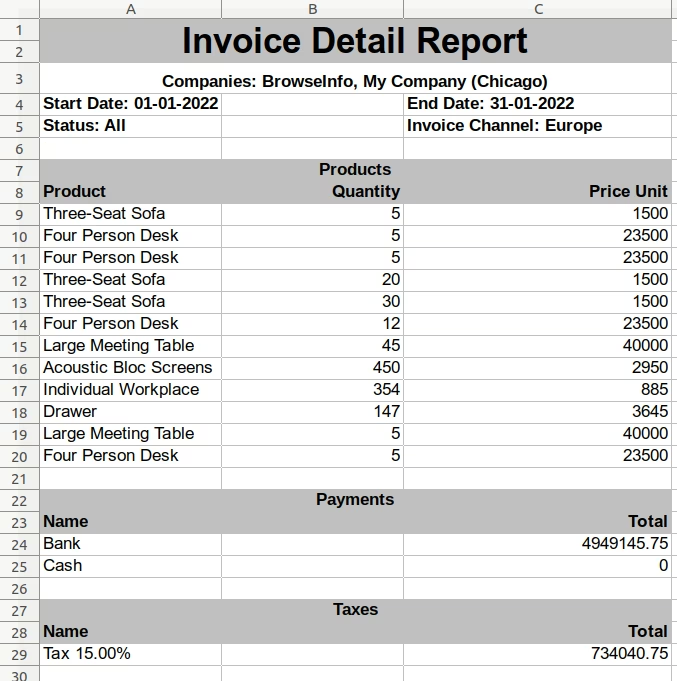
Invoice Report by Salesperson
Invoice Report by Salesperson Menu
Under Invoicing > Invoice Custom Report user can see "Invoice Report by Salesperson" menu.
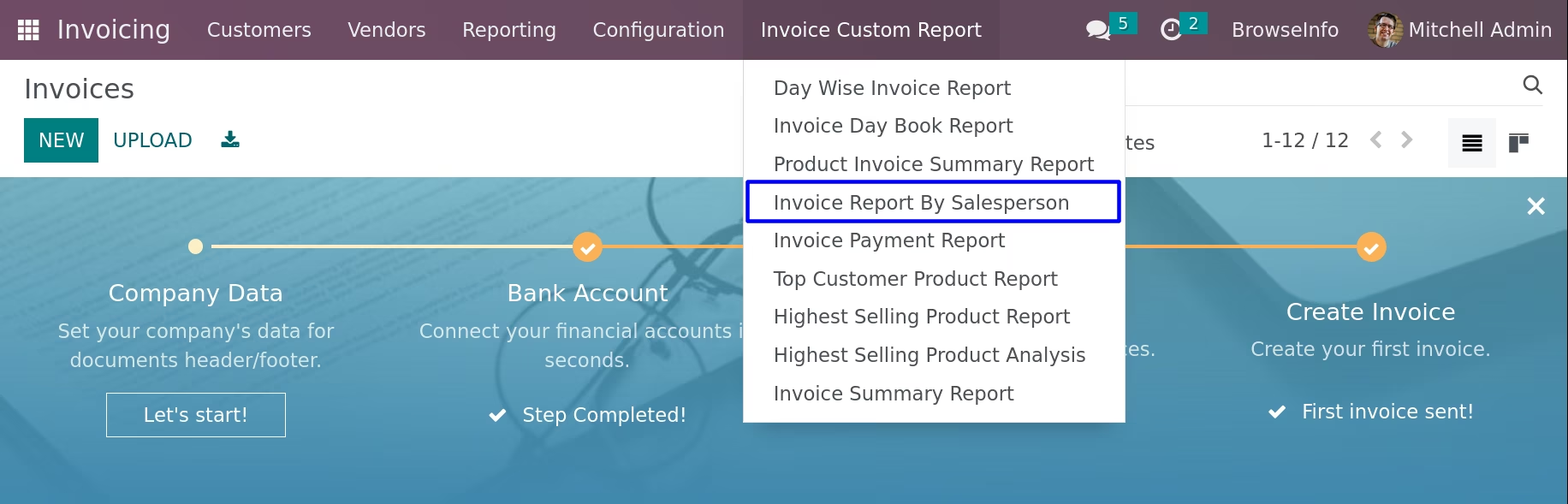
On clicking "Invoice Report by Salesperson" menu wizard will open here user can select "Start Date", "End Date", "Status" like All, Open, Paid, "Companies" and user can also select "Salesperson" and print report.
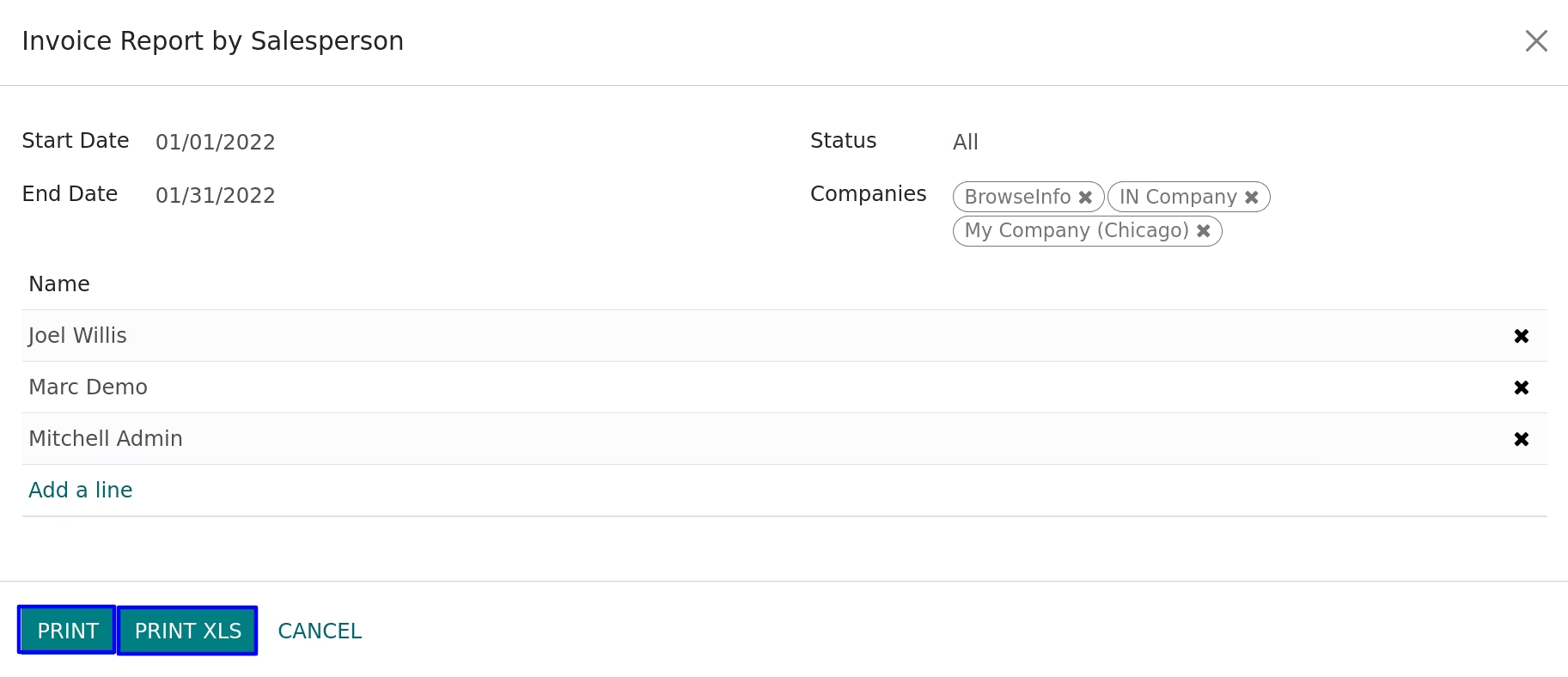
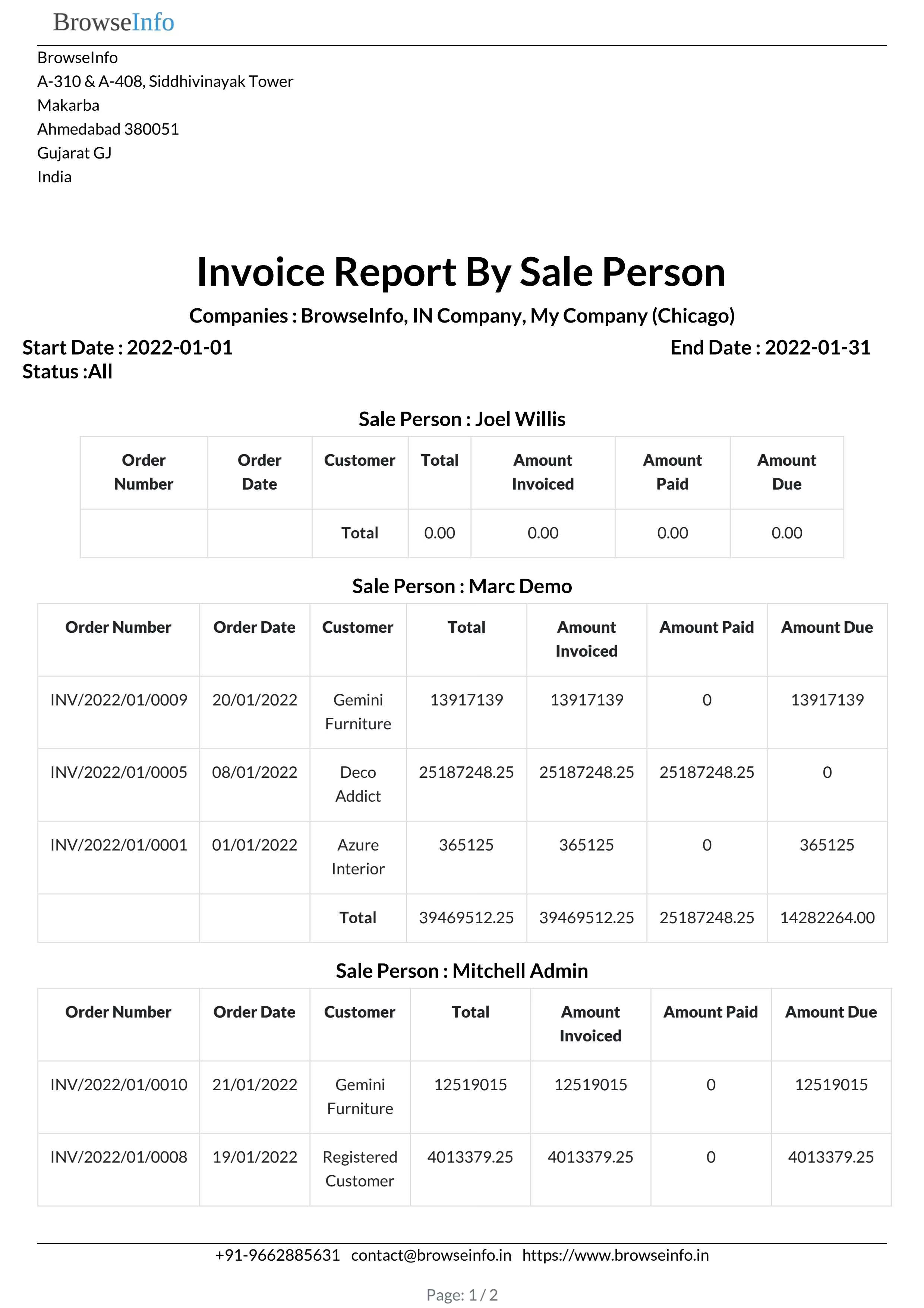
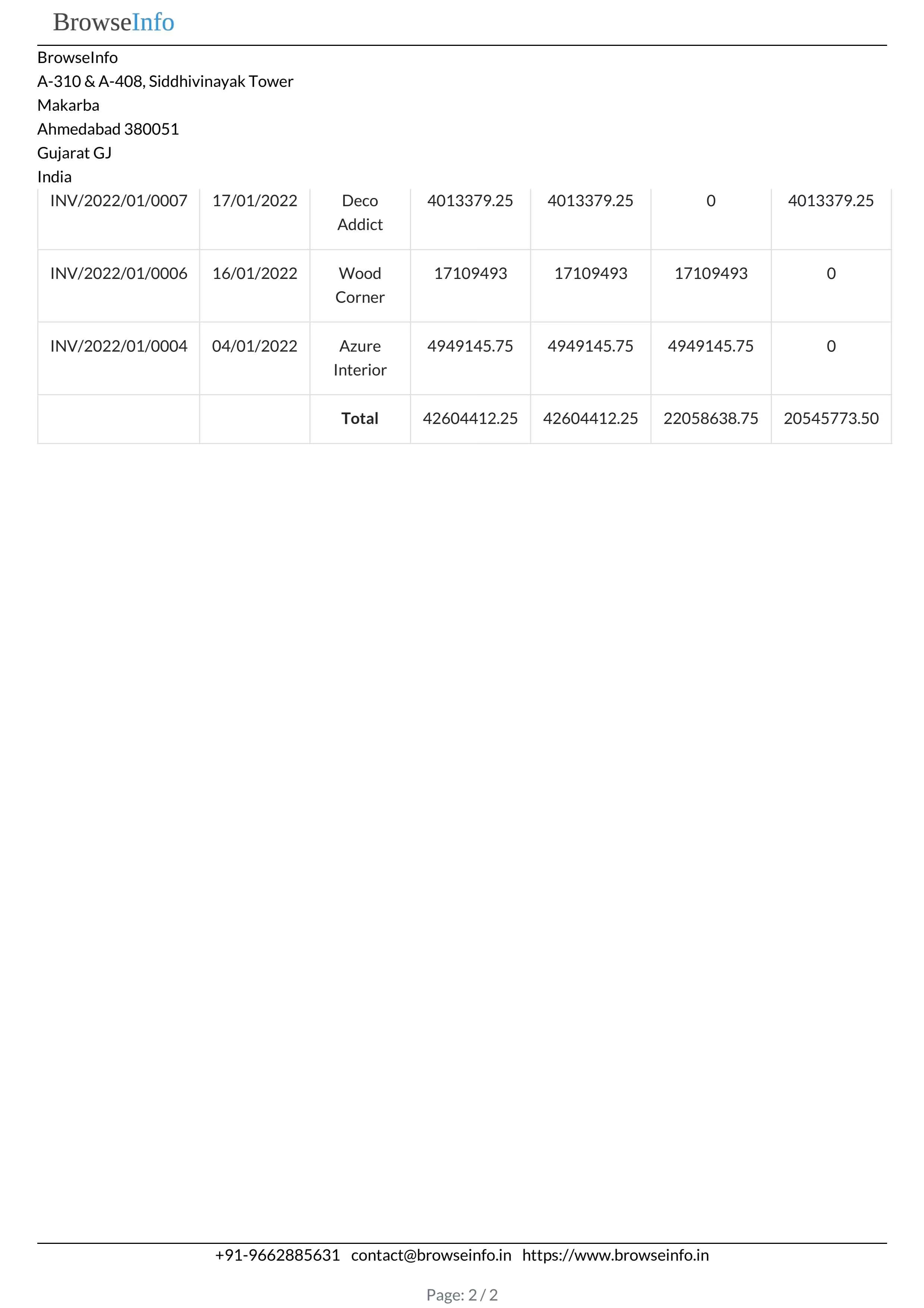
Invoice Report by Salesperson PDF Report
On clicking "PRINT PDF" button user can see printed report in PDF format.
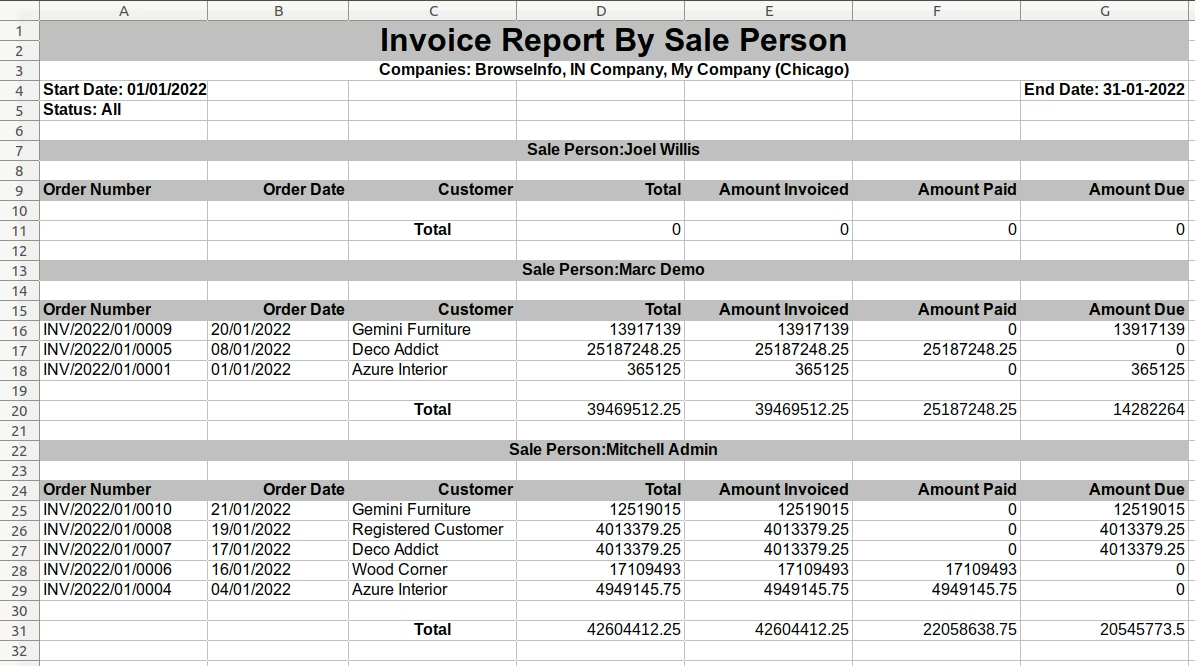
Invoice Report by Salesperson XLS Report
On clicking "PRINT XLS" button user can see generated report in XLS format.
Invoice Payment Report
Invoice Payment Report Menu
Under Invoicing > Invoice Custom Report user can see "Invoice Payment Report" menu.
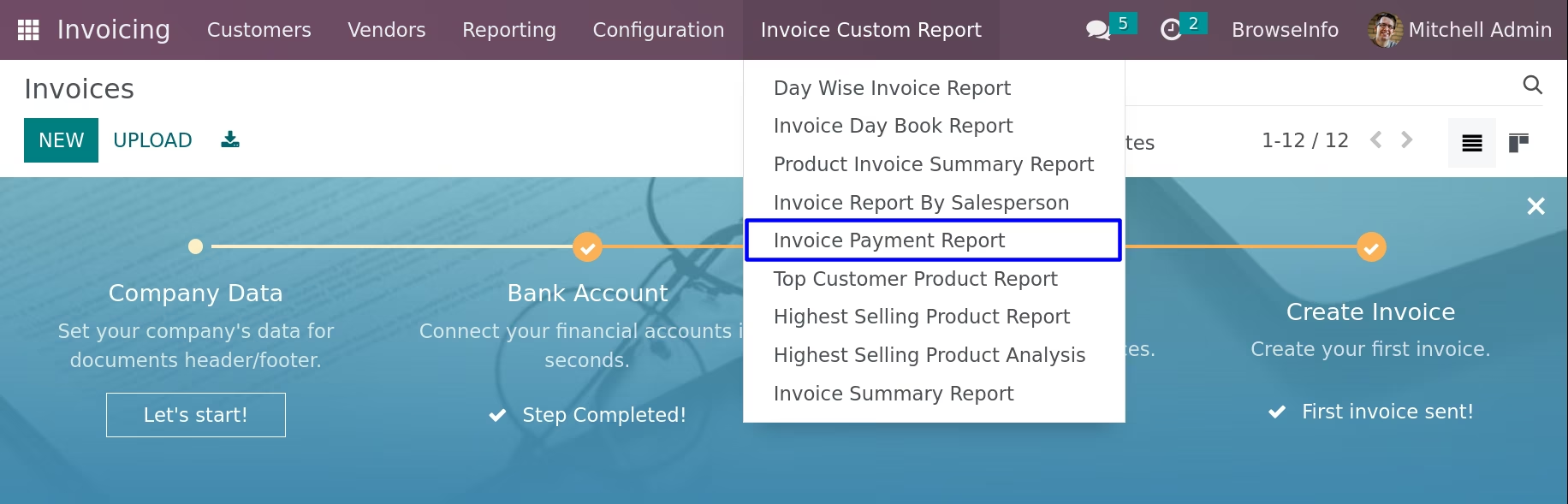
On clicking "Invoice Payment Report" menu wizard will open here user can select "Start Date" and "End Date", user can also select "Companies", "Status" like All, Open, Paid and can select "Salesperson" and print report.
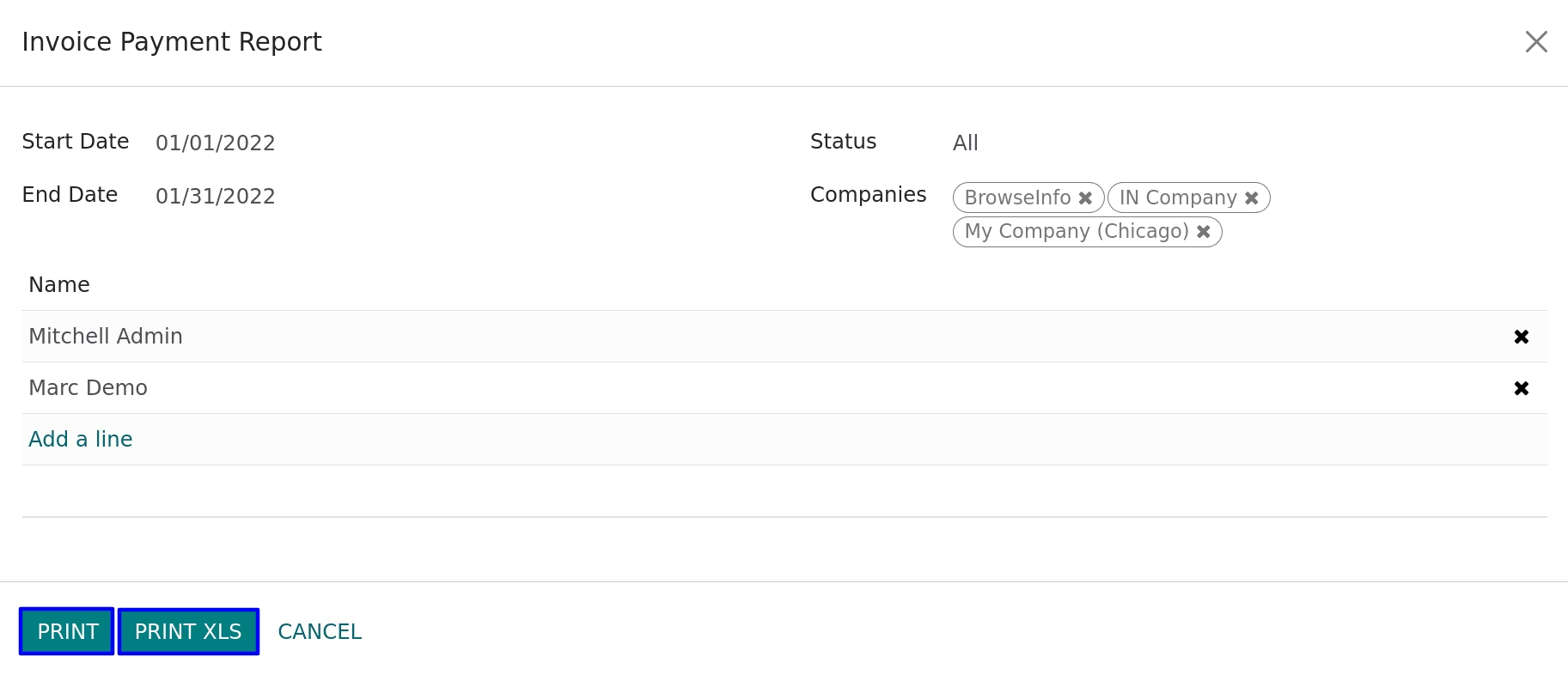
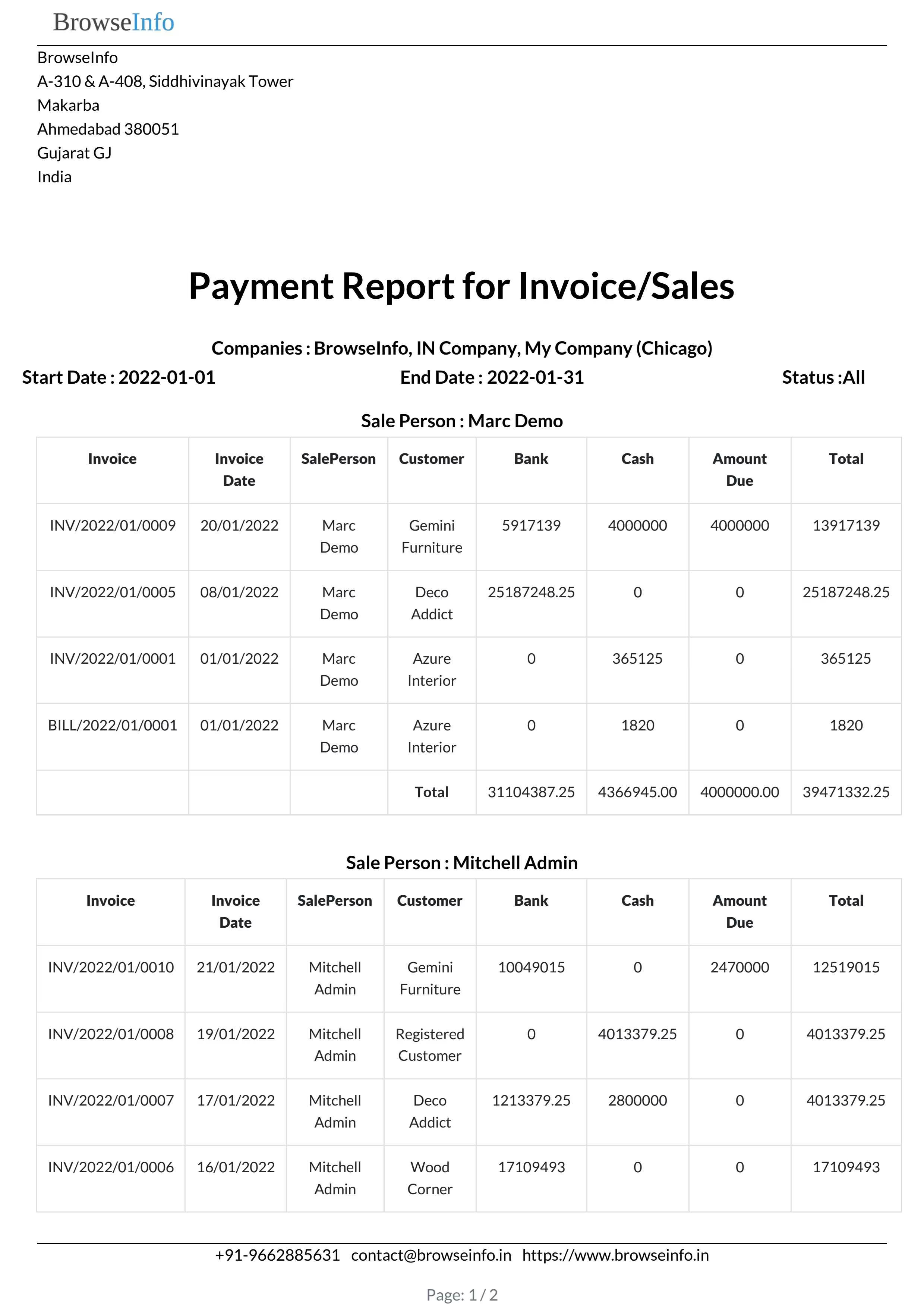
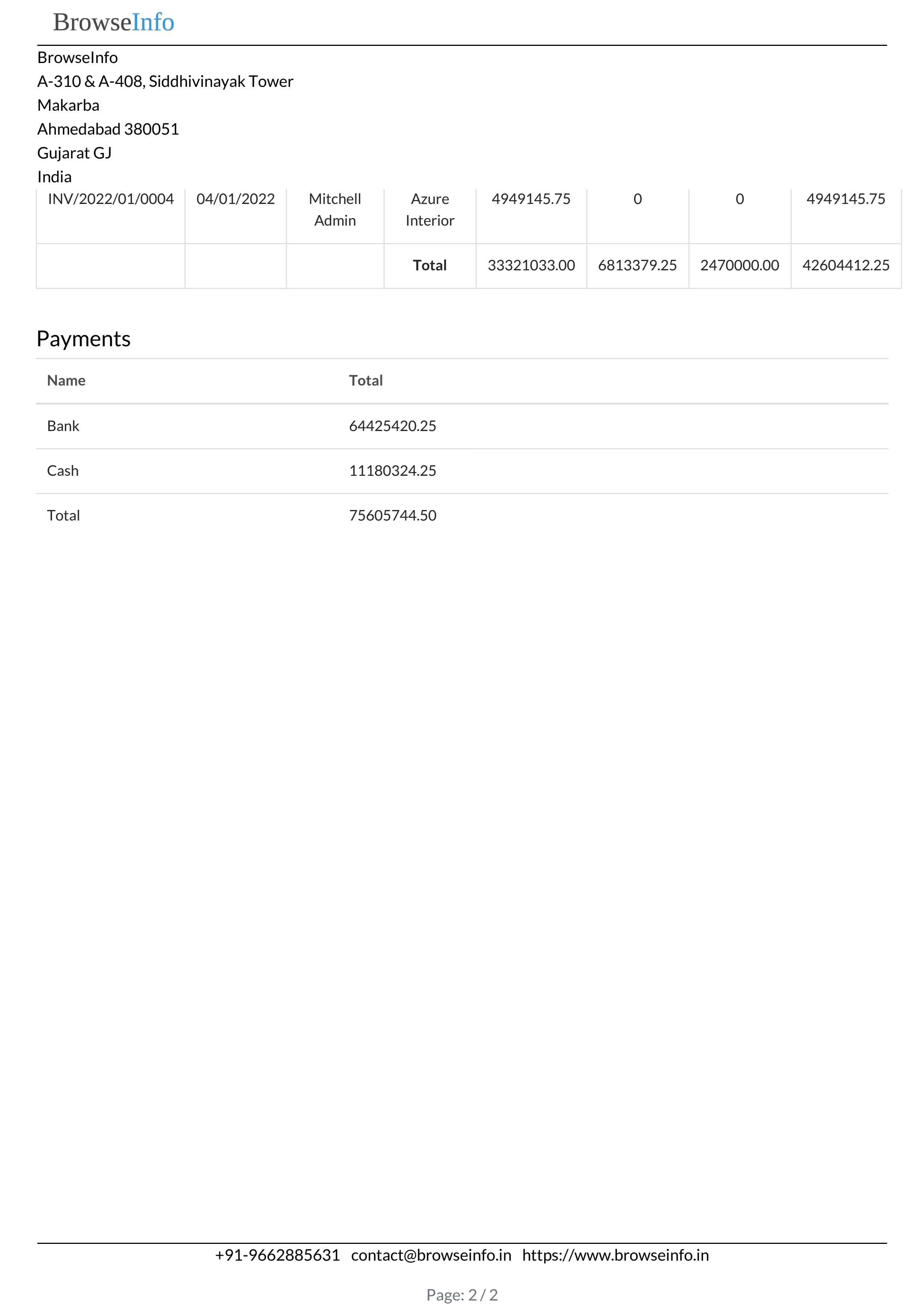
Invoice Payment PDF Report
On clicking "PRINT PDF" button user can see printed report in PDF format.
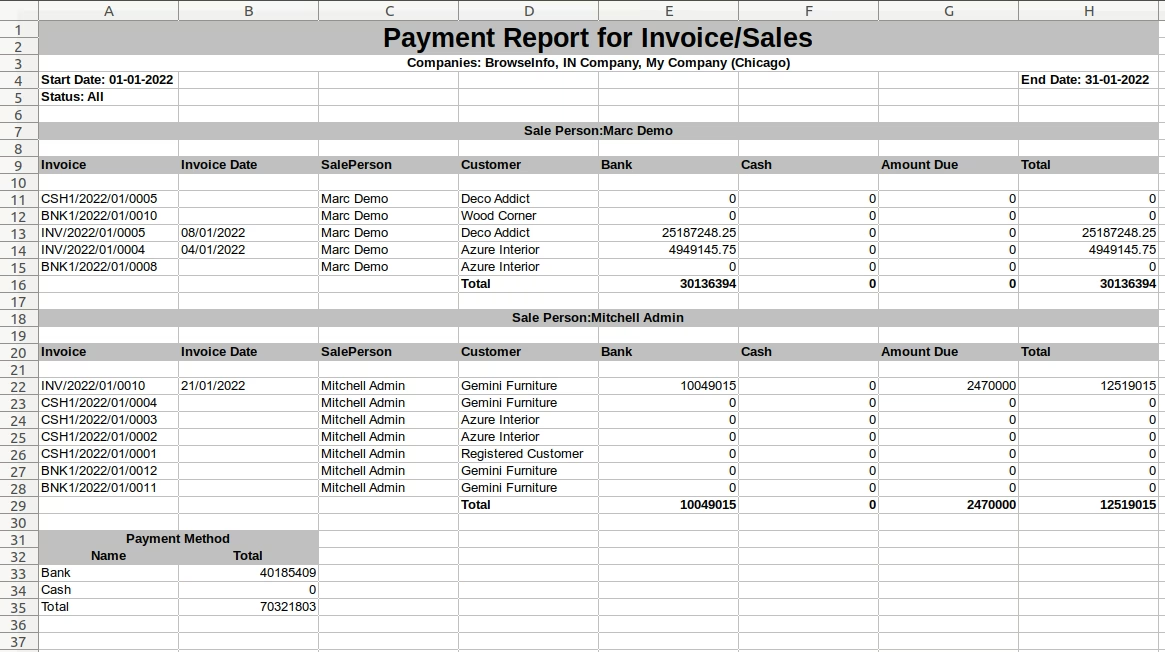
Invoice Payment XLS Report
On clicking "PRINT XLS" button user can see generated report in XLS format.
Top Customer Product Report
Top Customer Product Report Menu
Under Invoicing > Invoice Custom Report user can see "Top Customer Product Report" menu.
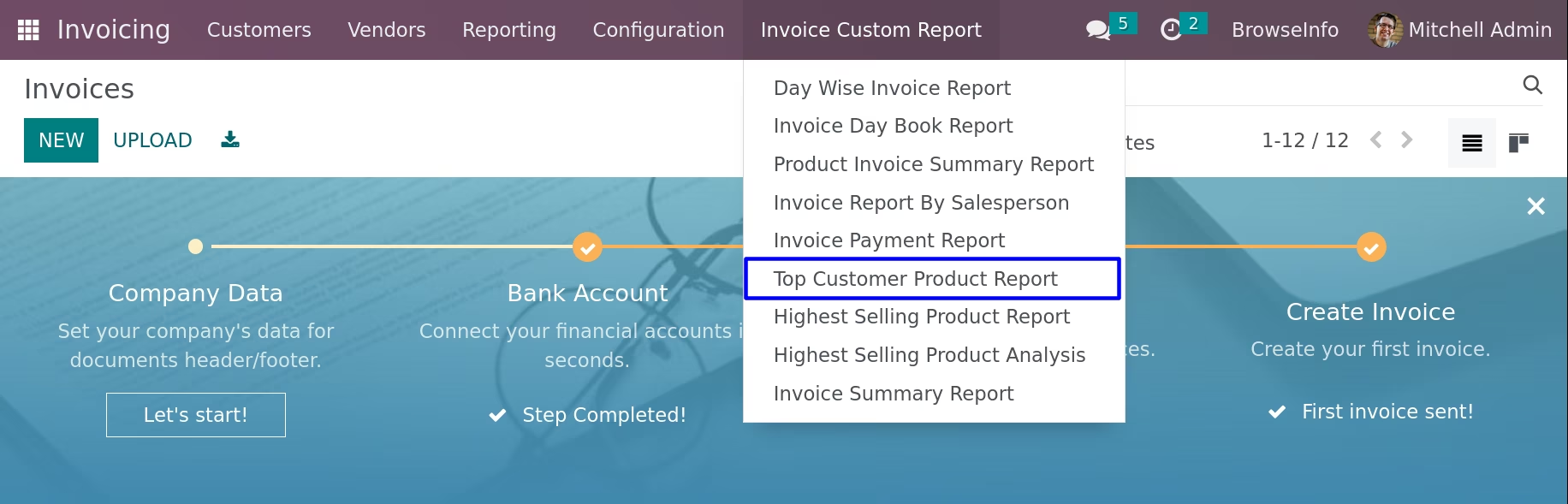
On clicking "Top Customer Product Report" menu wizard will open here user can select "Report Type" as Basic or Compare, If user selects basic report type then enter "From Date", "To Date", "Number of Items", "Total Sale Amount" and "Companies" and print report.
If user selects compare report type then enter "From Date", "To Date", "Compare From Date", "Compare To Date", "Number of Items", "Total Sales Amount" and "Companies" and print report.
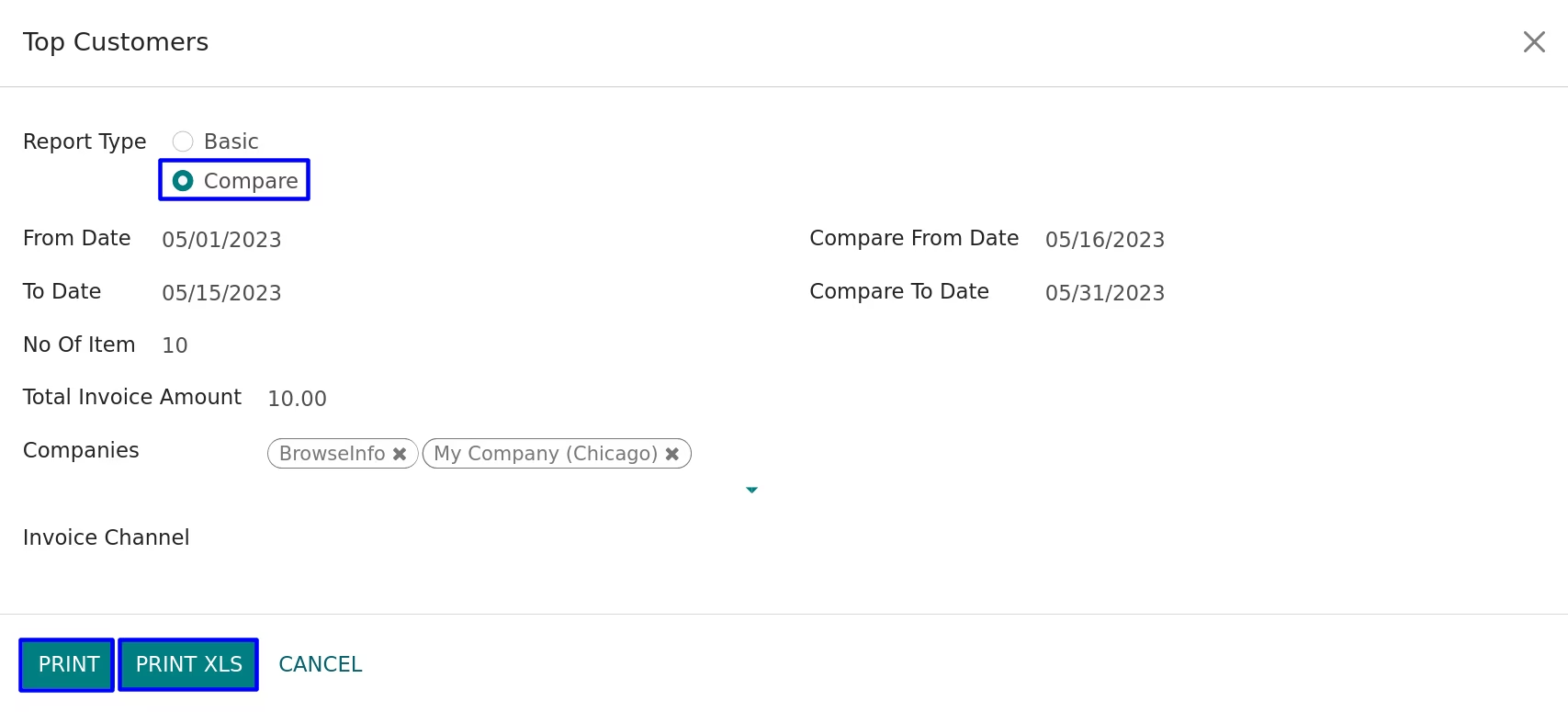
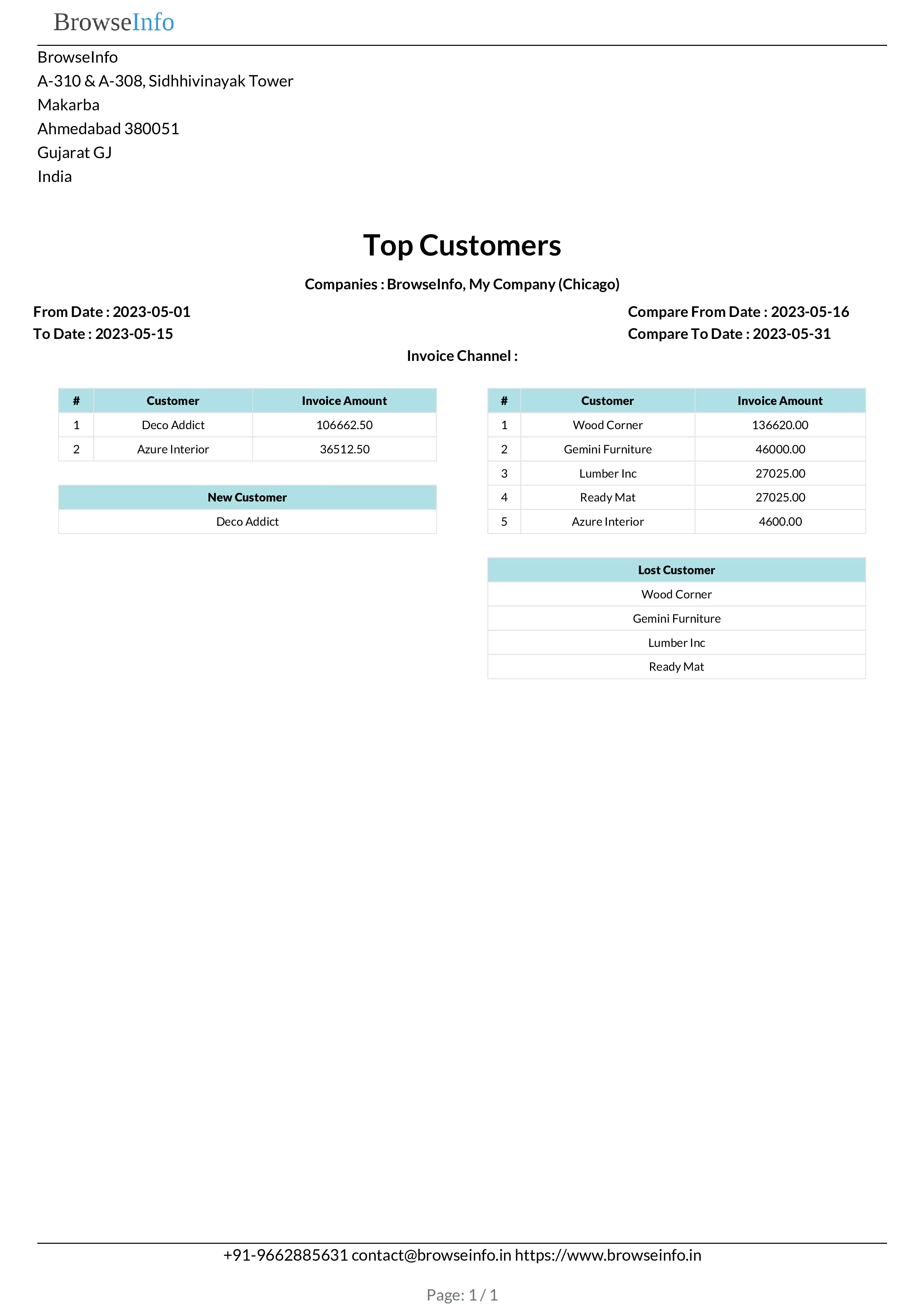
Top Customer Product PDF Report
On clicking "PRINT PDF" button user can see printed report in PDF format.
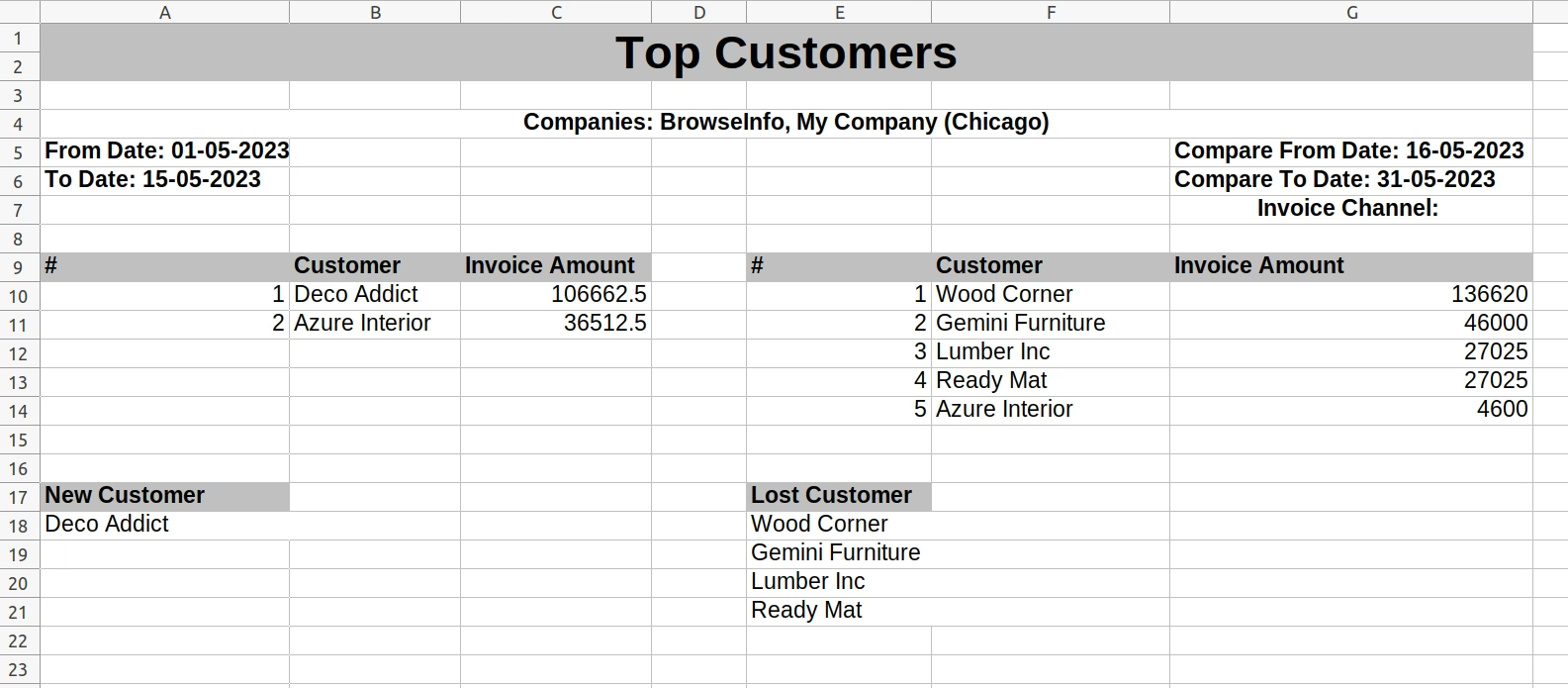
Top Customer Product XLS Report
On clicking "PRINT XLS" button user can see generated report in XLS format.
Highest Selling Products Report
Highest Selling Products Report Menu
Under Invoicing > Invoice Custom Report user can see "Highest Selling Products Report" menu.
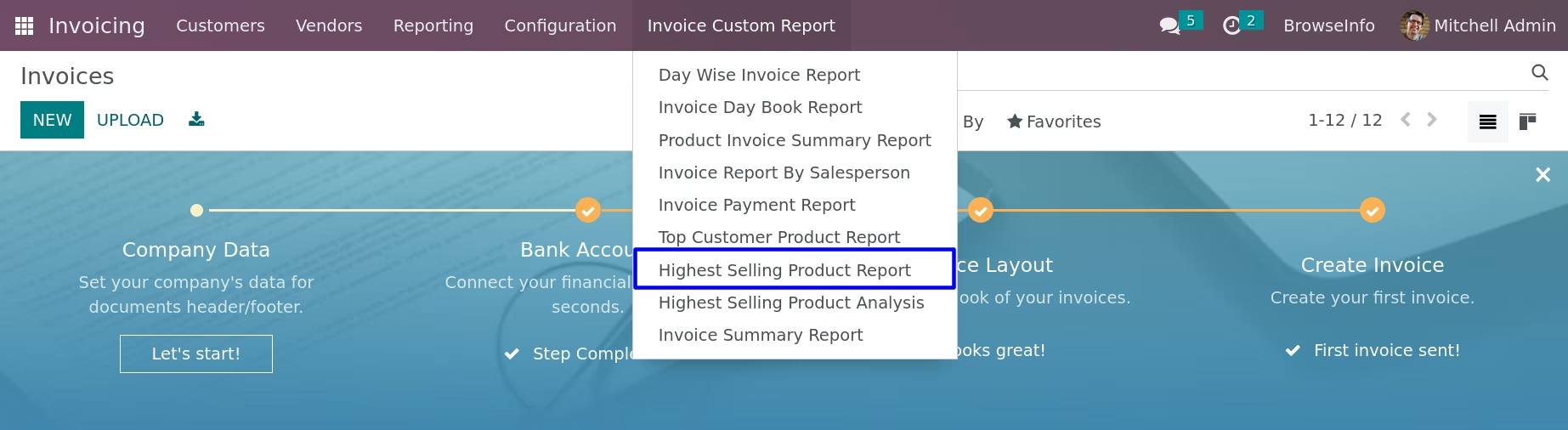
On clicking "Highest Selling Products Report" menu wizard will open here user can select "Report Type" as Basic or Compare, If user selects basic report type then enter "From Date", "To Date", "Number of Items", "Total Qty Saold" and "Companies" and print report.
If user selects compare report type then enter "From Date", "To Date", "Compare From Date", "Compare To Date", "Number of Items", "Total Qty Sold" and "Companies" and print report.
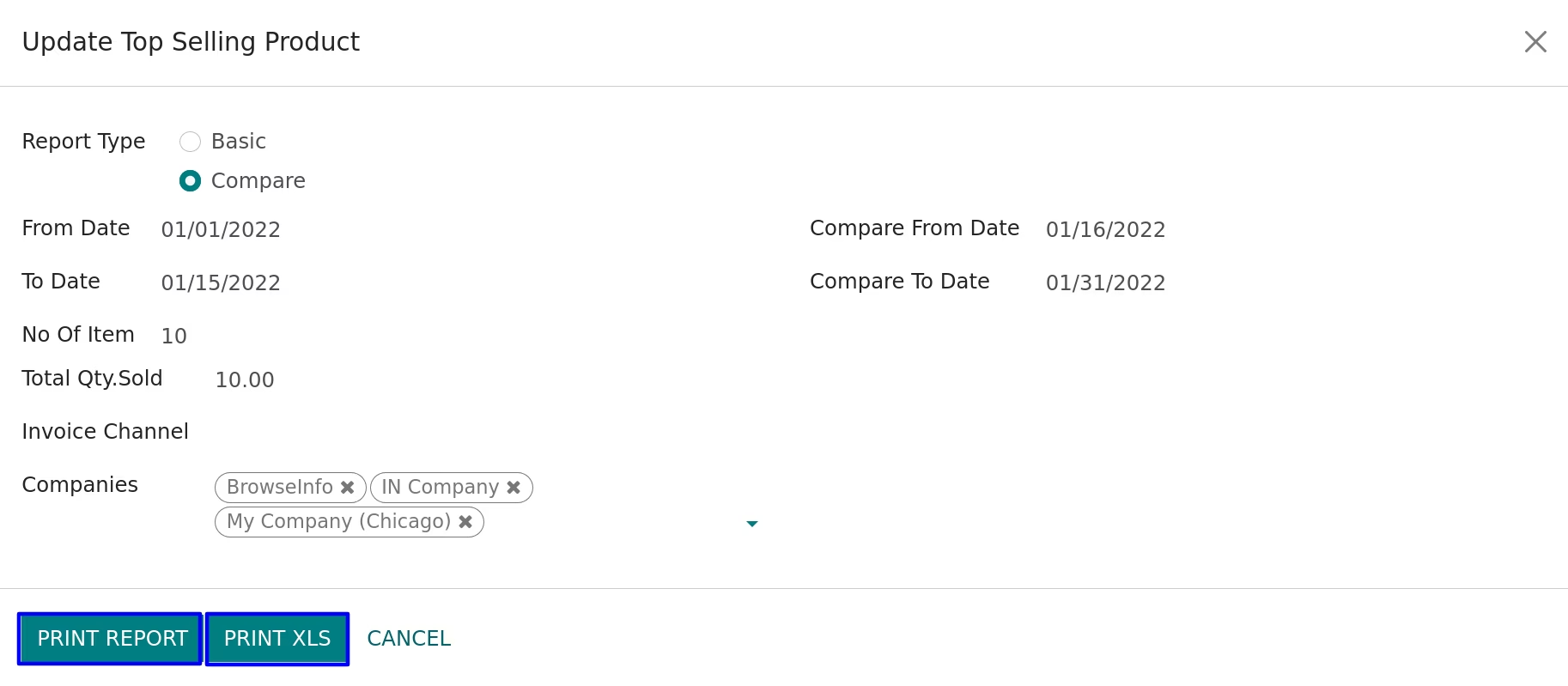
Highest Selling Products PDF Report
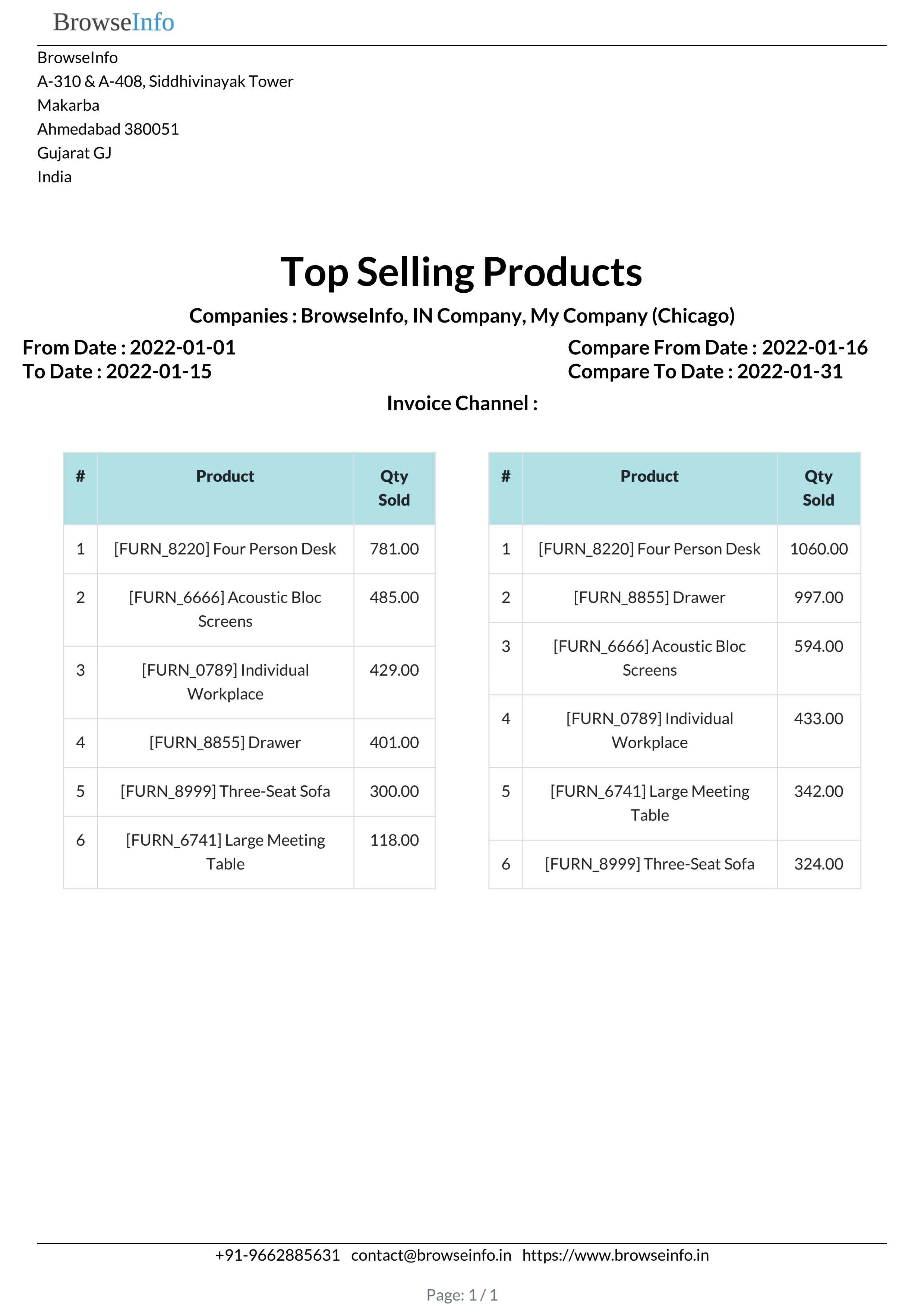
On clicking "PRINT PDF" button user can see printed report in PDF format.
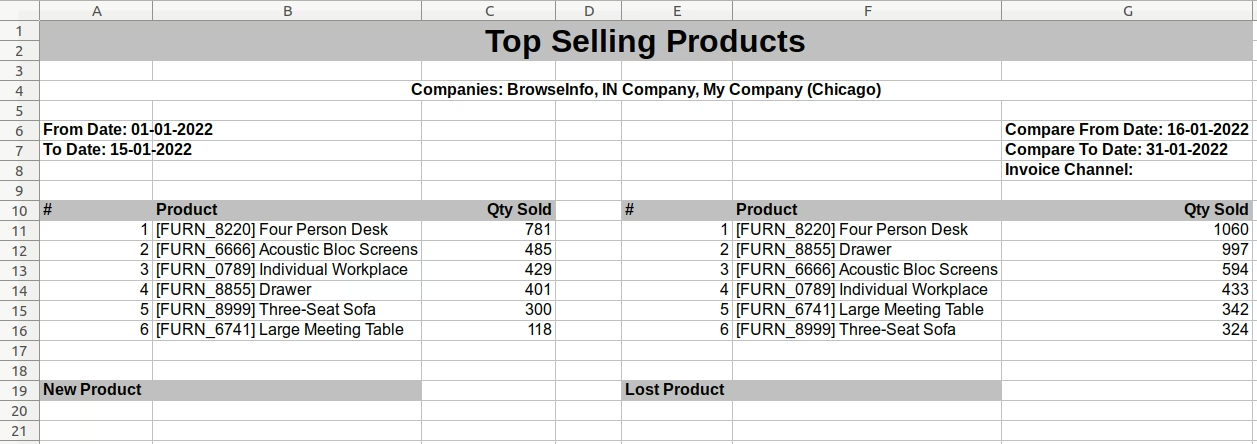
Highest Selling Products XLS Report
On clicking "PRINT XLS" button user can see generated report in XLS format.
Highest Selling Products Analysis Report
Highest Selling Products Analysis Menu
Under Invoicing > Invoice Custom Report user can see "Highest Selling Products Analysis" menu.
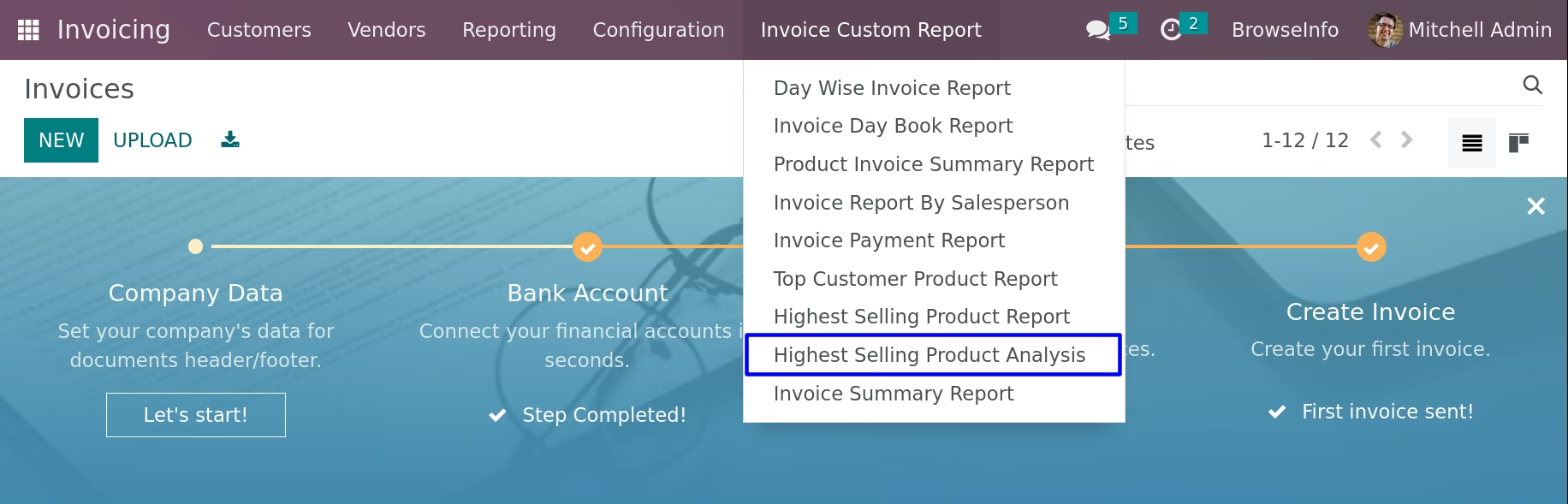
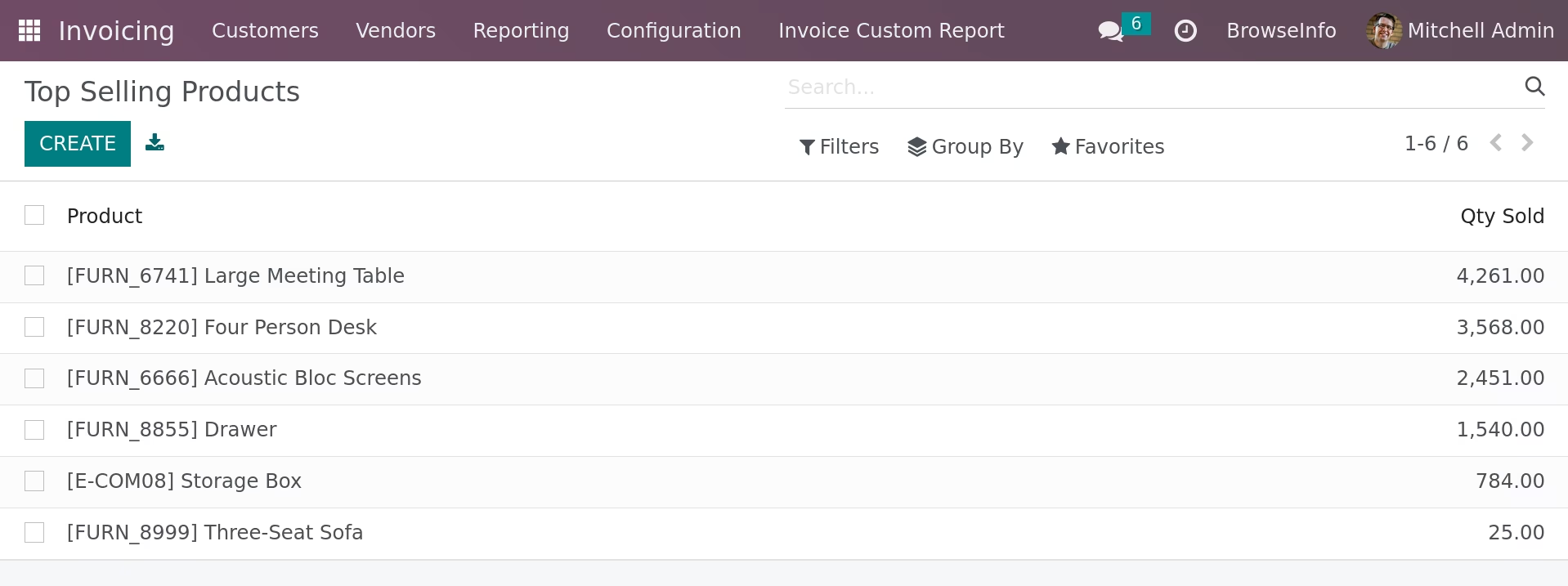
Highest Selling Products Analysis
On clicking "Highest Selling Products Analysis" menu user can see highest selling products and quantity of products.
Invoice Summary Report
Invoice Summary Report Menu
Under Invoicing > Invoice Custom Report user can see "Invoice Summary Report" menu.
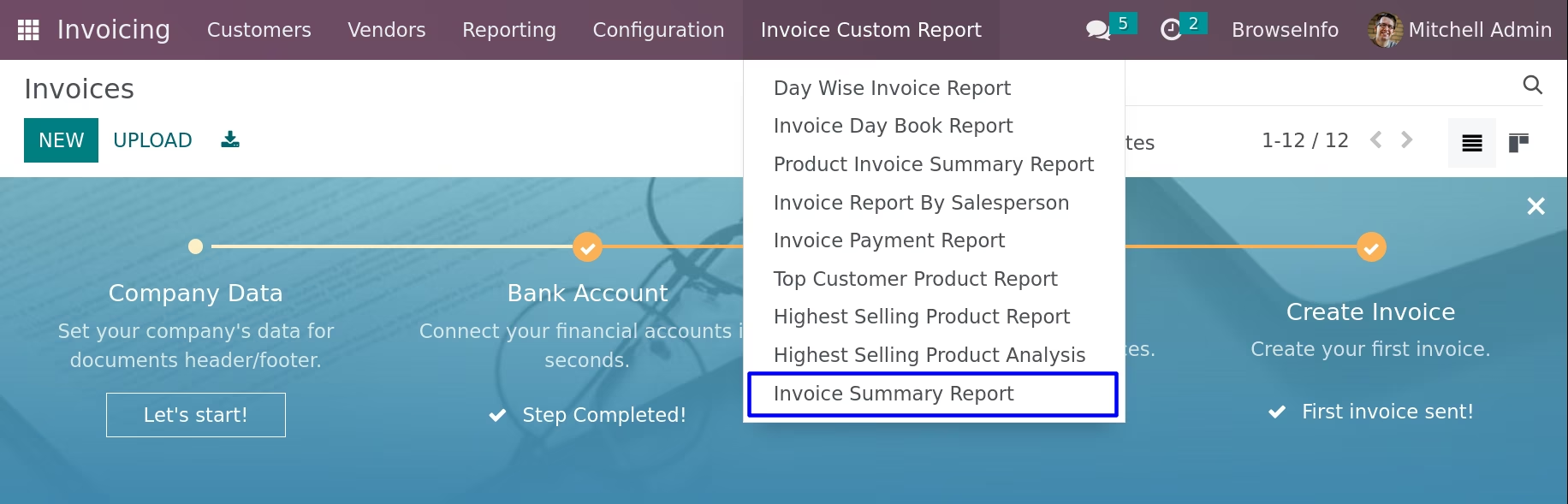
On clicking "Invoice Summary Report" menu wizard will open here user can select "Start Date", "End Date", "Invoice Status" like All, Unpaid, Paid, and "Companies" and print report.
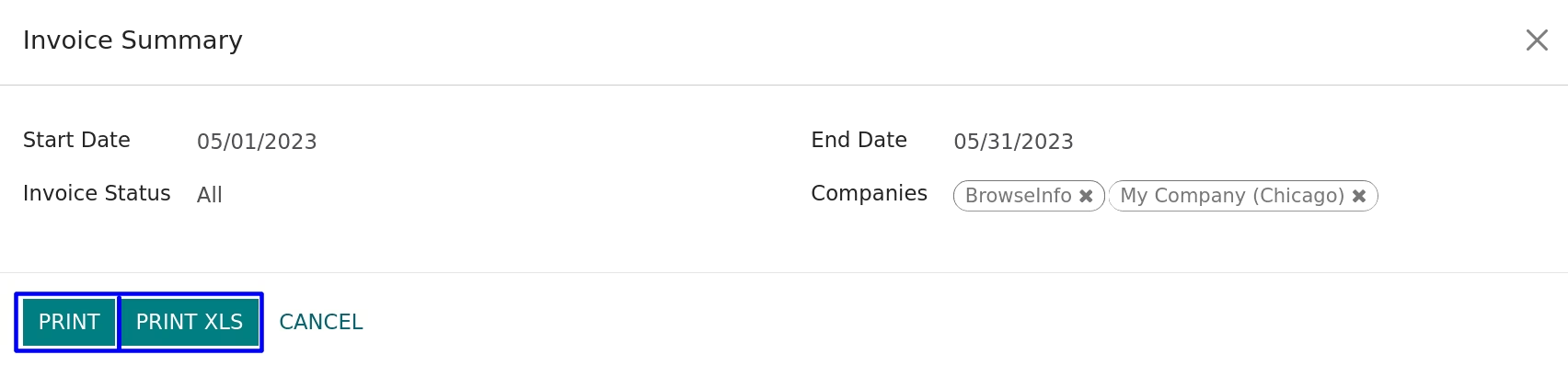
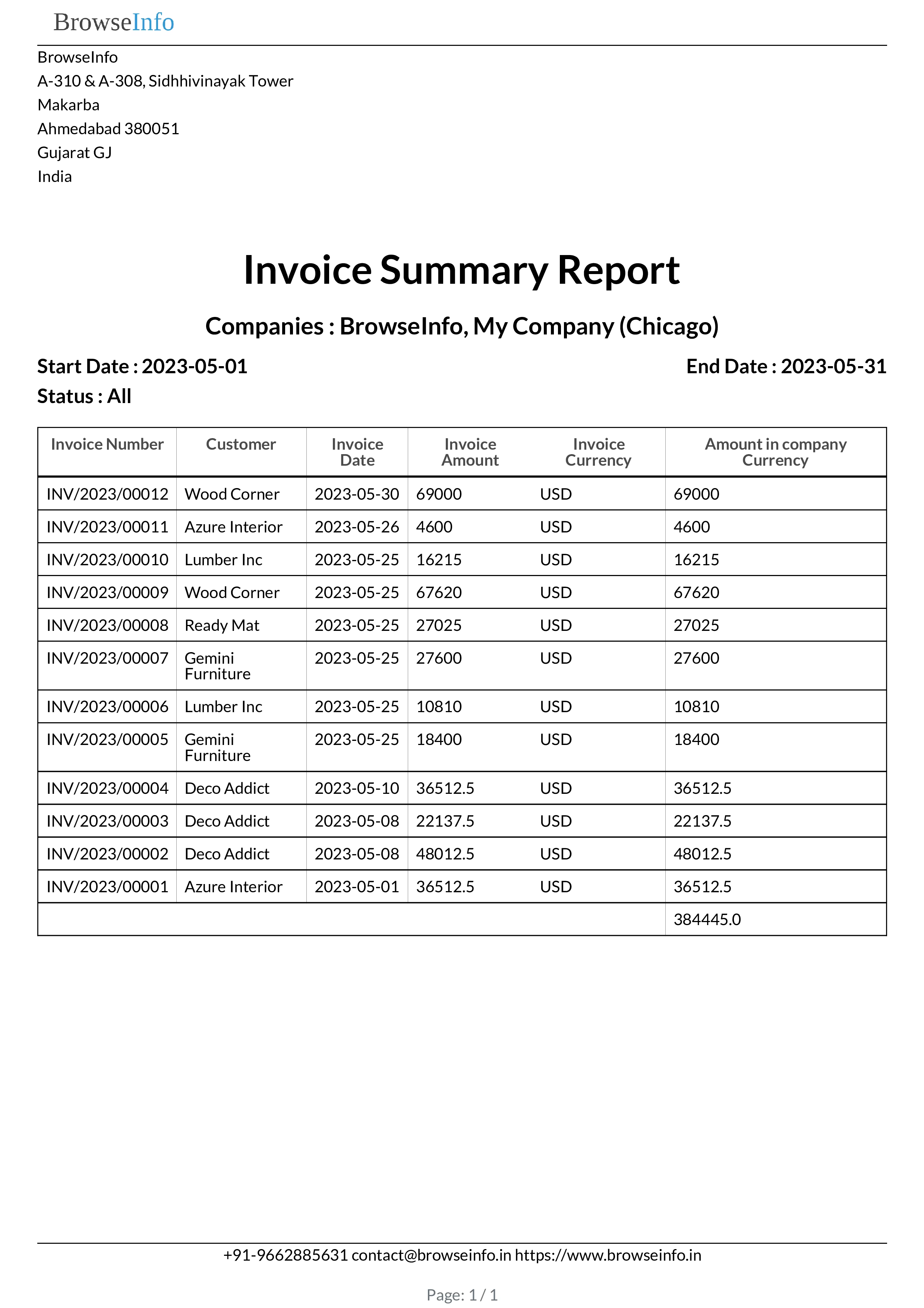
Invoice Summary PDF Report
On clicking "PRINT" button user can see printed report in PDF format.
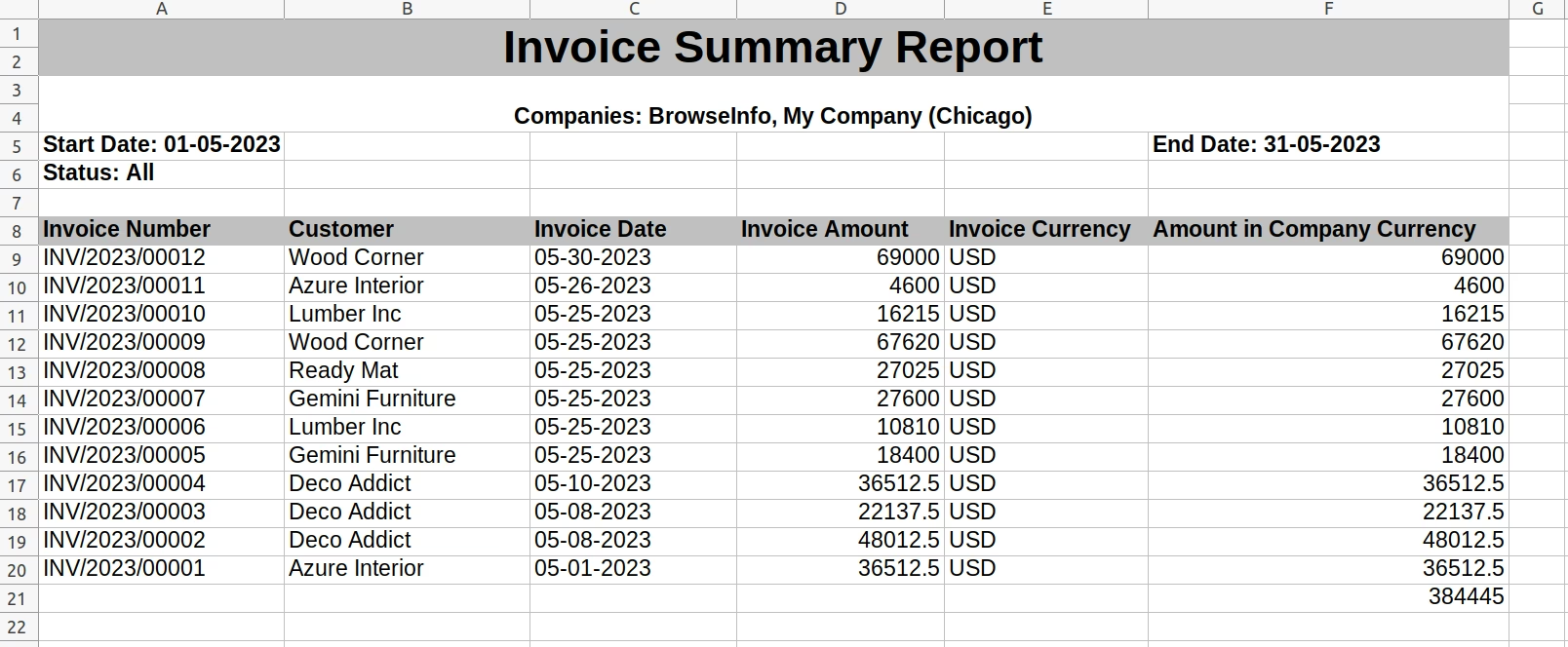
IInvoice Summary XLS Report
On clicking "PRINT XLS" button user can see generated report in XLS format.
Invoice Excel Report
Invoice Excel Report Menu
User can print report for multiple or single invoice by clicking "Generate Invoice XLS Report" menu under "Action" menu.
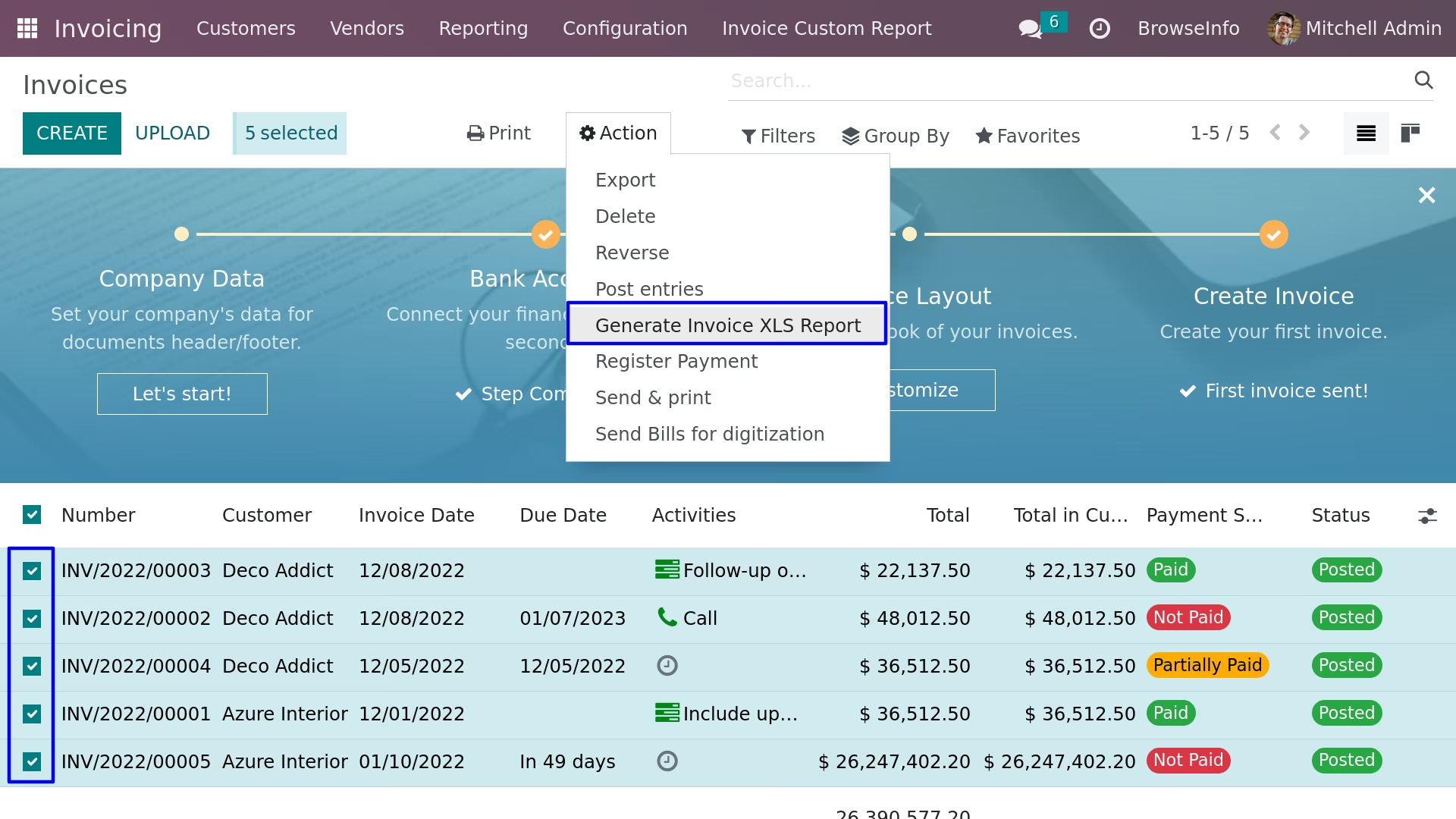
On clicking "Generate Invoice XLS Report" user can see generated sale order excel report.
If User selects multiple invoice then user can see all invoice report per sheet.