This bulk import module provides a seamless solution for importing sales, purchase, and invoice order lines in one efficient process. Users can import order lines via CSV or Excel files, simplifying data entry and ensuring precise results. This streamlined import tool enhances operational efficiency across sales, purchasing, and invoicing workflows.
Key Features
Enables bulk import of sales order lines via CSV or Excel
Supports import of purchase order lines using structured file formats
Allows importing of invoice order lines in the same unified tool
One-click import across sales, purchase, and invoicing modules
User-friendly interface for fast and accurate data import
Compatible with both Excel and CSV file types for flexibility
Benefits
Reduces manual entry errors and saves significant time
Improves accuracy in order line data across critical business areas
Enhances productivity by consolidating imports in one module
Simplifies data handling with familiar file formats
Accelerates onboarding of large datasets for operations
All in One Import Order Lines Apps
Import Sales Order Line Apps
Import Purchase Order Line Apps
Import Invoice - Vendor Bill line Apps
Import Sale, Purchase, and Invoice Order Lines in One Click
All in One Import Order Lines App helps users to import sales, purchase and invoice order lines in single click. User can import CSV or XLS files both as per your convenience. User can import order lines. It also helps you to import with tax details and once lines are imported, everything will be calculated(Tax Amount, Total Amount etc) automatically same as standard.

Import Sale Order Lines
Import sale order lines from the sale order.

Import Purchase Order Lines
It allows you to import bulk purchase order line in onetime.

Import Bulk Invoices Lines
Quickly import bulk invoices lines in one go using Excel or CSV File.

Add Different Data
Add Product, Quantity, UOM, Price and Tax.

Different Warning
Easy Warning when import fail due to wrong data.

CSV/XLS file Supported.
User can import CSV or XLS file both as per as your convenience.
Import Sales Order Lines Flow
Import Sale Order Lines
Data File Sample.
You have 3 different options to import sale order line.
If you want to import product with "Take Details From The Product" option then follow given XLS format.
If you are using only numeric value for Internal ref or Barcode field then please make sure the cell type/format is Text/Character
Import with Code.
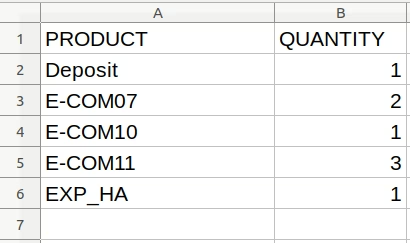
Import with Barcode.
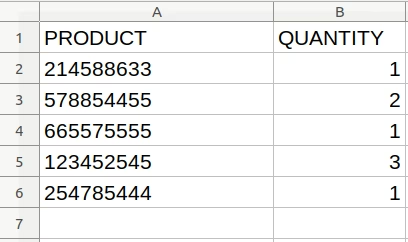
Import with Name.
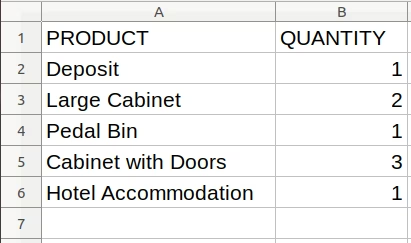
If you want to import product with "Take Details From The XLS File" option then follow given XLS format.
If you are using only numeric value for Internal ref or Barcode field then please make sure the cell type/format is Text/Character
Import with Code.
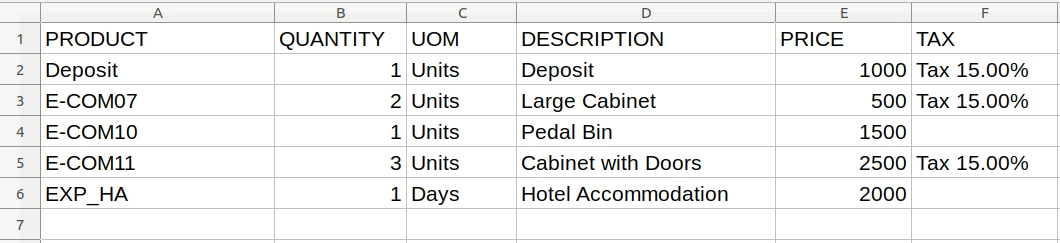
Import with Barcode.
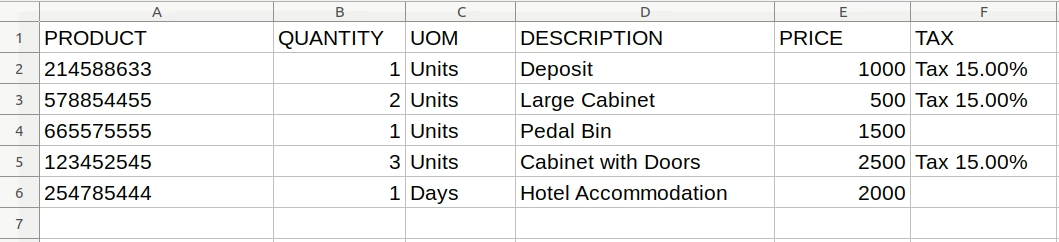
Import with Name.
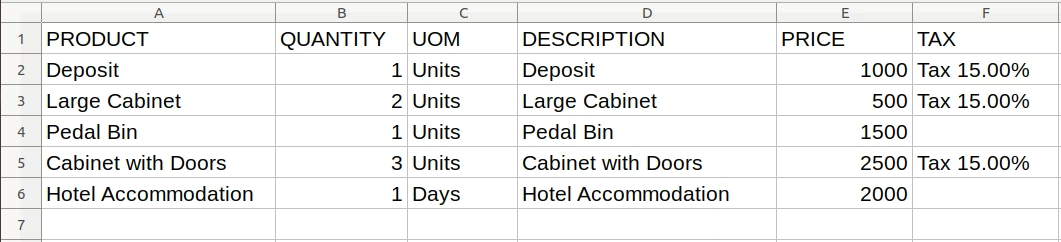
- PRODUCT
- -Product name for sale order line.
- QUANTITY
- - Quantity for above product.
- UOM
- - UOM for above product.
- DESCRIPTION
- - Description of product
- PRICE
- - Price for above product.
- TAX
- -Tax for product
If there is need of adding "Tax" User can add it but if there is no need of adding "Tax" you have to leave it blank.
1. When code is selected in Import option, please select file that contains code of products.
2. When barcode is selected in Import option, please select file that contains barcode of products.
3. When Name is selected in Import option, please select file that contains name of products.
Import Sale Order Lines Menu.
Menu for importing data of Sale Order Lines.
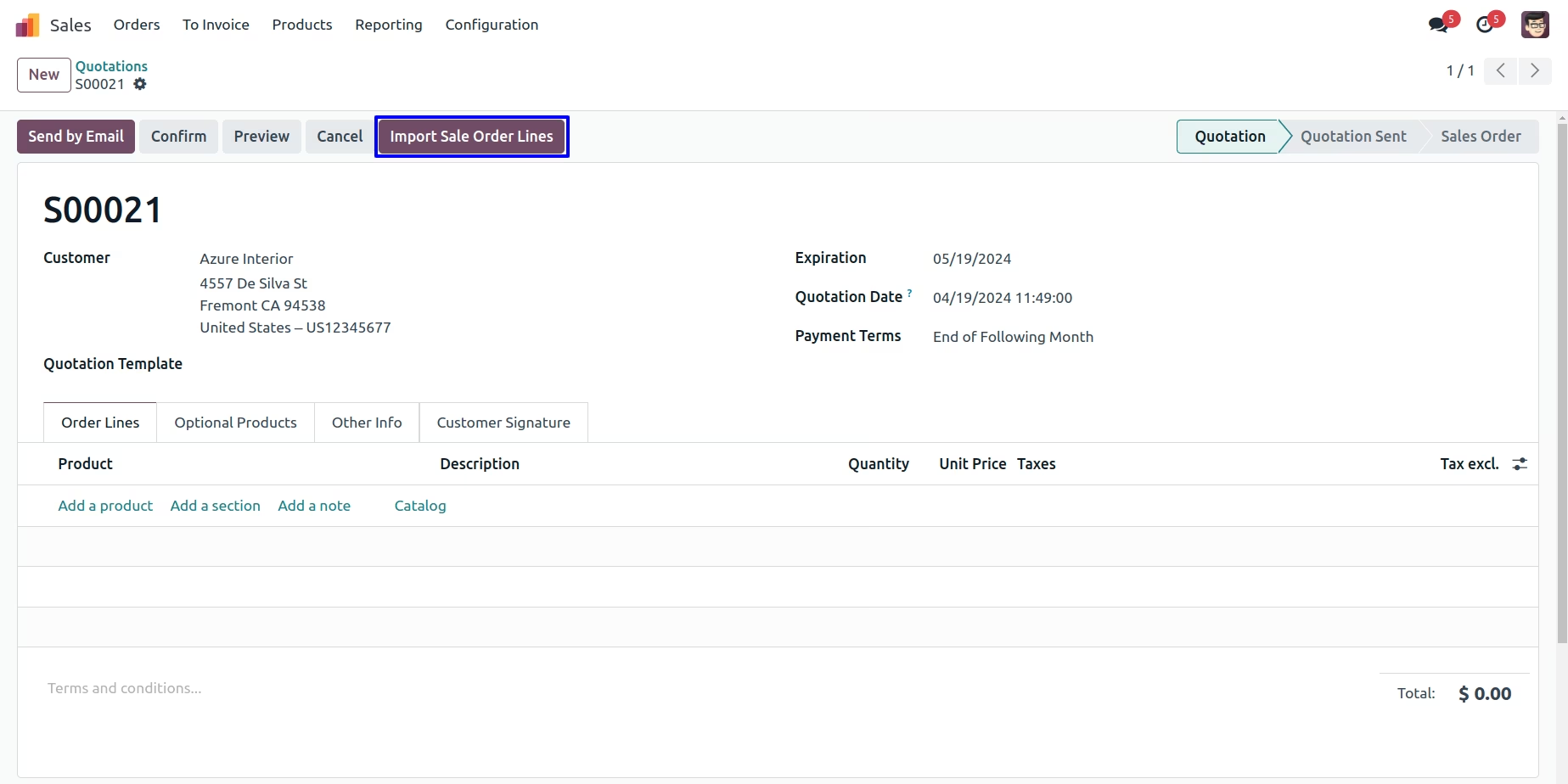
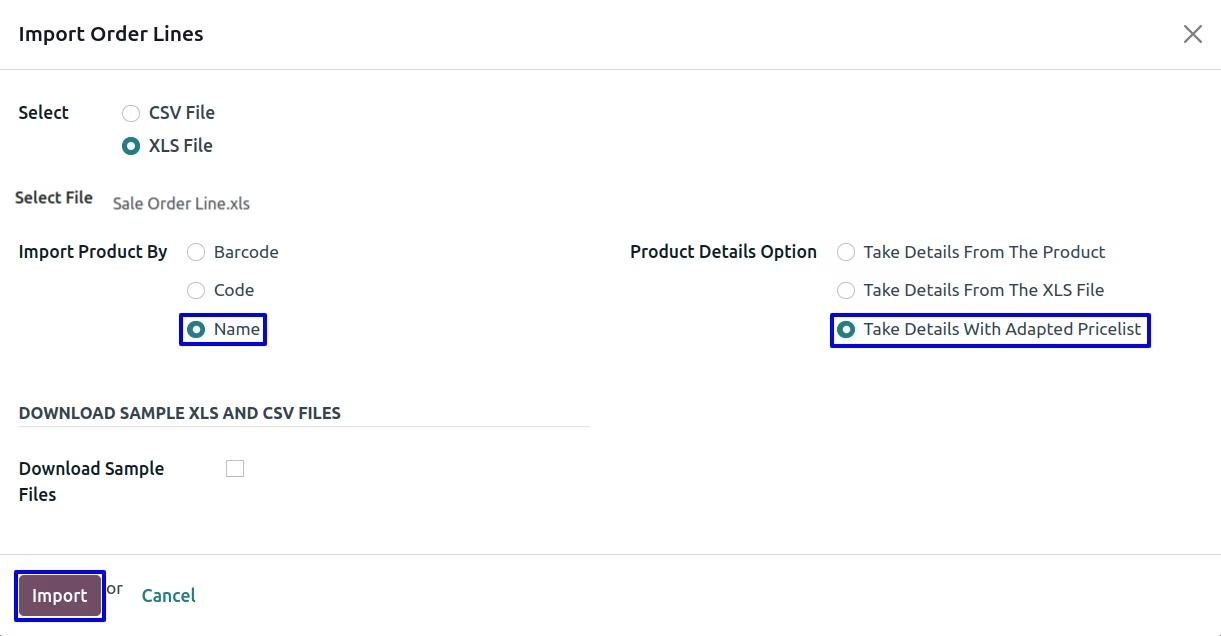
Import Sale Order Lines Wizard.
1. Product Details Option :
If you select "Take Details From The Product" option then product and product quantity will be taken from selected XLS file, Other product details(UOM, Price) will be taken from already created products.
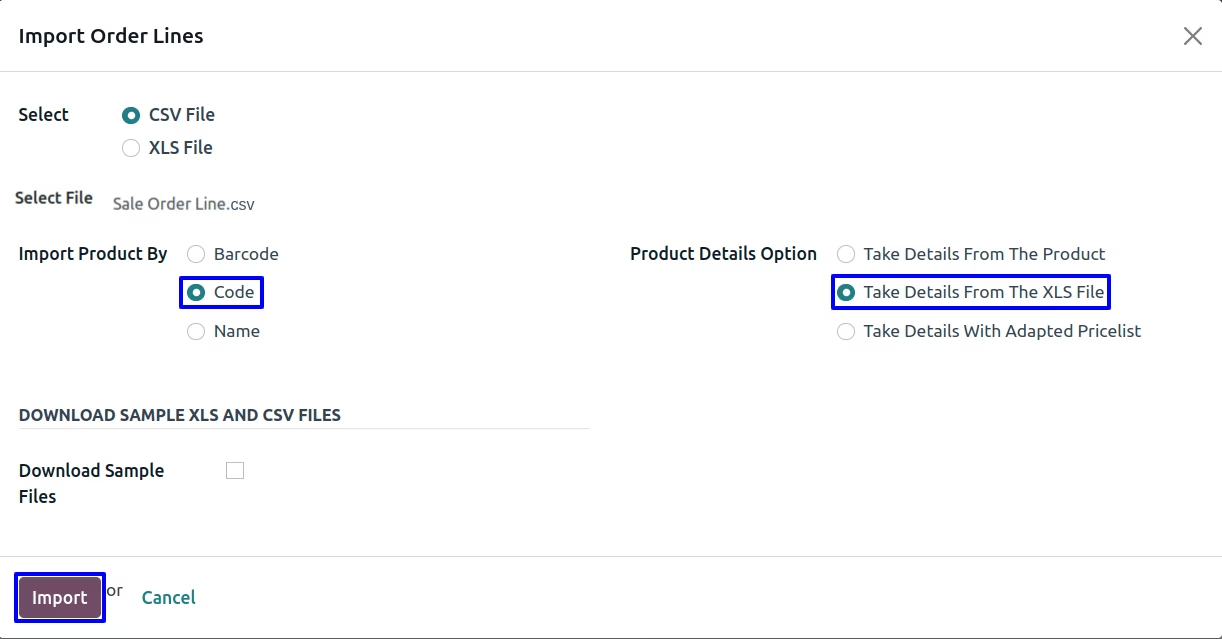
If you select "Take Details From The XLS File" option then all details will be taken from selected XLS file.
If you select "Take Details With Adapted Pricelist" option then all details will be taken from product applied Pricelist.
2. Import Product By :
You have also option to import products by it's Name/ Barcode or Code(Internal Reference).
If you want to create product while importing sale order line then you have to select import with "Name".
User can enable "Download Sample Files" option and select "File Type" for file and download sample file to import purchase order line.
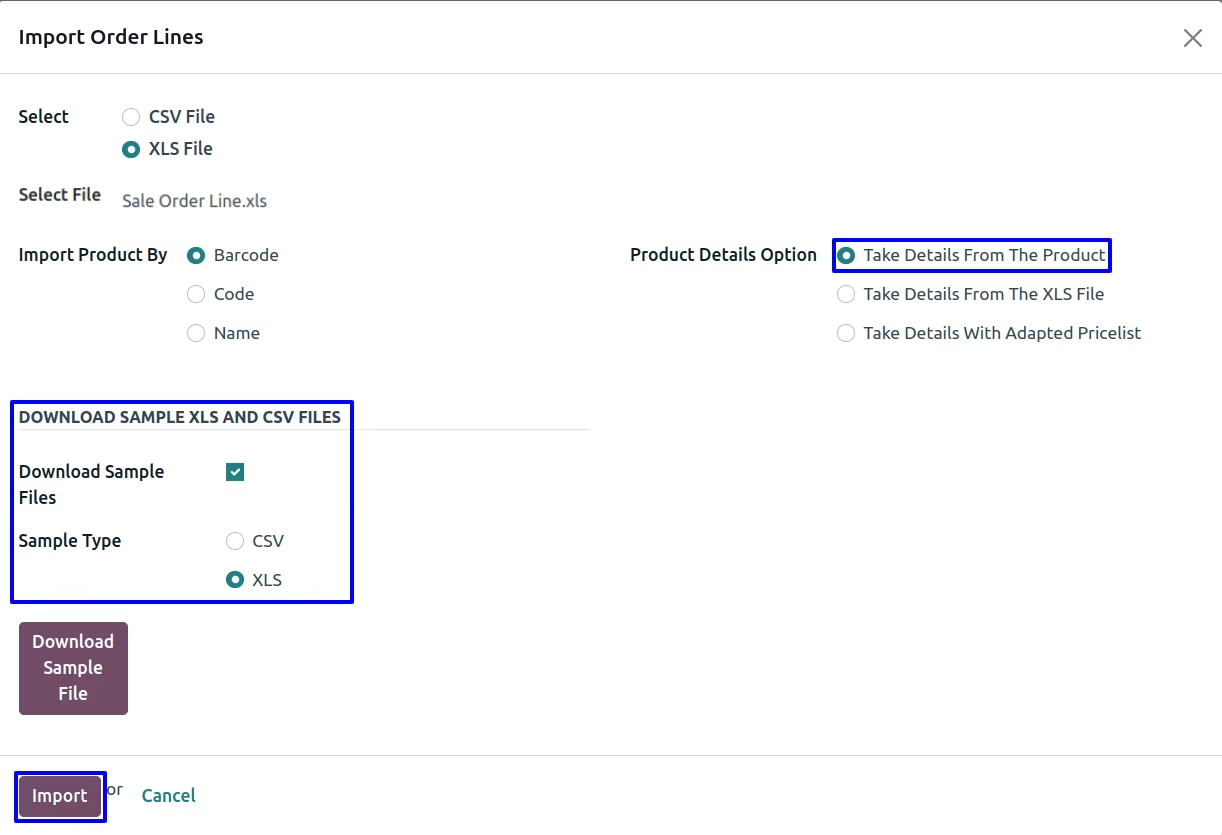
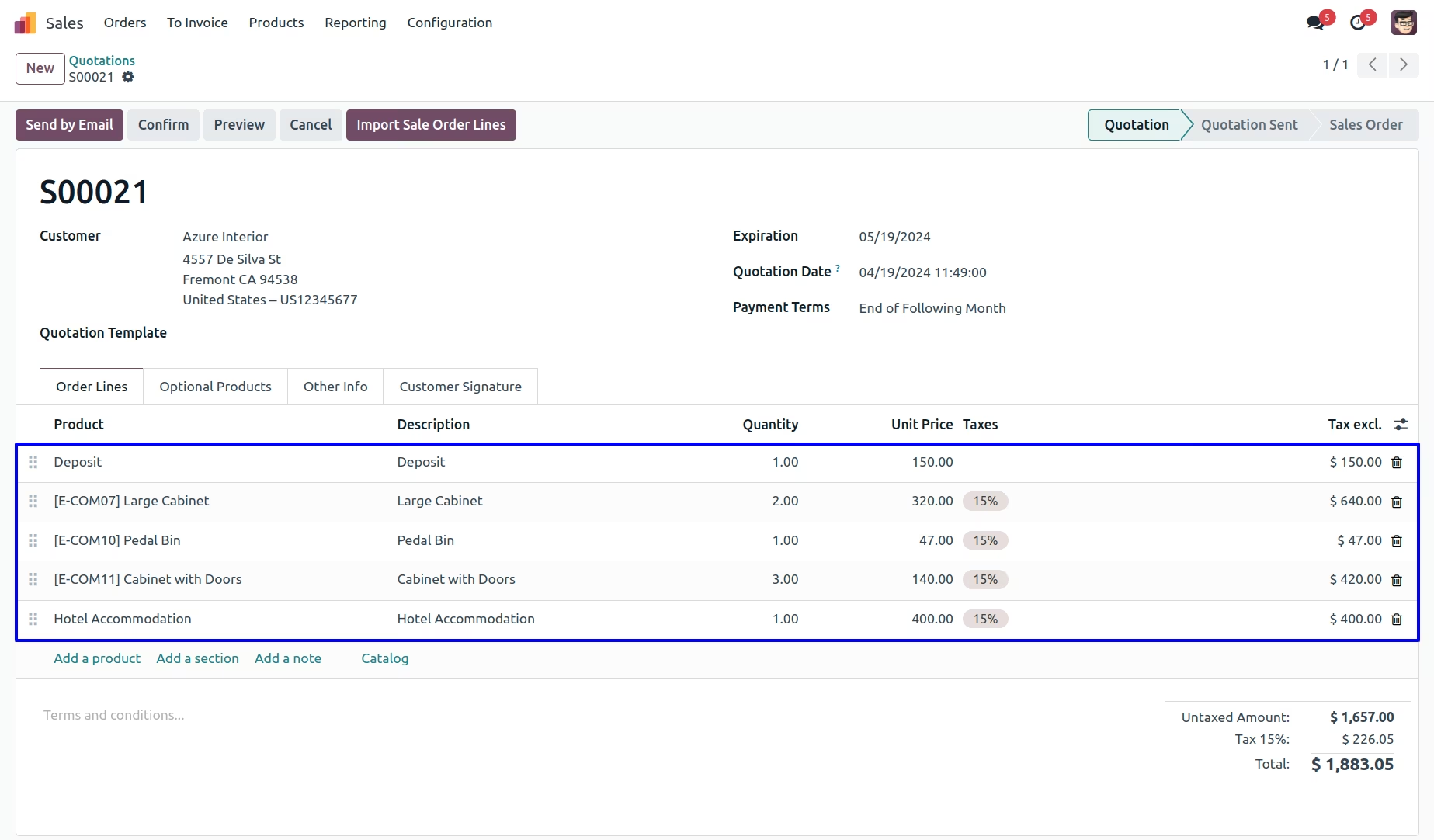
Import Sale Order Line View.
After importing CSV/XLS with "Take Details From The Product" option then User can see the imported product details is taken from already created product.
If User select "Take Details From The XLS File" option then User can see the imported product details is taken from XLS file.
User can see the imported product details for sale order line.
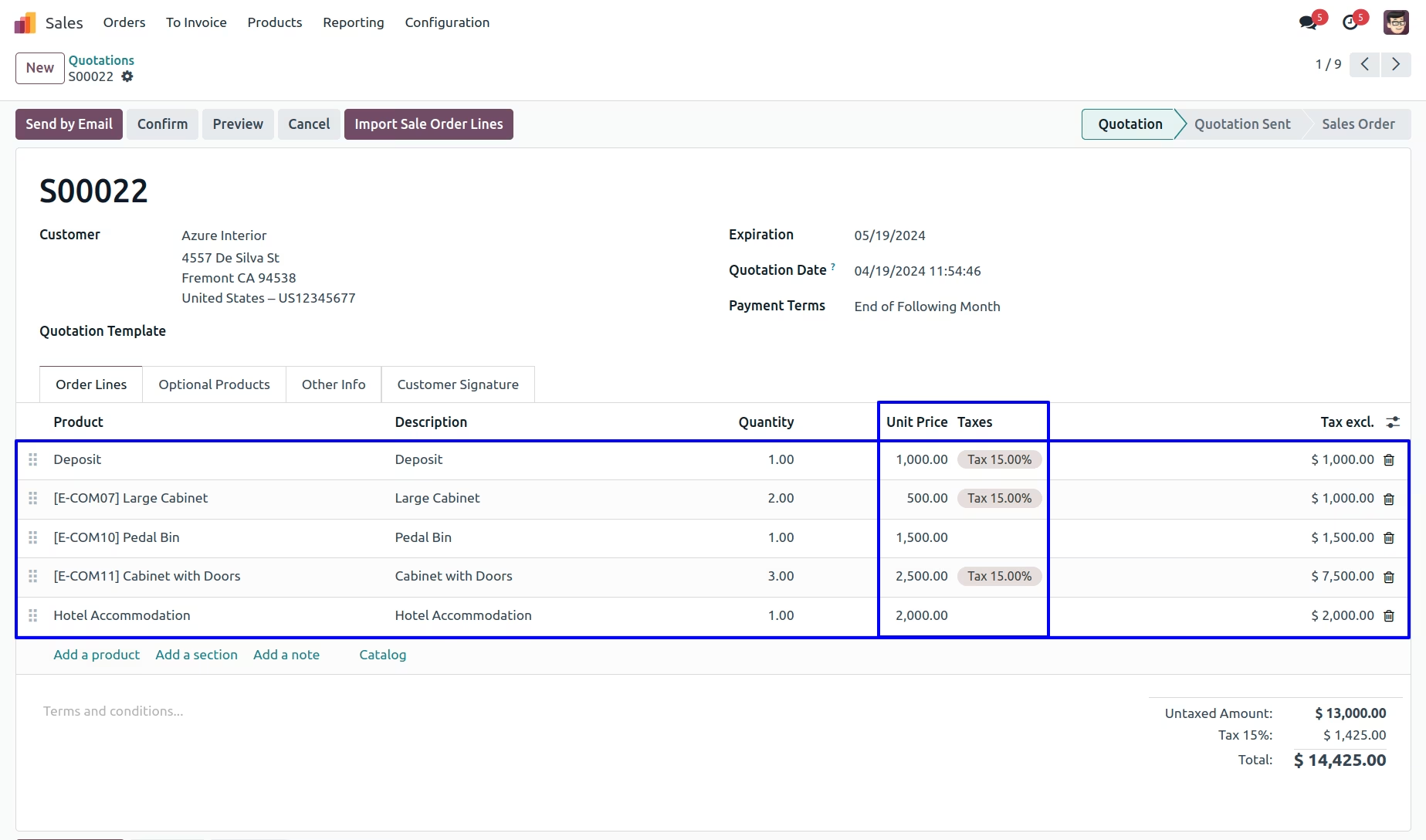
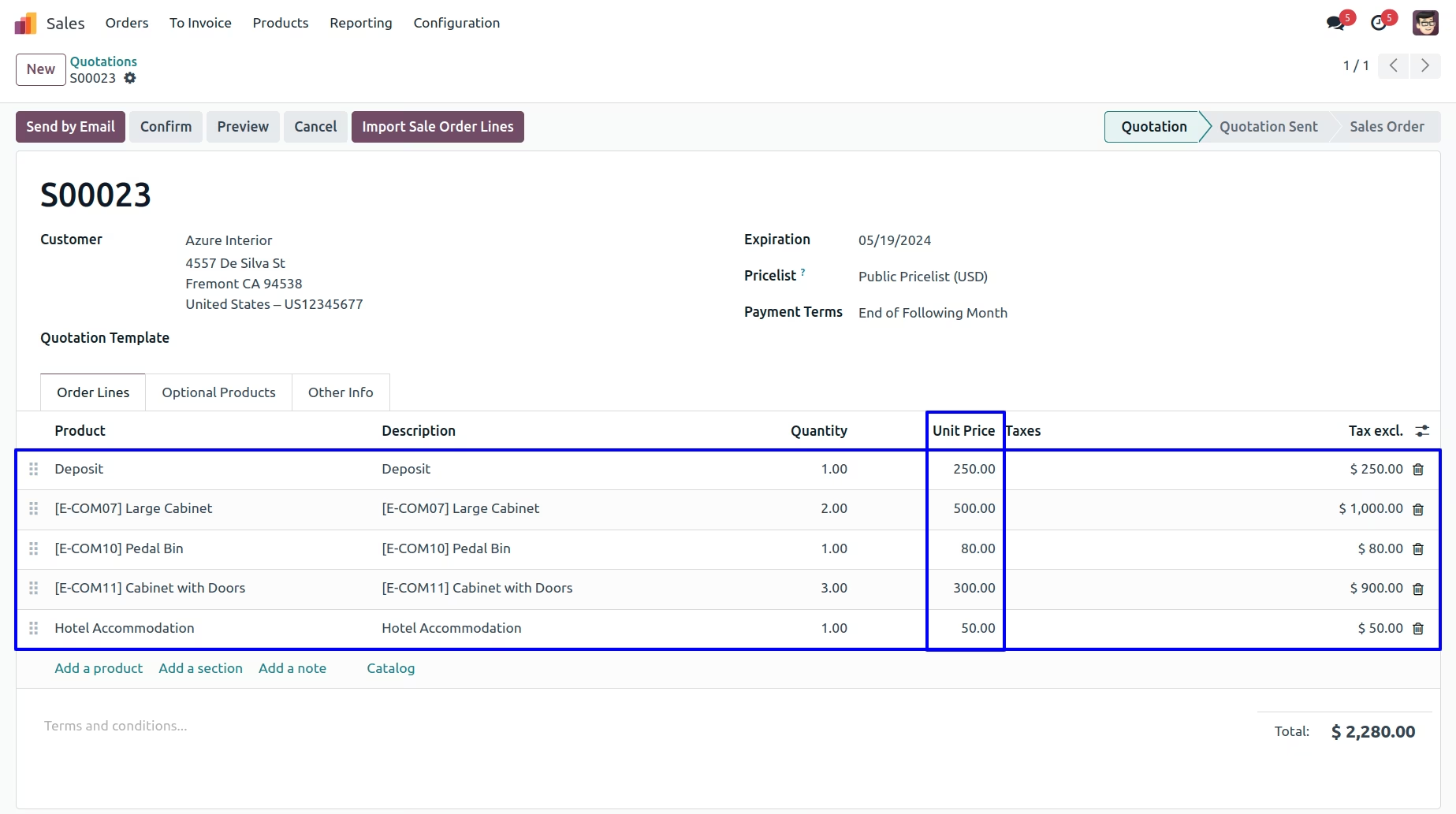
If User select "Take Details With Adapted Pricelist" option then User can see the imported product details is taken with adapted pricelist.
User can see the imported product details is taken with adapted pricelist.
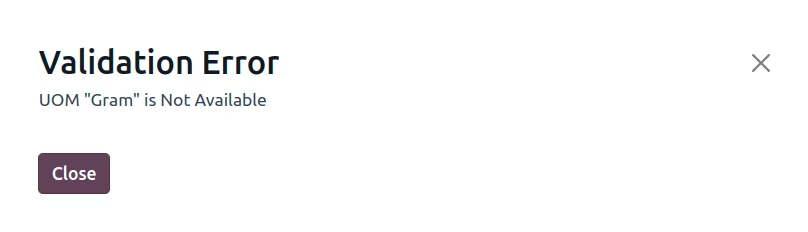
Warning
It will generate error if you import wrong UOM,which is shown in figure
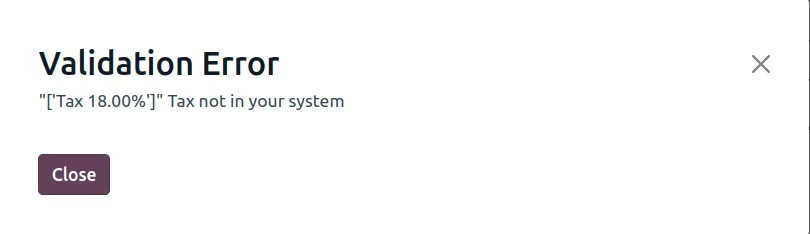
It will generate error if you import wrong Tax,which is shown in figure
Import Purchase Order Lines Flow
Import Purchase Order
Data File Sample.
You have 3 different options to import purchase order.
If you want to import product with "Take Details From The Product" option then follow given XLS format.
If you are using only numeric value for Internal ref or Barcode field then please make sure the cell type/format is Text/Character
Import with Code.
Import with Barcode.
Import with Name.
If you want to import product with "Take Details From The XLS File" option then follow given XLS format.
If you are using only numeric value for Internal ref or Barcode field then please make sure the cell type/format is Text/Character
Import with Code.
Import with Barcode.
Import with Name.
If you want to import product with "Take Details From The XLS File" option then follow given XLS format.
If you are using only numeric value for Internal ref or Barcode field then please make sure the cell type/format is Text/Character
Import with Code.
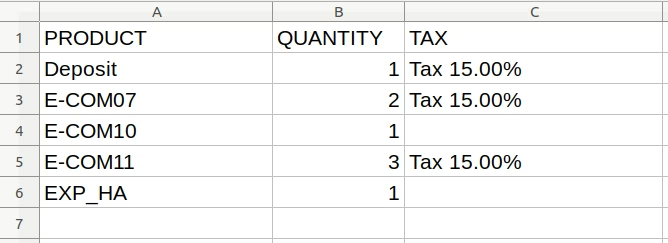
Import with Barcode.
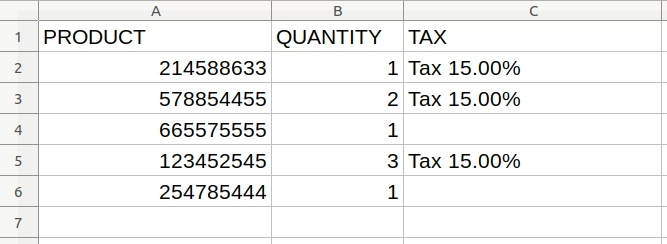
Import with Name.
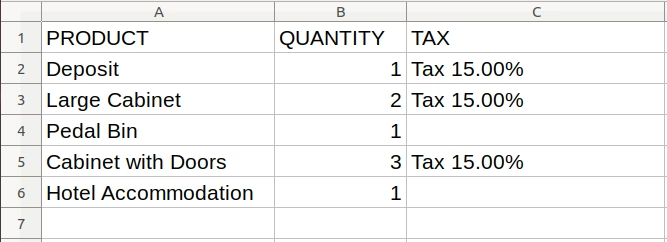
Given below is the sample of import file,It is mandatory to use given XLS format to import purchase order lines.
- PRODUCT
- - Product name for purchase order line.
- QUANTITY
- - Quantity for above product.
- UOM
- - UOM for above product.
- PRICE
- - Price for above product.
- DESCRIPTION
- - Description of product.
- TAX
- -Tax for the product
1. When code is selected in Import option, please select file that contains code of products.
2. When barcode is selected in Import option, please select file that contains barcode of products.
3. When Name is selected in Import option, please select file that contains name of products.
Import Purchase Order Lines Menu
Figure shows button for importing data of Purchase Order Lines.
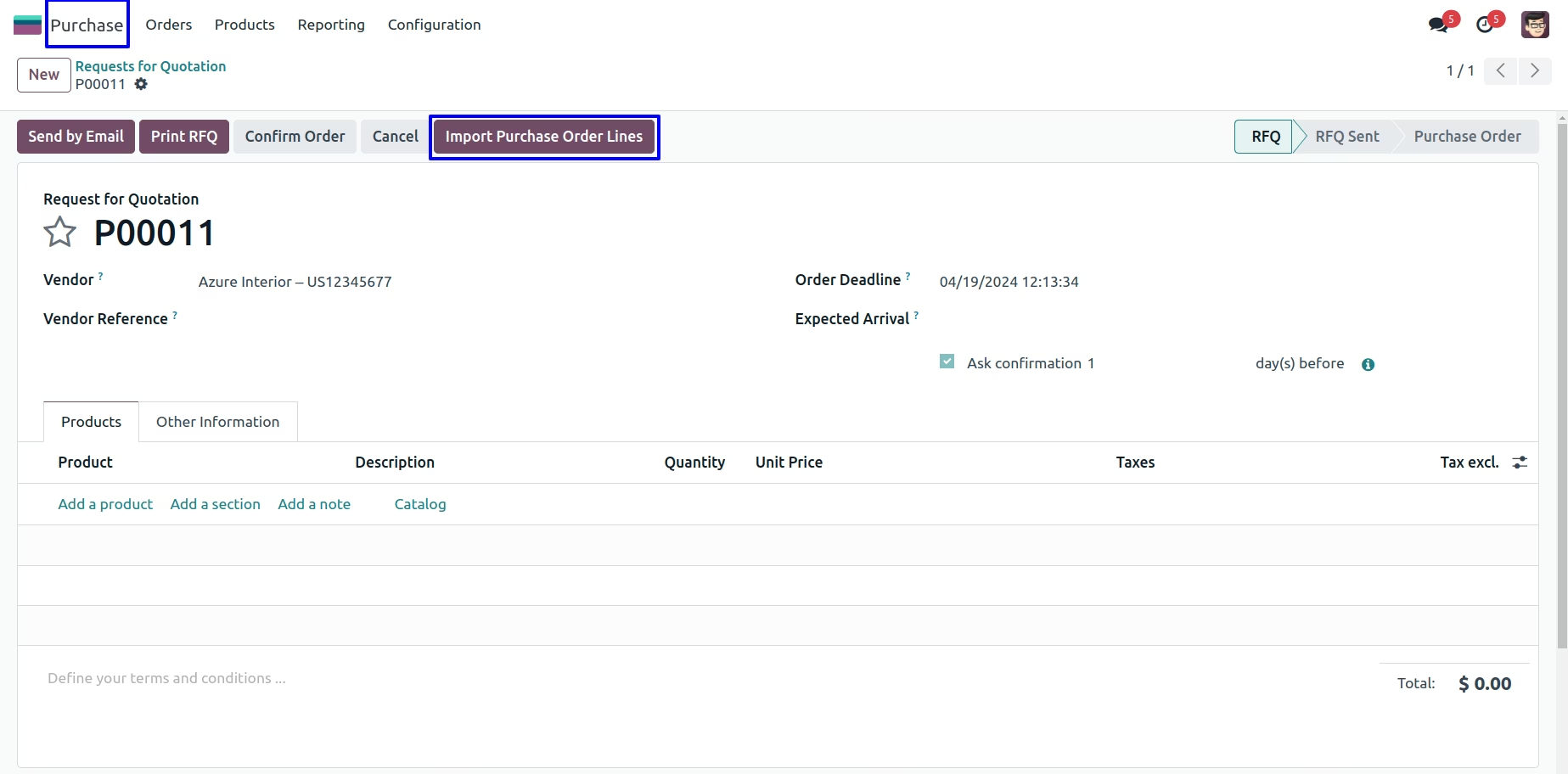
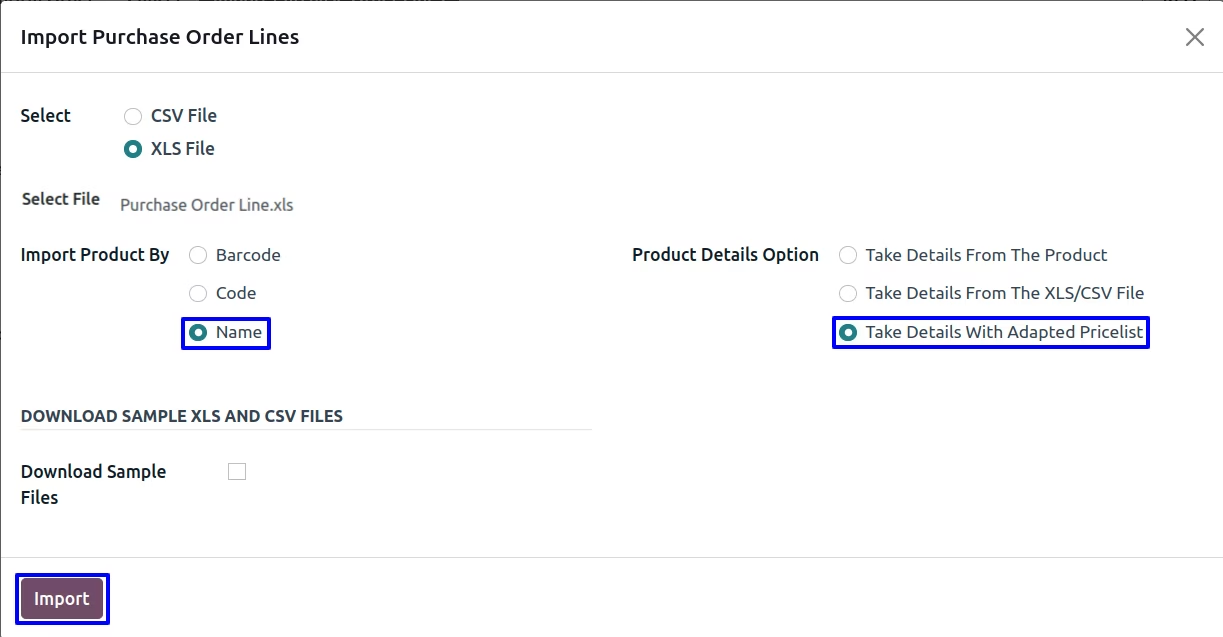
Import Purchase Order Lines Wizard
In this wizard you have to upload properly formated XLS or CSV file which you want to import.
1. Product Details Option :
While importing purchase order line, If you select "Take Details From The Product" option then product and product quantity will be taken from selected XLS file, Other product details(UOM, Price) will be taken from already created products.
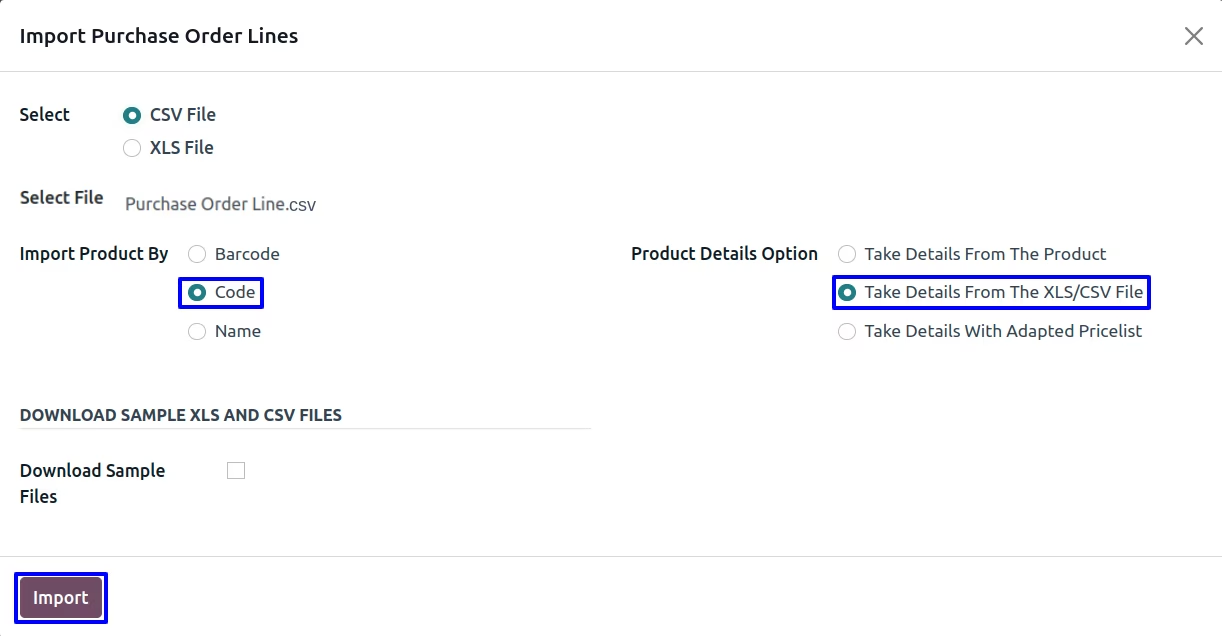
If you select "Take Details From The XLS File" option then all details will be taken from selected XLS file.
If you select "Take Details With Adapted Pricelist" option then imported product details will be fetch based on applied vendor pricelist and also apply discount.
2. Import Product By :
You have also option to import products by it's Name/ Barcode or Code(Internal Reference).
If you want to create product while importing purchase order line then you have must select import with "Name".
User can enable "Download Sample Files" option and select "File Type" for file and download sample file to import purchase order line.
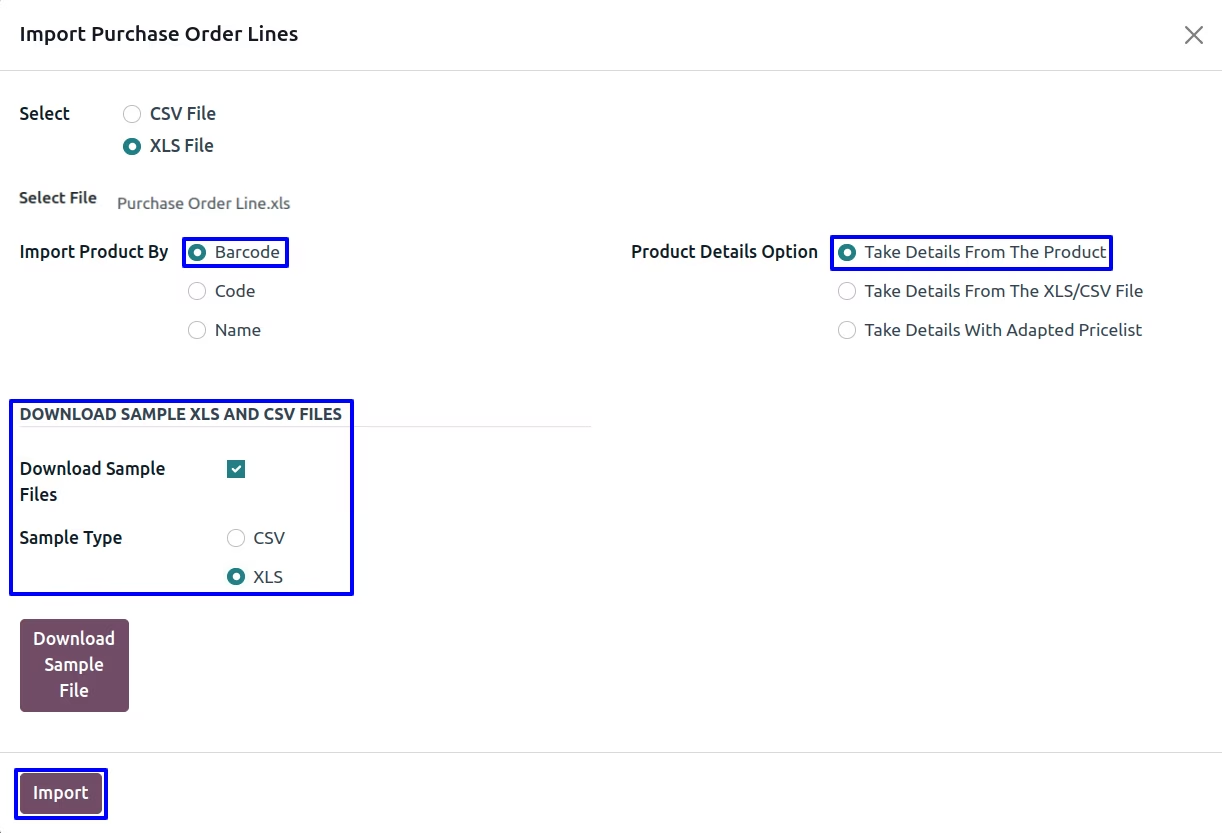
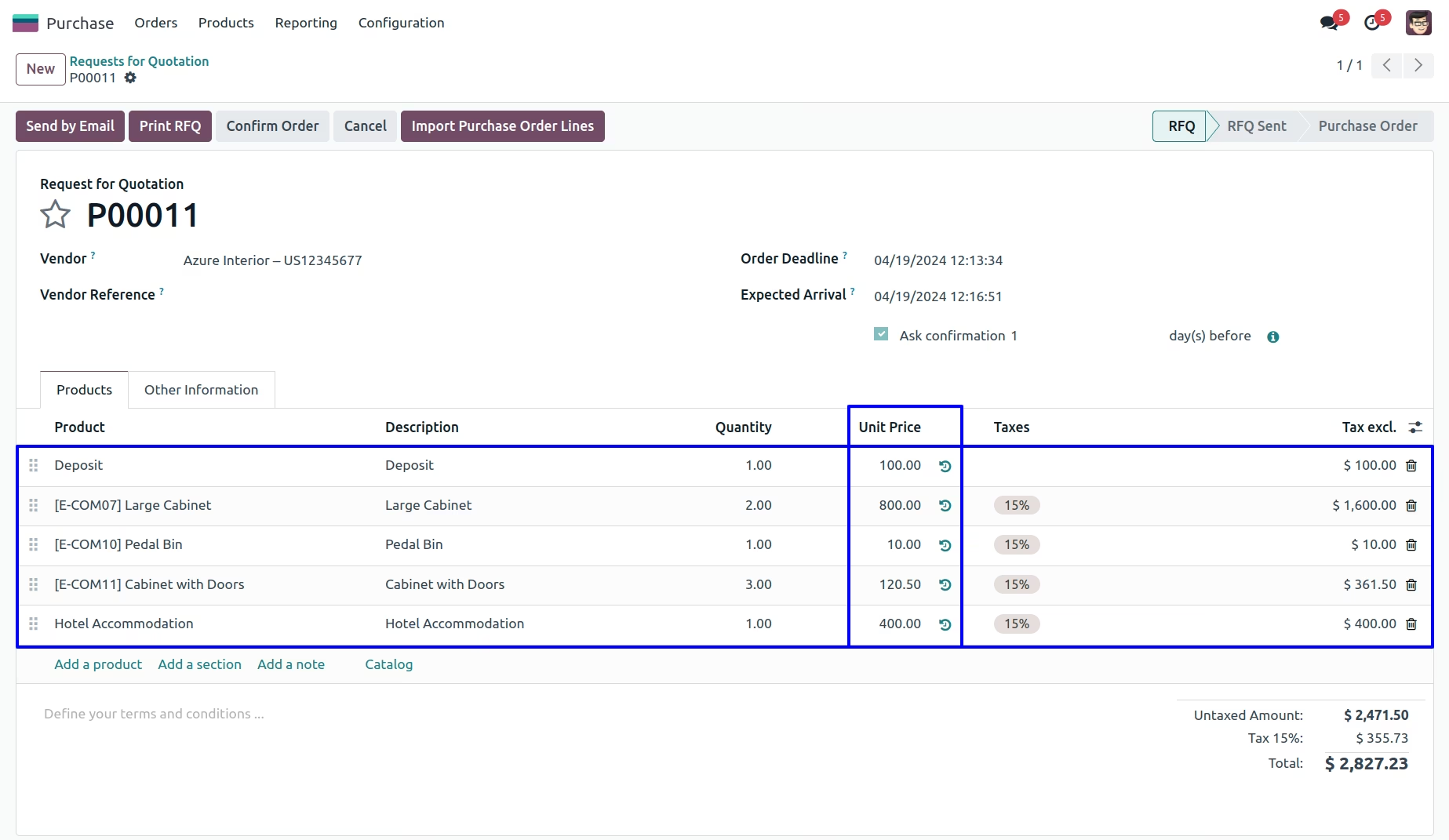
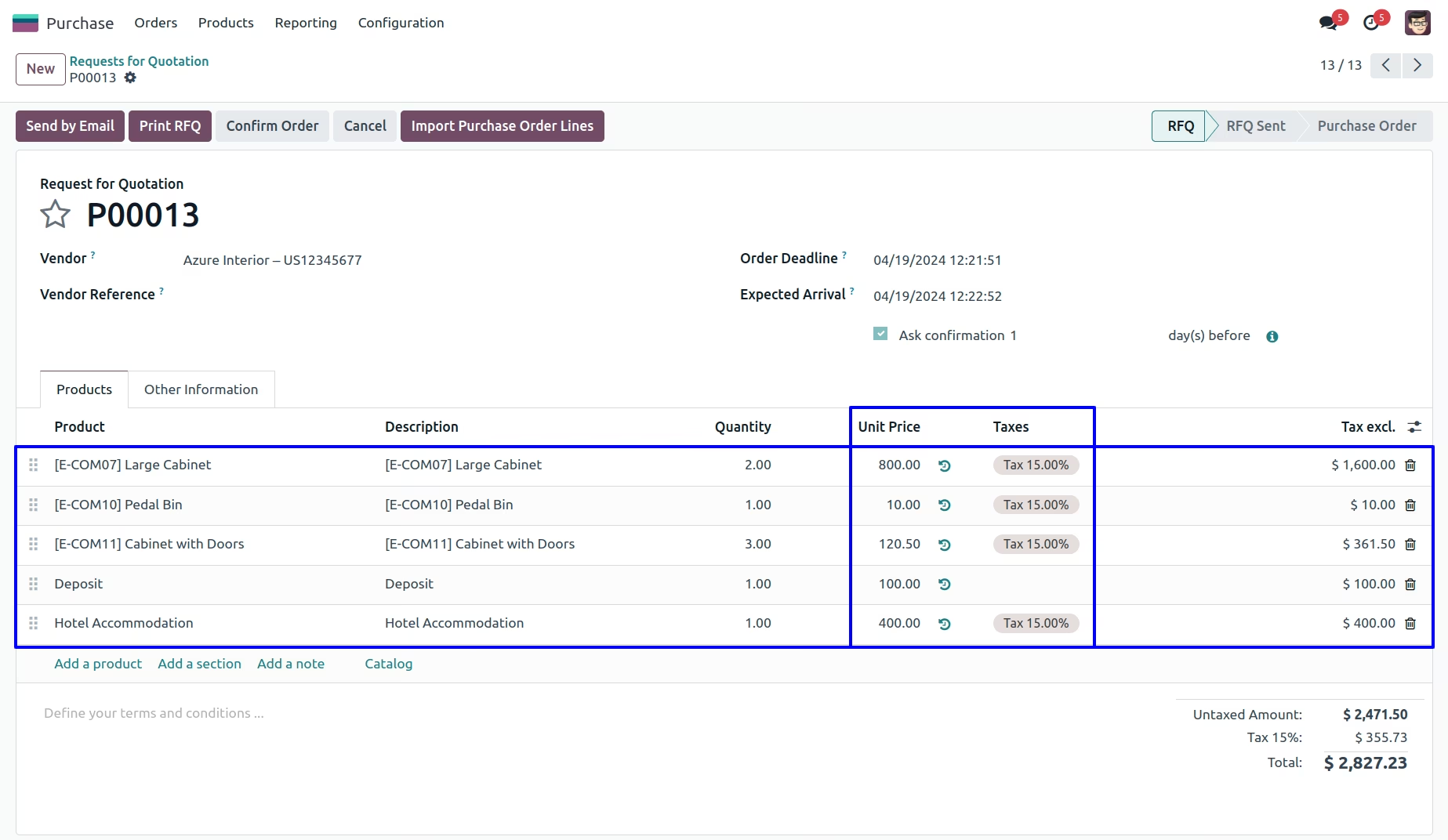
Import Purchase Order Line View.
After importing CSV/XLS with "Take Details From The Product" option then you can see the imported product details is taken from already created product.
If you select "Take Details From The XLS/CSV File" option then you can see the imported product details is taken from XLS file.
you can see the imported product details is taken from XLS file.
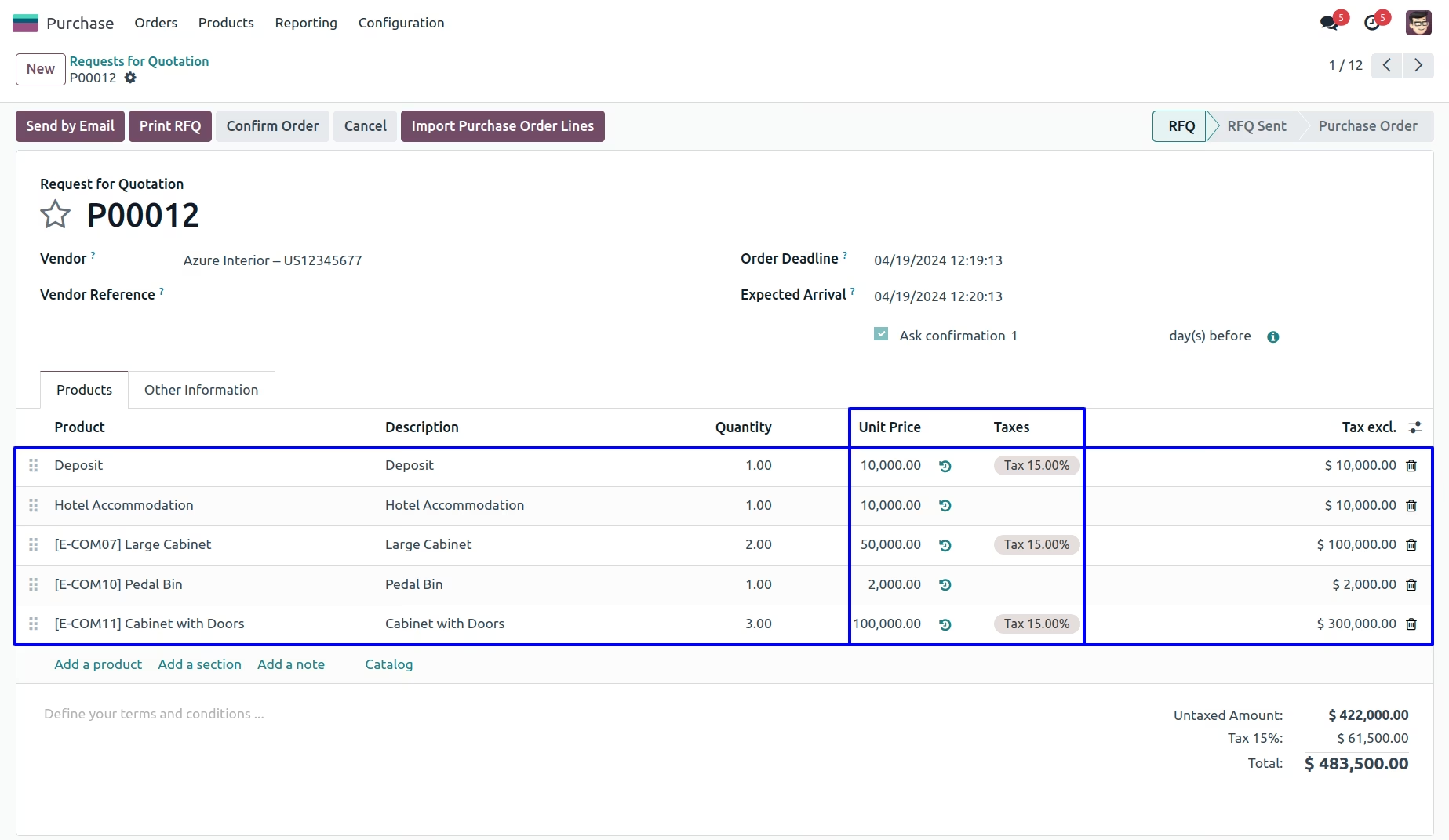
If you select "Take Details With Adapted Pricelist" option then imported product details will be fetch based on applied vendor pricelist and also apply discount.
Imported product details will be fetch based on applied vendor pricelist and also apply discount.
Warning
It will generate error if you import wrong UOM,which is shown in figure
It will generate error if you import wrong UOM,which is shown in figure
Import Invoice Order Lines Flow
Import Invoice Lines
Data File Sample.
You have 3 different options to import invoice line.
If you want to import product with "Take Details From The Product" option then follow given XLS format.
If you are using only numeric value for Internal ref or Barcode field then please make sure the cell type/format is Text/Character
Import with Code.
Import with Barcode.
Import with Name.
If you want to import product with "Take Details From The XLS File" option then follow given XLS format.
If you are using only numeric value for Internal ref or Barcode field then please make sure the cell type/format is Text/Character
Import with Code.
Import with Barcode.
Import with Name.
- PRODUCT
- -Product name for invoice order line.
- QUANTITY
- - Quantity for above product.
- UOM
- - UOM for above product.
- DESCRIPTION
- - Description of product
- PRICE
- - Price for above product.
- TAX
- -Tax for product
If there is need of adding "Tax" you can add it but if there is no need of adding "Tax" you have to leave it blank.
1. When code is selected in Import option, please select file that contains code of products.
2. When barcode is selected in Import option, please select file that contains barcode of products.
3. When Name is selected in Import option, please select file that contains name of products.
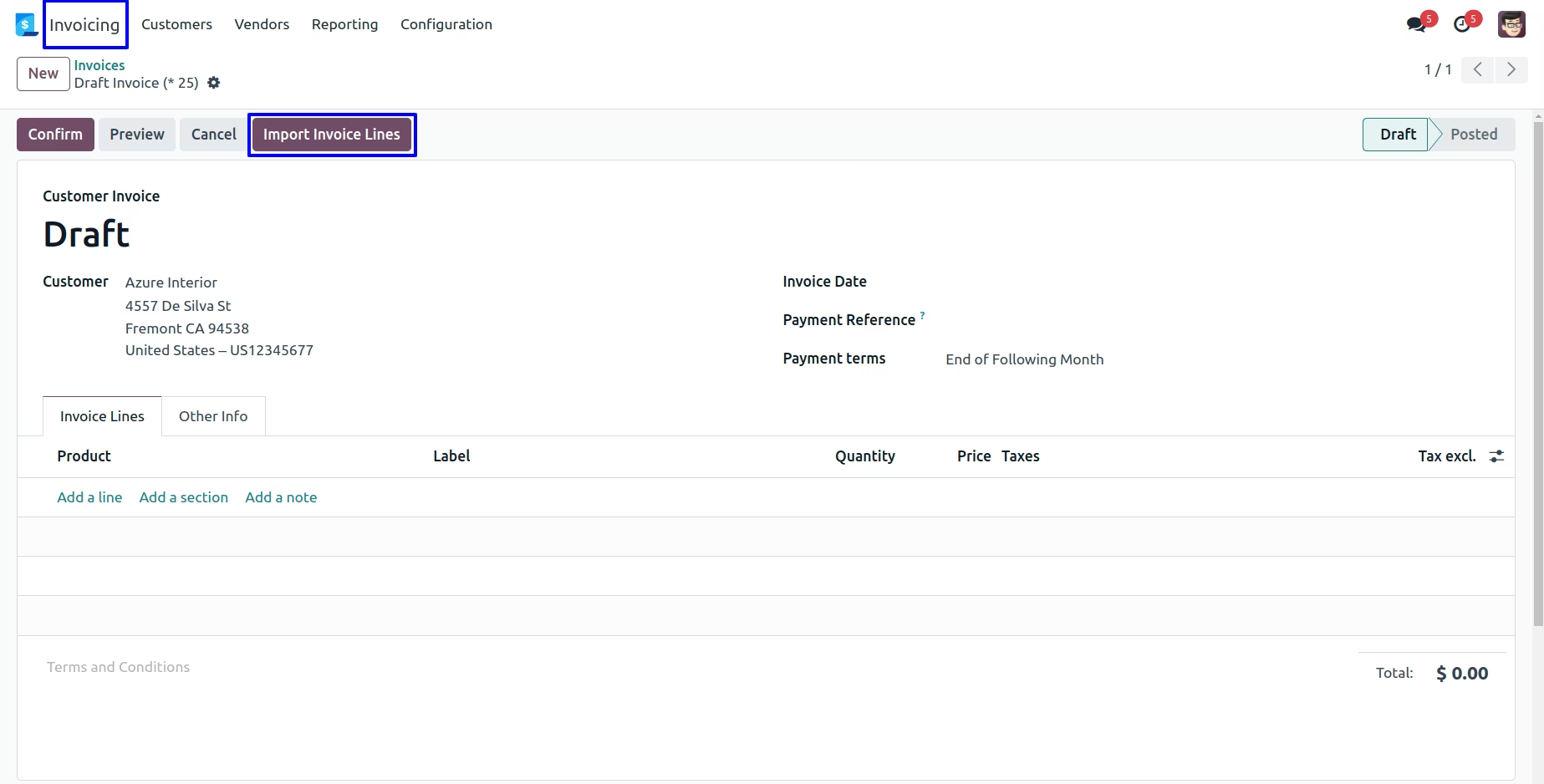
Import Invoice Lines Menu
Menu for importing data of Invoice Lines.
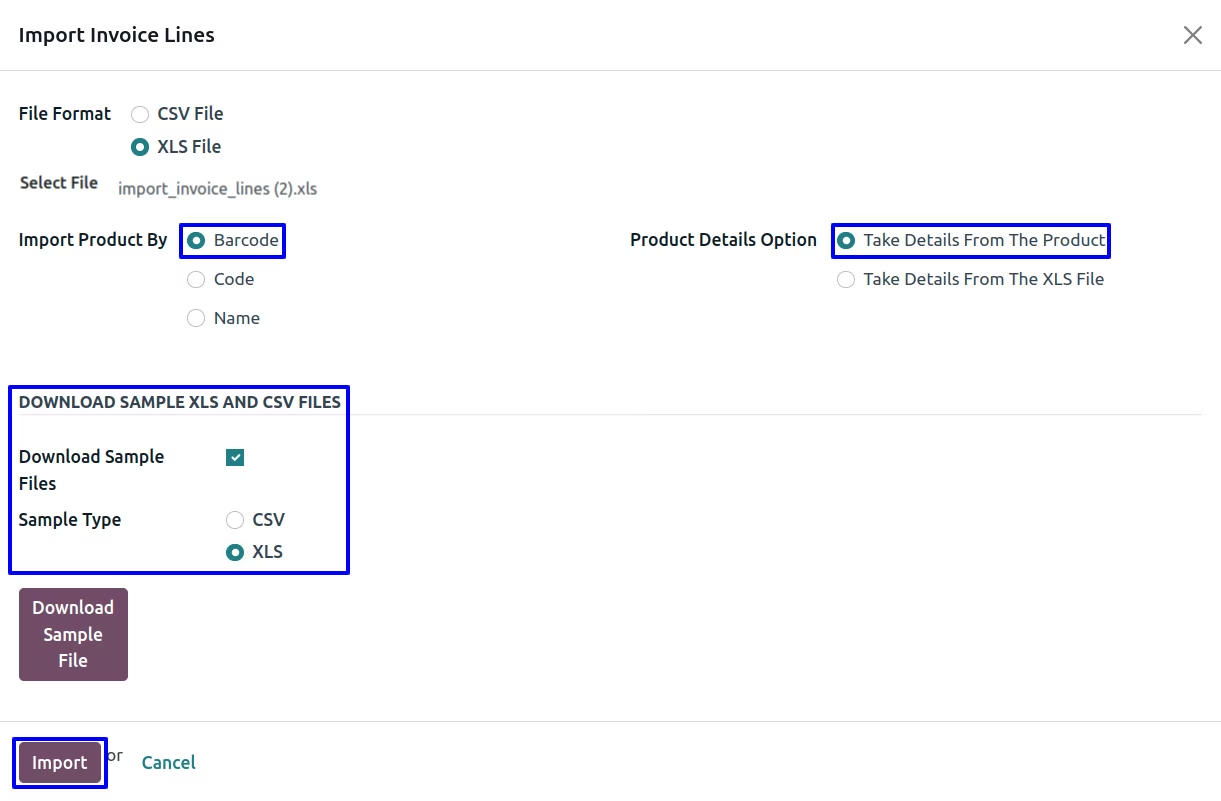
Import Invoice Lines Wizard
1. Product Details Option :
If you select "Take Details From The Product" option then product and product quantity will be taken from selected XLS file, Other product details(UOM, Price) will be taken from already created products.
If you select "Take Details From The XLS File" option then all details will be taken from selected XLS file.
2. Import Product By :
You have also option to import products by it's Name/ Barcode or Code(Internal Reference).
If you want to create product while importing invoice line then you have to select import with "Name".
User can enable "Download Sample Files" option and select "File Type" for file and download sample file to import invoice lines.
Import Invoice Line View
After importing CSV/XLS with "Take Details From The Product" option then you can see the imported product details is taken from already created product.
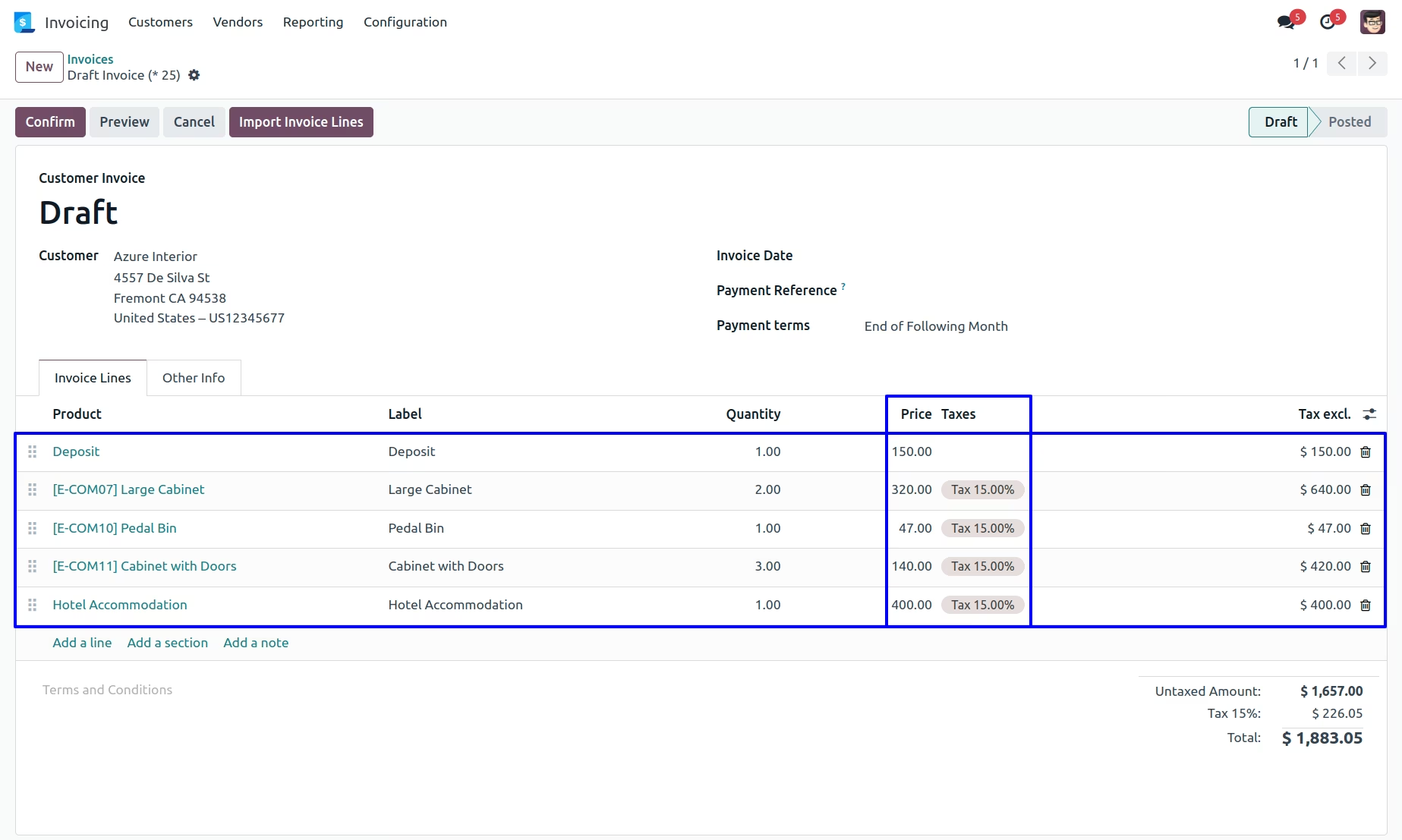
you can see the imported product details is taken from XLS file.
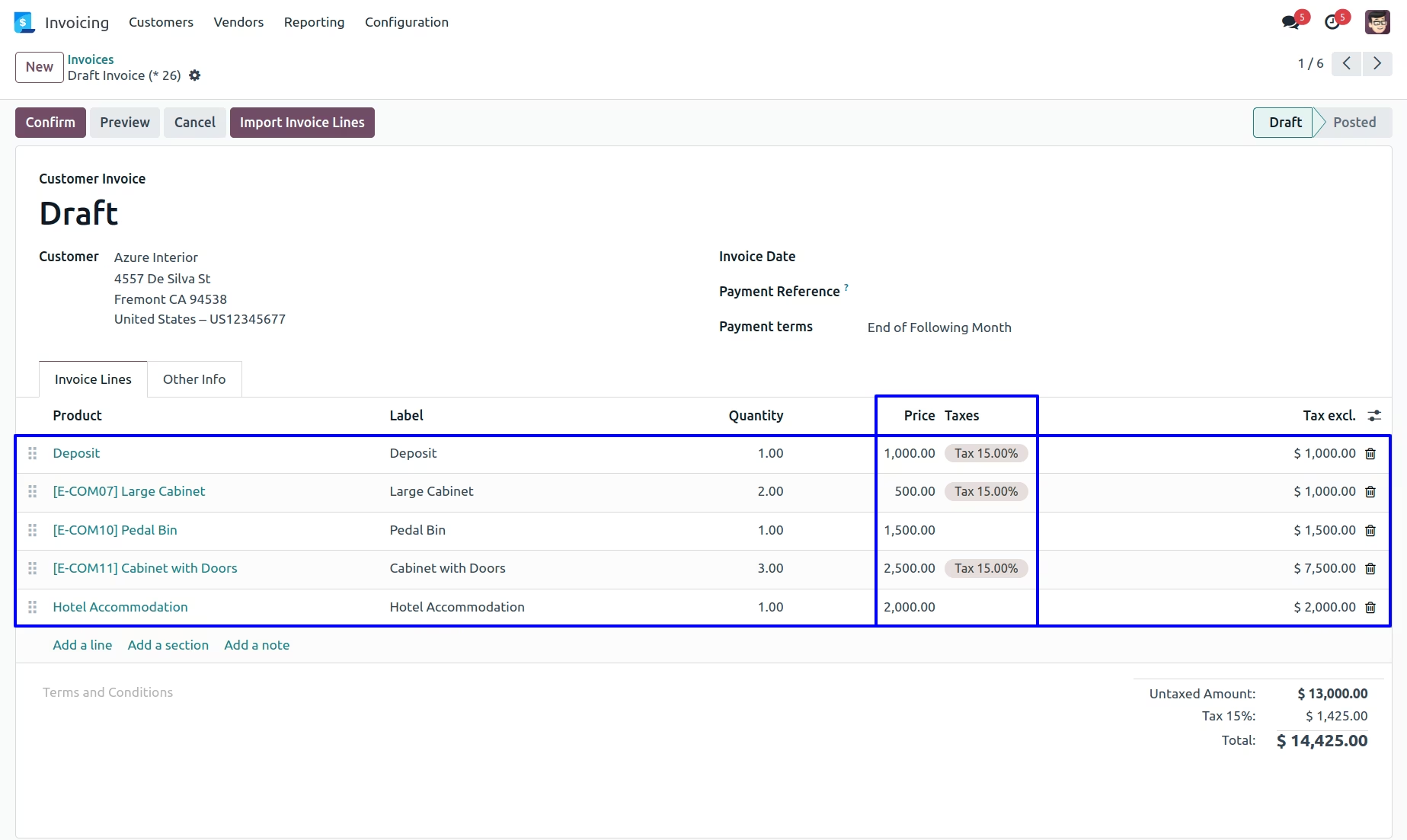
Installation Guide
Before installing this module you have to install following packages in your system.
1.sudo pip install xlrd
2.sudo pip install xlwt
OR
1.sudo apt-get install python-xlrd
2.sudo apt-get install python-xlwt
Version : 17.0.0.0
08 November 2023
Initial release of the app.