
This all-in-one advanced backdate control module offers a centralized solution for applying custom effective dates across various business workflows sales, purchases, accounting, invoices, inventory, and manufacturing confirmations. It enables businesses to apply backdated dates with optional remarks and supports mass assignment, providing accurate audit trails and operational clarity.
Key Features
Apply custom backdate and remarks when confirming sales orders
Assign backdated confirmation dates with remarks to purchase orders
Enable effective date adjustments for invoices, bills, credit and debit notes
Support backdated confirmations for MRP orders with optional remarks
Backdate inventory transactions including pickings, scrap, and inventory adjustments
Facilitate mass backdate assignment across selected records in one action
Ensure notes and effective dates propagate to stock moves, product moves, journal entries, and invoices for full traceability
Benefits
Enhances operational accuracy by aligning transaction dates with actual business events
Simplifies audit and reconciliation with effective date control and traceable remarks
Improves efficiency through mass backdate assignment across multiple documents
Maintains consistency and visibility across linked records stock, accounting, and production
Provides accountability with remark capture at time of backdating
All In One Backdate - Advance
Our module is useful for confirm sales, purchase, accounting, MRP & inventory orders with selected confirmation backdate. You can put a custom backdate and remarks. You can mass assign backdate in one click. This selected date and remarks are also reflects in the stock moves, product moves & journal entries.
Hot Features

Features

- You can confirm invoice, bill, credit note, debit note & payments with a custom backdate.
- You can mass assign backdate.
- While you assign backdate, you can put remarks with it.
- We provide an option for mandatory remarks while assigning backdate.
- Backdate and remarks transfer to the journal entries.
Workflow
Configuration for account backdate, enable features as per requirement.
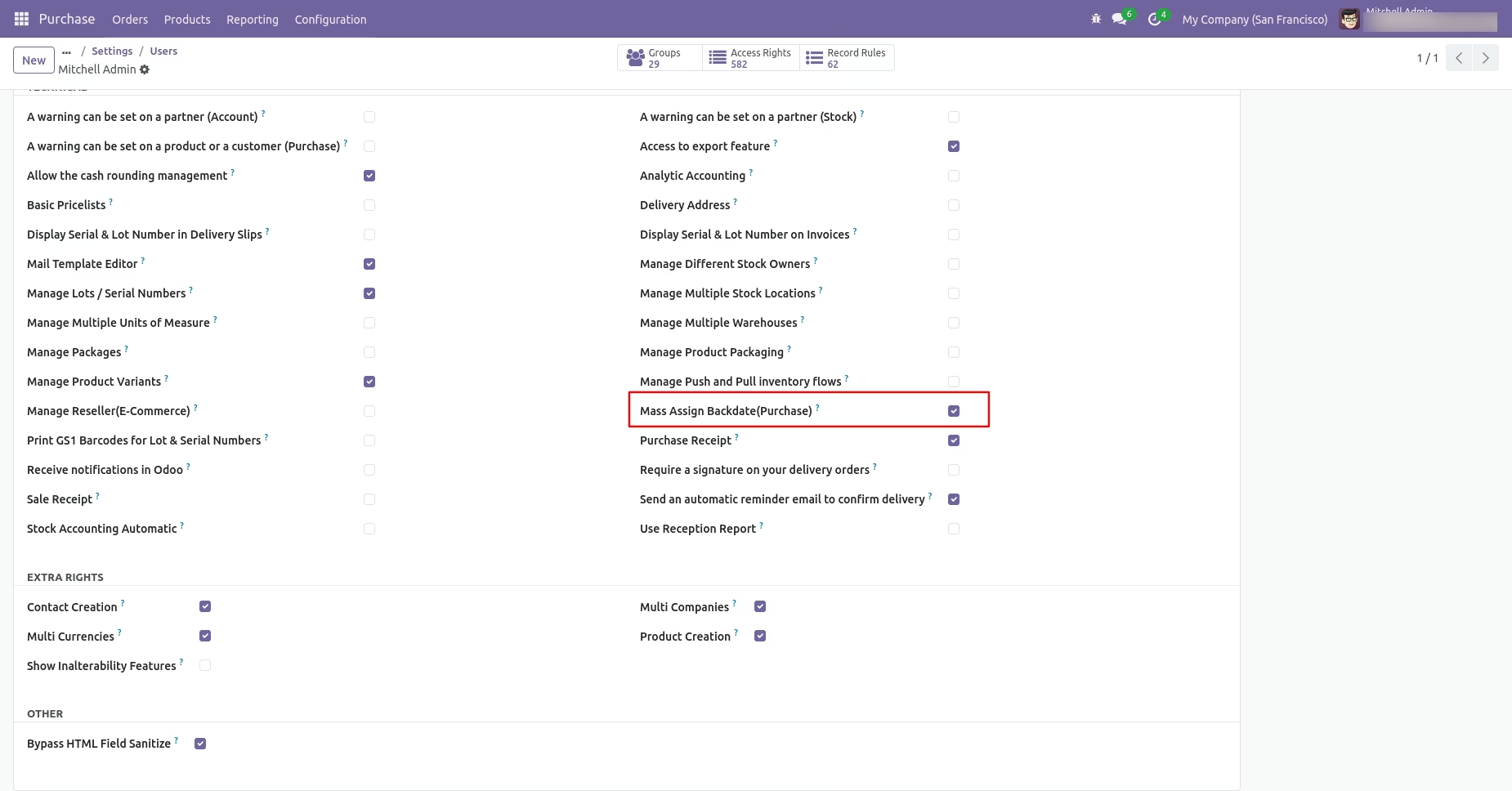
If you enable "Mass Assign Backdate" then you can mass assign backdate.
Select orders from the list view then click "Mass Assign Backdate".
After that, this wizard opens, enters the order date and remarks. Here remarks come if you have enabled that feature.
Invoice form view with backdate and remarks.
Configuration for payment backdate, enable features as per requirement.
If you enable "Mass Assign Backdate" then you can mass assign backdate, Select orders from the list view then click "Mass Assign Backdate".
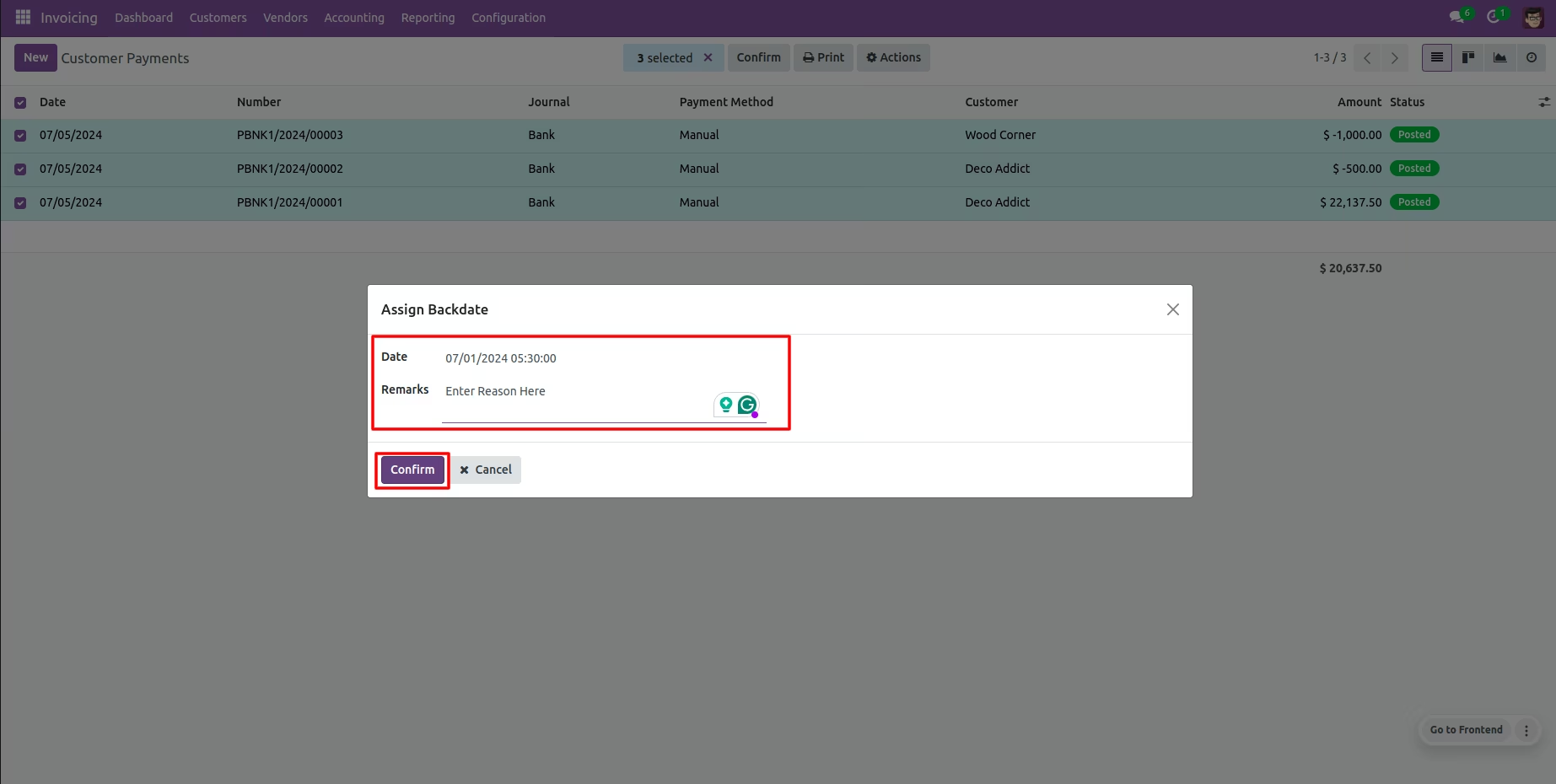
After that, this wizard opens, enters the order date and remarks. Here remarks come if you have enabled that feature.
Payments form view with backdate and remarks.
Journal entries with backdate and remarks.
Features
- You can confirm picking orders (incoming order / delivery order / internal transfer) with a custom backdate.
- You can confirm scrap orders with a custom backdate.
- You can mass assign backdate in picking & scrap orders.
- While you assign backdate, you can put remarks with it.
- We provide an option for mandatory remarks while assigning backdate.
- Backdate and remarks transfer to the stock moves & product moves.
Workflow
Backdate For Picking
Configuration for picking backdate, Tick the 'Enable Backdate For Picking' boolean.
Receipt form view with backdate.
Tick the 'Enable Remark For Picking' boolean.
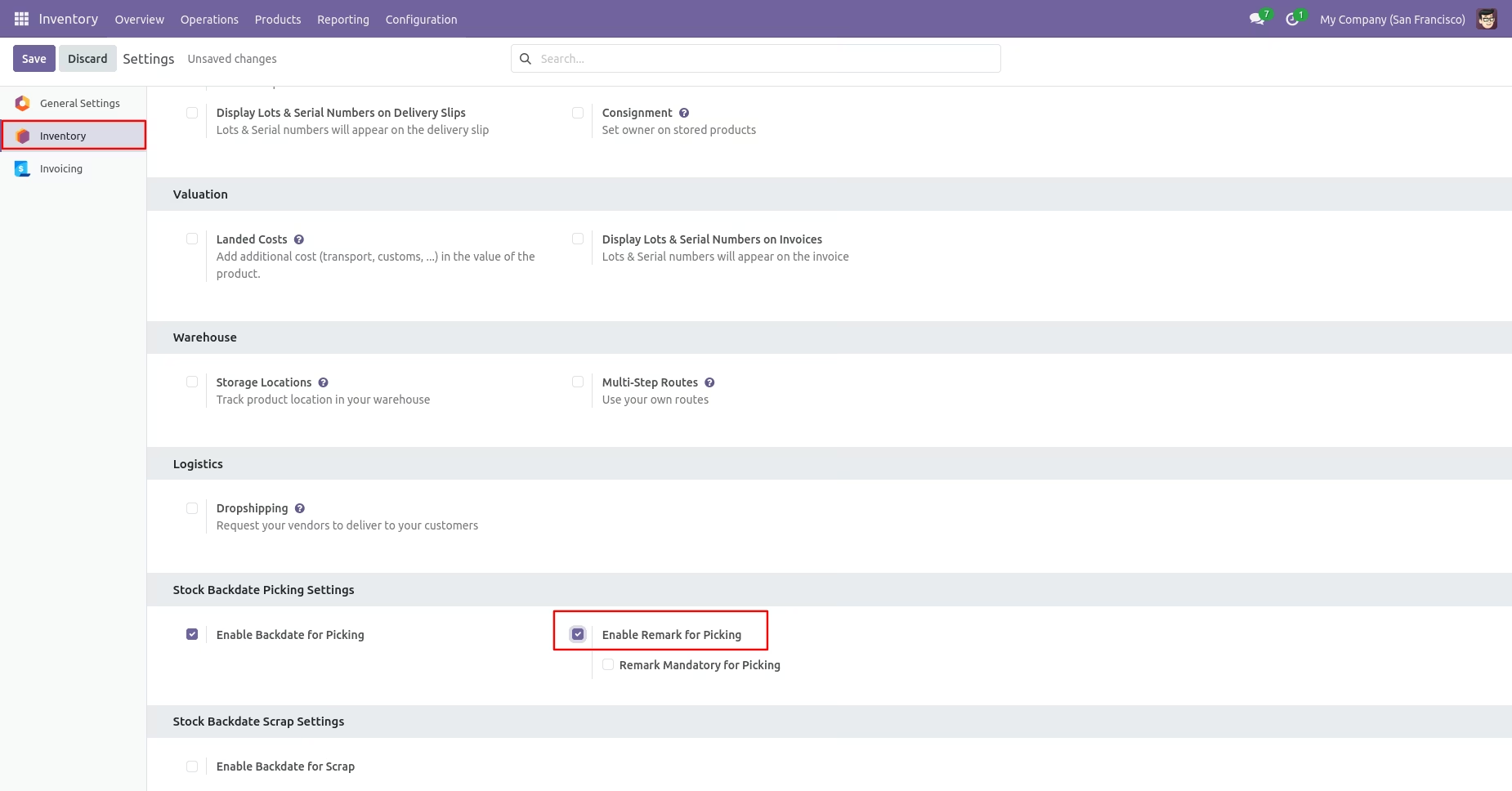
Receipt form view with remarks.
Tick the 'Remark Mandatory For Picking' boolean.
You can't save the receipt without entering a remark.
If you enable 'Mass Assign Backdate' then you can mass assign backdate.
Select orders from the list view then click 'Mass Assign Backdate'.
After that, this wizard opens, enters the order date, and remarks. Here, remarks come if you have enabled that feature.
Receipt form view with backdate and remarks.
Move analysis with backdate and remarks.
Backdate For Scrap
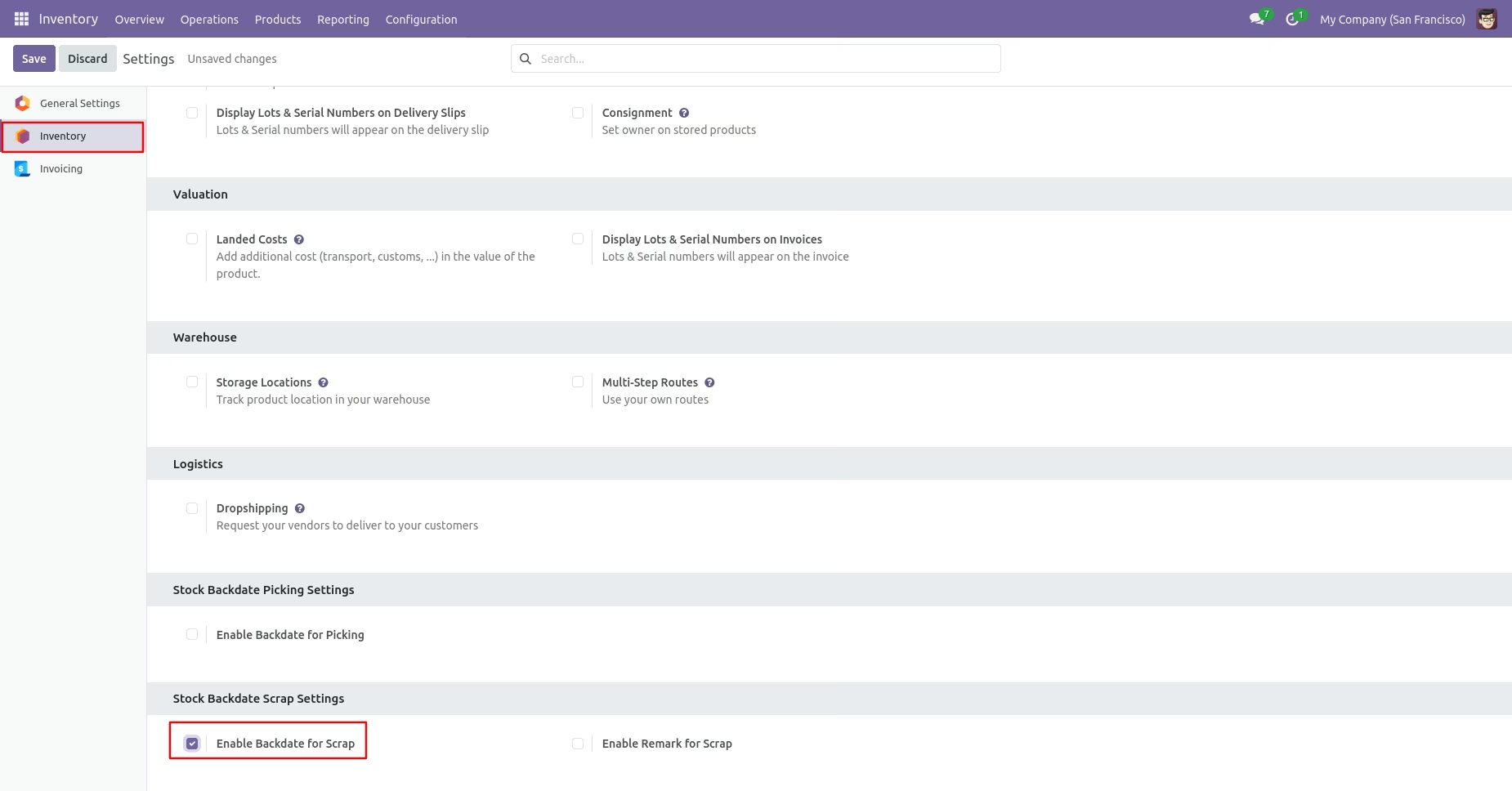
Configuration for picking backdate, Tick the 'Enable Backdate For Scrap' boolean.
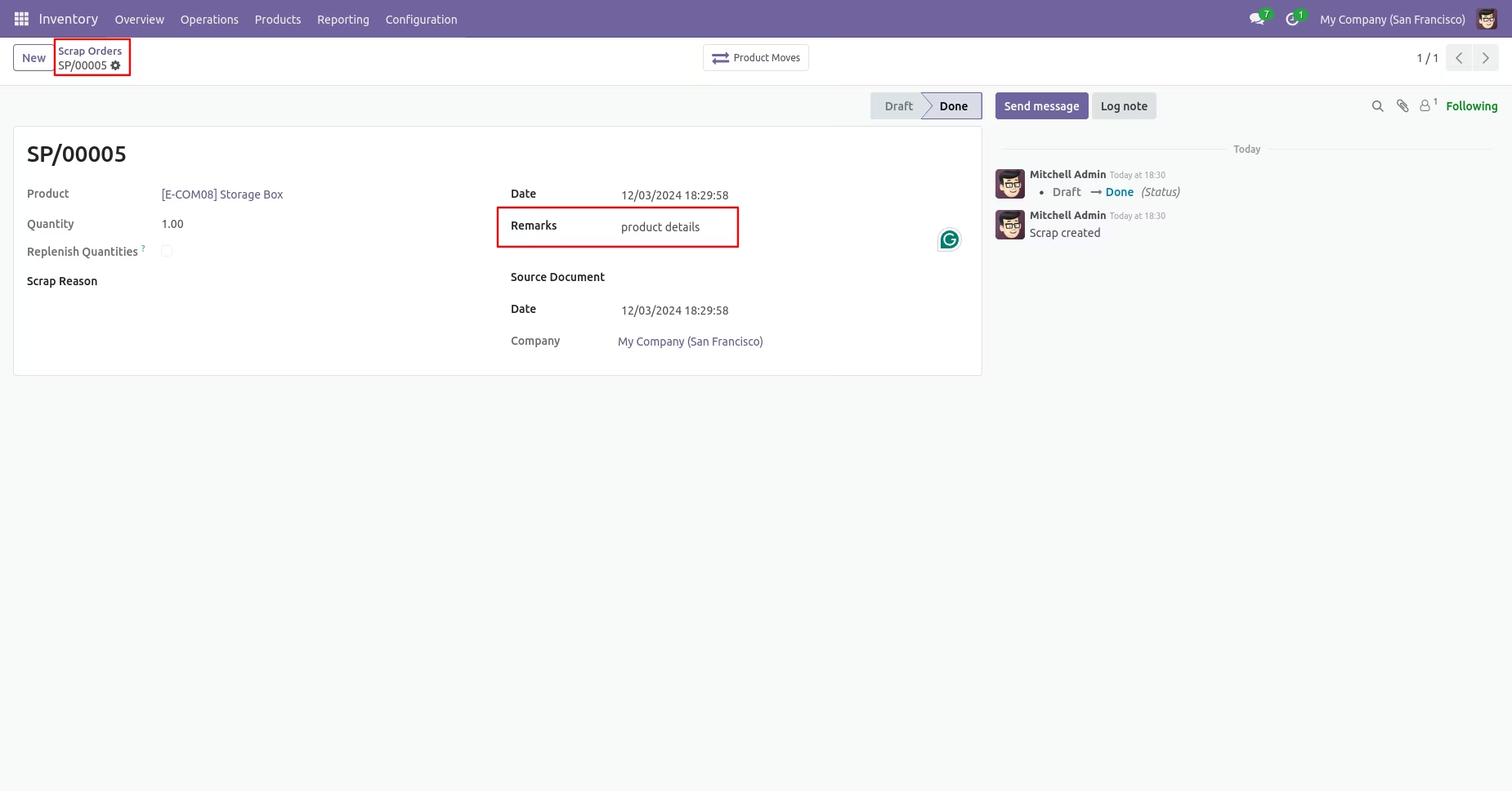
Scrap order form view with backdate.
Tick the 'Enable Remark For Scrap' boolean.
Scrap order form view with remark.
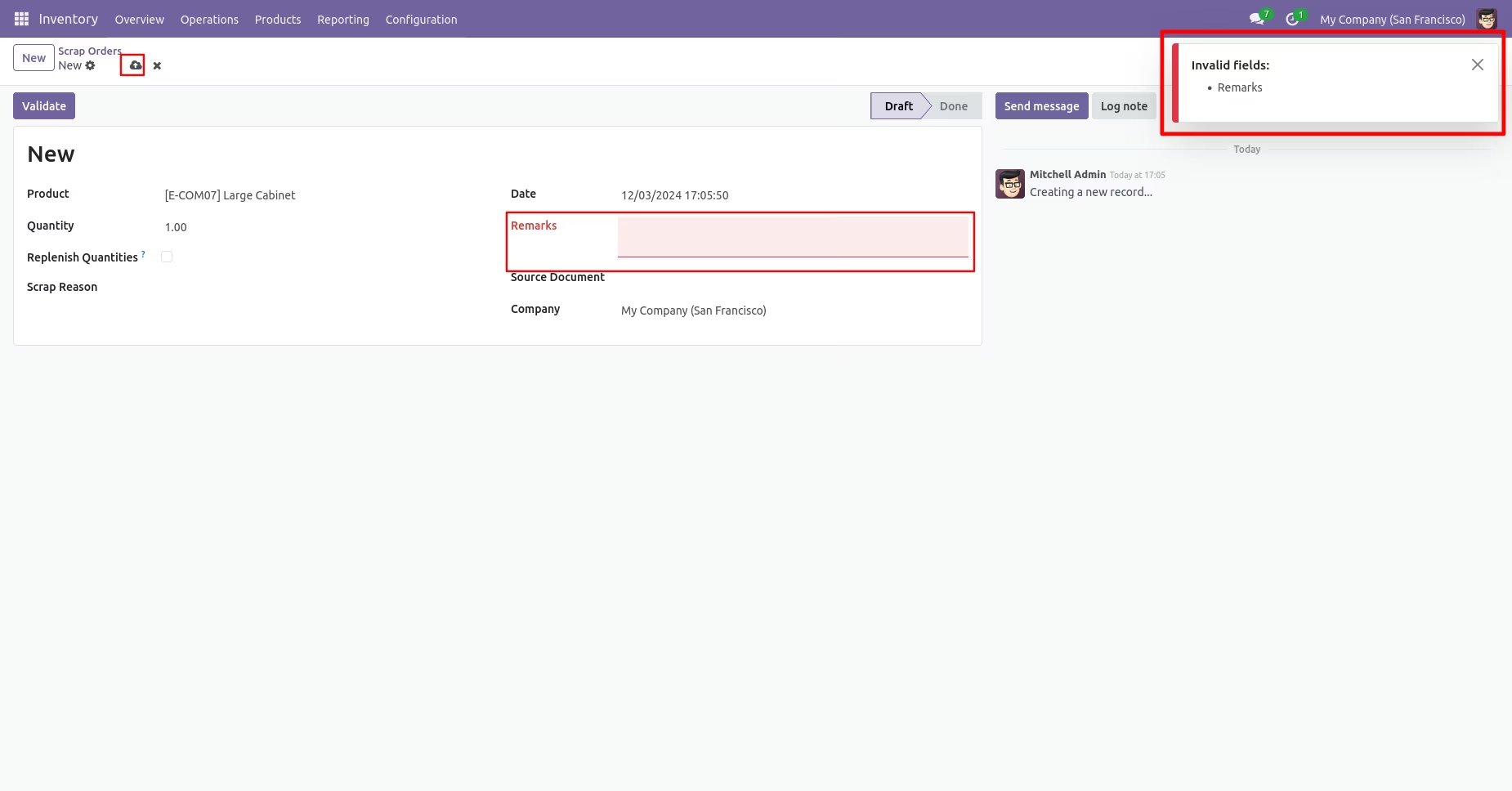
Tick the 'Remark Mandatory For Scrap' boolean.
You can't save the Scrap Order without entering a remark.
If you enable 'Mass Assign Backdate' then you can mass assign backdate.
If you enable 'Mass Assign Backdate' then you can mass assign backdate, Select orders from the list view then click 'Mass Assign Backdate'.
After that, this wizard opens, enters the order date, and remarks. Here, remarks come if you have enabled that feature.
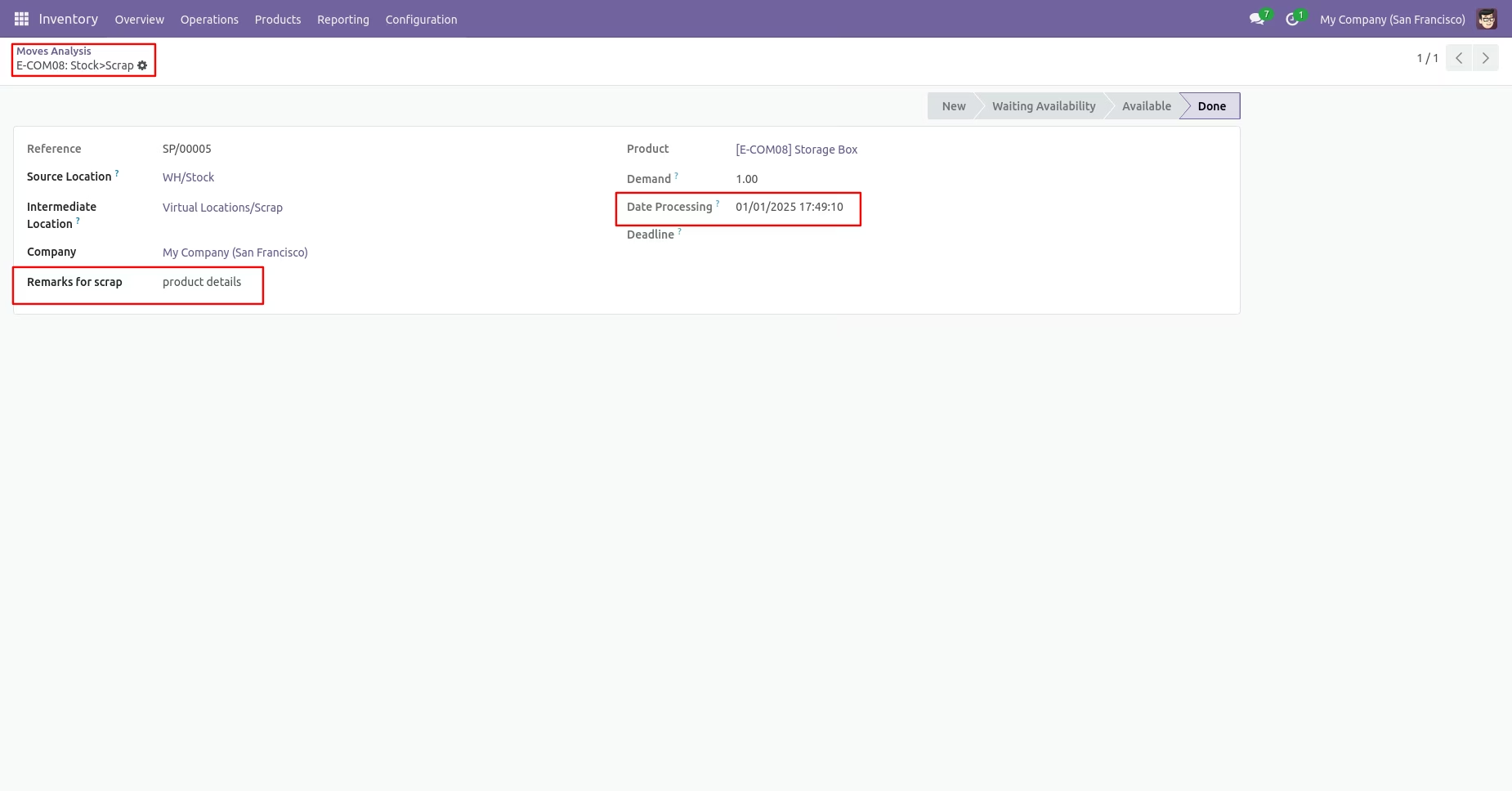
Scrap order form view with backdate and remarks.
Moves analysis with backdate and remarks.
Features
- You can confirm sales orders with a custom backdate.
- You can select desired confirmation backdate in sales.
- You can mass assign backdate in sales.
- While you assign backdate, you can put remarks with it.
- We provide an option for mandatory remarks while assigning backdate.
- Backdate and remarks transfer to the invoice and journal entries.
- Backdate and remarks transfer to the delivery order.
- Backdate and remarks transfer to the stock moves & product moves.
Workflow
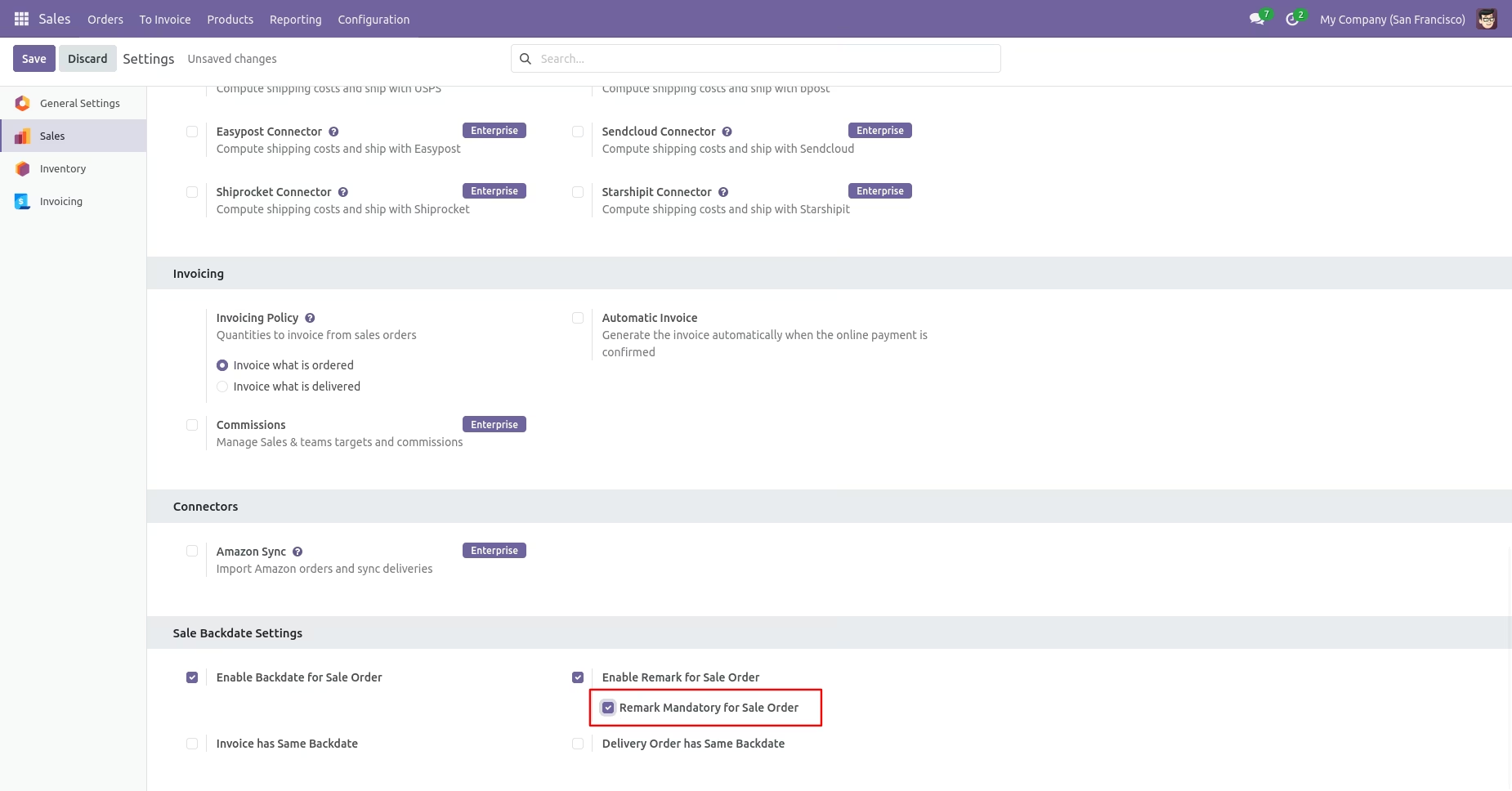
Go to the sales settings and enable the 'Enable Backdate For Sale Order' option.
Sale order form view with backdate.
Enable the 'Enable Remark For Sale Order' option.
Sale order form view with remarks.
Enable the 'Remark Mandatory For Sales Order' option.
You can't save the SO without entering a remark.
Enable the 'Invoice Has Same Backdate' & 'Delivery Order has Same Backdate' option.
Delivery order with backdate and remarks.
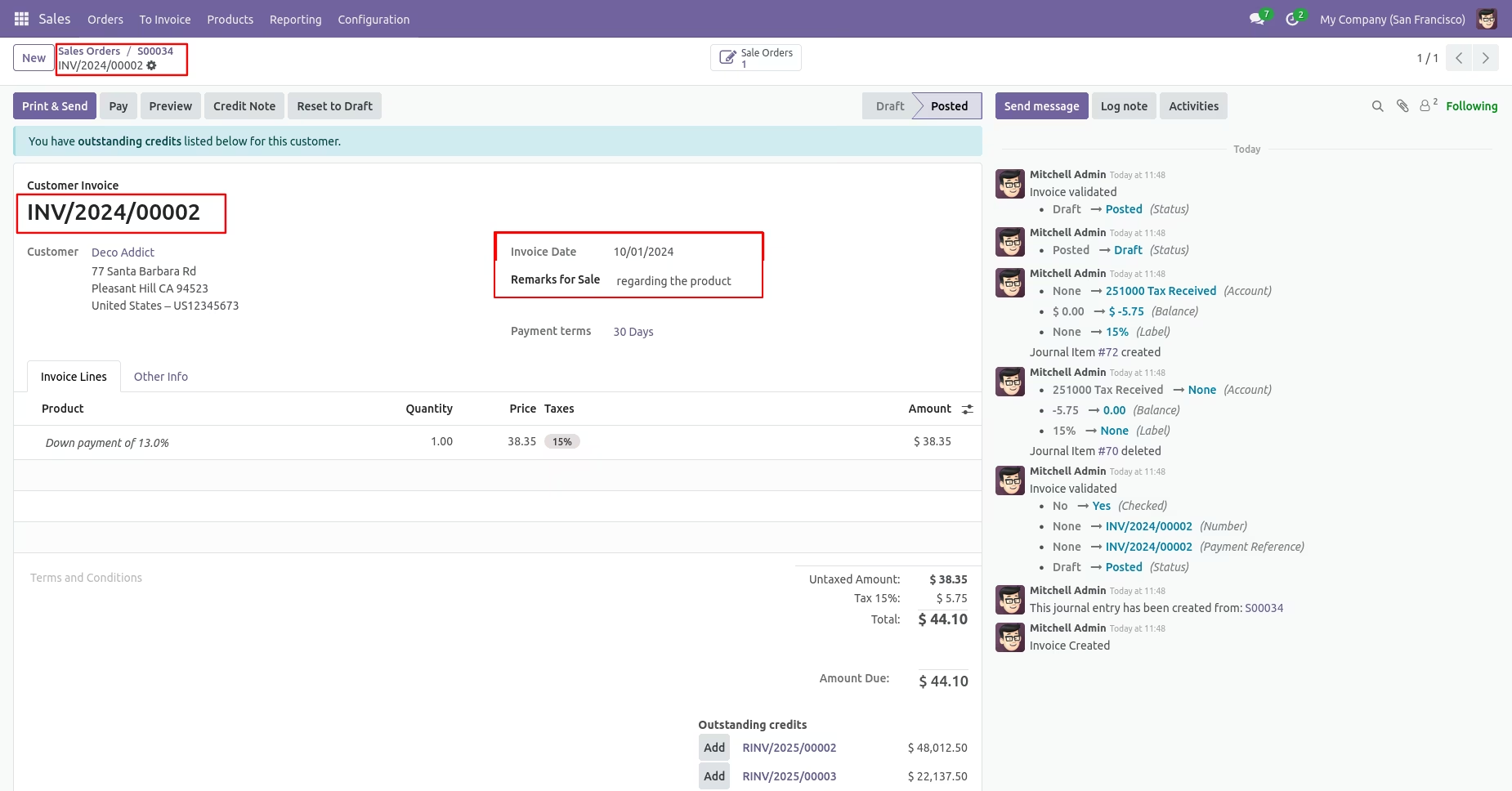
Invoice with backdate and remarks.
Enabling 'Mass Assign Backdate' allows you to assign backdates in sales in bulk.
From the list view, select sale orders and click on 'Mass Assign Backdate'.
After that, this wizard opens, enters the order date and remarks. Here remarks come if you have enabled that feature.
Sale order form view with backdate and remarks.
Delivery order with backdate and remarks.
Move analysis with backdate and remarks.
Invoice date with backdate and remarks.
Features
- You can change inventory adjustments with a custom backdate.
- While you assign a backdate, you can put remarks with it.
- We provide an option for mandatory remarks while assigning backdates.
- Backdate and remarks transfer to the stock moves, product moves & stock valuation.
Workflow
Enable the 'Enable Backdate For Inventory Adjustment' for configuration for picking backdate.
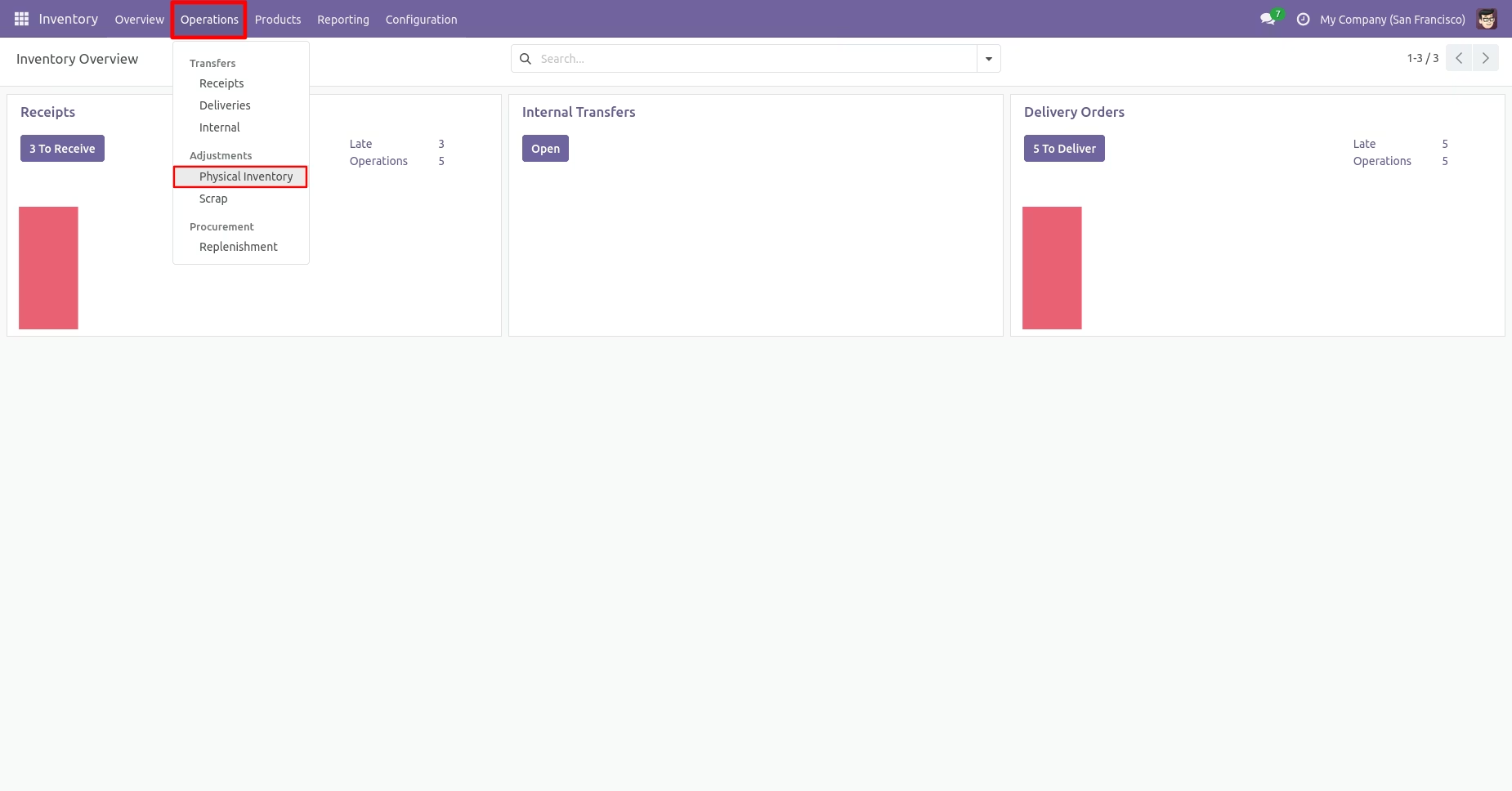
Go to Inventory ==> Operations ==> Physical Inventory.
Select the product that you want to change backdate.
To adjust the inventory, you can select the counted quantity, choose a backdate and then click on "Save and Apply".
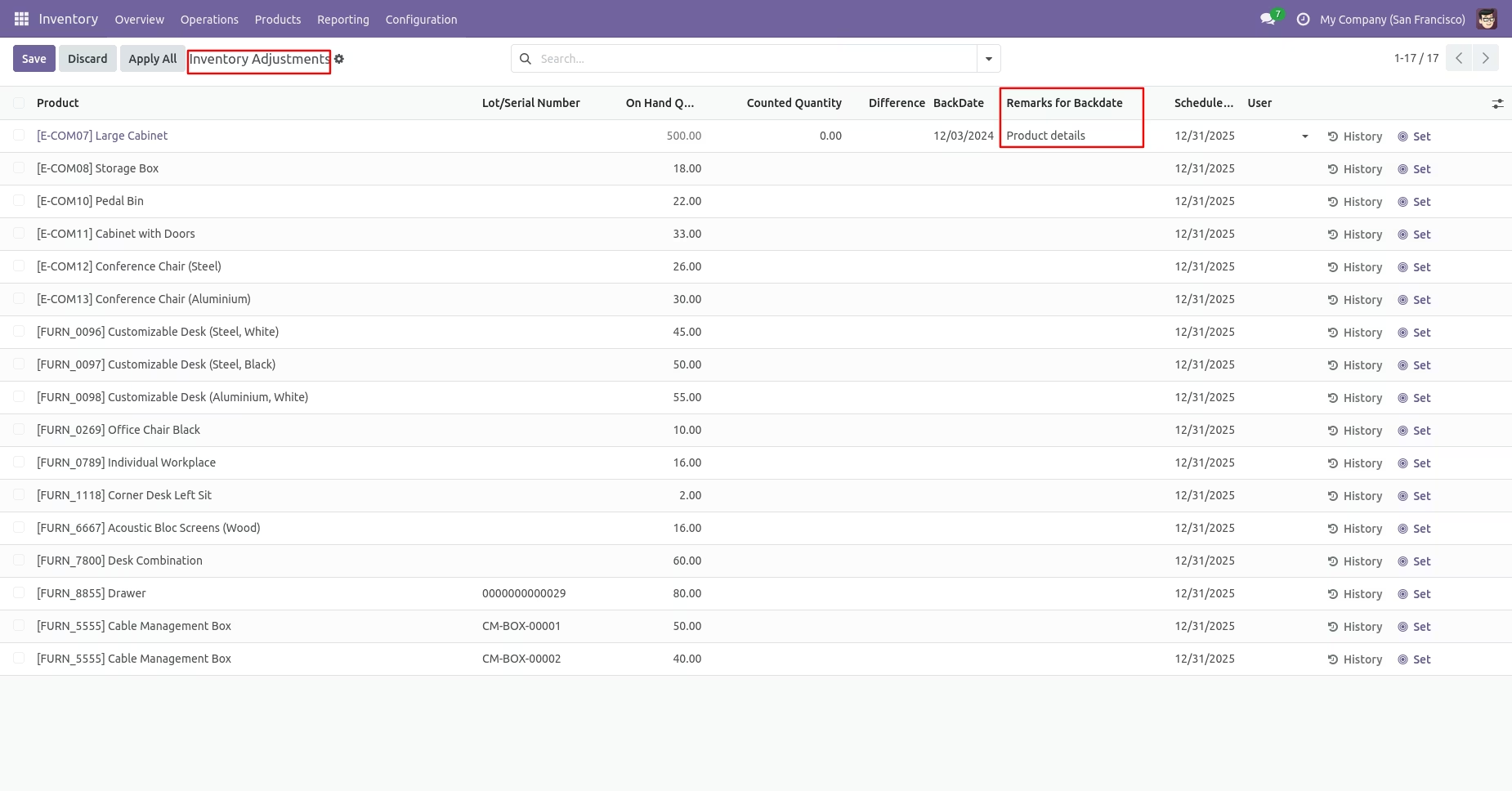
Enable the 'Enable Remark for Adjustment'.
Inventory adjustments with remarks.
Enable the 'Remark Mandatory for Adjustment'.
If you do not add remarks, it will give an error message.
Add remarks and then click on "Save and Apply".
Product moves history with backdate and remarks.
Inventory adjustment form view with backdate and remarks.
Features
- You can confirm MRP orders with a custom backdate.
- You can mass assign backdate in MRP orders.
- While you assign backdate, you can put remarks with it.
- We provide an option for mandatory remarks while assigning backdate.
- Backdate and remarks transfer to the journal entries.
- Backdate and remarks transfer to the stock moves & product moves.
Workflow
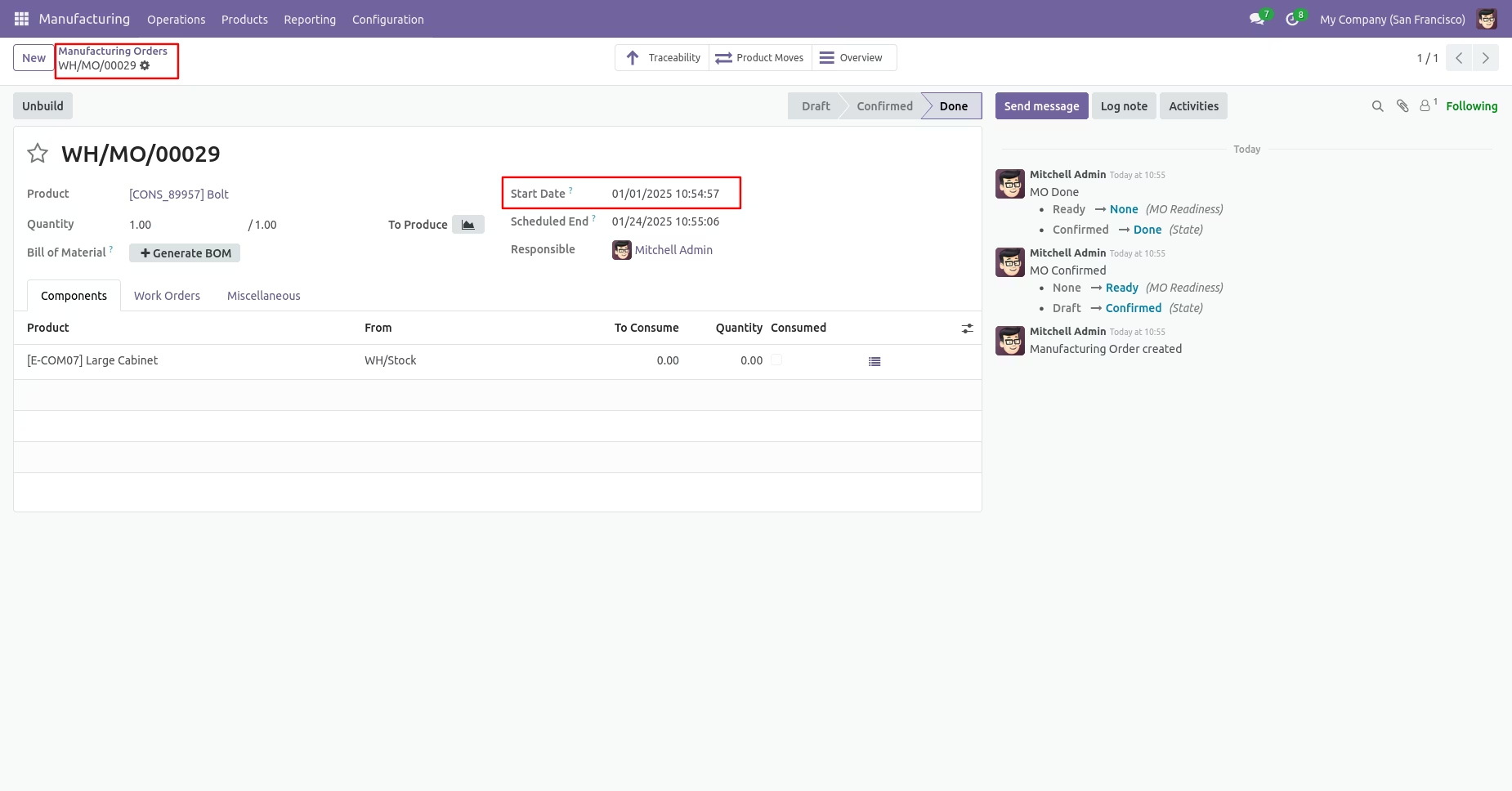
Configuration for MRP backdate, enable 'Enable Backdate For MRP'.
MRP order form view with backdate.
Go to the Manufacturing setting and Enable 'Enable Remark For MRP Production'.
MRP order form view with backdate and remarks.
Go to the Manufacturing setting and Enable 'Remark Mandatory For MRP Production'.
You can't save the MRP order without entering a remark.
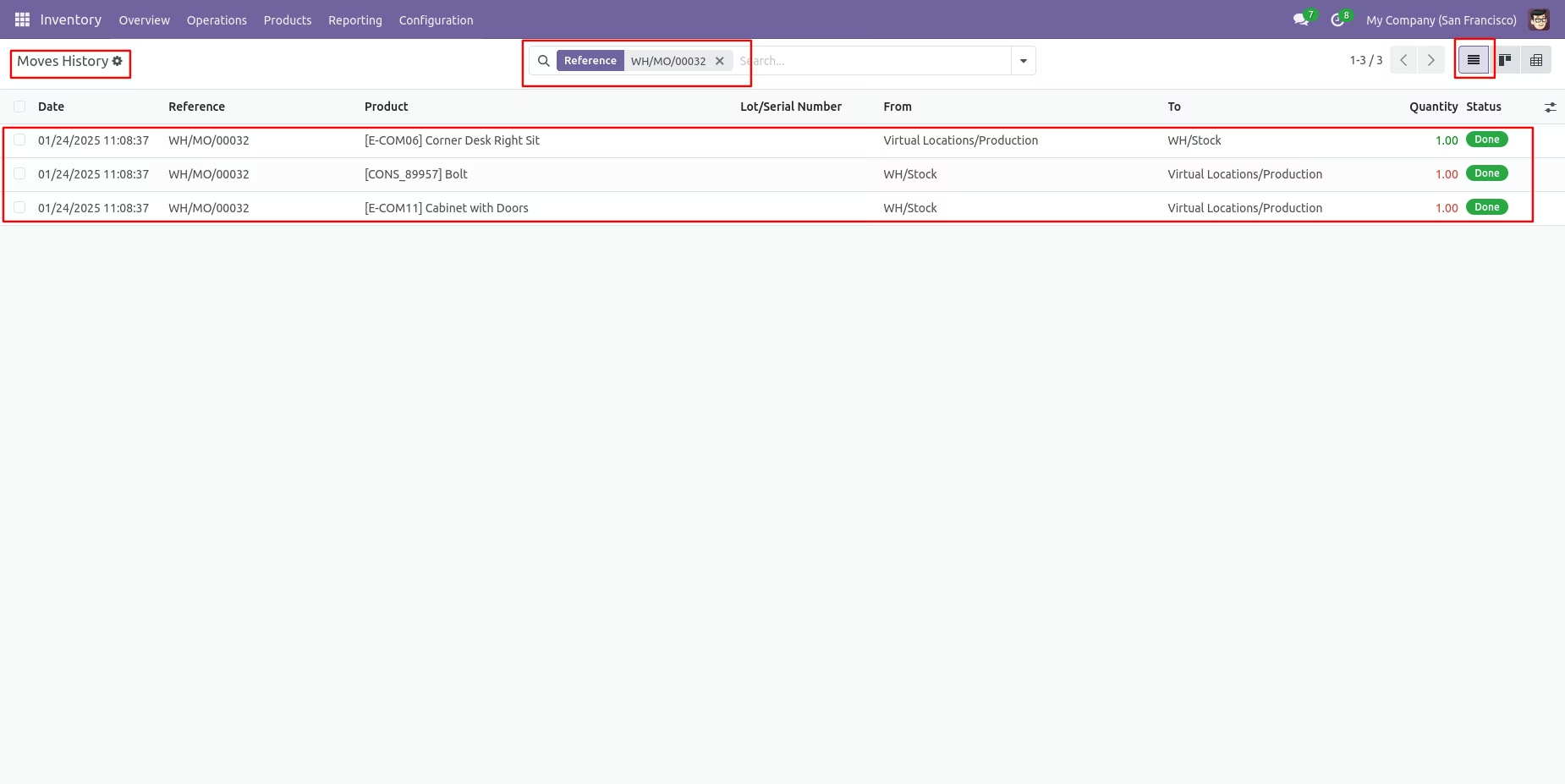
Tree view of moves history.
Tree view of moves analysis.
Journal entries with backdate and remarks.
To unbuild the MO, click on the 'Unbuild' button.
After that, 'Unbuild' wizard will appear, fill details and click on the 'Unbuild' button.
Form view of the unbuild order.
You can see schedule manufacturing order date.
You can see selected last inventory date.
That MO date passed in the unbuild order journal entries.
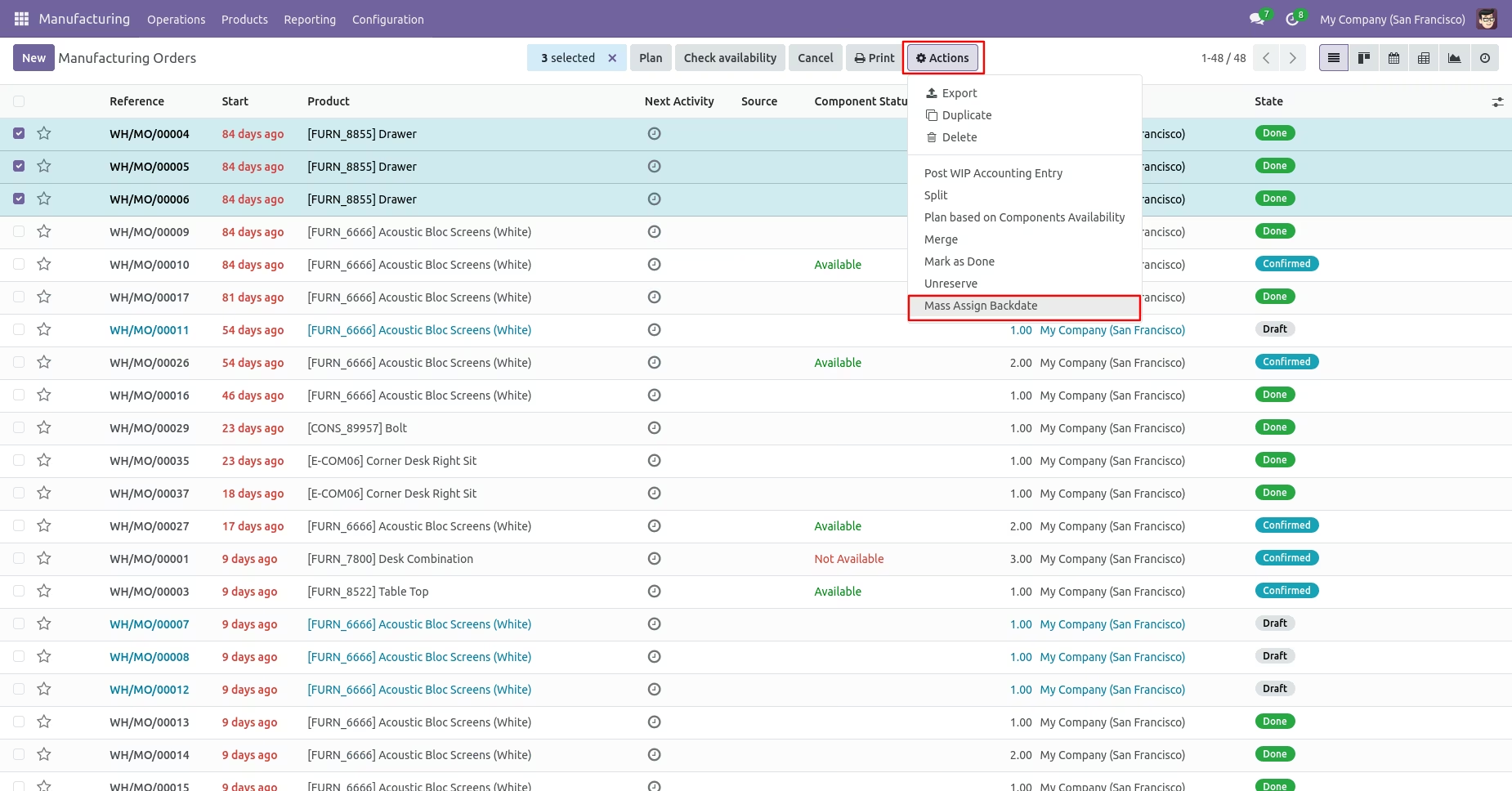
If you enable 'Mass Assign Backdate' then you can mass assign backdate in MRP.
Select MRP orders from the list view then click 'Mass Assign Backdate'.
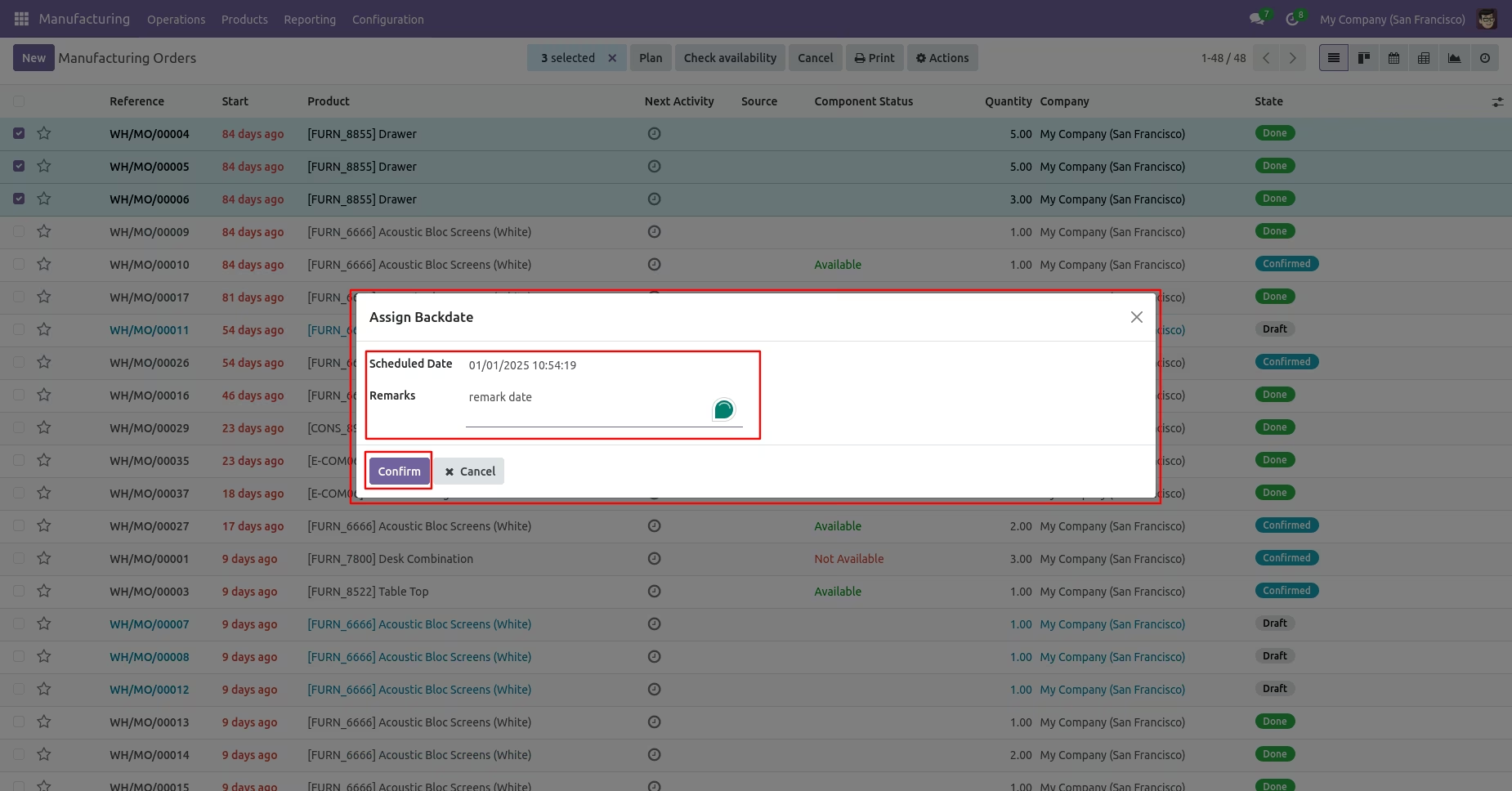
After that, this wizard opens, enters the order date and remarks. Here remarks come if you have enabled that feature.
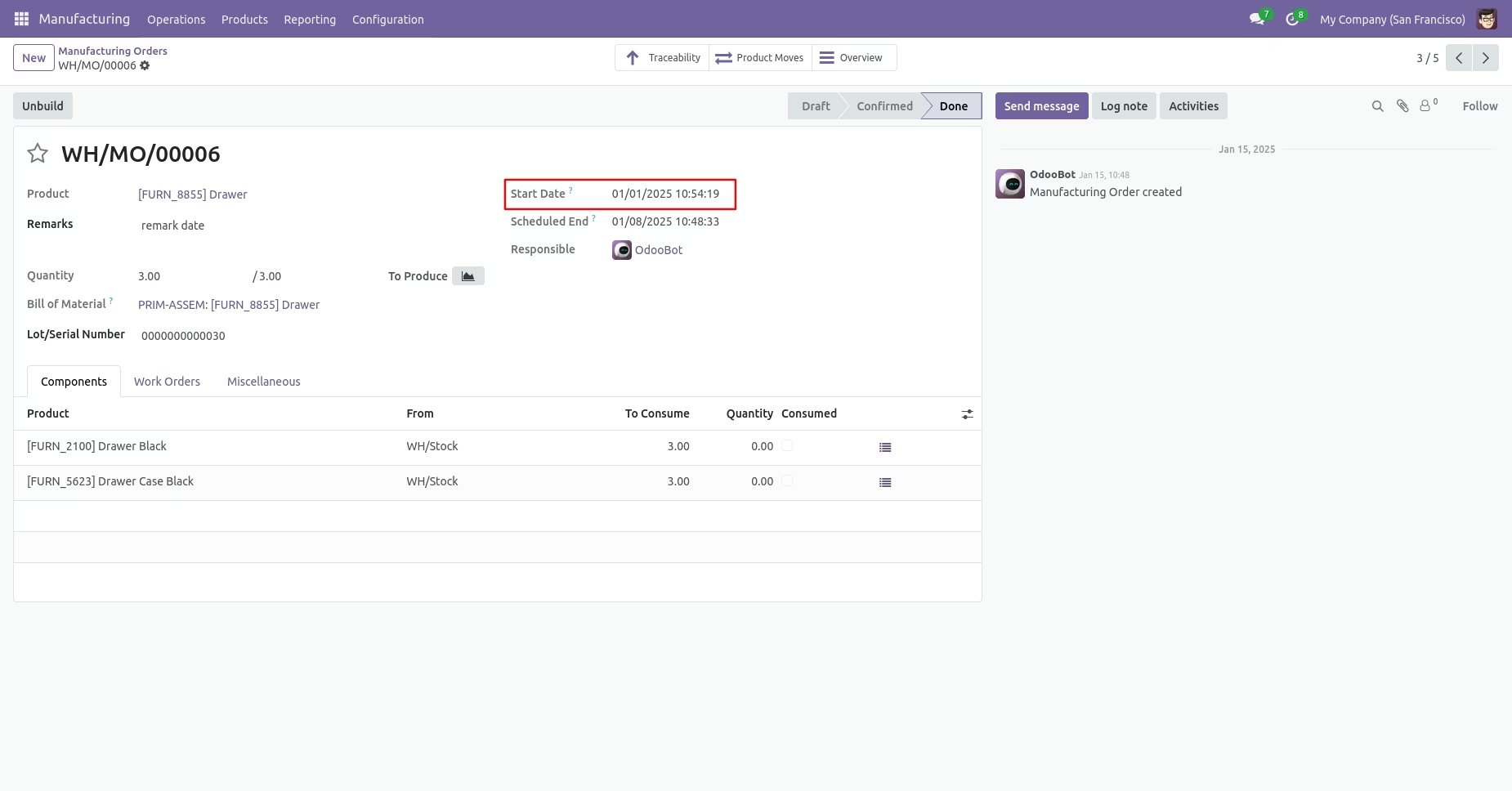
MRP order form view with backdate and remarks.
Features
- You can confirm purchase orders with a custom backdate.
- You can select desired confirmation backdate in purchases.
- You can mass assign backdate in purchase.
- While you assign backdate, you can put remarks with it.
- We provide an option for mandatory remarks while assigning backdate.
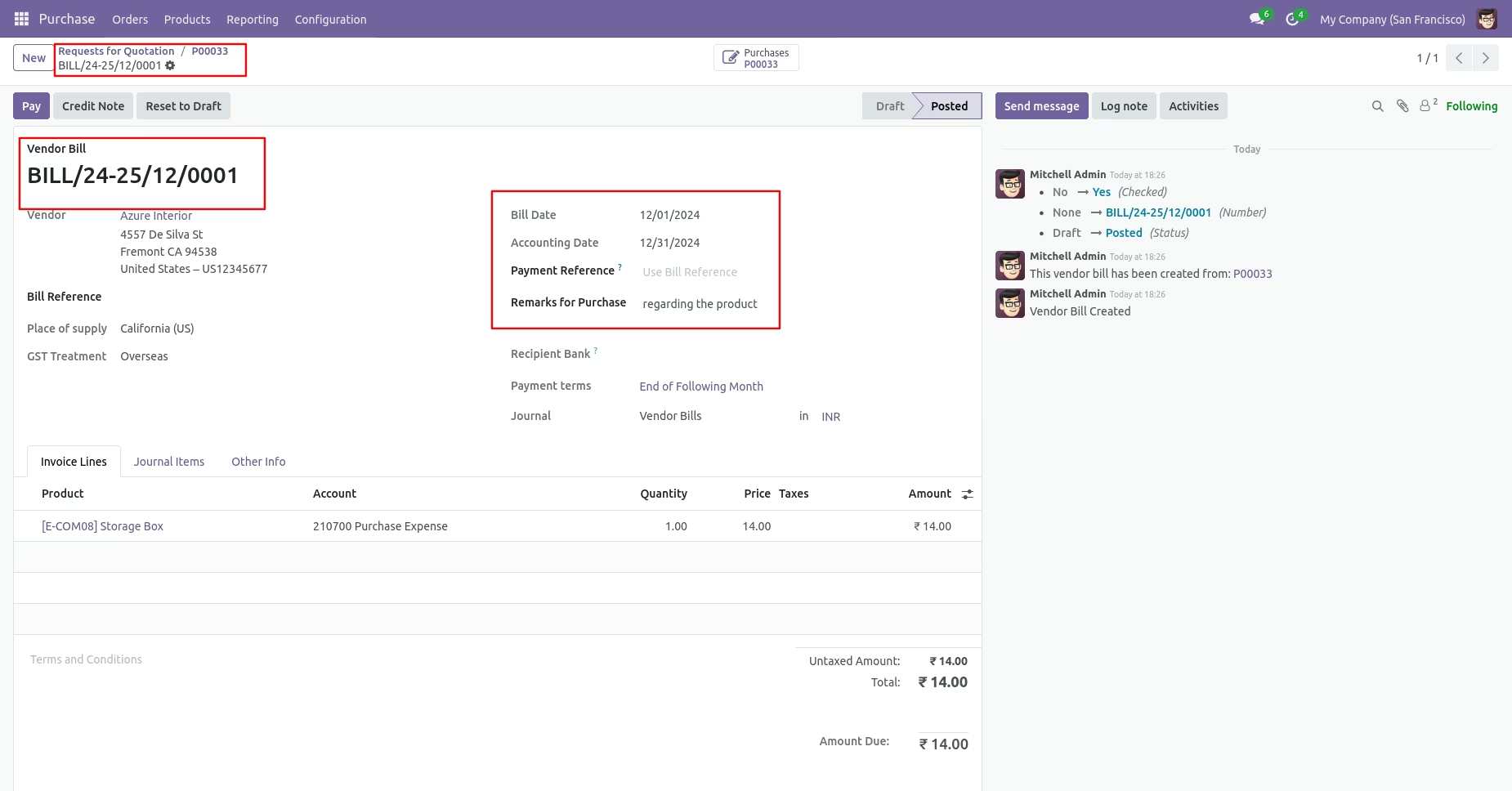
- Backdate and remarks transfer to the bill and journal entries.
- Backdate and remarks transfer to the receipt.
- Backdate and remarks transfer to the stock moves & product moves.
Workflow
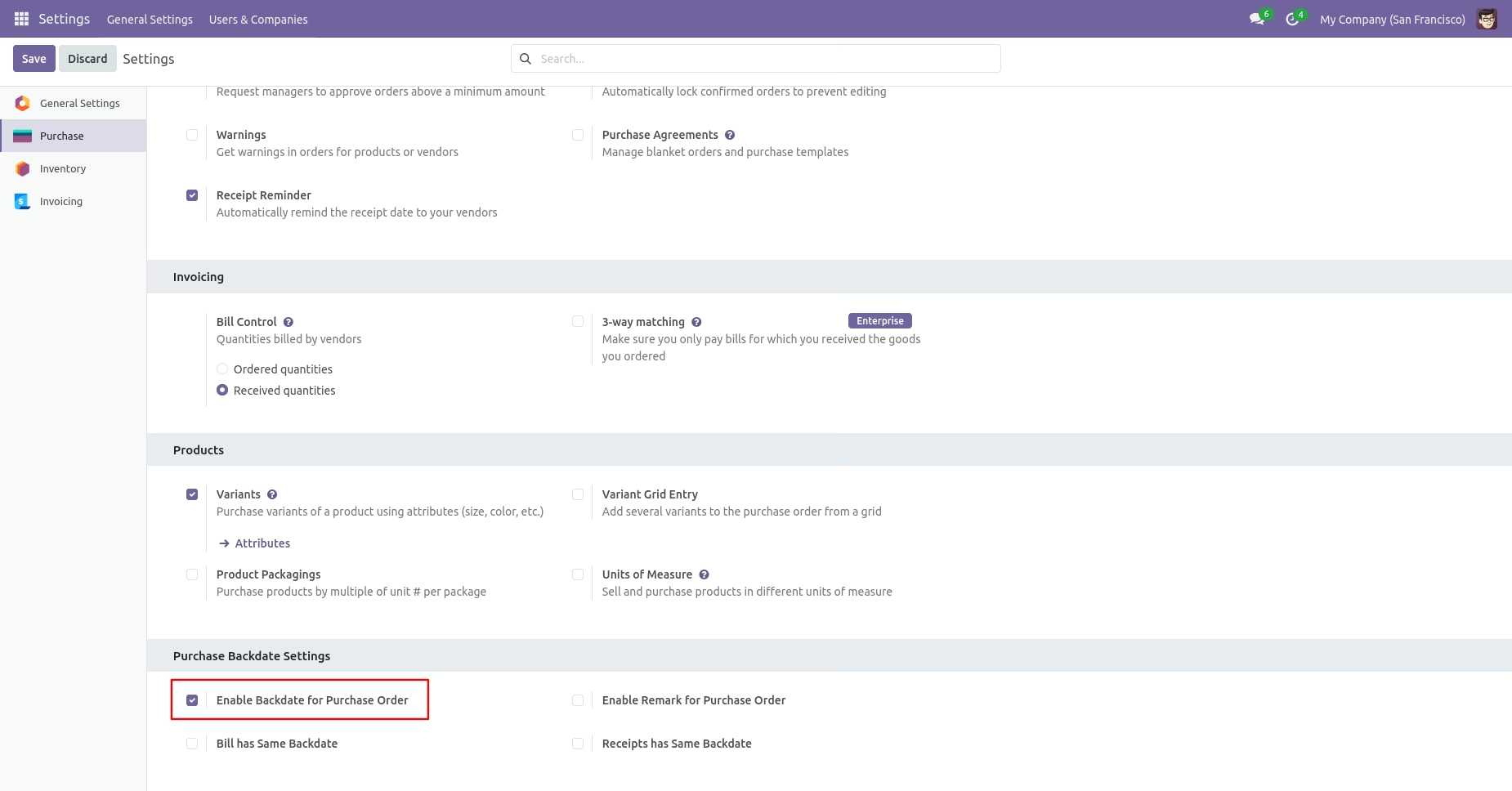
Go to the purchase settings and enable the 'Enable Backdate For purchase Order' option.
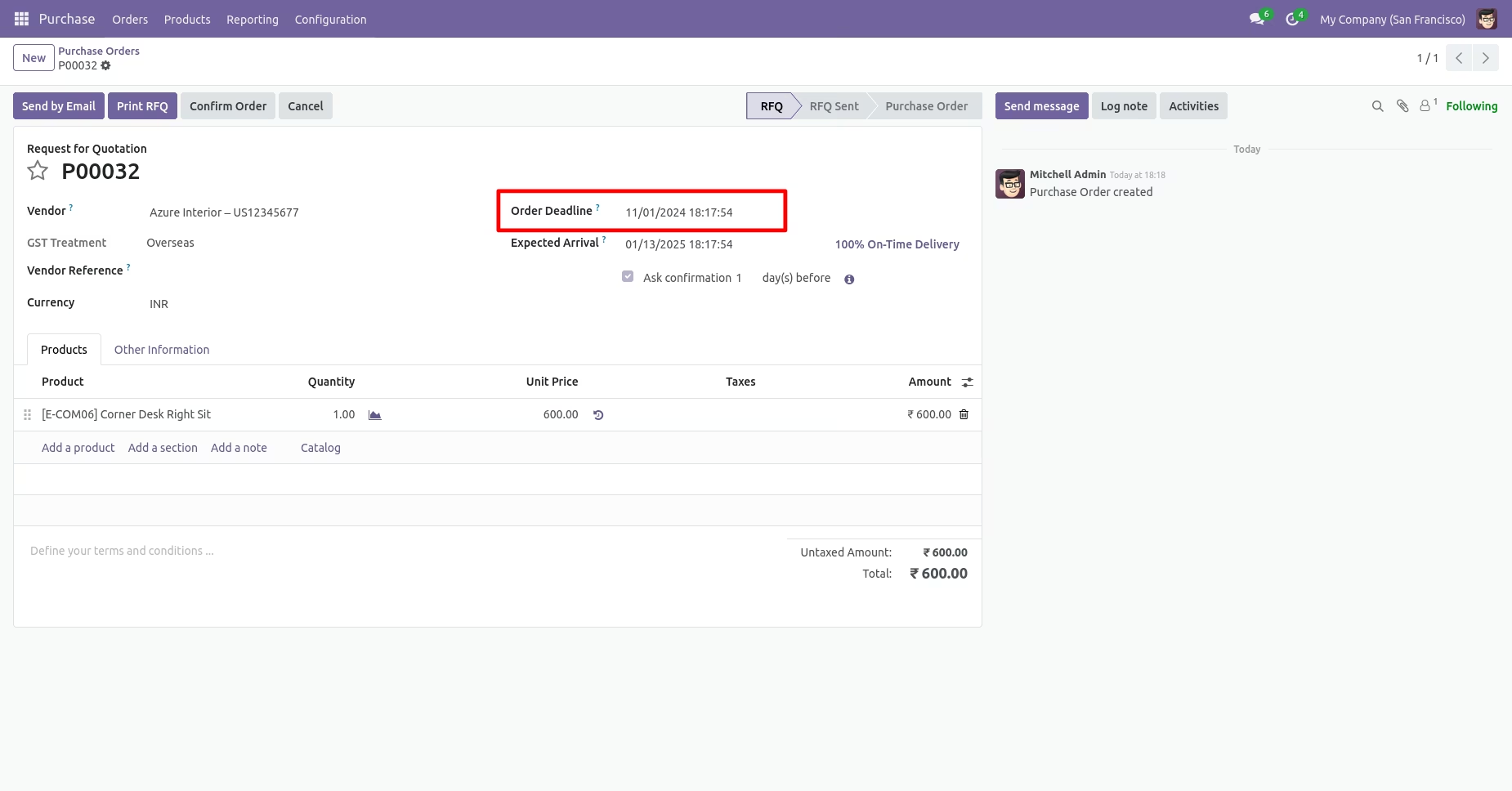
Purchase order form view with backdate.
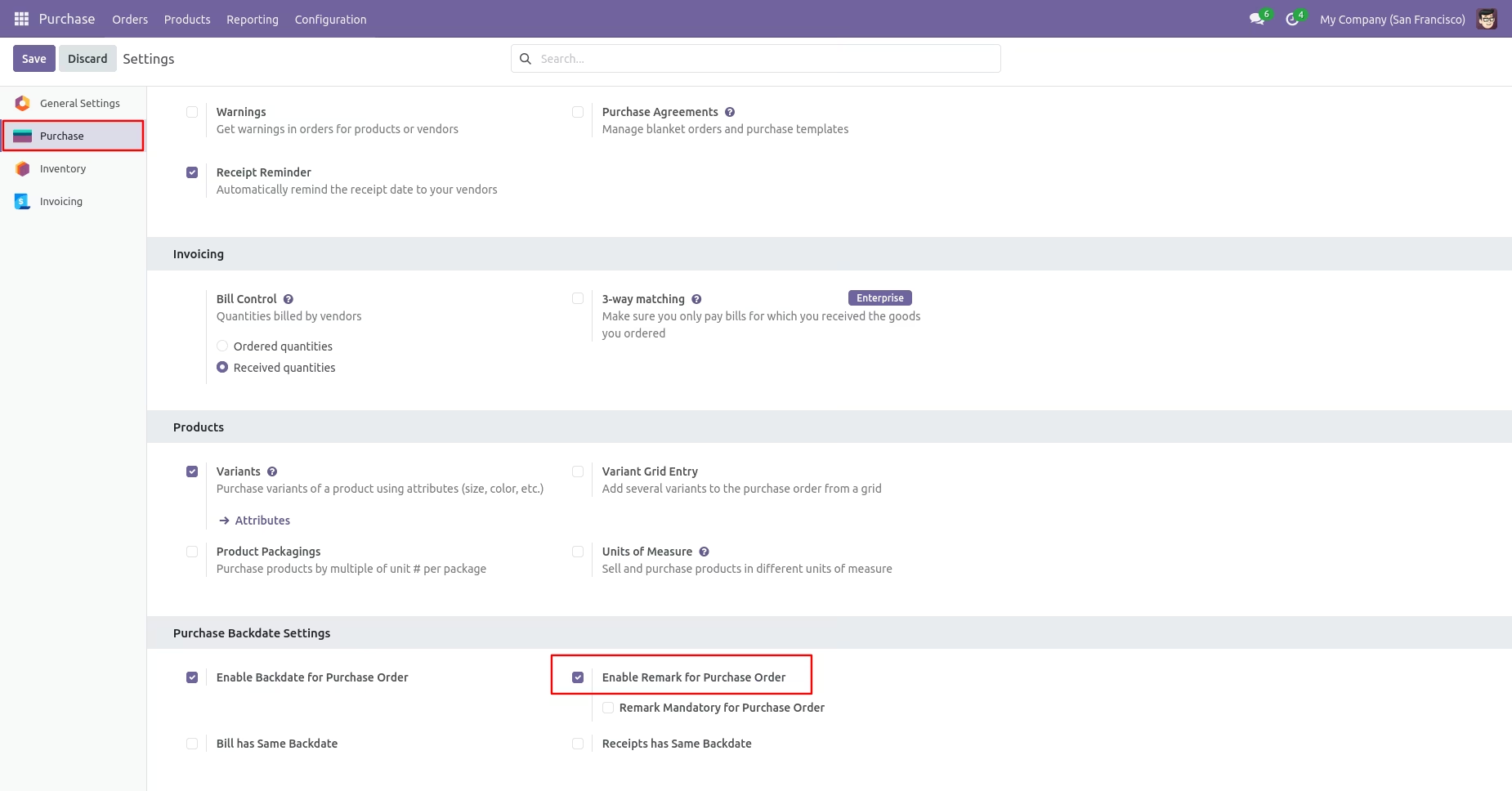
Enable the 'Enable Remark For Purchase Order' option.
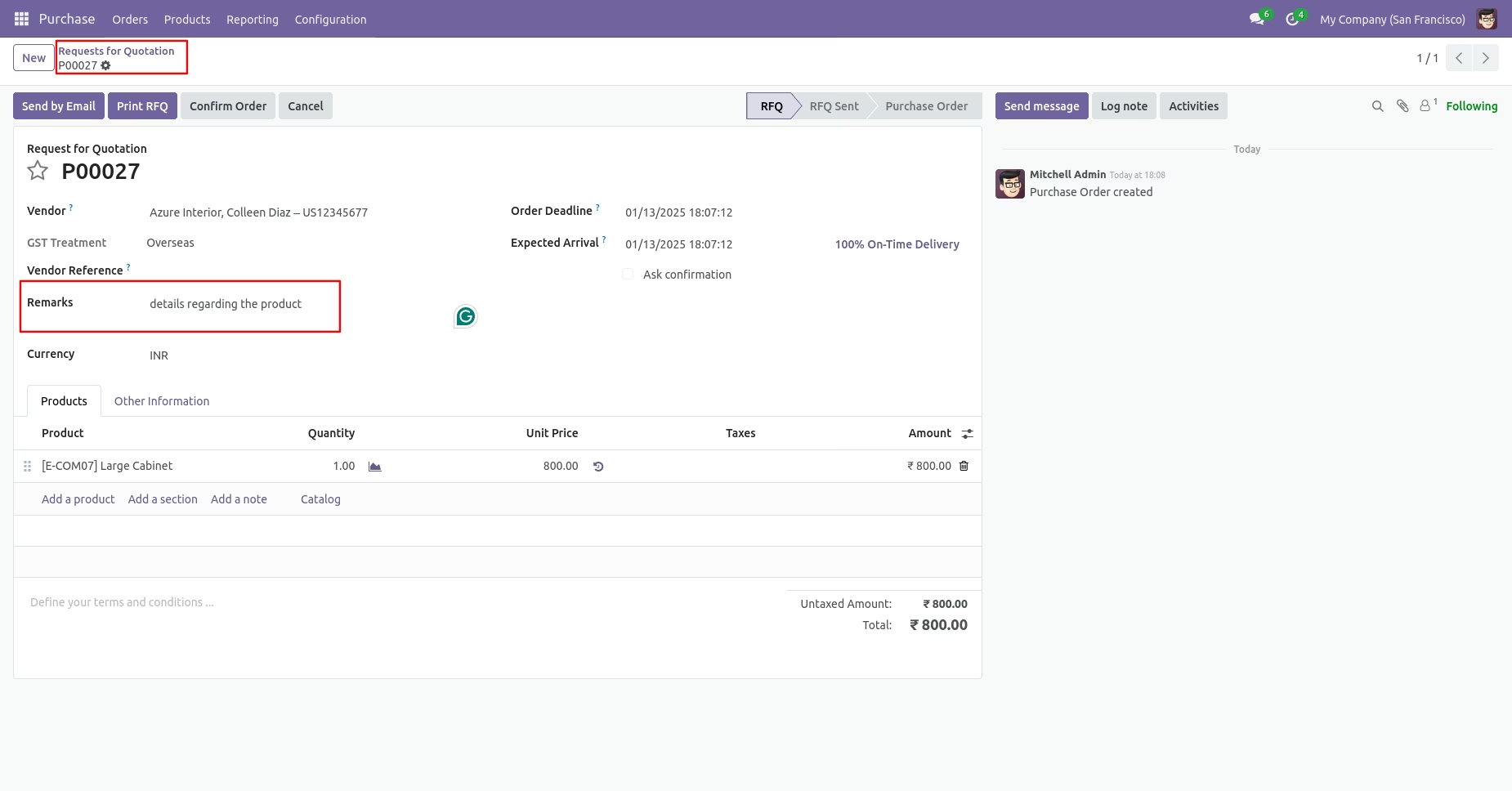
Purchase order form view with remarks.
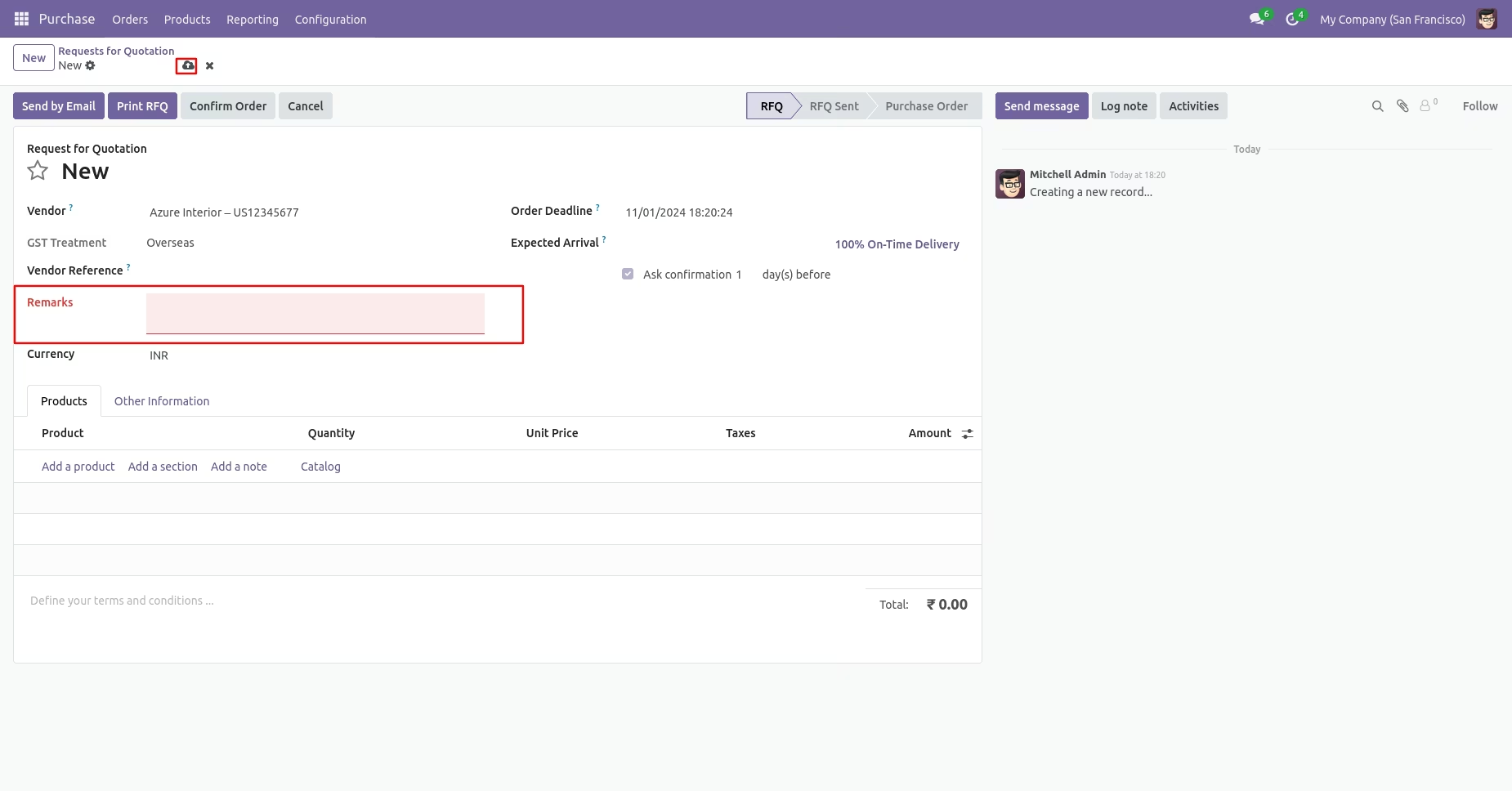
Enable the 'Remark Mandatory For Purchase Order' option.
You can't save the PO without entering a remark.
Enable the 'Bill Has Same Backdate' & 'Receipt has Same Backdate' option.
Receipt with backdate and remarks.
Bill with backdate and remarks.
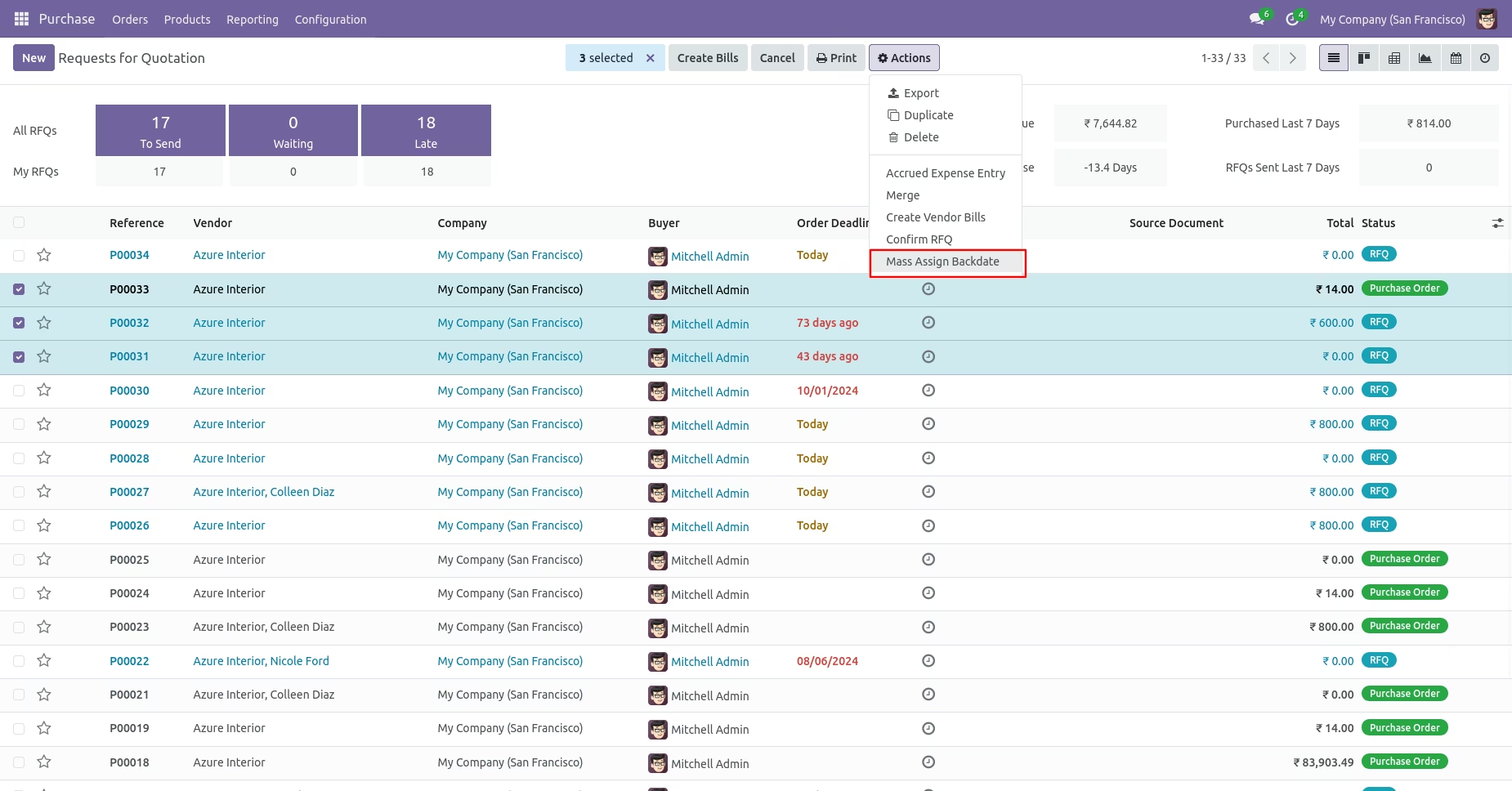
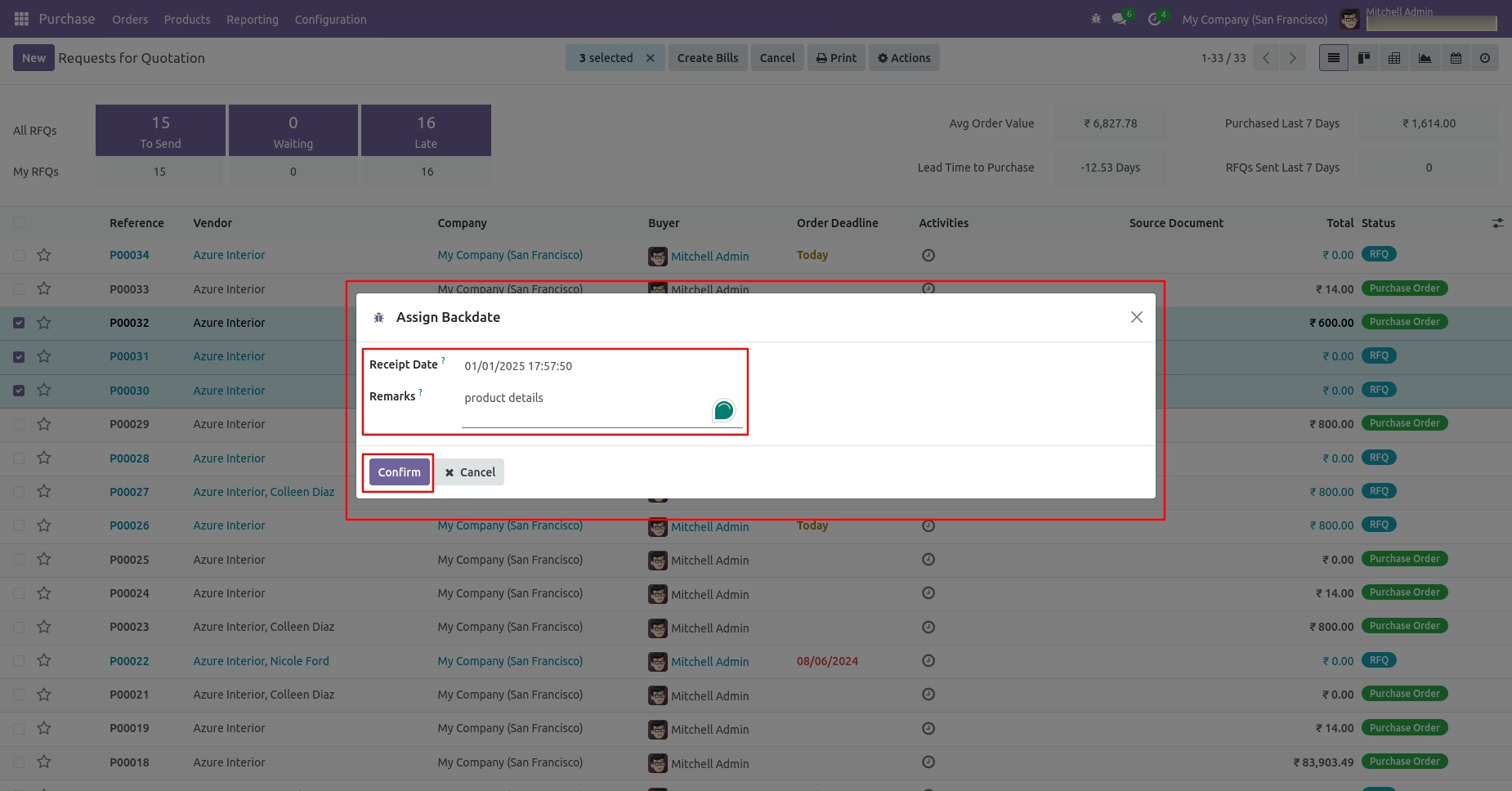
Enabling 'Mass Assign Backdate' allows you to assign backdates in purchase in bulk.
From the list view, select purchase orders/RFQs and click on 'Mass Assign Backdate'.
After that, this wizard opens, enters the order date and remarks. Here remarks come if you have enabled that feature.
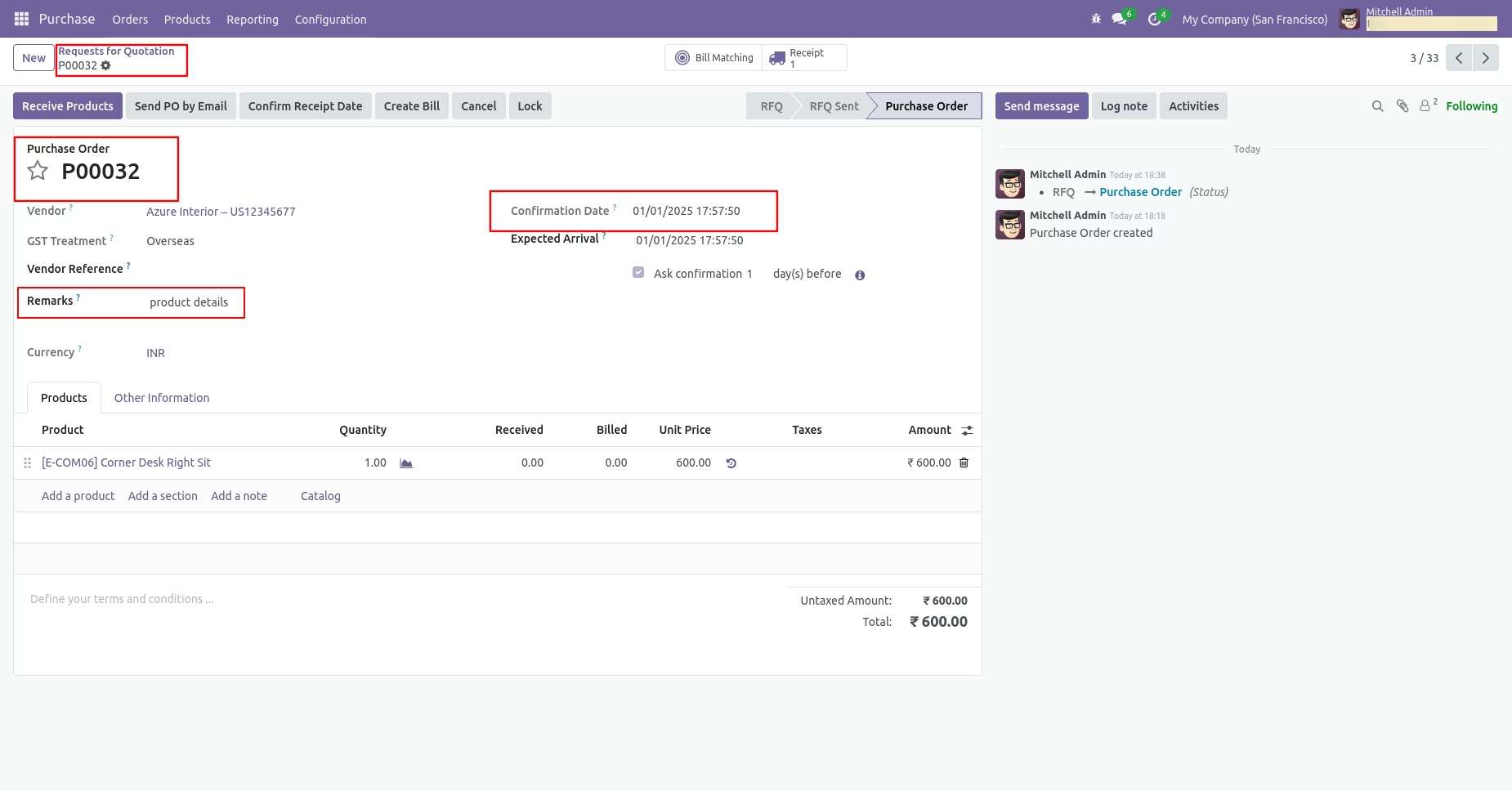
Purchase order form view with backdate and remarks.
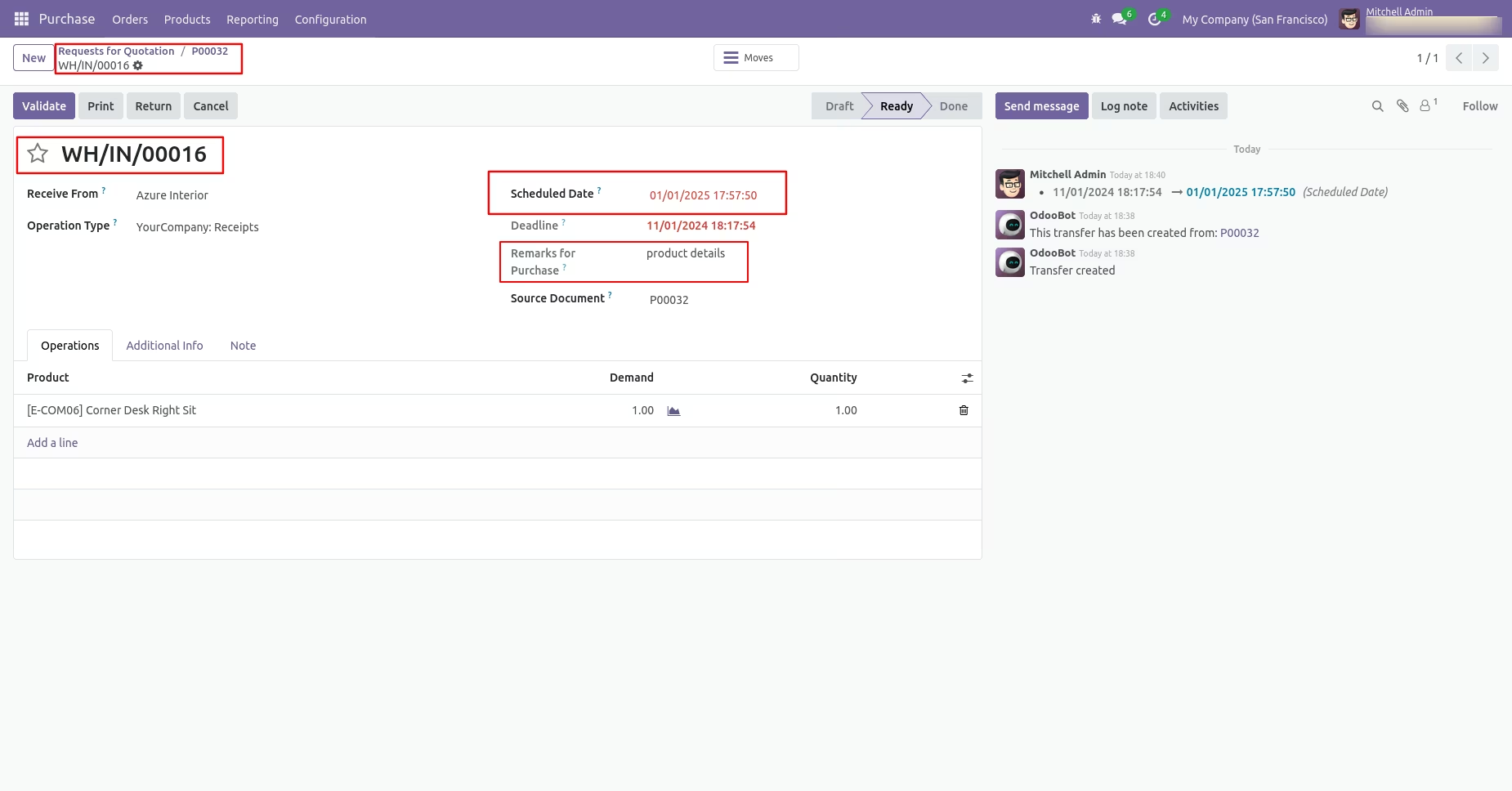
Receipt with backdate and remarks.
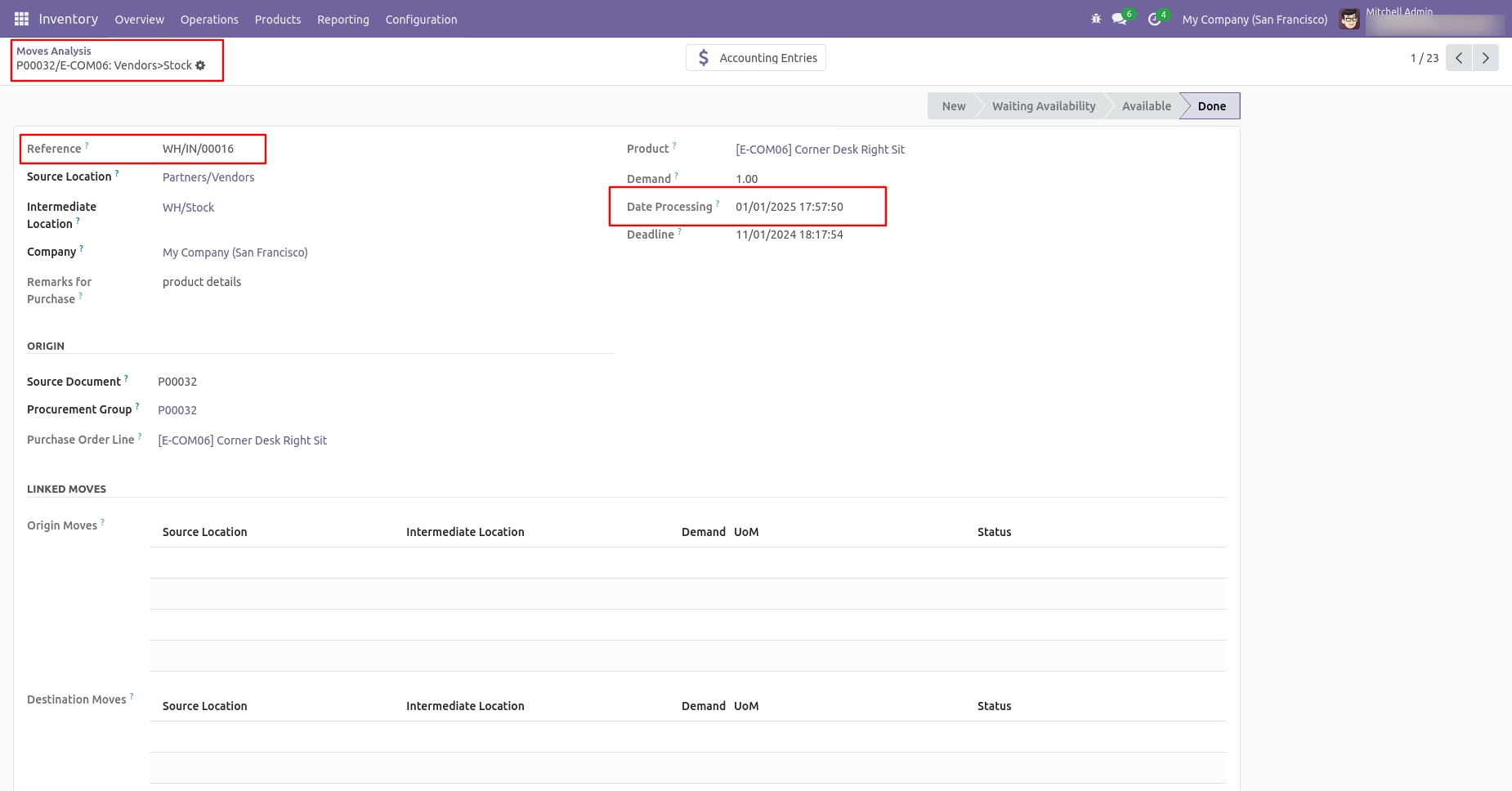
Move analysis with backdate and remarks.
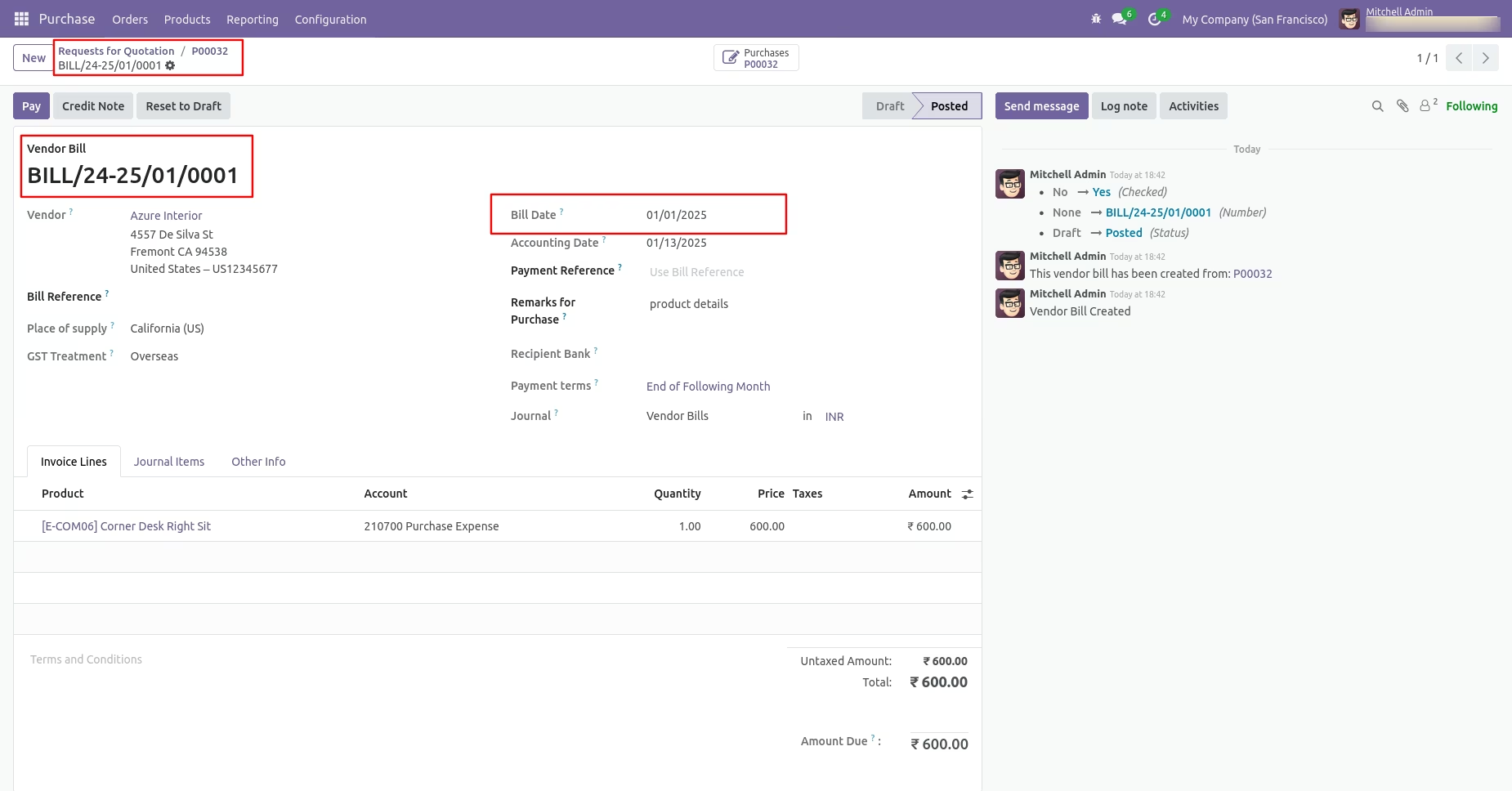
Bill date with backdate and remarks.
Features
- You can confirm picking orders (incoming order / delivery order / internal transfer) with a custom backdate.
- You can confirm scrap orders with a custom backdate.
- You can mass assign backdate in picking & scrap orders.
- While you assign backdate, you can put remarks with it.
- We provide an option for mandatory remarks while assigning backdate.
- Backdate and remarks transfer to the journal entries.
- Backdate and remarks transfer to the stock moves & product moves.
Workflow
Backdate For Picking
Configuration for picking backdate, Tick the 'Enable Backdate For Picking' boolean.
Receipt form view with backdate.
Tick the 'Enable Remark For Picking' boolean.
Receipt form view with remarks.
Tick the 'Remark Mandatory For Picking' boolean.
You can't save the receipt without entering a remark.
If you enable 'Mass Assign Backdate(Stock)' then you can mass assign backdate.
Select orders from the list view then click on the 'Mass Assign Backdate' from the 'Action' button.
After that, this wizard opens, enters the order date and remarks. Here remarks come if you have enabled that feature.
Receipt form view with backdate and remarks.
Move analysis with backdate and remarks.
Move history with backdate and remarks.
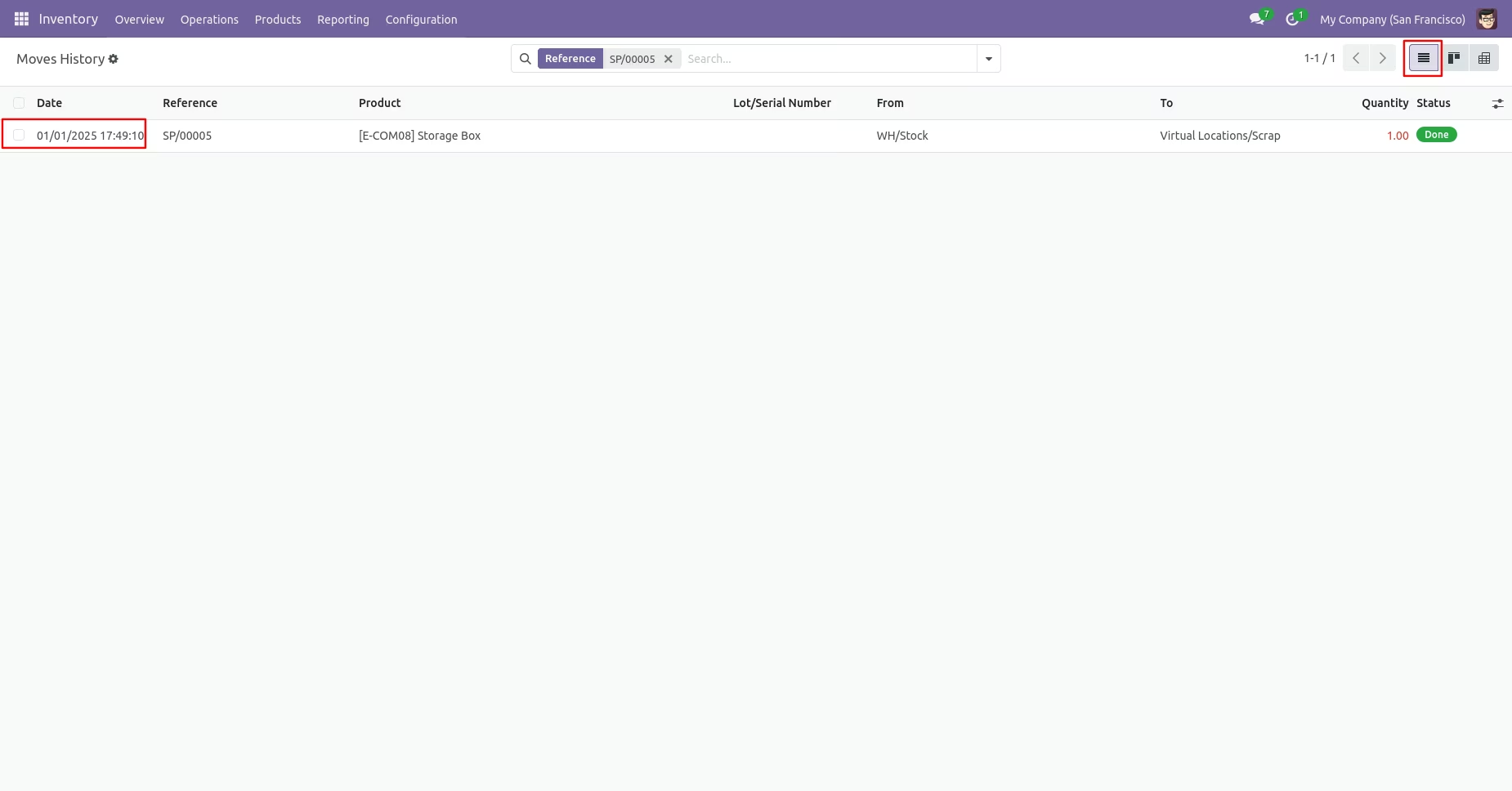
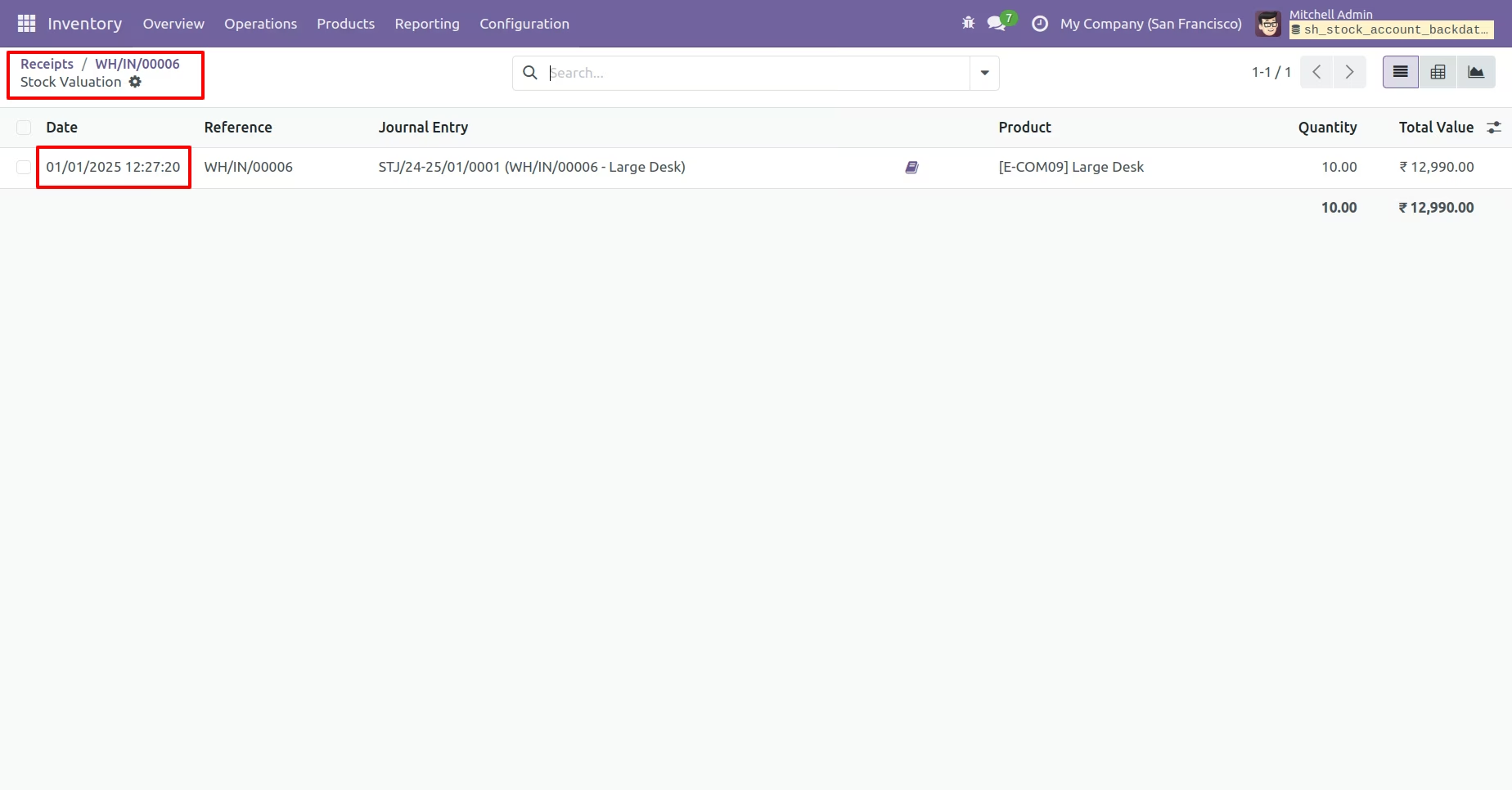
Stock valuation with backdate.
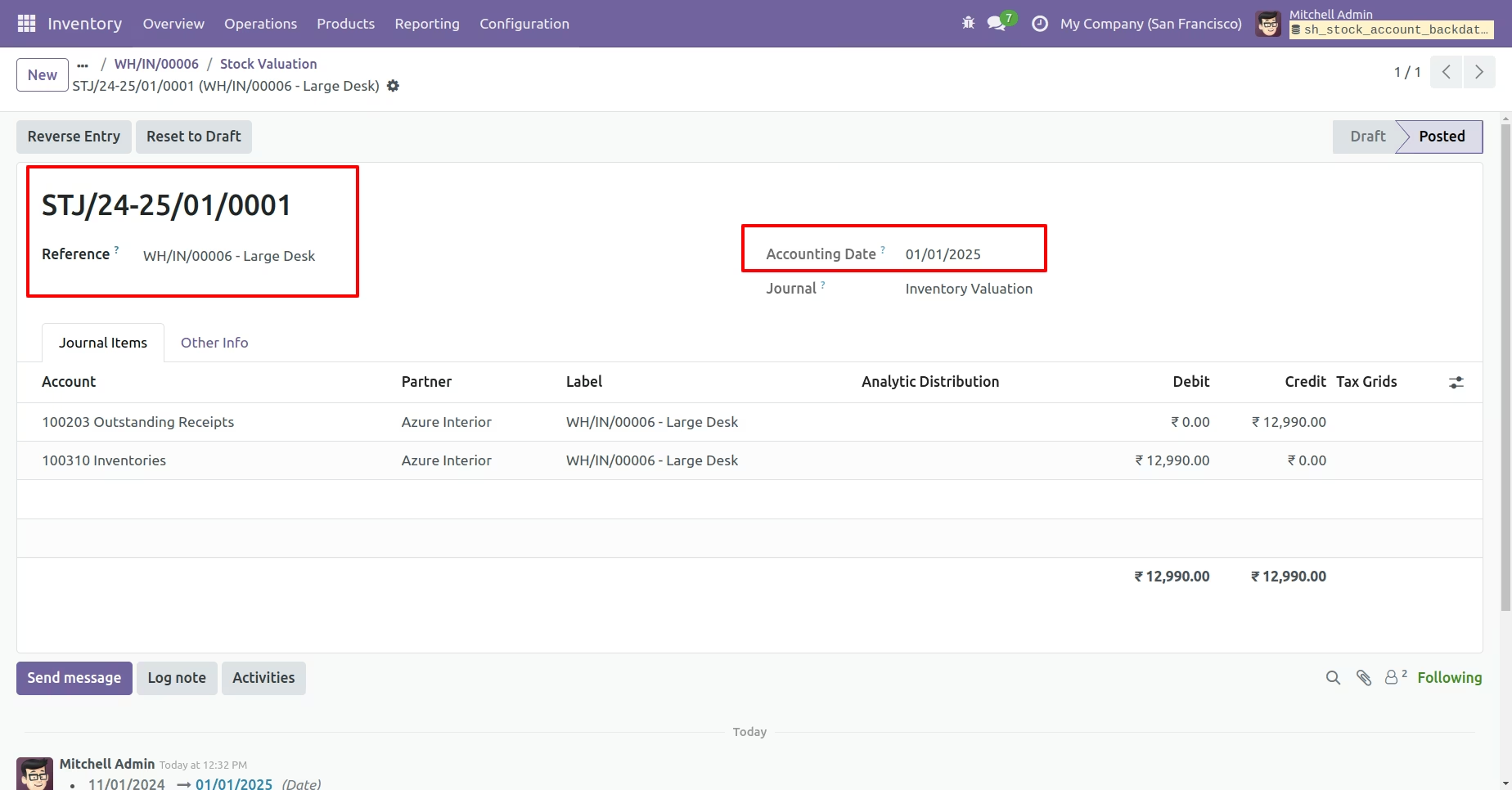
Journal entries with backdate.
Backdate For Scrap
Configuration for picking backdate, Tick the 'Enable Backdate For Scrap' boolean.
Scrap order form view with backdate.
Tick the 'Enable Remark For Scrap' boolean.
Scrap order form view with remark.
Tick the 'Remark Mandatory For Scrap' boolean.
You can't save the Scrap Order without entering a remark.
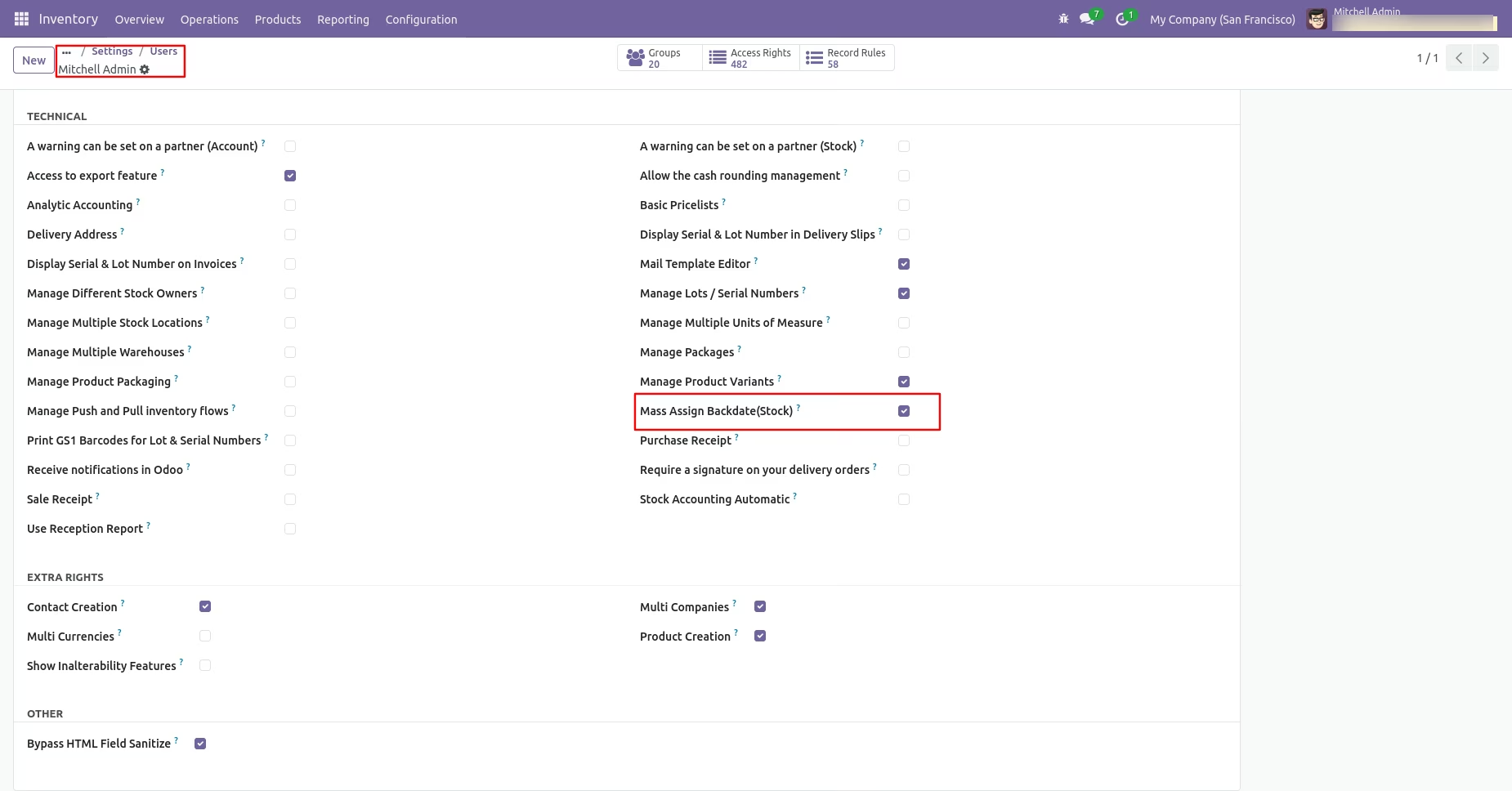
If you enable 'Mass Assign Backdate(Stock)' then you can mass assign backdate.
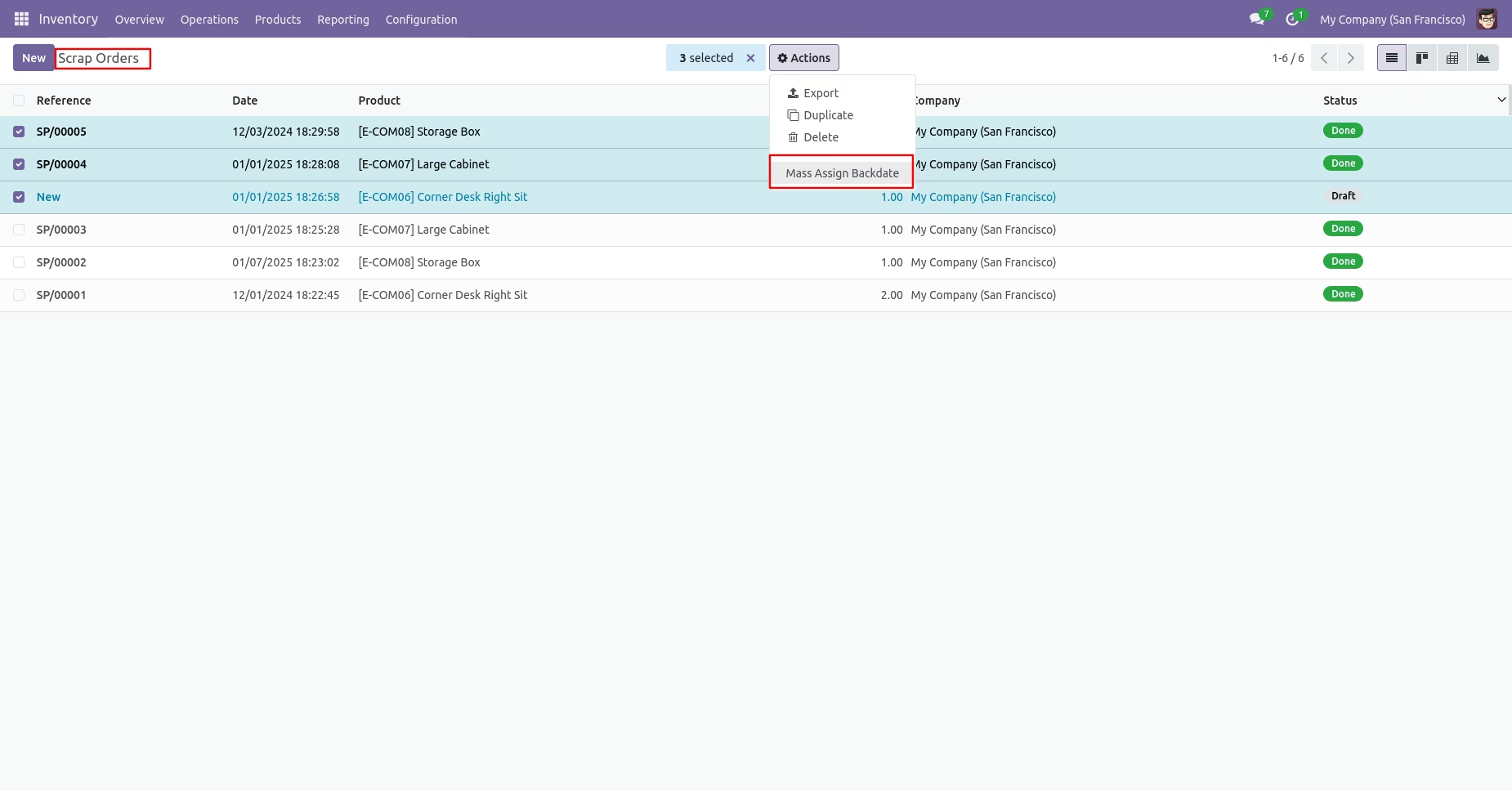
If you enable 'Mass Assign Backdate' then you can mass assign backdate, Select orders from the list view then click 'Mass Assign Backdate'.
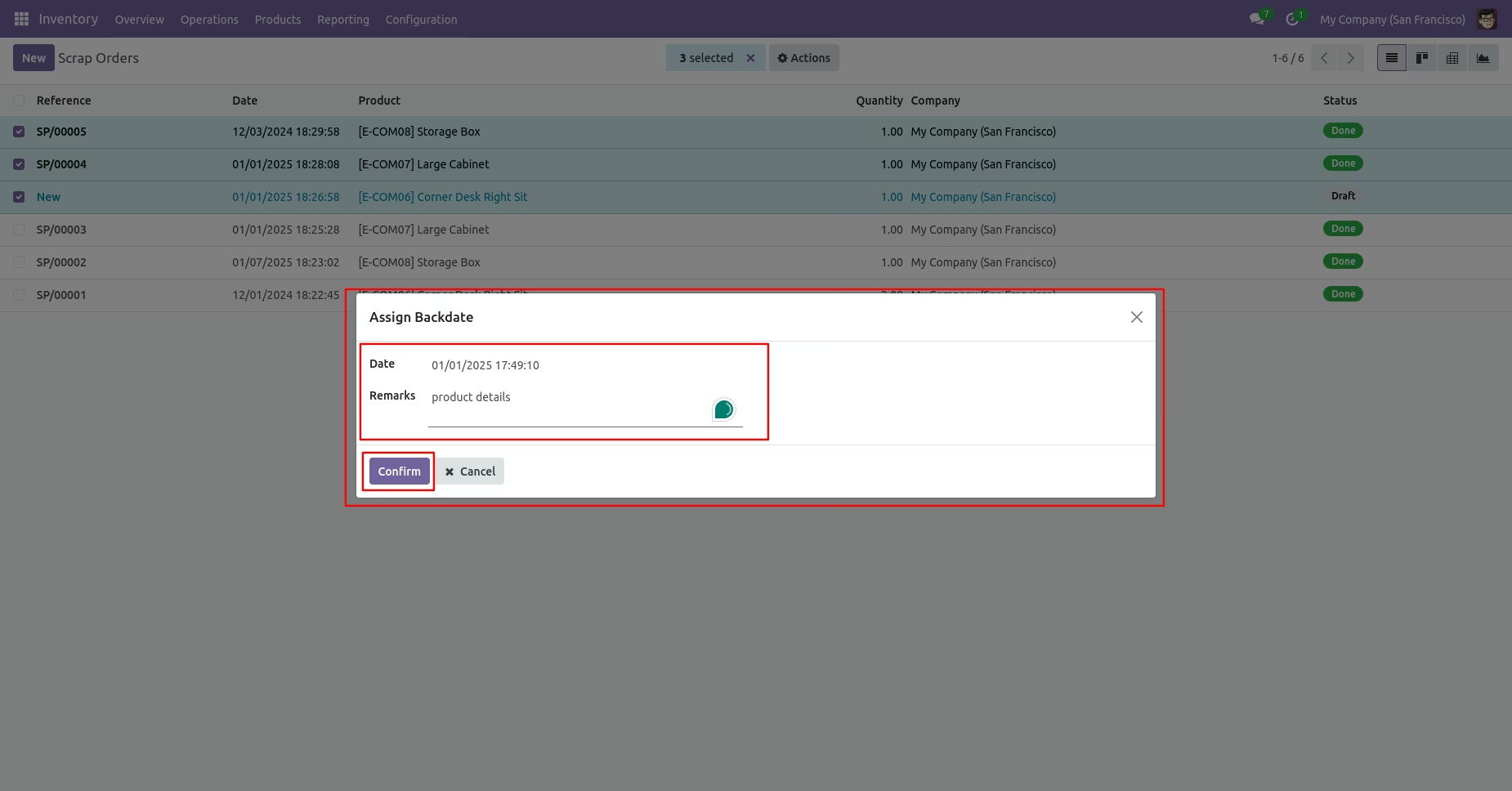
After that, this wizard opens, enters the order date, and remarks. Here, remarks come if you have enabled that feature.
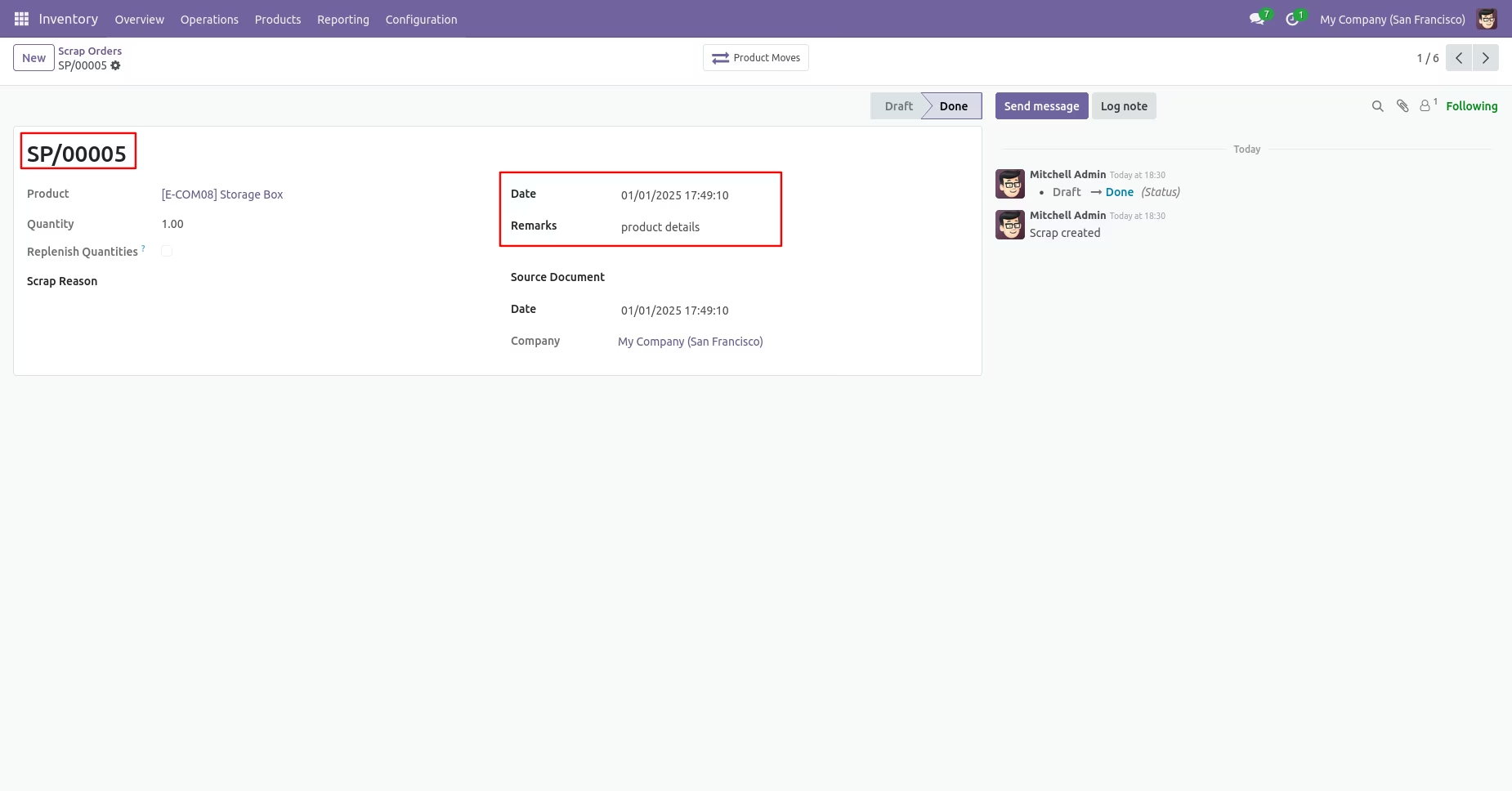
Scrap order form view with backdate and remarks.
Moves analysis with backdate and remarks.
Moves history with backdate and remarks.
In 'User', enable the 'Helpdesk Whatsapp Feature' option.