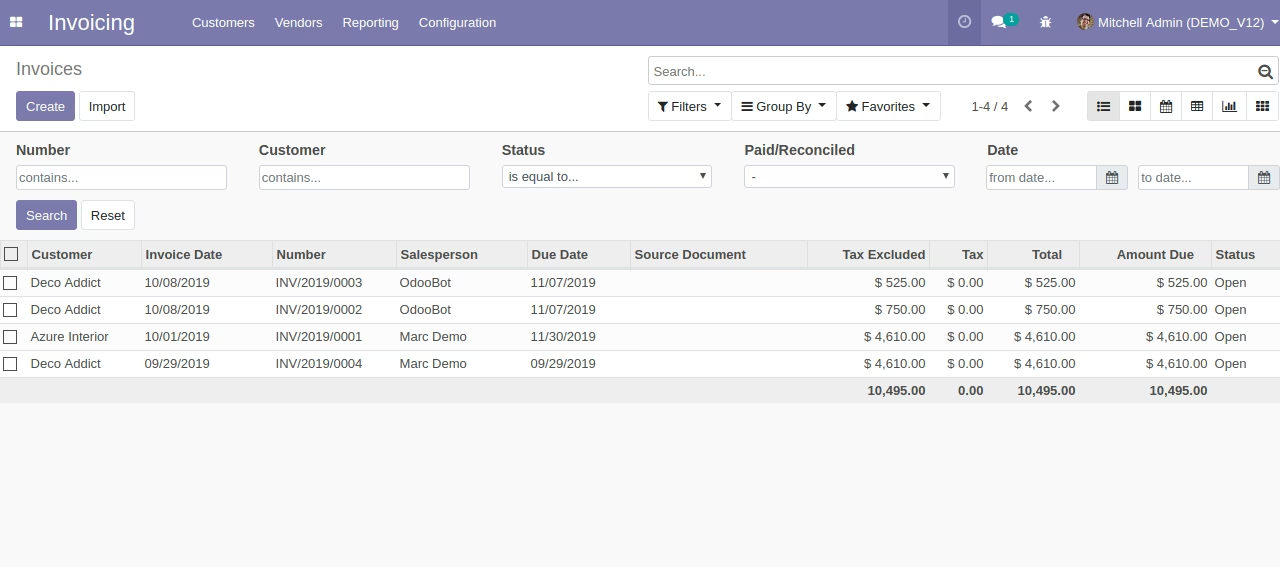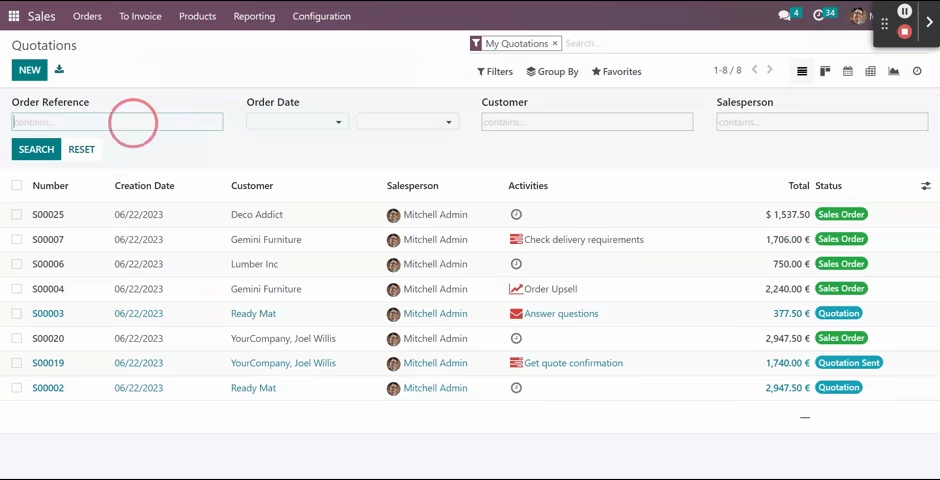
This all-in-one quick search customization module empowers administrators to fine-tune the search experience within the system. Without writing any code, you can select which fields are included in quick search results and specify the most-used search operators. Streamline data lookup and improve usability with simply-configured search workflows.
Key Features
Select and configure which fields appear in the quick search interface
Define default search operators for each field (e.g., 'contains', 'startswith')
Manage search behavior directly from the backend without technical intervention
Benefits
Enhances user experience by bringing the most relevant fields into quick search visibility
Saves time by emphasizing commonly-used operators and improving search precision
Reduces dependency on technical teams by enabling fully-configurable search options via UI
Improves productivity with faster, more intuitive record lookup
ADVANCE SEARCH & QUICK SEARCH
From version to version, Odoo allow users to advanced search the fields by clicking the dropdown button in the header, and choosing the field along with operator & value we wish to search inside. Such method will make users takes some time and is not convenient. With the help of Advance Search & Quick Search module, users will never again encounter this kind of problem.
Advance Search & Quick Search allows admin to configure which fields are often search by users, and configure the most used operator from the backend side. After the configuration is done, the search features will show up above the list view and users can easily filter the datas by inputing on the columns that we have provided.
FEATURES
- Custom configure models with fields that users wish to show up the advance search features
- Save time on custom filtering datas in list view
- Improve works efficiency caused by searching records
- Support date selection widget
- Support all operators that exist in default advance search
- Search multiple columns with a single submission
- Simple and neat design
SCREENSHOTS
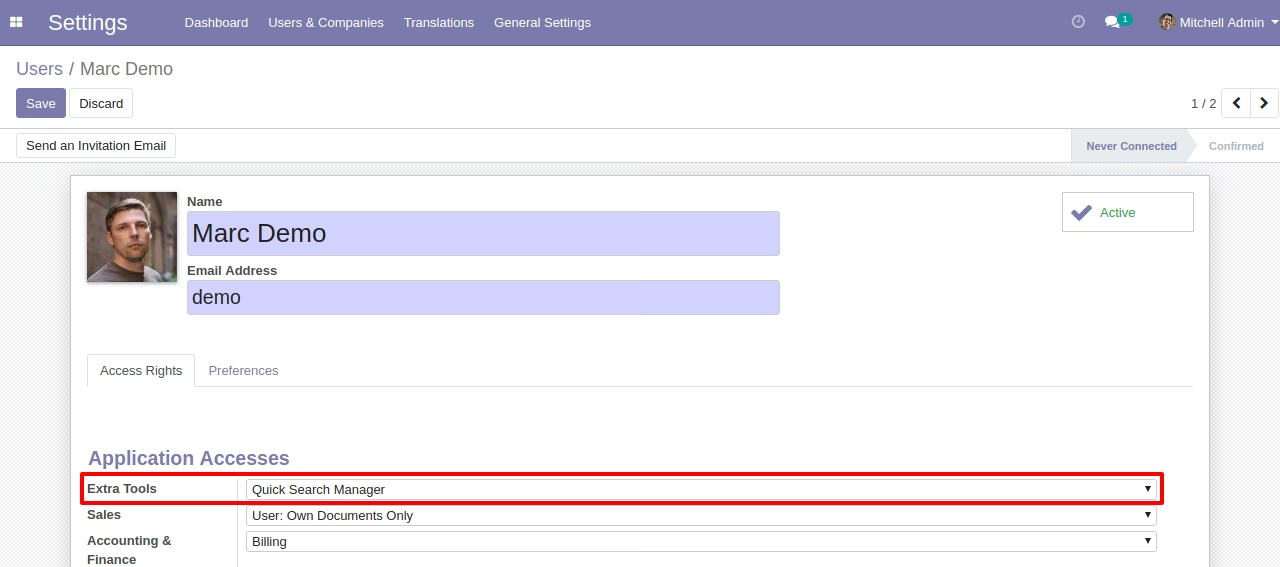
Set access rights from user menu.
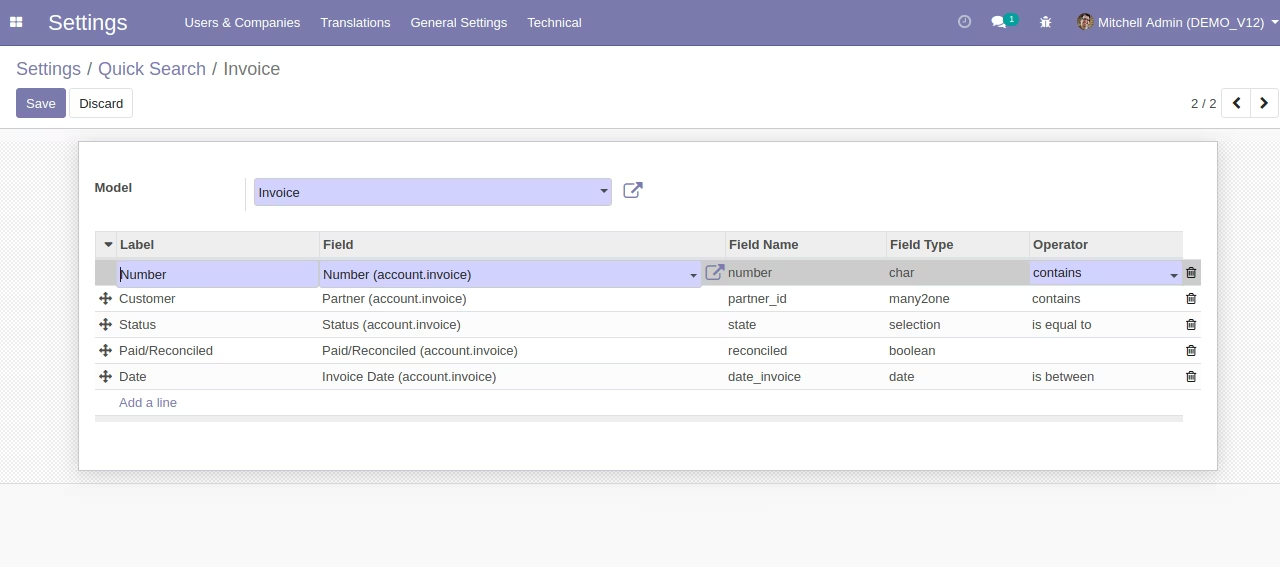
Set model and search columns from Settings -> General Settings-> Quick Search.
Access the model that has been configured and the search feature will show up.