The Advance Payments module simplifies the management of customer and vendor prepayments, ensuring accurate financial records and seamless reconciliation. By enabling businesses to handle advance payments efficiently, this module enhances cash flow management and reduces manual errors in accounting processes.
Key Features
Customer Prepayment Management: Record and manage advance payments received from customers.
Vendor Prepayment Handling: Track and manage advance payments made to vendors.
Automatic Reconciliation: Automatically reconcile advance payments with corresponding invoices or bills.
Flexible Payment Terms: Define and apply various payment terms for advance payments.
Comprehensive Reporting: Generate detailed reports on advance payments for better financial analysis.
Benefits
Improved Cash Flow: Efficiently manage incoming and outgoing prepayments, enhancing liquidity.
Enhanced Accuracy: Reduce manual errors in accounting by automating reconciliation processes.
Streamlined Operations: Simplify the handling of advance payments, saving time and resources.
Better Financial Insights: Gain comprehensive insights into prepayment transactions through detailed reporting.
Compliance Assurance: Ensure adherence to accounting standards and regulations related to advance payments.
Advance Payments
Way to create advance payments for specific account and apply them later on invoices
Features:
- New Advance Payments menu
- Apply advance payments later on customer invoices or vendor bills
- The true advance payment! Uses a different account to record advances, rather than Accounts Receivable and Payable
- Multiple currencies are supported
- Multiple advance payments can be applied to multiple invoices / bills
- Multiple companies/branches are supported
- Unapplied Advance Amounts can be viewed in the Advance Payments menu
- Can be extended to Quotation/Sales Order and/or RFQ/Purchase Order with ease
- Limited Spanish translation
Configurations
Create new Accounts for Advance Payments
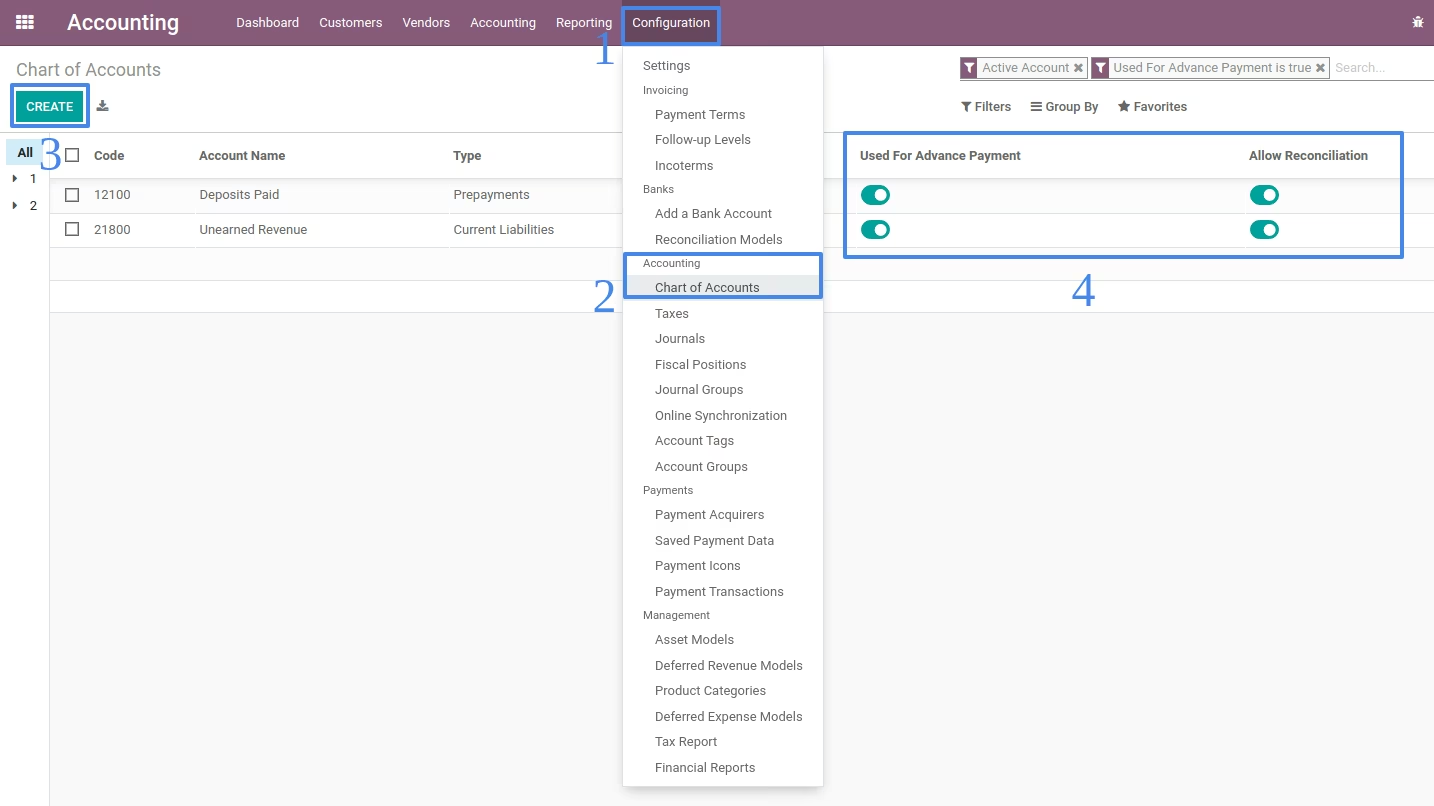
Create new accounts to be used for customer and vendor advance payments in Accounting > Configuration > Accounting > Chart of Accounts. Make sure that the created account is used for advance payment, is reconcilable and does not have a currency.
On the example, Unearned Revenue is created which is a liability to be used for customer advance payments.
Create new Journal for Advance Payments
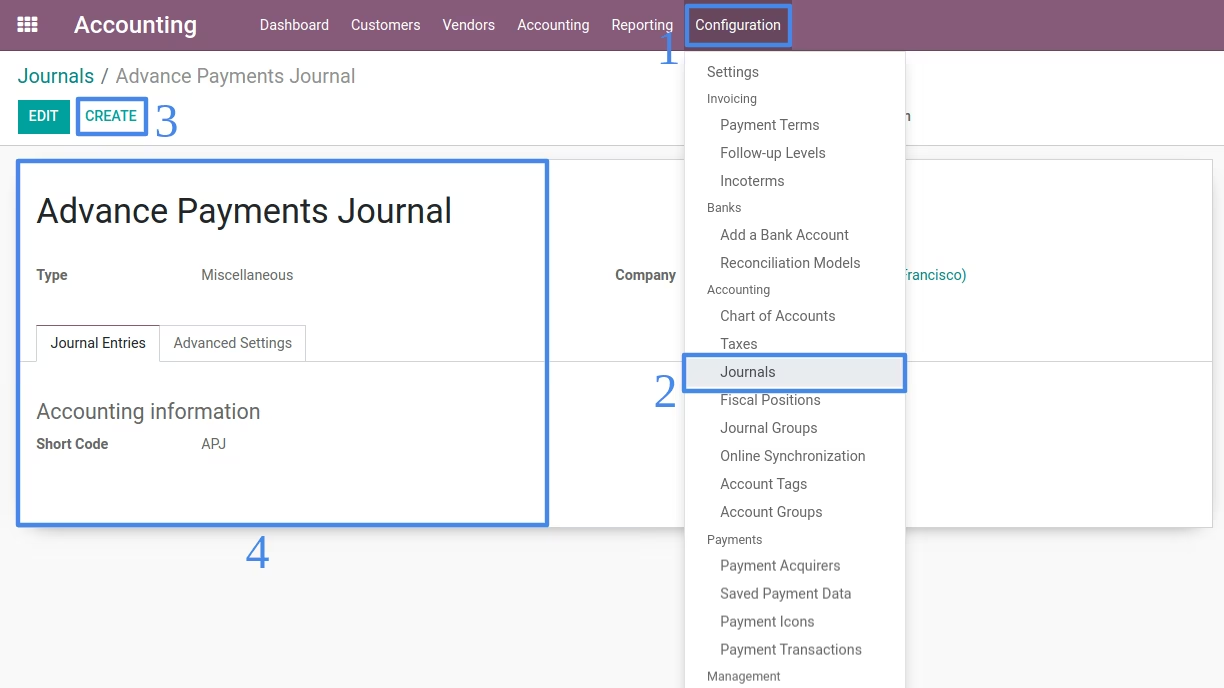
Create new journal to be used for customer and vendor advance payments in Accounting > Configuration > Accounting > Journals. This new journal will be used when advance payment is applied on invoices.
Set Default Configuration for Advance Payments
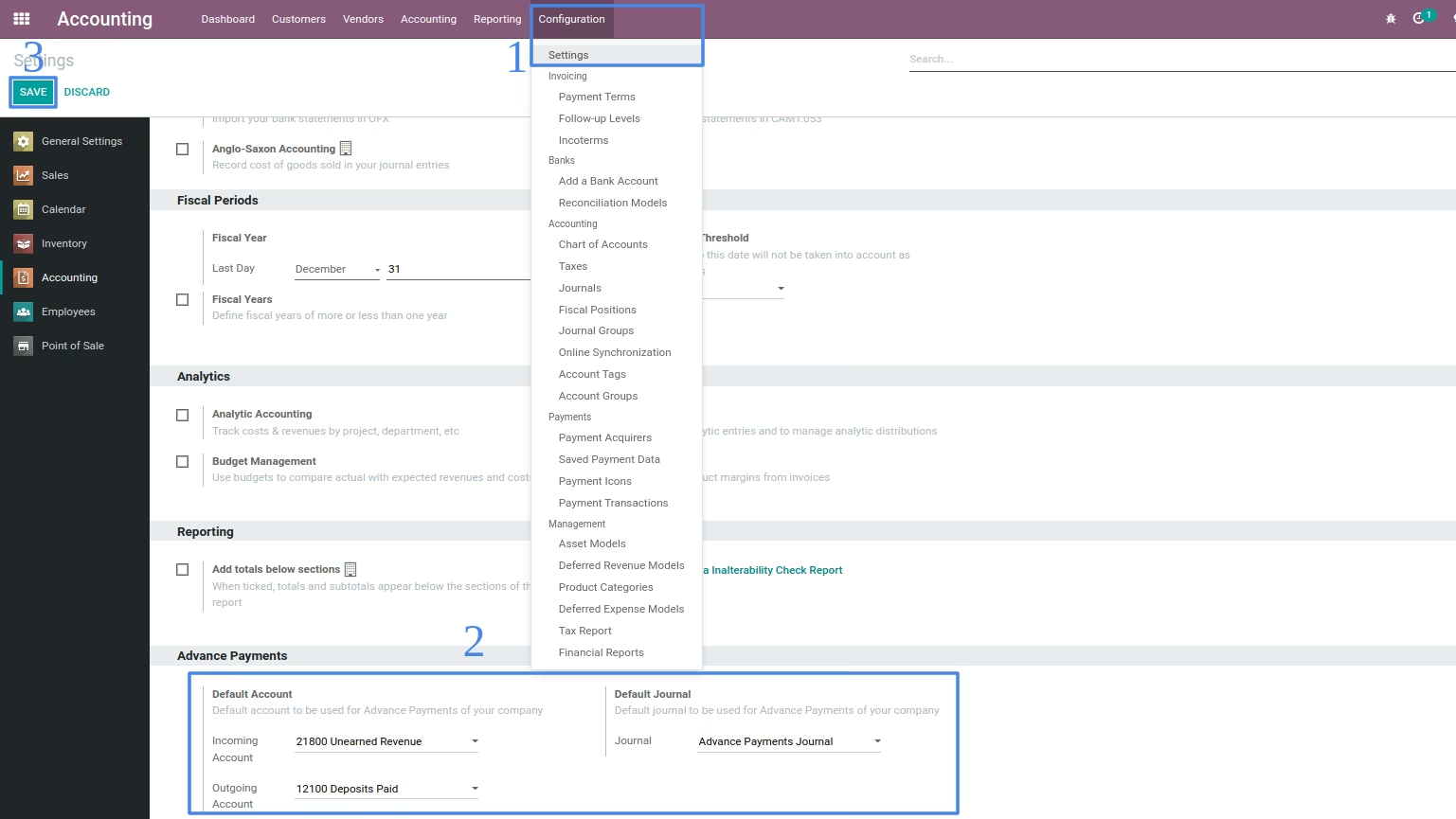
Set default configuration for the advance payments in Accounting > Configuration > Settings and set the advance payment account and journal that will likely be used often.
Configure Bank Journal Payment Methods
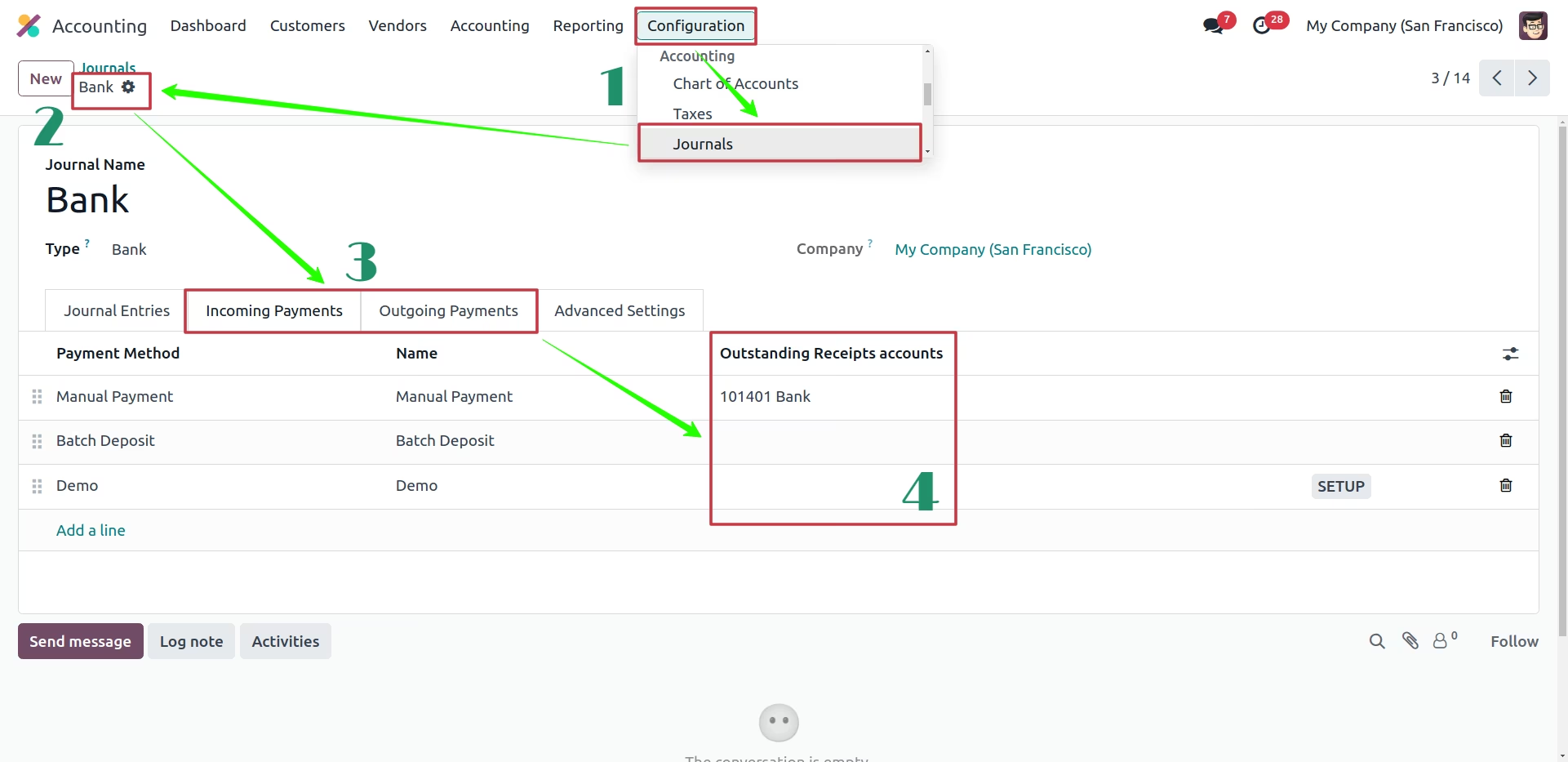
Make sure that the payment methods used for advance payments have both Outstanding Receipts and Outstanding Payments accounts configured. To do this, go to Accounting > Configuration > Accounting > Journals, select the relevant Bank Journal, and under the Incoming Payments and Outgoing Payments sections, fill in the Outstanding Receipts Account and Outstanding Payments Account, respectively. If the account selected on Outstanding Receipts/Payments is the same as the Bank account, then manual reconciliation for the advance payment is not necessary.
Procedures
Create new Advance Payments

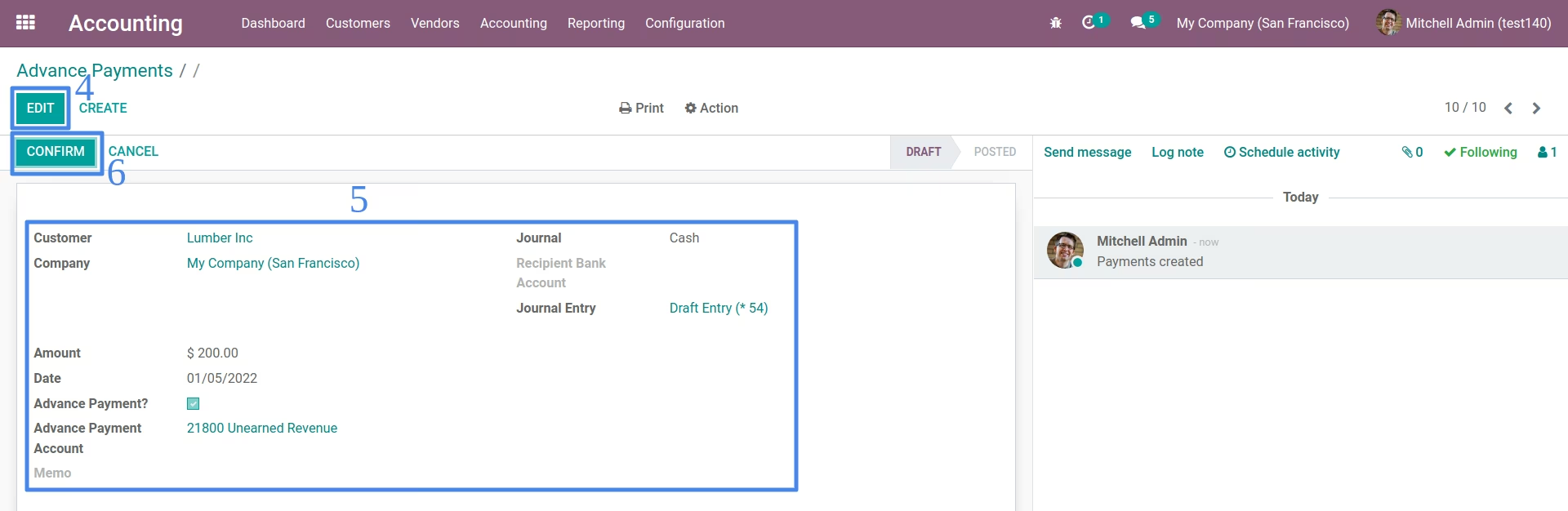
Create new customer advance payments in Accounting > Customers > Advance Payments (or create new vendor advance payments in Accounting > Vendors > Advance Payments).
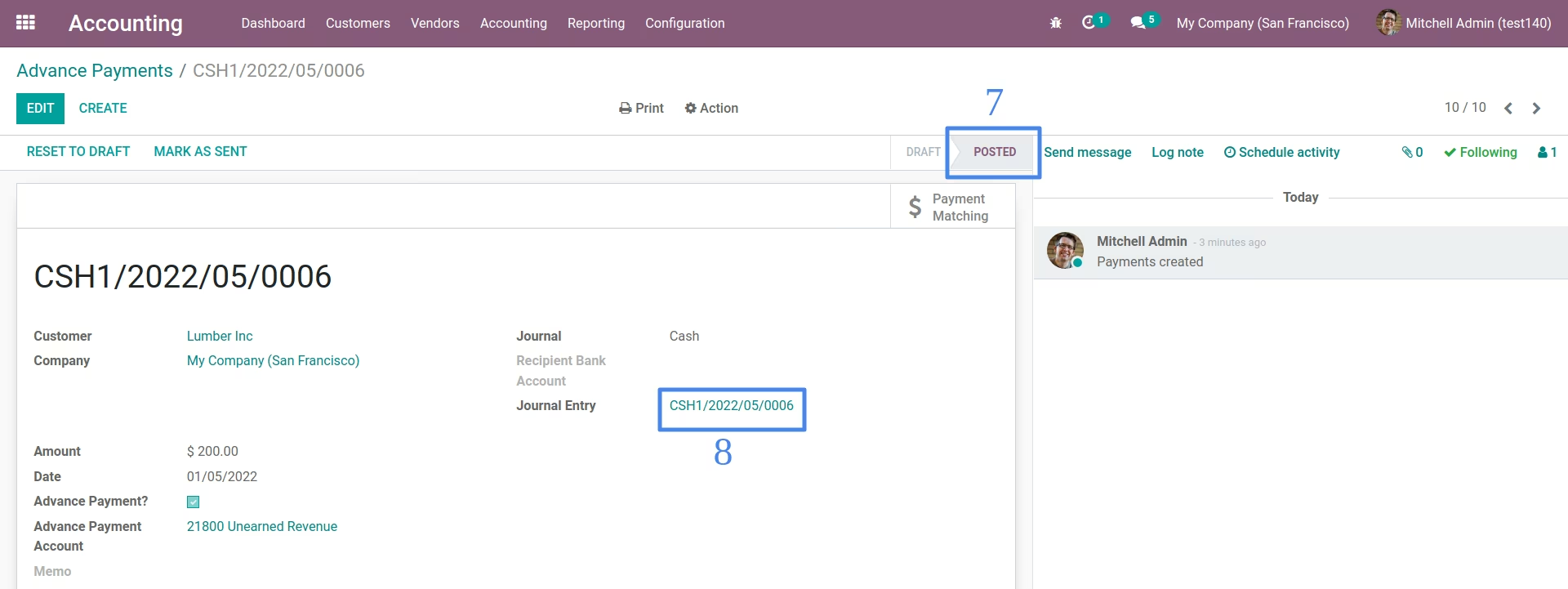
Select the Customer (or Vendor), Payment Journal and Payment Amount. Set also the Payment Date when the customer (or vendor) has paid. If you set the default configuration for advance payment account, the default will be shown unless you need to change it. Save the advance payment as draft or confirm it so that it will be posted.
Posted advance payment can now be used to apply advance payments on invoices.
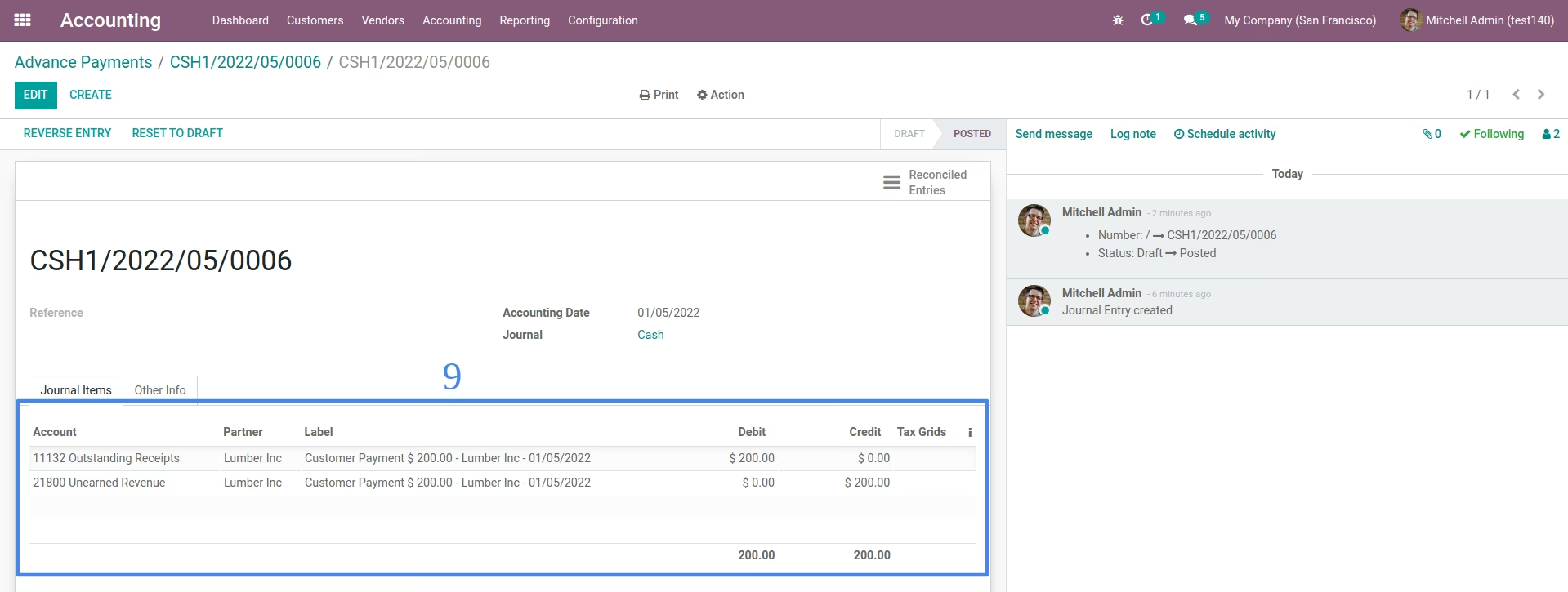
Posted advance payment will also create journal entry such that the accounts are based on the selected Payment Journal and Advance Payment Account.
Application of Advance Payments on Invoices
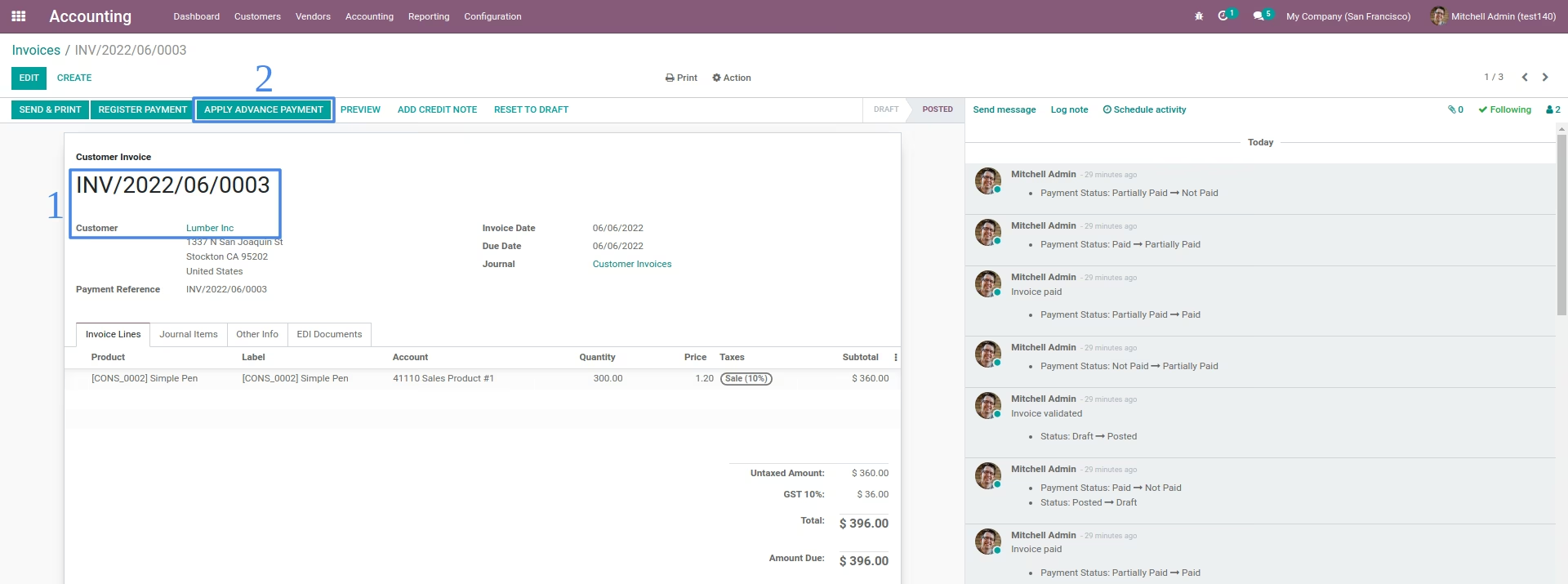
To apply advance payments on customer invoices (or vendor bills), select an Posted status invoice on Accounting > Customers > Invoices (or Accounting > Vendor > Bills).
If the customer (or vendor) has advance payment, there will be a button named Apply Advance Payment on the invoice header. If there is no button shown, it means that customer (or vendor) has no advance payments, advance payments have already been applied or invoice is already paid.
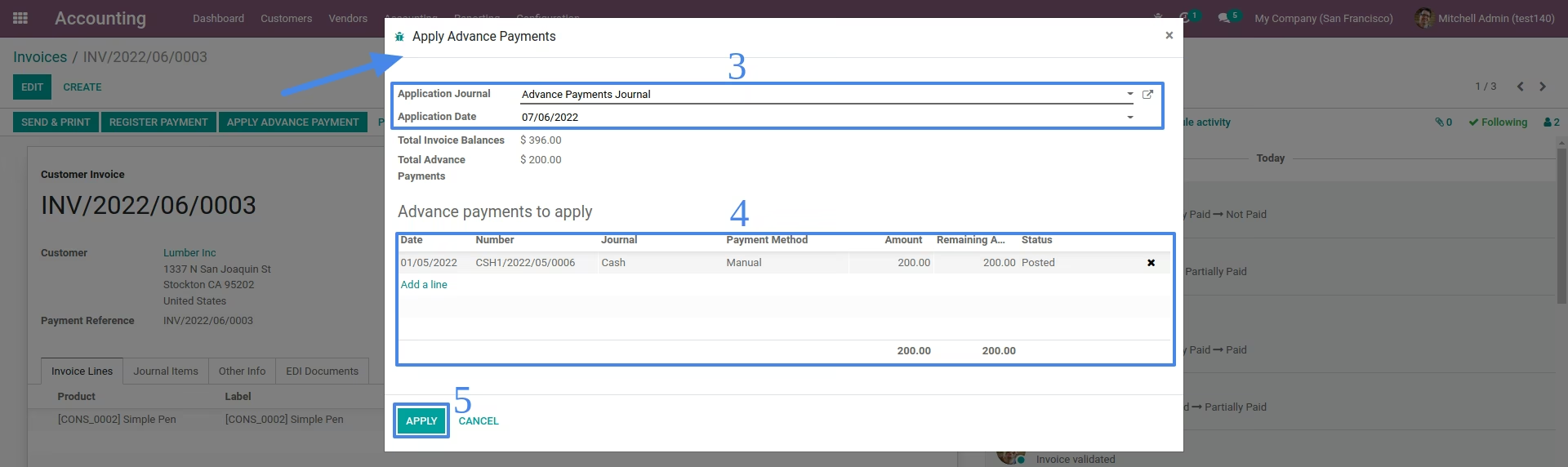
On the Apply Advance Payments window, specify the Application Journal, the default will be the configured Advance Payment Journal in settings. Select the application date and advance payments to apply. TIP: You can select multiple advance payments and you can also select multiple invoices on the invoice list.
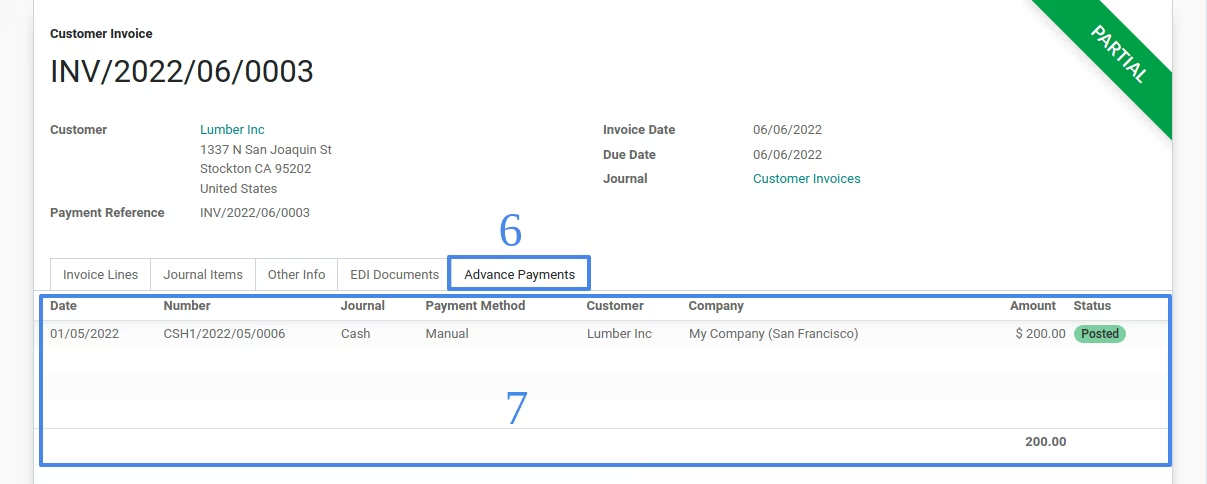
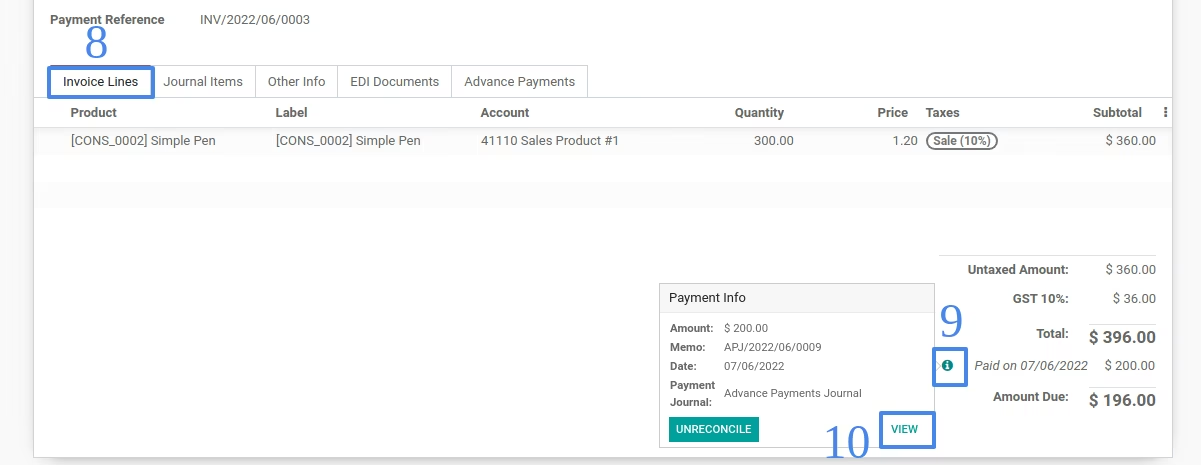
When applied on the invoice, payment will be shown below the invoice Total and in Advance Payments tab. TIP: You can unreconcile the payment by using the icon below the invoice Total but just make sure that the Advance Payment Journal is allowed on cancelling entries.
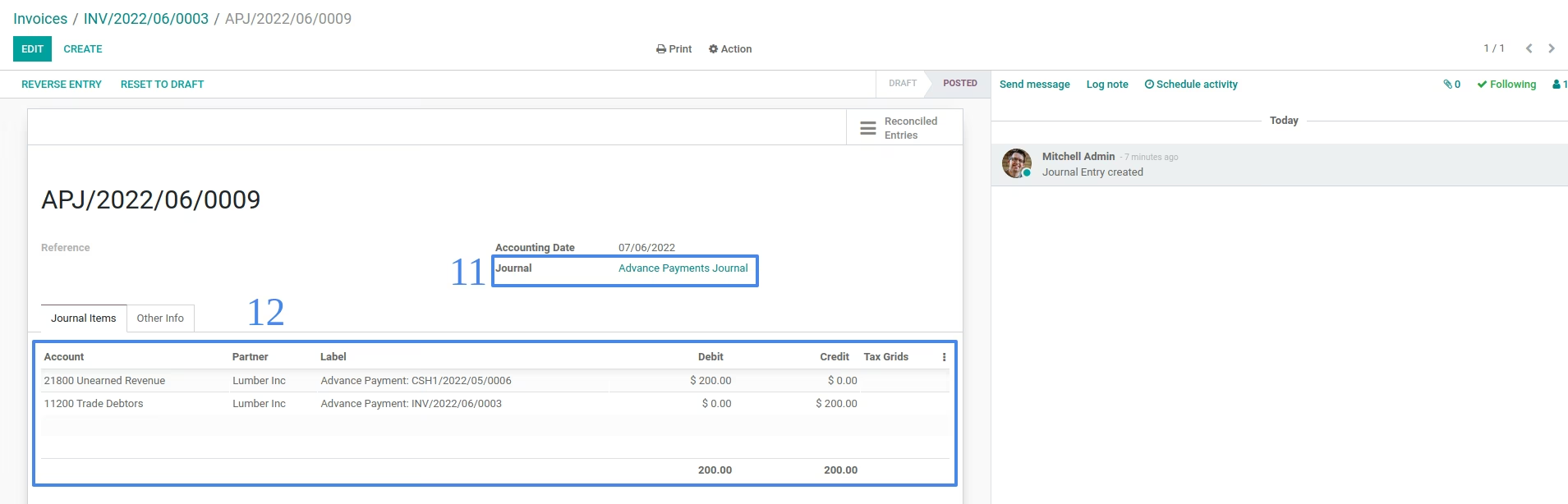
Application of advance payment on invoices will create a journal entry such that the accounts are based on the invoices account and advance payment account on payments. The amount (debit or credit) is the total of all advance payments applied.