Unlock a new level of efficiency and organization with the Activities Management Basic module. This powerful, all-in-one solution is designed to help you and your team manage and monitor all scheduled activities from a centralized and intuitive dashboard. Whether you are a manager overseeing multiple teams, a supervisor tracking your team's progress, or an employee managing your own tasks, this module provides the tools you need to stay organized, prioritize your work, and ensure that nothing falls through the cracks.
Key Features
Centralized Activity Dashboard: Get a complete overview of all activities, including planned, completed, overdue, and today's tasks, with interactive counters and data tables.
Role-Based Views: Tailored views for different user roles, allowing managers to see all activities, supervisors to see their team's activities, and employees to see their own.
Multiple Views for Better Tracking: Manage your activities in a way that suits your workflow with various views, including list, kanban, calendar, pivot, and graph.
Advanced Filtering and Grouping: Easily filter and group activities by status, user, due date, and custom tags for more effective management.
Assign to Multiple Users: Assign a single activity to multiple users, ensuring that everyone is on the same page and accountable for their part.
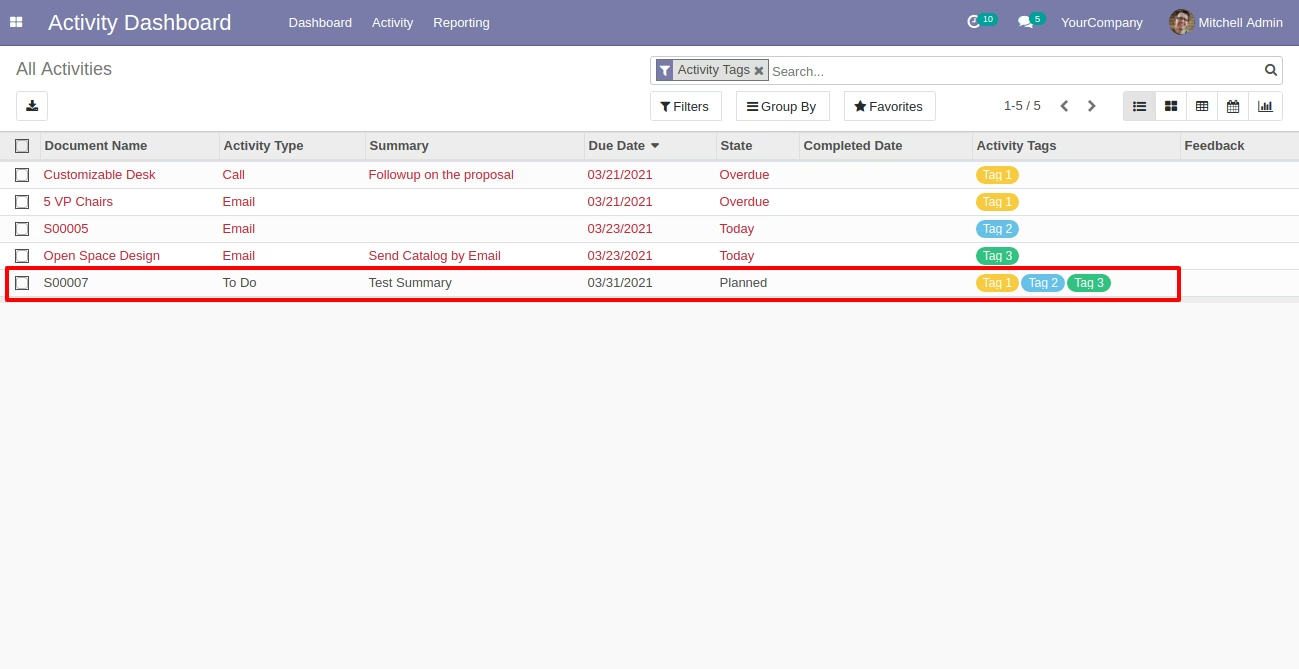
Activity Tags: Organize and categorize your activities with custom tags for better filtering and reporting.
Direct Document Access: A dedicated "Origin" button allows you to quickly navigate to the source document of any activity.
Feedback on Completion: Add feedback or comments when marking an activity as done, providing a clear record of the outcome.
Benefits
Enhanced Productivity: Streamline your task management and improve your team's productivity with a centralized and organized system.
Improved Visibility and Control: Gain a clear and comprehensive overview of all activities across your organization, from a high-level dashboard to individual task details.
Better Collaboration: Foster better teamwork and communication by providing a single source of truth for all scheduled activities and their status.
Increased Accountability: Ensure that all team members are aware of their responsibilities and deadlines with clear assignments and notifications.
Data-Driven Insights: Use powerful filtering and reporting tools to gain valuable insights into your team's performance and workload.
User-Friendly Interface: An intuitive and easy-to-use interface that makes activity management simple and efficient for everyone on your team.
Activities Management-Basic
Do you want to show the well-organized structure of activities? Do you want to show completed, uncompleted activities easily to your employees? Do you want to show an activity dashboard to the employee? Do you want to show the scheduled activity to the manager, supervisor & employee? This module helps the manager can see everyone's activity, the supervisor can see the assigned user and their own activity, the user can see only their own activity. You can see activities like all activities, planned activities, completed activities, or overdue activities. Manager, Supervisor & Employee have their own dashboard. Activity notification will help to send a notification before and after the activity due date. You can notify your salesperson/customer before or after the activity is done. Hurray!
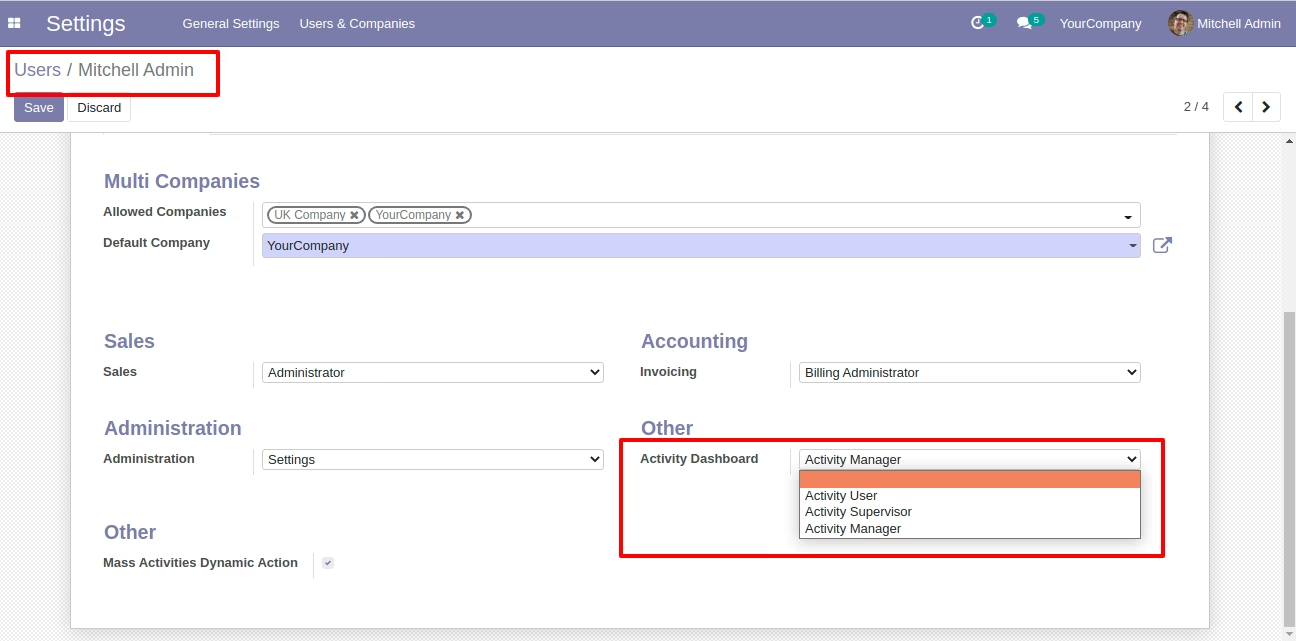
In "Activity Dashboard" select "Activity Manager", The manager can see everyone's activity.
Activity dashboard looks like this.
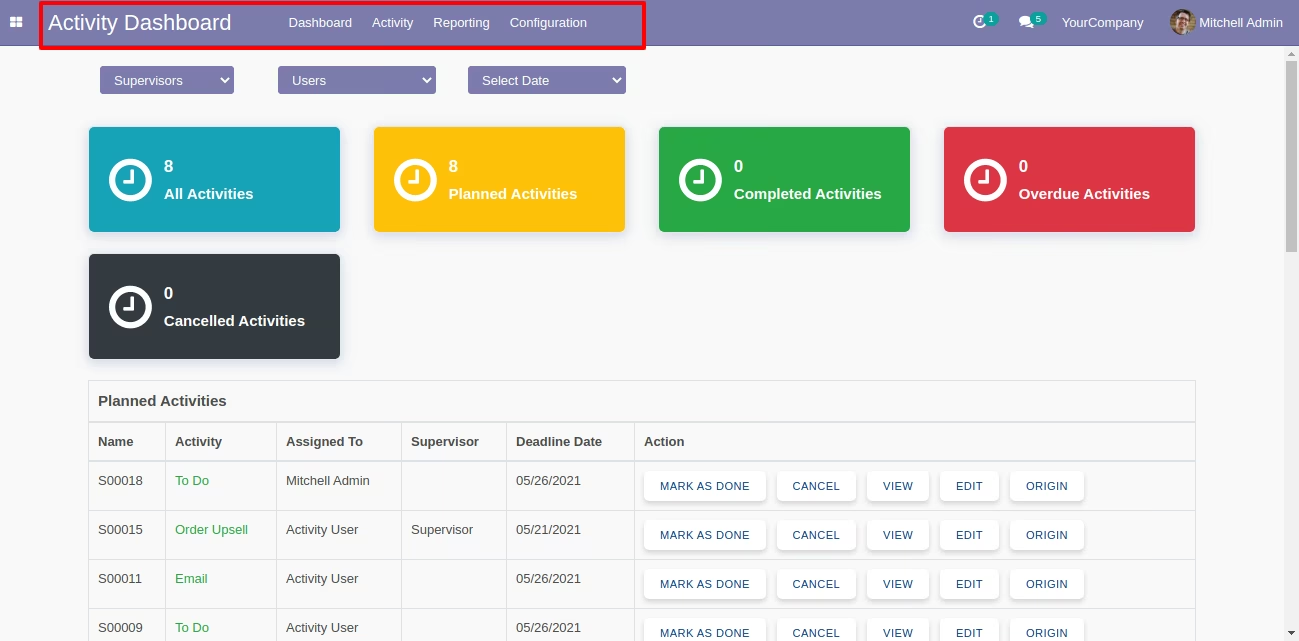
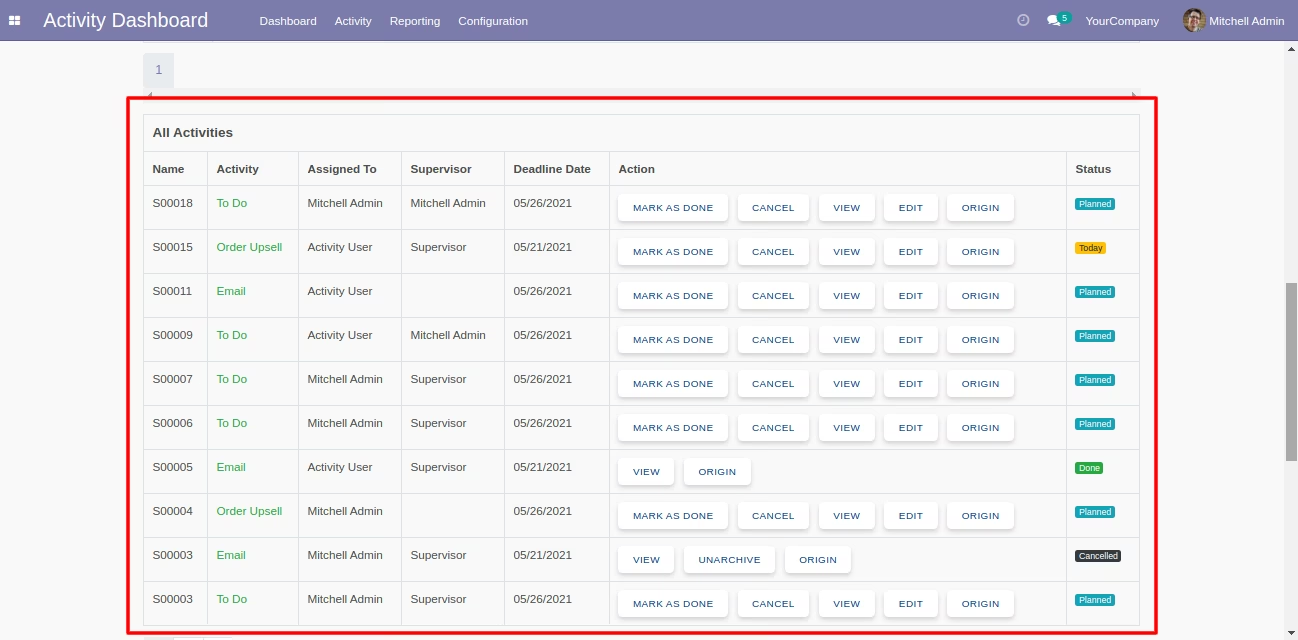
You can edit, view, cancel, mark as done & origin records from the activity dashboard.
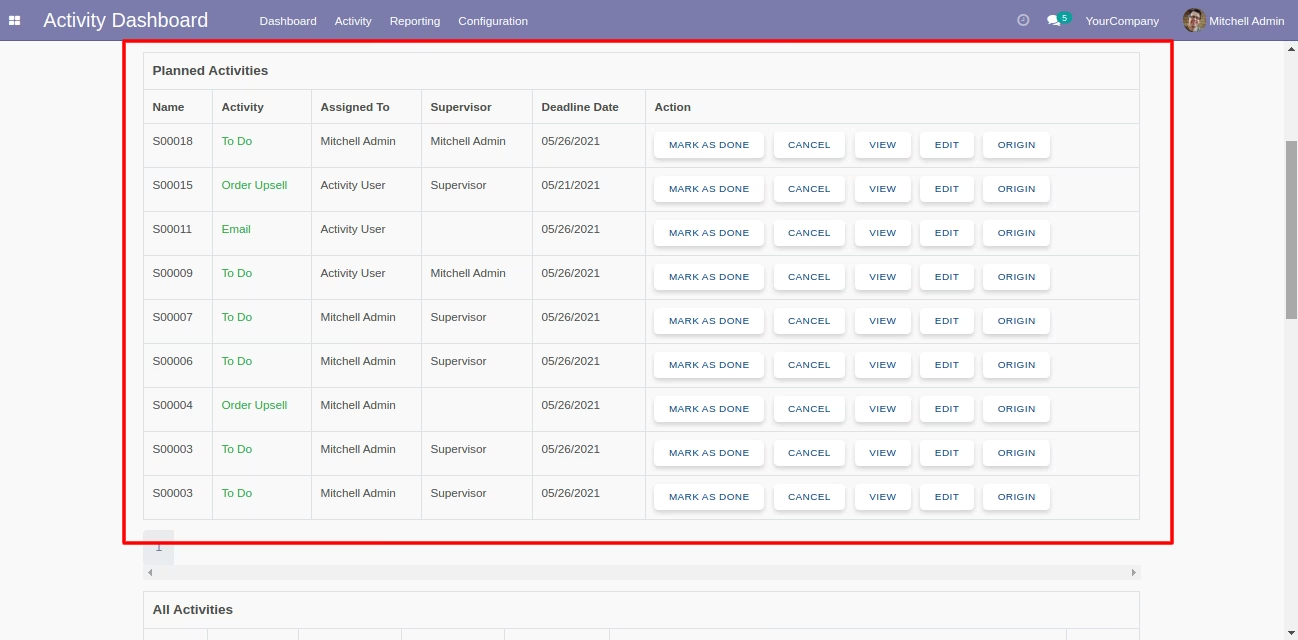
You can see the activity status from the activity dashboard.
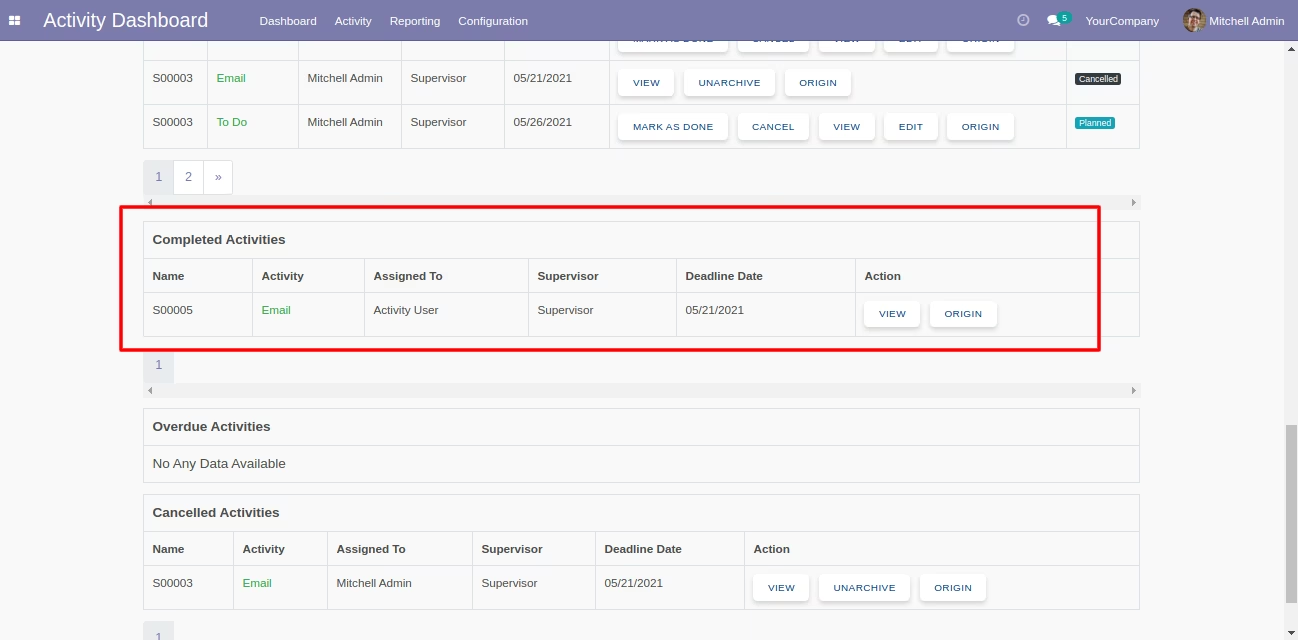
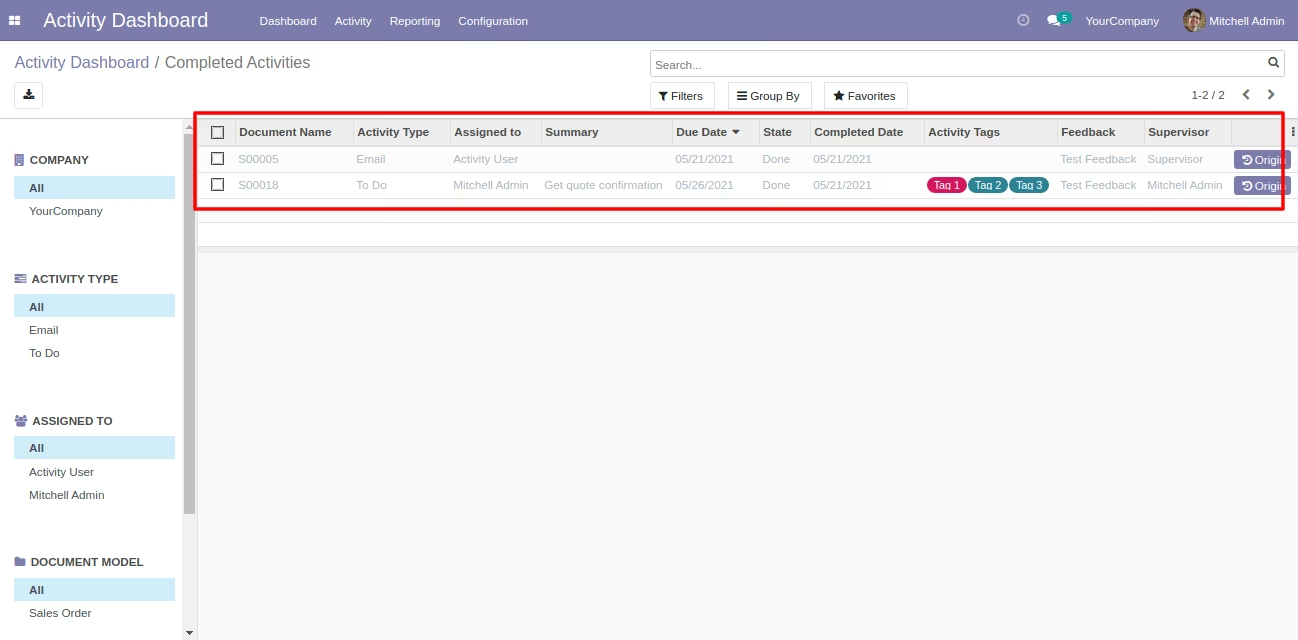
You can see the completed activities from the activity dashboard with data table.
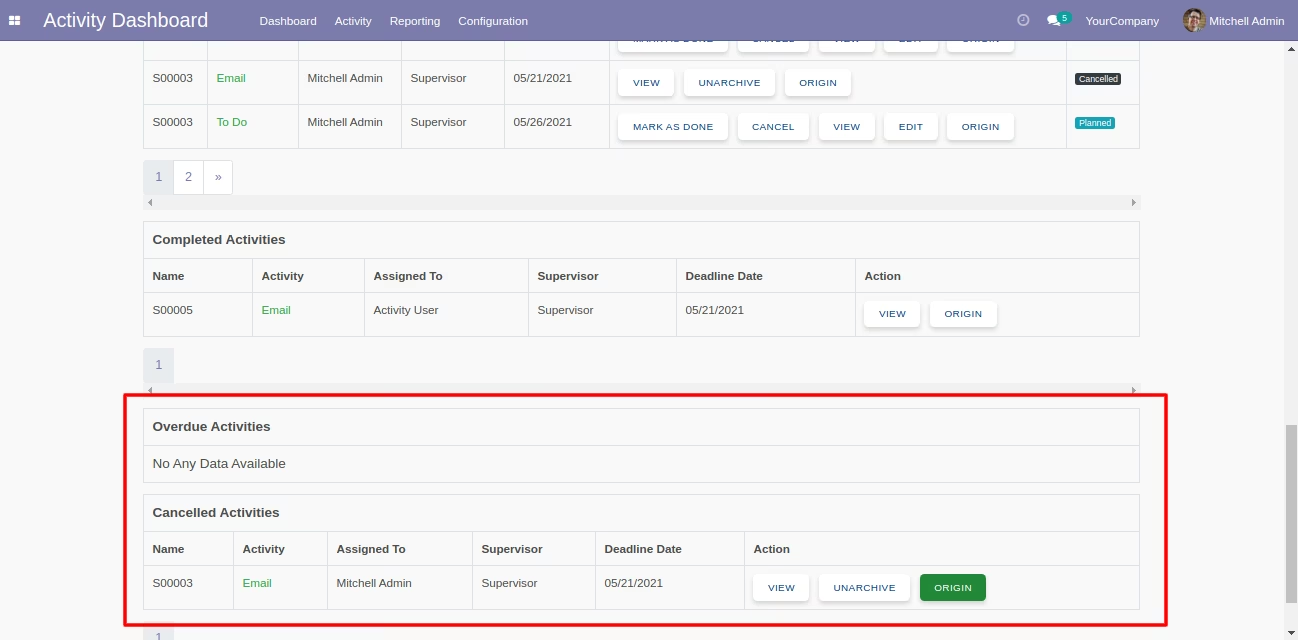
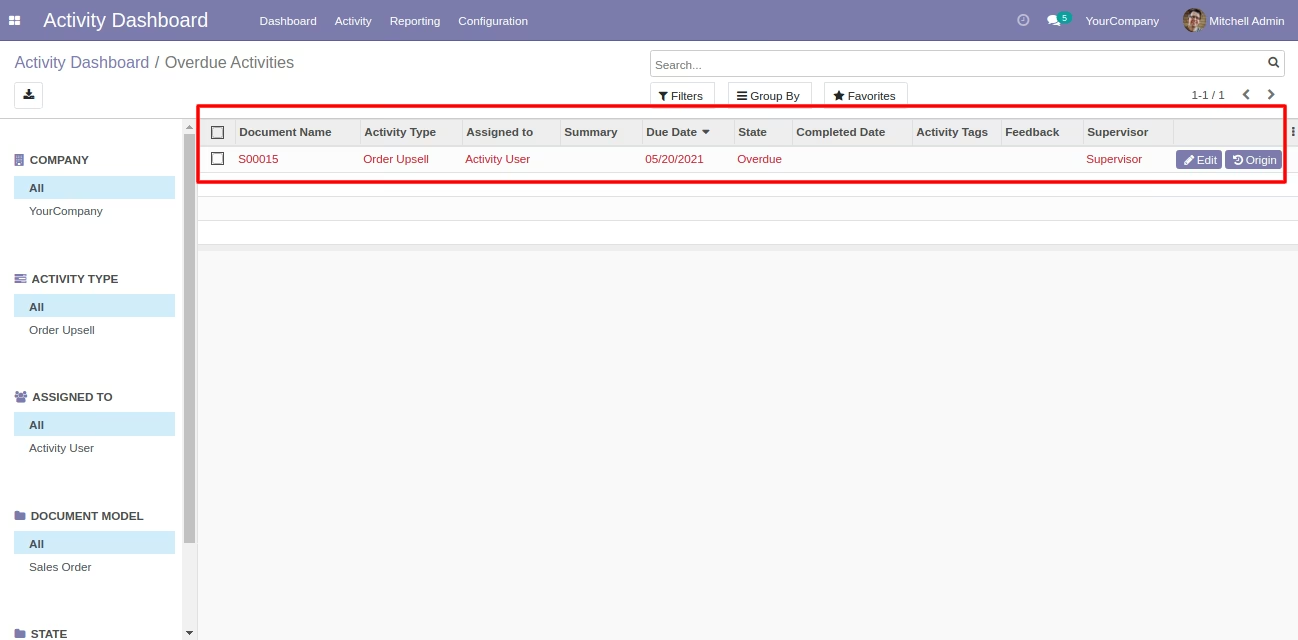
You can see the overdue & cancel activities from the activity dashboard with data table.
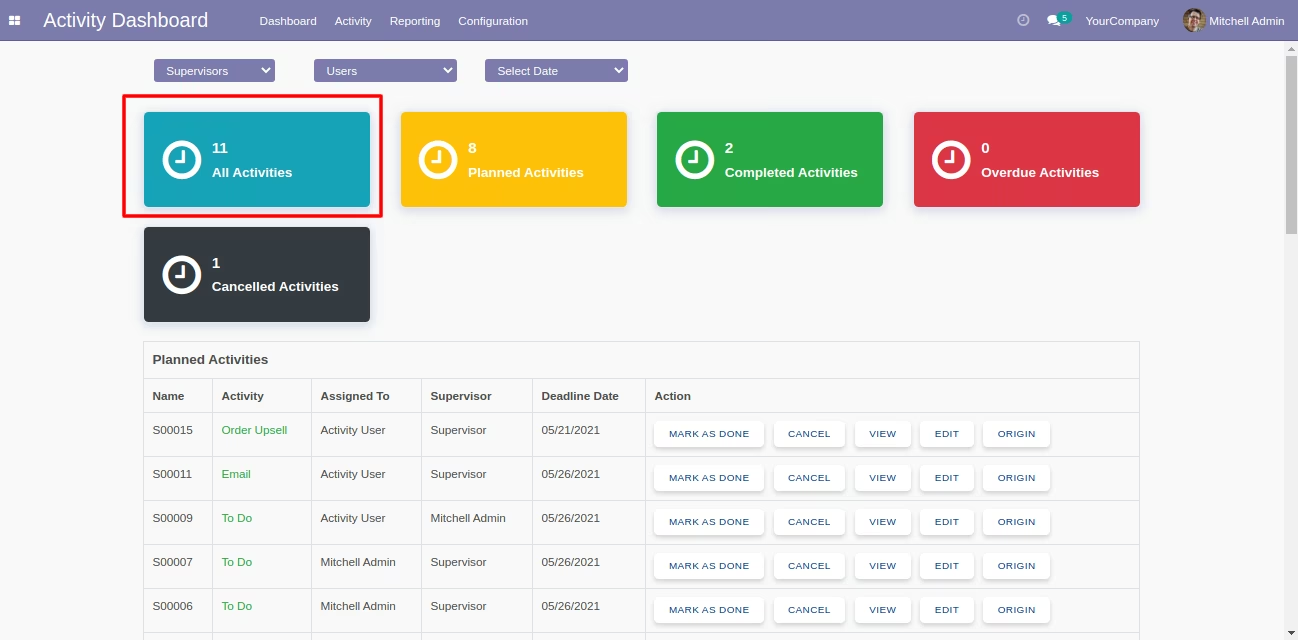
Open "All Activities" from the dashboard.
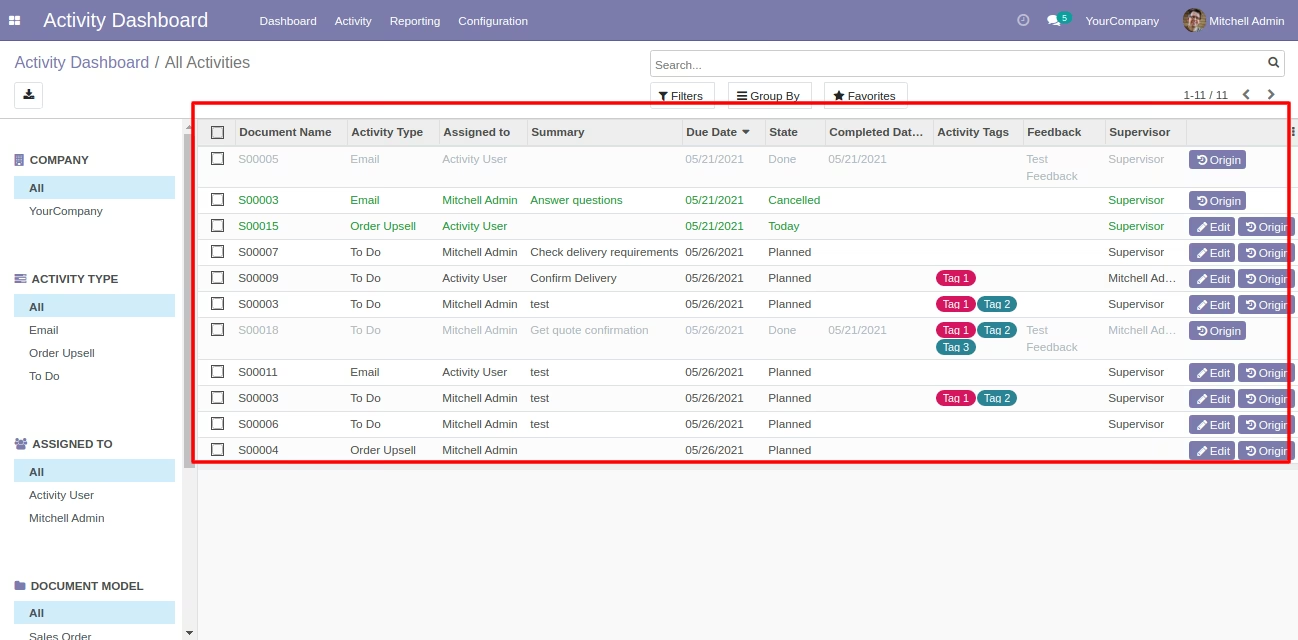
The "All Activities" list view with search panel and edit & origin buttons.
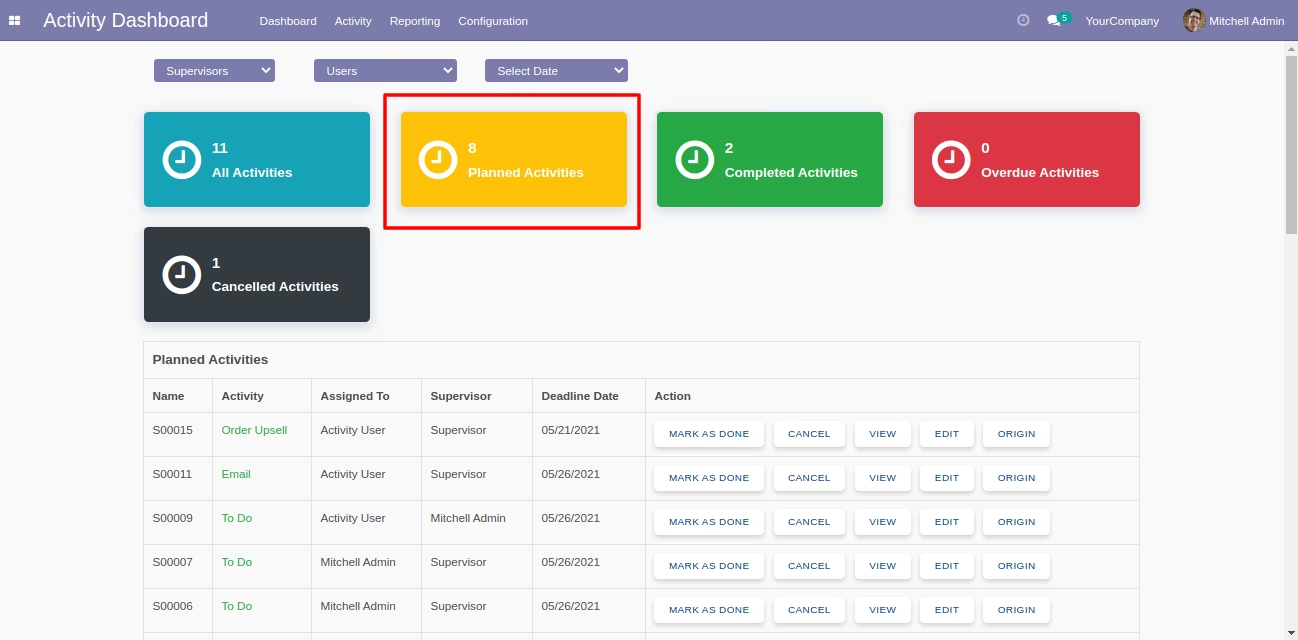
Open "Planned Activities" from the dashboard.
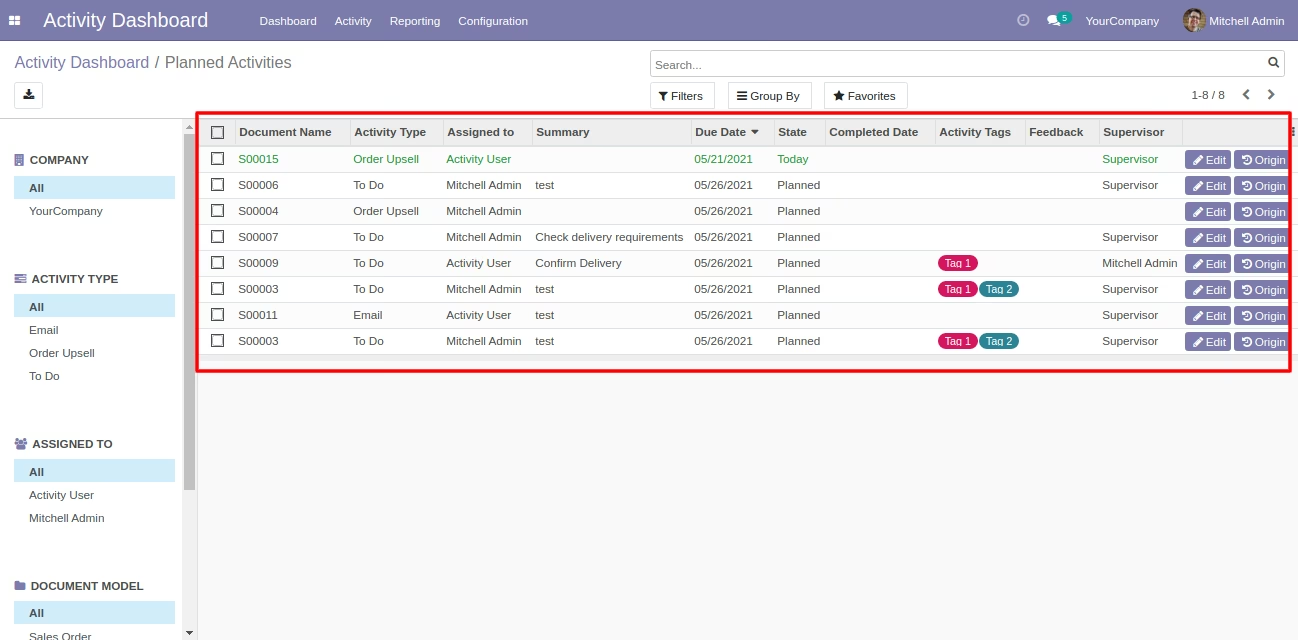
The "Planned Activities" list view with search panel and edit & origin buttons.
Open "Completed Activities" from the dashboard.
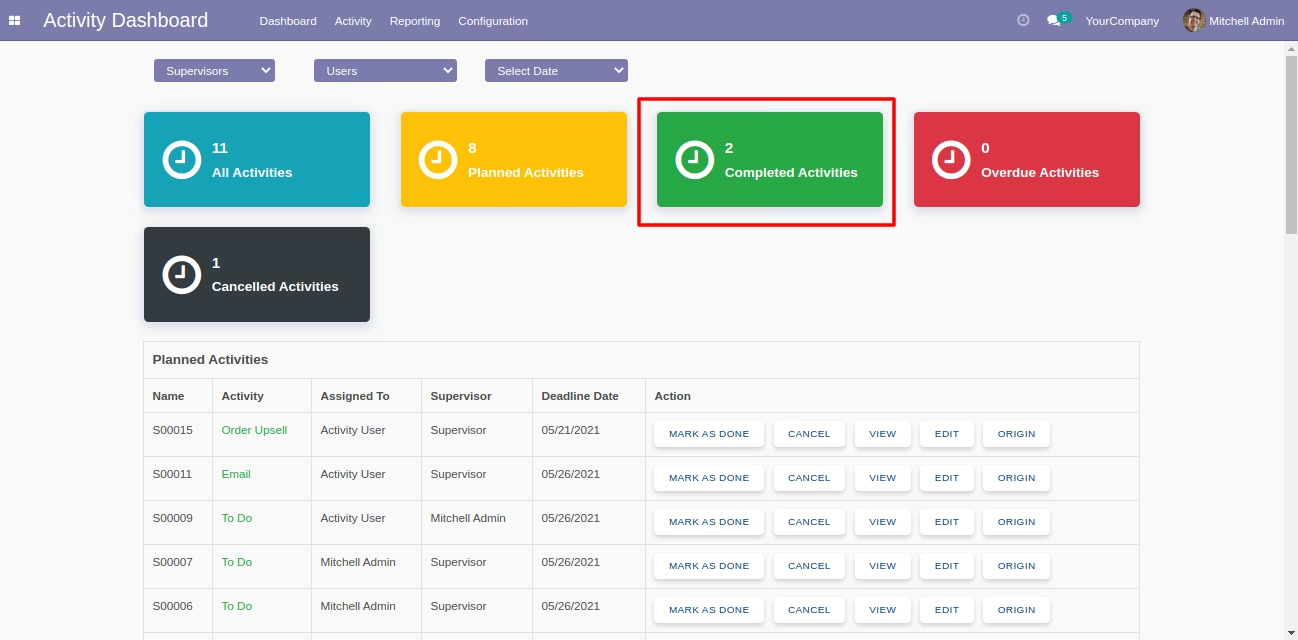
The "Completed Activities" list view with search panel and origin buttons.
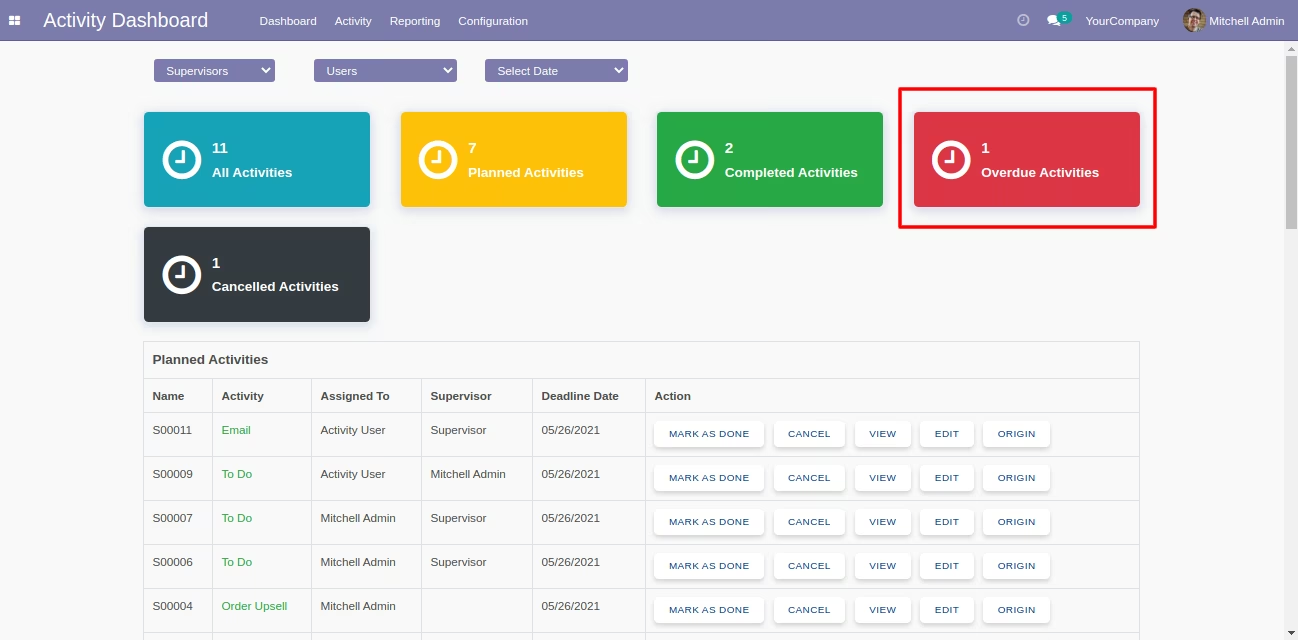
Open "Overdue Activities" from the dashboard.
The "Overdue Activities" list view with search panel and edit & origin buttons.
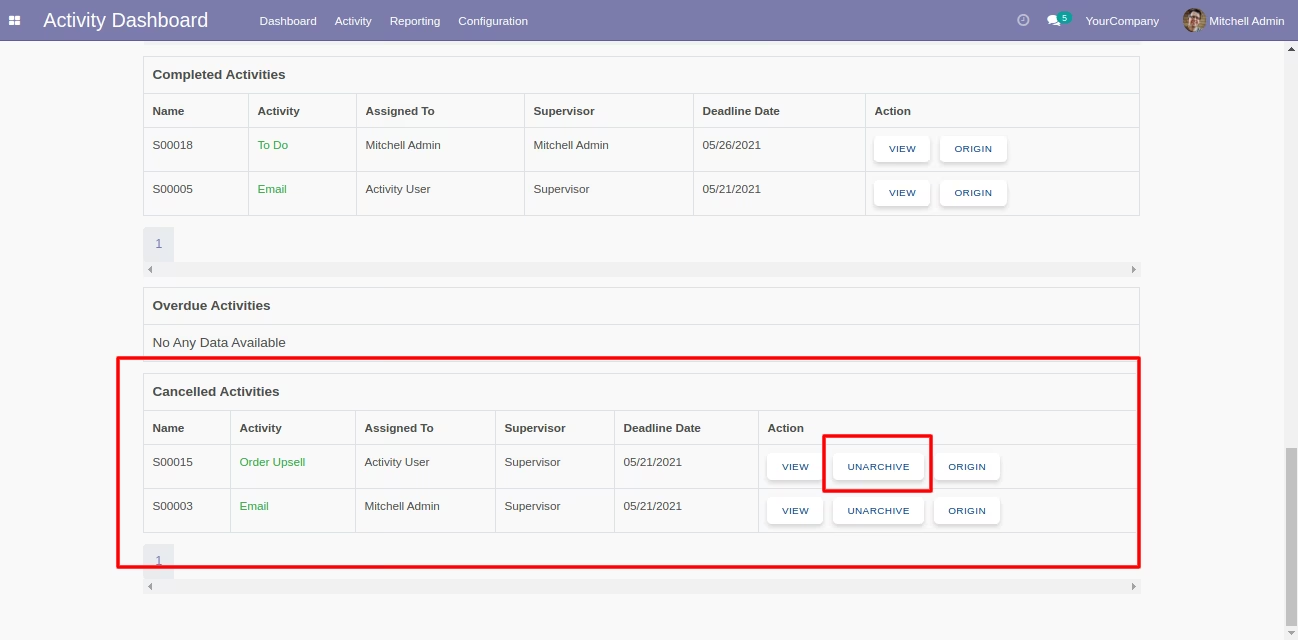
Cancelled activities counter and "Cancel" button in the related data table at dashboard.
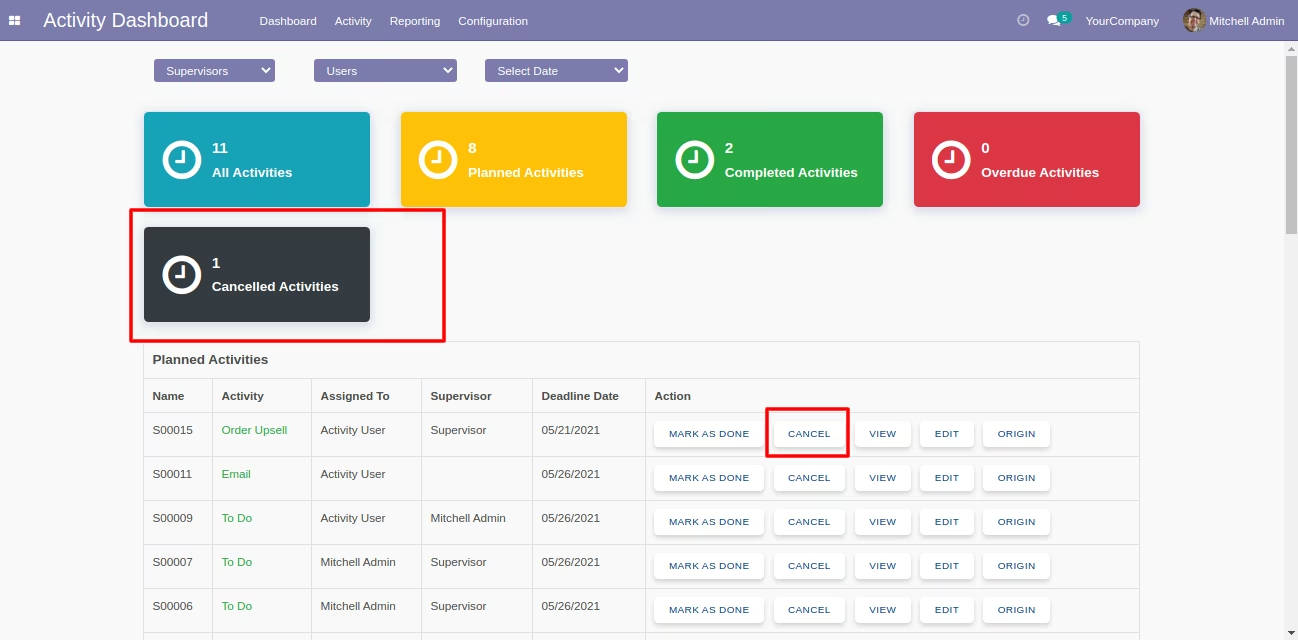
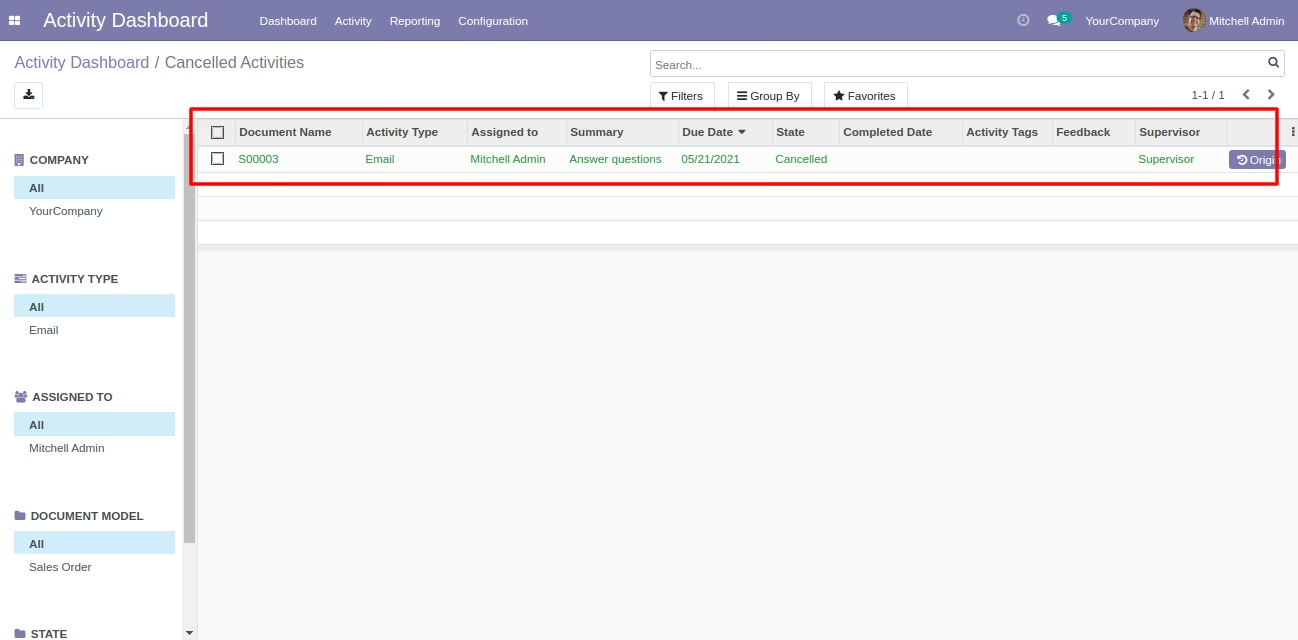
The "Cancelled Activities" list view with search panel and origin button.
Press the "cancel" button to cancel the activity.
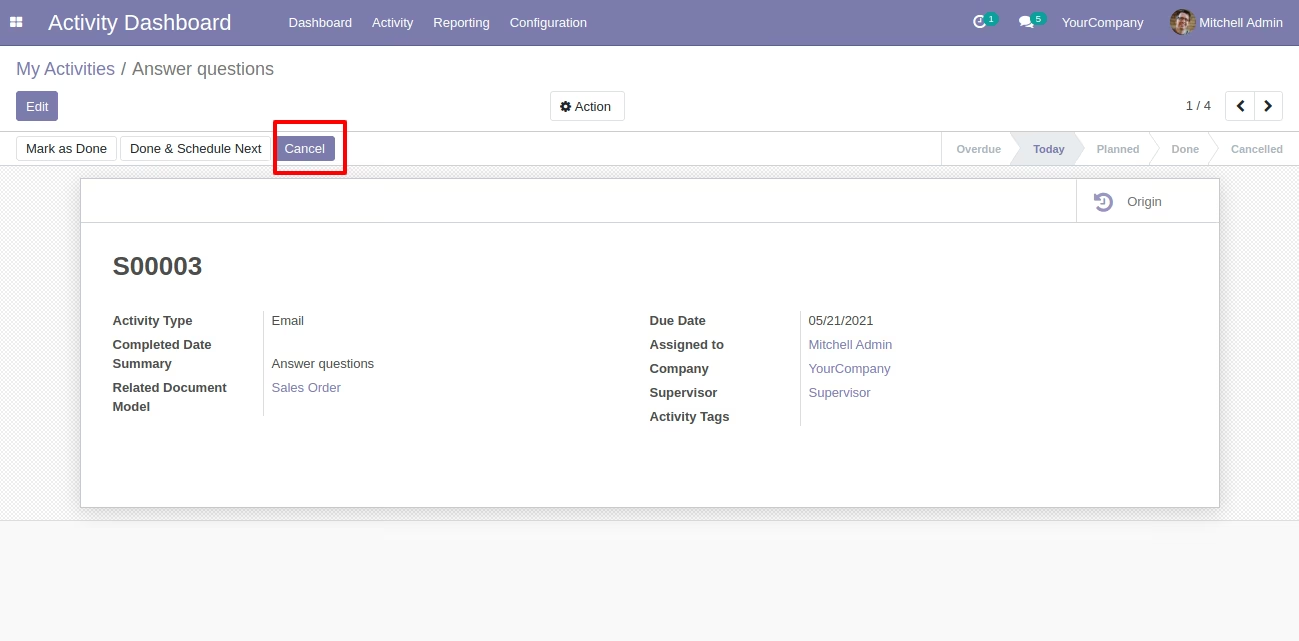
Cancel state & related document name with activity form view.
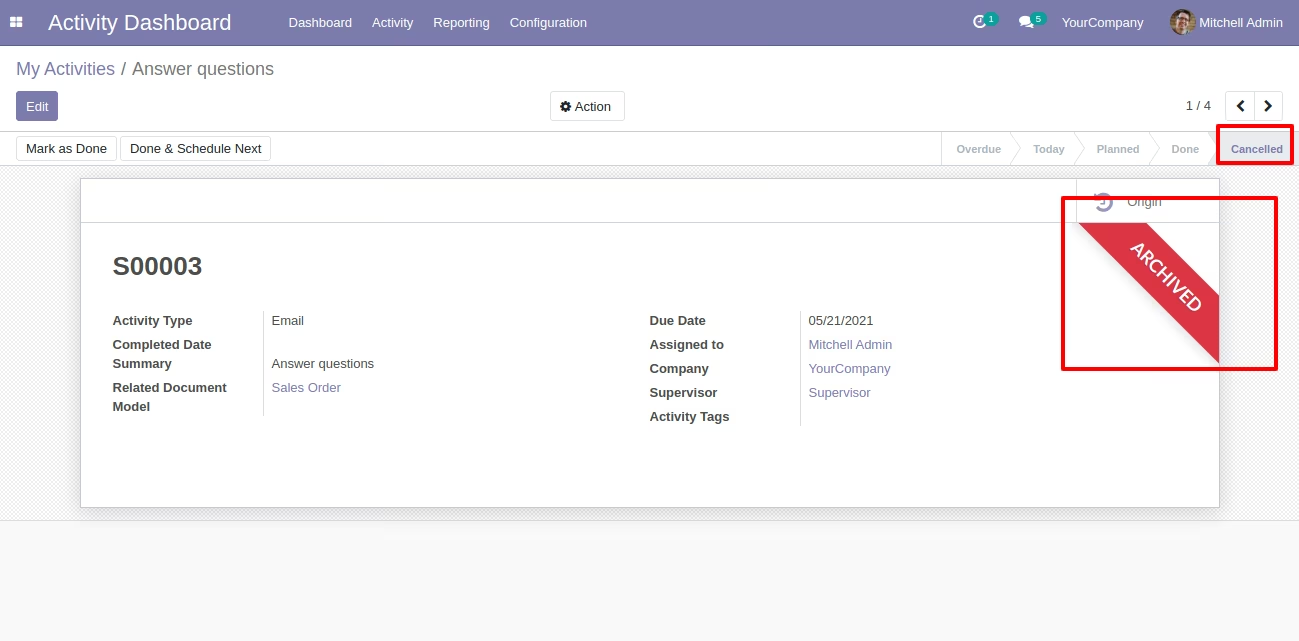
"UNARCHIVE" button in the data tables to make activity actives which are cancelled.
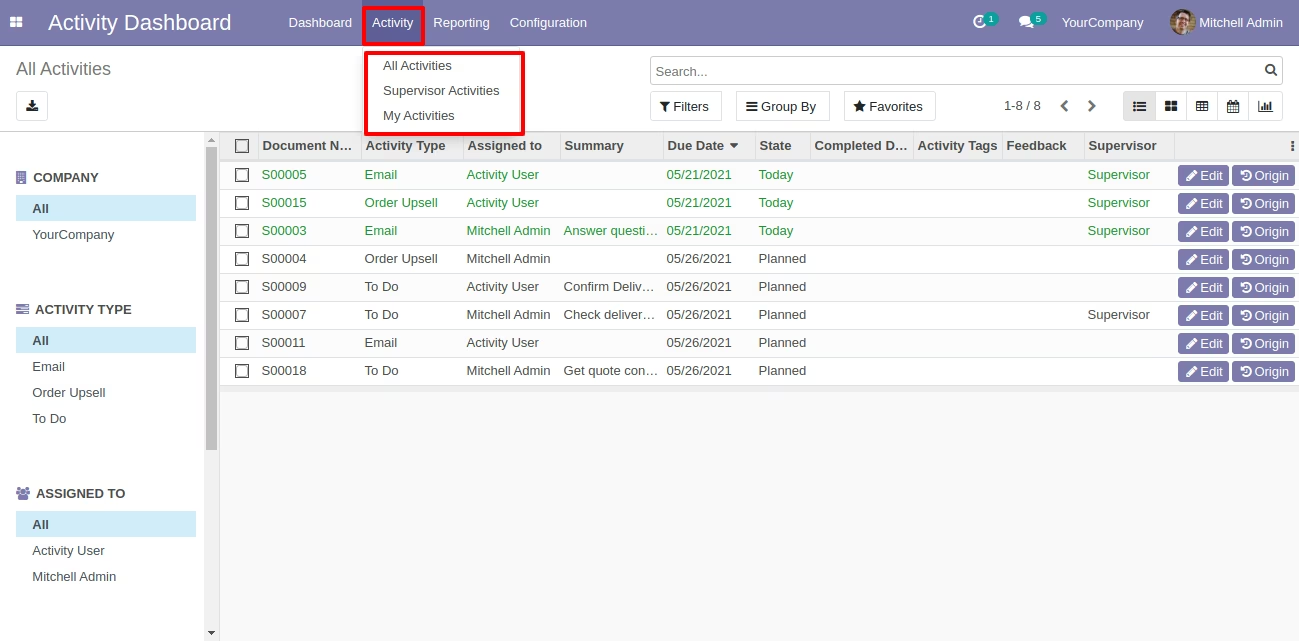
Activity Dashboard Menus
Manager can see my activities, supervisor activities & all activities from the "Activity" menu.
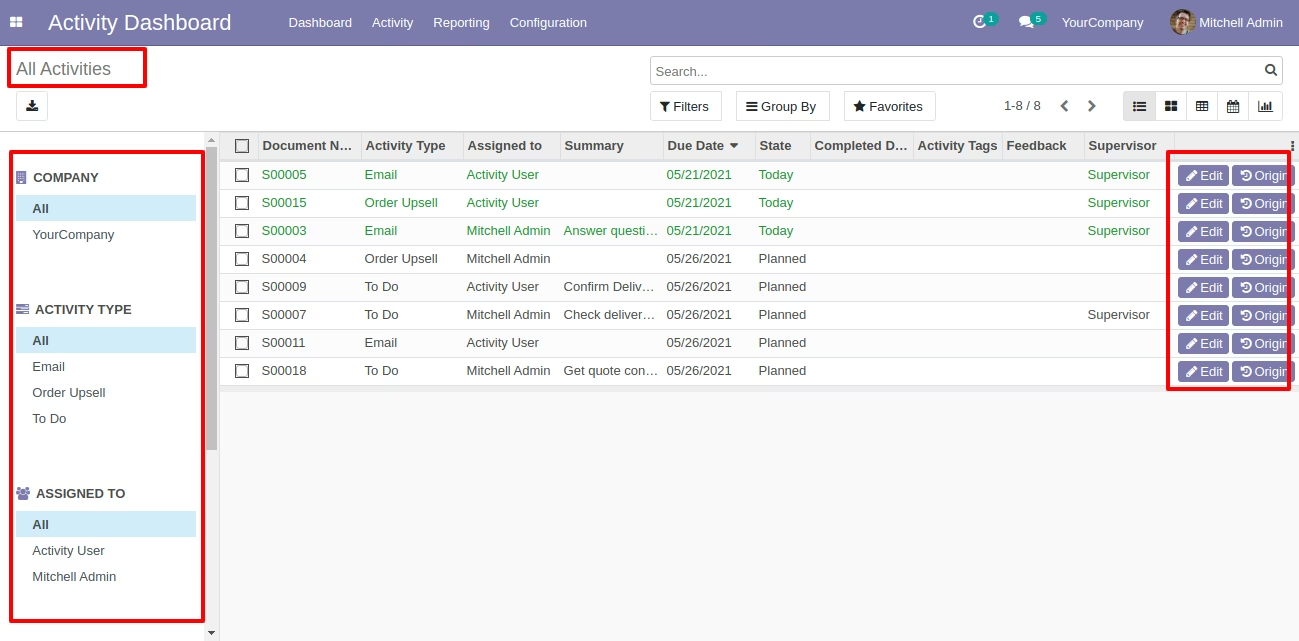
The "All Activities" list view with search panel and edit & origin buttons.
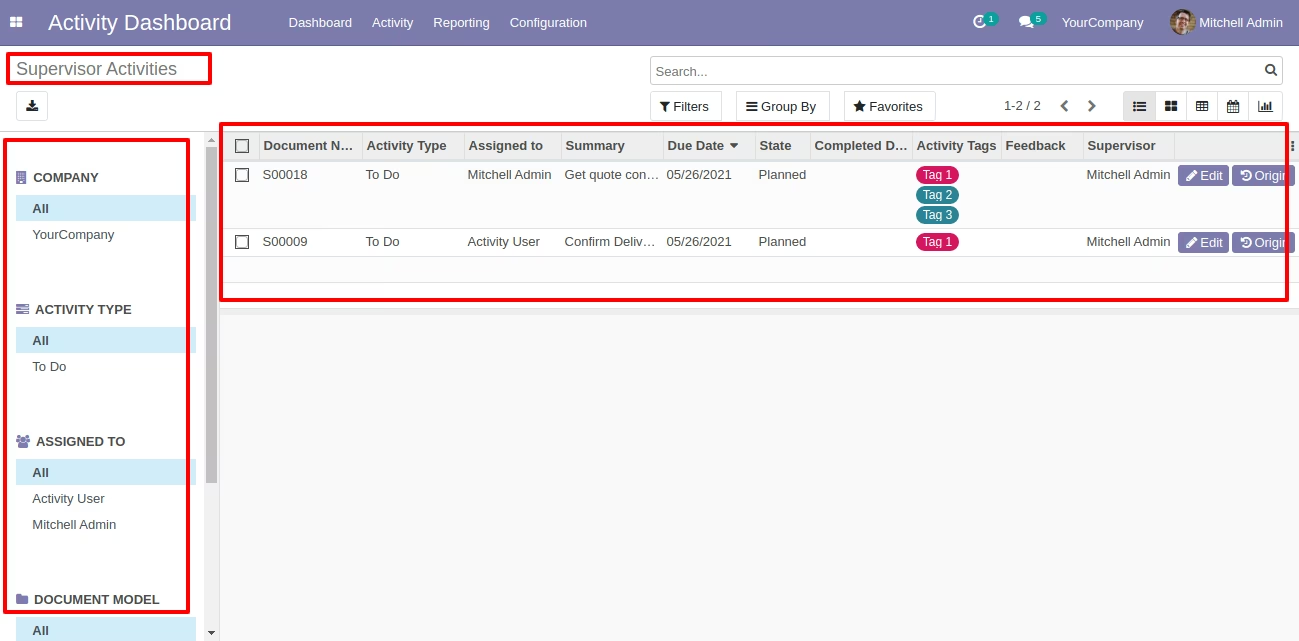
The "Supervisor Activities" list view with search panel and edit & origin buttons.
The "My Activities" list view with search panel and edit & origin buttons.
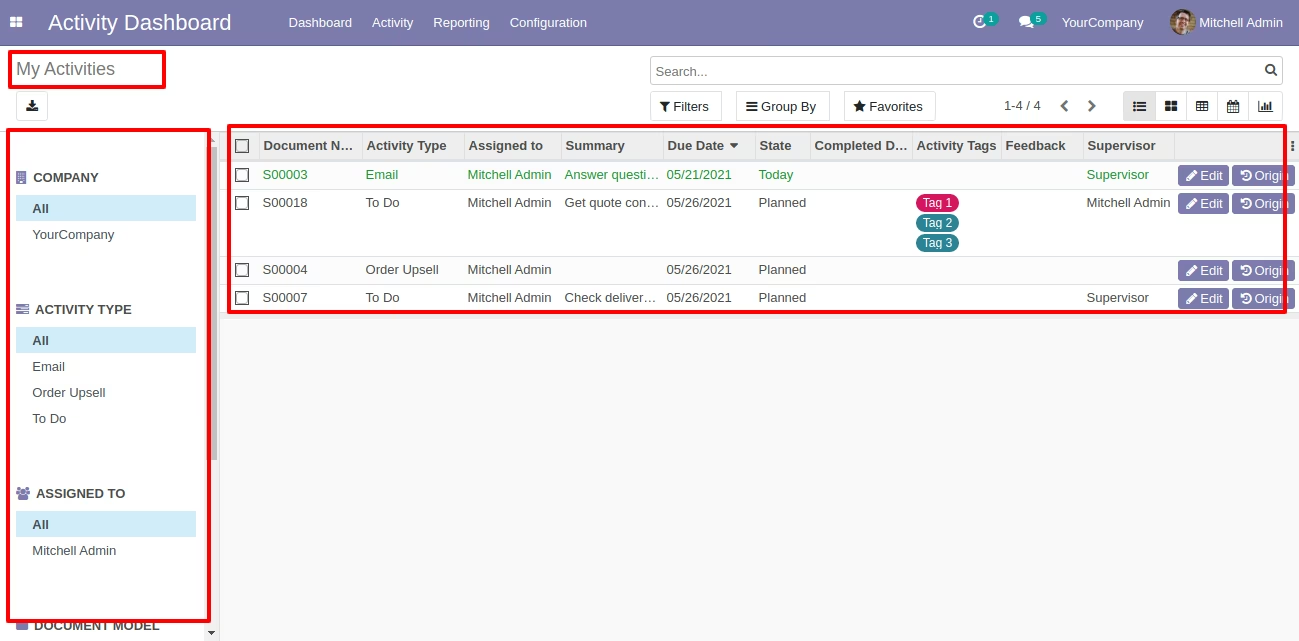
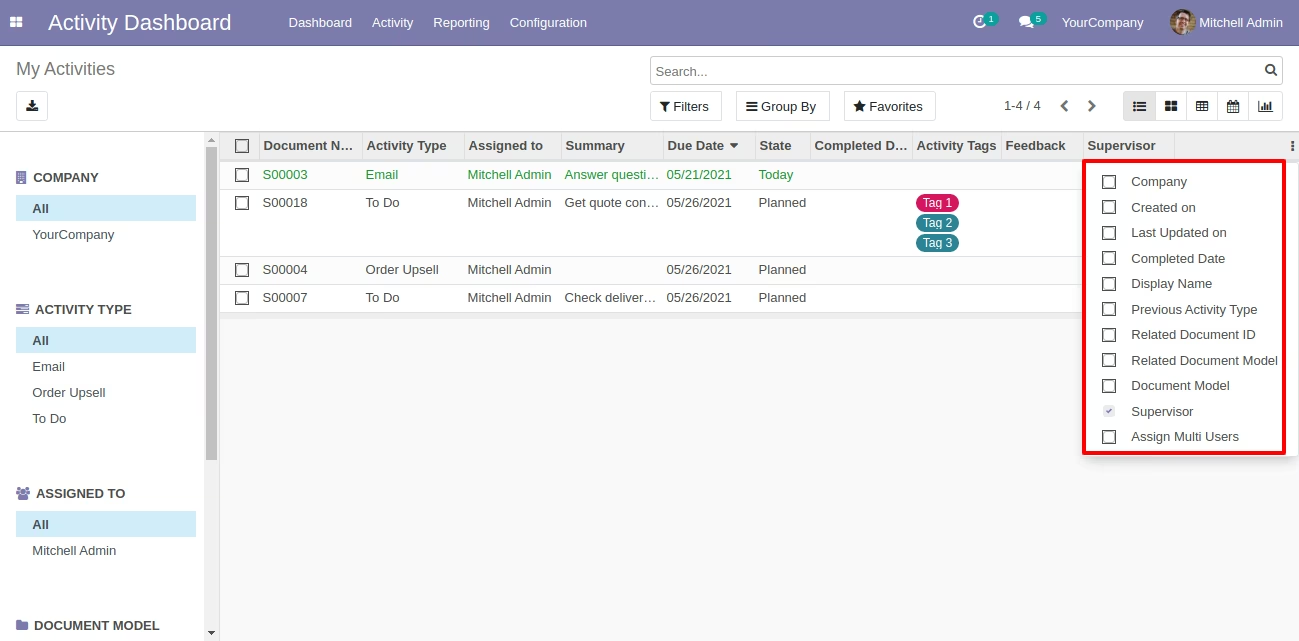
You can display fields from the list view smart button.
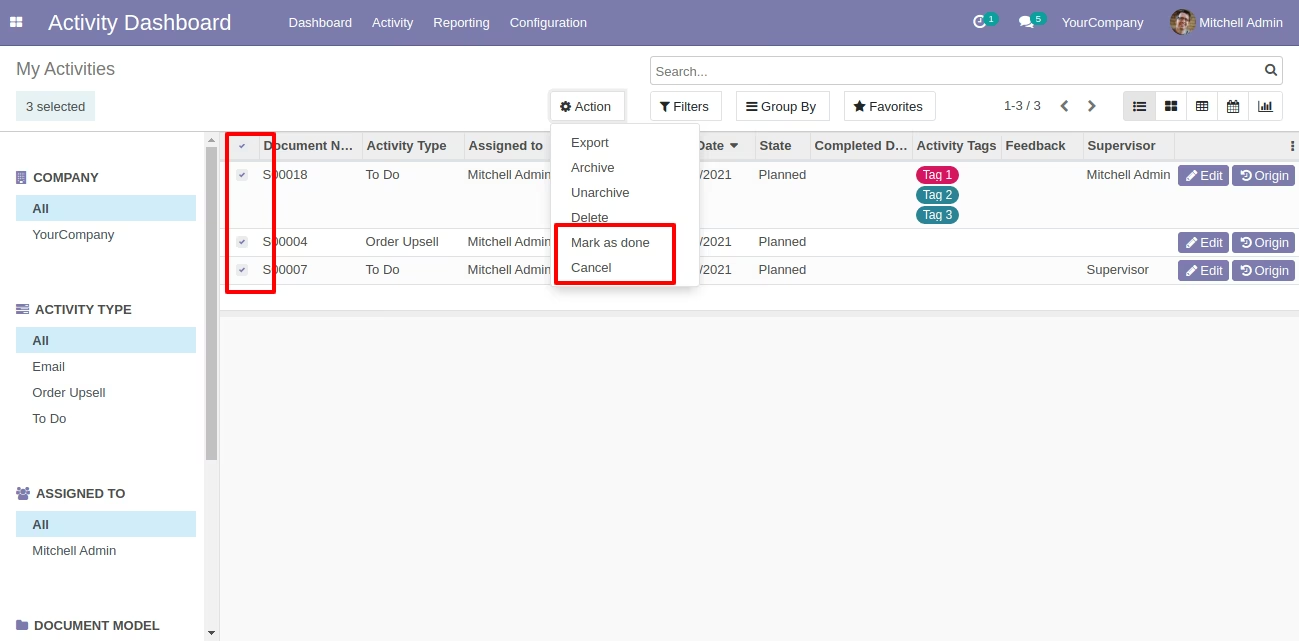
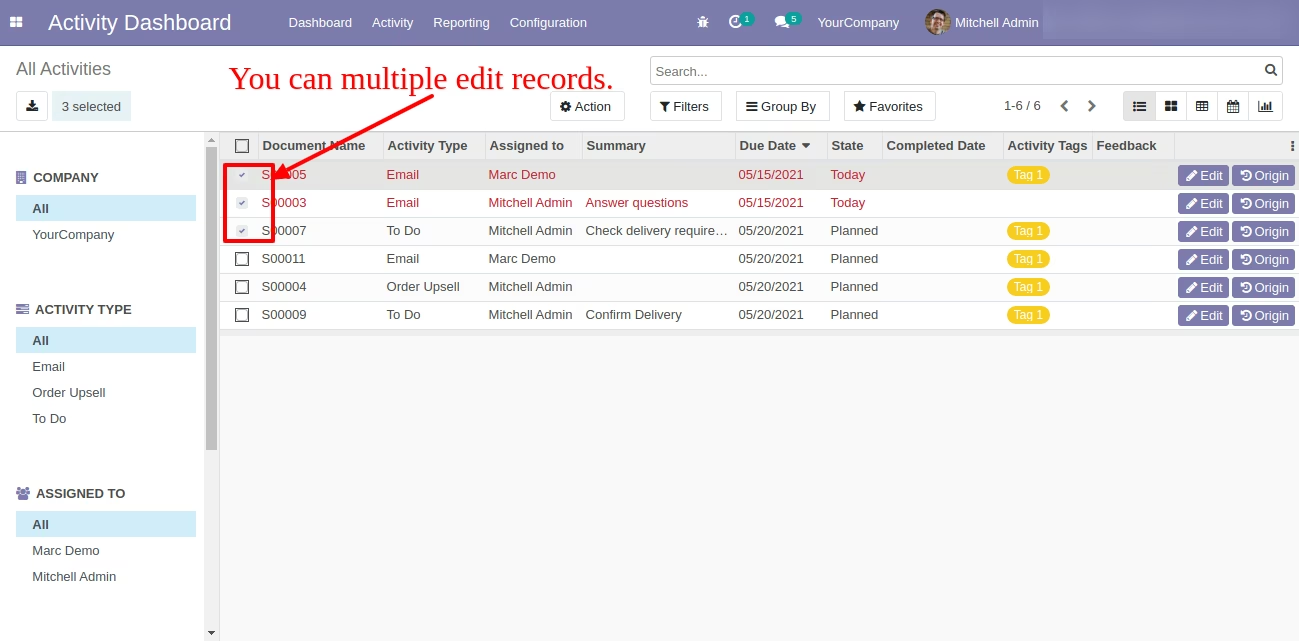
You can do multiple activities "Mark as done" and "Cancel" from the activity tree view.
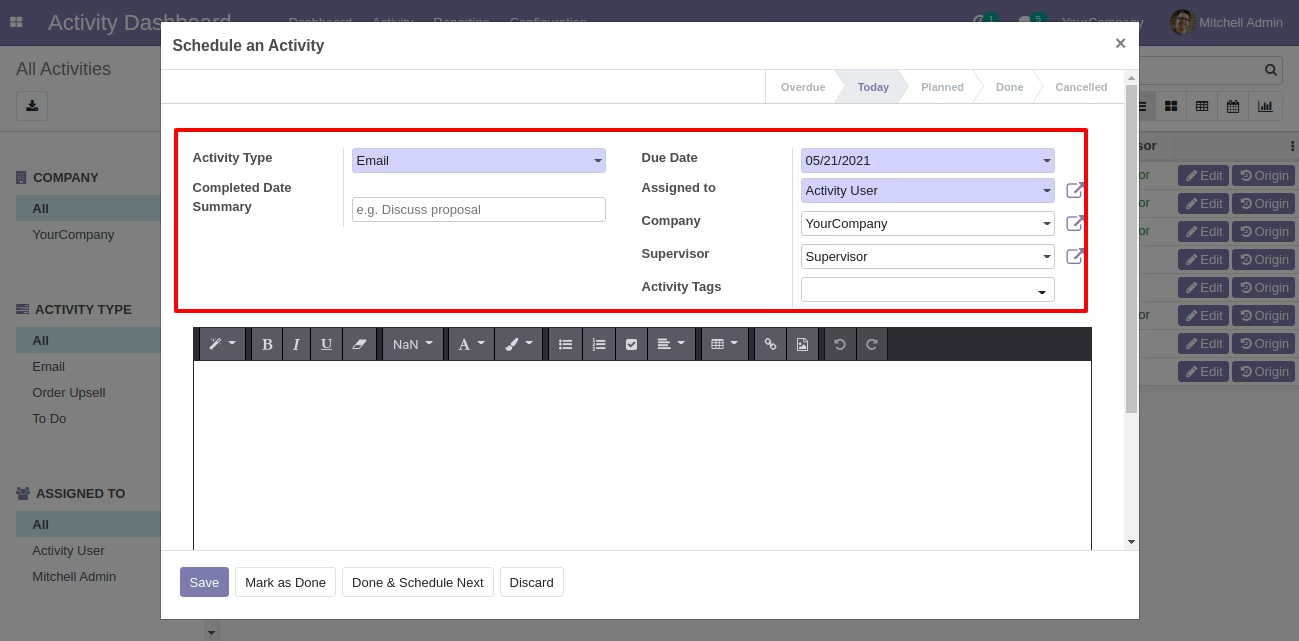
Now we edit the activity from the list view.
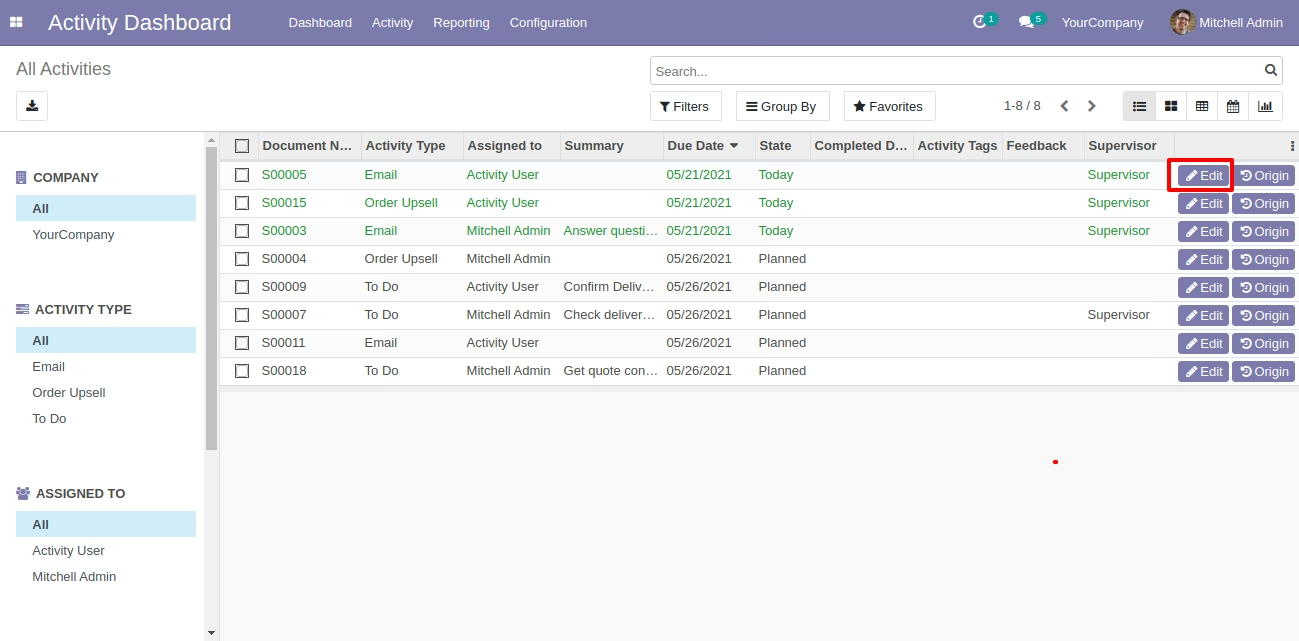
When you press that "Edit" button this wizard opens for edit activity.
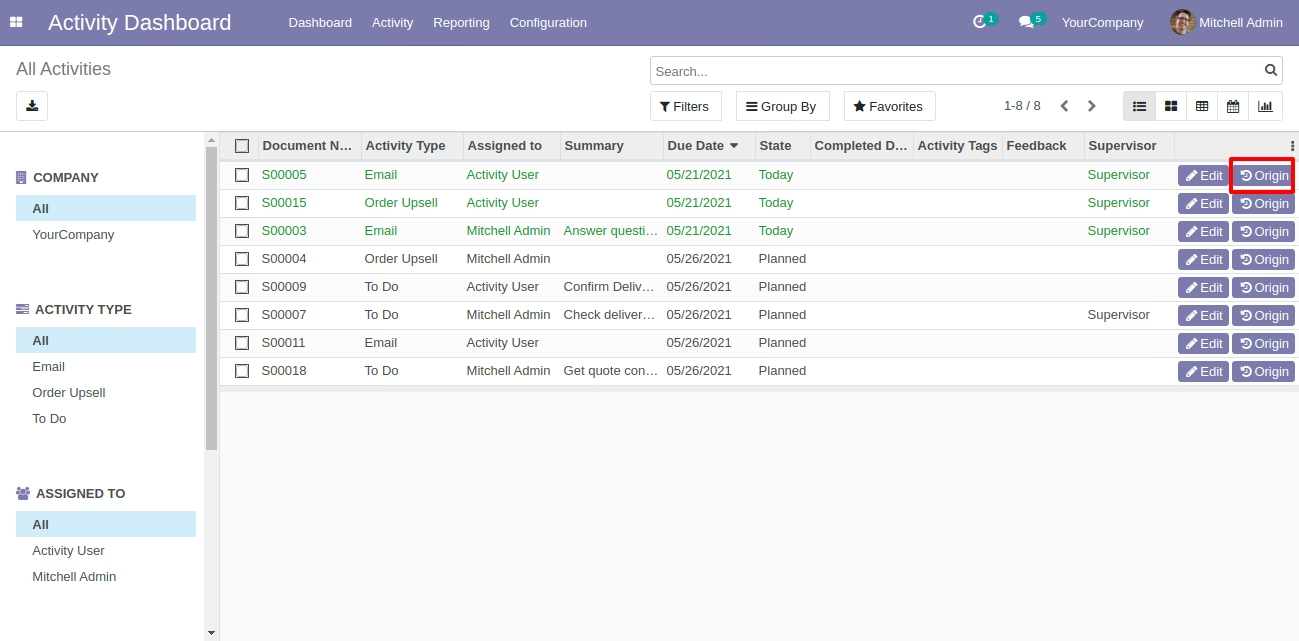
Now we open the original activity from the list view.
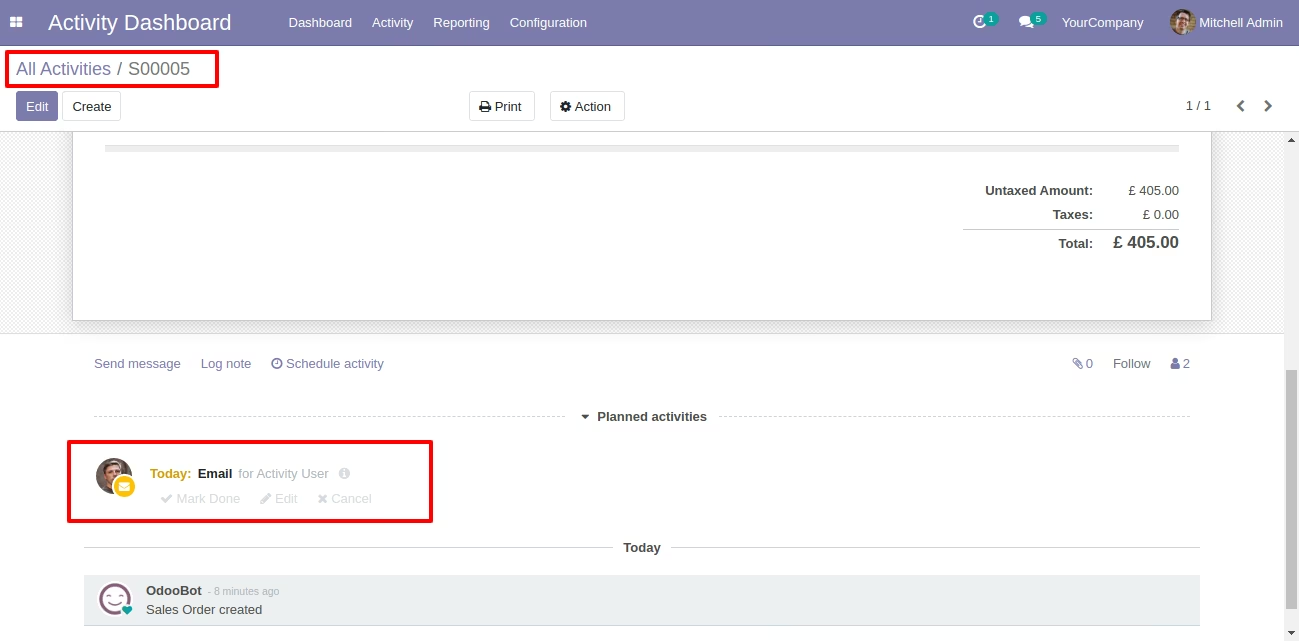
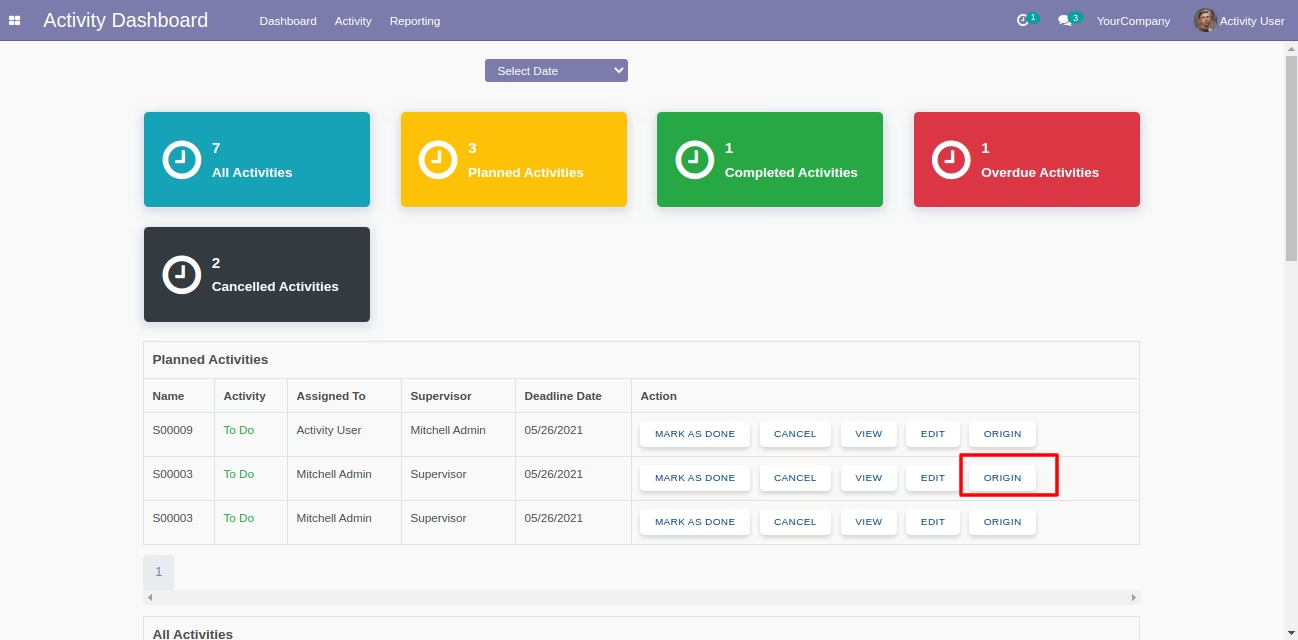
When you press that "Origin" button that opens the activity origin source document(a record).
You can edit multiple records from the activity list view.
The activity form view looks like this.
If you press the button "Mark as Done" you have to enter feedback/comment and your activity is done.
If you press the button "Done & Schedule Next" you have to enter feedback/comment and you have to schedule activity.
Using "Origin" button you can open the activity origin source document.
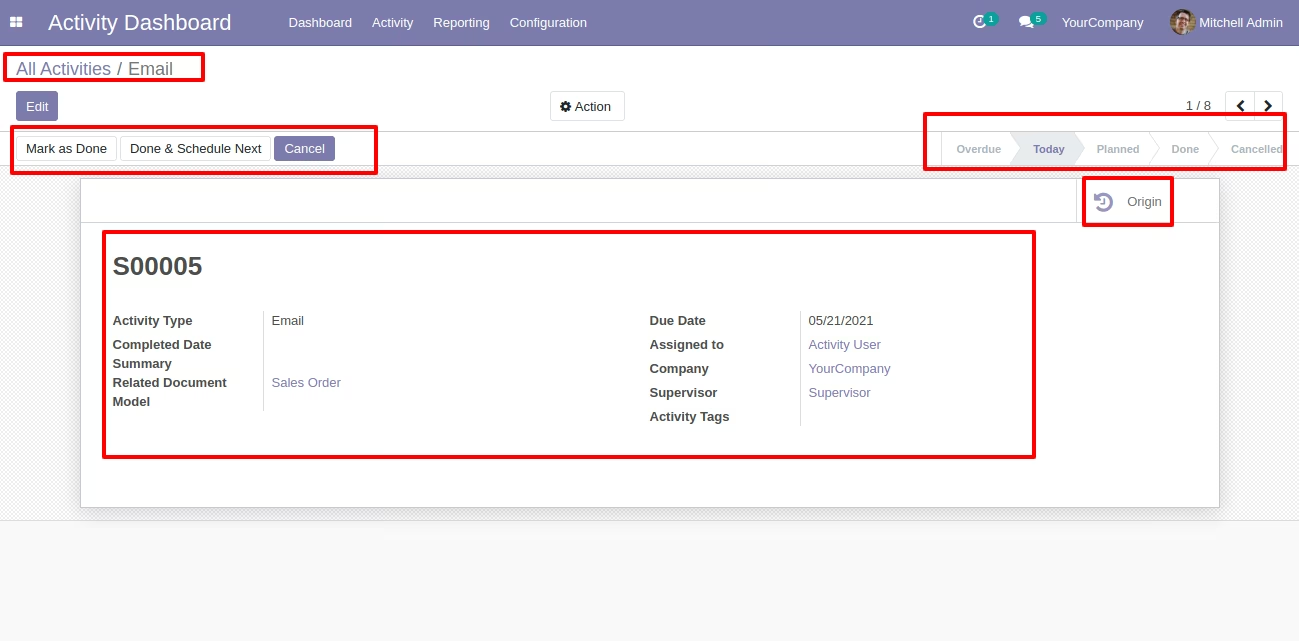
Now we press the button "Mark as Done".
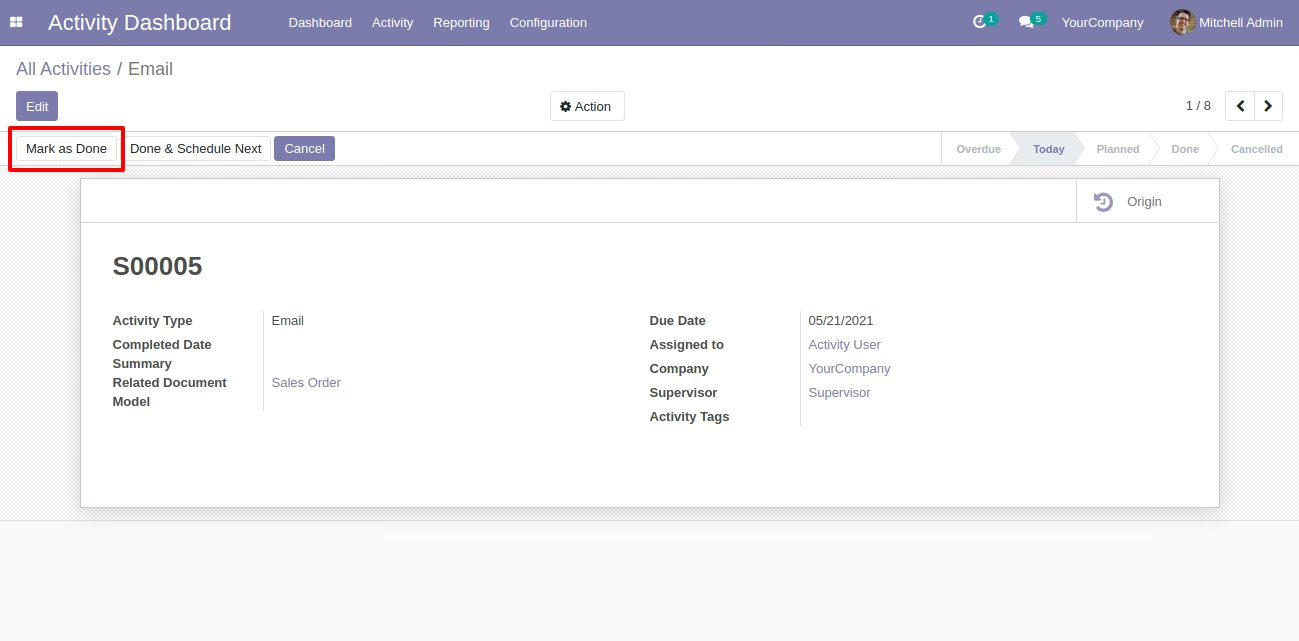
After pressing the button "Mark as Done" you have to enter feedback/comment.
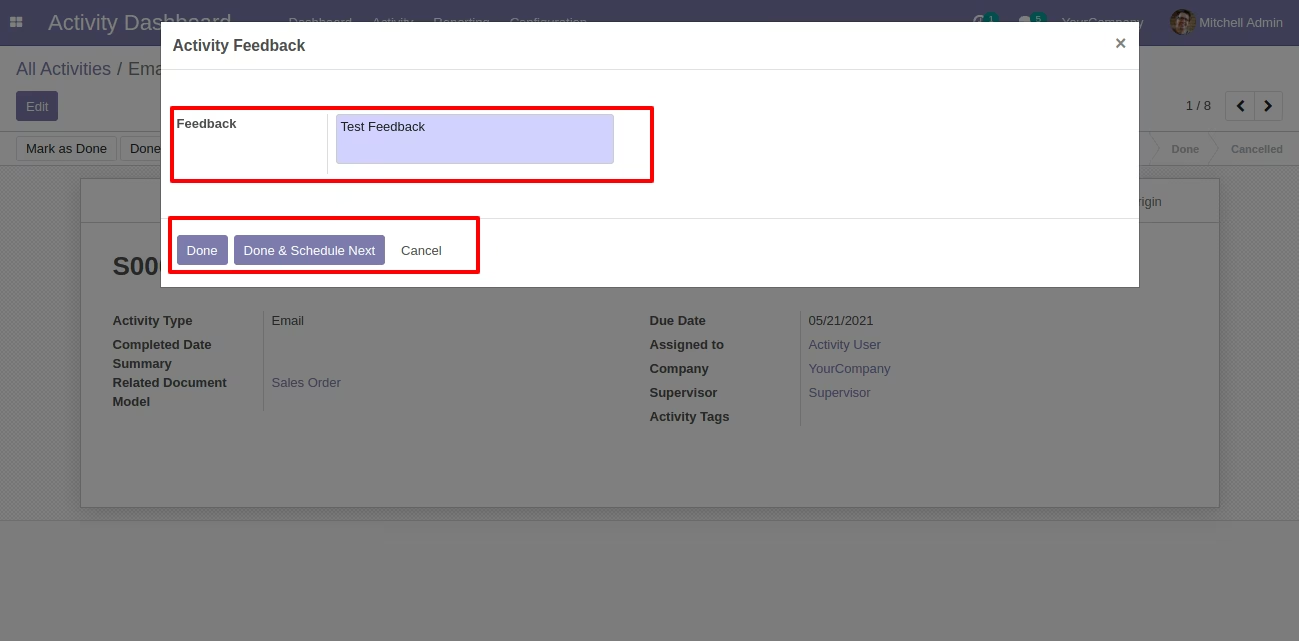
After pressing the "Done" button you can see detail with feedback and the "origin" button.
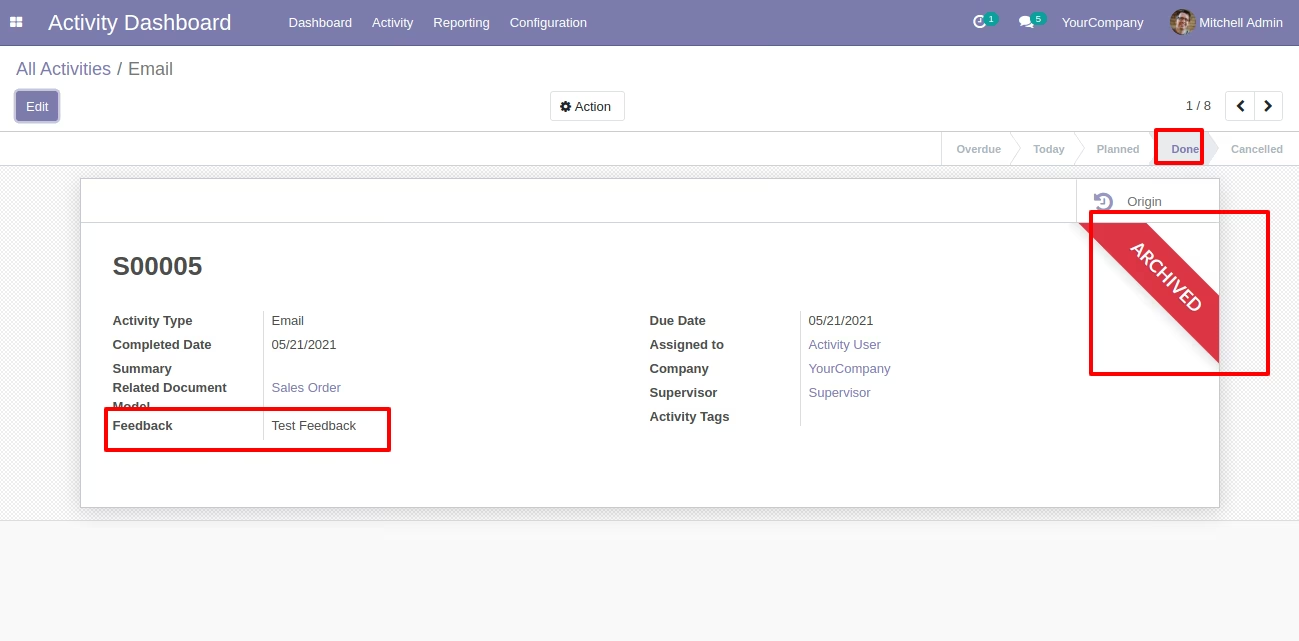
You can set the activity tags & settings from the "Configuration" menu.
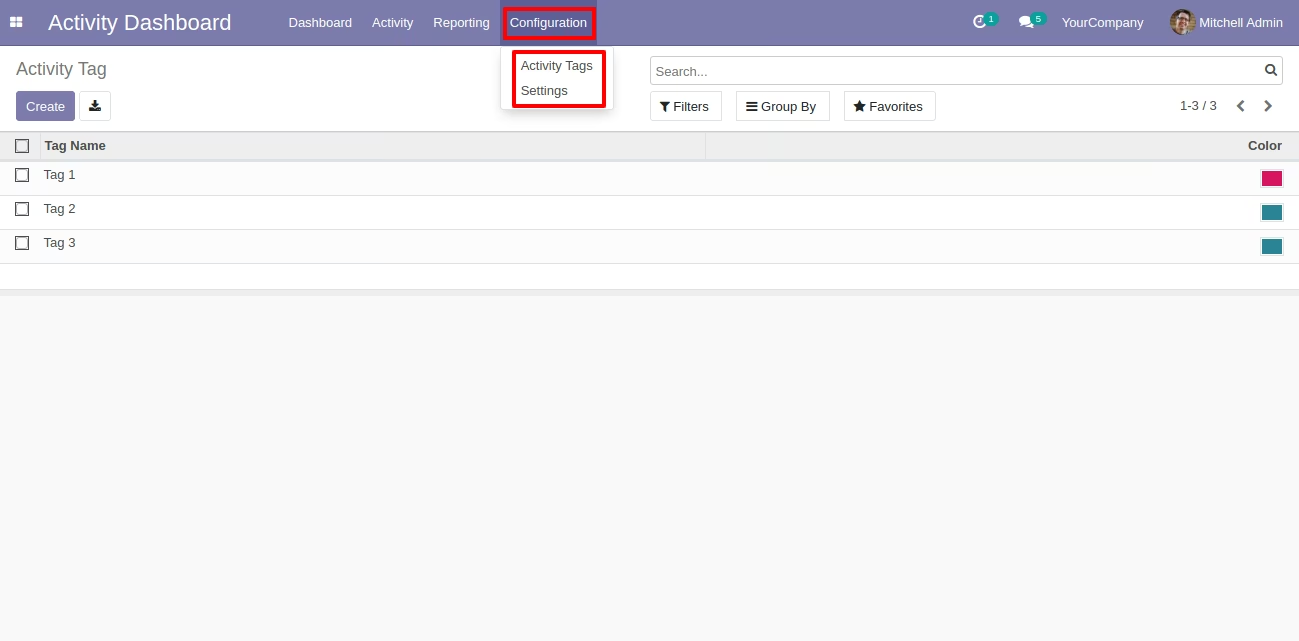
The activity tags list view.
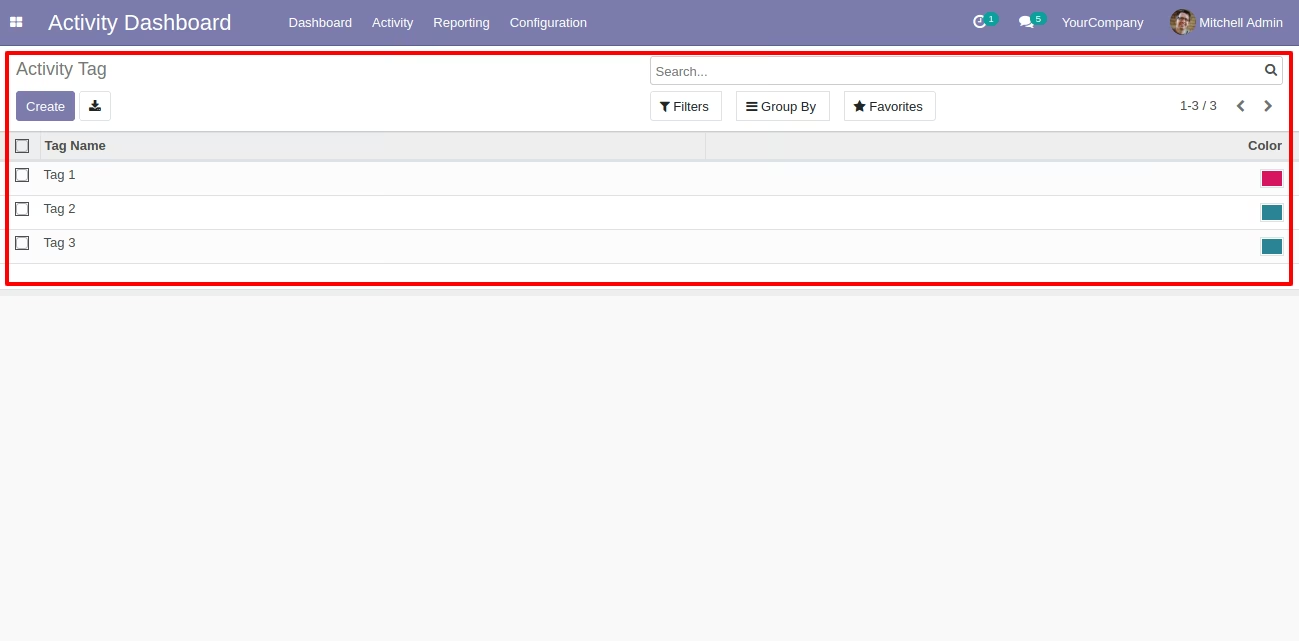
Multiple User Activities
Go to Activity Management setting, Enable 'Display Multi Users' to assign activities individually to multiple users.
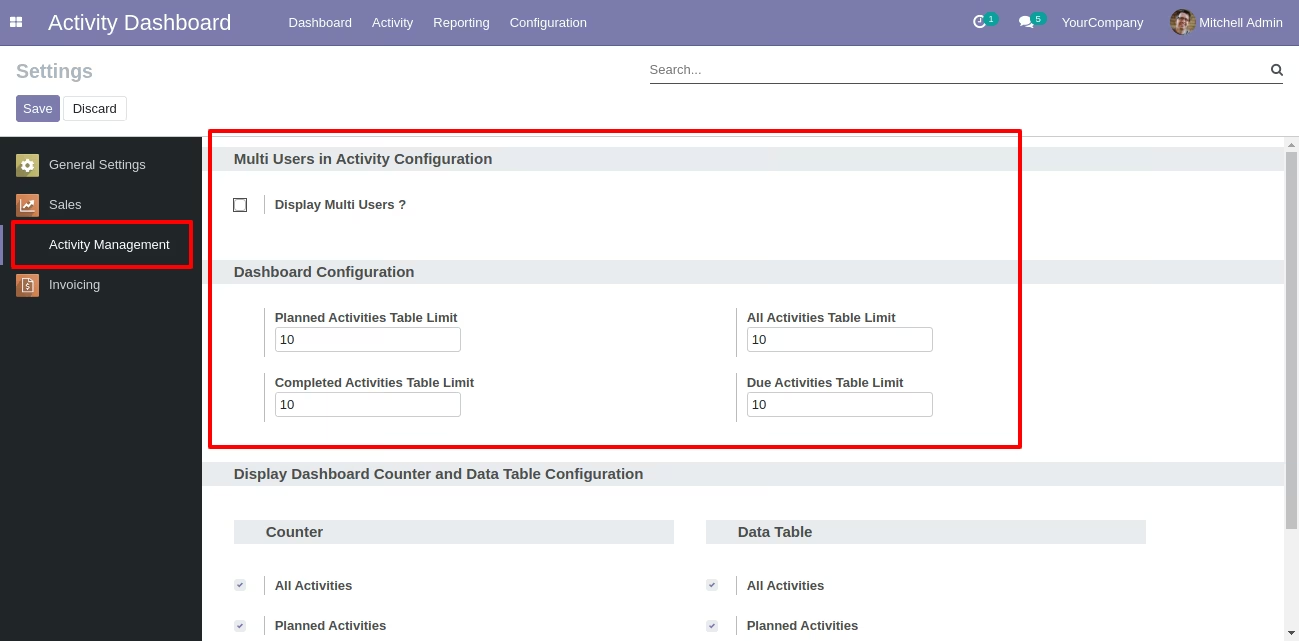
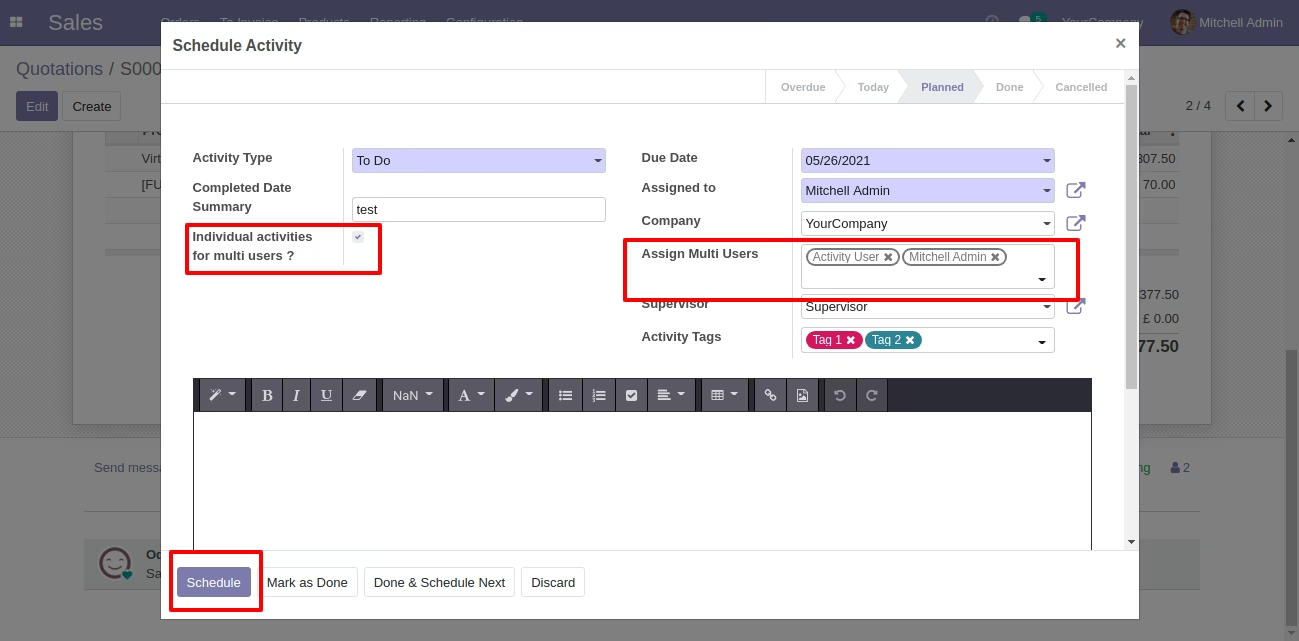
In the 'Schedule Activity' popup, there you can see the field "Individual activities for multi users?" You can assign that activity individually to multiple users.
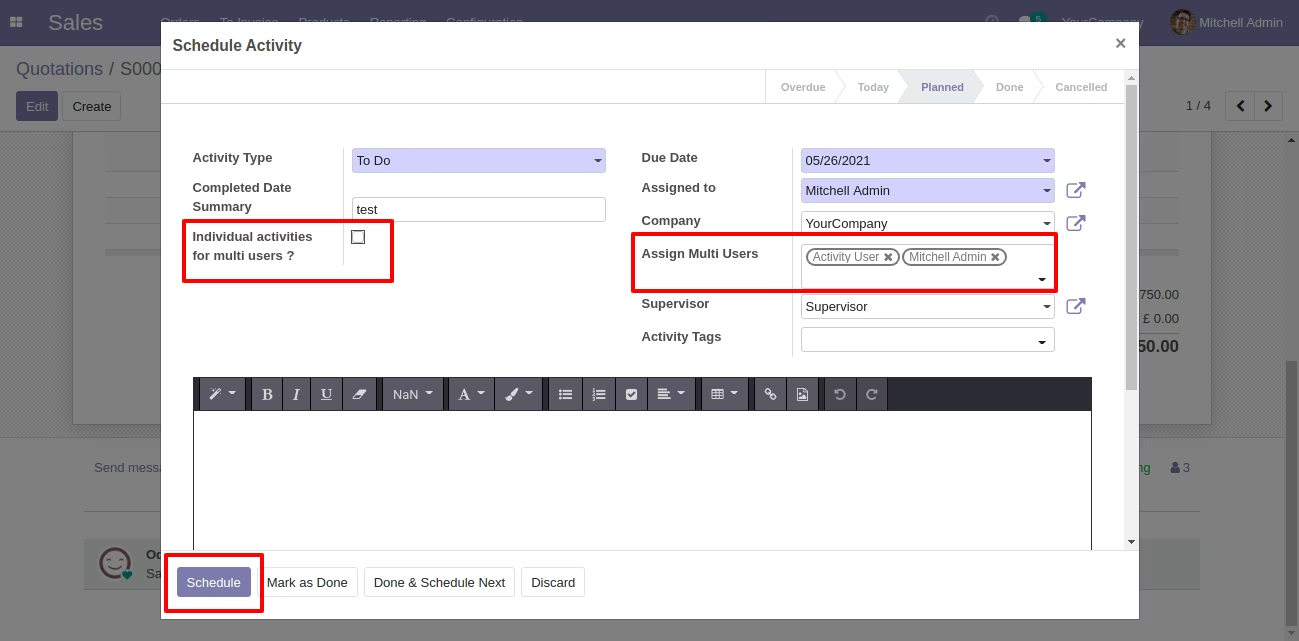
Now we tick the "Individual activities for multi users?" field to assign that activity individually to multiple users.
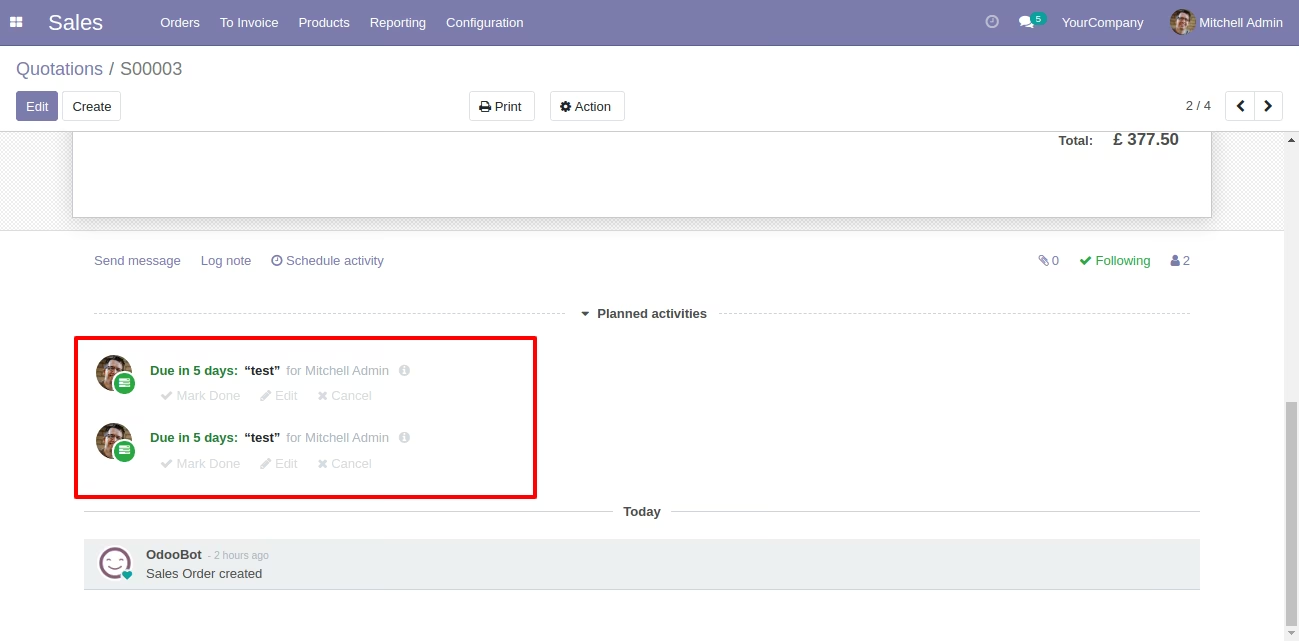
Activity assigned individually to multiple users.
Counter & Data Tables
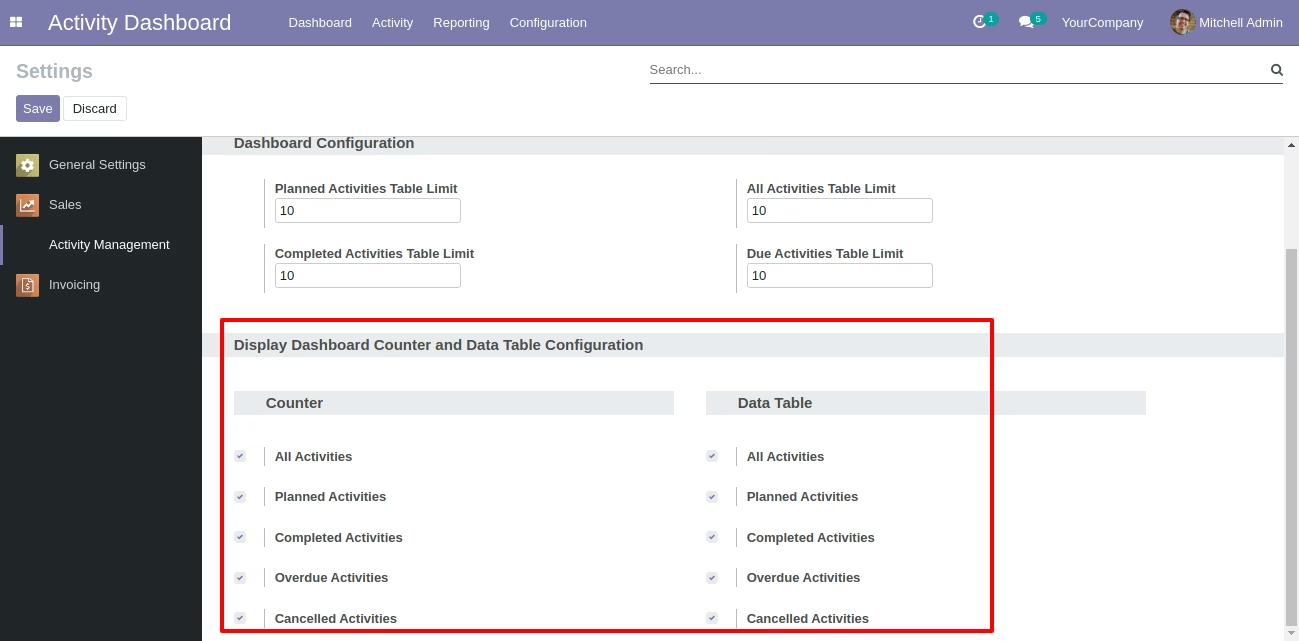
Configuration for display counter & data tables in activity dashboard.
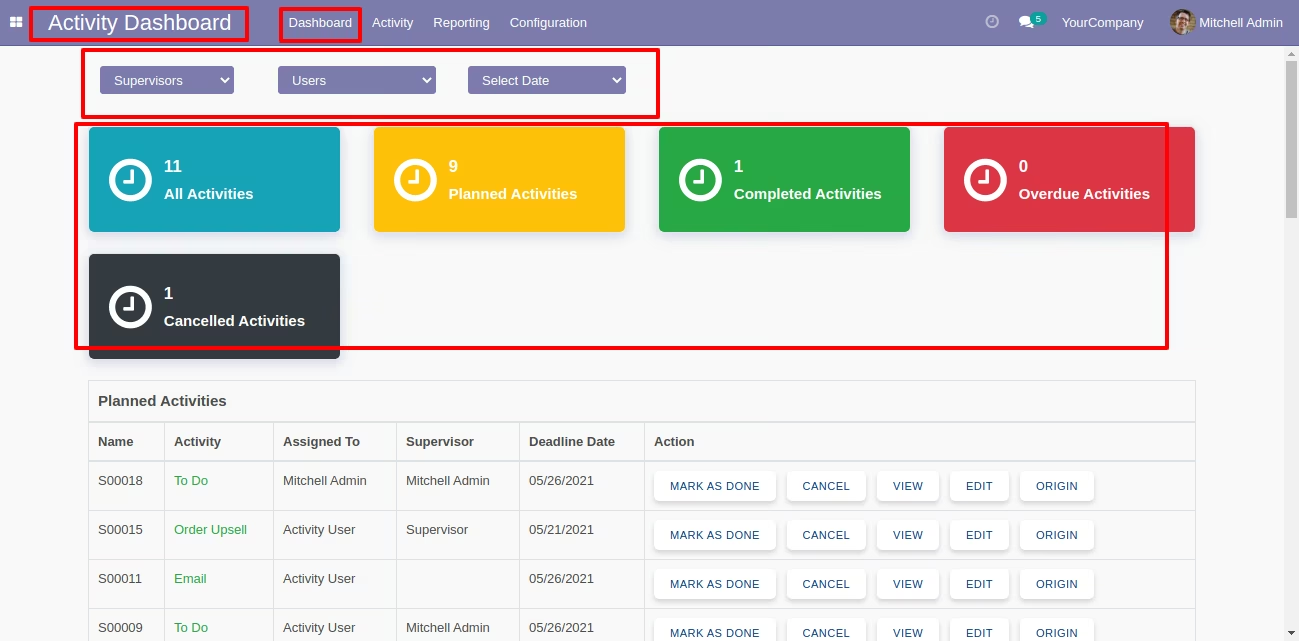
The activity dashboard of the manager with counter and data table, The manager can see all activities, planned activities completed activities or overdue activities by custom date.
Filter & Group By Activity
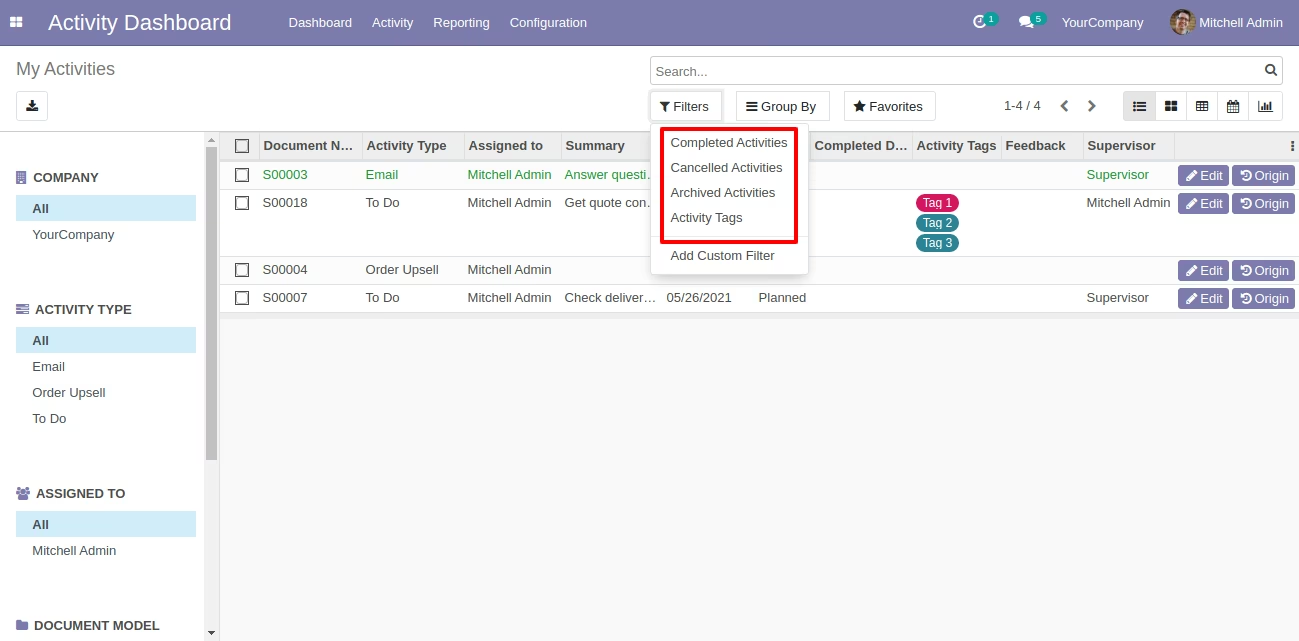
You can filter activity from "Filters".
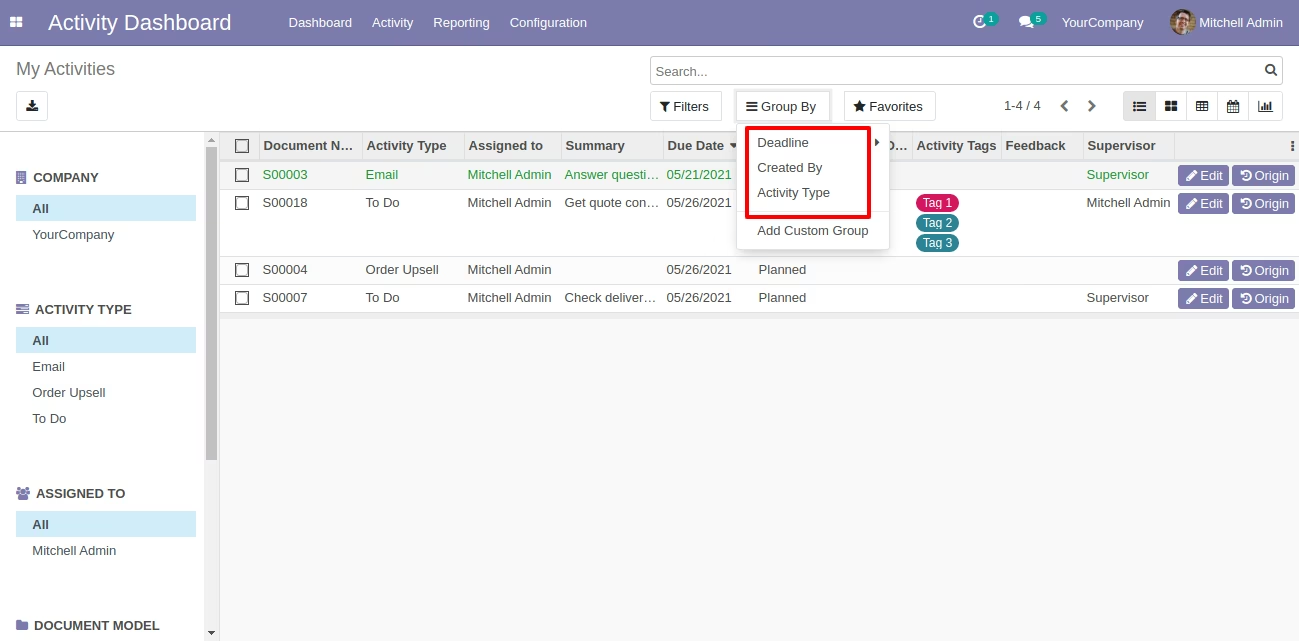
You can group by activities using "Group By".
Activity Views
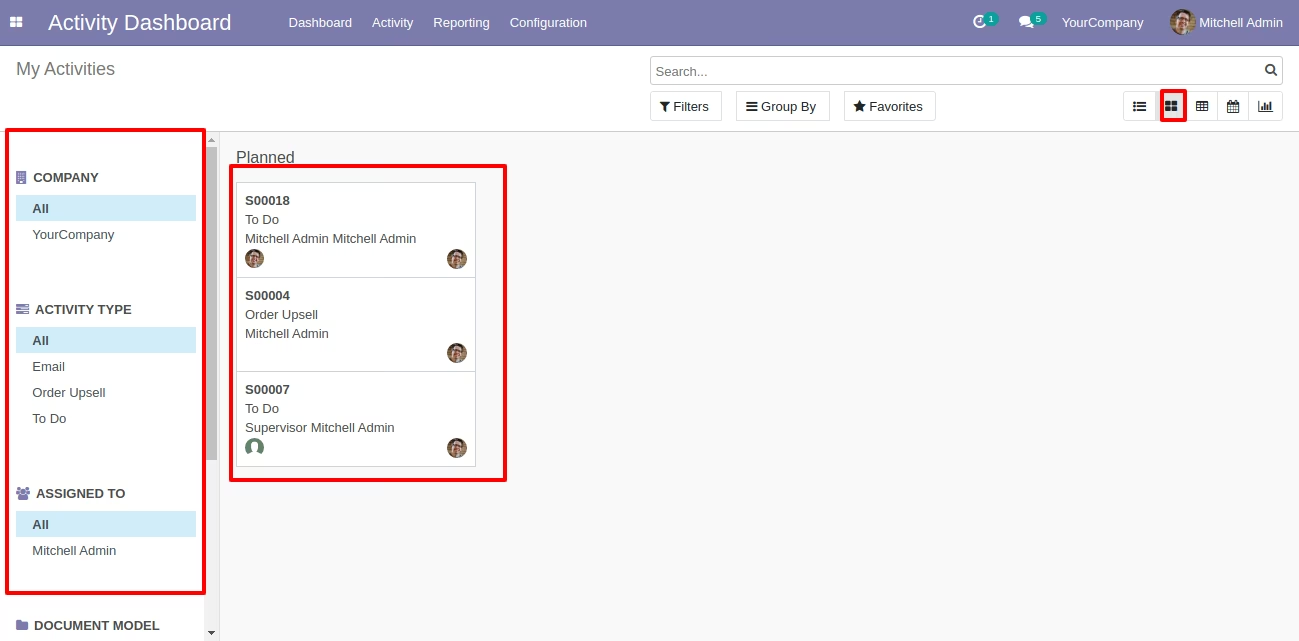
The search panel in the planned activity kanban view looks like this.
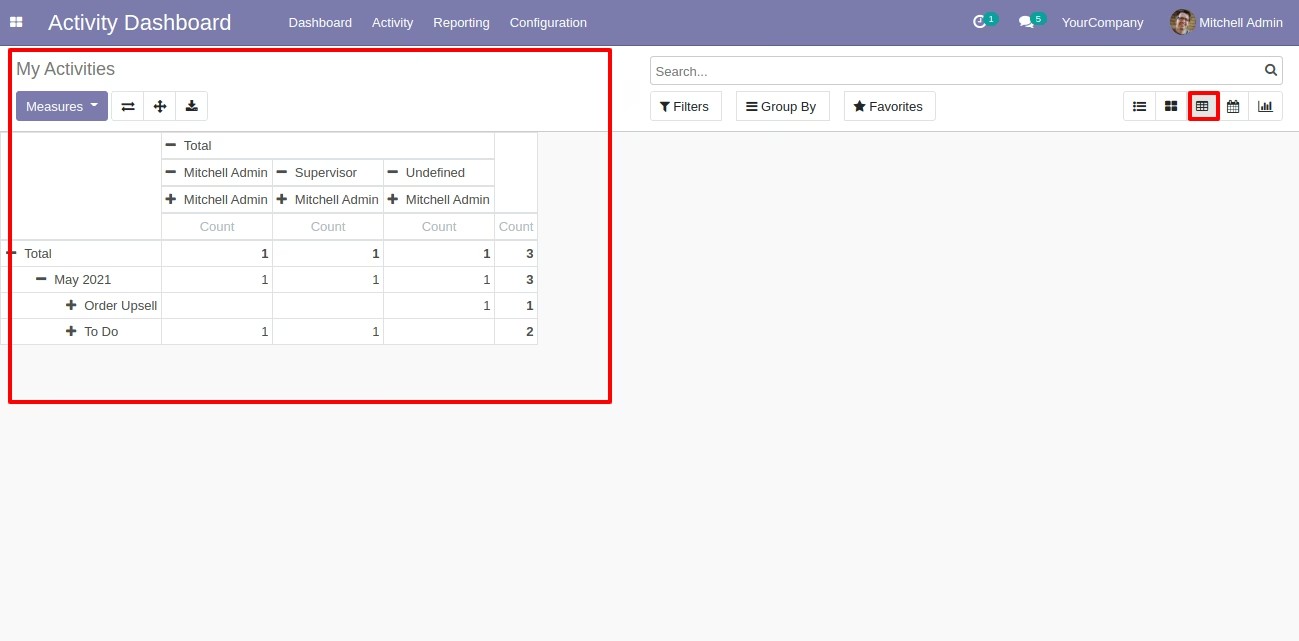
The pivot view looks like this.
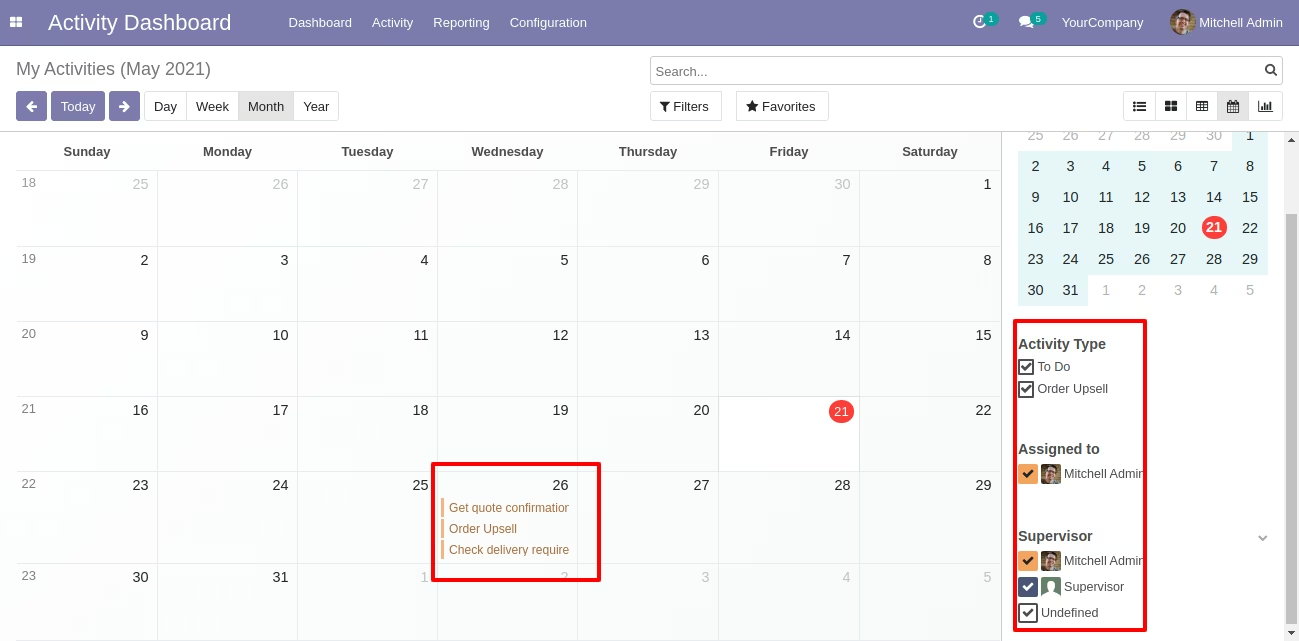
The calendar view looks like this.
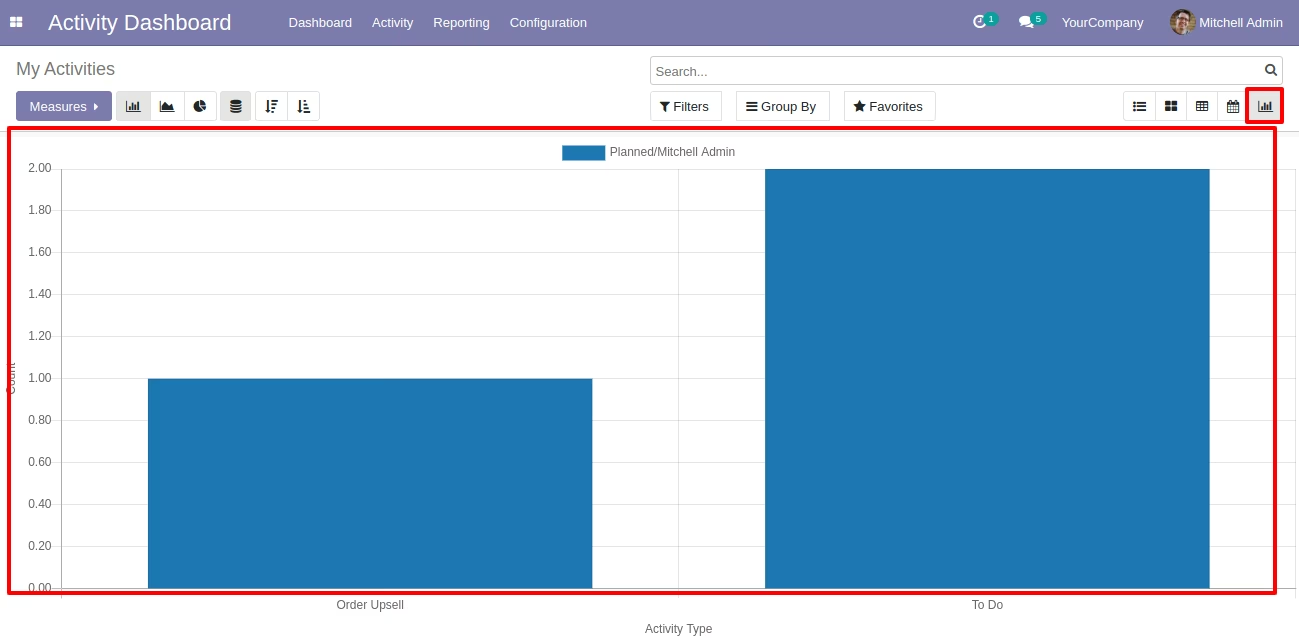
The graph view looks like this.
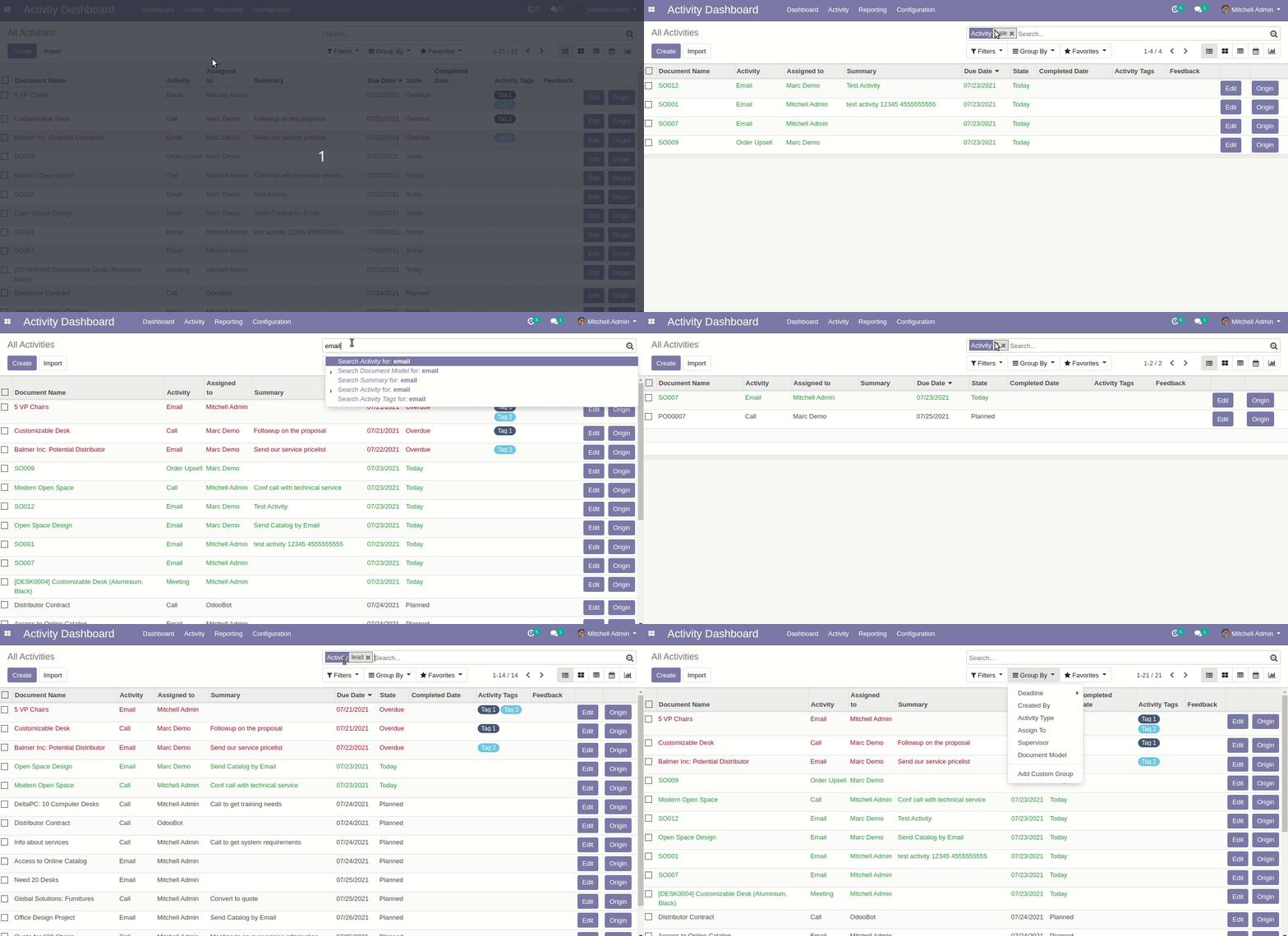
In the search view, Some filters & group by added
From the topbar, activity menu, the supervisor can see their own activities & assigned user activity.
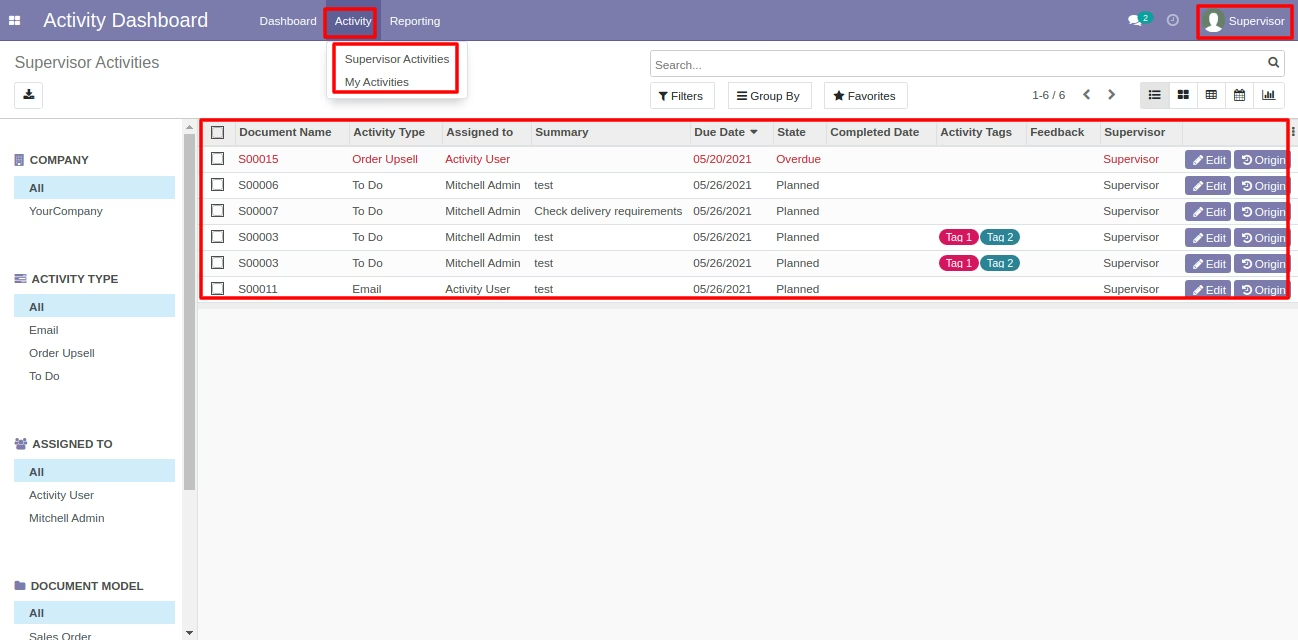
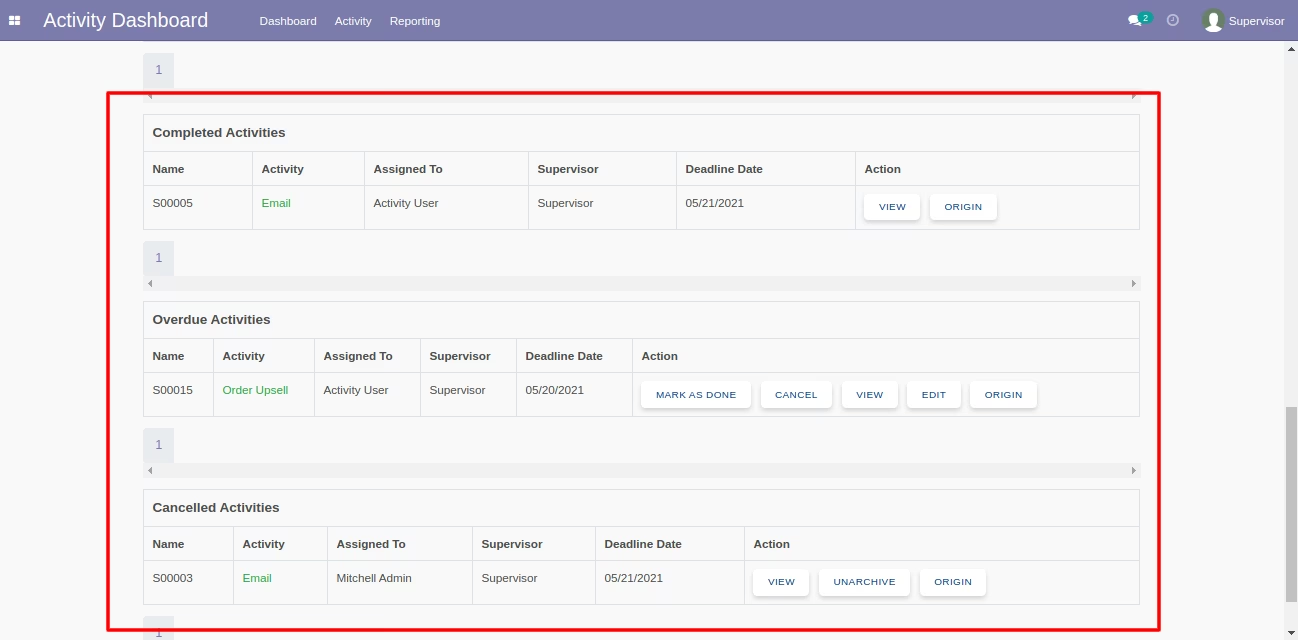
The activity dashboard of the supervisor looks like below, The supervisor can see own activities & allocate user activities by custom date and users.
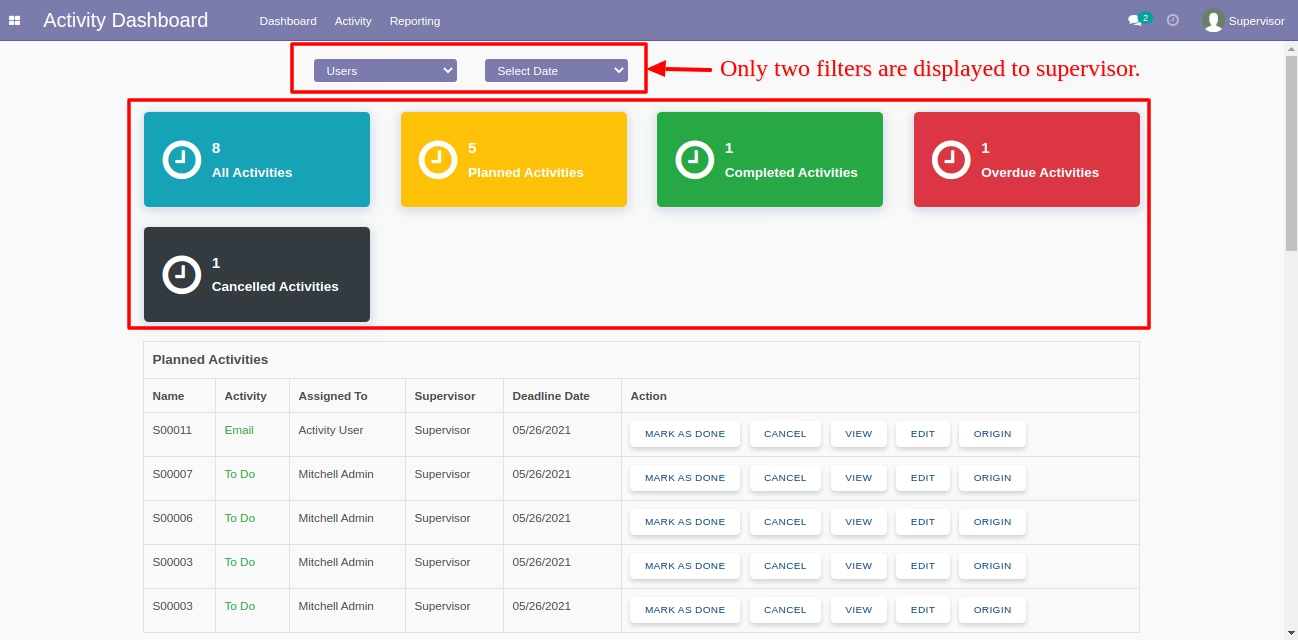
The activity dashboard with planned activities.
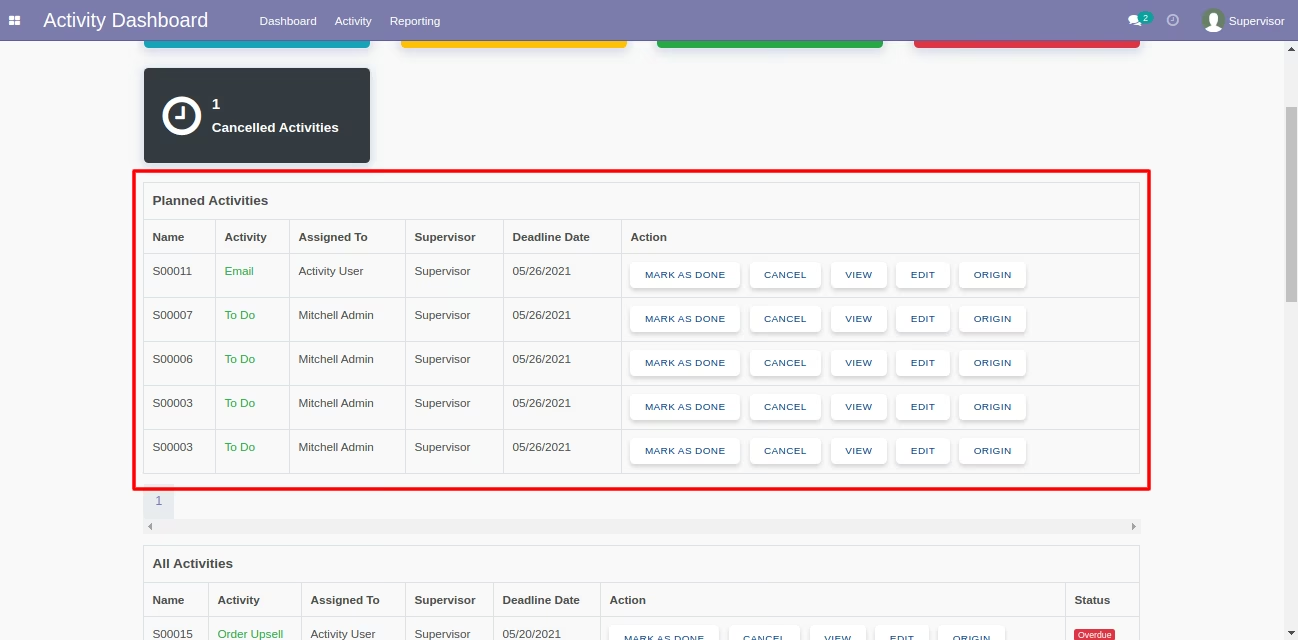
The activity dashboard with all activities.
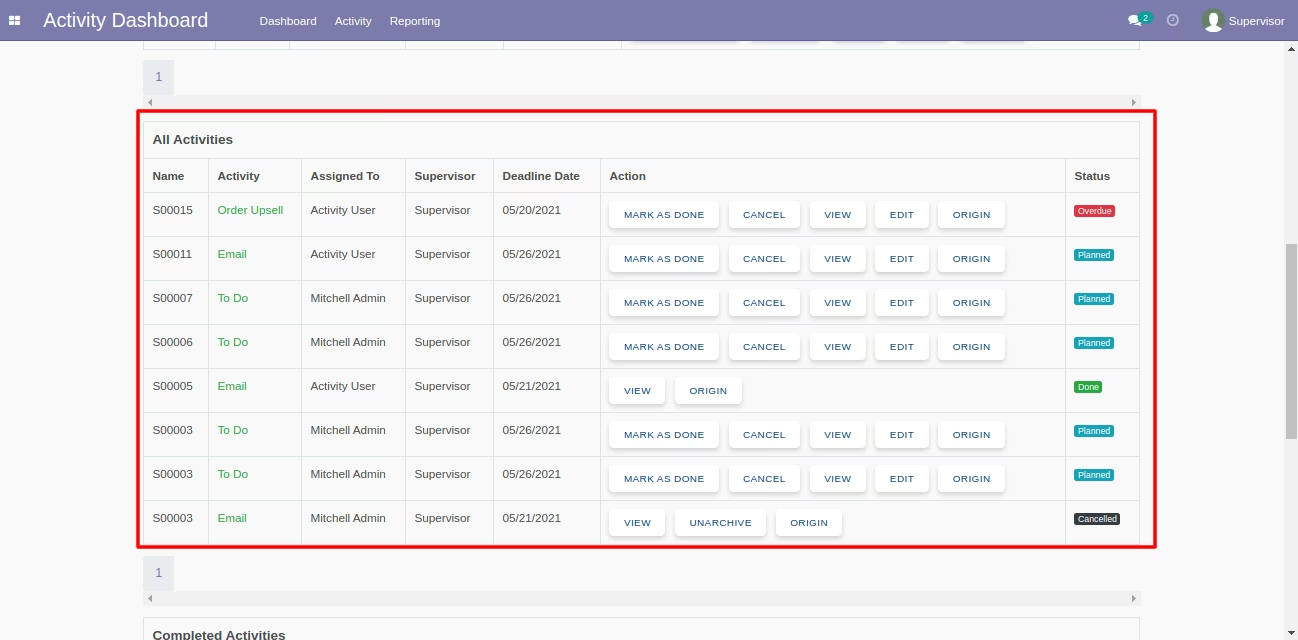
The activity dashboard with completed, overdue & cancelled activities.
Open "All Activities" from the dashboard.
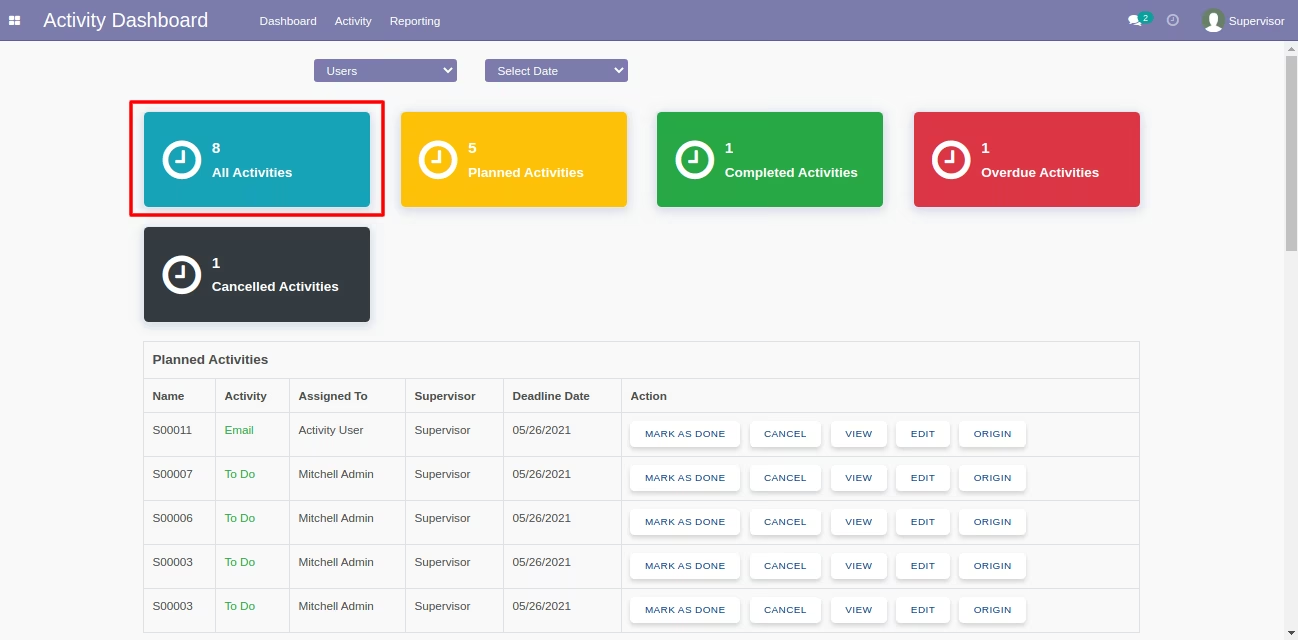
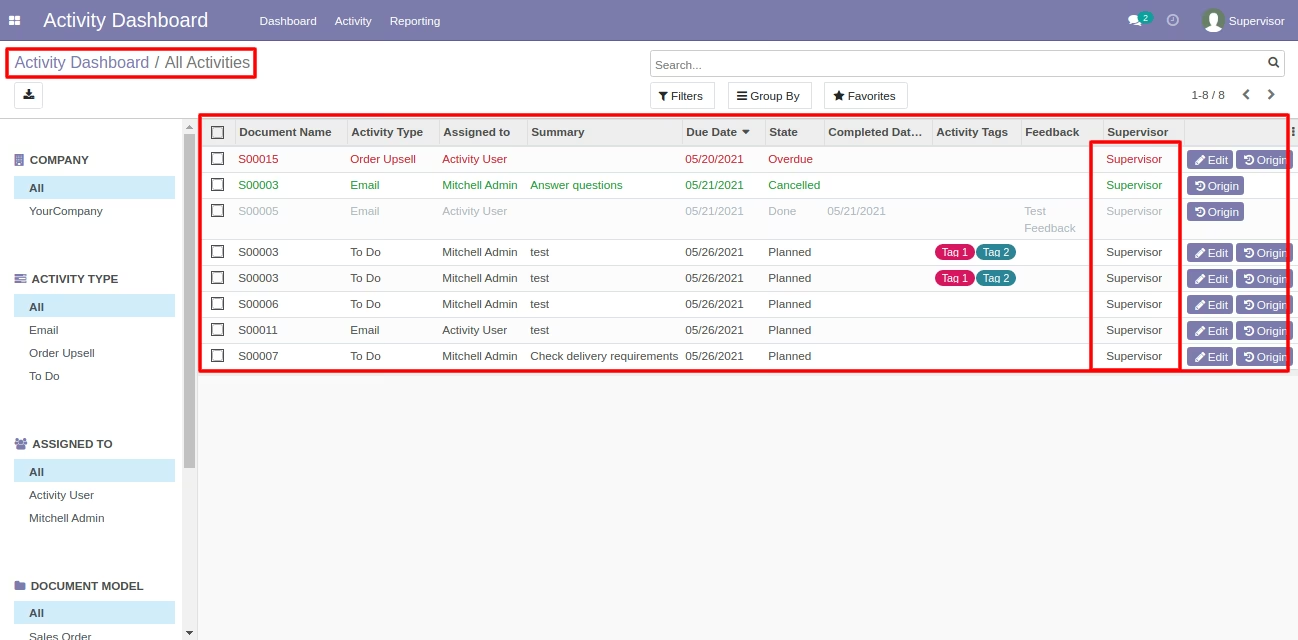
The "All Activities" list view with search panel and edit & origin buttons.
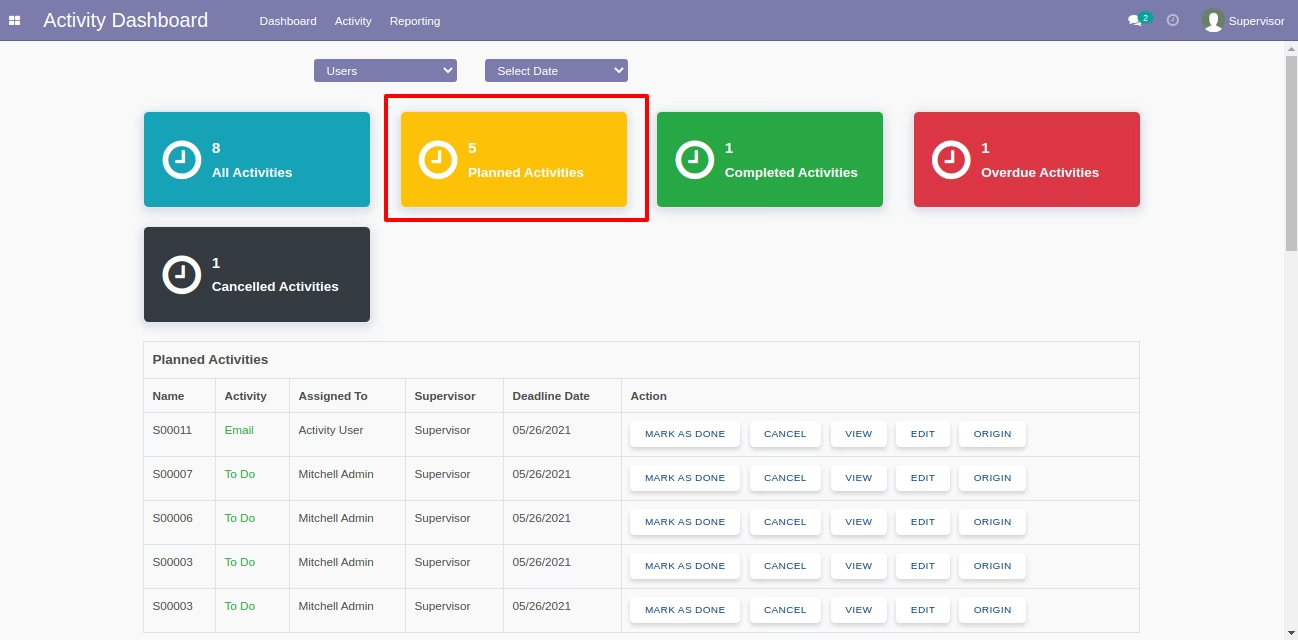
Open "Planned Activities" from the dashboard.
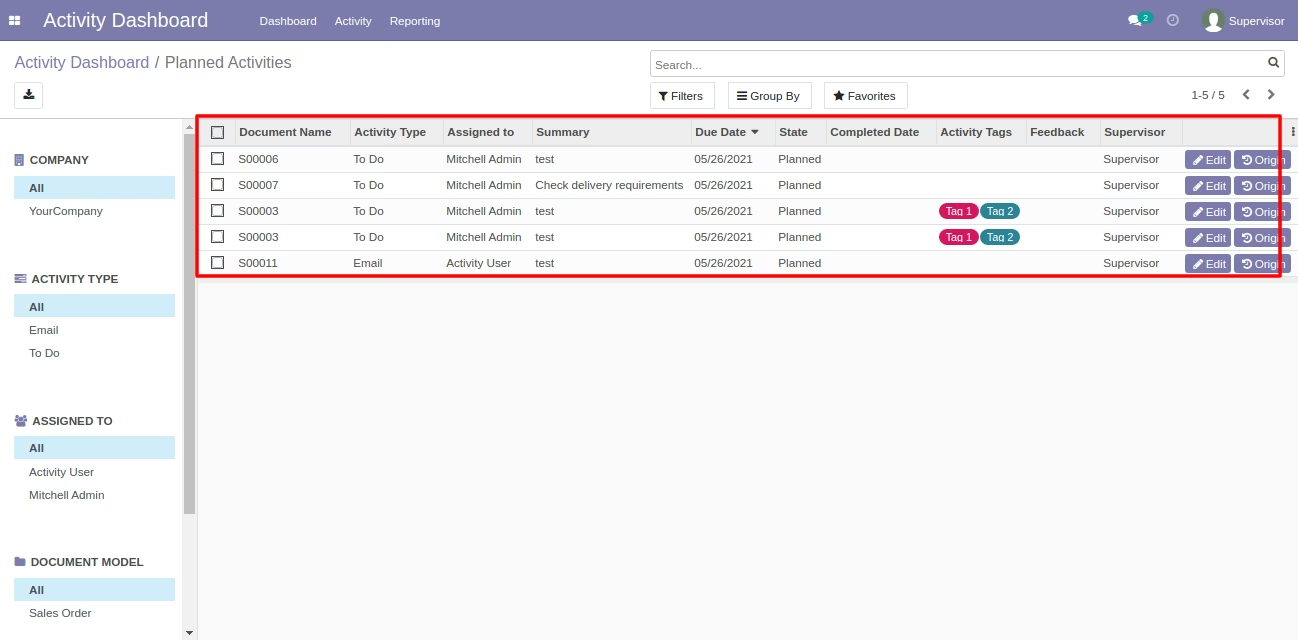
The "Planned Activities" list view with search panel and edit & origin buttons.
Open "Completed Activities" from the dashboard.
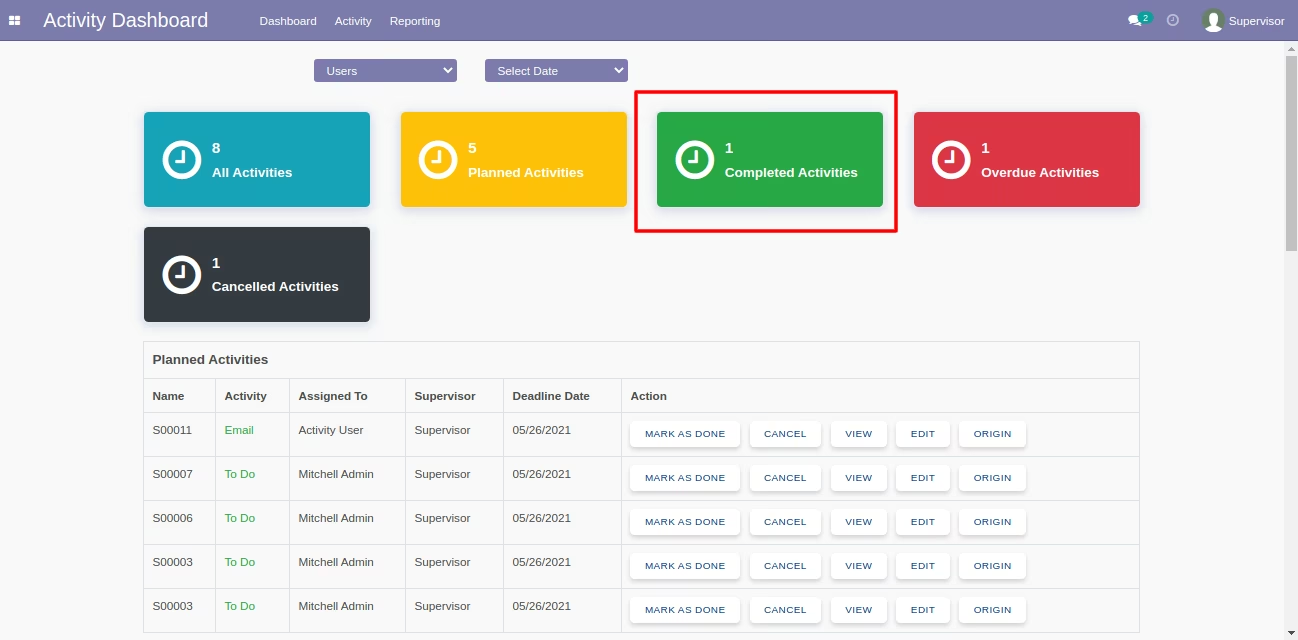
The "Completed Activities" list view with search panel and origin buttons.
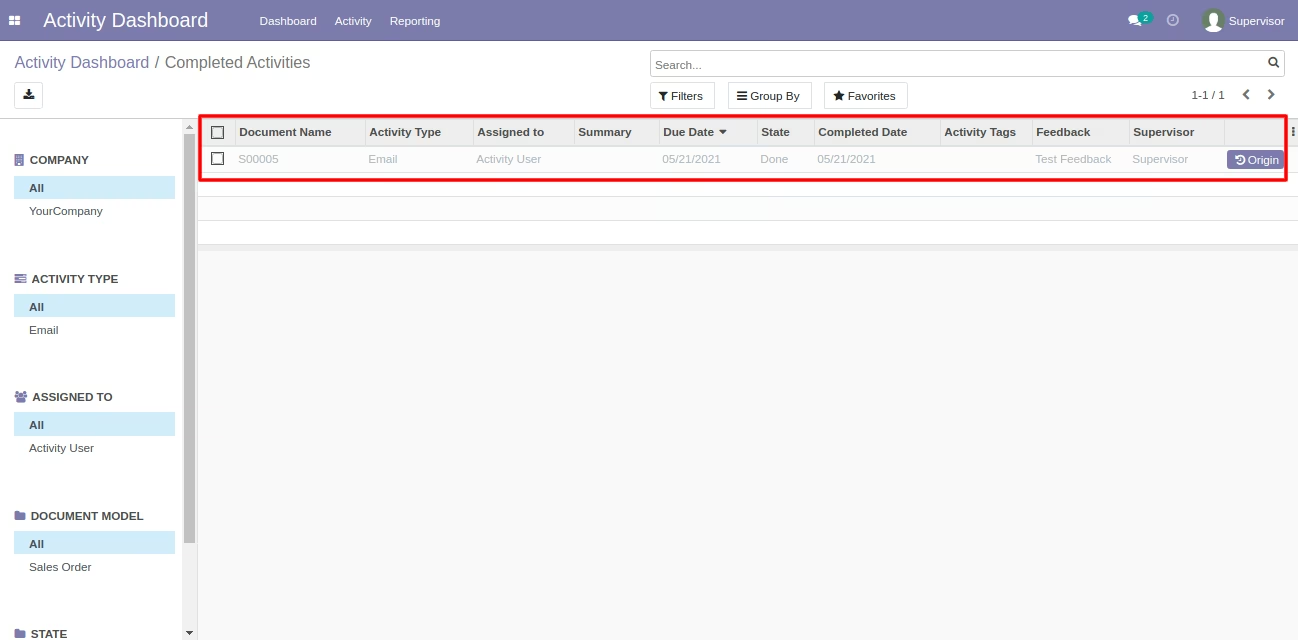
Open "Overdue Activities" from the dashboard.
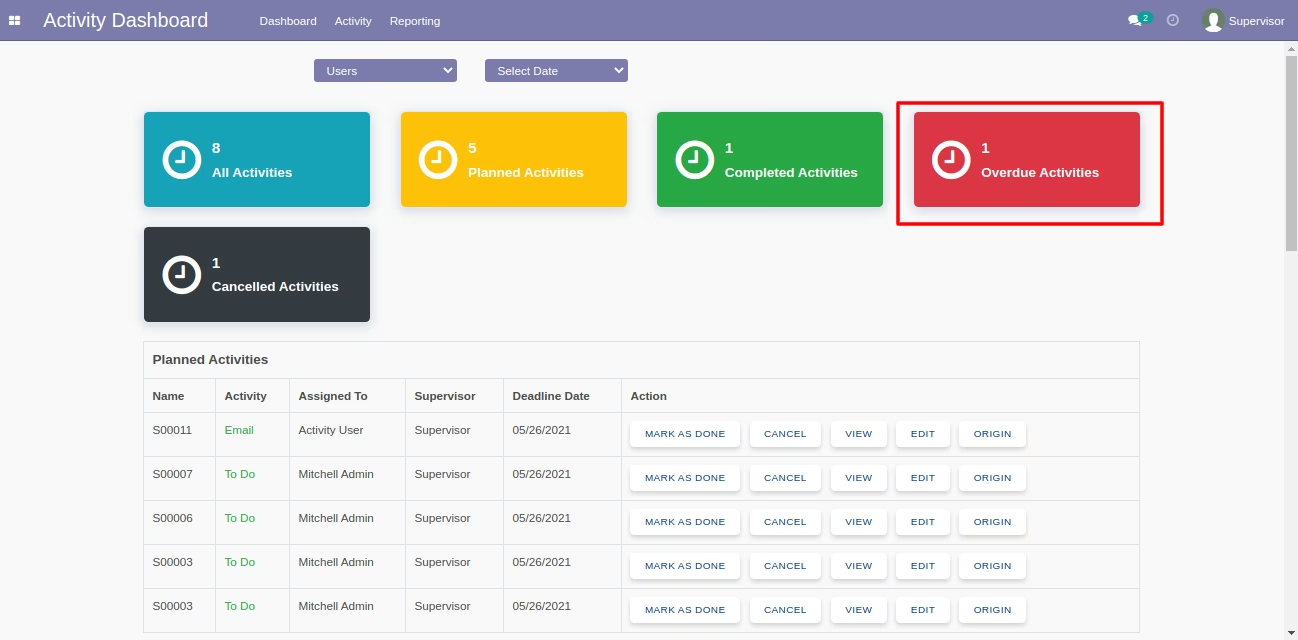
The "Overdue Activities" list view with search panel and edit & origin buttons.
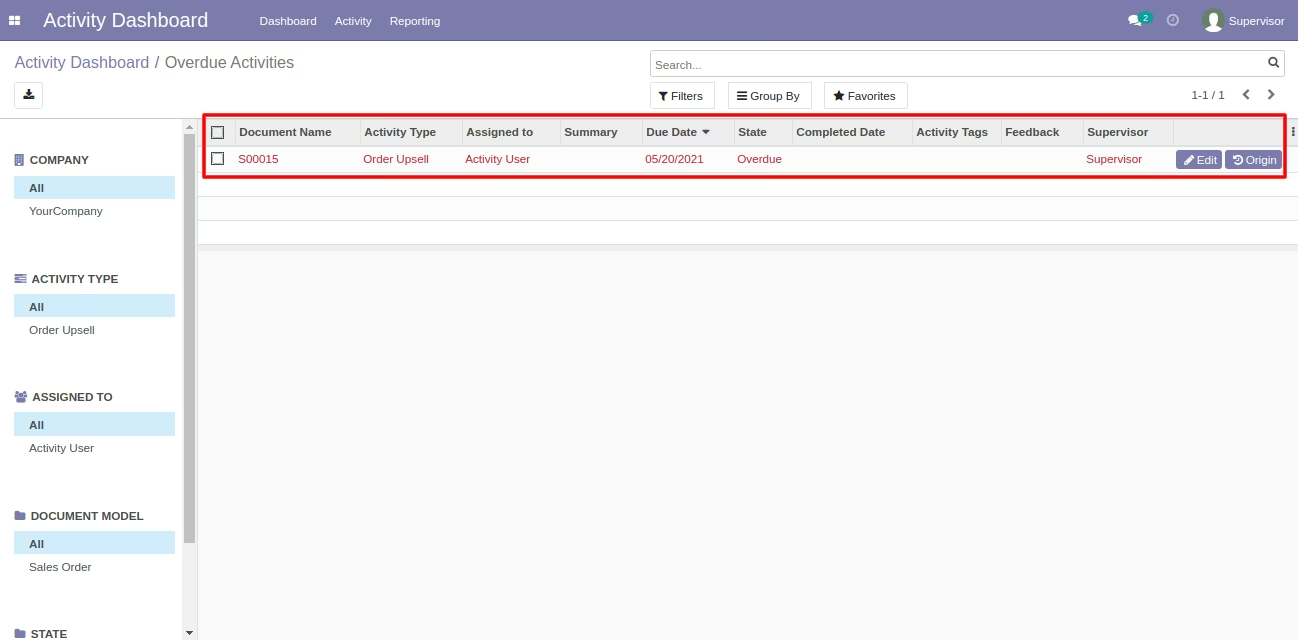
Cancelled activities counter and "Cancel" button in the related data table at dashboard.
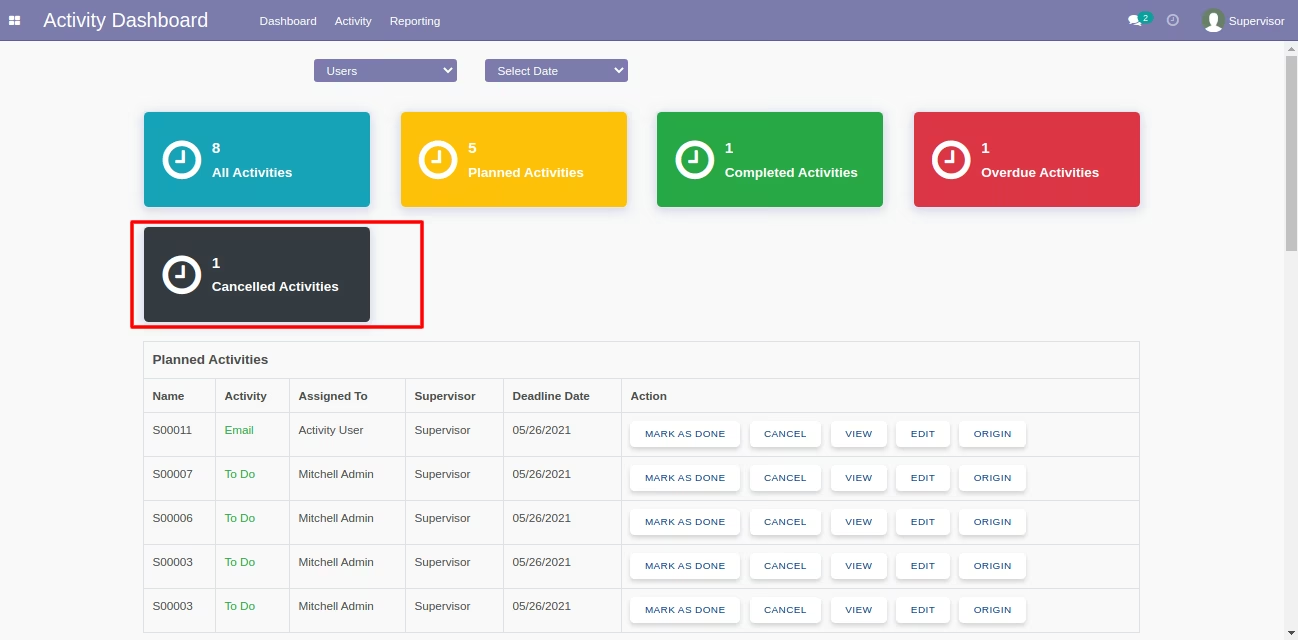
The "Cancelled Activities" list view with search panel and origin button.
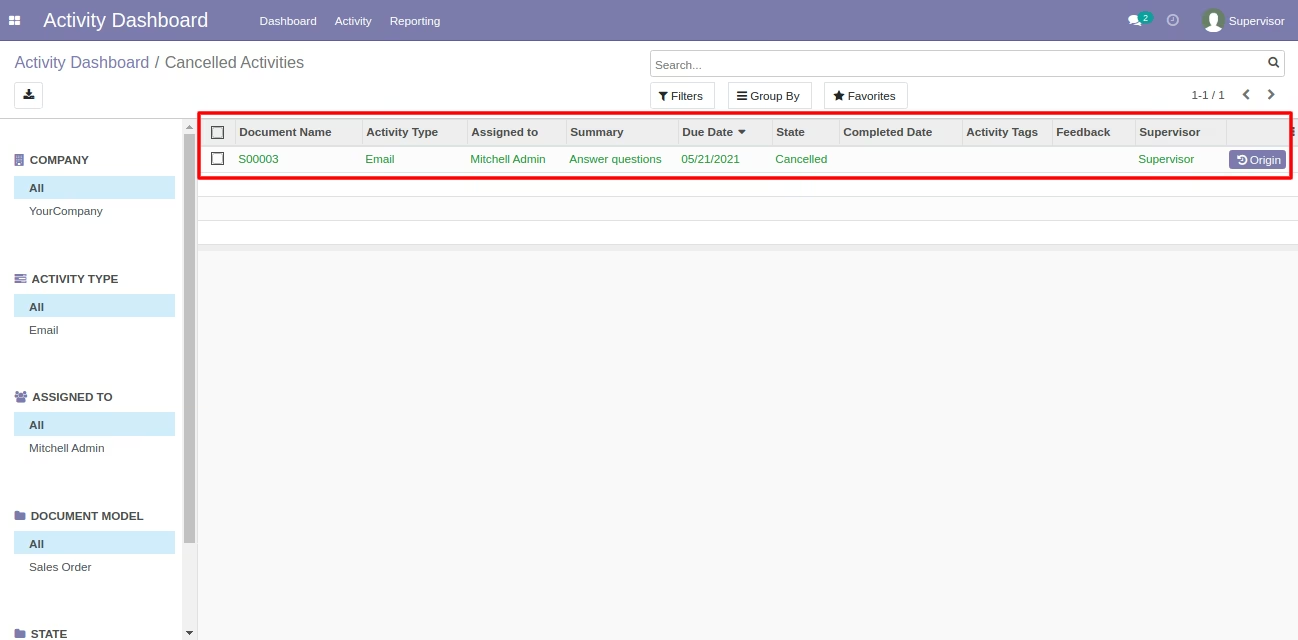
From the topbar, activity menu, the employee can see their own activities only from the "My Activities".
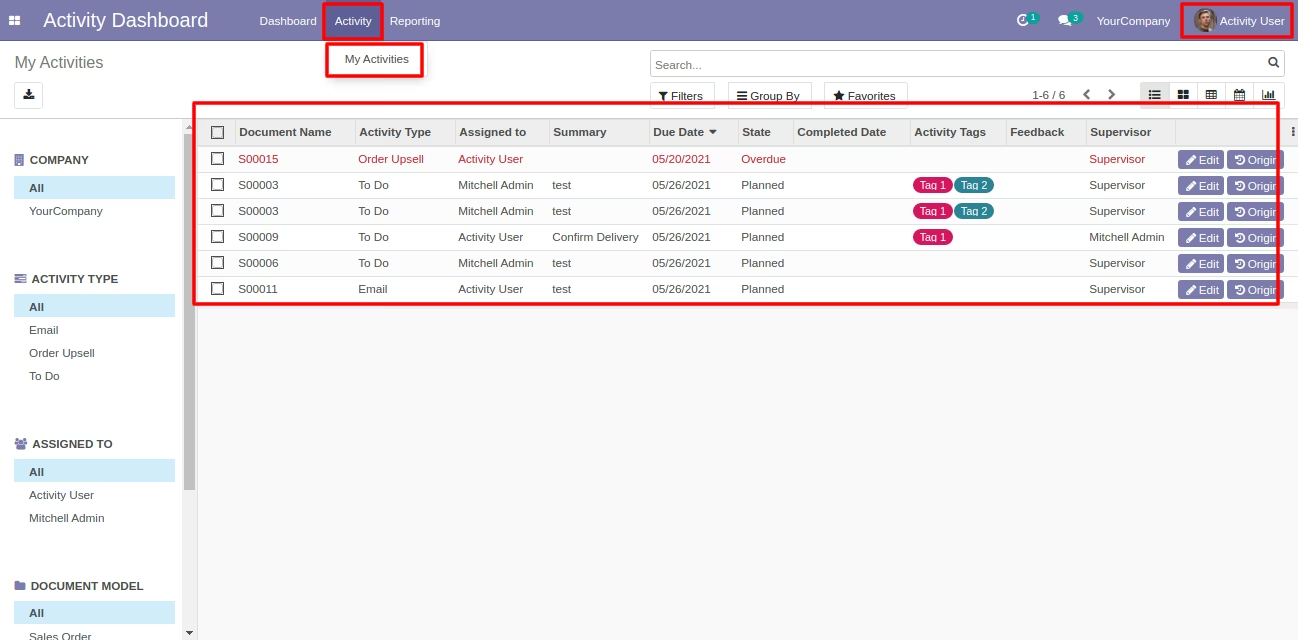
The activity dashboard of the employee looks like below. Employees can filter activities by custom date.
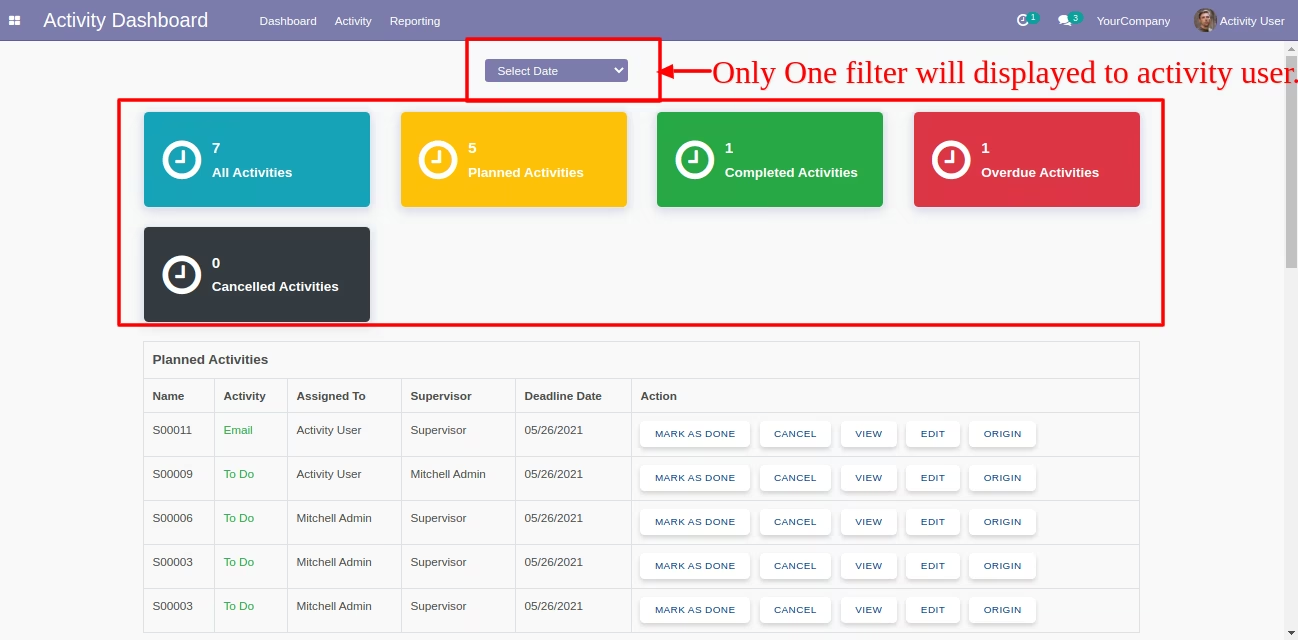
The activity dashboard with planned activities.
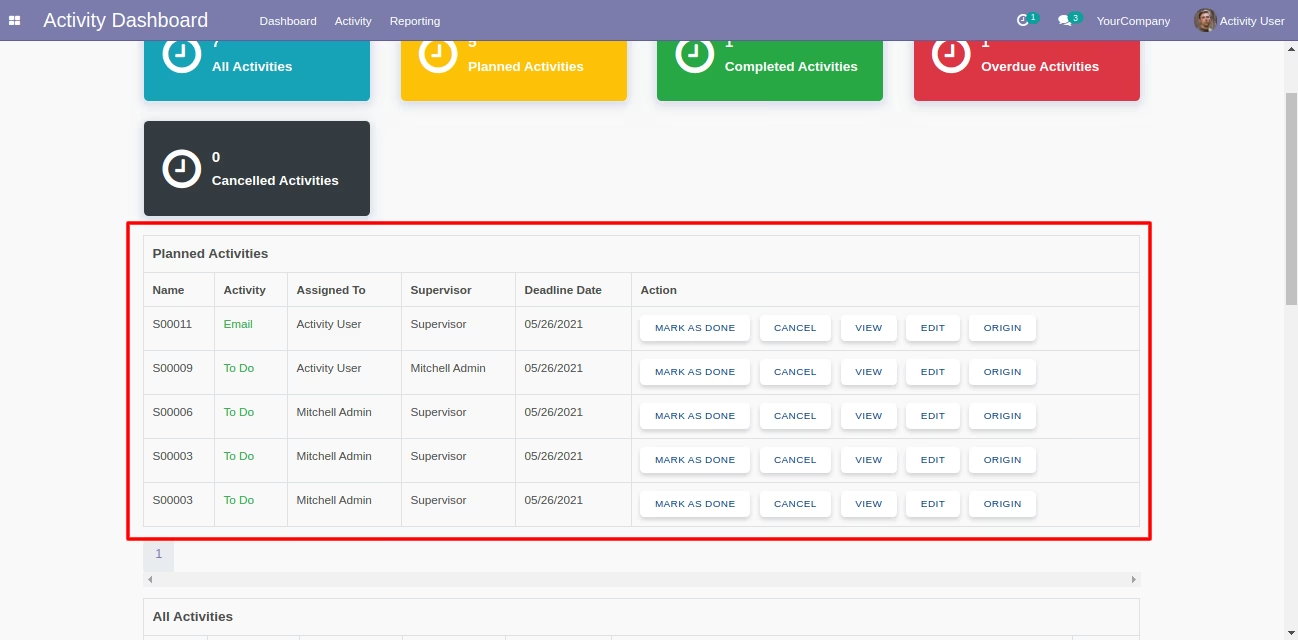
The activity dashboard with all activities.
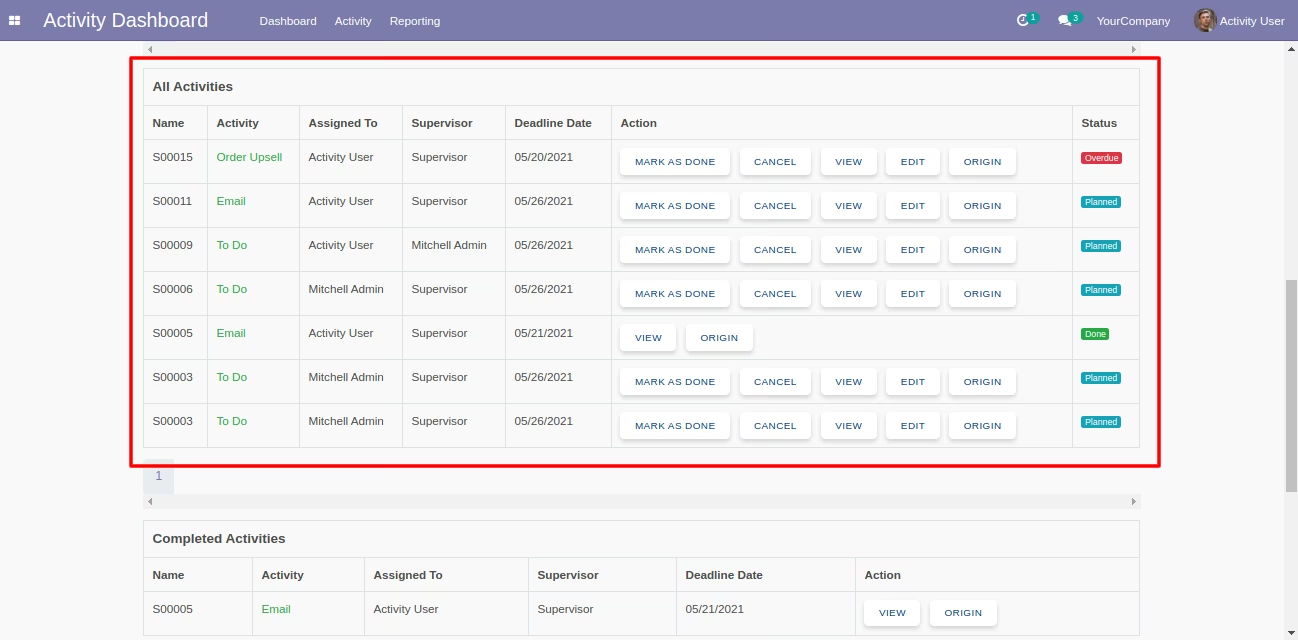
The activity dashboard with completed, overdue & cancelled activities.
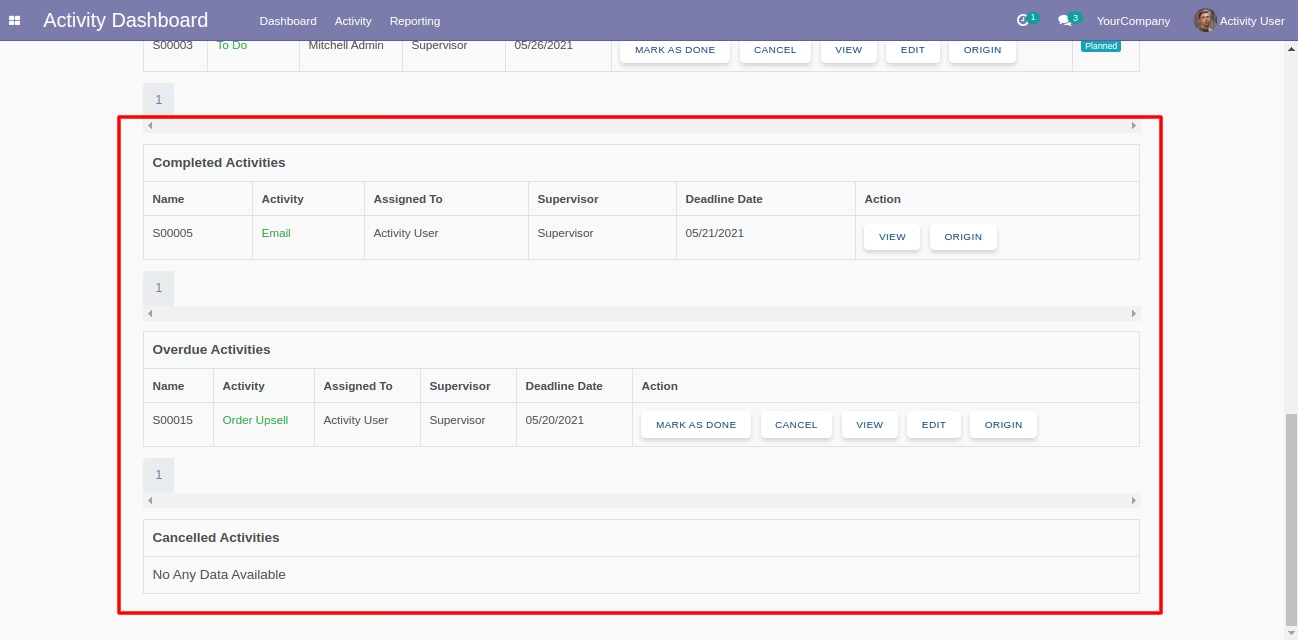
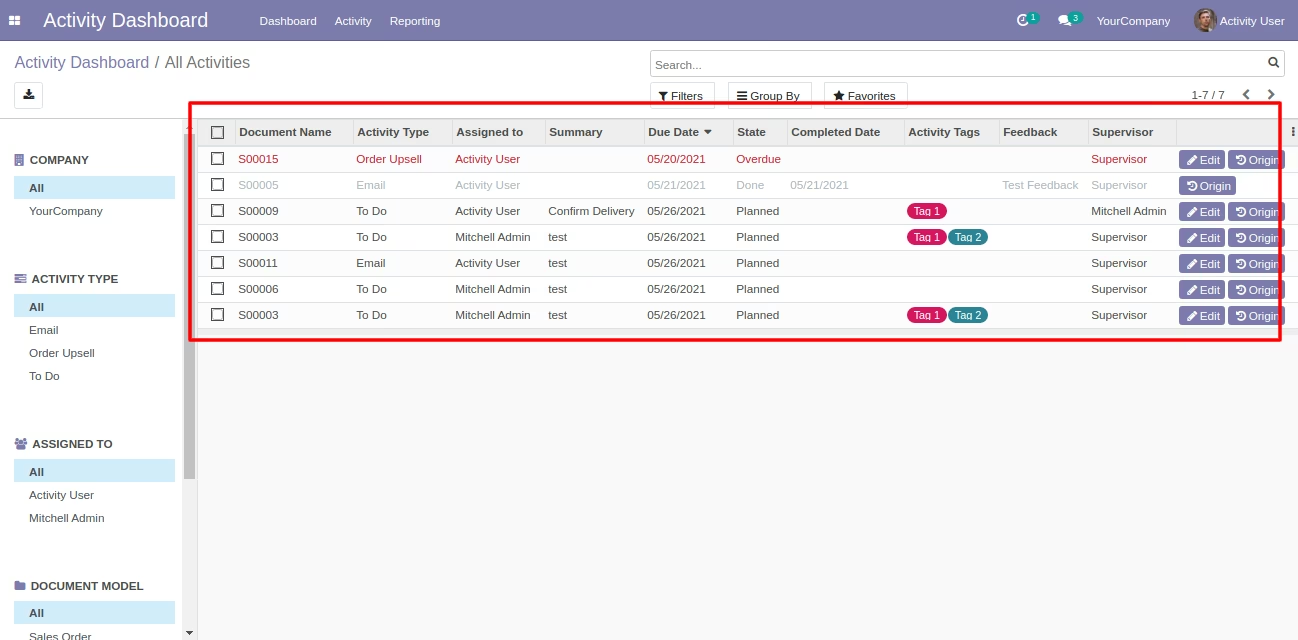
Open "All Activities" from the dashboard.
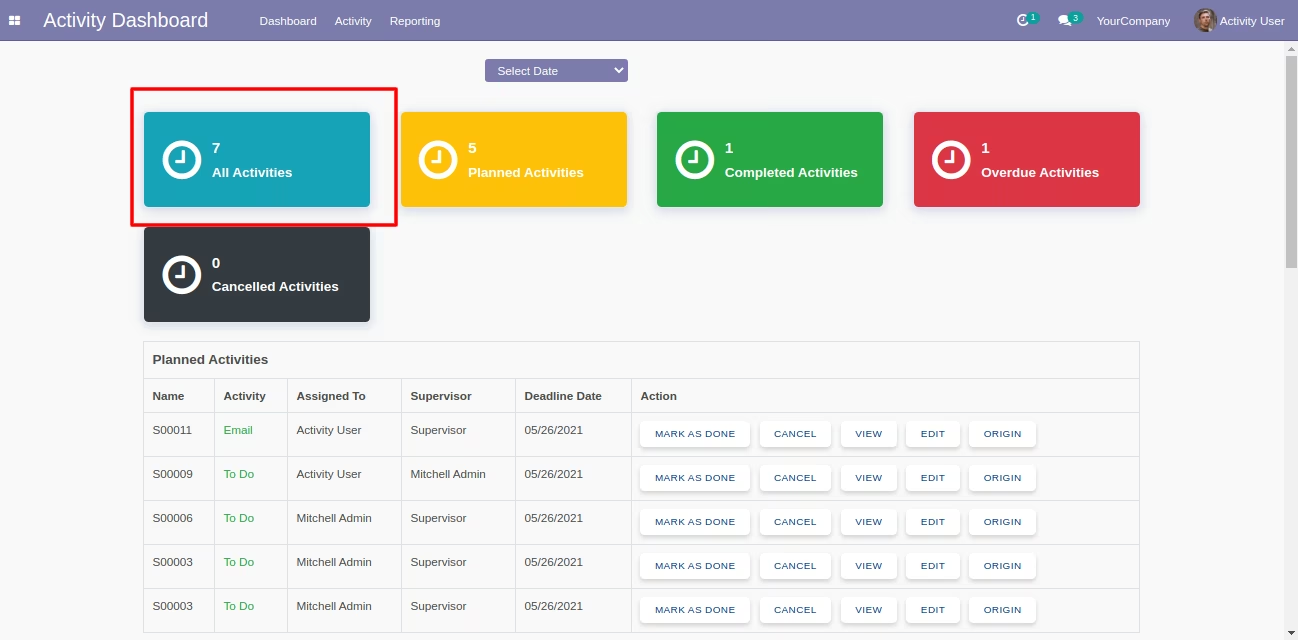
The "All Activities" list view with search panel and edit & origin buttons.
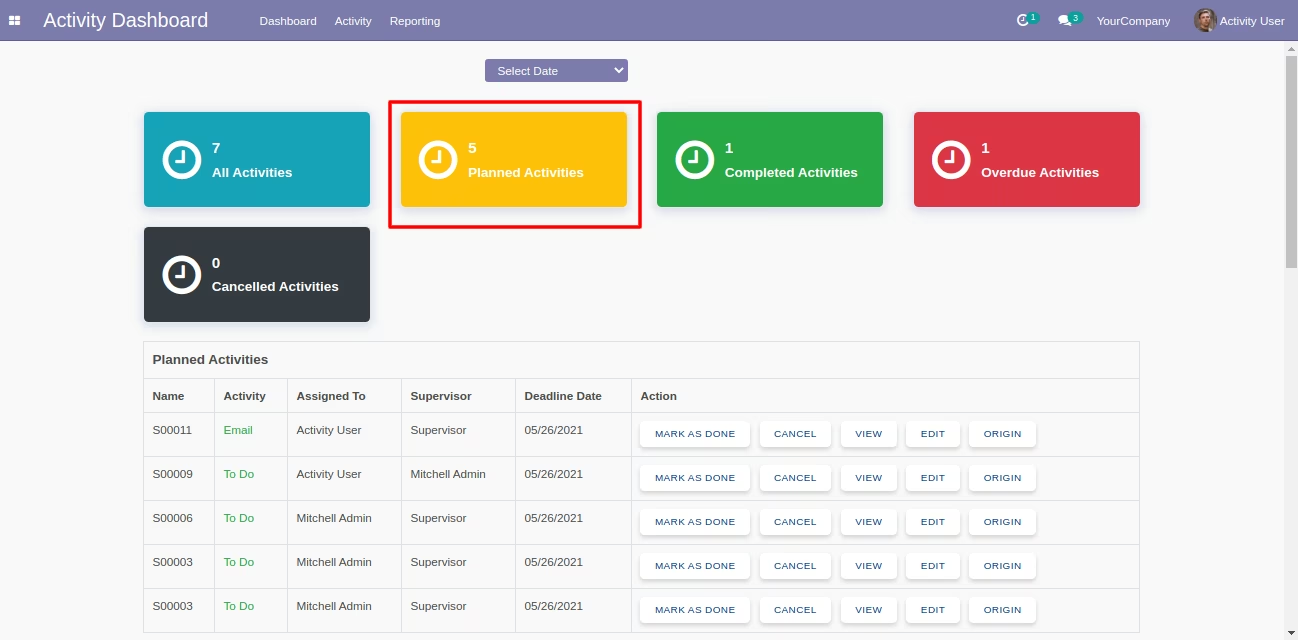
Open "Planned Activities" from the dashboard.
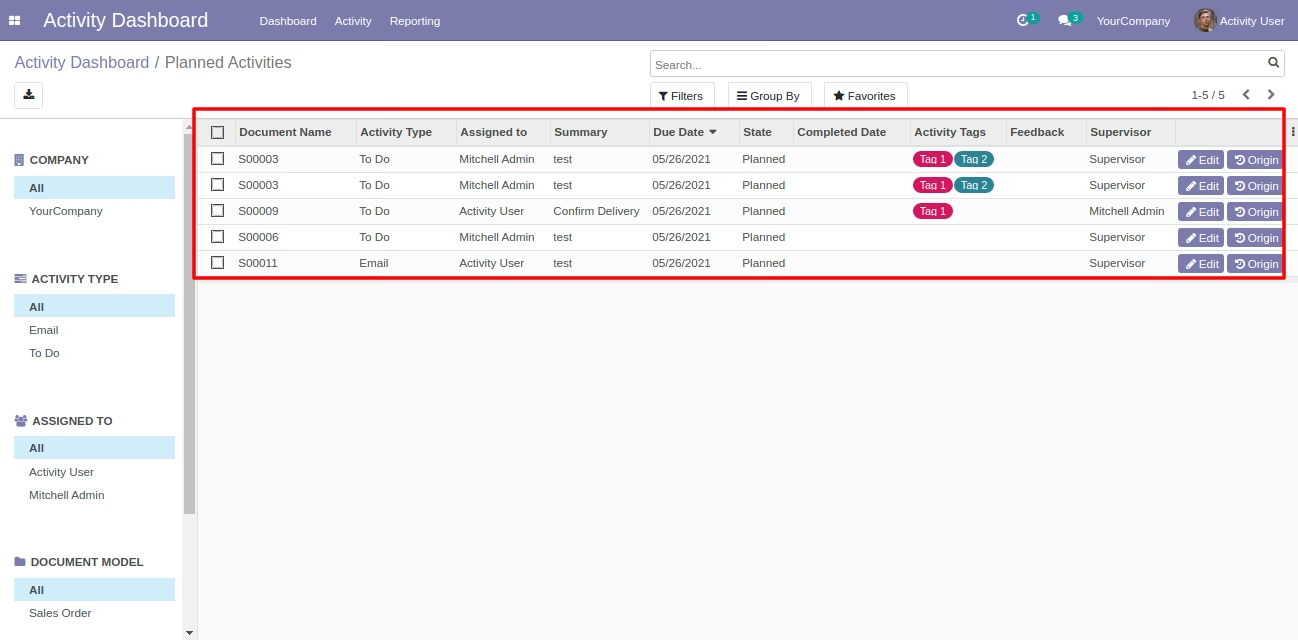
The "Planned Activities" list view with search panel and edit & origin buttons.
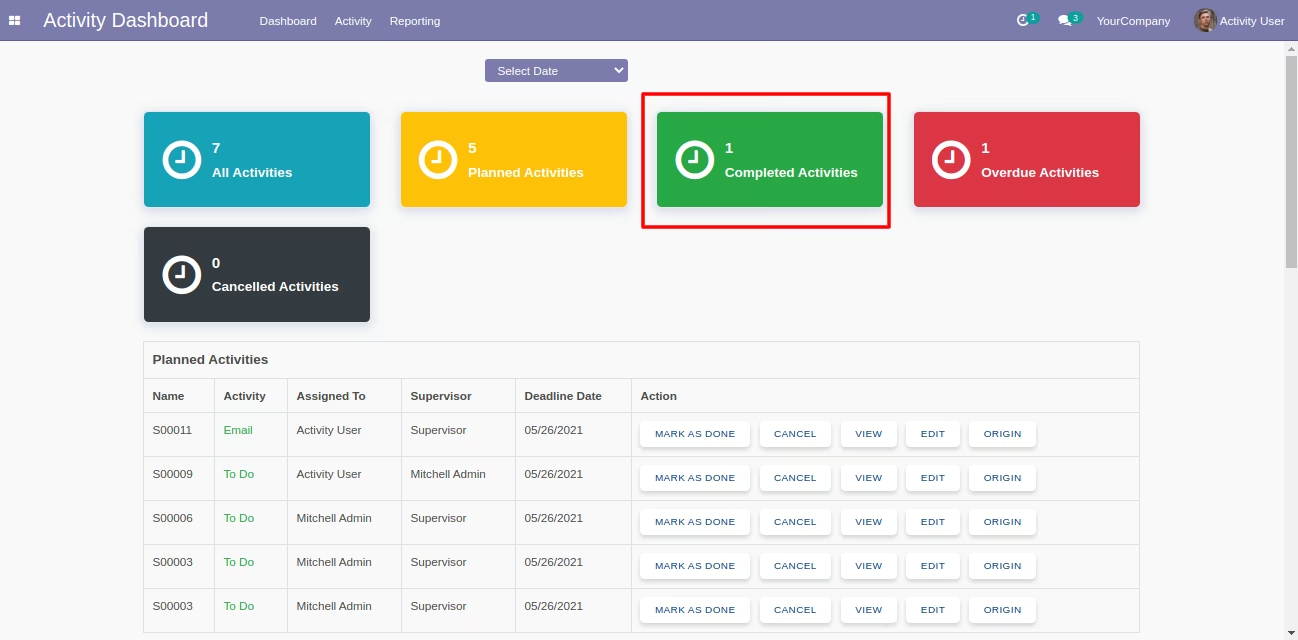
Open "Completed Activities" from the dashboard.
The "Completed Activities" list view with search panel and origin buttons.
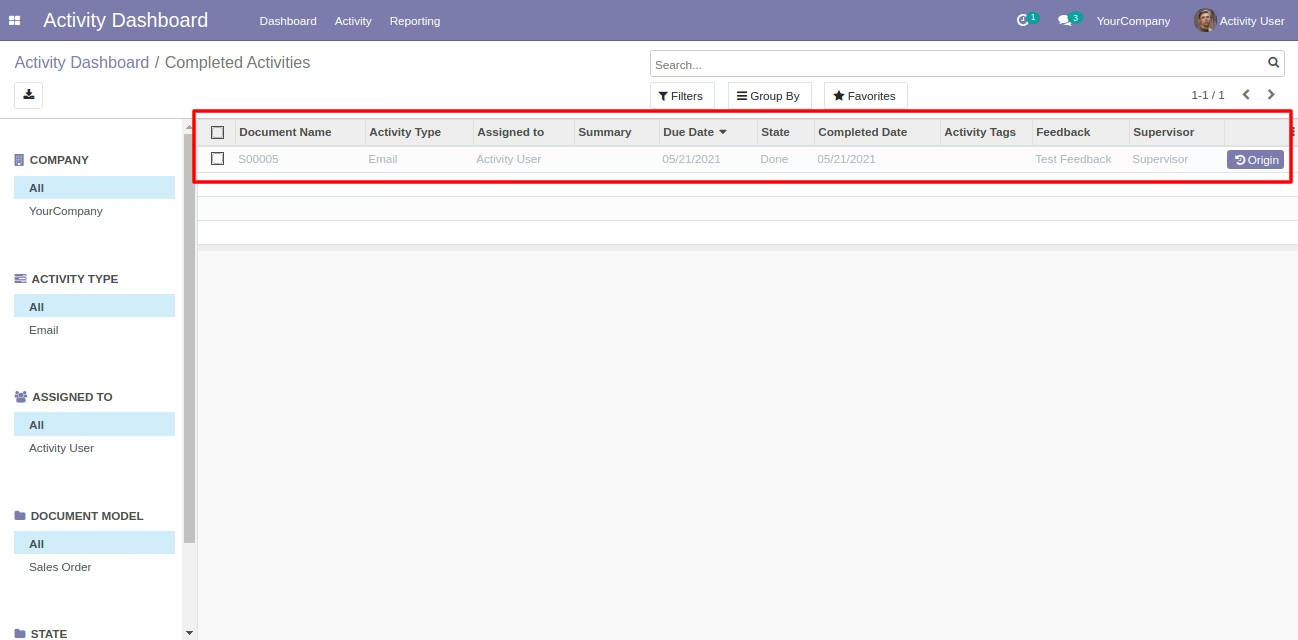
Open "Overdue Activities" from the dashboard.
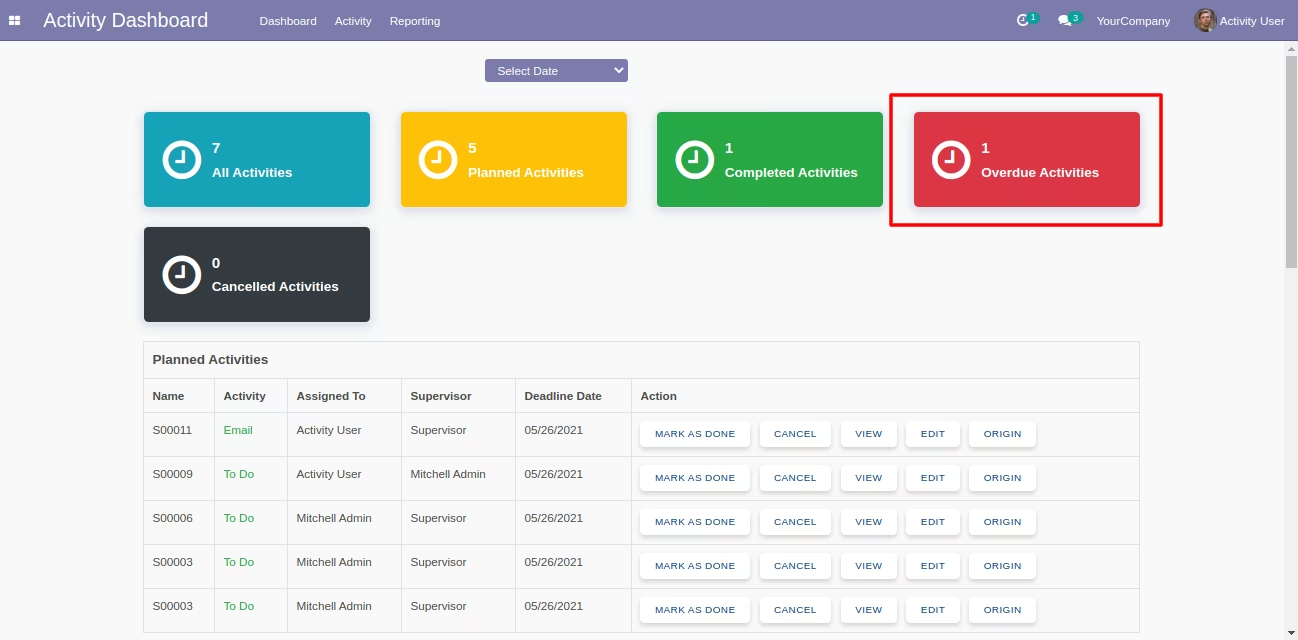
The "Overdue Activities" list view with search panel and edit & origin buttons.
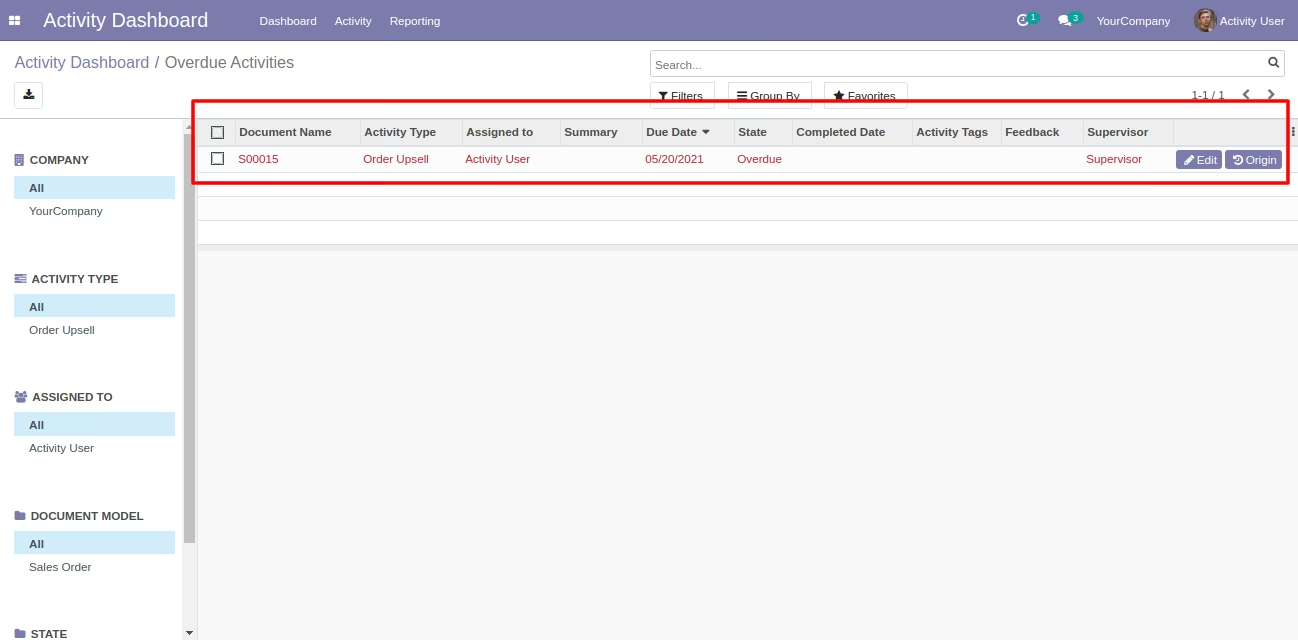
Cancelled activities counter and "Cancel" button in the related data table at dashboard.
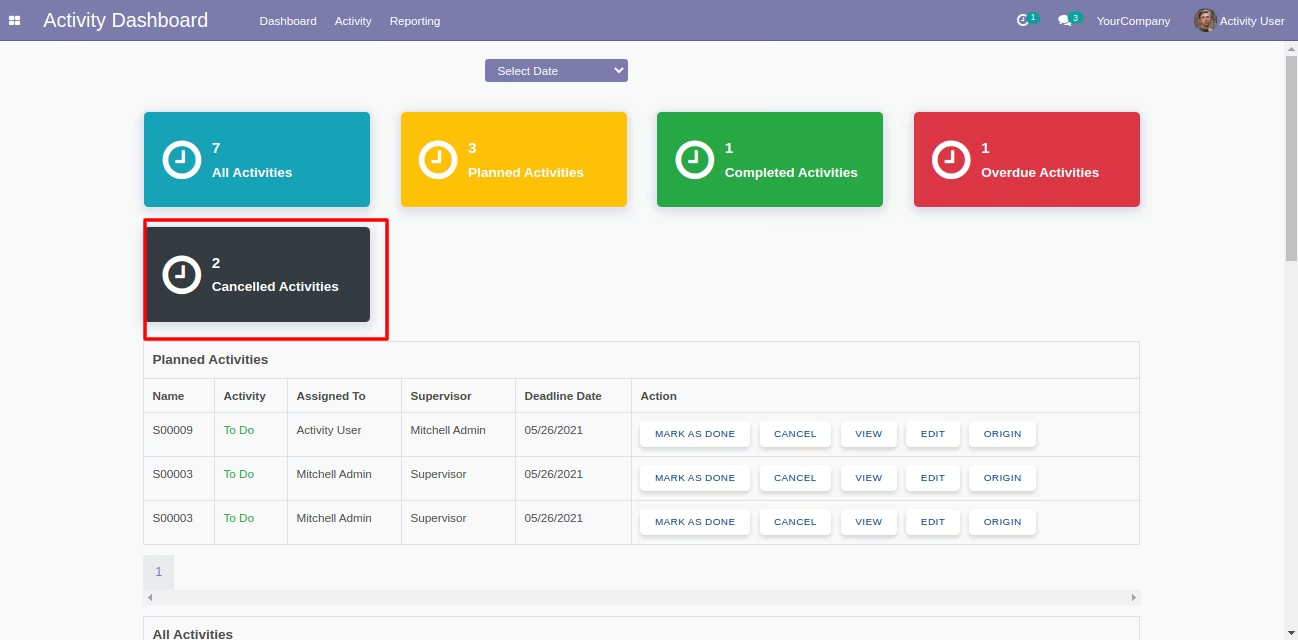
The "Cancelled Activities" list view with search panel and origin button.
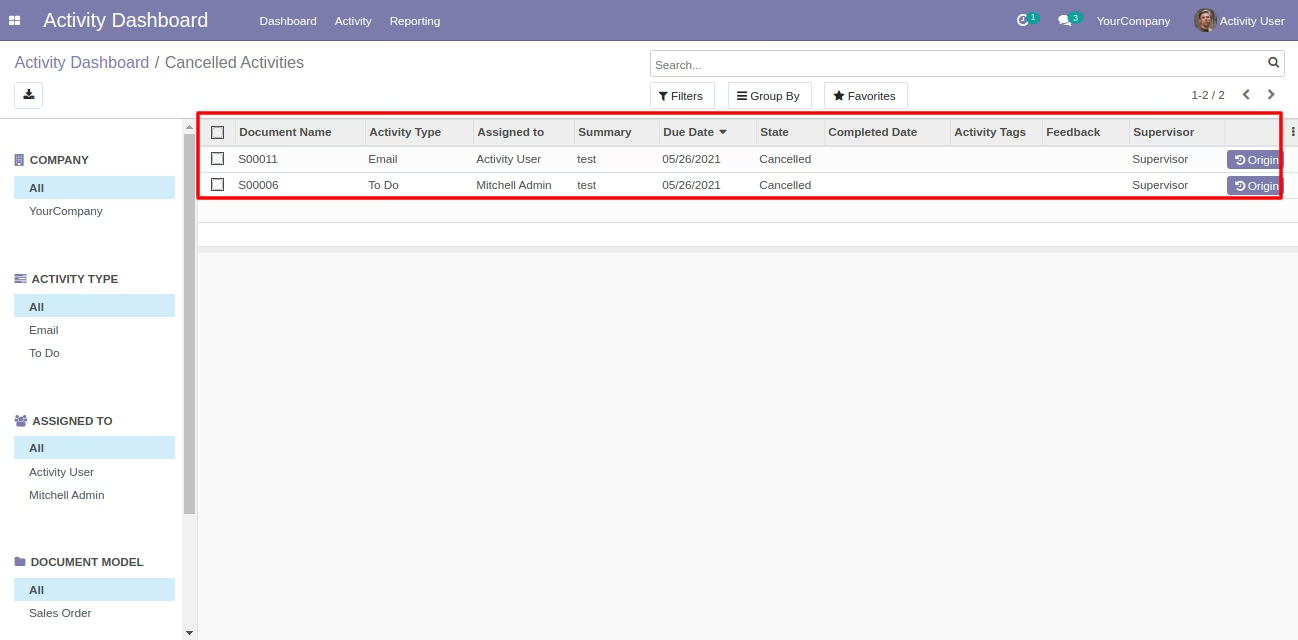
When the user/employee tries to open the original activity from the dashboard.
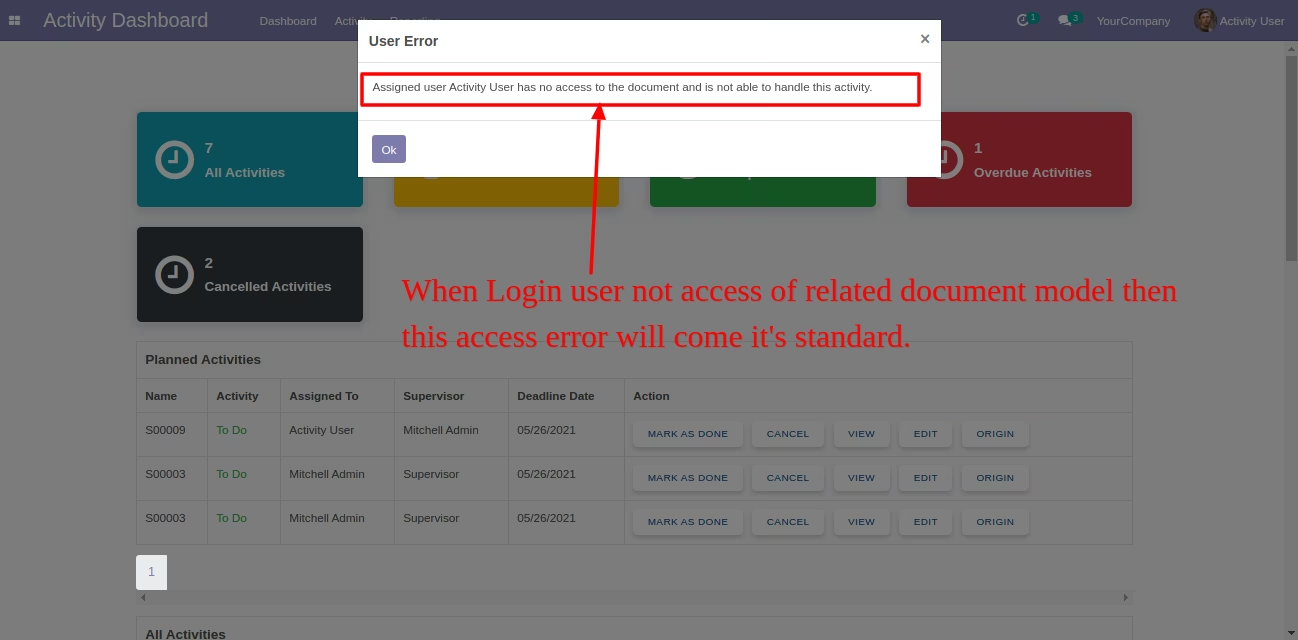
It shows an alert like this.
Go to Activity Management setting, Enable 'Display Multi Users'.
Now goto sale quotation and click on 'Schedule Activity'.
In the 'Schedule Activity' popup, there you can see the field 'Assign Multi-User'. You can assign that activity to multiple users.
'User 1' can see the assign activity.
'User 2' can see the assign activity.
If users have the 'Own Documents Only' group and that order is not the user's, so they can not see the origin of the activity.
It will raise below user error.
If assign users have not any access right for related model, then it will raise 'Access Error' like this.
The activity tags menu and tree view.
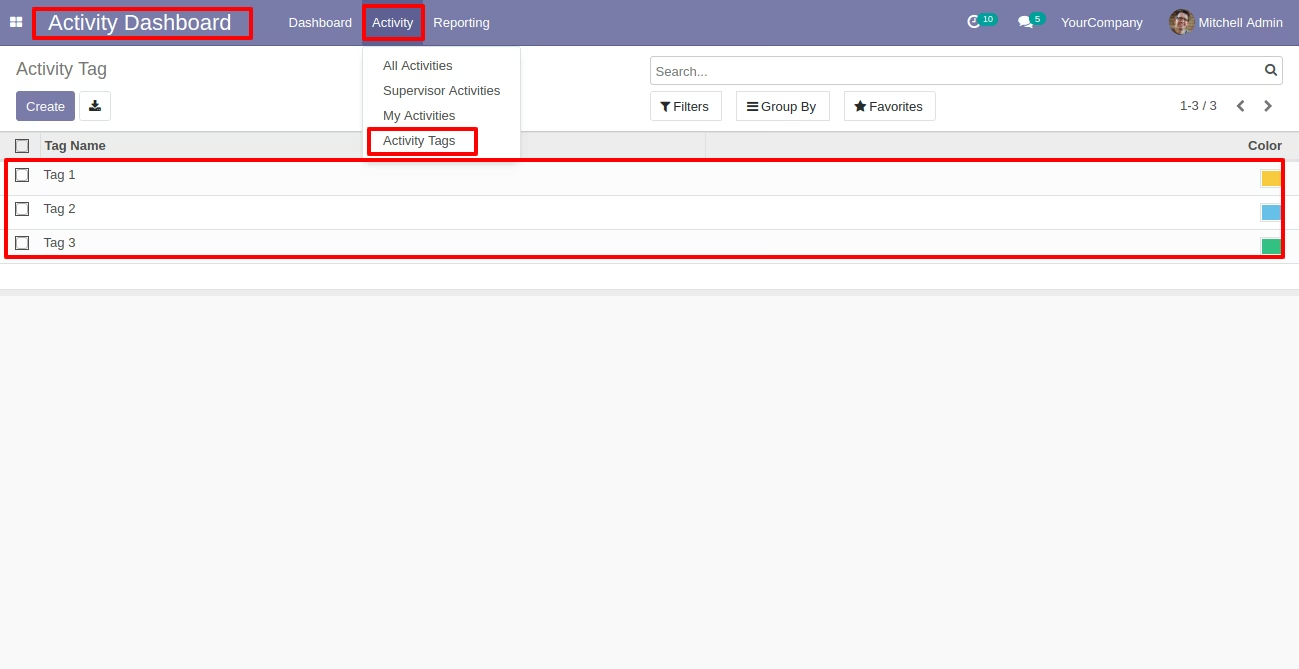
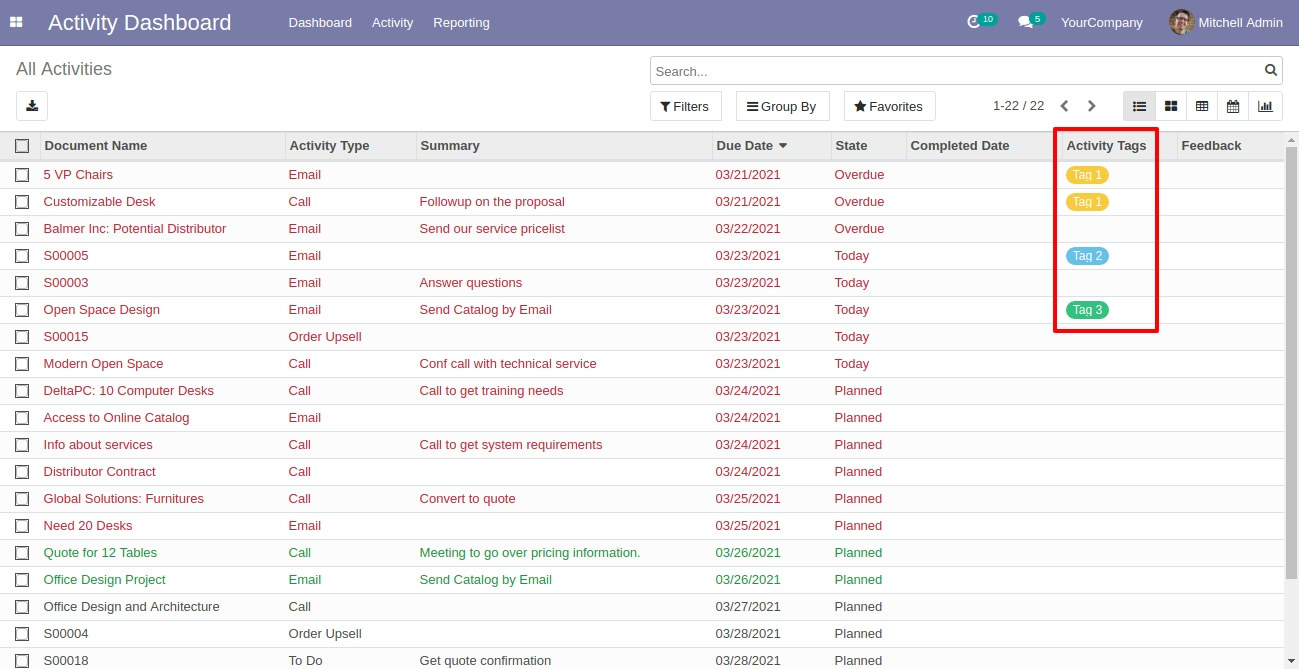
The activity dashboard with the activity tags.
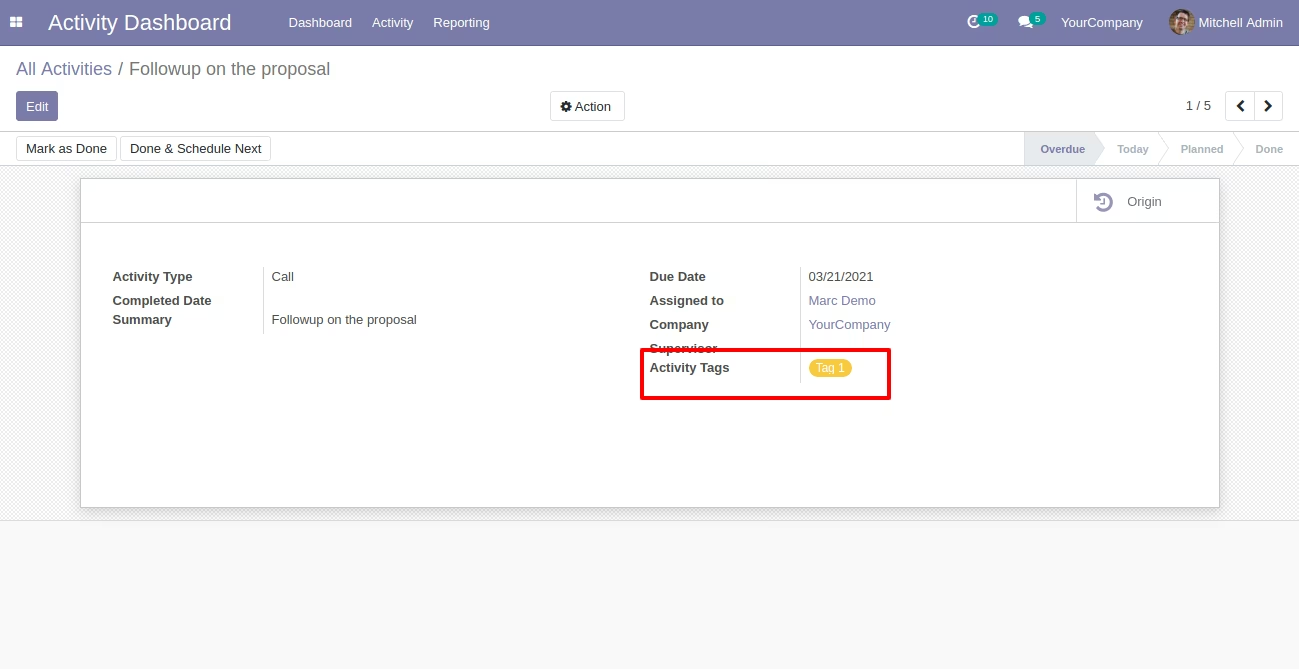
The activity form view with the activity tags.
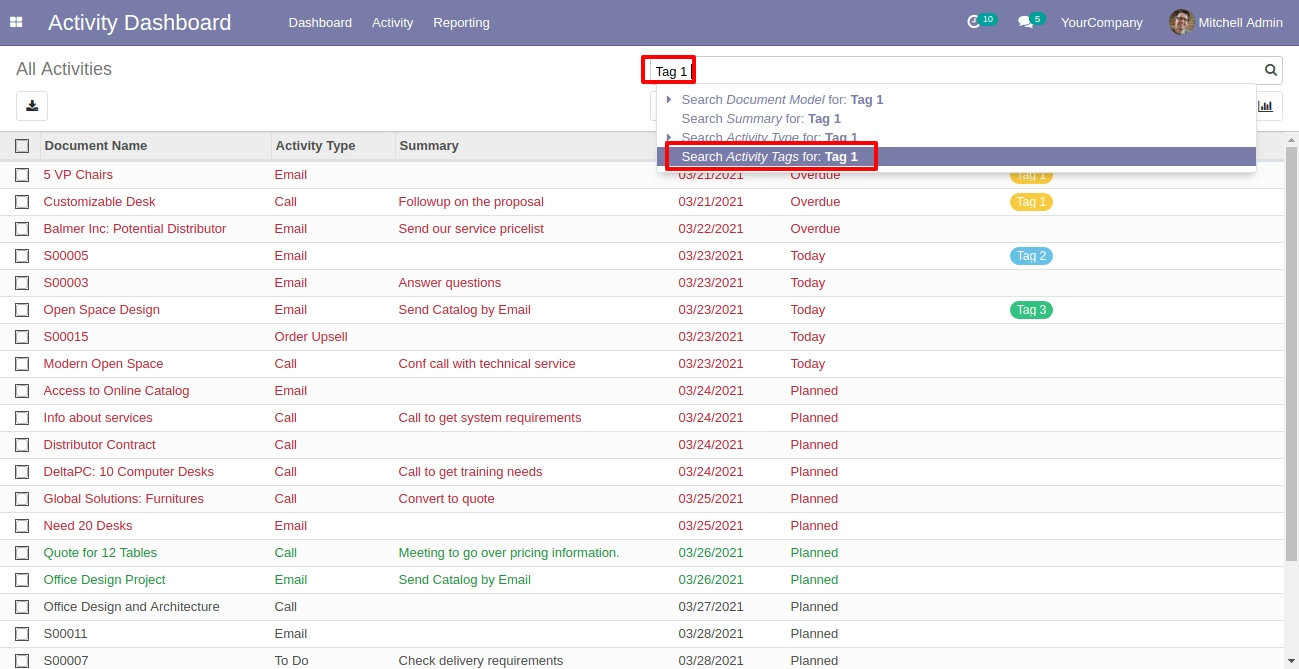
You can search activities by the activity tags.
The activities list view of searched data.
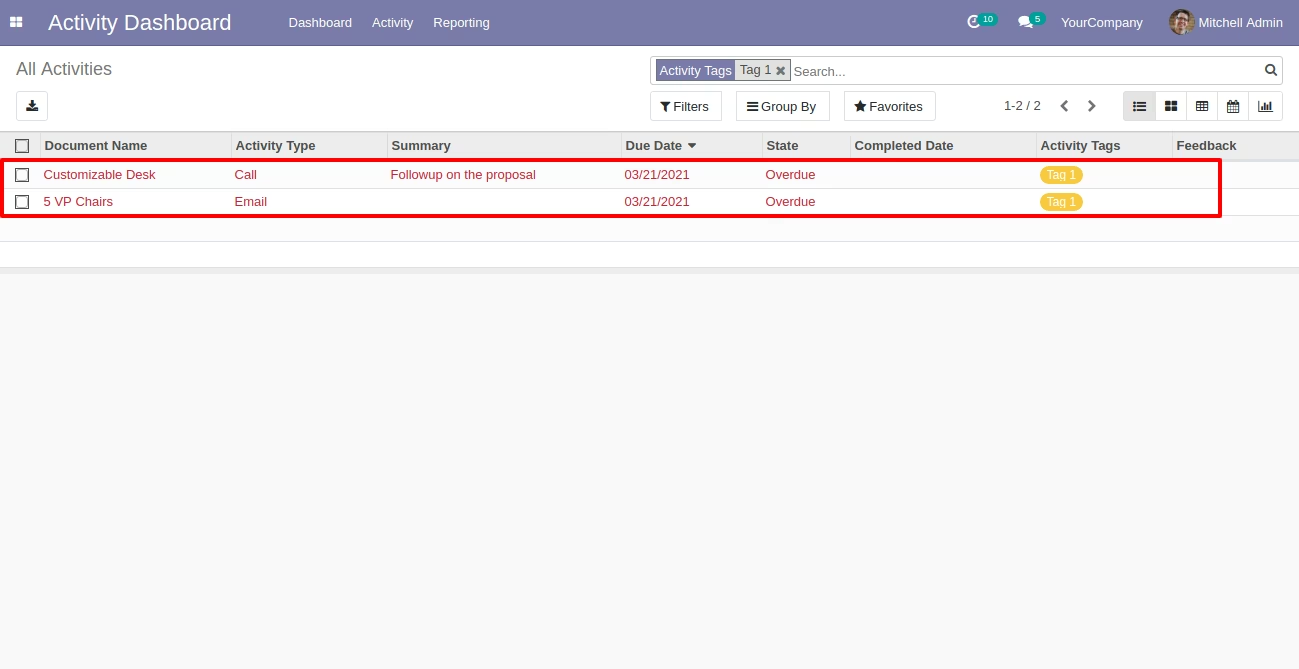
You can filter activities using the activity tags.
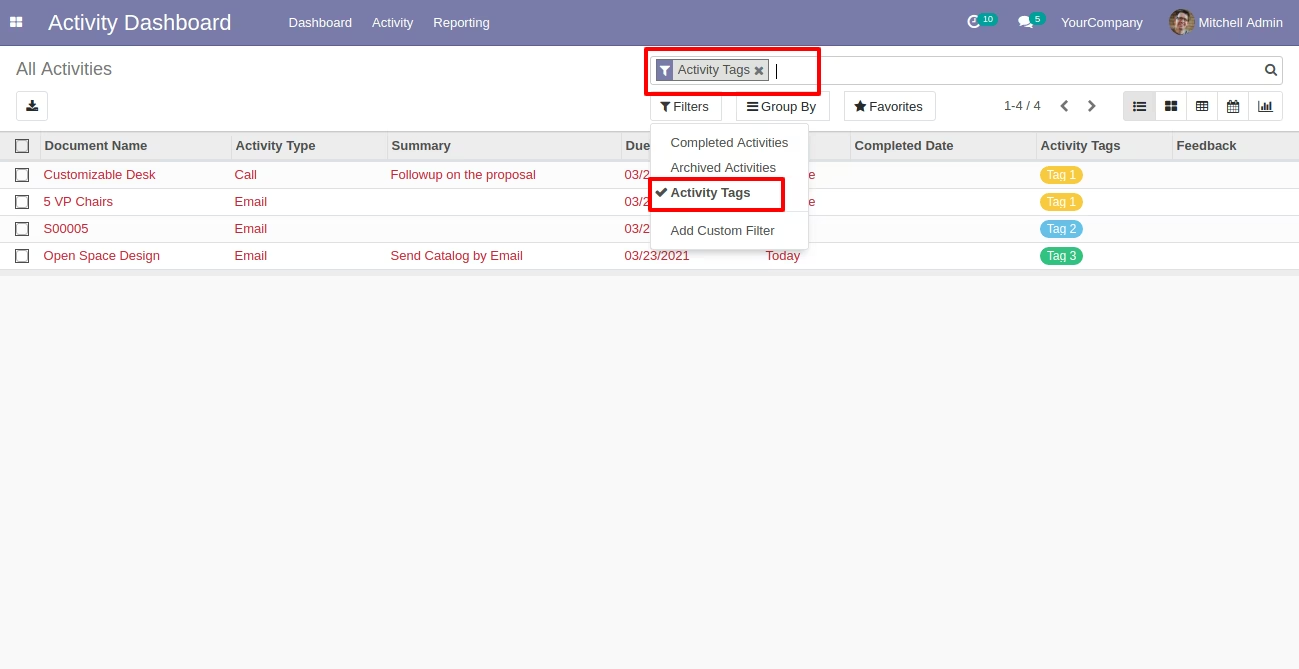
You can schedule activities by activity tags.
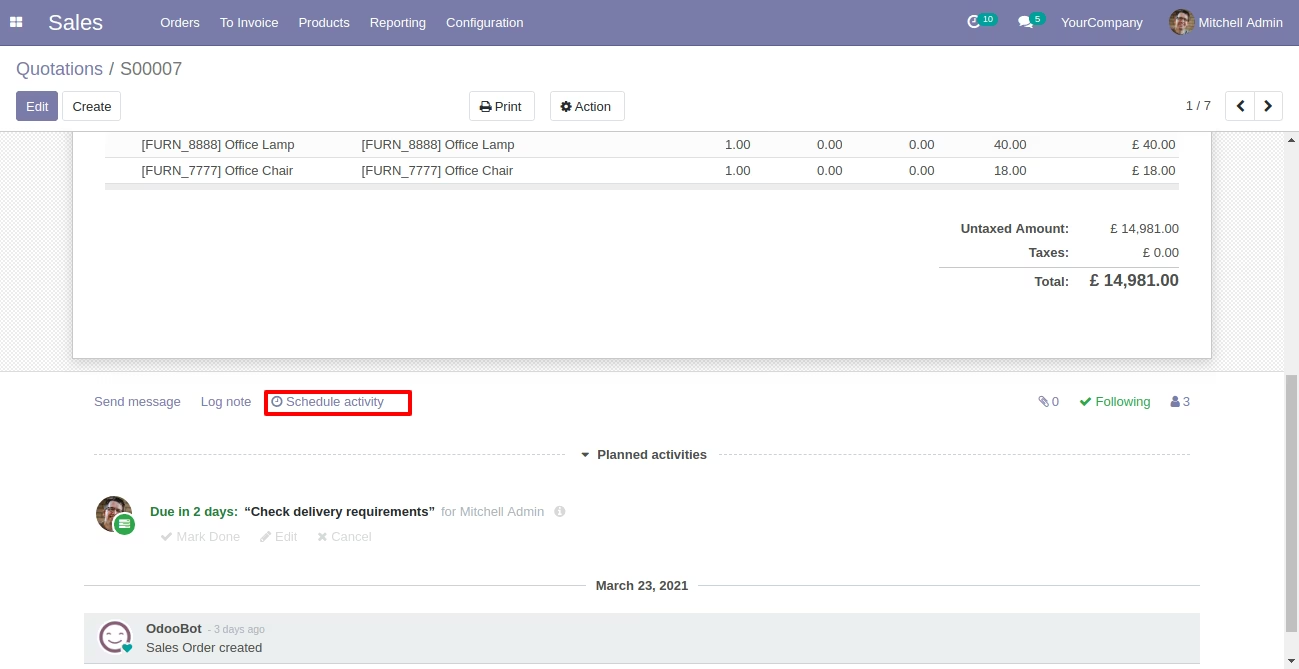
The schedule activity form view with the activity tag field.
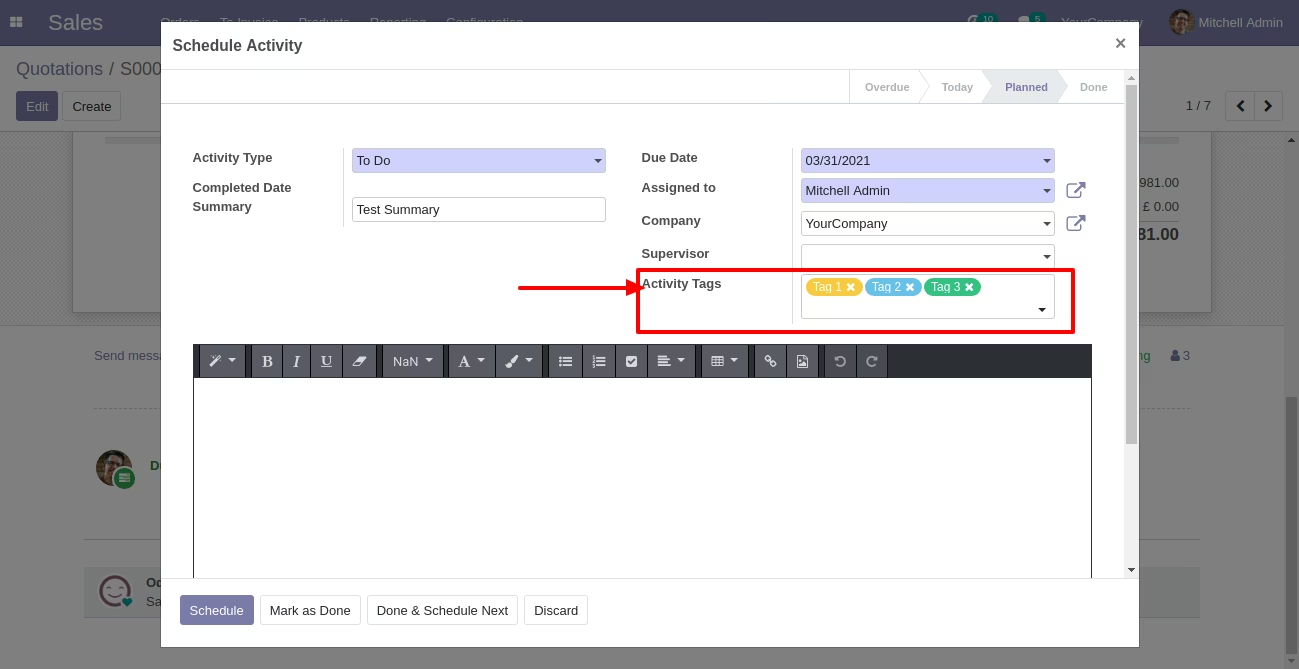
The schedule activity with the activity tags.