Achieve greater flexibility and control in your accounting processes with the Invoice Backdate module. This essential tool empowers authorized users to create and validate invoices, vendor bills, and payments with a past date, ensuring that your financial records accurately reflect the intended transaction period. Whether you need to correct a posting date or align your documents with specific accounting periods, this module provides the necessary functionality while maintaining security through user-based access rights. It is the perfect solution for businesses that require precise control over their financial data and reporting timelines.
Key Features
Backdate Invoices and Bills: Allows users with the appropriate permissions to set a custom past date for customer invoices and vendor bills.
Backdate Payments: Enables the setting of a backdate when registering payments for both invoices and bills.
Access Control: A dedicated user access right ensures that only authorized personnel can utilize the backdating feature.
Accurate Journal Entries: Automatically creates journal entries and journal items with the specified backdate, ensuring financial consistency.
User-Friendly Interface: A simple and intuitive date field is added to the relevant forms, making the backdating process straightforward.
Comprehensive Application: The backdating feature is available for customer invoices, vendor bills, credit notes, and refund processes.
Benefits
Accurate Financial Reporting: Ensure your financial reports for any given period are accurate by posting transactions to their correct dates.
Enhanced Flexibility: Easily manage accounting entries for past periods without complex workarounds.
Improved Control and Security: Maintain control over who can backdate transactions with dedicated user permissions, preventing unauthorized changes.
Streamlined Period Closing: Simplify the process of closing accounting periods by ensuring all transactions are recorded in the correct timeframe.
User-Friendly and Efficient: A simple, easy-to-use solution that saves time and improves the efficiency of your accounting team.



Invoice/Bill Backdate and Remarks App
Account Invoice Backdate and Remarks Apps
Customer and Vendor Payments Backdate and Remarks App
Customer Invoice and Vendor Bill Backdate and Remarks App
Customer Credit Note and Refund Backdate and Remarks App
Account Backdating app helps users to add backdate and remarks for multiple selected customer invoice, customer credit note, vendor bill, refund, customer and vendor payment .It also passes selected backdate and remarks to journal item or journal entry. Users have the option to mass update backdate and remarks on multiple selected records.
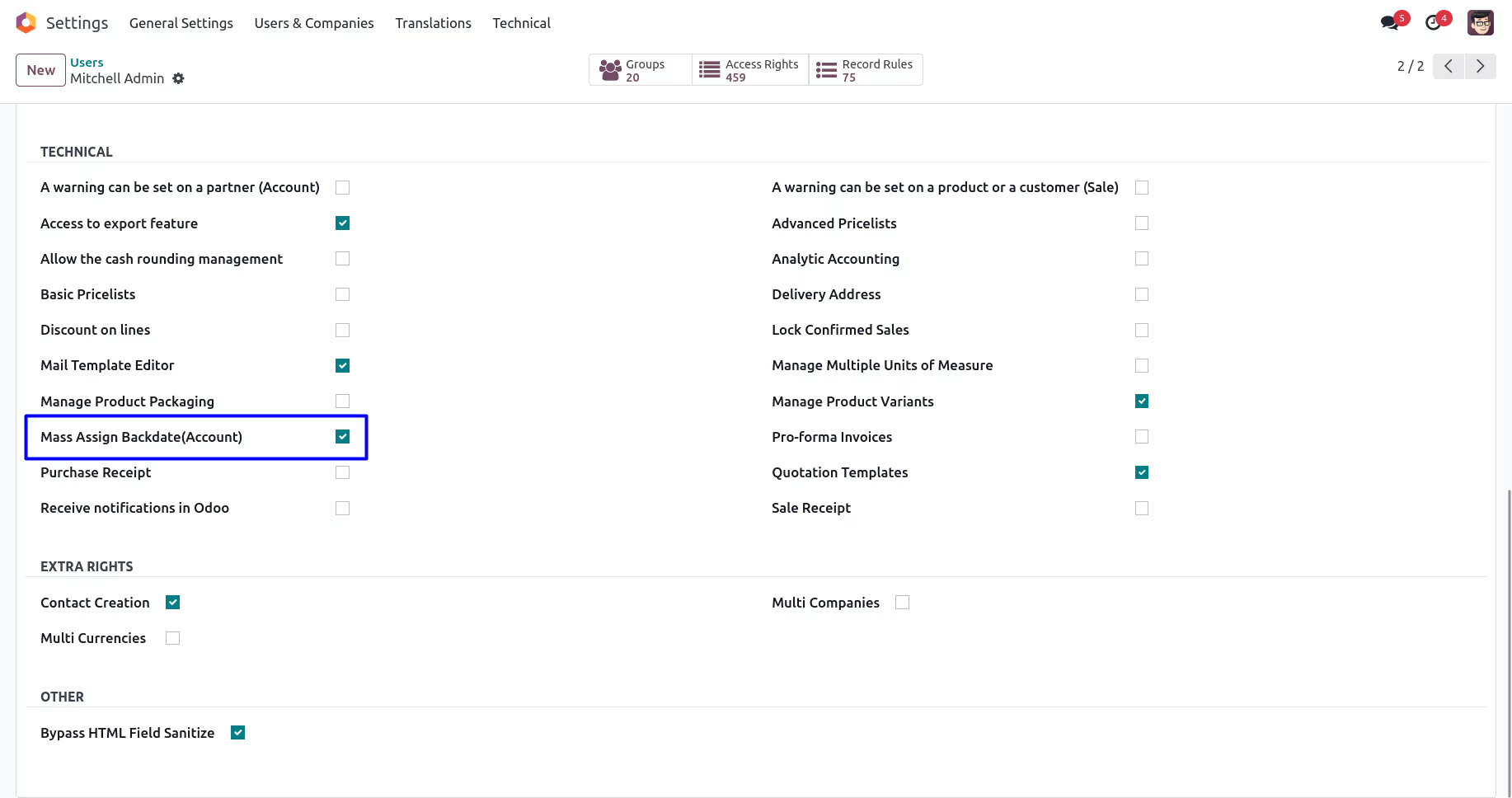
"Mass Assign Backdate(Account)" access rights users only have access to update backdate on accounting. Also users have the option to enable or disable backdate and remark features for invoice and payments. Users can also enable or disable remarks and make remarks mandatory for invoice and payments. Backdate will also be added to journal items or journal entries created against customer invoice, customer credit note, vendor bill, refund customer payment and vendor payments.

Mass Assign Backdate Access Right
Only allowed user can add backdate and remarks.

Enable/Disable Backdate For Invoice and Payment
User have option to enable or disable backdate feature on account invoice and payment.

Enable/Disable Remark For Invoice and Payment
User have option to enable or disable remarks feature on account invoice and payment.

Make Remark Mandatory For Payment
User have option to make remarks field required on account invoice and payment.

Add Backdate & Remarks on Customer Invoices
User can add backdate date and remarks on customer invoice.

Add Backdate & Remarks on Customer Credit Notes
User can add backdate and remarks on customer credit note.

Add Backdate & Remarks on Vendor Bills
User can add backdate date and remarks on vendor bill.

Add Backdate & Remarks on Refunds
User can add backdate and remarks on scrap order.

Add Backdate & Remarks on Account Payments
User can add backdate and remarks on account payments.

Backdate & Remarks Journal Entry or Journal Item
Added backdate and remarks on stock transfer, manufacturing order and scrap order will pass to journal entry created for that.
Access Right Configuration
Users with "Mass Assign Backdate(Account)" access rights only can add backdate and remarks.
Account Backdate Settings
Under Invoicing > Configuration > Settings menu user can see options for backdate and remarks for invoice and payments and configure as per need.
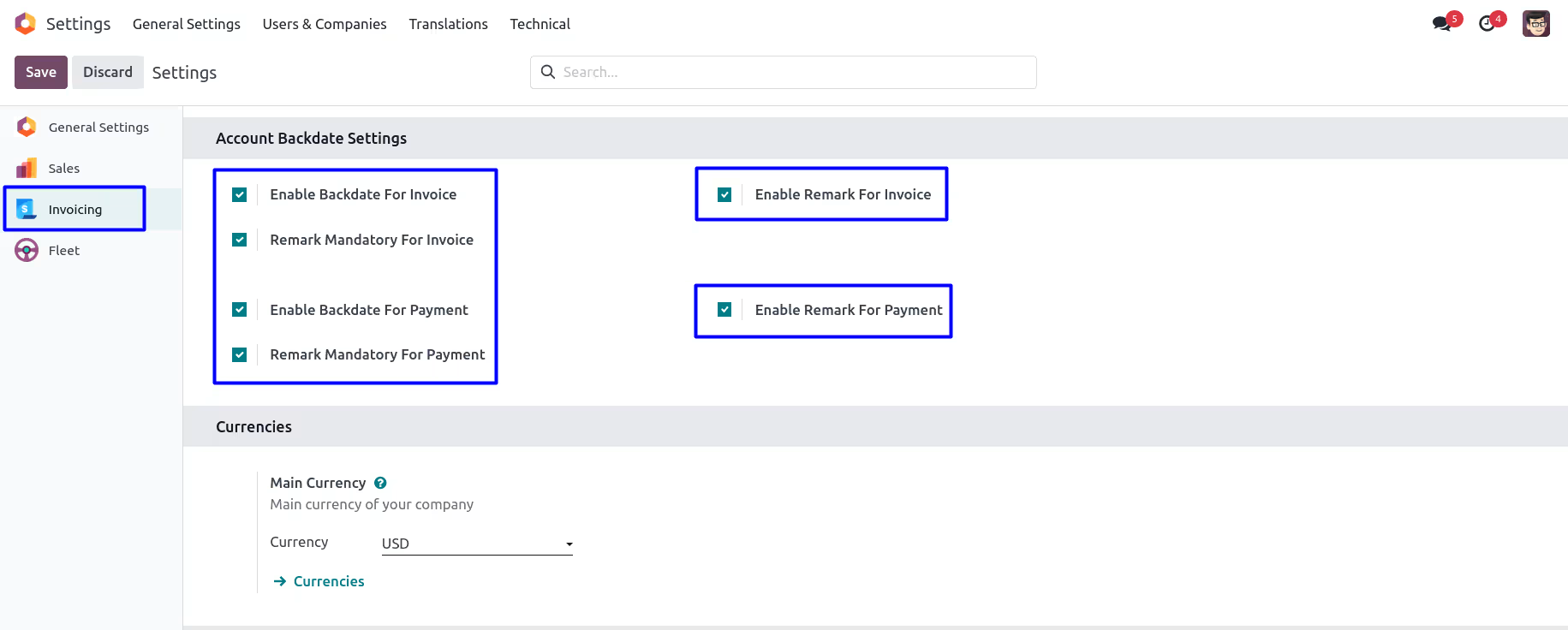
"Enable Backdate For Invoice" option enable backdate feature,
"Enable Remark For Invoice" option enable remark features, and "Remark Mandatory For
Invoice" option makes remark field mandatory on backdate wizard for account invoice.
User can enable or disable this account invoice backdate and remark feature as per
need.
"Enable Backdate For Payment" option enable backdate feature,
"Enable Remark For Payment" option enable remark features, and "Remark Mandatory For
Payment" option makes remark field mandatory on backdate wizard for account payment.
User can enable or disable this account payment backdate and remark feature as per
need.
Customer Invoices Backdate and Remarks
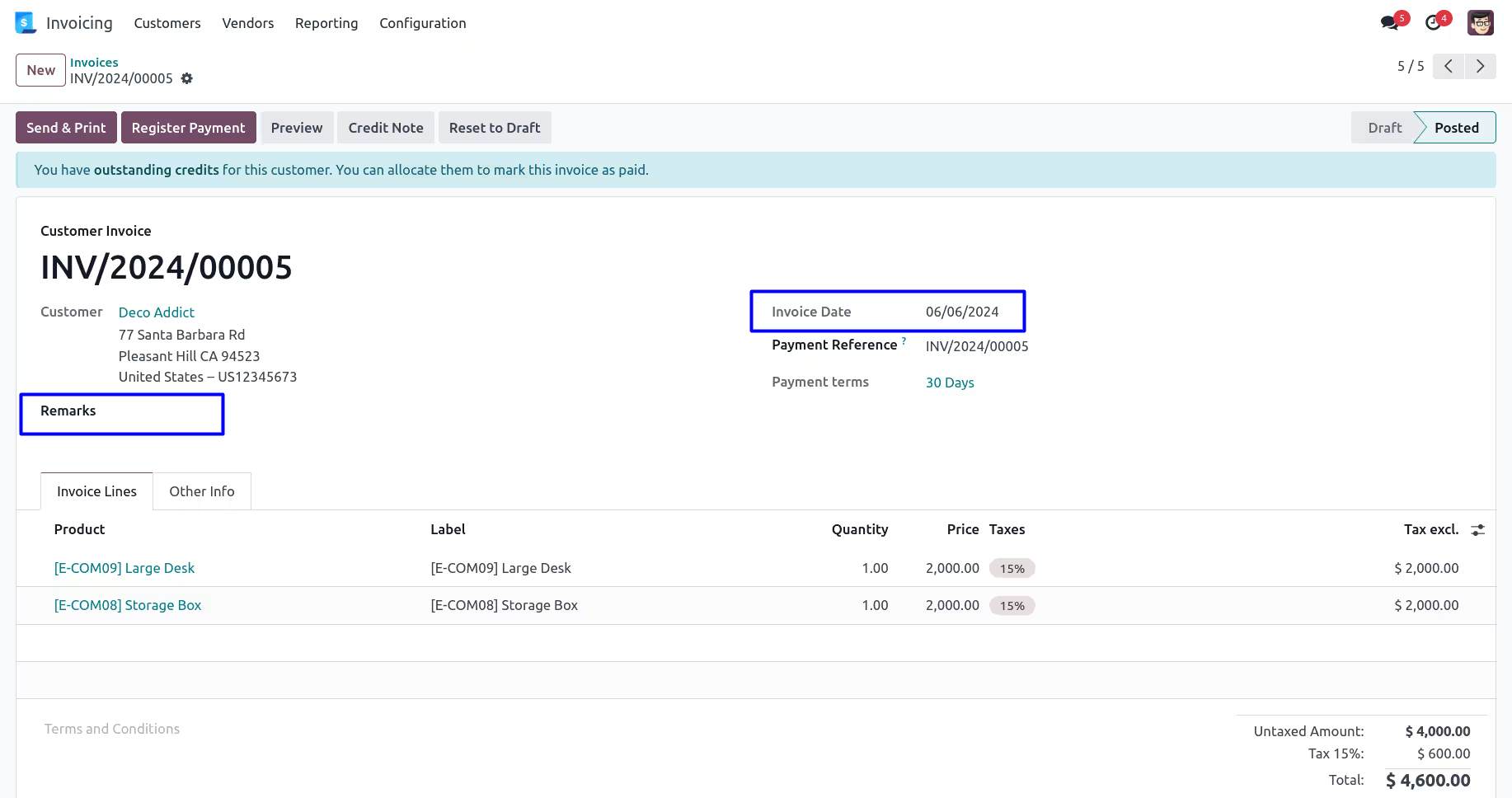
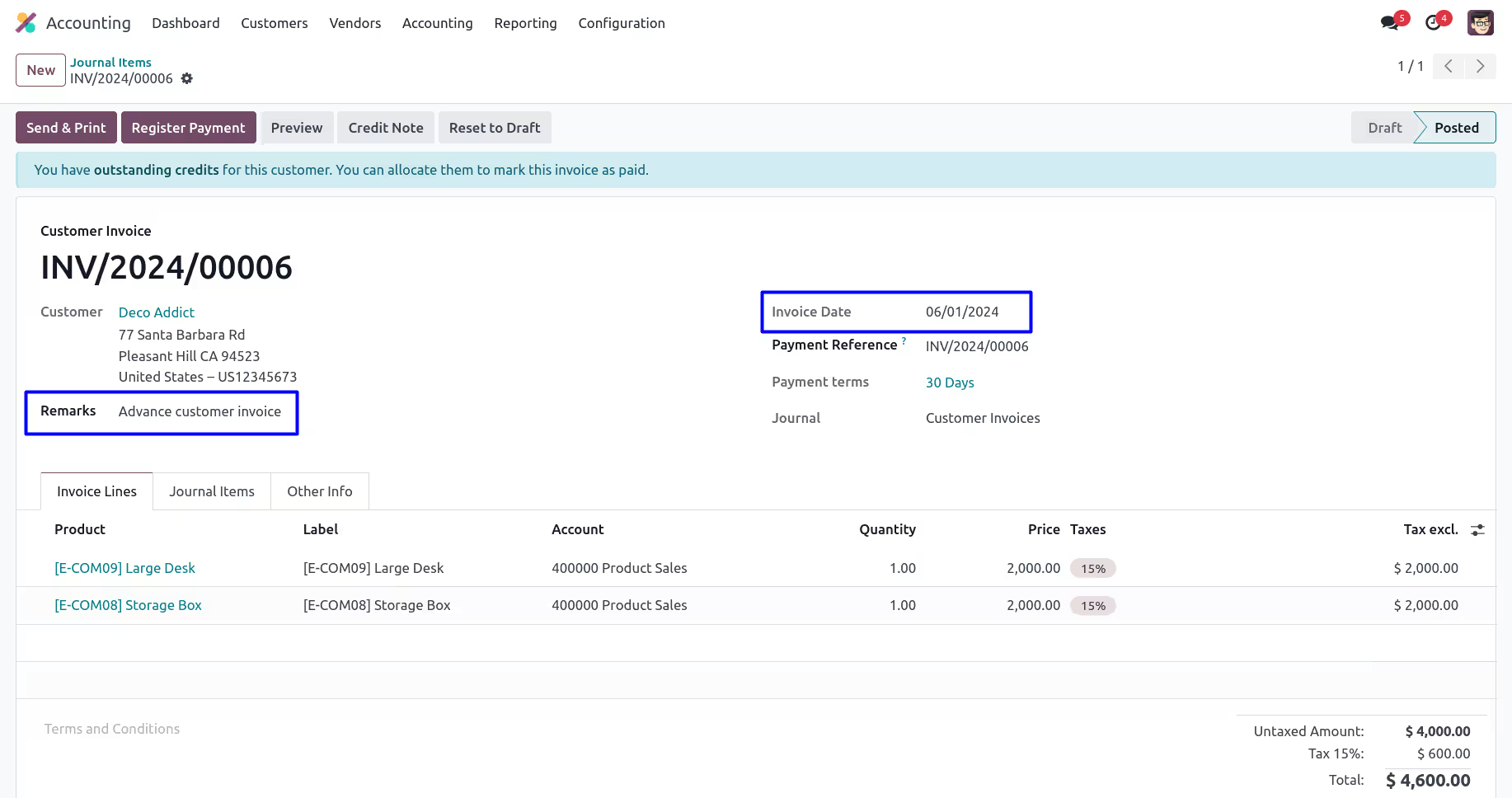
Customer Invoice
User can see selected Invoice Date, also see there is no remarks added.
Mass Assign Backdate
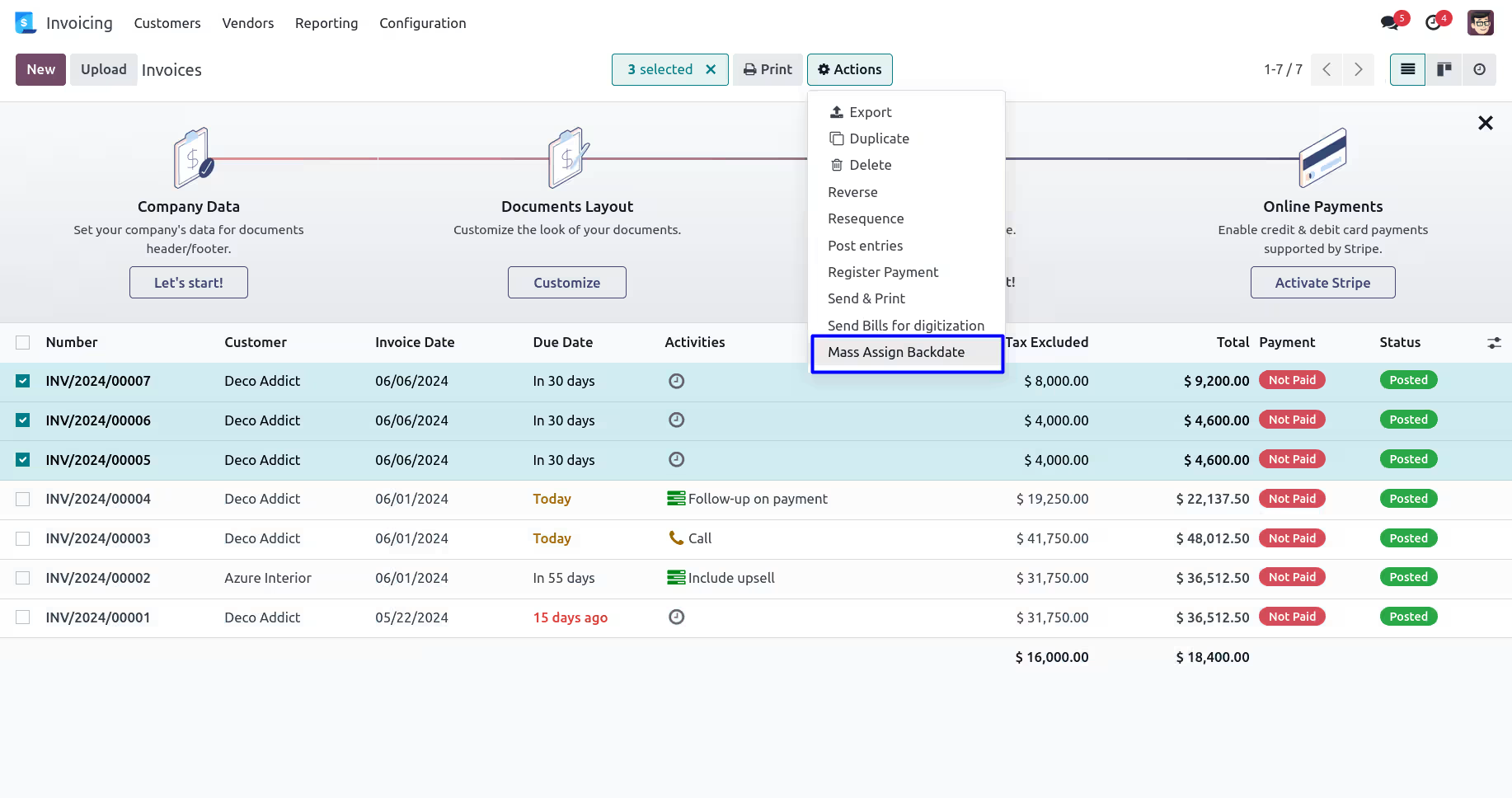
User can select multiple customer invoice from tree view, and under "Action" menu user can see "Mass Update Backdate" menu. User also can see invoice date for all selected multiple invoice.
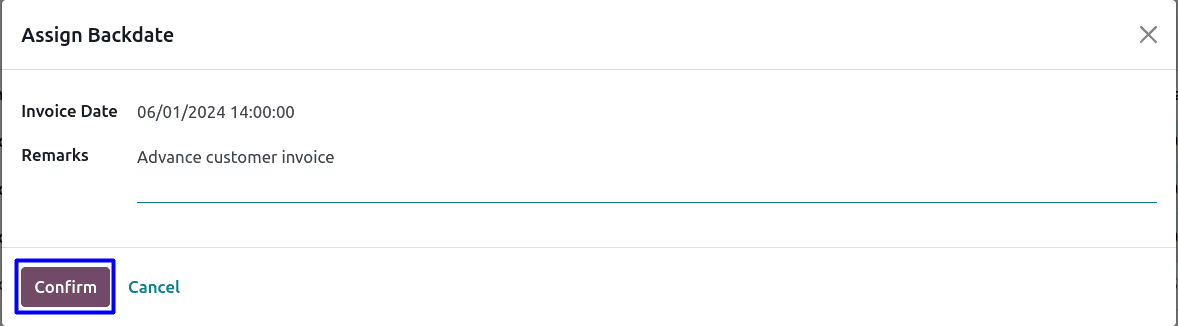
User need to enter "Invoice Date" and "Remarks" on wizard.
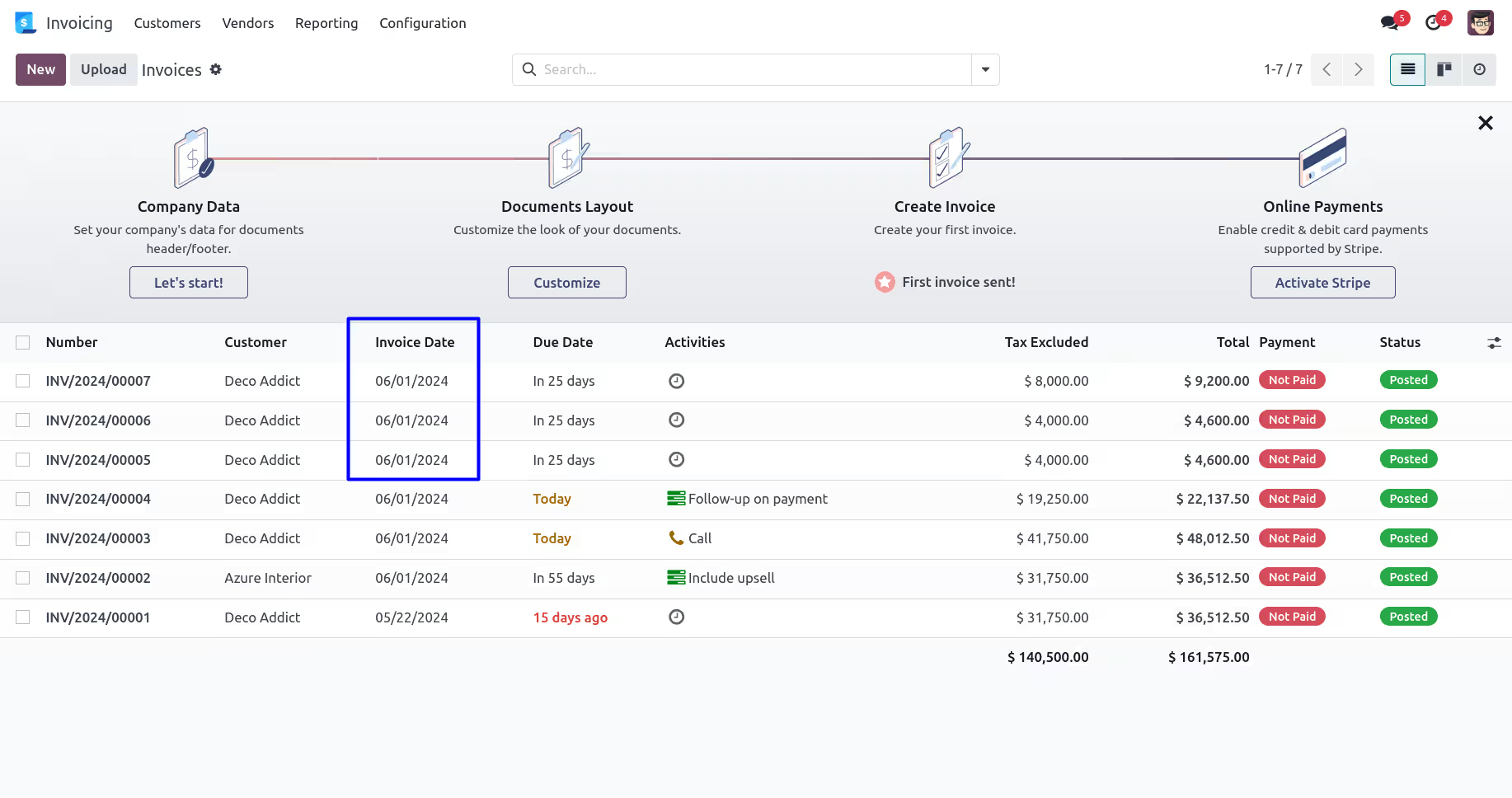
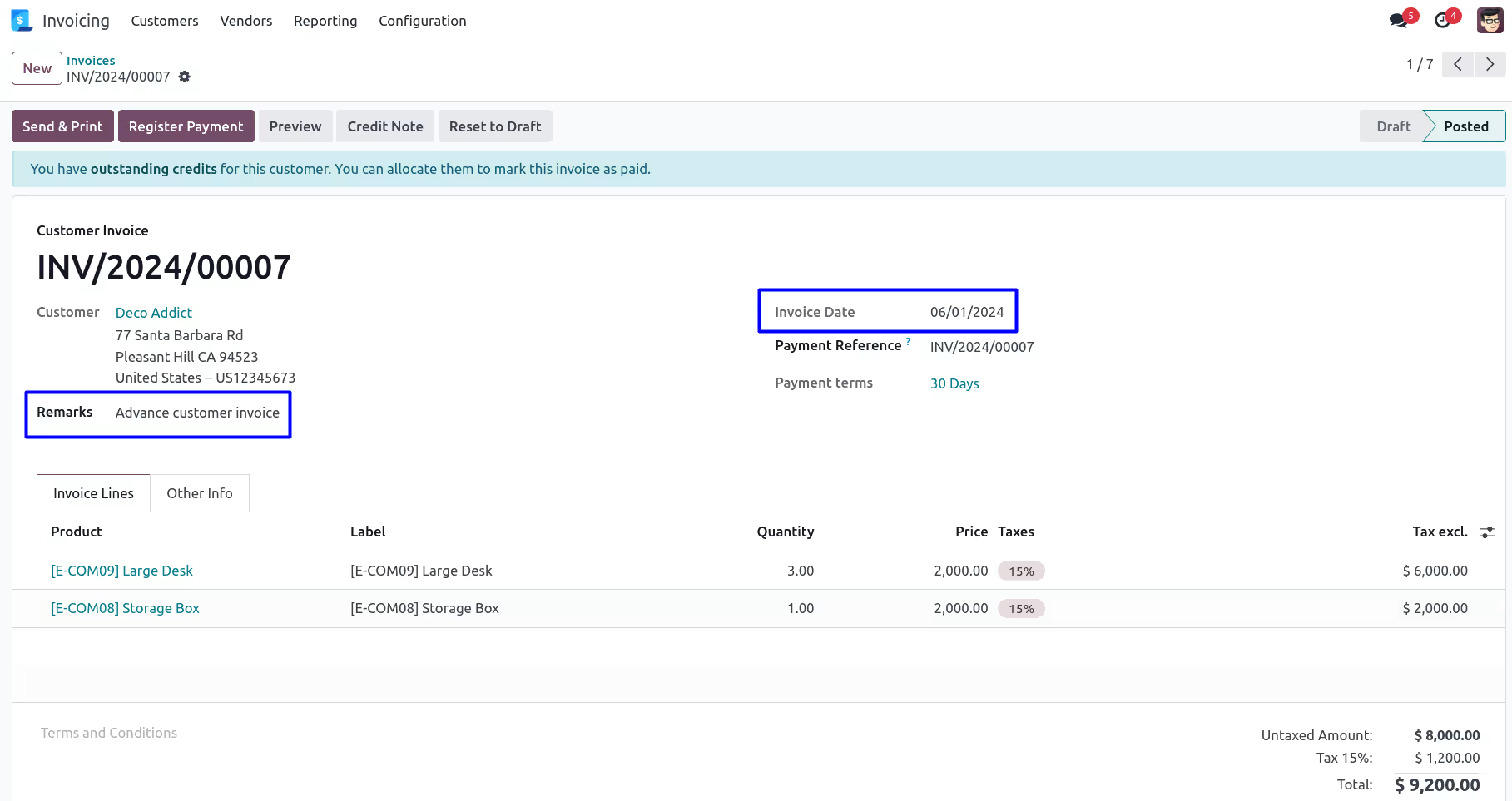
Updated Backdate and Remark on Customer Invoice
User can see selected backdate and remarks updated for all invoices.
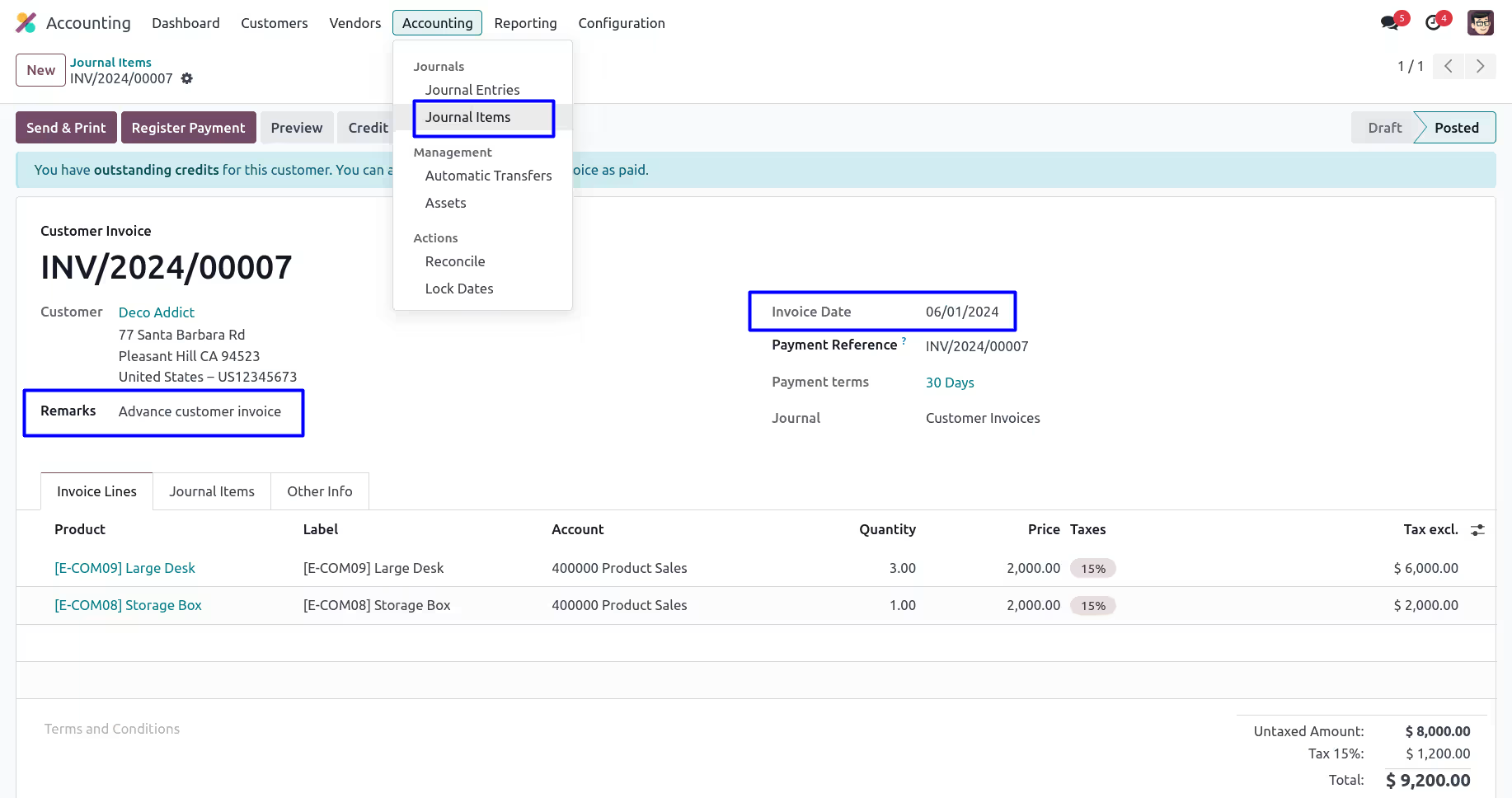
Backdate and Remark on Journal Items
User can see backdate and remark added to journal entry created for all selected invoices.
Customer Credit Note Backdate and Remarks
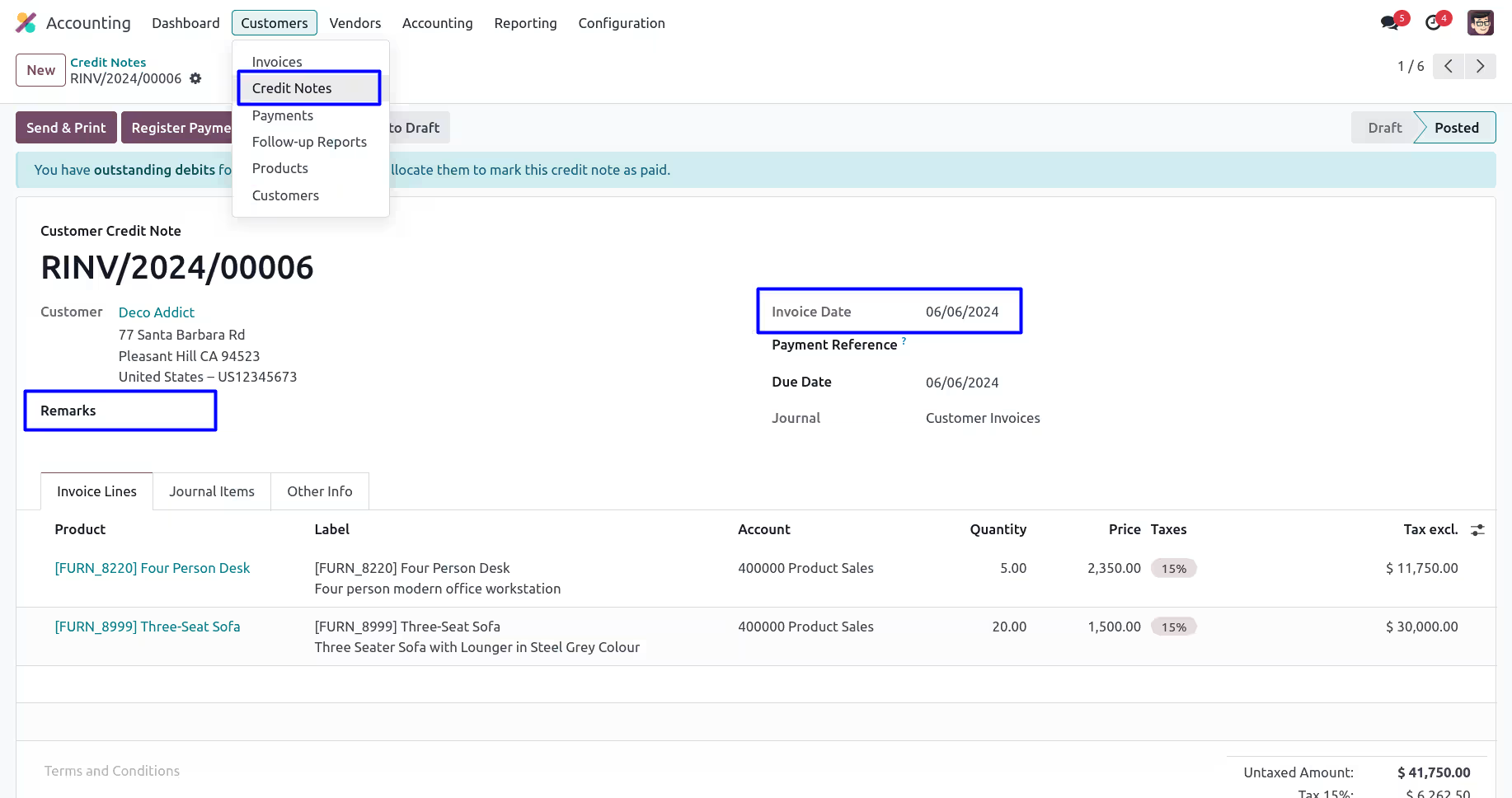
Customer Credit Note
User can see selected Invoice Date, also see there is no remarks added.
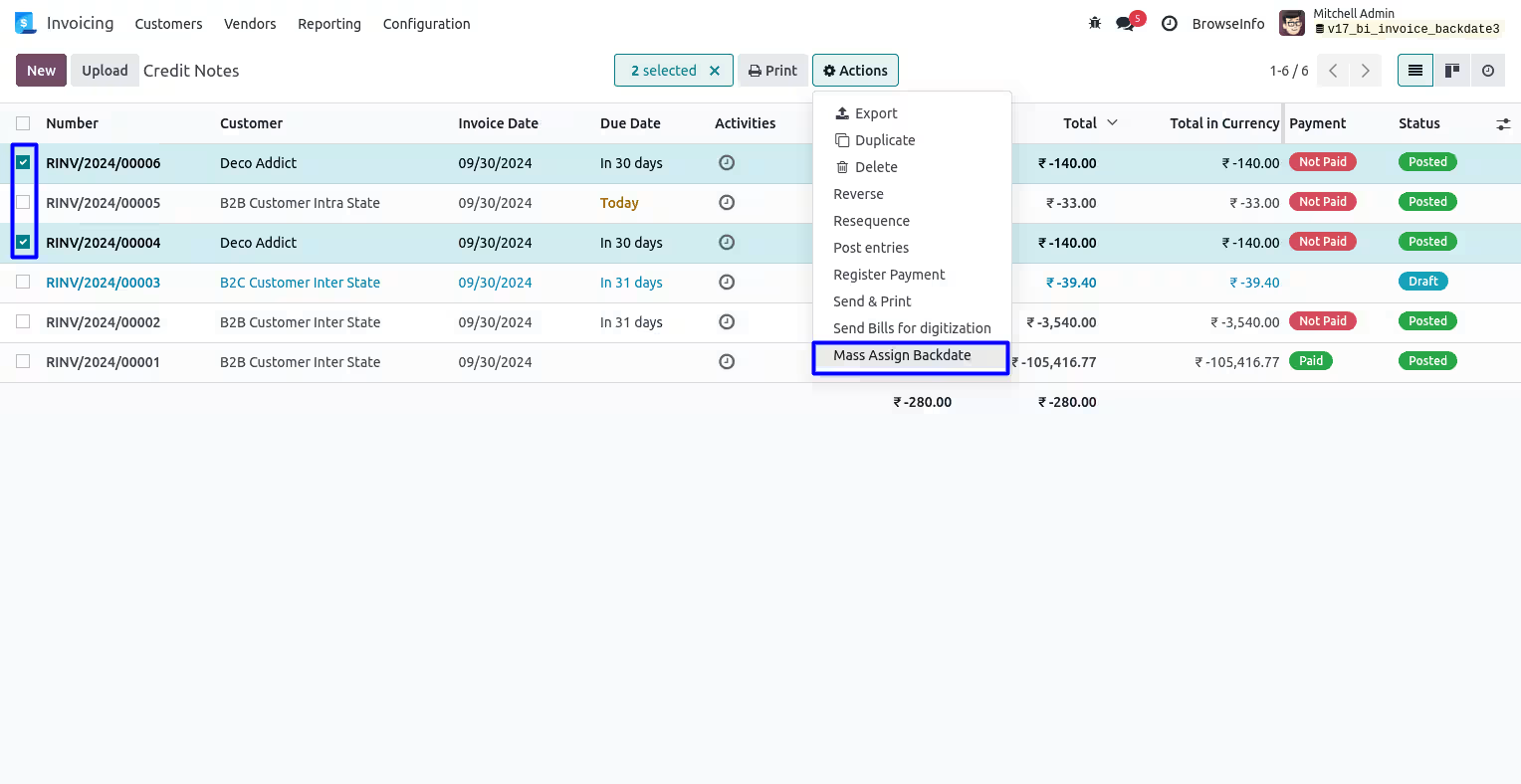
Mass Assign Backdate
User can select multiple customer credit note from tree view, and under "Action" menu user can see "Mass Update Backdate" menu. User also can see invoice date for all selected multiple customer credit note.
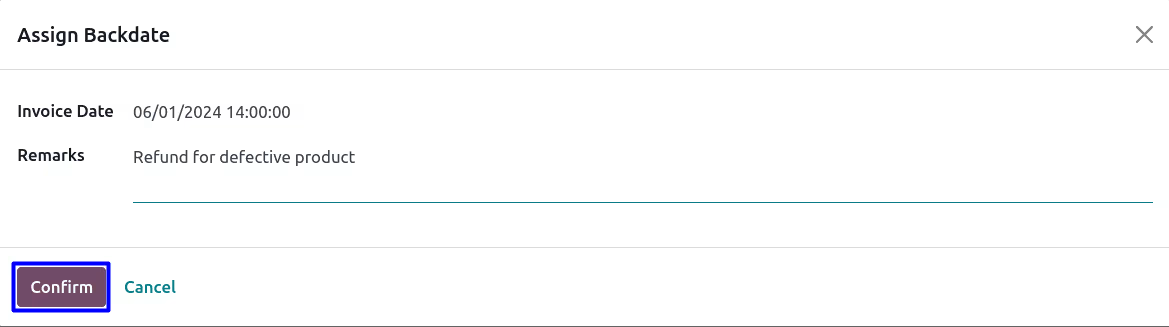
User need to enter "Invoice Date" and "Remarks" on wizard.
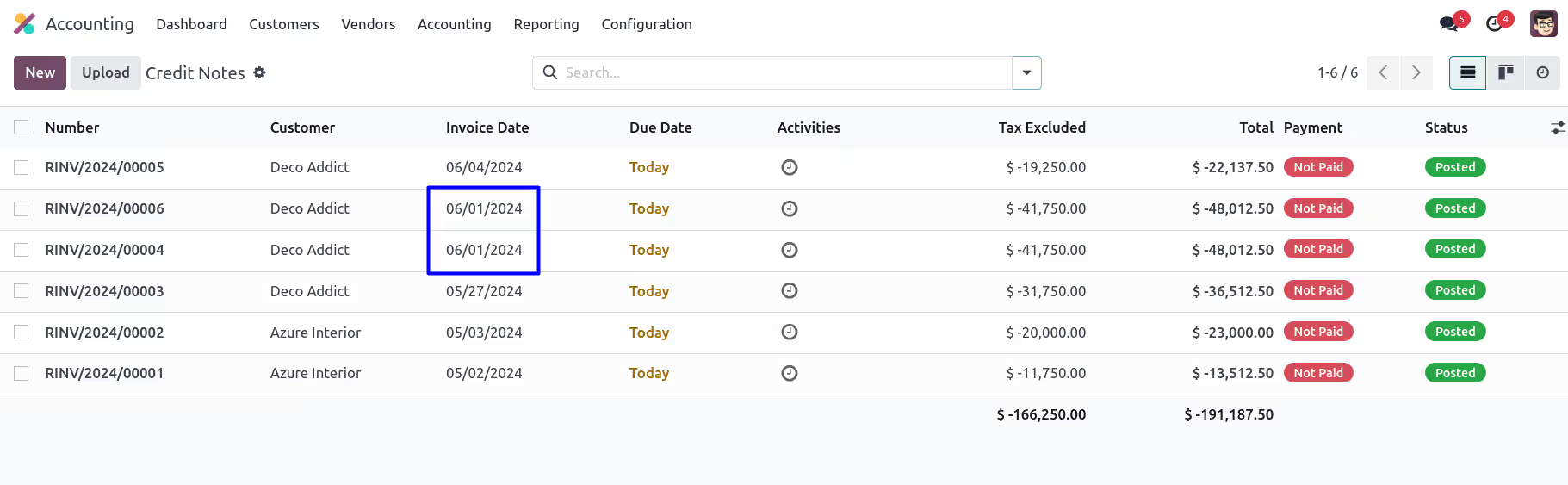
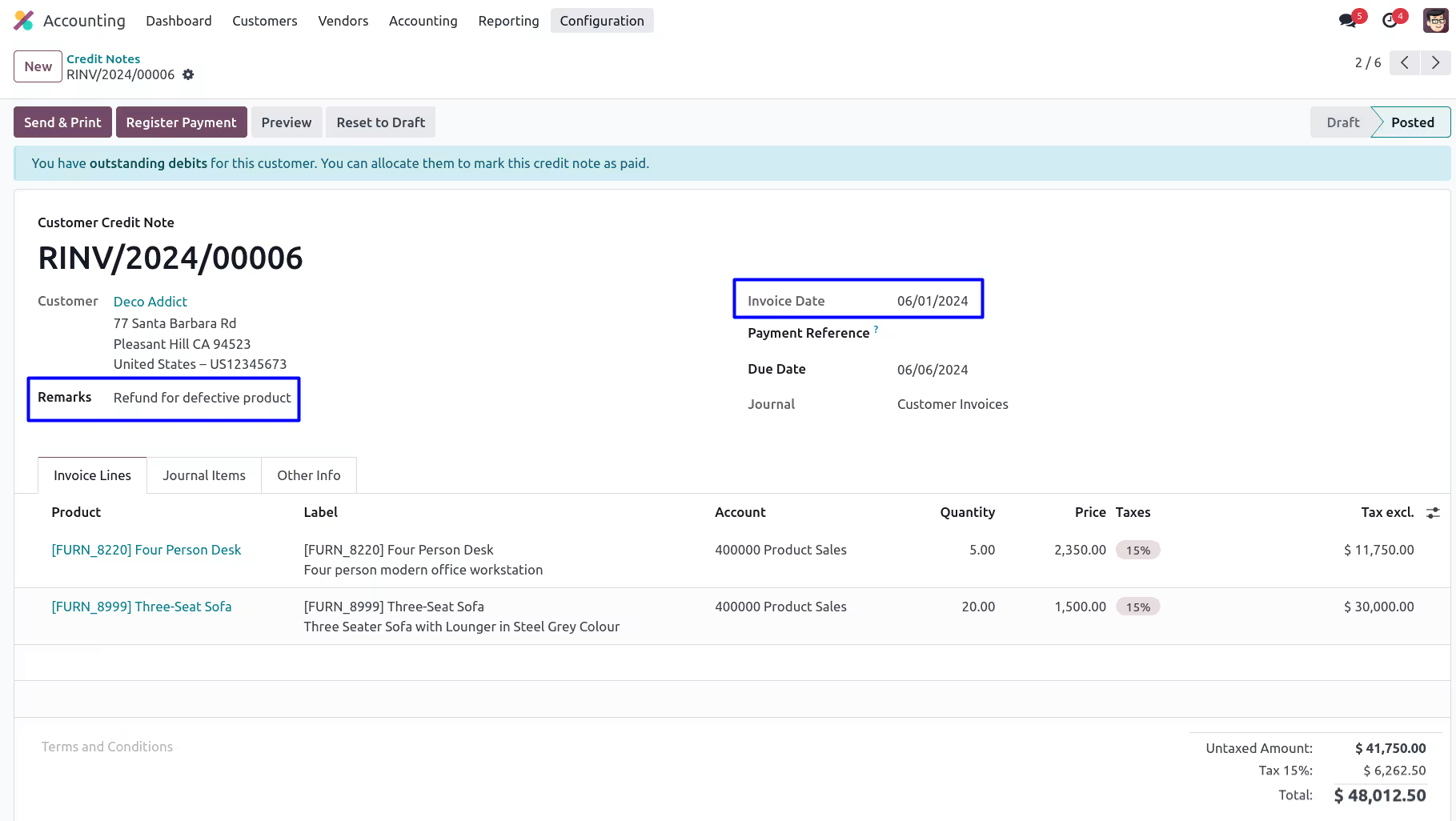
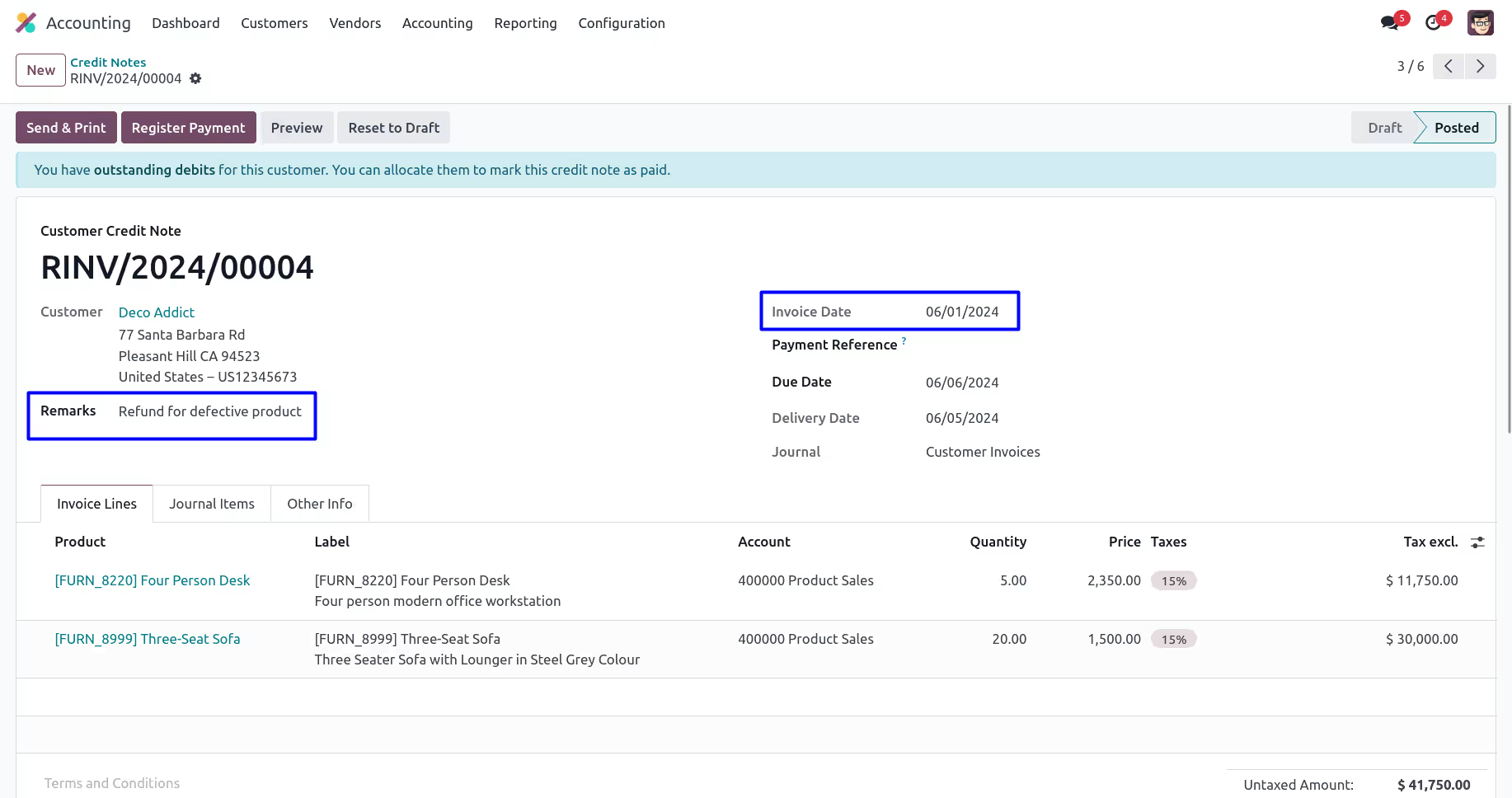
Updated Backdate and Remark on Customer Credit Note
User can see selected backdate and remarks updated for all customer credit note.
Backdate and Remark on Journal Items
User can see backdate and remark added to journal entry created for all selected customer credit note.
Vendor Bill Backdate and Remarks
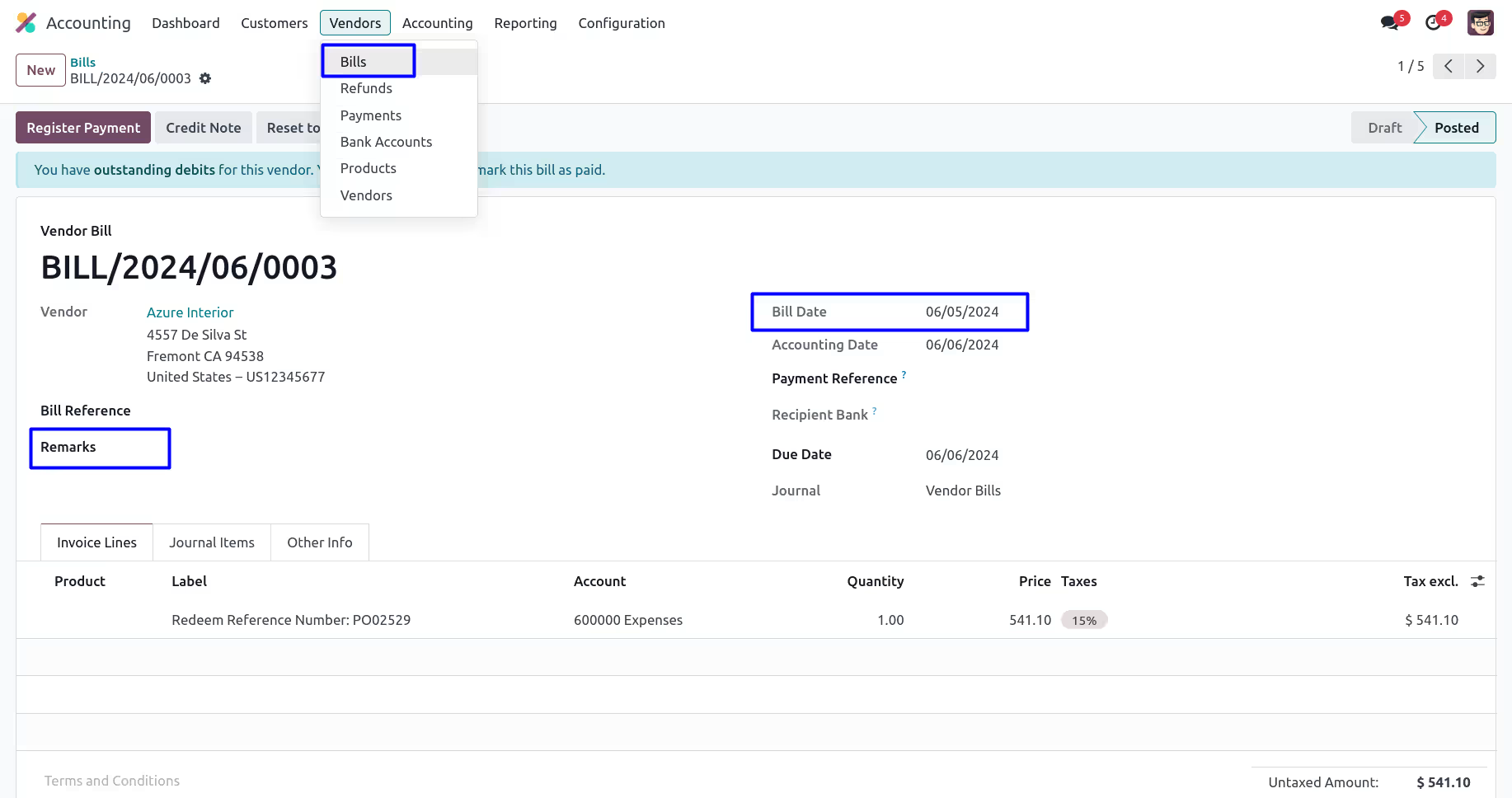
Vendor Bill
User can see selected Bill Date, also see there is no remarks added.
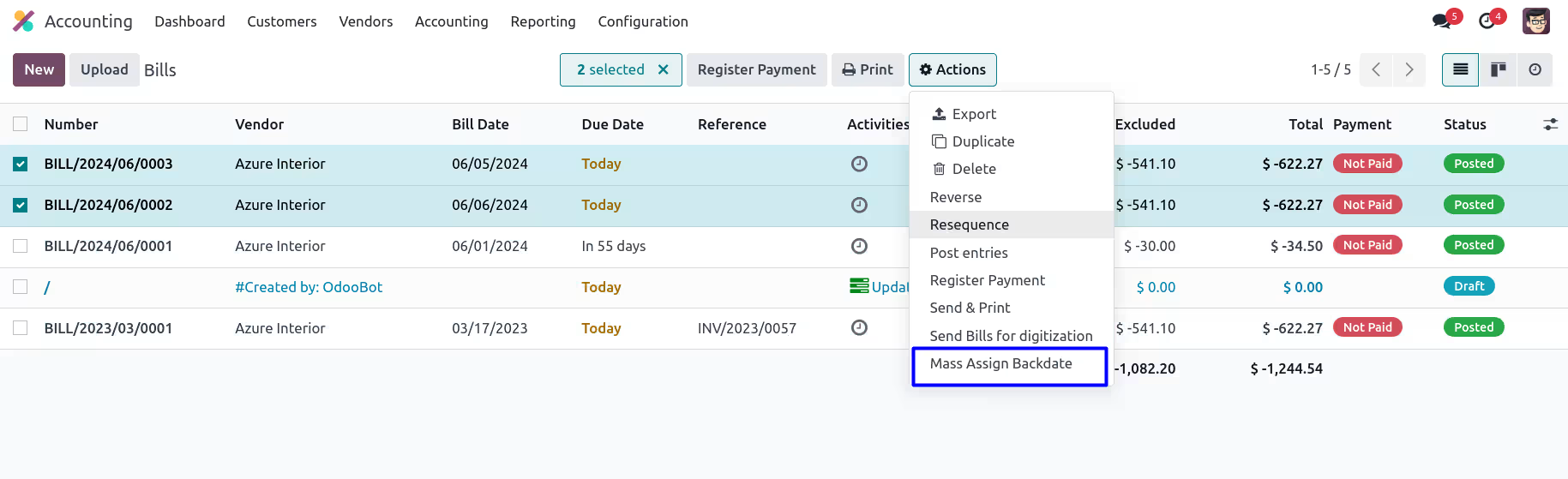
Mass Assign Backdate
User can select multiple vendor bill from tree view, and under "Action" menu user can see "Mass Update Backdate" menu. User also can see bill date for all selected multiple bills.
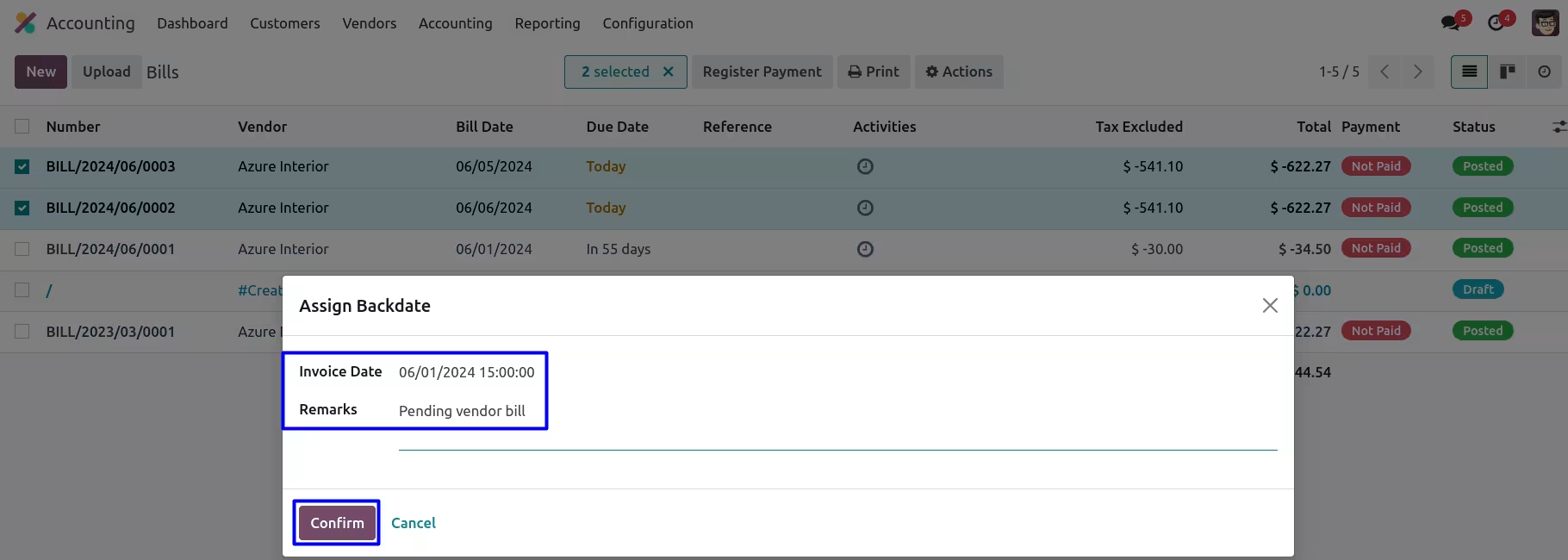
User need to enter "Invoice Date" and "Remarks" on wizard.
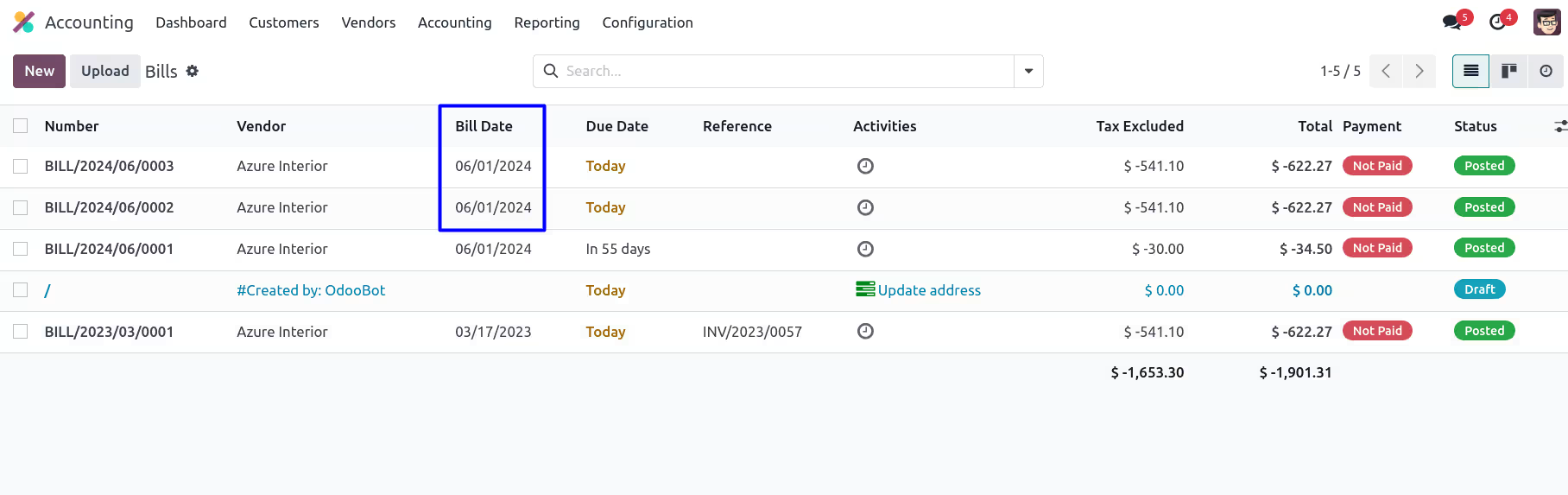
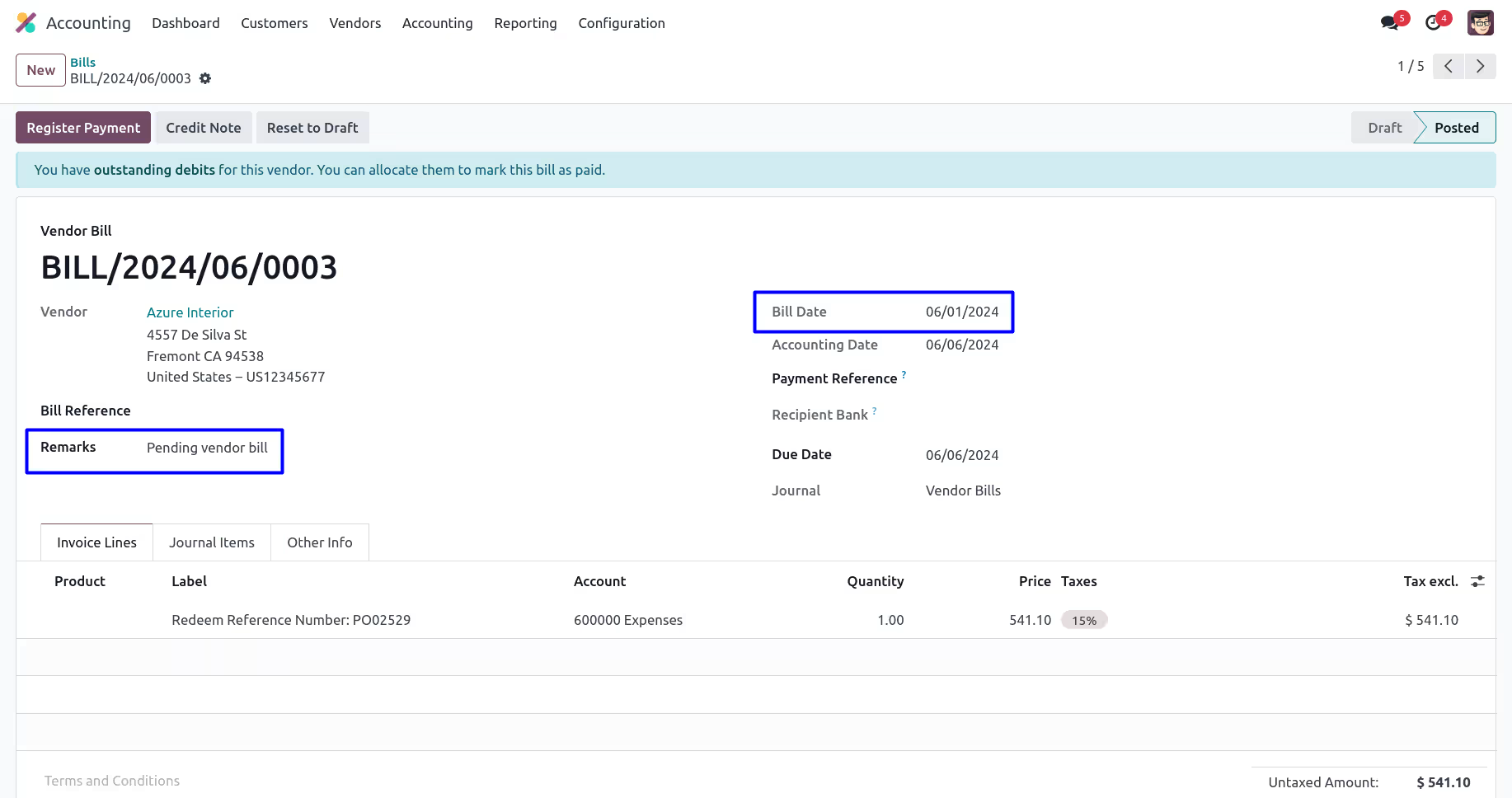
Updated Backdate and Remark on Vendor Bill
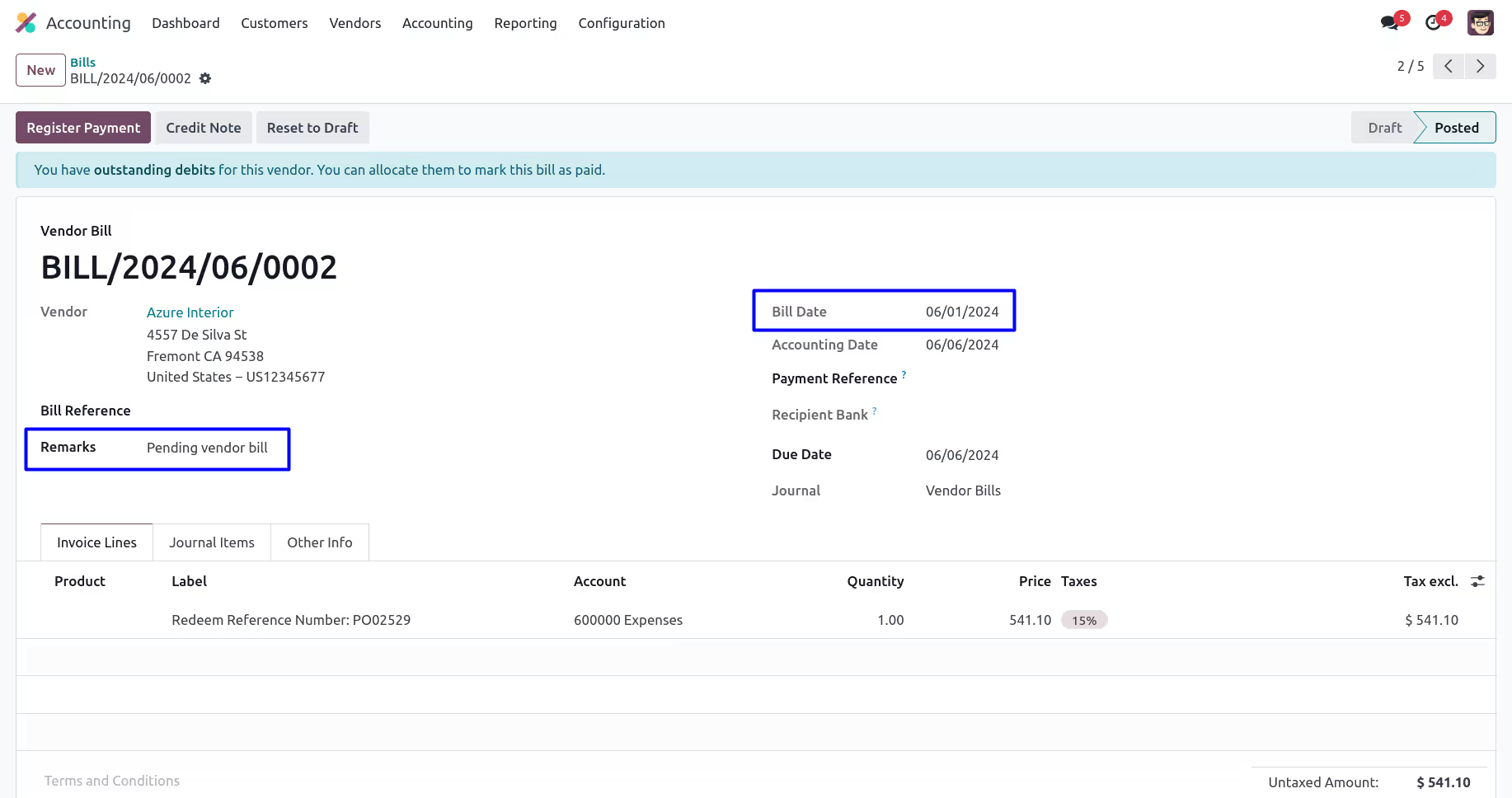
User can see selected backdate and remarks updated for all vendor bill.
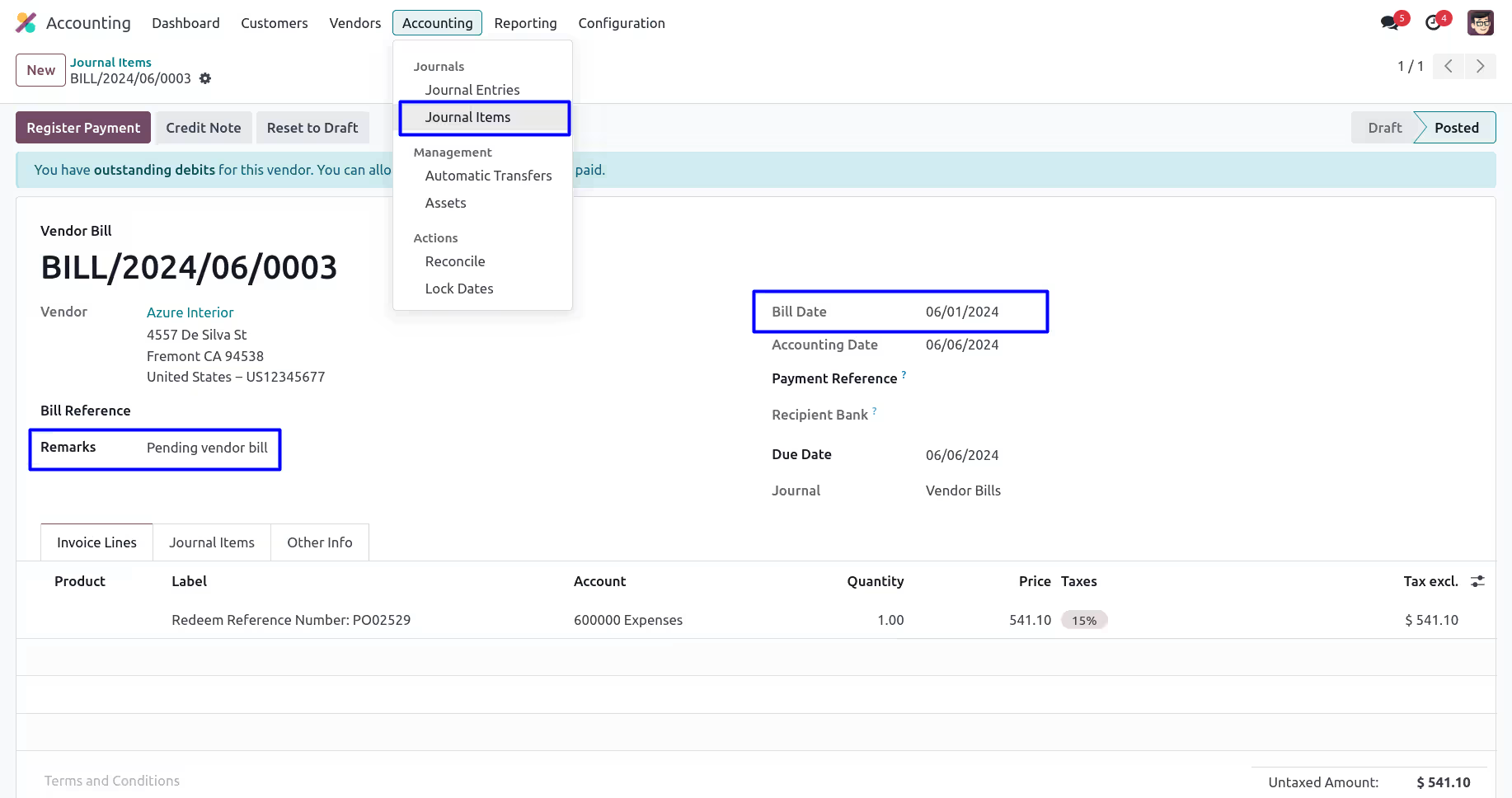
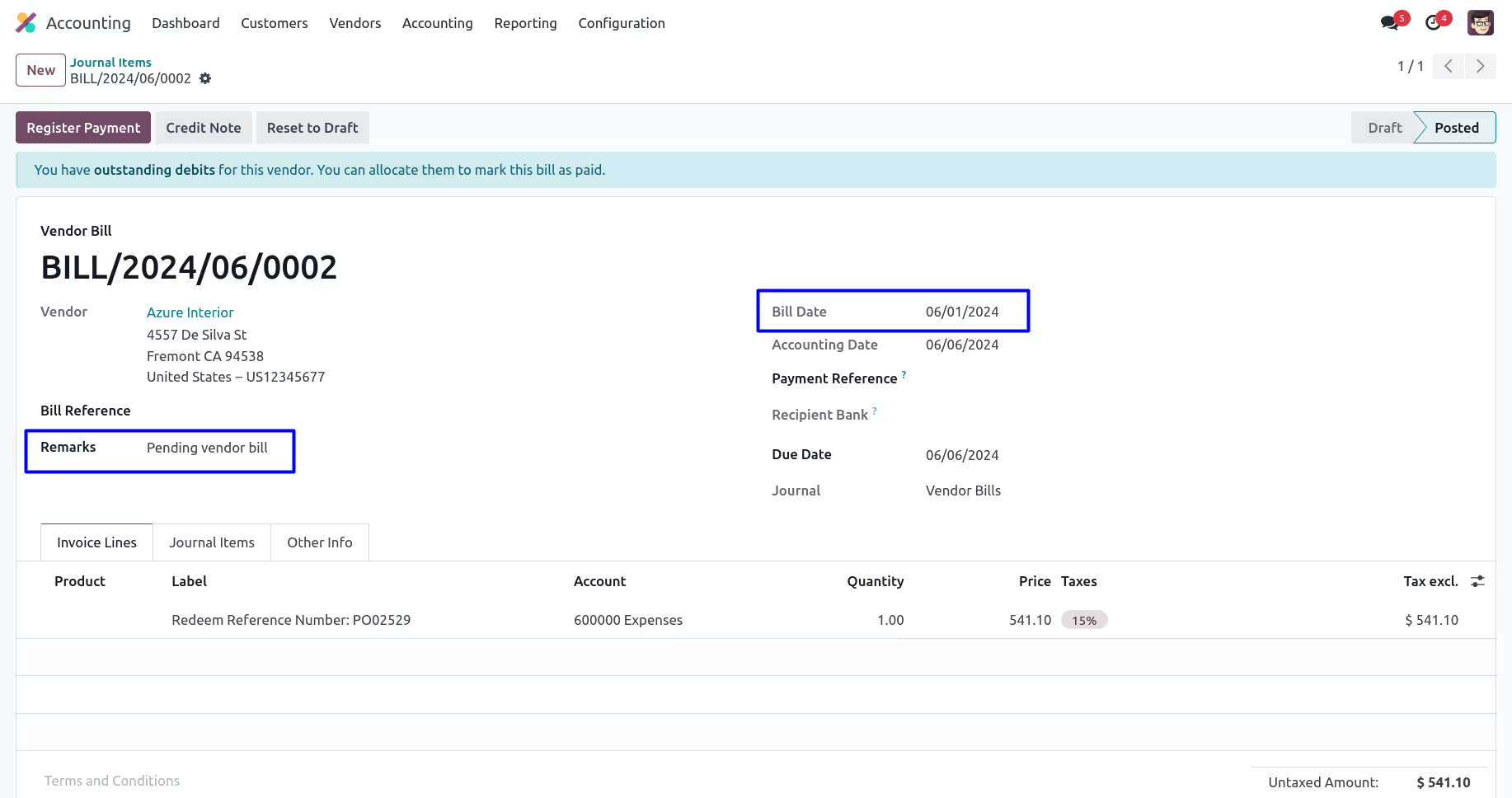
Backdate and Remark on Journal Items
User can see backdate and remark added to journal entry created for all selected invoices.
Refund (Vendor Credit Note) Backdate and Remarks
Refund (Vendor Credit Note)
User can see selected vendor credit note, also see there is no remarks added.
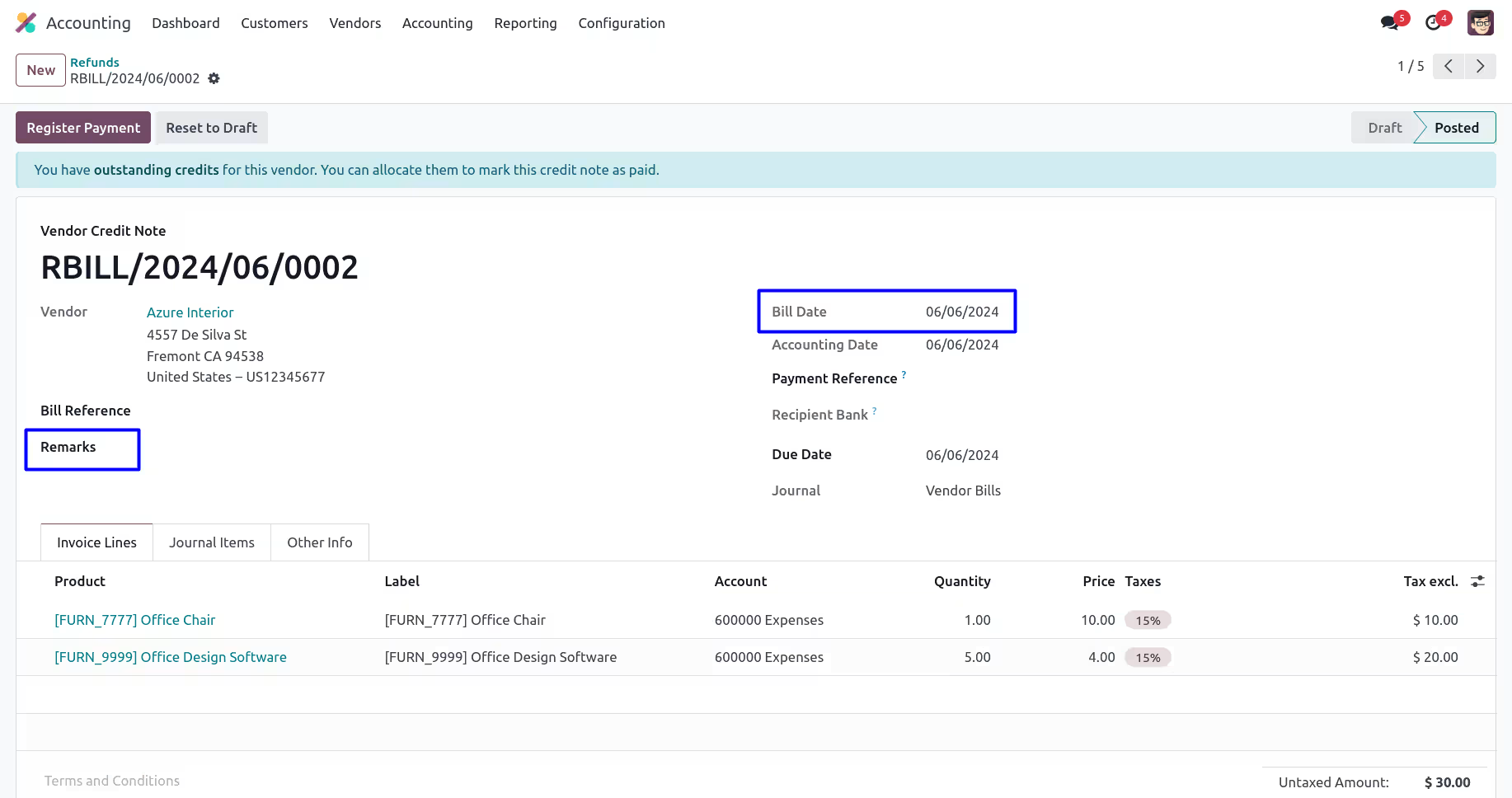
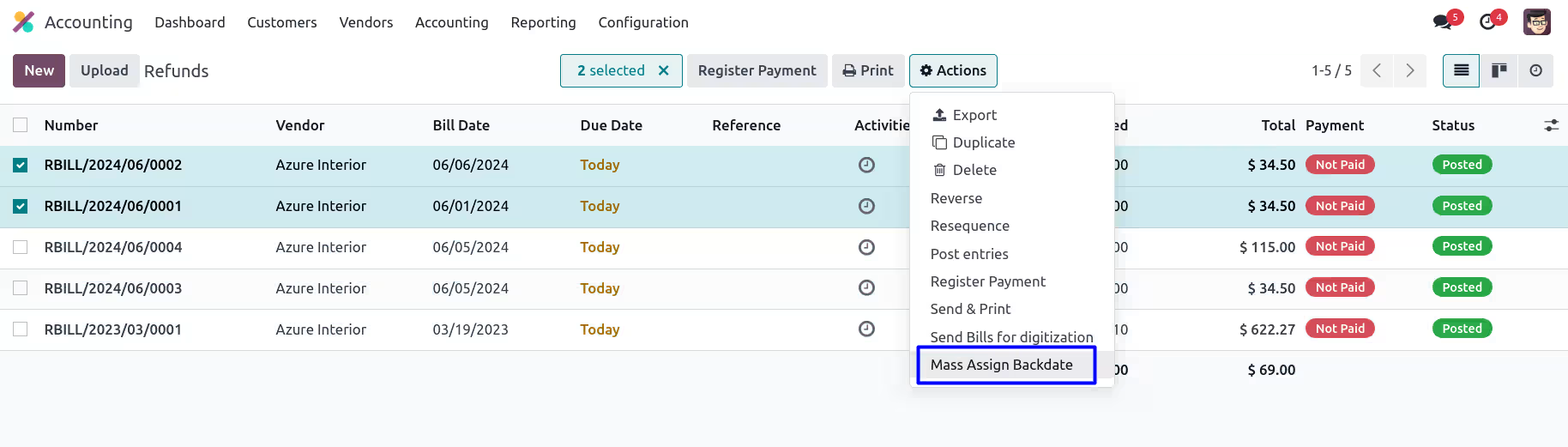
Mass Assign Backdate
User can select multiple vendor credit note from tree view, and under "Action" menu user can see "Mass Update Backdate" menu. User also can see bill date for all selected multiple vendor credit note.
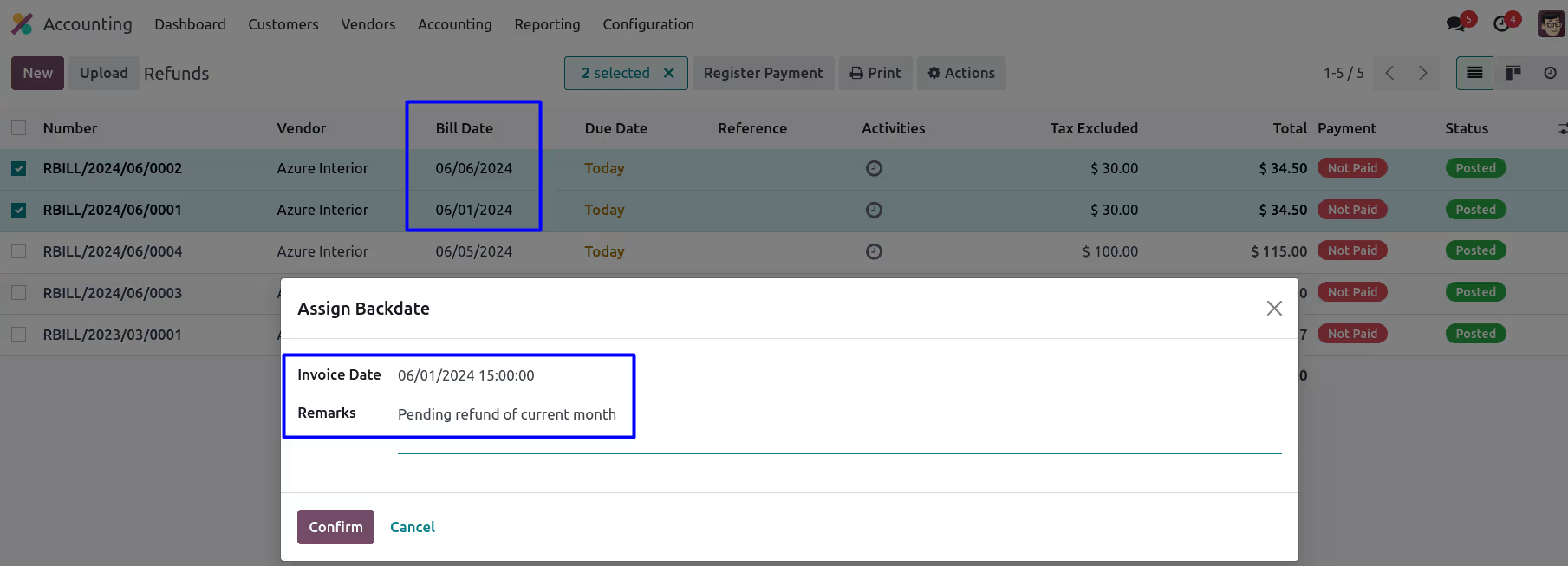
User need to enter "Invoice Date" and "Remarks" on wizard.
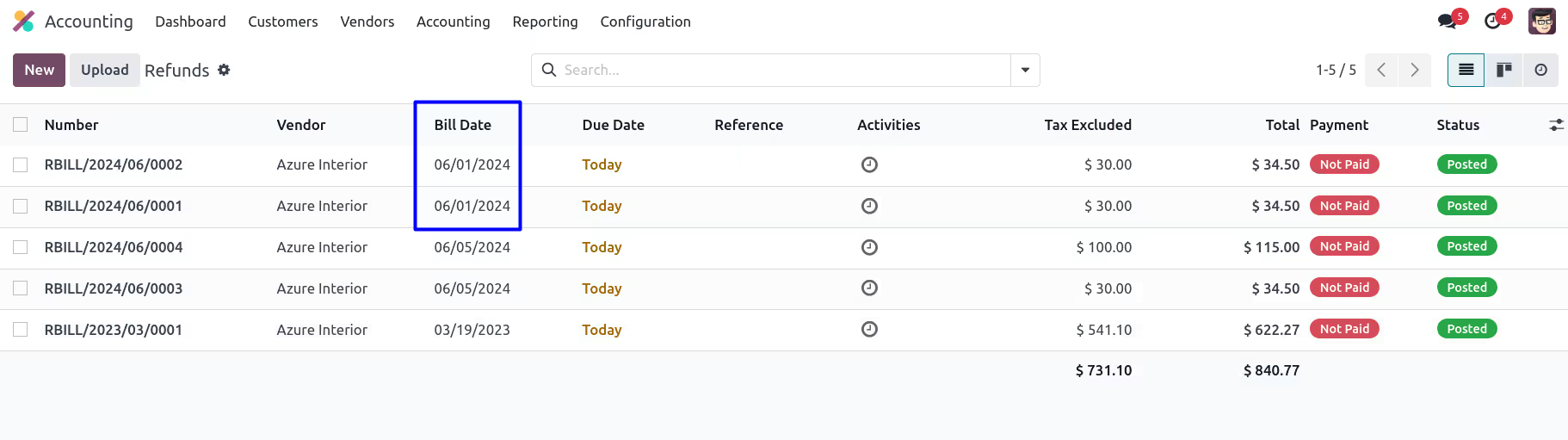
Updated Backdate and Remark on Vendor Credit Note
User can see selected backdate and remarks updated for all vendor credit note.
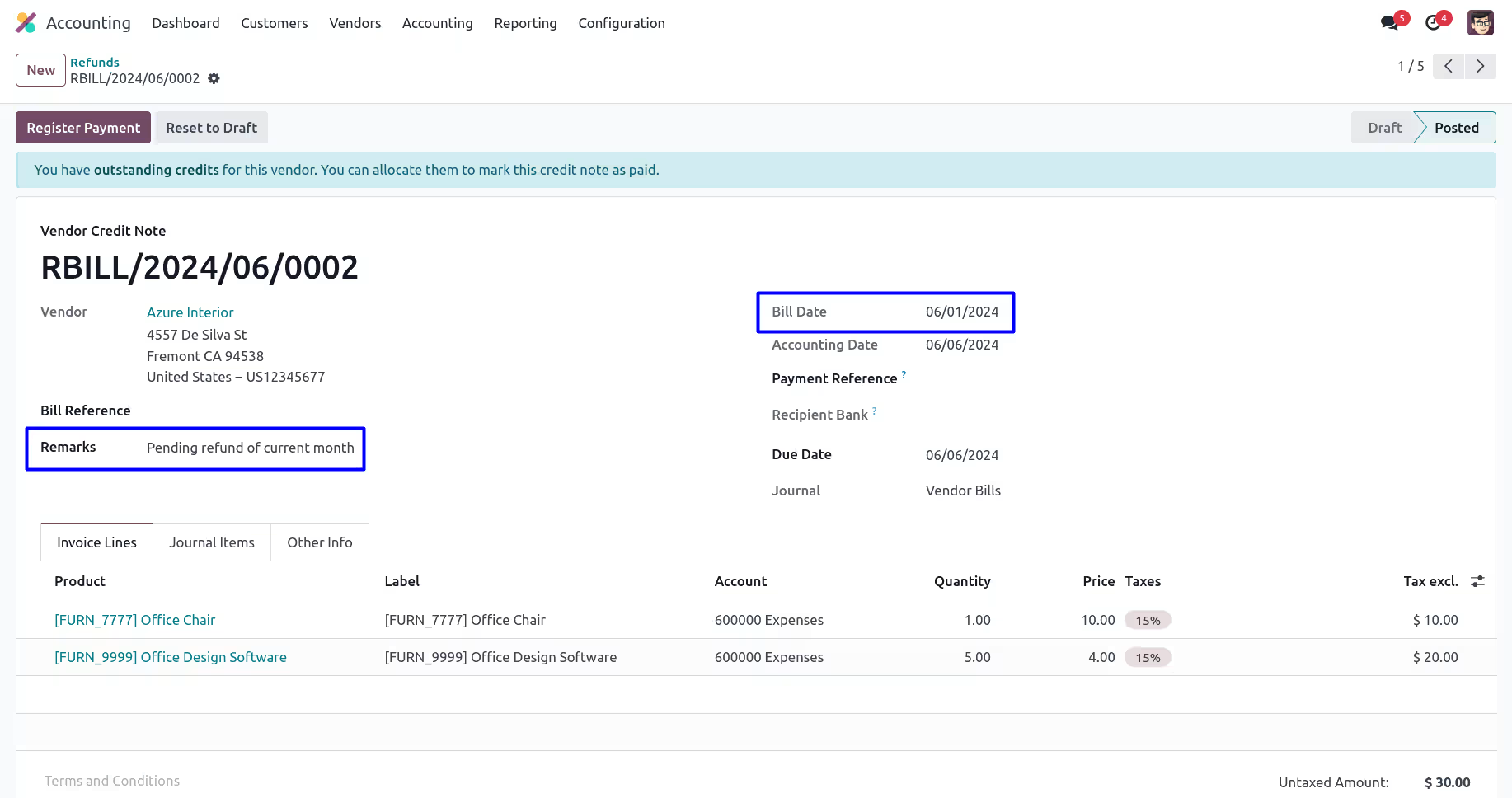
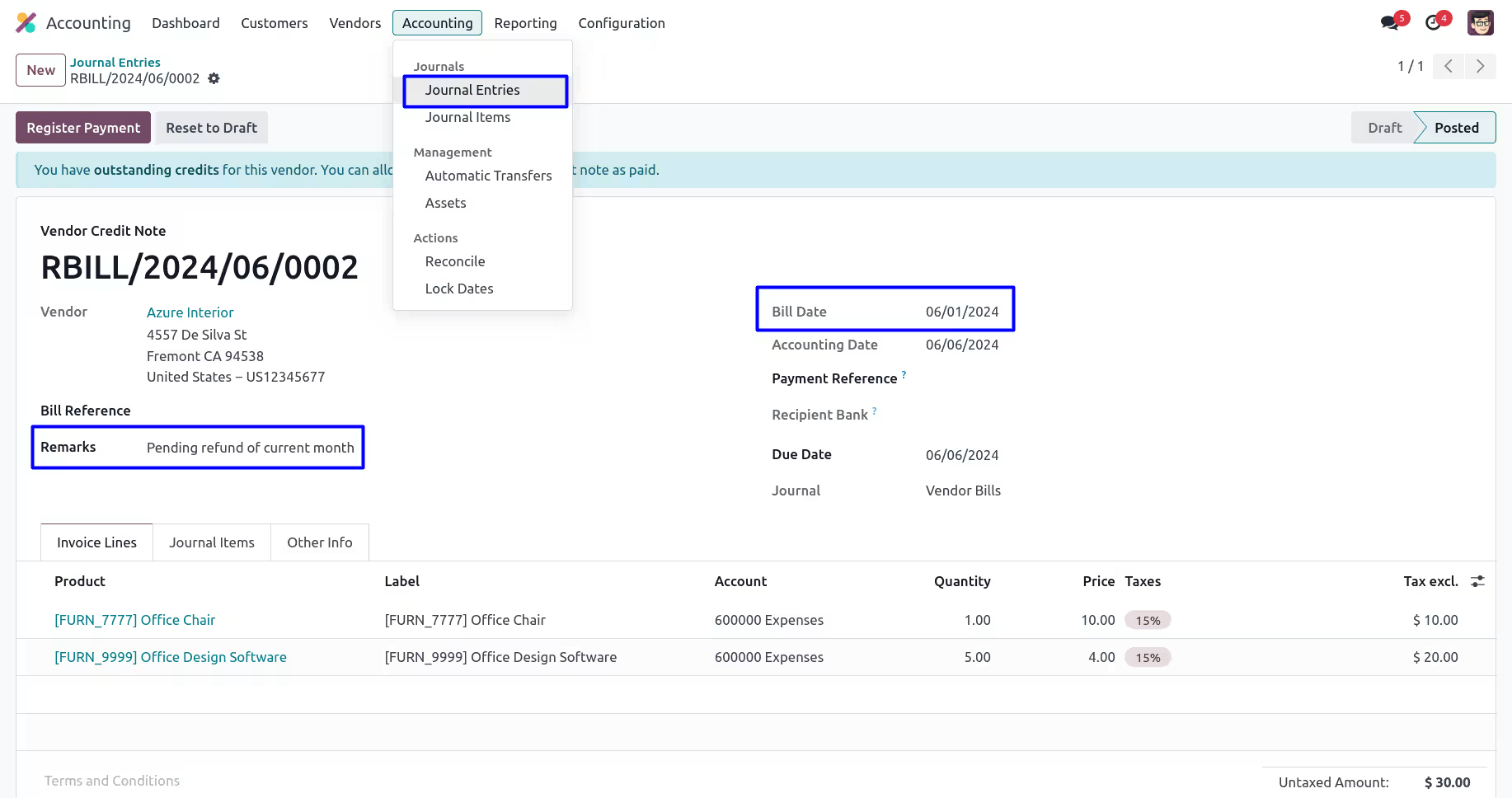
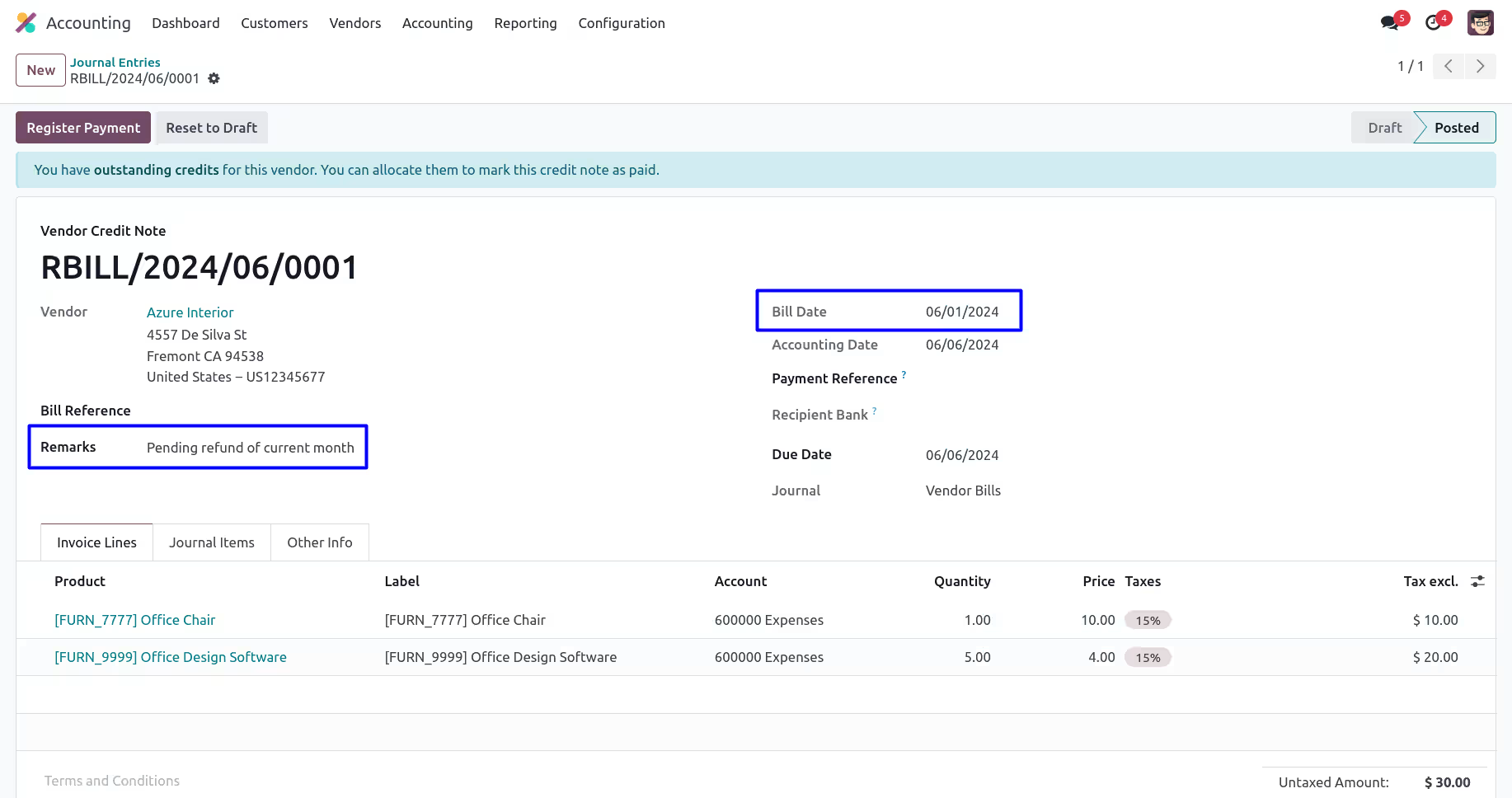
Backdate and Remark on Journal Entries
User can see backdate and remark added to journal entries created for all selected vendor credit note.
Account Payment Backdate and Remarks
Account Payment
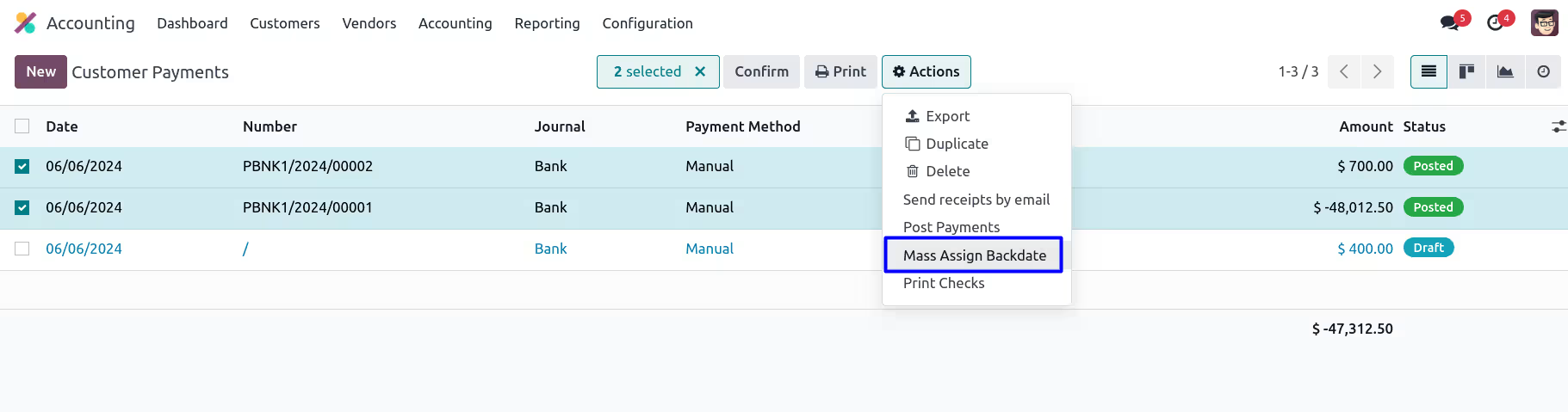
User can see selected payments, also see there is no remarks added.
Mass Assign Backdate
User can select multiple account payments from tree view, and under "Action" menu user can see "Mass Update Backdate" menu. User also can see bill date for all selected multiple account payments.
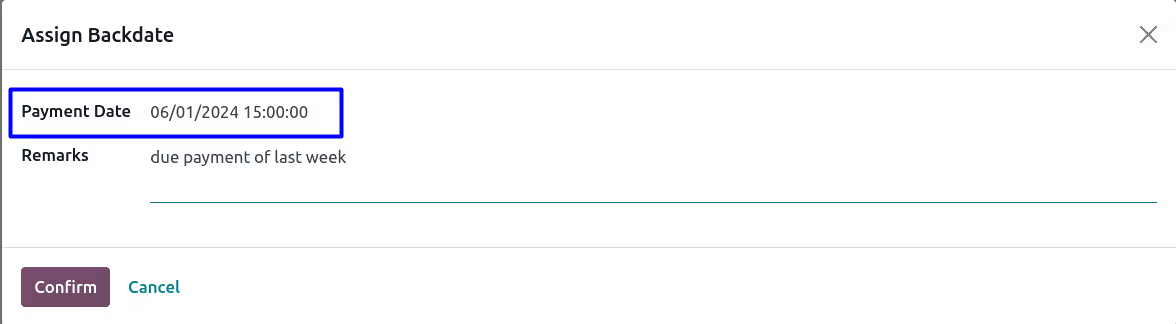
User need to enter "Invoice Date" and "Remarks" on wizard.
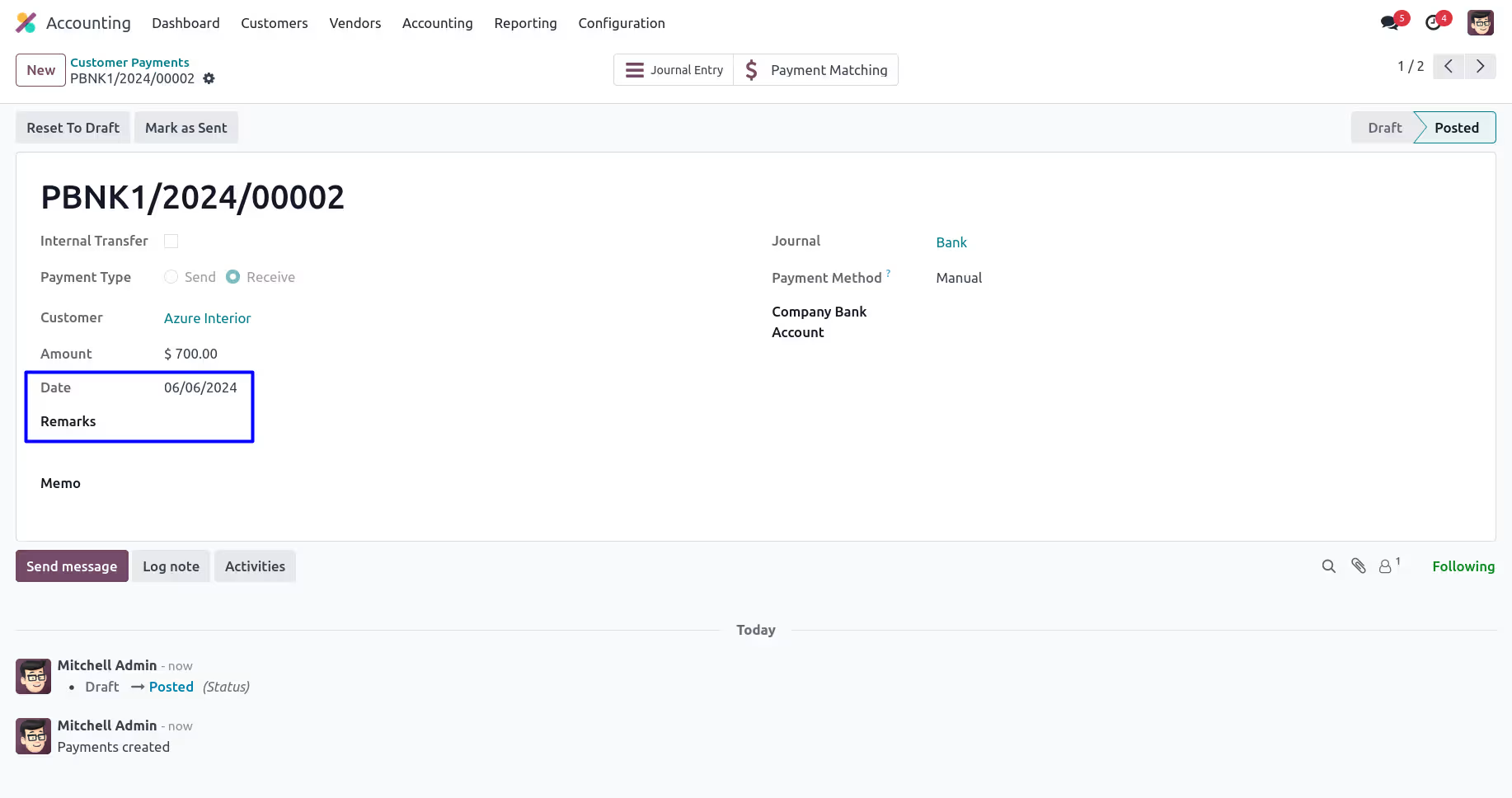
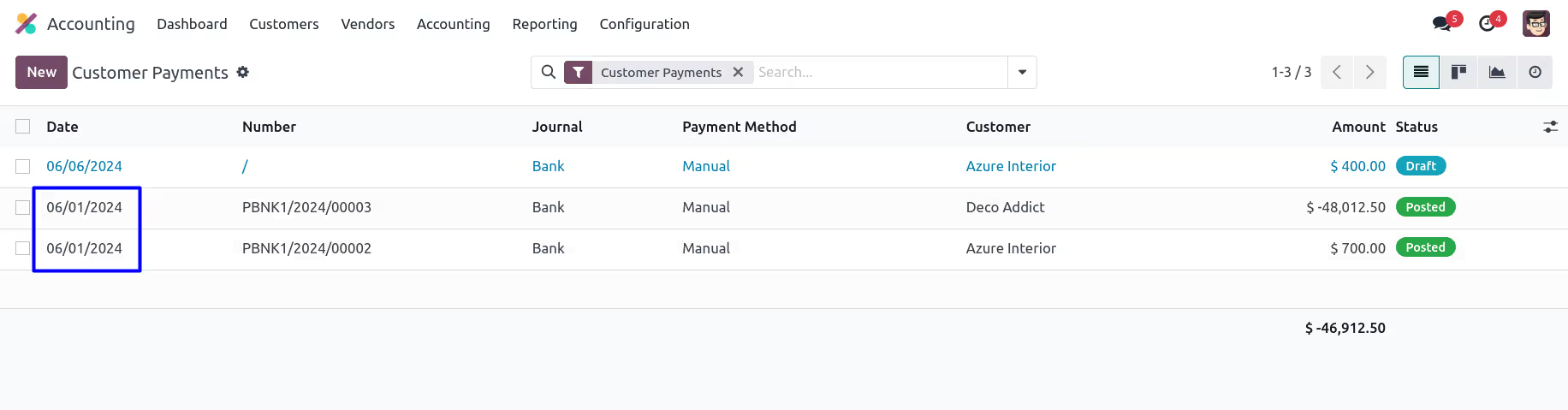
Updated Backdate and Remark on Account Payments
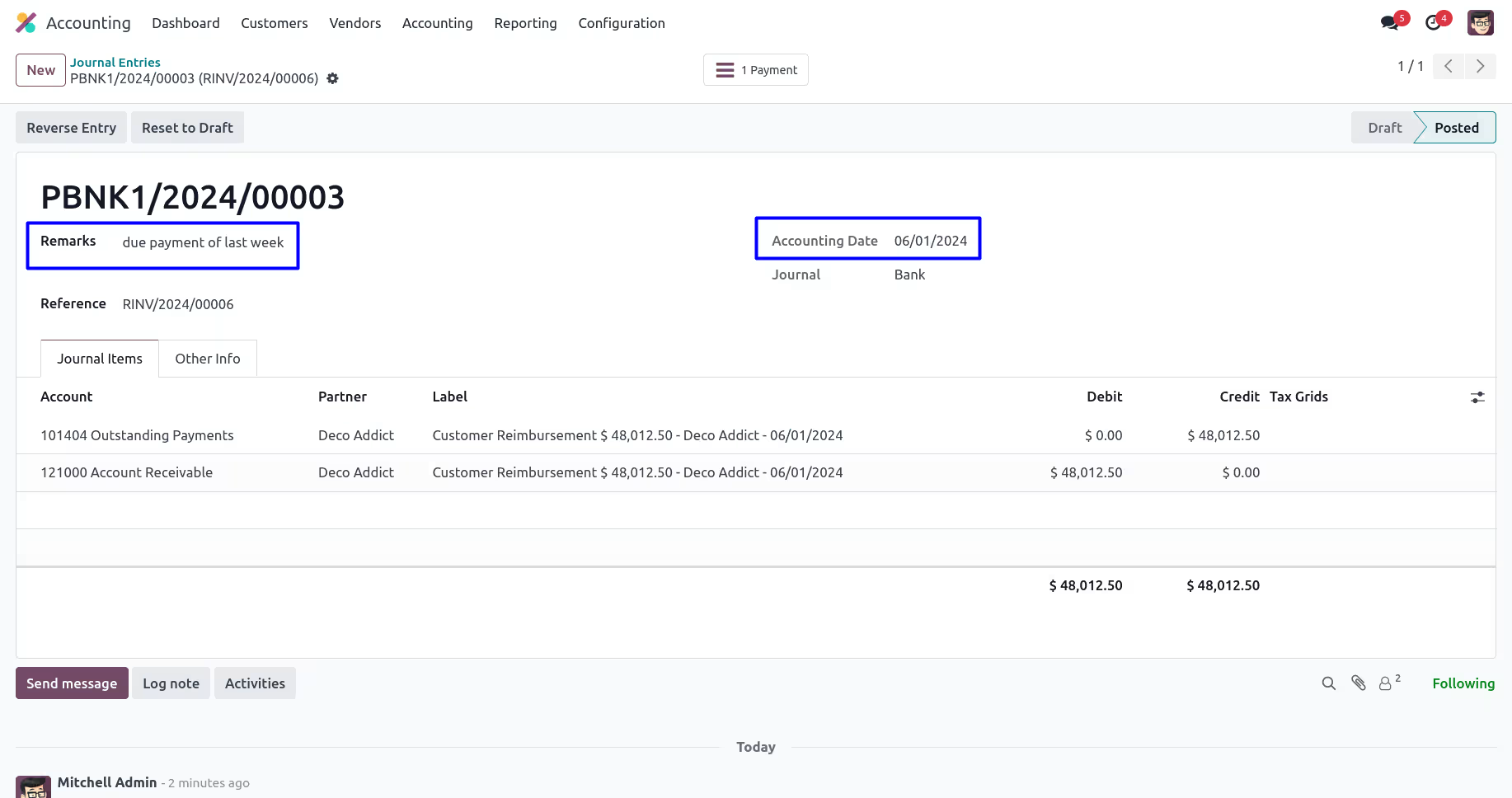
User can see selected backdate and remarks updated for all account payments.
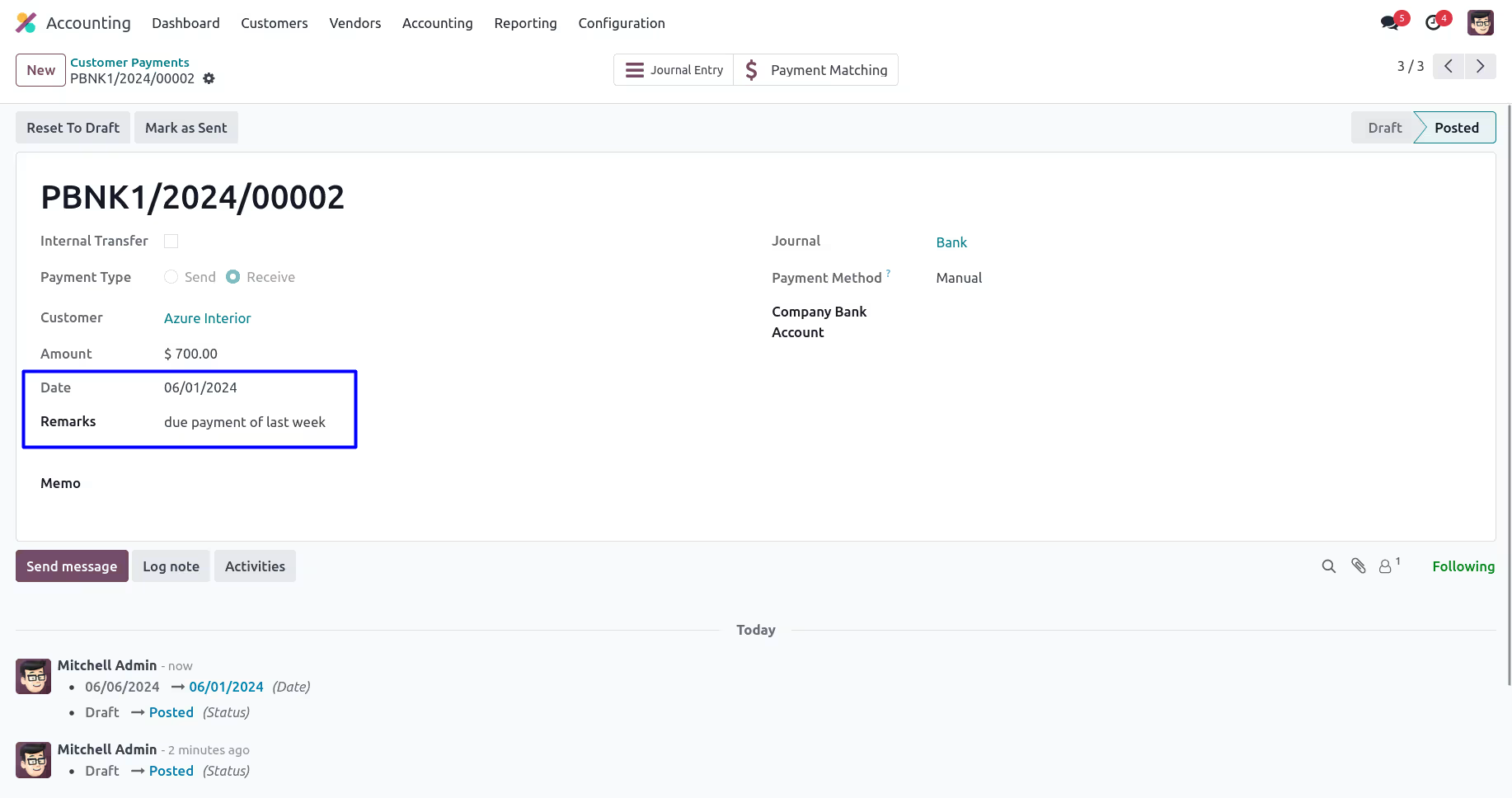
Backdate and Remark on Journal Entries
User can see backdate and remark added to journal entries created for all selected account payments.
Version :
17.0.0.0
20 October 2023
Initial release of the app.
Version :
17.0.0.1
24 May 2024
Minor Bugs Fixes.