Take full control of your cheque payment processes with the comprehensive Account Cheque Management module. This all-in-one solution is designed to manage the entire lifecycle of both incoming customer cheques and outgoing vendor cheques, providing a robust and streamlined workflow for your accounting team. From registering new cheques and tracking their status to handling bounces, returns, and reconciliations, this module offers a complete set of tools to ensure that your cheque payments are managed efficiently, accurately, and with full traceability.
Key Features
Complete Cheque Lifecycle Management: Manage the entire workflow for both incoming and outgoing cheques, including states like Draft, Registered, Cashed, Deposited, Bounced, and Returned.
Incoming and Outgoing Cheque Management: Dedicated menus and workflows for managing cheques received from customers and cheques issued to vendors.
Automated Journal Entries: The system automatically generates the necessary journal entries for each stage of the cheque lifecycle, ensuring accurate accounting records.
Post-Dated Cheque (PDC) Management: Easily manage post-dated cheques, with clear visibility into their due dates and statuses.
Reconciliation and Payment Matching: A dedicated payment matching feature allows for easy reconciliation of cheque-related journal entries.
Cheque Transferability: Transfer a cheque from one partner to another with a full audit trail and corresponding journal entries.
Comprehensive Reporting: Generate detailed reports for both incoming and outgoing cheques, with filtering options by date range and status.
Dynamic Cheque Printing: Create and customize dynamic cheque printing formats to match your bank's requirements.
Benefits
Streamlined Cheque Processing: A centralized and automated system for managing all your cheque-related transactions, saving time and reducing manual effort.
Improved Financial Control: Gain a clear and real-time view of all your outstanding and cleared cheques, enabling better cash flow management.
Enhanced Accuracy: Automate the creation of journal entries to reduce the risk of manual errors and ensure the accuracy of your financial records.
Greater Transparency and Traceability: A complete audit trail for every cheque, from issuance to final settlement, provides full transparency and accountability.
Efficient Reconciliation: Simplify and expedite the bank reconciliation process with a dedicated payment matching tool.
Better Customer and Vendor Relationships: A more organized and efficient cheque management process leads to better relationships with your business partners.



Account Cheque/Check Life cycle Management Apps(PDC Check)
Do you want to manage Complete Cheque Lifecycle and PDC-Post Dated check Management?.Normally there is no any kind of features to manage complete cycle of check/cheque management and PDC-Postdated cheque management in ERP. Here is the apps which help to manage incoming cheque and outgoing cheque with complete workflow such as submit cheque, register cheque, cashed cheque, deposit cheque,Bounce cheque, Return Cheque,Transfer cheque, reconcile cheque with payment. All status of cheque generate different journal entries for configurable account from the settings.This apps cover Account cheque/check deposit complete Cheque Management system also allow to print option for both type of cheque(Incoming cheque and Outgoing cheque).


Register Incoming Cheque
Easy to register incoming cheque which comes from the customer, Once register it creates accounting entry.

Manage complete flow of cheque
All the process of cheque has been defined as status, i.e Register, Cashed, Deposit ,Bounce, Return etc.

Transfer cheque option
User can transfer cheque from one partner to another partner.

Reverse Stage possible.
All stage can be revert until cheque status become done and once reverse process initiated, generated journal entry has been deleted from system , If reconciliation has been done that is also reverse.

Register outgoing Cheque
Easy to register outgoing cheque on which sent to vendor, Once register it creates accounting entry.
Different Status of incoming/outgoing cheque.
Based on the process of the cheque cycle different stage will maintain(i.e Registered, Bounced, Returned)
Reconciliation option.
We have provided Payment Matching option of generated journal entry for reconciliation.

Reports for Both incoming and outgoing cheque.
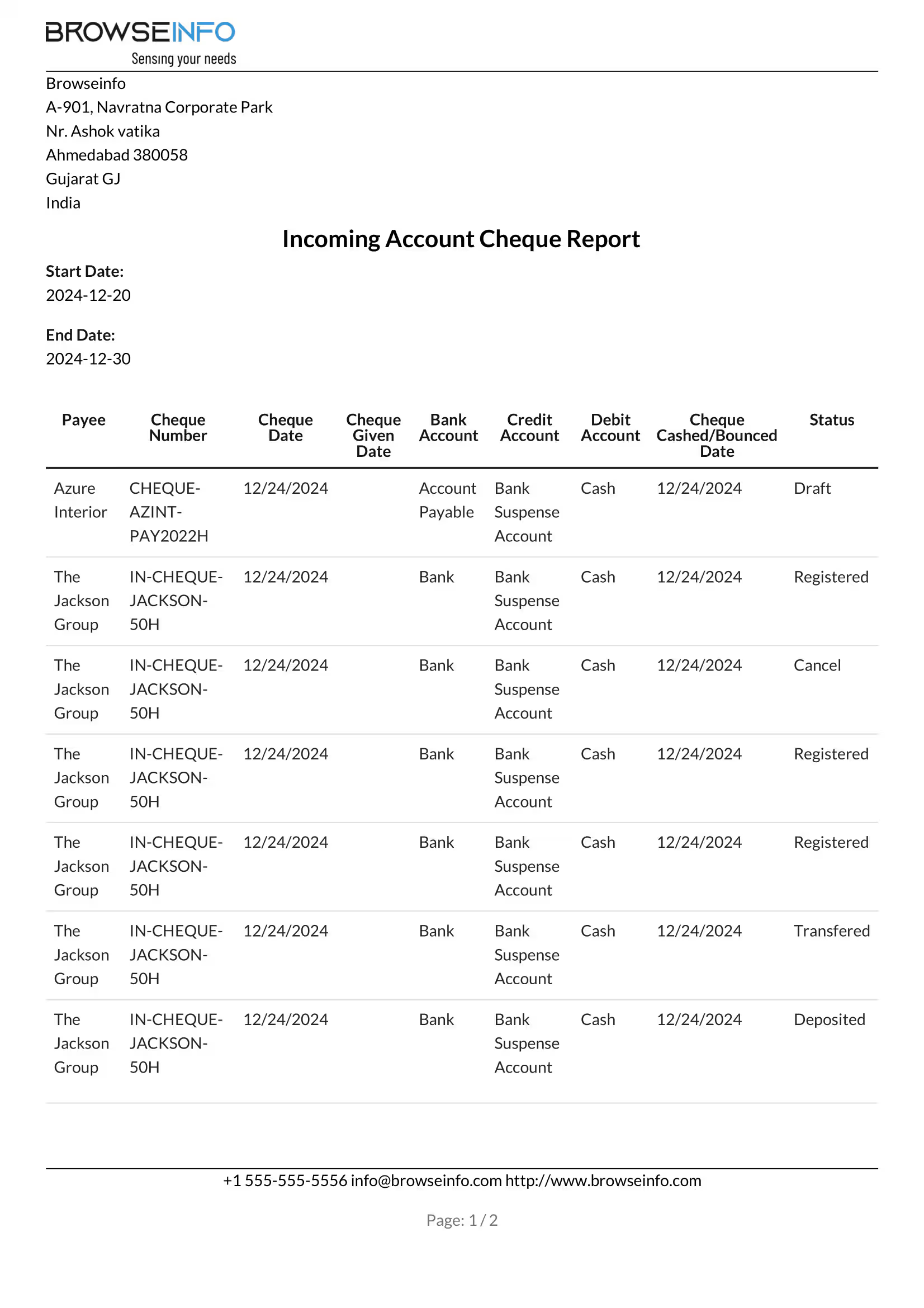
User can print list of cheque details with date range and print list of cheque details.
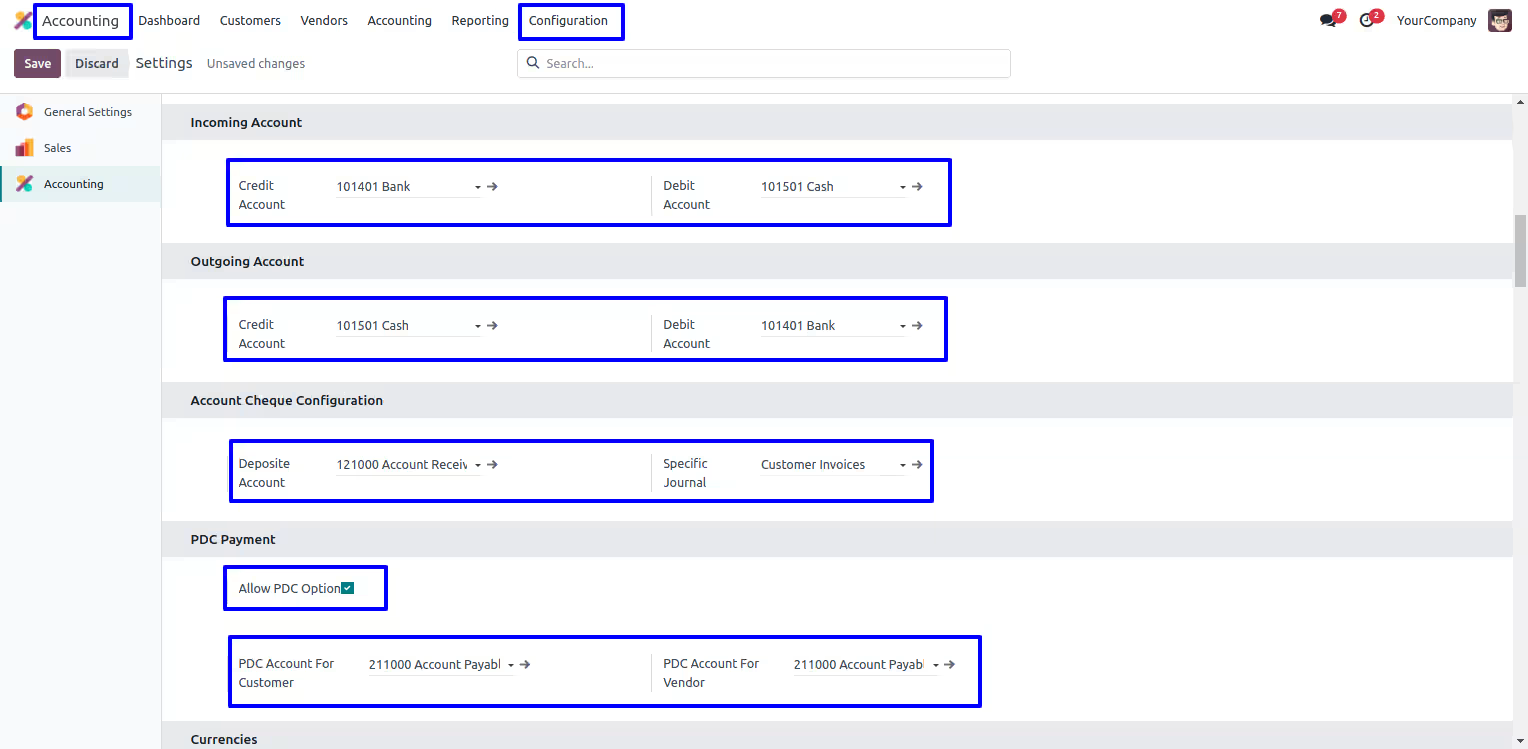
Account Cheque Configuration.
Account manager can set default credit/debit account for incoming and outgoing cheque.
Incoming Cheque Menu
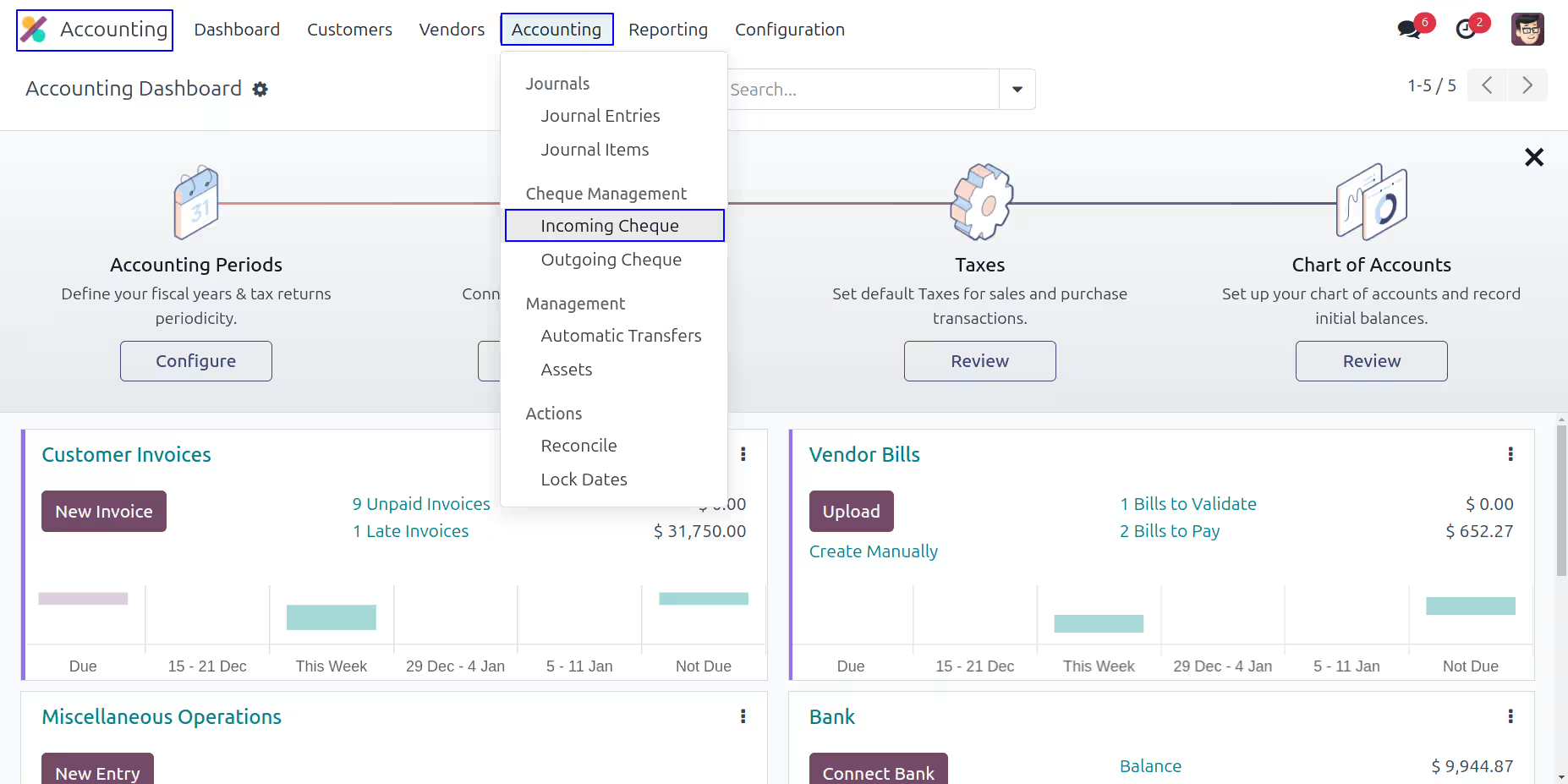
Under Invoicing > Accounting > Cheque Management menu user can create incoming cheque.
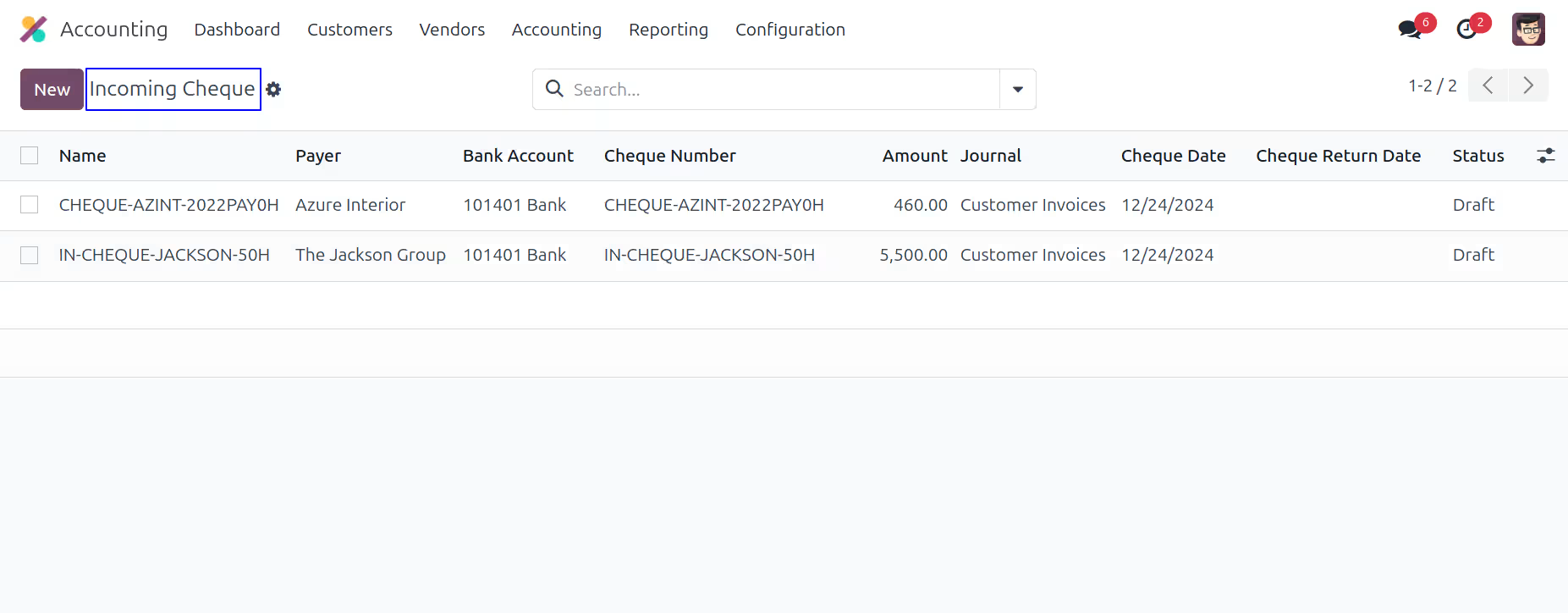
Incoming Cheque Tree View
Under Invoicing > Accounting > Cheque Management menu user can create incoming cheque.
Create Incoming Cheque
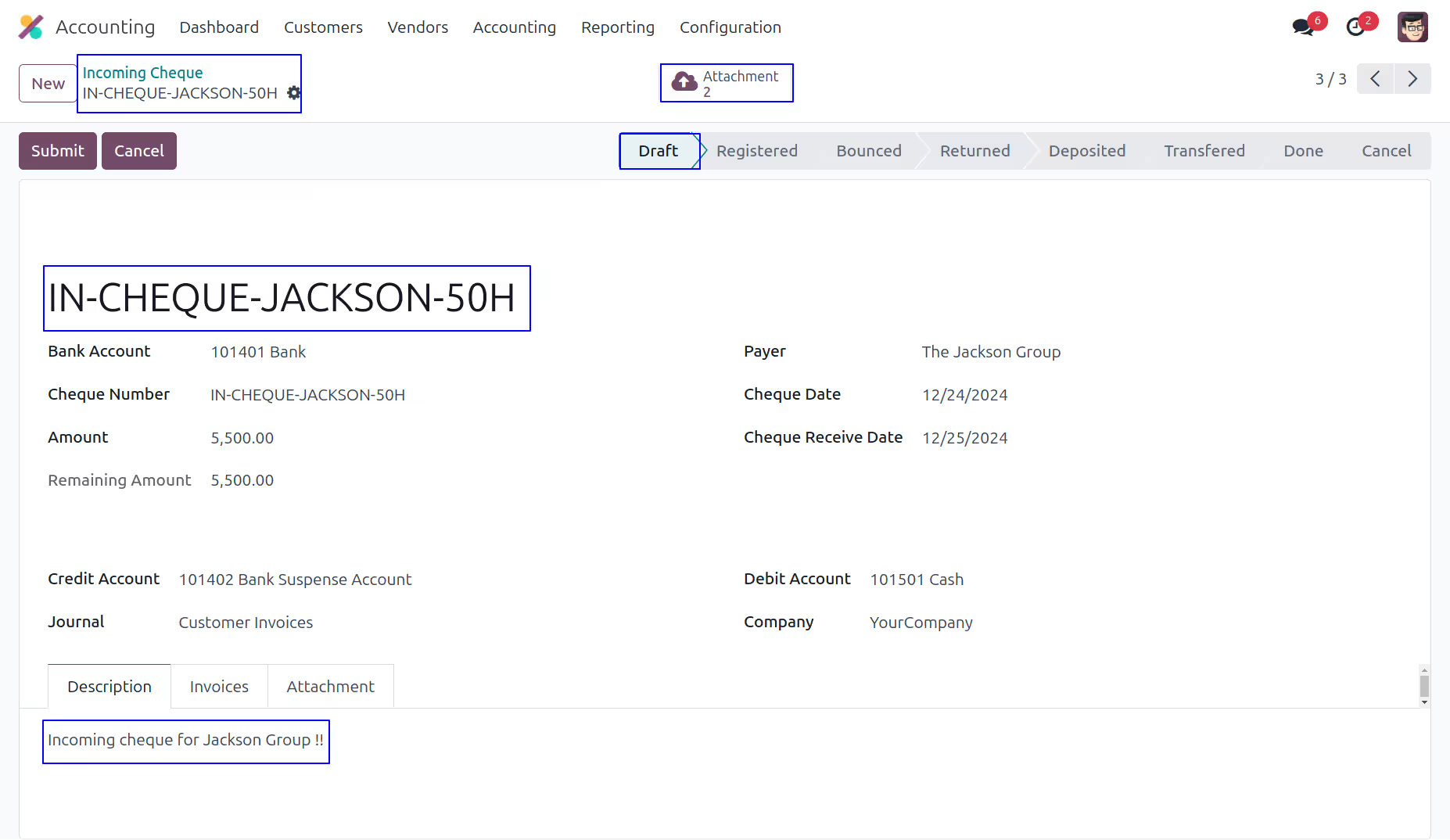
Manager can create incoming account cheque.
Click on "Submit" button to register incoming cheque.
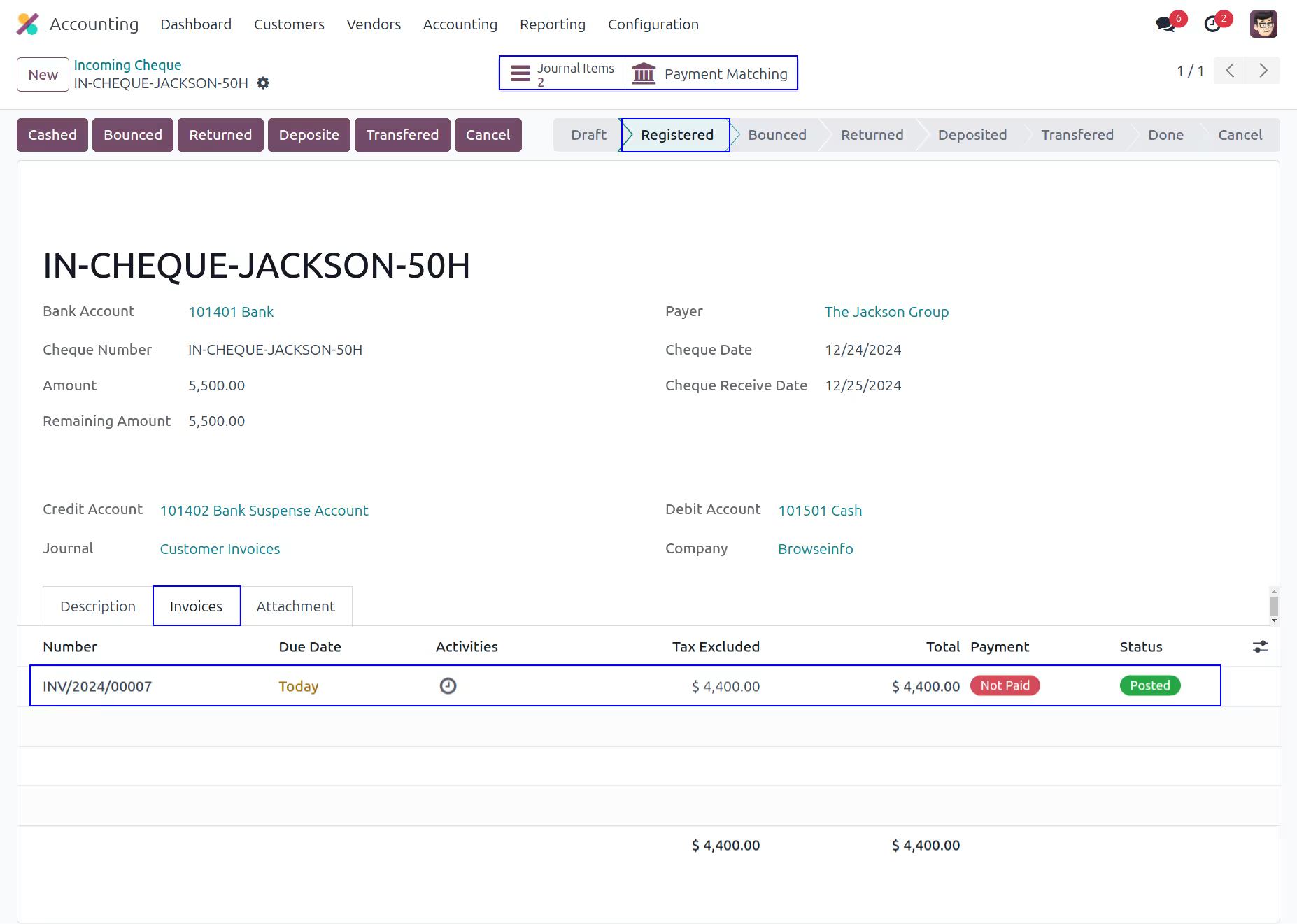
Register Incoming Cheque
Click on "Cashed" button to cashed incoming cheque.
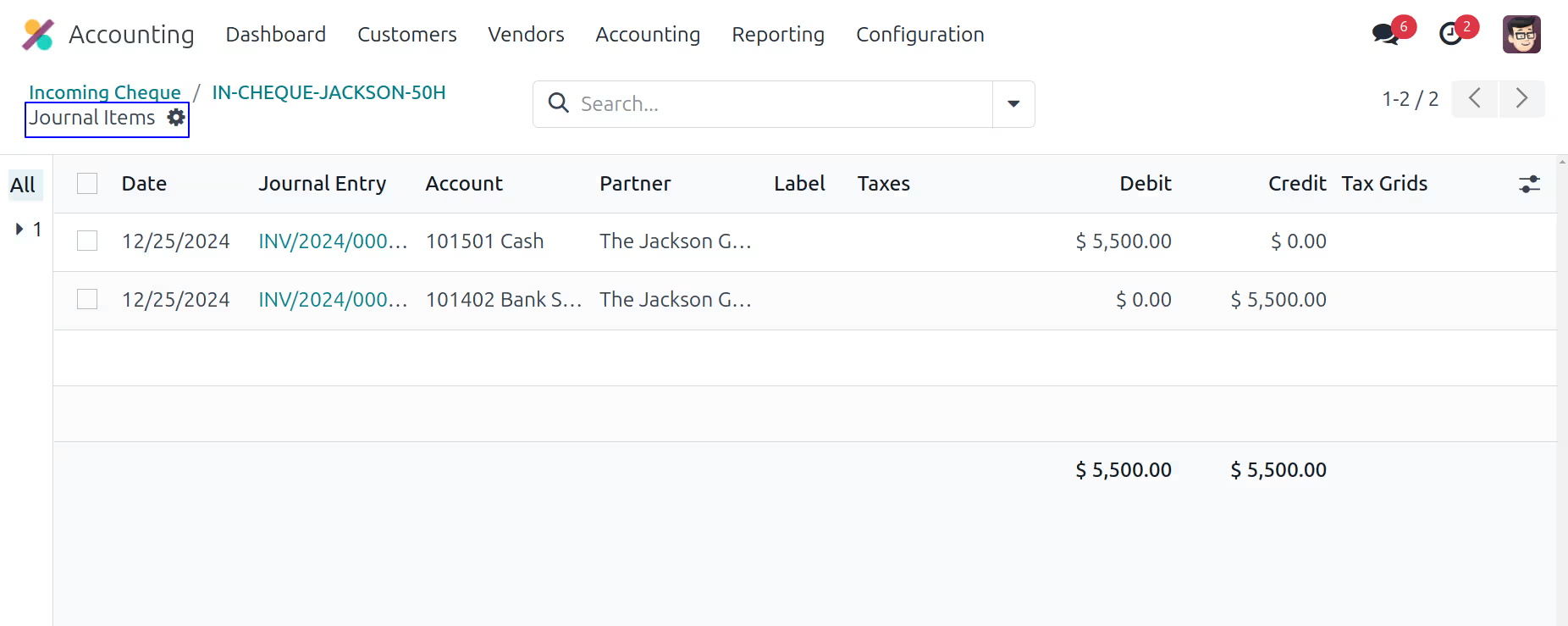
Journal Items
Click on "Journal Items" smart button to view created journal entry.
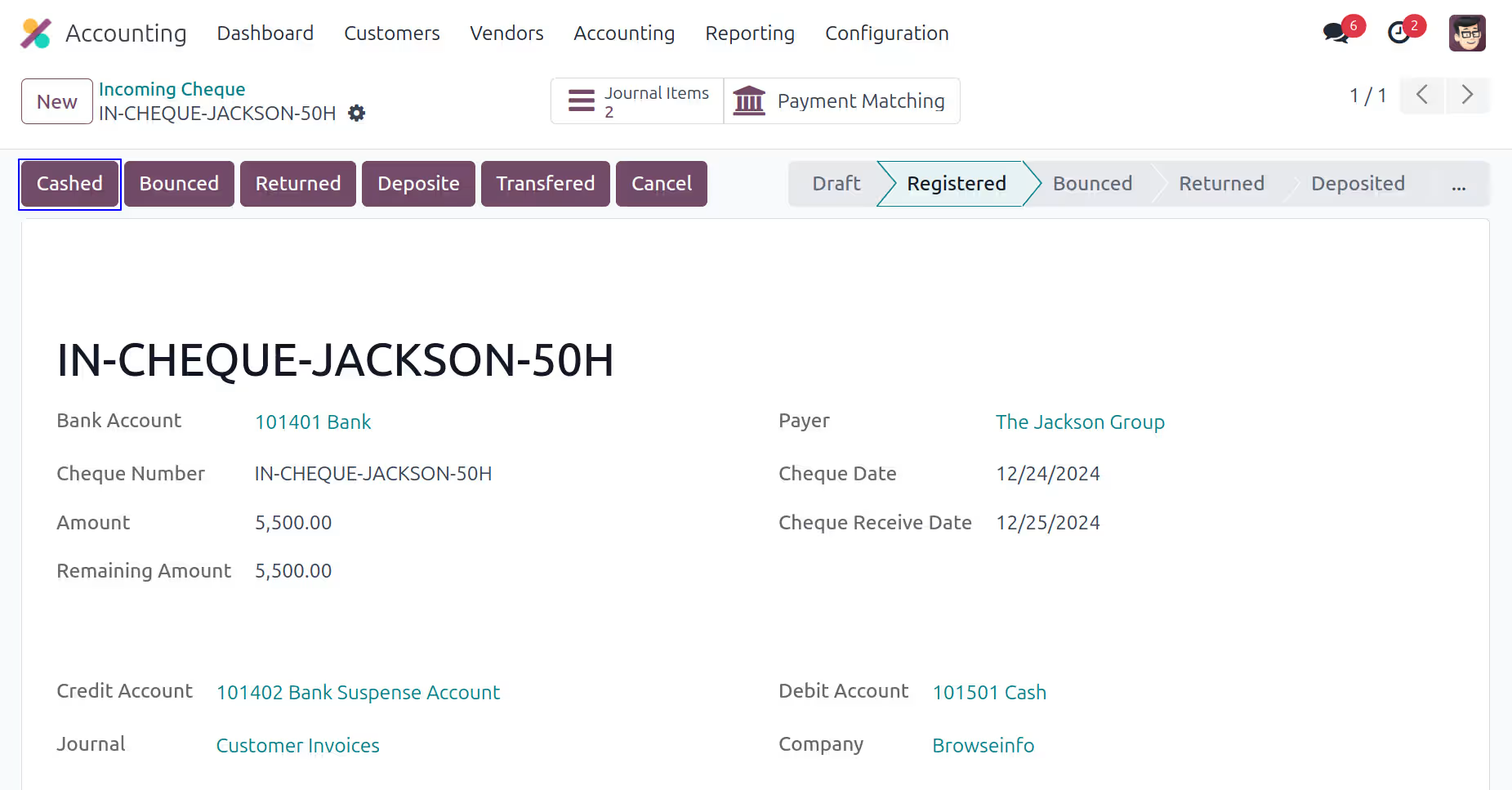
Cash Incoming Cheque
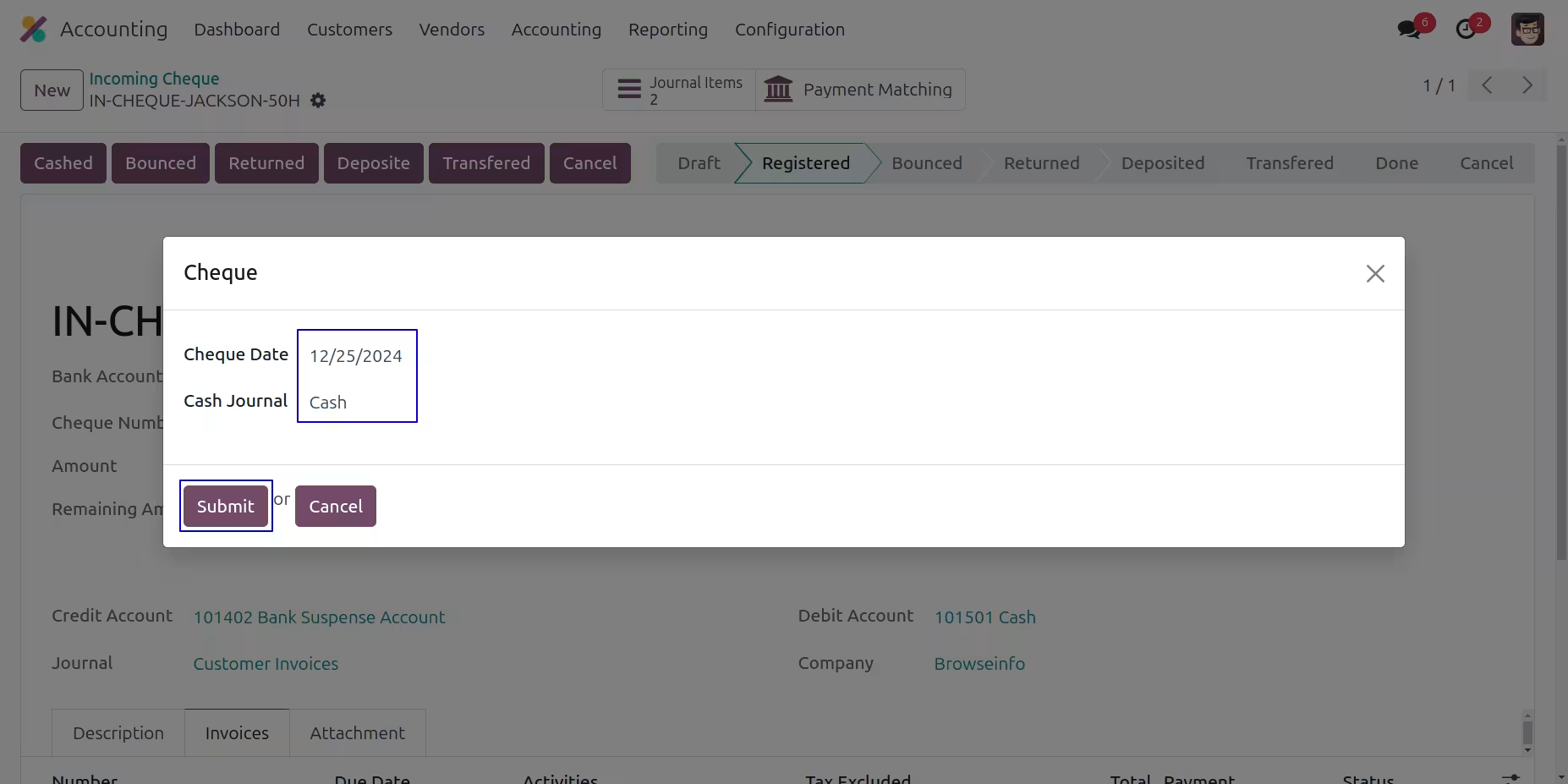
When you click on "Cashed" button new wizard will open, In this wizard select date.
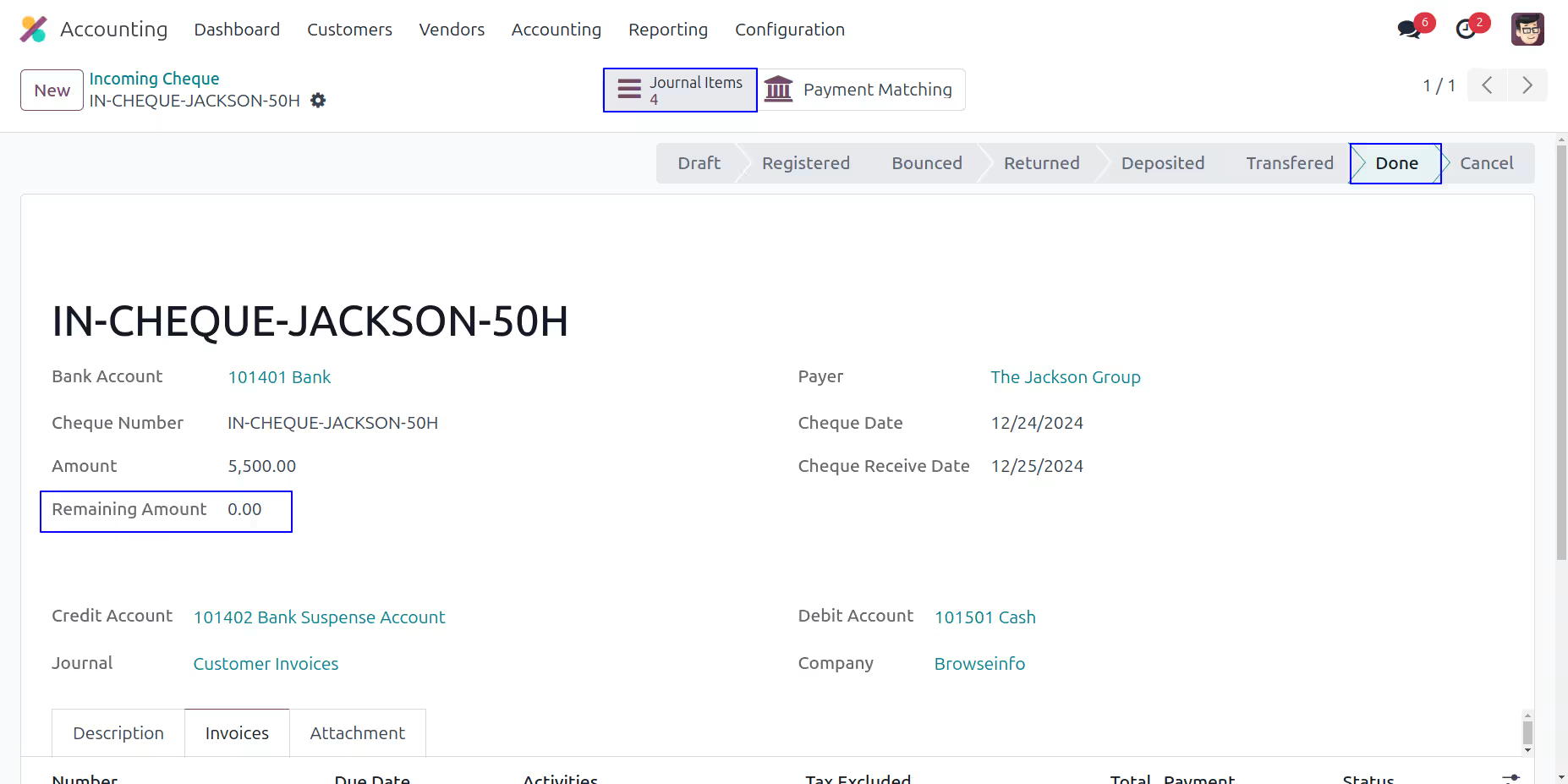
User can see changed state of cheque, User also see attachments of incoming cheque.
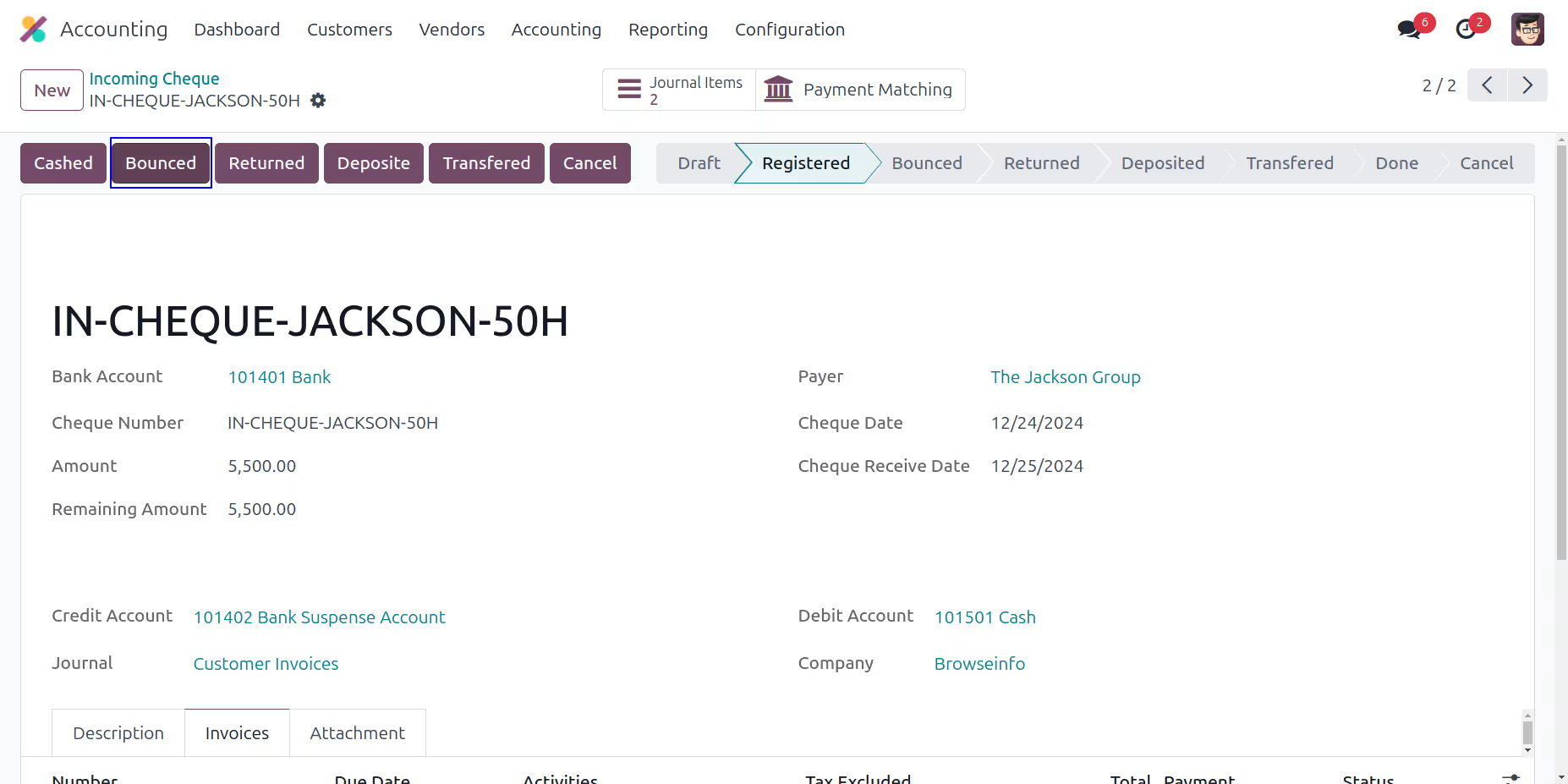
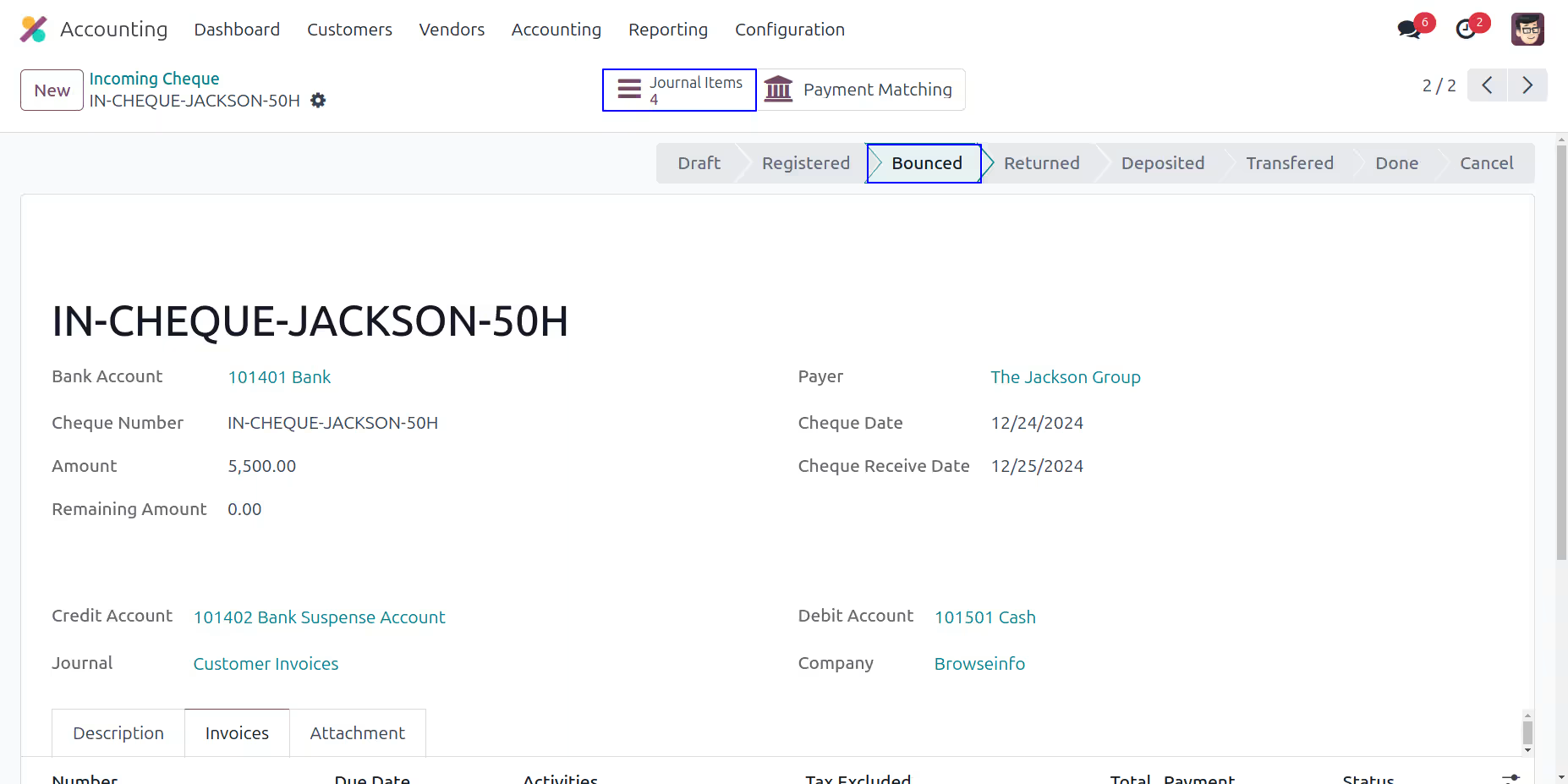
Bounce Incoming Cheque
Click on Bounced button to bounce incoming cheque.
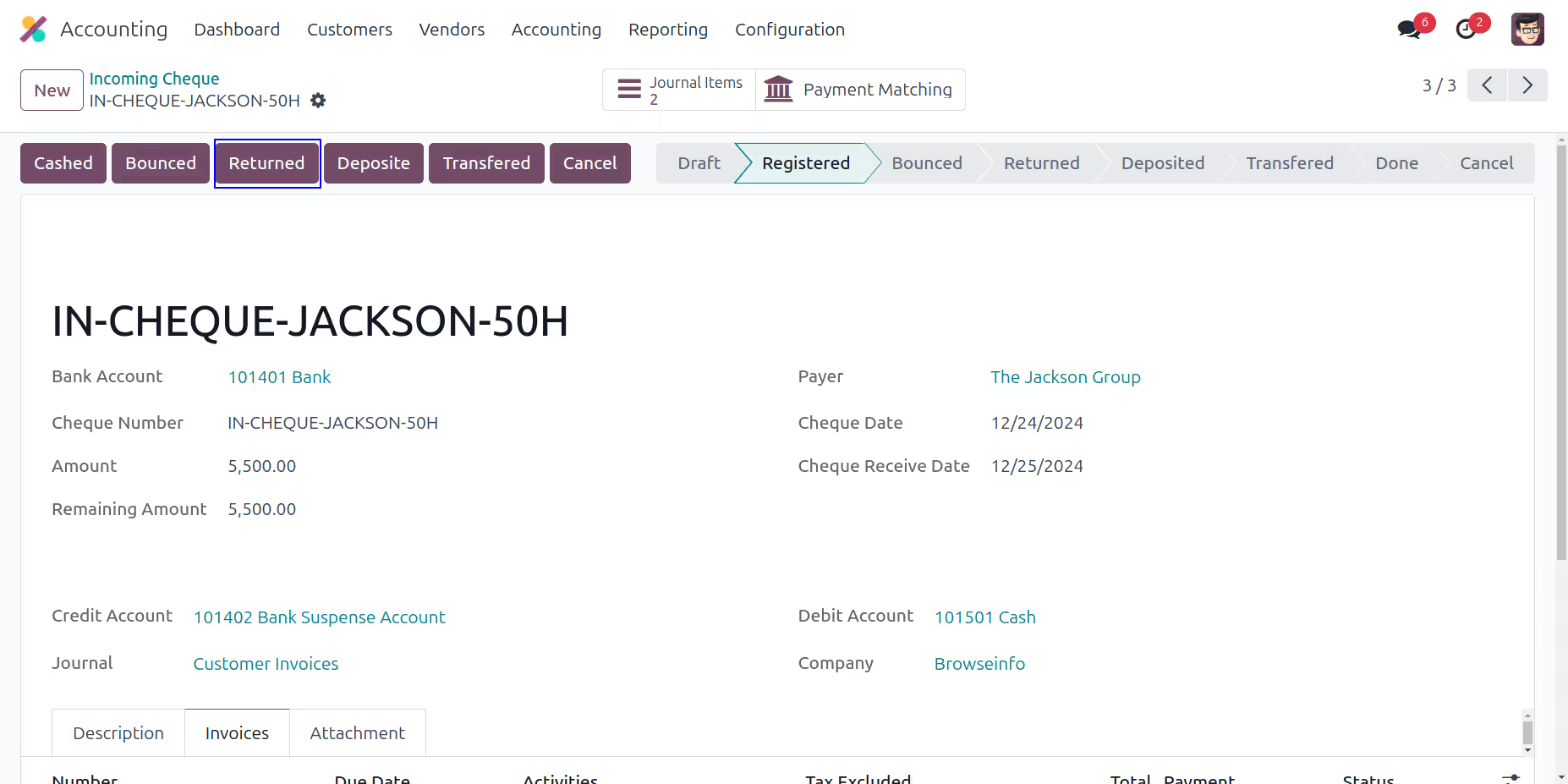
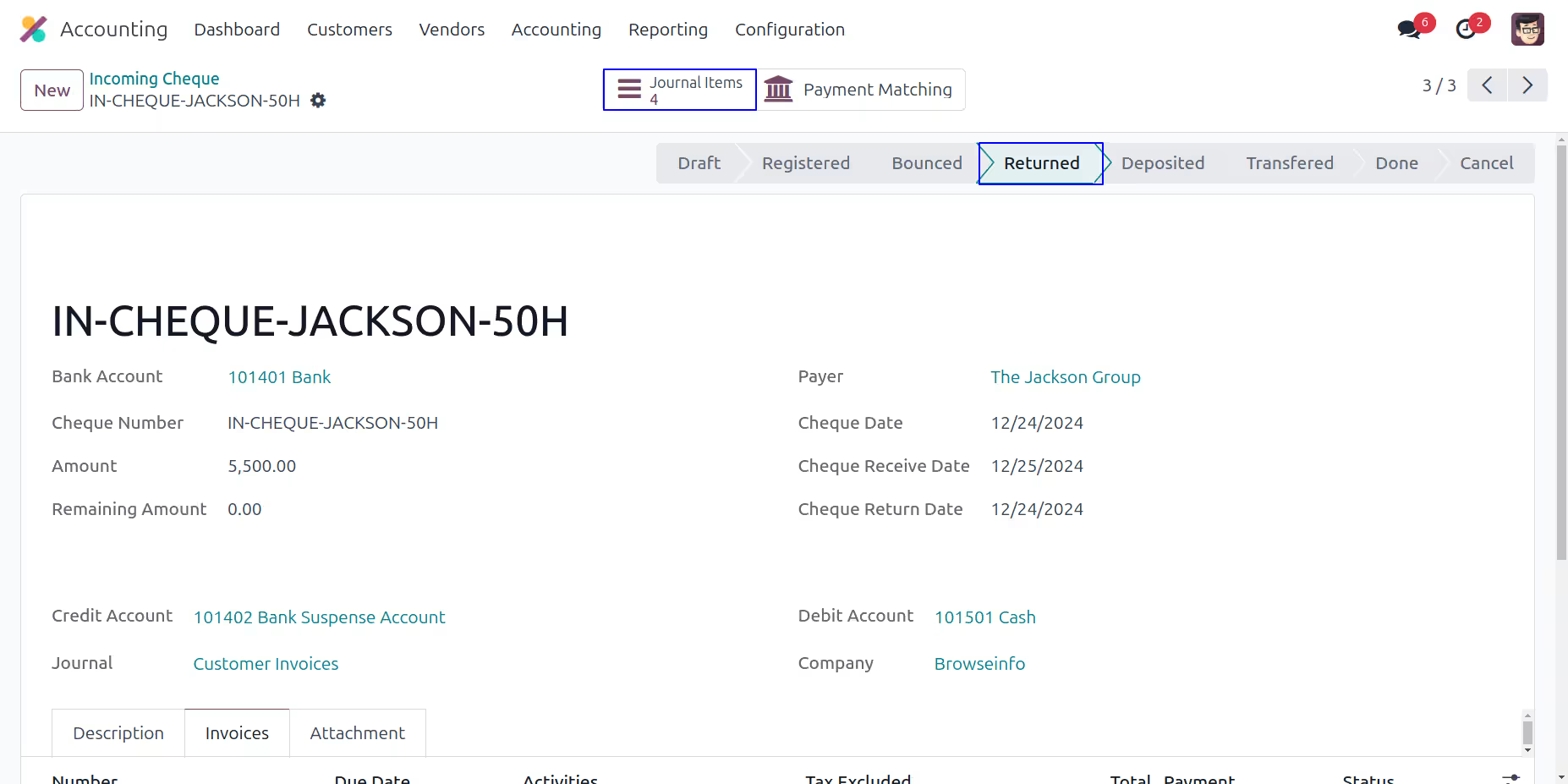
Return Incoming Cheque
Click on "Returned" button to return incoming cheque.
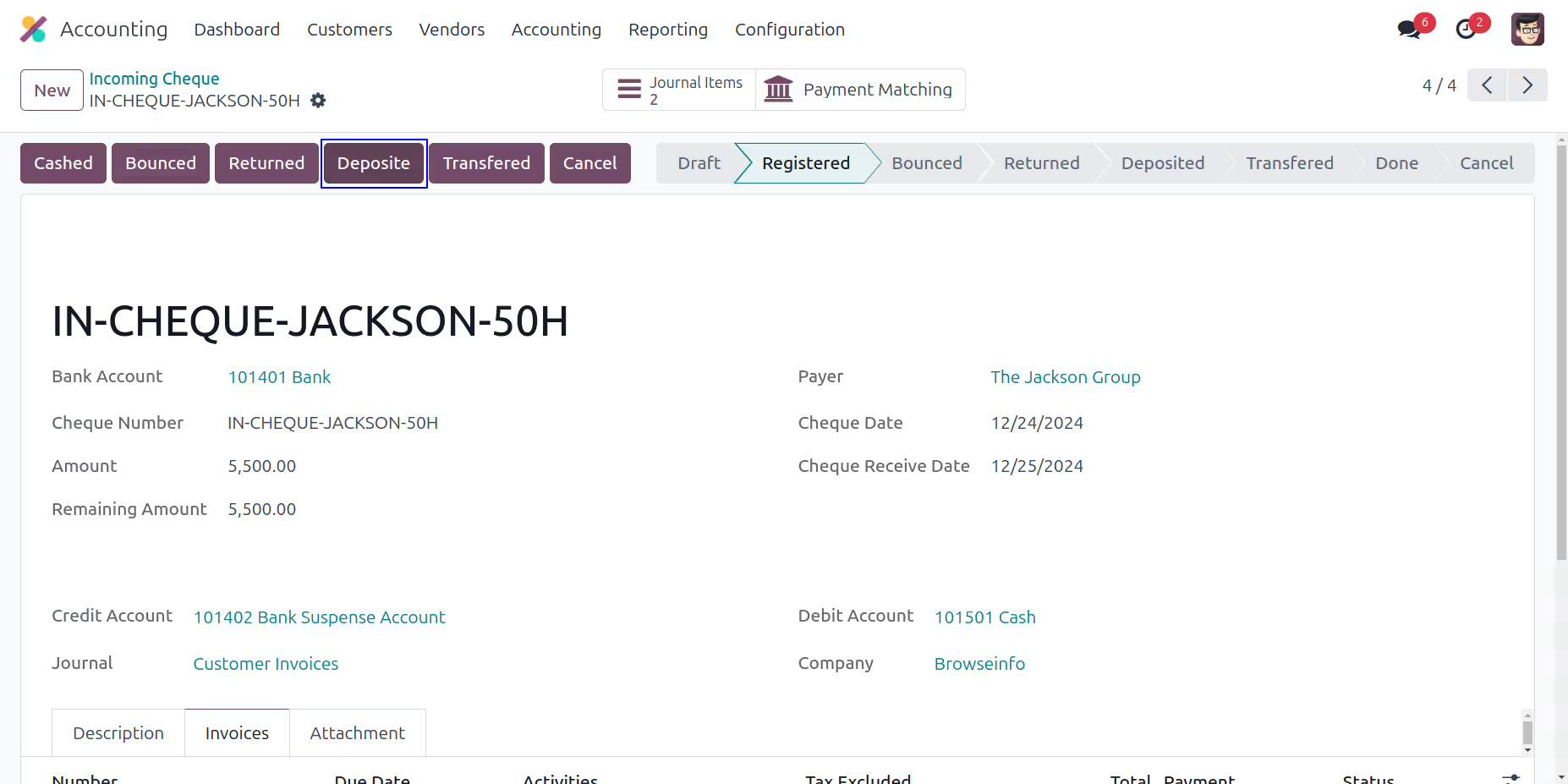
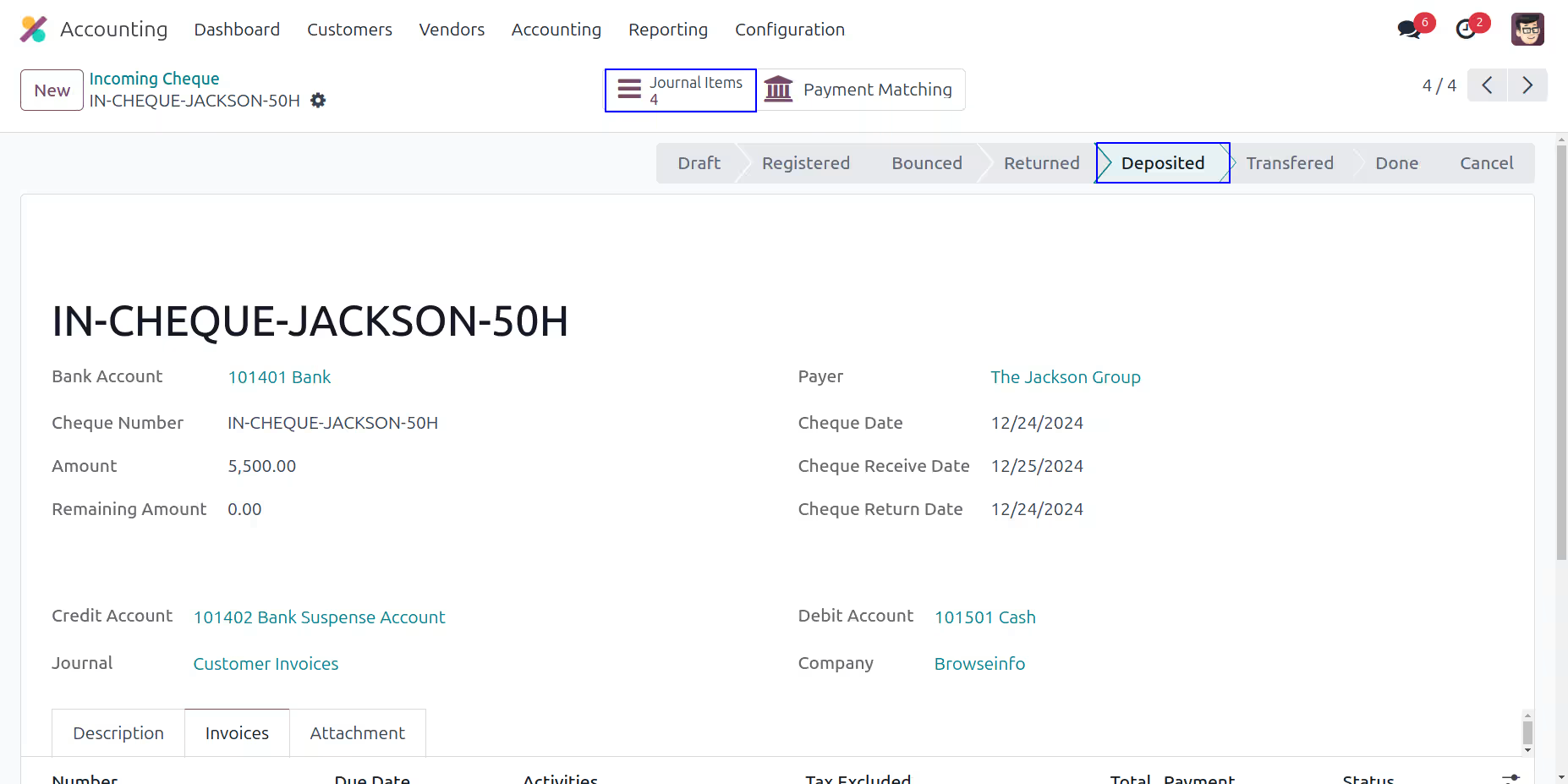
Deposit Incoming Cheque
Click on "Deposit" button to deposit incoming cheque.
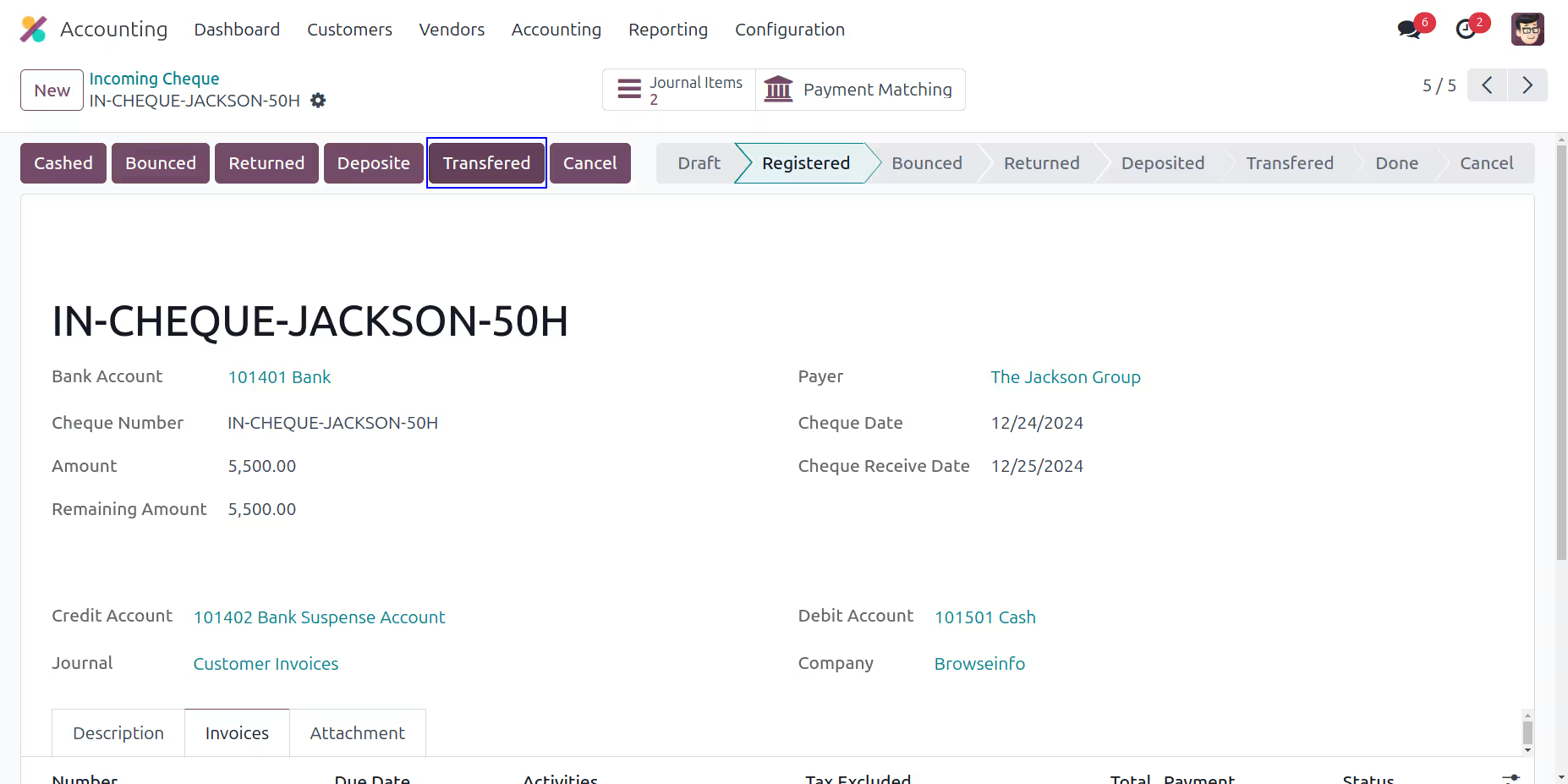
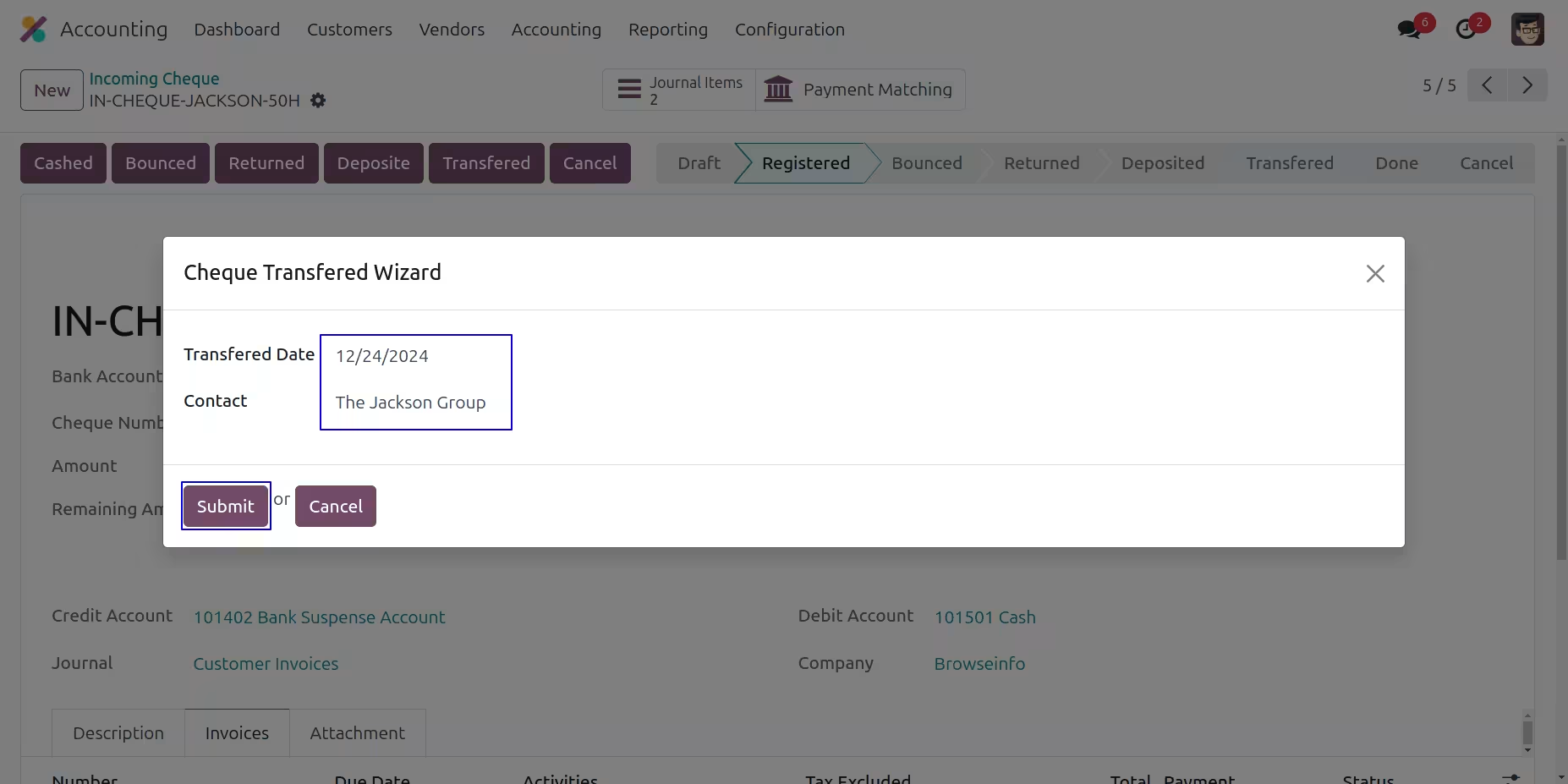
Transferred Incoming Cheque
When you click on "Transferred" button new wizard will open, Here select date and partner.
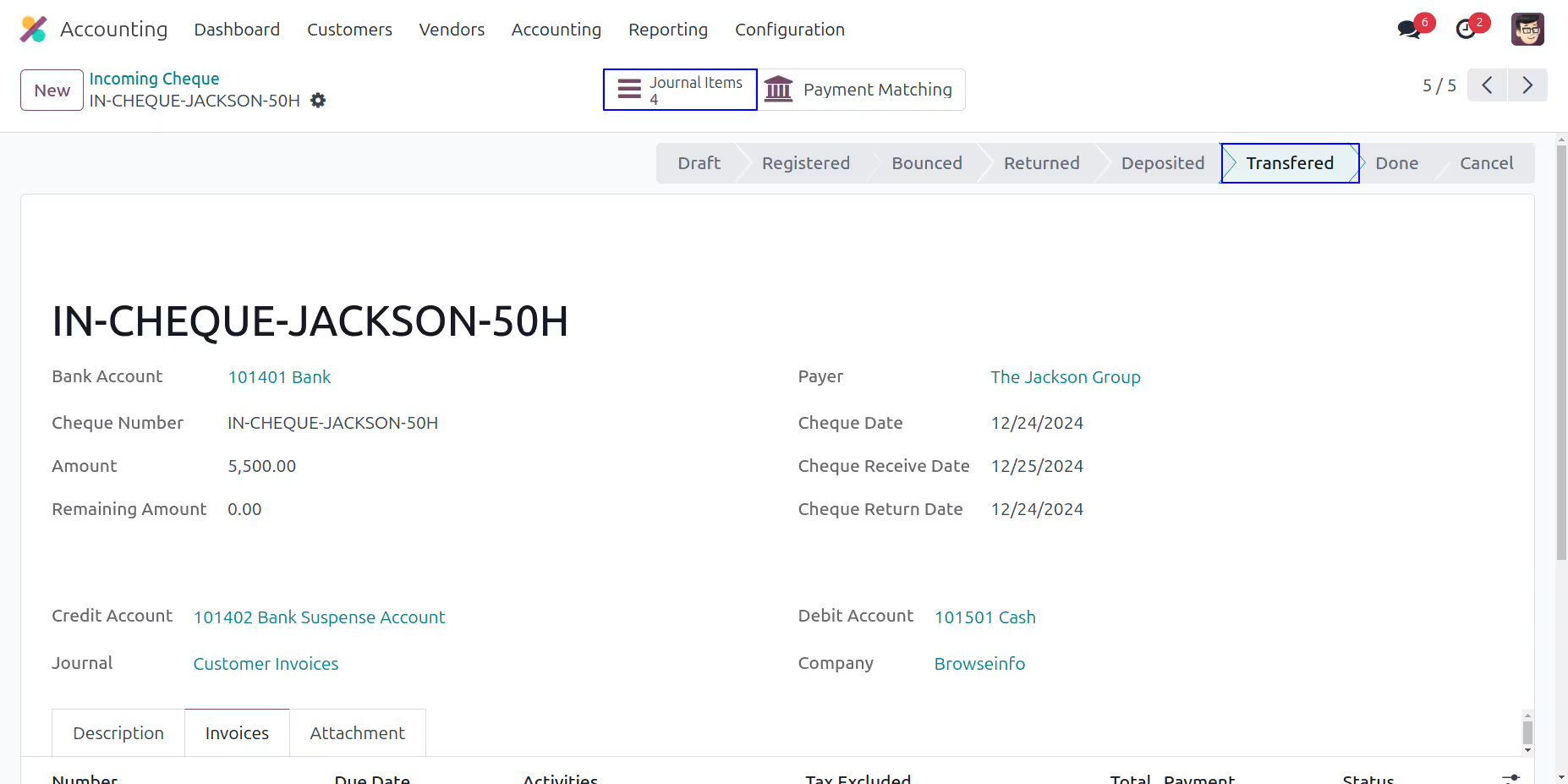
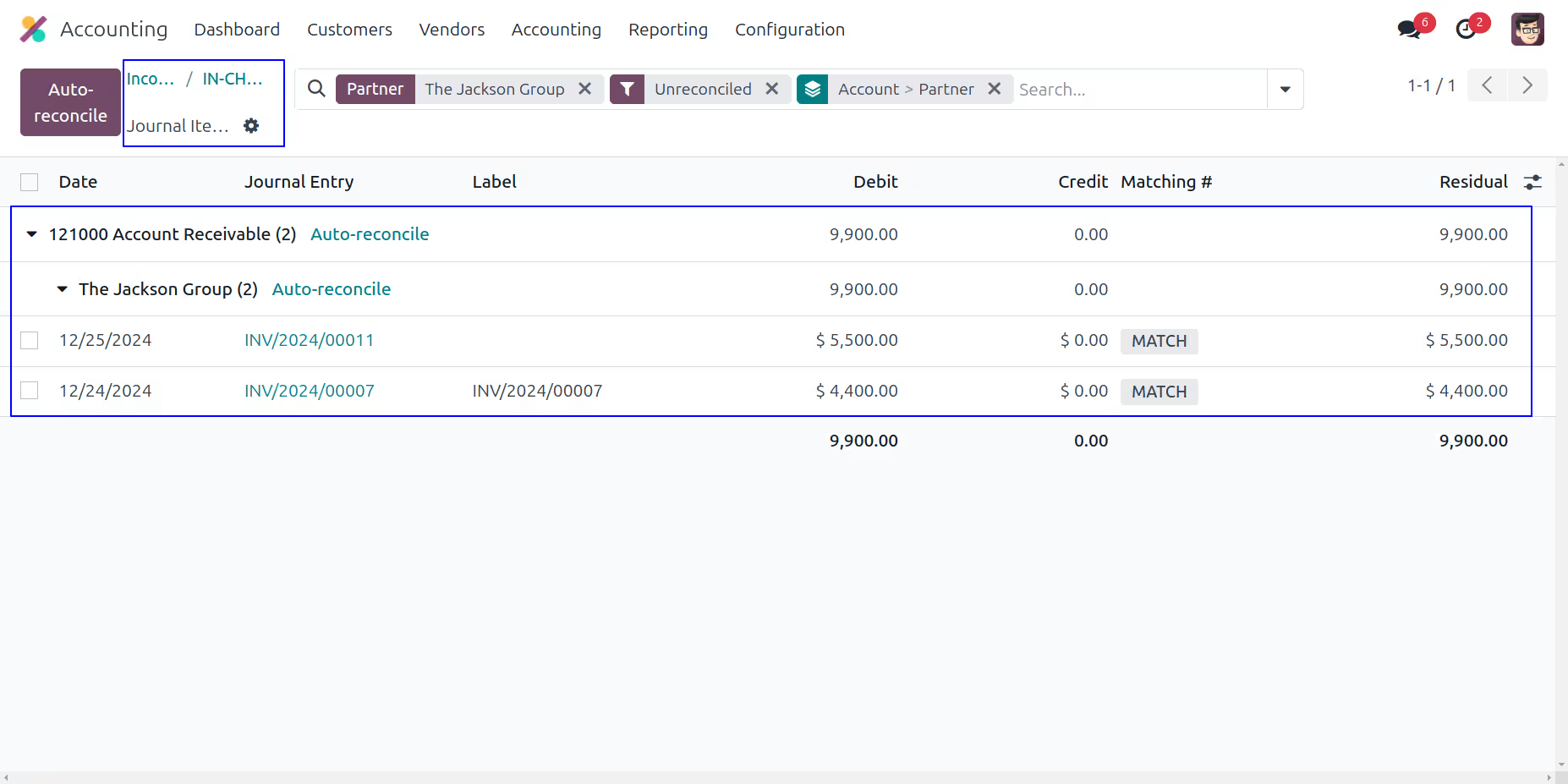
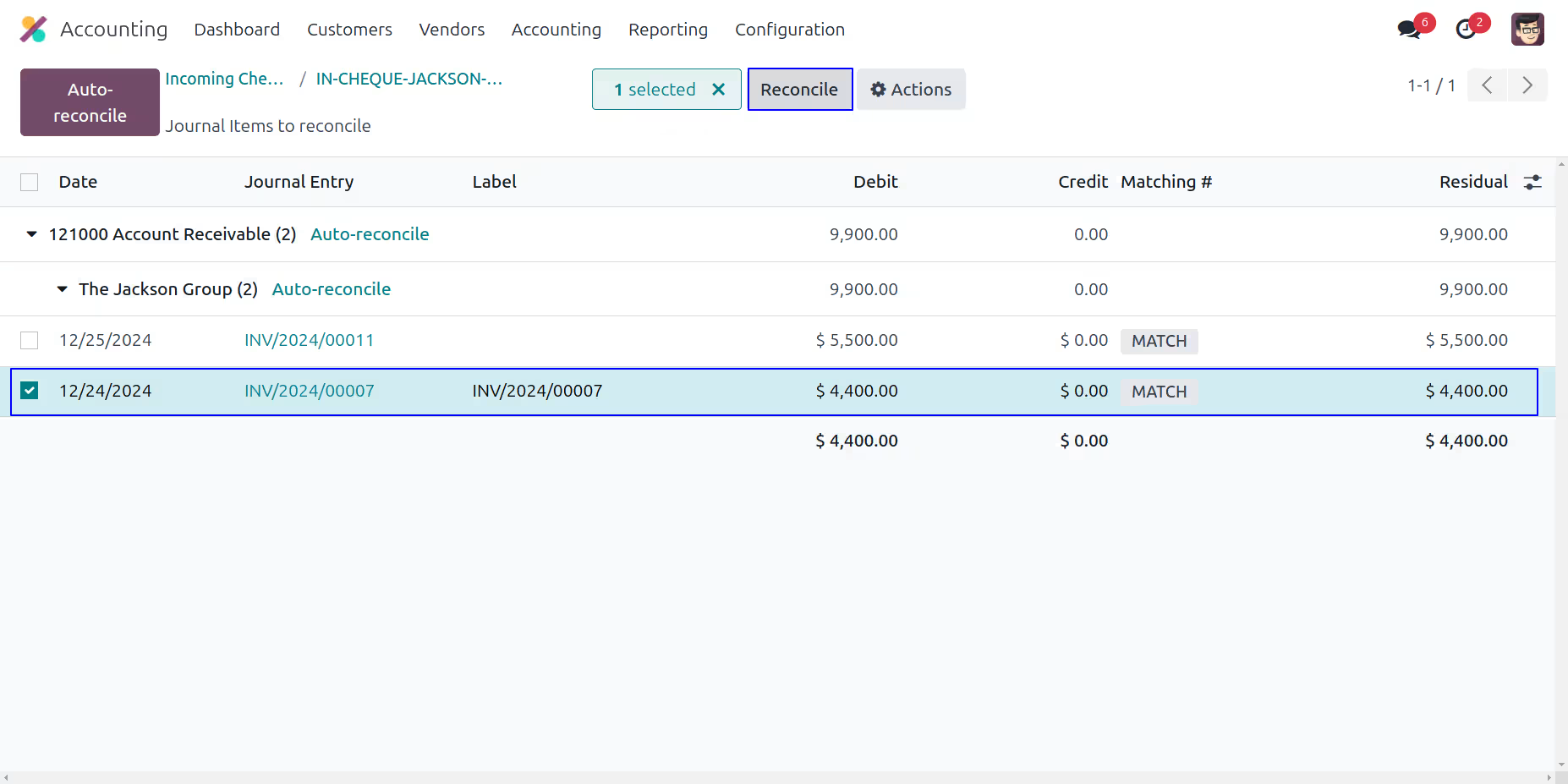
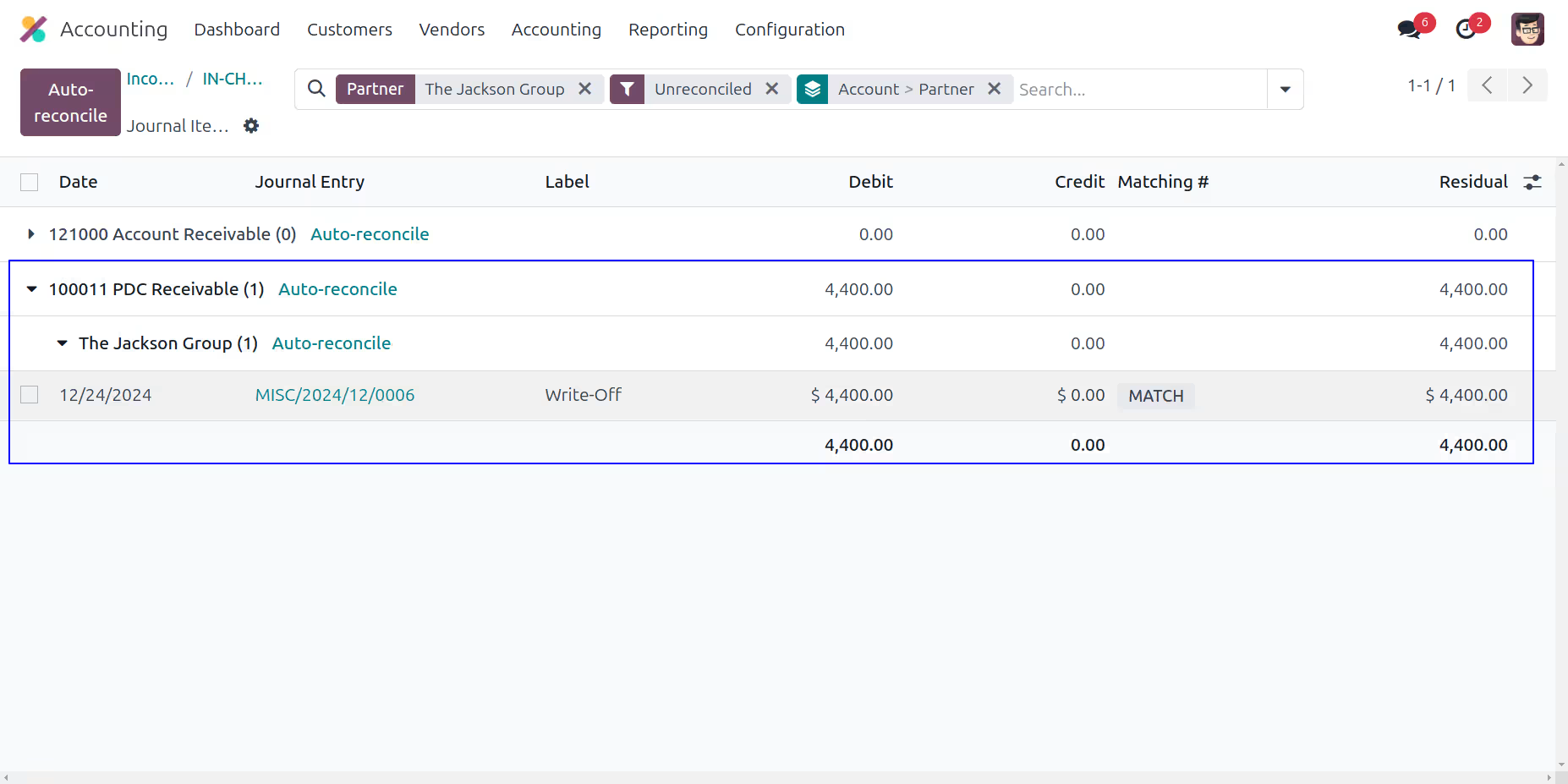
Reconcile Incoming Cheque
Click on "Payment Matching" smart button to reconcile payment.
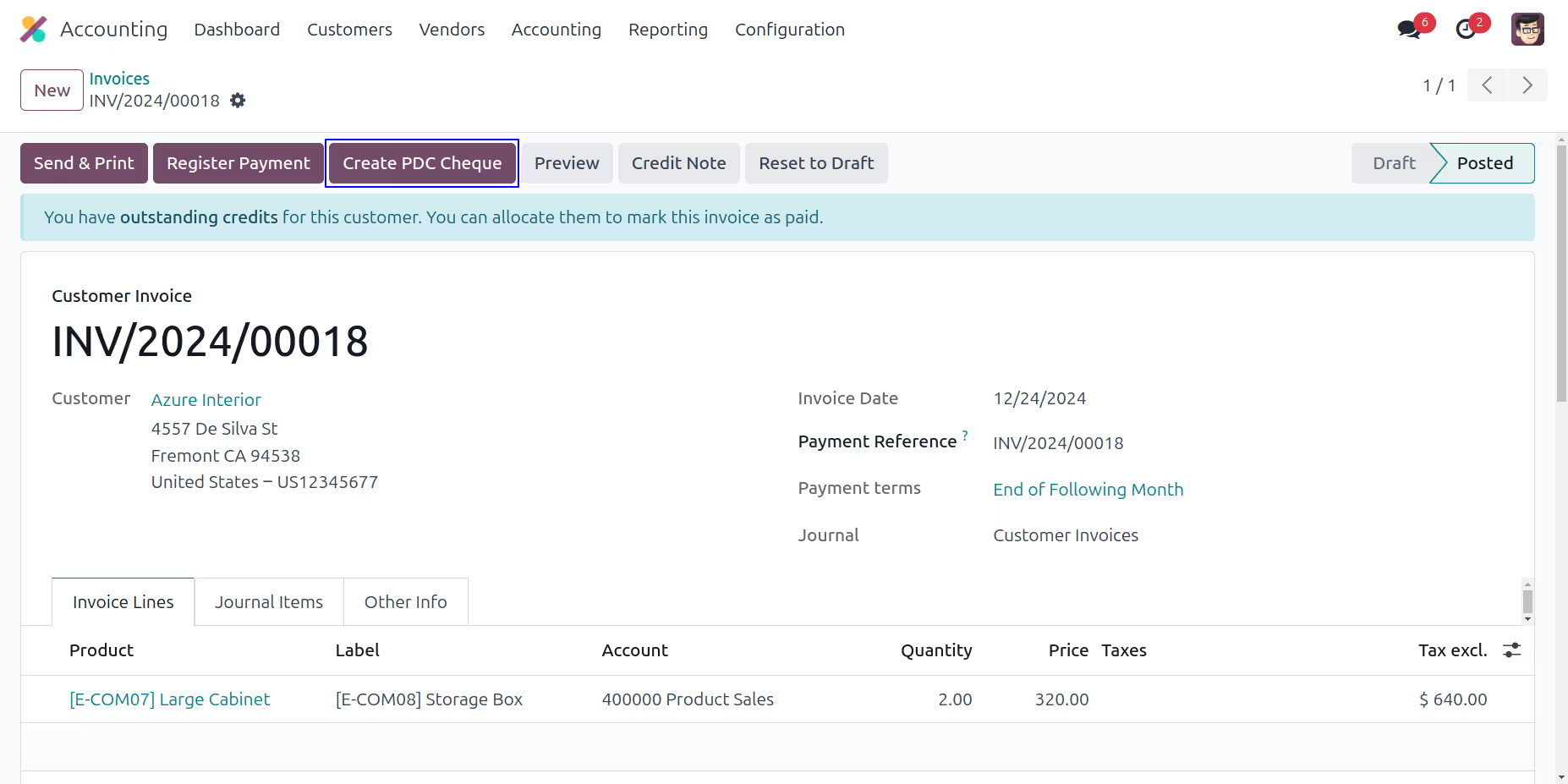
Create Incoming Cheque From Customer Invoice
When you click on "Create PDC Cheque" button new wizard will open.
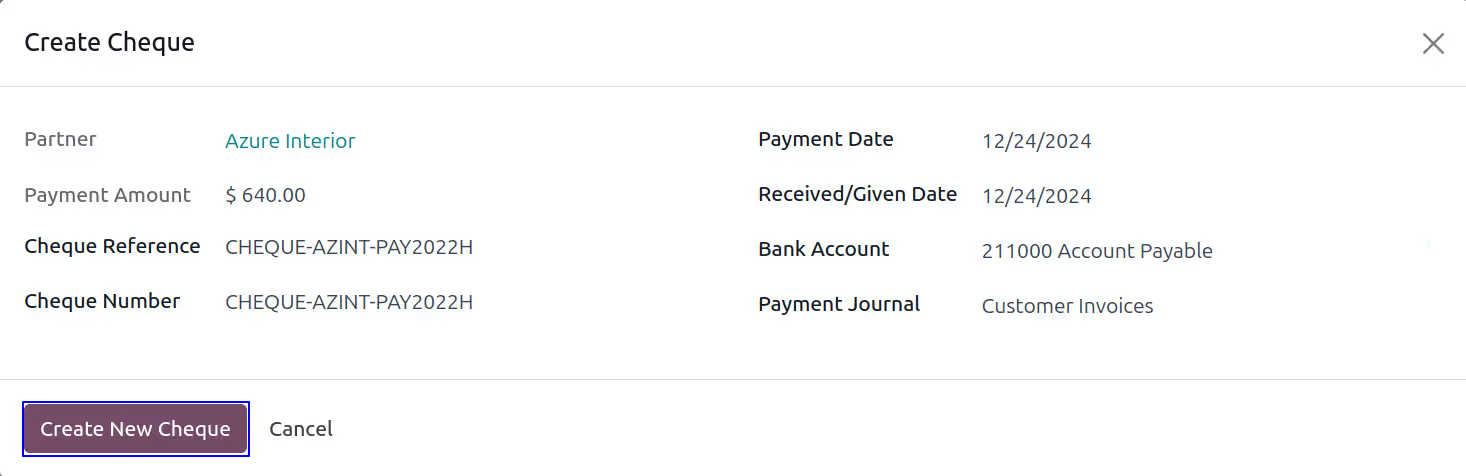
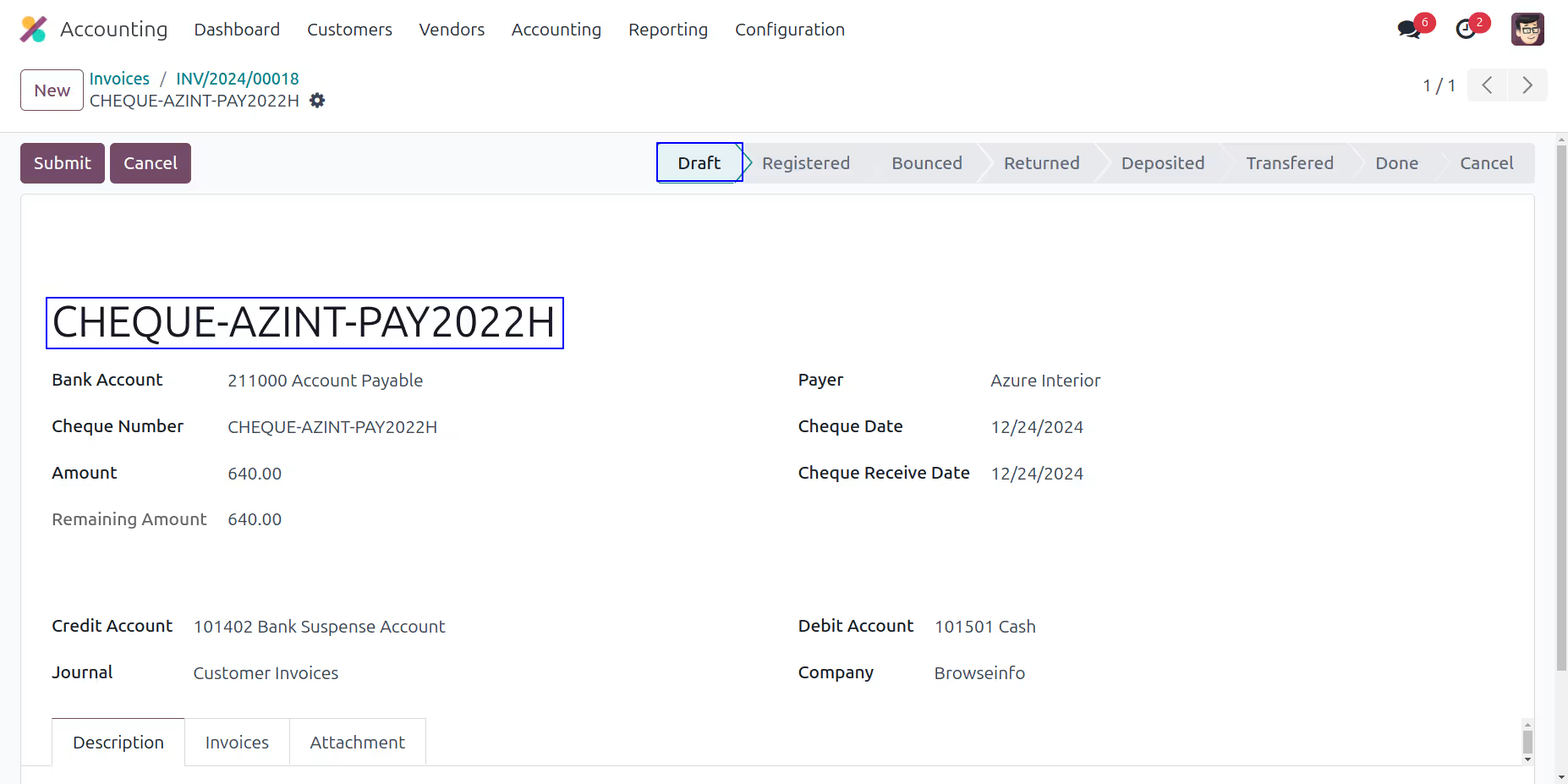
When you click on Create New Cheque button new incoming cheque will open.
Here your directly created incoming cheque from customer invoice.
Outgoing Cheque Menu
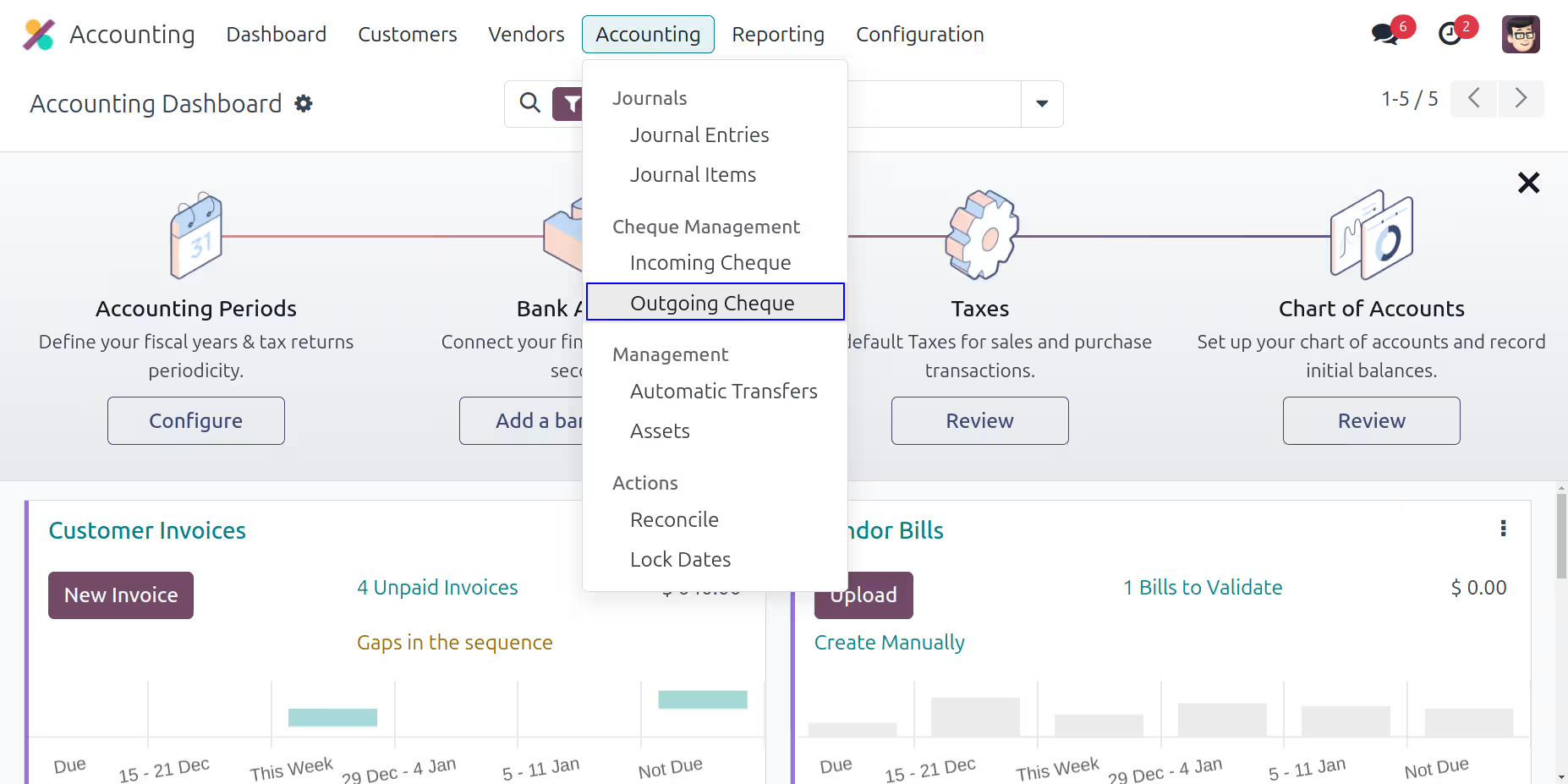
Under Invoicing > Cheque Management > Outgoing Check menu user can create and manage outgoing cheque.
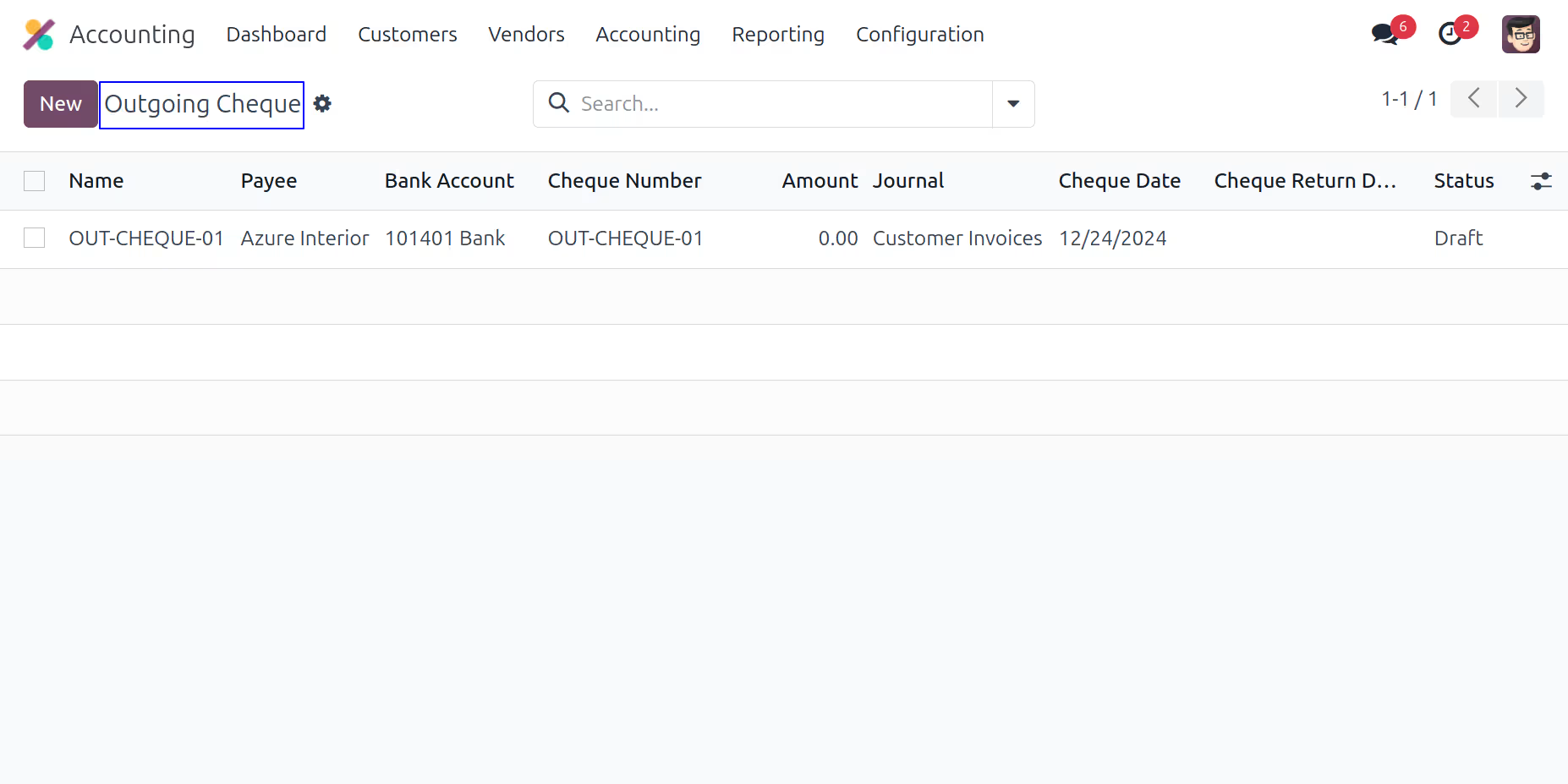
Outgoing Cheque Tree View
Under Invoicing > Cheque Management > Outgoing Check menu user can create and manage outgoing cheque.
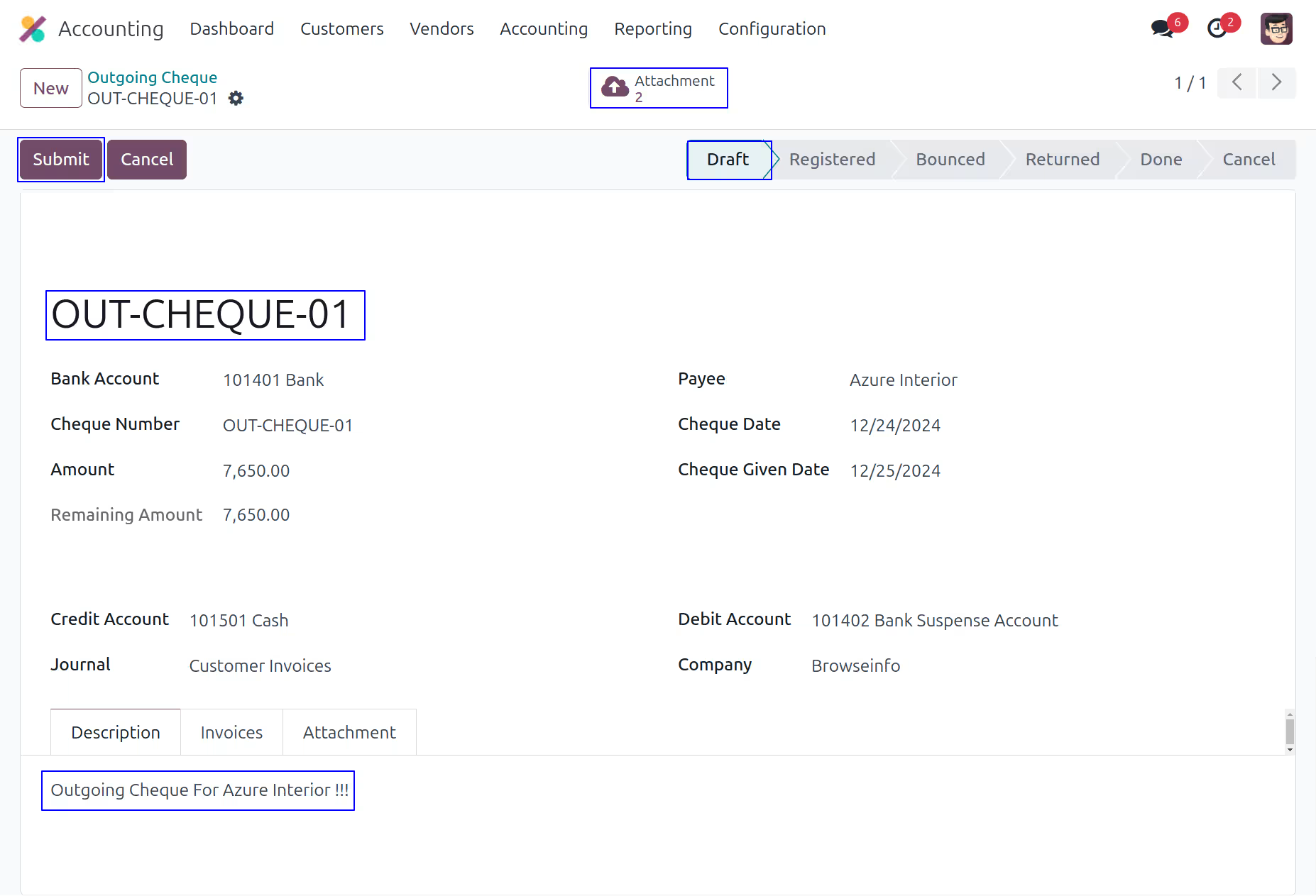
Create Outgoing Cheque
Manager can create Outgoing cheque. Click on "Submit" button to register outgoing cheque.
Register Outgoing Cheque
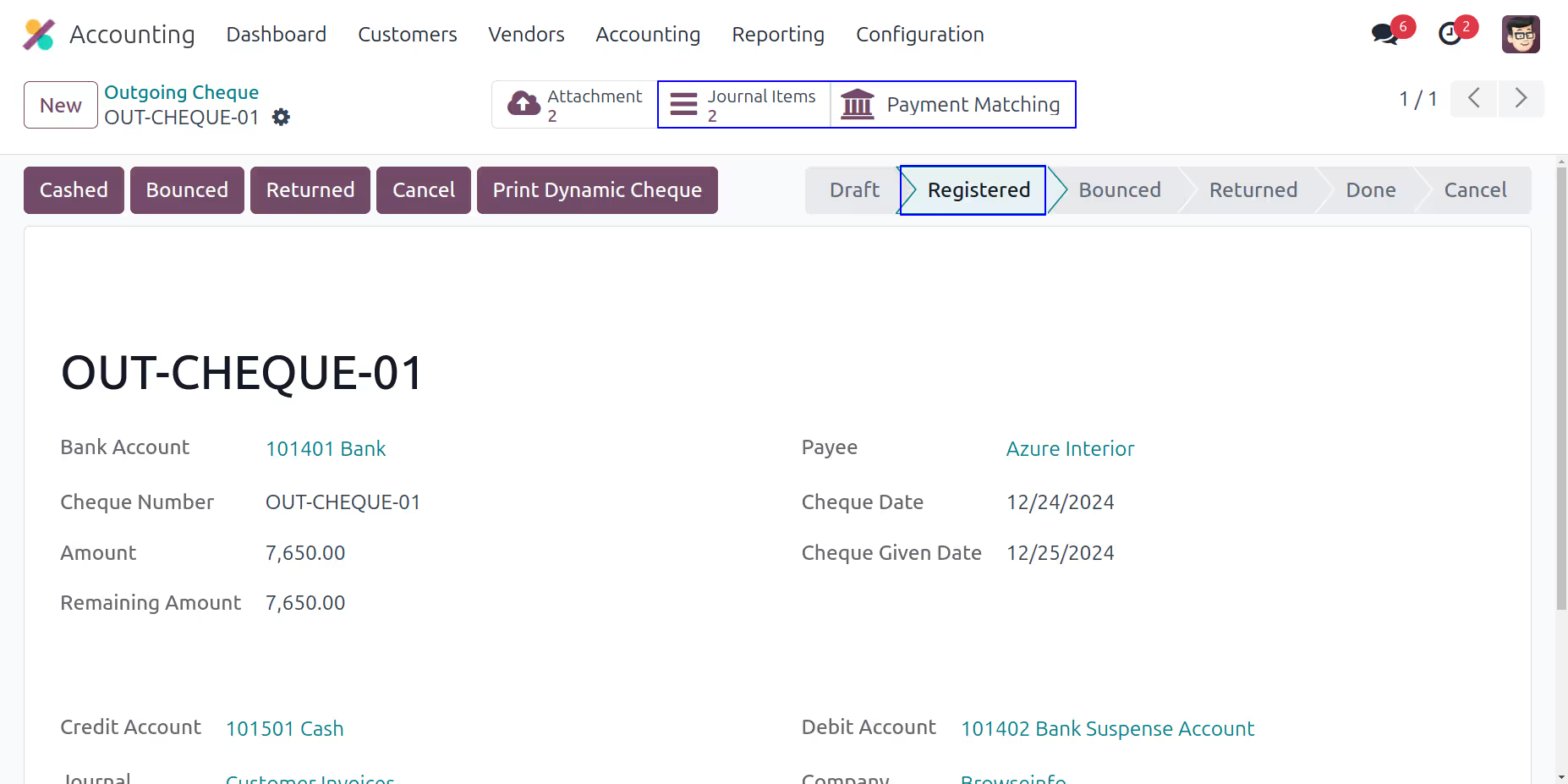
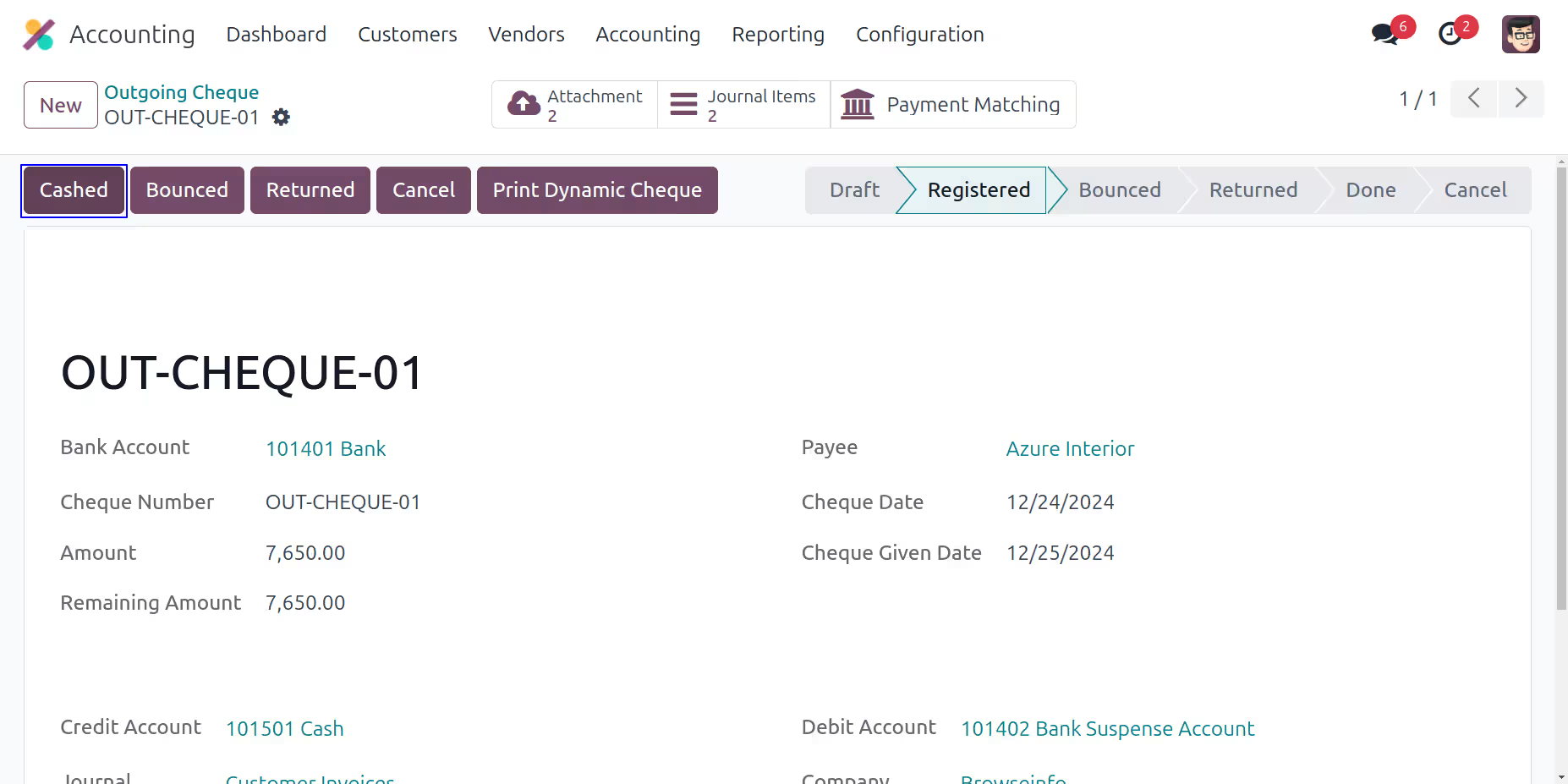
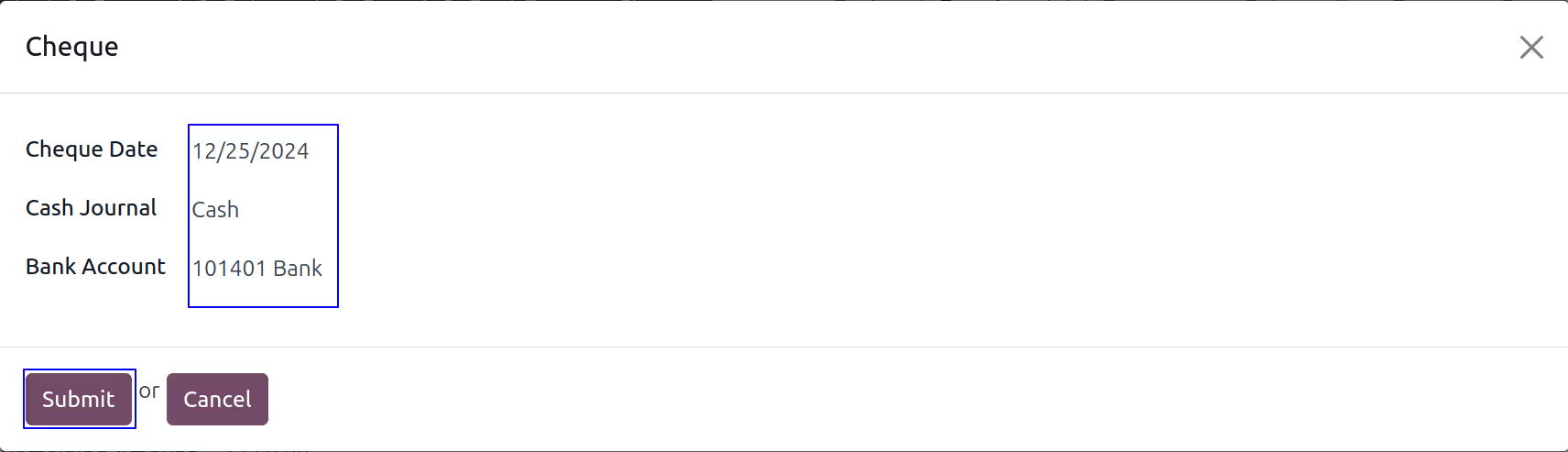
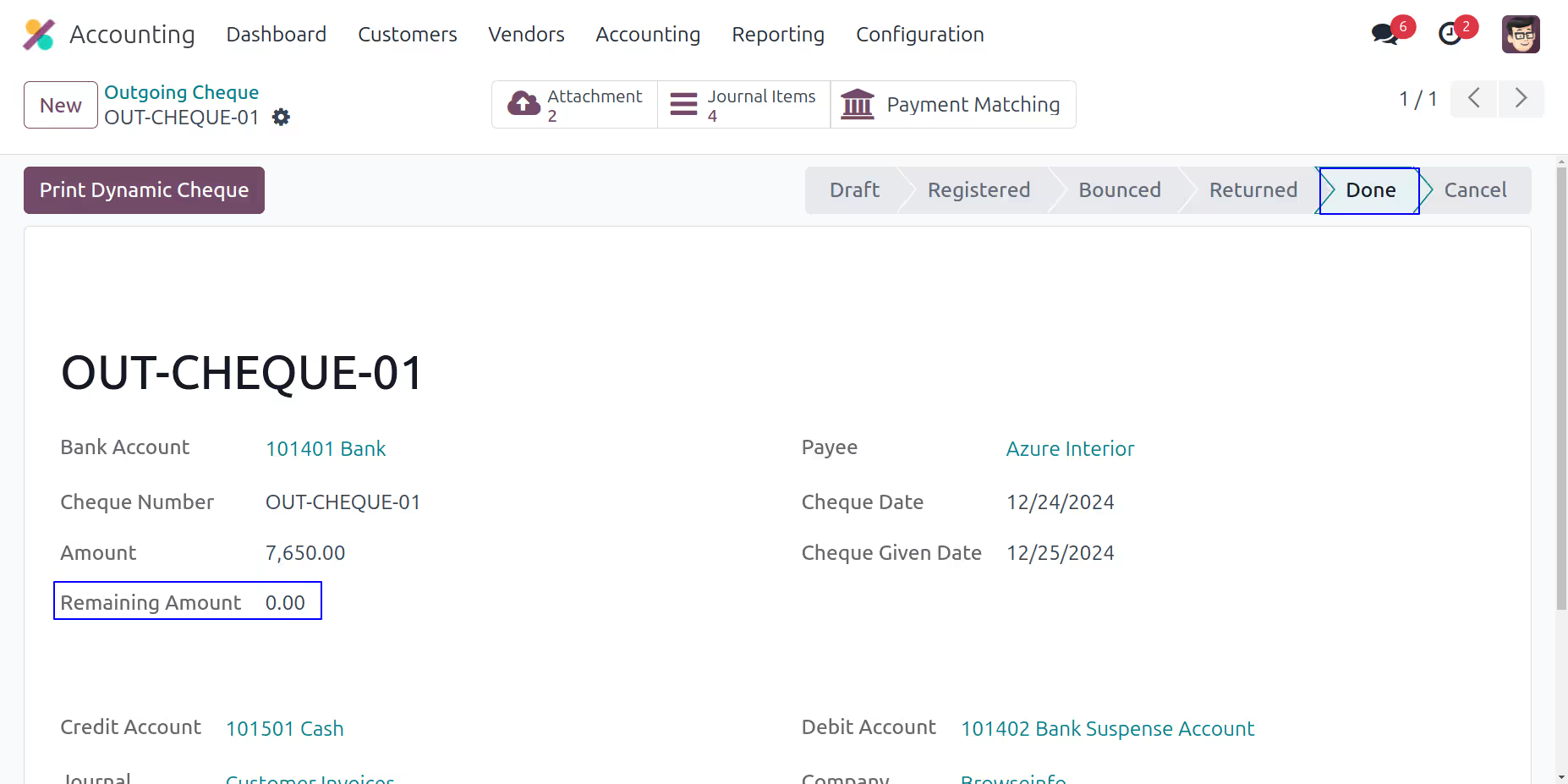
Cash Outgoing Cheque
When you click on Cashed button new wizard will open. In this wizard select date and bank account.
User cam see changed state of cheque.
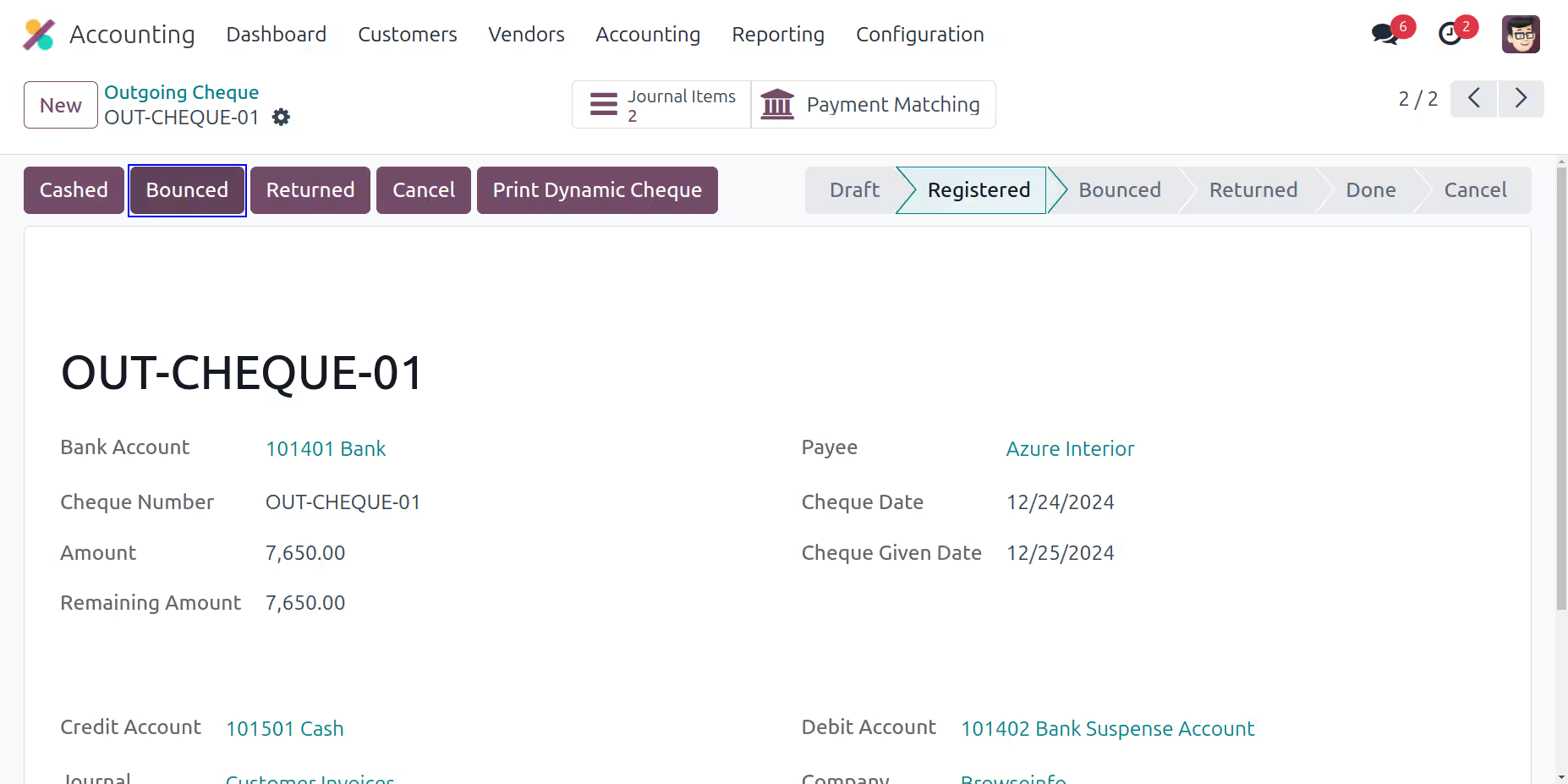
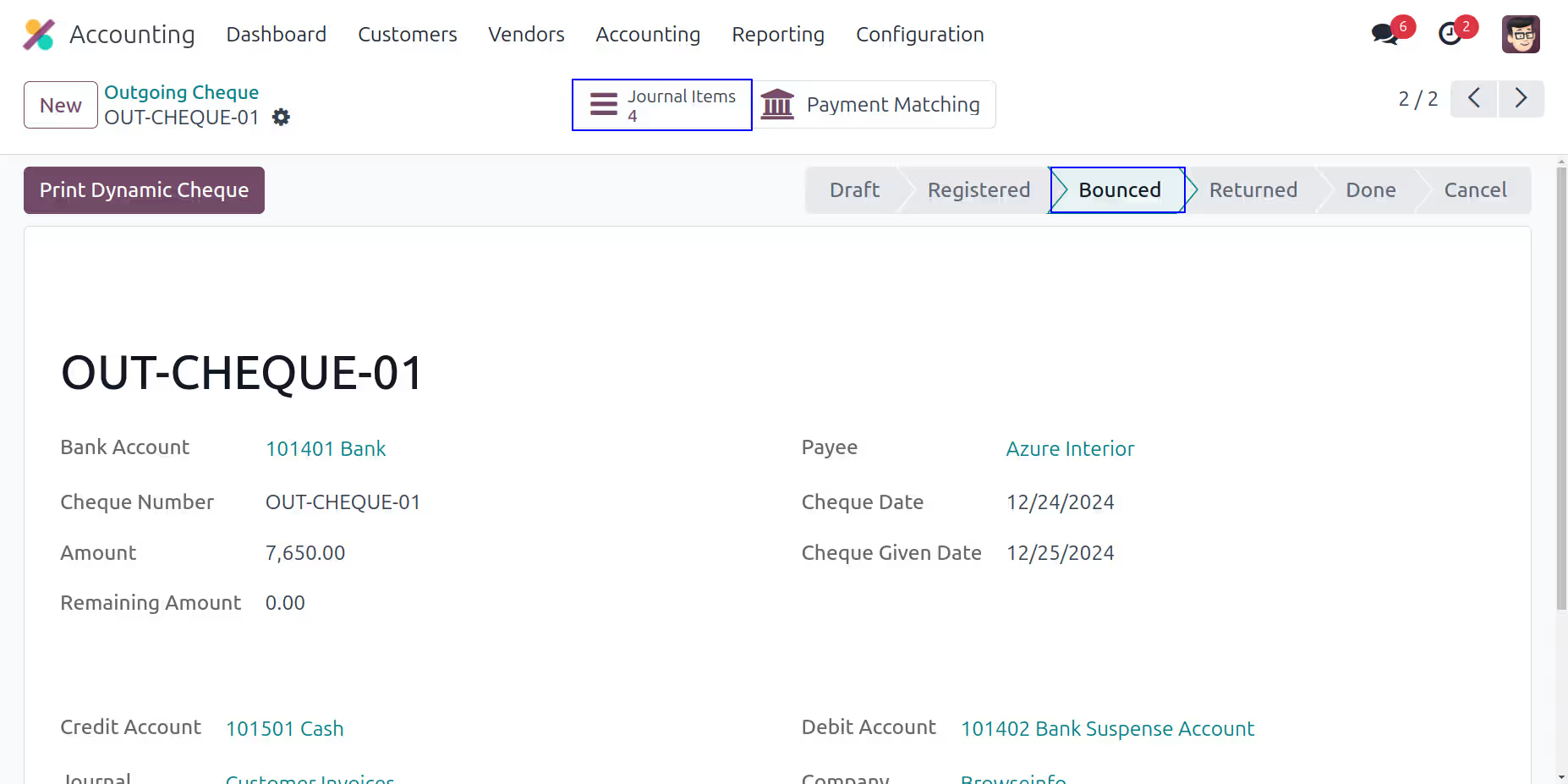
Bounce Outgoing Cheque
Click on "Bounced" button to bounce outgoing cheque.
Returned Outgoing Cheque
Click on to "Returned" button to return incoming cheque.
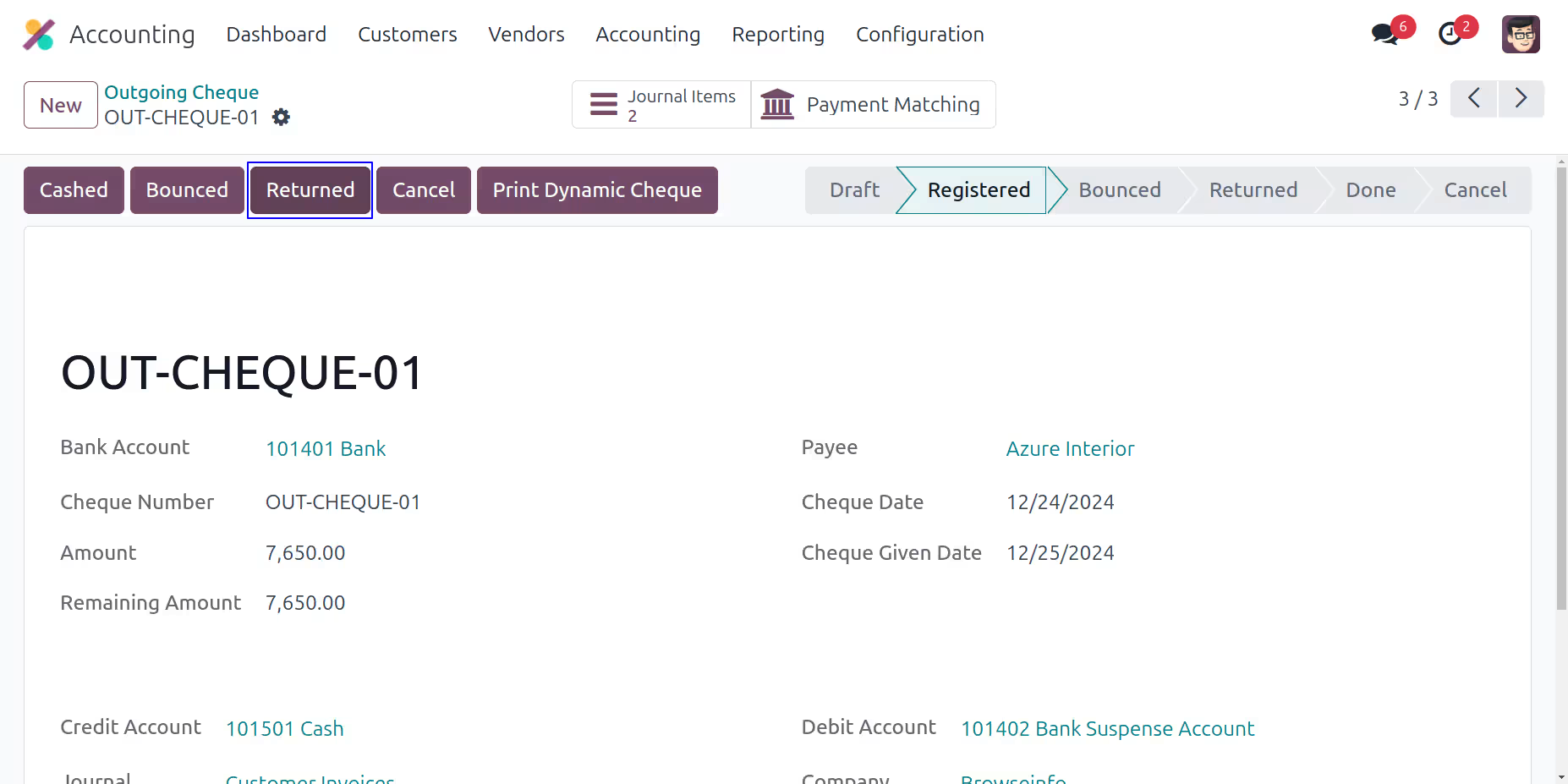
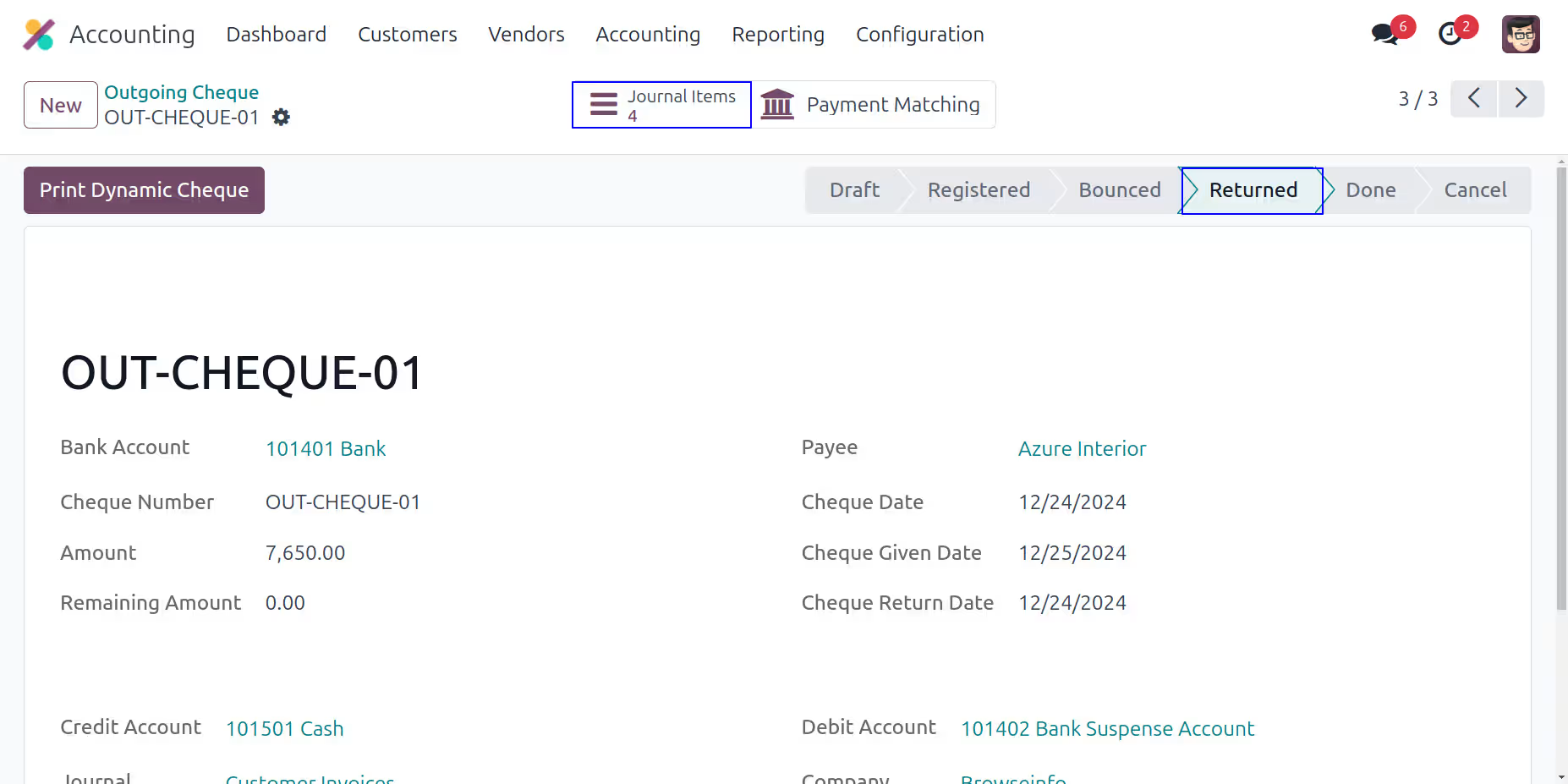
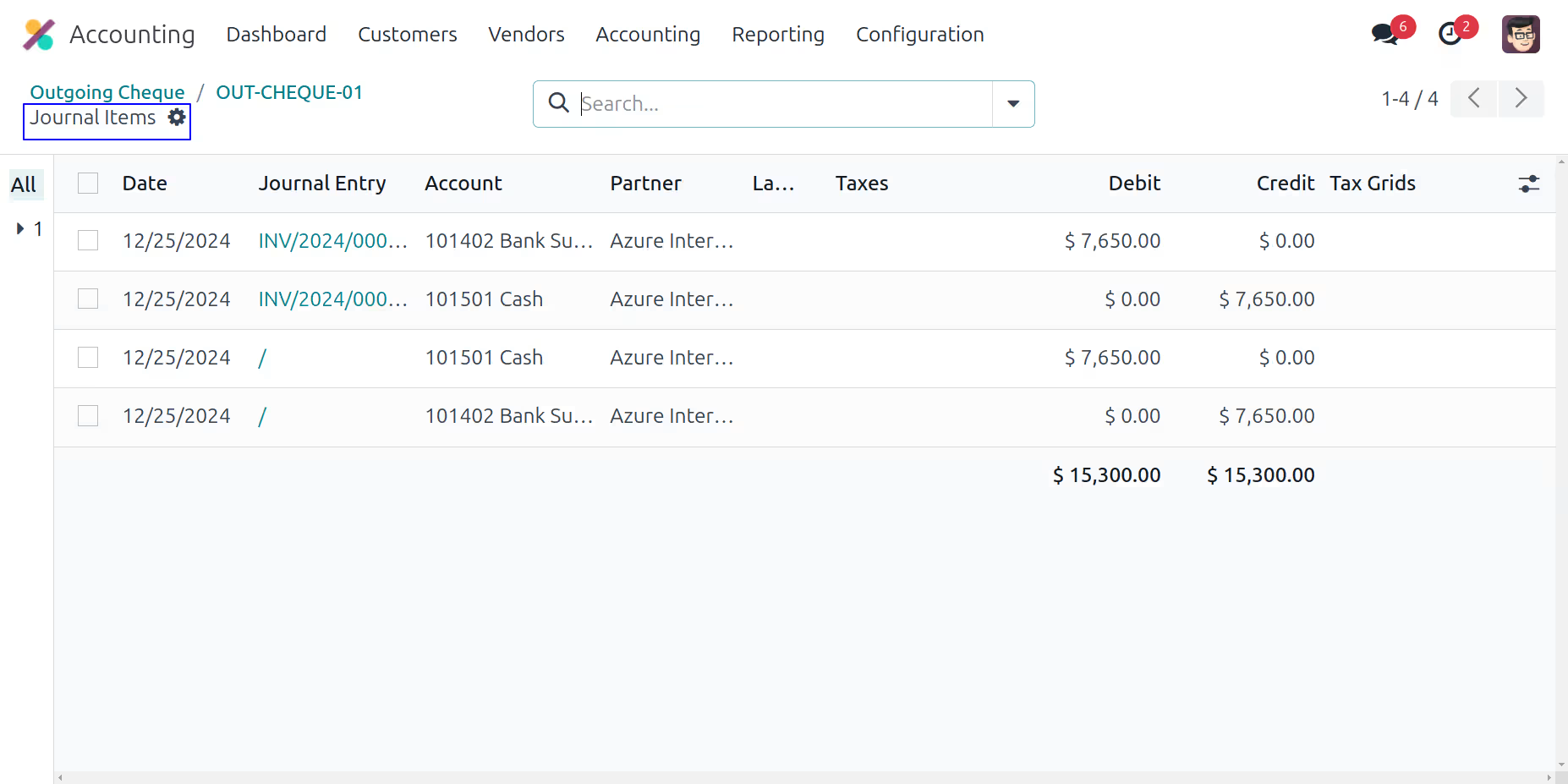
Journal Entry of Outgoing Cheque
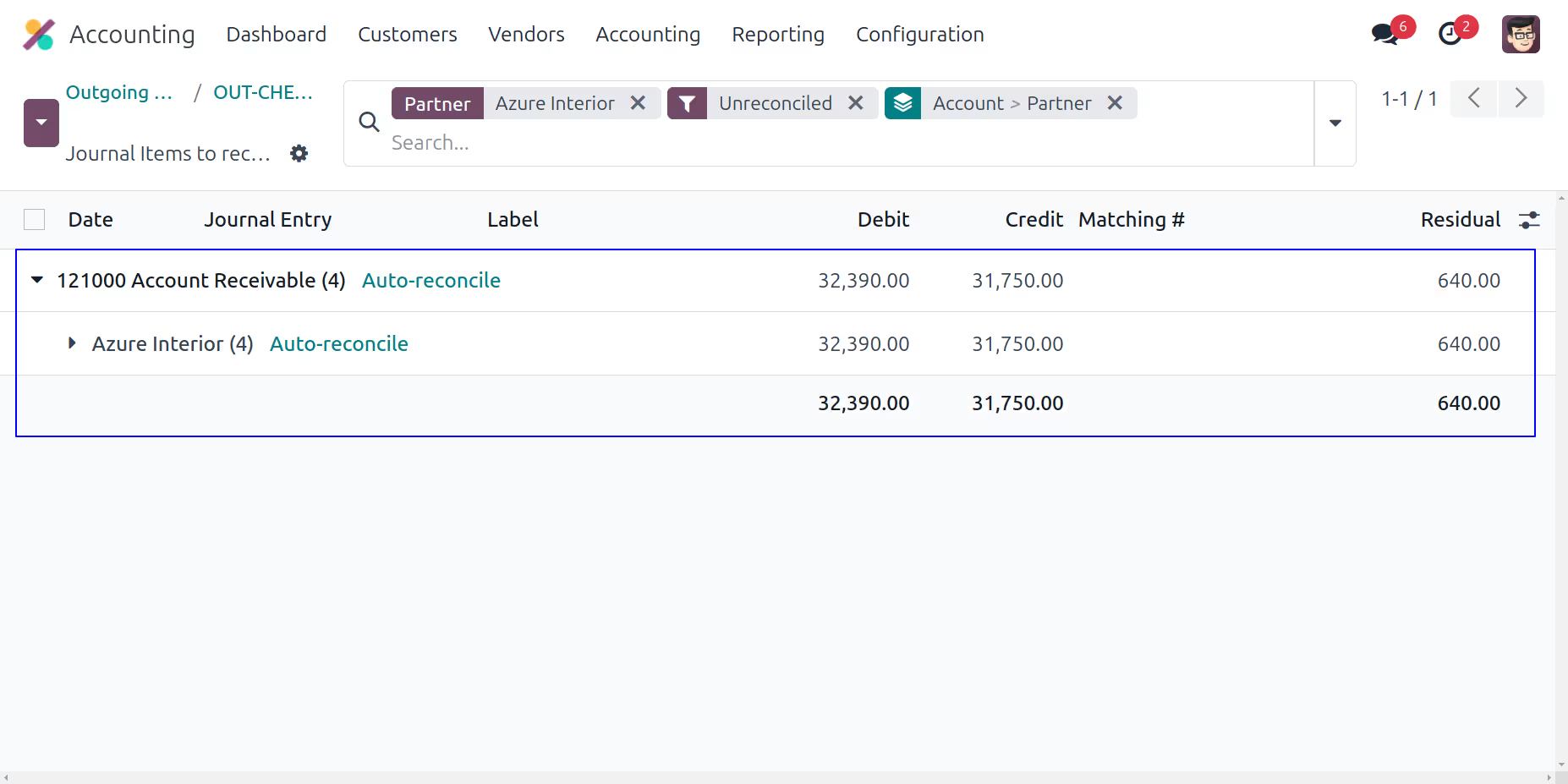
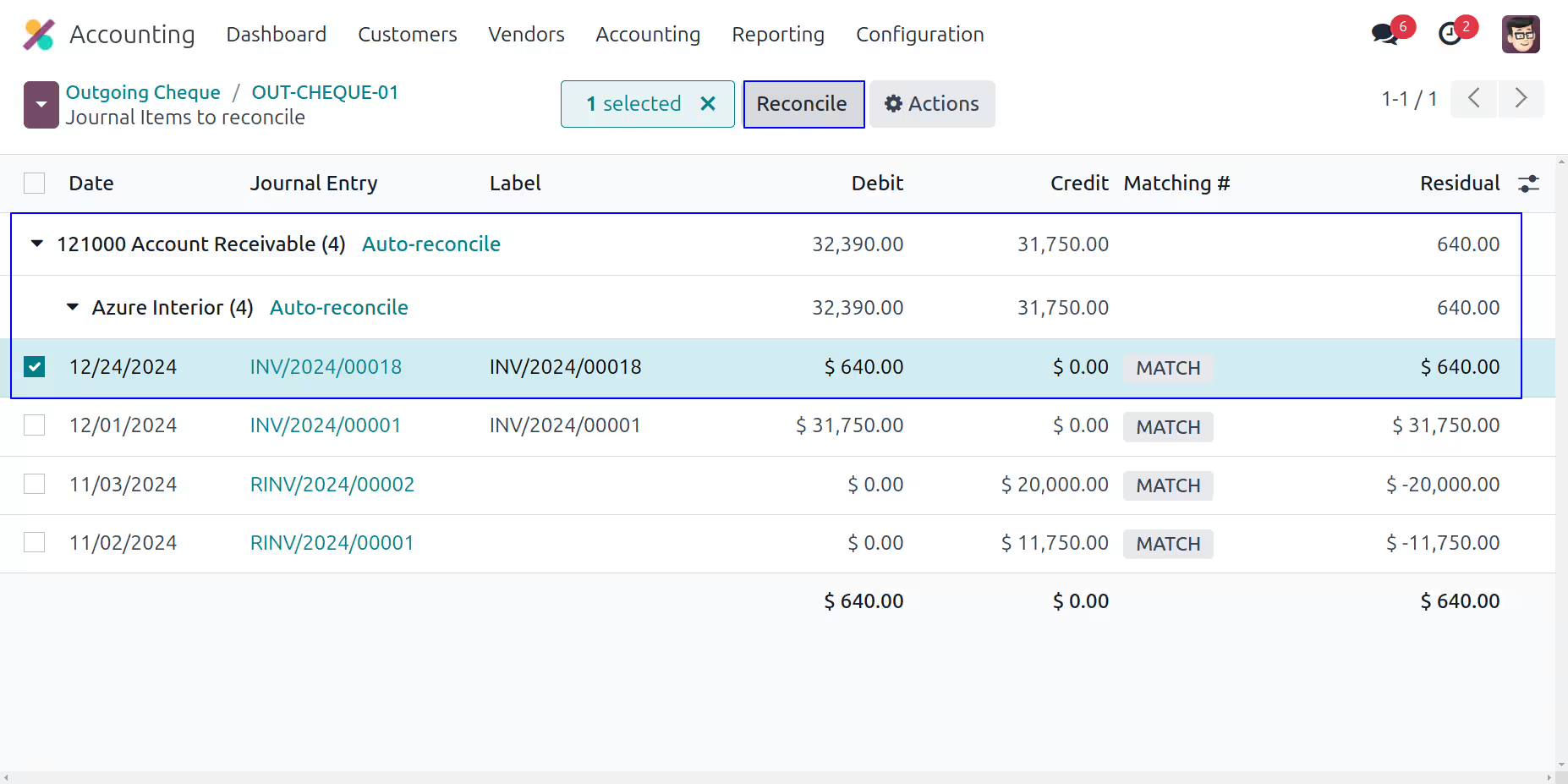
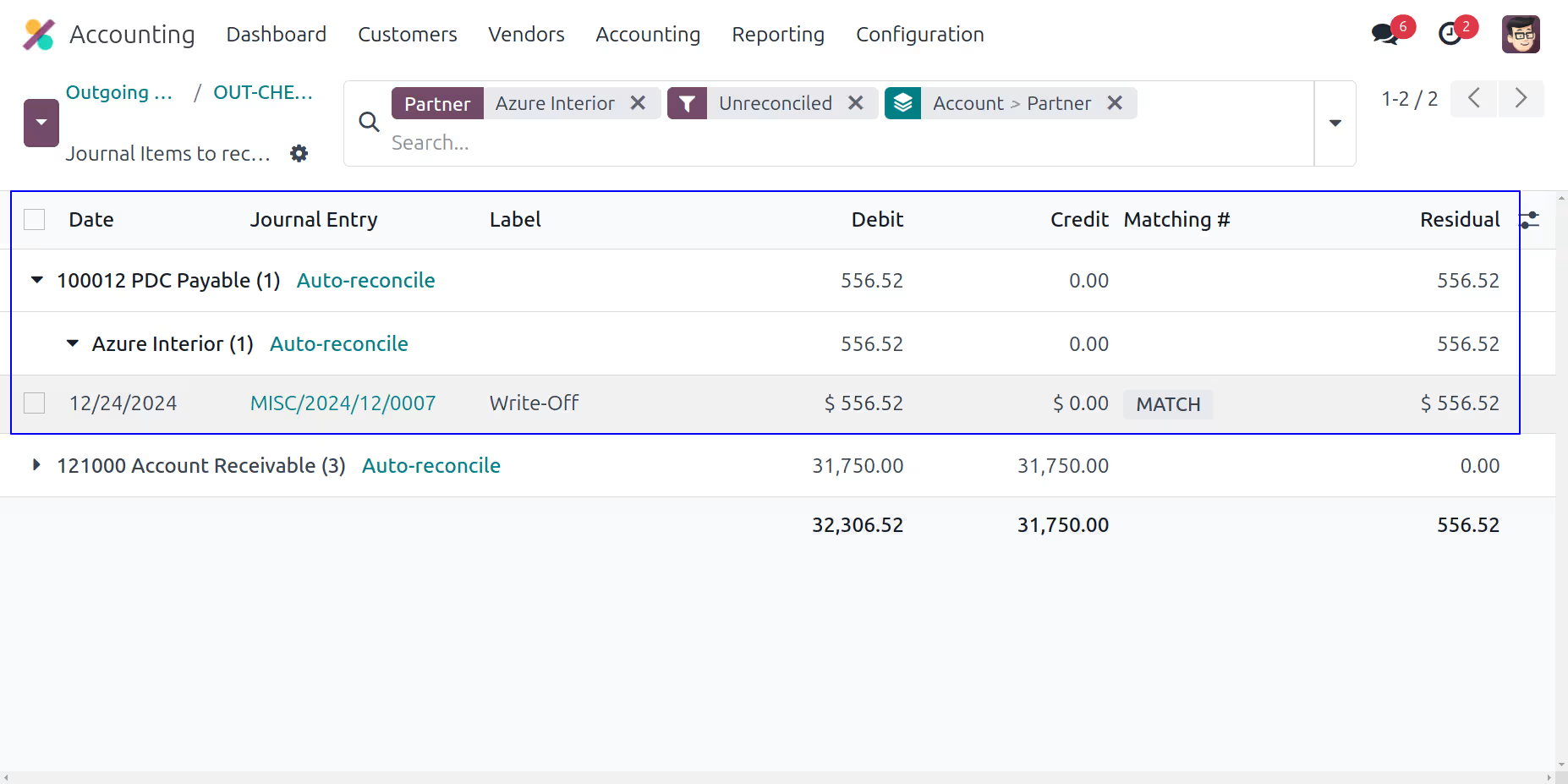
Reconcile Outgoing Cheque
User can reconcile cheque payment.
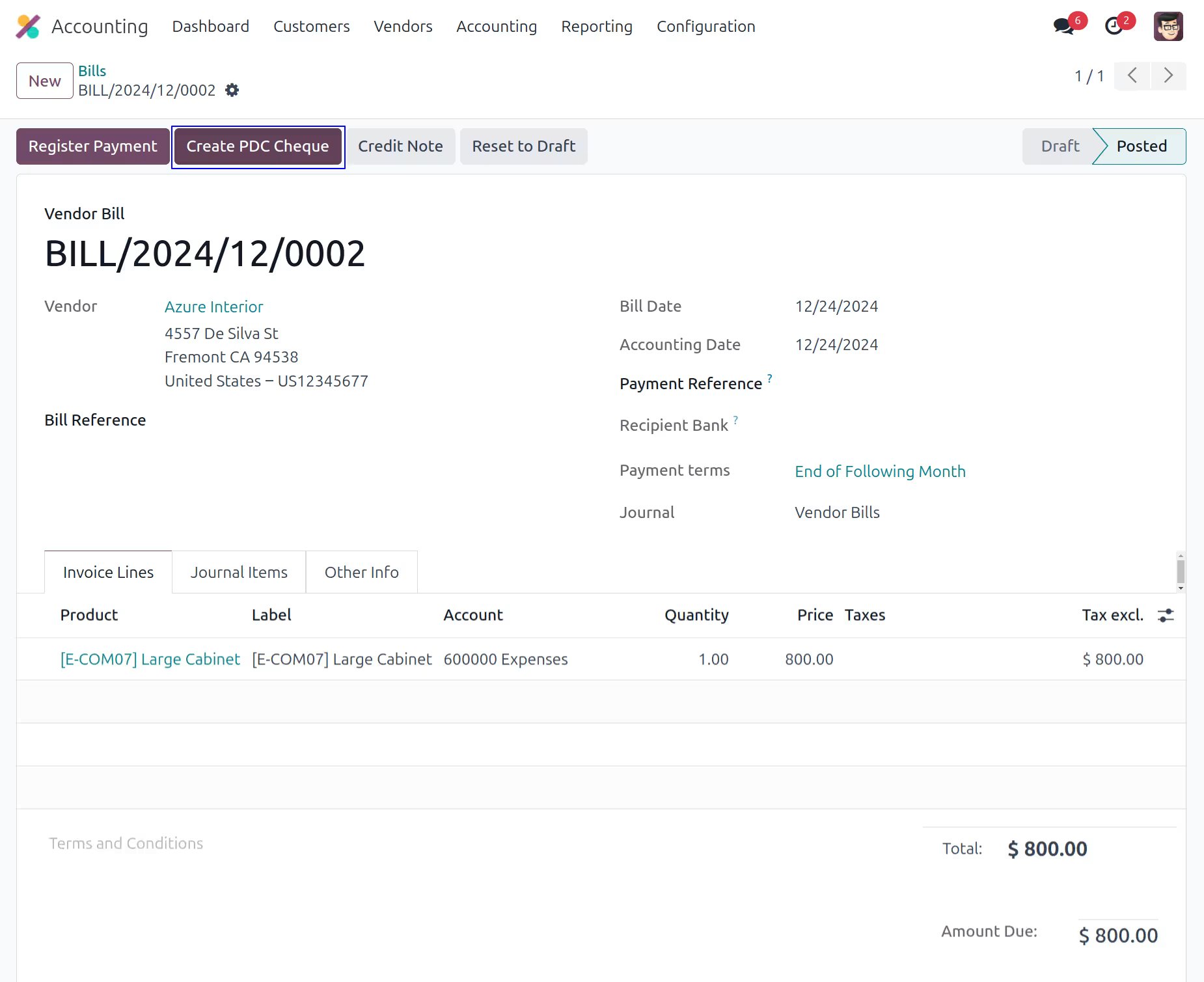
Create Outgoing Cheque From Bills
When you click on "Create PDC Cheque" button new wizard will open.
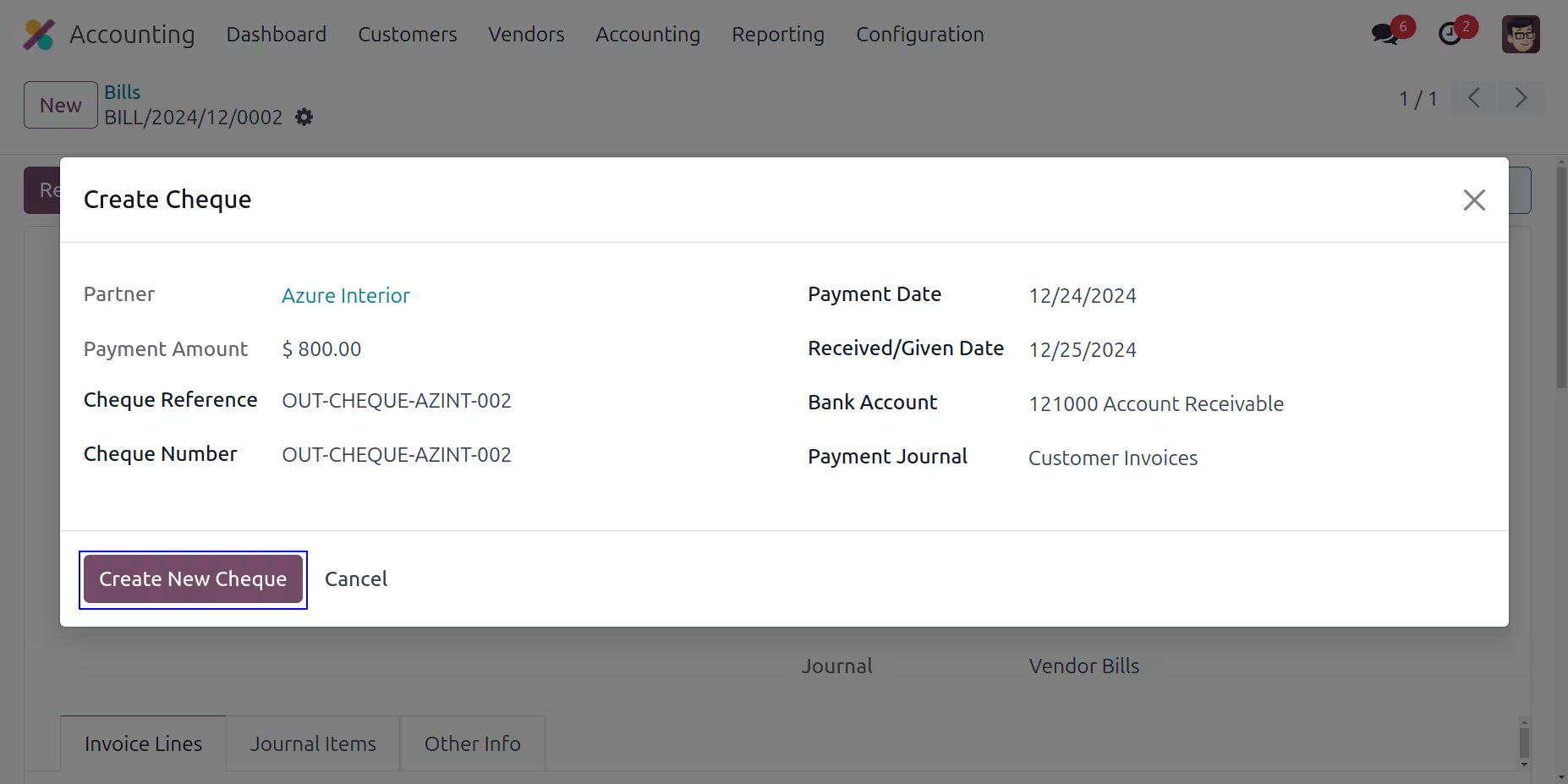
When you click on "Create New Cheque" button new outgoing cheque will open.
Click on submit button to register outgoing cheque
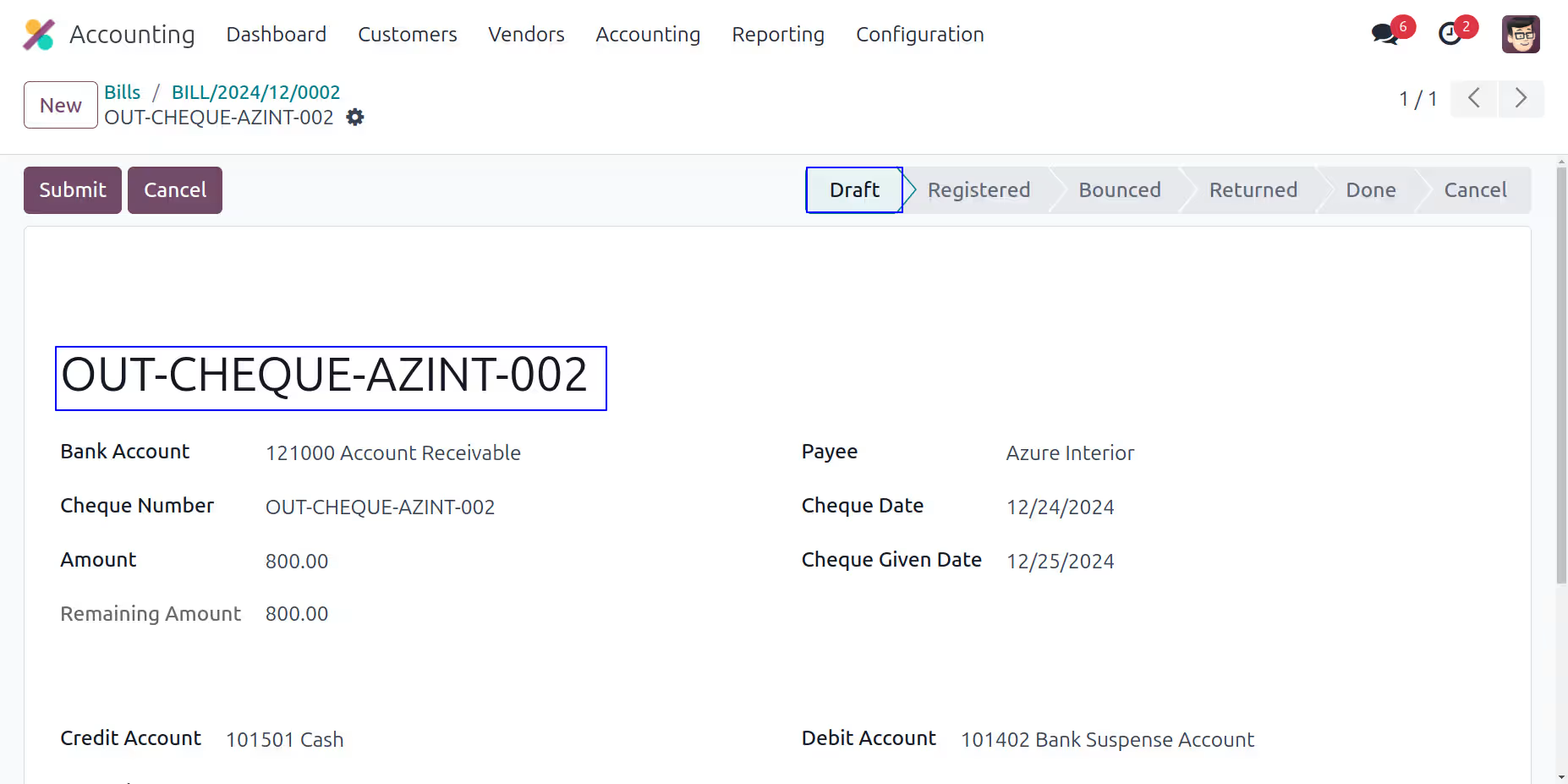
Here your directly created Outgoing cheque from vendor bill.
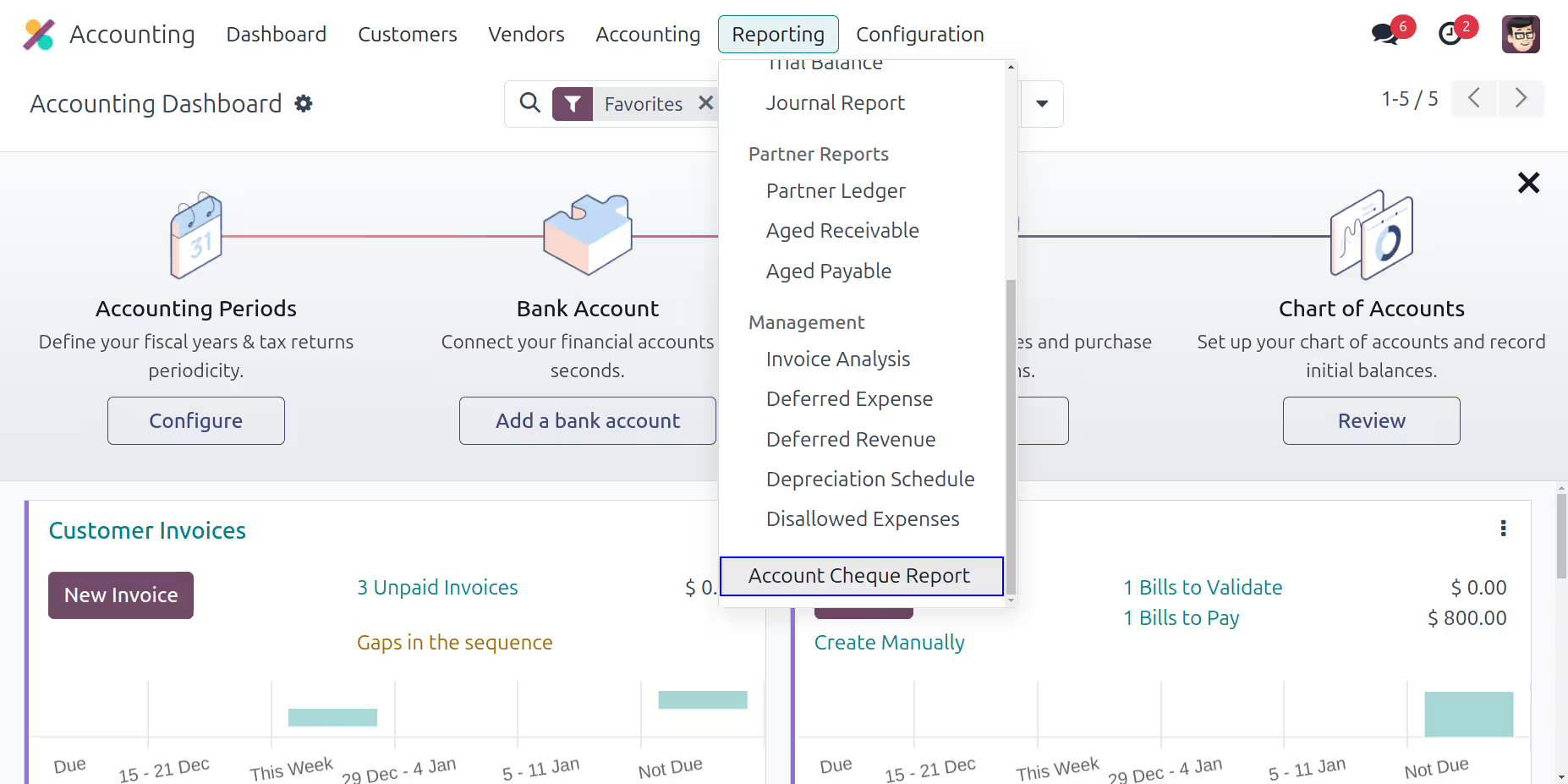
Incoming/Outgoing Cheque Report Menu
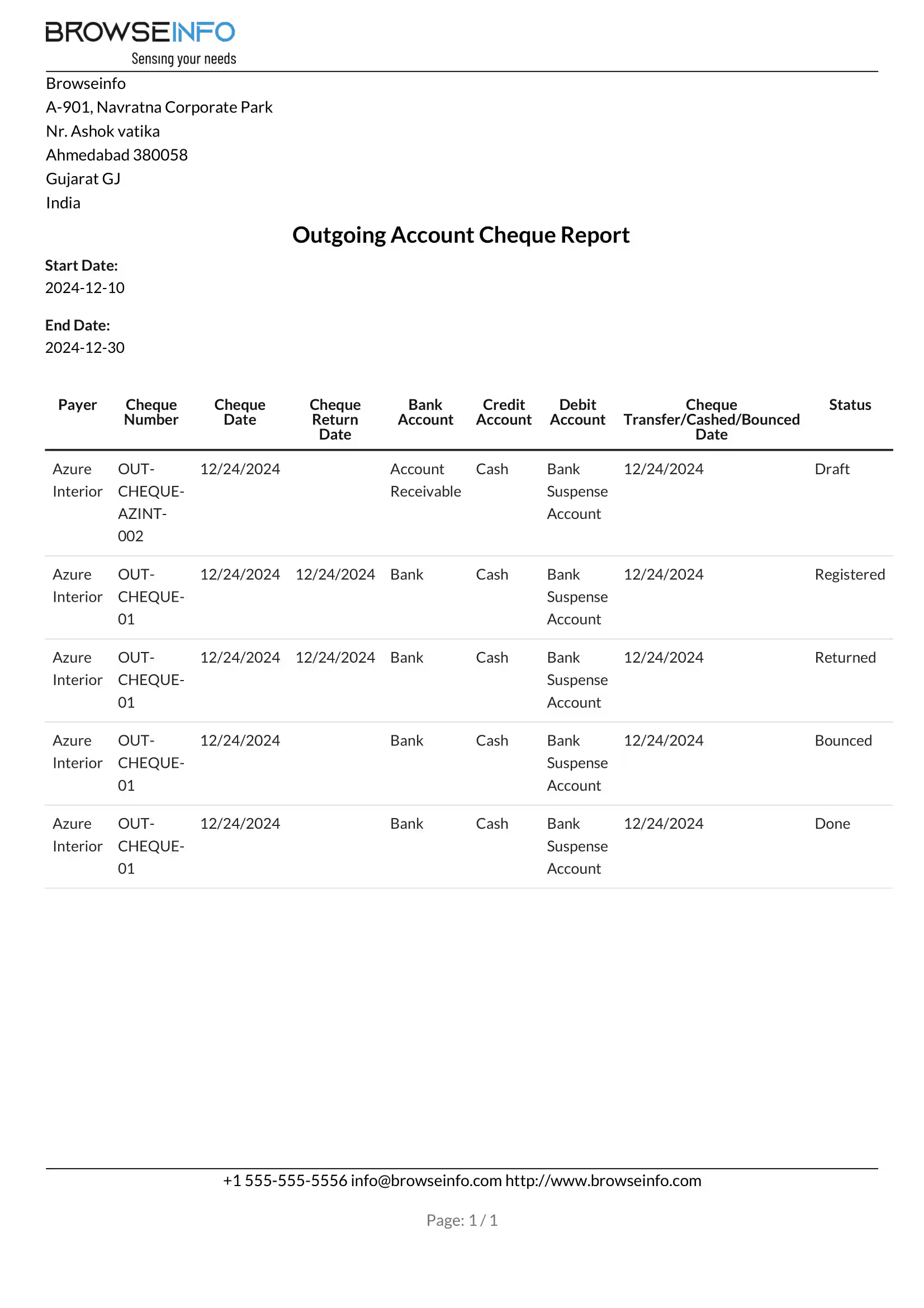
Under Invoicing > Reporting > Account Cheque Report menu user can print report.
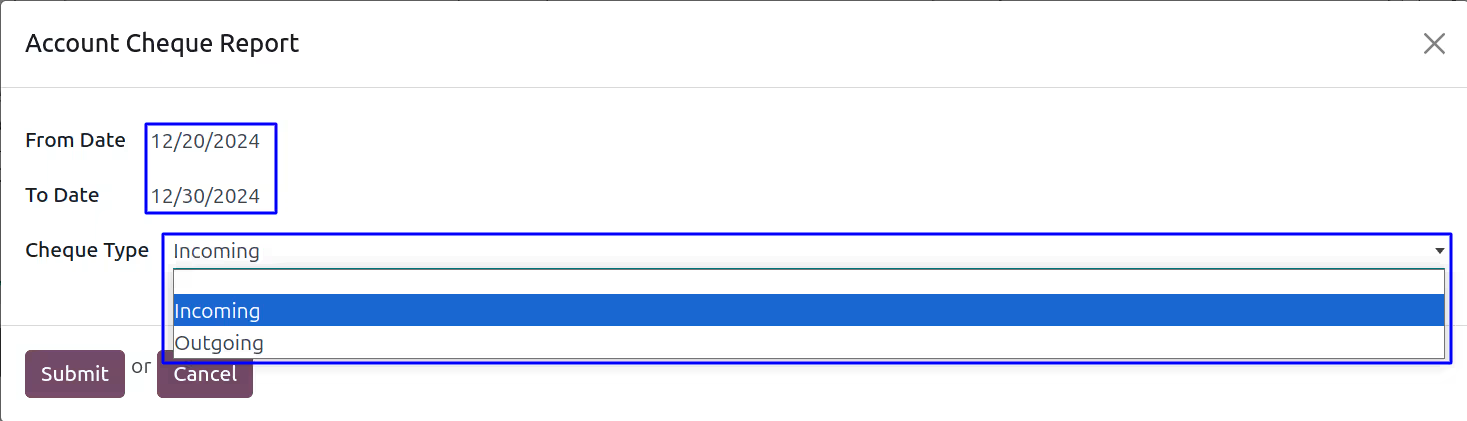
Incoming/Outgoing Cheque Report Wizard
Manager can generate Incoming/Outgoing account cheque report.
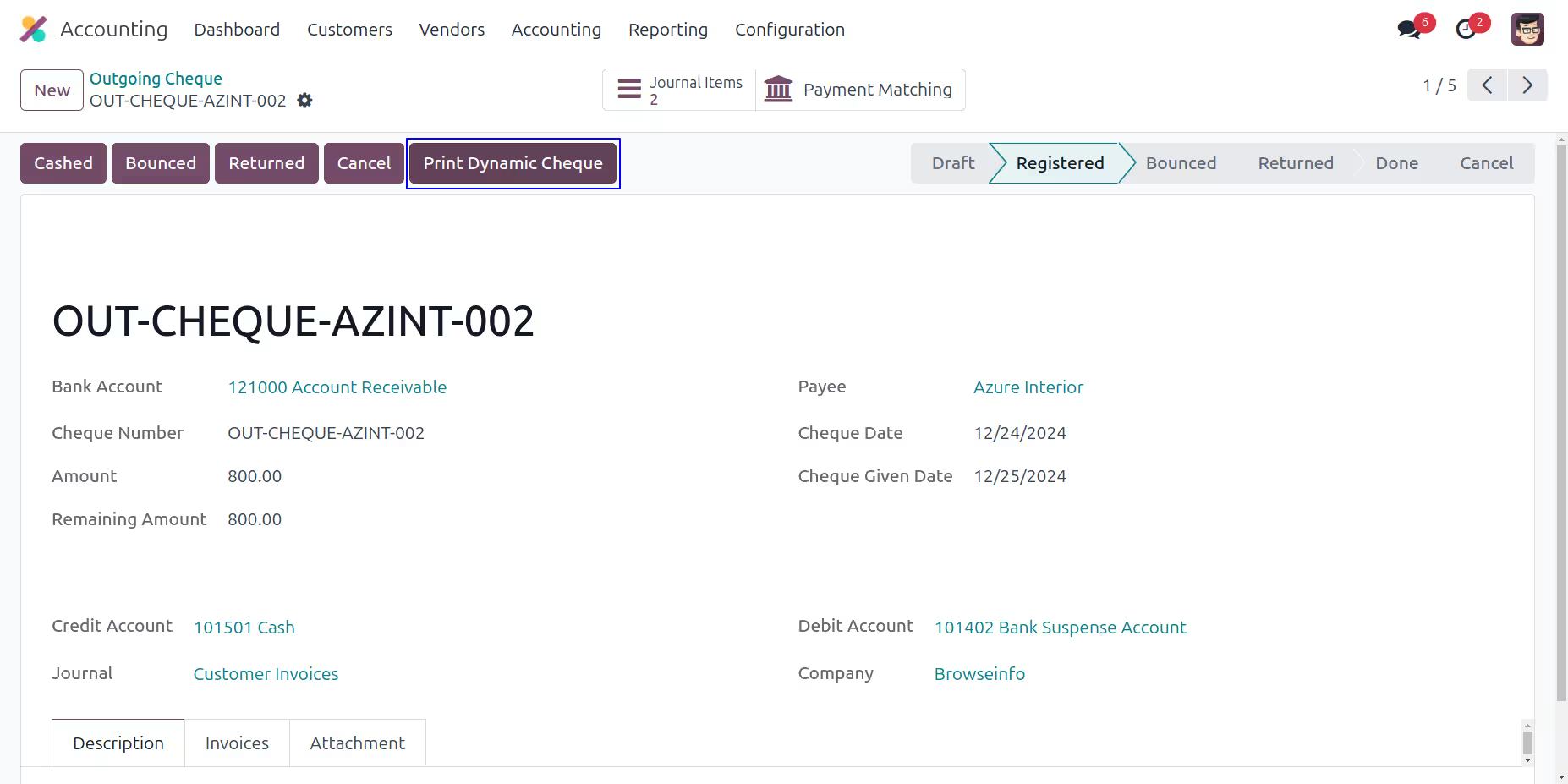
Print Dynamic Cheque Report
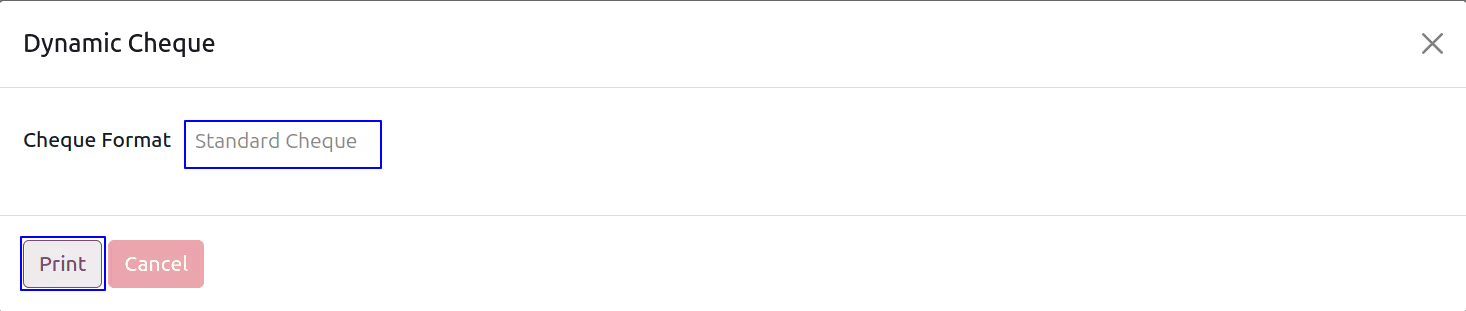
When you click on "Print Dynamic Cheque" button new wizard will open.
Click on print button to print dynamic cheque report.
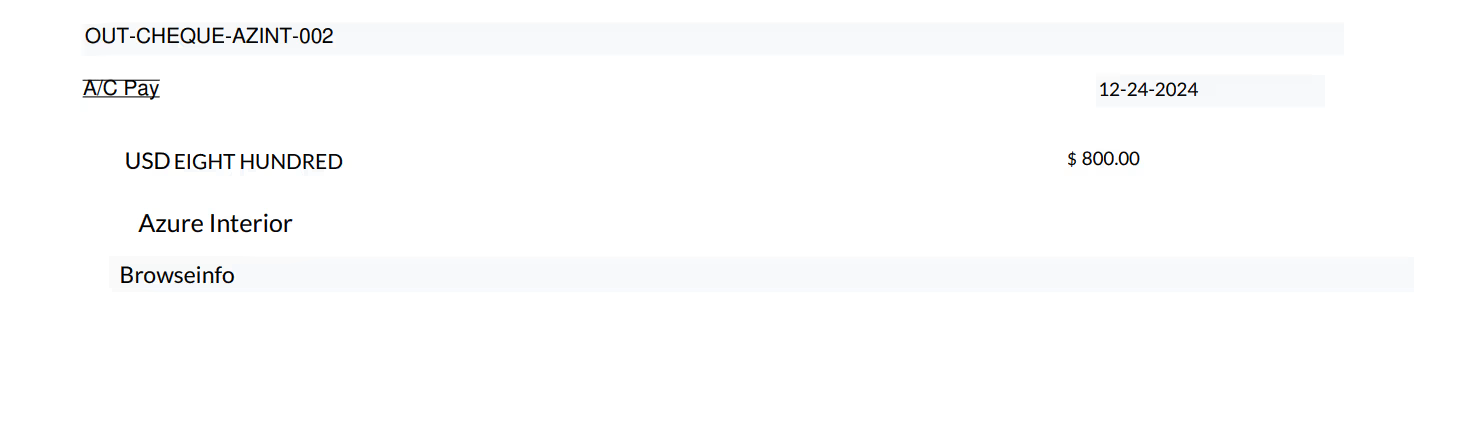
Dynamic Cheque Menu
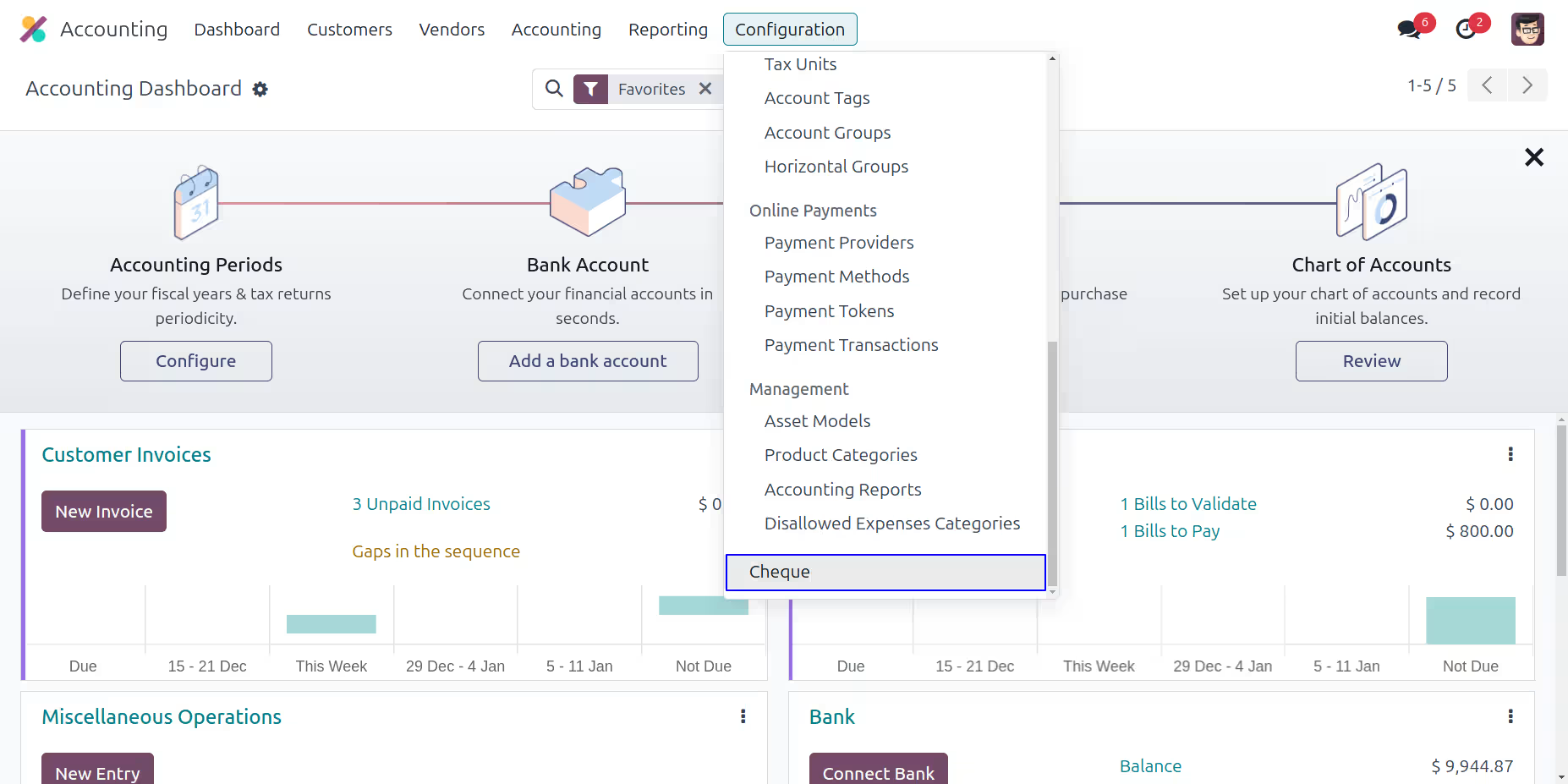
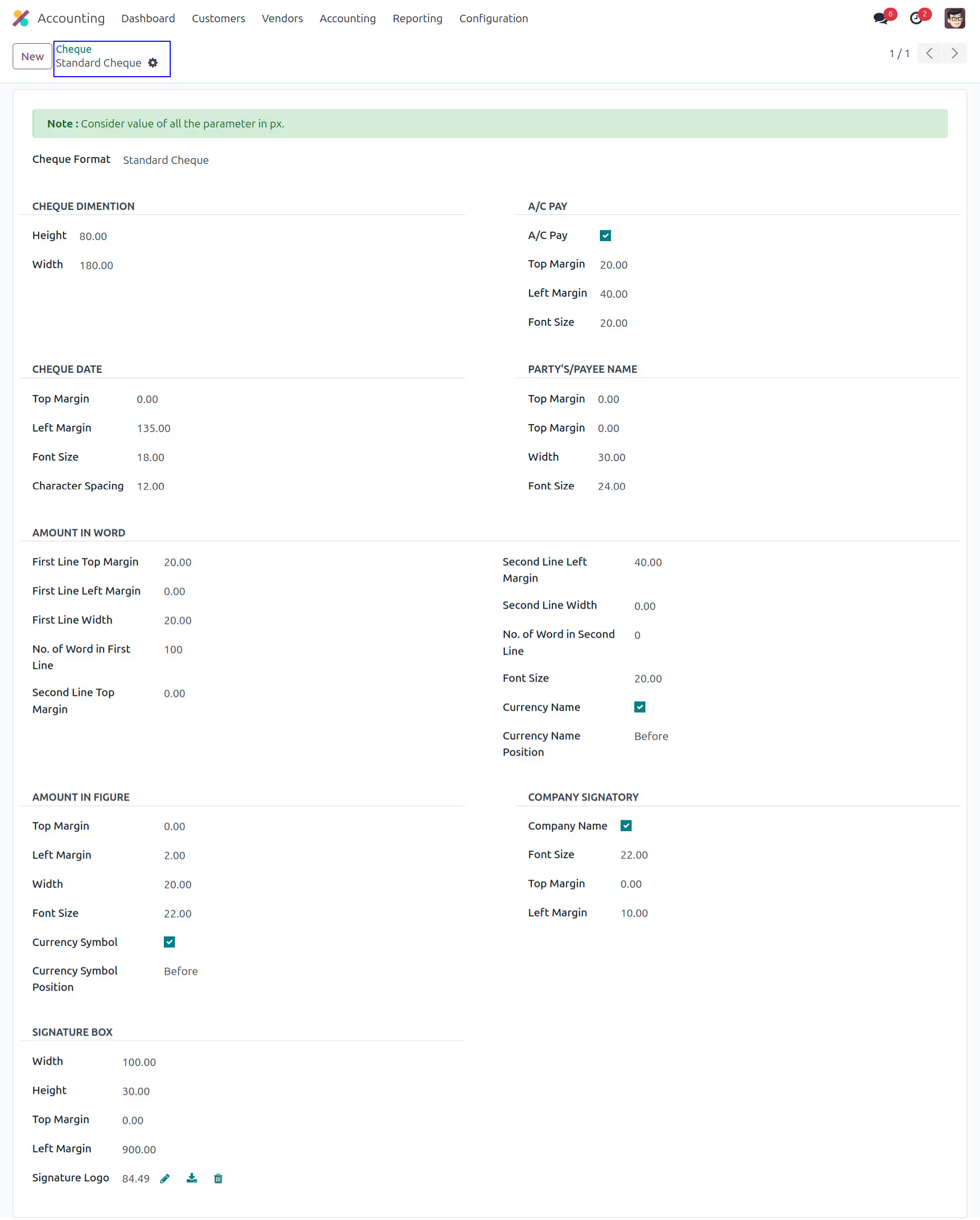
Dynamic Cheque format
Here user can create different dynamic cheque format.
Version :
17.0.0.0
20 October 2023
Initial release of the app.
Version :
17.0.0.1
04 July 2026
Fixed warning of same field label